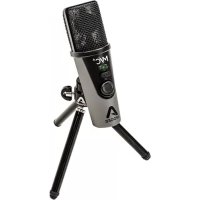
Mic Plus - Microphone Apogee - Free user manual and instructions
Find the device manual for free Mic Plus Apogee in PDF.


| Product Type | USB Condenser Microphone |
| Brand | Apogee |
| Model | Mic Plus |
| Compatibility | iOS, macOS, Windows |
| Audio Resolution | 24-bit / 96 kHz |
| Polar Pattern | Cardioid |
| Frequency Response | 20 Hz - 20 kHz |
| Maximum Sound Pressure Level | 125 dB SPL |
| Signal-to-Noise Ratio | 78 dB |
| Connectivity | USB (micro-USB), 3.5mm headphone output |
| Power | USB bus power (5V, 500 mA) |
| Dimensions (L x H x D) | 67 x 155 x 48 mm |
| Weight | 0.45 kg |
| Main Features | Digital recording, zero-latency direct monitoring, mix control |
| Controls | Gain, headphone volume, Blend button (input/output mix) |
| Care and Cleaning | Wipe with a soft, dry cloth. Do not use solvents. |
| Safety | Avoid moisture and shocks. Unplug during storms. |
| Spare Parts and Repairability | Contact Apogee customer service. No user-serviceable parts. |
| General Information | Class B digital device complies with Canadian and US standards. |
Frequently Asked Questions - Mic Plus Apogee
User questions about Mic Plus Apogee
0 question about this device. Answer the ones you know or ask your own.
Ask a new question about this device
Download the instructions for your Microphone in PDF format for free! Find your manual Mic Plus - Apogee and take your electronic device back in hand. On this page are published all the documents necessary for the use of your device. Mic Plus by Apogee.
USER MANUAL Mic Plus Apogee
For iOS, macOS and Windows

Product Tour Apogee MiC+ Quick Start
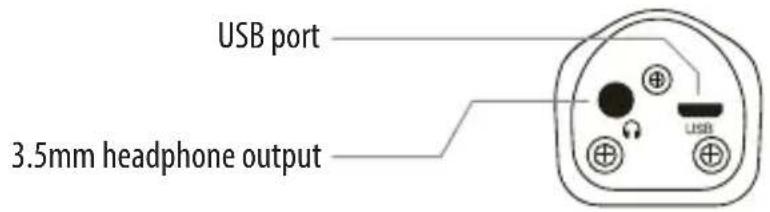
Connections
In the box
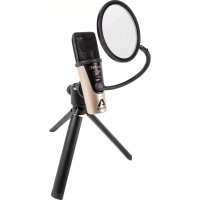
Apogee MiC Plus
USB cable (Type C)
Desktop tripod
- USB cable (Type A)
- Microphone stand adapter
Lightning cable
- Quick start guide
iOS Apogee MiC+ Quick Start
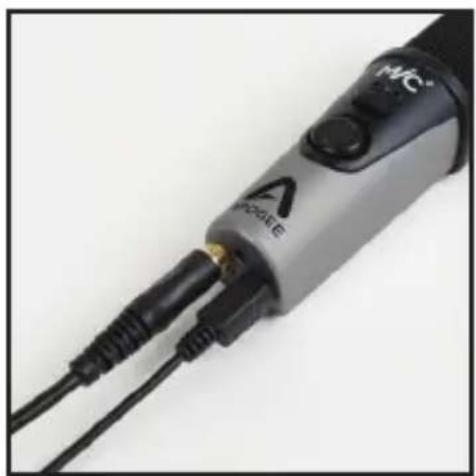
1 Connect cable Connectez le cable Kabel anschlieBen Collegare il cavo Conecta el cable Ligue o cabo
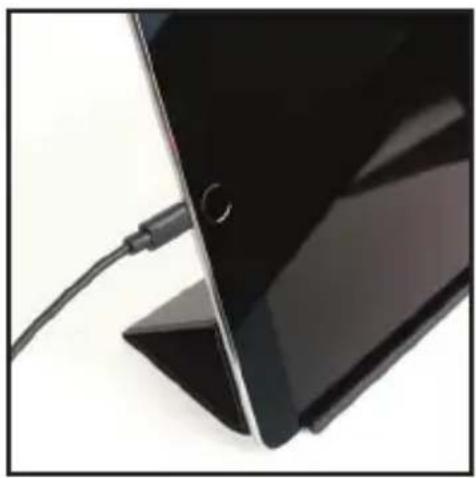
2 MiC Plus light = Blue
Voyant lumineux de MiC Plus = Bleu
MiC Plus leuchtet = blau
Indicatore luminoso di MiC Plus = Blu
MiC Plus luz = Azul
MiC Plus luz = Azul
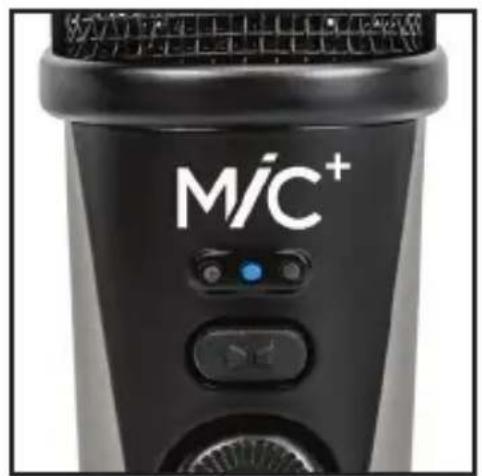
3 Connect headphones Branchez notre casque Kopfhorer anschlieBen Collegare le cuffie Conecta los auriculas Ligue os auscultadores
iOS Apogee MiC+ Quick Start
4 Open GarageBand (Free download from the App Store) Ouvrez GarageBand (disponible en téléchargement gratuite sur l'App Store) GarageBand öffnen (kostenfreier Download aus dem Mac App Store) Avviare GarageBand (scaricabile gratuiteamente dall'App Store) Abre GarageBand (Descargalo gratis desde la App store) Abra a GarageBand (Download Gratis o partir da App Store)

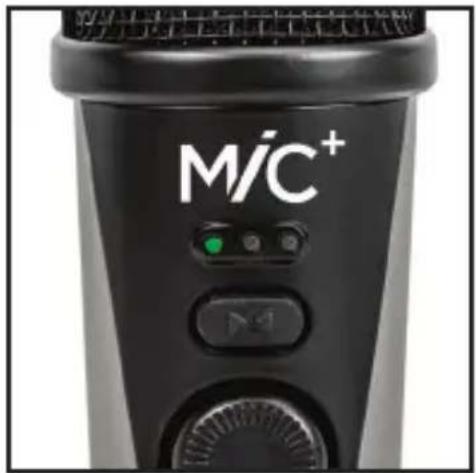
5 MiC Plus light = Green Voyant lumineux de MiC Plus = Vert MiC Plus leuchtet Grun Indicatore luminoso di MiC Plus = Verde MiC Plus luz = Verde MiC Plus luz = Verde
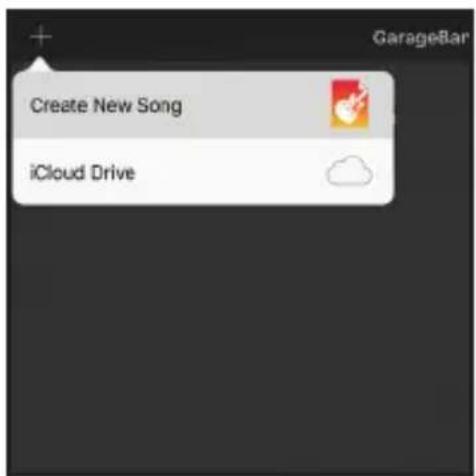
6 Start new project/song
Démarrez un nouveau projet/morceau
Neues Projekt/Song erstellen
Creare un nuovo progetto/brano
Abre un nuovo proyecto/canción
Iniciar novo projet/música
iOS Apogee MiC+ Quick Start
7 Swipe through tracks selection and choose Audio Recorder Rendez-vous au niveau de la sélection des pistes et choisissez Audio Recorder Durch die Track-Ausb Wahl blättern und Audio-Recorder auswahlen Scorrere le traccé disponible e selezionare Audio Recorder Navega por la selección de pistas y elige Audio Recorder Deslize atraves da seleção de faixas e escolha o Gravador de Áudio
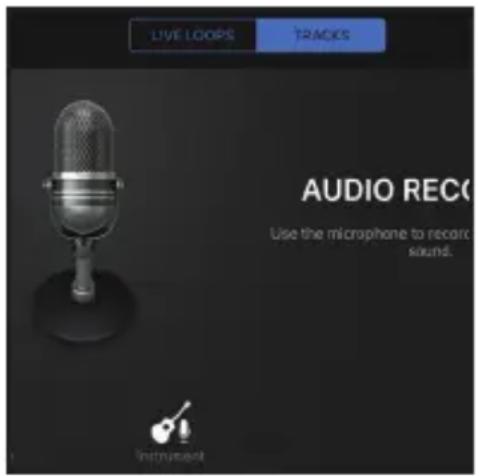
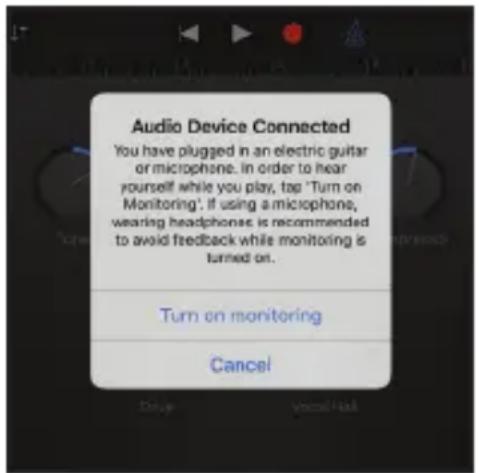
8 Choose "Cancel" when "Audio Device Connected" prompt appears Choisissez "Annuler" lorsque le message "Péripérique Audio Connecté" apparait Wenn die Meldung „Audio Device Connected" erscheint, „Cancel" wahren Alla compras del messaggio "Dispositivo Audio Collegato" selezionare "Cancella" Elige "Cancelar" cuando el mensaje "Audio Device Connected" aparezca Escolha "Cancelar" quando aparecer o avis "Dispositivo de Áudio Ligado"
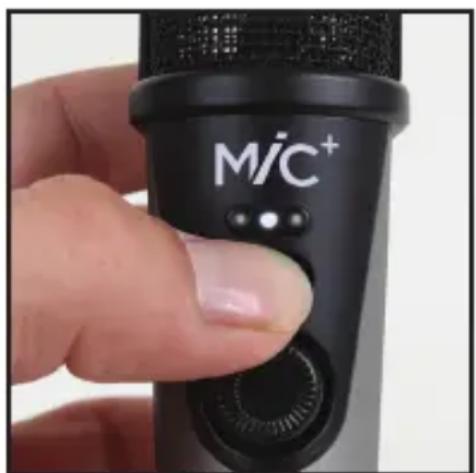
9 Press blend button until center LED is lit white
Appuyez sur le bouton de melange jusqu'à ce que levoyant centrale soit allumé en blanc
Blend-Taste drucken, bis die mittlere LED weiß leuchtet
Premere il pulsante Blend fino a quando il LED diventa di colore bianco
Presiona el botón blend hasta que el LED esté blanco
Prima no botão de mistura até ao LED central estar illumínado a branco
iOS Apogee MiC+ Quick Start
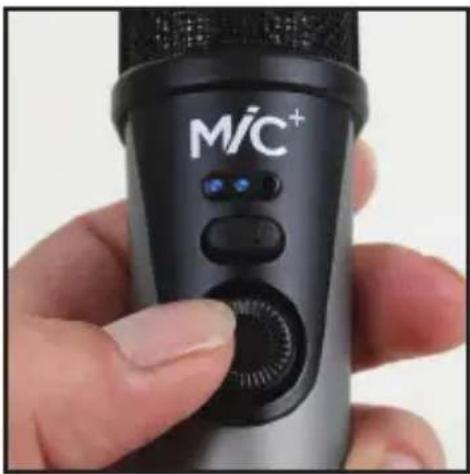
10 Set record level Fixez le niveau d'enregistrement Aufnahmepegel einstellen Impostare il livello di registrazione Ajusta el nivel de grabacion Defina o nivel de gravacao
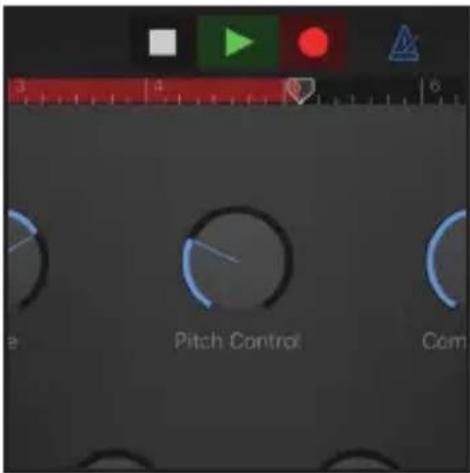
11 Record
Enregistrez
Aufnahme starten
Iniziare la registrazione
Graba
Gravar
See the User's Guide for setup with other recording software: www.apogeedigital.com/support
macOS Apogee MiC+ Quick Start
1 Connect cable Connectez le cable Kabel anschlieBen Collegare il cavo Conecta el cable Ligue o cabo
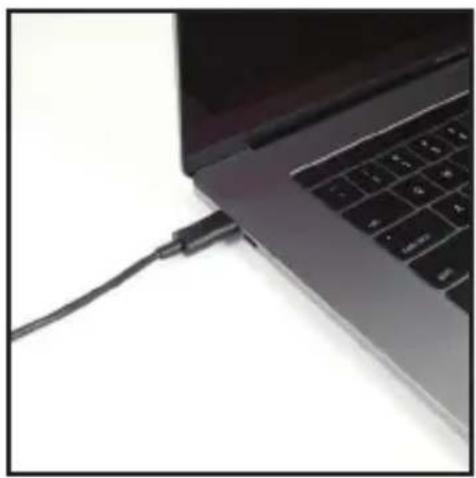
2 MiC Plus light = Blue
Voyant lumineux de MiC Plus = Bleu
MiC Plus leuchtet = blau
Indicatore luminoso di MiC Plus = Blu
MiC Plus luz = Azul
MiC Plus luz = Azul
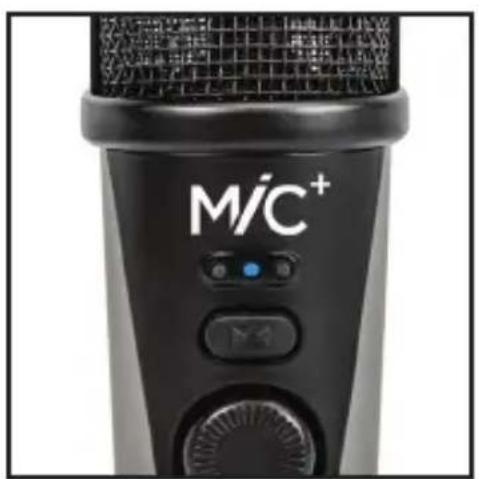
3 Connect headphones Branchez notre casque Kopfhorer anschlieBen Collegare le cuffe Conecta los auriculas Ligue os auscultadores

macOS Apogee MiC+ Quick Start
4 Go to System Preferences
Aller aux Préférences Système
Systemeinstellungen öffnen
Aprière Préferenze di Sistema
Ve a System Préférences
Vá a Favoréncias do Sistema
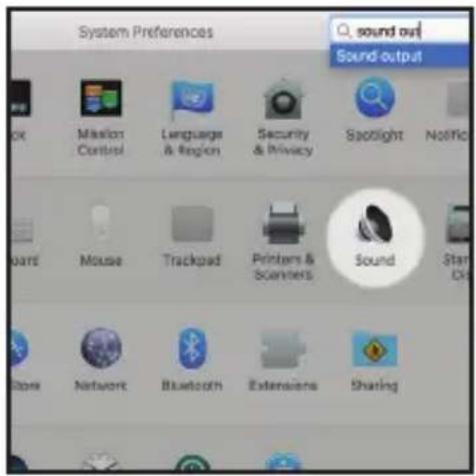
5 Select MiC Plus under the Output Tab
Sélectionnez MiC Plus sous l'onglet Sortie
MiC Plus im Reiter Ausgabe auswahlen
Nel menu Suono,blickare la tabella Uscita e selezionare MiC Plus
Selección MiC Plus bajo la tabulación Output
Selezione o MiC Plus sob o Separador de Saía

6 Open GarageBand (Free download from the Mac App Store) Ouvrez GarageBand (disponible en téléchargement gratuite sur l'App Store) GarageBand öffnen (kostenfreiier Download aus dem Mac App Store) Avviare GarageBand (scaricabile gratuiteamente dall'App Store) Abre GarageBand (Descargalo gratis desde la App store) Abra a GarageBand (Download gratuite a partir da App Store)
macOS Apogee MiC+ Quick Start
7 Start new project/song (Click the details arrow, select MiC Plus as Input and Output Device)
See the User's Guide for setup with other recording software: www.apogeadigital.com/support
Windows Apogee MiC+ Quick Start
1 Connect cable Connectez le cable Kabel anschlieBen Collegare il cavo Conecta el cable Ligue o cabo
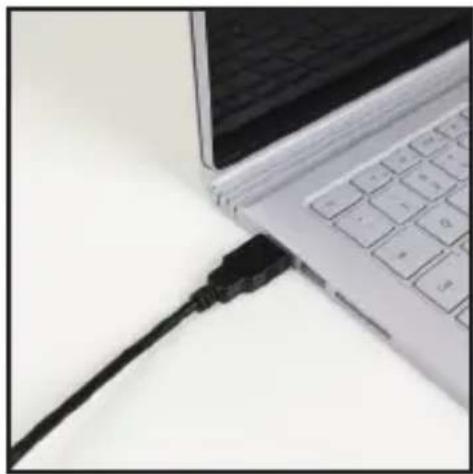
2 MiC Plus light = Blue
Voyant lumineux de MiC Plus = Bleu
MiC Plus leuchtet = blau
Indicatore luminoso di MiC Plus = Blu
MiC Plus luz = Azul
MiC Plus luz = Azul
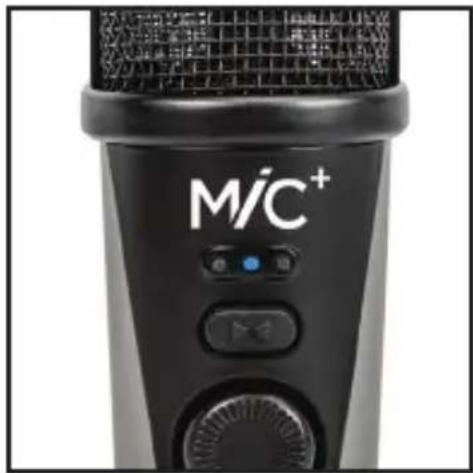
3 Connect headphones Branchez notre casque Kopfhorer anschlieBen Collegare le cuffie Conecta los auriculas Ligue os auscultadores
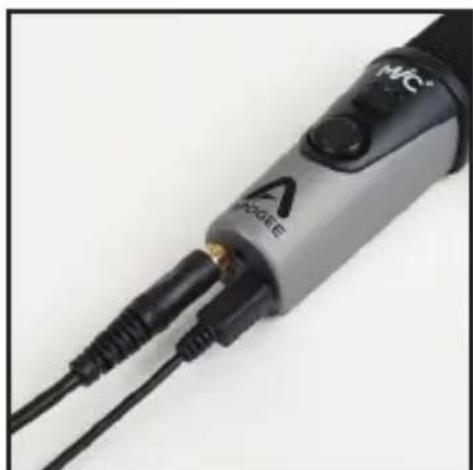
Windows Apogee MiC+ Quick Start
4 Open Sound Control Panel and set Playback to MiC Plus Ouvrez le Panneau de Configuration Son et selectionnez MiC Plus comme periphérique de lecture Kontrollfeld Sound öffnen und MiC Plus für die Wiedergabe auswahlen Aprire il pannello di controllo Audio e impostare MiC Plus come dispositivo di riproduzione Abre el Sound Control Panel y selecciona Playback en MiC Plus Abra o Paine de Controlo de Som e defina Reproduzir para o MiC Plus
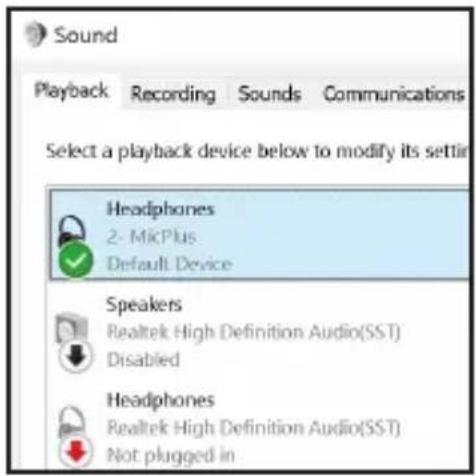
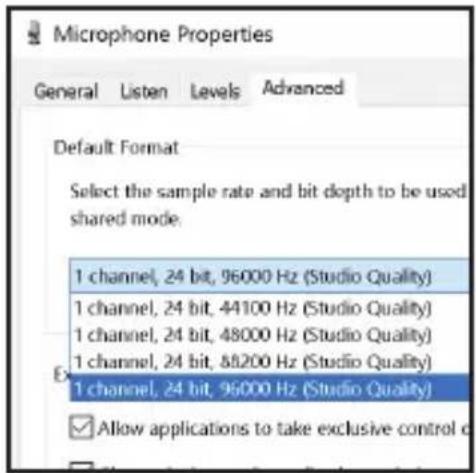
5 Click on Properties for Playback, Select the Advanced Tab, set sample rate to 96k
Cliquez sur le bouton Propriétés pour la Lecture, Sélectionnez l'onglet Statistiques avances, fixez le taux d'échantillonnage à 96 kHz
Eigenschaften für die Wiedergabe anklichen und die Samplingrate im Reiter Erweitert auf 96 kHz einstellen
Cliccare il pulsante Proprietà del menu Riproduzione, selezionare la tabella Avanzate, e impostare la frequenza di campionamento su 96k
Haz click en Properties for Playback, SeLECTIONA Advanced Tab, y ajusta la Frequencia de muestreo a 96k
Clique em Propriedades para Reproduzir, Selezione o Separador Avanziado e defina a taxa de amostragem para 96k
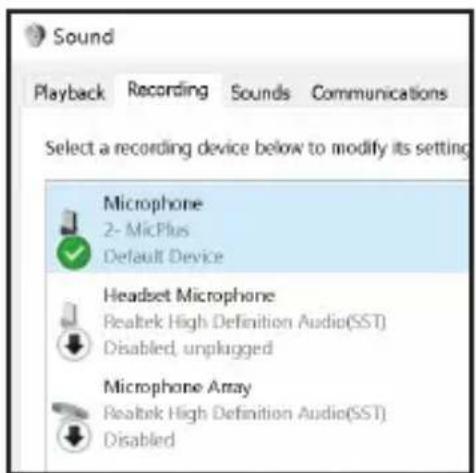
6 Click on Recording Tab, Select MiC Plus Cliquez sur I'onglet Enregistrement, Sélectionnez MiC Plus Reiter Aufnahme anklichen und MiC Plus auswahlen Selezionare la tabella Registrazione e selezionare MiC Plus Haz click en Recording Tab, SeLECTIONA MiC Plus Clique no Separador de Gravacao,Selezione o MiC Plus
Windows Apogee MiC+ Quick Start
7 Click on Properties for Recording, Select the Advanced Tab, set sample rate to 96k
See the User's Guide for setup with other recording software: www.apogeadigital.com/support
Declarations of Conformity
This device complies with Part 15 of the FCC Rules. Operation is subject to the following two conditions:
(1) This device may not cause harmful interference and (2) This device must accept any interference received, including interference that may cause undesired operation. This equipment has been tested and found to comply with the limits of a Class B digital device, pursuant to Part 15 of the FCC Rules.
CAUTION: Changes or modifications not expressly approved by Apogee Electronics Corporation compliance could void the user's authority to operate the equipment.
Rating: 3.3-5V 100mA USB 2.0
Industry Canada Notice
Declaration of Conformity - CE
Apogee Electronics Corporation hereby declares that the product, MiC Plus, to which this declaration relates, is in material conformity with the following standards or other normative documents:
(EN50081-1/EN55022; 1995) and (EN50082-1/IEC 801-2, 3, 4; 1992)
following the provisions of: (73/23/EEC - Low Voltage Directive) and (89/336/EEC - EMC Directive)
Declaration of Conformity - CE
Apogee Electronics Corporation hereby declares that the product, MiC Plus, to which this declaration relates, is in material conformity with the following standards or other normative documents:
(EN50081-1/EN55022; 1995) and (EN50082-1/IEC 801-2, 3, 4; 1992) following the provisions of: (73/23/EEC - Low Voltage Directive) and (89/336/EEC - EMC Directive)
Declaration of Conformity - Japan Apogee Electronics Corporation hereby declares that MiC Plus, to which this declaration relates, is in material conformity with the VCCI Class A standard.
Declaration of Conformity - Australia Apogee Electronics Corporation hereby declares that the MiC Plus is in material conformity with AN/NZS standard requirements.
"Made for iPod," "Made for iPhone," and "Made for iPad" mean that an electronic accessory has been designed to connect specifically to iPod, iPhone, or iPad, respectively, and has been certified by the developer to meet Apple performance standards. Apple is not responsible for the operation of this device or its compliance with safety and regulatory standards. Please note that the use of this accessory with iPod, iPhone, or iPad may affect wireless performance.
Registration Information
Be sure to register your MiC Plus by completing the on-line registration form at our Web site: www.apogeadigital.com/register
The benefits of registering include access to free, expert technical support by email or phone, important email notifications regarding new features and important updates, and new Apogee product notifications before they're announced to the public.
Please address any inquiries to your dealer or directly to Apogee at:
APOGEE ELECTRONICS CORPORATION
1715 Berkeley St Santa Monica,CA 90404, USA
TEL: (310) 584-9394, FAX: (310) 584-9385
Web site:
www.apogeadigital.com
Knowledgebase:
www.apogeadigital.com/knowledgebase
Support:
www.apogeadigital.com/support
APOGEE M/C
Quick Start Guide

APOGEE
© 2017, Apogee Electronics Corp. All Rights Reserved
PN: 0070-0010-0000 Rev. 1.0 | AN: 2740-0020-0000 Rev. 1.0
- In the box
- iOS Apogee MiC+ Quick Start
- macOS Apogee MiC+ Quick Start
- Start new project/song (Click the details arrow, select MiC Plus as Input and Output Device)
- Windows Apogee MiC+ Quick Start
- Click on Properties for Recording, Select the Advanced Tab, set sample rate to 96k
- Declarations of Conformity
- Registration Information
- APOGEE M/C
- Quick Start Guide
- APOGEE
Brand : Apogee
Model : Mic Plus
Category : Microphone