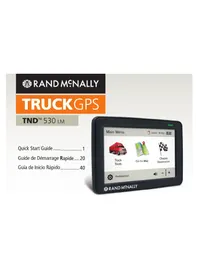
IntelliRoute TND 530 - GPS device Rand McNally - Free user manual and instructions
Find the device manual for free IntelliRoute TND 530 Rand McNally in PDF.



| Product Type | GPS Device for Truck |
| Brand | Rand McNally |
| Model | IntelliRoute TND 530 |
| Dimensions | Approximately 14 x 9 x 2 cm (estimated) |
| Weight | Approximately 250 g (estimated) |
| Power Supply | 12 V (vehicle) via cigarette lighter cable; internal lithium-ion battery |
| Screen Type | Color touchscreen (size not specified, likely 5 inches) |
| Main Features | GPS navigation for trucks, speed limit alerts, points of interest (POI) for truckers, built-in Wi-Fi, live traffic and weather, logbooks and fuel diaries, driver profiles, multi-stop routes, updates via Rand McNally Dock |
| Care and Cleaning | Clean with a soft, dry cloth. Avoid abrasive products. |
| Safety | Installation in accordance with local regulations; do not obstruct driver's view; use only as a navigation aid. |
| Spare Parts and Repairability | Suction cup mount, USB cable, cigarette lighter charger. Repairs by Rand McNally (1-year warranty). |
| General Information | Dock software for updates; Wi-Fi connection required for some features; limited one-year warranty. |
Frequently Asked Questions - IntelliRoute TND 530 Rand McNally
User questions about IntelliRoute TND 530 Rand McNally
0 question about this device. Answer the ones you know or ask your own.
Ask a new question about this device
Download the instructions for your GPS device in PDF format for free! Find your manual IntelliRoute TND 530 - Rand McNally and take your electronic device back in hand. On this page are published all the documents necessary for the use of your device. IntelliRoute TND 530 by Rand McNally.
USER MANUAL IntelliRoute TND 530 Rand McNally
Quick Start Guide.....1
Important Information About Your IntelliRoute® TND™ 530 LM
RAND MCNALLY DOCK: Keep your device up to date by downloading the Rand McNally Dock for your home computer at www.randmcnally.com/dock and connecting your device with the USB cable provided.
WI-FI®: Some features of this device require wireless connectivity, which requires a supporting feature (such as a smartphone with tethering) and data plan from your wireless service provider. As the user, you are responsible for all data charges. Please contact your wireless service provider to make sure you do not exceed the limits of your data plan.
POWER BUTTON: Press and hold the orange power button to turn the device on or off. The power button can also be used for quick access to certain features while the device is running. See Preferences > General > Quick Power Press for options. A red light indicates the battery is charging; a green light indicates the battery is fully charged.
RESET: Use the reset button on the back of the device to restart. This will cancel the current route, but preferences, address book, and other personal data will be saved.
LEARN MORE: Access Tutorial & Tips under Preferences > General on your device for more information, or visit www.randmcnally.com/support to download the user manual.

Some screens include help tips. Tap this button to access.
WARNING: This product contains chemicals known to the State of California to cause cancer and/or other harm.
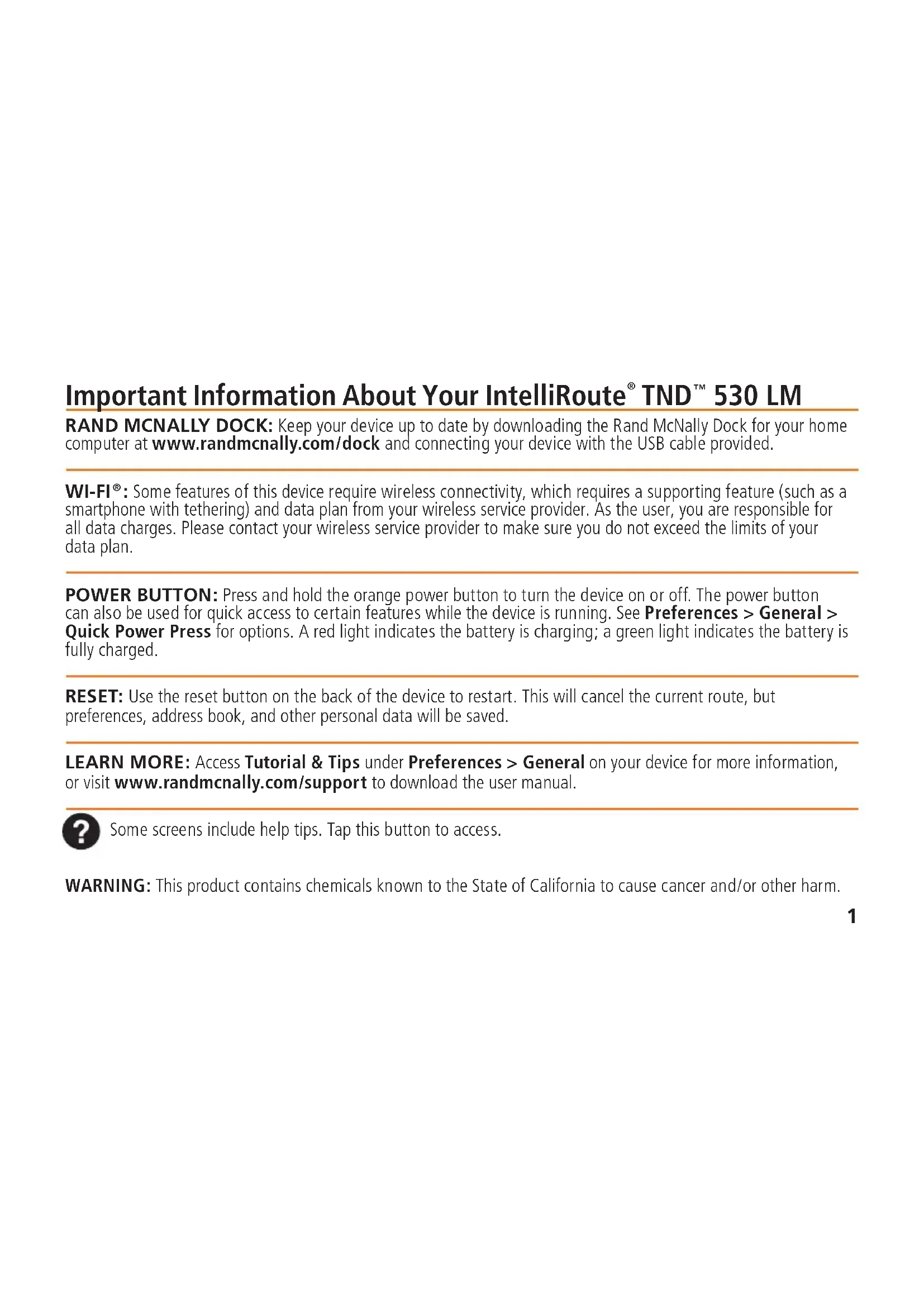
Install the Mount
NOTE: Follow all local regulations governing the placement of the mount. Select an area with a line of sight to the sky and GPS satellites to ensure reliable GPS information.
- Clean and dry the mounting area.
- Remove the suction cup protective fi lm.
- Adjust the angle of the mount using the thumbscrew.
- Pull the suction cup lever up to release suction.
- Plug the power cord into the device and the vehicle's 12-volt power source.
-
Slide the device onto the mount.
-
Place and hold the mount suction cup against the mounting surface.
-
Press the suction cup lever down until it snaps into place.
-
Adjust the device so that it can be easily seen and does not block the driver's line of sight.
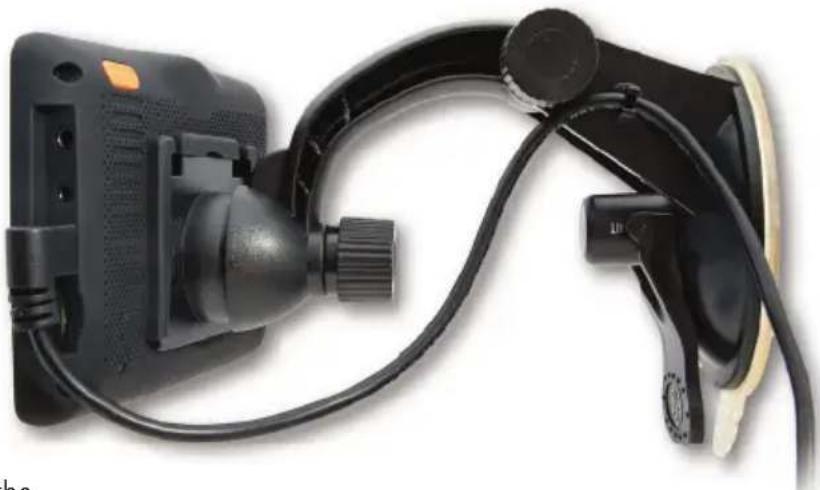
Main Menu
1 Enter truck information and access truck-specific use tools.
2 Show location on the map and view navigation instructions.
3 Choose a destination.
4 Select device, route and map preferences. Access the tutorial.
5 Mute/unmute the speaker.
6 Adjust speaker volume.
7 Indicates charge when running on battery.
8 Change driver profi le, trailer load, or driver status.
Note: You can select different color schemes in Preferences > General > Skin Style. The following screen images appear in the "Ice" style. Some screens may appear different, based on model number.
Note: From other screens, tap the Main Menu icon in the bottom right corner to return to the Main Menu.
Enter Truck Information and Set Warnings
- Tap Truck Tools > Truck Info or Warnings.
- Tap and to view options.
- Tap the option button to be changed.
- Enter new settings.
- Tap ◀ to save changes.
On the left, tap on an option
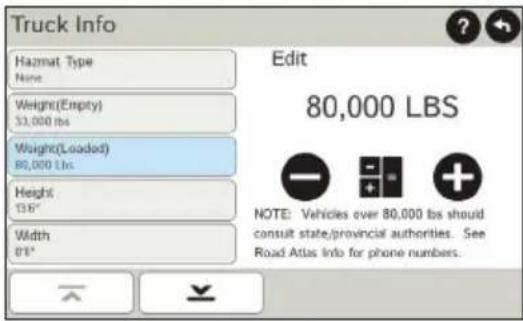
On the right, enter settings for the option
Set Routing and Device Options
- Tap Preferences.
- Tap the General, Route or Map tab.
- Tap ∧ and ∨ to view options.
- Tap the option button to be changed.
- Enter new settings.
- Tap ⇔ to save changes.
On the left, tap on an option
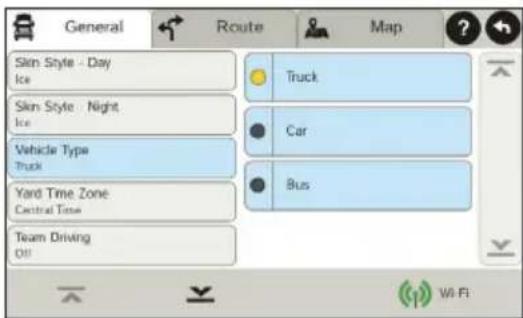
On the right, enter settings for the option
Destination
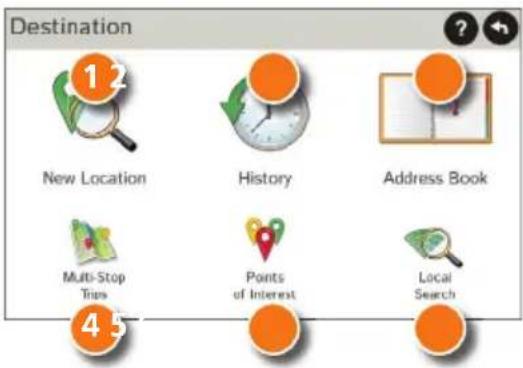
1 Route to a new location. (See page 6.)
2 Return to a previously entered address.
3 Access the Address Book.
4 Plan a multi-stop trip.
5 Route to a point of interest. (See page 10.)
6 Run an Internet search for a location by name or keyword.
(NOTE: This feature requires a Wi-Fi connection.)
Route to a New Location
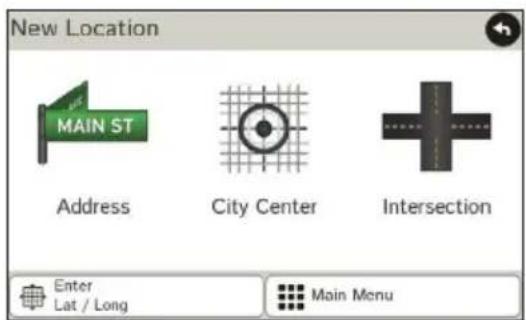
- Tap Choose Destination > New Location.
- Tap Address.
- Enter the name of the city. (NOTE: As you type, the keyboard displays only the next possible letter.)
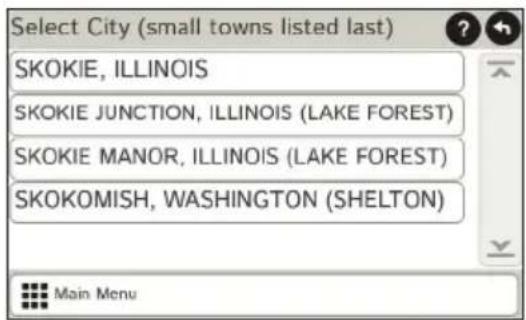
- Prompts appear in the top bar. Tap the city to select. Or, tap List to view cities beginning with the letter(s) you entered.
- Enter the street name. (NOTE: If the letters you need do not appear, tap Expand Search.)
- Enter the house number. (NOTE: To enter the house number before the street, tap the house number button in the previous step.)
See Confirm Destination Window (page 7.)
Tips
- You can also route to a new location by City Center, Intersection, or Latitude/Longitude, or choose Address > Zip Code Search.
- View recent destinations by tapping Choose Destination > History. View recent cities by tapping Choose Destination > New Location > Address > History.
• View saved locations by tapping Choose Destination > Address Book.
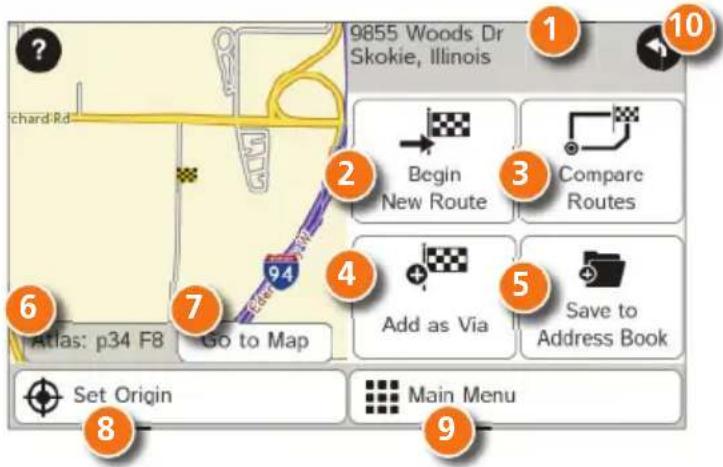
Confir rm Destination Window
1 Destination address.
2 Begin route to destination.
3 Compare a primary and alternate route and choose one.
4 Add the location as a via point on the way to a previously entered destination.*
5 Save the location to the Address Book.
6 Cross reference to printed Rand McNally Motor Carriers' Road Atlas.
7 View the map.
8 Change the starting location for a route to the location displayed here.
9 Return to Main Menu.
10 Return to previous window.
*To manage via points, Tap Choose Destination > Multi-Stop Trips. You can add up to 50 destinations in a multi-stop trip, and optimize routing for trips of up to 10 stops.
NOTE: This window may include additional buttons based on the type of destination selected.
Route Map Window
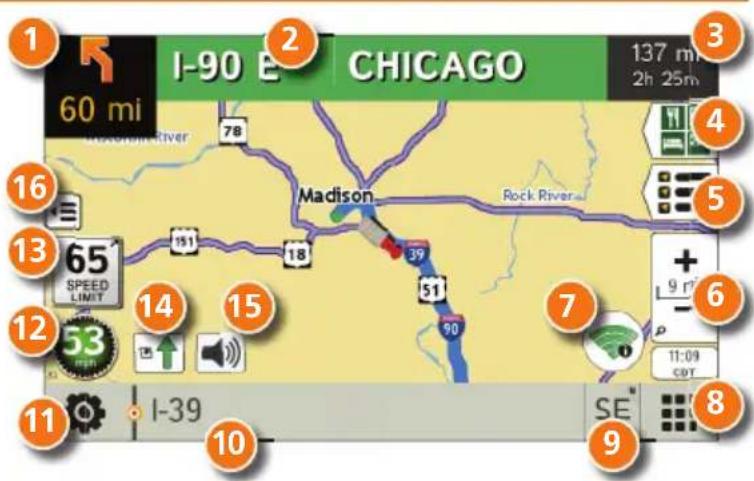
1 Repeat spoken next-maneuver instructions.
2 Name of street you will turn onto next.
3 Show arrival time, remaining time, or other options.
4 Slide out to show upcoming exit information.
5 Directions list slideout. Tap Route Display Options to select detail view, highway view, trip summary, or summary map view.
6 Zoom in/zoom out.
7 Access Wi-Fi connected services.
8 Return to Main Menu.
9 Current direction. Tap to select a map display option (Heading Up, North Up, or 3D View). Also displays Wi-Fi® status.
10 View current road name, upcoming cross road name, or city, county and state. Also displays advanced lane guidance and weather (when activated). Tap to change.
11 View and save current location, detour, or cancel a route.
Tap on the current speed to display the Virtual Dashboard. (NOTE: Turns red for speed warnings; set in Truck Tools >Warnings.)
Route Map Window - continued
13 Current speed limit—orange for truck limit, white for general limit. Tap to open a "Tell Rand" about speed limits.
14 View the Traffic c Window (enabled with Traffic c Everywhere).
15 Mute the speaker.
16 Minimize icons to show simply the map and next maneuver.
Junction View
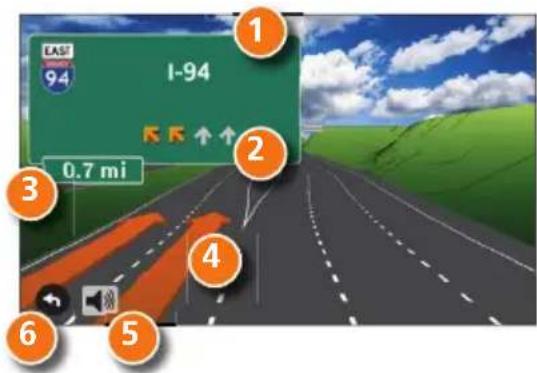
When on a route, Junction View displays when you have an upcoming maneuver. Once past the maneuver, Junction View closes and the previous window displays.
1 Signs to follow for the next maneuver.
2 Number and direction of lanes for the next maneuver.
3 Distance to the upcoming maneuver. Distance decreases as you approach the ramp.
4 Lane assist arrow.
5 Mute the speaker.
6 Return to previous window.
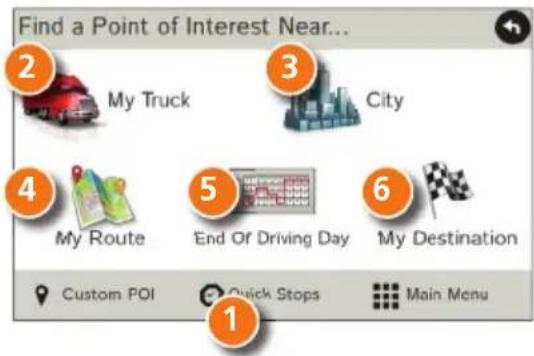
Find a Point of Interest (POI)
Tap Choose Destination > Points of Interest.
1 Find popular truck-friendly POIs near your current location.
Search for a POI:
2 Near your truck
3 In a particular city
4 Along your route
5 Along the last 30 minutes of your driving day (using the time remaining in Truck Tools > Timers)
6 Near your destination
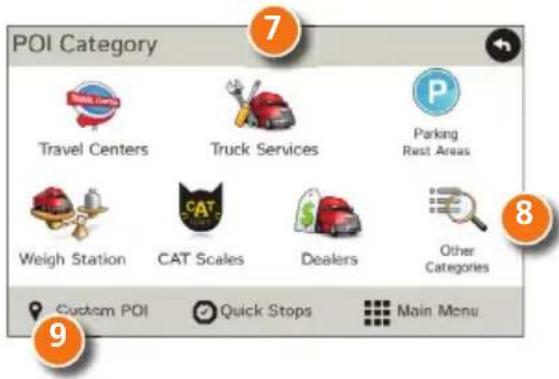
POI Categories
7 Select a category.
8 Find restaurants, hotels, and other subcategories.
9 View custom POIs that have been uploaded through the Rand McNally Dock.
Find a Point of Interest (POI) - continued
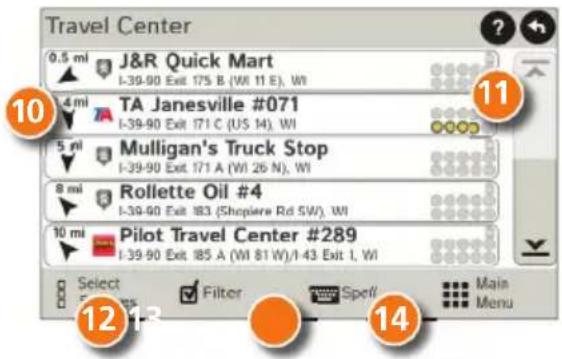
10 Tap location to select.
11 View and edit ratings and comments.
12 Tap to search by available services.
13 Apply or remove services filter for search results.
14 Search POI by name.
Local Search
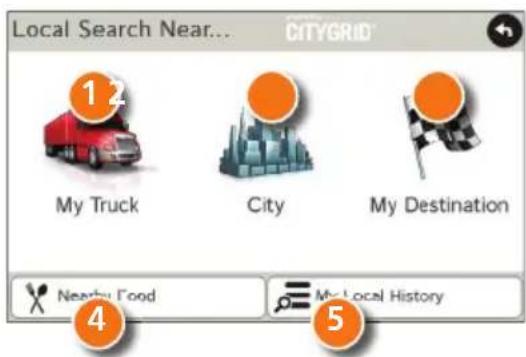
Tap Choose Destination > Local Search.
(Note: This feature requires a Wi-Fi connection.)
Search for a location by name or keyword near:
1 Your truck
2 A particular city
3 Your destination
4 Search for local restaurants.
5 Access recent searches.
Virtual Dashboard
1 Current direction of travel.
2 Displays current time at the yard, current location and your destination.
3 Sunrise and sunset times based on vehicle location (latitude/longitude) and day.
4 Current speed (above) and posted speed limit (below).
5 Elevation at current location.
6 Percentage of current trip completed, distance to next maneuver, and the number of miles and time spent on the trip to this point.
7 Return to the Route Map Window.
8 Gather trip information for up to three trips. Includes odometer settings, hours, and speeds.
9 Reset trip information for the selected trip (Tab 1, Tab 2 or Tab 3).
10 Select to automatically reset the information in each tab after the vehicle has remained stationary for the specified number of hours.
11 View fuel logs and add fuel purchase information.
12 Match with truck's odometer to automatically update new fuel logs. Tap the pencil to edit.

View Timers and Logs
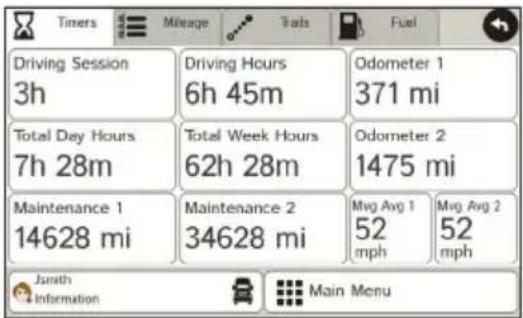
- Tap Truck Tools > Timers, Logs, Trails, Fuel.
- Tap Timers to view timers, odometer readings, and average speed.
- Tap on a field to change or reset the number.
NOTE: Countdown timers are controlled by the Driver Status (Driving, On Duty, or Off Duty) selected on the Main Menu.
To switch driver profiles, tap the driver information field.
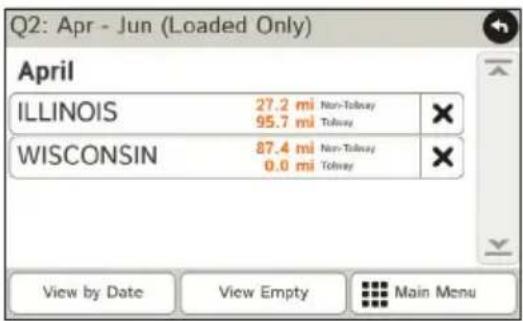
- Tap Logs to view a list of mileage logs by quarter.
- Tap on a quarter to view individual logs by state.
NOTE: You can export logs to your computer through the Rand McNally Dock.
View Trails and Fuel
- Tap Truck Tools > Timers, Logs, Trails, Fuel.
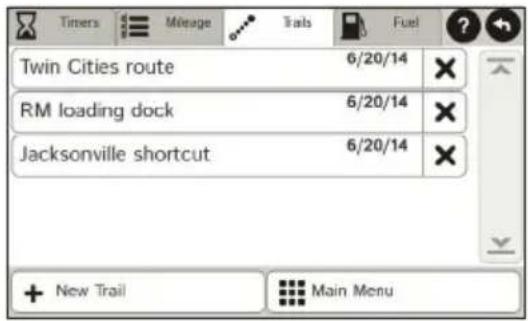
- Tap Trails to record a "bread-crumb" path of GPS coordinates where your truck has traveled.
- Tap any record to view the trail, edit the name or set the color.
-
Tap Show on Map to display the trail on the Route Map Window.
-
Tap Fuel to view a list of fuel logs by quarter.
- Tap on a quarter to view individual logs by state.
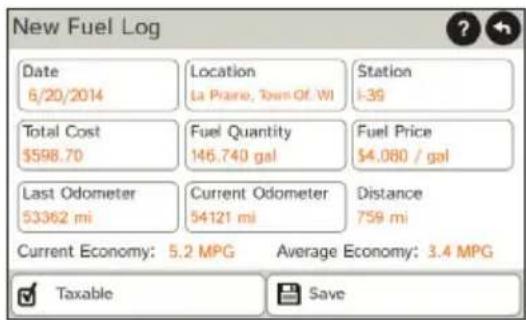
- Tap Add Fuel to record the date, location and cost of fuel purchase.
- Tap on a field to make changes.
- Check Taxable to include the purchase in the fuel log.
- Tap Save.
Wi-Fi
For information on setting up a Wi-Fi hotspot through your cellular phone or laptop computer, please visit www.randmcnally.com/wifi help for basic instructions, or contact your wireless carrier.
NOTE: Wi-Fi connectivity requires a supporting feature and data plan from your wireless service provider. As the user, you are responsible for all data charges. Please contact your wireless service provider to make sure you do not exceed the limits of your data plan.
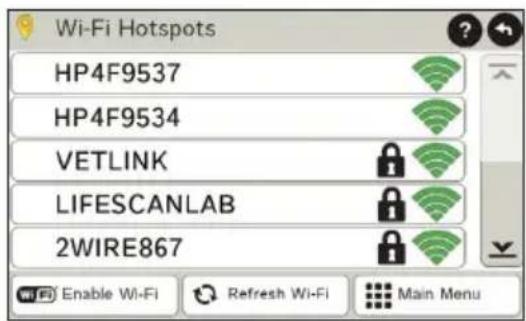
Once you have established a Wi-Fi hotspot:
- From the Main Menu, tap Preferences. Or tap the Wi-Fi connected services icon on the map screen.
- Tap Wi-Fi in the bottom right corner.
- Tap Enable Wi-Fi to search for available hotspots.
- Tap the hotspot you want to connect to.
- Enter the network password.
- Tap Disable Wi-Fi to turn Wi-Fi connectivity off.
(NOTE: Disable to save battery power.)
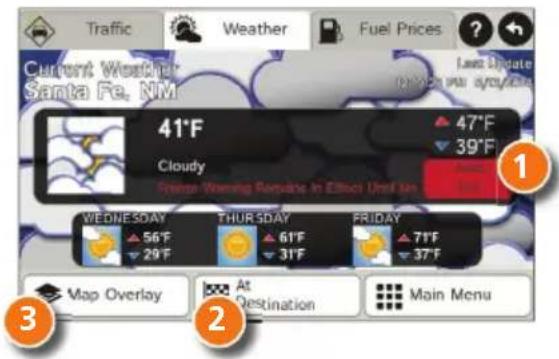
Weather, Fuel Prices, and Traffic Everywhere
Note: These features require a Wi-Fi connection.
Tap the Wi-Fi connected services icon ( ) on the map screen. Tap each tab to view live information.
Weather:
1 Tap to view details for current weather alerts.
2 View weather information at your destination.
3 Display weather on the map as you drive.
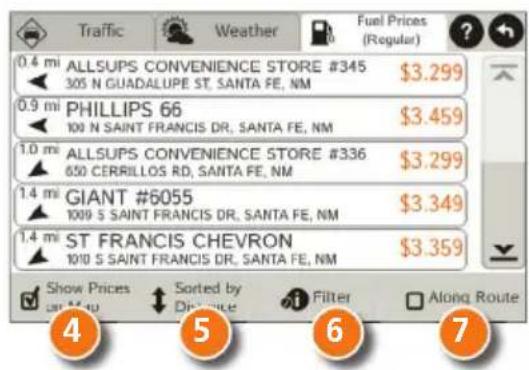
Fuel Prices:
4 Check to show fuel prices on the map screen.
5 Sort results by distance or price.
6 Set fi Iters for type and brand of fuel.
7 Choose to search near your vehicle or along your route.
Traffi c Everywhere:
Live traffic information is available as a premium service on the Rand McNally Dock. (See page 17.)
More Information
For a detailed description of the features of your device, please see the IntelliRoute® TND™ 530 LM User Manual. The User Manual can be downloaded from the Rand McNally Dock, and is also available at www.randmcnally.com/support.
Rand McNally Dock™
The Rand McNally Dock enables you to receive software upgrades and access map updates, construction updates, and additional features. Simply download the Dock software for your PC or Mac at www.randmcnally.com/dock and connect your device using the USB cable provided.
With the Rand McNally Dock, you can also:
• Purchase Traffic Everywhere
- Export mileage and fuel logs to your home computer
- Upload custom POIs, such as red light cameras, to your device
- Download the User Manual
- Access the Rand McNally support site and online store
- Read product news and announcements
- Send feedback and suggestions to Rand McNally through "Tell Rand"
Warnings, End-User License Agreement, and Warranty
Pay attention to road conditions and street signs, and obey all traffic and safety laws. Traffic laws and current traffic conditions must always be observed and take precedence over the instructions issued by the TND ™ product navigation system. The User should be aware of situations where current traffic conditions and the instructions from the navigation system may be in conflict. Some states prohibit the use of windshield mounts and may otherwise restrict the usage of navigation and other electronic devices in the vehicle. It is the User's responsibility to ensure compliance with all laws and regulations. The use of the navigation system does not relieve the User of his/her responsibilities. The User is ultimately responsible for the vehicle under his/her control and should be aware of the surroundings at all times.
If after reading these statements the User decides not to accept these terms, the User should not use the TND™ product.
Rand McNally hereby grants you ("User") a single-user non-exclusive, non-transferable license to use the Rand McNally IntelliRoute® TND™ trucking navigation product (hereinafter referred to as the "TND™ product" (including software and associated data)) for User's own internal business or personal use and not for resale, sublicense or commercial use.
This TND™ product and the software incorporated in it and related documentation are furnished under license and may be used only in accordance with this license. Except as permitted by such license, the contents of this TND™ product and software may not be disclosed to third parties, copied or duplicated in any form, in whole or in part, without the prior written permission of Rand McNally. This TND™ product and software contain proprietary and confidential information of Rand McNally and its licensors. Rand McNally grants User a limited license for use of this TND™ product and the software incorporated in the TND™ product for its normal operation. By using the TND™ product, User acknowledges that the content of this document and the TND™ product are the property of Rand McNally and its licensors and are protected by U.S. copyright, trademark and patent laws and international treaties.
THE USER MAY NOT:
- Use the TND™ product on a network or file server, time-sharing or to process data for other persons.
- Use the IND™ product to create any routing tables, files, databases or other compendiums.
- Copy, loan or otherwise transfer or sublicense the TND™ product, its software or content.
- Modify, or adapt the TND™ product in any way, or decompile, disassemble, reverse engineer or reduce to human readable form the TND™ product and software incorporated therein.
- Alter, remove or obscure any copyright notice, trademark notice, or proprietary legend from the TND product, its software or content.
This license will terminate automatically if User fails to comply with any of the terms of this license and User agrees to stop using the TND™ product. Rand McNally may revise or update the TND™ product and is not obligated to furnish any revisions or updates to User.
RM Acquisition, LLC d/b/a Rand McNally warrants that the TND™ product, and the component parts thereof, will be free of defects in workmanship and materials for a period of one (1) year from the date of first use as determined by contact with GPS satellites. This warranty may be enforced by the first consumer purchaser ("Customer"), provided that the product is utilized within the U.S.A. or Canada.
Rand McNally will, without charge, repair or replace (with a new or newly reconditioned unit), at its option, defective TND™ products or component parts. For repair or replacement of defective TND™ products, Customer must contact Rand McNally at 1-800-333-0136 for return authorization and instructions. Customer will be required to have the product registered via the Rand McNally Dock or, if Customer is unable to register the product electronically. Customer will be required to provide proof of date of first Customer purchase, such as a duplicate copy of a sales receipt, for the warranty to be valid. When the product is connected to the Rand McNally Dock, the Dock will record the date of first use of the device based on contact with GPS satellites. The Customer must pay any initial shipping charges required to ship the product for warranty service, but the return charges will be at Rand McNally's expense, if the product is repaired or replaced under warranty.
Repairs or replacements have a 90-day warranty. If the product sent in is still under its original warranty, then the new warranty is 90 days or to the end of the original one (1) year warranty, depending on which is longer.
This warranty gives the Customer specific rights. Other rights may be available to Customer which vary from state to state.
Exclusions: This limited warranty does not apply: 1) to any product damaged by accident; 2) in the event of misuse or abuse of the product or as a result of unauthorized alterations or repairs; 3) if the serial number has been altered, defaced or removed; or 4) if the owner of the product resides outside of the U.S.A. or Canada.
Caution: Rand McNally makes no warranty as to the accuracy of completeness of the information in the TND™ product and disclaims any and all express, implied or statutory warranties, including any implied warranty of merchantability or fitness for a particular purpose. It is the user's responsibility to use this product prudently. This product is intended to be used only as a travel aid and must not be used for any purpose requiring precise measurement of direction, distance, location or topography.
RAND MCNALLY AND ITS LICENSORS DO NOT MAKE ANY OTHER WARRANTY OR REPRESENTATION, EITHER EXPRESS OR IMPLIED, WITH RESPECT TO THE TND™ PRODUCT, INCLUDING ANY WARRANTY AS TO QUALITY, PERFORMANCE, TITLE OR NON-INFRINGEMENT. IN NO EVENT WILL RAND MCNALLY OR ITS LICENSORS BE LIABLE FOR ANY INDIRECT, SPECIAL, INCIDENTAL, OR CONSEQUENTIAL DAMAGES ARISING OUT OF THE USE OR INABILITY TO USE THE TND™ PRODUCT, EVEN IF ADVISED OF THE POSSIBILITY OF SUCH DAMAGES.
Some states do not allow limitations on how long an implied warranty lasts and/or do not allow the exclusion or limitation of incidental or consequential damages, so the above limitations may not apply to some consumers.
The User agrees to allow User-provided information to Rand McNally to be used for internal business evaluation purposes, including, but not limited to, evaluating the effectiveness of the services provided, methods to simplify or improve User experiences. Such information will not be used by third parties or in any way that discloses the identity of the User.
Rand McNally may make use of third party software in the TND™ product. Notwithstanding the terms and conditions of this license, use of some third party materials included in the TND™ product may be subject to other terms and conditions. The official third party copyright notices are provided at the end of this License.
The User agrees to indemnify, defend and hold Rand McNally and its licensors (including their respective licensors, suppliers, assignees, subsidiaries, affiliated companies, and the respective officers, directors, employees, shareholders, agents and representatives of each of them) free and harmless from and against any liability, loss, injury (including injuries resulting in death), demand, action, cost, expense or claim of any kind or character, including but not limited to attorney's fees, arising out of or in connection with any use or possession by the User of this TND™ product.
These terms and conditions constitute the entire agreement between Rand McNally (and its licensors and suppliers) and the User pertaining to the subject matter hereof, and supersedes in their entirety any and all written or oral agreements previously existing between us with respect to such subject matter. The terms and conditions (including the license) may be updated from time to time.
The above terms and conditions shall be governed by the laws of Illinois, without giving effect to (i) its conflict of laws provisions, or (ii) the United Nations Convention for Contracts for the International Sale of Goods, which is explicitly excluded. The User agrees to submit to the jurisdiction of Illinois for any and all disputes, claims and actions arising from or in connection with the Data provided to the User hereunder.
User shall not export the TND™ product in violation of any U.S. or foreign laws. Rand McNally's licensors shall be third party beneficiaries of Rand McNally's rights under this license, but are not parties hereto and have no obligations hereunder.
By using this product you agree to be bound both by the foregoing and to the terms of use found at www.randmcnally.com/truckgps.
Actual toll costs may vary from estimates depending upon a number of factors including inaccurate or imprecise source data and upon variable toll costs which are dependent upon vehicle characteristics (class, axle number, weight, etc.) that vary across toll roads.
Restricted Rights Legend. For governmental agencies: Use, reproduction or disclosure is subject to restrictions set forth in subparagraph (c) (1) (iii) of the Right in Technical Data and Computer Software clause at DFARS 52.227-7013, as amended.
Rand McNally, the Rand McNally logo, the globe design mark and IntelliRoute are registered trademarks and TND is a trademark of RM Acquisition, LLC, d/b/a Rand McNally. The term Wi-Fi ® is a registered trademark of the Wi-Fi Alliance ® . CityGrid is a registered trademark of CityGrid Media.
Copyright © 2014 Rand McNally. All rights reserved. Portions © 2014 HERE. All rights reserved. This data includes information taken with permission from Canadian authorities, including © Her Majesty the Queen in Right of Canada, © Queen's Printer for Ontario. Traffic information provided by INRIX © 2014. All rights reserved by INRIX, Inc. Portions © 2014 InfoGation. All rights reserved. Portions © 2014 The Trucker's Friend. Portions © 2014 TruckDown. All rights reserved. Patent pending. U.S. Patent Nos. 7,580,791 and 8,214,141.

RAND M McNALLY
TRUCKGPS
TND TM 530 LM
Menu principal
Menú principal
www.randmcnally.com/support
800-333-0136
- IMPORTANT INFORMATION ABOUT YOUR INTELLIROUTE® TND™ 530 LM
- INSTALL THE MOUNT
- MAIN MENU
- ENTER TRUCK INFORMATION AND SET WARNINGS
- SET ROUTING AND DEVICE OPTIONS
- DESTINATION
- ROUTE TO A NEW LOCATION
- TIPS
- CONFIR RM DESTINATION WINDOW
- ROUTE MAP WINDOW
- ROUTE MAP WINDOW - CONTINUED
- JUNCTION VIEW
- FIND A POINT OF INTEREST (POI)
- FIND A POINT OF INTEREST (POI) - CONTINUED
- LOCAL SEARCH
- VIRTUAL DASHBOARD
- VIEW TIMERS AND LOGS
- VIEW TRAILS AND FUEL
- WI-FI
- WEATHER, FUEL PRICES, AND TRAFFIC EVERYWHERE
- WEATHER
- FUEL PRICES
- TRAFFI C EVERYWHERE
- MORE INFORMATION
- RAND MCNALLY DOCK™
- WITH THE RAND MCNALLY DOCK, YOU CAN ALSO
- WARNINGS, END-USER LICENSE AGREEMENT, AND WARRANTY
- THE USER MAY NOT
- RAND M MCNALLY
- TRUCKGPS
- MENU PRINCIPAL
- MENÚ PRINCIPAL
Brand : Rand McNally
Model : IntelliRoute TND 530
Category : GPS device