
FS 03 - Smartphone BLAUPUNKT - Free user manual and instructions
Find the device manual for free FS 03 BLAUPUNKT in PDF.
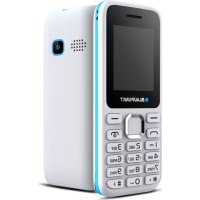



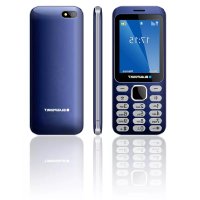
| Product Type | Smartphone |
| Brand | Blaupunkt |
| Model | FS 03 |
| Network | GSM 900/1800 MHz |
| Battery | Li-ion 3.7 V, 600 mAh |
| Input Power | AC 100-240 V, 50/60 Hz, 0.1 A |
| Output Power | DC 5 V, 500 mA |
| SAR Value (head) | 1.133 W/kg |
| SAR Value (body) | 0.789 W/kg |
| Screen | Not specified in the manual, typical for a basic phone |
| Camera | Built-in camera, requires memory card for storage |
| Memory Cards | SD card (not included) |
| SIM Card Type | Standard SIM card (not specified, probably mini-SIM) |
| Main Functions | Calls, SMS, camera, phonebook, alarm, calculator |
| Maintenance | Keep dry, use a soft cloth, do not immerse |
| Safety | Power off in regulated areas, avoid interference |
| Repairability | Only qualified personnel can install or repair the device |
| Approved Accessories | Use only accessories approved by the manufacturer |
| Charging Temperature | 0 °C to 45 °C |
| Weight | Not specified, approximately 100 g (estimated) |
| Dimensions | Not specified, approximately 120 x 55 x 15 mm (estimated) |
| General Information | Complies with directives 2014/53/EU and RoHS 2011/65/EU |
Frequently Asked Questions - FS 03 BLAUPUNKT
User questions about FS 03 BLAUPUNKT
0 question about this device. Answer the ones you know or ask your own.
Ask a new question about this device
Download the instructions for your Smartphone in PDF format for free! Find your manual FS 03 - BLAUPUNKT and take your electronic device back in hand. On this page are published all the documents necessary for the use of your device. FS 03 by BLAUPUNKT.
USER MANUAL FS 03 BLAUPUNKT
Enjoy it.
Contents
- Safety .... 1
- Product specifications .... 2
- About the keys....2
- Getting Started .... 3 4.1. Insert a SIM card....3 4.2. Insert a memory card.... 3 4.3. Insert battery.... 3 4.4. Remove the battery.... 3 4.5. Charging the battery.... 4 4.6. Maintaining the battery.... 4
- Power on/off....5
- Call functions .... 5 6.1. Make a call....5 6.2. Receive call 5 6.3. Emergency call .... 6
- Messaging......6 7.1. Write a message 6 7.2. Incoming messages....6
- Camera....7
- Phone password .... 7
- Declaration of Conformity ....7
1. Safety
Please read the safety instructions carefully, as ignoring it may be dangerous or illegal.
The owner of the device is responsible for the use of this appliance.
Explosion hazards and restricted areas
Do not switch on the device where it is prohibited to use a mobile phone or where it may interfere with radio waves or cause danger, e.g., on airplanes, in hospitals, or near medical devices, fuel, chemicals, and blasting areas.
Follow the instructions strictly in restricted areas.
Road safety
Observe local laws and regulations. Do not use the device while driving; road safety comes first.
Interference
Every wireless device can be sensitive to interference, which can affect performance.
Qualified service
The product should only be repaired by a qualified person.
Charger, battery, and other accessories
Please use only the battery, charger, and other accessories approved by the manufacturer. Do not connect incompatible products.
Hearing protection
To avoid hearing loss, do not listen to music or radio at high volume for long periods.
Water resistance
The device is not waterproof; keep it dry.
Use environment
The device complies with the recommended emission values for radio waves when kept at a minimum distance of 1.5 cm from the ear. When carrying the phone in a case, belt clip or holder, make sure that it does not contain metal and that the phone is slightly distracted from the body. When using other accessories, it is not possible to operate in accordance with radio frequency guidelines. If you do not use a case and do not hold the phone on your ear, keep it at least 2.5 cm away from your body, especially during data transfer.
2. Product specifications
Power Supply Features:
- Input: (AC), 100-240 V - 50/60 Hz - 0.1 A • Output: (DC), 5 V - 500 mA
Battery Type and Voltage:
• Li-ion battery, 3.7 V, 600 mAh
Network type:
- GSM 900/1800 MHz
SAR values:
• 1.133 W/Kg (Head) - 0.789 W/Kg (Body)
Note: Actual operating conditions depend on local conditions, network environment and user habits.
The mains power socket used must be close to the charger/holder and easily accessible, so that it can be used as an on/off facility.
3. About the keys
- Left soft key / Right Soft key: Opens the menu item in the left / right corner of the screen.
- Dial key: dial / answer the call and in standby mode, open the call list.
- End / ON / OFF Power Button: Press and hold to turn the power on and off; briefly press it down to reject a call or quit the menu.
- OK key: press to execute the indicated function. In standby mode, press to open the selected link.
- Navigation keys: Press up / down / left / right directions to scroll through the menu. In standby mode, press the up / down / left / right arrows to access the quick menu at the top of the screen and press OK to execute.
- 0-9 alphanumeric keypad: Press the corresponding keys to enter numbers when dialing or the characters of the numbers when writing text. Press * twice to display "+" the international dialing prefix.
- * (Star) button: in standby mode, press and hold * to display the international prefix '+'. In Menu mode, briefly press to lock the keypad.
- (Dual Cross) button: in standby mode, press and hold to activate /
deactivate Silent mode.
4. Getting Started
4.1. Insert a SIM card
To use your phone, you need to insert a valid SIM card to connect to the GSM network.
To avoid losing or damaging the contents of the SIM card, please DO NOT hold the metal part of the SIM card with your bare hands and keep it away from electromagnetic devices. If the SIM card is damaged, it cannot connect to the GSM network. Before inserting or removing the SIM card, make sure that the device is turned off and the back of the device is removed.
Note: Locate the SIM card slot on the back of the device and, in the direction indicated, slide the card in with the contacts facing down.
4.2. Insert a memory card
The memory card is not part of the basic package, but the device's memory can be expanded with an SD card. Please make sure that the memory card is inserted correctly before use.
Note that the device may shake, causing the memory card to slide out of the slot. Therefore, do not bend or scratch the memory card, and avoid exposing it to static electricity or dust. Do not immerse it in water. Place the memory card in the slot on the back of the phone, with its chip facing down, as shown on the device.
Please be careful when using a memory card, especially when removing it. Some memory cards must be formatted with a computer before use.
4.3. Insert battery
- Insert the battery chip into the protruding metal point in the battery slot, insert the battery, and push the top down until the battery engages in the recess.
- Put back the back cover.
4.4. Remove the battery
To remove the battery, turn off the device, remove the cover, and then
remove the battery at the top.
Note:
Please remove the battery when the device is switched off, as removing it while the device is switched on may cause abnormal operation.
4.5. Charging the battery
Connect the charger to the appliance and plug the other end into the socket. If the device is turned on while charging, the battery icon will move in the right corner of the display. Charging is completed when the charging indicator on the top right is lit. If charging is switched off, a charging indicator appears on the display. When charging is complete, unplug the charger from the unit.
Note: When the battery voltage is low, a warning message is displayed on the display. Charge the battery as soon as you can, to avoid any inconvenience, the device can be switched off during a telephone conversation. Your device can automatically turn off when the power level is too low.
- If you use the battery at a persistently low charge, it may adversely affect the battery life and quality.
- Use only the charger approved by the manufacturer for proper operation.
- Do not remove the battery during charging.
- Fill the unit for at least 4 hours before first use. This can increase the efficiency of the multiple charge and discharge cycles.
4.6. Maintaining the battery
The device has a rechargeable battery. When not using the charger, disconnect it from the power source. For more than a week, do not leave the phone charging. Temperature influences battery capacity. Battery may need to be cooled or warmed up before charging. If the battery temperature is lower than 0\ °C or higher than 45\ °C , do not charge the battery. Use the battery according to its intended purpose. Do not short-circuit the battery terminals. Do not use a damaged battery. If you are using an appliance under extreme temperature conditions, the battery will not work properly and its life span will be reduced. DO NOT throw the battery into fire, follow local laws and regulations regarding the disposal of the spent battery.
5. Power on/off
Press and hold the End / On / Off button to turn the unit on or off.
- If a SIM card is not inserted, it is defective or not fit correctly, a warning message will be displayed after switching on the display. Turn off your device and make sure the SIM card is inserted correctly.
- If you insert the SIM card into the device, the PIN request and the phone password are active, the device prompts you for the password and PIN code and switches to standby mode.
After switching on, the phone automatically searches for the network. If the device has found the allowed network, it will display its name and signal strength.
If your device does not find a suitable network, you can only make an emergency call or access non-network services on your phone.
6. Call functions
6.1. Make a call
When the network service provider name appears on the display, the phone is ready to make and receive calls.
In Standby mode, press the number keys to enter the number you want to call. Press the right soft key to clear wrong numbers. If the number is correct, press the left soft key or the dial key to start the call.
To enter an international phone number format, press and hold the [*] key until the "+" international call sign appears on the display.
6.2. Receive call
When an incoming call is alerted to your device, if your service provider supports number display, the display shows the caller's number or name (depending on whether you have saved it in the phone book).
- Press the dial key or the left soft key and answer [Answer] to the incoming call.
- If the Any key responds function is active, [Settings / Call Settings / Advanced Settings / Answer Mode / Anykey], you can answer any call using any key except the Right softkey and the End / Off button.
- When the headset is connected to the unit and [Headset] is activated [Settings / Call settings / Advanced settings / Answering mode / Auto answer in headset mode], incoming calls will be automatically received by your phone after 5 seconds of vibration or ringing.
- If you do not want to answer the call, press the End / Off button to reject the call.
The End / Off button can also be used to disconnect the call.
- During a call, press the down / up navigation keys to reduce or increase the loudspeaker volume.
6.3. Emergency call
You can immediately make an emergency call without a SIM card. Different networks can use different emergency numbers, so please contact your network operator.
7. Messaging
Message service is a network-dependent service that allows you to send and receive SMS. For more information, contact your network provider.
7.1. Write a message
In Menu mode, select Messages > Write message.
Note: To send the SMS, you must have the correct message center number from your network service provider. You can check and change the message center in Menu > Messaging > SMS settings > SIM > SMSC address.
While writing a message, press # to switch between input modes. Text messages can consist of up to 612 characters (up to 268 characters for accented characters).
Press the left soft key [Options] during message editing to access the following functions:
- Send to: You can specify the recipient of the message manually or select it from Names.
- Sending: After adding a recipient (which you can do by entering a direct phone number or from Contacts), you can send the message by selecting Send.
7.2. Incoming messages
You can store received messages on your device or on the SIM card and access them.
When you receive a message, a beep or vibration (as previously configured in the menu) will alert you to this, or a graphic will appear on the display. Press the left soft key [View] or OK to view the message, and the right soft key to return to the SMS menu to read other incoming messages.
8. Camera
The device has a camera, which you can use to take photos. To save the images, you need a memory card.
9. Phone password
The phone password can be a 4-8-digit code that protects your device from unauthorized use.
The factory default password is "1122". When the feature is active, the phone asks for this code every time you turn it on. To protect your privacy, change the default password as soon as possible. Set a password you can easily remember.
10. Declaration of Conformity
The Blaupunkt FS 03 is compliant with the essential requirements and relevant provisions of RoHS Directive 2014/53/EU and 2011/65/EU.
The Declaration of Conformity is available on our website.

Designed and Engineered by
Blaupunkt Competence Center Mobile Europe
HTM Mobile Kft.
Assembled in P.R.C by
Unitone Eletronics Co., Ltd
13F, Pengjing Business Mansion, No.50, Bagua 1 Road, Futian District, Shenzhen
For more information on this product, visit our website at www.htmmobile.hu or www.blaupunkt.com.
Designed and Engineered by
Blaupunkt Competence Center Mobile Europe HTM Mobile Kft.
Assembled in P.R.C by
Unitone Electronics Co., Ltd
13F, Pengjing Business Mansion, No.50, Bagua 1 Road, Futian District, Shenzhen
Designed and Engineered by
Blaupunkt Competence Center Mobile Europe
HTM Mobile Kft.
1118 Budapest, Dayka Gábor utca 3. Hungary Assembled in P.R.C by
Unitone Electronics Co., Ltd
13F, Pengjing Business Mansion, No.50, Bagua 1 Road, Futian District, Shenzhen. Detailed operating instructions for the device can be found on our website: www.htmmobile.hu or www.blaupunkt.com
Designed and Engineered by
Blaupunkt Competence Center Mobile Europe
HTM Mobile Kft.
Assembled in P.R.C by
Unitone Electronics Co., Ltd
13F, Pengjing Business Mansion, No.50, Bagua 1 Road, Futian District, Shenzhen
Designed and Engineered by
Blaupunkt Competence Center Mobile Europe HTM Mobile Kft.
Assembled in P.R.C by
Unitone Eletronics Co., Ltd
13F, Pengjing Business Mansion, No.50, Bagua 1 Road, Futian District, Shenzhen
Designed and Engineered by
Blaupunkt Competence Center Mobile Europe
HTM Mobile Kft.
Assembled in P.R.C by
Unitone Eletronics Co., Ltd
13F, Pengjing Business Mansion, No.50, Bagua 1 Road, Futian District, Shenzhen
Designed and Engineered by
Blaupunkt Competence Center Mobile Europe
HTM Mobile Kft.
Assembled in P.R.C by
Unitone Eletronics Co., Ltd
13F, Pengjing Business Mansion, No.50, Bagua 1 Road, Futian District, Shenzhen
Designed and Engineered by
Blaupunkt Competence Center Mobile Europe HTM Mobile Kft.
Assembled in P.R.C by
Unitone Eletronics Co., Ltd
13F, Pengjing Business Mansion, No.50, Bagua 1 Road, Futian District, Shenzhen
Designed and Engineered by
Blaupunkt Competence Center Mobile Europe HTM Mobile Kft.
Assembled in P.R.C by
Unitone Eletronics Co., Ltd
13F, Pengjing Business Mansion, No.50, Bagua 1 Road, Futian District, Shenzhen


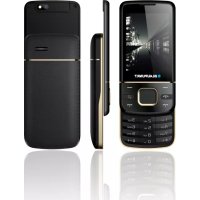
- CONTENTS
- SAFETY
- PRODUCT SPECIFICATIONS
- POWER SUPPLY FEATURES
- BATTERY TYPE AND VOLTAGE
- NETWORK TYPE
- SAR VALUES
- ABOUT THE KEYS
- GETTING STARTED
- INSERT A SIM CARD
- INSERT A MEMORY CARD
- INSERT BATTERY
- REMOVE THE BATTERY
- NOTE
- CHARGING THE BATTERY
- MAINTAINING THE BATTERY
- POWER ON/OFF
- CALL FUNCTIONS
- MAKE A CALL
- RECEIVE CALL
- EMERGENCY CALL
- MESSAGING
- WRITE A MESSAGE
- INCOMING MESSAGES
- CAMERA
- PHONE PASSWORD
- DECLARATION OF CONFORMITY
Brand : BLAUPUNKT
Model : FS 03
Category : Smartphone