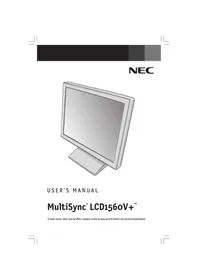
NEC MultiSync LCD1560V - Monitor

MultiSync LCD1560V - Monitor NEC - Free user manual and instructions

Find the device manual for free MultiSync LCD1560V NEC in PDF.

English EN Download 💬 AI Question 10 questions ⚙️ Specs
📄

Document temporarily unavailable

The manual is currently being transferred to our new server. It will be accessible again in a few hours. Thank you for your patience.

View the manual : Français FR English EN
Pick your language and provide your email: we'll send you a specifically translated version.
Product Type 15-inch LCD Monitor (diagonal 15.0 inches / 38.1 cm)
Brand and Model NEC MultiSync LCD1560V+ (NL2501)
Dimensions (W x H x D) 344.8 mm x 344.2 mm x 166.0 mm (13.6 x 13.6 x 6.5 inches)
Weight 3.7 kg (8.2 lb)
Power Supply 100 - 240 V ~ 50/60 Hz, 0.4 A - 0.2 A
Native Resolution 1024 x 768 pixels
Pixel Pitch 0.297 mm
Brightness 250 cd/m²
Contrast Ratio 350:1
Horizontal Viewing Angle 60°/60° (CR > 10)
Vertical Viewing Angle 45°/45° (CR > 10)
Number of Colors 16,194,277 (analog input)
Connectivity Analog video input (D-SUB 15-pin), separate sync TTL
Horizontal Frequency 31.5 kHz to 60.0 kHz (automatic)
Vertical Frequency 56.2 Hz to 75.1 Hz (automatic)
Main Features OSM controls (brightness, contrast, position, AccuColor), auto adjustment, Plug and Play, IPM (power management), FullScan, VESA mount (75x75 mm), tiltable base
Maintenance and Cleaning Use a soft, lint-free cloth, no alcohol, and a neutral cleaning solution or glass cleaner
Safety Do not open the enclosure, do not expose to water, use a power cord suitable for the voltage, unplug if problems occur
Spare Parts and Repairability Contact NEC-Mitsubishi customer support at 1-800-632-4662 (USA/Canada) or an authorized dealer
Operating Temperature 5°C to +35°C (41°F to 95°F)
Operating Humidity 30% to 80%
Standards and Certifications FCC Class B, C-UL, DOC Canada, TCO'99, ENERGY STAR

Frequently Asked Questions - MultiSync LCD1560V NEC

What to do if the screen remains black?
Check that the video cable is properly connected to the graphics card and the monitor, that the main power switch (on the right side) is in the ON position, and that the computer is powered on. If the problem persists, test with a different cable or source.
How to adjust brightness and contrast?
Use the < or > buttons to access the OSM menu, then select the Brightness/Contrast menu. Adjust using the - and + buttons. You can also use the shortcut: when the menu is off, the + and - buttons directly adjust contrast.
Why is there residual image (persistence)?
Prolonged display of static images may cause a ghost image. To fix it, turn off the monitor for a duration equal to the time the previous image was displayed. Use a moving screen saver when the screen is idle.
How to clean the LCD screen?
Use a soft, lint-free cloth. Lightly dampen it with a neutral cleaning solution (no alcohol) or glass cleaner. Wipe gently. Never spray directly on the screen.
Can I mount this monitor on an articulated arm?
Yes, the monitor is VESA compatible (75x75 mm mounting standard). Remove the base by unscrewing the 4 screws, then attach the arm using the provided screws. Make sure the arm supports the monitor's weight (3.7 kg).
How to reset to factory settings?
In the OSM menu, go to Tools > Factory Preset. Confirm the reset. You can also reset an individual function by selecting it and pressing RESET.
What is the recommended optimal resolution?
The native resolution is 1024 x 768 pixels. For a sharp image, set your computer to this resolution with a refresh rate of 60 to 75 Hz.
What does the message 'Out of Range' or 'Non-Optimal Resolution' mean?
This message appears if the input resolution or frequency is not supported. Set your graphics card to an accepted resolution (e.g., 1024x768 at 60 Hz). You can disable the alert in the Tools > RESOLUTION ERROR menu.
How to save energy with this monitor?
The monitor features the IPM (Intelligent Power Manager) system. It automatically switches to low power mode after a period of inactivity. You can also schedule an automatic shutdown in the OSM menu (Tools > Shutdown Schedule).
Where to find the user manual or spare parts?
The manual is available at notice-facile.com. For spare parts or a Macintosh adapter, contact NEC-Mitsubishi at 1-800-632-4662 (USA/Canada) or visit www.necmitsubishi.com.

User questions about MultiSync LCD1560V NEC

0 question about this device. Answer the ones you know or ask your own.

Ask a new question about this device

The email remains private: it is only used to notify you if someone responds to your question.

No questions yet. Be the first to ask one.

Download the instructions for your Monitor in PDF format for free! Find your manual MultiSync LCD1560V - NEC and take your electronic device back in hand. On this page are published all the documents necessary for the use of your device. MultiSync LCD1560V by NEC.

USER MANUAL MultiSync LCD1560V NEC

Manual assistant
Powered by Anthropic
Waiting for your message
Product information

Brand : NEC

Model : MultiSync LCD1560V

Category : Monitor