LCM20v5 - Monitor WESTINGHOUSE - Free user manual and instructions
Find the device manual for free LCM20v5 WESTINGHOUSE in PDF.

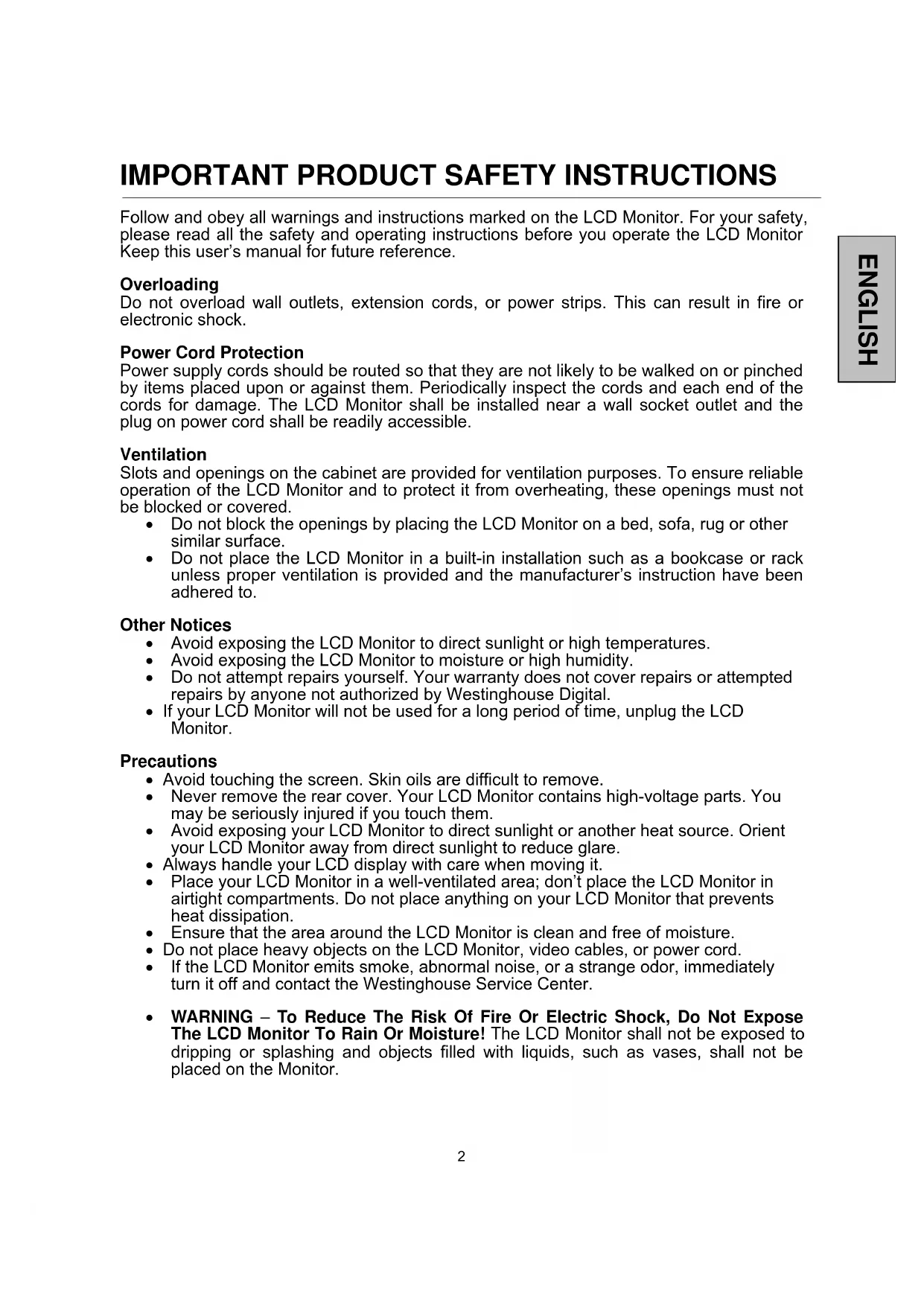


| Product type | LCD Monitor |
| Brand | Westinghouse |
| Model | LCM20v5 |
| Screen size | 20.1 inches (diagonal) |
| Optimal resolution | 1400 x 1050 |
| Response time | 8 ms |
| Contrast ratio | 500:1 |
| Maximum brightness | 300 nits |
| Viewing angles | 150° horizontal / 130° vertical |
| Video connectivity | VGA (D-Sub 15 pin) and DVI-D |
| Power supply | 100-240 V AC, 50/60 Hz, 1.5 A |
| Power consumption (on) | Less than 73 W (green light) |
| Power consumption (standby) | Less than 2 W (orange light) |
| Dimensions (with stand) | 42.7 x 46.7 x 21.1 cm (H x W x D) |
| Weight (with stand) | 5.6 kg (12.4 lbs) |
| Power saver | Built-in Power Saver, ENERGY STAR compliant |
| Auto-configuration | VESA Plug & Play (DDC/EDID) |
| Security | Built-in Kensington lock |
| Screen cleaning | Soft lint-free cloth, glass cleaner without ammonia or alcohol |
| Cabinet cleaning | Soft dry cloth or mild non-abrasive detergent |
| OSD languages | English, French, German, Spanish, Italian, Japanese, Russian, Chinese, Korean |
| Warranty | Westinghouse Customer Service (866) 287-5555 |
Frequently Asked Questions - LCM20v5 WESTINGHOUSE
User questions about LCM20v5 WESTINGHOUSE
0 question about this device. Answer the ones you know or ask your own.
Ask a new question about this device
Download the instructions for your Monitor in PDF format for free! Find your manual LCM20v5 - WESTINGHOUSE and take your electronic device back in hand. On this page are published all the documents necessary for the use of your device. LCM20v5 by WESTINGHOUSE.
USER MANUAL LCM20v5 WESTINGHOUSE
natural_image
Simple line drawing of a computer monitor with no text or symbolsCONTENTS
IMPORTANT PRODUCT SAFETY INSTRUCTIONS....2
SAFETY GUIDELINES....3
FCC COMPLIANCE STATEMENT ....3
CLEANING THE LCD MONITOR....4
FEATURES......5
POWER SAVER....5
PLUG & PLAY 5
INSTALLATION....6
PACKAGE CONTENTS 6
CONTROL PANEL BUTTONS....7
INPUT CONNECTORS......8
-
ATTACHING THE BASE STAND TO THE LCD MONITOR 9
-
CONNECT VIDEO CABLES TO A COMPUTER 9
-
CONNECT POWER CABLES 10
-
TURN THE POWER ON....10
OSD MENU FUNCTIONS....11
IMAGE MENU....12
COLOR MENU 13
MISCELLANEOUS MENU 13
INFORMATION MENU 15
QUICK BRIGHTNESS OR CONTRAST ADJUSTMENT....16
DISPLAY MODES ......17
APPENDIX 18
SPECIFICATIONS....18
TROUBLESHOOTING....19
IMPORTANT PRODUCT SAFETY INSTRUCTIONS
Follow and obey all warnings and instructions marked on the LCD Monitor. For your safety, please read all the safety and operating instructions before you operate the LCD Monitor. Keep this user's manual for future reference.
Overloading
Do not overload wall outlets, extension cords, or power strips. This can result in fire or electronic shock.
Power Cord Protection
Power supply cords should be routed so that they are not likely to be walked on or pinched by items placed upon or against them. Periodically inspect the cords and each end of the cords for damage. The LCD Monitor shall be installed near a wall socket outlet and the plug on power cord shall be readily accessible.
Ventilation
Slots and openings on the cabinet are provided for ventilation purposes. To ensure reliable operation of the LCD Monitor and to protect it from overheating, these openings must not be blocked or covered.
- Do not block the openings by placing the LCD Monitor on a bed, sofa, rug or other similar surface.
- Do not place the LCD Monitor in a built-in installation such as a bookcase or rack unless proper ventilation is provided and the manufacturer's instruction have been adhered to.
Other Notices
- Avoid exposing the LCD Monitor to direct sunlight or high temperatures.
- Avoid exposing the LCD Monitor to moisture or high humidity.
- Do not attempt repairs yourself. Your warranty does not cover repairs or attempted repairs by anyone not authorized by Westinghouse Digital.
- If your LCD Monitor will not be used for a long period of time, unplug the LCD Monitor.
Precautions
- Avoid touching the screen. Skin oils are difficult to remove.
- Never remove the rear cover. Your LCD Monitor contains high-voltage parts. You may be seriously injured if you touch them.
- Avoid exposing your LCD Monitor to direct sunlight or another heat source. Orient your LCD Monitor away from direct sunlight to reduce glare.
• Always handle your LCD display with care when moving it. - Place your LCD Monitor in a well-ventilated area; don't place the LCD Monitor in airtight compartments. Do not place anything on your LCD Monitor that prevents heat dissipation.
- Ensure that the area around the LCD Monitor is clean and free of moisture.
- Do not place heavy objects on the LCD Monitor, video cables, or power cord.
- If the LCD Monitor emits smoke, abnormal noise, or a strange odor, immediately turn it off and contact the Westinghouse Service Center.
- WARNING – To Reduce The Risk Of Fire Or Electric Shock, Do Not Expose The LCD Monitor To Rain Or Moisture! The LCD Monitor shall not be exposed to dripping or splashing and objects filled with liquids, such as vases, shall not be placed on the Monitor.
Safety Guidelines
CAUTION: The power supply outlet should be located near the LCD Monitor and should be easily accessible. Always use the appropriate AC cord that is certified for your specific country. Some examples are listed below:
USA......UL
Canada......CSA
Germany......VDE
Switzerland .....SEV
Britain ......BASE/BS
Japan ......Electric Appliance Control Act
IMPORTANT NOTICE CONCERNING POWER CORD SELECTION
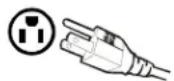
The specific power cord for this LCD Monitor is enclosed and has been selected according to the country of destination and must be used to prevent electric shock. Use the following guidelines if it is necessary to replace the original cord set, or if the cord set is not enclosed. The female receptacle of the cord set must meet IEC-60320 requirements and should look like Figure A1 below:
Figure A1 Figure A2
For the United States and Canada
In the United States and Canada the male plug is a NEMA5-15 style (Figure A2), UL Listed, and CSA Labeled. For LCD Monitors that are placed on a desk or table, type SVT or SJT cord sets may be used. For LCD Monitors placed directly on the floor, only SJT type cord sets may be used. The cord set must be selected according to the current rating for the LCD Monitor. Please consult the table below for the selection criteria for power cords used in the United States and Canada.
| Cord Type | Size of Conductors in Cord | Maximum Current Rating of Unit |
| SJT | 18 AWG | 10 Amps |
| 16 AWG | 12 Amps | |
| 14 AWG | 12 Amps | |
| SVT | 18 AWG | 10 Amps |
| 17 AWG | 12 Amps |
FCC Compliance Statement
This equipment has been tested and complies with the limits for a Class B digital device, pursuant to part 15 of the FCC Rules. These limits are designed to provide reasonable protection against harmful interference in a residential installation. This equipment generates, uses, and can radiate radio frequency energy, and may cause harmful interference to radio communications if not installed and used in accordance with the instructions. However, there is no guarantee that interference will not occur in a particular installation. If this equipment does cause harmful interference to radio or television reception, which can be determined by turning the equipment off and on, the user is encouraged to try to correct the interference by one or more of the following measures:
- Reorient or relocate the receiving antenna.
- Increase the separation between the LCD Monitor and receiver.
- Connect the equipment into an outlet on a circuit different from that to which the receiver is connected.
- Consult the Westinghouse Service Center or an experienced radio/Monitor technician for assistance.
FCC Warning
To assure continued FCC compliance, the user must use a grounded power supply cord and the provided shielded video interface cable with bonded ferrite cores. If a BNC cable used, use only a shielded BNC (5) cable. Also, any unauthorized changes or modifications not expressly approved by Westinghouse Digital will void the user's authority to operate this device.
• MAKE SURE THE LCD MONITOR IS TURNED OFF
• NEVER SPRAY OR POUR ANY LIQUID DIRECTLY ONTO THE SCREEN OR CASE
To clean the screen:
- Wipe the screen with a clean, soft, lint-free cloth. This removes dust and other particles.
- If it still is not clean, apply a small amount of non-ammonia, non-alcohol based glass cleaner onto a clean, soft, lint-free cloth, and wipe the screen.
To clean the case:
- Use a soft, dry cloth.
- If it still is not clean, apply a small amount of non-ammonia, non-alcohol based, mild non-abrasive detergent onto a clean, soft, lint-free cloth, then wipe the surface.
Disclaimer
Westinghouse Digital does not recommend the use of any ammonia or alcohol-based cleaners on the LCD Monitor screen or case. Some chemical cleaners have been reported to damage the screen and/or LCD Monitor case. Westinghouse Digital will not be liable for damage resulting from the use of any ammonia or alcohol-based cleaners.
- Bright Display Image
- Lightweight
- Fast Response Time
- Power Saver
- Plug & Play
• Kensington Security Lock Compatible
Power Saver
A power control system, Power Saver, is installed inside the LCD monitor. If the LCD monitor has not been used for a certain period of time, the system will turn the LCD monitor to low voltage mode to save electrical power. Slight movement of the mouse or pressing any key on the keyboard will return the original screen image. You can use your PC to set the function.
The LCD monitor is compatible with EPA ENERGY STAR and NÜTEK if used with a VESA DPMS computer. To save power, turn off the LCD monitor power when not in use.
Plug & Play
VESA Plug and Play eliminates the complicated and time-consuming installation process. Your computer system will identify and automatically adjust the LCD monitor. The LCD monitor uses Display Data Channel (DDC) to send Extended Display Identification Data (EDID) to the computer system, so the computer system can automatically adjust the LCD monitor.
INSTALLATION
Congratulations on your purchase of a Westinghouse 20.1" LCD Monitor. Sleek and practical, this lightweight LCD monitor delivers a crisp and clear display optimized for 1400 x 1050 display resolution.
Package Contents
Your product package includes:
• 20.1" Westinghouse LCD Monitor
- Detachable Base Stand
- AC Power Cord
• VGA Male – Male Cable
- User's Manual
- Warranty Card
natural_image
Front view of a silver CRT computer monitor with a blank screen and stand (no visible text or symbols)Control Panel Buttons
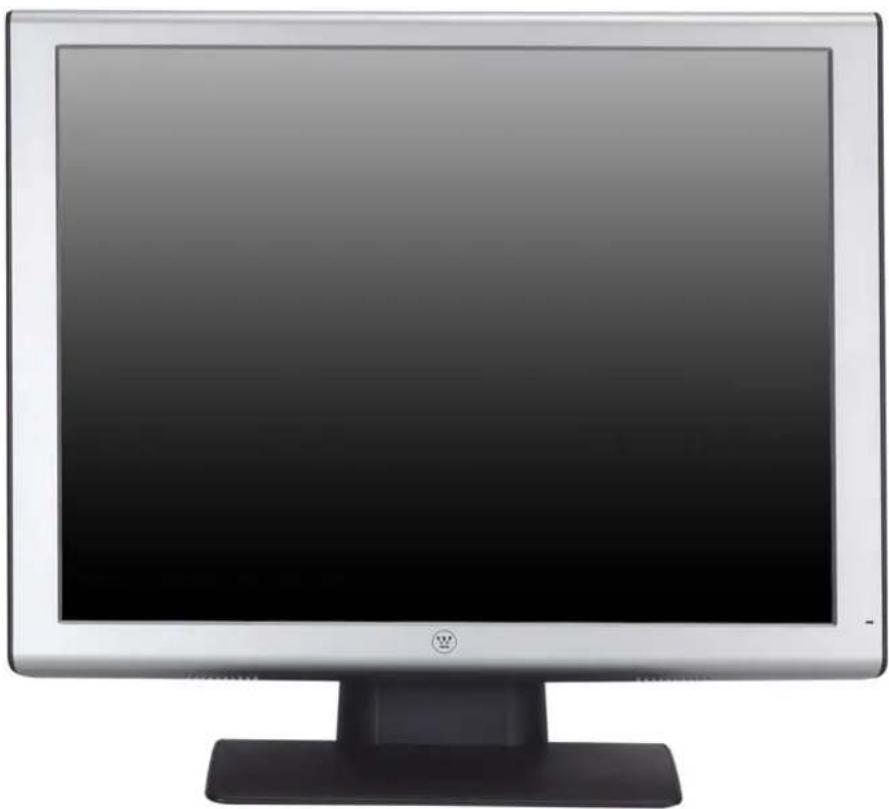
Use the control buttons on the side of the LCD Monitor to display the On Screen Display (OSD). Below is a list of the control button functions. The OSD controls are defined in "OSD Functions" on page 11.
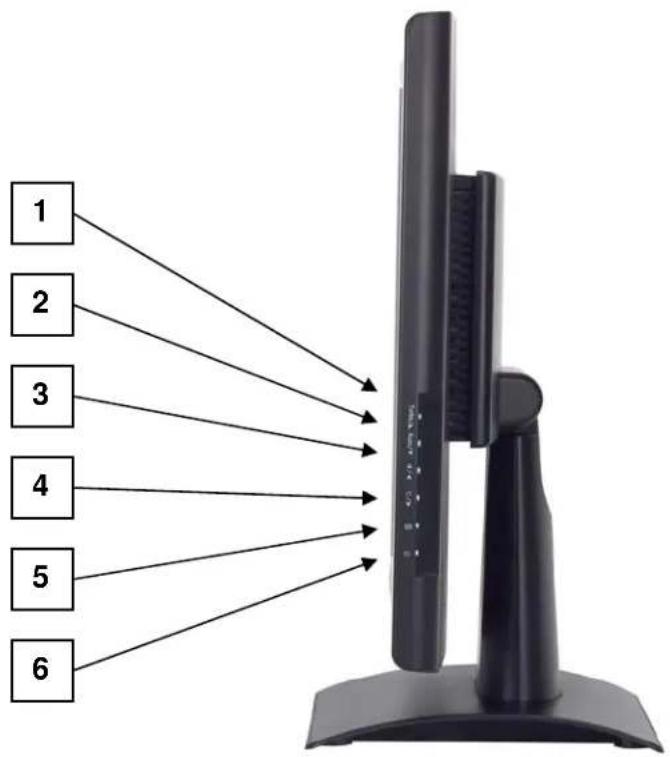
| 1.Turbo/▲ | Switch between picture, text and economy modes.Scroll up the OSD sub-menu list when the OSD is displayed. |
| 2. Auto/▼ | Automatically optimize positions, phase, and clock when the OSD is not displayed (Auto Adjust).Scroll down the OSD sub-menu list when the OSD is displayed. |
| 3. | Quick contrast adjustment or decrease contrast/brightness.Move a selection left when the OSD is displayed. |
| 4. | Quick brightness adjustment and increase contrast/brightness.Move a selection right when the OSD is displayed. |
| 5. | Enter and exit the OSD menu |
| 6. | Power On and Off buttonLED Power Indicator LightGreen: NormalOrange: Power SavingOff: Power Off |
Input Connectors
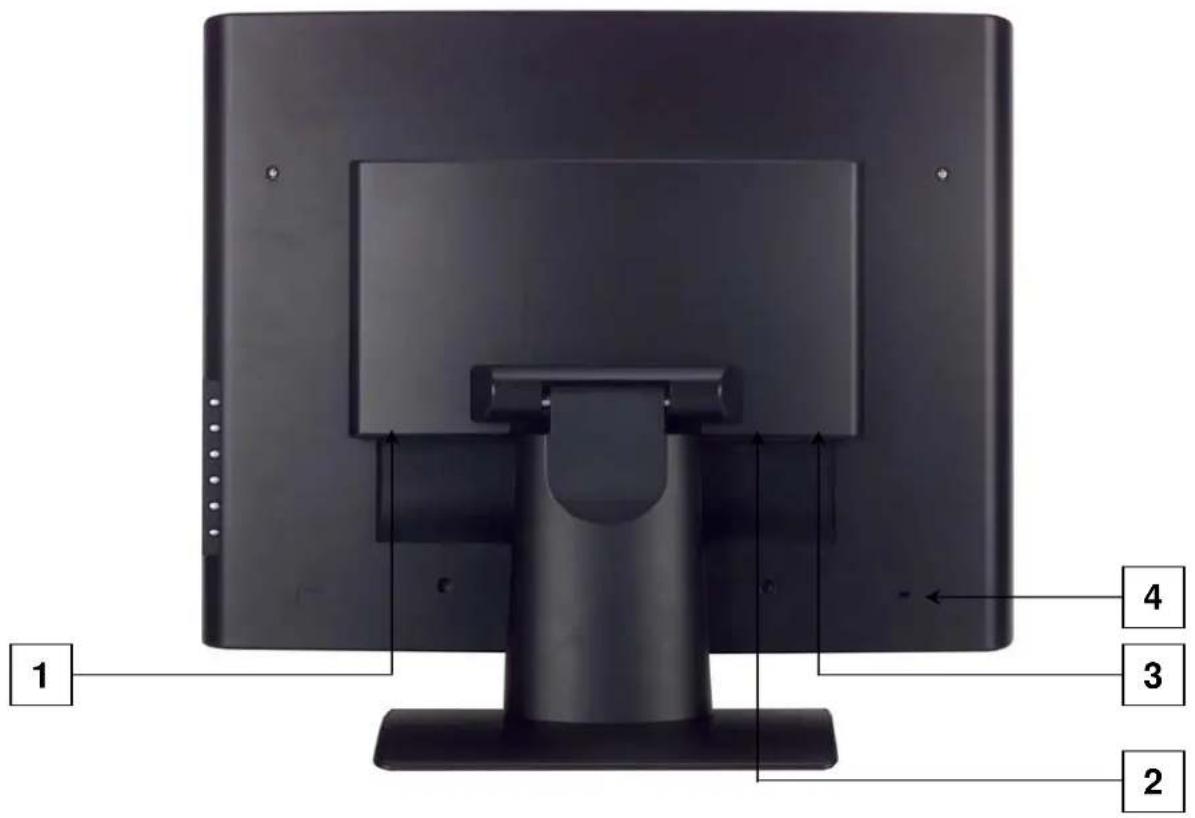
| 1. AC IN (Power) | Connect the power cord from AC IN to a power source. |
| 2. DVI-D | Using a DVI cable, connect to a computer with a DVI output. |
| 3. D-SUB (VGA) | Using the enclosed 15-pin VGA cable, connect to a computer or other device with a VGA output. |
| 4. Security Lock Anchor | Secure the LCD monitor by using a Kensington Micro Saver Security Lock. |
Installation
1. Attaching the Base Stand to the LCD Monitor
Attach the base stand to the LCD monitor stand neck by aligning the holes and tabs. Press in and snap the base into place. To remove the base stand, press the tabs on the bottom of the stand neck and remove the base.
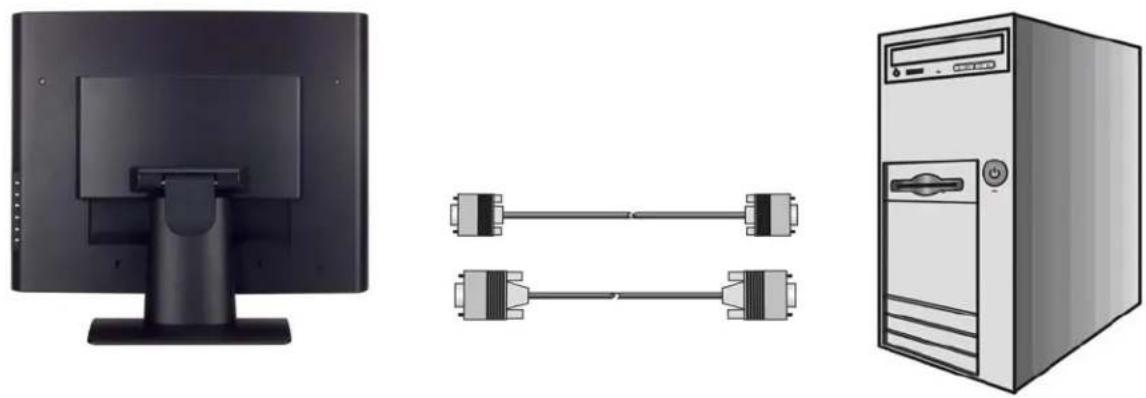
2. Connect Video Cables to a Computer
Connect one of the following into the back of the LCD Monitor:
IMPORTANT: Before beginning, make sure the monitor and computer are turned off.
DVI-D CONNECTION: Connect a Digital DVI cable from your computer to the LCD Monitor DVI-D port.
VGA CONNECTION: Connect an analog VGA cable from your computer VGA OUT port to the LCD Monitor D-SUB port.
natural_image
Three electronic devices: a monitor, a desktop tower, and a computer tower connected by cable (no text or symbols visible)3. Connect Power Cables
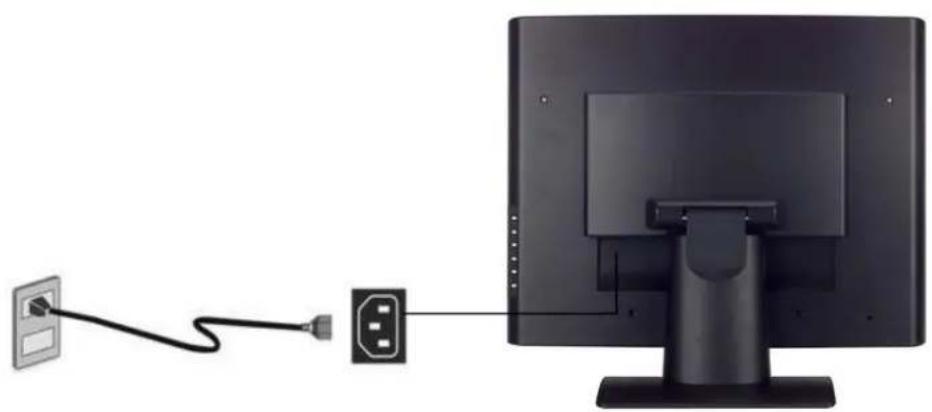
Connect the AC power cord to the LCD Monitor (to the connector labeled "AC-IN") and then connect the cord into a properly grounded AC outlet.
natural_image
Diagram showing a cable being inserted into a computer monitor via an external port (no text or symbols present)4. Turn the Power On
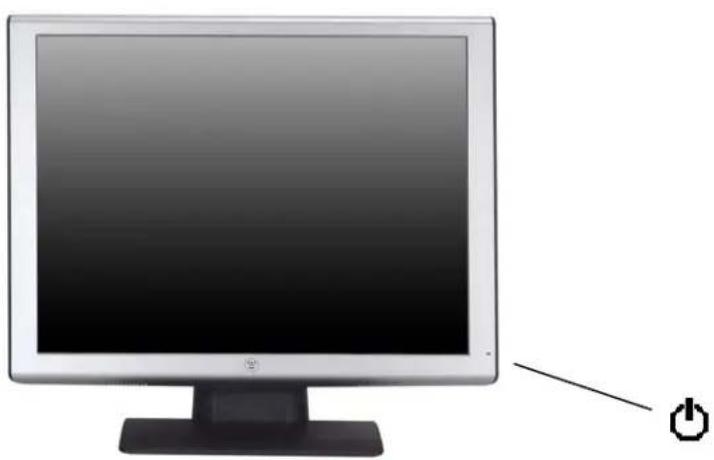
Press the power button on the side of the LCD monitor. The LED light will turn green if a signal input is detected or it will be orange if no input is detected.
NOTE: If you have a problem with the video image, adjust the computer's resolution to 1400 x 1050 or turn off and reboot the computer. In addition, you may need to download the latest drivers for the graphics card used in your computer.
natural_image
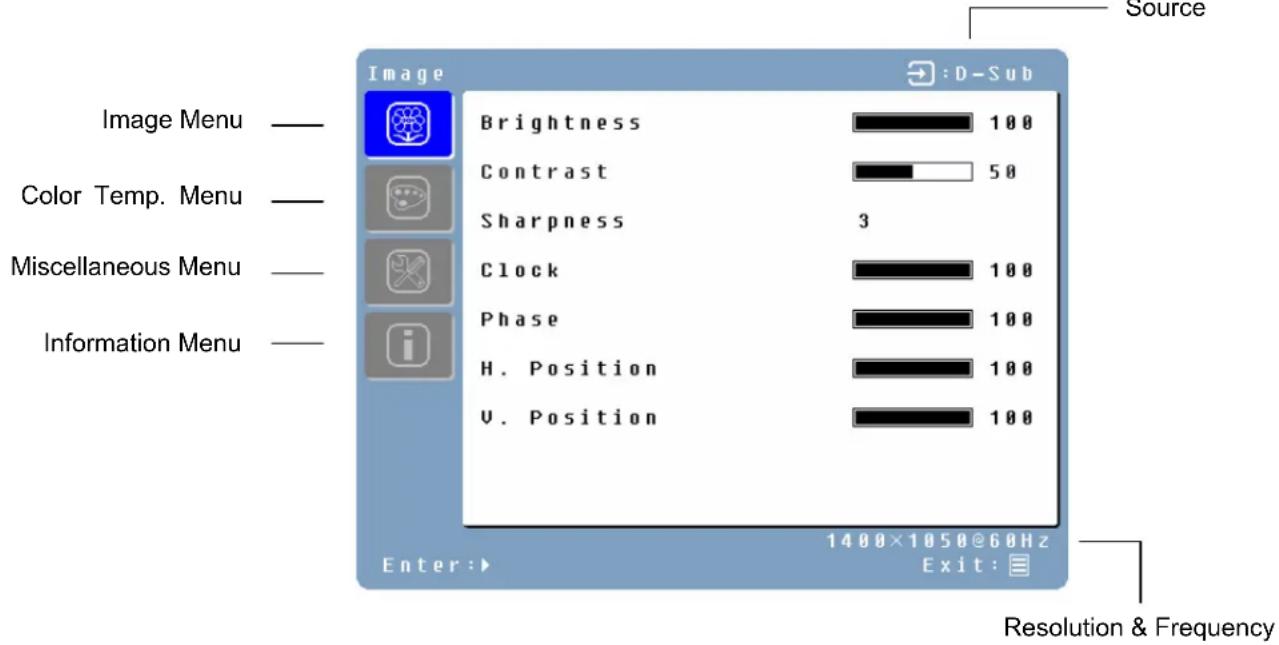
Computer monitor with a power button icon pointing to its side (no text or symbols on the monitor itself)All the function settings for the LCD monitor are controlled via the control keys located on the side of the monitor. To display the OSD main menu, press the "Menu" keypad button on the control panel. (Note: The OSD menu display will disappear automatically after approximately 10 seconds, if no action is taken.)
The LCD monitor has been adjusted to optimal settings before shipment. Adjustments to the monitor settings can be made using the OSD menu.
- Press the "Menu" Button to display the OSD.
- Press the Turbo/▲ or Auto/▼ button to scroll through the sub-menus (Image, Audio, Color, Miscellaneous, and Information Sub-Menus).
- Press the 📞/▶ button to enter the sub-menu.
- Press the Turbo/▲ or Auto/▼ button to select the function to be adjusted.
- Press the ⏻/◄ or ⚙/► buttons to change the current setting of the sub-function.
- To go back to the previous menu, press the Button. Changes are saved automatically.
- To exit the OSD menu press "Menu" ☑ again. It automatically will save any changes that have been made.
NOTES:
- Any changes are automatically saved in memory when the OSD turns off. Turning off the power should be avoided while using the OSD menu.
- Adjustments for clock, phase, and positions are saved for each individual signal timing. Except for these adjustments, all other adjustments have only one setting, which applies to all signal timings.
- The icon color will change from gray to blue when a sub-menu is selected.
The following is a list of the OSD sub-menus for the LCD monitor:
Image Menu
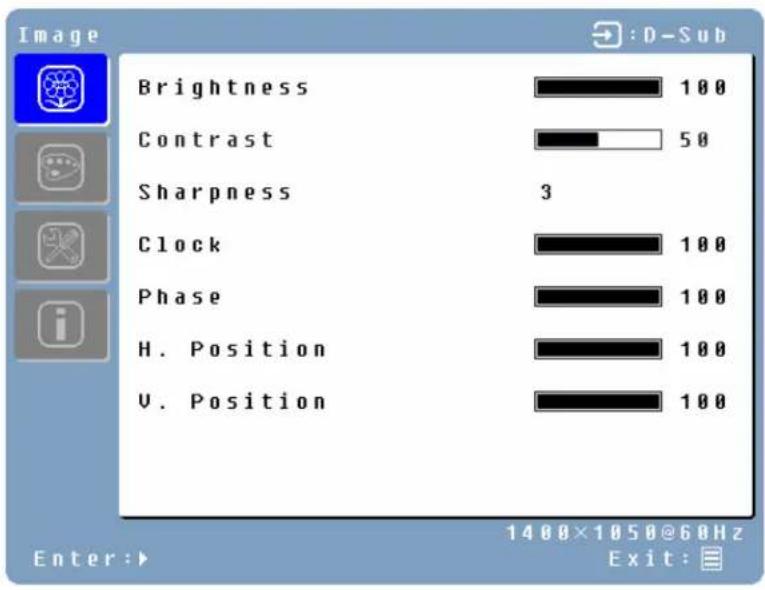
| Function | Description |
| Brightness | Adjust the brightness of the screen. |
| Contrast | Adjust the contrast of the image. |
| Sharpness | Adjust the picture sharpness of low resolution pictures. |
| Clock | Adjust the LCD monitor clock. (VGA only) |
| Phase | Adjust the LCD monitor phase. (VGA only) |
| H. Position | Move the image left or right on the screen. (VGA only) |
| V. Position | Move the image up or down on the screen. (VGA only) |
Color Menu
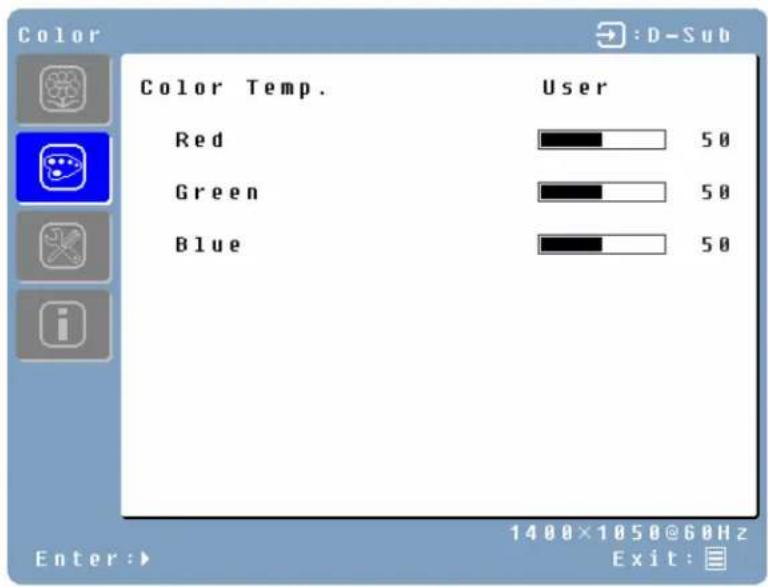
| Function | Description |
| Color temp | User/9300K/7500K/6500K/sRGB |
| Red | Adjust red color. |
| Green | Adjust green color. |
| Blue | Adjust blue color. |
Miscellaneous Menu
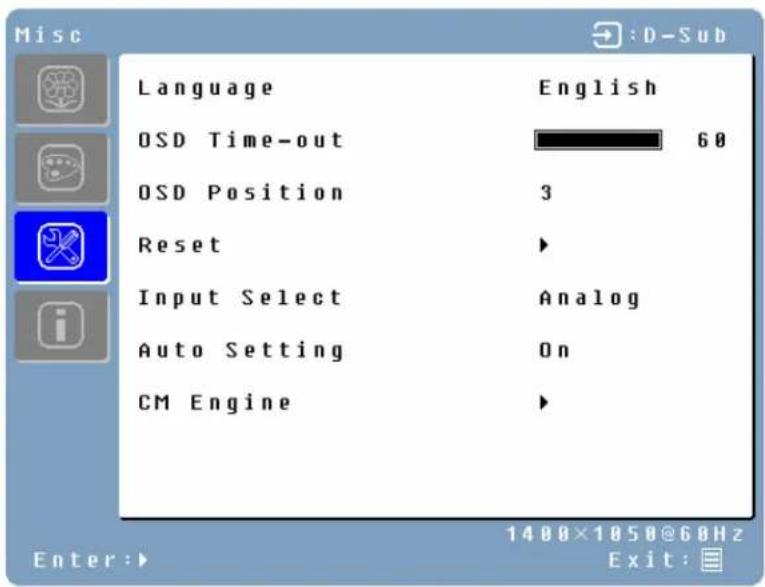
| Function | Description |
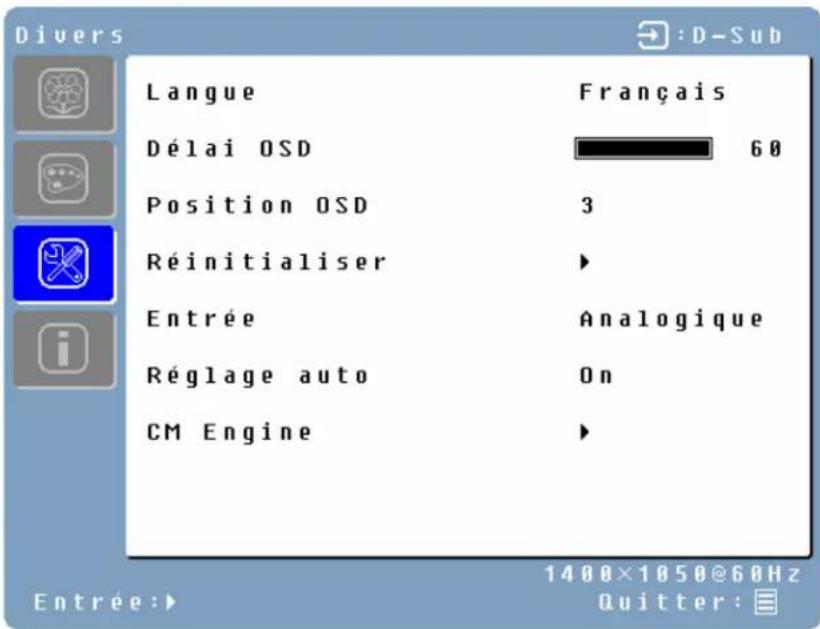
| Language | English, Français, Deutsch, Español, Italiano, ロ本語, Русский, 繁體中文, 簡体中文, 한국어 |
| OSD time-out | Adjust OSD display time setting. |
| OSD position | Move OSD display position to any one of the following 5 positions within the overall screen.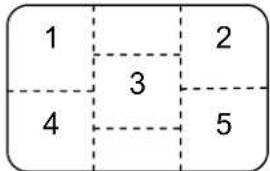 |
| Reset | Restore the LCD monitor to the factory settings. |
| Input Select | Analog / Digital |
| Auto setting | Adjust clock, phase and positions automatically. (VGA only) |
| CM Engine | Color Management Engine. (VGA only) |
Information Menu
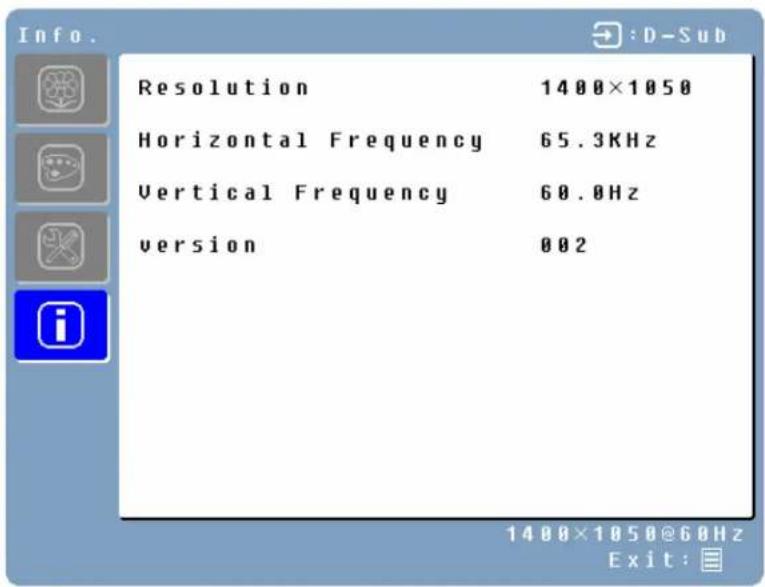
| Function | Description |
| Resolution | Displays resolution. |
| Horizontal frequency | Displays horizontal frequency. |
| Vertical frequency | Displays vertical frequency. |
| Version | Displays firmware version number. |
Quick Brightness or Contrast Adjustment
A Brightness or Contrast adjustment scale can be displayed directly by using the following button operations:
- Brightness: Press the 📂/▶ Brightness button when the Menu is not displayed.

- Contrast: Press the ⏻/◀ Contrast button when the Menu is not displayed.

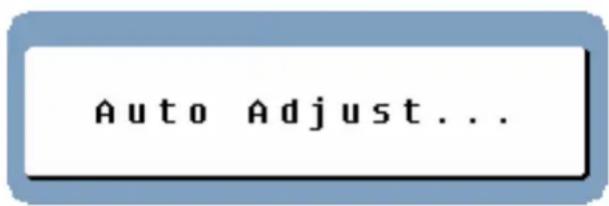
- Auto Adjustment: Press the Auto button when the Menu is not displayed.
- Turbo: Press the Turbo/▲ button when the Menu is not displayed to switch between Display Modes. See page 17 for more detail.
The monitor backlighting can be adjusted by using the Turbo/▲ button on the control panel. There are 3 modes: Economy, Text, and Picture. To toggle between these modes, press the Turbo/▲ key until the mode you desire is selected. These modes automatically change the monitor backlight levels between bright, brighter, and brightest.
1. Economy Mode – Reduced brightness
E con o my
Exit:
2. Text Mode – Normal brightness
Text Mode
Exit:
3. Picture Mode – High brightness
Picture Mode
Exit:
NOTES:
- Changing to a lower brightness mode can lessen eye fatigue.
- Change from Picture Mode to Text Mode when working with text.
- Change from Text Mode to Economy Modes when viewing the screen for long periods.
Appendix
Specifications
| Item | Specification | |
| Panel Size | Type | 20.1" Color TFT Active Matrix LCD. Anti-static and hard coated. |
| Optimum Resolution | 1400 x 1050 | |
| Response Time | 8 ms | |
| Contrast Ratio | 500:1 | |
| Maximum Brightness | 300 Nits | |
| Viewing Angles | 150° (H) / 130° (V) | |
| Input Signal | Video | HD-15 pin D-Sub (VGA connector)DVI-D |
| Power | Voltage 100-240 V | AC, 50/60 Hz (auto switch), 1.5A |
| Operating Conditions | Temperature 32°F to +95°F (0°C to +35°C) | |
| Humidity 20% to 90% (no condensation) | ||
| Altitude Up to 3,000 meters | ||
| Storage Conditions | Temperature -4°F to +140°F (-20°C to +60°C) | |
| Humidity 10% to 90% (no condensation) | ||
| Altitude Up to 12,000 meters | ||
| Dimensions | Unit 16.8 (h) x 18.4 (w) x 8.3 (d) in | |
| Carton 18.4 (h) x 21.0 (w) x 6.0 (d) in | ||
| Weight | Unit 12.4 lb (5.6 kg) | |
| Regulations | FCC-B, UL, CSA (CUL), Energy Star®, Plug & Play | |
| Power consumption | AC On <73W (Green LED) | |
| AC Off <2W (Orange LED) | ||
| Lamp Life | 50,000 hours | |
No Power
- Make sure the AC cord is plugged into the back of the LCD monitor.
• Make sure the AC power cord is securely connected to an AC outlet. - Plug another electrical device (like a radio) to the power outlet to verify that the outlet is supplying the proper voltage.
No Image
- Make sure the power button is ON.
- Check whether the LCD monitor and computer power cords are plugged in and check the power supply.
Power is ON but No Screen Image
- Adjust the brightness and contrast levels.
- Make sure the VGA or DVI cable is securely connected to both the computer and monitor.
"Out Of Range"
- Check the computer image output resolution and frequency and compare the value with the preset values of the computer's graphics card.
Fuzzy Image
- Adjust the Phase setting on the monitor.
Image Too Bright or Too Dark
- Adjust the brightness and contrast levels using the OSD.
• Make sure that the computer is not displaying an irregular image. - Check the VGA or DVI connection between the computer and LCD monitor.
- Perform Auto Adjust.
Distorted Image
- Reset the LCD monitor by performing the "Reset" function using the OSD.
- Remove extra accessories (such as a VGA extension cord).
Image is Not Centered (size is not scaled correctly)
- Perform Auto Adjust
- Adjust the horizontal and/or vertical position using the OSD.
- Check image size setting.
Colors are Incorrect
- Adjust the color setting using the OSD.
Cannot display the LCD monitor with resolution 1400 x 1050
- Please download the video card driver from websites below: Nvidia: http://www.nvidia.com/content/drivers/drivers.asp Intel: http://downloadfinder.intel.com/scripts-df/support_intel.asp
Additional Questions
• See our website at www.westinghousedigital.com.
- Contact Westinghouse Digital Customer Service at (866) 287-5555 or write us at service@westinghousedigital.com.
CONSIGNES DE SÉCURITÉ IMPORTANTES ....2
DIRECTIVES DE SÉCURITÉ ....3
DÉCLARATION DE CONFORMITÉ À LA FCC 3
NETTOYAGE DU MONITEUR LCD ....5
CARACTERISTIQUES......6
ECONOMISEUR D'ÉNERGIE....6
AUTOCONFIGURATION....6
INSTALLATION....7
CONTENU DE L'EMBALLAGE 7
TOUCHES DU PANNEAU DE COMMANDE 8
CONNECTEURS D'ENTREE 8
-
POUR ATTACHER LE TRÉPIED AU MONITEUR LCD 10
-
POUR RACCORDER LES CÂBLES VIDÉO À L'ORDINATEUR....10
-
POUR RACCORDER LES CÂBLES D'ALIMENTATION .... 11
-
POUR ALLUMER LE MONITEUR ....11
FONCTIONS DU MENU OSD 12
MENU IMAGE [IMAGE MENU] 14
natural_image
Front view of a silver CRT computer monitor with a black stand (no visible text or symbols)natural_image
Three electronic devices: a monitor, a desktop tower, and a computer tower connected by cable (no text or symbols visible)natural_image
Diagram showing a computer monitor connected to a cable and a plug, with no visible text or symbols.natural_image
Computer monitor with blank screen and power button icon (no text or symbols on main subject)Menu – Divers [Miscellaneous Menu]
ATI: https://support.ati.com/ics/support/default.asp?deptID=894
natural_image
Front view of a silver CRT computer monitor with a blank screen and stand (no visible text or symbols)Botones del Panel de Control
natural_image
Illustration of a desktop computer monitor, two connected USB cable connectors, and a server tower (no text or symbols)natural_image
Diagram showing a computer monitor with an attached cable and a separate plug, no text or symbols presentnatural_image
Computer monitor with blank screen and power button icon (no text or symbols on main subject)Nvidia: http://www.nvidia.com/content/drivers/drivers.asp
Intel: http://downloadfinder.intel.com/scripts-df/support_intel.asp
ATI: https://support.ati.com/ics/support/default.asp?deptID=894
Otras Preguntas


- CONTENTS
- IMPORTANT PRODUCT SAFETY INSTRUCTIONS....2
- CLEANING THE LCD MONITOR....4
- FEATURES......5
- INSTALLATION....6
- OSD MENU FUNCTIONS....11
- DISPLAY MODES ......17
- APPENDIX 18
- IMPORTANT PRODUCT SAFETY INSTRUCTIONS
- Overloading
- Power Cord Protection
- Ventilation
- Other Notices
- Precautions
- Safety Guidelines
- IMPORTANT NOTICE CONCERNING POWER CORD SELECTION
- For the United States and Canada
- FCC Compliance Statement
- FCC Warning
- To clean the screen:
- To clean the case:
- Disclaimer
- Power Saver
- Plug & Play
- INSTALLATION
- Package Contents
- Control Panel Buttons
- Input Connectors
- Attaching the Base Stand to the LCD Monitor
- Connect Video Cables to a Computer
- Connect Power Cables
- Turn the Power On
- NOTES:
- Image Menu
- Miscellaneous Menu
- Information Menu
- Quick Brightness or Contrast Adjustment
- Economy Mode – Reduced brightness
- Text Mode – Normal brightness
- Picture Mode – High brightness
- Appendix
- No Power
- No Image
- Power is ON but No Screen Image
- "Out Of Range"
- Fuzzy Image
- Image Too Bright or Too Dark
- Distorted Image
- Image is Not Centered (size is not scaled correctly)
- Colors are Incorrect
- Cannot display the LCD monitor with resolution 1400 x 1050
- Additional Questions
- CONSIGNES DE SÉCURITÉ IMPORTANTES ....2
- NETTOYAGE DU MONITEUR LCD ....5
- CARACTERISTIQUES......6
- INSTALLATION....7
- FONCTIONS DU MENU OSD 12
- Menu – Divers [Miscellaneous Menu]
- Botones del Panel de Control
- Otras Preguntas
Brand : WESTINGHOUSE
Model : LCM20v5
Category : Monitor