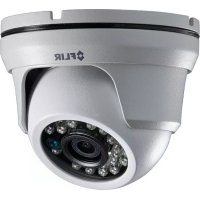
MPX C233EC - Surveillance Camera FLIR - Free user manual and instructions
Find the device manual for free MPX C233EC FLIR in PDF.



| Product Type | MPX Surveillance Camera |
| Model | MPX C233EC |
| Brand | FLIR |
| Power Supply | 12 V DC |
| Video Format | NTSC / PAL (selectable) |
| Wide Dynamic Range (WDR) | Yes, with weight adjustment (low/medium/high) |
| High Light Compensation (HLC) | Yes, all-day or night-only mode |
| Backlight Compensation (BLC) | Yes, with adjustable active zone |
| Digital Noise Reduction (DNR) | Yes, low/medium/high levels |
| Day/Night Mode | Auto, external (CdS sensor), forced color or B/W |
| Smart IR | Yes, can be enabled with adjustable level |
| White Balance | Auto, ATW, preset, manual (Kelvin, R/B gains) |
| Exposure | Brightness, shutter (auto, anti-flicker, manual 1/60-1/60000), Sens-Up (x2 to x32), AGC (0-20) |
| Digital Zoom | 1.0x to 8.0x |
| Defog | Yes, manual and automatic modes |
| Privacy Zone Masking | Up to 15 zones, adjustable position and size |
| Image Flip | Horizontal, vertical, both |
| Dead Pixel Compensation | Yes, with adjustable threshold |
| OSD Menu Languages | English, German, French, Spanish, Russian, Polish, Italian, Portuguese |
| Maintenance and Cleaning | Clean the lens with a soft, dry cloth |
| Safety | Do not expose to rain or moisture; disconnect before cleaning |
| Connectivity | MPX connector for compatible DVR; yellow analog output for monitor |
Frequently Asked Questions - MPX C233EC FLIR
User questions about MPX C233EC FLIR
0 question about this device. Answer the ones you know or ask your own.
Ask a new question about this device
Download the instructions for your Surveillance Camera in PDF format for free! Find your manual MPX C233EC - FLIR and take your electronic device back in hand. On this page are published all the documents necessary for the use of your device. MPX C233EC by FLIR.
USER MANUAL MPX C233EC FLIR
On-Screen Display Guide C23 Series MPX Cameras
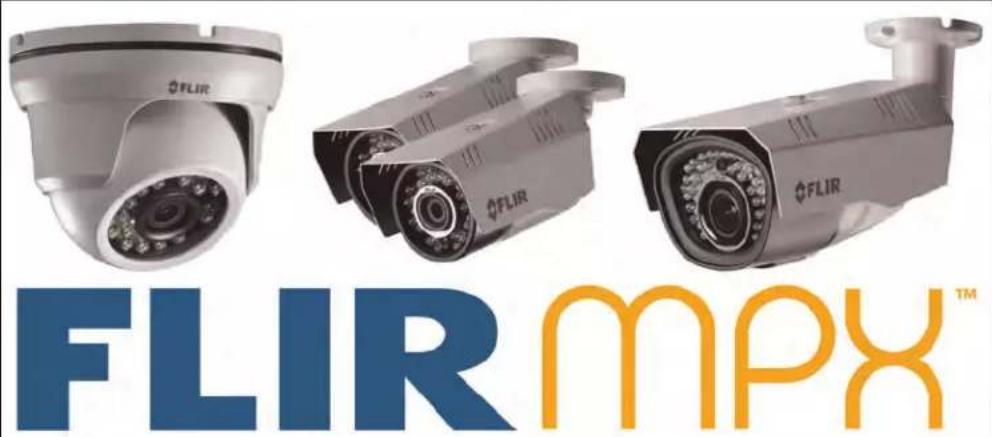
On-Screen Display Guide C23 Series MPX Cameras
Thank you for purchasing this product. FLIR is committed to providing our customers with a high quality, reliable security solution.
This manual refers to the following models:
C23 Series
For the latest online manual, downloads and product updates, and to learn about our complete line of accessory products, please visit our website at:
www.flirsecurity.com/pro
WARNING
RISK OF ELECTRIC SHOCK DO NOT OPEN

WARNING: TO REDUCE THE RICK OF ELECTRIC SHOCK DO NOT REMOVE COVER. NO USER SERVICABLE PARTS INSIDE.
REFER SERVICING TO QUALIFIED SERVICE PERSONNEL.
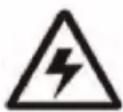
The lightning flash with arrowhead symbol, within an equilateral triangle, is intended to alert the user to the presence of uninsulated "dangerous voltage" within the product's enclosure that may be of sufficient magnitude to constitute a risk of electric shock.

The exclamation point within an equilateral triangle is intended to alert the user to the presence of important operating and maintenance (servicing) instructions in the literature accompanying the appliance.
WARNING: TO PREVENT FIRE OR SHOCK HAZARD, DO NOT EXPOSE THIS UNIT TO RAIN OR MOISTURE.
CAUTION: TO PREVENT ELECTRIC SHOCK, MATCH WIDE BLADE OF THE PLUG TO THE WIDE SLOTAND FULLY INSERT.
Table of contents
1 Using the On-Screen Display (OSD) Menu ....1
1.1 Accessing the OSD Menu....1
2 Main Menu....2
2.1 Language....2
2.2 Video Format ....2
2.3 Wide Dynamic Range (WDR) 3
2.4 High Light Compensation (HLC)....3
2.5 Back Light Compensation (BLC) 4
2.6 Digital Noise Reduction (DNR)....5
2.7 Version ......6
3 Advanced Menu ....7
3.1 Lens Settings....8
3.2 Exposure 9
3.2.1 Brightness 9
3.2.2 Shutter.... 10
3.2.3 Sens-Up.... 10
3.2.4 Automatic Gain Control (AGC) 11
3.3 White Balance.... 11
3.4 Day & Night 12
FLIR MPX cameras have an integrated OSD menu that allows you to configure camera settings related to exposure, white balance, day / night settings and other camera image adjustments. You can also configure advanced picture correction features such as Wide Dynamic Range, Digital Noise Reduction and more.
The OSD menu appears as a text overlay on top of the camera image. In order to view the menu, you must connect the camera to a monitor.
1.1 Accessing the OSD Menu
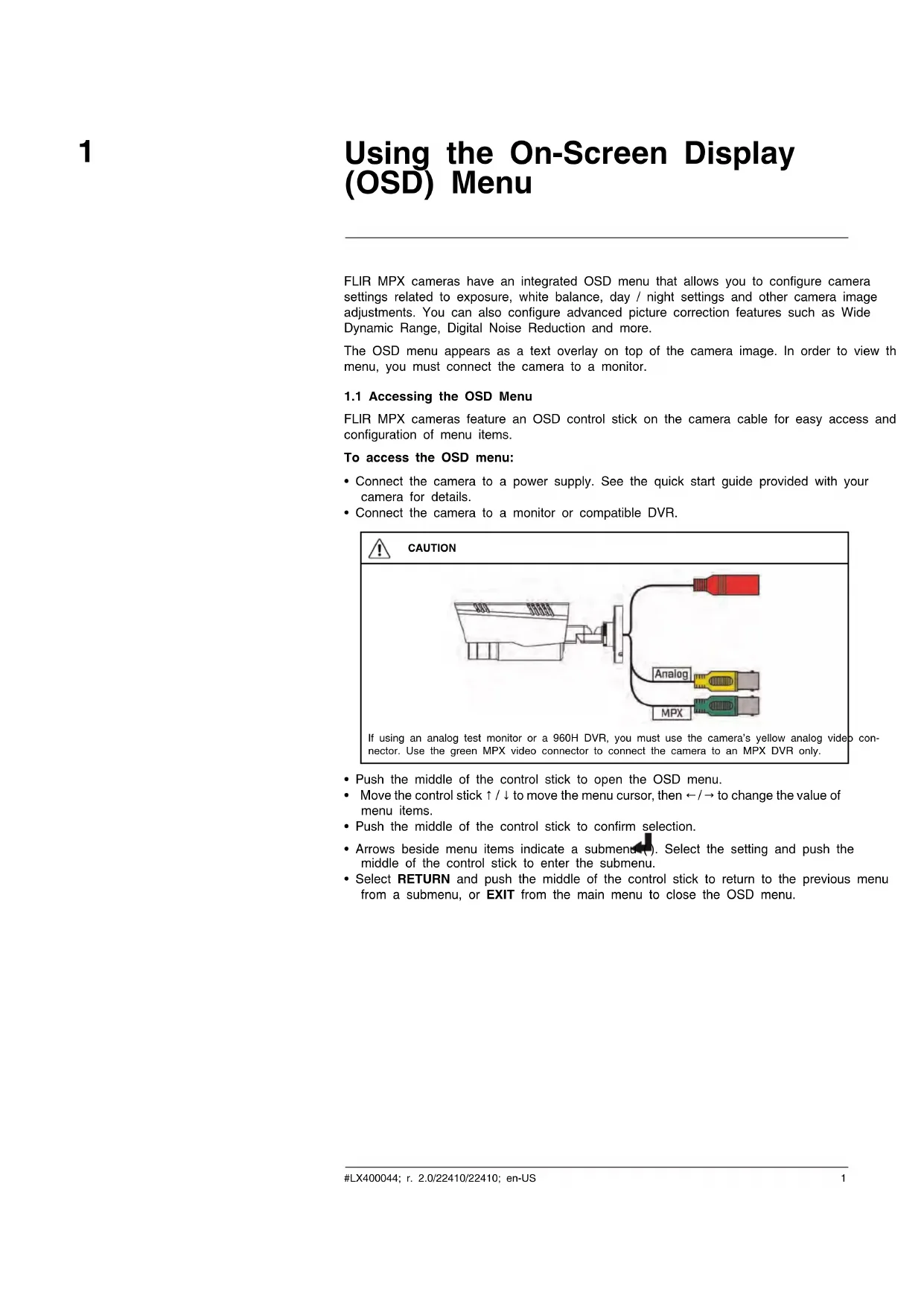
FLIR MPX cameras feature an OSD control stick on the camera cable for easy access and configuration of menu items.
To access the OSD menu:
- Connect the camera to a power supply. See the quick start guide provided with your camera for details.
- Connect the camera to a monitor or compatible DVR.
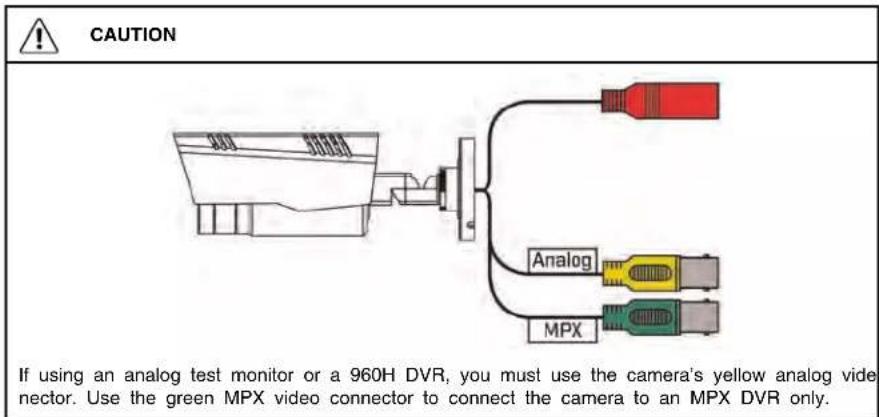
- Push the middle of the control stick to open the OSD menu.
- Move the control stick ↑ / ↓ to move the menu cursor, then ← / → to change the value of menu items.
- Push the middle of the control stick to confirm selection.
- Arrows beside menu items indicate a submenu(). Select the setting and push the middle of the control stick to enter the submenu.
- Select RETURN and push the middle of the control stick to return to the previous menu from a submenu, or EXIT from the main menu to close the OSD menu.
2
Main Menu
The main menu lets you configure the OSD menu language and basic camera attributes, such as video format. You can set backlight compensation and digital noise reduction from the main menu.
See below for the structure of the main menu:
| LANGUAGE | EnglishDeutschFrançaisEspañolPycckii PolskiItalianoPortuguês |
| VIDEO FORMAT | NTSCPAL |
| BACKLIGHT | WDRBLCHLC |
| DNR | LOWMIDDLEHIGH |
| ADVANCED Enter the advanced menu. See 3 Advanced Menu, page 7 for full details. | |
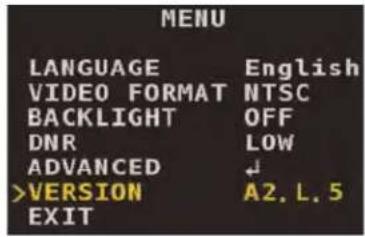
| VERSION Displays the current firmware version of the camera. | |
| EXIT Exits the menu. | |
2.1 Language
Select the language you want the OSD menu to appear in.
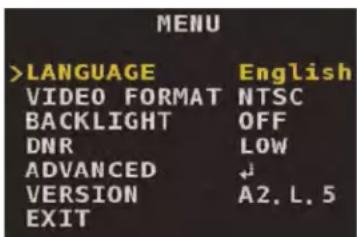
The following languages are supported:
- English
- French
- Spanish
- German
- Russian
- Polish
- Italian
- Portuguese
2.2 Video Format
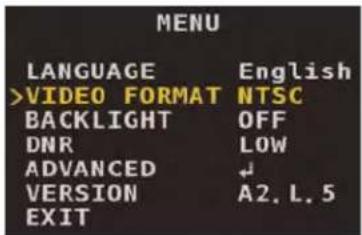
Select the appropriate video format for your region. Select NTSC for North American installations, or PAL for European installations.
2.3 Wide Dynamic Range (WDR)
WDR fixes harsh contrast between bright and dark sections of the camera image. WDR is recommended for applications where light intensity varies throughout the day, or scenes with distinctly light and dark areas.
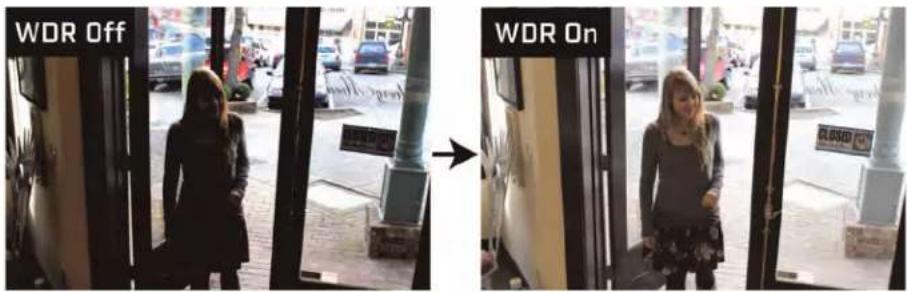
To configure WDR:
- From the main menu, use the control stick to select BACKLIGHT.
- Move the control stick / to select WDR. Push the middle of the control stick to configure WDR settings.
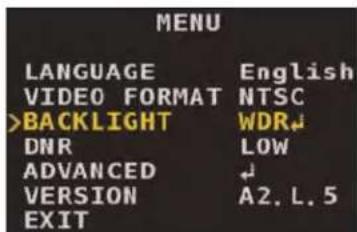
- Select WEIGHT. Move the control stick / to select LOW, MIDDLE or HIGH. Higher weight means a longer shutter for dark areas of the image and shorter shutter for bright areas.
2.4 High Light Compensation (HLC)
HLC darkens extremely bright areas of the camera image to ensure clear renderings of objects in the scene. This is recommended for scenes with extremely bright areas as well as nighttime images with intense brightness (for example, to identify a vehicle with bright headlights).
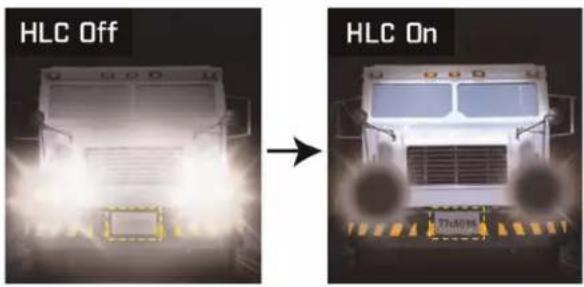
To configure HLC:
- From the main menu, use the control stick to select BACKLIGHT.
- Move the control stick / to select HLC. Push the middle of the control stick to configure HLC settings.
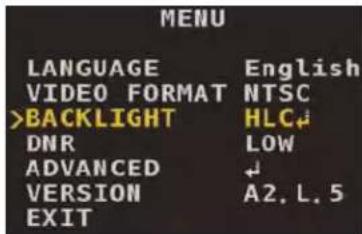
-
Select MODE, then move the control stick / to configure. Select ALL DAY to enable HLC in both day and night conditions, or select NIGHT ONLY to only enable HLC when the IR LEDs are active.
-
Select LEVEL, then move the control stick / to configure. Setting a lower level increases the black mask area, auto exposure gain, and noise level in the camera image. It is recommended to keep the HLC level at the default setting.
2.5 Back Light Compensation (BLC)
BLC tones down areas of the image with strong background lighting to create clearer, more detailed renderings of objects in the foreground. BLC is recommended for local light compensation applications, meaning that strong backlit conditions will occur in the same area of the camera image, such as a doorway.
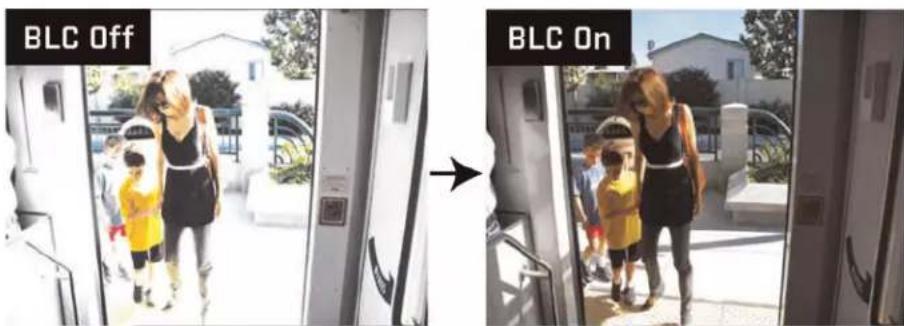
To configure BLC:
-
From the main menu, use the control stick to select BACKLIGHT.
-
Move the control stick / to select BLC. Push the middle of the control stick to configure the active BLC area.
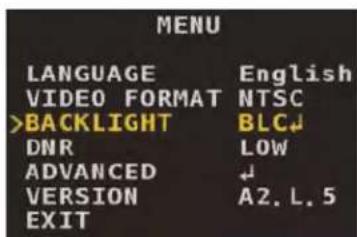
- Move the control stick / to configure the values for H-POS and V-POS to affect the horizontal and vertical position of the active area, then H-SIZE and V-SIZE to affect the horizontal and vertical size of the active area. The active area should cover a brightly-lit area where objects are expected to appear. For example, if the camera image shows 2 floodlights and a doorway, the active area should cover the doorway only.
2.6 Digital Noise Reduction (DNR)
The camera features 2 types of noise reduction: 2D temporal noise reduction and 3D spatial noise reduction. DNR reduces the background noise in a low luminance environment. Removing noise from the camera image reduces your recording file size and reduces the appearance of graininess.
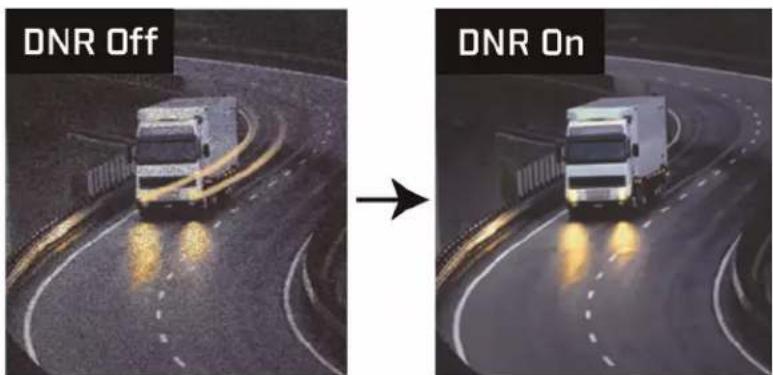
To configure digital noise reduction:
- From the main menu, use the control stick to select DNR.
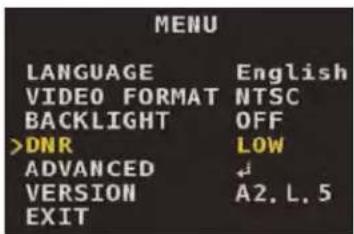
- Move the control stick / to configure the level of noise reduction. Select LOW, MIDDLE or HIGH noise reduction — use a higher setting to increase low-light sensitivity and reduce the appearance of graininess in the camera image.
2.7 Version
This is a non-configurable field that displays the camera's firmware version. This is for service purposes only.
Advanced Menu
The advanced menu lets you configure the camera's more sophisticated features.
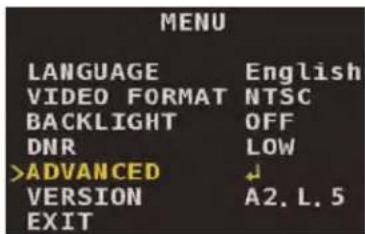
See below for the structure of the advanced menu:
| LENS ELC | • NORMAL • DEBLUR | ||
| ALC | • INDOOR • OUTDOOR • DEBLUR | ||
| EXPOSURE BRIGHTNESS | 0-20 | ||
| SHUTTER AUTO | |||
| FLICKER | |||
| MANUAL SPEED: 1/60 - 1/60000 | |||
| SENS-UP | • OFF • X2 • X4 • X8 • X16 • X32 | ||
| AGC | 0-20 | ||
| WHITE BAL AUTO | |||
| ATW | |||
| PRESET | |||
| MANUAL KELVIN | • LOW • MIDDLE • HIGH | ||
| R-GAIN | 0-20 | ||
| B-GAIN | 0-20 | ||
| DAY&NIGHT MODE | • AUTO • EXT • B&W • COLOR | ||
| DELAY 0-20 | |||
| D→N LEVEL 0-20 | |||
| N→D LEVEL 0-20 | |||
| SMART IR | • ON • OFF | ||
| SMART IR LVL | 0-20 | ||
| IMAGE SHARPNESS | 0-20 | ||
| COLOR GAIN | 0-20 | ||
| FREEZE | • ON• OFF | ||
| FLIP | • OFF• HV-INV• V-INV• H-INV | ||
| D-ZOOM 1.0X-8.0X | |||
| DEFOG ON MODE | • AUTO• MANUAL | ||
| LEVEL• LOW• MIDDLE• HIGH | |||
| OFF | |||
| SPECIAL BLACK LEVEL | FULL | ||
| COMP | |||
| USER OFFSET | |||
| PRIVACY ON ZONE NUM | |||
| ZONE DISP | |||
| H-POS | |||
| V-POS | |||
| H-SIZE | |||
| V-SIZE | |||
| Y LEVEL | |||
| CR LEVEL | |||
| CB LEVEL | |||
| OFF | |||
| DP COMP THRESHOLD | 0-255 | ||
| DEFECT DET | |||
| RESET | |||
3.1 Lens Settings
Set the camera's light control method and preferences.
To configure the lens settings:
-
From the main menu, use the control stick to select ADVANCED. Push the middle of the control stick to confirm.
-
Move the control stick / to select LENS, then / to select ELC (Electronic Light Control) or ALC (Automatic Light Control). It is recommended to use ELC for fixed lens and manual varifocal camera models, or ALC for motorized lens camera models. Once you have selected, push the middle of the control stick.
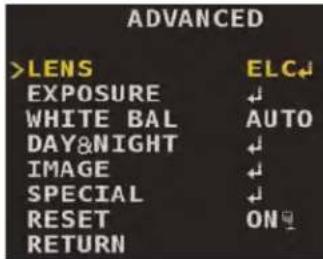
- Under MODE, move the control stick ← / → set the camera image conditions:
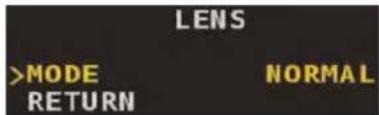
- If you selected ELC, select NORMAL for typical surveillance purposes, or select DEBLUR to correct a blurry camera image.
- If you selected ALC, select INDOOR for indoor conditions, OUTDOOR for outdoor conditions, or select DEBLUR to correct a blurry camera image.
3.2 Exposure
Configure settings to determine how much light enters the camera.
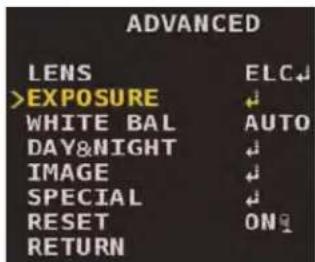
3.2.1 Brightness
Set the brightness of the camera image.
To set brightness:
- From the main menu, use the control stick to select ADVANCED. Push the middle of the control stick to confirm.
-
Move the control stick / to select EXPOSURE. Push the middle of the control stick to confirm.
-
Move the control stick / to select BRIGHTNESS, then / to configure the brightness level. Setting a higher value makes the camera image brighter.
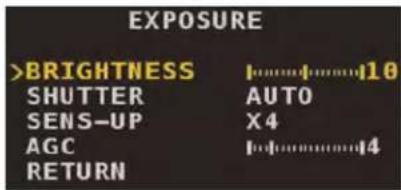
3.2.2 Shutter
Set the shutter speed of the camera.
To set shutter speed:
- From the main menu, use the control stick to select ADVANCED. Push the middle of the control stick to confirm.
- Move the control stick / to select EXPOSURE. Push the middle of the control stick to confirm.
- Move the control stick / to select SHUTTER, then / to set the shutter mode:
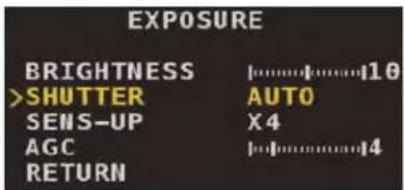
- Select AUTO for the camera to automatically determine the shutter speed based on lighting conditions.
- Select FLICKER to fix the camera shutter. This reduces color rolling caused by light flicker.
- Select MANUAL and push the middle of the control stick to set the shutter speed manually. Under SPEED, select a shutter speed from 1/60 - 1/60000.
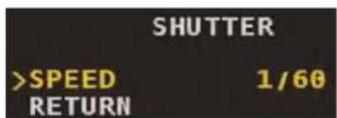
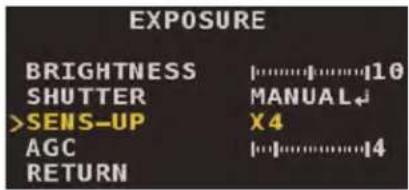
3.2.3 Sens-Up
Sens-Up is a slow shutter speed setting that allows more light into the camera to improve sensitivity in low light conditions. For proper setup, configure this setting while the camera is viewing low light or nighttime conditions.
To configure Sens-Up:
- From the main menu, use the control stick to select ADVANCED. Push the middle of the control stick to confirm.
-
Move the control stick / to select EXPOSURE. Push the middle of the control stick to confirm.
-
Move the control stick / to select SENS-UP, then / to set the slow shutter level. Select a value between X2 and X32 to activate Sens-Up, or select OFF to disable.
3.2.4 Automatic Gain Control (AGC)
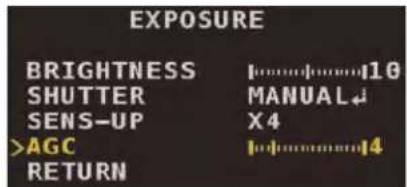
AGC is a fixed gain value that affects image brightness under very low light conditions. For proper setup, configure this setting while the camera is viewing low light or nighttime conditions.
To configure AGC:
- From the main menu, use the control stick to select ADVANCED. Push the middle of the control stick to confirm.
- Move the control stick / to select EXPOSURE. Push the middle of the control stick to confirm.
- Move the control stick / to select AGC, then / to set an AGC level between 0–20. Setting a higher value may create more noise in the camera image.
3.3 White Balance
Configure white balance in the camera image.
To configure white balance:
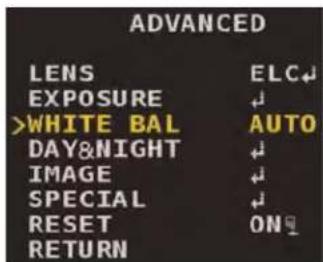
- From the main menu, use the control stick to select ADVANCED. Push the middle of the control stick to confirm.
- Move the control stick / to select WHITE BAL.
-
Move the control stick / to set the white balance mode:
-
Select AUTO for the camera to adjust white balance automatically.
- Select ATW for the camera to adjust white balance automatically for various color temperatures.
- Select PRESET to set the white balance based on a white reference object in the scene, such as a white piece of paper. Push and hold the middle of the control stick to automatically adjust the white balance. Release the control stick when the white reference object appears white.
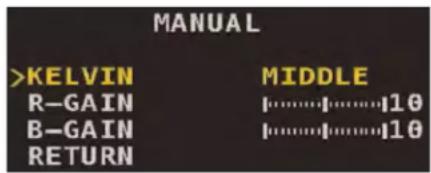
- Select MANUAL and push the middle of the control stick to set the white balance manually. Set KELVIN to HIGH to increase red-orange tones, LOW to increase blue tones, or MIDDLE to create a neutral image. Configure R-GAIN and B-GAIN to fine tune red gain and blue gain respectively.
| NOTE |
| White balance may not work properly under the following conditions. In this case, use the PRESET white balance setting.When the color temperature of the environment surrounding the subject is outside of the supporte temperature range (for example, clear sky or sunset).When the ambient illumination of the subject is dim.If the camera is directed towards a fluorescent light or is installed in a place where illumination changes dramatically, the white balance function may become unstable. |
3.4 Day & Night
Set the day and night related settings for the camera.
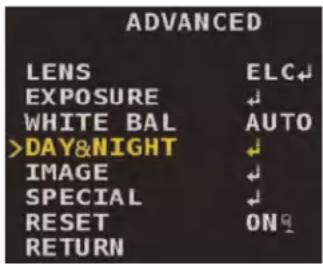
To set Day & Night mode:
- From the main menu, use the control stick to select ADVANCED. Push the middle of the control stick to confirm.
-
Move the control stick / to select DAY&NIGHT. Push the middle of the control stick to confirm.
-
Move the control stick / to select MODE, then / to select one of the following modes:
![DAY&NIGHT >MODE EXT DELAY [1]............3 D->N LEVEL --- N->D LEVEL --- SMART IR ON SMARTIR LVL [1]............4 RETURN](/content/2026/03/530908/images/3cfe47522c51cb01f657a0cf06f35085fa3d86ab38684478c859a741b17509ff.jpg)
- EXT: Day / night switch is determined by CdS light sensor. This setting is recommended for cameras that use IR LEDs.
- AUTO: Day / night switch is determined by the camera sensor based on lighting conditions. This setting is recommended for cameras without IR LEDs.
• COLOR: Camera image remains in color. No nighttime switch will occur in this mode. -
B&W: Camera image remains in black & white. No daytime switch will occur in this mode.
-
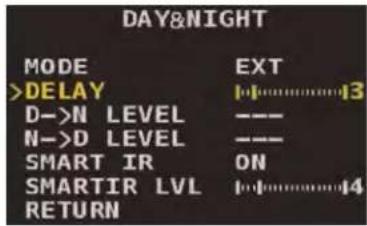
Select DELAY, then move the control stick / to set the time in seconds it takes for the camera to switch between day and night modes. For example, setting a DELAY value of zero means the switch will happen instantly when the proper light level is detected.

NOTE
DELAY cannot be configured if the MODE is set to COLOR or B&W.
-
If the Day & Night MODE is set to AUTO, configure the D→N LEVEL and N→D LEVEL to configure day and night switchover levels.
-
D→N LEVEL determines the threshold for the switchover from day to night.
- N→D LEVEL determines the threshold for the switchover from night to day.
3.4.2 Smart IR
Enabling Smart IR improves close-up recognition in low light conditions.
To configure Smart IR:
- From the main menu, use the control stick to select ADVANCED. Push the middle of the control stick to confirm.
-
Move the control stick ↑ / ↓ to select DAY&NIGHT. Push the middle of the control stick to confirm.
-
Move the control stick ↑ / ↓ to select SMART IR, then ← / → to turn Smart IR ON or OFF.
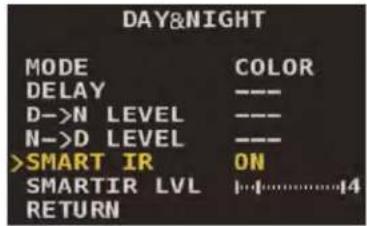
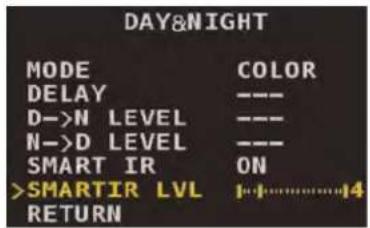
- Select SMARTIR LVL, then move the control stick ← / → to set the Smart IR level.
3.5 Image
Set the picture and display control settings for the camera.
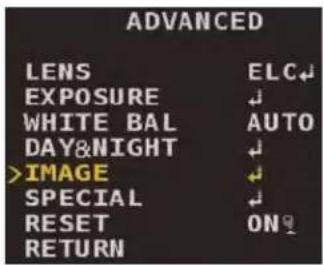
3.5.1 Picture Control Settings
To configure picture control settings:
- From the main menu, use the control stick to select ADVANCED. Push the middle of the control stick to confirm.
- Move the control stick / to select IMAGE. Push the middle of the control stick to confirm.
- Move the control stick / to select SHARPNESS, then / to set the sharpness level. It is recommended to use the default value for image sharpness.
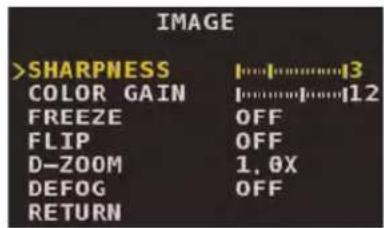
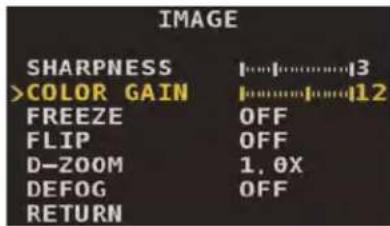
- Move the control stick / to select COLOR GAIN, then / to set the color gain level. Set a higher level for more vibrant color reproduction.
3.5.2 Freeze Image
Freeze the current camera image on screen.
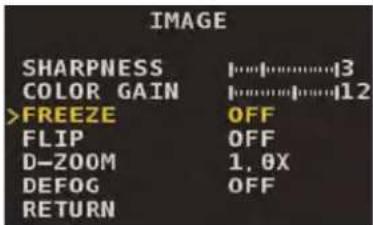
To freeze the camera image:
- From the main menu, use the control stick to select ADVANCED. Push the middle of the control stick to confirm.
- Move the control stick / to select IMAGE. Push the middle of the control stick to confirm.
- Move the control stick ↑ / ↓ to select FREEZE, then ← / → to turn image freeze ON / OFF.
3.5.3 Flip Image
Flip the current camera image.
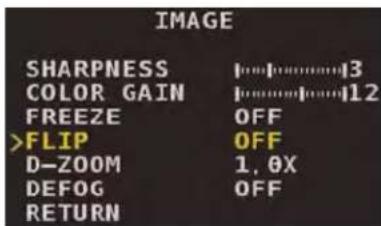
To flip the camera image:
- From the main menu, use the control stick to select ADVANCED. Push the middle of the control stick to confirm.
- Move the control stick / to select IMAGE. Push the middle of the control stick to confirm.
-
Move the control stick / to select FLIP, then / to select a flip mode:
-
OFF: No flip.
• H-INV: Horizontal flip.
• V-INV: Vertical flip.
• HV-INV: Horizontal + vertical flip.
3.5.4 Digital Zoom
Enable digital zoom to enlarge a portion of the camera image.
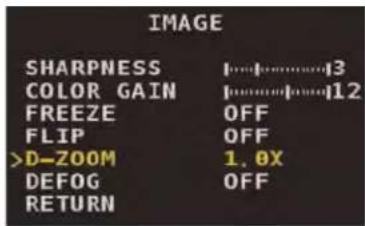
To flip the camera image:
- From the main menu, use the control stick to select ADVANCED. Push the middle of the control stick to confirm.
- Move the control stick / to select IMAGE. Push the middle of the control stick to confirm.
- Move the control stick / to select D-ZOOM, then / to choose a digital zoom level between 1.0X and 8.0X.
3.5.5 Defog
Enable defog to reduce the appearance of fog, mist or dust in the camera image.
To enable defog:
- From the main menu, use the control stick to select ADVANCED. Push the middle of the control stick to confirm.
- Move the control stick / to select IMAGE. Push the middle of the control stick to confirm.
- Move the control stick / to select DEFOG and push the middle of the control stick to confirm.
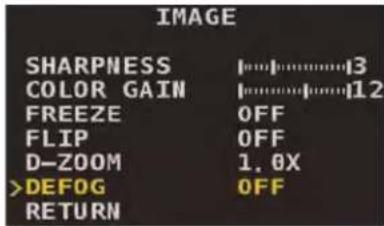
- Select MODE, then move the control stick / to set to MANUAL or AUTO. For MANUAL mode, select LEVEL and move the control stick / to select LOW, MIDDLE or HIGH.
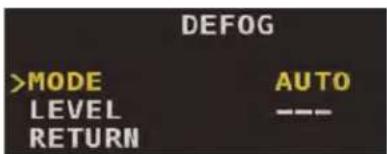
3.6 Special
Configure the camera's special settings.
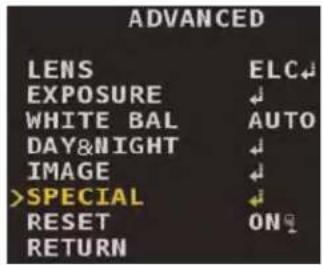
3.6.1 Black Level
Set the black level of the camera image. To set properly, observe a black object in the camera image and adjust until it appears truly black.
To configure black level:
- From the main menu, use the control stick to select ADVANCED. Push the middle of the control stick to confirm.
- Move the control stick / to select SPECIAL. Push the middle of the control stick to confirm.
- Move the control stick / to select BLACK LEVEL, then move the control stick / to select FULL, COMP, or USER.
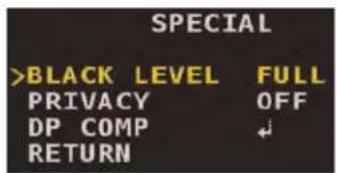
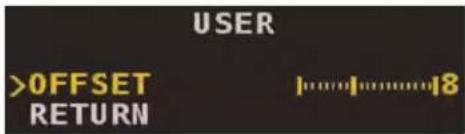
- If you selected USER, push the middle of the control stick to confirm. Under OFFSET, move the control stick / to set the black level.
3.6.2 Privacy Masking
Set privacy masks to block specific areas of the camera image from recordings. You can configure up to 15 different privacy masks per camera.
| CAUTION |
| Privacy masks appear in video recordings and block areas of the camera image. |
To configure privacy masks:
- From the main menu, use the control stick to select ADVANCED. Push the middle of the control stick to confirm.
- Move the control stick / to select SPECIAL. Push the middle of the control stick to confirm.
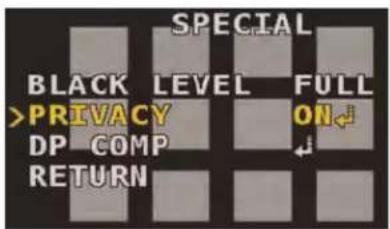
- Move the control stick / to select PRIVACY, then move the control stick / to select ON. Push the middle of the control stick to confirm.
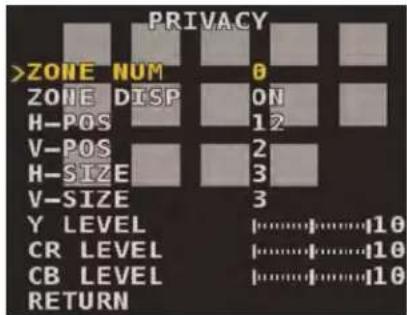
- Select ZONE NUM, then move the control stick / to select a privacy mask ID number from 1-15. You can configure up to 15 separate privacy masks.
- Select ZONE DISP, then move the control stick ←/→ to select ON or OFF. You must select ON to enable the currently selected privacy mask in recordings.
- Move the control stick / to configure the H-POS and V-POS values to change the on-screen position of the currently selected privacy mask.
- Move the control stick / to configure the H-SIZE and V-SIZE values to change the size of the currently selected privacy mask.
- Move the control stick / to configure Y LEVEL, CR LEVEL and CB LEVEL to affect the color levels of black, red, and blue respectively. Setting different colors for different privacy masks is helpful for distinguishing multiple privacy areas — set based on personal preference.
- Repeat steps 4-8 for each additional privacy mask you wish to configure.
3.6.3 Dead Pixel Compensation (DPC)
DPC is used to detect and compensate for the appearance of damaged pixels in the camera image.
| NOTE |
| In order to use DPC properly, you must cover the camera lens completely. It is recommended to p soft cloth or towel over the lens in order to get a totally black camera image. Also, ensure the car Day & Night mode is set to DAY — see 3.4.1 Day & Night Mode, page 12 for instructions. You may un- block the lens and change the Day & Night mode back after you have used the DPC feature. |
To configure DPC:
- From the main menu, use the control stick to select ADVANCED. Push the middle of the control stick to confirm.
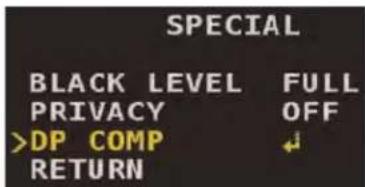
- Move the control stick / to select SPECIAL. Push the middle of the control stick to confirm.
- Move the control stick / to select DP COMP. Push the middle of the control stick to confirm.
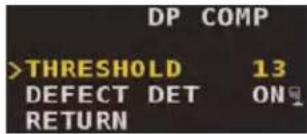
- Select THRESHOLD, then move the control stick / to set the threshold for dead pixel detection.
- Select DEFECT DET, then push and hold the middle of the control stick.
3.7 Reset to Default Settings
Resetting the camera to default settings will revert all OSD menu items to their out-of-the-box state.

CAUTION
Resetting to default settings cannot be reversed.
To reset to default settings:
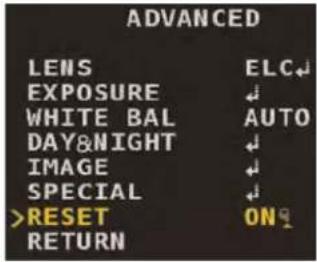
- From the main menu, use the control stick to select ADVANCED. Push the middle of the control stick to confirm.
- Move the control stick / to select RESET.
- Push and hold the middle of the control stick for 4 seconds to reset the camera to default settings.
OSD Menu Default Values
The following table shows the default values for the camera's OSD menu.
| SETTING DEFAULT VALUE | |
| LANGUAGE English | |
| VIDEO FORMAT NTSC | |
| BACKLIGHT OFF | |
| DNR | LOW |
| ADVANCED → LENS ELC | |
| ADVANCED → EXPOSURE → BRIGHTNESS | 10 |
| ADVANCED → EXPOSURE → SHUTTER AUTO | |
| ADVANCED → EXPOSURE → SENS-UP X4 | |
| ADVANCED → EXPOSURE → AGC | 4 |
| ADVANCED → WHITE BAL AUTO | |
| ADVANCED → DAY&NIGHT → MODE | EXT |
| ADVANCED → DAY&NIGHT → DELAY | 3 |
| ADVANCED → DAY&NIGHT → SMART IR | ON |
| ADVANCED → DAY&NIGHT → SMARTIR LVL | 4 |
| ADVANCED → IMAGE → SHARPNESS | 3 |
| ADVANCED → IMAGE → COLOR GAIN | 12 |
| ADVANCED → IMAGE → FREEZE | OFF |
| ADVANCED → IMAGE → FLIP | OFF |
| ADVANCED → IMAGE → D-ZOOM | 1.0X |
| ADVANCED → IMAGE → DEFOG | OFF |
| ADVANCED → SPECIAL → BLACK LEVEL | FULL |
| ADVANCED → SPECIAL → PRIVACY | OFF |
| ADVANCED → SPECIAL → DP COMP → THRESHOLD | 13 |
Website
www.flirsecurity.com/pro
Technical Support
1-866-816-5919
Customer Service
1-866-344-4674
Copyright
© 2015, FLIR Systems, Inc.
All rights reserved worldwide. Names and marks appearing herein are either registered trademarks or trademarks of FLIR Systems and/or its subsidiaries. All other trademarks, trade names or company names referenced herein are used for identification only and are the property of their respective owners.
Legal disclaimer
Specifications subject to change without further notice. Camera models and accessories subject to regional market considerations. License procedures may apply. Products described herein may be subject to US Export Regulations. Please refer to exportquestions@flir.com with any questions.
www.flirsecurity.com/pro

AVERTISSEMENT
RISQUE DE CHOC ÉLECTRIQUE NE PAS OUVRIR

AVERTISSEMENT : AFIN DE RÉDUIRE LE RISQUE DE CHOC ÉLECTRIQUE, NE PAS RETIRER LE COUVERCLE. LES PIÈCES INTERNES NE PEUVENT PAS ÊTRE RÉPARÉES PAR L'UTILISATEUR.
2 Menu principal ....2

REMARQUE

REMARQUE
3.6 Special
www.flirsecurity.com/pro
Assistance technique
1-866-816-
© 2015, FLIR Systems, Inc.
www.flirsecurity.com/pro

ADVERTENCIA
RIESGO DE CHOQUE
ELÉCTRICO
NO ABRIR

ADVERTENCIA: PARA REDUCIR EL RIESGO DE CHOQUE ELÉCTRICO, NO QUITAR LA TAPA. NO CONTIENE PARTES SUJETAS A MANTENIMIENTO. EL MANTENIMIENTO O SERVICIO DEBE ESTAR A CARGO DE PERSONAL CALIFICADO.
2 Menú principal ....2
2.1 Idioma....2
2.2 Formato de video....2
Para configurar HLC:
NOTA

3.6 Especial
www.flirsecurity.com/pro
Soporte Técnico
1-866-816-5919
Servicio al Cliente
1-866-344-4674
Derechos de Autor
© 2015, FLIR Systems, Inc.