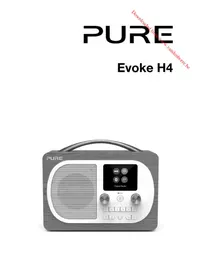
Evoke H4a - Radio PURE - Free user manual and instructions
Find the device manual for free Evoke H4a PURE in PDF.



| Product Type | Digital DAB/DAB+ and FM radio with Bluetooth and auxiliary input |
| Brand | Pure |
| Model | Evoke H4a |
| Dimensions (H x W x D) | 180 mm x 221 mm x 128 mm |
| Weight | Not specified, approximately 1.5 kg (estimate) |
| Power Supply | 12V DC power adapter, 1.2A (supplied) or rechargeable ChargePAK F1 battery (optional) |
| Power Consumption | Active: 4.5 W; Standby: 0.8 W |
| Frequency Ranges | DAB/DAB+: Band III; FM: 87.5 to 108 MHz |
| Bluetooth | Bluetooth v4.1, A2DP compatible |
| Speaker | Full-range speaker, 3 inches |
| Audio Output | 10 Watts RMS |
| Display | 2.8-inch colour display |
| Presets | Up to 20 DAB and 20 FM stations |
| Connectivity | 3.5mm auxiliary input, 3.5mm headphone output, Micro USB port (software update) |
| Main Features | DAB/DAB+ and FM radio, Bluetooth streaming, alarms (2), kitchen timer, sleep timer, customisable equaliser, auto-tune, station presets |
| Safety | Do not open the casing, do not expose to water, use only the supplied adapter, keep away from heat sources, clean with a dry cloth |
| Care and Cleaning | Clean only with a dry cloth; do not use liquids |
| Spare Parts and Reparability | ChargePAK F1 battery available separately; repair by qualified personnel only |
| General Information | 3-year warranty; CE compliance; disposal via recycling (WEEE directive) |
Frequently Asked Questions - Evoke H4a PURE
User questions about Evoke H4a PURE
0 question about this device. Answer the ones you know or ask your own.
Ask a new question about this device
Download the instructions for your Radio in PDF format for free! Find your manual Evoke H4a - PURE and take your electronic device back in hand. On this page are published all the documents necessary for the use of your device. Evoke H4a by PURE.
USER MANUAL Evoke H4a PURE
Downloaded from www.vandenborie.be
Evoke H4

Thank you for choosing the Evoke H4. This user manual explains how to use the various features of your Evoke H4. If you need more help, you can view our help topics at support.pure.com.
Downloaded from www.vandenborie.be
Contents
Evoke H4
Safety
Getting started 5
Your Evoke 5
Setting up your Evoke H4 6
Switching your Evoke H4 on and off
Changing the volume 7
Digital radio
Listening to digital radio 8
Changing the digital radio station 8
Automatically tuning to digital radio stations 8
FM radio
Listening to FM radio 9
Changing the FM radio station 9
Changing the scan settings for
FM radio 9
Choosing stereo or mono reception for FM radio
Radio station presets 10
About presets 10
Storing a radio station as a preset 10
Listening to a preset 10
Bluetooth and auxiliary devices 11
Connecting a Bluetooth device 11
Connecting a device with an
auxiliary cable 11
4
Alarms
Setting an alarm
Cancelling an existing alarm 12
Snoozing or silencing an alarm 12
Timers
Setting the kitchen timer 13
Silencing the kitchen timer 13
Setting the sleep timer 13
Settings
Personalising the sound on your
Evoke H4 14
Display settings 14
Clock settings 15
Changing the language 16
9 Resetting to factory settings 16
Updating the software 16
Using a ChargePAK 17
About ChargePAKs 17
Inserting a ChargePAK 17
Troubleshooting
Specifications 19

Safety instructions and cautions
Symbols used on this product
| Symbol Description | |
| ΔR | This symbol is used on the product to indicate a caution and that instructions should be read before use. |
| — | This symbol indicates DC voltage. |
| ∅ | This symbol indicates where the product is switched on or put into standby. |
- Read, heed and retain these instructions - All the safety and operating instructions should be read before this product is used and retained for future reference. All warnings on the appliance and in the operating instructions should be followed
- Failure to install or use the product in accordance with these instructions may impair the safety of the product and invalid the warranty.
- Use only power supply listed in these user manual/user instructions (supplied by Pure with model number ZD12D120120) to power the equipment and do not use the power supply for any other purpose.
- The direct plug-in adapter is used as a disconnect device, the disconnect device shall remain readily operable and accessible.
- Do not immerse in water or use in a wet / moist environment, such as in the shower or bathroom if plugged into the mains supply. The power supply shall not be exposed to dripping or splashing and no objects filled with liquids, such as vases, placed above it.
- Do not remove screws from or open the product casing.
- Keep the product away direct sunlight and from heat sources such as radiators, heaters or other appliances that produce heat.
- Danger of explosion if the battery is incorrectly replaced (ensure correct polarity). Replace only with the same or equivalent type. The battery shall not be exposed to excessive heat such as sunshine, fire or similar. Attention is drawn to the environmental aspects of battery disposal.
- Do not expose the product to naked flame sources, such lighted candles which should not be placed on or near the product.
- Ventilation should not be impaired by covering the product or power supply.
- Clean only with a dry cloth.
- This product is intended for use in moderate climates.
- If the product is used in a manner not specified by the instructions, the product's protection could be impaired.
- Do not use the product if any damage is noticed.
- Product repairs are only allowed to be carried out by competent and authorised personnel.
Getting started
Your Evoke
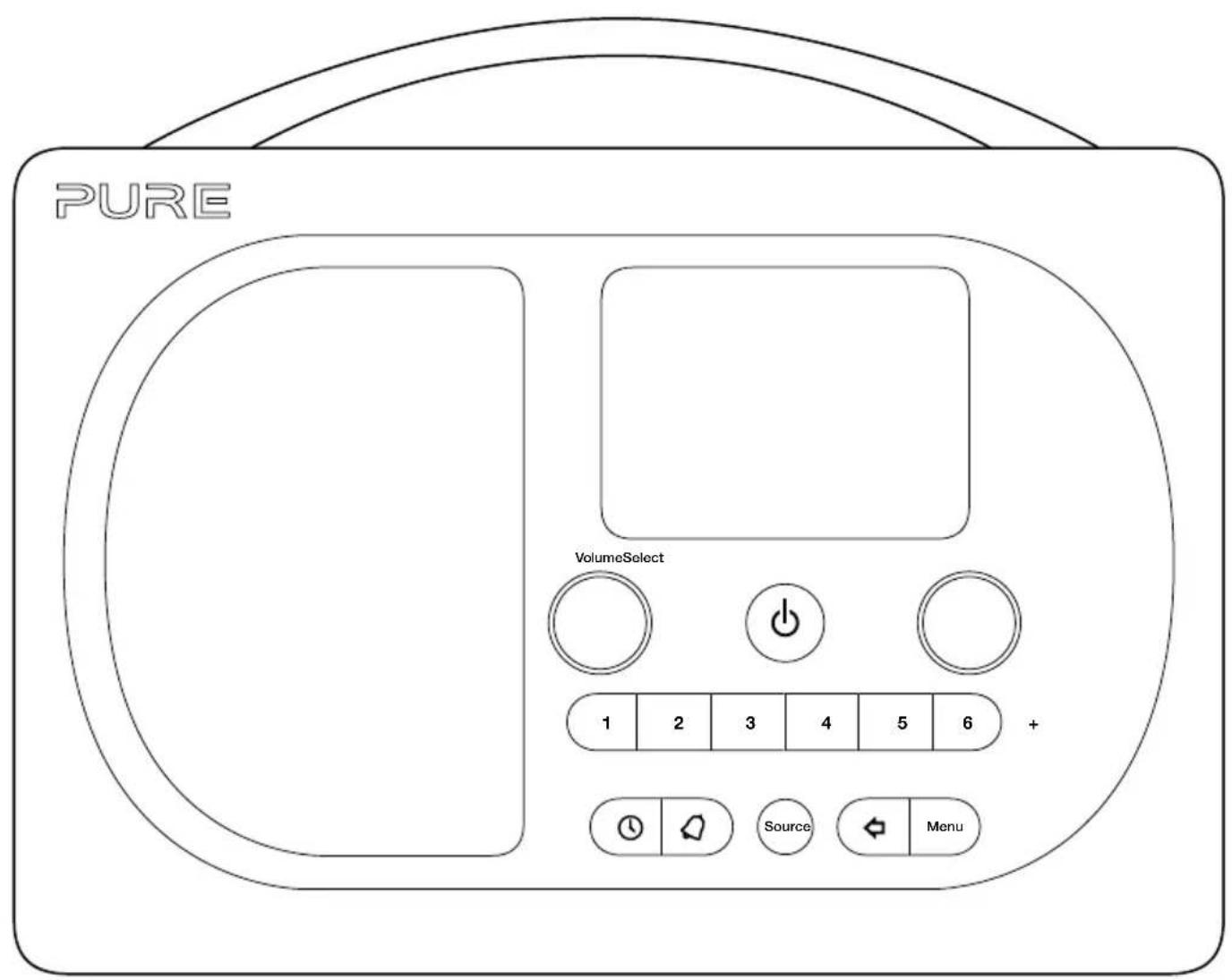
Front controls
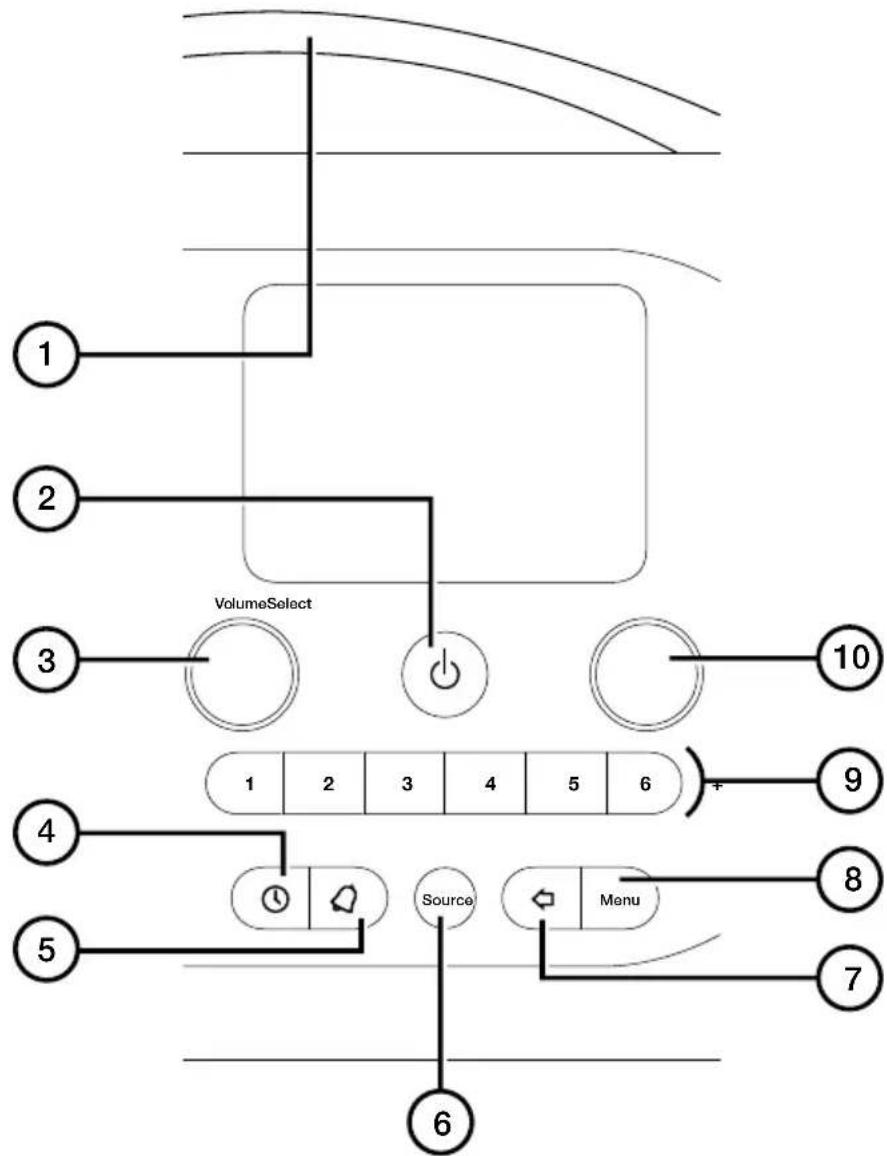
1 Snoozehandle Tap to snooze an alarm or brighten the screen when dimmed
2 Standby Switch your Evoke H4 on and off, or put it in standby
3 Volume Turn to change the volume, press to mute the volume
4 Timer Press to set a sleep timer
5 Alarm Press to set an alarm or a kitchen timer
6 Source Press to change between digital radio, FM radio, Bluetooth, and auxiliary input
7 Back Press when in the menu to go back to the previous screen
8 Menu Press to change settings and options
9 Presets Press to store and access your favourite radio stations
10 Select Turn and press to browse radio stations, or select settings and options
Rear connections
12V DC 1.2A
Input for supplied mains adapter only


3.5mm output for stereo headphones

x inA
Analogue stereo input for auxiliary cables

Micro USB connector for software updates
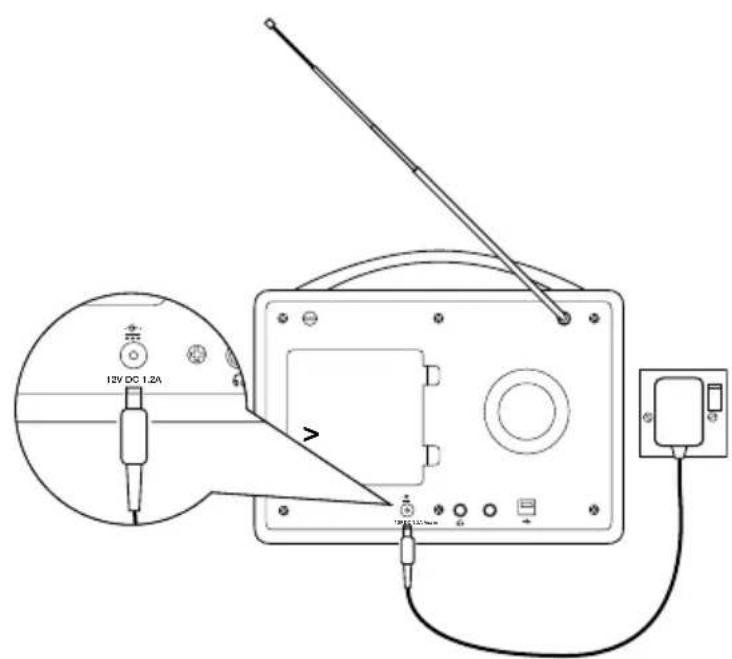
Setting up your Evoke H4
To set up your Evoke H4:
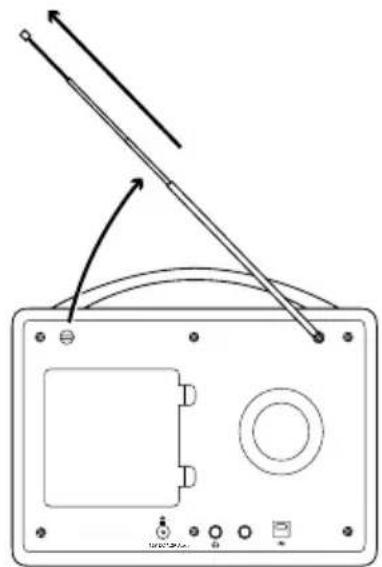
- Unclip the aerial and fully extend it.
- Connect the supplied mains adapter to the input on the back of your Evoke H4.
- Plug the mains adapter into the mains supply.
Switching your Evoke H4 on and off
If you have a ChargePAK rechargeable battery, insert it before you switch your EvokedH4 on. Read more about using a ChargePAK on page 17.
To switch your Evoke H4 on:
Press
Note: When you switch your Evoke H4 on for the first time, it starts tuning to digital radio stations. After the autotune is complete, you can start listening to digital radio.
To switch your Evoke H4 off or put it in standby:
Press
If your Evoke H4 is being powered by a ChargePAK, your Evoke H4 switches off. If your Evoke H4 is connected to a power socket, your Evoke H4 enters standby. In standby, your Evoke H4 uses a low amount of power and displays the time and date on the screen.
Changing the volume
To change the volume:
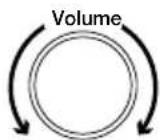
To increase the volume, turn the Volume dial clockwise.
To decrease the volume, turn the Volume dial anticlockwise.
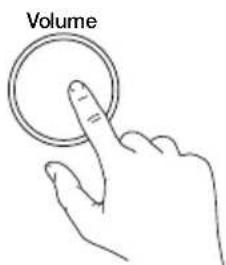
To mute the volume:
- Press the Volume dial.
Digital radio
Listening to digital radio
To listen to digital radio:
- Press until 'Digital Radio' is displayed.
Tip: Some digital radio stations also broadcast information and graphics, such as music album artwork or weather updates. Press the Select dial to change between slideshow, large slideshow and display modes.
Changing the digital radio station
To change the digital radio station:
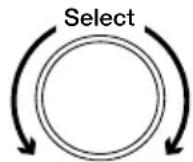
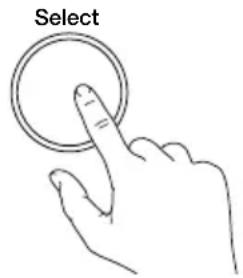
- Turn the Select dial left or right to browse through the available radio stations.
- Press the Select dial to change radio station.

Station List
BBC Radio 1
BBC Radio 1Xtra
BBC Radio 2
BBC Radio 3
BBC Radio 4
BBC Radio 4Extra
BBC Radio 5 Live

Tip: A >> next to a radio station name means the station has a secondary service, which provides more content. The secondary service is listed below the radio station with a << next to the service name. Secondary services may only be available at certain times.
A '?' next to a radio station name means the station is inactive or unavailable.
Automatically tuning to digital radio stations
When you switch your Evoke H4 on for the first time, it automatically scans for digital radio stations. If you move your Evoke H4 to a new location, perform an autotune to update the list of radio stations.
To automatically tune to digital radio stations:

- Turn and press the Select dial to choose 'Autotune'.
Your Evoke H4 starts scanning for digital radio stations.
FM radio
EN
Listening to FM radio
To listen to FM radio:
Press until FM' is displayed.
Changing the FM radio station
To change the FM radio station:
To scan to the previous or next radio station, turn the Select dial left or right and then press the Select dial.
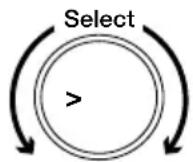
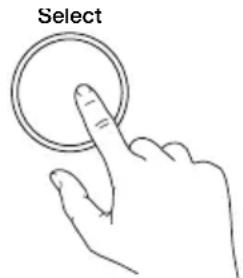
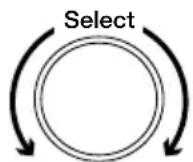
- To manually tune to a radio station, turn the Select dial left or right.
The frequency steps up or down by 0.05 MHz.
Changing the scan settings for FM radio
When you scan for FM radio stations, you can include all radio stations or only those with a strong signal.
To change scan settings for FM radio:
- Press Monu
- Turn and press the Select dial to choose 'Scan Setting'.
- Turn and press the Select dial to choose 'Strong Stations Only' or 'All Stations'.
Choosing stereo or mono reception for FM radio
By default, your Evoke H4 uses stereo reception for FM radio. If your FM radio stations have a weak signal, try using mono reception to improve the signal strength.
To choose stereo or mono reception:
- Press Monu
- Turn and press the Select dial to choose 'Stereo'.
- Turn and press the Select dial to choose 'FM Stereo' or 'Forced Mono'.
Radio station presets
About presets
You can store your favourite radio stations as presets. You can use presets to quickly tune to your stored radio stations whenever you want.
On the front of your Evoke H4, there are six preset buttons. Use 1 to 5 for quick access to your favourite radio stations. Use 6+ to open a list of all your presets.
You can store up to 20 digital radio stations and up to 20 FM radio stations as presets.
Storing a radio station as a preset
To store a radio station to a preset from 1 to 5:
- Tune to the radio station you want to store.
- Choose a preset button from 1 to 5 then press and hold it until a is displayed.
Tip: If there is already a radio station stored to the preset you've selected, the new station replaces it.
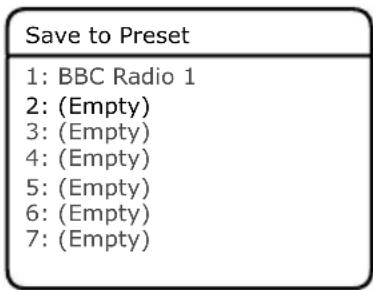
To store a radio station to the preset list:
- Tune to the radio station you want to store.
- Press and hold 6+ until the preset list is displayed.
- Turn and press the Select dial to choose a preset number. A is displayed.
Tip: If there is already a radio station stored to the preset you've selected, the new station replaces it.
Listening to a preset
To listen to a preset from 1 to 5:
- Press a preset button from 1 to 5. For example, to listen to the radio station stored as preset 2, press 2.
To listen to any preset:
- Press 6 + to open the preset list.
- Turn and press the Select dial to choose a preset.
Bluetooth and auxiliary devices
Connecting a Bluetooth device
You can use Bluetooth to wirelessly connect to a device, such as a mobile phone or tablet. You can then stream music from your mobile phone or tablet through your Evoke H4.
The first time you connect a Bluetooth device to your Evoke H4, you need to pair them. After you've paired a device with your Evoke H4, your Evoke H4 remembers it for the next time.
To connect a Bluetooth device:
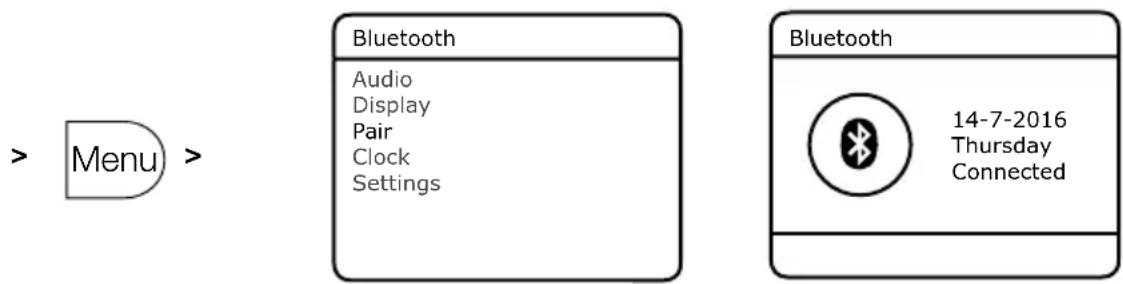
- Press until 'Bluetooth' is displayed.
- Press Monu
- Turn and press the Select dial to choose 'Pair'.
Your Evoke H4 is now discoverable for 5 minutes, which means other Bluetooth devices can find it.
- On your Bluetooth device, switch Bluetooth on and connect to your Evoke H4.
Note: For more information, see your Bluetooth device's user manual. If you are asked to enter a passcode, enter 0000.
When 'Connected' is displayed on your Evoke H4 screen, your Evoke H4 is ready to stream music.
Tip: If you want to connect a different Bluetooth device to your Evoke H4, switch off Bluetooth on the connected device first.
Connecting a device with an auxiliary cable
You can use an auxiliary cable to connect a device, such as an MP3 player, to your Evoke H4. You can then enjoy music saved on the device through your Evoke H4.
To connect a device with an auxiliary cable:
- Press until 'Auxiliary Input' is displayed.
- Insert an auxiliary cable into the Aux in socket on the back of your Evoke H4.
- Insert the other end of the auxiliary cable into the device you want to connect.
Your Evoke H4 is now ready to play music from the connected device.
Alarms
To wake up to your favourite radio station, you can set up to two alarms on your Evoke H4.
Note: You cannot set alarms when your Evoke H4 is being powered by a ChargePAK.
Setting an alarm
To set an alarm:
- Press
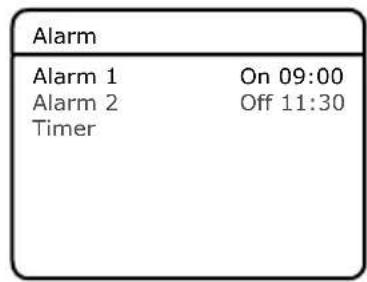
- Turn and press the Select dial to choose 'Alarm 1' or 'Alarm 2'.
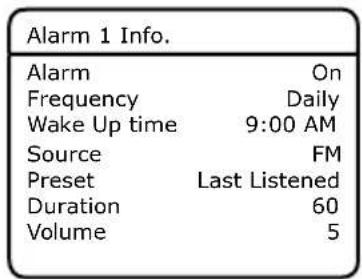
- Turn and press the Select dial to change settings for the alarm.
'Alam' Turn the alarm on or off
'Frequency' Choose how often you want the alarm to sound.
'Wake Up time' Choose the time for the alarm
Source' Choose to wake up to an FM or digital radio station, or a buzzer
Tip: To choose FM or digital radio, you need to have stored a radio station as a preset.
'Preset' Choose a radio station to wake up to
'Duration' Choose how many minutes the alarm sounds for
'Volume' Choose the volume for the alarm
- When you have made all of your changes, press to exit the menu.
The or symbol is displayed at the bottom of the screen when an alarm is set.
Cancelling an existing alarm
To cancel an existing alarm:
-
Press
-
Turn and press the Select dial to choose 'Alarm 1' or 'Alarm 2'.
-
Turn and press the Select dial to change the 'Alarm' setting to 'Off'.
Snoozing or silencing an alarm
To snooze an alarm:
- Touch the SnoozeHandle.
The alarm snoozes for 5 minutes.
To silence an alarm:
- Press
Timers
Setting the kitchen timer
The kitchen timer counts down and then ends with an alarm tone.
To set the kitchen timer:
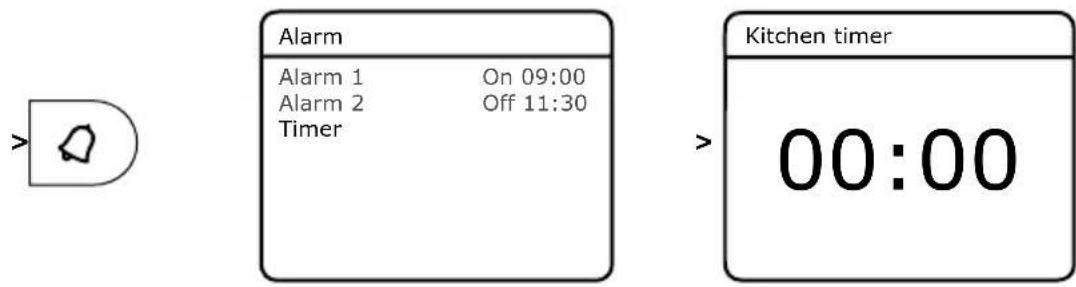
- Press
- Turn and press the Select dial to choose 'Timer'.
- Turn the Select dial to choose the duration of the timer.
- Press the Select dial to start the timer.
The X symbol is displayed at the bottom of the screen when the timer is set.
Silencing the kitchen timer
To silence the kitchen timer:
Press.
Setting the sleep timer
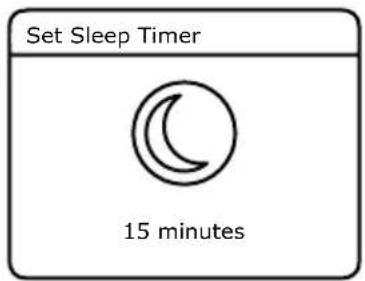
The sleep timer puts your Evoke H4 in standby after a set amount of time.
To set the sleep timer:
-
Press
-
Turn the Select dial to choose the duration of the timer.
Tip: You can choose between 15 and 90 minutes.
- Press the Select dial to start the timer.
The symbol and remaining time is displayed at the bottom of the screen when the timer is set.
Settings
Personalising the sound on your Evoke H4
Use the equaliser and boost setting to get the most out of your music. There are several equaliser settings set up already. For example, to hear classical music at its best, change the equaliser setting to 'Classic'. You can also customise the equaliser to change the treble, bass and loudness.
To use the equaliser:
-
Press Menu
-
Turn and press the Select dial to choose 'Audio'.
- Turn and press the Select dial to choose 'Equaliser'.
- Choose an equaliser setting:
To choose an equaliser setting, turn and press the Select dial.
- To use custom settings, turn and press the Select dial to choose 'Custom'. Then turn and press the Select dial to change the treble, bass and loudness.
To turn boost on or off:
- Press Menu
- Turn and press the Select dial to choose 'Audio'.
- Turn and press the Select dial to choose 'Boost'.
- Turn and press the Select dial to turn boost on or off.
Display settings
Changing the information displayed on the screen
You can change the information that is displayed on the screen when you are listening to the radio. For example, you can display scrolling information about the current radio station.
To change the information displayed on the screen:
- Press Menu
- Turn and press the Select dial to choose 'Display'.
- Turn and press the Select dial to choose 'Info'.
- Turn and press the Select dial to choose the information to display.
Changing the screen brightness
Your Evoke H4 has a light sensor, which adjusts the screen brightness based on your surroundings. You can also manually change the screen brightness.
To help save energy, you can dim the screen after 10 seconds of inactivity.
To change the brightness of the screen when switched on:
- Press Menu
-
Turn and press the Select dial to choose 'Display'.
-
Turn and press the Select dial to choose 'On Level'.
- Turn and press the Select dial to choose a brightness level. To make your screen brighter, choose a higher number. To automatically set the screen brightness, choose 'Auto'.
To dim the screen after 10 seconds of inactivity:
- Press Menu
- Turn and press the Select dial to choose 'Display'.
- Turn and press the Select dial to choose 'Duration'.
- Turn and press the Select dial to choose 'Timed'.
To change the brightness of the screen when dimmed:
- Press Menu
- Turn and press the Select dial to choose 'Display'.
- Turn and press the Select dial to choose 'Dim Level'.
- Turn and press the Select dial to choose a brightness level. To make your screen brighter, choose a higher number.
Clock settings
Setting the time and date
Your Evoke H4 can use FM and digital radio signals to set the time and date automatically. If the time and date do not update automatically, you can set them manually.
To set the time and date automatically:
- Press Menu
- Turn and press the Select dial to choose 'Clock'.
- Turn and press the Select dial to choose 'Auto Update'.
- Turn and press the Select dial to choose how to set the time and date.
To set the time and date manually:
- Press Menu
- Turn and press the Select dial to choose 'Clock'.
- Turn and press the Select dial to choose 'Set Time/Date'.
- Turn and press the Select dial to set the date.
- Turn and press the Select dial to set the time.
Changing the time format
To change the time format:
- Press Menu
- Turn and press the Select dial to choose 'Clock'.
- Turn and press the Select dial to choose 'Set 12/24 Hour'.
- Turn and press the Select dial to choose the time format.
Changing the date format
To change the date format:
- Press Menu
- Turn and press the Select dial to choose 'Clock'.
- Turn and press the Select dial to choose 'Set Date Format'.
- Turn and press the Select dial to choose the date format.
Changing the language
You can change the language of menus and settings.
To change the language:
- Press [Menu].
- Turn and press the Select dial to choose 'Settings'.
- Turn and press the Select dial to choose 'Language'.
- Turn and press the Select dial to choose a language.
Resetting to factory settings
A factory reset removes all stored presets, alarms, timers and settings on your Evoke H4.
Note: You cannot undo a factory reset.
To reset to factory settings:
- Press Menu
- Turn and press the Select dial to choose 'Settings'.
- Turn and press the Select dial to choose 'Factory Reset'.
- Turn and press the Select dial to choose 'Yes'. Your Evoke H4 resets to factory settings and then restarts.
Updating the software
Pure may provide software updates to your Evoke H4. To check for available software updates, visit support.pure.com.
Tip: To be contacted when software updates are available, you can register your product at pure.com/register.
To check the current software version:
- Press Menu
- Turn and press the Select dial to choose 'Settings'.
- Turn and press the Select dial to choose 'Software Version'.
To update the software:
- Use a Micro USB cable to connect your Evoke H4 to your computer.
- Follow the instructions provided with the software update file.
Using a ChargePAK
About ChargePAKs
A ChargePAK is a rechargeable battery pack that allows you to listen to your music anywhere. When your Evoke H4 is connected to a power outlet, it charges the ChargePAK. You can then disconnect your Evoke H4 from the power and take your music with you.
Inserting a ChargePAK
Note: Your Evoke H4 is only compatible with a Pure ChargePAK F1. Do not use any other batteries or ChargePAK models with your Evoke H4.
To insert a ChargePAK:
- Switch your Evoke H4 off and disconnect it from the power supply.
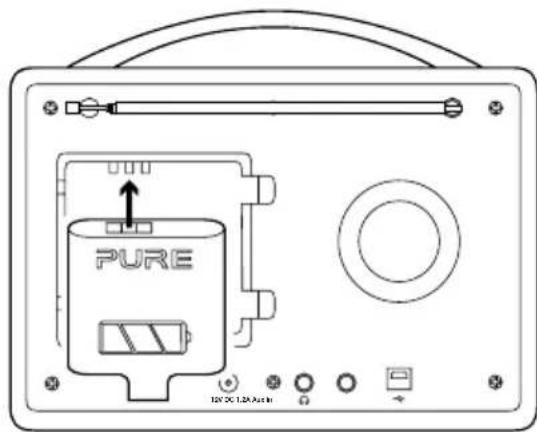
- At the back of your Evoke H4, press the two clips on the battery cover to remove it.
- Insert the ChargePAK into the battery compartment, with the electrical contacts on the ChargePAK facing down and the Pure label facing you.
- Replace the battery cover.
- Connect your Evoke H4 to the power supply.
The ChargePAK starts charging. If the ChargePAK is new or has not been used for a long time, we recommend you charge it for at least 24 hours.
Note: When the ChargePAK is charging, it is normal for it to get warm. The efficiency of the ChargePAK may decrease over time.

Troubleshooting
| Problem Solution | |
| I can't hear any sound | Use the Volume dial to turn the volume up. For digital radio, perform an autotune. Read more on page 8. For Bluetooth or auxiliary devices, check a device is connected. Turn the volume up on the connected device. |
| The screen is very dark | Remove any obstructions from in front of the speaker. There is a light sensor behind the speaker grill. Turn up the screen brightness. Read more on page 14. |
| I can't find an FM or digital radio station | Adjust your aerial and check it is fully extended. Move your radio to another location. For digital radio, perform an autotune. Read more on page 8. For FM radio, try using mono reception to improve the signal strength. Read more on page 9. |
Specifications
EN
Radio Digital and FM radio
Frequencies DAB/DAB+
FM radio 87.5-108MHz
Bluetooth Bluetooth v4.1
A2DP support
Speaker
Full range 3" driver unit
Audio output power
10 Watts RMS
Inputs 12V DC power adapter socket (230V supplied)
3.5mm stereo Aux In for auxiliary devices
USB connection (Micro USB) for software updates only
Outputs 3.5mm stereo headphone
Presets 20 digital radio and 20 FM radio presets
Display 2.8" colour display
Mains power adapter Adapter
Input AC 100-240V\~,50/60 Hz,0.8A
Output DC 12V , 1200mA
Main unit
DC 12V---, 1.2A
ChargePAK Pure ChargePAK F1 rechargeable battery pack (available separately)
Power consumption Standby: 0.8W
Active: 4.5W
Dimensions 180mm high x 221mm wide x 128mm deep
Aerial
Captive telescopic aerial
Approvals
CE marked.

Compliant with R&TTE (RED 2014/53/EU after 13th June 2017) and
RoHS Directives (1999/95/EC and 2011/65/EU).
ETSI EN300 401 compliant.
See pure.com for the full Declaration of Conformity.
Warranty information
Imagination Technologies Limited warrants to the end user that this product will be free from defects in materials and workmanship in the course of normal use for a period of three years from the date of purchase. This guarantee covers breakdowns due to manufacturing or design faults; it does not apply in cases such as accidental damage, however caused, wear and tear, negligence, adjustment, modification or repair not authorised by us. Should you have a problem with your unit please contact your supplier or contact Pure Support at http://support.pure.com
Disclaimer
Imagination Technologies Limited makes no representation or warranties with respect to the content of this document and specifically disclaims any implied warranties of merchantability or fitness for any particular purpose. Further, Imagination Technologies Limited reserves the right to revise this publication and to make changes in it from time to time without obligation of Imagination Technologies Limited to notify any person or organization of such revisions or changes.
Trademarks
Evoke, Evoke H4, Pure, the Pure logo, Imagination Technologies, and the Imagination Technologies logo are trademarks or registered trademarks of Imagination Technologies Limited.
Copyright
Copyright © 2016 Imagination Technologies Limited. All rights reserved. No part of this publication may be copied or distributed, transmitted, transcribed, stored in a retrieval system, or translated into any human or computer language, in any form or by any means, electronic, mechanical, magnetic, manual or otherwise, or disclosed to third parties without the express written permission of Imagination Technologies Limited. Version 1 August 2016.
Correct disposal of this product
This marking indicates that this product should not be disposed with other household waste throughout the EU. To prevent possible harm to the environment or human health from uncontrolled waste disposal, recycle it responsibly to promote the sustainable reuse of material resources. To return your used device, please use the return and collection system or contact the retailer where the product was purchased. They can take this product for environmental safe recycling.
Evoke H4
Downloaded from www.vandenborie.be
Inhaltsverzeichnis
DE
Evoke H4
Downloaded from www.vandenborie.be
Contenu
Evoke H4
Changement de station radio FM 9
Changement de station radio FM
Downloaded from www.vandenborie.be
Indice
Evoke H4
Bluetooth Supporta Bluetooth v4.1
A2DP
Altoparlante
Driver full range da 3"
Potenza sonora
10 Watt RMS
Downloaded from www.vandenborie.be
Innhold
Evoke H4
3,5 mm stereo Aux In for AUX-enheter
USB-tilkobling (Mikro-USB) kun til programvareoppateringer
Utganger 3,5 mm stereohodetelefoner
Downloaded from www.vandenborie.be
Inhoud
Evoke H4
Downloaded from www.vandenborie.be
Downloaded from www.vandenborie.be
Pure
Imagination Technologies Limited
Home Park Estate
Kings Langley
Herts,WD4 8LZ
United Kingdom
www.pure.com
http://support.pure.com
Pure
Deutschland
sales_gmbh@pure.com
http://support.pure.com

- Evoke H4
- Contents
- Safety
- Getting started 5
- Digital radio
- FM radio
- Radio station presets 10
- Bluetooth and auxiliary devices 11
- 4
- Alarms
- Timers
- Settings
- Using a ChargePAK 17
- Troubleshooting
- Safety instructions and cautions
- Symbols used on this product
- Getting started
- Your Evoke
- Front controls
- Rear connections
- Setting up your Evoke H4
- To set up your Evoke H4:
- Switching your Evoke H4 on and off
- To switch your Evoke H4 on:
- To switch your Evoke H4 off or put it in standby:
- Changing the volume
- To change the volume:
- To mute the volume:
- Listening to digital radio
- To listen to digital radio:
- Changing the digital radio station
- To change the digital radio station:
- Station List
- Automatically tuning to digital radio stations
- To automatically tune to digital radio stations:
- Listening to FM radio
- To listen to FM radio:
- Changing the FM radio station
- To change the FM radio station:
- Changing the scan settings for FM radio
- To change scan settings for FM radio:
- Choosing stereo or mono reception for FM radio
- To choose stereo or mono reception:
- Radio station presets
- About presets
- Storing a radio station as a preset
- To store a radio station to a preset from 1 to 5:
- To store a radio station to the preset list:
- Listening to a preset
- To listen to a preset from 1 to 5:
- To listen to any preset:
- Bluetooth and auxiliary devices
- Connecting a Bluetooth device
- To connect a Bluetooth device:
- Connecting a device with an auxiliary cable
- To connect a device with an auxiliary cable:
- Setting an alarm
- To set an alarm:
- Cancelling an existing alarm
- To cancel an existing alarm:
- Snoozing or silencing an alarm
- To snooze an alarm:
- To silence an alarm:
- Setting the kitchen timer
- To set the kitchen timer:
- Silencing the kitchen timer
- To silence the kitchen timer:
- Setting the sleep timer
- To set the sleep timer:
- Personalising the sound on your Evoke H4
- To use the equaliser:
- To turn boost on or off:
- Display settings
- Changing the information displayed on the screen
- To change the information displayed on the screen:
- Changing the screen brightness
- To change the brightness of the screen when switched on:
- To dim the screen after 10 seconds of inactivity:
- To change the brightness of the screen when dimmed:
- Clock settings
- Setting the time and date
- To set the time and date automatically:
- To set the time and date manually:
- Changing the time format
- To change the time format:
- Changing the date format
- To change the date format:
- Changing the language
- To change the language:
- Resetting to factory settings
- To reset to factory settings:
- Updating the software
- To check the current software version:
- To update the software:
- Using a ChargePAK
- About ChargePAKs
- Inserting a ChargePAK
- To insert a ChargePAK:
- Specifications
- Warranty information
- Disclaimer
- Trademarks
- Copyright
- Correct disposal of this product
- Inhaltsverzeichnis
- Contenu
- Changement de station radio FM
- Indice
- Innhold
- Inhoud
- Pure
Brand : PURE
Model : Evoke H4a
Category : Radio