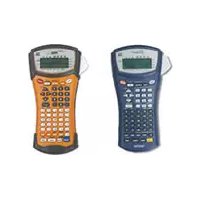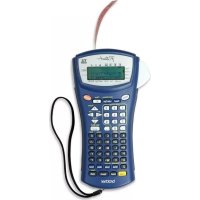
Ptouch PT1400 - Label printer BROTHER - Free user manual and instructions
Find the device manual for free Ptouch PT1400 BROTHER in PDF.


User questions about Ptouch PT1400 BROTHER
0 question about this device. Answer the ones you know or ask your own.
Ask a new question about this device
Download the instructions for your Label printer in PDF format for free! Find your manual Ptouch PT1400 - BROTHER and take your electronic device back in hand. On this page are published all the documents necessary for the use of your device. Ptouch PT1400 by BROTHER.
USER MANUAL Ptouch PT1400 BROTHER
Thank you for purchasing this P-touch!
With your new P-touch, select from a variety of character styles, sizes and frames to design practical custom labels for any need. In addition, the selection of pre-formatted label types allows you to quickly and easily label patch panels, cables, connectors and other components.
With this P-touch, you can print legible, long-lasting labels in no time. The quality and performance of this P-touch make it an extremely practical machine in the plant or in the field.
Although this P-touch is easy to use, we suggest that you read this User's Guide carefully before starting, and then keep this manual nearby for future reference.
Canadian Department of Communications Compliance Statement
This digital apparatus does not exceed the Class B limits for radio noise emissions from digital apparatus as set out in the interference-causing equipment standard entitled "Digital Apparatus", ICES-003 of the Department of Communications.
Switching the language of the messages between English and French
1 Erase all of the text in the display either with Clear BS, or by pressing Code, then BS.
2 Press Code, then Setup Z.
Press or until LANGUAGE is displayed.
Press Home or End until the desired language setting is displayed, and then press
The default setting is ENGLISH.
Turning off the machine does not change the language setting.
The language cannot be changed if some text remains in the display. Be sure to erase all of the text before changing the language of the messages.
CONTENTS
1. Getting Started 1
General Description 1
Top view & bottom view 1
Keyboard & LCD display 2
General Precautions 4
Batteries & Tape Cassettes 5
Installing batteries and a tape cassette 5
Cleaning 8
Cleaning the print head, rollers and tape cutter 8
Optional AC Adapter 9
Connecting the AC adapter 9
Turning the P-touch On/Off 9
2.Label Type Modes 10
Selecting a Label Type Mode 10
Normal and Vertical Modes 10
Rotate Mode and Rotate & Repeat Mode 11
Flag Mode 12
Port & Panel Modes 13
3. Basic Functions 15
Performing Basic Operations 15
Choosing functions, parameters, settings and groups 15
Choosing the default setting 15
Confirming a choice 15
Cancelling a choice 15
Inputting Label Data 16
Entering and editing text 16
Entering an accented character 18
Entering a bar code 19
Entering a symbol 21
Formatting the Label 24
Specifying a label length 24
Specifying a margin size 24
Framing the text 25
Specifying the character size 26
Specifying the character width 27
Specifying the character style 28
Using the pre-formatted Auto Format templates 30
Printing Labels 31
Previewing the label layout 31
Feeding tape 31
Printing a label 31
Using special printing functions 32
Storing and Recalling Files 36
Storing label text 36
Recalling text that has been stored 37
Deleting text that has been stored 37
4. Machine Adjustments 38
Selecting how tape is fed and cut 38
Adjusting the display contrast 38
Setting the Auto Reduction function 39
Calibrating the label length 39
Specifying if the PERSONAL symbol category is continually updated ....40
Changing the units of measure 40
Changing the language 40
Displaying version information 40
5. Using P-touch With a Computer (for PT-1650 only) ...41
Installing the Software & Printer Driver 42
Before installation 42
Installing the P-touch Editor 3.2 software 43
Installing the USB printer driver 44
Reading the User's Guide 46
Using P-touch Editor 3.2 47
Starting up P-touch Editor 3.2 48
Displaying the Properties 48
Entering text 49
Notes on usage 49
Transferring Data To/From a Computer 50
Entering Transfer mode 50
Downloading data to the P -touch 51
Adding a user-defined character image to the text 52
Using template data 52
Using downloaded database data 54
Backing up/restoring P-touch data 57
6. Appendix 58
Troubleshooting 58
Error Message List 59
Machine Specifications 63
Hardware 63
Software 63
Accessories (For Canada Only) 64
Index 68
Contact Information (For Canada Only) 72
1 Getting Started
General Description
Top view & bottom view
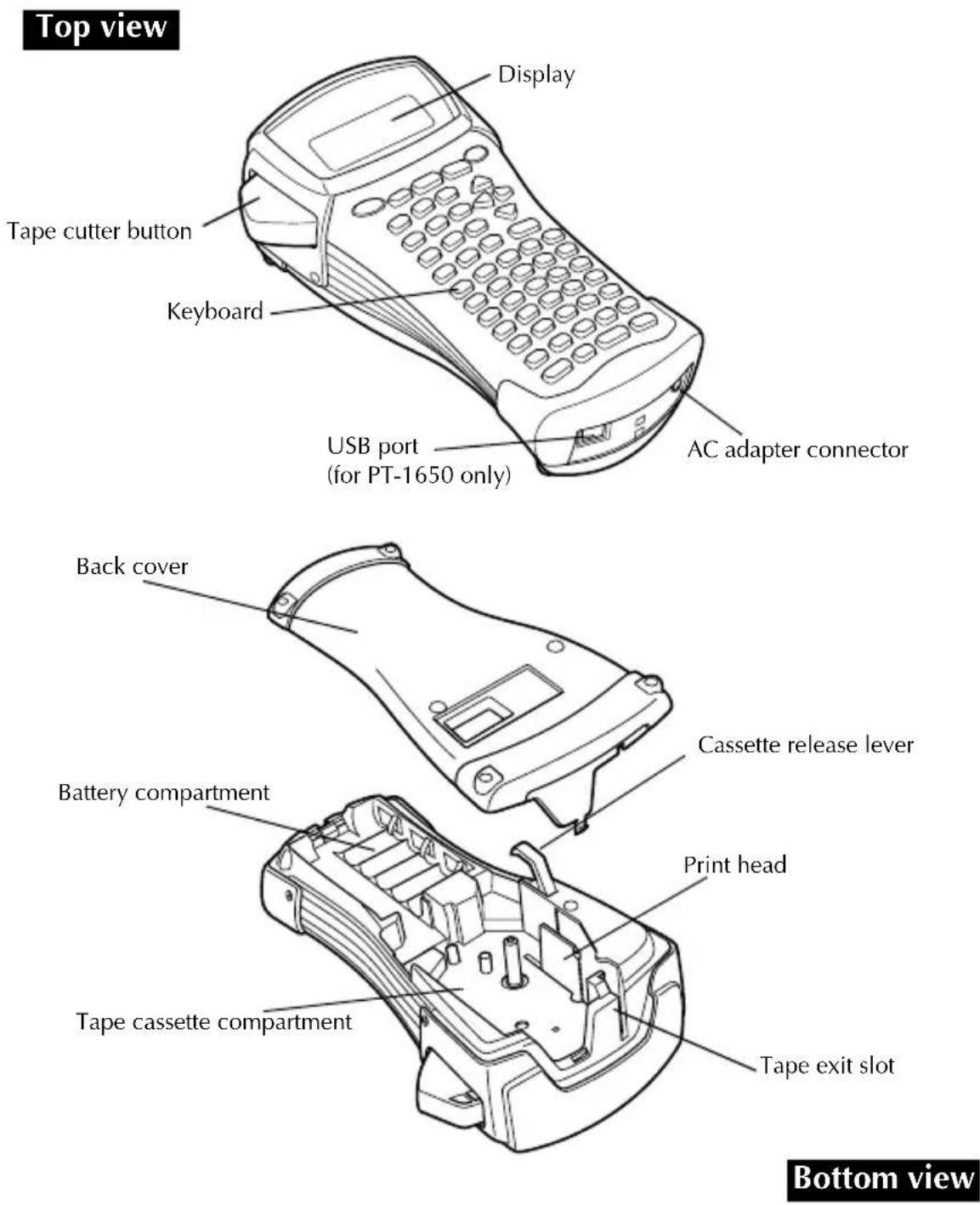
PT-1400
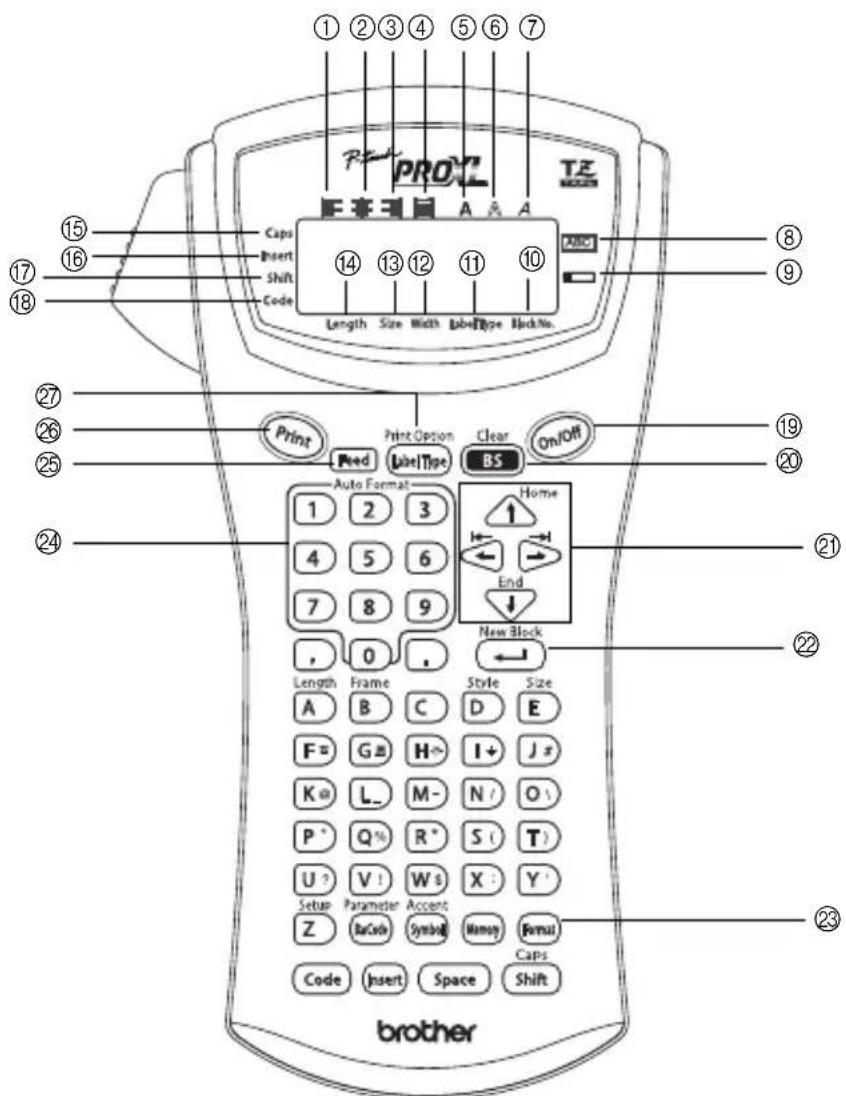
①Left text alignment (page 29)
②Center text alignment (page 29)
③ Right text alignment (page 29)
④Justified text alignment (page 29)
⑤ Bold text style (page 28)
⑥ Outline text style (page 28)
⑦Italic text style (page 28)
⑧Frame (page 25)
⑨Low battery (page 6)
⑩Block number (page 17)
⑪Label Type setting (page 10)
⑫Width setting (page 27)
③Size setting (pages 26 & 27)
Length setting (page 24)
⑤ Capsmode(page16)
⑥Insert mode (page 17)
⑦Shift mode (page 16)
⑧Code mode (page 16)
⑲Power key (page 9)
Backspace key (pages 15 & 18)
②Arrow keys (page 15)
② Return key (pages 15 & 17)
23Global format key (pages 26)
24Auto Format keys (page 30)
②5Feed key (page 31)
Print key (page 31)
②Label Type (page 10)
PT-1650
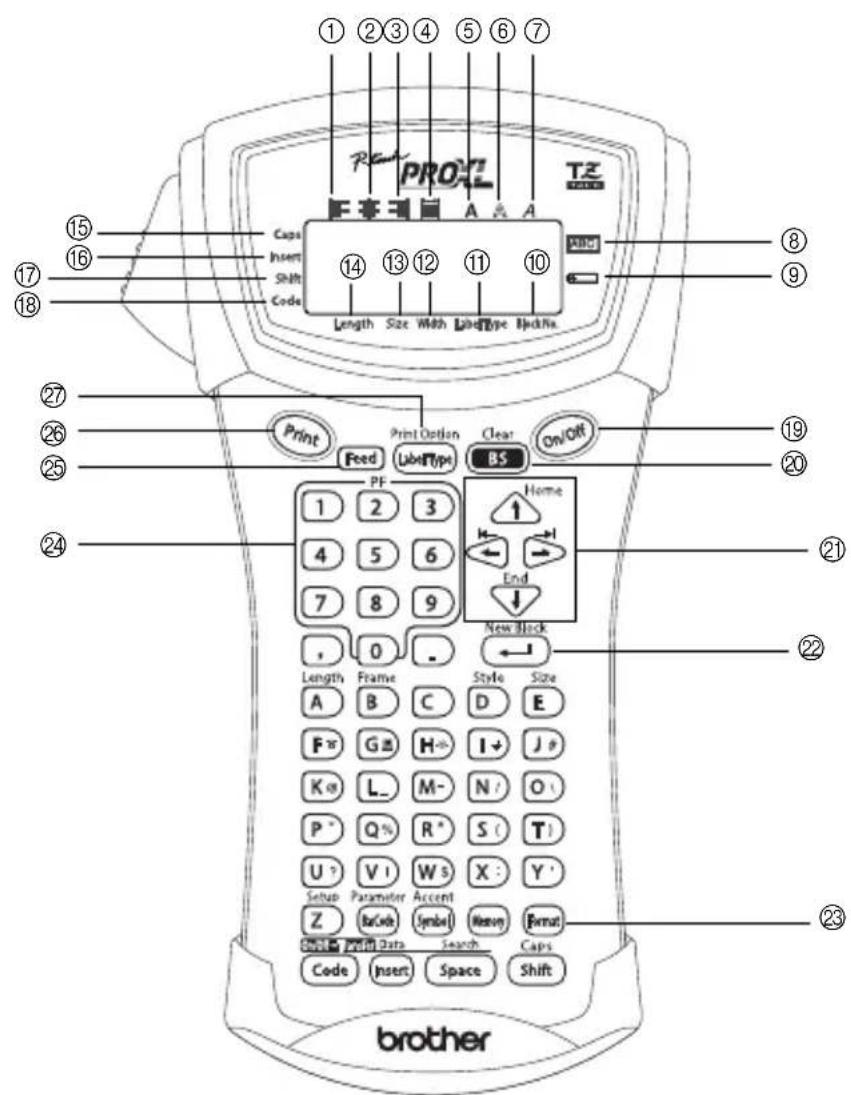
①Left text alignment (page 29)
②Center text alignment (page 29)
③ Right text alignment (page 29)
④Justified text alignment (page 29)
⑤Bold text style (page 28)
⑥ Outline text style (page 28)
⑦Italic text style (page 28)
⑧Frame (page 25)
⑨Low battery (page 6)
⑩Block number (page 17)
⑪Label Type setting (page 10)
⑫Width setting (page 27)
③Size setting (pages 26 & 27)
Length setting (page 24)
⑤ Capsmode (page16)
⑥Insert mode (page 17)
⑦Shift mode (page 16)
⑧ Code mode (page 16)
⑨Power key (page 9)
Backspace key (pages 15 & 18)
②Arrow keys (page 15)
② Return key (pages 15 & 17)
23Global format key (pages 26)
24 PF keys (page 30)
⑤Feed key (page 31)
Print key (page 31)
②Label Type (page 10)
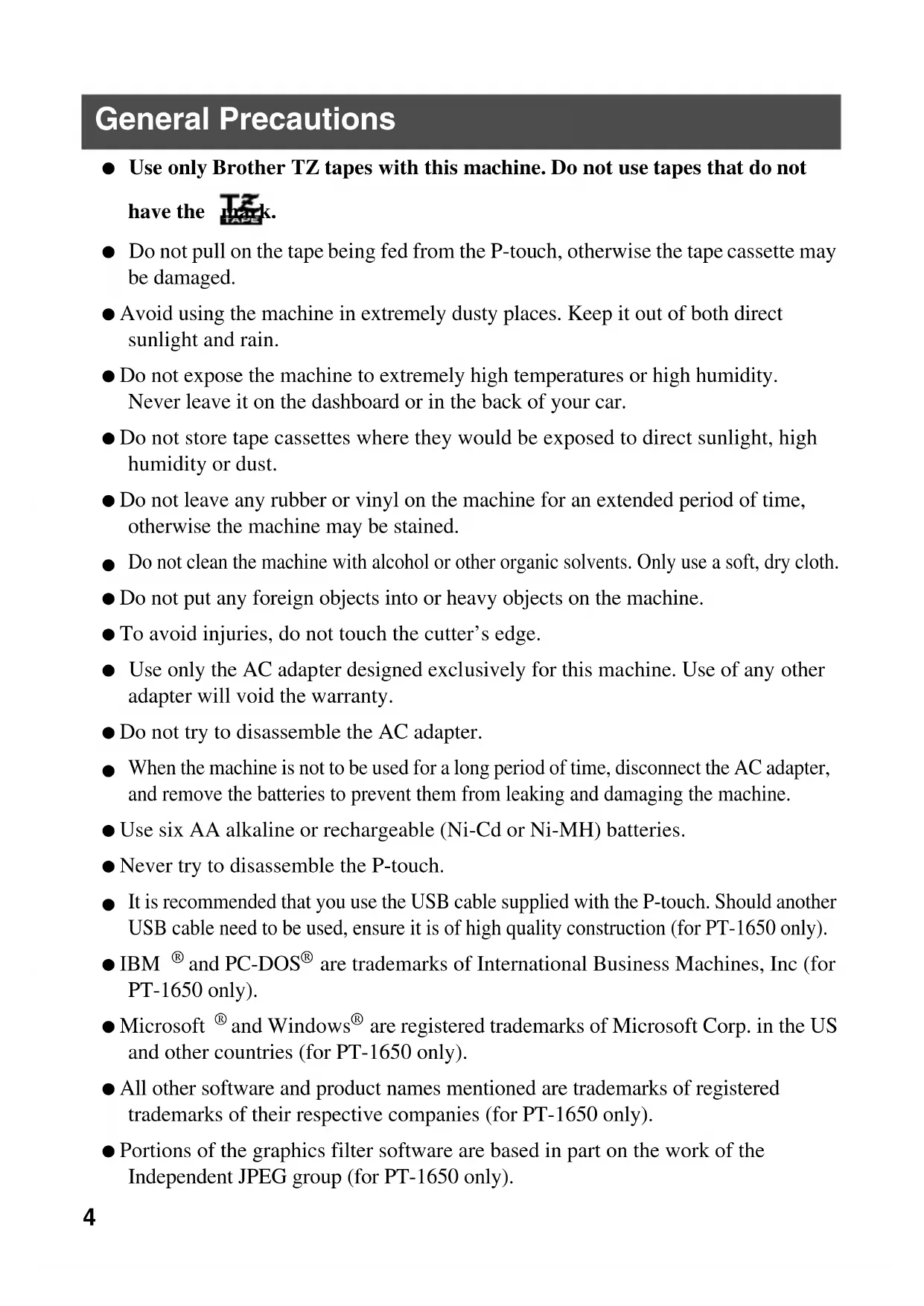
General Precautions
- Use only Brother TZ tapes with this machine. Do not use tapes that do not have the tape.
- Do not pull on the tape being fed from the P-touch, otherwise the tape cassette may be damaged.
- Avoid using the machine in extremely dusty places. Keep it out of both direct sunlight and rain.
- Do not expose the machine to extremely high temperatures or high humidity. Never leave it on the dashboard or in the back of your car.
- Do not store tape cassettes where they would be exposed to direct sunlight, high humidity or dust.
- Do not leave any rubber or vinyl on the machine for an extended period of time, otherwise the machine may be stained.
- Do not clean the machine with alcohol or other organic solvents. Only use a soft, dry cloth.
- Do not put any foreign objects into or heavy objects on the machine.
- To avoid injuries, do not touch the cutter's edge.
- Use only the AC adapter designed exclusively for this machine. Use of any other adapter will void the warranty.
- Do not try to disassemble the AC adapter.
- When the machine is not to be used for a long period of time, disconnect the AC adapter, and remove the batteries to prevent them from leaking and damaging the machine.
- Use six AA alkaline or rechargeable (Ni-Cd or Ni-MH) batteries.
- Never try to disassemble the P-touch.
- It is recommended that you use the USB cable supplied with the P-touch. Should another USB cable need to be used, ensure it is of high quality construction (for PT-1650 only).
- IBM® and PC-DOS® are trademarks of International Business Machines, Inc (for PT-1650 only).
- Microsoft® and Windows® are registered trademarks of Microsoft Corp. in the US and other countries (for PT-1650 only).
- All other software and product names mentioned are trademarks of registered trademarks of their respective companies (for PT-1650 only).
- Portions of the graphics filter software are based in part on the work of the Independent JPEG group (for PT-1650 only).
Batteries & Tape Cassettes
This machine has been designed to allow you to change the batteries and tape cassettes quickly and easily. With batteries installed, this compact and portable machine can be used anywhere. TZ tape cassettes are available for this machine in a wide variety of types, colors and sizes, enabling you to make distinctive color-coded and stylized labels.
Installing batteries and a tape cassette
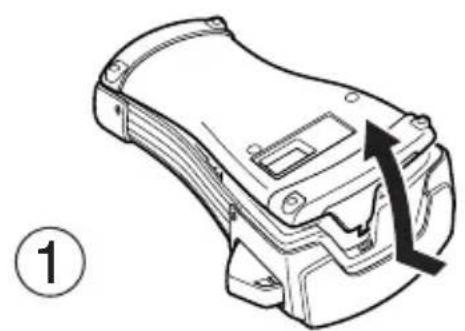
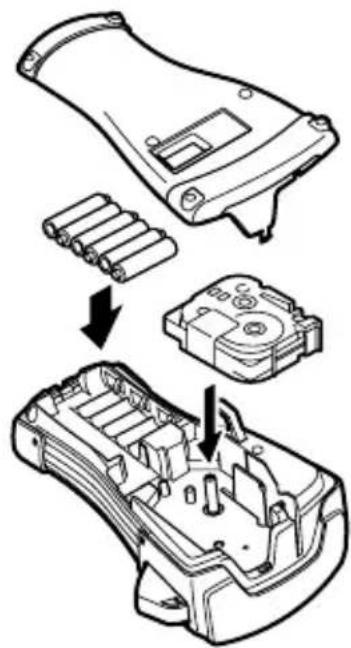
(2)
Notes on batteries
This P-touch requires six AA-size batteries. Rechargeable (Ni-Cd or Ni-MH) batteries can be used instead of six alkaline batteries.
The rechargeable batteries cannot be recharged by leaving them in the P-touch with the AC adapter connected. Instead, recharge the batteries by using a battery charger designed specifically for the type of batteries used. For more details on the rechargeable batteries, refer to the instructions provided with them.
Do not use any of the following, otherwise battery leakage or damage may occur.
- Manganese batteries
- A combination of new and used batteries
- A combination of batteries of different types (alkaline, Ni-Cd and Ni-MH), different manufacturers or different models
- A combination of recharged and uncharged batteries
Make sure that the batteries are inserted so that their poles point in the correct direction. With batteries installed, the P-touch determines the remaining battery charge during printing and feeding. If a low battery charge is detected, the low battery indicator (+) comes on. When this occurs, be sure to replace the batteries. The low battery indicator may not come on in some operating conditions.
Before replacing the batteries, make sure that the P-touch is turned off. In addition, when replacing the batteries, insert the new ones within five minutes of removing the old ones, otherwise the text shown in the display and any text stored in the memory will be lost.
If you do not intend to use this P-touch for an extended period of time, remove the batteries. When the power is disconnected, all text shown in the display and stored in the memory will be lost.
Since the enclosed batteries begin discharging from the time that the unit is shipped from the factory, their life span may not meet specifications, depending on when the unit is put into use.
Notes on tape cassettes
Before installing the tape cassette, make sure that the end of the tape feeds under the tape guides. If the tape cassette to be installed has an ink ribbon and the ink ribbon is loose, use your finger to wind the toothed wheel in the direction of the arrow on the cassette until there is no slack in the ribbon.
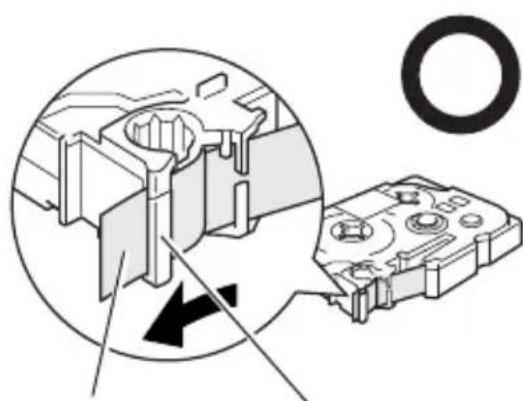
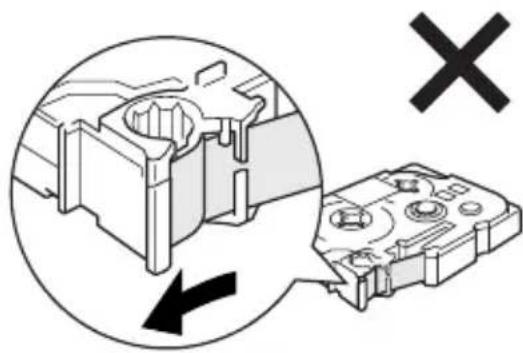
End of the tape Tape guides
When inserting the tape cassette, make sure that the inner ribbon does not catch on the corner of the metal guide.
After installing a tape cassette, press Feed once to remove any slack in the tape, and then press the tape cutter button to cut off the excess tape.
Always cut off the tape before removing it from the machine. If the tape is pulled on before being cut off, the tape cassette may be damaged.
Strong Adhesive Tape
For textured, rough, or slippery surface, we recommend using Strong Adhesive Tape.
Although the instruction sheet included with the Strong Adhesive Tape cassette recommends cutting the tape with scissors, the tape cutter that this P-touch is equipped with is able to cut Strong Adhesive Tape.
Flexible ID Tape
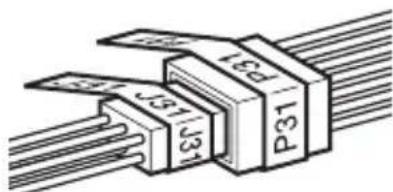
For applications that require more flexible labels, such as around sharp bends and cylindrical objects, we recommend using Flexible ID Tape.
Labels made with Flexible ID Tape are not designed for use as electrical insulation.
When wrapping labels around cylindrical objects, the diameter of the object should be at least 1/8'' (3 mm), otherwise the label should be wrapped as a flag and the FLAG Label Type mode should be used. In addition, the overlapping ends of the label or the label flag should be at least 3/16'' (5 mm).
The label may peel off cylindrical objects if the object is bent after the label is affixed.
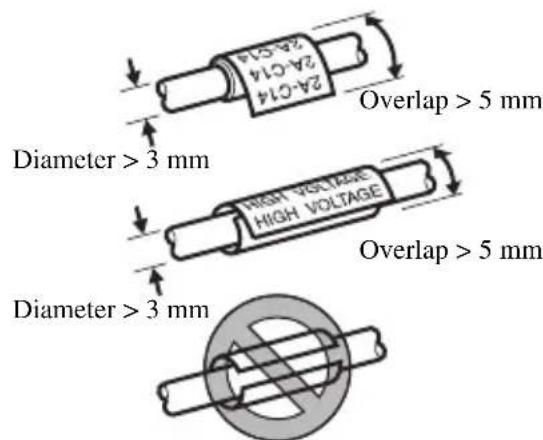

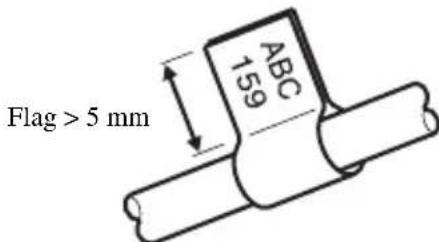
Cleaning
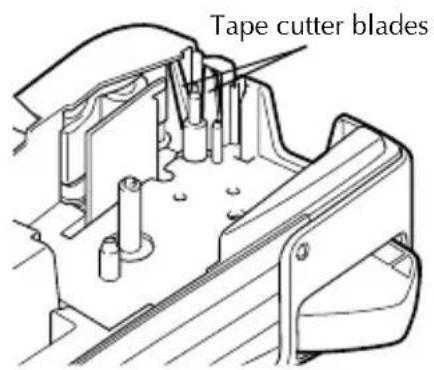
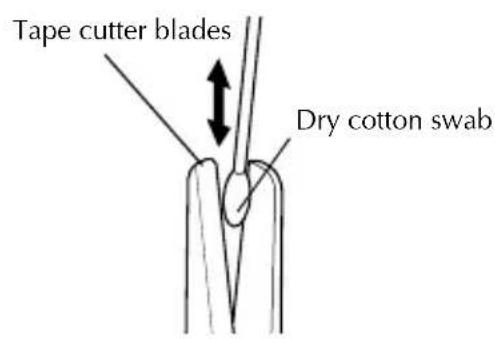
Occasionally, certain parts of the P-touch may need to be cleaned. Dust or dirt may become attached to the P-touch's print head and rollers, particularly when the unit is used outdoors or in a very dusty environment. With use, the tape cutter may become covered with adhesive, making it difficult to cut the tape.
Cleaning the print head, rollers and tape cutter
Before cleaning the print head and rollers, press / to turn off the P-touch, and then remove the batteries and disconnect the optional AC adapter.
Be extremely careful not to touch the cutter blades with your fingers.

Notes on cleaning the print head & rollers
If a blank horizontal streak appears through the label text, clean the machine's print head.
The print head can be cleaned more easily if the optional print head cleaning cassette (TZ-CL4) is used.
Notes on cleaning the tape cutter
If the tape cannot be cut correctly, clean the tape cutter blades.
Optional AC Adapter
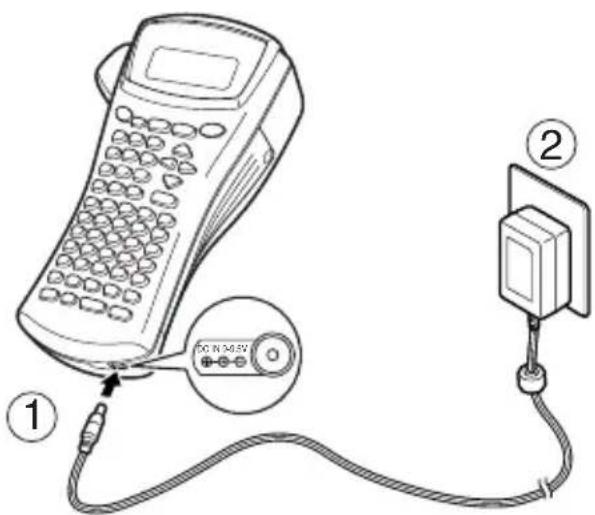
When printing a large number of labels or labels that contain a large amount of text, it may be useful to connect the P-touch to a standard electrical outlet using the optional AC adapter.
Connecting the AC adapter
Notes on the AC adapter
Only use the AC adapter designed exclusively for this machine.
Disconnect the AC adapter if you do not intend to use this P-touch for an extended period of time. When the power is disconnected, all text shown in the display and stored in the memory will be lost.
Turning the P-touch On/Off
Press n / O f f to turn on or turn off the P-touch.
If batteries are installed or the P-touch has remained plugged in using the AC adapter, the previous session's text is displayed when the P-touch is turned on again. This feature allows you to stop work on a label, turn off the machine, and return to it later without having to re-enter the text.
Regardless of whether the P-touch is being operated from batteries or the AC adapter, the machine will automatically turn off if no key is pressed or no operation is performed for 5 minutes.
2 Label Type Modes
Selecting a Label Type Mode
Pressing allows you to select one of the two regular modes for designing and printing your own custom labels, or any of the five special modes available for printing labels preformatted for identifying patch panels, cables, connectors and other components.
Print Option Press Label Type
Press Home or End (or continue pressing Print Option Label Type) until the desired mode is displayed. (For details on each Label Type mode, refer to the sections below.)
Press New Block to apply the selected Label Type mode.
- If NORMAL or VERTICAL was selected, continue entering the label text as described in chapter 3, Basic Functions.
- If ROTATE, ROT-REP, PORT, PANEL, or FLAG was selected, continue with the following steps.
Press or until the desired parameter is displayed.
Press Home or End until the desired setting is displayed (or use the number keys to type in the desired setting).
Press New~Block to apply the selected settings.
Type the text for each label in a separate text block.
8Print the labels.
- To print a single copy of each label, press Print.
- To print multiple copies or several copies while increasing certain characters, or to print using any other special printing function, press Code, then Label Type and choose your options. (For details, refer to Using special printing functions on page 32.)
Normal and Vertical Modes
Labels printed using the Normal and Vertical Label Type modes can be formatted and printed to fit any need.
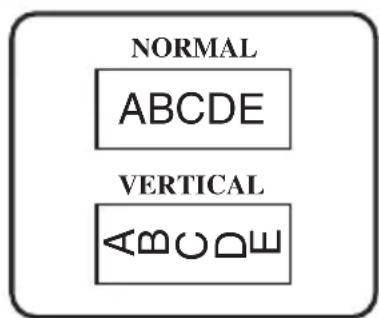
After selecting the Label Type mode NORMAL or VERTICAL, the label text can be entered, formatted, printed and cut as usual. With the Normal Label Type mode, the entered text is printed horizontally along the label. With the Vertical Label Type mode, the entered text is printed vertically along the label.
Rotate Mode and Rotate & Repeat Mode
Labels printed using these Label Type modes can be wrapped around cables and wires to mark them. With both of these modes, the text is rotated 90^ counterclockwise and each text block printed on a separate label as shown below. With the Rotate & Repeat mode, the text is printed repeatedly along the length of the label so that it can easily be read from any angle.
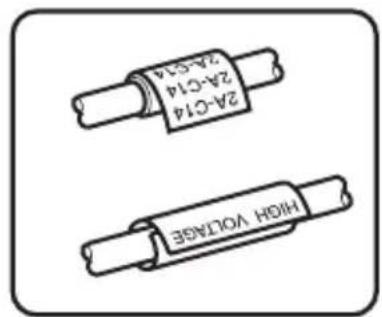
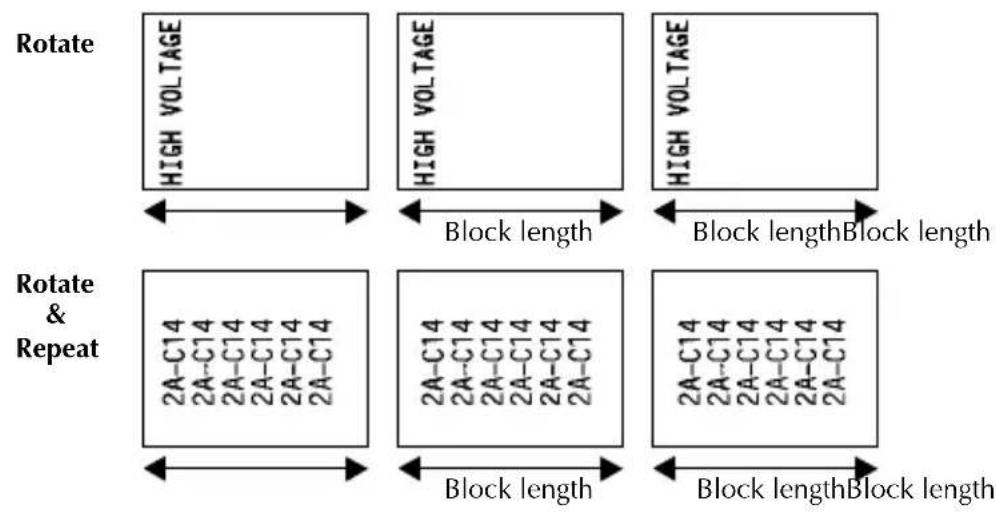
After selecting the ROTATE or ROT-REP Label Type mode, specify the length of each label and a frame style if desired.
BLK LEN. (block length): 0.80" to 8.00" (20 to 200 mm) Default: 1.20" (30 mm)
FRAME: OFF, 1, 2, 3, 4 Default: OFF
A single block of text can contain a maximum of 7 text lines, and with the ROT-REP Label Type mode, only the text lines that fit within the label are printed.
For labels to be attached to cables and wires, we recommend using Flexible ID Tape. When wrapping Flexible ID Tape around cylindrical objects, the diameter of the object should be at least 1/8'' (3 mm), otherwise the FLAG Label Type mode should be used. In addition, the overlapping ends of the label or the flag length should be at least 3/16'' (5 mm).
Flag Mode
Labels printed using this Label Type mode can be wrapped around cable or wire with the ends stuck together to form a flag. With the FLAG Label Type mode, each block of text is printed at both ends of separate labels. The length of the unprinted part of this label is equal to the circumference of the cable or wire. In addition, the text can be printed horizontally or rotated 90^ .
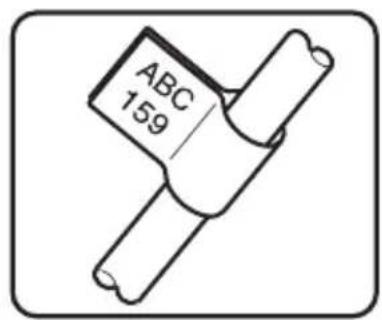
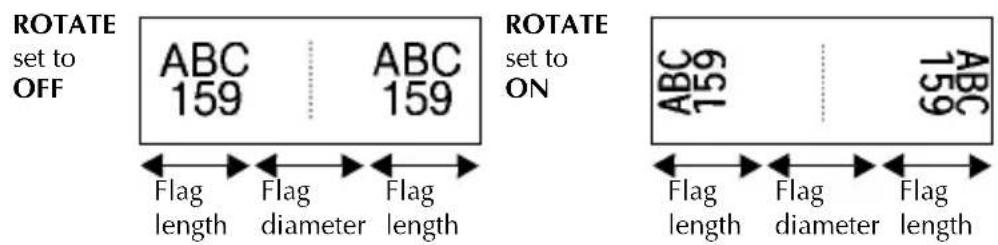
After selecting the FLAG Label Type mode, specify the length and diameter of the flag, a frame style if desired, and whether or not to rotate the text.
- FLAG (flag diameter): 0.00'' to 4.00'' (0 to 100mm )
Default: 0.25" (7 mm)
- FLAG LEN (flag length): 0.40'' to 8.00'' (10 to 200 ~mm )
Default: 1.20'' (30 mm)
FRAME: OFF, 1, 2, 3, 4
Default: OFF
- ROTATE: OFF, ON
Default: OFF
A single block of text can contain a maximum of 7 text lines.
For labels to be attached to cables and wires, we recommend using Flexible ID Tape. To wrap Flexible ID Tape around cylindrical objects, use the FLAG Label Type mode when the diameter of the object is less than 1/8'' (3 mm). In addition, the flag length should be at least 3/16'' (5 mm).
Port & Panel Modes
Labels printed using these Label Type modes can be used to identify various components or panels.
With the Port Label Type mode, each block of the text is printed on a separate label, making these labels useful for identifying different components or ports that are not equally spaced.
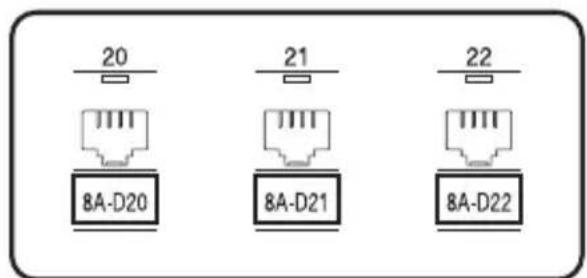
With the Panel Label Type mode, all blocks of the text are evenly spaced on a single label, making this label useful for a row of equally spaced switches, fuses or connectors on a patch panel. In addition, the text blocks can be printed in the order that they were typed in or in the opposite order.
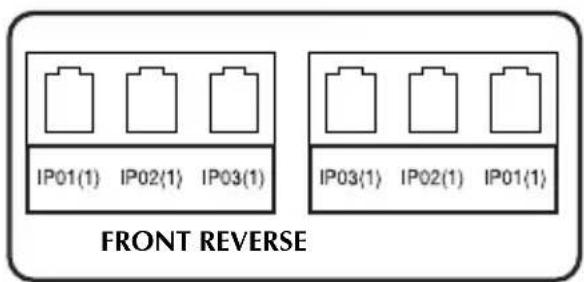

After selecting the PORT or PANEL Label Type mode, specify the length of each text block or label, and select a frame style if desired. For the PANEL Label Type mode, select whether the text blocks are printed in the order that they were typed in or in the reverse order.
BLK LEN. (block length):
- For the PORT Label Type mode:
0.80'' to 8.00'' (20 to 200mm )
Default: 1.20'' (30 mm)
- For the PANEL Label Type mode:
0.25" to 8.00" (6 to 200mm )
Default: 1.20'' (30 mm)
FRAME:
- For the PORT Label Type mode:
OFF,1 ,2 ,3 ,4
Default: OFF
- For the PANEL Label Type mode:
OFF,1 ,2 | | ,3
4,5,6
7□□□,8□□□,9□□□
Default: OFF
- PRINT (print order):
FRONT, REVERSE
Default: FRONT
For these types of labels, we recommend using Strong Adhesive Tape.
The PRINT parameter is only available with the PANEL Label Type mode.
Using the Numbering function with the PANEL Label Type mode makes it easy to create a single label of multiple blocks containing ascending characters, which can be used, for example, to label patch panels as shown above. Simply type in one block of text, and then use the Numbering function to print several copies of the text block on a single label while automatically increasing certain characters in each block. (For details on the Numbering function, refer to Printing multiple copies with incremental characters on page 32.)
3 Basic Functions
Performing Basic Operations
Choosing functions, parameters, settings and groups
- If “ ” appears, press to select the previous item or to select the next item.
- If “ ” appears, press to select the previous item or End to select the next item.
Choosing the default setting
To select the default setting of a function or parameter, press Space.
Confirming a choice
To select an item from a list, to apply a selected setting, or to answer "yes", press New Block.
Cancelling a choice
- To quit a function and return to the previous display without changing the text, or to answer "no", press Clear BS.
Entering and editing text
Entering characters
- To type a lowercase letter, a number, a comma or a period, simply press the key for that character.
- To type an uppercase letter, press Caps Shift to enter Shift mode, and then press the applicable letter.
- To type uppercase letters continuously, press Code, then Caps to enter Caps mode, and then type.
To exit Shift mode without typing a letter, press Caps
To exit Caps mode, press Code, then Shift.
To type a lowercase letter in Caps mode, press Shift, then the applicable letter.
Entering spaces
To add a blank space to the text, press Space
Moving the cursor
Move the cursor in order to review and edit the text, or you can select the various functions and settings.
To move the cursor left, right, up or down, press , , or .
- To move the cursor to the beginning of the current line of text, press Code, then
To move the cursor to the end of the current line of text, press Code, then
- To move the cursor to the beginning of the entered text, press Code, then Home.
- To move the cursor to the end of the entered text, press Code, then End
To move the cursor several characters or lines at once, hold down , , or
Adding a new line of text
To end the current line of text and start a new one, press New Block. “ ” appears at the end of the line.
The number of text lines that can be printed depends on the width of the tape.
| Tape Width | Maximum Number of Lines That Can Be Printed |
| 1/4" (6 mm) 2 | |
| 3/8" (9 mm) 2 | |
| 1/2" (12 mm) 3 | |
| 3/4" (18 mm) 5 | |
| 1" (24 mm) 7 |
The line number on the display indicates the line number of the text block.
Adding a new text block
- To create a new text block so that one section of the text can have a different number of lines than another, press Code, then New Block. “” appears at the end of the block.
For example, text entered as shown below, will be printed as follows.

A single label can only contain a maximum of fifty text blocks.
The number of the block that the cursor is in is indicated at the bottom of the display.
All texts blocks have the same formatting features.
While trying to print a large amount of data at one time, some outputted labels may be blank. For example, when printing 50 records, the maximum number of characters that can be printed at one time is limited to approximately 200.
Inserting text
- To insert the text that you type at the cursor's current position, make sure that the Insert indicator is displayed. Otherwise, press to enter Insert mode.
-
To replace the text at the cursor's current position instead of inserting it, press Insert to exit Insert mode.
-
To remove characters to the left of the cursor's current position, press Clear BS until all of the characters that you wish to delete are removed.
-
To delete all of the text:
1 Press Code, then BS.
Press or End to select either TEXT ONLY (to erase just the text) or TEXT&FORMAT (to erase all of the text and return all formatting functions to their default settings).
Press New Block
Entering an accented character
There are various accented characters available with the Accent function. The following accented characters are available.
| Letter | Accented Characters | Letter | Accented Characters | ||||||||||
| 0 1 | 2 3 4 5 | 0 1 2 3 | 4 5 | ||||||||||
| A | À | Á | Ä | Â | Â | AE | a | à | á | à | |||
| C | Ç | c | Ç | ||||||||||
| E | È | É | È | Ê ë | e | è | é | ë | ê | ē | |||
| I | Í | Ö | Î | i | í | ï | î | ||||||
| N | Ñ | n | ñ | ||||||||||
| O | Ó | Ö | Ó | Ó | o | ó | ö | ô | ō | ||||
| U | ù | Ü | Ü | Û | u | ù | ú | ü | ú | ||||
Press Code, then Symbol. The message "ACCENT a-u/A-U?" appears.
Press the key of the letter in the desired accented character until the desired character is selected.
Add the accented character(s) to the text.
- To add a single accented character or the last one in a series, skip to step 5.
- To add a series of accented characters to the text, press Code, then New Block.
4 For each additional accented character, repeat steps 2 and 3.
New Block Press
To type in an uppercase accented character, press Caps (or press Code), then Caps to enter Caps mode) before pressing the letter key.
An accented character can also be selected by typing in the corresponding code from the table above. For example, typing "A2", then pressing New Block adds "Ä" to the text.
Entering a bar code
The Bar Code function allows bar codes to be printed as part of labels.
Since this machine is not specifically designed for special bar code label-making, some bar code readers may not be able to read the labels.
Bar code readers may not be able to read bar codes printed with certain ink colors on certain label tape colors. For best results, print barcode labels in black on white tape.
In addition, the various bar code parameters enable you to create more customized bar codes.
| Parameter Settings | |
| PROTOCOL | CODE 39, I-2/5, EAN13, EAN8, UPC-A, UPC-E, CODABAR, EAN128, CODE128 |
| WIDTH(bar width) | MEDIUM, SMALL, LARGE |
| UNDER# (numbers printed below bar code) | ON, OFF |
| CHECK DIGIT OFF, ON |
The CHECK DIGIT parameter is only available with the CODE 39, I-2/5 and CODABAR protocols.
Setting bar code parameters
1 Press Code, then Parameter 8rCode
Press or until the parameter that you wish to change is displayed.
Press Home or End until the desired setting is displayed.
Repeat steps 2 and 3 until all parameters are set as you wish.
New Block Press
1 Press Parameter BarCode
Type in the new bar code data or edit the old data.
Press New Block to add the bar code to the text.
To add special characters to the bar code data (only with protocols CODE39, CODABAR, EAN128 or CODE128), position the cursor below the character immediately to the right of where you wish to add the special character, and then press Accent. Press Home or End until the desired special character is displayed, and then press New Block to add the character to the data. (Refer to the tables below for a list of the special characters that are available.)
To change the data or WIDTH or UNDER# parameter settings of a bar code that has already been added to the text, position the cursor below the bar code mark (||) and then press Code, then BarCode.
If the tape is to small the P-touch will automatically adjust the bar codes to prevent the misreading or unreading by bar code reader.
The following special characters can only be added to bar codes created using protocol CODE39 or CODABAR.
CODE39 CODABAR
| Symbol | Character | Symbol | Character |
| 0 | -4 | / | |
| 1 | . | 5 | + |
| 2 (SPACE) 6 % 2 : 5 | + | ||
| 3 | $ | ||
| Symbol | Character | Symbol | Character |
| 0 | -3 | / | |
| 1 | $ | 4 | |
The following special characters can only be added to bar codes created using protocols EAN128 and CODE128.
| Symbol | Character | Symbol | Character | Symbol | Character | Symbol | Character |
| 0 (SPACE) 18 < 36 | BEL 54 | EM | |||||
| 1 | ! | 1 | 9 | = | 3 | 7 | B |
| 2 | ” | 20 | > | 38 | HT | 56 | ESC |
| 3 | # | 21 | ? | 39 | LF | 57 | { |
| 4 | $ | 22 | @ | 40 | VT | 58 | FS |
| 5 | % | 23 | [ | 41 | FF | 59 | | |
| 6 | & | 24 | \ | 42 | CR | 60 | GS |
| 7 | , | 2 | 5 | ] | 4 | 3 | S |
| 8 | ( | 26 | ^ | 44 | SI | 62 | RS |
| 9 | ) | 2 | 7 | - | 4 | 5 | -D |
| 10 | * | 28 | NUL | 46 | DC1 | 64 | US |
| 11 | + 29 | 、47 DC | 2 65 | DEL | |||
| 12 | , | 30 | SOH | 48 | DC3 | 66 | FNC3 |
| 13 | - | 31 | STX | 49 | DC4 | 67 | FNC2 |
| 14 | . | 32 | ETX | 50 | NAK | 68 | FNC4 |
| 15 | / | 33 | EOT | 51 | SYN | 69 | FNC1 |
| 16 | : | 34 | ENQ | 52 | ETB | ||
| 17 | ; | 35 | ACK | 53 | CAN | ||
S
0
Entering a symbol
There are 147 symbols and pictures available with the Symbol function.
Press Symbol. The last category used is displayed.
Press Home or End to select the desired category.
Press or until the desired symbol is selected.
4 Add the symbol(s) to the text.
- To add a single symbol or the last one in a series, skip to step ⑥.
- To add a series of symbols to the text, press Code, then New Block.
For each additional symbol, repeat steps 2 through 4.
A symbol can also be selected by typing in the corresponding code from the table below. For example, typing “A02”, then pressing adds “?” to the text.
Some symbols are printed in color on the keypad. To use a symbol on a key, press Code to enter Code mode, and then press the key for the symbol.
The following symbols are available.
| Category | Symbols | ||||||||||
| A PUNCTUATION | . | , | ? | ! | " | , | : | ; | - | - | |
| 00 01 | 02 03 04 | 05 06 07 | 08 09 | ||||||||
| \ | / | & | i | i | ~ | § | · | ||||
| 10 11 | 12 13 14 | 15 16 17 | |||||||||
| B BUSINESS | @ | # | % | ® | © | TM | |||||
| 00 01 | 02 03 04 | 05 | |||||||||
| C MATHEMATICS | + | - | × | * | ± | = | ÷ | ||||
| 00 01 | 02 03 04 | 05 06 | |||||||||
| D BRACKET | () | [ ] | < | > | 《》 | ||||||
| 00 01 | 02 03 04 | 05 06 07 | |||||||||
| E ARROW | → | ← | ↑ | ↓ | → | ← | ↑ | ↓ | ~ | ~ | |
| 00 01 | 02 03 04 | 05 06 07 | 08 09 | ||||||||
| F UNIT | ° | ¥ | £ | € | Φ | Fr | f | φ | |||
| 00 01 | 02 03 04 | 05 06 07 | 08 | ||||||||
| G INTERNATIONAL CHARACTERS | a | b | B | SS | a | β | γ | δ | μ | Ω | |
| 00 01 | 02 03 04 | 05 06 07 | 08 09 | ||||||||
| D | δ | b | b | ij | |||||||
| 10 11 | 12 13 14 | ||||||||||
| H NUMBER | 1/2 | 1/3 | 1/4 | 0 | 1 | 2 | 1 | 2 | |||
| 00 01 | 02 03 04 | 05 06 07 | |||||||||
| I PICTOGRAPH | ★ | ○ | ● | □ | △ | ◆ | |||||
| 00 01 | 02 03 04 | 05 | |||||||||
| J ELECTRICAL/ELECTRONIC | ± | ± | ± | ~ | = | + | □ | = | ○ | ○ | |
| 00 01 | 02 03 04 | 05 06 07 | 08 09 | ||||||||
| ○ | 1 | ⊕ | ⊕ | ⊕ | ⊕ | ⊕ | ⊕ | ⊕⊕ | ⊕⊕ | ||
| 10 11 | 12 13 14 | 15 16 17 | 18 19 | ||||||||
| ⊕⊕ | ⊕⊕ | ⊕ | - | - | - | T | × | = | 率 | ||
| 20 21 | 22 23 24 | 25 26 27 | 28 29 | ||||||||
| - | - | ● | ● | ● | ● | ● | ● | ⊗ | ⊗ | ||
| 30 31 | 32 33 | 34 35 | 36 37 38 | 39 | |||||||
| □ | □ | □ | |||||||||
| 40 41 | 42 | ||||||||||
| K PROHIBITION | ⊗ | ⊗ | ⊗ | ||||||||
| 00 01 | 02 | ||||||||||
| L WARNING | ▲ | ▲ | ▲ | ▲ | ▲ | ▲ | ■ | ||||
| 00 01 | 02 03 04 | 05 06 | |||||||||
| M COMMUNICATIONS | 温 | 温 | 温 | ||||||||
| 00 01 | 02 | ||||||||||
| N OTHERS | # | # | # | ♀ | |||||||
| 00 01 | 02 03 | ||||||||||
| Z PERSONAL CATEGORY | *A maximum of 16 most recently selected symbols are automatically saved in the PERSONAL symbol category. | ||||||||||
Formatting the Label
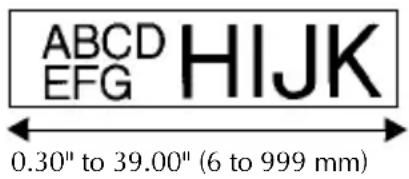
Specifying a label length
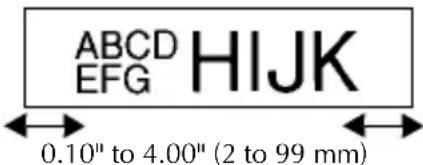
The length of the label can be specified as follows.
1 Press Code, then Length A
Press or until LENGTH is displayed.
Press or until the desired label length is displayed (or use the number keys to type in the desired setting).
New Block Press
Specifying a margin size
The size of the margins for the left and right sides of the text can be specified.
1 Press Code, then Length A
Press or until MARGIN is displayed.
Press Home or End until the desired margin setting is displayed (or use the number keys to margin type in the desired setting).
New Block Press
Framing the text
Press Code, then B
Press until the desired frame setting is displayed.
Press New Block. The selected setting is applied to the entire text.
The following frame styles are available.
| Frame Setting | Sample | Frame Setting | Sample | ||||
| 1 | ABC DEFG HIJK | LM | NOP QR | 8 | ABC DEFG HIJK | LM | NOP QR |
| 2 | ABC DEFG HIJK | LM | NOP QR | 9 | ABC DEFG HIJK | LM | NOP QR |
| 3 | ABC DEFG HIJK | LM | NOP QR | 10 | ABC DEFG HIJK | LM | NOP QR |
| 4 | ABC DEFG HIJK | LM | NOP QR | 11 | ABC DEFG HIJK | LM | NOP QR |
| 5 | ABC DEFG HIJK | LM | NOP QR | 12 | ABC DEFG HIJK | LM | NOP QR |
| 6 | ABC DEFG HIJK | LM | NOP QR | 13 | ABC DEFG HIJK | LM | NOP QR |
| 7 | ABC DEFG HIJK | LM | NOP QR | 14 | ABC DEFG HIJK | LM | NOP QR |
Specifying the character size
The character size can be specified for all text in the label or only for the text in the line that the cursor is in.
With the default character size setting AUTO, the largest possible text size is automatically selected depending on the width of the installed tape and the number of lines in the text.
Formatting the character size of all text
1
Press Format.
2
Press or until GLB SIZE is displayed.
3
Press or until the desired character size setting is displayed.
4
Press New Block. The selected setting is applied to the entire text.
Formatting the character size of a line
Move the cursor to the line of text whose size you wish to change.
2
Press Code, then E
3
Press or End until the desired character size setting is displayed.
4
Press New Block. The selected setting is only applied to the text line that the cursor is positioned in.
Since the text sizes that can be printed depends on the width of the tape, the following table shows the maximum text size that can be used with each tape width.
| Tape Width Maximum Text Size | |
| 1/4" (6 mm) 12 points | (3 mm) |
| 3/8" (9 mm) 18 points | (4 mm) |
| 1/2" (12 mm) 24 points | (6 mm) |
| 3/4" (18 mm) 36 points | (9 mm) |
| 1" (24 mm) 48 points | (12 mm) |
With the AUTO setting selected and the text in a block consisting of just one line of only uppercase letters (and no accented letters), the text is printed slightly larger than the maximum possible for the tape width.
Specifying the character width
Formatting the width of all text
Press Format
Press or until GLB WIDE is displayed.
Press Home or End until the desired character width setting is displayed.
Press New Block. The selected setting is applied to the entire text.
Formatting the width of a line
1Move the cursor to the line of text whose character width you wish to change.
Press Code, then Size
Press or until WIDTH is displayed.
Press Home or End until the desired character width setting is displayed.
Press New Block. The selected setting is only applied to the text line that the cursor is positioned in.
The following width sizes are available for each text size as shown.
| Width Size | NORMAL NAR | ROW MINIMUM | WIDE | |
| 12 mm (48 points) | ABC | ABC | ABC | ABC |
| 9 mm (36 points) | ABC | ABC | ABC | ABC |
| 6 mm (24 points) | ABC | ABC | ABC | ABC |
| 4 mm (18 points) | ABC | ABC | ABC | ABC |
| 3 mm (12 points) | ABC | ABC | ABC | ABC |
| 2 mm (9 points) | ABC | ABC | ABC | ABC |
| 1 mm (6 points) | ABC | ABC | ABC | ABC |
Specifying the character style
Formatting the character style of all text
Press Format
Press or until GLB STYL is displayed.
Press Home or End until the desired character style setting is displayed.
Press New Block. The selected setting is applied to the entire text.
Formatting the character style of a line
1Move the cursor to the line of text whose character style you wish to change.
Press Code, then Style D
Press Home or End until the desired character style setting is displayed.
Press New Block. The selected setting is only applied to the text line that the cursor is positioned in.
The following text styles are available.
| Style Setting | Sample | Style Setting | Sample |
| NORMAL | ITALIC ABC | ABC | |
| BOLD | ABC | I+BOLD (italic & bold) | ABC |
| OUTLINE | ABC | I+OUTL (italic & outline) | ABC |
Specifying the alignment for all lines in the text
Press Format.
Press or until ALIGNN is displayed.
Press Home or End until the desired setting is displayed.
Press New Block. The selected setting is applied to the entire text.
The following alignment settings are available.

LEFT CENTER RIGHT JUSTIFY
Using the pre-formatted Auto Format templates
Various pre-formatted label templates are available, enabling you to quickly and easily create labels for a variety of applications—from identifying the contents of boxes and file folders to labelling equipment and making name badges and ID tags. After simply selecting one of the ten label templates, type text into each of its fields, and then the label is ready to be printed.
The following label templates are available.
| Key | Template Name | Tape Width × Label Length | Template Fields Sample | ||
| 1 | BIN BOX | 3/4" × 2.80"(18 mm × 70 mm) | ① SYMBOL? ② TEXT1?③ TEXT2?④ BAR CODE? | Lock Washer1/4-20 NF Thread Size0.0000000000000000000000000000000000000000000000000000000000000000000000000000000000000000000000000000 | |
| 2 | ASSET1 | 1" × 3.30"(24 mm × 84 mm) | ① TEXT1? ② TEXT2?③ BAR CODE? | PROPERTY OFSALES & MARKETING DIV,xxxxxx | |
| 3 | ASSET2 | 1" × 3.15"(24 mm × 80 mm) | ① TEXT?② BAR CODE? | Fixed Asset | |
| 4 | ASSET3 | 1" × 1.65"(24 mm × 41 mm) | ① TEXT?② BAR CODE? | ***City Public Library | |
| 5 | ASSET4 | 1" × 2.25"(24 mm × 56 mm) | ① TEXT1? ② TEXT2?③ TEXT3? ④ TEXT4?⑤ TEXT5? | Brother Industries, Ltd.ControlSalesEquipment # 123456789 | |
| 6 | ID LABEL | 1" × 2.80"(24 mm × 70 mm) | ① TEXT1? ② TEXT2?③ TEXT3? | DAILY FAXES(5)9/99 PresentJ.Smith | |
| 7 | SIGN | 1" × 4.05"(24 mm × 102 mm) | ① SYMBOL? ② TEXT1?③ TEXT2? | NO SMOKING | |
| 8 | BADGE | 3/4" × 4.05"(18 mm × 102 mm) | ① NAME?② COMPANY? | Robert BeckerABC Transport | |
| 9 | FILING | 1/2" × 3.55"(12 mm × 89 mm) | ① TITLE?② SUBTITLE? | August Sales ReportCovenants S#es No. | |
| 0 | IC CHIP | 3/8" × 1.05"(9 mm × 26 mm) | ① TEXT1? ② TEXT2? | 012345678912 | |
Press Code, then the number key where the template that you wish to use is assigned.
Press New Block. The first field for the selected template is displayed.
Press or End to display each field, and then type in the text.
4 To print a single copy, press Print
- To print multiple copies, several copies while increasing certain characters, or a mirror image of the text, press Code, then Print Option (For details, refer to Using special printing functions on page 32.)
Accented characters (page 18), symbols (page 21) and bar codes (page 19) can be entered in the template fields.
To quit using the template, display the last field, and then press New Block. The Auto Format menu appears. Press Home or End until EXIT appears, and then press New Block
Printing Labels
Previewing the label layout
The Preview function allows you to see a sample of the layout of the text.
- To use the print preview, press Code, then Print. The length of the current label is indicated in the lower-left corner of the display.
To scroll the print preview left or right, press or .
To return to the text, press New Block Clear
Feeding tape
- To feed out 1" (23 mm) of tape, press . The message "FEED" is displayed.
Press Feed to feed out any leftover printed tape after pressing 0n / off to quit printing.
Printing a label
- To print out a label, press . The message "WORKING", then "COPIES" followed by the number of the label being printed is displayed.
To quit printing, press / off to turn off the P-touch.
Using special printing functions
Various special printing functions are available that enable you to print multiple copies of labels, print several copies while incrementing the values of certain characters, print specific sections of label text, or print label text as a mirror image.
Printing multiple copies of a label
The Repeat Printing function allows you to print up to 99 copies of the same text.
Press Code, then Print Option (Label Type).
Press or until COPIES is displayed.
Press Home or End until the desired number of copies is displayed (or use the number keys to type in the desired setting).
Press New Block (or Print). START appears in the Print Option menu.
Press New Block (or Print) to begin printing the specified number of copies. The number of each copy is displayed while it is being printed.
If the Cut function is set to 1 or 3, the message "CUT TAPE TO CONTINUE" appears after each label is printed. Press the tape cutter button to cut off the label and continue printing.
^ Be sure to cut the tape within 5 minutes from the time that the message appears.
For the different options available for cutting the tape, refer to Selecting how tape is fed and cut on page 38.
To specify settings for additional Print Option functions, instead of continuing with step 5, press Home or End until CONTINUE is displayed in the Print Option menu, and then press New Block.
If you have data in memory, choose TEXT or DATA PRINT.
Printing multiple copies with incremental characters
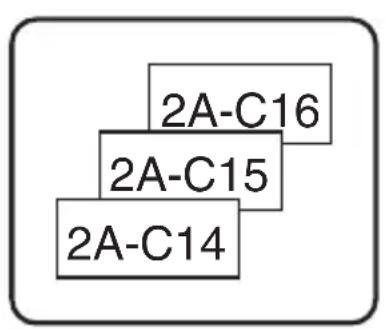
The Numbering function can be used to print several copies of the same text while incrementing the values of certain characters (letters, numbers or bar code data) after each label is printed. This type of automatic incrementation is very useful when printing serial number labels, production control labels or other labels requiring ascending codes.
1 Press Code, then Label Type.
Press or until NUMBER is displayed.
Press or until the desired number of copies is displayed (or use the number keys to type in the desired setting).
Press New Block. The message "START?" appears. (To specify only the character at the cursor's current position as the numbering field, press Print, and then skip to step 9.)
Press , End or until the first character that you wish to include in the numbering field is flashing.
Press New Block. The message "END?" appears.
Press , or until the last character that you wish to include in the numbering field is flashing.
Press New Block START appears in the Print Option menu.
Press New Block (or Print) to begin printing the specified number of labels. The number of each copy is displayed while it is being printed.
If the Cut function is set to 1 or 3, the message "CUT TAPE TO CONTINUE" appears after each label is printed. Press the tape cutter button to cut off the label and continue printing.
≈ Be sure to cut the tape within 5 minutes from the time that the message appears.
For the different options available for cutting the tape, refer to Selecting how tape is fed and cut on page 38.
Letters and numbers increase as shown below.
0 1 ..9 0 ...
A B ..Z A ...
a b ..z a ...
A0 A1 ..A9 B0 ...
Spaces (shown as underlines “_” in the examples below) can be used to adjust the space between characters or to control the number of digits that are printed.
Z AA ZZ AA 9 10 99 00 1_ 9 2_ 0 9_ 9 0_ 0
Only one numbering field can be selected from any text.
A numbering field must be located entirely within one line of text of a single block.
A maximum of five characters can be selected for the numbering field.
If you include a non-alphanumeric character such as a symbol in the numbering field, only the letters and numbers in the numbering field will be increased when the labels are printed, or just one label will be printed if the field only contains a non-alphanumeric character.
To specify settings for additional Print Option functions, instead of continuing with step , press or End until CONTINUE is displayed in the Print Option menu, and then press New Block
If a bar code is selected as the numbering field in step 5, skip steps 6 and 7, and continue with step 8.
Printing a range of text blocks
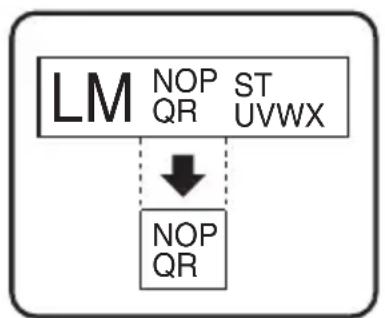
The Block Printing function enables you to select the range of text blocks to print.
1 Press Code, then Label Type.
Press or until the first number in the range displayed below BLOCK NO. is flashing.
Press or End until the desired block number is displayed (or use the number keys to type in the desired setting).
Press so that the second number in the range displayed below BLOCK NO. is flashing.
Press or End until the desired block number is displayed (or use the number keys to type in the desired setting).
Press New Block (or Print). START appears in the Print Option menu.
Press (or Print) to begin printing the specified number of labels. The number of each copy is displayed while it is being printed.
To specify settings for additional Print Option functions, instead of continuing with step 7, press Home or End until CONTINUE is displayed in the Print Option menu, and then press New Block.
Printing mirrored labels
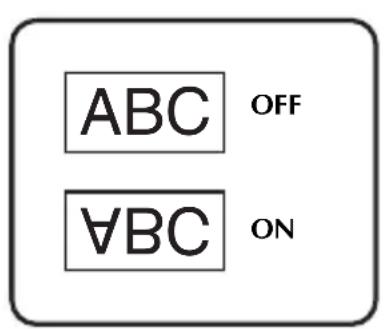
This function prints your label so that the text can be read from the adhesive side of the tape. If mirror-printed labels are attached to glass or some other transparent material, they can be read correctly from the opposite side.
1 Press Code, then Label Type.
Press or until MIRROR is displayed.
Press Home or End until ON is displayed.
Press New Block (or Print). START appears in the Print Option menu.
Press New Block (or Print) to begin printing the specified number of labels. The number of each copy is displayed while it is being printed.
When using the Mirror Printing function, the text should be printed on clear tape.
To specify settings for additional Print Option functions, instead of continuing with step 5, press Home or End until CONTINUE is displayed in the Print Option menu, and then press New Block.
Combining special printing functions
Many of the special printing functions can be combined, depending on various conditions, such as which Label Type mode is selected or whether a template is being used. For example, by combining the operations for the Repeat Printing function and the Numbering function to print two copies of a label with "1" selected as the numbering field and three increments, the labels shown above will be printed.
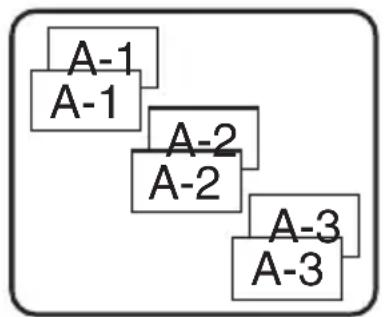
For details on the various special printing functions, refer to the corresponding section above.
Storing and Recalling Files
Frequently used label text along with its formatting can be stored in the memory and easily recalled so that it can be edited and quickly printed. When each text file is stored, it is given a number to make recalling it easier. Up to 10 text files or approximately 2,000 characters can be stored in the memory.
Since a copy of the stored text file is recalled when the Recall function is used, the text can be edited or printed without changing the originally stored file. When a file is no longer needed or more space is necessary, the Clear function can be used to delete text files.
Storing label text
Press Memory.
Press Home or End until STORE is displayed.
Press New Block
Press Home or End until the file number where you wish to store the text is displayed.
5 Press New Block
If the maximum number of characters has already been stored, the error message "MEMORY FULL!" appears in the display. If this occurs, an existing text file must be deleted before the new one can be stored.
If a file is already stored under the selected file number, the message "OVERWRITE?" appears in the display. To overwrite the stored file with the new one, press New Block Clear. To go back and choose another file number without overwriting the text file, press BS, and then select a different file number.
Recalling text that has been stored
Press Memory.
Press Home or End until RECALL is displayed.
Press New Block
Press Home or End until the file number containing the text that you wish to recall is displayed.
Press New Block. Any text previously entered in the display is erased and the text stored under the selected file number is recalled into the display.
To view other parts of the selected text file, press or 0 .
Deleting text that has been stored
Press Memory.
Press Home or End until CLEAR is displayed.
Press New Block
Press Home or End until the file number containing the text that you wish to delete is displayed.
Select the file(s) to be deleted.
To delete a single file, skip to step 6.
- To select multiple files, press Space. The current file number is highlighted. Continue selecting text files by repeating step 4, then pressing space until all files that you wish to delete are selected.
To delete all files, press Code, then Space
Press . The message "OK TO CLEAR?" (or "CLEAR ALL?") if all files were selected) appears.
New Block Press. The text stored in the selected files is deleted.
If you do not wish to delete the selected text file(s), press Clear BS instead of New Block in step 7.
To view other parts of the selected text file, press or
To remove a text file from those that are to be deleted, display the text file, and then press Space so that the file number is no longer highlighted.
4 Machine Adjustments
Various functions are available for changing and adjusting the operation of the P-touch.
Selecting how tape is fed and cut
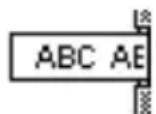
The Cut function enables you to specify how the tape is fed out after it is printed. The settings of the Cut function consist of combinations of two different cut methods: cut-pause (where the machine stops printing so the label can be cut) and chain printing (where the last copy is not fed out to be cut, reducing the amount of tape that is wasted).
Chain printing is an economical function designed to help eliminate "wasted tape" at the beginning of labels. Without chain printing, the excess from the previous printing session is cut before the first label in the current session is printed. However, if a setting using chain printing is selected, the last label in the previous session remains in the machine (is not fed out), so that the next label can be printed without wasting tape. When the last label is printed, press Feed to feed the chain of labels, and then press the tape cutter button to cut it.
The following settings are available: (The default setting is 1.)
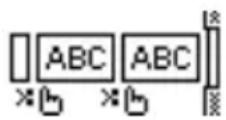
1 (cut-pause: no chain printing)
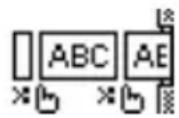
3 (cut-pause; chain printing)
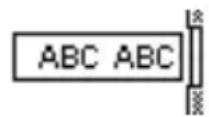
2 (no cut-pause; no chain printing)
4 (no cut-pause; chain printing)
1 Press Code, then Setup Z.
Press or until CUT is displayed.
Press or End until the desired setting is displayed, and then press New Block
After printing with the Cut function set to 3 or 4, press Feed to feed the tape, and then press the tape cutter button to cut it.
Adjusting the display contrast
The display can be made lighter or darker by selecting a setting between -2 and +2. (The default setting is 0.) Select a higher value to increase the contrast (make the display darker). Select a lower value to decrease the contrast (make the display lighter).
1 Press Code, then Setup Z
Press or until CONTRAST is displayed.
Press Home or End until the desired setting is displayed, and then press New Block
Setting the Auto Reduction function
With the Auto Reduction function, you can select whether the text width (TEXT WIDTH) or the text size (TEXT SIZE) will be reduced if text that is set to the AUTO Size setting is too large for the specified label length. (The default setting is TEXT SIZE.)
1 Press Code, then Setup Z
Press or until AUTO REDUCTION is displayed.
Press End until the desired setting is displayed, and then press New Block
If TEXT SIZE is selected and more text is added, the character size is reduced so the text fits within the specified label length.
ABCDE
ABCDEFGH
If TEXTWIDTH is selected and more text is added, the character width is reduced so the text fits within the specified label length.
However, after the character width is reduced to MINIMUM, the character size will be reduced so the text fits within the specified label length.
ABCDE

ABCDEFGH
Calibrating the label length
If the length of the printed label does not correspond to the length specified with the Length function, the printed label length can be recalibrated with the Length Adjust function by selecting a setting between -1 and +3. (The default setting is 0.)
1 Press Code, then Setup Z
Press or until LENGTH ADJUST is displayed.
Press or until the desired setting is displayed, and then press New Block.
**Specifying if the PERSONAL symbol category is continually updated**
You can specify whether symbols continue to be added to the PERSONAL symbol category (with the older symbols deleted) when the category becomes full (ON) or symbols are no longer added after the PERSONAL symbol category becomes full (OFF). (The default setting is ON.)
1 Press Code, then Setup Z
Press or until SYMBOL SAVE is displayed.
Press Home or End until the desired setting is displayed, and then press New Block
Changing the units of measure
The units used for displaying measurements can be set to millimeters (mm) or inches (inch). (The default setting is inch.)
1 Press Code, then Setup Z
Press or until UNITS is displayed.
Press Home or End until the desired setting is displayed, and then press New Block
Changing the language
The language of the menus, settings and messages can be changed by selecting ENGLISH or FRANÇAIS. (The default setting is ENGLISH.)
1 Press Code, then Setup Z
Press or until LANGUAGE is displayed.
Press Home or End until the desired setting is displayed, and then press New Block
Displaying version information
This function can be used to display the version information for the P-touch software and built-in symbol set.
1 Press Code, then Setup Z
Press or until VERSION INFO is displayed.
Press Home or End until the desired version information is displayed.
Press New Block to exit Setup mode.
5 Using P-touch With a Computer (for PT-1650 only)
This P-touch is equipped with a USB port, allowing you to connect it to a computer running Microsoft® Windows®. The enclosed CD-ROM contains P-touch Editor 3.2, which is installed together with the printer driver, Transfer Manager and Backup Manager.
- P-touch Editor 3.2 is a label-designing software that provides additional illustration and layout features enabling you to design more elaborate label templates and create databases. Once these label templates and databases have been created, they can be downloaded to the P-touch, where they can be used to print labels.
-
Transfer Manager is used to download data created on the computer to this portable P-touch, so that it can be used anywhere you go to create labels. The following types of data can be downloaded to the P-touch.
-
Label templates created with P-touch Editor allow you to expand the P-touch's capabilities to create customized labels.
- Databases created with P-touch Editor or in the *.csv format provide you with convenient access to large amounts of data (for example, customer lists and inventory), which can be used to print labels.
-
User-defined character images in the *.bmp format can be used to enhance labels with characters that are not available on the P-touch.
-
Backup Manager allows you to back up the following types of data from the P-touch onto the computer, and restore this data to the P-touch in case the P-touch data is lost.
Label templates
- Database
- User-defined character images
- Label files stored in the P-touch memory
The P-touch Editor software and the printer driver must be installed before the P-touch is connected to the computer or turned on.
Only use the enclosed USB interface cable to connect the P-touch to the computer.
A single computer cannot be connected to multiple P-touch machines at the same time.
Although the P-touch can be connected to the computer through a USB connection, label layouts created in P-touch Editor cannot be printed directly from the application.
Installing the Software & Printer Driver
The P-touch Editor 3.2 software, provided on the enclosed CD-ROM, includes a variety of more complex functions for printing bar codes and images, enabling you to design just about any label that you can imagine. With this application, the printer driver must also be installed in order for the application to communicate with the P-touch.
Although the P-touch can be connected to the computer through a USB connection, label layouts created in P-touch Editor cannot be printed directly from the application.
Before installation
Check that your system configuration meets the following requirements.
| Computer | IBM® PC/AT or compatible |
| Operating system | Microsoft® Windows® 98, 98 SE, Me, 2000 Professional, XP Professional or XP Home Edition |
| Processor | Pentium 166 MHz or higher (XP Professional and XP Home Edition: Pentium 300 MHz or higher) |
| Memory | At least 64 MB (XP Professional and XP Home Edition: 128 MB or higher) |
| Hard disk free space At least 20 MB (100 MB for a full installation) | |
| Monitor | 800 x 600 dpi (SVGA)/High Color or higher |
| USB port Available | |
| CD-ROM drive Available | |
For installation on Windows 2000, administrator privileges are required. In addition, transferring data requires power user or administrator privileges. This software cannot be operated in Users groups. In addition, this software is not compatible with the Windows 2000 Server operating system.
With Windows XP, transferring data and installation is only possible from an account with administrator privileges.
Do not connect the P-touch to the computer until you are instructed to.
We strongly recommend closing all Windows applications before installing this software.
Insert the enclosed CD-ROM into the computer's CD-ROM drive. A dialog box automatically appears, allowing you to select the language of the installer.
If the InstallShield Wizard does not automatically start up:
First, double-click "My Computer" on the desktop, and then double-click the CD-ROM drive containing the CD-ROM. (For Windows XP, click "My Computer" in the Start menu, and then double-click the CD-ROM drive containing the CD-ROM.)
Then, double-click "Setup.exe" to display the dialog box.
2 Select the desired language, and then click "OK". The InstallShield Wizard for installing the P-touch Editor software starts up, and then the "Welcome" dialog box appears.
3 Carefully read the contents of the "Welcome" dialog box, and then click "Next" to continue. The "User Information" dialog box appears.
Type the necessary information into the appropriate boxes, and then click "Next". A dialog box appears, asking for confirmation of the entered information.
Click “Yes” to register the entered information. The “Setup Type” dialog box appears.
Select the installation method, and then click "Next".
If "Custom" is selected, clicking "Next" will display a dialog box that allows you to select which options to install.
After P-touch Editor is installed, a dialog box appears, allowing you to select whether or not to install the printer driver.
Click “Yes”. The first Driver Setup dialog box appears, informing you that the P-touch printer driver will be installed.
Continue with the procedure in Installing the USB printer driver on page 44.
When installation of P-touch Editor is finished, a dialog box appears, allowing you to upgrade P-touch Editor 3.2 so that it will be compatible with Access 2000. To upgrade P-touch Editor 3.2 for Access 2000, click "Yes", and then follow the instructions that appear.
If a dialog box appears, indicating that the installation is finished and suggesting that the computer be restarted, select the option for restarting the computer, click "Finish" to restart the computer, and then remove the CD-ROM from the CD-ROM drive.
To uninstall the P-touch Editor 3.2 software, double-click "Add/Remove Programs" ("Add or Remove Programs" in Windows XP) in the Control Panel window, and then follow the instructions that appear.
Installing the USB printer driver
Do not connect the P-touch to the computer until you are instructed to do so, otherwise the printer driver may not be installed correctly.
With Windows® 98, 98 SE, Me or 2000:
When the dialog box appears, informing you that the P-touch printer driver will be installed, click "Next". A dialog box appears, instructing you to connect the P-touch to the computer.
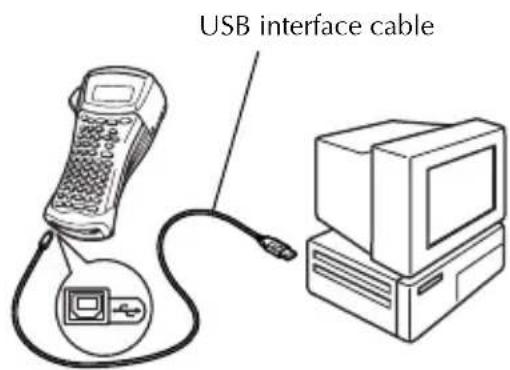
Connect the P-touch to the computer using the enclosed USB interface cable, and then hold down Code and press on/off to turn on the P-touch in Transfer mode. A dialog box appears, indicating that the printer driver has been installed.
3Click“Finish”
If a dialog box appears, indicating that the installation is finished and suggesting that the computer be restarted, select the option for restarting the computer, click "Finish" to restart the computer, and then remove the CD-ROM from the CD-ROM drive.
With Windows® XP:
A message appears, informing you that the printer driver has passed Brother's own compatibility tests and that "Continue Anyway" should be pressed if a warning message appears. Click "OK"
When the dialog box appears, informing you that the P-touch printer driver will be installed, click "Next". A dialog box appears, instructing you to connect the P-touch to the computer.
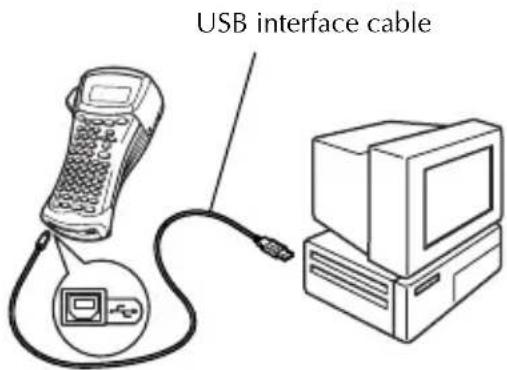
Connect the P-touch to the computer using the enclosed USB interface cable, and then hold down Code and press on/off to turn on the P-touch in Transfer mode. The first "Found New Hardware Wizard" dialog box appears.
3 Select "Install the software automatically (Recommended), and then click "Next". A dialog box appears, warning that the software has not passed Windows® Logo testing.
4 Click "Continue Anyway" to continue with the installation. A "Found New Hardware Wizard" dialog box appears, indicating that the Found New Hardware Wizard has finished installin
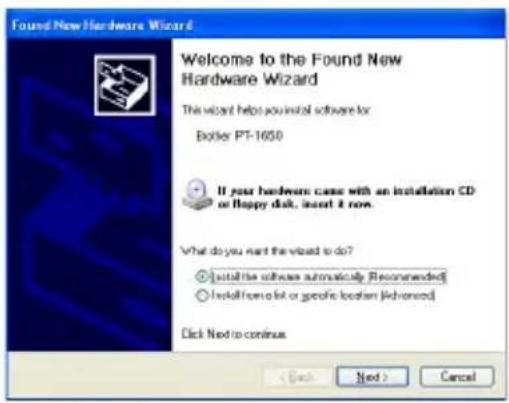
If a "Driver Setup" dialog box appears, indicating that the printer driver has been installed, click "Finish".
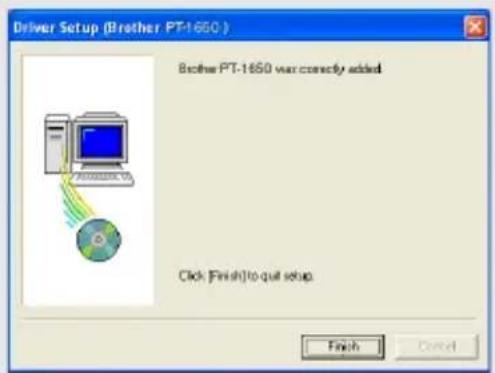
5 Click "Finish". A dialog box appears, indicating that the installation is finished.
Select "Yes, I want to restart my computer now." (or "Yes, restart immediately" if the printer driver was installed separately), click "Finish" to restart the computer, and then remove the CD-ROM from the computer.
To uninstall the printer driver, start up the installer on the CD-ROM, click the Driver button in the dialog box that appeared, and then select the desired option and follow the instructions that appear.
Reading the User's Guide
The P-touch Editor User's Guide can be viewed either by inserting the CD-ROM into the drive each time you wish to refer to it or by installing it onto your computer so that it is quickly available at any time. Since the User's Guide is an HTML document, a browser is needed to read it.
To view the User's Guide from the CD-ROM:
Start up Windows Explorer.
2 Select the CD-ROM drive.
Double-click the Ptouch folder
Double-click the Manual folder
Double-click "Main.htm".
To view the User's Guide installed on the hard disk:
Click "Start" in the taskbar to display the Start menu.
Point to "Programs".
Point to "P-touch Editor 3.2".
4 Click "The User's Guide P-touch Editor 3.2".
Using P-touch Editor 3.2
P-touch Editor 3.2 makes it easy for anyone to design and print more complex labels for almost any need imaginable.
Notes on creating templates
Since some P-touch Editor 3.2 functions are not available with the P-touch machine, keep the following points in mind when using P-touch Editor 3.2 to create templates.
Since only the Helsinki font is available on the P-touch machine, the font used to print the text may be different from the font selected for the template in P-touch Editor. In addition, since the size of all text on the P-touch machine is set to AUTO, the text size may automatically be reduced.
Although character styles can be applied to individual characters with P-touch Editor, styles can only be applied to a line of text with the P-touch machine. In addition, some character styles are not available on the P-touch machine.
Differently from P-touch Editor, the P-touch machine cannot print underline or strikeout.
Only the first 999 lines of a database linked to a template is read by the P-touch machine.
Only the first line of text typed into a database field is read by the P-touch machine. Therefore, if you wish to print from a database with more than one line of text, create the template and database with separate fields for each line of text.
Some characters available with P-touch Editor are not available with the P-touch machine.
Bar codes specified with settings not compatible with the P-touch bar codes settings will not print correctly.
A template created with P-touch Editor should have a fixed length with a maximum of 39'' (1 m).
The template and database should be created so that no more than approximately 500 characters per label will be printed.
Fields that extend out of the print area may not print completely.
A numbering field specified with P-touch Editor will not transfer and is not compatible with the Numbering function on the P-touch machine.
Backgrounds specified with P-touch Editor are not compatible with the P-touch machine.
Time and date objects using the "At Printing" setting on P-touch Editor will not be printed.
The printed label may differ from the image that appears in the Preview area of Transfer Manager.
If the number or order of fields in a database are changed and only the database (*.csv file) is transferred to update it, the database may not link correctly with the template. In addition, the first line of data in the transferred file must be recognized by the P-touch machine as "field names", otherwise the database cannot be used to print.
A P-touch Editor layout that uses the split printing function (enlarging the label and printing it on 2 or more labels) cannot be transferred.
The length of the label set with P-touch Editor and the label length setting on the P-touch may be slightly different as a result of the P-touch's computational margin of error.
Starting up P-touch Editor 3.2
Click "Start" in the taskbar to display the Start menu.
Point to "Programs".
3 Point to "P-touch Editor 3.2".
4 Click "P-touch Editor 3.2".
When P-touch Editor is started, the following window is displayed.
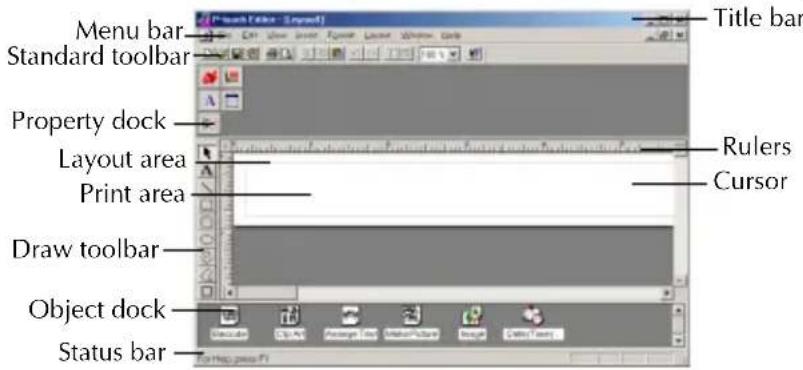
Displaying the Properties
Although the screens shown in the following explanations are for Windows 98, 98 SE and Me, the operations for Windows 2000 and XP are the same unless specifically mentioned.
The desired Properties can be displayed by clicking the icon in the property dock.
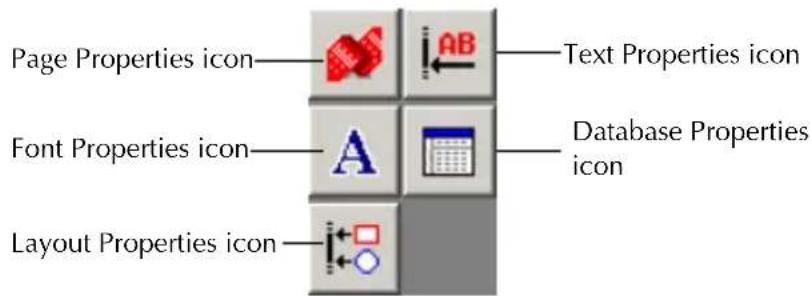
Page Properties (
When the P-touch is selected as the printer:

Entering text
Although the screens shown in the following explanations are for Windows 98, 98 SE and Me, the operations for Windows 2000 and XP are the same unless specifically mentioned.
Click (Text button) on the draw toolbar.
Text can be typed in, and the pointer changes from (selection pointer) to I (I-beam pointer).
Move the I-beam pointer to the position in the layout area where you wish to type in text, and then click the left mouse button. The cursor flashes in the layout area to indicate that you can now type in text.
Use the computer keyboard to type in the text.
To create a new line of text, press the keyboard's Enter key.
With P-touch Editor 3.2, text is always typed in using the insert mode. The overwrite mode cannot be used to type in text.
To change the font and text size, click the appropriate icon in the property dock, and then select the desired settings from the Properties that appear.
For details, refer to Reading the User's Guide on page 46.
Notes on usage
Bar codes
Keep the following points in mind when using P-touch Editor 3.2 to print bar codes.
- Bar code readers may not be able to read bar codes printed with certain ink colors on certain label tape colors.
- Be sure to test the bar code reader to make sure that it can read printed bar codes in the environment where you plan to use them.
- The bar codes protocols that can be used are limited to those available with the P-touch. Refer to page 19 for a list of the available bar code protocols.
Keep the following points in mind when using the database functions of P-touch Editor 3.2.
For general details, refer to the User's Guide supplied on the P-touch Editor 3.2 CD-ROM.
- The database function of P-touch Editor 3.2 uses database files that are compatible with Microsoft Access 97. By upgrading P-touch Editor 3.2 using a program available on the CD-ROM, P-touch Editor will become compatible with Access 2000. If P-touch Editor 3.2 has not been updated to Access 2000 during installation, refer to the Readme file located at Ptouch\Editor\Ac2k on the CD-ROM, and start up the program.
- P-touch Editor 3.2 can import files other than .mdb files, such as .csv files. Files saved as .csv files with an application such as Microsoft Excel can be used with P-touch Editor. Refer to the User's Guide supplied on the P-touch Editor 3.2 CD-ROM for more details.
- Using a function available with Microsoft Access 97, Excel files can be linked to .mdb files. With this function, data changed in Excel is automatically updated with P-touch Editor.
Transferring Data To/From a Computer
A template, database or a user-defined character image (character not available on the P-touch) can be transferred from the computer and assigned to a PF key on the P-touch.
Entering Transfer mode
- Hold down and press /Off to turn on the P-touch in Transfer mode.
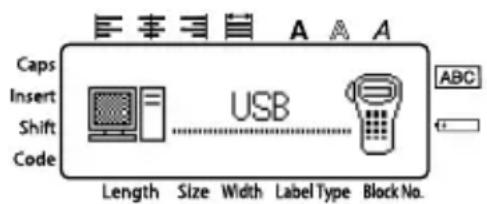
To exit Transfer mode, press (on/off) to turn off the P-touch.
^ 3 Be sure not to turn off the P-touch while data is being set to it, otherwise the data will be lost.
Regardless of whether the P-touch is being operated from batteries or the AC adapter, the machine will automatically turn off if no key is pressed or no operation is performed for 5 minutes.
Downloading data to the P-touch
Although the P-touch can be connected to the computer through a USB connection, label layouts created in P-touch Editor cannot be printed directly from the application.
1 Make sure that the P-touch is in Transfer mode. (For more details, refer to Entering Transfer mode on page 50.)
For downloading a template or database to the P-touch, start P-touch Editor 3.2. and open the template (and database) file.
- Click [Transfer Template] command on the [File] menu to convert the layout file to a P-touch template format and start up Transfer Manager.
For a user-defined character image, point to "Programs" on the Start menu, point to "P-touch Editor 3.2", and then click "Transfer Manager".
4 From the File List, select the data that you wish to transfer.
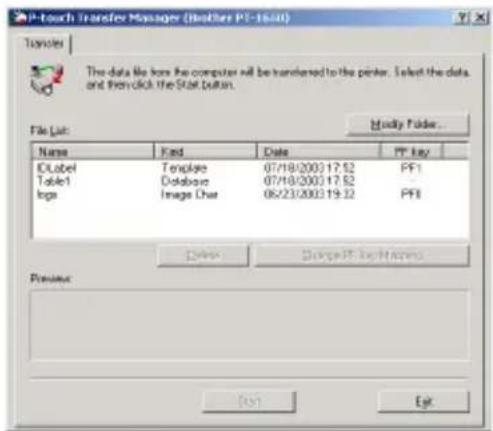
If the desired data is not listed in the File List, click "Modify Folder". In the "Browse For Folder" dialog box that appears, select the folder containing the desired data, and then click "OK".
For each template or a user-defined character image that you want transferred, click "Change PF Key Mapping", and then select the PF key where you wish to assign the data.
Click "Start" to begin transferring the data. A dialog box appears, indicating that the data is being transferred.
When the message "The transfer was completed successfully." appears, click OK.
On the P-touch, press on/off to exit Transfer mode and turn off the P-touch.
The P-touch can only contain one database at a time. However, the database can be replaced or updated.
When data is downloaded to a PF key, it replaces the preset template initially available on the P-touch. To restore the initial templates, use Transfer Manager to download the *. pd3. files from the folder located at \etc\Transfer in the P-touch Editor folder.
Only one character image or template can be assigned to a PF key. If a character image or template is already assigned to a PF key, the previous data is erased when a different character image or template is transferred.
Only the files that are selected will be transferred. To transfer more than one file at the same time, hold down the keyboard's Ctrl key, and then click the name of each file that you wish to transfer.
To stop transferring the data, click "Cancel" in the dialog box that appears during transfer.
Adding a user-defined character image to the text
If a user-defined character image (a bitmap character not usually available on the P-touch) is assigned to a PF key, that character can be added to any label that you create on the P-touch.
- Press Code, then the applicable PF key. The character is added to the text at the cursor's position.
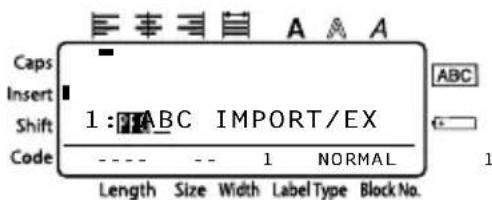
Only a monochrome bitmap (*.bmp) file can be transferred to the P-touch.
A high-resolution file can be cut from a file with the specifications described above.
The downloaded image is automatically resized to the width of the tape being used.
Using template data
A label layout created with P-touch Editor (.lbl file) can be downloaded to the P-touch, where it can be used as a template for printing labels. The templates can be printed using text either from a database or text directly typed in.
When a database (.mdb file created with P-touch Editor 3.2 or .csv file) is downloaded to the P-touch, data from selected records can be added to labels either using a template linked to the database or using a new template. In addition, the database data can be searched to find specific records.
The P-touch can only contain one database at a time. However, the database can be replaced or updated.
Using a template not linked to a database
Using a template not linked to a database is the same as using any of the preset Auto Format templates. For details on using Auto Format templates, refer to Using the pre-formatted Auto Format templates on page 30.
Using a template linked to a database
A single record or a range of records in the database linked to the template can be printed.
Press Code, then the PF key where the template that you wish to use is assigned.
Press New Block. The database data is displayed.
To select a single database record to be printed in the template:
Press Home or End to highlight the desired record, and then press New Block
4 To edit any text in the record, press or to display the text, and then type in the new text.
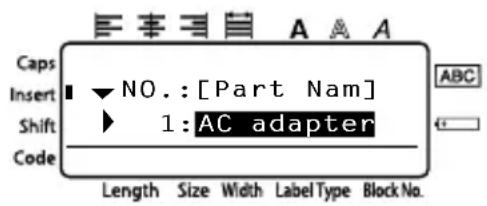
5 Press Print.
To select a range of database records to be printed in the template:
Press Home or End to highlight a record, and then press New Block
Press Code, then Print Option Label Type. The message "CLEAR TEXT & PRINT DATABASE?" appears.
New Block Press
Press or until RECORD NO. is displayed, and then specify the desired range of records.
Press New Block (or Print). START appears in the Print Option menu.
Press New Block (or Print) to begin printing the labels using the specified range of records.
If the Cut function is set to 1 or 3, the message "CUT TAPE TO CONTINUE" appears after each label is printed. Press the tape cutter button to cut off the label and continue printing.
Be sure to cut the tape within 5 minutes from the time that the message appears.
For the different options available for cutting the tape, refer to Selecting how tape is fed and cut on page 38.
To search for a specific record while the database data is displayed (in step above), refer to Searching the database on page 56.
To view other fields in the record selected in step 3, press or
When editing data as described in step 4 of the procedure for printing a single database record, the database remains unchanged. When printing a range of database records, the text cannot be edited.
To specify settings for additional Print Option functions, instead of continuing with step 8, press Home or End until CONTINUE is displayed in the Print Option menu, and then press New Block. (Refer to Printing multiple copies of a label on page 32 and Printing mirrored labels on page 34.)
To quit using the template, display the last field, and then press New Block. The template menu appears. Press Home or End until EXIT appears, and then press New Block
While trying to print a large amount of data at one time, some outputted labels may be blank. For example, when printing 50 records, the maximum number of characters that can be printed at one time is limited to approximately 200.
Using downloaded database data
Either an .mdb database, created with P-touch Editor 3.2, or a database converted to a .csv file can be transferred to the P-touch. The database data can be used either with a template or added to a label created on the P-touch without using a template.
Adding database data to a label
Move the cursor to place in the text where you wish to add the database data.
Press Code, then Insert.
Press Home or End until the record containing the desired data is flashing.
Press or until the desired data is flashing.
Press New Block. The selected data is added to the label text.
To search for a specific record, refer to Searching the database on page 56.
This function enables you to select the range of database fields to print.
Press Print Option (LabelType), and then select the Label Type mode as described in chapter 2.
Press Code, then Print Option Label Type. The message "CLEAR TEXT & PRINT DATABASE?" appears.
Press New Block
Press or until RECORD NO. is displayed, and then specify the desired range of records.
Press or until FIELD NO. is displayed, and then specify the desired range of record fields.
Press New Block (or Print). START appears in the Print Option menu.
Press New Block (or Print) to begin printing the labels using the specified range of records.
If label text has been typed in, you will be asked to choose either TEXT PRINT or DATA PRINT when Code, then Label Type is pressed. At this time, select DATA PRINT. If TEXT PRINT is selected, the special printing functions for printing multiple copies of labels (refer to page 32), printing multiple copies with incremental characters (refer to page 32), printing a range of text blocks (refer to page 34), or printing the label text as a mirror image (refer to page 34) are available.
To specify settings for additional Print Option functions, instead of continuing with step 7, press Home or End until CONTINUE is displayed in the Print Option menu, and then press New Block. (Refer to Printing multiple copies of a label on page 32 and Printing mirrored labels on page 34.)
While trying to print a large amount of data at one time, some outputted labels may be blank. For example, when printing 50 records, the maximum number of characters that can be printed at one time is limited to approximately 200.
Searching the database
While selecting a database record to be used in a template or while selecting a database record whose data is to be added to a label, the database can be searched for records containing specific characters or records with a specific number.
To search the database for a record containing specific characters:
Press Code and Space until the search screen is displayed.
Type in the characters that you wish to search for.
Press New Block. The first record after the currently selected one that contains the entered characters appears.
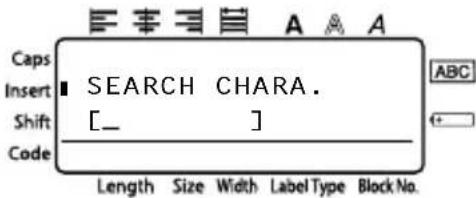
To display a record with a specific number:
Press Code and Space until the jump screen is displayed.
Press Home or End until the desired record number is displayed, or use the number keys to type in the desired number.
Press New Block. The record with the specified record number appears.
Backing up/restoring P-touch data
Backup Manager, which was installed with P-touch Editor 3.2, enables you to save the following types of data from the P-touch onto the computer as a backup in case the P-touch data is lost. In addition, the data backed up onto the computer can be restored onto the P-touch.
- Label templates
- Database
- User-defined character images
- Label files stored in the P-touch memory
Make sure that the P-touch is in Transfer mode. (For more details, refer to Entering Transfer mode on page 50.)
On the Start menu, point to "Programs", point to "P-touch Editor 3.2", and then click "Backup Manager".
To back up P-touch data onto the computer, click the Printer PC tab, and then click "Update List". To restore P-touch data backed up on the computer, click the PC Printer tab.
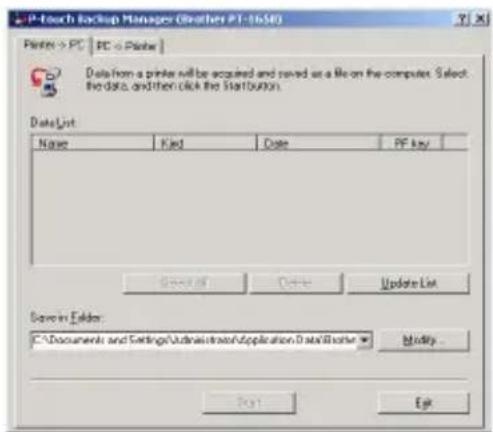
4 From the File List, select the data that you wish to back up or restore.
Click "Start". A dialog box appears, indicating that the data is being transferred.
6 When the message "The transfer was completed successfully." appears, click "OK".
Only the selected data will be backed up or restored. To select more than one file, hold down the keyboard's Ctrl key, and then click the names of the desired files.
To select all data, click "Select All".
To stop transferring the data, click "Cancel" in the dialog box that appears during transfer.
To restore data to a different PF key, click "Change PF Key Mapping" on the PC Printer tab, and then select the PF key where you wish to assign the data.
Only one character image or template can be restored to a PF key. If a character image or template is already assigned to a PF key, the previous data is erased when a different character image or template is transferred.
Troubleshooting
| Problem Solution | |
| 1The display stays blank after you have turned on the machine. | Check that the AC adapter (model AD-60/AD-24) is connected correctly. If you are using batteries, check that they are correctly inserted. If the batteries are low, replace them with new ones. |
| 2The machine does not print or the printed characters are blurred. | Check that the back cover has been properly attached. If the tape cassette is empty, replace it with a new one. |
| 3The text files that you stored in the memory are no longer there. | If the batteries are low, replace them with new ones. |
| 4The printed characters are not formed properly. | If you are using batteries, they may have a low charge. Try using the AC adapter or replace the batteries with new ones. |
| 5A blank horizontal line appears through the printed label. | Clean the print head as explained on Cleaning the print head, rollers and tape cutter on page 8. |
| 6Striped tape appears. | You have reached the end of the tape. Replace the tape cassette with a new one. |
| 7The P-touch has “locked up” (i.e., nothing happens when a key is pressed). | Turn off the P-touch, and then while holding down Code and R, turn the machine back on. The machine will be reset. Please note all the LCD text, formats and files in memory are erased. Excluding PF (templates or images) and database. Use P-touch Editor Backup Manager. |
Error Message List
| Error Message Cause Solution | ||
| 1 BLOCK LIMIT! | ·This message appears if you try to use the Numbering function when multiple blocks of text have been entered with the PANEL Label Type mode selected. | ·Cancel the Numbering function. ·Limit the number of text blocks to 1. |
| 7 LINE LIMIT! | ·This message appears if 7 lines have already been entered in a text block when you press New Block. | ·Limit the number of lines in a text block to 7. |
| ·This message appears if you delete , causing the number of lines in a block to exceed the 7-line limit. | ·Adjust the number of lines so that the block will not have more than 7 lines. | |
| 50 LINE LIMIT REACHED! | ·This message appears if 50 text blocks have already been entered when you press Code, then New Block. | ·Limit the number of text blocks to 50. |
| BUFFER EMPTY! | ·This message appears if no text has been typed in when you try to print or Preview function. | ·Type in some text before trying to perform any of these operations. |
| BUFFER FULL! | ·This message appears if you try to add a character, a space, a new line, a new block, a symbol, an accented character or a bar code after the maximum number of characters has already been entered. | ·Delete some existing text before trying to add any more. |
| CASSETTE CHANGED! | ·This message appears if the tape cassette was changed while the P-touch paused for the tape to be cut. | ·Change the tape cassette back again. |
| CHECK BATTERIES! | ·This message appears if a combination of new and used batteries, a combination of batteries of different types (alkaline, Ni-Cd and Ni-MH), manufacturers or models, or a combination of charged and uncharged batteries have been installed. | ·Replace the batteries with six new AA batteries of the same type. ·If rechargeable batteries are installed, recharge all batteries. |
| CHECK SETTING IN LABEL TYPE MODE! | ·This message appears if you try to change the settings for the Length function or Frame function after a Label Type mode with a preset label length or frame has already been selected. | ·Select a different Label Type mode. |
| On 3/4" (18 mm) tape: CHECK THE NUMBER OF LINES! 5 MAX On 1/2" (12 mm) tape: CHECK THE NUMBER OF LINES! 3 MAX On 3/3" (9 mm) and 1/4" (6 mm) tape: CHECK THE NUMBER OF LINES! 2 MAX | ·This message appears if you try to print or use the Preview function when the number of lines in the text is greater than the maximum possible for the installed tape. | ·Reduce the number of lines or install a wider tape. |
| CHOOSE COPIES LESS THAN 1000! | ·This message appears if more than 1000 copies were selected with the Print Option functions. ·Note the number of copies plus the number of sequential labels cannot exceed 1000. | ·Select less than 1000 copies. |
| CUTTER ERROR! | ·This message appears if the tape cutter button was pressed in when Print was pressed or the tape was being fed. | ·Release the tape cutter button. If Print was pressed, press Feed to feed out any printed tape. ·If the problem cannot be corrected, contact your service representative. |
| IMAGE CHARACTER SIZE ERROR! (for PT-1650 only) | ·This message appears if a wide user-defined character image is entered when the Vertical Label Type mode is selected. | ·Change the Label Type mode or use a tall user-defined character image. |
| INPUT WHOLE CODE! | ·This message appears if the required number of digits is not entered in the bar code data. | ·Input the correct number of digits or change the bar code protocol. |
| INPUT ABCD AT BEGIN & END! | ·This message appears if a letter between A and D has not been entered at the beginning and end of the bar code data when the CODABAR protocol is selected. | ·Enter a letter between A and D at the beginning and end of the bar code data. |
| INSERT 1" TAPE | ·This message appears if a 1" (24-mm)-wide tape cassette is not installed when printing an Auto Format template created for 1" (24-mm)-wide tape. | ·Install a 1" (24-mm)-wide tape cassette. |
| INSERT 24mm TAPE | ||
| INSERT 3/4" TAPE | ·This message appears if a 3/4" (18-mm)-wide tape cassette is not installed when printing an Auto Format template created for 3/4" (18-mm)-wide tape. | ·Install a 3/4" (18-mm)-wide tape cassette. |
| INSERT 18mm TAPE | ||
| INSERT 1/2" TAPE | ·This message appears if a 1/2" (12-mm)-wide tape cassette is not installed when printing an Auto Format template created for 1/2" (12-mm)-wide tape. | ·Install a 1/2" (12-mm)-wide tape cassette. |
| INSERT 12mm TAPE | ||
| INSERT 3/8" TAPE | ·This message appears if a 3/8" (9-mm)-wide tape cassette is not installed when printing an Auto Format template created for 3/8" (9-mm)-wide tape. | ·Install a 3/8" (9-mm)-wide tape cassette. |
| INSERT 9mm TAPE | ||
| INSERT 1/4" TAPE | ·This message appears if a 1/4" (6-mm)-wide tape cassette is not installed when printing an Auto Format template created for 1/4" (6-mm)-wide tape. | ·Install a 1/4" (6-mm)-wide tape cassette. |
| INSERT 6mm TAPE | ||
| LENGTH LIMIT! | ·This message appears if you try to print or use the Preview function when the length of the text is greater than the 3' 1/3" (1 m) limit. | ·Delete some of the text. |
| MEMORY FULL! | ·This message appears if you try to store a text file after approximately 2000 characters have already been stored in the memory. | ·Delete an unwanted file to make space for the new one. |
| MIN 4 DIGITS! | ·This message appears if less than the minimum four digits are entered as the bar code data. | ·Enter a minimum of four digits before pressing New Block. |
| NO FILES! | ·This message appears if no files are stored in the memory when you try to recall or delete one. | ·Store a text file before trying to recall or delete one. |
| NO DATABASE OR INCORRECT FORMAT (for PT-1650 only) | ·This message appears if no database has been downloaded to the P-touch when you press Code, then Insert. | ·Download a database. |
| NO TAPE! | ·This message appears if no tape cassette is installed when you try to feed the tape, print or use the Preview function. | ·Install a tape cassette and try again. |
| RECORD NOT FOUND! (for PT-1650 only) | ·This message appears when the specified text or record number cannot be found in the database. | ·Try searching for different text or a different record number. |
| TEXT TOO HIGH! XX BLOCK | ·This message appears if the size of the text is larger than the width of the installed tape. | ·Reduce the size of the characters, install a tape with a greater width, or select the AUTO text size setting. |
| TEXT TOO LONG! | ·This message appears if the length of the text is longer than the label length that has been set with the Length function. | ·Length A, and then select a longer label length. ·Reduce the size or width of the characters, or select the AUTO text size setting. |
| TEXT TOO LONG! XX BLOCK | ·This message appears if you try to print a label that is longer than the specified block length. | ·Select a longer block length. |
| VALUE OUT OF RANGE! | ·This message appears if the value entered while setting the Margin, Length, and Block Length function is not within the allowable range. ·This message appears if the specified characters cannot be found in the database. ·This message appears if the values for the blocks, records or fields to be printed is not within the allowable range. | ·Type in a value that is within the allowable range. |
Hardware
Power supply: Six AA alkaline batteries or
Six AA rechargeable batteries or
AC adapter (model AD-60/AD-24)
Input device: Keyboard (56 keys)
LCD: 48 × 132 dots
- Caps and other indicators
Print tape: TZ tape is available in the following five widths:
1/4" (6 mm)
3/8" (9 mm)
1 / 2'' (12 mm)
3/4" (18 mm)
1" (24 mm)
Print head: 18.1mm (height)/180 dpi (resolution)
Tape cutter: Manual cutter
Dimensions: With tape cutter button: 53 / 16''(W)× 91 / 4''(D)× 33 / 8''(H)
(PT-1400) (131mm(W)× 235mm(D)× 86mm(H))
Without tape cutter button: 41 / 2''(W)× 91 / 4''(D)× 33 / 8''(H)
(114mm(W)× 235mm(D)× 86mm(H))
Weight:
(PT-1400)
1.23 lb. (560g)
Dimensions: With tape cutter button: 51 / 4''(W)× 97 / 16''(D)× 37 / 16''(H)
(133~mm(W)× 239~mm(D)× 87~mm(H))
Without tape cutter button: 41 / 2''(W)× 97 / 16''(D)× 37 / 16''(H)
(116mm(W)× 239mm(D)× 87mm(H))
Weight:
(PT-1650)
1.36 lb. (615g)
Software
Character 1 built-in font (Helsinki)
funts:
Character AUTO plus 7 point sizes (1, 2, 3, 4, 6, 9 and 12mm (6, 9, 12,
sizes: 18, 24, 36 and 48 points))
Character Normal, Bold, Outline, Italic, Italic + Bold, and Italic +
styles: Outline
Buffer size: Maximum 512 characters
Maximum 7 lines
Maximum 50 blocks
Memory size: Approximately 2000 characters
Accessories (For Canada Only)
Supplies
The following supplies and accessories are available for your P-touch and can be purchased from an authorized Brother dealer or directly from Brother should your dealer not stock them.
Use only Brother TZ tapes with this machine. Brother cannot be held responsible for trouble caused by the use of unauthorized supplies. Do not use tapes that do not have the mark.
TZ Laminated Tape Cassettes (26.2 feet long, unless otherwise noted)
| Stock No. Description | Qty/Package | Price** | |
| 1" (24 mm) | |||
| TZ-151 Black | characters on clear adhesive 1 25.99 | ||
| TZ-251 Black | characters on white adhesive 128.99 | ||
| TZ-451 Black | characters on red adhesive 1 28.99 | ||
| TZ-651 Black | characters on yellow adhesive 128.99 | ||
| TZ-252 Red characters on white adhesive 1 28.99 | |||
| TZ-253 Blue characters on white adhesive 128.99 | |||
| TZ-354 Gold characters on black adhesive 1 31.99 | |||
| TZ-155 White characters on clear adhesive 132.95 | |||
| TZ-355 White characters on black adhesive 1 31.99 | |||
| *TZ-B51 | Black characters on fluorescent orange adhesive | 135.99 | |
| 3/4" (18 mm) | |||
| TZ-141 Black | characters on clear adhesive 1 22.99 | ||
| TZ-M41 | Black characters on clear (mat) adhesive | 124.99 | |
| TZ-241 Black | characters on white adhesive 1 24.99 | ||
| TZ-242 Red characters on white adhesive 124.99 | |||
| TZ-243 Blue characters on white adhesive 1 24.99 | |||
| TZ-344 Gold characters on black adhesive 128.99 | |||
| TZ-345 White characters on black adhesive 1 28.99 | |||
| TZ-545 White characters on blue adhesive 128.99 | |||
| TZ-641 Black characters on yellow adhesive 1 24.99 | |||
| *TZ-B41 | Black characters on fluorescent orange adhesive | 129.99 | |
*16.4 ft. long
| Stock No. Description | Qty/Package | Price** | |
| 1/2" (12 mm) | |||
| TZ-131 Black | characters on clear adhesive 1 19.99 | ||
| TZ-132 Red c | characters on clear adhesive 119.99 | ||
| TZ-133 Blue c | characters on clear adhesive 1 19.99 | ||
| TZ-135 White | characters on clear adhesive 123.95 | ||
| TZ-231 Black | characters on white adhesive 1 20.99 | ||
| TZ-232 Red c | characters on white adhesive 120.99 | ||
| TZ-233 Blue c | characters on white adhesive 1 20.99 | ||
| TZ-334 Gold | characters on black adhesive 124.99 | ||
| TZ-335 White | characters on black adhesive 1 24.99 | ||
| TZ-431 Black | characters on red adhesive 120.99 | ||
| TZ-435 White | characters on red adhesive 1 24.99 | ||
| TZ-531 Black | characters on blue adhesive 120.99 | ||
| TZ-631 Black | characters on yellow adhesive | 1 | 20.99 |
| TZ-731 Black | characters on green adhesive 120.99 | ||
| TZ-M31 | Black characters on matte clear adhesive | 1 | 20.99 |
| 3/8" (9 mm) | |||
| TZ-121 Black | characters on clear adhesive 116.99 | ||
| TZ-221 Black | characters on white adhesive 1 19.99 | ||
| TZ-222 Red c | characters on white adhesive 119.99 | ||
| TZ-223 Blue c | characters on white adhesive 1 19.99 | ||
| TZ-325 White | characters on black adhesive 122.99 | ||
| 1/4" (6 mm) | |||
| TZ-111 Black | characters on clear adhesive | 1 | 14.99 |
| TZ-211 Black | characters on white adhesive 116.99 | ||
| TZ-315 White | characters on black adhesive 1 $20.99 | ||
Strong Adhesive Tapes
| Stock No. Description | Qty/Package | Price** | |
| 1" (24 mm) | |||
| TZ-S151 Black | characters on clear strong adhesive tape 1 31.99 | ||
| TZ-S251 Black | characters on white strong adhesive tape 131.99 | ||
| TZ-S651 Black | characters on yellow strong adhesive tape 1 31.99 | ||
| TZ-SM951 Black | characters on matte silver strong adhesive tape 134.99 | ||
| 3/4" (18 mm) | |||
| TZ-S141 Black | characters on clear strong adhesive tape 1 27.99 | ||
| TZ-S241 Black | characters on white strong adhesive tape 127.99 | ||
| TZ-S641 Black | characters on yellow strong adhesive tape 1 27.99 | ||
| TZ-SM941 Black | characters on matte silver strong adhesive tape 131.99 | ||
| 1/2" (12 mm) | |||
| TZ-S131 Black | characters on clear strong adhesive tape 1 23.99 | ||
| TZ-S231 Black | characters on white strong adhesive tape 123.99 | ||
| TZ-S631 Black | characters on yellow strong adhesive tape 1 23.99 | ||
| 3/8" (9 mm) | |||
| TZ-S221 Black | characters on white strong adhesive tape 121.99 | ||
| 1/4" (6 mm) | |||
| TZ-S211 Black | characters on white strong adhesive tape 1 $19.99 | ||
Flexible ID Tapes
| Stock No. Description | Qty/Package | Price** | |
| 1" (24 mm) | |||
| TZ-FX251 Black characters on white flexible ID tape 1 31.99 | |||
| 3/4" (18 mm) | |||
| TZ-FX241 Black characters on white flexible ID tape 127.99 | |||
| 1/2" (12 mm) | |||
| TZ-FX231 Black characters on white flexible ID tape 1 $23.99 | |||
Non-Laminated Tapes
| Stock No. Description | Qty/Package | Price** | |
| 3/4” (18 mm) | |||
| TZ-N641 Black characters on yellow adhesive | 21.99 | ||
| TZ-N541 | Black acharacters on blue adhesive | 121.99 | |
| TZ-NF41 | Black characters on purple adhesive | 1 21.99 | |
| 1/2” (12 mm) | |||
| TZ-N631 Black characters on yellow adhesive | 17.99 | ||
| TZ-N531 | Black characters on blue adhesive | 1 17.99 | |
| TZ-NF31 | Black characters on purple adhesive | 117.99 | |
Security Tape
| Stock No. Description | Qty/Package | Price** | |
| 3/4” (18 mm) | |||
| TZ-SE4 Black | characters on white adhesive 1 $49.95 | ||
Fabric Tape
| Stock No. Description | Qty/Package | Price** | |
| 1/2” (12 mm) | |||
| TZ-FA3 Blue | characters on white adhesive 1 $34.95 | ||
Stamp Lit/Holder
| Stock No. Description | Qty/Package | Price** |
| 3/4” (18 mm) Stamp Area 9 × 55 mm | ||
| SK-MB Additional stamper for Large stamp with black ink $49.95 | ||
Options
| Stock No. Description | Qty/Package | Price** |
| TZ-CL4 Cleaning Tape 1 24.99 | ||
| UNO737022 Lettering Stick 11.21 | ||
| AD-60 AC adapter 1 34.95 | ||
| AD-24 AC adapter 129.99 |
**Prices and availability of accessories subject to change without notice.
Index
A
ACadapter 9
Accent function. 18
alignment 29
arrow keys. 2, 3, 15, 16
Auto Format function 30
Auto Format keys 2
Auto Reduction function 39
B
backspace key. 2, 3, 15, 18
Backup Manager 57
bar code special characters 20
Bar Code function 19
batteries 5
block number. 2, 3
block range 34
bold text style. 28
indicator. 2,3
C
cancelling 15
Caps indicator 2, 3
Caps mode. 16
center text alignment. 29
indicator. 2,3
chain printing. 38
character
size. 26
style. 28
width. 27
choosing 15
default setting 15
cleaning
print head. 8
rollers 8
tape cutter 8
Clear function 18
Code indicator 2,3
confirming. 15
Contrast function. 38
copies 32
cursor. 16
Cut function 38
cut-pause 38
D
database record range 53
databases 53, 54
Label Type mode. 55
searching. 56
default setting. 15
deleting
memory files. 37
text. 18
display 2
contrast 38
E
error messages. 59
F
Feed key. 2,3,31
Flag mode 12
Flexible ID Tape. 7
Format key 26, 27, 28
formatting. 26, 27, 28
Frame function. 25
frame indicator. 2, 3
G
global format key 2,3
global formatting
character size 26
character style 28
character width 27
1
indicators 2
block number 2,3
bold text style 2,3
Caps 2,3
center text alignment 2,3
Code 2,3
frame. 2, 3
Insert 2,3
italic text style 2,3
justified text alignment 2, 3
Label Type setting. 2, 3
left text alignment. 2, 3
length 2,3
low battery 2,3
outline text style 2,3
right text alignment. 2, 3
Shift. 2,3
size. 2,3
width. 2,3
Insert indicator 2,3
Insert key. 17
installing printer driver 44
P-touch Editor. 42
italic text style 28
indicator. 2, 3
J
justified text alignment 29
indicator. 2,3
K
keyboard 2
L
label margins. 24
Label Type key 2,3
Label Type mode. 10
databases. 55
Label Type setting indicator..... 2,3
language 40
LCD display 2
left text alignment. 29
indicator. 2,3
length adjustment. 39
Length function 24
length indicator. 2, 3
local formatting character size 26
character style 28
character width 27
locked up. 58
low battery indicator 2,3
lowercase letters. 16
M
Margin function. 24
measurements 40
Memory key 36
mirror printing. 34
N
New Block function 17
Normal mode. 10
Numbering function 32
numbers. 16
0
outline text style. 28
indicator. 2,3
P
Panel mode. 13
PERSONAL symbol category 23
setup 40
PF keys. 3
Port Block mode. 13
Port mode 13
powerkey 2,3,9
overview. 31
print head. 8
Print key. 2,3,31
primer driver installing. 44
printing database record range 53 text block range. 34
problems 58
P-touch Editor installing. 42
starting 47
template 52
User's Guide 46
R
recalling 37
Repeat Printing function 32
Reset 58
restoring 57
return key. 2,3,15,17
right text alignment 29
indicator. 2,3
rollers. 8
Rotate & Repeat mode. 11
Rotate mode. 11
s
searching. 56
selecting. 15, 16 default setting 15
Setup key 38
Shift indicator. 2, 3
Shift mode. 16
size 26 indicator. 2,3
Space key. 15, 16
storing 36
Strong Adhesive Tape. 7
style 28
Symbol key 21
T
tape cassettes 5
cutter. 8
templates Auto Format 30
P-touch Editor. 52
text alignment 29
size. 26
size adjustment. 39
style. 28
width. 27
width adjustment. 39
Transfer Manager 51
Transfer mode 50
troubleshooting 58
U
units. 40
uppercase letters 16
USB connection 44, 45
user-defined character image 52
V
version 40
Vertical mode. 10
W
width. 27
indicator. 2,3
Service Center List / Listedes centres de service
If you need a local service center, please call 1-877-BROTHER (1-877-276-8437) to locate the authorized service center closest to you.
For Product information and downloading the latest drivers:
http://www.brother.ca or http://www.brother.com
http://www.brother.ca ou http://www.brother.com
Accessories & Supplies / Accessoires et fournitures
To order Brother Accessories or supplies by Visa or MasterCard, you may call toll free 1-877-BROTHER (1-877-276-8437), or to order by mail, complete the accessories order form in your user's guide and mail it along with your payment to:
This order form is provided for your convenience should your retailer not stock the item(s) needed or if you prefer to order by telephone. To order by phone, please call Brother International at 1-877-BROTHER (1-877-276-8437) and have your Visa or MasterCard available.
| Stock No. Description Price Quantity Total | |||
| TOTAL | |||
Prices subject to change without notice.
Before calling:
- Review the reverse side of this form and select the desired items.
- Complete the order form, indicating the quantity of each item (for your records).
- Enter the total on the "Supply/Accessory Total" line below (for your records).
- Add appropriate sales tax and shipping/handling costs (for your records).
- Have your Visa or MasterCard number and expiration date available.
Supply/Accessory Total $
All Residents of Canada: Please add applicable sales taxes (G.S.T. & P.S.T.).
Shipping/Handling $5.00 TOTAL DUE $
G.S.T $ P.S.T. $
G.S.T.#R100663764
P.S.T. # 100100117TQ0001
- Prices subject to change without notice.
Service Center List / Listedes centres de service
If you need a local service center, please call 1-877-BROTHER (1-877-276-8437) to locate the authorized service center closest to you.
For Product information and downloading the latest drivers:
http://www.brother.ca or http://www.brother.com
http://www.brother.ca ou http://www.brother.com
Accessories & Supplies / Accessoires et fournitures
To order Brother Accessories or supplies by Visa or MasterCard, you may call toll free 1-877-BROTHER (1-877-276-8437), or to order by mail, complete the accessories order form in your user's guide and mail it along with your payment to:
This order form is provided for your convenience should your retailer not stock the item(s) needed or if you prefer to order by telephone. To order by phone, please call Brother International at 1-877-BROTHER (1-877-276-8437) and have your Visa or MasterCard available.
| Stock No. Description Price Quantity Total | |||
| TOTAL | |||
Prices subject to change without notice.
Before calling:
- Review the reverse side of this form and select the desired items.
- Complete the order form, indicating the quantity of each item (for your records).
- Enter the total on the "Supply/Accessory Total" line below (for your records).
- Add appropriate sales tax and shipping/handling costs (for your records).
- Have your Visa or MasterCard number and expiration date available.
Supply/Accessory Total $
All Residents of Canada: Please add applicable sales taxes (G.S.T. & P.S.T.).
Shipping/Handling $5.00 TOTAL DUE $
G.S.T $ P.S.T. $
G.S.T.#R100663764
P.S.T. # 100100117TQ0001
- Prices subject to change without notice.
MODE D'EMPLOI
Introduction
CADRE: NON, 1, 2, 3, 4
Par défaut: NON
| Largeur Taille | MOYENNE LIM. MOY ÉTROITE LARGE | |||
| 12 mm (48 points) | ABC | ABC | ABC | ABC |
| 9 mm (36 points) | ABC | ABC | ABC | ABC |
| 6 mm (24 points) | ABC | ABC | ABC | ABC |
| 4 mm (18 points) | ABC | ABC | ABC | ABC |
| 3 mm (12 points) | ABC | ABC | ABC | ABC |
| 2 mm (9 points) | ABC | ABC | ABC | ABC |
| 1 mm (6 points) | ABC | ABC | ABC | ABC |
Six piles rechargeable AA ou
Touchede Correction.....2,3,15,18
Touche Impression. 2, 3, 32
Touche Insérer 17
Touche Mémoire 36
Touche Reglage. 38
Touche Symbole 21
If you need a local service center, please call 1-877-BROTHER (1-877-276-8437)
to locate the authorized service center closest to you.
For technical and operational assistance you may call 1-877-BROTHER (1-877-276-8437)
For Product information and downloading the latest drivers:
http://www.brother.ca or http://www.brother.com
http://www.brother.ca ou http://www.brother.com
Accessories & Supplies / Accessoires et fournitures
To order Brother Accessories or supplies by Visa or MasterCard, you may call toll free
1-877-BROTHER (1-877-276-8437), or to order by mail, complete the accessories
order form in your user's guide and mail it along with your payment to:
Total fountains/Accessoires $
If you need a local service center, please call 1-877-BROTHER (1-877-276-8437)
to locate the authorized service center closest to you.
For technical and operational assistance you may call 1-877-BROTHER (1-877-276-8437)
For Product information and downloading the latest drivers:
http://www.brother.ca or http://www.brother.com
http://www.brother.ca ou http://www.brother.com
Accessories & Supplies / Accessoires et fournitures
To order Brother Accessories or supplies by Visa or MasterCard, you may call toll free
1-877-BROTHER (1-877-276-8437), or to order by mail, complete the accessories
order form in your user's guide and mail it along with your payment to:
Total fountains/Accessoires $