ManualGo.com
imageCLASS MF820CDN - Printer CANON - Free user manual and instructions
Find the device manual for free imageCLASS MF820CDN CANON in PDF.



Download the instructions for your Printer in PDF format for free! Find your manual imageCLASS MF820CDN - CANON and take your electronic device back in hand. On this page are published all the documents necessary for the use of your device. imageCLASS MF820CDN by CANON.
USER MANUAL imageCLASS MF820CDN CANON
FT6-1052 (010) Getting Started IMPORTANT For Macintosh users, please refer to P.13
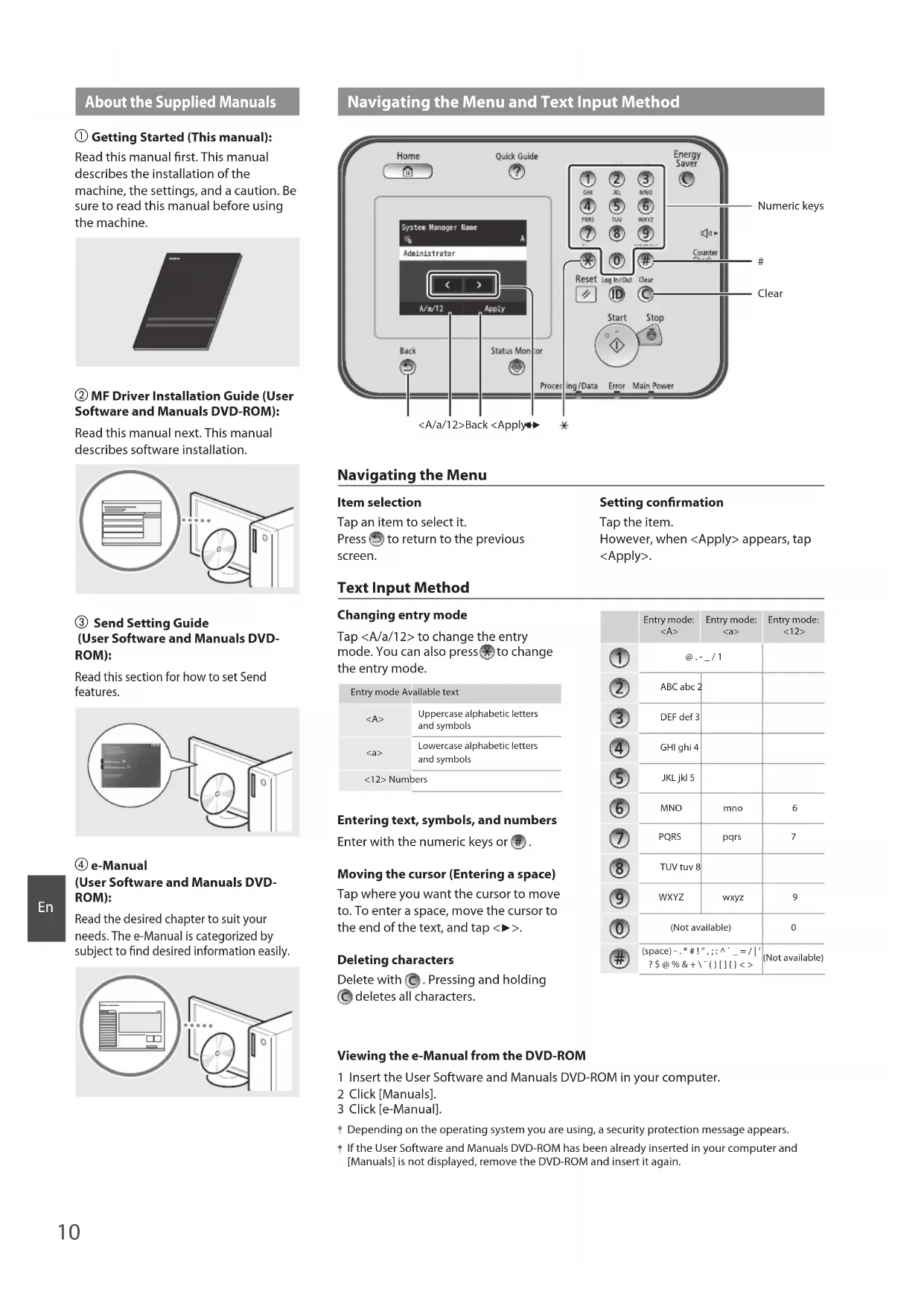
Getting Started (This manual): Read this manual rst. This manual describes the installation of the machine, the settings, and a caution. Be sure to read this manual before using the machine.
MF Driver Installation Guide (User Software and Manuals DVD-ROM): Read this manual next. This manual describes software installation.
Send Setting Guide (User Software and Manuals DVD- ROM): Read this section for how to set Send features.
e-Manual (User Software and Manuals DVD- ROM): Read the desired chapter to suit your needs. The e-Manual is categorized by subject to nd desired information easily. Navigating the Menu Item selection Tap an item to select it. Press to return to the previous screen. Setting conrmation Tap the item. However, when <Apply> appears, tap <Apply>. Text Input Method Changing entry mode Tap <A/a/12> to change the entry mode. You can also press to change the entry mode. Entry mode Available text<A>Uppercase alphabetic letters and symbols<a>Lowercase alphabetic letters and symbols<12> Numbers Entering text, symbols, and numbers Enter with the numeric keys or
Moving the cursor (Entering a space) Tap where you want the cursor to move to. To enter a space, move the cursor to the end of the text, and tap <▶>. Deleting characters Delete with . Pressing and holding deletes all characters. Entry mode: <A>Entry mode: <a>Entry mode: <12>@ . - _ / 1ABC abc 2DEF def 3GHI ghi 4JKL jkl 5MNO mno 6PQRS pqrs 7TUV tuv 8WXYZ wxyz 9(Not available) 0(space) - . * # ! “ , ; : ^ ` _ = / | ‘ ? $ @ % & + \ ˜ ( ) [ ] { } < > (Not available) Viewing the e-Manual from the DVD-ROM 1 Insert the User Software and Manuals DVD-ROM in your computer. 2 Click [Manuals]. 3 Click [e-Manual]. Depending on the operating system you are using, a security protection message appears. If the User Software and Manuals DVD-ROM has been already inserted in your computer and [Manuals] is not displayed, remove the DVD-ROM and insert it again.11
Connecting the Power Cord and Turning ON the Power OFF
Do not connect the USB cable at this time. Connect it when installing software. Specifying the Initial Settings Follow the instructions on the screen, set the language, region, and date and time. For details on navigating the menu and how to input the numbers, see “Navigating the Menu and Text Input Method” ( P.10). You can also select whether or not to perform color correction. For details on how to perform color correction, see the e-Manual. e-Manual “Maintenance” ▶ “Maintaining and Improving Print Quality” ▶ “Correcting the Gradation” NOTE
- Even if you select <No> on the last screen shown above, you can start the color correction at your convenience. Please refer the “Correcting the Gradation” in the e-manual. Choosing the Method to Connect the Machine to the Computer Connecting via a Wired LAN You can connect the machine to the computer through a wired router. Use the LAN cables to connect the machine to the wired router (access point). Make sure that there is an available port in the router to connect the machine and the computer. Have a LAN Cable of Category 5 twisted-pair cable or higher ready. ● Connecting via a USB cable You can connect the machine to the computer using a USB cable. Make sure that the USB cable you use has the following mark. Connecting via a Wired LAN Checking Before the Setup InternetRouter
hub LAN cableAre the computer and the router (or hub) properly connected using a LAN cable?For more information, see the instruction manual for the network device you are using, or contact the networking device manufacturer.Have the network settings on the computer been completed?If the computer is not properly congured, you may not use the wired LAN connection even after completing the following settings. NOTE
- When you connect to a network environment that is not security protected, your personal information could be disclosed to third parties. Please use caution.• If you connect through a LAN in the oce, contact your network administrator.12
Connecting via a Wired LAN
Connect the LAN cable. The IP address will be automatically congured in 2 minutes. If you want to set the IP address manually, see the following items. e-Manual “Network” ▶ “Connecting to a Network” ▶ “Setting IP Addresses”
Install the driver and software using the User Software and Manuals DVD-ROM. See “For details on the installation procedures:” (P.13). Proceed to “Setting a Paper Size and Type” (P.13). Connecting via a USB Cable Connect the USB cable after installing the MF Drivers. NOTE
- If you connected the USB cable before installing the MF drivers, refer to the MF Driver Installation Guide.
Install the driver and software using the User Software and Manuals DVD-ROM. See “For details on the installation procedures:” (P.13).
Connect the USB cable. Proceed to “Setting a Paper Size and Type” (P.13).13
Setting a Paper Size and Type Following the instructions on the screen, set the paper size and type. For details, see the e-Manual. e-Manual “Basic Operations” ▶ “Loading Paper” ▶ “Specifying Paper Size and Type” Specifying Initial Fax Settings and Connecting a Telephone Cable
Specify the initial fax settings. Follow the “Fax Setup Guide” to specify a fax number, a unit name, and a receive mode. For more details on the receive mode, see the e-Manual. e-Manual “Faxing” ▶ “Conguring Initial Settings for Fax Functions” ▶ “Deciding Which Fax Receive Mode to Use”How to use a user nameWhen you send a document, the sender information that you registered is printed on the recipient’s paper.
Connect a telephone cable.
Telephone line connectorTelephoneWhen <Connect Telephone Line> appears on the display, connect the telephone cable by referring to the illustration.
Exit the Fax Setup Guide, and then restart the machine. Turn OFF the machine and wait for at least 10 seconds before turning it ON again. The telephone line types are not detected automatically. See the e-Manual and set a telephone line manually. e-Manual “Setting Menu List” ▶ “Fax Settings” ▶ “Basic Settings” ▶ “Select Line Type” For details on the installation procedures: Install the driver and software using the User Software and Manuals DVD-ROM. For details on the installation procedures, see the MF Driver Installation Guide. You can also download the driver from the Canon website.Windows Macintosh For Macintosh users: The DVD-ROM supplied with this machine may not include the printer driver for MacOS. This is dierent depending on when you purchase the machine. Please nd and download the appropriate driver on our Canon homepage. For further information on installation or using the driver, see the MF Driver installation Guide which is packed with it.14
Perform Useful Tasks You can use various functions in this machine. Following functions are the overview of the main functions that you can use routinely. Copy Enlarged/Reduced Copies You can enlarge or reduce standard size documents to copy on standard size paper or specify the copy ratio in percentage. 2-Sided Copying You can copy 1-sided documents on both sides of paper. Collating You can sort copies into sets arranged in page order. Reduced Layout You can reduce multiple documents to copy them onto one sheet. 2 on 1 4 on 1 Copying ID Card You can make a copy of a 2-sided card onto one side of paper. Fax Sending a Document Directly from a Computer (PC Fax) In addition to the normal sending and receiving faxes, you can use the PC fax. Sending You can register fax destinations in the address book. You can specify the destinations using various methods, enabling you to send documents quickly and easily.
- Specifying from the sending history
- Sequential broadcast Receiving Receiving in the memory You can store the received documents in the memory. You can print the stored documents at any time, and if you do not need them, you can delete them. Remote Receiving If an external telephone is connected, you can switch to the fax receiving mode immediately by dialing the ID number for fax receiving using the dial buttons of the telephone during a phone call. Print Enlarged/Reduced Printing 2-Sided Printing Reduced Layout You can reduce multiple documents to print them onto one sheet. 2 on 1 4 on 1 Booklet Printing Poster Printing Watermark Printing Displaying a Preview before Printing Selecting a “Prole” Network Settings This machine comes equipped with a network interface that you can construct a network environment easily. You can print a document, use the PC fax, and use the network scan from all computers which are connected with the machine. The machine supports to increase work eciency as a shared machine in the oce. Scan Saving the Documents Using the Operation Panel of the Machine
Saving the Documents Using Operations from a Computer Scanning from an Application Scanning with the WIA Driver*
Data Documents Saving in a USB Memory You can save scanned documents in a USB memory connected to the machine. Documents Data Emailing scanned documents You can send scanned documents to your e-mail application. Documents Data E-mail
Sending scanned documents to a le server You can send scanned documents to a le server. Documents Data File server Remote UI You can understand the condition of the machine from the computers on the network. You can access the machine and manage jobs or specify various settings via network.
Clearing Paper Jams If the following screen appears, a paper jam has occurred in the feeder or inside the machine. Follow the procedure displayed on the screen to remove the jammed document or paper. This manual indicates only areas where paper jams occur. For details on each function, see the e-Manual. Inside the machine Paper Drawer 1
Paper Drawer 2, 3, and 4 (Option)
Replacing Toner Cartridge Toner cartridges are consumables. When the toner becomes nearly empty or has run out completely in the middle of a job run, a message appears on the screen, or the following problems may occur. Take the appropriate action accordingly. When a Message Appears When the toner becomes nearly empty in the middle of a job run, a message appears on the screen. Message When the message is displayed on the screen Description and Solutions <Toner Color>* Toner Low (Replacement Not Yet Needed) When the toner cartridge needs a replacement soon. Prepare a new toner cartridge for the displayed color. e-Manual “Appendix” ▶ “Consumables” <Toner Color>* Replace toner cartridge. When the toner cartridge has reached the end of its life. Replace the cartridge with a new one. e-Manual “How to Replace Toner Cartridges”* Black, yellow, magenta, or cyan will appear in <Toner Color>.17
Symbols Used in This Manual WARNING Indicates a warning concerning operations that may lead to death or injury to persons if not performed correctly. To use the machine safely, always pay attention to these warnings. CAUTION Indicates a caution concerning operations that may lead to injury to persons if not performed correctly. To use the machine safely, always pay attention to these cautions. IMPORTANT Indicates operational requirements and restrictions. Be sure to read these items carefully to operate the machine correctly, and avoid damage to the machine or property. Keys and Buttons Used in This Manual The following symbols and key names are a few examples of how keys to be pressed are expressed in this manual.
- Operation panel keys: [Key icon] Example:
- Display: <Specify destination.>
- Buttons and items on the computer display: [Preferences] Illustrations and Displays Used in This Manual Illustrations and screens used in this manual may dier from your actual machine. Important Safety Instructions Please read the “Important Safety Instructions” in this manual and in the e-Manual thoroughly before operating the machine. As these instructions are intended to prevent injury to the user and other persons or to prevent destruction of property, always pay attention to these instructions and operational requirements. Please note that you are responsible for all damages caused by failure to follow the directions provided herein, using the device for any purpose for which it was not intended, or repairs or alterations made by anyone other than a Canon-approved technician. Installation WARNING
- Do not install the machine near ammable substances such as alcohol-based products or paint thinners. If these substances come in contact to the electrical parts inside the machine could ignite these substances and cause a re or increase your risk of electric shock.
- Do not place necklaces and other metal objects or containers lled with liquid on the machine. If foreign substances come into contact with electrical parts inside the machine, this may result in a re or electrical shock. If any of these substances falls into the machine, turn o the power to the machine immediately and contact your local Canon dealer.
- Do not use near any medical equipment. Radio wave emitted from this machine may interfere with medical equipments, which may result in serious accidents. CAUTION
- Do not install the machine in the following locations. Doing so may result in personal injury, re or electrical shock. − Unstable location − A location subject to excessive vibrations − A location where block the ventilation slots (too close to walls, bed, shaggy rug, and other similar objects) − A damp or dusty location − A location exposed to direct sunlight or an outside place − A location subject to high temperatures − A location near open ames − A location with poor ventilation system
- Although ozone is generated from the machine during operation, it does not have any aect on the human body. However, if you intend to use the machine for long periods of time, ensure that the installation location is well ventilated.
- Do not connect unapproved cables to this machine. Doing so may result in a re or an electric shock.
- Machines with a hard disk may not operate properly when used at high altitudes of about 3,000 meters above sea level, or higher. Power Supply WARNING
- Do not use power cords other than the one provided, as this can result in a re or electrical shock.
- The provided power cord is intended for use with this machine. Do not connect the power cord to other devices.
- Do not modify or bend the power cord and do not pull on it with great force. Do not place heavy objects on the power cord. Damaging the power cord may result in a re or an electric shock.
- Do not plug or unplug the power plug with wet hands, as this can result in electrical shock.
- Do not use extension cords or multi-plug power strips with this machine. Doing so may result in a re or electric shock.
- Do not bundle up or tie up the power cord in a knot, as this can result in a re or electrical shock.
- Insert the power plug completely into the AC power outlet. Failure to do so can result in a re or electrical shock.
- Remove the power plug completely from the power outlet during a thunder storm. Failure to do may result in a re, electric shock, or malfunction. CAUTION
- Use only a power supply that meets the voltage requirements listed herein. Failure to do so may result in a re or electric shock.
- Install this machine near the power outlet and leave sucient space around the power plug so that it can be unplugged easily in an emergency. Handling WARNING
- Do not disassemble or modify the machine. There are high- temperature and high-voltage components inside the machine which may result in a re or electrical shock.
- Do not allow children to touch or play with the power cord and cables or internal or electrical parts. Doing so may result in serious personal injury.
- Please contact an authorized Canon dealer if the machine makes an unusual noise, emits an unusual smell, or emits smoke or excessive heat. Continued use may result in a re or electric shock.
- Do not use ammable sprays near the machine. If ammable substances come into contact with electrical parts inside the machine, this may result in a re or electric shock.18
- For your safety, please unplug the power cord if the machine will not be used for a long period of time.
- Use caution when opening and closing covers to avoid injury to your hands.
- Keep hands and clothing away from the rollers in the output area. If the rollers catch your hands or clothing, this may result in personal injury.
- The inside of the machine and the output slot is very hot during and immediately after use. Avoid contact with these areas to prevent burns. Also, printed paper may be hot immediately after being output, so use caution when handling it. Failure to do so may result in burns.
- The laser beam can be harmful to the human body. The laser beam is conned within protective housings and external covers, so there is no danger of the laser beam escaping during normal machine operation. Read the following remarks and instructions for safety. − Never open covers other than those indicated in this manual. − Do not remove the caution label attached to the inside of the front cover. − If the laser beam should escape and enter your eyes, exposure may cause damage to your eyes.
- If you operate this machine in manners other than the control, adjustment, and operating procedures prescribed in this manual, this may result in hazardous radiation exposure.
- This machine is conrmed as the class 1 laser product in IEC60825- 1:2007. Maintenance and Inspections WARNING
- Turn o the machine and unplug the power cord from the outlet before cleaning. Failure to do so may result in a re or an electric shock.
- Unplug the power plug from the power outlet periodically and clean the area around the base of the power plug’s metal pins and the power outlet with a dry cloth to remove dust and grime. When damp, accumulated dust may cause short circuiting or res.
- Use a damp, well wrung-out cloth to clean the machine. Dampen cleaning cloths with water only. Do not use alcohol, benzenes, paint thinners, or other ammable substances. If these substances come into contact with electrical parts inside the machine, this may result in a re or electric shock.
- Check the power cord and plug regularly for damage. Check the machine for rust, dents, scratches, cracks, or excessive heat generation. Use of poorly-maintained equipment may result in a re or electric shock. Consumables WARNING
- Do not dispose of used toner cartridges in open ames. This may cause an ignition, and result in burns or re.
- If you accidentally spill or scatter toner, carefully wipe up the loose toner with a damp, soft cloth and avoid inhaling any toner dust. Never use a vacuum cleaner to clean up loose toner. Doing so may cause a malfunction in the vacuum cleaner or result in a dust explosion due to static discharge.
- If you are using a cardiac pacemaker: Drum units generate a low level magnetic ux. If you use a cardiac pacemaker and feel abnormalities, please move away from toner cartridges and consult your physician immediately. CAUTION
- Keep the toner cartridges and other consumables out of the reach of small children. If toner is ingested, consult a physician or poison control center immediately.
- Do not attempt to disassemble the toner cartridge. The toner may scatter and get into your eyes or mouth. If toner gets into your eyes or mouth, wash them immediately with cold water and consult a physician.
- If toner spills from the toner cartridge, avoid inhaling it or allowing it to come into contact with your skin. If the toner comes into contact with your skin, wash immediately with soap. If you inhale the toner or your skin becomes irritated due to contact with the toner, consult a physician or poison control center immediately. Others WARNING
- If you are using a cardiac pacemaker: This machine generates a low level magnetic eld. If you feel any abnormalities in your body while using this machine, please move away from the machine and consult your physician immediately.19
Legal Notices Product Name Safety regulations require the product’s name to be registered. In some regions where this product is sold, the following name(s) in parentheses ( ) may be registered instead. Color imageCLASS MF820Cdn (F165901) Color imageCLASS MF810Cdn (F165901) Legal Limitations on the Usage of Your Product and the Use of Images Using your product to scan, print or otherwise reproduce certain documents, and the use of such images as scanned, printed or otherwise reproduced by your product, may be prohibited by law and may result in criminal and/or civil liability. A non-exhaustive list of these documents is set forth below. This list is intended to be a guide only. If you are uncertain about the legality of using your product to scan, print or otherwise reproduce any particular document, and/or of the use of the images scanned, printed or otherwise reproduced, you should consult in advance with your legal advisor for guidance. − Paper Money − Money Orders − Certicates of Deposit − Postage Stamps (canceled or uncanceled) − Identifying Badges or Insignias − Selective Service or Draft Papers − Checks or Drafts Issued by Governmental Agencies − Motor Vehicle Licenses and Certicates of Title − Travelers Checks − Food Stamps − Passports − Immigration Papers − Internal Revenue Stamps (canceled or uncanceled) − Bonds or Other Certicates of Indebtedness − Stock Certicates − Copyrighted Works/Works of Art without Permission of Copyright Owner FCC (Federal Communications Commission) Users in the U.S.A. Color imageCLASS MF820Cdn: F165901 Color imageCLASS MF810Cdn: F165901 This device complies with Part 15 of the FCC Rules. Operation is subject to the following two conditions:
1. This device may not cause harmful interference, and
2. This device must accept any interference received, including
interference that may cause undesired operation. FCC CAUTION Changes or modications not expressly approved by the party responsible for compliance could void the user’s authority to operate the equipment. NOTE This equipment has been tested and found to comply with the limits for a class B digital device, pursuant to Part 15 of the FCC Rules. These limits are designed to provide reasonable protection against harmful interference in a residential installation. This equipment generates, uses and can radiate radio frequency energy and, if not installed and used in accordance with the instructions, may cause harmful interference to radio communications. However, there is no guarantee that interference will not occur in a particular installation. If this equipment does cause harmful interference to radio or television reception, which can be determined by turning the equipment OFF and ON, the user is encouraged to try to correct the interference by one or more of the following measures:
- Reorient or relocate the receiving antenna.
- Increase the separation between the equipment and receiver.
- Connect the equipment to an outlet on a circuit dierent from that to which the receiver is connected.
- Consult the dealer or an experienced radio/TV technician for help. Use of shielded cable is required to comply with class B limits in Subpart B of Part 15 of the FCC Rules. Do not make any changes or modications to the equipment unless otherwise specied in this manual. If you make such changes or modications, you could be required to stop operation of the equipment. Canon U.S.A., Inc. One Canon Park, Melville, NY 11747, U.S.A. TEL No. 1-800-OK-CANON Users in the U.S.A. Pre-Installation Requirements for Canon Facsimile Equipment A. Location Supply a suitable table, cabinet, or desk for the machine. See the e-Manual for specic dimensions and weight. B. Order Information
1. A single telephone line (touch-tone or rotary) should be used.
2. Order an RJ11-C telephone wall jack (USOC), which should be installed
by the telephone company. If the RJ11-C wall jack is not present, telephone/facsimile operation is not possible.
3. Order a normal business line from your telephone company’s business
representative. The line should be a regular voice grade line or an equivalent one. Use one line per unit. DDD (Direct Distance Dial) line -or- IDDD (International Direct Distance Dial) line if you communicate overseas NOTE Canon recommends an individual line following industry standards, i.e., 2,500 (touch-tone) or 500 (rotary/pulse dial) telephones. A dedicated extension o a PBX (Private Branch eXchange) unit without “Call Waiting” can be used with your facsimile unit. Key telephone systems are not recommended because they send nonstandard signals to individual telephones for ringing and special codes, which may cause a facsimile error.20
C. Power Requirements The machine should be connected to a standard 120 volt AC, threewire grounded outlet only. Do not connect this machine to an outlet or power line shared with other appliances that cause “electrical noise.” Air conditioners, electric typewriters, copiers, and machines of this sort generate electrical noise that often interferes with communications equipment and the sending and receiving of documents. Connection of the Equipment This equipment complies with Part 68 of the FCC rules and the requirements adopted by the ACTA. On the rear panel of this equipment is a label that contains, among other information, a product identier in the format of US:AAAEQ##TXXXX. If requested, this number must be provided to the telephone company. The REN (Ringer Equivalence Number) is used to determine the number of devices that may be connected to a telephone line. Excessive RENs on a telephone line may result in the devices not ringing in response to an incoming call. In most, but not all areas, the sum of the RENs should not exceed ve (5.0). To be certain of the number of devices that may be connected to a line, as determined by the total RENs, contact the local telephone company. The REN for this product is part of the product identier that has the format US: AAAEQ##TXXXX. The digits represented by ## are the REN without a decimal point (e.g., 10 is a REN of 1.0). An FCC compliant telephone line cable and modular plug is provided with this equipment. This equipment is designed to be connected to the telephone network or premise wiring using a compatible modular jack that is Part 68 compliant. This equipment may not be used on coin service provided by the telephone company. Connection to party lines is subjected to state taris. In Case of Equipment Malfunction Should any malfunction occur which cannot be corrected by the procedures described in this guide or the e-Manual, disconnect the equipment from the telephone line cable and disconnect the power cord. The telephone line cable should not be reconnected or the power switch turned ON until the problem is completely resolved. Users should contact Canon Authorized Service Facilities for servicing of equipment, Information regarding Authorized Service Facility locations can be obtained by calling Canon Customer Care Center (1-800-OK-CANON). Rights of the Telephone Company If this equipment (Color imageCLASS MF820Cdn/MF810Cdn) causes harm to the telephone network, the telephone company may temporarily disconnect service. The telephone company also retains the right to make changes in facilities and services that may aect the operation of this equipment. When such changes are necessary, the telephone company is required to give adequate prior notice to the user. However, if advance notice is not possible, the telephone company will notify the customer as soon as possible. Also, the customer will be advised of his/her right to le a complaint with the FCC if he/she believes it is necessary. WARNING The Telephone Consumer Protection Act of 1991 makes it unlawful for any person to use a computer or other electronic device, including FAX machines, to send any message unless such message clearly contains in a margin at the top or bottom of each transmitted page or on the rst page of the transmission, the date and time it is sent and an identication of the business or other entity, or other individual sending the message and the telephone number of the sending machine or such business, other entity, or individual. (The telephone number provided may not be a 900 number or any other number for which charges exceed local or long-distance transmission charges.) NOTE In order to program this information into your machine, you should complete the procedure for registering your name, unit’s telephone number, time, and date in the Getting Started. Users in Canada Pre-Installation Requirements for Canon Facsimile Equipment A. Location Supply a suitable table, cabinet, or desk for the machine. See the e-Manual for specic dimensions and weight. B. Order Information
1. A single telephone line (touch-tone or rotary) should be used.
2. Order a CA11A modular jack, which should be installed by the
telephone company. If the CA11A jack is not present, installation cannot occur.
3. Order a normal business line from your telephone company’s business
representative. The line should be a regular voice grade line or an equivalent one. Use one line per unit. DDD (Direct Distance Dial) line -or- IDDD (International Direct Distance Dial) line if you communicate overseas NOTE Canon recommends an individual line following industry standards, i.e., 2,500 (touch-tone) or 500 (rotary/pulse dial) telephones. A dedicated extension o a PBX (Private Branch eXchange) unit without “Call Waiting” can be used with your facsimile unit. Key telephone systems are not recommended because they send nonstandard signals to individual telephones for ringing and special codes, which may cause a facsimile error. C. Power Requirements The power outlet should be a three-prong grounded receptacle (Single or Duplex). It should be independent from copiers, heaters, air conditioners, or any electric equipment that is thermostatically controlled. The rated value is 115 volts and 15 amperes. The CA11A modular jack should be relatively close to the power outlet to facilitate installation. Notice
- The REN of this product is 1.0.
- Before installing this equipment, users should ensure that it is permissible to be connected to the facilities of the local telecommunications company. The equipment must also be installed using an acceptable method of connection. In some cases, the company’s inside wiring associated with a single line individual service may be extended by means of a certied connector assembly (telephone extension cord). The customer should be aware that compliance with the above conditions may not prevent deterioration of service in some situations.
- Repairs to certied equipment should be made by an authorized Canadian maintenance facility designated by the supplier. Any repairs or alterations made by the user to this equipment, or equipment malfunctions, may give the telecommunications company cause to request the user to disconnect the equipment.
- Users should ensure for their own protection that the electrical ground connections of the power utility, telephone lines, and internal metallic water pipe system, if present, are connected together. This precaution may be particularly important in rural areas. CAUTION Users should not attempt to make such connections themselves, but should contact the appropriate electric inspection authority, or electrician, as appropriate. NOTE This equipment complies with the Canadian ICES-003 Class B limits. D. About the Machine Operation is subject to the following two conditions:
1. This device may not cause harmful interference, and
2. This device must accept any interference, including interference that
may cause undesired operation of the device.21
Laser Safety This machine complies with 21 CFR Chapter 1 Subchapter J as a Class 1 laser product under the U.S. Department of Health and Human Services (DHHS) Radiation Performance Standard according to the Radiation Control for Health and Safety Act of 1968. This means that the machine does not produce hazardous radiation. Since radiation emitted inside the machine is completely conned within protective housings and external covers, the laser beam cannot escape from the machine during any phase of user operation. CDRH Regulations The Center for Devices and Radiological Health (CDRH) of the U.S. Food and Drug Administration implemented regulations for laser products on August 2, 1976. These regulations apply to laser products manufactured from August 1, 1976. Compliance is mandatory for products marketed in the United States. CAUTION Use of controls, adjustments, or performance of procedures other than those specied in this manual may result in hazardous radiation exposure. The label shown below is attached to the inside of the front cover.22
1 HarbourFront Avenue, #04-01 Keppel Bay Tower, Singapore 098632
CANON AUSTRALIA PTY LTD
Building A, The Park Estate, 5 Talavera Road, Macquarie Park, NSW 2113, Australia