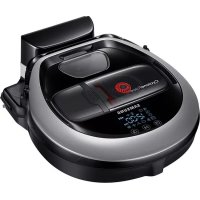
POWERbot VR2AM7070WS - Robot vacuum SAMSUNG - Free user manual and instructions
Find the device manual for free POWERbot VR2AM7070WS SAMSUNG in PDF.



| Brand | Samsung |
| Model | POWERbot VR2AM7070WS |
| Product type | Robot vacuum |
| Dimensions (W x D x H) | 340 x 348 x 97 mm |
| Weight | 4.3 kg |
| Power supply | 100-240 V~, 50/60 Hz |
| Power consumption | 130 W |
| Battery type | Rechargeable lithium-ion |
| Battery voltage | 21.6 V |
| Battery capacity | 77.8 Wh |
| Charging time | Approximately 160 minutes |
| Runtime (Normal mode) | Approximately 60 minutes |
| Runtime (Turbo mode) | Approximately 30 minutes |
| Runtime (Silent mode) | Approximately 90 minutes |
| Cleaning modes | Auto, Spot, Repeat, Manual, Single schedule, Daily schedule |
| Special features | Smart power control, Edge and corner cleaning, Spot cleaning |
| Connectivity | Wi-Fi 2.4 GHz, Samsung Smart Home app |
| Sensors | Camera, obstacle sensor, shock sensor, cliff sensor |
| Remote control | Yes (AAA batteries included) |
| Included accessories | Charging base, power cord, boundary markers, spare filter |
| Maintenance | Regular cleaning of dustbin, brush, sensors |
| Safety | Emergency switch, fall detection, auto shut-off |
Frequently Asked Questions - POWERbot VR2AM7070WS SAMSUNG
User questions about POWERbot VR2AM7070WS SAMSUNG
0 question about this device. Answer the ones you know or ask your own.
Ask a new question about this device
Download the instructions for your Robot vacuum in PDF format for free! Find your manual POWERbot VR2AM7070WS - SAMSUNG and take your electronic device back in hand. On this page are published all the documents necessary for the use of your device. POWERbot VR2AM7070WS by SAMSUNG.
USER MANUAL POWERbot VR2AM7070WS SAMSUNG
SR1AM70****, SR2AM70**** Series
- Before operating this unit, please read the instructions carefully.
- For indoor use only.
Contents
03 Safety information
10 Installation Accessories / Installation note
12 Charging Automatic charging / Recharging / Low battery (Lo)
14 Using POWERbot Turning the power on/off / Selecting cleaning modes / Using special cleaning functions / About the boundary markers / Using Energy-saving mode
18 Using the remote control
21 Name of each part Top/Bottom/Display panel
23 Setting time/schedule Setting the time / Setting the schedule
26 Cleaning and maintaining Cleaning the dustbin / Cleaning the sensors and the camera / Cleaning the brush and Auto shutter tool / Cleaning the Driving wheel
28 Samsung Smart Home App Preparing the network / Using the Samsung Smart Home app
32 Notes and cautions Charging / Using / Cleaning and maintenance / About the battery / About the IrDA sensor
34 Information codes
36 Troubleshooting
38 Open Source Announcement
39 Specifications
Safety information
SAFETY INFORMATION

- Before operating the appliance, please read this manual thoroughly and retain it for your reference.

- Because these following operating instructions cover various models, the characteristics of your vacuum cleaner may differ slightly from those described in this manual.
CAUTION/WARNING SYMBOLS USED
| WARNING | Indicates that a danger of death or serious injury exists. |
| CAUTION | Indicates that a risk of personal injury or material damage exists. |
OTHER SYMBOLS USED
| NOTES | Indicates that a risk of personal injury or material damage exists. |
| Samsung Smart Home | This Smart Robot vacuum supports from Samsung Smart Home. More detailed information, please visit Samsung.com/Smarthome. |
State of California Proposition 65 Warning (US only)

This product contains chemicals known to the State of California to cause cancer and birth defects or other reproductive harm.

For battery recycling go to call2recycle.org; or call 1-800-822-8837
ENGLISH-03
Safety information
IMPORTANT SAFETY INSTRUCTIONS
When using an electrical appliance, basic precautions should be observed, including the following:
READ ALL INSTRUCTIONS BEFORE USING YOUR POWERbot.
Unplug from outlet when not in use and before conducting maintenance.
WARNING: to reduce the risk of fire, electric shock, or injury:
GENERAL
- Use only as described in this manual.
- Do not operate POWERbot or the adapter / docking station if it has been damaged in any way.
- If the vacuum cleaner is not working as it should, has been dropped, damaged, left outdoors, or dropped in water, return it to a customer care center.
- Do not handle the adapter / docking station or POWERbot with wet hands.
- Use only on dry, indoor surfaces.
- This appliance is not intended for use by persons (including children) with reduced physical, sensory or mental capabilities, or lack of experience and knowledge, unless they have been given supervision or instruction concerning use of the appliance by a person responsible for their safety. Cleaning and user maintenance shall not be made by children without supervision.
- Place the cords from other appliances out of the area to be cleaned.
- Do not operate the vacuum in a room where an infant or child is sleeping.
- Do not operate the vacuum in an area where there are lit candles or fragile objects on the floor to be cleaned.
- Do not operate the vacuum in a room that has lit candles on furniture that the vacuum may accidentally hit or bump into.
- Do not allow children to sit on the vacuum.
- Do not use the vacuum on a wet surface.
Adapter / Docking station
- Do not modify the polarized plug to fit a non-polarized outlet or extension cord.
- Do not use outdoors or on wet surfaces.
- Unplug the adapter / docking station from the outlet when not in use and before servicing.
- Use only the adapter / docking station supplied by the manufacturer to recharge.
- Do not use with a damaged cord or plug or a loose power outlet.
ENGLISH-04
- Do not pull or carry by the cord, use the cord as a handle, close the door on the cord, or pull the cord around sharp edges or corners. Keep the cord away from heated surfaces.
- Do not use extension cords or outlets with inadequate current carrying capacity.
- Do not unplug by pulling on the cord. To unplug, grasp the plug, not the cord.
- Do not mutilate or incinerate batteries as they will explode at high temperatures.
- Do not attempt to open the adapter / docking station. Repairs should only be carried out by a qualified customer care center.
- Do not expose the adapter / docking station to high temperatures or allow moisture or humidity of any kind to come into contact with the adapter / docking station.
POWERbot
- Do not pick up hard or sharp objects such as glass, nails, screws, coins, and etc.
- Do not use without a filter in place. When servicing the unit, never put fingers or other objects into the fan chamber in case the unit accidentally turns on.
- Do not put any objects into openings. Do not use with any openings blocked; keep openings free of dust, lint, hair, and anything that may reduce air flow.
- Do not pick up toxic materials (chlorine bleach, ammonia, drain cleaner, etc.).
- Do not pick up anything that is burning or smoke, such as cigarettes, matches, or hot ashes.
- Do not use to pick up flammable or combustible liquids such as gasoline, nor use on areas where they may be present.
- Locations with candles or desk lamps on the floor.
- Locations with unattended fires (fire or embers).
- Locations with distilled alcohol, thinner, ashtrays with burning cigarettes, etc.
- Do not use POWERbot in an enclosed space filled with vapours given off by oil based paint, paint thinner, moth proofing substances, flammable dust, or other explosive or toxic vapours.
- Leaks from battery cells can occur under extreme usage or temperature conditions. If the liquid gets on skin, wash quickly with water. If the liquid gets into the eyes, flush them immediately with clean water for a minimum of 10 minutes. Seek medical attention.
SAVE THESE INSTRUCTIONS
POLARIZED PLUG INSTRUCTIONS
- To reduce the risk of electric shock, this appliance has a polarized plug (one blade is wider than the other). This plug will fit in a polarized outlet only one way. If the plug does not fit fully in the outlet, reverse the plug. If it still does not fit, contact a qualified electrician to install a proper outlet. Do not modify the plug in any way.
ENGLISH-05
Safety information
REGULATORY NOTICE
1. FCC Notice

FCC CAUTION:
-
Any changes or modifications not expressly approved by the party responsible for compliance could void the user's authority to operate the equipment.
This device complies with Part 15 of FCC Rules. Operation is Subject to following two conditions: -
This device may not cause harmful interference, and
- This device must accept any interference received including interference that cause undesired operation.
- For product available in the USA/Canada market, only channel 1 11 can be operated. Selection of other channels is not possible.
FCC STATEMENT:
- This equipment has been tested and found to comply within the limits for a Class B digital device, pursuant to part 15 of the FCC Rules. These limits are designed to provide reasonable protection against harmful interference in a residential installation.
-
This equipment generates, uses, and can radiate radio frequency energy and, if not installed and used in accordance with the instructions, may cause harmful interference to radio communications. However, there is no guarantee that interference will not occur in a particular installation. If this equipment does cause harmful interference to radio or television reception, which can be determined by turning the equipment off and on, the user is encouraged to try to correct the interference by one or more of the following measures:
-
Reorient or relocate the receiving antenna
- Increase the separation between the equipment and receiver
- Connect the equipment into an outlet on a different circuit from that to which the receiver is connected.
- Consult the dealer or an experienced radio/TV technician for help.
FCC RADIATION EXPOSURE STATEMENT:
- This equipment complies with FCC radiation exposure limits set forth for an uncontrolled environment. This equipment should be installed and operated with a minimum distance of 20cm between the radiator and your body. This device and its antenna(s) must not be co-located or operation in conjunction with any other antenna or transmitter.
ENGLISH-06
2. IC Notice
- The term "IC" before the radio certification number only signifies that Industry Canada technical specifications were met. Operation is subject to the following two conditions: (1) this device may not cause interference, and (2) this device must accept any interference, including interference that may cause undesired operation of the device.
- This Class B digital apparatus complies with Canadian ICES-003.
- Cet apparéil numérique de la classe B est conforme à la norme NMB-003 du Canada.
- For product available in the USA/Canada market, only channel 1 11 can be operated. Selection of other channels is not possible.
IC RADIATION EXPOSURE STATEMENT:
- This equipment complies with IC RSS-102 radiation exposure limits set forth for an uncontrolled environment. This equipment should be installed and operated with minimum distance 20cm between the radiator & your body. This device and its antenna(s) must not be co-located or operation in conjunction with any other antenna or transmitter.
Open Source License Notice
- This device uses open source software. Open Source Licenses are available on the product menu.
- Tap "Settings > Network > Software Update > Legal Information" on the device for more details.
Safety information

WARNING
Power related
- Please prevent any risk of electric shock or fire.
- Do not damage the power cord.
- Do not pull the power cord too hard or touch the power plug with wet hands.
- Do not use a power source other than 100-240 V~ and also do not use a multi outlet to supply power to number of devices at the same time. (Do not leave the cord carelessly on the floor.)
- Do not use a damaged power plug, power cord or loose power outlet.
Clean dust or any foreign matters on the pin and contact part of the power plug. - There is a risk of electric shock or malfunction.

WARNING
Before use
- Do not use POWERbot near combustible materials.
- Place near candle, desktop lamps, fireplace or near combustible materials such as gasoline, alcohol, thinners etc.
The POWERbot is intended for household use therefore do not use it in an attic, basement, storage, industrial building, out of indoor space, places with moisture (such as bathroom, laundry), on the table or shelves. - The POWERbot can be damaged or malfunction.
- Be sure POWERbot does not pass through or touch any kind of liquids.
-
The POWERbot can be severely damaged and it may contaminate other areas if the wheels pass through liquid.
-
Attach the boundary markers on a place where the POWERbot may fall such as a stair or banister to prevent product damage and injury.
- Please keep the cliff sensor clean all the time for safety.
Do not spill any liquids on the docking station. - There is a risk of fire or electric shock.
Do not use the docking station for anything other than its intended purpose. - There is a risk of fire or severe damage to the docking station.
Always keep the cliff sensor clean for your safety.

WARNING
In use
If any abnormal sounds, smells or smoke come from POWERbot, immediately shut off the emergency switch at the bottom of POWERbot and contact a service center.

WARNING
Cleaning and maintenance
- When power cord is damaged, contact a service center to get it replaced by a certified repairman.
- There is a risk of fire or electric shock.
- Please check with a Samsung Electronics service center when exchanging batteries.
- Using batteries from other products can cause malfunction.

CAUTION
Before use
- Insert the dustbin before using POWERbot.
Be careful with the followings for proper automatic recharging. - Always turn on the power of the docking station.
- Install the docking station where POWERbot can easily find.
-
Do not leave any object in front of the docking station.
-
When installing the docking station, do not leave the cord carelessly on the floor since POWERbot may get tangled by it.
- Do not use POWERbot on black colored floors.
- The POWERbot may not be able to operate normally.
Do not place any objects within 2 ft (0.5m) to both sides and 4 ft (1m) to the front of the docking station.
Make sure the docking station's charging contact is not damaged or have any foreign matters on it. - Do not install the docking station in an area with a dark floor.
- If the floor around the docking station is dark, recharging is hindered.
- Move any obstacles that may disturb POWERbot's movement (such as children's indoor swing or slides) before cleaning.
Do not use the POWERbot in a place which is narrower than the turning radius (2 ft (0.5 m) or less) of the POWERbot.
To clean all areas of your house, open all rooms and attach the boundary markers on the places where the POWERbot may get damaged such as a front door, veranda, bathroom, and stairs for safety.
For the very low areas where the POWERbot may get stuck, attach the boundary markers to prevent the POWERbot from getting in.

CAUTION
In use
Using POWERbot on thick carpet may damage both POWERbot and the carpet.
- The POWERbot cannot pass over carpet that is thicker than 0.4 in (1 cm).
- Do not use POWERbot on tables or other high surfaces.
- There is a risk of damage if it falls.
The POWERbot may bump into chair, desk legs therefore move them away for faster and efficient cleaning.
- When POWERbot is operating, do not lift it up or carry it to another area.
Do not hold by driving wheels of POWERbot when carrying it to another area.
Do not put any objects on top of POWERbot and camera since it may cause malfunction.
- Remove any large papers or plastic bags immediately when using POWERbot since they may block the intake.
Do not aim the red pointer directly at people or animals.
Do not lie down around the POWERBOT that is running.
- Your hair may be caught in the brush, resulting in physical injury.

CAUTION
Cleaning and maintenance
Prevent any damage to POWERbot by complying with the following
- Do not clean POWERbot by spraying water directly onto it or use benzene, thinner, acetone or alcohol to clean it.
- Do not disassemble or repair POWERbot. This should only be done by a certified repairman.
Always keep the obstacle sensor, cliff sensor and camera clean.
- If foreign matter accumulates, sensors may malfunction.
ENGLISH-09
Installation
The docking station must be plugged in and turned on at all times.
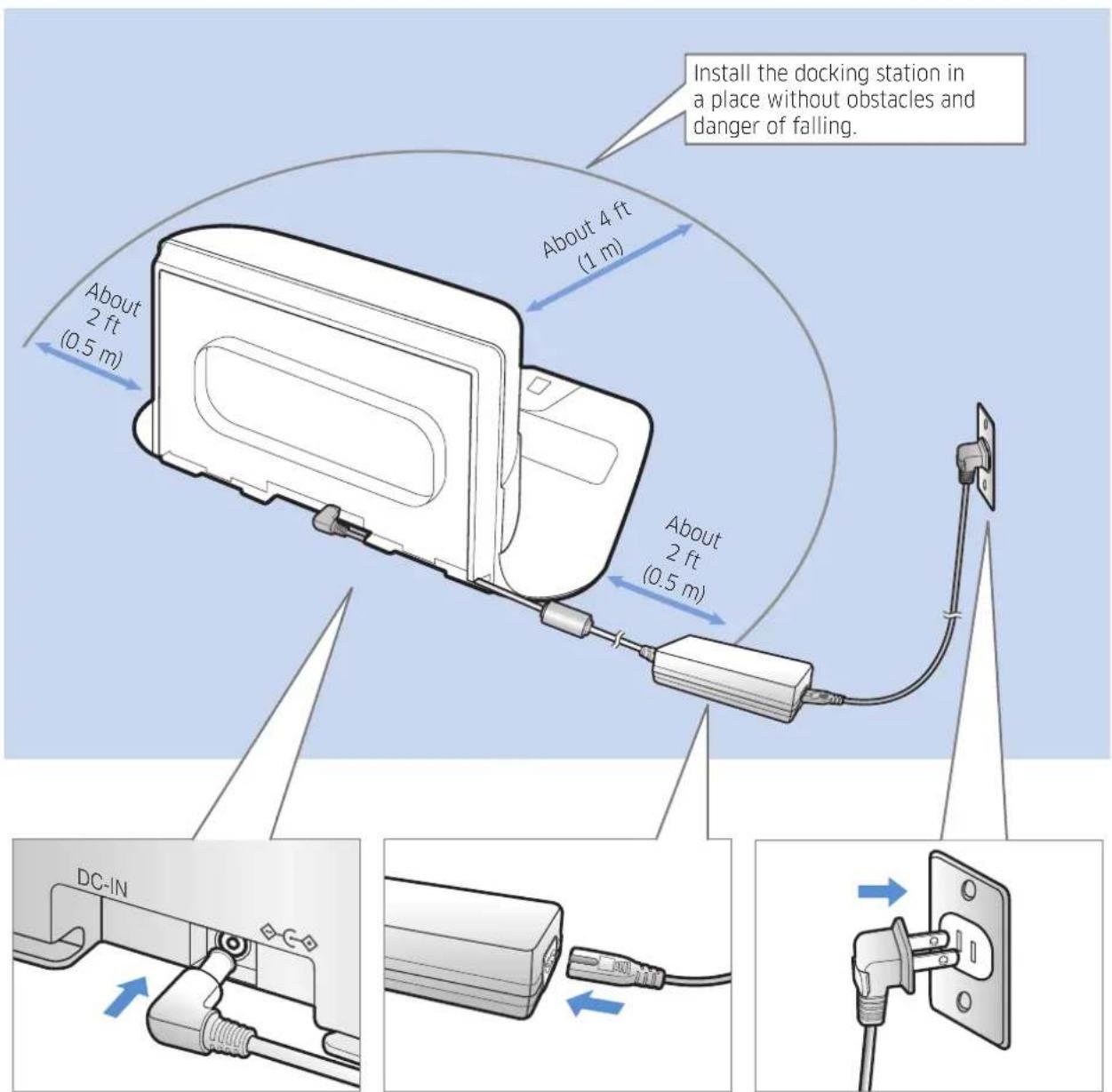
1 Connect the battery charger jack to the docking station
2 Connect the power cord to the battery charger
When using the battery charger, the side with the sticker attached must face down.
3 Connect the power plug to the outlet
ENGLISH-10
Accessories
| Remote control (Not included with SR1AM7010UW Series) | Batteries (AAA type) User manual Spare filter | (Option) | |
| Docking station Power cord Battery charger | Boundary markers (Option) | ||
※ Refer to page 15 for the installation of boundary markers.
Installation note
Note
Install the docking station in a place where the floor and wall are level.
It is best to install the docking station along the grain of wooden floors.
If the emergency switch is off, the POWERbot will not charge even if it is docked on the docking station.
Always turn on the power of the docking station.
- If power is not supplied to the docking station, the POWERbot cannot find it and cannot automatically recharge.
-
If the POWERbot is left detached from the docking station, the battery will drain naturally.
-
If the POWERbot is in sleep mode, power will not come on even if the emergency switch is turned off and then on. Press and hold the [Start/Stop] button on the POWERbot to turn the sleep mode off.
Charging
After completely charging the POWERbot for the first time (after purchase), it can be used for 60 min. in Nomal (mode. (Refer to the page 39 for the charging time.)
Smart Charging
If POWERbot runs out of charge in Auto clean mode, it will automatically return to the docking station to be charged and will recommence the cleaning to complete the cleaning area after two-thirds of battery charging is done. (Max. 2 times).
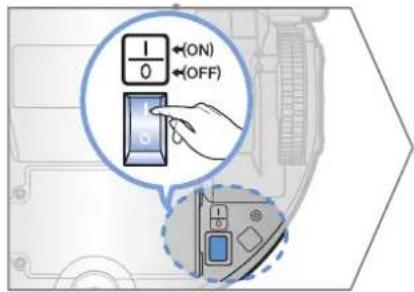
1 Turn on the emergency switch on the bottom
You must turn on the emergency switch to turn on the POWERbot.
Press and release the
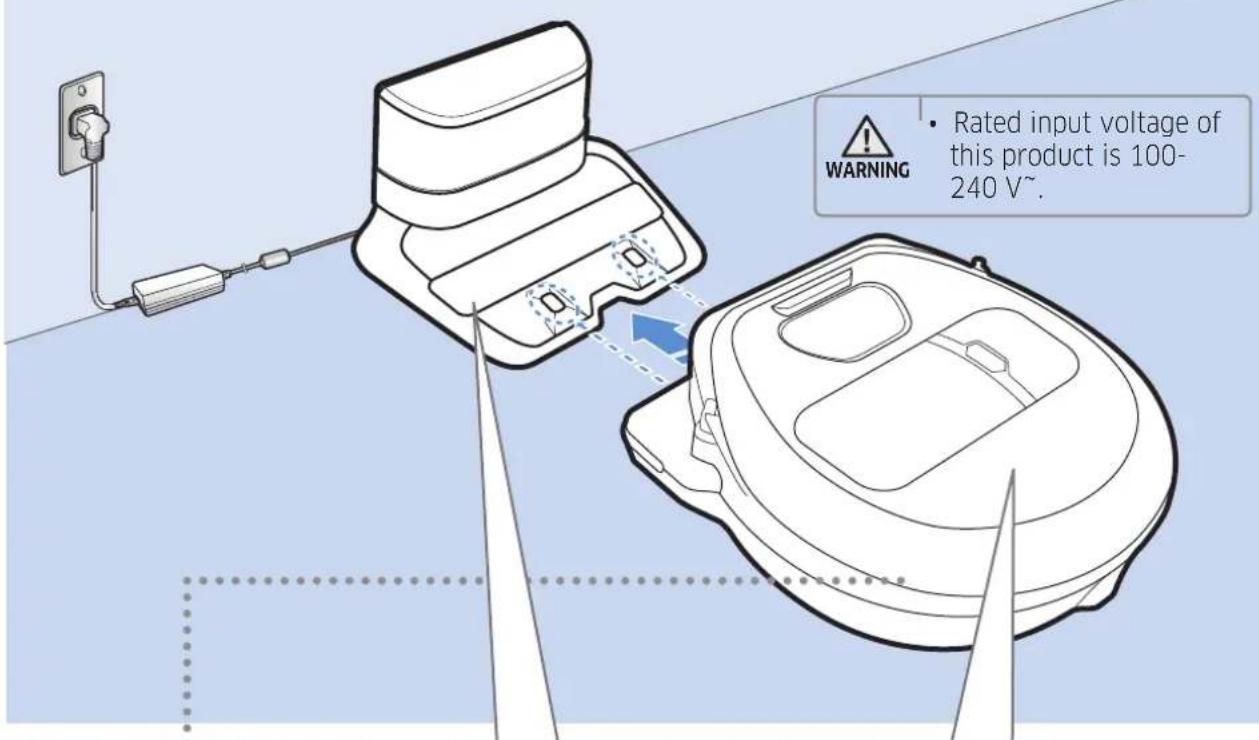
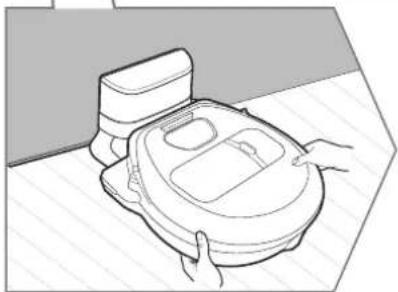
2 Manually charge the POWERbot by placing it on the docking station
Make sure the charging pins on the POWERbot and the docking station are aligned.
ENGLISH-12
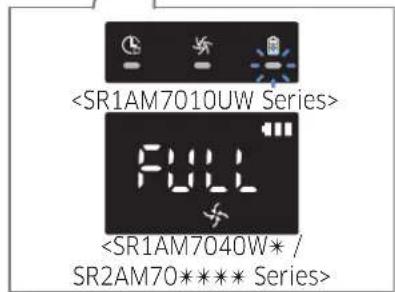
3 Check the charging status
For SR1AM7010UW Series,
The battery indicator blinks at 1 sec. intervals during charging and the indicator will remain in ON status when fully charged.
For SR1AM7040W*/SR2AM70** Series,
will turn on according to charging progress and "FULL" will turn on when charging is complete.
Automatic charging
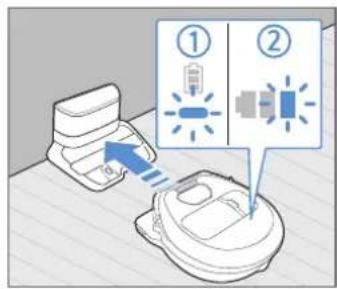
1. SR1AM7010UW Series
If the battery indicator blinks at 0.4 sec. intervals, the POWERbot will automatically return to the docking station to be charged.
2. SR1AM7040W* / SR2AM70**** Series
When the battery indicator blinks during cleaning, the POWERbot will return to the docking station to charge itself automatically.
Recharging
You can command the POWERbot to recharge at the docking station while it is in cleaning.
Low battery (Lo)
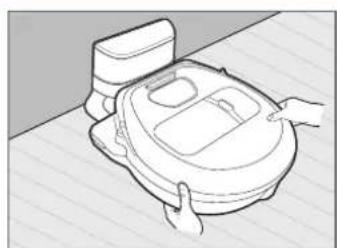
Manually charge the POWERbot by placing it on the docking station.
Steps to take if recharging not occurring:
Check the installation status of the docking station when:
-
the docking station is located in a place where the POWERbot cannot easily access it.
the distance between the docking station and POWERbot is over 20 ft (5 m). -
It may take a long time for POWERbot to return to the docking station for recharging
Manually charge the POWERbot when:
the docking station is located in a corner
the battery is fully exhausted
the POWERbot is immobilized by an obstacle (furniture etc.)
- the POWERbot can't climb a threshold near the docking station (The maximum height of a threshold the POWERbot can climb is about 0.6 in (1.5cm)
when the battery indicator blinks and "Lo" is displayed
- when the battery indicator blinks (Applicable to SR1AM7010UW Series)
- when the POWERbot is set to the Spot clean or Manual clean mode
Using POWERbot
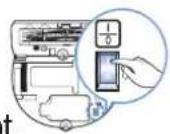
You must turn on the emergency switch on the bottom of the unit before using POWERbot.
Turning the power on/off
Press the button for more than 3 seconds

- When POWERbot is not used for 30 min.; SR1AM70U* / SR2AM70U* series: Turns to energy-saving mode.
SR1AM70**W*/ SR2AM70**W* series: Automatically returns to the docking station to be charged.
Starting Auto clean mode
Press and release this button. The POWERbot moves and automatically cleans the set areas only once.

- Stop cleaning: Press and release the button
Using Spot clean mode
The POWERbot cleans a localized area intensely.

Recharging/Energy-saving mode
Recharging
You can command POWERbot to recharge at the docking station automatically while it is cleaning by pressing this button.
Energy-saving mode
Refer to page 17.
ENGLISH-14
Selecting cleaning modes
| Cleaning mode How to select | Displayed icon | ||
| SR1AM7040W*SR2AM70**** | SR1AM7010UW | ||
| Auto clean | |||
| Spot clean | |||
| Repeat clean | Repeat:* Press the [A,B type],[C type] the remote controller first and then press the [Start/Stop] | - | |
| Manual clean | *: Manual clean mode can be selected by the direction control buttons of the remote control. | - | |
- If POWERbot fails to return to the docking station, it will turn to energy-saving mode and display panel will be turned off.
To exit the energy-saving mode, press the [Start/Stop] or [Power button of main body or remote controller. - If cleaning in Auto clean mode is completed within 15 minutes, POWERbot cleans 1 more time.
Using POWERbot
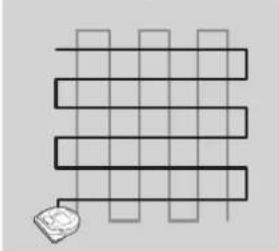
Cleaning method for each modes
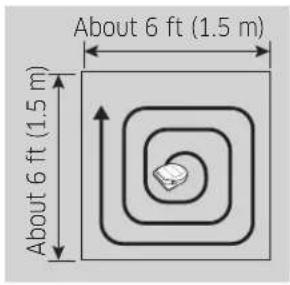
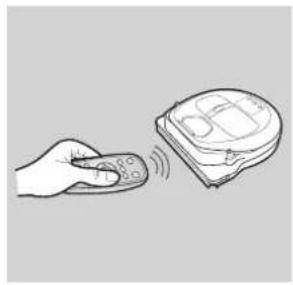
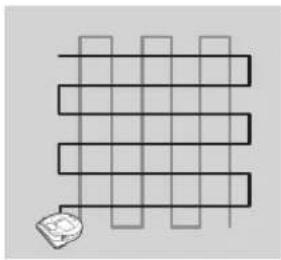
Auto clean
Automatically cleans the set areas only once.
* SR1AM7010UW series Cleans repeatedly until the battery is depleted.
Spot clean
Cleans a localized area intensely. It can be used to clean bread or cookie crumbs.
Manual clean
You can move POWERbot with the remote control to clean the desired spot. *This function is not applicable to SR1AM7010UW series.
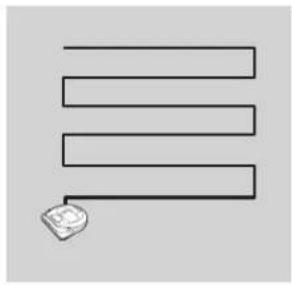
Repeat clean
Cleans repeatedly until the battery is depleted. * This function is not applicable to SR1AM7010UW series.

Note
If Auto clean or Repeat clean is commenced, POWERbot cleans the area near the docking station first.
Using special cleaning functions
| Cleaning function | Operation | Displayed icon | |
| SR1AM7040W*SR2AM70**** | SR1AM7010UW | ||
| Intelligent power control | * When the POWERbot detects a carpet in normal mode, it will automatically operate with stronger suction power. | ||
| Edge clean master | * When the POWERbot detects an edge or corner in Auto clean or Spot clean, the auto shutter tool operates and approaches the edge or corner section to clean. • Straight edge (One time cleaning) • Corner (Two times cleaning) | ||
About the boundary markers
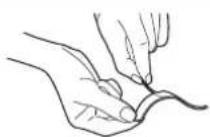
To prevent the POWERbot from entering the following areas, attach the boundary markers on the floor in the shape at an interval of about 5.9 in (15 cm).
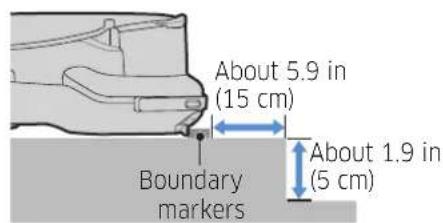
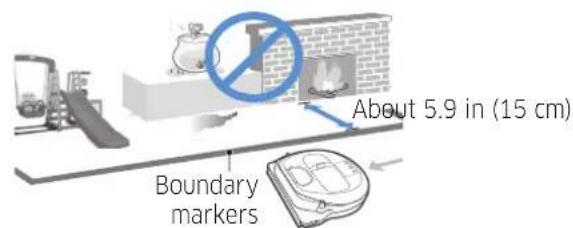
where a raised spot is below 1.9 in(5 cm) where there is a slide, swing, fireplace or any flammable substance or moisture.
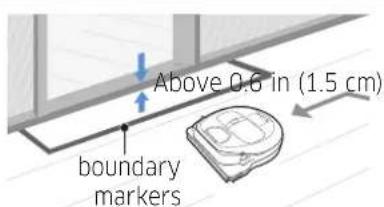
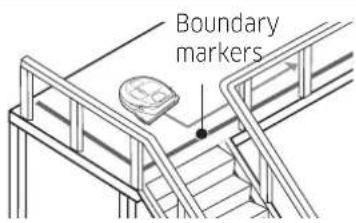
where a threshold is above 0.6 in (1.5 cm) where there is risk of falling such as stairs, porches or guardrails.
Using Energy-saving mode
You may select the Energy-saving mode to save energy during battery charging. Energy-saving mode turns off all functions except battery charging. It reduces the power consumption while you are away from home for an extended period of time.
How to select or cancel Displayed icon
Press for 5 sec.
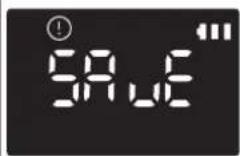
About 3 seconds later, the previous indicator will appear.
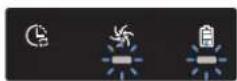
Blinking Blinking

Note
If you select the Auto/Max/Manual clean mode or press Point cleaning button, the Energy-saving mode will be cancelled.
- During the Energy-saving mode, setting the schedule will cancel the Energy-saving mode. - If you select the Energy-saving mode after setting the schedule, the schedule will not be cancelled.
If the power of the docking station is off, the Energy-saving mode will be cancelled.
Using the remote control
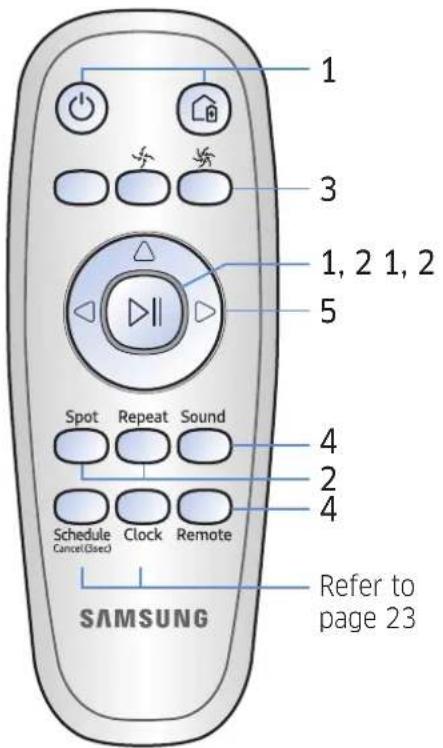
[A Type] [B Type]
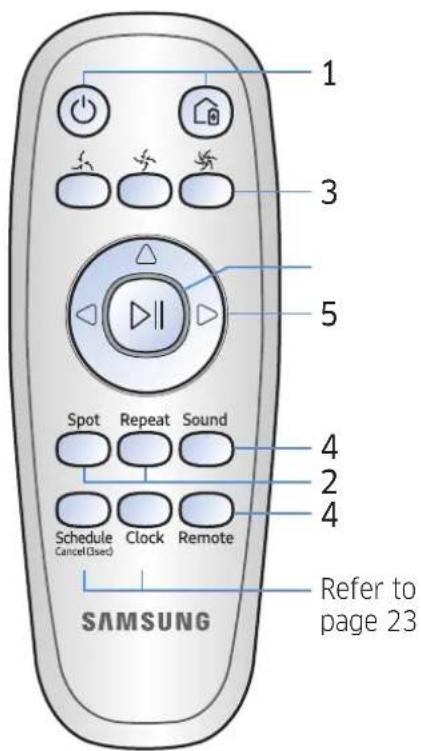
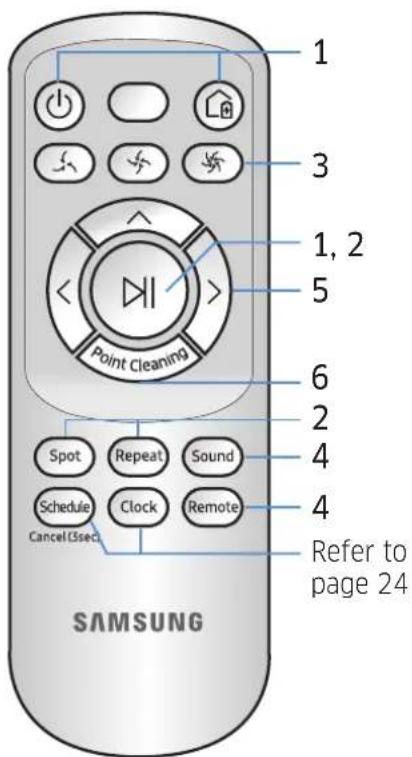
[C Type]
ENGLISH-18
[A Type] / [B Type]/ [Type]
1 Power / Recharging / Start/Stop
| Power | Turn POWERbot's power on/off | |||
| Recharging | Select to recharge POWERbot at the docking station automatically | |||
| Start/Stop | Select to start or stop cleaning process |
2 Cleaning modes
| Auto clean | DI | DI | DI | Select to clean all set areas only once and then automatically return to the docking station. |
| Spot clean | Spot | Spot | Spot | Select to clean a localized area intensely |
| Repeat clean | Repeat | Repeat | Repeat | Select to clean repeatedly until the battery becomes very low with indicator blinking |
3 Suction power
| Turbo mode | Select to clean with the strongest suction power | |||
| Normal mode | Select to clean with moderate suction power | |||
| Quiet mode | Select to clean with lower operation noise |
4 Additional function
| Sound | Sound | Sound | Sound | Each time you press this button, Sound Effects → Mute is selected in this sequence |
| Remote control | Remote | Remote | Remote | Select to turn Wi-Fi function on or off |
- The previously selected setting will not change even if the emergency switch is turned off and then on.
Using the remote control
5 Manual clean mode & Direction control
| Move forward | Select to move forward | |||
| Turn left | Select to turn left | |||
| Turn right | Select to turn right |
- Moving backward is not available.
6 Point cleaning
Available only with C type remote controllers.
You can use the remote control to point and clean the desired spot while the POWERbot is in cleaning process.
Point the red light on the floor within 1.6 ft (0.5 m) around POWERbot's location.
Press and hold the Point cleaning button to move the red light to the desired spot. The POWERbot will follow the light while cleaning.
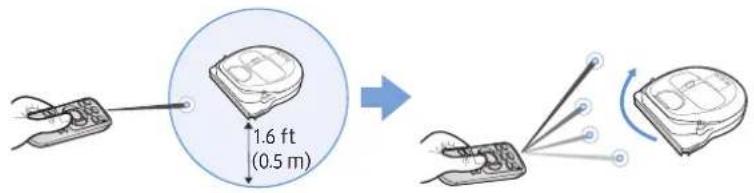
Operating distance of the remote control
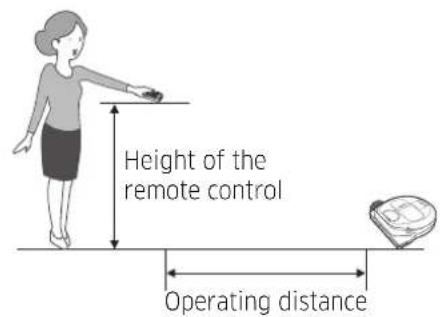
| Height of the remote control | 1.6 ft (0.5 m) | 3.3 ft (1 m) 5 ft (1.5 m) | |
| Operating distance | About 5 ft (1.5 m) | About 6.6 ft (2 m) | About 10 ft (3 m) |
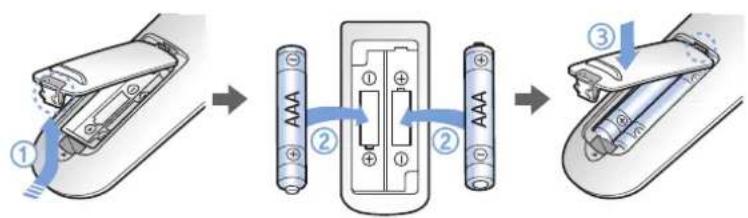
Inserting batteries
Open the battery cover by lifting it up while pressing the locking tab and insert the batteries as shown in the illustration. Then, close the cover until it clicks into place.
Name of each part

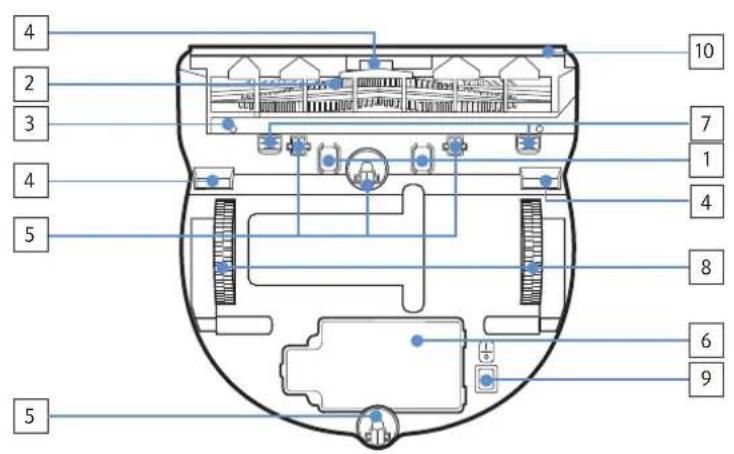
Top
- Display panel
- Remote control signal receiver
- Obstacle sensor
- Dustbin
- Camera
- Dustbin button
- Bumper sensor
- Auto shutter tool
Bottom
- Charge pins
- Brush
- Brush cover
- Cliff sensor
- Roller
- Battery cover
- Brush cover button
- Driving wheel
- Emergency switch
- Auto shutter tool
Name of each part
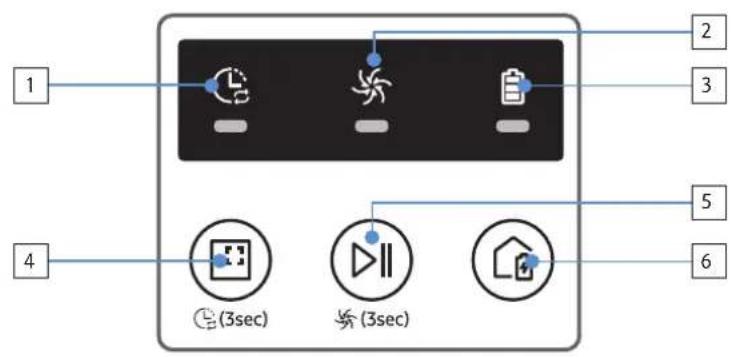
Display panel
- Daily schedule
- Normal/Turbo mode
- Battery indicator
- Spot cleaning button, daily schedule(3sec)
- Start/Stop button, Turbo mode(3sec)
- Recharging button
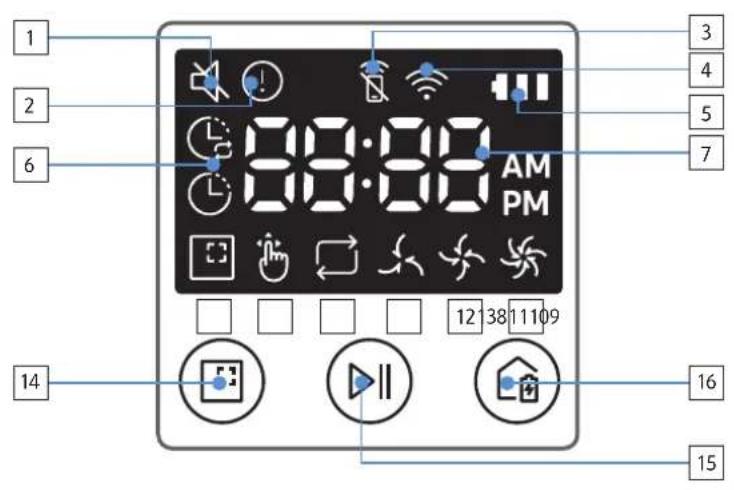
1. Mute
2. Information Indicator
3. *Smart Control Off/On indicator
4. *Wi-Fi
5. Battery indicator
6. One-time/Daily schedule
7. Number display
8. Spot clean mode
9. Manual clean mode
10. Repeat clean mode
11. Quiet mode
12. Normal mode
13. Turbo mode
14. Spot cleaning button
15. Start/Stop button
16. Recharging button
*SR1AM70**W* / SR2AM70**W*:Wi-Fi supported model
Setting time/schedule
[A Type, B Type] Only Auto clean mode can be scheduled.
Setting the time
You must set the current time before using the One-time/daily schedule.

Setting the schedule
Setting/cancelling the schedule can only be done while POWERbot is docked on the docking station.


Skip to previous, next setting
Cancelling during setup

- Setting will be canceled automatically when there's no input for 7 seconds.
Cancelling One-time/Daily schedule
When both One-time/Daily schedule is set Press for 3 sec. Select the schedule Cancel complete When either one ofOne-time or Dailyschedule is set Press for 3 sec.
Setting time/schedule
[C Type] Only Auto clean mode can be scheduled.
Setting the time
You must set the current time before using the One-time/daily schedule.

Setting the schedule
Setting/cancelling the schedule can only be done while POWERbot is docked on the docking station.


Skip to previous, next setting
Cancelling during setup

Setting will be canceled automatically when there's no input for 7 seconds.
Cancelling One-time/Daily schedule
When both One-time/ Daily schedule is set Schedule
Cancel (3sec) → or Schede
or Schede
Cancel (3sec) → DII
Schedule
Cancel (3sec) Press for 3 sec. Select the schedule Cancel complete When either one of One-time or Daily schedule is set Schedule
Cancel (3sec)
Press for 3 sec.
ENGLISH-24
[SR1AM7010UW series] For the models which do not include a remote controller, schedule setting is available as below.
Setting the schedule

Press for 3 sec.


When the schedule LED is turned on, Daily schedule is set.
The time you press the button will be set as a schedule. Cleaning will be automatically done everyday according to the schedule time.
Cancelling daily schedule
When a daily schedule is set

Press for 3 sec.
Cleaning and maintaining

You must turn off the emergency switch before cleaning POWERbot.
Cleaning the dustbin

1 Press the button to remove the dustbin

2 Remove the dustbin cover

3 Remove dust in the dustbin and cyclone unit

4 Detach the cyclone unit from the dustbin cover, and then wash the dustbin and the filter

5 Reassemble the dustbin

6 Reinsert the dustbin into the main body until it clicks
Cleaning the sensors and the camera
Lightly wipe with soft cloth. Do not use water or cleaning solutions.

Cleaning the brush and Auto shutter tool
Brush design may differ depending on the model.

1 Remove the brush cover

2 Remove the brush

3 Clean the brush

4 Clean the auto shutter tool

5 Reassemble the brush

6 Reassemble the brush cover
Cleaning the Driving wheel

1 Put a soft cloth on the floor and place POWERbot upside-down on the cloth.


2 Use a blunt rod or tweezers to remove foreign matter.
Samsung Smart Home App
Samsung Smart Home App is only applicable to models supported with Wi-Fi function.
Preparing the network
Setting up the wireless router
This product supports only DHCP(Dynamic Host Configuration Protocol). Please check if the DHCP server option function of a wireless router is activated.
The supported types of authorization/encryption of the wireless router are WEP-OPEN, WPA-PSK/ TKIP and WPA2-PSK/AES 801.11n.
- WPA2-PSK/AES is recommended to be used.
The quality of connection of the wireless network may be influenced by the surrounding wireless environment.
- When your Internet service provider has permanently registered an MAC address (a unique identification number) of your PC or modem, your POWERbot may be unavailable to be connected to the Internet. Ask your Internet service provider about the procedure to connect an apparatus other than a PC to the Internet.
- If your internet service provider requires your ID or password to connect to the internet, your POWERbot may not be able to connect to the internet. In this case, you must enter your ID or password when connecting to the internet.
The connection to the Internet may be impossible because of issues of firewall. Ask your Internet service provider for resolving the issue.
- Some wireless routers may convey an abnormal Domain Name Server (DNS) address even if the Internet is not connected. In this case, inquire the provider of the pertinent wireless router and your Internet service provider.
If you still cannot connect to the Internet even after trying the procedure informed by your Internet service provider, please ask an agency or service center of Samsung Electronics.

Note
Please refer to the user manual of the pertinent wireless router without access problems.
Samsung POWERbots support only Wi-Fi 2.4 Ghz.
Samsung POWERbots support the communication protocol of the methods of IEEE 802.11b/g/n and Wi-Fi Direct. (Samsung Electronics recommends to use IEEE 802.11n.)
- A wireless router with no authorization of Wi-Fi may be unavailable to be connected to the POWERbot.
- When the power is supplied and the POWERbot is docked on the docking station, the POWERbot will be connected to the server and then check if there is software updates. If there is the latest software, it will be automatically downloaded and updated.
- If "UP" is displayed on the display panel while the POWERbot is charging, it means that the update is in progress. Please wait for completing the rebooting.
If the product registration is not done, please follow the following instructions:
- Refer to the popup message and retry the registraison procedure.
- Check if the UPnP option of the wireless router is available and retry the registration procedure.
- Check if the operating mode of the wireless router is a router mode and retry the registration procedure.
- If you have more than two POWERbot, turn off the others to register the one. The connection must be one to one.
- If there is a wireless router which has the same SSID around your router, a normal registration cannot be guaranteed.
- Set a unique SSID and password for the wireless router and then register the product.
Samsung Smart Home Service does not guarantee a normal operation under firewall environment.
- If the POWERbot and smart phone are not connected to the same wireless router, response delay may occur according to network environment.
Smart control and Wi-Fi indicator
: Smart control is locked. (Only the remote control is available.)
Off:Smart control is allowed.
- Off : The POWERbot is connecting to the wireless router.
- On : The POWERbot is connected to the wireless router.

If Smart control is locked, you cannot use Samsung Smart Home App.
Using the Samsung Smart Home app
Creating your Samsung account

If you want to use the Samsung Smart Home app, please register your Samsung account in Samsung account app.
Note
If you do not set auto-login to the Samsung Smart Home app and run the app, the screen of Samsung account appears one time at first.
If you are a user of a Samsung smart phone, register your Samsung account in the settings of the smart phone, and then the automatic login gets set without any other login processes, and you can use the Samsung smart home app immediately.
Samsung Smart Home App
Downloading Samsung Smart Home app
1. Download the Samsung Smart Home application from the Google Play Store (Android devices) or from the Apple AppStore (iOS devices). To find the app, use the keyword "Samsung Smart Home."
2. Install the app on your smart device.

Note
The Samsung Smart Home app requires Android 4.0 (ICS) or later, and is optimized for Android 4.4 or later on Samsung smartphones (Galaxy S & Note series). Some functions of the app may not work properly on third-party smartphones.
For iOS models, the app requires iOS 7 or later.
The Samsung Smart Home app is subject to change without notice for improvements in usability and performance.
Registering the product (Easy-Setup)
Register the product to the Samsung Smart Home Service before using the Samsung Smart Home app.
Android
1. Press the Add new icon on the device list screen of the Samsung Smart Home app to start the registration of the product.
2. Select the Robot vacuum icon.
3. Enter the information of the wireless router to be connected.
4. Set the POWERbot according to the guidance on the screen. - To turn on the AP mode immediately, press [Clock] button for more than 5 seconds.
5. Then, the registration will proceed automatically.
6. The message will appear when the registration complete.
7. When the product registration is complete, the main screen of the Samsung Smart Home app will appear.
* If the product registration is failed, refer to page 28.
iOS
1. Run Samsung Smart Home app.
2. Move to the left screen and then press the Add new icon on the device list screen to start the registration of the product.
3. Enter the samsung account and then press [Sign in] button.
- For iPhone, your ID and password is not saved so that you need to sign in every time you use Samsung Smart Home app.
4. Select [Robot vacuum] icon.
5. Press the clock button of the remote controller for more than 5 seconds.
- AP will appear on the display panel.
6. Run the Settings app of your iPhone and then connect to [Robot Vacuum] Samsung on the list.
7. Enter ID and password of the wireless router which will be connected and then press [Next] button.
8. The connection between the smart phone and the robot vacuum is in progress.
9. Run the Settings app of your iPhone and then connect to the wireless router which will be connected on the Wi-Fi list.
ENGLISH-30
10. The connection between the wireless router and the robot vacuum is in progress.
11. When the product registration is completed, the message will appear.
12. When the product registration is completed, Robot vacuum icon is added on the device list.
Main screen
▶ Select the Robot vacuum icon on the main screen, and you can move to the POWERbot control screen.
You can control your smart home appliances made by Samsung Electronics by Going out, Coming home, Good night, and Good morning icons.
Home view function is not supported for a POWERbot.
User menu screen
You can control the smart home appliances made by Samsung Electronics with Chat control and Master key functions.
Chat control ►You can control the smart home appliances or check about the status of them conveniently. Master key ►You can control several home appliances at once using the master keys(Going out, Coming home, Good night, Good morning). Customer service ►You can see the manual of the product.
►When a product is out of order, you can consult with our customer center and request for an after-sales service.
Controlling POWERbot
When accessing the Samsung Smart Robot vacuum app, the control screen will appear.

1. Power on/off
2. Manual clean mode and Direction control (forward movement, left turn, right turn)
3. Auto clean mode start/stop
4. Spot clean mode
5. Current status indicator
6. Battery status
7. Suction power
8. Repeat clean on/off
9. Schedule (You can set the desired time for each date.)
- The POWERbot operates by synchronizing the set time in the network.
10. Cleaning history check
Note
A scheduled cleaning runs only when the POWERbot is docked on the docking station.
ENGLISH-31
Notes and cautions
Charging
Note
If the battery overheats during charging, it may take longer to charge.
- When automatic charging is not working, do the following:
- Turn the emergency switch (on the bottom of POWERbot) off and on again.
- Unplug the docking station's power plug and then plug it back on.
- Unplug the docking station, and then check whether there is any foreign matter on the charge pins and clean POWERbot and the charge pins of the docking station with a dry cloth or rag.
- Check for any obstacles such as reflective objects, chairs, etc. near the docking station.
- If POWERbot is left detached from the docking station, the battery will drain naturally.
- Try to keep POWERbot being charged on the docking station. (However, turn off the emergency switch and leave the docking station unplugged when planning to leave the house for long periods of time by going on a business trip or vacation, etc.)
Using
Note
The POWERbot may get caught on thresholds, etc. during cleaning.
- To restart operation, shut off the emergency switch, move the POWERbot to an area where it can move easily, and then turn on the power again.
The POWERbot cannot completely clean areas it cannot enter, such as corners, between the wall and sofa, etc.
- Please use another cleaning tool to clean them regularly.
The POWERbot cannot vacuum clumps of dirt, so some may remain on the floor after cleaning.
- Please use another cleaning tool to clean them regularly.
If POWERbot is turned off, you cannot turn it on by pressing the Power button on the remote control. Press and hold the [Start/Stop] button on POWERbot.
- You cannot select and have the POWERbot execute Spot clean mode while it is charging.
If you press Manual clean / Point cleaning button while charging, the POWERbot will be detached from the docking station and then turn into the standby mode.
Cleaning and maintenance
Note
If you washed the dustbin and filter with water
- Dustbin: Completely wipe out the water.
- Filter: Completely dry it in the shade before using.
- When cleaning the auto shutter tool, do not pull the auto shutter tool out too hard.
Caution
Watch your fingers when attaching or detaching the filter, since they may get stuck in the dustbin's intake.
To avoid blockages by foreign matter, do not let the POWERbot vacuum up toothpicks, cotton swabs etc.
If it is difficult to remove foreign matter from the brush, contact an authorized Samsung service center.
- Since the brush removes dirt from the floor during cleaning, foreign matter such as thread, long hair, etc. may get caught in it. For the best cleaning results, check and clean it regularly.
About the battery

Note
Purchase batteries at authorized Samsung centers and check for the symbol (which is stuck on the battery and the model name before purchasing.
This battery is exclusively for the Samsung Electronics POWERbot. Do not use it for any other product.
Do not disassemble or modify the battery.
Do not throw the battery out in fire or heat it.
- Do not connect any metallic object to the charging contacts (+, -).
- Store the battery indoors (at 0°C 40°C ).
If the battery malfunctions, do not disassemble it yourself. Contact your nearest Samsung service center.
- Battery charging time and usage time may decrease the more the battery is used. If the battery's lifespan has been exceeded and it no longer docking stations properly, have it replaced at a Samsung service center.
The battery warranty period is 6 months from the date of purchase.
About the IrDA sensor

Caution
Infrared signal transmission may not be smooth in locations exposed to halogen lamps or in outdoor locations.
The POWERbot uses 3 types of infrared devices. Each of the devices has a different priority level. A device may not work if its signal is superseded by a device with a higher priority.
- Infrared signal Priority: Smart control > Docking station
- Different infrared signals may interfere with one another and cause the devices to malfunction if they are used together in a small space or in close proximity.
If more than one POWERbot is used simultaneously, they may malfunction due to interference between infrared signals.
Information codes
1 The three indicators below blink with an error alarm.
2 Turn off the emergency switch and check the below instructions and take appropriate action
3 Information code will disappear when you turn on the emergency switch
Information codes Checklist The POWERbot is caught, stuck or trapped while moving around.
→Turn off the emergency switch and move the POWERbot to another area. Please check the checklist information. Foreign matter caught in the brush.
→Turn off the emergency switch and remove the foreign matter from the brush. Foreign matter caught in the left Driving wheel.
→Turn off the emergency switch and remove the foreign matter from the Driving wheel. Foreign matter caught in the right Driving wheel.
→Turn off the emergency switch and remove the foreign matter from the Driving wheel. Foreign matter caught in the auto shutter tool.
→Turn off the product by pressing the emergency switch and remove the foreign matter from the auto shutter tool. Bumper sensor needs to be checked.
→Turn off the emergency switch and turn it back on.
→When information code does not disappear, check if there's any small foreign matter between the bumper and the main body. If there is, pull the bumper slightly and remove the foreign matter. Foreign matter accumulated on the obstacle sensor.
→Turn off the emergency switch and clean the front and rear sensor with a soft cloth. Foreign matter accumulated on the cliff sensor.
→Turn off the emergency switch and clean the cliff sensor with a soft cloth.
1 The information code below is shown with an error alarm.
2 Turn off the emergency switch and check the below instructions and take appropriate action
3 Information code will disappear when you turn on the emergency switch
Information codes Checklist
The POWERbot is caught, stuck or trapped while moving around.
•Turn off the emergency switch and move the POWERbot to another area. C 01 Foreign matter caught in the brush.
•Turn off the emergency switch and remove the foreign matter from the brush. C 02 Foreign matter caught in the left Driving wheel.
•Turn off the emergency switch and remove the foreign matter from the Driving wheel. C 03 Foreign matter caught in the right Driving wheel.
•Turn off the emergency switch and remove the foreign matter from the Driving wheel. C 04 Foreign matter caught in the auto shutter tool.
•Turn off the product by pressing the emergency switch and remove the foreign matter from the auto shutter tool. C 05 Bumper sensor needs to be checked.
•Turn off the emergency switch and turn it back on.
•When information code does not disappear, check if there's any small foreign matter between the bumper and the main body. If there is, pull the bumper slightly and remove the foreign matter. C 06 Foreign matter accumulated on the obstacle sensor.
•Turn off the emergency switch and clean the front and rear sensor with a soft cloth. C 07 Foreign matter accumulated on the cliff sensor.
•Turn off the emergency switch and clean the cliff sensor with a soft cloth.
Troubleshooting
ENGLISH-36
Symptom Checklist The POWERbot is not working at all. Check if the emergency switch is on.
Check if all the icons are displayed on the display panel.
Check if the POWERbot's battery is depleted.
- When "Lo" is displayed, place the POWERbot on the docking station to charge it.
- When the battery indicator blinks, manually place the POWERbot on the docking station to charge. (Only SR1AM7010UW series)
Replace the batteries (AAA type) if the remote control is not working. The POWERbot has stopped during cleaning. When "Lo" is displayed on the display panel, place the POWERbot on the docking station to charge it.
When the battery indicator blinks, manually place the POWERbot on the docking station to charge. (Only SR1AM7010UW series)
When POWERbot is immobilized by an obstacle such as a cord, threshold etc, pick it up and move it away from the obstacle.
- If any fabric or string is caught in a drive wheel, turn off the emergency switch and remove the fabric or string before using it again. Suction power is weak. If the "Filter inspection indicator" is on, turn off the emergency switch and clean the dustbin.
When there's too much dust in the dustbin, suction power may get weakened. Turn off the emergency switch and empty the dustbin.
If the intake (on bottom of POWERbot) is blocked by foreign matter turn off the emergency switch and remove foreign matter from the intake.
When noise suddenly increase, turn off the emergency switch and empty the dustbin. The POWERbot cannot find the docking station. Check if there's a power failure or whether the power plug is unplugged.
Remove any obstacles around the docking station that may prevent POWERbot from returning to the docking station.
When there's foreign matter on the charge pins, charging can be affected. Clean the foreign matter off the pins. The POWERbot suddenly cleans diagonally. Check if the docking station is installed along the grain of wooden floors or tiles.
The POWERbot may clean in a diagonal direction if it is moving to another area using the shortest route. It may also move at a diagonal if it made contact with an obstacle at that angle, if it was charged at the docking station at an angle, or if the grain of the wooden/tile floor skewed is in that direction. Point cleaning is not working. If you point the red light directly at POWERbot, it may not move in desired direction.
- Point the red light on the floor within 1.6 ft (0.5 m) of POWERbot
* Do not use point cleaning in direct sunlight, under bright light, or on dark floors.
ENGLISH-37
Symptom Checklist I have installed the Samsung Smart Home app, but, the POWERbot fails to be connected. You can use the product after connecting the wireless router and the POWERbot through Easy-Setup according to the procedure. I fail to log into the Samsung account. Check your ID and password on the screen of the Samsung account. There appears a message saying there is a failure during Easy-Setup. You may have failed temporarily due to the distance from the wireless router or other obstacles. Please try again after a while. The products do not work even though the smart phone is normally connected to the POWERbot. Turn off the Samsung Smart Home app and then run it again, or disconnect the smart phone from the wireless router and then connect it again. Or turn off the power supply of the POWERbot, turn it on, wait for a minute or longer, and then run the Smart Home app again. The functions of the Samsung Smart Home App do not work. Check if the Smart control blocking function of the POWERbot is set. (When the Smart control is locked, the Wi-Fi indicator is turned off.) The Samsung Smart Robot Vacuum App fails to get started. Check if the POWERbot is connected to the wireless router. POWERbot is not connected to Wi-Fi. Check the setting status of the wireless router. Intelligent power control function works on a normal floor. Check whether the floor is not even and then the POWERbot works with its body a bit lifted up.
Check whether there are any foreign matters on the cliff sensor which is at the bottom of the POWERbot.
Check whether the floor color is dark. Intelligent power control function does not work. When the POWERbot cleans a carpet with short fibre and bright color, it may recognize the carpet as a floor and then the Intelligent power control function may not work. Edge clean master function does not work. When POWERbot cannot recognize the wall, the Edge clean master may not work.
- When an obstacle made of reflective material is in front of the wall
- When the wall itself is made of reflective material
- When the wall is a dark color Edge clean master function works though there is no wall or corner. Check whether small obstacles are arranged in a narrow space.
When the POWERbot recognizes the front obstacle as a wall, Edge clean master function may work. The Edge clean master function works though the POWERbot has not approached a wall or corner. When the degree of the angle of a corner which the POWERbot detects is large, the Edge clean master function may work without approaching the wall or corner.
Open Source Announcement
The software included in this product contains open source software. You may obtain the complete corresponding source code for a period of three years after the last shipment of this product by sending an email to mailto:oss.request@samsung.com.
It is also possible to obtain the complete corresponding source code in a physical medium such as a CD-ROM; a minimal charge will be required.
The following URL http://opensource.samsung.com/opensource/VR7000_A20_TZ/seq/0 leads to the download page of the source code made available and open source license information as related to this product. This offer is valid to anyone in receipt of this information.

ENGLISH-38
Specifications
Classification Item Detail information SR1AM7010UW SR1AM7040W* Mechanical specifications (POWERbot) Size (D x H x L) 340 mm x 97 mm x 348 mm Weight 4 kg Sensor Ceiling shape recognition (Visionary mapping plus TM) Button type of POWERbot Touch type Power specifications Power voltage 100-240 V~, 50 Hz/60 Hz Power consumption 80 W Battery specifications 21.6 V / 38.8 Wh Cleaning Charging type Automatic charging/Manual charging Cleaning mode Auto, Spot, Daily schedule Auto, Spot, Repeat, Manual, One-time schedule, Daily schedule Charging time Approximately 240 minutes Cleaning time (On the basis of hard floor) Turbo mode Approximately 30 minutes Normal mode Approximately 60 minutes
Classification Item Detail information Mechanical specifications (POWERbot) Size (D x H x L) 340 mm m x 97 mm x 348 mm Weight 4.3 kg Sensor Ceiling shape recognition (Visionary mapping plus TM) Button type of POWERbot Touch type Power specifications Power voltage 100-240 V~, 50 Hz/60 Hz Power consumption 130 W Battery specifications 21.6 V / 77.8 Wh Cleaning Charging type Automatic charging/Manual charging Cleaning mode Auto, Spot, Repeat, Manual, One-time schedule, Daily schedule Charging time Approximately 160 minutes Cleaning time (On the basis of hard floor) Turbo mode Approximately 30 minutes Normal mode Approximately 60 minutes Quiet mode Approximately 90 minutes
* For product improvement purposes, design and specifications of the product are subject to change without prior notice.
* Charging and cleaning times may differ according to conditions of use.
If you have any questions or comments relating to Samsung products, please contact the SAMSUNG customer care center.
Country Customer Care Center Web Site CANADA 1-800 SAMSUNG(726-7864) www.samsung.com/ca/support (English)
www.samsung.com/ca_fr/support (French) U.S.A 1-800 SAMSUNG(726-7864) www.samsung.com/us/support

POWERbot
Guide d'utilisation
Sériés SR1AM70****, SR2AM70****
- Avant d'utiliser cet apparéil, veillez lire attentivement les instructions.
- Pour une utilisation en interieur uniquement.

Table des matières
03 Consignes de sécurité
10 Installation Accessoires/Notice d'installation
12 Mise en charge Charge automatique / Recharge / Batterie Faible (Lo)
14 Utilisation du POWERbot Mise sous/hors tension / Sélection des modes de nettoyage / Utilisation des fonctions spéciales de nettoyage / À propos des bornes / Utilisation du mode d'économie d'énergie
18 Utilisation de la télécommande
21 Nomenclature des pieces Partie haute/Partie basse/Panneau d'affichage
23 Reglage de l'heure/du programme Reglage de l'heure / Reglage du programme
26 Nettoyage et entretien Nettoyage du réservoir de poussiere/Nettoyage des capleurs et de laamera/Nettoyage de la brosse et du volet obturator automatique/Nettoyage de la roue d'entrainment
28 Application Samsung Smart Home
Preparation du réseau / Utilisation de l'application
Samsung Smart Home
32 Remarques et mises en garde
Mise en charge / Utilisation / Nettoyage et entretien
/ A propos de la batterie / A propos du capteur
infrarouge
34 Codes d'information
36 Dépannage
38 Annonce de logiciel open source
39 Caracteristiques techniques
Consignes de sécurité
CONSIGNES DE SECURITÉ

- Avant d'utiliser cet apparéil, veuillez lire attentivement ce guide et le conserver pour toute ↔reference ultérieure.

- Les instructions d'utilisation suivantes s'appliquant à plusieurs modèles, il est possible que les caractéristiques de votre aspirateur soient légarement différentes de celles spécifiées dans ce manuel.
SYMBOLES ATTENTION/AVERTISSEMENT UTILISÉS
A V A R T I S S E M E N T Indique un danger de mort ou de blessure grave. A T T E N T I O N Indique un risque de blessure ou de dégât matériel.
AUTRES SYMBOLES UTILISÉS
REMARQUE Indique un risque de blessure ou de dégât matériel. Samsung Smart Home Ce robot aspirateur intelligent prend en charge Samsung Smart Home. Pour obtenir des informations détaillées, veuillez consulter le site Samsung. com/Smarthome.
Avertissement de la proposition 65 de l'Etat de Californie (États-Unis uniquement)

Ce produit contient des substances chimiques considérées par l'État de Californie comme étant cancérigènes ou à l'origine de malformations congenitales ou d'autres troubles de la reproduction.

Pour le recyclage de la batterie, rendez-vous sur call2recycle.org, ou appelez le 1-800-822-8837.
FRANÇAIS-03
Consignes de sécurité
CONSIGNES IMPORTANTES DE SECURITÉ
Lors de l'utilisation d'un apparéil électrique, des précautions de base doivent être prises, notamment :
LISEZ TOUTES LES INSTRUCTIONS AVANT D'UTILISER VOTRE POWERbot.
Débranche l'appareil de la prise lorsqu'il n'est pas utilisé ou avant toute opération de maintenance.
AVERTISSEMENT: Pour limiter tout risque d'incendie, de choc électrique ou de blessure :
GÉNÉRALITÉS
Utilisez cet apparéil uniquement tel qu'indiqué dans le present guide.
- N'utilisez pas le POWERbot ou l'adaptateur / la base s'il/elle a ete endommagé(e) de chaque façon que ce soit.
- Si l'aspirateur fonctionne anormalement, a reçu un choc, a été endommagé, laisse à l'extérieur ou plongé dans l'eau, returnez-le au centre d'assistance clientèle.
- Ne manipulez pas l'adaptateur / la base ou le POWERbot avec les mains mouillées.
Utilisez-le uniquement à l'intérieur et sur des surfaces sèches.
- Cet apparéil n'est pas conscience pour être utilisé par des personnes (y compris des enfants) inexplériementées ou dont les capacities physiques, sensorielles ou mentales sont réduites, sauf si celles-ci sont sous la surveillance ou ont reçu les instructions d'utilisation appropriées de la personne responsable de leur sécurité. Le nettoyage et la maintenance de l' apparéil ne doit pas été effectuels par des enfants sans surveillance.
- Éloigner les cordons d'autres apparéils de la zone à nettoyer.
- Ne pas utiliser l'aspirateur dans une piece ou un nourrisson ou un enfant mort.
- Ne pas utiliser l'aspirateur dans un endroit où il ya des bougies allumées ou des objets fragiles sur le plancher à nettoyer.
- Ne pas utiliser l'aspirateur dans une piece où il ya des bougies allumées sur les meubles que l'aspirateur peut heurter ou se cogner accidentellement.
- Ne pas laisser les enfants s'assoir sur l'aspirateur.
- Ne pas utiliser l'aspirateur sur une surface mouillée.
Adaptatseur / Base
- N'utilisez pas la fiche polarisée avec une prise ou une rallonge non-polarisée.
- N'utilisez pas l'appareil à l'extérieur ni sur des surfaces mouillées.
- Débranchez l'adaptateur / la base de la prise lorsqu'il/elle n'est pas utilisé(e) ou avant toute opération de maintenance.
- Utilisez uniquement l'adaptateur / la base fourni(e) par le fabricant pour recharger l'appareil.
- N'utilisez pas de cordon ou de prise endommagé(e) ni de prise murale mal fixée.
- Ne tirez pas sur le cordon; ne soulevez pas l'appareil par le cordon; n'utilisez pas le cordon comme poignée; ne fermez pas la porte sur le cordon; ne tirez pas le cordon sur des rebords ou des angles coupants. Maintenez le cordon éloigné des surfaces chauffées.
- N'utilise pas de rallonges ou de prises ayant une intensité maximale admissible inadéquate.
FRANÇAIS-04
- Ne débranchez pas l'appareil en tirant sur le cordon. Pour débrancher, attrapez la fiche et non le cordon.
- Ne déteriorez pas les batteries et ne les faites pas brûler car elles risquent d'exploser à des températures élevées.
- N'essayez pas d'ouvrir l'adaptateur / la base. Les réparations doivent être effectuées uniquement par un technicien qualifié du centre d'assistance clientèle.
- N'exposez jamais l'adaptateur / la base à des températures élevées et évitez tout contact de l'adaptateur / la base avec l'humidité.
POWERbot
- N'aspirez jamais d'objets pointus ou tranchants tels que des morceaux de verre, des clous, des vis, des pieces de monnaie, etc.
- N'utilisez pas l'appareil sans filtré. Pour les opérations de maintenance, n'insérez jamais vos doigts ou des objets dans le compartment du ventilateur au cas où l'appareil se remétrait accidentellement en marche.
- N'insérezaucoun object dans les ouvertures.N'utilisez pas l'appareil si l'une des ouvertures est obstruée; nettoyez régulierement les ouvertures pour eliminer toute trace de poussière, peluches,cheveux,ou touta autre chose risquant d'empêcher la circulation de l'air.
- N'aspirez jamais de substance toxique (javel, ammoniaque, produit de débouchage, etc.).
- N'aspirez jamais d'objets en train de brûler ou de fumer, tels que des cigarettes, des alluméttes ou des cendres chaudes.
- N'aspirez jamais de liquides inflammables ou combustibles tels que de l'essence et n'utilisez jamais l'appareil si de tels liquides risquent d'être prênts.
- Les lieux avec des bougies ou lampes de bureau posées sur le sol.
- Les lieux ou des feux sont laissés sans surveillance (feu ou braises).
- Les lieux avec presence d'alcool distillé, de diluant, de dendriers avec cigarettestes allumées, etc.
- N'utilisez pas le POWERbot dans un espace clos rempli de vapeurs de peinture à l'huile, de diluant, de substances antimits, de poussières inflammables et autres vapeurs explosives ou toxiques.
- Des fuites peuvent se produit au niveau des éléments de batterie suite à un usage intensif ou à des températures extrêmes. En cas de contact du liquide avec la peau, rincez abondament à l'eau. En cas de contact du liquide avec les yeux, rincez immédiatement à l'eau claire pendant 10 minutes minimum. Consultez un medecin rapidement.
CONSERVEZ CES INSTRUCTIONS
INSTRUCTIONS DES PRISES POLARISÉES
- Pour limiter les risques de chocolélectrique, cet apparéil dispose d'une prise polarisée (une broche est plus large que l'autre). Cette prise ne doit s'insérer dans la prise murale polarisée que dans un seul sens. Si la prise ne s'enforce pas entièrement dans la prise murale, returnez-la. Si elle ne s'enforce toujours pas correctement, contactez un électricien qualifié pour faire installer une prise murale ajustée. Ne modifies jamais la prise.
FRANÇAIS-05
Consignes de sécurité
AVIS D'APPLICATION DE LA RÉGEMENTATION
1. Norme FCC

MISE EN GARDE DE LA FCC :
- Tout changement ou modification, non expressement approuve par la partie responsable de la conformité, peut annuler l'autorisation de l'utilisateur à utiliser cet équipement.
- Cet apparéil est conforme aux exigences de la partie 15 du règlement de la FCC. Sonutilisation est assujettie aux deux conditions suivantes :
1. Cet apparéil ne doit pas causeur de brouillages préjudiciables, et
2. Cet apparéil doit absorber tout type d'interférence, y compris les interférences pouvant causeur un fonctionnement non désiré.
- Pour les produits offerts sur le marché des États-Unis/du Canada, seuls les canaux 1 à 11 peuvent être utilisés. La sélection d'autres canaux est impossible.
DECLARATION DE LA FCC :
- Cet apparéil a été testé et classé dans la catégorie des appareils numériques de classe B conformément avec la partie 15 du règlement de la FCC. Ces limites sont conçues pour fournir une protection raisonnable contre les interférences nuisibles dans une installation domestique.
- Cet apparéil générale, utilise et émet des fréquences radioélectriques et peut, en cas d'installation ou d'utilisation non conforme aux instructions, engenderr des interférences nuisibles au niveau des communications radio. Cependant, il se peut que des interférences se produit dans une installation particulière. En cas d'interférences avec la réception radiophonique ou télévisuelle, qui peuvent être vérifiées en mettant l'équipement hors, puis sous tension, l'utilisateur peut tenter de résoudre le problème de l'une des façon suivantes :
-Réorienter ou repositionner l'antenne de réception
-Augmenter l'espacement entre I'équipement et le récepteur
- Branchez l'appareil sur un circuit électrique différent de celui où le récepteur est branché
- Consulter le fournisseur ou un technician en radio et télévision experimenté pour obtenir de l'aide
DECLARATION DE LA FCC SUR L'EXPOSITION AUX IRRADIATIONS :
- Cet équipement répond aux limites de la FCC sur l'exposition aux rayonnements établies pour un environnement non contrôle. Cet équipement doit être installé et utilisé avec une distance minimale de 20 cm entre le radiateur et votre corps. Cet apparéil et ses
FRANÇAIS-06
antennes ne doivent pas etre co-localises ou fonctionner en conjunction avec tout autre.
antenne ou émetteur, sauf s'il est conforme aux procedures relatives aux produits a
emetteurs multiples de la FCC.
2. Avis d'IC
- Le terme « IC » place avant le numéro de certification pour les radiofréquences signifie seulement que les specifications techniques d'Industry Canada ont été respectées. Son utilisation est assujettie aux deux conditions suivantes : (1) cet apparéil ne doit pas provoquer d'interfERENCE et (2) il doit absorber tout type d'interfERENCE, y compris les interférences pouvant cause un fonctionnement non désiré.
- Cet apparéil numérique de classe B est conforme à l'ICES-003 (Canada).
- Cet appeareil numérique de la classe B est conforme à la norme NMB-003 du Canada.
- Pour les produits offerts sur le marché des États-Unis/du Canada, seuls les canaux 1 à 11 peuvent être utilisés. La sélection d'autres canaux est impossible.
DECLARATION D'IC QUANT À L'EXPOSITION AUX RAYONNEMENTS :
- Cet équipement répond aux limites de l'IC RSS-102 sur l'exposition aux rayonnements établies pour un environnement non contrôle. Cet équipement doit être installé et utilisé avec une distance minimale de 20 cm entre le radiateur et votre corps. Cet apparéil et ses antennes ne doivent pas être co-localisées ou fonctionner en konjction avec tout autre ANTENNE OU ÉMETTEUR, SAUF S'il est conforme aux procédures relatives aux produits à émetteurs multiples de la FCC.
Avis de Licence Libre
- Cet apparéil utilise des logériels libres. Les licences libres sont disponibles sur le menu du produit.
- Appuyez sur « Réglages > Réseau > Mise à jour du logiciel > Informations légales » sur l'appareil pour en savoir plus.
Consignes de sécurité

AVERTISSEMENT Branchement
- Evitez tout risque de chocolélectrique ou d'incendie.
- N'endommagez pas le cordon d'alimentation.
- Ne tirez pas trop fort sur le cordon d'alimentation et ne touchez jamais la prise d'alimentation avec les mains mouillées.
- N'utilisez pas une source d'alimentation autre que 100 - 240V et ne branchez jamais simultanement plusieurs appeareils electriques sur un meme bloc multiprise. (Ne laissez pas le cordon negligement sur le sol.)
N'tutilisez pas de fiche ou de cordon d'alimentation endommagé(e) ou de prise mal fixée.
- Éliminez les corps étrangers et la poussière des broches et des organes de contact de la fiche d'alimentation.
-Risque de chic électrique ou de dysfonctionnement.

AVERTISSEMENT Avant l'utilisation
N'utilisez pas le POWERbot à proximite de matérieliaux combustibles.
-À coté d'une bougie, de lampes de bureau, d'une cheminée, ou à proximite de matérielux combustibles (ex.: essence, alcohol, diluants, etc.)
Le POWERbot est conçu pour une utilisation domestique; ne l'utilisez pas dans les lieux suivants: greniers, caves, lieux de stockage, batiments industriels, espaces extérieurs, lieux exposés à l'humidité (salle de bains, buanderie), en hauteur (sur une table, une étagère).
- Le POWERbot peut être endommagé ou représenter un dysfonctionnement.
Le POWERbot ne doit jamais entrairen contact avec des liquides.
- Cela pourrait endommager gravement votre POWERbot et les roues traversant une zone mouillée risqueraient en outre de contaminer autres zones.
- Placez les bornes dans un endroit où le POWERbot risque de tomber tel qu'un escalier ou une rampe afin d'eviter toute blessure et endommagement de l'appareil.
- Veuillez toujours maintainir le capteur d'escarpement propre par mesure de sécurité.
Ne renversez pas de liquide sur la base.
-Risque d'incendie ou de chocolélectrique.
N'utilisez la base que conformément à l'usage auquel il est destiné.
- Risque d'incendie ou d'importants dégats pour la base.
Pour votre sécurité, maintenez le capteur d'escarpement toujours propre.

AVERTISSEMENT
En cours d'utilisation
Si le POWERbot émet un son, une oedur anomal(e) ou de la fumée, désactivez immédiatement l'interrupteur d'urgence situé sur le dessous du POWERbot et contactez un centre de service.

AVERTISSEMENT
Nettoyage et entretien
Lorsque le cordon d'alimentation est endommagé, contactez un centre de service pour le faire remplacer par un réparateur certifié.
-Risque d'incendie ou de chic electrique.
Lors du remplacement des batteries, consultez un centre de service Samsung Electronics.
- L'utilisation de batteries d'autres apparèils peut entrainer un dysfonctionnement.

ATTENTION Avant l'utilisation
- Insérez le réserve de poussière avant d'utiliser le POWERbot.
Pour garantir le bon déroulement de la charge automatique, prétez attention aux points cédssous.
- Mettez toujours la base sous tension.
- Installez la base à un endroit que le POWERbot peut facilement couver.
- N'entreposez:aún object devant la base.
Au moment d'installer la base, pour écarter tout risque d'enchevêtrement avec le POWERbot, ne laissez pas le cordon d'alimentation néliggemment sur le sol.
N'utilisez pas votre POWERbot sur des sols aux couleurssons.
- Le POWERbot risquérait de ne pas fonctionner correctement.
- Ne placez pas d'objets dans un rayon de 2 pieds (0,5 m) des deux cotés et de 4 pieds (1 m) de l'avant de la base.
- Verifiez l'absence de dommages et de corps étrangers sur le contact de charge de la base.
N'installez pas la base sur un sol souvent.
- Le sol nombre autour de la base peut entraver le processus de recharge.
- Avant le nettoyage, éloignez tout obstacle qui pourrait perturber le déplacement du POWERbot (ex.: balançaires et toboggan d'intérieur pour enfants).
N'utilisez pas le POWERbot dans un endroit plus etroit que le rayon de virage (2 pieds (0,5m) ou moins) du POWERbot.
Pour nettoyer tous les espaces de votre maison, ouvre toutes les pieces et placez les bornes sur les zones où le POWERbot risque d'être endommagé telles qu'une porte, veranda, salle de bains ou encore escaliers par mesure de sécurité.
Pour les espaces très bas ou le POWERbot risque de se coincer, placez les bornes pour éviter qu'il ne s'y en approche.

ATTENTION En cours d'utilisation
Utiliser le POWERbot sur un tapis écais peut endommager à la fois le POWERbot et votre tapis.
- Le POWERbot ne peut pas franchir une moquette d'une épaissur supérieure à 0,4 pieds (1 cm).
N'utilisez pas votre POWERbot sur des tables ou autres surfaces en hauteur.
Risque de dommage en cas de chute.
Le POWERbot peut percueter les pieds de chaises et autres bureaux, par consequent, eloignez-les pour un nettoyage plus rapide et efficace.
- Pendant son fondimement, ne souvevez pas et ne déplacez pas le POWERbot vers une autre zone.
Lorsque you transportez le POWERbot, ne letenez pas par les roues d'entrainement.
Ne posezeldombject sur le POWERbot et sur la camera pour eviter tout dysfonctionnement.
- Les feuilles de papier ou les sacs en plastique peuvent obstruer l'entrée d'aspiration : retirezles immidiatement lors de l'utilisation du POWERbot.
- Ne pointez pas le pointeur rouge en direction de personnes ou d'animaux.
Ne vous allongez pas autour du POWERbot lorsqu'il est en marche.
-Vos cheveux pourraient se prendre dans larosse, ce qui entraînerait des blessures corporelles.

ATTENTION
Nettoyage et entretien
Pour éviter d'endommager votre POWERbot, conformez-vous aux instructions suivantes.
- N'aspergez pas d'eau directement sur votre POWERbot et ne nettoyez pas ce dernier avec du benzène, du diluant, de l'acetone ou de l'alcool.
- Ne démontez ou ne réparez pas le POWERbot. Seul un réparateur certifié peut intervenir sur l'appareil.
- Maintenez le capteur d'obstacles, le capteur d'escarpement et laamera toutes propres.
- En cas d'accumulation de corps étrangers, les capteurs pouraient ne pas fonctionner correctement.
FRANÇAIS-09
Installation
La base doit toujours être branchée et sous tension.

1 Branchez le chargeur de batterie à la base
2 Branchez le cordon d'alimentation au chargeur de batterie
Lorsque vous utilisez le chargeur de batterie, le cote avec l'autocollant doit etre tourné vers le bas.
3 Branchez la fiche à la prise d'alimentation
FRANÇAIS-10
Accessoires
Télécommande
(Non fournie pour la série
SR1AM7010UW) Piles (type AAA) Guide d'utilisation Filtre de rechange (En option) Base Cordon d'alimentation Chargeur de batterie Bornes (en option)
* Reportez-vous en page 15 pour consulter la procédure d'installation des bornes.
Notice d'installation

Remarque
Installez la base dans un endroit où le sol et le mur sont parfaitement d'équerre et lisses.
Il est conseilé d'installer la base dans le sens des lames du parquet.
Si l interrupteur d'urgence est desactive,Vote POWERbot ne se rechargera pas,meme en etant instalé sur la base.
- Mettez toujours la base sous tension.
- La base n'étant pas sous tension, votre POWERbot ne le trouvera pas et ne pourra pas se recharger automatiquement.
- Si le POWERbot est laissé sépare de la base, la batterie se vide naturellement.
- Si le POWERbot est en mode Veille, il ne s'allumera pas même si l'interrupteur d'urgence est désactivé puis réactivé. Maintenez le bouton [Départ/Arrêt] sur le POWERbot enforcé pour désactiver le mode Veille.
Mise en charge
Après avoir complètement chargé le POWERbot pour la première fois (après l'achat), il peut être utilisé pendant 60 minutes en mode Normal (). (Consultez la page 39 pour la durée de la mise en charge.)
Mise en charge intelligente
Si le POWERbot se décharge en mode Nettoyage automatique, il reviendra automatiquement à la base pour se charger et reprendra le nettoyage pour terminer le nettoyage de la zone à netoyer une fois que les deux tiers de la batterie sont complètement charges. (A 2 reprises au maximum).

1 Activez l'interrupteur d'urgence situé sur le dessous de l'appareil
Vous devez activer
linterrupteur d'urgence pour allumer le POWERbot.
Appuyez puis relâchéz le

2 Mettez le POWERbot en charge manuellement en le plaçant sur sa base
Verifiez que les broches de chargement du POWERbot et celles de la base sont alignées correctement.
FRANÇAIS-12
3 Vérifiez l'etat de la charge
Pour la série SR1AM7010UW.
levoyantde la batterie clignote toutes les secondes pendant la mise en charge et levoyant restefixe lorsquela mise en charge est terminée.
Pour les séries SR1AM7040W*/
SR2AM70****
s'alume selon l'avancée de la
mise en charge et « FULL » s'allume lorsque la mise en charge est complète.
Charge automatique

1. Série SR1AM7010UW
Si levoyant de la batterie clignote a intervalles de 0,4 s, le POWERbot reviendra automatiquement a la base pour se charger.
2. Séries SR1AM7040W* / SR2AM70***
Si levoyant du niveau de charge clignote pendant le nettoyage, le POWERbot revient automatiquement de lui même sur la base.
Recharge

Vous pouvez ordonner au POWERbot d'aller se recharger sur la base pendant qu'il nettoie.
Batterie faible (Lo)

Mettez le POWERbot en charge manuellement en le plaçant sur sa base.
Étapes à suivre en cas de défaut de recharge :
Vérifiez l'etat d'installation de la base dans les cas suivants:
la base se trouve a un endroit qui n'est pas facilement accessible par le POWERbot.
la distance entre la base et le POWERbot est supérieure à 20 pieds (5 m).
- Cela peut demander un long moment au POWERbot pour returner vers la base et se recharger.
Mettez le POWERbot en charge manuellement lorsque :
la base est située dans un coin
la batterie est complètement épuisée
- le POWERbot est immobilisé par un obstacle (meuble, etc.)
- le POWERbot ne peut pas franchir un seuil à proximé de la base (la hauteur maximale d'un seuil que le POWERbot peut franchir est d'environ 0,6 pouces (1,5cm)
lorsque levoyant de la batterie clignote et que Lo s'affiche
lorsque levoyant de la batterie (applicable à la série SR1AM7010UW)
- le POWERbot est réglé en mode Nettoyage localisé ou Nettoyage manuel
FRANÇAIS-13
Utilisation du POWERbot

Vosdevezactiverl'interrupteurd'urgenceenbasdel'uniteavantd'utiliserlePOWERbot
Mise sous/hors tension
Appuyez sur le bouton pendant plus de 3 secondes.

- Lorsque le POWERbot n'est pas utilisé pendant 30 minutes, Séries SR1AM70**U* / SR2AM70**U*: passer en mode économique d'énergie. Séries SR1AM70**W* / SR2AM70**W*: revient automatiquement à la base pour se charger.
Démarrage du mode Nettoyage automatique
Appuyez puis relâché ce bouton. Le POWERbot se déplace et nettoie automatiquement et une seule les zones réglées.

*Arrêt du nettoyage : Appuyez puis relâchéz le bouton
Utilisation du mode Nettoyage localisé
Le POWERbot nettoie en profondeur une zone déliminée.

Recharge / Mode Économie d'énergie
Recharge
En appuyant sur ce bouton, vous pouvez commander au POWERbot de se recharger automatiquement sur la base lorsqu'il nettoie.
Mode Economie d'énergie
Reportez-vous à la page 17.

FRANÇAIS-14
Sélection des modes de nettoyage
Mode de nettoyage Comment le sélectionner ? Icône affichée SR1AM7040W*SR2AM70**** SR1AM7010UW Nettoyage automatique ΔII Nettoyage localisé ΔIII Nettoyage répété * Appuyez sur [Type A, B], [Type C réde l'ord sur la télécommande puis appuyez sur [Départ/Arrêt] Repeat - Nettoyage manuel * Le mode Nettoyage manuel peut être sélectionné à l'aide des boutons de contrôle de la direction situés sur la télécommande. -
* Si POWERbot ne parvient pas à revenir à la base, il passera en mode économique d'énergie et l'écran s'eteindra.
* Pour quitter le mode économique d'énergie, appuyez sur le bouton [Départ/Arrêt] ou [Marche/Arrêt]
* Si le nettoyage en mode Nettoyage automatique se termine en 15 minutes, le POWERbot nettoie une fois de plus.

Utilisation du POWERbot
Méthode de nettoyage pour chaque mode


Nettoyage automatique
Nettoie automatique les zones regles une seule fois.
* Série SR1AM7010UW : Nettoie à plusieurs reprises jusqu'à ce que la batterie soit déchargee.
Nettoyage localise
Permet de nettoyer une zone localise en profondeur. Il peut etre utilise pour aspirer des miettes de pain ou de biscuits.
Nettoyage manuel
Vous pouvez deplacer le POWERbot a l'aide de la telecommande pour nettoyer la zone souhaite. *Cette fonction n'est pas applicable a la série SR1AM7010UW.
Nettoyage repété
Nettoie à plusieurs reprises jusqu'à ce que la batterie soit déchargeé.
念 Cette fonction n'est pas applicable a la série SR1AM7010UW.

Remarque
Si le Nettoyage automatique ou le Nettoyage repete est lance, le POWERbot nettoie d'abord les zones autour de la base.
Utilisation des fonctions spéciales de nettoyage
Fonction de nettoyage Fonctionnement Icône affichée SR1AM7040W*SR2AM70**** SR1AM7010UW Contrôle intelligent de la puissance * Lorsque le POWERbot détecte un tapis en mode normal, il fonctionnera automatiquement avec une puissance d'aspiration plus élevé. Brosse de nettoyage des angles * Lorsque POWERbot détecte un bord ou un angle en mode Nettoyage automatique ou Nettoyage localisé, le volet obturateur automatique s'active et s'approche du bord ou de l'angle à nettoyer.Bord plat (un nettoyage)Coin (deux nettoyages)
À propos des bornes

Pour empêcher le POWERbot d'acceder aux zones suivantes, disposez des bornes au sol tous les 5,9 pouces (15 cm) en formant un

zone surelevée inférieure à 1,9 pouces (5 cm) zone sur

aquelle se trouve un toboggan, une balancoire ou une cheminée, ou zone humide ou contaminée par une substance inflammable.

zone comptant un seuil supérieure à 0,6 pouces (1,5 cm)

zone associée à un risque de chute (escaliers, porches ou balcons).
Utilisation du mode d'économie d'énergie
Voues pouvez utiliser le mode Economie d'energie pour economiser de I'energie lors du chargement de la batterie. Le mode Economie d'énergie désactive toutes les fonctions sauf la recharge de la batterie. Il permet de réduire la consommation électrique lorsque vous est en déplacement pendant une durée prolongée.
Comment selectionner ou annuler Icune affichee

Appuyez pendant 5 secondes


*Environ 3 seconde plus tard, le voyant precedent apparait.
uniquement>

Clignote Clignote
Remarque
Si vous selectionnez le mode Nettoyage automatique/intensif/manuel ou si vous appuyez sur le bouton de nettoyage localise, le mode Economie d'énergie est annulé.
- En mode Economie d'énergie, le réglage de la programmation annule le mode Economie d'énergie.
- Si vous scélectionné le mode Economie d'énergie après avoir régèle la programmation, la programmation n'est pas annulée.
Si l'alimentation de la base est coupée, le mode Economie d'énergie est annulé.
FRANÇAIS-17
Utilisation de la télécommande

[Type A] [Type B]


FRANÇAIS-18
□ [Type A] / □[Type B]/ [Type C]
1 Mise en marche / Recharge / Départ/Arrêt
Mise en marche Mettre sous/hors tension le POWERbot Recharge Permet de recharger le POWERbot sur la base automatiquement Départ/Arrêt Permet de démarrer ou d'accêter le processus de nettoyage
2 modes de nettoyage
Nettoyage automatique ΔII ΔII ΔII permet à l'apparéil de nettoyer toutes les zones une seule fois et de revenir automatiquement à la base. Nettoyage localisé Spot Spot Spot Permet le nettoyage en profondeur d'une zone délimité Nettoyage répété Repeat Repeat Repeat Permet de nettoyer à plusieurs reprises jusqu'à ce que la batterie devienne très faible et que levoyant clignote
3 Puissance d'aspiration
Mode Turbo ® ® ® Permet de nettoyer avec la puissance d'aspiration la plus élevé Mode Normal ® ® ® Permet de nettoyer avec une puissance d'aspiration modérée Mode Silencieux ® ® Permet de nettoyer avec un niveau de bruit inférieur
4 Fonction supplémentaire
Signal sonore Sound Sound Sound Appuyez sur ce bouton pour basculer entre les signaux sonores → et la sourdine. Télécommande Remote Remote Remote Permet d'activer ou de désactiver la fonction Wi-Fi.
* Le réglage précédemment sélectionné ne change pas, même si le bouton d'arrêt d'urgence est désactivé puis réactivé.
Utilisation de la télécommande
5 Mode Nettoyage manuel et contrôle de la direction
Aller tout droit △ △ △ Permet un déplacement vers l'avant Tourner à gauche (4) (4) < Permet de tourner à gauche Tourner à droite () () > Permet de tourner à droite
* Le déplacement vers l'arrière n'est pas disponible.
6 Nettoyage localisé
Disponible uniquement avec les télécommandes de type C.
Lorsque le POWERbot est en cours de nettoyage, vous pouvez utiliser la télécommande pour pointer et ainsi nettoyer la zone souhaitée.
Pointez la lumière rouge sur le sol dans un rayon de 1,6 pied (0,5 m) autour de l'emplacement du POWERbot. Maintenez le bouton de nettoyage localisé enforcé pour déplacer la luzière rouge à l'endroit souhaité. Le POWERbot nettoie en suivant la luzière rouge.


Portée de la télécommande
Hauteur de la télékomande 1,6 pied (0,5 m) 3,3 pieds (1 m) 5 pieds (1,5 m) Portée Envviron 5 pieds (1,5 m) Envviron 6,6 pieds (2 m) Envviron 10 pieds (3 m)
Insertion des piles
Ouvrez le cache des piles en le levant tout en appuyant sur la languette de verrouillage, puis inserez les piles comme indiqued sur l'illustration. Puis, fermez le cache jusqu'à ce qu'un petit cli c se fasse entendre.

Nomenclature des pieces


Partie haute
1. Panneau d'affichage
2. Récepteur du signal de contrôle à distance
3. Capteur d'obstacles
4. Réservoir de poussière
5. Camera
6. Bouton du réservoir de poussière
7. Capteur antichoc
8. Volet obturateur automatique
Partie basse
1. Broches de charge
2. Brosse
3. Cache de la Brosse
4. Capterur d'escarpement
5. Roulette
6. Cache des piles
7. Bouton du cache de la brosse
8. Roue d'entrainment
9. Interrupteur d'urgence
10. Volet obturateur automatique
Nomenclature des pieces

Panneau d'affichage
1. Programme Quotidien
2. Mode Normal/Turbo
3. Voyant de la batterie
4. Bouton de nettoyage localise, programme quotidien (3 s)
5. Bouton Départ/Arrêt, mode Turbo (3s)
6. Bouton de recharge

1. Sourdine
2. Voyant d'information
3. *Voyant d'activation/désactivation de la commande intelligente
4. *Wi-Fi
5. Voyant de la batterie
6. Programme Pour une seule fois/ Quotidien
7. Affichage numérique
8. Mode Nettoyage localise
9. Mode Nettoyage manuel
10. Mode Nettoyage repete
11. Mode Silencieux
12. Mode Normal
13. Mode Turbo
14. Bouton de nettoyage localé
15. Bouton Départ/Arrêt
16. Bouton de recharge
* SR1AM70**W* / SR2AM70**W*: Wi-Fi pris en charge
FRANÇAIS-22
Réglage de l'heure/du programme
[Type A, Type B] Seul le mode Nettoyage automatique peut etre programme.
Réglage de l'heure
Vou devez regler l'houre actuelle avant d'utiliser le programme Pour une seule fois/Quotidien.

Réglage du programme
Yououpouvezdefinir/annulerleprogrammeuniquementlorsquelePOWERbotestinstalle surla base.

Annulation au moment du réglage

Si vous ne saisissez rien pendant 7 secondes, le réglage est automatiquement annulé.
Annulation du programme Pour une seule fois/Quotidien
FRANÇAIS-23
Lorsque les deux programmes Pour une seule fois et Quotidien sont régles Schedule
Cancel (3sec)
Appuyez pendant
3 secondes → OU Schedule
Cancel (3sec)→ OU OU
Schedule
Cancel (3sec) Lorsque seul le programme Pour une seule fois ou Quotidien est régle Schedule
Cancel (3sec)
Appuyez pendant 3 secondes
Réglage de l'heure/du programme
[Type C] Seul le mode Nettoyage automatique peut etre programme.
Réglage de l'heure
Vou devez regler l'heure actuelle avant d'utiliser le programme Pour une seule fois/Quotidien.

Réglage du programme
Yououpuezdefinir/annulerelprogrammeuniquementlorsquelePOWERbotestinstalle surla base.

Annulation au moment du réglage

Si vous ne saisissez rien pendant 7 secondes, le réglage est automatiquement annulé.
Annulation du programme Pour une seule fois/Quotidien
FRANÇAIS-24
Lorsque les deux programmes Pour une seule fois et Quotidien sont régles Schedule
Cancel (3sec) → OU Schedule
OU
Cancel (3sec) → DII Schedule
Cancel (3sec) Appuyez pendant 3 secondes Sélectionnez le programme Annulation effectue Lorsque seul le programme Pour une seule fois ou Quotidien est régle Schedule
Cancel (3sec) Appuyez pendant 3 secondes
[Série SR1AM7010UW] Pour les modèles sans télécommande, le réglage du programme est disponible comme suit.
Réglage du programme

Appuyez pendant 3 secondes


Lorsque la DEL du programme est allumée, le programme Quotidien est régèle.
* La durée pendant laquelle vous appuyez sur le bouton sera réglée comme programme. Le nettoyage se lancera automatiquement tous les jours en fonction de l'heure du programme.
Annulation du programme Quotidien
Lorsqu'un programme quotidien est regle

Appuyez pendant 3 secondes
Nettoyage et entretien
Vous doit désactiver l'interrupteur d'urgence avant de nettoyer le POWERbot.

Nettoyage du réservoir de poussière

1 Appuyez sur le bouton pour-retirer le réservoir de poussière

2 Retirez le couvercle du réservoir de poussière

3 Retirez la poussière qui se trouve dans le réservoir et dans l'unité cyclone

4 Séparez l'unité cyclone du couvercle du réservoir de poussière, puis lavez ce dernier ainsi que le contrôle

5 Replacez le réservoir de poussiere

6 Reinsérez le réservoir de poussière dans le corps principal jusqu'à entendre un « clic »
Nettoyage des capteurs et de laamera
Essuyez légèrement à l'aide d'un chiffon doux. N'utilise pas d'eau ou de solutions de nettoyage.

Nettoyage de la Brosse et du volet obturateur automatique
La conception de larosse peut varier selon les modèles.

1 Retirez le cache de la Brosse

2 Retirez la Brosse

3 Nettoyez la Brosse

4 Nettoyez le volet obturateur automatique

5 Reinstallez la Brosse

6 Réinstallez le cache de la brosse
Nettoyage de la roue d'entrainement

1 Posez un chiffon doux sur le sol et placez-y le POWERbot returné.


2 Utilisez une tige émoussée ou une pince pour retarder les corps étrangers.
Application Samsung Smart Home
L'application Samsung Smart Home n'est applicable qu'aux modeles prenatal en charge la fonction Wi-Fi.
Préparation du réseau
Configuration du routeur sans fil
Cet appareil prend uniquement en charge le protocole DHCP (Dynamic Host Configuration Protocol). Veuillez vérifier si la fonction d'option de serveur DHCP est activée sur le routeur sans fil.
- Les types d'autorisation/de codage pris en charge pour le routeur sans fil sont WEP-OPEN, WPA-PSK/TKIP et WPA2-PSK/AES 801.11n.
- Nous vous recommendons d'utiliser WPA2-PSK/AES.
La qualite de la connexion du réseau sans fil peut etre influencée par I'environnement sans fil.
Lorsque you fournisseur de services Internet a enregistré de maniere permanente une adresse MAC (un numero d'identification unique) pour voite ordinateur ou voite modem, il est possible que voite POWERbot ne parvienne pas a se connecter à Internet. Demandez a voite fournisseur de services Internet la procedure a suive pour connecter à Internet un appariel autre qu'un ordinateur.
Si vous fournisseur de services Internet a besoin de votre identifiant et de votre mot de passer pour se connecter à Internet, il se peut que votre POWERbot ne puisse pas connecter à Internet. Dans ce cas, vous doivent saisir libre identifiant et leur mot de passer lorsqu'elles vous vous connectez à Internet.
Il se peut que vous ne puissiez pas vous connecter à Internet à cause de problèmes liés au pare-feu. Demandez à votre fournisseur de services Internet de résoudre le problème.
- Certains routeurs sans fil peuvent communiquer une adresse DNS (serveur de noms de domaine) anormale, même si vous n'étés pas connecté à Internet. Dans ce cas, renseignez-vous auprès du fournisseur du routeur sans fil concerné et de votre fournisseur de services Internet.
Si vous ne parvenez toujours pas à vous connecter à Internet même après avoir essayé la procédure indiquée par votre fournisseur de services Internet, veuillez demander l'aide d'une agence ou d'un centre de service de Samsung Electronics.

Remarque
Veuillez you reporter au manuel d'utilisation du routeur sans fil concenre sans problemes d'acces.
- Les aspirateurs POWERbot Samsung prenent uniquement en charge une connexion Wi-Fi de 2,4 GHz.
- Les aspirateurs POWERbot Samsung prennet en charge le protocole de communication des méthodes IEEE 802.11b/g/n et Wi-Fi Direct. (Samsung Electronics recommende d'utiliser IEEE 802.11n.)
- Il se peut qu'un routeur sans fil sans autorisation de connexion Wi-Fi ne puisse pas etre connecte au POWERbot.
- Une fois que le POWERbot est en place sur la base et qu'il a été mis sous tension, connectez-le au serveur et regardez si des mises à jour logicielles sont disponibles ou non. Si une version plus récente du logiciel est disponible, elle est automatiquement téléchargeée et mise à jour.
Si le message « UP » s'affiche sur l'écran alors que le POWERbot est en charge, cela signifie que la mise à jour est en cours. Veuillez attendre que le redémarrage soit terminé.
Si l'enregistrement du produit n'est pas effectué, veuillez suivre les instructions suivantes:
- Reportez-vous au message de la fenêtre contextuelle, puis réessayez la procédure d'enregistrement.
- Verifiez si l'option UPnP du routeur sans fil est disponible, puis réessayez la Procedure d'enregistrement.
- Vérifiez si le mode de fonctionnement du routeur sans fil est un mode de routeur, puis réessayez la procédure d'enregistrement.
- Si vous avez plus de deux aspirateurs POWERbot, eteignez les autres pour enregistrer celui-ci. La connexion doit etre faite l'un apres I'autre.
- Si un autre routeur sans fil possedant le même identificant SSID se touve a proximite du votre, il se peut que l'enregistrement ne se fasse pas correctement.
- Définissez un identifient SSID et un mot de passer desiques pour le routeur sans fil, puis enregistrez votre produit.
Le service Samsung Smart Home ne garantit pas un fonctionnement normal dans un environnement equiped'un pare-feu.
- Si le POWERbot et le smartphone ne sont pas connectés au même routeur sans fil, un début de réponse peut s'appliquer en fonction de l'environnement du réseau.
Voyants de la commande intelligente et de la connexion Wi-Fi
- Ume: la fonction de commande intelligente est verrouillée. (Seule la télécommande est active.)
- Éteint : La fonction de commande intelligente est autorisée.
- Éteint : Le POWERbot tente de se connecter au routeur sans fil.
Allumé: Le POWERbot est connecté au routeur sans fil.

- Si la fonction de commande intelligente est verrouillée, vous ne pouvez pas utiliser l'application Samsung Smart Home.
Utilisation de l'application Samsung Smart Home
Creation de votre compte Samsung

Si vous souhaitez utiliser l'application Samsung Smart Home, veillez enregistrer votre compte Samsung dans l'application de compte Samsung.

Remarque
Si vous ne reglez pas l'application Samsung Smart Home sur la connexion automatique et que vous lancez l'application, l'écran du compte Samsung apparait une fois dans un premier temps.
- Si vous étés un utilisateur d'un smartphone Samsung, enregistrez votre compte Samsung dans les réglages du smartphone. Cela permet de régler la connexion automatique sans aucun autre processus de connexion nécessaire. Vous pouvez utiliser l'application Samsung Smart Home dés maintainant.
FRANÇAIS-29
Application Samsung Smart Home
Téléchargement de l'application Samsung Smart Home
1. Telechargez l'application Samsung Smart Home via Google Play Store (appareils Android) ou Apple AppStore (appareils iOS). Pour couver l'application, recherche « Samsung Smart Home »
2. Installes l'application sur votre apparéil intelligent.

Remarque
- L'application Samsung Smart Home est disponible pour Android 4.0 (ICS) ou une version supérieure et est optimisée pour Android 4.4 ou une version supérieure sur les smartphones Samsung (series Galaxy S et Galaxy Note). Certaines fonctions de l'application peuvent ne pas fonctionner correctement sur les smartphones de tiers.
Pour les modèle iOS, l'application est disponible pour iOS 7 ou une version supérieure.
L'application Samsung Smart Home peut etre modifie sans preavis a fin d'en amelierer les performances et l'utilisation.
Enregistrement de l'appareil (Configuration facile)
Enregistrez l'appareil sur le service Samsung Smart Home avant d'utiliser l'application Samsung Smart Home.
Android
1. Appuyez sur l'icone Ajouter nouveau située dans la liste des apparciels de l'application Samsung Smart Home pour démarrer le processus d'enregistrement du produit.
2. Sélectionnéz l'icone Robot aspirateur.
3. Saisissez les informations du routeur sans fil que vous souhaitez connecter.
4. Reglez le POWERbot conformément aux consignes affichées à l'écran.
- Pour activer immédiatement le mode AP, appuyez sur le bouton [Clock] pendant plus de 5 secondes.
5. Ensuite, l'enregistrement s'effectue automatiquement.
6. Un message apparait lorsque I'enregistrement est terminé.
7. Une fois l'enregistrement de l'appareil terminé, l'écran principal de l'application Samsung Smart Home apparait.
* En cas d'éché de l'enregistrement de l'appareil, reportez-vous à la page 28.
iOS
1. Lancez I'application Samsung Smart Home.
2. Pour commencer l'enregistrement de l'appareil, passez sur l'écran de gauche, puis appuyez sur l'écran Ajouter une nouvelle icône sur l'écran de la liste des apparêls pour commencer l'enregistrement de l'appareil.
3. Saisissez le nom du compte Samsung, puis appuyez sur le bouton [Sign in]. - Pour iPhone, votre identifient et votre mot de passer ne sont pas enregistrres. Vous devez donc vous connecter chaque fois que vous utilisez l'application Samsung Smart Home.
4. Sélectionnez l'icone [Robot vacuum].
5. Appuyez pendant plus de 5 secondes sur l'icone représentant une horloge située sur la télécommande. - « AP » apparait à l'écran.
6. Lancez l'application Reglages sur votre iPhone, puis connectez-vous au [Robot Vacuum] parmi la liste.
7. Saisissez l'identifant et le mot de passage du routeur sans fil qui doit être connecté, puis appuyez sur le bouton [Next].
8. L'établissement de la connexion entre le smartphone et le robot aspirateur est en cours.
9. Lancez l'application Reglages sur votre iPhone, puis connectez-vous au routeur sans fil qui doit etre connecté parmi la liste des connexions Wi-Fi.
10. La connexion entre le routeur sans fil et le robot aspirateur est en cours.
11. Une fois l'enregistrement de l'appareil terminé, un message apparait.
12. Une fois l'enregistrement de l'appareil terminé, l'icone Robot aspirateur est ajoutée à la liste des apparêls.
Écran principal
Selectionnez l'icone Robot aspirateur sur I'ecran principal, puis passez sur I'ecran de contrôle du POWERbot.
- Vou pouve commander vos apparéils intelligents Samsung Electronics à l'aide des icones Absent, Retour à la maison, La nuit et Au lever.
La fonction Aperçu maison n'est pas prise en charge par un POWERbot.
Écran du menu utilisé
Voupuvez commander vos appareils intelligents Samsung Electronics à l'aide des fonctions Communication et Touches principales.
Chat control ►Vous pouvez contrôler les appareils domestiques intelligents ou vérifier leur statut de manière pratique. Master key ►Cette fonction vous permet de contrôler simultanément plusieurs appareils à l'aide des touches principales : Absent, Retour à la maison, La nuit et Au lever. Customer service ►Vous pouvez vous reporter au manuel de l'appareil.►Lorsqu'unurreil est hors service, vous pouvez prendre contact avec notre service client ou demander à parler à un service après-vente.
Contrôle du POWERbot
Lorsque you accedez à l'application Samsung Smart Robot vacuum, I'écran de commande apparait.

1. Mise sous/hors tension
2. Mode de nettoyage manuel et contrôle de la direction (déplacement rapide, virage à gauche, virage à droite)
3. Activation/Désactivation du mode de nettoyage automatique
4. Mode Nettoyage localise
5. Voyant du statut actuel
6. Statut de la batterie
7. Puissance d'aspiration
8. Activation/desactivation du nettoyage repété
9. Programme (vous pouvez régler l'heure que vous souhaitez pour chaque date.)
- Le POWERbot se met en marche en synchronisant l'heure régée sur le réseau.
10. Verification de l'historique de nettoyage
Remarque
- Un cycle de nettoyage programme est effectué uniquement lorsque le POWERbot est installé sur la base.
FRANÇAIS-31
Remarques et mises en garde
Mise en charge

Remarque
Si les piles surchauffent pendant la charge, le temps de charge peut augmenter.
Si la mise en charge automatique ne fonctionne pas, effectuez les opérations suivantes:
- Désactive l'interrupteur d'urgence (sITU endessous du POWERbot), puis rallumez-le.
- Debranche la prise de la base, puis rebranche-la.
- Débranche la base, puis vérifie l'absence de corps étrangers sur les broches de charge et nettoyez le POWERbot et les broches de charge de la base à l'aide d'un chiffon sec ou d'un torchon.
- Vérifiez l'absence d'obstacles près de la base, tels que des objets refléchissants, des chaises, etc.
Si le POWERbot est laissé séparé de la base, la batterie se vide naturellement.
- Essayez de laisser le POWERbot en charge sur la base. (Toutefois, désactivez l'interrupteur d'urgence et laisser que la base débranchée lorsque vous prévoyez de vous absenter sur une période prolongée pour un voyage d'affaires, des vacances, etc.)
Utilisation

Remarque
Le POWERbot peut etre bloqué entre autres par les seuils pendant le nettoyage.
- Pour redémarrer son utilisation, désactive l'interrupteur d'urgence, déplacez le POWERbot vers une zone où il peut se déplacer facilement, puis remettez-le sous tension.
Le POWERbot ne peut pas nettoyer complètement les espaces auxquels il n'a pas accès, tels que les recoins, entre le mur et le canapé, etc.
- Veuillez utiliser un autre outil de nettoyage pour les retirer régulierement.
Le POWERbot ne peut pas aspirer des moutons de poussière, il est donc possible qu'il en reste certains sur le sol après le nettoyage.
- Veuillez utiliser un autre outil de nettoyage pour les retirer régulierement.
Si le POWERbot est eteint, vous ne pouvez pas l'allumer en appuyant sur le bouton Marche/Arret de la telecommande. Maintenez le bouton [Depart/Arret] sur le POWERbot enfoncé.
- Vous ne pouvez pas selectionner et demander au POWERbot d'executer le mode Nettoyage localisé lorsqu'il est en charge.
- Si vous appuyez sur le bouton de nettoyage manuel/localisé pendant la charge, le POWERbot quittera la base et passera en mode veille.
Nettoyage et entretien

Remarque
Si vous avez nettoyé le réservoir de poussière et le filtré avec de l'eau
- Réservoir de poussière : essuyez absolument toute l'eau.
- Filtre : faites-le sécher complètement à l'ombre avant de l'utiliser.
Lorsque vous nettoyez le volet obturateur automatique, retirez-le en le tirant delicatement.

Attention
- Faites attention à vos doigs lorsque vous replacez ou retirez le filtré car vous pouvez les coincer dans l'entrée du réservoir de poussière.
Pour éviter les obstructions par des corps étrangers, ne laissez pas le POWERbot aspirer des cure-dents, des cotons-tiges, etc.
Si vous avez du mal à retarder les corps étrangers de la Brosse, contactez un centre de service Samsung agréé.
Larosse retirant la poussiere du sol pendant le nettoyage, des corps étrangers peuvent se prendre dedans (fils, cheveux longs, etc.). Pour obtenir des résultats de nettoyage optimaux, vérifie-la et nettoyez-la régulierement.
A propos de la batterie

Remarque
- Achetez des piles dans les centres Samsung agreés et vérifie la présence du symbole de la piece d'origine ( ) ainsi que le nom de modèle, avant d'acheter.
- Cette batterie est réservée exclusivement au POWERbot de Samsung Electronics. Ne l'utilise pas pour d'autres appareils.
Ne demontez pas et ne modifiez pas la batterie.
Ne jetez pas la batterie dans le feu et ne la chauffez pas.
- Ne connectezaucun objectmetallique sur les contacts de charge (+, - )
Stockez la batterie à l'intérieur (entre 0 °C et 40 °C).
- Si la batterie présente un dysfonctionnement, ne la démonze pas vous-même. Contactez votre centre de service Samsung le plus propre.
- Plus les piles sont utilisées, plus leur temps de charge et d'utilisation peut diminuer. Si la durée de vie de la batterie est dépassée et qu'elle ne charge plus correctement la base, faites-la replacer auprès d'un centre de service Samsung.
La période de garantie de la batterie est de 6 mois a compter de la date d'achat.
À propos du capteur infrarouge

Attention
La transmission du signal infrarouge peut ne pas etre reguliere dans les lieux componant des lampes halogenes ou en extérieur.
Le POWERbot utilise 3 types d'appareils infrarouges. Chacun des apparéils a un niveau de priorité différent. Un apparéil peut ne pas fonctionner si son signal est remplace par celui d'un apparéil avec une priorité plus élevé.
- Priorité des signaux infrarouges : Commande intelligente > Base
Des signaux infrarouges différents peuvent interférer entre eux et entrainer le dysfonctionnement des apparéils sils sont utilisés Ensemble dans un espace restreint ou àproximé l'un de l'autre.
- Si plusieurs aspirateurs POWERbot sont utilisés simultanément, ils risquent de mal fonctionner en raison d'interférences entre les signaux infrarouges.
Codes d'information
1 Les trois voyageants cidesous clignotent avec une alarmedreur.
2 Désactive le bouton d'arrêt d'urgence, puis vérifie que les instructions ci-dessous sont suivies et prenez les mesures appropriées
3 Le code d'information disparait lorsque vous activez le bouton d'arrêt d'urgence
Codes d'information Lieste de vérification Le POWERbot est bloqué, coince ou piégé pendant son déplacement.
• Désactivez l'interrupteur d'urgence et déplacez le POWERbot vers une autre zone. Veuillez consulter la liste de vérifications. Corps étrangers coincés dans larosse.
• Désactivez l'interrupteur d'urgence et retirez les corps étrangers de larosse. Corps étrangers coincés dans la roue d'entrainment gauche.
• Désactivez l'interrupteur d'urgence et retirez les corps étrangers de la roue d'entrainment. Corps étrangers coincés dans la roue d'entrainment droite.
• Désactivez l'interrupteur d'urgence et retirez les corps étrangers de la roue d'entrainment. Corps étrangers coincés dans le volet obturator automatique.
• Mettez l'appareil hors tension en désactivant le bouton d'arrêt d'urgence et retirez les corps étrangers du volet obturator automatique. Le capteur antichoc doit être vérifié.
• Désactivez l'interrupteur d'urgence puis réactivez-le.
• Si le code d'information ne disparait pas, vérifie l'absence de corps étrangers entre le capteur antichoc et le corps principal. S'il y en a, tirez légèrement sur le capteur antichoc et retirez les corps étrangers. Corps étrangers accumulés sur le capteur d'obstacles.
• Désactivez l'interrupteur d'urgence et nettoyer les capteurs avant et arrêt à l'aide d'un chiffon doux. Corps étrangers accumulés sur le capteur d'escarpement.
• Désactivez l'interrupteur d'urgence et nettoyer le capteur d'escarpement à l'aide d'un chiffon doux.
1 Le code d'information ci-dessous s'affiche avec une alarme d'erreur.
2 Désactive le bouton d'arrêt d'urgence, puis vérifie que les instructions ci-dessous sont suivies et prenez les mesures appropriées
3 Le code d'information disparait lorsque vous activez le bouton d'arrêt d'urgence
FRANÇAIS-35
Codes d'information Lieste de vérification Le POWERbot est bloqué, coince ou piégé pendant son déplacement.
• Désactivez l'interrupteur d'urgence et déplacez le POWERbot vers une autre zone. C 01 Corps étrangers coincés dans larosse.
• Désactivez l'interrupteur d'urgence et retirez les corps étrangers de larosse. C 02 Corps étrangers coincés dans la roue d'entrainment gauche.
• Désactivez l'interrupteur d'urgence et retirez les corps étrangers de la roue d'entrainment. C 03 Corps étrangers coincés dans la roue d'entrainment droite.
• Désactivez l'interrupteur d'urgence et retirez les corps étrangers de la roue d'entrainment. C 04 Corps étrangers coincés dans le volet obturator automatique.
• Mettez l'appareil hors tension en désactivant le bouton d'arrêt d'urgence et retirez les corps étrangers du volet obturator automatique. C 05 Le capteur antichoc doit être vérifié.
• Désactivez l'interrupteur d'urgence puis réactivez-le.
• Si le code d'information ne disparaît pas, vérifie l'absence de corps étrangers entre le capteur antichoc et le corps principal. S'il y en a, tirez légèrement sur le capteur antichoc et retirez les corps étrangers. C 06 Corps étrangers accumulés sur le capteur d'obstacles.
• Désactivez l'interrupteur d'urgence et nettoyer les capteurs avant et arrrière à l'aide d'un chiffon doux. C 07 Corps étrangers accumulés sur le capteur d'escarpement.
• Désactivez l'interrupteur d'urgence et nettoyer le capteur d'escarpement à l'aide d'un chiffon doux.
Dépannage
FRANÇAIS-36
Symptôme List de vérification Le POWERbot ne fonctionne pas du tout. Vérifiez que l'interrupteur d'urgence est activé.Vérifiez que toutes les icônes s'affichent sur le panneau d'affichage.Vérifiez si la batterie du POWERbot est complètement épisée.- Lorsque le message « Lo » s'affiche, placez le POWERbot sur la base pour lemettre en charge.- Lorsque levoyant de la batterie clignote, placez manuellement lePOWERbot sur la base pour le charger. (Série SR1AM7010UW uniquement)Remplacez les piles (de type AAA) si la télécommande ne fonctionne pas. Le POWERbot s'est arrêtépendant le nettoyage. Lorsque le message « Lo » s'affiche à l'écran, placez le POWERbot sur la base pour le mettre en charge.Lorsque le voyant de la batterie clignote, placez manuellement le POWERbot sur la base pour le charger. (Série SR1AM7010UW uniquement)Lorsque le POWERbot est immobilisé par un obstacle tel qu'un cordon, unseuil, etc., soulevez-le et éloignez-le de l'obstacle.- Si des tissus ou cordons sont coincés dans la roue d'entrainment,désactivez l'interrupteur d'urgence et retirez-les avant toute nouvelleutilisation. La puissance d'aspiration estfaible. Si le « voyant d'inspection du filtre » s'allume, désactivez le bouton d'arrêtd'urgence et nettoyez le réservoir de poussière.Lorsqu'il y a trop de poussière dans le réservoir, la puissance d'aspirationpeut faiblr. Désactivez l'interrupteur d'urgence et videz le réservoir dedousière.Si l'entrée (en-dessous du POWERbot) est bloquée par des corps étrangers,désactivez l'interrupteur d'urgence et retirez-les de l'entrée.Lorsque le niveau de bruit augmente, désactivez l'interrupteur d'urgence etvidez le réservoir de poussière. Le POWERbot ne parlient pasà trouver la base. Vérifiez s'il n'y a pas de panne de courant ou si la prise d'alimentation n'estpas débranchée.Enlevez tous les obstacles situés autour de la base et pouvant empêcher lePOWERbot de returner à la base.Lorsque des corps étrangers se trouvent sur les broches de chargement, lamise en charge peut être affectée. Eliminez les corps étrangers au niveau dosbroches. Le POWERbot nettoiesoudainement en diagonale. Vérifiez si la base est installée dans le sens des lames de parquet ou ducarrelage.Le POWERbot peut nettoyer en diagonale s'il se rend vers une autre zoneen empruntant le chemin le plus court. Il peut également se déplacer endiagonale s'il est entré en contact avec un obstacle avec cet angle, s'il aétémis en charge sur la base avec cet angle ou si les lames du parquet ou lecarrelage déformé est dans ce sens. Le nettoyage localisé nefonctionne pas. Si vous pointez la lumière rouge directement sur le POWERbot, il peut ne passe déplacer dans la direction souhaitée.- Pointez la lumière rouge vers le sol à une distance de 1,6 pieds (0,5 m) duPOWERbot.* N'utilise pas le nettoyage localisé à la lumière directe du soleil, avec unéclairage vif ou sur des sols sombres.
FRANÇAIS-37
Symptôme Listé de vérification J'ai installé l'application Samsung Smart Home, mais je ne parviens pas à connecter le POWERbot. Le produit est utilisable une fois que la connexion entre le POWERbot et le routeur sans fil est établie grâce à la fonction Easy-Setup (Configuration facile) et conformément à la procédure indiquée. Je ne parviens pas à me connecter à mon compte Samsung. Vérifiez que votre identifient et votre mot de passer sont corrects. Un message signalant un dysfonctionnement au niveau de la configuration s'affiche. Ce dysfonctionnement temporaire peut être dû à la distance entre le routeur sans fil et le robot, ou à des obstacles. Réessayez ultérieurement. Les produits ne fonctionnent pas, bien que le smartphone soit connecté au POWERbot. Fermez l'application Samsung Smart Home, puis rouvrez-la, ou déconnectez le smartphone du routeur sans fil, puis reconnectlez-les. Ou coupe l'alimentation du POWERbot, puis remettez-la, patientez au moins une minute et reliancez l'application Smart Home. Les fonctions de l'application Samsung Smart Home App ne sont pas opérationnelles. Regardez si la fonction de verrouillage de la commande intelligente du POWERbot est activée. (Si c'est le cas, le voyant Wi-Fi est étèint.). L'application Samsung Smart Robot Vacuum ne se lance pas. Vérifiez que le POWERbot est bien connecté au routeur sans fil. Le POWERbot n'est pas connecté au Wi-Fi. Vérifiez la configuration du routeur sans fil. La fonction Contrôle intelligent de la puissance fonctionne sur les sols normaux. Vérifiez que le sol est bien à niveau et que le POWERbot fonctionne et que son corps est légèrement levé.
Vérifiez la présence eventuelle de corps étrangers sur le capteur d'escarpement situé sous le POWERbot.
Vérifiez si la couleur du sol estASF. La fonction Contrôle intelligent de la puissance ne fonctionne pas. Lorsque le POWERbot nettoie un tapis de couleur vivé et à poils courts, il peut reconnaître le tapis comme un sol et la fonction Contrôle intelligent de la puissance peut ne pas fonctionner. La fonction Brosse de nettoyage des angles ne fonctionne pas. Lorsque le POWERbot ne parvient pas à reconnaître le mur, la fonction Brosse de nettoyage des angles peut ne pas fonctionner.
-Lorsqu'un obstacle réfléchissant fait face au mur
-Lorsque le mur est lui-même réfléchissant
-Lorsque le mur est de couleur fonçée La fonction Brosse de nettoyage des angles s'active en l'absence de murs ou decoins. Vérifiez la présence eventuelle de petits obstacles disposés sur une zone étroite.
Lorsque le POWERbot reconnaît l'obstacle lui faisant face comme un mur, la fonction Brosse de nettoyage des angles peut s'activer. La fonction Brosse de nettoyage des angles s'active alors que le POWERbot ne rencontres aucun mur ou coin. Lorsque le degré de l'angle du coin détecté par le POWERbot est grand, la fonction Brosse de nettoyage des angles peut s'activer sans rencontres aucun mur ou coin.
Annonce de logiciel open source
Le logiciel inclus dans cet apparéil contient un logiciel open source. Vous pouvez obtenir le code source correspondant pendant une période de trois ans après la sortie de la dernière version de ce produit en adressant un email à l'adresse suivante : oss.request@samsung.com.
Il est également possible d'obtenir le code source complet correspondant sur un support physique tel qu'un CD-ROM ; un coût minimal sera requis.
L'URL suivant http://opensource.samsung.com/opensource/VR7000_A20_TZ/seq/0 renvoie à la page de téléchargement du code source mis à votre disposition et aux informations concernant la licence de logiciel op source relative à cet apparéil. Cette offre est valable pour quiconque ayant reçu cette information.

FRANÇAIS-38
Caractéristiques techniques
Classification Élement Informations détaillées SR1AM7010UW SR1AM7040W* Caracteristiques mécaniques (POWERbot) Dimensions (P x H x L) 340 mm x 97 mm x 348 mm Poids 4 kg Capteur Système de reconnaissance du plafond (Visionary mapping plus TM) Type de bouton du POWERbot Type tactile Caracteristiques techniques relatives à l'alimentation Tension 100-240 V~, 50 Hz/60 Hz Consommation 80 W Caracteristiques de la batterie 21,6 V / 38,8 Wh Nettoyage Type de charge Charge automatique/Charge manuelle Mode de nettoyage Programme Automatique, Localisé, Quotidien Automatique, Localisé, Intensif, Manuel, programme Pour une seule fois, programme Quotidien Temps de charge Environ 240 minutes Temps de nettoyage (Sur sol dur) Mode Turbo Environ 240 minutes Mode Normal Environ 30 minutes Mode Normal Environ 60 minutes
Classification Élement Information détaillées Caracteristique mécaniques (POWERbot) Dimensions (P x H x L) 340 mm x 97 mm x 348 mm Poids 4,3 kg Capteur Système de reconnaissance du plafond (Visionary mapping plus TM) Type de bouton du POWERbot Type tactile Caracteristique techniques relatives à l'alimentation Tension 100-240 V°, 50 Hz/60 Hz Consommation 130 W Caracteristique de la batterie 21,6 V / 77,8 Wh Nettoyage Type de charge Charge automatique/Charge manuelle Mode de nettoyage Automatique, Localisé, Intensif, Manuel, programme Pour une seule fois, programme Quotidien Temps de charge Enviro 160 minutes Temps de nettoyage (Sur sol dur) Mode Turbo Enviro viron 30 minutes Mode Normal Enviro viron 60 minutes Mode Silencieux Environ 90 minutes
* Pour des raisons d'amélioration de l'appareil, la conception et les caractéristiques techniques de l'appareil peuvent faire l'objet de modifications, sans préavis.
* Les temps de charge et de nettoyage peuvent varier en fonction des conditions d'utilisation.
SAMSUNG
POWERbot
Manual del usuario
Serie SR1AM70****, SR2AM70****
- Antes de poten en functionamento esta unidad, lea atentamente las instrucciones.
- Para uso en interiores solammenle.

Contedio
03 Información sobre seguidad
10 Instalación
Accesorios / Notas sobre la instalación
12 Carga Carga automática / Recarga / Bateria bajo (Lo)
14 Uso del POWERbot Encendido y apagado / Selección de losculos de limpieza / Uso de las functionsde limpieza especialas / Acerca de losmarcadores de limite / Uso del mode deahorro de energia
18 Uso del control remoto
21 Nombre de cada pieza Parte superior / Parte inferior / Visor
23 Ajuste de la hora/programacion Ajuste de la hora/Ajuste de la programacion
26 Limpieza y mantenimiento Limpieza del contentedor de polvo / Limpieza de los sensores y la CAMERA / Limpieza del cepillo y de la herramienta de activacion automatica / Limpieza de la ruea motriz
28 Aplicacion Samsung Smart Home Preparacion de la red / Uso de la aplicacion Samsung Smart Home
32 Notas y precauciones Carga / Uso / Limpieza y mantenimiento / Acerca de la bateria / Acerca del sensor IrDA
34 Códigos de información
36 Solucion de problemas
38 Aviso de licencia de número abierto
39 Especillasiones
Información sobreseguidad
INFORMACION SOBRE SEGURIDAD

- Antes deponer en functionamento la unidad,lea detenidamente este manual y conservelo para su referencia.

- Debido a que las siguientes instrucciones de funciona corresponden a diversos modelos, es possible que las caracteristicas de su aspiradora diferieran ligeramente de las que se describen en este manual.
SIMBOLOS DE PRECAUCION Y ADVERTENCIA UTILIZADOS
ADVERTENCIA Indica que existe riesgo de muerte o lesiones graves. PRECAUCION Indica que existe riesgo de lesiones personales o daños materiales.
OTROS SIMBOLOS UTILIZADOS
NOTA Indica que existe riesgo de lesiones personales o daños materiales. Samsung Smart Home Esta aspiradora inteligente admite Samsung Smart Home.
Para Obtener más información, visite Samsung.com/Smarthome.
Advertencia sobre la State of California Proposition 65 (solo EE.UU.)

Este produit contiene produits químicos reconocidos en el estado de California como capaces de provocar cancer y defectos de nucleimiento u或其他afecciones reproductivas.

Para el reciclaje de las pilas vaya a call2recycle.org; o llame al 1-800-822-8837
ESPANOL-03
Información sobreseguidad
INSTRUCCIONES IMPORTANTES DE SEGURIDAD
Al utilizar un electrodoméstico deben seguirse una precauciones tíbasicas, incluidas las siguientes:
LEA TODAS LAS INSTRUCCIONES ANTES DE USAR SU POWERbot
Desenchúfelo del tomacorriente cuando no lo usa y antes de realizar el mantenimiento.
ADVERTENCIA: para reducir el riesgo de incendio, descargas electricas o lesiones:
GENERAL
- UtilíceLO solo como se describe en el manual.
- No utilise el POWERbot ni el adaptor/estación de energia si presentan algunos desperfECTO.
- Si la aspiradora no funciona como corresponde, se ha caido, se ha danado, ha permanecido a la intemperie o se ha caido en el agua, llévela a un centro de atencion al cliente.
- No toque el adaptor/estación de energia ni el POWERbot con las manos húmedas.
- Debe usese solo en superficies secas de interiores.
- Este aparato no debe serutilrado por personas (incluidos niños) concapacidades mentales, sensoriales o ficas reduidas, o por personas que carezcan de experiencia y conocimientos, a menos que se.Encuentren bajo supervisiono hayan recibido instrucciones por parte de un responsable de su seguridad sobre el uso del aparato. Los niños no deben efectuar tareas de limpieza ni deostenimiento sin vigilancia.
Adaptador/estación de energia
- No modifique el enchufe polarizzato para ajustarlo a un enchufe o cable de extension no polarizados.
- No utilise en el exterior o sobre superficies humedes.
- Desenchufe el adaptor/d/estacion de cargo del tomacorriente cuando no este en uso y antes de realizar el mantenimiento.
- Para recargar utilise solo el adaptador/estación de energia suministrados por el fabricante.
- No utilise enchufes o cables de alimentacion danados ni tomacorrientes flojos.
- No jale el cable para trasladarlo, no lo utilise como asa, no lo aplaste con la puerta ni contra bordes o esquinas filosas. Mantenga el cable alejado de superficies calientes.
- No utilise cables de extension ni tomacorrientes con una capacité de energia de corriente inadequada
- No desenchufe jalando el cable. Para desenchufar, sujete el enchufe, no el cable.
- No rompa niarroje al fuego las pilas, ya que pueda explotar a altas temperatas.
ESPANOL-04
- No trate de partir el adaptor/estacion de energia. Las reparaciones deben efectuarse unicolemente en un centro de atencion al clienteequalido.
- No exponga el adaptor/estación de cargo a temperatas altas ni permità quevoren en contacto con ningún tipo de humedad.
POWERbot
- No aspire objetos duros o cortantes, tales como vidrio, clavos, tornillos, monidas, etc.
- No lo utilizes sin el filtro en su lugar. Durante las tareas de mantenimiento, no ponga los dedos nithers objetos en la camera del ventilador ya que la unidad可以选择 ponerse en marcha accidentalmente.
- No inserte objetivos en las aberturas. No lo utilise si hay aberturas obstruidas; mantenga las aberturas libres de polvo, pelusa, cabellos orialquier casa que reduzca el flujo de aire.
- No aspire materiales tóxicos (como blanqueador, amoniaco, limpiadores en seco, etc.).
- No aspire nada que está encendido o humeando, como cigarillos, fósforos o cenizas calientes.
- No utilise para"Aspirar liquidos combustibles o inflamables, tales como gasolina, ni en和地区dondeestasustanciaspuedanestarpresentes.
- No utilise en lugarares con velas o lámparas de escritorio en el piso.
- No实用性 en lugares con fuego sin vigilancia (llamas o ascuas).
- No utilise en lugares con alcohol destilado, disolventes, ceniceros con cigarrillos encendidos, etc.
- No utilise el POWERbot en espacios cerrados donde se concentren vapeores despedidos por pinturas al oleo, disolventes de pintura, sustancias antipollillas, polvo inflatable yDEMAs Vapores tóxicos o explosivos.
- Puede producirse fugas en las celdas de la batería en conditiones extremas de uso o de temperatura. Si el liquido entra en contacto con la piel, lávela rápidamente con agua. Si el liquido entra en contacto con los ojos, enjuáguelos inmediamente con agua limpia durante al menos 10 Minutes. Solicite atencion medica.
GUARDE ESTAS INSTRUCCIONES
INSTRUCCIONES SOBRE EL ENCHUFE POLARIZADO
- Para reducir el riesgo de descarga electrica, esta unidad cuenta con un enchufe polarizzato (una punta es más ancha que la othera). Solo hay unamania en que el enchufe se conectará con un tomacorriente polarizzato. De la vuelta al enchufe si no encaja totalmente en el tomacorriente. Si sigue sin encajar,pongase en contacto con un的技术ico calificado para instalar un tomacorriente adecuado. No modifique el enchufe de ninguna manera.
ESPANOL-05
Información sobreseguidad
AVISO REGULATORIO
1. Aviso de la FCC (Federal Communications Commission)

PRECAUCION de la FCC:
- Todos losCambios ymodificaciones que no@cuenten con la aprobacion expresa de la parte responsable del complimiento peuvent invalidar la autoridad del usuario para operar el equipo.
- Este aparato cumple con la sección 15 de las Normas de la FCC. El funciona para encontrar sujejo a las siguientes dos conditiones:
1. Este aparato no pueda causar interferencia danina, y
2. Este aparato debe acceptor la recepcion de cualquier interferencia, incluidas aquellas que Cause un functiOnamento indeseado.
- En los productos disponibles en el mercado de Estados Unidos/Canada, solo能把 operarse los canales 1 a 11. No es possible seleccionarthers canales.
DECLARACION DE LA FCC:
- Este equipo ha sido sometido a pruebas y se ha determinado que se encuesta bajo el宗旨 de los limites para los dispositivos digitales clause B, de acuerdo con la parte 15 de las Normas de la FCC. Dichos limites han sido disnados para proportionsar una proteccionreasonable contra la interferencia danina en una instalacion residencial.
- Este equipo genera, utilizes y pueda irradiar energia de Frequencias de radio y, si no se lo instalada y utilizes de acuerdo con las instrucciones, pueda producirse interferencias en las Transmitaciones de radio. Sin embargo, no existe garantía alguna de que no trabra interferencia en una instalacion determinada. Si el equipo provoca interferencia dañana a la recepcion de radio o television, que pueda determinarse al encender y apagar el equipo, se sugiere que el usuario trate de corregir la interferencia mediante una o más de las siguientes medidas:
-Reorientar o reubicar la antenna receptora
-Aumentar la distancia entre el equipo y el receptor
- Conectar el equipo en un tomacorriente de un circuito diferente de然是donde estacnected el receptor
- Consultar a su distribuidor o a un técnico experimentado en radio/TV para Obtener会让你.
DECLARación DE LA FCC SOBRE LA EXPOSICION A LA RADIACION:
- Este equipo cumple con los limites de exposión a la radiación establecidos por la FCC para un entorno no controlado. Este equipo debe instalarse y'utilise con una distancia minima de 20 cm entre el radiador y su cuerpo. Este aparato y su/s antenna/s no deben ubicarse ni'utilarse jusqu'ànguna othera antenna o transmisor.
2. Aviso de la IC
- ElTERMINO "IC" antes del numero de certificacion de radio solo significa que cumple con las specifications sociales de la Industria de Canada. Elfuncionamento se encuentra sujeto a lassiguientes dos conditiones: (1) Este aparato no valecausar interferencia danina, y (2) este aparatodebeaceptarla recepciondecualquier interferencia, incluidas aquellas quecouldancaesarfuncionamento indeseado.
- Este aparato digital Clase B cumple con el ICES-003 de Canadá.
Cet appeareil numérique de la classe B est conforme à la norme NMB-003 du Canada.
- En los productos disponibles en el mercado de Estados Unidos/Canada, solo能把 operarse los canales 1 a 11. No es possible seleccionarthers canales.
DECLARACION IC SOBRE LA EXPOSICN A LA RADIACION:
- Este equipo cumple con los limites de exposión a la radiación existecidos por la IC RSS-102 para un entorno no controlado. Este equipo debe instalarse y'utilise con una distancia minima de 20 cm entre el radiador y su cuerpo. Este aparato y su/s antenna/s no deben ubicarse ni'utilise uno con ninguna othera antenna or transmisor.
Aviso de licencia de número abierto
- Este dispositivo utilizes software de número abierto. Las licencias de número abierto está disponibles en el menu del producto.
- Toque "Ajustes > Red > Actualización de software > Información legal" en el dispositivo para Obtener más detalles.
Información sobreseguidad

ADVERTENCIA
Acerca de la alimentacion electrica
Evite el riesgo de que se produca una descarga electrica o un incendio.
- No daje el cable de alimentacion.
- No jale el cable de alimentacion con excessiva fuerza ni toque el enchufe con las manos mojadas.
- Utilice únicamente fuentes de alimentación de 100-240 V~ y no utilise enchufes multiples para alimentar variedas aparatos al mismo tiempo. (No deje el cable suelo por el piso.)
- No utilise enchufes o cables de alimentacion danados ni tomacorrientes flojos.
- Limpie el polvo orialquier sustancia extraña de la zona de las clavijas y la pieza de contacto del enchufe.
- Existe el riesgo de que se produzca una descarga electrica o un funciona incorrecto.

ADVERTENCIA
Antes de usar
No use el POWERbot cerca de materiales combustibles.
Lugares circa de velas, lamparas de sobremesa, chimenea o materiales combustibles como gasolina, alcohol, disolventes, etc.
- El POWERbot se ha dibrado para aplicaciones domesticas y, por consiguiente, no debe utilizes en buhardillas, sotanos, almacenes, edificios industriales, exteriores, lugares humedes (como bños o lavaderos) ni sobre mesas o estantes.
- El POWERbot pueda averiarse o funciona inadequamente.
No deje que el POWERbot atraviese ni toque ningún tipo de liquido.
- El POWERbot pueda danarse seriamente y ensuciar otheras zonas si las ruedas pasan por un lugar donde hay algo n liquido.
Fije los marcadores de limite en los lugares.
donte el POWERbot podrca caer, como una
escalera o una barandilla, para evapor daños
al producto y lesiones personales.
- Mantenga siempre limpio el sensor de desnivel para su seguridad.
No salpique ningún liquido sobre la estación dearga.
- Existe el riesgo de que se produzca un incendidio o una descarga electrica.
No utilise la estación de energia para otra función que no sea el proposto previsto.
- Existe el riesgo de incendio o de daños severos en la的最佳ación de energia.
- Para su seguridad, mantenga siempre limpio el sensor de desnivel.

ADVERTENCIA
Durante el uso
- Si percibe algunos ruido anomalo, olores o humano procedentes del POWERbot, apague inmediamente el interruptor de emergencia de la parte inferior del POWERbot ypongase en contacto con un centro de servicios.

ADVERTENCIA
Limpieza y mantenimiento
Si el cable de alimentacion está danado, contacte un centro de service para que lo reemplace un的技术o certificado.
- Existe el riesgo de que se produzca un incendidio o una descarga electrica.
- Paracaebarlasbateriasconsultaun centro de servicedo Samsung Electronics.
- La utilizacion de baterías de otros productos pueda causar averías.

PRECAUCION Antes de使用者
- Inserte el contentedor de polvo antes de usar el POWERbot.
Para una recarga automática correcta, preste atencion a lo siguientes.
- Encienda siempre la alimentación de la estación dearga.
- Instale la estación de energia sobre el POWERbot ¿podido encontrarla fácilmente.
- No deje ningún objeto delante de la estación dearga.
- Cuando instale la estación de energia, no deje el cable suelto por el piso, ya que el POWERbot pueda enredarse en el.
No use el POWERbot sobre picos de color negro.
- EI POWERbot pourrait que no opere con normalidad.
No deje objetos a menos de 2 ft (0.5 m) por ambos lados ni a 4 ft (1 m) delante de la estación dearga.
- Asegürese de que el contacto de energia de la estación de energia no está danado y que no haya materiales extraños en el本身就是.
No instale la estacion de energia en una zona con el piso oscuro.
- Si el piso alrededor de la estacion de carga es oscuro, se dificulara la recarga.
Retirerialquierobstaculoquepuede dificultar el movimiento del POWERbot (como mecedoras o andadores infantiles) antes de起初 la limpieza.
No utilise el POWERbot en lugarares que Sean mas estrechos que el radio de giro (2 ft (0.5 m) o menos) del POWERbot.
- Para limpiar todas las zonas de la casa, abra todas las habitaciones y fije los marcadores de límite en los lugares donde el POWERbot pueda resultar danado, como la puerta principal, la terraza, el bazo y las escaleras para su seguridad.
- En las zonas muy bajas donde el POWERbot podra quedar trabajo, fije los marcadores de limite para impedir que entre el POWERbot.

PRECAUCION Durante el uso
Lautilizacion del POWERbot sobre alfombras gruesasuedeñarel POWERbot yla alfombra.
- El POWERbot no pueda passer sobre una alfombra de mas de 0.4 in (1 cm) de grueso.
No utilise el POWERbot sobre pesas ni除外 superficies elevadas.
- Puede occasionar daños si se cae.
El POWERbot pueda hacer contra las patas de sillas o escritorios, asi que deben partirlos para que la limpieza sea más rápida y eficiente.
- Cuando el POWERbot está的功能ando, no lo levante ni lo lleve a另一边 zona.
No sujete el POWERbot por las ruedas motrices cuando lo lleve a另一边 zona.
No deposito objetos sobre el POWERbot y la CAMERA ya que pueda causar un funciona incorrecto.
Retire inmediamente los papeles grandes o las bolsas de plástico cuando utilise el POWERbot para que no bloqueen la entrada.
No dirija el punto rojo directamente hacía una persona o un animal.
No se tumbe cerca del POWERBOT cuando está funciona.
- Los@cabellos(pueden quedar atrapados en el cepillo y causar lesiones fisicas.

PRECAUCION
Limpieza y mantenimiento
Evite causar danos al POWERbot suguiendo estasindicaciones
- No limpie el POWERbot pulverizarando agua directamente ni use benceno, disolvente, acetona o alcohol.
No desensamble ni repare el POWERbot. Debe hacerlo unicolemente un reparador certificado.
- Mantenga siempre limpios el sensor de obstáculos, el sensor de desnivel y la CAMERA.
- Si se acumulan materiales extraños, los sensores peuvent functionar Incorrectamente.
ESPANOL-09
Instalación
La estación de energia deestayestar enchufada y encendida任何时候.

1 Conecte el terminal del cargador de la bateria a la estación dearga
2 Enchufe el cable de alimentación al cargador de la bateria
Cuando utilise el cargador de la bateria, el lado del adhesivoDebe estar hacer abajo.
3 Enchufe el cable de alimentacion al tomacorriente
ESPANOL-10
Accesorios
Control remoto
(No incluido en la série
SR1AM7010UW) Pilas ( tipo AAA) Manual del usuario Filtro de repuestos (optional) Estación dearga Cabe de alimentación Cargador de la batería Marcadores de limite
(optional)
念 Consulte la page 15 para Obtener informacion acerca de los marcadores de limite.
Notasobre la instalacion

Nota
> Instale la estacion de energia en un lugar donde el piso y la pared sean regulares.
En pisos de madera, es preferible instalar la estacion de carga a lo长大o de la veta.
Si el interruptor de emergencia está apagado, el POWERbot no cargará también este acoplado a la estación de energia.
Encienda siempre la alimentacion de la estacion dearga.
- Si la estación de energia no recibe corriente, el POWERbot nooulda encontrarla y no se recargará automatistically.
- Si el POWERbot sedea desconectado de la estacion de cargo, la bateria se descarga de modo natural.
Si el POWERbot está en modo de suspENSION, no se encenderá awhile el interruptor de emergencia se apague y se encienda de nuevo. Mantenga presionado el botón [Inicio/Detencion] en el POWERbot para apagar el modo de suspENSION.
Carga
Una vez que el POWERbot está Completely cargado por primera vez (después de la compra), pueda utiliserse durante 60 horas en modo Normal Consulte la page 39 para ver el tiempo de entrega.)
Carga inteligente
Si el POWERbot se queda sin cargo en el modo de limpieza automática, regresa automatistically a la estación para cargarse y reinicia la operation para completar la limpieza de la zona cuando se han cargado dos tercios de la bateria. (Máximo 2 vezes).


1 Encienda el interruptor de emergencia de la parte inferior
Debe encender el interruptor de emergencia para encender el POWERbot.
Pulse y libre el boton
2 Cargue manualmente el POWERbot colocándolo en la estación dearga
Alinee los pines de energia del POWERbot con la的最佳ación de energia.
ESPANOL-12
3 Verifique el estado de la energia
Para série SR1AM7010UW,
El indicator de la bateria parpadea en
intervalos de 1 segundo y permanece
en el estado ON cuando está totalmente
cargada.
Para la série SR1AM7040W*/
SR2AM70****.
"se encendera en direccion del progreso de la energia y cuando esta haya terminado indicar a "FULL".
Carga automática

1. Serie SR1AM7010UW
Si el indicator de la batería parpadea en intervalos de 0.4segundos, el POWERbot regresa automatistically a la estación de energia para cargarse.
2. Serie SR1AM7040W*/SR2AM70****
Cuando el indicator de la batería parpadea durante la limpieza, el POWERbot regresa a la estación de cargo para cargarse automatistically.
Recarga

Puedeordenaral POWERbotque se recargue automatistically en la estacion de cargaimistrasestaglipliando.
Batería baja (Lo)

Cargue manualmente el POWERbot colocándolo en la estación dearga.
Pasos que deben seguir si no se efectúa la recarga:
Revise el estado de instalación de la estación deargaupon:
- la estación de energia se ubique en un lugar al que POWERbot no pueda acceder fácilmente
la distancia entre la estacion de carga y el POWERbot sea superior a 20 ft (5 m).
- El POWERbot pueda demorarse en registrar a la estación de energia para recargar
Cargue manualmente el POWERbot cuando:
la estación de cargo está ubicada en un rincón la bateria está totalmente descargada
el POWERbot está inmovilizzato porylvania obstáculo (mueble, etc.)
- el POWERbot no pueda subir el umbral cercano a la estación de energia (la alta maxima de un umbral que el POWERbot pueda subir es de aproximamente 0.6 in (1.5 cm)).
cuando el indicator de la bateria parpadee y se muestre "Lo"
cuando el indicator de la bateria parpadee (aplicable a la série SR1AM7010UW)
- cuando el POWERbot esté en modo de limpieza localizada o de limpieza manual
Uso del POWERbot

Debe encender el interruptor de emergencia en la parte inferior de launidad antes de usar el POWERbot.
Encendidoyapagado
Presione el botón durante más de 3segundos

- Cuando no se usa el POWERbot durante 30 Minutes
Serie SR1AM70**U* / SR2AM70**U*: Se pone en modo de ahorro de energia.
Serie SR1AM70**W*/ SR2AM70**W*: Regresa automatistically a la estación de cargo para cargarse.
Inicio del modo de limpieza automática
Presione y libre este botón. EL POWERbot se desplaza y limpia automatamente las zonas establecidas unaunda vez.

* Detencion de la limpieza: Pulse y libre el botón

Uso del modo de limpieza localizada
El POWERbot limpia intensivamente una zona determinada.

Recarga/Modo de ahora de energia
Recarga
Presionando este botón puede Ordering al POWERbot que se recargue automatistically en la estación de energia durante el proceso de limpieza.
Modo de ahorro de energia
Consulte la page 17.

ESPANOL-14
Selección de los modelos de limpieza
Estado de limpieza Cómo selectionarlo Icono comoado SR1AM7040W*SR2AM70**** SR1AM7010UW Limpieza automática Limpieza localizada Limpieza repetida Repeat:* Presione el [tipA,B], [tipC,R] control remoto primero y luego presione [Inicio/ Detencion] - Limpieza manual *: El modo de limpieza manual puede selectionarse con los botones del control de direction del controlremoto. -
※ Si el POWERbot no consigue regresar a la estacion de cargo, se pone en modo de ahorro de energia y se apaga el visor.
* Para salir del modo de ahora de energia, presione el botón [Inicio/Detencion (b) ] o [Encendido (c) del cuerpo principal o del control remoto.
*Si el modo de limpieza automatica se realiza en menos de 15 Minutes, el POWERbot limpia 1 vez mas.

Uso del POWERbot
Método de limpieza para cada modo


Limpieza automatica
Limpia automatistically las zonas establecidas una unica vez.
* Serie SR1AM7010UW : Limpia repetidamente hasta que se agota la bateria.
Limpieza localizada
Limpia intensivamente una zona determinada. Puede utiliser para eliminar migas de pan o galleta.
Limpieza manual
Puede desplazar el POWERbot con el control remoto para limpar el punto deseado.
※ Estamericano se aplica a la série SR1AM7010UW.
Limpieza repetida
Limpia repetidamente hasta que se agota la bateria.
*Estamericano se aplica a la série SR1AM7010UW.

Nota
- Si se inicia la limpieza automatica o la limpieza repetida, el POWERbot limpia primero la zona cercana a la estación de energia.
Uso de las functions de limpieza especials
Función de limpieza Funcioncimiento ÍconoDTDNO SR1AM7040W*SR2AM70**** SR1AM7010UW Control de potencia inteligente * Cuando en modo normal el POWERbot detecta una alfombra, automatisticallymente funciona con una potencia de succión más fuerte. Limpieza especial de bordes * Cuando el POWERbot detecta un borde o un rincón durante la limpieza automática o la limpieza concentrada, la herramienta de activación automatística se activa y se acerca a la zona del borde o del rincón para limpiarla.Borde recto (limpia una sola vez)Rincón (limpia dos veces)
Acerca de los marcadores de limite

Para evaporar que el POWERbot entre en las siguientes zonas, fije los marcadores de limite en forma de sobre el piso en intervalos deodos 5.9 in (15 cm).


lugares con una elevacion inferior a 1.9 in (5 cm) lugaresondeHOW mecedoras, caminadores, chimeneas, sustancias inflamables o humedad


lugares con un umbral superior a 0.6 in (1.5 cm) lugares donde haya riesgo de caía, como escaleras, porches o barandillas
Uso del modo de ahora de energia
Puede seleccionar el modo de ahorro de energia durante la energia de la bateria a fin de ahorrar energia. El mode de ahorro de energia desactiva todas las functions excepto la energia de la bateria. Reduce el consumo de energia cuando se ausenta de su casa por un periodo prolongado.
como seleccionar o cancelar Icono mostrado

Presione durante 5 segundos.


念 Unos 3 segundos mas tarde aparece el icono anterior.

Parpadea Parpadea

Nota
Si selecciona el modo de limpieza Automática/Maxima/Manual o presiona el botón Limpieza dirigida, el modo de ahorro de energia se cancela.
- Durante el modo de ahorro de energia, si se ajusta la programacion se cancelar a el mode de ahorro de energia.
- Si selección el modo de averro de energia bajo la programacion, la programacion no se cancelar.
Si se apaga la alimentacion de la estacion de energia, el mode de ahorro de energia se cancelar.
Uso del control remoto

[Tipo A] [Tipo B]


[Tipo C]
ESPANOL-18
□ [Tip A] / [Tip B]/ [Tip C]
1 Encendido / Recarga / Inicio/Detencion
Encendido Encienda/apaga el POWERbot Recarga Selección para recargar automatistically el POWERbot en laistencia de energia Inicio/ Detencion Selección para起初 o detener el proceso de limpieza
2 Modos de limpieza
Limpieza automática DII DII DII Selección para limpar todas las zonas existables una ÚNica vez y después regresar automatistically a la estación dearga. Limpieza localizada Spot Spot Spot Selección para limpar intensivamente una zona determinada Limpieza repetida Repeat Repeat Repeat Selección para limpar repetidamente hasta que la bateríaonga&aarda carga y elindicador parpadee
3 Potencia de succion
Modo Turbo Selección para limpar con la potencia de succion más fuerte Modo normal Selección para limpar con una potencia de succion moderada Modo silencioso Selección para limpar con menos ruido de funcionaimiento
4 Funciones adiconiales
Sonido Sound Sound Sound Cada vez que presiona este botón, Efektos de sonido → Silencio se selecciónan en esteorden Control remoto Remote Remote Remote Selección para encender o apagar la funciona Wi-Fi
* Los ajustes seleccionados previamente no cambiarán excepte el interruptor de emergencia se apague y se encienda de nuevo.
Uso del control remoto
5 Modelo de limpieza manual y Control de direccion
Avance △ △ △ Selección para desplazarse hacía adelante Giro hacía la izquierda (4) (4) <3> Selección para girar hacía la izquierda Giro hacía la derecha () () > Selección para girar hacía la derecha
※ El desplazamente hacía atrás no está disponible.
6 Limpieza dirigida
Disponible únicamente con controles remotos de tipo C.
Puede utiliser el control remoto para apunar y limpiar el punto deseado cuando el POWERbot está en el proceso de limpieza.
Apunte la luz roja hacía el piso a menos de 1.6 ft (0.5 m) de la ubicación del POWERbot.
Mantenga presionado el botón de Limpieza dirigida para desplazar la luz roja al punto deseado. El POWERbot seguirá la luz cuando limpia.

Distancia de funciona del control remot

Altura del controlremoto 1.6 ft (0.5 m) 3.3 ft (1 m) 5 ft (1.5 m) Distancia defuncionamento Aprox. 5 ft(1.5 m) Aprox. 6.6 ft(2 m) Aprox. 10 ft(3 m)
Inserción de las pilas
Abra la cubierta de las pilas levantandola a la vez que presiona la pestana de bloqueo e inserte las pilas como se muestra en la ilustracion. Luego cierra the cubierta hasta que quede ajustada en posicion.

Nombre de cada pieza


Parte superior
1. Visor
2. Receptor de la seals del control remoto
3. Sensor de obstáculos
4. Conteditor de polvo
5. Camara
6. Botón del conteditor de polvo
7. Sensor de choques
8. Herramienta de activacion automatica
Parte inferior
1. Pines dearga
2. Cepillo
3. Tapa del cepillo
4. Sensor de desnivel
5.Rodillo
6. Cubierta de la bateria
7. Botón de la tapa del cepillo
8. Rueda motriz
9. Interruption de emergencia
10. Herramiento de activacion automatica
Nombre de cada pieza

Visor
1. Programación diaria
2. Modo Normal/Turbo
3. Indicador de bateria
4. Botón de limpieza localizada, programación diaria (3 s)
5. Botón Inicio/Detencion, modo Turbo (3 s)
6. Botón de recarga

1. Silenciar
2. Indicador de informacion
3. *Indicador de encendido/apagado del Smart Control
4. *Wi-Fi
5. Indicador de la bateria
6. Programación Una vez/Diaria
7. Visor numérico
8. Modo de limpieza localizada
9. Modo de limpieza manual
10. Modo de limpieza repetida
11. Modo silencioso
12. Modo normal
13. Modo Turbo
14. Botón de limpieza localizada
15. Botón de Inicio/Detencion
16. Botón de recarga
串 SR1AM70**W*/SR2AM70**W*: Modelo compatible con Wi-Fi
Ajuste de la hora/programación
[ Tipo A, Tipo B] solo se pueda programar el modo de limpieza automatica.
Ajuste de la hora
Antes de utiliser la programación Una vez/Diaria deben ajustar la hora actual.

Ajuste de la programación
El ajuste o la cancelacion de la programacion solo可以使 efectuarse cuando el POWERbot esta acoplado a la estacion de energia.


Ir al ajuste anterior o suguiente
Cancelación durante el ajuste

Si no se realiza;ninguna entrada durante 7 segundos,el ajuste se cancelará automatístico.
Cancelación de la programación Una vez/Diaria
ESPANOL-23
Cuando está configuradas las dos programaciones, Una vez y Diaria Presione durante 3segundos. → → 0 → → 0 → 0 0 ScheduleCancel (3sec) → → 0 ScheduleCancel (3sec) Cuando está configurada una sola programación, Una vez o Diaria Presione durante 3segundos. Selección la programación Cancelación completada 0 ScheduleCancel (3sec) Presione durante 3segundos.
Ajuste de la hora/programación
[ Tipo C] Solo se pueda programar el modo de limpieza automatica.
Ajuste de la hora
Antes de utiliser la programación Una vez/Diaria deben ajustar la hora actual.

Ajuste de la programación
El ajuste o la cancelacion de la programacion solo可以使 efectuarse cuando el POWERbot esta acoplado a la estacion de energia.


Ir al ajuste anterior o suiviente
Cancelación durante el ajuste

Si no se realiza;ninguna entrada durante 7 segundos,el ajuste se cancelará automatístico.
Cancelación de la programación Una vez/Diaria
ESPANOL-24
Cuando está configuradas las dos programaciones, Una vez y Diaria Schedule
Cancel (3sec)
Presione durante 3segundos. → ← O Schedule
Cancel (3sec) → DI Schedule
Cancel (3sec) Cuando está configurada una sola programación, Una vez o Diaria Seleección la programación Cancelación completada Schedule
Cancel (3sec) Presione durante 3segundos.
[Serie SR1AM7010UW] Para los modelos que no incluyen un control remoto, el ajuste de programación es el suiviente.
Ajuste de la programación

Presione durante 3 segundos.


Cuando se enciende el LED de la programacion, se ha configurado la programacion diaria.
* El tiempo que presiona el botón se establecerá como programación. La limpieza se efectuará automatistically cada día a la hora programada.
Cancelación de la programación diaria
Cuando está configurada la programacion diaria

Presione durante 3 segundos.
Limpieza y mantenimiento

Debe apagar el interruptor de emergencia antes de limpar el POWERbot.
Limpieza del contentedor de polvo

1 Presione el botón pararearir el contentedor depolvo

2 Retire la tapa del contentedor de polvo

3 Elimine el polvo del contentedor de polvo y de la unidad ciclónica

4 Separe launidad ciclónica de la tapa del contentedor de polvo y bajo lave el contentedor y el bajo

5 Vuelva a ensamblar el contentedor de polvo

6 Vuelva a insertar el conteditor de polvo en el cuerpo principal hasta que suene un cig
Limpieza de los sensores y la CAMERA
Frote ligeramente con un paño suave. No use agua ni productos de limpieza.

Limpieza del cepillo y de la herramienta de activacion automatica
El diseño del cepillo pueda variar según el Modelo.

1
Retire la tapa del cepillo

2 Retire el cepillo

3 Limpie el cepillo

4 Limpie la herramienta deactivacion automatica

5 Vuelva a ensambar el cepillo

6 Vuelva a ensambar la tapa del cepillo
Limpieza de la rueda motriz

1 Ponga un paño suave en el piso y coloque el POWERbot Boca abajo sobre el paño.


2 Use una varilla roma ounas pinzas para eliminar los materiales extraños.
Aplicación Samsung Smart Home
La aplicación Samsung Smart Home solo es aplicable a los modelos que admiten la función Wi-Fi.
Preparación de la red
Ajuste del enrutador inalámbrico
- Este produit solo es compatible con el DHCP (Protocolo de configuracion de host dinamico). Revise si la func tion de options del servidor DHCP de un enrutador inalambrico está activada.
- Los temas de autorización/encryptación admitidos del enrutador inalámbrico son WEP-OPEN, WPA-PSK/TKIP y WPA2-PSK/AES 801.11n.
- Se recomienda el uso de WPA2-PSK/AES.
- La calidad de la connexion de la red inalábrica peut verse afectada por el entorno de communicator inalábrica circundante.
- Si su proveedor de servicios de Internet ha registrar permanentemente una direccion MAC (un número de identificación únicos) de su computadora o modem, su POWERbot pueda no estar disponible para connectarse a Internet. Solicite a su proveedor de servicios de Internet el procedimiento para conectar a Internet un dispositivo que no sea una COMPUTadora.
Si su proveedor de servicios de Internet requiere su ID o contraseña para connectarse a Internet, es possible que su POWERbot no pueda connectarse. En este caso, deben ingresar su ID o contraseña cuando se conecte a Internet.
- La connexion a Internet peut no ser possible debido a problemas con el firewall. Acuda a su proveedor de servicios de Internet para que le proporcione una solución.
- Algunos enrutadores inalábricos peuvent transmitir una direccion anormal de servidor de nombres de dominio (DNS) si Internet no está connectado. En este caso, consulte al proveedor del enrutador inalábrico pertinente y a su proveedor de servicios de Internet.
Si no pueda connectarse a Internet aun après de intentar el procedimiento sugerido por su proveedor de servicios de Internet, dirijase a unaagencyo centrode serviceos de Samsung Electronics.

Nota
Consulte el manual de usuario del enrutador inalámbrico pertinente sin problemas de acceso.
Los Samsung POWERbot solo admiten Wi-Fi 2.4 Ghz.
Los Samsung POWERbot admiten el protocolo de communicator de los métodos de IEEE 802.11b/g/n y Wi-Fi Direct. (Samsung Electronics recomienda usar IEEE 802.11n.)
- Un enrutador inalámbrico sin autorización de Wi-Fi puede no estar disponible para connectarse al POWERbot.
- Cuando el POWERbot está encendido y acoplado a la estación de energia, se connecta al servidor y verifiesi si hayactualizacionesde software. Si hay un software mas reciente, lo descarga y actualiza automatistically.
- Si se muestra "UP" en el visor cuando el POWERbot se está cargando, significía que se está realizando laactualización. Espera a que se complete el reinicio.
Si el producto no se ha registrar, siga estas instrucciones:
- Consulte el mensaje emergente y vuelva a intentar el procedimiento de registrar.
- Verifique si laopycnP del enrutador inalambrico esta disponible y vuela a intentar el procedimiento de registrar.
- Verifique si el modo de operation del enrutador inalámbrico es un modo de enrutador y vuelva a intentar el procedimiento de registrar.
- Si tiene mas de dos POWERbot, apague los otros para registrarlo. La conexión debe ser uno a uno.
- Sioca de su enrutador hay un enrutador inalambrico con el mesmo SSID, no se puebe garantizar que se registre normalmente.
- Configure un SSID y una contraseña exclusivos para el enrutador inalámbrico y bajo registre el producto.
- El servicios de Samsung Smart Home no garantiza el funciona normal en un entorno de firewall.
- Si el POWERbot y el téléphone inteligente no está conectados al mesmo enrutador inalámbrico, la的回答ista pueda demorarse de acuerdo con el entorno de red.
Smart control indicator Wi-Fi
- Cendido: Smart control bloqueado. (solo está disponible el control remoto).
- Apagado: Smart control permitted.
- Apagado: El POWERbot está conectándose al enrutador inalábrico.
Encendido: EI POWERbot esta conectado al enrutador inalámbrico.

Si el Smart control estábloqueado, no se pueda usar la aplicacion Samsung Smart Home.
Uso de la aplicacion Samsung Smart Home
Creación de una cuenta Samsung

Si desea usar la aplicacion Samsung Smart Home, deben registrar su cuenta Samsung en la aplicacion de la cuenta Samsung.
Nota
- Si no configura el inicio de sesión automatico en la aplicación Samsung Smart Home, la pantalla de la cuenta Samsung aparece una vez al principio.
- Si eseware de un téléphone inteligente Samsung, registre su cuenta Samsung en los ajustes del téléphone para que el inicio de sesión automatico se configure sin ningún other procedimiento y pueda utiliser la aplicacion Samsung Smart Home inmediamente.
Aplicación Samsung Smart Home
Descarga de la aplicacion Samsung Smart Home
1. Descargue la aplicacion Samsung Smart Home de la Google Play Store (dispositivos Android) o de la Apple AppStore (dispositivos iOS). Para encontrar la aplicacion, use la palabra clave "Samsung Smart Home".
2. Instale la aplicacion en su dispositivo inteligente.

Nota
- La aplicacion Samsung Smart Home requiere Android 4.0 (ICS) o posterior, y está optimizada para Android 4.4 o posterior entelefonos intelligentes Samsung (series Galaxy S y Note). Algunas functions de la aplicacion peuvent no funcionalr de manera adeuada entelefonos intelligentes de terceros.
Para modelos iOS, la aplicación requiere iOS 7 o posterior.
La aplicacion Samsung Smart Home esta susjeta a Cambios sin previo aviso para melhorar la usability y el desempeño.
Registrar del producto (Configuración fácil)
Registre el producto en el serviceo Samsung Smart Home antes de utiliser la aplicacion Samsung Smart Home.
Android
1. Presione el icono Agregar nuevo en la pantalla de la lista de dispositivos de la aplicacion Samsung Smart Home para iniciar el registrar del producto.
2. SeLECTIONE el icono de la aspiradora robot.
3. Ingrese la informacion del enrutador inalambrico al que desea conectar.
4. Configure el POWERbot suguiendo las indicaciones de la pantalla. - Para activar el modo AP inmediamente, presione el boton [Clock] durante mas de 5 segundos.
5. Se procederia con el registrar automatisticamente.
6. Una vez completado el registrar, aparecerá este mensaje.
7. Cuando el producto este registrado aparecerá la pantalla de la aplicación Samsung Smart Home.
※ Si hay una falla en el registrar del producto, consulte la page 28.
iOS
1. Execute la aplicacion Samsung Smart Home.
2. Vaya a la pantalla izquierda y presione el icono Agregar nuevo en la pantalla de la lista de dispositivos para,inicuar el registrar del producto.
3. Ingrese la cuenta Samsung y presione el botón [Sign in].
- Si utilizes un iPhone, el ID y la contrasea no se guardan, por lo que deben起初jar sesión cada vez que utilize la aplicación Samsung Smart Home.
4. SeLECTIONE el icono [Robot vacuum].
5. Presione el botón del reloj del control remoto durante más de 5 seguidos.
- Aparece AP en el visor.
6. Execute la aplicacion Ajustes de su iPhone y conecte a [Robot Vacuum] Samsung en la lista.
7. Ingrese el ID y la contraseña del enrutador inalámbrico al que se conectará y bajo presión el botón [Next].
8. La connexion entre el téléphone inteligente y la aspiradora robot está en progreso.
9. Execute la aplicacion Ajustes de su iPhone y conecte al enrutador inalambrico que se conectará en la lista de Wi-Fi.
ESPANOL-30
10. La connexion entre el enrutador inalámbrico y la aspiradora robot está en progreo.
11. Cuando el producto esté registrado aparecerá este mensaje.
12. Después de completar el registrar del dispositivo, el icono de la aspiradora robot se agrega a la lista de dispositivos.
Pantalla principal
- Selezione e icono de la aspiradora robot en la pantalla principal para desplazarse a la pantalla de control del POWERbot.
Puede controlar los dispositivos Smart home de Samsung Electronics mediante los iconos de Saliendo a la calle, Regresando a casa, Buenos noches, Buenos días.
La referencia Vista de casa no se admite para el POWERbot.
Pantalla del menu del usuario
- Puede controlar los electrodomesticos inteligentes de Samsung Electronics con lasmericanes Control de comunicaciones y Llave maestra.
Chat control Puede controlar fácilamente los electrodomesticos inteligentes o revisar cuales es su estado. Master key Puede controlar various electrodomesticos a la vez con las llaves maestras (Saliendo a la calle, Regresando a casa, Buenos noches, Buenos días). Customer service Puede ver el manual del producto.
Cuando un producto tiene una falla, pueda consultarlo con el centro de atencion al cliente y Solicitar un service posventa.
Control del POWERbot
Cuando se accede a la aplicacion Samsung Smart Robot vacuum, aparece la pantalla de control.

1. Encendido/apagado
2. Modelo de limpieza manual y control de direction (desplazamente hacia adelante, giro hacia la izquierda, giro hacia la derecha)
3. Inicio/detencion del modo de limpieza automatica
4. Modo de limpieza localizada
5. Indicador de estado actual
6. Estado de la bateria
7. Potencia de succion
8. Encendido/apagado de la limpieza repetida
9. Programacion (permite configurar la hora deseada para cada Fecha.) - El POWERbot opera sincronizando la hora ajustada en la red.
10. Revisión del historioral de limpieza

- La limpieza programada se ejecta solo cuando el POWERbot está acoplado a la estación de energia.
ESPANOL-31
Notas y precauciones
Carga

Nota
Si la bateria se sobrecaliente durante la carga,uede demorar mas en cargarse.
- Si la energia no funciona, siga los siguientes pasos:
- Apague el interruptor de emergencia (en la parte inferior del POWERbot) y vuelva a encenderlo.
- Desconecte el enchufe de la estación de cargas y vuelva a conectarlo.
- Desenchufe la estación de energia, revise si hay una materia extraña en los pines de energia y limpie el POWERbot y los pines de energia de la estación de energia con un paño seco.
- Inspeccione si hayalgun obstaculo, como objetos reflectantes, sillas, etc., circa de la estacion de carga.
Si el POWERbot sedea desconectado de la estacion de cargo, la bateria se descarga de modo natural.
- Deje que el POWERbot se cargue en la estación de cargo. (Sin embargo, apague el interruptor de emergencia y除去 la estación de cargo desenchufada si está fuera de su casa durante un tiempo prolongado, como un viaje de trabajo,unas vacaciones,etc.).
Uso

Nota
- El POWERbot puede quedar atrapado en un umbral, etc. durante la limpieza.
- Para reinicir la operation, apague el interruptor de emergencia, desplace el POWERbot a una zona donde pueda moverse con calidad y vuelva a encenderlo.
- El POWERbot no pueda limpar totalmente las zonas a las que no pueda acceder, como rincones, espacio entre el sofa y la pared, etc.
- Use除外 para limparlos regularmente.
El POWERbot no pueda"Aspirar acumulaciones de polvo y afterwards de la limpieza puede quedar restos en el piso.
- Use除外: In the case of a system that has been replaced by a different system, the replacement system should be able to perform the same operation.
- Si el POWERbot está apagado, no puede encenderlo con el botón de encendido del control remoto. Mantenga presionado el botón [Inicio/Detencion] del POWERbot.
No puede selectionar ni hacer que el POWERbot efectue el modo de limpieza localizada cuando se está cargando.
Si presiona el boton Limpieza manual / Limpieza dirigida cuando el POWERbot se está cargando, este seSeparated de la estación dearga y se pone en modo de espera.
Limpieza y mantenimiento

Nota
Si lavó el contentedor de polvo y el filtro con agua
- Conteditor de polvo: Elimine Completely el agua.
- Filtro: Séquelo totalmente a la sombra antes de uso.
Al limpiar la herramienta de activacion automatica, no jale con una fuerza excessiva.

Precaución
- Tenga cuidado con los dedos al ensamblar y desensamblar el filtro, ya que podra atrapárselos en la entrada del contentedor de polvo.
- Para evaporar obstrucciones por materiales extraños, nocede que el POWERbot aspire palillos, bastonicillos de algodón, etc.
Si的结果a dificil retiring los objetos extraños del cepillo,pongase encontacto con un centro de serviceo autorizzato de Samsung.
- Puesto que el cepillo elimina lajecidad del piso durante la limpieza, pueda quedar atrapados materiales extraños como hilos, cablos largos, etc. Para Obtener los mejores resultados en la limpieza, reviselo y limpiejo con regularidad.
Acerca de la batería

Nota
- Compre las baterías en centros autorizados de Samsung y verifique el symbolo (adherido a la bateria y el nombre del Modelo antes de adquirirlas.
- España es exclusiva para los POWERbot de Samsung Electronics. No la utility con otros productos.
No desensamble ni modifique la batería.
No arroje la bateria al fuego ni la caliente.
No connecte objetos metálicos a los contactos dearga (+, - )
Almacénela en el interior (a 0°C 40°C ).
Si la bateria no funciona correctamente, no la desensamble usted mesmo. Contacte con el centro de servicios Samsung más cercano.
- El tiempo dearga de la batería y el tiempo de uso pueda reducirse si se usa con mucha Frequencia. Si se ha excedido el tiempo de duración de la batería y esta noonga correctamente, acuda a un centro de service Samsung para que la reemplacen.
- El periodo de garantía de la bateria es de 6配送es a partir de la Fecha de compra.
Acerca del sensor IrDA

Precaución
Es possible que la transmisión de la seals de infrarrojos experimente dificultades enubicaciones expuestos a luces halogenas oexteriores.
- El POWERbot usa 3 temas de dispositivos infrarrojos. Cada uno de los dispositivos tiene un nivel de prioridaddistincto. Es possible que un dispositivo no funciona si su.), se renal se reemplazó por un dispositivo con unaprioridadmasalta.
- Prioridades de la seals de infrarrojos: Smart control > Estacion de energia
Las distinguas señas de infrarrojos peuvent interferir entre ellas y causar un funciona inadecuado de los dispositivos si se utilizes al mesmo tiempo en un空間小程序o o muy cerca uno de losvironmentos.
- Si se utilizes simultaneamente mas de un POWERbot, es possible que no funciona adecuadamente deben a las interferencias entre las senales de infrarrojos.
Códigos de información
1 Los tres siguientes indicadores parpadean con una alarma de error.
2 Apague el interruptor de emergencia, lea las siguientes instrucciones y efectue laccion correspondiente
3 El número de información desaparecerá cuandoonga encienda el interruptor de emergencia
Códigos de información lista de verificacion El POWERbot ha;quedado trabajo, atascado o atrapado
cuando se desplazaba.
◆Apache el interruptor de emergencia y desplace el POWERbot a other
zone. Revise la informacion de la
lua de verificacion. Materia extraña atrapada en el cepillo.
◆Apache el interruptor de emergencia y retirela materia extraña del
cepillo. Materia extraña atrapada en la rueda motriz izquierda.
◆Apache el interruptor de emergencia y retirela materia extraña de
la rueda motriz. Materia extraña atrapada en la rueda motriz derecha.
◆Apache el interruptor de emergencia y retirela materia extraña de
la rueda motriz. Materia extraña atrapada en la herramienta de activación
automática.
◆Apache el producto presionando el interruptor de emergencia y
retirela materia extraña de la herramienta de activación automática. El sensor de choques necesita revisión.
◆Apache el interruptor de emergencia y vuelva a encenderlo.
◆Si el CODido de información no desaparece, revise si hay algo
pequeña sustancia extraña entre el tambor y el cuerpo principal. Si
la hay, jale ligeramente el tambor y retirela. Materia extraña acumulada en el sensor de obstáculos.
◆Apache el interruptor de emergencia y limpie los sensores delantero
y trasero con un pañosuave. Materia extraña acumulada en el sensor de desnivel.
◆Apache el interruptor de emergencia y limpie el sensor de desnivel
con un pañosuave.
1 El número de información",[si?]seguidesmuestraconunaalarmadeerror.
2 Apague el interruptor de emergencia, lea las siguientes instrucciones y efectue laccion correspondiente
3 El número de información desaparecerá cuando enciende el interruptor de emergencia
Códigos de información lista de verificacion El POWERbot ha;quedado trabajo, atascado o atrapado
cuando se desplazaba.
• Apague el interruptor de energia y desplace el POWERbot a
ot
zona. C 01 Materia extraña atrapada en el cepillo.
• Apague el interruptor de energia y retire la materia extraña del
cepillo. C 02 Materia extraña atrapada en la rueda motriz izquierda.
• Apague el interruptor de energia y retire la materia extraña de
la rueda motriz. C 03 Materia extraña atrapada en la rueda motriz derecha.
• Apague el interruptor de energia y retire la materia extraña de
la rueda motriz. C 04 Materia extraña atrapada en la herramienta de activación
automática.
• Apague el producto presionando el interruptor de energia y
retire la materia extraña de la herramienta de activación automática. C 05 El sensor de choques necesita revisión.
• Apague el interruptor de energia y vuelva a encenderlo.
• Si el;córgo de information no desaparece, revise si hay algo
pequeña sustancia extraña entre el tambor y el cuerpo principal. Si
la hay, jale ligeramente el tambor y retírela. C 06 Materia extraña acumulada en el sensor de obstáculos.
• Apague el interruptor de energia y limpie los sensores delantero
y trasero con un pañosuave. C 07 Materia extraña acumulada en el sensor de desnivel.
• Apague el interruptor de energia y limpie el sensor de desnive
con un pañosuave.
SolutiOn de problemas
ESPANOL-36
Síntoma Lista de verificacion El POWERbot no funciona en absoluto. Revise si el interruptor de energia está encendido.Revisise si en el visor aparecen todos los iconos.Revisise si la bateria del POWERbot está agotada.- Si se muestra "Lo", Coloque el POWERbot en la estación dearga para cargalro.- Cuando elindicador de la batería parpadee, Coloquemanualmenteel POWERbot en la estación decarga para cargalro. (Solo seriesSR1AM7010UW)Reemplace las pilas (como AAA) si el control remoto no funciona. El POWERbot se ha detenido durante el procesode limpieza. Si se muestra "Lo" en el visor, Coloque el POWERbot en la estación decarga para cargalro.Cuando elindicador de la batería parpadee, Coloquemanualmenteel POWERbot en la estación decarga para cargalro. (Solo seriesSR1AM7010UW)Si el POWERbot queda inmovilizado poralgúnobstáculo como un cable, unumbral,etc.,levántelo ysepárelo delobstáculo.- Si rueda motriz atrapa untrozo de tela o hilos,apague el interruptorde emergencia yretirelos antes deutilizarlo de nuevo. La potencia de succionedébil. Si el "Indicador de inspeccion del filtrostéstaencendido,apaguele interruptor deenergia ylimpiebe contentedor delpolvo.Si haydemasiado polvo en el contentedor delpolvo,la potencia deduceda poruna materiaextraña,apaguele interruptordemergencia yvaciele contentedor delpolvo.Si la entrada (en la parte inferior del POWERbot) estábloqueada poralghuna materiaextraña de la entradaSi el ruidoaumenta repentinamente,apaguele interruptordemergenciayvaciele contentedor delpolvo. El POWERbot no eyeuneerta laestaciónde carga. Revise si hay un corte deenergia o si el enchufe estádesenchufado.Retire todos losobstáculos alrededor delestacióndecarga quecouldanimpeder queel POWERbot regresa a laestacióndecarga.Si hayalghuna materiaextraña en los pines decarga,la operacióndecargaypeedesultarafectada.Elimine la materiaextraña de los pines. El POWERbot comienza a limpiar endiagonal de manera repentina. Revise si la estaciónde carga estáinstalada a lo largo de la veta del lospisosde madera olasbaldasos.El POWERbotpuede limpiar endiagonal si se desplaza atother zona porel camino más corto.Tambienpuede desplazarse endiagonal cuandoencuentra unobstáculo eneseángulo,si el estacióndecargaondehaingrado estaba unángulo o sesevsidadiguiendo la vete del piso de madera olasbaldasos. La limpieza dirigida no funciona. Si apunta la luz roja directamente al POWERbot, espossible que no sedesplace en la direccióndeseada.- Apunte la luz roja hacela piso a menos de 1.6 ft (0.5 m) del POWERbot*No utilise la limpieza dirigida bajo la luz solar directa, con luz brillante nsobre pisos oscuros.
ESPANOL-37
Síntoma Lista de verificacion He instalado la aplicación Samsung Smart Home pero el POWERbot no se concentra. Puede usar el producto afterwards de conectar el enrutador inalámbrico y el POWERbot con la Configuración fácil de acuerdo con el procedimiento. No consigo起初 sesión con la cuenta Samsung. Revise el ID y la contraseña en la pantalla de la cuenta Samsung. Aparece un mensaje diciendo que se produjo un error durante la Configuración fácil. Puede haber un error temporaldeo a la distancia del enrutador inalámbrico u otheros obstáculos. Vuelva a intentarlo más tarde. El producto no funciona awhile el Telefono inteligente está conectado adequadamente al POWERbot. Apane la aplicación Samsung Smart Home y vuelva a ejectarla, o desconnecte el Telefono inteligente del enrutador inalámbrico y bajo vuelva a conectarlo. O apague la alimentación del POWERbot, vuelva a encenderla, espere durante un minuto o más y vuelva a ejectar la configuración Smart Home. Las functions de la aplicación Samsung Smart Home no están operativas. Revise si está ajustada la configuración de bloqueo del Smart control del POWERbot. (Cuando el Smart Control estábloqueado, elindicador Wi-Fi se apaga.) La aplicación Samsung Smart Robot Vacuum no se inicia. Revise si el POWERbot estáconectarado al enrutador inalámbrico. El POWERbot no está conectado a Wi-Fi. Revise el estado de configuración del enrutador inalámbrico. La función de control de potencia inteligente funciona en un piso normal. Verifique si el piso no es regular y por estarzón el POWERbot funciona con el cuerpo principal ligeramente elevado.
Revise si hay materiales extraños en el sensor de desnivel que se encontrartra en la parte inferior del POWERbot.
Verifique si el piso es de color oscuro. La funciona de control de potencia inteligente no funciona. Cuando el POWERbot limpia una alfombra de fibra corte y color brillante, pueda confundirla con el suelo, y es posible que en ese caso la configuración de control de potencia inteligente no se active. La funciona de limpieza especial de cordes no está operativa. Cuando el POWERbot no reconoce la pared, es possible que la configuración de limpieza especial de cordes no se active.
- Cuando hay un objecto de material reflectante delante de la pared
- Cuando la pared misma es de material reflectante
- Cuando la pared es oscura La funciona de limpieza especial de cordes se activa awhile no hay rancones ni paredes. Revise si haypegueños obstáculos en un espaciolittle.
Cuando el POWERbot confunde el primer obstáculo con una pared, es possible que se active la configuración special para limpieza de cordes. La funciona de limpieza especial de cordes se activa awhile el POWERbot no se encontrme cerca de una pared o un rincón. Cuando el ángulo de un rincón detectado por el POWERbot es muy abierto, es possible que la configuración de limpieza especial de cordes se active awhile no seosteinteoca de una pared o un rincón.
Aviso de licencia de número abierto
El software incluido en este producto contiene software de número abierto. Puede Obtener el número fuente correspondiente complete por un periodo de tres años a partir de nuestroultimate envio de este producto enviando un correto electrónico a:oss.request@samsung.com.
Tambien es possible Obtener el numero fuente correspondiente complete en un medio fisico, tal como un CD-ROM; se exigirá un cargo minimo.
El sugiente URL http://opensource.samsung.com/opensource/VR7000_A20_TZ/seq/0 llama a la párgina de descarga del número fuente bajo elskin y la informacion de la licencia del numero fuente relacionada con este producto.Esta oferta es valida paraacular persona que reciba esta informacion.

ESPANOL-38
Especificaciones
Clasificación Artístico Información detallada SR1AM7010UW SR1AM7040W* Especillasiones mecánicas(POWERbot) Tamaño (P x A x L) 340 mm x 97 mm x 348 mm Peso 4 kg Sensor Reconocimiento de la forma del techo(Visionary mapping plus TM) Tipo de botones del POWERbot Tipocontacto Especillasiones dealimentación Voltaje 100-240 V~, 50 Hz/60 Hz Consumo de energia 80 W Especillasiones de la batería 21.6 V / 38.8 Wh Limpieza Tipo de cargo Carga automática/Carga manual Modo de limpieza Automática,Localizadoraprogramación Diaria Automática, Localizada, Repetida, Manual,programación Una vez,programación Diaria Tiempo de cargo Aproximadamente 240 horas Tiempo de limpieza(considerando un piso duro) Modo Turbo Aproximadamente 30 horas Modo normal Aproximadamente 60 horas
Clasificación Artístico Información detallada Especillasbecasemecánicas(POWERSbot) Tamaño (P x A x L) 340 mm x 97 mm x 348 mm Peso 4,3 kg Sensor Reconocimiento de la forma del techo(Visionary mapping plus TM) Tipo de botones del POWERbot Tipocontacto Especillasbecaicedimentación Voltaje 100-240 V~, 50 Hz/60 Hz Consumo de energia 130 W Especillasbecaicedla batería 21.6 V / 77.8 Wh Limpieza Tipo de cargo Carga automática/Carga manual Modo de limpieza Automática, Localizada, Repetida, Manual,programación Una vez, programación Diaria Tiempo de cargo Aproximadamente 160 minutes Tiempo de limpieza(considerando un piso duro) Modo Turbo Aproximadamente 30 minutes Modo normal Aproximadamente 60 minutes Modo silencioso Aproximadamente 90 minutes
* Con el fin de mejorar el desempo del producto, el Diseño y las specifications está susjetos a Cambiosis sin previo avis.
※ Los tiempos de energia y limpieza peuvent variar en función de las conditiones de uso.
SAMSUNG
Setting time/schedule
[A Type, B Type] Only Auto clean mode can be scheduled.Setting the time
You must set the current time before using the One-time/daily schedule. Setting the schedule
Setting/cancelling the schedule can only be done while POWERbot is docked on the docking station.   Skip to previous, next settingCancelling during setup
 - Setting will be canceled automatically when there's no input for 7 seconds.Cancelling One-time/Daily schedule
| When both One-time/Daily schedule is set | Press for 3 sec. Select the schedule Cancel complete |
| When either one ofOne-time or Dailyschedule is set | Press for 3 sec. |
Setting time/schedule
[C Type] Only Auto clean mode can be scheduled.Setting the time
You must set the current time before using the One-time/daily schedule. Setting the schedule
Setting/cancelling the schedule can only be done while POWERbot is docked on the docking station.   Skip to previous, next settingCancelling during setup
 Setting will be canceled automatically when there's no input for 7 seconds.Cancelling One-time/Daily schedule
| When both One-time/ Daily schedule is set | Schedule Cancel (3sec) → or Schede or Schede Cancel (3sec) → DII Schedule Cancel (3sec) |
| Press for 3 sec. Select the schedule Cancel complete | |
| When either one of One-time or Daily schedule is set | Schedule Cancel (3sec) Press for 3 sec. |
Setting the schedule
 Press for 3 sec.   When the schedule LED is turned on, Daily schedule is set. The time you press the button will be set as a schedule. Cleaning will be automatically done everyday according to the schedule time.Cancelling daily schedule
When a daily schedule is set  Press for 3 sec.Cleaning and maintaining
 You must turn off the emergency switch before cleaning POWERbot.Cleaning the dustbin
 1 Press the button to remove the dustbin  2 Remove the dustbin cover  3 Remove dust in the dustbin and cyclone unit  4 Detach the cyclone unit from the dustbin cover, and then wash the dustbin and the filter  5 Reassemble the dustbin  6 Reinsert the dustbin into the main body until it clicksCleaning the sensors and the camera
Lightly wipe with soft cloth. Do not use water or cleaning solutions. Cleaning the brush and Auto shutter tool
Brush design may differ depending on the model.  1 Remove the brush cover  2 Remove the brush  3 Clean the brush  4 Clean the auto shutter tool  5 Reassemble the brush  6 Reassemble the brush coverCleaning the Driving wheel
 1 Put a soft cloth on the floor and place POWERbot upside-down on the cloth.   2 Use a blunt rod or tweezers to remove foreign matter.Samsung Smart Home App
Samsung Smart Home App is only applicable to models supported with Wi-Fi function.Preparing the network
Setting up the wireless router
This product supports only DHCP(Dynamic Host Configuration Protocol). Please check if the DHCP server option function of a wireless router is activated. The supported types of authorization/encryption of the wireless router are WEP-OPEN, WPA-PSK/ TKIP and WPA2-PSK/AES 801.11n. - WPA2-PSK/AES is recommended to be used. The quality of connection of the wireless network may be influenced by the surrounding wireless environment. - When your Internet service provider has permanently registered an MAC address (a unique identification number) of your PC or modem, your POWERbot may be unavailable to be connected to the Internet. Ask your Internet service provider about the procedure to connect an apparatus other than a PC to the Internet. - If your internet service provider requires your ID or password to connect to the internet, your POWERbot may not be able to connect to the internet. In this case, you must enter your ID or password when connecting to the internet. The connection to the Internet may be impossible because of issues of firewall. Ask your Internet service provider for resolving the issue. - Some wireless routers may convey an abnormal Domain Name Server (DNS) address even if the Internet is not connected. In this case, inquire the provider of the pertinent wireless router and your Internet service provider. If you still cannot connect to the Internet even after trying the procedure informed by your Internet service provider, please ask an agency or service center of Samsung Electronics. Note
Please refer to the user manual of the pertinent wireless router without access problems. Samsung POWERbots support only Wi-Fi 2.4 Ghz. Samsung POWERbots support the communication protocol of the methods of IEEE 802.11b/g/n and Wi-Fi Direct. (Samsung Electronics recommends to use IEEE 802.11n.) - A wireless router with no authorization of Wi-Fi may be unavailable to be connected to the POWERbot. - When the power is supplied and the POWERbot is docked on the docking station, the POWERbot will be connected to the server and then check if there is software updates. If there is the latest software, it will be automatically downloaded and updated. - If "UP" is displayed on the display panel while the POWERbot is charging, it means that the update is in progress. Please wait for completing the rebooting. If the product registration is not done, please follow the following instructions: - Refer to the popup message and retry the registraison procedure. - Check if the UPnP option of the wireless router is available and retry the registration procedure. - Check if the operating mode of the wireless router is a router mode and retry the registration procedure. - If you have more than two POWERbot, turn off the others to register the one. The connection must be one to one. - If there is a wireless router which has the same SSID around your router, a normal registration cannot be guaranteed. - Set a unique SSID and password for the wireless router and then register the product. Samsung Smart Home Service does not guarantee a normal operation under firewall environment. - If the POWERbot and smart phone are not connected to the same wireless router, response delay may occur according to network environment. Smart control and Wi-Fi indicator : Smart control is locked. (Only the remote control is available.) Off:Smart control is allowed. - Off : The POWERbot is connecting to the wireless router. - On : The POWERbot is connected to the wireless router.  If Smart control is locked, you cannot use Samsung Smart Home App.Using the Samsung Smart Home app
Creating your Samsung account
 If you want to use the Samsung Smart Home app, please register your Samsung account in Samsung account app.Note
If you do not set auto-login to the Samsung Smart Home app and run the app, the screen of Samsung account appears one time at first. If you are a user of a Samsung smart phone, register your Samsung account in the settings of the smart phone, and then the automatic login gets set without any other login processes, and you can use the Samsung smart home app immediately.Samsung Smart Home App
Downloading Samsung Smart Home app
1. Download the Samsung Smart Home application from the Google Play Store (Android devices) or from the Apple AppStore (iOS devices). To find the app, use the keyword "Samsung Smart Home." 2. Install the app on your smart device. Note
The Samsung Smart Home app requires Android 4.0 (ICS) or later, and is optimized for Android 4.4 or later on Samsung smartphones (Galaxy S & Note series). Some functions of the app may not work properly on third-party smartphones. For iOS models, the app requires iOS 7 or later. The Samsung Smart Home app is subject to change without notice for improvements in usability and performance.Registering the product (Easy-Setup)
Register the product to the Samsung Smart Home Service before using the Samsung Smart Home app.Android
1. Press the Add new icon on the device list screen of the Samsung Smart Home app to start the registration of the product. 2. Select the Robot vacuum icon. 3. Enter the information of the wireless router to be connected. 4. Set the POWERbot according to the guidance on the screen. - To turn on the AP mode immediately, press [Clock] button for more than 5 seconds. 5. Then, the registration will proceed automatically. 6. The message will appear when the registration complete. 7. When the product registration is complete, the main screen of the Samsung Smart Home app will appear. * If the product registration is failed, refer to page 28.iOS
1. Run Samsung Smart Home app. 2. Move to the left screen and then press the Add new icon on the device list screen to start the registration of the product. 3. Enter the samsung account and then press [Sign in] button. - For iPhone, your ID and password is not saved so that you need to sign in every time you use Samsung Smart Home app. 4. Select [Robot vacuum] icon. 5. Press the clock button of the remote controller for more than 5 seconds. - AP will appear on the display panel. 6. Run the Settings app of your iPhone and then connect to [Robot Vacuum] Samsung on the list. 7. Enter ID and password of the wireless router which will be connected and then press [Next] button. 8. The connection between the smart phone and the robot vacuum is in progress. 9. Run the Settings app of your iPhone and then connect to the wireless router which will be connected on the Wi-Fi list. ENGLISH-30 10. The connection between the wireless router and the robot vacuum is in progress. 11. When the product registration is completed, the message will appear. 12. When the product registration is completed, Robot vacuum icon is added on the device list.Main screen
▶ Select the Robot vacuum icon on the main screen, and you can move to the POWERbot control screen. You can control your smart home appliances made by Samsung Electronics by Going out, Coming home, Good night, and Good morning icons. Home view function is not supported for a POWERbot.User menu screen
You can control the smart home appliances made by Samsung Electronics with Chat control and Master key functions.| Chat control | ►You can control the smart home appliances or check about the status of them conveniently. |
| Master key | ►You can control several home appliances at once using the master keys(Going out, Coming home, Good night, Good morning). |
| Customer service | ►You can see the manual of the product. ►When a product is out of order, you can consult with our customer center and request for an after-sales service. |
Controlling POWERbot
When accessing the Samsung Smart Robot vacuum app, the control screen will appear.  1. Power on/off 2. Manual clean mode and Direction control (forward movement, left turn, right turn) 3. Auto clean mode start/stop 4. Spot clean mode 5. Current status indicator 6. Battery status 7. Suction power 8. Repeat clean on/off 9. Schedule (You can set the desired time for each date.) - The POWERbot operates by synchronizing the set time in the network. 10. Cleaning history checkNote
A scheduled cleaning runs only when the POWERbot is docked on the docking station. ENGLISH-31Notes and cautions
Charging
Note
If the battery overheats during charging, it may take longer to charge. - When automatic charging is not working, do the following: - Turn the emergency switch (on the bottom of POWERbot) off and on again. - Unplug the docking station's power plug and then plug it back on. - Unplug the docking station, and then check whether there is any foreign matter on the charge pins and clean POWERbot and the charge pins of the docking station with a dry cloth or rag. - Check for any obstacles such as reflective objects, chairs, etc. near the docking station. - If POWERbot is left detached from the docking station, the battery will drain naturally. - Try to keep POWERbot being charged on the docking station. (However, turn off the emergency switch and leave the docking station unplugged when planning to leave the house for long periods of time by going on a business trip or vacation, etc.)Using
Note
The POWERbot may get caught on thresholds, etc. during cleaning. - To restart operation, shut off the emergency switch, move the POWERbot to an area where it can move easily, and then turn on the power again. The POWERbot cannot completely clean areas it cannot enter, such as corners, between the wall and sofa, etc. - Please use another cleaning tool to clean them regularly. The POWERbot cannot vacuum clumps of dirt, so some may remain on the floor after cleaning. - Please use another cleaning tool to clean them regularly. If POWERbot is turned off, you cannot turn it on by pressing the Power button on the remote control. Press and hold the [Start/Stop] button on POWERbot. - You cannot select and have the POWERbot execute Spot clean mode while it is charging. If you press Manual clean / Point cleaning button while charging, the POWERbot will be detached from the docking station and then turn into the standby mode.Cleaning and maintenance
Note
If you washed the dustbin and filter with water - Dustbin: Completely wipe out the water. - Filter: Completely dry it in the shade before using. - When cleaning the auto shutter tool, do not pull the auto shutter tool out too hard.Caution
Watch your fingers when attaching or detaching the filter, since they may get stuck in the dustbin's intake. To avoid blockages by foreign matter, do not let the POWERbot vacuum up toothpicks, cotton swabs etc. If it is difficult to remove foreign matter from the brush, contact an authorized Samsung service center. - Since the brush removes dirt from the floor during cleaning, foreign matter such as thread, long hair, etc. may get caught in it. For the best cleaning results, check and clean it regularly.About the battery
Note
Purchase batteries at authorized Samsung centers and check for the symbol (which is stuck on the battery and the model name before purchasing. This battery is exclusively for the Samsung Electronics POWERbot. Do not use it for any other product. Do not disassemble or modify the battery. Do not throw the battery out in fire or heat it. - Do not connect any metallic object to the charging contacts (+, -). - Store the battery indoors (at 0°C 40°C ). If the battery malfunctions, do not disassemble it yourself. Contact your nearest Samsung service center. - Battery charging time and usage time may decrease the more the battery is used. If the battery's lifespan has been exceeded and it no longer docking stations properly, have it replaced at a Samsung service center. The battery warranty period is 6 months from the date of purchase.About the IrDA sensor
Caution
Infrared signal transmission may not be smooth in locations exposed to halogen lamps or in outdoor locations. The POWERbot uses 3 types of infrared devices. Each of the devices has a different priority level. A device may not work if its signal is superseded by a device with a higher priority. - Infrared signal Priority: Smart control > Docking station - Different infrared signals may interfere with one another and cause the devices to malfunction if they are used together in a small space or in close proximity. If more than one POWERbot is used simultaneously, they may malfunction due to interference between infrared signals.Information codes
| Information codes Checklist | |
| The POWERbot is caught, stuck or trapped while moving around. →Turn off the emergency switch and move the POWERbot to another area. | |
| Please check the checklist information. | Foreign matter caught in the brush. →Turn off the emergency switch and remove the foreign matter from the brush. |
| Foreign matter caught in the left Driving wheel. →Turn off the emergency switch and remove the foreign matter from the Driving wheel. | |
| Foreign matter caught in the right Driving wheel. →Turn off the emergency switch and remove the foreign matter from the Driving wheel. | |
| Foreign matter caught in the auto shutter tool. →Turn off the product by pressing the emergency switch and remove the foreign matter from the auto shutter tool. | |
| Bumper sensor needs to be checked. →Turn off the emergency switch and turn it back on. →When information code does not disappear, check if there's any small foreign matter between the bumper and the main body. If there is, pull the bumper slightly and remove the foreign matter. | |
| Foreign matter accumulated on the obstacle sensor. →Turn off the emergency switch and clean the front and rear sensor with a soft cloth. | |
| Foreign matter accumulated on the cliff sensor. →Turn off the emergency switch and clean the cliff sensor with a soft cloth. | |
| The POWERbot is caught, stuck or trapped while moving around. •Turn off the emergency switch and move the POWERbot to another area. | |
| C 01 | Foreign matter caught in the brush. •Turn off the emergency switch and remove the foreign matter from the brush. |
| C 02 | Foreign matter caught in the left Driving wheel. •Turn off the emergency switch and remove the foreign matter from the Driving wheel. |
| C 03 | Foreign matter caught in the right Driving wheel. •Turn off the emergency switch and remove the foreign matter from the Driving wheel. |
| C 04 | Foreign matter caught in the auto shutter tool. •Turn off the product by pressing the emergency switch and remove the foreign matter from the auto shutter tool. |
| C 05 | Bumper sensor needs to be checked. •Turn off the emergency switch and turn it back on. •When information code does not disappear, check if there's any small foreign matter between the bumper and the main body. If there is, pull the bumper slightly and remove the foreign matter. |
| C 06 | Foreign matter accumulated on the obstacle sensor. •Turn off the emergency switch and clean the front and rear sensor with a soft cloth. |
| C 07 | Foreign matter accumulated on the cliff sensor. •Turn off the emergency switch and clean the cliff sensor with a soft cloth. |
Troubleshooting
ENGLISH-36| Symptom Checklist | |
| The POWERbot is not working at all. | Check if the emergency switch is on. Check if all the icons are displayed on the display panel. Check if the POWERbot's battery is depleted. - When "Lo" is displayed, place the POWERbot on the docking station to charge it. - When the battery indicator blinks, manually place the POWERbot on the docking station to charge. (Only SR1AM7010UW series) Replace the batteries (AAA type) if the remote control is not working. |
| The POWERbot has stopped during cleaning. | When "Lo" is displayed on the display panel, place the POWERbot on the docking station to charge it. When the battery indicator blinks, manually place the POWERbot on the docking station to charge. (Only SR1AM7010UW series) When POWERbot is immobilized by an obstacle such as a cord, threshold etc, pick it up and move it away from the obstacle. - If any fabric or string is caught in a drive wheel, turn off the emergency switch and remove the fabric or string before using it again. |
| Suction power is weak. | If the "Filter inspection indicator" is on, turn off the emergency switch and clean the dustbin. When there's too much dust in the dustbin, suction power may get weakened. Turn off the emergency switch and empty the dustbin. If the intake (on bottom of POWERbot) is blocked by foreign matter turn off the emergency switch and remove foreign matter from the intake. When noise suddenly increase, turn off the emergency switch and empty the dustbin. |
| The POWERbot cannot find the docking station. | Check if there's a power failure or whether the power plug is unplugged. Remove any obstacles around the docking station that may prevent POWERbot from returning to the docking station. When there's foreign matter on the charge pins, charging can be affected. Clean the foreign matter off the pins. |
| The POWERbot suddenly cleans diagonally. | Check if the docking station is installed along the grain of wooden floors or tiles. The POWERbot may clean in a diagonal direction if it is moving to another area using the shortest route. It may also move at a diagonal if it made contact with an obstacle at that angle, if it was charged at the docking station at an angle, or if the grain of the wooden/tile floor skewed is in that direction. |
| Point cleaning is not working. | If you point the red light directly at POWERbot, it may not move in desired direction. - Point the red light on the floor within 1.6 ft (0.5 m) of POWERbot * Do not use point cleaning in direct sunlight, under bright light, or on dark floors. |
| Symptom Checklist | |
| I have installed the Samsung Smart Home app, but, the POWERbot fails to be connected. | You can use the product after connecting the wireless router and the POWERbot through Easy-Setup according to the procedure. |
| I fail to log into the Samsung account. | Check your ID and password on the screen of the Samsung account. |
| There appears a message saying there is a failure during Easy-Setup. | You may have failed temporarily due to the distance from the wireless router or other obstacles. Please try again after a while. |
| The products do not work even though the smart phone is normally connected to the POWERbot. | Turn off the Samsung Smart Home app and then run it again, or disconnect the smart phone from the wireless router and then connect it again. Or turn off the power supply of the POWERbot, turn it on, wait for a minute or longer, and then run the Smart Home app again. |
| The functions of the Samsung Smart Home App do not work. | Check if the Smart control blocking function of the POWERbot is set. (When the Smart control is locked, the Wi-Fi indicator is turned off.) |
| The Samsung Smart Robot Vacuum App fails to get started. | Check if the POWERbot is connected to the wireless router. |
| POWERbot is not connected to Wi-Fi. | Check the setting status of the wireless router. |
| Intelligent power control function works on a normal floor. | Check whether the floor is not even and then the POWERbot works with its body a bit lifted up. Check whether there are any foreign matters on the cliff sensor which is at the bottom of the POWERbot. Check whether the floor color is dark. |
| Intelligent power control function does not work. | When the POWERbot cleans a carpet with short fibre and bright color, it may recognize the carpet as a floor and then the Intelligent power control function may not work. |
| Edge clean master function does not work. | When POWERbot cannot recognize the wall, the Edge clean master may not work. - When an obstacle made of reflective material is in front of the wall - When the wall itself is made of reflective material - When the wall is a dark color |
| Edge clean master function works though there is no wall or corner. | Check whether small obstacles are arranged in a narrow space. When the POWERbot recognizes the front obstacle as a wall, Edge clean master function may work. |
| The Edge clean master function works though the POWERbot has not approached a wall or corner. | When the degree of the angle of a corner which the POWERbot detects is large, the Edge clean master function may work without approaching the wall or corner. |
Open Source Announcement
The software included in this product contains open source software. You may obtain the complete corresponding source code for a period of three years after the last shipment of this product by sending an email to mailto:oss.request@samsung.com. It is also possible to obtain the complete corresponding source code in a physical medium such as a CD-ROM; a minimal charge will be required. The following URL http://opensource.samsung.com/opensource/VR7000_A20_TZ/seq/0 leads to the download page of the source code made available and open source license information as related to this product. This offer is valid to anyone in receipt of this information.  ENGLISH-38Specifications
| Classification Item | Detail information | |||
| SR1AM7010UW SR1AM7040W* | ||||
| Mechanical specifications (POWERbot) | Size (D x H x L) 340 mm x 97 mm x 348 mm | |||
| Weight 4 kg | ||||
| Sensor | Ceiling shape recognition (Visionary mapping plus TM) | |||
| Button type of POWERbot Touch type | ||||
| Power specifications | Power voltage 100-240 V~, 50 Hz/60 Hz | |||
| Power consumption 80 W | ||||
| Battery specifications 21.6 V / 38.8 Wh | ||||
| Cleaning | Charging type Automatic charging/Manual charging | |||
| Cleaning mode | Auto, Spot, Daily schedule | Auto, Spot, Repeat, Manual, One-time schedule, Daily schedule | ||
| Charging time Approximately 240 minutes | ||||
| Cleaning time (On the basis of hard floor) | Turbo mode | Approximately 30 minutes | ||
| Normal mode | Approximately 60 minutes | |||
| Classification Item | Detail information | ||
| Mechanical specifications (POWERbot) | Size (D x H x L) 340 mm | m x 97 mm x 348 mm | |
| Weight | 4.3 kg | ||
| Sensor | Ceiling shape recognition (Visionary mapping plus TM) | ||
| Button type of POWERbot Touch type | |||
| Power specifications | Power voltage 100-240 V~, 50 Hz/60 Hz | ||
| Power consumption | 130 W | ||
| Battery specifications 21.6 V / 77.8 Wh | |||
| Cleaning | Charging type Automatic charging/Manual charging | ||
| Cleaning mode | Auto, Spot, Repeat, Manual, One-time schedule, Daily schedule | ||
| Charging time Approximately 160 minutes | |||
| Cleaning time (On the basis of hard floor) | Turbo mode | Approximately 30 minutes | |
| Normal mode | Approximately 60 minutes | ||
| Quiet mode | Approximately 90 minutes | ||
| Country Customer Care Center Web Site | ||
| CANADA 1-800 | SAMSUNG(726-7864) | www.samsung.com/ca/support (English) www.samsung.com/ca_fr/support (French) |
| U.S.A 1-800 | SAMSUNG(726-7864) www.samsung.com/us/support | |
POWERbot
Guide d'utilisation
Sériés SR1AM70****, SR2AM70**** - Avant d'utiliser cet apparéil, veillez lire attentivement les instructions. - Pour une utilisation en interieur uniquement. Table des matières
03 Consignes de sécurité 10 Installation Accessoires/Notice d'installation 12 Mise en charge Charge automatique / Recharge / Batterie Faible (Lo) 14 Utilisation du POWERbot Mise sous/hors tension / Sélection des modes de nettoyage / Utilisation des fonctions spéciales de nettoyage / À propos des bornes / Utilisation du mode d'économie d'énergie 18 Utilisation de la télécommande 21 Nomenclature des pieces Partie haute/Partie basse/Panneau d'affichage 23 Reglage de l'heure/du programme Reglage de l'heure / Reglage du programme 26 Nettoyage et entretien Nettoyage du réservoir de poussiere/Nettoyage des capleurs et de laamera/Nettoyage de la brosse et du volet obturator automatique/Nettoyage de la roue d'entrainment 28 Application Samsung Smart Home Preparation du réseau / Utilisation de l'application Samsung Smart Home 32 Remarques et mises en garde Mise en charge / Utilisation / Nettoyage et entretien / A propos de la batterie / A propos du capteur infrarouge 34 Codes d'information 36 Dépannage 38 Annonce de logiciel open source 39 Caracteristiques techniquesConsignes de sécurité
CONSIGNES DE SECURITÉ
 - Avant d'utiliser cet apparéil, veuillez lire attentivement ce guide et le conserver pour toute ↔reference ultérieure.  - Les instructions d'utilisation suivantes s'appliquant à plusieurs modèles, il est possible que les caractéristiques de votre aspirateur soient légarement différentes de celles spécifiées dans ce manuel. SYMBOLES ATTENTION/AVERTISSEMENT UTILISÉS| A V A R T I S S E M E N T | Indique un danger de mort ou de blessure grave. |
| A T T E N T I O N | Indique un risque de blessure ou de dégât matériel. |
| REMARQUE | Indique un risque de blessure ou de dégât matériel. |
| Samsung Smart Home | Ce robot aspirateur intelligent prend en charge Samsung Smart Home. Pour obtenir des informations détaillées, veuillez consulter le site Samsung. com/Smarthome. |
Consignes de sécurité
CONSIGNES IMPORTANTES DE SECURITÉ Lors de l'utilisation d'un apparéil électrique, des précautions de base doivent être prises, notamment :LISEZ TOUTES LES INSTRUCTIONS AVANT D'UTILISER VOTRE POWERbot.
Débranche l'appareil de la prise lorsqu'il n'est pas utilisé ou avant toute opération de maintenance. AVERTISSEMENT: Pour limiter tout risque d'incendie, de choc électrique ou de blessure :GÉNÉRALITÉS
Utilisez cet apparéil uniquement tel qu'indiqué dans le present guide. - N'utilisez pas le POWERbot ou l'adaptateur / la base s'il/elle a ete endommagé(e) de chaque façon que ce soit. - Si l'aspirateur fonctionne anormalement, a reçu un choc, a été endommagé, laisse à l'extérieur ou plongé dans l'eau, returnez-le au centre d'assistance clientèle. - Ne manipulez pas l'adaptateur / la base ou le POWERbot avec les mains mouillées. Utilisez-le uniquement à l'intérieur et sur des surfaces sèches. - Cet apparéil n'est pas conscience pour être utilisé par des personnes (y compris des enfants) inexplériementées ou dont les capacities physiques, sensorielles ou mentales sont réduites, sauf si celles-ci sont sous la surveillance ou ont reçu les instructions d'utilisation appropriées de la personne responsable de leur sécurité. Le nettoyage et la maintenance de l' apparéil ne doit pas été effectuels par des enfants sans surveillance. - Éloigner les cordons d'autres apparéils de la zone à nettoyer. - Ne pas utiliser l'aspirateur dans une piece ou un nourrisson ou un enfant mort. - Ne pas utiliser l'aspirateur dans un endroit où il ya des bougies allumées ou des objets fragiles sur le plancher à nettoyer. - Ne pas utiliser l'aspirateur dans une piece où il ya des bougies allumées sur les meubles que l'aspirateur peut heurter ou se cogner accidentellement. - Ne pas laisser les enfants s'assoir sur l'aspirateur. - Ne pas utiliser l'aspirateur sur une surface mouillée.Adaptatseur / Base
- N'utilisez pas la fiche polarisée avec une prise ou une rallonge non-polarisée. - N'utilisez pas l'appareil à l'extérieur ni sur des surfaces mouillées. - Débranchez l'adaptateur / la base de la prise lorsqu'il/elle n'est pas utilisé(e) ou avant toute opération de maintenance. - Utilisez uniquement l'adaptateur / la base fourni(e) par le fabricant pour recharger l'appareil. - N'utilisez pas de cordon ou de prise endommagé(e) ni de prise murale mal fixée. - Ne tirez pas sur le cordon; ne soulevez pas l'appareil par le cordon; n'utilisez pas le cordon comme poignée; ne fermez pas la porte sur le cordon; ne tirez pas le cordon sur des rebords ou des angles coupants. Maintenez le cordon éloigné des surfaces chauffées. - N'utilise pas de rallonges ou de prises ayant une intensité maximale admissible inadéquate. FRANÇAIS-04 - Ne débranchez pas l'appareil en tirant sur le cordon. Pour débrancher, attrapez la fiche et non le cordon. - Ne déteriorez pas les batteries et ne les faites pas brûler car elles risquent d'exploser à des températures élevées. - N'essayez pas d'ouvrir l'adaptateur / la base. Les réparations doivent être effectuées uniquement par un technicien qualifié du centre d'assistance clientèle. - N'exposez jamais l'adaptateur / la base à des températures élevées et évitez tout contact de l'adaptateur / la base avec l'humidité.POWERbot
- N'aspirez jamais d'objets pointus ou tranchants tels que des morceaux de verre, des clous, des vis, des pieces de monnaie, etc. - N'utilisez pas l'appareil sans filtré. Pour les opérations de maintenance, n'insérez jamais vos doigts ou des objets dans le compartment du ventilateur au cas où l'appareil se remétrait accidentellement en marche. - N'insérezaucoun object dans les ouvertures.N'utilisez pas l'appareil si l'une des ouvertures est obstruée; nettoyez régulierement les ouvertures pour eliminer toute trace de poussière, peluches,cheveux,ou touta autre chose risquant d'empêcher la circulation de l'air. - N'aspirez jamais de substance toxique (javel, ammoniaque, produit de débouchage, etc.). - N'aspirez jamais d'objets en train de brûler ou de fumer, tels que des cigarettes, des alluméttes ou des cendres chaudes. - N'aspirez jamais de liquides inflammables ou combustibles tels que de l'essence et n'utilisez jamais l'appareil si de tels liquides risquent d'être prênts. - Les lieux avec des bougies ou lampes de bureau posées sur le sol. - Les lieux ou des feux sont laissés sans surveillance (feu ou braises). - Les lieux avec presence d'alcool distillé, de diluant, de dendriers avec cigarettestes allumées, etc. - N'utilisez pas le POWERbot dans un espace clos rempli de vapeurs de peinture à l'huile, de diluant, de substances antimits, de poussières inflammables et autres vapeurs explosives ou toxiques. - Des fuites peuvent se produit au niveau des éléments de batterie suite à un usage intensif ou à des températures extrêmes. En cas de contact du liquide avec la peau, rincez abondament à l'eau. En cas de contact du liquide avec les yeux, rincez immédiatement à l'eau claire pendant 10 minutes minimum. Consultez un medecin rapidement.CONSERVEZ CES INSTRUCTIONS
INSTRUCTIONS DES PRISES POLARISÉES
- Pour limiter les risques de chocolélectrique, cet apparéil dispose d'une prise polarisée (une broche est plus large que l'autre). Cette prise ne doit s'insérer dans la prise murale polarisée que dans un seul sens. Si la prise ne s'enforce pas entièrement dans la prise murale, returnez-la. Si elle ne s'enforce toujours pas correctement, contactez un électricien qualifié pour faire installer une prise murale ajustée. Ne modifies jamais la prise. FRANÇAIS-05Consignes de sécurité
AVIS D'APPLICATION DE LA RÉGEMENTATION1. Norme FCC
MISE EN GARDE DE LA FCC :
- Tout changement ou modification, non expressement approuve par la partie responsable de la conformité, peut annuler l'autorisation de l'utilisateur à utiliser cet équipement. - Cet apparéil est conforme aux exigences de la partie 15 du règlement de la FCC. Sonutilisation est assujettie aux deux conditions suivantes : 1. Cet apparéil ne doit pas causeur de brouillages préjudiciables, et 2. Cet apparéil doit absorber tout type d'interférence, y compris les interférences pouvant causeur un fonctionnement non désiré. - Pour les produits offerts sur le marché des États-Unis/du Canada, seuls les canaux 1 à 11 peuvent être utilisés. La sélection d'autres canaux est impossible.DECLARATION DE LA FCC :
- Cet apparéil a été testé et classé dans la catégorie des appareils numériques de classe B conformément avec la partie 15 du règlement de la FCC. Ces limites sont conçues pour fournir une protection raisonnable contre les interférences nuisibles dans une installation domestique. - Cet apparéil générale, utilise et émet des fréquences radioélectriques et peut, en cas d'installation ou d'utilisation non conforme aux instructions, engenderr des interférences nuisibles au niveau des communications radio. Cependant, il se peut que des interférences se produit dans une installation particulière. En cas d'interférences avec la réception radiophonique ou télévisuelle, qui peuvent être vérifiées en mettant l'équipement hors, puis sous tension, l'utilisateur peut tenter de résoudre le problème de l'une des façon suivantes : -Réorienter ou repositionner l'antenne de réception -Augmenter l'espacement entre I'équipement et le récepteur - Branchez l'appareil sur un circuit électrique différent de celui où le récepteur est branché - Consulter le fournisseur ou un technician en radio et télévision experimenté pour obtenir de l'aideDECLARATION DE LA FCC SUR L'EXPOSITION AUX IRRADIATIONS :
- Cet équipement répond aux limites de la FCC sur l'exposition aux rayonnements établies pour un environnement non contrôle. Cet équipement doit être installé et utilisé avec une distance minimale de 20 cm entre le radiateur et votre corps. Cet apparéil et ses FRANÇAIS-06 antennes ne doivent pas etre co-localises ou fonctionner en conjunction avec tout autre. antenne ou émetteur, sauf s'il est conforme aux procedures relatives aux produits a emetteurs multiples de la FCC.2. Avis d'IC
- Le terme « IC » place avant le numéro de certification pour les radiofréquences signifie seulement que les specifications techniques d'Industry Canada ont été respectées. Son utilisation est assujettie aux deux conditions suivantes : (1) cet apparéil ne doit pas provoquer d'interfERENCE et (2) il doit absorber tout type d'interfERENCE, y compris les interférences pouvant cause un fonctionnement non désiré. - Cet apparéil numérique de classe B est conforme à l'ICES-003 (Canada). - Cet appeareil numérique de la classe B est conforme à la norme NMB-003 du Canada. - Pour les produits offerts sur le marché des États-Unis/du Canada, seuls les canaux 1 à 11 peuvent être utilisés. La sélection d'autres canaux est impossible.DECLARATION D'IC QUANT À L'EXPOSITION AUX RAYONNEMENTS :
- Cet équipement répond aux limites de l'IC RSS-102 sur l'exposition aux rayonnements établies pour un environnement non contrôle. Cet équipement doit être installé et utilisé avec une distance minimale de 20 cm entre le radiateur et votre corps. Cet apparéil et ses antennes ne doivent pas être co-localisées ou fonctionner en konjction avec tout autre ANTENNE OU ÉMETTEUR, SAUF S'il est conforme aux procédures relatives aux produits à émetteurs multiples de la FCC.Avis de Licence Libre
- Cet apparéil utilise des logériels libres. Les licences libres sont disponibles sur le menu du produit. - Appuyez sur « Réglages > Réseau > Mise à jour du logiciel > Informations légales » sur l'appareil pour en savoir plus.Consignes de sécurité
AVERTISSEMENT Branchement
- Evitez tout risque de chocolélectrique ou d'incendie. - N'endommagez pas le cordon d'alimentation. - Ne tirez pas trop fort sur le cordon d'alimentation et ne touchez jamais la prise d'alimentation avec les mains mouillées. - N'utilisez pas une source d'alimentation autre que 100 - 240V et ne branchez jamais simultanement plusieurs appeareils electriques sur un meme bloc multiprise. (Ne laissez pas le cordon negligement sur le sol.) N'tutilisez pas de fiche ou de cordon d'alimentation endommagé(e) ou de prise mal fixée. - Éliminez les corps étrangers et la poussière des broches et des organes de contact de la fiche d'alimentation. -Risque de chic électrique ou de dysfonctionnement. AVERTISSEMENT Avant l'utilisation
N'utilisez pas le POWERbot à proximite de matérieliaux combustibles. -À coté d'une bougie, de lampes de bureau, d'une cheminée, ou à proximite de matérielux combustibles (ex.: essence, alcohol, diluants, etc.) Le POWERbot est conçu pour une utilisation domestique; ne l'utilisez pas dans les lieux suivants: greniers, caves, lieux de stockage, batiments industriels, espaces extérieurs, lieux exposés à l'humidité (salle de bains, buanderie), en hauteur (sur une table, une étagère). - Le POWERbot peut être endommagé ou représenter un dysfonctionnement. Le POWERbot ne doit jamais entrairen contact avec des liquides. - Cela pourrait endommager gravement votre POWERbot et les roues traversant une zone mouillée risqueraient en outre de contaminer autres zones. - Placez les bornes dans un endroit où le POWERbot risque de tomber tel qu'un escalier ou une rampe afin d'eviter toute blessure et endommagement de l'appareil. - Veuillez toujours maintainir le capteur d'escarpement propre par mesure de sécurité. Ne renversez pas de liquide sur la base. -Risque d'incendie ou de chocolélectrique. N'utilisez la base que conformément à l'usage auquel il est destiné. - Risque d'incendie ou d'importants dégats pour la base. Pour votre sécurité, maintenez le capteur d'escarpement toujours propre. AVERTISSEMENT
En cours d'utilisation
Si le POWERbot émet un son, une oedur anomal(e) ou de la fumée, désactivez immédiatement l'interrupteur d'urgence situé sur le dessous du POWERbot et contactez un centre de service. AVERTISSEMENT
Nettoyage et entretien
Lorsque le cordon d'alimentation est endommagé, contactez un centre de service pour le faire remplacer par un réparateur certifié. -Risque d'incendie ou de chic electrique. Lors du remplacement des batteries, consultez un centre de service Samsung Electronics. - L'utilisation de batteries d'autres apparèils peut entrainer un dysfonctionnement. ATTENTION Avant l'utilisation
- Insérez le réserve de poussière avant d'utiliser le POWERbot. Pour garantir le bon déroulement de la charge automatique, prétez attention aux points cédssous. - Mettez toujours la base sous tension. - Installez la base à un endroit que le POWERbot peut facilement couver. - N'entreposez:aún object devant la base. Au moment d'installer la base, pour écarter tout risque d'enchevêtrement avec le POWERbot, ne laissez pas le cordon d'alimentation néliggemment sur le sol. N'utilisez pas votre POWERbot sur des sols aux couleurssons. - Le POWERbot risquérait de ne pas fonctionner correctement. - Ne placez pas d'objets dans un rayon de 2 pieds (0,5 m) des deux cotés et de 4 pieds (1 m) de l'avant de la base. - Verifiez l'absence de dommages et de corps étrangers sur le contact de charge de la base. N'installez pas la base sur un sol souvent. - Le sol nombre autour de la base peut entraver le processus de recharge. - Avant le nettoyage, éloignez tout obstacle qui pourrait perturber le déplacement du POWERbot (ex.: balançaires et toboggan d'intérieur pour enfants). N'utilisez pas le POWERbot dans un endroit plus etroit que le rayon de virage (2 pieds (0,5m) ou moins) du POWERbot. Pour nettoyer tous les espaces de votre maison, ouvre toutes les pieces et placez les bornes sur les zones où le POWERbot risque d'être endommagé telles qu'une porte, veranda, salle de bains ou encore escaliers par mesure de sécurité. Pour les espaces très bas ou le POWERbot risque de se coincer, placez les bornes pour éviter qu'il ne s'y en approche. ATTENTION En cours d'utilisation
Utiliser le POWERbot sur un tapis écais peut endommager à la fois le POWERbot et votre tapis. - Le POWERbot ne peut pas franchir une moquette d'une épaissur supérieure à 0,4 pieds (1 cm). N'utilisez pas votre POWERbot sur des tables ou autres surfaces en hauteur. Risque de dommage en cas de chute. Le POWERbot peut percueter les pieds de chaises et autres bureaux, par consequent, eloignez-les pour un nettoyage plus rapide et efficace. - Pendant son fondimement, ne souvevez pas et ne déplacez pas le POWERbot vers une autre zone. Lorsque you transportez le POWERbot, ne letenez pas par les roues d'entrainement. Ne posezeldombject sur le POWERbot et sur la camera pour eviter tout dysfonctionnement. - Les feuilles de papier ou les sacs en plastique peuvent obstruer l'entrée d'aspiration : retirezles immidiatement lors de l'utilisation du POWERbot. - Ne pointez pas le pointeur rouge en direction de personnes ou d'animaux. Ne vous allongez pas autour du POWERbot lorsqu'il est en marche. -Vos cheveux pourraient se prendre dans larosse, ce qui entraînerait des blessures corporelles. ATTENTION
Nettoyage et entretien
Pour éviter d'endommager votre POWERbot, conformez-vous aux instructions suivantes. - N'aspergez pas d'eau directement sur votre POWERbot et ne nettoyez pas ce dernier avec du benzène, du diluant, de l'acetone ou de l'alcool. - Ne démontez ou ne réparez pas le POWERbot. Seul un réparateur certifié peut intervenir sur l'appareil. - Maintenez le capteur d'obstacles, le capteur d'escarpement et laamera toutes propres. - En cas d'accumulation de corps étrangers, les capteurs pouraient ne pas fonctionner correctement. FRANÇAIS-09Installation
La base doit toujours être branchée et sous tension.  1 Branchez le chargeur de batterie à la base 2 Branchez le cordon d'alimentation au chargeur de batterie Lorsque vous utilisez le chargeur de batterie, le cote avec l'autocollant doit etre tourné vers le bas. 3 Branchez la fiche à la prise d'alimentation FRANÇAIS-10Accessoires
| Télécommande (Non fournie pour la série SR1AM7010UW) | Piles (type AAA) Guide | d'utilisation Filtre de rechange | (En option) |
| Base Cordon d'alimentation Chargeur de batterie | Bornes (en option) |
Notice d'installation
Remarque
Installez la base dans un endroit où le sol et le mur sont parfaitement d'équerre et lisses. Il est conseilé d'installer la base dans le sens des lames du parquet. Si l interrupteur d'urgence est desactive,Vote POWERbot ne se rechargera pas,meme en etant instalé sur la base. - Mettez toujours la base sous tension. - La base n'étant pas sous tension, votre POWERbot ne le trouvera pas et ne pourra pas se recharger automatiquement. - Si le POWERbot est laissé sépare de la base, la batterie se vide naturellement. - Si le POWERbot est en mode Veille, il ne s'allumera pas même si l'interrupteur d'urgence est désactivé puis réactivé. Maintenez le bouton [Départ/Arrêt] sur le POWERbot enforcé pour désactiver le mode Veille.Mise en charge
Après avoir complètement chargé le POWERbot pour la première fois (après l'achat), il peut être utilisé pendant 60 minutes en mode Normal (). (Consultez la page 39 pour la durée de la mise en charge.)Mise en charge intelligente
Si le POWERbot se décharge en mode Nettoyage automatique, il reviendra automatiquement à la base pour se charger et reprendra le nettoyage pour terminer le nettoyage de la zone à netoyer une fois que les deux tiers de la batterie sont complètement charges. (A 2 reprises au maximum). 1 Activez l'interrupteur d'urgence situé sur le dessous de l'appareil
Vous devez activer linterrupteur d'urgence pour allumer le POWERbot. Appuyez puis relâchéz le 2 Mettez le POWERbot en charge manuellement en le plaçant sur sa base
Verifiez que les broches de chargement du POWERbot et celles de la base sont alignées correctement. FRANÇAIS-123 Vérifiez l'etat de la charge
Pour la série SR1AM7010UW. levoyantde la batterie clignote toutes les secondes pendant la mise en charge et levoyant restefixe lorsquela mise en charge est terminée. Pour les séries SR1AM7040W*/ SR2AM70**** s'alume selon l'avancée de la mise en charge et « FULL » s'allume lorsque la mise en charge est complète.Charge automatique
1. Série SR1AM7010UW
Si levoyant de la batterie clignote a intervalles de 0,4 s, le POWERbot reviendra automatiquement a la base pour se charger.2. Séries SR1AM7040W* / SR2AM70***
Si levoyant du niveau de charge clignote pendant le nettoyage, le POWERbot revient automatiquement de lui même sur la base.Recharge
 Vous pouvez ordonner au POWERbot d'aller se recharger sur la base pendant qu'il nettoie.Batterie faible (Lo)
 Mettez le POWERbot en charge manuellement en le plaçant sur sa base.Étapes à suivre en cas de défaut de recharge :
Vérifiez l'etat d'installation de la base dans les cas suivants:
la base se trouve a un endroit qui n'est pas facilement accessible par le POWERbot. la distance entre la base et le POWERbot est supérieure à 20 pieds (5 m). - Cela peut demander un long moment au POWERbot pour returner vers la base et se recharger.Mettez le POWERbot en charge manuellement lorsque :
la base est située dans un coin la batterie est complètement épuisée - le POWERbot est immobilisé par un obstacle (meuble, etc.) - le POWERbot ne peut pas franchir un seuil à proximé de la base (la hauteur maximale d'un seuil que le POWERbot peut franchir est d'environ 0,6 pouces (1,5cm) lorsque levoyant de la batterie clignote et que Lo s'affiche lorsque levoyant de la batterie (applicable à la série SR1AM7010UW) - le POWERbot est réglé en mode Nettoyage localisé ou Nettoyage manuel FRANÇAIS-13Utilisation du POWERbot
 Vosdevezactiverl'interrupteurd'urgenceenbasdel'uniteavantd'utiliserlePOWERbotMise sous/hors tension
Appuyez sur le bouton pendant plus de 3 secondes.  - Lorsque le POWERbot n'est pas utilisé pendant 30 minutes, Séries SR1AM70**U* / SR2AM70**U*: passer en mode économique d'énergie. Séries SR1AM70**W* / SR2AM70**W*: revient automatiquement à la base pour se charger.Démarrage du mode Nettoyage automatique
Appuyez puis relâché ce bouton. Le POWERbot se déplace et nettoie automatiquement et une seule les zones réglées.  *Arrêt du nettoyage : Appuyez puis relâchéz le boutonUtilisation du mode Nettoyage localisé
Le POWERbot nettoie en profondeur une zone déliminée. Recharge / Mode Économie d'énergie
Recharge En appuyant sur ce bouton, vous pouvez commander au POWERbot de se recharger automatiquement sur la base lorsqu'il nettoie. Mode Economie d'énergie Reportez-vous à la page 17.  FRANÇAIS-14Sélection des modes de nettoyage
| Mode de nettoyage | Comment le sélectionner ? | Icône affichée | |
| SR1AM7040W*SR2AM70**** | SR1AM7010UW | ||
| Nettoyage automatique | ΔII | ||
| Nettoyage localisé | ΔIII | ||
| Nettoyage répété | * Appuyez sur [Type A, B], [Type C réde l'ord sur la télécommande puis appuyez sur [Départ/Arrêt] Repeat | - | |
| Nettoyage manuel | * Le mode Nettoyage manuel peut être sélectionné à l'aide des boutons de contrôle de la direction situés sur la télécommande. | - | |
Utilisation du POWERbot
Méthode de nettoyage pour chaque mode
   Nettoyage automatique
Nettoie automatique les zones regles une seule fois. * Série SR1AM7010UW : Nettoie à plusieurs reprises jusqu'à ce que la batterie soit déchargee.Nettoyage localise
Permet de nettoyer une zone localise en profondeur. Il peut etre utilise pour aspirer des miettes de pain ou de biscuits.Nettoyage manuel
Vous pouvez deplacer le POWERbot a l'aide de la telecommande pour nettoyer la zone souhaite. *Cette fonction n'est pas applicable a la série SR1AM7010UW.Nettoyage repété
Nettoie à plusieurs reprises jusqu'à ce que la batterie soit déchargeé. 念 Cette fonction n'est pas applicable a la série SR1AM7010UW. Remarque
Si le Nettoyage automatique ou le Nettoyage repete est lance, le POWERbot nettoie d'abord les zones autour de la base. Utilisation des fonctions spéciales de nettoyage| Fonction de nettoyage | Fonctionnement | Icône affichée | |
| SR1AM7040W*SR2AM70**** | SR1AM7010UW | ||
| Contrôle intelligent de la puissance | * Lorsque le POWERbot détecte un tapis en mode normal, il fonctionnera automatiquement avec une puissance d'aspiration plus élevé. | ||
| Brosse de nettoyage des angles | * Lorsque POWERbot détecte un bord ou un angle en mode Nettoyage automatique ou Nettoyage localisé, le volet obturateur automatique s'active et s'approche du bord ou de l'angle à nettoyer.Bord plat (un nettoyage)Coin (deux nettoyages) | ||
À propos des bornes
 Pour empêcher le POWERbot d'acceder aux zones suivantes, disposez des bornes au sol tous les 5,9 pouces (15 cm) en formant un  zone surelevée inférieure à 1,9 pouces (5 cm) zone sur  aquelle se trouve un toboggan, une balancoire ou une cheminée, ou zone humide ou contaminée par une substance inflammable.  zone comptant un seuil supérieure à 0,6 pouces (1,5 cm)  zone associée à un risque de chute (escaliers, porches ou balcons).Utilisation du mode d'économie d'énergie
Voues pouvez utiliser le mode Economie d'energie pour economiser de I'energie lors du chargement de la batterie. Le mode Economie d'énergie désactive toutes les fonctions sauf la recharge de la batterie. Il permet de réduire la consommation électrique lorsque vous est en déplacement pendant une durée prolongée.Comment selectionner ou annuler Icune affichee
 Appuyez pendant 5 secondes   *Environ 3 seconde plus tard, le voyant precedent apparait.Remarque
Si vous selectionnez le mode Nettoyage automatique/intensif/manuel ou si vous appuyez sur le bouton de nettoyage localise, le mode Economie d'énergie est annulé. - En mode Economie d'énergie, le réglage de la programmation annule le mode Economie d'énergie. - Si vous scélectionné le mode Economie d'énergie après avoir régèle la programmation, la programmation n'est pas annulée. Si l'alimentation de la base est coupée, le mode Economie d'énergie est annulé. FRANÇAIS-17Utilisation de la télécommande
 [Type A] [Type B]   FRANÇAIS-18□ [Type A] / □[Type B]/ [Type C]
1 Mise en marche / Recharge / Départ/Arrêt
| Mise en marche | Mettre sous/hors tension le POWERbot | |||
| Recharge | Permet de recharger le POWERbot sur la base automatiquement | |||
| Départ/Arrêt | Permet de démarrer ou d'accêter le processus de nettoyage |
2 modes de nettoyage
| Nettoyage automatique | ΔII | ΔII | ΔII | permet à l'apparéil de nettoyer toutes les zones une seule fois et de revenir automatiquement à la base. |
| Nettoyage localisé | Spot | Spot | Spot | Permet le nettoyage en profondeur d'une zone délimité |
| Nettoyage répété | Repeat | Repeat | Repeat | Permet de nettoyer à plusieurs reprises jusqu'à ce que la batterie devienne très faible et que levoyant clignote |
3 Puissance d'aspiration
| Mode Turbo | ® | ® | ® | Permet de nettoyer avec la puissance d'aspiration la plus élevé |
| Mode Normal | ® | ® | ® | Permet de nettoyer avec une puissance d'aspiration modérée |
| Mode Silencieux | ® | ® | Permet de nettoyer avec un niveau de bruit inférieur |
4 Fonction supplémentaire
| Signal sonore | Sound | Sound | Sound | Appuyez sur ce bouton pour basculer entre les signaux sonores → et la sourdine. |
| Télécommande | Remote | Remote | Remote | Permet d'activer ou de désactiver la fonction Wi-Fi. |
Utilisation de la télécommande
5 Mode Nettoyage manuel et contrôle de la direction| Aller tout droit | △ | △ | △ | Permet un déplacement vers l'avant |
| Tourner à gauche | (4) | (4) | < | Permet de tourner à gauche |
| Tourner à droite | () | () | > | Permet de tourner à droite |
6 Nettoyage localisé
Disponible uniquement avec les télécommandes de type C. Lorsque le POWERbot est en cours de nettoyage, vous pouvez utiliser la télécommande pour pointer et ainsi nettoyer la zone souhaitée. Pointez la lumière rouge sur le sol dans un rayon de 1,6 pied (0,5 m) autour de l'emplacement du POWERbot. Maintenez le bouton de nettoyage localisé enforcé pour déplacer la luzière rouge à l'endroit souhaité. Le POWERbot nettoie en suivant la luzière rouge.   Portée de la télécommande| Hauteur de la télékomande | 1,6 pied (0,5 m) | 3,3 pieds (1 m) | 5 pieds (1,5 m) |
| Portée | Envviron 5 pieds (1,5 m) | Envviron 6,6 pieds (2 m) | Envviron 10 pieds (3 m) |
Insertion des piles
Ouvrez le cache des piles en le levant tout en appuyant sur la languette de verrouillage, puis inserez les piles comme indiqued sur l'illustration. Puis, fermez le cache jusqu'à ce qu'un petit cli c se fasse entendre. Nomenclature des pieces
 Partie haute
1. Panneau d'affichage 2. Récepteur du signal de contrôle à distance 3. Capteur d'obstacles 4. Réservoir de poussière 5. Camera 6. Bouton du réservoir de poussière 7. Capteur antichoc 8. Volet obturateur automatiquePartie basse
1. Broches de charge 2. Brosse 3. Cache de la Brosse 4. Capterur d'escarpement 5. Roulette 6. Cache des piles 7. Bouton du cache de la brosse 8. Roue d'entrainment 9. Interrupteur d'urgence 10. Volet obturateur automatiqueNomenclature des pieces
Panneau d'affichage
Réglage de l'heure/du programme
[Type A, Type B] Seul le mode Nettoyage automatique peut etre programme.Réglage de l'heure
Vou devez regler l'houre actuelle avant d'utiliser le programme Pour une seule fois/Quotidien. Réglage du programme
Yououpouvezdefinir/annulerleprogrammeuniquementlorsquelePOWERbotestinstalle surla base. Annulation au moment du réglage
 Si vous ne saisissez rien pendant 7 secondes, le réglage est automatiquement annulé.Annulation du programme Pour une seule fois/Quotidien
FRANÇAIS-23| Lorsque les deux programmes Pour une seule fois et Quotidien sont régles | Schedule Cancel (3sec) Appuyez pendant 3 secondes | → OU Schedule Cancel (3sec)→ | OU OU Schedule Cancel (3sec) |
| Lorsque seul le programme Pour une seule fois ou Quotidien est régle | Schedule Cancel (3sec) Appuyez pendant 3 secondes | ||
Réglage de l'heure/du programme
[Type C] Seul le mode Nettoyage automatique peut etre programme.Réglage de l'heure
Vou devez regler l'heure actuelle avant d'utiliser le programme Pour une seule fois/Quotidien. Réglage du programme
Yououpuezdefinir/annulerelprogrammeuniquementlorsquelePOWERbotestinstalle surla base. Annulation au moment du réglage
 Si vous ne saisissez rien pendant 7 secondes, le réglage est automatiquement annulé.Annulation du programme Pour une seule fois/Quotidien
FRANÇAIS-24| Lorsque les deux programmes Pour une seule fois et Quotidien sont régles | Schedule Cancel (3sec) | → | OU | Schedule OU Cancel (3sec) | → | DII | Schedule Cancel (3sec) |
| Appuyez pendant 3 secondes | Sélectionnez le programme Annulation effectue | ||||||
| Lorsque seul le programme Pour une seule fois ou Quotidien est régle | Schedule Cancel (3sec) | ||||||
| Appuyez pendant 3 secondes | |||||||
Réglage du programme
 Appuyez pendant 3 secondes   Lorsque la DEL du programme est allumée, le programme Quotidien est régèle. * La durée pendant laquelle vous appuyez sur le bouton sera réglée comme programme. Le nettoyage se lancera automatiquement tous les jours en fonction de l'heure du programme.Annulation du programme Quotidien
Lorsqu'un programme quotidien est regle  Appuyez pendant 3 secondesNettoyage et entretien
Vous doit désactiver l'interrupteur d'urgence avant de nettoyer le POWERbot. Nettoyage du réservoir de poussière
 1 Appuyez sur le bouton pour-retirer le réservoir de poussière  2 Retirez le couvercle du réservoir de poussière  3 Retirez la poussière qui se trouve dans le réservoir et dans l'unité cyclone  4 Séparez l'unité cyclone du couvercle du réservoir de poussière, puis lavez ce dernier ainsi que le contrôle  5 Replacez le réservoir de poussiere  6 Reinsérez le réservoir de poussière dans le corps principal jusqu'à entendre un « clic »Nettoyage des capteurs et de laamera
Essuyez légèrement à l'aide d'un chiffon doux. N'utilise pas d'eau ou de solutions de nettoyage. Nettoyage de la Brosse et du volet obturateur automatique
La conception de larosse peut varier selon les modèles.  1 Retirez le cache de la Brosse  2 Retirez la Brosse  3 Nettoyez la Brosse  4 Nettoyez le volet obturateur automatique  5 Reinstallez la Brosse  6 Réinstallez le cache de la brosseNettoyage de la roue d'entrainement
 1 Posez un chiffon doux sur le sol et placez-y le POWERbot returné.   2 Utilisez une tige émoussée ou une pince pour retarder les corps étrangers.Application Samsung Smart Home
L'application Samsung Smart Home n'est applicable qu'aux modeles prenatal en charge la fonction Wi-Fi.Préparation du réseau
Configuration du routeur sans fil
Cet appareil prend uniquement en charge le protocole DHCP (Dynamic Host Configuration Protocol). Veuillez vérifier si la fonction d'option de serveur DHCP est activée sur le routeur sans fil. - Les types d'autorisation/de codage pris en charge pour le routeur sans fil sont WEP-OPEN, WPA-PSK/TKIP et WPA2-PSK/AES 801.11n. - Nous vous recommendons d'utiliser WPA2-PSK/AES. La qualite de la connexion du réseau sans fil peut etre influencée par I'environnement sans fil. Lorsque you fournisseur de services Internet a enregistré de maniere permanente une adresse MAC (un numero d'identification unique) pour voite ordinateur ou voite modem, il est possible que voite POWERbot ne parvienne pas a se connecter à Internet. Demandez a voite fournisseur de services Internet la procedure a suive pour connecter à Internet un appariel autre qu'un ordinateur. Si vous fournisseur de services Internet a besoin de votre identifiant et de votre mot de passer pour se connecter à Internet, il se peut que votre POWERbot ne puisse pas connecter à Internet. Dans ce cas, vous doivent saisir libre identifiant et leur mot de passer lorsqu'elles vous vous connectez à Internet. Il se peut que vous ne puissiez pas vous connecter à Internet à cause de problèmes liés au pare-feu. Demandez à votre fournisseur de services Internet de résoudre le problème. - Certains routeurs sans fil peuvent communiquer une adresse DNS (serveur de noms de domaine) anormale, même si vous n'étés pas connecté à Internet. Dans ce cas, renseignez-vous auprès du fournisseur du routeur sans fil concerné et de votre fournisseur de services Internet. Si vous ne parvenez toujours pas à vous connecter à Internet même après avoir essayé la procédure indiquée par votre fournisseur de services Internet, veuillez demander l'aide d'une agence ou d'un centre de service de Samsung Electronics. Remarque
Veuillez you reporter au manuel d'utilisation du routeur sans fil concenre sans problemes d'acces. - Les aspirateurs POWERbot Samsung prenent uniquement en charge une connexion Wi-Fi de 2,4 GHz. - Les aspirateurs POWERbot Samsung prennet en charge le protocole de communication des méthodes IEEE 802.11b/g/n et Wi-Fi Direct. (Samsung Electronics recommende d'utiliser IEEE 802.11n.) - Il se peut qu'un routeur sans fil sans autorisation de connexion Wi-Fi ne puisse pas etre connecte au POWERbot. - Une fois que le POWERbot est en place sur la base et qu'il a été mis sous tension, connectez-le au serveur et regardez si des mises à jour logicielles sont disponibles ou non. Si une version plus récente du logiciel est disponible, elle est automatiquement téléchargeée et mise à jour. Si le message « UP » s'affiche sur l'écran alors que le POWERbot est en charge, cela signifie que la mise à jour est en cours. Veuillez attendre que le redémarrage soit terminé. Si l'enregistrement du produit n'est pas effectué, veuillez suivre les instructions suivantes: - Reportez-vous au message de la fenêtre contextuelle, puis réessayez la procédure d'enregistrement. - Verifiez si l'option UPnP du routeur sans fil est disponible, puis réessayez la Procedure d'enregistrement. - Vérifiez si le mode de fonctionnement du routeur sans fil est un mode de routeur, puis réessayez la procédure d'enregistrement. - Si vous avez plus de deux aspirateurs POWERbot, eteignez les autres pour enregistrer celui-ci. La connexion doit etre faite l'un apres I'autre. - Si un autre routeur sans fil possedant le même identificant SSID se touve a proximite du votre, il se peut que l'enregistrement ne se fasse pas correctement. - Définissez un identifient SSID et un mot de passer desiques pour le routeur sans fil, puis enregistrez votre produit. Le service Samsung Smart Home ne garantit pas un fonctionnement normal dans un environnement equiped'un pare-feu. - Si le POWERbot et le smartphone ne sont pas connectés au même routeur sans fil, un début de réponse peut s'appliquer en fonction de l'environnement du réseau. Voyants de la commande intelligente et de la connexion Wi-Fi - Ume: la fonction de commande intelligente est verrouillée. (Seule la télécommande est active.) - Éteint : La fonction de commande intelligente est autorisée. - Éteint : Le POWERbot tente de se connecter au routeur sans fil. Allumé: Le POWERbot est connecté au routeur sans fil.  - Si la fonction de commande intelligente est verrouillée, vous ne pouvez pas utiliser l'application Samsung Smart Home.Utilisation de l'application Samsung Smart Home
Creation de votre compte Samsung
 Si vous souhaitez utiliser l'application Samsung Smart Home, veillez enregistrer votre compte Samsung dans l'application de compte Samsung. Remarque
Si vous ne reglez pas l'application Samsung Smart Home sur la connexion automatique et que vous lancez l'application, l'écran du compte Samsung apparait une fois dans un premier temps. - Si vous étés un utilisateur d'un smartphone Samsung, enregistrez votre compte Samsung dans les réglages du smartphone. Cela permet de régler la connexion automatique sans aucun autre processus de connexion nécessaire. Vous pouvez utiliser l'application Samsung Smart Home dés maintainant. FRANÇAIS-29Application Samsung Smart Home
Téléchargement de l'application Samsung Smart Home
1. Telechargez l'application Samsung Smart Home via Google Play Store (appareils Android) ou Apple AppStore (appareils iOS). Pour couver l'application, recherche « Samsung Smart Home » 2. Installes l'application sur votre apparéil intelligent. Remarque
- L'application Samsung Smart Home est disponible pour Android 4.0 (ICS) ou une version supérieure et est optimisée pour Android 4.4 ou une version supérieure sur les smartphones Samsung (series Galaxy S et Galaxy Note). Certaines fonctions de l'application peuvent ne pas fonctionner correctement sur les smartphones de tiers. Pour les modèle iOS, l'application est disponible pour iOS 7 ou une version supérieure. L'application Samsung Smart Home peut etre modifie sans preavis a fin d'en amelierer les performances et l'utilisation.Enregistrement de l'appareil (Configuration facile)
Enregistrez l'appareil sur le service Samsung Smart Home avant d'utiliser l'application Samsung Smart Home.Android
1. Appuyez sur l'icone Ajouter nouveau située dans la liste des apparciels de l'application Samsung Smart Home pour démarrer le processus d'enregistrement du produit. 2. Sélectionnéz l'icone Robot aspirateur. 3. Saisissez les informations du routeur sans fil que vous souhaitez connecter. 4. Reglez le POWERbot conformément aux consignes affichées à l'écran. - Pour activer immédiatement le mode AP, appuyez sur le bouton [Clock] pendant plus de 5 secondes. 5. Ensuite, l'enregistrement s'effectue automatiquement. 6. Un message apparait lorsque I'enregistrement est terminé. 7. Une fois l'enregistrement de l'appareil terminé, l'écran principal de l'application Samsung Smart Home apparait. * En cas d'éché de l'enregistrement de l'appareil, reportez-vous à la page 28.iOS
1. Lancez I'application Samsung Smart Home. 2. Pour commencer l'enregistrement de l'appareil, passez sur l'écran de gauche, puis appuyez sur l'écran Ajouter une nouvelle icône sur l'écran de la liste des apparêls pour commencer l'enregistrement de l'appareil. 3. Saisissez le nom du compte Samsung, puis appuyez sur le bouton [Sign in]. - Pour iPhone, votre identifient et votre mot de passer ne sont pas enregistrres. Vous devez donc vous connecter chaque fois que vous utilisez l'application Samsung Smart Home. 4. Sélectionnez l'icone [Robot vacuum]. 5. Appuyez pendant plus de 5 secondes sur l'icone représentant une horloge située sur la télécommande. - « AP » apparait à l'écran. 6. Lancez l'application Reglages sur votre iPhone, puis connectez-vous au [Robot Vacuum] parmi la liste. 7. Saisissez l'identifant et le mot de passage du routeur sans fil qui doit être connecté, puis appuyez sur le bouton [Next]. 8. L'établissement de la connexion entre le smartphone et le robot aspirateur est en cours. 9. Lancez l'application Reglages sur votre iPhone, puis connectez-vous au routeur sans fil qui doit etre connecté parmi la liste des connexions Wi-Fi. 10. La connexion entre le routeur sans fil et le robot aspirateur est en cours. 11. Une fois l'enregistrement de l'appareil terminé, un message apparait. 12. Une fois l'enregistrement de l'appareil terminé, l'icone Robot aspirateur est ajoutée à la liste des apparêls.Écran principal
Selectionnez l'icone Robot aspirateur sur I'ecran principal, puis passez sur I'ecran de contrôle du POWERbot. - Vou pouve commander vos apparéils intelligents Samsung Electronics à l'aide des icones Absent, Retour à la maison, La nuit et Au lever. La fonction Aperçu maison n'est pas prise en charge par un POWERbot.Écran du menu utilisé
Voupuvez commander vos appareils intelligents Samsung Electronics à l'aide des fonctions Communication et Touches principales.| Chat control | ►Vous pouvez contrôler les appareils domestiques intelligents ou vérifier leur statut de manière pratique. |
| Master key | ►Cette fonction vous permet de contrôler simultanément plusieurs appareils à l'aide des touches principales : Absent, Retour à la maison, La nuit et Au lever. |
| Customer service | ►Vous pouvez vous reporter au manuel de l'appareil.►Lorsqu'unurreil est hors service, vous pouvez prendre contact avec notre service client ou demander à parler à un service après-vente. |
Contrôle du POWERbot
Lorsque you accedez à l'application Samsung Smart Robot vacuum, I'écran de commande apparait.  1. Mise sous/hors tension 2. Mode de nettoyage manuel et contrôle de la direction (déplacement rapide, virage à gauche, virage à droite) 3. Activation/Désactivation du mode de nettoyage automatique 4. Mode Nettoyage localise 5. Voyant du statut actuel 6. Statut de la batterie 7. Puissance d'aspiration 8. Activation/desactivation du nettoyage repété 9. Programme (vous pouvez régler l'heure que vous souhaitez pour chaque date.) - Le POWERbot se met en marche en synchronisant l'heure régée sur le réseau. 10. Verification de l'historique de nettoyageRemarque
- Un cycle de nettoyage programme est effectué uniquement lorsque le POWERbot est installé sur la base. FRANÇAIS-31Remarques et mises en garde
Mise en charge
Remarque
Si les piles surchauffent pendant la charge, le temps de charge peut augmenter. Si la mise en charge automatique ne fonctionne pas, effectuez les opérations suivantes: - Désactive l'interrupteur d'urgence (sITU endessous du POWERbot), puis rallumez-le. - Debranche la prise de la base, puis rebranche-la. - Débranche la base, puis vérifie l'absence de corps étrangers sur les broches de charge et nettoyez le POWERbot et les broches de charge de la base à l'aide d'un chiffon sec ou d'un torchon. - Vérifiez l'absence d'obstacles près de la base, tels que des objets refléchissants, des chaises, etc. Si le POWERbot est laissé séparé de la base, la batterie se vide naturellement. - Essayez de laisser le POWERbot en charge sur la base. (Toutefois, désactivez l'interrupteur d'urgence et laisser que la base débranchée lorsque vous prévoyez de vous absenter sur une période prolongée pour un voyage d'affaires, des vacances, etc.)Utilisation
Remarque
Le POWERbot peut etre bloqué entre autres par les seuils pendant le nettoyage. - Pour redémarrer son utilisation, désactive l'interrupteur d'urgence, déplacez le POWERbot vers une zone où il peut se déplacer facilement, puis remettez-le sous tension. Le POWERbot ne peut pas nettoyer complètement les espaces auxquels il n'a pas accès, tels que les recoins, entre le mur et le canapé, etc. - Veuillez utiliser un autre outil de nettoyage pour les retirer régulierement. Le POWERbot ne peut pas aspirer des moutons de poussière, il est donc possible qu'il en reste certains sur le sol après le nettoyage. - Veuillez utiliser un autre outil de nettoyage pour les retirer régulierement. Si le POWERbot est eteint, vous ne pouvez pas l'allumer en appuyant sur le bouton Marche/Arret de la telecommande. Maintenez le bouton [Depart/Arret] sur le POWERbot enfoncé. - Vous ne pouvez pas selectionner et demander au POWERbot d'executer le mode Nettoyage localisé lorsqu'il est en charge. - Si vous appuyez sur le bouton de nettoyage manuel/localisé pendant la charge, le POWERbot quittera la base et passera en mode veille.Nettoyage et entretien
Remarque
Si vous avez nettoyé le réservoir de poussière et le filtré avec de l'eau - Réservoir de poussière : essuyez absolument toute l'eau. - Filtre : faites-le sécher complètement à l'ombre avant de l'utiliser. Lorsque vous nettoyez le volet obturateur automatique, retirez-le en le tirant delicatement. Attention
- Faites attention à vos doigs lorsque vous replacez ou retirez le filtré car vous pouvez les coincer dans l'entrée du réservoir de poussière. Pour éviter les obstructions par des corps étrangers, ne laissez pas le POWERbot aspirer des cure-dents, des cotons-tiges, etc. Si vous avez du mal à retarder les corps étrangers de la Brosse, contactez un centre de service Samsung agréé. Larosse retirant la poussiere du sol pendant le nettoyage, des corps étrangers peuvent se prendre dedans (fils, cheveux longs, etc.). Pour obtenir des résultats de nettoyage optimaux, vérifie-la et nettoyez-la régulierement.A propos de la batterie
Remarque
- Achetez des piles dans les centres Samsung agreés et vérifie la présence du symbole de la piece d'origine ( ) ainsi que le nom de modèle, avant d'acheter. - Cette batterie est réservée exclusivement au POWERbot de Samsung Electronics. Ne l'utilise pas pour d'autres appareils. Ne demontez pas et ne modifiez pas la batterie. Ne jetez pas la batterie dans le feu et ne la chauffez pas. - Ne connectezaucun objectmetallique sur les contacts de charge (+, - ) Stockez la batterie à l'intérieur (entre 0 °C et 40 °C). - Si la batterie présente un dysfonctionnement, ne la démonze pas vous-même. Contactez votre centre de service Samsung le plus propre. - Plus les piles sont utilisées, plus leur temps de charge et d'utilisation peut diminuer. Si la durée de vie de la batterie est dépassée et qu'elle ne charge plus correctement la base, faites-la replacer auprès d'un centre de service Samsung. La période de garantie de la batterie est de 6 mois a compter de la date d'achat.À propos du capteur infrarouge
Attention
La transmission du signal infrarouge peut ne pas etre reguliere dans les lieux componant des lampes halogenes ou en extérieur. Le POWERbot utilise 3 types d'appareils infrarouges. Chacun des apparéils a un niveau de priorité différent. Un apparéil peut ne pas fonctionner si son signal est remplace par celui d'un apparéil avec une priorité plus élevé. - Priorité des signaux infrarouges : Commande intelligente > Base Des signaux infrarouges différents peuvent interférer entre eux et entrainer le dysfonctionnement des apparéils sils sont utilisés Ensemble dans un espace restreint ou àproximé l'un de l'autre. - Si plusieurs aspirateurs POWERbot sont utilisés simultanément, ils risquent de mal fonctionner en raison d'interférences entre les signaux infrarouges.Codes d'information
| Codes d'information Lieste de vérification | |
| Le POWERbot est bloqué, coince ou piégé pendant son déplacement. • Désactivez l'interrupteur d'urgence et déplacez le POWERbot vers une autre zone. | |
| Veuillez consulter la liste de vérifications. | Corps étrangers coincés dans larosse. • Désactivez l'interrupteur d'urgence et retirez les corps étrangers de larosse. |
| Corps étrangers coincés dans la roue d'entrainment gauche. • Désactivez l'interrupteur d'urgence et retirez les corps étrangers de la roue d'entrainment. | |
| Corps étrangers coincés dans la roue d'entrainment droite. • Désactivez l'interrupteur d'urgence et retirez les corps étrangers de la roue d'entrainment. | |
| Corps étrangers coincés dans le volet obturator automatique. • Mettez l'appareil hors tension en désactivant le bouton d'arrêt d'urgence et retirez les corps étrangers du volet obturator automatique. | |
| Le capteur antichoc doit être vérifié. • Désactivez l'interrupteur d'urgence puis réactivez-le. • Si le code d'information ne disparait pas, vérifie l'absence de corps étrangers entre le capteur antichoc et le corps principal. S'il y en a, tirez légèrement sur le capteur antichoc et retirez les corps étrangers. | |
| Corps étrangers accumulés sur le capteur d'obstacles. • Désactivez l'interrupteur d'urgence et nettoyer les capteurs avant et arrêt à l'aide d'un chiffon doux. | |
| Corps étrangers accumulés sur le capteur d'escarpement. • Désactivez l'interrupteur d'urgence et nettoyer le capteur d'escarpement à l'aide d'un chiffon doux. | |
| Codes d'information Lieste de vérification | |
| Le POWERbot est bloqué, coince ou piégé pendant son déplacement. • Désactivez l'interrupteur d'urgence et déplacez le POWERbot vers une autre zone. | |
| C 01 | Corps étrangers coincés dans larosse. • Désactivez l'interrupteur d'urgence et retirez les corps étrangers de larosse. |
| C 02 | Corps étrangers coincés dans la roue d'entrainment gauche. • Désactivez l'interrupteur d'urgence et retirez les corps étrangers de la roue d'entrainment. |
| C 03 | Corps étrangers coincés dans la roue d'entrainment droite. • Désactivez l'interrupteur d'urgence et retirez les corps étrangers de la roue d'entrainment. |
| C 04 | Corps étrangers coincés dans le volet obturator automatique. • Mettez l'appareil hors tension en désactivant le bouton d'arrêt d'urgence et retirez les corps étrangers du volet obturator automatique. |
| C 05 | Le capteur antichoc doit être vérifié. • Désactivez l'interrupteur d'urgence puis réactivez-le. • Si le code d'information ne disparaît pas, vérifie l'absence de corps étrangers entre le capteur antichoc et le corps principal. S'il y en a, tirez légèrement sur le capteur antichoc et retirez les corps étrangers. |
| C 06 | Corps étrangers accumulés sur le capteur d'obstacles. • Désactivez l'interrupteur d'urgence et nettoyer les capteurs avant et arrrière à l'aide d'un chiffon doux. |
| C 07 | Corps étrangers accumulés sur le capteur d'escarpement. • Désactivez l'interrupteur d'urgence et nettoyer le capteur d'escarpement à l'aide d'un chiffon doux. |
Dépannage
FRANÇAIS-36| Symptôme List de vérification | |
| Le POWERbot ne fonctionne pas du tout. | Vérifiez que l'interrupteur d'urgence est activé.Vérifiez que toutes les icônes s'affichent sur le panneau d'affichage.Vérifiez si la batterie du POWERbot est complètement épisée.- Lorsque le message « Lo » s'affiche, placez le POWERbot sur la base pour lemettre en charge.- Lorsque levoyant de la batterie clignote, placez manuellement lePOWERbot sur la base pour le charger. (Série SR1AM7010UW uniquement)Remplacez les piles (de type AAA) si la télécommande ne fonctionne pas. |
| Le POWERbot s'est arrêtépendant le nettoyage. | Lorsque le message « Lo » s'affiche à l'écran, placez le POWERbot sur la base pour le mettre en charge.Lorsque le voyant de la batterie clignote, placez manuellement le POWERbot sur la base pour le charger. (Série SR1AM7010UW uniquement)Lorsque le POWERbot est immobilisé par un obstacle tel qu'un cordon, unseuil, etc., soulevez-le et éloignez-le de l'obstacle.- Si des tissus ou cordons sont coincés dans la roue d'entrainment,désactivez l'interrupteur d'urgence et retirez-les avant toute nouvelleutilisation. |
| La puissance d'aspiration estfaible. | Si le « voyant d'inspection du filtre » s'allume, désactivez le bouton d'arrêtd'urgence et nettoyez le réservoir de poussière.Lorsqu'il y a trop de poussière dans le réservoir, la puissance d'aspirationpeut faiblr. Désactivez l'interrupteur d'urgence et videz le réservoir dedousière.Si l'entrée (en-dessous du POWERbot) est bloquée par des corps étrangers,désactivez l'interrupteur d'urgence et retirez-les de l'entrée.Lorsque le niveau de bruit augmente, désactivez l'interrupteur d'urgence etvidez le réservoir de poussière. |
| Le POWERbot ne parlient pasà trouver la base. | Vérifiez s'il n'y a pas de panne de courant ou si la prise d'alimentation n'estpas débranchée.Enlevez tous les obstacles situés autour de la base et pouvant empêcher lePOWERbot de returner à la base.Lorsque des corps étrangers se trouvent sur les broches de chargement, lamise en charge peut être affectée. Eliminez les corps étrangers au niveau dosbroches. |
| Le POWERbot nettoiesoudainement en diagonale. | Vérifiez si la base est installée dans le sens des lames de parquet ou ducarrelage.Le POWERbot peut nettoyer en diagonale s'il se rend vers une autre zoneen empruntant le chemin le plus court. Il peut également se déplacer endiagonale s'il est entré en contact avec un obstacle avec cet angle, s'il aétémis en charge sur la base avec cet angle ou si les lames du parquet ou lecarrelage déformé est dans ce sens. |
| Le nettoyage localisé nefonctionne pas. | Si vous pointez la lumière rouge directement sur le POWERbot, il peut ne passe déplacer dans la direction souhaitée.- Pointez la lumière rouge vers le sol à une distance de 1,6 pieds (0,5 m) duPOWERbot.* N'utilise pas le nettoyage localisé à la lumière directe du soleil, avec unéclairage vif ou sur des sols sombres. |
| Symptôme Listé de vérification | |
| J'ai installé l'application Samsung Smart Home, mais je ne parviens pas à connecter le POWERbot. | Le produit est utilisable une fois que la connexion entre le POWERbot et le routeur sans fil est établie grâce à la fonction Easy-Setup (Configuration facile) et conformément à la procédure indiquée. |
| Je ne parviens pas à me connecter à mon compte Samsung. | Vérifiez que votre identifient et votre mot de passer sont corrects. |
| Un message signalant un dysfonctionnement au niveau de la configuration s'affiche. | Ce dysfonctionnement temporaire peut être dû à la distance entre le routeur sans fil et le robot, ou à des obstacles. Réessayez ultérieurement. |
| Les produits ne fonctionnent pas, bien que le smartphone soit connecté au POWERbot. | Fermez l'application Samsung Smart Home, puis rouvrez-la, ou déconnectez le smartphone du routeur sans fil, puis reconnectlez-les. Ou coupe l'alimentation du POWERbot, puis remettez-la, patientez au moins une minute et reliancez l'application Smart Home. |
| Les fonctions de l'application Samsung Smart Home App ne sont pas opérationnelles. | Regardez si la fonction de verrouillage de la commande intelligente du POWERbot est activée. (Si c'est le cas, le voyant Wi-Fi est étèint.). |
| L'application Samsung Smart Robot Vacuum ne se lance pas. | Vérifiez que le POWERbot est bien connecté au routeur sans fil. |
| Le POWERbot n'est pas connecté au Wi-Fi. | Vérifiez la configuration du routeur sans fil. |
| La fonction Contrôle intelligent de la puissance fonctionne sur les sols normaux. | Vérifiez que le sol est bien à niveau et que le POWERbot fonctionne et que son corps est légèrement levé. Vérifiez la présence eventuelle de corps étrangers sur le capteur d'escarpement situé sous le POWERbot. Vérifiez si la couleur du sol estASF. |
| La fonction Contrôle intelligent de la puissance ne fonctionne pas. | Lorsque le POWERbot nettoie un tapis de couleur vivé et à poils courts, il peut reconnaître le tapis comme un sol et la fonction Contrôle intelligent de la puissance peut ne pas fonctionner. |
| La fonction Brosse de nettoyage des angles ne fonctionne pas. | Lorsque le POWERbot ne parvient pas à reconnaître le mur, la fonction Brosse de nettoyage des angles peut ne pas fonctionner. -Lorsqu'un obstacle réfléchissant fait face au mur -Lorsque le mur est lui-même réfléchissant -Lorsque le mur est de couleur fonçée |
| La fonction Brosse de nettoyage des angles s'active en l'absence de murs ou decoins. | Vérifiez la présence eventuelle de petits obstacles disposés sur une zone étroite. Lorsque le POWERbot reconnaît l'obstacle lui faisant face comme un mur, la fonction Brosse de nettoyage des angles peut s'activer. |
| La fonction Brosse de nettoyage des angles s'active alors que le POWERbot ne rencontres aucun mur ou coin. | Lorsque le degré de l'angle du coin détecté par le POWERbot est grand, la fonction Brosse de nettoyage des angles peut s'activer sans rencontres aucun mur ou coin. |
Annonce de logiciel open source
Le logiciel inclus dans cet apparéil contient un logiciel open source. Vous pouvez obtenir le code source correspondant pendant une période de trois ans après la sortie de la dernière version de ce produit en adressant un email à l'adresse suivante : oss.request@samsung.com. Il est également possible d'obtenir le code source complet correspondant sur un support physique tel qu'un CD-ROM ; un coût minimal sera requis. L'URL suivant http://opensource.samsung.com/opensource/VR7000_A20_TZ/seq/0 renvoie à la page de téléchargement du code source mis à votre disposition et aux informations concernant la licence de logiciel op source relative à cet apparéil. Cette offre est valable pour quiconque ayant reçu cette information.  FRANÇAIS-38Caractéristiques techniques
| Classification Élement | Informations détaillées | |||
| SR1AM7010UW SR1AM7040W* | ||||
| Caracteristiques mécaniques (POWERbot) | Dimensions (P x H x L) 340 | mm x 97 mm x 348 mm | ||
| Poids 4 kg | ||||
| Capteur | Système de reconnaissance du plafond (Visionary mapping plus TM) | |||
| Type de bouton du POWERbot | Type tactile | |||
| Caracteristiques techniques relatives à l'alimentation | Tension 100-240 V~, 50 Hz/60 Hz | |||
| Consommation 80 W | ||||
| Caracteristiques de la batterie | 21,6 V / 38,8 Wh | |||
| Nettoyage | Type de charge Charge | automatique/Charge manuelle | ||
| Mode de nettoyage | Programme Automatique, Localisé, Quotidien | Automatique, Localisé, Intensif, Manuel, programme Pour une seule fois, programme Quotidien | ||
| Temps de charge Environ | 240 minutes | |||
| Temps de nettoyage (Sur sol dur) | Mode Turbo Environ | 240 minutes | ||
| Mode Normal Environ | 30 minutes | |||
| Mode Normal Environ | 60 minutes | |||
| Classification Élement Information détaillées | |||
| Caracteristique mécaniques (POWERbot) | Dimensions (P x H x L) 340 | mm x 97 mm x 348 mm | |
| Poids 4,3 kg | |||
| Capteur | Système de reconnaissance du plafond (Visionary mapping plus TM) | ||
| Type de bouton du POWERbot | Type tactile | ||
| Caracteristique techniques relatives à l'alimentation | Tension 100-240 V°, 50 Hz/60 Hz | ||
| Consommation | 130 W | ||
| Caracteristique de la batterie | 21,6 V / 77,8 Wh | ||
| Nettoyage | Type de charge Charge | automatique/Charge manuelle | |
| Mode de nettoyage | Automatique, Localisé, Intensif, Manuel, programme Pour une seule fois, programme Quotidien | ||
| Temps de charge Enviro | 160 minutes | ||
| Temps de nettoyage (Sur sol dur) | Mode Turbo Enviro | viron 30 minutes | |
| Mode Normal Enviro | viron 60 minutes | ||
| Mode Silencieux | Environ 90 minutes | ||
POWERbot
Manual del usuario
Serie SR1AM70****, SR2AM70**** - Antes de poten en functionamento esta unidad, lea atentamente las instrucciones. - Para uso en interiores solammenle. Contedio
03 Información sobre seguidad 10 Instalación Accesorios / Notas sobre la instalación 12 Carga Carga automática / Recarga / Bateria bajo (Lo) 14 Uso del POWERbot Encendido y apagado / Selección de losculos de limpieza / Uso de las functionsde limpieza especialas / Acerca de losmarcadores de limite / Uso del mode deahorro de energia 18 Uso del control remoto 21 Nombre de cada pieza Parte superior / Parte inferior / Visor 23 Ajuste de la hora/programacion Ajuste de la hora/Ajuste de la programacion 26 Limpieza y mantenimiento Limpieza del contentedor de polvo / Limpieza de los sensores y la CAMERA / Limpieza del cepillo y de la herramienta de activacion automatica / Limpieza de la ruea motriz 28 Aplicacion Samsung Smart Home Preparacion de la red / Uso de la aplicacion Samsung Smart Home 32 Notas y precauciones Carga / Uso / Limpieza y mantenimiento / Acerca de la bateria / Acerca del sensor IrDA 34 Códigos de información 36 Solucion de problemas 38 Aviso de licencia de número abierto 39 EspecillasionesInformación sobreseguidad
INFORMACION SOBRE SEGURIDAD
 - Antes deponer en functionamento la unidad,lea detenidamente este manual y conservelo para su referencia.  - Debido a que las siguientes instrucciones de funciona corresponden a diversos modelos, es possible que las caracteristicas de su aspiradora diferieran ligeramente de las que se describen en este manual. SIMBOLOS DE PRECAUCION Y ADVERTENCIA UTILIZADOS| ADVERTENCIA | Indica que existe riesgo de muerte o lesiones graves. |
| PRECAUCION | Indica que existe riesgo de lesiones personales o daños materiales. |
| NOTA | Indica que existe riesgo de lesiones personales o daños materiales. |
| Samsung Smart Home | Esta aspiradora inteligente admite Samsung Smart Home. Para Obtener más información, visite Samsung.com/Smarthome. |
Información sobreseguidad
INSTRUCCIONES IMPORTANTES DE SEGURIDAD Al utilizar un electrodoméstico deben seguirse una precauciones tíbasicas, incluidas las siguientes:LEA TODAS LAS INSTRUCCIONES ANTES DE USAR SU POWERbot
Desenchúfelo del tomacorriente cuando no lo usa y antes de realizar el mantenimiento. ADVERTENCIA: para reducir el riesgo de incendio, descargas electricas o lesiones:GENERAL
- UtilíceLO solo como se describe en el manual. - No utilise el POWERbot ni el adaptor/estación de energia si presentan algunos desperfECTO. - Si la aspiradora no funciona como corresponde, se ha caido, se ha danado, ha permanecido a la intemperie o se ha caido en el agua, llévela a un centro de atencion al cliente. - No toque el adaptor/estación de energia ni el POWERbot con las manos húmedas. - Debe usese solo en superficies secas de interiores. - Este aparato no debe serutilrado por personas (incluidos niños) concapacidades mentales, sensoriales o ficas reduidas, o por personas que carezcan de experiencia y conocimientos, a menos que se.Encuentren bajo supervisiono hayan recibido instrucciones por parte de un responsable de su seguridad sobre el uso del aparato. Los niños no deben efectuar tareas de limpieza ni deostenimiento sin vigilancia.Adaptador/estación de energia
- No modifique el enchufe polarizzato para ajustarlo a un enchufe o cable de extension no polarizados. - No utilise en el exterior o sobre superficies humedes. - Desenchufe el adaptor/d/estacion de cargo del tomacorriente cuando no este en uso y antes de realizar el mantenimiento. - Para recargar utilise solo el adaptador/estación de energia suministrados por el fabricante. - No utilise enchufes o cables de alimentacion danados ni tomacorrientes flojos. - No jale el cable para trasladarlo, no lo utilise como asa, no lo aplaste con la puerta ni contra bordes o esquinas filosas. Mantenga el cable alejado de superficies calientes. - No utilise cables de extension ni tomacorrientes con una capacité de energia de corriente inadequada - No desenchufe jalando el cable. Para desenchufar, sujete el enchufe, no el cable. - No rompa niarroje al fuego las pilas, ya que pueda explotar a altas temperatas. ESPANOL-04 - No trate de partir el adaptor/estacion de energia. Las reparaciones deben efectuarse unicolemente en un centro de atencion al clienteequalido. - No exponga el adaptor/estación de cargo a temperatas altas ni permità quevoren en contacto con ningún tipo de humedad.POWERbot
- No aspire objetos duros o cortantes, tales como vidrio, clavos, tornillos, monidas, etc. - No lo utilizes sin el filtro en su lugar. Durante las tareas de mantenimiento, no ponga los dedos nithers objetos en la camera del ventilador ya que la unidad可以选择 ponerse en marcha accidentalmente. - No inserte objetivos en las aberturas. No lo utilise si hay aberturas obstruidas; mantenga las aberturas libres de polvo, pelusa, cabellos orialquier casa que reduzca el flujo de aire. - No aspire materiales tóxicos (como blanqueador, amoniaco, limpiadores en seco, etc.). - No aspire nada que está encendido o humeando, como cigarillos, fósforos o cenizas calientes. - No utilise para"Aspirar liquidos combustibles o inflamables, tales como gasolina, ni en和地区dondeestasustanciaspuedanestarpresentes. - No utilise en lugarares con velas o lámparas de escritorio en el piso. - No实用性 en lugares con fuego sin vigilancia (llamas o ascuas). - No utilise en lugares con alcohol destilado, disolventes, ceniceros con cigarrillos encendidos, etc. - No utilise el POWERbot en espacios cerrados donde se concentren vapeores despedidos por pinturas al oleo, disolventes de pintura, sustancias antipollillas, polvo inflatable yDEMAs Vapores tóxicos o explosivos. - Puede producirse fugas en las celdas de la batería en conditiones extremas de uso o de temperatura. Si el liquido entra en contacto con la piel, lávela rápidamente con agua. Si el liquido entra en contacto con los ojos, enjuáguelos inmediamente con agua limpia durante al menos 10 Minutes. Solicite atencion medica.GUARDE ESTAS INSTRUCCIONES
INSTRUCCIONES SOBRE EL ENCHUFE POLARIZADO
- Para reducir el riesgo de descarga electrica, esta unidad cuenta con un enchufe polarizzato (una punta es más ancha que la othera). Solo hay unamania en que el enchufe se conectará con un tomacorriente polarizzato. De la vuelta al enchufe si no encaja totalmente en el tomacorriente. Si sigue sin encajar,pongase en contacto con un的技术ico calificado para instalar un tomacorriente adecuado. No modifique el enchufe de ninguna manera. ESPANOL-05Información sobreseguidad
AVISO REGULATORIO1. Aviso de la FCC (Federal Communications Commission)
PRECAUCION de la FCC:
- Todos losCambios ymodificaciones que no@cuenten con la aprobacion expresa de la parte responsable del complimiento peuvent invalidar la autoridad del usuario para operar el equipo. - Este aparato cumple con la sección 15 de las Normas de la FCC. El funciona para encontrar sujejo a las siguientes dos conditiones: 1. Este aparato no pueda causar interferencia danina, y 2. Este aparato debe acceptor la recepcion de cualquier interferencia, incluidas aquellas que Cause un functiOnamento indeseado. - En los productos disponibles en el mercado de Estados Unidos/Canada, solo能把 operarse los canales 1 a 11. No es possible seleccionarthers canales.DECLARACION DE LA FCC:
- Este equipo ha sido sometido a pruebas y se ha determinado que se encuesta bajo el宗旨 de los limites para los dispositivos digitales clause B, de acuerdo con la parte 15 de las Normas de la FCC. Dichos limites han sido disnados para proportionsar una proteccionreasonable contra la interferencia danina en una instalacion residencial. - Este equipo genera, utilizes y pueda irradiar energia de Frequencias de radio y, si no se lo instalada y utilizes de acuerdo con las instrucciones, pueda producirse interferencias en las Transmitaciones de radio. Sin embargo, no existe garantía alguna de que no trabra interferencia en una instalacion determinada. Si el equipo provoca interferencia dañana a la recepcion de radio o television, que pueda determinarse al encender y apagar el equipo, se sugiere que el usuario trate de corregir la interferencia mediante una o más de las siguientes medidas: -Reorientar o reubicar la antenna receptora -Aumentar la distancia entre el equipo y el receptor - Conectar el equipo en un tomacorriente de un circuito diferente de然是donde estacnected el receptor - Consultar a su distribuidor o a un técnico experimentado en radio/TV para Obtener会让你.DECLARación DE LA FCC SOBRE LA EXPOSICION A LA RADIACION:
- Este equipo cumple con los limites de exposión a la radiación establecidos por la FCC para un entorno no controlado. Este equipo debe instalarse y'utilise con una distancia minima de 20 cm entre el radiador y su cuerpo. Este aparato y su/s antenna/s no deben ubicarse ni'utilarse jusqu'ànguna othera antenna o transmisor.2. Aviso de la IC
- ElTERMINO "IC" antes del numero de certificacion de radio solo significa que cumple con las specifications sociales de la Industria de Canada. Elfuncionamento se encuentra sujeto a lassiguientes dos conditiones: (1) Este aparato no valecausar interferencia danina, y (2) este aparatodebeaceptarla recepciondecualquier interferencia, incluidas aquellas quecouldancaesarfuncionamento indeseado. - Este aparato digital Clase B cumple con el ICES-003 de Canadá. Cet appeareil numérique de la classe B est conforme à la norme NMB-003 du Canada. - En los productos disponibles en el mercado de Estados Unidos/Canada, solo能把 operarse los canales 1 a 11. No es possible seleccionarthers canales.DECLARACION IC SOBRE LA EXPOSICN A LA RADIACION:
- Este equipo cumple con los limites de exposión a la radiación existecidos por la IC RSS-102 para un entorno no controlado. Este equipo debe instalarse y'utilise con una distancia minima de 20 cm entre el radiador y su cuerpo. Este aparato y su/s antenna/s no deben ubicarse ni'utilise uno con ninguna othera antenna or transmisor.Aviso de licencia de número abierto
- Este dispositivo utilizes software de número abierto. Las licencias de número abierto está disponibles en el menu del producto. - Toque "Ajustes > Red > Actualización de software > Información legal" en el dispositivo para Obtener más detalles.Información sobreseguidad
ADVERTENCIA
Acerca de la alimentacion electrica
Evite el riesgo de que se produca una descarga electrica o un incendio. - No daje el cable de alimentacion. - No jale el cable de alimentacion con excessiva fuerza ni toque el enchufe con las manos mojadas. - Utilice únicamente fuentes de alimentación de 100-240 V~ y no utilise enchufes multiples para alimentar variedas aparatos al mismo tiempo. (No deje el cable suelo por el piso.) - No utilise enchufes o cables de alimentacion danados ni tomacorrientes flojos. - Limpie el polvo orialquier sustancia extraña de la zona de las clavijas y la pieza de contacto del enchufe. - Existe el riesgo de que se produzca una descarga electrica o un funciona incorrecto. ADVERTENCIA
Antes de usar
No use el POWERbot cerca de materiales combustibles. Lugares circa de velas, lamparas de sobremesa, chimenea o materiales combustibles como gasolina, alcohol, disolventes, etc. - El POWERbot se ha dibrado para aplicaciones domesticas y, por consiguiente, no debe utilizes en buhardillas, sotanos, almacenes, edificios industriales, exteriores, lugares humedes (como bños o lavaderos) ni sobre mesas o estantes. - El POWERbot pueda averiarse o funciona inadequamente. No deje que el POWERbot atraviese ni toque ningún tipo de liquido. - El POWERbot pueda danarse seriamente y ensuciar otheras zonas si las ruedas pasan por un lugar donde hay algo n liquido. Fije los marcadores de limite en los lugares. donte el POWERbot podrca caer, como una escalera o una barandilla, para evapor daños al producto y lesiones personales. - Mantenga siempre limpio el sensor de desnivel para su seguridad. No salpique ningún liquido sobre la estación dearga. - Existe el riesgo de que se produzca un incendidio o una descarga electrica. No utilise la estación de energia para otra función que no sea el proposto previsto. - Existe el riesgo de incendio o de daños severos en la的最佳ación de energia. - Para su seguridad, mantenga siempre limpio el sensor de desnivel. ADVERTENCIA
Durante el uso
- Si percibe algunos ruido anomalo, olores o humano procedentes del POWERbot, apague inmediamente el interruptor de emergencia de la parte inferior del POWERbot ypongase en contacto con un centro de servicios. ADVERTENCIA
Limpieza y mantenimiento
Si el cable de alimentacion está danado, contacte un centro de service para que lo reemplace un的技术o certificado. - Existe el riesgo de que se produzca un incendidio o una descarga electrica. - Paracaebarlasbateriasconsultaun centro de servicedo Samsung Electronics. - La utilizacion de baterías de otros productos pueda causar averías. PRECAUCION Antes de使用者
- Inserte el contentedor de polvo antes de usar el POWERbot. Para una recarga automática correcta, preste atencion a lo siguientes. - Encienda siempre la alimentación de la estación dearga. - Instale la estación de energia sobre el POWERbot ¿podido encontrarla fácilmente. - No deje ningún objeto delante de la estación dearga. - Cuando instale la estación de energia, no deje el cable suelto por el piso, ya que el POWERbot pueda enredarse en el. No use el POWERbot sobre picos de color negro. - EI POWERbot pourrait que no opere con normalidad. No deje objetos a menos de 2 ft (0.5 m) por ambos lados ni a 4 ft (1 m) delante de la estación dearga. - Asegürese de que el contacto de energia de la estación de energia no está danado y que no haya materiales extraños en el本身就是. No instale la estacion de energia en una zona con el piso oscuro. - Si el piso alrededor de la estacion de carga es oscuro, se dificulara la recarga. Retirerialquierobstaculoquepuede dificultar el movimiento del POWERbot (como mecedoras o andadores infantiles) antes de起初 la limpieza. No utilise el POWERbot en lugarares que Sean mas estrechos que el radio de giro (2 ft (0.5 m) o menos) del POWERbot. - Para limpiar todas las zonas de la casa, abra todas las habitaciones y fije los marcadores de límite en los lugares donde el POWERbot pueda resultar danado, como la puerta principal, la terraza, el bazo y las escaleras para su seguridad. - En las zonas muy bajas donde el POWERbot podra quedar trabajo, fije los marcadores de limite para impedir que entre el POWERbot. PRECAUCION Durante el uso
Lautilizacion del POWERbot sobre alfombras gruesasuedeñarel POWERbot yla alfombra. - El POWERbot no pueda passer sobre una alfombra de mas de 0.4 in (1 cm) de grueso. No utilise el POWERbot sobre pesas ni除外 superficies elevadas. - Puede occasionar daños si se cae. El POWERbot pueda hacer contra las patas de sillas o escritorios, asi que deben partirlos para que la limpieza sea más rápida y eficiente. - Cuando el POWERbot está的功能ando, no lo levante ni lo lleve a另一边 zona. No sujete el POWERbot por las ruedas motrices cuando lo lleve a另一边 zona. No deposito objetos sobre el POWERbot y la CAMERA ya que pueda causar un funciona incorrecto. Retire inmediamente los papeles grandes o las bolsas de plástico cuando utilise el POWERbot para que no bloqueen la entrada. No dirija el punto rojo directamente hacía una persona o un animal. No se tumbe cerca del POWERBOT cuando está funciona. - Los@cabellos(pueden quedar atrapados en el cepillo y causar lesiones fisicas. PRECAUCION
Limpieza y mantenimiento
Evite causar danos al POWERbot suguiendo estasindicaciones - No limpie el POWERbot pulverizarando agua directamente ni use benceno, disolvente, acetona o alcohol. No desensamble ni repare el POWERbot. Debe hacerlo unicolemente un reparador certificado. - Mantenga siempre limpios el sensor de obstáculos, el sensor de desnivel y la CAMERA. - Si se acumulan materiales extraños, los sensores peuvent functionar Incorrectamente. ESPANOL-09Instalación
La estación de energia deestayestar enchufada y encendida任何时候.  1 Conecte el terminal del cargador de la bateria a la estación dearga 2 Enchufe el cable de alimentación al cargador de la bateria Cuando utilise el cargador de la bateria, el lado del adhesivoDebe estar hacer abajo. 3 Enchufe el cable de alimentacion al tomacorriente ESPANOL-10Accesorios
| Control remoto (No incluido en la série SR1AM7010UW) | Pilas ( tipo AAA) Manual del usuario Filtro de repuestos | (optional) |
| Estación dearga Cabe de alimentación Cargador de la batería | Marcadores de limite (optional) |
Notasobre la instalacion
Nota
> Instale la estacion de energia en un lugar donde el piso y la pared sean regulares. En pisos de madera, es preferible instalar la estacion de carga a lo长大o de la veta. Si el interruptor de emergencia está apagado, el POWERbot no cargará también este acoplado a la estación de energia. Encienda siempre la alimentacion de la estacion dearga. - Si la estación de energia no recibe corriente, el POWERbot nooulda encontrarla y no se recargará automatistically. - Si el POWERbot sedea desconectado de la estacion de cargo, la bateria se descarga de modo natural. Si el POWERbot está en modo de suspENSION, no se encenderá awhile el interruptor de emergencia se apague y se encienda de nuevo. Mantenga presionado el botón [Inicio/Detencion] en el POWERbot para apagar el modo de suspENSION.Carga
Una vez que el POWERbot está Completely cargado por primera vez (después de la compra), pueda utiliserse durante 60 horas en modo Normal Consulte la page 39 para ver el tiempo de entrega.)Carga inteligente
Si el POWERbot se queda sin cargo en el modo de limpieza automática, regresa automatistically a la estación para cargarse y reinicia la operation para completar la limpieza de la zona cuando se han cargado dos tercios de la bateria. (Máximo 2 vezes).    1 Encienda el interruptor de emergencia de la parte inferior
Debe encender el interruptor de emergencia para encender el POWERbot. Pulse y libre el boton2 Cargue manualmente el POWERbot colocándolo en la estación dearga
Alinee los pines de energia del POWERbot con la的最佳ación de energia. ESPANOL-123 Verifique el estado de la energia
Para série SR1AM7010UW, El indicator de la bateria parpadea en intervalos de 1 segundo y permanece en el estado ON cuando está totalmente cargada. Para la série SR1AM7040W*/ SR2AM70****. "se encendera en direccion del progreso de la energia y cuando esta haya terminado indicar a "FULL".Carga automática
1. Serie SR1AM7010UW
Si el indicator de la batería parpadea en intervalos de 0.4segundos, el POWERbot regresa automatistically a la estación de energia para cargarse.2. Serie SR1AM7040W*/SR2AM70****
Cuando el indicator de la batería parpadea durante la limpieza, el POWERbot regresa a la estación de cargo para cargarse automatistically.Recarga
 Puedeordenaral POWERbotque se recargue automatistically en la estacion de cargaimistrasestaglipliando.Batería baja (Lo)
 Cargue manualmente el POWERbot colocándolo en la estación dearga.Pasos que deben seguir si no se efectúa la recarga:
Revise el estado de instalación de la estación deargaupon:
- la estación de energia se ubique en un lugar al que POWERbot no pueda acceder fácilmente la distancia entre la estacion de carga y el POWERbot sea superior a 20 ft (5 m). - El POWERbot pueda demorarse en registrar a la estación de energia para recargarCargue manualmente el POWERbot cuando:
la estación de cargo está ubicada en un rincón la bateria está totalmente descargada el POWERbot está inmovilizzato porylvania obstáculo (mueble, etc.) - el POWERbot no pueda subir el umbral cercano a la estación de energia (la alta maxima de un umbral que el POWERbot pueda subir es de aproximamente 0.6 in (1.5 cm)). cuando el indicator de la bateria parpadee y se muestre "Lo" cuando el indicator de la bateria parpadee (aplicable a la série SR1AM7010UW) - cuando el POWERbot esté en modo de limpieza localizada o de limpieza manualUso del POWERbot
 Debe encender el interruptor de emergencia en la parte inferior de launidad antes de usar el POWERbot.Encendidoyapagado
Presione el botón durante más de 3segundos  - Cuando no se usa el POWERbot durante 30 Minutes Serie SR1AM70**U* / SR2AM70**U*: Se pone en modo de ahorro de energia. Serie SR1AM70**W*/ SR2AM70**W*: Regresa automatistically a la estación de cargo para cargarse.Inicio del modo de limpieza automática
Presione y libre este botón. EL POWERbot se desplaza y limpia automatamente las zonas establecidas unaunda vez.  * Detencion de la limpieza: Pulse y libre el botón Uso del modo de limpieza localizada
El POWERbot limpia intensivamente una zona determinada. Recarga/Modo de ahora de energia
Recarga Presionando este botón puede Ordering al POWERbot que se recargue automatistically en la estación de energia durante el proceso de limpieza. Modo de ahorro de energia Consulte la page 17.  ESPANOL-14Selección de los modelos de limpieza
| Estado de limpieza | Cómo selectionarlo | Icono comoado | |
| SR1AM7040W*SR2AM70**** | SR1AM7010UW | ||
| Limpieza automática | |||
| Limpieza localizada | |||
| Limpieza repetida | Repeat:* Presione el [tipA,B], [tipC,R] control remoto primero y luego presione [Inicio/ Detencion] | - | |
| Limpieza manual | *: El modo de limpieza manual puede selectionarse con los botones del control de direction del controlremoto. | - | |
Uso del POWERbot
Método de limpieza para cada modo
   Limpieza automatica
Limpia automatistically las zonas establecidas una unica vez. * Serie SR1AM7010UW : Limpia repetidamente hasta que se agota la bateria.Limpieza localizada
Limpia intensivamente una zona determinada. Puede utiliser para eliminar migas de pan o galleta.Limpieza manual
Puede desplazar el POWERbot con el control remoto para limpar el punto deseado. ※ Estamericano se aplica a la série SR1AM7010UW.Limpieza repetida
Limpia repetidamente hasta que se agota la bateria. *Estamericano se aplica a la série SR1AM7010UW. Nota
- Si se inicia la limpieza automatica o la limpieza repetida, el POWERbot limpia primero la zona cercana a la estación de energia. Uso de las functions de limpieza especials| Función de limpieza | Funcioncimiento | ÍconoDTDNO | |
| SR1AM7040W*SR2AM70**** | SR1AM7010UW | ||
| Control de potencia inteligente | * Cuando en modo normal el POWERbot detecta una alfombra, automatisticallymente funciona con una potencia de succión más fuerte. | ||
| Limpieza especial de bordes | * Cuando el POWERbot detecta un borde o un rincón durante la limpieza automática o la limpieza concentrada, la herramienta de activación automatística se activa y se acerca a la zona del borde o del rincón para limpiarla.Borde recto (limpia una sola vez)Rincón (limpia dos veces) | ||
Acerca de los marcadores de limite
 Para evaporar que el POWERbot entre en las siguientes zonas, fije los marcadores de limite en forma de sobre el piso en intervalos deodos 5.9 in (15 cm).   lugares con una elevacion inferior a 1.9 in (5 cm) lugaresondeHOW mecedoras, caminadores, chimeneas, sustancias inflamables o humedad   lugares con un umbral superior a 0.6 in (1.5 cm) lugares donde haya riesgo de caía, como escaleras, porches o barandillasUso del modo de ahora de energia
Puede seleccionar el modo de ahorro de energia durante la energia de la bateria a fin de ahorrar energia. El mode de ahorro de energia desactiva todas las functions excepto la energia de la bateria. Reduce el consumo de energia cuando se ausenta de su casa por un periodo prolongado.como seleccionar o cancelar Icono mostrado
 Presione durante 5 segundos.   念 Unos 3 segundos mas tarde aparece el icono anterior.Nota
Si selecciona el modo de limpieza Automática/Maxima/Manual o presiona el botón Limpieza dirigida, el modo de ahorro de energia se cancela. - Durante el modo de ahorro de energia, si se ajusta la programacion se cancelar a el mode de ahorro de energia. - Si selección el modo de averro de energia bajo la programacion, la programacion no se cancelar. Si se apaga la alimentacion de la estacion de energia, el mode de ahorro de energia se cancelar.Uso del control remoto
 [Tipo A] [Tipo B]   [Tipo C] ESPANOL-18□ [Tip A] / [Tip B]/ [Tip C]
1 Encendido / Recarga / Inicio/Detencion
| Encendido | Encienda/apaga el POWERbot | |||
| Recarga | Selección para recargar automatistically el POWERbot en laistencia de energia | |||
| Inicio/ Detencion | Selección para起初 o detener el proceso de limpieza |
2 Modos de limpieza
| Limpieza automática | DII | DII | DII | Selección para limpar todas las zonas existables una ÚNica vez y después regresar automatistically a la estación dearga. |
| Limpieza localizada | Spot | Spot | Spot | Selección para limpar intensivamente una zona determinada |
| Limpieza repetida | Repeat | Repeat | Repeat | Selección para limpar repetidamente hasta que la bateríaonga&aarda carga y elindicador parpadee |
3 Potencia de succion
| Modo Turbo | Selección para limpar con la potencia de succion más fuerte | |||
| Modo normal | Selección para limpar con una potencia de succion moderada | |||
| Modo silencioso | Selección para limpar con menos ruido de funcionaimiento |
4 Funciones adiconiales
| Sonido | Sound | Sound | Sound | Cada vez que presiona este botón, Efektos de sonido → Silencio se selecciónan en esteorden |
| Control remoto | Remote | Remote | Remote | Selección para encender o apagar la funciona Wi-Fi |
Uso del control remoto
5 Modelo de limpieza manual y Control de direccion
| Avance | △ | △ | △ | Selección para desplazarse hacía adelante |
| Giro hacía la izquierda | (4) | (4) | <3> | Selección para girar hacía la izquierda |
| Giro hacía la derecha | () | () | > | Selección para girar hacía la derecha |
6 Limpieza dirigida
Disponible únicamente con controles remotos de tipo C. Puede utiliser el control remoto para apunar y limpiar el punto deseado cuando el POWERbot está en el proceso de limpieza. Apunte la luz roja hacía el piso a menos de 1.6 ft (0.5 m) de la ubicación del POWERbot. Mantenga presionado el botón de Limpieza dirigida para desplazar la luz roja al punto deseado. El POWERbot seguirá la luz cuando limpia. Distancia de funciona del control remot
| Altura del controlremoto | 1.6 ft (0.5 m) | 3.3 ft (1 m) 5 ft | (1.5 m) |
| Distancia defuncionamento | Aprox. 5 ft(1.5 m) | Aprox. 6.6 ft(2 m) | Aprox. 10 ft(3 m) |
Inserción de las pilas
Abra la cubierta de las pilas levantandola a la vez que presiona la pestana de bloqueo e inserte las pilas como se muestra en la ilustracion. Luego cierra the cubierta hasta que quede ajustada en posicion. Nombre de cada pieza
 Parte superior
1. Visor 2. Receptor de la seals del control remoto 3. Sensor de obstáculos 4. Conteditor de polvo 5. Camara 6. Botón del conteditor de polvo 7. Sensor de choques 8. Herramienta de activacion automaticaParte inferior
1. Pines dearga 2. Cepillo 3. Tapa del cepillo 4. Sensor de desnivel 5.Rodillo 6. Cubierta de la bateria 7. Botón de la tapa del cepillo 8. Rueda motriz 9. Interruption de emergencia 10. Herramiento de activacion automaticaNombre de cada pieza
Visor
Ajuste de la hora/programación
[ Tipo A, Tipo B] solo se pueda programar el modo de limpieza automatica.Ajuste de la hora
Antes de utiliser la programación Una vez/Diaria deben ajustar la hora actual. Ajuste de la programación
El ajuste o la cancelacion de la programacion solo可以使 efectuarse cuando el POWERbot esta acoplado a la estacion de energia.   Ir al ajuste anterior o suguienteCancelación durante el ajuste
 Si no se realiza;ninguna entrada durante 7 segundos,el ajuste se cancelará automatístico.Cancelación de la programación Una vez/Diaria
ESPANOL-23| Cuando está configuradas las dos programaciones, Una vez y Diaria | Presione durante 3segundos. | → | → | 0 | → | → | 0 | → | 0 |
| 0 | ScheduleCancel (3sec) | → | → | 0 | ScheduleCancel (3sec) | ||||
| Cuando está configurada una sola programación, Una vez o Diaria | Presione durante 3segundos. | Selección la programación Cancelación completada | |||||||
| 0 | ScheduleCancel (3sec) | ||||||||
| Presione durante 3segundos. | |||||||||
Ajuste de la hora/programación
[ Tipo C] Solo se pueda programar el modo de limpieza automatica.Ajuste de la hora
Antes de utiliser la programación Una vez/Diaria deben ajustar la hora actual. Ajuste de la programación
El ajuste o la cancelacion de la programacion solo可以使 efectuarse cuando el POWERbot esta acoplado a la estacion de energia.   Ir al ajuste anterior o suivienteCancelación durante el ajuste
 Si no se realiza;ninguna entrada durante 7 segundos,el ajuste se cancelará automatístico.Cancelación de la programación Una vez/Diaria
ESPANOL-24| Cuando está configuradas las dos programaciones, Una vez y Diaria | Schedule Cancel (3sec) Presione durante 3segundos. | → | ← | O | Schedule Cancel (3sec) | → | DI | Schedule Cancel (3sec) |
| Cuando está configurada una sola programación, Una vez o Diaria | Seleección la programación Cancelación completada | |||||||
| Schedule Cancel (3sec) | ||||||||
| Presione durante 3segundos. | ||||||||
Ajuste de la programación
 Presione durante 3 segundos.   Cuando se enciende el LED de la programacion, se ha configurado la programacion diaria. * El tiempo que presiona el botón se establecerá como programación. La limpieza se efectuará automatistically cada día a la hora programada.Cancelación de la programación diaria
Cuando está configurada la programacion diaria  Presione durante 3 segundos.Limpieza y mantenimiento
 Debe apagar el interruptor de emergencia antes de limpar el POWERbot.Limpieza del contentedor de polvo
 1 Presione el botón pararearir el contentedor depolvo  2 Retire la tapa del contentedor de polvo  3 Elimine el polvo del contentedor de polvo y de la unidad ciclónica  4 Separe launidad ciclónica de la tapa del contentedor de polvo y bajo lave el contentedor y el bajo  5 Vuelva a ensamblar el contentedor de polvo  6 Vuelva a insertar el conteditor de polvo en el cuerpo principal hasta que suene un cigLimpieza de los sensores y la CAMERA
Frote ligeramente con un paño suave. No use agua ni productos de limpieza. Limpieza del cepillo y de la herramienta de activacion automatica
El diseño del cepillo pueda variar según el Modelo.  1 Retire la tapa del cepillo  2 Retire el cepillo  3 Limpie el cepillo  4 Limpie la herramienta deactivacion automatica  5 Vuelva a ensambar el cepillo  6 Vuelva a ensambar la tapa del cepilloLimpieza de la rueda motriz
 1 Ponga un paño suave en el piso y coloque el POWERbot Boca abajo sobre el paño.   2 Use una varilla roma ounas pinzas para eliminar los materiales extraños.Aplicación Samsung Smart Home
La aplicación Samsung Smart Home solo es aplicable a los modelos que admiten la función Wi-Fi.Preparación de la red
Ajuste del enrutador inalámbrico
- Este produit solo es compatible con el DHCP (Protocolo de configuracion de host dinamico). Revise si la func tion de options del servidor DHCP de un enrutador inalambrico está activada. - Los temas de autorización/encryptación admitidos del enrutador inalámbrico son WEP-OPEN, WPA-PSK/TKIP y WPA2-PSK/AES 801.11n. - Se recomienda el uso de WPA2-PSK/AES. - La calidad de la connexion de la red inalábrica peut verse afectada por el entorno de communicator inalábrica circundante. - Si su proveedor de servicios de Internet ha registrar permanentemente una direccion MAC (un número de identificación únicos) de su computadora o modem, su POWERbot pueda no estar disponible para connectarse a Internet. Solicite a su proveedor de servicios de Internet el procedimiento para conectar a Internet un dispositivo que no sea una COMPUTadora. Si su proveedor de servicios de Internet requiere su ID o contraseña para connectarse a Internet, es possible que su POWERbot no pueda connectarse. En este caso, deben ingresar su ID o contraseña cuando se conecte a Internet. - La connexion a Internet peut no ser possible debido a problemas con el firewall. Acuda a su proveedor de servicios de Internet para que le proporcione una solución. - Algunos enrutadores inalábricos peuvent transmitir una direccion anormal de servidor de nombres de dominio (DNS) si Internet no está connectado. En este caso, consulte al proveedor del enrutador inalábrico pertinente y a su proveedor de servicios de Internet. Si no pueda connectarse a Internet aun après de intentar el procedimiento sugerido por su proveedor de servicios de Internet, dirijase a unaagencyo centrode serviceos de Samsung Electronics. Nota
Consulte el manual de usuario del enrutador inalámbrico pertinente sin problemas de acceso. Los Samsung POWERbot solo admiten Wi-Fi 2.4 Ghz. Los Samsung POWERbot admiten el protocolo de communicator de los métodos de IEEE 802.11b/g/n y Wi-Fi Direct. (Samsung Electronics recomienda usar IEEE 802.11n.) - Un enrutador inalámbrico sin autorización de Wi-Fi puede no estar disponible para connectarse al POWERbot. - Cuando el POWERbot está encendido y acoplado a la estación de energia, se connecta al servidor y verifiesi si hayactualizacionesde software. Si hay un software mas reciente, lo descarga y actualiza automatistically. - Si se muestra "UP" en el visor cuando el POWERbot se está cargando, significía que se está realizando laactualización. Espera a que se complete el reinicio. Si el producto no se ha registrar, siga estas instrucciones: - Consulte el mensaje emergente y vuelva a intentar el procedimiento de registrar. - Verifique si laopycnP del enrutador inalambrico esta disponible y vuela a intentar el procedimiento de registrar. - Verifique si el modo de operation del enrutador inalámbrico es un modo de enrutador y vuelva a intentar el procedimiento de registrar. - Si tiene mas de dos POWERbot, apague los otros para registrarlo. La conexión debe ser uno a uno. - Sioca de su enrutador hay un enrutador inalambrico con el mesmo SSID, no se puebe garantizar que se registre normalmente. - Configure un SSID y una contraseña exclusivos para el enrutador inalámbrico y bajo registre el producto. - El servicios de Samsung Smart Home no garantiza el funciona normal en un entorno de firewall. - Si el POWERbot y el téléphone inteligente no está conectados al mesmo enrutador inalámbrico, la的回答ista pueda demorarse de acuerdo con el entorno de red. Smart control indicator Wi-Fi - Cendido: Smart control bloqueado. (solo está disponible el control remoto). - Apagado: Smart control permitted. - Apagado: El POWERbot está conectándose al enrutador inalábrico. Encendido: EI POWERbot esta conectado al enrutador inalámbrico.  Si el Smart control estábloqueado, no se pueda usar la aplicacion Samsung Smart Home.Uso de la aplicacion Samsung Smart Home
Creación de una cuenta Samsung
 Si desea usar la aplicacion Samsung Smart Home, deben registrar su cuenta Samsung en la aplicacion de la cuenta Samsung.Nota
- Si no configura el inicio de sesión automatico en la aplicación Samsung Smart Home, la pantalla de la cuenta Samsung aparece una vez al principio. - Si eseware de un téléphone inteligente Samsung, registre su cuenta Samsung en los ajustes del téléphone para que el inicio de sesión automatico se configure sin ningún other procedimiento y pueda utiliser la aplicacion Samsung Smart Home inmediamente.Aplicación Samsung Smart Home
Descarga de la aplicacion Samsung Smart Home
1. Descargue la aplicacion Samsung Smart Home de la Google Play Store (dispositivos Android) o de la Apple AppStore (dispositivos iOS). Para encontrar la aplicacion, use la palabra clave "Samsung Smart Home". 2. Instale la aplicacion en su dispositivo inteligente. Nota
- La aplicacion Samsung Smart Home requiere Android 4.0 (ICS) o posterior, y está optimizada para Android 4.4 o posterior entelefonos intelligentes Samsung (series Galaxy S y Note). Algunas functions de la aplicacion peuvent no funcionalr de manera adeuada entelefonos intelligentes de terceros. Para modelos iOS, la aplicación requiere iOS 7 o posterior. La aplicacion Samsung Smart Home esta susjeta a Cambios sin previo aviso para melhorar la usability y el desempeño.Registrar del producto (Configuración fácil)
Registre el producto en el serviceo Samsung Smart Home antes de utiliser la aplicacion Samsung Smart Home.Android
1. Presione el icono Agregar nuevo en la pantalla de la lista de dispositivos de la aplicacion Samsung Smart Home para iniciar el registrar del producto. 2. SeLECTIONE el icono de la aspiradora robot. 3. Ingrese la informacion del enrutador inalambrico al que desea conectar. 4. Configure el POWERbot suguiendo las indicaciones de la pantalla. - Para activar el modo AP inmediamente, presione el boton [Clock] durante mas de 5 segundos. 5. Se procederia con el registrar automatisticamente. 6. Una vez completado el registrar, aparecerá este mensaje. 7. Cuando el producto este registrado aparecerá la pantalla de la aplicación Samsung Smart Home. ※ Si hay una falla en el registrar del producto, consulte la page 28.iOS
1. Execute la aplicacion Samsung Smart Home. 2. Vaya a la pantalla izquierda y presione el icono Agregar nuevo en la pantalla de la lista de dispositivos para,inicuar el registrar del producto. 3. Ingrese la cuenta Samsung y presione el botón [Sign in]. - Si utilizes un iPhone, el ID y la contrasea no se guardan, por lo que deben起初jar sesión cada vez que utilize la aplicación Samsung Smart Home. 4. SeLECTIONE el icono [Robot vacuum]. 5. Presione el botón del reloj del control remoto durante más de 5 seguidos. - Aparece AP en el visor. 6. Execute la aplicacion Ajustes de su iPhone y conecte a [Robot Vacuum] Samsung en la lista. 7. Ingrese el ID y la contraseña del enrutador inalámbrico al que se conectará y bajo presión el botón [Next]. 8. La connexion entre el téléphone inteligente y la aspiradora robot está en progreso. 9. Execute la aplicacion Ajustes de su iPhone y conecte al enrutador inalambrico que se conectará en la lista de Wi-Fi. ESPANOL-30 10. La connexion entre el enrutador inalámbrico y la aspiradora robot está en progreo. 11. Cuando el producto esté registrado aparecerá este mensaje. 12. Después de completar el registrar del dispositivo, el icono de la aspiradora robot se agrega a la lista de dispositivos.Pantalla principal
- Selezione e icono de la aspiradora robot en la pantalla principal para desplazarse a la pantalla de control del POWERbot. Puede controlar los dispositivos Smart home de Samsung Electronics mediante los iconos de Saliendo a la calle, Regresando a casa, Buenos noches, Buenos días. La referencia Vista de casa no se admite para el POWERbot.Pantalla del menu del usuario
- Puede controlar los electrodomesticos inteligentes de Samsung Electronics con lasmericanes Control de comunicaciones y Llave maestra.| Chat control | Puede controlar fácilamente los electrodomesticos inteligentes o revisar cuales es su estado. |
| Master key | Puede controlar various electrodomesticos a la vez con las llaves maestras (Saliendo a la calle, Regresando a casa, Buenos noches, Buenos días). |
| Customer service | Puede ver el manual del producto. Cuando un producto tiene una falla, pueda consultarlo con el centro de atencion al cliente y Solicitar un service posventa. |
Control del POWERbot
Cuando se accede a la aplicacion Samsung Smart Robot vacuum, aparece la pantalla de control.  1. Encendido/apagado 2. Modelo de limpieza manual y control de direction (desplazamente hacia adelante, giro hacia la izquierda, giro hacia la derecha) 3. Inicio/detencion del modo de limpieza automatica 4. Modo de limpieza localizada 5. Indicador de estado actual 6. Estado de la bateria 7. Potencia de succion 8. Encendido/apagado de la limpieza repetida 9. Programacion (permite configurar la hora deseada para cada Fecha.) - El POWERbot opera sincronizando la hora ajustada en la red. 10. Revisión del historioral de limpieza  - La limpieza programada se ejecta solo cuando el POWERbot está acoplado a la estación de energia. ESPANOL-31Notas y precauciones
Carga
Nota
Si la bateria se sobrecaliente durante la carga,uede demorar mas en cargarse. - Si la energia no funciona, siga los siguientes pasos: - Apague el interruptor de emergencia (en la parte inferior del POWERbot) y vuelva a encenderlo. - Desconecte el enchufe de la estación de cargas y vuelva a conectarlo. - Desenchufe la estación de energia, revise si hay una materia extraña en los pines de energia y limpie el POWERbot y los pines de energia de la estación de energia con un paño seco. - Inspeccione si hayalgun obstaculo, como objetos reflectantes, sillas, etc., circa de la estacion de carga. Si el POWERbot sedea desconectado de la estacion de cargo, la bateria se descarga de modo natural. - Deje que el POWERbot se cargue en la estación de cargo. (Sin embargo, apague el interruptor de emergencia y除去 la estación de cargo desenchufada si está fuera de su casa durante un tiempo prolongado, como un viaje de trabajo,unas vacaciones,etc.).Uso
Nota
- El POWERbot puede quedar atrapado en un umbral, etc. durante la limpieza. - Para reinicir la operation, apague el interruptor de emergencia, desplace el POWERbot a una zona donde pueda moverse con calidad y vuelva a encenderlo. - El POWERbot no pueda limpar totalmente las zonas a las que no pueda acceder, como rincones, espacio entre el sofa y la pared, etc. - Use除外 para limparlos regularmente. El POWERbot no pueda"Aspirar acumulaciones de polvo y afterwards de la limpieza puede quedar restos en el piso. - Use除外: In the case of a system that has been replaced by a different system, the replacement system should be able to perform the same operation. - Si el POWERbot está apagado, no puede encenderlo con el botón de encendido del control remoto. Mantenga presionado el botón [Inicio/Detencion] del POWERbot. No puede selectionar ni hacer que el POWERbot efectue el modo de limpieza localizada cuando se está cargando. Si presiona el boton Limpieza manual / Limpieza dirigida cuando el POWERbot se está cargando, este seSeparated de la estación dearga y se pone en modo de espera.Limpieza y mantenimiento
Nota
Si lavó el contentedor de polvo y el filtro con agua - Conteditor de polvo: Elimine Completely el agua. - Filtro: Séquelo totalmente a la sombra antes de uso. Al limpiar la herramienta de activacion automatica, no jale con una fuerza excessiva. Precaución
- Tenga cuidado con los dedos al ensamblar y desensamblar el filtro, ya que podra atrapárselos en la entrada del contentedor de polvo. - Para evaporar obstrucciones por materiales extraños, nocede que el POWERbot aspire palillos, bastonicillos de algodón, etc. Si的结果a dificil retiring los objetos extraños del cepillo,pongase encontacto con un centro de serviceo autorizzato de Samsung. - Puesto que el cepillo elimina lajecidad del piso durante la limpieza, pueda quedar atrapados materiales extraños como hilos, cablos largos, etc. Para Obtener los mejores resultados en la limpieza, reviselo y limpiejo con regularidad.Acerca de la batería
Nota
- Compre las baterías en centros autorizados de Samsung y verifique el symbolo (adherido a la bateria y el nombre del Modelo antes de adquirirlas. - España es exclusiva para los POWERbot de Samsung Electronics. No la utility con otros productos. No desensamble ni modifique la batería. No arroje la bateria al fuego ni la caliente. No connecte objetos metálicos a los contactos dearga (+, - ) Almacénela en el interior (a 0°C 40°C ). Si la bateria no funciona correctamente, no la desensamble usted mesmo. Contacte con el centro de servicios Samsung más cercano. - El tiempo dearga de la batería y el tiempo de uso pueda reducirse si se usa con mucha Frequencia. Si se ha excedido el tiempo de duración de la batería y esta noonga correctamente, acuda a un centro de service Samsung para que la reemplacen. - El periodo de garantía de la bateria es de 6配送es a partir de la Fecha de compra.Acerca del sensor IrDA
Precaución
Es possible que la transmisión de la seals de infrarrojos experimente dificultades enubicaciones expuestos a luces halogenas oexteriores. - El POWERbot usa 3 temas de dispositivos infrarrojos. Cada uno de los dispositivos tiene un nivel de prioridaddistincto. Es possible que un dispositivo no funciona si su.), se renal se reemplazó por un dispositivo con unaprioridadmasalta. - Prioridades de la seals de infrarrojos: Smart control > Estacion de energia Las distinguas señas de infrarrojos peuvent interferir entre ellas y causar un funciona inadecuado de los dispositivos si se utilizes al mesmo tiempo en un空間小程序o o muy cerca uno de losvironmentos. - Si se utilizes simultaneamente mas de un POWERbot, es possible que no funciona adecuadamente deben a las interferencias entre las senales de infrarrojos.Códigos de información
| Códigos de información | lista de verificacion |
| El POWERbot ha;quedado trabajo, atascado o atrapado cuando se desplazaba. ◆Apache el interruptor de emergencia y desplace el POWERbot a other zone. | |
| Revise la informacion de la lua de verificacion. | Materia extraña atrapada en el cepillo. ◆Apache el interruptor de emergencia y retirela materia extraña del cepillo. |
| Materia extraña atrapada en la rueda motriz izquierda. ◆Apache el interruptor de emergencia y retirela materia extraña de la rueda motriz. | |
| Materia extraña atrapada en la rueda motriz derecha. ◆Apache el interruptor de emergencia y retirela materia extraña de la rueda motriz. | |
| Materia extraña atrapada en la herramienta de activación automática. ◆Apache el producto presionando el interruptor de emergencia y retirela materia extraña de la herramienta de activación automática. | |
| El sensor de choques necesita revisión. ◆Apache el interruptor de emergencia y vuelva a encenderlo. ◆Si el CODido de información no desaparece, revise si hay algo pequeña sustancia extraña entre el tambor y el cuerpo principal. Si la hay, jale ligeramente el tambor y retirela. | |
| Materia extraña acumulada en el sensor de obstáculos. ◆Apache el interruptor de emergencia y limpie los sensores delantero y trasero con un pañosuave. | |
| Materia extraña acumulada en el sensor de desnivel. ◆Apache el interruptor de emergencia y limpie el sensor de desnivel con un pañosuave. |
| Códigos de información | lista de verificacion |
| El POWERbot ha;quedado trabajo, atascado o atrapado cuando se desplazaba. • Apague el interruptor de energia y desplace el POWERbot a ot zona. | |
| C 01 | Materia extraña atrapada en el cepillo. • Apague el interruptor de energia y retire la materia extraña del cepillo. |
| C 02 | Materia extraña atrapada en la rueda motriz izquierda. • Apague el interruptor de energia y retire la materia extraña de la rueda motriz. |
| C 03 | Materia extraña atrapada en la rueda motriz derecha. • Apague el interruptor de energia y retire la materia extraña de la rueda motriz. |
| C 04 | Materia extraña atrapada en la herramienta de activación automática. • Apague el producto presionando el interruptor de energia y retire la materia extraña de la herramienta de activación automática. |
| C 05 | El sensor de choques necesita revisión. • Apague el interruptor de energia y vuelva a encenderlo. • Si el;córgo de information no desaparece, revise si hay algo pequeña sustancia extraña entre el tambor y el cuerpo principal. Si la hay, jale ligeramente el tambor y retírela. |
| C 06 | Materia extraña acumulada en el sensor de obstáculos. • Apague el interruptor de energia y limpie los sensores delantero y trasero con un pañosuave. |
| C 07 | Materia extraña acumulada en el sensor de desnivel. • Apague el interruptor de energia y limpie el sensor de desnive con un pañosuave. |
SolutiOn de problemas
ESPANOL-36| Síntoma Lista de verificacion | |
| El POWERbot no funciona en absoluto. | Revise si el interruptor de energia está encendido.Revisise si en el visor aparecen todos los iconos.Revisise si la bateria del POWERbot está agotada.- Si se muestra "Lo", Coloque el POWERbot en la estación dearga para cargalro.- Cuando elindicador de la batería parpadee, Coloquemanualmenteel POWERbot en la estación decarga para cargalro. (Solo seriesSR1AM7010UW)Reemplace las pilas (como AAA) si el control remoto no funciona. |
| El POWERbot se ha detenido durante el procesode limpieza. | Si se muestra "Lo" en el visor, Coloque el POWERbot en la estación decarga para cargalro.Cuando elindicador de la batería parpadee, Coloquemanualmenteel POWERbot en la estación decarga para cargalro. (Solo seriesSR1AM7010UW)Si el POWERbot queda inmovilizado poralgúnobstáculo como un cable, unumbral,etc.,levántelo ysepárelo delobstáculo.- Si rueda motriz atrapa untrozo de tela o hilos,apague el interruptorde emergencia yretirelos antes deutilizarlo de nuevo. |
| La potencia de succionedébil. | Si el "Indicador de inspeccion del filtrostéstaencendido,apaguele interruptor deenergia ylimpiebe contentedor delpolvo.Si haydemasiado polvo en el contentedor delpolvo,la potencia deduceda poruna materiaextraña,apaguele interruptordemergencia yvaciele contentedor delpolvo.Si la entrada (en la parte inferior del POWERbot) estábloqueada poralghuna materiaextraña de la entradaSi el ruidoaumenta repentinamente,apaguele interruptordemergenciayvaciele contentedor delpolvo. |
| El POWERbot no eyeuneerta laestaciónde carga. | Revise si hay un corte deenergia o si el enchufe estádesenchufado.Retire todos losobstáculos alrededor delestacióndecarga quecouldanimpeder queel POWERbot regresa a laestacióndecarga.Si hayalghuna materiaextraña en los pines decarga,la operacióndecargaypeedesultarafectada.Elimine la materiaextraña de los pines. |
| El POWERbot comienza a limpiar endiagonal de manera repentina. | Revise si la estaciónde carga estáinstalada a lo largo de la veta del lospisosde madera olasbaldasos.El POWERbotpuede limpiar endiagonal si se desplaza atother zona porel camino más corto.Tambienpuede desplazarse endiagonal cuandoencuentra unobstáculo eneseángulo,si el estacióndecargaondehaingrado estaba unángulo o sesevsidadiguiendo la vete del piso de madera olasbaldasos. |
| La limpieza dirigida no funciona. | Si apunta la luz roja directamente al POWERbot, espossible que no sedesplace en la direccióndeseada.- Apunte la luz roja hacela piso a menos de 1.6 ft (0.5 m) del POWERbot*No utilise la limpieza dirigida bajo la luz solar directa, con luz brillante nsobre pisos oscuros. |
| Síntoma Lista de verificacion | |
| He instalado la aplicación Samsung Smart Home pero el POWERbot no se concentra. | Puede usar el producto afterwards de conectar el enrutador inalámbrico y el POWERbot con la Configuración fácil de acuerdo con el procedimiento. |
| No consigo起初 sesión con la cuenta Samsung. | Revise el ID y la contraseña en la pantalla de la cuenta Samsung. |
| Aparece un mensaje diciendo que se produjo un error durante la Configuración fácil. | Puede haber un error temporaldeo a la distancia del enrutador inalámbrico u otheros obstáculos. Vuelva a intentarlo más tarde. |
| El producto no funciona awhile el Telefono inteligente está conectado adequadamente al POWERbot. | Apane la aplicación Samsung Smart Home y vuelva a ejectarla, o desconnecte el Telefono inteligente del enrutador inalámbrico y bajo vuelva a conectarlo. O apague la alimentación del POWERbot, vuelva a encenderla, espere durante un minuto o más y vuelva a ejectar la configuración Smart Home. |
| Las functions de la aplicación Samsung Smart Home no están operativas. | Revise si está ajustada la configuración de bloqueo del Smart control del POWERbot. (Cuando el Smart Control estábloqueado, elindicador Wi-Fi se apaga.) |
| La aplicación Samsung Smart Robot Vacuum no se inicia. | Revise si el POWERbot estáconectarado al enrutador inalámbrico. |
| El POWERbot no está conectado a Wi-Fi. | Revise el estado de configuración del enrutador inalámbrico. |
| La función de control de potencia inteligente funciona en un piso normal. | Verifique si el piso no es regular y por estarzón el POWERbot funciona con el cuerpo principal ligeramente elevado. Revise si hay materiales extraños en el sensor de desnivel que se encontrartra en la parte inferior del POWERbot. Verifique si el piso es de color oscuro. |
| La funciona de control de potencia inteligente no funciona. | Cuando el POWERbot limpia una alfombra de fibra corte y color brillante, pueda confundirla con el suelo, y es posible que en ese caso la configuración de control de potencia inteligente no se active. |
| La funciona de limpieza especial de cordes no está operativa. | Cuando el POWERbot no reconoce la pared, es possible que la configuración de limpieza especial de cordes no se active. - Cuando hay un objecto de material reflectante delante de la pared - Cuando la pared misma es de material reflectante - Cuando la pared es oscura |
| La funciona de limpieza especial de cordes se activa awhile no hay rancones ni paredes. | Revise si haypegueños obstáculos en un espaciolittle. Cuando el POWERbot confunde el primer obstáculo con una pared, es possible que se active la configuración special para limpieza de cordes. |
| La funciona de limpieza especial de cordes se activa awhile el POWERbot no se encontrme cerca de una pared o un rincón. | Cuando el ángulo de un rincón detectado por el POWERbot es muy abierto, es possible que la configuración de limpieza especial de cordes se active awhile no seosteinteoca de una pared o un rincón. |
Aviso de licencia de número abierto
El software incluido en este producto contiene software de número abierto. Puede Obtener el número fuente correspondiente complete por un periodo de tres años a partir de nuestroultimate envio de este producto enviando un correto electrónico a:oss.request@samsung.com. Tambien es possible Obtener el numero fuente correspondiente complete en un medio fisico, tal como un CD-ROM; se exigirá un cargo minimo. El sugiente URL http://opensource.samsung.com/opensource/VR7000_A20_TZ/seq/0 llama a la párgina de descarga del número fuente bajo elskin y la informacion de la licencia del numero fuente relacionada con este producto.Esta oferta es valida paraacular persona que reciba esta informacion.  ESPANOL-38Especificaciones
| Clasificación Artístico | Información detallada | |||
| SR1AM7010UW SR1AM7040W* | ||||
| Especillasiones mecánicas(POWERbot) | Tamaño (P x A x L) 340 mm x 97 mm x 348 mm | |||
| Peso 4 kg | ||||
| Sensor | Reconocimiento de la forma del techo(Visionary mapping plus TM) | |||
| Tipo de botones del POWERbot Tipocontacto | ||||
| Especillasiones dealimentación | Voltaje 100-240 V~, 50 Hz/60 Hz | |||
| Consumo de energia 80 W | ||||
| Especillasiones de la batería 21.6 V / 38.8 Wh | ||||
| Limpieza | Tipo de cargo Carga automática/Carga manual | |||
| Modo de limpieza | Automática,Localizadoraprogramación Diaria | Automática, Localizada, Repetida, Manual,programación Una vez,programación Diaria | ||
| Tiempo de cargo Aproximadamente 240 horas | ||||
| Tiempo de limpieza(considerando un piso duro) | Modo Turbo Aproximadamente 30 horas | |||
| Modo normal Aproximadamente 60 horas | ||||
| Clasificación Artístico Información detallada | |||
| Especillasbecasemecánicas(POWERSbot) | Tamaño (P x A x L) 340 mm x 97 mm x 348 mm | ||
| Peso | 4,3 kg | ||
| Sensor | Reconocimiento de la forma del techo(Visionary mapping plus TM) | ||
| Tipo de botones del POWERbot Tipocontacto | |||
| Especillasbecaicedimentación | Voltaje 100-240 V~, 50 Hz/60 Hz | ||
| Consumo de energia | 130 W | ||
| Especillasbecaicedla batería 21.6 V / 77.8 Wh | |||
| Limpieza | Tipo de cargo Carga automática/Carga manual | ||
| Modo de limpieza | Automática, Localizada, Repetida, Manual,programación Una vez, programación Diaria | ||
| Tiempo de cargo Aproximadamente 160 minutes | |||
| Tiempo de limpieza(considerando un piso duro) | Modo Turbo Aproximadamente 30 minutes | ||
| Modo normal Aproximadamente 60 minutes | |||
| Modo silencioso | Aproximadamente 90 minutes | ||
SAMSUNG
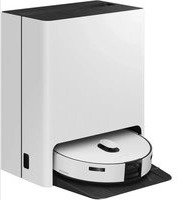
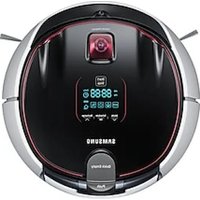


- CONTENTS
- SAFETY INFORMATION
- IMPORTANT SAFETY INSTRUCTIONS
- READ ALL INSTRUCTIONS BEFORE USING YOUR POWERBOT
- GENERAL
- ADAPTER / DOCKING STATION
- POWERBOT
- SAVE THESE INSTRUCTIONS
- POLARIZED PLUG INSTRUCTIONS
- FCC NOTICE
- FCC CAUTION
- FCC STATEMENT
- FCC RADIATION EXPOSURE STATEMENT
- IC NOTICE
- IC RADIATION EXPOSURE STATEMENT
- OPEN SOURCE LICENSE NOTICE
- WARNING
- POWER RELATED
- BEFORE USE
- IN USE
- CLEANING AND MAINTENANCE
- CAUTION
- INSTALLATION
- ACCESSORIES
- INSTALLATION NOTE
- NOTE
- CHARGING
- SMART CHARGING
- 1 TURN ON THE EMERGENCY SWITCH ON THE BOTTOM
- 2 MANUALLY CHARGE THE POWERBOT BY PLACING IT ON THE DOCKING STATION
- 3 CHECK THE CHARGING STATUS
- AUTOMATIC CHARGING
- SR1AM7010UW SERIES
- SR1AM7040W* / SR2AM70**** SERIES
- RECHARGING
- LOW BATTERY (LO)
- STEPS TO TAKE IF RECHARGING NOT OCCURRING
- CHECK THE INSTALLATION STATUS OF THE DOCKING STATION WHEN
- MANUALLY CHARGE THE POWERBOT WHEN
- USING POWERBOT
- TURNING THE POWER ON/OFF
- STARTING AUTO CLEAN MODE
- USING SPOT CLEAN MODE
- RECHARGING/ENERGY-SAVING MODE
- SELECTING CLEANING MODES
- CLEANING METHOD FOR EACH MODES
- AUTO CLEAN
- SPOT CLEAN
- MANUAL CLEAN
- REPEAT CLEAN
- ABOUT THE BOUNDARY MARKERS
- USING ENERGY-SAVING MODE
- HOW TO SELECT OR CANCEL DISPLAYED ICON
- USING THE REMOTE CONTROL
- [A TYPE] / [B TYPE]/ [TYPE]
- 1 POWER / RECHARGING / START/STOP
- 2 CLEANING MODES
- 3 SUCTION POWER
- 4 ADDITIONAL FUNCTION
- 6 POINT CLEANING
- INSERTING BATTERIES
- NAME OF EACH PART
- TOP
- BOTTOM
- DISPLAY PANEL
- SETTING THE TIME
- SETTING THE SCHEDULE
- CANCELLING DURING SETUP
- CANCELLING ONE-TIME/DAILY SCHEDULE
- SETTING TIME/SCHEDULE
- CANCELLING DAILY SCHEDULE
- CLEANING AND MAINTAINING
- CLEANING THE DUSTBIN
- CLEANING THE SENSORS AND THE CAMERA
- CLEANING THE BRUSH AND AUTO SHUTTER TOOL
- CLEANING THE DRIVING WHEEL
- SAMSUNG SMART HOME APP
- PREPARING THE NETWORK
- SETTING UP THE WIRELESS ROUTER
- USING THE SAMSUNG SMART HOME APP
- CREATING YOUR SAMSUNG ACCOUNT
- DOWNLOADING SAMSUNG SMART HOME APP
- REGISTERING THE PRODUCT (EASY-SETUP)
- ANDROID
- IOS
- MAIN SCREEN
- USER MENU SCREEN
- CONTROLLING POWERBOT
- NOTES AND CAUTIONS
- USING
- ABOUT THE BATTERY
- ABOUT THE IRDA SENSOR
- INFORMATION CODES
- TROUBLESHOOTING
- OPEN SOURCE ANNOUNCEMENT
- SPECIFICATIONS
- GUIDE D'UTILISATION
- TABLE DES MATIÈRES
- CONSIGNES DE SÉCURITÉ
- CONSIGNES DE SECURITÉ
- LISEZ TOUTES LES INSTRUCTIONS AVANT D'UTILISER VOTRE POWERBOT
- GÉNÉRALITÉS
- ADAPTATSEUR / BASE
- CONSERVEZ CES INSTRUCTIONS
- INSTRUCTIONS DES PRISES POLARISÉES
- NORME FCC
- MISE EN GARDE DE LA FCC
- DECLARATION DE LA FCC
- DECLARATION DE LA FCC SUR L'EXPOSITION AUX IRRADIATIONS
- AVIS D'IC
- DECLARATION D'IC QUANT À L'EXPOSITION AUX RAYONNEMENTS
- AVIS DE LICENCE LIBRE
- AVERTISSEMENT BRANCHEMENT
- AVERTISSEMENT AVANT L'UTILISATION
- AVERTISSEMENT
- EN COURS D'UTILISATION
- NETTOYAGE ET ENTRETIEN
- ATTENTION AVANT L'UTILISATION
- ATTENTION EN COURS D'UTILISATION
- ATTENTION
- ACCESSOIRES
- NOTICE D'INSTALLATION
- REMARQUE
- MISE EN CHARGE
- MISE EN CHARGE INTELLIGENTE
- 1 ACTIVEZ L'INTERRUPTEUR D'URGENCE SITUÉ SUR LE DESSOUS DE L'APPAREIL
- 2 METTEZ LE POWERBOT EN CHARGE MANUELLEMENT EN LE PLAÇANT SUR SA BASE
- 3 VÉRIFIEZ L'ETAT DE LA CHARGE
- CHARGE AUTOMATIQUE
- SÉRIE SR1AM7010UW
- SÉRIES SR1AM7040W* / SR2AM70
- RECHARGE
- BATTERIE FAIBLE (LO)
- ÉTAPES À SUIVRE EN CAS DE DÉFAUT DE RECHARGE
- VÉRIFIEZ L'ETAT D'INSTALLATION DE LA BASE DANS LES CAS SUIVANTS
- METTEZ LE POWERBOT EN CHARGE MANUELLEMENT LORSQUE
- UTILISATION DU POWERBOT
- MISE SOUS/HORS TENSION
- DÉMARRAGE DU MODE NETTOYAGE AUTOMATIQUE
- UTILISATION DU MODE NETTOYAGE LOCALISÉ
- RECHARGE / MODE ÉCONOMIE D'ÉNERGIE
- SÉLECTION DES MODES DE NETTOYAGE
- MÉTHODE DE NETTOYAGE POUR CHAQUE MODE
- NETTOYAGE AUTOMATIQUE
- NETTOYAGE LOCALISE
- NETTOYAGE MANUEL
- NETTOYAGE REPÉTÉ
- À PROPOS DES BORNES
- UTILISATION DU MODE D'ÉCONOMIE D'ÉNERGIE
- COMMENT SELECTIONNER OU ANNULER ICUNE AFFICHEE
- UTILISATION DE LA TÉLÉCOMMANDE
- [TYPE A] / □[TYPE B]/ [TYPE C]
- 1 MISE EN MARCHE / RECHARGE / DÉPART/ARRÊT
- 2 MODES DE NETTOYAGE
- 3 PUISSANCE D'ASPIRATION
- 4 FONCTION SUPPLÉMENTAIRE
- 6 NETTOYAGE LOCALISÉ
- INSERTION DES PILES
- NOMENCLATURE DES PIECES
- PARTIE HAUTE
- PARTIE BASSE
- PANNEAU D'AFFICHAGE
- RÉGLAGE DE L'HEURE/DU PROGRAMME
- RÉGLAGE DE L'HEURE
- RÉGLAGE DU PROGRAMME
- ANNULATION AU MOMENT DU RÉGLAGE
- ANNULATION DU PROGRAMME POUR UNE SEULE FOIS/QUOTIDIEN
- ANNULATION DU PROGRAMME QUOTIDIEN
- NETTOYAGE DU RÉSERVOIR DE POUSSIÈRE
- NETTOYAGE DES CAPTEURS ET DE LAAMERA
- NETTOYAGE DE LA BROSSE ET DU VOLET OBTURATEUR AUTOMATIQUE
- NETTOYAGE DE LA ROUE D'ENTRAINEMENT
- APPLICATION SAMSUNG SMART HOME
- PRÉPARATION DU RÉSEAU
- CONFIGURATION DU ROUTEUR SANS FIL
- UTILISATION DE L'APPLICATION SAMSUNG SMART HOME
- CREATION DE VOTRE COMPTE SAMSUNG
- TÉLÉCHARGEMENT DE L'APPLICATION SAMSUNG SMART HOME
- ENREGISTREMENT DE L'APPAREIL (CONFIGURATION FACILE)
- ÉCRAN PRINCIPAL
- ÉCRAN DU MENU UTILISÉ
- CONTRÔLE DU POWERBOT
- REMARQUES ET MISES EN GARDE
- UTILISATION
- A PROPOS DE LA BATTERIE
- À PROPOS DU CAPTEUR INFRAROUGE
- CODES D'INFORMATION
- DÉPANNAGE
- ANNONCE DE LOGICIEL OPEN SOURCE
- CARACTÉRISTIQUES TECHNIQUES
- MANUAL DEL USUARIO
- CONTEDIO
- INFORMACIÓN SOBRESEGUIDAD
- INFORMACION SOBRE SEGURIDAD
- LEA TODAS LAS INSTRUCCIONES ANTES DE USAR SU POWERBOT
- ADAPTADOR/ESTACIÓN DE ENERGIA
- GUARDE ESTAS INSTRUCCIONES
- INSTRUCCIONES SOBRE EL ENCHUFE POLARIZADO
- AVISO DE LA FCC (FEDERAL COMMUNICATIONS COMMISSION)
- PRECAUCION DE LA FCC
- DECLARACION DE LA FCC
- DECLARACIÓN DE LA FCC SOBRE LA EXPOSICION A LA RADIACION
- AVISO DE LA IC
- DECLARACION IC SOBRE LA EXPOSICN A LA RADIACION
- AVISO DE LICENCIA DE NÚMERO ABIERTO
- ADVERTENCIA
- ACERCA DE LA ALIMENTACION ELECTRICA
- ANTES DE USAR
- DURANTE EL USO
- LIMPIEZA Y MANTENIMIENTO
- PRECAUCION ANTES DE使用者
- PRECAUCION DURANTE EL USO
- PRECAUCION
- INSTALACIÓN
- ACCESORIOS
- NOTASOBRE LA INSTALACION
- NOTA
- CARGA
- CARGA INTELIGENTE
- 1 ENCIENDA EL INTERRUPTOR DE EMERGENCIA DE LA PARTE INFERIOR
- 2 CARGUE MANUALMENTE EL POWERBOT COLOCÁNDOLO EN LA ESTACIÓN DEARGA
- 3 VERIFIQUE EL ESTADO DE LA ENERGIA
- CARGA AUTOMÁTICA
- SERIE SR1AM7010UW
- SERIE SR1AM7040W*/SR2AM70
- RECARGA
- BATERÍA BAJA (LO)
- PASOS QUE DEBEN SEGUIR SI NO SE EFECTÚA LA RECARGA
- REVISE EL ESTADO DE INSTALACIÓN DE LA ESTACIÓN DEARGAUPON
- CARGUE MANUALMENTE EL POWERBOT CUANDO
- USO DEL POWERBOT
- ENCENDIDOYAPAGADO
- INICIO DEL MODO DE LIMPIEZA AUTOMÁTICA
- USO DEL MODO DE LIMPIEZA LOCALIZADA
- RECARGA/MODO DE AHORA DE ENERGIA
- SELECCIÓN DE LOS MODELOS DE LIMPIEZA
- MÉTODO DE LIMPIEZA PARA CADA MODO
- LIMPIEZA AUTOMATICA
- LIMPIEZA LOCALIZADA
- LIMPIEZA MANUAL
- LIMPIEZA REPETIDA
- ACERCA DE LOS MARCADORES DE LIMITE
- USO DEL MODO DE AHORA DE ENERGIA
- COMO SELECCIONAR O CANCELAR ICONO MOSTRADO
- USO DEL CONTROL REMOTO
- [TIP A] / [TIP B]/ [TIP C]
- 1 ENCENDIDO / RECARGA / INICIO/DETENCION
- 2 MODOS DE LIMPIEZA
- 3 POTENCIA DE SUCCION
- 4 FUNCIONES ADICONIALES
- 5 MODELO DE LIMPIEZA MANUAL Y CONTROL DE DIRECCION
- 6 LIMPIEZA DIRIGIDA
- DISTANCIA DE FUNCIONA DEL CONTROL REMOT
- INSERCIÓN DE LAS PILAS
- NOMBRE DE CADA PIEZA
- PARTE SUPERIOR
- PARTE INFERIOR
- VISOR
- AJUSTE DE LA HORA/PROGRAMACIÓN
- AJUSTE DE LA HORA
- AJUSTE DE LA PROGRAMACIÓN
- CANCELACIÓN DURANTE EL AJUSTE
- CANCELACIÓN DE LA PROGRAMACIÓN UNA VEZ/DIARIA
- CANCELACIÓN DE LA PROGRAMACIÓN DIARIA
- LIMPIEZA DEL CONTENTEDOR DE POLVO
- LIMPIEZA DE LOS SENSORES Y LA CAMERA
- LIMPIEZA DEL CEPILLO Y DE LA HERRAMIENTA DE ACTIVACION AUTOMATICA
- LIMPIEZA DE LA RUEDA MOTRIZ
- APLICACIÓN SAMSUNG SMART HOME
- PREPARACIÓN DE LA RED
- AJUSTE DEL ENRUTADOR INALÁMBRICO
- USO DE LA APLICACION SAMSUNG SMART HOME
- CREACIÓN DE UNA CUENTA SAMSUNG
- DESCARGA DE LA APLICACION SAMSUNG SMART HOME
- REGISTRAR DEL PRODUCTO (CONFIGURACIÓN FÁCIL)
- PANTALLA PRINCIPAL
- PANTALLA DEL MENU DEL USUARIO
- CONTROL DEL POWERBOT
- NOTAS Y PRECAUCIONES
- USO
- PRECAUCIÓN
- ACERCA DE LA BATERÍA
- ACERCA DEL SENSOR IRDA
- CÓDIGOS DE INFORMACIÓN
- SOLUTION DE PROBLEMAS
- ESPECIFICACIONES
- SAMSUNG
Brand : SAMSUNG
Model : POWERbot VR2AM7070WS
Category : Robot vacuum