NSF27C - TV INSIGNIA - Free user manual and instructions
Find the device manual for free NSF27C INSIGNIA in PDF.


User questions about NSF27C INSIGNIA
0 question about this device. Answer the ones you know or ask your own.
Ask a new question about this device
Download the instructions for your TV in PDF format for free! Find your manual NSF27C - INSIGNIA and take your electronic device back in hand. On this page are published all the documents necessary for the use of your device. NSF27C by INSIGNIA.
USER MANUAL NSF27C INSIGNIA
Insignia NS-F27C 27" Flat Tube TV
Contents
Welcome. 3
Safety information 3
Features. 4
Front. 4
Back 4
Side 4
Remote. 5
Setting up your TV .6
Connecting an antenna or direct cable. 6
Connecting a cable or satellite receiver 6
Connecting a standard A/V device. 6
Connecting a component video device 7
Connecting an S-Video device. 7
Connecting an audio system 7
Using your TV 8
Turning your TV on and off. 8
Changing channels. 8
Adjusting the volume 8
Adjusting picture quality 8
Adjusting sound quality 8
Fine-tuning the picture or sound. 8
Selecting the channel system. 9
Selecting the TV signal source. 10
Memorizing channels 10
Adding or deleting channels. 10
Setting the clock 10
Setting the calendar 11
Automatically turning your TV on or off 11
Setting the sleep timer 12
Setting a favorite channel. 12
Setting a reminder 13
Selecting the on-screen display language 13
Selecting the background. 13
Turning the black stretch on or off 13
Improving picture quality 14
Selecting the closed caption mode. 14
Setting parental controls. 14
Turning parental controls on or off 16
Changing the password 16
Setting other locks 17
Maintaining. 17
Troubleshooting 17
Specifications. 18
Legal notices 18
1-year limited warranty. 19
Francais. 21
Welcome
Congratulations on your purchase of a high-quality Insignia product. Your NS-F27C represents the state of the art in flat tube TV design and is designed for reliable and trouble-free performance.
Safety information

CAUTION RISK OF ELECTRIC SHOCK DO NOT OPEN

Warning
To reduce the risk of electric shock, do not remove the cover or back. No user serviceable parts inside. Refer servicing to qualified service personnel.
To reduce the risk of fire or electric shock, do not expose your TV to rain or moisture.
Warning
To prevent electric shock, match the wide blade on the power cord plug to the wide slot on an electric outlet. If the plug does not fit, consult a licensed electrician to replace the obsolete outlet. Do not modify the power cord plug, or you will defeat this safety feature.

This symbol indicates that dangerous voltage constituting a risk of electric shock is present within your TV. This label is located on the back of your TV.

This symbol indicates that there are important operating and maintenance instructions in the literature accompanying your TV.
Important safety instructions
1 Read these instructions.
2 Keep these instructions.
3 Heed all warnings.
4 Follow all instructions.
5 Do not use this apparatus near water.
6 Clean only with a dry cloth.
7 Do not block any ventilation openings. Install in accordance with the manufacturer's instructions.
8 Do not install near any heat sources such as radiators, heat registers, stoves, or other apparatus (including amplifiers) that produce heat.
9 Do not defeat the safety purpose of the polarized or grounding-type plug. A polarized plug has two blades with one wider than the other. A grounding type plug has two blades and a third grounding prong. The wide blade or the third prong is provided for your safety. If the provided plug does not fit into your outlet, consult an electrician for replacement of the obsolete outlet.
10 Protect the power cord from being walked on or pinched particularly at plugs, convenience receptacles, and the point where they exit from the apparatus.
11 Only use attachments or accessories specified by the manufacturer.
12 Use only with a cart, stand, tripod, bracket, or table specified by the manufacturer.
13 Unplug this apparatus during lightning storms or when unused for long periods of time.

14 Refer all servicing to qualified service personnel.
Servicing is required when the apparatus has been damaged in any way, such as the power-supply cord or plug is damaged, liquid has been spilled or objects have fallen into the apparatus, the apparatus has been exposed to rain or moisture, does not operate normally, or has been dropped.
Caution
This apparatus shall not be exposed to dripping or splashing, and no objects filled with liquids, such as vases, shall be placed on the apparatus.
Important
The mains plug is used as the disconnect device, and it should remain readily operable during normal use of the apparatus.
Features
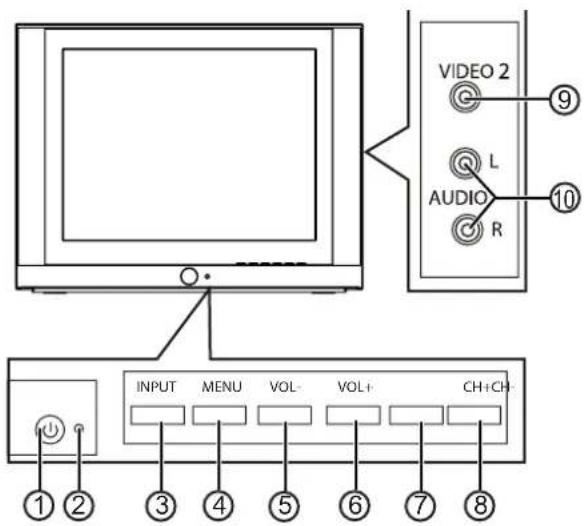
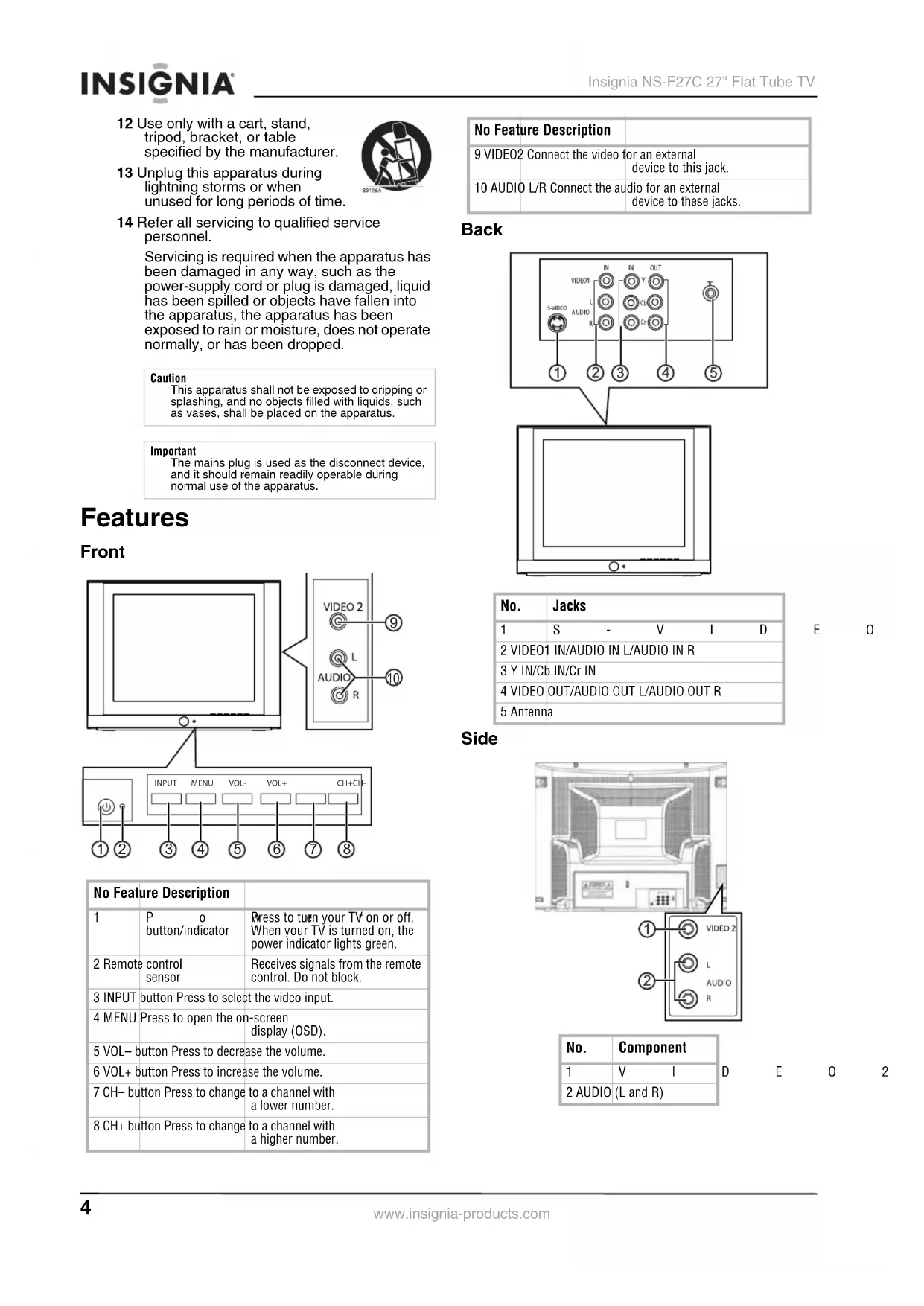
Front
| No Feature Description | ||
| 1 | P button/indicator | Press to tuen your TV on or off. When your TV is turned on, the power indicator lights green. |
| 2 Remote control sensor | Receives signals from the remote control. Do not block. | |
| 3 INPUT button Press to select the video input. | ||
| 4 MENU Press to open the on-screen display (OSD). | ||
| 5 VOL- button Press to decrease the volume. | ||
| 6 VOL+ button Press to increase the volume. | ||
| 7 CH- button Press to change to a channel with a lower number. | ||
| 8 CH+ button Press to change to a channel with a higher number. | ||
| No Feature Description | |
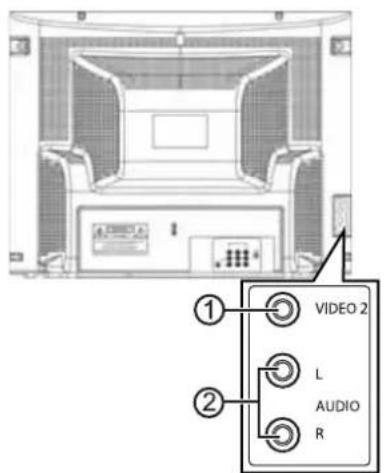
| 9 VIDE02 Connect the video for an external device to this jack. | |
| 10 AUDIO L/R Connect the audio for an external device to these jacks. | |
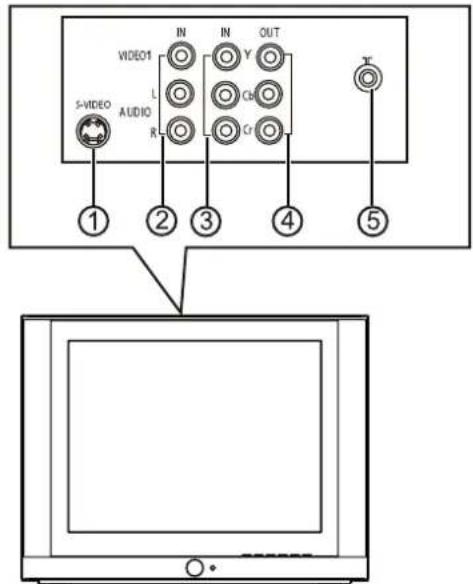
Back
| No. | Jacks |
| 1 | S - V I D |
| 2 | VIDEO1 IN/AUDIO IN L/AUDIO IN R |
| 3 | Y IN/Cb IN/Cr IN |
| 4 | VIDEO OUT/AUDIO OUT L/AUDIO OUT R |
| 5 | Antenna |
E 0
Side
| No. | Component |
| 1 | V Ⅰ |
| 2 AUDIO (L and R) | |
E 0 2
Remote
| No. Button Description | ||
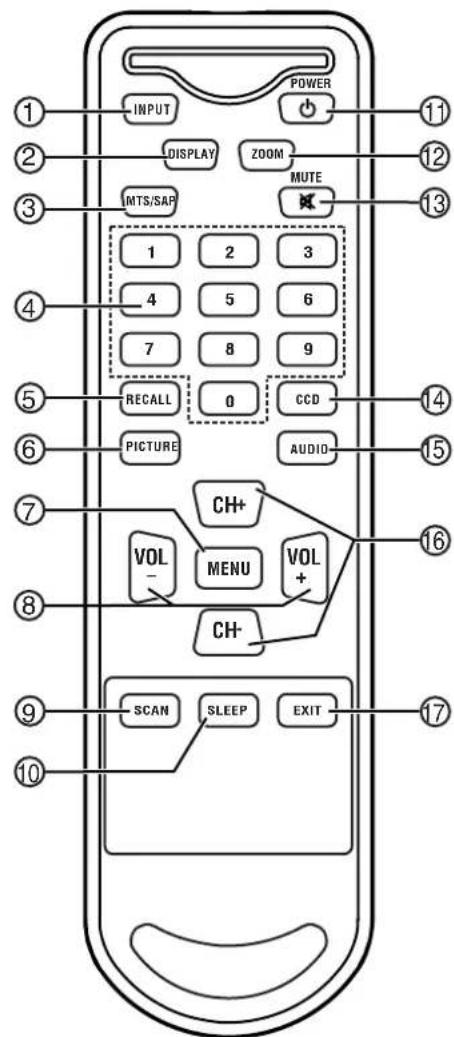
| 1 INPUT | Press to select TV, Video1, Video2, S-Video, or Component input. | |
| 2 DISPLAY Press to display channel information. | ||
| 3 MTS/SAP Press to select Stereo, SAP, or Mono audio. | ||
| 4 Number buttons Press to enter channel numbers | ||
| 5 RECALL Press to return to the previous channel or source. | ||
| 6 PICTURE Press to select Personal, Mild, Standard, or Vivid picture mode. | ||
| 7 MENU Press to open the on-screen display (OSD). | ||
| 8 VOL+/VOL- Press to increase or decrease the volume. | ||
| 9 SCAN Press to scan through memorized TV channels. | ||
| 10 | SLEEP | Press to set the sleep timer. |
| 11 | POWER | Press to turn your TV on and off or to bring your TV out of standby mode. |
| No. Button Description | ||
| 12 | ZOOM Press to select Normal, 16:9, or Enlardge zoom mode. | |
| 13 | MUTE | Press to mute the sound. Press again to restore the sound. |
| 14 | CCD | Press to turn close captions on or off. |
| 15 | AUDIO | Press to select an audio mode. |
| 16 | CH+/CH- Press to change to a channel with a higher or lower number. | |
| 17 | EXIT | Press to turn off the channel display and to exit system menus. |
Installing remote control batteries
Warning
Do not throw the batteries into fire. Dispose of used batteries as hazardous waste.
Caution
Do not drop or disassemble the remote control. Do not get the remote control wet.
Important
If you insert the batteries incorrectly, you will not damage the remote control, but the remote control will not work.
To install batteries in the remote control:
1 Remove the battery cover.
2 Insert two AA batteries into the battery compartment. Make sure that the + and - symbols on the batteries match the + and - marks inside the battery compartment.
3 Replace the battery cover.
Note
When the remote control will not be used for a long period of time or when the batteries are worn out, remove the batteries to prevent leakage.
Setting up your TV
Connecting an antenna or direct cable
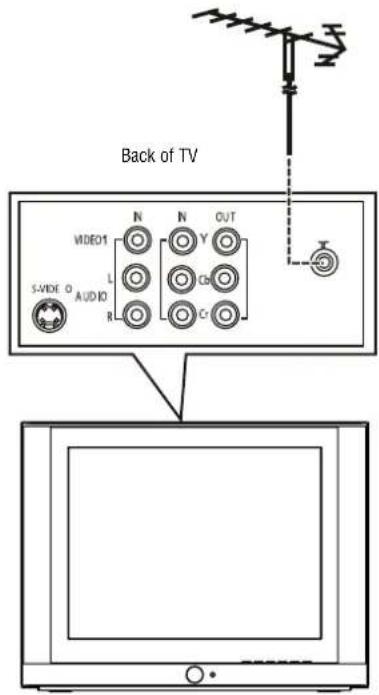
To connect an antenna or direct cable:
1 Plug one end of a coaxial cable into your antenna or cable wall jack.
2 Plug the other end of the cable into the antenna jack on the back of your TV.
Connecting a cable or satellite receiver
To connect a cable converter box or satellite receiver:
1 Connect a coaxial cable from your cable or satellite signal source to the IN jack on cable converter box or satellite receiver.
2 Plug a coaxial cable into the OUT jack on your cable converter box or satellite receiver, then plug the other end of the cable into the antenna jack on the back of your TV.
Connecting a standard A/V device
Your TV has two sets of standard A/V jacks. One set is on the back of your TV. The other set is on the left side of your TV.
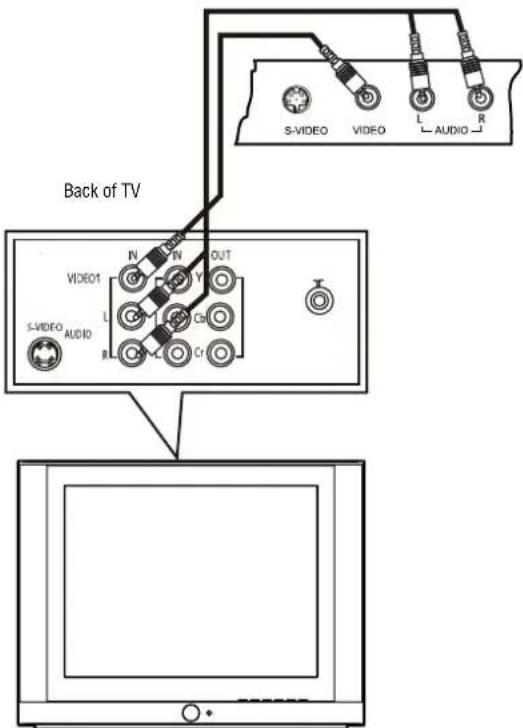
To connect a standard A/V device to the back A/V jacks:
1 Plug the video (yellow) connector on a standard A/V cable into the video out jack on the external device, then connect the other video (yellow) connector into the VIDE01 IN jack on the back of your TV.
2 Plug the left audio (white) connector on a standard A/V cable into the left audio out jack on the external device, then connect the other left audio (white) connector into the AUDIO IN L (left) jack on the back of your TV.
3 Plug the right audio (red) connector on a standard A/V cable into the right audio jack on the external device, then connect the other right audio (red) connector into the AUDIO IN R (right) jack on the back of your TV.
To connect a standard A/V device to the side A/V jacks:
1 Plug the video (yellow) connector on a standard A/V cable into the video out jack on the external device, then connect the other video (yellow) connector into the VIDE02 jack on the side of your TV.
2 Plug the left audio (white) connector on a standard A/V cable into the left audio out jack on the external device, then connect the other left audio (white) connector into the AUDIO L (left) jack on the side of your TV.
3 Plug the right audio (red) connector on a standard A/V cable into the right audio out jack on the external device, then connect the other right audio (red) connector into the AUDIO R (right) side on the back of your TV.
Connecting a component video device
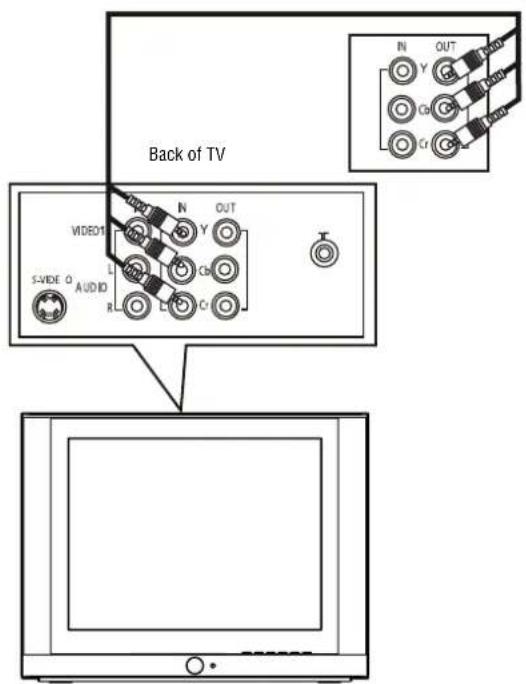
To connect a component video device:
1 Plug the Y (green) connector on a component video cable into the Y out jack on the external video device, then plug the other Y (green) connector into the Y IN jack on the back of your TV.
2 Plug the Cb (blue) connector on a component video cable in the Cb out jack on the external video device, then plug the other Cb (blue) connector into the Cb IN jack on the back of your TV.
3 Plug the Cr (red) connector on a component video cable into the Cr out jack on the external video device, then plug the other Cr (red) connector into the Cr IN jack on the back of your TV.
4 Plug the left audio (white) connector on a standard A/V cable into the left audio out jack on the external device, then connect the other left audio (white) connector into the AUDIO IN L (left) jack on the back of your TV.
5 Plug the right audio (red) connector on a standard A/V cable into the right audio jack on the external device, then connect the other right audio (red) connector into the AUDIO IN R (right) jack on the back of your TV.
Connecting an S-Video device
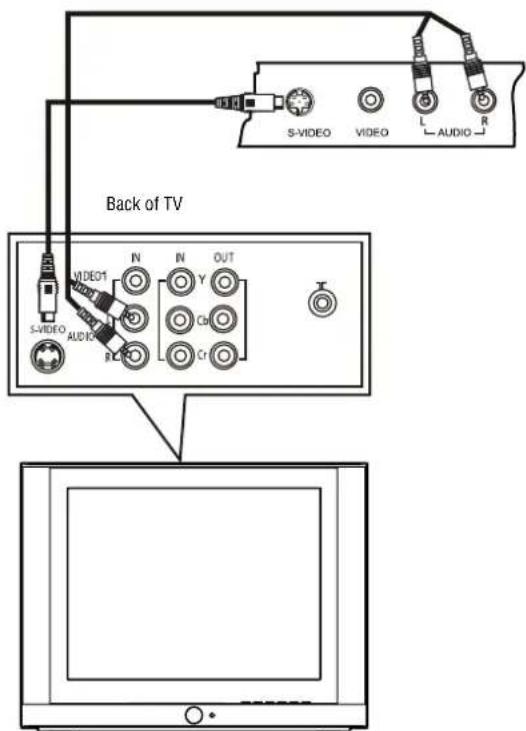
To connect an S-Video device:
1 Plug one end of an S-Video cable into the S-Video out jack on the external device, then plug the other end of the S-Video cable into the S-VIDEO jack on the back of your TV.
2 Plug the left audio (white) connector on a standard A/V cable into the left audio out jack on the external device, then connect the other left audio (white) connector into the AUDIO IN L (left) jack on the back of your TV.
3 Plug the right audio (red) connector on a standard A/V cable into the right audio out jack on the external device, then connect the other right audio (red) connector into the AUDIO IN R (right) jack on the back of your TV.
Connecting an audio system
To connect an audio system:
1 Plug the left audio (white) connector on a standard A/V cable into the left audio out jack on the audio system, then connect the other left audio (white) connector into the AUDIO OUT L (left) jack on the back of your TV.
2 Plug the right audio (red) connector on a standard A/V cable into the right audio out jack on the external device, then connect the other right audio (red) connector into the AUDIO OUT R (right) jack on the back of your TV.
Using your TV
Turning your TV on and off
To turn your TV on and off:
1 Make sure that the power cord is plugged into a power outlet.
2 Press POWER on the front of the TV or on the remote control.
Changing channels
To change channels:
- Press CH+ or CH- to go to the next higher or lower TV channel.
- Or, press the number buttons to select a channel number.
- Or, press RECALL to go to the previous channel.
- Or, open the on-screen display (OSD), select the Channel menu, select Current Ch., then press VOL+ or VOL- to select the channel you want.
Adjusting the volume
To adjust the volume with the remote control:
1 Press VOL+ or VOL- to increase or decrease the volume.
2 Press MUTE to turn off the sound. Press this button again to restore sound.
Adjusting picture quality
To adjust picture quality:
1 Press MENU to open the on-screen display (OSD). The Video menu opens.
| Video | |
| Contrast | 70 |
| Brightness | 32 |
| Color | 50 |
| Sharpness | 40 |
| Tint | 50 |
| Color Temp. | Cool |
2 Press CH+ or CH- to select an option. You can select:
- Contrast-Adjusts the white and dark areas in the video image. Increasing the value adjusts the white areas. Decreasing the value adjusts the dark areas.
-
Brightness-Adjusts the amount of light and dark in the video image. Increasing the value adds more light to the dark areas. Decreasing the value adds more dark to the light areas.
Color-Adjusts the color in the video image. -
Sharpness-Adjust the clarity of the video image. Increasing the value shows a cleaner, clearer image. Decreasing the value shows a smoother image.
- Tint-Adjusts the color tint. Increasing the value adds more red to skin color. Decreasing the value adds more green to skin color.
Color Temp.-Adjusts the overall color of the image. You can select Neutral, Warm, or Cool.
3 Press VOL+ or VOL- adjust an option.
Adjusting sound quality
To adjust the sound quality:
1 Press MENU to open the on-screen display (OSD).
2 Press VOL+ or VOL- to select the audio icon The Audio menu opens.
| Audio | |
| Volume | 50 |
| Bass | 50 |
| Treble | 50 |
| Balance | 0 |
| Surround | Off |
3 Press CH+ or CH- to select an option. You can select:
Volume-Adjusts the volume.
- Bass-Adjusts the bass.
- Treble-Adjusts the treble.
Balance-Adjusts the balance.
- Surround-Turns the surround feature on or off.
4 Press VOL+ or VOL- button adjust the option.
Fine-tuning the picture or sound
If the picture or sound quality is poor, try adjusting the picture quality and sound quality first. For more information, see "Adjusting picture quality" on page 8 and "Adjusting sound quality" on page 8. If picture or sound quality is still poor after you have adjusted the picture and sound, you can use the Fine option to improve the quality.
Caution
Do not use this option unless the picture or sound quality is poor.
To fine-tune the picture or sound:
1 Press MENU to open the on-screen display (OSD).
2 Press VOL+ or VOL- to select the channel icon. TheChannel menu opens.
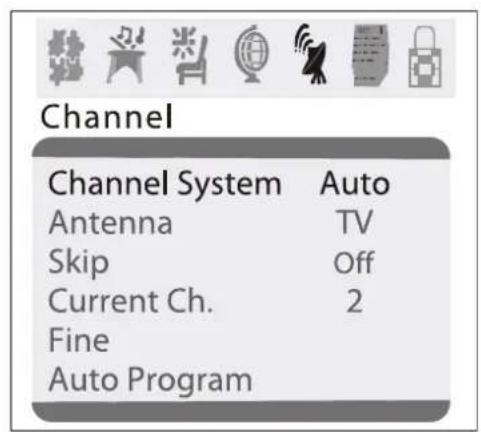
3 Press CH+ or CH- to select Fine.
4 Press VOL+ or VOL- to start the fine-tuning process.
Selecting the channel system
To select the channel system:
1 Press MENU to open the on-screen display (OSD).
2 Press VOL+ or VOL- to select the channel icon. TheChannel menu opens.
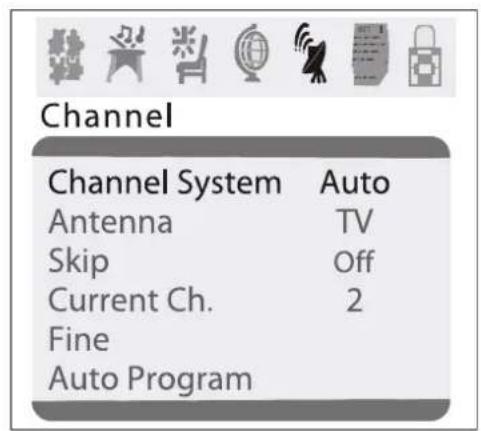
3 Press CH+ or CH- to select Channel System.
4 Press VOL+ or VOL- to select Auto (recommended) or NTSC.
Selecting the TV signal source
To select the TV signal source:
1 Press MENU to open the on-screen display (OSD).
2 Press VOL+ or VOL- to select the channel icon. The Channel menu opens.
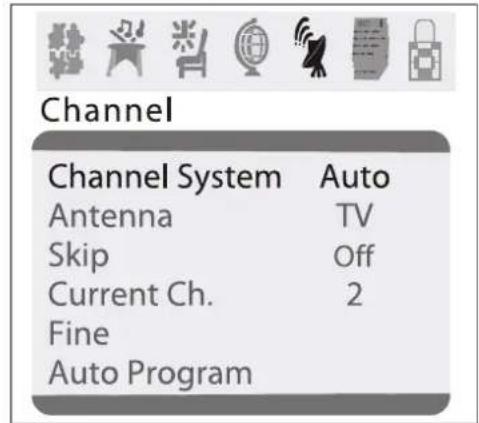
3 Press CH+ or CH- to select Antenna.
4 Press VOL+ or VOL- to select TV or CATV.
Memorizing channels
After you set up your TV, you need to scan for channels in your area that have a signal. When your press the CH+ or CH- , your TV only displays the memorized channels, and skips the channels that do not have signals.
To memorize channels:
1 Make sure that you have selected the TV signal source. For more information, see "Selecting the TV signal source" on page 10.
2 Press MENU to open the on-screen display (OSD).
3 Press VOL+ or VOL- to select the channel icon. TheChannel menu opens.
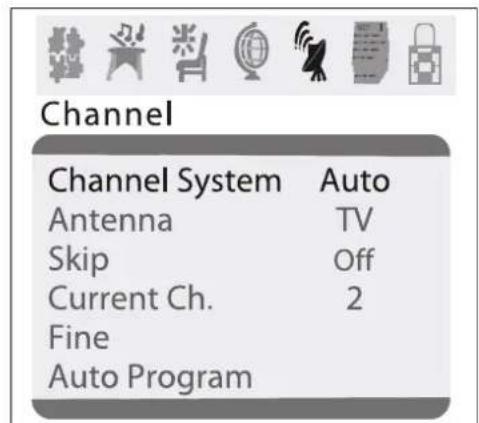
4 Press CH+ or CH- to select Auto Program.
5 Press VOL+ or VOL- to start the scan. Your TV scans for available channels, and stores the channel information in memory.
Tip
After you memorize channels, you can press SCAN to scan through the memorized channels.
Adding or deleting channels
If a channel was skipped when your TV memorized the channels because the signal was weak, you can add the channel to the channel list. You can also delete a channel from memory.
To add or delete channels:
1 Tune to the channel you want to add or delete. If you want to add a channel, use the number buttons to select the channel. If you want to delete a channel press CH+ or CH- or use the number buttons to select the channel.
2 Press MENU to open the on-screen display (OSD).
3 Press VOL+ or VOL- to select the channel icon. TheChannel menu opens.
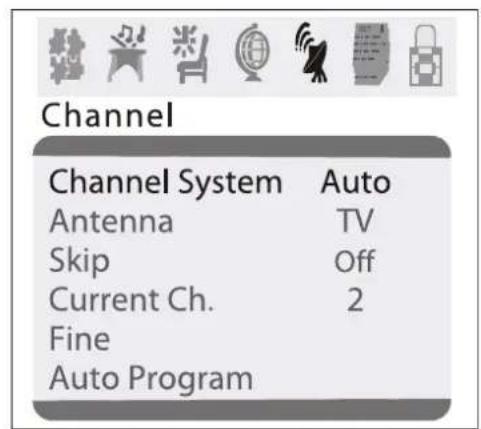
4 Press CH+ or CH- to select Skip.
5 Press VOL+ or VOL- to add or delete the channel.
Setting the clock
To set the clock:
1 Press MENU to open the on-screen display (OSD).
2 Press VOL+ or VOL- to select the timer icon The Timer menu opens.
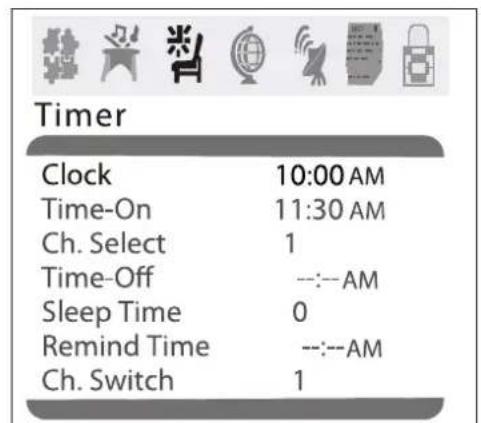
3 Press CH+ or CH- to select Clock.
4 Press VOL+ or VOL- to set the hour, then press CH+ or CH- to go to the minutes field.
5 Press VOL+ or VOL- to set the minutes.
Setting the calendar
To set the calendar:
1 Press MENU to open the on-screen display (OSD).
2 Press VOL+ or VOL- to select the calendar icon. The Calendar menu opens.
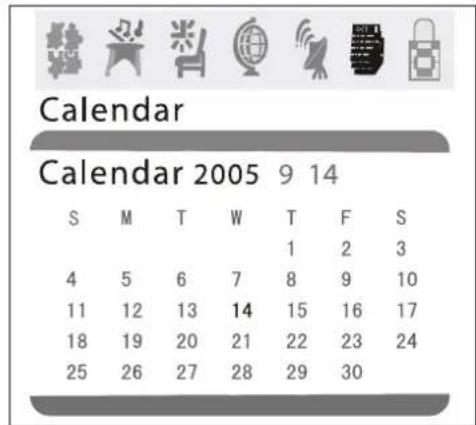
3 Press CH+ or CH- to highlight the year, then press VOL+ or VOL- to select the year.
4 Press CH+ or CH- to highlight the month, then press VOL+ or VOL- to select the month.
5 Press CH+ or CH- to highlight the day, then press VOL+ or VOL- to select the day.
Automatically turning your TV on or off
You can set timers that will automatically turn your TV on and off. When you set these timers, your TV will turn on and off each day at the times you specify.
To set the timer to turn on your TV:
1 Press MENU to open the on-screen display (OSD).
2 Press VOL+ or VOL- to select the timer icon The Timer menu opens.
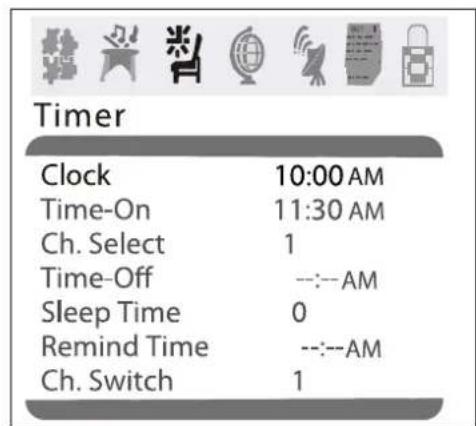
3 Press CH+ or CH- to select Time-On.
4 Press VOL+ or VOL- to set the hour, then press CH+ or CH- to go to the minutes field.
5 Press VOL+ or VOL- to set the minutes.
To set the timer to turn off your TV:
1 Press MENU to open the on-screen display (OSD).
2 Press VOL+ or VOL- to select the timer icon The Timer menu opens.
| Timer | |
| Clock | 10:00AM |
| Time-On | 11:30 AM |
| Ch. Select | 1 |
| Time-Off | ---AM |
| Sleep Time | 0 |
| Remind Time | ---AM |
| Ch. Switch | 1 |
3 Press CH+ or CH- to select Time-Off.
4 Press VOL+ or VOL- to set the hour, then press CH+ or CH- to go to the minutes field.
5 Press VOL+ or VOL- to set the minutes.
Setting the sleep timer
Tip You can also press SLEEP to set the sleep timer.
To set the sleep timer:
1 Press MENU to open the on-screen display (OSD).
2 Press VOL+ or VOL- to select the timer icon The Timer menu opens.
| Timer | |
| Clock | 10:00AM |
| Time-On | 11:30 AM |
| Ch. Select | 1 |
| Time-Off | ---AM |
| Sleep Time | 0 |
| Remind Time | ---AM |
| Ch. Switch | 1 |
3 Press CH+ or CH- to select Sleep Time, then press VOL+ or VOL- to select the amount of time you want your TV to wait before it turns off. You can select 0, 5, 10, 15, 30, 45, 60, 90, 120, 180, or 240 minutes.
4 To turn off the sleep timer, repeat this task and set the sleep time to 0.
Setting a favorite channel
You can set up a favorite channel and set the time when you want your TV to switch to the favorite channel.
To set a favorite channel:
1 Press MENU to open the on-screen display (OSD).
2 Press VOL+ or VOL- to select the timer icon The Timer menu opens.
| Timer | |
| Clock | 10:00 AM |
| Time-On | 11:30 AM |
| Ch. Select | 1 |
| Time-Off | ---AM |
| Sleep Time | 0 |
| Remind Time | ---AM |
| Ch. Switch | 1 |
3 Press CH+ or CH- to select Ch.Select.
4 Press VOL+ or VOL- to set the hour, then press CH+ or CH- to go to the minutes field.
5 Press VOL+ or VOL- to set the minutes.
To switch to a favorite channel:
1 Press MENU to open the on-screen display (OSD).
2 Press VOL+ or VOL- to select the timer icon The Timer menu opens.
| Timer | |
| Clock | 10:00 AM |
| Time-On | 11:30 AM |
| Ch. Select | 1 |
| Time-Off | ---AM |
| Sleep Time | 0 |
| Remind Time | ---AM |
| Ch. Switch | 1 |
3 Press CH+ or CH- to select Ch.Switch.
4 Press VOL+ or VOL- to select the channel.
5 Press VOL+ or VOL- to set the hour, then press CH+ or CH- to go to the minutes field.
6 Press VOL+ or VOL- to set the minutes.
Setting a reminder
You can set a reminder so you TV displays a message at the time you specify.
To set a reminder:
1 Press MENU to open the on-screen display (OSD).
2 Press VOL+ or VOL- to select the timer icon The Timer menu opens.
| Timer | |
| Clock | 10:00AM |
| Time-On | 11:30 AM |
| Ch. Select | 1 |
| Time-Off | ---AM |
| Sleep Time | 0 |
| Remind Time | ---AM |
| Ch. Switch | 1 |
3 Press CH+ or CH- to select Remind Time.
4 Press VOL+ or VOL- to set the hour, then press CH+ or CH- to go to the minutes field.
5 Press VOL+ or VOL- to set the minutes.
Selecting the on-screen display language
You can select a language for the on-screen display (OSD).
To select the on-screen display language:
1 Press MENU to open the on-screen display (OSD).
2 Press VOL+ or VOL- to select the setup icon The Setup menu opens.
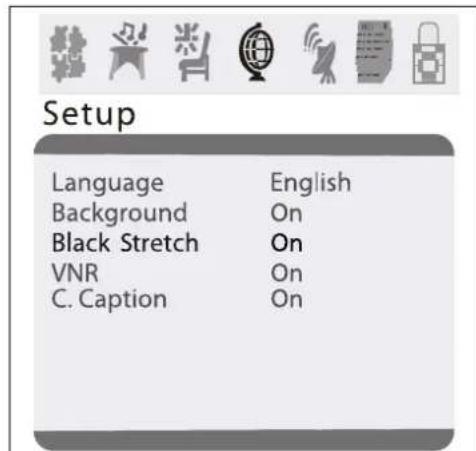
3 Press CH+ or CH- to select Language.
4 Press VOL+ or VOL- to select English, French, or Spanish.
Selecting the background
Your TV can display a moving NO SIGNAL message when you tune to a channel that does not have a signal.
1 Press MENU to open the on-screen display (OSD).
2 Press VOL+ or VOL- to select the setup icon The Setup menu opens.
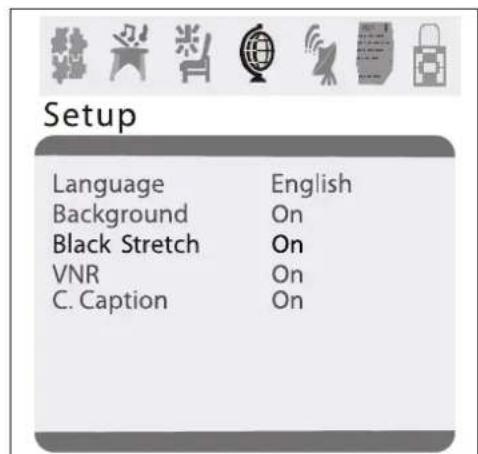
3 Press CH+ or CH- to select Background.
4 Press VOL+ or VOL- to select On or Off.
Turning the black stretch on or off
When the black stretch feature is on, your TV automatically increases the contrast range for the video image.
To turn the black stretch on or off:
1 Press MENU to open the on-screen display (OSD).
2 Press VOL+ or VOL- to select the setup icon The Setup menu opens.
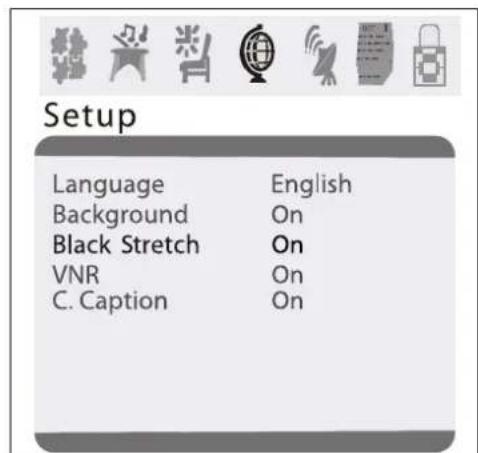
3 Press CH+ or CH- to select Black Stretch.
4 Press VOL+ or VOL- to select On or Off.
Improving picture quality
Your TV has a video noise reduction (VNR) feature that automatically reduces video noise to improve picture quality.
1 Press MENU to open the on-screen display (OSD).
2 Press VOL+ or VOL- to select the setup icon The Setup menu opens.
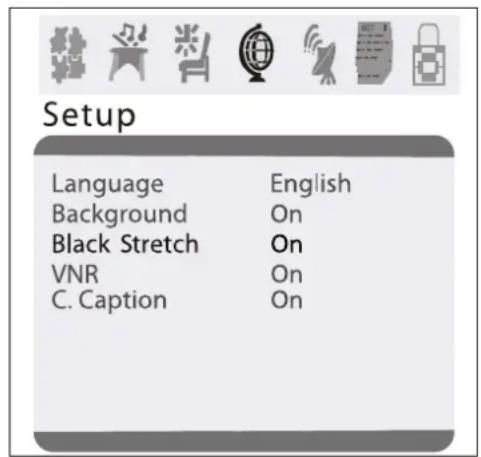
3 Press CH+ or CH- to select VNR.
4 Press VOL+ or VOL- to select On or Off.
Selecting the closed caption mode
To select the closed caption mode:
1 Press MENU to open the on-screen display (OSD).
2 Press VOL+ or VOL- to select the setup icon The Setup menu opens.
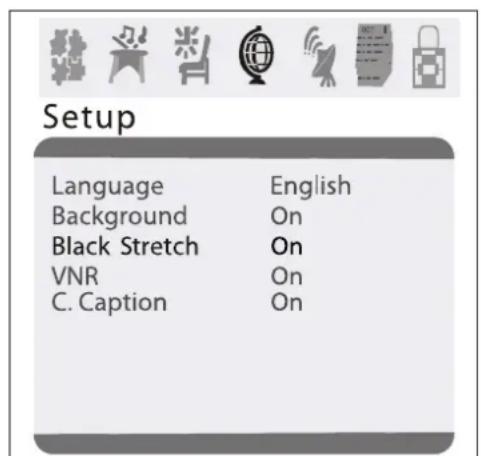
3 Press CH+ or CH- to select C.Caption.
4 Press VOL+ or VOL- to select a closed caption mode. You can select:
- Off-Turns off closed captions.
- CC1-Displays captions in the primary language for a TV program.
- CC2-Displays captions in a secondary language for a TV program.
- CC3-Displays information provided by the broadcaster.
-
CC4-Displays information provided by the broadcaster.
-
T1—Displays information such as a program guide. This option covers a large portion of the screen.
T2-Displays information provided by the broadcaster. This option covers a large portion of the screen.
T3-Displays information provided by the broadcaster. This option covers a large portion of the screen.
T4-Displays information provided by the broadcaster. This option covers a large portion of the screen.
Tip You can also press CCD to turn close captioning on and off.
Setting parental controls
You can block or unblock TV ratings for the U.S. You can also block or unblock movie ratings.
U.S. TV program ratings
| NR Not Rated-Programs are not rated or rating does not apply. |
| TV-Y For all children-Programs are designed for a very young audience, including children from ages 2-6. |
| TV-Y7 Directed for older children-Programs may include comedic or mild violence which may frighten children under the age of 7. |
| TV-G General Audience-Programs contain little or no violence, no strong language, and little or no sexual dialogue and situations. |
| TV-PG Parental Guidance Suggested-Programs may contain limited violence, some suggestive sexual dialogue and situations, and profane language. |
| TV-14 Parents strongly cautioned-Programs may contain sexual content, strong language, and more intense violence. |
| TV-MA Mature audience only-Programs may contain sexual violence, explicit sexual content and profane language. |
U.S. TV content ratings
| FV Programs contain fantasy and cartoon violence. |
| V Programs contain violence. |
| S Programs contain sex. |
| L Programs contain offensive language. |
| D Programs contain dialogue with sexual content. |
U.S. TV movie ratings
| NR Not rated yet-The movie is pending government rating approval. |
| G General Audience-This movie rating means all ages can see the movie. |
| PG-13 Parents Strongly Cautioned-This movie rating means some material may not be appropriate for children under 13. |
| R Restricted-This movie rating means children under 17 of age require parental guidance. |
| NC-17 This movie rating means no one 17 and under should see the movie without parental guidance. |
| X This type of movie rating means adults only. |
To block or unblock U.S. TV ratings:
1 Press MENU to open the on-screen display (OSD).
2 Press VOL+ or VOL- to select the password icon, then press CH+ or CH-. The Password menu opens.

3 Use the number buttons to enter the password. The default password is 0000. The Parental Lock menu opens.
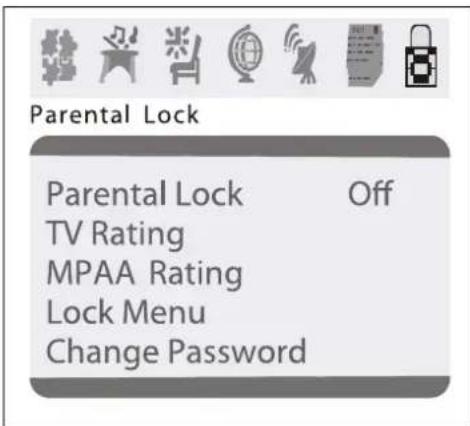
4 Press CH+ or CH- to select TV Rating.
5 Press VOL+ or VOL- to open the TV Rating menu.
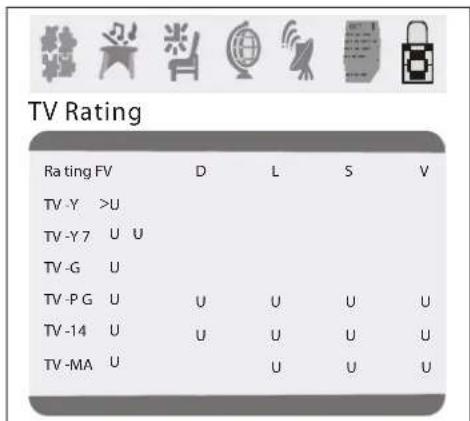
6 Press CH+ or CH- to select the rating you want to block or unblock, then press VOL+ or VOL- to block or unblock the rating. A B appears if the rating is blocked. A U appears if the rating is unblocked.
7 After you set the ratings, press MENU to go to the previous menu.
To block or unblock movie ratings:
1 Press MENU to open the on-screen display (OSD).
2 Press VOL+ or VOL- to select the password icon, then press CH+ or CH-. The Password menu opens.
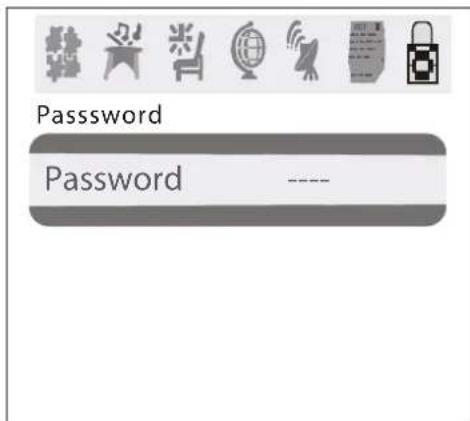
3 Use the number buttons to enter the password. The default password is 0000. The Parental Lock menu opens.
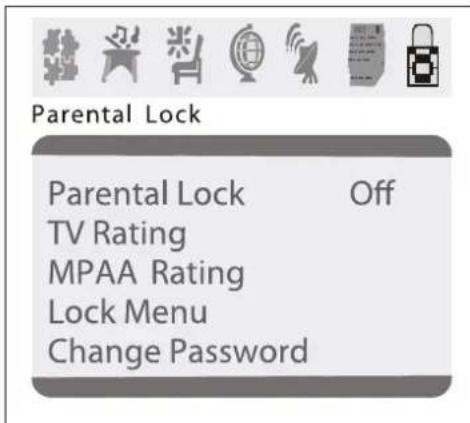
4 Press CH+ or CH- to select MPAA Rating.
5 Press VOL+ or VOL- to open the MPAA Rating menu.
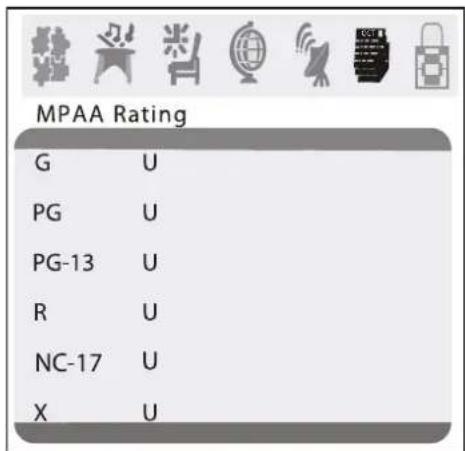
6 Press CH+ or CH- to select the rating you want to block or unblock, then press VOL+ or VOL- to block or unblock the rating. A B appears if the rating is blocked. A U appears if the rating is unblocked.
7 After you set the ratings, press MENU to go to the previous menu.
Turning parental controls on or off
To turn parental controls on or off:
1 Press MENU to open the on-screen display (OSD).
2 Press VOL+ or VOL- to select the password icon, then press CH+ or CH-. The Password menu opens.
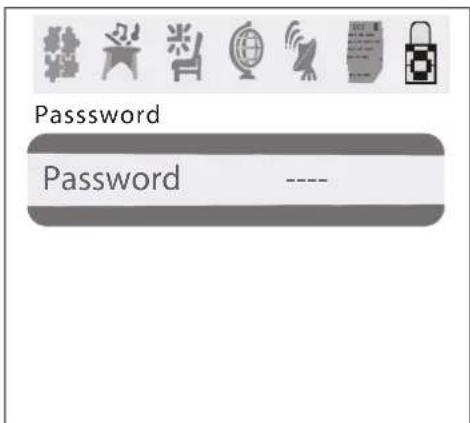
3 Use the number buttons to enter the password. The default password is 0000. The Parental Lock menu opens.
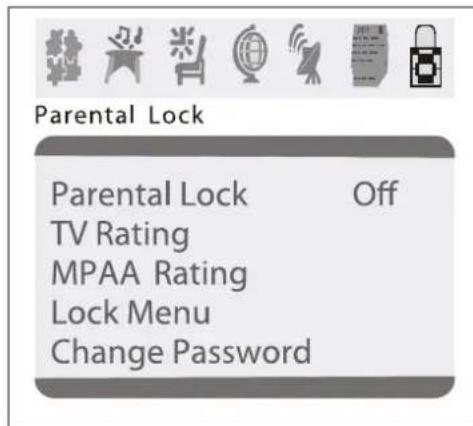
4 Press CH+ or CH- to select Parental Lock.
5 Press VOL+ or VOL- to select off or on.
Changing the password
To change the password:
1 Press MENU to open the on-screen display (OSD).
2 Press VOL+ or VOL- to select the password icon, then press CH+ or CH-. The Password menu opens.
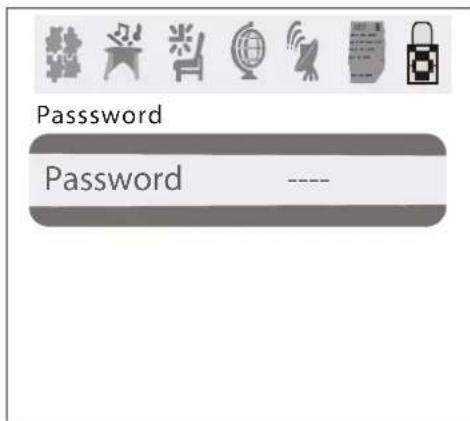
3 Use the number buttons to enter the old password. The default password is 0000. The Parental Lock menu opens.
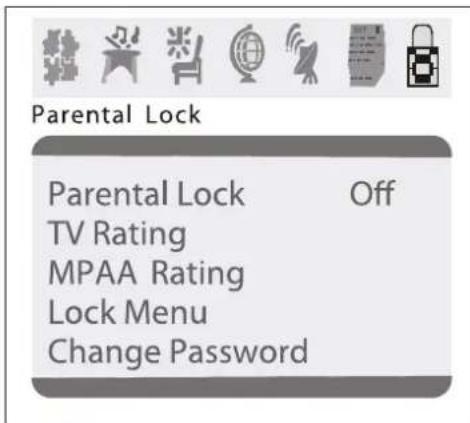
4 Press CH+ or CH- to select Change Password.
5 Enter a new four-digit password, then enter the new password again.
Setting other locks
In addition to the parental controls lock, you can also block input from a device connected to the A/V jacks (AV Lock) and block the program on the current channel (Program Lock).
To set other locks:
1 Press MENU to open the on-screen display (OSD).
2 Press VOL+ or VOL- to select the password icon, then press CH+ or CH-. The Password menu opens.
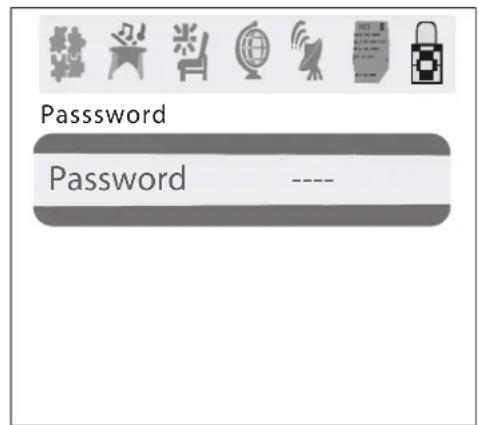
3 Use the number buttons to enter the password. The default password is 0000. The Parental Lock menu opens.
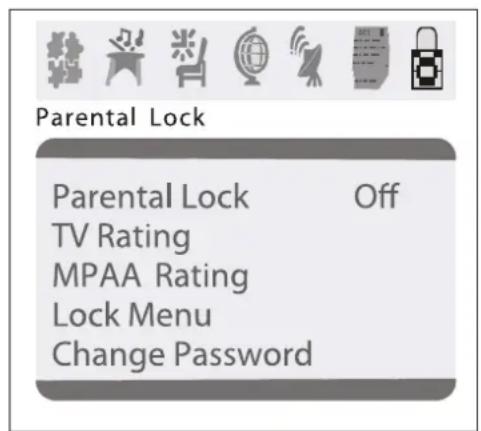
4 Press CH+ or CH- to select Lock Menu.
5 Press VOL+ or VOL- to open the Lock Menu.
6 Press CH+ or CH- to select to select AV Lock or Program Lock.
7 Press VOL+ or VOL- to turn the lock on or off.
Maintaining
Unplug your TV from the wall outlet before cleaning.
Do not use liquid cleaners or aerosol cleaners. Wipe the exterior with a soft cloth dampened with water. Do not spray water directly on the screen or exterior.
Troubleshooting
| Problem Solution | |
| Remote control does not work | Check the batteries. They may need replacing. Make sure there is not an obstruction between the remote control and the remote control sensor. |
| Bar on screen Try a different channel. If another channel is working correctly, the station may be having problems. Make sure that the antenna is securely connected to the antenna jack on the back of your TV. If you are using an outside antenna, make sure that there are no broken wires. Check for local interference. | |
| Picture is distorted | Try a different channel. If another channel is working correctly, the station may be having problems. Make sure that the antenna is securely connected to the antenna jack on the back of your TV. If you are using an outside antenna, make sure that there are no broken wires. |
| Picture rolls vertically | Try a different channel. If another channel is working correctly, the station may be having problems. Make sure that the antenna is securely connected to the antenna jack on the back of your TV. If you are using an outside antenna, make sure that there are no broken wires. Check for local interference. |
| No color Adjust color control. | Try a different channel. If another channel is working correctly, the station may be having problems. Make sure that the antenna is securely connected to the antenna jack on the back of your TV. If you are using an outside antenna, make sure that there are no broken wires. |
| Weak picture Adjust contrast and brightness controls. | Try a different channel. If another channel is working correctly, the station may be having problems. Make sure that the antenna is securely connected to the antenna jack on the back of your TV. If you are using an outside antenna, make sure that there are no broken wires. Check for local interference. |
| Line or streaks in picture | Try a different channel. If another channel is working correctly, the station may be having problems. Make sure that the antenna is securely connected to the antenna jack on the back of your TV. If you are using an outside antenna, make sure that there are no broken wires. Check for local interference. |
Specifications
| Problem | Solution |
| Ghost picture Try a different channel. If another channel is working correctly, the station may be having problems. Make sure that the antenna is securely connected to the antenna jack on the back of your TV. If you are using an outside antenna, make sure that there are no broken wires. Check for local interference. | Make sure that the antenna is securely connected to the antenna jack on the back of your TV. If you are using an outside antenna, make sure that there are no broken wires. Check for local interference. |
| Picture blurred Try a different channel. If another channel is working correctly, the station may be having problems. Make sure that the antenna is securely connected to the antenna jack on the back of your TV. If you are using an outside antenna, make sure that there are no broken wires. Check for local interference. | Adjust contrast and brightness control. Adjust the sound controls. Try a different channel. If another channel is working correctly, the station may be having problems. Make sure that the antenna is securely connected to the antenna jack on the back of your TV. If you are using an outside antenna, make sure that there are no broken wires. Check for local interference. |
| Sound or picture is poor | Make sure that your TV is plugged into a power outlet and that the outlet is supplying power. Try a different channel. If another channel is working correctly, the station may be having problems. Make sure that the antenna is securely connected to the antenna jack on the back of your TV. If you are using an outside antenna, make sure that there are no broken wires. Check for local interference. |
| No picture or sound | Make sure that your TV is plugged into a power outlet and that the outlet is supplying power. Try a different channel. If another channel is working correctly, the station may be having problems. Make sure that the antenna is securely connected to the antenna jack on the back of your TV. If you are using an outside antenna, make sure that there are no broken wires. Check for local interference. |
| Television NTSC-M TV Standard | |
| AV AV IN (NTSC-M) | |
| VHF channels 2-13 | |
| UHF channels 14-69 | |
| CATV channels 1-125 | |
| Tuning 181 channel frequency synthesized | |
| Channel access Direct access keyboard | |
| Antenna terminals VHF/UHF/CATV 75 ohm unbalanced (F-type) | |
| Sound output 4W+4W | |
| Remote control Digital encoded infrared | |
| Power 120 V, 60Hz | |
| Picture tube 27" | |
| Dimensions (W × D × H) | 28.8 × 19.6× 22.2 inches (733 × 498 × 565 mm) |
| Weight | 90.4 lbs (41 kg) |
Legal notices
FCC Part 15
This device complies with Part 15 of the FCC Rules. Operation of this product is subject to the following two conditions: (1) this device may not cause harmful interference, and (2) this device must accept any interference received, including interference that may cause undesired operation.
This equipment has been tested and found to comply within the limits for a class B digital device, pursuant to Part 15 of the FCC Rules. These limits are designed to provide reasonable protection against harmful interference in a residential installation. This equipment generates, uses, and can radiate radio frequency energy and, if not installed and used in accordance with the instructions, may cause harmful interference to radio communications. However, there is no guarantee that interference will not occur in a particular installation. If this equipment does cause harmful interference to radio or television reception, which can be determined by turning the equipment off and on, the user is encouraged to try to correct the interference by one or more of the following measures:
- Reorient or relocate the receiving antenna.
- Increase the separation between the equipment and receiver.
- Connect the equipment into an outlet on a circuit different from that to which the receiver is connected.
- Consult the dealer or an experienced technician for help.
FCC warning
Changes or modifications not expressly approved by the party responsible for compliance with the FCC Rules could void the user's authority to operate this equipment.
Copyright
© 2007 Insignia. Insignia and the Insignia logo are trademarks of Best Buy Enterprise Services, Inc. Other brands and product names are trademarks or registered trademarks of their respective holders. Specifications and features are subject to change without notice or obligation.
For service and support call (877) 467-4289.
1-year limited warranty
Insignia Products ("Insignia") warrants to you, the original purchaser of this new NS-F27C ("Product"), that the Product shall be free of defects in the original manufacture of the material or workmanship for a period of one (1) year from the date of your purchase of the Product ("Warranty Period"). This Product must be purchased from an authorized dealer of Insignia brand products and packaged with this warranty statement. This warranty does not cover refurbished Product. If you notify Insignia during the Warranty Period of a defect covered by this warranty that requires service, terms of this warranty apply.
How long does the coverage last?
The Warranty Period lasts for 1 year (365 days) from the date you purchased the Product. The purchase date is printed on the receipt you received with the Product.
What does this warranty cover?
During the Warranty Period, if the original manufacture of the material or workmanship of the Product is determined to be defective by an authorized Insignia repair center or store personnel, Insignia will (at its sole option): (1) repair the Product with new or rebuilt parts; or (2) replace the Product at no charge with new or rebuilt comparable products or parts. Products and parts replaced under this warranty become the property of Insignia and are not returned to you. If service of Products or parts are required after the Warranty Period expires, you must pay all labor and parts charges. This warranty lasts as long as you own your Insignia Product during the Warranty Period. Warranty coverage terminates if you sell or otherwise transfer the Product.
How to obtain warranty service?
If you purchased the Product at a retail store location, take your original receipt and the Product to the store you purchased it from. Make sure that you place the Product in its original packaging or packaging that provides the same amount of protection as the original packaging. If you purchased the Product from an online web site, mail your original receipt and the Product to the address listed on the web site. Make sure that you put the Product in its original packaging or packaging that provides the same amount of protection as the original packaging. To obtain in-home warranty service for a television with a screen 25 inches or larger, call 1-888-BESTBUY. Call agents will diagnose and correct the issue over the phone or will have an Insignia-approved repair person dispatched to your home.
Where is the warranty valid?
This warranty is valid only to the original purchaser of the product in the United States and Canada.
What does the warranty not cover?
This warranty does not cover:
- Customer instruction
Installation - Set up adjustments
Cosmetic damage - Damage due to acts of God, such as lightning strikes
- Accident
M i s u s e
- Abuse
- Negligence
Commercial use
- Modification of any part of the Product, including the antenna
- Plasma display panel damaged by static (non-moving) images applied for lengthy periods (burn-in). This warranty also does not cover:
- Damage due to incorrect operation or maintenance
- Connection to an incorrect voltage supply
- Attempted repair by anyone other than a facility authorized by Insignia to service the Product
- Products sold as is or with all faults
- Consumables, such as fuses or batteries
- Products where the factory applied serial number has been altered or removed
REPAIR REPLACEMENT AS PROVIDED UNDER THIS WARRANTY IS YOUR EXCLUSIVE REMEDY. INSIGNIA SHALL NOT BE LIABLE FOR ANY INCIDENTAL OR CONSEQUENTIAL DAMAGES FOR THE BREACH OF ANY EXPRESS OR IMPLIED WARRANTY ON THIS PRODUCT, INCLUDING, BUT NOT LIMITED TO, LOST DATA, LOSS OF USE OF YOUR PRODUCT, LOST BUSINESS OR LOST PROFITS. INSIGNIA PRODUCTS MAKES NO OTHER EXPRESS WARRANTY WITH RESPECT TO THE PRODUCT, ALL EXPRESS AND IMPLIED WARRANTYES FOR THE PRODUCT, INCLUDING, BUT NOT LIMITED TO, ANY IMPLIED WARRANTYES OF AND CONDITIONS OF MERCHANTABILITY AND FITNESS FOR A PARTICULAR PURPOSE, ARE LIMITED IN DURATION TO THE WARRANTY PERIOD SET FORTH ABOVE AND NO WARRANTYES, WHETHER EXPRESS OR IMplied, WILL APPLY AFTER THE WARRANTY PERIOD. SOME STATES, PROVINCES AND JURISDICTIONS DO NOT ALLOW LIMITATIONS ON HOW LONG AN IMPLIED WARRANTY LASTS, SO THE ABOVE LIMITATION MAY NOT APPLY TO YOU. THIS WARRANTY GIVES YOU SPECIFIC LEGAL RIGHTS, AND YOU MAY ALSO HAVE OTHER RIGHTS, WHICH VARY FROM STATE TO STATE OR PROVINCE TO PROVINCE.
Contact Insignia:
For customer service please call 1-877-467-4289 www.insignia-products.com
INSIGNIA™ is a trademark of Best Buy Enterprise Services, Inc.
Distributed by Best Buy Purchasing, LLC.
Insignia, 7601 Penn Avenue South, Richfield, Minnesota, U.S.A.
Distributed by Best Buy Purchasing, LLC
7601 Penn Avenue South, Richfield, MN USA 55423-3645
© 2007 Best Buy Enterprise Services, Inc.
All rights reserved. INSIGNIA is a registered trademark of Best Buy Enterprise Services, Inc.
All other products and brand names are trademarks of their respective owners.
7601 Penn Avenue South, Richfield, MN USA 55423-3645
© 2007 Best Buy Enterprise Services, Inc.
7601 Penn Avenue South, Richfield, MN USA 55423-3645
© 2007 Best Buy Enterprise Services, Inc.
Todlos dos rechos reservados. INSIGNIA es unamarca registrada de Best Buy Enterprise Services, Inc.