ManualGo.com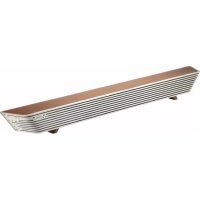
N1 - Speaker POLK - Free user manual and instructions
Find the device manual for free N1 POLK in PDF.



Download the instructions for your Speaker in PDF format for free! Find your manual N1 - POLK and take your electronic device back in hand. On this page are published all the documents necessary for the use of your device. N1 by POLK.
USER MANUAL N1 POLK
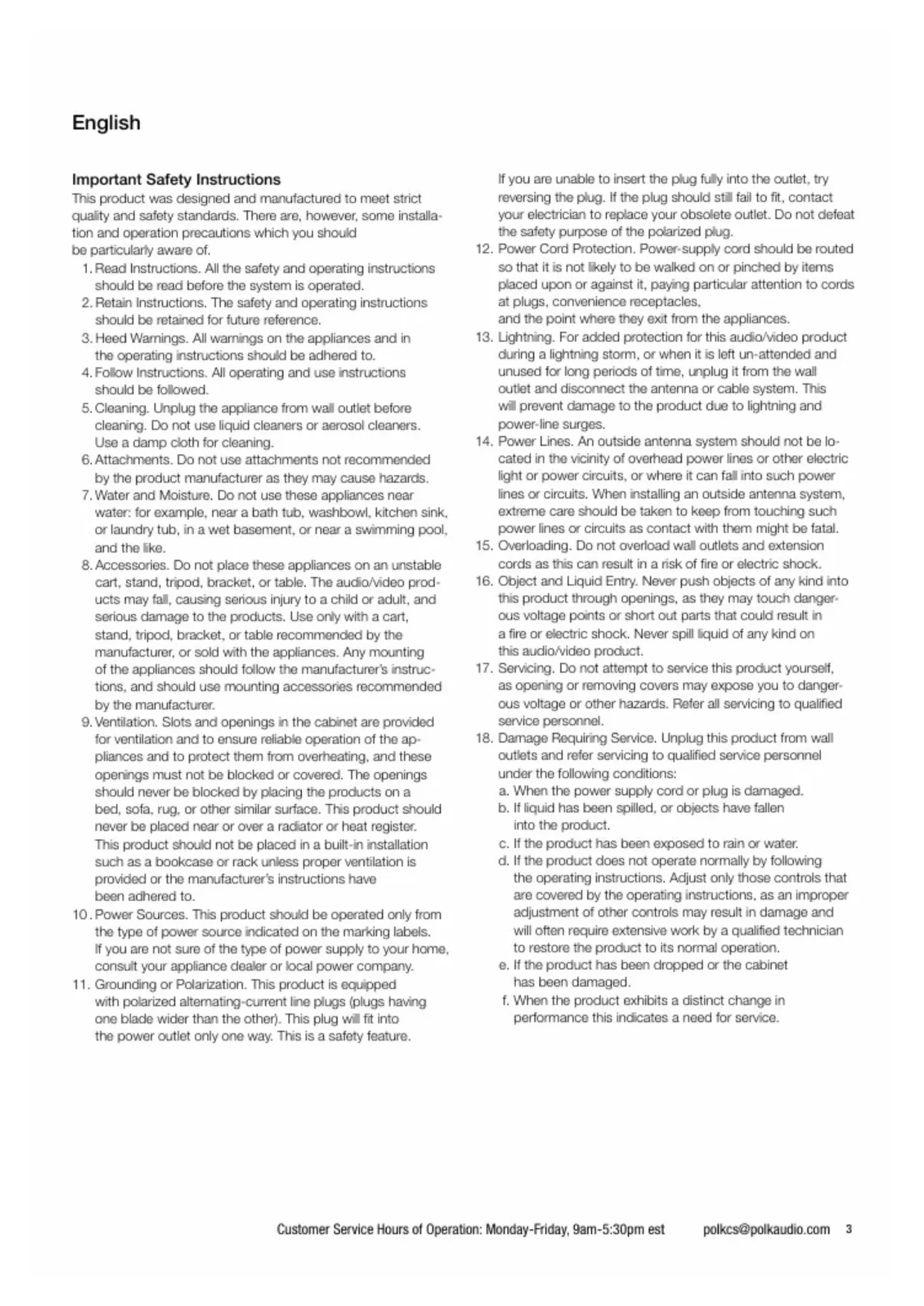
Customer Service Hours of Operation: Monday-Friday, 9am-5:30pm est polkcs@polkaudio.com Important Safety Instructions This product was designed and manufactured to meet strict quality and safety standards. There are, however, some installa
tion and operation precautions which you should be particularly aware of.
1. Read Instructions. All the safety and operating instructions
should be read before the system is operated.
2. Retain Instructions. The safety and operating instructions
should be retained for future reference.
3. Heed Warnings. All warnings on the appliances and in
the operating instructions should be adhered to.
4. Follow Instructions. All operating and use instructions
5. Cleaning. Unplug the appliance from wall outlet before
cleaning. Do not use liquid cleaners or aerosol cleaners. Use a damp cloth for cleaning.
6. Attachments. Do not use attachments not recommended
by the product manufacturer as they may cause hazards.
7. Water and Moisture. Do not use these appliances near
water: for example, near a bath tub, washbowl, kitchen sink, or laundry tub, in a wet basement, or near a swimming pool, and the like.
8. Accessories. Do not place these appliances on an unstable
cart, stand, tripod, bracket, or table. The audio/video prod
ucts may fall, causing serious injury to a child or adult, and serious damage to the products. Use only with a cart, stand, tripod, bracket, or table recommended by the manufacturer, or sold with the appliances. Any mounting of the appliances should follow the manufacturer’s instruc- tions, and should use mounting accessories recommended by the manufacturer.
9. Ventilation. Slots and openings in the cabinet are provided
for ventilation and to ensure reliable operation of the ap
pliances and to protect them from overheating, and these openings must not be blocked or covered. The openings should never be blocked by placing the products on a bed, sofa, rug, or other similar surface. This product should never be placed near or over a radiator or heat register. This product should not be placed in a built-in installation such as a bookcase or rack unless proper ventilation is provided or the manufacturer’s instructions have been adhered to. 10 . Power Sources. This product should be operated only from the type of power source indicated on the marking labels. If you are not sure of the type of power supply to your home, consult your appliance dealer or local power company.
11. Grounding or Polarization. This product is equipped
with polarized alternating-current line plugs (plugs having one blade wider than the other). This plug will fit into the power outlet only one way. This is a safety feature. If you are unable to insert the plug fully into the outlet, try reversing the plug. If the plug should still fail to fit, contact your electrician to replace your obsolete outlet. Do not defeat the safety purpose of the polarized plug.
12. Power Cord Protection. Power-supply cord should be routed
so that it is not likely to be walked on or pinched by items placed upon or against it, paying particular attention to cords at plugs, convenience receptacles, and the point where they exit from the appliances.
13. Lightning. For added protection for this audio/video product
during a lightning storm, or when it is left un-attended and unused for long periods of time, unplug it from the wall outlet and disconnect the antenna or cable system. This will prevent damage to the product due to lightning and power-line surges.
cated in the vicinity of overhead power lines or other electric light or power circuits, or where it can fall into such power lines or circuits. When installing an outside antenna system, extreme care should be taken to keep from touching such power lines or circuits as contact with them might be fatal.
15. Overloading. Do not overload wall outlets and extension
cords as this can result in a risk of fire or electric shock.
16. Object and Liquid Entry. Never push objects of any kind into
this product through openings, as they may touch danger
ous voltage points or short out parts that could result in a fire or electric shock. Never spill liquid of any kind on this audio/video product.
17. Servicing. Do not attempt to service this product yourself,
as opening or removing covers may expose you to danger- ous voltage or other hazards. Refer all servicing to qualified service personnel.
18. Damage Requiring Service. Unplug this product from wall
outlets and refer servicing to qualified service personnel under the following conditions: a. When the power supply cord or plug is damaged. b. If liquid has been spilled, or objects have fallen into the product. c. If the product has been exposed to rain or water. d. If the product does not operate normally by following the operating instructions. Adjust only those controls that are covered by the operating instructions, as an improper adjustment of other controls may result in damage and will often require extensive work by a qualified technician to restore the product to its normal operation. e. If the product has been dropped or the cabinet has been damaged. f. When the product exhibits a distinct change in performance this indicates a need for service. English4 Polk Customer Service 800-377-7655 (Outside USA & Canada: 410-358-3600)
19. Replacement Parts. When replacement parts are required,
be sure the service technician has used replacement parts specified by the manufacturer or that the parts have the same characteristics as the original part. Unauthorized sub
stitutions may result in fire, electric shock or other hazards. CAUTION: Danger of EXPLOSION if battery is incorrectly replaced. Replace only with the same or equivalent type. (CR2025)
WARNING: Do not expose batteries or battery pack
to excessive heat such as sunshine, fire or the like.
20. Safety Check. Upon completion of any service or repairs
to this product, ask the service technician to perform safety checks to determine that the products are in proper operating condition.
21. Carts and Stands. The appliances should be
used only with a cart or stand that is recom
mended by the manufacturer. An appliance and cart combination should be moved with care. Quick stops, excessive force, and uneven surfaces may cause the appliance and cart combination to overturn. Use caution when moving the cart/apparatus combination to avoid injury from tip-over.
22. This product is not intended for use outdoors.
The CAUTION marks shown here are located on the back of your SurroundBar
Speaker System CAUTION: To prevent electric shock, match wide blade of plug to wide slot, insert fully. CAUTION: No naked flame sources, such as candles, should be placed on the apparatus.
23. Do not install this apparatus in a confined space such as a
book case. Ensure the apparatus has adequate ventila
tion and that items such as newspaper, table-cloths, and curtains, etc. do not block the ventilation.
24. WARNING: To reduce the risk of fire or electric shock, do
not expose this apparatus to rain or moisture. The apparatus shall not be exposed to dripping or splashing. Do not place objects filled with liquids, such as vases, on the apparatus.
25. WARNING: The mains plug (power adapter) is used as a
disconnect device and shall remain readily operable. Radiation Exposure Statement This device complies with FCC radiation exposure limits set forth for an uncontrolled environment and it also complies with Part 15 of the FCC RF Rules. This equipment should be installed and operated with a minimum distance of 20 centimeters between the radiator and your body. Operation This equipment complies with Part 15 of the FCC Rules and Industry Canada licence-exempt RSS standard(s). Operation is subject to the following two conditions:
1) This device may not cause interference, and
2) This device must accept any interference, including
interference that may cause undesired operation of the device. Class B Emissions Limits This Class B digital apparatus meets all requirements of the Canadian Interference—Causing Equipment Regulations. The device meets the exemption from the routine evaluation limits in section 2.5 of RSS 102 and compliance with RSS-102 RF exposure, users can obtain Canadian information on RF exposure and compliance. Product Disposal Certain international, national and/or local laws and/ or regulations may apply regarding the disposal of this product. For further detailed information, please con
tact the retailer where you purchased this product or the Polk Importer/Distributor in your country. A listing of Polk Importer/ Distributors can be found on the Polk website: www.polkaudio.com or by contacting Polk at: 5601 Metro Drive, Baltimore, Maryland 21215, USA. Phone: 1-410-358-3600; in California: 1-800-377-7655. NOTE: This equipment has been tested and found to comply with the limits for a Class B digital device, pursuant to part 15 of the FCC Rules. These limits are designed to provide reasonable protection against harmful interference in a residential installation. This equipment generates, uses and can radiate radio frequency energy, and, if not installed and used in accordance with the instructions, may cause harmful interference to radio communi
cations. However, there is no guarantee that interference will not occur in a particular installation. If this equipment does cause harmful interference to radio or television reception, which can be determined by turning the equipment off and on, the user is encouraged to try to correct the interference by one or more of the following measures: reori
ent or relocate the receiving antenna. Increase the separation between the equipment and receiver. Connect the equipment into an outlet on a circuit different from that to which the receiver is connected. Consult the dealer or an experienced radio/TV technician for help.
- Theantenna(s)usedforthistransmittermustbeinstalled to provide a separation distance of at least 20 cm from all persons and must not be co-located or operating in con
junction with any other antenna or transmitter.
- Changesormodicationsnotexpresslyapprovedbythe party responsible for compliance could void the user’s authority to operate the equipment.5 Customer Service Hours of Operation: Monday-Friday, 9am-5:30pm est polkcs@polkaudio.com Inside Your N1 SurroundBar Carton: Important Note: If anything is missing or damaged, or if your Polk N1 SurroundBar fails to operate, please notify your dealer immediately. We recommend keeping your original carton and packing materials in case you need to ship the unit in the future. Specifications Dimensions 4" H x 39 1/4" W x 4 1/2" D (10.2 cm x 99.7 cm x 11.4 cm) Weight 9 lbs 10 oz (4.35 kg) Power Requirements 20 V, 3 A Model N1 SurroundBar Remote Battery CR2025 Remote Control Immersion Modes Four Audio Immersion Modes (Halo Warrior, Forza Racer, Cinema and Music) enable you to tailor the N1 for maximum high performance audio for a more immersive, more thrilling listening experience. 6' Digital (Optical) Cable Remote Control (Battery Included) SurroundBar Power SupplyOwner’s Manual Quick Start Guide Online Registration Card Source 1, 2 & 3 Power Mute Source Bluetooth Bass Volume Volume Immersion Modes Gaming: Warrior & Racer Immersion Modes Cinema & Music6 Polk Customer Service 800-377-7655 (Outside USA & Canada: 410-358-3600) Controls
1. Power ( )—Turns on the bar or puts
it in standby mode. LED—Blue, green or red light to indicate operating status.
2. Learn—Puts the bar into “learning mode” so
you can program it to respond to commands from your TV’s IR remote control.
3. Source—Changes which input source
you are listening to. Source 1: optical (Blue LED for PCM or Green for Dolby Digital) Source 2: coaxial (Blue LED for PCM or Green for Dolby Digital) Source 3: analog
4. Bluetooth ( ): Blue light indicates Bluetooth
Source has been selected.
5. Mute—Mutes the sound coming from the
N1 SurroundBar and the subwoofer output.
6. Volume Up and Down ( – / + )—Adjusts
the volume of the N1 SurroundBar and the subwoofer output.
7. Power Connection—The bar power supply
you connect your TV, Xbox 360 or Xbox One (or other source) to the N1 SurroundBar. Use the provided 6' optical cable (Source 1), digital coaxial audio cable (Source 2) not included, or 1/8" analog cable (Source 3) not included. Power LED Normal Mode: Green or Blue Steady—Power is on; all is well in Source 1. Red Steady—The bar is in standby mode. Learning Mode: Red Blinking—The bar has failed to learn a remote control command. Power LED Blinks Red Twice—Learned IR codes have been successfully erased. Learn LED Learning Mode: Blue Flashing—The bar is in learning mode. Blue Solid—The bar is in learning mode and a bar button has been selected. Bar Button LED—Flashes blue. When learning is successful, both the LEARN LED and the bar command button LED flash.
Top of Bar to Keyhole Slots
4. 1 1/16" (2.67 cm)
Note: If you wall mount your SurroundBar, ensure that your wall anchors secure properly into the wall and that they can bear the weight of the SurroundBar.
Table Mount Wall Mount8 Polk Customer Service 800-377-7655 (Outside USA & Canada: 410-358-3600) How To Connect Your Bar How To Optimize The Sound When TV Speakers Are On You should hear sound from the bar. If you don’t, turn up the volume on the bar using its volume control buttons. If your bar is connected to your TV, there’s a very good chance your TV speakers are also playing. It’s impossible to give specific instructions on how to turn off the speakers for every TV, but here’s a way to do it that covers many of the TVs out there.
2. Press this button. You should see
3. Next, look for an option to control audio
functions and select it. The setting to turn off your TV’s internal speakers should be here. If you can’t turn off your TV internal speakers, don’t worry. Your N1 SurroundBar will make your TV sound much better. To enjoy the best performance from your bar, you’ll want it to play louder than your TV. Use the following steps to adjust the volume balance between your TV and the bar:
1. If necessary, program your bar to respond to
the volume up and down control commands of your TV remote. (See “How To Setup A Remote Control For Your SurroundBar” on pages 8-9.)
2. Turn your TV volume all the way down using
the control buttons on your TV.
3. Then, using the volume keys on your bar,
set the volume to a normal listening level (do not use the remote control). After you make these adjustments, your N1 SurroundBar should always be louder than your TV speakers. Then use the TV remote control to adjust the volume as you normally do.
Wireless Technology To use your Bluetooth wireless technology device with the SurroundBar, you must first pair your device with your SurroundBar. Pairing creates the ability of your Bluetooth device to connect with your SurroundBar wirelessly. Pairing is like a hand- shake between your Bluetooth device and your SurroundBar in which they meet and exchange information. You only have to pair your SurroundBar with your Bluetooth device one time for this exchange of information to take place. After that you simply select the “polk n1” from your device list to make the connection to your SurroundBar. The SurroundBar can hold 8 Bluetooth devices in its memory. If enough devices pair after yours, your device could be dropped from the memory list. Pair and connect your Bluetooth device with the SurroundBar:
1. Make sure your Bluetooth device and
SurroundBar are both powered on.
2. Activate the Bluetooth function on your
Bluetooth source device. See your device’s manual for instructions.
3. Press the Bluetooth source button from the
SurroundBar remote. The Bluetooth LED will illuminate, then begin slowly pulsing as it looks for a device to pair with.
4. Your SurroundBar will now be displayed on
your source device and available to pair and/ or connect. Select the “polk n1” on your device to initiate the connection process.
5. After a short delay (5 seconds), the two de-
vices should now be connected. You should hear a short tone and the Bluetooth source LED will now be steady blue.
6. Play your music from your device!
Note: If your device asks for a passcode to pair to the SurroundBar, enter “0000.” How to disconnect with a Bluetooth device:
1. Press and release the remote control
Bluetooth button, or
2. Press and release the Bluetooth source
3. Turn off or disconnect the Bluetooth feature
on your Bluetooth device. The SurroundBar will emit a short tone and the Bluetooth source symbol will begin slowly pulsing when disconnected. Automatic connection: Any time you want to connect the last connected device and play it through the SurroundBar, do the following:
1. Turn your device’s Bluetooth function on.
2. Enter Bluetooth source by pressing the Blue-
tooth source button from the remote or press the Bluetooth button on the SurroundBar.
3. After a short delay, the two devices will auto-
matically connect, you will hear a short tone, and the Bluetooth source LED will now be steady blue. Note: By default, the last connected Bluetooth device will automatically connect if available. Pair and/or connect to a device when in Bluetooth source, but disconnected:
1. Engage the Bluetooth function on your
Bluetooth source device. See your device’s manual for instructions. a. The SurroundBar will be displayed on your source device as available to pair and connect. Select the “polk n1” on your device to initiate the pairing and connection process. After a short delay, the two devices should now be paired and connected. You should hear a short tone and the Bluetooth source symbol will now be steady blue. How to disconnect: Note: Anytime The SurroundBar exits SLEEP mode and is in Bluetooth source, the SurroundBar will automatically connect to the last connected Bluetooth device if the paired device’s Bluetooth feature is on.11 Customer Service Hours of Operation: Monday-Friday, 9am-5:30pm est polkcs@polkaudio.com How To Set Up A Remote Control For Your SurroundBar SmartBar™ Programming Note: For your SurroundBar to respond to your remote control, you MUST FIRST program the bar to respond to your television’s original IR (Infra-Red) remote. An RF (Radio Frequency) remote will not work. Other remotes (cable, satellite) will work only after you have programmed the bar to respond to the TV’s IR remote. Programming Instructions: Your SurroundBar is currently programmed to respond to the remote control that is included with the product. However, we strongly recommend programming the SurroundBar to also respond to your existing remote control using the steps illustrated below. This will enable you to oper- ate all of your components using a single remote control. While programming the SurroundBar, ignore anything that may be displayed on the TV screen. Example: To teach your bar the “Volume Up” command of your remote control:
LED VOLLED Press and hold “LEARN” for 2 seconds, or until LED blinks blue, then release the “LEARN” button.
The SurroundBar is turned on and the LED is solid green. And you have sound coming from the bar. Hold TV remote 6" - 1' from SurroundBar. Press and release Volume Up “
4 - 8 times, once per second. Tap, do not hold.
When the LEARN LED and the button (command) both blink blue, the command has been learned. 6" - 1' Verify command works. VOL12 Polk Customer Service 800-377-7655 (Outside USA & Canada: 410-358-3600) Repeat steps 1-6 to program “Volume Down” ( – ), Source, Mute and Power button ( ). Note: If your bar fails to learn certain IR remote codes, the power LED will blink red. Try erasing any previously programmed codes (see below) and carefully repeat steps 1-6 above. Code Erasing Procedure: If you have pro- grammed your SurroundBar to respond to a remote control and you no longer want it to do so, erase the codes by pressing the LEARN key for about two seconds while the unit is in standby mode (power LED will blink). You’ll know that previ- ously learned codes have been successfully erased when the POWER LED blinks red twice. Note: This procedure removes ALL of your bar’s remote control programming. If you only need to change the programming for some of the bar buttons, follow the six steps in the sequence previ- ously described to redo any previous programming. The SurroundBar will continue to respond to the provided credit card remote control.
LED VOLLED Press and hold “LEARN” for 2 seconds, or until LED blinks blue, then release the “LEARN” button.
The SurroundBar is turned on and the LED is solid green. And you have sound coming from the bar. Hold TV remote 6" - 1' from SurroundBar. Press and release Volume Up “
LED turns solid blue. Solid blueLEDBlinks blue LEARN LED blinks with each button press LED Volume Up button LED blinks blueLEDLED blinks blue Tap “Volume Up” button on your TV’s remote control
4 - 8 times, once per second. Tap, do not hold.
When the LEARN LED and the button (command) both blink blue, the command has been learned. 6" - 1' Verify command works. VOL13 Customer Service Hours of Operation: Monday-Friday, 9am-5:30pm est polkcs@polkaudio.com Troubleshooting The bar does not power on.
- Ensure you have plugged the power supply into a live wall outlet.
- Ensure that all components of the power supply are connected properly.
- Ensure the power supply is properly connected to the bar power input. No sound from the bar.
- Check that the TV or cable box is providing a signal.
- If necessary, check using an alternate source.
- Check that the bar is receiving power and is turned on.
- Turn up the volume of the bar.
- Check the input cables to make sure they are connected securely.
- Turn up the volume of your television or cable box.
- Audio processing (see FAQ’s on pages 10-11)—there may be audio processing occurring prior to reaching the bar. Disable this processing. The included remote control won’t work.
- Ensure the battery’s protective plastic tab has been removed.
- Replace the battery (CR2025). The bar won’t learn my remote control commands.
- Carefully follow the programming instructions on the previous page of this manual.
- Hold the remote steady and 1-2 feet from the front of the bar.
- Quickly “tap” the button on your existing remote until the status LED blinks green. Note: The bar learns almost all IR commands, but some IR protocols cannot be programmed. The volume of my television speakers gets louder than my N1 SurroundBar system over time.
- Turn off your TV speakers per the instructions on page 7 of this manual.
- When the remote control volume button is held down, your television may change volume levels faster than the bar. Use the buttons on the bar to adjust the volume of the bar to the correct balance with the TV speakers. FAQ’s (Frequently Asked Questions) My TV does not have an optical output. How do I connect my audio? You have several options for connecting your audio:
- Use the optical output of your source unit (cable/satellite box, DVD player, etc.) and connect directly to the SurroundBar using the supplied optical cable.
- Use the 1/8" (3.5mm) analog/headphone output of your TV (if available) and connect directly to the N1 SurroundBar using 1/8" (3.5mm) to 1/8” (3.5mm) analog cable.
- Use the RCA audio outputs (white/red pair) on your TV (if available) and connect directly to the N1 SurroundBar using 1/8" (3.5mm) to 1/8” (3.5mm) analog cable and 1/8" (3.5mm) to RCA adapter.14 Polk Customer Service 800-377-7655 (Outside USA & Canada: 410-358-3600) What if my provided optical cable is too short?
- We did our best to provide a cable of adequate length; however, there might be a few setup instances in which the cable may be too short. If that is your situation, your local electronics store will have cables that meet your required length. My audio sounds strange and distorted.
- Your N1 SurroundBar requires a clean, unaltered stereo signal for proper audio performance. If the sound from your N1 SurroundBar is strange or distorted, then check the audio menus of whatever source(s) are connected to your SurroundBar and make sure any audio processing is turned off. Make sure you’ve selected the appropriate mode for your program material (Halo Warrior, Forza Racer, Cinema, Music). Why can’t I successfully program the N1 SurroundBar to respond to my remote control?
- There are many remote control formats, and we have done our best to make the N1 SurroundBar compatible with the most popular brands. However, there are likely some cases in which the bar will not be able to learn your remote codes.
- In this case, please use the remote control provided with the N1 SurroundBar product or try a different universal remote control. Note: RF only remotes will not work with this system. How do I control the N1 SurroundBar? There are three ways to control your N1 SurroundBar:
- Use the buttons on the front of the bar.
- Use the provided remote control.
- Program the N1 SurroundBar to respond to your existing remote (see included instructions). My N1 SurroundBar was responding to com- mands, but now it isn’t. What should I do?
- In this rare event, simply disconnect the power cord from the AC outlet, wait a few seconds, plug the cord in and then turn the power back on. This should restore control. How do I erase previously learned remote control commands?
- If you have programmed your SurroundBar to respond to a remote control and you no longer want it to do so, then you can erase the codes by pressing the LEARN key for about two seconds while the unit is in standby mode (power LED is red). The N1 Surround- Bar will continue to respond to the provided credit card remote control. To contact Customer Service/ Technical Support:
- If you have a question or comment, please feel free to call us or email us. In North America and Canada, call Polk Customer Service: 800-377-7655 (M-F 9-5:30 EST) or via email polkcs@polkaudio.com. Outside the US, call 410-358-3600. Polk is a DEI Holdings, Inc. Company. Polk, SDA Surround and SurroundBar are registered trademarks of Polk Audio, Inc. N1 SurroundBar and SmartBar are trademarks of Polk Audio, Inc. All other trademarks are the property of their respective owners. © 2013 Microsoft Corporation. All Rights Reserved. Microsoft, 343 Industries, the 343 Industries logo, Halo, the Halo logo, Turn 10, the Turn 10 logo, Forza Motorsport, the Forza Motorsport logo, Xbox, Xbox 360, Xbox One, and the Xbox logos, are trademarks of the Microsoft group of companies. Products that have earned the Energy Star are designed to protect the environment through superior energy efficiency. Manufactured under licence from Dolby Laboratories. Dolby and the double-D symbol are registered trademarks of Dolby Laboratories. The Bluetooth word mark and logos are registered trademarks owned by Bluetooth SIG, Inc. and any use of such marks by Polk is under license. Other trademarks and trade names are those of their respective owners. The “aptX software is copyright CSR plc or its group companies. All rights reserved. The aptX mark and the aptX logo are trademarks of CSR plc or one of its group companies and may be registered in one or more jurisdictions.” is a trademark of SRS Labs, Inc. TruSurround HD technology is incorporated under license form SRS Labs, Inc.15 Customer Service Hours of Operation: Monday-Friday, 9am-5:30pm est polkcs@polkaudio.com Limited Warranty Polk Audio, Inc., warrants to the original retail purchaser only. This warranty will terminate automatically prior to its stated expiration if the original retail purchaser sells or transfers the Product to any other party. Polk Au- dio, Inc., warrants, to the original retail purchaser only, that the LOUDSPEAKER(S), PASSIVE CROSSOVER COMPONENT(S) and ENCLOSURE on this Polk Audio Loudspeaker Product will be free from defects in material and workmanship for a period of three (3) years from the date of original retail purchase from a Polk Audio Authorized Dealer. Furthermore, Polk Audio, Inc., warrants, to the origi- nal retail purchaser only, that any AMPLIFIER OR OTHER ELECTRONIC COMPONENT that may be included in this Polk Audio Loudspeaker Product will be free from defects in material and workmanship for a period of one (1) year from the date of original retail purchase from a Polk Audio Authorized Dealer. To allow Polk Audio to offer the best possible warranty service, please fill out the Product Reg- istration Card(s) and send it to the Factory at the address provided on the Product Registration Card(s) within ten (10) days of the date of original purchase. Defective Products must be shipped, together with proof of purchase, prepaid insured to the Polk Audio Authorized Dealer from whom you purchased the Product, or to the Factory at 1 Viper Way, Vista, California 92081. Products must be shipped in the original shipping container or its equivalent; in any case the risk of loss or damage in transit is to be borne by you. If upon examination at the Factory or Polk Audio Autho- rized Dealer it is determined that the unit was defective in materials or workmanship at any time during this Warranty period, Polk Audio or the Polk Audio Authorized Dealer will, at its option, repair or replace this Product at no additional charge, except as set forth below. All replaced parts and Products become the property of Polk Audio. Products replaced or repaired under this warranty will be returned to you, within a reasonable time, freight prepaid. This warranty does not include service or parts to repair damage caused by accident, disaster, misuse, abuse, negligence, inad- equate packing or shipping procedures, commercial use, voltage inputs in excess of the rated maximum of the unit, cosmetic appearance of cabinetry not directly attributable to defect in materials or workmanship, or service, repair, or modification of the Product which has not been authorized or approved by Polk Audio. This warranty shall terminate if the serial number on the Product has been removed, tampered with or defaced. This warranty is in lieu of all other expressed Warranties. If this Product is defective in materials or workmanship as warranted above, your sole remedy shall be repair or replacement as provided above. In no event will Polk Audio, Inc. be liable to you for any incidental or consequential damages arising out of the use or inability to use the Product, even if Polk Audio, Inc., or a Polk Audio Authorized Dealer, has been advised of the possibility of such dam- ages, or for any claim by any other party. Some states do not allow the exclusion or limitation of consequential dam- ages, so the above limitation and exclusion may not apply to you. All implied warranties on this Product are limited to the duration of this expressed Warranty. Some states do not allow limitation on how long an implied Warranty lasts, so the above limitations may not apply to you. This Warranty gives you specific legal rights, and you also may have other rights which vary from state to state. This Warranty applies only to Products purchased in the United States of America, its possessions, and U.S. and NATO armed forces exchanges and audio clubs. The Warranty terms and conditions applicable to Products purchased in other countries are available from the Polk Audio Authorized Distributors in such countries. Customer Service Thank you for your Polk Audio purchase. If you have a question or comment, please feel free to call us or email us. In North America and Canada, call Polk Audio Customer Service 800-377-7655 (M-F, 9-5:30 EST) or via email polkcs@polkaudio.com. Outside the US, call 410-358-3600.16 Polk Customer Service 800-377-7655 (Outside USA & Canada: 410-358-3600) Consignes de Sécurité Importantes Ce produit a été conçu et fabriqué pour répondre à de strictes normes de qualité et de sécurité. Veuillez cependant porter attention aux consignes de sécurité suivantes se rapportant à son installation et à son utilisation.