OB130AFD2 - Surveillance Camera Brickcom - Free user manual and instructions
Find the device manual for free OB130AFD2 Brickcom in PDF.


User questions about OB130AFD2 Brickcom
0 question about this device. Answer the ones you know or ask your own.
Ask a new question about this device
Download the instructions for your Surveillance Camera in PDF format for free! Find your manual OB130AFD2 - Brickcom and take your electronic device back in hand. On this page are published all the documents necessary for the use of your device. OB130AFD2 by Brickcom.
USER MANUAL OB130AFD2 Brickcom
Hardware User's Manual
Megapixel Day & Night
Bullet Network Camera
Quality Service Group
OB-500Af Series
Review History:
- Separate User Manual into HW and SW.
- Merge OB-500Af/OB-400Af/OB-300Af/OB-200Af/OB-130Af into this User Manual
- Change pictures to OB-500Af v2 series.
- Modify Device Appearance Description (Pear Panel of DI/DO)
| Product name: | Network Camera (OB-500Af v2) |
| Release Date: | 2013/3/21 |
| Manual Revision: | V3.2 |
| Web site: | www.brickcom.com |
| Email: | support@brickcom.cominfo@brickcom.com |
| © 2011 Brickcom Corporation. All Rights Reserved |
Table of Contents
Before You Use This Product ....1
Regulatory Information ....1
Chapter 1 - Package Contents....5
Chapter 2 - Bullet Network Camera Overview......6
Chapter 3 - Device Appearance Description ....7
Chapter 4 - Installation....11
4.1 Hardware Installation 11
4.2 Camera Connection....13
4.3 System Requirements....15
4.4 Software Installation....16
4.3.1 EasyConfig 24
Before You Use This Product
In many countries, there are laws prohibiting or restricting the use of surveillance devices. This Network Camera is a high-performance, web-ready camera which can be part of a flexible surveillance system. It is the user's responsibility to ensure that the operation of this camera is legal before installing this unit for its intended use.
Upon opening the product's package, verify that all the accessories listed on the "Package Contents" are included. Before installing the Network Camera, read the warnings in the "Quick Installation Guide" to avoid misuse. When installing the Network Camera, carefully read and follow the instructions in the "Installation" chapters to avoid damages due to faulty assembly or installation.
Regulatory Information
Federal Communication Commission Interference Statement
This equipment has been tested and found to comply with the limits for a Class B digital device, pursuant to Part 15 of the FCC Rules. These limits are designed to provide reasonable protection against harmful interference in a residential installation. This equipment generates uses and can radiate radio frequency energy and, if not installed and used in accordance with the instructions, may cause harmful interference to radio communications. However, there is no guarantee that interference will not occur in a particular installation. If this equipment does cause harmful interference to radio or television reception, which can be determined by turning the equipment off and on, the user is encouraged to try to correct the interference by one of the following measures:
- Reorient or relocate the receiving antenna.
- Increase the separation between the equipment and receiver.
- Connect the equipment into an outlet on a circuit different from that to which the receiver is connected.
- Consult the dealer or an experienced radio/TV technician for help.
FCC Caution: Any changes or modifications not expressly approved by the party responsible for compliance could void the user's authority to operate this equipment.
This device complies with Part 15 of the FCC Rules. Operation is subject to the following two conditions: (1) This device may not cause harmful interference, and (2) this device
must accept any interference received, including interference that may cause undesired operation.

IMPORTANT NOTE:
FCC Radiation Exposure Statement:
This equipment complies with FCC radiation exposure limits set forth for an uncontrolled environment. This equipment should be installed and operated with minimum distance 20cm between the radiator & your body.
This transmitter must not be co-located or operating in conjunction with any other antenna or transmitter.
The availability of some specific channels and/or operational frequency bands are country dependent and are firmware programmed at the factory to match the intended destination. The firmware setting is not accessible by the end user.
Industry Canada statement:
Chapter 1 - Package Contents
Please check to make sure the product package contains all the accessories listed below.
A. Camera Package Contents
a. Network Camera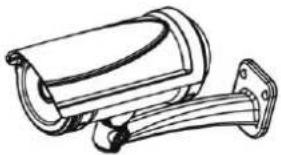 | b. Screw bag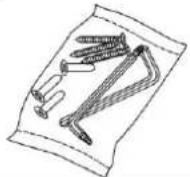 |
c. Warranty Card | d. Terminal Block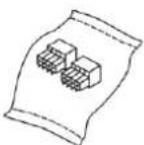 |
e. Dry Bag | f. Power Adapter(Optional)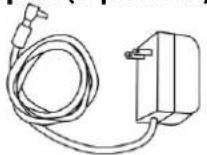 |
g. POE (Optional)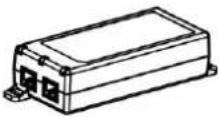 | h. Product CD |
i. Bracket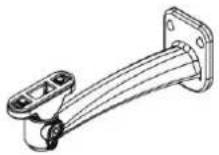 |
Chapter 2 - Bullet Network Camera
Overview
The Brickcom Bullet SERIES is a Bullet network camera. It adopts a megapixel sensor which allows the camera to deliver extremely clear and detailed images that CCTV cameras cannot offer. To optimize use of the megapixel resolution, the Bullet SERIES uses efficient H.264/ MJPEG/ MPEG-4 codec compression to deliver dual configurable video streams simultaneously at up to 30 fps. These features make this series the perfect outdoor camera for neighborhood, school campus, and parking lot surveillance.
The Bullet SERIES has many user friendly features, such as support for DC12V power supply, Power over Ethernet enables the camera to use the same cable for power and data transmission, eliminating the need to install an external power supply.
Users do not have to worry about the data connection failing because each camera is equipped with a SD/SDHC memory card slot for local storage.
With an IP66 certified outdoor enclosure, the Bullet SERIES is not only weather proof, but also dust and rust resistant.
Chapter 3 - Device Appearance Description
< Front Panel >
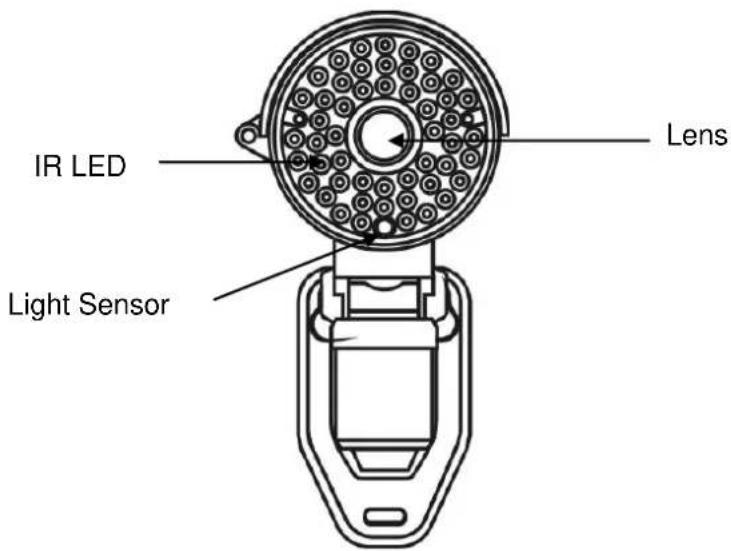
text_image
IR LED Lens Light Sensor< Rear Panel >
- RJ 45 Connector
- Power Connector (DC12V)
- Ground (Orange White)
- Power + 5V (Brown White)
- Digital Input (Blue White)
- Digital Output (Green White)
- RS485+ (Purple White)
- RS485- (Gray Black)
- Line In (Pink)
- Line In Ground (Pink Black/Gray)
- Line Out (Green)
- Line Out Ground (Red Black/ White)

natural_image
Line drawing of a security camera with attached cable and connector (no text or symbols)Please open the top case with the screwdriver.
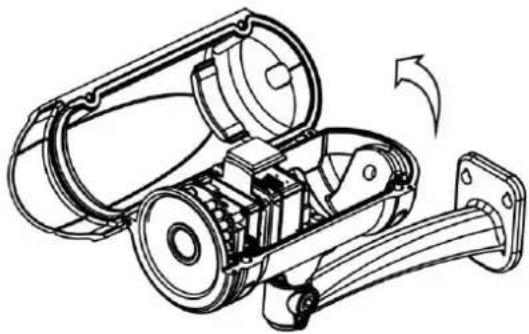
natural_image
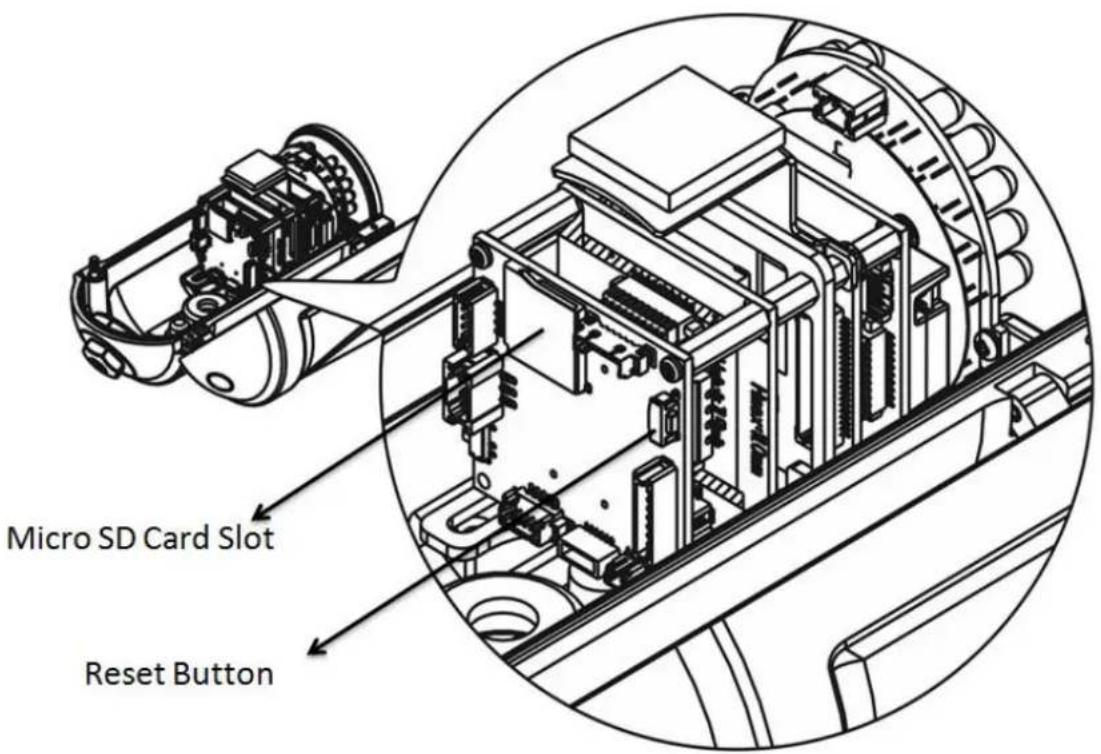
Technical line drawing of a mechanical device with internal components and a rotation arrow (no text or symbols)Micro SD card slot and HW Reset Button
text_image
Micro SD Card Slot Reset Button< Extension I/O Terminal Block >
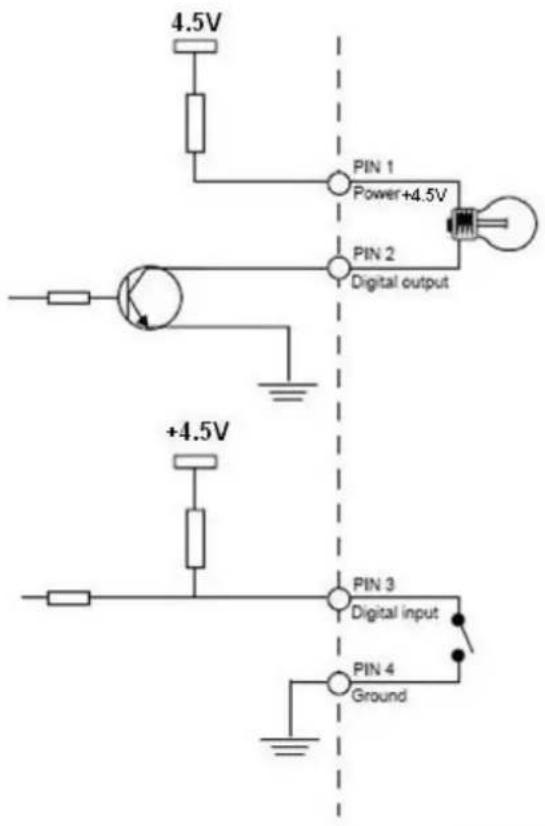
The Network Camera provides an extension I/O terminal block which is used to connect the camera with external input/output devices. The pin definitions are listed as below.
| Pin Line | Function |
| Brown White | Power + 5V |
| Green White | Digital Input |
| Blue White | Digital Output |
| Orange White | Ground |
| Purple White | RS485+ |
| Gray Black | RS485- |
| Pink | Audio In |
| Pink Black | Audio In Ground |
| Light Green | Audio Out |
| Red Black | Audio Out Ground |
< DI/DO Diagram >
text_image
4.5V PIN 1 Power+4.5V PIN 2 Digital output +4.5V PIN 3 Digital input PIN 4 Ground< Hardware Reset >
text_image
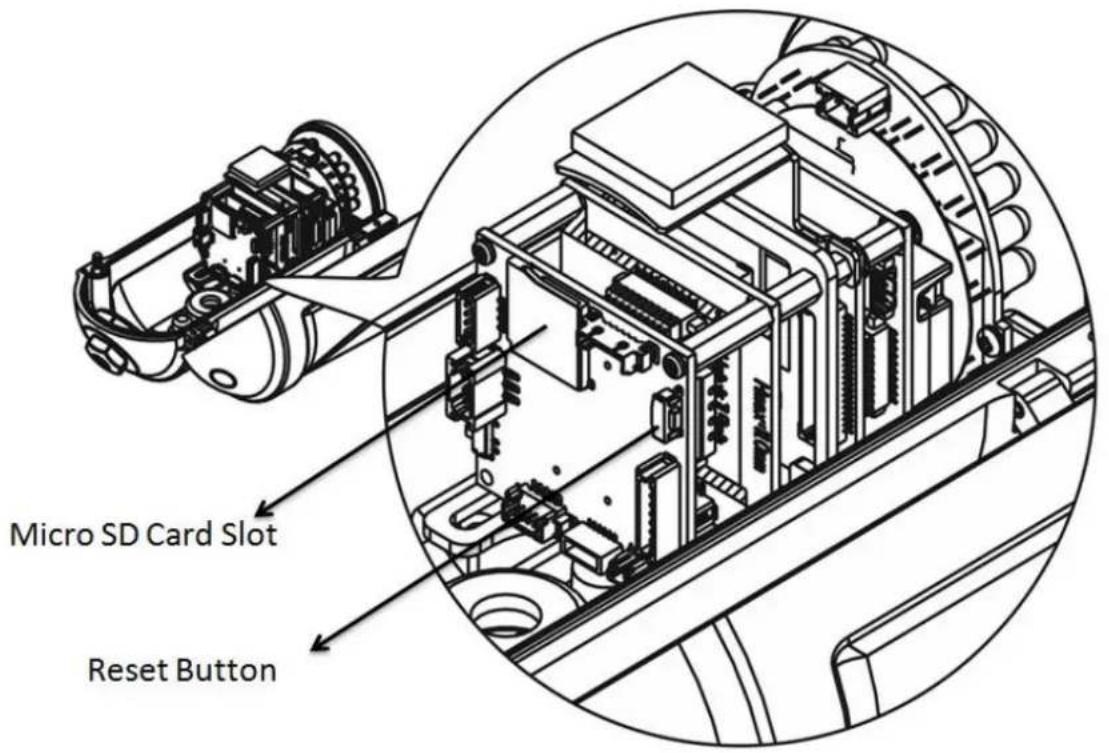
Micro SD Card Slot Reset ButtonThe Reset Button can be used to reboot the camera or restore it to factory default settings. If the camera experiences a problem, rebooting the camera may correct the problem. If the problem remains, please restore the camera to factory default settings and reinstall the software.
To Reboot
Press and hold the Reset Button for one second using a paper clip or thin object. Wait for the camera to reboot.
To Restore
Press and hold the Reset Button for ten seconds until the LED light turns off. When successful restored, the LED will be blue during normal operation.

NOTE - By restoring the camera, all settings will be restored to the factory default settings.
Micro-SD/SDHC Card Capacity
The network camera is compatible with Micro-SD/SDHC (Maximum 32GB) cards.
(*) These are optional features. Please refer to the Product List for the full list of optional features that are available for this product.
Chapter 4 - Installation
4.1 Hardware Installation

WARNING - Do not mount the camera on a soft material. The camera may fall and be damaged.
A. Micro-SD/SDHC Card
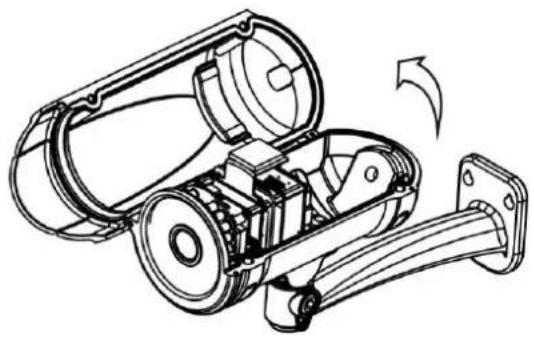
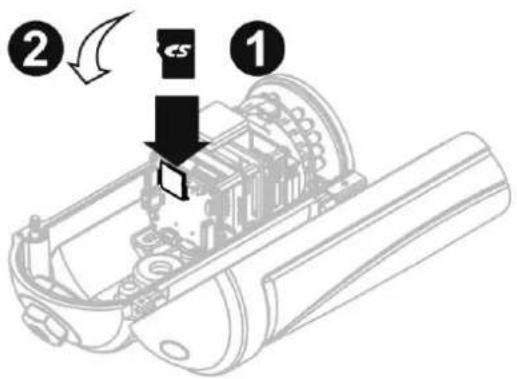
a. Remove the top case from the Bullet Camera.
natural_image
Technical line drawing of a mechanical device with internal components and a rotation arrow (no text or symbols)b. (1) Insert the Micro SD/SDHC card into their respective slots.
(2) Reattach the Lens cover and secure the cover to the top of the camera device using two screws.
text_image
Diagram showing a mechanical assembly with numbered annotations indicating process stepsB. Bracket Installation
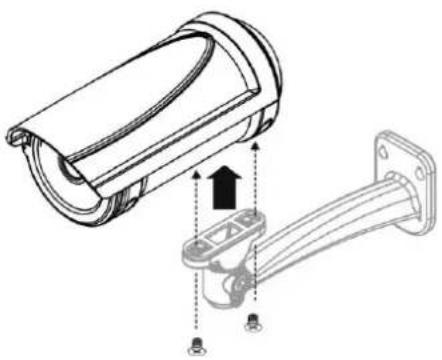
Use the screws to lock the bracket along with the Bullet housing.
natural_image
Technical line drawing of a security camera with attached cable and mounting bracket (no text or symbols)C. Wall Installation
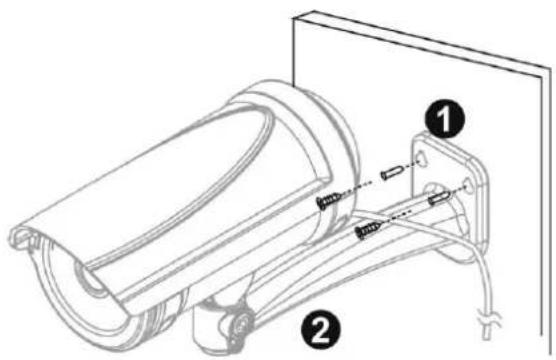
a. Drill three holes into the wall and (1) hammer the supplied plastic anchors into the three holes. (2) Use a screwdriver and the supplied screws to secure the plate to the wall.
text_image
Technical diagram of a mechanical device with labeled parts, showing assembly and connection detailsb. Connect (1) the POE cable; (2) DC12 Power Connector, (3) Line In/Out, DIDO, RS485 cable; with the camera. Refer to "Chapter 3" for more details installation information.

natural_image
Technical line drawing of a surveillance camera with labeled components (no text or symbols present)a. PoE Connection
For the Power over Ethernet connection, construct the PoE cable using the pin definitions of the RJ45 connector below and refer to step 5 for instructions on how to install the Water Proof Connector. Once the PoE cable has been constructed using the waterproof connector, pass the RJ-45 cable from the camera through the bracket and connect it to the PoE cable.
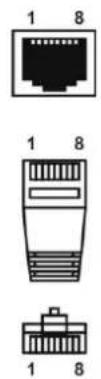
| RJ45 Connector | |
| Pin No. | Function |
| Pin 1 | Transmit Out+ (Tx+) |
| Pin 2 | Transmit Out- (Tx-) |
| Pin 3 | Receive In+ (Rx+) |
| Pin 4 | DC 48V |
| Pin 5 | DC 48V |
| Pin 6 | Receive In- (Rx-) |
| Pin 7 | 48V_GND |
| Pin 8 | 48V_GND |
4.2 Camera Connection
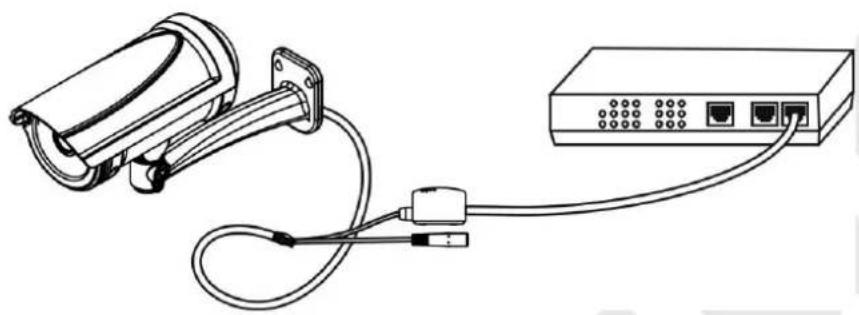
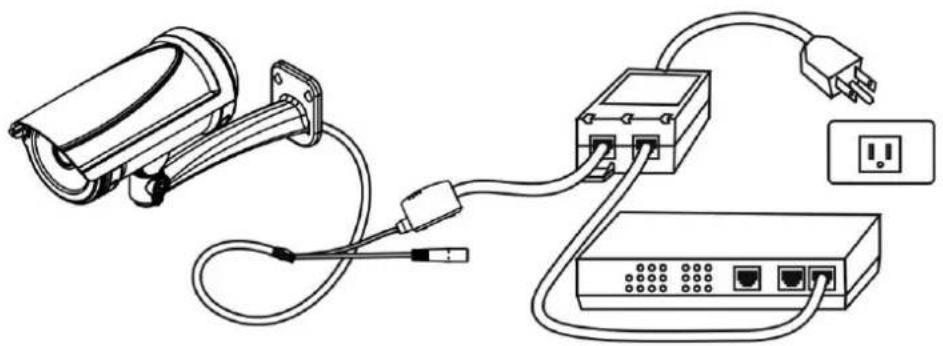
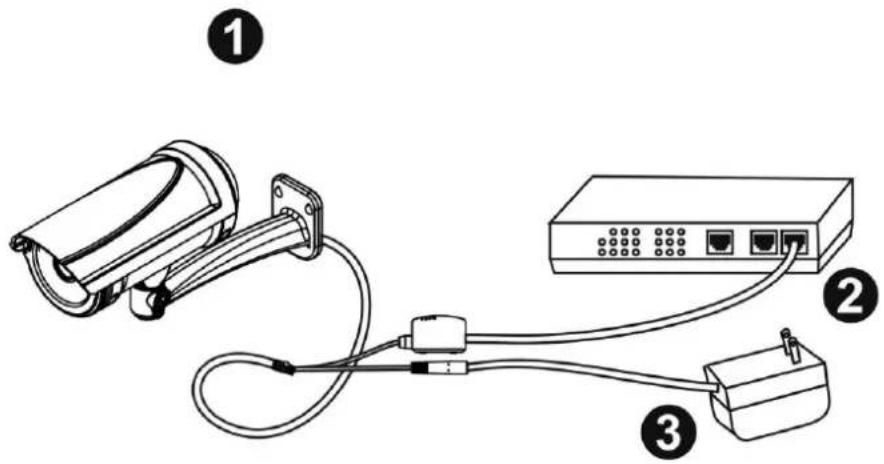
The Bullet Series is DC12V and PoE compliant, so there are two options for connecting the camera to a power and Ethernet source. The camera can either be connected to a PoE-enabled switch or a non-PoE switch.
a. If using a PoE-enabled switch:
natural_image
Line drawing of a security camera connected to a network device (no text or symbols)i. Use a single Ethernet cable to connect the camera to the PoE-enabled switch.
b. If using a non-PoE switch:
natural_image
Line drawing of a security camera connected to a network switch and power outlet (no text or symbols)i. Use a standard RJ-45 cable to connect the camera to a PoE Injector.
ii. Use a standard RJ-45 cable to connect the PoE Injector to the non-PoE switch.
iii. Use a standard power cable to connect the PoE Injector to a power outlet.
If using the DC12V for the power Supply. The RJ45 cable will be data transmission.
text_image
Diagram showing three connected devices: a security camera, a network switch, and a power adapter, labeled with numbers 1, 2, and 3.4.3 System Requirements
Operating System:
Microsoft Windows XP Home Edition SP2
Microsoft Windows XP Professional SP2
Computer:
IBM PC/AT Compatible
CPU:
Pentium 3GHz or faster
Memory:
1024 MB or more
Monitor:
1024 x 768 pixels or more, 24-bit True color or better
Network Interface:
10/100Mbps Network interface card must be installed
Web Browser:
Microsoft Internet Explorer 6.0 SP2 or higher
Adobe Reader:
Adobe Reader 8.0 or higher
Audio:
The audio function will not work if a sound card is not installed in the PC. Audio may be interrupted depending on network traffic.
4.4 Software Installation
In this manual, "User" refers to whoever has access to the Network Camera, and "Administrator" refers to the person who can configure the camera and grant user access to the camera.
After checking the hardware connection, run the Installation Wizard program included on the product's CDROM to automatically search the intranet for the camera. There may be many cameras on the local network. Differentiate the cameras using the serial number which is printed on the labels on the carton and the bottom of the camera.
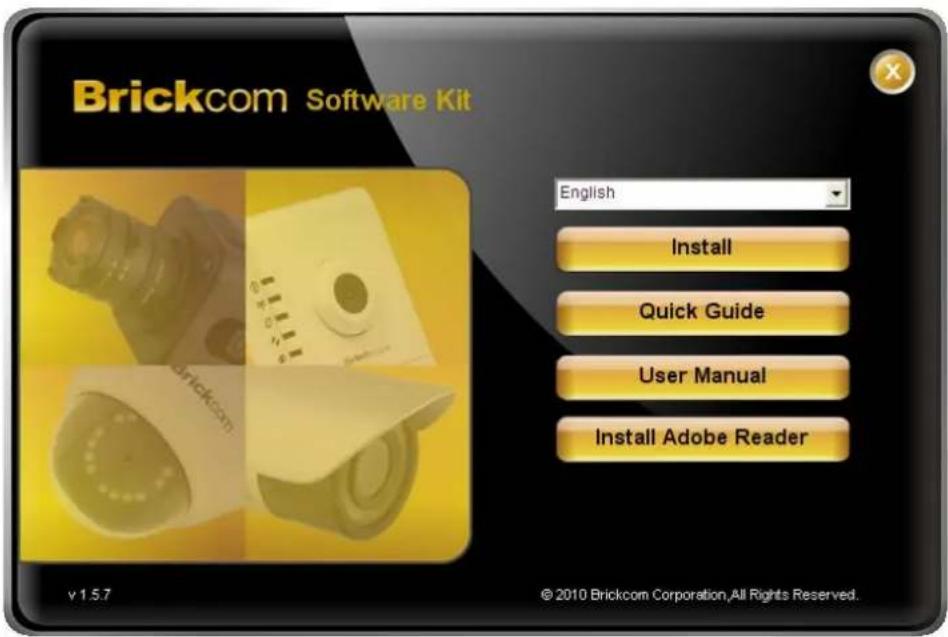
A. Insert the Installation CD into the CD-ROM driver. Run Auto-Run Tool directly from the CD-ROM to start the installation. When installing the Brickcom software kit for the first time, select a desired language for the interface. The available languages are listed in the scroll box. Click
text_image
Brickcom Software Kit English Install Quick Guide User Manual Install Adobe Reader v1.5.7 © 2010 Brickcom Corporation, All Rights Reserved.B. In the Install Shield Wizard dialog box, click
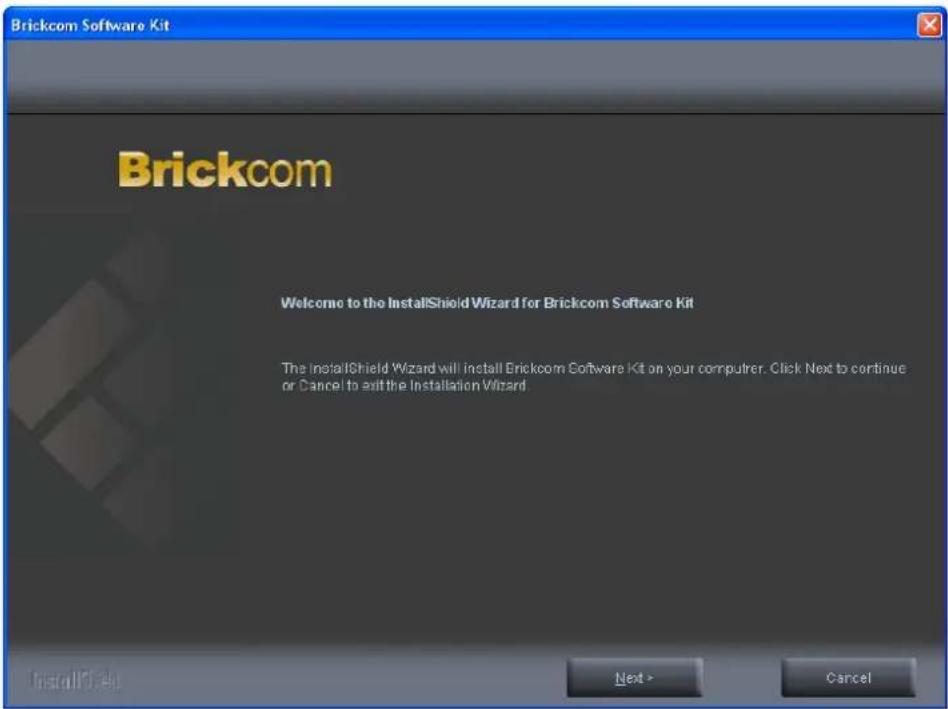
text_image
Brickcom Welcome to the InstallShield Wizard for Brickcom Software Kit The InstallShield Wizard will install Brickcom Software Kit on your computer. Click Next to continue or Cancel to exit the Installation WizardC. Read the End-User License Agreement and check the option "I accept the terms of the license agreement". Click
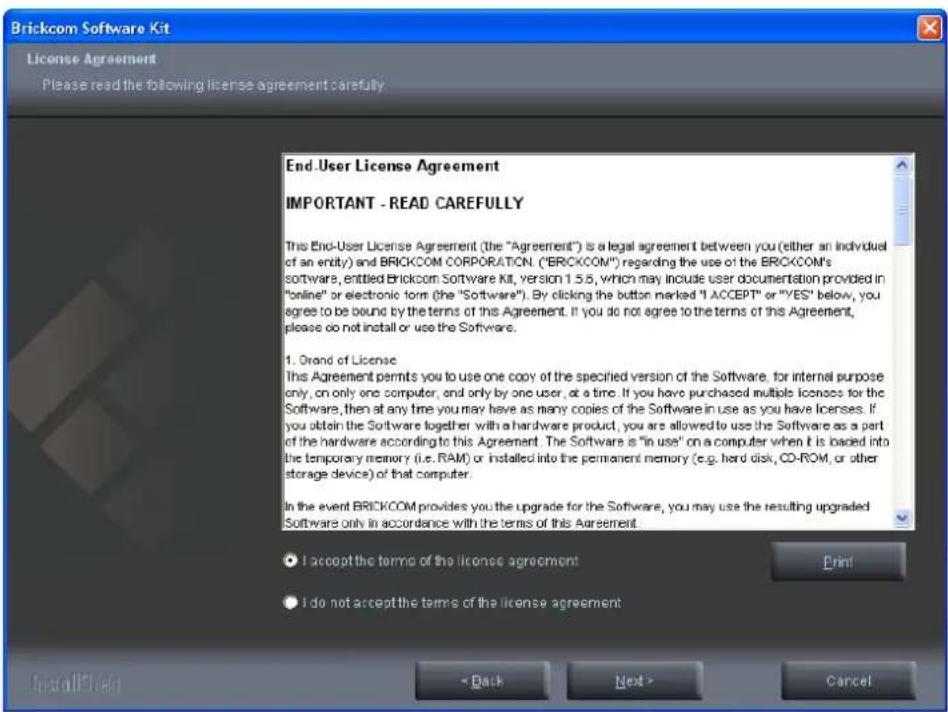
text_image
Brickcom Software Kit License Agreement Please read the following license agreement carefully End User License Agreement IMPORTANT - READ CAREFULLY This End-User License Agreement (the "Agreement") is a legal agreement between you (either an individual of an entity) and BRICKCOM CORPORATION. ("BRICKCOM") regarding the use of the BRICKCOM's software, entitled Brickcom Software Kit, version 1.5.5, which may include user documentation provided in "online" or electronic form (the "Software"). By clicking the button marked "I ACCEPT" or "YES" below, you agree to be bound by the terms of this Agreement. If you do not agree to the terms of this Agreement, please do not install or use the Software. 1. Grand of License This Agreement permits you to use one copy of the specified version of the Software, for internal purpose only, on only one computer, and only by one user, at a time. If you have purchased multiple licenses for the Software, then at any time you may have as many copies of the Software in use as you have licenses. If you obtain the Software together with a hardware product, you are allowed to use the Software as a part of the hardware according to this Agreement. The Software is "in use" on a computer when it is loaded into the temporary memory (i.e. RAM) or installed into the permanent memory (e.g. hard disk, CO-ROM, or other storage device) of that computer. In the event BRICKCOM provides you the upgrade for the Software, you may use the resulting upgraded Software only in accordance with the terms of this Agreement. ● I accept the terms of the license agreement ● I do not accept the terms of the license agreement < Back Next > CancelD. Select either "Complete" setup or "Custom" setup to install the system.
a. If COMPLETE SETUP is selected:
i. All program features will be installed into the default directory. Check the option "Complete" and then click
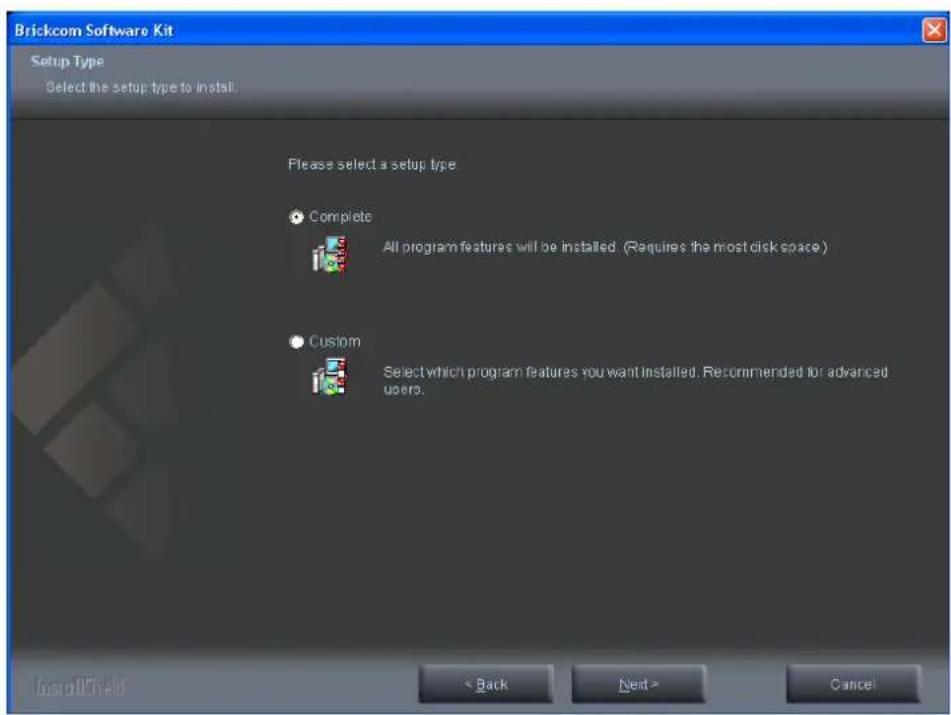
text_image
Brickcom Software Kit Setup Type Select the setup type to install. Please select a setup type • Complete All program features will be installed. (Requires the most disk space) • Custom Select which program features you want installed. Recommended for advanced users. InstallShield < Back Next > Cancelii. Click
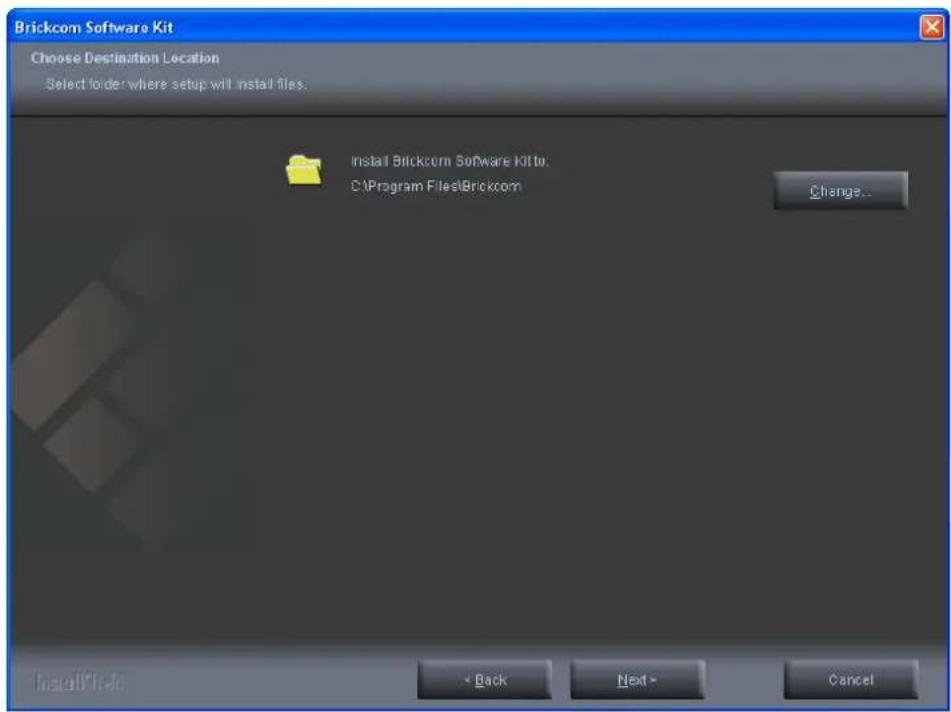
text_image
Brickcom Software Kit Choose Destination Location Select folder where setup will install files. Install Brickcom Software Kit to: C:\Program Files\Brickcom Change... Install\Help - Back Next > Canceliii. Select to create shortcuts. Click
text_image
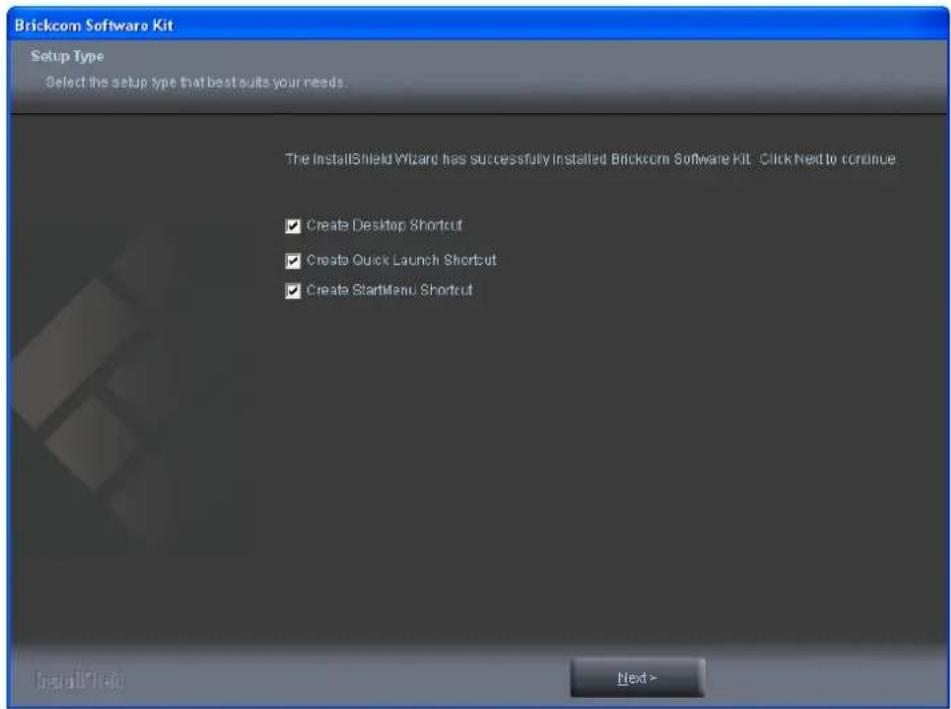
Brickcom Software Kit Setup Type Select the setup type that best suits your needs. The InstallShield Wizard has successfully installed Brickcom Software Kit. Click Next to continue ✓ Create Desktop Shortcut ✓ Create Quick Launch Shortcut ✓ Create StartMenu Shortcut Next >iv. The installation information will be displayed. Click
text_image
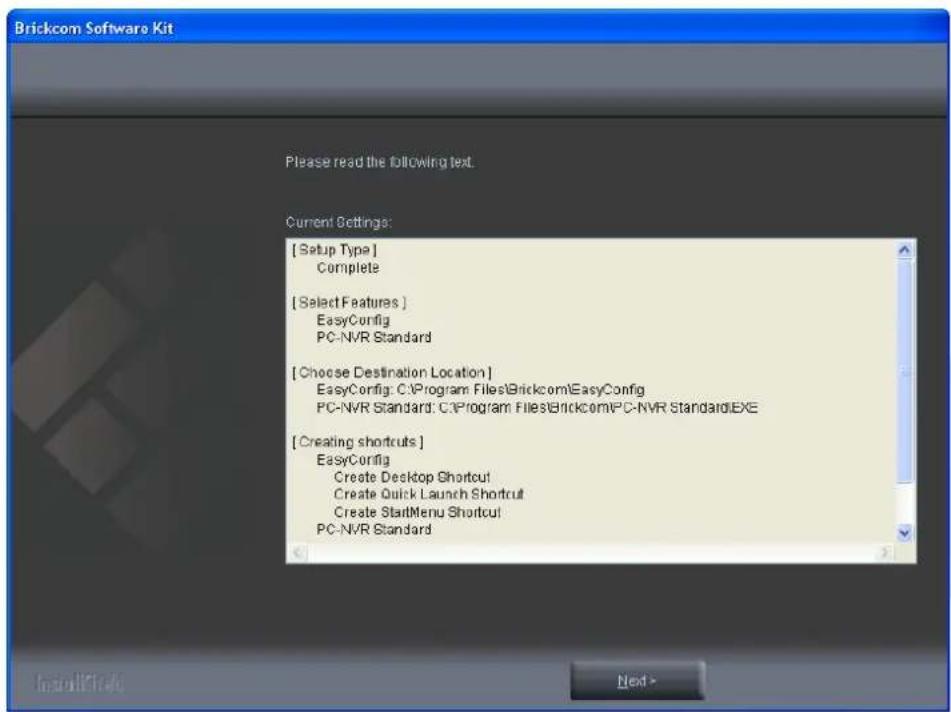
Brickcom Software Kit Please read the following text. Current Settings: [Setup Type] Complete [Select Features] EasyConfig PC-NVR Standard [Choose Destination Location] EasyConfig: C:\Program Files\Brickcom\EasyConfig PC-NVR Standard: C:\Program Files\Brickcom\PC-NVR Standard.EXE [Creating shortcuts] EasyConfig Create Desktop Shortcut Create Quick Launch Shortcut Create StartMenu Shortcut PC-NVR Standard Next >v. To launch EasyConfig or PC-NVR Standard, select the application and click
text_image
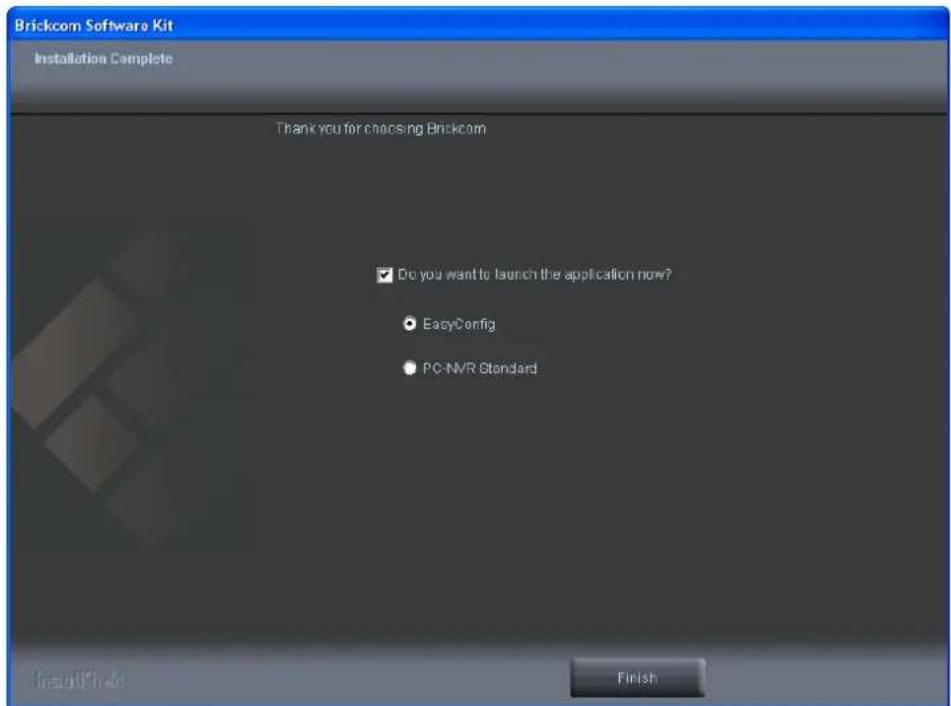
Brickcom Software Kit Installation Complete Thank you for choosing Brickcom ✓ Do you want to launch the application now? ● EasyConfig ● PC-NVR Standard Finishb. If CUSTOM SETUP is selected:
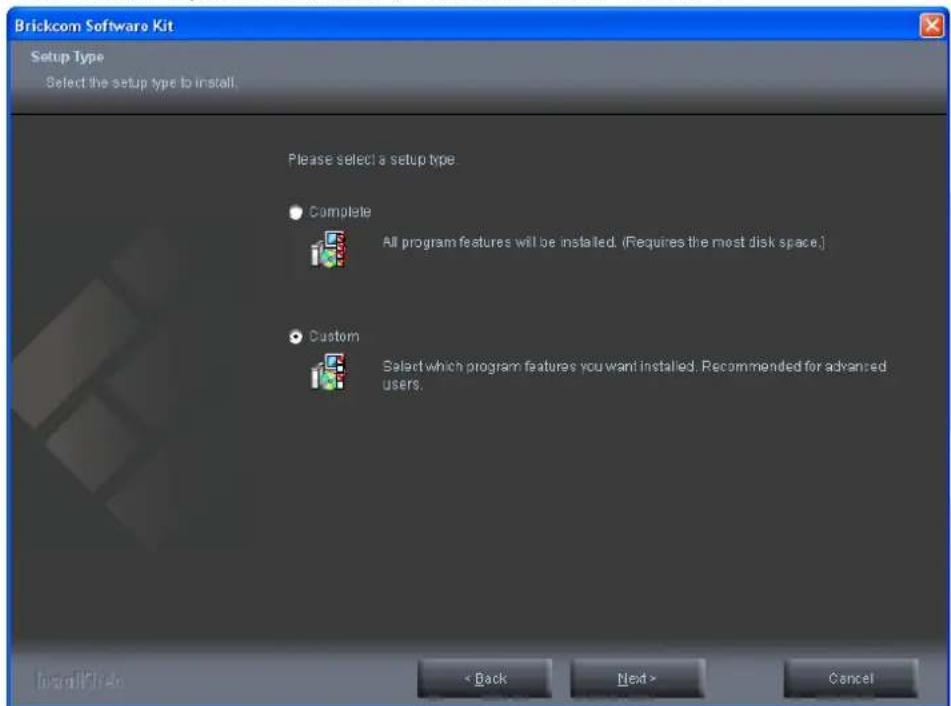
i. This option is recommended for advanced users. It can be used to install the system to a preferred directory or to select specific program feature(s).
ii. Check the option "Custom", and then click
text_image
Brickcom Software Kit Setup Type Select the setup type to install. Please select a setup type • Complete All program features will be installed. (Requires the most disk space.) • Custom Select which program features you want installed. Recommended for advanced users. < Back Next > Canceliii. Select the features to install. Click
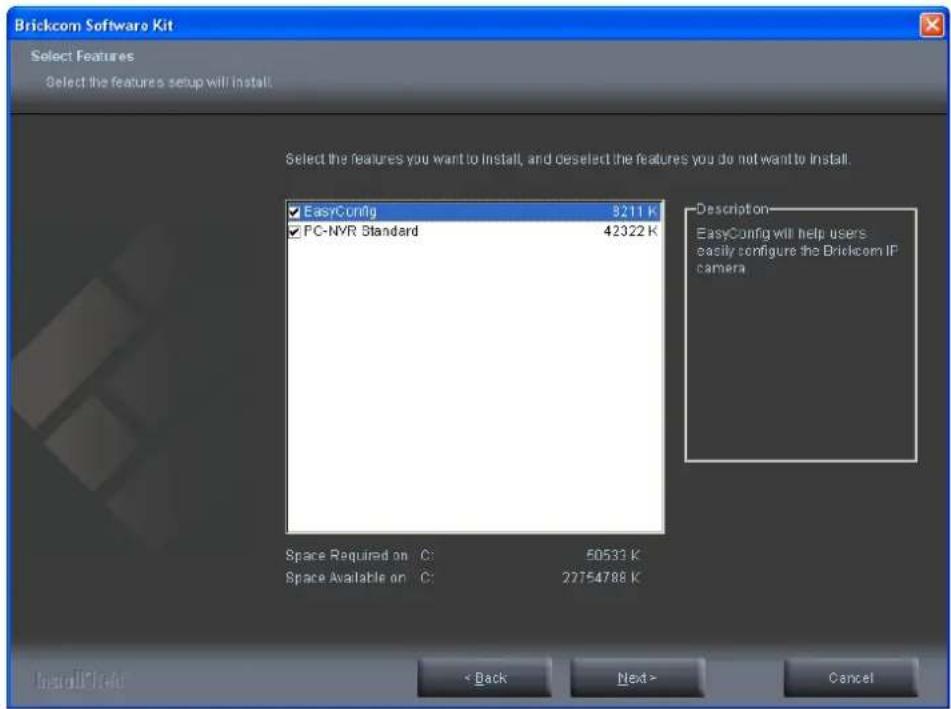
text_image
Brickcom Software Kit Select Features Select the features setup will install. Select the features you want to install, and deselect the features you do not want to install. EasyConfig 5211 K PC-NVR Standard 42322 K Description EasyConfig will help users asily configure the Brickcom IP camera Space Required on C: 50533 K Space Available on C: 22754788 K < Back Next > Canceliv. Click
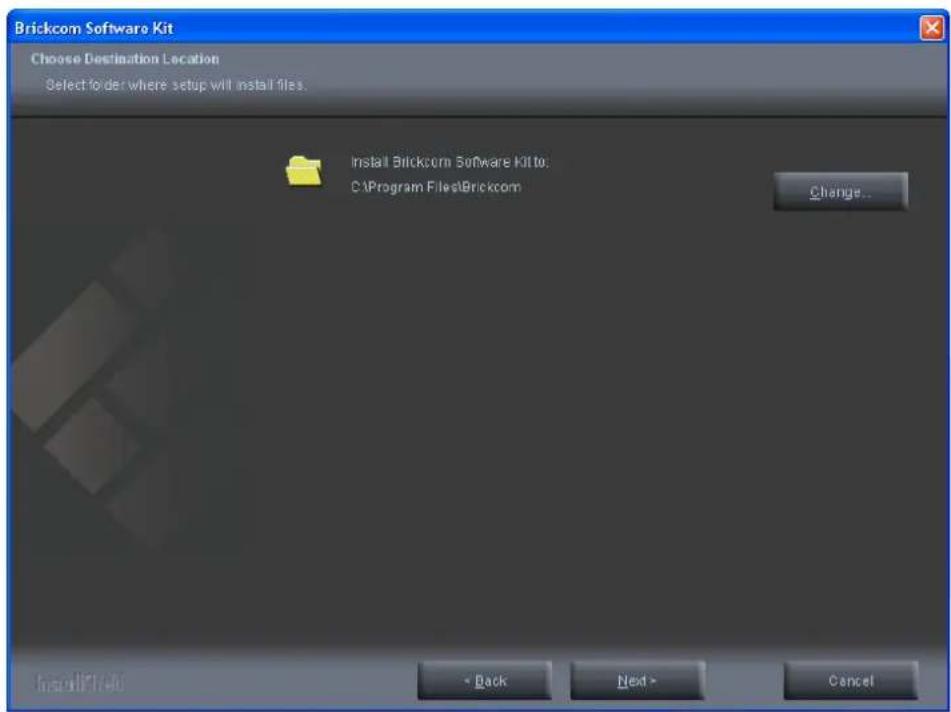
text_image
Brickcom Software Kit Choose Destination Location Select folder where setup will install files. Install Brickcom Software Kit to: C:\Program Files\Brickcom Change... Install Print - Back Next > Cancelv. Select programs to create shortcuts. Click
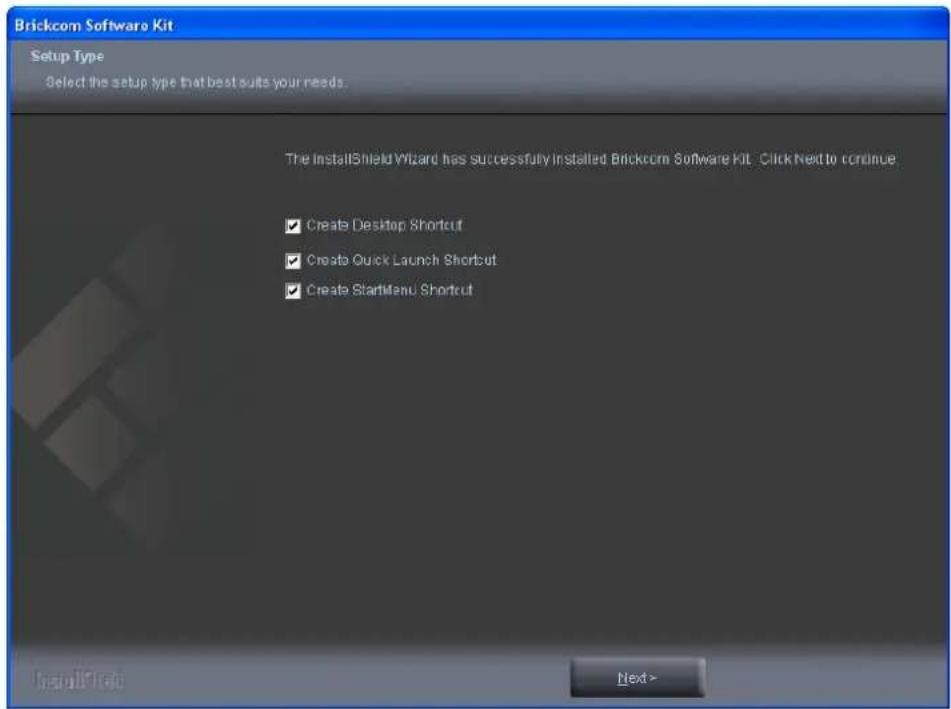
text_image
Brickcom Software Kit Setup Type Select the setup type that best suits your needs. The InstallShield Wizard has successfully installed Brickcom Software Kit. Click Next to continue ✓ Create Desktop Shortcut ✓ Create Quick Launch Shortcut ✓ Create StartMenu Shortcut Next >vi. The installation information will be displayed. Click
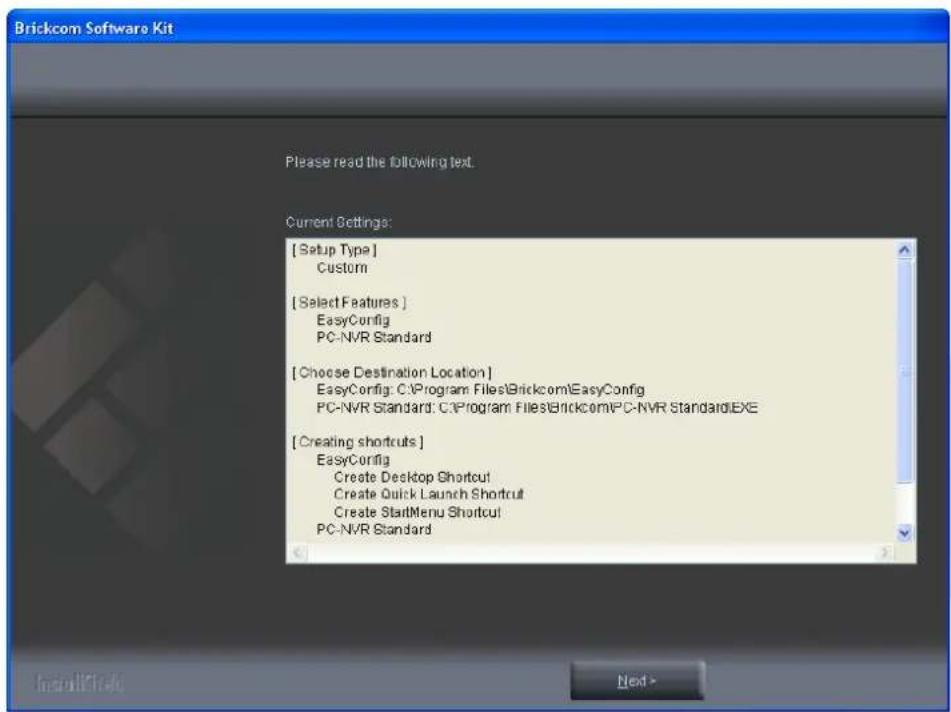
text_image
Brickcom Software Kit Please read the following text. Current Settings: [Setup Type] Custom [Select Features] EasyConfig PC-NVR Standard [Choose Destination Location] EasyConfig: C:\Program Files\Brickcom\EasyConfig PC-NVR Standard: C:\Program Files\Brickcom\PC-NVR Standard.EXE [Creating shortcuts] EasyConfig Create Desktop Shortcut Create Quick Launch Shortcut Create StartMenu Shortcut PC-NVR Standard Next >E. To launch EasyConfig or PC-NVR Standard, select the application and click
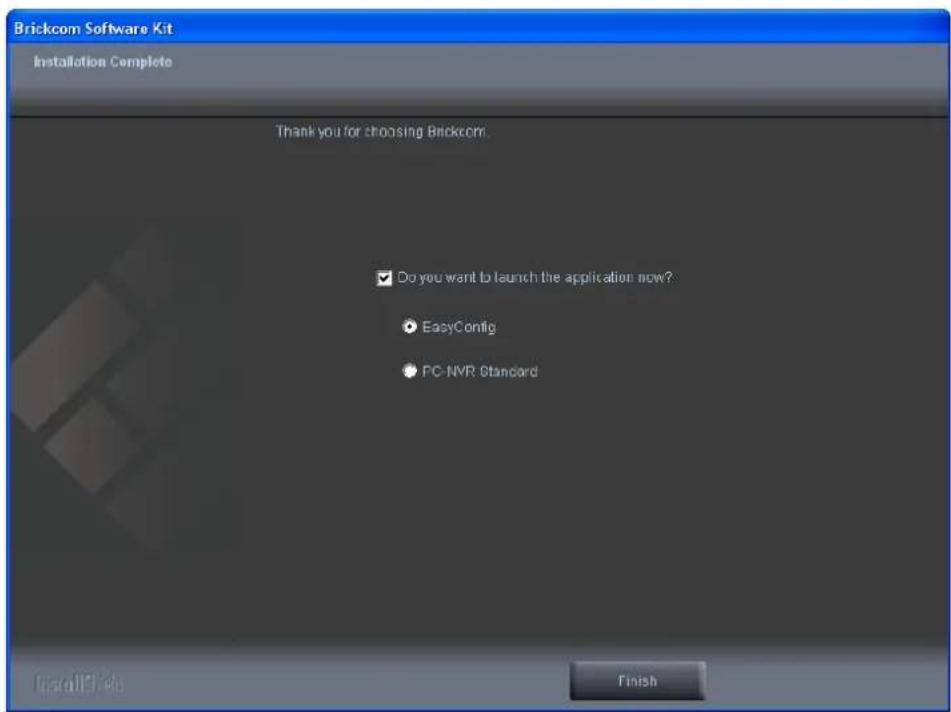
text_image
Brickcom Software Kit Installation Complete Thank you for choosing Brickcom ✓ Do you want to launch the application now? ● EasyConfig ● PC-NVR Standard Finish4.4.1 EasyConfig
To launch EasyConfig, select EasyConfig from the start menu. If Complete Setup type was used in the software installation, an EasyConfig icon was installed on the desktop. Double click to open the icon.
If Custom Setup type was used in the software installation and an EasyConfig icon was not installed on the desktop, the program will be installed under C:\Program Files\Brickcom\EasyConfig unless the program was saved to a preferred directory.
A. Click

NOTE - Check "Skip the hardware installation guide" to skip checking the hardware connection. To check the hardware installation settings, do not check the option box.
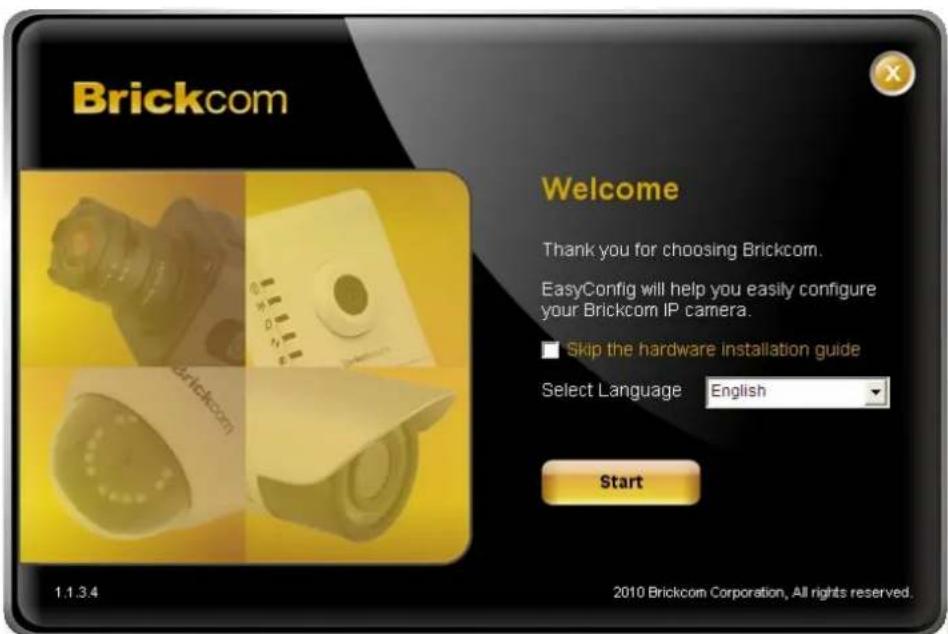
text_image
Brickcom Welcome Thank you for choosing Brickcom. EasyConfig will help you easily configure your Brickcom IP camera. Skip the hardware installation guide Select Language English Start 1.1.3.4 2010 Brickcom Corporation, All rights reserved.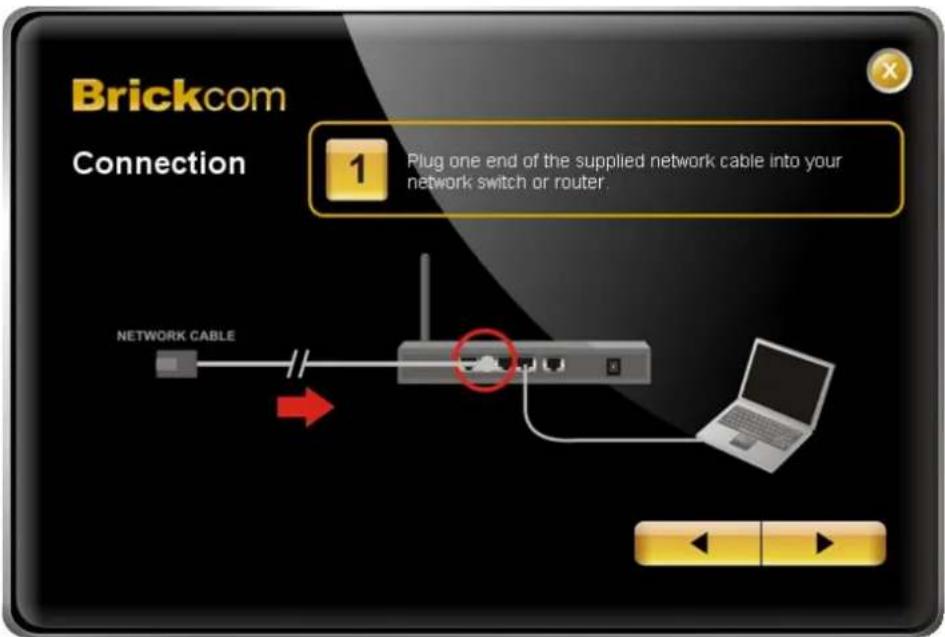
text_image
Brickcom Connection 1 Plug one end of the supplied network cable into your network switch or router. NETWORK CABLE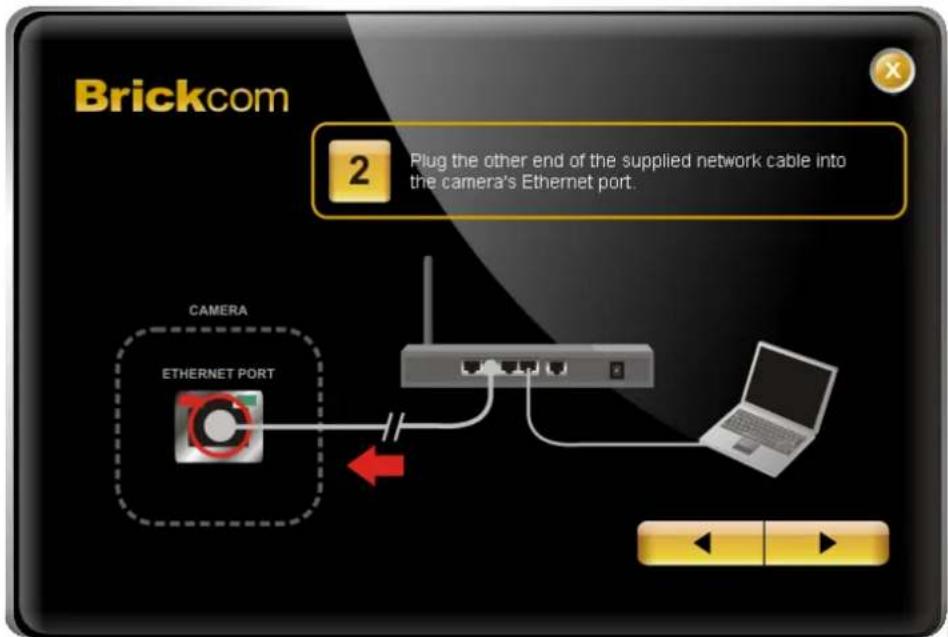
text_image
Brickcom 2 Plug the other end of the supplied network cable into the camera's Ethernet port. CAMERA ETHERNET PORT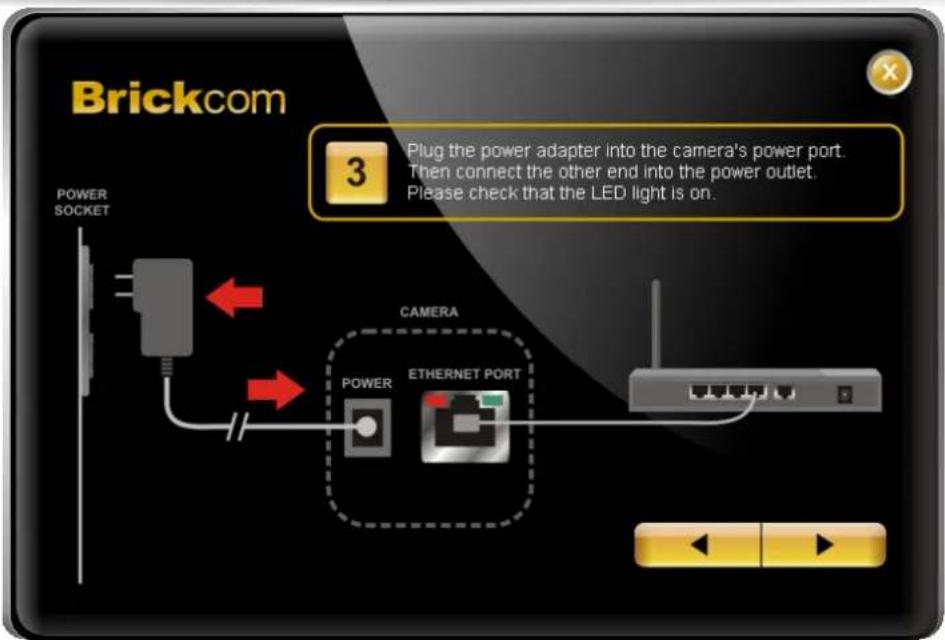
text_image
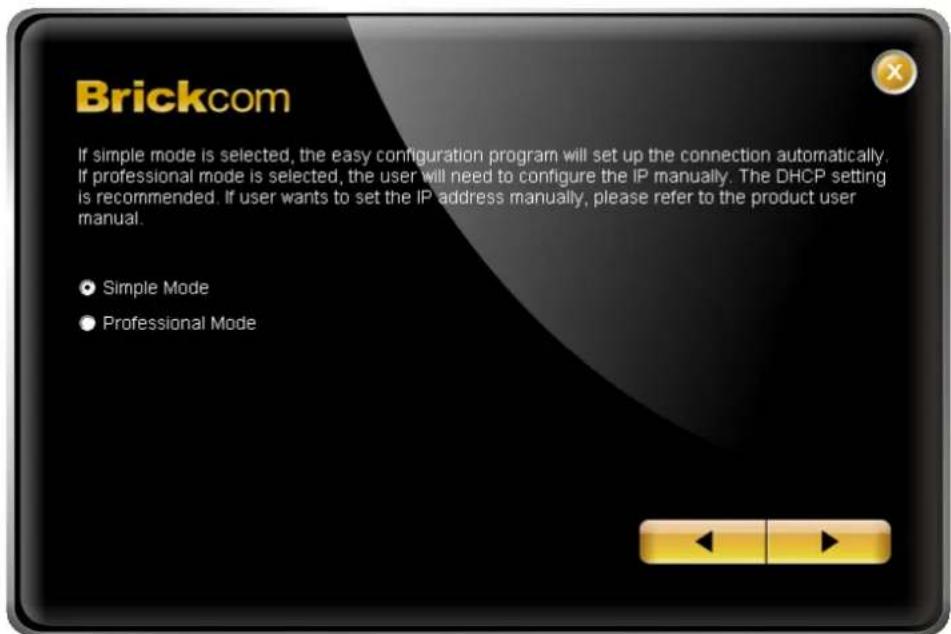
Brickcom 3 Plug the power adapter into the camera's power port. Then connect the other end into the power outlet. Please check that the LED light is on. POWER SOCKET CAMERA POWER ETHERNET PORTB. Select either "Simple Mode" or "Professional Mode" to obtain the camera's IP settings. If "Simple Mode" is selected, EasyConfig will set up the connection automatically. If "Professional Mode" is selected, the user will need to configure the IP settings manually.
text_image
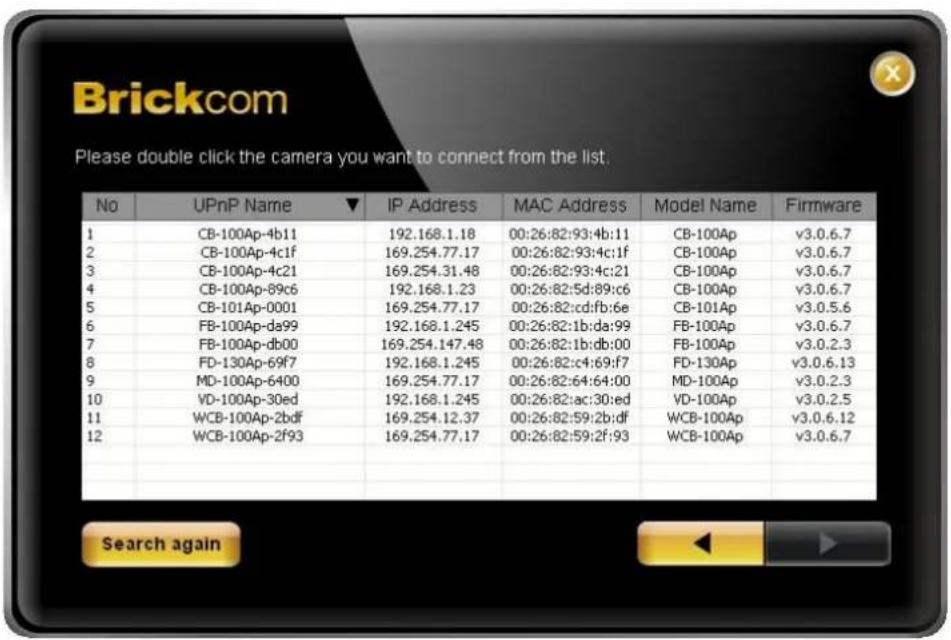
Brickcom If simple mode is selected, the easy configuration program will set up the connection automatically. If professional mode is selected, the user will need to configure the IP manually. The DHCP setting is recommended. If user wants to set the IP address manually, please refer to the product user manual. • Simple Mode • Professional ModeC. There may be many cameras in the local network. Differentiate the cameras using their UPnP name. Double click on the camera from the survey list to connect.
text_image
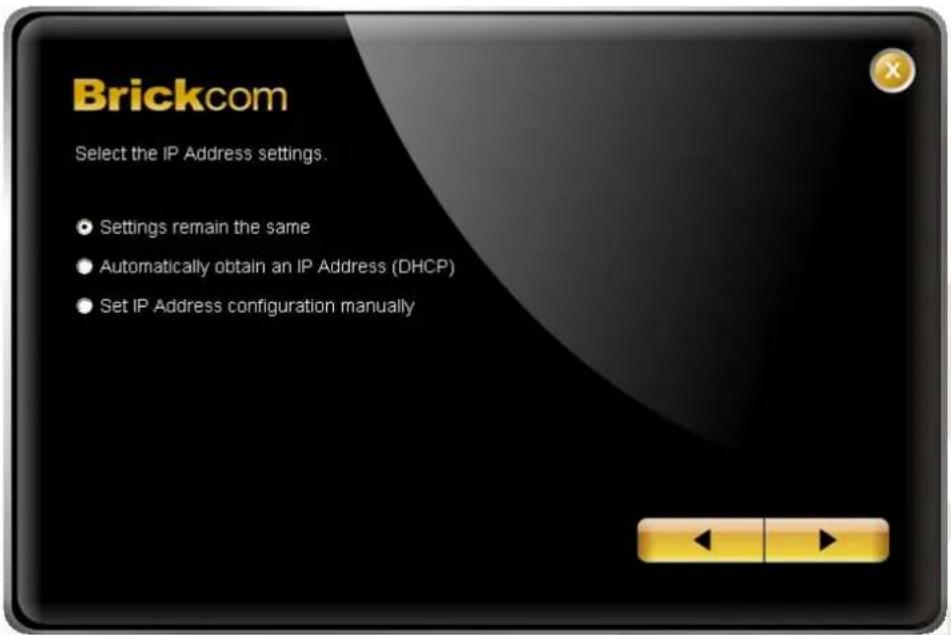
Brickcom Please double click the camera you want to connect from the list. No UPnP Name ▼ IP Address MAC Address Model Name Firmware 1 CB-100Ap-4b11 192.168.1.18 00:26:82:93:4b:11 CB-100Ap v3.0.6.7 2 CB-100Ap-4c1f 169.254.77.17 00:26:82:93:4c:1f CB-100Ap v3.0.6.7 3 CB-100Ap-4c21 169.254.31.48 00:26:82:93:4c:21 CB-100Ap v3.0.6.7 4 CB-100Ap-89c6 192.168.1.23 00:26:82:5d:89:c6 CB-100Ap v3.0.6.7 5 CB-101Ap-0001 169.254.77.17 00:26:82:cd:fb:6e CB-101Ap v3.0.5.6 6 FB-100Ap-da99 192.168.1.245 00:26:82:1b:da:99 FB-100Ap v3.0.6.7 7 FB-100Ap-db00 169.254.147.48 00:26:82:1b:db:00 FB-100Ap v3.0.2.3 8 FD-130Ap-69f7 192.168.1.245 00:26:82:c4:69:f7 FD-130Ap v3.0.6.13 9 MD-100Ap-6400 169.254.77.17 00:26:82:64:64:00 MD-100Ap v3.0.2.3 10 VD-100Ap-30ed 192.168.1.245 00:26:82:ac:30:ed VD-100Ap v3.0.2.5 11 WCB-100Ap-2bdf 169.254.12.37 00:26:82:59:2b:df WCB-100Ap v3.0.6.12 12 WCB-100Ap-2f93 169.254.77.17 00:26:82:59:2f:93 WCB-100Ap v3.0.6.7 Search againD. For configuring the IP address settings, select either
text_image
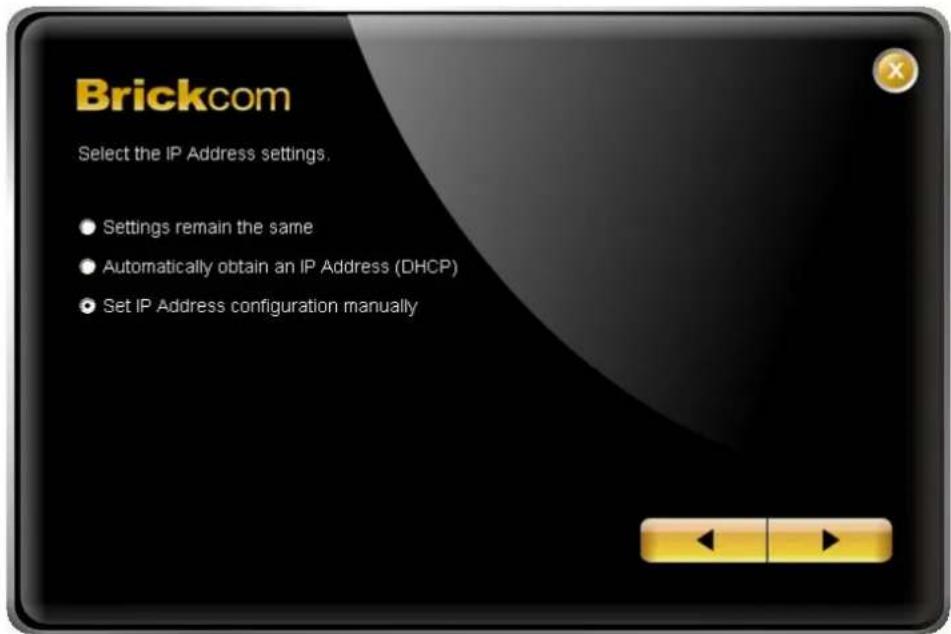
Brickcom Select the IP Address settings. Settings remain the same Automatically obtain an IP Address (DHCP) Set IP Address configuration manuallyIf
text_image
Brickcom Select the IP Address settings. ● Settings remain the same ● Automatically obtain an IP Address (DHCP) ● Set IP Address configuration manually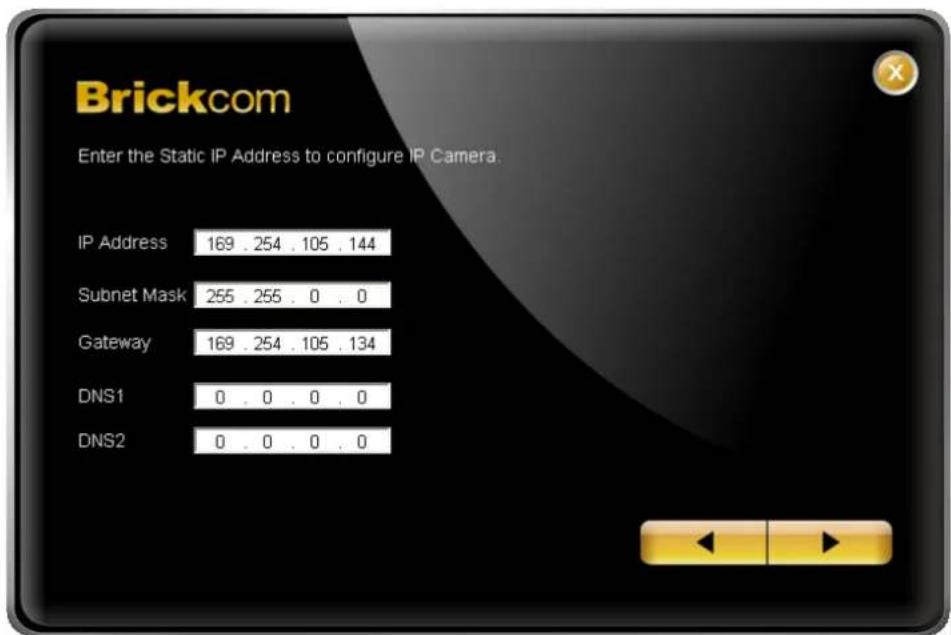
text_image
Brickcom Enter the Static IP Address to configure IP Camera. IP Address 169 . 254 . 105 . 144 Subnet Mask 255 . 255 . 0 . 0 Gateway 169 . 254 . 105 . 134 DNS1 0 . 0 . 0 . 0 DNS2 0 . 0 . 0 . 0E. If the camera supports the EasyLinkTM function, the following page will be displayed. Otherwise, this page will not be shown. *If desired, click

text_image
Brickcom EasyLink Settings You can use EasyLink Settings to connect to the IP camera without knowing the IP address. EasyLink Name: 002682592c33 Live View - Windows Internet Explorer http://002682592c33.mybrickcom.com Brickcom WCB-100Ap Camera Configuration Utility Live View I Configuration I Hi Enter the EasyLink URL into a web browser to access the camera's web GUI. SkipEasyLinkTM is a unique Brickcom function which allows users to assign a unique EasyLink name to their network camera's IP address. There is no need to configure the router to open up ports or remember hard-to-memorize IP addresses. Users can log onto [uniqueEasyLinkname].mybrickcom.com to view the camera's web GUI and live view.
a. Enter a unique EasyLink name whose length must be between 5-32 characters.
b. When finished, click the arrow button to continue.
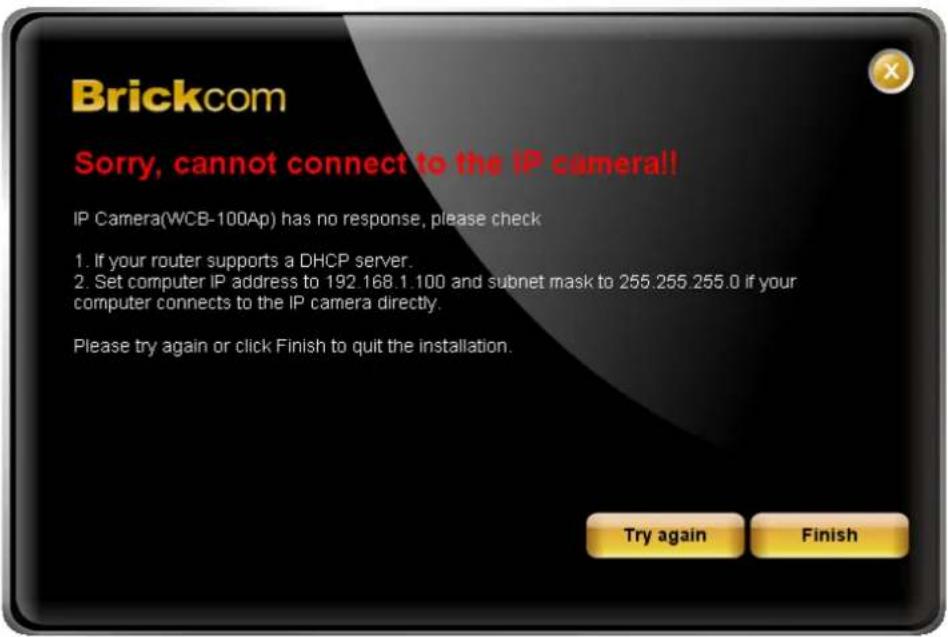
F. When the IP address settings have been configured, the screen will either display a successful or failed connection message. If the connection failed, either try again or quit the installation.
a. If "DHCP IP address settings" was selected, the failure page will be displayed as below:
text_image
Brickcom Sorry, cannot connect to the IP camera!! IP Camera(WCB-100Ap) has no response, please check 1. If your router supports a DHCP server. 2. Set computer IP address to 192.168.1.100 and subnet mask to 255.255.255.0 if your computer connects to the IP camera directly. Please try again or click Finish to quit the installation. Try again Finishb. If "Static IP address settings" was selected, the failure page will be displayed as below:
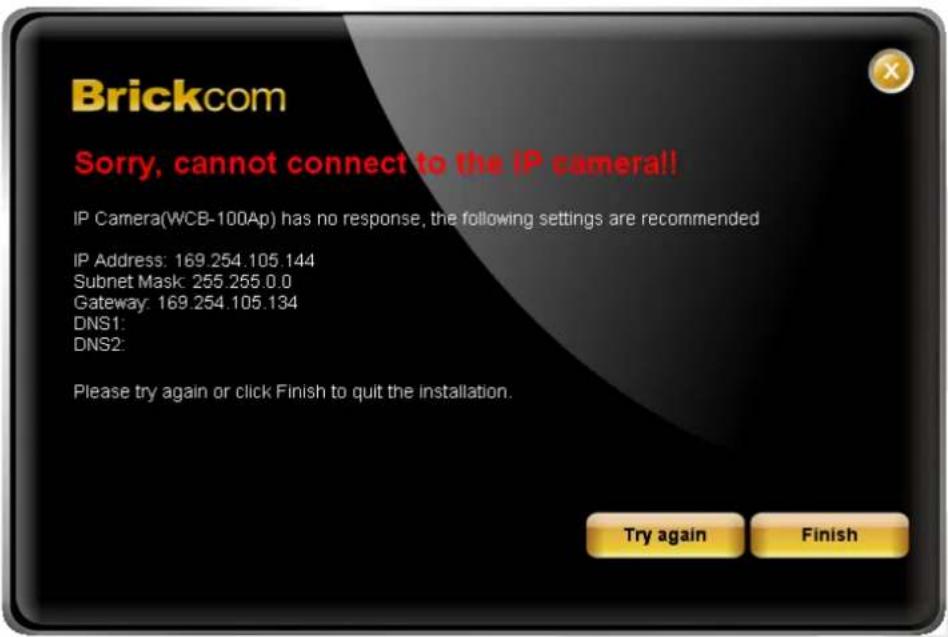
text_image
Brickcom Sorry, cannot connect to the IP camera!! IP Camera(WCB-100Ap) has no response, the following settings are recommended IP Address: 169.254.105.144 Subnet Mask: 255.255.0.0 Gateway: 169.254.105.134 DNS1: DNS2: Please try again or click Finish to quit the installation. Try again Finishc. If the connection was successful, the user will see the message: "Congratulations. The installation of the camera is complete."
When this window is displayed, click
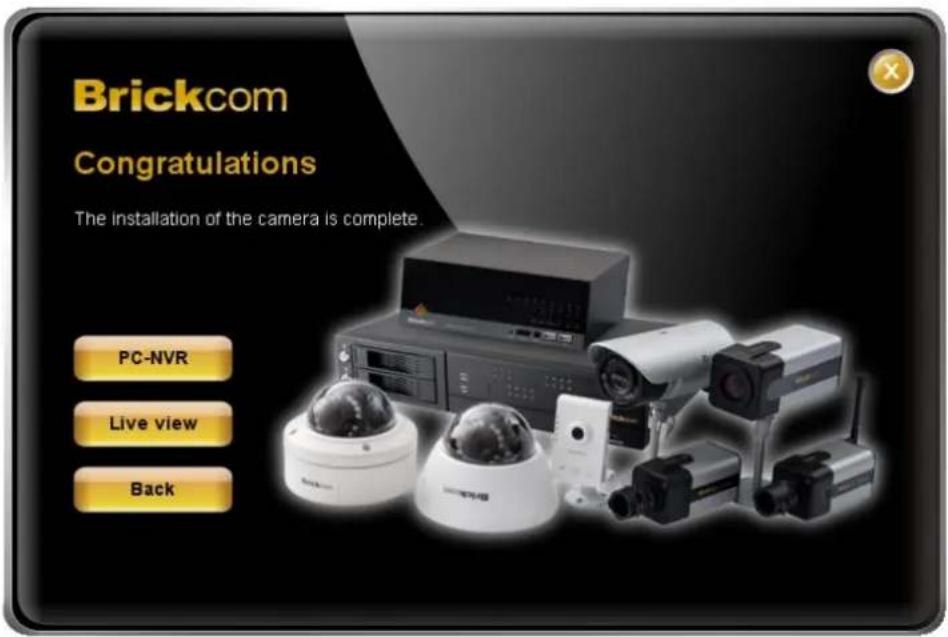
text_image
Brickcom Congratulations The installation of the camera is complete. PC-NVR Live view BackOnce installation is complete, the Administrator should proceed to the next section "Accessing the Network Camera" for necessary changes and configurations.