
OLED65C8PVA - Television LG - Free user manual and instructions
Find the device manual for free OLED65C8PVA LG in PDF.


User questions about OLED65C8PVA LG
0 question about this device. Answer the ones you know or ask your own.
Ask a new question about this device
Download the instructions for your Television in PDF format for free! Find your manual OLED65C8PVA - LG and take your electronic device back in hand. On this page are published all the documents necessary for the use of your device. OLED65C8PVA by LG.
USER MANUAL OLED65C8PVA LG
RISQUE D'ÉLECTROCUTION NE PAS OUVRIR

AVERTISSEMENT : AFIN DE RÉDUIRE LE RISQUE D'ÉLECTROCUTION, NE RETIREZ PAS LE CAPOT (OU L'ARRIÈRE). AUCUNE PIÈCE N'EST RÉPARABLE PAR L'UTILISATEUR LUI-MÊME. CONFIEZ L'ENTRETIEN DE CET APPAREIL À UN PERSONNEL QUALIFIÉ.
text_image
Diagram illustrating how to change a screen with five different hand positions, showing correct and incorrect states.natural_image
Two silhouettes of people carrying rectangular objects, one with a hand extended (no text or symbols)(Uniquement OLED55/65E8*)
natural_image
Diagram of a mechanical assembly with a magnified inset showing a section detail (no text or symbols)
text_image
Diagram showing electrical connections with labeled components and red arrows indicating direction of connection(Selon le modèle)
natural_image
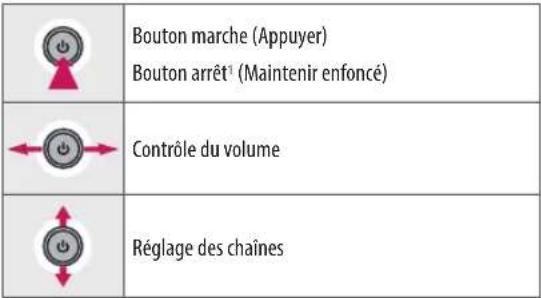
Simple line drawing of a rectangular panel with a power button icon, no text or symbols presentFonctions de base
 |
* Image shown may differ from your TV.
* Image shown on a PC or mobile phone may vary depending on the OS(Operating System).
* App icon positions may vary on the platform, depending on the software version.
Network Settings
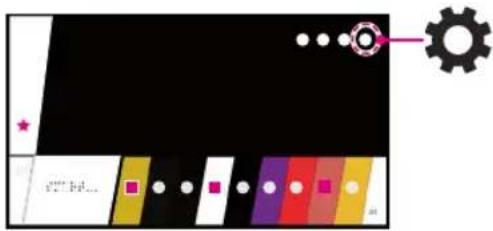
1 Press the (Home) button on the remote to access the Home menu. Point the (Settings) icon and select by pressing the (Wheel (OK) button on the remote.
text_image
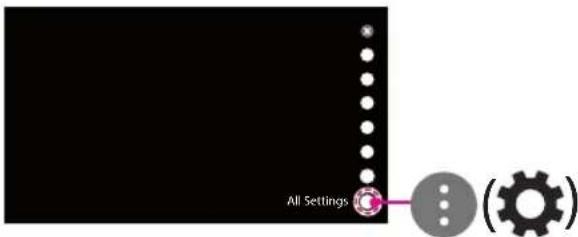
Diagram with colored blocks, dots, and a gear icon pointing to a star symbol2 Point the Ⓑ ⚙ (All Settings) icon and select by pressing the Ⓤ Wheel (OK) button on the remote.
text_image
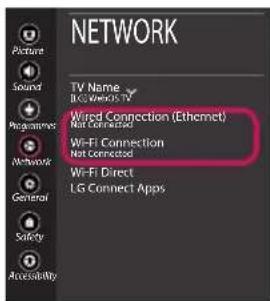
All Settings3 Select the Network → Wired Connection (Ethernet) or Wi-Fi Connection.
text_image
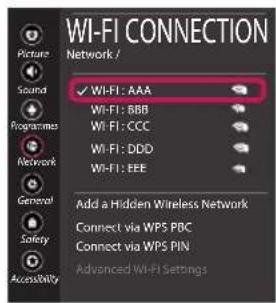
NETWORK Picture Sound Programmes Network General Safety Accessibility TV Name BG Weeks TV Wired Connection (Ethernet) Not Connected Wi-Fi Connection Not Connected Wi-Fi Direct LG Connect Apps4 The device automatically tries to connect to the network available (wired network first). When you select the Wi-Fi Connection, the network list available is displayed. Choose the network you wish to use.
text_image
WI-FI CONNECTION Network / Picture Sound Programmes Network General Safety Accessibility ✓ WI-FI: AAA WI-FI: BBB WI-FI: CCC WI-FI: DDD WI-FI: EEE Add a Hidden Wireless Network Connect via WPS PBC Connect via WPS PIN Advanced WI-FI SettingsFor wireless AP (Router) that have the symbol, you need to enter the security key.
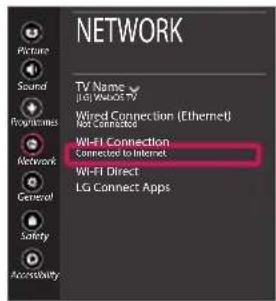
5 If the connection is successful, the "Connected to Internet" is displayed.
text_image
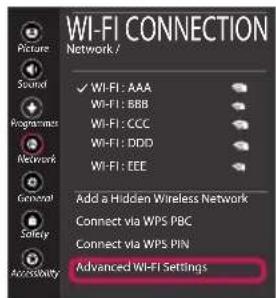
NETWORK TV Name (jBL) WOOD 79 Wired Connection (Ethernet) Not Connected Wi-Fi Connection Connector to Internet Wi-Fi Direct LG Connect Apps Picture Sound Programmes Network General Safety AccessibilityYou can check the status of connection in Advanced Wi-Fi settings.
text_image
WI-FI CONNECTION Network / Picture Sound Programmer Network General Security Accessibility ✓ WI-FI: AAA Wi-Fi: BBB Wi-Fi: CCC Wi-Fi: DDD Wi-Fi: EEE Add a Hidden Wireless Network Connect via WPS PBC Connect via WPS PIN Advanced WI-FI Settings
www.lg.com
Troubleshooting Network Problems
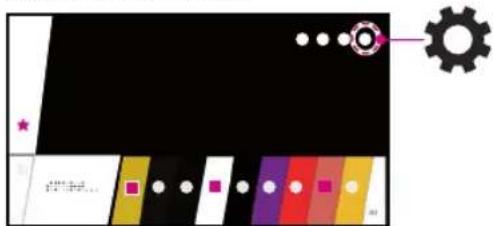
1 Press the (Home) button on the remote to access the Home menu. Point the ⚙️ (Settings) icon and select by pressing the ⏚ Wheel (OK) button on the remote.
text_image
Color palette interface with gear icon and star symbol, showing color swatches and dots2 Point the Ⓐ (All Settings) icon and select by pressing the ⓦ Wheel (OK) button on the remote.
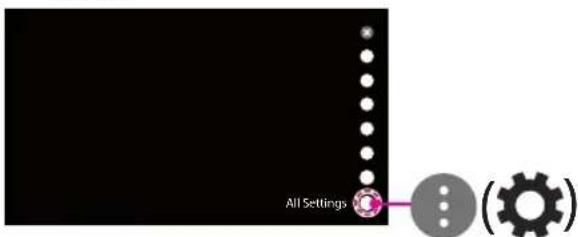
text_image
All Settings3 Select the Network → Wired Connection (Ethernet) or Wi-Fi Connection → Advanced Wi-Fi Settings.
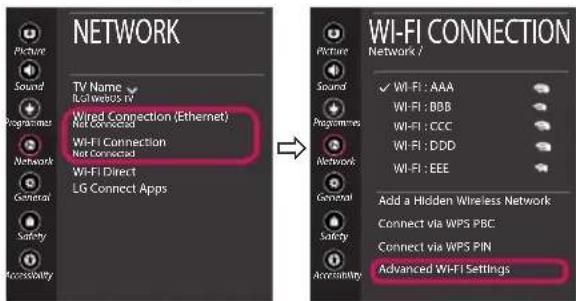
text_image
NETWORK TV Name Iccultures in Wired connection (Ethernet) Net Connected Wi-Fi Connection Net Connected Wi-Fi Direct LG Connect Apps Network / Network / Wireless Network Wireless Network Wireless Network Wireless Network Wireless Network Wireless Network Wireless Network Advanced Wi-Fi SettingsFollow the instructions below that correlate to your network status.
Check the TV or the AP (Router).

text_image
Log icons representing TV, wireless, DNS, and email symbols in a sequenceWhen X appears next to TV:
① Check the connection status of the TV, AP (Router).
② Power off and power on the TV, AP (Router).
③ If you are using a static IP, enter the IP directly.
④ Contact internet service provider or AP (Router) company.
Check the AP (Router) or consult your Internet service provider.

text_image
Diagram showing three connection icons: TV, Wi-Fi, and DNS with corresponding logosWhen X appears next to Gateway:
① Unplug the power cord of the AP (Router) and try to connect after 5 seconds.
② Initialize (Reset) the AP (Router).
③ Contact internet service provider or AP (Router) company.

flowchart
graph LR
    A["TV"] --> B["Router"]
    B --> C["DNS × Earth Icon"]
When X appears next to DNS:
① Unplug the power cord of the AP (Router) and try to connect after 5 seconds.
② Initialize (Reset) the AP (Router).
③ Check that the MAC address of the TV/AP (Router) is registered with your Internet service provider. (The MAC address displayed on the right pane of the network status window should be registered with your Internet service provider.)
4 Check the AP (Router) manufacturer's website to make sure your router has the latest firmware version installed.
SmartShare PC SW Installing & Setting
1 Install the SmartShare PC SW programme on your PC.
2 Go to www.lg.com. Then, select your region.
3 Select SUPPORT. Then, select Drivers & Software, SOFTWARE UPDATE or Software & Firmware.
4 Search for your model. Then, select SmartShare PC SW.
5 You can run the programme when installation is complete.

NOTE
- SmartShare service is only available if TV and other devices are connected via a single AP (Router).
SmartShare Connection to Smartphone

1 Check that Wi-Fi is enabled on your smartphone. To use SmartShare, both devices must on the same local network.
2 Install/run the app for sharing content on your smartphone (It's called LG TV Plus on LG phones).
3 Enable your smartphone to share content files with other devices.
4 Open Device Connector application.
(Home) → Device Connector → Smartphone → CONTENT SHARE.
5 Select the file type you want to play (movie, audio or photo).
6 Select a movie, music or photo file to play on the TV.
7 Play the media file to view and enjoy it on your TV.
Updating the TV Firmware
* If the TV is turned on for the first time after it was shipped from the factory, initialization of the TV may take a few minutes.
1 (home)
→ ⚙ (Settings)
( gear ) (All Settings)
General → About This TV →
CHECK FOR UPDATES
2 After checking the version of the software, update it.
If you check the "Allow Automatic Updates", you can update the software automatically.
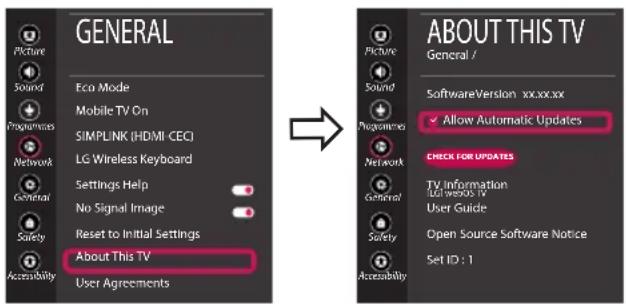
text_image
GENERAL Eco Mode Mobile TV On SIMPLINK (HDMI-CEC) LG Wireless Keyboard Settings Help No Signal Image Reset to Initial Settings About This TV User Agreements ABOUT THIS TV General / Picture Sound Programms Network General Safety Accessibility Picture Sound Programms Network General Safety Accessibility SoftwareVersion xx.xx.xx Allow Automatic Updates CHECK FOR UPDATES TV Information Universe TV User Guide Open Source Software Notice Set ID : 1

Wi-Fi Direct Setting
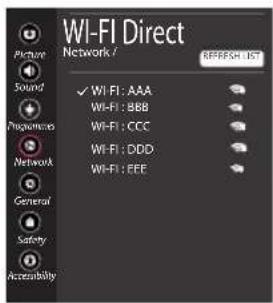
text_image
WI-FI Direct Network / Picture Sound Programmes Network General Safety Accessibility ✓ WI-FI: AAA WI-FI: BBB WI-FI: CCC WI-FI: DDD WI-FI: EEE REFRESH / IST(Home) → ⚙️ (Settings) → ⏻️ (☑) (All Settings) → ⚠️ Network → Wi-Fi Direct
If a local network is not available, you can connect a portable device directly to the TV using Wi-Fi Direct.
With SmartShare, you can share files or screens of devices connected to Wi-Fi Direct.
1 When you open Wi-Fi Direct menu, a list of available devices appears.
2 When you are prompted to request connection, select Yes. Wi-Fi Direct is now connected to your TV.
Miracast Setting
Miracast allows a portable device to securely send video and sound to the TV wirelessly.
1 Miracast should be set to "ON" on your portable device.
2 When your TV is detected, select the device on your portable device.
When connection is completed, the device screen appears on the TV screen.
Please call LG Customer Service if you experience any problems.
MANUEL D'UTILISATION
CONFIGURATION DU PÉRIPHÉRIQUE DE CONTRÔLE EXTERNE
Type DE9 (D-Sub 9 broches) Type
Command1][Command2][ ][Set ID][ ][Data][Cr]
Transmission [k][k][ ][Set ID][ ][Data][Cr]
Total = ma 00 23 00 00 00 00 01
Total = ma 00 00 00 1E 00 03 22
Ack [a][ ][Set ID][ ][OK][Data 00][Data 01]
[Data 02][Data 03][Data 04][Data 05]
[x][a][ ][Set ID][ ][NG][Data 00][x]
• Pour le Japon
Total = ma 00 00 00 11 00 01 02
Total = ma 00 00 00 1E 00 00 07