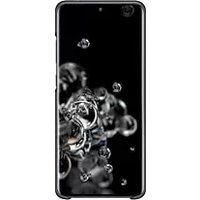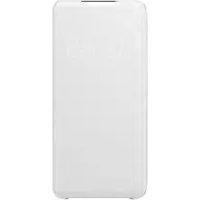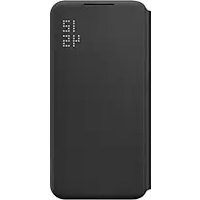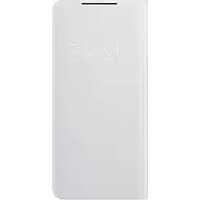
EFNS901 - Smartphone accessory SAMSUNG - Free user manual and instructions
Find the device manual for free EFNS901 SAMSUNG in PDF.



User questions about EFNS901 SAMSUNG
0 question about this device. Answer the ones you know or ask your own.
Ask a new question about this device
Download the instructions for your Smartphone accessory in PDF format for free! Find your manual EFNS901 - SAMSUNG and take your electronic device back in hand. On this page are published all the documents necessary for the use of your device. EFNS901 by SAMSUNG.
USER MANUAL EFNS901 SAMSUNG
SMART LED VIEW COVER
USER MANUAL
EF-NS901
EF-NS906
EF-NS908
Table of Contents
| English (UK) | Еλληνικά |
| Français | Slovenščina |
| Deutsch | Slovenčina |
| Italiano | Čeština |
| Espanol | Türkçe |
| Magyar | űnalgy |
| Polski | العربية |
| Românană | Русsekий |
| Бъларски | Украïnhсыka |
| Hrvatski | Каразк тili |
| Srpski | English (USA) |
| Português | Espanol (castellano) |
| Latviešu | 简体中文 |
| Lietuvić kalba | 繁體中文(台灣) |
| Eesti | Portugués (Brasil) |
| Nederlands | 한국어 |
| Svenska | |
| Norsk | |
| Suomi | |
| Dansk |
Read me first
Please read this manual before using the device to ensure safe and proper use.
- Images may differ in appearance from the actual product. Content is subject to change without prior notice.
- Before using the LED View Cover, make sure it is compatible with your device.
- Verify that the NFC function is working properly before using the device with the LED window functions or Auto Screen On/Off feature active.
- If your device is running Mobile Device Management (MDM) or is located near a metallic object, the NFC function may not work properly.
- If you flip the front cover and block the back of the mobile device, the NFC function may not work properly.
- It is recommended to put only one card in the card pocket.
- The LED View Cover contains magnets. Keep cards with magnetic strips only in the pocket of the LED View Cover.
- It is recommended to remove the product before using the Wireless PowerShare feature.
- When you are wirelessly charging your mobile device with the Samsung Wireless Charger Convertible (EP-PG950) and this product is attached, we recommend that you use the charger in pad mode.
- It is recommended to use the product without flipping it back before using the UWB feature.
- If the product is exposed to humidity, solvents such as acetone or alcohol, or very hot temperatures, it may be stained, wrinkled, misshapen, or change colour.
- While using the product, be cautious to prevent scratches or damage from debris.
Instructional icons
Warning: situations that could cause injury to yourself or others
Caution: situations that could cause damage to your device or other equipment
Notice: notes, usage tips, or additional information
Getting started
Package contents
Check the product box for the following items:
- LED View Cover
- Quick start guide

- The items supplied with the device and any available accessories may vary depending on the region or service provider.
- The supplied items are designed only for this device and may not be compatible with other devices.
- Appearances and specifications are subject to change without prior notice.
- You can purchase additional accessories from your local Samsung retailer. Make sure they are compatible with the device before purchase.
- Use only Samsung-approved accessories. Using unapproved accessories may cause the performance problems and malfunctions that are not covered by the warranty.
- Availability of all accessories is subject to change depending entirely on manufacturing companies. For more information about available accessories, refer to the Samsung website.
Device layout


The images in this manual are representations of an EF-NS906.
Using the LED View Cover
Attaching or detaching the LED View Cover
Attach the LED View Cover to your mobile device (1) and close the cover (2) to use it.

1
2

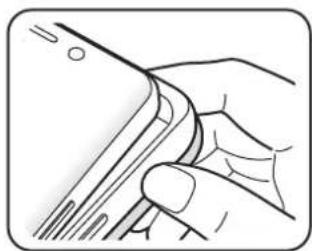
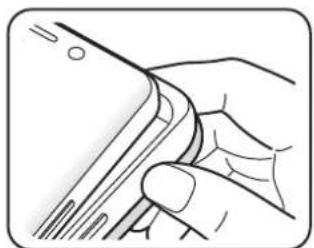
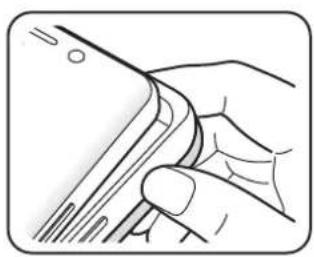
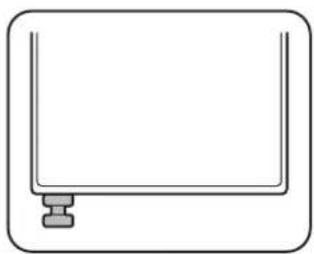
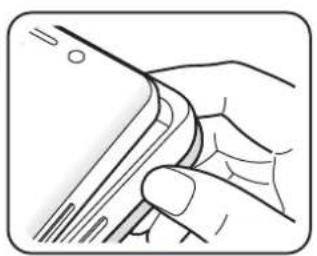
To detach the LED View Cover, open the cover and hold the part where the mobile device is inserted to remove it.
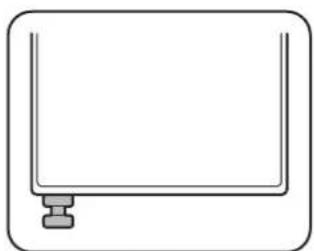
For models that support the S Pen, fully insert the S Pen into the slot.

EF-NS901, EF-NS906:

O
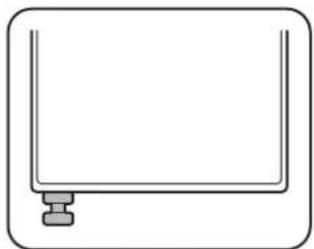
EF-NS908:

O
Unlocking the mobile device's screen automatically
You can set your mobile device to unlock automatically when the LED View Cover is opened.
On your mobile device, tap Settings Advanced features Accessories, and then activate the automatic unlock feature.

This feature is available only when secure lock is disabled.
Setting LED images
Using your mobile device, you can create and set LED images to display for contacts during incoming calls or for notifications on the LED window.
On your mobile device, tap Settings Advanced features Accessories, and then use the LED icon editor feature.
You can also use the LED icon editor app that appears when you attach the LED View Cover to the mobile device.
Copyright
Copyright © 2021 Samsung Electronics Co., Ltd.
This manual is protected under international copyright laws.
No part of this manual may be reproduced, distributed, translated, or transmitted in any form or by any means, electronic or mechanical, including photocopying, recording, or storing in any information storage and retrieval system.
Trademarks
- SAMSUNG and the SAMSUNG logo are registered trademarks of Samsung Electronics Co., Ltd.
All other trademarks and copyrights are the property of their respective owners.
Copyright © 2021 Samsung Electronics Co., Ltd.
Copyright © 2021 Samsung Electronics Co., Ltd.
Copyright © 2021 Samsung Electronics Co., Ltd.
Copyright © 2021 Samsung Electronics Co., Ltd.
Copyright © 2021 Samsung Electronics Co., Ltd.
Copyright © 2021 Samsung Electronics Co., Ltd.
- LED View Cover
- Ghid de pornography rapida

- LED View Cover
KpaTko pBKOBOCTBO

- Elenente n haunuHnTe npHaJekHOCTn, doCTaBeHn c yctpoiCTBOTo, moKe da ce pa3nuaBat B 3abucmocT OT pernoHa nn DoCTaBvNka Ha ycnyr.
- Доставене са пedingаизаши само за TOBA устюг STBO И може на He с CBМeCTUMС ДугУстюг STВ.
BbHnHnT Bn n CneuΦnKaunTe ca npedMeT Ha npomHa 6e3 npedn3BecTne. - Moxete da 3akynte doTbHnTeHn akcecoapn OT BaIIM MeCTen npOdaBau Ha Samsung. Ipei 3aKnyBaHe ce yBepeTe, ye Te ca CbBMecTUMC yCTPOIcTBOTO.
- Изпольайтсамо одобpeи OT Samsung akcecoapи.Изпольвано на Heodobpeи akcecoapи моче длрчинлрблемс пюнзвордгелноctи и Ннзправноctи, кОТо He ce nokpmbat OT rapaнцята.
HaHnucTtHa BCnKn akcecoapn noJnxn Ha npomHa n3qAo B 3aBncmoCT OT npOn3BOAnTeIe. 3a noBeue HnOpMaunr 3a Hauihnte akcecoapn ce o6bpe He KbM ye6 caTa Ha Samsung.
OΦopMJIeHne Ha yCTpoIcTBOTO


I3o6paXeHnraTbTOBaPbKOBOCTBOCa npEaCTaBnHa EF-NS906.
Copyright © 2021 Samsung Electronics Co., Ltd.
ToBa pBkoBOIDCTBO e 3aUHTeHO OT MeXdyHapOdHN 3aKOHN 3a aBTOpCKn npaba.
Hikoracto pboBODCTBOTO He moke da 6bde Bb3npOn3BexJaHa, pa3npocpaHraBaHa, npbeKdaHa nn npexBpnaHa no KaBAto n da e oopMa nn NO KaBbTO n da e NaHH, eJeKTPOHeH nn MexaHueH, B TOBa cnCno fOToKOpnPaHe, 3aNNc nn CbxpaHeHne B KaBAto n da e CnCTema 3a INhOOPMaunOHn CbxpaHeHne n 3BnUaHe.
TbproBcN mApKn
SAMSUNG n IoroTo Ha SAMSUNG ca pernctpupaHn TbproBckn MapKn Ha Samsung Electronics Co., Ltd.
- BcnuKn DpyrN TbproBcKn MapKn n ABTOPCKn npaba ca co6ctBeHocT Ha CbOTBeTHnte IM Co6CTBeHnCi.
Najprije pročitajte
Prije uporabe urea ja paizljivo procitajte ovaj prisuknik kako biste osigurali sigurnu i pravilnu uporabu.
- Slike se mogu razlikovati od stvarnog proizvoda. Sadržaj je podložan promjeni bez prethodne obavijesti.
- PrijeNgu upotrijebite LED View Cover provjerite je li kompatibilan s vašim uredajem.
- Provjerite da funkcjja NFC pravilno radi prise upotrebe uredaja sa značajkama LED prozora ili značajkom aktivnog automatskog uključivanja i isključivanja za SLona.
- Ako vaš uredaj ima softver za upravljanje mobilnim uredajem (MDM) ili se nalazi blizu metalnog predmeta, funkcjja NFC možda neće ispravno raditi.
- Ako preokretene prednjiPoklopac i blokirate straznju stranu mobilog ureda, funkcija NFC mozda nece prvilno raditi.
- Preporuce je se da u utor za karticu stavite samo Jednu karticu.
- LED View Cover sadrži magnete. Čuvajte kartice s magnetskim trakama samo u džepu LED View Covera.
- Preporucjemo da uklonite proizvod prije korištenja značajke Wireless PowerShare.
- Kada bežićno punite svoj mobilni urećaj pomocu Samsung preklopivi punjac za bežićno punjenje (EP-PG950) i ovaj je proizvod pričvršćen, preparucujemo da upotrijebite punjac u naćinu podloge.
- Preporucje se korištenje proizvoda bez prevrtanja prise uporabe značajke UWB.
- Ako je proizvod izlozen vlazi, otapalima kao sto su aceton ili alkohol ili veoma visokim temperaturama, na njemu se mogu pojaviti mrlje, moze se naborati, izobliciti ili promijeniti boju.
- Prilikom korišenja proizvoda budite oprezni kako biste sprijecili ogrebotine ili ostećenja od necistоće.
Koristeni symboli

Upozorenje: situacije u kojima se vi ili druge osobe mozte ozljediti

- LED View Cover
- Kratke upute

- Stavke isporučene s uredajem i sav dostupan dodatni pribor mogu se razlikovati ovisno o regiji i pruzatelju usluga.
- Isporučene stavke namijenjene su isključivo ovom urežaju i ne moraju nužno biti kompatibilne s drugim urežajima.
- Izgled i specifikacja podlożni su promjeni bez prethodne obavijesti.
- Dodatni pribor możete nabaviti u lokalmim trgovinama Samsungovim proizvodima. Pijekupnje provjerite je li pribor kompatibil s urežajem.
- Koristiteismo pribor koji je odobrila tvrtka Samsung. Korištenje neodobrenog pribora moze izazvati probleme i greške u radu koji nisuPokriveni jamstvom.
- Dostupnost cjelokupnog pribora podlijeze promjenama i u potpunosti ovisi o proizvodačima. Za visě informacija o dostupnom priboru pogledajte Samsungovu web-stranicu.
Prikaz uredaja


Copyright © 2021 Samsung Electronics Co., Ltd.
Ovaj je prisučnik zašićen medunarodnim zakonima o zašiti autorskih prava.
Niti jegan dio ovog prisučnika ne smije se reproduci rat, distribuirati, prevoditi ili prenositi u bilo kojem obliku, ni na koji način, elektronički ili mehanički, uključujuci fotokopiranje, snimanje ili pohranjivanje na bilo kojem mediju za pohranu informaci je sustavu dohvata podataka.
Zastitni znakovi
SAMSUNG i SAMSUNG logotip registrarani su zašitni znakovi Samsung Electronics Co., Ltd.
Svi su ostali zašitni znakovi i autorska prava vlasnistvo svojih odgovarajućih vlasnika.
Prvo pročitajte
Pre Ngo sto pocnete da koristite uredaj procitajte ovo uputstvo kako bili sigurni da ga koristite na bezbedan i ispravan naacin.
- Slike mogu odstupati od stvarnog proizvoda. Sadržaj je podložan promenama bez prethodnog obavešenja.
- Pre korišćenja „LED View Cover“-a, uverite se da je kompatibilan sa vašim uredajem.
- Potvrdite da NFC funkcjija radi pravilno pre korišćenja ureža sa funkcjija LED prozora ili aktivnom funkcjijom automatskog uključivanja/isključivanja ekrana.
- Ako na vašem urežaju radi usluga Upravljanje mobilnim urežajem (MDM) ili se nalazi blizu nekog metalnog objekta/predmeta, funkćija NFC možda neće raditi kako treba.
- Ako zakrenete prednjiPoklopac i blokirate poledinu mobilnog uredaja,NFC funkcjja mozda nece raditi pravilno.
- Preporuce se da stavite samo Jednu karticu u prostor za karticu.
- "LED View Cover" sadrži magnete. Čuvajte kartice sa magnetskim trakama samo u džepu „LED View Cover"-a.
Preporucljivo je da uklonite proizvod pre korijsenja funkcije „Wireless PowerShare". - Kada bežićno punite svoj mobilni urećaj sa Samsung preklopivim bežićnim punjaćem (EP-PG950) i ovaj proizvod je prijklučen, preporucujemo da koristite punjać u režimu rada jastućeta.
- Preporucije se korijscenje proizvoda bez prevrtanja pre upotrebe funkcjije UWB.
- Ako je proizvod izlozen vlaznosti, rastvaračima kao sto su aceton ili alkohol, ili veoma visokim temperaturama, moze se zamrljati, smezurati, deformisati ili promeniti boju.
Dok koristite proizvod, budite oprezni kako biste spreci ili ogrebotine ili ostecenja od prljavstine.
Ikonice sa uputstvima

Copyright © 2021 Samsung Electronics Co., Ltd.
Ovaj prirucnik je zastricten medunarodnim zakonima o autorskim pravima.
Nijedan deo ovog prisucnika se ne sme reprodukovati, distribuirati, prevoditi niti prenositi ni u Jednom obliku niti bilo kojim putem, elektronskim niti mehaničkim, sto podrazumeva fotokopiranje, snimanje i skladistenje u okviru bilo kog skladišta informacija i systemdza za preuzimanje.
Trgovačke marke
SAMSUNG i SAMSUNG logotip predstavlaju registrovane zigove kompanije Samsung Electronics Co., Ltd.
- Sve ostale trgovačke marke i autorska prava su vlasništro njihovih vlasnika.
Leia primeiro
Utilizar a LED View Cover
Colocar ouPTRirar a LED View Cover
Copyright © 2021 Samsung Electronics Co., Ltd.
Copyright © 2021 Samsung Electronics Co., Ltd.
- LED View Cover
Snelstartgids

Copyright © 2021 Samsung Electronics Co., Ltd.
Copyright © 2021 Samsung Electronics Co., Ltd.
Bruke LED View Cover
Feste aller Iøsne LED View Cover
Stille inn LED-bilder
Alternativekanduringevarkundesupport
pà telefon 216 29 099.
Opphavsrett
© 2021 Samsung Electronics Co., Ltd.
Denne handboken er beskyttet av internasjonale lover om opphavsrett.
- LED View Cover
- Pikaopas

Copyright © 2021 Samsung Electronics Co., Ltd.
- LED View Cover
Hurtigstart

Fastgore aller frigore LED View Cover
- LED View Cover
Odbnyoc yprnyopnc Ekkivnong

Ta eio n ouvodouov tn oukeun kai tuxov diathetaia aeoouap evexetai va diaepouv avaloya n yewypaipn npiox n tov npoxo unnpoeiow.
Ta ouvoideutiké iδn éxouv oxεδiaotéi movo yia tn ouokun autn kai evexetai va unv eiva ouuba Ta aλες oukeuec.
H epaion kal o npoiaypaec unokivta o aalayn xwpic npoyouevn eioonoin.
Mtopeite va ayopaoente npo0eTa aEosouap ano tov toTiko eTnC Samsung. BepaiwTe t Eiva oubetaatae Tn oukeun piv Tnv ayopa.
Xpnoiooie aonkaiotik aoeouap yekepiEv a nT Samsung. H xgnn enyekpiEvw v aeeouap evexetai va npokalaei npoalmaata anodoc kai duoloupiec nou dev kaunovtaa ano tyn eyyuon.
Hdeltaeoiotnta oawv twv aeoouap unoketai oe alayn nov eapatai anokleiotka ano tic kataokeuaotikec etaipieic. Ia nepiootepe, nnpoopoe c xetiká te da thoeia aeeouap, avatpeTe oov ioToTOn Tc Samsung.
Δiataξη σuokεuńc


OIEKóvec,σe auto to Eγχερiδio anotéλούν avanapαστáεic, ενόC EF-NS906.
Xpólón tou LED View Cover
Uporaba LED View Cover
Pritrjevanje ali snetje LED View Cover
Pritrdite LED View Cover na vašo mobilno napravo (1) in zapritePokrov (2),da ga uporabite.

1
2

Copyright © 2021 Samsung Electronics Co., Ltd.
- LED View Cover
Hurtigstart

Fastgore aller frigore LED View Cover
LED View Cover'ikullanma
LED View Cover'I takma veyaentries
LED View Cover' mobil cihaziniza takin (1) ve kullanmak icin kapaşi kapatin (2).

1
2

LED View Cover'ikarmak icin kapaqi acin ve cikarmak icin mobil cihazin takili oldugu parcayi tutun. S Pen'i destekleyen modeller icin, S Pen'i yuvaya tam olarak yerleştin.

EF-NS901, EF-NS906:

O
EF-NS908:

O
Telif hakki © 2021 Samsung Electronics Co., Ltd.
- nunlLED View Cover
NFC 177777777777777777777777777777777 - nannnnaaannnnn nn Mobile Device Management (MDM) nannnnnnae
N NNNN NNNNNNNNNNNNNNNNNNNNNNNNNNNNNNNNNNNNNNNNNNNNNNNNNNNNNNNNNNNNNNNNNNNNNNNNNNNNNNNNNNNNNNNNNNNNNNN
·
LED View Cover 152nauuuee uan nunnnnne nn nea aee aee aee LED View Cover
Wireless PowerShare
(EP-PG950)
UWB - 777777777777777777777777777777777777777777
·
aannnnnnae
H
H
图
1
a
山
- LED View Cover
1

- ·
·
·
nnae ne ne ne nne


JNTWnHnHnHnHnHnHnHnHnHnHnHnHnHnHnHnHnHnHnHnHnHnHnHnHnHnHnHnHnHnHnHnHnHnHnHnHnHnHnHnHnHnHnHnHnHnHnHnHnHnHn HN
nraLED View Cover
nVreepnreepnreepnreepnepnepnepnepnepnepnepnepnepnepnepnepnepnepnepnepnepnepnepnepnepnepnepnepnepnepnepnepnepnepnepnepnepnepnepnepnepnepnepnepnepnepnepnepnepnepnepnepnepnep
LED View Cover 1

1
2

Wananaanannanu LED View Cover uananaanauaunauanuunnauanuunnaan an

EF-NS901, EF-NS906:

O
EF-NS908:

O
Jn
LED View Cover
n
nW LED
LLED
100000000000000000000000000000000000000000000000000000000000
Copyright
Copyright © 2021 Samsung Electronics Co., Ltd.
y
19
SAMSUNG SAMSUNG Samsung Electronics Co., Ltd.
- 1
2gJ 1
1 1
J 1
LED View Cover
L 1
Mobile Device Management (MDM)
NFC
JNFC 1 Jn Jn nn nnnn nn nnnnnnnnnnnnnnnnnnnnnnnnnnnnnnnnnnnnnnnnnnnnnnnnnnnnnnnnnnnnnnnnnnnnnnnnnnnnnnnnnnnnnnnnnnnnn
aIbI bIg aIbI g
y j 1
LED View Cover
. Wireless PowerShare
EP-PG950)
2
UWB 1
iibla 1
aai jy i 10g g
.
a
y

s j 1200 s j g jgall aai iii d gill gall

aI 1 aIgai gai iaiai aiai aiai

#
i 1
LED View Cover
y j 1
.
.
Jaiil 100000000000000000000000000000000000000000
J 1
.


EF-NS906 jL

LED View Cover
LED View Cover
LED View Cover


LED View Cover
aill jolll S pl Jd .S pl p c 11 all jj bll

:EF-NS906·EF-NS901

O
:EF-NS908

O
Jgall LED View Cover 1y
y
J 1
aaii iiaai
y
e 1
y
.
1
- LED View Cover
KpaTKoe pyKOBOCTBO

KOMnIeKT NOCTaBKN i Ha6Op DOCTyINbIX aKCECCyapOB MOrYT pa3NlUaTBcR B pa3HbIX perNoHax IN onpeJeJIOTcI NOCTaBUnkOM yCnyr.
- Пocтавлгемье akceccуары ппеднаЗнчehы nckлючтельно дяданHOrO yctpoiCTBa n Moryt 6bITb HeCOBMeCTIMbI C npyTmN yctpoiCTBaMn.
BHeuHn BnI n3eJI m I TexHueckne xapaKtepncTKMOryT 6bITb n3MeHebl 6e3 npedBaPntbHorO yBeOMNeHn.
- Довиньные akceccyapbl MOxHо npio6peTn y MeCTbIX dInepoB kOmnaHnn Samsung.пeped nokynkoyubedntecb,чTO OHN COBmctMbIC BaUIM yCTPOICTBOM.
- Ппименяг Te Tolyko akceccyapb, pekomehdoBaHHbIe KOMnHaHne Samsung.ИспьзOBaHne HepeKOMeHDoBaHHbIX akceccyapOB Moket npuBecT N npo6JIemam B pa6Ote n c6Oam, Ha KOTOpbIe HpacnpocTpaHReTc rapaHTn.
- Доступносты лобх akceccуаров цelenkom И постью за вcent OT пожибдгел.
- Доступносты сбedingу доступны akceccуapax см. на Be6-caite Samsung.
BHeuHn BnD yCTpoiCTBa


I3o6paXeHn, npBBeHeHHbE B daHHom pykoBOdCTBe, OTHocTc K moJeN EF-NS906.
Исpenьзованке LED View Cover
© Samsung Electronics Co., Ltd., 2021.
ДаHHOE pyKOBODCTBO 3aIuIeHOMexdhyapOdHbIMn 3aKoHaMn 06abTOpCKNx npabax.
3anpeetaetc Bocnpo3BOIDtB, pacnpocTpaHrTb, nepeboNTb nIIN nepedaBaTb kaKne-ln6O qactu DaHHoro pykoBoCTBa B IIO6o fOpMe n IIO6bIM cnoCo6om, 3JIeKTPOHHbIM nIIN MExaHueCKM, BKJIouaY aTOkONnpOBaHne, 3aNcB n XpaHeHne B IIO6o cnCTeMe xpaHeHn y NOncKa INΦopMaun.
TobapHbIe 3HaKIn
SAMSUNG and SAMSUNG are the first 3ape in the TOBapHbIMN 3HaKaMn KOMNaHm Samsung Electronics Co., Ltd.
OctaIbHbIe aBTOpCKnE npaBa I TOBaPbHbIe 3HaKn IABJIHOCTcO6CTBeHHOCtBu IX BlaJeIbLcEB.
Ozhannomtece neped noyatkom BnKOpncTaHn
IJIe 6e3neuHoro Ta HaneKHOro KOpNCyBaHHN PnCtpoE,M, nepu 3a Bce, yBaXHo O3HaNoMToTecra 3 cIM Noci6HnKOM.
3obhiHnBnIyKToMoKe BiPi3HrTncBid 3o6paXeHH. BmCT MoKe 3miHIOBaTnc 6e3 3aBvachoro nonepeJxehn.
- Pered BinkopncTaanHm yoxla LED View Cover nepekoHaTecb, 0o Bin Cymichn 3 BaAM npncTpoEM.
- YneBHITbcra neped BnKOpNCTaHHa m npucTroIO, 0o 0yHKiia NFC npaioe haIexHm uHOM ni d cBnKOpNCTaHHa fynkui BIKha LED a6o akTbHOi 0yHKu i yBIMKHeHHa ekpaHa.
- RaKuo Ha BaIOMy npicrpoi npaioe nporpamHe 3a6e3neueHHa KepyBaHnMo6iJbHmN npicrpoAMn (Mobile Device Management, MDM), a6o npicrpii 3haxoDntbcn npuy 3 MeTaJIeBm npeMeTOM, yHKcIg NFC moKe npaIOBaTu HnpaBnBHo.
- YKsio noBnictIO pO3KpNTn nepeHIO KpUShky, HApNbUn HeIO 3aHIO uactHy npIcTpoIO, fynKciN NFC moKe npaIobATn HnpabVilbHO.
- PeKOMeHnyETbcra KnaCTn TINbKn OndHy KapTy B KInSeHyo dIa KaP.T.
- Yoxon LED View Cover Maé MarhItn. 36epiraTe Kaptn 3 MarhItHOIO CmyroTO TINbKN B KniSeHi YoXna LED View Cover.
- Пешд Викорпостаннам Функць 6e3dpoTOBOrO 3apJxHnHn Wireless PowerShare peKomeHnycTbCЯ 3HЯТи npodyKT.
- YKsqo Bn 3apJxKaTe CbiM Mo6iNbHn npncTpi 6e3dpoTOBm cnocobm 3a Donomoro yHibepcaIbHoro 6e3dpoTOBOrO 3apJndHoro npncTpoS Samsung (EP-PG950), KOn JaHn npodyk nD'EnHaHO, paHMo BVKOpNCTOBvBaTN 3apJdHn npncTpi B pexkmi PLOUaKn.
BnKOpncToByBaTn yHKnciUWB peKomeHdoBaHo, He BiKnidaOuCh KpnuKn qoxJa npOdykTu Ha3a.
- RaKIO npOdyKT NiIaETbCBy BnIbY BoIorN a6o po3uHHNKiB, TaKnx JaTeToH a6o cIupT, a6o JHaITo BnCOkIx Tempeatyp, 3 Hm MoKyTB Bi6yTuCra Taki 3MiH: NOKpTTra PIIaMaMn, 3MOpUyBaHHa, DeOpMaCiA a6o 3MiHa KOnbOpy.
KopncTyOuNcB npOyKTOM, cTeKTe, 06 Ha HbOro He NotpaPnI IopOuHKn, 0 MoKytb NopRpaTn nn nozkodntu no.
POnchHOBaJIbHi 3HauchN

PonepeJxHn: cntyaui, lo MoKyTb npN3BecTN do TpaBMyBaHHc6e a6o iHmX oci6

Ybara: cnTuayi, 10 MoKyTb npn3BecTn do noNkoJxHHe n pncToPO a6o iHoro o6naHaHHa

PpimItka: npimitkn, npopani 3 KopnctybaHHa a6o doataKOBa iHphiopmaia
Початок роботи
Kombiniţaţion
Ipebeipte HaBbHCTb y KOMnJIeKTI TakNX KOMNOHEHTiB:
- LED View Cover
Kopotkni noci6nK KopncTyBaHa

KOMnoHENTn, kki BXoJrB do KOMnIeKTy npNcTpoU, moKyTb pi3HHTncs 3aJIexHo BiD KpaIHn a60 onepaTopa 3B'ra3Ky.
KOMnoHENTI,IO NOCTauaTbCBA KOMnJIeKTI,pO3pO6JIeHI cneiaJbHO IaI yBOrO npNCtPOTo Ta MoKyTb 6yTN HeCymicHMN 3 iHIMMn pnpCTPOAMN.
3obhhiBnIgI xapaKTePncTnKMOxTyb 3MiHIOBaTnC86e 3aBuacHO nonpeJxehn.
- Добаткова akcesуари можна пидбати в міцеборо постачальнika Samsung.передix рпідбаннамpepekoнайеся, сіо boнс cumichi i3 zumnpicntpoem.
BukopncToBnyTe Inwe akcecyapn, pekomehdoBaHi KOMnHaIeSamsung. BukopncTaHH HepekomehDoBaHnx akcecyapib MoKe npu3BeCTn Do BnHKHeHH npo6m y po60Ti Ta HecnpaBHOCTe, Ha kI He po3NoBcIOJxyeTbcra rapaHTi.
- DoctynHicTh ycix akcecyapib MOke 3miHIOBaTnCra 3aIexKHO BiD KOMpaHIn-Bnpo6HnKIB. DOnaTKOBy iHopMaCiIO npo DoCTynHi akcecyapn MoKHa Di3HaTnCra Ha Be6-caTi Samsung.
3OBHiShiBnIaI npIcTpoI


3o6paXeHHB Vcbomy Noci6Hnky BiHocnTbca Jo moJeJI EF-NS906.
Викориссану чoxлa LED View Cover
- LED View Cover
XbIJaM 6aCTay HcKayIbIFbl

KypblfbiMeH 6ipre 6epiIreH 3IeMeHTTep XaHe Ke3 KeIReH KOJI XeTIIMDi KocalKbI KypaIap aImakKa Hemece KbI3Met Kepcetyiire 6aIIaHbICTbI e3repIN OTbIPybl MyMKiH.
BepinreH 3eMeHTep TK ocbi KypbIbnfba IapHaIra HxHe 6aKa KypbIbnfbaIapMeH yIneCiMdi 6oJmaybl MyMKIN.
Cbiptkbl typi MeH cunnataTamaIapbe eceptyci3 03reptinyi MymkiH.
KocbIMwa KocalkbI KypaIapdbI JepriikTi Samsung catyubicbHaH catbIn anyfa 6oJa. CatbIn any aIbIHda OApdbH KypblfBIme H yIlecimDi eKeHH TeKcepH3.
Tek Samsung pyKcaT etKeH KocalkbI KypalapdbI fHa naJaHaHbIHbI3. BeKtiIMereH KocalkbI KypalapdbI naiDaIahy KeiJIikTe KaMTbImaHaH eHIMdiIK MceJIeIepiH XaHe aKaaylbIKTapdbI TyDbIPybMyMKiH.
KocalkbI KypaIapdbIH KOJ Kcetimdiirtek eHdpuyi KomnaHnlaIapFa rHa 6aIahbictb6oIaDb. KoJ KcetIMdi KocalkbI KypaIapTypabI KocbIMsa aKnapaT Samsung Be6-caTbIHda YcbHblnfAH.
KypbIJIbIHbIH cbIpTKbl KepiHici


OcbHyckaybikTaftkeckindep EF-NS906 ylrniche xataDbI.
LED View Cover Колдану
LED View Cover KypbIfbcIH KaIfay HeMece aKbIpaTy
LED View Cover TBICbIH (1) MO6nJIbI KypbIITbcBHa 6eKITiH3 De, (2) TbICbIH KOJaHy YwiH XayBIn KOIbIHbI3.

1
2

LED View Cover TBicBn Wewin any ywiH OHbl aBbHb3 XaHe Mo6Nbdi KpybIbI caBbHfA H 6eJIiHEn YCTan, aBIn TactaHbI3.
S Pen KɔlndaTbH yrrinepe S Pen KaIaMbH yra coHbHa deiH caJIbHbI3.

EF-NS901, EF-NS906:

O
EF-NS908:

O

YЯльы Курьлфын, Экранын aBTOMaTTbI Typde KУльbingан 6ocaty
LED View Cover KaKnafta aHbIraH Ke3e, Mo6nJIbdi KypblfBhlbA BToMaTTbI TypDe KyIbIHTan 6ocatYra KyIneyre 6oJa.
Mo6nIbdi KypblfdaH Napam-p KocbIMwa MymKiHikTep Akceccyapnap TapMaftbIn TypTin, aBTOMaTTbIK KynlBIn aWy MymKiHirih 6eJIceHpiH3.

By mymkiHik, kayinci 6yfaTTay cHdipnyi 6oJfAH Ke3e faHa KOJ Ketimdi.
LED keckiHdepin opHaTy
Mo6nIbdi KpyblfblH, Kemerim H kipic KOhbpaynapbI Hemece xa6aplaHdbipyapbl KeIreH yaKbTTa LED Tepe3eDe KepctiIeTIN KOHTAKTIeP ywiH LED cpeTTepdi Jxacayfa JxHe taHdayfa 6oJaBbl.
Mo6nIbdi KypblfbaH Napam-p KocbIMwa MymKhiKtep Akceccyapnap TapMafbIH Typtin, LED 6enriwecin eHdey Kypalbi MymKihirin naJaHaNbHbI3.
CoHbIme KaTap, LED View Cover KaKnafbIn Mo6nIbdi KypblfbiFa tipkey Ke3iHde naJa 6oJatbIn LED 6enriwehi eHneuy KypaJIb KoJaHaN6acBIn NaJaJaHaHy 6oJaDbI.
ABTOPlbIK KyKbIK
Copyright © 2021 Samsung Electronics Co., Ltd.
Bny HcyckaylkiXaIbIKapaJIbIK ABTOPJIbK KykbIKTap TpyaJIb 3aHapMeH KopFaIHaH.
Булн hyckaylkbTbH, ew6ip 6eIirIH ke3 keIreH type He mece ke3 keIreH aic, 3JIeKtpoHdbIK Hemece MexaHnkaIbIK, coHbIH iwiHde, fOTOkeWipy, xa3y Hemece ke3 keIreH aKnapaTbIK, KoIMaJa XHe IblFapBIn any KJneCihDe caTay apKbIbI kOswipyre, TapaTyra, aydapyra Hemece TacbIMaJdaYfa 6olMaJdbI.
Cayda 6eIrilepi
SAMSUNG Jxhe SAMSUNG Iorotnni — Samsung Electronics Co., Ltd. KOMpaHnrcbHbH TipKeJIreh cayda 6eIriepi.
- 6aKa cya 6eTepi XHe ABTOBik Kkykltap Tnici HelepiH MeHwiTi 60bI Ta6bladbl.
Read me first
Please read this manual before using the device to ensure safe and proper use.
- Images may differ in appearance from the actual product. Content is subject to change without prior notice.
- Before using the LED View Cover, make sure it is compatible with your device.
- Verify that the NFC function is working properly before using the device with the LED window functions or Auto Screen On/Off feature active.
- If your device is running Mobile Device Management (MDM) or is located near a metallic object, the NFC function may not work properly.
- If you flip the front cover and block the back of the mobile device, the NFC function may not work properly.
- It is recommended to put only one card in the card pocket.
- The LED View Cover contains magnets. Keep cards with magnetic strips only in the pocket of the LED View Cover.
- It is recommended to remove the product before using the Wireless PowerShare feature.
- When you are wirelessly charging your mobile device with the Samsung Wireless Charger Convertible (EP-PG950) and this product is attached, we recommend that you use the charger in pad mode.
- It is recommended to use the product without flipping it back before using the UWB feature.
- If the product is exposed to humidity, solvents such as acetone or alcohol, or very hot temperatures, it may be stained, wrinkled, misshapen, or change color.
- While using the product, be cautious to prevent scratches or damage from debris.
Instructional icons
Warning: situations that could cause injury to yourself or others
Caution: situations that could cause damage to your device or other equipment
Notice: notes, usage tips, or additional information
Getting started
Package contents
Check the product box for the following items:
- LED View Cover
Quick start guide

- The items supplied with the device and any available accessories may vary depending on the region or service provider.
- The supplied items are designed only for this device and may not be compatible with other devices.
- Appearances and specifications are subject to change without prior notice.
- You can purchase additional accessories from your local Samsung retailer. Make sure they are compatible with the device before purchase.
- Use only Samsung-approved accessories. Using unapproved accessories may cause the performance problems and malfunctions that are not covered by the warranty.
- Availability of all accessories is subject to change depending entirely on manufacturing companies. For more information about available accessories, refer to the Samsung website.
Device layout


The images in this manual are representations of an EF-NS906.
Using the LED View Cover
Attaching or detaching the LED View Cover
Attach the LED View Cover to your mobile device (1) and close the cover (2) to use it.

1
2

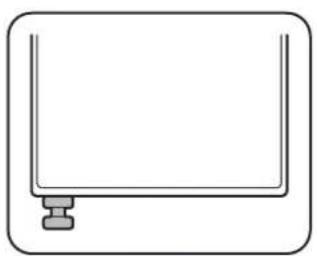
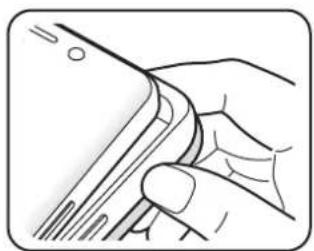
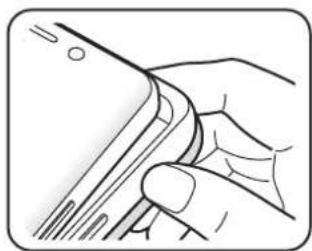
To detach the LED View Cover, open the cover and hold the part where the mobile device is inserted to remove it.
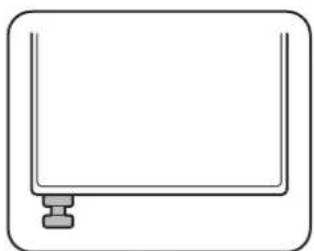
For models that support the S Pen, fully insert the S Pen into the slot.

EF-NS901, EF-NS906:

O
EF-NS908:

O
Unlocking the mobile device's screen automatically
You can set your mobile device to unlock automatically when the LED View Cover is opened.
On your mobile device, tap Settings Advanced features Accessories, and then activate the automatic unlock feature.

This feature is available only when secure lock is disabled.
Setting LED images
Using your mobile device, you can create and set LED images to display for contacts during incoming calls or for notifications on the LED window.
On your mobile device, tap Settings Advanced features Accessories, and then use the LED icon editor feature.
You can also use the LED icon editor app that appears when you attach the LED View Cover to the mobile device.
Copyright
Copyright © 2021 Samsung Electronics Co., Ltd.
This manual is protected under international copyright laws.
No part of this manual may be reproduced, distributed, translated, or transmitted in any form or by any means, electronic or mechanical, including photocopying, recording, or storing in any information storage and retrieval system.
Trademarks
- SAMSUNG and the SAMSUNG logo are registered trademarks of Samsung Electronics Co., Ltd.
All other trademarks and copyrights are the property of their respective owners.
Para usar la LED View Cover
Para colocar o quitar la LED View Cover
Copyright © 2021 Samsung Electronics Co., Ltd.
- LED View Cover
·快速入門指南

Copyright © 2021 Samsung Electronics Co., Ltd.
本手册受國際版權法保護。
Usar a LED View Cover
Colocar ouPTRirar a LED View Cover
主的:試者を広前は和上部化相承の相用か相用の相用の相用の相用の相用の相用の相用の相用の相用の相用の相用の相用の相用の相用の相用の相用の相用の相用の相用の相用の相用の相用の相用の相用の相用の相用の相用の相用の相用の相用の相用の相用の相用の相用の

ALRM:Jt.
世間の
家装書
試譜の日月日試証成功」は、
·
- 关于人

躁藥藻藻藻藻藻藻藻藻藻藻藻藻藻藻藻藻藻藻藻藻藻藻藻藻藻藻藻藻藻藻藻藻藻藻藻藻藻藻藻藻藻藻藻藻藻藻藻藻藻藻藻藻藻藻藻藻藻藻藻藻藻藻藻藻藻藻藻藻藻藻藻藻藻藻藻藻藻藻