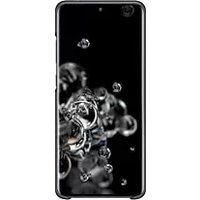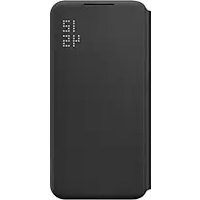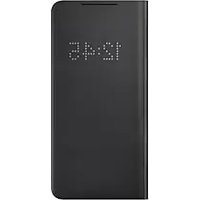
EF-NG980 - Smartphone accessory SAMSUNG - Free user manual and instructions
Find the device manual for free EF-NG980 SAMSUNG in PDF.



| Product type | Protective case with LED display (LED View Cover) |
| Brand | Samsung |
| Model | EF-NG980 |
| Compatibility | Compatible Samsung smartphones (check before purchase) |
| Antenna | Built-in NFC antenna |
| LED display | LED window for notifications and calls |
| Material | Plastic with built-in magnets |
| Dimensions | Adapted to smartphone size (approx. 160 x 80 x 12 mm) |
| Weight | Approx. 60 g |
| Power supply | None (powered by smartphone via NFC) |
| Main functions | Answer/reject calls, stop alarm, auto unlock, display custom LED icons |
| Maintenance and cleaning | Wipe with a soft dry cloth; avoid abrasive products |
| Safety | Contains magnets: keep away from magnetic cards (except designated pocket) |
| Package contents | LED View Cover, quick start guide |
| Spare parts and repairability | No detachable parts; replace case if damaged |
| General information | Designed for use with approved Samsung accessories |
Frequently Asked Questions - EF-NG980 SAMSUNG
User questions about EF-NG980 SAMSUNG
0 question about this device. Answer the ones you know or ask your own.
Ask a new question about this device
Download the instructions for your Smartphone accessory in PDF format for free! Find your manual EF-NG980 - SAMSUNG and take your electronic device back in hand. On this page are published all the documents necessary for the use of your device. EF-NG980 by SAMSUNG.
USER MANUAL EF-NG980 SAMSUNG
Please read this manual before using the device to ensure safe and proper use.
- Images may differ in appearance from the actual product. Content is subject to change without prior notice.
- Before using the LED View Cover, make sure it is compatible with your device.
- Verify that the NFC function is working properly before using the device with the LED window functions, Auto Screen On/Off feature, or Theme Curation Service feature active.
- If your device is running Mobile Device Management (MDM) or is located near a metallic object, the NFC function may not work properly.
- If you flip the front cover and block the back of the mobile device, the NFC function may not work properly.
- The LED View Cover contains magnets. Keep cards with magnetic strips only in the pocket of the LED View Cover.
- While using the case, be cautious to prevent scratches or damage from debris.
Instructional icons

Warning: situations that could cause injury to yourself or others

Caution: situations that could cause damage to your device or other equipment

Notice: notes, usage tips, or additional information
Getting started
Package contents
Check the product box for the following items:
- LED View Cover
- Quick start guide

- The items supplied with the device and any available accessories may vary depending on the region or service provider.
- The supplied items are designed only for this device and may not be compatible with other devices.
- Appearances and specifications are subject to change without prior notice.
- You can purchase additional accessories from your local Samsung retailer. Make sure they are compatible with the device before purchase.
- Use only Samsung-approved accessories. Using unapproved accessories may cause the performance problems and malfunctions that are not covered by the warranty.
- Availability of all accessories is subject to change depending entirely on manufacturing companies. For more information about available accessories, refer to the Samsung website.
Device layout

text_image
NFC antenna LED windowUsing the LED View Cover
Attaching or detaching the LED View Cover
Attach the LED View Cover to your mobile device (①) and close the cover (②) to use it.
1

natural_image
Diagram of a smartphone partially open with a blue arrow indicating the fold, showing no text or symbols.2

natural_image
Illustration of a closed book with a blue arrow indicating rotation (no text or symbols)To detach the LED View Cover, open the LED View Cover and pull on the bottom of it to remove it from the mobile device.
Answering or rejecting calls
You can answer or reject a call on your mobile device using the LED window without opening the LED View Cover.
To answer a call, drag your finger to the right on the LED window. To reject a call, drag your finger to the left on the LED window.
To stop an alarm or timer, drag your finger to the right on the LED window.

- You cannot answer or reject an incoming call on the LED View Cover during a video call.
- The LED window may not work while wireless charging.
- It is recommended to remove your device cover before using the Wireless PowerShare feature.
Unlocking the mobile device's screen automatically
You can set your mobile device to unlock automatically when the LED View Cover is opened.
On your mobile device, tap Settings → Advanced features → Accessories, and then activate the automatic unlock feature.

This feature is available only when secure lock is disabled.
Setting LED images
Using your mobile device, you can create and set LED images to display for contacts during incoming calls or for notifications on the LED window.
On your mobile device, tap Settings → Advanced features → Accessories, and then use the LED icon editor feature.
You can also use the LED icon editor app that appears when you attach the LED View Cover to the mobile device.
Copyright
Copyright © 2020 Samsung Electronics
This manual is protected under international copyright laws.
No part of this manual may be reproduced, distributed, translated, or transmitted in any form or by any means, electronic or mechanical, including photocopying, recording, or storing in any information storage and retrieval system.
Trademarks
• SAMSUNG and the SAMSUNG logo are registered trademarks of Samsung Electronics.
- All other trademarks and copyrights are the property of their respective owners.
natural_image
Diagram of a smartphone partially open, showing the lid and base with blue arrows indicating movement (no text or symbols present)2

natural_image
Illustration of a door-like device with a blue arrow indicating rotation (no text or symbols)Copyright © 2020 Samsung Electronics
natural_image
Diagram of a smartphone partially open with a blue arrow indicating the fold, showing internal components (no text or symbols)2

natural_image
Illustration of a closed door with a blue arrow indicating rotation (no text or symbols)Copyright © 2020 Samsung Electronics
text_image
Antenna NFC Finestra LEDnatural_image
Diagram of a smartphone partially open with a blue arrow indicating the fold, showing internal components (no text or symbols)2

natural_image
Illustration of a closed door with a blue arrow indicating rotation (no text or symbols)Copyright © 2020 Samsung Electronics
natural_image
Diagram of a smartphone partially open, showing the lid and base with blue arrows indicating movement (no text or symbols present)2

natural_image
Illustration of a closed door with a blue arrow indicating rotation (no text or symbols)Copyright © 2020 Samsung Electronics
natural_image
Diagram of a smartphone partially open, showing the lid and base with blue arrows indicating movement (no text or symbols present)2

natural_image
Illustration of a door-like device with a blue arrow indicating rotation (no text or symbols)Copyright © 2020 Samsung Electronics
text_image
Antena NFC Okienko LEDnatural_image
Diagram of a smartphone partially open with a blue arrow indicating the fold, showing internal components (no text or symbols)2

natural_image
Illustration of a closed door or panel with a blue arrow indicating rotation (no text or symbols)Copyright © 2020 Samsung Electronics
natural_image
Diagram of a smartphone partially open, showing the blade and fold (no text or symbols present)2

natural_image
Illustration of a closed door or shelf with a blue arrow indicating rotation (no text or symbols)natural_image
Diagram of a smartphone partially open with a blue arrow indicating the fold, showing internal components (no text or symbols)2

natural_image
Illustration of a closed door with a blue arrow indicating rotation (no text or symbols)Copyright © 2020 Samsung Electronics
- LED View Cover
- Kratke upute

text_image
NFC antenna LED prozorKorištenje LED View Covera
Pričvršćivanje ili uklanjanje LED View Covera
natural_image
Diagram of a smartphone being folded into a plastic case, showing blue arrows indicating the fold (no text or symbols present)2

natural_image
Illustration of a closed door or shelf with a blue arrow indicating rotation (no text or symbols)Za uklanjanje LED View Covera, otvorite LED View Cover i povucite donji dio kako biste ga uklonili s mobilnog uređaja.
Odgovaranje ili odbijanje poziva
Na poziv možete odgovoriti ili ga odbiti na svojem mobilnom uređaju s pomoću LED prozora bez otvaranja LED View Covera.
Za odgovaranje na poziv povucite prst udesno na LED prozoru. Za odbijanje poziva povucite prst ulijevo na LED prozoru.
Za zaustavljanje alarma ili timera povucite prst udesno na LED prozoru.

Copyright © 2020 Samsung Electronics
text_image
NFC antenna LED prozornatural_image
Diagram of a smartphone partially open with a blue arrow indicating the fold, showing no text or symbols.2

natural_image
Illustration of a closed door or shelf with a blue arrow indicating rotation (no text or symbols)Copyright © 2020 Samsung Electronics
Ovaj priručnik je zaštićen međunarodnim zakonima o autorskim pravima.
Nijedan deo ovog priručnika se ne sme reprodukovati, distribuirati, prevoditi niti prenositi ni u jednom obliku niti bilo kojim putem, elektronskim niti mehaničkim, što podrazumeva fotokopiranje, snimanje i skladištenje u okviru bilo kog skladišta informacija i sistema za preuzimanje.
Trgovačke marke
- SAMSUNG i SAMSUNG logotip su registrovane trgovačke marke kompanije Samsung Electronics.
• Sve ostale trgovačke marke i autorska prava su vlasništvo njihovih vlasnika.
Leia primeiro
text_image
Antena NFC Janela LEDUtilizar a LED View Cover
Colocar ou retirar a LED View Cover
natural_image
Diagram of a smartphone being folded into a plastic case, showing blue directional arrows indicating movement (no text or symbols present)2

natural_image
Illustration of a closed door or shelf with a blue arrow indicating rotation (no text or symbols)Copyright © 2020 Samsung Electronics
Este manual está protegido pelas leis internacionais de copyright.
text_image
NFC antenna LED lodziņšnatural_image
Diagram of a smartphone partially open with a blue arrow indicating the fold, showing internal components (no text or symbols)2

natural_image
Illustration of a closed door or shelf with a blue arrow indicating rotation (no text or symbols)text_image
NFC antenna LED langasnatural_image
Diagram of a smartphone partially open with a blue arrow indicating the fold, showing no text or symbols.2

natural_image
Illustration of a closed door with a blue arrow indicating rotation (no text or symbols)natural_image
Diagram of a smartphone partially open, showing the lid and base with blue arrows indicating movement (no text or symbols)2

natural_image
Illustration of a door-like device with a blue arrow indicating rotation or change (no text or symbols)Copyright © 2020 Samsung Electronics
- LED View Cover
- Snelstartgids

natural_image
Diagram of a smartphone partially open with a blue arrow indicating the fold, showing internal components (no text or symbols)2

natural_image
Illustration of a closed door or shelf with a blue arrow indicating rotation (no text or symbols)Copyright © 2020 Samsung Electronics
natural_image
Diagram of a smartphone being folded into a plastic case, showing blue arrows indicating the fold (no text or symbols present)2

natural_image
Illustration of a closed door or shelf with a blue arrow indicating rotation (no text or symbols)Copyright © 2020 Samsung Electronics
Bruke LED View Cover
natural_image
Diagram of a smartphone partially open with a blue arrow indicating the fold, showing no text or symbols.2

natural_image
Illustration of a closed book or folder with a blue arrow indicating rotation (no text or symbols)Stille inn LED-bilder
© 2020 Samsung Electronics
- LED View Cover
- Pikaopas

natural_image
Diagram of a smartphone being folded into a plastic case, showing internal components and blue directional arrows (no text or symbols)2

natural_image
Illustration of a closed book with a blue arrow indicating rotation (no text or symbols)Copyright © 2020 Samsung Electronics
- LED View Cover
- Hurtigstart

natural_image
Diagram of a smartphone partially open with a blue arrow indicating rotation, showing no text or symbols.2

natural_image
Illustration of a closed door or shelf with a blue arrow indicating rotation (no text or symbols)natural_image
Diagram of a smartphone being folded into a plastic case, showing the blade and fold (no text or symbols)2

natural_image
Illustration of a closed door with a blue arrow indicating rotation (no text or symbols)text_image
NFC antenna Okno LEDUporaba LED View Cover
Pritrjevanje ali snetje LED View Cover
Pritrdite LED View Cover na vašo mobilno napravo (1) in zaprite pokrov (2), da ga uporabite.
1

natural_image
Diagram of a smartphone partially open with a blue arrow indicating the fold, showing no text or symbols.2

natural_image
Illustration of a closed door or shelf with a blue arrow indicating rotation (no text or symbols)Da snamete LED View Cover, odprite LED View Cover in povlecite spodnji del, da ga odstranite z mobilne naprave.
natural_image
Diagram of a smartphone partially open with a blue arrow indicating the fold, showing no text or symbols.2

natural_image
Diagram of a door-like device with a blue arrow indicating rotation or change, showing no text or symbols.Copyright © 2020 Samsung Electronics
natural_image
Diagram of a smartphone partially open with a blue arrow indicating the fold, showing no text or symbols.2

natural_image
Illustration of a closed door with a blue arrow indicating rotation (no text or symbols)Copyright © 2020 Samsung Electronics
natural_image
Diagram of a smartphone partially open with a blue arrow indicating the fold, showing no text or symbols.2

natural_image
Illustration of a closed door with a blue arrow indicating rotation (no text or symbols)Telif hakkı © 2020 Samsung Electronics
natural_image
Diagram of a smartphone being folded into a plastic case, showing the blade and fold (no text or symbols)[Non-Text]

natural_image
Illustration of a closed door or shelf with a blue arrow indicating rotation (no text or symbols)natural_image
Diagram of a smartphone being folded into a plastic case, showing the blade and fold (no text or symbols)
natural_image
Illustration of a closed door or shelf with a blue arrow indicating rotation (no text or symbols)Copyright © 2020 Samsung Electronics
olerance that is in the
natural_image
Diagram of a smartphone partially open with a blue arrow indicating the fold, showing no text or symbols.2

natural_image
Diagram of a folded or open device with a blue arrow indicating rotation, showing no text or symbols.© Samsung Electronics, 2020.
natural_image
Diagram of a smartphone partially open with a blue arrow indicating the fold, showing internal components (no text or symbols)2

natural_image
Diagram of a door-like device with a blue arrow indicating rotation or change, showing no text or symbols.© Samsung Electronics, 2020
natural_image
Diagram of a smartphone partially open with a blue arrow indicating the fold, showing no text or symbols.2

natural_image
Illustration of a closed book or folder with a blue arrow indicating rotation (no text or symbols)Copyright © 2020 Samsung Electronics
Please read this manual before using the device to ensure safe and proper use.
- Images may differ in appearance from the actual product. Content is subject to change without prior notice.
- Before using the LED View Cover, make sure it is compatible with your device.
- Verify that the NFC function is working properly before using the device with the LED window functions, Auto Screen On/Off feature, or Theme Curation Service feature active.
- If your device is running Mobile Device Management (MDM) or is located near a metallic object, the NFC function may not work properly.
- If you flip the front cover and block the back of the mobile device, the NFC function may not work properly.
- The LED View Cover contains magnets. Keep cards with magnetic strips only in the pocket of the LED View Cover.
- While using the case, be cautious to prevent scratches or damage from debris.
Instructional icons

Warning: situations that could cause injury to yourself or others

Caution: situations that could cause damage to your device or other equipment

Notice: notes, usage tips, or additional information
Getting started
Package contents
Check the product box for the following items:
- LED View Cover
- Quick start guide

- The items supplied with the device and any available accessories may vary depending on the region or service provider.
- The supplied items are designed only for this device and may not be compatible with other devices.
• Appearances and specifications are subject to change without prior notice. - You can purchase additional accessories from your local Samsung retailer. Make sure they are compatible with the device before purchase.
- Use only Samsung-approved accessories. Using unapproved accessories may cause the performance problems and malfunctions that are not covered by the warranty.
- Availability of all accessories is subject to change depending entirely on manufacturing companies. For more information about available accessories, refer to the Samsung website.
Device layout

text_image
NFC antenna LED windowUsing the LED View Cover
Attaching or detaching the LED View Cover
Attach the LED View Cover to your mobile device (①) and close the cover (②) to use it.
1

natural_image
Diagram of a smartphone partially open with a blue arrow indicating the fold, showing no text or symbols.2

natural_image
Illustration of a closed book or folder with a blue arrow indicating rotation (no text or symbols)To detach the LED View Cover, open the LED View Cover and pull on the bottom of it to remove it from the mobile device.
Answering or rejecting calls
You can answer or reject a call on your mobile device using the LED window without opening the LED View Cover.
To answer a call, drag your finger to the right on the LED window. To reject a call, drag your finger to the left on the LED window.
To stop an alarm or timer, drag your finger to the right on the LED window.

- You cannot answer or reject an incoming call on the LED View Cover during a video call.
- The LED window may not work while wireless charging.
- It is recommended to remove your device cover before using the Wireless PowerShare feature.
Unlocking the mobile device's screen automatically
You can set your mobile device to unlock automatically when the LED View Cover is opened.
On your mobile device, tap Settings → Advanced features → Accessories, and then activate the automatic unlock feature.

This feature is available only when secure lock is disabled.
Setting LED images
Using your mobile device, you can create and set LED images to display for contacts during incoming calls or for notifications on the LED window.
On your mobile device, tap Settings → Advanced features → Accessories, and then use the LED icon editor feature.
You can also use the LED icon editor app that appears when you attach the LED View Cover to the mobile device.
Copyright
Copyright © 2020 Samsung Electronics
This manual is protected under international copyright laws.
No part of this manual may be reproduced, distributed, translated, or transmitted in any form or by any means, electronic or mechanical, including photocopying, recording, or storing in any information storage and retrieval system.
Trademarks
• SAMSUNG and the SAMSUNG logo are registered trademarks of Samsung Electronics.
- All other trademarks and copyrights are the property of their respective owners.
Para usar la LED View Cover
Para colocar o quitar la LED View Cover
natural_image
Diagram of a smartphone partially open, showing the lid and base with blue arrows indicating movement (no text or symbols present)2

natural_image
Illustration of a closed door with a blue arrow indicating rotation (no text or symbols)Copyright © 2020 Samsung Electronics
套上或卸下 LED View Cover
natural_image
Diagram of a smartphone being folded into a plastic sheet, showing the blade and fold (no text or symbols)
natural_image
Illustration of a closed door with a blue arrow indicating rotation (no text or symbols)natural_image
Diagram of a smartphone being folded into a plastic case, showing blue arrows indicating the fold (no text or symbols present)2

natural_image
Illustration of a closed door with a blue arrow indicating rotation (no text or symbols)Copyright © 2020 Samsung Electronics
本手册受國際版權法保護。
natural_image
Diagram of a smartphone partially open with a blue arrow indicating rotation, no text or symbols present2

natural_image
Illustration of a closed door with a blue arrow indicating rotation (no text or symbols)Copyright © 2020 Samsung Electronics
text_image
Antena NFC Janela LEDUsar a LED View Cover
Colocar ou retirar a LED View Cover
natural_image
Diagram of a smartphone partially open with a blue arrow indicating rotation, showing no text or symbols.2

natural_image
Illustration of a closed door or shelf with a blue arrow indicating rotation (no text or symbols)natural_image
Diagram of a smartphone partially open with a blue arrow indicating the fold, showing internal components (no text or symbols)2