USER MANUAL UW4 F2Y WB F 2 WHIRLPOOL
natural_image
Close-up of wooden clothespins and clips, no text or symbols visible
Consignes d'utilisation
Gebrauchsanweisung
Οδηγίες χρήσης
Használati útmutató
Istruzioni per l'uso
Пайдалану нұсқаульғы
natural_image
Black and white photo of multiple glass bottles with black caps, arranged in a row (no visible text or labels)
natural_image
Black and white close-up of multiple glasses with no visible text or symbols
natural_image
Close-up of a white industrial or kitchen appliance with perforated ventilation slots and a metal bracket (no visible text or symbols)
natural_image
Hand holding a circular button with an arrow, next to a rectangular device (no text or symbols visible)
natural_image
Close-up of a printer's lid and paper holder (no visible text or symbols)
natural_image
Illustration of two stacked printer machines with steam rising from a screen (no text or symbols)
*LED .2.14
natural_image
Close-up of a hand pressing down on a mechanical component (no visible text or symbols)
natural_image
Two 3D diagrams showing a device being inserted into a screen, with no visible text or symbols.
natural_image
Diagram of a mechanical or fluidic component with two circular features and an upward arrow, no visible text or symbols.
natural_image
Illustration of three objects: a person with a hat, a globe, and a server unit (no text or symbols)
natural_image
Three simple line drawings: a hand pressing down a panel, a cabinet with a handle, and a lamp with a clock (no text or symbols)
natural_image
Diagram of a heat exchanger with cooling unit and water bath, showing heat transfer process (no text or symbols)
2. ФУНКЦИИ
natural_image
Close-up of a hand pressing down on a mechanical component (no visible text or symbols)
natural_image
Two diagrams showing a device being inserted into a screen, with no visible text or symbols.
natural_image
Diagram of a device with two circular components and an upward arrow, no visible text or symbols
natural_image
Hand holding a circular button with an arrow, next to a rectangular device (no text or symbols visible)
natural_image
Two-panel illustration showing a printer being placed on a table and another with a magnified view of its internal structure (no text or symbols)
natural_image
Illustration of three objects: a person with a hat, a globe-like structure, and a server unit (no text or symbols)
natural_image
Illustration of a server rack with heat exchanger and a magnified view showing internal components (no text or symbols)
8. ОТСТРАНЯВАНЕ НА НЕИЗПРАВНОСТИ
8.1. ПРЕДИ ДА СЕ ОБЪРНЕТЕ КЪМ ОТДЕЛА ЗА СЛЕДПРОДАЖБЕНО ОБСЛУЖВАНЕ...
2. FUNKCE
2.1. CHYTRÍY DISPLEJ\*
natural_image
Close-up of a hand pressing down on a mechanical component (no visible text or symbols)
natural_image
Two 3D illustrations showing a device being inserted into a screen, labeled 'nebo' (no text or symbols on the devices themselves)
natural_image
Pure diagram of a device with two circular components and an upward arrow, no text or symbols present.
natural_image
Illustration of a hand holding a small object, possibly a device or tool, with no visible text or symbols.
natural_image
Illustration of two industrial machines with heat transfer arrows, one labeled 'nebo' (no text on machine itself)
2.14. OSVĚTLOVACÍ SYSTÉM LED\*
natural_image
Diagram showing a device emitting heat from a cooling tower with a magnified view of its internal structure (no text or symbols)
8. ODSTRAŇOVÁNÍ PORUCH
8.1. NEŽ SE OBRÁTÍTE NA SERVISNÍ STŘEDISKO...
1.2. OPSTILLING AF TO APPARATER
2. FUNKTIONER
2.1. SMART DISPLAY\*
natural_image
Close-up of a hand pressing down on a mechanical component (no visible text or symbols)
natural_image
Two diagrams showing a device being processed from a screen, with no visible text or symbols.
natural_image
Simple icon of a device with two circular components and an upward arrow, no text or symbols present.
natural_image
Hand holding a credit card with a circular dial (no text or symbols visible)
natural_image
Two industrial printing machines, one with cooling effect and the other with heat transfer (no text or symbols visible)
2.14. KONTROLLAMPESYSTEM MED LED-LYS\*
BRRR lyden kommer fra kompressoren.
natural_image
Illustration of three objects: a person with a hat, a globe, and a server unit (no text or symbols)
natural_image
Three simple line drawings: a hand holding a panel, a cabinet with handle, and a hanging object labeled 'OK' (no text or symbols on objects)
6. ANBEFALING NÅR APPARATET IKKE ER I BRUG
6.1. VED LÆNGEREVARENDE FRAVÆR/FERIE
natural_image
Illustration of a heat exchanger with cooling fins and a magnified view showing internal flow (no text or symbols)
8. FEJLFINDINGSOVERSIGT
8.1. F∅R SERVICEAFDELINGEN KONTAKTES
2. FUNCTIES
2.1. SMART DISPLAY\* (SLIM DISPLAY\*)
natural_image
Close-up of a hand pressing down on a mechanical component (no visible text or symbols)
natural_image
Two diagrams showing a device being inserted into a tray, with no visible text or symbols.
natural_image
Simple diagram of a device with two circular components and an upward arrow, no text or symbols present.
natural_image
Hand holding a small circular object with a curved line, next to a rectangular device (no text or symbols visible)
natural_image
Two grayscale illustrations showing a printer being placed on top of a screen, with arrows indicating motion (no text or symbols)
2.14. SYSTEEM MET LED-VERLICHTING\*
BRRR geluid van de compressor die loopt..
natural_image
Illustration of three objects: a person with a hat, a globe, and a server unit (no text or symbols)
natural_image
Diagram of a heat exchanger with cooling fins and a magnified view showing internal flow (no text or labels)
8. HANDLEIDING VOOR PROBLEEMOPLOSSING
Luku 2: TOIMINNOT 65
2.1. SMART-NÄYTTÖ* 65
2.2. 6TH SENSE FREEZE CONTROL / PROFREEZE FREEZE CONTROL ......65
2.3. VIRTA-/VALMIUSTILA 65
2.4. SÄHKÖKATKOHÄLYTYS....65
2.5. LÄMPÖTILAHÄLYTYS 65
2.6. OVI AUKI -HÄLYTYS.... 65
2.7. PARTY-TILA* 66
2.8. SHOCK FREEZE -PAKASTUSTOIMINTO* 66
2.9. PIKAPAKASTUS* 66
2.10. ECO NIGHT -TOIMINTO (YÖSÄHKÖTAKSA) * 67
2.11. PAKASTUKSEN HALLINTA* 67
2.12. AUTOMAATTINEN HUURTUMISENESTO (NO FROST)....67
2.13. ICE MATE* 68
2.14. LED-VALOJÄRJESTELMÄ* 68
Luku 3: KÄYTTÖ....68
3.1. PAKASTEIDEN SÄILYTYSMÄÄRÄN LISÄÄMINEN 68
3.2. HUOMAUTUKSIA 68
Luku 4: VINKKEJÄ RUOAN SÄILYTYKSEEN ......69
4.1. PAKASTEIDEN SÄILYTYSAIKA....69
4.2. PAKASTAMISEN JA TUORETUOTTEIDEN SÄILYTYKSEN VIHJEITÄ....70
4.3. JÄÄPAKETTIEN KÄYTTÖ* 70
4.4. PAKASTEET: OSTOSVINKKEJÄ....70
Luku 5: TOIMINTAÄÄNET....71
Luku 6: SUOSITELTAVAT TOIMENPITEET, JOS LAITETTA EI KÄYTETÄ ......72
6.1. PITKÄ POISSAOLO / LOMA-AIKA 72
6.2.MUUTTAMINEN 72
6.3. SÄHKÖKATKO....72
Luku 7: LAITTEEN HUOLTO JA PUHDISTUS....72
Luku 8: VIANMÄÄRITYSOPAS....73
8.1. ENNEN KUIN OTAT YHTEYTTÄ HUOLTOON....73
8.2.VIAT 74
Luku 9: HUOLTOPALVELU....74
Muut:
2. TOIMINNOT
2.1. SMART-NÄYTTÖ\*
6th Sense Freeze Control- / ProFreeze Freeze
natural_image
Close-up of a hand pressing a button on a surface, no visible text or symbols
natural_image
Two diagrams showing a device being inserted into a screen, labeled 'tai' (no text or symbols on the devices themselves)
natural_image
Simple diagram of a device with two circular components and an upward arrow, no text or symbols present.
natural_image
Hand holding a small electronic device with a circular button (no visible text or symbols)
natural_image
Illustration of two kitchen appliances with steam rising, showing internal processing (no text or symbols)
2.14. LED-VALOJÄRJESTELMÄ\*
natural_image
Illustration of wine being processed with a bottle, a glass tube, and a storage unit (no text or symbols)
natural_image
Illustration of three objects: a person with a globe, a globe-like structure, and a server unit (no text or symbols)
natural_image
Diagram showing a device emitting heat from a cooling tower with a magnified view of its internal structure (no text or symbols)
8. VIANETSINTÄOPAS
8.1. ENNEN KUIN OTAT YHTEYTTÄ HUOLTOON...
2. FONCTIONS
2.1. ÉCRAN INTELLIGENT\*
natural_image
Close-up of a hand pressing a small object on a surface, possibly part of a device or tool (no visible text or symbols)
natural_image
Two grayscale illustrations showing a device being inserted into a tray, with no visible text or symbols.
natural_image
Simple diagram of a device with two circular components and an upward arrow, no text or symbols present.
natural_image
Hand holding a small circular object with a curved arrow, next to a rectangular device (no text or symbols visible)
natural_image
Two grayscale images showing a printer being placed on a screen, with no visible text or symbols.
2.14. SYSTÈME D'ÉCLAIRAGE À LED\*
natural_image
Illustration of three objects: a person with a globe, a globe-like structure, and a server unit (no text or symbols)
natural_image
Diagram of a heat exchanger with cooling unit and water flow, showing heat transfer process (no text or symbols)
8. GUIDE DE DÉPANNAGE
2. FUNKTIONEN
2.1. SMART-DISPLAY\*
natural_image
Close-up of a hand pressing down on a mechanical component (no visible text or symbols)
natural_image
Two diagrams showing a device being inserted into a screen, labeled 'oder' (no text or symbols on the devices themselves)
natural_image
Simple diagram of a device with two circular components and an upward arrow, no text or symbols present.
natural_image
Hand holding a small circular object with a curved arrow, next to a rectangular device (no text or symbols visible)
natural_image
Diagram showing a device emitting heat from a cooling tower with a magnified view of its internal structure (no text or symbols)
2. ΛΕΙΤΟΥΡΓΙΕΣ
2.1. ΕΞΥΠΝΗ ΟΘΟΝΗ\*
natural_image
Close-up of a hand pressing a button on a surface, no visible text or symbols
natural_image
Two diagrams showing a device being inserted into a screen, with no visible text or symbols.
natural_image
Simple diagram of a device with two circular components and an upward arrow, no text or symbols present.
natural_image
Hand holding a credit card with a circular button (no text or symbols visible)
natural_image
Illustration of two kitchen appliances with heat transfer arrows, showing internal processing (no text or symbols)
natural_image
Illustration of a heat exchanger with cooling fins and a magnified view showing fluid flow (no text or symbols)
2. FUNKCIÓK
2.1. INTELLIGENS KIJELZÖ\*
natural_image
Close-up of a hand pressing a button on a surface, no visible text or symbols
natural_image
Two technical illustrations of a device with a clip, showing internal components and a close-up view (no text or symbols)
natural_image
Simple diagram of a device with two circular components and an upward arrow, no text or symbols present.
natural_image
Hand holding a small circular object with a curved arrow, next to a rectangular device (no text or symbols visible)
natural_image
Two grayscale images showing a printer being placed on top of a table, with arrows indicating motion and no visible text or symbols.
2.14. LED-ES VILÁGÍTÓRENDSZER\*
natural_image
Illustration of three objects: a person with a globe, a globe-like structure, and a server unit (no text or symbols)
natural_image
Diagram showing a device with heat exchanger and a magnified view of its internal structure (no text or symbols)
2. FUNZIONI
2.1. DISPLAY INTELLIGENTE\*
natural_image
Close-up of a hand pressing down on a mechanical component (no visible text or symbols)
natural_image
Two technical illustrations showing a device being inserted into a computer interface (no text or symbols present)
natural_image
Simple diagram of a device with two circular components and an upward arrow, no text or symbols present.
natural_image
Hand holding a circular object with a curved arrow, next to a rectangular device (no text or symbols visible)
natural_image
Illustration of two paper airplanes being placed on a table with arrows indicating motion (no text or symbols)
2.14. SISTEMA DI ILLUMINAZIONE A LED\*
natural_image
Illustration of wine being poured into a glass with a bottle, next to a container and a coiled tube (no text or symbols)
natural_image
Illustration of three industrial components: a person with a globe, a container labeled 'Berry', and a machine labeled 'Bamboo' (no text or symbols on objects)
natural_image
Diagram of a heat exchanger with cooling unit and water flow direction indicator (no text or symbols)
8. GUIDA ALLA RICERCA GUASTI
8.1. PRIMA DI CONTATTARE IL SERVIZIO ASSISTENZA...
2. ФУНКЦИЯЛАР
2.1. SMART DISPLAY (СМАРТ ДИСПЛЕЙ)\*
natural_image
Close-up of a hand pressing down on a mechanical component (no visible text or symbols)
natural_image
Two diagrams showing a device being inserted into a screen, labeled 'Hemece' (no text or symbols on the devices themselves)
natural_image
Diagram of a device with two circular components and an upward arrow, no visible text or symbols
natural_image
Hand holding a small circular object with a knob, poised to press or press (no text or symbols visible)
natural_image
Illustration of three objects: a person with a globe, a globe on the ground, and a battery with a bag (no text or symbols)
natural_image
Diagram of a heat exchanger with cooling unit and water flow, showing heat transfer process (no text or symbols)
2. FUNKSJONER
2.1. SMART DISPLAY\*
natural_image
Close-up of a hand pressing down on a mechanical component (no visible text or symbols)
natural_image
Two diagrams showing a device being processed, one with a magnifying glass and arrow, the other with a tray and handle (no text or symbols)
natural_image
Simple diagram of a device with an upward arrow and circular components, no text or symbols present.
natural_image
Hand holding a credit card with a circular icon (no text or symbols visible)
natural_image
Two industrial printing machines with arrows indicating process flow, labeled 'eller' (no text or symbols on the machines themselves)
2.14. LED-LYSSYSTEM\*
natural_image
Illustration of three objects: a person with a hat, a globe-like structure, and a server unit (no text or symbols)
natural_image
Diagram showing a device emitting heat from a cooling tower with a magnified view of its internal structure (no text or symbols)
8. FEILS∅KINGSLISTE
8.1. F∅R DU KONTAKTER SERVICEAVDELINGEN...
2. FUNKCJE
2.1. INTELIGENTNY WYŚWIETLACZ\*
natural_image
Close-up of a hand pressing a button on a surface, no visible text or symbols
natural_image
Two diagrams showing a device being inserted into a browser, labeled 'lub' (no text or symbols on the devices themselves)
natural_image
Simple icon of a device with two circular components and an upward arrow, no text or symbols present.
natural_image
Hand holding a small electronic device with a circular button (no visible text or symbols)
natural_image
Illustration of a printer being placed on top of a table, showing motion and assembly (no text or symbols)
2.14. OŚWIETLENIE LED\*
natural_image
Illustration of three objects: a person with a hat, a globe, and a server unit (no text or symbols)
natural_image
Three simple diagrams showing a hand holding a panel, a cabinet, and a hanging object with a label (no text or symbols present)
6. ZALECENIA W PRZYPADKU NIEUŻYWANIA URZĄDZENIA
6.1. NIEOBECNOŚĆ/WAKACJE
natural_image
Diagram showing a heat exchanger with cooling fins and a magnified view of the interior (no text or symbols)
8. INSTRUKCJA ROZWIĄZYWANIA PROBLEMÓW
8.1. PRZED ZWRÓCENIEM SIĘ DO SERWISU TECHNICZNEGO...
2. FUNÇÕES
2.1. VISOR INTELIGENTE\*
natural_image
Close-up of a hand pressing down on a mechanical component (no visible text or symbols)
natural_image
Two diagrams showing a device being inserted into a device, with no visible text or symbols.
natural_image
Simple diagram of a device with two circular components and an upward arrow, no text or symbols present.
Aguarde até que os cubos de gelo estejam formados (recomendamos que aguarde cerca de 4 horas).
natural_image
Hand holding a small cylindrical object with a curved arrow, next to a rectangular device (no visible text or symbols)
natural_image
Two grayscale images showing a steaming machine and its interior view, both without any text or symbols.
2.14. SISTEMAS DE LUZES LED\*
natural_image
Illustration of three objects: a person with a hat, a globe, and a server unit (no text or symbols)
natural_image
Three simple diagrams showing a hand holding a panel, a cabinet, and a hanging object with a label (no text or symbols present)
natural_image
Diagram showing a device emitting heat from a cooling tower with a magnified view of its internal structure (no text or symbols present)
2. FUNCTII
2.1. AFIŞAJ INTELIGENT\*
natural_image
Close-up of a hand pressing down on a mechanical component (no visible text or symbols)
natural_image
Two diagrams showing a device being inserted into a rack, with no visible text or symbols.
natural_image
Simple icon of a device with two circular components and an upward arrow, no text or symbols present.
natural_image
Illustration of a hand holding a credit card with a circular dial (no text or symbols visible)
natural_image
Two industrial machines with heat transfer arrows, one emitting steam and the other showing internal flow (no text or symbols)
2.14. SISTEMUL DE ILUMINARE CU LED-URI\*
natural_image
Illustration of three objects: a person with a hat, a globe-like structure, and a server unit (no text or symbols)
natural_image
Diagram showing a device emitting heat from a cooling tower with a magnified view of its internal structure (no text or symbols)
8. GHID DE REMEDIERE A DEFECTIUNILOR
2. ФУНКЦИИ
2.1. РЕЖИМ SMART DISPLAY
natural_image
Close-up of a hand pressing down on a mechanical component (no visible text or symbols)
natural_image
Two diagrams showing a device being inserted into a device, with no visible text or symbols.
natural_image
Simple icon of a computer monitor with an upward arrow, no text or symbols present
natural_image
Hand holding a small circular object with a curved arrow, next to a rectangular device (no text or symbols visible)
natural_image
Two industrial machines with heat transfer arrows, one emitting steam and the other showing internal components (no text or symbols)
2.14. СВЕТОДИОДНОЕ ОСВЕЩЕНИЕ\*
natural_image
Illustration of wine being poured into a glass with a bottle, next to a storage unit and a coiled tube (no text or symbols)
natural_image
Illustration of three objects: a person with a globe, a globe on the ground, and a server unit with a bag (no text or symbols)
natural_image
Three grayscale illustrations: a hand holding a wall, a cabinet with liquid, and a hanging lamp with a 'Click' button (no text or symbols on objects)
natural_image
Diagram showing a device emitting heat from a cooling tower with a magnified view of its internal structure (no text or symbols)
2. FUNKCIE
2.1. INTELIGENTNÝ DISPLEJ\*
natural_image
Close-up of a hand pressing down on a mechanical component (no visible text or symbols)
natural_image
Illustration of a computer monitor with an open screen showing a light source (no text or symbols visible)
alebo
natural_image
Illustration of a hand pouring liquid into a griddle or container inside a microwave oven (no text or symbols visible)
natural_image
Simple diagram of a device with two circular components and an upward arrow, no text or symbols present.
natural_image
Hand holding a circular button with an arrow, next to a card (no text or symbols visible)
natural_image
Illustration of two paper airplanes being placed on a table, with arrows indicating motion (no text or symbols present)
alebo
2.14. SYSTÉM LED OSVETLENIA\*
natural_image
Illustration of wine being poured into a glass with a bottle, next to a storage unit and a coiled bed (no text or symbols)
Praskanie, ked' sa uvedie do činnosti kompresor alebo ked' l'ad spadne do nádobky na l'ad; prudké cvaknutie, ked' sa kompresor zapína a vypína.
natural_image
Illustration of three objects: a person with a hat, a globe, and a server unit (no text or symbols)
natural_image
Diagram of a heat exchanger with cooling unit and fan blade, showing internal heat distribution (no text or labels)
8. PRÍRUČKA NA RIEŠENIE PROBLÉMOV
8.1. SKÔR AKO SA OBRÁTITE NA POPREDAJNÝ SERVIS...
2. FUNCIONES
2.1. PANTALLA SMART\*
natural_image
Close-up of a hand pressing down on a mechanical component (no visible text or symbols)
natural_image
Illustration of a computer monitor with an open screen showing a cable inserted into the case (no text or symbols visible)
o bien
natural_image
Illustration of a computer monitor with an open screen showing a printer (no text or symbols visible)
natural_image
Simple diagram of a device with two circular components and an upward arrow, no text or symbols present.
natural_image
Hand holding a circular button on a credit card (no text or symbols visible)
natural_image
Illustration of a printer being placed on top of a table, showing internal components and airflow direction (no text or symbols)
o bien
natural_image
Close-up of a mechanical component with a transparent end, possibly part of a device or housing (no visible text or symbols)
natural_image
Illustration of three objects: a person with a hat, a globe-like structure, and a server unit (no text or symbols)
natural_image
Illustration of a heat exchanger with cooling fins and a magnified view showing internal flow (no text or symbols)
INNEHÅLLSFÖRTECKNING
Kapitel 1: INSTALLATION ....232
1.1. INSTALLERA EN APPARAT 232
1.2. INSTALLERA TVÄ APPARATER 232
1.3. JUSTERA LUCKORNA (I FÖREKOMMANDE FALL) 232
Kapitel 2: FUNKTIONER....233
2.1. SMART DISPLAY* 233
2.2. 6TH SENSE FRYSKONTROLL / PROFREEZE FRYSKONTROLL....233
2.3.ON/STANDBY 233
2.4. STRÖMAVBROTTSLARM 233
2.5. TEMPERATURLARM 233
2.6. LARM FÖR ÖPPEN DÖRR 233
2.7. PARTYLÄGE* 234
2.8. SHOCK FREEZE* 234
2.9. SNABBINFRYSNING* 234
2.10. ECO NIGHT-FUNKTION (NATTLÄGE) * 235
2.11. FRYSKONTROLL* 235
2.12. AUTOMATISK AVFROSTNING (NO FROST) 235
2.13. ICE MATE* 236
2.14. LED-BELYSNING* 236
Kapitel 3: ANVÄNDNING....236
3.1. ÖKA FÖRVARINGSUTRYMMET I FRYSEN 236
3.2. ANMÄRKNINGAR.... 236
Kapitel 4: TIPS FÖR LIVSMEDELSFÖRVARING ......237
4.1. FÖRVARING AV FRYST MAT 237
4.2. TIPS FÖR INFRYSNING OCH FÖRVARING AV FÄRSK MAT 238
4.3. ANVÄNDA FRYSKLAMPARNA* 238
4.4. FRYST MAT: SHOPPINGTIPS 238
Kapitel 5: FUNKTIONSLJUD ......239
Kapitel 6: OM APPARATEN INTE ANVÄNDS ......240
6.1. FRÅNVARO/SEMESTER 240
6.2. VID FLYTT 240
6.3. STRÖMAVBROTT 240
Kapitel 7: RENGÖRING OCH UNDERHÅLL 240
Kapitel 8: FELSÖKNINGSGUIDE ......241
8.1. INNAN DU KONTAKTAR SERVICEORGANISATIONEN.... 241
8.2. FELFUNKTION 242
2. FUNKTIONER
2.1. SMART DISPLAY\*
natural_image
Close-up of a hand pressing down on a mechanical component (no visible text or symbols)
natural_image
Two 3D diagrams showing a device being inserted into a screen, labeled 'eller' (no text or symbols on the devices themselves)
natural_image
Simple diagram of a device with two circular components and an upward arrow, no text or symbols present.
natural_image
Hand holding a small electronic device with a scroll wheel (no visible text or symbols)
natural_image
Illustration of two printer machines in a printing process, showing heat transfer and cooling (no text or symbols)
2.14. LED-BELYSNING\*
natural_image
Illustration of three objects: a person with a hat, a globe-like structure, and a server unit (no text or symbols)
natural_image
Diagram showing a heat exchanger with cooling fins and a magnified view of the interior (no text or symbols)
8. FELSÖKNING
8.1. INNAN DU KONTAKTAR SERVICEORGANISATIONEN...
2. ФУНКЦІЇ
2.1. СМАРТ-ДИСПЛЕЙ\*
natural_image
Close-up of a hand pressing down on a mechanical component (no visible text or symbols)
natural_image
Two diagrams showing a device being inserted into a device, with arrows indicating direction (no text or symbols present)
natural_image
Simple diagram of a device with two circular components and an upward arrow, no text or symbols present.
natural_image
Hand holding a circular button on a device (no text or symbols visible)
natural_image
Two grayscale images showing a printer being placed on a stand, with no visible text or symbols.
natural_image
Illustration of three objects: a person holding a globe, a globe with a dome, and a battery with a bag (no text or symbols)
natural_image
Illustration of a heat exchanger with cooling fins and a brush applying material to a container (no text or symbols)
Chapter 1: INSTALLATION ......256
1.1. INSTALLING SINGLE APPLIANCE 256
1.2. INSTALLING TWO APPLIANCES 256
1.3. ADJUST DOORS (IF AVAILABLE) 256
Chapter 2: FUNCTIONS....257
2.1. SMART DISPLAY* 257
2.2. 6TH SENSE FREEZE CONTROL / PROFREEZE FREEZE CONTROL 257
2.3.ON/STAND BY....257
2.4. BLACK OUT ALARM 257
2.5. TEMPERATURE ALARM 257
2.6.DOOR OPEN ALARM 257
2.7. PARTY MODE* 258
2.8. SHOCK FREEZE* 258
2.9.FAST FREEZE* 258
2.10. ECO NIGHT FUNCTION (NIGHT TIME RATE) * 258
2.11.FREEZE CONTROL* 258
2.12. AUTOMATIC NO FROST 258
2.13. ICE MATE* 260
2.14. LED LIGHT SYSTEM* 260
Chapter 3: USE....260
3.1. HOW TO INCREASE FREEZER STORAGE CAPACITY 260
3.2 NOTES 260
Chapter 4: FOOD-STORAGE TIPS ....261
4.1.STORAGE TIME OF FROZEN FOODS....261
4.2. TIPS FOR FREEZING AND STORING FRESH FOOD.... 262
4.3. USING ICE PACKS* 262
4.4. FROZEN FOOD: SHOPPING TIPS 262
Chapter 5: FUNCTIONAL SOUNDS....263
Chapter 6: RECOMMENDATION IN CASE OF NO USE OF THE APPLIANCE....264
6.1. ABSENCE / VACATION 264
6.2.MOVING 264
6.3. POWER FAILURE 264
Chapter 7: MAINTENANCE AND CLEANING....264
Chapter 8: TROUBLESHOOTING GUIDE ......265
8.1. BEFORE CONTACTING AFTER-SALES SERVICE.... 265
8.2. FAILURES 266
Chapter 9: AFTER-SALES SERVICE ......266
Others:
REVERSE DOOR SWING (VERSION_1).... 267
REVERSE DOOR SWING (VERSION_2) 269
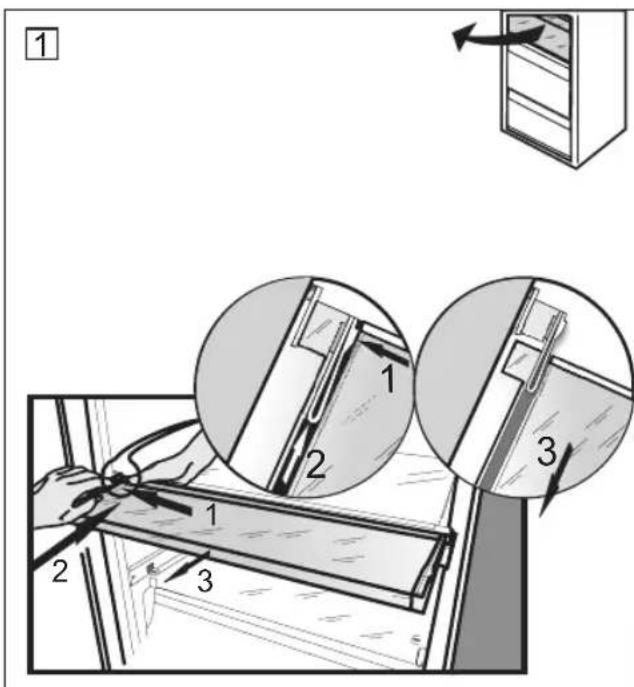
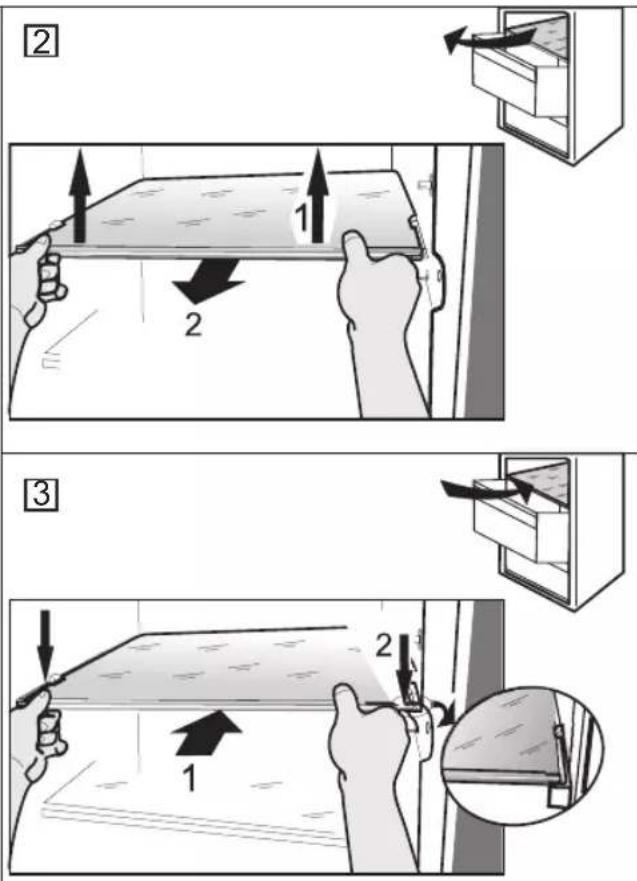
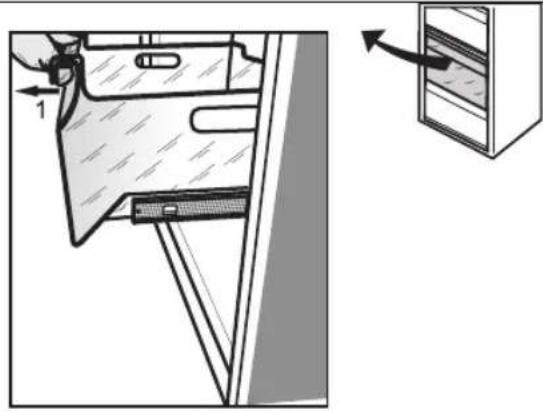
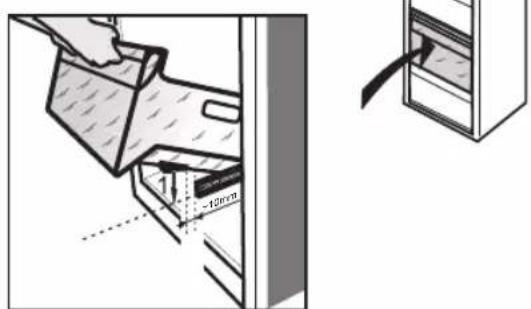
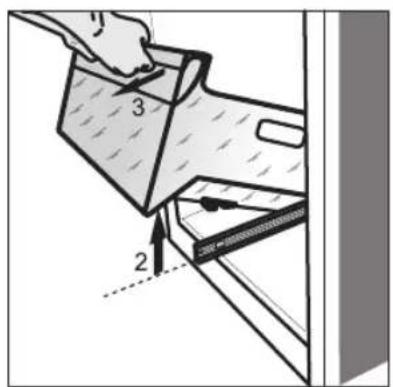
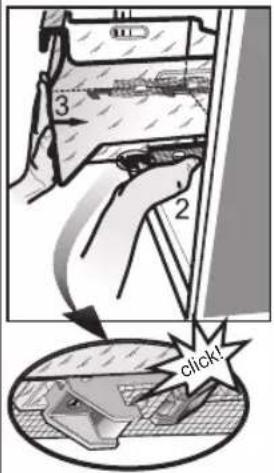
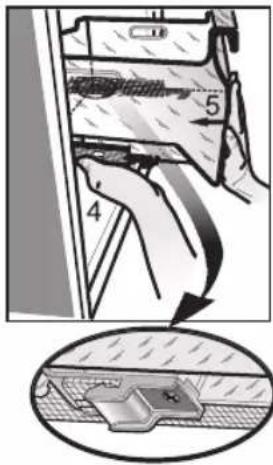
REMOVING/INSERT THE FREEZER INTERIOR 271
NOTE:
The instructions apply to several models, so there may be differences. Sections which only apply to certain appliances are indicated with an asterisk (*).
Functions which are dedicated specially for your already bought model of product you will find in QUICK START GUIDE.
1. INSTALLATION
1.1. INSTALLING SINGLE APPLIANCE
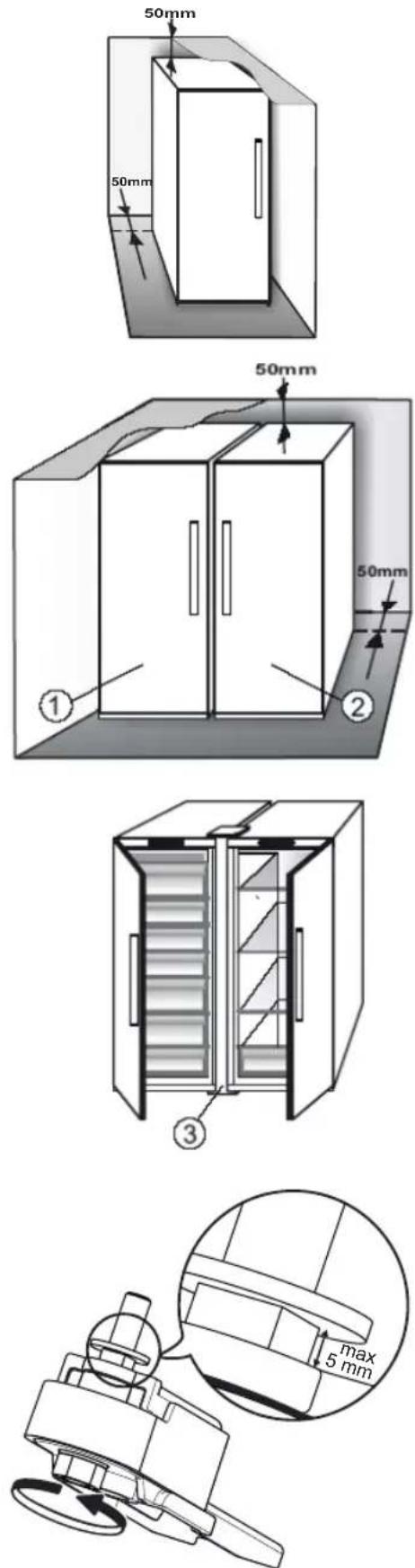
To guarantee adequate ventilation, leave a space on both sides and above the appliance.
The distance between the rear of the appliance and the wall behind the appliance should be at least 50mm.
A reduction of this space will increase the Energy consumption of product.
1.2. INSTALLING TWO APPLIANCES
During installing the freezer ① and the fridge ② together ensure that the freezer is located on the left and the fridge on the right (as shown on the drawing). Left side of refrigerator is equipped with special device in order to avoid condensation problems between appliances.
We recommended installing two appliances together using the linking-kit ③ (as shown on the drawing). You can buy it in Service.
1.3. ADJUST DOORS (IF AVAILABLE)
To level the doors using the adjustable lower hinge (select models)
If the refrigerator door is lower than the freezer door, raise the refrigerator door by turning the adjustment screw counterclockwise using a M10 wrench.
If the freezer door is lower than the refrigerator door, raise the freezer door by turning the adjustment screw counterclockwise using a M10 wrench.
2. FUNCTIONS
2.1. SMART DISPLAY\*
This function can be used to save energy. Please follow the instructions contained in the Quick Start Guide to activate/deactivate the function. Two seconds after activation of the Smart Display, the display goes off. To adjust the temperature or use other functions, it is necessary to activate the display by pressing any button. After about 15 seconds without performing any action, the display goes off again. When function is deactivated the normal display is restored. The Smart Display is automatically disabled after a power failure. Remember that this function does not disconnect the appliance from the power supply, but only reduce the energy consumed by external display.
Note: The declared appliance energy consumption refers to operation with the Smart Display function activated. This function is available only on the model with User Interface on the door.
2.2. 6TH SENSE FREEZE CONTROL / PROFREEZE FREEZE CONTROL
The 6th Sense Freeze Control/ ProFreeze Freeze Control function works to maintain the right temperature in the following cases:
- Door opened for a while
The function activates when door opening causes the internal temperature to increase to values that do not ensure safe storage of food and remains active until optimal storage conditions have been restored.
- Fresh food stored in the freezer
The function activates when fresh food is placed in the freezer and remains active until optimal freezing conditions are reached so as to ensure the best freezing quality with the lowest power consumption.
Note: Besides the quantity of food loaded into the freezer, ambient temperature and the quantity of food already inside the freezer affect the duration of the 6th Sense Freeze Control/ ProFreeze Freeze Control function. Therefore significant duration variations are quite normal.
2.3. ON/STAND BY

This function turns On/Stand-by the freezer compartments. To put the product in Stand-by, press & hold the On/Stand-by button ⏻ for 3 seconds. When the appliance is in Stand-by, the light inside the freezer compartment does not work. Remember that this operation does not disconnect the appliance from the power supply. To switch the appliance On again, simply press the On/Stand-By button ⏻.
2.4. BLACK OUT ALARM
After a power blackout, your product is designed to automatically monitor the temperature in the freezer when electricity is resupplied. If the temperature in the freezer rises above freezing level, the Black Out indicator ☑ turns on, the Alarm indicator ⚠ blinks and the acoustical alarm sounds when electricity is resupplied.
To reset the alarm press the Stop Alarm button ⚠️ just once.
In case of Black Out Alarm, the following actions are recommended:
- If the food in the freezer is unfrozen but still cold, all the food in the freezer should be eaten within the next 24 hours.
- If the food in the freezer is frozen, this indicates the food was thawed and then refrozen when electricity was re-supplied which degrades taste, quality and nutritional value and also could be unsafe. It is recommended to not consume the food but to dispose of the entire content of the freezer. The Black Out Alarm is designed to provide guidance on food quality in the freezer in the event of electricity black out. This system does not guarantee food quality or safety and consumers are advised to use their own judgment in evaluating food quality in freezer compartment.
2.5. TEMPERATURE ALARM
The acoustic alarm sounds and temperature indicator (°C) blinks. The alarm is activated when:
- The appliance is connected to the power supply after prolonged disuse
- The freezer compartment temperature is too high
- The quantity of fresh foods loaded into the freezer exceeds that indicated on the rating plate
- The freezer door has been left open for a long time. To mute the alarm buzzer press Stop Alarm button ⚠ just once. The Alarm indicator ⚠ is automatically turned-off as soon as the freezer compartment reaches a temperature below -10°C and the temperature set indicator (°C) stop blinking and shows the chosen setting.
2.6. DOOR OPEN ALARM
The Alarm icon ⚠ lights up blinking and the acoustic alarm sounds. The alarm is activated when the door is left open for more than 2 minutes. To disengage the door alarm close the door, or press once Stop Alarm button ⚠ to mute the acoustic alarm.
2.7. PARTY MODE\*

Use this function to chill drinks inside the freezer compartment. 30 minutes after selection (the time required to chill a 0.75 l bottle without the glass breaking), the symbol flashes, an acoustic alarm sounds: remove the bottle from the freezer compartment and press the Stop Alarm button to disable the alarm.
Important: do not leave the bottle inside the freezer compartment longer than the time necessary for chilling.
2.8. SHOCK FREEZE\*
The “Shock Freeze” compartment is specifically designed to freeze up to 2 kg of fresh food extremely quickly. The ultra-fast “Shock Freeze” function minimizes the formation of ice crystals inside the food as it freezes, thus ensuring it is of the best possible quality when defrosted prior to consumption. When the “Shock Freeze” function is not active, the compartment can be used as normal for traditional freezing or for the storage of already frozen foods.
Note: When the Shock Freeze function is active you may hear a humming sound. This is absolutely normal and is caused by airflow that permits optimum cold distribution inside compartment.
Activating and deactivating the "Shock Freeze" function:
- Make sure at least 12 hours have passed since the last time the "Shock Freeze" function was activated (if at all). Do not activate the function more frequently than once every 12 hours.
- Make sure that the "Fast Freeze" function is not active: "Shock Freeze" and "Fast Freeze" functions cannot be active together at the same time.
- Empty the "Shock Freeze" compartment.
- Activate the "Shock Freeze" function by briefly touching the button ✪ on the control panel: the icon lights up and the fans on the bottom of the compartment come on, increasing the flow of cold air and accelerating the freezing process as a result.
- Place the food to be frozen inside the compartment, a few centimeters (min. 2 cm) away from the fans on the back of the compartment, so that cold air can circulate.
-
To achieve maximum freezing speed, we recommend not to deactivate the "Shock Freeze" function until its automatic deactivation, keeping closed the door
-
The "Shock Freeze" function is automatically deactivated 4-5 hours after its activation: the indicator ✦ switches off and the fans are deactivated. The "Shock Freeze" function may nevertheless be switched off at any time as desired, by briefly pressing the button ✦ on the control panel: the indicator ✦ switches off and the fans are deactivated.
Attention:
- Incompatibility with the “Fast Freeze” function
To guarantee optimal performance, the “Shock Freeze” and “Fast Freeze” functions cannot be used at the same time. Therefore, if the “Fast Freeze” function has been already engaged, it has to be disengaged first to activate the “Shock Freeze” function (and vice-versa).
- If the fans in the Shock Freeze compartment do not start working
After the “Shock Freeze” function has been activated, it may happen that the indicator lights up as expected, but the fans do not start working. This is normal and means that freezer defrosting is in progress. At the end of the defrosting phase (maximum duration: 1.5 hours), the fans will automatically start working and the “Shock Freeze” process will begin as normal.
- If the indicator * does not light up
If, after the button ✦ is pressed, the icon ⏻ lights up: in this case the ✦ button has been pressed for too long. To activate the “Shock Freeze” function, first deactivate the Fast Freeze function (holding the ⏻ button for 3 seconds, then briefly touch the ✦ button, without keeping it pressed for more than 1 second.
2.9. FAST FREEZE\*
The amount of fresh food (in kg) that can be frozen in 24 hours is indicated on the appliance rating plate.
This function can be used for optimum appliance performance, 24 hours before placing fresh food in the freezer. Please follow the instructions contained in the Quick Start Guide to activate/deactivate the function. After placing fresh food in the freezer, 24 hours on Fast Freeze function is generally sufficient; After 50 hours the Fast Freeze function automatically deactivates.
Attention:
In order to save energy, when freezing small amounts of food, the fast freeze function can be deactivated after a few hours.
- Incompatibility with the “Shock Freeze” function
To guarantee optimal performance, the “Shock Freeze” and “Fast Freeze” functions cannot be used at the same time. Therefore, if the “Fast Freeze” function has been already engaged, it has to be disengaged first to activate the “Shock Freeze” function (and vice-versa).
2.10. ECO NIGHT FUNCTION (NIGHT TIME RATE) \*

The Eco Night function enables appliance energy consumption to be concentrated in the reduced rate hours (generally at night), when electricity is readily available and costs less than during the daytime (only in countries that utilise a time based multi-rate system - check energy rates with the local electricity company). To activate the function, press the button ☑ at the reduced rate start time (depending on the specific rates plan). For example, if the reduced rate starts at 8 p.m., press the button ☑ at that time. When the Eco Night indicator ☑ is ON, the function is ON. Once the function is activated, the appliance automatically adapts energy consumption according to the time selected, i.e. consuming less energy during the day than at night.
IMPORTANT: To operate properly, the function must be on during the night and day. The function remains on until deactivated (or it is deactivated in case of a power failure or appliance switch-off). To deactivate the function, press the button 📋 again. When the Eco Night indicator 🔒 is OFF, the function is OFF.
Note: The declared appliance energy consumption refers to operation with the Eco Night function deactivated.
2.11. FREEZE CONTROL\*
Freeze Control is an advanced technology that reduces temperature fluctuations in the whole freezer compartment to minimum, thanks to an innovative air system, totally independent from the fridge. Freeze burns are significantly reduced and food preserves its original quality and color.
To activate the Freeze Control choose the function from the menu, set to >ON< and press OK button to confirm the selection. To deactivate this function repeat the same procedure setting to >OFF<.
The function works properly in a defined range of temperature: between -22^ and -24^ .
When the function is engaged and the current temperature in the freezer is set to the warmer set point than -22^ , the temperature is automatically set to -22^ to match the working range.
If the function is engaged and the user modify the freezer temperature out of the working range, the function is automatically switched off.
In case of Fast freezing is engaged, the function “Freeze control” is inhibited until the Fast Freezing function switched off.
2.12. AUTOMATIC NO FROST
This product is designed to defrost automatically according to conditions of use and ambient humidity. No Frost freezers provide chilled air circulation around the storage areas and prevent the formation of ice, thereby completely eliminating the need for defrosting. Frozen items don't stick to the walls, labeling stays legible and storage space remains neat and clear.
In combination with the 6th Sense Freeze Control/ProFreeze Freeze Control, not only does it control the sensor, but directs the cooling power exactly where it is needed, optimizing energy efficiency.
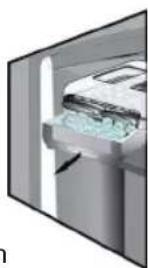
2.13. ICE MATE\*
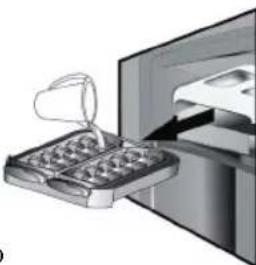
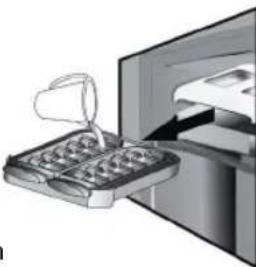
HOW TO MAKE ICE CUBES
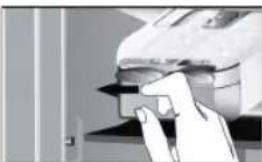
You can remove the ice cube tray by pulling it towards you.
natural_image
Close-up of a hand pressing down on a mechanical component (no visible text or symbols)
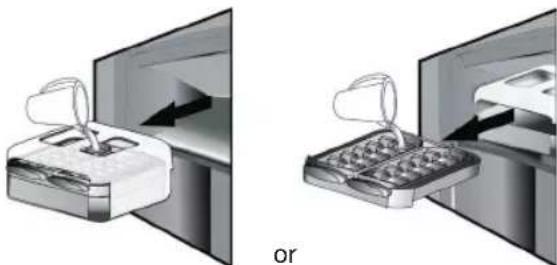
WARNING: fill with potable water only (maximum level = 2/3 of the overall capacity).
natural_image
Two diagrams showing a device being inserted into a screen, with no visible text or symbols.
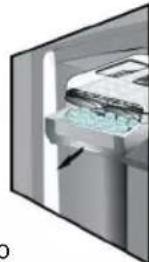
Place again the Ice Mate in freezer compartment, or reinsert the ice cube tray within the Ice Mate. Take care not to spill water.
natural_image
Simple diagram of a device with two circular components and an upward arrow, no text or symbols present.
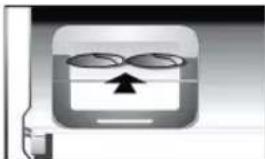
Wait until the ice cubes are formed (it is recommended to wait for about 4 hours).
NOTE: Ice Mate is removable. It can be placed in horizontal position anywhere in the freezer compartment or taken out of the appliance when ice-making is not required.
3. USE
3.1. HOW TO INCREASE FREEZER STORAGE CAPACITY
You can increase storage capacity in the freezer compartment by:
- removing the baskets / flaps* to allow the storage of big products.
- placing the food products directly on the freezer shelves.
- removing the Ice Mate*.
- removing bottle rack*.
HOW TO TAKE ICE CUBES
Make sure that the storage bin is in place under the ice tray. If not, slide into place.
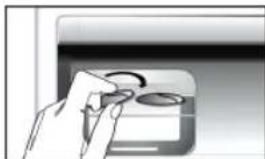
Twist one of levers firmly in the clockwise direction until the tray twists slightly. The ice cubes fall into the
storage bin.
natural_image
Hand holding a small circular object with a curved arrow, next to a rectangular device (no text or symbols visible)
Repeat Step 2 for the other half of the tray, if necessary. To get ice, slightly lift up the storage bin and pull it towards you.
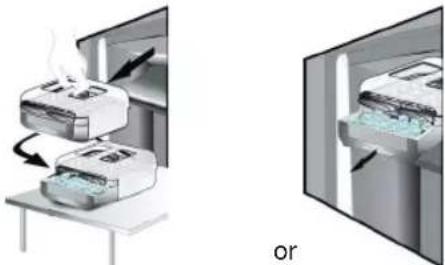
NOTE: if you prefer, you can remove the entire Ice Mate from the appliance, to take the ice cubes wherever is convenient for you (for example: directly on the table).
natural_image
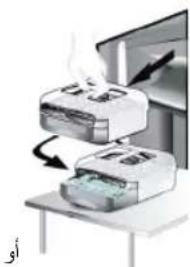
Two industrial machines with heat transfer arrows, one emitting steam and the other showing internal components (no text or symbols)
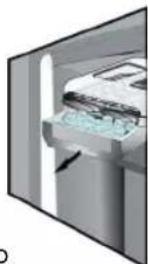
2.14. LED LIGHT SYSTEM\*
The light system inside the freezer compartment uses LEDs light, allowing a better lightning as well as very low energy consumption. If the LED light system does not work, please contact the Service to replace it.
3.2. NOTES
- Do not block the air outlet area (on the back wall inside the product) with food products.
- If the freezer is provided with a flap, it is possible to maximize the storage volume by removing the flap.
- All shelves, flaps and pull-out baskets are removable.
- The internal temperatures of the appliance may be affected by the ambient temperature, frequency of door opening, as well as location of the appliance. Temperature setting should take into consideration these factors.
- Unless otherwise specified the appliance accessories are not dishwasher safe.
4. FOOD-STORAGE TIPS
The freezer is the ideal storage location for store frozen food, make ice cubes and freeze fresh food in the freezer compartment.
The maximum number of kilograms of fresh food that can be frozen within a 24-hour period is indicated on the rating plate (…kg/24h).
If you have a little quantity of food to store in the freezer, we recommend to use the coldest areas of your freezer compartment, corresponding to the upper or the middle area, depending on your model (see the product sheet to know which is the area where is suggested to freeze fresh food).
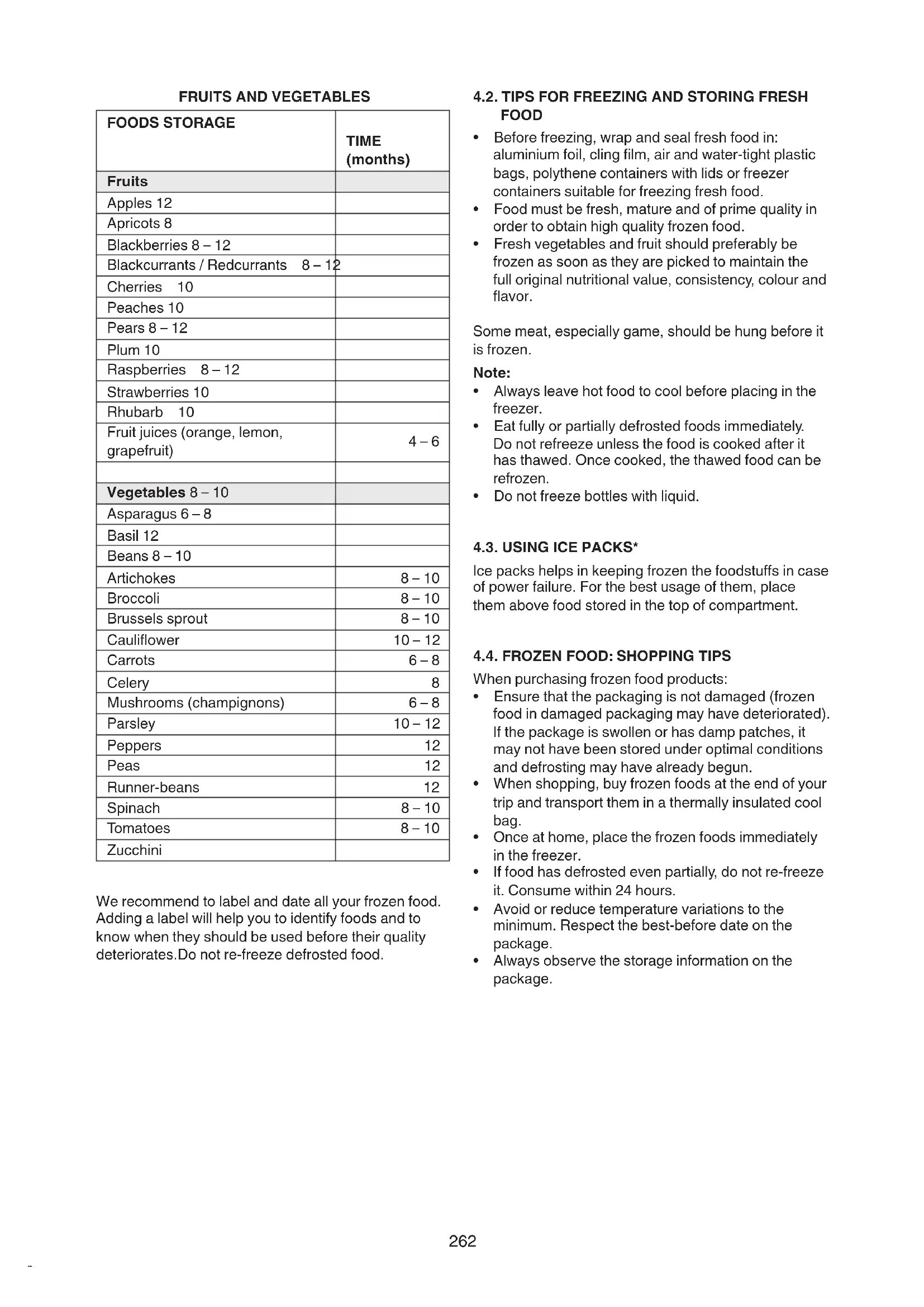
4.1. STORAGE TIME OF FROZEN FOODS
The table shows the recommended storage time for frozen fresh foods.
| FOODS STORAGE | TIME(months) |
| Meat | |
| Beef 8 – 12 | |
| Pork, veal 6 – 9 | |
| Lamb 6 – 8 | |
| Rabbit 4 – 6 | |
| Mince / offal 2 – 3 | |
| Sausages 1 – 2 | |
| |
| Poultry | |
| Chicken 5 – 7 | |
| Turkey 6 | |
| Giblets 2 – 3 | |
| |
| Crustaceans | |
| Molluscs creab, lobster 1 – 2 | |
| Creab, lobster 1 – 2 | |
| |
| Shellfish | |
| Oyster, shucked | 1 – 2 |
| |
| Fish | |
| “fatty” (salmon, herring, mackerel) | 2 – 3 |
| “lean” (cod, sole) | 3 – 4 |
| |
| Stews | |
| Meat, poultry | 2 – 3 |
| |
| Dairy products | |
| Butter | 6 |
| Cheese | 3 |
| Double cream 1 – 2 | |
| Ice-cream 2 – 3 | |
| Eggs | 8 |
| |
| Soups and sauces | |
| Soup | 2 – 3 |
| Meat sauce | 2 – 3 |
| Pate | 1 |
| Ratatouille | 8 |
| |
| Pastry and bread | |
| Bread | 1 – 2 |
| Cakes (plain) | 4 |
| Gateaux (cakes) | 2 – 3 |
| Crepes | 1 – 2 |
| Uncooked pastry | 2 – 3 |
| Quiche | 1 – 2 |
| Pizza | 1 – 2 |
FRUITS AND VEGETABLES
| FOODS STORAGE | TIME(months) |
| Fruits | |
| Apples 12 | |
| Apricots 8 | |
| Blackberries 8 – 12 | |
| Blackcurrants / Redcurrants 8 – 12 | |
| Cherries 10 | |
| Peaches 10 | |
| Pears 8 – 12 | |
| Plum 10 | |
| Raspberries 8 – 12 | |
| Strawberries 10 | |
| Rhubarb 10 | |
| Fruit juices (orange, lemon, grapefruit) | 4 – 6 |
| |
| Vegetables 8 – 10 | |
| Asparagus 6 – 8 | |
| Basil 12 | |
| Beans 8 – 10 | |
| Artichokes | 8 – 10 |
| Broccoli | 8 – 10 |
| Brussels sprout | 8 – 10 |
| Cauliflower | 10 – 12 |
| Carrots | 6 – 8 |
| Celery | 8 |
| Mushrooms (champignons) | 6 – 8 |
| Parsley | 10 – 12 |
| Peppers | 12 |
| Peas | 12 |
| Runner-beans | 12 |
| Spinach | 8 – 10 |
| Tomatoes | 8 – 10 |
| Zucchini | |
We recommend to label and date all your frozen food. Adding a label will help you to identify foods and to know when they should be used before their quality deteriorates. Do not re-freeze defrosted food.
4.2. TIPS FOR FREEZING AND STORING FRESH FOOD
- Before freezing, wrap and seal fresh food in: aluminium foil, cling film, air and water-tight plastic bags, polythene containers with lids or freezer containers suitable for freezing fresh food.
- Food must be fresh, mature and of prime quality in order to obtain high quality frozen food.
- Fresh vegetables and fruit should preferably be frozen as soon as they are picked to maintain the full original nutritional value, consistency, colour and flavor.
Some meat, especially game, should be hung before it is frozen.
Note:
- Always leave hot food to cool before placing in the freezer.
- Eat fully or partially defrosted foods immediately. Do not refreeze unless the food is cooked after it has thawed. Once cooked, the thawed food can be refrozen.
- Do not freeze bottles with liquid.
4.3. USING ICE PACKS\*
Ice packs helps in keeping frozen the foodstuffs in case of power failure. For the best usage of them, place them above food stored in the top of compartment.
When purchasing frozen food products:
- Ensure that the packaging is not damaged (frozen food in damaged packaging may have deteriorated). If the package is swollen or has damp patches, it may not have been stored under optimal conditions and defrosting may have already begun.
- When shopping, buy frozen foods at the end of your trip and transport them in a thermally insulated cool bag.
- Once at home, place the frozen foods immediately in the freezer.
- If food has defrosted even partially, do not re-freeze it. Consume within 24 hours.
- Avoid or reduce temperature variations to the minimum. Respect the best-before date on the package.
- Always observe the storage information on the package.
5. FUNCTIONAL SOUNDS
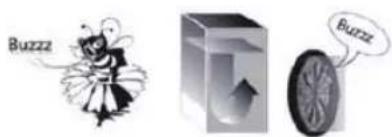
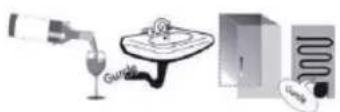
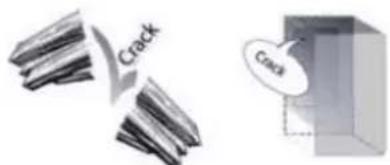
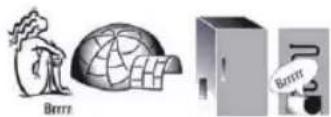
Sounds coming from your appliances are normal since it has a number of fans and engines to regulate performances that switch on and off automatically.
Some of the functional sounds can be reduced through
- Leveling the appliance and installing it on an even surface
- Separating and avoiding contact between the appliance and furniture.
- Checking if the internal components are correctly placed.
- Checking if bottles and containers are not in contact with each other.
Some of the functional sounds you might hear:
A hissing sound when switching on the appliance for the first time or after a long pause.
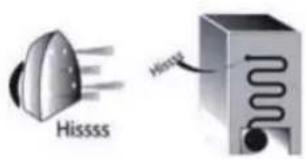
Buzzing sound when water valve or fan start working.
A gurgling sound when refrigerant fluid enters into the pipes.
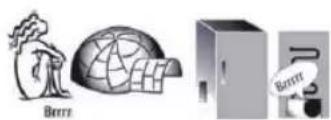
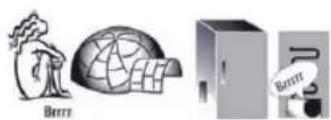
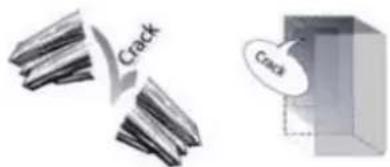
A cracking sound when compressor starts or when ready ice drops into ice box abrupt clicks when compressor switches on and off.
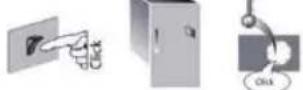
BRRR sound is from the compressor running.
natural_image
Illustration of three objects: a person with a hat, a globe, and a battery (no text or symbols)
The CLICK is from the thermostat which adjusts how often the compressor is running.
6. RECOMMENDATION IN CASE OF NO USE OF THE APPLIANCE
6.1. ABSENCE / VACATION
In case longer absence its recommended to use up food and to disconnect the appliance to save energy.
6.2.MOVING
- Take out all internal parts.
- Wrap them well, and fix them together with adhesive tape so that they do not bang together or get lost.
- Screw the adjustable feet so that they do not touch the support surface.
- Close and fix door with adhesive tape and, again using adhesive tape, fix the power cable to the appliance.
6.3. POWER FAILURE
In the event of a power failure, call the local office of your electricity supply company and ask how long it is going to last.
Note: Bear in mind that a full appliance will stay cold longer than a partially filled one.
If ice crystals are still visible on the food, it may be frozen again, although flavour and aroma may be affected.
If food is found to be in a poor condition, it is best to throw it away.
For power failures lasting up to 24 hours.
- Keep the door of the appliance closed. This will allow the stored food to stay cold as long as possible.
For power failures lasting more than 24 hours.
-
Empty the freezer compartment and arrange the food in a portable freezer. If this type of freezer is not available and, likewise, no artificial ice packs are available, try to use up the food, which is more easily perishable.
-
Empty the ice tray.
7. MAINTENANCE AND CLEANING
Before any cleaning or maintenance operation, unplug the appliance from the mains or disconnect the electrical power supply.
Periodically clean the appliance with a cloth and a solution of lukewarm water and neutral detergent specifically for refrigerator interiors. Never use abrasives. Never clean refrigerator parts with flammable fluids. The fumes can create a fire hazard or explosion. Clean the outside of the appliance and the door seal with a damp cloth and dry with a soft cloth.
Do not use steam cleaners.
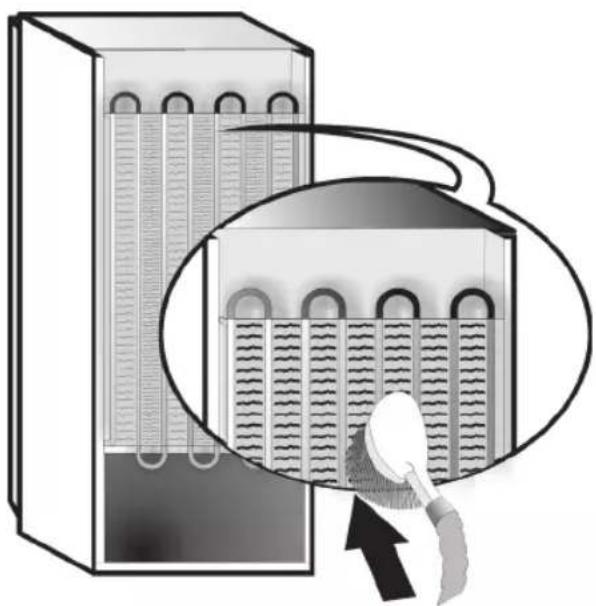
Condenser placed in the rear of the appliance should be cleaned regularly using a vacuum cleaner.
Important:
- The buttons and control panel display must not be cleaned with alcohol or alcohol-derived substances, but with a dry cloth.
- The refrigeration system pipes are located near the defrost pan and can become hot. Periodically clean them with a vacuum cleaner.
- To remove or insert the glass shelf, move up the front part of the shelf to pass the stopper.
natural_image
Diagram showing a device emitting heat from a cooling tower with a magnified view of its internal structure (no text or symbols)
8. TROUBLESHOOTING GUIDE
Performance problems often result from little things you can find and fix yourself without tools of any kind.
| PROBLEM SOLUTION | |
| The appliance is not working: • Is the power cable plugged into a live socket with the proper voltage?Have you checked the protection devices and fuses of the electrical system in your home? |
| If there is water in the defrost pan: | • This is normal in hot, damp weather. The pan can even be half full. Make sure the appliance is level so that the water does not overflow. |
| If the edges of the appliance cabinet, which come in contact with the door seal, are warm to the touch: | • This is normal in hot weather and when the compressor is running. |
| If the light does not work: • Have you checked the protection devices and fuses of the electrical system in your home?Is the power cable plugged into a live socket with the proper voltage?In case the LEDs are broken the user must call the Service for exchange of the same type available only at our After-sales Service Centers or authorized dealers. |
| If the motor seems to run too much: | • Motor running time depends on different things: number of door openings, amount of food stored, temperature of the room, setting of the temperature controls.Is the condenser (back the appliance) free of dust and fluff?Are the door properly closed?Are the door seals properly fitted?On hot days or if the room is warm, the motor naturally runs longer.If the appliance door has been left open for a while or if large amounts of food have been stored, the motor will run longer in order to cool down the interior of the appliance. |
| If the appliance temperature is too high: | • Are the appliance controls correctly set?Has a large amount of food been added to the appliance?Check that the door is not opened too often.Check that the door close properly. |
| If the doors do not open and close properly: | • Check that food packages are not blocking the door.Check that the internal parts or automatic ice maker are not out of position.Check that the door seals are not dirty or sticky.Ensure the appliance is level. |
8.2. FAILURES
In the event of operation alarms, they will also be displayed in the digits LEDs, (e.g. Failure1, Failure 2, etc...) call After-sales Service and specify the alarm code. The acoustic alarm sounds, the Alarm icon lights up and the F letter on the digit display blinks according to failure code described below:
| Failure code Visualization |
| Error 2 | F letter blink on/off at 0,5 sec. Blinks ON 2 times then remain off for 5 seconds. Pattern repeats. |  x2 x2 |
| Error 3 | F letter blink on/off at 0,5 sec. Blinks ON 3 times then remain off for 5 seconds. Pattern repeats. |  x3 x3 |
| Error 6 | F letter blink on/off at 0,5 sec. Blinks ON 6 times then remain off for 5 seconds. Pattern repeats. |  x6 x6 |
9. AFTER-SALES SERVICE
Switch the appliance on again to see if the problem has been solved. If it has not, disconnect the appliance from the power supply and wait for about an hour before switching on again.
If, after performing the checks described in the Troubleshooting Guide and switching the appliance on again, your appliance still does not work properly, contact the After-sales Service, explain the problem.
Specify:
• the model and appliance serial number (stated on the rating plate),
• the nature of the problem,
SERVICE
0000 000 00000
• the Service number (the number after the word SERVICE on the data plate on the inside of the appliance),
- your full address,
- your telephone number and area code.
Note:
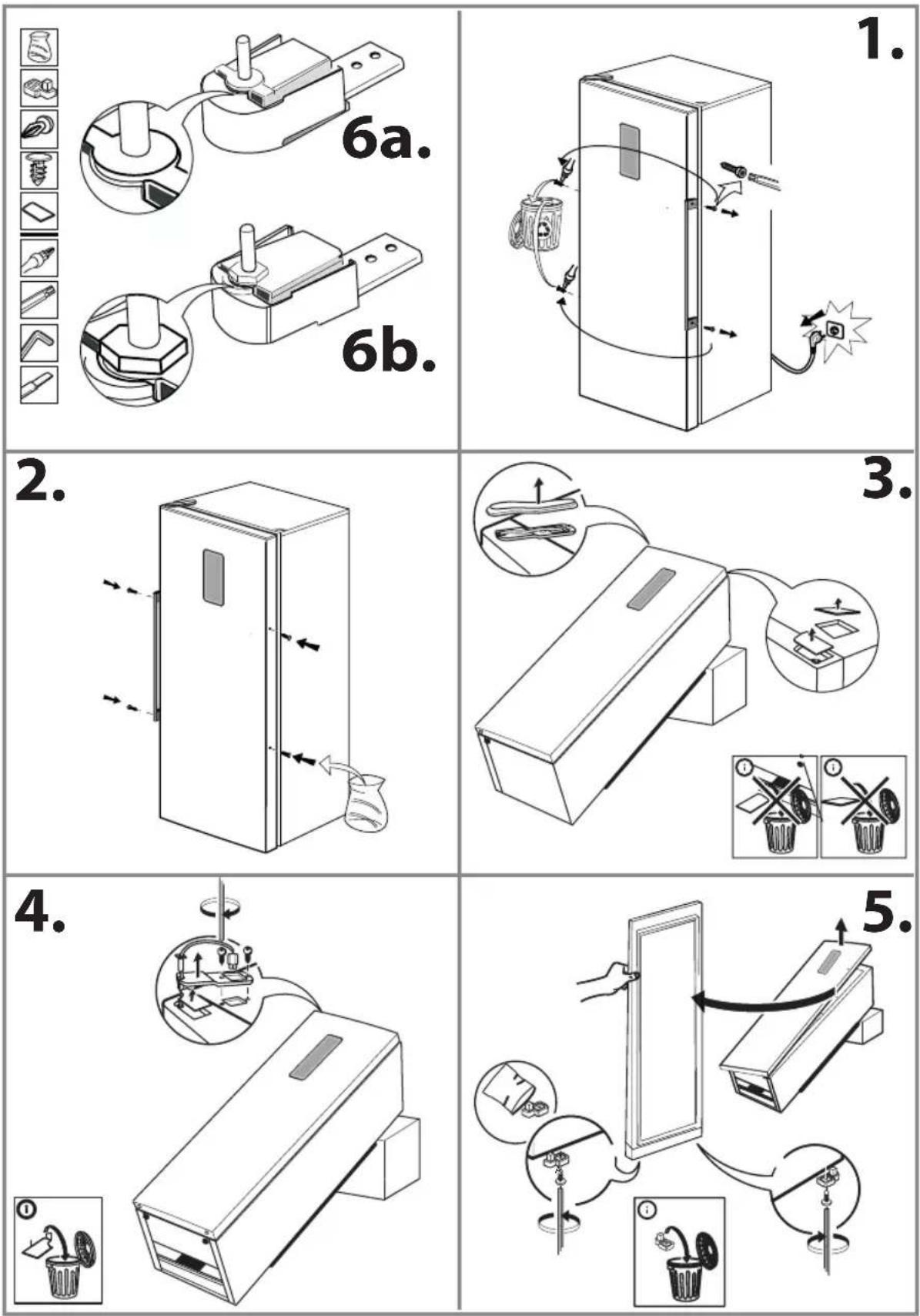
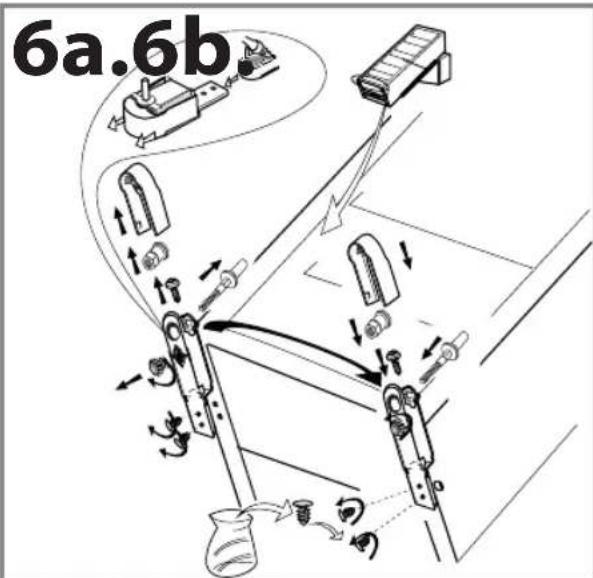
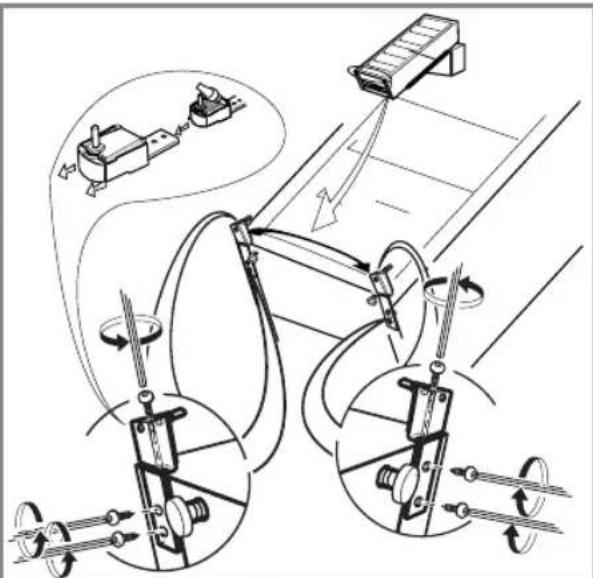
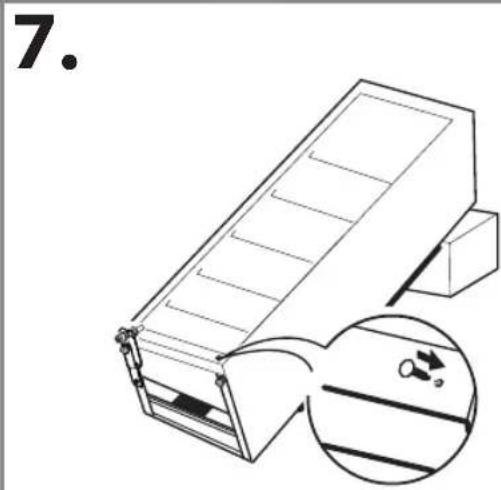
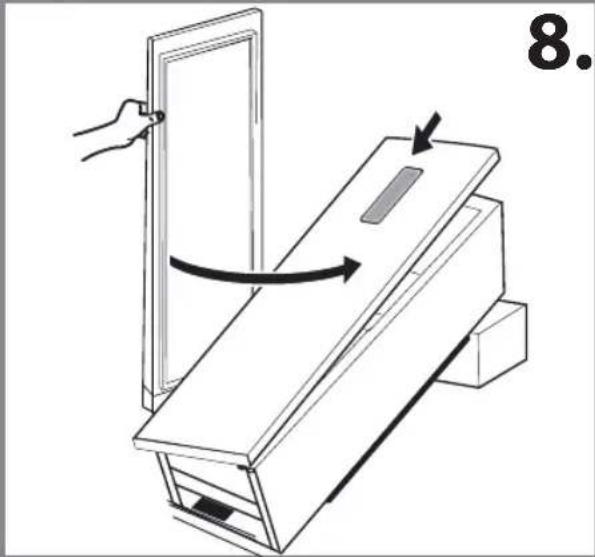
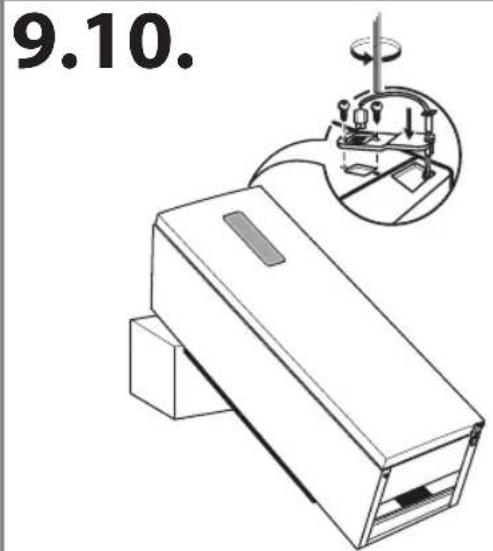
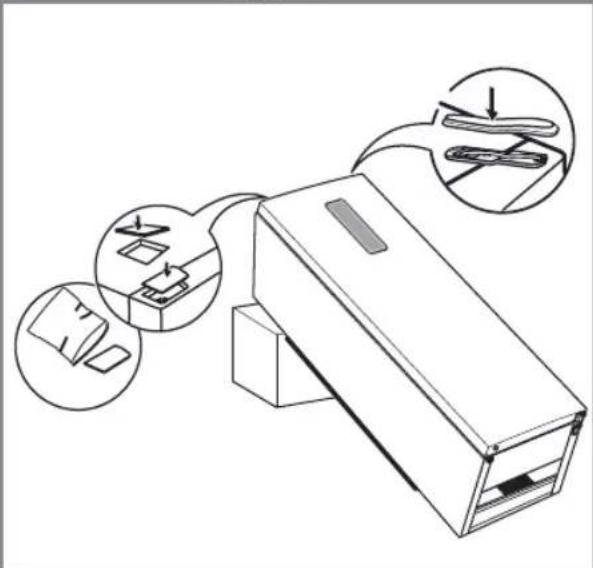
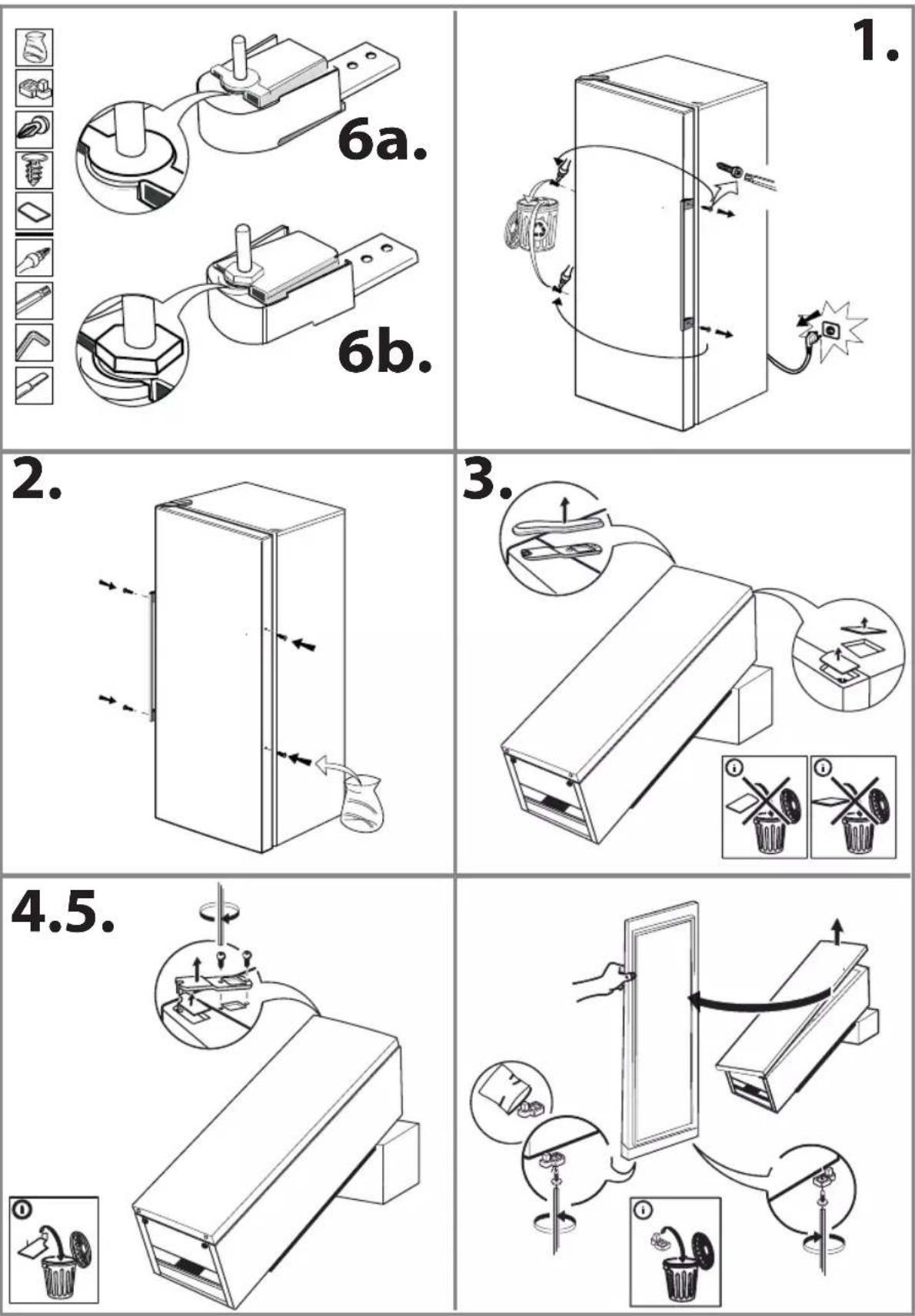
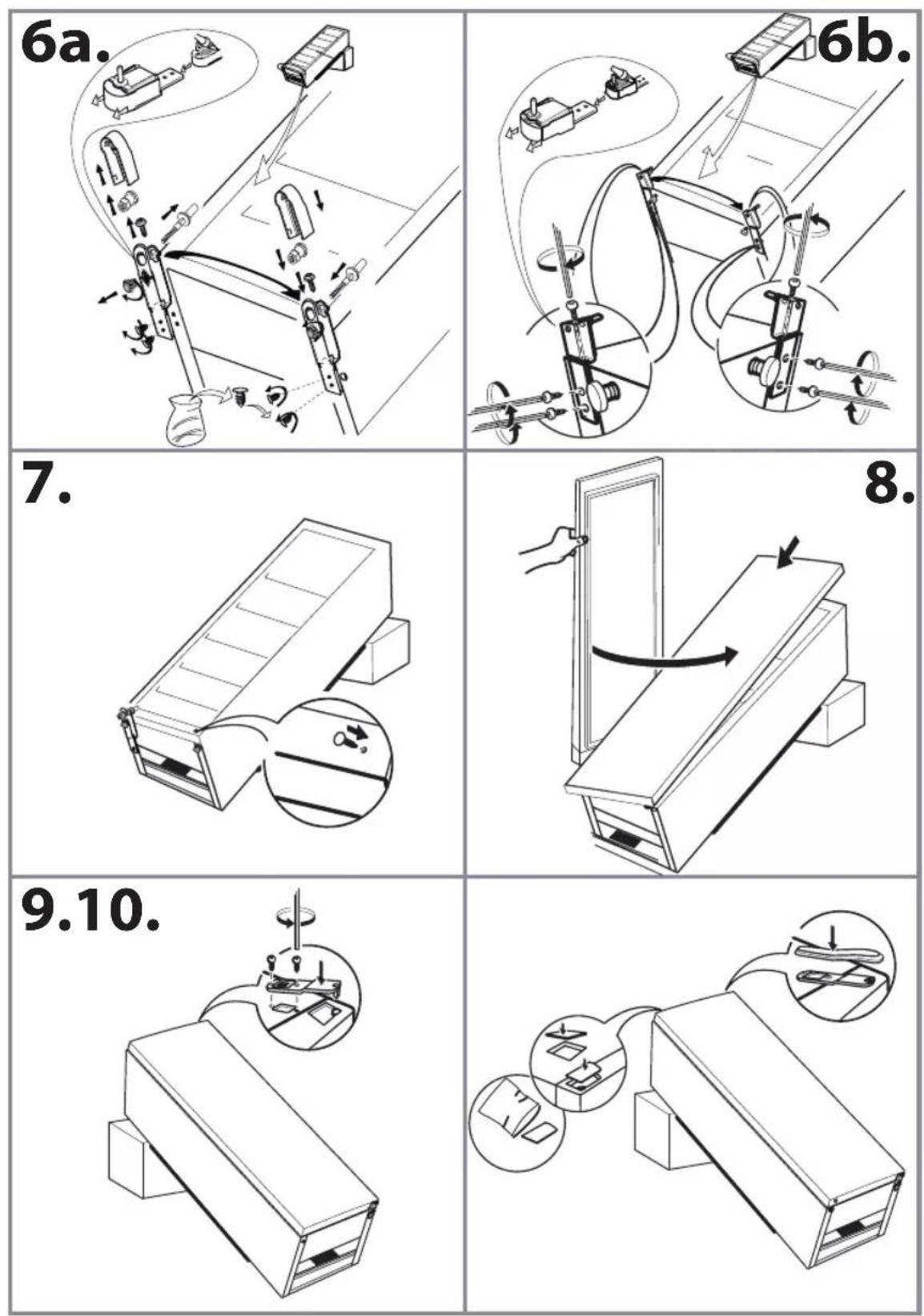
The direction of door opening can be changed. If this operation is performed by After-sales Service it is not covered by the warranty.
(1)
flowchart
graph TD
    A["Device 6a.6b"] --> B["Component 1"]
    B --> C["Component 2"]
    C --> D["Component 3"]
    D --> E["Component 4"]
    E --> F["Component 5"]
    F --> G["Component 6"]
    G --> H["Output"]
natural_image
Technical line drawing of a mechanical device with an inset showing a warning symbol (no text or labels present)
natural_image
Diagram of a door opening operation with arrows indicating rotation and movement (no text or symbols)
(2)
1
natural_image
Technical diagram showing a mechanical assembly with a component labeled '1' and an inset view of a cabinet or rack (no text or symbols present)
3
2
4
400010844785
195138713.00
AR FINLDACZBG FR HUGRDE