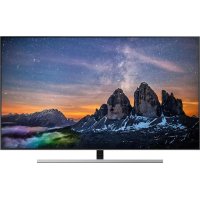
GQ55Q80RGT - TV SAMSUNG - Free user manual and instructions
Find the device manual for free GQ55Q80RGT SAMSUNG in PDF.


User questions about GQ55Q80RGT SAMSUNG
0 question about this device. Answer the ones you know or ask your own.
Ask a new question about this device
Download the instructions for your TV in PDF format for free! Find your manual GQ55Q80RGT - SAMSUNG and take your electronic device back in hand. On this page are published all the documents necessary for the use of your device. GQ55Q80RGT by SAMSUNG.
USER MANUAL GQ55Q80RGT SAMSUNG
natural_image
Abstract geometric pattern with white lines forming shapes and a diagonal line, no text or symbols present80R
Thank you for purchasing this Samsung product.
To receive more complete service, please register your product at www.samsung.com
Model ____ Serial No. ____
Before Reading This User Manual
This TV comes with this user manual and an embedded e-Manual.
Before reading this user manual, review the following:
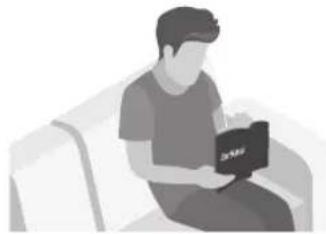 | User Manual | Read this provided user manual to see information about product safety, installation, accessories, initial configuration, and product specifications. |
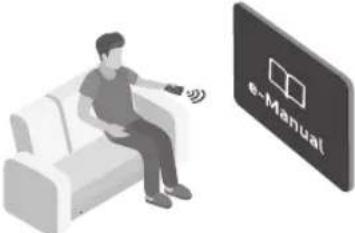 | e-Manual | For more information about this TV, read the e-Manual embedded in the product.To open the e-Manual,Settings > Support > Open e-Manual |
On the website (www.samsung.com), you can download the manuals and see its contents on your PC or mobile device.
Learning the e-Manual's assistance functions
• Some menu screens cannot be accessed from the e-Manual.
 | Search | Select an item from the search results to load the corresponding page. |
 | Index | Select a keyword to navigate to the relevant page.- The menus may not appear depending on the geographical area. |
 | Recent pages | Select a topic from the list of recently viewed topics. |
Learning the functions of the buttons that appear on e-Manual topic pages
| [CASH] | Try Now | Allows you to access the corresponding menu item and try out the feature right away. |
 | Link | Access an underlined topic referred to on an e-Manual page immediately. |
Warning! Important Safety Instructions
Please read the Safety Instructions before using your TV.
Refer to the table below for an explanation of symbols which may be on your Samsung product.
| CAUTION |  | Class II product: This symbol indicates that a safety connection to electrical earth (ground) is not required. If this symbol is not present on a product with a mains lead, the product MUST have a reliable connection to protective earth (ground). | |
| RISK OF ELECTRIC SHOCK. DO NOT OPEN. | |||
| CAUTION: TO REDUCE THE RISK OF ELECTRIC SHOCK, DO NOT REMOVE COVER (OR BACK). THERE ARE NO USER SERVICEABLE PARTS INSIDE. REFER ALL SERVICING TO QUALIFIED PERSONNEL. | 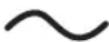 | AC voltage: Rated voltage marked with this symbol is AC voltage. | |
 | This symbol indicates that high voltage is present inside. It is dangerous to make any kind of contact with any internal part of this product. | 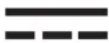 | DC voltage: Rated voltage marked with this symbol is DC voltage. |
 | This symbol indicates that this product has included important literature concerning operation and maintenance. | Caution. Consult instructions for use: This symbol instructs the user to consult the user manual for further safety related information. | |
- The slots and openings in the cabinet and in the back or bottom are provided for necessary ventilation. To ensure reliable operation of this apparatus and to protect it from overheating, these slots and openings must never be blocked or covered.
- Do not place this apparatus in a confined space, such as a bookcase or built-in cabinet, unless proper ventilation is provided.
- Do not place this apparatus near or over a radiator or heat register, or where it is exposed to direct sunlight.
-
Do not place vessels (vases etc.) containing water on this apparatus, as this can result in a fire or electric shock.
-
Do not expose this apparatus to rain or place it near water (near a bathtub, washbowl, kitchen sink, or laundry tub, in a wet basement, or near a swimming pool, etc.). If this apparatus accidentally gets wet, unplug it and contact an authorised dealer immediately.
- This apparatus uses batteries. In your community, there might be environmental regulations that require you to dispose of these batteries properly. Please contact your local authorities for disposal or recycling information.
- Do not overload wall outlets, extension cords, or adaptors beyond their capacity, since this can result in fire or electric shock.
- Power-supply cords should be placed so that they are not likely to be walked on or pinched by items placed upon or against them. Pay particular attention to cords at the plug end, at wall outlets, and at the point where they exit from the appliance.
- To protect this apparatus from a lightning storm, or when left unattended and unused for long periods of time, unplug it from the wall outlet and disconnect the antenna or cable system. This will prevent damage to the set due to lightning and power line surges.
- Before connecting the AC power cord to the DC adaptor outlet, make sure that the voltage designation of the DC adaptor corresponds to the local electrical supply.
- Never insert anything metallic into the open parts of this apparatus. This may cause a danger of electric shock
- To avoid electric shock, never touch the inside of this apparatus. Only a qualified technician should open this apparatus.
- Be sure to plug in the power cord until it is firmly seated. When unplugging the power cord from a wall outlet, always pull on the power cord's plug. Never unplug it by pulling on the power cord. Do not touch the power cord with wet hands.
- If this apparatus does not operate normally - in particular, if there are any unusual sounds or smells coming from it - unplug it immediately and contact an authorised dealer or service centre.
- Be sure to pull the power plug out of the outlet if the TV is to remain unused or if you are going to leave the house for an extended period of time (especially when children, elderly, or disabled people will be left alone in the house).
- Accumulated dust can cause an electric shock, an electric leakage, or a fire by causing the power cord to generate sparks and heat or by causing the insulation to deteriorate.
- Be sure to contact an authorised Samsung service centre for information if you intend to install your TV in a location with heavy dust, high or low temperatures, high humidity, chemical substances, or where it will operate 24 hours a day such as in an airport, a train station, etc. Failure to do so may lead to serious damage to your TV.
• Use only a properly grounded plug and wall outlet.
- An improper ground may cause electric shock or equipment damage. (Class I Equipment only.)
- To turn off this apparatus completely, disconnect it from the wall outlet. To ensure you can unplug this apparatus quickly if necessary, make sure that the wall outlet and power plug are readily accessible.
- Store the accessories (batteries, etc.) in a location safely out of the reach of children.
- Do not drop or strike the product. If the product is damaged, disconnect the power cord and contact a Samsung service centre.
- To clean this apparatus, unplug the power cord from the wall outlet and wipe the product with a soft, dry cloth. Do not use any chemicals such as wax, benzene, alcohol, thinners, insecticide, aerial fresheners, lubricants, or detergents. These chemicals can damage the appearance of the TV or erase the printing on the product.
- Do not expose this apparatus to dripping or splashing.
• Do not dispose of batteries in a fire.
- Do not short-circuit, disassemble, or overheat the batteries.
- There is danger of an explosion if you replace the batteries used in the remote with the wrong type of battery. Replace only with the same or equivalent type.
* Figures and illustrations in this User Manual are provided for reference only and may differ from the actual product appearance. Product design and specifications may change without notice.
CIS languages (Russian, Ukrainian, Kazakhs) are not available for this product, since this is manufactured for customers in EU region.
Contents
Before Reading This User Manual 2
Warning! Important Safety Instructions 3
01 What's in the Box?
02 TV Installation
Mounting the TV on a wall 7
Providing proper ventilation for your TV 8
Attaching the TV to the Stand 9
Safety Precaution: Securing the TV to the wall to
prevent falling 9
03 The Samsung Smart Remote
About the Buttons on the Samsung Smart Remote 10
Pairing the TV to the Samsung Smart Remote 11
Installing batteries into the Samsung Smart Remote 11
04 Running the Initial Setup
Using the TV Controller 13
05 Connecting to a Network
Network Connection - Wireless 14
Network Connection - Wired 14
06 Troubleshooting and Maintenance
Troubleshooting 15
What is Remote Support? 17
Eco Sensor and screen brightness 17
Caring for the TV 18
07 Specifications and Other Information
Specifications 19
Environmental Considerations 19
Decreasing power consumption 19
Licences 20
01 What's in the Box?
Make sure the following items are included with your TV. If any items are missing, contact your dealer.
• Samsung Smart Remote & Batteries (AA x 2)
- User Manual
- Warranty Card / Regulatory Guide (Not available in some locations)
- TV Power Cable
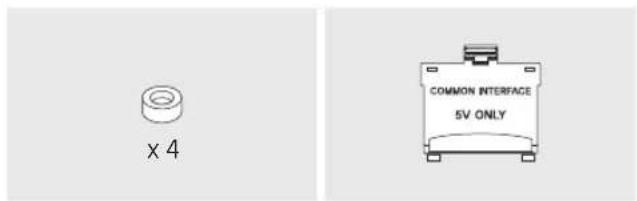
text_image
x 4 COMMON INTERFACE 5V ONLYWall Mount Adapter CI Card Adapter
- The items' colours and shapes may vary depending on the models.
• Cables not included can be purchased separately.
- Check for any accessories hidden behind or in the packing materials when opening the box.
An administration fee may be charged in the following situations:
(a) An engineer is called out at your request, but it is found that the product has no defect (i.e., where the user manual has not been read).
(b) You bring the unit to a repair centre, but it is found that the product has no defect (i.e., where the user manual has not been read).
You will be informed of the administration fee amount before a technician visits.
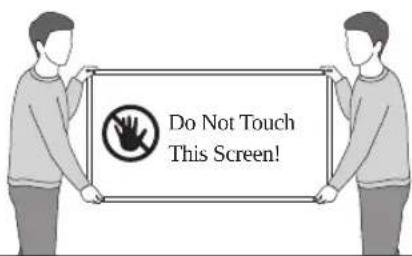
Warning: Screens can be damaged from direct pressure when handled incorrectly. We recommend lifting the TV at the edges, as shown.
text_image
Do Not Touch This Screen!02 TV Installation
Mounting the TV on a wall

If you mount this TV on a wall, follow the instructions exactly as set out by the manufacturer. Unless it is correctly mounted, the TV may slide or fall and cause serious injury to a child or adult and serious damage to the TV.
For models providing wall mount adapters, install them as shown in the figure below before installing the wall mount kit.
• Refer to the installation manual included with the Samsung wall mount kit.
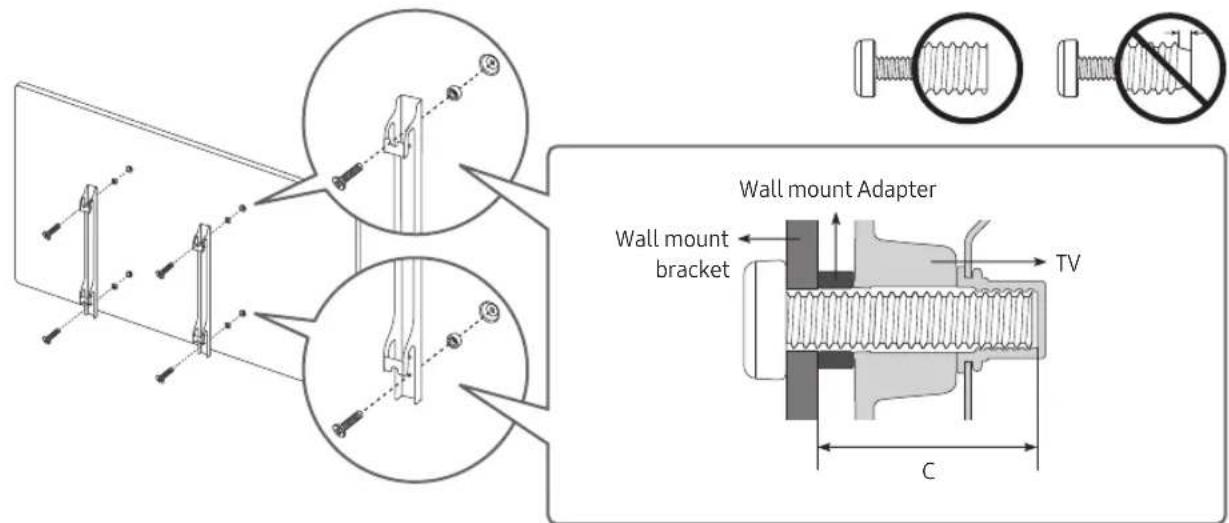
text_image
Wall mount Adapter Wall mount bracket TV C- Samsung Electronics is not responsible for any damage to the product or injury to yourself or others if you choose to install the wall mount on your own.
- You can install your wall mount on a solid wall perpendicular to the floor. Before attaching the wall mount to surfaces other than plaster board, contact your nearest dealer for additional information. If you install the TV on a ceiling or slanted wall, it may fall and result in severe personal injury.
- Standard dimensions for wall mount kits are shown in the table on the next page.
- If you are installing a third-party wall mount, note that the length of the screws you can use to attach the TV to the wall mount is shown in column C in the table on the next page.
- When installing a wall mount kit, we recommend you fasten all four VESA screws.
- If you want to install a wall mount kit that attaches to the wall using two top screws only, be sure to use a Samsung wall mount kit that supports this type of installation. (You may not be able to purchase this type of wall mount kit, depending on the geographical region.)
| TV size in inches | VESA screw hole specs (A * B) in millimetres | C (mm) | Standard Screw | Quantity | 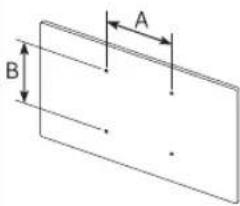 |
| 55 200 x | 200 | 41-43 M8 4 | |||
| 65 400 x | 300 | ||||

Do not install your wall mount kit while your TV is turned on. This may result in personal injury from electric shock.
- Do not use screws that are longer than the standard dimension or do not comply with the VESA standard screw specifications. Screws that are too long may cause damage to the inside of the TV set.
- For wall mounts that do not comply with the VESA standard screw specifications, the length of the screws may differ depending on the wall mount specifications.
- Do not fasten the screws too firmly. This may damage the product or cause the product to fall, leading to personal injury. Samsung is not liable for these kinds of accidents.
- Samsung is not liable for product damage or personal injury when a non-VESA or non-specified wall mount is used or when the consumer fails to follow the product installation instructions.
- Do not mount the TV at more than a 15 degree tilt.
• Always have two people mount the TV onto a wall.
Providing proper ventilation for your TV
When you install your TV, maintain a distance of at least 10 cm between the TV with other objects (walls, cabinet sides, etc.) to ensure proper ventilation. Failing to maintain proper ventilation may result in a fire or a problem with the product caused by an increase in its internal temperature.
- When you install your TV with a stand or a wall mount, we strongly recommend you use parts provided by Samsung Electronics only. Using parts provided by another manufacturer may cause difficulties with the product or result in injury caused by the product falling.
| Installation with a stand Installation with a wall mount | ||
—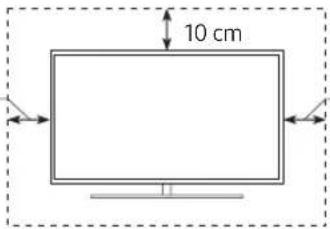 | 10 cm10 cm | —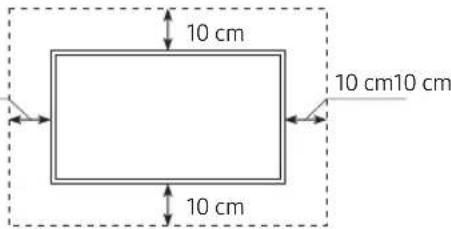 |
Attaching the TV to the Stand
Make sure you have all the accessories shown, and that you assemble the stand following the provided assembly instructions.
Safety Precaution: Securing the TV to the wall to prevent falling
text_image
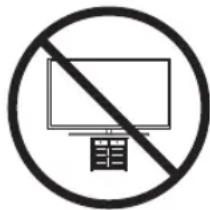
Prohibition sign with Chinese character '目' (item) inside a circle, indicating no prohibition or disapproval.Caution: Pulling, pushing, or climbing on the TV may cause the TV to fall. In particular, ensure your children do not hang on or destabilise the TV. This action may cause the TV to tip over, causing serious injuries or death. Follow all safety precautions provided in the Safety Flyer included with your TV. For added stability and safety, you can purchase and install the anti-fall device as described below.

WARNING: Never place a television set in an unstable location. The television set may fall, causing serious personal injury or death. Many injuries, particularly to children, can be avoided by taking simple precautions such as
- Using cabinets or stands recommended by the manufacturer of the television set.
- Only using furniture that can safely support the television set.
- Ensuring the television set is not overhanging the edge of the supporting furniture.
- Not placing the television set on tall furniture (for example, cupboards or bookcases) without anchoring both the furniture and the television set to a suitable support.
- Not placing the television set on cloth or other materials that may be located between the television set and supporting furniture.
- Educating children about the dangers of climbing on furniture to reach the television set or its controls.
If you are retaining and relocating the television set that you are replacing with this new set, you should apply the same precautions to the old set.
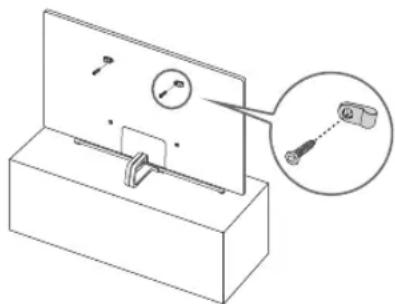
Preventing the TV from falling
- Using the appropriate screws, firmly fasten a set of brackets to the wall. Confirm that the screws are firmly attached to the wall.
- You may need additional material such as wall anchors depending on the type of wall.
- Using the appropriately sized screws, firmly fasten a set of brackets to the TV.
- For the screw specifications, refer to the standard screw part in the table under "Mounting the TV on a wall".
- Connect the brackets fixed to the TV and the brackets fixed to the wall with a durable, heavy-duty string, and then tie the string tightly.
- Install the TV near the wall so that it does not fall backwards.
- Connect the string so that the brackets fixed to the wall are at the same height as or lower than the brackets fixed to the TV.
natural_image
Technical line drawing of a mechanical assembly with a magnified inset showing a close-up detail (no text or symbols)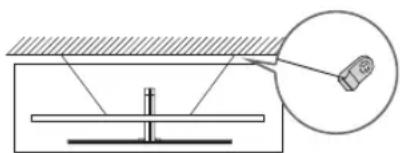
text_image
Technical diagram showing a mechanical setup with a cylindrical component and a magnified inset view of its detail.- The product colour and shape may vary depending on the model.
03 The Samsung Smart Remote
About the Buttons on the Samsung Smart Remote
- The images, buttons, and functions of the Samsung Smart Remote may differ depending on the model.
- The Universal Remote function operates normally only when you use the Samsung Smart Remote that comes with the TV.

(Power)
Press to turn the TV on or off.

(Colour / Number button)
Each time you press this button, the coloured buttons window and the virtual numeric pad are displayed alternately.
- Use these coloured buttons to access additional options specific to the feature you are using.
- Press to bring up the virtual numeric pad on the screen. Use the numeric keypad to enter numeric values. Select numbers and then select Done to enter a numeric value. Use to change the channel, enter a PIN, enter a ZIP code, etc.
- When pressed for 1 second or more, the TTX menu appears.
Select
Selects or runs a focused item. When pressed while you are watching a broadcast programme, detailed programme information appears.

(Return)
Returns to the previous menu. When pressed for 1 second or more, the running function is terminated. When pressed while you are watching a programme, the previous channel appears.

(Play/pause)
When pressed, the playback controls appear. Using these controls, you can control the media content that is playing.

(Smart Hub)
Returns to the Home Screen.

text_image
123 VOL CH NETFLIX prime video Rakuten TV SAMSUNG
(Bixby)
Runs Bixby. Press and hold the button, say a command, and then release the button to run Bixby. When you press the button, the Explore Now menu appears at the bottom of the screen.
• The supported Bixby's languages and features may differ by geographical region.

(Ambient Mode)
In TV mode, press this button to enter Ambient Mode.
If you press the button when the TV is turned off, the TV turns on in Ambient Mode.
- When pressed for 1 second or more, the Shortcuts menu screen appears.
Directional pad (up/down/left/right) Moves the focus and changes the value seen on the TV's menu.
VOL (Volume)
Move the button up or down to adjust the volume. To mute the sound, press the button. When pressed for 1 second or more, the Accessibility Shortcuts menu appears.
CH (Channel)
Move the button up or down to change the channel. To see the Guide screen, press the button.
- When pressed for 1 second or more, the Channel List screen appears.
Press each button to run its function.
Pairing the TV to the Samsung Smart Remote
flowchart
graph TD
    A["←"] --> B["→"]
    C["→"] --> D["→"]
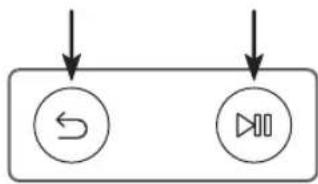
When you turn on the TV for the first time, the Samsung Smart Remote pairs to the TV automatically. If the Samsung Smart Remote does not pair to the TV automatically, point it at the remote control sensor of the TV, and then press and hold the buttons labelled 📋 and 🕒 shown in the figure on the left simultaneously for 3 seconds or more.
Installing batteries into the Samsung Smart Remote
text_image
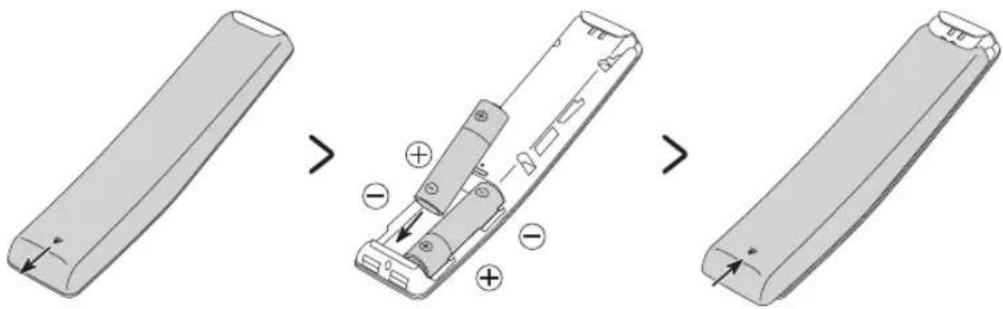
Diagram illustrating the process of inserting a battery into a motor, showing step-by-step states with polarity indicators.To install the batteries, push the rear cover open in the direction of the arrow at the bottom of the illustration, and then insert the batteries as shown in the figure. Make sure that the positive and negative ends are facing in the correct direction. Close the rear cover as shown.
- Alkaline batteries are recommended for longer battery life.
04 Running the Initial Setup
When you turn on your TV for the first time, it immediately starts the Initial Setup. The Initial Setup allows you to configure the basic settings for the TV to operate, such as broadcast reception, channel search, and network connection, at one time.
- Before starting the Initial Setup, be sure to connect external devices first.
- To use the TV's smart features, the TV must be connected to the Internet.
- To perform Initial Setup using the SmartThings app, you must connect your mobile device via Wi-Fi.
- If the pop-up for setup does not appear automatically on the SmartThings app on your mobile device, continue setup manually after adding the TV using Add Device on the dashboard of the SmartThings app.
- The SmartThings app is available for mobile devices running Android 6.0 or higher or iOS 10 or higher.
- Noise may occur temporarily when the TV communicates with mobile devices.
You can also start the Initial Setup using the TV's menu (图标 > Settings > General > Reset).
Follow the instructions displayed on the Initial Setup screen and configure the TV's basic settings to suit your viewing environment.
Using the TV Controller
You can use the TV Controller on the bottom of the TV instead of the remote control to control most of the functions of your TV. While watching TV, you can change the channel by pressing the up and down directional buttons on the TV Controller or adjust the volume by pressing the left and right directional buttons. Press the ⏻ on the TV Controller to display the Control menu.
To run an item on the menu, press the directional buttons on the TV Controller to move the focus to the item, and then press the ⏻ button on the TV Controller.
- The screen may dim if the protective film on the SAMSUNG logo or the bottom of the TV is not detached. Please remove the protective film.
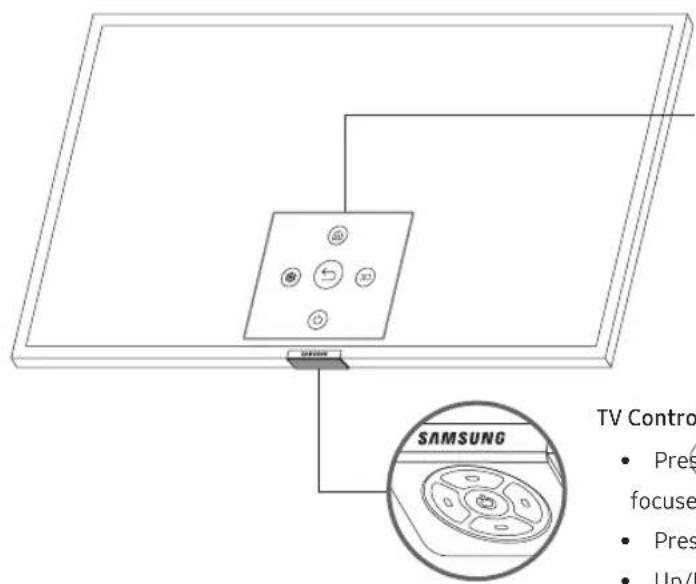
text_image
SAMSUNG TV Contro • Pres/ focuse • Pres • Up/Control menu
Smart Hub
Settings
←: Return
: Source
Power off
TV Controller / Remote control sensor
- Press button: Display the Control menu. / Select or run a focused item on the menu.
- Press and hold button: The running function is terminated.
- Up/Down button: Changes the channel.
• Left/Right button: Changes the volume.
The TV Controller is located on the bottom of the TV.
05 Connecting to a Network
Connecting the TV to a network gives you access to online services, such as Smart Hub, as well as software updates.
Network Connection - Wireless
Connect the TV to the Internet using a standard access point or modem.
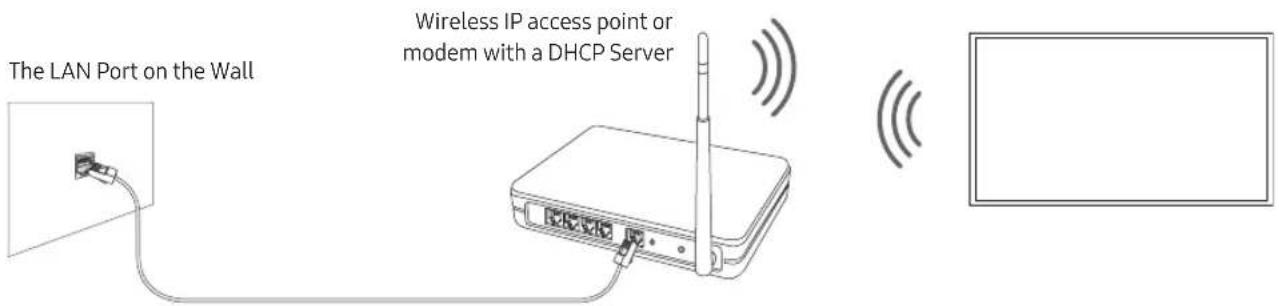
text_image
The LAN Port on the Wall Wireless IP access point or modem with a DHCP ServerLAN Cable (Not Supplied)
Network Connection - Wired
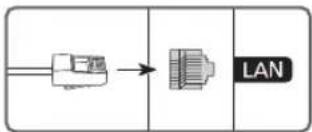
flowchart
graph LR
    A["Device"] --> B["LAN"]
Connect your TV to the network using a LAN cable.
- The TV will not be able to connect to the Internet if your network speed is below 10 Mbps.
• Use Cat7 (*STP Type) cable for the connection.
* Shielded Twisted Pair
06 Troubleshooting and Maintenance
Troubleshooting
If the TV seems to have a problem, first review this list of possible problems and solutions. Alternatively, review the Troubleshooting Section in the e-Manual. If none of these troubleshooting tips apply, please visit "www.samsung.com" and click on Support, or contact the call centre listed on the back cover of this manual.
- This TFT LED panel is made up of sub pixels which require sophisticated technology to produce. There may be, however, a few bright or dark pixels on the screen. These pixels will have no impact on the performance of the product.
- To keep your TV in optimum condition, upgrade to the latest software. Use the Update Now or Auto update functions on the TV's menu (图标 > Settings > Support > Software Update > Update Now or Auto update).
The TV won't turn on.
- Make sure that the AC power cord is securely plugged in to the TV and the wall outlet.
- Make sure that the wall outlet is working and the power indicator at the bottom of the TV is lit and glowing a solid red.
- Try pressing the ⏻ button at the bottom of the TV to make sure that the problem is not with the remote control. If the TV turns on, refer to "The remote control does not work".
There is no picture/video/sound, or a distorted picture/video/sound from an external device, or "Weak or No Signal" is displayed on the TV, or you cannot find a channel.
- Make sure the connection to the device is correct and that all cables are fully inserted.
- Remove and reconnect all cables connected to the TV and the external devices. Try new cables if possible.
- Confirm that the correct input source has been selected (☐ > ☐ Source).
- Perform a TV self diagnosis to determine if the problem is caused by the TV or the device ( Settings > Support > Self Diagnosis > Start Picture Test or Start Sound Test).
- If the test results are normal, reboot the connected devices by unplugging each device's power cord and then plugging it in again. If the issue persists, refer to the connection guide in the user manual of the connected device.
- If you are not using a cable box or satellite box, and your TV is receiving TV signals from an antenna or a cable wall connector, run Auto Tuning to search for channels > Settings > Broadcasting > (Auto Tuning Settings) > Auto Tuning).
- The Auto Tuning Settings may not appear depending on the model or geographical area.
- If you are using a cable box or satellite box, please refer to the cable box or satellite box manual.
The Cl+ does not work.
- Your Samsung TV conforms to the CI+ 1.4 standards.
- Where a CI+ Common Interface module is incompatible with this device, then please remove the module and contact the CI+ operator for assistance.
The remote control does not work.
- Check if the power indicator at the bottom of the TV blinks when you press the remote's Power button. If it does not, replace the remote control's batteries.
- Make sure that the batteries are installed with their poles (+/−) in the correct direction.
- Try pointing the remote directly at the TV from 1.5-1.8 m away.
- If your TV came with a Samsung Smart Remote (Bluetooth Remote), make sure to pair the remote to the TV.
The cable box or satellite box remote control doesn't turn the TV on or off or adjust the volume.
- Programme the cable box or satellite box remote control to operate the TV. Refer to the cable box or satellite box user manual for the SAMSUNG TV code.
The TV settings are lost after 5 minutes.
- The TV is in the Retail Mode. Change the Usage Mode in the General Menu to Home Mode (Settings > General > System Manager > Usage Mode > Home Mode).
Intermittent Wi-Fi
- Make sure the TV has a network connection ( Ⓞ > Settings > General > Network > Network Status).
• Make sure the Wi-Fi password is entered correctly. - Check the distance between the TV and the modem or access point. The distance should not exceed 15.2 m.
- Reduce interference by not using or turning off wireless devices. Also, verify that there are no obstacles between the TV and the modem or access point. (The Wi-Fi strength can be decreased by appliances, cordless phones, stone walls/fireplaces, etc.)
Single story Multi story
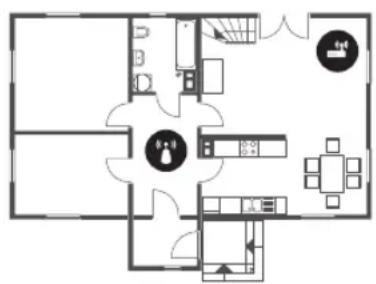
natural_image
Floor plan diagram of a residential area with furniture layout (no text or labels)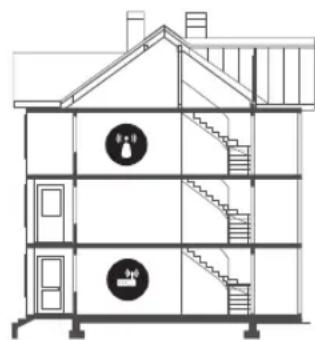
natural_image
Architectural cross-section diagram of a multi-story building with staircases and stairs (no text or labels)
Wireless access point

Wireless repeater
- Contact your Internet Service Provider (ISP) and ask them to reset your network circuit to re-register the MAC addresses of your new modem or access point and the TV.
Video Apps problems (Youtube etc)
- Change the DNS to 8.8.8.8. Select > Settings > General > Network > Network Status > IP Settings > DNS setting > Enter manually > DNS Server > enter 8.8.8.8 > OK.
- Reset by selecting > Settings > Support > Self Diagnosis > Reset Smart Hub.
What is Remote Support?
Samsung Remote Support service offers you one-on-one support with a Samsung Technician who can remotely:
- Diagnose your TV
- Adjust the TV settings for you
• Perform a factory reset on your TV
• Install recommended firmware updates
How does Remote Support work?
You can easily get Samsung Remote Support service for your TV:
- Call the Samsung Contact Centre and ask for remote support.
- Open the menu on your TV and go to the Support section. ( ⓗ > ⚙ Settings > Support)
- Select Remote Management, then read and agree to the service agreements. When the PIN screen appears, provide the PIN number to the technician.
- The technician will then access your TV.
Eco Sensor and screen brightness
natural_image
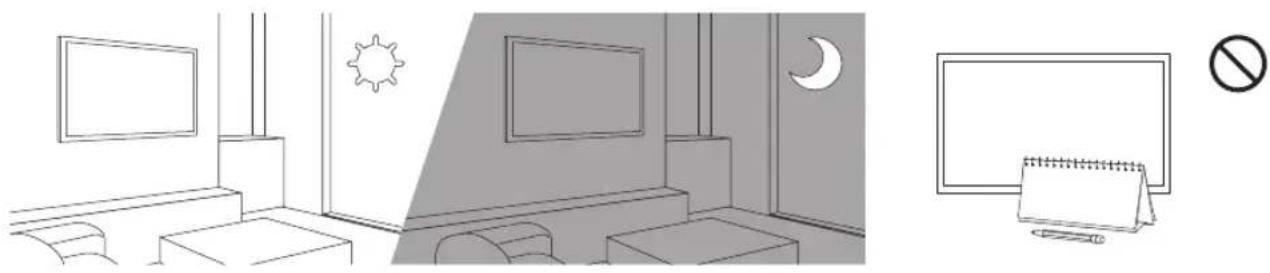
Interior and exterior views of a modern living room with TV, night sky, and no-smoking sign (no text or symbols on main objects)Eco Sensor adjusts the brightness of the TV automatically. This feature measures the light in your room and optimises the brightness of the TV automatically to reduce power consumption. If you want to turn this off, go to 📄 > Settings > General > Eco Solution > Ambient Light Detection.
- If the screen is too dark while you are watching TV in a dark environment, it may be due to the Ambient Light Detection function.
- The eco sensor is located at the bottom of the TV. Do not block the sensor with any object. This can decrease picture brightness.
Caring for the TV
- If a sticker was attached to the TV screen, some debris can remain after you remove the sticker. Please clean the debris off before watching TV.
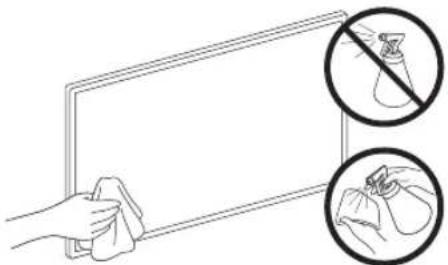
- The exterior and screen of the TV can get scratched during cleaning. Be sure to wipe the exterior and screen carefully using a soft cloth to prevent scratches.
- Do not spray water or any liquid directly onto the TV. Any liquid that goes into the product may cause a failure, fire, or electric shock.
- To clean the screen, turn off the TV, then gently wipe away smudges and fingerprints on the panel with a micro-fiber cloth. Clean the body or panel of the TV with a micro-fiber cloth dampened with a small amount of water. After that, remove the moisture with a dry cloth. While cleaning, do not apply strong force to the surface of the panel because it can damage the panel. Never use flammable liquids (benzene, thinner, etc.) or a cleaning agent. For stubborn smudges, spray a small amount of screen cleaner on a micro-fiber cloth, and then use the cloth to wipe away the smudges.
natural_image
Illustration of a hand cleaning a board with two circular insets showing a hand holding a bag and another pointing to a bag (no text or symbols present)07 Specifications and Other Information
Specifications
| Model Name GQ55Q80R / QE55Q80R GQ65Q80R / QE65Q80R | ||
| Display Resolution | 3840 x 2160 3840 x 2160 | |
| Screen Size | 55 inches | 65 inches |
| Measured Diagonally | 138 cm | 163 cm |
| Sound (Output) | 40 W 40 W | |
| Dimensions (W x H x D) | ||
| Body | 1230.6 x 708.1 x 61.9 mm | 1449.5 x 831.2 x 61.9 mm |
| With stand | 1230.6 x 792.6 x 237.5 mm | 1449.5 x 918.4 x 322.6 mm |
| Weight | ||
| Without Stand | 18.4 kg | 25.2 kg |
| With Stand | 20.9 kg | 28.2 kg |
Environmental Considerations
| Operating Temperature | 10°C to 40°C (50°F to 104°F) |
| Operating Humidity | 10% to 80%, non-condensing |
| Storage Temperature | -20°C to 45°C (-4°F to 113°F) |
| Storage Humidity | 5% to 95%, non-condensing |
- The design and specifications are subject to change without prior notice.
- For information about the power supply, and more information about power consumption, refer to the label-rating attached to the product.
• Typical power consumption is measured according to IEC 62087. - You can see the label-rating attached to the back of the TV. (For some models, you can see the label-rating inside the cover terminal.)
Decreasing power consumption
When you shut the TV off, it enters Standby mode. In Standby mode, it continues to draw a small amount of power. To decrease power consumption, unplug the power cord when you don't intend to use the TV for a long time.
Licences
DOLBY AUDIO™
POWERED BY
QUICK SET®
rovi guide
HEVCAvance™ Covered by Patents at patentlist.hevcadvance.com
HDMI ^TM
The terms HDMI and HDMI High-Definition Multimedia Interface, and the HDMI Logo are trademarks or registered trademarks of HDMI Licensing LLC in the United States and other countries.
Recommendation - EU Only
CE
Hereby, Samsung Electronics, declares that this equipment is in compliance with Directive 2014/53/EU. The full text of the EU declaration of conformity is available at the following internet address: http://www.samsung.com go to Support > Search Product Support and enter the model name.
This equipment may be operated in all EU countries.
The 5 GHz WLAN(Wi-Fi) function of this equipment may only be operated indoors.
BT max transmitter power : 100mW at 2.4GHz - 2.4835GHz
Wi-Fi max transmitter power : 100mW at 2.4GHz-2.4835GHz, 5.15GHz-5.35GHz & 5.47GHz-5.725GHz
For information on Samsung's environmental commitments and product-specific regulatory obligations, e.g. REACH, WEEE, Batteries, visit http://www.samsung.com/uk/aboutsamsung/samsungelectronics/corporatecitizenship/data_corner.html
WARNING - TO PREVENT THE SPREAD OF FIRE, KEEP CANDLES OR OTHER ITEMS WITH OPEN FLAMES AWAY FROM THIS PRODUCT AT ALL TIMES.

This page is intentionally left blank.
text_image
Prohibition sign with Chinese character '电脑' (computer) inside a circle, indicating no screen-only prohibition.text_image
Technical diagram showing a mechanical assembly with labeled components and an inset magnified view of a connector detail.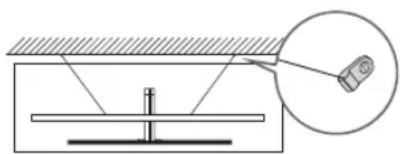
text_image
Technical diagram showing a mechanical setup with a cylindrical component and a magnified inset view of its cross-section.flowchart
graph TD
    A["↓"] --> B["←"]
    C["↓"] --> D["→"]
text_image
Diagram illustrating the process of removing a remote device into a battery, showing step-by-step disassembly and reassembly.natural_image
Floor plan diagram of a residential area with furniture layout (no text or labels)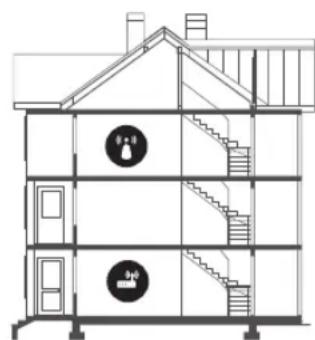
natural_image
Architectural cross-section diagram of a multi-story building with staircases and stairs (no text or labels)
natural_image
Interior and exterior views of a modern living room with TV, night sky, and no-smoking sign (no text or symbols on main objects)natural_image
Illustration of a hand cleaning a blank board with two circular insets showing a hand holding a bag and another pointing at it (no text or symbols)HEVCAvance™ Covered by Patents at patentlist.hevcadvance.com
HDMI ^TM HIGH-DEFINITION MULTIMEDIA INTERFACE
The terms HDMI and HDMI High-Definition Multimedia Interface, and the HDMI Logo are trademarks or registered trademarks of HDMI Licensing LLC in the United States and other countries.
Empfehlung - Nur EU
CE
text_image
Prohibition sign with Chinese character '电' and monitor icon, enclosed in a circletext_image
Technical diagram showing a mechanical assembly with labeled components and an inset magnified view of a connector detail.
natural_image
Technical diagram showing a mechanical setup with a lever and a magnified inset of a cylindrical component (no text or symbols)flowchart
graph TD
    A["↓"] --> B["←"]
    C["↓"] --> D["→"]
text_image
Diagram illustrating the process of moving a remote control panel, showing step-by-step states of battery movement.text_image
Architectural floor plan and staircase layout diagrams with labeled rooms and staircases
natural_image
Interior and exterior views of a modern living room with TV, night sky, and no-smoking sign (no text or symbols on main objects)natural_image
Illustration of a hand cleaning a tablet with two circular insets showing a hand holding a cloth and another pointing at a bag (no text or symbols)HEVCAvance™ Covered by Patents at patentlist.hevcadvance.com
HDMI ^TM HIGH-DEFINITION MULTIMEDIA INTERFACE
The terms HDMI and HDMI High-Definition Multimedia Interface, and the HDMI Logo are trademarks or registered trademarks of HDMI Licensing LLC in the United States and other countries.
natural_image
Simple line drawing of a cylindrical object with the label 'x 4' below it (no other text or symbols)text_image
Prohibition sign with Chinese character '电脑' (computer) and a diagonal line, commonly used for media or video platforms.natural_image
Technical diagram of a mechanical assembly with a magnified inset showing a close-up of a component (no text or symbols present)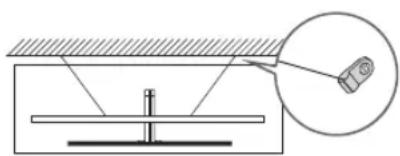
natural_image
Diagram of a mechanical setup with a lever and a magnified inset showing a cylindrical component (no text or symbols)flowchart
graph TD
    A["↓"] --> B["←"]
    C["↓"] --> D["→"]
text_image
Diagram illustrating the process of moving a remote control panel, showing step-by-step states of battery movement.natural_image
Interior and exterior views of a modern living room with TV, night sky, and no-smoking sign (no text or symbols on main objects)natural_image
Illustration of a hand cleaning a tablet with two circular insets showing the same hand and cloth (no text or symbols)HEVCAvance™ Covered by Patents at patentlist.hevcadvance.com
HDMI ^TM
The terms HDMI and HDMI High-Definition Multimedia Interface, and the HDMI Logo are trademarks or registered trademarks of HDMI Licensing LLC in the United States and other countries.
Contact SAMSUNG WORLD WIDE
If you have any questions or comments relating to Samsung products, please contact the SAMSUNG customer care centre.
| Country | Customer Care Centre | Web Site |
| AUSTRIA | 0800-SAMSUNG (0800-7267864)[Only for Dealers] 0810-112233 | www.samsung.com/at/support |
| BELGIUM 02-201-24-18 | www.samsung.com/be/support (Dutch)www.samsung.com/be_fr/support (French) | |
| BOSNIA 055 233 999 www.samsung.com/support | ||
| ALBANIA 045 620 202 www.samsung.com/al/support | ||
| BULGARIA | *3000 Цена в мрежата0800 111 31, Безплатна телефонна линия | www.samsung.com/bg/support |
| CROATIA 072 726 786 www.samsung.com/hr/support | ||
| CZECH | 800 - SAMSUNG (800-726786) www.samsung.com/cz/support | |
| Samsung Electronics Czech and Slovak, s.r.o. V Parku 2323/14, 148 00 - Praha 4 | ||
| DENMARK 707 019 70 www.samsung.com/dk/support | ||
| FINLAND 030-6227 515 www.samsung.com/fi/support | ||
| FRANCE 01 48 63 00 00 www.samsung.com/fr/support | ||
| GERMANY | 06196 77 555 77 | www.samsung.com/de/support |
| CYPRUS | 8009 4000 only from landline, toll free | www.samsung.com/gr/support |
| GREECE | 80111-SAMSUNG (80111 726 7864) only from land line(+30) 210 6897691 from mobile and land line | |
| HUNGARY | 0680SAMSUNG (0680-726-7864) | www.samsung.com/hu/support |
| ITALIA | 800-SAMSUNG (800.7267864) | www.samsung.com/it/support |
| LUXEMBURG | 261 03 710 | www.samsung.com/be_fr/support |
| MONTENEGRO | 020 405 888 | www.samsung.com/support |
| SLOVENIA | 080 697 267 (brezplačna številka) | www.samsung.com/si/support |
| NETHERLANDS | 088 90 90 100 | www.samsung.com/nl/support |
| NORWAY | 21629099 | www.samsung.com/no/support |
| POLAND | 801-172-678* lub +48 22 607-93-33** (opłata według taryfy operatora) | www.samsung.com/pl/support |
| PORTUGAL | 808 207 267 | www.samsung.com/pt/support |
| ROMANIA | *8000 (apel in retea)08008-726-78-64 (08008-SAMSUNG) Apel GRATUIT | www.samsung.com/ro/support |
| SERBIA | 011 321 6899 | www.samsung.com/rs/support |
| SLOVAKIA | 0800 - SAMSUNG (0800-726 786) | www.samsung.com/sk/support |
| SPAIN | 0034902172678 | www.samsung.com/es/support |
| SWEDEN 0771 726 786 | www.samsung.com/se/support | |
| SWITZERLAND | 0800 726 78 64 (0800-SAMSUNG) | www.samsung.com/ch/support (German)www.samsung.com/ch_fr/support (French) |
| UK | 0330 SAMSUNG (7267864) | www.samsung.com/uk/support |
| IRELAND (EIRE) | 0818 717100 www.samsung.com/ie/support | |
| LITHUANIA | 8-800-77777 | www.samsung.com/lt/support |
| LATVIA | 8000-7267 | www.samsung.com/lv/support |
| ESTONIA | 800-7267 | www.samsung.com/ee/support |
| TURKEY | 444 77 11 | www.samsung.com/tr/support |