ManualGo.com
JJW3430WB - Cooker JennAir - Free user manual and instructions
Find the device manual for free JJW3430WB JennAir in PDF.


Download the instructions for your Cooker in PDF format for free! Find your manual JJW3430WB - JennAir and take your electronic device back in hand. On this page are published all the documents necessary for the use of your device. JJW3430WB by JennAir.
USER MANUAL JJW3430WB JennAir
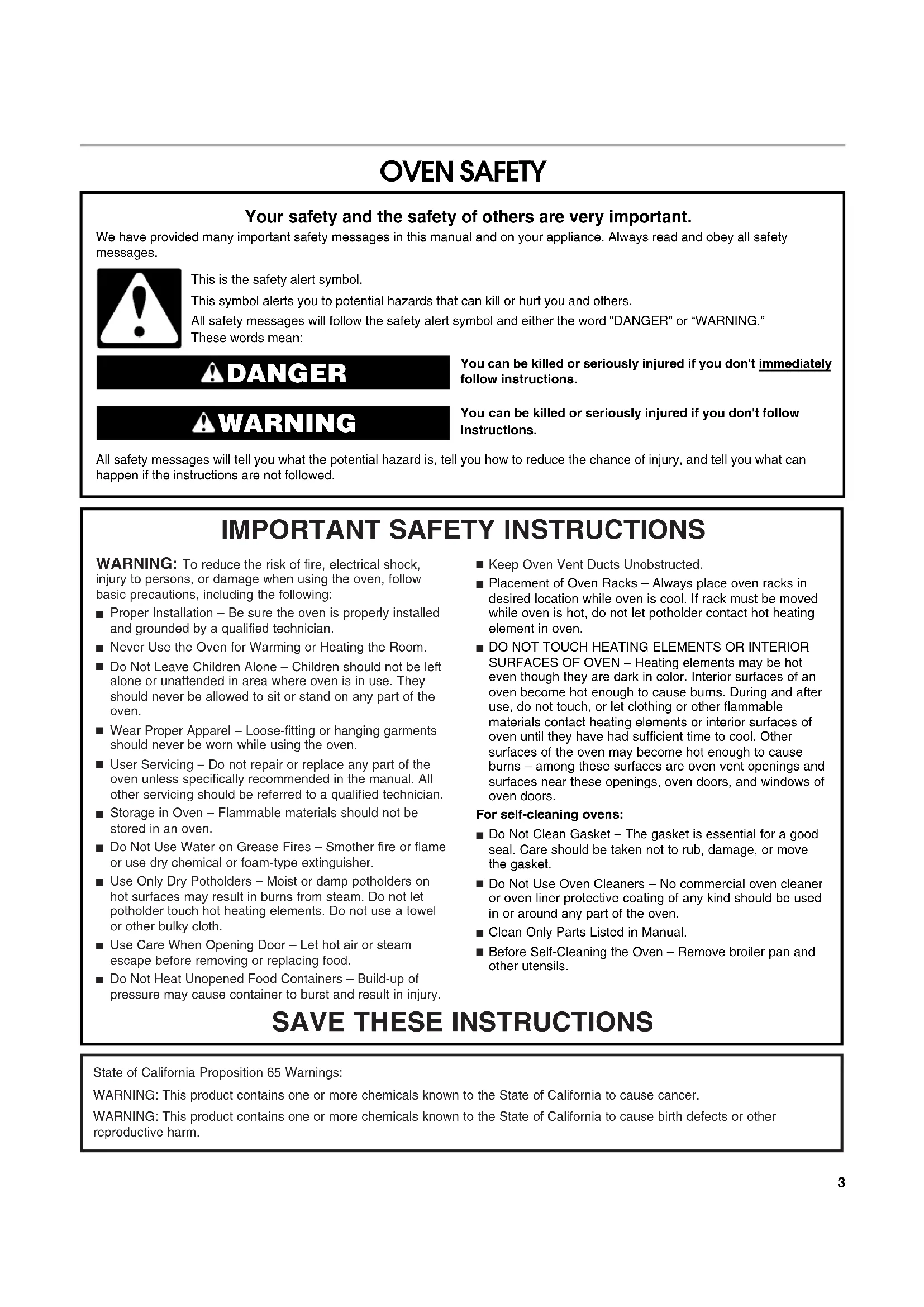
Accessoires ................................................................................69 Au Canada..................................................................................69 GARANTIE.....................................................................................703 OVEN SAFETY You can be killed or seriously injured if you don't immediately You can be killed or seriously injured if you don'tfollow All safety messages will tell you what the potential hazard is, tell you how to reduce the chance of injury, and tell you what can happen if the instructions are not followed. Your safety and the safety of others are very important. We have provided many important safety messages in this manual and on your appliance. Always read and obey all safety messages.This is the safety alert symbol.This symbol alerts you to potential hazards that can kill or hurt you and others.All safety messages will follow the safety alert symbol and either the word “DANGER” or “WARNING.”These words mean:follow instructions.instructions. DANGER WARNING
SAVE THESE INSTRUCTIONS
To reduce the risk of fire, electrical shock, injury to persons, or damage when using the oven, follow basic precautions, including the following: Proper Installation – Be sure the oven is properly installed and grounded by a qualified technician. Never Use the Oven for Warming or Heating the Room. Do Not Leave Children Alone – Children should not be left alone or unattended in area where oven is in use. They should never be allowed to sit or stand on any part of the oven. Wear Proper Apparel – Loose-fitting or hanging garments should never be worn while using the oven. User Servicing – Do not repair or replace any part of the oven unless specifically recommended in the manual. All other servicing should be referred to a qualified technician. Storage in Oven – Flammable materials should not be stored in an oven. Do Not Use Water on Grease Fires – Smother fire or flame or use dry chemical or foam-type extinguisher. Use Only Dry Potholders – Moist or damp potholders on hot surfaces may result in burns from steam. Do not let potholder touch hot heating elements. Do not use a towel or other bulky cloth. Use Care When Opening Door – Let hot air or steam escape before removing or replacing food. Do Not Heat Unopened Food Containers – Build-up of pressure may cause container to burst and result in injury. Keep Oven Vent Ducts Unobstructed. Placement of Oven Racks – Always place oven racks in desired location while oven is cool. If rack must be moved while oven is hot, do not let potholder contact hot heating element in oven. DO NOT TOUCH HEATING ELEMENTS OR INTERIOR SURFACES OF OVEN – Heating elements may be hot even though they are dark in color. Interior surfaces of an oven become hot enough to cause burns. During and after use, do not touch, or let clothing or other flammable materials contact heating elements or interior surfaces of oven until they have had sufficient time to cool. Other surfaces of the oven may become hot enough to cause burns – among these surfaces are oven vent openings and surfaces near these openings, oven doors, and windows of oven doors.For self-cleaning ovens: Do Not Clean Gasket – The gasket is essential for a good seal. Care should be taken not to rub, damage, or move the gasket. Do Not Use Oven Cleaners – No commercial oven cleaner or oven liner protective coating of any kind should be used in or around any part of the oven. Clean Only Parts Listed in Manual. Before Self-Cleaning the Oven – Remove broiler pan and other utensils. State of California Proposition 65 Warnings:WARNING: This product contains one or more chemicals known to the State of California to cause cancer.WARNING: This product contains one or more chemicals known to the State of California to cause birth defects or other reproductive harm.4
This manual covers different models. The oven you have purchased may have some or all of the items listed. The locations and appearances of the features shown here may not match those of your model. A. Electronic oven control B. Oven vent C. Model and serial number plate (on center vent under control panel) D. Broil elements E. Gasket F. Vent bottom G. Lower oven (on double oven models) H. Hidden bake element
I. Twin convection elements and fans
This manual covers different models. The oven you have purchased may have some or all of the items listed. The locations and appearances of the items shown here may not match those of your model. The oven's controls are accessed through its control panel and interactive touch display. NOTE: Due to the sensitivity of the control panel, we have provided special instructions for cleaning the panel as well as the touch control panel. See “General Cleaning” section for cleaning instructions. Single Oven Control Panel Double Oven Control Panel Control Panel The control panel houses the control menu and function controls. The control pads are very sensitive, and require only a light touch to activate. For more information about the individual controls, see their respective sections in this manual. Welcome Guide This appears on the display the first time the oven is powered up. The Welcome Guide allows you to set up your new oven.
1. Select the language by touching English or Français.
2. Select temperature degree units by touching Fahrenheit or
3. Select clock units by touching AM/PM or 24-HOUR (military).
4. Select YES or NO for Daylight Savings - Time Observed.
6. Enter current clock time using the on-screen number
7. Touch AM or PM and ANALOG or DIGITAL for clock style.
9. Select today’s date by using the on-screen keyboard and use
the buttons “<” and “>” to enter the month and year.
11. Use the page up and page down arrows to select a screen
appearance to match your oven.
12. Toggle between Orange and Blue to define your accent color.
13. Toggle between ON or OFF as options to show animation
14. Select DONE. This will save your adjustments.
15. See “Setup Menu” section for more detailed information.
Display When the oven (s) are in use (active mode), the display shows the clock, mode, oven temperature and timer, if set. If the timer is not set, you can set it from this screen. After approximately 2 minutes of inactivity, the display will go into standby (sleep) mode and the backlight of the display will dim. When the oven is in operation, the display will remain active. During programming, the display shows menus and the appropriate selections for the respective cooking function. Interactive Touch Display Touch the Interactive Touch Display (Clock display) to access the Home Menu screen. From the Home and Modes Menu, all automatic cooking programs can be activated; all manual cooking can be programmed; settings can be adjusted; and instructions, preparation and tips can be accessed. Home Menu Screen Modes Menu Screen Temperature Menu Screen Cook Time Menu Screen7 Menu Demonstration The following demonstrates how to program a Bake cycle, starting at the Modes menu.
3. Touch the Temperature tab to move to the Temperature
screen. Use the slider to enter a desired cooking temperature or touch the -5ºF (-1ºC) or +5ºF (+1ºC) buttons. The temperature must be between 170ºF (77ºC) and 550ºF (288ºC).
4. Touch START to begin preheating the oven.
5. If a programmed cook time is desired, touch TIMER NOT SET
to enter the Cook Time screen. Enter a cooking length using the on-screen number keyboard to set a timer to alert when cooking ends. The time length may not exceed 12:00:00. The oven will turn off when the cook time expires.
6. (Optional) To set a delayed start, touch DELAY START from
the Cook Time screen and set desired time. A second way to set a delay start is to touch DELAY START from the Temperature tab. See “Delay Start” section for additional information.
7. (Optional) To keep food warm after a programmed cook timer
ends, turn Keep warm ON from the Cook Time screen. See the “Keep Warm™ Option” section for additional information.
8. Press START to begin preheating the oven.
9. Place food in the oven when preheat signal sounds. The
screen will say “Insert food and start timer” if timer is set. If timer is not set, “Insert food and set timer if desired” will be displayed. If a delayed start is programmed, place food in oven when setting the mode. NOTE: Do not use Delay Start for items that require a preheated oven, such as cakes, cookies, and breads. If food is in the oven during preheat, it may become overcooked.
10. To change a mode, temperature or cook time while the oven
is active, touch the appropriate tab, make new selection and select OK.
12. If the cook timer was set, the oven will signal when timer
expires. If Keep Warm was not previously set, it can be set when cook timer expires. Kitchen Timer The Kitchen Timer is an independent timer not associated with the Cook Timers.
1. Touch the KITCHEN TIMER button anytime needed.
3. Touch CLEAR to clear timer back to (00:00:00).
4. Touch START TIMER to initiate the function.
While the Kitchen Timer is running, the timer is minimized to the bar at the right-hand side of the screen.
5. To adjust the Kitchen Timer while running, touch ADJUST and
choose “Cancel” or use the on-screen number keyboard to re-enter a new time.
6. If “Cancel” is touched, the timer is canceled and the panel is
7. When the Kitchen Timer is complete, a beep will sound.
8. If CLOSED is touched, the timer is minimized to the right side
9. When time expires, it is possible to add extra time by
touching the Add More Time button. Use the on-screen number keyboard to enter additional time.
10. To remove the panel, touch OK.
Setup Menu This oven provides ability to control several of the default settings and access information through the on-screen display. These include: Button/Screen Lock, Automatically Lock After Each Use, Clock, Date, Sound Volume, Screen Theme, Screen Brightness, Language, Temperature Units, Self-Clean, Sabbath Mode, Temperature Calibration, Touch Screen Calibration, Reset All Settings to Factory Default, and Service Information. NOTE: If oven is in use, the Setup Menu is disabled. To access the Setup menu:
1. Touch SETUP MENU.
2. Use the page up and page down arrows on the right-hand of
the screen to view and access settings. WARNING Food Poisoning Hazard Do not let food sit in oven more than one hour before or after cooking. Doing so can result in food poisoning or sickness.8 Button/Screen Lock The Button/Screen Lock function allows all the buttons and screen to be locked. This setting is automatically disabled if the Kitchen Timer is running or the oven is in use. Touch UNLOCKED at right-hand side of screen beside “Button/ Screen Lock” to lock. Slide bar up on main screen to unlock button/screen. Automatically Lock After Each Use Touch ON/OFF at the right-hand side of screen, beside the “Automatically Lock After Each Use” option in the Setup Menu to activate or deactivate this function. Clock
1. From the Setup Menu, touch the button beside Clock.
2. Enter the time using the on-screen number keyboard. A valid
time must be entered in order to save the settings.
5. Touch ON/OFF to toggle between Auto Daylight Savings
Time. When “On,” the clock will automatically be adjusted when daylight saving time occurs.
6. Choose ANALOG or DIGITAL for clock style.
7. Touch SAVE. This will return you to Clock Screen.
1. From the Setup Menu, touch the button at right-hand side of
2. Enter the day using the on-screen keyboard.
5. Touch SAVE. This will return you to the Clock Screen.
1. From the Setup Menu, touch the button at right-hand side of
screen beside Sound Volume.
2. Adjust the timer, button press, or alert sounds; use the slider
bar to enter desired sound levels.
3. Touch ON/OFF to toggle between settings for start-up and
shut-down sounds. When “On,” the oven will make a sound when it transitions in and out of idle mode. When “Off,” no sounds will be made.
4. If the Cancel button is touched, the sounds settings will go to
the previous set level.
5. Touch SAVE. This will return you to the Clock Screen.
of screen beside Screen Theme.
2. Use the page up and down arrows to select a screen
appearance to match your oven.
3. Select Orange or Blue to define your accent color, when
4. Touch SAVE. This will return you to the Clock screen. The
following message will show: “You have selected a new theme. The oven will reset momentarily. Please wait.” It will take 1 minute to restart the oven with the new settings. Screen Brightness
1. From the Setup Menu, touch the button at the right-hand side
of the screen beside Screen Brightness.
2. Use the slider bar to adjust the screen brightness.
3. Choose “Dim The Screen” or “Turn-Off The Screen” for use
when the oven has been idle for 5 minutes.
4. If the Cancel button is touched, the screen brightness will go
to the previous set level and return you to the clock display screen.
5. Touch SAVE. This will return you to the Clock Screen.
of screen beside Language.
2. From the Language Menu, select your language: English or
3. If Cancel button is touched, the language will go back to the
4. Touch SAVE. This will return you to the Clock Screen.
of screen beside Temperature Units.
Self-Clean This setting is disabled while oven is in use. See the “CustomClean™ Self-Cleaning with Adjustable Levels and Auto Lock” section. Sabbath Mode The Sabbath Mode sets the oven to remain on in a bake setting until turned off. A timed Sabbath Mode can also be set to keep the oven on for only part of the Sabbath. When the Sabbath Mode is set, only the number and start keys will function. No tones will sound, and the display will not show messages or temperatures changes. When the oven door is opened or closed, the oven light will not turn on or off and the heating elements will not turn on or off immediately.9 If a power failure occurs when the Sabbath Mode is set, the oven(s) will remain in Sabbath Mode but will no longer be actively cooking. When power returns, the display will initially show the Jenn-Air start-up screen. After a short delay, the display will return to the Sabbath Mode enable screen. Touch Cook Settings to return to the Sabbath Mode set up menu or touch Cancel to return to the normal operating mode (non-Sabbath Mode, not cooking). NOTE: If you touch Sabbath Mode while the temperature probe is set, a message will appear saying “Probe not inserted.” Remove the probe and touch NEXT to enter the Sabbath Mode. Touch CANCEL to return to the Bake mode. To Use Sabbath Mode: The Sabbath Mode must be enabled each time it is used.
1. On the control panel, touch Setup Menu.
2. From the Setup Menu, use the page up and page down
arrows until Sabbath Mode appears and touch the “Next” button on right-hand side of screen.
3. From the Sabbath Mode Menu, read the on-screen
instructions and touch Off to turn Sabbath Mode On. NOTE: Sabbath Mode disables the 12-hour shutoff. All lights and displays are disabled so that no visible activity takes place when the oven door is opened.
4. On double ovens, select the cavity to set up by pressing the
quickset pad next to Upper or Lower.
5. Adjust temperature and cook time by touching the Cook
6. Select oven temperature. Use the slider to enter a desired
temperature or touch the -5°F (-1°C) or +5°F (+1°C) buttons to decrease or increase the temperature. The temperature must be between 170°F (77°C) and 550°F (288°C).
8. If desired, set the Cook Timer by using the on-screen number
keyboard. The time length may not exceed 12:00:00. When the timer ends, the oven cavity will stop heating.
10. On double ovens, repeat steps 3-9 to set the second cavity, if
11. (Optional) To set a Delayed Start, touch DELAY START and
set the desired time. See the “Delay Start” section for more information.
12. Press START to begin heating the oven.
13. Press CANCEL OVEN (CANCEL UPPER or CANCEL LOWER
on double oven models) to turn off the oven. To Disable Sabbath Mode: Sabbath Mode will automatically be disabled when a cook time ends, or can be disabled by pressing Cancel. “Sabbath Mode: OFF” will appear on screen. To program a new cycle, follow steps 2 to 11 in the “To Use Sabbath Mode” section. Touch OK to return to the Clock screen. To Change Temperature: Touch +25º or -25º once for each 25-degree change you wish to make. For example, if the oven is currently set to 350 degrees, press the +25º button 3 times to change the temperature to 425 degrees. NOTE: On double ovens, if both ovens are operating in Sabbath Mode, each oven temperature can be changed independently of the other. Press the +25º or -25º for the respective oven to change the temperature. This display will continue to show the original temperature and will not change. Temperature Calibration
1. From the Setup Menu, touch the button at the right-hand side
of screen beside Temperature Calibration.
2. On double oven models, select which oven to calibrate:
4. Select the temperature offset. Press -1° button if oven seems
too hot or +1° button if oven seems too cold. The oven can be adjusted +/- 35°F.
5. Touch SAVE and the adjustment has been made
offset to achieve maximum oven performance.
7. The display will say: “To use the Calibration Tool function,
place an oven thermometer in the middle of the oven.”
8. Touch NEXT. (After touching “Next,” the oven will heat to a
standard temperature.)
9. Allow the oven to heat. This process may take several
10. When the “Oven is ready” message appears, open the oven
door and read the temperature on the oven thermometer.
11. Enter the exact temperature. Use the buttons -1° or +1° to
decrease or increase the offset value by 1 degree.
13. The temperature offset will be calculated.
14. If CANCEL is touched the Temperature Calibration will be
Touchscreen Calibration IMPORTANT: If the buttons on the screen are difficult to touch accurately, you may need to calibrate the touchscreen. This process is recommended when the oven is installed under a counter.
1. From the Setup Menu, touch the button at the right-hand side
of screen beside Touchscreen Calibration.
2. You will be asked to touch and hold 3 targets to calibrate.
4. Touch and hold the center of the targets until the display
indicates to release them. WARNING Burn Hazard Use an oven mitt to remove temperature probe. Do not touch broil element. Failure to follow these instructions can result in burns. WARNING Food Poisoning Hazard Do not let food sit in oven more than one hour before or after cooking. Doing so can result in food poisoning or sickness.10
5. Test calibration by moving the circle around the screen.
Ensure you can reach all the corners.
6. Touch TRY AGAIN to run calibration again.
7. If CANCEL is touched, the Touchscreen Calibration will be
8. Touch SAVE. This will return you to the Clock screen.
of screen beside Reset All Settings to Factory Default.
2. Touch RESET or CANCEL.
3. If Reset is touched, the following sets will be lost: most used
modes/foods, My Creations, Date/Time, and Language. The Welcome Guide will appear to help you reset these settings. Service Information For more information, see the “Assistance or Service” section.
1. From the Setup menu, touch the button at right-hand side of
screen beside Service Information.
2. Choose ON or OFF for Demo Mode. The default option is off
when connected to 240V and on when connected to 120V.
3. If CANCEL is touched, the Service Information will go back to
the default setting.
4. Touch SAVE. This will return you to the Clock screen.
OVEN USE Odors and smoke are normal when the oven is used the first few times, or when it is heavily soiled. During oven use, the heating elements will not remain on, but will cycle on and off throughout oven operation. IMPORTANT: The health of some birds is extremely sensitive to the fumes given off. Exposure to the fumes may result in death to certain birds. Always move birds to another closed and well- ventilated room. Aluminum Foil IMPORTANT: To avoid permanent damage to the oven bottom finish, do not line the oven bottom with any type of foil or liner. ■ For best cooking results, do not cover entire rack with foil because air must be able to move freely. ■ To catch spills, place foil on rack below dish. Make sure foil is at least ½" (1.3 cm) larger than the dish and that it is turned up at the edges. Positioning Racks and Bakeware IMPORTANT: To avoid permanent damage to the porcelain finish, do not place food or bakeware directly on the oven door or bottom. RACKS ■ Position racks before turning on the oven. ■ Do not position racks with bakeware on them. ■ Make sure racks are level. Depending on the oven model, you could have flat, offset and/or roll-out racks. If “f” is after the rack position, the flat rack should be used. An “o” after the rack position indicates the offset rack should be used. An “r” indicates the roll-out rack should be used. For example: 1o, 3f, 5r indicates the use of the offset rack in rack position 1, the flat rack in position 3, and the roll-out rack in position 5. Refer to the section for the mode you are using for specific rack recommendations. BAKEWARE To cook food evenly, hot air must be able to circulate. Allow 2" (5.0 cm) of space around bakeware and oven walls. Roll-Out Rack The roll-out rack allows easy access to position and remove food in the oven. The roll-out rack will fit in all positions. Open Position Closed and Engaged Position To Insert Roll-Out Rack
1. Angle the rack assembly up and insert the back edge into the
“V” cutout in the rack guides of the oven cavity.
2. Keep the rack lifted at an angle and push in until the back
edge of the sliding rails (A) bypass the lower “V” cutout.
3. Angle the rack downward and continue to gently slide the
assembly in until the center brace (C) bypasses the “V” cutout.
4. Raise rack assembly to flat position and gently push to the
back of the oven until the back edge of the sliding rail drops.
A. Slide railsB. Sliding shelfC. Center brace
5. Pull the rack assembly slightly forward until the front edge
drops and the sliding rails are on the rack guide. To Remove Roll-out Rack
1. Push the sliding shelf in completely so that it is closed and
engaged with the slide rails.
2. Using 2 hands, lift up on the front edge of the rack assembly.
Slowly push the rack assembly to the back wall of the oven so the front edge of the sliding shelf sits on the rack guides on the side of the oven cavity. The front edge of the rack should be higher than the back edge.
3. Using 2 hands, lift up the back of the rack assembly so that
the front and back are level on the rack guides.
4. Pull the rack assembly out.
To avoid damage to the sliding shelves, do not place more than 25 lbs (11.4 kg) on the rack. Do not clean the roll-out rack in a dishwasher. It may remove the rack’s lubricant and affect its ability to slide. See the “General Cleaning” section for more information. Meat Thermometer On models without a temperature probe, use a meat thermometer to determine whether meat, poultry and fish are cooked to the desired degree of doneness. The internal temperature, not appearance, should be used to determine doneness. A meat thermometer is not supplied with this appliance. Follow manufacturer's directions for using a meat thermometer. Oven Vent(s) The oven vent(s) should not be blocked or covered since they allow the inlet of fresh air into the cooling system. Also, the bottom vent should not be blocked or covered since it allows the inlet of fresh air into the cooling system and the outlet of hot air from the cooling system. Blocking or covering vents will cause poor air circulation, affecting cooking, cleaning and cooling results. Cooking Functions The Home Tab allows for easy access to the Most Used Modes, Gourmet Guides, Probe, and My Creations.
1. Touch the MODES tab to move to the Modes menu.
2. From the Modes menu, select one of the following options:
Bake, No Preheat 1-rack Cooking, Broil, Keep Warm, Convect Bake, Convect Bake Rapid Preheat, Convect Broil, Convect Pastry, Convect Roast, Convect Slow Roast, True Convect, and Proof.
3. After touching the desired mode, you will move to the
temperature screen or touch the Temperature tab to move to the Temperature screen.
4. The default temperature and its range is shown in the
following table. To change the temperature, move the slider to enter a desired cooking temperature or touch the -5ºF (-1ºC) or +5ºF (+1ºC) buttons. A. “V” cutout B. Rack guide A. “V” cutout B. Rack guide A. Sliding shelf B. Slide rails C. Rack
5. If a programmed cook time is desired, touch TIMER NOT SET
to enter the Cook Time screen. Enter a cooking length using the on-screen number keyboard to set a timer to alert when cooking ends. The time length may not exceed 12:00:00. The oven will turn off when the cook time expires.
6. (Optional) To keep food warm after a programmed cook time
ends, turn Keep Warm ON from the Cook Time screen. See the “Keep Warm™ Option” section for additional information.
7. (Optional) To set a Delayed Start with a cook time, touch the
Timer Not Set/Cook Time screen and enter desired cook time. Select Delay Start, set desired start time and touch SET DELAY. To set a Delay Start only, touch DELAY START from the Temperature Tab, set desired time and touch SET DELAY. See “Delay Start” section for additional information.
8. Press START to begin cooking or activate Delay Start.
10. To change a mode, temperature or cook time while the oven
is active, touch the appropriate tab, make new selection and select OK. My Creations My Creations allows the customization of cooking processes. When My Creations is selected from the main menu a list of existing creations is presented along with the ability to create more.
1. From the Home tab, touch MY CREATIONS.
If nothing has yet been added to My Creations, a welcome screen will appear, explaining the feature and providing the option to create a new entry. It should read: “Save frequent recipe settings for easy access in the future! You may also link multiple modes together. For example, create a favorite lasagna recipe which bakes for 40 minutes, then broils 5 minutes at the end to brown the cheese.”
2. Touch CREATE NEW.
3. Select the desired cooking mode: Bake, No Preheat 1-rack
Cooking, Broil, Keep Warm, Convect Bake, Convect Bake Rapid Preheat, Convect Broil, Convect Pastry, Convect Roast, Convect Slow Roast, True Convect, and Proof.
5. Select the desired cooking temperature. Use the slider to
enter a desired cooking temperature or touch the 5ºF (-1ºC) or +5ºF (+1ºC) buttons, then touch NEXT.
6. Select how to monitor cooking: Timer (alerts you when a cook
timer is complete), Probe (alerts you when a target probe temperature is reached), or None (no alerts). Probe can be used for only Bake, Convect Bake and Convect Roast.
7. If Timer is chosen, enter the cook timer length using the
on-screen number keyboard and touch NEXT.
8. On Bake, Convect Bake or Convect Roast, the probe is
available. If the probe is desired, select Probe and the target probe internal temperature. Use the -5ºF (-1ºC) or +5ºF (+1ºC) buttons to decrease or increase the set temperature, then touch NEXT.
9. Touch ADD STAGE to enter new stage information.
10. Review your settings. Touch EDIT to re-enter the settings or
touch DELETE to immediately delete the stage.
11. Touch SAVE or SAVE & START.
When saving, you can enter a name for the food using an on-screen keyboard. Touch the Shift Lock button to make all letters as capitals (or to turn off the feature). Likewise, any letter typed with Shift Lock button on will be capital. Touch 123... button to change the on-screen keyboard to show numbers. Touch DELETE to delete the last character in the text box.
13. When coming from Culinary Center, repeat steps 10 to 12.
NOTE: If you would like to edit after saving the settings, enter My Creations from the Home Tab. Select the setting name you would like to edit and touch EDIT at the bottom of screen. Select Edit for the steps you want to edit then enter new settings. Culinary Center The Culinary Center is full of information to assist in baking and cooking a wide variety of foods. As you program this mode, you will make selections such as type of meat, vegetable, preferred doneness level, browning level, and pan type depending on the food. There are helpful tips and hints as you progress through the menu. The Culinary Center will make adjustments based on the doneness and pan you select. All of the selections cycle the appropriate elements and fans for the programmed food.
2. The food category buttons on the left of screen show the
available categories. Selecting these buttons will filter the list of foods to show only the ones from the category selected. At start-up, the choices are Beef, Lamb, Pork, Poultry, Seafood, Bread, Casserole, Dessert, Italian Favorites and Vegetables.
3. After selecting the category, select the specified food on
right-hand side of screen. Use the page up and page down arrows to view all choices in the category. At the bottom of the screen, food specific tips or descriptions will appear.
5. Select desired doneness level from available options. Food
tips will appear at the bottom of the screen.
7. Select the type of cookware and then touch Next. The
recommended pan is highlighted.
8. For items using the probe, follow steps 9-12. For foods that
do not use a probe, follow steps 14-17.
9. Insert long end of the probe so the tip is in the thickest part of
the food, but not touching bone or resting in fat. See additional information on screen.
11. Place food in oven on suggested rack. Information specific to
the selections you made will appear on the screen.
12. Connect the probe to the oven. See “Temperature Probe”
section for additional information. NOTE: When using the temperature probe, remove any racks above the food that are not in use.
13. Touch START to use these settings.
14. For foods that do not use a probe, enter a cooking
temperature recommended from your recipe or package. Use the slider to enter desired cooking temperature or touch -5°F (-1°C) or +5°F (+1°C), then touch NEXT.
15. Enter the cooking time(s). Using the on-screen number
keyboard, enter the recommended time and touch NEXT or enter the shortest time then select longer time.
16. When the shortest/longest time is entered, the cook time will
18. Review the settings that will be used as well as the additional
instructions, tips or descriptions. The adjusted cook time is calculated from the shortest and longest time you provide. Touch START to use these settings.
19. The oven will begin preheating.
20. Place food in the oven when preheating signal sounds. The
screen will say “Insert food and start timer, if desired.”
21. When the Cook Timer expires, the oven turns off. However,
you can repeat the batch or Add More Time. If you repeat the batch, the Cook Time is automatically set to the previously set time. Culinary Center Chart Information may vary based on your oven model. WARNING Burn Hazard Use an oven mitt to remove temperature probe. Do not touch broil element. Failure to follow these instructions can result in burns. Category Food Doneness Options (Bold choice indicates the recommended selections and default) Pan Options (Bold choice indicates recommended selection and default) Rack Beef Beef tenderloin Rare, medium rare, medium, medium well, well Broiling pan, roasting pan, disposable roasting pan, rectangular shiny baking dish, rectangular dark baking dish, rectangular glass baking dish, rectangular ceramic baking dish
London broil Rare, medium rare, medium Broiling pan 4r Meat loaf Probed or timed Shiny loaf pan, dark loaf pan, glass loaf pan, silicone loaf pan, ceramic loaf pan, square shiny baking dish, square dark baking dish, square glass baking dish, square silicone baking dish, square ceramic baking dish, rectangular shiny baking dish, rectangular dark baking sheet, rectangular glass baking dish, rectangular ceramic baking dish, broiling pan
Prime rib Rare, medium rare, medium, medium well, well Broiling pan, roasting pan, disposable roasting pan, rectangular shiny baking dish, rectangular dark baking dish, rectangular glass baking dish, rectangular ceramic baking dish 2r14 Round roast Rare, medium rare, medium, medium well, well Broiling pan, roasting pan, disposable roasting pan, rectangular shiny baking dish, rectangular dark baking dish, rectangular glass baking dish, rectangular ceramic baking dish
Rump roast Rare, medium rare, medium, medium well, well Broiling pan, roasting pan, disposable roasting pan, rectangular shiny baking dish, rectangular dark baking dish, rectangular glass baking dish, rectangular ceramic baking dish
Slow cook brisket 4-hour slow cook, 8-hour slow cook or 12-hour slow cook Roasting pan, disposable roasting pan, rectangular shiny baking dish, rectangular dark baking dish, rectangular glass baking dish, rectangular ceramic baking dish
Slow cook pot roast 4-hour slow cook, 8-hour slow cook or 12-hour slow cook Roasting pan, disposable roasting pan, rectangular shiny baking dish, rectangular dark baking dish, rectangular glass baking dish, rectangular ceramic baking dish
Veal loin roast Rare, medium rare, medium, medium well, well Broiling pan, roasting pan, disposable roasting pan, rectangular shiny baking dish, rectangular dark baking dish, rectangular glass baking dish, rectangular ceramic baking dish
Lamb Crown rib roast Rare, medium, well Broiling pan, roasting pan, disposable roasting pan, rectangular shiny baking dish, rectangular dark baking dish, rectangular glass baking dish, rectangular ceramic baking dish
Slow cook shank 4-hour slow cook, 8-hour slow cook Roasting pan, disposable roasting pan, rectangular shiny baking dish, rectangular dark baking dish, rectangular glass baking dish, rectangular ceramic baking dish
Pork Boston butt Boston butt - probed, 4-hour slow cook, 8-hour slow cook, 12-hour slow cook Broiling pan, roasting pan, disposable roasting pan, rectangular shiny baking dish, rectangular dark baking dish, rectangular glass baking dish, rectangular ceramic baking dish
Ham Baked ham Broiling pan, roasting pan, disposable roasting pan, rectangular shiny baking dish, rectangular dark baking dish, rectangular glass baking dish, rectangular ceramic baking dish
Pork chops 1 to 2 pork chops or 3 to 4 pork chops Broiling pan 4r Pork loin Roasted pork loin Broiling pan, roasting pan, disposable roasting pan, rectangular shiny baking dish, rectangular dark baking dish, rectangular glass baking dish, rectangular ceramic baking dish
Slow cook ribs 8-hour slow cook or 12-hour slow cook Roasting pan or disposable roasting pan 2r Category Food Doneness Options (Bold choice indicates the recommended selections and default) Pan Options (Bold choice indicates recommended selection and default) Rack15 Stuffed pork loin Roasted stuffed loin Broiling pan, roasting pan, disposable roasting pan, rectangular shiny baking dish, rectangular dark baking dish, rectangular glass baking dish, rectangular ceramic baking dish
Poultry Bone-in chicken breast Baked chicken breast Broiling pan 3r Boneless chicken breast Baked chicken breast Broiling pan 3r Breaded chicken breast Baked chicken breast Broiling pan 3r Chicken roaster Light, medium, dark Broiling pan, roasting pan, disposable roasting pan, rectangular shiny baking dish, rectangular dark baking dish, rectangular glass baking dish, rectangular ceramic baking dish
Pheasant Roasted pheasant Broiling pan, roasting pan, disposable roasting pan
Cinnamon rolls Light, medium, dark Shiny baking sheet, dark jelly roll pan, insulated baking sheet, stone baking sheet, round shiny cake pan, round dark cake pan, round silicone cake pan, round ceramic cake pan, rectangular shiny baking dish, rectangular dark baking dish, rectangular glass baking dish, rectangular ceramic baking dish
French bread/baguette Light, medium, dark Shiny baking sheet, dark jelly roll pan, insulated baking sheet
Frozen bread Light, medium, dark Shiny loaf pan, dark loaf pan, glass loaf pan, silicone loaf pan, ceramic loaf pan, shiny baking sheet, dark jelly roll pan, insulated baking sheet
Quick breads/muffins Light, medium, dark Dark loaf pan, shiny loaf pan, glass loaf pan, silicone loaf pan, ceramic loaf pan, shiny muffin pan, dark muffin pan, silicone muffin pan, stone muffin pan
Rapid proof Rapid proof Any cookie sheet, any loaf pan, any muffin pan
Category Food Doneness Options (Bold choice indicates the recommended selections and default) Pan Options (Bold choice indicates recommended selection and default) Rack16 Yeast bread Light, medium, dark Shiny loaf pan, dark loaf pan, glass loaf pan, silicone loaf pan, ceramic loaf pan, shiny baking sheet, dark jelly roll pan, insulated baking sheet
Casserole Brown rice Al dente or soft Square glass baking dish, square shiny baking dish, square dark baking dish, square silicone baking dish, square ceramic baking dish, rectangular shiny baking dish, rectangular dark baking dish, rectangular glass baking dish, rectangular ceramic baking dish
Chicken casserole Chicken casserole Rectangular shiny baking dish, rectangular dark baking dish, rectangular glass baking dish, rectangular ceramic baking dish
Sweet potato casserole Sweet potato casserole Rectangular shiny baking dish, rectangular dark baking dish, rectangular glass baking dish, rectangular ceramic baking dish
Tuna casserole Tuna casserole Rectangular shiny baking dish, rectangular dark baking dish, rectangular glass baking dish, rectangular ceramic baking dish
White rice Al dente or soft Square glass baking dish, square shiny baking dish, square dark baking dish, square silicone baking dish, square ceramic baking dish, rectangular shiny baking dish, rectangular dark baking dish, rectangular glass baking dish, rectangular ceramic baking dish
Dessert Brownies Cake-like or fudge-like Rectangular glass baking dish, square shiny baking dish, square dark baking dish, square glass baking dish, square silicone baking dish, square ceramic baking dish, rectangular shiny baking dish, rectangular dark baking dish, rectangular ceramic baking dish
Chocolate cake Chocolate Cake Rectangular glass baking dish, round shiny cake pan, round dark cake pan, round silicone cake pan, round ceramic cake pan, square shiny baking dish, square dark baking dish, square glass baking dish, square silicone baking dish, square ceramic baking dish, rectangular shiny baking dish, rectangular dark baking dish, rectangular ceramic baking dish
Cookies Light, medium, dark Shiny baking sheet, dark jelly roll pan, insulated baking sheet
Cupcakes Cupcakes Shiny muffin pan, dark muffin pan, silicone muffin pan, stone muffin pan Shiny, dark, silicone: 3f Stone: 3r Frozen pie Light, medium, dark Shiny baking sheet, dark jelly roll pan, insulated baking sheet
Pastries Pastries Shiny baking sheet, dark jelly roll pan, insulated baking sheet
Category Food Doneness Options (Bold choice indicates the recommended selections and default) Pan Options (Bold choice indicates recommended selection and default) Rack17 Pie shell Frozen pie shell or fresh pie shell FROZEN PIE SHELL: shiny baking sheet, dark jelly roll pan, insulated baking sheet; FRESH PIE SHELL: glass pie pan, shiny pie pan, dark pie pan, ceramic pie pan
Pound cake Pound cake Shiny loaf pan, dark loaf pan, glass loaf pan, ceramic loaf pan, shiny fluted/tube cake pan, dark fluted/tube cake pan, glass fluted/tube cake pan, silicone fluted/tube cake pan, ceramic fluted/tube cake pan Loaf pan: 3f Fluted pan: 2f Tube cake Tube cake Shiny fluted/tube cake pan, dark fluted/tube cake pan, glass fluted/tune cake pan, silicone fluted/tube cake pan, ceramic fluted/tube cake pan
White cake White cake Round shiny cake pan, round dark cake pan, round silicone cake pan, round ceramic cake pan, square shiny baking dish, square dark baking dish, square glass baking dish, square silicone baking dish, square ceramic baking dish, rectangular shiny baking dish, rectangular dark baking dish, rectangular glass baking dish, rectangular ceramic baking dish
Italian Favorites Frozen pizza Light, medium, dark No pan, perforated pizza pan, shiny pizza pan, silicone pizza pan, pizza stone - thick crust, pizza stone - thin crust, shiny baking sheet No pan, perforated pan, shiny baking sheet: 3f Shiny pizza pan, silicone pizza pan: 2f Pizza stone: 3r Homemade pizza Light, medium, dark Shiny pizza pan, perforated pizza pan, silicone pizza pan, pizza stone, shiny baking sheet Shiny pizza pan; perforated pizza pan, silicone pizza pan, shiny baking sheet: 2f; Pizza stone: 3r Lasagna Lasagna Rectangular shiny baking dish, rectangular dark baking dish, rectangular glass baking dish, rectangular ceramic baking dish
Macaroni and cheese Macaroni and cheese Rectangular shiny baking dish, rectangular dark baking dish, rectangular glass baking dish, rectangular ceramic baking dish
Tetrazzini Tetrazzini Rectangular shiny baking dish, rectangular dark baking dish, rectangular glass baking dish, rectangular ceramic baking dish
Roasted potatoes Roasted potatoes Dark jelly roll pan, roasting pan, disposable roasting pan, rectangular shiny baking dish, rectangular dark baking dish, rectangular glass baking dish, rectangular ceramic baking dish
Roasted vegetables Roasted vegetables Dark jelly roll pan, roasting pan, disposable roasting pan, rectangular shiny baking dish, rectangular dark baking dish, rectangular glass baking dish, rectangular ceramic baking dish
Category Food Doneness Options (Bold choice indicates the recommended selections and default) Pan Options (Bold choice indicates recommended selection and default) Rack18 Bake During baking, the appropriate heating elements and convect fans will cycle on and off in intervals to maintain the oven temperature. For best results, allow the oven to preheat before placing food in the oven. Bake is used to cook up to 2 racks of food.If the oven door is opened during baking, the heating elements will turn off approximately 30 seconds after the door is opened. They will turn on again approximately 30 seconds after the door is closed. Before Using Bake: Before using Bake, see the “Positioning Racks and Bakeware” section and the following tips for rack positions.NOTE: An “o” after the rack position number indicates that the offset rack should be used. An “f” indicates that the flat rack should be used, and an “r” indicates that the roll-out rack should be used.Rack positions1-rack baking: 3f2-rack baking: 2o and 4f or 2o and 4rFor meat and poultry: 2oFor best results when baking cakes on 2 racks, use racks 4r and 2o for baking. Place the cakes on the racks as shown. To Use Bake: 1. Touch MODES to move to the Modes menu.2. From the Modes menu, touch BAKE.3. After touching Bake, you will move to the Temperature screen, or you may touch the Temperature tab to move to the Temperature screen. Use the slider to enter a desired cooking temperature or touch the -5°F (-1°C) or +5°F (+1°C) buttons. The temperature must be between 170°F (77°C) and 550°F (288°C).4. Touch START to begin preheating oven or to start the Delay Timer. 5. If a programmed cook time is desired, touch TIMER NOT SET to enter the Cook Time screen. Enter a cooking length using the on-screen number keyboard to set a timer to alert you when cooking ends. The time length may not exceed 12:00:00. The oven will turn off when the cook time expires.
6. (Optional) To keep food warm after a programmed cook timer
ends, turn Keep Warm ON from the Cook Time screen. See the ”Keep Warm™ Option” section for additional information.
7. (Optional) To set a delay start with a cook time, touch the
TIMER NOT SET/COOK TIME Screen and enter desired cook time. Select Delay Start, set desired start time and touch SET DELAY. A second way to set a Delay Start is to touch DELAY START from the Temperature tab, set desired time and touch SET DELAY. See “Delay Start” section for additional information.8. Touch START to begin preheating oven.9. Place food in the oven when preheat signal sounds. The screen will also prompt you when to insert food. If a delay start is programmed, place food in oven when setting the mode.NOTE: Do not use Delay Start for items that require a preheated oven, such as cakes, cookies and breads. If food is in the oven during preheat, it may become overcooked.10. When the cook timer ends, you can start the Keep Warm cycle if not preset, Add More Time or Cancel the timer. To add more time, touch ADD MORE TIME or EXIT TIMER and then set timer. Enter desired time and select OK.11. When the cycle is complete, touch CANCEL (CANCEL UPPER or CANCEL LOWER on double models) to turn off the oven. No Preheat, 1-Rack Cooking A. Broil elementB. Convection elementsC. Convection fansD. Bake element
A. Broil elementB. Convection elementsC. Convection fansD. Bake element WARNING Food Poisoning Hazard Do not let food sit in oven more than one hour before or after cooking. Doing so can result in food poisoning or sickness.
D19 The No Preheat, 1-Rack Cooking function allows you to bake on 1-rack without preheating the oven. Baked goods, convenience foods and protein foods can be cooked using this function. Food items with a 10 minute or less baking time as well as some frozen convenience foods may require additional cooking time. Convect Bake, Convect Bake Rapid Preheat, and True Convect modes should be used for multiple-rack baking. Before Using No Preheat, 1-Rack Cooking: Before using No Preheat, 1-Rack Cooking, see the “Positioning Racks and Bakeware” section and the following tips for rack positions. NOTE: An “o” after the rack position number indicates that the offset rack should be used. An “f” indicates that the flat rack should be used, and an “r” indicates that the roll-out rack should be used. Rack positions Use rack position 3f for baked goods such as biscuits, cookies, cakes and convenience foods. Use rack position 2f for meat, poultry and loaves of bread. To Use No Preheat, 1-Rack Cooking:
1. Place food in oven on appropriate rack.
4. After touching No Preheat, 1-Rack Cooking, you will move to
the Temperature screen or you may touch the Temperature tab to move to the Temperature screen. Use the slider to enter a desired cooking temperature or touch the -5°F (-1°C) or +5°F (+1°C) buttons. The temperature must be between 170°F (77°C) and 550°F (288°C).
5. Touch START to begin cooking.
6. If a programmed cook time is desired, touch TIMER NOT SET
to enter the Cook Time screen. Enter a cooking length using the on-screen number keyboard to set a timer to alert you when cooking ends. The time length may not exceed 12:00:00. The oven will turn off when the cook time expires.
7. (Optional) To keep food warm after a programmed cook time
ends, turn Keep Warm ON from the Cook Time screen. See the “Keep Warm™ Option” section for additional information.
8. (Optional) To set a delay start with a cook time, touch the
TIMER NOT SET/COOK TIME Screen and enter desired cook time. Select Delay Start, set desired start time and touch SET DELAY. A second way to set a Delay Start is to touch DELAY START from the Temperature tab, set desired time and touch SET DELAY. See “Delay Start” section for additional information.
9. Touch START to begin cooking or to start the Delay Timer.
10. When the timer ends, you can start the Keep Warm cycle,
Add More Time or Cancel the timer. To add more time, touch ADD MORE TIME or EXIT TIMER and then set timer. Enter desired time and select OK.
11. When the cycle is complete, touch CANCEL (CANCEL
UPPER or CANCEL LOWER on double models) to turn off the oven. Broil Broiling uses direct radiant heat to cook food. The element cycles on and off in intervals to maintain the oven temperature. The oven door must be close for the broil element to operate. If the oven door is opened during broiling, the broil element will turn off in approximately 30 seconds. When the oven door is closed, the element will come back on approximately 30 seconds after the door is closed. ■ For best results, use a broiler pan and grid. It is designed to drain juices and help avoid spatter and smoke. If you would like to purchase a Broiler Pan Kit, it may be ordered. See “Assistance or Service” section to order. Ask for Part Number W10123240. ■ For proper draining, do not cover the grid with foil. The bottom of the broiler pan may be lined with aluminum foil for easier cleaning. ■ Trim excess fat to reduce spattering. Slit the remaining fat on the edges to avoid curling. ■ Pull out oven rack to stop position before turning or removing food. Use tongs to turn food to avoid the loss of juices. Very thin cuts of fish, poultry or meat may not need to be turned. ■ After broiling, remove the pan of food from the oven. Drippings will bake on the pan if left in the heated oven, making cleaning more difficult. To Use Broil: Before broiling, position rack according to the Broiling Chart. When broiling, changing the temperature allows more precise control. The lower the temperature, the slower the cooking. Thicker cuts and unevenly shaped pieces of meat, fish and poultry may cook better at lower broiling temperatures. Position food on the grid on the broiler pan, then place it in the center of the oven rack with the longest side parallel to the door. Close the door. It is not necessary to wait for the oven to preheat before putting food in unless recommended in the recipe.
1. Place food in oven and close door.
4. After touching Broil, you will move to the Temperature screen,
or you may touch the Temperature tab to move to the Temperature screen. Use the slider to enter a desired cooking temperature or touch the -5°F (-1°C) or + 5°F (+1°C) buttons. The temperature must be between 450°F (232°C) and 550°F (288°C).
5. Touch START to begin cooking.
6. If a programmed cook time is desired, touch TIMER NOT SET
to enter the Cook Time screen. Enter a cooking length using the on-screen number keyboard to set a timer to alert you when cooking ends. The time length may not exceed 12:00:00. The oven will turn off when the cook time expires.
7. (Optional) To keep food warm after a programmed cook time
ends, turn Keep Warm ON from the Cook Time screen. See the “Keep Warm™ Option” section for additional information.
8. (Optional) To set a delay start with a cook time, touch the
TIMER NOT SET/COOK TIME Screen and enter desired cook time. Select Delay Start, set desired start time and touch SET DELAY. A second way to set a Delay Start is to touch DELAY START from the Temperature tab, set desired time and touch SET DELAY. See “Delay Start” section for additional information.
9. Touch START to begin cooking or to start the Delay Timer.
10. When the timer ends, you can start the Keep Warm cycle,
double models) to turn off the oven. BROILING CHART For best results, follow the chart below. For diagram, see the “Positioning Racks and Bakeware” section. A temperature setting of 550°F (288°C) is recommended for most foods. Times are guidelines only and may need to be adjusted for individual foods and tastes. Preheat is not needed for Broil mode. *Place up to 12 patties, equally spaced, on broiler grid. **An “o” after the rack position indicates that an offset rack should be used, an “f” indicates that the flat rack should be used, and a “r” indicates that the roll-out rack should be used. FOOD Rack Position COOK TIME (in minutes) Beef Steak 1" to 1¹⁄₄" (2.5 cm to 3 cm) thick medium-rare medium well-done
10-12 11-13 Ground Meats Ground beef, pork or lamb patties* ³⁄₄" (2 cm) thick well-done 4f 15-18 Chicken Chicken bone-in pieces (2" to 2¹⁄₂" [5 cm to 6.3 cm]) boneless pieces (4 oz [113 g])
20-40 12-15 Fish Fish ¹₂" to ³⁄₄" (1.25 to 2 cm) thick 4f 6-1521 Keep Warm™ Option IMPORTANT: Food must be at serving temperature before placing it in the warmed oven. Food should not be held for more than 1 hour; however, breads and casseroles may become too dry if left in the oven during the Keep Warm function.The Keep Warm™ option allows hot cooked foods to stay at serving temperature. It can be used as an independent option or at the end of a timed cook. To Use Keep Warm As An Independent Option: 1. Touch MODES to move to the Modes menu.2. From the Modes menu, touch KEEP WARM.3. After touching Keep Warm, you will move to the Temperature screen, or you may touch the Temperature tab to move to the Temperature screen. Use the slider to enter a desired cooking temperature or touch the -5ºF (-1ºC) or +5ºF (+1ºC) buttons. The temperature must be between 150ºF (66ºC) and 200ºF (93ºC).4. Touch START to begin Keep Warm cycle. 5. If a timed Keep Warm is desired, touch the TIMER NOT SET tab to enter the Cook TIme screen. Enter a time using the on-screen number keyboard to set a timer to alert you when function ends. The time length may not exceed 12:00:00. The oven will turn off when cook time expires.6. (Optional) To set a delay start with a cook time, touch the TIMER NOT SET/COOK TIME Screen and enter desired cook time. Select Delay Start, set desired start time and touch SET DELAY. A second way to set a Delay Start is to touch DELAY START from the Temperature tab, set desired time and touch SET DELAY. See “Delay Start” section for additional information.7. Touch START to begin the Keep Warm cycle.8. Place food in warm oven. If a delay start is programmed, place food in oven when setting the mode.NOTE: Do not use Delay Start for items that require a preheated oven, such as cakes, cookies and breads. If food is in the oven during preheat, it may become overcooked.9. Touch CANCEL (CANCEL UPPER or CANCEL LOWER on double models) to turn off the oven. If a timed function was programmed, the oven will turn off when the programmed time expires. To Use Keep Warm at the End of a Cooking Cycle: Keep Warm can be set up to come on at the end of a cooking cycle. Activate Keep Warm while setting up the cooking cycle.1. During setup of a cooking cycle, touch the TIMER NOT SET/COOK TIME screen.2. Set the desired cook time.3. Touch KEEP WARM WHEN DONE and toggle to ON.The oven will automatically go into Keep Warm mode when the cook timer ends. 4. If you want to change the Keep Warm temperature during the Keep Warm cycle, touch the programmed temperature at the top of the screen. Adjust temperature and touch OK.5. To change the mode, touch the programmed mode at the top of the screen. Select the new mode and touch OK.6. Touch CANCEL (CANCEL UPPER or CANCEL LOWER on double models) to turn off the oven. Convect Bake The convection elements are located in the rear of the oven cavity, and assisted by the convection fans, provide balanced, efficient heating.Convection baking can be used for baking up to 2 racks of layer cakes and up to 4 racks of food such as cookies. If the oven is full, extra cooking time may be needed.When cooking an oven meal with several different types of foods, be sure to select recipes that require similar temperatures. Cookware should sit in the oven with at least 1" (2.5 cm) of space between the cookware and the sides of the oven.During convection baking preheat, the convection, bake and broil elements all heat the oven cavity while the fan circulates the hot air. After preheat, the convection, bake and broil elements and the fans will cycle on and off in intervals to maintain oven temperature.A. Broil elementB. Convection elementsC. Convection fansD. Bake element WARNING Food Poisoning Hazard Do not let food sit in oven more than one hour before or after cooking. Doing so can result in food poisoning or sickness.
D22 If the oven door is opened during convection baking, the fans turn off immediately when the door is opened and turn on immediately when the door is closed. Convection, Bake, and Broil elements will turn off approximately 30 seconds after the door is opened. They will turn on again approximately 30 seconds after the door is closed.■ Reduce recipe temperature 25°F (14°C). Check food at shortest recommended package or recipe time.■ Choose cookie sheets without sides to allow air to move freely around the food. Before Using Convect Bake: Before using Convect Bake, see the “Positioning Racks and Bakeware” section and the following tips for rack positions.NOTE: An “o” after the rack position number indicates that the offset rack should be used. An “f” indicates that the flat rack should be used, and an “r” indicates that the roll-out rack should be used.Rack positions1-rack baking: 3f2-rack baking: 2o and 4f or 2o and 4r3-rack baking: 1o, 3f, and 5r4-rack baking: 1o, 2f, 4f, and 5rFor best results when baking cakes on 2 racks, use racks 4r and 2o for baking. Place the cakes on the racks as shown. To Use Convect Bake: 1. Touch MODES to move to the Modes menu.2. From the Modes menu, touch CONVECT BAKE.3. After touching Convect Bake, you will move to the Temperature screen, or you may touch the Temperature tab to move to the Temperature screen.Use the slider to enter a desired cooking temperature or press the -5°F (-1°C) or +5°F (+1°C) buttons. The temperature must be between 170°F (77°C) and 550°F (288°C).4. Touch START to preheat oven. 5. If a programmed cook time is desired, touch TIMER NOT SET to enter the Cook Time screen. Enter a cooking length using the on-screen number keyboard to set a timer to alert you when cooking ends. The time length may not exceed 12:00:00. The oven will turn off when the cook time expires.6. (Optional) To keep food warm after a programmed cook time ends, turn Keep Warm ON from the Cook Time screen. See the “Keep Warm™ Option” section for additional information.7. (Optional) To set a delay start with a cook time, touch the TIMER NOT SET/COOK TIME Screen and enter desired cook time. Select Delay Start, set desired start time and touch SET DELAY. A second way to set a Delay Start is to touch DELAY START from the Temperature tab, set desired time and touch SET DELAY. See “Delay Start” section for additional information.8. Touch START to begin preheating oven.9. Place food in the oven when preheat signal sounds. The screen will also prompt you when to insert food. If a delay start is programmed, place food in oven when setting the mode.NOTE: Do not use Delay Start for items that require a preheated oven, such as cakes, cookies and breads. If food is in the oven during preheat, it may become overcooked.
10. When cook timer ends, you can start the Keep Warm cycle if
not preset, Add More time or Cancel the timer.To add more time, touch ADD MORE TIME or EXIT TIMER and then set timer. Enter desired time and select OK.11. When the cycle is complete, touch CANCEL (CANCEL UPPER or CANCEL LOWER on double models) to turn off the oven. Convect Bake Rapid Preheat The Convect Bake Rapid Preheat mode will preheat the oven faster than other modes. You can bake up to three racks of food such as biscuits or cookies and 2 racks of layer cakes. NOTE: Reduce recipe temperature by 25°F (14°C) for this function. Before Using Convect Bake Rapid Preheat: Before using Convect Bake Rapid Preheat, see the “Positioning Racks and Bakeware” section and the following tips for rack positions.NOTE: An “o” after the rack position number indicates that the offset rack should be used. An “f” indicates that the flat rack should be used, and an “r” indicates that the roll-out rack should be used.Rack positions1-rack baking: 3f2-rack baking: 2o and 4r3-rack baking: 1f, 4o and 5r or 1o, 3f and 5rA. Broil elementB. Convection elementsC. Convection fansD. Bake element WARNING Food Poisoning Hazard Do not let food sit in oven more than one hour before or after cooking. Doing so can result in food poisoning or sickness.
D23 For best results when baking cakes on 2 racks, use racks 2o and 4r for baking. Place the cakes on the racks as shown. To Use Convect Bake Rapid Preheat:
1. Touch MODES to move to the Modes menu.2. From the Modes menu, touch CONVECT BAKE RAPID PREHEAT.
3. After touching Convect Bake Rapid Preheat, you will move to
the Temperature screen, or you may touch the Temperature tab to move to the Temperature screen. Use the slider to enter a desired cooking temperature or touch the -5°F (-1°C) or +5°F (+1°C) buttons. The temperature must be between 170°F (77°C) and 550°F (288°C).4. Touch START to begin preheating oven. 5. If a programmed cook time is desired, touch TIMER NOT SET to enter the Cook Time screen. Enter a cooking length using the on-screen number keyboard to set a timer to alert you when cooking ends. The time length may not exceed 12:00:00. The oven will turn off when the cook time expires.6. (Optional) To keep food warm after a programmed cook time ends, turn Keep Warm ON from the Cook Time screen. See the “Keep Warm™ Option” section for additional information.7. (Optional) To set a delay start with a cook time, touch the TIMER NOT SET/COOK TIME Screen and enter desired cook time. Select Delay Start, set desired start time and touch SET DELAY. A second way to set a Delay Start is to touch DELAY START from the Temperature tab, set desired time and touch SET DELAY. See “Delay Start” section for additional information.8. Touch START to begin preheating oven or to start the Delay Timer.9. Place food in the oven when preheat signal sounds. The screen will also prompt you when to insert food. If a delay start is programmed, place food in oven when setting the mode.NOTE: Do not use Delay Start for items that require a preheated oven, such as cakes, cookies and breads. If food is in the oven during preheat, it may become overcooked.10. When the cook timer ends, you can start the Keep Warm cycle if not preset, Add More Time or Cancel the timer. To add more time, touch ADD MORE TIME or EXIT TIMER and then set timer. Enter desired time and select OK.11. When the cycle is complete, touch CANCEL (CANCEL UPPER or CANCEL LOWER on double models) to turn off the oven. Convect Broil During convection broiling, the broil element will cycle on and off in intervals to maintain oven temperature, while the fan circulates the hot air.The oven door must be close for the broil element to operate.The temperature is preset at 550°F (288°C), but can be changed to a different temperature. Cooking times will vary depending on the rack position and temperature and may need to be adjusted.The fans turn off immediately when door is opened and turn on again immediately when door is closed. The broil element will turn off approximately 30 seconds after the door is opened. It will turn on again approximately 30 seconds after the door is closed. To Use Convection Broil: Before convection broiling, see “Broil” section for general broiling guidelines.1. Place food in oven and close door.2. Touch MODES tab to move to the Modes menu.3. Touch CONVECT BROIL.4. After touching Convect Broil, you will move to the Temperature screen, or you may touch the Temperature tab to move to the Temperature screen.Use the slider to enter a desired cooking temperature or touch the -5°F (-1°C) or +5°F (+1°C) buttons. The temperature must be between 450ºF (232ºC) and 550ºF (288ºC).5. Touch START to begin cooking. 6. If a programmed cook time is desired, touch TIMER NOT SET to enter the Cook Time screen. Enter a cooking length using the on-screen number keyboard to set a timer to alert you when cooking ends. The time length may not exceed 12:00:00. The oven will turn off when the cook time expires.
7. (Optional) To keep food warm after a programmed cook time
ends, turn Keep Warm ON from the Cook Time screen. See the “Keep Warm™ Option” section for additional information.
8. (Optional) To set a delay start with a cook time, touch the
TIMER NOT SET/COOK TIME Screen and enter desired cook time. Select Delay Start, set desired start time and touch SET DELAY. A second way to set a Delay Start is to touch DELAY START from the Temperature tab, set desired time and touch SET DELAY. See “Delay Start” section for additional information.9. Touch START to begin cooking or to start the Delay Timer.10. When the timer ends, you can start the Keep Warm cycle, Add More Time or Cancel The Timer. To add more time, touch ADD MORE TIME or EXIT TIMER and then set timer. Enter desired time and select OK.11. Touch CANCEL (CANCEL UPPER or CANCEL LOWER on double models) to turn off the oven. WARNING Food Poisoning Hazard Do not let food sit in oven more than one hour before or after cooking. Doing so can result in food poisoning or sickness. A. Broil elementB. Convection fans
A24 Convect Pastry Convect Pastry is best for 1, 2, or 3 rack baking of items such as cream puffs, turnovers, and croissants.NOTE: The recipe temperature should not be reduced for Convect Pastry Before Using Convect Pastry: Before using Convect Pastry, see the “Positioning Racks and Bakeware” section and the following tips for rack positions.1-rack baking: 3f2-rack baking: 2o and 3r3-rack baking: 1o, 3f, and 5rNOTE: An “o” after the rack position number indicates that the offset rack should be used. An “f” indicates that the flat rack should be used, and an “r” indicates that the roll-out rack should be used. To Use Convect Pastry: 1. Touch MODES tab to move to the Modes menu.2. From the Modes menu, touch CONVECT PASTRY.3. After touching Convect Pastry, you will move to the Temperature screen, or you may touch the Temperature tab to move to the Temperature screen. Use the slider to enter a desired cooking temperature or touch the -5°F (-1°C) or +5°F (+1°C) buttons. The temperature must be between 170°F (77°C) and 550ºF (288ºC).4. Touch START to begin preheating oven. 5. If a programmed cook time is desired, touch TIMER NOT SET to enter the Cook Time screen. Enter a cooking length using the on-screen number keyboard to set a timer to alert you when cooking ends. The time length may not exceed 12:00:00. The oven will turn off when the cook time expires.6. (Optional) To keep food warm after a programmed cook time ends, turn Keep Warm ON from the Cook Time screen. See the “Keep Warm™ Option” section for additional information.7. (Optional) To set a delay start with a cook time, touch the TIMER NOT SET/COOK TIME Screen and enter desired cook time. Select Delay Start, set desired start time and touch SET DELAY. A second way to set a Delay Start is to touch DELAY START from the Temperature tab, set desired time and touch SET DELAY. See “Delay Start” section for additional information.8. Touch START to begin preheating oven.9. Place food in the oven when preheat signal sounds. The screen will also prompt you when to insert food. If a delay start is programmed, place food in oven when setting the mode.NOTE: Do not use Delay Start for items that require a preheated oven, such as cakes, cookies and breads. If food is in the oven during preheat, it may become overcooked.10. When the cook timer ends, you can start the Keep Warm cycle if not preset, Add More time or Cancel the timer. To add more time, touch ADD MORE TIME or EXIT TIMER and then set timer. Enter desired time and select OK.11. Touch CANCEL (CANCEL UPPER or CANCEL LOWER on double models) to turn off the oven. Convect Roast Convect roast can be used for roasting meats, poultry and vegetables. During convect roast, the broil, convect, and bake elements will cycle on and off in intervals to maintain oven temperature, while the fan circulates the hot air. It is not necessary to reduce oven temperature when using the Convect Roast Mode.If the oven door is opened during convection roasting, the fans turn off immediately and turn on immediately when the door is closed. Bake, broil, and convect elements will turn off approximately 30 seconds after the door is opened. They will turn on again approximately 30 seconds after the door is closed.■ The cook time should be reduced 15-30%.■ For best results, use a broiler pan and grid designed to drain juices and help avoid spatter and smoke.If you would like to purchase a Broiler Pan Kit, it may be ordered. See “Assistance or Service” section to order. Ask for Part Number W10123240.A. Broil elementB. Convection elementsC. Convection fansD. Bake element
A. Broil elementB. Convection elementsC. Convection fansD. Bake element WARNING Food Poisoning Hazard Do not let food sit in oven more than one hour before or after cooking. Doing so can result in food poisoning or sickness.
D25 To Use Convect Roast: Before using convect roast, see the “Positioning Racks and Bakeware” section. It is not necessary to wait for the oven to preheat before putting food in, unless recommended in the recipe.1. Place food in oven if no preheat is recommended.2. Touch MODES to move to the Modes menu.3. From the Modes menu, touch CONVECT ROAST.4. After touching Convect Roast, you will move to the Temperature screen, or you may touch the Temperature tab to move to the Temperature screen. Use the slider to enter a desired cooking temperature or press the -5°F (-1°C) or +5°F (+1°C) buttons. The temperature must be between 170°F (77°C) and 550°F (288°C).5. Touch START to begin cooking or preheating. 6. If a programmed cook time is desired, touch TIMER NOT SET to enter the Cook Time screen. Enter a cooking length using the on-screen number keyboard to set a timer to alert you when cooking ends. The time length may not exceed 12:00:00. The oven will turn off when the cook time expires.7. (Optional) To keep food warm after a programmed cook time ends, turn Keep Warm ON from the Cook Time screen. See the “Keep Warm™ Option” section for additional information.8. (Optional) To set a delay start with a cook time, touch the TIMER NOT SET/COOK TIME Screen and enter desired cook time. Select Delay Start, set desired start time and touch SET DELAY. A second way to set a Delay Start is to touch DELAY START from the Temperature tab, set desired time and touch SET DELAY. See “Delay Start” section for additional information.9. Touch START to begin cooking or preheating oven.10. If preheat is recommended, place food in oven when preheat signal sounds. The screen will also prompt you when to insert food.NOTE: Do not use Delay Start for items that require a preheated oven, such as cakes, cookies and breads. If food is in the oven during preheat, it may become overcooked.11. When the cook time ends, you can start the Keep Warm cycle if not preset, Add More time or Cancel the timer. To add more time, touch ADD MORE TIME or EXIT TIMER and then set timer. Enter desired time and select OK.12. Touch CANCEL (CANCEL UPPER or CANCEL LOWER on double models) to turn off the oven. Convect Slow Roast Convect Slow Roast is best for food items such as beef, poultry and pork. This cycle cooks food at low temperatures for long periods of time. Food can be cooked up to 12 hours. Depending on the time chosen, there is a range of temperatures to select. See the following chart.■ Food should be completely thawed.■ Cover foods to keep food moist.■ Prior to Slow Roasting, meat can be pan seared or broiled on sides to enhance browning, flavor and tenderness.■ Use rack position 2o for best results. To Use Convect Slow Roast: Before using Convect Slow Roast, see “Positioning Racks and Bakeware” section.1. Place food in oven.2. Touch MODES to move to the Modes menu.3. From the Modes menu, touch CONVECT SLOW ROAST.4. After touching Convect Slow Roast, you will move to the Temperature screen, or you may touch the Temperature tab to move to the Temperature screen. Use the slider to enter a desired cooking temperature or press the -5°F (-1°C) or +5°F (+1°C) buttons. The temperature must be between 170°F (77°C) and 300°F (150°C). The temperature range you select from is based on the selected cook time.5. Touch START to begin cooking. 6. If you want to set a different cook time, touch the tab labeled 04:00:00, 08:00:00 or 12:00:00 to enter the Cook Time screen.Select 4 Hours, 8 Hours or 12 Hours.
7. (Optional) To keep food warm after a programmed cook timer
ends, turn Keep Warm ON from the Cook Time screen. See the “Keep Warm™ Option” section for additional information.
8. (Optional) To set a delay start with a cook time, touch the
TIMER NOT SET/COOK TIME Screen and enter desired cook time. Select Delay Start, set desired start time and touch SET DELAY. A second way to set a Delay Start is to touch DELAY START from the Temperature tab, set desired time and touch SET DELAY. See “Delay Start” section for additional information.9. Touch START to begin cooking.10. When the cycle is complete, touch CANCEL (CANCEL UPPER or CANCEL LOWER on double models) to turn off the oven. WARNING Food Poisoning Hazard Do not let food sit in oven more than one hour before or after cooking. Doing so can result in food poisoning or sickness. A. Broil elementB. Convection elementsC. Convection fansD. Bake elementCook Time Default Temperature Temperature Range4 Hours 275°F (135°C) 250-300°F (120-150°C)8 Hours 225°F (107°C) 200-250°F (93-120°C)12 Hours 185°F (85°C) 170-225°F (77-107°C)
D26 True Convect True Convect is best for baking 1, 2 or 3 racks of baked goods such as biscuits and cookies. It can also be used for up to 2 racks layer cakes. During preheat the convect, bake and broil elements cycle to heat the oven. After preheat, only the convect elements and fans cycle on and off to maintain oven temperature.NOTE: Reduce recipe temperature by 25°F (14°C) for this function. Before Using True Convect: Before using True Convect, see the “Positioning Racks and Bakeware” section and the following tips for rack positions.NOTE: An “o” after the rack position number indicates that the offset rack should be used. An “f” indicates that the flat rack should be used, and an “r” indicates that the roll-out rack should be used.Rack positions1-rack baking: 3f2-rack baking: 2o and 3r3-rack baking: 1o, 3f or 5rFor best results when baking cakes on 2 racks, use racks 2o and 4f for baking. Place the cakes on the racks as shown. To Use True Convect: 1. Touch MODES to move to the Modes menu.2. From the Modes menu, touch TRUE CONVECT.3. After touching True Convect, you will move to the Temperature screen, or you may touch the Temperature tab to move to the Temperature screen. Use the slider to enter a desired cooking temperature or touch the -5°F (-1°C) or +5°F (+1°C) buttons. The temperature must be between 170°F (77°C) and 550°F (288°C).4. Touch START to begin preheating oven. 5. If a programmed cook time is desired, touch TIMER NOT SET to enter the Cook Time screen. Enter a cooking length using the on-screen number keyboard to set a timer to alert you when cooking ends. The time length may not exceed 12:00:00. The oven will turn off when the cook time expires.
6. (Optional) To keep food warm after a programmed cook time
ends, turn Keep Warm ON from the Cook Time screen. See the “Keep Warm™ Option” section for additional information.
7. (Optional) To set a delay start with a cook time, touch the
TIMER NOT SET/COOK TIME Screen and enter desired cook time. Select Delay Start, set desired start time and touch SET DELAY. A second way to set a Delay Start is to touch DELAY START from the Temperature tab, set desired time and touch SET DELAY. See “Delay Start” section for additional information.8. Touch START to begin preheating oven.9. Place food in the oven when preheat signal sounds. The screen will also prompt you when to insert food. If a delay start is programmed, place food in oven when setting the mode.NOTE: Do not use Delay Start for items that require a preheated oven, such as cakes, cookies and breads. If food is in the oven during preheat, it may become overcooked.
10. When the cook time ends, you can start the Keep Warm cycle
if not preset, Add More Time or Cancel the timer. To add more time, touch ADD MORE TIME or EXIT TIMER and then set timer. Enter desired time and select OK.11. When the cycle is complete, touch CANCEL (CANCEL UPPER or CANCEL LOWER on double models) to turn off the oven. Auto Convection Conversion Convection temperatures and/or times can differ from those of standard cooking. When necessary, the oven automatically reduces standard recipe temperatures and/or times for convection cooking.By selecting Auto Convection Conversion, you select a category then enter a temperature and time according to the recipe or package instructions. The conversion may not be exact because foods are grouped in general categories. To Use Auto Convection Conversion: 1. From the Home tab, Touch AUTO CONVECTION CONVERSION.2. Select an Automatic Convection Recipe Conversion mode: 3. Enter standard cooking temperature. Use the slider to enter a desired cooking temperature or touch the buttons -5ºF (-1ºC) or +5ºF (+1ºC).A. Broil elementB. Convection elementsC. Convection fansD. Bake element
Convect Bake Casseroles, cakes, baked goods, cookiesConvect Roast Whole chicken/turkey, vegetables, pork/beef roastsConvect Broil Steaks, fillets, pork chops, chicken breasts, shrimpConvect Pastry Frozen pie, turnovers, cream puffs, puff pastryManual View all manual modes to skip the recipe update process WARNING Food Poisoning Hazard Do not let food sit in oven more than one hour before or after cooking. Doing so can result in food poisoning or sickness.27 4. Choose SKIP TIMER or SET TIMER.5. If Set Timer is chosen, enter standard cooking time using the on-screen number keyboard. 6. Touch NEXT.7. Touch ON or OFF on Reminder button. It reminds you to check food when 20% of the timer remains.8. If Skip Timer is chosen, you will review your converted settings and be able to set Reminder and Delay Start.9. The Cook Timer value will show “Not Set.”10. Touch START to begin preheating oven or DELAY START to use the converted setting when the delay time expires. See “Delay Start” section for additional information.11. Place food in the oven when preheat signal sounds. The screen will also prompt you when to insert food. If a delay start is programmed, place food in oven when setting the mode.NOTE: Do not use Delay Start for items that require a preheated oven, such as cakes, cookies and breads. If food is in the oven during preheat, it may become overcooked.12. If the cook timer is set and the timer ends, you can start the Keep Warm cycle if not preset, Add More Time or Cancel the timer. To add more time, touch ADD MORE TIME or EXIT TIMER and then set timer. Enter desired time and select OK.13. Touch CANCEL (CANCEL UPPER or CANCEL LOWER on double models) to turn off the oven. Proof The Proof cycle prepares dough for baking by activating the yeast. Follow recipe or package for number of times to proof dough. To Use Proof: Before first proofing, place dough in a lightly greased bowl and cover. Place bowl on rack position 3. See “Positioning Racks and Bakeware” section for tips. Close door.1. Place food in oven and close the door.2. Touch MODES to move to the Modes menu.3. From the Modes menu, touch PROOF.4. After touching Proof, you will move to the Temperature screen, or you may touch the Temperature tab to move to the Temperature screen. The temperature is set at 100ºF (38ºC) and cannot be changed. 5. Press START to begin proofing. 6. If a programmed cook time is desired, touch TIMER NOT SET to enter the Cook Time screen. Enter a time using the on-screen number keyboard to set a timer to alert you when time expires. The time length may not exceed 12:00:00. The oven will turn off when the time expires.
7. (Optional) To set a delay start with a cook time, touch the
TIMER NOT SET/COOK TIME Screen and enter desired cook time. Select Delay Start, set desired start time and touch SET DELAY. A second way to set a Delay Start is to touch DELAY START from the Temperature tab, set desired time and touch SET DELAY. See “Delay Start” section for additional information.8. Touch START to begin cooking or to start the Delay Timer.9. When the timer ends, you can Add More Time or Cancel the timer. To add more time, touch ADD MORE TIME or EXIT TIMER and then set timer. Enter desired time and select OK.10. Touch CANCEL (CANCEL UPPER or CANCEL LOWER on double models) to turn off the oven.Before second proofing, shape dough, place in baking pan(s) and cover loosely. Follow same placement, and control steps above. Before baking, remove cover. Rapid Proof Rapid Proof is used to proof frozen or formed dough. The Rapid Proof mode requires the oven to be preheated. To Use Rapid Proof: 1. From the Home Tab, touch CULINARY CENTER.2. Select Bread category then use page up and down arrows to locate Rapid Proof on right-hand side of the screen. Select Rapid Proof then select Next.3. Select the cookware you are using and select Next4. After touching Rapid Proof, you will move to the Temperature screen, or you may touch the Temperature tab to move to the Temperature screen.Use the slider to enter a desired cooking temperature or touch the -5°F (-1°C) or +5°F (+1°C) buttons. The temperature must be between 170°F (77°C) and 200°F (93°C), then select Next.5. Enter the proofing length using the on-screen number keyboard. The time length may not exceed 12:00:00.6. Touch Next and review settings and see additional information. Follow instructions on screen for additional guidance.7. Place food in oven when preheat signal sounds. Screen will also prompt you when to insert food.8. When the cycle is complete, touch CANCEL (CANCEL UPPER or CANCEL LOWER on double models) to turn off the oven. The oven will turn off when time expires. Cook Timer The Cook Timer allows the oven to cook for a programmed length of time. The Cook Timer can be accessed by touching COOK TIMER or TIMER NOT SET whenever available. The Cook Timer countdown is started several ways:■ Touching START TIMER starts the countdown immediately.A. Broil elementB. Convection elementsC. Convection fansD. Bake element WARNING Food Poisoning Hazard Do not let food sit in oven more than one hour before or after cooking. Doing so can result in food poisoning or sickness.
D28 ■ Opening then closing the door before preheat is complete starts the timer as soon as preheat is complete. ■ Opening then closing the door when preheat is complete starts the countdown immediately. ■ Cook timer countdown will automatically start 2 minutes after the preheat signal if none of the above activities have occurred. The control will signal when 20% of the cook time remains. To Use Cook Timer:
1. Touch COOK TIMER from the Home screen or touch TIMER
NOT SET whenever available.
2. Select the Cook Timer or Timer Not Set tab.
3. Select desired cook time by using the on-screen number
keyboard. The time length may not exceed 12:00:00.
4. Touch START to begin preheating oven.
5. (Optional) To keep food warm after cooking ends, turn Keep
Warm ON. See the “Keep Warm™ Option” section for additional information.
6. (Optional) To set delayed start, touch DELAY START and set
desired time. See “Delay Start” section for additional information.
7. Place food in the oven when preheat signal sounds. The
screen will also prompt you when to insert food. If a delay start is programmed, place food in oven when setting the mode. NOTE: Do not use Delay Start for items that require a preheated oven, such as cakes, cookies and breads. If food is in the oven during preheat, it may become overcooked.
8. When the Cook Timer ends, if additional cook time is desired,
select ADD MORE TIME. Time can be added by selecting Reset, which will reset the previously set time, or by selecting ADD 1 MIN, ADD 5 MIN or ADD 15 MIN. Selecting ADD 1 MIN, ADD 5 MIN or ADD 15 MIN allows you to set time in 1-, 5- or 15-minute increments. If Keep Warm™ function is desired and was not previously set, select Keep Warm when Cook Timer expires. Temperature Probe The temperature probe measures the internal temperature of meat, poultry and casseroles and should be used in determining the doneness of food. It can be used during Bake, Convect Bake, Convect Roast and some modes in the Culinary Center. The oven will beep when the food has reached the target temperature. Always unplug and remove the temperature probe from the oven when removing food. To Use Temperature Probe: Before using, insert the probe into the food item. For meats, the probe tip should be located in the center of the thickest part of the meat and not into the fat or touching a bone. NOTE: Remove any racks above the food that are not in use. Place food in oven and connect the temperature probe to the jack. Keep probe as far away from heat source as possible. Close oven door.
1. From the Home tab, touch the PROBE button.
2. Select Convect Bake, Convect Roast or Bake. To obtain
culinary assistance with food, touch CONVECT: VIEW FOODS. By selecting Convect: View Foods, you will go to the Culinary Center menu and be prompted to make selections based on items such as your preferred doneness level and the pan being used. Some foods in the Culinary Center do not use the temperature probe. As you advance through the screens, you will see descriptions and tips specific to your selections. See “Culinary Center” section for additional information.
3. Depending on whether or not the probe is inserted, the
Selecting these buttons will take you to the Probe Temperature tab, with the method already selected automatically as well as an appropriate default temperature.
5. Use the buttons -5ºF (-1ºC) or +5ºF (+1ºC) to adjust the Probe
Temperature. The default temperature is 160ºF (71ºC). The temperature must be between 130ºF (54ºC) and 185ºF (85ºC). NOTE: Use the chart on the screen to determine the probe temperature setting. Food should be removed from the oven when the probe notifies you, covered and allowed to stand for 10-15 minutes. The 10-15 minutes rest allows the temperature of the food to increase to your desired doneness level. WARNING Food Poisoning Hazard Do not let food sit in oven more than one hour before or after cooking. Doing so can result in food poisoning or sickness. WARNING Burn Hazard Use an oven mitt to remove temperature probe. Do not touch broil element. Failure to follow these instructions can result in burns.29 6. To change the oven temperature, touch the temperature tab to move to the Temperature screen. Use the slider to enter a desired cooking temperature or touch the -5ºF (-1ºC) or +5ºF (+1ºC) buttons. The temperature must be between 170ºF (77ºC) and 550ºF (288ºC).7. To set a delayed start, touch Delay Start and set desired time. See “Delay Start” section for additional information.8. To remove probe temperature, but keep current mode and cavity temperature, touch CANCEL PROBE button.9. Touch START to begin cooking with the probe.10. At the end of some functions that use the probe, you will have the option to Add Browning. If Add Browning is selected, monitor the food and remove it from the oven when desired browning has been achieved. Delay Start Delay Start allows the oven(s) to be set to turn on at a certain time of day. Delay Start should not be used for food such as breads and cakes because they may not bake properly.Delay Start is available with any cycle that has a Delay Start button. To Set a Delay Start: 1. From any mode with the Delay Start button available, press DELAY START. Delay Start is available on the Timer Not Set/Cook Time screen or the Temperature screen.2. Set time of day you would like the oven to start heating by using the slider to enter a desired time or press the “-15min” or “+15min” buttons. These buttons decrease or increase the selected time and also move the slider.3. Touch SET DELAY.4. To change the previously set delay start time, touch the Start Time, make necessary changes, and touch SET DELAY.Delay with Cook Timer:1. If Delay with Cook Timer is desired, select Timer Not Set or Cook Timer.2. Program desired cook time. 3. (Optional) Touch Delay Start. The difference between the start and end time should equal the cook time.4. (Optional) Select Keep Warm: ON to set Keep Warm to come on after the cook time expires.5. Use the slider to enter a desired begin and end time or press the “-15min” or “+15min” buttons. These buttons decrease or increase the selected begin/end time and also move the slider.6. Touch SET DELAY.Delay with Probe:1. If Delay is chosen when the probe is in use, select Delay Start when at the Probe Temp screen, then select when cooking should begin. Because the probe controls the end time, the end time will not be displayed. 2. Use the slider to enter a desired begin time or press the “-15min” or “+15min” buttons. These buttons decrease or increase the selected begin and also move the slider.3. The oven will automatically keep the food warm when the probe reaches the target temperature.4. Touch SET DELAY.Delay for Clean:1. If Delay for Clean is desired, select Delay Start after selecting the Cleaning level. Select when cleaning should begin. The oven will calculate the end time based on your cleaning level choice.2. Use the slider to enter a desired begin and end time or press the “-15min” or “+15min” buttons. These buttons decrease or increase the selected begin/end time and also move the slider.3. The oven will cool for an additional hour after cleaning is completed.4. Touch SET DELAY. OVEN CARE CustomClean™ Self-Cleaning with Adjustable Levels and Auto Lock IMPORTANT: The health of some birds is extremely sensitive to the fumes given off during the Self-Clean cycle. Exposure to the fumes may result in death to certain birds. Always move birds to another closed and well-ventilated room. WARNING Food Poisoning Hazard Do not let food sit in oven more than one hour before or after cooking. Doing so can result in food poisoning or sickness. WARNING Burn Hazard Use an oven mitt to remove temperature probe. Do not touch broil element. Failure to follow these instructions can result in burns. WARNING Burn HazardDo not touch the oven during the Self-Cleaning cycle.Keep children away from oven during Self-Cleaning cycle.Failure to follow these instructions can result in burns.30 Self-clean the oven before it becomes heavily soiled. Heavy soil results in longer cleaning and more smoke. Keep the kitchen well-ventilated during the Self-Clean cycle to help get rid of heat, odors, and smoke. Do not block the oven vent(s) during the Self-Clean cycle. Air must be able to move freely. Depending on your model, see “Oven Vent” or “Oven Vents” section. Do not clean, rub, damage or move the oven door gasket. The door gasket is essential for a good seal. Prepare Oven: ■ Remove the broiler pan, grid, cookware and bakeware and, on some models, the temperature probe from the oven. ■ Remove oven racks to keep them shiny and easy to slide. See “General Cleaning” section for more information. ■ Remove any foil from the oven because it may burn or melt, damaging the oven. ■ Hand clean inside door edge and the 1½" (3.8 cm) area around the inside oven cavity frame, being certain not to move or bend the gasket. This area does not get hot enough during self-clean to remove soil. Do not let water, cleaner, etc., enter slots on door frame. Use a damp cloth to clean this area. ■ Wipe out any loose soil to reduce smoke and avoid damage. At high temperatures, foods react with porcelain. Staining, etching, pitting or faint white spots can result. This will not affect cooking performance. How the Cycle Works: IMPORTANT: The heating and cooling of porcelain on steel in the oven may result in discoloring, loss of gloss, hairline cracks and popping sounds. The CustomClean™ Self Cleaning cycle uses very high temperatures to clean, burning residue to a powdery ash. Once the oven has completely cooled, remove ash with a damp cloth. To avoid breaking the glass, do not apply a cool damp cloth to the inner door glass before it has completely cooled. The oven lights will not work during the Self-Clean cycle. On double oven models, only one oven can self-clean at a time. If one oven is self-cleaning, the other oven cannot be set or turned on. NOTE: During self-clean the cooling fan motor(s) will operate at its highest speed to increase airflow to better exhaust the air through the oven vent(s). An increase of noise may be noticeable during and after the self-clean cycle until the oven cools. To Self-Clean:
ovens, select the oven you want to clean: Upper or Lower, then touch NEXT.
3. Two messages appear on the screen:
■ Remove all oven racks and pans from the oven. Racks could discolor and not slide easily after a Self Clean cycle. ■ Clean oven frame and door frame with a nonabrasive cleaning agent because they are not exposed to cleaning temperatures. Do not clean gasket.
5. Select the cleaning level by pressing the buttons:
Light (2 hours), Medium (3 hours) or Heavy (4 hours). NOTE: The oven will cool for an additional hour after cleaning is completed.
6. To set a delayed start, touch DELAY START. See “Delay Start”
section for additional information.
7. Touch START. The door(s) will lock.
To Stop Self-Clean anytime: Touch CANCEL OVEN (CANCEL UPPER or CANCEL LOWER on double oven models). If the oven temperature is too high, the door will remain locked. It will not unlock until the oven cools. General Cleaning IMPORTANT: Before cleaning, make sure all controls are off and the oven is cool. Always follow label instructions on cleaning products. Soap, water and a soft cloth or sponge are suggested first unless otherwise noted. STAINLESS STEEL (on some models) To avoid damage to stainless steel surfaces, do not use soap- filled scouring pads, abrasive cleaners, Cooktop Cleaner, steel- wool pads, gritty washcloths or abrasive paper towels. Cleaning Method: Rub in direction of grain to avoid damage. ■ Liquid detergent or all-purpose cleaner: Rinse with clean water and dry with soft, lint-free cloth. ■ Vinegar for hard water spots.
Cleaning Method: ■ Glass cleaner and a soft cloth or sponge: Apply glass cleaner to soft cloth or sponge, not directly on panel.
Cleaning Method: ■ Self-Clean cycle: For optimal door cleaning result, wipe away any deposits with a damp sponge before running cycle. CONTROL PANEL Activate the Button Lock to avoid touch screen activation during cleaning. See “Button Lock” section. To avoid damage to the control panel, do not use abrasive cleaners, steel-wool pads, gritty washcloths or abrasive paper towels. Cleaning Method: ■ Glass cleaner and soft cloth or sponge: Apply glass cleaner to soft cloth or sponge, not directly on panel. OVEN CAVITY Do not use oven cleaners. Food spills should be cleaned when oven cools. At high temperatures, foods react with porcelain and staining, etching, pitting or faint white spots can result. Cleaning Method: ■ Self-Clean cycle: See “CustomClean™ Self-Cleaning with Adjustable Levels and Auto Lock” first.31 OVEN RACKS Cleaning Method:■ Self-Clean cycle: See “CustomClean™ Self-Cleaning with Adjustable Levels and Auto Lock” first. Remove racks, or they will discolor and become difficult to slide. If this happens, a light coating of vegetable oil applied to the rack guides will help them slide.■ Steel-wool pad Oven Lights The oven lights are 120-volt, 25-watt maximum halogen bulbs. They will come on when the oven door is opened. On double oven models, both upper and lower lights will come on when either door is opened. The oven lights will not work during the Self-Cleaning cycle. When the oven door is closed, touch LIGHT to turn light on or off. To Replace: Before replacing the bulb, make sure the oven is off and cool.1. Disconnect power.2. Remove glass light cover by grasping the front edge and pulling away from oven.3. Remove bulb from socket.4. Replace bulb, using tissue or wearing cotton gloves to handle bulb. To avoid damage or decreasing the life of the new bulb, do not touch bulb with bare fingers. 5. Replace bulb cover by snapping back into wall.6. Reconnect power. Oven Door IMPORTANT:To avoid oven door glass breakage:■ Do not close the oven door if the racks are not fully inserted into the oven cavity or when bakeware extends past the front edge of an oven rack.■ Do not set objects on the glass surface of the oven door.■ Do not hit glass surfaces with bakeware or other objects.■ Do not wipe down glass surfaces until the oven has completely cooled.For normal oven use, it is not suggested to remove the oven door. However, if removal is necessary, make sure the oven is off and cool. Then, follow these instructions. The oven door is heavy. To Remove: 1. Open oven door to the fully open position2. Locate the oven door latches in both corners of the oven door and rotate the latches forward to the unlocked position.3. Grasp the edges of the oven door with both hands and close the oven door until it will no longer close. Lift and pull oven door toward you and remove.4. Set the oven door(s) aside on a covered work surface. To Replace: 1. Insert both hanger arms into the door.2. Open the oven door.You should hear a “click” as the door is set into place.3. Move the latches back to the locked position. Check that the door is free to open and close. If it is not, repeat the removal and installation procedures. WARNING Excessive Weight Hazard Use two or more people to move and install oven doors. Failure to do so can result in back or other injury. A. Oven door latch in locked positionB. Oven door latch in unlocked position
B32 TROUBLESHOOTING Try the solutions suggested here first in order to avoid the cost of an unnecessary service call. Nothing will operate ■ Has a household fuse blown, or has a circuit breaker tripped? Replace the fuse or reset the circuit breaker. If the problem continues, call an electrician. ■ Is the appliance wired properly? See Installation Instructions. Oven will not operate ■ Is the electronic oven control set correctly? See “Electronic Oven Control” section. ■ Has a delay start been set? See “Delay Start” section. ■ Is the Button Lock set? See “Button/Screen Lock” in the “Setup Menu” section. ■ Is the Sabbath Mode set? See “Sabbath Mode” in the “Setup Menu” section. ■ On double oven models, is one oven self-cleaning? When one oven is self-cleaning the other oven cannot be set or turned on. ■ On double oven models, is the correct oven control being used? The lower control is for the lower oven, the upper control is for the upper oven. Oven temperature too high or too low ■ Does the oven temperature calibration need adjustment? See “Temperature Calibration” in the “Setup Menu” section. Self-Clean cycle will not operate ■ Is the oven door open? Close the oven door all the way. ■ Has the function been entered? See “CustomClean™ Self-Cleaning with Adjustable Levels and Auto Lock” section. ■ On some models, has a delay start Self-Clean cycle been set? See “CustomClean™ Self-Cleaning with Adjustable Levels and Auto Lock” section. ■ Has a delay start been set? See “Delay Start” section. ■ On double oven models, is one oven self-cleaning? When one oven is self-cleaning, the other oven cannot be set to self-clean. Oven cooking results not what expected ■ Is the proper temperature set? Double-check the recipe in a reliable cookbook. ■ Is the proper oven temperature calibration set? See “Cooking Functions” section. ■ Was the oven preheated? See “Cooking Functions” section. ■ Are the racks positioned properly? See “Positioning Racks and Bakeware” section and the section for the cycle in use. ■ Is there proper air circulation around bakeware? See “Positioning Racks and Bakeware” section. ■ Is the batter evenly distributed in the pan? Check that batter is level in the pan. ■ Is the proper length of time being used? Adjust cooking time. ■ Has the oven door been opened while cooking? Oven peeking releases oven heat and can result in longer cooking times. ■ Are baked items too brown on the bottom? Move rack to higher position in the oven. ■ Are pie crust edges browning early? Use aluminum foil to cover the edge of the crust and/or reduce baking temperature.33
ASSISTANCE OR SERVICE
Before calling for assistance or service, please check “Troubleshooting.” It may save you the cost of a service call. If you still need help, follow the instructions below. When calling, please know the purchase date and the complete model and serial number of your appliance. This information will help us to better respond to your request. If you need replacement parts If you need to order replacement parts, we recommend that you use only factory specified parts. These factory specified parts will fit right and work right because they are made with the same precision used to build every new JENN-AIR
appliance. To locate factory specified parts in your area, call us or your nearest JENN-AIR designated service center. In the U.S.A. Call the Jenn-Air Customer eXperience Center toll free: 1-800-JENNAIR (1-800-536-6247) Our consultants provide assistance with: ■ Features and specification on our full line of appliances. ■ Installation information. ■ Use and maintenance procedures. ■ Repair parts sales. ■ Specialized customer assistance (Spanish speaking, hearing impaired, limited vision, etc.). ■ Referrals to local dealers, repair parts distributors and service companies. Jenn-Air designated service technicians are trained to fulfill the product warranty and provide after- warranty service, anywhere in the United States. To locate the Jenn-Air designated service company in your area, you can also look in your telephone directory Yellow Pages. For further assistance: If you need further assistance, you can write to Jenn-Air with any questions or concerns at: Jenn-Air Brand Home Appliances Customer eXperience Center 553 Benson Road Benton Harbor, MI 49022-2692 Web address: www.jennair.com Please include a daytime phone number in your correspondence. In Canada Call the Jenn-Air Customer eXperience Centre toll free: 1-800-807-6777 Our consultants provide assistance with: ■ Use and maintenance procedures. ■ Repair parts sales. ■ Referrals to local dealers, repair parts distributors and service companies. Jenn-Air designated service technicians are trained to fulfill the product warranty and provide after- warranty service, anywhere in Canada. For further assistance: If you need further assistance, you can write to: Jenn-Air Brand Home Appliances Customer eXperience Centre
200 - 6750 Century Ave.
Mississauga, Ontario L5N 0B7 Web address: www.jennair.ca Please include a daytime phone number in your correspondence. Accessories Broiler Pan Kit Order Part Number W1012324034 JENN-AIR
COOKING APPLIANCE WARRANTY
LIMITED WARRANTY For one year from the date of purchase, when this major appliance is operated and maintained according to instructions attached to or furnished with the product, Jenn-Air brand of Whirlpool Corporation or Whirlpool Canada LP (hereafter “Jenn-Air”) will pay for factory specified parts and repair labor to correct defects in materials or workmanship. Service must be provided by a Jenn-Air designated service company. This limited warranty is valid only in the United States or Canada and applies only when the major appliance is used in the country in which it was purchased. Outside the 50 United States and Canada, this limited warranty does not apply. Proof of original purchase date is required to obtain service under this limited warranty. SECOND THROUGH FIFTH YEAR LIMITED WARRANTY ON CERTAIN COMPONENT PARTS In the second through fifth years from the date of purchase, when this appliance is operated and maintained according to instructions attached to or furnished with the product, Jenn-Air will pay for factory specified parts for the following components (if applicable to the product) if defective in materials or workmanship:
ITEMS EXCLUDED FROM WARRANTY
This limited warranty does not cover: 1. Service calls to correct the installation of your major appliance, to instruct you on how to use your major appliance, to replace or repair house fuses, or to correct house wiring or plumbing. 2. Service calls to repair or replace appliance light bulbs, air filters or water filters. Consumable parts are excluded from warranty coverage. 3. Repairs when your major appliance is used for other than normal, single-family household use or when it is used in a manner that is contrary to published user or operator instructions and/or installation instructions. 4. Damage resulting from accident, alteration, misuse, abuse, fire, flood, acts of God, improper installation, installation not in accordance with electrical or plumbing codes, or use of consumables or cleaning products not approved by Jenn-Air. 5. Cosmetic damage, including scratches, dents, chips or other damage to the finish of your major appliance, unless such damage results from defects in materials or workmanship and is reported to Jenn-Air within 30 days from the date of purchase.
6. Any food loss due to refrigerator or freezer product failures.
7. Costs associated with the removal from your home of your major appliance for repairs. This major appliance is designed to be repaired in the home and only in-home service is covered by this warranty.
8. Repairs to parts or systems resulting from unauthorized modifications made to the appliance.
9. Expenses for travel and transportation for product service if your major appliance is located in a remote area where service by an authorized Jenn-Air servicer is not available. 10. The removal and reinstallation of your major appliance if it is installed in an inaccessible location or is not installed in accordance with published installation instructions. 11. Major appliances with original model/serial numbers that have been removed, altered or cannot be easily determined. This warranty is void if the factory applied serial number has been altered or removed from your major appliance. The cost of repair or replacement under these excluded circumstances shall be borne by the customer. DISCLAIMER OF IMPLIED WARRANTIES; LIMITATION OF REMEDIES CUSTOMER'S SOLE AND EXCLUSIVE REMEDY UNDER THIS LIMITED WARRANTY SHALL BE PRODUCT REPAIR AS PROVIDED HEREIN. IMPLIED WARRANTIES, INCLUDING WARRANTIES OF MERCHANTABILITY OR FITNESS FOR A PARTICULAR PURPOSE, ARE LIMITED TO ONE YEAR OR THE SHORTEST PERIOD ALLOWED BY LAW. JENN-AIR SHALL NOT BE LIABLE FOR INCIDENTAL OR CONSEQUENTIAL DAMAGES. SOME STATES AND PROVINCES DO NOT ALLOW THE EXCLUSION OR LIMITATION OF INCIDENTAL OR CONSEQUENTIAL DAMAGES, OR LIMITATIONS ON THE DURATION OF IMPLIED WARRANTIES OF MERCHANTABILITY OR FITNESS, SO THESE EXCLUSIONS OR LIMITATIONS MAY NOT APPLY TO YOU. THIS WARRANTY GIVES YOU SPECIFIC LEGAL RIGHTS, AND YOU MAY ALSO HAVE OTHER RIGHTS WHICH VARY FROM STATE TO STATE OR PROVINCE TO PROVINCE. If outside the 50 United States and Canada, contact your authorized Jenn-Air dealer to determine if another warranty applies. If you need service, first see the “Troubleshooting” section of the Use & Care Guide. After checking “Troubleshooting,” you may find additional help by checking the “Assistance or Service” section or by calling Jenn-Air. In the U.S.A., call 1-800-536-6247. In Canada, call 1-800-807-6777. 6/09 Keep this book and your sales slip together for future reference. You must provide proof of purchase or installation date for in-warranty service. Write down the following information about your major appliance to better help you obtain assistance or service if you ever need it. You will need to know your complete model number and serial number. You can find this information on the model and serial number label located on the product. Dealer name____________________________________________________ Address ________________________________________________________ Phone number__________________________________________________ Model number __________________________________________________ Serial number __________________________________________________ Purchase date __________________________________________________ ■ Electric element ■ Touch Pad and microprocessor ■ Glass ceramic cooktop: if due to thermal breakage ■ Electronic controls ■ Magnetron tube ■ Sealed gas burners35