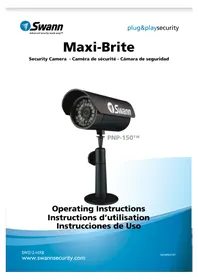
MaxiBrite PNP150 - Surveillance Camera SWANN - Free user manual and instructions
Find the device manual for free MaxiBrite PNP150 SWANN in PDF.



| Product Type | Analog Surveillance Camera |
| Brand | Swann |
| Model | MaxiBrite PNP150 |
| Image Sensor | CMOS 1/3" |
| Effective Pixels | NTSC: 510 x 492, PAL: 628 x 582 |
| Video Quality | 400 TV lines |
| Minimum Illumination | 0 Lux (IR on) |
| Day/Night Mode | Color during day, black and white at night |
| Lens | 6 mm |
| Viewing Angle | 53 degrees |
| Night Vision | 30 infrared LEDs, range up to 9 m |
| Power Supply | 12 V DC via included power adapter |
| Housing Construction | Aluminum |
| Camera Dimensions | 140 x 70 x 70 mm |
| Camera Weight | 180 g |
| Operating Temperature | -10°C to 50°C |
| Video Output | BNC (with BNC to RCA adapter included) |
| Cleaning | Use a soft, dry cloth. Avoid solvents. |
| Repairability | Contact a qualified technician or Swann after-sales service. |
| Warranty | 1 year against manufacturing defects |
Frequently Asked Questions - MaxiBrite PNP150 SWANN
User questions about MaxiBrite PNP150 SWANN
0 question about this device. Answer the ones you know or ask your own.
Ask a new question about this device
Download the instructions for your Surveillance Camera in PDF format for free! Find your manual MaxiBrite PNP150 - SWANN and take your electronic device back in hand. On this page are published all the documents necessary for the use of your device. MaxiBrite PNP150 by SWANN.
USER MANUAL MaxiBrite PNP150 SWANN
NOTE: This equipment has been tested and found to comply with the limits for Class B digital device, pursuant to part 15 of the FCC Rules. These limits are designed to provide reasonable protection against harmful interference in a residential installation. This equipment generates, uses and can radiate radio frequency energy and, if not installed and used in accordance with the instructions, may cause harmful interference to radio or television reception, which can be determined by turning the equipment off and on, the user is encouraged to try to correct the interference by one or more of the following measures:
- Reorient or relocate the receiving antenna
· Increase the separation between the equipment and the receiver - Connect the equipment into an outlet on a circuit different from that to which the receiver is connected
Consult the dealer or an experienced radio/TV technician for help
IMPORTANT: Prohibition against eavesdropping.
Except for the operations of law enforcement officers conducted under lawful authority, no person shall use, either directly or indirectly, a device operated pursuant to the provisions of this Part for the purpose of overhearing or recording the private conversations of others unless such use is authorized by all of the parties engaging in the conversation.
WARNING: Modifications not approved by the party responsible for compliance could void user's authority to operate the equipment.
IMPORTANT SAFETY INSTRUCTIONS:
· Make sure product is fixed correctly and stable if fastened in place
- Do not operate if wires and terminals are exposed
Table of Contents
Before You Begin 2
Table of Contents 3
Package Contents 3
Connection Guide 4-5
Viewing the Camera on Your TV or VCR 6
Tips & Suggestions 6
Troubleshooting Guide 7
Helpdesk / Technical Support Details Rear Cover
Warranty Information Rear Cover
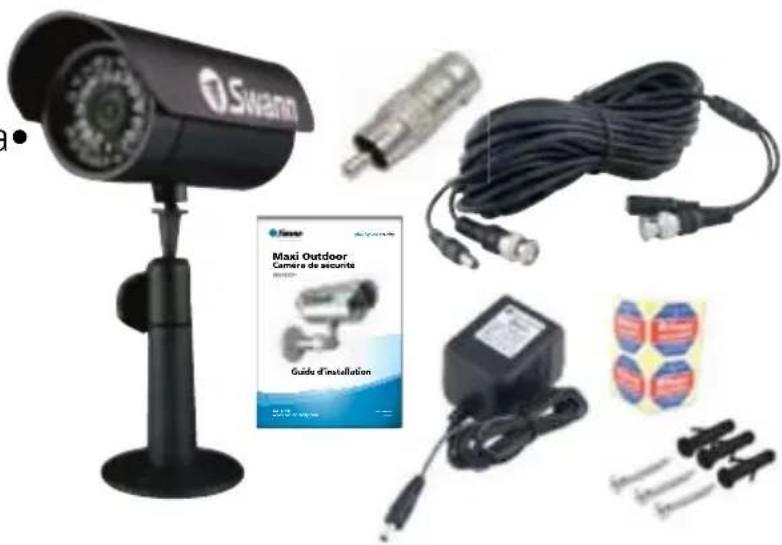
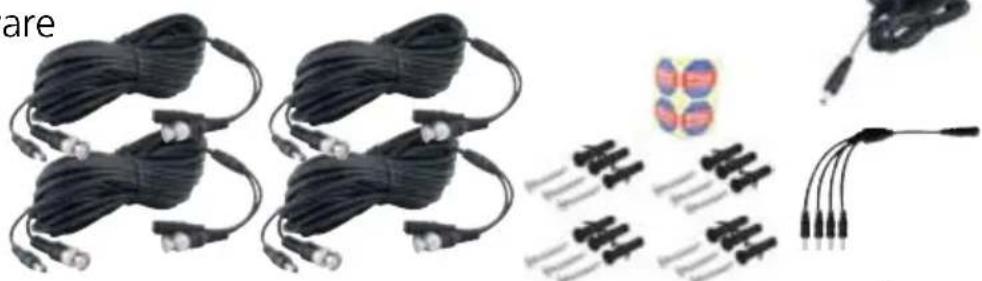
Package Contents
Single Camera Pack
1 x PNP-150 Security Camera
1 x Camera Stand
1 x BNC Extension Cable
1 x BNC to RCA Adapter
1 x Power Adapter
1 x Operating Instructions
4 x Security Stickers
- Mounting Hardware
Four Camera Pack
4 x PNP-150 Security Camera
4 x Camera Stand
4 x BNC Extension Cable
4 x BNC to RCA Adapter
1 x Power Adapter
1 x Power Splitter
1 x Operating Instructions
4 x Security Stickers
Mounting Hardware
Connection Guide
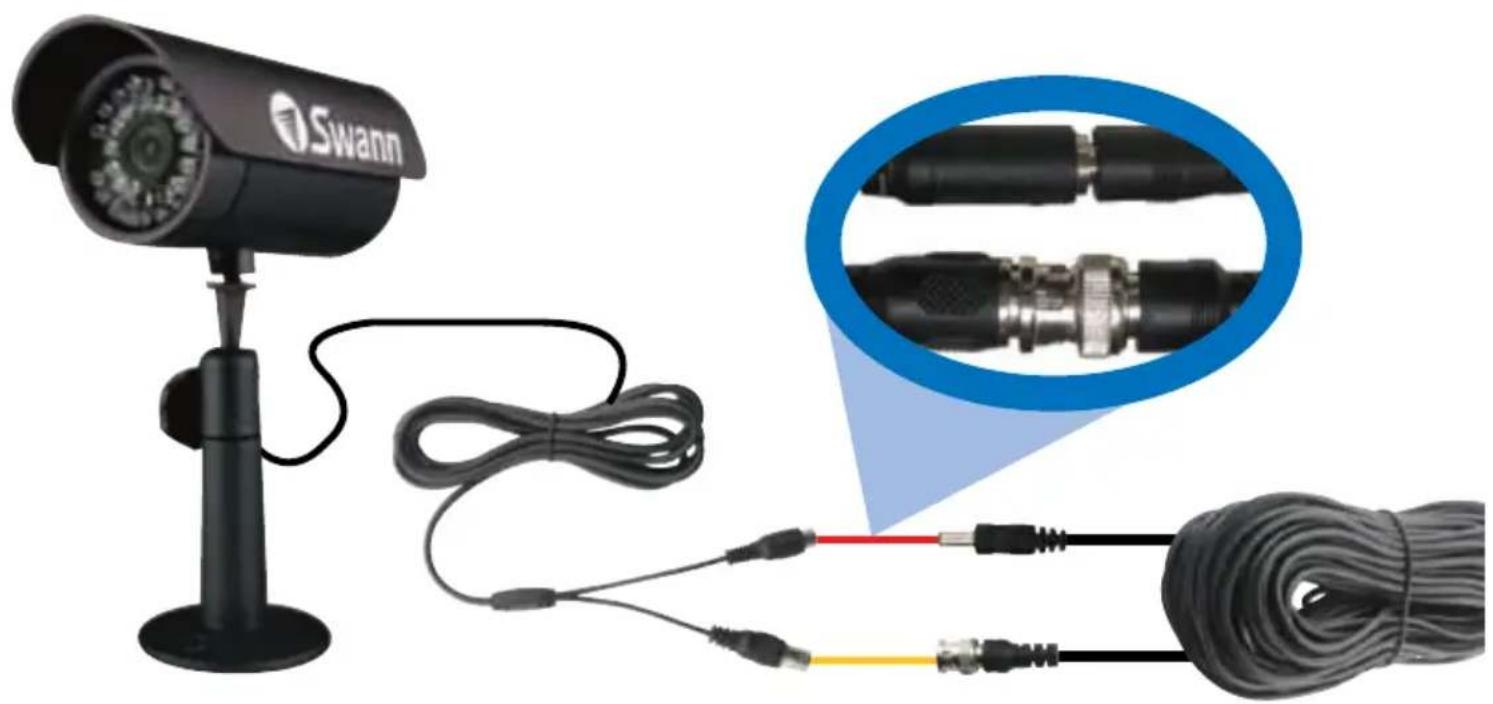
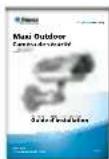
Connect the camera's DC and BNC socket cable to the extension cable's DC and BNC plugs
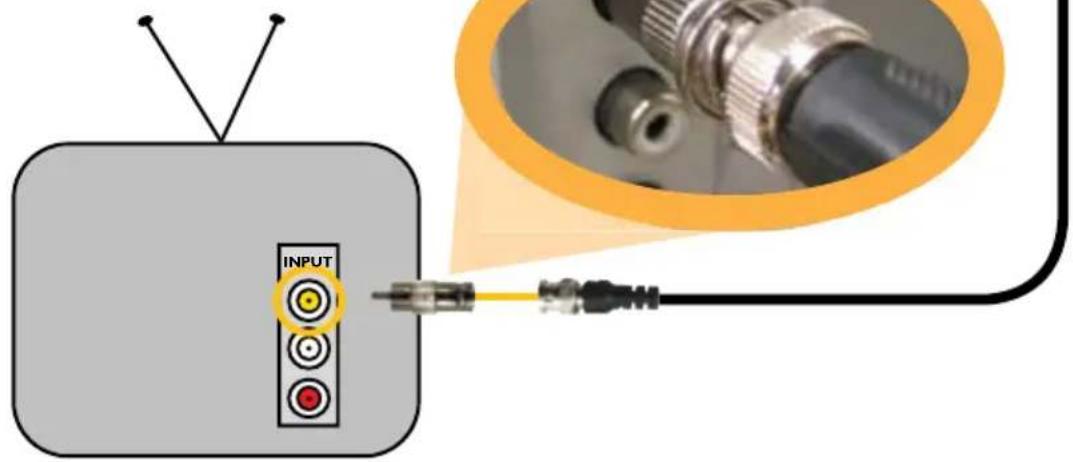
2A. Connecting Directly to TV
Connect the BNC to RCA Adapter and connect to Video Input on your TV or VCR
3B
FOR 4 CAMERA PACKS
Connect the extension cables DC socket to one of the four sockets on the power splitter. Then, plug the single end of the power splitter to the DC plug on the power adaptor.
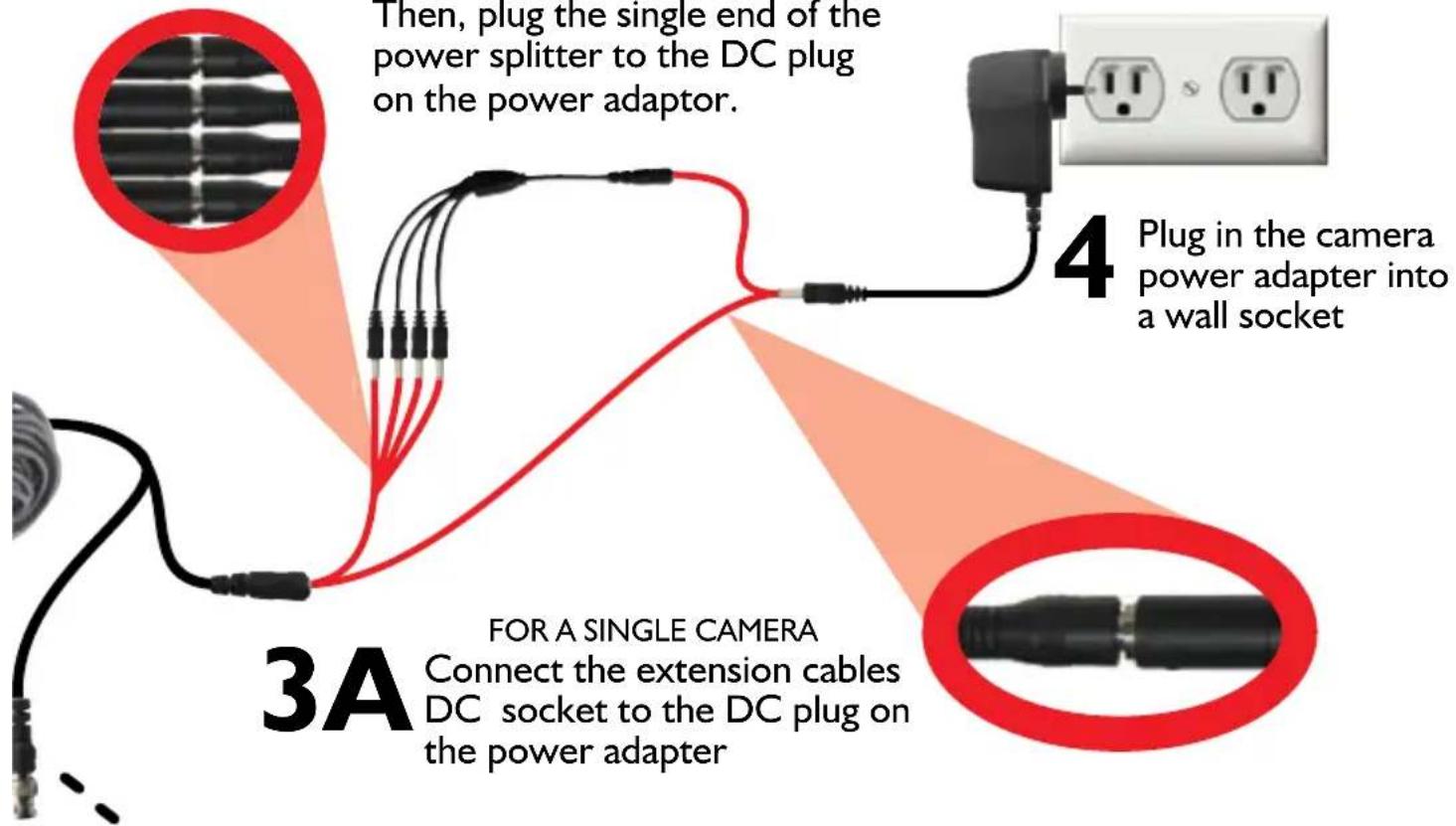
3A
FOR A SINGLE CAMERA
Connect the extension cables DC socket to the DC plug on the power adapter
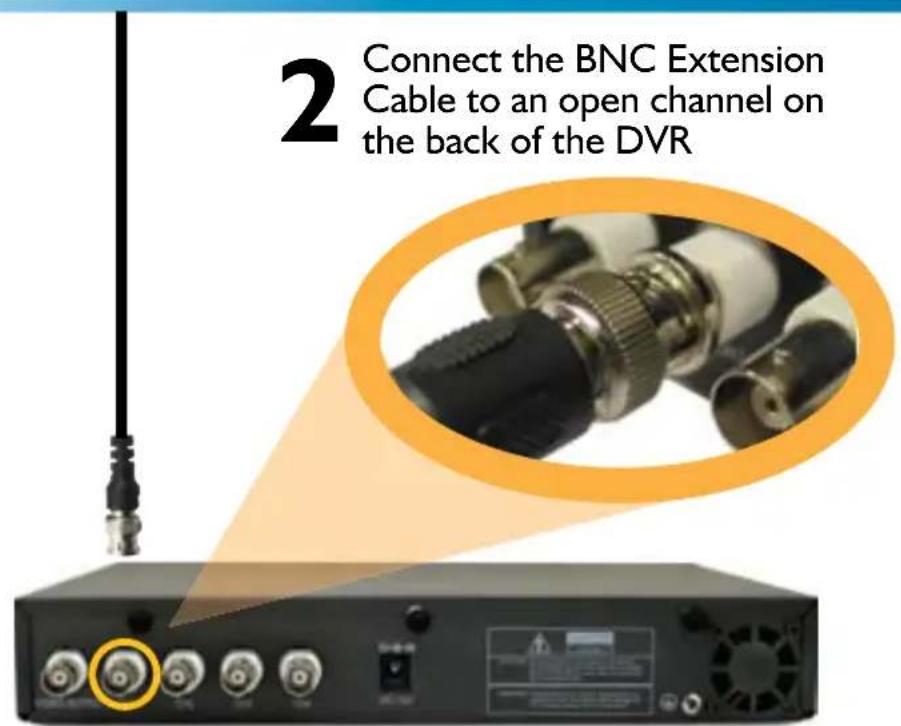
ng to Your Existing DVR
Viewing the Camera on Your TV or VCR
Viewing the PNP-150 on a TV
After connecting the PNP-150 Camera directly to your TV and powering it on as described on page 4, tune the TV to the correct input channel.
On your TV's remote control, the input button is usually labelled as Input, Source, AV, Channel 0, AUX etc.*
Viewing and Recording the PNP-150 on a VCR
Connect the PNP-150 into an available input channel on your VCR in the same manner as the TV connection listed on page 4. Turn on your VCR and TV as if you were about to play a VCR tape.
On your VCR's remote control, find the input button with is usually labelled as L1, L2, Input, Source, AV, Channel, 0, AUX etc.* Insert a tape and push record to record the camera.
*Consult the TV or VCR instruction manual for details about changing input channels
Tips & Suggestions
Never aim the camera directly at the sun as it may damage the sensor
Test all connections and ensure the camera is working correctly prior to permanent installation
Install cameras high enough or out of reach to avoid tampering
Place Security Stickers in a visible location to alert potential thieves they are being monitored
Mix real cameras with dummy cameras to give the impression of increased security coverage
Purchase a Swann DVR to record multiple cameras simultaneously and easily monitor your property.
Place cameras in high traffic areas such as doorways to maximise security
Use only the included Power Supply and do not modify or cut wires
Troubleshooting Guid
Problem: I can't see the camera on my TV.
Solution: Ensure the camera is plugged in and the TV or VCR is tuned to the correct input channel.
Problem: When I view my camera at night I only see a bright spot and no image.
Solution: Night Vision will re ect when shining through a window. Move the camera to the other side of the window or another location.
Problem: The BNC Extension Cable will not connect to my TV.
Solution: Connect the BNC to RCA adapter to the end of the Extension Cable and plug into the TV.
Problem: On my Swann DVR, Video Loss appears where my camera should be. Solution: Check the Extension cable is securely connected to the camera and check the connection is secure on the back of the DVR. Also ensure the camera has power by trying a second power outlet.
Technical Specifications
Video
Image Sensor 1/3" Color Super CMOS
Video Quality 400 TV Lines
Number of Effective Pixels NTSC: 510 x 492 / PAL: 628 x 582
Minimum Illumination 0 Lux (IR on)
Day/Night Mode Color during day / switches to B&W night
White Balance Automatic
Signal / Noise Ratio > 50dB
Electronic Shutter 1/60 - 1/15,000 NTSC / 1/50 - 1/15,000 PAL
Gain Control Automatic
Backlight Compensation Yes
Lens 6mm
Viewing Angle 53 degrees
Night Vision
Number of Infra-Red LEDs 30
Infra-Red Wavelength 850nm
Night Vision Distance Up to 30ft / 9m
Infra-Red LED Life 10,000 hours
General
Operating Power DC 12V
Operating Temperature -10°C ~ 50°C / 14°F ~ 122°F
Body Construction ABS Plastic
Dimensions - Camera 5.5" x 2.8" x 2.8" / 140mm x 70mm x 70mm
Dimensions - Stand 4.5'' × 2.3'' × 2.3'' / 120mm × 60mm × 60mm
Weight - Camera & Stand 0.5lbs / 235g
François
Specifications Techniques
Information sur la Garantie
Swann Communications USA Inc.
12636 Clark Street
Santa Fe Springs CA 90670 USA
Swann Communications PTY.
LTD. Building 4, 650 Church Street,
Richmond, Victoria 3121 Australia
Swann Communications LTD.
Stag Gates House
63/64 The Avenue SO171XS
United Kingdom
Swann Communications USA Inc.
12636 Clark Street Santa Fe Springs CA 90670 USA
Swann Communications PTY. LTD. Building 4, 650 Church Street, Richmond, Victoria 3121 Australia
Swann Communications LTD.
Stag Gates House
63/64 The Avenue SO171XS
United Kingdom
Helpdesk / Technical Support Details
Swann Technical Support
All Countries E-mail: tech@swannsecurity.com
Telephone Helpdesk
USA toll free
1-800-627-2799
(Su, 2pm-10pm US PT)
(M-Th, 6am-10pm US PT)
(F 6am-2pm US PT)
USA Exchange & Repairs
1-800-627-2799 (Option 1)
(M-F, 9am-5pm US PT)
AUSTRALIA toll free
1300 138 324
(M 9am-5pm AUS ET)
(Tu-F I am-5pm AUS ET)
(Sa I am-9am AUS ET)
NEW ZEALAND toll free
0800479266
UK
0203 027 0979
See http://www.worldtimeserver.com for information on time zones and the current time in Melbourne, Australia compared to your local time.
Warranty Information
Swann Communications USA Inc.
12636 Clark Street
Santa Fe Springs CA 90670
USA
Swann Communications PTY.
LTD. Building 4, 650 Church
Street,
Richmond, Victoria 3121
Australia
Swann Communications LTD.
Stag Gates House
63/64 The Avenue
SO171XS
United Kingdom
Swann Communications warrants this product against defects in workmanship and material for a period of one (1) year from its original purchase date. You must present your receipt as proof of date of purchase for warranty validation. Any unit which proves defective during the stated period will be repaired without charge for parts or labour or replaced at the sole discretion of Swann. The end user is responsible for all freight charges incurred to send the product to Swann's repair centres. The end user is responsible for all shipping costs incurred when shipping from and to any country other than the country of origin.
The warranty does not cover any incidental, accidental or consequential damages arising from the use of or the inability to use this product. Any costs associated with the fitting or removal of this product by a tradesman or other person or any other costs associated with its use are the responsibility of the end user. This warranty applies to the original purchaser of the product only and is not transferable to any third party. Unauthorized end user or third party modifications to any component or evidence of misuse or abuse of the device will render all warranties void.
By law some countries do not allow limitations on certain exclusions in this warranty.
Where applicable by local laws, regulations and legal rights will take precedence.
- IMPORTANT: PROHIBITION AGAINST EAVESDROPPING
- IMPORTANT SAFETY INSTRUCTIONS
- TABLE OF CONTENTS
- PACKAGE CONTENTS
- SINGLE CAMERA PACK
- FOUR CAMERA PACK
- CONNECTION GUIDE
- 2A. CONNECTING DIRECTLY TO TV
- 3B
- 3A
- NG TO YOUR EXISTING DVR
- VIEWING THE CAMERA ON YOUR TV OR VCR
- VIEWING THE PNP-150 ON A TV
- VIEWING AND RECORDING THE PNP-150 ON A VCR
- TIPS & SUGGESTIONS
- TROUBLESHOOTING GUID
- TECHNICAL SPECIFICATIONS
- VIDEO
- NIGHT VISION
- GENERAL
- FRANÇOIS
- HELPDESK / TECHNICAL SUPPORT DETAILS
- SWANN TECHNICAL SUPPORT
- USA EXCHANGE & REPAIRS
- NEW ZEALAND TOLL FREE
- WARRANTY INFORMATION
Brand : SWANN
Model : MaxiBrite PNP150
Category : Surveillance Camera