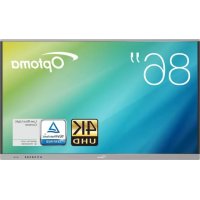
5861RK - Whiteboard and accessories OPTOMA - Free user manual and instructions
Find the device manual for free 5861RK OPTOMA in PDF.


| Product Type | Interactive Flat Panel (Whiteboard) |
| Brand | Optoma |
| Model | 5861RK |
| Screen Size | 65", 75" or 86" depending on version |
| Maximum Resolution | 4K UHD (3840 x 2160) |
| Touch Screen | Yes, multi-touch |
| Operating System | Android 8.0 |
| Connectivity | 3x HDMI 2.0, 1x VGA, 3x USB 3.0, 2x USB 2.0, 1x RJ45, 1x RS232, 1x SPDIF, 1x audio output, Wi-Fi (via dongle), Bluetooth |
| Built-in Speakers | 2 x 16 W |
| Power Supply | 100-240 V~, 50/60 Hz |
| Power Consumption in Standby | Eco or Active Mode (depending on setting) |
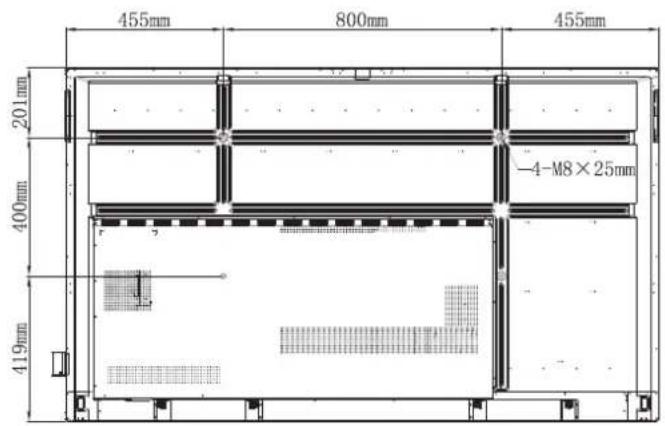
| Wall Mount | VESA 600x400 mm (65"), 800x400 mm (75"), 800x600 mm (86") |
| Approximate Weight | Depending on size: 65" ~30 kg, 75" ~40 kg, 86" ~50 kg |
| Main Functions | Team Share, annotation, AirShare, screen recording, mirroring, file manager, web browser |
| Included Accessories | Remote control (AAA batteries), 2 styluses, stylus holders, power cable, documentation |
| Maintenance and Cleaning | Soft, dry cloth; do not use abrasive cleaners or solvents |
| Security | Screen lock with PIN code, USB/Wi-Fi password, unknown sources |
| Spare Parts / Repairability | Wall mount (OWMFP01), OPS module (i5/i7), optional stand; repair by qualified personnel |
| General Information | Manual available in multiple languages; warranty according to reseller |
Frequently Asked Questions - 5861RK OPTOMA
User questions about 5861RK OPTOMA
0 question about this device. Answer the ones you know or ask your own.
Ask a new question about this device
Download the instructions for your Whiteboard and accessories in PDF format for free! Find your manual 5861RK - OPTOMA and take your electronic device back in hand. On this page are published all the documents necessary for the use of your device. 5861RK by OPTOMA.
USER MANUAL 5861RK OPTOMA
natural_image
Blank whiteboard with a blank gray background, no text or symbols visible.TABLE DES MATIÈRES
SÉCURITÉ 5
Cloud Storage (Stockage Cloud)....76
This Class B digital apparatus complies with Canadian CAN ICES-3 (B)/NMB-3 (B).
natural_image
Line drawing of a mobile stand with wheels and a vertical support structure, labeled 'Montage sur pied' below (no other text or symbols)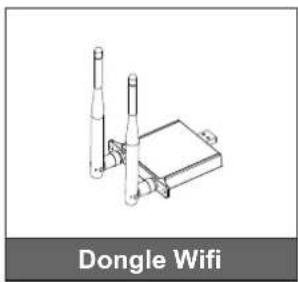
natural_image
Technical line drawing of Dongle WiFi wireless device with two ports and a base unit (no text or symbols on the diagram itself)INTRODUCTION
natural_image
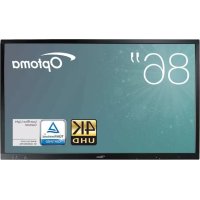
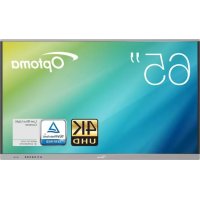
Technical line drawing of a dual-panel rack structure with no text or symbols65 pouces 75 pouces
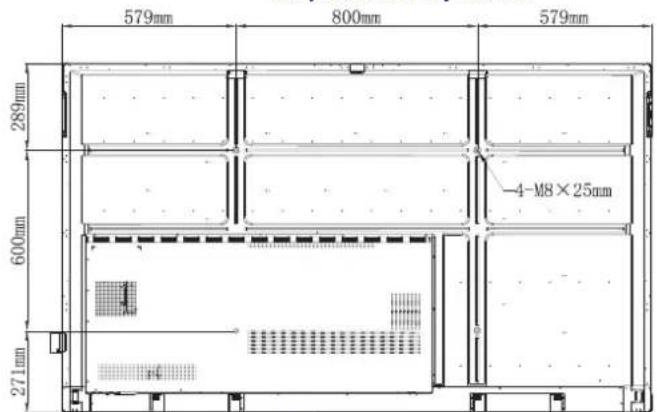
86 pouces
CONFIGURATION ET INSTALLATION
natural_image
Technical diagram of a mechanical assembly with a magnified inset showing a screwdriver inserted into a component (no text or symbols present)natural_image
Diagram showing a cylindrical object with a ring attached to a wall, and a dashed rectangular box with a red arrow pointing to it (no text or symbols present)natural_image
Diagram of a vertical mechanical or electrical component with a blue arrow indicating direction, mounted on a wall (no text or symbols present)natural_image
Technical diagram of a mechanical assembly with an inset showing a close-up of a component labeled 'C' (no text or symbols present)Remarque :
natural_image
Technical diagram of a mechanical assembly with a magnified inset showing a screw inserted into a component labeled A (no text or symbols present)natural_image
Diagram showing a two-wheel platform with wheels and a close-up of its mounting bracket (no text or symbols)natural_image
Technical line drawing of a vertical mechanical device with a blue arrow indicating rotation or movement (no text or symbols present)CONFIGURATION ET INSTALLATION
natural_image
Diagram of a device being inserted into a tray, showing a blue arrow indicating the process (no text or symbols present)natural_image
Diagram of a remote control panel with battery and indicator lights (no text or symbols)natural_image
Diagram of a smartphone with a blue arrow indicating rotation or change, showing the blade and handle (no text or symbols)MISE EN GARDE
natural_image
Technical line drawing of a mechanical component with a blue arrow indicating a directional change or movement (no text or symbols present)natural_image
Mechanical assembly diagram showing two parallel pipes mounted on a vertical support with a blue arrow indicating direction (no text or symbols)natural_image
Diagram of a cable or connector with blue arrows indicating connection points, no text or symbols presentnatural_image
Diagram of a device with a cable and plug inserted into a panel, showing wiring and a blue arrow indicating direction (no text or symbols present)natural_image
Line drawing of a computer monitor with a hand pointing at the left button (no text or symbols)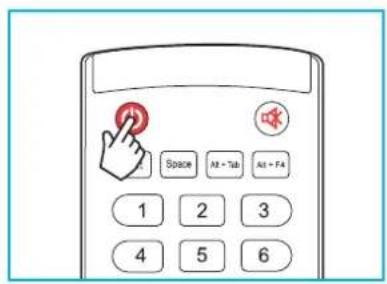
Mise hors tension
UTILISATION DE L'APPAREIL
OPÉRATIONS DE BASE
OPÉRATIONS DE BASE
OPÉRATIONS DE BASE
OPÉRATIONS DE BASE
bar
Answers statistics | Answer | Percentage (%) | | :--- | :--- | | A | 0.0 | | B | 100.0 | | C | 0.0 | | D | 0.0 | Please choose the right answers(s) Correct Rate: 100%OPÉRATIONS DE BASE
bar
Answers statistics | Category | Percentage (%) | | :--- | :--- | | A | 0.0 | | B | 100.0 | | C | 0.0 | | D | 0.0 | Please choose the right answers(s) Correct Rate: 100%.OPÉRATIONS DE BASE
e. Message
natural_image
Simple icon set with a red dot, gear symbol, and cross (no text or labels)natural_image
Blue square icon with three circular icons: a white X, a green document icon, and a gray folder icon (no text or symbols)UTILISATION DES APPLICATIONS
UTILISATION DES APPLICATIONS
UTILISATION DES APPLICATIONS
natural_image
Close-up of a vibrant purple peony flower with green leaves, captured in a video editing interface (no text or symbols on the flower itself)UTILISATION DES APPLICATIONS
UTILISATION DES APPLICATIONS
UTILISATION DES APPLICATIONS
UTILISATION DES APPLICATIONS
Visualiseur

natural_image
Interior view of a modern dining room with a large round table, white chairs, and bookshelves (no visible text or symbols)Commande SET (DÉFINIR)
| Type | Catégorie Paramètre | CMD Code hexa CMD | Réponse | ||||
| Succès Échec | |||||||
| DÉFINIR | Puissance | Mise hors tension | ~xx00 n n | =0 7E 30 30 | 30 30 30 20 30 0d P F | ||
| Redémarrer | ~xx00 n n | =3 7E 30 30 | 30 30 30 20 33 0d P F | ||||
| Marche | ~xx00 n n | =1 7E 30 30 | 30 30 30 20 31 0d P F | ||||
| DÉFINIR | Mode puissance (Veille) | Eco. | ~xx114 n n | =0 7E 30 | 30 31 31 34 20 30 0d P F | ||
| Actif n=1 7E 30 30 31 31 34 | 20 31 0d P F | ||||||
| DÉFINIR | Aigu | 0 ~ 100 ~xx95 n n | =0-100 | 7E 30 30 39 35 20 30 0dsur7E 30 30 39 35 20 31 30 30 0d | P | F | |
| DÉFINIR | Basse | 0 ~ 100 | ~xx96 n | n=0-100 | 7E 30 30 39 36 20 30 0dsur7E 30 30 39 36 20 31 30 30 0d | P | F |
| DÉFINIR | Balance | 0 ~ 100 | ~xx99 n | n=0-100 | 7E 30 30 39 39 20 30 0dsur7E 30 30 39 39 20 31 30 30 0d | P | F |
| DÉFINIR | Contraste | 0 ~ 100 | ~xx22 n | n=0-100 | 7E 30 30 32 32 20 30 0dsur7E 30 30 32 32 20 31 30 30 0d | P | F |
| DÉFINIR | Luminosité | 0 ~ 100 | ~xx21 n | n=0-100 | 7E 30 30 32 31 20 30 0dsur7E 30 30 32 31 20 31 30 30 0d | P | F |
| DÉFINIR | Netteté | 0 ~ 100 ~xx23 n n | =0-100 | 7E 30 30 32 33 20 30 0dsur7E 30 30 32 33 20 31 30 30 0d | P | F | |
| DÉFINIR | Mode sonore | Standard | ~xx252 n | n=1 7E | 30 30 32 35 32 20 31 0d P F | ||
| Réunion | n=4 7E | 30 30 32 35 32 20 34 0d P F | |||||
| Utilisateur | n=2 7E | 30 30 32 35 32 20 32 0d P F | |||||
| Salle de classe | n=3 7E | 30 30 32 35 32 20 33 0d P F | |||||
| Film | n=5 7E | 30 30 32 35 32 20 35 0d P F | |||||
| DÉFINIR | Volume | 0 ~ 100 ~xx81 n n | =0-100 | 7E 30 30 38 31 20 30 0dsur7E 30 30 38 31 20 31 30 30 0d | P | F | |
| DÉFINIR | Vidéo coupée | Arrêt | ~xx13 n | n=0 7E | 30 30 31 33 20 30 0d P | F | |
| Marche | n=1 | 7E 30 30 31 33 20 31 0d | P | F | |||
| DÉFINIR | Muet | Arrêt | ~xx80 n | n=0 7E | 30 30 38 30 20 30 0d P | F | |
| Marche | n=1 | 7E 30 30 38 30 20 31 0d | P | F | |||
| DÉFINIR | Source d'Entrée | HDMI1 | ~xx12 n | n=1 7E | 30 30 31 32 20 31 0d P | F | |
| HDMI2 | n=15 | 7E 30 30 31 32 20 31 35 0d | P | F | |||
| HDMI3 | n=16 | 7E 30 30 31 32 20 31 36 0d | P | F | |||
| VGA | n=5 | 7E 30 30 31 32 20 35 0d | P | F | |||
| Emplacement dans PC | n=25 | 7E 30 30 31 32 20 32 35 0d | P | F | |||
| Android | n=24 | 7E 30 30 31 32 20 32 34 0d | P | F | |||
| DÉFINIR | Ratio | 4:3 | ~xx60 n | n=1 7E | 30 30 36 30 20 31 0d P | F | |
| 16:9 | n=2 | 7E 30 30 36 30 20 32 0d | P | F | |||
| PTP | n=14 | 7E 30 30 36 30 20 31 34 0d | P | F | |||
| DÉFINIR | Langue | Anglais | ~xx70 n | n=1 7E | 30 30 37 30 20 31 0d P | F | |
| Français | n=3 | 7E 30 30 37 30 20 33 0d | P | F | |||
INFORMATIONS SUPPLÉMENTAIRES
| Type | Catégorie Paramètre | CMD Code hexa CMD | Réponse | ||||
| Succès Échec | |||||||
| DéFINIR | Langue | Español | 7E 30 30 37 | n=5 7E | 30 30 37 30 20 35 0d P F | ||
| Chinois traditionnel | n=13 7E | 30 30 37 30 20 31 33 0d P F | |||||
| Chinois simplifié | n=14 7E | 30 30 37 30 20 31 34 0d P F | |||||
| Português n=6 7E 30 30 37 | 7E 30 30 37 | 30 20 36 | 0d P F | ||||
| Allemand n=2 7E 30 30 37 | 7E 30 30 37 | 30 20 32 | 0d P F | ||||
| Néerlandais n=8 7E 30 30 | 7E 30 30 37 | 37 30 20 38 | 0d P F | ||||
| Polish n=7 7E 30 30 37 30 | 30 30 37 30 | 20 37 0d P | F | ||||
| Russie n=17 7E | ~xx70 n 30 30 37 | 30 20 31 37 | 0d P F | ||||
| République Tchèque | n=19 7E | 30 30 37 30 20 31 39 0d P F | |||||
| Danois | n=10 7E | 30 30 37 30 20 31 30 0d P F | |||||
| Suédois | n=9 7E | 30 30 37 30 20 39 0d P F | |||||
| Italien | n=4 7E | 30 30 37 30 20 34 0d P F | |||||
| Turc | n=22 7E | 30 30 37 30 20 32 32 0d P F | |||||
| Arabe | n=20 7E | 30 30 37 30 20 32 30 0d P F | |||||
| Roumanie | n=27 7E | 30 30 37 30 20 32 37 0d P F | |||||
| DéFINIR | Mode image | Présentation | ~xx20 n | n=1 7E | 30 30 32 30 20 31 0d P F | ||
| Lumineux | n=2 7E | 30 30 32 30 20 32 0d P F | |||||
| Cinéma | n=3 7E | 30 30 32 30 20 33 0d P F | |||||
| Utilisateur | n=5 7E | 30 30 32 30 20 35 0d P F | |||||
| HDR | n=21 7E | 30 30 32 30 20 32 31 0d P F | |||||
| DéFINIR | Teinte | 0 ~ 100 | ~xx44 n | n=0-100 | 7E 30 30 34 34 20 30 0dsur7E 30 30 34 34 20 31 30 30 0d | P | F |
| DéFINIR | Couleur | 0 ~ 100 | ~xx45 n | n=0-100 | 7E 30 30 34 35 20 30 0dsur7E 30 30 34 35 20 31 30 30 0d | P | F |
| DéFINIR | Netteté | 0 ~ 100 | ~xx23 n | n=0-100 | 7E 30 30 32 33 20 30 0dsur7E 30 30 32 33 20 31 30 30 0d | P | F |
| DéFINIR | Rétroéclairage | 0 ~ 100 | ~xx251 n | n=0-100 | 7E 30 30 32 35 31 20 30 0dsur7E 30 30 32 35 31 20 31 30 30 0d | P | F |
| DéFINIR | Temp. Couleur | Froid | ~xx36 n | n=2 7E | 30 30 33 36 20 32 0d P F | ||
| Standard | n=1 7E | 30 30 33 36 20 31 0d P F | |||||
| Chaud | n=4 7E | 30 30 33 36 20 34 0d P F | |||||
| DéFINIR | Figer | Libérer | ~xx04 n | n=0 7E | 30 30 30 34 20 30 0d P F | ||
| Figer | n=1 7E | 30 30 30 34 20 31 0d P F | |||||
INFORMATIONS SUPPLÉMENTAIRES
47697 Westinghouse Drive, 888-289-6786
Fremont, CA 94539, USA 510-897-8601
www.optomausa.com services@optoma.com
Japon
東京都足立区綾瀬3-25-18
株式会社オーエス
info@os-worldwide.com
www.os-worldwide.com
Canada
47697 Westinghouse Drive, 888-289-6786
Fremont, CA 94539, USA 510-897-8601
www.optomausa.com services@optoma.com
Taiwan
12F., No.213, Sec. 3, Beixin Rd.,
Xindian Dist., New Taipei City 231,
Taiwan, R.O.C.
www.optoma.com.tw
+886-2-8911-8600
+886-2-8911-6550
services@optoma.com.tw
asia.optoma.com
Amérique Latine
47697 Westinghouse Drive, 888-289-6786
Fremont, CA 94539, USA 510-897-8601
www.optomausa.com services@optoma.com
Hong Kong
Unit A, 27/F Dragon Centre,
79 Wing Hong Street,
Cheung Sha Wan,
Kowloon, Hong Kong
( +852-2396-8968
+852-2370-1222
www.optoma.com.hk
Europe
Unit 1, Network 41, Bourne End Mills,
Hemel Hempstead, Herts,
HP1 2UJ, United Kingdom +44 (0) 1923 691 800
(Royaume-Uni)
www.optoma.eu +44 (0) 1923 691 888
service@tsc-europe.com
Chine
5F, No. 1205, Kaixuan Rd.,
Changning District
Shanghai, 200052, Chine
+86-21-62947376
+86-21-62947375
www.optoma.com.cn
Benelux BV
Randstad 22-123 +31 (0) 36 820 0252
1316 BW Almere +31 (0) 36 548 9052
Les Pays-Bas
www.optoma.nl
France

- TABLE DES MATIÈRES
- SÉCURITÉ 5
- INTRODUCTION
- CONFIGURATION ET INSTALLATION
- Remarque :
- MISE EN GARDE
- Mise hors tension
- UTILISATION DE L'APPAREIL
- OPÉRATIONS DE BASE
- e. Message
- UTILISATION DES APPLICATIONS
- Visualiseur
- INFORMATIONS SUPPLÉMENTAIRES
- Japon
- Canada
- Taiwan
- Amérique Latine
- Hong Kong
- Europe
- Chine
- Benelux BV
- France
Brand : OPTOMA
Model : 5861RK
Category : Whiteboard and accessories