DVPFX825 - DVD player SONY - Free user manual and instructions
Find the device manual for free DVPFX825 SONY in PDF.


User questions about DVPFX825 SONY
0 question about this device. Answer the ones you know or ask your own.
Ask a new question about this device
Download the instructions for your DVD player in PDF format for free! Find your manual DVPFX825 - SONY and take your electronic device back in hand. On this page are published all the documents necessary for the use of your device. DVPFX825 by SONY.
USER MANUAL DVPFX825 SONY
Portable CD/DVD Player
Operating Instructions US
To reduce the risk of fire or electric shock, do not expose this apparatus to rain or moisture.
To avoid electrical shock, do not open the cabinet. Refer servicing to qualified personnel only.
The AC power cord must be changed only at a qualified service shop.
Batteries or batteries installed apparatus shall not be exposed to excessive heat such as sunshine, fire or the like.
CAUTION
The use of optical instruments with this product will increase eye hazard. As the laser beam used in this CD/DVD player is harmful to eyes, do not attempt to disassemble the cabinet.
Refer servicing to qualified personnel only.
CAUTION CLASS 1M VISIBLE AND INVISIBLE LASER RADIATION WHEN OPEN AND INTERLOCKS DEFEATED. DO NOT VIEW DIRECTLEY WITH OPTICAL INSTRUMENTS.
This label is located on the bottom of the unit.
text_image
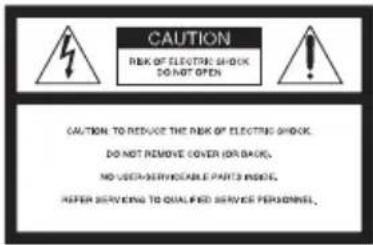
CAUTION REK OF ELECTRIC SHOCK DO NOT OPEN CAUTION TO REDUCE THE REK OF ELECTRIC SHOCK. DO NOT REMOVE COVER (FOR BACK). NO USE/SERVICE/ABLE PARTS MORE. REFER SERVING TO QUALIFIED SERVICE PERSONNEL.
This symbol is intended to alert the user to the presence of uninsulated
"dangerous voltage" within the product's enclosure that may be of sufficient magnitude to constitute a risk of electric shock to persons.

This symbol is intended to alert the user to the presence of important
operating and maintenance (servicing) instructions in the literature accompanying the appliance.
Precautions
• Install this system so that the AC power cord can be unplugged from the wall socket immediately in the event of trouble.
- The player is not disconnected from the AC power source as long as it is connected to the wall outlet, even if the player itself has been turned off.
• To prevent fire or shock hazard, do not place objects filled with liquids, such as vases, on the apparatus.
For Customers in Canada
If this product is not working properly, please call 1-877-602-2008 for Peace of Mind Warranty Replacement service.
For other product related questions please contact our Customer Information Service Center at 1-877-899-7669 or write to us at: Customer Information Service 115 Gordon Baker Road, Toronto, Ontario, M2H 3R6
RECYCLING LITHIUM- ION BATTERIES
Lithium-Ion batteries are recyclable.
You can help preserve our environment by returning your used rechargeable batteries to the collection and recycling location nearest you.
For more information regarding recycling of rechargeable batteries, call toll free
1-800-822-8837, or visit
http://www.rbrc.org/
Caution: Do not handle damaged or leaking Lithium-Ion batteries.
Precautions
Road safety
Do not use the monitor unit and headphones while driving, cycling, or operating any motorized vehicle. Doing so may create a traffic hazard and is illegal in some areas. It can also be potentially dangerous to play your headsets at high volume while walking, especially at pedestrian crossings. You should exercise extreme caution or discontinue use in potentially hazardous situations.
On safety
Should any solid object or liquid fall into the cabinet, unplug the player and have it checked by qualified personnel before operating it any further.
On power sources
- The power requirements of this unit are indicated on the AC adaptor. Check that the unit's operating voltage is identical with your local power supply.
- If you are not going to use the player for a long time, be sure to disconnect the player from the wall outlet. To disconnect the AC power cord, grasp the plug itself; never pull the cord.
- Do not touch the AC power cord or the AC adaptor with wet hands. Doing so may cause shock hazard.
On temperature increases
Heat may build up inside the player during charging or if it is being used for a long time. This is not a malfunction.
On placement
- Place the player in a location with adequate ventilation to prevent heat build-up in the player.
- Do not place the player in a confined space such as a bookshelf or similar unit.
- Do not cover the ventilation of the player with newspapers, tablecloths, curtains, etc. And do not place the player on a soft surface, such as a rug.
- Do not place the player in a location near heat sources, or in a place subject to direct sunlight, excessive dust, sand, moisture, rain, or mechanical shock, or in a car with its windows closed.
- Do not place the player in an inclined position. It is designed to be operated in a horizontal position only.
- Keep the player and discs away from equipment with strong magnet, such as microwave ovens, or large loudspeakers.
- Do not place heavy objects on the player.
On operation
- If the player is brought directly from a cold to a warm location, or is placed in a very damp room, moisture may condense on the lenses inside the player. Should this occur, the player may not operate properly. In this case, remove the disc and leave the player turned on for about half an hour until the moisture evaporates.
- Keep the lens on the player clean and do not touch it. Touching the lens may damage the lens and cause the player to malfunction. Leave the disc lid closed except when you insert or remove discs.
On Liquid Crystal Display
- Although manufactured with high precision technology, the LCD may occasionally display dots of various colors. That is not a malfunction.
- Do not wipe the LCD surface with wet cloth. If water enters, a malfunction may result.
- Do not place or drop any object onto the LCD surface. Also, do not apply pressure from hands or elbows.
-
Do not damage the LCD surface with a sharp edged tool.
-
Do not close the LCD panel with a pen, etc., on the disc lid.
- If the player is brought directly from a cold to a warm location, moisture may condense over the LCD surface. In which case, wipe out the moisture with tissue paper, etc., before use. However, moisture condensation will continue if the LCD surface is cold. Wait until the surface warms to room temperature.
On AC adaptor
- Use the supplied AC adaptor this player, as other adaptors may cause a malfunction.
- Do not disassemble or reverse-engineer.
- Do not drop or apply shock.
- Do not confine the AC adaptor in a closed place such as a bookshelf or an AV cabinet.
- Do not connect the AC adaptor to a traveler's electric transformer, which may generate heat and cause a malfunction.
On battery pack
- Certain countries may regulate disposal of the battery used to power this product. Please consult with your local authority.
- Because of the battery's limited life, its capacity gradually deteriorates over time and repeated use. Purchase a new one when the battery holds about only half the normal period.
- The battery may not be charged to its fullest capacity when charged for the first time, or when it has not been used for a long time. The capacity recovers after being charged and discharged several times.
- Do not leave the battery pack in a car or direct sunlight, where temperature goes up above 60^ (140°F).
- Do not expose to water.
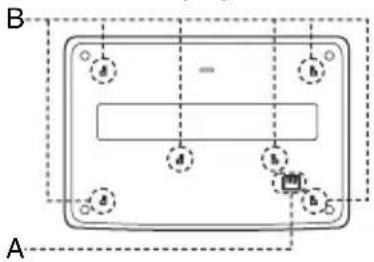
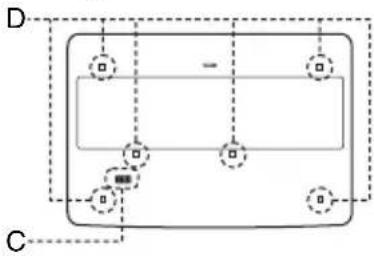
- Avoid short-circuiting the battery connecting jacks (A) located on the bottom of the player and the connecting jacks (C) on the battery pack with metal objects such as a necklace.
- Make sure dust or sand does not enter the battery connecting jacks (A) and the guide holes (B) located on the bottom of the player, and the connecting jacks (C) and the guide holes (D) on the battery pack.
Bottom of the player
text_image
B ABattery pack
flowchart
graph TD
    A[" "] --> B[" "]
    B --> C[" "]
    C --> D[" "]
    D --> E[" "]
    E --> F[" "]
    F --> G[" "]
    G --> H[" "]
    H --> I[" "]
    I --> J[" "]
    J --> K[" "]
    K --> L[" "]
    L --> M[" "]
    M --> N[" "]
    N --> O[" "]
    O --> P[" "]
    P --> Q[" "]
    Q --> R[" "]
    R --> S[" "]
    S --> T[" "]
    T --> U[" "]
    U --> V[" "]
    V --> W[" "]
    W --> X[" "]
    X --> Y[" "]
    Y --> Z[" "]
On car adaptor
- Use the supplied car adaptor for this player, as other adaptors may cause a malfunction.
- Do not dissemble or reverse-engineer.
- Do not drop or apply shock.
- Do not touch the metal parts, as it may cause a short and damage the car adaptor, especially if touched by other metal objects.
- Do not place the car adaptor in a location near heat sources, or in a place subject to direct sunlight or mechanical shock, or in a car with its windows closed.
On adjusting volume
Do not turn up the volume while listening to a section with very low level inputs or no audio signals. If you do, the speakers may be damaged when a peak level section is played.
On headphones
- Preventing hearing damage
Avoid using headphones at high volumes. Hearing experts advice against continuous, loud, and extended play. If you experience a ringing in your ears, reduce the volume or discontinue use.
• Showing consideration for others
Keep the volume at a moderate level. This will allow you to hear outside sounds and still be considerate to the people around you.
On cleaning
Clean the cabinet, panel, and controls with a soft cloth slightly moistened with a mild detergent solution. Do not use any type of abrasive pad, scouring powder or solvent such as alcohol or benzine.
On cleaning discs, disc/ lens cleaners
Do not use cleaning discs or disc/ lens cleaners (including wet or spray types). These may cause the apparatus to malfunction.
IMPORTANT NOTICE
Caution: This player is capable of holding a still video image or on-screen display image on your television screen indefinitely. If you leave the still video image or on-screen display image displayed on your TV for an extended period of time you risk permanent damage to your television screen. Plasma display panel televisions and projection televisions are susceptible to this.
If you have any questions or problems concerning your player, please consult your nearest Sony dealer.
Table of Contents
WARNING 2
Precautions 3
About This Manual....6
This Player Can Play the Following Discs 7
Preparations 9
Checking the Accessories 9
Using the Remote 9
Using the LCD Panel 10
Connecting the AC Adaptor 11
Using with the Battery Pack 12
Using with the Car Battery Adaptor 14
Playing Discs 15
Playing Discs 15
Using the Playback Settings Display 20
Searching for a Particular Point on a Disc (Search, Scan, Slow Play, Repeat Play, Random Play). 22
Playing MP3 Audio Tracks or JPEG Image Files 24
Adjusting the Picture Size and Quality 27
Enjoying DivX® Videos 28
Playing DivX Video Files 28
About DivX Video Files 29
Settings and Adjustments 31
Using the Setup Display.... 31
Settings for the Display (General Setup) 32
Settings for the Sound (Audio Setup) 33
Setting the Display or Sound Track Language (Language Setup)....34
Parental Control Settings (Parental Control) 35
Hookups 37
Connecting to another device 37
Additional Information 40
Troubleshooting 40
About MP3 Audio Tracks and JPEG Image Files 42
Notes About the Discs 43
Specifications 44
Index to Parts and Controls 45
Index 48
About This Manual
- Instructions in this manual describe the controls on the remote. You can also use the controls on the player if they have the same or similar names as those on the remote.
- “DVD” may be used as a general term for DVD VIDEOs, DVD+RWs/DVD+Rs (+VR mode) and DVD-RWs/DVD-Rs (video mode).
- The meaning of the icons used in this manual is described below:
| Icons Meaning | |
 | Functions available for DVD VIDEOs and DVD+RWs/DVD+Rs in +VR mode or DVD-RWs/DVD-Rs in video mode |
 | Functions available for music CDs or CD-Rs/CD-RWs in music CD format |
 | Functions available for DATA CDs (CD-ROMs/CD-Rs/CD-RWs containing MP3*1 audio tracks, JPEG image files, and DivX*2*3 video files) |
 | Functions available for DATA DVDs (DVD-ROMs/DVD+RWs/DVD+Rs/DVD-RWs/DVD-Rs containing MP3*1 audio tracks, JPEG image files, and DivX*2*3 video files) |
*1 MP3 (MPEG-1 Audio Layer III) is a standard format defined by ISO (International Organization for Standardization)/IEC (International Electrotechnical Commission) MPEG which compresses audio data.
*2 DivX ^® is a video file compression technology, developed by DivX, Inc.
*3 DivX, DivX Certified, and associated logos are trademarks of DivX, Inc. and are used under licence.
This Player Can Play the Following Discs
Format of discs
| DVD VIDEO |  | |
| DVD-RW/-R(finalized disc) |  |  |
| DVD+RW/+R(finalized disc) |  |  |
 | ||
| Music CD |  | |
| CD-RW/-R |  |  |
“DVD+RW,” “DVD-RW,” “DVD+R,” “DVD-R,” “DVD VIDEO,” and “CD” logos are trademarks.
Note about CDs/DVDs
The player can play CD-ROMs/CD-Rs/CD-RWs recorded in the following formats:
– music CD format
- MP3 audio tracks, JPEG image files, and DivX video files of format conforming to ISO 9660* Level 1, or its extended format, Joliet
- KODAK Picture CD format
* A logical format of files and folders on CD-ROMs, defined by ISO (International Organization for Standardization).
The player can play DVD-ROMs/ DVD+RWs/DVD-RWs/DVD+Rs/DVD-Rs recorded in the following format:
- MP3 audio tracks, JPEG image files, and DivX video files of format conforming to UDF (Universal Disk Format).
Example of discs that the player cannot play
The player cannot play the following discs:
- Blu-ray discs.
• Discs recorded in AVCHD format. - HD DVDs.
• DVD-RAMs. - CD-ROMs/CD-Rs/CD-RWs other than those recorded in the formats listed on this page.
• CD-ROMs recorded in PHOTO CD format.
• Data part of CD-Extras. - DVD Audio discs.
- DATA DVDs that do not contain MP3 audio tracks, JPEG image files, or DivX video files.
• HD layer on Super Audio CDs.
Also, the player cannot play the following discs:
- A DVD VIDEO with a different region code.
- A disc recorded in a color system other than NTSC, such as PAL or SECAM.
- A disc that has a non-standard shape (e.g., card, heart).
• A disc with paper or stickers on it. - A disc that has the adhesive of cellophane tape or a sticker still left on it.
Notes
- Notes about DVD+RWs/DVD+Rs, DVD-RWs/DVD-Rs or CD-Rs/CD-RWs
Some DVD+RWs/DVD+Rs, DVD-RWs/DVD-Rs, or CD-Rs/CD-RWs cannot be played on this player due to the recording quality or physical condition of the disc, or the characteristics of the recording device and authoring software.
The disc will not play if it has not been correctly finalized. For more information, refer to the operating instructions for the recording device. Note that some playback functions may not work with some DVD+RWs/DVD+Rs, even if they have been correctly finalized. In this case, view the disc by normal playback. Also some DATA CDs/DATA DVDs created in Packet Write format or multiple sessions cannot be played.
• Notes about DVD+R DLs/DVD-R DLs
MP3 and JPEG files recorded on the second layer of a DVD+R DL/-R DL (double layered) may not be playable.
• Music discs encoded with copyright protection technologies
This product is designed to playback discs that conform to the Compact Disc (CD) standard. Recently, various music discs encoded with copyright protection technologies are marketed by some record companies. Please be aware that among those discs, there are some that do not conform to the CD standard and may not be playable by this product.
- Note on DualDiscs
A DualDisc is a two sided disc product which mates DVD recorded material on one side with digital audio material on the other side. However, since the audio material side does not conform to the Compact Disc (CD) standard, playback on this product is not guaranteed.
Region code
It is the system that is used to protect copyrights. The region code is shown on the DVD VIDEO packages according to the region of sale. DVD VIDEOS labeled “ALL” or “1” will play on this player.

Note on playback operations of DVDs
Some playback operations of DVDs may be intentionally set by software producers. Since this player plays DVDs according to the disc contents the software producers designed, some playback features may not be available. Also, refer to the instructions supplied with the DVDs.
Copyrights
This product incorporates copyright protection technology that is protected by U.S. patents and other intellectual property rights. Use of this copyright protection technology must be authorized by Macrovision, and is intended for home and other limited viewing uses only unless otherwise authorized by Macrovision. Reverse engineering or disassembly is prohibited.
Trademarks
- Manufactured under license from Dolby Laboratories.
Dolby and the double-D symbol are trademarks of Dolby Laboratories. - Manufactured under license under U.S. Patent #: 5,451,942 & other U.S. and worldwide patents issued & pending. DTS and DTS Digital Out are registered trademarks and the DTS logos and Symbol are trademarks of DTS, Inc. ©1996-2007 DTS, Inc. All Rights Reserved.
Checking the Accessories
Check that you have the following items:
- Audio/video cord (mini plug × 2 ↔ phono plug × 3) (1)
- AC power cord (1)
- AC adaptor (1)
• Car battery adaptor (1)
- Battery pack (NP-FX110) (1)
- Remote (with battery) (1)
Using the Remote
When operating, point it at the remote sensor ☐n the player.
To replace the remote control battery
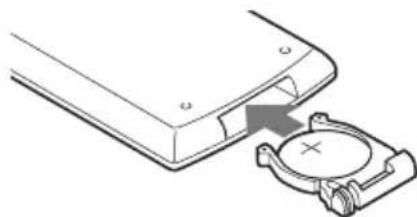
Insert a lithium battery CR2025 matching the ⊕ and ⊖ ends of the battery.
1 Pull out the battery holder (②) while pressing the lock lever (①).
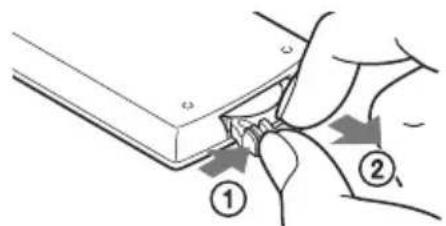
text_image
Diagram showing two hands inserting a component into a panel, labeled with arrows and numbered parts ① and ②.3 Insert the new battery in the battery holder with the ⊕ side up and then push the holder fully.
natural_image
Diagram showing a device with a circular component inserted into a housing, no text or symbols present2 Remove the old battery.
Notes
- Do not expose the remote sensor R direct sunlight or a lighting apparatus. Doing so may cause a malfunction.
- No button operation can be made, when the battery drains. If the remote does not work at all, change the battery and check the status.
WARNING
Battery may explode if mistreated.
Do not recharge, disassemble or dispose of in fire.
CAUTION
Danger of explosion if battery is incorrectly replaced.
Replace only with the same or equivalent type.
Using the LCD Panel
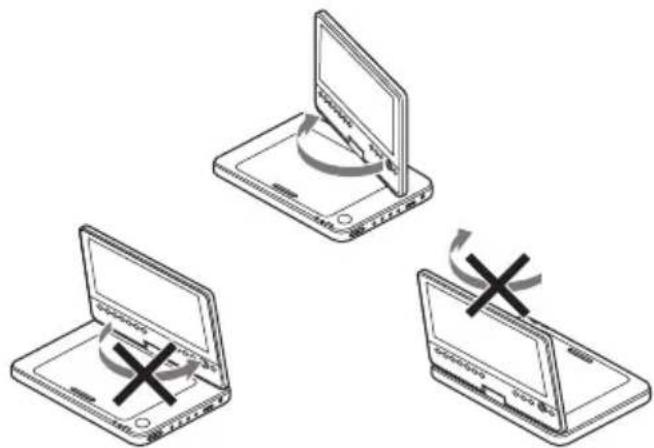
The LCD panel of the player can rotate a maximum of 180 degrees clockwise and still be used. After rotation of the LCD panel, it can be folded down on the main body of the player and still function.
Rotating the LCD panel
1 Place the player on a table or other flat stable surface.
2 Push the LCD panel up with your thumbs until it is open to the vertical position.
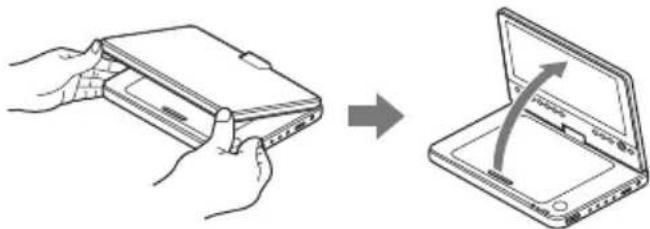
natural_image
Illustration showing a hand holding a tablet device being placed into a laptop, with an arrow indicating the process (no text or symbols present)3 Slowly rotate the LCD panel 180 degrees in the direction indicated by the arrow (clockwise).
text_image
Diagram showing three devices with a crossed-out 'X' symbol indicating disassembly or reassembly, likely illustrating a technical or mechanical process.Rotating and folding down the LCD panel
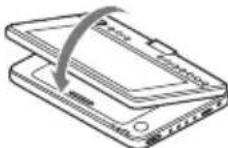
After rotating the LCD panel 180 degrees clockwise push the LCD panel down onto the main body of the player. In this position the panel is facing up.
To return the LCD panel to its original position
Open the LCD panel to the vertical position and rotate the LCD panel counter-clockwise slowly.
Notes
- Do not rotate the LCD panel over 180 degrees. In addition, do not rotate in the opposite direction. Doing so will break the LCD panel.
- If the LCD panel does not fully open, do not further rotate it. The LCD panel may become damaged.
- Return the LCD panel to its original positions after use. The LCD screen can be damaged by sudden shocks or similar treatment.
Connecting the AC Adaptor
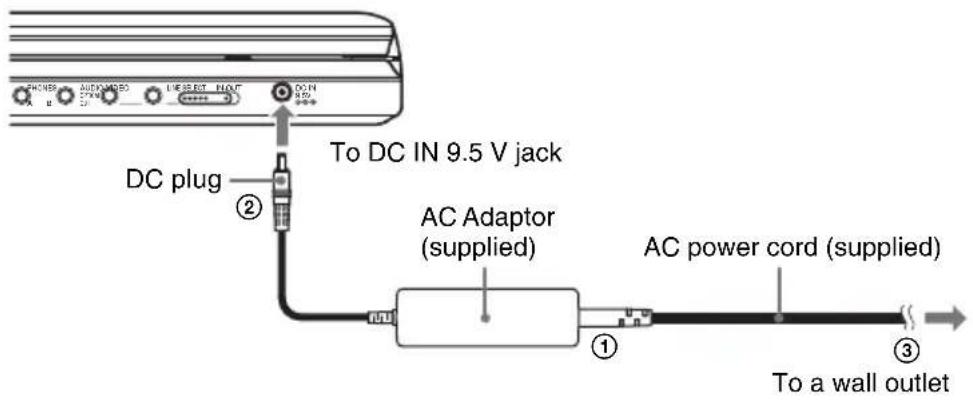
Connect the AC adaptor (supplied) in the order of ① to ③ below. To disconnect, follow the steps in reverse order.
text_image
DC plug To DC IN 9.5 V jack AC Adaptor (supplied) AC power cord (supplied) To a wall outletNote
Stop playback before disconnecting the AC power cord. Failure to do so may cause a malfunction.
Using with the Battery Pack
When an AC power connection is not available, the player can be enjoyed with the battery pack (supplied) installed.
Please charge the battery pack before using it.
Installing the battery pack
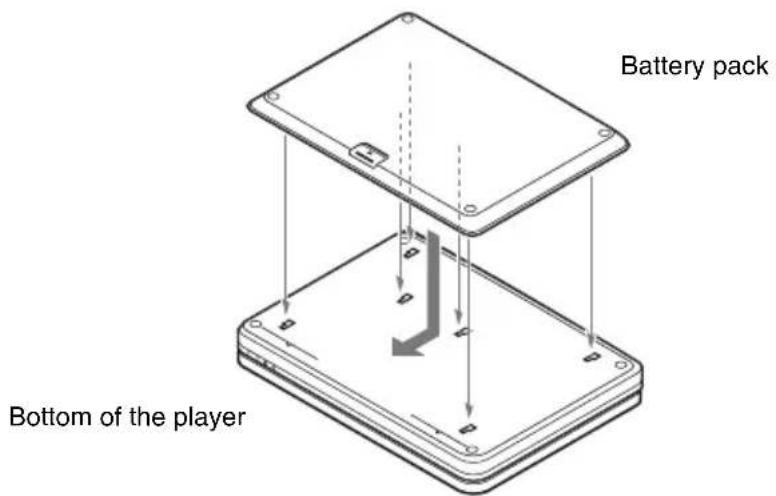
1 Aligning the battery pack with the lines on the player's bottom, engage the hooks of the battery pack in the holes on the bottom of the player.
2 Slide the battery pack in the direction of the arrow until it clicks into place.
text_image
Battery pack Bottom of the playerTo remove the battery pack
Push the release knob and slide the battery pack in the direction of the arrow.
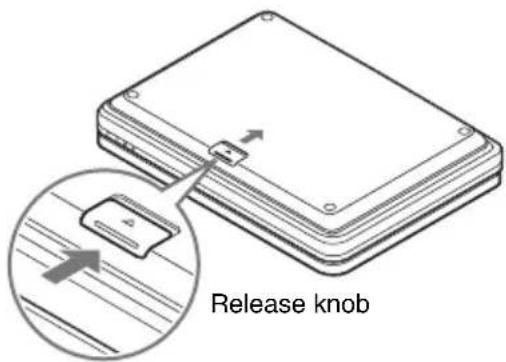
text_image
Release knobNotes
- Turn the player off before installing the battery pack.
- Do not remove the battery pack during playback.
- Do not touch the connecting points of the player and the battery pack. Doing so may cause a malfunction.
- Be careful not to drop the battery pack when installing and removing it.
Charging the battery pack
1 Attach the battery pack to the player (page 12).
2 Connect the AC adaptor to the player, and then connect the AC power cord into a wall outlet (page 11).
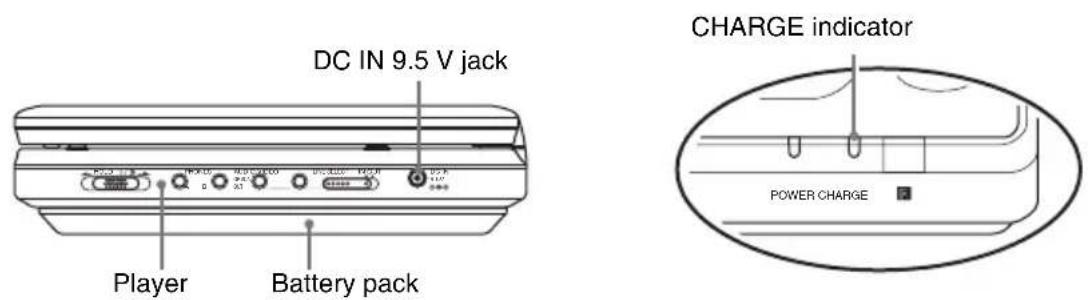
text_image
DC IN 9.5 V jack Player Battery pack CHARGE indicator POWER CHARGEWhen charging begins, the CHARGE indicator turns on.
When charging ends, the CHARGE indicator turns off.
3 After charging is finished, disconnect the AC power cord from the wall outlet and remove the AC adaptor.
To check the battery level
When the player is stopped, a battery indicator is displayed on the screen. Recharge the battery, when is displayed or the CHARGE indicator flashes.

text_image
Full → [Battery] → [Battery] → ExhaustedThe battery indicator is not displayed when a DVD or JPEG file are being played. Stop the player and check the battery level.
Charging time and maximum playing time
Charging time (with the player turned off) Playing time (with the display turned on)
| Approx.6 hours | Approx.6 hours* |
* This is the indication of the longest continuous playback on the following conditions.
- normal temperature (20°C (68°F))
- Headphone Use
- Set Backlight Adjustment to the Minimum
- Set "Digital Output" to "Off" in "Audio Setup."
Battery condition may reduce operating time.
Notes
- The battery indicator does not appear on the screen when the AC adaptor is used or when inputting from external sources.
- Charging times may differ from that indicated above due to conditions of use, environment, and other factors. The recommended charge up surrounding temperature is in the 10-30°C (50-86°F) range.
Using with the Car Battery Adaptor
Use the car battery adaptor (supplied) to supply power from the cigarette lighter socket to the player. The adaptor is for a 12V car battery. Do not use it with a 24V car battery. The adaptor is also for use with negatively grounded cars. Do not use it with cars grounded positively.
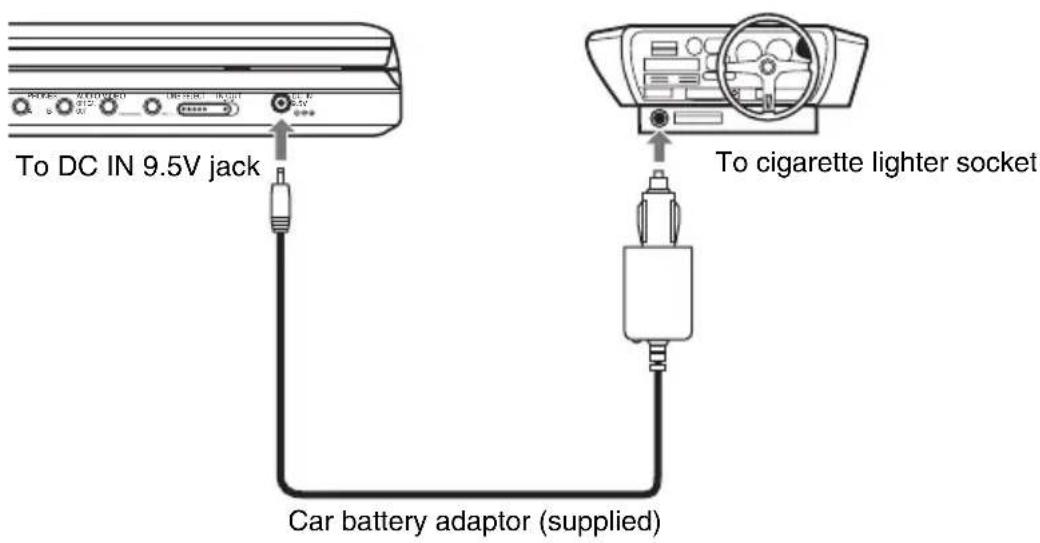
text_image
To DC IN 9.5V jack To cigarette lighter socket Car battery adaptor (supplied)Hint
If the car adaptor interferes with car operation, use a commercial cigarette lighter extension cord.
Notes
- Do not use the car adaptor if it has been dropped or damaged.
- Arrange the cord so as not to interfere with the driver. Also, do not place the LCD panel where the driver can watch.
- If the picture is not clear, keep the player away from the car battery adaptor.
- Use the car battery adaptor with the car engine running. If it is used with the car engine off, the car battery may become unusable.
- If the cigarette lighter socket is dirty with ash, etc, a bad connection may cause the plug to heat up. Always clean well before use.
- The car battery adaptor may heat up while charging or after a long period of use. That is not a malfunction.
After using the car battery adaptor
After turning the player off, disconnect the car battery adaptor from the cigarette lighter socket.
Notes
- Do not turn off the car engine while the player is turned on. Doing so stops the power supply and may cause damage to the player.
- Disconnect the car battery adaptor after use. Since some cars supply power to the cigarette lighter socket even when the engine is turned off, the car battery may discharge over time.
- When disconnecting the car battery adaptor, hold the plug to pull it out.
- When listening to the car radio, disconnect the car battery adaptor from the cigarette lighter socket to avoid noise.
Playing Discs
Playing Discs
DVDvideo
CD
DATA CD
DATA DVD
Depending on the DVD, some operations may be different or restricted.
Refer to the operating instructions supplied with the disc.
Connect the AC adaptor or install the battery pack.
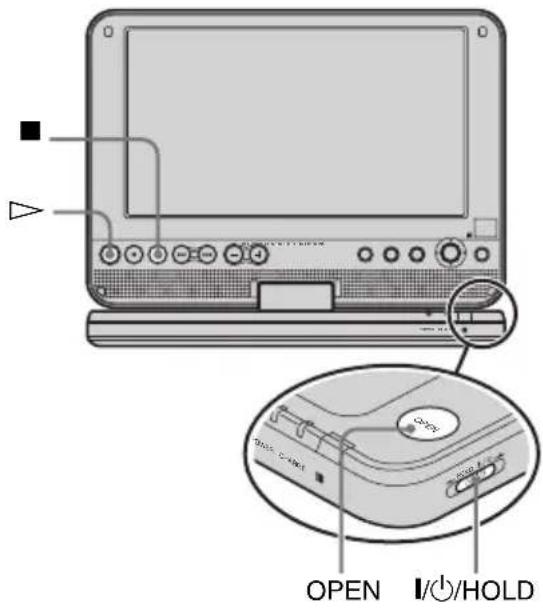
text_image
OPEN I/O/HOLD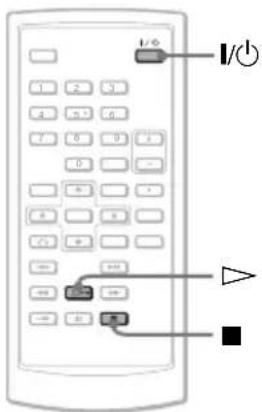
text_image
Diagram of a remote control device with labeled buttons and indicators1 Open the player's LCD panel.
Set the LINE SELECT switch on the player's right side to "OUT."
2 Press I/⏻ on the remote or slide the I/⏻/HOLD switch of the player to “I/⏻.”
The player turns on and the power indicator lights up in green.
3 Press OPEN to open the disc lid.
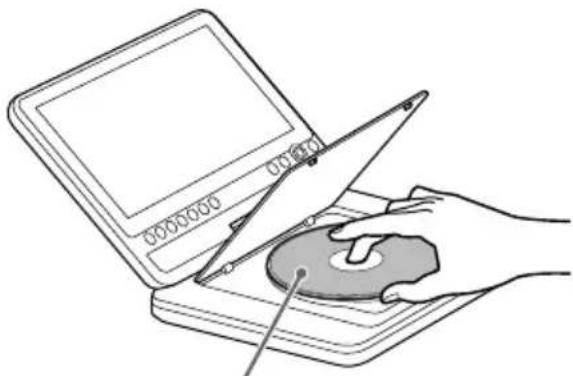
4 Insert the disc to be played.
Push with the playback side down until it clicks.
natural_image
Illustration of a hand using a tool to press or adjust a device on a flat surface (no text or symbols visible)Playback side facing down
5 Push the PUSH CLOSE on the player to shut the disc lid.
6 Press ▷.
Playback starts.
• Some discs may start playing automatically after the disc lid is shut.
- Depending on the disc, a menu may appear on the screen. See page 17 for details.
• After all titles have been played, the player will stop itself and the display will return to the menu screen.
Notes
- If the disc is inserted with playback side up, a “No Disc” or “Cannot play this disc.” message appears.
• Discs created on DVD recorders must be correctly finalized to play on this player. For more information about finalizing, refer to the operating instructions supplied with the DVD recorder.
- The disc may be still spinning when the disc lid is opened. Wait until the spinning stops before removing the disc.
- During operation, “” may appear on the screen. This symbol indicates that a function explained in this operating instruction is not available on the current DVD VIDEO.
To stop playback
Press ■.
Pressing ▷ again will start playback from the point you stopped (Resume Play). See page 17 for details.
To play from the beginning, press ■ twice, then press ▷.
To turn off the power
Press the remote's I/⏻ button or slide the player's I/⏻/HOLD switch to "I/⏻."
To avoid accidental button operation on the player
Set the player's I/⏻/HOLD switch to "HOLD." All the buttons on the player are locked, while the button on the remote remains operable.
To play DTS sound tracks on a DVD VIDEO
- The player's speaker does not output DTS sound. When you play DTS sound tracks on a DVD VIDEO, connect the player to an AV amplifier (receiver) (page 38) and set up “DTS” in “Audio Setup” (page 34).
- If you connect the player to audio equipment such as an AV amplifier (receiver) without a DTS decoder, do not set “DTS” to “On” in “Audio Setup” (page 34). A loud noise may come out from the speakers, which may affect your ears or cause speaker damage.
Notes
- A screen saver image appears when you leave the player in pause or stop without operation for more than 15 minutes. The image disappears when you press ▷. See page 33 for details.
- The player turns off, 15 minutes after starting the screen saver function (Auto Power Off).
Additional playback operations

text_image
Diagram of a remote control with labeled buttons and directional arrows indicating navigation or functionTo Operation
| Stop Press ■ | ||
| Pause Press ▪ | ||
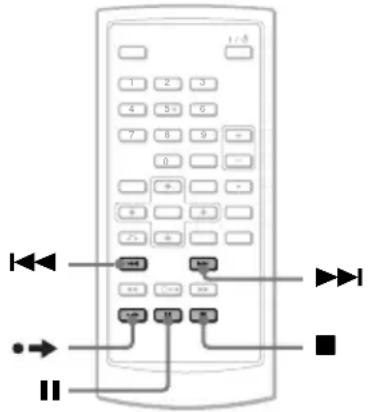
| Go to the next chapter, track, or scene in continuous play mode | Press ▶▶▶ | |
| Go back to the previous chapter, track, or scene in continuous play mode | Press ◀◀◀ | |
| Briefly fast forward the current scene* | Press ●→ playback. | during |
* DVD VIDEOS only. The above functions may not be used for some scenes.
Resuming playback from the point where you stopped the disc (Resume Play) DVDVideo CD
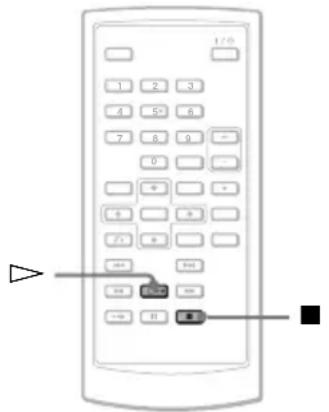
When you stop playback, the player remembers the stop point and displays a message on the screen. You can resume from the same point by pressing ▷ again. Resume Play works even after the player is turned off, as long as the disc lid is kept closed.
text_image
1/0 1 2 3 4 5 6 7 8 9 0 9 4 5 6 7 8 9 + - + - + - + - + - + - + - + - + - + - + - + - + - + - + - + - + - + - + - - + - + - + - + - - + - - + - - + - - + - - + - - + - - + - - + - - + - - + - - + - - + - - + - - + - - + - - + - - + - - + - - + - - + - - + - - + - - + - - + - - + - - + - - + - - + - - + - - + - - + - - + - - + - -1 While playing a disc, press ■ to stop playback.
A message appears.
2 Press ▷.
The player starts playback from the point you stopped in step 1.
Hints
- To play from the beginning of the disc, press ■ twice, then press ▷.
- When turning power on again after power off, resume play starts automatically.
Notes
- Depending on the stop point, Resume play may not start from exactly the same point.
- The point where you stopped playing is cleared when:
- you open the disc lid.
- you disconnect the battery pack and the AC adaptor.
- you change the LINE SELECT switch setting.
Using the DVD's menu DVDVideo
A DVD is divided into long sections of a picture or a music feature called “titles.”
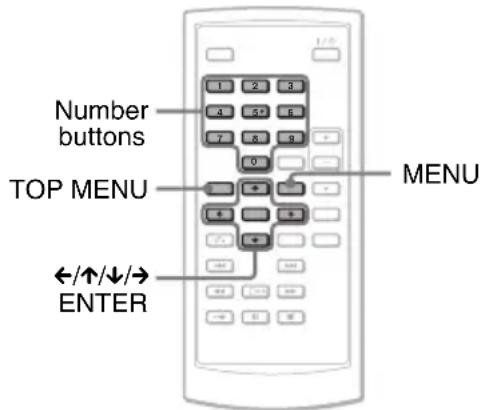
When you play a DVD containing several titles, you can select the title you want using the TOP MENU button.
When you play DVDs that allow you to select items such as language for the sound and subtitles, select these items using the MENU button.
text_image
Number buttons TOP MENU MENU +/↑/↓/→ ENTER1 Press TOP MENU or MENU.
The disc's menu appears on the screen. The contents of the menu vary from disc to disc.
2 Press ←/↑/↓/→ or the number buttons to select the item you want to play or change.
3 Press ENTER.
Note
Depending on the disc, you may not be able to use / of the player for the disc menu. In this case, use / on the remote.
Changing the sound
DVDVideo CD
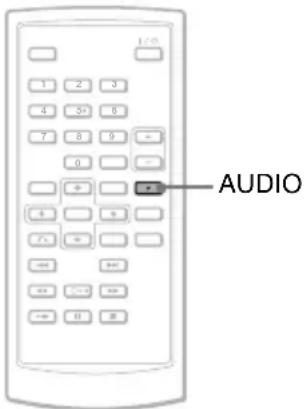
When playing a DVD VIDEO recorded in multiple audio formats (PCM, Dolby Digital, or DTS), you can change the audio format. If the DVD VIDEO is recorded with multilingual tracks, you can also change the language.
With CDs, you can select the sound from either the right or left channel and listen to the sound of the selected channel through both the right and left speakers. For example, when playing a disc containing a song with the vocals on the right channel and the instruments on the left channel, you can hear the instruments from both speakers by selecting the left channel.
text_image
AUDIO1 Press AUDIO repeatedly to select the desired audio signal.
The default setting is underlined.
◆When playing a DVD VIDEO
Depending on the DVD VIDEO, the choice of language varies.
When the same language is displayed two or more times, the DVD VIDEO is recorded in multiple audio formats.
◆When playing a CD
• S t e r: the standard stereo sound
- Left: the sound of the left channel (monaural)
• Right: the sound of the right channel (monaural)
Hints
- You can check of the current audio format (Dolby Digital, DTS, PCM, etc.) by pressing AUDIO repeatedly while playing a DVD VIDEO.
- You can switch the sound in the Playback Settings Display while playing a DVD (page 20).
Notes
- Depending on the disc, you may not be able to change the audio format, even if it is recorded in multiple audio formats.
- If “DTS” in “Audio Setup” is set to “Off” (page 34), the DTS track selection option will not appear on the screen even if the disc contains DTS tracks.
- When playing DTS sound tracks on a CD, you cannot change the sound.
Displaying the subtitles DVDVideo
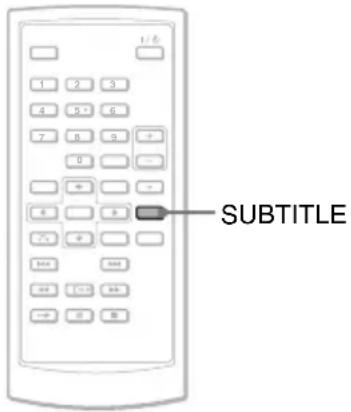
If subtitles are recorded on the disc, you can change the subtitles or turn them on and off whenever you want while playing a DVD.
text_image
1/2 1 3 3 4 5 6 7 8 9 0 4 5 6 7 8 9 500 40 500 40 600 0 81 Press SUBTITLE repeatedly to select a setting.
Depending on the disc, the choice of language varies.
To turn off the subtitles
Select "Subtitle Off" in step 1.
Hint
You can switch the subtitles in the Playback Settings Display while playing a DVD (page 20).
Notes
- Depending on the DVD VIDEO, you may not be able to change the subtitles even if multilingual subtitles are recorded on it. You also may not be able to turn them off.
- While you play a disc with subtitles, the subtitle may disappear when you press
Changing the angles DVDvideo
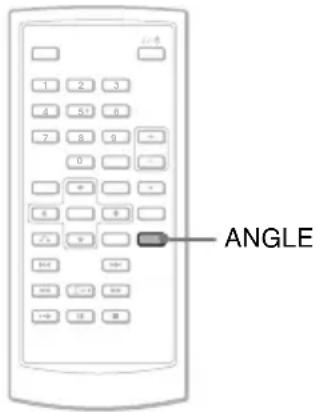
If various angles (multi-angles) for a scene are recorded on the DVD VIDEO, “☐” appears on the screen. This means that you can change the viewing angle.
text_image
ANGLE1 Press ANGLE repeatedly to select an angle number.
The scene changes to the selected angle.
Notes
- Some DVD VIDEOs prohibit changing angles even when multi-angles are recorded.
- You cannot change angles during Slow Play or Scan Play.
- “” (angle mark) does not appear when “Angle Mark” in “General Setup” is set to “Off” (page 33).
Using the Playback Settings Display
DVDVideo
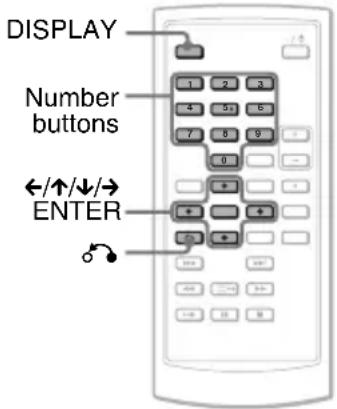
While playing a DVD, you can check the current playback settings on the screen. The Playback Settings Display also allows you to change sound, subtitle, and angle or search for a title or track by inputting numbers.
text_image
DISPLAY Number buttons ←/↑/↓/→ ENTER1 Press DISPLAY while playing a DVD.
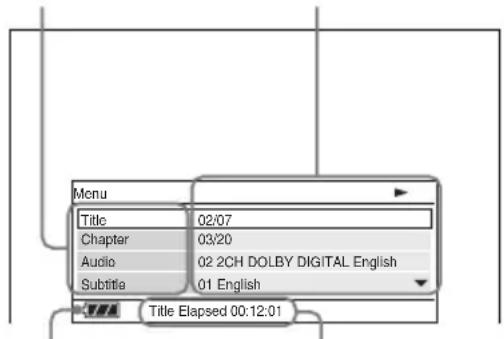
The Playback Settings Display appears. Example: When playing a DVD VIDEO
Current playback settingsItems Elapsed or remaining timeBatte
text_image
Menu Title 02/07 Chapter 03/20 Audio 02 2CH DOLBY DIGITAL ENGLISH Subtitle 01 English Title Elapsed 00:12:01The corresponding icon for Play, Pause, Search, or Slow Play is displayed in the upper right corner of the screen.
2 Press ↑/↓ to select the desired item and press ENTER.
• Title
- Chapter
- Audio
- Subtitle
- Angle
• T. Time
• C. Time
- Repeat
- Time Disp.
3 Press ↑/↓ to select the setting, and press ENTER.
To enter numbers, use the number buttons or ↑/↓.
Note
Depending on the disc, you may not be able to set some options.
To turn off the display
Press DISPLAY or ⬇ RETURN.
Searching for a title/chapter, etc. DVDvideo
By entering the number or the time code, you can search a DVD by title or chapter.
1 Press ↑/↓ to select the search method on the Playback Settings Display, and press ENTER.
- Title
- Chapter
• T. Time *
• C. Time *
* You can search the title or chapter of a DVD VIDEO by entering the time code.
2 Press the number buttons or ↑/↓ to select the title or chapter number, and press ENTER.
The player starts playback from the selected number.
What status you select "T.Time" or "C.Time" in step 1, "00:00:00" will appear on the screen. Enter the desired time code using the number buttons, and press ENTER. Playback starts from the entered time code. Elapsed or remaining time appears on the footer of the Playback Settings Display.
Hints
- You can use direct search without displaying the control menu. See page 22 for details.
• See page 22 for details about searching for a CD.
Notes
- The displayed title/chapter number is the same as the number recorded on the disc.
- Depending on the disc, you may not be able to use the time code.
Playing a DVD VIDEO repeatedly (Repeat Play) DVDVideo
You can play all of the titles on a DVD VIDEO, or a single title or chapter repeatedly.
1 Select "Repeat" on the Playback Settings Display, and press ENTER.
2 Press ↑/↓ to select the setting, and press ENTER.
• Chapter: repeats the current chapter.
• Title: repeats the current title.
• At: repeats all of the titles.
To return to normal play
Select "Off" in step 2.

Hint
When playing a CD repeatedly, use MENU (page 23).
Note
Depending on the disc, the Repeat function may not be available.
Checking the playing time and remaining time DVDVideo
You can check the playing time and remaining time of the current title or chapter.
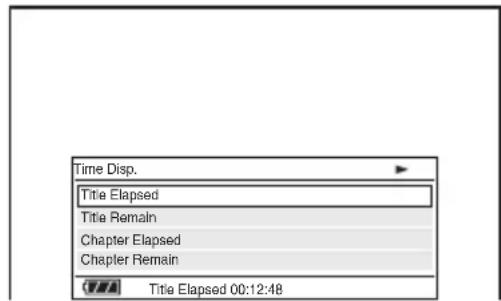
1 Select "Time Disp." on the Playback Settings Display, and press ENTER.
text_image
Time Disp. Title Elapsed Title Remain Chapter Elapsed Chapter Remain Title Elapsed 00:12:482 Press ↑/↓ to select the time information setting, and press ENTER.
- Title Elapsed
- Title Remain
- Chapter Elapsed
- Chapter Remain
Hint
See page 24 for details about displaying the elapsed time of a CD.
Note
The default setting for “Time Disp.” is “Title Elapsed.” After selecting an other option of “Time Disp.” and exiting from the Playback Settings Display, the “Title Elapsed” appears when the Playback Settings Display is re-entered.
Searching for a Particular Point on a Disc (Search, Scan, Slow Play, Repeat Play, Random Play)
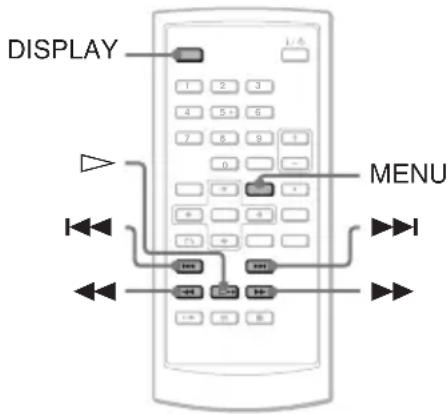
You can quickly locate a particular point on a disc by monitoring the picture or playing back slowly.
text_image
DISPLAY 1 2 3 4 5 6 7 8 9 0 0 MENU I II III IV V W X Y ZNotes
- Depending on the disc, you may not be able to perform some of the operations described.
- For DATA CDs/DATA DVDs, you can search for a particular point only on an MP3 audio track.
Locating a point quickly using the I◄◄/►►I PREV (previous)/NEXT buttons (Search)
DVDvideo
CD
DATA CD
DATA DVD
During playback, press ▶▶▶ or ◀◀◀ to go to the next or previous chapter/track.
Hint
When you know the chapter or track number, you can search directly by entering these numbers using the number buttons.
- While playing a DVD VIDEO, you can search for a title or chapter using the number buttons and ENTER. Press to switch between title and chapter.
- While playing a CD, you can search for a track using the number buttons and ENTER.
Locating a point quickly by playing a disc in fast forward or fast reverse (Scan)
DVDVideo
CD
DATA CD
DATA DVD
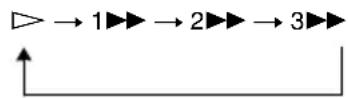
Press ◀◀ or ▶▶ to fast reverse or fast forward during playback. To return to normal play, press ▷.
Each time you press ◀◀ or ▶▶ during scan, the scan speed changes.
With each press the indication changes as shown below.
◆Playback direction
◆Opposite direction
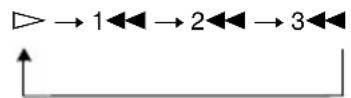
The “3▶▶”/“3◀◀” playback speed is faster than “2▶▶”/“2◀◀” and the “2▶▶”/“2◀◀” playback speed is faster than “1▶▶”/“1◀◀.”
Hint
on the player works the same as / on the remote, and ENTER on the player works the same as on the remote. This function is effective when you play back a DVD.
Notes
- No sound is output during Scan play for a DVD.
- Scan speed differs depending on the disc type.
Watching frame by frame (Slow Play)
DVDvideo
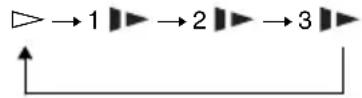
Press ◀◀ or ▶▶ when the player is in pause mode. To return to normal speed, press ▷. Each time you press ◀◀ or ▶▶ during Slow Play, the playback speed changes. With each press the indication changes as follows:
◆Playback direction
◆Opposite direction
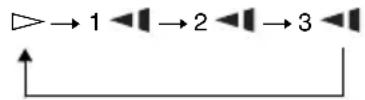
The “3”/“3” playback speed is slower than “2”/“2” and the “2”/“2” playback speed is slower than “1”/“1.”
Note
Slow speed differs depending on the disc type.
Playing CD repeatedly or in random order (Repeat Play, Random Play) CD
You can play all of the tracks on a disc, or a single track repeatedly (Repeat Play). Also, you can play the tracks in random order, too (Random Play).
1 Press MENU repeatedly during playback to select the playback mode.
- Track: repeats the current track.
- At: repeats all tracks on the disc.
- Random: plays all tracks on the disc randomly.
To return to normal play
Select "Off" in step 1.
Hint
During Random Play, you can start playing other randomly selected track by pressing ▶▶▶.
Notes
- Depending on the disc, Random Play may not be available.
- The same track may be repeated several times in Random Play.
Checking the play information of the disc DVDvideo CD
When playing a DVD
Press DISPLAY while playing a DVD, and then use the Playback Settings Display (page 20).
When playing a CD
Press DISPLAY.
The playing track number/the total number of tracks and the elapsed time of the current track appear. Press DISPLAY repeatedly to switch the time information as below.
- Track Elapsed
- Track Remain
- Disc Elapsed
- Disc Remain
Note
The player does not display “Disc Elapsed” or “Disc Remain” on the screen when playing a CD in Random Play.
Playing MP3 Audio Tracks or JPEG Image Files DATA CD DATA DVD
You can play MP3 audio tracks and JPEG image files on DATA CDs (CD-ROMs/CD-Rs/CD-RWs) or DATA DVDs (DVD-ROMs/DVD+RWs/DVD+Rs/DVD-RWs/DVD-Rs). For playable MP3 audio files and JPEG image files, see page 42.
When you insert DATA CDs and DATA DVDs, the list of albums appears.

text_image
←/↑/↓/→ ENTER 1 2 3 4 5 6 7 8 9 0 MENU I II III IV V W X Y Z A B C D E F G H I J K L M N O P Q R S T U V W X Y ZNote
DATA CDs recorded in KODAK Picture CD format automatically start playing when inserted.
Playing an MP3 audio track
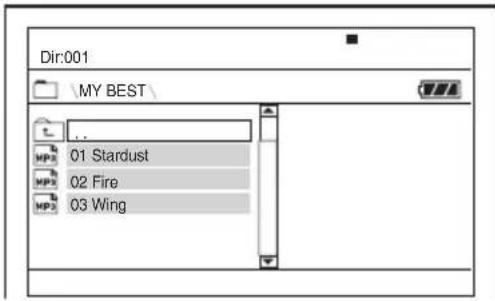
1 Press ↑/↓ to select an album on the list, and press ENTER.
The list of tracks in the album appears.
text_image
Dir:001 MY BEST MP3 01 Stardust MP3 02 Fire MP3 03 Wing- To go to the next or previous page, press ▶▶▶ or ◀◀◀.
- To return to the list of albums, press ↑/↓ to select and press ENTER.
2 Press ↑/↓ to select the track you want to play, and press ENTER.
Playback starts from the selected track.
To go to the next or previous MP3 audio track
Press ▶▶▶ or ◀◀◀.
To stop playback
Press ■.
To pause playback
Press II.
To restart playback, press Ⅱ again.
Notes
- The total albums and files the player can recognize is about 648.
- The number of albums in a disc the player can recognize is about 299.
Playing a JPEG image file
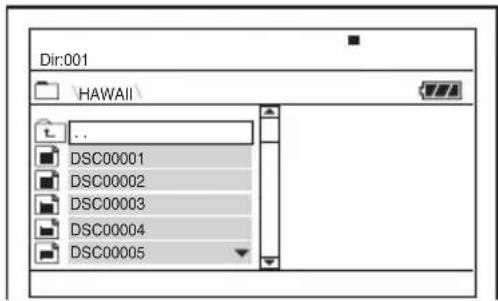
1 Press ↑/↓ to select an album on the list, and press ENTER.
The list of files in the album appears.
text_image
Dir:001 HAWAII .. DSC00001 DSC00002 DSC00003 DSC00004 DSC00005- To go to the next or previous page, press ▶▶▶ or ◀◀◀.
- To return to the list of albums, press ↑/↓ to select and press ENTER.
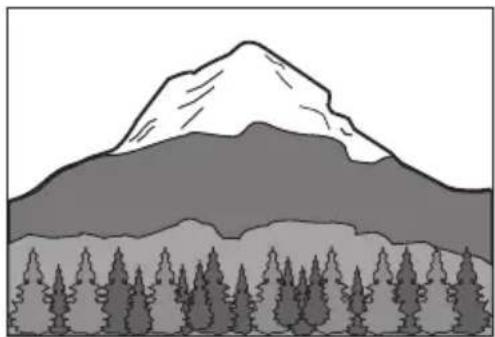
2 Press ↑/↓ to select the image you want to view, and press ENTER.
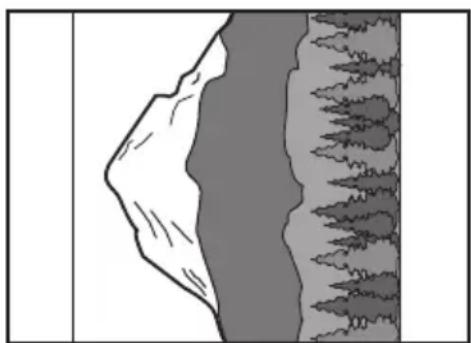
The selected image appears. Example:
natural_image
Illustration of a mountain range with pine trees at the base (no text or symbols)To display the list of thumbnails
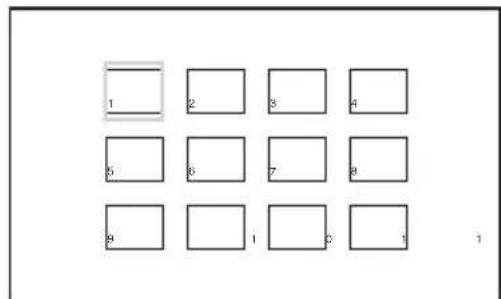
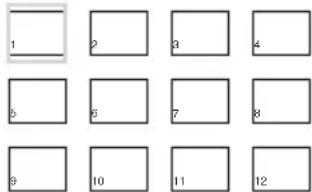
Press MENU when a file is displayed on the screen.
The image files in the album appear in 12 subscreens with the displayed file in the lead.
text_image
1 2 3 4 5 6 7 8 9 1 2 3 4 5 6 7 8 9 1 2 3 4 5 6 7 8 9 1- To move to the previous or next page of the thumbnail list display, select “◀Prev” or “Next▶” under the screen.
- To exit the list of thumbnails, press MENU.
To go to the next or previous JPEG image file
Press ▶▶▶ or ◀◀◀.
To rotate a JPEG image
Press ←/↑/↓/→ while viewing the image.
↑: Reverses the image vertically (up and down).
↓: Reverses the image horizontally (left and right).
→: Rotates the image 90 degrees clockwise.
←: Rotates the image 90 degrees counter clockwise.
Note that the view also returns to normal if you press ◀◀◀/▶▶▶ to go to the next or previous image.
Example: when is pressed once.
natural_image
Geological cross-section diagram showing layered rock formations and tree trunks (no text or labels)To stop viewing the JPEG image
Press ■.
The display returns to the list of files.
Notes
- Images may take time to appear due to the number of recorded files or the size of the folders. If no image appears after a few minutes, some of the files included may be too large.
- Some JPEG files, especially progressive JPEG files or JPEG files of 3,000,000 pixels or more, may take longer to display than others.
- The player cannot play the JPEG image file that is larger than 3078 (width) x 2048 (height) in normal mode, or more than 3,300,000 pixels in progressive JPEG. (Some progressive JPEG files cannot be displayed even if the size is within this specified capacity.)
- The total albums and files the player can recognize is about 648.
- The number of albums in a disc the player can recognize is about 299.
Enjoying JPEG Images as a Slide Show
You can play JPEG image files on a DATA CD or DATA DVD successively as a slide show.
1 While displaying the file you want to start a slideshow, press MENU.
The list of thumbnails appears.
text_image
1 2 3 4 5 6 7 8 9 10 11 122 Press ←/↑/↓/→ to select “Slide Show” at the bottom of the screen, and press ENTER.
A slideshow starts from the displayed file.
To pause slideshow
Press ||. By pressing || again or ▷, you can return to slideshow.
To stop slideshow
Press ■ or MENU.
Adjusting the Picture Size and Quality
DVDVideo
DATA CD
DATA DVD
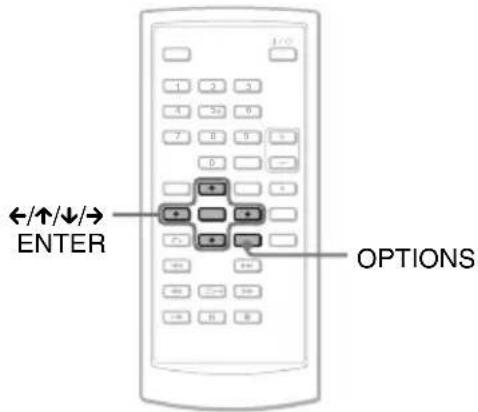
You can adjust the picture displayed on the LCD screen. See “General Setup” (page 32), when outputting the video signal to TV, etc.
text_image
←/↑/↓/→ ENTER OPTIONS1 Press OPTIONS.
The Option Menu appears.
2 Press ↑/↓ to select "LCD Mode" and press ENTER.
The items for "LCD Mode" appear.
3 Press ↑/↓ to select items and press ENTER.
- LCD Aspect: Change the picture size. Select "Normal" or "Full" by pressing ↑/↓*.
- Backlight: Adjust the brightness of the LCD screen by pressing / .
- Contrast: Adjust the difference between light and dark areas by pressing / .
- Hue: Adjust the red and green color balance by pressing .
- Color: Adjust the richness of colors by pressing / .
- Default: Returns all settings to the factory defaults.
* In “Normal,” the pictures are displayed in the original configuration, retaining the aspect ratio. For example, a 4:3 picture will have black bands on both sides, and the letterbox pictures recorded either in 16:9 or 4:3 will have black bands on all sides. In “Full,” a 16:9 picture will be adjusted to fill the entire screen.
To turn off the Option Menu
Press OPTIONS or 📌 RETURN.
Hints
- The screen turns off automatically when the LCD panel is closed.
- You can see the settings for the display in "General Setup" (page 32).
Notes
Depending on the disc, the screen size you can select differs.
Enjoying DivX® Videos
Playing DivX Video Files
DATA CD DATA DVD
You can play DivX video files on DATA CDs (CD-ROMs/CD-Rs/CD-RWs) and DATA DVDs (DVD-ROMs/DVD+RWs/DVD+Rs/DVD-RWs/DVD-Rs).
When you insert DATA CDs and DATA DVDs, the list of albums appears.
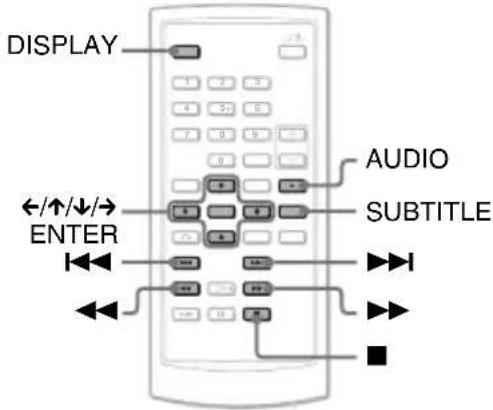
text_image
DISPLAY AUDIO SUBTITLE ←/↑/↓/→ ENTERNotes
- When the selected file is not supported, "Data Error (DivX)" displays on the screen and the file will not be played.
- Depending on the DivX video file, the picture may pause or be unclear. In which case, it is recommended that you create the file at a lower bit rate. If the sound is still noisy, MP3 is the recommended audio format. Note, however, this player does not conform to WMA (Windows Media Audio) format.
- Because of the compression technology used for DivX video files, it may take some time after you press ▷ (play) for the picture to appear.
- Depending on the DivX video file, the sound may not match the pictures on the screen.
- The player's speaker does not output DTS sound. When you play DTS sound tracks on a DivX video file, connect the player to an AV amplifier (receiver) (page 38) and set up "DTS" in "Audio Setup" (page 34).
- Depending on the DivX video file, you may not be able to perform some operations.
Playing a DivX video file
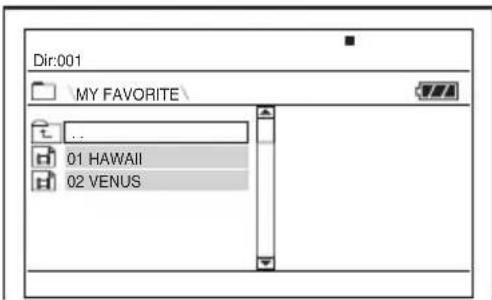
1 Press ↑/↓ to select an album on the list, and press ENTER.
A list of files in the album appears.
text_image
Dir:001 MY FAVORITE ... 01 HAWAII 02 VENUS- To go to the next or previous page, press ▶▶▶ or ◀◀◀.
- To return to the list of albums, press ↑/↓ to select and press ENTER.
2 Press ↑/↓ to select the file you want to play, and press ENTER.
Playback starts from the selected file.
To go to the next or previous DivX video file
Press ▶▶▶ or ◀◀◀.
To locate a point quickly by playing DivX video files in fast forward or fast reverse (Scan)
Press ▶▶/◀◀ repeatedly to select the required speed for the search mode during playback.
To watch frame by frame (Slow Play)
Press ▶▶ repeatedly in pause mode to select the required slow motion speed.
To display the playback information
Press DISPLAY repeatedly.
The playback information changes as follow order, “Title Elapsed,” “Title Remain,”
"Display Off," and "Subtitle."
To change the sound
Press AUDIO repeatedly during playback to select the desired audio signal. If "No Audio" appears, the player does not support the audio signal format contained in the disc.
To change the subtitles
Press SUBTITLE during playback.
Press ↑/↓, and ENTER during displaying the subtitle information.
To stop playback
Press ■.
Hint
If the number of viewing times is preset, you can play the DivX video files as many times as the preset number. The following occurrences are counted:
- when the player is turned off. This includes when the player is automatically turned off by the Auto Power Off function. Press instead of to stop viewing.
- when the disc lid is opened.
– when another file is played.
Note
The slow reverse function is prohibited.
About DivX Video Files
DivX ^® is a video file compression technology, developed by DivX, Inc. This product is an official DivX ^® Certified product.
You can play DATA CDs and DATA DVDs that contain DivX video files.
DATA CDs and DATA DVDs that the player can play
This player only plays DATA CDs whose logical format is ISO 9660 Level 1 or Joliet, and DATA DVDs of Universal Disk Format (UDF).
Refer to the instructions supplied with the disc drives and the recording software (not supplied) for details on the recording format.
Note
The player may not be able to play some DATA CDs/DATA DVDs created in the Packet Write format or multiple sessions.
DivX video files that the player can play
The player can play data that is recorded in DivX format, and which has the extension “.AVI,” or “.DIVX.” The player will not play files with the extension “.AVI” or “.DIVX” if they do not contain a DivX video.
Notes
- The player may not play a DivX video file when the file consists of two or more DivX video files combined.
- The player cannot play a DivX video file of size more than 720 (width) × 576 (height)/2 GB.
- Depending on the DivX video file, the picture may be unclear or the sound may skip.
- The player cannot play some DivX video files that are longer than 3 hours.
- The player can display a file name up to 14 characters. Any characters after the 14th character do not appear on the screen.
- Characters that are not displayable appear as “*.”
- Depending on the disc, a file name that is not displayable appears as “*.”
- You cannot display correctly the CD-R/CD-RW file names written in the UDF file system.
About playback order of DivX video files
Note that the playback order may not be applicable, depending on the software used for creating the DivX video file, or if there are more than 299 albums and 648 DivX video files in each album. See “About playback order of albums, tracks, and files” (page 43).
Settings and Adjustments
Using the Setup Display
By using the Setup Display, you can make various adjustments to items such as picture and sound. You can also set a language for the subtitles and the Setup Display, among other things.
For details on each Setup Display item, see pages from 32 to 36.
Note
Playback settings stored in the disc take priority over the Setup Display settings, and not all of the functions described may work.
text_image
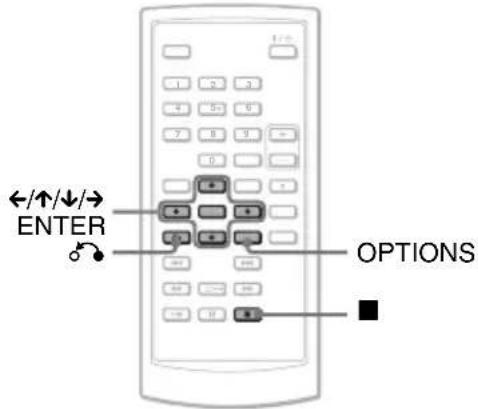
/↑/↓/→ ENTER OPTIONS1 Press OPTIONS when the player is in stop mode.
The Option Menu appears.
The Setup Display does not appear if Resume Play is activated. Cancel the Resume Play status first by pressing ■ twice, and the press OPTIONS.
2 Press ↑/↓ to select "Setup," then press ENTER.
The items for "Setup" appear.
text_image
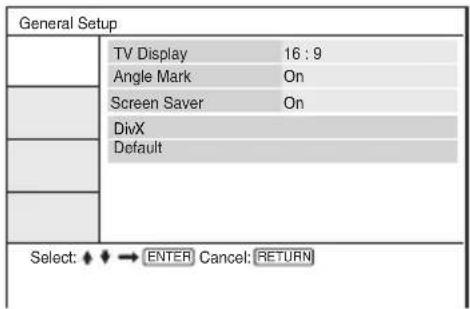
General Setup TV Display 16:9 Angle Mark On Screen Saver On DivX Default Select: ◆ ◆ → ENTER Cancel: RETURN3 Press ↑/↓ to select the desired Setup item from: “General Setup,” “Audio Setup,” “Language Setup,” or “Parental Control,” then press ENTER.
The Setup item is selected.
Example: "General Setup"
Selected item
text_image
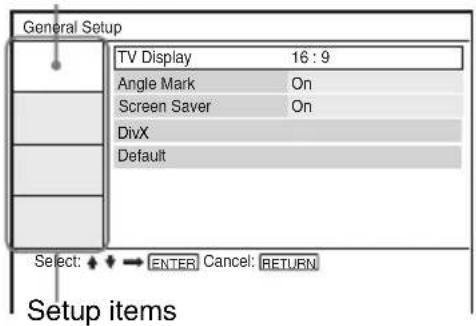
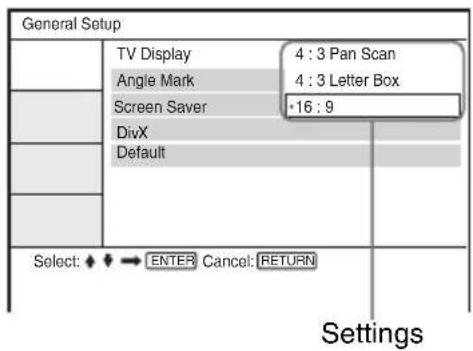
General Setup TV Display 16:9 Angle Mark On Screen Saver On DivX Default Select: ENTER Cancel: RETURN Setup items4 Press ↑/↓ to select an item, then press ENTER.
The settings for the selected item appear. Example: "TV Display"
text_image
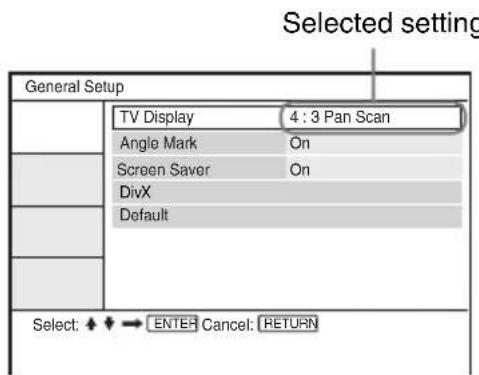
General Setup TV Display 4 : 3 Pan Scan Angle Mark 4 : 3 Letter Box Screen Saver *16 : 9 DivX Default Select: ◆ ➕ ENTER Cancel: RETURN Settings5 Press ↑/↓ to select a setting, then press ENTER.
The setting is selected and setup is complete.
Example: "4:3 Pan Scan"
text_image
Selected setting General Setup TV Display 4 : 3 Pan Scan Angle Mark On Screen Saver On DivX Default Select: ENTER Cancel: RETURNSettings for the Display (General Setup)
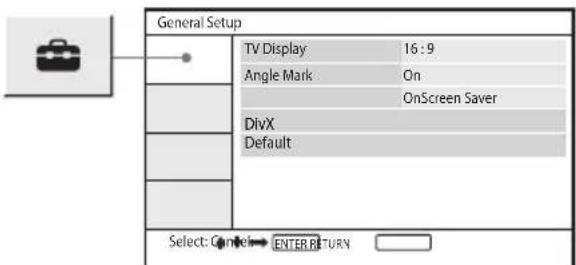
Choose playback display options and settings according to the TV to be connected.
Select “General Setup” in the Setup Display. To use the display, see “Using the Setup Display” (page 31).
The default settings are underlined.
text_image
General Setup TV Display 16:9 Angle Mark On OnScreen Saver DivX Default Select: Cancel ENTER RETURN◆TV Display (DVD only)
Selects the aspect ratio of the connected TV (4:3 standard or wide).
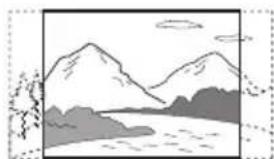
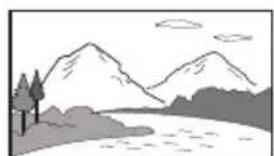
| 4:3Pan Scan | Select this when you connect a 4:3 screen TV. Automatically displays a wide picture on the entire screen and cuts off the portions that do not fit. |
| 4:3Letter Box | Select this when you connect a 4:3 screen TV. Displays a wide picture with bands on the upper and lower portions of the screen. |
| 16:9 | Select this when you connect a wide-screen TV or a TV with a wide mode function. |
4:3 Pan Scan
4:3 Letter Box
16:9
natural_image
Simple line drawing of a mountain landscape with trees and water (no text or symbols)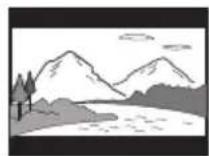
natural_image
Simple line drawing of a mountain landscape with trees and a river (no text or symbols)Note
Depending on the DVD, “4:3 Letter Box” may be selected automatically instead of “4:3 Pan Scan” or vice versa.
◆Angle Mark
Displays the angle mark when you can change the viewing angles during playback of DVDs recorded with multi-angles.
| On Display the angle mark. | |
| Off Hide the angle mark. |
◆Screen Saver
The screen saver image appears when you leave the player in pause or stop mode for 15 minutes. The screen saver will help prevent your display device from becoming damaged (ghosting). Press ▷ to turn off the screen saver.
| On | Activates the screen saver function. |
| Off Deactivates | the screen saver function. |
◆DivX
Displays the registration code for this player. For more information, go to http://www.divx.com on the Internet.
◆Default
Each function returns to its original factory settings. Note that all of your settings will be lost.
Settings for the Sound (Audio Setup)
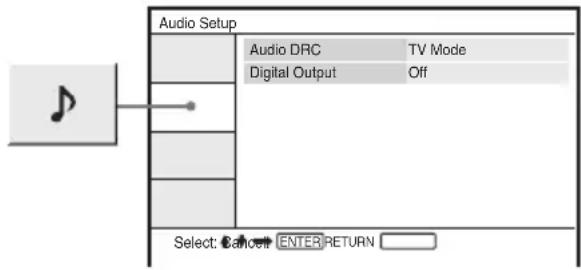
“Audio Setup” allows you to set the sound according to the playback and connection conditions.
Select “Audio Setup” in the Setup Display. To use the display, see “Using the Setup Display” (page 31).
The default settings are underlined.
text_image
Audio Setup Audio DRC TV Mode Digital Output Off Select: Cancel ENTER RETURN◆Audio DRC (Dynamic Range Control) (DVD only)
Makes the sound clear when the volume is turned down when playing a DVD that conforms to “Audio DRC.”
This function affects the output from the following jacks:
- AUDIO jack
- OPTICAL OUT jack only when “Dolby Digital” is set to “Downmix PCM” (page 34).
| Standard Normally, select this position. | |
| TV Mode | Makes low sounds clear even if you turn the volume down. |
| Wide Range | Gives you the feeling of being at a live performance. |
◆Digital Output
Selects if audio signals are output via the OPTICAL OUT jack.
| On Normally | select this position.When you select “On,” see“Setting the digital output signal”for further settings. |
| Off | The influence of the digital circuitupon the analog circuit isminimal. |
Setting the digital output signal
Switches the method of outputting audio signals when you connect an audio equipment such as an AV amplifier (receiver) with the OPTICAL OUT jack.
For connection details, see page 38.
After setting “Digital Output” to “On,” select “Dolby Digital” and “DTS.”
If you connect a component that is incompatible with the selected audio signal, a loud noise (or no sound) may be heard from the speakers, damaging your ears or speakers.
◆Dolby Digital (DVD only)
Selects the type of Dolby Digital signal.
| DownmixPCM | Select this when the player is connected to an audio component without a built-in Dolby Digital decoder. |
| Dolby Digital | Select this when the player is connected to an audio component with a built-in Dolby Digital decoder. |
◆DTS
Selects whether or not to output DTS signals.
| On Select this | when the player is connected to an audio component with a built-in DTS decoder. |
| Off | Select this when the player is connected to an audio component without a built-in DTS decoder. |
Setting the Display or Sound Track Language
(Language Setup)
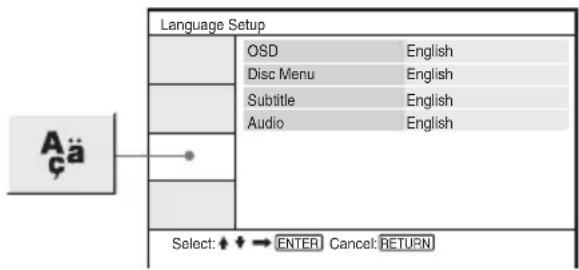
“Language Setup” allows you to set various languages for the on-screen display or sound track.
Select “Language Setup” in the Setup Display. To use the display, see “Using the Setup Display” (page 31).
text_image
Language Setup OSD English Disc Menu English Subtitle English Audio English Select: ↕ ↕ ENTER Cancel: RETURN◆OSD (On-Screen Display)
Switches the display language on the screen.
◆Disc Menu (DVD VIDEO only)
Switches the language for the disc's menu. When you select "Original," the language given priority in the disc is selected.
◆Subtitle (DVD VIDEO only)
Switches the subtitle language.
When you select "Off," no subtitle is displayed.
◆Audio (DVD VIDEO only)
Switches the language of the sound track. When you select “Original,” the language given priority in the disc is selected.
Note
If you select a language in “Disc Menu,” “Subtitle,” or “Audio” that is not recorded on the DVD VIDEO, one of the recorded languages will be automatically selected.
Parental Control Settings (Parental Control)
Playback of some DVD VIDEOS can be limited, by the parental control function.
Select “Parental Control” in the Setup Display. To use the display, see “Using the Setup Display” (page 31).
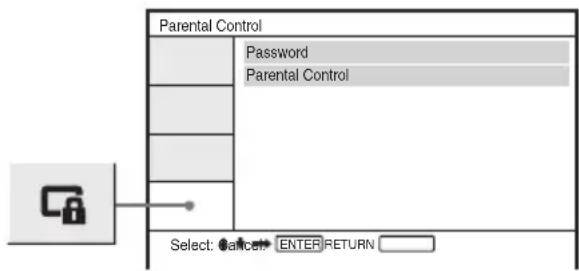
text_image
Parental Control Password Parental Control Select: Cancel ENTER RETURN◆Password
Enter or change a password. By setting a password, you can limit playback of a DVD that has the parental control function. When the Password option is first accessed, enter a new password (you do not need to enter the old password.).
◆Parental Control
The lower the setting value, the stricter the limitation.
To set the parental control, you need the selected password in “Password,” therefore first set the password in the set up.
Changing the password
1 Press ↑/↓ to select "Password" in the Parental Control setting display, and press ENTER.
2 Select "Change," and press ENTER. The display for entering the password appears.
3 Enter your current 6-digit password in the "Old Password" box.
4 Enter your new 6-digit password in the "New Password" box.
5 Enter your new 6-digit password once again in the "Verify Password" box, then press ENTER to confirm.
If you make a mistake entering your password
Press CLEAR, or press ← to return one by one before pressing ENTER in step 5, and then re-enter the password.
Setting the parental control (limited playback) DVDVideo
1 Press ↑/↓ to select "Parental Control" in the Parental Control setting display, and press ENTER.
The display for setting the playback limitation level appears.
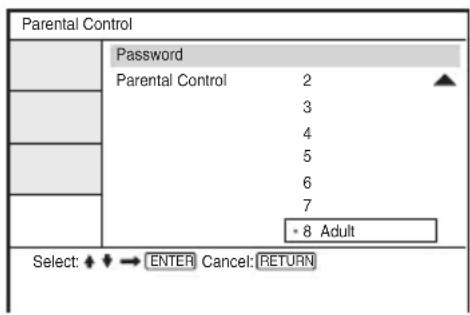
text_image
Parental Control Password Parental Control 2 3 4 5 6 7 - 8 Adult Select: ◆◀→ ENTER Cancel: RETURN2 Press ↑/↓ to select the limitation level (1-8), and press ENTER.
The lower the value, the stricter the limitation.
The display for entering the password appears.
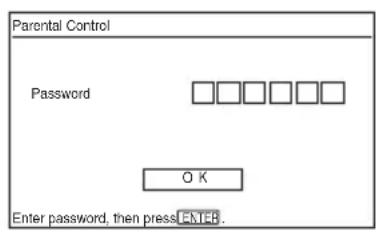
text_image
Parental Control Password OK Enter password, then press ENTER.3 Enter or re-enter your 6-digit password using the number buttons, then press ENTER.
Parental Control setting is complete.
To play a disc for which Parental Control is set
1 Insert the disc and press ▷.
The display for entering your password appears.
2 Enter your 6-digit password using the number buttons, then press ENTER.
The player starts playback.
If you forget your password
Remove the disc and repeat the steps outlined in “Changing the password” (page 35). Enter “136900” in the “Old Password” box, and then enter your new 6-digit password in the “New Password” box and “Verify Password” box.
Notes
- When you play discs which do not have the Parental Control function, playback cannot be limited on this player.
- Depending on the disc, you may be asked to change the parental control level while playing the disc. In this case, enter your password, then change the level. If the Resume Play mode is cancelled, the level returns to the previous level.
Connecting to another device
To switch LINE SELECT (IN/OUT) switch
LINE SELECT IN: Input images or audio from an exterior device. The “Line in” message will be displayed on the LCD screen until the signal from the exterior device is received.
LINE SELECT OUT: Sends the playback signal from this player to a TV.
Notes
- Plug cords securely to prevent noise.
- Refer to the instructions supplied with the components to be connected.
- You cannot connect this player to a TV that does not have a video input jack.
- Be sure to disconnect the AC power cord of each component before connecting.
- Connect the player to the TV directly. Image quality may suffer when the video output from the player is passed through a video deck on to a TV.
Connecting to TV monitor
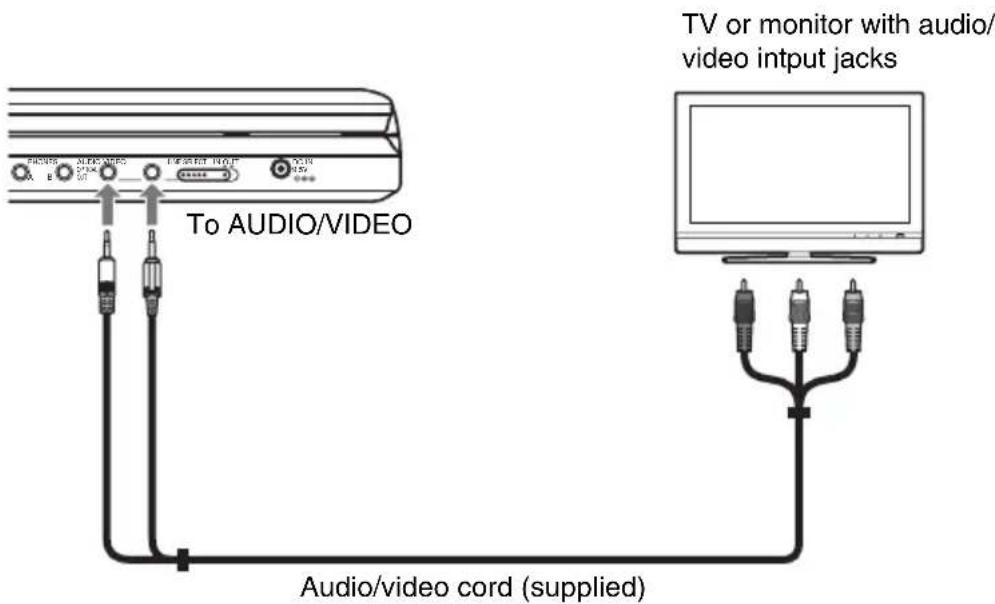
text_image
TV or monitor with audio/ video input jacks To AUDIO/VIDEO Audio/video cord (supplied)To send the playback signal to a TV or a monitor
1 Set the LINE SELECT switch on the player's right side to "OUT."
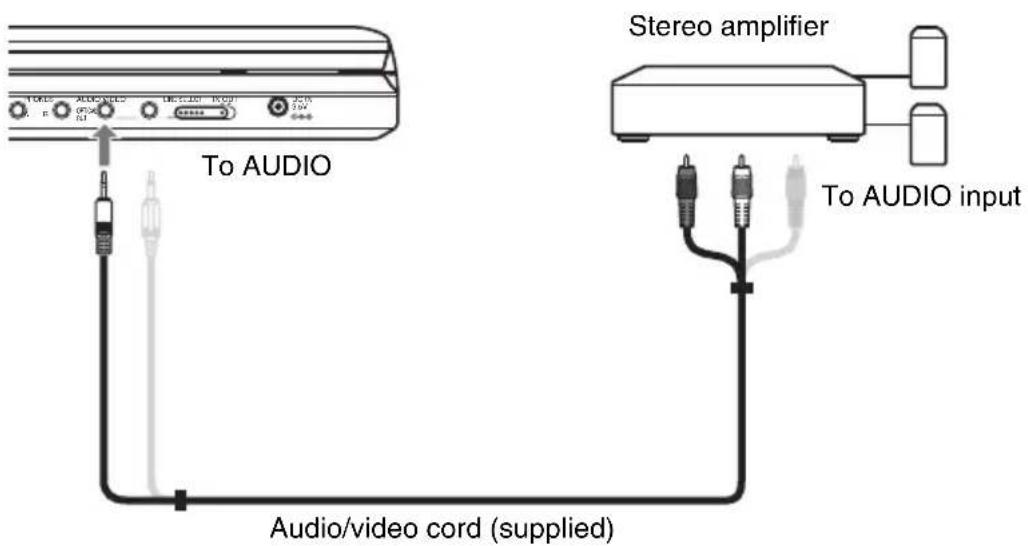
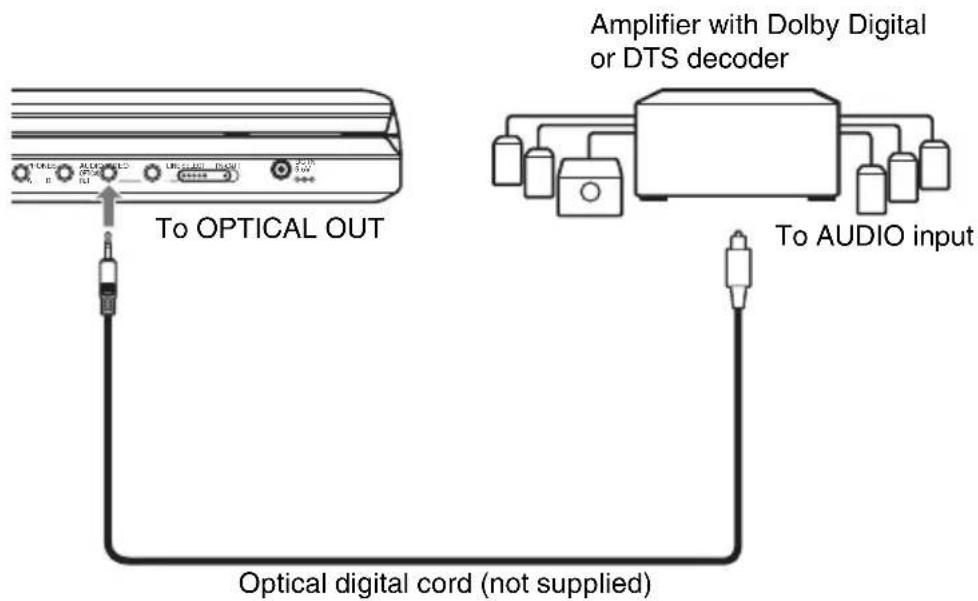
Connecting to an AV amplifier (receiver)
Example 1
text_image
To AUDIO Stereo amplifier To AUDIO input Audio/video cord (supplied)To send analog audio signal to an AV amplifier (receiver)
1 Set the LINE SELECT switch on the player's right side to "OUT."
* The yellow plug is used for video signals (page 37).
Example 2
text_image
To OPTICAL OUT Amplifier with Dolby Digital or DTS decoder To AUDIO input Optical digital cord (not supplied)To send digital audio signal to an AV amplifier (receiver)
1 Set the LINE SELECT switch on the player's right side to "OUT."
2 Set "Digital Output" to "On" in "Audio Setup" (page 33).
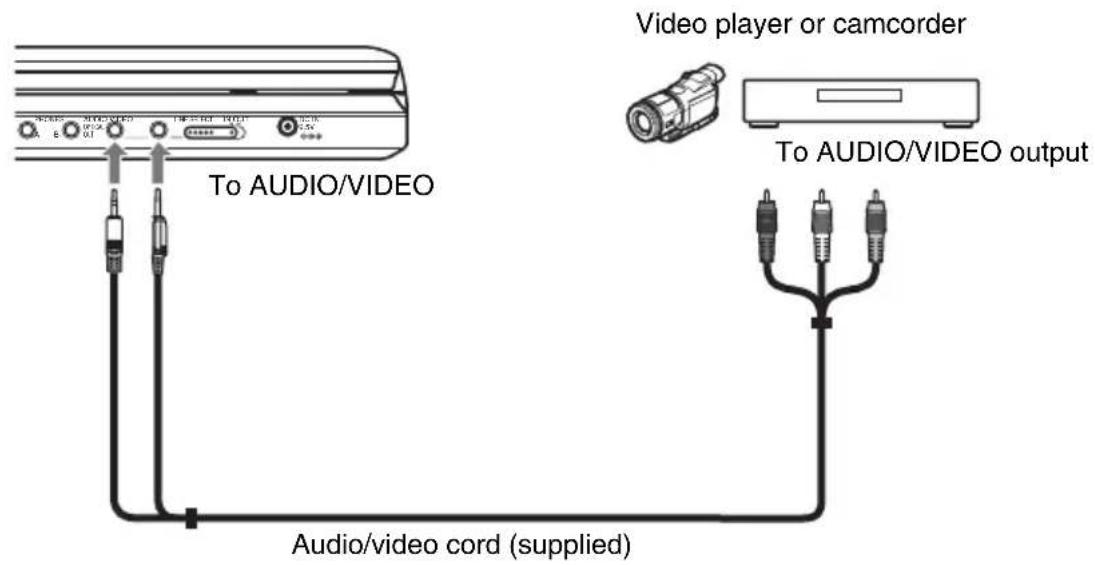
Connecting to Video Player or Camcorder
text_image
Video player or camcorder To AUDIO/VIDEO To AUDIO/VIDEO output Audio/video cord (supplied)To receive the playback signal from a Video Player or Camcorder
1 Set the LINE SELECT switch on the player's right side to "IN."
Note
Set the LINE SELECT switch to "OUT" after use. You cannot play back on the player if the switch is set to "IN."
Additional Information
Troubleshooting
If you experience any of the following difficulties while using the player, use this troubleshooting guide to help remedy the problem before requesting repairs. Should any problem persist, consult your nearest Sony dealer.
Power
The power is not turned on.
→ Check that the AC power cord is connected securely.
→ When using with the battery pack, check that the battery pack is sufficiently charged.
Picture
There is no picture/picture noise appears.
→ The disc is dirty or flawed.
→ The brightness is set at minimum. Set the brightness in “LCD Mode” (page 27).
→ When you play discs, set the LINE SELECT switch to “OUT.” When you send the playback signal to other device, set the LINE SELECT switch to “OUT.” When you receive the playback signal from other device, set the LINE SELECT switch to “IN” (page 37).
→ Re-connect the connecting cord securely.
→ The connecting cords are damaged.
→ Check the connection to your TV (page 37) and switch the input selector on your TV so that the signal from the player appears on the TV screen.
→ The player is connected to the COMPONENT VIDEO IN (Y, P_B , P_R ) jacks of high-vision TV.
→ If the picture output from your player goes through your video deck to get to your TV or if you are connected to a combination TV/VIDEO player, the copy-protection signal applied to some DVD programmes could affect picture quality.
The picture does not fill the screen, even though the aspect ratio is set in “TV Display” under “General Setup.”
→ The aspect ratio of the disc is fixed on your DVD.
The black points appear and the red, blue, green points remain on the LCD.
→ This is a structural property of the LCD and not malfunction.
Sound
There is no sound.
→ The player is in pause mode or in Slow Play mode.
→ The player is in fast forward or fast reverse mode.
→ Re-connect the connecting cord securely.
→ The connecting cord is damaged.
→ The player is connected to the wrong input jack on the amplifier (receiver) (page 38).
→ The amplifier (receiver) input is not correctly set.
→ If the audio signal does not come through the OPTICAL OUT jack, check the audio settings (page 34).
The sound volume is low.
→ The sound volume is low on some DVDs. The sound volume may improve if you set “Audio DRC” in “Audio Setup” to “TV Mode” (page 33).
Operation
The remote does not function.
→ The batteries in the remote are weak.
→ There are obstacles between the remote and the player.
→ The distance between the remote and the player is too far.
→ The remote is not pointed at the remote sensor on the player.
→ Direct sunlight or strong illumination is striking the remote sensor.
Nothing happens when buttons are pressed.
→ The player's ⚡/HOLD switch is set on "HOLD" (page 16).
The disc does not play.
→ The disc is turned over.
Insert the disc with the playback side facing down.
→ The disc is not set correctly.
→ The player cannot play certain discs (page 7).
→ The region code on the DVD does not match the player (page 8).
→ Moisture has condensed inside the player (page 3).
→ The player cannot play a recorded disc that is not correctly finalized (page 7).
→ Parental Control has been set. Change the setting.
→ The LINE SELECT switch on the player's right side is set to "IN."
The player starts playing the disc automatically.
→ The disc features an auto playback function.
Playback stops automatically.
→ While playing discs with an auto pause signal, the player stops playback at the auto pause signal.
Some functions such as Stop, Search, Scan, Slow Play, Repeat Play, or Random Play cannot be performed.
→ Depending on the disc, you may not be able to do some of the operations above. Refer to the operating instructions supplied with the disc.
The language for the sound track cannot be changed.
Try using the DVD's menu instead of the direct selection button on the remote (page 17).
→ Multilingual tracks are not recorded on the DVD being played.
→ The DVD prohibits the changing of the language for the sound track.
The subtitle language cannot be changed or turned off.
Try using the DVD's menu instead of the direct selection button on the remote (page 17).
→ Multilingual subtitles are not recorded on the DVD being played.
→ The DVD prohibits the changing of subtitles.
The angles cannot be changed.
Try using the DVD's menu instead of the direct selection button on the remote (page 17).
→ Multi-angles are not recorded on the DVD being played.
→ The angle can only be changed when the “” indicator lights up on the screen (page 19).
→ The DVD prohibits changing of the angles.
The MP3 audio track cannot be played (page 42).
→ The DATA CD is not recorded in an MP3 format that conforms to ISO 9660 Level 1 or Joliet.
→ The DATA DVD is not recorded in MP3 format that conforms to UDF (Universal Disk Format).
→ The MP3 audio track does not have the extension “.MP3.”
→ The data is not formatted in MP3 even though it has the extension “.MP3.”
→ The data is not MPEG-1 Audio Layer III data.
→ The player cannot play audio tracks in mp3PRO format.
→ The MP3 audio track is damaged.
The JPEG image file cannot be played (page 42).
→ The DATA CD is not recorded in a JPEG format that conforms to ISO 9660 Level 1 or Joliet.
→ The DATA DVD is not recorded in JPEG format that conforms to UDF (Universal Disk Format).
→ The JPEG image file does not have the extension “.JPG.”
→ The data is not formatted in JPEG even though it has the extension “.JPG.”
→ The JPEG image file format does not conform to DCF (page 42).
The image is larger than 3078 (width) × 2048 (height) in normal mode, or more than 3,300,000 pixels in progressive JPEG. (Some progressive JPEG files cannot be displayed even if the file size is within this specified capacity.)
→ The JPEG image file is damaged.
The DivX video file cannot be played.
→ The file is not created in DivX format.
→ The file has an extension other than “.AVI” or “.DIVX.”
→ The DATA CD (DivX video)/DATA DVD (DivX video) is not created in a DivX format that conforms to ISO 9660 Level 1 or Joliet/UDF.
→ The DivX video file is larger than 720 (width) × 576 (height).
The album/track/file names are not displayed correctly.
→ The player can only display numbers and alphabet. Other characters are displayed as “*.”
The disc does not start playing from the beginning.
→ Repeat Play or Random Play is selected (pages 21 and 23).
→ Resume play has taken effect (page 17).
The player does not operate properly.
→ When static electricity, etc., causes the player to operate abnormally, unplug the player.
About MP3 Audio Tracks and JPEG Image Files
MP3 is audio compression technology that satisfies the ISO/IEC MPEG regulations. JPEG is image compression technology. You can play DATA CDs/DATA DVDs that contain MP3 audio tracks or JPEG image files.
DATA CDs/DATA DVDs that the player can play
You can play back DATA CDs (CD-ROMs/CD-Rs/CD-RWs) or DATA DVDs (DVD-ROMs/DVD+RWs/DVD+Rs/DVD-RWs/DVD-Rs) recorded in MP3 (MPEG-1 Audio Layer III) and JPEG format.
However, this player only plays DATA CDs whose logical format is ISO 9660 Level 1 or Joliet, and DATA DVDs of Universal Disk Format (UDF).
Refer to the instructions supplied with the disc drives and the recording software (not supplied) for details on the recording format.
Note
The player may not be able to play some DATA CDs/DATA DVDs created in the Packet Write format or multiple sessions.
MP3 audio track or JPEG image file that the player can play
The player can play the following tracks and files:
- MP3 audio tracks with the extension “.MP3.”
- JPEG image files with the extension “.JPG.”
- JPEG image files that conform to the DCF* image file format.
* “Design rule for Camera File system”: Image standards for digital cameras regulated by JEITA (Japan Electronics and Information Technology Industries Association).
Notes
- Change the extension to “.JPG,” for files with “.JPE” or “.JPEG” extension.
- The player will play any data with the extension “.MP3” or “.JPG,” even if they are not in MP3 or JPEG format. Playing this data may generate a loud noise which could damage your speaker system.
- The player does not conform to audio tracks in mp3PRO format.
- Some JPEG files cannot be played.
- The player can display a file or track name up to 14 characters. Any characters after the 14th character do not appear on the screen.
- Characters that are not displayable appear as “*.”
- Depending on the disc, a file or track name that is not displayable appears as “*.”
- You cannot display correctly the CD-R/CD-RW file names written in the UDF file system.
- When playing an MP3 audio track recorded in VBR mode, you cannot display the bit rate correctly.
About playback order of albums, tracks, and files
Tracks and files within an album play in the order of the recorded media (CD-R etc.).

Hint
Since a disc with many trees takes longer to start playback, it is recommended that you create albums with no more than two trees.
Notes
- The player can recognize up to 299 albums (including albums that do not contain MP3 audio tracks and JPEG image files). The player will not play any albums beyond the 299th album.
- The player can recognize a combined total of up to 648 files, tracks, and albums. The player will not play beyond the 648th file, track or album.
- Depending on the writing condition of the disc, the total number of files, tracks, and albums recognizable may be fewer than 648.
- The Album List displays only the currently playing album name. Any album located on the upper layer is displayed as “.”.
Notes About the Discs
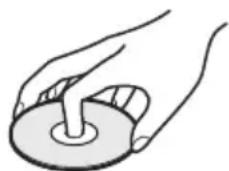
- To keep the disc clean, handle the disc by its edge. Do not touch the surface.
natural_image
Illustration of a hand holding a circular object with a handle (no text or symbols)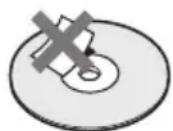
- Do not expose the disc to direct sunlight or heat sources such as hot air ducts, or leave it in a car parked in direct sunlight as the temperature may rise considerably inside the car.
• After playing, store the disc in its case. - Clean the disc with a cleaning cloth. Wipe the disc from the centre out.
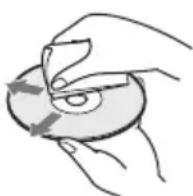
- Do not use solvents such as benzine, thinner, disc/lens cleaners, or anti-static spray intended for vinyl LPs.
- If you have printed the disc's label, dry the label before playing.
Specifications
System
Laser: Semiconductor laser
Signal format system: NTSC
Audio characteristics
Frequency response: DVD VIDEO (PCM 48 kHz): 20 Hz to 22 kHz/ CD: 20 Hz to 20 kHz
Harmonic distortion: 0.01 %
Dynamic range: DVD VIDEO: 90 dB/CD: 90 dB
Wow and flutter: Less than detected value (±0.001% W PEAK)
Inputs/Outputs
VIDEO (video input/output):
Minijack (1)
Output 1.0 Vp-p/75 ohms
AUDIO (audio input/output)/OPTICAL OUT (optical output):
Stereo minijack/optical minijack
combined (1)
Output 2.0 Vrms/47 kilohms
Recommended load impedance over 47 kilohms
PHONES (headphones) A/B:
Stereo minijack (2)
Liquid Crystal Display
Panel size: 8 inches wide (diagonal)
Driving system: TFT active matrix
Resolution: 800 × 480 (effective pixel rate: more than 99.99%)
General
Power requirements:
DC 9.5 V (AC Adaptor/Car battery adaptor) DC 7.4 V (Battery pack)
Power consumption (DVD VIDEO Playback):
23 W (when used with a battery pack)
8.5 W (when used without a battery pack, with a headphone)
Dimensions (approx.):
225.4 × 33.5 × 164.9 mm (8^7/8 × 1^3/8 × 6^1/2 inches) (width/height/depth) incl. projecting parts
Mass (approx.): 920 g (2.03 lbs)
Operating temperature: 5 °C to 35 °C (41°F to 95°F)
Operating humidity: 25 % to 80 %
AC Adaptor: 100-240 V AC, 50/60 Hz
Car Battery Adaptor: 12 V DC
Supplied accessories
See page 9.
Specifications and design are subject to change without notice.
Index to Parts and Controls
For more information, see the pages indicated in parentheses.
Upper view
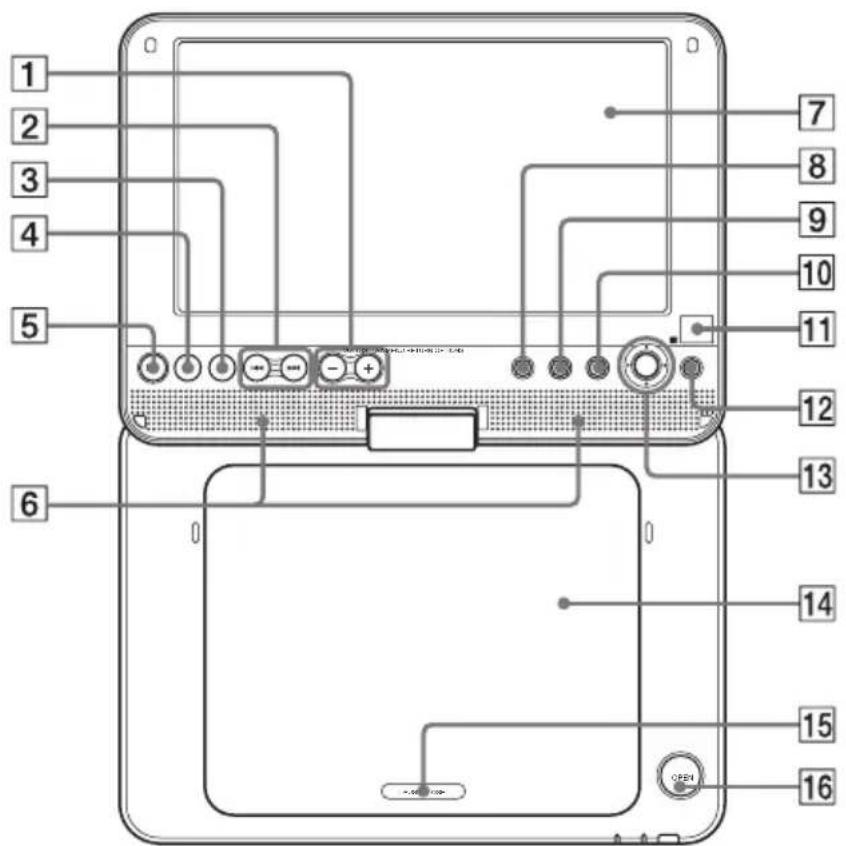
text_image
1 2 3 4 5 6 7 8 9 10 11 12 13 14 15 16① VOL (sound volume) -/+ button*
2|◀◀/▶▶| (previous/next) buttons (16)
3 ■ (stop) button (16)
4 II (pause) button (16)
5▷(play) button (15)*
6Speaker (16)
7LCD panel (10)
8DISPLAY button (20)
9 MENU button (17)
10RETURN button (20)
11 (remote sensor) (9)
12 OPTIONS button (23)
13 ←/↑/↓/→ buttons, ENTER button (17)
14Disc lid (15)
15 PUSH CLOSE (15)
16 OPEN button (15)
Front view
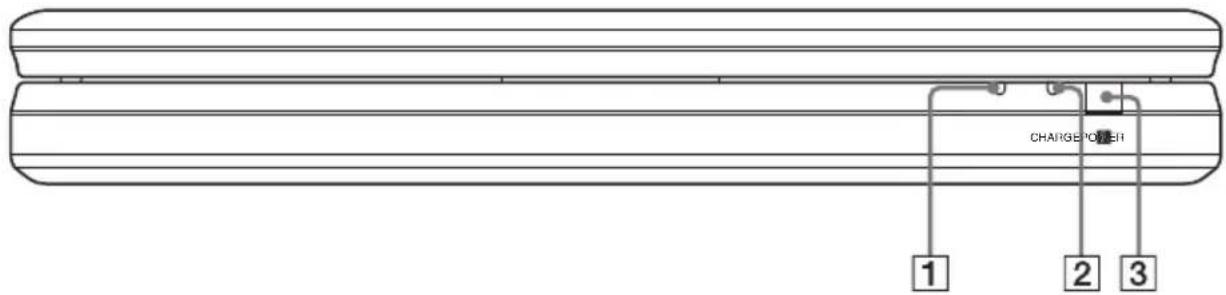
text_image
CHARGE POWER 1 2 31 POWER indicator (15)
3 (remote sensor) (9)
②CHARGE indicator (13)
Right view
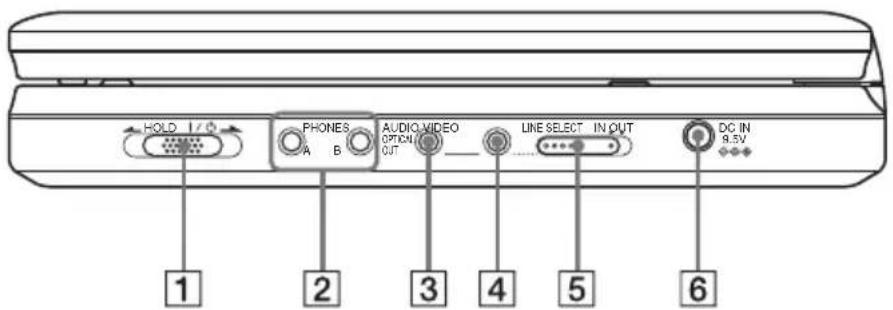
text_image
HOLD 1/0 PHONES A B AUDIO VIDEO OPTION OUT LINE SELECT IN OUT DC IN 9.5V 1 2 3 4 5 61 I/ ^① (on/standby)/HOLD switch (15)
4VIDEO (input/output) jack (37)
② PHONES (headphone) jack A, B
5LINE SELECT (IN/OUT) switch (15)
3 AUDIO (input/output) jack/OPTICAL OUT (optical output) jack (37, 38)
6DC IN 9.5V (AC adaptor input) jack (11)
Remote
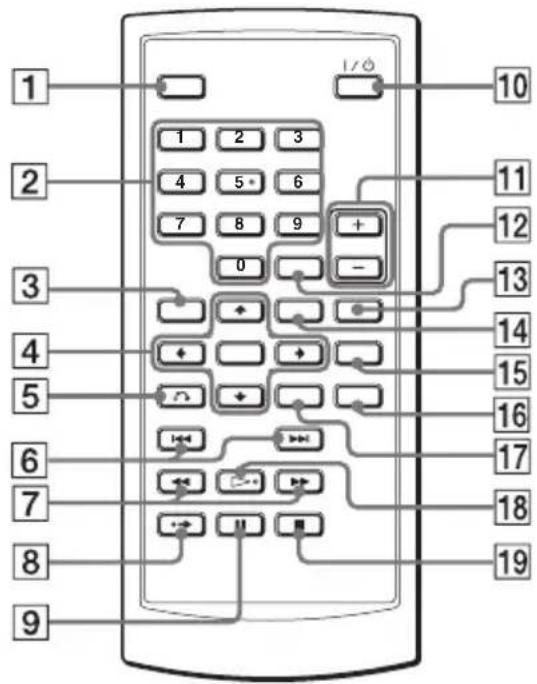
text_image
1 2 3 4 5 6 7 8 9 0 1/0 10 11 12 13 14 15 16 17 18 19 6 7 8 91DISPLAY button (20)
2Number buttons (17) *
③ TOP MENU button (17)
4 ←/↑/↓/→ buttons, ENTER button (17)
5 RETURN button (20)
6 PREV (previous)/NEXT buttons (16)
7 ◀◀/▶▶ (scan/slow) buttons (22)
8 ADVANCE button (16)
9 II PAUSE button (16)
10I/ (on/standby) button (15)
11 VOL (sound volume) +/- buttons
12 CLEAR button (35)
13 AUDIO button (18) *
14 MENU button (17)
15 SUBTITLE button (19)
16 ANGLE button (19)
17 OPTIONS button (23)
18▷ PLAY button (15) *
19 ■ STOP button (16)
Index
Numerics
16:9 32
4:3 Letter Box 32
4:3 Pan Scan 32
A
Album 43
Angle 19
Audio 18, 34
Audio DRC 33
Audio Setup 33
B
Batteries 9
C
CD 7, 15
Connecting 37
D
DATA CD 7, 29, 42
DATA DVD 7, 29, 42
Digital output 33
Disc Menu 34
Display 20, 31
DivX® 28, 29
Dolby Digital 18, 34
DTS 18, 34
DVD 7, 15
DVD+RW 7
DVD's menu 17
DVD-RW 7
F
Fast forward 22
Fast reverse 22
G
General Setup 32
H
Handling discs 43
J
JPEG 7, 42
L
Language Setup 34
M
MP3 7,42
0
OPTICAL OUT 33
OSD (On-Screen Display) 34
R
Random Play 23
Remote 9, 47
Repeat Play 21, 23
Resume Play 17
S
Scan 22
Screen Saver 33
Search 22
Setup 31
Slide Show 26
Slow Play 23
Subtitle 19, 34
T
Top Menu 17
Troubleshooting 40
TV Display 32
U
Usable discs 7
AVERTISSEMENT
text_image
Diagram showing two hands operating a mechanical component with numbered annotations indicating steps ① and ②.natural_image
Technical illustration of a mechanical component with a circular base and arrow indicating direction (no text or symbols)Notes
natural_image
Diagram showing two steps of inserting a device into a laptop, with no text or symbols present.text_image
Diagram showing three devices with a switch symbol indicating rotation or disassembly, each device has an open screen and marked with a black X.text_image
Pleine → A → A → Mortetext_image
OPEN I/O/HOLD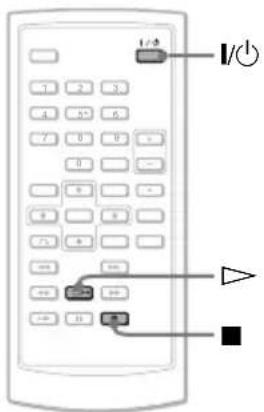
text_image
Diagram of a remote control with labeled buttons and indicators for power, current, and signal functions.natural_image
Illustration of a hand using a power tool to adjust a device on a laptop (no text or symbols visible)La lecture commence.
text_image
Diagram of a remote control with labeled buttons and directional arrows indicating navigation or signal flow.Pour Fonction
text_image
Diagram of a remote control with labeled buttons and navigation arrowstext_image
170 1 2 3 4 5 6 7 8 9 0 + - 4 + - 7 8 - ∞ ∞ ∞ ∞ ∞ → → → → → → → → → → → → → → → → → → → → → → → → → → → → → → → → → → → → → → → → → → → → → → → → → → SubTITLEnatural_image
Illustration of a mountain range with pine trees at the base (no text or symbols)natural_image
Geological cross-section diagram showing layered rock formations and tree trunks (no text or labels)text_image
←/↑/↓/→ ENTER OPTIONSnatural_image
Simple line drawing of a mountain landscape with a river and trees (no text or symbols)4:3 Letter Box
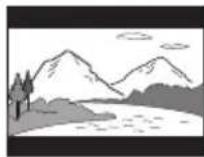
16:9
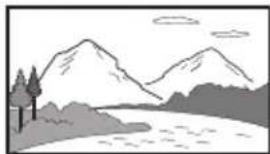
natural_image
Simple line drawing of a mountain landscape with trees and a river (no text or symbols)Note
natural_image
Illustration of hands holding a circular object with a handle (no text or symbols)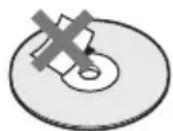
Sortie 2,0 Vrms/47 kilohms
Dimensions (approx.) :
CD DE DONNÉES 7, 31, 44
DVD DE DONNÉES 7, 31, 44
DVD+RW 7
DVD-RW 7
E
Sony Corporation Printed in China