NSF27TV - Television INSIGNIA - Free user manual and instructions
Find the device manual for free NSF27TV INSIGNIA in PDF.



| Product Type | Television |
| Brand | Insignia |
| Model | NS-F27TV |
| Dimensions (W x H x D) | 774 x 596 x 513 mm (30.5 x 23.5 x 20.2 in) |
| Weight | 40 kg (88.2 lb) |
| Power Supply | 120 V AC, 60 Hz |
| Power Consumption | 150 W |
| Screen Size (diagonal) | 27 inches (685 mm) |
| Screen Type | CRT (Cathode Ray Tube) |
| TV Standard | NTSC-M, ATSC |
| Video Inputs | AV1, AV2, S-Video, Component (Y, Cb, Cr) |
| Audio Output | 5 W x 2 |
| Included Accessories | Remote control, AAA batteries (2), user guide |
| Parental Control Features | Parental lock, MPAA ratings, TV, Canada English/French, RRT5 |
| Sleep Timer | From 5 to 240 minutes |
| OSD Menu Languages | French, English, Spanish (depending on setting) |
| Closed Captions | Analog and digital, customizable |
| Maintenance and Cleaning | Unplug before cleaning, use a soft dry cloth. Mild soap possible. |
| Safety | Do not expose to rain or moisture. Do not open. Use antenna with grounding. |
Frequently Asked Questions - NSF27TV INSIGNIA
User questions about NSF27TV INSIGNIA
0 question about this device. Answer the ones you know or ask your own.
Ask a new question about this device
Download the instructions for your Television in PDF format for free! Find your manual NSF27TV - INSIGNIA and take your electronic device back in hand. On this page are published all the documents necessary for the use of your device. NSF27TV by INSIGNIA.
USER MANUAL NSF27TV INSIGNIA
Setting up your television. 5
Using your television .7
Maintaining. 16
Troubleshooting 16
Specifications. 18
Warranty. 19
Francais. 20
Espanol 42
Introduction
Congratulations on your purchase of a high-quality Insignia product. Your NS-F27TV represents the state of the art in television design, and is designed for reliable and trouble-free performance.
Safety information
Warning
To reduce the risk of fire or electric shock, do not expose your television to rain or moisture.
Warning
For continued safety, replace safety critical components only with manufacturer's recommended parts (refer to service literature).
Electric shock warning

CAUTION
Risk of Electric Shock
Do Not Open

Warning
To reduce the risk of electric shock, do not remove the cover or back. There are no user-serviceable parts inside. Refer servicing to qualified service personnel.

This lightning flash with the arrowhead symbol within an equilateral triangle is intended to alert the user to the presence of uninsulated dangerous voltage within the television's enclosure that may be of sufficient magnitude to constitute a risk of electric shock to persons.

The exclamation point within an equilateral triangle is intended to alert the user to the presence of important operating and maintenance (servicing) instructions in the literature accompanying the television.
Important safeguards

- Read these instructions.
- Keep these instructions for later use.
- Follow all warnings and instructions.
- To avoid hazards, use only attachments recommended by your television manufacturer.
- Do not use your television near water, such as near a bathtub, sink, or swimming pool. Do not expose your television to dripping or splashing, and do not place any objects filled with liquids (such as vases) on the television.
- Use a dry cloth for cleaning. Do not use liquid cleaners or aerosol cleaners.
- Do not block any ventilation openings. Install your television in accordance with the manufacturer's instructions.
- Do not install near any heat sources such as radiators, heat registers, stoves, or other apparatus (including amplifiers) that produce heat.
- Do not place your television on an unstable cart, stand, or table. Your television may fall, causing serious injury to a child or adult, and serious damage to your television. Use your television only with a cart, stand, tripod, bracket, or table sold with
- Never attempt to move the television unless the AC power cord has been disconnected.
- Slots and openings in the sides, back, and bottom are provided for ventilation, to ensure reliable operation of your television, and to protect it from overheating.
- These openings must not be blocked or covered. The openings should never be blocked by placing your television on a bed, sofa, rug, or other soft surface. Your television should never be placed near or over a radiator or heat register.
- Your television should not be placed in a built-in installation, such as a bookcase, unless proper ventilation is provided.
- Do not defeat the safety purpose of the polarized or grounding-type plug. A polarized plug has two blades with one wider than the other. A grounding type plug has two blades and a third grounding prong. The wide blade or the third prong are provided for your safety. If the provided plug does not fit into your outlet, consult an electrician for replacement of the obsolete outlet.
- Your television should be operated only from the type of power source indicated on the marking label. If you are not sure of the power supplied to your home, ask your local power company.
-
Do not let anything rest on the power cord, and do not locate your television where the cord may be stepped on.
-
If an outside antenna or cable system is connected to your television, make sure that the antenna or cable system is grounded to provide some protection against voltage surges and built-up static charges. Article 810 of the National Electrical Code, ANSI/NFPA 70, provides information with regard to proper grounding of the mast and supporting structure, grounding of the lead-in wire to an antenna discharge unit, size of grounding conductors, location of antenna-discharge unit, connection to grounding electrodes, and requirements for the grounding electrode.

Reference Grounding component
| 1 Electric service | equipment |
| 2 Power service | grounding electrode system (NEC Art 250, Part H) |
| 3 Ground clamp | |
| 4 Grounding conductors (NEC Section 810-21) | |
| 5 Antenna discharge unit (NEC Section 810-20) | |
| 6 Ground clamp | |
| 7 Antenna lead-in wire | |
- Use No. 10AWG (5.3 mm²) copper, No. 8AWG (8.4 mm²) aluminum, No. 17AWG (1.0 mm²) copper-clad steel or bronze wire, or larger, as a ground wire.
- Secure the antenna lead-in and ground wires to the house with stand-off insulators spaced from 4-6 feet (1.22-1.83 meter) apart.
- Mount the antenna discharge unit as close as possible to where the lead-in enters the house.
-
Use a jumper wire not smaller than No. 6AWG (13.3 mm²) copper, or the equivalent, when a separate antenna-grounding electrode is used. See ANSI/NFPA70.
-
For added protection for your television during a lightning storm, or when it is left unattended and unused for long periods of time, unplug it from the power outlet and disconnect it from the antenna or cable system. This prevents damage to your television due to lightning and power line surges.
-
An outside antenna system should not be located in the vicinity of overhead power circuits, or where it can fall into such power lines or circuits. When installing an outside antenna system, extreme care should be taken to keep from touching such power lines or circuits as contact with them might be fatal.
- Do not overload power outlets and extension cords because overloading can cause a fire or electric shock.
- Never push objects of any kind into your television through slots in the case because they may touch dangerous voltage points or short out parts that could result in a fire or electric shock. Never spill liquid of any kind on your television.
- Do not attempt to service your television yourself because opening or removing covers may expose you to dangerous voltages or other hazards. Refer all servicing to qualified service technicians.
-
Unplug your television from the power outlet and refer servicing to qualified service technicians under the following conditions:
-
When the power cord or plug is damaged or frayed.
If liquid has been spilled into your television.
If your television has been exposed to rain or water. - If your television does not operate normally by following the operating instructions. Adjust only those controls that are covered by the operating instructions because incorrect adjustment of other controls may result in damage and often requires extensive work by a qualified technician to restore normal operation.
- If your television has been dropped or the case has been damaged.
-
When your television exhibits a distinct change in performance.
-
When replacement parts are required, make sure that the service technician uses replacement parts specified by the manufacturer that have the same characteristics as the original part. Unauthorized substitutions may result in fire, electric shock, or other hazards.
- Upon completion of any service or repairs to your television, ask the service technician to perform routine safety checks to determine that your television is safe to operate.
Note to cable television system installer
This reminder is provided to call the cable television system installer's attention to Section 820 40 of the NEC which provides guidelines for proper grounding and, in particular, specifies that the cable ground shall be connected to the grounding system of the building, as close to the point of cable entry as practical.
Features
Television
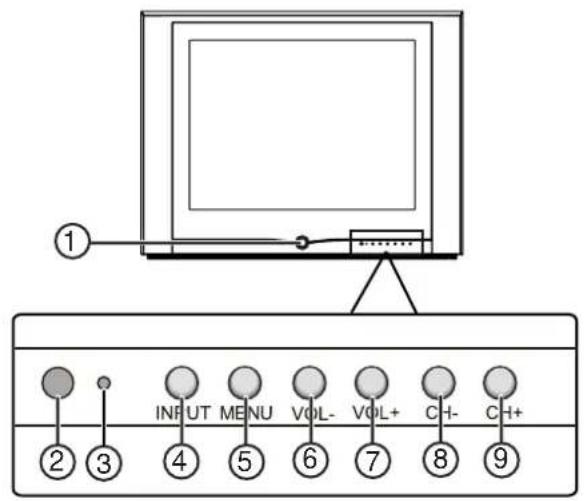
Front
| Item Description |
| 1 Power button—Press to turn the television on or off. |
| 2 Remote sensor—Point the remote control at this sensor to control the television. |
| 3 Indicator—Glows green when the power is turned on. |
| 4 INPUT button—Press to select the input source. |
| 5 MENU button—Press to access the on-screen menu. |
| 6 VOL- button—Press to adjust the volume down or to adjust a menu item. |
| 7 VOL+ button—Press to adjust the volume up or to adjust a menu item. |
| 8 CH- button—Press to adjust the channel down or to select a menu item. |
| 9 CH+ button—Press to adjust the channel up or to select a menu item. |
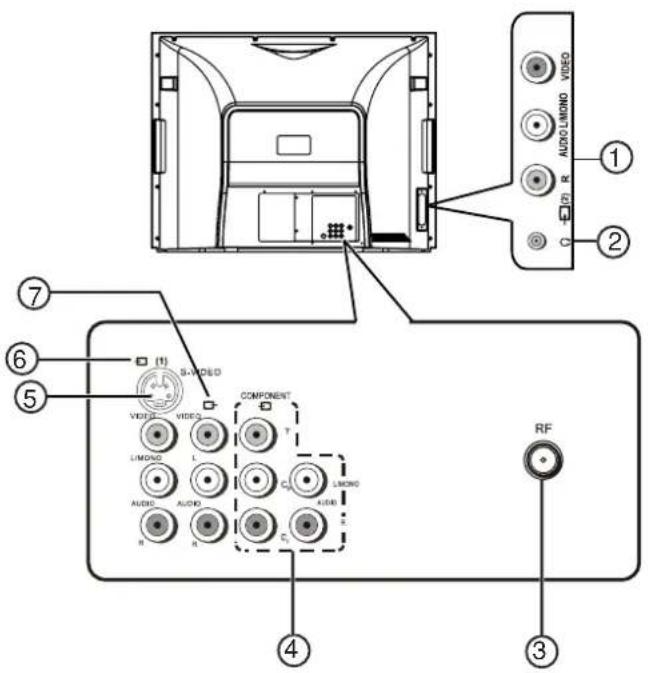
Back
| Item Description |
| 1 AV2 input (VIDEO, AUDIO L/MONO, AUDIO R)-Connect a video and audio source, such as a camcorder, video game console, or DVD player, using these jacks. |
| 2 Headphone jack-Connect a headphone to this jack. |
| 3 Antenna input-Connect cable or satellite television, an outside antenna, or rabbit ears to this jack. |
| 4 COMPONENT input (Y, C B, CR, AUDIO L/MONO, AUDIO R)-Connect a video and audio source, such as a DVD player, using these jacks. Component video provides the highest quality picture. |
| 5 S-VIDEO input-Connect a video source using this jack. Audio is not transmitted through the S-VIDEO cable. |
| 6 AV1 input (VIDEO, AUDIO L/MONO, AUDIO R)-Connect a video and audio source, such as a video game console or DVD player, using these jacks. |
| 7 AV output (VIDEO, AUDIO L, AUDIO R)-Connect a video and audio device, such as a VCR or stereo, using these jacks. |
Remote Control Buttons
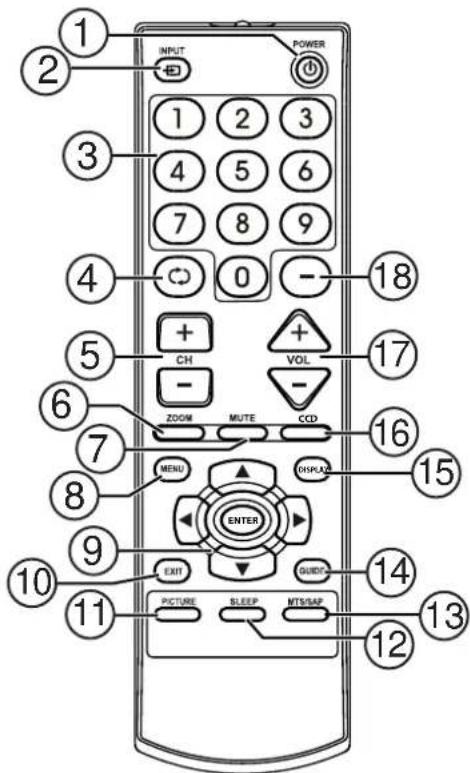
| Item Description | |
| 1 | POWER Press to turn the television on or off. |
| 2 | INPUT Press to select the input source. Options include: • TV—watch television through the antenna • AV1—watch a DVD, video game, or camcorder from a device connected to the AV1 or S-VIDEO input terminals. • AV2—watch a DVD, video game, or camcorder from a device connected to the AV2 input terminals. • COMPONENT—watch a DVD from a DVD player connected to the component input terminals. |
| 3 | Direct channel selector/number buttons—Press to select a channel or enter a password. |
| 4 | Return Press to return to the previously viewed channel. |
| 5 | CH+/- Press to adjust the channel up or down. |
| 6 | ZOOM—Press to change the picture size in DTV (digital TV) mode. This button is not active in analog TV mode. |
| 7 | MUTE—Press to mute the sound. |
| 8 | MENU—Press to access the Menu main page. |
| 9 | Menu navigation buttons: ▲ and ▼—Press to move up or down in the menu. ▲ and ▲—Press to move left or right in the menu or to adjust a menu setting. |
| 10 | EXIT—Press to exit the menu. |
| 11 | PICTURE—Press to select the picture mode. |
| 12 | SLEEP—Press to set the sleep timer. |
| 13 | MTS/SAP—Press to select MONO, STEREO, or SAP. |
| 14 | GUIDE—Press to display the program guide. |
| Item Description | |
| 15 | DISPLAY—Press to display the channel status or signal information. |
| 16 CCD—Press to turn the closed caption display on or off. | |
| 17 | VOL+/- —Press to adjust the volume up or down. |
| 18 Dash — Press to enter a program number for multiple program (digital) channels (example: 2-1). | |
Installing batteries
To install batteries in the remote control:
1 Remove the battery cover.
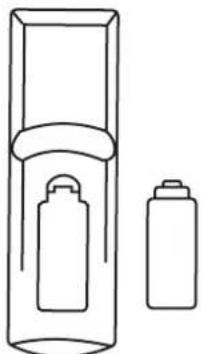
2 Insert two AAA batteries. Place the batteries with their terminals corresponding to the + and - indications in the battery compartment.
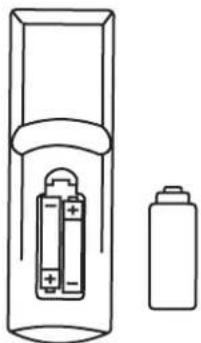
3 Replace the battery cover.
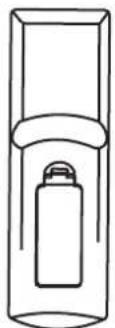
Warning
- Do not try to recharge alkaline batteries as they are not intended to be recharged.
- Use only the size and type of batteries specified. Do not mix different types of batteries together or old batteries with fresh ones.
- Remove the batteries when the remote control will not be used for a long period of time or when the batteries are worn out.
- Do not throw the batteries into a fire. Dispense of used batteries per local regulations.
- Do not drop, dampen, or disassemble the remote control.
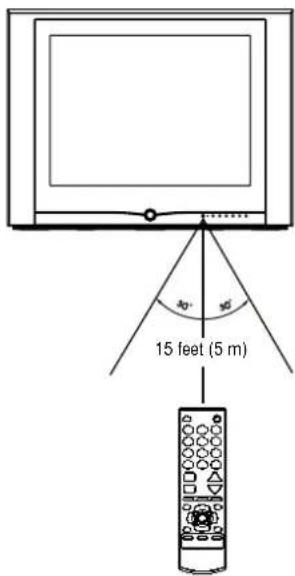
Using the remote control
Note
- The remote control may not operate if there is an obstacle between the television and the remote control.
The remote control may not operate the television correctly when direct sunlight, an incandescent or fluorescent lamp, or any other strong light shines on the television's remote sensor.
Setting up your television
Unpacking your television
Your box includes the following:
One television
- One remote control
- This User Guide
Locating the television
Set up the television in a room where direct light will not fall upon the screen. Total darkness or a reflection on the picture screen may cause eyestrain. Soft and indirect lighting is recommended for comfortable viewing.
Connecting your television to an antenna or cable television
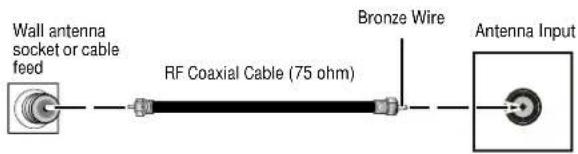
Note
Antenna users: Optimum color reception requires a good signal and generally means that an outdoor antenna must be used. The exact type and position of the antenna depends upon your particular area.
Caution
We recommend that a 75-ohm coaxial cable be used to eliminate interference and noise which may occur due to radio wave conditions.
The antenna cable should not be bundled with the power cord.
If the antenna cannot be installed correctly, contact your dealer for assistance.
Connecting video and audio equipment
This television provides two groups of AV input terminals and one group of component input terminals for connecting to a VCR, a DVD player a video game console, or other video equipment. Before connecting your equipment, refer to the owner's manual of the equipment to be connected.
Connecting using the side AV input terminals
The side AV terminals are easy to access and should be used for equipment that you connect and disconnect frequently, such as a camcorder or portable DVD player.
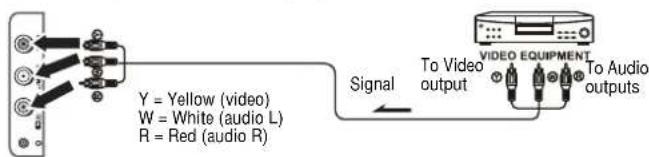
To connect using the side AV input terminals:
1 Connect the audio and video cables between the Audio (L,R) and Video terminals on the television and the video equipment.
2 Press the INPUT button on the remote control repeatedly until AV2 appears on the screen.
Connecting using the rear AV input terminals
The rear AV terminals are harder to access than the side terminals and should be used for equipment that remains connected to the television, such as a VCR, DVD player, or video game console.
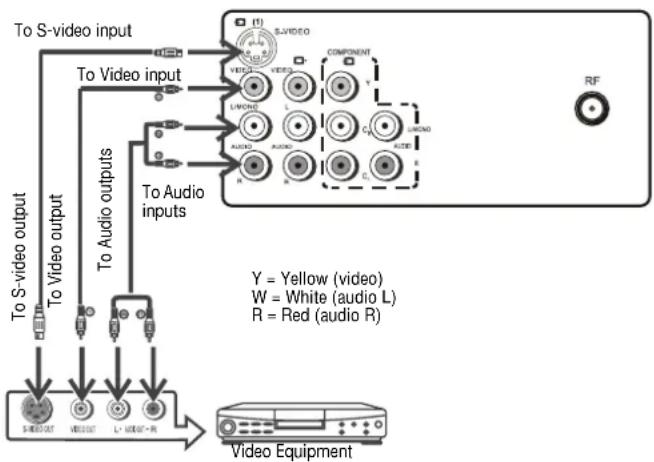
Note
For better quality video, use the S-Video terminal if your source supports it.
S-video input uses the same circuit as AV1. The S-VIDEO terminal overrides the AV1 terminal.
When using both the S-video and AV1 inputs, the S-video signal is automatically selected and the
message on your screen displays SVIDEO. To
view a AV1 signal, disconnect the S-video
connection.
To connect using the rear AV input terminals:
1 Connect the audio and video cables between the Audio (L,R) and Video terminal on the television and the video equipment.
2 Press the INPUT button on the remote control repeatedly until AV1 appears on the screen.
Connecting using the component terminals
Use the component terminals to connect a DVD player that supports this type of output. Component video provides the highest picture quality.
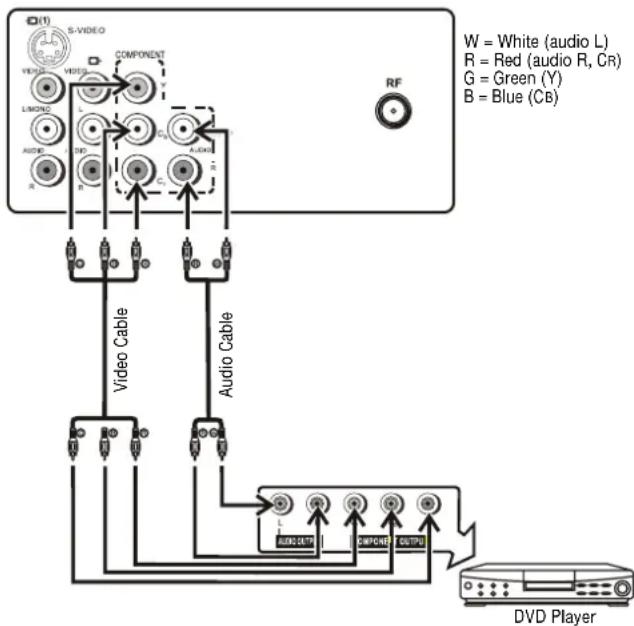
To connect using the component terminals:
1 Connect the component video cable between the Y, CB, and CR input terminals on the television and the Y, CB, and CR output terminals on the DVD player.
2 Connect the audio cable between the audio input terminals on the television and audio output terminals on the DVD player.
3 Press the INPUT button on the remote control repeatedly until COMPONENT appears on the screen.
Note
This television can only receive YCBCR signal but not YPBPR signal through the COMPONENT input.
Connecting using the AV output terminals
You can connect an audio system to the AV output terminals on the back of the television to enjoy a high-quality sound from the audio system. You can also connect the AV output terminals to a VCR to record a program.
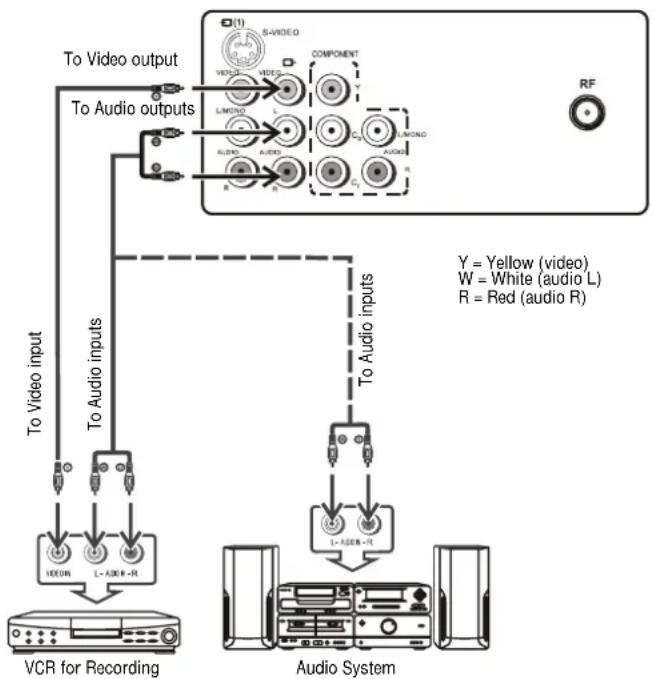
To connect using the AV output terminals:
- Connect the audio and video cables between the Audio (L,R) and Video output terminals on the television and the Audio (L,R) and Video input terminals on the video equipment.
Using your television
Turning the television on and off
Turning the television on
To turn the television on:
1 Insert the AC plug into an AC outlet.
If no picture appears and the Standby indicator lights up, then the television is in Standby mode.
Warning
To prevent electric shock, do not use a (polarized) plug with an extension cord receptacle or other outlet unless the blades can be fully inserted.
Note
The AC plug supplied with the television is polarized to help minimize the possibility of electric shock. If the AC plug does not fit into a nonpolarized AC outlet, do not file or cut the wide blade. It is the user's responsibility to have an electrician replace the obsolete outlet.
2 Press the Power button on the television or on the remote control and the television turns on.
Turning the television off
To turn the television off:
1 Press the Power button on the television or on the remote control and the television turns off.
2 Unplug the power cord from the power outlet if you do not intend to use your television for an extended period of time.
Note
The television can turn off automatically by using the Sleep timer function (needs to be set in advance).
If there is no input signal for 15 minutes, the television can turn off automatically.
After you turn off the television, you should wait at least five seconds to turn the television on again.
Using the menus
This television has a menu system that appears on the screen. This system makes it convenient and fast to use features on the television. You can also display the status of television features while watching a program.
Main Menu Sub Menu
| Picture Contrast | Brightness Color Tint Sharpness |
| P.Lock Parental Lock | • L o c k • Ratings Locks • M P A A R a t i n g • T V R a t i n g • Canada English • Canada French Change Password |
| Clock On Timer | Clock DST Auto Clock Zone |
| Preset | Auto Program • Antenna • S t a r t Ch Setup • C h N o • S k i p • Label* • D i g S i g n a l * |
| Extra | Closed Caption • CC Display • CC Setting • CC Type • CC Mode* • CC Customer* Menu Language Audio Language |
Note
- Items marked with * do not appear in all modes.
- Some menu items are grayed out and are not selectable.
To use the menu:
1 With the television turned on, press MENU to display the main menu.
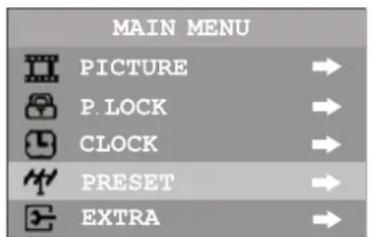
2 Press button to select a menu.
3 Press button to enter the menu.
4 Within the menu, press to select an item and press or adjust its value or enter a sub-menu.
5 Press MENU to return to the previous menu. -OR-
Press EXIT to exit the main menu and return to your program.
Note
To more clearly introduce the menu operations, this manual provides a description based on navigating the menus with the remote control. The illustrations and on-screen displays in this manual are for explanation purposes (some are enlarged, others cropped) and may vary slightly from the actual ones.
Watching AV programs
This television provides two groups of AV input terminals and one group of component input terminals to connect to a VCR, DVD, game console, or other video equipment.
To watch a video program using the AV inputs:
- Press INPUT repeatedly until you see the appropriate input indicator on the screen. The order of the inputs are as follows:
AV1—Rear AV jacks plus S-video
AV2—Side AV jacks
- COMPONENT—Component jacks
- TV—Antenna jack
Note
For better quality video, use the S-Video terminal if your source supports it.
S-video input uses the same circuit as AV1. The S-VIDEO terminal overrides the AV1 terminal.
When using both the S-video and AV1 inputs, the S-video signal is automatically selected and the message on your screen displays SVIDEO. To view a AV1 signal, disconnect the S-video connection.
Switching from AV to TV
To switch from AV to TV:
- Press INPUT repeatedly until the television program appears on the screen.
Displaying the information banner
The information banner displays status information such as the channel number and the signal source. Depending on the mode, different information is displayed. In DTV mode, more information (such as channel number and channel name, and signal resolution) can be displayed.
Note
The channel labels are automatically assigned and cannot be changed by users.
To display the information banner:
- Press the DISPLAY button and the information banner appears.
Using the program guide
You can obtain program broadcasting time and program name from the program guide.
Note
The guide only works with digital channels.
To display the program guide:
1 Press GUIDE on the remote control to display guide information.
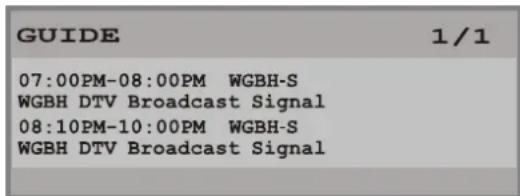
2 Press to scroll the page if there are two or more pages.
Setting up your television stations
When you turn on the television for the first time, you should perform an auto program to set up the stations on your television.
To set up your television stations:
1 With the television turned on, press MENU to display the main menu.
2 Press or to select PRESET.
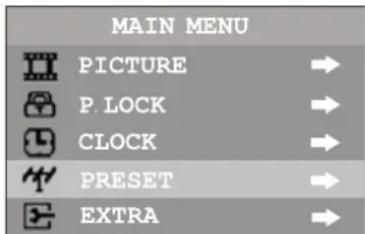
3 Press to enter the Preset menu.
4 Press or to select AUTO PROGRAM.
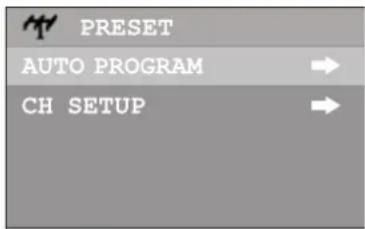
5 Press to enter the Auto Program sub menu.
6 Press or to select ANTENNA.
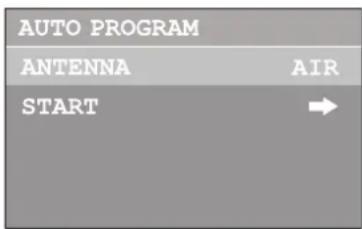
7 Press or to select AIR or CABLE.
In AIR mode, the television receives antenna signals. In CABLE mode the television receives cable television programs. Select:
- AIR—If using a VHF/UHF antenna.
- CABLE—If using cable television. If you have any questions about these settings, contact your dealer.
8 Press to select START.
9 Press to start Auto Program.
The television begins to search and memorize all available programs. It may take a few minutes to finish searching.
Note
The television first memorizes analog programs. After all available analog programs have been memorized, it begins to memorize DTV programs. During analog program memorizing, you can press MENU to stop the process. The television then starts memorizing DTV programs. If you want to stop DTV program memorizing, press MENU again.
Skipping unwanted channels
After saving channels into memory, you can skip unwanted channels so that only the channels you want to watch are selected with the CH+/- buttons.
To skip unwanted channels:
1 Go to the Preset menu.
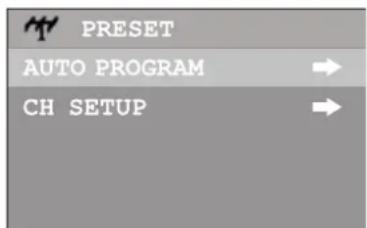
2 Press or to select CH SETUP.
3 Press to enter the CH SETUP menu.
4 Press or to select CH NO.
5 Press to select a channel number.
6 Press to select SKIP.
7 Press or to select ON.
The channel will be skipped when you browse through channels using the CH + / - buttons.
Tip
To restore a skipped channel, use the number buttons to select the skipped channel, then repeat the previous steps and set SKIP to OFF.
Checking DTV signal strength
You can check the strength of your DTV signal and determine whether you need to adjust your antenna or digital cable input. The stronger the signal strength, the less likely you are to experience picture degradation.
To check DTV signal strength:
1 Go to the Preset menu.
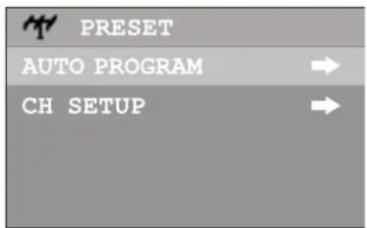
2 Press or to select CH SETUP.
3 Press to enter the CH SETUP menu.
The bottom line on the CH SETUP menu shows the signal strength for the current DTV channel.
Selecting channels
You can use one of three methods to select a channel:
- Use the number pad.
Use the CH+ and CH- buttons. - Use the previous channel button.
Using the number pad
To go to a specific channel number:
- Press the number buttons (0-9) and the dash (-) button, then wait for the television to change channels, or press ENTER to go immediately to that channel.
For example, if you want to select channel 8-3, press 8-3 on the remote control. (Make sure that you press the buttons within three seconds of each other, or the channel won't be entered correctly.)
Note
In some situations, virtual channel numbers do not correspond to physical frequencies.
Using the CH+ and CH- buttons
To browse through the channels:
Press:
- CH+ to browse up the channels.
- CH- to browse down the channels.
Using the previous channel button
To switch between two channels:
- Press the previous channel button to switch between the current channel and the previous channel.
Information about USA channel numbering
-
The ATSC PSIP channel uses a two part channel number which includes:
-
a major channel number
-
a minor channel number
Note
Example: Channel 5-1. The "5" is the major channel number and the "1" is the minor channel number.
- In the US, in most locations the major channel number is the same for both analog and digital channels (It is equal to the NTSC channel number for existing broadcasters.)
- In the US, a minor channel number of zero is used for a broadcaster's analog channel.
Channel Numbering Example
- Original NTSC channels for Des Moines, IA: 5, 8, 11, 13, and 17.
- Possible NTSC + ATSC channels for Des Moines, IA: 5-0, 8-0, 11-0, 13-0, and 17-0 (channel numbers for existing analog channels) and 5-1, 5-2, 8-1, 8-2, 8-3, 8-4, and 13-1 (channel numbers for digital channels).
Controlling the sound
Using the VOL+ and VOL- buttons
Press:
VOL+ to increase the volume.
VOL- to decrease the volume.
Using the MUTE button
To mute the sound:
- Press MUTE on the remote.
To resume the sound:
- Press MUTE on the remote. -OR-
Press VOL+.
Note
If you mute the sound, the color of VOLUME displayed on the screen turns red. After resuming the sound, the color of VOLUME displayed on the screen turns green.
Setting up Stereo/SAP broadcasts
This television can receive MTS stereo programs and any SAP (Secondary Audio Program) that may accompany the stereo program. This type of signal is available only from analog channels. You can select Stereo or SAP only when the station transmits these signals. Mono sound is automatically received if the broadcast is only in monophonic. You can also select MONO if you are having difficulty receiving a stereo signal.
Selecting the MTS mode
To select the MTS mode:
- Press MTS/SAP repeatedly to select the MTS mode.
Adjusting the picture
To adjust the picture:
1 With the television turned on, press MENU to display the main menu.
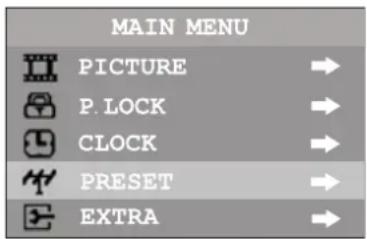
2 Press to select PICTURE.
3 Press to enter the Picture menu.
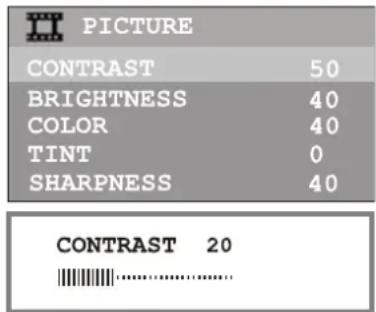
4 Press to select a setting to adjust.
5 Press to adjust the setting.
| Setting | Press | Press |
| Contrast weaker stronger | ||
| Brightness darker lighter | ||
| Color paler deeper | ||
| Tint purplish | greenish | |
| Sharpness | softer | sharper |
Selecting a picture mode
There are three preset picture modes (Standard, Dynamic, and Soft) and one user-set picture mode (Personal).
To select a picture mode:
1 Press PICTURE on the remote control.
2 Select from one of the following:
- STANDARD—Select for a normal picture.
DYNAMIC-Select for a bright and dynamic picture. - SOFT—Select for a finely detailed picture.
- PERSONAL—Select to create your own picture mode.
Changing picture size
You can change the picture size (aspect ratio) according to your video signal type or personal preference. This can only be done in DTV mode when the video signal type is in 16:9 format.
To change the picture size:
Press ZOOM to select the desired picture size (aspect ratio). You can select between NORMAL and ZOOM.
Using the clock
To enter the clock menu:
1 With the television turned on, press MENU to display the main menu.
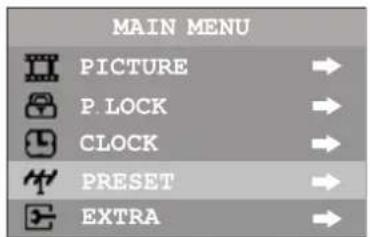
2 Press to select CLOCK.
3 Press to enter the Clock menu.
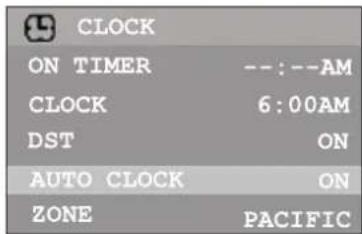
Setting up the clock automatically
- With the Auto Clock function turned on, the time is set automatically from a digital channel signal.
To set up the clock automatically:
1 Go to the Clock menu.
2 Press or to select AUTO CLOCK.
3 Press to turn the Auto Clock function on.
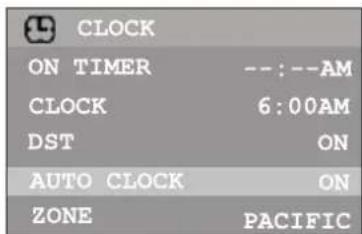
4 Press to select ZONE.
5 Press to select your viewing area time zone.
6 Press or to select DST, then press or to turn Daylight Saving Time on or off, depending on your location.
Setting up the clock manually
- If current time setting is wrong by using the auto clock function, reset the clock manually.
If the television loses power, the clock setting you have made will be cleared.
To set up the clock manually:
1 Go to the Clock menu.
2 Press or to select AUTO CLOCK.
3 Press to turn the Auto Clock function off.
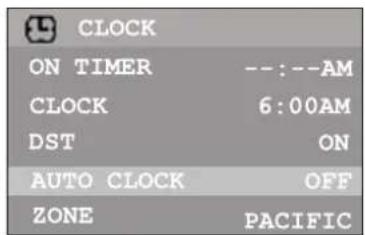
4 Press or to select CLOCK.
5 Press VOL+ to select AM or PM.
6 Use the number buttons to enter the current time.
Turning the television on automatically
- The on timer function operates only if the current time has been set.
The television must be in standby mode for the on timer to work.
If the television loses power, the timer setting is cleared.
To turn the television on automatically:
1 Go to the Clock menu.
2 Press or to select ON TIMER.
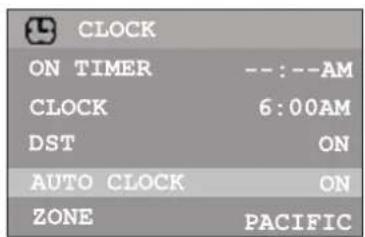
3 Press VOL+ to select AM or PM.
4 Use the number buttons to enter the time you want the television to turn on.
5 Press Power to switch the television to Standby mode. At the preset time, the television turns on automatically.
Turning the television off automatically
You can set the sleep timer by using the SLEEP button on the remote controller. With every press of this button the sleep time changes as follows:
0 Minute
- 5 Minutes
10 Minutes
.
180 Minutes
240 Minutes
For example, you would like the television to automatically turn off in 60 minutes. Press SLEEP repeatedly until the screen displays 60 MINUTE.
To cancel the sleep timer, press SLEEP repeatedly until the screen displays 0 MINUTE.
Changing system settings
To change system settings:
1 With the television turned on, press MENU to display the main menu.
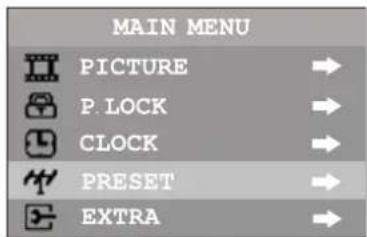
2 Press to select EXTRA.
3 Press to enter the EXTRA menu.
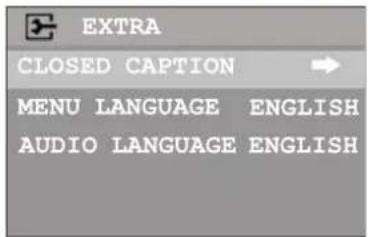
Selecting the OSD menu language
To change the OSD menu language:
1 Go to the EXTRA menu.
2 Press or to select MENU LANGUAGE.
3 Press to select a different menu language.
Selecting an audio language
DTV can simultaneously transmit many audio tracks (for example, simultaneous translations of the program in several foreign languages). The availability of these optional audio tracks depends upon the program.
To select an audio language:
1 Go to the EXTRA menu.
2 Press or to select AUDIO LANGUAGE.
3 Press to select a different audio language.
Setting up Closed Captioning
Turning Closed Captioning on or off
To turn Closed Captioning on or off:
1 Go to the EXTRA menu.
2 Press or to select CLOSED CAPTION.
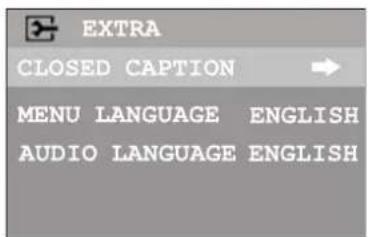
3 Press to enter the CLOSED CAPTION menu.
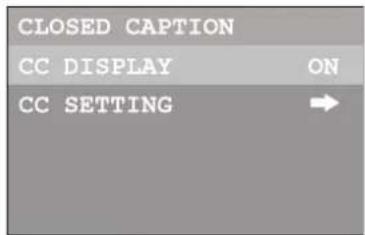
4 Press or to select CC DISPLAY.
5 Press to select from the following options:
- ON—shows the captions all of the time.
- CC MUTE—shows the captions only when the sound is muted.
- OFF—turns off the closed caption.
Tip You can also press the CCD button to select CCD ON, CCD OFF, or CCD MUTE.
Selecting the caption type
Captions and text, if provided by the broadcaster, are available for both digital and analog channels.
Select a caption type for displaying captioning information. Analog captions display information on the screen (usually the program dialog). Text from digital modes displays information, usually at the bottom of the screen, and is used for a data service (generally not program related).
To select the caption type:
1 Go to the CLOSED CAPTION menu.
2 Press or to select CC SETTING.
3 Press to enter the CC SETTING menu.
4 Highlight CC TYPE, then press or to select the caption type.
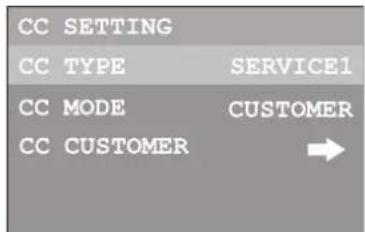
Customizing digital Closed Captions
You can customize the digital Closed Captions that appear on your screen.
To customize the digital Closed Captions:
1 Navigate to the CLOSED CAPTION menu, highlight CC SETTING, press enter the menu.
2 Press or to highlight CC MODE, then press or to select CUSTOMER.
If you do not want to customize the digital closed captions, select BROADCAST, and the captions will be shown as broadcast.
3 After selecting CUSTOMER, press button to highlight CC CUSTOMER, then press or to enter the menu.
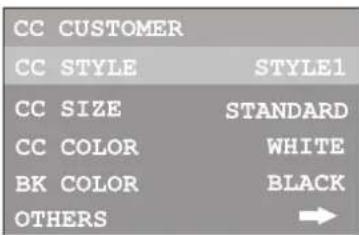
4 Within the menu, press to select the item you want to change, then press to customize the setting to your preference. Select OTHERS, then press to enter the next-level menu and customize more settings.
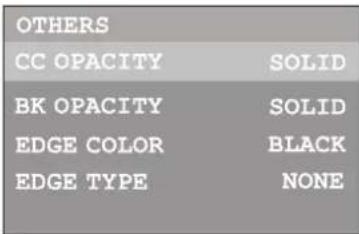
You can change the following settings:
CC STYLE—Sets a style for the words.
CC SIZE—Sets the size of the words.
CC COLOR—Sets a color for the text.
BK COLOR—Sets a background color.
CC OPACITY—Sets the opacity of the text color.
BK OPACITY—Sets the opacity of the background color.
EDGE COLOR—Sets a color for the edges.
EDGE TYPE—Sets an edge type.
5 Press EXIT to return to television viewing, or press MENU to return to the previous menu.
Using the parental controls
Parental control enables parents to prevent their children from watching inappropriate material on the television. Parental control reads the ratings for programming (except for news, sports, unedited movies on premium cable, and Emergency System signals), then denies access to programming if the program's rating meets the limitations you select.
To enter the P.LOCK menu:
1 With the television turned on, press MENU to display the main menu.
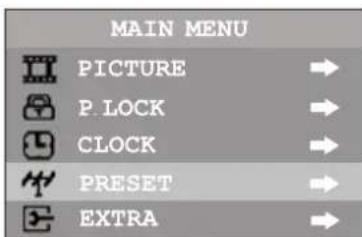
2 Press or to select P.LOCK.
3 Press to enter the P.LOCK menu.
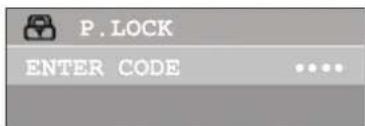
4 Enter the password to enter the P.LOCK menu. The initial password is 0000 and it can be changed at any time.
Setting the initial P.LOCK password
To use the parental controls, you must first set your password.
To set up the P.LOCK password:
1 Use the password to enter the P.LOCK menu. The initial password is 0000.
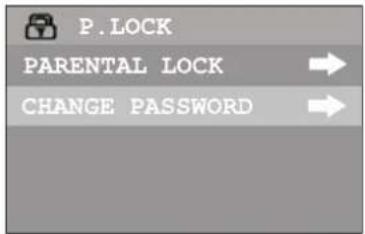
2 Press to highlight CHANGE PASSWORD, then press to enter the menu.
3 Press to highlight NEW PASSWORD, then use the number buttons to enter a new password.
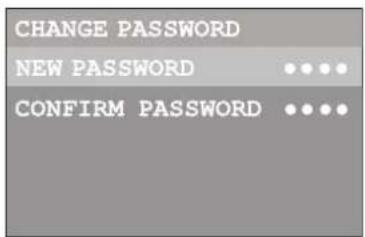
4 Enter the password again to confirm. Your new password has been created.
Caution Write down your password and save it for future use.
Resetting a forgotten password
If you forget the password and you find that you cannot enter the P.LOCK menu, you can reset the password and then change it again.
To reset a forgotten password:
1 With the television turned on, press MENU to display the main menu.

2 Press to Select PLOCK
3 Press to enter the P.LOCK menu.
4 Enter the super password to enter the P.LOCK menu. The super password is 1397. After you finish entering the super password, the SET CODE character appears.
5 Enter a new password (four-digit). The SET CODE character changes to P.LOCK, the old password has been cleared, and this new password has been created.
Note
The super password 1397 will always work to reset a password.
Turning on parental controls
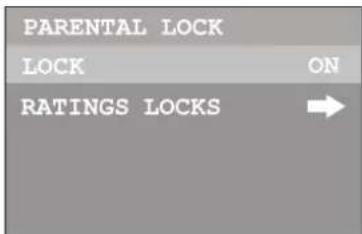
To enable the blocking scheme you set up, you must set PARENTAL LOCK to ON.
To turn on parental controls:
1 Use the password to enter the P.LOCK menu.
2 Highlight PARENTAL LOCK, then press or to enter the menu.
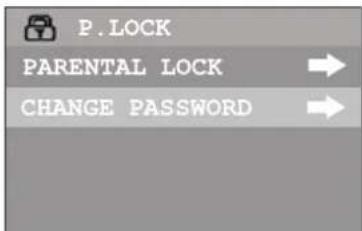
3 Highlight LOCK, then press or to set the item to ON to enable the blocking scheme.
Note
If you want to disable the blocking scheme, set LOCK to OFF.
Setting up MPAA ratings
To set up MPAA ratings:
1 Use the password to enter the P.LOCK menu.
2 Highlight PARENTAL LOCK, then press or to enter the menu.
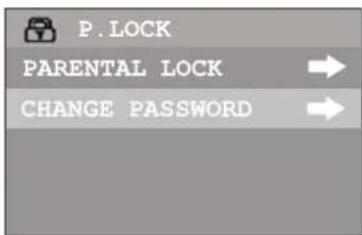
3 Highlight RATINGS LOCKS, then press or to enter the RATINGS LOCKS menu.
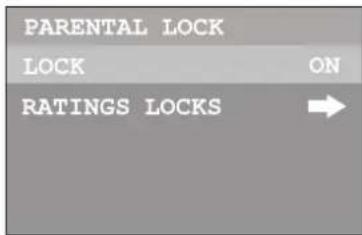
4 Highlight MPAA RATING, then press or to enter the MPAA RATING menu.
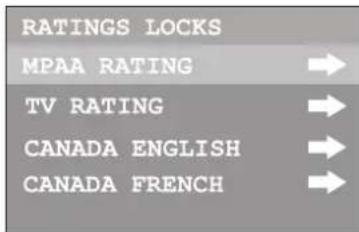
5 Press to select the rating, then press or to either block or view the rating.
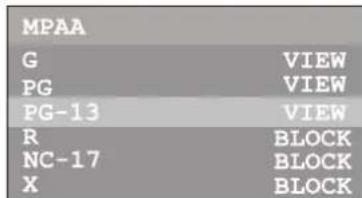
MPAA Movie Ratings:
G-General audience
PG—Parental guidance suggested
PG-13-Ages13 years and up
- R—Restricted viewing. Parental guidance is suggested for children under the age of 17
NC-17-Adults 18 years and up
X - A d u l t
Example: If you set the rating level to PG-13: G and PG movies are available and PG-13, R, NC-17, and X are blocked.
6 Press EXIT to return to television viewing, or press MENU to return to the previous menu.
Setting up TV ratings
TV ratings include two components: a general criteria (age-based) and a detailed criteria (content-based).
To set up TV ratings:
1 Use the password to enter the P.LOCK menu.
2 Highlight PARENTAL LOCK, then press or to enter the menu.
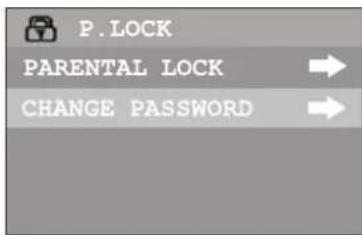
3 Highlight RATINGS LOCKS, then press or to enter the RATINGS LOCKS menu.
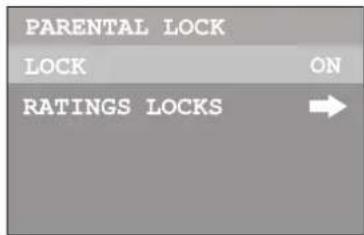
4 Highlight TV RATING, then press or to enter the TV RATING submenu.
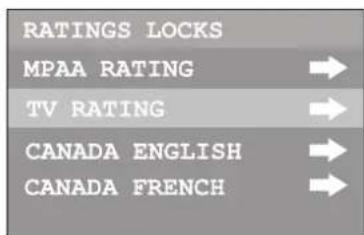
5 Press to select the rating, then press or to either block or view the rating.
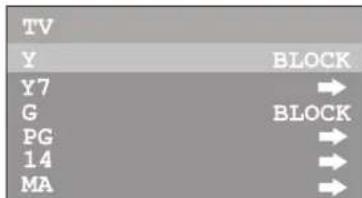
TV Ratings:
TV-Y—All children
TV-Y7-Ages 7 years and up
TV-G—General audience
- TV-PG—Parental guidance suggested
TV-14 14 years and up
- TV-MA—Mature audience
6 If the rating includes content-based ratings, highlight this rating, then press or enter the next-level menu. Press or to select the rating, press or to either block or view the rating. Content-based ratings:
FV: fantasy violence—applies only to TV-Y7
V: Violence applies to TV-PG, TV-14, and TV-MA
S: Sex scenes—applies to TV-PG, TV-14, and TV-MA
L: adult language—applies to TV-PG, TV-14, and TV-MA
D: sexual dialogue--applies to TV-PG and TV-14
7 Press EXIT to return to television viewing, or press MENU to return to the previous menu.
Setting up Canadian English ratings
To set up Canadian English ratings:
1 Use the password to enter the P.LOCK menu.
2 Highlight PARENTAL LOCK, then press or to enter the menu.
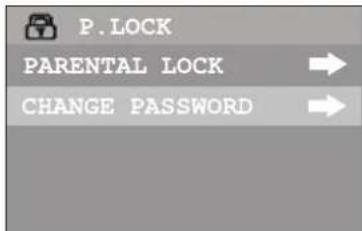
3 Highlight RATINGS LOCKS, then press or to enter the RATINGS LOCKS menu.
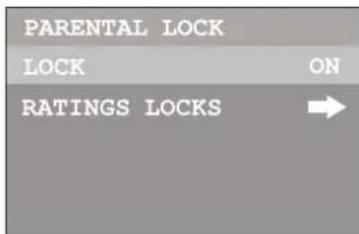
4 Highlight CANADA ENGLISH, then press or to enter the CANADA ENGLISH submenu.
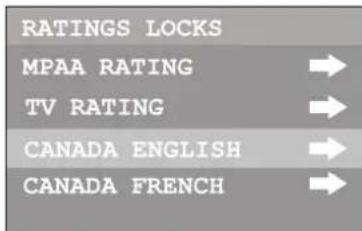
5 Press to select the rating, then press or to either block or view the rating.
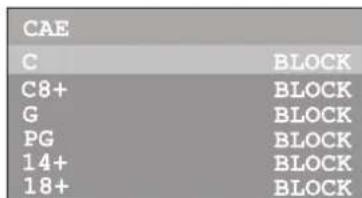
Canadian English Ratings:
C-Children.
C8+Children 8 years and older.
G-General programming, suitable for all audiences.
PG—Parental guidance.
- 14+-Viewers 14 years and older.
18+ Adult programming.
6 Press EXIT to return to television viewing, or press MENU to return to the previous menu.
Setting up Canadian French ratings
To set up Canadian French ratings:
1 Use the password to enter the P.LOCK menu.
2 Highlight PARENTAL LOCK, then press or to enter the menu.
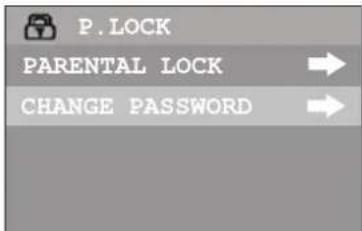
3 Highlight RATINGS LOCKS, then press or to enter the RATINGS LOCKS menu.
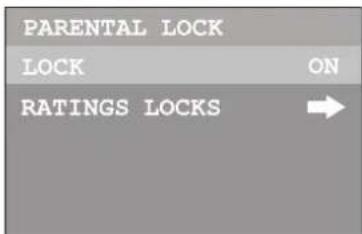
4 Highlight CANADA FRENCH, then press or to enter the CANADA FRENCH submenu.
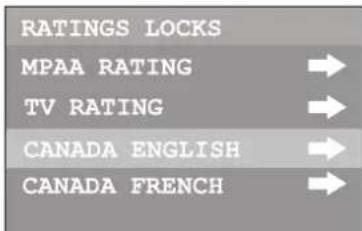
5 Press to select the rating, then press or to either block or view the rating.
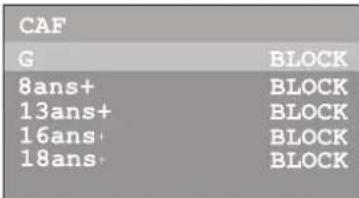
Canadian French Ratings:
G-Children.
- 8 ans+—Children 8 years and older.
13 ans+Children 13 years and older.
16 ans+Viewers 16 years and older.
18 ans+—Adult programming.
6 Press EXIT to return to television viewing, or press MENU to return to the previous menu.
Setting up RRT5 criteria ratings
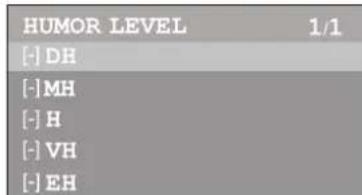
If the broadcasting program uses RRT5 (Rating Region Table-Region 5) criteria rating in accordance with the FCC Rules, its rating can be downloaded to this television and can be used for parental controls.
To set up RRT5 criteria ratings:
1 Use the password to enter the P.LOCK menu.
2 Highlight PARENTAL LOCK, then press or to enter the menu.
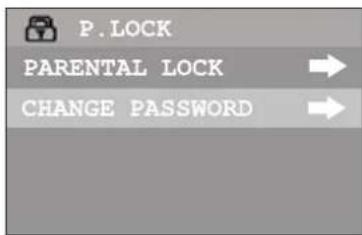
3 Highlight D.L. RATINGS, then press or to enter the D.L. RATINGS menu.
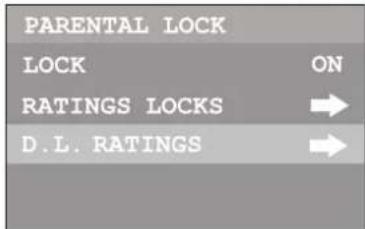
4 Press to select the desired item, then press or enter the menu.
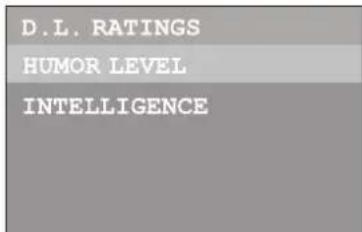
5 Within the menu, press to select the desired rating, then press or block the rating or view. Press ENTER to scroll page if there are more than one menu page.
6 Press EXIT to return to television viewing, or press MENU to return to the previous menu.
Maintaining
To prevent fire or shock hazard, disconnect your television from the AC power source when cleaning. The exterior of the television may be cleaned with a dust cloth. Use caution when cleaning and wiping the plastic parts. Mild soap and a soft, damp cloth may be used.
Troubleshooting
| Symptom Possible cause Possible solution | ||
| No power The AC power cord is not connected. | Connect the AC power cord to an AC outlet. | |
| Poor or no picture | TV station is experiencing problems. | Try another channel. |
| Picture control is not adjusted. | Check picture control adjustments. | |
| Possible local interference. | Check for source of reception disturbance. | |
| Antenna/cable connector is not connected. | Check cable connection or VHF/UHF antenna. | |
| Picture wobbles or drifts | TV station experiencing problems. | Try another channel. |
| Cable TV channel is scrambled. | A cable box needs to be used to receive this channel. | |
| Possible local interference. | Check for source of reception disturbance. | |
| No cable reception | Cable not connected. Check all cable connections. | |
| Air/Cable set to Air. Set | Air/Cable to Cable. | |
| Cable TV service interrupted. | Contact your cable TV company. | |
| No reception above CH13 | Air/Cable set to Air. Set | Air/Cable to Cable. |
| Poor or no sound | TV station experiencing problems. | Try another channel. |
| MUTE button is pressed. | Press MUTE button again. | |
| Possible local interference. | Check for source of reception disturbance. | |
| Antenna/cable connector is not connected. | Check cable connection of VHF/UHF antenna. | |
| Volume is set to minimum. | Increase the volume. | |
| Television shuts off | Sleep timer is set Set sleep timer to OFF. | |
| Closed Captioning not working | TV signal is weak. Check cable or VHF/UHG antenna. | |
| TV station experiencing problems or program is not closed captioned. | Try another channel. | |
| Close captioning is not turned on. | Press the CCD button. | |
| Remote control does not operate | The remote control is not aimed at the sensor. | Aim the remote control at the remote sensor. |
| Distance is too far or too much light in the room. | Operate the remote within 15 feet of the television or reduce the light in the room. | |
| There is an obstacle in the path of the beam. | Clear the path of the beam. | |
| The batteries are weak. Replace the batteries. | ||
| The batteries are not inserted correctly. | Reinsert the batteries. | |
| Parental control not working correctly. | Parental control is set to OFF. | Set parental control to ON. |
| News or sports event being broadcast. | Parental control does not work with news or sporting events. | |
| Ratings not set. Set ratings. | ||
Reception disturbances
Most types of television interference can be remedied by adjusting the height and position of the VHF/UHF antenna. Outdoor antennas are recommended for best results if not using cable or satellite. The most common types of television interference are shown below. If one of these symptoms appear when the television is connected to a Cable TV system, the disturbance may be caused by the local cable company broadcast.
| IGNITION: Black spots or horizontal streaks may appear, picture may flutter or drift. Usually caused by interference from automobile ignition systems, neon lamps, electric drills and other electric appliances. | |
| GHOSTS: Ghosts are caused by the television signal following two paths. One is the direct path and the other is reflected from tall buildings, hills, or other objects. Changing the direction or position of the antenna may improve the reception. | |
| SNOW: If your receiver is located in the fringe area of a television station where the signal is weak, your picture may be marred by the appearance of small dots. When the signal is extremely weak, it may be necessary to install an external antenna to improve the picture. | |
| RADIO FREQUENCY INTERFERENCE: This interference produces moving ripples or diagonal streaks, and in some cases, causes loss of contrast in the picture. | |
| PICTURE SIZE VARIATION: A slight picture size variation is normal when you adjust the CONTRAST or BRIGHTNESS setting. |
Specifications
Design and specifications are subject to change without notice.
| Power Supply AC 120V, 60Hz | |
| Power Consumption 150 W | |
| Dimensions (W x H x D) | 30.5" X 23.5" X 20.2"(774 mm x 596 mm x 513 mm) |
| Weight 88.2 lbs (40 kg) | |
| CRT 27" (685 mm) | |
| Audio Output 5W x 2 | |
| TV System NTSC-M, ATSC | |
| Channel Coverage VHF 2-13, UHF 14-69, CATV 1-125, CADTV 1-135, DTV 2-69 | |
| Antenna Impedance 75 ohm | |
| Accessory Remote control | |
Legal notices
FCC Part 15
This device complies with Part 15 of the FCC Rules. Operation of this product is subject to the following two conditions: (1) this device may not cause harmful interference, and (2) this device must accept any interference received, including interference that may cause undesired operation.
This equipment has been tested and found to comply within the limits for a class B digital device, pursuant to Part 15 of the FCC Rules. These limits are designed to provide reasonable protection against harmful interference in a residential installation. This equipment generates, uses, and can radiate radio frequency energy and, if not installed and used in accordance with the instructions, may cause harmful interference to radio communications. However, there is no guarantee that interference will not occur in a particular installation. If this equipment does cause harmful interference to radio or television reception, which can be determined by turning the equipment off and on, the user is encouraged to try to correct the interference by one or more of the following measures:
- Reorient or relocate the receiving antenna.
- Increase the separation between the equipment and receiver.
- Connect the equipment into an outlet on a circuit different from that to which the receiver is connected.
- Consult the dealer or an experienced technician for help.
FCC warning
Changes or modifications not expressly approved by the party responsible for compliance with the FCC Rules could void the user's authority to operate this equipment.
DHHS and FDA safety certification
This product is made and tested to meet safety standards of the FCC, requirements and compliance with safety performance of the U.S. Department of Health and Human Services, and also with FDA Radiation Performance Standards 21 CFR Subchapter J.
Canada ICES-003 statement
This Class B digital apparatus complies with Canadian ICES-003.
RSS 310 statement
To reduce potential radio interference to other users, the antenna type and its gain should be so chosen that the equivalent isotropically radiated power (e.i.r.p.) is not more than that permitted for successful communication.
Copyright
2007 Insignia. Insignia and the Insignia logo are trademarks of Best Buy Enterprise Services, Inc. Other brands and product names are trademarks or registered trademarks of their respective holders. Specifications and features are subject to change without notice or obligation. For service and support call (877) 467-4289.
Warranty
1-year limited warranty
Insignia Products ("Insignia") warrants to you, the original purchaser of this new NS-F27TV ("Product"), that the Product shall be free of defects in the original manufacture of the material or workmanship for a period of one (1) year from the date of your purchase of the Product ("Warranty Period"). This Product must be purchased from an authorized dealer of Insignia brand products and packaged with this warranty statement. This warranty does not cover refurbished Product. If you notify Insignia during the Warranty Period of a defect covered by this warranty that requires service, terms of this warranty apply.
How long does the coverage last?
The Warranty Period lasts for 1 year (365 days) from the date you purchased the Product. The purchase date is printed on the receipt you received with the Product.
What does this warranty cover?
During the Warranty Period, if the original manufacture of the material or workmanship of the Product is determined to be defective by an authorized Insignia repair center or store personnel, Insignia will (at its sole option): (1) repair the Product with new or rebuilt parts; or (2) replace the Product at no charge with new or rebuilt comparable products or parts. Products and parts replaced under this warranty become the property of Insignia and are not returned to you. If service of Products or parts are required after the Warranty Period expires, you must pay all labor and parts charges. This warranty lasts as long as you own your Insignia Product during the Warranty Period. Warranty coverage terminates if you sell or otherwise transfer the Product.
How to obtain warranty service?
If you purchased the Product at a retail store location, take your original receipt and the Product to the store you purchased it from. Make sure that you place the Product in its original packaging or packaging that provides the same amount of protection as the original packaging. If you purchased the Product from an online web site, mail your original receipt and the Product to the address listed on the web site. Make sure that you put the Product in its original packaging or packaging that provides the same amount of protection as the original packaging.
Where is the warranty valid?
This warranty is valid only to the original purchaser of the product in the United States and Canada.
What does the warranty not cover?
This warranty does not cover:
- Customer instruction
- Installation
- Set up adjustments
Cosmetic damage - Damage due to acts of God, such as lightning strikes
- Accident
- M i s u s e
- A b u s e
- Negligence
- Commercial use
- Modification of any part of the Product, including the antenna
This warranty also does not cover:
- Damage due to incorrect operation or maintenance
- Connection to an incorrect voltage supply
- Attempted repair by anyone other than a facility authorized by Insignia to service the Product
- Products sold as is or with all faults
- Consumables, such as fuses or batteries
- Products where the factory applied serial number has been altered or removed
REPAIR REPLACEMENT AS PROVIDED UNDER THIS WARRANTY IS YOUR EXCLUSIVE REMEDY. INSIGNIA SHALL NOT BE LIABLE FOR ANY INCIDENTAL OR CONSEQUENTIAL DAMAGES FOR THE BREACH OF ANY EXPRESS OR IMPLIED WARRANTY ON THIS PRODUCT, INCLUDING, BUT NOT LIMITED TO, LOST DATA, LOSS OF USE OF YOUR PRODUCT, LOST BUSINESS OR LOST PROFITS. INSIGNIA PRODUCTS MAKES NO OTHER EXPRESS WARRANTY WITH RESPECT TO THE PRODUCT, ALL EXPRESS AND IMPLIED WARRANTYES FOR THE PRODUCT, INCLUDING, BUT NOT LIMITED TO, ANY IMPLIED WARRANTY OF AND CONDITIONS OF MERCHANTABILITY AND FITNESS FOR A PARTICULAR PURPOSE, ARE LIMITED IN DURATION TO THE WARRANTY PERIOD SET FORTH ABOVE AND NO WARRANTYES, WHETHER EXPRESS OR IMplied, WILL APPLY AFTER THE WARRANTY PERIOD. SOME STATES, PROVINCES AND JURISDICTIONS DO NOT ALLOW LIMITATIONS ON HOW LONG AN IMPLIED WARRANTY LASTS, SO THE ABOVE LIMITATION MAY NOT APPLY TO YOU. THIS WARRANTY GIVES YOU SPECIFIC LEGAL RIGHTS, AND YOU MAY ALSO HAVE OTHER RIGHTS, WHICH VARY FROM STATE TO STATE OR PROVINCE TO PROVINCE.
Distributed by Insignia™ Products
7601 Penn Avenue South
Richfield, MN USA 55423-3645
www.Insignia-Products.com
© 2007 Insignia™ Products
All rights reserved. All other products and brand names are trademarks of their respective owners.
- Introduction
- Safety information
- Warning
- Electric shock warning
- Important safeguards
- Note to cable television system installer
- Features
- Television
- Remote Control Buttons
- Installing batteries
- To install batteries in the remote control:
- Note
- Setting up your television
- Unpacking your television
- Locating the television
- Connecting your television to an antenna or cable television
- Caution
- Connecting video and audio equipment
- Connecting using the side AV input terminals
- To connect using the side AV input terminals:
- Connecting using the rear AV input terminals
- To connect using the rear AV input terminals:
- Connecting using the component terminals
- To connect using the component terminals:
- Connecting using the AV output terminals
- To connect using the AV output terminals:
- Using your television
- Turning the television on and off
- Turning the television on
- To turn the television on:
- Turning the television off
- To turn the television off:
- Using the menus
- Main Menu Sub Menu
- To use the menu:
- Watching AV programs
- To watch a video program using the AV inputs:
- Switching from AV to TV
- To switch from AV to TV:
- Displaying the information banner
- To display the information banner:
- Using the program guide
- To display the program guide:
- Setting up your television stations
- To set up your television stations:
- Skipping unwanted channels
- To skip unwanted channels:
- Tip
- Checking DTV signal strength
- To check DTV signal strength:
- Selecting channels
- Using the number pad
- Using the CH+ and CH- buttons
- To browse through the channels:
- Using the previous channel button
- To switch between two channels:
- Information about USA channel numbering
- Channel Numbering Example
- Controlling the sound
- Using the VOL+ and VOL- buttons
- Using the MUTE button
- Setting up Stereo/SAP broadcasts
- Selecting the MTS mode
- Adjusting the picture
- To adjust the picture:
- Selecting a picture mode
- To select a picture mode:
- Changing picture size
- To change the picture size:
- Using the clock
- To enter the clock menu:
- Setting up the clock automatically
- To set up the clock automatically:
- Setting up the clock manually
- To set up the clock manually:
- Turning the television on automatically
- To turn the television on automatically:
- Turning the television off automatically
- Changing system settings
- To change system settings:
- Selecting the OSD menu language
- To change the OSD menu language:
- Selecting an audio language
- To select an audio language:
- Setting up Closed Captioning
- Turning Closed Captioning on or off
- To turn Closed Captioning on or off:
- Selecting the caption type
- To select the caption type:
- Customizing digital Closed Captions
- To customize the digital Closed Captions:
- Using the parental controls
- To enter the P.LOCK menu:
- Setting the initial P.LOCK password
- To set up the P.LOCK password:
- Resetting a forgotten password
- To reset a forgotten password:
- Turning on parental controls
- To turn on parental controls:
- Setting up MPAA ratings
- To set up MPAA ratings:
- Setting up TV ratings
- To set up TV ratings:
- TV Ratings:
- Setting up Canadian English ratings
- To set up Canadian English ratings:
- Canadian English Ratings:
- Setting up Canadian French ratings
- To set up Canadian French ratings:
- Setting up RRT5 criteria ratings
- Maintaining
- Troubleshooting
- Reception disturbances
- Specifications
- Legal notices
- FCC Part 15
- FCC warning
- DHHS and FDA safety certification
- Canada ICES-003 statement
- RSS 310 statement
- Copyright
- Warranty
- 1-year limited warranty
- How long does the coverage last?
- What does this warranty cover?
- How to obtain warranty service?
- Where is the warranty valid?
- What does the warranty not cover?
Brand : INSIGNIA
Model : NSF27TV
Category : Television