
XR-M500R - Car stereo SONY - Free user manual and instructions
Find the device manual for free XR-M500R SONY in PDF.



User questions about XR-M500R SONY
0 question about this device. Answer the ones you know or ask your own.
Ask a new question about this device
Download the instructions for your Car stereo in PDF format for free! Find your manual XR-M500R - SONY and take your electronic device back in hand. On this page are published all the documents necessary for the use of your device. XR-M500R by SONY.
USER MANUAL XR-M500R SONY
FM/MW/LW Cassette Car Stereo
Operating Instructions ____ GB
For installation and connections, see the supplied installation/connections manual.
Thank you for purchasing this Sony Cassette Player. This unit lets you enjoy a variety of features using the following controller accessory:
Supplied accessory
Card remote commander RM-X96
Optional accessory
Rotary commander RM-X4S
In addition to the cassette playback and radio operations, you can expand your system by connecting an optional CD/MD unit ^1 . When you operate this unit or a connected optional CD unit with the CD TEXT function, the CD TEXT information will appear in the display when you play a CD TEXT disc ^2 .
*1 You can connect a CD changer, an MD changer, a CD player, or an MD player.
*2 A CD TEXT disc is an audio CD that includes information such as the disc name, artist name, and track names.
This information is recorded on the disc.
Precautions
- If your car was parked in direct sunlight resulting in a considerable rise in temperature inside the car, allow the unit to cool off before operating it.
- If no power is being supplied to the unit, check the connections first. If everything is in order, check the fuse.
- If no sound comes from the speakers of a two-speaker system, set the fader control to the centre position.
- When a tape is played back for a long period, the cassette may become warm because of the built-in power amplifier. However, this is not a sign of malfunction.
If you have any questions or problems concerning your unit that are not covered in this manual, please consult your nearest Sony dealer.
To maintain high quality sound
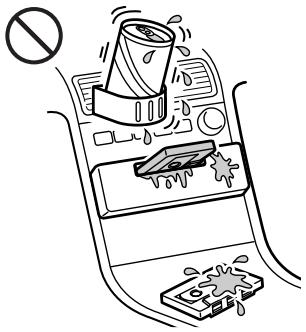
If you have drink holders near your audio equipment, be careful not to splash juice or other soft drinks onto the car audio. Sugary residues on this unit or cassette tapes may contaminate the playback heads, reduce the sound quality, or prevent sound reproduction altogether.
Cassette cleaning kits cannot remove sugar from the tape heads.
text_image
Diagram showing a hand holding a toilet with a stopper and a warning symbol, indicating no chemical hazard or safety.Notes on Cassettes
Cassette care
- Do not touch the tape surface of a cassette, as any dirt or dust will contaminate the heads.
- Keep cassettes away from equipment with built-in magnets such as speakers and amplifiers, as erasure or distortion on the recorded tape could occur.
- Do not expose cassettes to direct sunlight, extremely cold temperatures, or moisture.
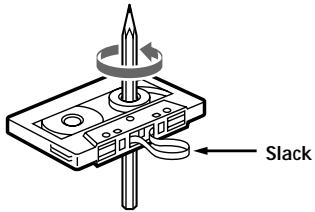
- Slack in the tape may cause the tape to be caught in the machine. Before you insert the tape, use a pencil or similar object to turn the reel and take up any slack.
text_image
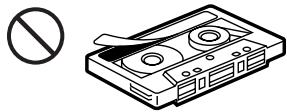
Slack- Distorted cassettes and loose labels can cause problems when inserting or ejecting tapes. Remove or replace loose labels.
natural_image
Illustration of a cassette tape with a stopper and no stop symbol (no text or labels)- The sound may become distorted while playing the cassette. The cassette player head should be cleaned after each 50 hours of use.
Cassettes longer than 90 minutes
The use of cassettes longer than 90 minutes is not recommended except for long continuous play. The tape used for these cassettes is very thin and tends to stretch easily. Frequent playing and stopping of these tapes may cause them to become entangled in the cassette deck mechanism.
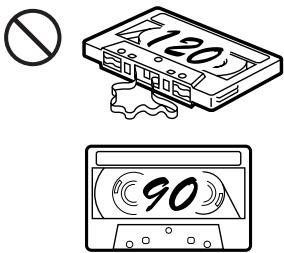
text_image
120 90Table of Contents
This Unit Only
Location of controls 5
Getting Started
Resetting the unit 8
Security release settings 8
Turning the unit on/off 9
How to use the menu 9
Setting the clock 10
Cassette Player
Listening to a tape 11
Playing a tape in various modes 12
Radio
Memorising stations automatically — Best Tuning Memory (BTM) ...... 13
Memorising only the desired stations.... 13
Receiving the memorised stations .... 14
RDS
Overview of the RDS function 15
Displaying the station name 15
Retuning the same programme automatically — Alternative Frequencies (AF) ...... 16
Listening to traffic announcements .... 17
Presetting the RDS stations with the AF and TA data 18
Locating a station by programme type ...... 19
Setting the clock automatically 20
Other Functions
Labelling the rotary commander 20
Using the rotary commander 21
Adjusting the sound characteristics ...... 23
Attenuating the sound 23
Changing the sound and display settings ..... 23
Boosting the bass sound — D-bass .... 24
Selecting the spectrum analyser 25
Adjusting the sound and frequency of the equalizer preamplifier 25
With Optional Equipment
CD/MD Unit
Playing a CD or MD 26
Playing tracks repeatedly — Repeat Play .... 28
Playing tracks in random order — Shuffle Play .... 28
Labelling a CD — Disc Memo .... 29
Locating a disc by name — List-up .... 30
Selecting specific tracks for playback — Bank .... 31
DAB
Overview of DAB 32
Basic operations of DAB 32
Presetting DAB services automatically — BTM 33
Presetting DAB services manually — Manual Preset Memory .... 34
Listening to a DAB programme 35
Settings on the audio reception 36
Locating a DAB service by programme type (PTY) 36
Additional Information
Maintenance 37
Dismounting the unit 38
Specifications 39
Troubleshooting guide 40
Location of controls
Card remote commander RM-X96
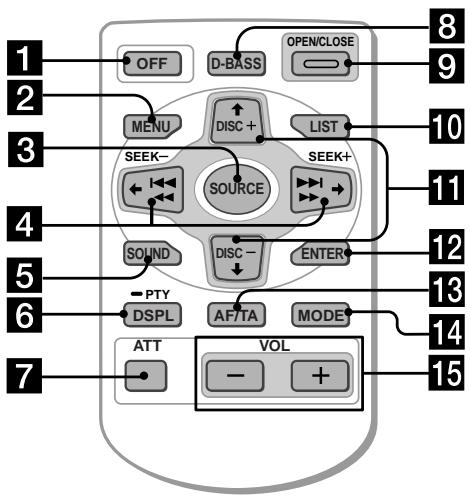
text_image
1 2 3 4 5 6 7 OFF D-BASS OPEN/CLOSE MENU DISC+ LIST SEEK- SOURCE SEEK+ SOUND DISC- ENTER PTY DSPL AFTA MODE ATT VOL - +Refer to the pages listed for details.
1 OFF button 9, 11
2 MENU button 10, 12, 13, 14, 16, 18, 20, 24, 25, 27, 28, 29, 31, 33, 34, 36
3 SOURCE (TUNER/TAPE/CD/MD) button 9, 11, 13, 14, 25, 26, 30, 32, 33
4 ←/→ (SEEK/AMS -/+ ) buttons
9, 10, 11, 12, 14, 16, 20, 23, 24, 25, 27, 28,
29, 31, 32, 34, 36
Automatic Music Sensor (I◄◄/►►I)
11, 27
Manual search (◄◄/►►) 27
Seek 14
5 SOUND button 23
6 DSPL/PTY (display mode change/programme type) button 19, 26, 27, 29, 36
7 ATT (attenuate) button 23
8 D-BASS button 24
9 OPEN/CLOSE button 11
10 LIST button 29, 30, 35
11 ↑/↓ (DISC/PRST +/-) buttons 9, 10, 12, 13, 14, 16, 18, 19, 20, 24, 25, 27, 28, 29, 30, 31, 32, 33, 34, 36
During radio reception: Preset stations select 14
During CD/MD playback: Disc change 27
12 ENTER button 10, 12, 13, 14, 16, 18, 19, 20, 24, 25, 27, 29, 30, 31, 33, 34, 35, 36
13 AF/TA button 16, 17, 18
14 MODE button
11, 12, 13, 14, 26, 30, 32, 33
During tape playback:
Playback direction change 11
During radio reception:
BAND select 13, 14
During CD/MD playback:
CD/MD unit select 26
15 VOL (Volume adjust) buttons
A unit turned off by pressing OFF for two seconds cannot be operated with the card remote commander unless SOURCE on the unit is pressed or a cassette is inserted to activate the unit first.
Location of controls
Security side
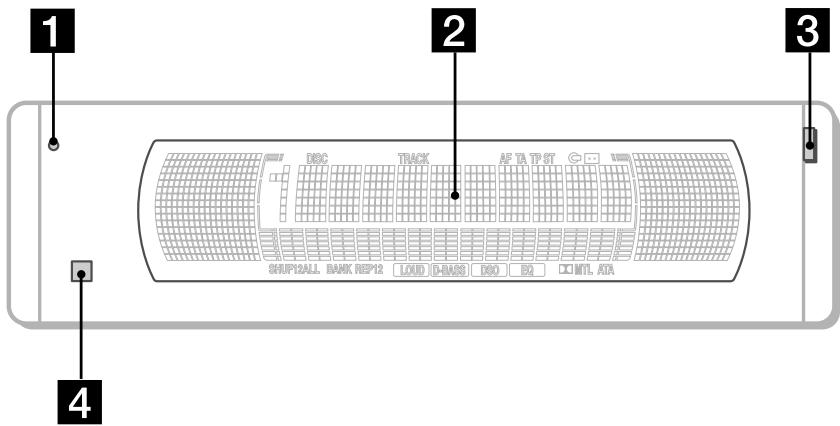
text_image
1 2 3 4 DC TRACK A T A P S T SHIPBALL BANK REP10 LOAD D-BASD DO SO MTL ADAOperation side
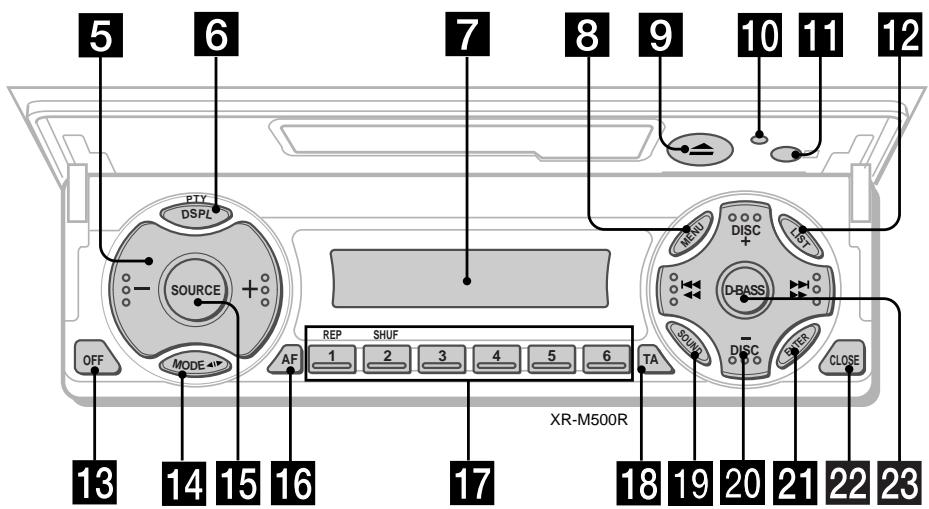
text_image
5 6 7 8 9 10 11 12 PTY DSPL SOURCE + OFF MODE AF REP SHUF 1 2 3 4 5 6 TA XR-M500R MENU DISC + DBASS SONY DISC + CLOSE 13 14 15 16 17 18 19 20 21 22 23The corresponding buttons of the unit control the same functions as those on the card remote commander.
1 10 Reset button 8
2 Main display window
3 OPEN button 38
411 Receptor for the card remote commander
5 Volume adjust buttons
6 DSPL/PTY (display mode change/programme type) button
7 Sub display window
8 MENU button
9 ≧ (eject) button 11
12 LIST button
13 OFF button* 9
14 MODE button
15 SOURCE (TUNER/TAPE/CD/MD) button
16 AF button 16, 18
17 Number buttons
During radio reception: Preset number select 13, 14, 17, 33, 34
During tape playback:
① REP 12
During CD/MD playback:
① REP 28
② SHUF 28
18 TA button 16, 17, 18
19 SOUND button
20 PRST/DISC +/- (cursor up/down) buttons
SEEK/AMS -/+ (cursor left/right) buttons
13
21 ENTER button
22 CLOSE button
23 D-BASS button
* Warning when installing in a car without ACC (accessory) position on the ignition key switch
Be sure to press OFF on the unit for two seconds to turn off the clock display after turning off the engine.
When you press OFF only momentarily, the clock display does not turn off and this causes battery wear.
Getting Started
Resetting the unit
Before operating the unit for the first time or after replacing the car battery, you must reset the unit.
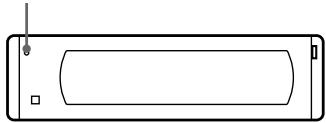
Press the reset button with a pointed object, such as a ballpoint pen.
Reset button
natural_image
Simple line drawing of a rectangular device with a rounded top and side handles (no text or symbols)Note
Pressing the reset button will erase the clock setting and some memorised functions.
Security release settings
Do the following initial settings before you operate the unit for the first time, after replacing the car battery, or after resetting the unit.
Be sure to make these settings, otherwise the front panel remains disabled and you will be unable to operate the unit.
1 Press the reset button.
"Code in" appears.
2 Press the buttons on the card remote commander, and send the security code. Please refer to the supplied insert for details on the security code buttons.
When the code has been confirmed, the display changes to clock, and you can operate the unit normally.
Notes
- When you leave the car, take the card remote control with you.
- If you forget the security code, consult your Sony Service Centre. Be sure to bring the card remote control with you.
Turning the unit on/off
Turning on the unit
Press SOURCE or insert a cassette in the unit. For details on operation, refer to page 11 (cassette player) and page 13 (radio).
Turning off the unit
Press OFF to stop tape playback or FM/MW/LW reception (the key illumination and display remains on).
Press OFF for two seconds to completely turn off the unit.
Note
If your car has no ACC position on the ignition key switch, be sure to turn the unit off by pressing OFF for two seconds to avoid car battery wear.
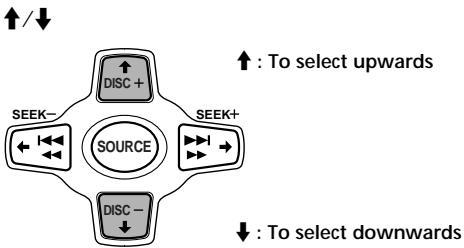
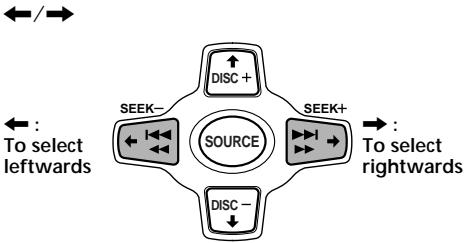
How to use the menu
This unit is operated by selecting items from a menu.
To select, first enter the menu mode and choose ↑/↓ (up/down), or choose ←/→ (left/right).
flowchart
graph TD
    A["Source"] --> B["DISC +"]
    A --> C["SEEK-"]
    A --> D["SEEK+"]
    A --> E["DISC -"]
    style A fill:#f9f,stroke:#333
    style B fill:#ccf,stroke:#333
    style C fill:#ccf,stroke:#333
    style D fill:#ccf,stroke:#333
    style E fill:#ccf,stroke:#333
flowchart
graph TD
    A["Source"] --> B["To select leftwards"]
    A --> C["To select rightwards"]
    D["DISC+"] --> E["SEEK-"]
    F["SEEK+"] --> G["SEEK+"]
    H["DISC-"] --> I["←"]
    J["←"] --> K["←"]
    L["←"] --> M["←"]
    N["→"] --> O["→"]
    P["/→"] --> Q["←"]
Setting the clock
The clock uses a 24-hour digital indication.
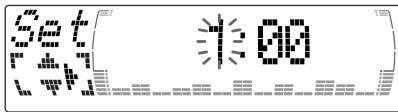
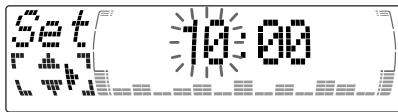
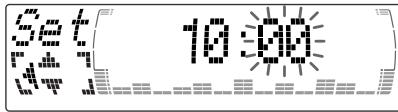
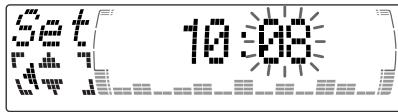
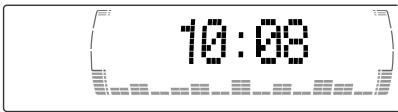
Example: To set the clock to 10:08
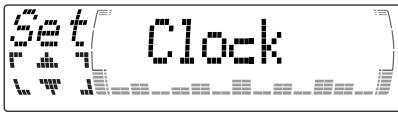
1 Press MENU, then ↑ or ↓ repeatedly until "Clock" appears.
text_image
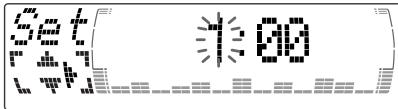
in Clock① Press ENTER.
text_image
Pixelated graphic with pixelated numbers and symbols, possibly representing a digital display or data visualizationThe hour indication flashes.
② Press ↑ or ↓ to set the hour.
text_image
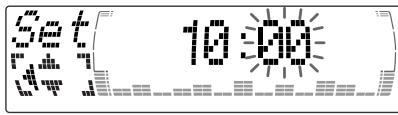
745:00③ Press →.
text_image
10:30The minute indication flashes.
④ Press ↑ or ↓ to set the minute.
text_image
10:302 Press ENTER.
text_image
10:00 10:00 10:00 10:00 10:00 10:00 10:00 10:00 10:00 10:00 10:00 10:00 10:00 10:00 10:00 10:00 10:00 10:32The clock starts.
Tips
- You can use the convenient CT function to set the clock automatically (page 20).
- When the D.Info mode is set to "on," the time is always displayed (except for some functions of SA mode) (page 23).
Listening to a tape
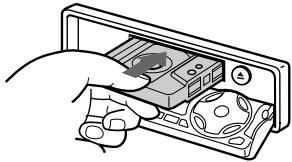
1 Press OPEN/CLOSE of the card remote commander and insert a cassette. Playback starts automatically.
natural_image
Illustration of a hand inserting a device into a computer case (no text or symbols visible)2 Press OPEN/CLOSE of the card remote commander to close the front panel.
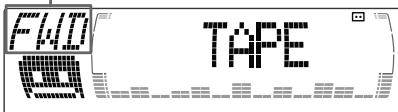
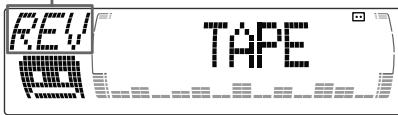
If a cassette is already inserted, to start playback, press SOURCE repeatedly until "FWD" or "REV" appears.
The side facing up is played.
text_image
FIV TAPEThe side facing down is played.
text_image
KEY TAPETip To change the tape's playback direction, press MODE (◀▶).
| To | Press |
| Stop playback | OFF |
| Eject the cassette | OPEN/CLOSE then ▲ |
Fast-winding the tape
During playback, press and hold ◀◀ or ▶▶.
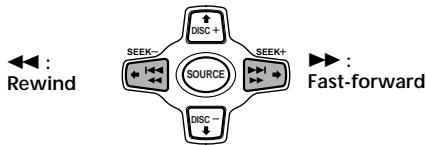
flowchart
graph TD
    A["Rewind"] --> B["SOURCE"]
    B --> C["DECK-"]
    B --> D["DECK+"]
    B --> E["SEEK-"]
    B --> F["SEEK+"]
    B --> G["FAST-forward"]
To start playback during fast-forwarding or rewinding, press MODE (◀▶).
Locating a specific track
— Automatic Music Sensor (AMS)
During playback, press ◀◀◀ or ▶▶◀ momentarily for each track you want to skip.
You can skip up to nine tracks at one time.
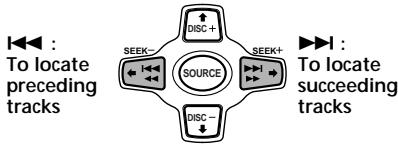
flowchart
graph TD
    A["Source"] --> B["DISC +"]
    A --> C["DISC -"]
    B --> D["SEEK-"]
    C --> E["SEEK+"]
    D --> F["To locate preceding tracks"]
    E --> G["To locate succeeding tracks"]
Note
The AMS function may not work when:
— the blanks between tracks are shorter than four seconds
— there is noise between tracks
— there are long sections of low volume or quiet sections.
In the Motion Display mode, all the items are scrolled in the display one by one in order.
Tip
The Motion Display mode can be turned off. (See "Changing the sound and display settings" on page 23.)
Playing a tape in various modes
You can play the tape in various modes:
- Repeat (Repeat Play) repeats the current track.
- NR (Dolby NR) lets you select the Dolby* NR B system.
- Metal lets you play a metal or CrO_2 tape.
- B.Skip (Blank Skip) skips blanks longer than eight seconds.
- ATA (Automatic Tuner Activation) turns on the tuner automatically when fast-winding the tape.
* Dolby noise reduction manufactured under license from Dolby Laboratories. "DOLBY" and the double-D symbol are trademarks of Dolby Laboratories.
1 During playback, press MENU.
2 Press ↑ or ↓ repeatedly until the desired item appears.
Each time you press ↓, the item changes as follows:
Repeat → NR → Metal → B.Skip → ATA
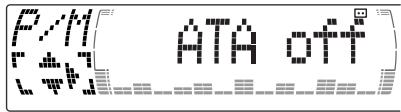
text_image
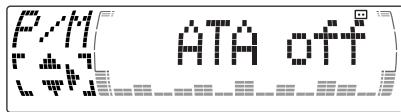
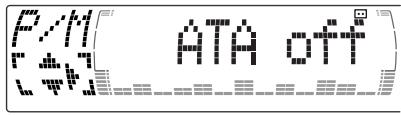
F/M ATA off Lw3 Press → to select "on."
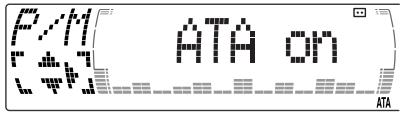
text_image
ATA on ATAPlay mode starts.
4 Press ENTER.
To return to normal playback mode, select "off" in step 3.
Tip
While the ATA function is activated, the display (TAPE ↔ TUNER) can be changed by pressing DSPL/PTY.
Playing tracks repeatedly
— Repeat Play
1 During playback, press MENU.
2 Press ↑ or ↓ repeatedly until "Repeat" appears.
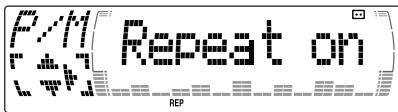
3 Press → repeatedly until "Repeat on" in the display appears.
Repeat on Repeat off
text_image
F/M Repeat on REPRepeat Play starts.
To return to normal playback mode, select "Repeat off" in step 3.
Tips
- If you select the mode using the buttons on the unit, press ① (REP) repeatedly until the desired mode appears.
- During repeat playback, press MODE. "REP" disappears from the display and repeat mode is cancelled.
Memorising stations automatically
— Best Tuning Memory (BTM)
The unit selects the stations with the strongest signals and memorises them in the order of their frequencies. You can store up to 6 stations on each band (FM1, FM2, FM3, MW, and LW).
Caution
When tuning in stations while driving, use Best Tuning Memory to prevent accidents.
1 Press SOURCE repeatedly to select the tuner.
Each time you press SOURCE, the source changes as follows:

flowchart
graph LR
    A["→ Tuner"] --> B["CD*"]
    B --> C["MD*"]
    C --> D["TAPE"]
* If the corresponding optional equipment is not connected, this item will not appear.
2 Press MODE repeatedly to select the band.
Each time you press ⒽMODE, the band changes as follows:

flowchart
graph LR
    A["→ FM1"] --> B["→ FM2"] --> C["→ FM3"] --> D["→ MW"] --> E["→ LW"]
3 Press Ⓜ MENU, then press ↑ or ↓ repeatedly until "BTM" appears.
4 Press ENTER.
The unit stores stations in the order of their frequencies on the number buttons.
A beep sounds when the setting is stored.
Notes
- The unit does not store stations with weak signals. If only a few stations can be received, some number buttons will retain their former setting.
- When a number is indicated in the display, the unit starts storing stations from the one currently displayed.
Memorising only the desired stations
You can preset up to 18 FM stations (6 each for FM1, 2, and 3), up to 6 MW stations, and up to 6 LW stations in the order of your choice.
1 Press SOURCE repeatedly to select the tuner.
2 Press MODE repeatedly to select the band.
3 Press ◀◀ or ▶▶◆ of the unit to tune in the station that you want to store on the number button.
4 Press the desired number button (① to ⑥) of the unit until "MEM" appears. The number button indication appears in the display.
Note
If you try to store another station on the same number button, the previously stored station will be erased.
Receiving the memorised stations
1 Press SOURCE repeatedly to select the tuner.
2 Press MODE repeatedly to select the band.
3 Press ↑ (preset up) or ↓ (preset down) repeatedly to receive the stations in the order they are stored in the memory.
Tip
If you memorising the station using the buttons on the unit, press the number button (① to ⑥) on which the desired station is stored.
If you cannot tune in a preset station
Press or to search for the station (automatic tuning). Scanning stops when the unit receives a station. Press or repeatedly until the desired station is received.
Note
If the automatic tuning stops too frequently, press (MENU), then press ↑ or ↓ repeatedly until "Local" (local seek mode) is displayed. Then press → to select "Local on." Press (ENTER). During local reception and station selection, "LCL Seek" appears in the display. Only the stations with relatively strong signals will be tuned in.
Tip
If you know the frequency of the station you want to listen to, press and hold or until the desired frequency appears (manual tuning).
If FM stereo reception is poor — Monaural Mode
1 During radio reception, press MENU, then press ↑ or ↓ repeatedly until "Mono" appears.
2 Press → until "Mono on" appears. The sound improves, but becomes monaural ("ST" disappears).
3 Press ENTER.
To return to normal mode, select "Mono off" in step 2.
In the Motion Display mode, all the items are scrolled in the display one by one in order.
Tip
The Motion Display mode can be turned off. (See "Changing the sound and display settings" on page 23.)
In the Motion Display mode, all the items are scrolled in the display one by one in order.
Tip
The Motion Display mode can be turned off. (See "Changing the sound and display settings" on page 23.)
Overview of the RDS function
Radio Data System (RDS) is a broadcasting service that allows FM stations to send additional digital information along with the regular radio programme signal. Your car stereo offers you a variety of services. Here are just a few: retuning the same programme automatically, listening to traffic announcements, and locating a station by programme type.
Notes
- Depending on the country or region, not all of the RDS functions are available.
- RDS may not work properly if the signal strength is weak or if the station you are tuned to is not transmitting RDS data.
Displaying the station name
The name of the current station lights up in the display.
Select an FM station (page 13).
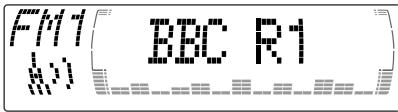
When you tune in an FM station that transmits RDS data, the station name appears in the display.
text_image
F4 BBC R1Note
The “*” indication means that an RDS station is being received.
Retuning the same programme automatically
— Alternative Frequencies (AF)
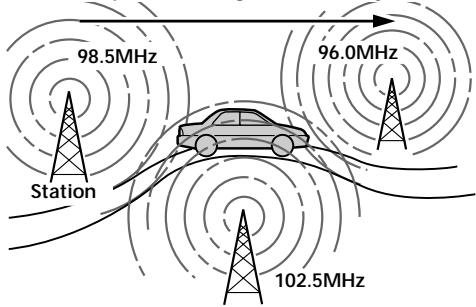
The Alternative Frequencies (AF) function automatically selects and retunes the station with the strongest signal in a network. By using this function, you can continuously listen to the same programme during a long-distance drive without having to retune the station manually.
Frequencies change automatically.
text_image
98.5MHz Station 96.0MHz 102.5MHz1 Select an FM station (page 13).
2 Press AF/TA repeatedly until "AF on" appears.
The unit starts searching for an alternative station with a stronger signal in the same network.
Tip
If you select the mode using the buttons on the unit, press AF until "AF on" appears.
Changing the display item
Each time you press AF/TA, the item changes as follows:

flowchart
graph LR
    A["AF on"] --> B["TA on"]
    B --> C["AF TA on*"]
    C --> D["AF TA off"]
* Select this to turn on both the AF and TA functions.
Tips
• Each time you press (AF) on the unit, the item changes as follows:
AF on ↔ AF off
• Each time you press TA on the unit, the item changes as follows:
TA on ↔ TA off
Notes
- When there is no alternative station in the area and you do not need to search for an alternative station, turn the AF function off by pressing AF/TA repeatedly until "AF TA off" appears.
- When "NO AF" and the station name flash alternately, it means that the unit cannot find an alternative station in the network.
- If the station name starts flashing after selecting a station with the AF function on, this indicates that no alternative frequency is available. Press or while the station name is flashing (within eight seconds). The unit starts searching for another frequency with the same PI (Programme Identification) data ("PI Seek" appears and no sound is heard). If the unit cannot find another frequency, "NO PI" appears, and the unit returns to the previously selected frequency.
Listening to a regional programme
The “REG on” (regional on) function lets you stay tuned to a regional programme without being switched to another regional station. (Note that you must turn the AF function on.) The unit is factory preset to “REG on,” but if you want to turn off the function, do the following.
1 During radio reception, press MENU, then press ↑ or ↓ repeatedly until "REG" appears.
2 Press → until "REG off" appears.
3 Press ENTER.
Note that selecting “REG off” might cause the unit to switch to another regional station within the same network.
To return to regional on, select “REG on” in step 2.
Note
This function does not work in the United Kingdom and in some other areas.
Local link function (United Kingdom only)
The Local Link function lets you select other local stations in the area, even if they are not stored on your number buttons.
1 Press a number button of the unit that has a local station stored on it.
2 Within five seconds, press the number button of the local station again.
3 Repeat this procedure until the desired local station is received.
Listening to traffic announcements
The Traffic Announcement (TA) and Traffic Programme (TP) data let you automatically tune in an FM station that is broadcasting traffic announcements even if you are listening to other programme sources.
Press AF/TA repeatedly until "TA on" or "AF TA on" appears.
The unit starts searching for traffic information stations. “TP” appears in the display when the unit finds a station broadcasting traffic announcements. When the traffic announcement starts, “TA” flashes. The flashing stops when the traffic announcement is over.
Tips
- If the traffic announcement starts while you are listening to another programme source, the unit automatically switches to the announcement and goes back to the original source when the announcement is over.
- If you select the mode using the buttons on the unit, press TA until "TA on" appears.
Note
"NO TP" flashes for five seconds if the received station does not broadcast traffic announcements. Then, the unit starts searching for a station that broadcasts it.
To cancel the current traffic announcement
Press AF/TA.
To cancel all traffic announcements, turn off the function by pressing AF/TA until "TA off" appears.
Presetting the volume of traffic announcements
You can preset the volume level of the traffic announcements beforehand so you won't miss the announcement. When a traffic announcement starts, the volume will be automatically adjusted to the preset level.
1 Select the desired volume level.
2 Press AF/TA for two seconds. "TA" appears and the setting is stored.
Receiving emergency announcements
If an emergency announcement comes in while you are listening to the radio, the programme will automatically switch to it. If you are listening to a source other than the radio, the emergency announcements will be heard if you set AF or TA to on. The unit will then automatically switch to these announcements no matter which source you are listening to at the time.
Presetting the RDS stations with the AF and TA data
When you preset RDS stations, the unit stores each station's data as well as its frequency, so you don't have to turn on the AF or TA function every time you tune in the preset station. You can select a different setting (AF, TA, or both) for individual preset stations, or the same setting for all preset stations.
Presetting the same setting for all preset stations
1 Select an FM band (page 13).
2 Press AF/TA repeatedly to select either "AF on," "TA on" or "AF TA on" (for both AF and TA functions).
Note that selecting “AF TA off” stores not only RDS stations, but also non-RDS stations.
Tip
If you select the mode using the buttons on the unit, press AF and/or TA to select "AF on" and/or "TA on."
Note that selecting "AF off" or "TA off" stores not only RDS stations, but also non-RDS stations.
3 Press Ⓜ MENU, then press ↑ or ↓ repeatedly until "BTM" appears.
4 Press ENTER.
"BTM" flashes.
Presetting different settings for each preset station
1 Select an FM band, and tune in the desired station.
2 Press AF/TA repeatedly to select either "AF on," "TA on" or "AF TA on" (for both AF and TA functions).
Tip
If you select the mode using the buttons on the unit, press AF and/or TA to select "AF on" and/or "TA on."
3 Press the desired number button of the unit and hold until "MEM" appears.
Repeat from step 1 to preset other stations.
Tip
If you want to change the preset AF and/or TA setting after you tune in the preset station, you can do so by turning the AF or TA function on or off.
Locating a station by programme type
You can locate the station you want by selecting one of the programme types shown below.
| Programme types | Display |
| News | News |
| Current Affairs | Affairs |
| Information | Info |
| Sports | Sport |
| Education | Educate |
| Drama | Drama |
| Culture | Culture |
| Science | Science |
| Varied | Varied |
| Popular Music | Pop M |
| Rock Music | Rock M |
| Easy Listening | Easy M |
| Light Classical | Light M |
| Classical | Classics |
| Other Music Type | Other M |
| Weather | Weather |
| Finance | Finance |
| Children's Programmes | Children |
| Social Affairs | Social A |
| Religion | Religion |
| Phone In | Phone In |
| Travel | Travel |
| Leisure | Leisure |
| Jazz Music | Jazz |
| Country Music | Country |
| National Music | Nation M |
| Oldies Music | Oldies |
| Folk Music | Folk M |
| Documentary | Document |
| Not specified | None |
Note
You cannot use this function in some countries where no PTY (Programme Type selection) data is available.
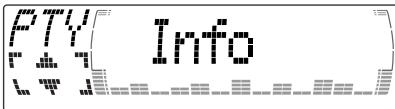
1 Press DSPL/PTY during FM reception until "PTY" appears.
text_image
FTY Info InfoThe current programme type name appears if the station is transmitting the PTY data. “- - - - -” appears if the received station is not an RDS station, or if the RDS data has not been received.
2 Press ↑ or ↓ repeatedly until the desired programme type appears.
The programme types appear in the order shown in the table. Note that you cannot select “None” (Not specified) for searching.
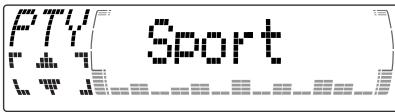
text_image
FTY Sport17
20
23
26
29
32
35
38
41
44
47
50
53
56
59
62
65
68
71
74
77
80
83
86
89
92
95
98
101
104
107
110
113
116
119
122
125
128
131
134
137
140
143
146
149
152
155
158
161
164
167
170
173
176
179
182
185
188
191
194
197
199
202
205
208
211
214
217
220
223
226
229
232
235
238
241
244
247
250
253
256
259
262
265
268
271
274
277
280
283
286
289
292
295
298
301
304
307
310
313
316
319
322
325
328
331
334
337
340
343
346
349
352
355
358
361
364
367
370
373
376
379
382
385
388
391
394
397
399
402
405
408
411
414
417
420
423
426
429
432
435
438
441
444
447
450
3 Press ENTER.
The unit starts searching for a station broadcasting the selected programme type.
Setting the clock automatically
The CT (Clock Time) data from the RDS transmission sets the clock automatically.
1 During radio reception, press MENU, then press ↑ or ↓ repeatedly until "CT" appears.
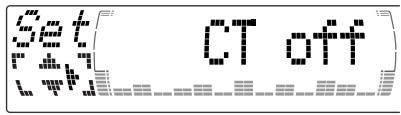
text_image
e.g. e.g. CT off2 Press → repeatedly until "CT on" appears.
The clock is set.
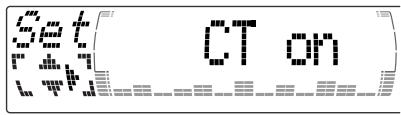
text_image
CT on3 Press ENTER to return to the normal display.
To cancel the CT function
Select "CT off" in step 2.
Notes
- The CT function may not work even though an RDS station is being received.
- There might be a difference between the time set by the CT function and the actual time.
Other Functions
You can also control this unit with the rotary commander (optional).
Labelling the rotary commander
Depending on how you mount the rotary commander, attach the appropriate label as shown in the illustration below.
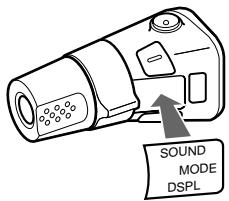
text_image
SOUND MODE DSPL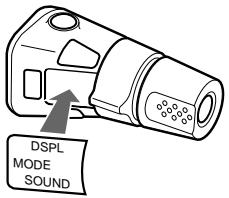
text_image
DSPL MODE SOUNDUsing the rotary commander
The rotary commander works by pressing buttons and/or rotating controls.
You can also control the optional CD or MD units with the rotary commander.
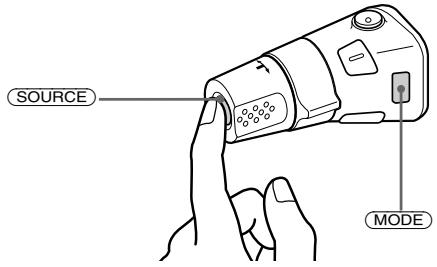
By pressing buttons (the SOURCE and MODE buttons)
text_image
SOURCE MODEEach time you press SOURCE, the source changes as follows:
TUNER → CD* → MD* → TAPE
Pressing MODE changes the operation in the following ways;
- Tuner: FM1 → FM2 → FM3 → MW → LW
- CD unit*: CD1 → CD2 → ...
- MD unit*: MD1 → MD2 → ...
- Tape: playback direction
* If the corresponding optional equipment is not connected, the item will not appear.
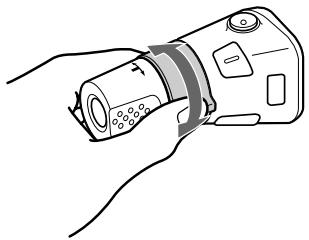
By rotating the control (the SEEK/AMS control)
natural_image
Line drawing of a hand holding a device with a scroll wheel and buttons (no text or symbols)Rotate the control and release it to:
- Locate the beginnings of tracks on the tape. Rotate and hold the control, and release it to fast-wind the tape. To start playback while fast-winding the tape, press MODE.
- Locate a specific track on a disc. Rotate and hold the control until you locate the specific point in a track, then release it to start playback.
- Tune in stations automatically. Rotate and hold the control to find a specific station.
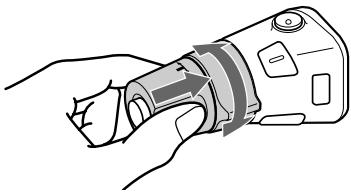
By pushing in and rotating the control (the PRESET/DISC control)
natural_image
Line drawing of a hand holding a handheld device with a scroll wheel (no text or symbols)Push in and rotate the control to:
- Receive the stations memorised on the number buttons.
- Change the disc.
Other operations
Rotate the VOL control to adjust the volume.
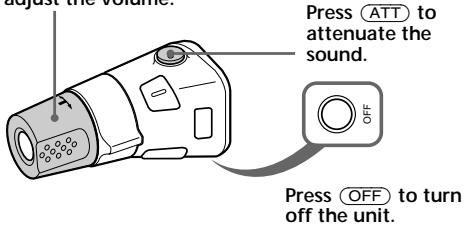
text_image
adjust the volume. Press ATT to attenuate the sound. Press OFF to turn off the unit.Note
When installing in a car without ACC (accessory) position on the ignition key switch, press OFF for two seconds to turn off the clock display after turning off the engine.
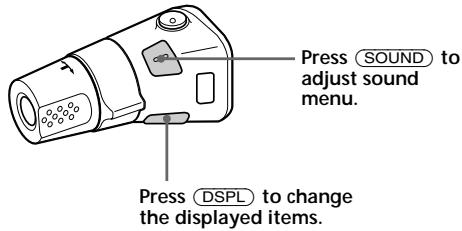
text_image
Press SOUND to adjust sound menu. Press DSPL to change the displayed items.Tip
While the ATA function is activated, the display (TAPE TUNER) can be changed by pressing DSPL.
Changing the operative direction
The operative direction of controls is factory-set as shown below.
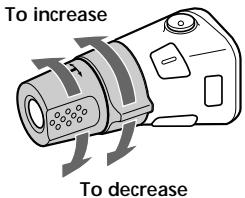
text_image
To increase To decreaseIf you need to mount the rotary commander on the right hand side of the steering column, you can reverse the operative direction.
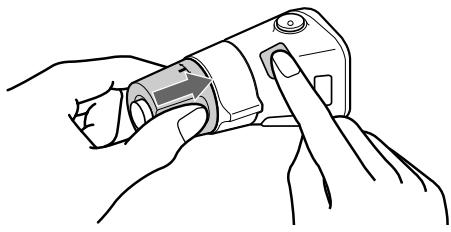
natural_image
Line drawing of hands holding a mechanical device with a finger inserted (no text or symbols)Press SOUND for two seconds while pushing the VOL control.
Tip
You can also change the operative direction of these controls with the unit (see "Changing the sound and display settings" on page 23).
Adjusting the sound characteristics
You can adjust the bass, treble, balance, and fader.
You can store the bass and treble levels independently for each source.
1 Select the item you want to adjust by pressing SOUND repeatedly.
Each time you press 📊 SOUND, the item changes as follows:
BAS (bass) → TRE (treble) → BAL (left-right) → FAD (front-rear)
2 Adjust the selected item by pressing or .
When adjusting with the rotary commander, press SOUND and rotate the VOL control.
Note
Adjust within three seconds after selecting the item.
Attenuating the sound
Press ATT on card remote commander or the rotary commander.
“ATT on” appears momentarily.
To restore the previous volume level, press ATT again.
Tip
When the interface cable of a car telephone is connected to the ATT lead, the unit decreases the volume automatically when a telephone call comes in.
Changing the sound and display settings
The following items can be set:
Set (Setting)
- Clock (page 10).
- CT (Clock Time) (page 20).
- Beep — to turn the beep sound on or off.
- RM (Rotary Commander) — to change the operative direction of the rotary commander.
— Select “norm” to use the rotary commander as the factory-set position.
— Select “rev” when you mount the rotary commander on the right side of the steering column.
- English/Spanish/Portuguese/Swedish — to change the display language to English, Spanish, Portuguese or Swedish.
Dis (Display)
- D.Info (Dual Information) — to display the clock and the play mode simultaneously (on), or to display the information alternately (off).
- SA (Spectrum Analyzer) — to change the display pattern of the equalizer display (page 25).
- Dimmer — to change the brightness of the display (When the Illumination terminal connected).
— Select “on” to dim the display.
— Select "off" to deactivate Dimmer.
- Contrast — to adjust the contrast if the indications in the display are not recognisable because of the unit's installed position.
- M.Dspl (Motion Display) — to turn the motion display on or off.
• A. Scrl (Auto Scroll) (page 27).
continue to next page →
1 Press MENU.
2 Press ↑ or ↓ repeatedly until the desired item appears.
Each time you press ↓, the item changes as follows:
Example
Clock → CT → Beep → RM → English/ Spanish/Portuguese/Swedish → D.Info → SA → Dimmer → Contrast → M.Dspl*1 → A.Scrl*2
*1 When no CD or MD is playing, this item will not appear.
*2 When the radio is off, or when no tape, CD, or MD is playing, this item will not appear.
Note
The displayed item will differ depending on the source.
Tip
You can easily switch among categories ("Set," "Snd" (Sound), "P/M" (Play Mode) and "Dis") by pressing ↑ or ↓ for two seconds.
3 Press → to select the desired setting (Example: on or off).
4 Press ENTER.
After the mode setting is complete, the display returns to normal playback mode.
Boosting the bass sound
— D-bass
You can enjoy a clear and powerful bass sound. The D-bass function boosts the low frequency signal and high frequency signal with a sharper curve than conventional bass boost.
You can hear the bass line more clearly even while the vocal volume remains the same. You can emphasize and adjust the bass sound easily with the D-BASS button.
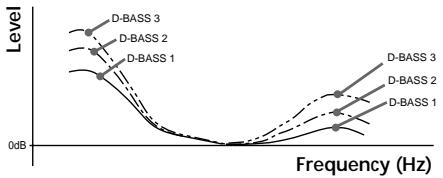
line
| Frequency (Hz) | Level (dB) - D-BASS 3 | Level (dB) - D-BASS 2 | Level (dB) - D-BASS 1 | | -------------- | --------------------- | --------------------- | --------------------- | | 0 | ~1.0 | ~0.8 | ~0.6 | | 1 | ~0.5 | ~0.4 | ~0.3 | | 2 | ~0.2 | ~0.15 | ~0.1 | | 3 | ~0.1 | ~0.08 | ~0.05 | | 4 | ~0.05 | ~0.04 | ~0.03 | | 5 | ~0.02 | ~0.015 | ~0.01 | | 6 | ~0.01 | ~0.008 | ~0.005 | | 7 | ~0.005 | ~0.004 | ~0.003 | | 8 | ~0.002 | ~0.0015 | ~0.001 | | 9 | ~0.001 | ~0.0008 | ~0.0005 | | 10 | ~0.0 | ~0.0 | ~0.0 |Adjusting the bass curve
Press D-BASS repeatedly to select the desired bass curve.
As the D-BASS number increases so does the effect.
D-BASS 1 → D-BASS 2 → D-BASS 3 → D-BASS off
Note
The bass sound may distort at same volume. If the bass sound distorts, select less effective bass curve.
Selecting the spectrum analyser
The sound signal level is displayed on a spectrum analyser. You can select a display pattern from 1 to 6, or the automatic display mode.
1 Press SOURCE to select a source (tuner, tape, CD, or MD).
2 Press MENU.
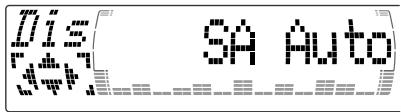
3 Press ↑ or ↓ repeatedly until "SA" appears.
text_image
715 SA Auto4 Press ← or → repeatedly to select the desired setting.

flowchart
graph LR
    A["SA 1"] <--> B["... SA 6"]
    C["SA Auto*"] <--> D["SA off"]
* All of these display patterns appear one by one automatically.
5 Press ENTER.
Adjusting the sound and frequency of the equalizer preamplifier
This unit can also control an optional equalizer preamplifier.
This lets you add some effects to the sound field of the currently selected source.
For details, refer to the instructions manual supplied with the equalizer preamplifier.
With Optional Equipment
CD/MD Unit
This unit can control external CD/MD units. If you connect an optional CD unit with the CD TEXT function and the custom file function, the CD TEXT information will appear in the display when you play a CD TEXT disc.
Playing a CD or MD
1 Press SOURCE repeatedly to select CD or MD.
2 Press MODE until the desired unit appears.
CD/MD playback starts.
When a CD/MD unit is connected, all the tracks play from the beginning.
Changing the display item
Each time you press DSPL/PTY during CD, CD TEXT, or MD playback, the item changes as follows:
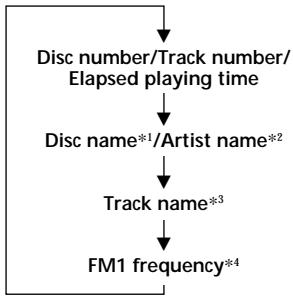
flowchart
graph TD
    A["Disc number/Track number/ Elapsed playing time"] --> B["Disc name*1/Artist name*2"]
    B --> C["Track name*3"]
    C --> D["FM1 frequency*4"]
*1 If you have not labelled the disc or if there is no disc name prerecorded on the MD, "NO D.Name" appears momentarily in the display.
*2 If you play a CD TEXT disc, the artist name appears in the display after the disc name. (Only for CD TEXT discs with the artist name.)
*3 If the track name of a CD TEXT disc or MD is not prerecorded, "NO T.Name" appears momentarily in the display.
*4 While the AF/TA function is activated.
After you select the desired item, the display will automatically change to the Motion Display mode after a few seconds.
In the Motion Display mode, all the items are scrolled in the display one by one in order.
Tip
The Motion Display mode can be turned off. (See "Changing the sound and display settings" on page 23.)
Automatically scrolling a disc name
— Auto Scroll
If the disc name, artist name, or track name on a CD TEXT disc or MD exceeds 10 characters and the Auto Scroll function is on, information automatically scrolls across the display as follows:
- The disc name appears when the disc has changed (if the disc name is selected).
- The track name appears when the track has changed (if the track name is selected).
If you press DSPL/PTY to change the display item, the disc or track name of the MD or CD TEXT disc is scrolled automatically whether you set the function on or off.
1 During playback, press ⓂMENU.
2 Press ↑ or ↓ repeatedly until "A.ScrI" appears.
3 Press → to select "A.ScrI on."
4 Press ENTER.
To cancel Auto Scroll, select "A.Scrl off" in step 3.
Note
For some discs with very many characters, the following cases may happen:
— Some of the characters are not displayed — Auto Scroll does not work.
Locating a specific track
— Automatic Music Sensor (AMS)
During playback, press ← or → momentarily for each track you want to skip.
← (◀◀) : To locate preceding tracks
→ (▶▶I) : To locate succeeding tracks
Locating a specific point in a track
— Manual Search
During playback, press and hold ← or
→. Release when you have found the desired point.
← (◀◀) : To search forward
→ (▶▶): To search backward
Switching to other discs
During playback, press or .
The desired disc in the current unit begins playback.
↑ (DISC +) : For succeeding discs
↓ (DISC –) : For preceding discs
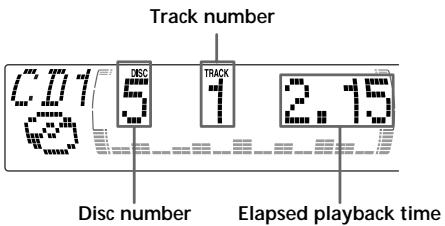
text_image
Track number 5 1 2.15 Disc number Elapsed playback timePlaying tracks repeatedly
— Repeat Play
You can select:
- Repeat 1 – to repeat a track.
- Repeat 2 – to repeat a disc.
1 During playback, press ⓂMENU.
2 Press ↑ or ↓ repeatedly until "Repeat" appears.
3 Press repeatedly until the desired setting appears in the display.

flowchart
graph LR
    A["Repeat 1"] --> B["Repeat 2"]
    B --> C["Repeat off"]
    C --> D["P/M Repeat 1"]
    D --> E["REP1"]
Repeat Play starts.
To return to normal play mode, select “Repeat off” in step 3.
Tip
If you select the mode using the buttons on the unit, press ① (REP) repeatedly until the desired mode appears.
Playing tracks in random order — Shuffle Play
You can select:
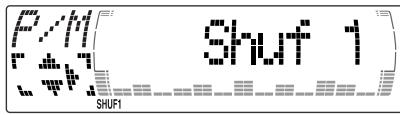
- Shuf 1 – to play the tracks on the current disc in random order.
- Shuf 2 – to play the tracks in the current unit in random order.
- Shuf All* – to play all the tracks in all the units in random order.
1 During playback, press ⓂMENU.
2 Press ↑ or ↓ repeatedly until "Shuf" appears.
3 Press → repeatedly until the desired setting appears in the display.

flowchart
graph LR
    A["Shuf 1"] --> B["Shuf 2"] --> C["Shuf All*"]
    C --> D["Shuf off"]
    D --> E["Feedback to Shuf"]
text_image
SHUF1 SHUF1Shuffle Play starts.
* "Shuf All" is only available when you connect two or more optimal CD/MD units.
To return to normal play mode, select “Shuf off” in step 3.
Tip
If you select the mode using the buttons on the unit, press ② (SHUF) repeatedly until the desired mode appears.
Labelling a CD — Disc Memo
(For a CD unit with the custom file function)
You can label each disc with a personalised name. You can enter up to eight characters for a disc. If you label a CD, you can locate the disc by name (page 30) and select the specific tracks for playback (page 31).
1 Start playing the disc you want to label.
2 Press MENU, then press ↑ or ↓ repeatedly until "Name Edit" appears.
3 Press ENTER.
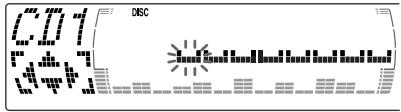
Name edit mode
bar
| Category | Value | |---|---| | DISC | 100000000000000000 | | Other | 50000000000000000 | | Other | 25000000000000000 | | Other | 15000000000000000 | | Other | 10000000000000000 | | Other | 5000000000000000 | | Other | 2500000000000000 | | Other | 15000 | | Other | 1000 | | Other | 50 | | Other | 25 | | Other | 15 | | Other | 10 | | Other | 5 | | Other | 2.5 | | Other | 1.5 | | Other | 1 | | Other | 1 | | Other | 1 | | Other | 1 | | Other | 1 | | Other | 1 | | Other | 1 | | Other | 1 | | Other | 1 | | Other | 1 | | Other | 1 | | Other | 1 | | Other | 1 | | Other | 1 | | Other | 1 | | Other | 1 | | Other | 1 | | Other (Total) | 4798688888888888888888888888888888888888888888888888888888888888888888888888888888888888888888888888888884 Enter the characters.
① Press ↑ repeatedly to select the desired characters.
$$ \begin{array}{l} (A \rightarrow B \rightarrow C \rightarrow \dots Z \rightarrow 0 \rightarrow 1 \rightarrow 2 \rightarrow \ \dots 9 \rightarrow + \rightarrow - \rightarrow * \rightarrow / \rightarrow \backslash \rightarrow > \rightarrow < \ \rightarrow . \rightarrow \text { Ⅲ } \ \end{array} $$
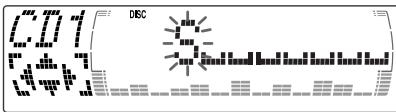
text_image
DISCIf you press ↓ repeatedly, the characters will appear in reverse order.
If you want to put a blank space between characters, select “■■■.”
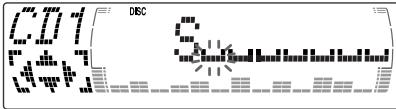
② Press → after locating the desired character.
The next character flashes.
text_image
874 DISCIf you press , the previous character flashes.
③ Repeat steps ① and ② to enter the entire name.
5 To return to normal CD play mode, press ENTER.
Tip
There is another way to start labelling a CD. Press
LIST for two seconds instead of steps 2 and 3.
You can also complete the operation by pressing
LIST for two seconds instead of step 5.
Displaying the disc memo
Press DSPL/PTY during CD or CD TEXT disc playback.
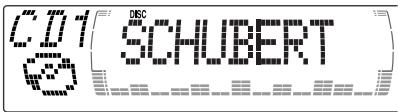
text_image
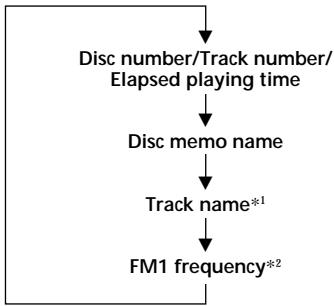
271 SCHUBERT DSCEach time you press DSPL/PTY during CD or CD TEXT disc playback, the item changes as follows:
flowchart
graph TD
    A["Disc number/Track number/ Elapsed playing time"] --> B["Disc memo name"]
    B --> C["Track name*¹"]
    C --> D["FM1 frequency*²"]
*1 If you connect an optional CD unit with the CD TEXT function, the CD TEXT information will appear in the display when you play a CD TEXT disc.
*2 While the AF/TA function is activated.
Erasing the disc memo
1 Press SOURCE repeatedly to select "CD."
2 Press MODE repeatedly to select the CD unit with the custom file function.
3 Press MENU, then press ↑ or ↓ repeatedly until "Name Del" appears.
4 Press ENTER.
5 Press ↑ or ↓ repeatedly to select the disc name you want to erase.
6 Press ENTER for two seconds.
The name is erased.
Repeat steps 5 and 6 if you want to erase other names.
7 Press Ⓜ MENU twice.
The unit returns to normal CD play mode.
Notes
- When a personalised label is erased, the original CD TEXT information will appear in the display.
- When you erase all of the disc names, "No Data" appears in step 6.
Locating a disc by name
— List-up (For a CD unit with the custom file function or an MD unit)
You can use this function for discs that have been assigned a custom name. For more information on disc memo names, refer to “Labelling a CD” (page 29).
1 Press LIST.
The name assigned to the current disc appears in the display.
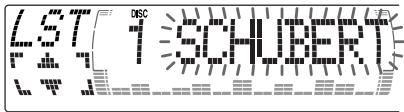
text_image
4.57 DSC SCHUBERTWhen you assign a disc memo name to a CD TEXT disc, it takes priority over the original CD TEXT information.
2 Press ↑ (DISC +) or ↓ (DISC -) repeatedly until you find the desired disc.
3 Press ENTER to play the disc.
Notes
- The track names are not displayed during MD or CD TEXT disc playback.
- If there are no discs in the magazine, "NO Disc" appears in the display.
- If a disc has not been assigned a custom file, "*******" appears in the display.
- If the disc information has not been read by the unit, “?” appears in the display. To load a disc, first press the number button, then choose the disc that has not been loaded.
- Some letters cannot be displayed during MD or CD TEXT disc playback.
Selecting specific tracks for playback — Bank
(For a CD unit with the custom file function)
If you label the disc, you can set the unit to skip or play the tracks of your choice.
1 Start playing the disc you want to label.
2 Press Ⓜ MENU, then press ↑ or ↓ repeatedly until "Bank Sel" appears.
3 Press ENTER. Bank edit mode
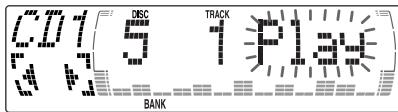
text_image
571 5 TRACK 571 5 PLAY BANK4 Label the tracks.
① Press ← or → repeatedly to select the track you want to label.
② Press ENTER repeatedly to select "Play" or "Skip."
5 Repeat step 4 to set "Play" or "Skip" for all the tracks.
6 Press MENU twice.
The unit returns to normal CD play mode.
Notes
- You can set "Play" and "Skip" for up to 24 tracks.
- You cannot set "Skip" for all the tracks on a CD.
Playing specific tracks only
You can select:
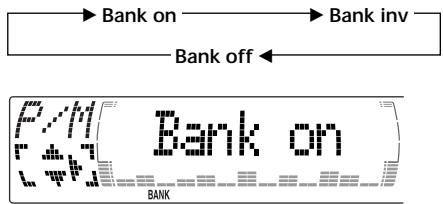
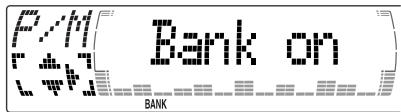
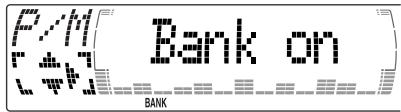
- “Bank on” — to play the tracks with the “Play” setting.
- “Bank inv” (Inverse) — to play the tracks with the “Skip” setting.
1 During playback, press Ⓜ MENU, then press ↑ or ↓ repeatedly until "Bank" appears.
2 Press repeatedly until the desired setting appears.
flowchart
graph TD
    A["Bank on"] --> B["Bank inv"]
    B --> C["Bank off"]
    C --> D["Bank on"]
    D --> E["BANK"]
3 Press ENTER.
Playback starts from the track following the current one.
To return to normal play mode, select "Bank off" in step 2.
Overview of DAB
DAB (Digital Audio Broadcasting) is a new multimedia broadcasting system that transmits audio programmes with a quality comparable to that of CDs. This is made possible by the use of a microcomputer in the DAB tuner which uses the radio signals sent from multiple aerials and multi-path signals (reflected radio waves) to boost the strength of the main signal. This makes DAB almost immune to radio interference even in a moving object such as a car.
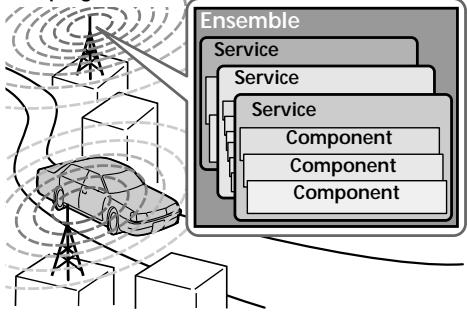
Each DAB station bundles radio programmes (services) into an ensemble which it then broadcasts. Each service contains one or more components. All ensembles, services, and components are identified by name, so you can access any of them without having to know their frequencies.
DAB programme
flowchart
graph TD
    A["Vehicle"] --> B["Wireless Communication"]
    B --> C["Cloud Tower"]
    C --> D["Ensemble"]
    D --> E["Service"]
    E --> F["Service"]
    F --> G["Service"]
    G --> H["Component"]
    G --> I["Component"]
    G --> J["Component"]
Notes
- The DAB system is actually in a testing phase. This means some services have not been sufficiently defined or are presently being tested. At present, such services are not supported by the optional DAB tuner unit XT-100DAB.
- DAB programmes are broadcast in Band-III (174 to 240 MHz) and L-Band (1,452 to 1,492 MHz), with each band divided into channels (41 in Band-III and 23 in L-Band). One ensemble is broadcast per channel by each DAB station.
- When you change the mode from FM3 to DAB, all the AF TA modes stay active.
- When you change any of the AF TA modes in DAB, that mode stays active in FM1.
Basic operations of DAB
Searching for the Ensemble and Service
— Automatic Tuning
1 Press SOURCE repeatedly to select the tuner.
2 Press MODE repeatedly to select "DAB."
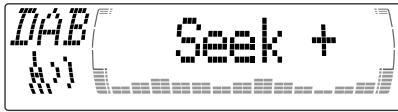
3 Press and hold or until "Seek +" or "Seek -" appears.
text_image
IAP (1) Seek +4 Press ← or → to search the desired service.
Note
The “☐” indication flashes while the unit is searching for the Ensemble.
Selecting the Ensemble
— Manual Tuning
If you know the channel number of Ensemble, follow the procedure below to tune in.
1 Press SOURCE repeatedly to select the tuner.
2 Press MODE repeatedly to select "DAB."
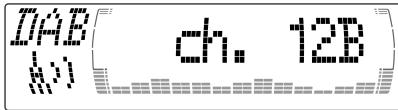
3 Press ↑ or ↓ until "Ch. XXX" appears.
text_image
WAP ch. 1234 Press ↑ or ↓ repeatedly until the desired channel number appears.
Tips
- More than one channel may broadcast the same Ensemble.
- If you select the Ensemble service but cannot receive it, the “(1)” indication flashes.
Receiving the memorised services
Following procedure is available after presetting the service. For details on presetting the services, refer to “Presetting DAB services automatically” (page 33), and “Presetting DAB services manually” (page 34).
1 Press SOURCE repeatedly to select the tuner.
2 Press MODE repeatedly to select "DAB."
3 Press ↑ or ↓ repeatedly to select the preset service.
Tip
There is another way to receive the preset service. Press the number buttons (① to ⑥) of the unit on which the desired service is stored.
The receiving mode of the DAB tuner is displayed according to the chart below:
| Indication | Level | Receive mode | |
 | (flash) | 0 | cannot receive |
 | 1 | poor reception | |
| [073C] | 2 | so-so | |
| [H106] | 3 | moderate | |
| [07W6] | 4 | good reception | |
Presetting DAB services automatically — BTM
The BTM (Best Tuning Memory) function picks out DAB ensembles and automatically assigns the services within the ensembles to preset service numbers. The unit can preset up to 40 services. If services have been previously set, the BTM function operates under the following conditions:
- If you activate the BTM function while listening to a preset service, the unit will store detected services (by overwriting) only to preset numbers higher than that of the current present service.
- If you activate the function while listening to a service that is not preset, the unit will replace the contents of all preset numbers.
- In both cases above, if the unit detects a service that is identical to one already preset, the previously stored service remains unchanged and the newly detected service is not preset.
1 While listening to a DAB programme, press ⓂMENU.
2 Press ↑ or ↓ repeatedly until "BTM" appears.
3 Press ENTER.
A beep sounds when the service is stored. After activating the BTM function, the unit tunes the service assigned in the preset memory 1 automatically.
Note
If the unit can only tune in a few services, the BTM function may not assign services to all the preset service numbers.
Presetting DAB services manually — Manual Preset Memory
You can also preset DAB services manually or delete a service which is already preset. Note that up to 40 services (preset either by the BTM function or manually) can be preset to the unit's memory.
1 While listening to a DAB programme, press Ⓜ MENU.
2 Press ↑ or ↓ repeatedly until "PresetEdit" appears, then press ENTER.
3 Select the service and the preset number you want to preset.
① Press ← or → to select the service.
② Press ↑ or ↓ to select the preset number.
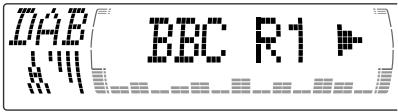
text_image
749 BBC R1③ Press ENTER.
4 Press ↑ or ↓ to select "Over Wrt." Each time you press ↓, the edit command changes as follows:

flowchart
graph LR
    A["Over Wrt"] --> B["Insert*"]
    B --> C["Delete"]
* "Insert" does not appear if the maximum number of services (40) is already preset in memory.
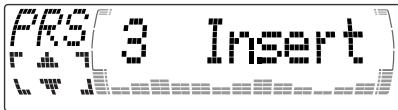
text_image
PPG 3 Insert 1.0000 1.0000 1.0000 1.0000 1.0000 1.0000 1.0000 1.0000 1.0000 1.0000 1.0000 1.0000 1.0000 1.0000 1.0000 1 2.0000 1.0000 1.0000 1.0000 1.0000 1.0000 1.0000 1.0000 1.0000 1.0000 1.0000 1.0000 1.0To preset other services, repeat steps 3 and 4.
5 Press ENTER.
Replacing the services in preset memories
Press ↑ or ↓ to select “Over Wrt” in step 4, then press ENTER.
Adding the services in preset memories
Press ↑ or ↓ to select “Insert” in step 4, then press ENTER.
Erasing the services in preset memories
Press ↑ or ↓ to select “Delete” in step 4, then press ENTER.
Tip
There is another way to preset the service. After receiving the service, press the number buttons (① to ⑥) of the unit until a beep sounds.
Listening to a DAB programme
Follow the procedure below to tune in a DAB programme manually.
You can also store DAB services in the unit's memory for instant tuning (see “Presetting DAB services automatically (BTM)” on page 35).
1 While listening to a DAB programme, press LIST repeatedly until the Ensemble List appears.
2 Press ↑ or ↓ until the desired ensemble appears, then press ENTER.
3 Press LIST repeatedly to until the Service List appears.
4 Press ↑ or ↓ repeatedly until the desired service appears, then press ENTER.
5 Press LIST repeatedly until the Component List appears.
6 Press ↑ or ↓ until the desired component appears, then press ENTER.
Tip
To check the name of the current component, ensemble or service, press LIST repeatedly until the respective list appears in the display. The name of the currently selected item flashes.
Changing the display item
When you press LIST once, the list selected last time appears.
Each time you press LIST, the list changes as follows:
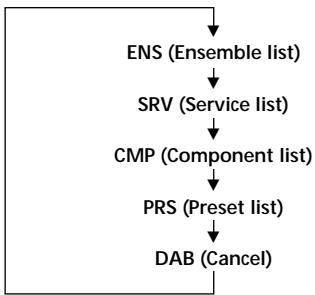
flowchart
graph TD
    A["ENS (Ensemble list)"] --> B["SRV (Service list)"]
    B --> C["CMP (Component list)"]
    C --> D["PRS (Preset list)"]
    D --> E["DAB (Cancel)"]
Automatic updating of the ensemble list
When you perform the BTM function for the first time, all the ensembles available in your area are automatically stored. When you perform the BTM function again, the contents of these lists are updated in accordance with the conditions described on page 32.
An ensemble is added to the respective list when it is received during Automatic Tuning or Manual Tuning but is unlisted.
An unlisted ensemble is also deleted from the respective list when:
- you select an ensemble from the list, but it cannot be received.
- you perform Automatic Tuning or Manual Tuning to receive a listed ensemble, service, or the component, but it cannot be received.
Settings on the audio reception
DAB can contain multi-channel audio. You can select main or sub-channel for reception. Also, if you turn on the DRC (Dynamic Range Control) function, the dynamic range on the service which supports DRC can automatically be extended.
The following items can be set:
- Main/Sub — to selects chennel between “Main”(main-cannel) and “Sub”(sub-cannel).
- DRC — to turn on or off the function.
1 While listening to a DAB programme, press ⓂMENU.
2 Press ↑ or ↓ repeatedly until "DRC" or "Main (or Sub)" appears.
3 Press ← or → to select the desired setting (Example: "on" or "off").
4 Press ENTER.
Note
"Main (or Sub)" appears in the menu only when the unit is receiving a multi-channel programme.
Locating a DAB service by programme type (PTY)
You can use the PTY (Programme type selection) function to tune in the programme you want.
1 While listening to a DAB programme, press DSPL/PTY.
2 Press ↑ or ↓ repeatedly to select the programme type.
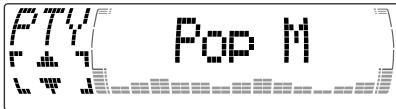
text_image
Pty Pop IIThe programme types appear in the order shown on the page 19.
3 Press ENTER.
Additional Information
Maintenance
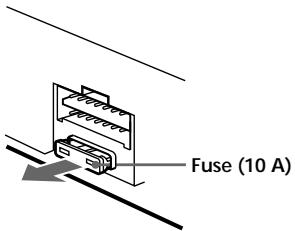
Fuse replacement
When replacing the fuse, be sure to use one matching the amperage rating stated on the original fuse. If the fuse blows, check the power connection and replace the fuse. If the fuse blows again after replacement, there may be an internal malfunction. In such a case, consult your nearest Sony dealer.
text_image
Fuse (10 A)Warning
Never use a fuse with an amperage rating exceeding the one supplied with the unit as this could damage the unit.
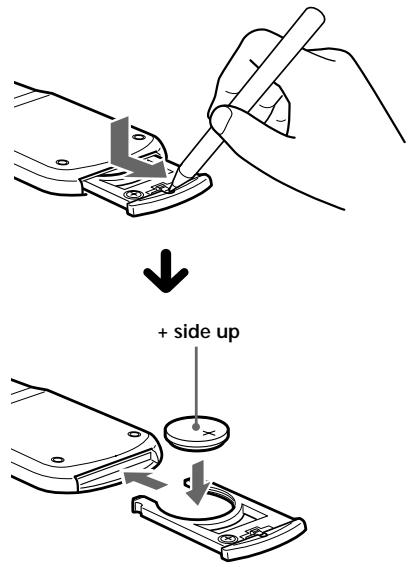
Replacing the lithium battery
When the battery becomes weak, the range of the card remote commander becomes shorter. Replace the battery with a new CR2025 lithium battery.
text_image
+ side upNotes on lithium battery
- Keep the lithium battery out of the reach of children. Should the battery be swallowed, immediately consult a doctor.
- Wipe the battery with a dry cloth to assure a good contact.
- Be sure to observe the correct polarity when installing the battery.
- Do not hold the battery with metallic tweezers, otherwise a short-circuit may occur.
WARNING
Battery may explode if mistreated. Do not recharge, disassemble, or dispose of in fire.
Dismounting the unit
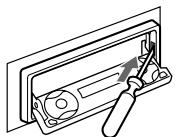
With the front panel open
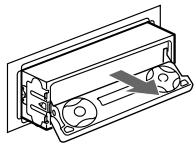
1 Press OPEN of the unit, then press the clip inside the front cover with a thin screwdriver, and gently pry the front cover free.
natural_image
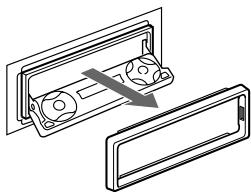
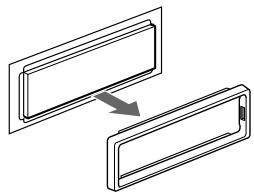
Line drawing of a mechanical component with a tool inserted, no text or symbols present2 Repeat step 1 on the left side. The front cover is removed.
natural_image
Diagram showing a device being processed into a rectangular panel, with no visible text or symbols.3 Use a thin screwdriver to push in the clip on the left side of the unit, then pull out the left side of the unit until the catch clears the mounting.
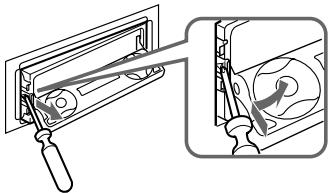
natural_image
Technical illustration of a mechanical device with a tool inserted, showing a close-up view of the component (no text or symbols present)4 Repeat step 3 on the right side.
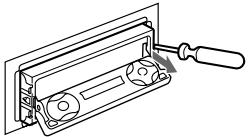
natural_image
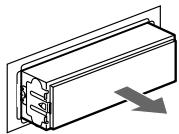
Technical line drawing of a mechanical assembly with a tool inserted (no text or symbols)5 Slide the unit out of the mounting.
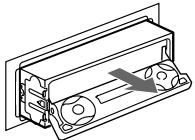
natural_image
Technical line drawing of a mechanical housing or enclosure with internal components and an arrow indicating direction (no text or symbols)If the front panel does not open because of a blown fuse
1 Press the clip inside the front cover with a release key (supplied), and pry the front cover free.

text_image
Release key (supplied)2 Repeat step 1 on the left side. The front cover is removed.
natural_image
Diagram showing two rectangular panels with a directional arrow between them, no text or symbols present.3 Use a release key to push in the clip on the left side of the unit, then pull out the left side of the unit until the catch clears the mounting.
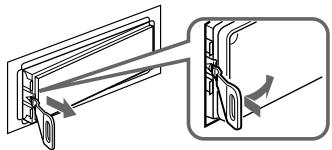
natural_image
Diagram showing a mechanical assembly with arrows indicating direction of motion (no text or symbols present)4 Repeat step 3 on the right side.
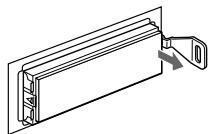
natural_image
Technical line drawing of a mechanical component with a bracket and handle (no text or symbols)5 Slide the unit out of the mounting.
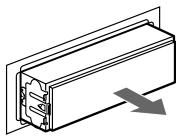
natural_image
Pure technical line drawing of a rectangular component with internal channels and an arrow indicating direction (no text or symbols)Specifications
Cassette player section
| Tape track | 4-track 2-channel stereo |
| Wow and flutter | 0.08 % (WRMS) |
| Frequency response | 30 – 20,000 Hz |
| Signal-to-noise ratio |
| Cassette type | Dolby B NR | Dolby NR off |
| TYPE II, IV | 67 dB | 61 dB |
| TYPE I | 64 dB | 58 dB |
Tuner section
FM
| Tuning range | 87.5 – 108.0 MHz |
| Aerial terminal | External aerial connector |
| Intermediate frequency | 10.7 MHz/450kHz |
| Usable sensitivity | 8 dBf |
| Selectivity | 75 dB at 400 kHz |
| Signal-to-noise ratio | 66 dB (stereo),72 dB (mono) |
| Harmonic distortion at 1 kHz | |
| 0.6 % (stereo),0.3 % (mono) | |
| Separation | 35 dB at 1 kHz |
| Frequency response | 30 – 15,000 Hz |
MW/LW
| Tuning range | MW: 531 – 1,602 kHz |
| LW: 153 – 279 kHz | |
| Aerial terminal | External aerial connector |
| Intermediate frequency | 10.7 MHz/450 kHz |
| Sensitivity | MW: 30 μV |
| LW: 40 μV |
Power amplifier section
| Outputs | Speaker outputs |
| Speaker impedance | 4 – 8 ohms |
| Maximum power output | 50 W × 4 (at 4 ohms) |
General
| Outputs | Audio output (2)Power aerial relay control leadPower amplifier control lead |
| Inputs | Telephone ATT control leadIllumination control lead |
| Tone controls | Bass ±9 dB at 100 HzTreble ±9 dB at 10 kHz |
| Power requirements | 12 V DC car battery(negative earth) |
| Dimensions | Approx. 178 × 50 × 182 mm(w/h/d) |
| Mounting dimensions | Approx. 182 × 53 × 163 mm(w/h/d) |
| Mass | Approx. 1.3 kg |
| Supplied accessories | Card remote commanderRM-X96Parts for installation and connections (1 set) |
| Optional accessories | Rotary commanderRM-X4SBUS cable (supplied with an RCA pin cord)RC-61 (1 m), RC-62 (2 m) |
| Optional equipment | CD changer (10 discs)CDX-828, CDX-737MD changer (6 discs)MDX-65Other CD/MD units with the Sony-BUS systemSource selectorXA-C30DAB tuner unitXT-100DABDigital equalizerpreamplifierXDP-210EQ, XDP-4000X |
Design and specifications are subject to change without notice.
Troubleshooting guide
The following checklist will help you remedy the problems you may encounter with your unit. Before going through the checklist below, check the connections and operating procedures.
General
| Problem | Cause/Solution |
| No sound. | Cancel the ATT function.Set the fader control to the centre position for two-speaker systems.Press + of the VOL buttons to adjust the volume. |
| The contents of the memory have been erased. | The power cord or battery has been disconnected.The reset button was pressed. Store again into the memory. |
| The sound is noisy. | You are using a mobile phone. |
Tape playback
| Problem | Cause/Solution |
| The sound is distorted. | The tape head is contaminated. Clean the head with a commercially available dry-type cleaning cassette. |
| The AMS does not operate correctly. | There is noise in the space between tracks.A blank space is too short (less than four seconds).A long pause, or a passage of low frequencies or very low sound level is treated as a blank space. |
Radio reception
| Problem | Cause/Solution |
| Preset tuning is not possible. | Store the correct frequency in the memory.The broadcast signal is too weak. |
| Automatic tuning is not possible. | The broadcast signal is too weak. Use manual tuning.The local seek mode is set to “on.” Set the local seek mode to “off” (page 14). |
| The stations cannot be received.The sound is hampered by noises. | Connect a power aerial control lead (blue) or accessory power supply lead (red) to the power supply lead of a car’s aerial booster. (When your car has built-in FM/MW/LW aerial in the rear/side glass only.) |
| The “ST” indication flashes. | Tune in the frequency accurately.The broadcast signal is too weak. Set to Mono mode (page 14). |
RDS
| Problem | Cause/Solution |
| The SEEK starts after a few seconds of listening. | The station is non-TP or has a weak signal.→Press AF/TA to select “AF TA off.” |
| No traffic announcements. | Activate “TA.”The station does not broadcast any traffic announcements despite being TP.Tune to another station. |
| PTY displays “None.” | The station does not specify the programme type. |
CD/MD playback
| Problem | Cause/Solution |
| The sound skips. | A dirty or defective disc. |
| Cannot turn off the “----” indication. | You cannot label CDs unless you connect a CD unit with the custom file function. Press LIST for two seconds. |
Error displays (when an optional CD/MD unit is connected)
The following indications will flash for about five seconds, and an alarm sound will be heard.
| Display | Cause | Solution |
| NO Mag | The disc magazine is not inserted in the CD/MD unit. | Insert the disc magazine in the CD/ MD unit. |
| NO Disc | No disc is inserted in the CD/MD unit. | Insert discs in the CD/MD unit. |
| NG Discs | A CD/MD cannot play because of some problem. | Insert another CD/MD. |
| Error*1 | A CD is dirty or inserted upside down.*2 | Clean or insert the CD correctly. |
| An MD does not play because of some problem.*2 | Insert another MD. | |
| Blank*1 | No tracks have been recorded on an MD.*2 | Play an MD with tracks recorded on it. |
| PushReset | The CD/MD unit cannot be operated because of some problem. | Press the reset button of the unit. |
| Not Ready | The lid of the MD unit is open or MDs are not inserted properly. | Close the lid or insert the MDs properly. |
| High Temp | The ambient temperature is more than 50°C. | Wait until the temperature goes down below 50°C. |
*1 When an error occurs during playback of a CD or MD, the disc number of the CD or MD does not appear in the display.
^*2 The disc number of the disc causing the error appears in the display.
If the above-mentioned solutions do not help improve the situation, consult your nearest Sony dealer.
Bienvenido!
text_image
Diagram showing a hand holding a toilet with a stopper and a warning symbol, indicating no chemical hazard or safety.natural_image
Illustration of a cassette tape with a stopper and no stop symbol (no text or labels)natural_image
Simple line drawing of a smartphone with no text, numbers, or symbolsNota
text_image
Get Clock in 1000s 1.0000000000000000000000000000000000000000000000000000000000000000000000000000000000000000000000000 2.5.1.2.3.4.5.6.7.8.9.10.11.12.13.14.15.16.17.18.19.20.21.22.23.24.25.26.27.28.29.30.31.32.33.34.35.36.37.38.39.40.41.42.43.44.45.46.47.48.49.50.51.52.53.54.55.56.57.58.59.60.61.62.63.64.65.66.67.68.69.70.71.72.73.74.75.76.77.78.79.80.81.82.83.84.85.86.87.88.89.90.91.92.93.94.95.96.97.98.99.10① Pulse ENTER.
text_image
Pixelated graphic with pixelated numbers and symbols, possibly representing a digital display or data visualizationnatural_image
Illustration of a hand inserting a device into a rectangular device (no text or symbols visible)text_image
F/AM TAPERepeat → NR → Metal → B.Skip → ATA
text_image
ATA off ATA offtext_image
ATA on ATAtext_image
P/N Rep ON REPtext_image
PTY Info I am atext_image
CT off LWtext_image
SOURCE MODEnatural_image
Line drawing of a handheld device with a handle and control panel (no text or symbols)natural_image
Line drawing of a hand holding a handheld device with a scroll wheel (no text or symbols)natural_image
Line drawing of hands using a handheld device to interact with a button (no text or symbols present)Clock → CT → Beep → RM → English/ Spanish/Portuguese/Swedish → D.Info → SA → Dimmer → Contrast → M.Dspl*1 → A.Scrl*2
D-BASS 1 → D-BASS 2 → D-BASS 3 → D-BASS off
Nota
flowchart
graph LR
    A["Repeat 1"] --> B["Repeat 2"]
    B --> C["Repeat off"]
    C --> D["ReP1"]
flowchart
graph LR
    A["Bank on"] --> B["Bank inv"]
    B --> C["Bank off"]
text_image
Bank on BANK3 Pulse ENTER.
text_image
TAP (1) Seek +text_image
W ch. 123flowchart
graph LR
    A["Over Wrt"] --> B["Insert*"]
    B --> C["Delete"]
natural_image
Line drawing of a tool interacting with a device panel (no text or symbols)natural_image
Diagram showing a device being processed into a rectangular panel, with no visible text or symbols.natural_image
Technical illustration of a mechanical device with a close-up view showing internal components (no text or symbols)natural_image
Diagram of a mechanical device with a handle inserted into a housing (no text or symbols visible)natural_image
Technical line drawing of a mechanical housing or enclosure with a directional arrow indicating movement (no text or symbols present)natural_image
Diagram showing two rectangular panels with a directional arrow between them, no text or symbols present.natural_image
Diagram showing a door lock mechanism with arrows indicating force application (no text or symbols)natural_image
Technical line drawing of a mechanical assembly with a bracket and mounting bracket (no text or symbols)natural_image
Technical line drawing of a rectangular component with internal channels and a downward arrow indicating motion (no text or symbols)Especificaciones
text_image
Diagram showing a hand washing a car with a stopper and a 'no stopper' symbol, indicating no chemical hazard.Sköta kassetterna
Skötselföreskrifter
text_image
Slakt bandnatural_image
Illustration of a cassette tape with a stopper and a prohibition symbol (no text or labels)1 OFF-knappen 9, 11
2 MENU knappen 10, 12, 13, 14, 16, 18, 20, 24, 25, 27, 28, 29, 31, 33, 34, 36
3 SOURCE-knappen (TUNER/TAPE/CD/MD)
9, 11, 13, 14, 25, 26, 30, 32, 33
4 / (SEEK/AMS -/+ ) knappar
9, 10, 11, 12, 14, 16, 20, 23, 24, 25, 27, 28,
29, 31, 32, 34, 36
Automatisk musiksökning (AMS) (I◄◄/►►I) 11, 27
Manuell sökning (◄◄/►►) 27
Söka 14
5 SOUND-knappen 23
9 OPEN/CLOSE-knappen 11
10 LIST-knappen 29, 30, 35
11 ↑/↓ (DISC/PRST +/-) knappar 9, 10, 12, 13, 14, 16, 18, 19, 20, 24, 25, 27, 28, 29, 30, 31, 32, 33, 34, 36
natural_image
Simple line drawing of a smartphone with no text, numbers, or symbolsObservera
text_image
Pixelated graphic with pixelated numbers and symbols, possibly representing a digital display or data visualizationTimsiffrorna blinkar.
text_image
Pixelated graphic with pixelated text and numerical values, possibly representing a digital or symbolic data visualization.③ Tryck på →.
text_image
10:30 10:30Minutsiffrorna blinkar.
natural_image
Illustration of a hand inserting a CD into a device (no text or symbols visible)text_image
Tape 100%Repeat → NR → Metal → B.Skip → ATA
text_image
P/M ATA offtext_image
F4-M ATA on ATAtext_image
F/M (F/M) Repeat on REPtext_image
F4 BRC R1Observera
text_image
SOURCE MODEnatural_image
Line drawing of a handheld device with a handle and control panel (no text or symbols)natural_image
Line drawing of a hand holding a handheld device with a scroll wheel (no text or symbols)natural_image
Illustration of hands using a handheld device to interact with a button (no text or symbols visible)Clock → CT → Beep → RM → English/ Spanish/Portuguese/Swedish → D.Info → SA → Dimmer → Contrast → M.Dspl*1 → A.Scrl*2
D-BASS 1 → D-BASS 2 → D-BASS 3 → D-BASS off
Observera
flowchart
graph LR
    A["Bank on"] --> B["Bank inv"]
    B --> C["Bank off"]
text_image
Bank on BANK3 Tryck på ENTER.
text_image
749 ch. 128flowchart
graph LR
    A["Over Wrt"] --> B["Insert*"]
    B --> C["Delete"]
text_image
PTY Pop M LWnatural_image
Line drawing of a mechanical device with a tool inserted, showing no text or symbolsnatural_image
Diagram showing a device being inserted into a housing, with no text or symbols present.natural_image
Technical illustration of a mechanical clamp or switch assembly with a magnified inset showing internal components (no text or symbols)natural_image
Technical line drawing of a mechanical component with a screwdriver inserted (no text or symbols)5 Dra ut enheten.
natural_image
Technical line drawing of a mechanical housing or enclosure with internal components and an arrow indicating direction (no text or symbols)natural_image
Diagram showing two rectangular panels with a directional arrow between them, no text or symbols present.natural_image
Diagram showing a mechanical assembly with arrows indicating direction of motion (no text or symbols present)natural_image
Technical line drawing of a mechanical assembly with a bracket and mounting bracket (no text or symbols)5 Dra ut enheten.
natural_image
Technical line drawing of a rectangular component with internal slots and a downward arrow indicating motion (no text or symbols)Tekniska data
Kassettbandspelaren
text_image
Diagram showing a hand holding a toilet with a stop sign, indicating no smoking or no smoking.Notas sobre as cassetes
natural_image
Illustration of a cassette tape with a prohibition symbol (no text or labels)1 Tecla OFF 9, 11
2 Tecla MENU 10, 12, 13, 14, 16, 18, 20, 24, 25, 27, 28, 29, 31, 33, 34, 36
3 Tecla SOURCE (TUNER/TAPE/CD/MD)
9, 11, 13, 14, 25, 26, 30, 32, 33
4 Teclas ←/→ (SEEK/AMS -/+)
9, 10, 11, 12, 14, 16, 20, 23, 24, 25, 27, 28,
29, 31, 32, 34, 36
Sensor automático de música (◄◄◄/►►►) 11, 27
Procura manual (◀◀/▶▶) 27 Procurar 14
5 Tecla SOUND 23
6 Tecla DSPL/PTY (mudar modo de visualização/tipo de programa) 19, 26, 27, 29, 36
7 Tecla ATT (atenuação) 23
8 Tecla D-BASS 24
9 TecI] OPEN/CLOSE 11
10 Tecla LIST 29, 30, 35
11 Tecla ↑/↓ (DISC/PRST +/-)
9, 10, 12, 13, 14, 16, 18, 19, 20, 24, 25,
27, 28, 29, 30, 31, 32, 33, 34, 36
natural_image
Simple line drawing of a rectangular device with a central screen and side indicators (no text or symbols)Nota
text_image
Pixelated graphic with pixelated numbers and symbols, possibly representing a digital display or data visualizationtext_image
10:30 2000s 2001s 2002s 2003s 2004s 2005s 2006s 2007s 2008s 2009s 2010s 2011s 2012s 2013s 2014s 2015s 2016s 2017s 2018s 2019s 2020snatural_image
Illustration of a hand inserting a device into a computer case (no text or symbols visible)Repeat → NR → Metal → B.Skip → ATA
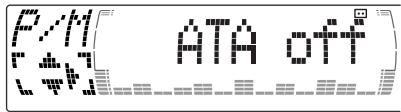
text_image
ATA offtext_image
FTY Sport 10000 10000 10000 10000 10000 10000 10000 10000 10000 10000 10000 10000 10000 10000 10000 10000 10000 100 2.5% 3.5% 4.5% 5.5% 6.5% 7.5% 8.5% 9.5% 10.5% 11.5% 12.5% 13.5% 14.5% 15.5% 16.5% 17.5% 18.5% 19.5% 20.5% 21.5% 22.5% 23.5% 24.5% 25.5% 26.5% 27.5% 28.5% 29.5% 30.5% 31.5% 32.5% 33.5% 34.5% 35.5% 36.5% 37.5% 38.5% 39.5% 40.5% 41.5% 42.5% 43.5% 44.5% 45.5% 46.5% 47.5% 48.5% 49.5% 50.5% 51.5% 52.5% 53.5% 54.5% 55.5% 56.5% 57.5% 58.5% 59.5% 60.5% 61.5% 62.5% 63.5% 64.5% 65.5% 66.5% 67.5% 68.5% 69.5% 70.5% 71.5% 72.5% 73.5% 74.5% 75.5% 76.5% 77.5% 78.5% 79.5% 80.5% 81.5% 82.5% 83.5% 84.5% 85.5% 86.5% 87.5% 88.5% 89.5% 90.5% 91.5% 92.5% 93.5% 94.5% 95.5% 96.5% 97.5% 98.5% 99.5%text_image
SOURCE MODEnatural_image
Line drawing of a handheld device with a handle and control panel (no text or symbols)Rode o controlo e solte-o para:
natural_image
Illustration of a hand holding a device with a cable or connector (no text or symbols visible)Carregue e rode o controlo para:
natural_image
Illustration of hands using a handheld device to interact with a button (no text or symbols visible)line
| Frequency (Hz) | D-BASS 3 | D-BASS 2 | D-BASS 1 | | -------------- | -------- | -------- | -------- | | Low | High | High | High | | Medium | Medium | Medium | Medium | | High | Low | Low | Low |Regular a curva dos graves
D-BASS 1 → D-BASS 2 → D-BASS 3 → D-BASS off
Nota
flowchart
graph LR
    A["Repeat 1"] --> B["Repeat 2"]
    B --> C["Repeat off"]
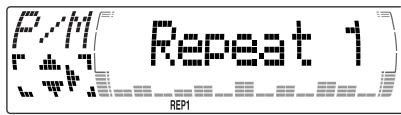
text_image
G/N Rep1 Rep1text_image
CUT DISC SCHUBERTtext_image
(4971 SCHUBERT)flowchart
graph LR
    A["Bank on"] --> B["Bank inv"]
    B --> C["Bank off"]
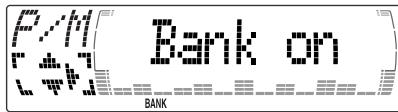
text_image
Bank on BANKtext_image
748 ch. 123flowchart
graph LR
    A["Over Wrt"] --> B["Insert*"]
    B --> C["Delete"]