MSACPR1 - Computer accessory SONY - Free user manual and instructions
Find the device manual for free MSACPR1 SONY in PDF.


| Product type | Parallel port adapter/PC card for Memory Stick |
| Brand | Sony |
| Model | MSAC-PR1 |
| Dimensions (L x H x D) | 83 mm x 21 mm x 124 mm |
| Weight | Approx. 150 g |
| Power supply | DC 5 V supplied by the keyboard connector |
| Power consumption | Approx. 150 mA |
| Supported operating systems | Windows 95, Windows 98, Windows NT 4.0 |
| Interface | Parallel port (IEEE 1284.3 standard) |
| Connectors | D-sub 25-pin male (computer side), D-sub 25-pin female (printer side) |
| Main functions | Reading and writing data on Memory Stick via a PC card adapter, compatible with ATA flash cards |
| Maintenance and cleaning | Clean with a soft dry cloth. Avoid liquids and abrasive products. |
| Safety | Do not disconnect the card or Memory Stick during access. Do not touch the connectors with fingers or metal objects. |
| Spare parts and repairability | Contact Sony after-sales service for parts and repairs. |
| General information | Designed for desktop PCs with parallel port and PS/2 or AT keyboard connector. Use with a laptop is not guaranteed. |
Frequently Asked Questions - MSACPR1 SONY
User questions about MSACPR1 SONY
0 question about this device. Answer the ones you know or ask your own.
Ask a new question about this device
Download the instructions for your Computer accessory in PDF format for free! Find your manual MSACPR1 - SONY and take your electronic device back in hand. On this page are published all the documents necessary for the use of your device. MSACPR1 by SONY.
USER MANUAL MSACPR1 SONY
PC Card/ Parallel Port Adaptor
Operating Instructions GB
Mode d'emploi FR
MSAC-PR1
Safety Regulations
WARNING
To prevent fire or shock hazard, do not expose the unit to rain or moisture.
For the customers in the United States
Declaration of Conformity
Trade Name:SONY
Model No.: MSAC-PR1
Responsible Party: Sony Electronics Inc.
Address: 1 Sony Drive, Park Ridge, NJ, 07656 USA
Telephone No.: 201-930-6970
This device complies with Part 15 of the FCC Rules.
Operation is subject to the following two conditions.: (1)
This device may not cause harmful interference, and (2) this device must accept any interference received, including interference that may cause undesired operation.
CAUTION
You are cautioned that any changes or modifications not expressly approved in this manual could void your authority to operate this equipment.
Note:
This equipment has been tested and found to comply with the Limits for a Class B digital device, pursuant to Part 15 of the FCC Rules.
These limits are designed to provide reasonable protection against harmful interference in a residential installation. This equipment generates, uses, and can radiate radio frequency energy and, if not installed and used in accordance with the instructions, may cause harmful interference to radio communications. However, there is no guarantee that interference will not occur in a particular installation. If reception, which can be determined by turning the equipment off and on, the user is encouraged to try to correct the interference by one or more of the following measures:
- Reorient or relocate the receiving antenna.
- Increase the separation between the equipment and receiver.
- Connect the equipment into an outlet on a circuit different from that to which the receiver is connected.
- Consult the dealer or an experienced radio/TV technician for help.
For the customers in Germany
Directive: EMC Directive 89/336/EEC.
92/31/EEC
This equipment complies with the EMC regulations when used under the following circumstances:
Residential area
Business district
- Light-industry district
(This equipment complies with the EMC standard regulations EN55022 Class B.)
Table of Contents
Introduction 2
Packing List 3
Part Names and Connections 4
Driver Installation 6
Installing the Driver 6
Changing Settings for Installation 13
Uninstalling the Driver 17
Operating the MSAC-PR1 18
Inserting a PC card 18
Removing a PC card 19
Instructions for Memory Stick 20
Changing the Drive Name 21
Troubleshooting 22
Compatible Equipment 24
Specifications. 26
Introduction
The PC Card/ Parallel Port Adaptor MSAC-PR1 used with the Sony Memory Stick PC Card Adaptor allows data to be read and written data using a desktop PC.
Required System Environment
- A PC Card Adaptor for use with a Sony Memory Stick is recommended.
- A Microsoft Windows 95/98/NT 4.0 OS.
- A desktop type IBM PC/AT compatible PC, with D-sub25 parallel port connector and a PS/2 or AT type keyboard connector.
- Cannot be used with anything other than the printer being connected to the parallel port of the machine.
- This device supports ATA flashcards but operations with these cannot be guaranteed.
See page 24 for confirmed compatible equipment.
No part of the software bundled with this equipment or this User's Guide may be reproduced in any form, nor may the software be lent or rented without prior permission from Sony Corporation.
□ Sony Corporation disclaims all liability for any damage or loss resulting from the use of this equipment or the bundled software, and for all claims from any third parties. Please be sure to back up any important data.
Please refer to the warranty card provided with this product for the warranty terms and conditions.
The software bundled with this equipment must not be used in a system other than that with which it is provided.
□ Sony Corporation reserves the right to change the specifications of this equipment and the bundled software without notice.
Memory Stick is a trademark of Sony Corporation.
Microsoft and Windows are registered trademarks of the Microsoft Corporation in the United States and other regions.
IBM and PC/AT are registered trademarks of the IBM Corporation in the United States and other regions.
Other company names and product names appearing in this document are registered trademarks of those companies respectively.
Packing List
Confirm that the items below have been supplied.
If something has not been supplied, contact your supplier or local Sony Service personal.
PC Card/ Parallel Port Adaptor (MSAC-PR1)
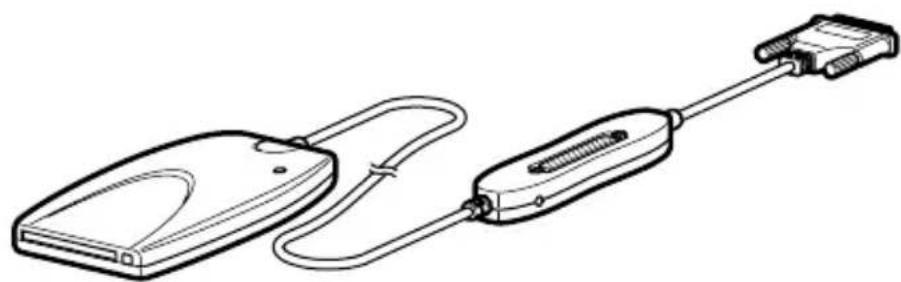
- Power cable - Reverse connector

- Setup Disc
CD-ROM (1) - Instruction Manual
Caution
The power cable supplied is for use only with the PC Card/Parallel Port Adaptor. It cannot be used for connection with any other kind of equipment.
Part Names and Connections
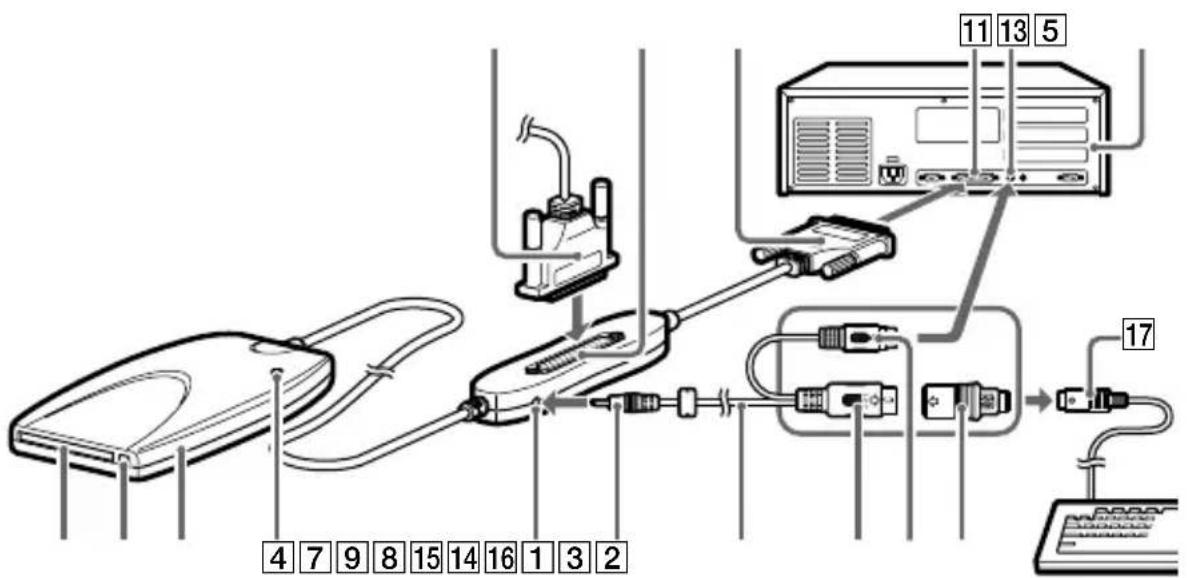
Turn the PC and all peripheral equipment off and disconnect the keyboard plug from the PC before performing the connection operations.
10
PC card socket
Insert the PC card here.
2Eject button
Press this to remove the PC card.
3PC
Card/Parallel Port Adaptor
4Power/Access lamp
This lamp illuminates when the power is on. It blinks when data is being accessed.
Caution
Do not disconnect the PC card or Memory Stick while the Power access lamp is blinking, as it may cause internal damage to the PC card or the Memory Stick.
5 Printer cable
If you are not going to use the parallel port connector [11] with the printer, it is not necessary to connect the printer cable [6] to the connector.
6 Printer connector (D-sub 25-pin) (female)
If you are going to use the parallel port connector [11] with the printer, the printer cable is connected here once the MSAC-PR1 driver has been installed. When you connect the connector, make sure that it is the right way up. Trying to force the connector in can cause damage.
7 DC jack
8Power connection cable
9DC plug
D-sub 25-pin connector (male)
PC parallel port D-sub 25-pin connector (female) If there are more than two connectors, connect to LPT 1.
12PC
13PCkeyboard connector
14 Mini DIN 6-pin connector (male)
15 DIN 5-pin connector (male) Connect the PC keyboard connector 13 to the PC with either of the 2 DIN plugs 14 15.
16 Reverse connector For connecting the DIN connectors 14 or 15 to the keyboard plug 17
17Keyboard plug
Driver Installation
Install the driver with the printer disconnected. If you are using Windows NT 4.0, log on as an administrator.
Caution
The screen examples shown in this manual are in English. However, the language used for screen display depends on the selection made when the driver is installed. Please select the language that matches that of your computer's operating system.
Installing the Driver
1 Insert the supplied CD-ROM into the CD-ROM drive on the computer.
The "Sony MSAC-PR1 Setup" window appears.
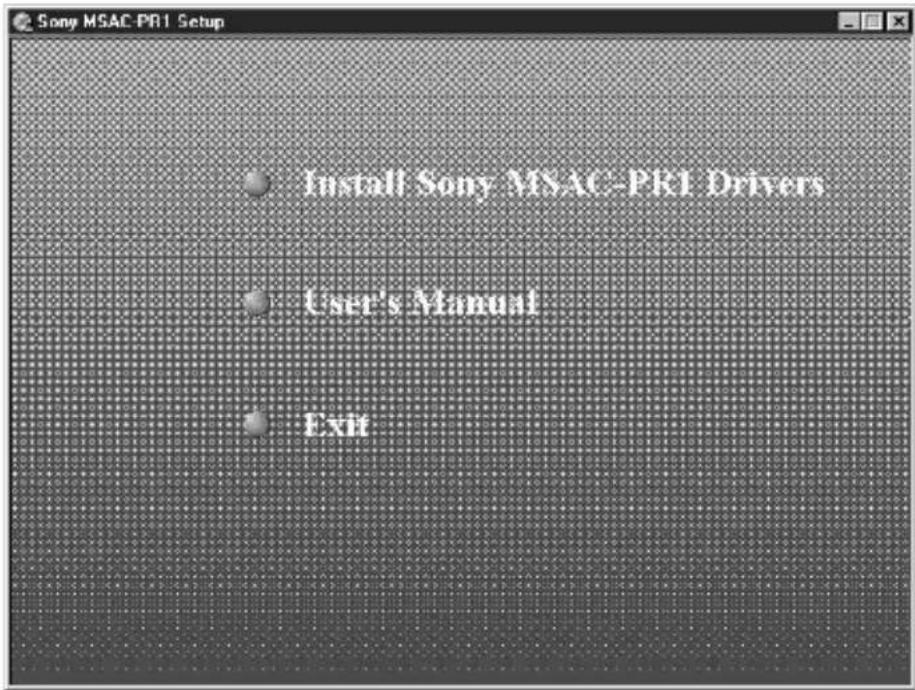
If the CD-ROM automatic run has not been set, open the CD-ROM drive with the Explorer and double click "autorun.exe" to display the menu.
Alternatively you can directly specify "X:\ Utility\Setup.exe" (X is the CD-ROM drive name) to start the installer.
2 Click "Install Sony MSAC-PR1 Drivers" with the mouse cursor.
The Setup Language window appears.
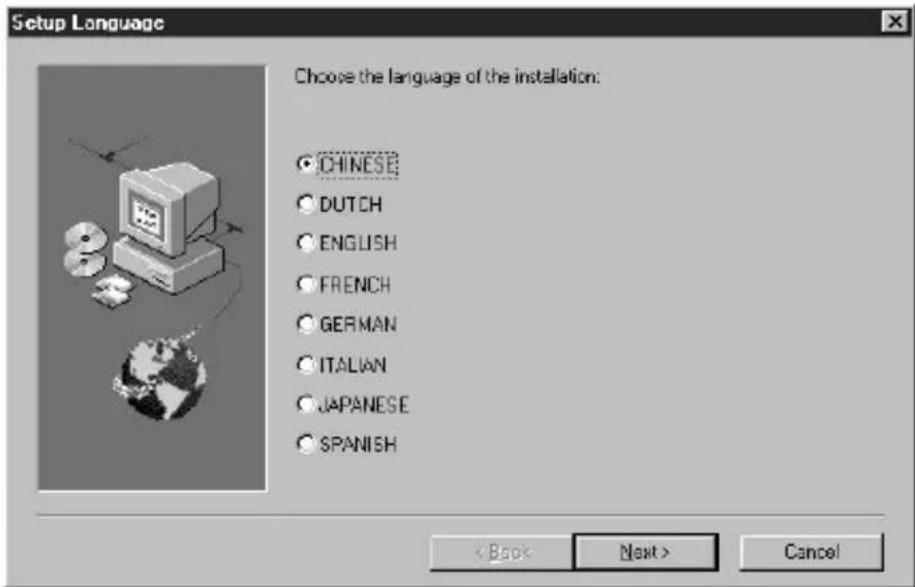
3 Select language and click "Next."
The "Welcome" window appears.
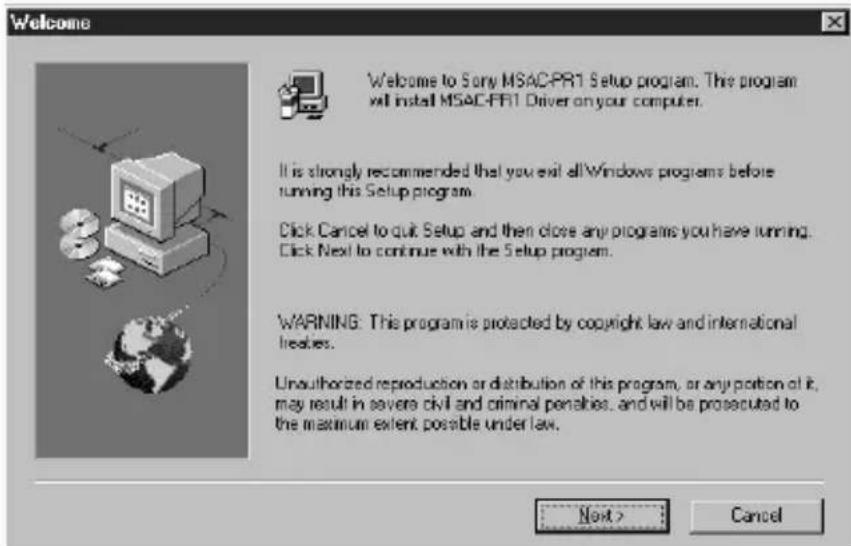
At the beginning of the installation a warning appears. It is necessary to close all other applications for the MSAC-PR1 to be installed correctly.
4 Click the "Next" button.
The "Software License Agreement" window appears.
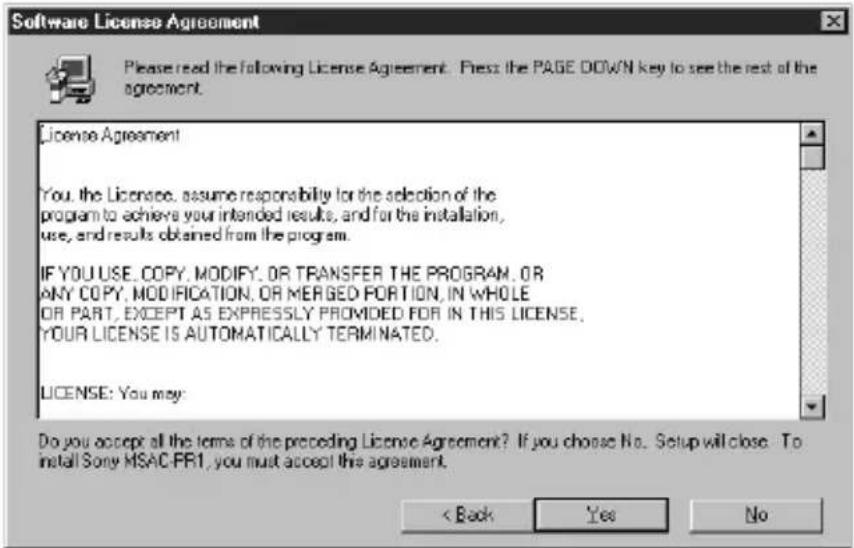
5 Click "Yes" if you agree with all the conditions in the contract.
Once you agree with all the conditions in the license agreement, you can use MSAC-PR1.
6 Parallel port sharing (Windows NT 4.0 only)
Select "Yes, I want to share my parallel port" if you are to use the MSAC-PR1 printer connector as well as another printer connected.
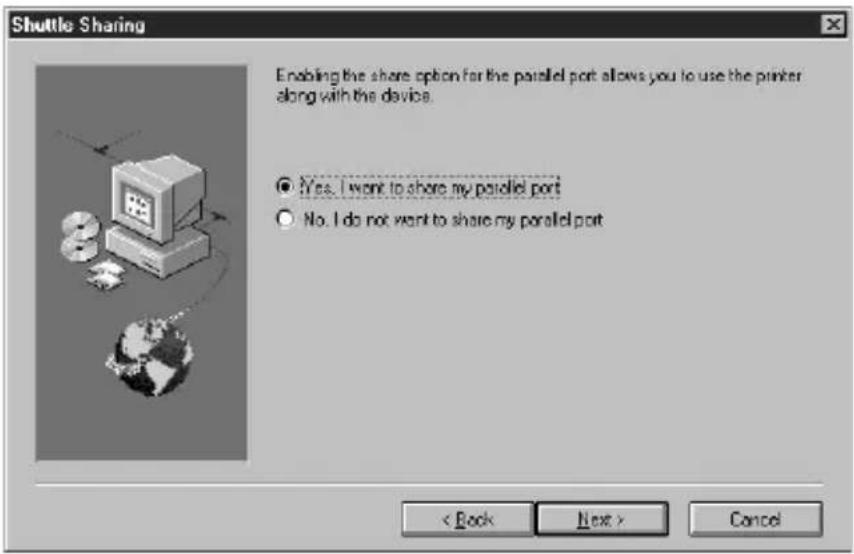
The "Choose Destination Location" window appears.
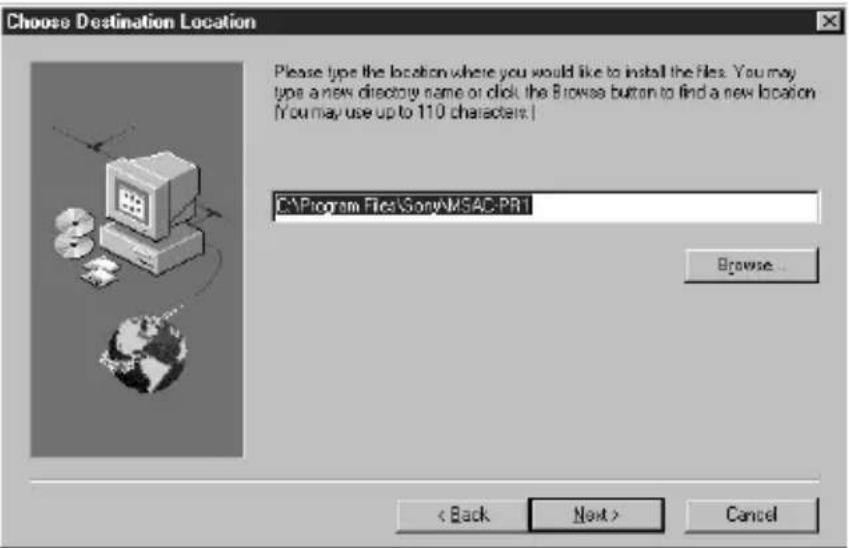
7 The file path name for the installation appears. Click the "Next" button. If you want to change the directory for the installation, specify the path in the box and then click the "Next" button.
The "Select Program Folder" window appears.
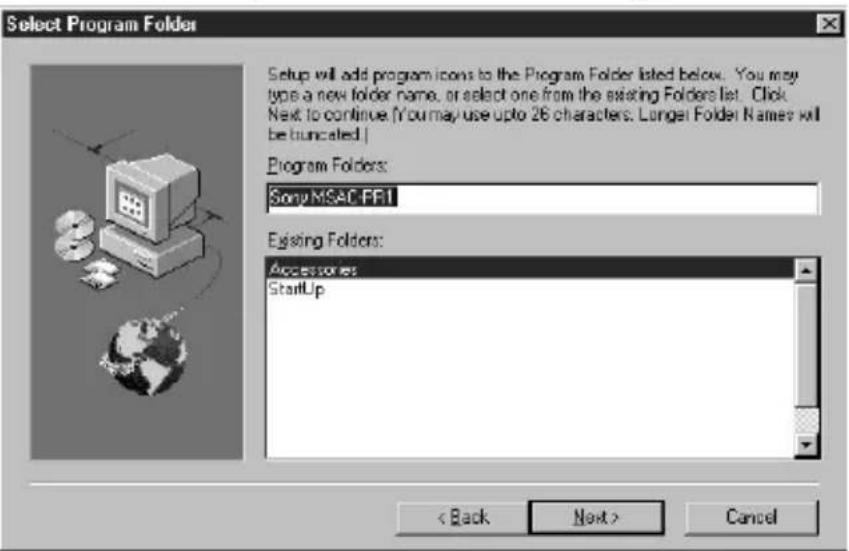
8 The program names registered in the start menu appear. Click "Next." If you want to change the file name, input the name and then click "Next."
The "Start Copying Files" window appears.
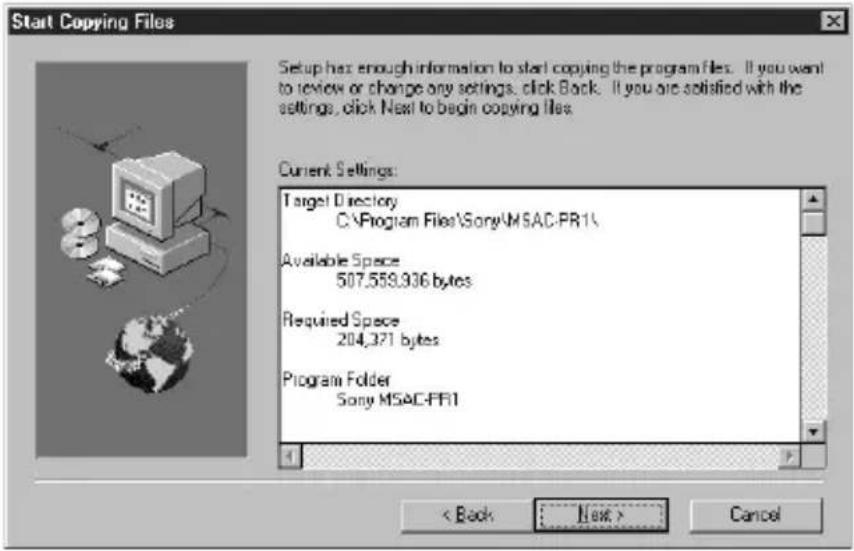
9 Check the contents of the installation settings and click "Next."
The file copying commences and MSAC-PR1 is registered in the system.
The driver is loaded when the files have finished being copied.

Setup is installing the driver ... The system may temporarily freeze when the driver loads.
Caution
The cursor will be immobilized for about 10 seconds while the driver is being loaded. If the cursor remains immobile on the screen after loading is complete, it may be that the BIOS settings in the PC are not suitable for MSAC-PR1. You will need to change the BIOS settings.
For details, refer to "Changing Settings for Installation" (page 13) and (page 14) to change the BIOS settings.
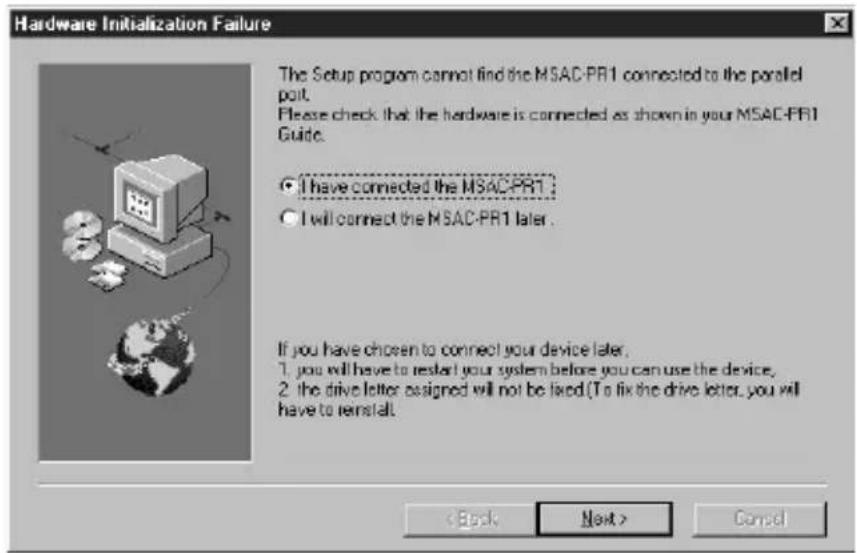
Further, If the "Hardware Initialization Failure" window appears, select "I will connect the MSAC-PR1 later" to shut down the setup, and then recheck the connections.
- Make sure the 25-pin connector is firmly connected to the parallel port.
- The power to the MSAC-PR1 must be on. Insert the power connection cable associated with the keyboard connector of the PC, and connect it to the DC jack of the MSAC-PR1.
If the "Removable Disk" icon does not appear on restarting the PC even with the PC card inserted, it may be that the BIOS settings in the PC are not set correctly for MSAC-PR1. You will need to change the BIOS settings.
For details, refer to "Changing Settings for Installation" A (page 13) and B page 14) to change the BIOS settings.
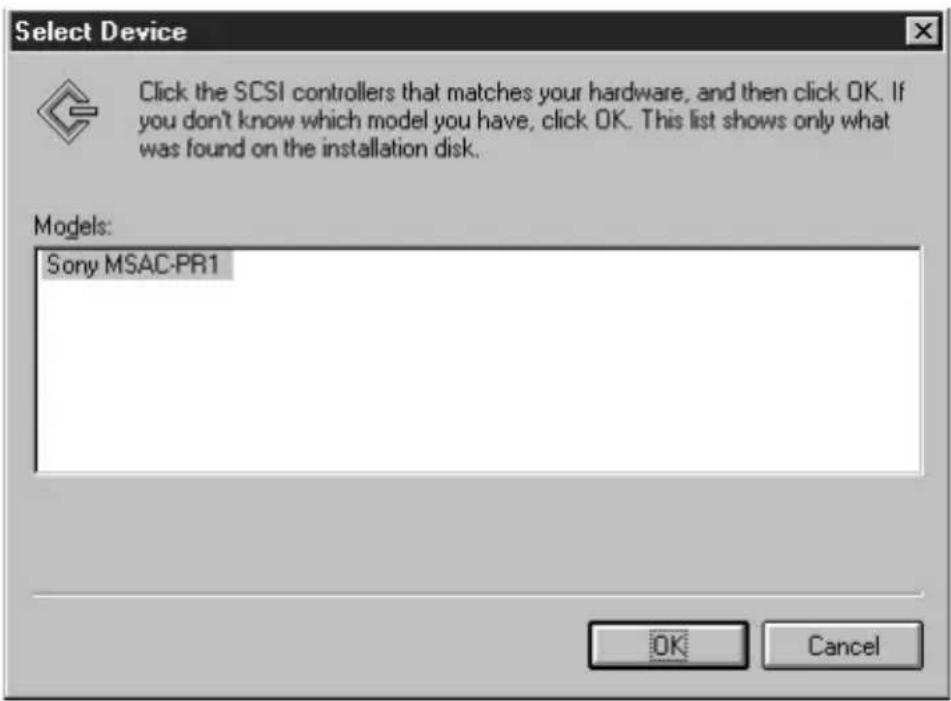
10 Device Selection (Windows NT 4.0 only)
With Windows NT 4.0, the following screen appears. Click the "OK" button.
11 Setup Complete
With Windows 95/98 you can use the PC card straight away. With Windows NT4.0, you have to restart the computer before you can use the PC card.
12 Connecting the Printer
Turn the power to the PC off and connect the printer.
If the printer does not run normally.
Refer to "Changing Settings for Installation" (page 15) and (page 16).
Installing a new printer.
Turn the PC off, remove the device from the PC, and then connect the printer cable directly to the parallel port. After installing the printer driver, reconnect the printer cable to the printer connector of this device, and perform a test print. If the printing is unsatisfactory, refer to "Changing Settings for Installation" (page 15) and (page 16).
Changing Settings for Installation
The driver does not install satisfactorily.
If the response from the PC is lost during installation or an error occurs, it may be that the parallel port settings in the BIOS of the PC are not suited to the MSAC-PR1.
By changing the parallel port BIOS settings and adding parameters to the driver, the situations above can be rectified.
A Changing the Parallel Port BIOS Settings
The method for changing the parallel port BIOS settings and the screens that are displayed vary according to the type of computer that you are using. Refer to the instruction manual for you computer for information regarding changing the settings.
Method for Changing Settings (example)
1 Start the computer.
2 When the computer is powered up, A message "Press xx for setting" appears at the bottom of the screen before the operating system (Windows etc) screens appear. (For a computer that complies with the Energy Star standard, this message appears at the top right corner of the Energy Star logo screen.) Press the (xx) button as instructed by the message before the message disappears from the screen. Pressing the (xx) button invokes the BIOS settings screen.
Some computers do not display this message for BIOS settings. Refer to the instruction manual for the computer for more information.
3 In most BIOS setting screens, there are 2 procedural steps that invoke the screens for actually making the settings. First of all, start from the screen that has the parallel port settings item in it. (Usually you will not know from the first screen which screen contains the parallel port settings and will have to refer to the instruction manual for the computer to open the screen for the parallel port settings.)
4 BIOS setting possibilities vary from computer to computer, however, normally the following options are available:
Auto Enable Disable
EPP ECP SPP Bi-directional
(Some computers only have the first two options.)
Make the settings in the following way:
Auto Enable Disable
Set to Enable
EPP ECP SPP Bi-directional
Check operations with each setting.
BAdding MSAC-PR1 device driver parameters (for Windows 95/98 only)
If the MSAC-PR1 does not function normally, add device driver parameters according to the following procedure.
1 Select "Properties" from the context menu when you right click over "This Computer" or double click "System" in the control panel to open the system properties window.
2 Double click the device manager tab, then double click SCSI controller category to display "Sony MSAC-PR1" in the device list.
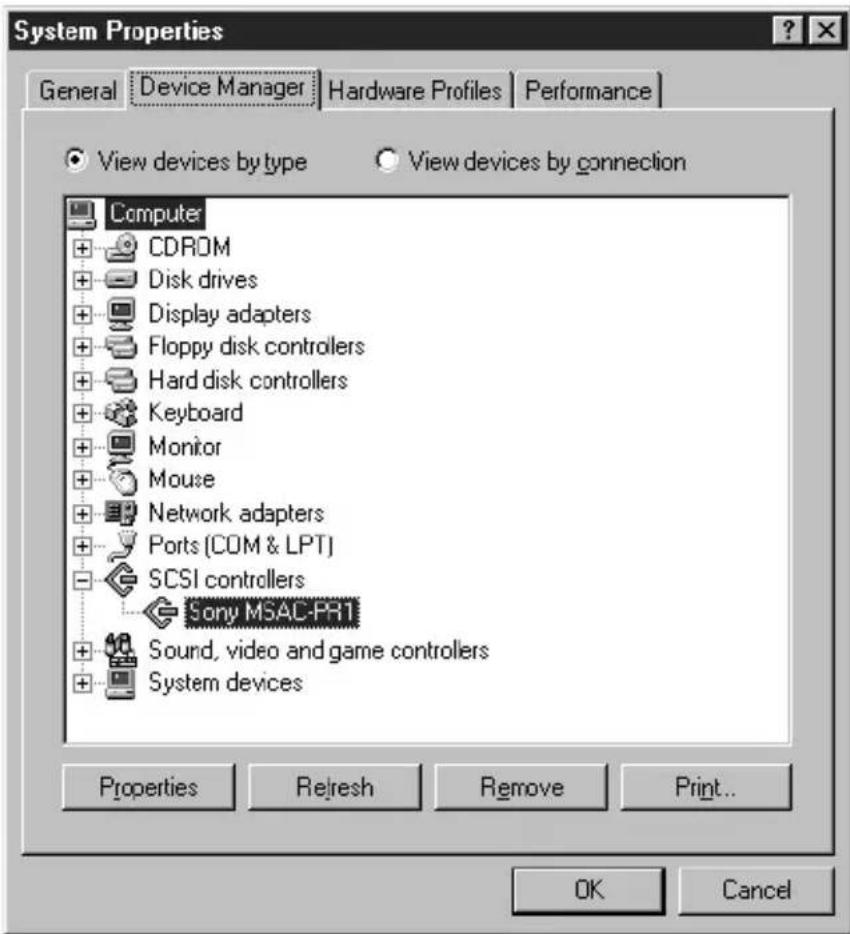
3 Double click "Sony MSAC-PR1" to display the Properties window and then click the Settings tab.
4 The adaptor setting will be "/flash/W95." Add "/ni /de /di" to this and click "OK," making sure there is a space before each slash.
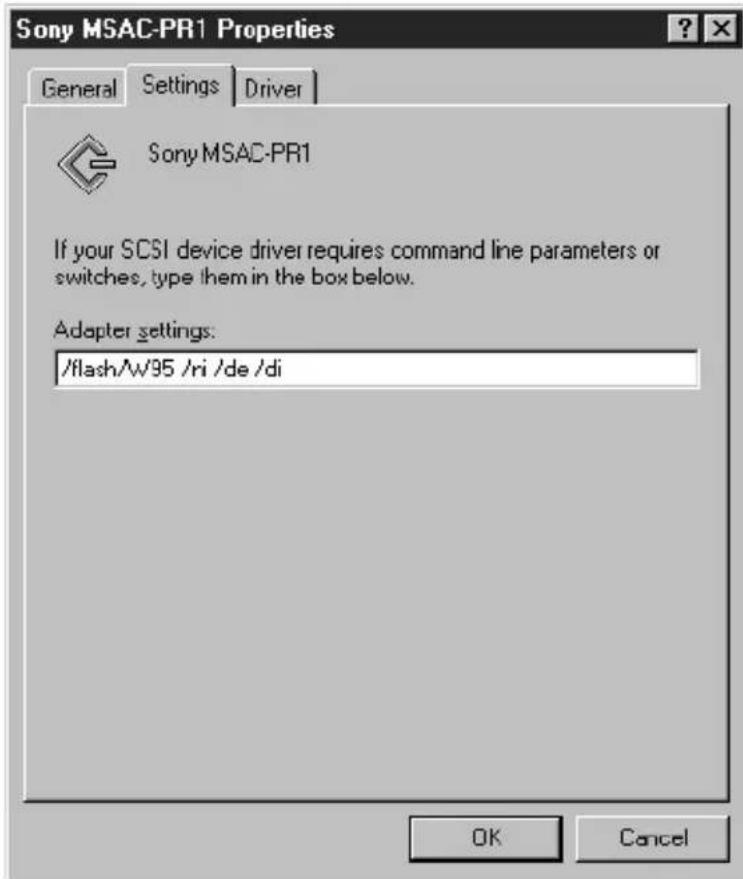
5 Click "OK" in "Sony MSAC-PR1" properties.
6 Click the "OK" button in "System properties" and a message promoting you to restart the computer will be displayed. Restart the computer.
Caution
On some machines the computer may not restart or the MSAC-PR1 may not function normally with this procedure. If this happens, erase only the parameters that you added to return the adaptor setting to "/flash/W95."
The printer does not work well
If a printer which was functioning normally ceases to do so after installing MSAC-PR1, or a newly installed printer does not function properly, this can be rectified by closing all applications not directly related to printing and changing the printer driver settings.
CDeleting an application from the start up folder
Depending on the type of printer you are using, the parallel port may be occupied by some other application installed at the time of printer driver installation.
Such applications are automatically placed in the task tray when the computer is started, interrupting communications between the PC and MSAC-PR1, resulting in a printer malfunction to be mistakenly recognized and an error to be displayed.
Refer to the instruction manual for the printer to check whether such applications have been installed, and if they are, close them and perform a test print. If the test print is successful, go to "Add/Remove Programs" in the "Control Panel" and uninstall the application, or delete the short cut from the start up folder. Such permanent applications are nearly always registered in the start up folder. By deleting these applications from the start up folder they will not be launched when the computer is restarted.
1 Click "Start" on the taskbar.
2 Click "Taskbar" in "Settings" to open the "Taskbar Properties" window.
3 Click the "Start Menu Programs" tab.
4 Click "Remove" to display the "Remove Shortcuts/Folders" window.
5 Double click "StartUp" to display the application shortcuts.
6 Select the application shortcut you wish to delete and then click "Remove".
7 Click "Close" and the "Remove Shortcuts/Folders" window closes.
8 Click "OK" to close the "Taskbar Properties" window.
D Changing Printer Driver Settings
If "Enable bi-directional support for this printer" have been selected in the printer driver settings, either or both the printer and the MSAC-PR1 will not function normally.
In this case, change the settings to "Disable bi-directional support for this printer" by the following procedure:
1 Click "Start" on the taskbar.
2 Click "Settings" and click "Printers" to display a list of printers.
3 Right click on the printer to which the MSAC-PR1 connector is connected to open the properties sheet.
4 Click the details tab, and click "Spool Settings."
5 Click the "Disable bi-directional support for this printer" radio button and click "OK."
6 Click the "OK" button to close the Properties sheet.
Uninstalling the Driver
The MSAC-PR1 driver can be deleted from the PC by the following procedure if it is no longer needed.
1 Click "Start" on the taskbar and then click "UNINSTALL" in "Sony MSAC-PR1" in "Programs."
A window for confirming uninstallation is displayed.
2 Click "Yes."
The uninstall program starts. A window with "Remove Programs From Your Computer" is displayed and the deletion of files commences.
3 When the uninstallation is complete, click the "OK" button.
Operating the MSAC-PR1
Inserting a PC card
To use a PC card, insert the card into the PC Card/Parallel port adaptor.
Caution
The Sony PC Card Adaptor for Memory Stick is recommended.
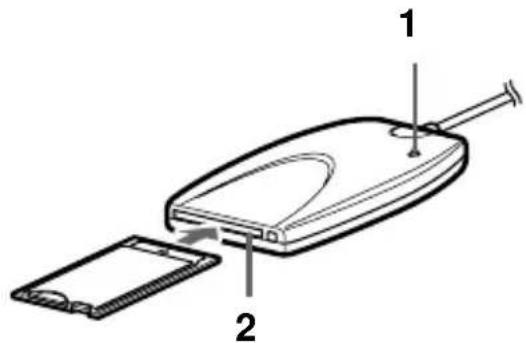
1 Check that the power/access lamp is illuminated.
2 Making sure the mark is on top, insert the PC card into the slot gently.
Push the PC card firmly all the way in.
Icon display
When a PC card or Memory Stick is inserted when using Windows 95/98, a "Removable Disk" icon is displayed. This icon disappears when the card or Memory Stick is removed.
With Windows NT, the "Removable Disk" icon is displayed when the PC is started even if there is no PC card or Memory Stick inserted.
There is no recycle bin for Removable Disks
Care must be taken when erasing files from removable disks, as these files are erased immediately without being transferred to the recycle bin.
Make backup copies of important data and files to some other media.
Access
When accessing large files, an increased load is placed on the computer and the movement of the cursor may be lost or other processing stopped.
Wait until the file accessing has finished.
Removing a PC card
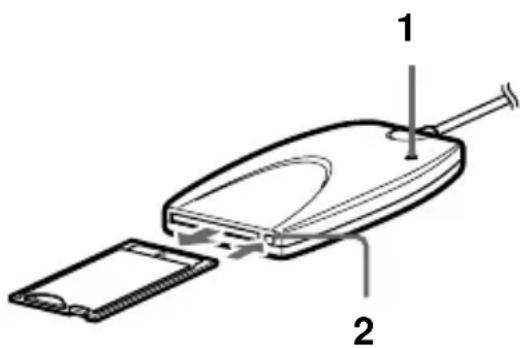
1 Check that the power/access lamp is not blinking. Caution
Do not remove a PC card or Memory Stick while the power/ access lamp is blinking. If the card is removed while the lamp is blinking, damage to the card or Memory Stick may occur. Also, even when the lamp stops blinking, some processing may still be taking place. To be safe, wait a while after the lamp has stopped blinking before removing the card or Memory Stick.
2 Press the eject button and gently remove the card. Caution
Do not attempt to remove, insert or access a PC card or Memory Stick while the printer is printing. Printing may be halted, and a printing error may be displayed.
Do not touch the connections of a PC card or Memory Stick with you hands or metal object as this may result in damage.
Instructions for Memory Stick
Memory Stick Operation
This device only supports the insertion and removal of Memory Stick.
With a PC Card Adaptor for Memory Stick inserted into the device, only a Memory Stick can be inserted.
When removing a Memory Stick, gently press the Memory Stick eject button to prevent the Memory Stick from flying out.
The PC does not recognize the state of the erase protect switch.
If the PC card is used with the switch in the "LOCK" position, the response from the PC will be slow and data reading/ writing errors may occur. Use the card with the switch released.
Further, make backup copies of important data and files to some other media.
Memory Stick Format (initialization)
The Memory Stick comes supplied from the factory with a suitable format. Please do not attempt to format it.
If the Memory Stick is reformatted by the PC it will not be in a suitable condition to be read or written by other equipment that supports Memory Stick.
If this happens, the Memory Stick can be used after it has been reformatted by the other equipment with which it is to be used.
Changing the Drive Name
If you are using a Windows 95/98 computer, The drive name for MSAC-PR1 can be changed with the following procedure:
1 Click the right button on "My Computer" and select "Properties" from the context menu or double click "System" in the control panel to display "System Properties."
2 Click the Device Manager tab and double click Disk Drive Category. All connected drives are displayed.
3 Double Click "Parallel Flash Unit" The Properties window appears.
4 Click the Settings tab, and change the display for the starting drive. The next time Windows is started, this will be the drive name.
Troubleshooting
Before sending the equipment for repair, please check the following points. If the equipment still fails to function normally after you have checked everything, consult your local Sony service personnel.
Please refer to your PC Operating Manual.
Symptom The MSAC-PR1 connector is connected to a printer but an error occurs and printing cannot be done. Or, reading/writing data cannot be done to the PC card.
Cause/Action There is some permanent application that keeps watch over the state of the printer. Printing cannot be done and the computer does not recognize the PC card in the normal way.
Close the permanent application.
Cause/Action The parallel port settings on the computer are incorrect.
Try changing the BIOS settings.
Cause/Action The printer is incompatible with this device.
Some printers cannot be used when connected to the MSAC-PR1 printer connector.
Symptom When writing or reading from Memory Stick, a disk writing error is displayed on a blue screen, with a warning message that files or data may have been lost.
Cause/Action The Memory Stick erase protect switch is set to the "LOCK" position.
Release the LOCK on the Memory Stick. The data in the Memory Stick will not be lost.
Symptom The data recorded in the PC card is flawed.
Cause/Action The PC card was removed while being accessed from the computer.
When the hour glass mark is being displayed during accessing, the power/access lamp blinks. Allow ample time after the lamp stops blinking before removing the PC card.
Symptom The PC card cannot be inserted all the way into the PC Card Adaptor.
Cause/Action Some foreign object is lodged in the card slot of the PC Card Adaptor.
Remove the foreign object.
Damage may occur to the internal connector in this case.
Compatible Equipment
- Printers whose Compatibility has been Confirmed
HP LaserJet IIP/HP LaserJet 5L/ HP DeskJet 692/ HPDeskJet 720C
EPSON LQ-1010C/EPSON LQ-200/EPSON LQ-2070C
Canon BJC-330/Canon BJC-400J/Canon BJC-430J/
Canon BJC-4000/Canon BJC-4300
Fujitsu DL1100/ALPS MD-1000J/ALPS MD-2000J
Sony DPP-M55
- PC Cards whose Compatibility has been Confirmed
Hitachi
HB286008A3, HB286015A3, HB286030A3, HB286045A3,
HB286060A3
SanDisk
SDP3B-2-101-00, SDP3B-4-101-00, SDP3B-2-6-101-00,
SDP3B-8-101-00, SDP3B-10-101-00, SDP3B-20-101-00
I-O DATA DEVICE
PCFCA-10MS, PCFCA-20MS, PCFCA-40MS
PCFCA-85M
MELCO
DPF-10J, DPF-20J, DPF-40J
SCM Microsystems
PCF-10, PCF-20, PCF-40
EPSON
EP10, EP20, EP40, EP85
Panasonic
BN-012ABP3, BN-020ABP3
TDK
SFD004M, SFD012M, SFD024M, SFD032M, SFD096M
HAGIWARA SYS-COM
HPC-FC20M
Specifications
Parallel Port/PC Card Adaptor for Memory Stick (MSACPR1)
| Supported OS | Windows 95/Windows 98/Windows NT 4.0 |
| Compatible PCs | IBM PC/AT compatible (desktop type) •D-sub 25-pin parallel port connector and PS/2 or AT type keyboard connector required. •Normal operation cannot be guaranteed with notebook computers. |
| Dimensions | 83mm·21mm·124mm(W·H·D) |
| Mass | 150g approx. |
| Power source(Voltage) | DC5V (supplied from keyboard connector) |
| Current consumed | 150mA approx. |
| Environmental conditions | 0°C-40°C, 32°F-104°F (no condensation) |
| Host interface | Parallel port (IEEE1284.3 compliant) |
| Connector | Computer side: D-sub 25-pin (male) <parallel port (IEEE1284.3 compliant)> Printer side: D-sub 25-pin (female) <parallel port (IEEE1284.3 compliant)> •The device cannot be used if there is any other equipment connected to the parallel port. (scatterer or other cartridge etc.) |
| Compatible PC cards | PCMCIA compliant ATA/IDE specifications •Recommended PC Cards Sony: Memory Stick/PC Card Adaptor (MSAC-PC1) <for use with Memory Stick > |
Table des matieres
Introduction 2
Setup is installing the driver ... The system may temporarily freeze when the driver loads.
Attention
Customer Support If you have any questions/comments related to this product, please visit our Customer Support website at http://www.sony.com/service (If you do not have internet access, please call 1-800-222-SONY)
Sonyonline http://www.world.sony.com/