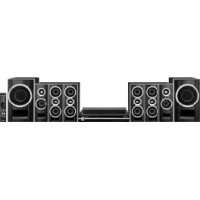
DAVDZ7T - Home Theater System SONY - Free user manual and instructions
Find the device manual for free DAVDZ7T SONY in PDF.



| Product type | 5.1-channel home cinema system with DVD player |
| Brand | Sony |
| Model | DAV-DZ7T |
| Dimensions (main unit) | 430 x 430 x 370 mm (W x D x H) |
| Weight (main unit) | Approx. 5 kg |
| Power supply | 220-240 V AC, 50/60 Hz |
| Power consumption | 150 W (during operation) |
| Total output power | 1000 W (RMS) |
| Speaker configuration | 5.1 channels: front (2), center (1), surround (2), subwoofer (1) |
| Supported audio formats | Dolby Digital, DTS, MP3, AAC, etc. |
| Supported video formats | DVD, CD, MPEG-4, DivX (depending on version) |
| Connectivity | HDMI (with COMMAND HDMI function), composite video output, coaxial/optical digital audio input, SCART (EURO AV), peritel connector |
| Main features | One Touch Play, System Audio Control, STB Synchronization, BRAVIA Theatre Sync, disc changer (5 discs) |
| Tuner | Built-in FM/AM |
| Maintenance and cleaning | Clean with a soft, dry cloth. Do not use liquids or solvents. |
| Safety | Do not open the device, avoid humidity and heat sources. Ensure adequate ventilation. |
| Spare parts and repairability | Contact Sony after-sales service for spare parts. Repair must be performed by a qualified technician. |
| General information | Sony DAV-DZ7T home cinema system. User manual available on notice-facile.com. |
Frequently Asked Questions - DAVDZ7T SONY
User questions about DAVDZ7T SONY
0 question about this device. Answer the ones you know or ask your own.
Ask a new question about this device
Download the instructions for your Home Theater System in PDF format for free! Find your manual DAVDZ7T - SONY and take your electronic device back in hand. On this page are published all the documents necessary for the use of your device. DAVDZ7T by SONY.
USER MANUAL DAVDZ7T SONY
Operating Instructions GB
Mode d'emploi FR
Using the HDMI CONTROL Function for 'BRAVIA' Theatre Sync
To use 'BRAVIA' Theatre Sync, set the HDMI CONTROL function as explained below.
By connecting Sony components that are compatible with the HDMI CONTROL function with an HDMI cord (not supplied), operation is simplified as below:
- One-Touch Play: By pressing only on the unit or remote, the TV turns on and is set for DVD input mode automatically.
- System Audio Control: While watching TV, you can switch the sound to come out of either the TV or this system's speakers.
- System Power Off: When you turn the TV off by using the POWER button on the TV's remote, the system turns off automatically.
HDMI CONTROL is a mutual control function standard used by HDMI CEC (Consumer Electronics Control) for HDMI (high-definition multimedia interface).
The HDMI CONTROL function will not operate in the following cases:
- When you connect this system to a component which is not correspond with Sony's HDMI CONTROL function.
-A component does not have a HDMI terminal.
We recommend that you connect this system to products featuring 'BRAVIA' Theatre Sync.
Note
- Do not use the THEATRE SYNC button on the remote while the HDMI CONTROL function is active. For details, see the operating instructions of the system.
- Depending on the connected component, the HDMI CONTROL function may not work. Refer to the operating instructions supplied with the component.
- When [HDMI CONTROL] is set to [ON] without being connected by the HDMI cord (not supplied), you can not switch to the TV input mode even if connected by SCART (EURO AV) cord. In this case, turn [HDMI CONTROL] to [OFF] (European models only).
Preparing for the HDMI CONTROL function
To use the HDMI CONTROL function, make sure that this system is connected to your TV (which should be correspond with HDMI CONTROL) by a HDMI cord (not supplied). Turn on the system and your TV, and then switch the input selector on your TV so that the signal from the system appears on the TV screen. Then set the respective HDMI CONTROL functions to on.
The following explanation is for this system. For details on TV setting, refer to the operating instructions supplied with the TV.
Note
- Displayed items vary depending on the country model.
1 Press I/
The system turns on.
2 Press DISPLAY when the system is in stop mode.
The Control Menu display appears.
3 Press / to select [SETUP], then press .
The options for [SETUP] appear.
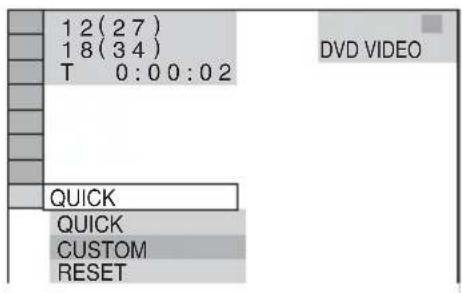
4 Press / to select [CUSTOM], then press .
The Setup Display appears.
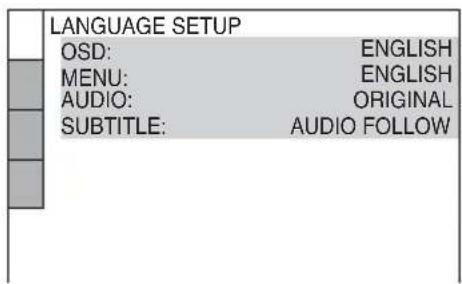
5 Press / to select [CUSTOM SETUP], then press .
The Setup item is selected.
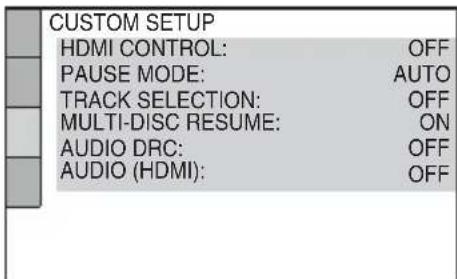
6 Press / to select [HDMI CONTROL], then press .
7 Press / to select the setting.
The default setting is underlined.
- [O F]Fsets the [HDMI CONTROL] function to off.
- [ON]: sets the [HDMI CONTROL] function to on.
8 Press
Watching DVD by a single button press (One-Touch Play)
Press on the unit or remote.
When the system starts playback, the TV is turned on simultaneously and, the TV input is automatically switched to DVD input.
The TV input will also switch to DVD input automatically, in the following cases:
- You place a DVD disc on the tray, and then press .
- You press DISC SKIP on the remote or DISC 1-5 on the unit to load a disc (disc changer models only).
Note
- When a CD/DATA-CD is loaded into the unit, the One-Touch Play function does not work. However, when you insert a disc in the system whose power is standby, the TV turns on regardless of disc.
- When the "DMPORT" function (depending on the model, "DMPORT1" or "DMPORT2" appears) is active, One-Touch Play will not work.
- Depending on the TV, the start of the content may not be output.
Tip
- One-Touch Play is operated with System Audio Control at the same time.
Enjoying the TV sound from the speakers in this system (System Audio Control)
You can enjoy the TV sound in this system by easy operation.
While watching the TV and the function is swithed to "TV" (depending on the model, "TV/VIDEO" appears), TV sound is output from the system speakers. You can also operate this from the TV menu.
For details, see the operating instructions of TV.
Note
- When the TV is turned on before turning on the system, the TV sound will not output for a moment.
- If the function is set to "DVD" when you turn on the system, One-Touch Play is activated. In this case, set the function to "TV" (depending on the models, "TV/VIDEO" appears).
- When you select the TV program (the active picture is highlighted) or return to the TV mode while watching the TV and a DVD by PAP (picture and picture) mode, the DVD playback will stop.
- To output the sound from the TV, set [AUDIO (HDMI)] to [ON] on the system. For details, see the operating instructions of the system.
To Enjoy STB (Set Top Box) digital sound or digital satellite tuner sound from the system (Models with DIGITAL IN (COAXIAL or OPTICAL) jack only)
You can enjoy digital sound of STB or a digital satellite tuner from speakers of this system by performing to following connections and settings. Connect to a TV with the HDMI IN jacks by an HDMI cord (not supplied) (make sure to connect from the smallest number). The names of HDMI inputs in the following illustration are examples.
By connecting as the following illustration, you can enjoy Multi Channel Broadcasted Audio from the speakers of the system.
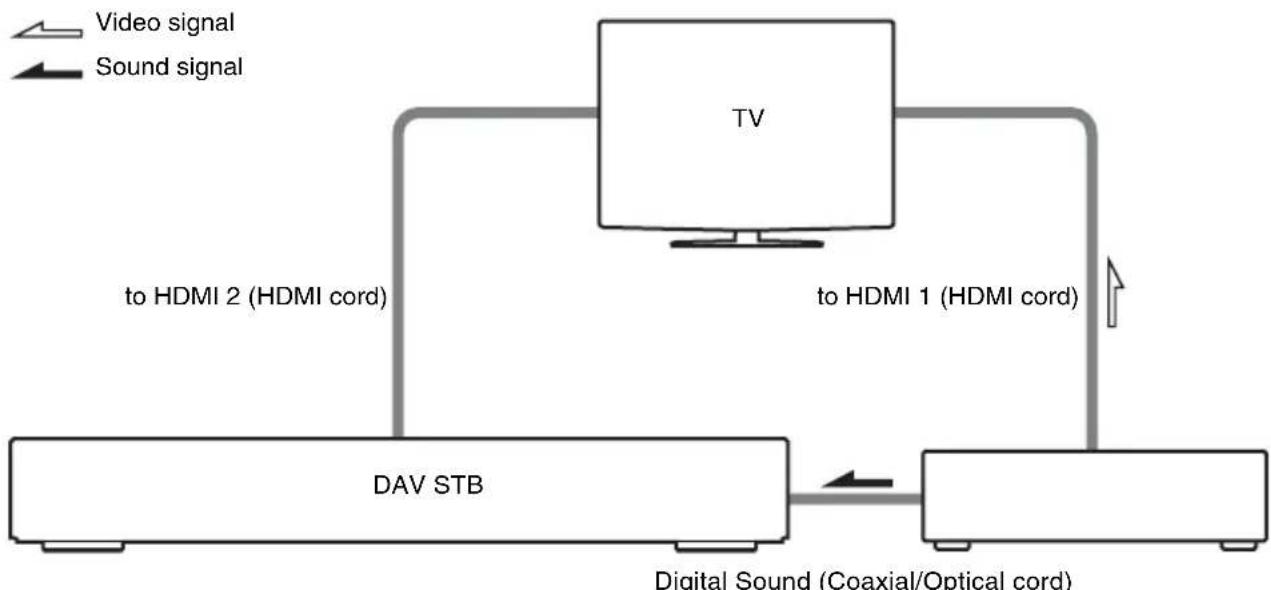
Sets the [STB SYNCHRO] to [ON].
1 Press I心.
2 Press DISPLAY when the system is in stop mode.
3 Press / to select [SETUP], then press .
4 Press / to select [CUSTOM], then press .
5 Press / to select [CUSTOM SETUP], then press .
6 Press / to select [STB SYNCHRO], then press .
7 Press / to select the setting.
The default setting is underlined.
- [O F]Fsets the [STB SYNCHRO] function to off.
- [ON]: sets the [STB SYNCHRO] function to on.
8 Press
The setting is made. Select the HDMI input of your TV connected to the STB or digital satellite tuner. The system accepts the signal from the SAT/CABLE jacks automatically and outputs the sound of the STB or digital satellite tuner from the speakers of the system.
Tip
- You can operate this function on STB or a digital satellite tuner which is not correspond with HDMI CONTROL.
Note
- In order to set the [STB SYNCHRO] function, first set [HDMI CONTROL] to [ON] (see page 2).
- Depending on the TV, this function may not work when STB or a digital satellite tuner is connected to the HDMI 1 jack of the TV.

- Using the HDMI CONTROL Function for 'BRAVIA' Theatre Sync
- Note
- Preparing for the HDMI CONTROL function
- Press I/
- Watching DVD by a single button press (One-Touch Play)
- Tip
- Enjoying the TV sound from the speakers in this system (System Audio Control)
- To Enjoy STB (Set Top Box) digital sound or digital satellite tuner sound from the system (Models with DIGITAL IN (COAXIAL or OPTICAL) jack only)
- Press
Brand : SONY
Model : DAVDZ7T
Category : Home Theater System