USER MANUAL PBD-V30 SONY
Operating Instructions

Discman



PBD-V30
WARNING
To prevent fire or shock hazard, do not expose the player to rain or moisture.
The socket outlet shall be installed near the equipment and shall be easily accessible.
The nameplate is located on the bottom.
CLASS 1 LASER PRODUCT LASER KLASSE 1 PRODUKT
CAUTION
VISIBLE AND INVISIBLE LASER RADIATION WHEN OPEN
DO NOT STARE INTO BEAM OR VIEW DIRECTLY WITH OPTICAL INSTRUMENTS.
VORSICHT
This label is located on the bottom.
Directive: EMC Directive 89/336/EEC,
92/31/EEC
Low Voltage Directive 73/23/EEC,
93/68/EEC
The supplied interference Audio/Video cable must be used with the equipment in order to comply with the limits for a digital device pursuant to EN 55013.
Welcome!
Thank you for purchasing the Sony Portable DVD Player. Before operating the player, please read this manual thoroughly and retain it for future reference.
Manufactured under license from Dolby Laboratories Licensing Corporation. DOLBY, the double-D symbol, "PRO LOGIC," and AC-3 are trademarks of Dolby Laboratories Licensing Corporation.
Table of contents
This player can play the following discs 4
About this manual 8
Getting started
Unpacking 9
Hooking up the system 11
Necessary setup before using the player 13
Basic operation
Playing a DVD VIDEO 14
Playing a CD/VIDEO CD 22
Additional operations
Playing repeatedly (Repeat Play) 30
Playing in random order (Shuffle Play) 34
Creating your own programme (Programme Play) 35
Resuming playback from the point where you stopped a disc (Resume Play) 38
Changing the sounds 40
Using the sub-titles 41
Changing the angles 43
Preventing accidental pressing of the buttons 44
Using the rechargeable battery pack 45
Using the audio amplifier 49
Setting and adjustment
Basic settings (INITIAL SETUP) 52
Limiting playback by children (Parental Control) 56
Precautions 60
Notes on discs 62
Specifications 63
Troubleshooting 65
Glossary 69
Self-diagnosis function 71
Index to parts and controls 72
Language code list 77
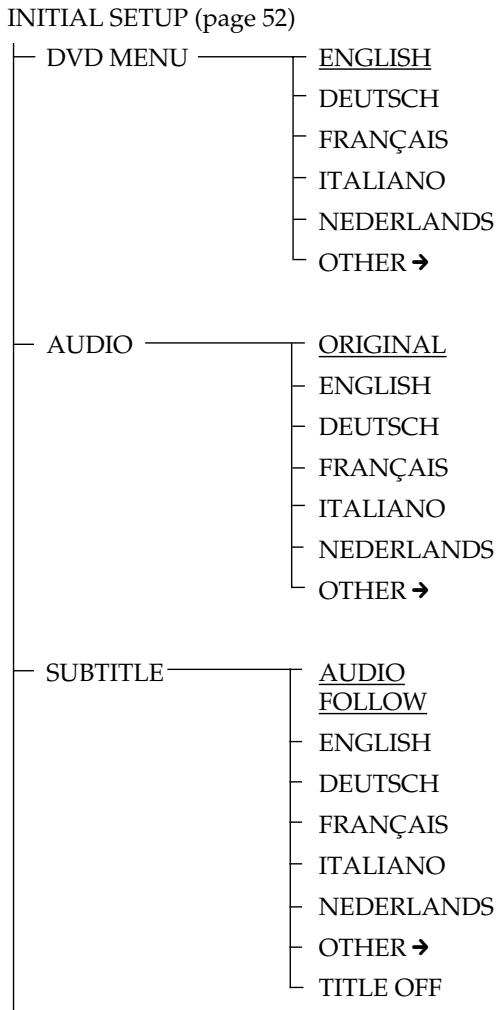
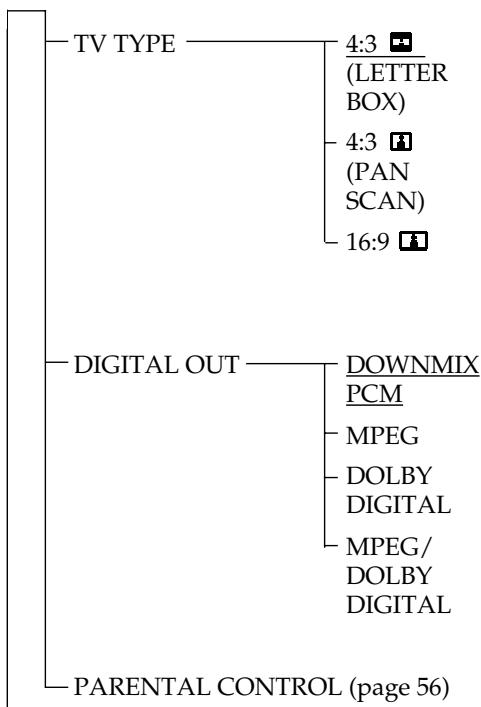
INITIAL SETUP items list 79
Index 80
This player can play the following discs
DVD VIDEOs

VIDEO
VIDEO CDs

DIGITAL VIDEO
AUDIO CDs (CD-DA)

DIGITAL AUDIO
About playing a CD-R
You can play a CD-R recorded with a VIDEO CD or an AUDIO CD. However, depending on the CD-R, playback may not be possible.
You cannot play the following discs:
DVD-ROMs - CD-ROMs - PHOTO CDs - CD EXTRAs (data sections)
You can play a disc recorded in the PAL or NTSC colour system. See page 13.
Notes on DVD VIDEO discs
Region code of DVD VIDEOs you can play
Region code indications such as are labelled on some DVD VIDEOs to indicate which type of player can play the discs.
Unless "2" is included in the indications or \(\boxed{\mathbb{C}}\) is labelled on the DVD VIDEOs, you cannot play the discs on this player. If you try to play these DVD VIDEOs, the message "PLAYING THIS DISC PROHIBITED BY AREA LIMITS" will appear on the TV screen.
Depending on the DVD VIDEO, no region code indications may be provided, even though playing the DVD VIDEO is prohibited by the area limits.
Note on playback operations of DVD VIDEOs and VIDEO CDs
Some playback operations of DVD VIDEOs and VIDEO CDs may be intentionally fixed by software producers. Since this player plays DVD VIDEOs and VIDEO CDs according to the disc contents the software producers designed, some playback features may not be available. Also refer to the instructions supplied with the DVD VIDEOs or VIDEO CDs.
Logo marks of DVD VIDEOs
Logo marks on DVD VIDEO discs or cases are shown as below. These marks show available contents or functions.
Some DVD VIDEOs do not have these marks even though you may be able to use these functions.
For more details of the marks, refer to the instruction of the DVD VIDEO disc.
| Logo | Meaning |
| 3 | The number of audio tracks |
| 2 | The number of sub-titles |
| 3 | The number of angles |
| 16:9 LB | The picture aspect ratio |
| 2 | Region code |
This product incorporates copyright protection technology that is protected by method claims of certain U.S. patents and other intellectual property rights owned by Macrovision Corporation and other rights owners. Use of this copyright protection technology must be authorized by Macrovision Corporation, and is intended for home and other limited viewing uses only unless otherwise authorized by Macrovision Corporation. Reverse engineering of disassembly is prohibited.
Notes on VIDEO CDs with PBC (Playback Control) functions
This player conforms to Ver. 1.1 and Ver. 2.0 of Video CD standards. You can enjoy two kinds of playback according to the disc type.
| Disc type | You can |
| VIDEO CDs without PBC functions (Ver. 1.1 discs) | Enjoy video playback (moving pictures) as well as music. |
| VIDEO CDs with PBC functions (Ver. 2.0 discs) | Play interactive software using menu screens displayed on the TV screen (PBC Playback), in addition to the video playback functions of Ver 1.1 discs. Moreover, you can play high-resolution still pictures, if they are included on the disc. |
Terms for discs
Title
The longest sections of a picture or a music piece on a DVD Video; a movie, etc. for a picture piece on a video software or an album, etc. for a music piece on an audio software. Each title is assigned a title number enabling you to locate the title you want.
Chapter
Sections of a picture or a music piece that are smaller than titles. A title is composed of several chapters. Each chapter is assigned a chapter number enabling you to locate the chapter you want. Depending on the disc, no chapters may be recorded.
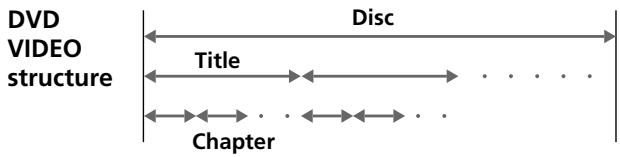
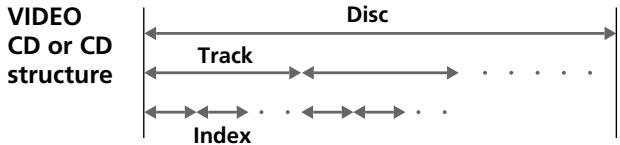
Track
Sections of a picture or a music piece on a VIDEO CD or a CD. Each track is assigned a track number enabling you to locate the track you want.
- Index
A number that divides a track into sections to easily locate the point you want on a VIDEO CD or a CD. Depending on the disc, no index may be recorded.
- Scene
On a VIDEO CD with PBC functions, the menu screens, moving pictures, and still pictures are divided into sections called "scenes." Each scene is assigned a scene number enabling you to locate the scene you want.
About this manual
- Complete the setup using "Getting Started" (pages 9 to 13).
- For basic operations, see "Playing a DVD VIDEO" (pages 14 to 21) and "Playing a CD/VIDEO CD" (pages 22 to 29).
- For additional features, see pages 30 to 51.
- The icons shown below are used in this manual:
| Icon | Meaning |
| Indicates that you can use only the remote to do the task. |
| DVD | Indicates the functions for DVD VIDEOs. |
| VIDEO CD | Indicates the functions for VIDEO CDs. |
| CD | Indicates the functions for AUDIO CDs. |
Unpacking
Check to make sure you have received the following items.
- Audio/video cable (stereo mini plug × 1 ↔ phono plug × 3) (1)
- AC-PBD1 AC power adapter (1)
- RM-PBD1 remote commander (remote) (1)
- VMC-91 Scart adapter (1)
CAUTION
Before using this player, be sure to remove the packing materials (① and ②) from inside the front cover.
① Black, square shaped cushion near the lens. ② Black ring near the OPEN button.
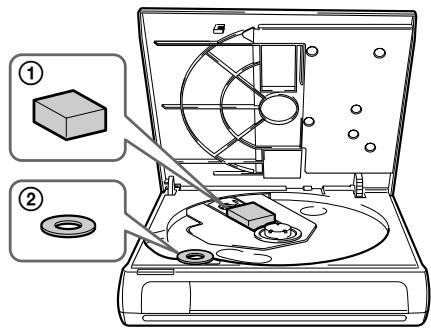
If you turn on the player without removing these materials, it may cause a malfunction.
When to replace batteries
With normal use, the batteries should last for about six months. When the remote no longer operates the player, replace all the batteries with new ones.
Inserting batteries into the remote
You can control the player using the supplied remote. Insert two R6 (size AA) batteries (not supplied) by matching the + and - ends on the batteries to those inside the battery compartment.
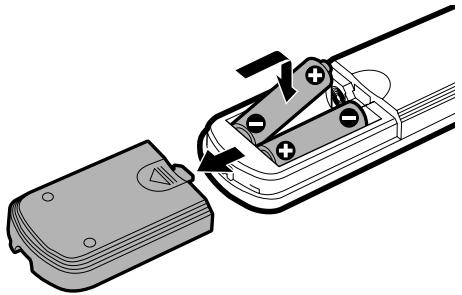
Notes
- If you do not use batteries correctly, it may cause damage from leakage and corrosion. Please follow the directions below:
- Make sure the polarity is correct.
- Do not use a new battery with an old one or mix different types of batteries.
- Do not charge a dry cell battery.
- If you will not use the remote for an extended period of time, remove the batteries.
- If you have battery leakage, replace with new batteries after cleaning the battery case.
- Do not expose the remote sensor to direct sunlight or other lighting apparatuses. Doing so may cause a malfunction.
Hooking up the system
This section describes how to hook up the player to a TV (with audio/video input connectors) and/or an amplifier. You cannot connect this player to a TV without a video input connector. Be sure to turn off the power of each component before making the connections.
1 Hookups
When connecting the cord, be sure to match the colour-coded cord to the appropriate connectors on the components: Yellow (video) to Yellow, Red (right) to Red, and White (left) to White. Be sure to make connections firmly to avoid hum and noise.
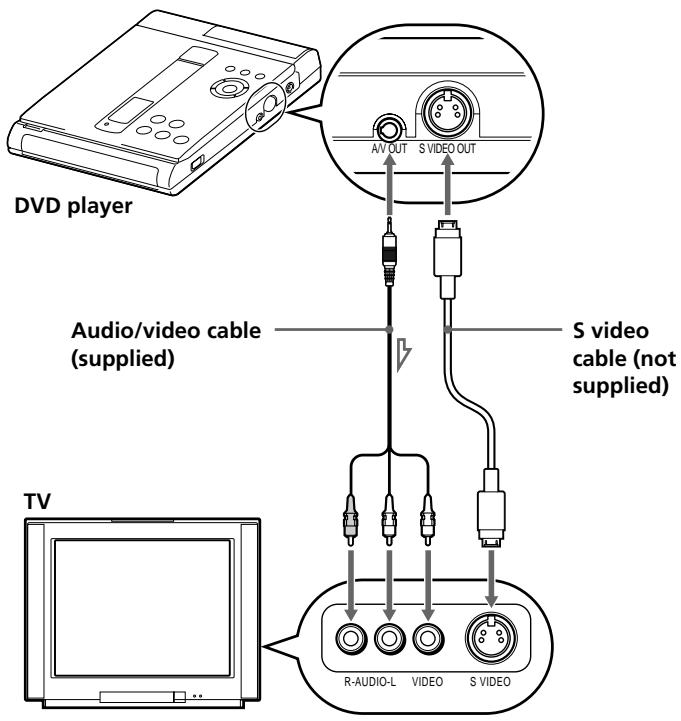
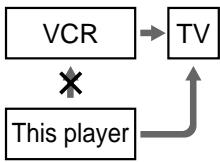
Note
Do not connect this player to a VCR. If you view the pictures on your TV after making connections shown below, picture noise may appear.
If your TV has a EURO AV (SCART) connector
Use the supplied Scart adapter.

Connect the component via the SVIDEO OUT connector using the S video cable (not supplied) instead of the video connecting cord. You will get a better picture.
2 Connecting the AC power adapter
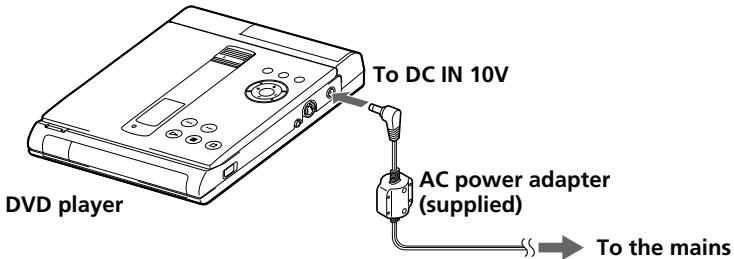
You can attach the optional battery pack.
See "Using the rechargeable battery pack" (page 45).
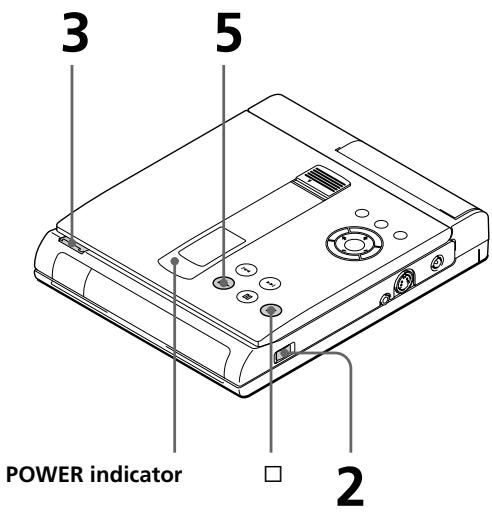
1 Connect the supplied AC power adapter to this player and the mains. 2 Press POWER.
The POWER indicator lights up green.
Necessary setup before using the player
Note
This player conforms to the PAL colour system. When you play a disc recorded in the NTSC colour system, the player outputs the video signal in the PAL colour system.
Some initial setups are necessary for the player depending on the TV or other components to be connected.
For details on using the menu, see page 52.
For details on each menu item, see pages 53 to 55.
To connect the player to a normal TV
Set "TV TYPE" in "INITIAL SETUP" to "4:3 [PANSCAN)" or "4:3 [LETTERBOX)."
To connect the player to a wide-screen TV
Set "TV TYPE" in "INITIAL SETUP" to "16:9".
To connect the player to a digital
component with a built-in Dolby Digital decoder
Set "DIGITAL OUT" in "INITIAL SETUP" to "DOLBY DIGITAL."
To listen to the sound through speakers connected to an amplifier with a digital
connector, or to output the sound to a digital component such as a DAT or MD deck
Set "DIGITAL OUT" in "INITIAL SETUP" to "D-PCM."
"INITIAL SETUP" also includes other items such as "DVD MENU," "PARENTAL CONTROL," etc. For details, see page 52.
For basic operations such as using the player, see "Playing a DVD VIDEO" (page 14) and "Playing a CD/VIDEO CD" (page 22). For additional features, see from page 30.
Playing a DVD VIDEO
When using the battery pack
Normally you cannot use the remote to turn on the player. However, within 5 minutes after having used the battery pack, you can use the remote to turn on the player.
1 Make the appropriate settings on your TV. Turn on the TV and select the video input so that you can view the pictures from this player.
When using an amplifier
Turn on the amplifier and select the appropriate position so that you can listen to the sound from this player.
2 Press POWER to turn on the player.
The POWER indicator lights up green and the front panel display lights up.
When using the battery pack, the front panel display doesn't light up.
3 Press OPEN to open the disc cover.
Notes
- If the disc is not inserted correctly, it may cause a malfunction. The power is automatically turned off whenever,
- a disc is not being played.
- you do not operate the player or the remote for more than 30 minutes when using the AC power adapter (10 minutes when using the optional battery pack).
Refer to the instructions supplied with your disc.
4 Insert a DVD VIDEO disc.
When inserting a disc, please take note of the following.
- Insert the disc in a horizontal position.
- Push down gently with two fingers.
- Make sure the disc clicks into the position.
With the playback side facing down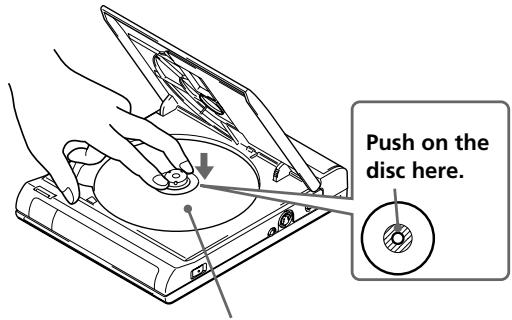
5 Close the disc cover, then press ▶
The player starts playback (Continuous Play). Adjust the volume on the TV or the amplifier.
After doing Step 5
A DVD menu or title menu may appear on the TV screen (see page 18 or 19).
To stop playback
Press □
Various modes of playback
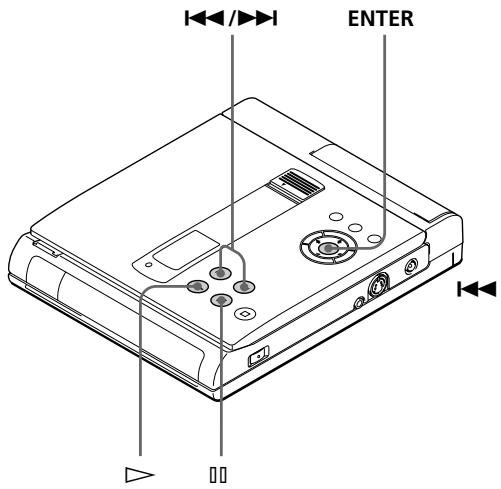
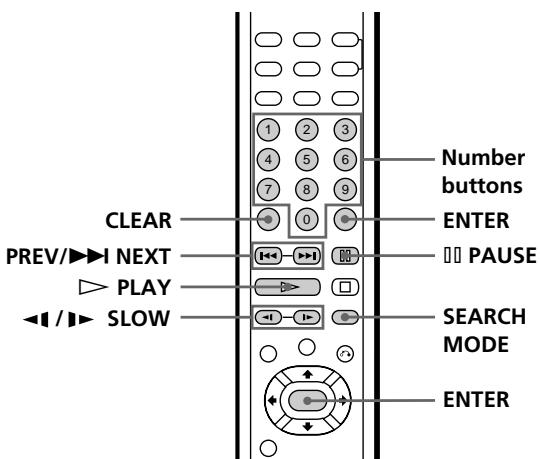
What are title and chapter?
See page 7.
Each time you press SEARCH MODE
"TITLE SEARCH," "CHAPTER SEARCH," and "TIME SEARCH" appear on the TV screen.
Note
Depending on the DVD VIDEO, you may not be able to do some of the operations described on the right.
| To | Press |
| Pause | II |
| Resume playback after pause | II or ▷ |
| Play in slow motion | ▲ SLOW or ▲ SLOW. To return to Continuous Play mode, press ▷. |
| Go/back to the next/preceding chapter in Continuous Play mode | ▲ / ▲ |
| Select the chapter | 1 SEARCH MODE repeatedly until “CHAPTER SEARCH” appears on the TV screen.
2 The number buttons to select the chapter number, then ENTER. |
| Select the title | 1 SEARCH MODE repeatedly until “TITLE SEARCH” appears on the TV screen.
2 The number buttons to select the title number, then ENTER. |
| Locate a point using the time code | 1 SEARCH MODE repeatedly until “TIME SEARCH” appears on the TV screen.
2 The number buttons to enter a time code, then ENTER. |
| Quickly locate a point while monitoring the picture (Search) | I▶/▶ and hold down until you find the point. (There is no sound during Search mode.) |
If you enter the wrong number
Press CLEAR, then the correct number button.
On a DVD VIDEO, long sections of movies or music pieces are divided into smaller segments. Each of these segments is called "title." When you play a DVD VIDEO which contains several titles, you can select the title you want using the title menu.
Notes
Depending on the DVD VIDEO, you may not be able to select the title. Depending on the DVD VIDEO, the instructions supplied with the disc may refer to "title menu" as simply "menu" or "title." Likewise, "Press ENTER." in Step 3 may be expressed as "Press SELECT."
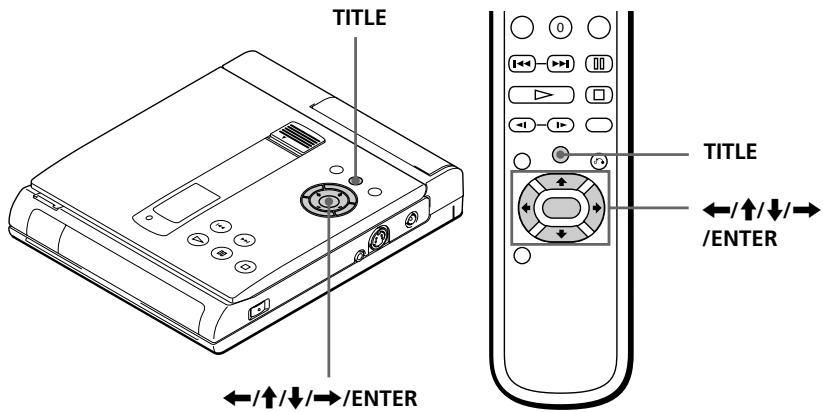
1 Press TITLE.
The title menu appears on the TV screen. The contents of the menu vary from disc to disc.
2 Press the arrow buttons (left, up, down, right) to select the title you want to play.
Depending on the DVD VIDEO, you may be able to use the number buttons to select the title.
3 Press ENTER.
The player starts playing the selected title.
Some DVD VIDEOs allow you to select the disc contents using the menu. When you play these DVD VIDEOs, you can select the item, the language for the sub-titles, the language for the sound, etc., using the DVD menu.
Change the setting using "INITIAL SETUP" (see page 52).
Notes
Depending on the DVD VIDEO, the instructions supplied with the disc may refer to "DVD menu" as simply "menu." Likewise, "Press ENTER." in Step 3 may be expressed as "Press SELECT." Depending on the DVD VIDEO, the DVD menu may not appear on the TV screen.
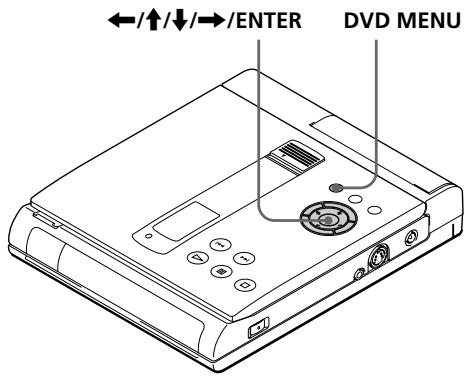
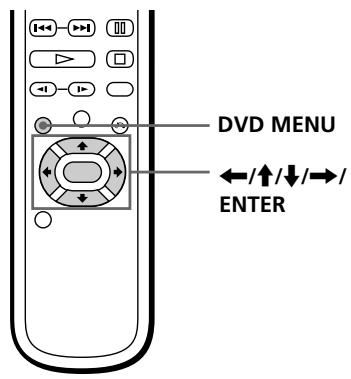
1 Press DVD MENU. The DVD menu appears on the TV screen. The contents of the menu vary from disc to disc. 2 Press the arrow buttons (left, up, down, right) to select the item you want to change. Depending on the DVD VIDEO, you may be able to use the number buttons to select the item. 3 Press ENTER.
What is angle?
See page 43.
What is the language for the sound and subtitles?
See pages 53 and 54.
Note
Depending on the DVD VIDEO, some information may not appear on the TV screen.
Using the on-screen display
You can check the operating status of the player and information about the disc using the on-screen display on the TV screen.
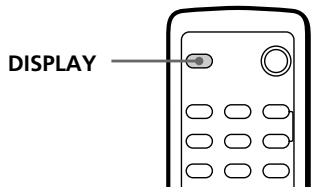
Press DISPLAY.
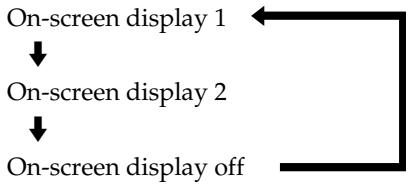
Each time you press the button, the on-screen display changes as follows:
Display information of the on-screen display 1 (2) mode
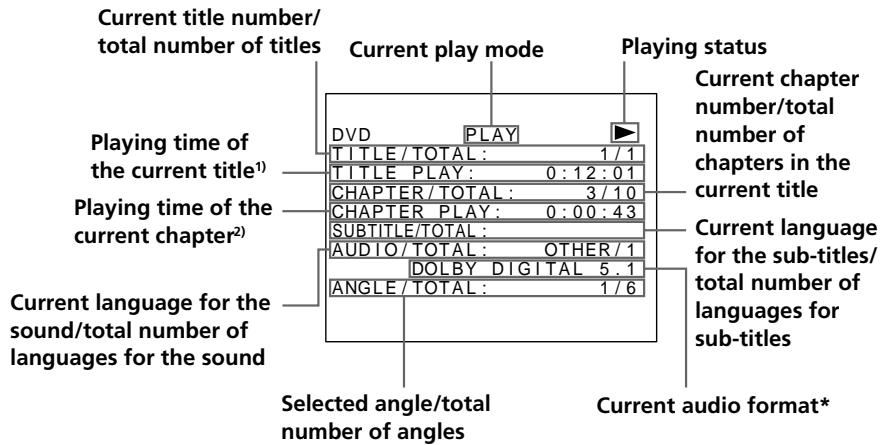
- "PCM," "MPEG," or "DOLBY DIGITAL" is displayed. In "DOLBY DIGITAL" case, the channel in the playing track is displayed.
1) The contents of the display change according to the on-screen display setting:
- When "On-screen display 1" is selected, the playing time of the current title is displayed.
- When "On-screen display 2" is selected, the remaining time of the current title is displayed.
2) The contents of the display change according to the on-screen display setting:
- When "On-screen display 1" is selected, the playing time of the current chapter is displayed.
- When "On-screen display" is selected, the remaining time of the current chapter is displayed.
Display information of the on-screen display off mode
No information concerning on-screen display is displayed. (Other messages, etc., will be displayed.)
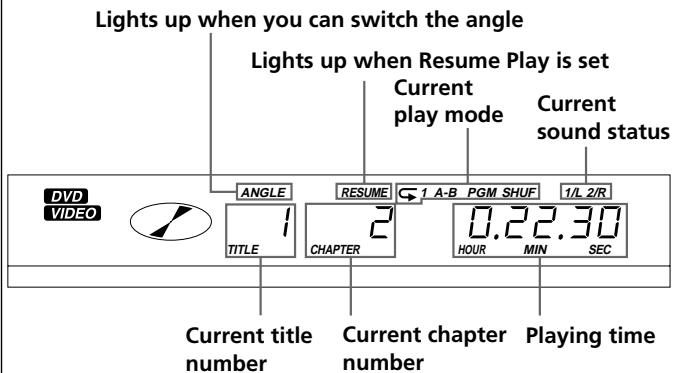
Using the front panel display
Display information while playing a disc
Playing a CD/VIDEO CD
When using the battery pack
Normally you cannot use the remote to turn on the player. However, within 5 minutes after having used the battery pack, you can use the remote to turn on the player.
1 Make the appropriate settings on your TV.
Turn on the TV and select the video input so that you can view the pictures from this player.
When using an amplifier
Turn on the amplifier and select the appropriate position so that you can listen to the sound from this player.
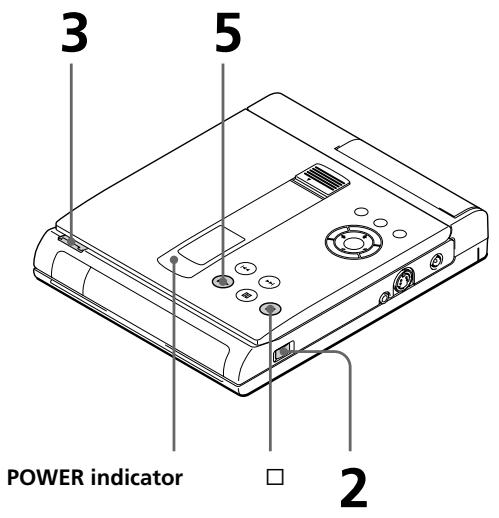
2 Press POWER to turn on the player.
The POWER indicator lights up green and the front panel display lights up.
When using the battery pack, the front panel display doesn't light up.
3 Press OPEN to open the disc cover.
After doing Step 5
The menu screen may appear on the TV screen depending on the VIDEO CD. You can play the disc interactively following the instructions on the menu screen. (PBC Playback, see page 26.)
Notes
- If the disc is not inserted correctly, it may cause a malfunction. The power is automatically turned off whenever,
- a disc is not being played.
- you do not operate the player or the remote for more than 30 minutes when using the AC power adapter (10 minutes when using the optional battery pack).
Refer to the instructions supplied with your disc.
When starting playback
Adjust the sound volume to MIN (lowest level), then turn up the volume little by little.
4 Insert the disc.
When inserting a disc, please take note of the following.
- Insert the disc in a horizontal position.
- Push down gently with two fingers.
- Make sure the disc clicks into position.
With the label side facing up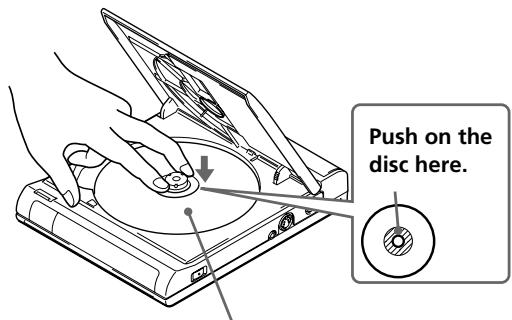
5 Close the disc cover, then press ▸
The player starts playback (Continuous Play). Adjust the volume on the TV or the amplifier.
To stop playback
Press □
Listening through the headphones
You can enjoy the audio sound through headphones (not supplied) after connecting to the PHONES jack. Adjust the sound volume with the VOL dial.
PHONES jack VOL dial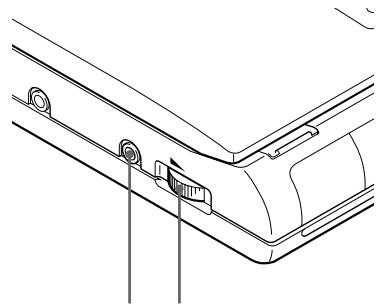
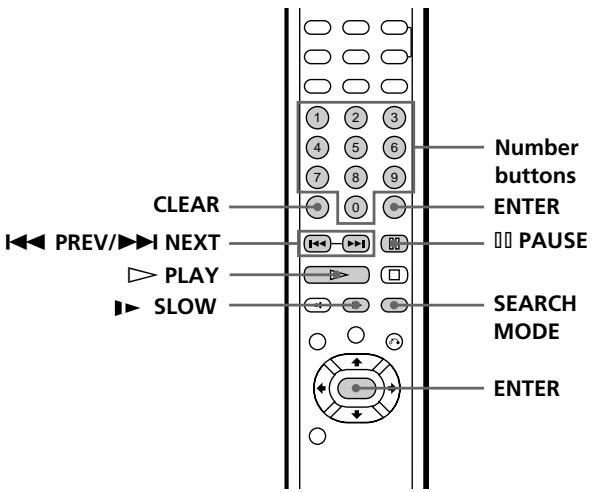
Various modes of playback

What are track, index, and scene?
See page 7.
Each time you press SEARCH MODE
"TRACK SEARCH," "SCENE SEARCH," and "VIDEO INDEX SEARCH" appear on the TV screen.
Notes
Depending on the VIDEO CD, you may not be able to perform some of the operations described on the right. Depending on the VIDEO CD, the scene you selected may not start.
| To | Press |
| Pause | III |
| Resume playback after pause | II or ▷ |
| Play in slow motion1)
(VIDEO CD only) | ■ SLOW (forward way only). To return to Continuous Play mode, press ▷. |
| Go/back to the next/preceding chapter in Continuous Play mode | ■/■ |
| Select the track | The number buttons to select the track number, then ENTER. |
| Select the scene before you start playing a VIDEO CD with PBC functions and during PBC playback (Scene Search) | 1 SEARCH MODE repeatedly until “SCENE SEARCH” appears on the TV screen.
2 The number buttons to select the scene number, then ENTER. |
| Quickly locate a point while monitoring the picture (Search) | I▶/▶ and hold down until you find the point. (There is no sound during Search mode.) |
1) You may not be able to play in slow motion with the PBC function.
If you enter the wrong number
Press CLEAR, then the correct number button.
Playing VIDEO CDs with PBC functions (PBC Playback — VIDEO CD only)
When playing VIDEO CDs with PBC functions (Ver. 2.0 discs), you can enjoy simple interactive operations, operations with search functions, etc.
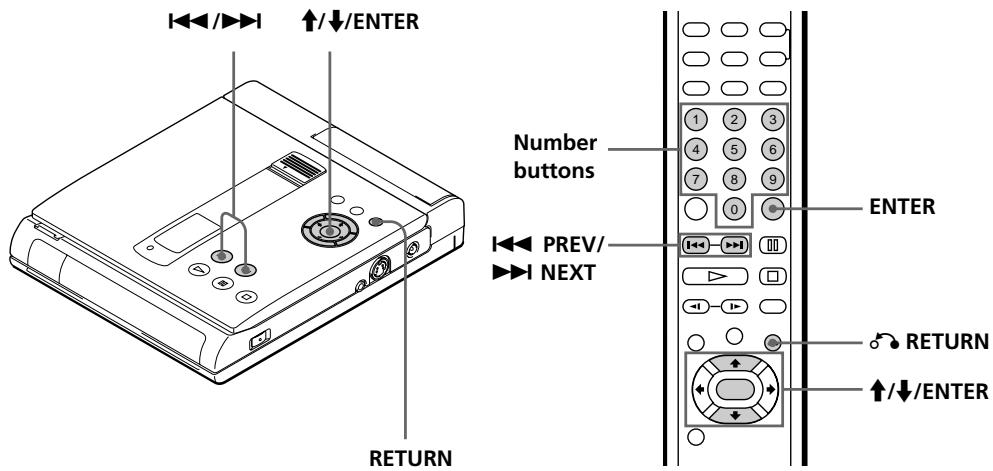
PBC Playback allows you to play VIDEO CDs interactively, following the menu displayed on the TV screen.
On this player, use the number buttons, ENTER, RETURN, and the up/down buttons to enjoy PBC Playback.
When playing VIDEO CDs with PBC functions
PBC Playback starts automatically.
Note
Depending on the VIDEO CD, "Press ENTER" in Step 3 may be expressed as "Press SELECT" in the instructions supplied with the disc.
1 Start playing a VIDEO CD with PBC functions, following Steps 1 to 5 in "Playing a CD/VIDEO CD" on page 22. 2 Select the item number you want on the menu screen.
Press the up/down buttons to select the item number or the number buttons of the item you want.
3 Press ENTER. 4 Follow the instructions on the menu screen for interactive operations.
To cancel PBC Playback of a VIDEO CD with PBC functions (and play the disc in Continuous Play mode)
There are two ways.
- Before you start playing, select the track you want using 14 or 20 , then press ENTER or 23 .
- Before you start playing, select the track number using the number buttons on the remote, then press ENTER or
"PLAY WITHOUT PBC" appears on the TV screen and the player starts Continuous Play. You cannot display still pictures such as a menu screen.
Follow the operation below to enjoy PBC Playback.
Refer to the instructions supplied with the disc, as the operating procedure may differ according to the VIDEO CD.
| To | Press |
| Select the item | ↑/↓ to select the item number, then press ENTER. |
| The number button of the item you want, then press ENTER. |
| Go back to the menu screen | © RETURN, ↓, or ▷. |
Using the on-screen display
You can check the operating status of the player and the information about the disc using the on-screen display on the TV screen.
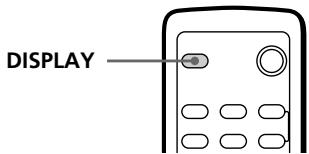
Press DISPLAY.
Each time you press the button, the on-screen display changes as follows:
On-screen display on On-screen display off
- During Continuous Play mode
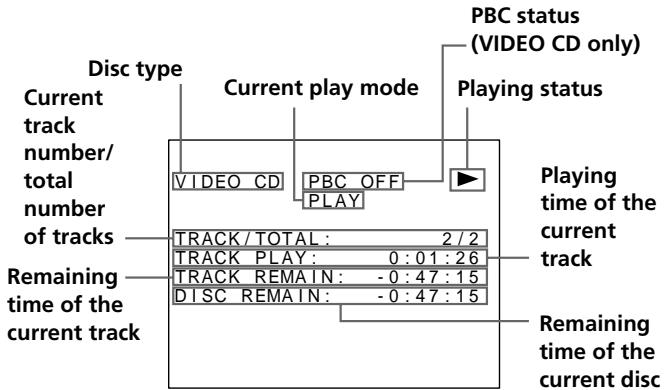
During Shuffle Play or Programme Play, the remaining time of the disc is not displayed.
- During PBC Playback (VIDEO CD only)
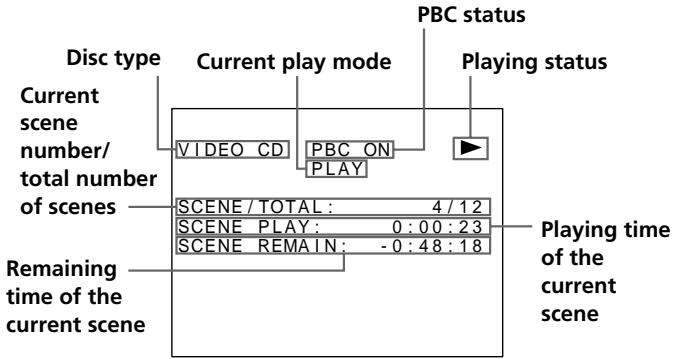
Display information of the on-screen display off mode
No information concerning on-screen display is displayed. (Other messages, etc., will be displayed.)
Using the front panel display
Display information while playing a disc
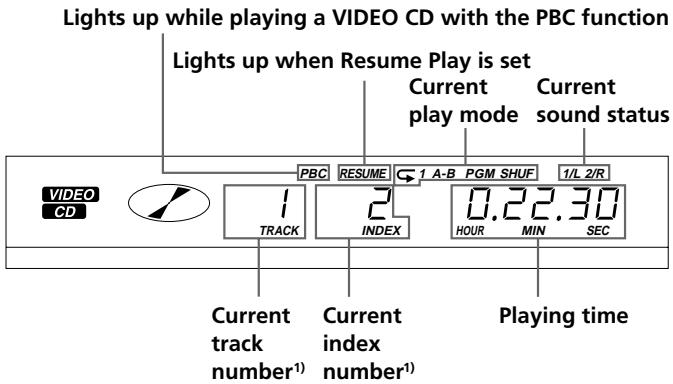
1) When you play a VIDEO CD with the PBC function, the current scene number is displayed instead of the current track and index numbers.
Playing repeatedly
(Repeat Play)

Notes
- The player reverts to Continuous Play the next time playback starts whenever you; - open the disc cover. - turn the power off. - stop playback in resume off.
- You cannot repeat all the tracks in Continuous Play mode on a VIDEO CD with the PBC function.
You can play all the tracks on a disc, a single title/ chapter/track, or a specific portion repeatedly. To set Repeat Play, use the REPEAT or A-B button.
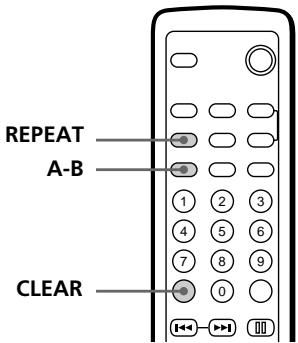
Repeating all the tracks on a disc


In Shuffle or Programme Play mode, the player repeats the tracks in the shuffled or programmed order.
Press REPEAT repeatedly until "DISC REPEAT" appears on the TV screen.
"G" appears in the front panel display. The player repeats the tracks as follows:
DISC REPEAT
| When the disc is played in | The player repeats |
| Continuous Play (page 22) | All the tracks in the recorded order |
| Shuffle Play (page 35) | All the tracks in random order every time repeat |
| Programme Play (page 36) | Programmed tracks |
To cancel Repeat Play
Press REPEAT.
Note
The player reverts to Continuous Play the next time playback starts whenever you:
- open the disc cover.
- turn the power off, or stop playback in resume off.
Repeating the current title or chapter
DVD
In Continuous Play mode (page 14), you can repeat only the current title or chapter. (You may not be able to do Repeat Play depending on the disc.)
To repeat the current title
While the title you want is being played, press REPEAT repeatedly until "TITLE REPEAT" appears on the TV screen.
"G 1" appears in the front panel display. The player repeats the current title.
To repeat the current chapter
While the chapter you want is being played, press REPEAT repeatedly until "CHAPTER REPEAT" appears on the TV screen.
"1" appears in the front panel display. The player repeats the current chapter.
To cancel repeating the current title or chapter
Press REPEAT repeatedly until "PLAY" appears on the TV screen.
Notes
- The player reverts to Continuous Play the next time playback starts whenever you:
- open the disc cover.
- turn the power off.
- stop playback in resume off.
- You cannot repeat only the current track in Continuous Play mode on a VIDEO CD with the PBC function.
Repeating the current track


In Continuous Play mode (page 22), you can repeat only the current track.
While the track you want is being played, press REPEAT repeatedly until "TRACK REPEAT" appears on the TV screen.
"G 1" appears in the front panel display. The player repeats the current track.
TRACK REPEAT
To cancel repeating the current track
Press REPEAT repeatedly until "PLAY" appears on the TV screen.
Notes
- The player reverts to Continuous Play the next time playback starts whenever you: - open the disc cover. - turn the power off. - stop playback in resume off.
- When you set the A ↔ B Repeat, the settings for the other Repeat Play, Shuffle Play, and Programme Play are cancelled. Some scenes in the DVD VIDEO and VIDEO CD do not allow you to do A ↔ B Repeat playback.
Repeating a specific portion
(A←→B Repeat) DVD VIDEO CD
You can play a specific portion of a title/chapter/track repeatedly. This is useful, for example when you want to memorize lyrics.
During PBC Playback of VIDEO CDs (page 26), this function is available only while playing moving pictures. (You can repeat only a specific portion of moving pictures.)
You may not be able to do A-B Repeat depending on the DVD VIDEO.
1 When you find the starting point, press A-B.
The TV screen: "REPEAT A-" appears, then "B" flashes.
The front panel display: "A-" appears, then "B" flashes.
REPEAT

2 When you reach the ending point (point B), press A-B again.
Repeat Play starts this specific portion.
The TV screen: "REPEAT A-B" appears.
The front panel display: "A-B" appears.
To cancel A-B Repeat
Press A-B repeatedly until "PLAY" appears on the TV screen.
To cancel the setting midway
Press CLEAR.
Playing in random order
(Shuffle Play)



During Shuffle Play, press REPEAT to display "SHUFFLE REPEAT."
Notes
- The player reverts to Continuous Play the next time playback starts whenever you;
- open the disc cover.
- turn the power off.
- stop playback in resume off.
- You may not be able to do Shuffle Play during PBC Playback.
You can have the player "shuffle" tracks and play them in a random order. To set Shuffle Play, use the SHUFFLE button.
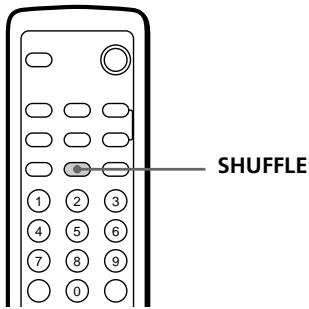
Press SHUFFLE.
"SHUF" appears in the front panel display. You can play the current disc in a random order.
SHUFFLE
To cancel Shuffle Play
Press SHUFFLE repeatedly until "PLAY" appears on the TV screen.
Creating your own programme
(Programme Play)



You can arrange the order of the tracks on the disc and create your own programme. The programme can contain up to 20 tracks.
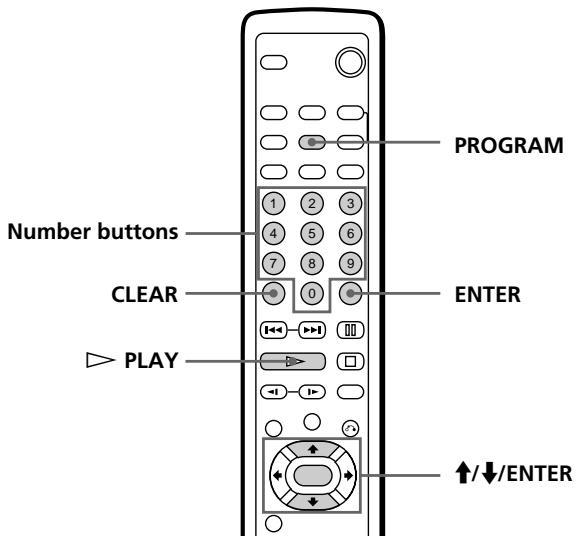
1 Press PROGRAM.
"PGM SETUP" appears on the TV screen.
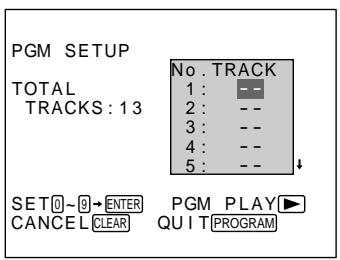
(continued)
The program remains even after the Programme Play ends
When you press ▶ PLAY, you can play the same programme again.
After programming, press REPEAT to change to "PROGRAM REPEAT" on the TV screen.
Notes
- The number of tracks displayed is that of the tracks recorded on a disc.
- The programme is cancelled and Continuous Play starts the next time playback starts when you; - open the disc cover. - turn the power off. - stop playback in resume off.
- You may not be able to do Programme Play during PBC Playback.
2 Select the track you want to programme using the number buttons, then press ENTER.
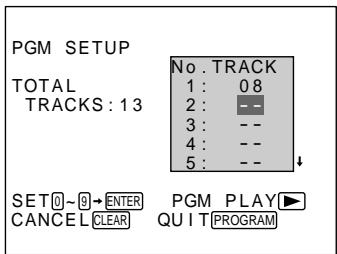
3 To programme other tracks, repeat Step 2.
The programmed tracks are displayed from 2 in order.
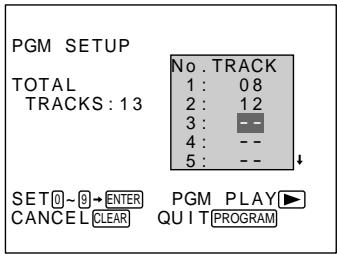
4 Press ▶ PLAY.
The programmed tracks start in order.
To cancel Programme Play
Press PROGRAM repeatedly until "PLAY" appears on the TV screen.
To cancel programming midway
Press PROGRAM.
To change programming
In Step 3, select the programme number of the track you want to change using the ↑/↓ buttons, then press CLEAR. Follow Step 2 for new programming.
To cancel the programmed order
To cancel a programmed track, select the track you want to clear using the ↑/↓ buttons in Step 3, then press CLEAR twice.
Resuming playback from the point where you stopped a disc
(Resume Play) DVD VIDEO CD
The player can store the point where you stop playback and the current play mode. During playback or stop playback, you can set Resume Play to ON/OFF using the RESUME button. When you play a VIDEO CD or CD, as long as you do not open the disc cover, the player stores the point where you stop playback even if you turn the power off.

1 During playback or stop playback, press RESUME to display "RESUME ON" on the TV screen.
"RESUME" appears in the front panel display.
2 While playing a disc, press to stop playback. "WHEN PLAYING NEXT TIME, DISC RESTARTS FROM POINT YOU STOPPED." appears on the TV screen.
If Resume Play is set to OFF
Resume Play is not available.
3 Press
The player starts playback from the point you stopped the disc in Step 2.
To play from the beginning of the disc
When "RESUME" appears in the front panel display during stop playback, press RESUME to turn off "RESUME," then press
Notes
- You may not do Resume Play depending on the DVD VIDEO.
- Depending on where you stopped the disc, the player may resume playback from a different point.
- The point where you stopped playback is cleared when you;
- open or close the disc cover.
- disconnect the AC power adapter and the battery pack.
- start playback after selecting a title, chapter, or track.
- change the setting of "INITIAL SETUP."
Changing the sounds

DVD
VIDEO CD
CD
With DVD VIDEOs on which multilingual sounds are recorded, you can select the language you want while playing the DVD VIDEO. With multiplex VIDEO CDs, you can select the sound from the right or left channel and listen to the sound of the selected channel through both the right and left speakers. In this case, the sound loses the stereo effect.
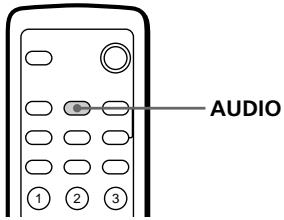
Press AUDIO while playing a disc.
Each time you press the button, the indication and the language/sound from the speakers change as follows:
When playing a DVD VIDEO

AUDIO
1: ENGLISH
When playing a VIDEO CD or CD
| Indicator in the front panel display | You will hear |
| 1/L | The sound of the left channel |
| 2/R | The sound of the right channel |
| 1/L 2/R | The standard stereo sound |
Notes
Depending on the DVD VIDEO, you may not be able to change the languages even if multilingual sounds are recorded on the DVD VIDEO. - Since the setting is not stored in memory, after turning the player off or opening the disc cover, the next time an audio CD or VIDEO CD is played, the sound reverts to stereo. - Likewise, after changing the title or opening the disc cover, the next time a DVD VIDEO is played, the sound may be changed.
Using the sub-titles


Notes
- When playing a DVD VIDEO on which no subtitles are recorded, no subtitles appear even if you press (SUB-TITLE) ON/OFF. Depending on the DVD VIDEO, you may not be able to turn the subtitles on even if they are recorded on the DVD VIDEO. Depending on the DVD VIDEO, you may not be able to turn the subtitles off.
With DVD VIDEOs on which subtitles are recorded, you can turn the subtitles on and off and change the language of the subtitles whenever you want while playing the DVD VIDEO.
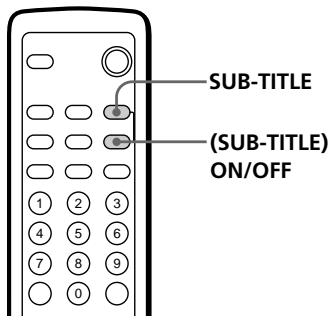
Turning the subtitles on and off
Press (SUB-TITLE) ON/OFF while playing a DVD VIDEO.
Subtitles appear on the TV screen.
To turn off the subtitles
Press (SUB-TITLE) ON/OFF again.
Notes
- The sorts and number of languages for subtitles vary from disc to disc. Depending on the DVD VIDEO, you may not be able to change the subtitles even if multilingual subtitles are recorded on the DVD VIDEO. Depending on the DVD VIDEO, you may not be able to change the subtitles following the language for the sound, even if "AUDIO FOLLOW" is displayed.
- Since the setting is not stored in memory, after changing the title or opening the disc cover, the next time a DVD VIDEO is played, the subtitle may be changed.
Changing the subtitles
Press SUB-TITLE while playing a DVD VIDEO.
Each time you press the button, the indication and the subtitle change as follows:
SUBTITLE 1 → SUBTITLE 2 → ... → AUDIO FOLLOW *
SUBTITLE 1: ENGLISH
- When you select "AUDIO FOLLOW," the language for the subtitles changes according to the language for the sound.
Changing the angles

DVD
You can set the angle before reaching the position where you can change the angle.
While playing a DVD VIDEO, press ANGLE when "ANGLE" is not displayed in the front panel display. When you reach the available position to change the angle, the angle is changed automatically.
Notes
- The number of angles varies from disc to disc or from scene to scene. The number of angles that can be changed for a given scene is the same as the number of angles recorded for that scene. Depending on the DVD VIDEO, you may not be able to change the angles even if multiangles are recorded on the DVD VIDEO. Depending on the DVD VIDEO, the angle may not be changed immediately even after pressing the ANGLE button.
With DVD VIDEOs on which various angles (multiangles) for a scene are recorded, you can change the angles whenever you want while playing the DVD VIDEO.

Press ANGLE while playing a DVD VIDEO and "ANGLE" appears in the front panel display.
Each time you press the button, the indication and the angle change as follows:
ANGLE 1 → ANGLE 2 → …
ANGLE 4
You can prevent accidental pressing of the buttons on this player (when carrying, for example). After setting the HOLD switch to ON, the buttons are locked. (You can still use the remote to operate.)
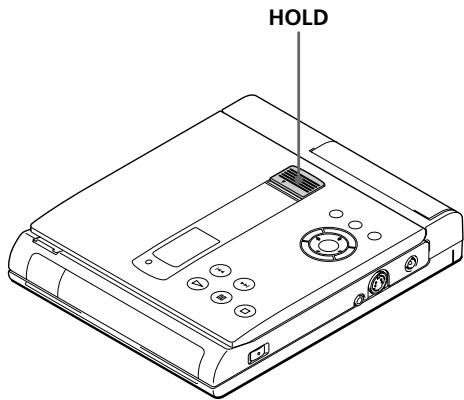
Set HOLD to the direction of the arrow.
The buttons are locked.
To cancel Hold function
Set HOLD back.
Using the rechargeable battery pack
Note
NP-F530 and NP-F550 are not compatible.
You can use headphones (not supplied) and a rechargeable battery pack (not supplied) to enjoy the player indoors or outdoors.
See below for compatible batteries.
Compatible battery pack
See below for a list of compatible battery packs, and the corresponding playing time and charging time.
Battery life unit (approx.): hour
| Battery pack | Playing time with |
| DVD VIDEO | VIDEO CD | Audio CD |
| NP-F730 | 2.0 | 3.0 | 2.8 |
| F750 | 2.3 | 3.4 | 3.2 |
| F930 | 3.3 | 4.8 | 4.5 |
| F950 | 3.6 | 5.2 | 4.9 |
Charging time
| Battery pack | Charging time (Fully charged) |
| NP-F730 | 6.5 |
| F750 | 7.0 |
| F930 | 10.0 |
| F950 | 11.0 |
Attaching the battery pack
1 Open the battery cover until the click sounds.
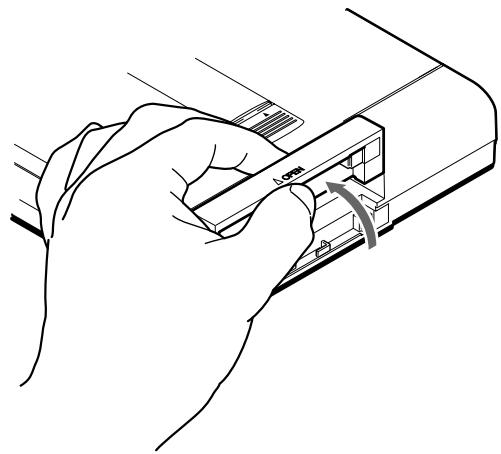
2 Attach the battery pack.
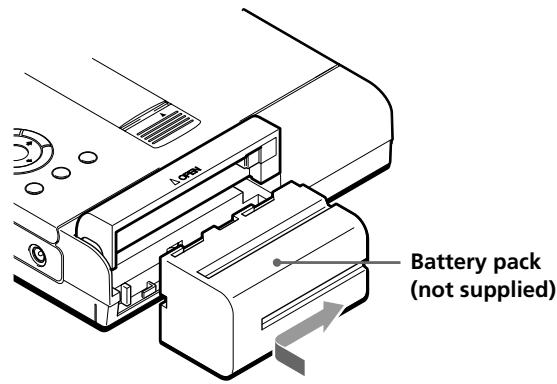
To prevent accidental pressing of the buttons
Turn the power off during the attachment.
Notes
- If you turn on the player while charging, charging is suspended until you turn off the player.
- If you press ▶ while charging, charging is suspended and playback starts. Charging will resume when you turn off the player.
- If you press OPEN while charging, charging is suspended. After a while, the charging restarts.
Recharging the battery pack
After attaching the battery pack, connect the AC power adapter, then recharge the battery pack. (When using a recharged battery pack, the AC power adapter is not necessary.)
1 Attach the battery pack to the player. 2 Connect the AC power adapter to the player and plug into the mains.
When charging starts, "CHG" appears in the front panel display.
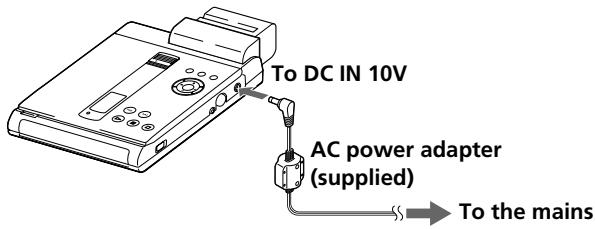
3 Disconnect the AC power adapter from the player and pull out from the mains after charging.
When charging is complete, "CHG" disappears from the front panel display.
When to recharge the battery pack
When the battery power becomes weak, "..." appears on the TV screen and in the front panel display while using the player. If you continue to use the player while "..." is displayed, eventually the player will stop working. Connect the AC power adapter to start recharging the battery pack.
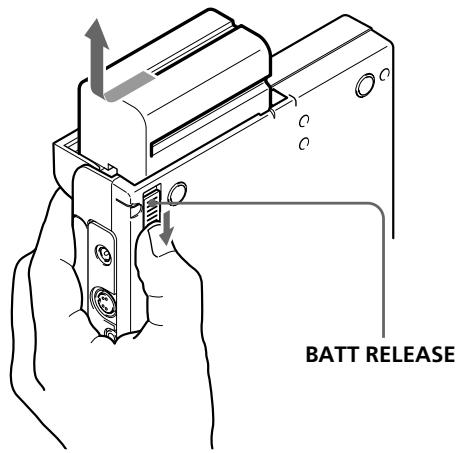
Detaching the battery pack
Slide BATT RELEASE to detach the battery pack.
Be careful not to drop the battery pack.
Using the audio amplifier
Connecting to the audio amplifier
Connect the TV and the amplifier using the audio/video cable (supplied).
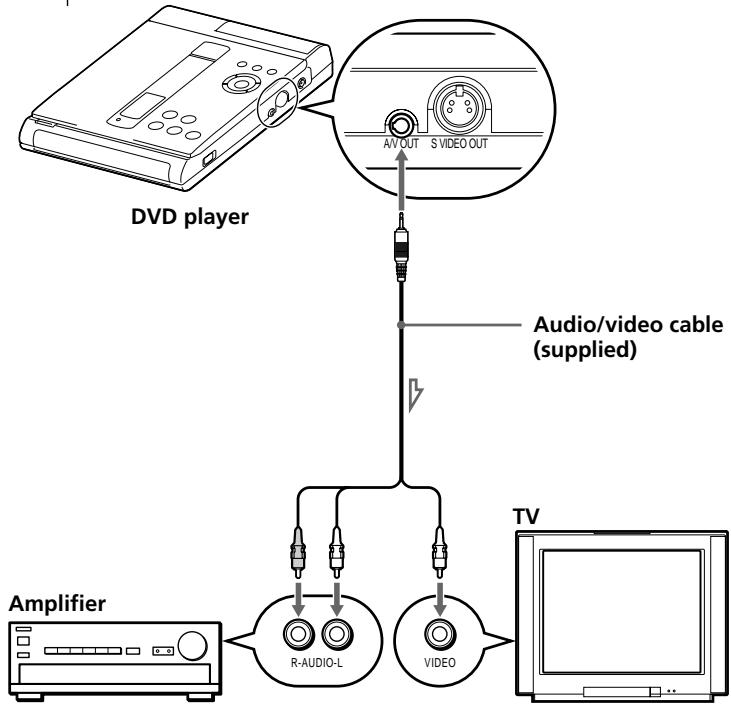
Use the same connections if your amplifier conforms to "Pro Logic."
Note
Refer to the instructions supplied with the component to be connected.
Connecting to a digital component with a built-in MPEG Audio decoder or Dolby Digital decoder
Connect the component via the PCM/MPEG/DOLBY DIGITAL connector using an optical digital cable (not supplied). When the component with a built-in MPEG Audio decoder or Dolby Digital decoder is connected, the player plays DVD VIDEOs with sound recorded in MPEG Audio and Dolby Digital (AC-3) format which produces the effect of being in a movie theatre or a concert hall.
When you play a DVD VIDEO, set "DIGITAL OUT" in "INITIAL SETUP" to "MPEG," "DOLBY DIGITAL," or "MPEG/DOLBY DIGITAL" (page 55).
Optical digital cable
Insert the plug firmly.
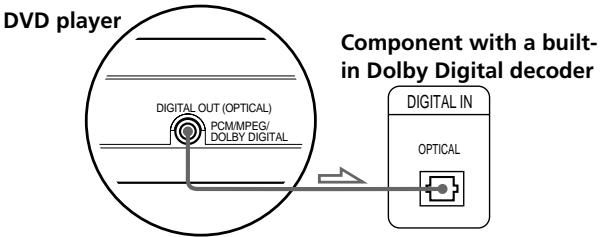
Notes
Refer to the instructions supplied with the component to be connected. - You cannot make digital audio recordings of discs recorded in Dolby Digital (AC-3) format directly using an MD deck or DAT deck.
Note on digital recording
This player can be connected to an optional MD unit. Before making a digital recording, be sure that "CD" appears in the front panel display after turning this player on or closing the disc cover. Otherwise, the track numbers may not be recorded correctly.
Connect the component via the PCM/MPEG/DOLBY DIGITAL connector using an optical digital cable (not supplied).
When you play a DVD VIDEO, set "DIGITAL OUT" in "INITIAL SETUP" to "D-PCM" (page 55).
Optical digital cable
Insert the plug firmly.
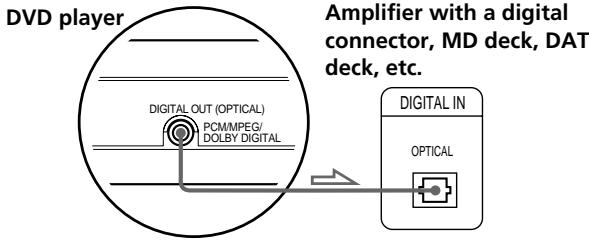
When you make the connections above, set "DIGITAL OUT" in "INITIAL SETUP" to "D-PCM" (Downmix PCM). Otherwise, a loud noise will suddenly come out from the speakers, affecting your ears or causing the speakers to be damaged.
Basic settings (INITIAL SETUP)
You can make all the necessary settings for setup and connections for this player using the INITIAL SETUP menu.
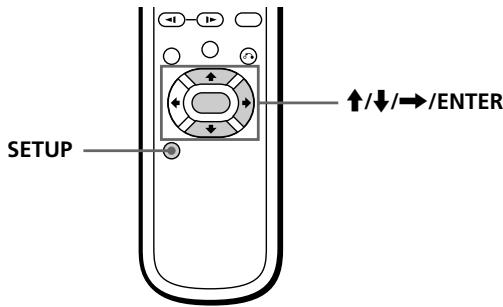
1 Press SETUP during stop playback.
The INITIAL SETUP menu appears on the TV screen.
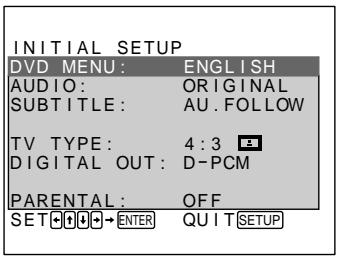
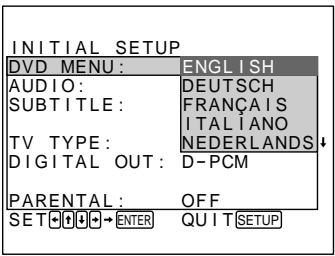
2 Select the item using the up/down arrow keys, then press the right arrow or ENTER.
Note
Some items on "INITIAL SETUP" require operations other than selecting the setting. For details on these items, see the relevant pages.
3 Select the setting using / , then press ENTER. 4 Press SETUP.
To cancel the Initial Setup midway
Press SETUP.
Note
When you select a
language that is not
recorded on the DVD
VIDEO, another recorded
language is automatically
selected.
Note
When you select a
language that is not
recorded on the DVD
VIDEO, another recorded
language is automatically
selected.
INITIAL SETUP items
Default settings are underlined.
Switches the language for the DVD menu recorded on the DVD VIDEO.
- ENGLISH
- DEUTSCH FRANÇAIS ITALIANO
- NEDERLANDS OTHER
When you select "OTHER →," select and enter the language code from the list using the number buttons (page 77).
AUDIO
Switches the language for the sound recorded on the DVD VIDEO.
The original language of the disc has playing priority.
ORIGINAL - ENGLISH - DEUTSCH FRANÇAIS ITALIANO - NEDERLANDS OTHER
When you select "OTHER →," select and enter the language code from the list using the number buttons (page 77).
Notes
- You cannot use the subtitles with some DVD VIDEOs on which subtitles are not recorded. Depending on the DVD VIDEO, you may not be able to change the subtitles even if subtitles are recorded on the DVD VIDEO.
- When you select a language that is not recorded on the DVD Video, another recorded language is automatically selected.
- When you select AU. FOLLOW, the same language used as "DVD AUDIO" appears as the subtitle.
Note
Depending on the DVD VIDEO, you may not be able to change the aspect ratio of the playback picture (see "Logo marks of DVD VIDEOs" on page 5).
SUBTITLE
Switches the language for the subtitle recorded on the DVD VIDEO.
AU.FOLLOW - ENGLISH - DEUTSCH FRANÇAIS ITALIANO - NEDERLANDS OTHER - TITLE OFF
When you select "OTHER →," select and enter the language code from the list using the number buttons (page 77).
TV TYPE
Selects the aspect ratio of the TV to be connected.
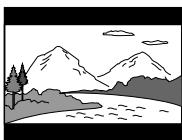
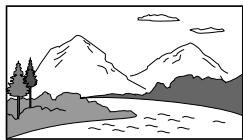
4:3 (LETTER BOX)
When you connect a normal TV to the player.
When you play a wide picture recorded on a DVD VIDEO, the picture is displayed with bands across the upper and lower portions of the screen.
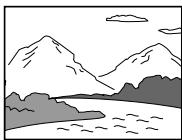
When you connect a normal TV to the player.
When you play a wide picture recorded on a DVD VIDEO, a portion of the picture is automatically cut off from the left and right sides of the image.
·16:9
When you connect a wide-screen TV to the player.
Note
Select the setting correctly using "DIGITAL OUT." Otherwise, either no sound will come from the speakers or else strange sound will come from the speakers, affecting your ears or causing the speakers to be damaged.
DIGITAL OUT
Switches the outputting methods of audio signals from the PCM/MPEG/DOLBY DIGITAL connector on the side panel of the player.
D-PCM (Downmix PCM)
When the player is connected to an audio component without a built-in MPEG Audio decoder or a built-in Dolby Digital (AC-3) decoder.
If you play MPEG or Dolby Digital (AC-3) sound tracks, the output audio signals are mixed down to 2 channels.
MPEG
When the player is connected to an audio component with a built-in MPEG Audio decoder.
If you play the Dolby Digital (AC-3) sound track, the output signal is stereo.
DOLBY DIGITAL
When the player is connected to an audio component with a built-in Dolby Digital (AC-3) decoder.
If you play the MPEG sound tracks, the output signal is stereo.
When the player is connected to an audio component with a built-in MPEG Audio/Dolby Digital (AC-3) decoder.
The player outputs the appropriate signals automatically, when you play a DVD VIDEO.
PARENTAL CONTROL
Set a password and playback limitation level when you play DVD VIDEOs with playback limitation for children. For details, see "Limiting playback by children (Parental Control)" on the next page.
Limiting playback by children
(Parental Control) DVD
Playing some DVD VIDEOs can be limited depending on the age of users. The Parental Control function allows you to set a playback limitation level.
Note
If you change a country as the standard for playback limitation level, select "COUNTRY" using the arrow keys, then press ENTER. When you select "OTHER," select and enter the country code from the list using the number buttons (page 58).
Setting the Parental Control
1 Press SETUP during stop playback.
The INITIAL SETUP menu appears on the TV screen.
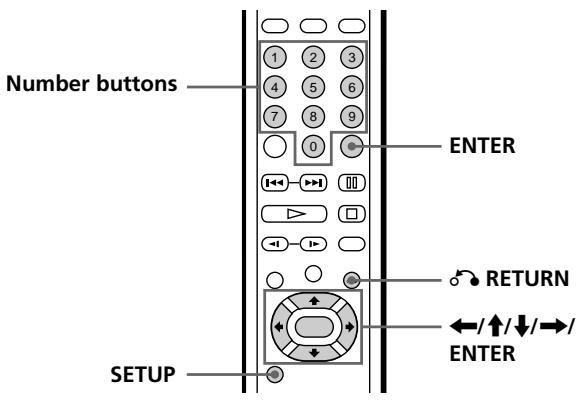
2 Select "PARENTAL" using the up/down arrows, then press the right arrow or ENTER.
The PARENTAL CONTROL menu appears.
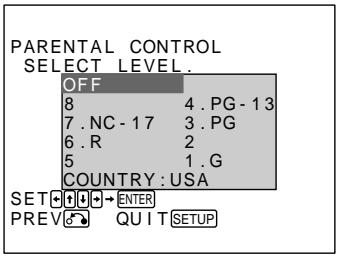
3 Select the level using the left/up/down/right arrows, then press ENTER.
As the number of the level gets smaller, the restriction gets more severe.
The display for entering a password appears.
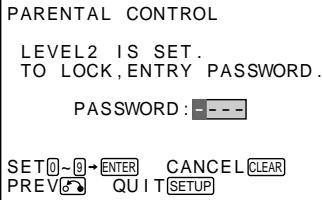
4 Enter a four-digit number using the number buttons, then press ENTER.
The display for confirming a password appears.
PARENTAL CONTROL
PASSWD IS SET. NEED TO ENTER PASSWORD TO CHANGE/RESET.
password:1234


5 Press ENTER.
The Parental Control level is locked, and the INITIAL SETUP menu appears.
Press RETURN.
To return to the normal screen
Press SETUP.
Country code list
| Code | Country | Code | Country |
| 2046 | Austria | 2363 | Malaysia |
| 2057 | Belgium | 2376 | Netherlands |
| 2079 | Canada | 2379 | Norway |
| 2092 | China | 2424 | Philippines |
| 2115 | Denmark | 2501 | Singapore |
| 2165 | Finland | 2149 | Spain |
| 2174 | France | 2499 | Sweden |
| 2109 | Germany | 2086 | Switzerland |
| 2219 | Hong Kong | 2543 | Taiwan |
| 2238 | Indonesia | 2528 | Thailand |
| 2254 | Italy | 2184 | United Kingdom |
| 2276 | Japan | | |
Notes
- When you play DVD VIDEOs without the Parental Control function, playback cannot be limited on this player. Depending on the DVD VIDEO, you may be asked to change the Parental Control level while playing the disc. In this case, enter the password, then change the level.
When you stop playing the DVD VIDEO, the level returns to the original level.
Changing/cancelling the Parental Control
1 Press SETUP during stop playback.
The INITIAL SETUP menu appears on the TV screen.
2 Select "PARENTAL" using up/down arrows, then press right arrow or ENTER.
The display for confirming the password appears.
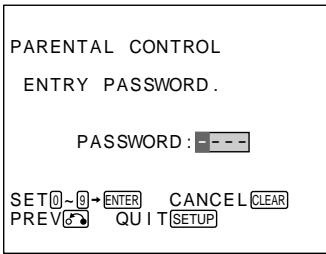
3 Enter the four-digit number you set using number buttons, then press ENTER.
The display for setting the level appears.
4 Select the level using left/up/down/right arrows, then press ENTER.
As the number of the level gets smaller, the restriction gets more severe.
When playing a disc without the Parental Control function, select "OFF" using the arrow keys, then press ENTER.
5 Confirm the password, then press ENTER.
If you want to change your password entered in Step 3, enter the new password using the number buttons, then press ENTER.
The display for confirming the password appears.
6 Press SETUP.
The Parental Control level is locked.
If you forget your password
Enter "84173" as the password in Step 3.
Precautions
On safety
- Caution - The optical instruments with this product will increase eye hazard.
- Should any solid object or liquid fall into the cabinet, unplug the player and have it checked by qualified personnel before operating it any further.
Road safety
Do not use headphones/earphones while driving, cycling, or operating any motorized vehicle. It may create a traffic hazard and is illegal in some areas. It can also be potentially dangerous to play your headsets at high volume while walking, especially at pedestrian crossings. You should exercise extreme caution or discontinue use in potentially hazardous situations.
On power sources
- Disconnect the DC IN 10V jack first, then disconnect from the mains, even if the player itself has been turned off.
- If you are not going to use the player for a long time, be sure to disconnect the player from the mains and/or detach the battery pack. To disconnect the AC power adapter, grasp the plug itself; never pull the cord.
On placement
Do not place the player in a location where it is:
- On a pedestal or unstable place
- On a rug or carpet
- On an unleveled surface
- Very humid or a wobble where there is no ventilation
- Subject to excessive dust
- Subject to direct sunlight or extremely hot
- Extremely cold
- Near a tuner, TV, or VCR. (Sound noise or picture noise may occur when another TV, tuner, VCR, or other electrical appliance is nearby. Indoor aerials may also adversely affect picture and sound quality. In this case, use an outdoor aerial instead.)
On operation
- If the player is brought directly from a cold to a warm location, or is placed in a very damp room, moisture may condense on the lenses inside the player. Should this occur, the player may not operate properly.
In this case, remove the disc and leave the player turned on for about 30 minutes until the moisture evaporates. If the player doesn't operate properly after hours, please consult your nearest Sony dealer.
- While operating, do not move, shake, or otherwise allow any shock to the player. It may cause a malfunction.
- Use this player in a stable, horizontal position where it is not subject to vibration.
On adjusting the volume
Do not turn up the volume while listening to a portion with very low level inputs or no audio signals. If you do, the speakers may be damaged when a peak level portion is played.
Turn the volume down before you start playback.
On the rechargeable lithium-ion battery (not supplied)
- Keep the battery away from fire.
- Keep the battery dry.
- Do not expose the battery to any mechanical shock.
- Do not open nor convert the battery.
On cleaning the cabinet
Clean the cabinet, panel, and controls with a soft cloth slightly moistened with a mild detergent solution. Do not use any type of abrasive pad, scouring powder, or solvent such as alcohol or benzine.
On cleaning the lens and turn table
- Do not touch the lens or surrounding area and be sure to keep the disc cover closed except when inserting or removing discs to protect against dust.
- If you accidentally touch the lens with dirty fingers or if dust on the lens prevents the player from operating properly, clean the lens with the KK-DM1 lens cleaning kit (not supplied).
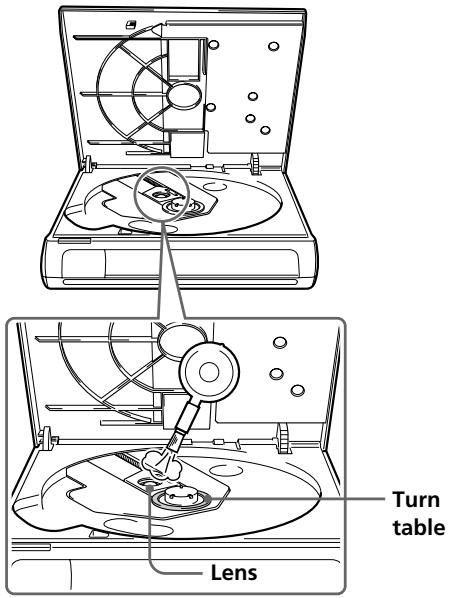
- If the turntable does not work properly, check for dust or dirt on the turntable and clean using a soft cloth.
- Never remove the printed "Warranty void if removed." seal attached around the lens.
On transportation
- When you transport this player, use the original carton box and packing materials.
- Before you move this player, make sure to remove the disc inserted.
If you have any questions or problems concerning your player, please consult your nearest Sony dealer.
IMPORTANT NOTICE
Caution: The enclosed DVD Player is capable of holding a still video image or Menu image on your television screen indefinitely. If you leave the still video image or Menu image displayed on your TV for an extended period of time, you risk permanent damage to your television screen. Projection televisions are very susceptible.
Notes on discs
On handling discs
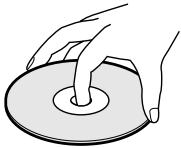
- To keep the disc clean, handle the disc by its edge. Do not touch the surface.
- Do not write on or stick paper or tape to the surface of the disc.
- Do not use a disc with tape, seals, or paste on it as this may damage the player.
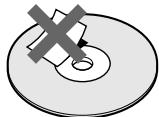
- Use only a disc with a circle shape. Do not use a disc with any other shape (star type, heart type, etc.), as this may damage the player.
On safekeeping
- Do not expose the disc to direct sunlight or heat sources such as hot air ducts, or leave it in a car parked in direct sunlight as there can be considerable rise in temperature inside the car. After playing, store the disc in its case. Piling up discs without cases or leaving the disc exposed may cause the disc shape to warp.
On cleaning
- Dirt from a fingerprint or dust causes picture noise or declining sound quality. Always keep the disc clean.
- Clean the disc with a cleaning cloth. Wipe the disc from the center out.
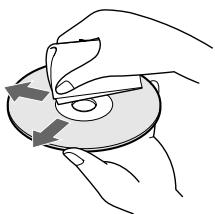
- For dirt, clean the disc with a soft cloth slightly moistened with water, then remove the moisture with a soft dry cloth.
- Do not use solvents such as benzine, thinner, commercially available cleaners, or antistatic spray intended for vinyl LPs.
Specifications
System
System Portable DVD Player
Laser Semiconductor laser
Signal format system PAL colour system
Disc
Compatible discs
DVDVIDEO (PAL/NTSC) VIDEO CD (PAL/NTSC) - AUDIO CD (CD-DA) CD-R
Disc diameter 12 cm (4 3/4 inch), 8 cm (3 inch)
Laser Diode Properties
DVD player
Material: AlGaInP
Wavelength: 650 nm
Emission Duration: Continuous
Laser Output: Less than 1000 μW
- This output is the value measured at a distance of 100 mm from the objective lens surface on the Optical Pick-up Block.
CD player
Material: GaAlAs
Wavelength: 780 nm
Emission Duration: Continuous
Laser Output: Less than 173 μW
- This output is the value measured at a distance of 100 mm from the objective lens surface on the Optical Pick-up Block.
Audio characteristics
Frequency response DVD (PCM): 20 Hz to 44 kHz (+1.0 dB to -3.0 dB) CD: 20 Hz to 20 kHz (+1.0 dB to -2.0 dB)
Signal-to-noise ratio (S/N) More than 85 dB
High wave distortion rate Less than 0.02%
Dynamic range More than 88 dB
Wow and flutter Less than detected value (±0.001% W PEAK)
Outputs
| Jack name | Jack type | Maximum output levels | Load impedance |
| A/V OUT | Stereo mini jack | 1 Vrms | Audio/Vrms 47 kilohms Video/Vpp 75 ohms terminated |
| PCM/MPEG/DOLBY DIGITAL | Optical output connector | -17 dBm | Wave length: 660 nm |
| SVIDEO OUT | 4-pin mini DIN | Y:1.0 Vp-p C:0.286 Vp-p | 75 ohms sync negative 75 ohms terminated |
| PHONES | Stereo mini jack | 12 mV + 12 mV | 16 ohms |
(continued)
General
Power requirements
- Power supply jack DC IN 10V jack accepts the AC-PBD1 AC power adapter (supplied), AC 220-240 V, 50/60 Hz
- Battery pack (not supplied)
Power consumption AC 220-240 V, 50 Hz 0.18 A (max, AC power adapter) DC 10 V, 1.1 A (max, DVD VIDEO playback with the AC power adapter)
Dimensions (approx.) 149.6 × 33.5 × 182.3 mm (6 × 1 3/8 × 7 1/4 inches) (w/h/d)
Mass (approx.) 570 g (1 lb 4 oz) (player only)
Operating temperature 5°C to 35°C (41°F to 95°F)
Operating humidity: 5% to 80%
Environment: Temperature -20°C to 55°C (-4°F to 131°F), Humidity 15% to 90% RH
Supplied accessories
See page 9.
Optional accessories
Battery pack NP-F750/F950 - AC battery changer AC-V700, DC battery changer DC-V700, Optical digital cable POC-15B/15AB - Headphones MDR-605LP
Design and specifications are subject to change without notice.
Troubleshooting
If you experience any of the following difficulties while using the player, use this troubleshooting guide to help you remedy the problem. Should any problem persist, consult your nearest Sony dealer.
The power is not turned on.
→ If the POWER indicator is not lit, check that the AC power adapter is connected securely. When using the battery pack, check the consumption. → Make sure you use the supplied AC power adapter. (Do not use any other AC power adapter.) → Check that the HOLD switch is set to off. → Disconnect the AC power adapter from this player and the mains for more than one minute. Then connect the AC power adapter and turn the power on again. If the power is still not turned on, disconnect the AC power adapter and the battery pack and refer to your nearest Sony dealer.
"COS Lo dc In" appears in the front panel display.
→ When using the battery pack, the AC power adapter is not connected to the mains even if the AC power adapter is connected to the player. Disconnect the AC power adapter from the player. → Check that the AC power adapter is connected to the mains, then disconnect from this player and connect again.
There is no picture.
→ Check that the player is connected securely. → The video connecting cable is damaged. Replace it with a new one. → Make sure you connect the player to the video input connector on the TV (page 11). → Make sure you turn on the TV. → Make sure you select the video input on the TV so that you can view the pictures from the player.
There is no sound.
→ Check that the player is connected securely. → The audio connecting cable is damaged. Replace it with a new one. → Make sure you connect the player to the audio input connectors on the amplifier (page 49). → Make sure you turn on the TV or the amplifier. → Make sure you select the appropriate position on the amplifier so that you can listen to the sound from the player. The player is in pause mode or in Slow-motion Play mode. Press to return to Continuous Play mode. The player is in Search mode. Press to return to Continuous Play mode. When you connect the player to an amplifier with DIGITAL OUT, set "DIGITAL OUT" in "INITIAL SETUP" correctly (pages 50, 51). → Check that the headphones plug connected to the headphones jack is firmly connected to this player. → Check that the VOL dial is not set to "0."
(continued)
The remote does not function.
→ Remove any obstacles between the remote and the player. → Use the remote near the player. → Point the remote at the remote sensor on the player. → Replace all the batteries in the remote with new ones if they are weak. → Make sure you are using the supplied remote.
Picture noise appears when the player is connected to the TV via the VCR.
→ Do not connect the player to the VCR. Connect the player directly to the TV (page 11).
Picture noise appears when you record and play back the picture of a DVD VIDEO on a VCR.
This player features a copy protection function developed by Macrovision. Copy protection signals are recorded on some DVD VIDEOs. When you play and record the pictures of these discs on a VCR, picture noise appears.
Sound or picture noise occurs.
→ Clean the disc. → Connect the audio plug of the connecting cable firmly. This player features a copy protection function developed by Macrovision. Copy protection signals are recorded on some DVD VIDEOs. When you play these discs, picture noise may appear on some TVs and projectors. → Check that this player is placed in a horizontal position.
The disc does not play.
→ There is no disc inside. Insert a disc. → Insert the disc with the playback side facing down correctly. → Insert the disc correctly (pages 15, 23). → Clean the disc. → Do not insert a disc which the player cannot play (page 4). → Check the region code of the DVD VIDEO (page 4). → Moisture has condensed inside the player. Remove the disc and leave the player turned on for about one hour. Then turn the power off and then on again, and start playback (page 60). → Check that this player is placed in a horizontal position. The Parental Control function is set (page 56).
The player does not play from the beginning when playing a disc.
→ Resume Play is set. Press RESUME on the remote during stop playback. After "RESUME" disappears in the front panel display, start playback (page 38). → A title menu, a DVD menu, or a PBC menu automatically appears on the TV screen (pages 18, 19, 26).
The DVD VIDEO does not play when you select a title.
The Parental Control function is set (page 56).
The player starts playing automatically.
→ The DVD VIDEO features the auto playback function.
→ Depending on the disc, you may not be able to do some of the operations. (Refer to the instructions supplied with the discs.)
→ Depending on the DVD VIDEO or VIDEO CD, you may not be able to do these functions.
The disc rotation speed is changed.
The disc rotation speed may differ, depending on the disc. → When the optional digital cable is connected, the disc rotation speed may be changed.
The language for the sound cannot be changed when you play a DVD VIDEO.
→ Multilingual sound is not recorded on the DVD VIDEO. → Changing the language for the sound is prohibited on the DVD VIDEO.
The language for the sub-titles cannot be changed when you play a DVD VIDEO.
→ Multilingual sub-titles are not recorded on the DVD VIDEO. → Changing the language for the subtitles is prohibited on the DVD VIDEO.
The sub-titles cannot be turned off when you play a DVD VIDEO.
Turning the sub-titles off is prohibited on the DVD VIDEO.
The angles cannot be changed when you play a DVD VIDEO.
Multi-angles are not recorded on the DVD VIDEO. Change the angles when "ANGLE" appears in the front panel display (page 43). Changing the angles is prohibited on the DVD VIDEO.
The Parental Control function does not work.
Parental Control is not recorded on the DVD VIDEO. The country setting on the Parental Control level menu is not correct. Set the country (page 56) and refer to the instruction of the DVD VIDEO.
The aspect ratio of the screen cannot be changed when you play a wide picture of the DVD VIDEO.
The aspect ratio is fixed on your DVD VIDEO (page 5).
The VIDEO CD does not feature PBC functions. Follow the correct operating procedure. (Also refer to the instructions supplied with the VIDEO CD.)
The sound loses stereo effect when you play a VIDEO CD or a CD.
"1/L" or "2/R" appears in the front panel display. On the remote, press AUDIO CHANGE repeatedly until "1/L 2/R" appears (page 40).
The power is turned off automatically.
The Auto Power Off function is activated. (If you do not operate the player or the remote for more than 30 minutes while using the AC power adapter or for more than 10 minutes while using the battery pack when a disc is not being played, the power will be automatically turned off.)
Indications in the front panel display are too light.
The liquid crystal of the front panel display is already adjusted to be seen clearly from the front. It is not a malfunction if the indication appears vague when viewing from an obscure angle.
The player or the AC power adapter heats up.
It is not a serious problem. (If the AC power adapter heats up excessively, disconnect the AC power adapter and the optional battery pack, then consult your nearest Sony dealer.) Touching this player or the AC power adapter for a long time may cause a slight burning sensation.
Note
If the player does not play normally while using the AC power adapter due to static electricity, etc., disconnect the plug from the mains and the AC power adapter from the player, then plug in and connect the AC power adapter to the player again.
The Hold function is on. Slide the HOLD switch to OFF. The power is not supplied from the AC power adapter or the battery pack. Supply the power source or slide the MANUAL LID RELEASE switch on the rear panel in the direction of the arrow.
The DVD VIDEO is unable to do the operation.
The alphabet and numbers appear on the TV screen or in the front panel display.
Self-diagnosis function is currently working (page 71).
Glossary
Chapter
Sections of a picture or a music piece on a DVD VIDEO that are smaller than titles. A title is composed of several chapters. Each chapter is assigned a chapter number enabling you to locate the chapter you want.
Dolby Digital (AC-3)
Digital audio compression technology developed by Dolby Laboratories Corporation. This technology conforms to 5.1-channel surround sound. When connecting a component with a built-in Dolby Digital decoder, you can enjoy a more realistic audio presence.
DVD
A disc that contains up to 8 hours of moving pictures even though its diameter is the same as a CD.
The data capacity of a single-layer and single-sided DVD, at 4.7 GB (Giga Byte), is 7 times that of a CD. Furthermore, the data capacity of a dual-layer and single-sided DVD is 8.5 GB, a single-layer and double-sided DVD 9.4 GB, and a dual-layer and double-sided DVD 17 GB.
DVD VIDEO
A DVD recorded with moving pictures. On a DVD VIDEO, the picture data uses the MPEG 2 format, one of the worldwide standards of digital compression technology. The picture data is compressed to about 1/40 of its original size. The DVD also uses variable rate coding technology that changes the data to be allocated according to the status of the picture. The audio data is recorded in Dolby Digital (AC-3) as well as in PCM, allowing you to enjoy a more realistic audio presence.
Furthermore, various advanced functions such as the multi-angle, multilingual, and Parental Control functions are provided with DVD VIDEOs.
MPEG Audio
International standard coding system to compress audio digital signals authorized by ISO/IEC. MPEG 1 compatible up to 2-channel stereo. MPEG 2 used on DVDs compatible up to 7.1-channel surround. It realizes backward compatibility - you can play the MPEG 2 sound track with a player which conforms to MPEG 1.
Multi-angle function
Various angles, or viewpoints of the video camera, for a scene are recorded on some DVD VIDEOs.
Multilingual function
Several languages for the sound or subtitles in a picture are recorded on some DVD VIDEOs.
Parental Control
A function of the DVD VIDEO for playback limitation of the disc by the age of the users according to the limitation level in each country. The limitation varies from disc to disc; when it is activated, playback is completely prohibited, or violent scenes are skipped or replaced with other scenes etc.
Playback Control (PBC)
Signals encoded on VIDEO CDs (Version 2.0) to control playback.
By using menu screens recorded on VIDEO CDs with PBC functions, you can enjoy playing simple interactive programs, programs with search functions, and so on.
Title
The longer sections of a picture or a music piece on a DVD VIDEO; a movie, etc., or a picture piece on a video software or an album, etc., or a music piece on an audio software. Each title is assigned a title number enabling you to locate the title you want.
Track
Sections of a picture or a music piece on a CD or VIDEO CD. Each track is assigned a track number enabling you to locate the track you want.
VIDEO CD
A compact disc that contains moving pictures.
The picture data uses the MPEG 1 format, one of the worldwide standards of digital compression technology. The picture data is compressed to about 1/140 of its original size. Consequently, a 12 cm VIDEO CD can contain up to 74 minutes of moving pictures.
VIDEO CDs also contain compact audio data. Sounds outside the range of human hearing are compressed while the sounds we can hear are not compressed. VIDEO CDs can hold 6 times the audio information of conventional audio CDs.
There are 2 versions of VIDEO CDs.
- Version 1.1: You can play only moving pictures and sounds.
- Version 2.0: You can play high-resolution still pictures and enjoy PBC functions.
This player conforms to both versions.
Self-diagnosis function
This function displays the player's condition with three or five digits (a combination of the alphabet and numbers) on the TV screen or in the front panel display. If this occurs, check the following code chart.
| Code number | Means | Do |
| C01 | The battery pack is fully consumed. | Connect the AC power adapter to recharge. |
| C05 | The AC power adapter has a problem. | Connect the supplied AC power adapter firmly. If the code number is still displayed, see page 65. |
| C13 | • The disc is dirty.
• The player cannot play the disc. | • Clean the disc with a soft cloth (page 62).
• Make sure that the disc is compatible (page 4). |
| EXXXX
(XXXX are optional numbers.) | To prevent a malfunction, the self-decision function is working. | Please contact your Sony dealer and present the five digits number displayed. Example: E0002 |
Index to parts and controls
Refer to the pages indicated in parentheses for details.
Front and side panel
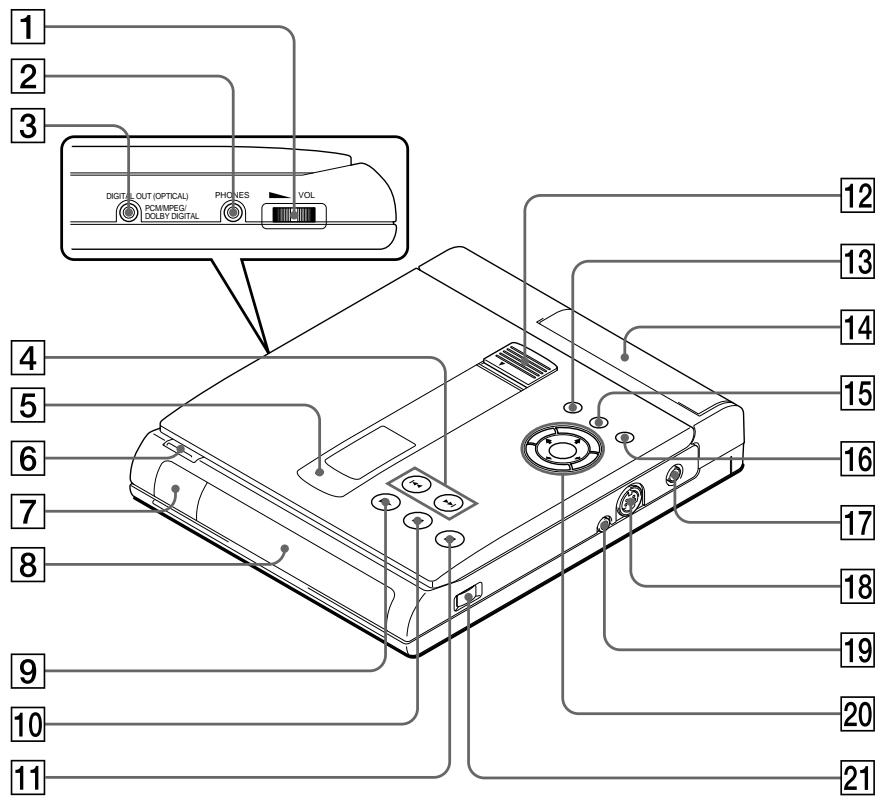
1 VOL (volume) dial (23)
Adjusts the volume.
2 PHONES jack (23)
Used when connecting headphones.
PCM/MPEG/DOLBY DIGITAL connector (50, 51)
Connects to an audio component using the optical digital cable.
4 I/previous/next) buttons (16, 24)
Go back/forward to the previous/next chapter or track, or to search.
5 POWER indicator (14, 22)
Lights up in green when turning on the power.
6 OPEN button (14, 22)
Opens the disc cover. The player does not work without connecting the AC power adapter or battery pack.
(remote sensor) (10)
Accepts the remote control signals.
8 Front panel display (21, 29)
Indicates the playing time, etc.
9 ▸ (play) button (15, 23)
Plays back a disc.
10 (pause) button (16, 24)
Pauses playing back a disc.
11 (stop) button (15, 23, 38)
Stops playing back a disc.
12 HOLD switch (44)
Prevents accidental pressing of the buttons.
13 DVD MENU button (19)
Displays the DVD menu on the TV screen to set or adjust the menu items.
14 Battery pack connector (46)
Connects the optional battery pack.
15 TITLE button (18)
Displays the title menu on the TV screen.
RETURN button (26, 56)
Returns to the preceding selection screen, etc.
17 DC IN 10V jack (12)
Connects the AC power adapter (supplied).
18 SVIDEO OUT connector (11)
Connects to the S video input connector on the TV.
19 A/V OUT connector (11, 49)
Connects to the audio/video input connectors on the TV or amplifier.
20 ← / ↑ / ↓ / → ENTER buttons
Select the items or settings.
21 POWER button (14, 22)
Turns the power on and off the player.
(continued)
Rear Panel
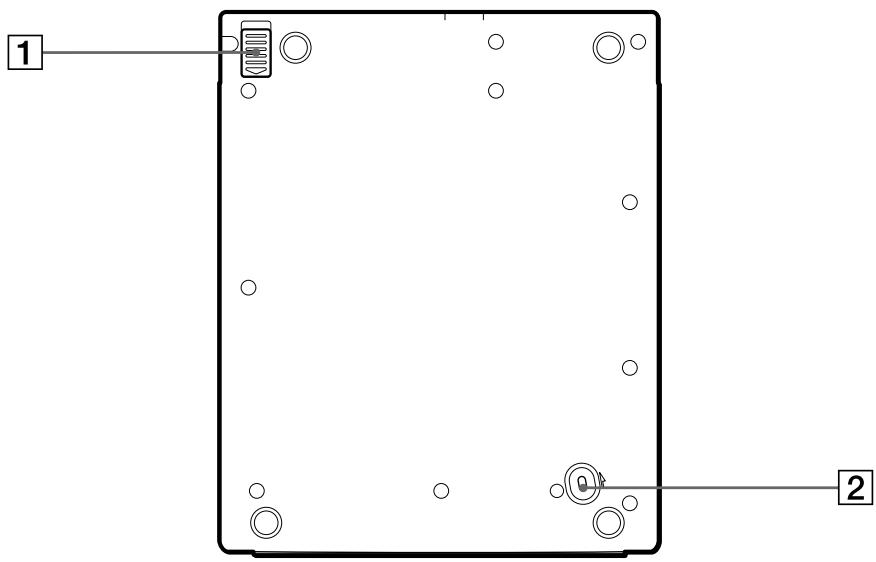
1 BATT RELEASE switch (48)
Removes the battery pack.
2 MANUAL LID RELEASE switch (68)
Opens the disc cover forcibly when the AC power adapter and the battery pack are disconnected.
Remote
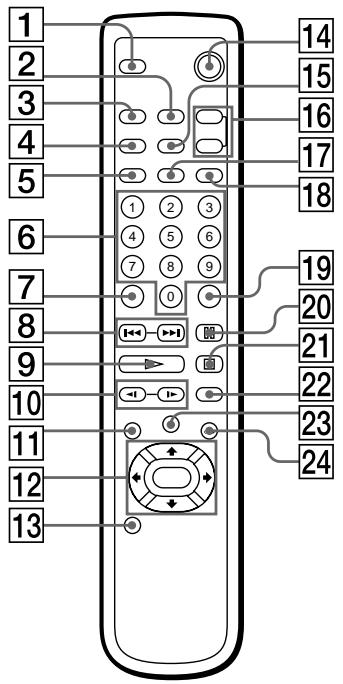
1 DISPLAY button (20, 28)
Displays the current playing status on the TV screen.
2 AUDIO button (40)
Changes the sound while playing a DVD VIDEO, VIDEO CD, or an audio CD.
3 ANGLE button (43)
Changes the angles when playing a DVD VIDEO.
4 REPEAT button (30, 31, 32)
Repeats playback.
5 A-B button (33)
Repeats a specific portion.
6 Number buttons
Select the items or settings.
7 CLEAR button
Cancels the selected item.
8 PREV/▶NEXT buttons (16, 24)
Go back/forward to the previous/next chapter or track, or to search.
9 ▶ PLAY button (15, 23)
Plays back a disc.
10 SLOW buttons (16, 24)
Play a disc in slow motion.
DVD MENU button (19)
Displays the DVD menu on the TV screen to set or adjust the menu items.
(continued)
12 ← / / / → / ENTER buttons
Select the items or settings.
13 SETUP button (52, 56)
Sets the INITIAL SETUP.
14 POWER button (14, 22)
Turns the power on and off the player.
15 PROGRAM button (35)
Plays a disc in Programme Play.
16 SUB-TITLE, (SUB-TITLE) ON/OFF buttons (41)
Turn the sub-titles on and off, and change the sub-title when playing a DVD VIDEO.
17 SHUFFLE button (34)
Plays a disc in Shuffle Play.
RESUME button (38)
Plays a disc in Resume Play.
19 ENTER button (16, 24, 35, 56)
Executes the items or settings.
20 PAUSE button (16, 24)
Pauses playing back a disc.
21 STOP button (15, 23, 38)
Stops playing back a disc.
22 SEARCH MODE button (16, 24)
Sets the player in search mode (track, index, etc.)
23 TITLE button (18)
Displays the title menu on the
TV screen.
24 RETURN button (26, 56)
Returns to the preceding
selection screen, etc.
Language code list
For details, see pages 53 and 54.
The language spellings conform to the ISO 639: 1988 (E/F) standard (December 1996).
| Code | Language | Code | Language | Code | Language |
| 1027 | Afar | 1149 | Spanish | 1261 | Japanese |
| 1028 | Abkhazian | 1150 | Estonian | 1269 | Yiddish |
| 1032 | Afrikaans | 1151 | Basque | 1283 | Javanese |
| 1039 | Amharic | 1157 | Persian | 1287 | Georgian |
| 1044 | Arabic | 1165 | Finnish | 1297 | Kazakh |
| 1045 | Assamese | 1166 | Fiji | 1298 | Greenlandic |
| 1051 | Aymara | 1171 | Faroese | 1299 | Cambodian |
| 1052 | Azerbaijani | 1174 | French | 1300 | Kannada |
| 1053 | Bashkir | 1181 | Frisian | 1301 | Korean |
| 1057 | Byelorussian | 1183 | Irish | 1305 | Kashmiri |
| 1059 | Bulgarian | 1186 | Scotts Gaelic | 1307 | Kurdish |
| 1060 | Bihari | 1194 | Galician | 1311 | Kirghiz |
| 1061 | Bislama | 1196 | Guarani | 1313 | Latin |
| 1066 | Bengali; Bangla | 1203 | Gujarati | 1326 | Lingala |
| 1067 | Tibetan | 1209 | Hausa | 1327 | Laothian |
| 1070 | Breton | 1217 | Hindi | 1332 | Lithuanian |
| 1079 | Catalan | 1226 | Croatian | 1334 | Latvian; Lettish |
| 1093 | Corsican | 1229 | Hungarian | 1345 | Malagasy |
| 1097 | Czech | 1233 | Armenian | 1347 | Maori |
| 1103 | Welsh | 1235 | Interlingua | 1349 | Macedonian |
| 1105 | Danish | 1239 | Interlingue | 1350 | Malayalam |
| 1109 | German | 1245 | Inupiak | 1352 | Mongolian |
| 1130 | Bhutani | 1248 | Indonesian | 1353 | Moldavian |
| 1142 | Greek | 1253 | Icelandic | 1356 | Marathi |
| 1144 | English | 1254 | Italian | 1357 | Malay |
| 1145 | Esperanto | 1257 | Hebrew | 1358 | Maltese |
(continued)
| Code | Language |
| 1363 | Burmese |
| 1365 | Nauru |
| 1369 | Nepali |
| 1376 | Dutch |
| 1379 | Norwegian |
| 1393 | Occitan |
| 1403 | (Afan) Oromo |
| 1408 | Oriya |
| 1417 | Punjabi |
| 1428 | Polish |
| 1435 | Pashto; Pushto |
| 1436 | Portuguese |
| 1463 | Quechua |
| 1481 | Rhaeto-Romance |
| 1482 | Kirundi |
| 1483 | Romanian |
| 1489 | Russian |
| 1491 | Kinyarwanda |
| 1495 | Sanskrit |
| 1498 | Sindhi |
| Code | Language |
| 1501 | Sangho |
| 1502 | Serbo-Croatian |
| 1503 | Singhalese |
| 1505 | Slovak |
| 1506 | Slovenian |
| 1507 | Samoan |
| 1508 | Shona |
| 1509 | Somali |
| 1511 | Albanian |
| 1512 | Serbian |
| 1513 | Siswati |
| 1514 | Sesotho |
| 1515 | Sundanese |
| 1516 | Swedish |
| 1517 | Swahili |
| 1521 | Tamil |
| 1525 | Telugu |
| 1527 | Tajik |
| 1528 | Thai |
| 1529 | Tigrinya |
| Code | Language |
| 1531 | Turkmen |
| 1532 | Tagalog |
| 1534 | Setswana |
| 1535 | Tonga |
| 1538 | Turkish |
| 1539 | Tsonga |
| 1540 | Tatar |
| 1543 | Twi |
| 1557 | Ukrainian |
| 1564 | Urdu |
| 1572 | Uzbek |
| 1581 | Vietnamese |
| 1587 | Volapük |
| 1613 | Wolof |
| 1632 | Xhosa |
| 1665 | Yoruba |
| 1684 | Chinese |
| 1697 | Zulu |
| 1703 | Not specified |
INITIAL SETUP items list
Default settings are underlined.
Index
A
A↔B Repeat 33
AC power adapter 12
Angle 43
Auto Power Off 15,23,67
B
Batteries 10
C
CD 22
Chapter 7, 69
Connecting AC power adapter 12, audio amplifier 49, digital component with a built-in Dolby Digital decoder 50, digital component with a digital input connector 51
TV 11
Country code 56
D, E
Disc
inserting 15, 23
notes 62
terms 7
Digital output 50, 51
Dolby Digital (AC-3) 50, 55, 69
DVD menu 19
DVDVIDEO 14, 69
F
Fast Forward 16, 24
Fast Reverse 16, 24
Front panel display 21, 29
G
Glossary 69
H
Hold function 44
Hooking up 11
I, J, K
Index 7
INITIAL SETUP
DIGITAL OUT 55
DVD AUDIO 53
MENU
LANGUAGE 53
PARENTAL
CONTROL 55
SUB-TITLE 54
TV TYPE 54
L
LETTERBOX 54
M, N
MPEG 50, 55, 70
Multi-angle 43,69
Multilingual 40,69
0
On-screen display 20, 28
P, Q
PAN SCAN 54
Parental Control
Changing/
cancelling 59
Setting 56
PBC functions 6,26
PBCPlayback 6,26,70
Playback
CD 22
DVDVIDEO 14
VIDEO CD 22
Programme Play 40
R
Rechargeable battery
attaching 46
detaching 48
recharging 47
Remote control 10
Repeating
a disc 30
a specific portion (A↔B)
Repeat) 33
current title or
chapter 31
current track 32
Resume Play 38
s
Scart adapter 11
Scene 7,25
Search 17,24
Self-diagnosis function 68, 71
Shuffle Play 35
Slow-motion Play 16,24
Sub-titles
changing 42
turning on and off 41
Supplied accessories 9
T
Title 7, 70
Title menu 18
Track 7, 70
Troubleshooting 65
U
Usable discs 4
V,W,X,Y,Z
VIDEO CD 22,70



