
GT630SL2GD3LSP - Graphic card ASUS - Free user manual and instructions
Find the device manual for free GT630SL2GD3LSP ASUS in PDF.
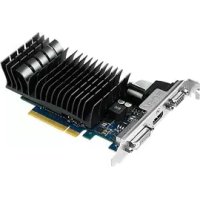


| Product type | Graphics card |
| Brand | ASUS |
| Model | GT630SL2GD3LSP |
| Graphics chipset | NVIDIA GeForce GT 630 |
| Video memory | 2 GB DDR3 |
| Interface | PCI Express 2.0 x16 |
| GPU frequency (base) | 810 MHz |
| Memory frequency | 1000 MHz (1800 MHz effective) |
| Memory bus | 128-bit |
| Video outputs | 1 x DVI, 1 x VGA, 1 x HDMI |
| Maximum resolution | 2560 x 1600 |
| Recommended power supply | 300 W |
| Power connector | None (power from PCIe slot) |
| Dimensions | 17.78 x 6.99 x 3.81 cm |
| Weight | Approximately 200 g |
| Cooling | Active fan |
| Supported technologies | DirectX 11, OpenGL 4.4, CUDA, PhysX |
| Included software | ASUS GPU Tweak II for overclocking and monitoring |
| Main functions | Casual gaming, multimedia, multi-monitor output |
| Maintenance and cleaning | Dust off with compressed air, avoid humidity |
| Safety | Ensure sufficient power supply and proper installation |
| Spare parts and repairability | Replaceable fan, no parts provided |
| Warranty | 2 years (depending on region) |
Frequently Asked Questions - GT630SL2GD3LSP ASUS
User questions about GT630SL2GD3LSP ASUS
0 question about this device. Answer the ones you know or ask your own.
Ask a new question about this device
Download the instructions for your Graphic card in PDF format for free! Find your manual GT630SL2GD3LSP - ASUS and take your electronic device back in hand. On this page are published all the documents necessary for the use of your device. GT630SL2GD3LSP by ASUS.
USER MANUAL GT630SL2GD3LSP ASUS
ASUS GPU Tweak II User Manual
Q10790
First Edition
August 2015
Contents
English....3
Traditional Chinese 14
Simplified Chinese 25
French 36
Japanese 47
Italian 58
Russian....69
Czech....80
Dutch 91
Greek.... 102
Portuguese.... 113
Polish....124
Spanish.... 135
Ukrainian.... 146
German....157
Knowing GPU Tweak II
ASUS GPU Tweak II utility allows you to monitor and tweak the settings of your ASUS graphics card for optimal performance. It has two user interfaces, the Simple Mode and Professional Mode, that allow you to quickly monitor your preset and customized profiles, boost the GPU settings for your game-changing enjoyment, or do some advanced tweaking on the GPU settings for optimal performance.
ASUS GPU Tweak II includes these ASUS-exclusive preset power-saving and gaming profiles:

OC Mode
Silent Mode
Gaming Mode
My Profile
System requirements
• AMD 7000 Series GPU or higher • NVIDIA 600 Series GPU or higher • 32-/64-bit Microsoft® Windows® 10 / 8 / 8.1 / 7
Installing GPU Tweak II
- Ensure that you have installed the ASUS graphics card and its driver. Refer to the ASUS graphics card user manual for details on installing its driver.
- Locate the ASUS GPU Tweak II driver folder and double-click the setup.exe file to start the installation.
- Follow the onscreen instructions to finish the installation.
Launching GPU Tweak II
• Double-click the GPU Tweak icon on the desktop. - Click Start > All Programs > ASUS > GPU Tweak II to launch the program.

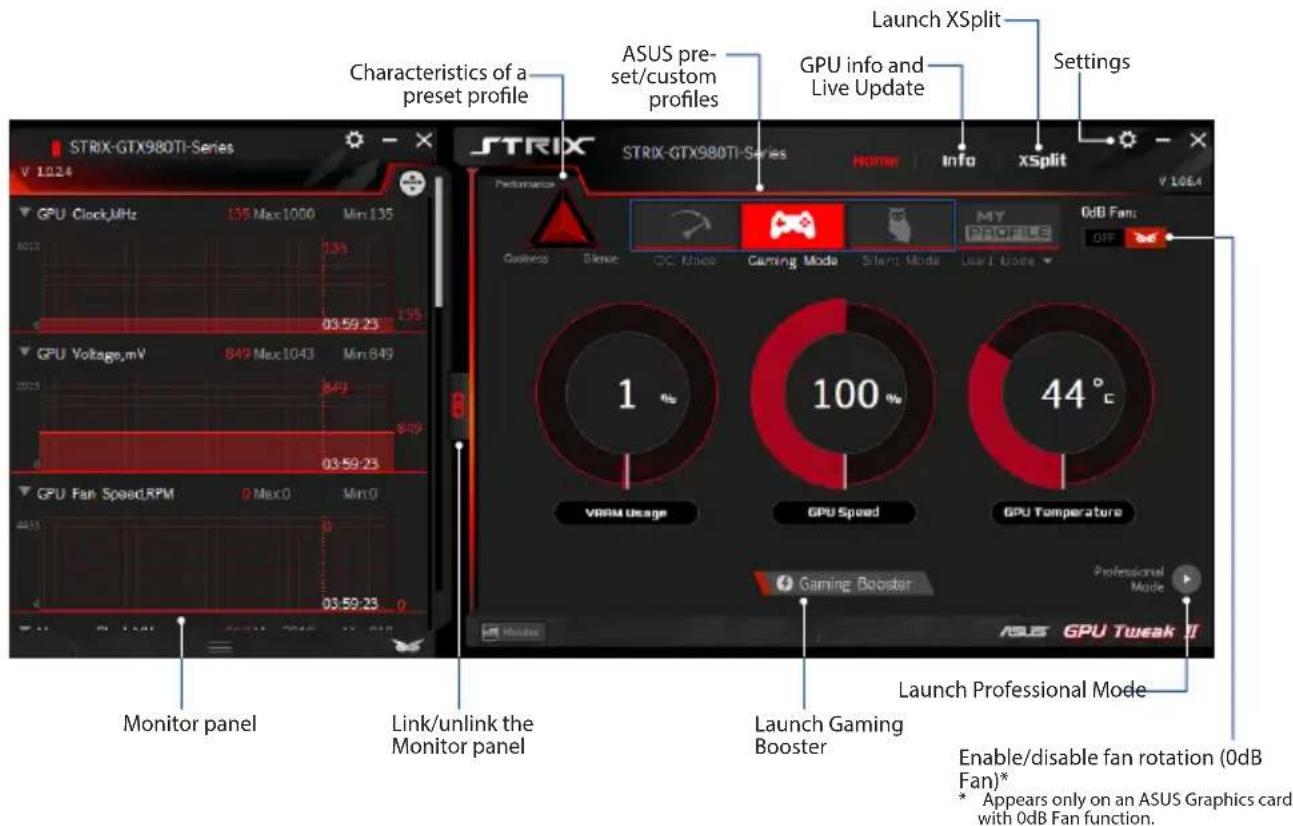
Simple Mode
Simple Mode provides you with a quick way to monitor your GPU settings in real-time, and tweak some system settings via Gaming Booster for your game-changing enjoyment.
Gaming Booster
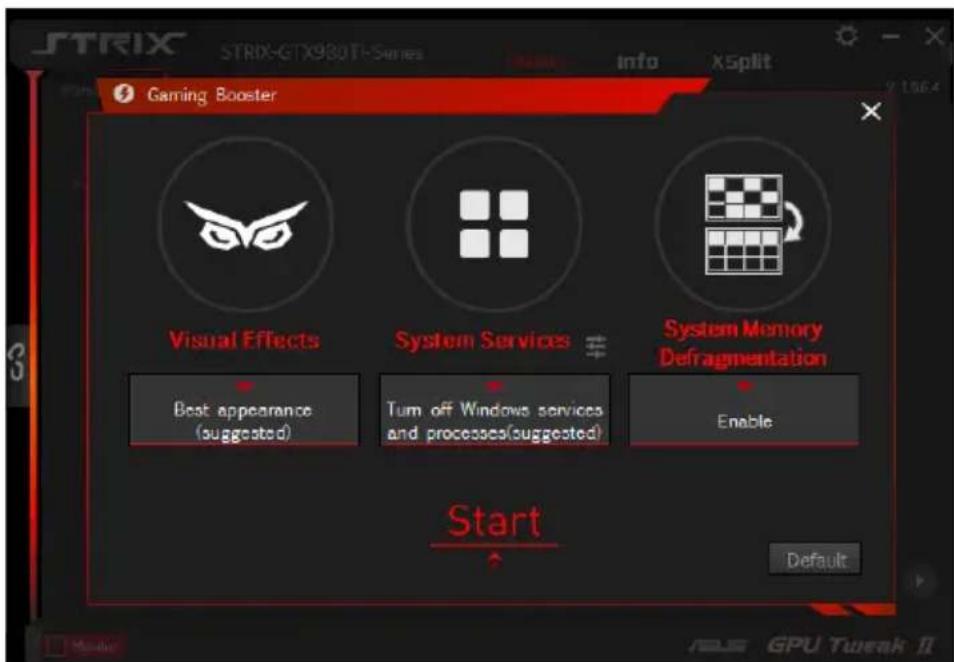
Get that game-changing performance edge with Gaming Booster, which helps optimize your system for a seamless and faster game play in your computer games.
Gaming Booster offers you these three (3) functions:
- Visual Effects: Lets you turn off the Windows® visual effects to intensify the processor performance.
- System Services: Lets you automatically or manually turn off Windows® services or processes.
- System Services setting: Lets you manually choose the services or processes that you want to stop.
- System Memory defragmentation: Lets you rearrange and clean your system memory without closing any processes.
Professional Mode
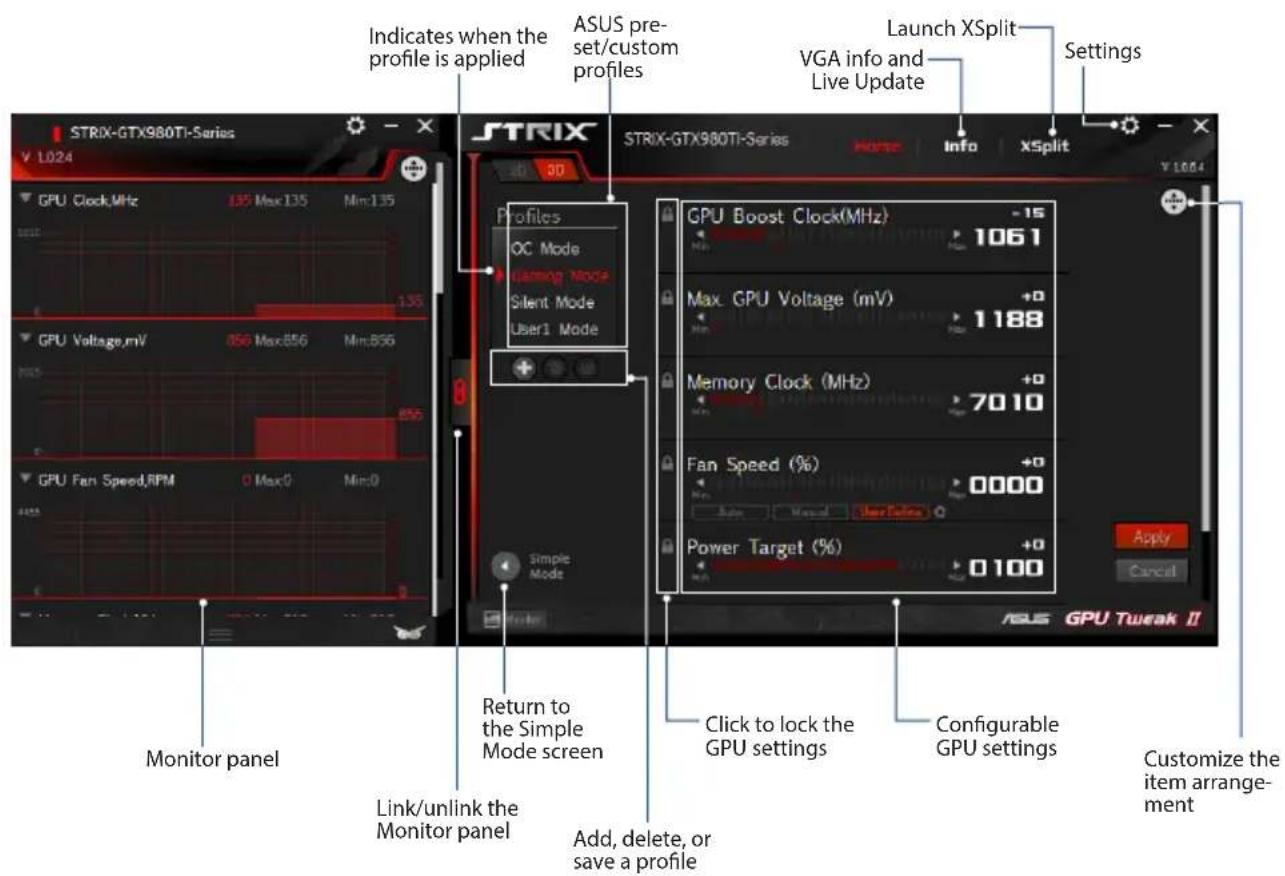
Configure the GPU settings like a pro, and get the optimal performance from your ASUS Graphics card.
Configuring a profile
- Select the profile that you want to configure.
- Select the GPU setting, then key in your preferred value.
- When done, click Apply.
Adding a profile
- Click + then assign the profile name.
- Set your preferred values.
- When done, click to save the profile.
Applying a profile
Select the profile, then click to apply the profile.
Deleting a profile
Select the profile, then click the delete icon to delete the profile.
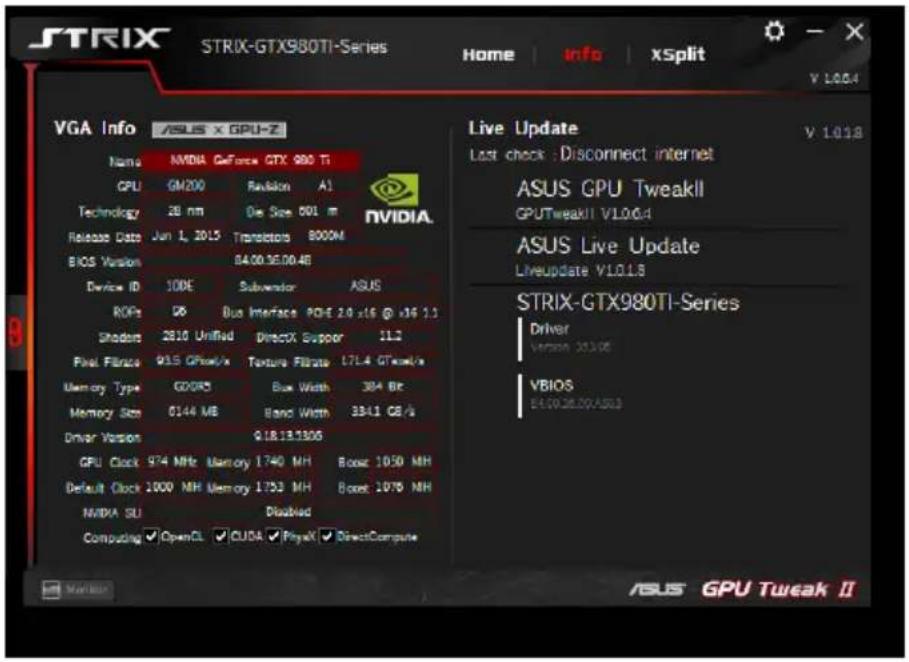
Getting the VGA info and Live Update
The Info screen provides you with information and live updates about your ASUS VGA card.
NOTE: Ensure that your computer is connected to the Internet to get the Live Update.
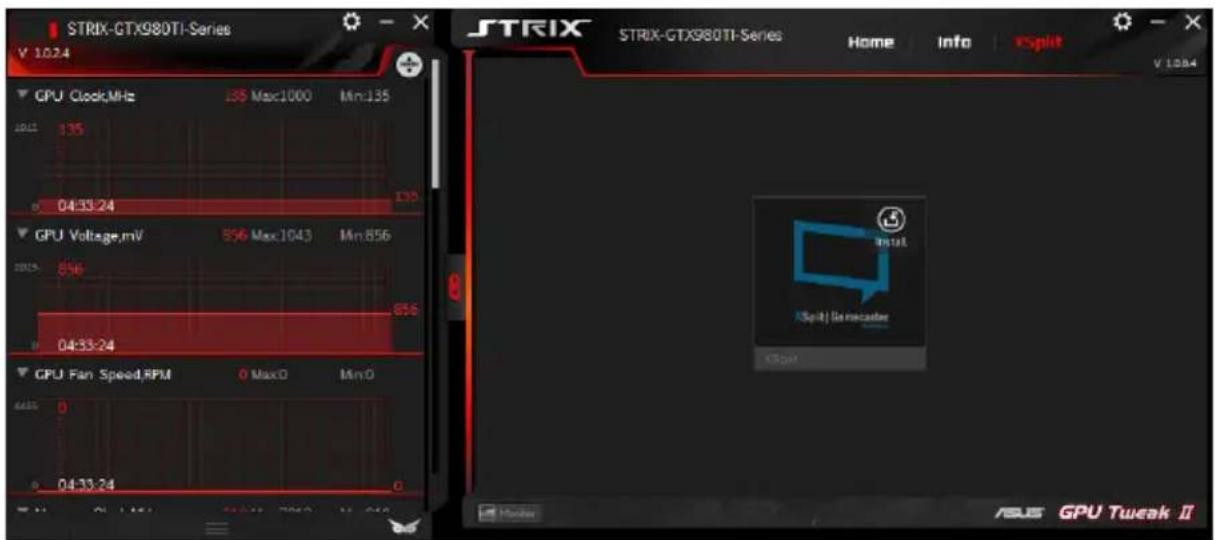
Launching XSplit
Install and launch XSplit Gamecaster from GPU Tweak II.
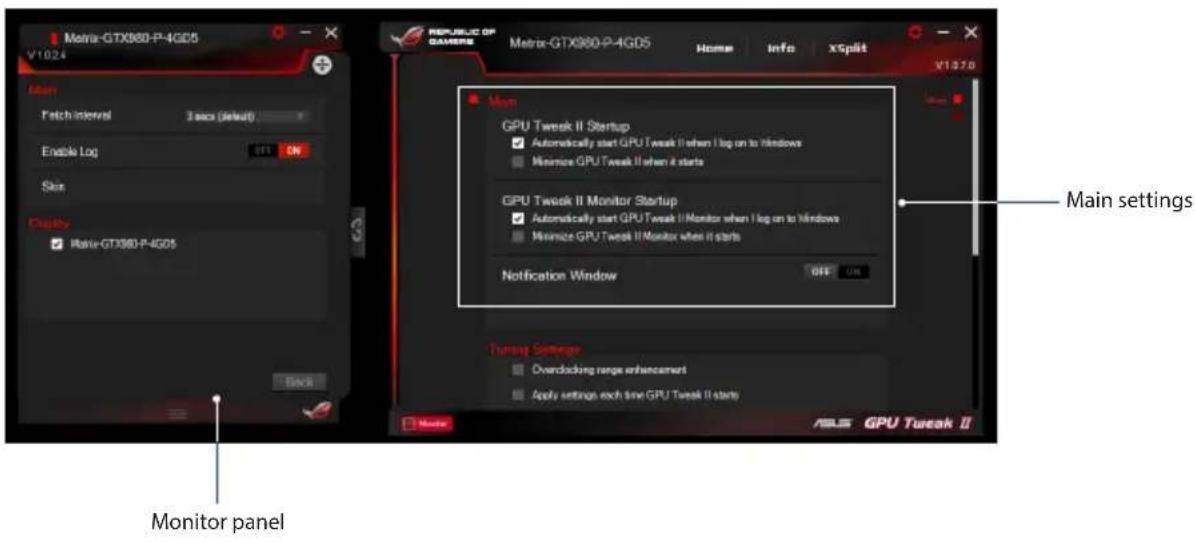
Using the Settings screen
The Settings screen allows you to configure the GPU Tweak II settings such as Main, Tuning Settings, Live Update, and Keyboard Shortcuts.
Main
From the Main settings, you can select any of these options on launching GPU Tweak II:
• Automatically launch GPU Tweak II or its Monitor panel on Windows® startup. - Minimize GPU Tweak II or its Monitor panel once launched. - Turn the notification window on/off.
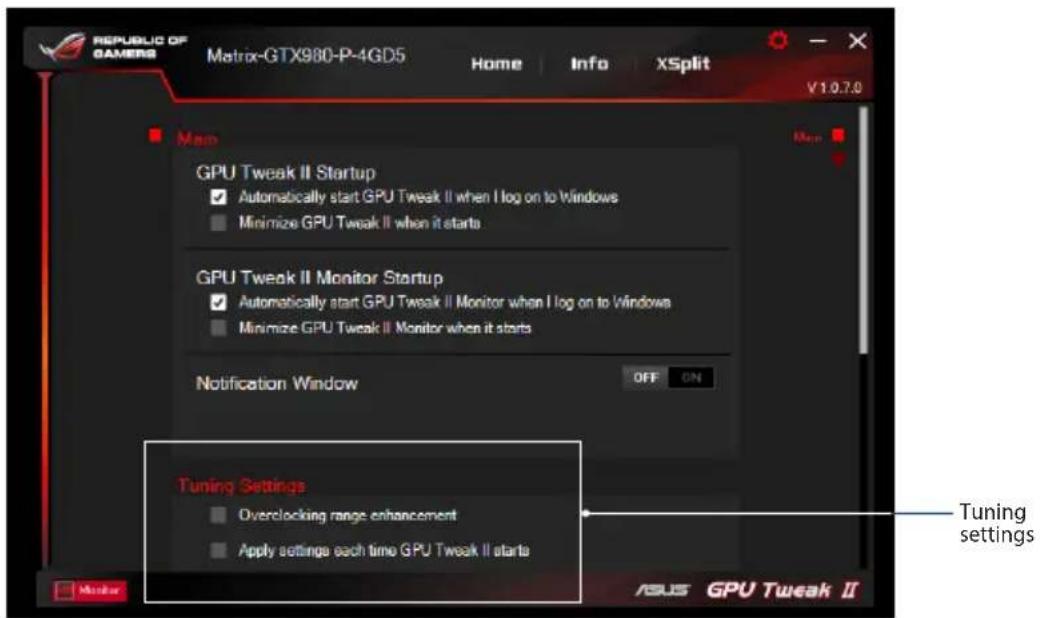
Tuning Settings
From the Tuning Settings, you can select any of these options on applying the GPU Tweak II settings:
• Enhance the overclocking range. - Apply the settings on GPU Tweak startup.
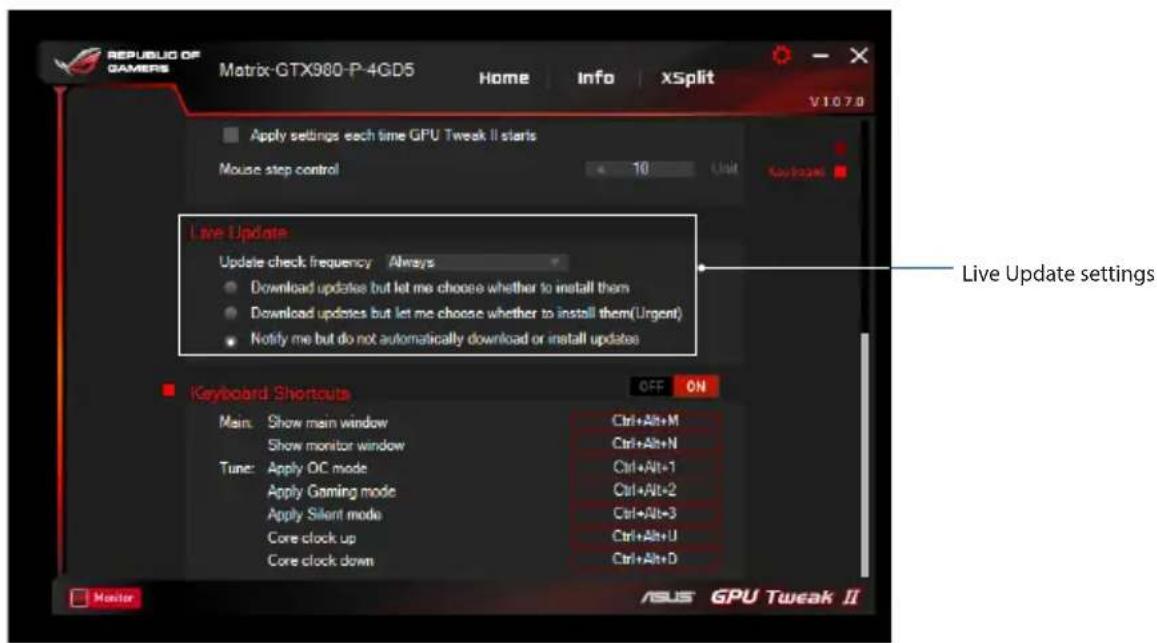
Live Update
Receive notifications on the latest VBIOS and driver updates from Live Update. Configure and select the following Live Update options:
- Set the Update check frequency as to when you want to receive the Live Update. • Select any of the Live Update options:
- Download updates but let me choose whether to install them: Select this option to automatically download updates, and decide whether to manually install them.
- Download important updates but let me choose whether to install them: Select this option to automatically download critical updates, and decide whether to manually install them.
- Notify me but do not automatically download or install updates: Select this option to receive notifications only, and decide whether to manually download and install the updates.
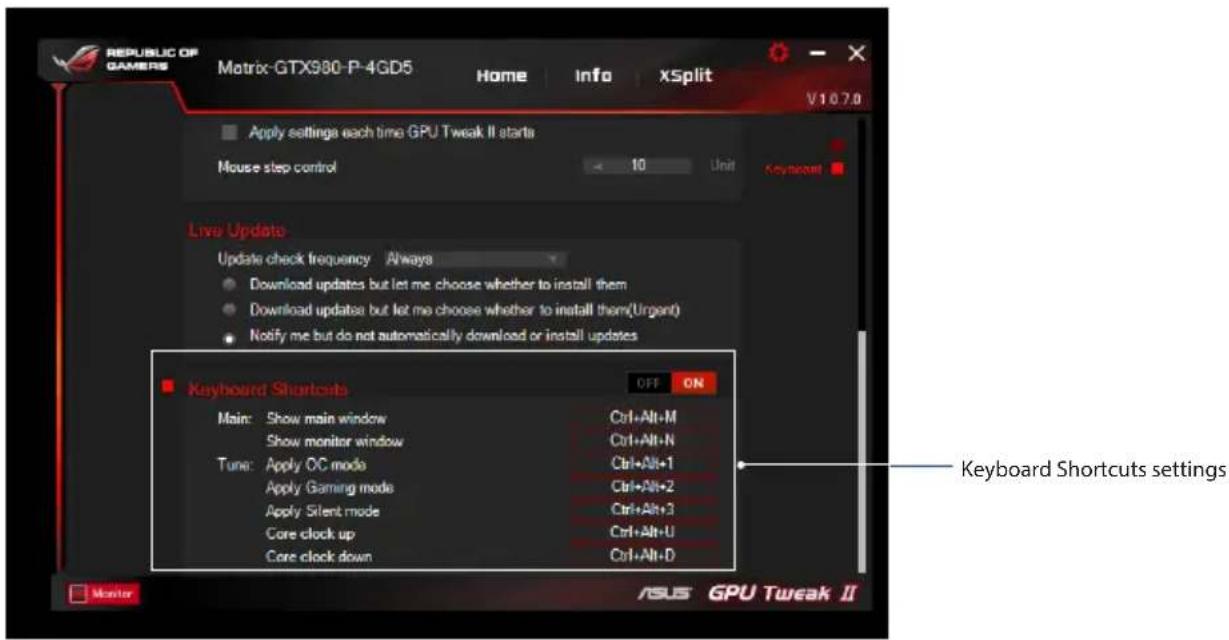
Keyboard Shortcuts
Turn on/off the Keyboard Shortcuts to quickly show the main screen or apply some quick adjustments.
About GPU Tweak II
Expert Mode
Keyboard Shortcuts
About GPU Tweak II
Expert Mode
Live Update
Keyboard Shortcuts
Professional Mode
Keyboard Shortcuts
GPU Tweak II Overview
Professional Mode
Keyboard Shortcuts
Tuning Settings
Live Update
Keyboard Shortcuts
Hotkeys
Professional Mode
Professional Mode
Live Update
Keyboard Shortcuts
Professional Mode
Keyboard Shortcuts
GPU Tweak II Overview
Gaming Mode
My Profile
System Requirements
Professional Mode
Professional Mode
Professional Mode



- ASUS GPU TWEAK II USER MANUAL
- CONTENTS
- KNOWING GPU TWEAK II
- SYSTEM REQUIREMENTS
- INSTALLING GPU TWEAK II
- LAUNCHING GPU TWEAK II
- SIMPLE MODE
- GAMING BOOSTER
- PROFESSIONAL MODE
- CONFIGURING A PROFILE
- ADDING A PROFILE
- APPLYING A PROFILE
- DELETING A PROFILE
- GETTING THE VGA INFO AND LIVE UPDATE
- LAUNCHING XSPLIT
- USING THE SETTINGS SCREEN
- MAIN
- TUNING SETTINGS
- LIVE UPDATE
- KEYBOARD SHORTCUTS
- ABOUT GPU TWEAK II
- EXPERT MODE
- GPU TWEAK II OVERVIEW
- HOTKEYS
Brand : ASUS
Model : GT630SL2GD3LSP
Category : Graphic card