
RM-AV2000T - Universal remote SONY - Free user manual and instructions
Find the device manual for free RM-AV2000T SONY in PDF.


| Product Type | Universal remote control with blue backlit LCD touchscreen |
| Brand and Model | Sony RM-AV2000T |
| Dimensions (L × H × D) | Approx. 120 × 175 × 45 mm (4 3/4 × 7 × 1 13/16 inches) |
| Weight (without batteries) | 290 g (10.22 oz) |
| Remote control power supply | 4 R6 batteries (AA size) |
| Backlight power supply | 2 R6 batteries (AA size) |
| Battery life (remote control) | Approx. 6 months (depending on usage frequency) |
| Operating range | Approx. 10 meters |
| Main functions | Centralized control of AV components, learning buttons for infrared signals, system control function (up to 16 commands per sequence), free assignment of component selection keys, system power off for Sony components |
| Component selection keys | TV, VCR1, VCR2, VCR3, DVD, SAT/CBL, AMP, CD, MD/DAT, DECK B/A, TUNER, DSP |
| Learning function | Allows memorizing signals from other remote controls for non-preset components (infrared only) |
| System Control function (SYSTEM CONTROL) | 3 programmable buttons to execute a series of operations (up to 16 steps) with a single key |
| Screen backlight | Adjustable (auto-off time from 10 to 90 seconds, brightness high or low) |
| Remote control auto-off | Programmable from 10 to 90 minutes (or disable) |
| Key lock (Hold) | Yes, to prevent accidental operation |
| Preset lock | Yes, prevents modification of codes and learned signals |
| Brand compatibility | Preset for Sony, codes available for most major brands |
| Care and cleaning | Clean with a soft cloth slightly dampened with water or a mild detergent solution. Do not use solvents (alcohol, benzene, thinner). |
| Safety | Do not expose to excessive heat, direct sunlight, humidity, or shock. Keep out of reach of children and pets. |
| Spare parts and repairability | No spare parts provided. In case of malfunction, consult qualified personnel. |
Frequently Asked Questions - RM-AV2000T SONY
User questions about RM-AV2000T SONY
0 question about this device. Answer the ones you know or ask your own.
Ask a new question about this device
Download the instructions for your Universal remote in PDF format for free! Find your manual RM-AV2000T - SONY and take your electronic device back in hand. On this page are published all the documents necessary for the use of your device. RM-AV2000T by SONY.
USER MANUAL RM-AV2000T SONY
Integrated Remote Commander
Operating Instructions
The RM-AV2000T Remote Commander provides centralized control of all your AV components from a single remote commander and saves the trouble of operating different AV components with different remote control devices. The following are its main features.
Centralized control of Sony AV components with this one remote commander. This Commander is preset at the factory to operate Sony brand components, so you can use it out of the box as a control center for your Sony AV components.
Remote control signals for non-Sony components are also preset.
This Commander is preset for most major brands components including Sony. You can remote control your components by setting their code numbers.
Learning function for programming other remote control signals you need. This Commander has a learning function, to learn remote control signals to operate non-preset components or functions. In addition, the Commander can learn remote control signals (infrared signals only) of non-Audio Visual components such as air-conditioners, lights, etc. (some specific appliances or functions may not be available).
Reassigning new components.
You can assign Component Select Buttons to freely operate other components. This is useful when you have more than two of the same kind of AV components.
System Control function allows one-touch operation to execute a series of commands.
You can program up to 16 consecutive operation steps to execute a series of operations by pressing a single button.
Easy-to-operate touch key LCD with blue back light.
This Commander has a touch key LCD that changes the key display according to the selected component. The Commander is easy to operate as only the keys necessary to operate the selected component are displayed. The display backlight allows operation even in the dark.
The CE mark on the unit is valid only for products marketed in the European Union.

Table of Contents
Getting Started
Installing the Batteries .... 5
When to replace the batteries.... 5
Location and Function of Controls 6
Basic Operations
Setting the Code for Preset Audio and Visual Components 7
Setting a Component Code 8
Checking if the code number works 9
Operating Your Components with the Remote Commander 10
Using Non-Preset Remote Control Operations — Learning Function 12
Changing or erasing the function of a learned key or button 15
Advanced Features
Controlling the Volume of Visual Components Connected to an Audio System 17
Executing a Series of Commands — System Control Function 18
Programming a series of commands to the SYSTEM CONTROL buttons ...... 19
Executing the programmed commands 20
Changing the programmed commands 21
Adding an Extra Function to the Component Select Buttons 23
Programming the Power-On Command of the Selected Component (for Sony Components only) 23
Adding a Command that is Required when Selecting a Component .... 24
Turning Off the Power of All Components by a Single Button Operation — System Power-Off Function (for Sony Components only) 25
Assigning Other Components to the Component Select Buttons 26
Programming a Frequently Used Key Operation to SYSTEM CONTROL Buttons ...... 28
Using Other Functions
Locking the Controls — Hold Function.... 30
Protecting your settings and "learned" signals — Preset Lock Function 31
Changing the Auto Power-Off Time of the Commander 32
Adjusting the Backlight of the Display Window 33
Additional Information
Precautions 34
Maintenance 34
Specifications 34
Troubleshooting 35
Appendix
Table of Preset Functions 37
TV 37
VCR 1, 2, 3 37
DVD (DVD player) 38
VD (LD player) 38
SAT (Satellite tuner) 39
CBL (Cable box) 39
AMP (Amplifier) 40
CD (CD player) 40
MD deck 41
DAT deck 41
DECK B/A (Tape deck) 42
FM/AM (TUNER) (FM/AM tuner) 42
DSP (Digital Surround Processor) 42
Quick Reference of Operations 43
Index 44
Installing the Batteries
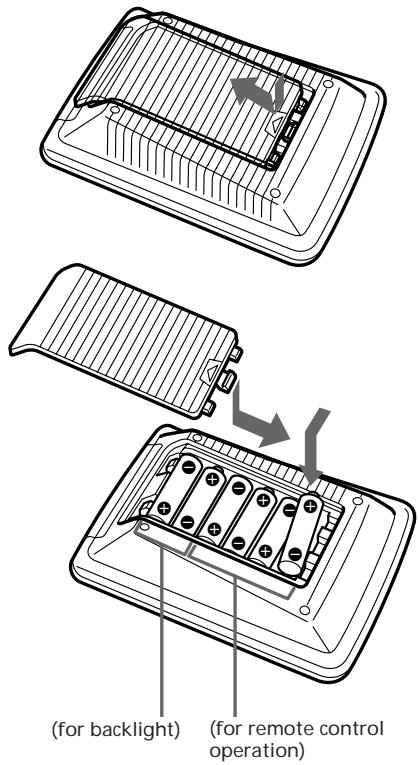
Slide open the battery compartment lid and insert six R6 (size AA) batteries (not supplied). Be sure to line up the + and - on the batteries with the + and - on the battery compartment.
When to replace the batteries
Batteries for remote control operation (Four R6 (size AA) batteries)
Under normal conditions, batteries will last up to six months. If the Commander does not operate properly, batteries might be worn out and is displayed on the LCD touch panel. When the display dims, replace the batteries with new ones.
Note
Do not take more than one hour to replace the batteries; otherwise, your setting of the code numbers (page 7) and learned remote control signals (page 12) will be erased.
Batteries for backlight (Two R6 (size AA) batteries)
When the backlight for the touch keys grows dim, replace its batteries.
Notes on batteries
- Do not mix old batteries with new ones or mix different types of batteries together.
- If the electrolyte inside the battery should leak, wipe the contaminated area of the battery compartment with a cloth and replace the old batteries with new ones. To prevent the electrolyte from leaking, remove the batteries when you plan not to use the Commander for a long period of time.
Location and Function of Controls
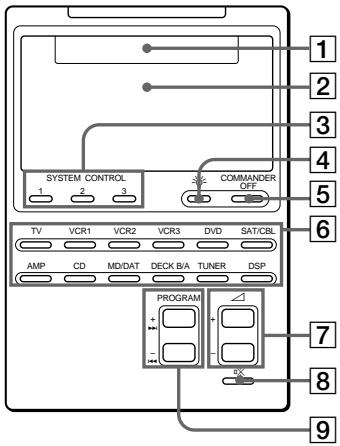
① Component display area Displays the name of the component selected. ② LCD touch key display The keys used for operating each component are displayed.
Note
Do not press the touch keys using sharp objects such as pins or ball-point pens.
3 SYSTEM CONTROL buttons (page 18) You can program up to 16 consecutive key operations to each of the three SYSTEM CONTROL buttons. You can automatically carry out the entire program by pressing one button. 4 button Used to light up the LCD display in the dark. Press the button once to turn on the light, and once again to turn it off. You can also set the backlight to go off automatically after a certain period of time (page 33).
⑤ COMMANDER OFF button Turns the power of the Commander off. ⑥ Component Select buttons Selects the component to control. 7 △ +/- buttons* Adjust the volume. 8 ✉ button* Mutes the volume. 9 PROGRAM + ▶▶▶I/ - ◀◀◀ buttons Select the programme.
* The Commander controls or mutes the TV's volume when you select a visual component.
The Commander controls or mutes the amplifier's volume when you select an audio component.
You can change this setting also (page 17).
Note on the power on and off of the Remote Commander
To turn on the power, press any button except the COMMANDER OFF button.
To turn off, press COMMANDER OFF, or if you don't use the Commander, it automatically turns off after 10 minutes. This interval can also be changed (page 32).
To turn off the key touch confirmation beep
Press the ♩ key. “OFF” is displayed and the Commander no longer makes the key touch confirmation beep. To switch the key touch confirmation beep back on, press the ♩ key again.
Setting the Code for Preset Audio and Visual Components
The Commander is preset at the factory to operate Sony brand AV components (see the table below). If you are using the Commander with factory-set Sony components, skip the following procedures.
You can use the Commander with other preset AV components also. To use with other AV components, you need to follow the procedures to set the correct codes for each component.
| Component Select Button | Preset component(s) | Factory setting |
| TV | TV | Sony TV |
| VCR1 | VCR | Sony Beta VCR (VTR1) |
| VCR2 | VCR | Sony 8mm VCR (VTR2) |
| VCR3 | VCR | Sony VHS VCR (VTR3) |
| DVD | DVD player (DVD)/LD player (VD) | Sony DVD player |
| SAT/CBL | Satellite tuner (SAT)/Cable box (CBL) | Sony satellite tuner |
| AMP | Amplifier | Sony amplifier |
| CD | CD player | Sony CD player |
| MD/DAT | MD deck/DAT deck | Sony MD deck |
| DECK B/A | Cassette deck* | Sony cassette deck |
| TUNER | FM/AM tuner | Sony FM/AM tuner |
| DSP | Surround processor | Sony digital surround processor |
* Analog audio compact cassette deck
See “Table of Preset Functions” (page 37) for the functions of keys and buttons as for each component.
Setting the Code for Preset Audio and Visual Components (continued)
Setting a Component Code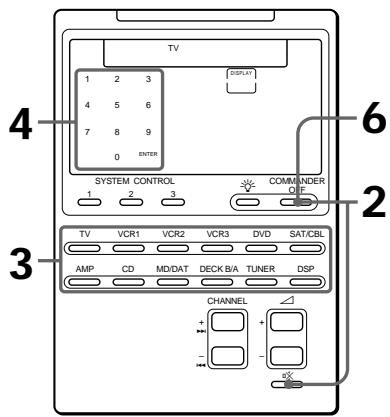
Example: To set up a Philips' TV
1 See the tables in the supplied "Component Code Numbers", and find the double digit code number for the desired component.
If more than one code number is listed, use the number that is listed first.
For example, to set up a Philips' TV, you would use the code number 11.
2 While pressing COMMANDER OFF, press ☐.
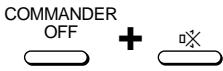
All the component names in the display flash.
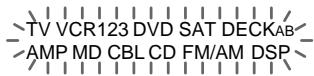
3 Press the Component Select button* for the desired component.

The selected component remains displayed, and the 0-9, ENTER, and DISPLAY keys flash.
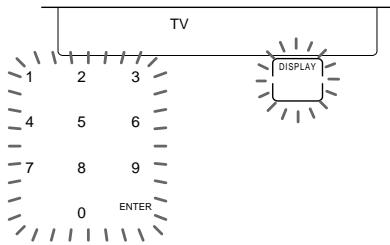
* When setting the component code for the DVD or SAT/CBL button, press repeatedly until the desired component is displayed.
4 Press the two-digit component code number followed by the ENTER key on the touch-key display.
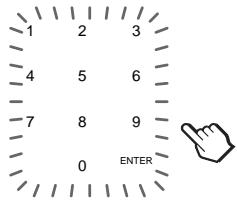
A beep sounds, and the code numbers and “ENTER” appear twice.
![graph LR A["1"] --> B["1"] B --> C["ENTER"]](/content/2019/09/50632/images/bb95b11c34fb9d513bf7b41fa75f99f2866723d320fa3b88ee9635628e43eb88.jpg)
5 If you want to set a code for another component, repeat Steps 3 and 4. 6 Press COMMANDER OFF.
COMMANDER
OFF

Notes
- If you press a component code number that is not on the table in the supplied “Component Code Numbers”, the Commander beeps and “NG” flashes after you press the ENTER key. If this happens, check the component code number, and try setting again.
- If you don't input anything into the Commander for over two minutes between each step, the setup procedure will be canceled. To set the code, you must again press ☐ while pressing COMMANDER OFF.
To check which code number is set
Press the DISPLAY key. The code number and “ENTER” appear twice.
Checking if the code number works
1 Press the corresponding Component Select button for the component you have set up.

The Commander turns on and the touch-keys appear on the display.
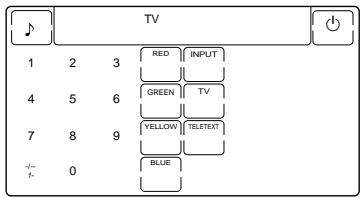
2 Power on the component with its power switch. 3 Aim the Commander at the component and press the ⏻ key in the touch-key display.
When the remote control signal is sent, ⬇ is displayed on the display.

The component should power off.
Setting the Code for Preset Audio and Visual Components (continued)
4 If you have succeeded, check that the Commander is operating the other functions of your component, such as channel and volume control.
See “Operating Your Components with the Remote Commander” for details.
If the Commander does not seem to be working...
Try repeating these setup procedures on page 7 using the other codes listed for your components in the tables in the supplied “Component Code Numbers”.
Notes on keys which have "learned" a remote control signal already
If another signal has already been programmed on that key or button by the learning function (page 12), that “learned” signal will work even after you set the component code number. To use it as a preset component key or button, first erase its learned signal.
Note on the touch-key display
When you set a component code number, only the keys that have been preset with the signals for the desired component will be displayed. Preset signal of each key varies according to the brand. By using the learning function, you can program remote control signals to both the displayed keys and keys that are not displayed (see page 12).
Operating Your Components with the Remote Commander
When you operate a non-Sony component, make sure you set the component code first (page 7).
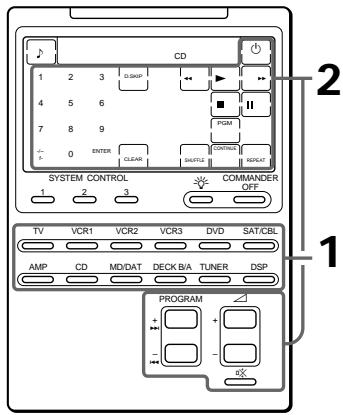
Example: To play a CD player
1 Press the desired Component Select button.

The Commander comes on and the keys for operating the selected component are displayed.
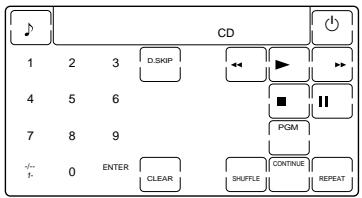
2 Press the desired key in the touch key display.
When the remote control signal is sent, ⬇ is displayed on the display.

You may also use the △+/- buttons, the ☑ button, and the PROGRAM +/- buttons if necessary.
3 When you are done using the
Commander, press
COMMANDER OFF to power off the Commander.
COMMANDER
OFF

Note
The remote control signals may be different for some components or functions. In this case, program the remote control signals with the learning function (see page 12). Note, however, that components and functions that do not support the remote control of infrared signals will not work with this Commander.
To control the volume
Press the △+/- buttons to control the volume, and the ☑ button to mute.
When you select a visual component, the TV's volume will be controlled, and when you select an audio component, the amplifier's volume will be controlled.
You can change this setting also (page 17).
When you operate a Sony VCR
Select the VCR1, 2, or 3 button to match the VTR1, 2, or 3 switch on your VCR. If your VCR does not have a VTR1, 2, or 3 switch, select VCR1, 2, or 3 according to the type of VCR as follows.
| Betamax | VCR1 |
| 8mm | VCR2 |
| VHS | VCR3 |
When you operate a VCR REC (record) key
In order to avoid recording by mistake, the REC key does not work by itself. To record, you must press the ▶ key while pressing the REC key.
When you operate a double cassette deck
You need to select deck A or B before operating. To select the deck, press DECK B/A to switch the display between "DECK A" and "DECK B".
If the remote control for your cassette deck has only one set of operating buttons and has an A/B button for selecting a deck, press the D.SKIP key in the touch-key display instead.
Operating Your Components with the Remote Commander (continued)
About the input select of a TV
It is also possible to select directly as follows when you are connecting more than two VCRs.
"INPUT" + "0": TV tuner
"INPUT" + "1": VIDEO1
"INPUT" + "2": VIDEO2
"INPUT" + "3": VIDEO3
"INPUT" + "4": VIDEO4
"INPUT" + "5": VIDEO5
"INPUT" + "6": VIDEO6
When you use a Sony TV, the above commands are preset. For other brands, it is possible to “teach” the above double-key operations using the learning function (see next page).
Using Non-Preset Remote Control Operations
— Learning Function
To operate non-preset components or functions, use the following “learning” procedure to “teach” any of the programmable buttons and keys to operate the functions of another remote control. You can also use the learning function to change the signal of individual keys and buttons after setting the component code number (page 7). It is useful if you make a memo of the learned key functions in the supplied “LCD Touch Key Display Table”.
Note
Some specific remote control signals may not be learned.
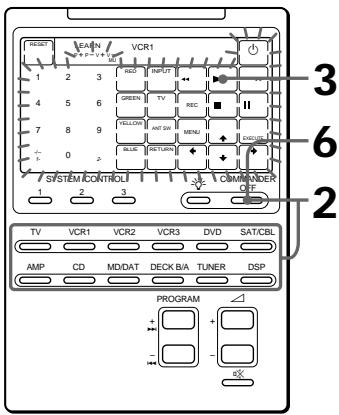
Example: To program the ▶ (Play) signal of your component to the VCR1 ▶ (Play) key of the Commander
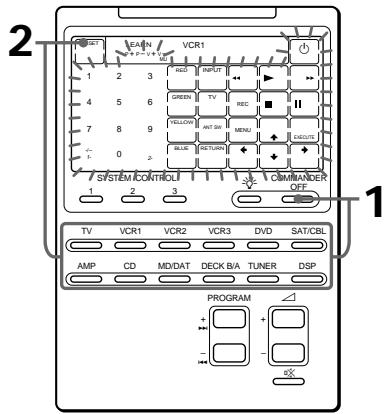
1 Place the RM-AV2000T head to head with your component's remote control.
Remote control for your component
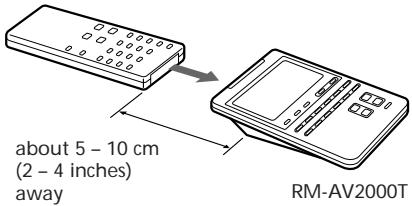
2 While pressing COMMANDER OFF, press the Component Select button for the component whose signals are to be learned.
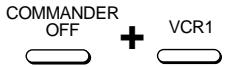
All the learnable keys flash.
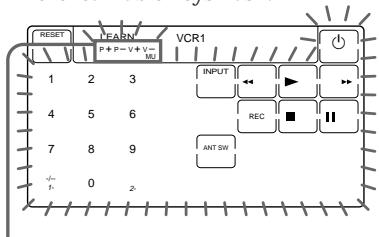
Display for PROGRAM, △ and ☐ buttons
The “P+ P- V+ V- MU” display indicates if PROGRAM +/-, △+/- and ☒× buttons are learnable or not.
Note on the flashing display
The keys or buttons that are already preset for that component flash twice while those that are not preset flash once.
3 Press the key or button on the Commander you want to "teach".

“LEARN” flashes and the only pressed key remains on the display.
![graph TD A["LEARN"] --> B["VCR1"] B --> C["▶"]](/content/2019/09/50632/images/9fcf71d8fcf5ac753684f4d8afccfd1ae05a9e60dff3f844264cfa174fd66513.jpg)
To teach on the PROGRAM +/-, △ +/- or ☒ buttons
Press the corresponding button. “LEARN” flashes, “P+”, “P-”, “V+”, “V-”, or “MU” remains on the display.
4 Press and hold down the button of your component's remote control until you hear a beep.

“LEARN” stops flashing and stays lit. When the signal has been learned successfully, the learned keys stay lit and the other learnable keys flash.
If you hear beeps and "NG" flashes on the display
Learning did not succeed. Try Steps 3 and 4 again.
Certain signals may require the learning procedure more than once to complete learning. In this case, try Step 4 again if “NG” appears after Step 4.
Using Non-Preset Remote Control Operations — Learning Function (continued)
5 Repeat Steps 3 and 4 to teach functions to other keys or buttons.
To learn another component's remote control signal
After positioning the two remote commanders as in Step 1 on page 13, press the corresponding Component Select button, and then follow Steps 3 and 4 on page 13 to perform learning.
6 Press COMMANDER OFF.
COMMANDER OFF

Notes
- If you do not perform learning steps within two minutes, learning mode ends.
- If you do not perform Step 4 within 10 seconds after Step 3, the display turns back to the display in Step 2. (All the learnable keys flash.) In this case, perform Step 3 again while the display is flashing.
- If “NG” appears while learning, the memory is full. To free memory, clear learned functions from keys that you do not use often (page 15). Then continue the learning steps.
- If you touch a key by mistake, while pressing the “RESET” key, press the mistaken key. Then repeat from Step 2 to continue learning.
If the Commander does not seem to be working
If the learned key or button does not operate properly, teach once again. (For example, if the volume becomes very loud after pressing the + button only once, noise may have interfered during the learning procedure.)
For accurate learning
- Do not move the remote units during the learning procedure.
- Be sure to keep holding down the button of your component's remote control until you hear the confirmation beep.
- Use fresh batteries in both remote units.
- Avoid learning in places under direct sunlight or a strong fluorescent light.
- The remote control detector area may differ depending on each remote unit. If learning does not work, try changing the positions of the two remote control units.
IMPORTANT
Be sure to place the Commander out of the reach of small children or pets. Components such as air-conditioners, heaters, electric appliances, and electric shutters or curtains receiving an infrared signal can be dangerous if misused.
When you teach the signals for a double cassette deck
Press DECK B/A to select deck A or B.
When you teach the REC (record) signal for VCR1, 2, or 3
In Step 3, while pressing the REC key, press the ▶ key to display both keys, then follow Steps 4 to 6. The Commander cannot learn the remote control signal with just the REC key lit up.
When you teach signals on the △ or ☑️ buttons
For components other than TV or AMP, be sure to read the notes on pages 17 and 18.
To display only the frequently used keys
You can hide keys you do not use. This makes operations even easier to understand, when the components have many keys.
After Step 2 on page 13, while pressing the RESET key, press the key you want to hide (flashing). The pressed key changes to slower flashing and will no longer be displayed during remote control operations.
To display it again, perform the same procedure again.
Note
You cannot hide a key which has “learned” any signal.
Changing or erasing the function of a learned key or button
To change the learned function, clear it first and perform learning again.
To clear the learned function of a single key or button
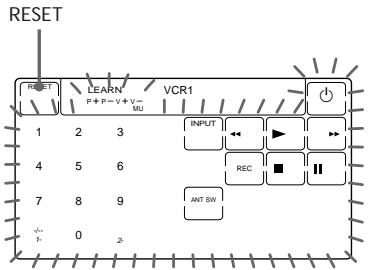
1 After Step 2 on page 13, while pressing the RESET key, press the key or button you want to erase.
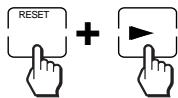
The cleared key flashes together with other learnable keys.
Using Non-Preset Remote Control Operations — Learning Function (continued)
To clear all signals learned for a specific component
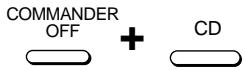
1 While pressing COMMANDER OFF, press the corresponding Component Select button.
When you want to clear signals learned for DECK B/A
Press DECKB/A to display “DECK A” or “DECK B”. You cannot clear both decks at the same time.
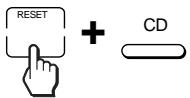
2 While pressing the RESET key, press that Component Select button again. The Commander beeps, and the learned contents are cleared. The keys for the component return to their original states before learning.
Note
If you perform the steps above when no signal is “learned”, the component code setting (page 7) will be reset to the factory setting. Note that for DECK B/A, if you reset either deck (A or B), the component code for both A and B will be reset to the factory setting.
Controlling the Volume of Visual Components Connected to an Audio System
The Commander is factory preset based on the assumption that you hear the sound of your visual components from your TV speakers, and that you hear the sound of your audio components from the loudspeakers connected to your amplifier.
The following table shows the factory setting of which volume would be controlled for each component.
| Component Select button | Controls the volume of |
| TV | TV |
| VCR1,2,3 | TV |
| SAT/CBL | TV |
| DVD | TV |
| AMP | amplifier |
| CD | amplifier |
| MD/DAT | amplifier |
| DECK B/A | amplifier |
| TUNER | amplifier |
| DSP | amplifier |
This feature enables you to control the volume of your TV or amplifier without having to select TV or AMP each time you want to control the volume.
For example, to control the volume while using a VCR, you don't need to press the TV button to control the TV volume.
Notes
- If you have programmed any signal on the △ or × buttons by learning (page 12) for certain components, that signal will be transmitted instead of controlling the volume of TV or amplifier when you select that component.
- When the ◀ or ※ buttons of TV or AMP have "learned" any signal, that signal will be transmitted only when you select TV or AMP. When you select other components, the original signals preset for TV or AMP will be transmitted.
To change the Factory Preset of the Volume Control
However, if your visual components are connected to an audio system, you probably hear TV or VCR sound from the loudspeakers via your amplifier, not from your TV speakers. In this case, you need to change the factory preset so that you can control the volume of your visual components without first having to switch to the amplifier.
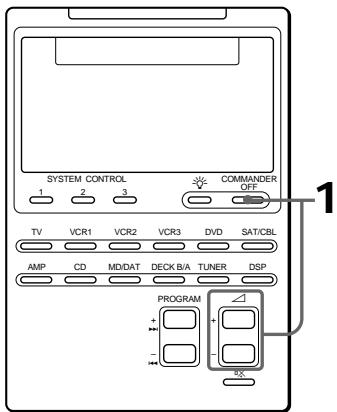
1 While pressing COMMANDER OFF, press △ + and △ - .
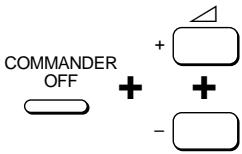
You hear a beep and the volume control setting of visual components (TV, VCR1, 2 and 3, SAT/CBL, and DVD) changes to the displayed component.
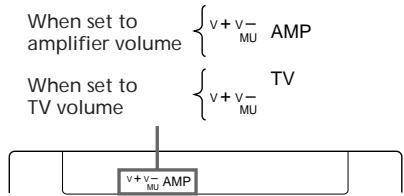
Notes
- If you have already programmed the △ or ※ button of each component any signals by "learning", the procedure above will not change the function of the △ and ※ buttons.
- If you have programmed volume control signals on ∅ or ☑× buttons of TV or AMP by the “learning” function (page 12), you can only use that signal when you select TV or AMP. For other component, the preset volume control signals for TV or AMP (depending on the above setting procedure) will be transmitted. To use the new signals, you need to program each button for each component by the learning procedure (page 12).
Executing a Series of Commands
— System Control Function
With the System Control function, you can program a series of operating commands and execute them by pressing just one button.
For example, when you watch a video, a series of operations like the ones below are necessary.
Example:
1. Power on the TV. 2. Power on the video (VCR 1). 3. Power on the amplifier. 4. Set the input selector of the amplifier to VIDEO 1. 5. Set the input mode of the TV to VIDEO. 6. Start video playback.
You can program up to 16 consecutive operation steps to each of the SYSTEM CONTROL 1, 2, or 3 buttons. At the factory, SYSTEM CONTROL 1 and 2 are not programmed yet, but a series of Power-on Commands for Sony Components is programmed on the SYSTEM CONTROL 3 button.
Programming a series of commands to the SYSTEM CONTROL buttons
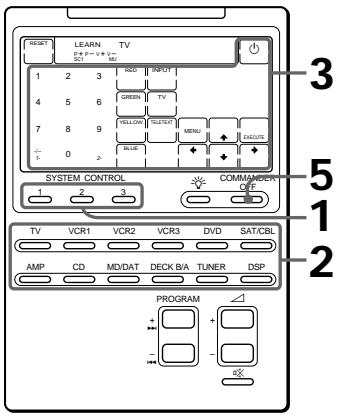
Example: To program the procedure on the left to the SYSTEM CONTROL 1 button
1. While pressing COMMANDER OFF, press one of the SYSTEM CONTROL buttons (in this case, SYSTEM CONTROL 1).
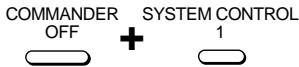
All the component names flash.

If a series of commands is already programmed on that button, that program will be displayed. (Note that the SYSTEM CONTROL 3 button is factory preset with standard Power-on Command for nearly all Sony Components.) To program a new series of operations, clear the program first (see page 21).
2. Press the Component Select button for the component to operate.

The keys for the selected component flash.
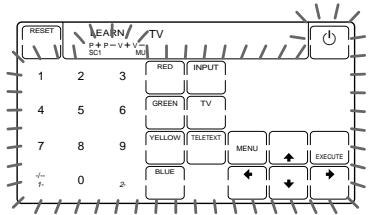
3. Press key(s) or button(s) for the desired operation.
For example, to turn on the TV, press one of the numeric keys.

The remote control signal for the pressed key is transmitted, so you can check that each component actually operates the way you want.
Executing a Series of Commands — System Control Function (continued)
4 Repeat Steps 2 and 3 and program the buttons and keys for the series of operations.
In this example, press the following buttons and keys.
![graph LR A["VCR1"] --> B["Switch"] C["AMP"] --> D["Switch"] E["TV"] --> F["Input"] G["VCR1"] --> H["Switch"] I["→"] --> J["→"] K["→"] --> L["→"] M["→"] --> N["→"]](/content/2019/09/50632/images/aa3cd9f9d26c0ece2e0d947816129fb40a1d5ee62c8550684c2380631aefb0c2.jpg)
5 When you have programmed all the keys, press COMMANDER OFF.
Notes
- If you interrupt the procedure at any point for over two minutes, the setting mode ends and the series of commands will be programmed to that point. In this case, clear the program and start again from Step 1 to set the entire program from the beginning. You cannot continue from where you left off.
- If a SYSTEM CONTROL button has already “learned” a remote control signal (see page 28), “NG” flashes and you hear a beep to inform you that you cannot program on this button. Clear the learned contents first (see page 29).
- If you change the component code number (page 7) or program a new signal by learning (page 12) on a key or button that has been programmed in the series of commands of the System Control function, the new signal will be transmitted when you press the corresponding SYSTEM CONTROL button.
Tip for programming on SYSTEM CONTROL button
After the series of input commands is executed, the Commander displays the touch keys of the component of the final step. By programming an often-used component's command as the final step, you can save the step of pressing a Component Select button when you start operating that component.
Executing the programmed commands
Press the desired SYSTEM CONTROL button (1, 2 or 3). The programmed remote control signals are transmitted in the programmed order to operate each component.
SYSTEM CONTROL

At the same time that each remote control signal is transmitted, the corresponding key is displayed.
Notes on System Control Operation
- If the remote control detectors of the components are too far apart, or if something is blocking them, some of the components may not operate consecutively even after you press the SYSTEM CONTROL button.
- If some of the components did not operate correctly because of the above or for any other reason, always set all the components back to the states they were in before you pressed the SYSTEM CONTROL button. Failure to do this can result in incorrect operation when you press the SYSTEM CONTROL button again.
- Some components may not always be powered on by the System Control function. This is because the power of the component gets on and off alternatively when receiving the power on/off signal. In this case, check the operating component's power on/off state before using the System Control function.
- Some of the components may not accept consecutive remote control signals. For example, a TV generally does not react to next signal right after the Power-on signal. So, a series of commands such as TV Power-on and input select may not work properly. In this case, insert other signals like the example below;
TV Power-on → VCR Power-on → VCR play back → TV input select
Changing the programmed commands
To clear programmed commands
1 While pressing COMMANDER OFF, press one of the SYSTEM CONTROL 1, 2, or 3 button.
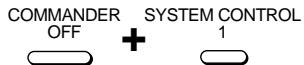
The key operations programmed for that button are displayed in order.
2 While pressing the RESET key, press the same SYSTEM CONTROL button (1, 2, or 3) again.
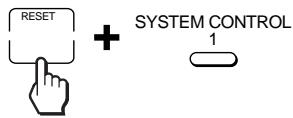
The contents of its program are cleared and all the component names flash.

When you want to set a new program to this SYSTEM CONTROL button, follow the Steps 2 – 5 on pages 19 and 20.
Executing a Series of Commands — System Control Function (continued)
To set SYSTEM CONTROL 3 back to the factory setting (Power-on commands for Sony components)
1 While pressing COMMANDER OFF, press SYSTEM CONTROL 3.
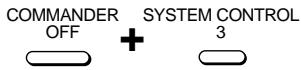
The programmed key operations are displayed in order.
2 While pressing the RESET key, press SYSTEM CONTROL 3.
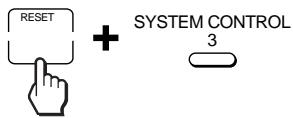
The contents of its program are cleared and all the component names flash.
3 While pressing the RESET key again, press SYSTEM CONTROL 3 again.
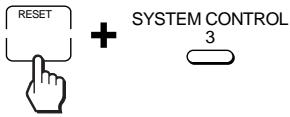
The series of Power-on commands for Sony components are set and the programmed operations are displayed in order.
Adding an Extra Function to the Component Select Buttons
Programming the Power-On Command of the Selected Component (for Sony Components only)
When using Sony components, you can program the Power-on signal for each component on a Component Select button. You can select the desired component and power it on by just pressing that Component Select button.
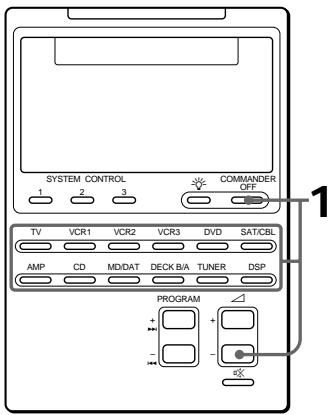
Example: To program the TV button
1 While pressing COMMANDER OFF, press △ and the desired Component Select button.
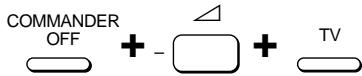
When the Power-on command is programmed, you will hear a beep and “ON” appears on the display. (The display goes off when you release the buttons.)

To clear the Power-on command
Repeat the procedure above.
You will hear a beep and the following display appears.

Notes
- When a signal has already been learned for a Component Select button (see page 24), the Power-on command cannot be programmed.
- When you program another signal using the learning function to a Component Select button (page 24) for which a Power-on command has already been programmed, the learned signal overwrites the Power-on command. If the learned signal is cleared afterward, the Power-on command will also be erased and the button will return to its status before being programmed.
Adding an Extra Function to the Component Select Buttons (continued)
Adding a Command that is Required when Selecting a Component
In addition to the original function of selecting the operating keys and buttons of the desired component, the Component Select button can have another remote control signal by “learning” (see page 12).
For example, if you always have to change input select of the amplifier to CD when listening to the CD player, program the signal of “changing the amplifier’s input select” to the CD button of this Commander. Then whenever you press the CD button, it automatically works as the original CD Component Select button and changes also the amplifier input select to CD.
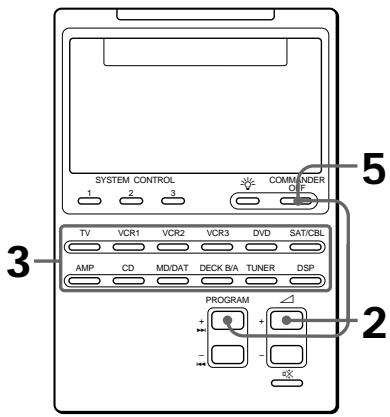
Example: To program the input select signal of your amplifier to the CD button
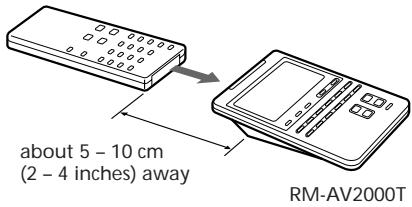
1 Place the RM-AV2000T head to head with your component's remote control.
Remote control of your component
2 While pressing COMMANDER OFF, press ▲ and PROGRAM +.

“LEARN” appears and all the component names flash.

3 Press the desired Component Select button.

The selected component name stays lit and “LEARN” flashes.

4 Press and hold down the button on your component's remote control (amplifier in this example) until you hear a beep.
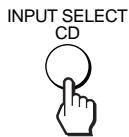
5 Press COMMANDER OFF.
To clear the learned function of the Component Select button
1 While pressing COMMANDER OFF, press + and PROGRAM +. 2 While pressing the RESET key, press the Component Select button which you want to clear.
Note
Even if that Component Select button has been programmed with the Power-on command (page 23), you can program any signal on it by the procedure above. However, the new signal overwrites the Power-on command, and even after you clear this new signal, the Power-on command will not resume.
Turning Off the Power of All Components by a Single Button Operation
— System Power-Off Function (for Sony Components only)
When the System Power-Off function is active, you can turn off all Sony components just by pressing the COMMANDER OFF button for three seconds.
To set the System Power-Off function
1 While pressing COMMANDER OFF, press PROGRAM – and ∠+.
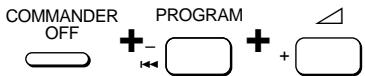
When the System Power-Off function is set, “☐ OFF” appears on the display. (The display goes off when you release the buttons.)

To cancel the System Power-Off function
Repeat the procedure above. The following display appears when the System Power-Off function is disabled.

Assigning Other Components to the Component Select Buttons
You can assign another component to any empty Component Select button. For example, if you have two VCRs and two CD players, you can use the VCR3 button as the Component Select button for your second CD player.
Note
Once you assign another component to a Component Select button, the setting of the component code number will be erased. The component code number will not return even if you reset the newly assigned component and turn back to the original component.
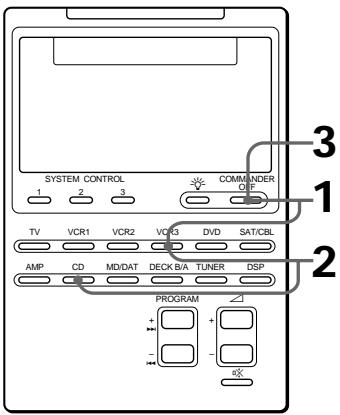
Example: To assign a CD player to the VCR3 button
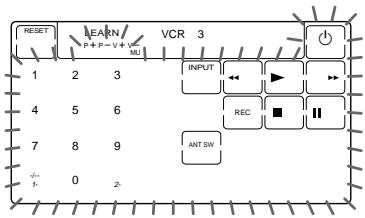
1 While pressing COMMANDER OFF, press VCR3.
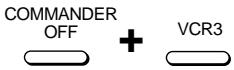
The keys for that component (VCR3) flash.
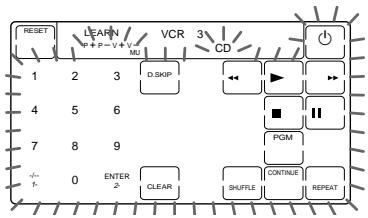
2 While pressing VCR3, press CD.
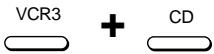
The Commander beeps and the keys for the new component (CD) flash. The new component name (CD) flashes and the original component name (VCR3) stays lit.
When you assign a cassette deck (DECK B/A) to another Component Select button
You cannot assign both decks A and B at a time to one button.
If the desired deck (A or B) is not displayed, finish the procedure by pressing COMMANDER OFF and press DECK B/A to select the desired deck, and then start over from Step 1.
3 • If the newly assigned component is a Sony component, press COMMANDER OFF to finish this procedure. - If you need to set the component code, follow the steps on pages 7 – 10. - If you need to program some signals by the “learning” function, follow the Steps 1 and 3 to 6 on pages 13 and 14.
Note
If you hear beeps and “NG” flashes on the display when you press the Component Select button at Step 1, you cannot assign another component because some of the keys or buttons are already programmed with the learning function (see page 12).
Try the above procedure again after clearing the learned signals for that component.
To assign an LD player (VD) or Cable box (CBL) to another Component Select button
If the desired component (“VD” or “CBL”) is not displayed, before Step 3, repeat Step 2 again so that the desired component (“VD” or “CBL”) flashes on the display.
To use the Commander after assigning other components
Press the reassigned Component Select button. The keys of the new component are displayed and you can use the desired component. Note however that only the original component name is displayed.
(In this example, the display would be like the one below.)
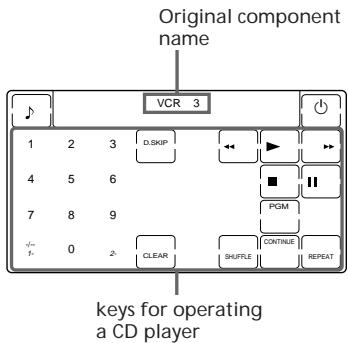
To reset a Component Select button to its original setting
1 While pressing COMMANDER OFF, press the Component Select button which you want to reset. 2 While pressing the RESET key, press that Component Select button again. The setting for that Component Select button returns to the factory setting.
Note
If you have programmed some signals on any of the keys or buttons with the learning function (see page 12) after you reassigned your component, the two steps above only clears the “learned” signals. In this case, perform Step 2 again to reset to the original Component Select button.
Programming a Frequently Used Key Operation to SYSTEM CONTROL Buttons
In addition to their original System Control functions (see page 18), SYSTEM CONTROL 1, 2 or 3 buttons can be programmed to “learn” any remote control signal.
As they operate independently from other buttons, SYSTEM CONTROL 1, 2 or 3 buttons can work as one-touch buttons without any preceding operation such as pressing a Component Select button to select a component.
This is useful if you prefer having the SYSTEM CONTROL button as a “one-touch” button for a single operation rather than executing a series of commands.
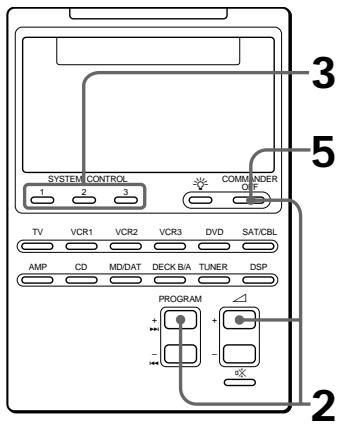
Example: To store the On/Off signal of an air-conditioner to the SYSTEM CONTROL 2 button
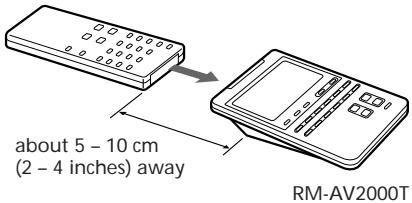
1 Place the RM-AV2000T head to head with the remote control of the air-conditioner.
Remote control of your component
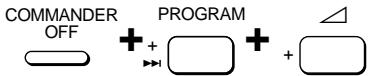
2 While pressing COMMANDER OFF, press PROGRAM + and ∠+.
"LEARN" appears and the display for the learnable SYSTEM CONTROL buttons flashes in the display panel.

If a signal has been learned on that button, the display stays lit. If you want to program on that button, clear the signal first (page 29).
3 Press the SYSTEM CONTROL button you want to teach.
SYSTEM CONTROL

"LEARN" flashes and the display for the pressed SYSTEM CONTROL button stays lit.
![graph TD A["LEARN"] --> B["SC2"]](/content/2019/09/50632/images/c5aa54449de377b7381353bfc3c560cd5ca05639a6a5b5f6eaf33fb12d6f6486.jpg)
4 Press and hold down the button of the remote control of the air-conditioner until you hear a beep.
AIR CONDITIONER

"LEARN" display stops flashing and stays lit.
If you hear beeps and "NG" flashes on the display
Learning did not succeed. Try Steps 3 and 4 again.
5 Press COMMANDER OFF.
COMMANDER
OFF

To clear the learned remote control signal
1 While pressing COMMANDER OFF, press PROGRAM + and + . 2 While pressing the RESET key, press SYSTEM CONTROL 1, 2, or 3.
Locking the Controls
— Hold Function
To prevent accidental operation, you can lock all the buttons with the Hold function.
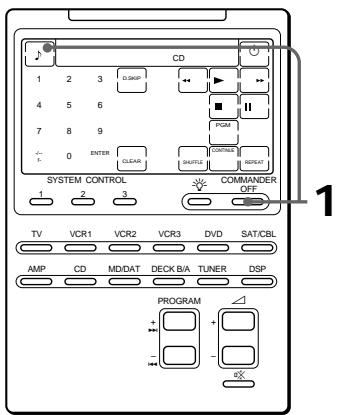
If the ♩ key is not displayed, press any button except SYSTEM CONTROL or COMMANDER OFF before you start.
1 While pressing the ♪ key, press COMMANDER OFF.
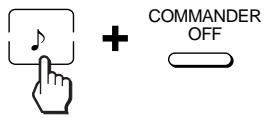
The Commander beeps and "OFF" is displayed.

To unlock the control
While pressing the “OFF” key, press COMMANDER OFF. “OFF” disappears from the display.
Protecting your settings and "learned" signals
— Preset Lock function
You can lock the Commander so that you can not change, add, or clear any of your component code settings (page 7), "learned" signals (pages 12, 24, 28, etc.), System Control settings, (page 18), volume setting (page 17), or System Power-off setting (page 25).
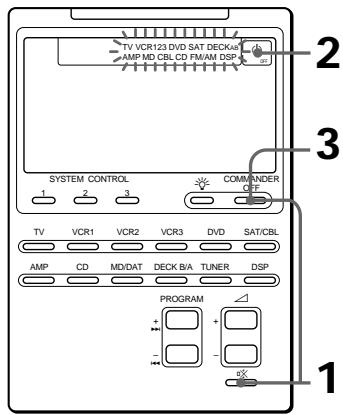
1 While pressing COMMANDER OFF, press ☐.
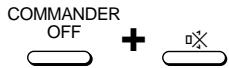
All the component names flash and “OFF” key appears.

2 Press the ⏻ OFF key.
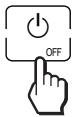
All the component names stop flashing and stay lit, and “ON” flashes.

3 Press COMMANDER OFF.
When the preset lock is on
If you try to set a component code number (page 7) or perform learning (page 12), you will hear beeps and “NG” flashes on the display.
To unlock the preset lock
To unlock the preset lock, follow the same procedure as the above and press “ON” in Step 2. “OFF” appears on the display.
Changing the Auto Power-Off Time of the Commander
The Commander is preset at the factory to switch the power off automatically after 10 minutes if left unused (Auto Power-Off). To change this time, perform the following procedure.
You can set the Auto Power-Off time up to 90 minutes, in units of 10 minutes, or disable the Auto Power-Off function.
Note
The Auto Power-Off function only turns off the power of the Commander, but not of the component.
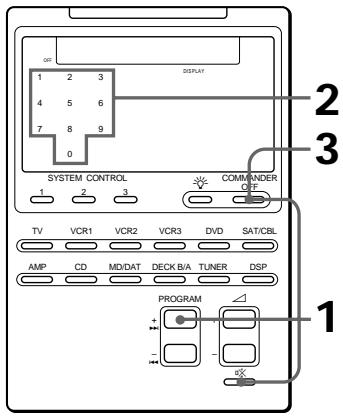
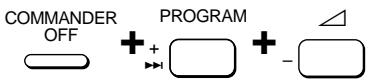
1 While pressing COMMANDER OFF, press PROGRAM + and - .
The number which shows the current Power-Off time of the Commander stays lit, and other numbers flash.
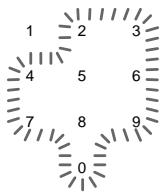
2 Press one of the 1 - 9 keys to select the Auto Power-Off time, or press the 0 key to disable the Auto Power-off function.
For example, to set the Auto Power-Off time to 20 minutes, press the 2 key.

The Commander beeps, and “2” stops flashing and stays lit.
3 Press COMMANDER OFF.
Adjusting the Backlight of the Display Window
The Commander is preset at the factory to bright backlight, and to switch off the backlight automatically after 10 seconds. To change this setting, perform the following procedure.
You can adjust the backlight Automatic-Off time (from 10 seconds to 90 seconds in the units of 10 seconds) and the brightness (bright or dim).
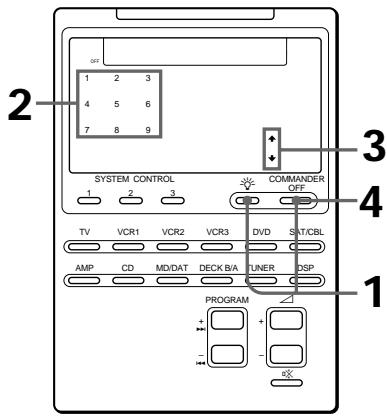
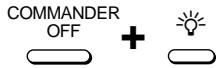
1 While pressing COMMANDER OFF, press 🔊.
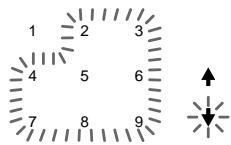
The number which shows current Automatic-Off time and the arrow indicating the current brightness of the backlight stay lit. Other numbers and the opposite arrow will flash.
2 Press one of the 1 - 9 keys to select the Off time.
For example, to set the Automatic-Off time to 20 seconds, press the 2 key.

The Commander beeps and “2” stops flashing and stays lit.
3 Press the or key, to select the brightness.
To brighten, press , to dim, press .

The Commander beeps and the chosen arrow stays lit.
4 Press COMMANDER OFF.
Precautions
- Do not drop the unit or give a shock to the unit, or it may cause a malfunction.
- Do not leave the unit in a location near heat sources, or in a place subject to direct sunlight, excessive dust or sand, moisture, rain or mechanical shock.
- Do not put foreign objects into the unit. Should any liquid or solid object fall into the unit, have it checked by qualified personnel before operating the unit any further.
- Do not expose the remote control detectors of your components to direct sunlight or other strong illumination. Too much light there can interfere with remote control operations.
- Be sure to place the Commander out of the reach of small children or pets. Components such as air-conditioners, heaters, electric appliances, and electric shutters or curtains receiving an infrared signal can be dangerous if misused.
Maintenance
Clean the surface with a soft cloth slightly moistened with water or a mild detergent solution. Do not use any type of solvent such as alcohol, benzine or thinner as they may damage the finish of the surface.
Specifications
Operating distance
Approx. 10 meters (32.8 ft) (varies depending on components of different manufacturers)
Power requirements
Remote control: Four R6 (size AA) batteries Backlight: Two R6 (size AA) batteries
Battery life
Approx. 6 months (varies depending on frequency of use)
Dimensions
Approx. 120 x 175 x 45 mm
(4 3/4 × 7 × 1 13/16 in.) (w × h × d)
Mass
290 g (10.22 oz) (not including batteries)
Design and specifications are subject to change without notice.
Troubleshooting
If you have problems setting up or using the Remote Commander, first check the batteries (page 5), then check the items below.
| Symptom | Remedy |
| You cannot operate the components. | Go closer to the component. The maximum operating distance is approximately 10 m (32.8 ft).Check that you are aiming the Commander directly at the component, and that there are no obstructions between the Commander and the component.Power on the components first, if necessary.Make sure you have pressed the correct Component Select button. In case of SAT/CBL, DVD or DECK B/A, make sure the desired component is displayed.Check that the component has infrared remote capability. For example, if your component didn’t come with a remote commander, it probably isn’t capable of being controlled by a remote commander.If your visual components are connected to an audio system, make sure you’ve set up the Commander as described in “Controlling the Volume of Visual Components Connected to an Audio System”. (page 17) |
| You cannot operate the components even after setting the component code numbers. | Set the component code correctly (page 7). If the code that is listed first for your component doesn’t work, try all the codes for your component in the order in which they are listed in the supplied “Component Code Numbers”.Some features may not be preset. If some or all of the keys do not function correctly even after you have set the component codes, then use the learning function to program the remote control signals for the component. (page 12) |
| You cannot operate a component even after you programmed the remote control signals with the “learning” function. | Make sure that the Remote Commander has learned the correct signals. If not, try the learning procedure again. (page 12) |
| “NG” flashes during learning. | Clear infrequently used learned keys (page 15), then carry out learning operations.See “For accurate learning” on page 14 and try the learning procedure again. (page 12) |
| “NG” displays during learning. | Another remote control signal has been already programmed on that key or button by the learning function. Clear learned functions (page 15) and then try the learning procedure again. (page 12) |
| A system control program does not function correctly. | Make sure that you have programmed the commands in the correct order. (page 18)Try changing the orientation of the Commander. If that does not help, try placing the components as close to each other as possible.Check the status of the components and make sure that you have set the components properly to receive commands from the SYSTEM CONTROL buttons. |
| The power of the Commander turns off by itself. | This Commander is preset at the factory to switch the power off automatically after 10 minutes if left unused. (Auto Power-Off, page 32) You can change the power-off time from 10 to 90 minutes, or set the Commander not to power off automatically. |
Table of Preset Functions
TV
| KEY DISPLAY | FUNCTION |
| To turn off. | |
| 0 - 9 | To change the programme.Also to turn on. |
| -/--1- | To select double-digit numbers.Works in the same way as the TV’s commander. |
| 2- | To select a number between 20 and 29. |
| RED, GREEN, YELLOW, BLUE | Fastext buttons. |
| INPUT | To change the input mode. |
| TV | To turn on.To return from teletext to TV. |
| TELE TEXT | To switch to Teletext. |
| MENU | To call up the MENU display. |
| ↑ | To move the cursor upward. |
| ← | To move the cursor to the left. |
| ↓ | To move the cursor downward. |
| → | To move the cursor to the right. |
| EXECUTE | To execute items selected from the screen. |
| PROGRAM +/- | Programme up: + |
| Programme down: - | |
| +/ - | Volume up: + |
| Volume down: - | |
| ※ | To mute the volume on the TV. Press again to turn muting off. |
Using Fastext
With Fastext you can access pages with one key stroke. When a Fastext page is broadcast, a colour-coded menu will appear at the bottom of the screen. The colours of this menu correspond to the red, green, yellow and blue keys on the Remote Commander.
Press the key which corresponds to the colour-coded menu. The page will be displayed after some seconds.
VCR 1, 2, 3
| KEY DISPLAY | FUNCTION |
| ⏻ | To turn on and off. |
| 0 - 9 | To change the programme. |
| -/--1- | To select double-digit numbers. Works in the same way as the VCR’s commander. |
| 2- | To select a number between 20 and 29. |
| INPUT | To change the input mode. |
| ◀◀ | To rewind. |
| ▶ | To play. |
| ▶▶ | To fast-forward. |
| REC | To record, press ▶ while pressing REC. First release ▶, then release REC. |
| ■ | To stop. |
| ■■ | To pause. |
| ANT SW | To switch the antenna output. |
| PROGRAM +/- | Programme up: + |
| Programme down: - | |
| DVD (DVD player) | |
| KEY DISPLAY | FUNCTION |
| To turn on and off. | |
| 0 - 9 | Number buttons: To set items selected from the screen. |
| ENTER | To enter the setting. To set items selected from the screen. |
| AUDIO | To change the sound. |
| DISPLAY | To show the current play status on the screen. |
| ◀◀ | To go backward. |
| ▶ | To play. |
| ▶▶ | To go forward. |
| ■ | To stop. |
| ■■ | To pause. |
| SUB TITLE | To switch the subtitle. |
| SUB TITLE ON/OFF | To turn the subtitle on and off. |
| ANGLE | To switch angle. |
| TITLE | To display the title menu. |
| DVD MENU | To display the DVD menu. |
| MENU | To set or adjust menu items. |
| ↑ | To move the cursor upward. |
| ← | To move the cursor to the left. |
| ↓ | To move the cursor downward. |
| → | To move the cursor to the right. |
| EXECUTE | To execute items selected from the screen. |
| CLEAR | To clear the selected characters from the screen. |
| RETURN | To return to the last previous screen. |
| PROGRAM + | To proceed to the next location or track. |
| PROGRAM - | To proceed to the previous location or track. |
| VD (LD player) | |
| KEY DISPLAY | FUNCTION |
| ⏻ | To turn on and off. |
| 0 – 9 | To select the track number. 0 selects track 10.To select track numbers above 10, see the descriptions on the -/- key below. |
| ---/1- | To select numbers 10 and above.For example, to select track 15, press -/- and then press 5. |
| ENTER | To enter the setting. |
| ◀◀ | To go backward. |
| ▶ | To play. |
| ▶▶ | To go forward. |
| ■ | To stop. |
| ■■ | To pause. |
| CLEAR | To clear the selected characters from the screen. |
| PROGRAM ✦ | To proceed to the next location or track. |
| PROGRAM ≈ | To proceed to the previous location or track. |
SAT (Satellite tuner)
| KEY DISPLAY | FUNCTION |
| To turn on and off. | |
| 0 - 9 | To change programme. |
| -/--1- | To select double-digit numbers. Works in the same way as the satellite tuner's commander. |
| RETURN | To tune to the last tuned station. |
| MENU | To call up the MENU display. |
| ↑ | To move the cursor upward. |
| ← | To move the cursor to the left. |
| ↓ | To move the cursor downward. |
| → | To move the cursor to the right. |
| EXECUTE | To bring up the Station Index when a programme guide is not displayed.To select the channel that is highlighted. |
| PROGRAM +/- | Programme up : + |
| Programme down : - |
CBL (Cable box)
| KEY DISPLAY | FUNCTION |
| ⏻ | To turn on and off. |
| 0 – 9, ENTER | To change the programme. |
| -/--1- | To select double-digit numbers. |
| RETURN | To tune to the last tuned station. |
| PROGRAM +/- | Programme up :+ |
| Programme down : - | |
| AMP (Amplifier) | |
| KEY DISPLAY | FUNCTION |
| To turn on and off. | |
| VIDEO 1 | To select the input source:VIDEO 1 |
| VIDEO 2 | To select the input source:VIDEO 2 |
| VIDEO 3 | To select the input source:VIDEO 3 |
| VDP/AUX | To select the input source:VDP or AUX |
| TV | To select the input source: TV |
| TAPE | To select the input source:TAPE |
| DAT/MD | To select the input source: DAT/MD |
| CD | To select the input source: CD |
| TUNER | To select the input source:TUNER |
| PHONO | To select the input source:PHONO |
| MENU | To call up the MENU display. |
| To move the cursor upward. | |
| ← | To move the cursor to the left. |
| To move the cursor downward. | |
| → | To move the cursor to the right. |
| SHIFT | To shift band (FM/AM). |
| PROGRAM +/- | Presetting frequency up: +, down: - |
| Tuning frequency up: +, down: - | |
| +/- | Volume up: + |
| Volume down: - | |
| × | To mute the volume on the AMP. Press again to turn muting off. |
| CD (CD player) | |
| KEY DISPLAY | FUNCTION |
| To turn on and off. | |
| 0 – 9 | To select the track number. 0 selects track 10.To select track numbers above 10, see the descriptions on the -/1 - button below. |
| -/--1- | To select numbers 10 and above. |
| ENTER | To enter the setting. |
| D.SKIP | To select next disk. |
| ◀◀ | To go backward. |
| ▶ | To play. |
| ▶▶ | To go forward. |
| ■ | To stop. |
| ■■ | To pause. |
| PGM | To use for program play. |
| CLEAR | To clear the setting. |
| SHUFFLE | To play in random order. |
| CONTINUE | To select continuous play mode. |
| REPEAT | To select repeat play mode. |
| PROGRAM +↔ | To select the next track. |
| PROGRAM -↔ | To select the previous track. |
MD deck
| KEY DISPLAY | FUNCTION |
| ⏻ | To turn on and off. |
| 0 - 9 | To select the track number. 0 selects track 10.To select track numbers above 10, see the descriptions on the 1/2 - button below. |
| -/-- 1/2 - | To select numbers 10 and above. |
| ENTER | To enter the setting. |
| ◀◀ | To go backward. |
| ▶ | To play. |
| ▶▶ | To go forward. |
| REC | To record, press ▶ while pressing REC.First release ▶, then release REC. |
| ■ | To stop. |
| ■■ | To pause. |
| PGM | To use for program play. |
| CLEAR | To clear the setting. |
| SHUFFLE | To play in random order. |
| CONTINUE | To select continuous play mode. |
| REPEAT | To select repeat play mode. |
| PROGRAM +↔ | To select the next track. |
| PROGRAM -↔ | To select the previous track. |
DAT deck
| KEY DISPLAY | FUNCTION |
| To turn on and off. | |
| 0 - 9 | To select a program number. |
| ENTER | To enter the setting. |
| ◀◀ | To rewind. |
| ▶ | To play. |
| ▶▶ | To fast-forward. |
| REC | To record, press ▶ whilepressing REC.First release ▶, then releaseREC. |
| ■ | To stop. |
| ■ | To pause. |
| ○ | Record muting. |
| REPEAT | To select repeat play mode. |
| PROGRAM + ◀◀ | To proceed to the next track. |
| PROGRAM - ◀◀ | To proceed to the previoustrack. |
| DECK B/A (Tape deck) | |
| KEY DISPLAY | FUNCTION |
| D.SKIP | To select the tape deck : Deck A or B (dual cassette deck only). |
| To rewind. | |
| To reverse. | |
| To play. | |
| To fast-forward. | |
| REC | To record, press ▶ while pressing REC. First release ▶, then release REC. To record, press ▶ while pressing REC. First release ▶, then release REC. |
| To stop. | |
| To pause. | |
| ○ | Record muting. |
FM/AM (TUNER) (FM/AM tuner)
| KEY DISPLAY | FUNCTION |
| To turn on and off. | |
| 1 - 9, 0 | Number buttons |
| -/--1- | To select numbers 10 and above. |
| ENTER | To enter the setting. |
| ◀ | Tuning down. |
| ▶ | Tuning up. |
| BAND | To select FM/AM. |
| PROGRAM + | Preset tuning +. |
| PROGRAM - | Preset tuning -. |
DSP (Digital Surround Processor)
| KEY DISPLAY | FUNCTION |
| CENTER ◇ | Center speaker level ± keys |
| REAR ◇ | Rear speaker level ± keys |
| SUB WOOFER ◇ | Subwoofer level ± keys |
| AUDIO | To select the DPC mode. |
| DISPLAY | To change the display. |
| Input select <. | |
| Input select >. | |
| SOUNDFIELD | To turn on/off the sound fields. |
| GENRE | To select a sound field genre. |
| T.TONE | To make a test tone. |
| MODE | To select a sound field mode. |
| ↑ | Digital processing control ∧. |
| ← | Digital processing control <. |
| ↓ | Digital processing control ∨. |
| → | Digital processing control >. |
Quick Reference of Operations
| To | Press | For details, see | ||
| Set a component code | COMMANDER OFF + ☐☒ | page 7 | ||
| Program to the keys or buttons on a component (learning function) | COMMANDER OFF + Component Select | page 12 | ||
| Assign other Components to the Component Select buttons | COMMANDER OFF + Component Select (Button to be assigned)↓ | page 26 | ||
| Component Select (Button to be assigned) + Component Select (of the new component) | ||||
| Change the volume control setting | COMMANDER OFF + △+ + △- | page 17 | ||
| Program the System Control function | COMMANDER OFF + SYSTEM CONTROL (1, 2, 3) | page 18 | ||
| Set the System Power-Off function | COMMANDER OFF + PROGRAM - + △+ | page 25 | ||
| Program the Power-on command to the Component Select buttons | COMMANDER OFF + △- + Component Select | page 23 | ||
| Program a command to the SYSTEM CONTROL buttons or Component Select buttons | COMMANDER OFF + PROGRAM + + △+ | page 24, 28 | ||
| Set the Auto Power-Off time | COMMANDER OFF + PROGRAM + + △- | page 32 | ||
| Set the Auto-Off time/brightness of the Backlight | COMMANDER OFF + 🎨 | page 33 | ||
| Lock the Remote Commander | ♪ + COMMANDER OFF | page 30 | ||
| Select the input select of a TV directly | INPUT + 0 - 6 keys | page 12 | ||
| Start recording | REC + ▶ | page 11 | ||
Index
A
Assigning other components to Component Select buttons 26
Auto Power-Off of the Commander 32 of the backlight 33
B
Backlight batteries 5 adjusting 33
Batteries 5
C, D
Clearing/Changing a learned signal 15, 25, 29 System Control function 21
Code number 7
COMMANDER OFF button 6
Component Select buttons to add an extra function 23 to assign other components 26
E, F, G
Erasing See “Clearing/Changing”
H, I, J, K
Hold Function 30
L
LCD auto-off time 33 brightness 33
Learning Function 12 Light (💡) button 6, 33 Locking the controls 30
M, N, O
Muting (☐) button 6, 18
P, Q, R
Power-On command System Control Function 18 Adding an Extra Function to the Component Select button 23 Power-off command See “System Power-Off function” 19 Preset components 7 Preset Lock Function 31 PROGRAM buttons 6
S
SYSTEM CONTROL buttons System Control Function 18 Programming a frequently used command 28 System Power-Off function 19
T, U
Troubleshooting 35
V, W, X, Y, Z
Volume ( + / - ) buttons 6, 17 Volume Control 6, 17
Features
VCR 1, 2, 3 (video recorders) ...... 37
DVD (DVD player) 38
VD (LaserDisc player) 38
SAT (satellite receiver) 39
CBL (cable TV receiver) 39
AMP (amplifier) 40
CD (compact disc player) 40
MD (minidisc recorder) 41
DAT (digital audio tape deck) 41
DECK B/A (cassette deck) 42
FM/AM TUNER (FM/AM tuner) 42
DSP (Digital Surround Acoustics Processor) 43
Brief operating overview 43
Index .... back page
Battery insertion
| Betamax videorecorder | VCR1 |
| 8-mm videorecorder | VCR2 |
| VHS videorecorder | VCR3 |

VCR 1, 2, 3 (video recorders)
DECK B/A (cassette deck)
- INTEGRATED REMOTE COMMANDER
- REMOTE CONTROL SIGNALS FOR NON-SONY COMPONENTS ARE ALSO PRESET
- REASSIGNING NEW COMPONENTS
- SYSTEM CONTROL FUNCTION ALLOWS ONE-TOUCH OPERATION TO EXECUTE A SERIES OF COMMANDS
- EASY-TO-OPERATE TOUCH KEY LCD WITH BLUE BACK LIGHT
- TABLE OF CONTENTS
- GETTING STARTED
- BASIC OPERATIONS
- ADVANCED FEATURES
- USING OTHER FUNCTIONS
- ADDITIONAL INFORMATION
- APPENDIX
- INSTALLING THE BATTERIES
- WHEN TO REPLACE THE BATTERIES
- BATTERIES FOR REMOTE CONTROL OPERATION (FOUR R6 (SIZE AA) BATTERIES)
- NOTE
- BATTERIES FOR BACKLIGHT (TWO R6 (SIZE AA) BATTERIES)
- NOTES ON BATTERIES
- LOCATION AND FUNCTION OF CONTROLS
- NOTE ON THE POWER ON AND OFF OF THE REMOTE COMMANDER
- TO TURN OFF THE KEY TOUCH CONFIRMATION BEEP
- SETTING THE CODE FOR PRESET AUDIO AND VISUAL COMPONENTS
- NOTES
- TO CHECK WHICH CODE NUMBER IS SET
- CHECKING IF THE CODE NUMBER WORKS
- IF THE COMMANDER DOES NOT SEEM TO BE WORKING
- NOTES ON KEYS WHICH HAVE "LEARNED" A REMOTE CONTROL SIGNAL ALREADY
- NOTE ON THE TOUCH-KEY DISPLAY
- OPERATING YOUR COMPONENTS WITH THE REMOTE COMMANDER
- EXAMPLE: TO PLAY A CD PLAYER
- TO CONTROL THE VOLUME
- WHEN YOU OPERATE A SONY VCR
- WHEN YOU OPERATE A VCR REC (RECORD) KEY
- WHEN YOU OPERATE A DOUBLE CASSETTE DECK
- ABOUT THE INPUT SELECT OF A TV
- USING NON-PRESET REMOTE CONTROL OPERATIONS
- LEARNING FUNCTION
- EXAMPLE: TO PROGRAM THE ▶ (PLAY) SIGNAL OF YOUR COMPONENT TO THE VCR1 ▶ (PLAY) KEY OF THE COMMANDER
- NOTE ON THE FLASHING DISPLAY
- IF YOU HEAR BEEPS AND "NG" FLASHES ON THE DISPLAY
- USING NON-PRESET REMOTE CONTROL OPERATIONS — LEARNING FUNCTION (CONTINUED)
- REPEAT STEPS 3 AND 4 TO TEACH FUNCTIONS TO OTHER KEYS OR BUTTONS
- TO LEARN ANOTHER COMPONENT'S REMOTE CONTROL SIGNAL
- PRESS COMMANDER OFF
- FOR ACCURATE LEARNING
- IMPORTANT
- WHEN YOU TEACH THE SIGNALS FOR A DOUBLE CASSETTE DECK
- WHEN YOU TEACH THE REC (RECORD) SIGNAL FOR VCR1, 2, OR
- WHEN YOU TEACH SIGNALS ON THE △ OR ☑️ BUTTONS
- TO DISPLAY ONLY THE FREQUENTLY USED KEYS
- CHANGING OR ERASING THE FUNCTION OF A LEARNED KEY OR BUTTON
- TO CLEAR THE LEARNED FUNCTION OF A SINGLE KEY OR BUTTON
- CONTROLLING THE VOLUME OF VISUAL COMPONENTS CONNECTED TO AN AUDIO SYSTEM
- TO CHANGE THE FACTORY PRESET OF THE VOLUME CONTROL
- EXECUTING A SERIES OF COMMANDS
- SYSTEM CONTROL FUNCTION
- EXAMPLE
- PROGRAMMING A SERIES OF COMMANDS TO THE SYSTEM CONTROL BUTTONS
- EXAMPLE: TO PROGRAM THE PROCEDURE ON THE LEFT TO THE SYSTEM CONTROL 1 BUTTON
- EXECUTING A SERIES OF COMMANDS — SYSTEM CONTROL FUNCTION (CONTINUED)
- TIP FOR PROGRAMMING ON SYSTEM CONTROL BUTTON
- EXECUTING THE PROGRAMMED COMMANDS
- NOTES ON SYSTEM CONTROL OPERATION
- CHANGING THE PROGRAMMED COMMANDS
- TO CLEAR PROGRAMMED COMMANDS
- ADDING AN EXTRA FUNCTION TO THE COMPONENT SELECT BUTTONS
- PROGRAMMING THE POWER-ON COMMAND OF THE SELECTED COMPONENT (FOR SONY COMPONENTS ONLY)
- EXAMPLE: TO PROGRAM THE TV BUTTON
- TO CLEAR THE POWER-ON COMMAND
- ADDING A COMMAND THAT IS REQUIRED WHEN SELECTING A COMPONENT
- TO CLEAR THE LEARNED FUNCTION OF THE COMPONENT SELECT BUTTON
- TURNING OFF THE POWER OF ALL COMPONENTS BY A SINGLE BUTTON OPERATION
- TO SET THE SYSTEM POWER-OFF FUNCTION
- TO CANCEL THE SYSTEM POWER-OFF FUNCTION
- ASSIGNING OTHER COMPONENTS TO THE COMPONENT SELECT BUTTONS
- WHEN YOU ASSIGN A CASSETTE DECK (DECK B/A) TO ANOTHER COMPONENT SELECT BUTTON
- TO ASSIGN AN LD PLAYER (VD) OR CABLE BOX (CBL) TO ANOTHER COMPONENT SELECT BUTTON
- TO USE THE COMMANDER AFTER ASSIGNING OTHER COMPONENTS
- TO RESET A COMPONENT SELECT BUTTON TO ITS ORIGINAL SETTING
- PROGRAMMING A FREQUENTLY USED KEY OPERATION TO SYSTEM CONTROL BUTTONS
- EXAMPLE: TO STORE THE ON/OFF SIGNAL OF AN AIR-CONDITIONER TO THE SYSTEM CONTROL 2 BUTTON
- TO CLEAR THE LEARNED REMOTE CONTROL SIGNAL
- LOCKING THE CONTROLS
- HOLD FUNCTION
- WHILE PRESSING THE ♪ KEY, PRESS COMMANDER OFF
- TO UNLOCK THE CONTROL
- PROTECTING YOUR SETTINGS AND "LEARNED" SIGNALS
- PRESET LOCK FUNCTION
- WHILE PRESSING COMMANDER OFF, PRESS ☐
- PRESS THE ⏻ OFF KEY
- WHEN THE PRESET LOCK IS ON
- TO UNLOCK THE PRESET LOCK
- CHANGING THE AUTO POWER-OFF TIME OF THE COMMANDER
- ADJUSTING THE BACKLIGHT OF THE DISPLAY WINDOW
- PRECAUTIONS
- MAINTENANCE
- SPECIFICATIONS
- OPERATING DISTANCE
- POWER REQUIREMENTS
- BATTERY LIFE
- DIMENSIONS
- MASS
- TROUBLESHOOTING
- TABLE OF PRESET FUNCTIONS
- USING FASTEXT
- INDEX
- A
- B
- C, D
- E, F, G
- H, I, J, K
- L
- M, N, O
- P, Q, R
- S
- T, U
- V, W, X, Y, Z
- FEATURES
- BATTERY INSERTION
Brand : SONY
Model : RM-AV2000T
Category : Universal remote