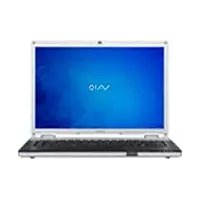
Vaio VGNFZ190FE - Laptop SONY - Free user manual and instructions
Find the device manual for free Vaio VGNFZ190FE SONY in PDF.




| Product Type | Laptop |
| Brand | Sony |
| Model | Vaio VGNFZ190FE |
| Processor | Intel Core 2 Duo (estimated) |
| RAM Memory | 2 GB (estimated) |
| Hard Drive | 160 GB (estimated) |
| Screen | 15.4 inches (estimated) |
| Screen Resolution | 1280 x 800 pixels (estimated) |
| Optical Drive | DVD±RW |
| Connectivity | Wi-Fi, Ethernet, Bluetooth (estimated) |
| Weight | Approximately 2.5 kg (estimated) |
| Dimensions (W x D x H) | 355 x 255 x 38 mm (estimated) |
| Power Supply | AC adapter |
| Main Features | Instant Mode (play CD/DVD/music/photo without Windows) |
| Care and Cleaning | Use a soft, dry cloth |
| Security | Kensington lock (estimated) |
Frequently Asked Questions - Vaio VGNFZ190FE SONY
User questions about Vaio VGNFZ190FE SONY
0 question about this device. Answer the ones you know or ask your own.
Ask a new question about this device
Download the instructions for your Laptop in PDF format for free! Find your manual Vaio VGNFZ190FE - SONY and take your electronic device back in hand. On this page are published all the documents necessary for the use of your device. Vaio VGNFZ190FE by SONY.
USER MANUAL Vaio VGNFZ190FE SONY
Support Formats 4
Getting to Know the Instant Mode Main Menu 5
Playing a CD/DVD 6
Inserting/Removing a Disc 7
Playing Music. 8
Viewing Images. 9
Customizing Instant Mode 10
Changing the Menu Language. 10
Setup Menu Items. 11
Troubleshooting 15
ES
Aviso importante acerca de Instant Mode. 19
Uso de Instant Mode 20
Formatos compatibles 20
Menu principal de Instant Mode 21
Reproduccion de un CD/DVD 22
Before using Instant Mode for the first time, please thoroughly read the separate booklet that includes the description on the End User Software License
Agreement concerning InterVideo InstantON™. Your use of Instant Mode shall be considered that you have read and agreed upon the information contained in the booklet.

Using Instant Mode
Instant Mode enables you immediately to play CDs, DVDs, and music files and view the image data stored on the hard disk drive without launching Windows. To activate Instant Mode, your computer must be off or in Hibernate mode.
Support Formats
In Instant Mode, you can play optical discs in the following formats, and music files and view images in the following formats stored on the hard disk drive.
| CD Audio CD | |
| DVD Commercially available DVD DVDs in the Video format DVD-RW/DVD-RAM discs in the Video Recording format | |
| Music file formats | MP3 Extension:.mp3 Bit rate: 64 kbps to 320 kbps Sampling frequency: 44.1 kHz and 48 kHz WMA Extension:.wma Bit rate: 48 kbps to 192 kbps Sampling frequency: 44.1 kHz and 48 kHz AAC Extension:.m4a Bit rate: 64 kbps to 320 kbps Sampling frequency: 44.1 kHz and 48 kHz You cannot play the music files protected with Digital Rights Management (DRM) technology. |
| Image formats | Bitmap JPG GIF ("animation GIF" is not supported) TIFF PNG PCX TGA |
Getting to Know the Instant Mode Main Menu
Launching Instant Mode displays the Main Menu as shown below.


CD DVD Music Power OffPhoto Start Windows
| Launches CD-DVD mode and displays the CD/DVD playback view. | |
| Launches Music mode and displays the list for music file selection. | |
| Launches Photo mode and displays the thumbnail view for image data selection. | |
| Exits Instant Mode and launches Windows. | |
| Exits Instant Mode and turns off the computer. |

You can display the screen view in several languages. See "Changing the Menu Language" on page 10. for more information.
Playing a CD/DVD
1 Press the AV MODE button.
Instant Mode launches and displays the Main Menu.
2 Use the or key to select .
The CD-DVD mode icon is highlighted in blue.
3 Insert a CD or DVD.
See "Inserting/Removing a Disc" on page 7. for detailed instructions.
4 Press the Enter key.
The CD/DVD playback automatically starts.

By default, the Operation Guide appears at the bottom of the screen to guide you through operations.
Inserting/Removing a Disc
Your computer is equipped with an optical disc drive.
To insert a disc

Launch Instant Mode before inserting a disc.
1 Press the disc drive eject button to open the drive. The drive tray slides out.
2 Place a disc in the middle of the tray with the label side facing upward until the disc clicks into place.
3 Close the tray by pushing it in gently.
To remove a disc
1 Make sure that the optical disc drive indicator is off.
2 Press the disc drive eject button to open the drive. The tray slides out.
3 Take the disc out of the drive tray.
4 Close the tray by pushing it in gently.
Playing Music
1 Press the AV MODE button. Instant Mode launches and displays the Main Menu.
2 Use the or key to select . The Music mode icon is highlighted in blue.
3 Press the Enter key. The list of C drive folders appears.
4 Use the or key to select the folder where the music files are stored. The stored music files are displayed in the list.
5 To play the stored music files, press the play/pause button. The music file playback starts.
You cannot play music files in unsupported formats, such as the files protected with DRM technology.
Viewing Images
1 Press the AV MODE button. Instant Mode launches and displays the Main Menu.
2 Use the or key to select. The Photo mode icon is highlighted in blue.
3 Press the Enter key. The thumbnail view of C drive folders appears.
4 Use the or key to select the folder where the images are stored. The stored images are displayed in the thumbnail view.
You cannot select any folder that contains no images in the supported formats.
5 To start a slide show of the stored images, press the play/pause button. To view a specific image, press the Enter key to display the thumbnail view, use the or key to select the image, and press the Enter key.
By default, the Operation Guide appears at the bottom of the screen to guide you through operations.
Customizing Instant Mode
Instant Mode is provided with the Setup Menu for customization. With the Setup Menu, you can change various settings including the menu language and playback mode.
Changing the Menu Language
You can select the language for displaying the screen view. The available languages are English, Traditional Chinese, Simplified Chinese, Japanese, Korean, French, German, Italian, Spanish and Russian.
To change the menu language
1 Press the AV MODE button. Instant Mode launches and displays the Main Menu.
2 Use the or key to select , or . The selected icon is highlighted in blue.
3 Press the Enter key.
4 Press the Applications key. The Setup Menu appears.
5 Use the or key to select General Setup and press the Enter key. The General Setup menu appears.
6 Use the key to list the menu languages.
7 Use the or key to select the desired language and press the Enter key.
For other available setup items, see "Setup Menu Items" on page 11.
Setup Menu ItemsDVD Mode Setup Menu
US
| Menu item Option Description | ||
| Title Menu — Displays the DVD title menu. | ||
| Root Menu — Displays the DVD root menu. | ||
| LCD Brightness | — | Use the ⇌ or ➔ key* to adjust the LCD brightness. |
| Picture Properties... | — Displays the Picture | Properties Setup Menu (page 12). |
| Display Setting | Auto** Full | Select the desired display ratio for the DVD movie in play. |
| Audio Language | Displays the language of the audio data. | |
| Subtitle None | Subtitle options | Select the desired subtitle, if any, for the DVD movie in play. Selecting None hides the subtitle. |
| Angle All available angles Select the desired angle, if any, for the DVD movie in play. | ||
| Closed Caption | On Off** | Select whether to show or hide the closed caption, if any. |
| Information On/Off | — Shows or hides the information on the DVD movie in play and the battery level. | |
| General Setup... | — Displays the General Setup Menu (page 14). | |
- For VGN-TZ100 Series/VGN-TZ10 Series models, use the F5 or F6 key to adjust the LCD brightness.
** Default setting
Picture Properties Setup Menu
| Menu item Option | Description | |
| Hue | — | Use the ⇌ or ➔ key to adjust hue of the DVD movie in play. |
| Contrast* | — | Use the ⇌ or ➔ key to adjust contrast of the DVD movie in play. |
| Brightness* | — | Use the ⇌ or ➔ key to adjust brightness of the DVD movie in play. |
| Saturation | — | Use the ⇌ or ➔ key to adjust saturation of the DVD movie in play. |
| Reset to Default | — Resets all properties | to the default values. |
| Back to Setup Menu | — Displays the DVD Mode Setup | Menu (page 11). |
- Available on selected models only.
Audio CD Mode and Music Mode Setup Menu
| Menu item Option | Description | |
| Repeat Repeat | All Repeat One Off** | Select whether to repeat all the songs in the audio CD or the current one only; or disable the function. |
| Shuffle On | Off** | Select whether to enable or disable the random-order playback function. |
| LCD Brightness | — | Use the ⇌ or ➔ key* to adjust the LCD brightness. |
| Information On/Off | — Shows or hides the information on the audio CD or music file in play and the battery level. | formation on the audio CD or music file in play and the battery level. |
| General Setup... | — Displays the General Setup Menu (page 14). | Setup Menu (page 14). |
- For VGN-TZ100 Series/VGN-TZ10 Series models, use the F5 or F6 key to adjust the LCD brightness.
** Default setting
Photo Mode Setup Menu
Thamburger view
| Menu item Option | Description | |
| LCD Brightness | — | Use the ⇌ or ➔ key* to adjust the LCD brightness. |
| Information On/Off | — Shows or hides the information on the battery level. | |
| General Setup... | — Displays the General Setup Menu (page 14). | |
- For VGN-TZ100 Series/VGN-TZ10 Series models, use the F5 or F6 key to adjust the LCD brightness.
Slide show view
| Menu item Option | Description | |
| Rotate ∪ 90° | ∪ 90° | Rotates the current image by 90 degrees clockwise or counterclockwise. |
| Speed Slow | Medium**High | Select the desired playback speed of the slide show. |
| Repeat All On | Off** | Select whether to repeat the slide show. |
| LCD Brightness | — | Use the ← or → key* to adjust the LCD brightness. |
| Picture Properties... | — Displays the Picture | Properties Setup Menu (page 12). |
| Information On/Off | — Shows or hides the information on the battery level. | |
| General Setup... | — Displays the General | Setup Menu (page 14). |
- For VGN-TZ100 Series/VGN-TZ10 Series models, use the F5 or F6 key to adjust the LCD brightness.
** Default setting
General Setup Menu
| Menu item Option | Description | |
| Menu Language | English Traditional Chinese Simplified Chinese Japanese Korean French German Italian Spanish Russian | Select the desired language for the screen view. |
| Sleep Timer | Off*30 Min60 Min90 Min | Select the time period in which you wish to automatically turn off your computer. Once set, the remaining time will be displayed. |
| Version Information | Ver: x.x.x Displays the version information. | |
| Operation Guide On/Off | — Shows or hides the Operation Guide. | |
| Back to Setup Menu | — Displays the previous setup menu. | |
- Default setting
Troubleshooting
US
What should I do if Instant Mode does not launch?
- When your computer is on or in Sleep mode, pressing the AV MODE button launches the AV Mode Launcher software by default. To launch Instant Mode, turn the computer off or put it into Hibernate mode, and press the AV MODE button.
□If the files required for Instant Mode, which are stored with the hidden attribute in the C drive's InstantON folder, are compressed, Instant Mode would not launch. To uncompress the files, follow the steps below:
1 Click Start , All Programs, Accessories, and Run.
2 Enter "C:InstantON" for Open and click OK.
3 Click Folders on the toolbar.
4 Right-click InstantON in the folder list in the left pane and click Properties.
5 Click Advanced on the General tab of the window for changing properties.
6 Click to cancel the Compress contents to save disk space check box under Compress or Encrypt attributes, click OK, and then go to step 12. If this check box is not selected, proceed to step 7.
7 Click to select the Compress contents to save disk space check box and click OK.
8 Click Apply on the window for changing properties.
9 On the confirmation window for attribute changes, click to select the Apply changes to this folder only check box and click OK.
10 Once again, click Advanced on the General tab.
11 Click to cancel the Compress contents to save disk space check box under Compress or Encrypt attributes and click OK.
12 Click OK on the window for changing properties.
13 Click OK on the confirmation window for attribute changes.
Running Disk Cleanup with the Compress old files option selected may compress the files required for Instant Mode. If the files are compressed after running Disk Cleanup, follow the above procedure to restore the files.
What should I do if the optical disc drive isn't playing my CD or DVD or if CD/DVD playback is interrupted?
Make sure the disc is inserted into the optical disc drive with the label facing upward.
Check the DVD package to make sure the region code is compatible with the optical disc drive. You cannot play a DVD if the assigned region code is not the same as the one on the package.
For more information on the region code, see the on-screen User Guide.
- Instant Mode only supports commercially available DVDs, DVDs in the Video format, and DVD-RW/DVD-RAM discs in the Video Recording format.
To play any other DVD, launch Windows and use the Windows Media Center or WinDVD software.
Additionally note that DTS (Digital Theater System) audio is not available for playback in Instant Mode.
- Depends on the model you purchased.
Why is there a folder I can't access in Instant Mode?
You can't access to the folders in the C:\Users except the Public folder.
Store the image or music files in the C:\Users\Public folder or except the
C:\Users\

The first time you launch Instant Mode, the C:\Users\Public\Public Music\Sample Music folder or the C:\Users\Public\Public Pictures\Sample Pictures folder is displayed in Music or Photo mode, respectively. From the second time you launch Instant Mode, the last folder you accessed in each mode is displayed.
Why can't I play music files during Music mode?
You cannot play music files in unsupported formats, such as the files protected with DRM technology.
Why can't I select or play music files by pressing the Enter key during Music mode?
You cannot select or play music files by pressing the Enter key during music playback. Use the previous track or next track button instead to select the music files. To play the music file you selected, stop music playback first and press the Enter key to restart.
Why can't I select a folder displayed in the thumbnail view during Photo mode?
You cannot select any folder that contains no images in the supported formats.
Why can't I view the image data or music files?
Instant Mode only shows the data stored in the C drive.
Store the data you want to view or play in Instant Mode in the C drive.
US
Do not store the data you want to view or play in Instant Mode in the C:\Users\
What should I do if my computer screen (LCD) goes blank?
Your computer screen will go blank if you do not use Instant Mode for a while. Press any key on the keyboard to resume Instant Mode.
Aviso importante acerca de Instant Mode
Nozzle Nozzle Nozzle Nozzle Nozzle Nozzle Nozzle Nozzle Nozzle Nozzle Nozzle Nozzle Nozzle Nozzle Nozzle Nozzle Nozzle Nozzle Nozzle Nozzle Nozzle Nozzle Nozzle Nozzle Nozzle Nozzle Nozzle Nozzle Nozzle Nozzle Nozzle Nozzle Nozzle Nozzle NOzzle NOzzle NOzzle NOzzle NOzzle NOzzle NOzzle NOzzle NOzzle NOzzle NOzzle NOzzle NOzzle NOzzle NOzzle NOzzle NOzzle NOzzle NOzzle NOzzle NOzzle NOzzle NOzzle NOzzle NOzzle NOzzle NOzzle NOzzle NOzzle NOzzle NOzzle NOzzle NOzzle NOxz NOxz NOxz NOxz NOxz NOxz NOxz NOxz NOxz NOxz NOxz NOxz NOxz NOxz NOxz NOxz NOxz NOxz NOxz NOxz NOxz NOxz NOxz NOxz NOxz NOxz NOxz NOxz NOxz NOxz NOxz NOxz NOxz NOxz
- ES
- Using Instant Mode
- Support Formats
- Getting to Know the Instant Mode Main Menu
- Playing a CD/DVD
- Inserting/Removing a Disc
- To insert a disc
- To remove a disc
- Playing Music
- Viewing Images
- Customizing Instant Mode
- Changing the Menu Language
- To change the menu language
- Setup Menu ItemsDVD Mode Setup Menu
- Photo Mode Setup Menu
- General Setup Menu
- Troubleshooting
- What should I do if Instant Mode does not launch?
- What should I do if the optical disc drive isn't playing my CD or DVD or if CD/DVD playback is interrupted?
- Why is there a folder I can't access in Instant Mode?
- Why can't I play music files during Music mode?
- Why can't I select or play music files by pressing the Enter key during Music mode?
- Why can't I select a folder displayed in the thumbnail view during Photo mode?
- Why can't I view the image data or music files?
- What should I do if my computer screen (LCD) goes blank?
- Aviso importante acerca de Instant Mode
Brand : SONY
Model : Vaio VGNFZ190FE
Category : Laptop