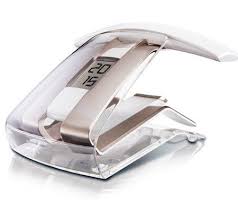
SIXTY 2 - Phone SAGEM - Free user manual and instructions
Find the device manual for free SIXTY 2 SAGEM in PDF.


| Product type | Corded landline phone |
| Brand | SAGEM |
| Model | SIXTY 2 |
| Dimensions (L x W x H) | 22 x 18 x 10 cm |
| Weight | 0.5 kg |
| Power supply | Telephone line (RJ11) |
| Handset type | Corded |
| Display | No (keys only) |
| Main functions | Key dialing, speed dial, hold, adjustable volume |
| Ringer | Polyphonic, adjustable volume and melody |
| Speaker | Integrated hands-free |
| Directory | Up to 10 numbers |
| Keys | Alphanumeric keypad |
| Visual indicator | Line in use indicator |
| Maintenance and cleaning | Clean with a soft, dry cloth; do not use abrasive products |
| Safety | Use only on a standard telephone line, do not expose to moisture |
| Spare parts and repairability | Parts not provided, repair by a professional |
| General information | Made in France, compliant with European standards |
Frequently Asked Questions - SIXTY 2 SAGEM
User questions about SIXTY 2 SAGEM
0 question about this device. Answer the ones you know or ask your own.
Ask a new question about this device
Download the instructions for your Phone in PDF format for free! Find your manual SIXTY 2 - SAGEM and take your electronic device back in hand. On this page are published all the documents necessary for the use of your device. SIXTY 2 by SAGEM.
USER MANUAL SIXTY 2 SAGEM
You have just acquired a Sagemcom DECT telephone. Thank you for placing your confidence in us.
This device has been manufactured with the utmost care. If you should have difficulties in operating it, we recommend that you consult this manual.
For your comfort and safety, we urge you to carefully read the paragraph « Recommendations and safety instructions » of the warranty card included in the pack.

The CE label confirms that the product complies with the 1999/5/EC regulations of the European Union Parliament regarding wireless systems and telecommunications.
The declaration of compliance may be looked up on the http://support.sagemcom.com site or can be obtained from the following address:
X-GEM SAS
The base 5
The handset 6
The charger 9
Installing the phone 11
Replacing the batteries 12
Browsing principle 13
Switch the handset off and then on again 14
Settings to make before use 14
Menu tree structure 15
Call 17
Managing your calls 17
Making a call 17
Ending a call 19
Receiving a call 19
Choose your line 20
Managing several calls 21
Receiving a second call 21
Switching from one call to the other 21
Ending one of the calls in progress 22
Talking with two contacts at the same time (3-way conference) 22
Making a second call 23
Transferring calls 24
Options during a call 26
Activate/Deactivate loudspeaker
(hands-free mode) 26
Adjusting volume 27
Activating the mute mode 28
Using additional handsets 29
Calling another handset (intercom) 29
Intrusion 30
Tracking your calls. 31
Call logs 31
Displaying the list of all calls 31
Viewing the received or dialed call log 32
Consulting the missed call log 33
The events log. 34
34
Managing incoming or outgoing calls 35
Manage your contacts... 36
Use the phonebook 36
Create an entry 36
Call a contact from the phonebook 37
Changing an entry 37
37
Search for an entry 38
Delete all the entries 38
Speed dialing 39
Answering machine 40
Activating/Deactivating the answering machine 40
Answering machine announcements 41
Choosing your default announcement 41
Recording your personal announcement 41
Listening to your personal announcement 42
Erasing your personal announcement 42
Messages 43
Listening to your messages 43
Managing your messages 44
44
45
Audio adjustment... 46
Changing the ringtone 46
Activating/Deactivating the silent mode 46
Activating/Deactivating audio alerts 47
Setting up. 48
The phone 48
Setting the date and the time 48
Picking up and hanging up calls automatically 49
Changing the display language 49
Adjust the brightness 50
Change the screen background 50
The handset 51
Associating a new handset 51
Customizing the handset's registration 53
Defining the main base for your handset 53
Modifying the Voice box number 54
Deletng the Voice box number 54
Handset version 55
Resetting the handset 55
The base 56
Changing the base code 56
Resetting the base 56
Base version 57
Activating emission free mode 57
Modifying the country 58
The charger 59
Modifying the display colour 59
Activating time display 59
The line 60
Change the line name 60
Pair the handset with a line 61
Mask the line number 61
Allow three-way communication (Intrusion) 62
Modifying the dialing mode 62
Changing the flash duration 63
Call management 64
Managing your calls 64
The list of handsets 65
Manage handsets 65
Answering machine setup 66
Modify the remote enquiry code 66
Answering machine delay time 66
Discover…
Your phone
The base
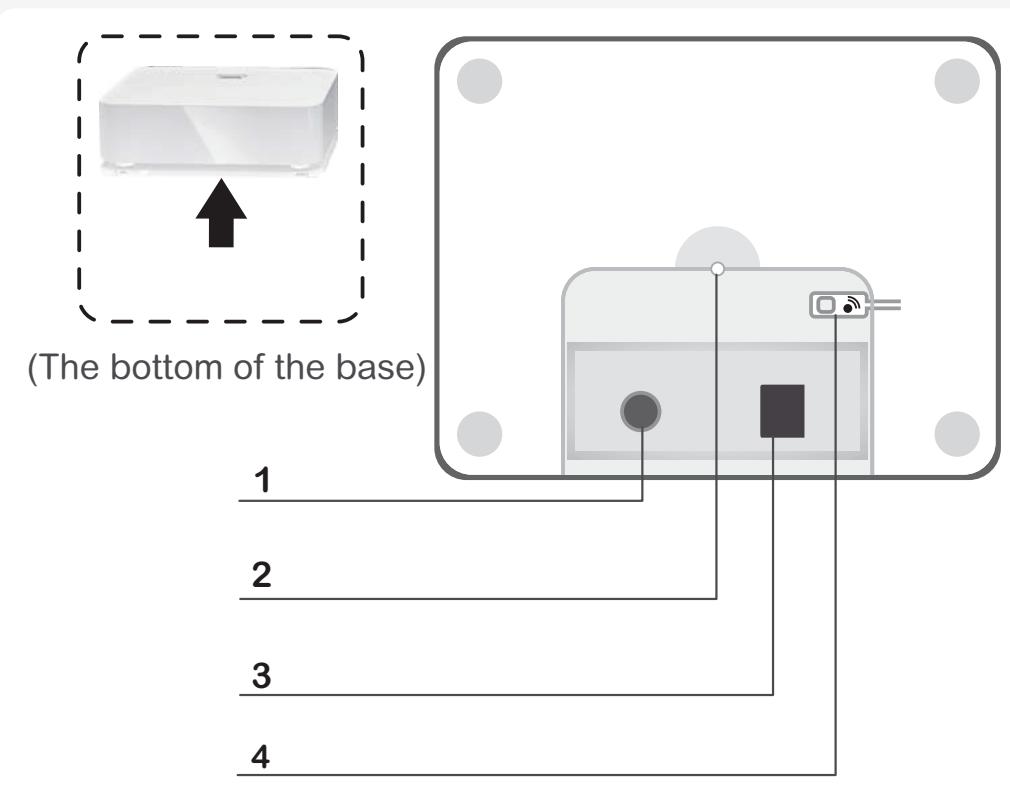
| 1 | Power socket |
| 2 | Indicator light : ·Rapid blinking : the base is in pairing mode. ·Medium blinking : searching for handsets associated with the base. ·Slow blinking : communication in progress. |
| 3 | Telephone socket |
| 4 | Paging button / Pairing ☐ 🙪 : ·Short press : find handset (Paging). ·Long press : handset pairing mode. |
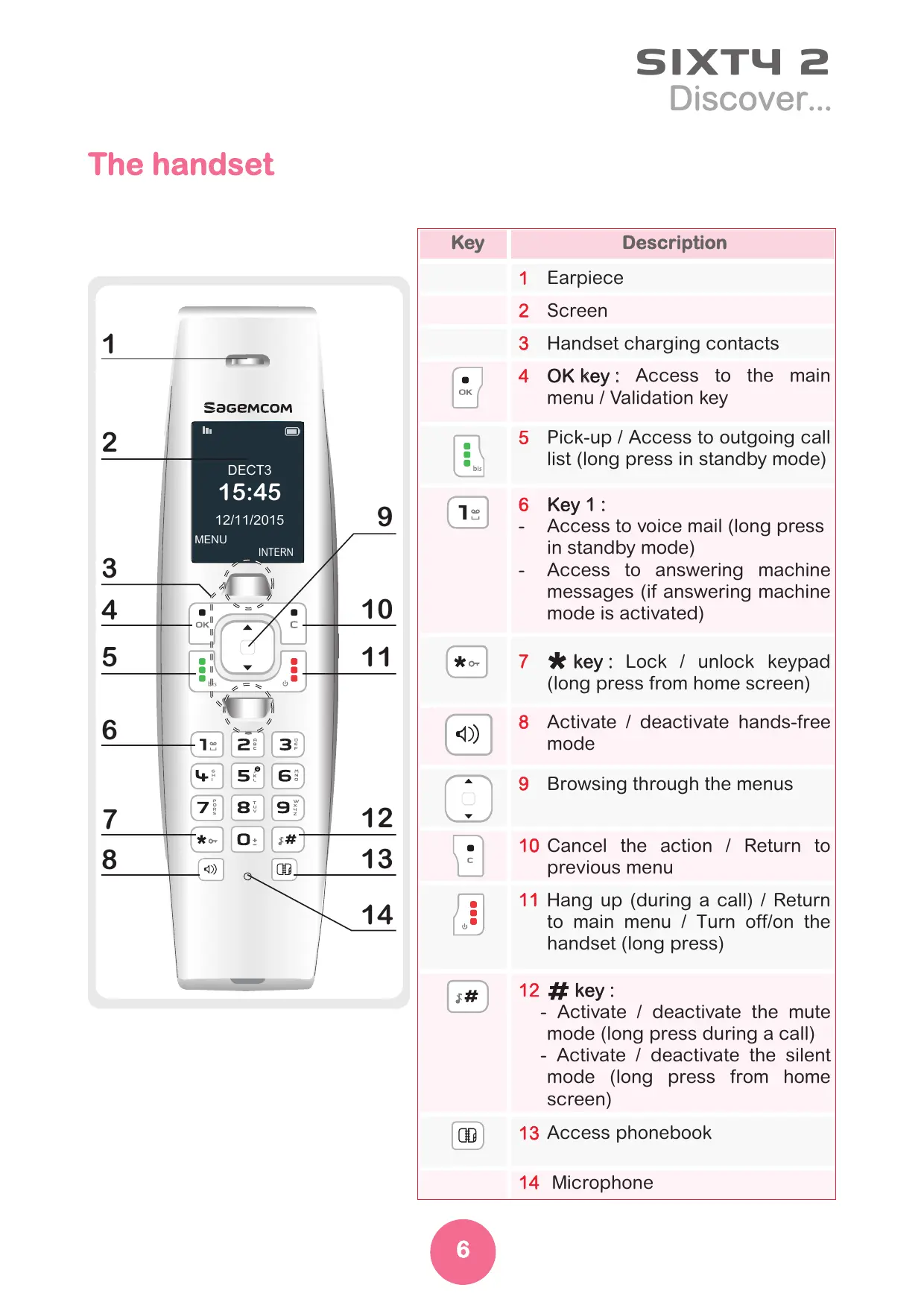
The handset
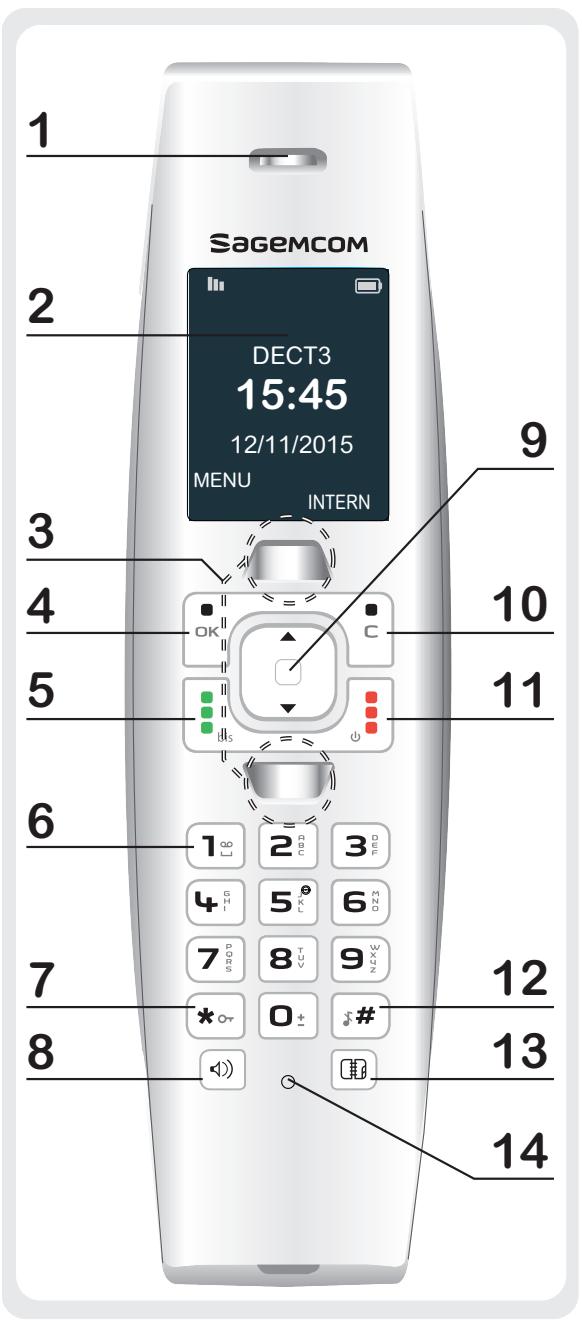
| Key | Description |
| 1 Earpiece | |
| 2 Screen | |
| 3 Handset charging contacts | |
| 4 OK key: Access to the main menu / Validation key | |
| 5 Pick-up / Access to outgoing call list (long press in standby mode) | |
| 6 Key 1: - Access to voice mail (long press in standby mode) - Access to answering machine messages (if answering machine mode is activated) | |
| 7 * key: Lock / unlock keypad (long press from home screen) | |
| 8 Activate / deactivate hands-free mode | |
| 9 Browsing through the menus | |
| 10 Cancel the action / Return to previous menu | |
| 11 Hang up (during a call) / Return to main menu / Turn off/on the handset (long press) | |
| 12 # key: - Activate / deactivate the mute mode (long press during a call) - Activate / deactivate the silent mode (long press from home screen) | |
| 13 Access phonebook | |
| 14 Microphone |
The screen
In standby mode or during use, the screen indicates the current state through icons, and in particular :
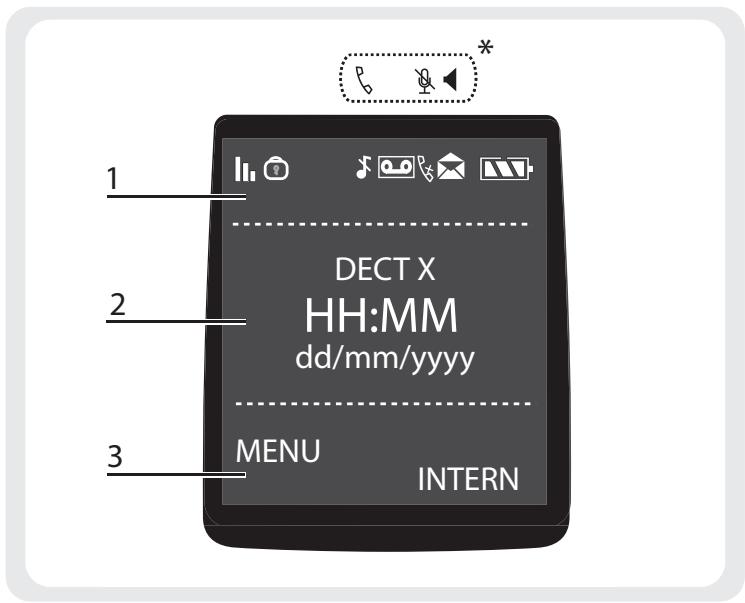
*: during a call
| Legend | Description |
| 1 | Status icons : indicates your phone's current state. |
| 2 | Information field : the handset's name and number, the current time and date. |
| 3 | Action icons : functions associated to ☐OK and ☑ keys. |
THE ICONS DISPLAYED
| Battery charge condition | Silent mode activated |
| DECT signal : blinks when the handset is out of range of the base or when the base is not supplied. | Keypad locked |
| Phone in conversation mode | Voice(s) message(s) not consulted |
| Microphone mute activated | Answering machine activated |
| Hands-free activated | New message(s) on your answering machine |
| Missed call(s) |
The charger
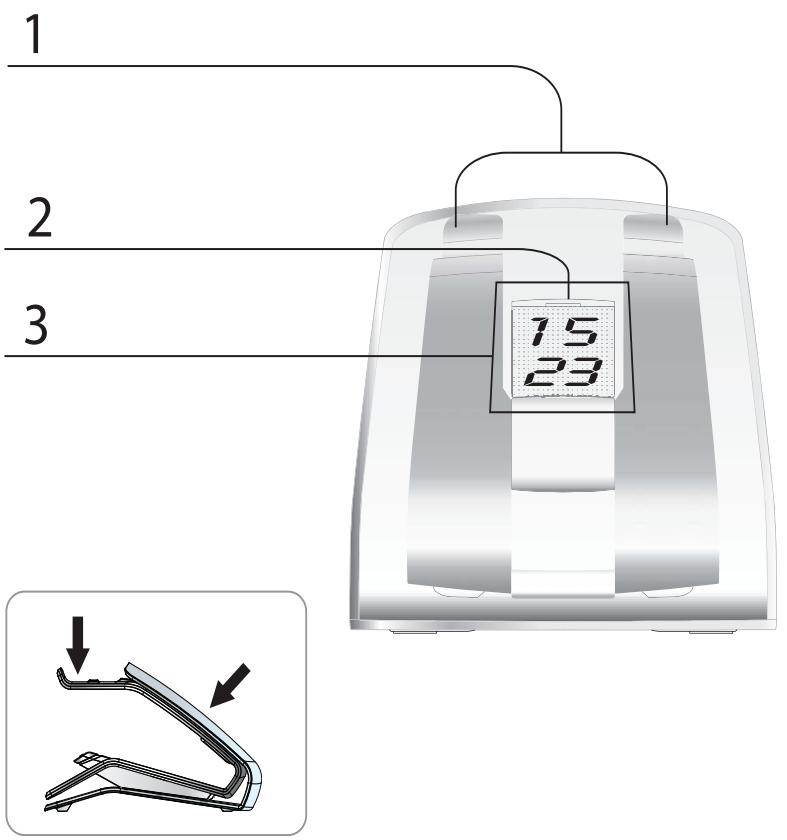
1 Charging contacts
Indicator light :
Backlighting is red, green, or orange.
3
the current time,
number of messages on answering machine or voice mail.
DISPLAY AND INDICATION BACKLIGHTING
Note To change the display colour of your indicator light, refer to paragraph "Modifying the display colour", page 59.
To change the time display on your screen, refer to paragraph “Activating time display”, page 59.
Case 1:
- the display colour selected is "Variable on events",
time display is activated, - the handset is placed on its charger.
| Colour and display | Indication |
| Red: is permanently displayed and goes out if the handset is taken off the charger. | Reception of an unknown call. |
| Orange: is permanently displayed and goes out if the handset is taken off the charger. | Reception of a CLIP call. |
| Green: is permanently displayed and goes out if the handset is taken off the charger. | Receiving a CLIP call whose number has been entered into the directory. |
| • Green: blinks permanently and goes out if the handset is taken off the charger. • Display of the current time on the screen. | There are missed call(s). |
| • Green: blinks permanently and goes out if the handset is taken off the charger. • Display of messages on answering machine or voice mail. | There are message(s) on the answering machine or voice mail. |
| • Red: blinks permanently and goes out if the handset is taken off the charger. • Display of messages on answering machine. | Answering machine memory full. |
| Green: is displayed for 1s then goes out. | The handset is placed on the charger. |
Case 2:
- the display colour selected is "Red" or "Green" or Orange",
time display is activated.
If the handset is on or off its charger, the backlighting is set to the selected colour and the current time is displayed.
Note Once the permanent colour has been selected, no other effect is displayed and the charger behaves as a lamp.
Case 3:
- the display colour selected is "Off",
time display is activated.
If the handset is on or off its charger, the backlighting is deactivated and the current time is displayed.
Note If time display is deactivated, neither the time nor the indication for answering machine nor for voice mail are displayed.
Installing the phone
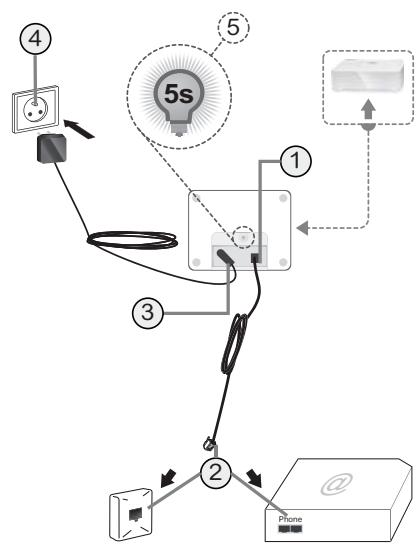
The base
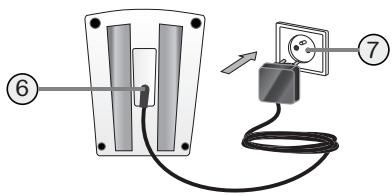
The charger
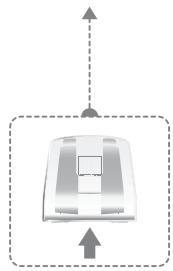
The handset
1 Plug the phone cable into the socket of your base.
2 Connect the other end of the cable with the phone wall socket or with the Gateway.
3 Connect the power adapter cord to the socket on the bottom of the base.
4 Connect the other end of the cable with the power wall socket.
5 The indicator on the base lights during 5 seconds.
6 Connect the power supply unit to the charger.
7 Plug in the other end of the power supply unit to the mains.
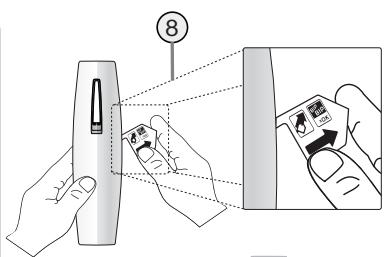
8 Remove the tab.
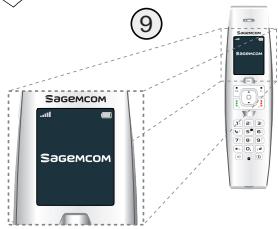
9 The handset screen comes on. The message "SAGEMCOM" appears on the screen.
Note To ensure optimum charging, leave the handset on the base for at least 10 hours before using the phone for the first time.
Note If your handset battery is empty leave the handset in the charging unit for at least 4 minutes.
Replacing the batteries
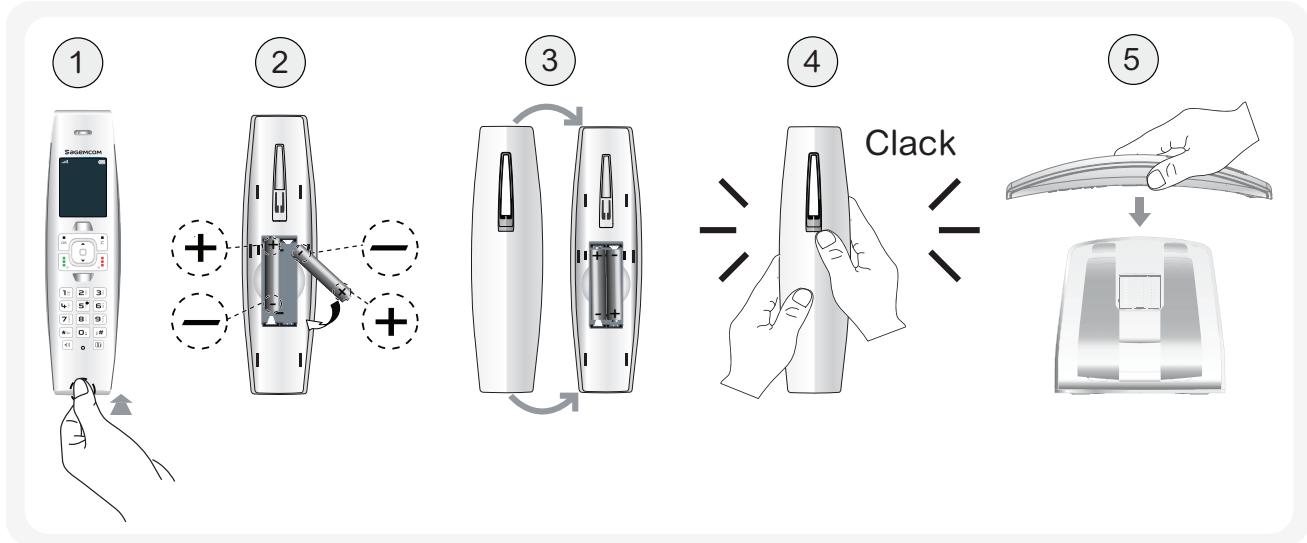
1 Remove the battery compartment cover.
2 Insert the new batteries one by one in compliance with the polarity of the batteries.
3 Replace the battery compartment cover.
4 Press the cover gently. The "Click" sound indicates that the cover is in the locked position.
5 Place the handset on its charger.
Browsing principle
To browse through menus, use the browser keys and the keys and
| Key | Corresponds to... (throughout the manual) |
| ▲ | ▲: select the previous menu (or setting). |
| ▼ | ▼: select the next menu (or setting). |
1 Press MENU OK
The main menu is displayed on the screen.
2 Press the top () or the bottom () of the navigation key to select the desired function.
3 Select your choice / Enter the menu by pressing the Select OK key.
4 Cancel your choice/Exit the displayed menu: -either by pressing thee Back key:return to previous menu. -or by pressing the key :the home screen is displayed.
DETAILED BROWSER EXAMPLE: CHANGING THE RING TONE OF EXTERNAL CALLS
MENU > Audio
1 Press MENU OK
2 Press the top () or the bottom () of the navigation key until the menu Audio is displayed.
3 Enter the Audio menu by pressing Select OK.
4 Select External ringtone using the or keys.
5 Press Select OK
6 Scroll down the pre-recorded sounds and press Select OK.
7 Adjust the volume of the ring tone using the or keys and press Select OK. The action is confirmed by the "OK" indication.
Switch the handset off and then on again
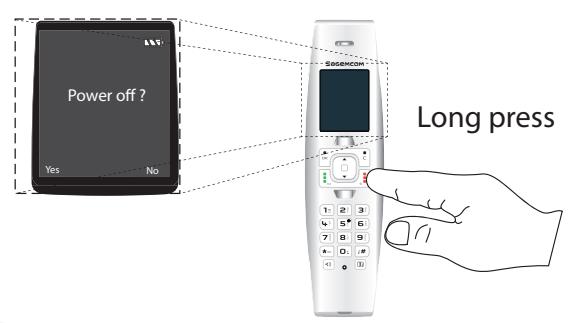
1
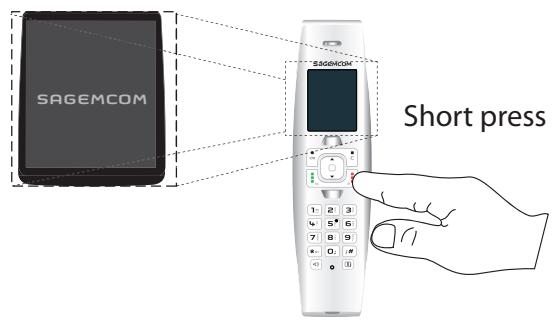
(2)
1 To turn off the handset, hold down the red key.
The "Power off ?" message is displayed on the screen. Press Yes OK to confirm.
2 To turn on your handset, press the red key. The "SAGEMCOM" message is displayed on the screen.
Settings to make before use
- When starting up the first time, the Language menu is displayed.
- Select the language to be used using the or keys and validate using the OK key.
- The Country menu is displayed.
- Select the country using the or keys and validate using the OK key.
- The date and time setting menu is displayed.
- Enter the right date and time and validate using the OK key. The message "OK" is displayed on the screen.
Important After setting date and time, place the handset on the charger to synchronise the display.
Menu tree structure

Phonebook
List
Search
Add
Delete all
Speed dialing

Ans. machine
On/Off
Incoming msg.
Outgoing msg.
Settings
Options
During a call
Second call
Intercom
Calls
Phonebook
Select call line
Press R

Calls
All calls
Incoming calls
Outgoings calls
Missed calls
Events

Audio
External ringtone
Internal ringtone
Beeps
Silent

Settings
Settings
Date/Time
Auto hang/pick up
Language
Display
Advanced settings
Set handset
Registration
Person-registration
Base priority
Voicebox number
Handset version
Reset handset
Set base
Change code
Set charger
Reset base
Base version
Emission free mode
Country
Display color
Settings
Set line
Line name
Associated handset
Configuration
Dial mode
Flash time
Select call line
Handsets' list
Call…
Managing your calls
Making a call
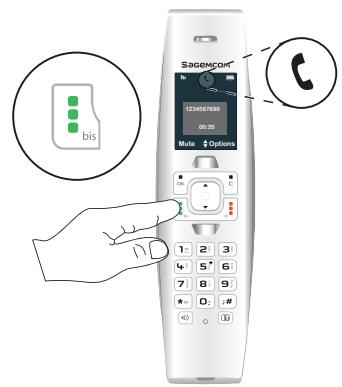
METHOD 1 (PRE-DIALING)
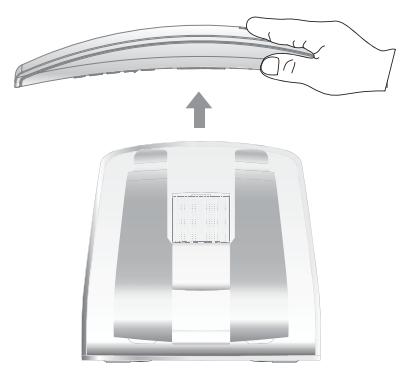
1
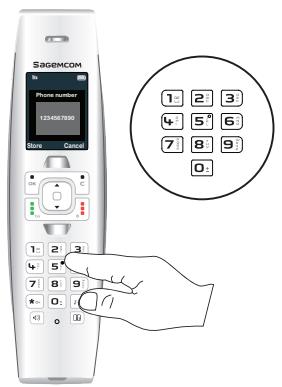
2
3
1 Pick up the handset.
2 Dial your contact's number.
3 Press the green key.
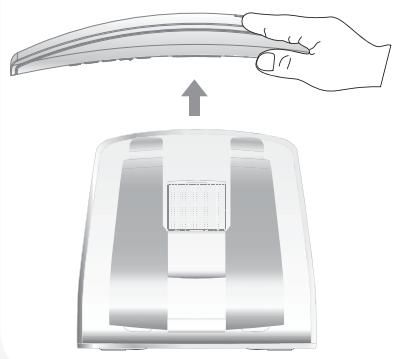
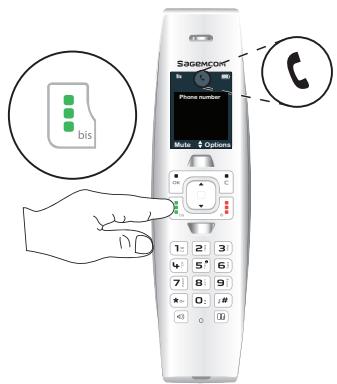
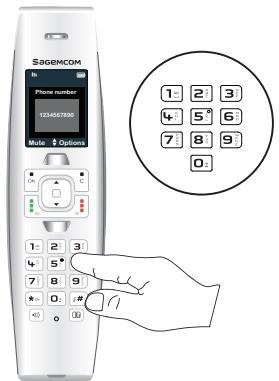
METHOD 2 (POST-DIALING)
1
2
3
1 Pick up the handset.
2 Press the green key.
3 Dial your contact's number.
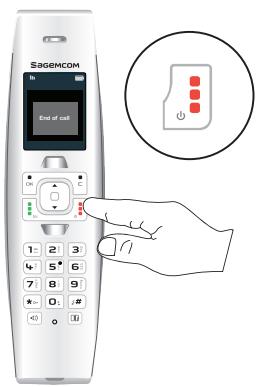
Ending a call
1
2
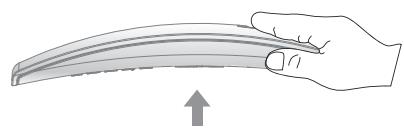
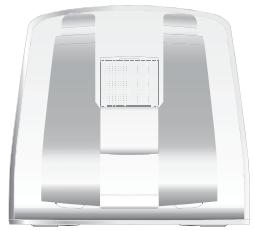
1 At the end of the call, press the red key.
2 Put the handset back on its charger.
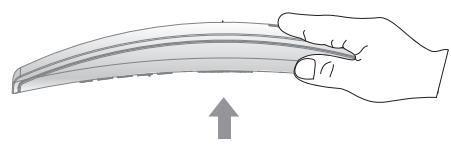
Receiving a call
IF THE «AUTO PICKUP» IS ACTIVATED
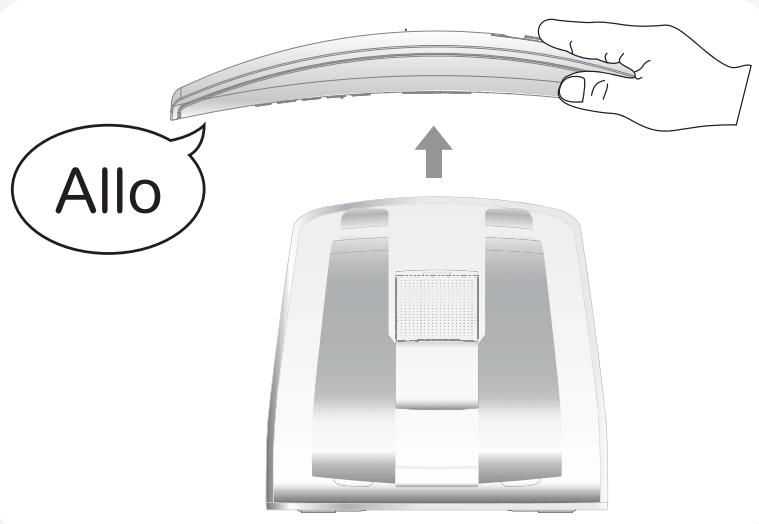
Pick up the handset.
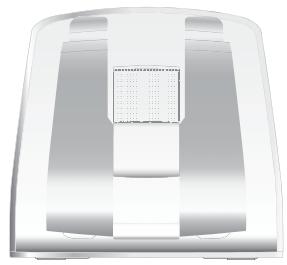
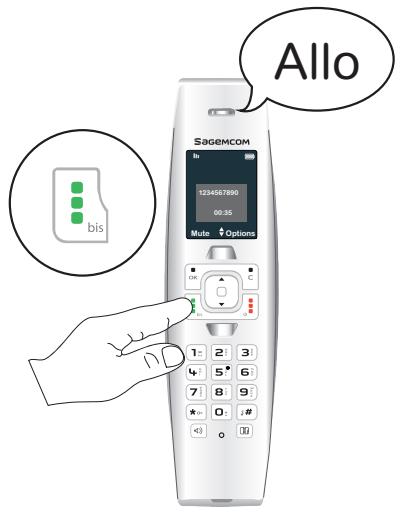
IF THE «AUTO PICKUP» IS DEACTIVATED
1
2
1 Pick up the handset.
2 Press the green key.
Choose your line
This menu allows you to select the line on which you want to make a second outgoing call (subject to availability of service).
1 During a call, press Options.
2 Select Select call line and press Select.
3 Select your line using the keys or .
4 Press Select. The action is confirmed by the "OK" indication.
SIXT4 2
Call…
Managing several calls
Your phone allows you to manage several calls (subject to availability of service) when you are already in a call.
Receiving a second call
During a call, a beep indicates the arrival of a second call.
The contact details of the second caller are displayed on the screen.
Case 1: Answer the new call and put the current call on hold.
- Press the green key.
The first caller is put on hold and you can speak with the new caller.
Case 2: Answer the new call and end the current call.
- Press Replace.
The call with your first caller is ended. You can speak with the new caller.
Note To reject a second call, press Release all.
Switching from one call to the other
During a conversation press Switch. The current call is put on hold in order to take the call that was previously on hold.
Ending one of the calls in progress
Options > End active call
During a conversation :
- Press Options.
- Choose the option End active call using the or keys.
-
Press Select. The current call is ended and you resume the previous call.
-
OR -
-
Press the red key to end the current call.
Note During the call you can hang up both calls by pressing the red key for a long time.
Talking with two contacts at the same time (3-way conference)
Options > 3-part conference
During a double call :
- Press Options.
- Choose the option 3-part conference using the or keys.
- Press Select.
- You can then talk with the 2 contacts at the same time and " 3-part conference" is displayed on the screen.
To end the conference call, press the key.
Making a second call
Options > Second call
During a conversation :
- Press Options.
- Choose the option Second call using the or keys.
- Dial the number using the keypad and press Call..
-OR
- Select the number for the person you want to call in the phonebook by pressing 串 , and then press 串 .
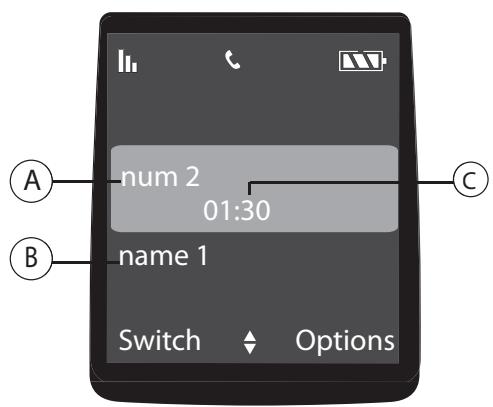
The second called number appears on the screen.
A: the number and/or name of the current call.
B : the number and/or the name of the waiting call.
C : the call time.
Transferring calls
During a call, you can transfer it to another handset. This function can be used as long as two handsets have been registered to the same base.
Options > Intercom
UNANNOUNCED TRANSFER
This function allows you to transfer the current call directly to another device.
| Steps | Calling handset | Called handset |
| 1 | Press Options. | |
| 2 | Choose the option Intercom. | |
| 3 | Press Select. | |
| 4 | Select the handset (or all handsets) to call. | |
| 5 | Press Call. | |
| 6 | Rings: internal call. | |
| 7 | Press Trans.. | |
| 8 | Hangs up automatically. | Rings: external call. Take the call. |
Note
At the 5^th step you can cancel the transfer of the call. To do this, select Cancel and then validate.
ANNOUNCED TRANSFER
This function allows you to transfer the current call to another device once it has been picked up.
| Steps | Calling handset | Called handset |
| 1 | Press Options. | |
| 2 | Choose the option Intercom. | |
| 3 | Press Select. | |
| 4 | Select the handset (or all handsets) to call. | |
| 5 | Press Call. | |
| 6 | Rings: internal call. | |
| 7 | Press the key to accept the internal call. | |
| 8 | The external call is put on hold. | |
| 9 | Press Trans.. | |
| 10 | Hangs up automatically. The external call is transferred. | Communicating with the external caller. |
Dual incoming call management can also be done via the option Press R : Options > Press R
- Accepting a second incoming call (unknown call): Press R.
- Making a second call during communication: Press R + recipient number.
- Switching from one call to the other: Press R + 2
- Ending a call and switching to the call on hold: Press R + 1_ .
- Setting up a 3 way-call: Press R + 3
Options during a call
You can use the following options during a call :
Activate/Deactivate loudspeaker (hands-free mode)
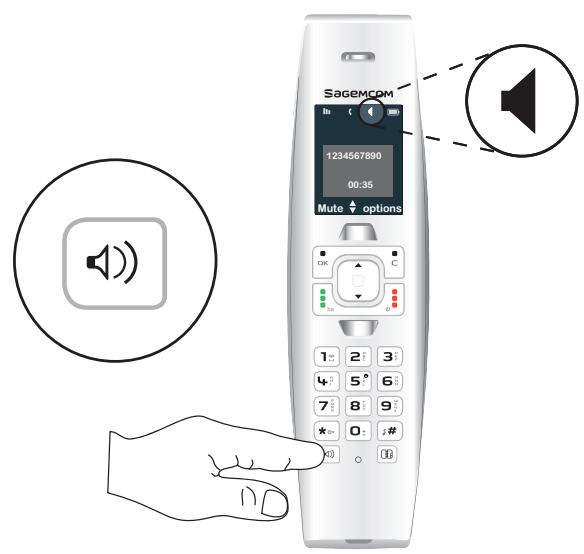
During the call you can activate the hands-free mode by pressing the key.
The icon is displayed on the screen.
To deactivate the hands-free mode, press the key again.
The icon disappears.
Note
When your battery charging icon displays the minimum, the hands-free mode is unavailable until the next charging cycle. The hands-free mode is optimized for speaking at 50 cm from the handset.
Adjusting volume
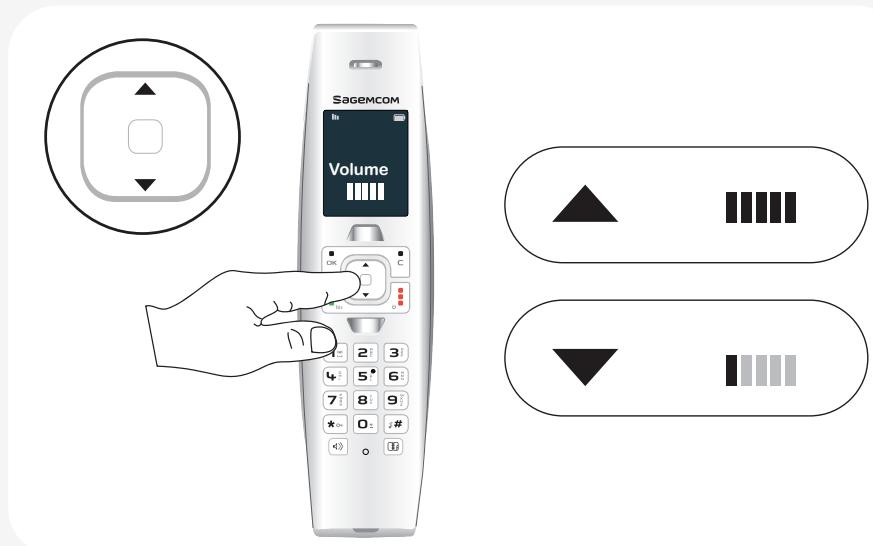
During a call you can increase or decrease the volume of the handset by pressing the or keys on the browser.
A bar graph makes it possible to adjust the volume according to 5 levels.
Activating the mute mode
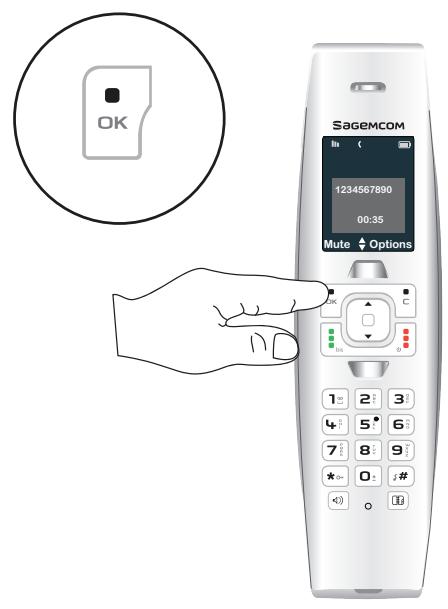
During a call, you can switch to mute mode and your handset's microphone will be muted and your contact will no longer hear you.
TO ACTIVATE THE MUTE MODE :
- During a conversation, press Mute.
The icon is displayed at the top of the screen.
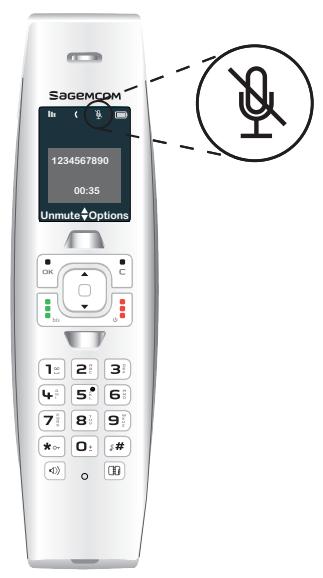
TO DEACTIVATE THE MUTE MODE :
- Press Unmute.
Your contact will hear you again.
KEYBOARD SHORTCUT:
During a conversation, press and hold the # key to activate/deactivate the mute mode.
Using additional handsets
You can associate additional handsets with your phone. You can then make and receive outside calls or calls between these handsets.
Note You first have to pair the handsets with the base.
For further details, refer to the section "Associating a new handset", page 51.
Calling another handset (intercom)

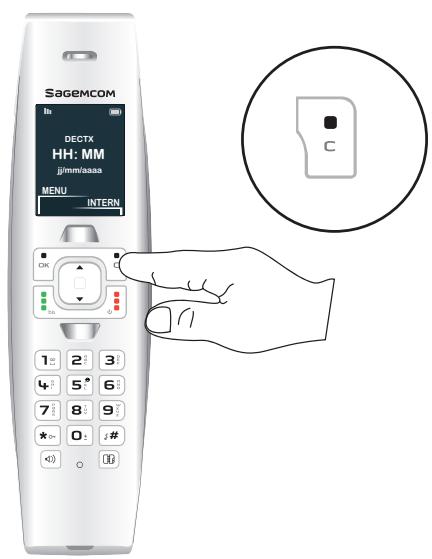

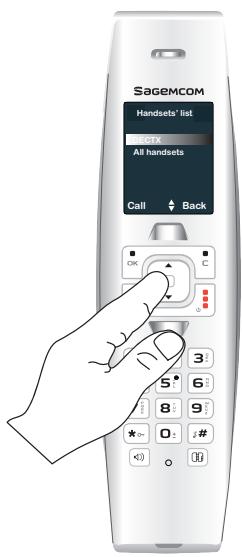

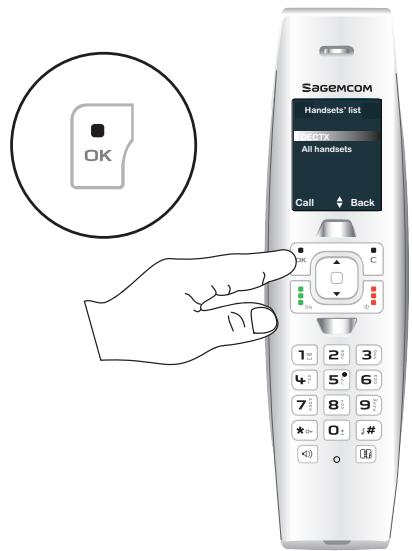
1 PressINTERN.
2 Select the handset (or all handsets) you want to call using the or keys.
3 Press Call. The selected handset rings.
Intrusion
This function allows another paired handset to join a call in progress on another handset.
- You have a call in progress.
- Press and hold the green key from another paired handset.
The handset displays "Local conference" and there is an externally initiated 3 way conference set-up.
Note
To activate/deactivate the intrusion, refer to section “Allow three-way communication (Intrusion)”, page 62.
Tracking your calls…
Call logs
Logs are lists of numbers or events received or sent by your phone. Depending on your phone provider and the options of your contract, the following information may be accessed in the call logs:
- the date and time of the call.
- the contact's name and/or number.
Note
The numbers stored in the call log are prefixed by a symbol :
List of incoming calls,
: List of outgoing calls,
List of missed calls.
Displaying the list of all calls
Menu > Calls
Press Select.
- Select All calls, then press Select.
- The last call is displayed with its date and time, its status (incoming, outgoing, missed), name and/or number.
- Scroll through the numbers stored in the list using the or keys.
- Select the call you wish to view and press Details.
- The following information is displayed:
- the call status (incoming/outgoing/missed),
- the contact's name,
- the contact's number,
- the call date,
- the call time.
- Press Back to return to the previous menu.
Viewing the received or dialed call log
Note Unknown calls are included in the received call log.
Menu > Calls
Press Select.
- Select Incoming calls, (or Outgoings calls) then press Select.
- The last received call (or dialed number) is then displayed first.
- The other calls are displayed using the keys or .
- Select the call you wish to view and press Details.
- The following information is displayed :
- the call status (incoming/outgoing/missed),
- the contact's name,
- the contact's number,
- the call date,
- the call time.
Consulting the missed call log
The icon is displayed if there are one or more new missed calls which have not been reviewed yet.
Note
Once the missed call log has been viewed, the icon disappears from all handsets.
Menu > Calls
- Press Select.
- Select Missed calls, then press Select.
- The latest missed call is displayed.
- Scroll through the numbers stored in the list using the or keys.
- Select the call you wish to view and press on Details.
-
The following information is displayed :
-
the call status (received/sent/missed),
- the contact's name,
- the contact's number,
- the call date,
-
the call time.
-
Press Back to return to the previous menu.
The events log
Note
The

icon is displayed if there is one or more voice mail messages.
Checking new events
A summary screen for the number of events that occurred in your absence is displayed :
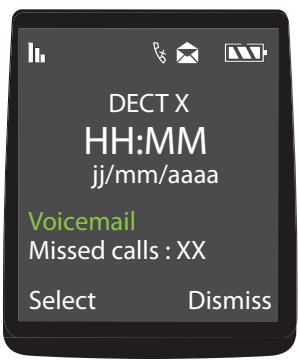
- the operator messages,
- the number of missed calls.
Menu > Calls
- Press Select.
- Select Events then press Select.
- Select Missed or Voicemail using the keys or and press Details. The event appears on the screen.
Managing incoming or outgoing calls
Menu > Calls
Press Select.
- Select All calls or Outgoings calls or Incoming calls or Missed calls then press Select.
- The list of calls (incoming/outgoing/missed) is displayed.
- Select the desired call and press Details.
- Press Options for the actions you can perform :
- Call : call the displayed number,
- Delete : delete the stored number,
- Store : save the number in your phonebook,
- Delete all : delete all the numbers in the list.
Manage your contacts…
Use the phonebook
You can save up to 250 entries (24 digits and 16 characters) in the phonebook. You can also directly access the list of phonebook entries using the key.
When browsing through the phonebook, the handset displays in the right top corner the number of the current entry and the total number of available entries.
Create an entry
Menu > Phonebook
- Press Select.
- Select Add and press Select.
- Specify the required information by confirming at each step. To move between the input fields, use and keys.
- Last name : enter your contact's name,
- First name : enter your contact's first name,
- Number: enter the phone number(s) in the corresponding box (Home, Mobile and Work).
- Select from one of the 6 available ring tones using the OK or keys to uniquely identify this contact.
- After making the settings, select Save changes? using the or keys and press Store.
Note
To enter a letter, press and hold the required key until the letter is displayed on the screen or press the related key quickly until the character required is shown.
Call a contact from the phonebook
Menu > Phonebook
Press Select.
- Select List or Search and press Select.
- Select an entry and press Options.
- Select Call and press Select.
Changing an entry
Menu > Phonebook
- Press Select.
- Select List or Search and press Select.
- Select an entry and press Options.
- Select Edit and press Select.
- Change the last name, first name and/or phone number by deleting characters using the key and/or the ring tone.
- After making the settings, select Save changes? using the or keys and press Store.
Deleting an entry
Menu > Phonebook
Press Select.
- Select List or Search and press Select.
- Select an entry and press Options.
- Select Delete and press Select.
- For the question Delete?, press Yes OK to confirm the deletion of the entry.
Search for an entry
Menu > Phonebook
- Press Select.
- Select Search and press Select.
- To look up a Last name, enter the first letter of the name, the entire name, or part of the name and press Select.
- Once the list is displayed, you can also directly enter the first few letters of the name sought.
Delete all the entries
Menu > Phonebook
- Press Select.
- Select Delete all and press Select.
- For the question Delete all?, press Yes to confirm the deletion of all entries.
Speed dialing
This function allows you to assign a keyboard shortcut to a contact in your phonebook.
Note
To call your contact, press and hold the key assigned to the number and the number is automatically dialed.
Menu > Phonebook
- Press Select.
- Select Speed dialing and press Select.
- Using the keys or , select the number of the key to which you want to link your contact contact (0 ~ 9).
Press Edit. - Select Edit and press Select.
- Press Phonebook, select the contact you want to assign a keypad shortcut. Press Select.
- You can also directly enter the number of your choice.
- Once the number is entered, press Select. To exit the menu, press Back 3 times in succession.
Answering machine…
Note
When your answering machine's memory is full, the answering machine turns off. You have to read your messages and delete some to free up memory space.
The recording capacity of your handset is 40 minutes. The maximum duration of each message is 2 minutes.
Activating/Deactivating the answering machine
When the answering machine is activated, the 0.0 icon is displayed.
Menu > Ans. machine
Press Select.
- Select On/Off using the or keys and press Select.
- Select "On" or "Off" using the or keys to activate or deactivate your answering machine then press Select.
The action is confirmed by the "OK" indication.
Answering machine announcements
Note
If you have not saved a personal announcement, the answering machine will automatically use the pre-recorded announcement in the specific language of your country.
Choosing your default announcement
Menu >Ans-machine
- Press Select.
- Select Outgoing msg. using the or keys and press Select.
- Select the language to be used with the keys or keys and press Select.
- Select Select using the or keys and press Select.
The action is confirmed by the "OK" indication.
Recording your personal announcement
Menu >Ans-machine
- Press Select.
- Select Outgoing msg. using the or keys and press Select.
- Select Personal using the or keys and press Select.
- Select Record using the or keys and press Select.
- Clearly state your announcement.
- Press Stop, to stop the recording of the announcement.
- The message Save changes? is displayed, press Yes OK key.
The recorded announcement is played.
If you make a mistake while recording the message, repeat the operations described above until you are satisfied with your message.
Note
The recording of a new message will automatically replace the previous message.
Listening to your personal announcement
Menu >Ans-machine
- Press Select.
- Select Outgoing msg. using the or keys and press Select.
- Select Personal using the or keys and press Select.
- Select Play using the or keys and press Select. The currently used announcement is played.
When the personal announcement has finished, your answering machine returns to the previous menu.
Note
You can also listen to the default announcement in the desired language from those available.
Erasing your personal announcement
Menu >Ans-machine
- Press Select.
- Select Outgoing msg. using the or keys and press Select.
- Select Personal using the or keys and press Select.
- Select Delete using the or keys and press Select. The action is confirmed by the "OK" indication.
Note
If you have erased your personal message, the answering machine will use the pre-recorded message.
Messages
Listening to your messages
If you have received new messages, the icon lights up in green and the message "New messages : X" scrolls on the screen.
X: the number of messages on the answering machine
Menu >Ans-machine
- Press Select.
- Select Incoming msg. using the or keys and press Select.
- Select New using the or keys and press Select.
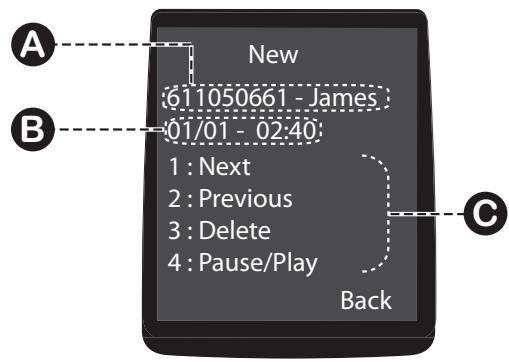
A: your correspondent's name or number.
B: date time of recording of the message.
C:control keys while reading messages.
The messages are read in chronological order (from oldest to newest).
At the end of the last message, the answering machine will stop automatically.
Note
You can also listen to your old messages by selecting "Old" instead of "New".
Managing your messages
When playing back messages, press the following buttons :
| Key | Action |
| 1 | Go on to the next message. |
| 2 | Return to the previous message. |
| 3 | Delete the message being read. |
| 4 | - Stop playback of the messages. - Replay the current message. |
Deleting all old messages
Menu >Ans-machine
- Press Select.
- Select Incoming msg. using the or keys and press Select.
- Select Delete old using the or keys and press Select.
- The message "Delete ?" is displayed, press Yes OK to confirm the deletion of all old messages.
Querying your answering machine remotely
This function allows you to check your voice messages and change your answering machine settings even when you are not at home.
To remotely access your answering machine :
- Dial your phone number.
- Wait for the answering machine to come on.
- While listening to your announcement press the key and enter your remote access code.
Note
By default, the remote enquiry code is 0000. This code must be modified so that remote access is activated. To modify the remote enquiry code refer to paragraph "Modify the remote enquiry code", page 66.
- A beep will indicate access to the answering machine, any unread messages will be automatically played back.
- At the end of playback, a new beep will sound to let you know that the answer machine is ready.
You can perform the following operations :
| Key | Action |
| 5 | Play messages / Stop playing messages |
| 3 | Delete the message being played |
| 0 | Pause/Continue playing back |
| * | Return to the start of the message (1 press) Return to the previous message (2 presses) |
| # | Go on to the next message |
| 9 | Activate / Deactivate the answering machine |
Audio adjustment…
Changing the ringtone
You can change the ring of :
- outside calls,
- calls between handsets (intercom).
Menu > Audio
- Press Select.
- Select External ringtone to change the ringing tone for external calls.
-OR-
- Select Internal ringtone to change the ringing tone for internal calls.
- Scroll through the pre-recorded ringing tones and press Select.
- Adjust the ringtone volume using the or keys and press Select.
Activating/Deactivating the silent mode
In silent mode, the telephone ringer and keypad beeps are muted.
Note
The # key can also be used to activate/deactivate the silent mode. If the silent mode is active the icon is displayed.
Menu > Audio
- Press Select.
- Select Silent to change the silent mode, then press Select.
-
The message " Disable silent mode ? " or "Activate silent mode ? " is displayed on the screen.
-
Press Yes to confirm the question.
-
Press No to reject the question.
Activating/Deactivating audio alerts
Audio alerts refer to :
- pressing the keypad keys,
- putting the handset on the charger,
- low battery alert,
- others (error alerts).
Note
The activated function is marked by the symbol

Menu > Audio
Press Select.
- Select Beeps to change the audio alerts, then press Select.
- Select Keypad and press the On/Off key to activate or deactivate the keypad beeps.
-
OR -
-
Select Charger and press the On/Off key to activate or deactivate the beep when the handset is placed on the charger.
- OR -
- Select Battery low and press the On/Off key to activate or deactivate the low battery warning.
- OR -
- Select Others and press the On/Off key to activate or deactivate the error alerts.
- After making the settings, select Save changes? using the or keys then press Store.
The action is confirmed by the "OK" indication.
Setting up…
The phone
Setting the date and the time
Menu > Settings
Press Select.
- Select Settings using the or keys and press Select.
- Select Date/Time using the or keys and press Select.
- The date and time setting screen is displayed, press Edit.
- Set the clock mode (automatic or manual) with On/Off key.
- Press the key and then enter the date in MM/DD/YY format.
- Press the key and then enter the time in HH:MM format.
- Confirm your entry by pressing Select.
- The message "Save changes? " is displayed.
- Confirm by pressing key.
The action is confirmed by the "OK" indication.
Note
If the Auto is activated (checked), it is not possible to change the date and time displayed on the handset.
Picking up and hanging up calls automatically
Menu > Settings
- Press Select.
- Select Settings using the or keys and press Select.
- Select Auto hang/pick up using the or keys and press Select.
- Select Auto hangup or Auto pickup using the or keys.
- Set the status (activated or deactivated) with the On/Off key.
- Select "Save changes ? " using the or keys and press Store.
The action is confirmed by the "OK" indication.
Changing the display language
Menu > Settings
Press Select.
- Select Settings using the or keys and press Select.
- Select Language using the or keys and press Select.
- Select the language to be used with the keys or and press Select.
- The action is confirmed by the "OK" indication if the choice of language is English.
Adjust the brightness
Menu > Settings
- Press Select.
- Select Settings using the or keys and press Select.
- Select Display using the or keys and press Select.
- Select Brightness using the or keys and press Select.
A bar graph is used to adjust the brightness according to 8 levels. - Select the level you want using the keys or .
The brightness is directly visible on the screen.
- Press Select. The action is confirmed by the "OK" indication.
Change the screen background
This menu allows you to change your handset's screen background image.
Menu > Settings
Press Select.
- Select Settings using the or keys and press Select.
- Select Display using the or keys and press Select.
- Select Wallpaper using the or keys and press Select.
- Select a background screen from the ones offered using the keys or . The image is displayed on the screen.
- Press Select to display the image as background. The action is confirmed by the "OK" indication.
The handset
Associating a new handset
You can associate other handsets with your base telephone. You then have to pair them so they are recognised.
FROM THE BASE :
To put your base in pairing mode :
- Press the button on the rear face of the base, until the light starts blinking.
- The base remains in pairing mode for one minute.
FROM THE HANDSET:
Case 1: the handset displays "Please register".
- Press OK key.
- The handset displays : "Put the base in registration & press OK".
- Press OK.
- The message "Search" is displayed.
- Once the base is detected, its name is displayed on the handset screen.
- Press Yes to confirm.
- The message "Registration in progress" is displayed.
- The message "Registered" is displayed.
You then automatically exit the pairing mode.
Case 2:
Menu > Settings
- Press Select.
- Select Advanced settings using the or keys and press Select.
- Select Set handset using the or keys and press Select.
- Select Registration then press Select.
- The handset displays : "Put the base in registration & press OK".
- Place your base in pairing mode (see previous paragraph).
- On the handset, press OK.
- The message "Search" is displayed.
- Once the base is detected, its name is displayed on the handset screen.
- Press Yes to confirm.
- The message "Registration in progress" is displayed.
- The message "Registered" is displayed. You then automatically exit the pairing mode.
Note
The standard pairing of a new handset is automatic if the default pin number (0000) has not been changed. Otherwise a message Enter code prompts you to enter the new PIN number. If an error occurs, the message Registration failed is displayed prompting you to repeat the whole procedure.
Customizing the handset's registration
You can personalise the following information :
- the name of your base,
- the registration number of your handset.
Menu > Settings
FROM THE HANDSET :
1 Press Select.
2 Select Advanced settings using the or keys and press Select.
3 Select Set handset using the or keys and press Select.
4 Select Person-registration then press Select.
5 Select the base number and confirm.
6 Enter the new base name and confirm.
7 Enter the base code.
FROM THE BASE :
8 Press the pairing button for a few seconds. On the base: the light blinks and the base is in paired mode. Once the handset is registered, you automatically quit pairing mode.
Defining the main base for your handset
This function allows you to specify the priority base to be used for making calls.
Note Only if you have paired the same handset on several bases.
Menu > Settings
- Press Select.
- Select Advanced settings using the or keys and press Select.
- Select Set handset using the or keys and press Select.
- Select Base priority using the or keys and press Select.
- Select the base that the handset should use first and press Select. The action is confirmed by the "OK" indication.
Modifying the Voice box number
If you have subscribed to your operator's voice mail service, calls received while you are absent will be redirected to the voice mail on your telephone line.
Note
If you do not know the number of your voice mail, ask your operator for it.
Menu > Settings
Press Select.
- Select Advanced settings using the or keys and press Select.
- Select Set handset using the or keys and press Select.
- Select Voicebox number using the or keys and press Select.
- Select Edit using the or keys and press Select.
- Deleting the Voice box number. The action is confirmed by the "OK" indication.
Deleting the Voice box number
Menu > Settings
Press Select.
- Select Advanced settings using the or keys and press Select.
- Select Set handset using the or keys and press Select.
- Select Voicebox number using the or keys and press Select.
- Select Delete using the or keys and press Select.
- The message "Delete?" is displayed.
- Press Yes to confirm. The action is confirmed by the "OK" indication.
Handset version
Menu > Settings
Press Select.
- Select Advanced settings using the or keys and press Select.
- Select Set handset using the or keys and press Select.
- Select Handset version using the or keys and press Select. The software and EEPROM version of the SIXT4 2 handset is displayed on the screen.
Resetting the handset
When you reset your handset, all the settings are returned to their initial values (factory settings), except for the phonebook.
Menu > Settings
- Press Select.
- Select Advanced settings using the or keys and press Select.
- Select Set handset using the or keys and press Select.
- Select Reset handset using the or keys and press Select.
- On a confirmation request "Reset handset?", press Yes.
The base
Changing the base code
Your base station code (default setting 0000) is required to access certain security functions. This must contain 4 digits.
Menu > Settings
Press Select.
- Select Advanced settings using the or keys and press Select.
- Select Set base using the or keys and press Select.
- Select Change code using the or keys and press Select.
- At the "Old code" prompt, enter the old 4-digit code and then confirm by pressing Select.
- At the "New code" prompt, enter the new 4-digit code and then confirm by pressing Select.
- At the "Confirm code" prompt, enter the new code again and then confirm by pressing Select. The action is confirmed by the "OK" indication.
Resetting the base
When you reset your base, all the settings are returned to their initial values (factory settings), except for the phonebook.
Menu > Settings
Press Select.
- Select Advanced settings using the or keys and press Select.
- Select Set base using the or keys and press Select.
- Select Reset base using the or keys and press Select.
- On a confirmation request "Reset base?", press Yes. The action is confirmed by the "OK" indication.
Base version
Menu > Settings
- Press Select.
- Select Advanced settings using the or keys and press Select.
- Select Set base using the or keys and press Select.
- Select Base version using the or keys and press Select.
-
The following information is displayed :
-
base software version,
- EEPROM version,
- base hardware version.
Activating emission free mode
There is a Emission free mode on your handset. It controls the radio transmission power needed according to how far away your base is.
If emission free mode is activated it means that neither base nor handset do emit any signal until it is resumed by any action from the line or handset.
Menu > Settings
Press Select.
- Select Advanced settings using the or keys and press Select.
- Select Set base using the or keys and press Select.
- Select Emission free mode using the or keys and press Select.
- Set the status (activated or deactivated) with the On/Off key.
- Select Save changes? using the or keys and press Store. The action is confirmed by the "OK" indication.
Modifying the country
Country choice allows specific settings for different countries to be modified but does not change the language in the Settings.
Menu > Settings
Press Select.
- Select Advanced settings using the or keys and press Select.
- Select Set base using the or keys and press Select.
- Select Country using the or keys and press Select.
- A list of countries is available. Select the country in which you are using your phone and press Select.
The action is confirmed by the "OK" indication.
The charger
Note
The updated settings of the charger from the menu Set charger becomes effective as soon as the handset is put back to the charger.
Modifying the display colour
With this menu you can change the display colour of your charger.
Menu > Settings
- Press Select.
- Select Advanced settings using the or keys and press Select.
- Select Set charger using the or keys and press Select.
- Select Display color using the or keys and press Select.
- A list of colours is available. Select the desired colour then press Select. The action is confirmed by the "OK" indication.
Activating time display
With this menu you can activate the time display on your charger display screen.
Menu > Settings
Press Select.
- Select Advanced settings using the or keys and press Select.
- Select Set charger using the or keys and press Select.
- Select Settings using the or keys and press Select.
- Set the status (activated or deactivated) with the On/Off key.
- Select Save changes? using the or keys and press Store. The action is confirmed by the "OK" indication.
The line
This menu allows you to change the settings of the lines on the base.
Important We do not recommend that you change line settings without first contacting your operator, as this may result in your phone line being disconnected.
Change the line name
Menu > Settings
- Press Select.
- Select Advanced settings using the or keys and press Select.
- Select Set line using the or keys and press Select.
- Select Line name using the or keys and press Select.
- Press Edit to change the line name using the alphanumeric keys.
- Enter your line name by successively pressing the corresponding keys, press Select.
The action is confirmed by the "OK" indication.
Pair the handset with a line
This menu allows you to display the list of handsets paired with the line used.
Note
The activated function is marked by the symbol

Menu > Settings
Press Select.
- Select Advanced settings using the or keys and press Select.
- Select Set line using the or keys and press Select.
- Select Associated handset using the or keys and press Select.
- Enter the base code and press Select.
- The list of paired handsets is displayed on the screen.
- Select the desired handset using the or keys.
- Press On/Off key to pair/unpair the handset with/from the line used (the paired handset is then unpaired and vice versa).
- Select Save changes? using the or keys and press Store. The action is confirmed by the "OK" indication.
Mask the line number
This function when activated, hides your line number.
Note
The activated function is marked by the symbol

Menu > Settings
Press Select.
- Select Advanced settings using the or keys and press Select.
- Select Set line using the or keys and press Select.
- Select Configuration using the or keys and press Select.
- Select Hide number using the or keys.
- Change the status using the key On/Off and press OK.
- Select Save changes? using the or keys and press Store. The action is confirmed by the "OK" indication.
Allow three-way communication (Intrusion)
This intrusion function allows or prohibits a second handset registered on the same base to share an ongoing conversation. If the intrusion mode is activated, you will then be able to share a call in process with another handset.
Menu > Settings
- Press Select.
- Select Advanced settings using the or keys and press Select.
- Select Set line using the or keys and press Select.
- Select Configuration using the or keys and press Select.
- Select Intrusion using the or keys.
- Change the status using the key On/Off and press Select.
- Select Save changes? using the or keys and press Store. The action is confirmed by the "OK" indication.
Modifying the dialing mode
You can use the dialing system based on voice frequency or pulse.
Menu > Settings
Press Select.
- Select Advanced settings using the or keys and press Select.
- Select Set line using the or keys and press Select.
- Select Dial mode using the or keys and press Select.
- Select Edit using the or keys and press Select.
- Select the desired type of dialing with the keys or and press Select. The action is confirmed by the "OK" indication.
Note To verify the type of dialing used, select View.
Changing the flash duration
You can configure the flash duration if you use your phone abroad or on private PABX network, you may need to modify the flash duration in order to use your telephone correctly with regard to the following functionalities: outgoing 2nd call, incoming 2nd call and 3 way conference.
Please contact your service provider to obtain the correct flash duration and then modify it by doing the following.
Menu > Settings
Press Select.
- Select Advanced settings using the or keys and press Select.
- Select Set line using the or keys and press Select.
- Select Flash time using the or keys and press Select.
- Select Edit using the or keys and press Select.
- Select the appropriate flash duration using the or key and press Select. The action is confirmed by the "OK" indication.
Note To verify the type of flash duration used, select View.
| Flash duration (MS) | Country |
| 100 | Spain, United Kingdom, Italy, Switzerland, Austria, Netherlands, Poland, Ireland, Hungary, Slovenia, Romania, Slovakia, Czech Republic and Sweden |
| 120 | Belgium |
| 250 | Germany, France, Greece, Portugal, Croatia, Serbia, Montenegro, Bosnia and Macedonia |
| 600 | Bulgaria |
Call management
This menu allows you to select the line on which you want to make your outgoing call.
Managing your calls
Menu > Settings
- Press Select.
- Select Advanced settings using the or keys and press Select.
- Select Select call line using the or keys and press Select.
- The list of lines available is displayed on the screen.
- Select your line using the keys or and press Select. The action is confirmed by the "OK" indication.
The list of handsets
This menu displays the list of handsets registered on the same base.
Manage handsets
Menu > Settings
Press Select.
- Select Advanced settings using the or keys and press Select.
- Select Handsets' list using the or keys and press Select.
- The list of handsets registered on the base is displayed on the screen.
- Select the desired handset using the keys or and press Options.
- You can perform the following actions :
Changing the handset name : " Edit "
Change the handset name using the alphanumeric keys. Press Clear to delete unwanted characters. Press Select.
Call the handset : " Call "
Call the selected handset.
Remove the handset : " Delete "
Remove the handset's registration.
At the confirmation prompt "Delete handset ?" press Yes.
The action is confirmed by the "OK" indication.
Intercept the call : "Interception"
Authorise a DECT earpiece, previously registered with the base, to intercept a call.
The message "Enter code" is displayed. Enter the base PIN code (0000 by default), press Select.
Then select On or Off and press Select.
The action is confirmed by the "OK" indication.
Answering machine setup
Modify the remote enquiry code
Your answering machine can be consulted remotely. With this function you can read your messages and consult your answering machine from any other telephone outside your home.
Note
The default code is 0000. This code must be modified for remote access to be activated.
Menu >Ans-machine
- Press Select.
- Select Settings using the or keys and press Select.
- Select Remote access using the or keys and press Select.
- Enter the base code (0000 by default) using the keys on the keypad. Press Select.
- Enter the new remote enquiry code, press Select.
- Enter the new remote enquiry code a second time, press Select to confirm. The action is confirmed by the "OK" indication.
Answering machine delay time
With this setting you set the time in seconds before your answering machine operates.
You can increase the time before your answering machine operates to give yourself more time to come to the phone.
Menu >Ans-machine
- Press Select.
- Select Settings using the or keys and press Select.
- Select Time to pickup using the or keys and press Select.
- Enter the desired time in seconds. Press Select.
The action is confirmed by the "OK" indication.

- Installing the phone 11
- Switch the handset off and then on again 14
- Settings to make before use 14
- Call 17
- Managing your calls 17
- Managing several calls 21
- Options during a call 26
- Using additional handsets 29
- Tracking your calls. 31
- Call logs 31
- The events log. 34
- Manage your contacts... 36
- Use the phonebook 36
- Answering machine 40
- Answering machine announcements 41
- Messages 43
- Audio adjustment... 46
- Setting up. 48
- The phone 48
- The handset 51
- The base 56
- The charger 59
- The line 60
- Call management 64
- The list of handsets 65
- Answering machine setup 66
- Discover…
- Your phone
- The base
- The handset
- The screen
- The charger
- DISPLAY AND INDICATION BACKLIGHTING
- Case 1:
- Case 2:
- Case 3:
- Installing the phone
- Replacing the batteries
- Browsing principle
- DETAILED BROWSER EXAMPLE: CHANGING THE RING TONE OF EXTERNAL CALLS
- MENU > Audio
- Switch the handset off and then on again
- Settings to make before use
- Menu tree structure
- Settings
- Call…
- Managing your calls
- Making a call
- METHOD 2 (POST-DIALING)
- Ending a call
- Receiving a call
- Choose your line
- SIXT4 2
- Managing several calls
- Receiving a second call
- Switching from one call to the other
- Ending one of the calls in progress
- Talking with two contacts at the same time (3-way conference)
- Making a second call
- Options > Second call
- Transferring calls
- UNANNOUNCED TRANSFER
- ANNOUNCED TRANSFER
- Options during a call
- Activate/Deactivate loudspeaker (hands-free mode)
- Note
- Adjusting volume
- Activating the mute mode
- TO ACTIVATE THE MUTE MODE :
- TO DEACTIVATE THE MUTE MODE :
- KEYBOARD SHORTCUT:
- Using additional handsets
- Calling another handset (intercom)
- Intrusion
- Tracking your calls…
- Call logs
- Displaying the list of all calls
- Menu > Calls
- Viewing the received or dialed call log
- Consulting the missed call log
- The events log
- Checking new events
- Managing incoming or outgoing calls
- Manage your contacts…
- Use the phonebook
- Create an entry
- Menu > Phonebook
- Call a contact from the phonebook
- Changing an entry
- Deleting an entry
- Search for an entry
- Delete all the entries
- Speed dialing
- Answering machine…
- Activating/Deactivating the answering machine
- Answering machine announcements
- Choosing your default announcement
- Menu >Ans-machine
- Recording your personal announcement
- Listening to your personal announcement
- Erasing your personal announcement
- Messages
- Listening to your messages
- Managing your messages
- Deleting all old messages
- Querying your answering machine remotely
- Audio adjustment…
- Changing the ringtone
- Activating/Deactivating the silent mode
- Activating/Deactivating audio alerts
- Audio alerts refer to :
- Setting up…
- The phone
- Setting the date and the time
- Menu > Settings
- Picking up and hanging up calls automatically
- Changing the display language
- Adjust the brightness
- Change the screen background
- Associating a new handset
- Customizing the handset's registration
- FROM THE HANDSET :
- FROM THE BASE :
- Defining the main base for your handset
- Modifying the Voice box number
- Deleting the Voice box number
- Handset version
- Resetting the handset
- Changing the base code
- Resetting the base
- Base version
- Activating emission free mode
- Modifying the country
- Modifying the display colour
- Activating time display
- The line
- Change the line name
- Pair the handset with a line
- Mask the line number
- Allow three-way communication (Intrusion)
- Modifying the dialing mode
- Changing the flash duration
- Call management
- The list of handsets
- Manage handsets
- Answering machine setup
- Modify the remote enquiry code
- Answering machine delay time
Brand : SAGEM
Model : SIXTY 2
Category : Phone