USER MANUAL KDL-37W5810 SONY
At Sony we are constantly rethinking and redesigning in order to create innovative digital entertainment products. And we are also constantly rethinking and re-evaluating our products, processes and our potential impact on the planet.
Thanks to our results in that direction, this product achieved the European Eco label award issued by the European Comission. You can get more information in following link: http://europa.eu.int/comm/environment/ecolabel
Sony gives a minimum of 2 years guarantee for this LCD TV and 7 years availability for replacement of electronic parts.
Instructions about "Installing Wall Mount Bracket" are included within this TV's instructions manual.
For useful information about Sony products
LCD Digital Colour TV
LCD Digital Colour TV
Operating Instructions GB
Thank you for choosing this Sony product. Before operating the TV, please read this manual thoroughly and retain it for future reference.
The manufacturer of this product is Sony Corporation, 1-7-1 Konan Minato-ku Tokyo, 108-0075 Japan. The Authorized Representative for EMC and product safety is Sony Deutschland GmbH, Hedelfinger Strasse 61, 70327 Stuttgart, Germany. For any service or guarantee matters please refer to the addresses given in separate service or guarantee documents.
Notes on Digital TV function
- Any functions related to Digital TV (DV3) will only work in countries or areas where DVB-T (MPEG-2 and H.264/MPEG-4 AVC) digital terrestrial signals are broadcast or where you have access to a compatible DVB-C' (MPEG-2 and H.264/MPEG-4 AVC) cable service. Please confirm with your local dealer if you can receive a DVB-T signal where you live or ask your cable provider if their DVB-C cable service is suitable for integrated operation with this TV.
- Your cable provider may charge a fee for their services, or require you to agree to its terms and conditions of business.
- This TV set complies with DVB-T and DVB-C specifications, but compatibility with future DVB-T digital terrestrial and DVB-C digital cable broadcasts are not guaranteed.
- Some Digital TV functions may not be available in some countries/areas and DVB-C cable may not operate correctly with some providers.
For a list of compatible cable providers, refer to the support web site:
http://support.sony-europe.com/TV/ DVBC/
#
The illustrations used in this manual are of the KDL-40V58xx unless otherwise state.
- The "x" that appear on the model name, correspond to numeric digits related to colour variation.
DVB is a registered trademark of the DVB Project.
HDMI, the HDMI logo and High-Definition Multimedia Interface are trademarks or registered trademarks of HDMI Licensing LLC.
DLNA and DLNA CERTIFIED are trademarks and/or service marks of Digital Living Network Alliance.
Manufactured under license from Dolby Laboratories. Dolby and the double-D symbol are trademarks of Dolby Laboratories.
"BRAVIA" and BRAVIA are trademarks of Sony Corporation.
"XMBTM" and "XrossMediaBar" are trademarks of Sony Corporation and Sony Computer Entertainment Inc.
DiSEqCTM is a trademark of EUTELSAT.
HDMI
HIGH-DEFINITION MULTIMEDIA INTERFACE
DOLBY
DIGITAL PLUS

dlna
CERTIFIED
Table of Contents
Start-up Guide 4
Safety Information 8
Precautions 9
Remote and TV Controls/Indicators 10
Watching TV
Watching TV. 15
Instruction Manual
Instruction Manual 17
Navigating through the Instruction Manual 17
Installing the Accessories (Wall-Mount Bracket) 18
Specifications 21
Troubleshooting 24
Before Use
To check the accessories
Mains lead (Type C-6)* (1) (Except for 37/32 inches)
Stand (1) and screws (4)
RM-ED016 Remote (1)
RM-ED019 Remote (1) (KDL-46/40/37/32W5820/ 5830/5840 only)
Size AA batteries (R6 type) (2)
- Do not remove the ferrite cores.
To insert batteries into the remote
Push and lift the cover to open.

1: Attaching the stand
1 Open the carton box and take out the stand and the screws.
2 Place the TV set on the stand. Take care not to interfere with cables.

3 Fix the TV to the stand according to the arrow marks that guide the screw holes using the supplied screws.


- If using an electric screwdriver, set the tightening torque at approximately 1.5N· m (15 kgf·cm).
2: Connecting an aerial/Set Top Box/ recorder (e.g. DVD recorder)
Connecting a Set Top Box/ recorder (e.g. DVD recorder) with SCART

Set Top Box/recorder (e.g. DVD recorder)

- Screw the satellite connector softly with hand, do not use any tool.
- TV must be switched off when connecting satellite antenna.
Connecting a Set Top Box/ recorder (e.g. DVD recorder) with HDMI

Set Top Box/ recorder (e.g. DVD recorder)
3: Preventing the TV from toppling over

1 Install a wood screw (4 mm in diameter, not supplied) in the TV stand.
2 Install a machine screw (M4× 20 not supplied) into the screw hole of the TV.
3 Tie the wood screw and the machine screw with a strong cord.
4: Bundling the cables


- Do not bundle the mains lead/AC power cord together with other cables.
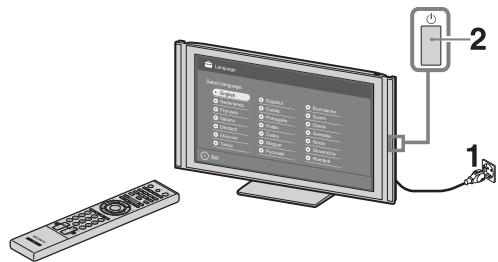
1 Connect the TV to your mains socket.
2 Press on the TV.
When you switch on the TV for the first time, the Language menu appears on the screen.

3
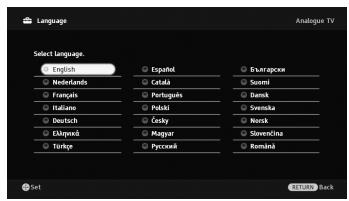
Follow the instructions on the screen.
Satellite Auto Tuning: Confirm that the tuning settings are the same that your satellite settings.
Digital Auto Tuning: When you select "Cable", we recommend that you select "Quick Scan" for quick tuning. Set "Frequency" and "Network ID" according to the information supplied from your cable provider. If no channel is found using "Quick Scan", try "Full Scan" (though it may take some time). For a list of compatible cable providers, refer to the support web site: http://support.sony-europe.com/TV/ DVBC/

- You can also tune channels manually.
Programme Sorting: If you want to change the order of analogue channels, follow the steps in "Programme Sorting".
Eco Preset: When you select "Yes", the "Eco" settings are changed into recommended values to reduce power consumption.
Adjusting the viewing angle of the TV
This TV can be adjusted within the angles shown below.
Adjust the angle left and right (swivel)

Detaching the Table-Top Stand from the TV

- Remove the screws guided by the arrow marks of the TV.
- Do not remove the Table-Top Stand for any reason other than to wall-mount the TV.

Installation/Set-up
Install and use the TV set in accordance with the instructions below in order to avoid any risk of fire, electrical shock or damage and/or injuries.
Installation
- The TV set should be installed near an easily accessible mains socket.
- Place the TV set on a stable, level surface.
- Only qualified service personnel should carry out wall installations.
- For safety reasons, it is strongly recommended that you use Sony accessories, including:
Wall-mount bracket SU-WL500
- Be sure to use the screws supplied with the Wall-mount bracket when attaching the mounting hooks to the TV set. The supplied screws are designed so that they are 8mm to 12mm in length when measured from the attaching surface of the mounting hook.
The diameter and length of the screws differ depending on the Wall-mount bracket model.
Use of screws other than those supplied may result in internal damage to the TV set or cause it to fall, etc.
8mm-12mm

Screw (supplied with the Wall-mount bracket)
Mounting Hook Hook attachment on rear of TV set
Transporting
Before
transporting the TV set, disconnect all cables.
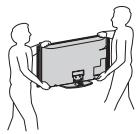
- Two or three people are needed to transport a large TV set.
- When transporting the TV set by hand, hold it as shown on the right. Do not put stress on the LCD panel.
- When lifting or moving the TV set, hold it firmly from the bottom.
- When transporting the TV set, do not subject it to jolts or excessive vibration.
- When transporting the TV set for repairs or when moving, pack it using the original carton and packing material.
Ventilation
- Never cover the ventilation holes or insert anything in the cabinet.
- Leave space around the TV set as shown below.
- It is strongly recommended that you use a Sony wall-mount bracket in order to provide adequate air-circulation.

Installed on the wall

Leave at least this space around the set.
Installed with stand
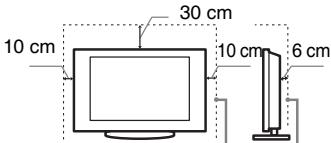
Leave at least this space around the set.
- To ensure proper ventilation and prevent the collection of dirt or dust:
- Do not lay the TV set flat, install upside down, backwards, or sideways.
- Do not place the TV set on a shelf, rug, bed or in a closet.
- Do not cover the TV set with a cloth, such as curtains, or items such as newspapers, etc.
- Do not install the TV set as shown below.

Air circulation is blocked.
Mains lead
Handle the mains lead and socket as follows in order to avoid any risk of fire, electrical shock or damage and/or injuries:
Use only mains leads supplied by Sony, not other suppliers.
Insert the plug fully into the mains socket.
- Operate the TV set on a 220-240 V AC supply only.
- When wiring cables, be sure to unplug the mains lead for your safety and take care not to catch your feet on the cables.
- Disconnect the mains lead from the mains socket before working on or moving the TV set.
- Keep the mains lead away from heat sources.
Unplug the mains plug and clean it regularly. If the plug is covered with dust and it picks up moisture, its insulation may deteriorate, which could result in a fire.
Notes
- Do not use the supplied mains lead on any other equipment.
- Do not pinch, bend, or twist the mains lead excessively. The core conductors may be exposed or broken.
- Do not modify the mains lead.
- Do not put anything heavy on the mains lead.
- Do not pull on the mains lead itself when disconnecting the mains lead.
- Do not connect too many appliances to the same mains socket.
- Do not use a poor fitting mains socket.
Prohibited Usage
Do not install/use the TV set in locations, environments or situations such as those listed below, or the TV set may malfunction and cause a fire, electrical shock, damage and/or injuries.
Location:
Outdoors (in direct sunlight), at the seashore, on a ship or other vessel, inside a vehicle, in medical institutions, unstable locations, near water, rain, moisture or smoke.
Environment:

-
To prevent the spread of fire, keep candles or other open flames away from this product at all time.
-
Places that are hot, humid, or excessively dusty; where insects may enter; where it might be exposed to mechanical vibration, near flammable objects (candles, etc). The TV set shall not be exposed to dripping or splashing and no objects filled with liquids, such as vases, shall be placed on the TV.
Situation:
Do not use when your hands are wet, with the cabinet removed, or with attachments not recommended by the manufacturer. Disconnect the TV set from mains socket and aerial during lightning storms.
Broken pieces:
- Do not throw anything at the TV set. The screen glass may break by the impact and cause serious injury.
- If the surface of the TV set cracks, do not touch it until you have unplugged the mains lead. Otherwise electric shock may result.
When not in use
- If you will not be using the TV set for several days, the TV set should be disconnected from the mains for environmental and safety reasons.
- As the TV set is not disconnected from the mains when the TV set is just turned off, pull the plug from the mains to disconnect the TV set completely.
However, some TV sets may have features that require the TV set to be left in standby to work correctly.
For children
- Do not allow children to climb on the TV set.
- Keep small accessories out of the reach of children, so that they are not mistakenly swallowed.
If the following problems occur...
Turn off the TV set and unplug the mains lead immediately if any of the following problems occur.
Ask your dealer or Sony service centre to have it checked by qualified service personnel.
When:
- Mains lead is damaged.
Poor fitting of mains socket.
TV set is damaged by being dropped, hit or having something thrown at it.
Any liquid or solid object falls through openings in the cabinet.
Precautions
Viewing the TV
View the TV in moderate light, as viewing the TV in poor light or during long period of time, strains your eyes.
- When using headphones, adjust the volume so as to avoid excessive levels, as hearing damage may result.
LCD Screen
- Although the LCD screen is made with high-precision technology and 99.99% or more of the pixels are effective, black dots may appear or bright points of light (red, blue, or green) may appear constantly on the LCD screen. This is a structural property of the LCD screen and is not a malfunction.
- Do not push or scratch the front filter, or place objects on top of this TV set. The image may be uneven or the LCD screen may be damaged.
- If this TV set is used in a cold place, a smear may occur in the picture or the picture may become dark. This does not indicate a failure. These phenomena disappear as the temperature rises.
- Ghosting may occur when still pictures are displayed continuously. It may disappear after a few moments.
- The screen and cabinet get warm when this TV set is in use. This is not a malfunction.
- The LCD screen contains a small amount of liquid crystal. Some fluorescent tubes used in this TV set also contain mercury. Follow your local ordinances and regulations for disposal.
Handling and cleaning the screen surface/cabinet of the TV set
Be sure to unplug the mains lead connected to the TV set from mains socket before cleaning.
To avoid material degradation or screen coating degradation, observe the following precautions.
- To remove dust from the screen surface/cabinet, wipe gently with a soft cloth. If dust is persistent, wipe with a soft cloth slightly moistened with a diluted mild detergent solution.
- Never use any type of abrasive pad, alkaline/acid cleaner, scouring powder, or volatile solvent, such as alcohol, benzene, thinner or insecticide. Using such materials or maintaining prolonged
contact with rubber or vinyl materials may result in damage to the screen surface and cabinet material.
Periodic vacuuming of the ventilation openings is recommended to ensure to proper ventilation.
- When adjusting the angle of the TV set, move it slowly so as to prevent the TV set from moving or slipping off from its table stand.
Optional Equipment
- Keep optional components or any equipment emitting electromagnetic radiation away from the TV set. Otherwise picture distortion and/or noisy sound may occur.
- This product has been tested and found to compliant with the limits set out in the EMC Directive for using connection cables not longer than 3 meters (9.8 feet).
Batteries
- Observe the correct polarity when inserting batteries.
- Do not use different types of batteries together or mix old and new batteries.
- Dispose of batteries in an environmentally friendly way. Certain regions may regulate the disposal of batteries. Please consult your local authority.
- Handle the remote with care. Do not drop or step on it, or spill liquid of any kind onto it.
- Do not place the remote in a location near a heat source, a place subject to direct sunlight, or a damp room.
Disposal of the TV set
m = 311 ;
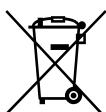
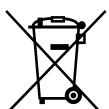
Disposal of Old Electrical & Electronic Equipment (Applicable in the European
Union and other European countries with separate collection systems)
This symbol on the product or on its packaging indicates that this product shall not be treated as household waste. Instead it shall be handed over to the applicable collection point for the recycling of electrical and electronic equipment. By ensuring this product is disposed of correctly, you will help prevent potential negative consequences for the environment and human health, which could otherwise be caused by inappropriate waste handling of this product. The recycling of materials will help to conserve natural resources. For more detailed information about recycling of this product, please contact your local Civic Office, your household waste disposal service or the shop where you purchased the product.
Pb
Disposal of waste batteries (applicable in the European Union and other European
countries with separate collection systems)
This symbol on the battery or on the packaging indicates that the battery provided with this product shall not be treated as household waste. On certain batteries this symbol might be used in combination with a chemical symbol. The chemical symbols for mercury (Hg) or lead (Pb) are added if the battery contains more than 0.0005% mercury or 0.004% lead. By ensuring these batteries are disposed of correctly, you will help prevent potentially negative consequences for the environment and human health which could otherwise be caused by inappropriate waste handling of the battery. The recycling of the materials will help to conserve natural resources. In case of products that for safety, performance or data integrity reasons require a permanent connection with an incorporated battery, this battery should be replaced by qualified service staff only. To ensure that the battery will be treated properly, hand over the product at end-of-life to the applicable collection point for the recycling of electrical and electronic equipment. For all other batteries, please view the section on how to remove the battery from the product safely. Hand the battery over to the applicable collection point for the recycling of waste batteries. For more detailed information about recycling of this product or battery, please contact your local Civic Office, your household waste disposal service or the shop where you purchased the product.
Remote and TV Controls/Indicators
Remote and TV controls
In case of KDL-46/40/37/32W5820/5830/5840, please refer to the separate leaflet.
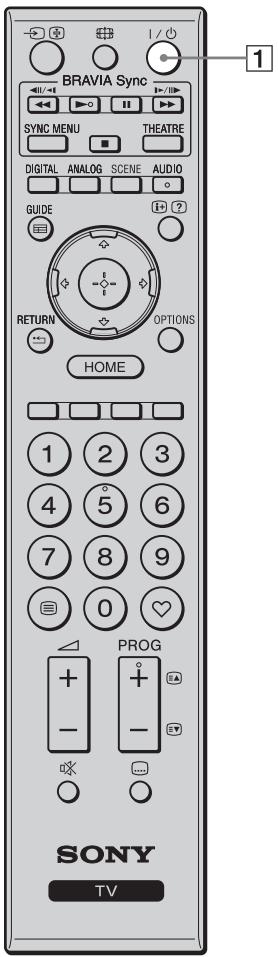

Buttons on the TV will work the same as those on the remote.
* In the TV menu, these buttons will work as ⋅/ ⋅/ ⋅/ ⋅/ ⋅.

- The number 5, ▶, PROG + and AUDIO buttons on the remote have a tactile dot. Use the tactile dots as a reference when operating the TV.
| Button/Switch | Description |
| 1 I/TV standby) | Press to turn the TV on and off from standby mode. |
| 2 (Power) | Press to turn the TV on or off. |
| • To turn the TV completely off (0 W, no power consumption), turn off the TV, then unplug the mains lead/AC power cord from the mains/AC power. |

3 SCENE
Press to display the "Scene Select" menu. When you select the desired scene option, the optimum sound quality and picture quality for the selected scene are automatically set.
Press 口 /口/口 /口 to select the scene option, then press
Cinema: Delivers picture scenes just like those in a theatre-like atmosphere with dynamic sound.
Photo: Delivers picture scenes that authentically reproduces the texture and colour of a printed photo.
Sports: Delivers picture scenes that let you experience realistic picture and sound like those in a stadium.
Music: Delivers sound effects that let you experience dynamic and clear sound like that at a concert.
Game: Delivers picture scenes that let you enjoy your game-playing experience to the fullest with superb picture and sound quality.
Graphics: Delivers picture scenes that ease your prolonged monitor viewing experience and reduce fatigue by displaying clearer detailed pictures.
General: Current user settings.
Auto: The optimum sound quality and picture quality are automatically set according to the input source, though there may not be any effect depending on the connected devices.

- In Digital mode, "Scene" options are applied independently for HD (High-definition) and SD (Standard-definition) pictures.
- When you set Theatre Mode (page 13) to on, the "Scene Select" setting switches to "Cinema" automatically.
| 4 AUDIO | In analogue mode: Press to change the dual sound mode.
In digital mode: Press to change the language to be used for the programme currently being viewed. |
| 5 (+)/? (Info/Text reveal) | Each time you press the button, the display changes as follows:
In digital mode: Details of the current programme → Details of the next programme (only for Sony Guide)
In analogue mode: Current channel number and screen mode → Clock information
In Text mode: Reveals hidden information (e.g. answers to a quiz) (page 15). |
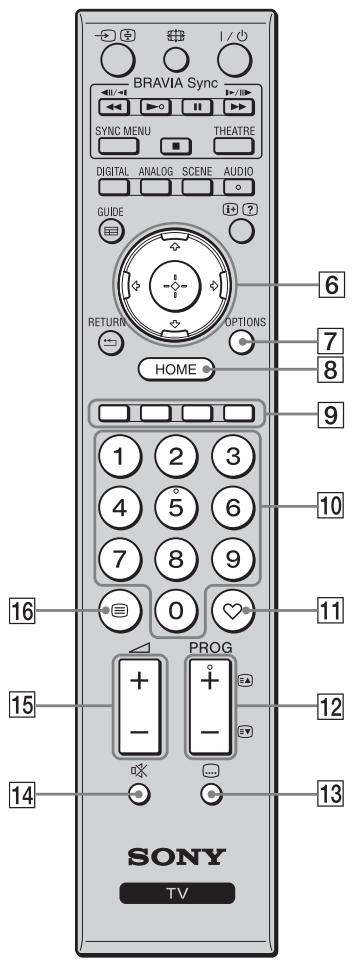
| 6 | / / / / / / / / / | Press / / / / / / / to move the on-screen cursor. Press ⊙ to select/confirm the highlighted item. When playing a photo file: Press ⊙ to pause/ start a slideshow. Press ⊙ / ⊙ to select the previous file. Press ⊙ / ⊙ to select the next file. When playing a music/video file: Press ⊙ to pause/start the playback. Press and hold ⊙ / ⊙ to fast forward/fast reverse, then release the button at the point where you want to resume playback. Press ⊙ to start playback from the beginning of the current file. Press ⊙ to go to the next file. |
| 7 | OPTIONS | Press to display a list that contains “Device Control” or shortcuts to some setting menus. Use the “Device Control” menu to operate equipment that is compatible with Control for HDMI. The listed options vary depending on the input source. |
| 8 | HOME | Press to display the TV Home Menu. |
| 9 | Coloured buttons | When the coloured buttons are available, an operation guide appears on the screen. |
| 10 | Number buttons | In TV mode: Press to select channels. For channel numbers 10 and above, press the next digit quickly. In Text mode: Press to enter a page number. |
| 11 | ♥ (Favourite) | Press to display the Favourite List that you have specified. |
| 12 | PROG +/- / / | In TV mode: Press to select the next (+) or previous (-) channel. In Text mode: Press to select the next (▲) or previous (▼) page. |
| 13 | (Subtitle setting) | Press to change the subtitle language (in digital mode only). |
| 14 | ⊗ (Mute) | Press to mute the sound. Press again to restore the sound.
• In standby mode, if you want to turn on the TV without sound, press this button. |
| 15 | +/- (Volume) | Press to adjust the volume. |
| 16 | (Text) | Press to display text information (page 15). |

| 17 | RETURN | Press to return to the previous screen of the displayed menu.
When playing a photo/music/video file: Press to stop the playback. (The display returns to the file or folder list.) |
| 18 | GUIDE
(EPG) | Press to display the Digital Electronic Programme Guide (EPG). |
| 19 | DIGITAL | Switches from analogue mode to the last selected digital mode (DVB-S or Antenna/Cable). Toggles between two digital modes (DVB-S and Digital (Antenna/Cable)) when the TV set operates in Digital mode.
When viewing pictures from connected equipment: Press to return to normal TV mode. |
| 20 | ANALOG | Press to display the analogue channel that was last viewed.
When viewing pictures from connected equipment: Press to return to normal TV mode. |
| 21 | BRAVIA Sync | You can operate the BRAVIA Sync-compatible equipment that is connected to the TV.
SYNC MENU: Displays the menu of connected HDMI equipment. While viewing other input screens or TV programmes, “HDMI Device Selection” is displayed when the button is pressed.
THEATRE: You can set Theatre Mode to on or off. When Theatre Mode is set to on, the optimum sound quality (if the TV is connected with an audio system using an HDMI cable) and picture quality for film-based contents are automatically set.
If you turn the TV off, Theatre Mode is also turned off.
When you change the “Scene Select” setting, Theatre Mode turns off automatically.
“Control for HDMI” (BRAVIA Sync) is only available with the connected Sony equipment that has the BRAVIA Sync or BRAVIA Theatre Sync logo or is compatible with Control for HDMI. |
| 22 | / / (Input select/Text hold) | In TV mode: Press to display a list of inputs.
In Text mode: Press to hold the current page. |
| 23 | (Screen mode) | Press to change the screen format (page 16). |

| Indicator | Description |
| 1 Light sensor | Do not put anything over the sensor, doing so may affect its function. |
| 2 Remote control sensor | Receives signals from the remote.
Do not put anything over the sensor. The sensor may not work properly. |
| 3 ⿱ ♂ (Picture Off / Timer) | Lights up in green when you select “Picture Off”.
Lights up in orange when you set the timer. |
| 4 ⋅ (Standby) | Lights up in red when the TV is in standby mode. |
| 5 I (Power) | Lights up in green when the TV is on. |
About the operation guide on the TV screen

Operation Guide
Example: Press or RETURN (see 6 (page 12) or 17 (page 13)).
The operation guide provides help on how to operate the TV using the remote, and is displayed at the bottom of the screen. Use the remote buttons shown on the operation guide.
Watching TV


1 Press on the TV to turn on the TV. When the TV is in standby mode (the (standby) indicator on the TV front panel is red), press 1 / 1 on the remote to turn off the TV.
2 Press DIGITAL to switch to digital or satellite mode, or press ANALOG to switch to analogue mode.
The available channels vary depending on the mode.
3 Press the number buttons or PROG + / - to select a TV channel.
To select a digital programme using the Digital Electronic Programme Guide (EPG).
In digital mode
An information banner appears briefly. The following icons may be indicated on the banner.
: Radio service
: Scrambled/Subscription service
Multiple audio languages available
Subtitles available
: Subtitles available for the hearing impaired
18: Recommended minimum age for current programme (ages from 4 to 18)
□:Parental lock
To access Text
In analogue mode, press. Each time you press, the display changes cyclically as follows:
Text and TV picture Text No Text (exit the Text service)
To select a page, press the number buttons or /
To hold a page, press l
To reveal hidden information, press ②.

- You can also jump directly to a page by selecting the page number displayed on the screen. Press and / / / to select the page number, then press .
- When four coloured items appear at the bottom of the Text page, you can access pages quickly and easily (FasText). Press the corresponding coloured button to access the page.
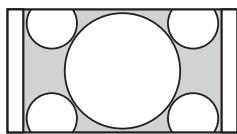
Press 串 repeatedly to select the desired Screen Format.
Smart*

Enlarges the centre portion of the picture. The left and right edges of the picture are stretched to fill the 16:9 screen.
4:3

Displays the 4:3 picture in its original size. Side bars are shown to fill the 16:9 screen.
Wide

Stretches the 4:3 picture horizontally, to fill the 16:9 screen.
Zoom*

Displays the
cinemascopic (letter
box format) picture in
the correct proportion.
14:9*
Displays the 14:9 picture in the correct proportion. As a result, side bars are shown on the screen.
- Parts of the top and bottom of the picture may be cut off. You can adjust the vertical position of the picture. Press / to move the picture up or down (e.g. to read subtitles).

- When you select "Smart", some characters and/or letters at the top and the bottom of the picture may not be visible. In such a case, adjust "Vertical Size" in the "Screen" menu.

- When "Auto Format" is set to "On", the TV automatically selects the best mode to suit the broadcast.
- If 720p, 1080i or 1080p source pictures are displayed with black borders on the screen edges, select "Smart" or "Zoom" to adjust the pictures.
Instruction Manual
Displays the instruccion manual on the screen.
Navigating through the Instruction Manual
1 Press HOME to display the XMB™.

2 Press / to select Settings.
3 Press to select Instruction Manual, then press .
4 Press to select topic from the Table of Contents, then press .
Use the corresponding coloured button to go to next or previous page and to return to Table of Contents.
If the explanation is linked to other topic, the symbol will appear. Press / / / to select then press . Press RETURN to go back.
5 Press HOME to exit.

- The XMB™ (XcrossMediaBar) is a menu of BRAVIA features and input sources displayed on the TV screen.
Installing the Accessories (Wall-Mount Bracket)
To Customers:
For product protection and safety reasons, Sony strongly recommends that installing of your TV be performed by Sony dealers or licensed contractors. Do not attempt to install it yourself.
To Sony Dealers and Contractors:
Provide full attention to safety during the installation, periodic maintenance and examination of this product.
Your TV can be installed using the SU-WL500 Wall-Mount Bracket (sold separately).
- Refer to the Instructions supplied with the Wall-Mount Bracket to properly carry out the installation.
Refer to "Detaching the Table-Top Stand from the TV" (page 7).
Refer to "TV installation dimensions table" (page 19).
Refer to "Screw and Hook locations diagram/table" (page 20).

- Place the TV on the Table-Top Stand, when securing the Mounting Hook.

Sufficient expertise is required for installing this product, especially to determine the strength of the wall for withstanding the TV's weight. Be sure to entrust the attachment of this product to the wall to Sony dealers or licensed contractors and pay adequate attention to safety during the installation. Sony is not liable for any damage or injury caused by mishandling or improper installation.
TV installation dimensions table

Unit: cm
| Model Name | Display dimensions | Screen centre dimension | Length for each mounting angle |
| Angle (0°) | Angle (20°) |
| A | B | C | D | E | F | G | H |
| KDL-52V58xx | 126.2 | 82.2 | 3.9 | 47.8 | 16.9 | 40.7 | 77.8 | 51.5 |
| KDL-52W58xx | 126.2 | 82.3 | 3.9 | 47.8 | 16.9 | 40.9 | 77.8 | 51.5 |
| KDL-46V58xx | 112.3 | 72.3 | 8.4 | 47.1 | 15.0 | 35.8 | 68.5 | 50.2 |
| KDL-46W58xx | 112.3 | 72.5 | 8.4 | 47.1 | 15.0 | 35.9 | 68.6 | 50.3 |
| KDL-40V58xx | 98.7 | 63.6 | 12.2 | 46.3 | 14.7 | 32.8 | 60.4 | 49.3 |
| KDL-40W58xx | 98.7 | 63.8 | 12.2 | 46.3 | 14.7 | 33.0 | 60.4 | 49.3 |
| KDL-37V58xx | 91.7 | 60.0 | 14.0 | 46.3 | 14.5 | 31.4 | 57.0 | 49.3 |
| KDL-37W58xx | 91.7 | 60.2 | 14.0 | 46.3 | 14.5 | 31.6 | 57.0 | 49.3 |
| KDL-32V58xx | 79.8 | 53.6 | 17.2 | 46.3 | 14.3 | 29.1 | 51.1 | 49.2 |
| KDL-32W58xx | 79.8 | 53.7 | 17.2 | 46.3 | 14.3 | 29.2 | 51.1 | 49.2 |
Figures in the above table may differ slightly depending on the installation.
WARNING
The wall that the TV will be installed on should be capable of supporting a weight of at least four times that of the TV. Refer to "Specifications" (page 21) for its weight.
Screw and Hook locations diagram/table
| Model Name | Screw location | Hook location |
| KDL-52V58xx | d, g | b |
| KDL-52W58xx | d, g | b |
| KDL-46V58xx | d, g | b |
| KDL-46W58xx | d, g | b |
| KDL-40V58xx | d, g | b |
| KDL-40W58xx | d, g | b |
| KDL-37V58xx | d, g | b |
| KDL-37W58xx | d, g | b |
| KDL-32V58xx | e, g | c |
| KDL-32W58xx | e, g | c |
Screw location
When installing the Mounting Hook on the TV.


Hook location
When installing the TV onto the Base Bracket.

Specifications
| System |
| Panel system | LCD (Liquid Crystal Display) Panel |
| TV system | Analogue: Depending on your country/area selection: B/G/H, D/K, L, I Digital: DVB-T/DVB-C Satellite: DVB-S/DVB-S2 |
| Colour/video system | Analogue: PAL, PAL60 (only video input), SECAM, NTSC3.58, NTSC4.43 (only video input) Digital: MPEG-2 MP@ML/HL, H.264/MPEG-4 AVC MP/HP@L4 |
| Channel coverage | Analogue: VHF: E2-E12/UHF: E21-E69/CATV: S1-S20/HYPER: S21-S41 D/K: R1-R12, R21-R69/L: F2-F10, B-Q, F21-F69/I: UHF B21-B69 Digital: VHF/UHF Satellite: IF Frequency 950-2150 MHz |
| Sound output | 10 W + 10 W |
| Input/Output jacks |
| Aerial/Antenna cable | 75 ohm external terminal for VHF/UHF |
| Satellite antenna | Female F-Type Connector IEC169-24, 75 ohm. DiSEqC 1.0, LNB 13V/18V & 22KHz tone |
| AV1 | 21-pin scart connector (CENELEC standard) including audio/video input, RGB input and TV audio/video output. |
| AV2 | 21-pin scart connector (CENELEC standard) including audio/video input, RGB input and selectable audio video output. |
| COMPONENT IN | Supported formats: 1080p, 1080i, 720p, 576p, 576i, 480p, 480i Y: 1 Vp-p, 75 ohms, 0.3V negative sync/Pb/Cb: 0.7 Vp-p, 75 ohms/Pr/Cr: 0.7 Vp-p, 75 ohms |
| COMPONENT IN | Audio input (phono jacks) |
| HDMI IN1, 2, 3, 4 | Video: 1080/24p, 1080p, 1080i, 720p, 576p, 576i, 480p, 480i Audio: Two channel linear PCM: 32, 44.1 and 48 kHz, 16, 20 and 24 bits, Dolby Digital Analogue audio input (minijack) (HDMI IN1 only) PC Input (page 23) |
| AV3 | Video input (phono jack) |
| AV3 | Audio input (phono jacks) |
| DIGITAL AUDIO OUT (OPTICAL) | Digital optical jack (Two channel linear PCM, Dolby Digital) |
| PC IN | Audio output (phono jacks) |
| PC IN | PC Input (D-sub 15-pin) (page 23) G: 0.7 Vp-p, 75 ohms, non Sync on Green/B: 0.7 Vp-p, 75 ohms/ R: 0.7 Vp-p, 75 ohms/HD: 1-5 Vp-p/VD: 1-5 Vp-p PC audio input (minijack) |
| USB port | USB port |
| Headphones jack | CAM (Conditional Access Module) slot |
| LAN | 10BASE-T/100BASE-TX connector (Depending on the operating environment of the network, connection speed may differ. 10BASE-T/100BASE-TX communication rate and communication quality are not guaranteed for this TV.) |
| Model name | KDL-52V58xx,52W58xx | KDL-46V58xx,46W58xx | KDL-40V58xx,40W58xx | KDL-37V58xx,37W58xx | KDL-32V58xx,32W58xx |
| Power and others |
| Power requirements | 220 V - 240 V AC, 50 Hz |
| Screen size (measured diagonally) | 52 inches / Approx.132 cm | 46 inches / Approx.117 cm | 40 inches / Approx.102 cm | 37 inches / Approx.94 cm | 32 inches / Approx.81 cm |
| Display resolution | 1,920 dots (horizontal) × 1,080 lines (vertical) |
| Power consumption | in “Home”/“Standard”mode | 156 W (KDL-52V58xx)164 W (KDL-52W58xx) | 123 W (KDL-46V58xx)142 W (KDL-46W58xx) | 111 W (KDL-40V58xx)110 W (KDL-40W58xx) | 112 W (KDL-37V58xx)117 W (KDL-37W58xx) | 77 W (KDL-32V58xx)71 W (KDL-32W58xx) |
| in “Shop”/“Vivid”mode | 254 W (KDL-52V58xx)261 W (KDL-52W58xx) | 203 W (KDL-46V58xx)221 W (KDL-46W58xx) | 177 W (KDL-40V58xx)172 W (KDL-40W58xx) | 169 W (KDL-37V58xx)179 W (KDL-37W58xx) | 109 W (KDL-32V58xx)99 W (KDL-32W58xx) |
| Standby power consumption*1 | 0.17 W (17 W when “Quick Start” is set to “On”) |
| Average annual energy consumption*2 | 228 kWh (KDL-52V58xx)239 kWh (KDL-52W58xx) | 179 kWh (KDL-46V58xx)207 kWh (KDL-46W58xx) | 162 kWh (KDL-40V58xx)161 kWh (KDL-40W58xx) | 163 kWh (KDL-37V58xx)171 kWh (KDL-37W58xx) | 112 kWh (KDL-32V58xx)103 kWh (KDL-32W58xx) |
| Supplied accessories | See “To check the accessories” (page 4). |
| Optional accessories | Wall-Mount Bracket | SU-WL500 |
| Model name | KDL-52V58xx, 52W58xx | KDL-46V58xx, 46W58xx | KDL-40V58xx, 40W58xx | KDL-37V58xx, 37W58xx | KDL-32V58xx, 32W58xx |
| Dimensions (Approx.) (w × h × d) |
| with Table-Top Stand | 126.2 x 86.9 x 35.8 cm (KDL-52V58xx) | 112.3 x 77.1 x 33.0 cm (KDL-46V58xx) | 98.7 x 68.4 x 30.3 cm (KDL-40V58xx) | 91.7 x 64.8 x 30.3 cm (KDL-37V58xx) | 79.8 x 58.4 x 25.9 cm (KDL-32V58xx) |
| 126.2 x 87.1 x 35.8 cm (KDL-52W58xx) | 112.3 x 77.2 x 33.0 cm (KDL-46W58xx) | 98.7 x 68.6 x 30.3 cm (KDL-40W58xx) | 91.7 x 64.9 x 30.3 cm (KDL-37W58xx) | 79.8 x 58.5 x 25.9 cm (KDL-32W58xx) |
| without Table-Top Stand | 126.2 x 82.2 x 11.5 cm (KDL-52V58xx) | 112.3 x 72.3 x 9.6 cm (KDL-46V58xx) | 98.7 x 63.6 x 9.3 cm (KDL-40V58xx) | 91.7 x 60.0 x 9.1 cm (KDL-37V58xx) | 79.8 x 53.6 x 8.9 cm (KDL-32V58xx) |
| 126.2 x 82.3 x 11.5 cm (KDL-52W58xx) | 112.3 x 72.5 x 9.6 cm (KDL-46W58xx) | 98.7 x 63.8 x 9.3 cm (KDL-40W58xx) | 91.7 x 60.2 x 9.1 cm (KDL-37W58xx) | 79.8 x 53.7 x 8.9 cm (KDL-32W58xx) |
| Mass (Approx.) |
| with Table-Top Stand | 35.0 kg (KDL-52V58xx) | 27.0 kg (KDL-46V58xx) | 20.5 kg (KDL-40V58xx) | 18.0 kg (KDL-37V58xx) | 14.5 kg (KDL-32V58xx) |
| 35.5 kg (KDL-52W58xx) | 27.5 kg (KDL-46W58xx) | 21.0 kg (KDL-40W58xx) | 18.5 kg (KDL-37W58xx) | 15.0 kg (KDL-32W58xx) |
| without Table-Top Stand | 30.5 kg (KDL-52V58xx) | 23.5 kg (KDL-46V58xx) | 17.5 kg (KDL-40V58xx) | 15.0 kg (KDL-37V58xx) | 12.0 kg (KDL-32V58xx) |
| 31.0 kg (KDL-52W58xx) | 24.0 kg (KDL-46W58xx) | 18.0 kg (KDL-40W58xx) | 15.5 kg (KDL-37W58xx) | 12.5 kg (KDL-32W58xx) |
1 Specified standby power is reached after the TV finishes necessary internal processes.
2 4 hours a day and 365 days a year.
Design and specifications are subject to change without notice.
PC input signal reference chart for PC and HDMI IN 1, 2, 3, 4
| Resolution | Horizontal frequency (kHz) | Vertical frequency (Hz) | Standard |
| Signals | Horizontal (Pixel) | x | Vertical (Line) |
| VGA | 640 | x | 480 | 31.5 | 60 | VESA |
| 640 | x | 480 | 37.5 | 75 | VESA |
| 720 | x | 400 | 31.5 | 70 | VESA |
| SVGA | 800 | x | 600 | 37.9 | 60 | VESA |
| 800 | x | 600 | 46.9 | 75 | VESA |
| XGA | 1024 | x | 768 | 48.4 | 60 | VESA |
| 1024 | x | 768 | 56.5 | 70 | VESA |
| 1024 | x | 768 | 60.0 | 75 | VESA |
| WXGA | 1280 | x | 720 | 45.0 | 60 | EIA |
| 1280 | x | 768 | 47.4 | 60 | VESA |
| 1280 | x | 768 | 47.8 | 60 | VESA |
| 1280 | x | 960 | 60.0 | 60 | VESA |
| 1360 | x | 768 | 47.7 | 60 | VESA |
| SXGA | 1280 | x | 1024 | 64.0 | 60 | VESA |
| HDTV | 1920 | x | 1080 | 66.6 | 60 | VESA* |
| 1920 | x | 1080 | 67.5 | 60 | EIA* |
- 1080p timing when applied to the HDMI input will be treated as a video timing and not a PC timing. This affects the "Video Settings" menu and "Screen" menu settings.
To view PC contents, set "Screen Format" to "Wide" and "Display Area" to "Full Pixel".

- This TV's PC input does not support Sync on Green or Composite Sync.
- This TV's PC input does not support interlaced signals.
- For the best picture quality, it is recommended to use the signals in the above chart with a 60Hz vertical frequency (boldfaced).
Troubleshooting
Check whether the (standby) indicator is flashing in red.
When the (standby) indicator is flashing
The self-diagnosis function is activated.
1 Count how many times the (standby) indicator flashes between each two second break. For example, the indicator may flash three times, go off for two seconds, then flash again three times.
2 Press on the TV to turn it off, disconnect the mains lead, and inform your dealer or Sony service centre of how the indicator flashes (number of flashes).
When the (standby) indicator is not flashing
1 Check the items in the tables below.
2 If the problem persists, have your TV serviced by qualified service personnel.
| Condition | Explanation/Solution |
| Picture |
| There is no picture (screen is dark) and no sound. | ·Check the aerial/antenna/cable connection.
·Connect the TV to the mains/AC power, and press Ⓞ on the TV.
·If the Ⓞ (standby) indicator lights up in red, press Ⓞ. |
| No picture or menu information from equipment connected to the scart connector appears on the screen. | ·Press → to display the list of inputs, then select the desired input.
·Check the connection between the optional equipment and the TV. |
| Ghosting occurs, or double images appear. | ·Check the aerial/antenna/cable connection.
·Check the aerial/antenna location and direction. |
| Only snow and noise appear on the screen. | ·Check if the aerial/antenna is broken or bent.
·Check if the aerial/antenna has reached the end of its serviceable life (three to five years for normal use, one to two years when used at the seaside). |
| There is picture or sound noise when viewing a TV channel. | ·Adjust “AFT” (Automatic Fine Tuning) to obtain better picture reception. |
| Tiny black points and/or bright points appear on the screen. | ·The screen is composed of pixels. Tiny black points and/or bright points (pixels) on the screen do not indicate a malfunction. |
| The picture contours are distorted. | ·Select “Standard” or “Off” in “Motionflow” (except for KDL-52V58xx, 46V58xx, 40V58xx, 37V58xx, 32V58xx).
·Change the current setting of “Film Mode” to other settings. |
| The picture is not displayed in colour. | ·Select “Reset”. |
| The picture from equipment connected to the COMPONENT IN sockets is not displayed in colour, or is displayed in irregular colours. | ·Check the connection of the COMPONENT IN sockets and check if the sockets are firmly seated in their respective sockets. |
| No picture from the connected equipment appears on the screen. | ·Turn the connected equipment on.
·Check the cable connection.
·Press → to display the list of inputs, then select the desired input.
·Correctly insert the memory card or other storage device in the digital still camera.
·Use a digital still camera memory card or other storage device that has been formatted according to the instruction manual supplied with the digital still camera.
·Operations are not guaranteed for all USB devices. Also, operations differ depending on the features of the USB device and the video being played. |
| You cannot select the connected equipment on the Home Menu or you cannot switch the input. | ·Check the cable connection.
·Set the server to be displayed on the Home Menu. |
| Sound |
| The picture is good, but there is no sound. | ·Press ↓+/- or ☑ (Mute).
·Check if the "Speaker" is set to "TV Speaker".
·When using HDMI input with Super Audio CD or DVD-Audio, DIGITAL AUDIO OUT (OPTICAL) may not output audio signals. |
| Channels |
| You cannot select your desired channel. | ·Switch between digital and analogue mode, and select the desired digital/analogue channel. |
| Some channels are blank. | ·The channel is for scrambled/subscription service only. Subscribe to a pay TV service.
·The channel is used only for data (no picture or sound).
·Contact the broadcaster for transmission details. |
| You cannot view digital channels. | ·Contact a local installer to find out if digital transmissions are provided in your area.
·Upgrade to a higher gain aerial/antenna. |
| Home Network |
| Connection diagnostic results indicate a failure. | Check Connections
·Use a straight cable for the LAN cable.
·Check if the cable is connected firmly.
·Check the connection between the TV and the router.
Check Settings
·Change the IP address for the DNS server ("Checking the Network Connection") while referring to the following.
-Contact your Internet service provider.
-Specify the IP address of the router if you do not know the DNS of your Internet service provider. |
| The server cannot be found, a list cannot be retrieved, and playback fails. | ·Once server settings are changed, turn the TV off and on by pressing ↑ on the TV.
·Execute "Server Diagnostics".
When using a PC as the server
·Check if the PC is turned on. Do not turn off the PC while accessing.
·If security software is installed on the PC, be sure to allow connections from external devices. For details, refer to the manual supplied with your security software.
·The load on the PC may be too high or the server application may become unstable. Try the following:
-Stop the server application and restart it.
-Restart the PC.
-Reduce the number of applications running on the PC.
-Reduce the amount of content. |
| Changes on the server are not being applied or displayed content differs from content on the server. | • Sometimes changes are not applied to displays on the TV even though content has been added and/or deleted on the server. If this happens, go back up one level and try opening the folder or server again. |
| Photo, music and/or video files do not appear or icons are not displayed. | Preliminary Check
• Check that the connected device supports DLNA.
• Operations are not guaranteed for all servers. Also, operations differ depending on the features of the server and the content in question.
• Turn the connected device on.
Check Connections
• Check that the LAN cable and/or mains lead/AC power cord of the server has not become disconnected.
Check Settings
• Check that the connected device is registered under “Server Display Settings”.
• Check that the server is correctly configured.
• Check that the selected device is connected to the network and can be accessed.
• If the “IP Address Settings” in “Network” under “Network Settings” is set to “DHCP (DNS automatic)” or “DHCP (DNS manual)”, it may take some time to recognise devices if there is no DHCP server. Execute “Server Diagnostics”. |
| The TV cannot be found from renderer-compatible device (the controller). | Check Connections
• Check that the LAN cable and/or mains lead of the server has not become disconnected.
Check Settings
• Check if the “Renderer Function” is activated.
• Check that the connected device is registered under “Renderer Access Control”. |
| Only a few icons appear under the "Network" in the Home Menu. | • This is normal when internet connection is not available. You can use three pre-installed Widgets properly. To enjoy more Widgets, please check that the LAN cable and/or mains lead/AC power cord of the router/modem has not become disconnected. (*) |
| You have been using registered Widgets, but now some contents won't appear on the Widgets. | • Check that the LAN cable and/or mains lead/AC power cord of the router/modem has not become disconnected. (*)
• There's a possibility that the Widget Provider's server is out of service. Please try using the Widget later.
(*) Your router/modem must be properly set to connect to the internet in advance. Please contact your Internet Service Provider for the router/modem settings. |
| General | |
| Some programmes cannot be tuned. | • Check the aerial or dish.
• The satellite cable might be short-circuited or there might be connection problems of the cable. Please check the cable and connection and then turn the TV Off with the Mains power On / Off switch, and turn it On again.
• The frequency you entered is out of range. Please consult the received satellite broadcasting company. |
| Distorted picture and/or sound. | • Keep the TV away from electrical noise sources such as cars, motorcycles, hair-dryers or optical equipment.
• When installing optional equipment, leave some space between the optional equipment and the TV.
• Check the aerial/cable connection.
• Keep the aerial/cable TV cable away from other connecting cables. |
| The TV turns off automatically (the TV enters standby mode). | ·Check if the “Sleep Timer” is activated, or confirm the “Duration” setting of “On Timer”.
·Check if the “Idle TV Standby” is activated.
·If no signal is received and no operation is performed in the TV mode for 30 minutes, the TV automatically switches to standby mode. |
| The TV turns on automatically. | ·Check if the “On Timer” is activated. |
| Some input sources cannot be selected. | ·Select “AV Preset” and cancel the “Skip” setting for the input source. |
| The remote does not function. | ·Replace the batteries. |
| HDMI equipment does not appear on “HDMI Device List”. | ·Check that your equipment is compatible with Control for HDMI. |
| You cannot select “Off” in “Control for HDMI”. | ·If you have connected any audio system that is compatible with Control for HDMI, you cannot select “Off” in this menu. If you want to change the audio output to the TV speaker, select “TV Speaker” in the “Speaker” menu. |
| Not all channels are tuned for cable. | ·Check the support website for cable provide information.
http://support.sony-europe.com/TV/DVBC/ |
Einführung
http://support.sony-europe.com/TV/DVBC/
#
Piles AA (type R6) (2)
- Ne pas-retirer les ferrites.
Installation des accessoires (Support mural)
Avis aux clients :
oldugu, Product Compliance Europe (PCE), Sony
Deutschland GmbH tarafindan yapilmaktadir.
Product Compliance Europe (PCE),
70327 Stuttgart, Germany
Tel: (0)711-5858-0, Fax: (0)711-5858-488
URL of EU DoC Database: http://www.compliance.sony.de/
Uretici Firma:
Sony Corporation
1-7-1 Konan, Minato-ku, Tokyo 108-0075 Japan