Pikmin 2 (Wii) - Game NINTENDO - Free user manual and instructions
Find the device manual for free Pikmin 2 (Wii) NINTENDO in PDF.


| Product Type | Video game |
| Platform | Nintendo Wii |
| Genre | Action-strategy, adventure |
| Number of players | 1 to 2 (co-op and competitive modes) |
| Available languages | French, English, Spanish (depending on console settings) |
| Main features | Surface and cave exploration, treasure collection, Pikmin army management, battles against enemies, Challenge and 2-player Battle modes |
| Controls | Wii Remote + Nunchuk |
| Pikmin types | Red, Yellow, Blue, Purple, White |
| Maximum Pikmin on field | 100 |
| Number of in-game days | Unlimited (save after each day) |
| Save | Automatic when entering a cave or at end of day; manual via in-game option |
| Required memory space | At least 2 free blocks on Wii memory |
| Safety precautions | Risk of photosensitive epilepsy; risk of repetitive motion injuries; use the Wii Remote wrist strap; maintain a distance of at least 1 meter from the screen |
| Maintenance and cleaning | Wipe the disc and console with a soft, dry cloth; avoid solvents |
| Compatibility | Nintendo GameCube controllers not compatible |
| Warranty | 3 months for the game, 12 months for the console (depending on terms) |
| General information | Manual available for PDF download; Nintendo customer service at 1-800-255-3700 |
Frequently Asked Questions - Pikmin 2 (Wii) NINTENDO
User questions about Pikmin 2 (Wii) NINTENDO
0 question about this device. Answer the ones you know or ask your own.
Ask a new question about this device
Download the instructions for your Game in PDF format for free! Find your manual Pikmin 2 (Wii) - NINTENDO and take your electronic device back in hand. On this page are published all the documents necessary for the use of your device. Pikmin 2 (Wii) by NINTENDO.
USER MANUAL Pikmin 2 (Wii) NINTENDO
NEED HELP WITH INSTALLATION, MAINTENANCE OR SERVICE?
Nintendo Customer Service
SUPPORT. NINTENDO.COM
or call: 1-800-255-3700
NEED HELP PLAYING A GAME? BESON D'AIDE DANS UN JEU? For game play assistance, we recommend using your favorite Internet search engine to find tips for the game you are playing. Some helpful words to include in the search, along with the game's title, are: "walk through," "FAQ," "codes," and "tips."
BESOIN DAIDE POUR L'INSTALLATION, L'ENTRETIEN OU LA REPARATION?
Service a la clientete de Nintendo SUPPORT.NINTENDO.COM ou composez le 180255-3700
Product recycling information: visit recycle nintendo.com
The Official Seal is your assurance that this product is licensed or manufactured by Nintendie. Always look for this seal when buying video game systems, accessories, games and related products.
Some people (about 1 in 4000) may have seizures or blackouts triggered by light flashes or patterns, and this may occur while they are watching TV or playing video games, even if they have never had a seizure before.
- Anyone who has had a seizure, loss of awareness, or other symptom linked to an epileptic condition should consult a doctor before playing a video game.
- Parents should watch their children play video games. Stop playing and consult a doctor if you or your child has any of the following symptoms:
Convulsions Eye or muscle twitching Altered vision Loss of awareness Involuntary movements Disorientation
To reduce the likelihood of a seizure when playing video games:
- Sit or stand as far from the screen as possible.
- Play video games on the smallest available television screen.
- Do not play if you are tired or need sleep.
- Play in a well-lit room.
- Take a 10 to 15 minute break every hour.
WARNING - Repetitive Motion Injuries and Eyestrain
Playing video games can make your muscles, joints, skin or eyes hurt. Follow these instructions to avoid problems such as tendinitis, carpal tunnel syndrome, skin irritation or eyestrain;
- Avoid excessive play. Parents should monitor their children for appropriate play.
Take a 10 to 15 minute break every hour, even if you don't think you need it. - If your hands, wrists, arms or eyes become tired or sore while playing, or if you feel symptoms such as tingling, numbness, burning or stiffness, stop and rest for several hours before playing again.
If you continue to have any of the above symptoms or other discomfort during or after play, stop playing and see a doctor.
CAUTION - Motion Sickness
Playing video games can cause motion sickness in some players. If you or your child feel dizzy or nauseous when playing video games, stop playing and rest. Do not drive or engage in other demanding activity until you feel better.
IMPORTANT LEGAL INFORMATION
This Nintendo game is not designed for use with
any unauthorized device. Use of any such device will invalidate your Nintendo product warranty. Copying of any Nintendo game is illegal and is strictly prohibited by domestic and international intellectual property laws. "Back-up" or "archival" copies are not authorized and are not necessary to protect your software. Violators will be prosecuted.
REV-E
Contents
Getting Started 2
Basic Controls 3
Selecting an Area 5
All About Pikmin 6
Understanding the Display. 10
Controlling Olimar and Louie 12
Exploring the Surface. 15
Exploring Underground 17
2-Player Battle 18
Challenge Mode 79
Getting Started

Main Menu
Press the A Button on the title screen to display the main menu. You can choose from the following menu options:
BEGIN Go to the file-selection screen and start or continue the game.
2P BATTLE PI (red) and P2 (blue) do battle.
OPTIONS Adjust the sound-effects volume and other settings.
HIGH SCORES Check out the top scores from the game.
BONUSES View the movies you have seen up till now.
Note: Challenge Mode (p. 19) will be added to the main menu once you have collected a certain treasure.
Try to get as high a score as possible within the time limit as you collect treasures and battle enemies with a limited number of Pikmin.
File-Selection Screen
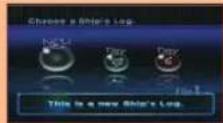
When you start the game for the first time, select any of the Ship's Logs with New displayed. The next time you play, you can choose to continue a saved game by selecting a Ship's Log with the day number displayed.
Note:
- Press the 1 Button to copy the highlighted Ship's Log to another location.
To erase the highlighted Ship's Log, press the 2 Button.
Please note that once you delete save data, it cannot be recovered.
Saving Data
You can save your progress at the end of each day and after exiting a cave (p. 17) by selecting Save. Game progress will also be saved automatically when you enter a cave or descend to a subterranean level.
To save your progress, you will need at least 2 blocks of free memory in Wii system memory. Please note that once you overwrite save data, it cannot be recovered.
For information about erasing files from Wii system memory, please refer to the Wii Operations Manual (Channels and Settings).
Basic Controls
Pointing with the Wii Remote
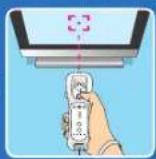
Use the Wii Remote controller's pointer to move the on-screen cursor. Press the A Button to throw a Pikmin toward that spot, or press down on the +Control Pad and point to get the Pikmin to move as a group. If you point at idle Pikmin (p. 14) and press the B Button, you can get them to follow Olimar or Louie.
CAUTION: Wrist STRAP USE
Please use the wrist strap to help prevent injury to other people or damage to surrounding objects or the Wii Remote in case you accidentally let go of the Wii Remote during game play.
Also remember the following:
Make sure all players put on the wrist strap properly when it is their turn.
- Do not let go of the Wii Remote during game play.
Dry your hands if they become moist.
Allow adequate room around you during game play, and make sure that all areas you
might move into are clear of other people and objects.
- Stay at least three feet from the television.
-Use the Wi Remote Jacket.
SYSTEM MENU UPDATE
Please note that when first loading the Game Disc into the Wii console, the system will check if you have the latest version of the system menu and, if necessary, a Wii System Update Confirmation screen will appear. Select OK to proceed with the update. Please note that the Wii console must have the latest version of the Wii system menu in order to play the Game Disc.
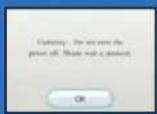
When the system menu is updated, unauthorized hardware and/or software modifications may be detected and unauthorized content may be removed, causing the immediate or delayed interoperability of your console. Failure to accept the update may render this game and future games, unplayable. Please note that Nintendo cannot guarantee that unauthorized software or accessories will continue to function with the Wii console after this or future updates of the Wii system menu.
You cannot use a Nintendo GameCube controller with PIKMIN\*2.
Wii Remote™
Pointer
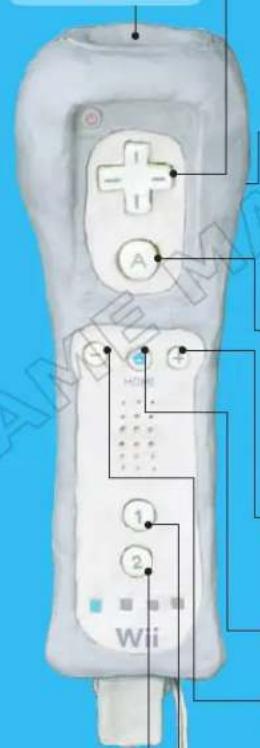

+Control Pad
Select menu options
Move Pikmin as a group
Change camera elevation
Zoom camera in and out

B Button
Gather Pikmin
Join forces
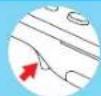


itch between different Pikmin colors


tch between different Pikmin types (af, bud, and flower Pikmin)

A Button
Select icon or option
Punch (when Olimar or Louie have no Pikmin nearby)
Pick a planted Pikmin
Press to pick up a Pikmin and release to throw

+Button
Radar screen (p.11)
Items screen (p.12)
Menu screen (p. 11)
m = 311 ;

HOME Button

-Button
Change leader

1 Button
Use the ultra-bitter spray (p.14)

In PIKMIN 2, some audio effects will be played from the Wii Remote speaker. If you adjust the settings so the Wii Remote controller's speaker is turned off, all sounds and music will come from the TV.
2 Button
Use the ultra-spicy spray (p.14)
Selecting an Area All About Pikmin


The planet is divided into a number of areas, and you can explore a single area over the course of each day. Once you locate certain treasures, you will be able to travel to new areas.
Area-Selection Screen
The first step is to select the area you want Olimar and Louie to explore. Use the Control Stick to choose an area, and select it by pressing the A Button. When you encounter a new type of creature or get hold of a new treasure, these will be added to your Piklopedia or Treasure Hoard, indicated by New appearing on the area-selection screen. Press the + Button to return to the title screen from the area-selection screen.
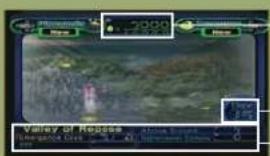
Value of treasures collected
Days spent adventuring
Area information display
Piklopedia
On the area-selection screen, press left on the +Control Pad to access the Piklopedia. Here you can view details of all the flora and fauna you have encountered so far during your expedition. Use the Control Stick to select the entry you want to learn about in more detail. Press left or right on the +Control Pad to access your Treasure Hoard, and press the B Button to return to the area-selection screen.
Species list
When you have discovered a creature or plant for the first time, New will be displayed above its image.
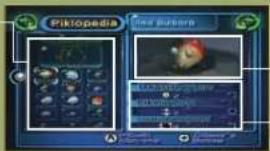
Species image
Species stats
Treasure Hoard
On the area-selection screen, press right on the +Control Pad to access your Treasure Hoard. Here you can see all of the treasures you have collected. Use the Control Stick to select the entry you want to view in more detail. Press left or right on the +Control Pad to access the Piklopedia, and press the B Button to return to the area-selection screen.
Treasure list
Each time you collect another treasure, New will be displayed above its image.
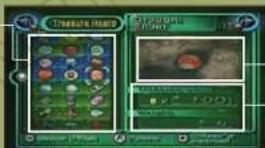
Treasure image
Treasure stats
Note: You can use the same controls as for the Piklopedia to select treasures and zoom and scroll when viewing their close-up images. If you collect all the treasures of a unique series, you will be able to read the ship's Sales Pitch for each item by pressing the -Button.

What are Pikmin?
Captain Olimar first discovered Pikmin, a curiously helpful alien species, after crash-landing on an alien planet. These indispensable life-forms make locating and salvaging valuable treasures a breeze. Large hordes of Pikmin can swarm over and defeat even the most massive beasts!
Command up to 100 Pikmin!
Pikmin follow closely behind their leader (p.16). Though you can have a maximum of 100 Pikmin under your control at any time, this number decreases if there are any Pikmin planted in the ground or working elsewhere or if there are any idle Pikmin (p.14).
If you can't add any more Pikmin to the field even though the counter indicates that you haven't reached your maximum of 100 Pikmin, there may be wild Pikmin nearby that you haven't discovered yet.
Varieties of Pikmin
Flame-resistant Pikmin with excellent attack ability.
Big-eared Pikmin that can be thrown high in the air. Also resistant to electricity.
Aquatic Pikmin that feel at home underwater.
Burly, slow-moving Pikmin with 10 times the muscle and weight of the others. Can stun enemies when thrown.
Small and fast Pikmin that are resistant to poison. Good at finding buried treasure. Highly poisonous.
Red Pikmin
Yellow Pikmin
Blue Pikmin
Purple Pikmin
White Pikmin
Tips on White and Purple Pikmin
It seems that these rather uncommon types of Pikmin can be found in underground caves (p. 17).
*As they have no Onions of their own, white and purple Pikmin make their nests inside Olimar and Louie's spaceship. To call them out, stand in the light in front of the ship and press the A Button.
You can never predict which Onion purple and white Pikmin will carry pellets or defeated enemies to.
PIM1
6
All About Pikmin Pikmin and Their Onions
Use the Wii Remote to move the on-screen cursor, then press the A Button to throw the Pikmin toward this point. The thrown Pikmin will automatically react to their surroundings and perform one of a number of actions. If you work closely with the Pikmin, you'll be able to overcome the obstacles in your way.
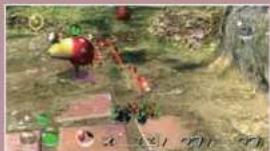
Fight Enemies
Pikmin can gang up and defeat fearsome creatures.
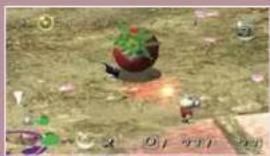
Carry Things
Pikmin can carry pellets (p.9) and defeated creatures back to their Onions. They can also carry treasures back to the spaceship.
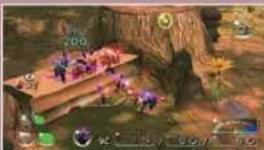
Squash Barriers
Paper bags obstructing the way can be squashed flat by throwing Pikmin onto them.
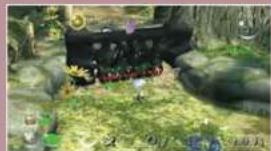
Break Down Gates
Pikmin can destroy gates blocking their way.
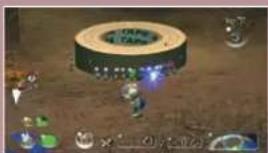
Uncover Buried Objects
White Pikmin can retrieve objects buried beneath the soil. Consult your Treasure Gauge (p.10) when searching for treasures.
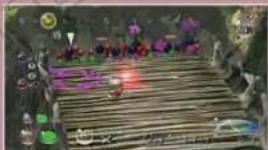
Build Bridges
By building bridges, Olimar, Louie, and the Pikmin can gain access to previously unreachable areas.
Onions expel seeds that plant in the ground and grow into Pikmin. When a sprout grows long enough, press the A Button to pluck the Pikmin.
What Are Onions?
In addition to releasing seeds, Onions act as the Pikmin's nest and mother ship. Store Pikmin inside their Onions until you want to call them out.
There are red, blue, and yellow Onions, each of which produces Pikmin of that color.
*At sunset (p. 15), any Pikmin following Olimar or Louie will return to their Onions.
When there are already 100 Pikmin in the field, Onions will not expel their seeds but instead store them inside.

Plucking Planted Pikmin
When Pikmin carry pellets or defeated foes back to their Onions, these will act as sources of nutrition for the Onions and new Pikmin seeds will be expelled. Once a Pikmin has sprouted, press the A Button to pluck it from the soil. Freshly picked Pikmin will follow behind either Olimar or Louie, depending on who picked them, treating him as their leader (p. 16).
Calling Out and Returning Pikmin
If you stand under an Onion and press the A Button, you will be able to call out or return Pikmin of the same color as the Onion. Press up or down on the Control Stick to select the number of Pikmin you want to call out or return, and press the A Button to confirm.
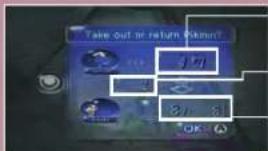
Pikmin inside the Onion
Number to call out / return
Number of Pikmin
The first number represents the number of Pikmin of the same color as the Onion currently following Olimar or Louie. The second number indicates the total number of Pikmin currently in the field.
Note:
- When there are mature Pikmin in the Onion, they will come out in this order: flower, bud, then leaf.
Purple and white Pikmin can be called out and returned by standing in the light in front of the spaceship and pressing the A Button.
How to Make More Pikmin
Carry pellets and defeated enemies to the Onion to breed more Pikmin.
Pellet Posies
Knock down pellet posies to extract the pellet.
Number of Pikmin carrying pellet
Pellets
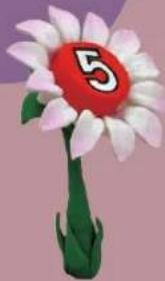
The number written on each pellet indicates the minimum number of Pikmin required to carry it.
Number of Pikmin needed to carry pellet

Pikmin will carry it to the Onion of their color
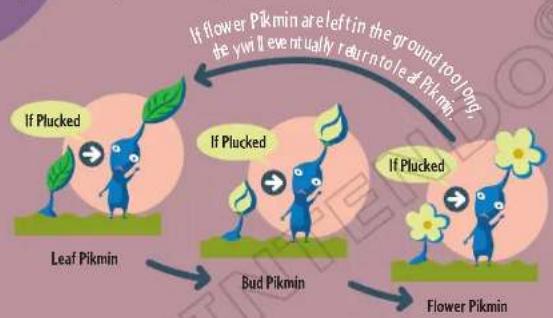
Pikmin Growth
If you leave Pikmin in the ground long enough, they will eventually grow and bloom flowers. The more developed Pikmin are, the faster they will move once plucked.
Candypop Buds
These flowers flourish in subterranean caves (p. 17). When Pikmin are thrown into them, they will emerge the same color as the candypop bud. To produce purple and white Pikmin, you'll need to locate candypop buds of these colors and throw your Pikmin into them.

Understanding the Display
Understanding the in-game display is vital for a successful treasure-hunting expedition. Switch between the main screen and the pause screen where you can access a whole host of information on Pikmin, enemies, and items.
Main Screen
Sun meter
Indicates the current time of the day. When it reaches the far-right side of the meter, the day will end.
Enemy damage meter
Spray count
The quantity of ultra-bitter spray you have is shown at the top, with ultra-spicy spray shown below.
Olimar's & Louie's space suit power meters
The current leader's (p.16) power meter is displayed at the bottom.
Object being carriedDay display
The top number shows the number of Pikmin needed to carry it, while the bottom number shows the number of Pikmin currently carrying it.
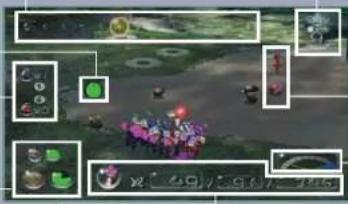
Treasure GaugePikmin gauge
Once a certain treasure has been salvaged, this treasure-detecting gauge will appear on-screen. The farther right the arrow moves, the closer you are to a treasure.
Understanding the Pikmin Gauge
Standby Pikmin
This shows the Pikmin standing closest to the leader. It will be the one thrown next (p.13).
Number of Pikmin in field
The total number of Pikmin in the field can't exceed 100.
Number of Pikmin with leader
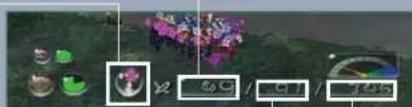
Total number of Pikmin
This is the total number of Pikmin including those in the field, those in the spaceship, and those in their Onions.
Pause Screen
If you press the +Button while playing, the pause screen will be displayed. Press left and right on the +Control Pad to access the Radar, Menu, and Items screens.
Radar Screen
Check a map of the area and a full breakdown of the number of Pikmin.
Number of Pikmin in Onions
The numbers are displayed in this order: red, yellow, blue.
Number of Pikmin in spaceship
The numbers are displayed in this order: white, purple.
Number of Pikmin with leader
Number of idle (p. 14) and planted Pikmin
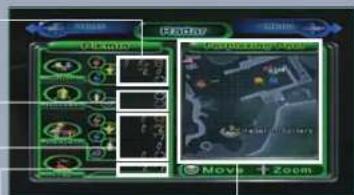
Area map
Scroll using the Control Stick, and press up and down on the +Control Pad to zoom in and out. When you are underground (p. 17), only the areas you have walked through will be displayed.
Menu Screen
Press right on the +Control Pad on the Radar screen to access the Menu screen. Besides seeing how many Pokos you have accumulated, you can also choose from the following options:
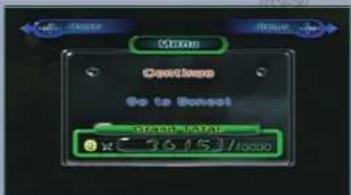
CONTINUE
Return to game.
GO TO SUNSET
End the day immediately and display Today's Report.
Menu Screen when Underground (p.17)
| CONTINUE | Return to game. |
| GIVE UP AND ESCAPE | Abandon the treasures you have collected in the hole, and escape with your Pikmin to the surface. |
Items Screen
Press left on the +Control Pad on the Radar screen to access the Items screen.
Number of ultra-bitter sprays (p.14)
The bottom number indicates the number of purple berries you have collected. These berries are used to make the spray.
Number of ultra-spicy sprays (p.14)
The bottom number indicates the number of red berries you have collected. These berries are used to make the spray.
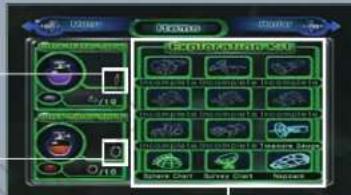
What is the Exploration Kit?
The ship's vast hold contains all kinds of curious odds and ends. As you collect more treasures, some of them can be combined with these odds and ends to create powerful Exploration Kit tools for Olimar and Louie.

These tools will make your exploration efforts safer, more efficient, and even more fruitful—not to mention that each treasure you collect brings you closer to repaying the company's sizable debt.
Controlling Olimar and Louie
If you master Olimar and Louie's controls, you'll soon have the Pikmin obeying your every expert command. You can only control the character who is currently set as the leader (p.16).
Commanding the Pikmin
Pick Planted Pikmin

Stand near a planted Pikmin and press the A Button to pick it. Press the A Button repeatedly to pick multiple Pikmin one after the other. When Olimar and Louie are working together, they will cooperate in picking planted Pikmin.

P5K插1N2
Throw Pikmin Command Pikthin Groups
When there are Pikmin following Olimar or Louie, press the A Button and the current leader will grab hold of the nearest Pikmin. Release the A Button to throw the Pikmin to where the cursor is pointing. The thrown Pikmin will automatically react to the situation and perform an action, where appropriate.
Note: If you press and hold the A Button, the Pikmin will line up by color behind the leader. While still holding down the A Button, press the B Button to select a Pikmin to throw by color or press down on the +Control Pad to select a Pikmin to throw in order of maturity: leaf, bud, or flower. Release the A Button to throw the selected Pikmin. Press the A Button repeatedly to throw the same type of Pikmin you selected one after the other.
Dismiss Pikmin

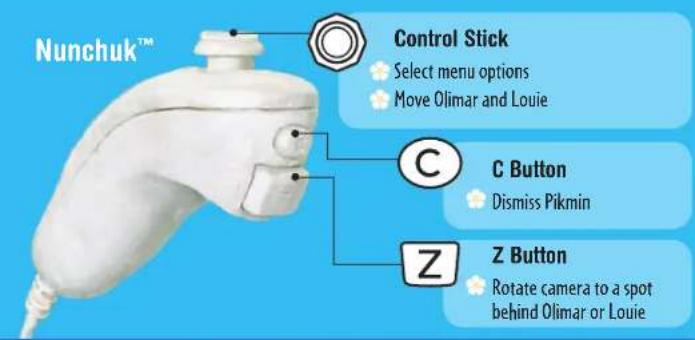
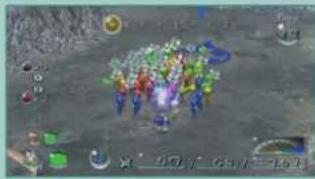
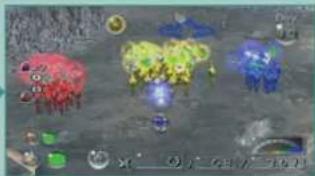
Press the C Button to dismiss the Pikmin currently following you and separate them into groups by color. Dismissed Pikmin become idle Pikmin (p. 14). Olimar and Louie can split up and each control a separate group of Pikmin.
Gather Pikmin

Point the cursor at idle Pikmin and press the B Button to group them together and put them under the command of the leader. If either Olimar or Louie blows his whistle while pointing at the other leader, they will join forces and any Pikmin under their control will merge into one group.
Note: Idle Pikmin will follow Olimar or Louie if they are touched.
Changing the Camera Angle

Press up on the +Control Pad to change the height of the camera and left and right on the +Control Pad to zoom in and out. If you press the Z Button, the camera will rotate to a spot behind the leader.
Note: By pressing and holding left or right on the +Control Pad, you can adjust the camera angle so it is at Louie's or Ollmar's eye level.
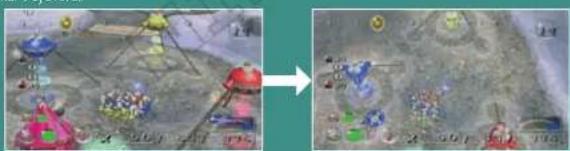
If you press up...

If you press down on the +Control Pad and use the Wii Remote to move the cursor, the Pikmin following the leader will all move to the point you select. The Pikmin will automatically perform an appropriate action depending on the situation, such as picking up treasure.
Ultra-Bitter Spray

Use this to petrify creatures temporarily. Spray this on creatures by pointing at them and pressing the I Button. If a creature is defeated while petrified, it will crumble to dust and leave behind only a nutritious extract that will let your Pikmin grow. You cannot carry petrified creatures.
Ultra-Spicy Spray

Use this spray to invigorate all the Pikmin currently under your control, boosting their attack power and movement speed for a short period.
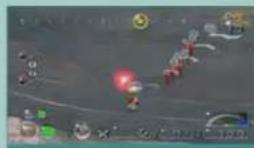
Command the Pikmin as a group.
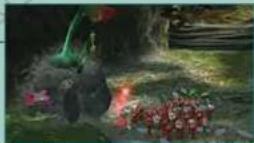
Turn strong enemies to stone and attack!
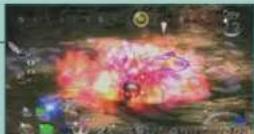
The Pikmin's leaves, buds, or flowers flash when their power is boosted.
Idle Pikmin
When Pikmin are dismissed or become separated from Olimar or Louie, they will become idle and remain in the same place. These Pikmin will not follow commands. To gather idle Pikmin, point at them and press the B Button or touch them. Note:
Idle Pikmin can be spotted easily by the brightly flashing leaf bud, or flower on their heads.
- Remember that idle Pikmin left behind at the end of the day will be devoured by the planet's indigenous life.
Making Sprays
During your exploration, you may discover a unique plant called the burgeoning spiderwort that bears powerful berries. Variations of this plant carry red and purple berries. Take these berries back to the ship to
concoct potent sprays. Ten berries are required to produce each dose of concentrated spray. Use purple berries to make ultra-bitter spray and red berries to make ultra-spicy spray.
Berry



Exploring the Surface
When you land in a new area, set out with your trusty Pikmin companions and try to rake in the Pokos by searching for rare and valuable treasures. The loyal Pikmin have a number of actions, depending on the situation.

Command the Pikmin
Olimar and Louie can command the Pikmin and get them to perform the actions shown on the right.
Gather nutritious pellets and defeated enemies to bolster the number of Pikmin (p. 9).
Collect and salvage treasures (p.7).
Demolish walls and build bridges to access new areas (p. 7).
Collect berries to concoct potent sprays (p.14).
Seek out entrances to holes and caves (p. 17).

Search for Treasure
There are all sorts of weird and wonderful treasures on the planet's surface. Once you get the Treasure Gauge (p. 10), its arrow will move to the right to indicate treasure in the immediate vicinity.

Gather Your Pikmin before Sunset
Make sure you gather up any idle Pikmin to ensure they survive.
Pikmin Survivors Lost Pikmin
Pikmin following Olimar or Louie
Pikmin near the Onion
Pikmin planted in the ground



Any other Pikmin will fall prey to the planet's indigenous life-forms.
Damage to Olimar's and Louie's Space Suits
When either Olimar's or Louie's space suit power meter reaches zero, that explorer will be forced to return to the ship. If both of their space suit power meters reach zero, the day will end. Note: Your suit energy will be restored at the start of each day and when you return to the surface after exploring a cave (p.17).
Independent Exploration
You can take control of both Olimar and Louie, switching leaders by pressing the - Button. If you disband the group of Pikmin following you with the C Button, Olimar and Louie can split up and work independently to increase efficiency.
Example
Pluck with
Command

with


Olimar moves with Louie and the Pikmin.

Dismiss Pikmin with


Olimar can move alone.

Switch leader with



Louie calls the Pikmin and moves to another location.

Switch back and forth between leaders with



While Louie oversees the Pikmin, Olimar is busy plucking planted Pikmin.

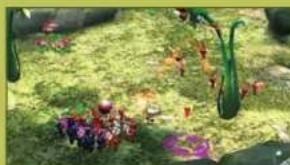
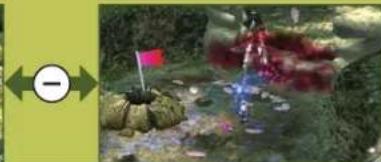
Olimar and Louie work separately with their own Pikmin.
Note:
- When Olimar and Louie are together, the one you are not controlling will automatically follow the leader.
If the two are separated, you can get them to work together by pointing and pressing the B Button (p.13).
Exploring Underground 2-Player Battle
There are plenty of treasures hidden deep within the planet's interior. But beware, as there are also plenty of powerful enemies lurking down there...
Surface

Find the entrance to a hole. If a hole is blocked by a stone or other object, you'll need the Pikmin's help to break through.
There can be several holes in a single area.

If you press the A Button in front of a hole, the screen shown to the right will be displayed. When asked if you want to enter this hole, select Yes.
the right will Cave threats

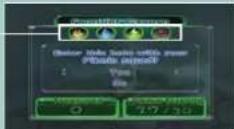

Olimar, Louie, and all the Pikmin currently under their control (up to a maximum of 100 Pikmin) can enter a hole.

Any Pikmin working or idle will return to the Onion or the spaceship. Buried Pikmin will stay in the ground.
Underground

Holes are divided into sublevels. While underground, you can perform the following actions:
Search for treasures and carry them to the research pod.
Defeat creatures and take them to the research pod.
Break down walls and other obstacles.
Look for holes to travel to even deeper sublevels. When you do, your progress will automatically be saved.

Find a geyser to transport you back to the surface with your Pikmin. You can choose to save your game before returning to the surface.

Surface

Once back aboveground, you'll be transported back to your ship to store the treasures you collected underground.
Due to a powerful magnetic field deep under the surface, time does not pass underground. When you climb back to the surface, you will return at the exact moment in time that you entered the hole.
17 18
In this rough and ruthless two-player mode, one player is red (Olimar) and the other is blue (Louie). Gather the marbles and beat your opponent!

Cherry
Yellow marble
Rules
The screen is split, with Player 1 at the top of the screen and Player 2 at the bottom. You will control Pikmin in the same way as in single-player mode. Win the game by being the first to take your opponent's marble back to your Onion or by finding four yellow marbles and carrying them to your Onion.
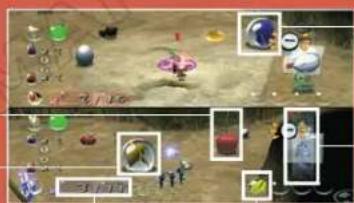
Opponent's marble
Roulette
Number of Pikmin with leader/ Total number of Pikmin
Yellow marble brought to Onion
Other Rules
Any of your Pikmin defeated by the opponent's Pikmin will be forced to return to the Onion as seeds.
* Pikmin eaten by creatures cannot be recovered.
If a player's power meter reaches zero, the player will lose his or her Pikmin and forfeit the battle.
Find a cherry and carry it back to your Onion to earn a spin of the roulette wheel. The wheel is lined with a wide variety of helpful bonuses for your team and ways of hindering your opponent. Press the - Button to use the effect.
You can hold up to four roulette effects at one time.
PIK3H2
Challenge Mode
Find a special treasure in the main game to unlock Challenge Mode A Challenge Mode option appears on the main menu once you've unlocked it. In this mode, you must earn as many points as possible by conquering areas packed with creatures and treasures while using only a limited number of Pikmin in a short amount of time.
Challenge Mode Rules
In Challenge Mode, you search for the key located somewhere in the area. When you find it, take it to the research pod to open up a hde leading deeper underground. Take as many treasures as you can tothe pod, and ride the geyser to the surface to clear the course.

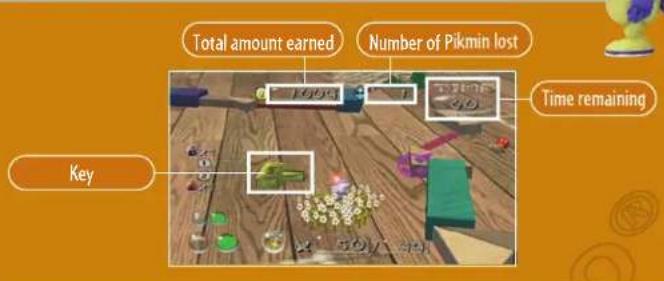
Game Over Occurs When:
Time runs out
The Pikmin are all lost
Olimar's or Louie's power meter reaches zero
1-and 2-Player Challenge Mode
Challenge Mode can be played by a single player or by two players cooperating. In two-player mode, Player 1 controls Olimar and Player 2 controls Louie. You cannot switch between leaders in two-player mode.
Note: High scores from 1-Player Challenge Mode and 2-Player Challenge Mode will be displayed separately.
WARRANTY & SERVICE INFORMATION

You may need only simple instructions to correct a problem with your product. Try our website at support.nintendo.com or call our Consumer Assistance Hotline at 1-800-255-3700, rather than going to your retailer. Hours of operation are 6 a.m. to 7 p.m., PacificTime, Monday - Sunday (times subject to change). If the problem cannot be solved with the troubleshooting information available online or over the telephone, you will be offered express factory service through Nintendo. Please do not send any products to Nintendo without contacting us first.
HARDWARE WARRANTY
Nintendo of America Inc. ("Nintendo") warrants to the original purchaser that the hardware product shall be free from defects in material and workmanship for twelve (12) months from the date of purchase. If a defect covered by this warranty occurs during this warranty period, Nintendo will repair or replace the defective hardware product or component, free of charge.* The original purchaser is entitled to this warranty only if the date of purchase is registered at point of sale or the consumer can demonstrate, to Nintendo's satisfaction, that the product was purchased within the last 12 months.
GAME & ACCESSORY WARRANTY
Nintendo warrants to the original purchaser that the product (games and accessories) shall be free from defects in material and workmanship for a period of three (3) months from the date of purchase. If a defect covered by this warranty occurs during this three (3) month warranty period, Nintendo will repair or replace the defective product, free of charge.*
SERVICE AFTER EXPIRATION OF WARRANTY
Please try our website at support.nintendo.com or call the Consumer Assistance Hotline at 1-800-255-3700 for troubleshooting information and repair or replacement options and pricing.
*In some instances, it may be necessary for you to ship the complete product, FREIGHT PREPAID AND INSURED FOR LOSS OR DAMAGE, to Nintendo. Please do not send any products to Nintendo without contacting us first.
WARRANTY LIMITATIONS
THIS WARRANTY SHALL NOT APPLY IF THIS PRODUCT: (a) IS USED WITH PRODUCTS NOT SOLD OR LICENSED BY NINTENDO (INCLUDING, BUT NOT LIMITED TO, NON-Licensed GAME ENHANCEMENT AND COPIER DEVICES, ADAPHERS, SOFTWARE, AND POWER SUPPLIES); (b) IS USED FOR COMMERCIAL PURPOSES (INCLUDING RENTAL); (c) IS MODIFIED OR TAMPERED WITH; (d) IS DAMAGED BY NEGLIGENCE, ACCIDENT, UNREASONABLE USE, OR BY OTHER CAUSES UNRELATED TO DEFECTIVE MATERIALS OR WORKMANSHIP; OR (e) HAS HAD THE SERIAL NUMBER ALTERED, DEFACED OR REMOVED.
ANY APPLICABLE IMPLIED WARRANTY, INCLUDING WARRANTY OF MERCHANTABILITY AND FITNESS FOR A PARTICULAR PURPOSE, ARE HEREBY LIMITED IN DURATION TO THE WARRANTY PERIODS DESCRIBED ABOVE (12 MONTHS OR 3 MONTHS, AS APPLICABLE). IN NO EVENT SHALL NINTENDO BE LIABLE FOR CONSEQUENTIAL OR INCIDENTAL DAMAGES RESULTING FROM THE BREACH OF ANY IMPLIED OR EXPRESS WARRANTY. SOME STATES DO NOT ALLOW LIMITATIONS ON HOW LONG AN IMPLIED WARRANTY LASTS OR EXCLUSION OF CONSEQUENTIAL OR INCIDENTAL DAMAGES, SO THE ABOVE LIMITATIONS MAY NOT APPLY TO YOU.
This warranty gives you specific legal rights. You may also have other rights which vary from state to state or province to province.
Nintendo's address is: Nintendo of America Inc., P.O. Box 957, Redmond, WA 98073-0957 U.S.A.
This warranty is only valid in the United States and Canada.

DOLBY
PROLOGICII
Dolby, Pro Logic, and the double-D symbol are trademarks of Dolby Laboratories. Manufactured under license from Dolby Laboratories.
This game is presented in Dolby® Pro Logic II surround sound. Connect your game console to a sound system with Dolby Pro Logic, Dolby Pro Logic II, or Dolby Pro Logic II decoding to experience the excitement of surround sound. You need to enable "Surround" in the sound settings of the game console.
© 2004 - 2012 Nintendo, TM, e and the Wii logo are trademarks of Nintendo. © 2012 Nintendo.
VEUILLEZ LIRE ATTENTIVEMENT L'INTEGRALITE DU MODE D'EMPLOI DE LA WITM AVANT D'UTILISER VOITRE CONSOLE, VOITRE DISQUE DE JEU OU VOS ACCESSOIRS WII. CE MODE D'EMPLOI CONTIENT D'IMPORTANTES INFORMATIONS SUR VOITRE SANTÉ ET VOITRE SECURITE.
INFORMATIONS IMPORTANTES CONCERNANT VOITRE SECURITE: VEUILLEZ LIRE LES PRECAUTIONS SUIVANTES AVANT QUE VOUS OU QUE VOITRE ENFANT NE JOUIEZ À DES JEUX VIDEO.
m = 311

HOME
- NEED HELP WITH INSTALLATION, MAINTENANCE OR SERVICE?
- BESOIN DAIDE POUR L'INSTALLATION, L'ENTRETIEN OU LA REPARATION?
- WARNING - Repetitive Motion Injuries and Eyestrain
- CAUTION - Motion Sickness
- IMPORTANT LEGAL INFORMATION
- Contents
- Getting Started
- Main Menu
- File-Selection Screen
- Saving Data
- Pointing with the Wii Remote
- CAUTION: Wrist STRAP USE
- SYSTEM MENU UPDATE
- You cannot use a Nintendo GameCube controller with PIKMIN\*2.
- Wii Remote™
- +Control Pad
- B Button
- A Button
- +Button
- HOME Button
- -Button
- Button
- Button
- Selecting an Area All About Pikmin
- Area-Selection Screen
- Piklopedia
- Species list
- Treasure Hoard
- Treasure list
- What are Pikmin?
- Command up to 100 Pikmin!
- Varieties of Pikmin
- Red Pikmin
- Tips on White and Purple Pikmin
- All About Pikmin Pikmin and Their Onions
- What Are Onions?
- Plucking Planted Pikmin
- Calling Out and Returning Pikmin
- Pikmin inside the Onion
- Number to call out / return
- Number of Pikmin
- Note:
- How to Make More Pikmin
- Pellet Posies
- Pellets
- Pikmin Growth
- Candypop Buds
- Understanding the Display
- Main Screen
- Sun meter
- Spray count
- Object being carriedDay display
- Understanding the Pikmin Gauge
- Standby Pikmin
- Number of Pikmin in field
- Number of Pikmin with leader
- Total number of Pikmin
- Pause Screen
- Radar Screen
- Menu Screen
- CONTINUE
- GO TO SUNSET
- Items Screen
- What is the Exploration Kit?
- Controlling Olimar and Louie
- Commanding the Pikmin
- Pick Planted Pikmin
- Throw Pikmin Command Pikthin Groups
- Dismiss Pikmin
- Gather Pikmin
- Changing the Camera Angle
- Ultra-Bitter Spray
- Ultra-Spicy Spray
- Idle Pikmin
- Making Sprays
- Exploring the Surface
- Command the Pikmin
- Search for Treasure
- Gather Your Pikmin before Sunset
- Damage to Olimar's and Louie's Space Suits
- Independent Exploration
- Exploring Underground 2-Player Battle
- Surface
- the right will Cave threats
- Underground
- Rules
- Other Rules
- Challenge Mode
- Challenge Mode Rules
- Game Over Occurs When:
- 1-and 2-Player Challenge Mode
- WARRANTY & SERVICE INFORMATION
- HARDWARE WARRANTY
- GAME & ACCESSORY WARRANTY
- SERVICE AFTER EXPIRATION OF WARRANTY
- WARRANTY LIMITATIONS
- VEUILLEZ LIRE ATTENTIVEMENT L'INTEGRALITE DU MODE D'EMPLOI DE LA WITM AVANT D'UTILISER VOITRE CONSOLE, VOITRE DISQUE DE JEU OU VOS ACCESSOIRS WII. CE MODE D'EMPLOI CONTIENT D'IMPORTANTES INFORMATIONS SUR VOITRE SANTÉ ET VOITRE SECURITE.
- INFORMATIONS IMPORTANTES CONCERNANT VOITRE SECURITE: VEUILLEZ LIRE LES PRECAUTIONS SUIVANTES AVANT QUE VOUS OU QUE VOITRE ENFANT NE JOUIEZ À DES JEUX VIDEO.
- HOME
Brand : NINTENDO
Model : Pikmin 2 (Wii)
Category : Game