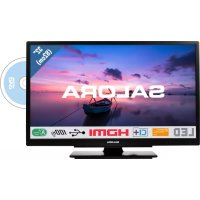
32HDB6505 - TV SALORA - Free user manual and instructions
Find the device manual for free 32HDB6505 SALORA in PDF.


User questions about 32HDB6505 SALORA
0 question about this device. Answer the ones you know or ask your own.
Ask a new question about this device
Download the instructions for your TV in PDF format for free! Find your manual 32HDB6505 - SALORA and take your electronic device back in hand. On this page are published all the documents necessary for the use of your device. 32HDB6505 by SALORA.
USER MANUAL 32HDB6505 SALORA
PC-invoernormaleweergavemodi 21
PC-invoernormaleweergavemodi
KLASSE 1 LASER PRODUCT
KLASSE 1 LASER-PRODUKT
STROMSCHLAGGEFAHR
Environmental Information 3
Standby Notifications 4
TV Control Switch & Operation 4
Using Main TV Menu 5
Inserting the Batteries into the Remote 6
Power Connection 6
Antenna Connection 6
Disposal Information 6
Remote Control 8
Connections. 9
Switching On/Off 10
First Time Installation. 10
Media Playback via USB Input 10
USB Recording 11
Media Browser. 12
CEC 12
Settings Menu Contents 13
Using the Channel List 16
Configuring Parental Settings. 16
ElectronicProgramme Guide 16
Teletext Services 17
Software Upgrade 17
Troubleshooting & Tips 17
PC Input Typical Display Modes. 18
AV and HDMI Signal Compatibility 18
Supported File Formats for USB Mode 19
Supported DVI Resolutions 20
DVD Mode 21
DVB functionality information 26
Safety Information


CAUTION
RISK OF ELECTRIC SHOCK DO NOT OPEN
CAUTION: TO REDUCE THE RISK OF ELECTRIC SHOCK DO NOT REMOVE COVER (OR BACK).
NO USER-SERVICEABLE PARTS INSIDE. REFER SERVICING TO QUALIFIED SERVICE PERSONNEL
In extreme weather (storms, lightning) and long inactivity periods (going on holiday) disconnect the TV set from the mains.
The mains plug is used to disconnect TV set from the mains and therefore it must remain readily operable. If the TV set is not disconnected electrically from the mains, the device will still draw power for all situations even if the TV is in standby mode or switched off.
Note: Follow the on screen instructions for operating the related features.
IMPORTANT - Please read these instructions fully before installing or operating
WARNING: This device is intended to be used by persons (including children) who are capable / experienced of operating such a device unsupervised, unless they have been given supervision or instruction concerning the use of the device by a person responsible for their safety.
- Use this TV set at an altitude of less than 2000 meter above the sea level, in dry locations and in regions with moderate or tropical climates.
The TV set is intended for household and similar general use but may also be used in public places. - For ventilation purposes, leave at least 5cm of free space around the TV.
- The ventilation should not be impeded by covering or blocking the ventilation openings with items, such as newspapers, table-cloths, curtains, etc.
- The power cord plug should be easily accessible. Do not place the TV, furniture, etc. on the power cord. A damaged power cord/plug can cause fire or give you an electric shock. Handle the power cord by the plug, do not unplug the TV by pulling the power cord. Never touch the power cord/plug with wet hands as this could cause a short circuit or electric shock. Never make a knot in the power cord or tie it with other cords. When damaged it must be replaced, this should only be done by qualified personnel.
- Do not expose the TV to dripping or splashing liquids and do not place objects filled with liquids, such as vases, cups, etc. on or over the TV (e.g., on shelves above the unit).
-
Do not expose the TV to direct sunlight or do not place open flames such as lit candles on the top of or near the TV.
-
Do not place any heat sources such as electric heaters, radiators, etc. near the TV set.
- Do not place the TV on the floor and inclined surfaces.
- To avoid danger of suffocation, keep plastic bags out of the reach of the babies, children and domestic animals.
- Carefully attach the stand to the TV. If the stand is provided with screws, tighten the screws firmly to prevent the TV from tilting. Do not over-tighten the screws and mount the stand rubbers properly.
- Do not dispose of the batteries in fire or with hazardous or flammable materials.
WARNING - Batteries must not be exposed to excessive heat such as sunshine, fire or the like.
WARNING - Excessive sound pressure from earphones or headphones can cause hearing loss.
ABOVE ALL - NEVER let anyone, especially children, push or hit the screen, push anything into holes, slots or any other openings in the case.
| Caution | Serious injury or death risk |
| Risk of electric shock | Dangerous voltage risk |
| Maintenance | Important maintenance component |
Markings on the Product
The following symbols are used on the product as a marker for restrictions and precautions and safety instructions. Each explanation shall be considered where the product bears related marking only. Note such information for security reasons.

Class II Equipment: This appliance is designed in such a way that it does not require a safety connection to electrical earth.

Hazardous Live Terminal: The marked terminal(s) is/are hazardous live under normal operating conditions.

Caution, See Operating Instructions: The marked area(s) contain(s) user replaceable coin or button cell batteries.

Class 1 Laser Product: This product contains Class 1 laser source that is safe under reasonably foreseeable conditions of operation.
WARNING
Do not ingest the battery, Chemical Burn Hazard This product or the accessories supplied with the product may contain a coin/button cell battery. If the coin/button cell battery is swallowed, it can cause severe internal burns in just 2 hours and can lead to death.
Keep new and used batteries away from children. If the battery compartment does not close securely, stop using the product and keep it away from children.
If you think batteries might have been swallowed or placed inside any part of the body, seek immediate medical attention.
Never place a television set in unstable or inclined locations. A television set may fall, causing serious personal injury or death. Many injuries, particularly to children, can be avoided by taking simple precautions such as;
- Using cabinets or stands recommended by the manufacturer of the television set.
- Only using furniture that can safely support the television set.
- Ensuring the television set is not overhanging the edge of the supporting furniture.
- Not placing the television set on tall furniture (for example, cupboards or bookcases) without anchoring both the furniture and the television set to a suitable support.
- Not standing the television set on cloth or other materials placed between the television and supporting furniture.
- Educating children about the dangers of climbing on furniture to reach the television set or its controls. If your existing television set is being retained and relocated, the same considerations as above should be applied.
Apparatus connected to the protective earthing of the building installation through the MAINS connection or through other apparatus with a connection to protective earthing - and to a television distribution system using coaxial cable, may in some circumstances create a fire hazard. Connection to a television distribution system has therefore to be provided through a device providing electrical isolation below a certain frequency range (galvanic isolator)
WALL MOUNTING WARNINGS
- Read the instructions before mounting your TV on the wall.
- The wall mount kit is optional. You can obtain from your local dealer, if not supplied with your TV.
- Do not install the TV on a ceiling or on an inclined wall.
- Use the specified wall mounting screws and other accessories.
- Tighten the wall mounting screws firmly to prevent the TV from fall. Do not over-tighten the screws.
Environmental Information
This television is designed to be environment friendly. To reduce energy consumption, you can follow these steps:
If you set the Energy Saving to Minimum, Medium, Maximum or Auto the TV will reduce the energy consumption accordingly. If you like to set the Backlight to a fixed value set as Custom and adjust the Backlight (located under the Energy Saving setting) manually using Left or Right buttons on the remote. Set as Off to turn this setting off.
Note: Available Energy Saving options may differ depending on the selected Mode in the Settings>Picture menu.
The Energy Saving settings can be found in the Settings>Picture menu. Note that some picture settings will be unavailable to be changed.
If pressed Right button or Left button consecutively, "Screen will be off in 15 seconds." message will be displayed on the screen. Select Proceed and press OK to turn the screen off immediately. If you don't press any button, the screen will be off in 15 seconds. Press any button on the remote or on the TV to turn the screen on again.
Note: Screen Off option is not available if the Mode is set to Game.
When the TV is not in use, please switch off or disconnect the TV from the mains plug. This will also reduce energy consumption.
Features
- Remote controlled colour TV
Fully integrated digital terrestrial/cable/satellite TV (DVB-T-T2/C) - HDMI inputs to connect other devices with HDMI sockets
- USB input
- OSD menu system
- Scart socket for external devices (such as DVD Players, PVR, video games, etc.)
-
Stereo sound system
-
Teletext
- Headphone connection
Automatic programming system - Manual tuning
Automatic power down after up to eight hours - Sleep timer
Child lock
Automatic sound mute when no transmission - NTSC playback
AVL (Automatic Volume Limiting) - PLL (Frequency Search)
PC input
Game Mode (Optional) - Picture off function
Programme recording
Programme timeshifting
Accessories Included
Remote Control
- Batteries: 2 x AAA
- Instruction Book
Standby Notifications
If the TV does not receive any input signal (e.g. from an aerial or HDMI source) for 3 minutes, it will go into standby. When you next switch-on, the following message will be displayed: "TV switched to stand-by mode automatically because there was no signal for a long time."
The Auto TV OFF option(in the Settings>System >More menu) could have been set to a value between 1 and 8 hours by default. If this setting is not set as Off and the TV has been left on and not been operated during the set time, it will switch into standby mode after the set time has expired. When you next switch-on the TV, the following message will be displayed. "TV switched to stand-by mode automatically because no operation was made for a long time." Before the TV switches into standby mode a dialogue window will be displayed. If you do not press any button the TV will switch into the standby mode after a waiting period of about 5 minutes. You can highlight Yes and press OK to switch the TV into standby mode immediately. If you highlight No and press OK, the TV will remain on. You can also choose to cancel the Auto TV OFF function from this dialogue. Highlight Disable and press OK, the TV will remain on and the function will be cancelled. You can enable this function again by changing the setting of the Auto TV OFF option from the Settings>System>More menu.
TV Control Switch & Operation
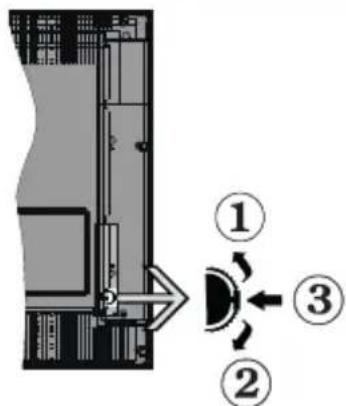
- Up direction
- Down direction
- Volume / Info / Sources List selection and Standby-On switch
The Control button allows you to control the Volume / Programme / Source and Standby-On functions of the TV.
To change volume: Increase the volume by pushing the button up. Decrease the volume by pushing the button down.
To change channel: Press the middle of the button in, the information banner will appear on the screen. Scroll through the stored channels by pushing the button up or down.
To change source: Press the middle of the button in twice(for the second time in total), the source list will appear on the screen. Scroll through the available sources by pushing the button up or down.
To turn the TV off: Press the middle of the button in and hold it down for a few seconds, the TV will turn into standby mode.
To turn on the TV: Press the middle of the button in, the TV will turn on.
Notes:
If you turn the TV off, this cycle starts again beginning with the volume setting.
Main menu OSD cannot be displayed via control button.
Operation with the Remote Control
Press the Menu button on your remote control to display main menu. Use the directional buttons and OK button to navigate and set. Press Return/Back or Menu button to quit a menu screen.
Input Selection
Once you have connected external systems to your TV, you can switch to different input sources. Press the Source button on your remote control consecutively to select the different sources.
Changing Channels and Volume
You can change the channel and adjust the volume by using the Programme + / - and Volume + / - buttons on the remote.
Using Main TV Menu
When the Menu button is pressed, the main TV menu will appear at the bottom of the screen. You can navigate through the menu items using the directional buttons on the remote. To select an item or see the sub-menu options of the highlighted menu press OK button. When you highlight a menu option some of the sub-menu items of this menu may appear on the upper side of the menu bar for quick access. To use a quick access item highlight it, press OK and set as desired using the Left/Right directional buttons. When finished press OK or Back/Return button to exit.
Press Exit button to close the main menu.
1. Home
When main menu is opened Home menu bar will be highlighted. The content of the Home menu can be customised by adding options from other menus. Just highlight an option and press the Down direction button on the remote. If you see Add to Home option you can add it to the Home menu. Same way you can delete or change the position of any item in the Home menu. Press the Down direction button and select Delete or Move option and press OK. In order to move a menu item use the Right and Left direction buttons to select the position that you want the item to move to and press OK.
2. TV
2.1. Guide
You can access the electronic programme guide menu using this option. Refer to Electronic Programme Guide section for more information.
2.2. Channels
You can access the Channels menu using this option. Refer to Using the Channel List section for more information.
2.3. Timers
You can set timers for future events using the options of this menu. You can also review the previously created timers under this menu.
To add a new timer select the Add Timer tab using the Left/Right buttons and press OK. Set the sub-menu options as desired and when finished press OK. A new timer will be created.
To edit a previously created timer, highlight that timer, select the Edit Selected Timer tab and press OK. Change the sub-menu options as desired and press OK to save your settings.
To cancel an already set timer, highlight that timer, select Delete Selected Timer tab and press OK. A
confirmation message will be displayed. Highlight Yes and press OK to proceed. The timer will be cancelled. It is not possible to set timers for two or more events that will be broadcasted in different channels at the same time interval. In this case you will be asked to choose one of these timers and cancel others. Highlight the timer you want to cancel and press OK, Options menu will be displayed. Then highlight Set/Cancel and press OK to cancel that timer. You will have to save changes after that. In order to do that press OK, highlight Save Changes and press OK again.
2.4. Recordings
You can manage your recordings using the options of this menu. You can playback, edit, delete or sort previously recorded events. Highlight a tab by using the Left or Right direction button and press OK to see available options.
Recording Settings
You can also configure your recording preferences using the Settings tab in the Recordings menu. Highlight Settings tab by using Left or Right button and press OK. Then select the desired item in the sub-menu and set by using Left or Right button.
Start early: You can set recording timer's starting time to start earlier by using this setting.
End late: You can set recording timer's end time to end later by using this setting.
Max Timeshift: This setting allows you to set the maximum duration for the timeshift recording. Available options are approximate and the actual recording time may change in practice depending on the broadcast. The reserved and free storage space values will change according to this setting. Make sure that you have enough free space otherwise instant recording may not be possible.
Auto discard: You can set the Discard type as None, Oldest, Longest or Shortest. If it is not set to None, you can set the Unplayed option as Included or Excluded. These options determine the preferences for deleting the recordings in order to obtain more storage space for ongoing records.
Hard disk information: You can view detailed information about the USB storage device connected to your TV. Highlight and press OK to see and press Back/Return to close.
Format Disk: If you want to delete all files on the connected USB storage device and convert the disk format to FAT32, you can use this option. Press OK button while the Format Disk option is highlighted. A menu will appear on the screen, requiring you to enter the PIN*). After you enter the PIN, a confirmation message will be displayed. Select Yes and press OK to start formatting the USB storage device. Select No and press OK to cancel.
(*) Default PIN could have been set to 0000 or 1234. If you have defined the PIN(is requested depending on the country selection) during the First Time Installation use the PIN that you have defined.
3. Settings
You can manage the settings of your TV using the options of this menu. Refer to Settings Menu Contents section for more information.
4. Sources
You can manage your input source references using the options of this menu. To change the current source highlight one of the options and press OK.
4.1. Source Settings
Edit the names, enable or disable selected source options.
Inserting the Batteries into the Remote
Remove the back cover to reveal the battery compartment. Insert two size AAA batteries. Make sure the (+) and (-) signs match (observe correct polarity). Do not mix old and new batteries. Replace only with same or equivalent type. Place the cover back on.
A message will be displayed on the screen when the batteries are low and must be replaced. Note that when the batteries are low, the performance of the remote control may be impaired.
Batteries should not be exposed to excessive heat such as sunshine, fire or the like.
Power Connection
IMPORTANT: The TV set is designed to operate on a 220-240V AC, 50Hz supply. After unpacking, allow the TV set to reach the ambient room temperature before you connect the set to the mains. Plug the power cable to the mains socket outlet.
Antenna Connection
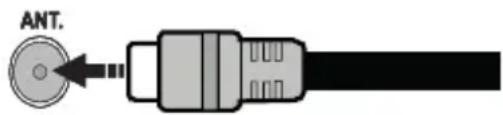
Connect the aerial or cable TV plug to the AERIAL INPUT (ANT.) socket located on the rear side of the TV
Rear side of the TV

If you want to connect a device to the TV, make sure that both the TV and the device are turned off before making any connection. After the connection is done, you can turn on the units and use them.
License Notification
The terms HDMI and HDMI High-Definition Multimedia Interface, and the HDMI Logo are trademarks or registered trademarks of HDMI Licensing Administrator, Inc. in the United States and other countries.

Manufactured under license from Dolby Laboratories. Dolby, Dolby Audio and the double-D symbol are trademarks of Dolby Laboratories.
The "CI Plus" Logo is a trademark of CI Plus LLP.
Disposal Information
[European Union]
These symbols indicate that the electrical and electronic equipment and the battery with this symbol should not be disposed of as general household waste at its end-of-life. Instead, the products should be handed over to the applicable collection points for the recycling of electrical and electronic equipment as well as batteries for proper treatment, recovery and recycling in accordance with your national legislation and the Directive 2012/19/EU and 2013/56/EU.
By disposing of these products correctly, you will help to conserve natural resources and will help to prevent potential negative effects on the environment and human health which could otherwise be caused by inappropriate waste handling of these products.
For more information about collection points and recycling of these products, please contact your local municipal office, your household waste disposal service or the shop where you purchased the product.
Penalties may be applicable for incorrect disposal of this waste, in accordance with national legislation.
[Business users]
If you wish to dispose of this product, please contact your supplier and check the terms and conditions of the purchase contract.
[Other Countries outside the European Union]
These symbols are only valid in the European Union.
Contact your local authority to learn about disposal and recycling.
The product and packaging should be taken to your local collection point for recycling.
Some collection points accept products free of charge.
Note: The sign Pb below the symbol for batteries indicates that this battery contains lead.
![SALORA 32HDB6505 - [Other Countries outside the European Union] - 1](/content/2026/03/496970/images/22f1fb1f744848409453b2827425b36268c6bf30f6c6b733b0ca31ed852371a8.jpg)
- Products
- Battery
| Specification | |
| TV Broadcasting | PAL BG/I/DK SECAM BG/DK |
| Receiving Channels | VHF (BAND I/III) - UHF (BAND U) - HYPERBAND |
| Digital Reception | Fully integrated digital terrestrial-cable TV (DVB-T-C) (DVB-T2 compliant) |
| Number of Preset Channels | 1000 |
| Channel Indicator On Screen | Display |
| RF Aerial Input 75 Ohm (unbalanced) | |
| Operating Voltage 220-240V AC, 50Hz. | |
| Audio German+Nicam Stereo | |
| Audio Output Power (WRMS.) (10% THD) | 2 x 2,5 |
| Power Consumption (W) | 45W |
| Weight (kg) | 3,5 |
| TV Dimensions DxLxH (with stand) (mm) | 135 x 554,5 x 370 |
| TV Dimensions DxLxH (without stand) (mm) | 40/63 x 554,5 x 341 |
| Display | 24" |
| Operation temperature and operation humidity | 0°C up to 40°C, 85% humidity max |
![SALORA 32HDB6505 - [Other Countries outside the European Union] - 2](/content/2026/03/496970/images/34b2df9b63a189160b6f623f4bf209f1bf8510bead33224f876de15cb355b4f3.jpg)
- Standby: Switches On / Off the TV
- Numeric buttons: Switches the channel, enters a number or a letter in the text box on the screen.
- Language: Switches among sound modes (analogue TV), displays and changes audio/subtitle language and turns subtitles on or off (digital TV, where available)
- Menu: Displays TV menu
- Volume +/-
- Mute: Completely turns off the volume of the TV
- Guide: Displays the electronic programme guide
- Directional buttons: Helps navigate menus, content etc. and displays the subpages in TXT mode when pressed Right or Left
- OK: Confirms user selections, holds the page (in TXT mode), views Channels menu (DTV mode)
- Back/Return: Returns to previous screen, previous menu, opens index page (in TXT mode). Quickly cycles between previous and current channels or sources (depends on the model)
- Rewind: Moves frames backwards in media such as movies
- Record: Records programmes
- Coloured Buttons: Follow the on-screen instructions for coloured button functions
- Play: Starts to play selected media
- Stop: Stops the media being played
- Fast Forward: Moves frames forward in media such as movies
- Pause: Pauses the media being played, starts timeshift recording
- Exit: Closes and exits from displayed menus or returns to previous screen
- Info: Displays information about on-screen content, shows hidden information (reveal - in TXT mode)
- Programme +/-
- Text: Displays teletext (where available), press again to superimpose the teletext over a normal broadcast picture (mix)
- Source: Shows available broadcast and content sources
| Connector Type | Cables Device | See the illustrations on the left side. You can use YPbPr to VGA cable to enable YPbPr signal via VGA input. You cannot use VGA and YPbPr at the same time. To enable PC/YPbPr audio, you will need to use the side audio inputs with a YPbPr/PC audio cable for audio connection. If an external device is connected via the SCART socket, the TV may automatically switch to EXT1 mode. When receiving DTV channels (Mpeg4 H.264, H.265) or while in Media Browser mode, output will not be available via the scart socke. et. When using the wall mounting kit (available from a third party in the market, if not supplied), we recommend that you plug all your cables into the back of the TV before mounting on the wall. Insert or remove the CI module only when the TV is SWITCHED OFF. You should refer to the module instruction manual for details of the settings. The/Each USB input of your TV supports devices up to 500mA. Connecting devices that have current value above 500mA may damage your TV. When connecting equipment using a HDMI cable to your TV, to guarantee sufficient immunity against parasitic frequency radia- tion, you have to use a high speed shielded (high grade) HDMI cable with ferrites. | ||
| Connector Type | Cable | See the illustrations on the left side. You can use YPbPr to VGA cable to enable YPbPr signal via VGA input. You cannot use VGA and YPbPr at the same time. To enable PC/YPbPr audio, you will need to use the side audio inputs with a YPbPr/PC audio cable for audio connection. If an ex- ternal device is connected via the SCART socket, the TV may auto- matically switch to EXT1 mode. When receiving DTV channels (Mpeg4 H.264, H.265) or while in Media Browser mode, output will not be available via the scart socke. et. When using the wall mounting kit (available from a third party in the market, if not supplied), we recommend that you plug all your cables into the back of the TV before mounting on the wall. Insert or remove the CI module only when the TV is SWITCHED OFF. You should refer to the module instruction manual for details of the settings. The/Each USB input of your TV supports devices up to 500mA. Connecting devices that have current value above 500mA may damage your TV. When connecting equipment using a HDMI cable to your TV, to guarantee sufficient immunity against parasitic frequency radia- tion, you have to use a high speed shielded (high grade) HDMI cable with ferrites. | ||
| Audio IN | PC/YPbPr Audio Connection (side) | YPbPr/PC Audio Cable | See the illustrations on the left side. You can use YPbPr to VGA cable to enable YPbPr signal via VGA input. You cannot use VGA and YPbPr at the same time. To enable PC/YPbPr audio, you will need to use the side audio inputs with a YPbPr/PC audio cable for audio connection. If an ex- ternal device is connected via the SCART socket, the TV may auto- matically switch TO EXT1 mode. When receiving DTV channels (Mpeg4 H.264, H.265) or while in Media Browser mode, output will not be available via the scart socke. et. When using the wall mounting kit (available from a third party in the market, if not supplied), we recommend that you plug all your cables into the back of the TV before mounting on the wall. Insert or remove the CI module only when the TV is SWITCHEDOFF. You should refer to the module instruction manual for details of the settings. The/Each USB input of your TV supports devices up to 500mA. Connecting devices that have current value above 500mA may damage your TV. When connecting equipment using a HDMI cable to your TV, to guarantee sufficient immunity against parasitic frequency radia- tion, you have to use a high speed shielded (high grade) HDMI cable with ferrites. | |
| HDMI Connection (back) | See the illustrations on the left side. You can use YPbPr to VGA cable to enable YPbPr signal via VGA input. You cannot use VGA and YPbPr at the same time. To enable PC/YPbPr audio, you will need to use the side audio inputs with a YPbPr/PC audio cable for audio connection. If an ex- ternal device is connected via the SCART socket, the TV may auto- matically Switch to EXT1 mode. When receiving DTV channels (Mpeg4 H.264, H.265) or while in Media Browser mode, output will not be available via the scart socke. et. When using the wall mounting kit (available from a third party in the market, if not supplied), we recommend that you plug all your cables into the back of the TV before mounting on the wall. Insert or remove the CI module only when the TV is SWITCHESDDIFF. You should refer to the module instruction manual for details of the settings. The/Each USB input of your TV supports devices up to 500mA. Connecting devices that have current value above 500mA may damage your TV. When connecting equipment using a HDMI cable to your TV, to guarantee sufficient immunity against parasitic frequency radia- tion, you have to use a high speed shielded (high grade) HDMI cable with ferrites. | |||
| Scart Connection (back) | See the illustrations on the left side. You can use YPbPr to VGA cable to enable YPbPr signal via VGA input. You cannot use VGA and YPbPr at the same time. To enable PC/YPbPr audio, you will need to use the side audio inputs with a YPbPr/PC audio cable for audio connection. If an ex- ternal device is connected via the SCART socket, the TV may Auto- matically switch to EXT1 mode. When receiving DTV channels (Mpeg4 H.264, H.265) or while in Media browser mode, output will not be available via the scart socke. et. When using the wall mounting kit (available from a third party in the market, if not supplied), we recommend that you plug all your cables into the back of the TV before mounting on the wall. Insert or remove the CI module only when the TV is SWITCHEDOFF. You should refer to the module instruction manual for details of the settings. The/Each USB input of your TV supports devices up to 5.00mA. Connecting devices that have current value above 500mA may damage your TV. When connecting equipment using a HDMI cable to your TV, to guarantee sufficient immunity against parasitic frequency radia- tion, you have to use a high speed shielded (high grade) HDMI cable with ferrites. | |||
| YPBPR | YPbPr Video Connection (back) | PC to YPbPr Connection Cable | See the illustrations on the left side. You can use YPbPr to VGA cable to enable YPbPr signal via VGA input. You cannot use VGA and YPbPr at the same time. To enable PC/YPbPr audio, you will need to use the side audio inputs with a YPbPr/PC audio cable for audio connection. If an ex- ternal device is connected via the SCART socket, the TV may auto- matically Switch TO EXT1 mode. When receiving DTV channels (Mpeg4 H.264, H.265) or while in Media Browser mode, output will not be available via the scart socke. et. When using the wall mounting kit (available from a third party in the market, if not supplied), we recommend that you plug all your cables into the back of the TV before mounting on the wall. Insert or remove the CI module only when the TV is SWITCHESDFF. You should refer to the module instruction manual for details of the settings. The/Each USB input of your TV supports devices up to 500mA. Connecting devices that have current value above 500mA may damage your TV. When connecting equipment using a HDMI cable to your TV, to guarantee sufficient immunity against parasitic frequency radia- tion, you have to use a high speed shielded (high grade) HDMI cable with ferrites. | |
| SIDE AV | Side AV (Audio/Video) Connection (side) | Audio/Video Cable | See the illustrations on the left side. You can use YPbPr to VGA cable to enable YPbPr signal via VGA input. You cannot use VGA and YPbPr at the same time. To enable PC/YPbPr audio, you will need to use the side audio inputs with a YPbPr/PC audio cable for audio connection. If an ex- ternal device is connected via the SCART socket, the TV may Auto- matically switch TO EXT1 mode. When receiving DTV channels (Mpeg4 H.264, H.265) or while in Media browser mode, output will not be available via the scart socke. et. When using the wall mounting kit (available from a third party in the market, if not supplied), we recommend that you plug all your cables into the back of the TV before mounting on the wall. Insert or remove the CI module only when the TV is SWITCHED OFF. You should refer to the module instruction manual for details of the settings. The/Each USB input of your TV supports devices up to 5.00mA. Connecting devices that have current value above 500mA may damage your TV. When connecting equipment using a HDMI cable to your TV, to guarantee sufficient immunity against parasitic frequency radia- tion, you have to use a high speed shielded (high grade) HDMI cable with ferrites. | |
| SPDIF | SPDIF (Coaxial Out) Connection (back) | See the illustrations on the left side. You can use YPbPr to VGA cable to enable YPbPr signal via VGA input. You cannot use VGA and YPbPr at the same time. To enable PC/YPbPr audio, you will need to use the side audio inputs with a YPbPr/PC audio cable for audio connection. If an ex- ternal device is connected via the SCART socket, the TV may to compensate for the effects of the low level noise. See the illustrations on the left side. | ||
| HEADPHONE | Headphone Connection (side) | See the illustrations on the left side. You can use YPbPr to VGA cable to enable YPbPr signal via VGA input. You cannot use VGA and YPbPr at the same time. To enable PC/YPbPr audio, you will need to use the side audio inputs with a YPbPr/PC audio cable for audio connection. If an ex- ternal device is connected via the SCART socket, the TV may Auto- mmediately switch to EXT1 mode. When receiving DTV channels (Mpeg4 H.264, H.265) or while in Media browser mode, output will not be available via the scart socke. et. When using the wall mounting kit (available from a third party in the market, if not supplied), we recommend that you plug all your cables into the back of the TV before mounting on the wall. Insert or remove the CI module only when the TV is CONNECTEDOFF. You should refer to the module instruction manual for details of the settings. The/Each USB input of your TV supports devices up to 5.00mA. Connecting devices that have current value above 500mA may damage your TV. When connecting equipment using a HDMI cable to your TV, to guarantee sufficient immunity against parasitic frequency radia- tion, you have to use a high speed shielded (high grade) HDMI cable with ferrites. | ||
| USB Connection (side) | See the illustrations on the left side. You can use YPbPr to VGA cable to enable YPbPr signal via VGA input. You cannot use VGA and YPbPr at the same time. To enable PC/YPbPr audio, you will need to use the side audio inputs with a YPbPr/PC audio cable for audio connection. If an ex- ternal device is connected via the SCART socket, the TV may auto- mmediately switch to EXT1 mode. When receiving DTV channels (Mpeg4 H.264, H.265) or while in Media browser mode, output will not be available via the scart socke. et. When using the wall mounting kit (available from a third party in the market, if not supplied), we recommend that you plug all your cables into the back of the TV before mounting on the wall. Insert or remove the CI module only whenthe TV is SWITCHEDOFF. You should refer to the module instruction manual for details of the settings. The/Each USB input of your TV supports devices up to 5.00mA. Connecting devices that have current value above 500mA may damage your TV. When connecting equipment using a HDMI cable to your TV, to guarantee sufficient immunity against parasitic frequency radia- tion, you have to use a high speed shielded (high grade) HDMI cable with ferrites. See the illustrations on the left side. | |||
| CI Connection (side) | See the illustrations on the left side. You can use YPbPr to VGA cable to enable YPbPr signal via VGA input. You cannot use VGA and YPbPr at the same time. To enable PC/YPbPr audio, you will need to use the side audio inputs with a YPbPr/PC audio cable for audio connection. If an ex- ternal device is connected via the SCART socket, the TV may Aut- matically switch to EXT1 mode. When receiving DTV channels (Mpeg4 H.264, H.265) or while in Media browser mode, output will not be available via the scart socke. et. When using the wall mounting kit (available from a third party in the market, if not supplied), we recommend that you plug all your cables into the back of the TV before mounting on the wall. Insert or remove the CI module only whenthe TV is CONNECTEDOFF. You should refer to the module instruction manual for details of the settings. The/Each USB input of your TV supports devices up to 5.00mA. Connecting devices that have current value above 500mA may damage your TV. When connecting equipment using a HDMI cable to your TV, to guarantee sufficient immunity against parasitic frequency radia- tion, you have to use a high speed shielded (high grade) HDMI cable with ferrites. See the illustrationson the left side. | |||
![SALORA 32HDB6505 - [Other Countries outside the European Union] - 3](/content/2026/03/496970/images/547b63c1917256ce117b721972148ee5d92b0663e876d669df514b957fe3bc4c.jpg)
If you want to connect a device to the TV, make sure that both the TV and the device are turned off before making any connection. After the connection is done, you can turn on the units and use them.
Switching On/Off
To Switch the TV On
Connect the power cord to a power source such as a wall socket (220-240V AC, 50 Hz).
To switch on the TV from standby mode either:
- Press the Standby button, Programme +/- or a numeric button on the remote control.
- Press the middle of the side function switch on the TV in.
To Switch the TV Off
Press the Standby button on the remote control or press the middle of the side function switch on the TV in and hold it down for a few seconds, the TV will switch into standby mode.
To power down the TV completely, unplug the power cord from the mains socket.
Note: When the TV is switched into standby mode, the standby LED can blink to indicate that features such as Standby Search, Over Air Download or Timer is active. The LED can also blink when you switch on the TV from standby mode.
First Time Installation
When turned on for the first time, the language selection screen is displayed. Select the desired language and press OK. In the following steps of the installation guide, set your preferences using the directional buttons and OK button.
On the second screen set your country preference. Depending on the country selection you may be asked to set and confirm a PIN at this point. The selected PIN cannot be 0000. You have to enter it if you are asked to enter a PIN for any menu operation later.
You can activate Store Mode option in the next step. This option will configure your TV's settings for store environment and depending on the TV model being used, the supported features of it may be displayed on the side of the screen as an info banner. This option is intended only for store use. It is recommended to select Home Mode for home use. This option will be available in Settings>System>More menu and can be turned off/on later. Make your selection and press OK to continue.
On next screen you can set broadcast types to be searched, set your encrypted channel searching and time zone (depending on the country selection) preferences. Additionally you can set a broadcast type as your favourite one. Priority will be given to the selected broadcast type during the search process and the channels of it will be listed on the top of the channel list. When finished, highlight Next and press OK to continue.
About Selecting Broadcast Type
To turn a search option for a broadcast type highlight it and press OK. The checkbox next to the selected
option will be checked. To turn the search option off clear the checkbox by pressing OK after moving the focus on the desired broadcast type option.
Digital Aerial: If D. Aerial broadcast search option is turned on, the TV will search for digital terrestrial broadcasts after other initial settings are completed.
Digital Cable: If D. Cable broadcast search option is turned on, the TV will search for digital cable broadcasts after other initial settings are completed.
A message will be displayed before starting to search asking if you want to perform cable network search. If you select Yes and press OK you can select Network or set values such as Frequency, Network ID and Search Step on the next screen. If you select No and press OK you can set Start Frequency, Stop Frequency and Search Step on the next screen. When finished, highlight Next and press OK button to continue.
Note: Searching duration will change depending on the selected Search Step.
Analogue: If Analogue broadcast search option is turned on, the TV will search for analogue broadcasts after other initial settings are completed.
After the initial settings are completed TV will start to search for available broadcasts of the selected broadcast types.
While the search continues current scan results will be displayed at the bottom of the screen. After all the available stations are stored, Channels menu will be displayed. You can edit the channel list according to your preferences using the Edit tab options or press the Menu button to quit and watch TV.
While the search continues a message may appear, asking whether you want to sort channels according to the LCN^(*) . Select Yes and press OK to confirm.
(*) LCN is the Logical Channel Number system that organizes available broadcasts in accordance with a recognizable channel number sequence (if available).
Note: Do not turn off the TV while initializing first time installation. Note that, some options may not be available depending on the country selection.
Media Playback via USB Input
You can connect 2.5" and 3.5" inch (HDD with external power supply) external hard disk drives or USB memory stick to your TV by using the USB inputs of the TV.
IMPORTANT! Back up the files on your storage devices before connecting them to the TV. Manufacturer will not be responsible for any file damage or data loss. Certain types of USB devices (e.g. MP3 Players) or USB hard disk drives/memory sticks may not be compatible with this TV. The TV supports FAT32 and NTFS disk formatting but recording will not be available with NTFS formatted disks.
While formatting USB hard drives which have more than 1TB (Tera Byte) storage space you may experience some problems in the formatting process.
Wait a little while before each plugging and unplugging as the player may still be reading files. Failure to do so may cause physical damage to the USB player and the USB device itself. Do not pull out your drive while playing a file.
You can use USB hubs with your TV's USB inputs. External power supplied USB hubs are recommended in such a case.
It is recommended to use the TV's USB input(s) directly, if you are going to connect a USB hard disk.
Note: When viewing image files the Media Browser menu can only display 1000 image files stored on the connected USB device.
USB Recording
Recording a Programme
IMPORTANT: When using a new USB hard disk drive, it is recommended that you first format the disk using your TV's Format Disk option in the TV>Recordings>Settings menu.
To record a programme, you should first connect a USB disk to your TV while the TV is switched off. You should then switch on the TV to enable the recording feature. To use recording your USB drive should have 2 GB free space and be USB 2.0 compatible. If the USB drive is not compatible an error message will be displayed. To record long duration programmes such as movies, it is recommended to use USB Hard disk drives (HDD's). Recorded programmes are saved into the connected USB disk. If desired, you can store/copy recordings onto a computer; however, these files will not be available to be played on a computer. You can play the recordings only via your TV.
Lip Sync delay may occur during the timeshifting. Radio record is supported. The TV can record programmes up to ten hours.
Recorded programmes are split into 4GB partitions. If the writing speed of the connected USB disk is not sufficient, the recording may fail and the timeshifting feature may not be available.
It is recommended to use USB hard disk drives for recording HD programmes.
Do not pull out the USB/HDD during a recording. This may harm the connected USB/HDD.
Multiparition support is available. A maximum of two different partitions are supported. The first partition of the USB disk is used for USB Recording ready features. It also must be formatted as the primary partition to be used for the USB Recording ready features.
Some stream packets may not be recorded because of signal problems, as a result sometimes videos may freeze during playback.
Record, Play, Pause, Display (for playlist dialogue) keys can not be used when teletext is on. If a recording starts from timer when teletext is on, teletext is automatically
turned off. Also teletext usage is disabled when there is an ongoing recording or playback.
Timeshift Recording
Press Pause button while watching a broadcast to activate timeshifting mode. In timeshifting mode, the programme is paused and simultaneously recorded to the connected USB disk.
Press Play button again to resume the paused programme from where you stopped. Press the Stop button to stop timeshift recording and return to the live broadcast.
Timeshift cannot be used while in radio mode.
You can use the timeshift rewind feature after resuming normal playback or fast forward option.
Instant Recording
Press Record button to start recording an event instantly while watching a programme. You can press Record button on the remote control again to record the next event after selecting the next programme from within the electronic programme guide. Press Stop button to cancel instant recording.
You can not switch broadcasts during the recording mode. While recording a programme or during the timeshifting, a warning message appears on the screen if your USB device speed is not sufficient.
Watching Recorded Programmes
Select Recordings from the TV menu. Select a recorded item from the list (if previously recorded). Press the OK button to view the Options menu. Select an option then press OK button.
Note: Viewing main menu and menu items will not be available during playback.
Press the Stop button to stop a playback and return to the Recordings.
Slow Forward
If you press Pause button while watching recorded programmes, the slow forward feature will be available. You can use Fast Forward button to slow forward. Pressing Fast Forward button consecutively will change slow forwarding speed.
Recording Configuration
Select the Settings tab in the TV>Recordings menu to configure the recording settings and press OK.
Format Disk: You can use the Format Disk option for formatting the connected USB disk. Your PIN will be required to use the Format Disk feature.
Note: Default PIN could have been set to 0000 or 1234. If you have defined the PIN(is requested depending on the country selection) during the First Time Installation use the PIN that you have defined.
IMPORTANT: Formatting your USB drive will erase ALL the data on it and it's file system will be converted
to FAT32. In most cases operation errors will be fixed after a format but you will lose ALL your data.
If "USB disk writing speed too slow to record" message is displayed on the screen while starting a recording, try restarting the recording. If you still get the same error, it is possible that your USB disk does not meet the speed requirements. Try connecting another USB disk.
Media Browser
You can play back music and movie files and display photo files stored on a USB storage device by connecting it to your TV. Connect a USB storage device to one of the USB inputs located on the side of the TV.
After connecting a USB storage device to your TV Media Browser menu will be displayed on the screen. You can access the content of the connected USB device any time later from the Sources menu. Select the related USB input option from this menu and press OK. Then select the file of your choice and press OK to display or play it back.
You can set your Media Browser preferences by using the Settings menu. Settings menu can be accessed via the information bar which is displayed on the bottom of the screen when pressed the Info button while playing back a video file or displaying a picture file. Press the Info button, highlight the gear wheel symbol positioned on the right side of the information bar and press OK. Picture Settings, Sound Settings, Media Browser Settings and Options menus will be available. The contents of these menus may change according to the type of the currently open media file. Only Sound Settings menu will be available while playing back audio files.
| Loop/Shuffle Mode Operation | |
| Start playback and activate | All files in the list will be continuously played in original order |
| Start playback and activate | The same file will be played continuously (repeat) |
| Start playback and activate | All files in the list will be played once in random order |
| Start playback and activate | All files in the list will be continuously played in the same random order |
To use the functions on the information bar highlight the symbol of the function and press OK. To change the status of a function highlight the symbol of the function and press OK as much as needed. If the symbol is marked with a red cross, that means it is deactivated.
CEC
This function allows to control the CEC-enabled devices, that are connected through HDMI ports by using the remote control of the TV.
The CEC option in the Settings>System>More menu should be set as Enabled at first. Press the Source button and select the HDMI input of the connected CEC device from the Sources List menu. When new CEC source device is connected, it will be listed in source menu with its own name instead of the connected HDMI ports name(such as DVD Player, Recorder 1 etc.).
The TV remote is automatically able to perform the main functions after the connected HDMI source has been selected. To terminate this operation and control the TV via the remote again, press and hold the "0-Zero" button on the remote control for 3 seconds.
You can disable the CEC functionality by setting the related option under the Settings>System>More menu accordingly.
The TV supports ARC (Audio Return Channel). This feature is an audio link meant to replace other cables between the TV and an audio system (A/V receiver or speaker system).
When ARC is active, the TV does not mute its other audio outputs automatically. You will need to decrease TV volume to zero manually if you wish to hear the ARC audio only (same as optical or co-axial digital audio outputs). If you want to change connected device's volume level, you should select that device from the source list. In that case volume control keys are directed to connected audio device.
Note: ARC is supported only via the HDMI11 input.
System Audio Control
Allows an Audio Amplifier/Receiver to be used with the TV. The volume can be controlled using the remote control of the TV. To activate this feature set the Speakers option in the Settings>System>More menu as Amplifier. The TV speakers will be muted and the sound of the watched source will be provided from the connected sound system.
Note: The audio device should support System Audio Control feature and CEC option should be set as Enabled.
Settings Menu Contents
| Picture Menu Contents | ||
| Mode | You can change the picture mode to suit your preference or requirements. Picture mode can be set to one of these options: Cinema, Game(optional), Sports, Dynamic and Natural. | |
| Contrast | Adjusts the light and dark values on the screen. | |
| Brightness | Adjusts the brightness values on the screen. | |
| Sharpness | Sets the sharpness value for the objects displayed on the screen. | |
| Colour | Sets the colour value, adjusting the colours. | |
| Energy Saving | For setting the Energy Saving to Custom, Minimum, Medium, Maximum, Auto, Screen Off or Off. Note: Available options may differ depending on the selected Mode. | |
| Backlight | This setting controls the backlight level. The backlight function will be inactive if the Energy Saving is set to an option other than Custom. | |
| Advanced Settings | ||
| Dynamic Contrast | You can change the dynamic contrast ratio to desired value. | |
| Noise Reduction | If the signal is weak and the picture is noisy, use the Noise Reduction setting to reduce the amount of noise. | |
| Colour Temp | Sets the desired colour temperature value. Cool, Normal, Warm and Custom options are available. | |
| White Point | If the Colour Temp option is set as Custom, this setting will be available. Increase the 'warmth' or 'coolness' of the picture by pressing Left or Right buttons. | |
| Picture Zoom | Sets the desired image size format. | |
| Picture Shift | This option may be available depending on the Picture Zoom setting. Highlight and press OK, then use directional buttons to shift the picture upwards or downwards. | |
| Film Mode | Films are recorded at a different number of frames per second to normal television programmes. Turn this feature on when you are watching films to see the fast motion scenes clearly. | |
| Skin Tone | Skin tone can be changed between -5 and 5. | |
| Colour Shift | Adjust the desired colour tone. | |
| HDMI Full Range | While watching from a HDMI source, this feature will be visible. You can use this feature to enhance blackness in the picture. | |
| PC Position | Appears only when the input source is set to VGA/PC. | |
| Autoposition | If the image is not centered in VGA mode use this option to automatically adjust the position of the image. Press OK to start the auto adjustment. | |
| H Position | This item shifts the image horizontally to the right hand side or left hand side of the screen. | |
| V Position | This item shifts the image vertically towards the top or bottom of the screen. | |
| Dot Clock | Dot Clock adjustments correct the interference that appear as vertical banding in dot intensive presentations like spreadsheets or paragraphs or text in smaller fonts. | |
| Phase | Depending on the input source(computer etc.) you may see a hazy or noisy picture on the screen. You can use phase to get a clearer picture by trial and error. | |
| Reset | Reset the picture settings to factory default settings (except Game mode). | |
| While in VGA (PC) mode, some items in Picture menu will be unavailable. Instead, VGA mode settings will be added to the Picture menu while in PC mode. | ||
| Sound Menu Contents | ||
| Volume | Adjusts the volume level. | |
| Equalizer | Selects the equalizer mode. Custom settings can be made only when in User mode. | |
| Balance | Adjusts whether the sound comes from the left or right speaker. | |
| Headphone | Sets headphone volume.Pleasesure ensure before using headphones that the headphone volume is set to a low level, to prevent damage to your hearing. | |
| Sound Mode | You can select a sound mode (If the viewed channel supports). | |
| AVL (Automatic Volume Limiting) | Sets the sound to obtain fixed output level between programmes. | |
| Headphone/Lineout | When you connect an external amplifier to your TV using the headphone jack, you can select this option as Lineout. If you have connected headphones to the TV, set this option as Headphone.Please ensure before using headphones that this menu item is set to Headphone. If it is set to Lineout, the output from the headphone socket will be set to maximum which could damage your hearing. | |
| Dynamic Bass | Enables or disables the Dynamic Bass. | |
| Surround sound | Surround sound mode can be changed as On or Off. | |
| Digital Out | Sets digital out audio type. | |
| Installation Menu Contents | |
| Automatic channel scan (Retune) | Displays automatic tuning options. D. Aerial: Searches and stores aerial DVB stations. D. Cable: Searches and stores cable DVB stations. Analogue: Searches and stores analogue stations. |
| Manual channel scan | This feature can be used for direct broadcast entry. |
| Network channel scan | Searches for the linked channels in the broadcast system. D. Aerial: Searches for aerial network channels. D. Cable: Searches for cable network channels. |
| Analogue fine tune | You can use this setting for fine tuning analogue channels. This feature is not available if no analogue channels are stored and if currently watched channel is not an analogue channel. |
| Installation Settings (optional) | Displays installation settings menu. Standby Search (*): Your TV will search for new or missing channels while in standby. Any new found broadcasts will be shown. Dynamic Channel Update(*): If this option is set as Enabled, the changes on the broadcasts such as frequency, channel name, subtitle language etc., will be applied automatically while watching. (*) Availability depends on model. |
| Clear Service List | Use this setting to clear channels stored. This setting is visible only when the Country option is set to Denmark, Sweden, Norway or Finland. |
| Select Active Network | This setting allows you to select only the broadcasts within the selected network to be listed in the channel list. This feature is available only for the country option of Norway. |
| Signal Information | You can use this menu item to monitor signal related information such as signal level/ quality, network name etc for available frequencies. |
| First time installation | Deletes all stored channels and settings, resets TV to factory settings. |
| System Menu Contents | |
| Conditional Access | Controls conditional access modules when available. |
| Language | You may set a different language depending on the broadcaster and the country. |
| Parental | Enter correct password to change parental settings. You can easily adjust Menu Lock, Maturity Lock, Child Lock or Guidance in this menu. You can also set a new PIN or change the Default CICAM PIN using the related options. Note: Some menu options may not be available depending on the country selection in the First Time Installation. Default PIN could have been set to 0000 or 1234. If you have defined the PIN(is requested depending on the country selection) during the First Time Installation use the PIN that you have defined. |
| Date/Time | Sets date and time. |
| Sources | Edit the names, enable or disable selected source options. |
| Accessibility | Displays accessibility options of the TV. |
| Hard of Hearing | Enables any special feature sent from the broadcaster. |
| Audio Description | A narration track will be played for the blind or visually impaired audience. Press OK to see all available Audio Description menu options. This feature is available only if the broadcaster supports it. Note: Audio description sound feature is not available in recording or time shifting mode. |
| More | Displays other setting options of the TV. |
| Changes timeout duration for menu screens. | |
| Standby LED | If set as Off the standby LED will not light up when the TV is in standby mode. |
| Software Upgrade | Ensures that your TV has the latest firmware. Press OK to see the menu options. |
| Application Version | Displays current software version. |
| Subtitle Mode | This option is used to select which subtitle mode will be on the screen (DVB subtitle / Teletext subtitle) if both is available. Default value is DVB subtitle. This feature is available only for the country option of Norway. |
| Auto TV OFF | Sets the desired time for the TV to automatically go into standby mode when not being operated. This option can be set from 1 to 8 hours in steps of 1 hour. You can also disable this option by setting as Off. |
| Biss Key | Biss is a satellite signal scrambling system that is used for some broadcasts. If you need to enter Biss key on a broadcast, you can use this setting. Highlight Biss Key and press OK to enter keys on the desired broadcast. |
| Store Mode | Select this mode for store display purposes. Whilst Store Mode is enabled, some items in the TV menu may not be available. |
| Power Up Mode | This setting configures the power up mode preference. Last State and Standby options are available. |
| CEC | With this setting you can enable and disable CEC functionality completely. Press Left or Right button to enable or disable the feature. |
| CEC Auto Power On | This function allows the connected HDMI-PEC compatible device to turn on the TV and switch to its input source automatically. Press Left or Right button to enable or disable the feature. |
| Speakers | To hear the TV audio from the connected compatible audio device set as Amplifier. You can use the remote control of the TV to control the volume of the audio device. |
| OSS | Displays Open Source Software license information. |
General TV Operation
Using the Channel List
The TV sorts all stored stations in the channel list. You can edit this channel list, set favourites or set active stations to be listed by using the Channels menu options. Press the OK button to open the channel list. You can filter the listed channels or make advanced changes in the current list using the Filter and Edit tab options. Highlight the tab you want and press OK to see available options.
Managing the Favourite Lists
You can create four different lists of your favourite channels. Enter the TV>Channels menu or press the OK button in order to open the Channels menu. Highlight the Edit tab and press OK to see the editing options and select the Tag/Untag channel option. Select the desired channel on the list by pressing the OK button while the channel is highlighted. You can make multiple choices. You can also use the Tag/Untag all option to select all channels on the list. Then press Back/Return button to return to the Edit menu options. Select Add/Remove Favourites option and press the OK button again. Favourite channel list options will be displayed. Set the desired list option to On. The selected channel/s will be added to the list. In order to remove a channel or channels from a favourite list follow the same steps and set the desired list option to Off.
You can use the filtering function in the Channels menu to filter the channels in the channel list permanently according to your preferences. For instance, using the options of the Filter tab, you can set one of your four favourite lists to be displayed every time the channel list is opened.
Configuring Parental Settings
The Parental menu options can be used to prohibit users from viewing of certain programmes, channels and using of menus. These settings are located in the Settings> System>Parental menu.
To display parental lock menu options, a PIN should be entered. After coding the correct PIN, Parental menu will be displayed.
Menu Lock: This setting enables or disables access to all menus or installation menus of the TV.
Maturity Lock: If this option is set, TV gets the maturity information from the broadcast and if this maturity level is disabled, prohibits access to the broadcast.
Note: If the country option in the First Time Installation is set as France, Italy or Austria, Maturity Lock's value will be set to 18 as default.
Child Lock: If this option is set to On, the TV can only be controlled by the remote control. In this case the control buttons on the TV will not work.
Set PIN: Defines a new PIN number.
Default CICAM PIN: This option will appear as greyed out if no CI module is inserted into the CI slot of the TV. You can change the default PIN of the CI CAM using this option.
Note: Default PIN could have been set to 0000 or 1234. If you have defined the PIN(is requested depending on the country selection) during the First Time Installation use the PIN that you have defined.
Some options may not be available depending on the model and/or on the country selection in the First Time Installation.
Electronic Programme Guide
By means of electronic programme guide function of your TV you can browse the event schedule of the currently installed channels on your channel list. It depends on the related broadcast whether this feature is supported or not.
To access the programme guide, press the Guide button on your remote. You can also use the Guide option under TV menu.
There are 2 different types of schedule layouts available, Timeline Schedule and Now/Next. To switch between these layouts highlight the tab with the name of the alternative layout on the upper side of the screen and press OK.
Use the directional buttons to navigate through the programme guide. Use the Back/Return button to use the tab options on the upper side of the screen.
Timeline Schedule
In this layout option, all events of the listed channels will be displayed by timeline. You can use the directional buttons to scroll through the list of the events. Highlight an event and press OK to display event options menu.
Press Back/Return button to use available tab options. Highlight Filter tab and press OK to see the filtering options. To change the layout highlight Now/Next and press OK. You can use the Previous Day and Next Day options to display the events of the previous and next day.
Highlight Extras tab and press OK to access below options.
Highlight Genre: Displays Highlight Genre menu. Select a genre and press OK. The events in the programme guide matching the selected genre will be highlighted.
Guide Search: Displays searching options. Using these options, you can search the programme guide database in accordance with the selected criteria. Matching results will be listed.
Now: Displays current event of the highlighted channel.
Zoom: Highlight and press OK to see events in a wider time interval.
Now/Next Schedule
In this layout option, only the current and next events of the listed channels will be displayed. You can use the directional buttons to scroll through the list of the events.
Press Back/Return button to use available tab options. Highlight Filter tab and press OK to see the filtering options. To change the layout highlight Timeline Schedule and press OK.
Event Options
Use the directional buttons to highlight an event and press OK button to display Options menu. The following options are available.
Select Channel: Using this option, you can switch to the selected channel in order to watch it. The programme guide will be closed.
More Info: Display detailed information on the selected event. Use up and down directional buttons to scroll through the text.
Set Timer on Event / Delete Timer on Event: Select Set Timer on Event option and press OK. You can set timers for future events. To cancel an already set timer, highlight that event and press the OK button. Then select Delete Timer on Event option. The timer will be cancelled.
Record / Delete Rec. Timer: Select the Record option and press the OK button. If the event is going to be broadcasted at a future time, it will be added to Timers list to be recorded. If the selected event is being broadcasted at the moment, recording will start immediately.
To cancel an already set record timer, highlight that event and press the OK button and select the option
Delete Rec. Timer. The record timer will be cancelled.
IMPORTANT: Connect a USB disk to your TV while the TV is switched off. You should then switch on the TV to enable the recording feature.
Notes: You cannot switch to any other channel while there is an active recording or timer on the current channel.
It is not possible to set timer or record timer for two or more individual events at the same time interval.
Teletext Services
Press the Text button to enter. Press again to activate mix mode, which allows you to see the teletext page and the TV broadcast at the same time. Press once more to exit. If available, sections in the teletext pages will become colour-coded and can be selected by pressing the coloured buttons. Follow the instructions displayed on the screen.
Digital Teletext
Press the Text button to view digital teletext information. Operate it with the coloured buttons, cursor buttons and the OK button. The operation method may differ depending on the contents of the digital teletext. Follow the instructions displayed on the digital teletext screen.
When the Text button is pressed again, the TV returns to television broadcast.
Software Upgrade
Your TV is capable of finding and updating the firmware automatically via the broadcast signal.
Software upgrade search via user interface
On the main menu select Settings>System and then More. Navigate to Software upgrade and press the OK button. Then select Scan for upgrade and press OK button to check for a new software upgrade.
If a new upgrade is found, it starts to download the upgrade. After the download is completed, a warning will be displayed, press OK button to complete software upgrade process and restart TV.
3 AM search and upgrade mode
Your TV will search for new upgrades at 3:00 o'clock if Automatic scanning option is set to Enabled and if the TV is connected to an aerial signal. If a new software is found and downloaded successfully, it will be installed at the next power on.
Note: Do not unplug the power cord while led is blinking during the reboot process. If the TV fails to come on after the upgrade, unplug, wait for two minutes then plug it back in.
All updates are automatically controlled. If a manual search is carried out and no software is found then this is the current version.
Troubleshooting & Tips
TV will not turn on
Make sure the power cord is plugged in securely to a wall outlet. Press the Power button on the TV.
Poor picture
- Check if you have correctly tuned the TV.
- Low signal level can cause picture distortion. Please check antenna connections.
- Check if you have entered the correct channel frequency if you have performed manual tuning.
No picture
- TV is not receiving any signal. Make sure the correct source has been selected.
- Is the antenna connected properly?
- Is the antenna cable damaged?
- Are suitable plugs used to connect the antenna?
If you are in doubt, consult your dealer.
No sound
- Check if the TV sound is muted. Press the Mute button or increase the volume to check.
Sound may be coming from only one speaker. Check the balance settings from Sound menu.
Remote control - no operation
- The batteries may be exhausted. Replace the batteries.
- The batteries maybe inserted incorrectly. Refer to the section "Inserting the Batteries into the Remote".
No signal on an input source
- It is possible that no device is connected.
- Check the AV cables and connections from your device.
- Check the device is switched on.
The Image is not centered in VGA source
To have your TV automatically center the image, enter the PC Position menu in Picture menu, highlight Autoposition and press OK. Wait for it to finish. In order to set the position of the image manually you can use H Position and V Position options. Select the desired option and use Left and Right directional buttons on the remote to set.
Recording unavailable
To record a programme, you should first correctly connect a USB storage device to your TV, while the TV is switched off. You should then switch on the TV to enable recording feature. If you cannot record, check the storage device is correctly formatted and there is sufficient space.
USB is too slow
If a "USB disk writing speed too slow to record" message is displayed on the screen while starting a recording, try restarting the recording. If you still get the same error, it is possible that your USB storage device does not meet the speed requirements. Try using a different USB storage device.
PC Input Typical Display Modes
The following table is an illustration of some of the typical video display modes. Your TV may not support all resolutions.
| Index Resolution Frequency | ||
| 1 | 480 60 Hz | |
| 2 | 600 56 Hz | |
| 3 | 600 60 Hz | |
| 4 | x768 60 Hz | |
| 5 | 24x768 66 Hz | |
| 6 | x768 60 Hz | |
| 7 | x960 60 Hz | |
| 8 | x1024 60 Hz | |
| 9 | x768 60 Hz | |
| 10 | 1400x1050 60 Hz | |
| 11 | 1600x1200 60 Hz | |
| 12 | 1920x1080 60 Hz | |
AV and HDMI Signal Compatibility
| Source | Supported Signals Available | ||
| EXT(SCART) | PAL 50/60 | O | |
| NTSC 60 | O | ||
| RGB 50 | O | ||
| RGB 60 | O | ||
| Side AV | PAL 50/60 | O | |
| NTSC 60 | O | ||
| PC/YPbPr | 480I, 480P | 60Hz | O |
| 576I, 576P | 50Hz | O | |
| 720P | 50Hz,60Hz | O | |
| 1080I | 50Hz,60Hz | O | |
| 1080P | 50Hz,60Hz | O | |
| HDMI | 480I 60Hz | O | |
| 480P | 60Hz | O | |
| 576I, 576P | 50Hz | O | |
| 720P | 50Hz,60Hz | O | |
| 1080I | 50Hz,60Hz | O | |
| 1080P | 24Hz, 25Hz30Hz, 50Hz,60Hz | O | |
(X: Not Available, O: Available)
In some cases a signal on the TV may not be displayed properly. The problem may be an inconsistency with standards from the source equipment (DVD, Set-top box, etc.). If you do experience such a problem please contact your dealer and also the manufacturer of the source equipment.
| Supported File Formats for USB Mode | |||
| Media Extension Format Notes | |||
| Video | g, .mpeg | MPEG1-2 MPEG1: | 768x576 @ 30P, MPEG2:1920x1080 @ 30P |
| .vob MPEG2 | 1920x1080 @ 30P | ||
| .mp4 MPEG4, Xvid, H.264 | |||
| .mkv H.264, MPEG4,VC-1 | |||
| .avi MPEG2 | MPEG4, Xvid, H.264 | ||
| .flv H.264/VP6/ Sorenson | H.264/VP6: 1920x1080 @ 30P Sorenson: 352x288 @ 30P | ||
| .mp4, .mov, .3gpp, .3gp, MPEG transport stream, .ts,trp, .tp, .mkv | HEVC/H.265 1080P | @60fps - 50Mbps | |
| .3gp MPEG4, H.264 1920x1080 | @ 30P | ||
| Audio | 3 MPEG1 Layer | 2/3 | Layer2: 32Kbps ~ 448Kbps (Bit rate) / 32kHz, 44.1kHz, 48kHz, 16kHz, 22.05kHz, 24kHz (Sampling rate) Layer3: 32Kbps ~ 320Kbps (Bit rate) / 32kHz, 44.1kHz, 48kHz, 16kHz, 22.05kHz, 24kHz, 8kHz, 11.025kHz, 12kHz (Sampling rate) |
| works only with video files | AC3 32Kbps ~ 640 | Kbps (Bit rate) / 32kHz, 44.1kHz, 48kHz (Sampling rate) | |
| AAC | 16Kbps ~ 576Kbps (Bit rate) / 48kHz, 44.1kHz, 32kHz, 24kHz, 22.05kHz, 16kHz, 12kHz, 11.025kHz, 8kHz (Sampling rate) | ||
| EAC3 | 32Kbps ~ 6Kbps (Bit rate) / 32kHz, 44.1kHz, 48kHz (Sampling rate) | ||
| LPCM | Unsigned 8bit PCM, Signed/Unsigned 16bit PCM (big / little endian), 24bit PCM (big endian), DVD LPCM 16/20/24bit (Bit rate) / 6kHz, 8kHz, 11.025kHz, 12kHz, 16kHz, 16kHz, 22.05kHz, 24kHz, 32kHz, 44.1kHz, 48kHz, 88.2kHz, 96kHz, 176.4kHz, 192kHz (Sampling rate) | ||
| IMA-ADPCM/MS-ADPCM | 384Kbps (Bit rate) / 8KHz ~ 48Khz (Sampling rate) | ||
| LBR 32Kbps ~ 96Kbps (Bit rate) / 32kHz, 44.1kHz, 48kHz (Sampling rate) | |||
| Picture | .jpeg | Baseline | Resolution(WxH): 17000x10000 |
| Progressive | Resolution(WxH): 4000x4000 | ||
| .bmp | - | Resolution(WxH): 5760x4096 | |
| Subtitle | .sub, .srt | - | - |
Supported DVI Resolutions
When connecting devices to your TV's connectors by using DVI converter cable(DVI to HDMI cable - not supplied), you can refer to the following resolution information.
| 56Hz 60Hz 66Hz 70Hz 72Hz 75Hz | ||||||
| 640x400 | ||||||
| 640x480 | x | |||||
| 800x600 | xxx | |||||
| 832x624 | ||||||
| 1024x768 | xxx | |||||
| 1152x864 | ||||||
| 1152x870 | ||||||
| 1280x768 | ||||||
| 1360x768 | ||||||
| 1280x960 | ||||||
| 1280x1024 | ||||||
| 1400x1050 | ||||||
| 1440x900 | ||||||
| 1600x1200 | ||||||
| 1680x1050 | ||||||
| 1920x1080 | ||||||
DVD Mode
Safety Information
CAUTION
DVD Player is a class 1 laser product. However this product uses a visible laser beam which could cause hazardous radiation exposure. Be sure to operate the player correctly as instructed.
CLASS 1 LASER PRODUCT
RISK OF ELECTRIC SHOCK
The lightning flash with arrowhead symbol, within an equilateral triangle, is intended to alert the user to the presence of uninsulated "dangerous voltage" within the product's enclosure that may be of sufficient magnitude to constitute a risk of electric shock of persons.
The exclamation point within an equilateral triangle is intended to alert the user to the presence of important operating and maintenance (servicing) instructions in the literature accompanying the appliance.
Notes on Discs
On handling discs
To keep the disc clean, handle the disc by its edge. Do not touch the surface.
- Do not stick paper or tape on the disc.
- If the disc is contaminated with any substance like glue remove before using it.
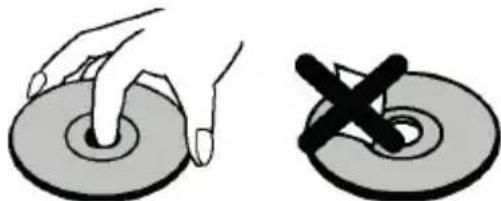
- Do not expose the disc to direct sunlight or heat sources such as hot air ducts, or leave it in a car parked in direct sunlight as the temperature can rise quickly and damage the disc.
After playing, store the disc in its case.
On cleaning
- Before playing, clean the disc with a cleaning cloth. Wipe the disc from the centre out.
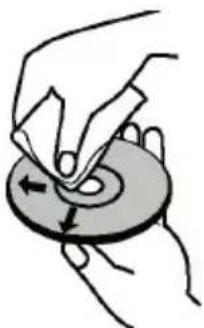
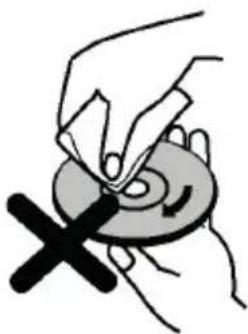
- Do not use solvents such as benzine, thinner, commercially available cleaners or anti-static spray intended for vinyl LPs.
How to Watch a DVD
When placing a disc into the loader, labelled side of the disc should be on the front.
When TV set is turned on, first switch to DVD source by using the Source button on the remote control. Press play on the remote control, or directly press play button on the side panel. If there is no disc inside the loader, place a DVD first and press play.
Note: If you switch to another source by pressing Source or Programme +/- buttons on the remote control, DVD playback will be paused automatically. You should press Play button and resume the playback manually when you switch to DVD mode.
DVD Control Panel Buttons
Play/Pause)
Plays/pauses the disc. When DVD menu (root menu) is active, this button functions as "button select" (selects the highlighted item in menu) if this is not prohibited by the disc.
/Stop/Eject)
Stop playing disc / Eject or Load the disc.
Note:
You cannot eject the disc via the remote control.
While playing a file, you should press Stop button three times to eject.
General Playback
Basic Play
- Press the Standby button
- Insert a disc into the loader.
The disc will be automatically loaded and play will commence if the disc does not have any menus recorded on it.
A menu may appear on the TV screen after a few moments or the film may start immediately. This behaviour depends on the disc content and may change.
Note: Step 3 and 4 are available only when a menu is recorded on the disc.
- Press Down / Up / Left / Right or the numeric button (s) to select the preferred title.
- Press OK to confirm the selected item.
The played item may be a motion picture, a still picture or another submenu depending on the disc content.
For your reference
If an action corresponding to a button is prohibited the " ” symbol appears.
Notes on Playback
- No sound will be heard during fast forward or rewind.
- No sound will be heard during slow motion play.
- Reverse slow motion play may not be available depending on the DVD content.
- In some cases, the subtitle language is not changed immediately to the selected one.
- When the preferred language is not selected even after pressing the button several times, it means that the language is not available on the disc.
- When the player is restarted or the disc is changed, the subtitle selection is automatically changed back to the initial settings.
- If a language is selected, not supported by the disc, the subtitle language will automatically be set to the disc's priority language.
- Usually a circulation will happen while switching to another subtitle, that is you can cancel the subtitle by pressing the Text button a number of times until "Subtitles Off" appears on the screen.
- When the power is turned on or the disc is removed, the language heard is the one selected at the initial settings. If this language is not recorded on the disc, only the available language on the disc will be heard.
- Some DVDs may not contain root and/or title menus.
- Reverse stepping is not available.
- For your convenience: If you attempt to enter a number greater than the total time of the current title, the time search box disappears and "Input Invalid" message appears on upper-left corner of screen.
- Slide Show is disabled when the ZOOM mode is on.
DVD Troubleshooting
Poor picture quality (DVD)
- Make sure the DVD disc surface is not damaged. (Scratch, fingerprint etc.)
Clean the DVD disc and try again.
See instructions described in "Notes on Disks" to clean your disc properly.
-
Ensure that the DVD disc is in the tray with the label facing forward.
-
A damp DVD disc or condensation may affect the equipment. Wait for 1 to 2 hours in Stand-by to dry the equipment.
Disc does not play
- No disc in the machine. Place a disc into the loader.
- Disc incorrectly loaded.
Note: Ensure that the DVD disc is in the tray with the label facing forward.
- Wrong type of disc. The machine cannot play CD-ROMS etc. The region code of the DVD must match the player.
Wrong OSD language
- Select the language in the set-up menu.
- The language for the sound or subtitles on a DVD cannot be changed.
- Multilingual sound and/or subtitles not recorded on the DVD.
- Try to change the sound or subtitles using DVD's title menu. Some DVD's do not allow the user to change these settings without using the disc's menu
These functions are not available on the DVD.
No picture
- Make sure you have pressed the correct buttons on the remote control. Try once more.
No sound
- Check if volume is set to an audible level.
- Make sure the sound isn't turned off by mistake.
Distorted sound
- Check that the appropriate listening mode setting is correct.
If nothing works
If you have tried the above solutions and none seem to work, try switching your TV-DVD off and on again. If this does not work, contact your supplier or TV-DVD repair technician. Never attempt to repair a defective TV-DVD yourself.
C
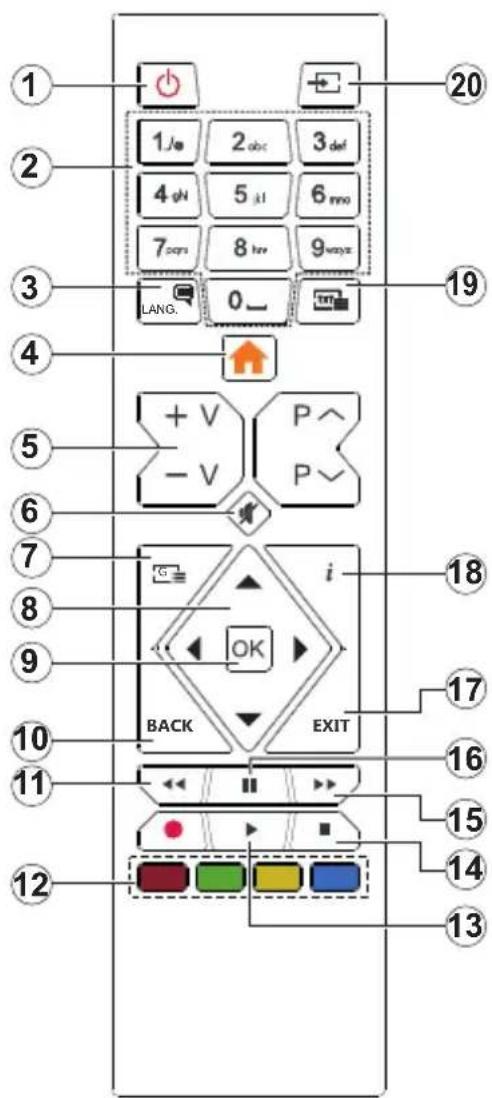
- Standby
- Numeric buttons
- Audio language selection
- TV Menu
- Volume Up / Down
- Mute
7.DVD menu - Navigation buttons
- OK/Select
- Back / Previous menu
- Rewind
- Coloured buttons; Red button - Zoom Green button - Repeat Yellow button - Root Blue button - Title
- Play
- Stop
- Fast forward
- Pause
17.Exit - Time
- Subtitle language selection
- Source selection
General DVD Operation
You can operate DVD, movie CD, music or picture CD's content by using the proper buttons on your remote control. Below are main functions of commonly used remote control buttons.
| Buttons | DVD Playback | Movie Playback | Picture Playback | Music Playback |
| ▲ | Play Play Play Play | |||
| II | Pause Pause | Pause Pause | ||
| ■ | Stop Stop Stop | |||
| ▲/▲ | Skip backward/ forward | Skip backward/ forward | Rotate Skip backward | forward |
| ▼/▲ | Highlights a menu item / Shifts the zoomed picture up or down (if available). | |||
| ▲/▲ | Rapid advance / Rapid reverse | |||
| GUIDE | Displays time / Views main setup menu | |||
| INFO | Time counter mode selection (during playback). Press repeatedly to switch between modes. | |||
| LANGUAGE | Press Language button to change the audio language. | X | X | |
| MENU | Displays TV menu. | |||
| OK | Enter / View / Play | |||
| GREEN BUTTON | Displays repeat options. | |||
| RETURN/BACK | Returns back to the previous menu (if available). | |||
| YELLOW BUTTON | Goes back to the root folder (if available). | |||
| TEXT | Press Text button to change the subtitle language or turn off the subtitles. | X | X | |
| BLUE BUTTON | Displays disc menu (if available). | Displays disc menu (if available). | X | X |
| RED BUTTON Zooms picture. Press repeatedly to switch between zoom options. | ||||
| Other Functions – Button Combinations (During playback) | |
| II + III | Slow forward |
| (II + III) + (II + III) | Sets slow forward speed |
| II + III | Sets rapid advance speed |
| II + II | Sets rapid reverse speed |
| II + II | Confirms stop command |
(*) You can switch to title by pressing numeric keys directly. You need to press 0 and then digit key to switch one digit titles (example: to select 5, press 0 and 5).
DVB functionality information
This DVB receiver is only suitable for use in the country which it was designed to be used in.
Although this DVB receiver conforms to the latest DVB specifications at the time of manufacture, we cannot guarantee compatibility with future DVB transmissions due to changes that may be implemented in broadcast signals and technologies.
Some digital television functions may not be available in all countries.
We continually strive to improve our products; therefore, specifications may change without prior notice.
For advice on where to purchase accessories, please contact the store where you purchased your equipment.
Table des matieres
Table des matieres 1
Notification de licence. 7
Informations de la disposition 7
Spécifications 8
Télécommande 9
Connexions 10
Marche/Arrét. 11
Premiere installation 11
Lecture de media via entrée USB. 12
PRODUIT LASER DE CLASSE 1
RISQUE DE CHOC ÉLECTRIQUE
| A | VESA WALL MOUNT MEASUREMENTS | ||
| B | Hole Pattern Sizes (mm) | W | H |
| 75 | 75 | ||
| C | Screw Sizes | ||
| D | Length (X) | min. (mm) | 5 |
| max. (mm) | 8 | ||
| E | Thread (Y) | M4 | |
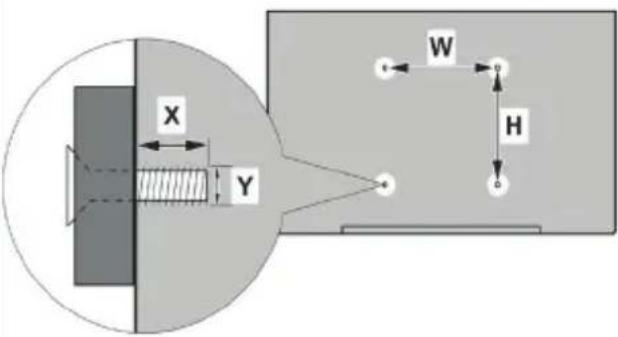
| ABCDE | |||||
| English VESA WALL MOUNT MEASUREMENTS | Hole Pattern Sizes (mm) Screw Sizes Length (X) Thread (Y) | ||||
| Deutsch | MASSANGABEN FÜR VESA-WANDMONTAGE | LochmustergroßBen (mm) | Schraubengrößen | Länge (X) | Gewinde (Y) |
| Français | DIMENSIONS DU SUPPORT DE FIXATION MURALE VESA | Dimensions des modèles de trouè de montage (mm) | Dimensions des vis | Longueur (X) | Filetage (Y) |
| Italieno | Misurazioni installazione a parete VESA | Dimensioni schema foro (mm) | Dimensioni vite | Lunghezza (X) | Flettatura (Y) |
| Portugues | MEDICÔES DE MONTAGEM MURAL VESA | Dimensôes do molde de furação (mm) | Tamanhos do parafuso | Comprimento (X) | Rosca (Y) |
| Espanol | MEDIDAS DEL MONTAJE DE PARED VESA | Tamaños de patrón para aquiero (mm) | Tamaños de tornillo | Longitud (X) | Rosca (Y) |
| Türkce | VESA DUVARA MONAJ APARATI ÖLÇÜLERİ | Açilacak Delik Ülcüleri (mm) | Vida Ölcüleri | Uzunluk (X) | Yüsey (Y) |
| Ελλγικ | ΔΙΑΣΤΑΕΙΣ ΒΑΣΗ ΤΟΙΧΟΥ VESA | Μένηθη αχήματος onμών (mm) | Μένηθη βίδύν | Μίκος (X) | Επερωμα (Y) |
| Polski | WYMIARY DO MONAZU NASCIENNEGTO VESA | Rozmiary szablonu otworów (mm) | Rozmiary wkrętów | Dlugość (X) | Gwint (Y) |
| čěstina | ROZMÉRY DRŽÁKU NA ZED VESA | Rozmýry velikosti dér (mm) | Rozmýry sroubú | Déka (X) | Žavit (Y) |
| Magyar | VESA FALI TARTÖ MÉRETEK | Lýukak méretének nagysága(mm) | Csavar mérét | Hossz (X) | Menet (Y) |
| Romană MÁSURIATORI SUPORT PERETE VESA | Dimensiuni tipar gaură (mm) | Dimensiuni suruburi | Lungime (X) | Filet (Y) | |
| Svenska | VESA VAGGMONTERINGSMÄTT | Hälfmonsterstorlear (mm) | Skrvystorlekar | Längd (X) | Tråd (Y) |
| Nederlandlands | VESA WANDMONTAGE METINGEN | Grootte booropening (mm) | Schroefgrotte | Lengte (X) | Draad (Y) |
| Suomi | VESA-SEINÄASENNUKEN MITAT | Reikäkuvion koot (mm) | Ruuvinkoot | Pituus (x) | Kierre (Y) |
| Norsk | VESA VEGGMONTERINGSMål | Hullmønster størler (mm) | Skruestørrelser | Lengde (x) | Tråd (Y) |
| Dansk | VESA VEGGMONTERINGS-Mål | Hulmønster-størler (mm) | Skruestørrelser | Lengde(X) | Tråd (Y) |
| Pускем | РAZMEРы HACTEHOTO KPEПЛЕНИЙ VESA | Размeperы снстама отberсту | Рazmeperы винов | Длеса (Y) | Рezба (Y) |
| Белароча | ПAMENTРы HACUCEHARA MAцавань VESA | ПAMENTРы сicontмьдадулін | ПAMENTРы винов | Далхын (X) | Разба (Y) |
| Makedeонски | МЕKKI 3A MOHTIPAHBE HA SIVДЗ 3A „BECA" | Шема на толемпни дулкова (mm) | Толемпни дурафот | Долимпни (X) | Наво (Y) |
| украйсьka | РОЗМРИ HACTIHOTO KРПЛЕLEHI VESA | Вдостав мій кріпьніні мітворамі, мі | Розмірі винов | Довимпни (X) | Дамет різбі (Y) |
| Srpski | DIMENZIJE VESA ZIDNOG NOSACA | Dimenzije šablona za buşanje | Dimenzije zavrtnejva | Dužina (X) | Navoj (Y) |
| Slovencina | ROZMÉRY DRŽIAKA NA STENU VESA | Rozmery velkosti dier (mm) | Rozmery skrutiek | Džka (X) | Žavit (Y) |
| Slovenskina | MERE STENSKEGA NOSILCA VESA | Velikosti vizora lukenj (mm) | Velikosti vijakov | Dolizina (X) | Navoj (Y) |
| Hrvatski | VESA MJERE ZIDNOG DRŽAÇA | Veličine uzorka olvora (mm) | Veličine vijka | Dužina (X) | Navoji (Y) |
| Bosanskis | DIMENZIJE VESA ZIDNOG NOSACA | Dimenzije šablona za buşanje | Dimenzije vijaka | Dužina (X) | Navoj (Y) |
| Бъларсян | РAZMEРИ 3A KOMПЛКТ 3A MOHTAIKH HA CTEA HVA VESA | Размeperи на отворо (mm) | Рazmeperи божira | Дылхиат (X) | Рezба (Y) |
| Lietuvič | VESA TVIRTINIMO PRIÉ SIENOS MATAVIMAI | Angos šablono dydis (mm) | Varžtu dydis | Iglis (X) | Srieglis (Y) |
| Latviešu | VESA SIENAS STIPRINJAJUMI IZMÈRI | Caurumu šablona izmīrs (mm) | Skrūvju izmēri | Garums (X) | Vitne (Y) |
| Eesti | VESA SEINALE KININITAMISE MÖÖDUD | Kruvi suuruse mòöt (mm) | Kruvi suurus | Körgus(x) | Keere (Y) |
| Shqip | PÈRMASAT ENJÉSISE SÉ MONTIMIT NÉ MUR VESA | Madhésite modele tê vrimave (mm) | Madhésite e vidhave | Giatesia (X) | Filetimi (Y) |
| эгios | MELLOWSI YOLO | (Ф.о.) | (Ф.о.) | (X) | (Y) |
| эгия | VESA LIOO YOLO YOLO YOLO YOLO YOLO YOLO YOLO YOLO YOLO YOLO YOLO YOLO YOLO YOLO YOLO YOLO YOLO YOLO YOLO YOLO YOLO YOLO YOLO YOLO YOLO YOLO YOLO YOLO YOLO YOLO YOLO YOLO YOLO YOLOYOLO YOLO YOLO YOLO YOLO YOLO YOLO YOLO YOLO YOLO YOLO YOLO YOLO YOLO YOLO YOLO YOLO YOLO YOLO YOLO YOLO YOLO YOLO YOLO YOLO YOLO YOLO YOLO YOLO YOLO YOLO YOLO YOLO Y OLO YOLO YOLO YOLO YOLO YOLO YOLO YOLO YOLO YOLO YOLO YOLO YOLO YOLO YOLO YOLO YOLO YOLO YOLO YOLO YOLO YOLO YOLO YOLO YOLO YOLO YOLO YOLO YOLO YOLO YOLO YOLO YOLO YOLOGUE | (Ф.о.) | (Ф.о.) | (X) | (Ф.о.) |
| A | Product Fiche | ||
| B | Commercial Brand: SALORA | ||
| C | Product No. | 10122521 | |
| D | Model No. | 24HDB6505 | |
| E | Energy efficiency class | A+ | |
| F | Visible screen size (diagonal, approx.) (inch/cm) | 24 inches | 60 cm |
| G | On mode average power consumption (Watt) | 19,0 | |
| H | Annual energy consumption (kWh/annum) (*) | 27 | |
| I | Standby power consumption (Watt) | 0,50 | |
| J | Off mode power consumption (Watt) | N/A | |
| K | Display resolution (px) | 1366x768 | |
| A | B | C | D | E | F | ||
| English Product Fiche Commercial Brand Product No. Model No. | |||||||
| Deutsch | Produkt-Datenblatt Markenzeiten | chen Produkt-Nr. Model-Nr. | Nrn. Energieeffizienzzi | klasse Sichtbare Bldg. | schirmgroße | diagonal.ca (Zoll /cm) | chmig |
| Былгарский | Балагеняпс TЕСТМСКПЕДАПANII | Тьровская марka | Пrodukt № | Madel № | Kлас на有很大июша epfcikinhoost | Вдим размер на ekpanа (дзагонал по引爆). (ина /сm) | ндим размер на ekpanа (дзагонал по引爆). (ина /сm) |
| Чебіта | Produktovу list | Znacka vyrobce | Cislo produktu | Model c. | Energetická tflda | Videtilné velkost obrazovky ( ул检фіда, р ribi) (p alca /сm) | Nakvyân kuvarudun koko (diagonaalinen.n.) (tuamaal/cm) |
| Dansk | Produktoplysningsskema | Varemaarke | Produktnr. | Model nr. | Energieffektivetsklasse | Smylg skærmstørilese (diagonalt,ca.) (HK/cm) | |
| Suomi | Tuote fiche | Kaupallinen merkki | Tuote nro. | Malli nro. | Virran tehokkuusluokka | Nakyvân kuvarudun koko (diagonaalinen.n.) (tuumaal/cm) | |
| Frankais | Fiche du produit | Marque commerciale | Produit N° | Modèle N° | Classe d'efficacité energetique | Taille d'écran visible (diagonale,approx.) (poues/cm) | |
| Hrvatski | SAZETAK PROIZVODA | Trgovаčka marka | Br. proizvoda | Br. modela | Klasa energetske učinkoviosti | Vidjiva velicina ekra na (diagonaalno,prbilžno) (inca/cm) | |
| Nederlands | Productfiche | Commercialer merk. | Productnr. | Modelnr. | Energie efficiéntie Klasse | Zichtbare schermgrotte (diagonaalica.) (inches/cm) | |
| Espanol | Ficha del Producto | Marca Comercial | N° de Producto | N° de Modelo | Clasificacion Energética | Tamano de pantalla visible (diagonaalaprox. [pug] adas/cm) | |
| Svenska | Produktspecifikation | Varumarke | Produktnr. | Modellnr. | Energiklass | Synig skarmstorlek (diagona ungefärig) (tum/cm) | |
| Italiano | Scheda prodotto | Marchio commerciale | Numero prodotto | Numero modelo | Classe di efficienza energetica | Dimensión visibili dell'elegorio (diagonalearcira) (p ollici/cm) | |
| Polski | KARTA PRODUKTU | Marka produktu | Nr produktu | Nr modelu | Klasa efektywnosci energetycznej | Widoczny obraz ekrani (przeka tna okolo) (cali/cm) | |
| Magyar | Termekismerteto adatlap | Kereskedelmi marka | Termekszmam | Modelszam | Energiahaltekonysagi osztaly | Lathato Keptaromany (diagonalis,kb.) (inches/cm) | |
| Norsk | Produktinformasjon | Kommersiel merkevare | Produkt nr. | Model nr. | Energeffektivitet Klasse | Synig skjermistørre (diagonai,ca.) (tommer/cm) | |
| Portugues | Ficha do produto | Marca Comercial | Produito N° | Modelo N° | Classificacao eficiência energetica | Tamanno ecra visletei (diagonai,aprox.) (pooleadas/cm) | |
| Româna | Fişã produs | Marcã comercialã | Nr. Produus | Nr. Model | Clasa de deficientă energetica | Dimensiunea ecranului vizibil (diagonaalà no rxo.) (inch/cm) | |
| Русsekий | Сразвочны плсток ТЕСТМСКПЕДАПANII | Торовая марka | Homeroиdenя | Homero modelii | Knaccэн<|rotate_down|>otpebения | Вдим размер ekра na (пдагонали, Okono) (дзимов/cm) | |
| беларскан | Сразвочны плсток ТЕСТМСКПЕДАПANII | Торовая марka | Homeroиdenя | Homero modelii | Knaccэн<|rotate_down|>otpebения | Вдим размер ekра na (пдагонали, Okono) (дзимов/cm) | |
| македonsкý | Тechникій podatoцii | Ком'erцьлій марka | Ipondrobbr. | Madelbr. | Knaccа на有很大е预теса Ephikacoust | Tolemпma на видимь ekpan (дзагонала,okon y) (инч/ncm) | |
| ук pairchькý | Тechнидani | Корецьій марka | Aptikynl | Modelь | Knaccэн<|rotate_down|>otpebения | Вдим размер ekра na (пдагональ,плобино) (дзимов/cm) | |
| Srpski | Tehnicke odilike | Komercijalna marka | Proizvod br. | Model br. | Klasa energetska efikasnosti | Velicitina vidljivog ekra na (diagonala, tokom) (inca/cm) | |
| Slovencina | Produktovy list | Znacka vyrobu | Cistlo produktu | Model c. | Energetická trieda | Viditeha velkost obrazovky (uhlorciecka, zhruba) (palcov/cm) | |
| Slovencsina | Opis Izdeika | Komercialna znamka | St. Izdeika | St. Modela | Razred energetska ućinkovosti | Vidna velkost zastona (diagonala, prilb.) (palcev/cm) | |
| Ельникova | Демп IO pirodvtoç | Ельнико оndу | Ap. I pirodvtoç | Ap. Movišelou | Kotryopia evepyeikrajc satorobooch | Oparod jeveloch obovni (doyawvios, trp) (vtoec/cm) | |
| Bosanski | Tehnicki podaci | Komercijalna marka | Produkt br. | Model br. | Klasa energetska efikasnosti | Vidjiva vclcina ekra na (diagonala, prilibžno.) (inca/cm) | |
| Тугсe | Urun fişi | Ticari Marka | Urun No. | Model No. | Enerji verimiligi smif | Gorulen ekkan boyutu (capraz, yakišk.) (ing/cm) | |
| Shqip | Т dihénat e produklt | Marka treglare | Nr. i produktil. | Nr. i modelit. | Klasa e eficienciese se energisje | Madhesia e ekranit te dukshem (diagona afersish) (ing/cm) | |
| Lietuviú | Gaminalo etiketê | Gamintojas | Gaminalo Nr. | Modelio Nr. | Energetinio efektyvmo klase | Matomas ekrano dydis (jstrizainé, aprox) (col/ cm) | |
| Latviešu | Produkta aprakssts | Marka | Produkta nr. | Modela nr. | Energoefektvităles klase | Ekrela izměrs (pa diognäli, aprimram) (collas/cm) | |
| Eesti | TOOTEKIRJELDUS | Rootja firma | Roote nr. | Mudeli nr. | Energiaklass | Vadatata ekraani suurus (diagonaal, jmbeg (tolli/cm) | |
| G | H | I | J | K | |
| English On mode | e average power consumptiion (Watt) | Annual energy consumption (kWh/annum) | Standby power consumption (Watt) | Off mode power consumption (Watt) | Display resolution (px) |
| Deutsch | Durchschnittlicher Stromverbrauch im ein geschaltetem Zustand (Watt) | Jährlicher Energieverbrauch (kWh/Jahr) | Standby-Stromverbrauch (Watt) Strome | erbrauch im ausgeschalteten Zustand (Watt) | Display-Auflösung (px) |
| Блгарский | С replenishment der Stammverbrauch im ein geschaltetem Zustand (Watt) | (Volat) des Jahres des Jahres des Jahres des Jahres des Jahres des Jahres des Jahres des Jahres des Jahres des Jahres des Jahres des Jahres des Jahres des Jahres des Jahres des Jahres des Jahres des Jahres des Jahres des Jahres des Jahres des Jahres des Jahres des Jahres des Jahres des Jahres des Jahres des Jahres des Jahres des Jahres des Jahres des Jahres des Jahres des Jahres des Jahres des Jahres des Jahres des Jahres des Jahres des Jahres des Jahres des Jahres des Jahres des Jahres des Jahres des Jahres des Jahres des Jahres des Jahres des Jahres des Nights des Nights des Nights des Nights des Nights des Nights des Nights des Nights des Nights des Nights des Nights des Nights des Nights des Nights des Nights des Nights des Nights des Nights des Nights des Nights des Nights des Nights des Nights des Nights des Nights des Nights des Nights des Nights des Nights des Nights des Nights des Nights des Nights des Nights des Nights des Nights des Nights des Nights des Nights des Nights des Nights des Nights des Nights des Nights des Nights des Nights des Nights des Nights des Nights des Nights des NIGHT des NIGHT des NIGHT des NIGHT des NIGHT des NIGHT des NIGHT des NIGHT des NIGHT des NIGHT des NIGHT des NIGHT des NIGHT des NIGHT des NIGHT des NIGHT des NIGHT des NIGHT des NIGHT des NIGHT des NIGHT des NIGHT des NIGHT des NIGHT des NIGHT des NIGHT des NIGHT des NIGHT des NIGHT des NIGHT des NIGHT des NIGHT des NIGHT des NIGHT des NIGHT des NIGHT des NIGHT des NIGHT des NIGHT des NIGHT des NIGHT des NIGHT des NIGHT des NIGHT des NIGHT des NIGHT des NIGHT des NIGHT des NIGHT des NIGHT des-night des nights des nights des nights des nights des nights des nights des nights des nights des nights des nights des nights des nights des nights des nights des nights des nights des nights des nights des nights des nights des nights des nights des nights des nights des nights des nights des nights des nights des nights des nights des nights des nights des nights des nights des nights des nights des nights des nights des nights des nights des nights des nights des nights des nights des nights des nights des nights des nights des nights des nights des night des night des night des night des night des night des night des night des night des night des night des night des night des night des night des night des night des night des night des night des night des night des night des night des night des night des night des night des night des night des night des night des night des night des night des night des night des night des night des night des night des night des night des night des night des night des night des night des night des night desnight des night des night des night des night des night des night des night des night des night des night des night des night des night des night des night des night des night des night des night des night des night des night des night des night des night des night des night des night des night des night des night des night des night des night des night des night des night des night des night des night des night des night des night des night des night des night des night des night des night des Night des night des night des night des night des night des night des night des night des night des night des night des night des night des night des night des night des night des night des night des night des night des night des night des night des night des night des night des night des night des night des night des night des night des night des night des night des night des night des night des night des night des night des night des night des night des night des night des night des night des-night des night des night des night des night des night des night des night des night des night des night des night des night des night des night des night des night des night des night des night des night des night des night des night des night des night des night des night des night des night des night des night des night des night des night des night des night des night des night des night des night des night des night des night des night des night des night des night des night des night des dayNight des dayNight des dayNight des dayNight des dayNight des dayNight des dayNight des dayNight des dayNight des dayNight des dayNight des dayNight des dayNight des dayNight des dayNight des dayNight des dayNight des dayNight des dayNight des dayNight des dayNight des dayNight des dayNight des dayNight des dayNight des dayNight des dayNight des dayNight des dayNight des dayNight des dayNight des dayNight des dayNight des dayNight Des dayNight Des dayNight Des dayNight Des dayNight Des dayNight Des dayNight Des dayNight Des dayNight Des dayNight Des dayNight Des dayNight Des dayNight Des dayNight Des dayNight Des dayNight Des dayNight Des dayNight Des dayNight Des dayNight Des dayNight Des dayNight Des dayNight Des dayNight Des dayNight Des dayNight Des dayNight Des dayNight Des dayNight Des dayNight Des dayNight Des dayNight Des dayNight Des dayNight DesdayNight Des dayNight Des dayNight Des dayNight Des dayNight Des dayNight Des dayNight Des dayNight Des dayNight Des dayNight Des dayNight Des dayNight Des dayNight Des dayNight Des dayNight Des dayNight Des dayNight Des dayNight Des dayNight Des dayNight Des dayNight Des dayNight Des dayNight Des dayNight Des dayNight Des dayNight Des dayNight Des dayNight Des dayNight Des dayNight Des dayNight Des dayNight Des dayNight Des daynight Des daynight Des daynight Des daynight Des daynight Des daynight Des daynight Des daynight Des daynight Des daynight Des daynight Des daynight Des daynight Des daynight Des daynight Des daynight Des daynight Des daynight Des daynight Des daynight Des daynight Des daynight Des daynight Des daynight Des daynight Des daynight Des daynight Des daynight Des daynight Des daynight Des daynight Des daynight Des daynight Des daynight DES daynight Des daynight Des daynight Des daynight Des daynight Des daynight Des daynight Des daynight Des daynight Des daynight Des daynight Des daynight Des daynight Des daynight Des daynight Des daynight Des daynight Des daynight Des daynight Des daynight Des daynight Des daynight Des daynight Des daynight Des daynight Des daynight Des daynight Des daynight Des daynight Des daynight Des daynight Des daynight Des daynight Des Daynight Des daynight Des daynight Des daynight Des daynight Des daynight Des daynight Des daynight Des daynight Des daynight Des daynight Des daynight Des daynight Des daynight Des daynight Des daynight Des daynight Des daynight Des daynight Des daynight Des daynight Des daynight Des daynight Des daynight Des daynight Des daynight Des daynight Des daynight Des daynight Des daynight Des daynight Des daynight Des daynight Des dayright Des dayright Des dayright Des dayright Des dayright Des dayright Des dayright Des dayright Des dayright Des dayright Des dayright Des dayright Des dayright Des dayright Des dayright Des dayright Des dayright Des dayright Des dayright Des dayright Des dayright Des dayright Des dayright Des dayright Des dayright Des dayright Des dayright Des dayright Des dayright Des dayright Des dayright Des dayright Des dayright Des dayrightDes dayright Des dayright Des dayright Des dayright Des dayright Des dayright Des dayright Des dayright Des dayright Des dayright Des dayright Des dayright Des dayright Des dayright Des dayright Des dayright Des dayright Des dayright Des dayright Des dayright Des dayright Des dayright Des dayright Des dayright Des dayright Des dayright Des dayright Des dayright Des dayright Des dayright Des dayright Des dayright Des dayright Des-dayright Des dayright Des dayright Des dayright Des dayright Des dayright Des dayright Des dayright Des dayright Des dayright Des dayright Des dayright Des dayright Des dayright Des dayright Des dayright Des dayright Des dayright Des dayright Des dayright Des dayright Des dayright Des dayright Des dayright Des dayright Des dayright Des dayright Des dayright Des dayright Des dayright Des dayright Des dayright Des dayright Des day right Des dayright Des dayright Des dayright Des dayright Des dayright Des dayright Des dayright Des dayright Des dayright Des dayright Des dayright Des dayright Des dayright Des dayright Des dayright Des dayright Des dayright Des dayright Des dayright Des dayright Des dayright Des dayright Des dayright Des dayright Des dayright Des dayright Des dayright Des dayright Des dayright Des dayright Des dayright Des dayright Des dayrightdes dayright Des dayright Des dayright Des dayright Des dayright Des dayright Des dayright Des dayright Des dayright Des dayright Des dayright Des dayright Des dayright Des dayright Des dayright Des dayright Des dayright Des dayright Des dayright Des dayright Des dayright Des dayright Des dayright Des dayright Des dayright Des dayright Des dayright Des dayright Des dayright Des dayright Des dayright Des dayright Des dayright Des daysright Des daysright Des daysright Des daysright Des daysright Des daysright Des daysright Des daysright Des daysright Des daysright Des daysright Des daysright Des daysright Des daysright Des daysright Des daysright Des daysright Des daysright Des daysright Des daysright Des daysright Des daysright Des daysright Des daysright Des daysright Des daysright Des daysright Des daysright Des daysright Des daysright Des daysright Des daysright Des daysright Des days right Des daysright Des daysright Des daysright Des daysright Des daysright Des daysright Des daysright Des daysright Des daysright Des daysright Des daysright Des daysright Des daysright Des daysright Des daysright Des daysright Des daysright Des daysright Des daysright Des daysright Des daysright Des daysright Des daysright Des daysright Des daysright Des daysright Des daysright Des daysright Des daysright Des daysright Des daysright Des daysright Des daysrightDes daysright Des daysright Des daysright Des daysright Des daysright Des daysright Des daysright Des daysright Des daysright Des daysright Des daysright Des daysright Des daysright Des daysright Des daysright Des daysright Des daysright Des daysright Des daysright Des daysright Des daysright Des daysright Des daysright Des daysright Des daysright Des daysright Des daysright Des daysright Des daysright Des daysright Des daysright Des daysright Des daysright Desdaysright Des daysright Des daysright Des daysright Des daysright Des daysright Des daysright Des daysright Des daysright Des daysright Des daysright Des daysright Des daysright Des daysright Des daysright Des daysright Des daysright Des daysright Des daysright Des daysright Des daysright Des daysright Des daysright Des daysright Des daysright Des daysright Des daysright Des daysright Des daysright Des daysright Des daysright Des daysright Des daysright Des daysleft Watt | (2015) | (2016) | |
| Svenska | Consumption énergétique moyenne en mode "Marche" (Watt) | Consumption énergétique moyenne en mode "Marche" (Watt) | Consumption énergétique moyenne en mode "Marche" (Watt) | Consumption énergétique moyenne en mode "Marche" (Watt) | Resolution de l'écartan (px) |
| Italiano | Consumo di corrente medie da acqua (Watt) | Consumo annuale di energia (kWh/annuel) | Consumo di corrente in modalità standby (Watt) | Consumo di corrente in modalità standby (Watt) | solutazione del display (px) |
| Polski | Średnia zȩzycie energii w trybie węlączony m(wat) | Średnia zȩzycie energii w trybie wȩzkiwania (Wiat) | Średnia zȩzycie energii w trybie wȩzkiwania (Wiat) | Średnia zȩzycie energii w trybie wȩzkiwania (Wiat) | Rozdzielność zȩkanie (nizczena) |
| Magyar | Energiogazovszás békapsolva hagyott üzernömdőv (Watt) | Epes energiagosyzás (kWh/Januar) | Energiogazovszás (kWh/Januar) | Energiogazovszás (kWh/Januar) | Képernyófei北斗as (px) |
| Norsk | Pamodus gennonsnittig strømforbruk (Watt) | Arlig stromforbruk (kWh/Anlag) | Cytomstrømforbruk (kWh/Anlag) | Cytomstrømforbruk (kWh/Anlag) | Resoluccion de pantalla (px) |
| Portugues | Consumo energia em mode medio (Watt) | Consumo annual energy (kWh/annual) | Consumo energia em mode (Watt) | Consumo energia em mode (Watt) | Resoluccion do visor (pixel) |
| Româna | Consume electric媒iu in modul pormit (Wiat) | Consume annual de energia (kWh/annual) | Consume electric in mode (Wiat) | Consume electric in mode (Wiat) | Rezolutja ecranului (pixel) |
| Pуssкь | C replenish parc iZb. | Ezejordni bacek dvocei nerei (kBTV/CrOng) | Pazxodn bacek dvocei nerei (kBTV/CrOng) | Pazxodn bacek dvocei nerei (kBTV/CrOng) | Raspelene mezzende (nizczena) |
| Bénapусян | C replenish parc iZb. | Ezejordni bacek dvocei nerei (kBTV/CrOng) | Pazxodn bacek dvocei nerei (kBTV/CrOng) | Pazxodn bacek dvocei nerei (kBTV/CrOng) | Raspelene mezzende (nizczena |
| Makéonckánsk | Ispocen ha zópoúybačka kora e bkvčuney (Wiat) | Izgóhni zópoúybačka kora e bkvčuney (Wiat) | Izgóhni zópoúybačka kora e bkvčuney (Wiat) | Izgóhni zópoúybačka kora e bkvčuney (Wiat) | Raspelene mezzende (nizczena) |
| Uglyanski | C zópoúybačka bacek nerei (BTV) | C zópoúybačka bacek nerei (BTV) | C zópoúybačka bacek nerei (BTV) | C zópoúybačka bacek nerei (BTV) | Raspelene mezzende (nizczena) |
| Bosanski | Prosćna parc srozsna kada je ukrainien (Wiat) | Godsniya srozsna kada je ukrainien (Wiat) | Potrosna tokom mirovanja (Viat) | Potrosna tokom mirovanja (Viat) | Rozolunca displeja (pix). |
| Slovençina | Priemera spotbre elektrickje energija v zaopurom režime (Wiat) | Rožna spotbre elektrickje energija v zaopurom režime (Wiat) | Spotbre elektrickje energija v zaopurom režime (Wiat) | Spotbre elektrickje energija v zaopurom režime (Wiat) | Rozilsson (pix). |
| Slovenšćina | Porabara elektrickanje energija v izgovrečern Čačnuć (Wiat) | Letna porabara energija v izgovrečern Čačnuć (Wiat) | Porabara energija v izgovrečern Čačnuć (Wiat) | Porabara energija v izgovrečern Čačnuć (Wiat) | Raspelene mezzende (nizczena) |
| Elažnýká | Mön katalaváoum peşáciu tskočnichy (Aksoupyi Ligt (Wiat) | Erlaçovááuováuováuováuováuováuováuováuováuováuováuováuováuováuováuováuováuováuováuováuováuováuováuováuováuováuováuováuováuováuováuováuováuováuovíuováuováuováuováuováuováuováuováuováuováuováuováuováuováuováuováuováuováuováuováuováuováuováuováuováuováuováuováuováuováuováuováuováuváuováuováuováuováuováuováuováuováuováuováuováuováuováuováuováuováuováuováuováuováuováuováuováuováuováuováuováuováuováuováuováuováuovéu | Aksanlu ožávoν (p) | Aksanlu ožávoν (p) | |
| Bosanski | Prosćna parc srozsna kada je ukrainien (Wiat) | Aksanlu ožávoν (p) | Aksanlu ožávoν (p) | Aksanlu ožávoν (p) | Aksanlu ožávoν (p) |
() English Energy consumption kWh per year, based on the power consumption of the television operating 4 hours per day for 365 days. The actual energy consumption will depend on how the television is used.
(1) Deutsch Energieverbrauch kWh/Jahr, auf der Grundlage eines tajlich vierstündigen Betriebs des Fermsegeräte an 365 Tagen. Der tatsächliche Energieverbrauch hängt von der Art der Nutzung des Fermsegerätes ab.
(5) BbIrapckn KOHcymma Ha eheprn KWh roaHIO, HcHcneHa ha 6a3ata Ha 4 pa6oTHN Yaca Hehno np3 365 dH. DeHCTBATEHO KOHcympaHATA e heprn Iue 3aBCHOn t HA yHnHa Hytpe6a Ha TeNEbSopa.
(1) Čestina Spotfeba elektricka energie kWh za rok vychasejci ze spotfeby elektricke energie televzinho pijimaja, kter y ja v provozu 4 hodiny denen po dobu 365 dni. Skutečna spotfeba elektrické energie závisi na zpúsobu použit televzinhoj himeja.
() Dansk Energiforbrug: kWh om aret, beregren som fjemsynets effektforbrug, hvis det er taend 4 timer om dagen i 365 dage. Det faktiske energiforbrug vil bero pa, hvordan fjemsynet bruges.
() Suomi Energiankutus kWh: uovessa, kun oletetaan, etta teviisota kaytetaan 4 tuntia paivass365 paivan ajan. Todellinen energiankutus nippu television kayttotavasta.
(1) Français Consommation d'énergie de kWh par an, sur la base de la consommation électriche d'un téléviseur fonctionnant quatre heures par jour pendant troiscents soixante-cinq jours. La consommation réelle dépend des conditions d'utilisation du téléviseur.
(+) Hrvatski Urošak enerigije iznosi kWh godišne na temelju utroška enerigije televizora koji radi Šetiri sata dnevno 365 dana u godini. Stvarni utrošak enerigije ovisit o lomkako se upotrebljava televizor.
() Nederlands Energieverbruik kWh per jour, gelebaseerd op het elektricitieitsverbruik van de televise wanner deze gedurende 365 dagen 4 uur per dag aanstaat. Het feitelijke energieverbruik is affankelijk van de manier waarop
de televise wordt gebruikt
() Espanol Consumo de energia: kWh al a, suponiendo quatre horas de functiOnamento diario durante 365 dias. El consumo efectivo dependera de las condidiones reales de uso de la television.
() Svenska Energiförbrukning kWh per ár, beränkad utfrän effektforbrukninger for en tv-mottagare som användsfyra timmar per dygn under 365 dygn. Den faktiska energiförbrukningerkommen att bero paHur tv-mottagaren används.
(1) Italiano Consumo di energia kWh/anno calcolo sulla base del consumo di un teileso in funzione per 4 ore al giorno per 365 giorni. I consumo effetto di energia dipende dall'utilizzo reale del teileso.
() Polski Zuzycle energi KWhrok na podstawie zuzycia energhi przytez telewizor dzialajacy 4 godziny dziennie przyze 365 dni. Rzeczywiste zuzycie energhi zalezy od spoosobu uzytkowania telewizora.
() Magyar A televizidokszulek napi 4 oras izem mellet az ev 365 napjara vetite evente kWh mennyiseg u energiat fogyaszt. A tenyleges energiafogyasztas kszulek izemehetesi modjatol figg.
Norsk Energiforbruk kWh per ar, stramforbruket er basert pa bruk av TV-en for 4 timer per dag for 365 dager. Det faktiske energiforbuket vil vare avhengig av hvordan TV-en brukes.
(7) Portugues Consumo de energia de kWh por ano, baseado no consumo, em termos de potencia, do televisor a functionar 4 horas por dia durante 365 dias. O consumo de energia real dependerá do modo como o televisor é
() Română Consumul de energia de kWh pe an, pe baza poterii consumate de aparatul TV atunci c and este in functune 4 ore pe zi temp de 365 de zile; consumul real de energia depinde de conditjile deutilizare a aparatului
(+) Pyckn 3neprnoptpe6nne HkT- y b rpo npnoDTCN 13 paaceta notpe6neHn 3heprnn TeneBnsoPm npa paoote 4 uca B nBn npotraKeHH 365 dne. Aeknueckoe noptpe6neHne anexptnoepnrnn 6bpyet 3a8noBt
OTTOKINCNIOB3yETcTTeNEBn3Op
()6enapcayk 3eepraacnkbHHe HKT-ry rod npbBodzlaa 3pa3niKy cnaKbHaHnH 3hepi T4ra3HbI y daebH na pauarly 365 daEh. AekTbHnae cnaKbHaHne 3neKnTpa3HePi 6y3e 3aneKaab ud taro, k
Bbikapbictoybaeua TaneBisap.
(4) MaekoDcKs EeBpreTcKaT aotpouBaYkaE KWhrOmuHb, BpOchOBa H aotpouBaYbKaTa H TaTeBnAaNckypeBttoPab014aCaAaBHeH, 365dAnob. PaaHata eBpreTcKa notpouBaYka Ke zABnCH oToa KaKe
KOPACTENTEENBUNCKNOTypen.
(1) ykpaHcKn 3nAeHHN EepnoCNOAHnB Kt-ro, h A pik Basyetbca H noTnyHcoT, cnoXbaHOI TeneBIOpOM. 0 npaue npotarO 4 roHN H daHb BnpdoB 365 dH. FAnTHHe CnoXBAHnE eneKTOpeHepri 3aneXHTb Bld
() Srpski Potrašnja struje od kWh na godišnjem nivou zašovana je na potrošnji televizora koji je ukljude 4 sata dnevo 365 dana godišnje. Stvarna potrošnja struje zavisiče o načina korisćenja televizora.
() Slovenéna Spotreba énergie kWh za rok na základe spotreby elektrickej énergie televizora, ktor y je v cinnost 4 hodiny dette poças 365 dni. Skutočná spotreba énergie závisi od loho, ak o sa televizor použiva.
() Slovenscina Poraba energije je kWh na leto, glede na napajalno energija televizorja, ki deluja 4 ure na dan v sveh 365 dneh. Dejanska poraba energija je odvisna od nacin uporabe televizorja.
() EAanikai Katovalewauevpeiaekkwh oeaetac, pBaoTnv kavatauwauiiaoxc ato Tnv taeopaon yia tetapwn aeauypia ova nepa e 365 nepec. H npaypank katavakwauen evpeiae c aaptatrai amt ov rpo
() Bosanski Energetska potrosnja je XYZ kWh na godilnjem nivou, na osnovu potrosnje TV-a koji radi 4 h dnevno, 365 dana. Stvama energetska potrosnja zavisi od toga kolko e TV koristi.
(1) n
365
() Shqip Konsumi energijse kwn ne vit, dazuar ne konsumin e energijse se teyizont kur punon per 4 ore ne oite per 500 oite. Konsumi aktua i enerjiss varet nga menyra e personimit teyizont.
*Lietuviq kWh energijos sunaudojimas per metus nurodomas atsiZvelgus | tai, kiek energijos sunaudojama televizorui veiklant 4 valandas per dienq 365 dienas i8 elles. Faktin] energijos sunaudojima lemts tai, kiek laiko bus naudojamas televozirius.
() Latviesu Enerjias patirns kWh gada, gemot vora televizora elektroenerjias patiriu, darbojotes 365 dienas, cetras stundas diena. Faktiskais enerjias patiriis bus atkarigs no ta, ka televizors tiks izmantots.
() Eesti Energiatarbimine kWh aastas, eeldusel et televisor totab neli tundi paevas ja 365 paeva aastas. Tegelik energiatarbimine oleneb televisori kasutusviist.
(1)
J 365 4 10000000000000000000000000000000000
TR: Isbu belgede; VESTEL Elektronik Sanayi ve Ticaret A.S., telsiz ekipmani tipi TFT IDTV 'nin 2014/53/AB sayili direktife uygun olduğunu bengan eder. AB uygunluk bemanin tam metni internet adresinde mevo doc.vosshub.com
EN: Hereby, VESTEL Elektronik Sanayi ve Ticaret A.S., declares that the radio equipment type TFT IDTV is in compliance with Directive 2014/53/EU. The full text of the EU declaration of conformity is available at the following internet address: doc.vosshub.com
BG: C HactoIooTo VESTEL Elektronik Sanayi ve Ticar A.S., DeKnapupa, Ye To3n TIN paNocbOpbKeHN TFT IDTV e B cbOTBeTCTBne c DnpEeKnBa 201 EC. LAnocTHnT TeKCT Ha EC DeKnapaunraT aCbOTBeTCTBne MOKe Da ce HaMePN Ha CNeDnHn INHTepHET aDpec: doc.vosshub.com
CS: Timto VESTEL Elektronik Sanayi ve Ticaret A.Ş., prohlăsuje, ze typ rádioveho zařizení TFT ID v souladu se směrnici 2014/53/EU. Üplné zněr prohlăseni o shodě je k dispozici na teto adrese: doc.vosshub.com
DA: Hermed erklærer VESTEL Elektronik Sanayi ve Ticaret A.Ş., at radioudstyrstypen TFT IDTV overensstemmelse med direktiv 2014/53/EU. overensstemmelseserklæringens fulde tekst kan findes på følgende internetadresse: doc.vosshub.com
DE: Hiermit erklart VESTEL Elektronik Sanayi ve Ticaret A.Ş., dass der Funkanlageyp TFT IDTV der Richtlinie 2014/53/EU entspricht. Der vollständige Text EU-Konformitätserklärung ist unter der folgende Internetadresse verfügbar: doc.vosshub.com
EL: Me tvapouo a/o/ VESTEL Elektronik Sanayi ve Ticaret A.S., 8nawvei oI o paoeogTFT IDTV npoi tv obnyia 2014/53/EE. To npec keiEvO Tng dnwong c uoppwoc EE biattheta ai Tnv akolouon ioToeAio aTo dioktuo: doc.voshub.com
ES: Por la presente, VESTEL Elektronik Sanayi ve Ticaret A.S., declar que el tipo de equipo radioeléctrico TFT IDTV es conforme con la Directiva 2014/53/UE. El texto Completo de la交代ación UE de conformidad está disponible en la direction Internet sigdoc.vosshub.com
ET: Käesolevaga deklareerib VESTEL Elektronik Sanayi ve Ticaret A.§., et käesolev raadoseadme tuup TFT IDTV vastab direktivi 2014/53/EL nouetele. vastavusdeclaratsiooni täielik tekst on kattesa jargmisel internetiaadressil: doc.vosshub.com
FI: VESTEL Elektronik Sanayi ve Ticaret A.S., vakuuttaa,etta radiolaitetyppi TFT IDTV on direktiivin 2014/53/EU mukainen. EU-vaatimustemmukaisuusvakuutuksen täysimittainen teksti on saatatvila seuraava internetosoitteessa: doc.vosshub.com
FR: Le soussigné, VESTEL Elektronik Sanayi ve Ticaret A.S., déclare que l'équipement radioélectrique du type TFT IDTV est conforme à la directive 2014/53/UE. Le texte complet de la déclaration UE de conformité est disponible à l'adresse internet suivante: doc.vosshub.com
HR: VESTEL Elektronik Sanayi ve Ticaret A.S., ovime izjavluje da je radija oprema tipa TFT IDTV u skladu s Direktivom 2014/53/EU. Cjeloviti tekst EU sukladnosti dostupan je na sljedecoj internetskoj adresi: doc.vosshub.com
HU: VESTEL Elektronik Sanayi ve Ticaret A.Ş., igazolja, hogy a TFT IDTV típusú rádióberendezes megfelel a 2014/53/ EU irányelvnek. Az EU-megfelelo ségi nyilatkozat tur: teljes szövege elérhető a következő internetes címen: doc.vosshub.com
IT: Il fabbricante, VESTEL Elektronik Sanayi ve Ticaret A.S., dichiara che il tipo di apparecchiatura radio TFT IDTV è conforme alla direttiva 2014/53/UE. Il testo Completo della dichiarazione di conformità UE è disponibile al seguente indirizzo Internet: doc.vosshub.com
LT: A, VESTEL Elektronik Sanayi ve TicaretA., patvirtinu, kad radijo jrenginiu tipas TFT IDTV atitinka Direkty /53/ 2014/53/ES. Visas ES atitikties deklaracijs teksta: 3a prieinamas siuo interneto adresu: doc.vosshub.com
LV: Ar šo VESTEL Elektronik Sanayi ve Ticaret A.Ş., deklare, ka radioiekarta TFT IDTV atbilş Direktivai 2014/53/ES. Pilns ES atbilstibas deklaracijas teksts ir pieejams šadā jenterneta vietne: doc.vosshub.com
M. B'dan, VESTEL Elektronik Sanayi ve Ticaret A.S., internet: hukjara li dan it-tip ta' taghmir tar-radju TFT IDTV huwa konformi mad-Direttiva 2014/53/UE. lt-test kollu tad-dikjarazzjoni ta' konformita tal-UE huwa disponibli er i f'dan l-indirizz tal-Internet li gej: doc.vosshub.com
NL: Hierbij verklaar ik, VESTEL Elektronik Sanayi ve Ticaret A.S., dat het type radioapparatuur TFT IDTV conform is met Richtlij 2014/53/EU. De volledige tekst van de EU-conformiteitsverklaring kan worden geraadpleegd op het volgende internetadres: doc.vosshub.com
PLER VESTEL Elektronik Sanayi ve Ticaret A.S., niniejszymen oswiadzca, ze typ urzadzenia radiowego TFT IDTV jest zgodny z dyrektywa 2014/53/UE. Pelny tekst deklaraci zgodnosci UE jest dostepny pod nastepujacym adresm internetwym: doc.vosshub.com
PT: O(a) abaixo assinado(a) VESTEL Elektronik Sanayi ve Ticaret A.Ş., declarque que o presente tipo de equipamento de rádio TFT IDTV está em conformidade cc Diretiva 2014/53/UE. O texto integral da declaração de conformidade está disponible no segunte endereço de Internet: doc.vosshub.com
RO: Prin prezenta, VESTEL Elektronik Sanayi ve Ticaret
A.S., declară că tipul de echipamente radio TFT IDTV
este in conformitate cu Direactiva 2014/53/UE. Te) integral al declarației UE de conformitate este disponibil
la următoarea adresă internet: doc.vosshub.com
Eli
VESTEL Elektronik Sanayi ve Ticaret AŞ., tymto hylasuje,Berryávo zariadenie typu TFT IDTV je vú sulade so smernicou 2014/53/EU. Üplné EU vyhlasenie o zhode je k dispozicii na tejto internetovej adrese: doc.vosshub.com
SL: VESTEL Elektronik Sanayi ve Ticaret A.S., potruje, cassa da je tip radijske opreme TFT IDTV skladen z Direktivo 2014/53/EU. Celotno besedilo izjave EU o skladnosti je na voljo na naslednjem spletnem naslovu: doc.vosshub.com
SV: Harmed forsakrar VESTEL Elektronik Sanayi ve Ticaret A.Ş., att denna typ av radioutrustning TFT IDTV overensstammer med direktiv 2014/53 EU. Den fullständiga texten till EU-forsakran on overensstammelse finns pa foljande webbadress:
izjave dooc.vosshub.com