DVPF35U - DVD combo HITACHI - Free user manual and instructions
Find the device manual for free DVPF35U HITACHI in PDF.


| Product type | DVD Video Combo (DVD Player + VHS VCR) |
| Brand / Model | Hitachi DVPF35U (DV-PF35U) |
| Dimensions (W x H x D) | 435 x 94 x 233 mm |
| Weight | Approx. 2.7 kg |
| Power Supply | 120 V AC, 60 Hz |
| Power Consumption | 21 W (standby: 3.8 W) |
| Compatible Discs | DVD Video, CD Audio, CD-R/RW, DVD-R/RW (NTSC only) |
| Number of Video Heads (VCR) | 4 heads |
| VCR Audio System | Hi-Fi Stereo (2 rotating heads) |
| Digital Audio Formats | Dolby Digital, PCM |
| Video Outputs | Composite, S-Video, Component (Y/Cb/Cr) with progressive scan 525p |
| Audio Outputs | Analog stereo (RCA), Coaxial digital |
| Inputs | Antenna (RF), Audio/Video (front and rear) |
| Tuner Coverage | VHF 2-13, UHF 14-69, CATV 1-125 |
| Main VCR Functions | Playback, recording, OTR, timer, time/index search, auto repeat |
| Main DVD Functions | Playback, zoom, bookmarks, title/chapter search, A-B repeat, random, programmed, MP3 |
| Special DVD Settings | Subtitles, audio language, camera angle, black level, virtual surround sound |
| Parental Control | Levels 1 to 8, password lock |
| Supplied Accessories | Remote control (DV-RMPF35U), AA batteries, RF cable, audio/video cables |
| Warranty | 1 year parts and labor |
Frequently Asked Questions - DVPF35U HITACHI
User questions about DVPF35U HITACHI
0 question about this device. Answer the ones you know or ask your own.
Ask a new question about this device
Download the instructions for your DVD combo in PDF format for free! Find your manual DVPF35U - HITACHI and take your electronic device back in hand. On this page are published all the documents necessary for the use of your device. DVPF35U by HITACHI.
USER MANUAL DVPF35U HITACHI
HITACHI Inspire the Next
DVD/VCR Combo (DVD PLAYER with VIDEO
To obtain the best performance and ensure years of trouble-free use, please read this instruction manual completely.
MODEL
DV-PF35U

The region number for this VCR/DVD is 1.






Change 1
Change 2
Basic TV Connection
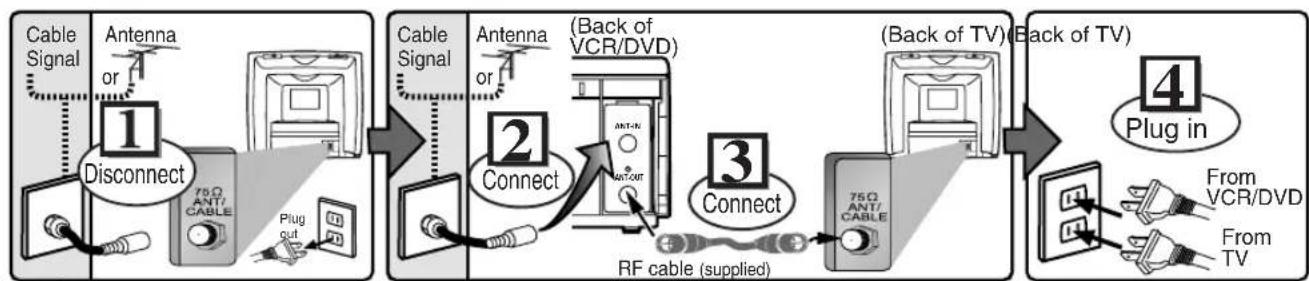
flowchart
graph LR
    A["Cable Signal"] --> B["1 Disconnect"]
    B --> C["2 Connect"]
    C --> D["3 Connect"]
    D --> E["4 Plug in"]
    style A fill:#f9f,stroke:#333
    style B fill:#ccf,stroke:#333
    style C fill:#cfc,stroke:#333
    style D fill:#fcc,stroke:#333
    style E fill:#cff,stroke:#333

Please refer to "Connections" on page 7.
WARNING: TO REDUCE THE RISK OF FIRE OR ELECTRIC SHOCK, DO NOT EXPOSE THIS APPLIANCE TO RAIN OR MOISTURE.

CAUTION
RISK OF ELECTRIC SHOCK DO NOT OPEN

CAUTION:
TO REDUCE THE RISK OF ELECTRIC SHOCK, DO NOT REMOVE COVER (OR BACK). NO USER SERVICEABLE PARTS INSIDE. REFER SERVICING TO QUALIFIED SERVICE PERSONNEL.

The lightning flash with arrowhead symbol, within an equilateral triangle, is intended to alert the user to the presence of uninsulated “dangerous voltage” within the product’s enclosure that may be of sufficient magnitude to constitute a risk of electric shock to persons.

The exclamation point within an equilateral triangle is intended to alert the user to the presence of important operating and maintenance (servicing) instructions in the literature accompanying the appliance.
Laser Safety
This unit employs a laser. Only a qualified service person should remove the cover or attempt to service this device, due to possible eye injury.
CAUTION: USE OF CONTROLS OR ADJUSTMENTS OR PERFORMANCE OF PROCEDURES OTHER THAN THOSE SPECIFIED HEREIN MAY RESULT IN HAZARDOUS RADIATION EXPOSURE.
CAUTION: VISIBLE AND INVISIBLE LASER RADIATION WHEN OPEN AND INTERLOCK DEFEATED. DO NOT STARE INTO BEAM.
LOCATION: INSIDE, NEAR THE DECK MECHANISM.
FCC WARNING- This equipment may generate or use radio frequency energy. Changes or modifications to this equipment may cause harmful interference unless the modifications are expressly approved in the manual. The user could lose the authority to operate this equipment if an unauthorized change or modification is made.
RADIO-TV INTERFERENCE
This equipment has been tested and found to comply with the limits for a Class B digital device, pursuant to Part 15 of the FCC Rules. These limits are designed to provide reasonable protection against harmful interference in a residential installation. This equipment generates, uses, and can radiate radio frequency energy and, if not installed and used in accordance with the instructions, may cause harmful interference to radio communications. However, there is no guarantee that interference will not occur in a particular installation. If this equipment does cause harmful interference to radio or television reception, which can be determined by turning the equipment off and on, the user is encouraged to try to correct the interference by one or more of the following measures:
1) Reorient or relocate the receiving antenna.
2) Increase the separation between the equipment and receiver.
3) Connect the equipment into an outlet on a circuit different from that to which the receiver is connected.
4) Consult the dealer or an experienced radio/TV technician for help.
This Class B digital apparatus complies with Canadian ICES-003.
A NOTE ABOUT RECYCLING
This product's packaging materials are recyclable and can be reused. Please dispose of any materials in accordance with your local recycling regulations.
Batteries should never be thrown away or incinerated but disposed of in accordance with your local regulations concerning chemical wastes.
Alliance: www.eiae.org
Make your contribution to the environment!!!
• Used up batteries do not belong in the dust bin.
- You can dispose of them at a collection point for used up batteries or special waste. Contact your council for details.

For Customer Use:
Read carefully the information located at the back of this unit and enter below the Serial No.
Retain this information for future reference.
Model No. DV-PF35U
Serial No.
- Read Instructions - All the safety and operating instructions should be read before the appliance is operated.
- Retain Instructions- The safety and operating instructions should be retained for future reference.
- Heed Warnings - All warnings on the appliance and in the operating instructions should be adhered to.
- Follow Instructions - All operating and use instructions should be followed.
- Cleaning - Unplug this video product from the wall outlet before cleaning. Do not use liquid cleaners or aerosol cleaners. Use a damp cloth for cleaning. EXCEPTION: A product that is meant for uninterrupted service and, that for some specific reason, such as the possibility of the loss of an authorization code for a CATV converter, is not intended to be unplugged by the user for cleaning or any other purpose, may exclude the reference to unplugging the appliance in the cleaning description otherwise required in item 5.
- Attachments - Do not use attachments not recommended by the video product manufacturer as they may cause hazards.
- Water and Moisture- Do not use this video product near water, for example, near a bath tub, wash bowl, kitchen sink, or laundry tub, in a wet basement, or near a swimming pool, and the like.
- Accessories - Do not place this video product on an unstable cart, stand, tripod, bracket, or table. The video product may fall, causing serious injury to a child or adult, and serious damage to the appliance. Use only with a cart, stand, tripod, bracket, or table recommended by the manufacturer, or sold with the video product. Any mounting of the appliance should follow the manufacturer's instructions and should use a PORTABLE CART WARNING (Symbol provided by RETAC)
PORTABLE CART WARNING (Symbol provided by RETAC)
mounting accessory recommended by the manufacturer. An appliance and cart combination should be moved with care. Quick stops, excessive force, and uneven surfaces may cause the appliance and cart combination to overturn.

- Ventilation - Slots and openings in the cabinet are provided for ventilation and to ensure reliable operation of the video product and to protect it from overheating, and these openings must not be blocked or covered. The openings should never be blocked by placing the video product on a bed, sofa, rug, or other similar surface. This video product should not be placed in a built-in installation such as a bookcase or rack unless proper ventilation is provided or the manufacturer's instructions have been adhered to.
- Power Sources - This video product should be operated only from the type of power source indicated on the marking label. If you are not sure of the type of power supply to your home, consult your appliance dealer or local power company. For products intended to operate from battery power, or other sources, refer to the operating instructions.
- Grounding or Polarization - This video product is equipped with a polarized alternating-current line plug (a plug having one blade wider than the other). This plug will fit into the power outlet only one way. This is a safety feature. If you are unable to insert the plug fully into the outlet, try reversing the plug. If the plug should still fail to fit, contact your electrician to replace your obsolete outlet. Do not defeat the safety purpose of the polarized plug.
- Power Cord Protection - Power supply cords should be routed so that they are not likely to be walked on or pinched by items placed upon or against them, paying particular attention to cords at plugs, convenience receptacles, and the point where they exit from the appliance.
- Outdoor Antenna Grounding - If an outside antenna or cable system is connected to the video product, be sure the antenna or cable system is grounded so as to provide some protection against voltage surges and built-up static charges. Article 810 of the National Electrical Code, ANSI/NFPA No. 70, provides information with regard to
proper grounding of the mast and supporting structure, grounding of the lead-in wire to an antenna discharge unit, size of grounding conductors, location of antenna-discharge unit, connection to grounding electrodes, and requirements for the grounding electrode. (Fig. A)
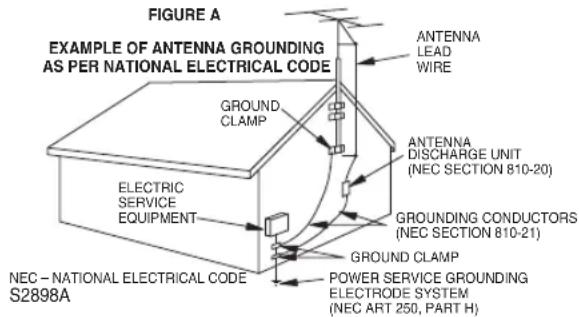
- Lightning - For added protection for this video product during a lightning storm, or when it is left unattended and unused for long periods of time, unplug it from the wall outlet and disconnect the antenna or cable system. This will prevent damage to the video product due to lightning and power-line surges.
- Power Lines - An outside antenna system should not be located in the vicinity of overhead power lines or other electric light or power circuits, or where it can fall into such power lines or circuits. When installing an outside antenna system, extreme care should be taken to keep from touching such power lines or circuits as contact with them might be fatal.
- Overloading - Do not overload wall outlets and extension cords as this can result in a risk of fire or electric shock.
- Object and Liquid Entry - Never push objects of any kind into this video product through any openings as they may touch dangerous voltage points or short-out parts that could result in a fire or electric shock. Never spill liquid of any kind on the video product.
- Servicing - Do not attempt to service this video product yourself as opening or removing covers may expose you to dangerous voltage or other hazards. Refer all servicing to qualified service personnel.
- Damage Requiring Service - Unplug this video product from the wall outlet and refer servicing to qualified service personnel under the following conditions:
a. When the power-supply cord or plug is damaged.
b. If liquid has been spilled, or objects have fallen into the video product.
c. If the video product has been exposed to rain or water.
d. If the video product does not operate normally by following the operating instructions. Adjust only those controls that are covered by the operating instructions as an improper adjustment of other controls may result in damage and will often require extensive work by a qualified technician to restore the video product to its normal operation.
e. If the video product has been dropped or damaged in any way.
f. When the video product exhibits a distinct change in performance this indicates a need for service.
- Replacement Parts - When replacement parts are required, be sure the service technician has used replacement parts specified by the manufacturer or have the same characteristics as the original part. Unauthorized substitutions may result in fire, electric shock or other hazards.
- Safety Check - Upon completion of any service or repairs to this video product, ask the service technician to perform safety checks to determine that the video product is in proper operating condition.
- Heat - This video product should be situated away from heat sources such as radiators, heat registers, stoves, or other products (including amplifiers) that produce heat.
Table of Contents
Precautions
■ IMPORTANT SAFEGUARDS .... 3
Symbols Used in This Manual 4
Supplied Accessory 4
Installation Location 5
Avoid the Hazards of Electrical Shock and Fire . . 5
Moisture Condensation Warning 5
About Copyright. 5
Notice for Progressive Scan Outputs ..... 5
Maintenance 5
Setup
■ About the Video Cassettes and Discs ..... 6
playable Video Cassettes. 6
Playable Discs 6
Unplayable Discs 6
■ Connections ..... 7
RF Output Channel 7
Hint for Cable Box or Satellite Box 7
Connection to a TV 8
Connection to an Audio System 9
Front & Rear Terminals 9
■ About the Remote Control and Front Panel .. 10
■ VCR/DVD Switching.....11
■ Preparation for Use 12
Turn on the unit for the first time. 12
Clock Setup. 12
VCR Functions
■ Playback .... 13
■ Other Operations....13
Time Search 13
Index Search 13
Auto Repeat 13
■ Recording 14
Recording & OTR (One Touch Recording) ..... 14
Timer Recording 14
Hints for OTR and Timer Recording ..... 15
Copying a Video Tape 15
■ On-Screen Operations....16
■ MTS (Multi-Channel Television Sound) System...16
When You Receive or Record a Program Broadcast in MTS 16
When You Playback a Tape Recorded in Hi-Fi Stereo 16
DVD Functions
■Playback .... 17
Zoom. 18
x1.3 and x0.8 Rapid Play with Voice.....18
■ MP3 Playback 18
■ On-Screen Display....19
■ Marker Setup 19
■ Search Function ..... 20
Track Search / Title/Chapter Search /
Time Search / Disc Navigation.....20
■ Repeat / Random / Programmed Playback . . . 21
Repeat Playback / Repeat A-B Playback / Random Playback / Programmed Playback . . . 21
■ Special Settings....22
Subtitle Language / Audio Language / Camera Angles / Black Level Setting / Stereo Sound Mode / Virtual Surround. ..... 22
■ DVD Setup 23
LANGUAGE Setting. 23
DISPLAY Setting 24
AUDIO Setting 24
PARENTAL Control 25
OTHERS Setting 25
Reset to the Default Setting (except for PARENTAL Control) ..... 26
Information
■ Language Code List .... 26
■ Specifications 27
■ Troubleshooting Guide 28
Español 29
Conecciones 29
Symbols Used in This Manual
The following symbols appear in some headings and notes in this manual.

Description refers to playback or recording of video cassette tapes.

Description refers to playback of DVD Video discs.

Description refers to playback of Audio CDs.

Description refers to playback of MP3 discs.

Description refers to the items to be set in the QUICK mode.
Supplied Accessory
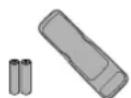
- Remote control DV-RMPF35U (TS19223) with two AA batteries
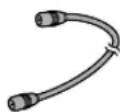
• RF cable (5857952)
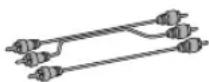
• Audio cable / Video cable (approx 3 feet (100cm) long) (TE14751)
Installation Location
For safety and optimum performance of this unit:
- Do not stand the unit up vertically. Install the unit in a horizontal and stable position. Do not place anything directly on top of the unit. Do not place the unit directly on top of the TV.
- Shield it from direct sunlight and keep it away from sources of intense heat. Avoid dusty or humid places. Avoid places with insufficient ventilation for proper heat dissipation. Do not block the ventilation holes on the sides of the unit. Avoid locations subject to strong vibration or strong magnetic fields.
- Be sure to remove a disc and unplug the AC power cord from the outlet before carrying the unit.
Avoid the Hazards of Electrical Shock and Fire
- Do not handle the power cord with wet hands.
- Do not pull on the power cord when disconnecting it from AC wall outlet. Grasp it by the plug.
- If, by accident, water is spilled on this unit, unplug the power cord immediately and take the unit to our Authorized Service Center for servicing.
- Do not put your fingers or objects into the unit cassette holder.
Moisture Condensation Warning
Moisture condensation may occur inside the unit when it is moved from a cold place to a warm place, or after heating a cold room or under conditions of high humidity. Do not use this unit at least for 2 hours until its inside gets dry.
About Copyright
Unauthorized copying, broadcasting, public performance and lending of discs are prohibited. This product incorporates copyright protection technology that is protected by U.S. patents and other intellectual property rights. Use of this copyright protection technology must be authorized by Macrovision, and is intended for home and other limited viewing uses only unless otherwise authorized by Macrovision. Reverse engineering or disassembly is prohibited.
Notice for Progressive Scan Outputs
Consumers should note that not all high definition television sets are fully compatible with this product and may cause artifacts to be displayed in the picture. In case of picture problems with 525 progressive scan output, it is recommended that the user switch the connection to the 'standard definition' output. If there are questions regarding your TV set compatibility with this 525p DVD player, please contact our customer service center.
Maintenance
SERVICING
- Please refer to relevant topics on the "Troubleshooting Guide" on page 28 before returning the product.
- If this unit becomes inoperative, do not try to correct the problem by yourself. There are no user-service-able parts inside. Turn off, unplug the power plug, and please call our help line at 1-800-448-2244 to locate an Authorized Service Center.
CLEANING THE CABINET
- Use a soft cloth slightly moistened with a mild detergent solution. Do not use a solution containing alcohol, spirits, ammonia or abrasive.
CLEANING DISCS
- When a disc becomes dirty, clean it with a cleaning cloth. Wipe the disc from the center out. Do not wipe in a circular motion.
- Do not use solvents such as benzine, thinner, commercially available cleaners, detergent, abrasive cleaning agents or antistatic spray intended for analog records.
CLEANING THE DISC LENS
- If this unit still does not perform properly although you refer to the relevant sections and to "Troubleshooting Guide" in this Instruction Manual, the laser optical pickup unit may be dirty. Consult your dealer or an Authorized Service Center for inspection and cleaning of the laser optical pickup unit.
DISC HANDLING
- When you handle a disc, hold it by its edge and try not to touch the surface of the disc.
• Always store the disc in its protective case when it is not used.
AUTO HEAD CLEANING
• Automatically cleans video heads as you insert or remove a cassette, so you can see a clear picture.
- Playback picture may become blurred or interrupted while the TV program reception is clear. Dirt accumulated on the video heads after a long period of use, or the usage of rental or worn tapes can cause this problem. If a streaky or snowy picture appears during playback, the video heads in your unit may need to be cleaned.
- Please visit your local Audio/Video store and purchase a good quality VHS Video Head Cleaner.
- If a Video Head Cleaner does not solve the problem, please call our help line at 1-800-448-2244 to locate an Authorized Service Center.
Hint
- Remember to read the instructions along with the video head cleaner before use.
- Clean video heads only when problems occur.
Note to CATV system installer
This reminder is provided to call the CATV system installer's attention to Article 820-40 of the NEC that provides guidelines for proper grounding and, in particular, specifies that the cable ground should be connected to the grounding system of the building, as close to the point of cable entry as practical.
Manufactured under license from Dolby Laboratories. "Dolby" and the double-D symbol are trademarks of Dolby Laboratories.
Setup
About the Video Cassettes and Discs
playable Video Cassettes
Use only cassettes marked VHS this unit.
playable Discs
| Playable discs | Mark (logo) | Region code | Recorded signals | Disc size | Disc types | |
| DVD-Video* 1, 2, 3, 5 |  |  |  | Digital video (MPEG2) | 12 cm or 8cm |  |
| DVD-R* 1, 3, 4, 5, 6, 7, 8 |  |  | - | |||
| Audio CD* 3, 5 |  | - | Digital audio | 12 cm or 8cm |   | |
| CD-RW CD-R* 3, 4, 5, 6, 7, 8 |  |  | - | Digital audio or MP3 | ||
 |  | |||||
DVD is a trademark of DVD Format/Logo Licensing Corporation.
If you cannot play back a disc which bears one of the marks above, check the following notes.
*1: This unit conforms to the NTSC color system. Discs recorded in other color systems such as PAL cannot be played back.
*2: Certain DVD-Video discs do not operate as described in this manual due to the intentions of the disc's producers.
*3: Scratched or stained discs may not be played back.
*4: Some discs cannot be played back because of incompatible recording conditions, characteristics of the recorder or special properties of discs.
*5: You can play back discs which bear the marks above. If you use nonstandardized discs, this unit may not play them back. Even if they are played back, the sound or video quality will be compromised.
*6: Only the discs recorded in the video format and finalized can be played back.
Unfinalized discs cannot be played back. Depending on the recording status of a disc, the disc may not be played back at all or the picture or sound may be distorted, etc.
*7: If there is too much recording space left on a disc (the used portion is less than 55mm across), it may not play back properly.
*8: Do not glue paper or put stickers on to the disc. These may damage the disc, and the unit may not read it correctly.
Unplayable Discs
- NEVER play back the following discs. Otherwise, malfunction may result!
DVD-RAM, CD-I, Photo CD, Video CD, DTS-CD, DVD with region codes other than 1 or ALL, DVD-ROM for personal computers, CD-ROM for personal computers
- On the following disc, the sound MAY NOT be heard.
Super Audio CD
- Any other discs without compatibility indications.
Hint
- Only the sound recorded on the normal CD layer can be delivered.
The sound recorded on the high density Super Audio CD layer cannot be delivered.
Please refer to "Basic TV Connection" on the front page before you use this unit.
RF Output Channel
If channel 3 is already occupied for broadcasting,
1) Set your TV to channel 4.
2) Insert a pre-recorded tape into this unit.
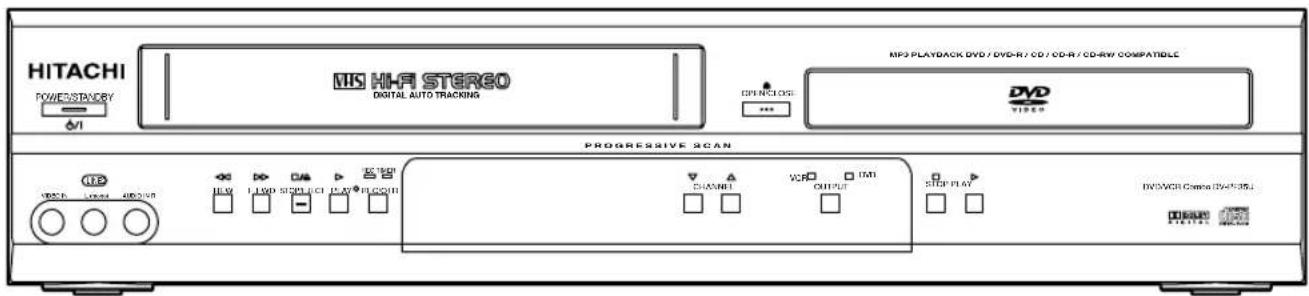
3) Press OUTPUT on the VCR/DVD so that the VCR OUTPUT light is lit.
- If "VCR" light does not appear on the display of this unit, press VCR/TV on the remote control.
4) Press PLAY ▶ once.
5) After a few seconds, press PLAY ▶ on the VCR/DVD for 3 seconds.
- The RF output channel will change to channel 4 from channel 3 and you will see a playback picture. In this case, "ch04" will appears on the front panel.
- When a picture does not appear on the TV screen, repeat step 4.
6) Press STOP ■ to stop playback.
Hint
- The RF output channel may not change when you adjust tracking during playback. In this case, stop the playback, and start the playback again. After that, press PLAY ▶ on the VCR/DVD for 3 seconds again.
Hint for Cable Box or Satellite Box
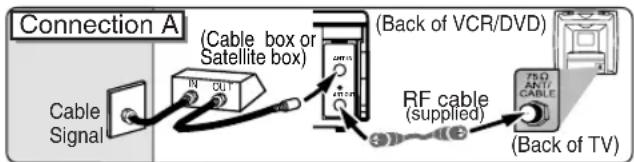
Select this connection when you want to view or record a scrambled channel. With this connection, channels cannot be changed on the VCR/DVD. You can view or record ONLY the channels you have selected on the cable box or the satellite box.
- While you are recording, only the recorded channel can be viewed.
To select channels of the cable box or satellite box
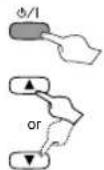
1) Turn on the VCR/DVD by pressing ⏻/l, and then, press VCR/TV. The "POWER" and "VCR" lights on the front panel will appear. Then, press SKIP/CH ▶▶▶/▲ or ▶◀◀/▼) to select channel 3 or 4 (the same channel as the output channel of the cable box or satellite box).
- If you use the channel 4, you need to change the VCR/DVD's RF output to channel 4. Refer to "RF Output Channel".
2) At the TV, select channel 3 or 4 (the same channel as you have selected at step 1).
3) At the cable box or satellite box, select the channel you want to view or record.
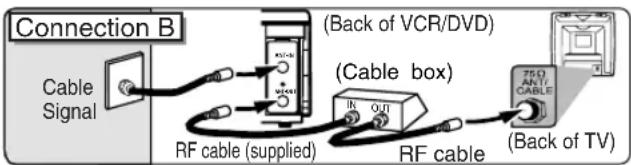
Select this connection when you want to change channels on the VCR/DVD. With this connection, you may watch one channel while recording another.
- You may not view or record a scrambled channel.
To select channels of the cable box or satellite box
1) At the cable box or satellite box, select channel 3 or 4 (the same channel as the VCR/DVD's RF output channel).
- Refer to "RF Output Channel".
2) At the TV, select the same channel as the output channel (3 or 4) of the cable box or satellite box.
3) Turn on the VCR/DVD by pressing ⏻/¶; and then, press VCR/TV. The "POWER" and "VCR" lights on the front panel will appear. Then, select the channel you want to view or record.
To playback a tape
Follow the steps 1) to 2) above. Then, playback a tape.
- Refer to "Playback" on page 13.
To view one channel while recording another
1) While you are recording on the VCR/DVD, press VCR/TV so that the "VCR" light disappears on the VCR/DVD.
2) At the cable box, select the channel you want to view.
flowchart
graph TD
    A["TV"] --> B["Basic Audio"]
    B --> C["Audio cable (supplied)"]
    B --> D["VCR/DVD"]
    D --> E["or"]
    E --> F["(Analog) AUDIO OUT"]

    subgraph Method 1
        G["Good picture"]
        H["Better picture"]
        I["Best picture"]

        J["Method 1: Basic Audio + Video cable"]
        K["Method 2: Good picture + S-Video cable"]
        L["Best Picture: Component Video cables (commercially available)"]
    end

    M["Video cable (supplied)"] --> N["VIDEO OUT"]
    O["Video cable (commercially available)"] --> P["S-VIDEO OUT"]

    Q["Component Video Out"] --> R["DVD"]
    S["Component Video Out"] --> T["DVD"]
    style A fill:#f9f,stroke:#333
    style B fill:#ccf,stroke:#333
    style C fill:#cfc,stroke:#333
    style D fill:#fcc,stroke:#333
    style E fill:#cff,stroke:#333
    style F fill:#ffc,stroke:#333
    style G fill:#fcc,stroke:#333
    style H fill:#cfc,stroke:#333
    style I fill:#fcc,stroke:#333
    style J fill:#fcc,stroke:#333
    style K fill:#cfc,stroke:#333
    style L fill:#fcc,stroke:#333
    style M fill:#fcc,stroke:#333
    style N fill:#cfc,stroke:#333
    style O fill:#fcc,stroke:#333
    style P fill:#fcc,stroke:#333
    style Q fill:#fcc,stroke:#333
    style R fill:#fcc,stroke:#333
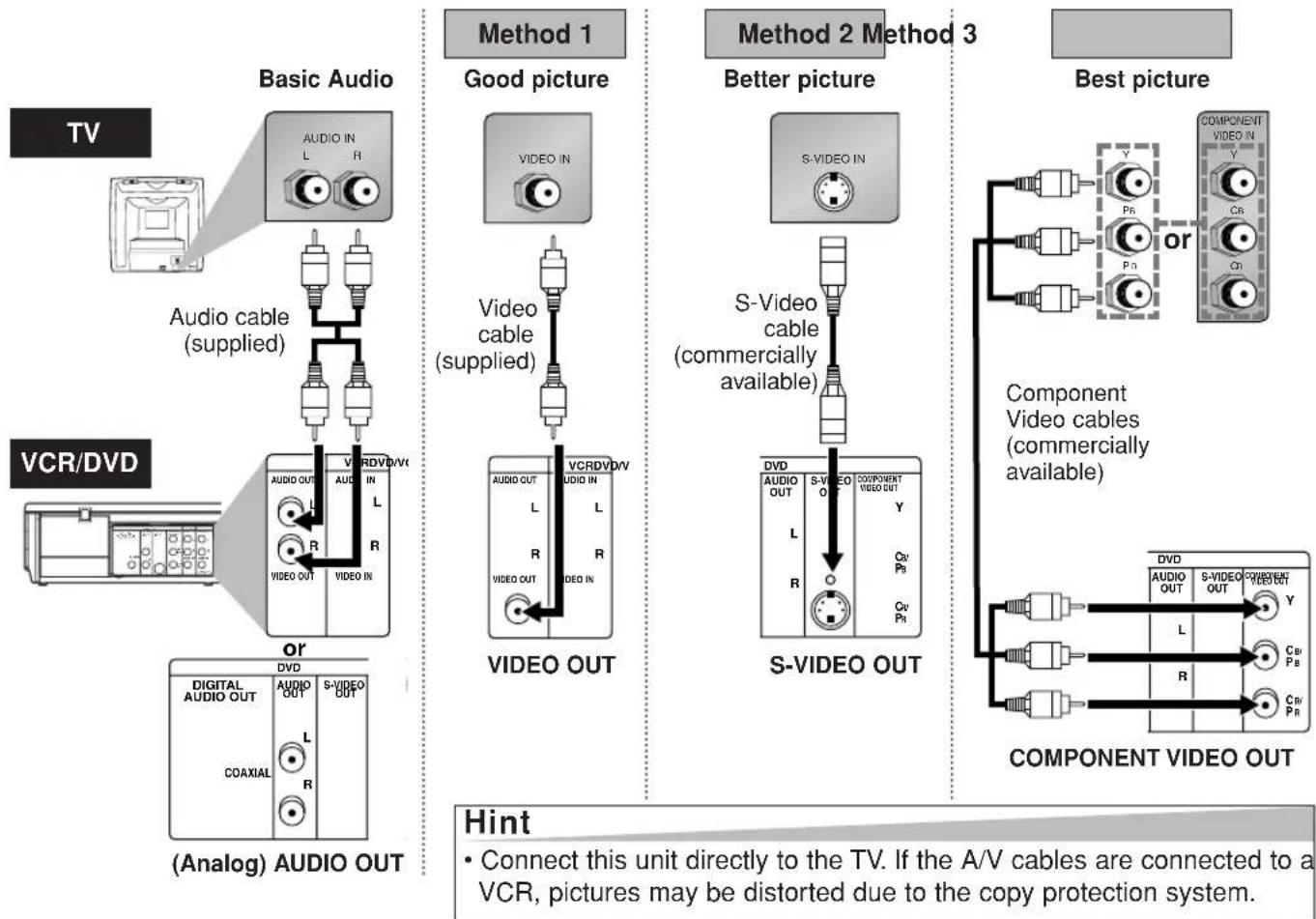
VIDEO OUT, DVD AUDIO OUT, S-VIDEO OUT, and COMPONENT VIDEO OUT jacks are only useful in DVD mode. (Note 1)
If your TV is compatible with 525p/480p progressive scanning and you want to enjoy that high quality picture;
You must select the connection Method 3 above and progressive scanning mode. To set the mode, set "PROGRESSIVE" to "ON" in the DISPLAY setting (refer to page 24). "P.SCAN" will appear on the display of this unit. (The progressive scanning is not available in the VCR mode.) Use a commercially available adaptor if the video input jacks of your TVs or monitors are the BNC type.
If your TV is not compatible with progressive scanning;
Use this unit in interlace mode. Make sure that no "P.SCAN" is on the display of this unit. If so, set "PROGRESSIVE" to "OFF" by either pressing PLAY ▶ for 5 seconds or changing the DISPLAY setting (refer to page 24). "P.SCAN" on the display of this unit will disappear.
What is Progressive Scanning?;
Unlike conventional interlace scanning, the progressive scan system provides less flickering and images in higher resolution than that of traditional (525i/480i) television signals.
Note 1 - DVD output is only available at the Video, S-video, or Composite Video connections. VCR output is available at all outputs, including the ANT OUT. (RF connection)
Connection to an Audio System
flowchart
graph TD
    A["Method 1"] --> B["Stereo system"]
    B --> C["Analog audio input jacks"]
    C --> D["AUDIO"]
    C --> E["Audio cable (supplied)"]
    E --> F["VCR/DVD (Analog) AUDIO OUT"]
    F --> G["or"]
    G --> H["DVD"]
    H --> I["DIGITAL AUDIO OUT"]
    I --> J["COAXIAL"]
    J --> K["L"]
    J --> L["R"]
    K --> M["S-VIDEO OUT"]
    L --> N["Y"]
    M --> O["C2 PR"]
    N --> P["C2 PR"]
| Connection\Setting | SETUP > AUDIO menu > |
| DOLBY DIGITAL | |
| Connecting to Stereo System. | PCM |
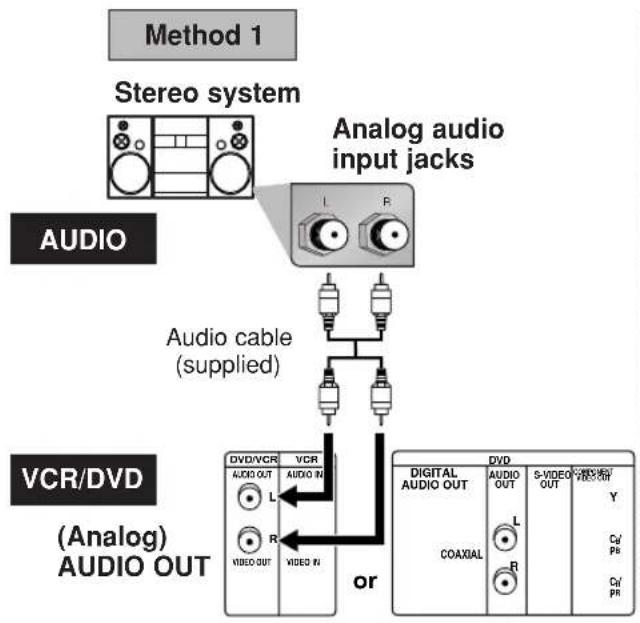
* To complete these settings, refer to pages 23-24.
Hint
- Playing back a DVD using incorrect settings may generate noise distortion and may also damage the speakers.
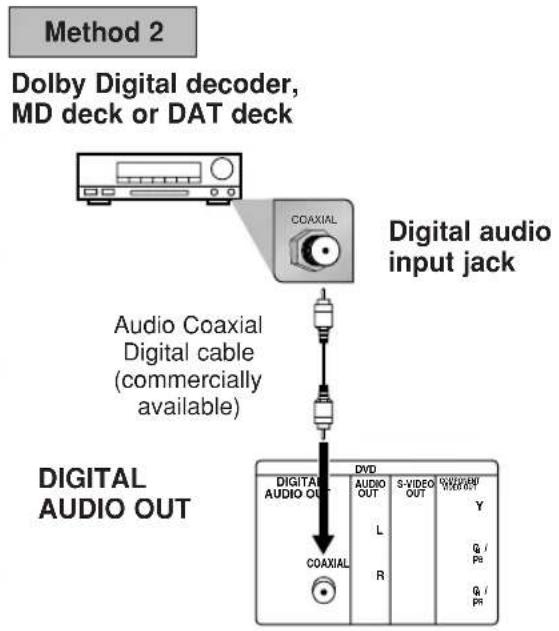
flowchart
graph TD
    A["Method 2: Dolby Digital decoder, MD deck or DAT deck"] --> B["Coaxial"]
    B --> C["Digital audio input jack"]
    C --> D["Audio Coaxial Digital cable (commercially available)"]
    D --> E["Digital Audio OUT"]
    E --> F["DVD"]
    F --> G["COAXIAL"]
    G --> H["VIDEO OUT"]
    H --> I["S-VIDEO OUT"]
    I --> J["Y"]
    I --> K["G / PS"]
    I --> L["G / PS"]
| Connection\Setting | SETUP > AUDIO menu > |
| DOLBY DIGITAL | |
| Connecting to a Dolby Digital decoder for Dolby Digital audio output. | BITSTREAM |
| Connecting to the other equipment (an MD deck or DAT deck etc.) without Dolby Digital decoder. | PCM |
* To complete these settings, refer to pages 23-24.
Hint
- The audio source on a disc in a Dolby Digital 5.1 channel surround format cannot be recorded as digital sound by an MD or DAT deck.
- By connecting this unit to a Multi-channel Dolby Digital decoder, you can enjoy high-quality Dolby Digital 5.1 channel surround sound as heard in the movie theaters.
- Playing a DVD using incorrect settings may generate noise distortion and may also damage the speakers.
Front & Rear Terminals
![DVD ANALOG AUDIO OUT jacks Connect the supplied Audio cables here through the Audio In jacks of a TV or other audio equipment. (DVD only) COAXIAL jack Connect an optional coax- ial digital Audio cable here through the coaxial digital audio in jack of a decoder or audio receiver. (DVD only) S-VIDEO OUT jack Connect an optional S-Video cable here through the S-Video in jack of a TV. (DVD only) COMPONENT VIDEO OUT jacks Connect optional component Video cable here through the component video in jacks of a TV. (DVD only) DVD/VCR AUDIO OUT jacks Connect the supplied Audio cable (red/white) here through the audio In jacks of a TV or other audio equipment. AUDIO IN jacks Connect Audio cables coming from the audio out jacks of a camcorder, another VCR, or an audio source here. (VCR only) [Back of VCR/DVD] VIDEO IN jack Connect a cable coming from the video out jack of a camcorder, another VCR, or an audio-visual source (Laser Disc play- er, Video Disc player, etc.) here. (VCR only) ANT IN jack Connect your antenna or cable box here. [Note 2] ANT OUT jack Connect the supplied Round Coaxial cable to the antenna input jack on your TV. Note 3 - No antenna switching is available; at any given](/content/2026/03/496813/images/bfc9391e3e22afd92cc467551d04e8415394c1b0deee56a838e341ca2f9d11f5.jpg)
Note 2 - No antenna switching is available; at any given time, you must use ANT or CATV. To switch, you must re-autoprogram to change from ANT to CATV, or vice versa.
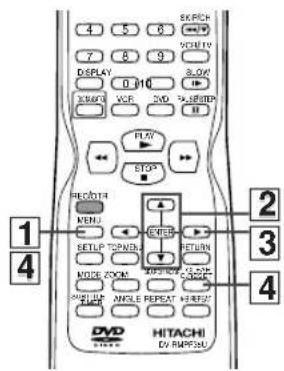
About the Remote Control and Front Panel About the Remote C
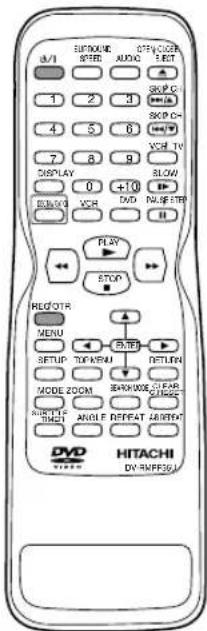
Remote Control
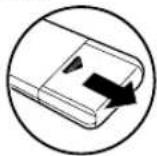
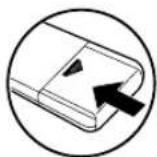
Installing the Batteries for the Remote Control
Install two AA batteries (supplied) matching the polarity indicated inside battery compartment of the remote control.
1
2
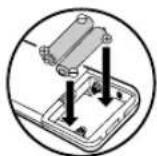
3
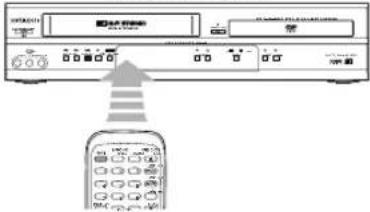
Keep in mind the following when using the remote control:
• Make sure that there is no obstacle between the remote control and the remote sensor on the unit.
• The maximum operable range as follows;
Beeline: approximately 23 feet (7m)
Either side of center:
approximately 16 feet (5m) within 30 degrees
Above: approximately 16 feet (5m) within 15 degrees
Below: approximately 10 feet (3m) within 30 degrees
| Disc/Tape(Alphabetical order) | DVD mode | VCR mode | |
| To select a chapter or title directly | To select a track directly | To select a channelThe +10 button has no effect in VCR mode. | |
| To search forward/backward through a discTo begin slow forward/reverse playback during the pause mode | To search forward/backward through a disc | To forward/backward a tape | |
| To move the cursor and determine its position | To move the cursor and determine its position | To select an item on the VCR MenuTo advance to the next VCR MenuTo go back one step during clock and timer setting | |
| A-B REPEAT | To repeat between your chosen point A and B | To repeat between your chosen point A and B (CD) | — |
| ANGLE | To select camera an angle on a disc (DVD-Video) | — | — |
| AUDIO | To select an audio language on a disc | To select STEREO, L-ch or R-ch (CD) | — |
| SKIP/CH | To skip chapters / titles • To skip tracks | To change channelsTo adjust tracking manually during playback | |
| SKIP/CH | |||
| CLEAR | To clear the markersTo clear the numbers entered incorrectlyTo cancel the point for A-B repeat. | To clear the markers (CD)To remove status number in program inputTo clear the numbers entered incorrectlyTo cancel the point for A-B repeat. (CD) | To exit the VCR MenuTo reset the tape counter |
| To display the first scene of each chapter of the title | — | — | |
| DISPLAY | To display the current disc mode | To display the current disc mode | To display the current time, tape counter, and channel |
| DVD | To select the DVD output modeTo activate the remote control in DVD mode | To select the DVD output modeTo activate the remote control in DVD mode | — |
| MENU | To call up the Menu on a disc | To call up the file list (MP3) | To call up the VCR Menu |
| MODE | To set x1.3 and x0.8 Rapid Play with Voice off/x1.3/x0.8To set black level on/off | To arrange the playback order or play back randomly | — |
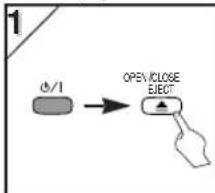
| OPEW CLOSE ELECT | To open or close the disc tray | To open or close the disc tray | To eject the Video tape from the cassette compartment |
| PAUSE STEP | To pause disc playbackTo advance playback frame by frame | To pause disc playback | To pause tape playback or recordingTo advance playback frame by frame |
| To begin disc playback | To begin disc playback | To begin tape playback | |
| PLAY | To turn on or off the unit | To turn on or off the unit | To turn on or off the unit |
| RE/OTR | — | — | To start a recording or One Touch Recording |
| REPEAT | To play back a chapter or title repeatedly | To play back a track or disc repeatedly (CD)To play a track, group or disc repeatedly (MP3) | — |
| RETURN | To return to the previous operation on the DVD setup menu | To return to the previous operation on the DVD setup menu | — |
| SEARCH-WODE | To search chapter / title / time / markerTo rapidly return to a location of disc | To search track / time (CD) / marker (CD)To rapidly return to a location of disc | To call up the index or time search menu |
| SETUP | To call up the DVD setup menu | To call up the DVD setup menu | — |
| SLOW | — | — | To view the tape in slow motion |
| SURROUND SPEED | To set virtual surround on/off | To set virtual surround on/off | To select the recording speed |
| STOP | To stop playback | To stop playback | To stop playback or recording |
| SUBTITLE | To select a subtitle language on a disc | — | To put the VCR into standby mode for a timer recording |
| TOP MENU | To call up the Top Menu on a disc. (DVD-Video) | To return to the top file of the highest hierarchy in the program and file list (MP3) | — |
| VCR | — | — | To select the VCR output modeTo activate the remote control in VCR mode |
| VCR/TV | — | — | To select VCR position or TV position |
| ZOOM | To magnify the part of picture (x2/x4) | — | — |
Front Panel Display
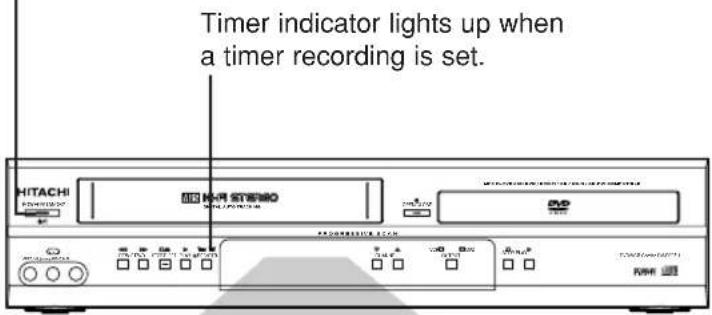
Lights up when power is on.
| No disc inserted/ cannot read disc | |
| Opening the tray | |
| Closing the tray | |
| Loading the disc | |
| When a disc or tape isbeing played back |
DVD output mode


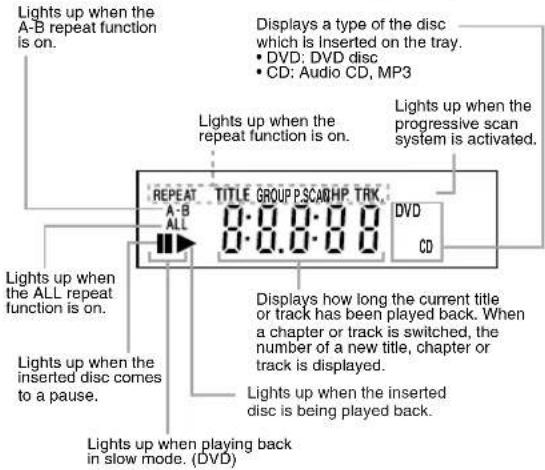
VCR output mode

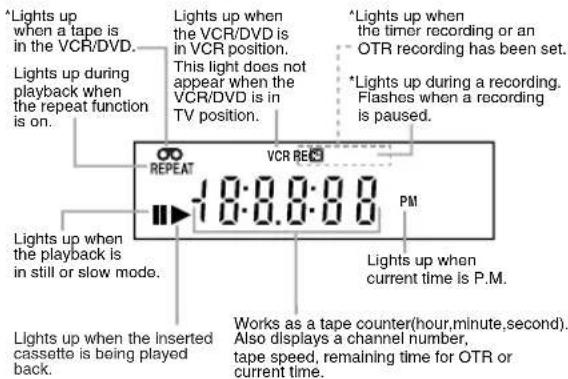
* , and mark will disappear when you set VCR/DVD in DVD mode. However, the function indicated by each mark is still working.
VCR/DVD Switching
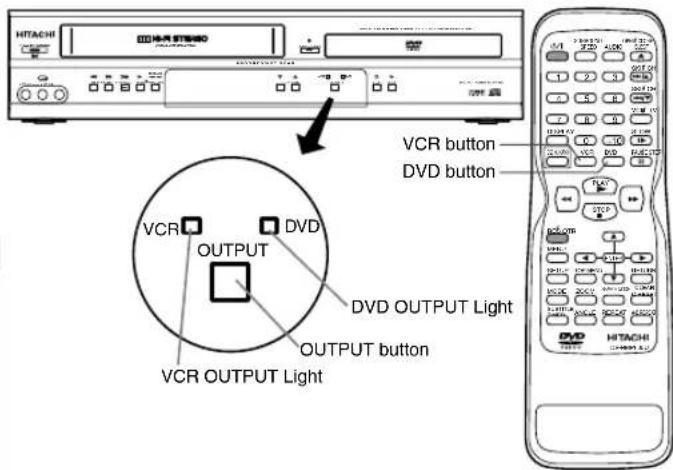
Because this product is a combination of a VCR and a DVD player, you must select first which component you wish to operate with OUTPUT.
VCR MODE
Press VCR on the remote control. (Verify that the VCR OUTPUT light is lit.)
DVD MODE
Press DVD on the remote control. (Verify that the DVD OUTPUT light is lit.)
Hint
- Pressing only OUTPUT on the front panel DOES NOT switch the mode of the remote control. You MUST select the correct mode on the remote control.
- In the wrong mode, the unit does not respond to your commands correctly. Before starting your desired operation, select the correct mode by follow-
ing the instruction (press first. under the subject heading.

Preparation for Use
Turn on the unit for the first time


*Refer to page 11 to switch between the VCR/DVD modes.

Turn on the TV and set it to channel 3.
- If channel 3 is already occupied for broadcasting, see "RF Output Channel" section on page 7.


LANGUAGE SELECT
▶ENGLISH
[ON]
FRANCAIS
ESPAÑOL
To select the desired language
To decide

Do you connect the cable from the cable box or the satellite box to the VCR/DVD's ANT IN jack?

Yes Press MENU
to exit
- Refer to "Hint for Cable Box or Satellite Box" section on page 7.


Please wait for a few minutes.
After scanning...
- The tuner stops on the lowest memorized channel.
- You can select only the channels memorized in this unit by using SKIP/CH (▶▶▶/▲ or ▶◀◀/▼).
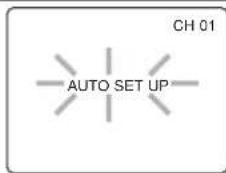
- If "AUTO SET UP" appears on the TV screen again, check the cable connections. Then, press Cursor ▶ once again.
Hint
- Repeat these steps only if either there was a power failure or this unit has been unplugged for more than 30 seconds.
To Select a Channel
You can select a channel by directly entering channel using
the Number buttons on the remote control.
Notes for using the Number buttons:
- When selecting cable channels which are higher than 99, enter channel numbers as a three-digit number.(For example: 117, press 1,1,7)
- You must precede single-digit channel numbers with 0 (For example: 02, 03, 04 and so on).
To Add or Delete Channels
1) Press MENU until the main menu appears.
2) Select "CHANNEL SET UP" by pressing Cursor ▲ or ▼. Then, press Cursor ▶.
3) Select "MANUAL SET UP" by pressing Cursor ▲ or ▼. Then, press Cursor ▶.
4) Enter the desired channel number by pressing Cursor ▲ or ▼.
5) Add or Delete it from memory by pressing Cursor ◀ or ▶. so that "ADD" or "DELETE" flashes on the TV screen accordingly.
6) Exit the preset mode by pressing CLEAR/C.RESET.
To Preset the Channel Again
1) Press MENU until the main menu appears.
2) Select "CHANNEL SET UP" by pressing Cursor ▲ or ▼. Then, press Cursor ▶.
3) Select "AUTO SET UP" by pressing Cursor ▲ or ▼. Then, press Cursor ▶. After scanning, the tuner stops on the lowest memorized channel.
To Change the On-Screen Language
1) Press MENU until the main menu appears.
2) Select "LANGUAGE SELECT" by pressing Cursor ▲ or ▼. Then, press Cursor ▶.
3) Select "ENGLISH", "FRANCAIS" or "ESPAÑOL" by pressing Cursor ▲ or ▼. Then, press CLEAR/C.RESET.
Hint
- If you accidentally select Spanish or French but need English: Press MENU and choose SELEC. IDIOMA, or SELECTION LANGUE. Press
Cursor ▶, and select ENGLISH. Finally, press CLEAR/C.RESET.
Clock Set Up


flowchart
graph TD
    A["MENU"] --> B{or}
    B --> C["→"]
![-MENU- TIMER PROGRAMMING AUTO REPEAT [OFF] CHANNEL SET UP ►CLOCK SET LANGUAGE SELECT AUDIO OUT TV STEREO [ON] SAP • If the clock is not set, the CLOCK SET screen appears when you press MENU. In this case, go to step [2]. To decide](/content/2026/03/496813/images/a7fb268cce755ef195a3b35c934ce4dea822056a7f7f8fe9871ddedf046f9d41.jpg)

CLOCK SET
MONTH DAY YEAR 03 / -- ----
HOUR MINUTE AM/PM
Select the current month
To decide

CLOCK SET
MONTH DAY YEAR 03 /-15 ----
HOUR MINUTE AM/PM
Select the current day
To decide

CLOCK SET
MONTH DAY YEAR 03 / 152005
HOUR MINUTE AM/PM
Select the current year
To decide

CLOCK SET
MONTH DAY YEAR 03 / 15 TUE 2005
HOUR MINUTE AM/PM -05: -- --
Select the current hour
To decide

CLOCK SET
MONTH DAY YEAR 03 / 15 TUE 2005
HOUR MINUTE AM/PM 05:40
Select the current minute
To decide

CLOCK SET
MONTH DAY YEAR 03 / 15 TUE 2005
HOUR MINUTE AM/PM 05:40 PM AM
PM
Select "AM" or "PM"

To exit the CLOCK SET screen.
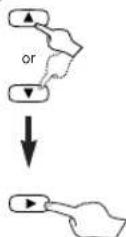
Hint
• To go back one step, press Cursor ◀ (during the steps [2] to [7].)
- Your clock setting will be lost if either there is a power failure or this unit has been unplugged for more than 30 seconds.
VCR Functions
Playback
Before:
Turn on the TV and set it to channel 3.
- If channel 3 is already occupied for broadcasting, see "RF Output Channel" section on page 7.

* Refer to page 11 to switch between the VCR/DVD modes.
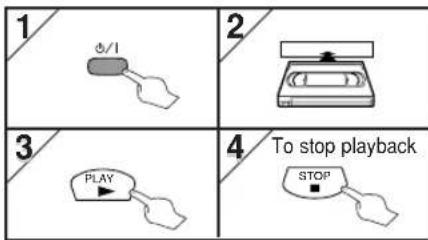

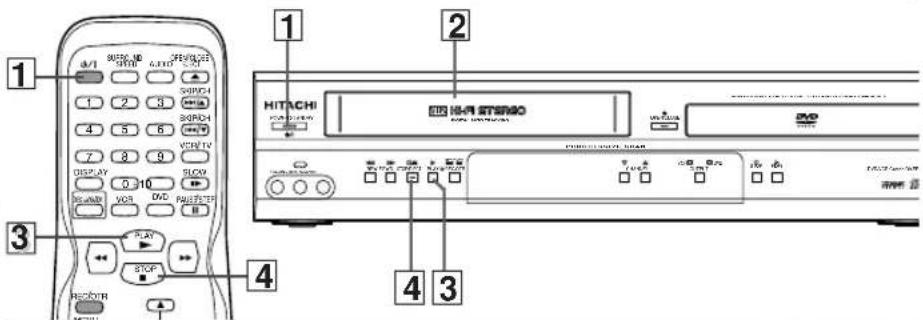
Hint
- When a tape without record tab is inserted, the VCR/DVD will start playback automatically.
- Tracking will be automatically adjusted upon playback. To adjust the tracking manually, press SKIP/CH (▶▶▶/▲ or ▶◀◀/▼).
Other Operations
To cue or review picture during playback (Picture Search)
Press ▶▶ or ◀◀.
- Press it again and the VCR/DVD will search in super high speed. (in the LP/SLP mode only)
To freeze the picture on TV screen during playback (Still mode)
Press PAUSE/STEP II. Each time you press the button, the picture will be forwarded by one frame.
- If the picture begins to vibrate vertically during the still mode, stabilize the picture by pressing SKIP/CH (▶▶▶/▲ or ▶◀◀/▼).
- If the picture is distorted or rolling vertically, adjust the vertical hold control on your TV, if equipped.
Counter Reset
Press CLEAR/C.RESET.
To play back in slow motion
Press SLOW during playback or the still mode. - If the noise bars appear on the TV screen, you can reduce it by pressing SKIP/CH (▶▶/▲ or ▶◀◀/▼).
Auto Rewind
When a tape reaches its end during playback, fast-forward, or recording (except timer recording and One Touch Recording), the tape will automatically rewind to the beginning. After rewinding finishes, the VCR/DVD will eject the tape.
Hint
- Still/Slow/Pause mode will be automatically cancelled after 5 minutes to prevent damage to the tape and the video head.
• To return to play-back from the Picture Search/Still/ Slow mode, press PLAY▶
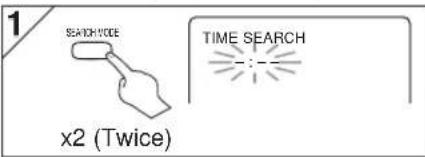
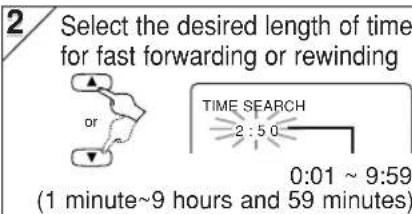
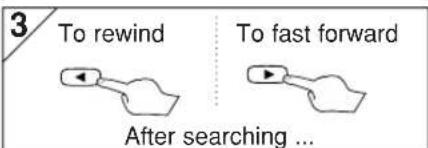
Time Search
You can specify the time for fast forwarding or rewinding.
- Insert a tape into this unit.


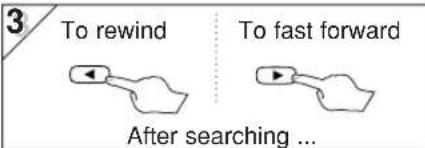
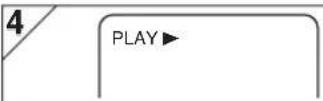
Index Search
You can specify the number of programs to be skipped.
- Insert a tape into this unit.

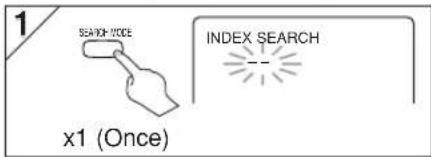
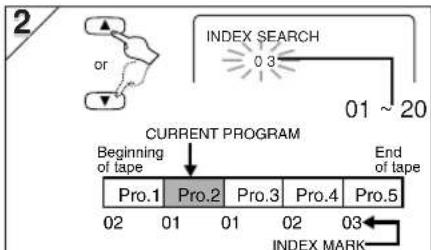
flowchart
graph TD
    A["OR"] --> B["INDEX SEARCH 03"]
    B --> C["01 ~ 20"]
    D["CURRENT PROGRAM"] --> E["Beginning of tape"]
    E --> F["Pro.1"]
    E --> G["Pro.2"]
    E --> H["Pro.3"]
    E --> I["Pro.4"]
    E --> J["Pro.5"]
    K["END of tape"] --> L["INDEX MARK"]
    style A fill:#f9f,stroke:#333
    style D fill:#f9f,stroke:#333
    style K fill:#ccf,stroke:#333

Auto Repeat
You can repeat playback of a whole tape automatically.
- Insert a tape into this unit.

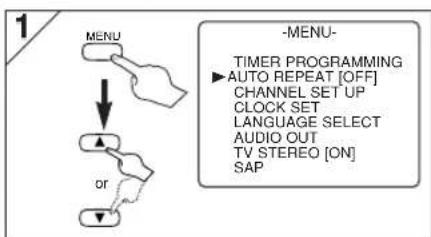
flowchart
graph TD
    A["MENU"] --> B["OR"]
    B --> C["TIMER PROGRAMMING ▶ AUTO REPEAT [OFF"] CHANNEL_SET_UP_CLOCK_SET_LANGUAGE_SELECT_AUDIO_OUT_TV_STEREO["ON"] SAP]
![2 -MENU- TIMER PROGRAMMING ▶ AUTO REPEAT [ON] CHANNEL SET UP CLOCK SET LANGUAGE SELECT AUDIO OUT TV STEREO [ON] SAP](/content/2026/03/496813/images/6915883ab6526d4ba59d6e9cf69b377cb6ce272c615817af75e6b8128254a229.jpg)

Hint
• These functions are not available during recording.
- Press STOP ■ to stop the search.
- If the end of the tape is reached during a search, this unit will cancel the search and rewind the tape.
Index Search:
- This unit stores index mark at the beginning of the recording. There should be time gap between two index marks for the Index Search.
Hint
- To cancel Auto Repeat, follow steps [1]-[2] above. Then, press Cursor ▶, so that [OFF] appears beside AUTO REPEAT. Press CLEAR/C.RESET to exit.
- If menu remains on the TV screen at step [3], press CLEAR/C.RESET to exit.
Recording
Recording & OTR (One Touch Recording)
Before:
Turn on the TV and set it to channel 3.
If channel 3 is already occupied for broadcasting, see "RF Output Channel" section on page 7.


* Refer to page 11 to switch between the VCR/DVD modes.
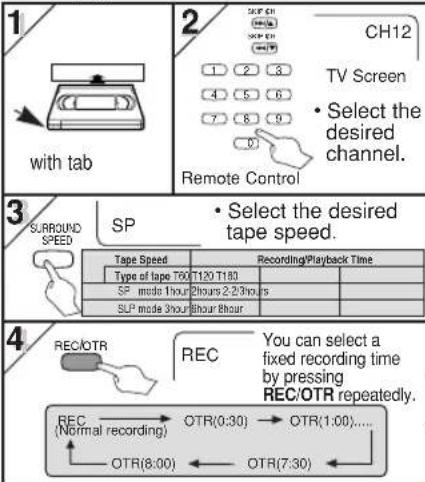

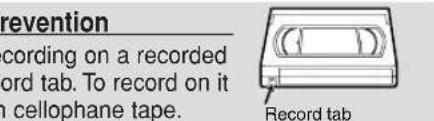
Accidental erasure prevention
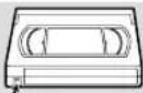
To prevent accidental recording on a recorded cassette, remove its record tab. To record on it later, cover the hole with cellophane tape.
Hint
• To view one channel while recording another
1) While you are recording on the VCR/DVD, press
VCR/TV so that the "VCR" light disappears on the
VCR/DVD.
2) At the cable box or satellite box, select the channel you want to view.
- If you have connected the VCR/DVD to a cable box or satellite box, refer to "Hint for Cable Box or Satellite Box" section on page 7.
To stop recording temporarily (Pause mode)
Press PAUSE/STEP II.
- During the rec-pause mode, five ■ marks appear on the TV screen. Each ■ mark represents one minute.
- Press it again to resume recording.
Timer Recording
- Insert a tape with its record tab into the VCR/DVD.


![1 MENU -MENU- ▶ TIMER PROGRAMMING AUTO REPEAT [OFF] CHANNEL SET UP CLOCK SET LANGUAGE SELECT AUDIO OUT TV STEREO [ON] SAP To decide](/content/2026/03/496813/images/25db2b455adfc4ea4c8393b262308a8e98fa8776bda5344860c8bbeb90e40409.jpg)
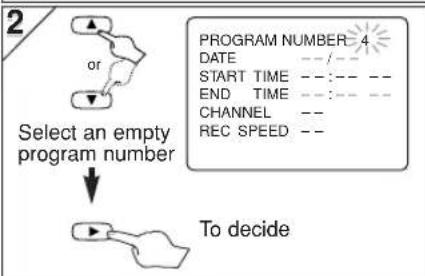
flowchart
graph TD
    A["Start"] --> B{Select an empty program number}
    B --> C["To decide"]
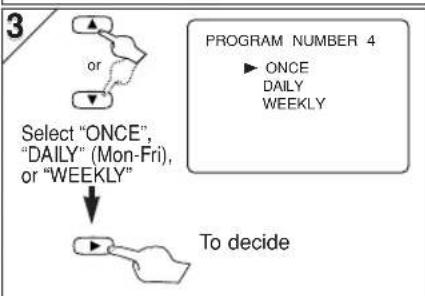
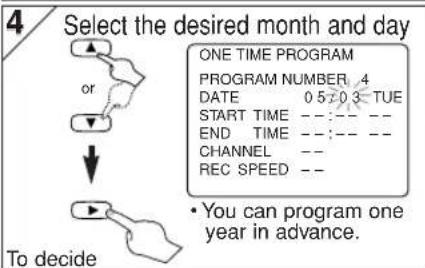
flowchart
graph TD
    A["Select "ONCE", "DAILY" (Mon-Fri), or "WEEKLY""] --> B["To decide"]
    C["PROGRAM NUMBER 4"] --> D["► ONCE\nDAILY\nWEEKLY"]
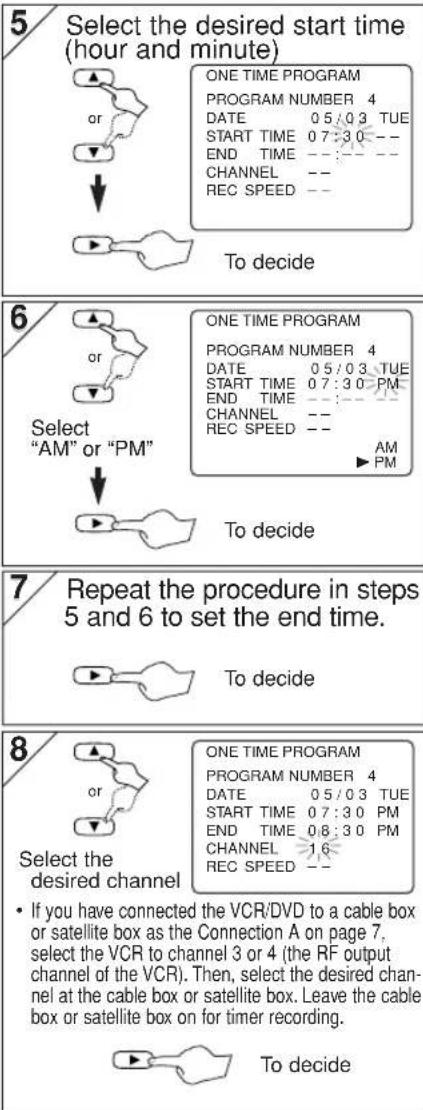
- If you have connected the VCR/DVD to a cable box or satellite box as the Connection A on page 7, select the VCR to channel 3 or 4 (the RF output channel of the VCR). Then, select the desired channel at the cable box or satellite box. Leave the cable box or satellite box on for timer recording.
![9/ OR ONE TIME PROGRAM PROGRAM NUMBER 4 DATE 05/03 TUE START TIME 07:30 PM END TIME 08:30 PM CHANNEL 16 REC SPEED SP ▶SP SLP Select the desired recording speed • To set another program after step [9], press Cursor ▶. Then, continue from step [2].](/content/2026/03/496813/images/b5fd64cb2abf0dd941d8839e775731b88a3402834c36a5574ec54623862aa737.jpg)
Hint
• To go back one step, press Cursor ◀ (during the steps [3] to [9].)
To Check, Correct, or Cancel a Timer Program
1) Press SUBTITLE/TIMER then, VCR on the remote control.
2) Press MENU.
3) Press Cursor ▲ or ▼ to select "TIMER PROGRAMMING". Then, press Cursor ▶
4) Press Cursor ▲ or ▼ to select the program number which you want to check. The details of the program you selected will appear on the TV screen.
- Press Cursor ▶ or ◀ to go the digit you want to change. Then, enter correct numbers by pressing Cursor ▲ or ▼.
- You may cancel the entire program by pressing Cursor ▶ while the program number flashes.
5) Press the CLEAR/C.RESET to exit.
6) Press the SUBTITLE/TIMER to return to timer stand-by mode.
To cancel a Timer Recording in progress
Press STOP/EJECT ■/▲ on the VCR/DVD
Hints for OTR and Timer Recording
- Press VCR on the remote control before you set Timer Recording. Make sure the remote control is in the VCR mode, then press SUBTITLE/TIMER.
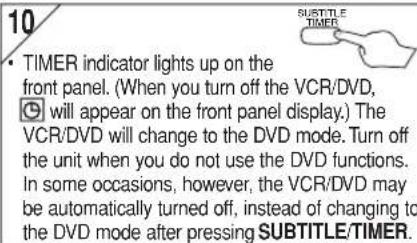
- If a tape is not in the unit or does not have the record tab, TIMER indicator on the front panel and the light flash and Timer Recording cannot be performed. Please insert a recordable tape.
- When Timer Recordings are set, TIMER indicator on the front panel and the light will appear. To use the VCR as usual until the time for the recording, press SUBTITLE/TIMER so that TIMER indicator on the front panel and the light disappear. Press VCR/TV to choose the VCR position. Select either VCR or DVD mode, then continue with the other features as described in this manual. The light will not appear in the DVD mode. However, the Timer Recordings will remain as programmed.
After an OTR and a Timer Recording has been set, this unit operates as follows:
- If a tape runs out before an OTR or a Timer Recording is finished, the unit ejects the tape and switches to the DVD mode automatically. Press SUBTITLE/TIMER on the remote control or STOP/EJECT ▪/▲ on the unit, then press VCR to activate the VCR function again.
- Once the unit turns to the timer standby mode, no VCR functions are available until SUBTITLE/TIMER is pressed. (OUTPUT on the front panel and VCR on the remote control will not function.)
- To cancel the timer standby mode, press SUBTITLE/TIMER on the remote control or STOP/EJECT ▪/▲ on the unit, then press VCR to activate the VCR function again.
- The mode of the unit and the remote control may differ (VCR mode or DVD mode) when you set Timer Recording or after you cancelled Timer Recording. Press VCR or DVD on the remote control to select your desired mode before you operate.
When an OTR or a Timer Recording is completed...
- If there are Timer Recordings on standby, the unit switches to the DVD mode automatically, and the TIMER indicator on the front panel lights up to indicate the unit is in the timer standby mode. In some occasions, however, the VCR/DVD may be automatically turned off, instead of changing to the DVD mode after pressing REC/OTR.
- The TIMER indicator on the front panel flashes if there are no more Timer Recordings on standby.
- Once the unit switches to the DVD mode, all VCR functions will be unavailable. “☐” will not appear as long as the DVD is in use. All DVD functions are available during OTR, timer standby mode and Timer Recording.
If you want to use the VCR/DVD during a timer recording or while the right is on or flashing.
- Press ⏻/I to turn on the VCR/DVD. Press DVD on the remote control to choose DVD mode, then continue with the other DVD features as described in this manual. You don't need to set the TIMER off to use the VCR/DVD.
Note (for Timer Recording) :
- If there is a power failure or the unit is unplugged for more than 30 seconds, clock and all timer settings will be lost.
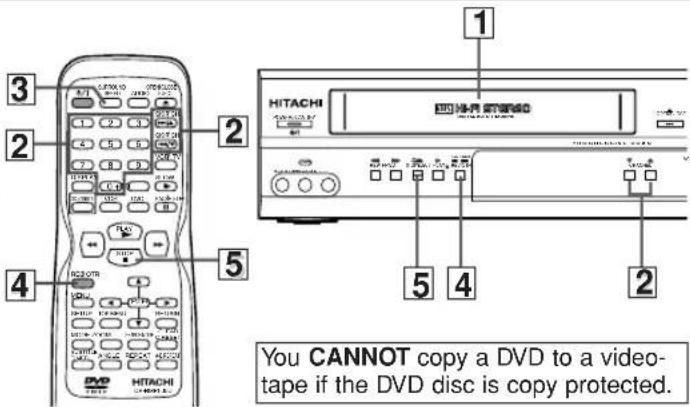
Copying a Video Tape
Warning: Unauthorized recordings of copyrighted video tapes may be an infringement of copyright laws.
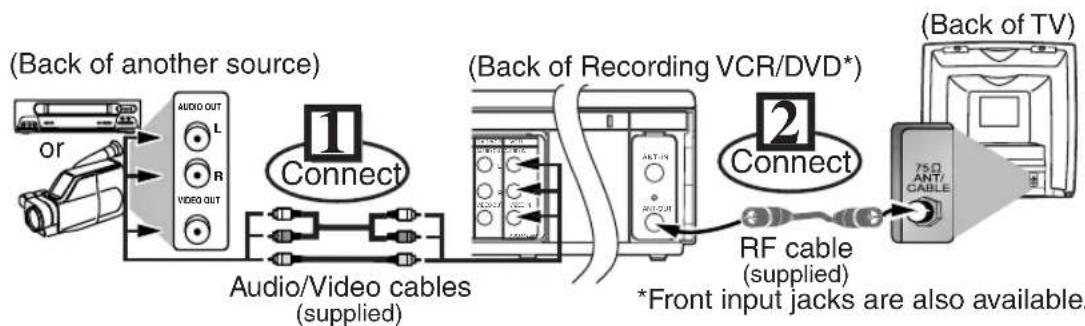
flowchart
graph LR
    A["or"] --> B["Audio OUT L"]
    B --> C["Audio/Video cables (supplied)"]
    C --> D["Connect"]
    D --> E["Audio/Video cables (supplied)"]
    E --> F["RF cable (supplied)"]
    F --> G["Back of TV"]
    H["(Back of another source)"] --> I["1"]
    I --> J["Connect"]
    J --> K["(Back of Recording VCR/DVD*)"]
    K --> L["2"]
    L --> M["RF cable (supplied)"]
    M --> N["*Front input jacks are also available."]
1) Insert a pre-recorded tape into the playing VCR.
2) Insert a tape with its record tab into the recording VCR/DVD.
3) Press SURROUND/SPEED on the remote control of the recording VCR/DVD to select the desired recording speed (SP/SLP).
4) Select the "L1" or "L2" position on the recording VCR/DVD.
- To use the input jacks on the back of this unit, select "L1" position by pressing [0], [0], [1] or SKIP/CH (▶▶▶▶▶ or ▶◀◀◀/▼) on the remote control or CHANNEL (▲/▼) on the front panel.
- To use the input jacks on the front of this unit, select "L2" position by pressing [0], [0], [2] or SKIP/CH (▶▶I/▲ or I◀◀/▼) on the remote control or CHANNEL (▲/▼) on the front panel.
5) Press REC/OTR on the recording VCR/DVD.
6) Begin playback of the tape in another source.
7) To stop recording, press STOP/EJECT ▪/▲ on the recording VCR/DVD, then stop playback of the tape in another source.
Hint
- For best results during dubbing, use the front panel controls whenever possible. The remote control might affect another source's operation.
• Always use video-quality shielded cables with RCA-type connectors. Standard audio cables are not recommended. - You can use a video disc player, satellite receiver, or other audio/video component with A/V outputs.
• "L1" or "L2" is found before the lowest memorized channel. (Example: CH02)
• "L2" input jacks are on the front of this VCR/DVD.
On-Screen Operations

press VCR first.
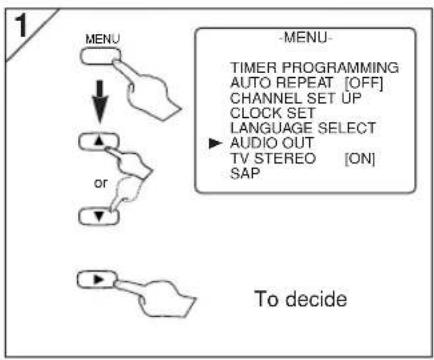
1/ To call up the main menu
-MENU-
▶ TIMER PROGRAMMING AUTO REPEAT [OFF] CHANNEL SET UP CLOCK SET LANGUAGE SELECT
3/ To decide
CHANNEL SET UP
AUTO SET UP
▶ MANUAL SET UP
2/ To select an item
-MENU-
TIMER PROGRAMMING AUTO REPEAT [OFF] CHANNEL SET UP CLOCK SET LANGUAGE SELECT
4/ To exit the menu
OB
MTS (Multi-Channel Television Sound) System
When You Receive or Record a Program Broadcast in MTS
- When you receive a broadcast on the VCR, you can check the type of the broadcast by pressing DISPLAY.
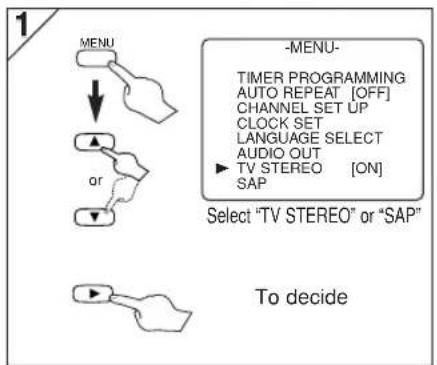
- It a program is broadcasted in "SAP" or in both "STEREO" and "SAP", select "TV STEREO" or "SAP" by following the steps on the right column. This selection is necessary in order to record the program correctly.
- SAP stands for Second Audio Program (usually second language).
| Display on the TV screen | Type of broadcast | STEREO/SAP Selection |
| -None- | Regular (monaural audio) | -Invalid- |
| STEREO | Stereo broadcast | -Invalid- |
| SAP | Bilingual broadcast | TV STEREO (main audio program) |
| SAP (second audio program) | ||
| STEREO SAP | Stereo & Bilingual broadcast | TV STEREO (stereo main audio program) |
| SAP (second audio program) |

press VCR first.
flowchart
graph TD
A["MENU"] --> B["OR"]
B --> C["Select 'TV STEREO' or 'SAP'"]
D["->"] --> E["->"]
F["->"] --> G["->"]
H["->"] --> I["->"]
J["->"] --> K["->"]
L["->"] --> M["->"]
N["->"] --> O["->"]
P["->"] --> Q["->"]
R["->"] --> S["->"]
T["->"] --> U["->"]
V["->"] --> W["->"]
X["->"] --> Y["->"]
Z["->"] --> AA["->"]
AB["-MENU-"]
AC["TIMER PROGRAMMING<br>AUTO REPEAT [OFF"]
CHANNEL SET UP
CLOCK SET
LANGUAGE SELECT
AUDIO OUT
▶ TV_STEREO["ON"]
SAP] --> AD["Select "TV STEREO" or "SAP""]
AE["To decide"] --> AF["->"]
When You Playback a Tape Recorded in Hi-Fi Stereo
- If you have connected a stereo TV to this VCR/DVD, select "HIFI".
- If you have connected a monaural TV to this VCR/DVD, select "MONO".
| Your SelectionType of recorded tape | HIFI | MONO channel | |
| R-channelL | |||
| non Hi-Fi tapes | Monaural | Monaural | Monaural |
| Hi-Fi tapes recorded in Hi-Fi stereo | L | R | L+R |
| Hi-Fi tapes recorded main audio program | Main audio program | Main audio program | Main audio program |
| Hi-Fi tapes recorded second audio program | Second audio program | Second audio program | Second audio program |

press first.
flowchart
graph TD
    A["MENU"] --> B["or"]
    B --> C["To decide"]
    style A fill:#f9f,stroke:#333
    style B fill:#ccf,stroke:#333
    style C fill:#cfc,stroke:#333
    note right of A: -MENU-
    note right of C: TIMER PROGRAMMING
    note right of D: AUTO_REPEAT["OFF"]
    note right of E: CHANNEL SET UP
    note right of F:CLOCK SET
    note right of G: LANGUAGE SELECT
    note right of H:AUDIO OUT
    note right of I: TV_STEREO["ON"]
    note right of J:SAP
![2 AUDIO OUT ► HIFI [ON] MONO Select "HIFI" or "MONO" To decide](/content/2026/03/496813/images/4c131b70ccf29b4bd611dc6f6e3154db0a51398b7e908a313c260be5ddaf4d82.jpg)
DVD Functions
Operations described after this section are mainly based on the remote control use. Some operations can be carried out on the main unit.
Playback
Before: Turn on the TV, amplifier and any other equipments which are connected to this unit. Make sure the TV and audio receiver (commercially available) are set to the correct channel.


page 18

press first.
* Refer to page 11 to switch between the VCR/DVD modes.
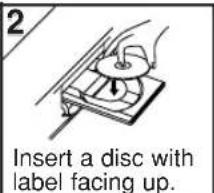
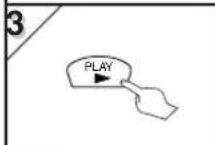
DVD menu
Some discs contain menus which allow you to customize DVD playback.
Use Cursor ▲/▼/◀/▶ to select an item, then press ENTER or PLAY ▶.
Calling up a Menu Screen during Playback
- Press MENU to call up the DVD menu.
- Press TOP MENU to call up the title menu.
Hint
- Menu operations may vary depending on the disc. Refer to the manual accompanying the disc for more details.
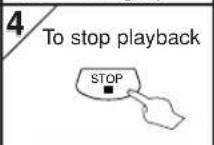
Resume



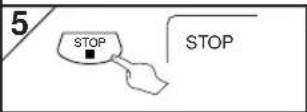
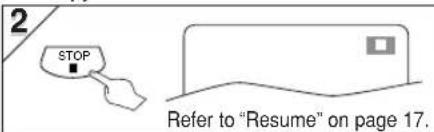
Press STOP ■
Resume message will appear on the TV screen.
Press PLAY ▶, playback will resume from the point at which playback was stopped.
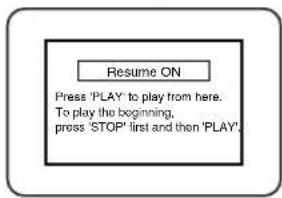
Hint
• To cancel resume, press STOP ■ one more time during the stop mode.
- For MP3, playback will resume from the beginning of the track at which playback was stopped.
• The resume information will be kept even when the power is turned off.
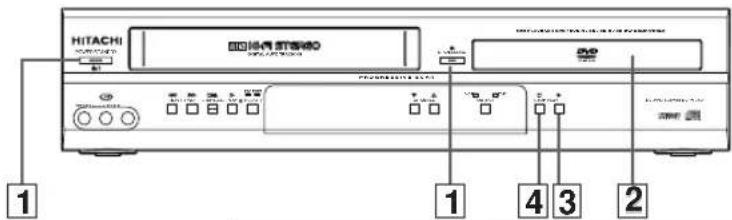
Hint
- When you play an MP3 file, details are on page 18.
- A "prohibited icon" may appear at the top-right on the TV screen when the operation is prohibited by the disc or this unit.
- Some DVDs may start playback from title 2 or 3 due to specific programs.
- During the playback of a two-layered disc, pictures may stop for a moment. This happens while the 1st layer is being switched to the 2nd layer. This is not a malfunction.
- A DVD-RW disc recorded in the VR mode may freeze momentarily during playback depending on how the playlist was made and edited (deleted titles, repeated recording).
TIP:
You can change the On-Screen language in "PLAYER MENU" in LANGUAGE or QUICK setting. (Refer to page 23.)
Paused and Step-by-Step Playback



Press PAUSE/STEP I during playback.

To continue playback, press PLAY ▶.


The disc goes forward by one frame each time PAUSE/STEP II is pressed during the pause mode. To continue playback, press PLAY ▶.
Hint
- On DVDs, set "STILL MODE" to "FIELD" in the Display menu if pictures in the pause mode are blurred. (Refer to page 24.)
Fast Forward/Reverse Search



Press ▶▶ or ◀◀ repeatedly during playback to select the required forward or reverse speed. To continue playback, press PLAY ▶.

Hint
- For DVDs, fast forward or reverse search speed is different depending on the disc.
- For DVDs, approximate speed is 1(x2), 2(x8), 3(x20), 4(x50) and 5(x100).
- For Audio CDs and MP3, approximate speed is 1(x2), 2(x8) and 3(x30).
- For Audio CDs and MP3, sound will be output during Fast Forward or Reverse Search.
Slow Forward/Slow Reverse



Press ▶▶ or ◀◀ repeatedly during the pause mode to select the required forward or reverse speed. To continue playback, press PLAY ▶.
Hint
- Slow forward or reverse speed is different depending on the disc. Approximate speed is 1(1/16), 2(1/8) and 3(1/2).
- Set "STILL MODE" to "FIELD" in the Display menu if pictures in the slow playback mode are blurred. (Refer to page 24.)
Zoom


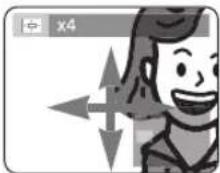
This function allows you to enlarge the video image and to pan through the enlarged image.
1
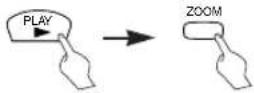
During playback, press ZOOM.
• The picture becomes twice as large.
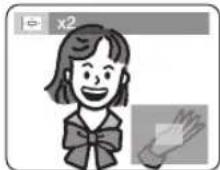
2

Press ZOOM repeatedly to change the zoom factor: x2, x4 or OFF.
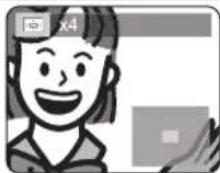
3
Once a desired zoom factor is set, use Cursor ▲/▼/◄/► to slide the zoomed picture across the screen.
4

To exit zoom function, press ZOOM repeatedly to select OFF.
Hint
- Zooming function does not work while the disc menu is showing up.
• x4 zoom is not available on some discs.
MP3 Playback
MP3 is a method of compressing files. You can copy MP3 files on CD-RW / Rs from the computer and play the files on this unit.


Insert a MP3-format disc, then press MENU to call up the file list on the TV screen.
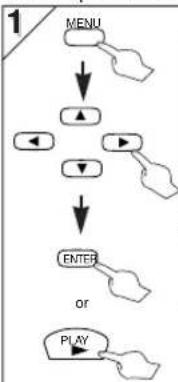
flowchart
graph TD
    A["MENU"] --> B["▲"]
    B --> C["◄"]
    C --> D["▼"]
    D --> E["ENTER"]
    E --> F["or"]
    F --> G["PLAY"]
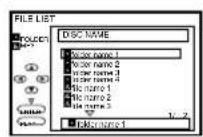
When selecting the folder:
- Press Cursor ▶ when you want to go to the next hierarchy.
- Press Cursor ◀ when you want to go back to the previous hierarchy (except for the top hierarchy).
Hint
• Some selections may take a while to be recognized.
- Press TOP MENU to return to the first item.
- Folders are known as Groups; files are known as Tracks.
- MP3 files are accompanied by icon.
- Folders are accompanied by ☐on.
• A maximum of 255 folders can be recognized.
• A maximum of 999 files can be recognized.
- Up to 8 hierarchies can be created.
This unit recommends the files recorded under the following conditions:
• Sampling frequency: 44.1kHz or 48kHz
- Constant bit rate: 32kbps \~ 320kbps.
- For MP3 file recorded in Variable Bit Rate(VBR), the unit may not display the actual elapsed time.
x1.3 and x0.8 Rapid Play with Voice


This function is available only during playback. Available only on discs recorded in the Dolby Digital format, x1.3 and x0.8 Rapid Play with Voice plays back in slightly faster/ slower speed while keeping the sound quality as in the normal playback.
1

flowchart
graph LR
    A["PLAY"] --> B["MODE"]
    B --> C["OFF"]
During playback, press MODE. • The current setting appears.
2

Press ENTER to switch among (x1.3), (x0.8) and OFF.
: Plays back approximately at 0.8 times of normal playback.
♪ : Plays back approximately at 1.3 times of normal playback.
OFF: No effects
3

Hint
• Audio language setting cannot be changed while using this mode.
- Virtual Surround and Black Level settings cannot be changed while using this mode.
• Virtual Surround does not function while using this mode.
• This feature may not work at some point in a disc.
- When using digital audio connection (COAXIAL), the PCM sound will be output.
On-Screen Display
You can check the information about the current disc by pressing DISPLAY on the remote control.
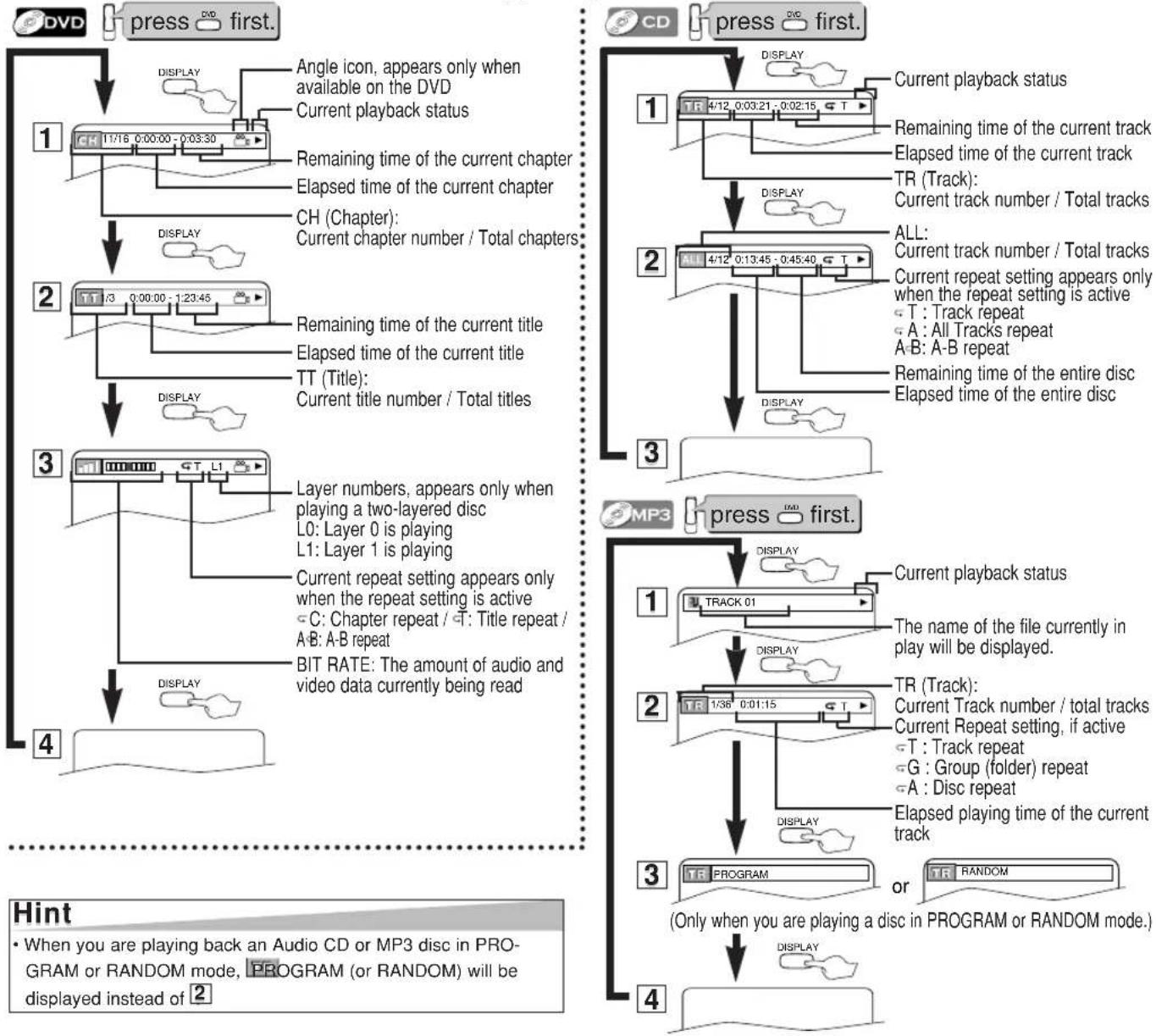
flowchart
graph TD
    A["1: 11/16 0:00:00 - 0:03:30"] --> B["2: TT 1/3 0:00:00 - 1:23:45"]
    B --> C["3: GT L1"]
    C --> D["4: Display"]
    D --> E["Hint: When you are playing back an Audio CD or MP3 disc in PROGRAM or RANDOM mode, PROGRAM (or RANDOM) will be displayed instead of 2"]

    F["CD"] --> G["1: 4/12 0:03:21 - 0:02:15 T"]
    G --> H["2: TR (Track): Current track number / Total tracks"]
    H --> I["3: 4/12 0:13:45 - 0:45:40 T"]
    I --> J["4: Display"]
    J --> K["Hint: Elapsed playing time of the current track"]
    K --> L["5: Display"]
    L --> M["4: Display"]

    N["MP3"] --> O["1: TRACK 01"]
    O --> P["2: TR (Track): Current Track number / total tracks"]
    P --> Q["3: TR PROGRAM or RANDOM (Only when you are playing a disc in PROGRAM or RANDOM mode)."]
    Q --> R["4: Display"]

    style A fill:#f9f,stroke:#333
    style F fill:#f9f,stroke:#333
    style N fill:#f9f,stroke:#333
    style O fill:#f9f,stroke:#333
    style P fill:#f9f,stroke:#333
    style Q fill:#f9f,stroke:#333
    style R fill:#f9f,stroke:#333
Marker Setup



This function allows you to assign a specific point on a disc to be called back later.
To set a marker
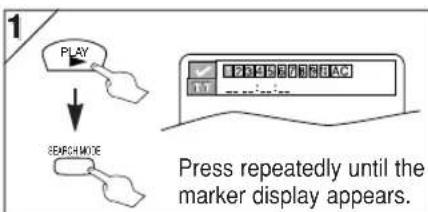
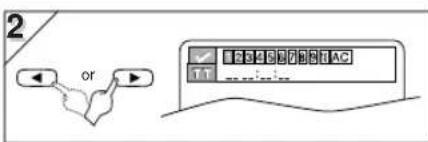
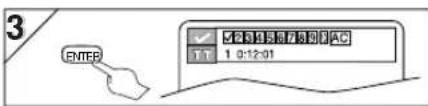
To return to the marker later
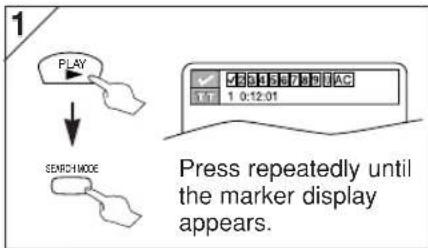
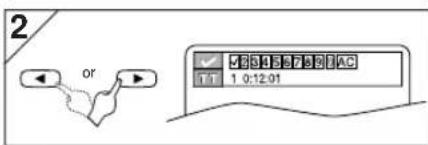
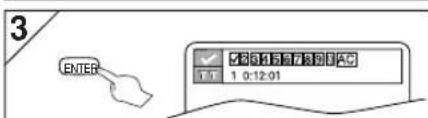
At the desired marker
- Playback will restart from the specific point which you set.
To exit the marker display
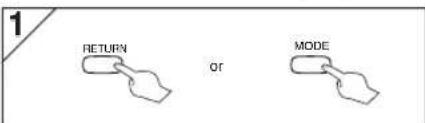
flowchart
graph LR
    A["RETURN"] --> B["MODE"]
    style A fill:#f9f,stroke:#333
    style B fill:#f9f,stroke:#333
Hint
- The Marker display will disappear in about 30 seconds when there is no input.
- To clear a marker, select the marker to be cleared at step [2] in the section "To set a marker" or "To return to the marker later," and then press CLEAR/C.RESET.
- Opening the disc tray or turning off the power will erase all markers.
- Selecting "AC" at step [2] in the section "To set a marker" or "To return to the marker later" will also erase all markers.
- You can mark up to 10 points.
Search Function
Track Search



Using SEARCH MODE
1

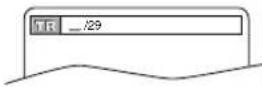
2
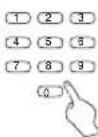
Within 30 seconds.
- For the disc with less than 10 tracks, press the track number directly.
- For discs with 10 or more but less than 100 tracks, to play a single-digit track, press 0 first, then the track number (e.g. for track 3, press 0, 3). To play a double-digit track, press the track number.
- For discs with 100 or more tracks, to play a single or a double-digit track, press 0 first, then the track number (e.g. for track 3, press 0, 0, 3, and for track 26, press 0, 2, 6). To play a triple-digit track, press the track number.
Using SKIP ◀◀, ▶▶
1
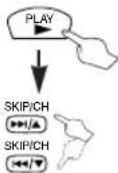
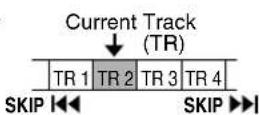
Hint
- +10 button can also bring the Track Search display, except for the disc with less than 10 tracks. For such a disc, track search can be done by just pressing the track number.
- If SKIP/CH ▶▶▶/▲ or ▶◀◀/▼ is pressed while the playback is paused, the playback after skipping to the next track will be also paused.
- Track Search is not available for Programmed or Random Playback.
Title / Chapter Search


Using SEARCH MODE
1
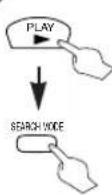
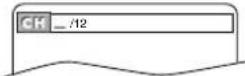
Press once for the Chapter Search. Press twice for the Title Search.
2
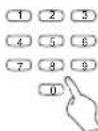
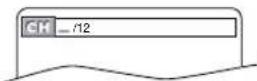
Within 30 seconds.
Using SKIP ◀◀, ▶▶
1
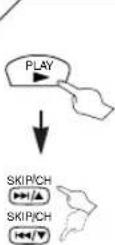
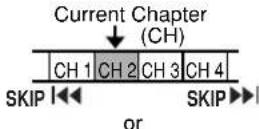
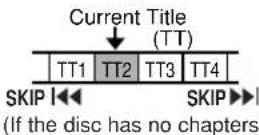
Hint
- Depending on the disc being played, this function can also be performed by directly entering the desired chapter number with the Number buttons. Refer to the manual accompanying the disc.
- Press CLEAR/C.RESET to erase the incorrect input at step [2].
- If SKIP/CH▶▶/▲ or ▶◀◀/▼ is pressed while playback is paused, the playback after skipping to the next title/chapter will be also paused.
- For discs with more than 10 tracks, to play a single-digit track, press 0 first, then the track number (e.g. for track 3, press 0, 3).
Time Search



1
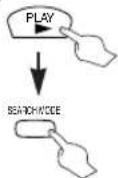
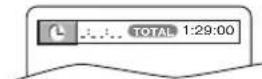
Press repeatedly until the Time Search display appears.
2
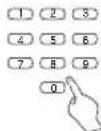
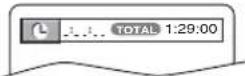
Within 30 seconds.
Hint
- When there is no need to enter a number, "0" appears automatically. For example, "0:0:_" appears in the Time Search display if the total time of the title or track is less than 10 minutes.
- Press CLEAR/C.RESET to erase the incorrect input at step [2].
Disc Navigation


1

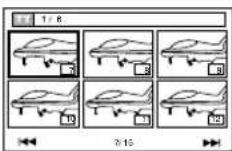
2
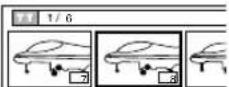
3
To start playback of the selected chapter
Hint
- DURING TITLE PLAYBACK OR WHEN RESUME IS ON: A shot from each chapter including the one currently being played will be displayed on the screen. The chapter currently being played is selected in yellow.
- IN STOP MODE (RESUME OFF): The first scene of each chapter of the first title will be displayed.
- Up to 6 chapters can be displayed at one time. If the title has more than 6 chapters, press SKIP/CH ▶▶/▲ to go to the next page. Press SKIP/CH ◀◀/▼ to go back to the previous page.
- You can change the title by moving up to the field where the title number is shown with Cursor (▲), and entering a title number of your choice.
Repeat / Random / Programmed Playback
Repeat Playback Programmed
PlaybackRepeat A-B Playback
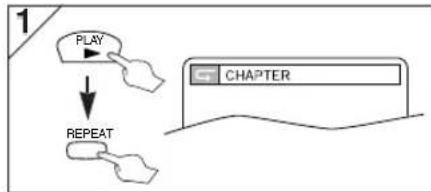
Repeat function is available only during playback.
flowchart
graph TD
    A["PLAY"] --> B["REPEAT"]
    B --> C["CHAPTER"]
Each time you press REPEAT, repeat function changes as examples below.
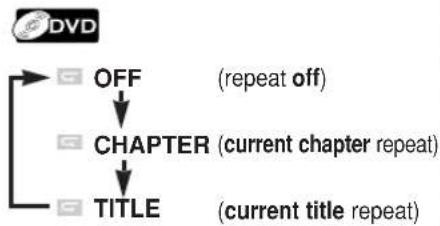
flowchart
graph TD
    A["OFF"] --> B["CHAPTER"]
    B --> C["TITLE"]
    style A fill:#f9f,stroke:#333
    style B fill:#ccf,stroke:#333
    style C fill:#cfc,stroke:#333
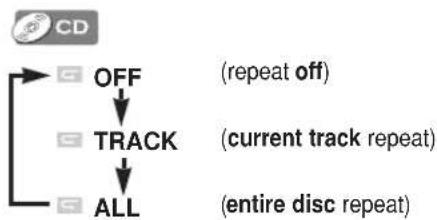
flowchart
graph TD
    A["CD"] --> B["OFF"]
    B --> C["TRACK"]
    C --> D["ALL"]
    D --> E["(repeat off)"]
    C --> F["(current track repeat)"]
    D --> G["(entire disc repeat)"]
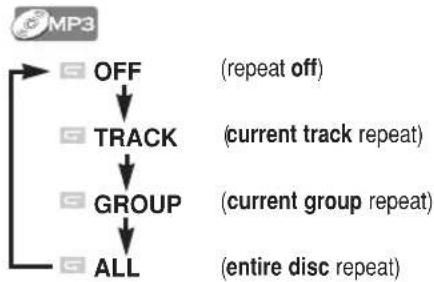
flowchart
graph TD
    A["MP3"] --> B["OFF"]
    B --> C["TRACK"]
    C --> D["GROUP"]
    D --> E["ALL"]
    style A fill:#f9f,stroke:#333
    style B fill:#ccf,stroke:#333
    style C fill:#cfc,stroke:#333
    style D fill:#fcc,stroke:#333
    style E fill:#cff,stroke:#333
Hint
- Repeat setting will be cleared when moving to another title, chapter, track or group.
- Repeat playback may not function with some discs or during repeat A-B playback.
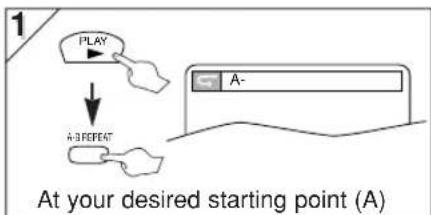
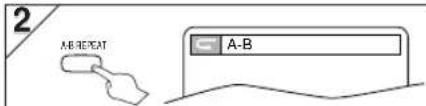
At your desired end point (B)
- Point B should be in the same title or track as point A.
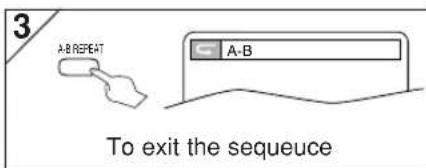
Hint
• To exit the sequence, press A-B REPEAT so that OFF appears.
• To cancel Point A, press CLEAR/C. RESET.
- This function does not work in the other repeat modes.
Random Playback

This function shuffles the playing order of tracks instead of playback in the sequence.
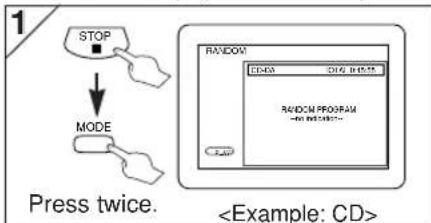
flowchart
graph TD
    A["STOP"] --> B["MODE"]
    B --> C["Press twice."]
    C --> D["<Example: CD>"]
Hint
• To repeat the current track in the random selections, press REPEAT repeatedly until TRACK appears during playback.
• To repeat the entire random selections, press REPEAT repeatedly until Ⓔ ALL appears during playback.
flowchart
graph TD
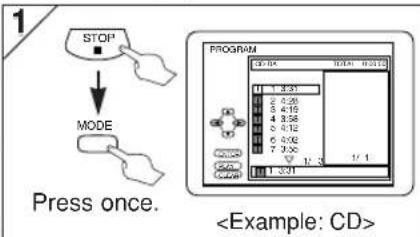
    A["STOP"] --> B["MODE"]
    B --> C["Press once."]
    C --> D["PROGRAM"]
    D --> E[CD 10.4x 10.6x 10.8x 11.0x 11.2x 11.5x 11.8x 12.1x 12.4x 12.7x 13.0x 13.3x 13.6x 13.9x 14.2x 14.5x 14.8x 15.1x 15.4x 15.7x 16.0x 16.3x 16.6x 16.9x 17.2x 17.5x 17.8x 18.1x 18.4x 18.7x 19.0x 19.3x 19.6x 19.9x 20.2x 20.5x 20.8x 21.1x 21.4x 21.7x 22.0x 22.3x 22.6x 22.9x 23.2x 23.5x 23.8x 24.1x 24.4x 24.7x 25.0x 25.3x 25.6x 25.9x 26.2x 26.5x 26.8x 27.1x 27.4x 27.7x 28.0x 28.3x 28.6x 28.9x 29.2x 29.5x 29.8x 30.1x 30.4x 30.7x 31.0x 31.3x 31.6x 31.9x 32.2x 32.5x 32.8x 33.1x 33.4x 33.7x 34.0x 34.3x 34.6x 34.9x 35.2x 35.5x 35.8x 36.1x 36.4x 36.7x 37.0x 37.3x 37.6x 37.9x 38.2x 38.5x 38.8x 39.1x 39.4x 39.7x 39.9m
    style A fill:#f9f,stroke:#333
    style B fill:#ccf,stroke:#333
    style C fill:#cfc,stroke:#333
    style D fill:#fcc,stroke:#333
    style E fill:#ffc,stroke:#333
    style F fill:#cfc,stroke:#333
    style G fill:#fcc,stroke:#333
    style H fill:#cfc,stroke:#333
    style I fill:#fcc,stroke:#333
    style J fill:#cfc,stroke:#333
    style K fill:#fcc,stroke:#333
    style L fill:#cfc,stroke:#333
    style M fill:#fcc,stroke:#333
    style N fill:#cfc,stroke:#333
    style O fill:#fcc,stroke:#333
    style P fill:#cfc,stroke:#333
    style Q fill:#fcc,stroke:#333
    style R fill:#cfc,stroke:#333
    style S fill:#fcc,stroke:#333
    style T fill:#cfc,stroke:#333
    style U fill:#fcc,stroke:#333
    style V fill:#cfc,stroke:#333
    style W fill:#fcc,stroke:#333
    style X fill:#cfc,stroke:#333
    style Y fill:#fcc,stroke:#333
    style Z fill:#cfc,stroke:#333
Hint
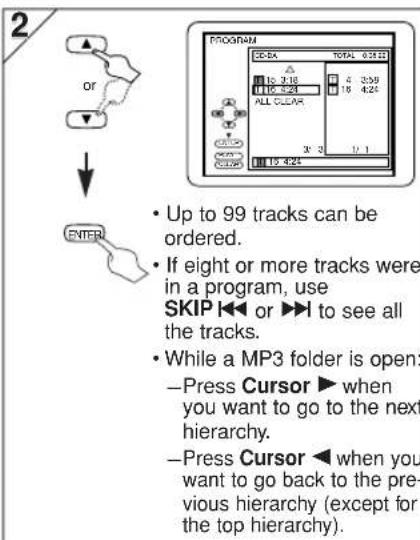
- Press CLEAR/C. RESET at step [2] to erase the most recently entered track.
- To erase all programmed tracks at once, select "ALL CLEAR" and press ENTER at step [2], or open disc tray by pressing OPEN/CLOSE ▲.
- While a program is being played back, STOP ■ works as follows;
→Press STOP ■ and PLAY ▶ next, so that the programmed playback restarts. (CD playback restarts from the current point. MP3 playback restarts from the beginning of the current track.)
→Press STOP ■ twice and PLAY ▶ next, so that playback restarts from the first track in the original order. However, your programmed playback can be restarted when you follow the above steps. (Your programs are still stored until either the disc tray is open or power is turned off.)
• To repeat the current track in the program, press REPEAT repeatedly until "TRACK" appears during playback.
• To repeat the entire program, press REPEAT repeatedly until “ALL” appears during playback.
Special Settings
Subtitle Language


This unit allows you to select a subtitle language (if multiple languages are available) during DVD playback.
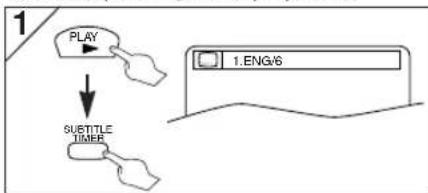
flowchart
graph TD
    A["PLAY"] --> B["SUBTITLE TIMER"]
    B --> C["1.ENG/6"]
Each time you press SUBTITLE, subtitle language changes as example below.
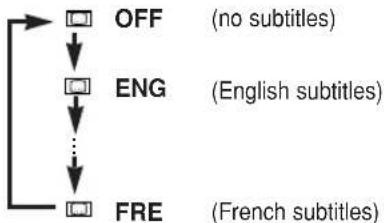
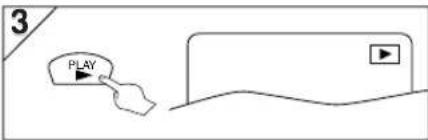
flowchart
graph TD
    A["OFF"] --> B["ENG"]
    B --> C["FRE"]
    style A fill:#fff,stroke:#000
    style B fill:#fff,stroke:#000
    style C fill:#fff,stroke:#000
    note1["(no subtitles)"]
    note2["(English subtitles)"]
    note3["(French subtitles)"]
To set subtitle ON/OFF
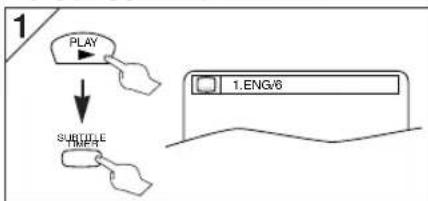
flowchart
graph TD
    A["PLAY"] --> B["SUBTITLE"]
    B --> C["1.ENG/6"]
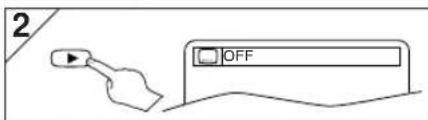
Hint
- If your language is not shown after pressing AUDIO or SUBTITLE several times, the disc may not have that language. However, some discs allow you to change audio language or subtitle language setting in the disc menu. (Operation varies depending on the disc, so refer to the manual included in the disc.)
- When "NOT AVAILABLE" appears on the TV screen, it means no subtitle is recorded on the scene.
- If you choose a language that has three-letter-language code, the code will be displayed every time you change the subtitle language setting. If you choose any other languages, ‘---’ will be displayed instead. (Refer to page 26.)
Audio Language


This unit allows you to select an audio language (if multiple languages are available) during DVD playback.
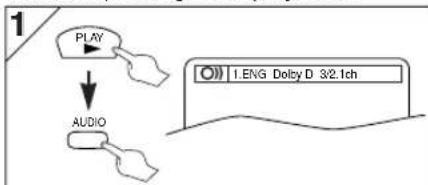
flowchart
graph TD
    A["PLAY"] --> B["AUDIO"]
    B --> C["Display: 1.ENG Dolcy D 3/2.1ch"]
Each time you press AUDIO, audio language changes as example below.
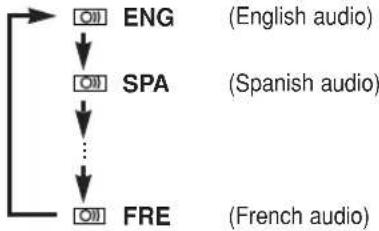
flowchart
graph TD
    A["ENG"] --> B["SPA"]
    B --> C["..."]
    C --> D["FRE"]
    style A fill:#f9f,stroke:#333
    style B fill:#f9f,stroke:#333
    style C fill:#f9f,stroke:#333
    style D fill:#f9f,stroke:#333
Hint
- The sound mode cannot be changed during playback of discs not recorded in double sound.
• Audio language selection cannot be made during x1.3 and x0/8 Rapid Play with Voice. (Refer to page 18.) - Pressing AUDIO may not work on some DVDs with multiple audio languages (e.g. DVDs which allow audio language setting on the disc menu).
Camera Angles

Some DVD discs may contain scenes which have been shot simultaneously from various angles. You can change the camera angle if the mark appears on the screen. If the "ANGLE MARK" setting is "OFF" in the OTHERS menu, the mark will not appear. (Refer to page 25.)
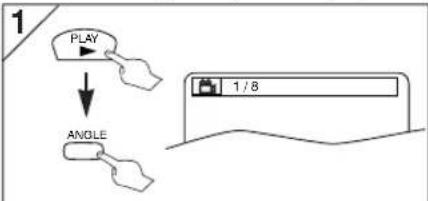
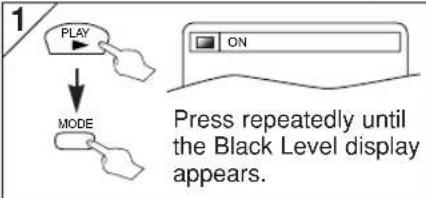
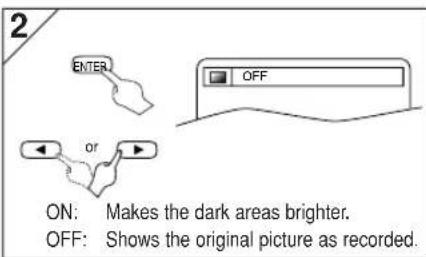
Black Level Setting

Adjust the Black Level Setting to make the dark areas of the TV picture brighter.
Stereo Sound Mode

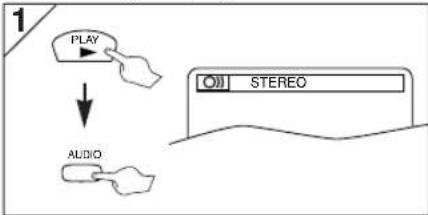
This unit allows you to select a sound mode during CD playback.
flowchart
graph TD
    A["PLAY"] --> B["AUDIO"]
    C["STEREO"] --> D["Ground"]
Each time you press AUDIO, sound mode changes as example below.
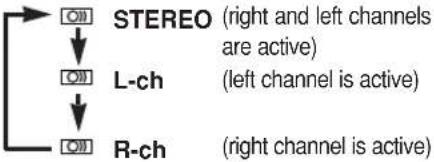
flowchart
graph TD
    A["STEREO"] --> B["L-ch"]
    B --> C["R-ch"]
    style A fill:#f9f,stroke:#333
    style B fill:#ccf,stroke:#333
    style C fill:#cfc,stroke:#333
Virtual Surround


You can enjoy stereophonic virtual world on your existing 2 channel stereo system.
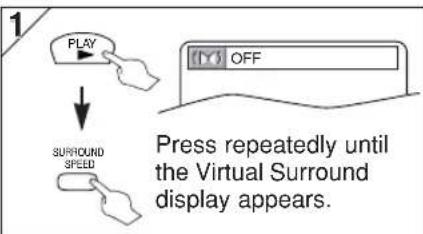
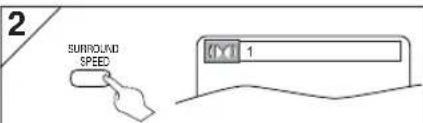
1: Natural effect.
2: Emphasized effect.
OFF: No effects (original sound).
Hint
- On CDs, Virtual Surround will not be effective if the sound mode is set to something other than STEREO. Refer to "Stereo Sound Mode".
QUICK SETUP Menu
press first.
You can select the "PLAYER MENU", "TV ASPECT", "PROGRESSIVE", "DOLBY DIGITAL" from the QUICK SETUP menu.
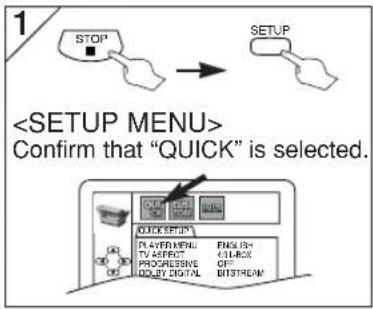
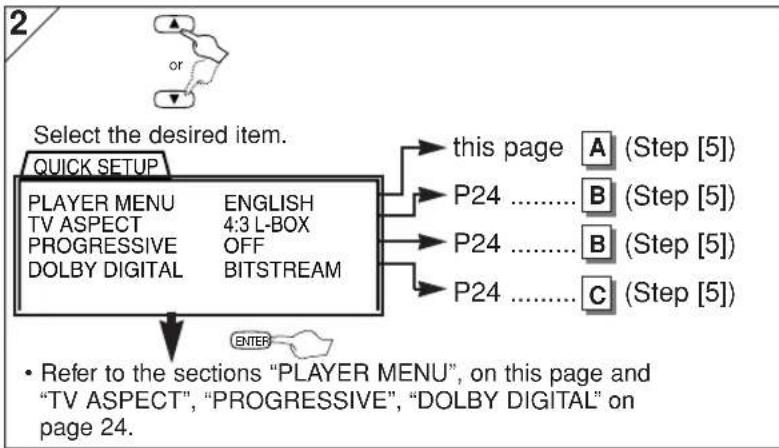
flowchart
graph TD
    A["Select the desired item."] --> B["QUICK SETUP"]
    B --> C["PLAYER MENU ENGLISH"]
    B --> D["TV ASPECT 4:3 L-BOX"]
    B --> E["PROGRESSIVE OFF"]
    B --> F["DOLBY DIGITAL BITSTREAM"]
    C --> G["this page A (Step [5"])]
    D --> H["P24 ......B (Step [5"])]
    E --> I["P24 ......B (Step [5"])]
    F --> J["P24 ......C (Step [5"])]
    C --> K["• Refer to the sections "PLAYER MENU", on this page and "TV ASPECT", "PROGRESSIVE", "DOLBY DIGITAL" on page 24."]
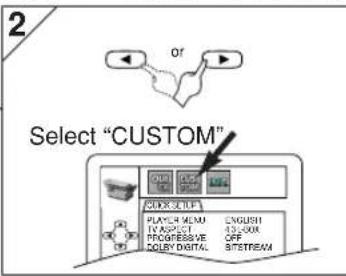
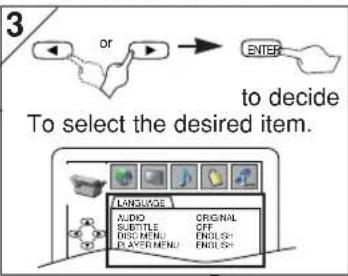
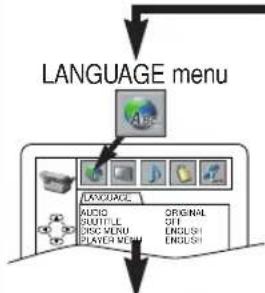
CUSTOM Menu
press first.
You can change the settings of the unit.
- QUICK on this page and on page 24 indicates DVD Setup menus also accessible from the QUICK SETUP menu.
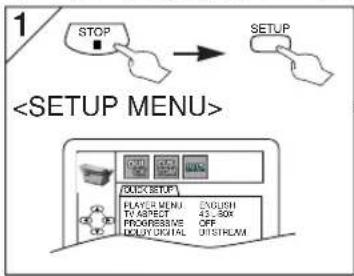

flowchart
graph TD
    A["LANGUAGE menu"] --> B["IMAGE"]
    B --> C["LANGUAGE"]
    C --> D["AUDIO"]
    C --> E["SUPPORT"]
    C --> F["VIDEO"]
    C --> G["STOCK"]
    C --> H["CLASSIC MENU"]
    C --> I["PLAYCH MENU"]
    C --> J["ORIGINAL"]
    C --> K["OFF"]
    C --> L["ENGLISH"]
    C --> M["ENGLISH"]
this page A
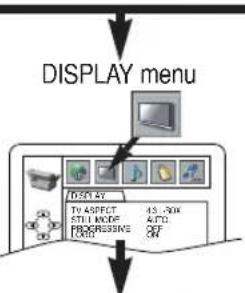
flowchart
graph TD
    A["DISPLAY menu"] --> B["To Screen"]
    A --> C["To Aspect"]
    A --> D["Still OK"]
    A --> E["Progressive"]
    A --> F["4.5 - 20K & PC"]
    A --> G["OK"]
page 24
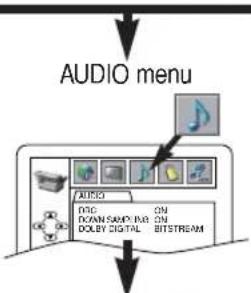
page 24
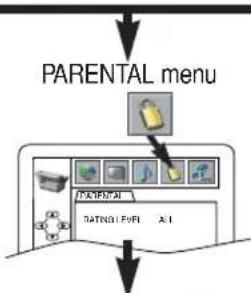
flowchart
graph TD
    A["PARENTAL menu"] --> B["Main Interface"]
    B --> C["Text Icon"]
    B --> D["Image Icon"]
    B --> E["Display Icon"]
page 25
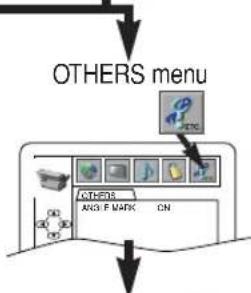
flowchart
graph TD
    A["OTHERS menu"] --> B["Device 1"]
    A --> C["Device 2"]
    A --> D["Device 3"]
    A --> E["Device 4"]
    A --> F["Device 5"]
    A --> G["Device 6"]
    A --> H["Device 7"]
    A --> I["Device 8"]
    A --> J["Device 9"]
    A --> K["Device 10"]
page 25


LANGUAGE Setting
Follow the steps [1] to [3] in the "CUSTOM Menu" section above.
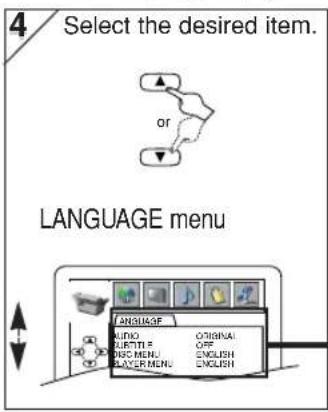
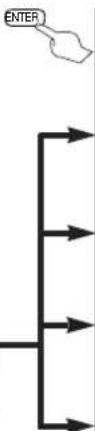
flowchart
graph TD
    A["ENTER"] --> B
    B --> C
    C --> D
    D --> E
    E --> F
    F --> G
    G --> H
    H --> I
    I --> J
    J --> K
    K --> L
    L --> M
    M --> N
    N --> O
    O --> P
    P --> Q
    Q --> R
    R --> S
    S --> T
    T --> U
    U --> V
    V --> W
    W --> X
    X --> Y
    Y --> Z
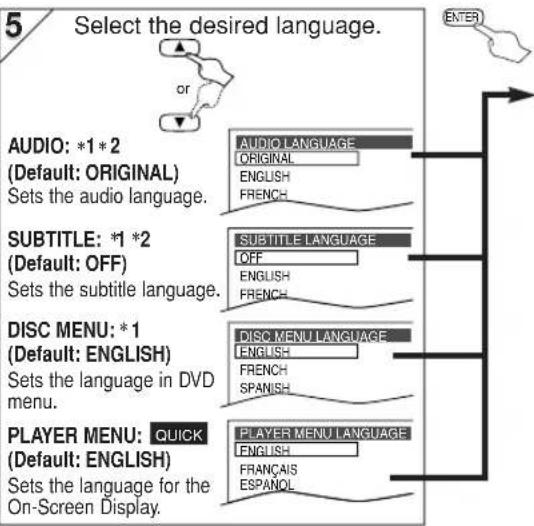
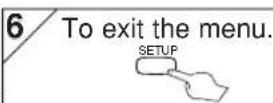
Hint
*1
• Language options are not available on some discs.
- If OTHER is selected on the AUDIO, SUBTITLE or DISC MENU screen, press four-digit number to enter the code for the desired language. (Refer to the language code list on page 26.)
- Only the languages supported by the disc can be selected.
*2
- Language Setting for Audio and Subtitle are not available on some discs. Then use AUDIO and SUBTITLE. Details are on page 22.

DISPLAY Setting
You can change the display functions. Follow the steps [1] to [3] in the "CUSTOM Menu" section on page 23.
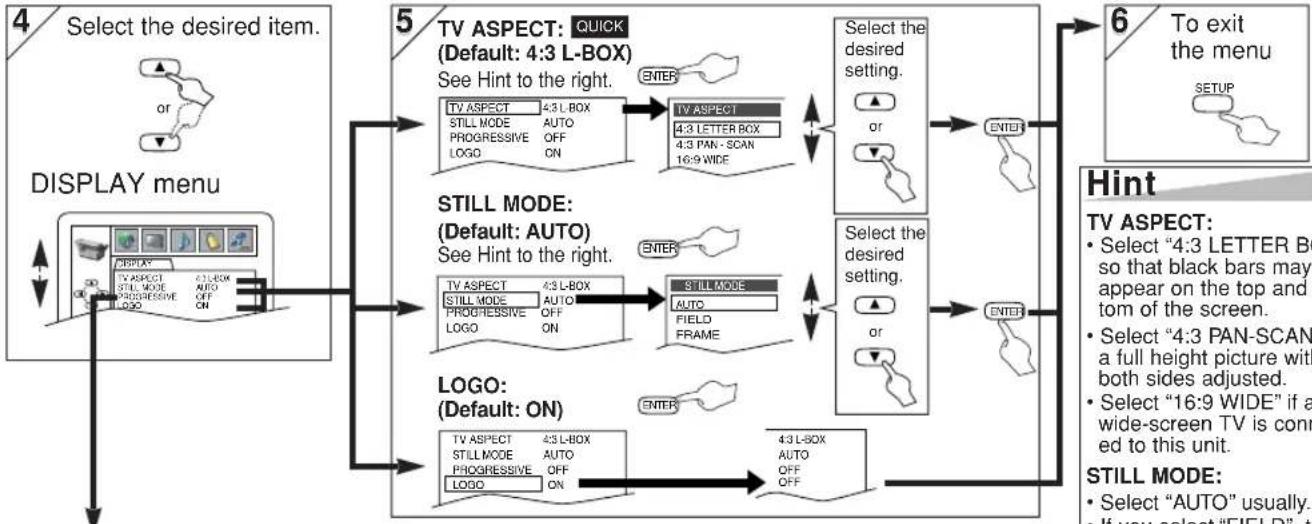
flowchart
graph TD
    A["Select the desired item."] --> B["DISPLAY menu"]
    B --> C["TV ASPECT: QUICK (Default: 4:3 L-BOX)<br>See Hint to the right."]
    C --> D["TV ASPECT: 4:3 L-BOX<br>STILL MODE AUTO<br>PROGRESSIVE OFF<br>LOGO ON"]
    D --> E["TV ASPECT: 4:3 LETTER BOX<br>4:3 PAN - SCAN<br>16:9 WIDE"]
    E --> F["Select the desired setting."]
    F --> G["OR"]
    G --> H["ENTER"]
    H --> I["To exit the menu"]
    I --> J["SETUP"]
    C --> K["STILL MODE:<br>(Default: AUTO)<br>See Hint to the right."]
    K --> L["TV ASPECT: 4:3 L-BOX<br>STILL MODE AUTO<br>PROGRESSIVE OFF<br>LOGO ON"]
    L --> M["STILL MODE<br>AUTO<br>FIELD<br>FRAME"]
    M --> N["Select the desired setting."]
    N --> O["OR"]
    O --> P["ENTER"]
    P --> Q["To exit the menu"]
    Q --> R["SETUP"]
    S["LOGO: (Default: ON)"] --> T["TV ASPECT: 4:3 L-BOX<br>STILL MODE AUTO<br>PROGRESSIVE OFF<br>LOGO ON"]
    T --> U["4:3 L-BOX<br>AUTO<br>OFF<br>OFF"]
    U --> V["ENTER"]
    V --> W["To exit the menu"]
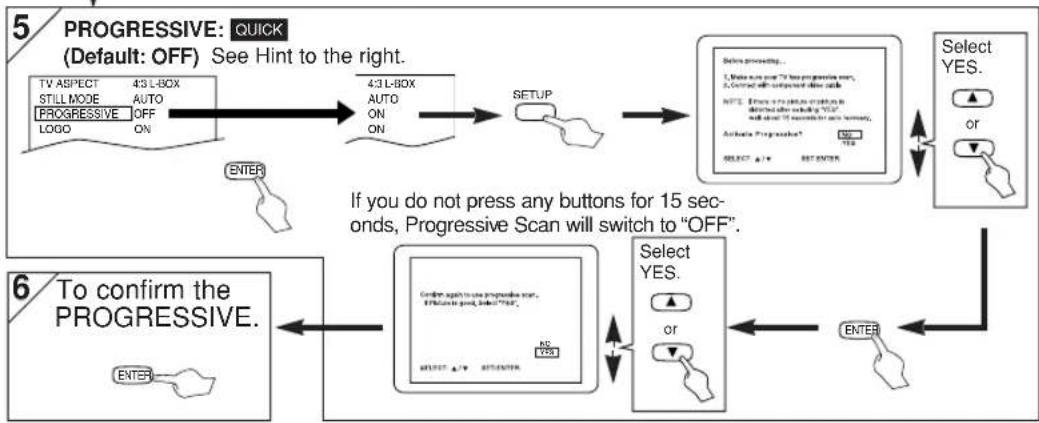
flowchart
graph TD
    A["TV ASPECT 43 L-BOX\nSTILL MODE AUTO\nPROGRESSIVE OFF\nLOGO ON"] --> B["43 L-BOX\nAUTO\nON\nON"]
    B --> C["SETUP"]
    C --> D["Select YES."]
    D --> E["Select YES."]
    E --> F["OR/ENTER"]
    F --> G["AND/OR/ENTER"]
    G --> H["If you do not press any buttons for 15 seconds, Progressive Scan will switch to "OFF"."]
    H --> I["Confirm again to the progressive scan.\nIF possible to check, select "OFF"."]
    I --> J["NO\nYES\nSELECT "A" OR "B" ENTER"]
    J --> K["ENTER"]
Hint
TV ASPECT:
- Select "4:3 LETTER BOX", so that black bars may appear on the top and bottom of the screen.
- Select "4:3 PAN-SCAN" for a full height picture with both sides adjusted.
- Select "16:9 WIDE" if a wide-screen TV is connected to this unit.
STILL MODE:
- Select "AUTO" usually.
- If you select "FIELD", the picture in the still mode will be stabilized.
- If you select "FRAME", the picture in the still mode will be highly defined.
PROGRESSIVE:
- You can set "PROGRESSIVE" to "OFF" either in the DISPLAY menu or by pressing and holding PLAY▶ on the front of the unit for more than 5 seconds.
- When "PROGRESSIVE" is "ON", video signals from the Player's VIDEO OUT and S-VIDEO OUT jacks will be distorted or not be output at all.

AUDIO Setting
Choose the appropriate audio settings for your equipments. It only affects during the playback of DVD discs. Follow the steps [1] to [3] in the "CUSTOM Menu" section on page 23.
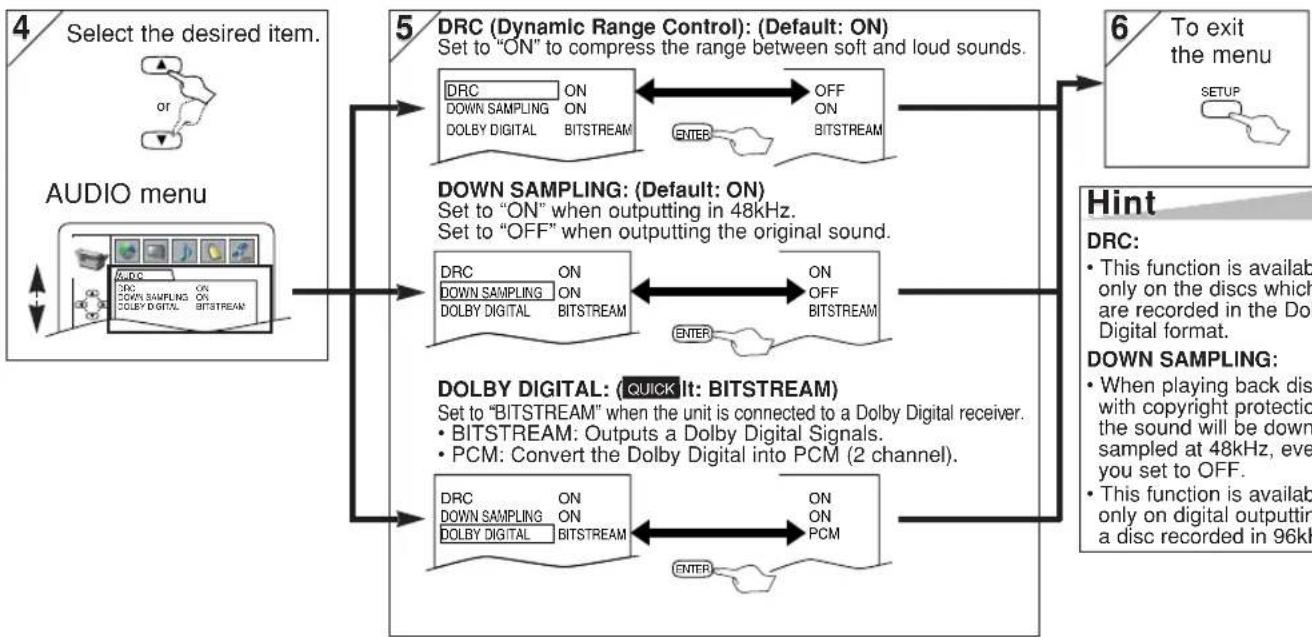
flowchart
graph TD
    A["Select the desired item."] --> B["AUDIO menu"]
    B --> C["DRC (Dynamic Range Control): (Default: ON)"]
    C --> D["Set to "ON" to compress the range between soft and loud sounds."]
    D --> E["DOWN SAMPLING: (Default: ON)"]
    E --> F["Set to "ON" when outputting in 48kHz."]
    F --> G["SET to "OFF" when outputting the original sound."]
    G --> H["DOLBY DIGITAL: (QUICK It: BITSTREAM)"]
    H --> I["Set to "BITSTREAM" when the unit is connected to a Dolby Digital receiver."]
    I --> J["SET to "OFF" when outputting the original sound."]
    J --> K["DOLBY DIGITAL: (QUICK It: BITSTREAM)"]
    K --> L["SET to "BITSTREAM" when the unit is connected to a Dolby Digital receiver."]
    L --> M["SET to "OFF" when outputting the original sound."]
    M --> N["DOLBY DIGITAL: (QUICK It: BITSTREAM)"]
    N --> O["SET to "OFF" when outputting the original sound."]
    O --> P["DOLBY DIGITAL: (QUICK It: BITSTREAM)"]
    P --> Q["SET to "OFF" when outputting the original sound."]
    Q --> R["DOLBY DIGITAL: (QUICK It: BITSTREAM)"]
    R --> S["SET to "OFF" when outputting the original sound."]
    S --> T["DOLBY DIGITAL: (QUICK It: BITSTREAM)"]
    T --> U["SET to "OFF" when outputting the original sound."]
    U --> V["DOLBY DIGITAL: (QUICK It: BITSTREAM)"]
    V --> W["SET to "OFF" when outputting the original sound."]
    W --> X["DOLBY DIGITAL: (QUICK It: BITSTREAM)"]
    X --> Y["SET to "OFF" when outputting the original sound."]
    Y --> Z["DOLBY DIGITAL: (QUICK It: BITSTREAM)"]
    Z --> AA["SET to "OFF" when outputting the original sound."]
    AA --> AB["DOLBY DIGITAL: (QUICK It: BITSTREAM)"]
    AB --> AC["SET to "OFF" when outputting the original sound."]
    AC --> AD["DOLBY DIGITAL: (QUICK It: BITSTREAM)"]
    AD --> AE["SET to "OFF" when outputting the original sound."]
    AE --> AF["DOLBY DIGITAL: (QUICK It: BITSTREAM)"]
    AF --> AG["SET to "OFF" when outputting the original sound."]
    AG --> AH["DOLBY DIGITAL: (QUICK It: BITSTREAM)"]
    AH --> AI["SET to "OFF" when outputting the original sound."]
    AI --> AJ["DOLBY DIGITAL: (QUICK It: BITSTREAM)"]
    AJ --> AK["SET to "OFF" when outputting the original sound."]
    AK --> AL["DOLBY DIGITAL: (QUICK It: BITSTREAM)"]

PARENTAL Control
Parental Control allows you to set a limit, which prevents your children from viewing inappropriate materials on DVDs. A four-digit password that you establish gives you the control.
Rating Levels
Rating Level allows you to set a viewing limit that you allow on DVDs. Playback will stop if the disc's general ratings exceed the limit you set. Follow the steps [1] to [3] in the "CUSTOM Menu" section on page 23.
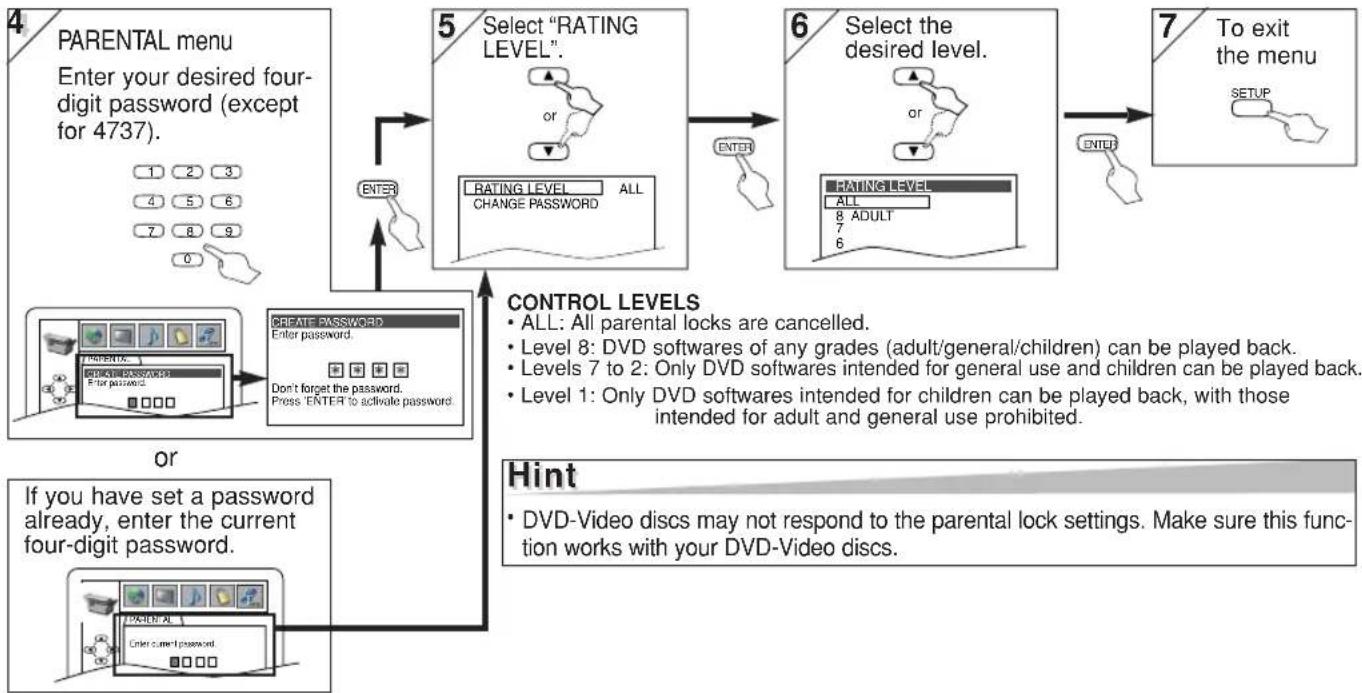
flowchart
graph TD
A["4 PARENTAL menu<br>Enter your desired four-digit password (except for 4737)."] --> B["5 Select "RATING LEVEL".<br>RATING LEVEL ALL CHANGE PASSWORD"]
B --> C["6 Select the desired level.<br>RATING LEVEL ALL ADULT 8 6"]
C --> D["7 To exit the menu<br>SETUP"]
E["OR"] --> F["CREATE PASSWORD<br>Enter password.<br>Don't forget the password.<br>Press ENTER to activate password."] --> F
G["If you have set a password already, enter the current four-digit password."] --> H["CONTROL LEVELS<br>• ALL: All parental locks are cancelled.<br>• Level 8: DVD softwares of any grades (adult/general/children) can be played back.<br>• Levels 7 to 2: Only DVD softwares intended for general use and children can be played back.<br>• Level 1: Only DVD softwares intended for children can be played back, with those intended for adult and general use prohibited."]
I["OR"] --> J["Hint<br>• DVD-Video discs may not respond to the parental lock settings. Make sure this function works with your DVD-Video discs."]
To Change the Password for Parental Controls
You can change your password for parental controls. Follow the steps [1] to [3] in the "CUSTOM Menu" section on page 23.
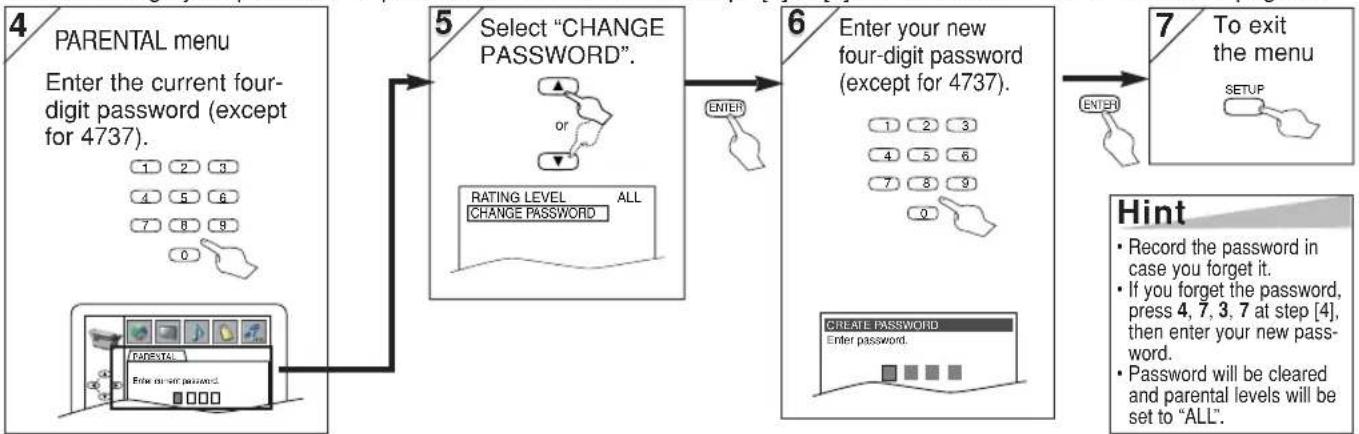
flowchart
graph TD
    A["4 PARENTAL menu\nEnter the current four-digit password (except for 4737)."] --> B["5 Select "CHANGE PASSWORD"."]
    B --> C["6 Enter your new four-digit password (except for 4737)."]
    C --> D["7 To exit the menu\nENTER"]
    D --> E["Hint\n• Record the password in case you forget it.\n• If you forget the password, press 4, 7, 3, 7 at step [4"], then enter your new password.\n• Password will be cleared and parental levels will be set to "ALL".]

OTHERS Setting
You can change the other functions. Follow the steps [1] to [3] in the "CUSTOM Menu" section on page 23.

flowchart
graph LR
A["4 OTHERS menu"] --> B["5 ANGLE MARK: (Default: ON)<br>Set to "ON" to show the angle icon when multiple camera angles are available during DVD playback."]
B --> C["6 To exit the menu"]
Reset to the Default Setting (except for PARENTAL Control)
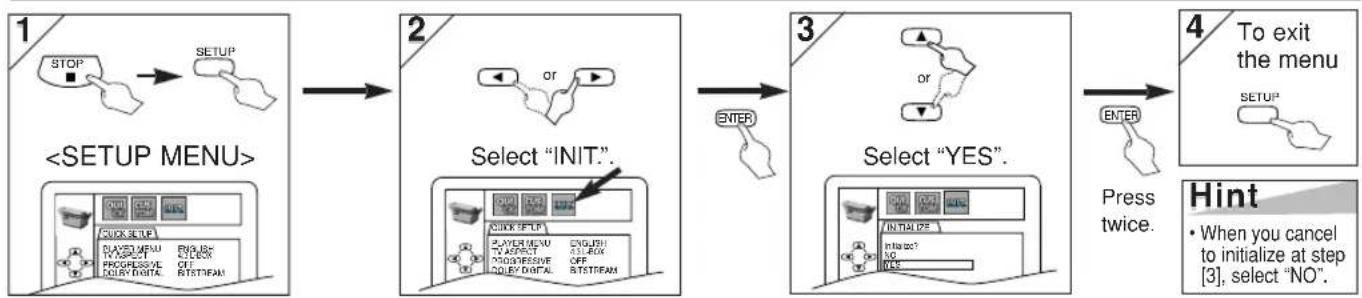
flowchart
graph LR
A["1 STOP"] --> B["2 OR"]
B --> C["3 Select "YES""]
C --> D["4 To exit the menu"]
subgraph Setup
A --> E["<SETUP MENU>"]
E --> F["Select "INIT""]
F --> G["Select "YES""]
end
subgraph Select
B --> H["ENTER"]
H --> I["Press twice."]
I --> J["Hint"]
end
subgraph Select
C --> K["Press twice."]
K --> L["• When you cancel to initialize at step [3"], select "NO"]
end
Information
Language Code List
| Language | Code | Language | Code | Language | Code | Language | Code |
| A-B | French [FRE] | 5264 | Macedonian | 5957 | Siswat | 6565 | |
| Abkhazian 4748 | Frisian | 5271 | Malagasy 5953 | Slovak | 6557 | ||
| Afar 4747 | Galician | 5358 | Malay | 5965 | Slovenian | 6558 | |
| Afrikaans 4752 | Georgian | 5747 | Malayalam | 5958 | Somali | 6561 | |
| Albanian 6563 | German [GER] | 5051 | Maltese | 5966 | Spanish [SPA] | 5165 | |
| Amharic 4759 | Greek [GRE] | 5158 | Maori | 5955 | Sundanese | 6567 | |
| Arabic 4764 | Greenlandic | 5758 | Marathi 5964 | Swahili | 6569 | ||
| Armenian 5471 | Guarani | 5360 | Moldavian | 5961 | Swedish [SWE] | 6568 | |
| Assamese 4765 | Gujarati | 5367 | Mongolian | 5960 | T | ||
| Aymara 4771 | Hausa | 5447 | Nauru | 6047 | Tagalog | 6658 | |
| Azerbaijani 4772 | Hebrew | 5569 | Nepali 6051 | Tajik | 6653 | ||
| Bashkir 4847 | Hindi | 5455 | Norwegian [NOR] | 6061 | Tamil | 6647 | |
| Basque 5167 | Hungarian [HUN] | 5467 | O-R | Tatar | 6666 | ||
| Bengali;Bangla 4860 | I-K | Occitan 6149 | Telugu | 6651 | |||
| Bhutani 5072 | Icelandic [ICE] | 5565 | Oriya | 6164 | Thai | 6654 | |
| Bihari 4854 | Indonesian | 5560 | Oromo(Afan) | 6159 | Tibetan 4861 | ||
| Bislama | 4855 | Interlingua 5547 | Panjabi | 6247 | Tigrinya | 6655 | |
| Breton | 4864 | Interlingue 5551 | Pashto;Pushto | 6265 | Tonga | 6661 | |
| Bulgarian | 4853 | Inupiak | 5557 | Persian 5247 | Tsonga 6665 | ||
| Burmese | 5971 | Irish [IRI] | 5347 | Polish | 6258 | Turkish [TUR] | 6664 |
| Byelorussian | 4851 | Italian [ITA] | 5566 | Portuguese [POR] | 6266 | Turkmen | 6657 |
| C-E | Japanese [JPN] | 5647 | Quechua | 6367 | Twi | 6669 | |
| Cambodian | 5759 | Javanese | 5669 | Rhaeto-Romance | 6459 | U-Z | |
| Catalan | 4947 | Kannada | 5760 | Romanian [RUM] | 6461 | Ukrainian | 6757 |
| Chinese [CHI] | 7254 | Kashmiri 5765 | Russian [RUS] | 6467 | Urdu | 6764 | |
| Corsican | 4961 | Kazakh 5757 | S | Uzbek 6772 | |||
| Croatian | 5464 | Kinyarwanda | 6469 | Samoan | 6559 | Vietnamese | 6855 |
| Czech 4965 | Kirghiz | 5771 | Sangho | 6553 | Volapuk | 6861 | |
| Danish [DAN] | 5047 | Kirundi | 6460 | Sanskrit | 6547 | Welsh | 4971 |
| Dutch [DUT] | 6058 | Korean [KOR] | 5761 | Scots Gaelic | 5350 | Wolof 6961 | |
| English [ENG] | 5160 | Kurdish 5767 | Serbian | 6564 | Xhosa 7054 | ||
| Esperanto | 5161 | L-N | Serbo-Croatian | 6554 | Yiddish | 5655 | |
| Estonian 5166 | Laothian | 5861 | Sesotho 6566 | Yoruba | 7161 | ||
| F-H | Latin | 5847 | Setswana | 6660 | Zulu | 7267 | |
| Faroese | 5261 | Latvian; Lettish | 5868 | Shona | 6560 | ||
| Fiji | 5256 | Lingala | 5860 | Sindhi | 6550 | ||
| Finnish [FIN] | 5255 | Lithuanian | 5866 | Singhalese 6555 |
If you choose a language that has a three-letter language code (written in bracket), the code will be displayed every time you change the Audio or Subtitle language setting on pages 22 and 23. If you choose any other languages, ‘---’ will be displayed instead.
Specifications
PRODUCT TYPE
DVD Player with Video Cassette recorder
CONNECTIONS
Front panel:
| Video input One | RCA connector |
| Audio input Two RCA connectors (one left channel, one right channel) | |
Rear panel:
| Audio input Two RCA connectors (one left channel, one right channel) |
Video input One RCA connector
| Audio output Two RCA connectors (one left channel, one right channel) |
Video output One RCA connector
S-Video output Mini DIN 4-pin jack (75 Ω)
| Analog audio output Two RCA connectors (one left channel, one right channel)2 Vrms (47 kΩ) |
Coaxial digital audio output One pin jack, 500mVpp (75 Ω)
| Component output | Y output level: 1Vp-p (75Ω) |
| C_B/P_B output level: 0.7Vp-p (75Ω) | |
| C_R/P_R output level: 0.7Vp-p (75Ω) |
VHF/UHF antenna input/ output terminal VHF/UHF set 75 Ω
[VCR section]
NUMBER OF VIDEO HEADS
4
VIDEO SIGNAL STANDARD
NTSC color system
One stationary head for liner audio Two rotary heads for Hi-Fi stereo
WOW AND FLUTTER
Below the measurement limitation (±0.001% W PEAK) (JEITA)
CHANNEL COVERAGE
VHF 2-13
| UHF | 14-69 |
| CATV | 1-125 |
TIMER BACKUP
30 seconds
- Designs and specifications are subject to change without notice.
- If there is a discrepancy between languages, the default language will be English.
[DVD section]
DISCS (PLAYBACK COMPATIBILITY)
DVD Video, Audio CD, CD-RW/R DVD-RW/R
FREQUENCY RESPONSE
DVD (linear sound) : 20 Hz to 22 kHz (sample rate: 48 kHz) 20 Hz to 44 kHz (sample rate: 96 kHz)
CD : 20 Hz to 20 kHz
SIGNAL-TO-NOISE RATIO (S/N RATIO)
CD : 100 dB (JEITA)
DYNAMIC RANGE
| DVD (linear sound) : | 90 dB |
| CD : | 85 dB (JEITA) |
TOTAL DISTORTION FACTOR
| W: 17 3/16" (435 mm) |
| H: 3 3/4" (94 mm) |
| D: 9 3/16" (233 mm) |
WEIGHT
Approx. 6 lbs (2.7 kg)
Troubleshooting Guide
If this unit does not perform properly when operated as instructed in this Instruction Manual, check this unit consulting the following checklist.
| PROBLEM | CORRECTIVE ACTION | |
| DVDVCR | No power. | Make sure the power plug is connected to an AC outlet.Make sure the power is turned on. |
| This unit does not respond to the remote control. | Check if the power plug is connected to an AC outlet.Check the batteries in the remote control.Aim the remote control directly at the remote sensor. If necessary, remove all the obstacles between the sensor and the remote.You have to be within 23 feet (7 meters) of this unit.Check if the right mode is selected. If it's not in the right mode, press DVD or VCR, whichever you need, on the remote control.Check if a cassette tape is in this unit.Tune your radio to an empty AM station so that you hear a lot of noises. Turn the volume up, then. If you hear some signal sound from the radio in response to your pressing buttons on the remote, the remote control is working. | |
| VCR | Timer recording is impossible. | Make sure the timer recording is set correctly.Make sure the TIMER and lights appear on the VCR/DVD. If not, press SUBTITLE/TIMER.Make sure the VCR clock is set correctly. |
| Cannot go into record mode. | Make sure the tape has a safety tab. If needed, cover the hole with cellophane tape.Set this unit in VCR mode. Press VCR on the remote control so that the VCR OUTPUT light is lit. | |
| Playback picture is partially noisy. | Adjust tracking control for a better picture by pressing CHANNEL (▼/▲) on the VCR/DVD or SKIP/CH (▶▶/▲ or ▶◀◀/▼) on the remote control. | |
| Cannot view a tape but the audio is OK. | Head cleaning may be necessary. (Refer to “AUTO HEAD CLEANING” on page 5.)Make sure the VCR is not in the Menu mode. | |
| No, or poor, playback picture. | Change the RF output channel to CH4. Then select the same channel on the TV.Fine tune your TV. | |
| TV programs cannot be seen normally. | Re-check the ANT IN and ANT OUT connections. (Refer to pages 7 and 8.)Press VCR/TV.Press VCR on the remote control to activate it in the VCR mode. Check if the VCR OUTPUT light is lit. Then, set it to the TV position by pressing VCR/TV. | |
| Video or color fades in and out when making a copy of a video tape. | You cannot copy a copyrighted video tape.You are experiencing copy guard protection | |
| DVD | No picture. | Connect the Video cables firmly.Set Progressive correctly. (Refer to page 8.)Insert a correct video disc that plays on this unit.Press DVD on the remote control. Check if the DVD OUTPUT light is lit. Then try other DVD features. |
| Disc cannot be played. | Insert the disc.Clean the disc.Place the disc correctly with the label side up.Cancel the parental lock or change the control levels.Handle a disc with special care so that it does not have fingerprints, scratches, or dusts on its surface. | |
| No sound. | Connect the Audio cables firmly.Set Progressive correctly. (Refer to page 8.)Turn the power of the audio component on.Correct the audio output settings.Correct the input settings on the audio component. | |
| Distorted picture. | Connect this unit directly to the TV.There are some cases where pictures may be slightly distorted, and those are not a sign of a malfunction.Although pictures may stop for a moment, this is not a malfunction.Check if the INTERLACE/PROGRESSIVE mode is set correctly according to your TV. (Refer to page 8.) | |
| NO DTS audio output. | This player does not support DTS audio.This is not a malfunction. | |
| Audio or subtitle language does not match the setup. | The selected language is not available for audio or subtitles on the DVD.This is not a malfunction. | |
| The camera angle cannot be changed. | The DVD does not contain sequences recorded from different camera angles.This is not a malfunction. | |
| Audio or subtitle language cannot be changed. | The DVD does not contain audio source or subtitles in the selected language.This is not a malfunction. | |
| “Prohibited icon” appears on the screen, prohibiting an operation. | That operation is prohibited by this unit or the disc. This is not a malfunction. | |
- Some functions are not available in specific modes, but this is not a malfunction. Read the description in this Instruction Manual for details on correct operations.
- Playback from a desired track and random playback are not available during program playback.
- Some functions are prohibited on some discs.
Conecciones
natural_image
Diagram of a battery mounted on a circuit board with two downward arrows indicating force or movement (no text or symbols present)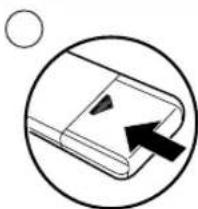
natural_image
Simple line drawing of a closed book with an arrow pointing to its cover, enclosed in a circle (no text or symbols)Conmutación VCR/DVD
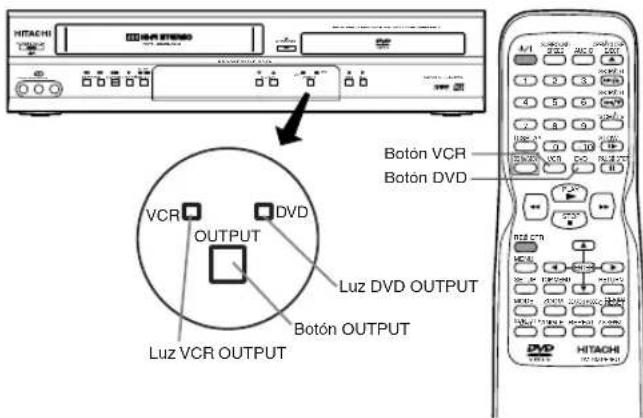
MODO VCR
RISQUE D'ÉLECTROCUTION NE PAS OUVRIR

ATTENTION:
AFIN DE RÉDUIRE LE RISQUE D'ÉLECTROCUTION, NE PAS EXPOSER LA PARTIE ARRIÈRE (ENDOS) DU BOÎTIER DE CET APPAREIL - IL NE CONTIENT AUCUNE PIÈCE POUVANT ÊTRE RÉPARÉE PAR L'USAGER. CONFIER LA RÉPARATION À UN TECHNICIEN QUALIFIÉ.

Jacks DVD ANALOG AUDIO OUT
flowchart
graph TD
    A["Start State"] --> B["Intermediate State"]
    B --> C["Final State"]
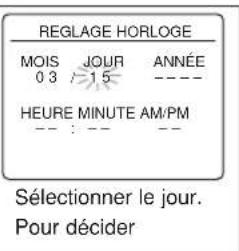
flowchart
graph TD
    A["↑"] --> B["↓"]
    B --> C["→"]
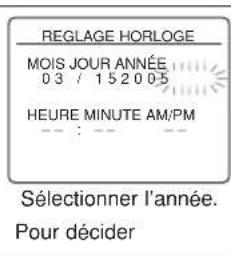
Conseil
Hint
flowchart
graph TD
    A["PLAY"] --> B["REPEAT"]
    B --> C["CHAPITRE"]
flowchart
graph TD
    A["PLAY"] --> B["AUDIO"]
    B --> C["1.ENG Delby D 3:2.1ch"]
flowchart
graph TD
    A["PLAY"] --> B["AUDIO"]
    B --> C["STEREO"]
flowchart
graph TD
    A["STÉRÉO"] --> B["L-ch"]
    B --> C["R-ch"]
To locate an authorized HITACHI service facility in the continental U.S.A
DIAL TOLL FREE
7 days a week,24 hours a day
HITACHI
1-800-448-2244
Hitachi has made every effort to assure you hours of trouble free operation from your unit. However, should you require service, a network of Hitachi Authorized Service Facilities has been established in all 50 states and Puerto Rico. Each facility will provide you with convenient and expedient assistance. Our service "Hot line" operator will direct you to the Hitachi Authorized Service Facility nearest you. Just present proof of purchase and/or delivery receipts to the Hitachi Authorized Service Facility and service will be rendered in accordance with the terms of the limited warranty as stated on your warranty card or operating guide.
Should you have any questions regarding in-warranty service, operation or technical assistance, please contact:
DIGITAL MEDIA DIVISION
1-2495 Meadowpine Blvd., Mississauga,
Ontario L5N 6C3 CANADA
Tel: 1-800-HITACHI
(1-800-448-2244)
Business hours
Monday - Friday EST 9:00am\~7:00pm
Saturday EST 9:00am\~5:00pm
Samedi 9:00am\~5:00pm (L'est)
DECLARATION OF CONFORMITY
with FCC Rules for Electromagnetic Compatibility
Products: DVD PLAYER with VIDEO
CASSETTE RECORDER
Models: DV-PF35U
Trade Name: HITACHI
This device complies with part 15 of FCC Rules.
Operation is subject to the following two conditions:
(1) this device may not cause harmful interference, and (2) this device must accept any interference received, including interference that may cause undesired operation.
Responsible Party: HITACHI AMERICA, LTD.
HOME ELECTRONICS DIVISION
900 Hitachi way,
Chula Vista, CA 91914-3556
Tel: 619-591-5200
Warranty Limitations
The Limited Warranty provided by Hitachi does not cover:
A. Cabinet (exterior finish items), Battery packs, Accessories, Lens Cleanings, Head Cleanings, DVD Disc Damage, Video Tape Damage, or Software Modifications.
B. Any defect, malfunction, or failure caused by or resulting from improper service, maintenance, repair, use of DVD Cleaning Disks, use of Video Cleaning Cassettes, software, or from abuse, neglect, accident or any other cause beyond the control of Hitachi
C. Unpacking, set-up or installation, adjustment of customer operated controls, user instruction.
D. Any product with Serial Numbers altered or removed
E. New products purchased or service performed outside of the continental United States or its possessions
F. Product used for a commercial or industrial purpose.
NO PERSON, AGENT, DISTRIBUTOR, DEALER, SERVICE FACILITY, OR COMPANY IS AUTHORIZED TO CHANGE, MODIFY, OR AMEND THE TERMS OF THIS LIMITED WARRANTY IN ANY MANNER OR FASHION WHATSOEVER, EXCEPT AND TO THE EXTENT PROVIDED IN THIS LIMITED WARRANTY, HITACHI MAKES NO EXPRESS WARRANTY REGARDING THIS HITACHI PRODUCT. FURTHER, ALL IMPLIED WARRANTIES RELATING TO ANY PORTION OF THIS PRODUCT, INCLUDING ANY WARRANTY OF MERCHANTABILITY OR FITNESS FOR A PARTICULAR PURPOSE, ARE LIMITED TO 90 DAYS FOR LABOR AND ONE YEAR FOR PARTS. THE DURATION OF THE APPLICABLE EXPRESS WARRANTY CONTAINED ABOVE. HITACHI SHALL NOT BE LIABLE TO THE PURCHASER OR TO ANY OTHER PERSON FOR ANY INCIDENTAL OR CONSEQUENTIAL DAMAGES OR LOSS OF PROFIT OF PRODUCT RESULTING FROM ANY DEFECT IN OR MALFUNCTION OR FAILURE OF THIS HITACHI PRODUCT. SOME STATES DO NOT ALLOW LIMITATIONS ON HOW LONG AN IMPLIED WARRANTY LASTS, OR THE EXCLUSION OF INCIDENTAL OR CONSEQUENTIAL DAMAGES, SO THE ABOVE LIMITATION MAY NOT APPLY TO YOU. THIS WARRANTY GIVES YOU SPECIFIC LEGAL RIGHTS AND YOU MAY ALSO HAVE OTHER RIGHTS WHICH VARY FROM STATE TO STATE.
Important Notice:
Retain your sales receipt for warranty purposes. Please complete the section below for your records as it may be needed in the event of loss.
Attach your sales receipt to this card.
DVD, VCR, Camcorder Products, AC Adapter Charger Limited Warranty Registration
(for your records)
Model No.
Serial No.
Date of Purchase
Dealer Name
Dealer Address
City State Zip
HITACHI
City State Zip
Dealer address
Dealer name
Phone No.
City State Zip
Customer Address
Customer Name
Serial No. Date of purchase
Model No.
(Please print or type)
developing better services and programs for our customers."
to validate your Hitachi limited warranty, but would assist us in
Electronics Division Completion of this card is not required in order
complete this card and retailnt to Hilachl America, Ltd.; Holle
"In order to allow Hitachi to better serve customer needs, please complete this card and return it to Hitachi America Ltd. Home
HITACHI
OR MAIL IN TO ADRESS ON THIS CARD.
HITACHI.COM/TV
REGISTER YOUR PRODUCT ON-LINE AT
HITACHI
Hitachi America, Ltd. Home Electronics Division
• DVD Products
• VCR Products
• CAMCORDER Products
• AC ADAPTER CHARGER
Conditions of Hitachi Limited Warranty
These Hitachi Products are warranted to be free of defects in parts and workmanship at the time of purchase by the original owner. If this product is found to be defective, Hitachi will repair or replace defective parts at no charge to the original owner. Parts used for replacement are warranted for the remainder of the original Limited Warranty period. For 90 days from the date of original purchase, Hitachi will provide labor for the repair or replacement of defective parts without charge, subject to the following conditions:
- Owner must provide verification of the date of purchase when requesting Limited Warranty Service. (Dated Sales Receipt Required)
- All repairs must be performed by a Hitachi Authorized Service Facility.
- This warranty is valid only in the U.S.A.
LIMITED WARRANTY
Hitachi America, Ltd., Home Electronics Division ("Hitachi.") warrants this component in duration as stated below:
• 90 DAYS LABOR (Carry-in)
• 1 YEAR PARTS (Except Battery)
For information concerning repairs, operation, technical assistance or for referral to the location of your nearest Authorized Service Facility or Parts Distributor, call: 1-800-HITACHI (1-800-448-2244)
HITACHI AMERICA, LTD HOME ELECTRONICS DIVISION
900 Hitachi Way Chula Vista, CA 91914-3556 Tel: 1-800-HITACHI
REGISTER YOUR HITACHI PRODUCT ON-LINE AT HITACHI.COM/TV
(Continued on reverse side)
QT15271
Register your product on-line at hitachi.com/tv or mail this portion to the following address
Attn: Warranty Department Hitachi America, Ltd., Home Electronics Division 900 Hitachi Way Chula Vista, CA 91914-3556
HITACHI CANADA LTD DIGITAL MEDIA DIVISION
HITACHI WARRANTY POLICY
HITACHI VIDEO PRODUCTS are guaranteed to be free from defects in workmanship and material. If any failure resulting from either workmanship or material defect should occur under normal and proper usage within the period stated hereunder from the original provable date of purchase, such failure should be repaired at no cost to the buyer, provided the defective product is brought to a HITACHI AUTHORIZED SERVICE CENTRE in Canada.
IMPORTANT: KEEP THIS WARRANTY CARD AND ATTACH IT TO YOUR BILL OF SALE FOR FUTURE USE.
WARRANTY PERIOD - 1 YEAR PARTS AND LABOR
Where HITACHI service is not available, the purchaser must assume the responsibility and expense for the proper packing, shipping and all costs associated with the delivery to and from the closest HITACHI AUTHORIZED SERVICE CENTRE.
All goods returned to a HITACHI authorized service center must be shipped on a 'PREPAID BASIS'. To avoid any damage to the returned goods, please ensure that proper packaging procedures are followed. A short written description of the problem along with proof of warranty should accompany the product returned for repair. Only products under warranty will be returned on a no-charge basis to the customer. The customer is responsible for all transport costs if the product is no longer under warranty.
WARRANTY DOES NOT COVER:
- Products received for repair without sales or delivery receipt showing date of purchase by the original customer.
- Damages caused by incorrect use, carelessness, unauthorized alterations, improper storage or unauthorized repair or service.
- Damage caused by fire, flood, lightning, acts of God, or other events beyond the control of Hitachi.
- Products purchased and/or used outside Canada.
- In transit damage claims, improper handling by carrier or post offices.
- Products or parts thereof which have had serial numbers removed, altered or defaced.
-
Products used for commercial purposes or institutions.
-
Products used for rental.
- Original installation (set-up), external adjustment and all normal maintenance needed such as cleaning of video head and lens pick-up, or any software modification or damage.
- Products sold in Canada by any other organization which is not authorized by Hitachi Canada Ltd.
- The replacement of video camera pickup element if the pick up element has been over-exposed to an intense source of light.
- Batteries, earphone, antennas, accessories and external parts such as cabinet and knobs.
IMPORTANT: This warranty is in lieu of all other warranties, or agreements whether express or implied, and no person, dealer or company is authorized to change, modify, or extend its terms in any manner whatsoever.
HITACHI CANADA LTD
TERMES ET GARANTIE DES PRODUITS HITACHI
How did you hear about this Hitach VIDEO PRODUCT? Comment avouv-vous pris connaissance LES PRODUCTS VIDÉO de Hitachi?
would assist us in developing better services and programs for our customers."/Blossed print or text)
card is not required in order to validate your Hitachi limited warranty, but
in order to allow Hitachi to better serve our customers' needs, please complete this card and return it to Hitachi Canada Ltd. Completion of this
HITACHI Inspire the Next
WWW.HITACHI.CA
ENREGISTREZ VOTRE PRODUIT EN LUCNE A: IMPORTANT
WWW.HITACHI.CA
IMPORTANT
HITACHI
VIDEO PRODUCT
YOUR
WARRANTY
PRODUIT VIDÉO
VOTRE
GARANTIE
HITACHI
Inspire the Next
HITACHI
Inspirer l'avenir
HITACHI CANADA LTD
DIGITAL MEDIA DIVISION
1-2495 Meadowpine Blvd., Mississauga Ontario L5N 6C3
IMPORTANT NOTICE : This warranty will not apply to products purchased outside of Canada OR sold by any organization other than HITACHI CANADA LTD
© Hitachi, Ltd. 2005
1VMN20542
H9850UD/H9851CD****
Register your
Product on-line at Hitachi.ca or mail to the address on this card.
Enregistrez votre
produit en ligne à
ATT: WARRANTY DEPARTMENT HITACHI CANADA LTD
1-2495 MEADOWPINE BLVD., MISSISSAUGA ON L5N 6C3
- HITACHI Inspire the Next
- DVD/VCR Combo (DVD PLAYER with VIDEO
- DV-PF35U
- WARNING: TO REDUCE THE RISK OF FIRE OR ELECTRIC SHOCK, DO NOT EXPOSE THIS APPLIANCE TO RAIN OR MOISTURE.
- CAUTION:
- Laser Safety
- FCC WARNING- This equipment may generate or use radio frequency energy. Changes or modifications to this equipment may cause harmful interference unless the modifications are expressly approved in the manual. The user could lose the authority to operate this equipment if an unauthorized change or modification is made.
- RADIO-TV INTERFERENCE
- A NOTE ABOUT RECYCLING
- Make your contribution to the environment!!!
- Table of Contents
- Precautions
- Setup
- VCR Functions
- DVD Functions
- Information
- Español 29
- Symbols Used in This Manual
- The following symbols appear in some headings and notes in this manual.
- Supplied Accessory
- Installation Location
- Avoid the Hazards of Electrical Shock and Fire
- Moisture Condensation Warning
- About Copyright
- Notice for Progressive Scan Outputs
- Maintenance
- SERVICING
- CLEANING THE CABINET
- CLEANING DISCS
- CLEANING THE DISC LENS
- DISC HANDLING
- AUTO HEAD CLEANING
- Hint
- Note to CATV system installer
- About the Video Cassettes and Discs
- playable Video Cassettes
- If you cannot play back a disc which bears one of the marks above, check the following notes.
- Unplayable Discs
- RF Output Channel
- If channel 3 is already occupied for broadcasting,
- Hint for Cable Box or Satellite Box
- To select channels of the cable box or satellite box
- To playback a tape
- To view one channel while recording another
- If your TV is compatible with 525p/480p progressive scanning and you want to enjoy that high quality picture;
- If your TV is not compatible with progressive scanning;
- What is Progressive Scanning?;
- Connection to an Audio System
- Front & Rear Terminals
- About the Remote Control and Front Panel About the Remote C
- Installing the Batteries for the Remote Control
- Front Panel Display
- VCR/DVD Switching
- VCR MODE
- DVD MODE
- Preparation for Use
- Turn on the unit for the first time
- Yes Press MENU
- To Select a Channel
- To Add or Delete Channels
- To Preset the Channel Again
- To Change the On-Screen Language
- Clock Set Up
- Playback
- Other Operations
- To cue or review picture during playback (Picture Search)
- To freeze the picture on TV screen during playback (Still mode)
- Counter Reset
- To play back in slow motion
- Auto Rewind
- Time Search
- Index Search
- Auto Repeat
- Index Search:
- Recording
- Recording & OTR (One Touch Recording)
- Accidental erasure prevention
- To stop recording temporarily (Pause mode)
- Press PAUSE/STEP II.
- Timer Recording
- To Check, Correct, or Cancel a Timer Program
- To cancel a Timer Recording in progress
- Hints for OTR and Timer Recording
- Copying a Video Tape
- On-Screen Operations
- 1/ To call up the main menu
- 3/ To decide
- 2/ To select an item
- 4/ To exit the menu
- MTS (Multi-Channel Television Sound) System
- When You Receive or Record a Program Broadcast in MTS
- When You Playback a Tape Recorded in Hi-Fi Stereo
- DVD menu
- Calling up a Menu Screen during Playback
- Resume
- Press STOP ■
- TIP:
- Paused and Step-by-Step Playback
- Fast Forward/Reverse Search
- Slow Forward/Slow Reverse
- Zoom
- MP3 Playback
- x1.3 and x0.8 Rapid Play with Voice
- On-Screen Display
- Marker Setup
- Search Function
- Track Search
- Using SEARCH MODE
- Using SKIP ◀◀, ▶▶
- Title / Chapter Search
- Disc Navigation
- Repeat / Random / Programmed Playback
- Repeat Playback Programmed
- PlaybackRepeat A-B Playback
- Random Playback
- Special Settings
- Subtitle Language
- To set subtitle ON/OFF
- Audio Language
- Camera Angles
- Black Level Setting
- Stereo Sound Mode
- Virtual Surround
- QUICK SETUP Menu
- CUSTOM Menu
- LANGUAGE Setting
- DISPLAY Setting
- TV ASPECT:
- STILL MODE:
- PROGRESSIVE:
- AUDIO Setting
- PARENTAL Control
- Rating Levels
- To Change the Password for Parental Controls
- OTHERS Setting
- Specifications
- PRODUCT TYPE
- CONNECTIONS
- [VCR section]
- NUMBER OF VIDEO HEADS
- VIDEO SIGNAL STANDARD
- WOW AND FLUTTER
- CHANNEL COVERAGE
- TIMER BACKUP
- [DVD section]
- DISCS (PLAYBACK COMPATIBILITY)
- FREQUENCY RESPONSE
- SIGNAL-TO-NOISE RATIO (S/N RATIO)
- DYNAMIC RANGE
- TOTAL DISTORTION FACTOR
- WEIGHT
- Troubleshooting Guide
- Conecciones
- Conmutación VCR/DVD
- MODO VCR
- RISQUE D'ÉLECTROCUTION NE PAS OUVRIR
- ATTENTION:
- Jacks DVD ANALOG AUDIO OUT
- Conseil
- DIAL TOLL FREE
- HITACHI
- DECLARATION OF CONFORMITY
- Warranty Limitations
- Important Notice:
- DVD, VCR, Camcorder Products, AC Adapter Charger Limited Warranty Registration
- Conditions of Hitachi Limited Warranty
- LIMITED WARRANTY
- HITACHI AMERICA, LTD HOME ELECTRONICS DIVISION
- REGISTER YOUR HITACHI PRODUCT ON-LINE AT HITACHI.COM/TV
- HITACHI CANADA LTD DIGITAL MEDIA DIVISION
- HITACHI WARRANTY POLICY
- WARRANTY PERIOD - 1 YEAR PARTS AND LABOR
- WARRANTY DOES NOT COVER:
- TERMES ET GARANTIE DES PRODUITS HITACHI
- WWW.HITACHI.CA
Brand : HITACHI
Model : DVPF35U
Category : DVD combo