
TMU220D - Printer EPSON - Free user manual and instructions
Find the device manual for free TMU220D EPSON in PDF.
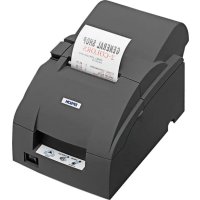



| Product Type | Dot matrix (impact) receipt printer |
| Power Supply | AC adapter (models PS-180, AC adapter C/C1) |
| Main Functions | Receipt printing, manual paper cutter, automatic paper cutter (models A and B), status indicators (power, error, paper end), paper feed button, optional wall mount (WH-10) |
| Consumables | EPSON ERC-38 ink ribbon cartridge, specified paper roll |
| Maintenance and Cleaning | Regular replacement of ribbon and paper; clean print head after cooling |
| Safety | Avoid exposure to dust and moisture; unplug if abnormal odor; do not touch hot print head; use specified power supply |
| Spare Parts and Repairability | ERC-38 ink ribbon cartridge, paper roll, AC adapter, WH-10 wall mount; repair by qualified technician only |
| General Information | Model TM-U220D, brand Epson. 48-page user manual available for free download |
Frequently Asked Questions - TMU220D EPSON
User questions about TMU220D EPSON
0 question about this device. Answer the ones you know or ask your own.
Ask a new question about this device
Download the instructions for your Printer in PDF format for free! Find your manual TMU220D - EPSON and take your electronic device back in hand. On this page are published all the documents necessary for the use of your device. TMU220D by EPSON.
USER MANUAL TMU220D EPSON
D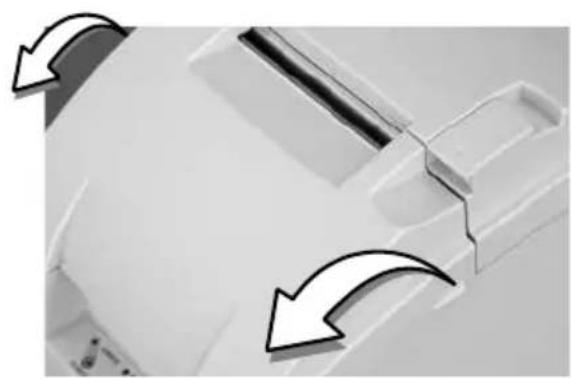
E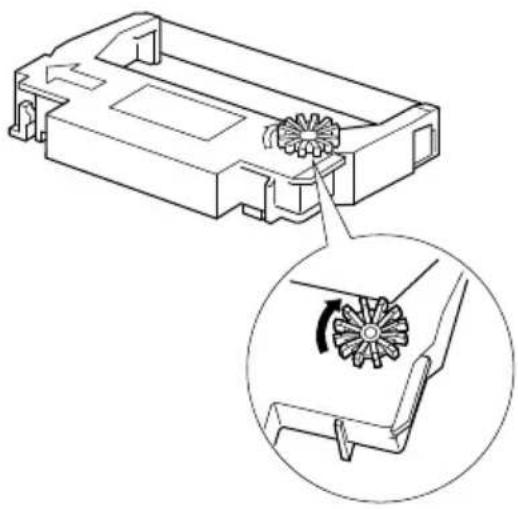
F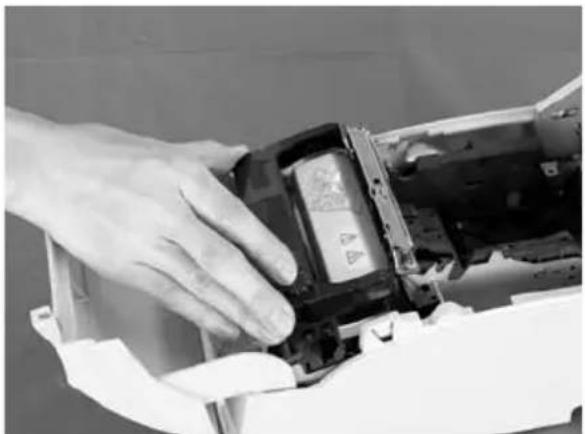
G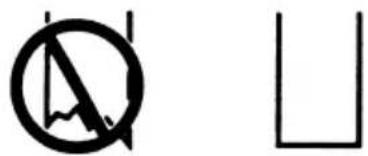
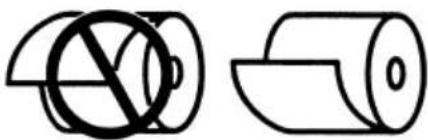
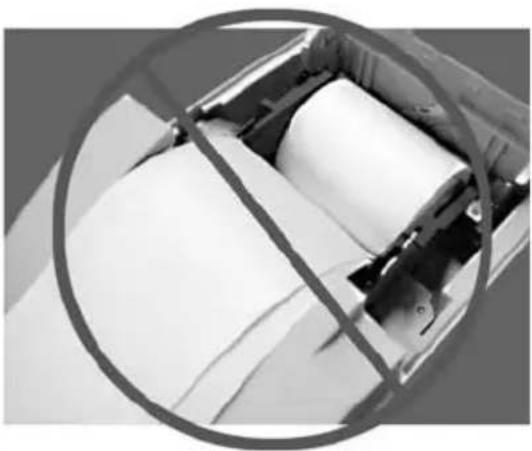
HG-a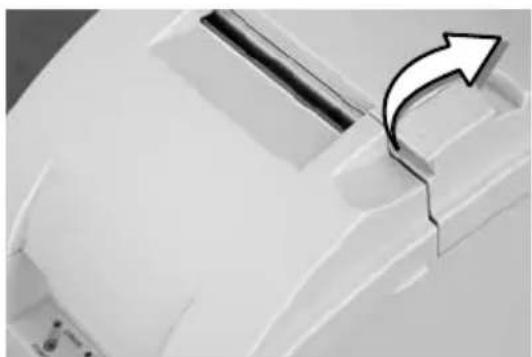
Standards and Approvals
The following standards are applied only to the printers that are so labeled. (EMC is tested using the Epson power supplies.)
Europe: CE marking
North America: FCC Class A, ICES-003 Class A
Oceania: Radiocommunications
(Electromagnetic
Standard, Class A
For Users in the Americas Warning
The connection of a non-shielded interface cable to this device will invalidate the EMC standards of this device. You are cautioned that changes or modifications not expressly approved by Seiko Epson Corporation could void your authority to operate the equipment.
FCC Compliance Statement for Users in the USA
This equipment has been tested and found to comply with the limits for a Class A digital device, pursuant to Part 15 of the FCC Rules. These limits are designed to provide reasonable protection against harmful interference when the equipment is operated in a commercial environment.
This equipment generates, uses, and can radiate radio frequency energy and, if not installed and used in accordance with the instruction manual, may cause harmful interference to radio communications. Operation of this equipment in a residential area is likely to cause harmful interference, in which case the user will be required to correct the interference at his own expense.
For Users in Canada
This Class A digital apparatus complies with Canadian ICES-003.
For Users in Oceania
WARNING
This is a Class A product. In a domestic environment this product may cause radio interference in which case the user may be required to take adequate measures.
For Users in Europe
CE Marking
www.epson.eu/conformity
WARNING
This is a Class A product. In a domestic environment this product may cause radio interference in which case the user may be required to take adequate measures.
WARNING
Indication of the manufacturer and the importer in accordance with requirements of directive 2011/65/EU (RoHS)
Manufacturer: SEIKO EPSON CORPORATION
Address: 3-5, Owa 3-chome, Suwa-shi, Nagano-ken 392-8502, Japan
Web site: www.epson.com/
Importer: EPSON EUROPE B.V.
Address: Atlas Arena, Asia Building, Hoogoorddreef 5,1101 BA Amsterdam Zuidoost The Netherlands
Web site: www.epson.eu/
Serial (DIP Switch 1)
| SW Function On Off | |||
| 1 Data receive error Ignored Prints “?” | |||
| 2 Receive buffer capacity 40 bytes 4 KB | |||
| 3 Handshaking XON/XOFF DTR/DSR | |||
| 4 Word length | 7 bits | 8 bits | |
| 5 Parity check | Yes | No | |
| 6 Parity selection | Even | Odd | |
| 7 Transmission speed | 4800 bps | 9600 bps | |
| 8 | BUSY condition | Receive buffer full | Receive buffer full or Offline |
Serial (DIP Switch 2)
| SW Function On Off | |||
| 1 Print column 42/35 40/33 | |||
| 2 For internal use only (autocutter) | Enabled Disabled | ||
| 3 Pin 6 reset signal Used Not used | |||
| 4 Pin 25 reset signal Used Not used | |||
| 5 Undefined - | - | ||
| 6 For internal use only (flash memory rewriting) | Enabled | Disabled | |
| 7 Undefined - | - | ||
| 8 Serial interface selection Memory | switch | DIP switch | |
Look at the numbers and letters in the area indicated in the illustration. If the last letters are “US”, use the “US” tables below. If the last letters are “STD”, use the “STD” tables.

CAUTION:
Be sure to replace the DIP switch cover before using the printer.
Parallel (DIP Switch 1)
| SW | Function | On | Off |
| 1 | Auto line feed | Enabled | Disabled |
| 2 | Receive buffer capacity | 40 bytes 4 KB | |
| 3~7 | Undefined | - | - |
| 8 | BUSY condition Receive buffer full | full | Receive buffer full or Offline |
Parallel (DIP Switch 2)
| SW | Function | On | Off |
| 1 | Print column selection 42/35 | 40/33 | |
| 2 | For internal use only (autocutter) | Enabled Disabled | |
| 3 | Undefined | - | - |
| 4 | Pin 31 reset signal Used | Not used | |
| 5 | Undefined | - | - |
| 6 | For internal use only (flash memory rewriting) | Enabled Disabled | |
| 7 | Undefined | - | - |
| 8 | Undefined | - | - |
STD
Serial (DIP Switch 1)
| SW Function On Off | |||
| 1 Data receive error Ignored Prints “?” | |||
| 2 Receive buffer capacity 40 bytes 4 KB | |||
| 3 Handshaking XON/XOFF DTR/DSR | |||
| 4 Word length 7 bits 8 bits | |||
| 5 Parity check Yes No | |||
| 6 Parity selection Even Odd | |||
| 7 Transmission speed 4800 bps 9600 bps | |||
| 8 | BUSY condition | Receive buffer full | Receive buffer full or Offline |
Serial (DIP Switch 2)
| SW Function On Off | ||
| 1 Print column 42/35 40/33 | ||
| 2 For internal use only (autocutter) | Enabled Disabled | |
| 3 Undefined - | - | |
| 4 Serial interface selection Memory switch DIP switch | ||
| 5 Undefined - | - | |
| 6 For internal use only (flash memory rewriting) | Enabled | Disabled |
| 7 Pin 6 reset signal Used Not used | ||
| 8 Pin 25 reset signal Used Not used | ||
Parallel (DIP Switch 1)
| SW Function On Off | |||
| 1 | Auto line feed | Enabled | Disabled |
| 2 | Receive buffer capacity | 40 bytes | 4 KB |
| 3~7 | Undefined | - | - |
| 8 | BUSY condition | Receive buffer full | Receive buffer full or Offline |
Parallel (DIP Switch 2)
| SW Function On Off | |||
| 1 | Print column selection | 42/35 | 40/33 |
| 2 | For internal use only (autocutter) | Enabled | Disabled |
| 3~5 | Undefined | - | - |
| 6 | For internal use only (flash memory rewriting) | Enabled | Disabled |
| 7 | Undefined | - | - |
| 8 | Pin 31 reset signal | Used | Not used |
Features of Printer Types
See illustration A.
| Type A | Type B | Type D | |
| Autocutter | Yes | Yes | No |
| Take up device | Yes | No | No |
| Paper width (mm) | 76 | 76/69.5/57.5 | 76/69.5/57.5 |
TM-U220 Specifications
| Print method 9-pin serial impact | dot matrix method | |
| Print font Font (standard) | Font A: 7 × 9, Font B: 9 × 9 | |
| Column capacity (columns) | 7 × 9/9 × 9:76 mm: 40/33, 69.5 mm: 36/30, 57.5 mm: 30/25 | |
| Character size (W × H)(standard) | 1.2 × 3.1 mm/1.6 × 3.1 mm (excluding horizontal spacing) | |
| Character set 95 Alphanum | Eric, 48 International,128 × 12 Graphic | |
| Characters per inch (standard)(3 half dot spacing) | Font A (7 × 9): 16 cpi, Font B (9 × 9): 13.3 cpi | |
| Paper | Dimensions (mm) | 57.5 ± 0.5, 69.5 ± 0.5, 76 ± 0.5 |
| Normal paper (mm) Thickness:0.06~0.085 (1 sheet) | ||
| Pressure-sensitive paper | Thickness: 0.05~0.08 (1 sheet), total thickness must be 0.14 mm or less.Number of copies: Original 1 sheet + one copy sheet | |
| Ribbon cassettes ERC-38 (B) Black life: 3,000,000 charactersERC-38 (B/R) Black/Red life: Black 1,500,000/Red 750,000 charactersLife based on continuous printing at 25°C {77°F} | ||
| Print speed (Paper width 76 mm) 4.7 lps (40 columns, 16 cpi) | ||
| Interface RS-232 or IEEE 1284 | ||
| Data buffer Receive buffer 4 KB or 40 bytes | ||
| Power supply*1 | 24 VDC ± 7% | |
| Power consumption (Stand-by) 2.2 W | ||
| D.K.D. function | 2 drives | |
| Reliability (Life) | Mechanism | 7,500,000 lines |
| Print head | 150 million characters | |
| Autocutter | 800,000 cuts | |
| Temperature | Operating | 0~50°C {32~122°F} |
| Storage | -10~50°C {14~122°F}, without paper and ribbon cassette | |
| Humidity | Operating | 10~90%, must be no condensation |
| Storage | 10~90%, must be no condensation, without paper and ribbon cassette | |
| Overall dimensions (mm) | Type A: 160 × 286 × 157.5 {6.3 × 11.26 × 6.2"} (W × D × H)Type B: 160 × 248 × 138.5 {6.3 × 9.76 × 5.45"} (W × D × H)Type D: 160 × 248 × 138.5 {6.3 × 9.76 × 5.45"} (W × D × H) | |
| Weight (mass) (approx.) | Type A: 5.94 kg {13.07 lb} Type B: 2.5 kg {5.5 lb}Type D: 2.3 kg {5.06 lb} | |
dpi: dots per 25.4 mm (dots per inch); Ips: lines per second; Ipi: lines per 25.4 mm (lines per inch) *1: Be sure to use a safety-standards-applied power source that meets the following specifications. Rated output: 24 V/2.0~10.0 A, Maximum output: 240 VA or less
TM-U220
User's Manual
DIP Switches and Specifications
The technical specifications and the information about the DIP switches are at the beginning of this manual.
Illustrations
All of the illustrations are at the beginning of this manual. They are identified by letters (A, B, C . . .). In the text the illustrations are referred to by these letters. ("See illustration A," for example.) Some of these illustrations have numbered arrows or lines pointing to parts of the illustration. See the list below for the meaning of the numbers. Because this manual covers three types of the TM-U220, some of the illustrations may be slightly different from your printer; however, the instructions cover all types, except as noted.
Illustration A
- Roll paper cover
- Ribbon cassette cover
- Control panel
- Power supply switch
All rights reserved. No part of this publication may be reproduced, stored in a retrieval system, or transmitted in any form or by any means, electronic, mechanical, photocopying, recording, or otherwise, without the prior written permission of Seiko Epson Corporation. No patent liability is assumed with respect to the use of the information contained herein. While every precaution has been taken in the preparation of this book, Seiko Epson Corporation assumes no responsibility for errors or omissions. Neither is any liability assumed for damages resulting from the use of the information contained herein.
Neither Seiko Epson Corporation nor its affiliates shall be liable to the purchaser of this product or third parties for damages, losses, costs, or expenses incurred by purchaser or third parties as a result of: accident, misuse, or abuse of this product or unauthorized modifications, repairs, or alterations to this product, or (excluding the U.S.) failure to strictly comply with Seiko Epson Corporation's operating and maintenance instructions.
Seiko Epson Corporation shall not be liable against any damages or problems arising from the use of any options or any consumable products other than those designated as Original Epson Products or Epson Approved Products by Seiko Epson Corporation.
EPSON is a registered trademark of Seiko Epson Corporation. Exceed Your Vision is a registered trademark or trademark of Seiko Epson Corporation. All other trademarks are the property of their respective owners and used for identification purpose only.
NOTICE: The contents of this manual are subject to change without notice.
©Seiko Epson Corporation 2003-2019. All rights reserved.
Important Safety Information
This section presents important information intended to ensure safe and effective use of this product. Read this section carefully and store it in an accessible location.
Key to Symbols
The symbols in this manual are identified by their level of importance, as defined below. Read the following carefully before handling the product.

WARNING:
Warnings must be followed carefully to avoid serious bodily injury.

CAUTION:
Cautions must be observed to avoid minor injury to yourself or damage to your equipment.
Safety Precautions

WARNING:
Shut down your equipment immediately if it produces smoke, a strange odor, or unusual noise. Continued use may lead to fire. Immediately unplug the equipment and contact qualified service personnel.
Never attempt to repair this product yourself. Improper repair work can be dangerous.
Never disassemble or modify this product. Tampering with this product may result in injury or fire.
Be sure to use the specified power source. Connection to an improper power source may cause fire.
Do not allow foreign matter to fall into the equipment. Penetration by foreign objects may lead to fire.
If water or other liquid spills into this equipment, do not continue to use it. Continued use may lead to fire. Unplug the power cord immediately and contact qualified service personnel.
If you open the DIP switch cover, be sure to close the cover and tighten the screw after adjusting the DIP switch. Using this product with the cover open may cause fire or electric shock.
Do not use aerosol sprayers containing flammable gas inside or around this product. Doing so may cause fire.

CAUTION:
Do not connect cables in ways other than those mentioned in this manual. Different connections may cause equipment damage and burning.
Be sure to set this equipment on a firm, stable, horizontal surface. Product may break or cause injury if it falls.
Do not use in locations subject to high humidity or dust levels. Excessive humidity and dust may cause equipment damage or fire.
Do not place heavy objects on top of this product. Never stand or lean on this product.
Equipment may fall or collapse, causing breakage and possible injury.
Take care not to injure your fingers on the manual cutter
- When you remove printed paper
- When you perform other operations such as loading/replacing roll paper
To ensure safety, unplug this product before leaving it unused for an extended period.
Before moving the product, unplug it and unplug all cables connected to it.
Safety Labels
The caution labels on the product indicate the following precautions.

WARNING:
Do not connect a telephone line to the drawer kick out connector; otherwise, the printer and the telephone line may be damaged.


CAUTION:
During printing or after printing, the print head can be very hot.
Notes on Usage
Do not open the cover during printing or when the autocutter is being operated. Do not install the printer in a dusty place. Protect the printer from impact. Cords or other foreign objects must not be caught on the printer. Do not apply excessive force to the printer case. Do not place food or beverages such as coffee on the case of the printer.
Notes on Installation
When using the printer, be sure that the printer is installed horizontally. If you are using a Type B or D printer, you can hang it on a wall, using the optional hanging bracket set, WH-10.
Note:
To hang the printer on a wall, see the WH-10 Installation Manual for detailed instructions.
Notes on Connecting the Power Supply Unit
Be sure to use the correct power supply unit as listed below:
| TM-U220 alphanumeric model (types A, B, and D) TM-U220 multilingual* model (types A, B, and D) |
| “AC adapter, C”, “AC adapter, C1” or “PS-180” “PS-180” or “AC adapter, C1” |
*Multilingual means the printer model that can print any one of the following: Japanese Kanji, Simplified Chinese, Traditional Chinese, Thai characters, or Korean characters.
Purpose of This Manual
This manual provides information to operators of the TM-U220 to describe basic operations to enable safe and correct use of the printer.
Restriction of Use
When this product is used for applications requiring high reliability/safety, such as transportation devices related to aviation, rail, marine, automotive, etc.; disaster prevention devices; various safety devices, etc.; or functional/precision devices, etc.; you should use this product only after giving consideration to including fail-safes and redundancies into your design to maintain safety and total system reliability. Because this product was not intended for use in applications requiring extremely high reliability/safety, such as aerospace equipment, main communication equipment, nuclear power control equipment, or medical equipment related to direct medical care, etc., please make your own judgment on this product's suitability after a full evaluation.
Unpacking
The following items are included for the standard specification printer. If any item is damaged, contact your dealer.
Printer, Roll paper, Exclusive ribbon cassette [ERC-38(B/R)], AC adapter (May not be included with the printer.)
Downloading Drivers, Utilities, and Manuals
Drivers, utilities, and manuals can be downloaded from one of the following URLs.
For customers in North America, go to the following web site: www.epson.com/support/
For customers in other countries, go to the following web site: www.epson-biz.com/
Control Panel (LEDs and Buttons)
See illustration B.
LEDs
POWER
Lights when the power is on and is off when the power is off.
ERROR
Lights when the printer is offline (when the roll paper is at the end, or the roll paper cover is open). Off when the printer operates correctly. Flashes when an error occurs. (See the Troubleshooting section.)
PAPER OUT
Lights when roll paper is out or nearly out.
Button
FEED
FEED feeds the roll paper.
Note:
Paper cannot be fed by using this button when a paper out is detected.
Power Supply Switch and Power Supply Switch Cover
The power supply switch is on the front of the printer. Press the power supply switch to turn on the printer.
Power Supply Switch Cover
You can use the enclosed power supply switch cover to make sure that the power supply switch is not accidentally pressed. Just press the cover into place to install it. If you need to turn the power supply switch on or off with the cover attached, you can insert a thin tool into one of the holes in the cover to operate the switch. See illustration C.

WARNING:
If an accident occurs when the power supply switch cover is attached, immediately unplug the power supply cable to avoid fire.
If you are going to store the printer or leave it unused for a long time, turn it off using the power supply switch on the printer.
Inserting and Replacing the Ribbon Cassette


CAUTION:
The print head becomes very hot during printing. Allow it to cool before you replace the ribbon cassette.

CAUTION:
Never turn the ribbon cassette's feed knob in the opposite direction of the arrow marked on the cassette; otherwise the ribbon cassette may be damaged.
Note:
Use the EPSON ERC-38 ribbon cassette for your printer.
- Open the ribbon cassette cover by using the tabs on the sides of the cover, as shown in illustration D.
- Turn the knob two or three times in the direction of the arrow, as shown in illustration E.
- Insert the ribbon in the position shown in illustration F and push the ribbon cassette down until it clicks.
Note:
Make sure the ribbon is installed between the print head and the platen without wrinkles or creases.
- Again turn the ribbon cassette's knob 2 or 3 times in the direction of the arrow and close the ribbon cassette cover.


CAUTION:
Be careful not to touch the print head with your fingers when turning the ribbon cassette knob because the print head is hot and you might be burned.
When you replace the ribbon cassette, lift the left side of the ribbon cassette first; then lift the whole ribbon cassette.
Inserting Roll Paper

CAUTION:
Be sure to use roll paper that meets the specifications.
Be sure not to touch the manual cutter. Otherwise your fingers might be injured.
- Using scissors, cut the leading edge of the roll paper, as shown in illustration G.
- Turn on the printer and open the roll paper cover using the tab, as shown in illustration H.
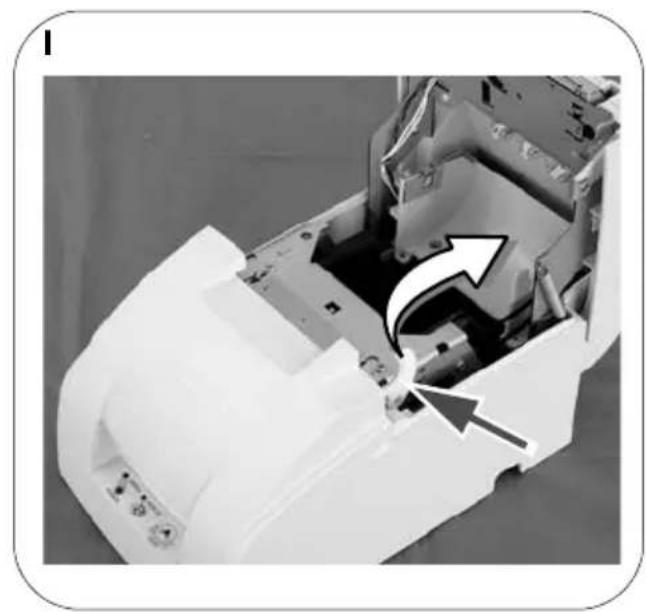
- Type A only: Open the unit using the unit open lever, as shown in illustration I.
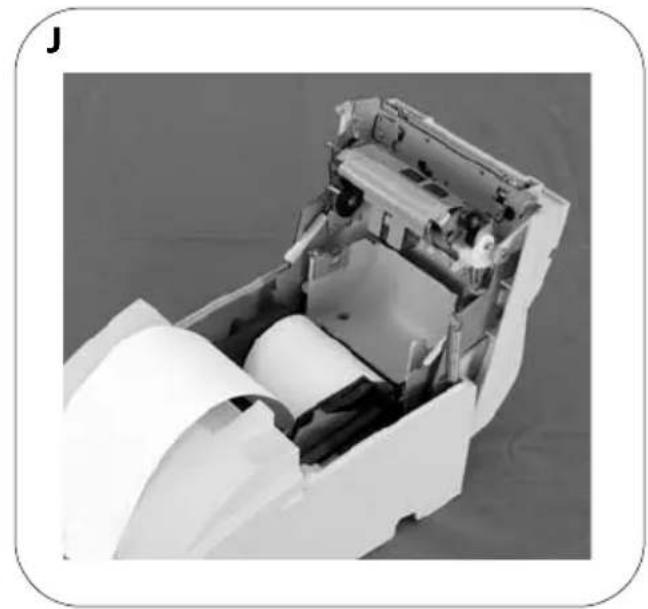
- Insert the roll paper, as shown in illustration J.
Note:
Note the direction the paper comes off the roll, as shown in illustration G.
When using 2-ply roll paper, ensure that the top and bottom sheets are aligned at the paper exit. See illustration G-a.
- If you are not using a take-up spool, pull out a small amount of roll paper and close the roll paper cover; then tear off the paper with the manual cutter. You can skip steps 6 through 11.
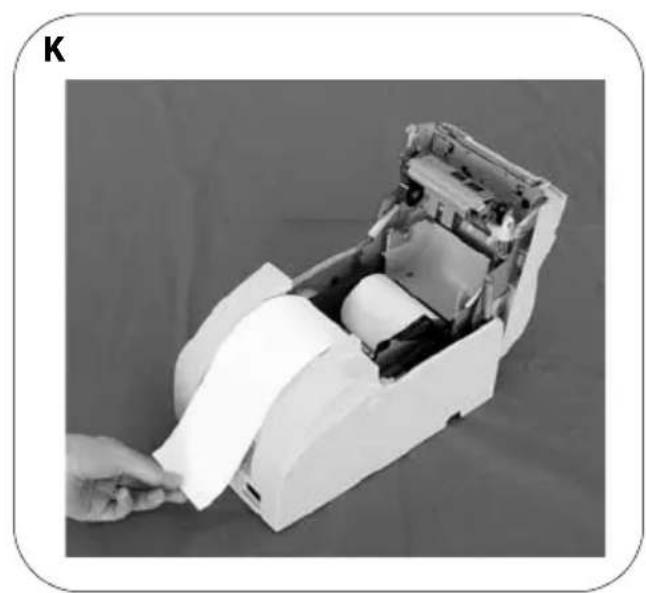
- Type A only: When using 2-ply roll paper, pull out the roll paper to the bottom front of the printer as a guide, as shown in illustration K.
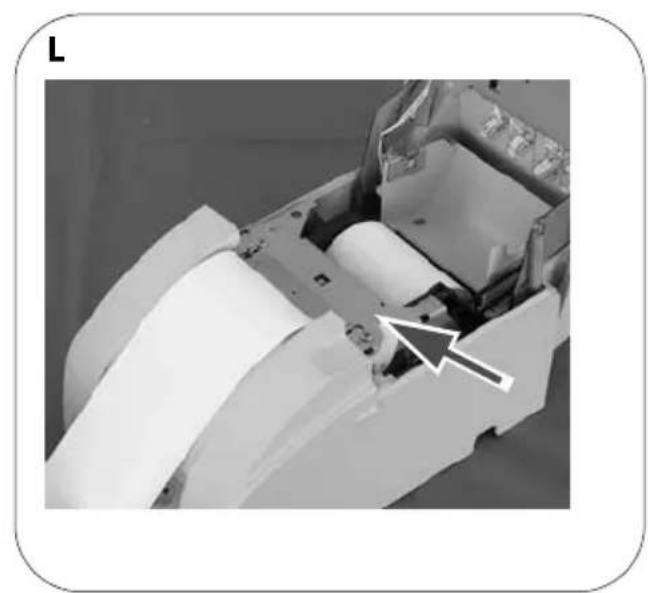
- Close the unit, as shown in illustration L.
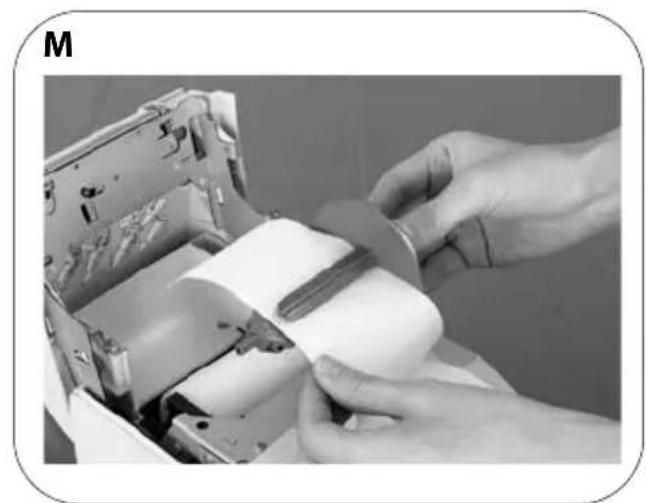
- Insert the end of the bottom paper (journal paper) into the paper take-up spool, as shown in illustration M.
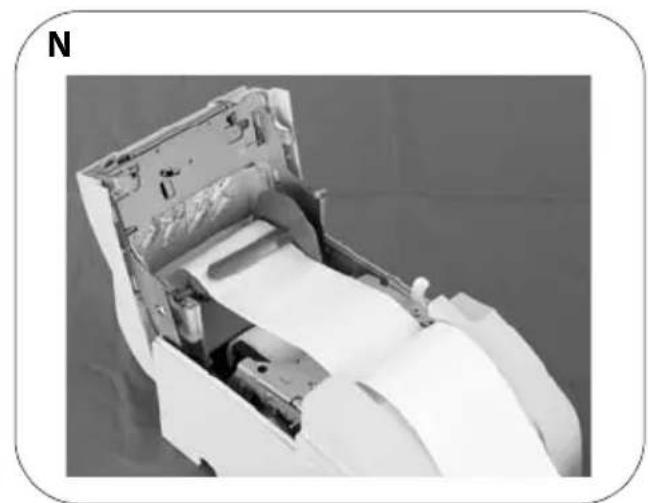
- Insert the paper take-up spool in the printer. Ensure that the paper is aligned with the spool's flange, as shown in illustration N.
- Feed the paper with the FEED button so that the paper is taken up by the spool.
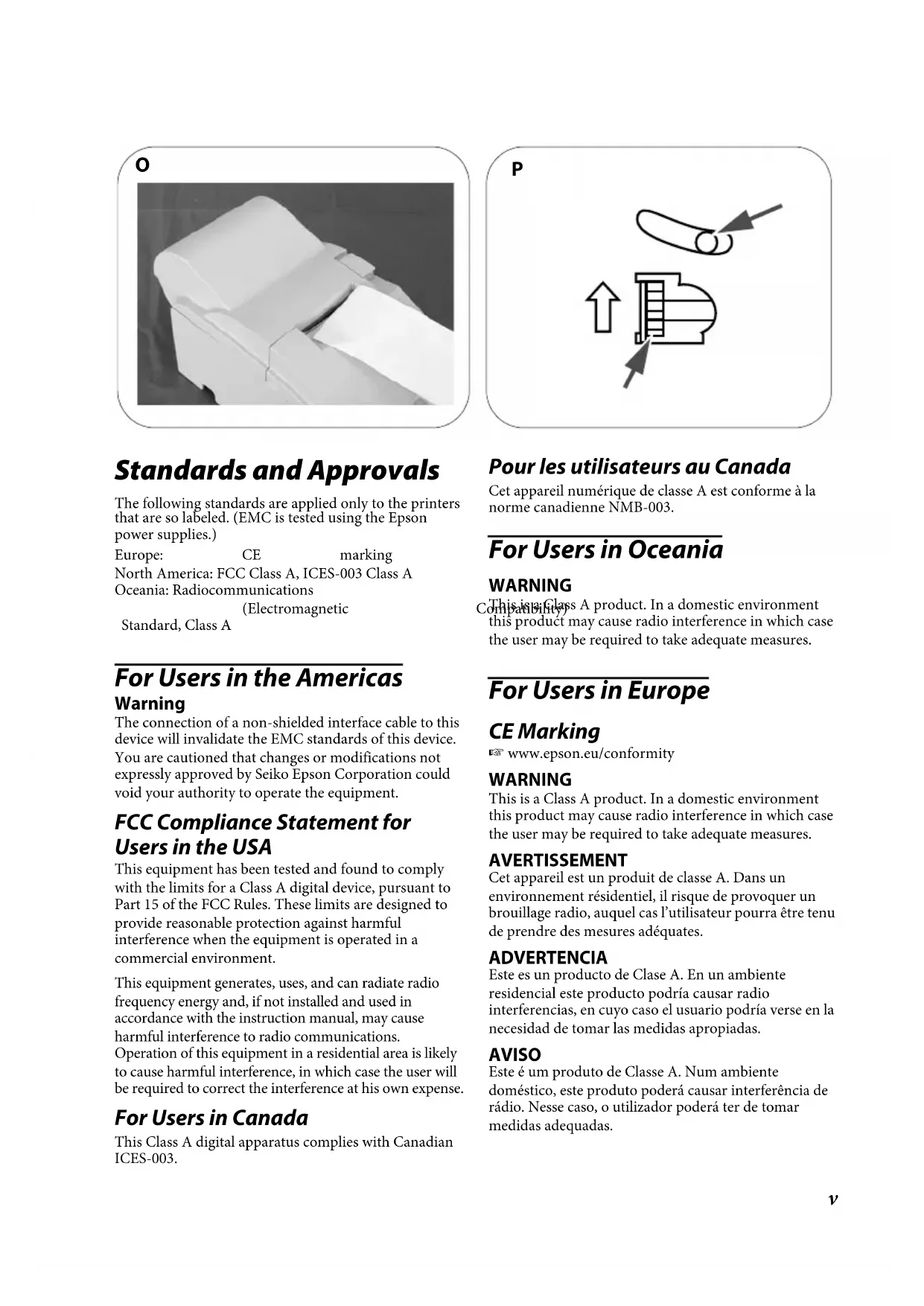
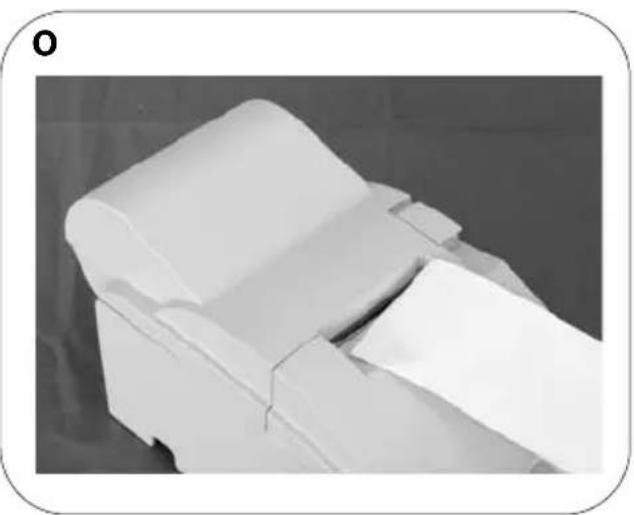
- Close the roll paper cover and tear off the roll paper with the manual cutter, as shown in illustration O.
Note:
Do not open the roll paper cover during printing or paper feeding.
When using the printer, be sure to cut the roll paper with the manual cutter after paper feeding is complete.
Replacing Roll Paper
- Open the roll paper cover by using the tab, as shown in illustration H.
- Types B and D: Remove the used roll paper core.
- Type A only: Remove the take-up spool, and open the unit by using the unit open lever, as shown in illustration I; then remove the used roll paper core.
- Insert new roll paper. See the section "Inserting Roll Paper".
Troubleshooting
Printing stops before all the lines are printed or the printer prints the same line repeatedly
If the correct power supply unit is not used, the printer cannot operate correctly. Make sure the correct power supply unit is connected to the printer, referring to the table below:
| The power supply unit that can be used with the TM-U220 alphanumeric model (types A, B, and D) | The power supply unit that can be used with the TM-U220 multilingual* model (types A, B, and D) |
| “AC adapter, C”, “AC adapter, C1” or “PS-180” “PS-180” or “AC adapter, C1” | |
*Multilingual means the printer model that can print any one of the following: Japanese Kanji, Simplified Chinese, Traditional Chinese, Thai characters, or Korean characters.
No lights on the control panel
☐Check the power supply cable connections and the power outlet.
ERROR LED is flashing or lit
☐The print head temperature may be too high or low. Wait until the print head cools or warms and the printer resumes printing automatically. ☐ Make sure that the roll paper cover is properly closed. ☐Types A and B: The autocutter blade is not in the normal position and the autocutter is locked up. If it is a simple lock-up, the error is corrected automatically. If not, see the instructions below to return the blade to the normal position manually. ☐A paper jam has occurred. To remove the jammed paper, see the instructions below. ☐ Turn off the power, wait several seconds, and then turn it on again. If the error remains, contact your supervisor or a qualified service person.
Returning the autocutter blade to the normal position
- Open the roll paper cover by using the tab, as shown in illustration H.
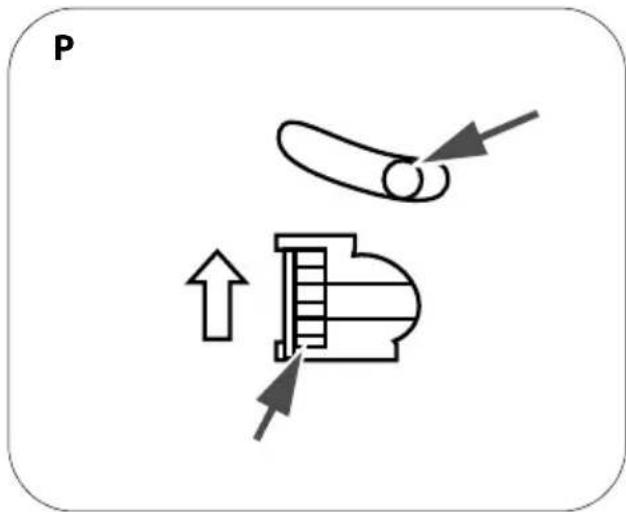
- Use a ballpoint pen or tweezers to turn the knob of the autocutter in the direction indicated by the arrow until you see a round shaft in the hole, as shown in illustration P.
Removing jammed paper


CAUTION:
The print head becomes very hot during printing. Allow it to cool before you reach into the printer.
- Open the roll paper cover by using the tab, as shown in illustration H.
- If you have a Type A printer, remove the take-up spool and open the unit by using the unit open lever, as shown in illustration I.
- Remove the jammed paper.
- Re-insert the roll paper and close the roll paper cover.
TM-U220
www.epson.com/support/
- STANDARDS AND APPROVALS
- FOR USERS IN THE AMERICAS WARNING
- FCC COMPLIANCE STATEMENT FOR USERS IN THE USA
- FOR USERS IN CANADA
- FOR USERS IN OCEANIA
- WARNING
- FOR USERS IN EUROPE
- CE MARKING
- INDICATION OF THE MANUFACTURER AND THE IMPORTER IN ACCORDANCE WITH REQUIREMENTS OF DIRECTIVE 2011/65/EU (ROHS)
- CAUTION
- STD
- FEATURES OF PRINTER TYPES
- TM-U
- USER'S MANUAL
- DIP SWITCHES AND SPECIFICATIONS
- ILLUSTRATIONS
- ILLUSTRATION A
- IMPORTANT SAFETY INFORMATION
- KEY TO SYMBOLS
- SAFETY PRECAUTIONS
- SAFETY LABELS
- NOTES ON USAGE
- NOTES ON INSTALLATION
- NOTE
- NOTES ON CONNECTING THE POWER SUPPLY UNIT
- PURPOSE OF THIS MANUAL
- RESTRICTION OF USE
- UNPACKING
- DOWNLOADING DRIVERS, UTILITIES, AND MANUALS
- CONTROL PANEL (LEDS AND BUTTONS)
- LEDS
- POWER
- ERROR
- PAPER OUT
- BUTTON
- FEED
- POWER SUPPLY SWITCH AND POWER SUPPLY SWITCH COVER
- POWER SUPPLY SWITCH COVER
- INSERTING AND REPLACING THE RIBBON CASSETTE
- INSERTING ROLL PAPER
- REPLACING ROLL PAPER
- TROUBLESHOOTING
- PRINTING STOPS BEFORE ALL THE LINES ARE PRINTED OR THE PRINTER PRINTS THE SAME LINE REPEATEDLY
- NO LIGHTS ON THE CONTROL PANEL
- ERROR LED IS FLASHING OR LIT
- RETURNING THE AUTOCUTTER BLADE TO THE NORMAL POSITION
- REMOVING JAMMED PAPER
Brand : EPSON
Model : TMU220D
Category : Printer