
DCR-TRV24E - Camcorder SONY - Free user manual and instructions
Find the device manual for free DCR-TRV24E SONY in PDF.


| Product type | Digital camcorder |
| Brand | Sony |
| Model | DCR-TRV24E |
| Screen size | 6.2 cm (2.5 inches) |
| Screen resolution | 123,200 pixels |
| Power supply (battery) | 7.2 V (battery pack) |
| Power supply (charger) | 8.4 V (AC charger) |
| Weight (with battery) | Approx. 600 g |
| Dimensions (W × H × D) | Approx. 80 × 100 × 180 mm |
| Optical zoom | 10x |
| Image stabilizer | Yes (electronic) |
| Main functions | Digital video recording, playback, optical zoom, image stabilizer, LCD screen, viewfinder |
| Maintenance and cleaning | Clean the housing with a soft dry cloth. For the heads, use a special cleaning cassette. Avoid solvents. |
| Safety | Do not expose to moisture or rain. Use only the supplied charger. Avoid shocks. |
| Spare parts and repairability | Battery, charger, remote control, cables available as options. For repair, contact an authorized Sony service center. |
| General information | Recording format: MiniDV. Media: MiniDV cassette. Built-in electronic viewfinder. |
Frequently Asked Questions - DCR-TRV24E SONY
User questions about DCR-TRV24E SONY
0 question about this device. Answer the ones you know or ask your own.
Ask a new question about this device
Download the instructions for your Camcorder in PDF format for free! Find your manual DCR-TRV24E - SONY and take your electronic device back in hand. On this page are published all the documents necessary for the use of your device. DCR-TRV24E by SONY.
USER MANUAL DCR-TRV24E SONY
Digital Video Camera Recorder Mini DV Digital Video Cassette
Operating Instructions
Before operating the unit, please read this manual thoroughly, and retain it for future reference.
HnctpyKuaI NO 3KcnIyataaun
Congratulations on your purchase of this Sony Handycam. With your Handycam you can capture life's precious moments with superior picture and sound quality.
Your Handycam is loaded with advanced features, but at the same time it is very easy to use. You will soon be producing home video that you can enjoy for years to come.
WARNING
To prevent fire or shock hazard, do not expose the unit to rain or moisture.
To avoid electrical shock, do not open the cabinet.
Refer servicing to qualified personnel only.
NOTICE ON THE SUPPLIED AC POWER ADAPTOR FOR CUSTOMERS IN THE UNITED KINGDOM
A moulded plug complying with BS1363 is fitted to this equipment for your safety and convenience.
Should the fuse in the plug supplied need to be replaced, a 5 AMP fuse approved by ASTA or BSI to BS1362 (i.e., marked with or mark) must be used.
If the plug supplied with this equipment has a detachable fuse cover, be sure to attach the fuse cover after you change the fuse. Never use the plug without the fuse cover. If you should lose the fuse cover, please contact your nearest Sony service station.
ATTENTION
The electromagnetic fields at the specific frequencies may influence the picture and sound of this digital camcorder.
This product has been tested and found compliant with the limits set out on the EMC Directive for using connection cables shorter than 3 meters. (9.8 feet)
Notice
If static electricity or electromagnetism causes data transfer to discontinue midway (fail), restart the application or disconnect and connect the USB cable again.
Pycckn
Добpo пожаловать!
I03dpabJIeM BAc C npNo6peTeHHeM daHHoB BVdeOkamepb Handycam cnpMb Sony.C nOmoIbU BaSei BnDeOkamepb Handycam Bc CMoXeTe 3aneaTne TOpOrne Bam mHOBeHn JN3HN C ppeBOxCoJbIM KaYeCTBOM n3O6paKeHn I 3Byka.
Baawa Bndeokamepa Handycam ochaueHa yCOBepheHCTBOBAHHbIMN cyHKUAMN,HO TO Xe Bpem ee ouehb IerKo NcNoJb3OBaTb. Bckope BbydTe co3daBaTb cEmnHbIe BnDeOpporpaMMbl, KOTOpblM MoKeTe HacnaXDaTbCnocJeDyOuime rObl.
PNEyPPEXDEHNE
IpypeDToBpaSeHnBa30rapHnIyIOnaChOCTn 3NeKtpuYeCKoR O yapa He BbICTaBnIte annapaT Ha DoJb IIN BLaIg.
Bo n36eKaHne nopaxeHn 3JIeKtpnuecknM TOKOM He OTKpbIbAaTe KOpNyc.
3a obcnykubahnem obaaTaBcTolbko K KBaInΦuIpuOBaHOMy obcnykubIoUeMy nepcohany.
BHIMAHNE
3NeKtpomarHHTbIe IOna Ha onpeJeHHbIX YactOTax MOrYT BImrTb Ha N3O6paXeHne I 3ByK, BOCPpON3BOIDMbIe DaHHo CnFpOBoB BVDeOKaMepoN.
3To n3dennpeoWno npOBepky Ha COOTBETCTBNE Tpe6oBAHnAM DnpeKtNBbl EMC dIra nCNoJIb3OBAHnA CoeHNHTelhBix Ka6enei, KopoYe 3 MeTpOB.
PpeDynpKdEneHie
Ecni ctaTnueckoe 3neKtpnuecTBo nIIN 3JIeKTPomarHETn3M pInBEdet K nppepbBaHIO (HeBbIOJNHeHIO) nepeaun daHHbIX,TO nepe3anyctnte npNKlaDHyIO nporpaMMy nIIN OTcoEHNHTe I NpOcEeHNHTe USB-ka6ebIb ONrTb.
For the customers in Germany
Directive: EMC Directive 89/336/EEC. 92/31/EEC
This equipment complies with the EMC regulations when used under the following circumstances:
Residential area
Business district
Light-industry district
(This equipment complies with the EMC standard regulations EN55022 Class B.)
- Recording moving pictures on a tape (p. 35)
- Recording still images on a tape (p. 62)
-Playing back a tape (p. 50) - Recording still images on a "Memory Stick" (^*1) (p. 58, 150)
-
Recording moving pictures on a "Memory Stick"1) (p. 167)
Viewing still images recorded on a "Memory Stick" (^1) (p. 181)
Viewing moving pictures recorded on a "Memory Stick" (^*1) (p. 185) -
Viewing images recorded on a "Memory Stick" using the USB cable ^*1) (p. 222, 228)
- Viewing images recorded on a tape using the USB cable (p. 217)
- Capturing images on your computer from your camcorder using the USB cable (p. 219)
- Converting an analog signal into digital to capture images onto your computer ^2) (p. 230)

Other uses
Functions for adjusting exposure in the recording mode
- BACK LIGHT (p. 43)
NightShot/Super NightShot/Colour Slow Shutter (p. 44)
PROGRAM AE (p. 75) - Adjusting the exposure manually (p. 78)
Functions for giving images more impact
- Digital zoom (p. 40)
The default setting is OFF. (To zoom greater than 10 × , select the digital zoom power in D ZOOM in the menu settings.)
Fader (p. 67)
- Picture effect (p. 70)
Digital effect (p. 72)
- Titles (p. 130)
-MEMORY MIX^*1 (p. 160)
Functions for giving a natural appearance to your recordings
- Landscape (p. 75)
Sports lesson (p. 75) - Manual focus (p. 79)
Functions for using after recording
END SEARCH/EDITSEARCH/Rec Review (p. 48)
DATA CODE (p. 52)
-Tape PB ZOOM (p. 89)/Memory PB ZOOM*1) (p. 191)
- ZERO SET MEMORY (p. 91)
- TITLE SEARCH (p. 92)
- Digital program editing (p. 104, 175^*1 )
*1) Except DCR-TRV16E/TRV116E
^2) DCR-TRV25E/TRV27E/TRV116E/TRV118E only
3aInCb DnKyuXxCn n3o6paXeHn Ha JeHTy (cTp. 35)
- 3aɪnɪçb HæNoDVBɪŋKhbɪx
ɪzɔːbɒpʌkæHŋ Ḥa Jæntɪt y (cTp. 62)
BocnpoIm3BeJeHHeJIeHTbl (CTp. 50)
3aIncB HeNoDBNkHbIX n3o6paXeHn Ha "Memory Stick" **1) (cTp. 58, 150)
- 3aɪnscb dBɪxkjʊnxcj
ɪzɔbpaːkèhɪn ha “Memory Stick”1) (cɪrp. 167)
Плостмт Неловский
изобрахени, заимсаньх на
"Memory Stick" (^1) (cTp. 181)
ПлрсмOTР ДВИХУСХС
иЗобрахенН ha“Memory Stick”*1)
(cTp. 185)
-ПюсмOTиЗОБражЕн, 3аписаньх Ha "Memory Stick", c ИСПОЛБЗОВАнем Kaбеля USB*1) (cTp.222,228)
-ПюсмOTp n3обрахжен, 3aINcAHbIX Ha JIeHTy, C NOMOцьЮ Ka6eJIa USB (cTp. 217)
BBoJ n3o6paXeHn B BaW KOMpbIOp c BaWei BnDeOkamepbIC NcPOnlb3OBaHNem Ka6eJIY USB (cTp.219)
-ПгөбраЗоване aHAлогово
СИгнала в сифровоДЯ ввда
изобрахень в Ваш кOMпьOTep*2)
(cтр. 230)

PpOue npImeHene
Функци ДлpeунровКи 3Kcno3nCиВ pexHme 3aHncN
- BACK LIGHT (cTp. 43)
- Houcha cbeMa/HouHa cynepcbemKa/LBeTHa CbeMka C meJneHHbIM 3aTbOpom (ctp. 44)
- PROGRAM AE (cTp. 75)
-PyuHaI peYunipOBka 3Kcno3n (CTp.78)
-JaHuaT (cTp. 75)
CnpTnBbIe 3aHATNA (CTp.75)
-PyuHaN aФokucnopoBka (CTp.79)
- Recording on a tape 12
- Recording on a "Memory Stick" ^*1) .... 14
Getting Started
Using this manual 20
Checking supplied accessories 23
Step 1 Preparing the power supply. 24
Installing the battery pack 24
Charging the battery pack. 25
Connecting to a wall socket 30
Step 2 Setting the date and time 31
Step 3 Inserting a cassette 33
Recording - Basics
Recording a picture 35
Shooting backlit subjects
- BACK LIGHT 43
Shooting in the dark
- NightShot/Super NightShot/
Colour Slow Shutter 44
Self-timer recording*1) 46
Checking recordings - END SEARCH/ EDITSEARCH/Rec Review 48
Playback - Basics
Playing back a tape 50
To display the screen indicators -Display function 52
Viewing the recording on TV 56
Advanced Recording Operations
Recording still images on a "Memory Stick" during recording on a tape*1) 58
Recording still images on a tape
- Tape Photo recording 62
Adjusting the white balance manually 64
Using the wide mode 66
Using the fader function 67
Using special effects - Picture effect .... 70
Using special effects-Digital effect.....72
Using the PROGRAM AE function .... 75
Adjusting the exposure manually 78
Focusing manually 79
Interval recording 81
Frame by frame recording
- Frame recording 84
AdvancedPlaybackOperations
Playing back tapes with picture effect ... 86
Playing back tapes with digital effect .... 87
Enlarging images recorded on a tape - Tape PB ZOOM 89
Quickly locating a scene
- ZERO SET MEMORY 91
Searching the boundaries of recorded tape by title - TITLE SEARCH 92
Searching a recording by date -DATE SEARCH 94
Searching for a photo - PHOTO SEARCH/PHOTO SCAN 97
Editing
Dubbing a tape 100
Dubbing only desired scenes - Digital program editing (on tapes) 104
Recording video or TV programmes*2) 119
Inserting a scene from a VCR - Insert Editing*2) 123
Audio dubbing 125
Superimposing a title 130
Making your own titles 134
Labelling a cassette 137
"Memory Stick" Operations\*1)
Using a "Memory Stick" - Introduction 140
Recording still images on a "Memory Stick"
- Memory Photo recording 150
Recording an image from a tape as a still image 156
Superimposing a still image in the "Memory Stick" on an image - MEMORY MIX 160
Recording moving pictures on a "Memory Stick" - MPEG movie recording 167
Recording pictures from a tape as a moving picture 171
Recording edited pictures from a tape as a moving picture - Digital program editing (on "Memory Stick"s) 175
Copying still images from a tape -PHOTO SAVE. 179
Viewing still images - Memory Photo playback 181
Viewing moving pictures -MPEG movie playback 185
Copying images recorded on "Memory Stick"s to a tape ^3) 189
Enlarging still images recorded on a "Memory Stick" - Memory PB ZOOM 191
Playing back images in a continuous loop - SLIDE SHOW 193
Preventing accidental erasure - Image protection. 195
Deleting images - DELETE 196
Writing a print mark - PRINT MARK 199
Using the optional printer 201
Viewing Images Using Your Computer
Viewing images with your computer - Introduction 203
Connecting your camcorder to your computer using the USB cable - For Windows users 207
Viewing images recorded on a tape with your computer - For Windows users 217
Viewing images recorded on a "Memory Stick" with your computer*1) -For Windows users 222
Connecting your camcorder to your computer using the USB cable*1) - For Macintosh users 225
Viewing images recorded on a "Memory Stick" on your computer ^*1) - For Macintosh users 228
Capturing images from an analog video unit on your computer*2) - Signal convert function. 230
Customising Your Camcorder
Changing the menu settings 232
Troubleshooting
Types of trouble and how to correct trouble 252
Self-diagnosis display 259
Warning indicators and messages. 260
Additional Information
Usable cassettes 272
About the "InfoLITHIUM" battery pack 276
About i.LINK 278
Using your camcorder abroad 280
Maintenance information and precautions 281
Specifications 287
Quick Reference
Identifying parts and controls. 291
Index 302
*1) Except DCR-TRV16E/TRV116E
^*2) DCR-TRV25E/TRV27E/TRV116E/TRV118E only
^*3) DCR-TRV25E/TRV27E/TRV118E only
OchOBhble yHKcH 6
PykoBoDCTBO no 6bIcTpomy 3anycky
-3aHnCb Ha IeHTy 16
-3aIncBHa"Memory Stick*1) 18
Bocnpoun3BeDeHneJeHTbl 50
Дя OTO6paXeHnA 3KpaHHbIX INdNKaTOPOB -ФyHKUINHdNKaCmN 52
Pa3HOBUNIOHOCTNHeNCpBaBHOCTeIMETO,dbIxUCTpaHENIA 262
HnDnKauncaMoOnaHocTNKu 269
PpeDynpexKaIOUe HnDnKAtOpbl N coo6ueHNA 270
DOnOpHnTeIbHa NΦopMaζη
UcnoIb3yEmble kaccetbl 272
O 6aTapeiHOM 6Ioke "InfoLITHIUM" ... 276
O ctaHapTe i.LINK 278
IcnoIb3OBaHnE BaIeB BInDeOkamepb 3a rpaHnCe.. 280
HnfoMaunno yxOdy 3a annapaTOM n MepbI ppeoctopoxkHOCTn 281
Texnueckne xapaKtepcntkn 289
OnepatNBbI CNpaBOHnK
Obo3nueHne yacteN npeyIaTOpOB 291
AilpaBHTbIy ykaaTeIb 303
^*1) Kpome moJeNei DCR-TRV16E/TRV116E
^2) ToIbKO moJeN DCR-TRV25E/TRV27E/ TRV116E/TRV118E
^3) Toько модени DCR-TRV25E/TRV27E/TRV118E
Quick Start Guide - Recording on a tape
This chapter introduces you to the basic features to record on a tape of your camcorder. See the page in parentheses “()” for more information.
1 Connecting the mains lead (p. 30)
Use the battery pack when using your camcorder outdoors (p. 24).
2 Inserting a cassette (p. 33)
Slide L OPEN/EJECT in the direction of the arrow and open the lid.

Push the centre of the cassette back to insert the cassette. Insert the cassette straight as far as possible into the cassette compartment with the window facing up.
3 Close the cassette compartment by pressing [PUSH] on the cassette compartment. After the cassette compartment goes down completely, close the lid until it clicks.
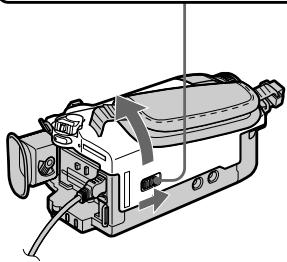
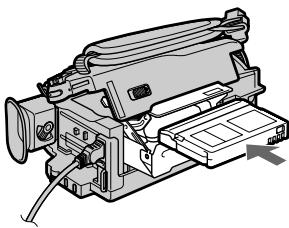
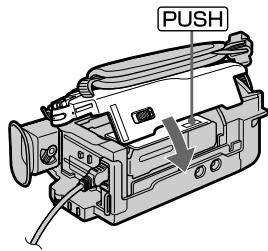
3
Recording a picture (p. 35)
1 Remove the lens cap.
3 Open the LCD panel while pressing OPEN. The picture appears on the screen.
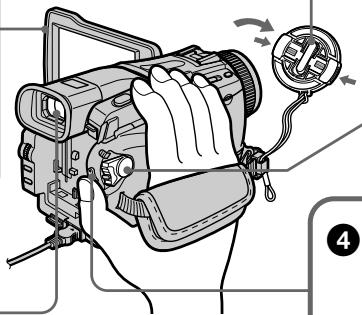
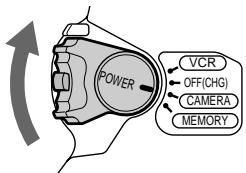
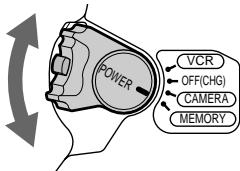
2 Set the POWER switch to CAMERA while pressing the small green button.
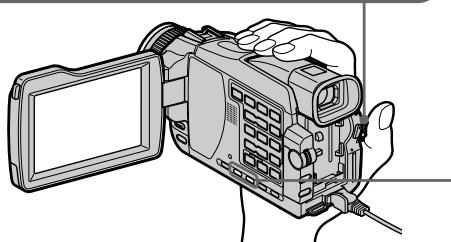
Viewfinder
When the LCD panel is closed, use the viewfinder with your eye against the eyecup.
Adjust the viewfinder lens to your eyesight (p. 39).
4 Press START/STOP. Your camcorder starts recording. To stop recording, press START/STOP again.
When you purchase your camcorder, the clock setting is set to off. If you want to record the date and time for a picture, set the clock before recording (p. 31).
4
Monitoring the playback picture on the LCD screen (p. 50)
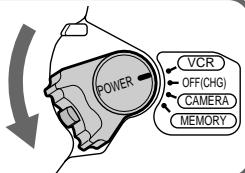
1 Set the POWER switch to PLAYER^1 / VCR^2 while pressing the small green button.
Press to rewind the tape.

Press to start playback.

^1) DCR-TRV16E/TRV18E/TRV24E only ^2) DCR-TRV25E/TRV27E/TRV116E/TRV118E only
NOTE
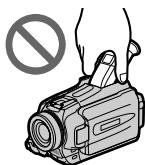
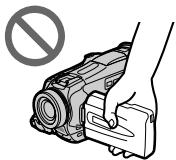
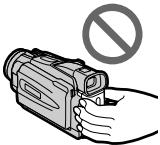
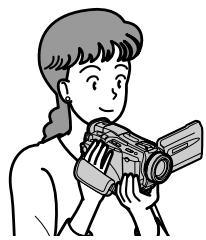
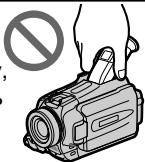
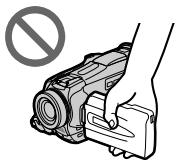
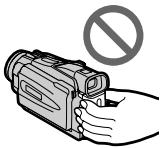
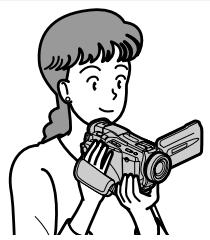
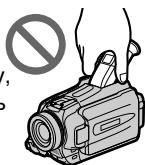
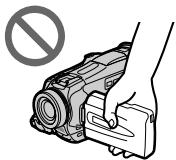
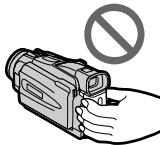
Do not pick up your camcorder by holding the viewfinder, the LCD panel, or the battery pack.
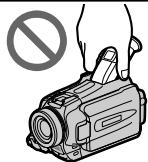
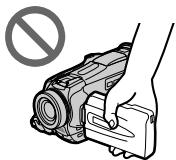
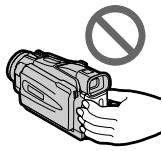
- Except DCR-TRV16E/TRV116E
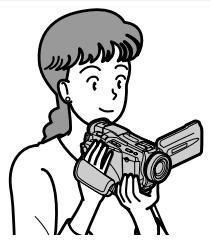
This chapter introduces you to the basic features to record on a "Memory Stick" of your camcorder. See the page in parentheses "() for more information.
1 Connecting the mains lead (p. 30)
Use the battery pack when using your camcorder outdoors (p. 24).
2 Inserting a "Memory Stick" (p. 143)
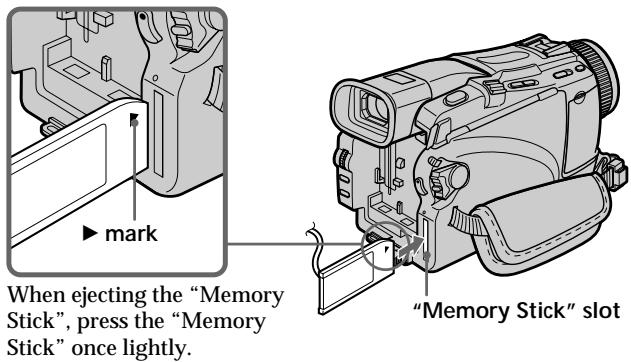
Insert a "Memory Stick" in the "Memory Stick" slot as far as it can go with the mark facing up as illustrated.
3
Recording a still image on a "Memory Stick" (p. 150)
1 Remove the lens cap.
3 Open the LCD panel while pressing OPEN. The picture appears on the screen.
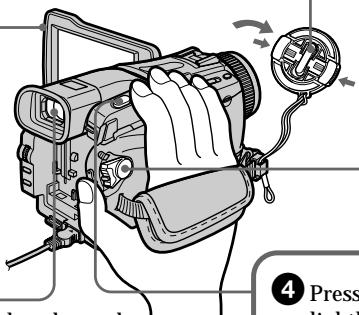
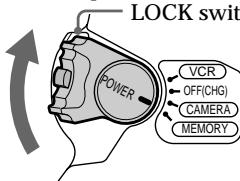
Set the POWER switch to MEMORY while pressing the small green button. Make sure that the LOCK switch is set to the left (unlock) position.
Viewfinder
When the LCD panel is closed, use the viewfinder with your eye against the eyecup. Adjust the viewfinder lens to your eyesight (p. 39).
When you purchase your camcorder, the clock setting is set to off. If you want to record the date and time for a picture, set the clock before recording (p. 31).
Press PHOTO lightly.

Press PHOTO deeper.

4
Monitoring the playback still images on the LCD screen (p. 181)
^1) DCR-TRV18E/TRV24E only
^2) DCR-TRV25E/TRV27E/TRV118E only
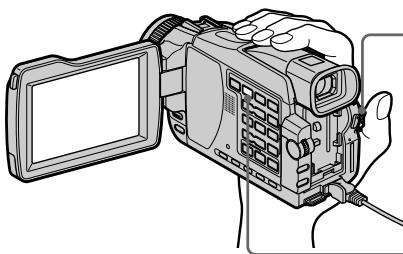
1 Set the POWER switch to MEMORY or PLAYER^1 / VCR^2) while pressing the small green button.
Press MEMORY PLAY. The last recorded image is displayed.
PLAY
Press MEMORY - / + to select the desired image.
NOTE
Do not pick up your camcorder by holding the viewfinder, the LCD panel or the battery pack.
PykoBoCTBO IO 6bICTpOMy 3aIpyCKy - 3aIncb Ha IeHTy
B daHnoI rnaBe npBedeHbIOcHOBhIe cyHKmN BaSei BndeOkaMepbI, kacaIouneCraHnHaJeHTy. PoJro6hIe CBeDeHnI npBedeHbI Ha cTpaHnCe B KpyIbIX cKo6kax " ( )".
Haxmte KhoNky △nHaayana Bocnpoun3BedeHn.
PLAY

^1) ToJIbKO moJenD CDR-TRV16E/TRV18E/TRV24E
^2) Tolboko mojei DCR-TRV25E/TRV27E/TRV116E/TRV118E
Ppimcayane
He npDnHmaiTe Bauy BnuDeokamepy, B3AByuNCb 3a BnuOnCKaTeNb, naHEnb KKД nII n6BaTapeHb6Iok.
-Kpome mopeJe DCR-TRV16E/TRV116E
B daHnoI rnaBe npBbeNeHb ocHbHbIe cyHKmB BaSei BnDeokamepbI, kacaIOuNecr 3aIncn Ha "Memory Stick". IopO6HbIe CBeDeHnI npBbeHbI Ha cTpaHnIe B KpyrIbIX ckO6Kax "( ).
1ПодсоeДинeHne npOBODa 3JIeKTpOpNTaHnA (cTp. 30)
He noDnHMaTe BaUy BnDeokamepy, B3aBwncb 3a BnOuCKaTeNb, naHEnb KKd nIi 6atapeHbN 6Iok.
Getting Started Using this manual
The instructions in this manual are for the seven models listed in the table below. Before you start reading this manual and operating your camcorder, check the model number by looking at the bottom of your camcorder. The DCR-TRV27E is the model used for illustration purposes. Otherwise, the model name is indicated in the illustrations. Any differences in operation are clearly indicated in the text, for example, "DCR-TRV27E only".
As you read through this manual, buttons and settings on your camcorder are shown in capital letters.
e.g. Set the POWER switch to CAMERA.
When you carry out an operation, you can hear a beep to indicate that the operation is being carried out.
Types of differences/Tnblppa3nny
| DCR- | TRV16E | TRV18E | TRV24E | TRV25E | TRV27E | TRV116E | TRV118E |
| MEMORY mark*1)(on the POWER switch)/3нak MEMORY*1)(и поpeклочате Power) | — | ● | ● | ● | ● | — | ● |
| VCR mark*2)(on the POWER switch)/3нak VCR*2)(и поpeклочате POWER) | — | — | — | ● | ● | ● | ● |
| DV jack/Гнебоцфравого видаоч havал DV | ●*3) | ●*3) | ●*3) | ● | ● | ● | ● |
| AUDIO/VIDEO jack/Гнебо AUDIO/VIDEO | ●*3) | ●*3) | ●*3) | ● | ● | ● | ● |
| Intelligent accessory shoe/Держател дlya установский BCПOMогателных рлиадлесностей | 8 pin/8штbl-pбков | 15 pin*4)/15штbl-pбков*4) | 15 pin*4)/15штbl-pбков*4) | 15 pin*4)/15штbl-pбков*4) | 15 pin*4)/15штbl-pбков*4) | 8 pin/8штbl-pбков | 15 pin*4)/15штbl-pбков*4) |
| LCD screen/Экpan XXКД | 6.2 cm(2.5 type)/6,2 cm(Tinp 2,5) | 6.2 cm(2.5 type)/6,2 cm(Tinp 2,5) | 6.2 cm(2.5 type)/6,2 cm(Tinp 2,5) | 6.2 cm(2.5 type)/6,2 cm(Tinp 2,5) | 8.8 cm(3.5 type)/8,8 cm(Tinp 3,5) | 6.2 cm(2.5 type)/6,2 cm(Tinp 2,5) | 6.2 cm(2.5 type)/6,2 cm(Tinp 2,5) |
^1) The model with MEMORY marked on the POWER switch is provided with memory functions.
See page 140 for details.
^2) The models with VCR marked on the POWER switch can record pictures from other equipment such as VCR.
The other models have PLAYER mark on the POWER switch.
^3) Output only
^*4 This intelligent accessory shoe is designed to use a printer (optional) (p. 201).
Note on Cassette Memory
Your camcorder is based on the DV format. You can use only mini DV cassettes with your camcorder. We recommend that you use a tape with cassette memory [11].
Functions that require different operations depending on whether or not the tape has a cassette memory are:
- END SEARCH (p. 48)
- DATE SEARCH (p. 94)
- PHOTO SEARCH (p. 97)
Functions that you can operate only with the cassette memory are:
-TITLE SEARCH (p.92)
Superimposing a title (p. 130)
- Labelling a cassette (p. 137)
For details of cassette types, see page 272.
CM
only
You see this mark in the introduction of features that are operated only with cassette memory.
Cassettes with cassette memory are marked by C (Cassette Memory).
Note on TV colour systems
TV colour systems differ depending on the country or region. To view your recordings on a TV, you need a PAL system-based TV.
Copyright precautions
Television programmes, films, video tapes, and other materials may be copyrighted.
Unauthorised recording of such materials may be contrary to copyright laws.
IcnoJb3OBAHne DaHHoro pyKOBOIDCTBa
^) MoDeJIu, ImeIoUne 3NaK MEMORY ha nepeKeKnIOuATEJe POWER, oChauSeHbI cyHKzIaMn nAmrTn. YTO KacaAetcN OJnpo6HocTei, CM. cTp. 140.
^2) MoDéNI, ImEIoUe 3nA K VCR Ha nepeKJIouaTeIe POWER, MoryT 3aIIncbIbTa b n3o6paJehNc C npyRTO o6OpyIOBaHnA, TaKOrO, kak KBM. OctaIbHbIe MoDéNI IMeOT Ha nepeKJIouaTeIe POWER 3nA K PLAYER.
^*3) ToIbKO BbIXOHOH CnHaJ
^4) Держателдя установки BCNOMORAТеллбхИ рпнадлесноcteи Рреднистей Дд ИСNOЛьЗОВИЙ рпнтета (прнобpeTaetс отдевho) (стp. 201).
Precautions on camcorder care
Lens and LCD screen/finder (on mounted models only)
- The LCD screen and the finder are manufactured using extremely high-precision technology, so over 99.99% of the pixels are operational for effective use. However, there may be some tiny black points and/or bright points (white, red, blue or green in colour) that constantly appear on the LCD screen and the finder. These points are normal in the manufacturing process and do not affect the recording in any way.
- Do not let your camcorder become wet. Keep your camcorder away from rain and sea water. Letting your camcorder become wet may cause your camcorder to malfunction. Sometimes this malfunction cannot be repaired [a].
- Never leave your camcorder exposed to temperatures above 60^ (140^) , such as in a car parked in the sun or under direct sunlight [b].
- Be careful when placing the camera near a window or outdoors. Exposing the LCD screen, the finder or the lens to direct sunlight for long periods may cause malfunctions [c].
- Do not directly shoot the sun. Doing so might cause your camcorder to malfunction. Take pictures of the sun in low light conditions such as dusk [d].
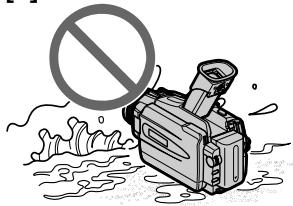
[a]
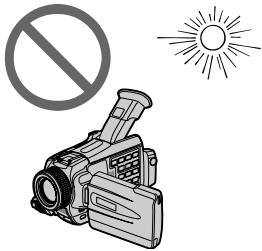
[c]
MepblnpedocTopoKHOCTn npnyxoJe 3a BndeokamepoJ
ObekTbN 3KpaH KKD/BuDOnckaTeIb (ToIbKO dIg ONpeDeJIeHHbIX MoJeIe)
3KpaH KKD n BnDOnCKaTeIb N3rTOBLnHebl C NMOUBo BVICOKOInpeu3NHOH TeXHOrN, TaK TTO CbbIe 99,99% 3JeMeHTOB N3o6paXeHnepdHa3NaYeHb DnA 3ΦΦeKTHBHO McNoIb3OBAHn. OdaHo Ha 3KpaH eKKD n B VmDOnCKaTeIe MOyT NOCToRHHo NOrBnTbcra KPOWeHbIe YepHbIe H/nnn IApKne UCBtHbIe TOuyk (6Eble, KpaChbIe, CnHne NnN 3JeHbIe). POnBLeHne 3TxN Toek BnONHe HopMaIbHo DnPiouCeCA bEmKn HNKoIMn O6pa3OM He BnIaNET Ha 3aINCbIbAemoe N3o6paXeHne.
He donyckaIte, YTO6bI BnDEOKaMepa cTahOBuIacb BnAxxHoi. IpeDoxpaHraIte BnDEOKaMepy OT DOxJa I MOpCKoB BObl. Ecnn Bbl HaOChTE BnDEOKaMepy, 3To MOxet npInBeCTK HeNCnPpABHOCTn aannapata. HOrDa 3Ta HeNCnPpABHOCTb MOxET OKa3aTbC8 HeycTpaHIMoI [a].
Hnkorga He octablanrTe Bndeokamepy B MeCe T Temnepatpyo Cbblse 60^ KaK, HapnMpE, BA bTOMObnne, OCTabJeHHom Ha COJIHcE, INI NOD pPmBIM COJIHeYhbIM CBETOM [b].
- ByIbTe BHNMaTeIbHbI, KOrDa ocTabIaReTe BVdeOkAmepy B6n3n OkHa nII INBHe NOMeUeHn. JIeCTBne nprMoRo cONHeuHOro CBeta Ha 3KpaH KKД, BUNOnCKaTeIb nII NObBeKTINB B TeueHne IInTeJIbHbIX PmOexyTKOB BpeMeHi MOxET Bbl3BaTb HEnCnpaBHOCTn [c].
He ChImaIte CoJIHcE HenOncpeIcTBeHNO.3To MOKET npINBeCTN K HEMCnPabHOCHTN BUNDeOKaMepb. BbINONHITe CbeMKy CoINHcA BycNoBIAu HN3KO OCBeUeHHOCTN, HApnIMep, npn 3aKaTe [d].
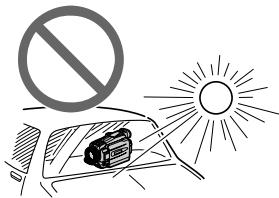
[b]
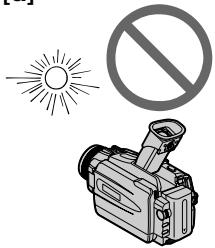
[d]
Make sure that the following accessories are supplied with your camcorder.
Y6eIntecb, cyTo cneIyUOuIe npHaIaNExKHOCTn npIraIaIOTcK BaSei BIndeOkampe.
| 1 | 2 | 3 |
| 4 | 5 | 6 |
| 8 | 9 | 10 |
1 Wireless Remote Commander (1) (p. 298)
2 AC-L10A/L10B/L10C AC power adaptor (1), Mains lead (1) (p. 30)
3R6(size AA)battery for Remote Commander(2)(p.299)
4 Battery pack (1) (p. 24, 25) NP-FM30:DCR-TRV16E/TRV18E/TRV116E/ TRV118E NP-FM50:DCR-TRV24E/TRV25E/TRV27E
5 A/V connecting cable (1) (p. 56)
6 Shoulder strap (1) (p. 295)
Lens cap (1) (p. 35)
8 "Memory Stick" (1) (p. 140) (except DCR-TRV16E/TRV116E)
9 USB cable (1) (p. 204)
10 CD-ROM (SPVD-008 USB Driver) (1) (p. 210)
11 21-pin adaptor (1) (p. 57)
Contents of the recording cannot be compensated if recording or playback is not made due to a malfunction of the camcorder, storage media, etc.
1 BecepnoBODHyI NyIbT dNCTaHcNoHHoro ynpabJeHn (1) (cTp. 298)
2 CeTeBOaIaNTep IpeMeHHOTo Toka AC-L10A/L10B/L10C (1), npoBoI 3JIeKtpOnuTaHn (1) (cTp. 30)
3БaTapeiKa R6 (pa3Mepa AA) nIyIbTa DnCTaHcIOHHO ynpaBHeHn (2) (cTp. 299)
4 BaTapeHbIb 6Jok (1) (cTp.24,25) NP-FM30:DCR-TRV16E/TRV18E/TRV116E/ TRV118E NP-FM50:DCR-TRV24E/TRV25E/TRV27E
5 CoeunHntBnI Ka6Ib ayDIO/BnDeo (1) (cTp. 56)
6Плевов ременb(1)(cTp.295)
7 Kpblika oBbeKTHBa (1) (cTp. 35)
8 "Memory Stick" (1) (cTp. 140) (КрOME модень DCR-TRV16E/TRV116E)
9 Ka6eJIb USB (1) (cTp. 204)
10 CD-ROM (SPVD-008 ДраиВер USB) (1) (cтр. 210)
11 21-wTbIpbKOBbI aadTep (1) (cTp.57)
CopejxHne 3aIncn He MoXeT 6bITb KOMHeHCPOBaHO B Cnyuae,ecn 3aIncb nIN BOCpON3BeDeHne He BblIOJIHeHb I3-3a HEnCnpaBHOCTN BVJeOKaMePbI, HocTeJr DaHHbIX N T.I.
Step 1 Preparing the power supply
Installing the battery pack
(1)Lift up the viewfinder.
(2) Slide the battery pack down until it clicks.
YcTaHOBka 6aTapeHoro 6Joka
(1)ПоднIMITE ВДОИСКАТIEL.
(2)ПередвинтыбаташиьблOKВиЗdoТexnop,pokaOH He 3aцeнкhetcra.
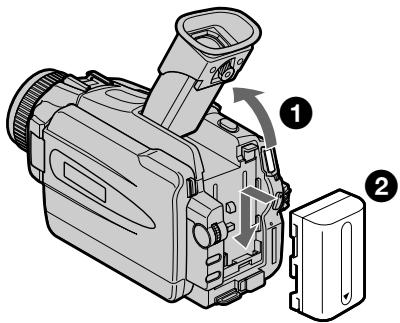
To remove the battery pack
(1) Lift up the viewfinder.
(2) Slide the battery pack out in the direction of the arrow while pressing BATT down.
If you use the large capacity battery pack If you install the NP-FM70/QM71/FM90/FM91/ QM91 battery pack on your camcorder, extend its viewfinder.
PpnuycTaHOBKe 6aTapeHoro 6Ioka 6OJIbwoj emKoCTn
Charging the battery pack
Use the battery pack after charging it for your camcorder.
Your camcorder operates only with the "InfoLITHIUM" battery pack (M series).
See page 276 for details of "InfoLITHIUM" battery pack.
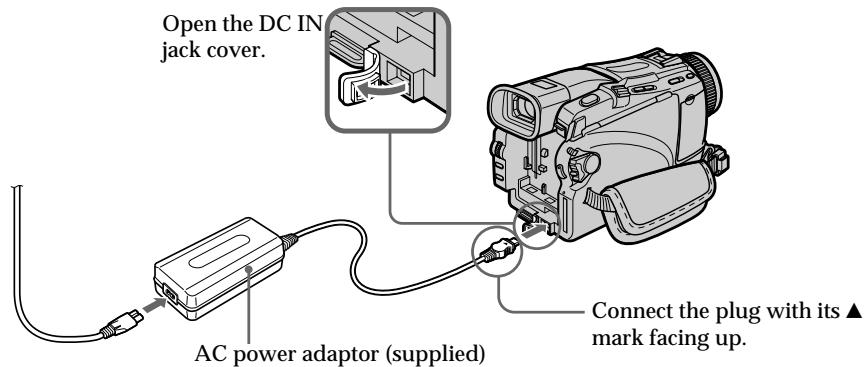
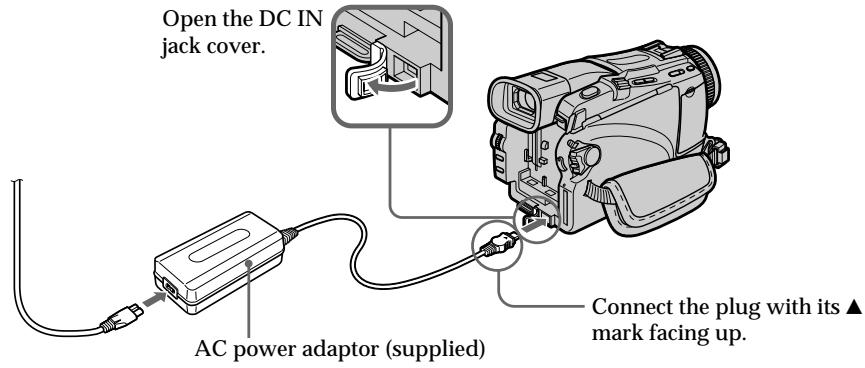
(1) Open the DC IN jack cover. Connect the AC power adaptor supplied with your camcorder to the DC IN jack on your camcorder with the plug's mark facing up.
(2) Connect the mains lead to the AC power adaptor.
(3) Connect the mains lead to the wall socket.
(4) Set the POWER switch to OFF (CHG). Charging begins. The remaining battery time is indicated in minutes on the display window.
When the remaining battery indicator changes to 空 normal charge is completed. To fully charge the battery (full charge), leave the battery pack attached for about one hour after normal charge is completed until FULL appears in the display window. Fully charging the battery allows you to use the battery longer than usual.
3apka 6aTaapeHoro 6loka
IcnoIb3yIte 6aTapeHbIb 6nok IJra Bauei BUNeOKaMepbl nocne erO 3aprKn.
Baua Bndeokamepa pa6oTaet TOnbko C 6bataeHbIM 6Iokom "InfoLITHIUM" (cepM).
Bolnee noIpo6bIe CBeIeHnO 6aTapeHOM 6loKe "InfoLITHIUM" npIbeIeHbI Ha cTp. 276.
(1)OTKpoIte KpbIshky rHe3da DC IN. POnDCoeDInHTe cTeBoi adaantep nepemEnHO ToKa, npNlaeraMbI K BaSei BUnEOKaMepe, K rHe3dy DC IN, taK tTo6bl 3NaK A WTeKepa 6bln HaprabNeH BBepx.
(2)ПодсоeДинTe npOBOD эЛeКТрОпТанИ K ceTeBOMy aДaNTepy nEpemeHOrO TOKa.
(3)ПодсоeДинHTe npOBOD эЛeКТрОпТаHЯ K cTeBOI pO3eTke.
(4)VcTaHOBHTe nepeKlnOuataTeIb POWER B noLoXeHne OFF (CHG). HauHeTc3aApIka. B OkoXe DnCnIe 6yDet OTo6paXaTcB BpMaOCTaBweroC3apJaB MInTyax.
Korda nHdkaTOp ocTaBweroC3apraDa
6batapeHoro 6Ioka n3MeHnTCraHa.
HOPMaJIbHna 3aprKa 6yTe 3abepHe.ДЯ
NoIHOI 3aprKn 6batapeHoro 6Ioka (NoHna
3aprKa) OCTabTe 6batapeHbI 6Iok
PnIKPeHNbIM NocLe 3aBepHeNIA
HOPMaJIbHo 3aprKn npImepHO Ha OdINu Yac, Do
Tex nop, NOKA B OKOwKe IcncPNe He NOBnTCra
InHdkaZnFULL. NoHna 3aprKa 6batapeHoro
6Ioka No3BOJnEe Bam icNoIb3ObaTb
6batapeHbI 6Iok DOnbSe, Yem OsbIHyO.
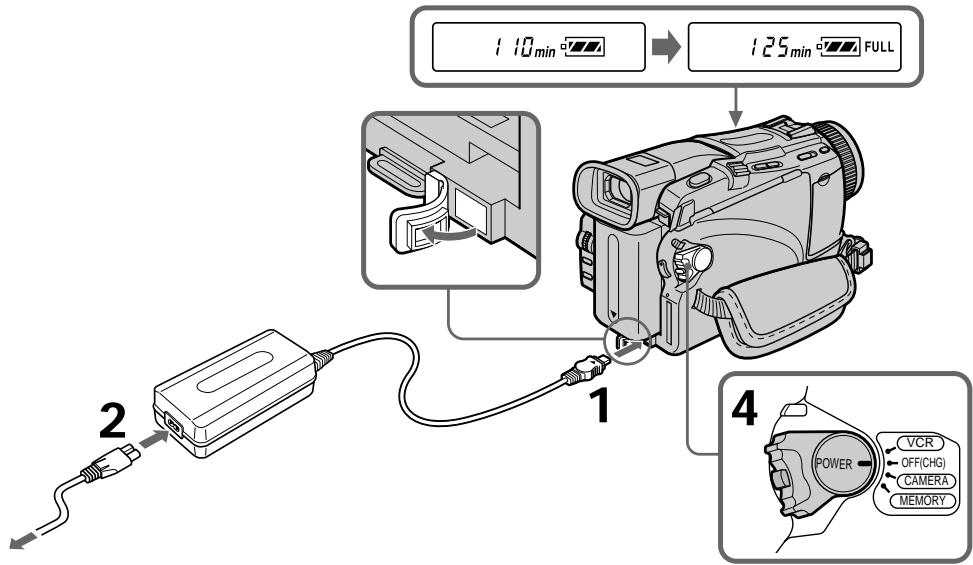
The number in the illustration of the display window may differ from that on your camcorder.
YncloBOKoWKe DNcJIpeHa NJIIOCTpaCIN MoKTe OTJNUATbCra OT YncJa Ha BaSei BUNDeOkamepe.
Step 1 Preparing the power supply
After charging the battery pack
Disconnect the AC power adaptor from the DC IN jack on your camcorder.
Note
Prevent metallic objects from coming into contact with the metal parts of the DC plug of the AC power adaptor. This may cause a short-circuit, damaging the AC power adaptor.
Remaining battery time indicator
The remaining battery time indicator in the display window indicates the approximate recording time when recording using the viewfinder.
Until your camcorder calculates the actual remaining battery time
"--min" appears in the display window.
When you use the AC power adaptor
Place the AC power adaptor near a wall socket.
While using the AC power adaptor, if any trouble occurs with this unit, disconnect the plug from the wall socket as soon as possible to cut off the power.
Пункт 1 ПОДROTOВКИ NGTOUHINKA NITAHIN
Iocne 3apnKn 6aTapeHoro 6loka
OTcoeHHnte cTeBcOa aJaTep npeMeHnHO ToKa O T rHe3da DC IN BaWe BIndeOkamepbI.
PpmeaHne
HeOnyckaTe KOHTaTa MeTaNUeCKnX npEIMTOB CMetaJIuYeCKMn YacTAMn uTekepa NoCToHHORo TOKa cTeBOrO aAnTepa nepEMHOrO ToKa.3To MoKet PnIBecTu K KOPOTKOMy 3aMbKaHNIO NOBpEXDeHNIO cTeBOrO aAnTepa nepEMHHoro TOKA.
Инданков Врemeи OCTaBшeroCяapядбатapeй HorO 6лoka
HndkatopBpeMeHnOCTaBweroC3apHa 6batapeHoro6IokaBOKoUkeDncJIeR oTo6paKaet np6JIm3ntelbHoe BpeM3aNcN npInNCNoB3OBaHHn BuOnCKaTeJI.
I0 tex nop, noka Baasa Bndeokamepa He BbYNCINT DeiCTBNTbHoe BpemO octabwerooc3apHa 6aTapeHoro 6loka
Bokouke dincpeonotobpaKaetcaHnkaun "---min".
EcnBbI nCnObl3yeTe ceTeBOaanTep nepemehnHOToKa
Pa3mecTnTe cTeBoV aAnTep nepemehHOro TOka BO3Ne cTeBOv po3eKn. Pnp nCNoIb3OBAHm CTeBOrO aAnTepa nepemehHOro TOKa, B Cnyae, ecJIn BO3NkHyT KaKne-JI6o Ipo6IeMbIC annapaTom, OTOoeDnHtE WTeNCeBHyB BVILKY OT cTeBOv PO3eKn KaK MOXHO 6bICTpee dIra OTKJIIOUeHn HNTaHnA.
Charging time/Bpem3apdKn
| Battery pack/БатAPEйнь 6лok | Full charge (Normal charge)/Полна зарpenka (нормальни зарpenka) |
| NP-FM30*1) | 145 (85) |
| NP-FM50*2) | 150 (90) |
| NP-FM70 | 240 (180) |
| NP-QM71 | 260 (200) |
| NP-FM90 | 330 (270) |
| NP-FM91/QM91 | 360 (300) |
Approximate minutes at 25^ (77^) to charge an empty battery pack.
The charging time may increase if the battery's temperature is extremely high or low because of the ambient temperature.
^1) DCR-TRV16E/TRV18E/TRV116E/TRV118E supplied
2) DCR-TRV24E/TRV25E/TRV27E supplied
Approximate minutes when you use a fully charged battery
- Approximate number of minutes when recording while you repeat recording start/stop, zooming and turning the power on/off. The actual battery life may be shorter.
PnIb3ntBbHoe BpemB MInHytax npnNCIOb3OBAHm NOnHOCTbIO 3apJKeHHoro6aTapeHoro 6loka
*Pn6Ii3nteIbHOe BpemB MmHytax npn 3aIcnc C HeoDnHOKpaTHbIM NycKOM/OCTaHOBKOI 3aIpcN, Hae3dOM BnDeOkamepbI IN BKJIIOUeHNEM/BbIKJIOUeHNEM PNTAHN. PaKTtueckn cpoK cnjx6bl 6aTapeHoro 6loka MoKeT 6blk KOpOye.
Playing time/BpemBocnpOn3BeDeHnD CDR-TRV16E/TRV18E/TRV116E/TRV118E
| Battery pack Батуарейний 6лok | Playing time on LCD screen/ Вразma Восpreneurиздени на захраце XXД | Playing time with LCD closed/ Вразma Восpreneurиздени по зakрытом XXД |
| NP-FM30 (supplied)/ (прILAагается) | 100 | 135 |
| NP-FM50 | 160 | 220 |
| NP-FM70 | 335 | 450 |
| NP-QM71 | 390 | 530 |
| NP-FM90 | 505 | 685 |
| NP-FM91/QM91 | 585 | 785 |
DCR-TRV24E/TRV25E
| Battery pack Батуарейний 6лок | Playing time on LCD screen/ В��谶ь Восчpon3veдени на заразе XXД | Playing time with LCD closed/ В��谶ь Восчpon3veдени по зakрытом XXД |
| NP-FM50 (supplied)/ (прILAгаяетс) | 150 | 200 |
| NP-FM70 | 310 | 415 |
| NP-QM71 | 365 | 485 |
| NP-FM90 | 475 | 630 |
| NP-FM91/QM91 | 550 | 725 |
DCR-TRV27E
| Battery packБатуарейньий 6лok | Playing time on LCD screen/B越来越大 Bocspoon3Bedequenhya захра themselves | Playing time with LCD closed/B越来越大 Bocspoon3Bedequenhy prinnazkpbltom respectively |
| NP-FM50 (supplied)(прILAЯется) | 135 | 200 |
| NP-FM70 | 275 | 415 |
| NP-QM71 | 325 | 485 |
| NP-FM90 | 425 | 630 |
| NP-FM91/QM91 | 490 | 725 |
Approximate minutes when you use a fully charged battery
Pπi6n3nteHbHOe BpemB MmHytax npnNCIb3OBAHm NOnHOCTbIO 3apXKeHHoro 6aTapeHoro 6loka
Note
Approximate recording time and continuous playing time at 25^ (77 F). The battery life will be shorter if you use your camcorder in a cold environment.
If the power goes off although the remaining battery time indicator indicates that the battery pack has enough power to operate Charge the battery pack fully again so that the indication on the remaining battery time indicator is correct.
Recommended charging temperature
We recommend charging the battery pack in an ambient temperature of between 10^ to 30^ (50^ to 86^) .
What is "InfoLITHIUM"?
The "InfoLITHIUM" is a lithium ion battery pack that can exchange data such as battery consumption with compatible electronic equipment. This unit is compatible with the "InfoLITHIUM" battery pack (M series). Your camcorder operates only with the "InfoLITHIUM" battery. "InfoLITHIUM" M series battery packs have the InfoLITHIUM mark. "InfoLITHIUM" is a trademark of Sony Corporation.
PpimcuaHne
Connecting to a wall socket
When you use your camcorder for a long time, we recommend that you power it from a wall socket using the AC power adaptor.
(1) Open the DC IN jack cover. Connect the AC power adaptor supplied with your camcorder to the DC IN jack on your camcorder with the plug's mark facing up.
(2) Connect the mains lead to the AC power adaptor.
(3) Connect the mains lead to a wall socket.
The set is not disconnected from the AC power supply (wall socket) as long as it is connected to the wall socket, even if the set itself has been turned off.
Notes
- The AC power adaptor can supply power even if the battery pack is attached to your camcorder.
- The DC IN jack has "source priority." This means that the battery pack cannot supply any power if the AC power adaptor is connected to the DC IN jack, even when the mains lead is not plugged into a wall socket.
Using a car battery
Use a Sony Car Battery Adaptor (optional). Refer to the operating instructions of the Car Battery Adaptor for further information.
PPEIOCTEPEXEHNE
Annapat He OTKJIIOUaETcR OT NCTOChNka
NITaHnI NpeMeHHOro ToKa (CTeBOr PO3eTKn)
DO Tex NOp, Noka OH NIOdCoEINHeN K
3JIeKTpUHeCKo CeTn, DaJke ecNn caM annapat N
BbIKJIIOUeH.
PpimueaHn
Питанно OT cTeBOrO aanTepa nepemHoro ToKa moKet nOaBaTbcn daKe B cnUyae,ecn6batapeHnb blok npnkpenen K BaWei BnuDeokampe.
- Frpe3do DC IN nmeet "npnopntet nctouhka". 3to 3naHT, yTO nHTaHne OT bTaapeHoro 6bLOKa He moKTe NOdaBaTbCER, eCIn cTeBOI 5Hyp pNOcOeHNHe K rHe3dy DC IN, dAxe ecNIOPOBOD 3NEKTPoNTnAHH N He NOdCOeHNHe K cTeBOI pO3eTke.
IcnoJb3ObaHne aBTOMo6nJbHOro aKkyMylrTopa
IcnoIb3yIte aadTep aBTOMoBnIbHoro
aKKyMylIaTPO SONY (npNo6peTaTc8 OTdIeNbHO).
ObaaIaTeCB K INCTpyKuIN NO KcNpyaTuIN
aadTepa aBTOMoBnJIbHoro AKKyMylTOpA dIra
POnLyEHHaDaIbHeNlXs CBeDeHN.
Step 2 Setting the date and time
Пункт 2 Установka за тын Врemeи
Set the date and time when you use your camcorder for the first time. "CLOCK SET" will be displayed each time that you set the POWER switch to CAMERA or MEMORY (except DCR-TRV16E/TRV116E) unless you set the date and time.
If you do not use your camcorder for about four months, the date and time settings may be cleared from memory (bars may appear) because the built-in rechargeable battery in your camcorder will have been discharged (p. 283). Set the year, then the month, the day, the hour and then the minute, in that order.
(1) Set the POWER switch to CAMERA or MEMORY (except DCR-TRV16E/TRV116E), then press MENU to display the menu settings.
(2)Turn the SEL/PUSH EXEC dial to select, then press the dial.
(3) Turn the SEL/PUSH EXEC dial to select CLOCK SET, then press the dial.
(4) Turn the SEL/PUSH EXEC dial to adjust the desired year, then press the dial.
(5) Set the month, day and hour by turning the SEL/PUSH EXEC dial and pressing the dial.
(6) Set the minute by turning the SEL/PUSH EXEC dial and pressing the dial by the time signal. The clock starts to move.
(7) Press MENU to make the menu settings disappear.
BbIOnHInTe yCTaHOBky DaTbI N BVPeMeHN, KOrJa BbI nCnObl3yeTe BaUy BnDeOkamepy B nepBbI pa3. Do tex nop, noka BbI He BbIOnHInTe yCTaHOBky DaTbI N BVPeMeHN, KaJdbI pa3 npi ycTaHOBKe nepeKJIooYatela POWER B noLoXeHne CAMERA uNIMEMORY (Kpome MoJeNe DCR-TRV16E/TRV116E) 6byTe OTobpaKaTcBnHnDnKaunr "CLOCK SET". EcN BbI He 6ydeTe nCOnb3oBaTb BaUy BnDeOkamepy OKOLO YetbIpex MecAueB, yCTaHOBKn DaTbI N BPeMeHN MOrY 6bITb CTePbI mNamrN (MORyt NOBtCBs rNoocbl), n3-3a TOrO, qTO BCTpoEHnA npe3apjXkaemar 6bTaPeRkA, yCTaHOBnEHnA B BaSei BnDeOkamepe, 6ydeT pa3pJxKeHa (ctp. 283). ChaJaIya yCTaHOBInTe rO, 3aTeM MeCAu, DeHb, Yac I MNHyTu, B TaKOM POpAdkke.
(1)Установские pepeknюатейь POWER в положене CAMERA илп MEMORY (кромодел徳 DCR-TRV16E/TRV116E),а заlem нажмITE кногку MENU до оторазочи Установок мени.
(2)Повернite ДИСК SEL/PUSH EXEC ДИВьбopa опци , a 3aTeM HaЖМЛТЕ ДИСК.
(3)ПовернITE диСK SEL/PUSH EXEC дя Вьбopa onци CLOCK SET, 3aTeM haЖмITE dИСК.
(4)ПовернITE ДИСК SEL/PUSH EXEC ДЯ
Выбopa Нуххого гда,а затем нахмпт
ДИСК.
(5) YctaHOBInTe Mecu, DeHb N uac, BpaUaJ DNCK SEL/PUSH EXEC n HaXImaHa DNCK.
(6) UctaHOBIne MInHyTu, BpaUaIa IINCK SEL/ PUSH EXEC n HaxKImaHa IINCK B MOMeHT nepeJaCu CnHnAJa ToUHOro BpeMeHn. Yacbl NaHyT fynHKUOHNPOBaTb.
(7)HaxmTe KhoNky MENUДTORO,уTO6bI NCye3na INDnKaUma MeHIO.
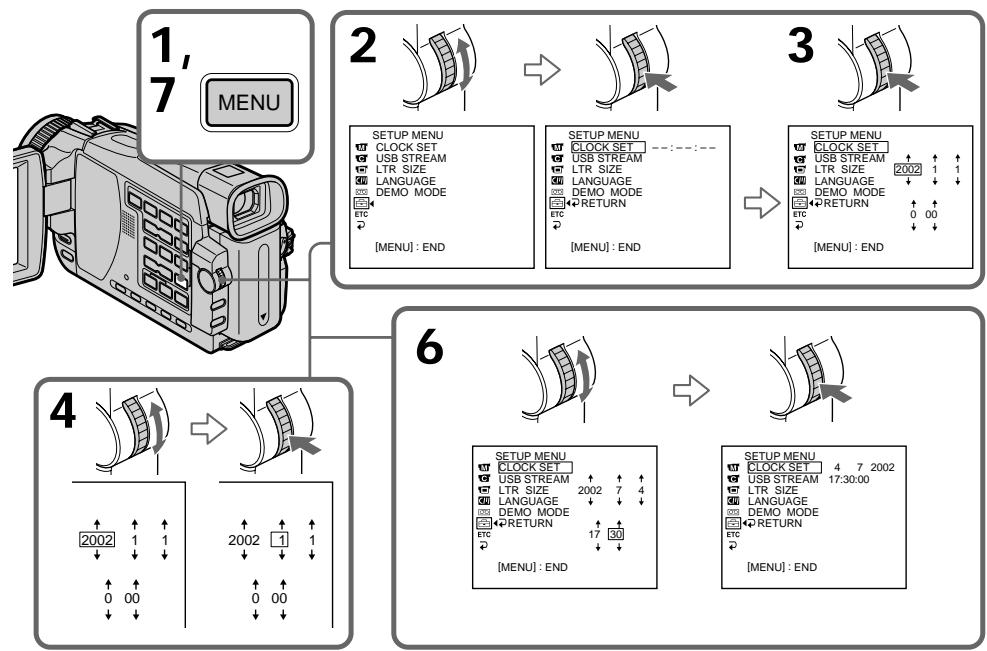

The year changes as follows:
Tod n3mehreTc cIeDyUoUM o6pa30M:
If you do not set the date and time
"--- -- -- -- -- " and "----- - - - " are recorded on the data code of the tape and the "Memory Stick" (except DCR-TRV16E/TRV116E).
Note on the time indicator
The internal clock of your camcorder operates on a 24-hour cycle.
Ecnn BbI He yctaHOBnTe DaTy N BpeMa
Ha Kode daHbix JeHTbI n "Memory Stick" (Kpome moJeIe DCR-TRV16E/TRV116E) 6ydet 3aINCbBaTbcnHnDnKaun
(1) Prepare the power supply.
(2) Slide OPEN/EJECT in the direction of the arrow and open the lid. The cassette compartment automatically lifts up and opens.
(3)Push the centre of the cassette back to insert the cassette.
Insert the cassette straight as far as possible into the cassette compartment with the window facing up.
(4) Close the cassette compartment by pressing PUSH on the cassette compartment. The cassette compartment automatically goes down.
(5) After the cassette compartment going down completely, close the lid until it clicks.
(1)ПоДгTOВБTe NICTOчИК ПИТАнIA.
(2)Перединты поеклочаел b OPEN/ EJECT b HanpaBleHn cTpeKN n OTKpoIte KpbIshky. KaccetbIOTcEK aBTOMaTHueckn NOHNMeTcN n OTKpoEeTcN.
(3)Haxmnte no cehtpy 3aHeu qactn Kaccetbl Iy yctahOBKn Kaccetbl. BcTaBte Kaccety nprMo BV KaccETbI OTCek Do ynpa TaK, YTO6bl OKoWko 6blIO HappaBneHO BBepx.
(4)3aKpOte KaccetHbI OTcE, HaxBa MeTky PUSH Ha KaccETHom OTcEke. KaccetHbI OTcE abTomatUeCKn ONyCTNTCRA.
(5)Посе тoro, кak kaccetнь OTCek nonHocTbO onyctITcR, 3aKpoTe KpbIshKy, YTO6bl OHa 3auekenKhynacb.
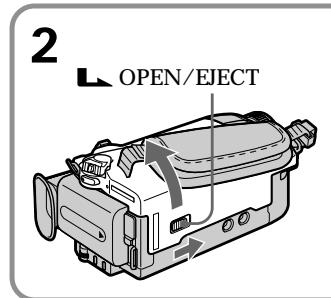
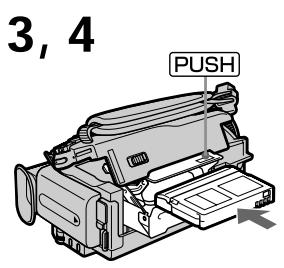
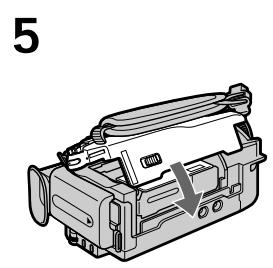
To eject a cassette
Follow the procedure above, and take out the cassette in step 3.
IIN3BLeueHnKaccTebl
BbIOnHnTe npNBeDHHyIO BbIe npOeDpy nI3BnEKeNTe KACCETy npN BbIOnHeHm DeIcTBn nyHKta 3.
Notes
- Do not press the cassette compartment down forcibly. Doing so may cause a malfunction.
- The cassette compartment may not be closed when you press any part of the cassette compartment other than the PUSH mark.
When you use a cassette with cassette memory
Read the instruction about cassette memory to use this function properly (p. 272).
To prevent accidental erasure
Slide the write-protect tab on the cassette to expose the red mark.
IyHKT 3 YcTaHOBKa KacceTbI
Птумейане
- He BdabJIbBaIe TepnHyIITeIbHO KaccTeHbIOTcEK BHN3. 3To MOKeT npBecTn KHeNCpRaBHOCTN.
KaccetbIOTcK MoKeT He 3aKpbITbC8,ecnBbHaXMeTe Ha KaKoe-Ni6o Dpyroe MeTo HaKaccetHOrO OTeKa,a He Ha MeTKy PUSH.
PnncnoB3ObaHmKaccetbC KaccetHOI nAMrTbIO
He haxmamTe KhoNky EDITSEARCH.
Recording a picture
Your camcorder automatically focuses for you.
(1) Remove the lens cap by pressing both knobs on its sides and pull the lens cap string to fix it.
(2) Prepare the power supply and insert a cassette. See "Step 1" to "Step 3" for more information (p. 24 to 34).
(3) Set the POWER switch to CAMERA while pressing the small green button. This sets your camcorder to the standby mode.
(4) To open the LCD panel, press OPEN. The viewfinder automatically turns off.
(5) Press START/STOP. Your camcorder starts recording. The REC indicator appears. The camera recording lamp located on the front of your camcorder lights up. To stop recording, press START/STOP again.
3a\Pncb n3o6paXeHn
Baasa Bndeokamaepa aBtOMaTnueckn BbINOJIHReT fOkyncpoBky dIy Bac.
(1)CHIMMITE KpbIiKy oBbEeKtNbA, HaxkBa Ha oBe KHOHKn Ha ee CTOpOHax, IN NOTAHTE uHypOK KpbIiKn OSeBcKtNbA, YTObI 3aФnIKCnpOBaTb ee.
(2)ПоДгOTOBbTe NICTOCHNK ПNTaHnI yctahOBIne Kaccety.ПОДрбHьe CbeDEHnI npINBeDeHb I B “ПунКTe 1”-“ПунКTe 3” (cTp. 24-34).
(3)YdepknBaHaxaToM MaJeHbKyIO 3eJeHyIO KHOIky, YcTaHOBInTe NepeKJIIOuAteIb POWER B noJooKeHne CAMERA. BaIa BnDeOkamepa NepeKJIIOUHTCra B peXIM OXNDAHINr.
(4)Haxab KhoNky OPEN,otKpoIte naHeJIb XKJ.BuDOnCKaTeJIb aBTOMaTnueCKn BblIKJIOUHTCra.
(5)HaxmTe KhoNky START/STOP.Baasa BnDeOkaMepa HauHET 3anncb.Ha 3kpaHe NORBtCn INDnKaTOp REC.BbCBeTntCn IaMNoUka 3aIINcPiacNOJoxeHHa Ha nepeDne NaHei BNDeOkaMepbl.ДЯ OCTaHOBKn 3aIINcHaxmTe KhoNky START/ STOP eue pa3.
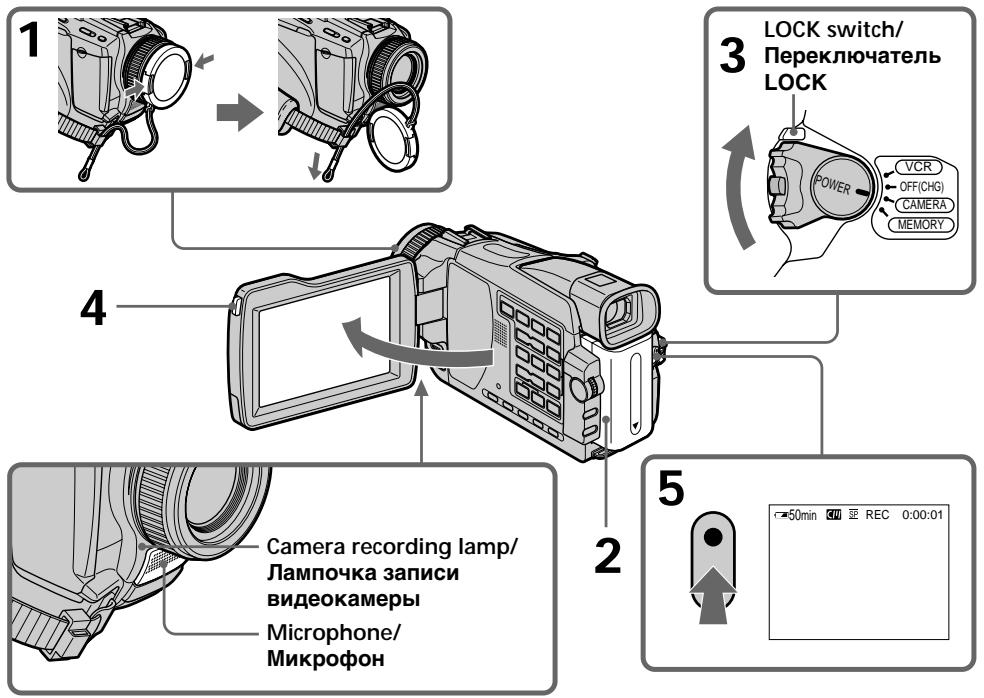
Notes
- Fasten the grip strap firmly.
- The recording data (date/time or various settings when recorded) are not displayed while recording. However, they are recorded automatically onto tape. To display the recording data, press DATA CODE on the Remote Commander during playback (p. 52).
Note on recording mode
Your camcorder records and plays back in the SP (standard play) mode and in the LP (long play) mode. Select SP or LP in the menu settings (p. 240). In the LP mode, you can record 1.5 times as long as in the SP mode.
When you record a tape in the LP mode on your camcorder, we recommend playing back the tape on your camcorder.
Note on the LOCK switch (except DCR-TRV16E/ TRV116E)
When you slide the LOCK switch to the right, the POWER switch can no longer be set to MEMORY accidentally. LOCK switch is set to the left as the default setting.
To enable smooth transition
Transition between the last scene you recorded and the next scene is smooth as long as you do not eject the cassette even if you turn off your camcorder.
However, check the following:
- Do not mix recordings in the SP mode and in the LP mode on one tape.
- When you change the battery pack, set the POWER switch to OFF (CHG).
- When you use a cassette with cassette memory, however, you can make the transition smooth even after ejecting the cassette if you use the END SEARCH function (p. 48).
PpimueaHn
-Плnotho пистгнITE peMeHь дla 3axBaTa.
-Данные 3аписи (даТВЕРМУИ pa3лчьie yctaHOBкnpi 3aПСИ) He OTObpaЖIoTcHа дсплee BO BpEMa 3aПСИ.ОДнako,Они abTomatUcheckn 3aПСыBaIOTcHа ЛeHTy.Дл оTObpaЖeHЯ Na ДИСплee DAньIx 3aПСИ, habmte KhoNkY DATA CODE Ha npЛьт eDuctaHUnOHOrO ynpaВЛeHЯ BO BpEMBOcPOn3BeDeHЯ (cTp.52).
PpmeHne no pexmy 3annc
Baupa Bndeokamepa BbIOnHReT 3anncb I BOCpnoun3BeDeHne B pexmme SP (ctaHapTHoe BOCpnoun3BeDeHne) IN B pexmme LP (DolrOurpaOoUee Bocpnoun3BeDeHne).Bb6epnte KOMaHdy SP nIN LP BYcTaHOBkax MeHIO (Ctp.249).B pexmme LP Bbl MoKeTe BbIOnHrTB 3aInCb B1,5 pa3a DoJbWe IIO BpemHeN, Yem B pexmme SP.
PnBbIOpJIHeHnHaBaSei BnDeOkAmepe 3aInci HaJeHTyBpeKIme LP peKOMeHyetcB BOCpOIN3BOIDtB 3Ty JeHTy TaKKe Ha BaSei BnDeOkAmepe.
PpmeaHne no nepeKlnuOaTeIIO LOCK (Kpome moJeIeD CDR-TRV16E/TRV116E)
Ecni Bby npeBbHHe TnepeKIOuOaTeIb LOCK Bnpabo, nepeKIOUoateIb POWER yxe He MOKeT 6blcnyaHNO yCTaHOBJeN B noLOXeHnEMORY. IpeKIOUoateIb LOCK HaxoDITcB JEBOM noLOXeHnNo yMOJHaHIO.
Длобесоченплав Horop nepexoda
BbMOKTe BbIOnHbT pIaBHyI nepeXoM mKdy NocJIeHNM 3aIncAHHbIM 3n3Odom n CLeyIOUM 3n3Odom Do Tex nop, nOKa He n3BLeYeTe KaccTe, daKe npu BbIKJUoyEHn Bauei BnDeokamepbl.
Tem He meHee, npoBepbTe cJeDyUOuee:
If you leave your camcorder in the standby mode for five minutes while the cassette is inserted
Your camcorder automatically turns off. This is to save battery power and to prevent battery and tape wear. To return to the standby mode, turn the POWER switch OFF (CHG) and then back to CAMERA. To start recording, press the START/ STOP button again without switching the POWER switch. However, your camcorder does not turn off automatically while the cassette is not inserted.
When you record in the SP and LP modes on one tape or you record in the LP mode
- The transition between scenes may not be smooth.
- The playback picture may be distorted or the time code may not be written properly between scenes.
The battery use time when you record using the LCD screen
The battery time is slightly shorter than the shooting time using the viewfinder.
After recording
(1) Set the POWER switch to OFF (CHG).
(2) Close the LCD panel.
(3)Eject the cassette.
(4) Remove the battery pack.
Adjusting the LCD screen
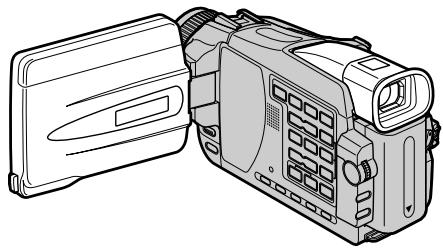
The LCD panel can be opened up to 90 degrees. The LCD panel moves about 90 degrees to the viewfinder side and about 180 degrees to the lens side.
EcIn BbOCTaBnTe BaUy BnDeoKaMepy BpeXIMe OxuHaHn Ha nTb MNHyT npn BCTaBLeHHoKaccete
Baawa Bndeokamepa BbIKIOHNTcB ABTOMATUeCKN.3TO pneDTBpaaaet pacXoD 3apJaBaTapeHoro6IOKa nI3Hoc 6bTapeu n IeHTbI.ДЯ BO3O6HOBENePekMg OxNJDAHnY cTaHOBITE Chauana nepeKIOUaTeJb POWER B noIOxoHeNE OFF (CHG), a 3aTeM ChOba BepHnte erO BnoIOXeHne CAMERA.ДЯ NaHuaJa 3aINs, hAnMITE KhoNky START/STOP eue pa3, He nepeKIOUaHa nepeKIOUaTeJb POWER. Ondako, Baawa Bndeokamepa He OTKIOUHTcB ABTOMATUeCKN,ecn KaCCeta He BcTaBNeHa.
EcIn Bbl 3aIncbIbAeTe B pexImax SP n LP Ha oDHOH n ToJ xe JeHTE, nLI N Bbl 3aIncbIbAeTe B pexIme LP
When closing the LCD panel, set it vertically until it clicks, and swing it into the camcorder body.
Призakрьвани паели XXД установлваite ee BepTKaJIbH, noka OHa He 3aшeнКHTcЯ HaMeCTe, a 3aTeM NOBepHnTe ee K KopnyCy BnDEOKaMEpbI.
Note
The viewfinder automatically turns off when using the LCD screen except in the mirror mode (p. 41).
When you use the LCD screen outdoors in direct sunlight
The LCD screen may be difficult to see. If this happens, we recommend that you use the viewfinder.
When you adjust the angle of the LCD panel Make sure if the LCD panel is opened up to 90 degrees.
Adjusting the brightness of the LCD screen
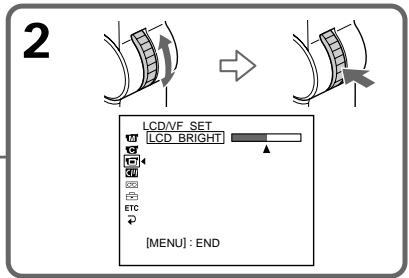
(1) Set the POWER switch to CAMERA, PLAYER^1) / VCR^2) or MEMORY (except DCR-TRV16E/TRV116E). Turn the SEL/ PUSH EXEC dial to select LCD BRIGHT in in the menu settings (p. 236), then press the dial.
(2) Turn the SEL/PUSH EXEC dial to adjust the brightness of the LCD screen with LCD BRIGHT, then press the dial.
(3) Press MENU to make the menu settings disappear.
^1) DCR-TRV16E/TRV18E/TRV24E only
^2) DCR-TRV25E/TRV27E/TRV116E/TRV118E only
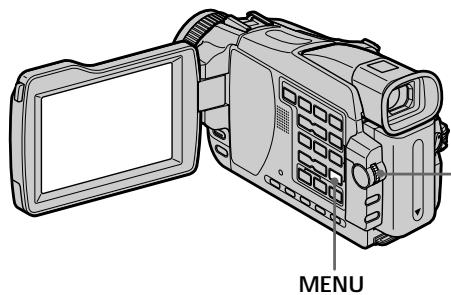
LCD screen backlight
You can change the brightness of the backlight.
Select LCD B.L. in the menu settings when using the battery pack (p. 236).
PpimueaHne
ПиИСЮЛБЗОВАнИЗКраHAKKД ВИДОИСКАТЕЛь АВТOMATИЧЕСКИ ВБИКЛЮЧАЕТСА, 3a ИСКЛЮЧЕНЕМ 3ерКальHorO peЖIMа (ст. 41).
EcIn BbI nCnoJIb3yTe 3KpaH XXD BHe NOMeueHnI NOI npRmbIM COJHeuHbIM CBETOM
Bo3MOxH0,6yTeT TpydHOn pa3rIaTeb 3KpaH KKD. B 3TOM cnyuae pekomeHdyetc INCNoB3OBA Tb BINOCKaTeJb.
Ppi perynipobKe yrgna naHEn JKKd
Y6eIITecb, YTO naneJIb XXKД OTKpbIta Do 90 rpaIycOB.
PerynpoBka npKocTn 3KpaHa KKd
(1)Установпейреклiouslyать POWER в положене CAMERA,PLAYER*1/VCR*2)ИИI MEMORY (КрOME модел徳 DCR-TRV16E/ TRV116E).ПовернITE ДИСК SEL/PUSH EXECи Вьберпго Onцю LCD BRIGHTВpyнкт e B yctановьх мEHIO (Стр.245),a 3aTem нажмпг ДИСК.
(2)ПовернITE диСК SEL/PUSH EXEC дяпуларовки ярковши зараза сдпомоцью орци LCD BRIGHT, a 3aTeMHаЖмITE диСК.
(3)HaxMMTe KhoNky MENU, YTo6bI MeHIO nCue3No.
^*) Tolbko Mojei DCR-TRV16E/TRV18E/TRV24E
^2) ToIbkoMoIeJIu DCR-TRV25E/TRV27E/ TRV116E/TRV118E
3aHnI noCDBeTka 3KpaHa KKd
BbMOKeTe N3MeHrTb RpKoCTb 3aHHe nOcBETKn. PnNcNoJIb3OBaHN 6aTapeHOrO 6Ioka Bb6epnte OuHi LCD B.L. By cTaHOBkax MeHIO (CTp.245).
Adjusting the viewfinder
If you record pictures with the LCD panel closed, check the picture with the viewfinder. Adjust the viewfinder lens to your eyesight so that the image in the viewfinder come into sharp focus.
Set the POWER switch to CAMERA, PLAYER ^1) VCR ^2 or MEMORY (except DCR-TRV16E/ TRV116E).
Lift up the viewfinder and move the viewfinder lens adjustment lever.
*1) DCR-TRV16E/TRV18E/TRV24E only
^2) DCR-TRV25E/TRV27E/TRV116E/TRV118E only
PerynipoBka BuidonckaTeJIa
Ecni Bbl 3anncbIbAte Ne3o6paXeHne c 3aKpbIToi naneJIbIO XKД, npOBepbTe n3o6paXeHne c nOmoUbIO BnDOnICkaTeJ.
ÖtperynpyTe OKyIep BnuOnckaTeIe B COOTBeTCTBnC BaIIM 3peHneM TaK, YTO6bl N3O6paXeHne BnuOnckaTeIe 6blIIN YeTKO CΦOKycuPobAHbl.
UcTaHOBuTe nepeKlnOuChaTeIb POWER B noJoxeHne CAMERA,PLAYER*1)/VCR*2) nIM MEMORY (Kpome moJeIeD DCR-TRV16E/ TRV116E).
IoiHnIMTe BnOuCKaTeNb I nepeDbHbTe pblar peyunipOBKn obekTNa BnOuCKaTeN.
^*) Tontko moJeN DCR-TRV16E/TRV18E/ TRV24E
^2) ToIbkoMoIeJIu DCR-TRV25E/TRV27E/ TRV116E/TRV118E
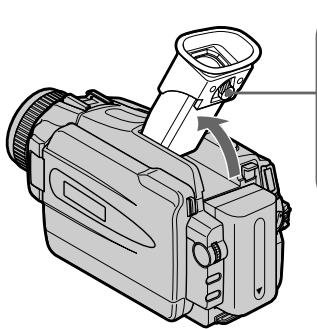
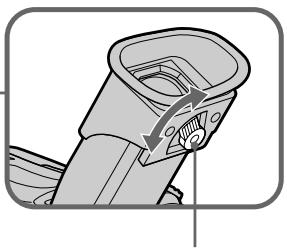
The viewfinder lens adjustment lever/ Pbyar perylnpobkn oBektnBa BWDONCKaTeJI
Viewfinder backlight
You can change the brightness of the backlight. Select VF B.L. in the menu settings when using the battery pack (p. 236).
3aHnnoDcBtKa BnOOnckaTeJIa
BbMOxTe N3MeHrTb RPKoCTb 3aJHei
PIOCBETKn. PnI NCNoJIb3OBAHN 6aTaapeHOrO
6Joka BbIbepnte OOnuio VF B.L. BycTaHOBkax
MeHIO (CTp.245).
Using the zoom feature
Move the power zoom lever a little for a slower zoom. Move it further for a faster zoom.
Using the zoom function sparingly results in better-looking recordings.
W: For wide-angle (subject appears farther away)
T: For telephoto (subject appears closer)
IcnoJb3ObaHne yHKcHn Hae3da BndeOkamepbl
Cnerka nepeBnHbTe pbyar npBODHO Bapnoo6BeKtNa DnO THO MeJeHHoro Hae3Ja BnDEOKaMepbl.
IpeeBnHbTe ero daJIbWe dIy yckOpHHoro Hae3da BnDeOkamepbl.
Heuactoe nIcnoJIb3ObaHnene yHKnUHae3da BIndeOkamepbl ObecneuHbAe T HauNyuShne pe3yJbTaTbI.
To use zoom greater than 10×
Zoom greater than 10× is performed digitally.
Digital zoom can be set to 20× or 120× . To activate digital zoom, select the digital zoom power in D ZOOM in the menu settings (p. 235).
The digital zoom function is set to OFF as a default settings.
ДлЯ NCIOЛьБОВАнг Hae3da 6OJIe 10×
Hae3d BnDEOKaMepb60nee 10x BBInonHReTcA UΦpOBbIM MeToDom. LΦpOBoi
Bapnoo6bekTNB MoKet 6bItb yCTaHOBNeH Na YBeIeHneOT 20X do 120X.ДЯakTbNtuaqnnu ZpPoBOrO Hae3da Bbl6epnTe CteNeHb ZpPoBOrO Hae3da B onuD ZOOM BVcTaHOBX MeHIO (CTp. 244).Функшу ZpPoBOrO Hae3da no yMOnuHaHNo yCTaHOBNeHa B pNOJKeHne OFF.
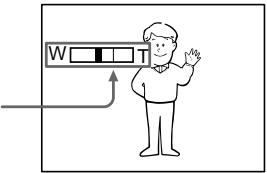
The right side of the bar shows the digital zooming zone.
The digital zooming zone appears when you select the digital zoom power in the menu settings./
PpaBcTOpOHa nolocbl NOKa3bIbAeT 30Hy cnppoBoT pAnhCpokauin.
3OHaZnФpoBOn TpaHcΦokaun NoAByTcra,ecn
BbI BbI6peTe cTeenH bIcfoPoBoro Hae3da ByctaHOBkax MeHIO.
When you shoot close to a subject
If you cannot get a sharp focus, move the power zoom lever to the "W" side until the focus is sharp. You can shoot a subject that is at least about 80~cm (about 2 feet 5/8 inch) away from the lens surface in the telephoto position, or about 1cm (about 1 / 2 inch) away in the wide-angle position.
Pn cbeMe oBeKa Tc 6JIn3KOro noJIOKeHn
EcIn BHe MoKeTe nOlyuHTb YeTkoi
fokycnOBKN,pepeBnHbTe pblar npINBOdHO
Bapnooo6bekTuBA B CTOpOny WDo nOlyueHn
yeTkoi fokycnOBKn. Bby MoKeTe BblONJHrTa
cbemky o6bKaTb B nOLOXeHN TeJeΦoTO,
KOTOpB HaxoDITcN,IO KpaIHeMpe,Ha
pacSTOHHN 80 cM OT nobepxHocTN o6bekTuBA
UNI Xe OKOJI O C M B nOLOXeHN
UnPOKoyrohBO Horu Da.
Note on digital zoom
The picture quality deteriorates as you move the power zoom lever towards the "T" side.
When the POWER switch is set to MEMORY (except DCR-TRV16E/TRV116E)
You cannot use the digital zoom.
Shooting with the Mirror Mode
This feature allows the camera subject to view him-or herself on the LCD screen.
The subject uses this feature to check his or her own image on the LCD screen while you look at the subject in the viewfinder.
Set the POWER switch to CAMERA or MEMORY (except DCR-TRV16E/TRV116E).
Rotate the LCD screen 180 degrees.
The indicator appears in the viewfinder and on the LCD screen.
appears in the standby mode, and
appears in the recording mode. Some of other indicators appear mirror-reversed and others are not displayed.
3aHcB n3o6paXeHnA
PpmeaHne uΦpObOmy Baapnoo6bektuBy
KaueCTBO n3o6paXeHn yxuDxaTcno Mepe np6nXeHn pyUHa npBDOHorO Bapno06bekTnBa K CTOpOHe "T".
EcInnepeKJIuOaTeIb POWER ycTaHOBlenB noJIOxKeHne MEMORY (KpOme moJeIeD CDRTRV16E/TRV116E)
BbHe MoXeTe noJIb3OBAtbcraФyHKUneIuΦpOBOrO Hae3da.
CbeMaB 3epKaIbHOM peXmE
3TaФyHKUЯ NO3BOJRAET YeNoBeky, BbIIOJIHryIOUeMy CbeMKy,Ha6JIIOaTb Ce6Ha 3KpaHe KKД.
YeJIOBek NcIOnJIb3yET 3Ty cyHKnUIO dIgTOrO, cTO6bl npocMTopeT bCOb n3O6paXKeHne Ha 3KpaHe KKД B To Bpemr, KaB BbI cmOTpnte Ha Hero B BuDOnCKaTeNe.
UcTaHOBInTe nepeKlnOuataJIb POWER B noJoxKeHne CAMERA nIM MEMORY (KpOme moJeIeN DCR-TRV16E/TRV116E).
ПовернITE ekpanЖКД ha 180 rpaусов.
INHnKATOp NOBNTcB BVIOONCKaTeNe Ha 3KpaHe KKn.
INHdkaTop NOBNTCBpeKIMe OXnDaHnA, a INdkaTop BpeKIMe 3annc. HeKOtOpbIe DpyrHe INdkaTopbIOBRAcB 3epKaJIbHO OTo6paXeHHOM BnDE,a HEKOtOpbIE N3 HnX He 6ydyT OTo6paXaTbCBOCEM.
Picture in the mirror mode
The picture on the LCD screen is a mirror-image.
However, the picture will be normal when recorded.
During recording in the mirror mode
ZERO SET MEMORY on the Remote
Commander does not work.
I3o6paXeHneB 3epKaJIbHOM peknme.
I3o6paXeHne Ha 3KpaHe KKД 6yID
OTobpaXaTbca 3epKaJIbHo. HecMOTpHa 3To,
3aINcB n3o6paXeHn 6yTeH HopMaIbHoN.
Bo Bpem 3aHncn B 3epKaJIbHom pexime
KhoNka ZERO SET MEMORY Ha nyIbTe
ДиСТанCUОнHOrOупавLEнЯ He
dyHKUHOHpyeT.
Indicators displayed in the recording mode
HДИКaTOPbl, OTo6paKaemble BpeKIme 3aIncN
Indicators are not recorded on tapes.
HДнkaTOpbl He 3aNcBbAJOTCHa JNeHTbl.
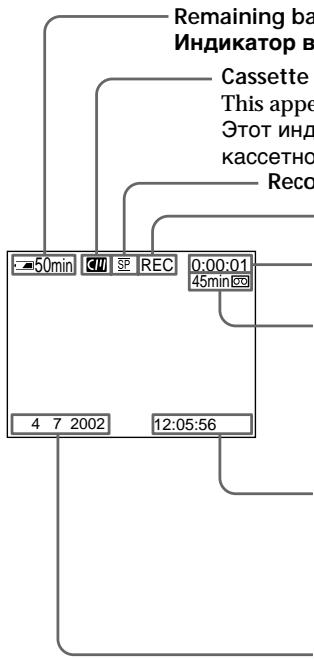
Remaining battery time/
This appears when using a cassette with cassette memory./
3TOT INHINKATOP NOBBLETCPRN NCSIOB3OBAHNN KACCETbIC KACCETHOI NAMrTBIO.
Recording mode/ндкатор ржima заимсн
STBY/REC/нндикатop STBY/REC
Time code/Tape counter/
KoBvpeMeHn/HHdkaTOp cHTuKa JIeHTbI
Remaining tape/ндкаTop octabweяс Лentbl
This appears after you insert a cassette and record or play back for a while.
3TOT INHdNkATOP NOBnIeTCr IocIe yCTaHOBKn KaccTebl 3aIIN CN BOCpON3BeJeHn B TeueHne HEKOTOPORo BpeMeHn.
Time/ндкатовсмп
The time is displayed about five seconds after the power is turned on./
Bpemr OTo6paXaeTcB TeueHne PnmuMepHO PtTN CeKuHIOncIe BKluOeHn IITaHn.
Date/IMHdNkAToP daTbI
The date is displayed about five seconds after the power is turned on./
Data OTo6paXaetC B TeueHne IprImepHO IaTN CeKHyIIOcNE BKNIOUeHnI NITaHnI.
Remaining battery time indicator during recording
The indicator shows the approximate continuous recording time. The indicator may not be correct, depending on the conditions in which you are recording. When you close the LCD panel and open it again, it takes about one minute for the correct remaining battery time in minutes to be displayed.
HnDkaTOp BpeMeHIOCTaBWeOc3apJa 6aTaPeHoro 6Ioka BO BpeMa 3aIncn
3TOT INHdikatop rpy6o noka3bIbAet Bpemr 3aInci. INHdkatop moKet 6bITb HeTOchIMB 3aBcIMOCTN OT yCNOBn, B KOTOpbIX Bbl npOn3BOIDte 3aIncb. Korda Bbl 3akpbIbAeTe naHenb KKДи OTKpbIbAEte eE cHOBa, Tpe6yETc OKIo OdHoi MInHytbl IJn npablbHoro OTo6paXeHHN OCTaBWeOcR BpemeH 3apJa 6aTaapeHOrO 6LOKA B MNHyTax.
Time code
The time code indicates the recording or playback time, "0:00:00" (hours : minutes : seconds) in CAMERA and "0:00:00:00" (hours : minutes : seconds : frames) in PLAYER^1)/ VCR ^2) . You cannot rewrite only the time code.
Remaining tape indicator
The indicator may not be displayed accurately depending on the tape.
Recording data
The recording data (date/time or various settings when recorded) are not displayed while recording. However, they are recorded automatically onto tape. To display the recording data, press DATA CODE on the Remote Commander during playback (p. 52).
1) DCR-TRV16E/TRV18E/TRV24E only
^2) DCR-TRV25E/TRV27E/TRV116E/TRV118E only
Shooting backlit subjects - BACK LIGHT
When you shoot a subject with the light source behind the subject or a subject with a light background, use the backlight function.
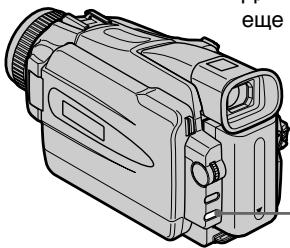
Set the POWER switch to CAMERA or MEMORY (except DCR-TRV16E/TRV116E), press BACK LIGHT.
The indicator appears on the screen. To cancel, press BACK LIGHT again.
-BACK LIGHT
If you press EXPOSURE when shooting backlit subjects
The backlight function will be cancelled.
KoB BpeMeHH
KoD BpemeH yka3bIbaeT Bpem 3aIncn IINBocnpou3BeDeHnra,“0:00:00”(aCbI:MHyTbI:cekyhDbI)BOnuIN CAMERA u“0:00:00"(aCbI:MHyTbI:cekyhDbI:KaIpbI)BOnuINPLAYER ^+1) VCR ^+2) .BbI He MoXeTepe3aIncatb TOIbKO KoD BpemeH.
HdkaTop octabwerooc yuactka JeHTbI
INHДИКATOP MOKET OTObpaKaTbCЯ HeToUHO B 3aBcIMOCTN OTJeHTbl.
DaHHbIe 3aHNCN
DaHbIe 3aIncn (daTa/Bpem nIpa3JIuHbIe yCTaHOBKn npri 3aIncn) He OTObpaXaIOTcB BO Bpem 3aIncn. TeM He MeHee, OHn aBTOMaTnueckn 3aINCbIBaIOTc HaJeHTy. UTo6bl OTbpa3NtB daHHbIX 3aIncn, Haxmnte BO Bpem BOCIpOn3BeDeHnK HonKy DATA CODE Ha IyIbTe dIcTaHcUHOrO ynpabJeHn (ctp.52).
^*1) ToIbKO moJeN DCR-TRV16E/TRV18E/ TRV24E
^2) ToIbKO moJeN DCR-TRV25E/TRV27E/ TRV116E/TRV118E
Cbemka obbeKToB c 3aDHei noDCBeTkoI - BACK LIGHT
EcIn BbI BbIOJIHHeTe CbEMKy oBekTa c nCTOCHNKOM CBETA NO3aDi HrO HiN JKe oBekTA CO CBETNbIM FOHOM, NcNoIb3yIte fYHKUIO 3aDHe NODCBETKn.
UcTaHOBnTe nepeKlnHouaTeJb POWER B noLoXeHne CAMERA nIM MEMORY (KpOme moJeIeN DCR-TRV16E/TRV116E), n Haxmnte KhONKy BACK LIGHT.
Ha 3kpaHne NOBNTc HNdkaTop
Длг OTменин Нжмп Te Khoиky BACK LIGHT etc pa3.
Shooting in the dark - NightShot/Super NightShot/ Colour Slow Shutter
You can shoot a subject in a dark place. For example, you can satisfactorily record the environment of nocturnal animals for observation when you use this function.
CbemKa B TemHote - HocHa cBemKa/ HocHa cynepcbemKa/LBeTHa CbemKa C MeIeHHbIM 3aTBoPOM
BbMOxTe BbIOJNHTb CbEMKy O6BeKtBa TEmHom MeCTe. HanpImep, Bb CMoxTe CycnEXOM BbIOJNHTb CbEMKy npi Ha6JIoJeHmH OHHybIX KINBOTbIX C NcIOnlb3ObaHm EaHHoF cyHKcH.
Using NightShot
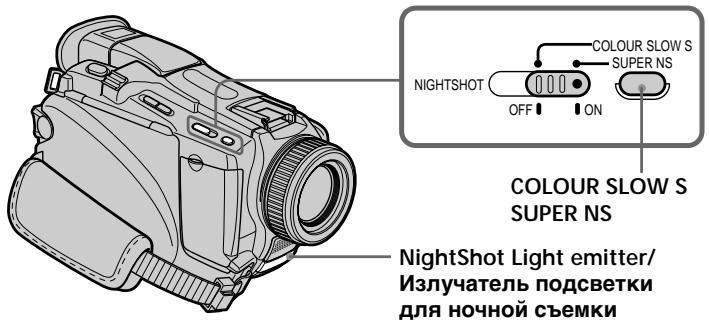
Set the POWER switch to CAMERA or MEMORY (except DCR-TRV16E/TRV116E), slide NIGHTSHOT to ON.
The and "NIGHTSHOT" indicators flash on the screen.
To cancel the NightShot mode, slide NIGHTSHOT to OFF.
Using Super NightShot
The Super NightShot mode makes subjects more than 16 times brighter than those recorded in the NightShot mode.
(1) Set the POWER switch to CAMERA, slide NIGHTSHOT to ON. The and "NIGHTSHOT" indicators flash on the screen.
(2) Press SUPER NS. The S@ and "SUPER NIGHTSHOT" indicators flash on the screen. To return the NightShot mode, press SUPER NS again.
IcnoJb3OBAHnepeXIMaHOUHOI CbeMKN
UcTaHOBInTe nepeKJIouCaTeIb POWER B noJIOKeHne CAMERA uIN MEMORY (KpOme moJeIeN DCR-TRV16E/TRV116E), n nepeDInHbTe nepeKJIouCaTeIb NIGHTSHOT B noJIOKeHne ON.
HnDnkaTopbI n "NIGHTSHOT" HaHyT MInraTb Ha 3KpaHe.
ДягOTмны ржима HOчнов CBemkn nepeДВиНьтперклочаTeь NIGHTSHOT b noJoxeHne OFF.
IcnoJb3OBAHne peXmHa HOHOn cynepcbeMkn
Pexm Houho CynepcbemKn no3B0nraet cenatb obekbl 6olee yem B 16 pa3 npye, yem B cnyae, ecn Bbl 6ynde T bInonHrtb cbemky B pexmme Hocno Cbemkn.
(1)YctaHOBInTe nepeKJIIOuATeINb POWER B noJIOXeHne CAMERA, n pepeDinHbTe nepeKIIIOuATeINb NIGHTSHOT B noJIOXeHne ON. Ha 3KpaHe NaHyT MInrA Tb INdNkAtOpbl n "NIGHTSHOT".
(2)HaXMMTe KHOInKy SUPER NS. Ha 3KpaHe NaHyT MInrA Tb INDnKaToPbI S@ n "SUPER NIGHTSHOT". IINBaBO3BpTa BpeXIM HOHOn CBEmKn, HaxMMTe KHOInKy SUPER NS eue pa3.
Using NightShot Light
The picture will be clearer with the NightShot Light on. To enable the NightShot Light, set N.S.LIGHT in to ON in the menu settings. The default setting is ON.
Using Colour Slow Shutter
The Colour Slow Shutter function enables you to record colour images in a dark place.
(1) Set the POWER switch to CAMERA, slide NIGHTSHOT to OFF.
(2) Press COLOUR SLOW S. The and "COLOUR SLOW SHUTTER" indicators flash on the screen. To cancel the Colour Slow Shutter function, press COLOUR SLOW S again.
Notes
- Do not use the NightShot mode in bright places (e.g. the outdoors in the daytime). This may cause your camcorder to malfunction.
- When you keep NIGHTSHOT set to ON in normal recording, the picture may be recorded in incorrect or unnatural colours.
- If focusing is difficult with the autofocus mode when using the NightShot mode, focus manually.
While using NightShot, you cannot use the following functions:
- Exposure
- PROGRAM AE
-White balance
While using Super NightShot, you cannot use the following functions:
- Exposure
- PROGRAM AE
-Fader - Digital effect
-White balance - Recording still image on a "Memory Stick" in the tape recording or standby mode (except DCR-TRV16E/TRV116E)
While using Colour Slow Shutter, you cannot use the following functions:
- Exposure
- PROGRAM AE
-Fader - Digital effect
- Recording still image on a "Memory Stick" in the tape recording or standby mode (except DCR-TRV16E/TRV116E)
IcnoIb3ObaHne NOcBETKn HOUHOcEMKn
While using Super NightShot or Colour Slow Shutter
The shutter speed is automatically adjusted depending on the brightness. At this time, the motion of the picture may slow down.
When the POWER switch is set to MEMORY (except DCR-TRV16E/TRV116E), you cannot use the following functions:
Super NightShot
Colour Slow Shutter
NightShot Light
NightShot Light rays are infrared and so are invisible. The maximum shooting distance using the NightShot Light is about 3m (10 feet).
In total darkness
The Colour Slow Shutter may not work normally.
Self-timer recording
- Except DCR-TRV16E/TRV116E
Recording with the self-timer starts in 10 seconds automatically. You can also use the Remote Commander for this operation.
(1) In the standby mode, press MENU, then select SELFTIMER in with the SEL/PUSH EXEC dial (p. 235).
(2) Turn the SEL/PUSH EXEC dial to select ON, then press the dial.
(3) Press MENU to make the menu settings disappear. The (self-timer) indicator appears on the screen.
(4) Press START/STOP. Self-timer starts counting down from 10 with a beep. In the last two seconds of the countdown, the beep gets faster, then recording starts automatically.
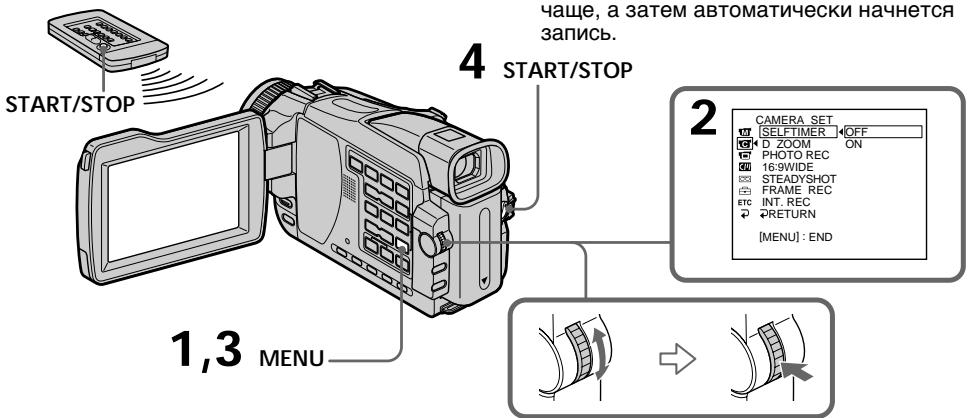
PnncnoB3OBaHmФyHKuH NHOH cynepcbemKn mNΦyHKcH NBeTHoN cbemKc C MeDJIeHHbIM 3aTBOpOM
CkopoocTb 3aTBopa 6yDet aBtOMaTuYeCKn peYInpoBaTbC8 B 3aBMCIMOCTN OT rPKOCTN. B 3TO BVPem, DBXKeHHe N3O6paXeHm MoKET 3aMeDInTbC8.
PnnaHaxoxKeHHnepeKJIIOuATEJRAPOWERB nIOJOxHeHH MEMORY (KpOme MoJeE DCRTRV16E/TRV116E) BbI He moXeTe mCNOJIb3OBAtB cIeDyUOpHeФYHKcHn:
-Функцю HOUHOn cynepeMKN
-ФункцюцьETHOn CbeMKcMeДлЕнHBIM 3aTBOpOM
IoDCBETKa HOuHOcBemKu
JyynnoDCBETKNOHOnCbEMKnABJIOTc INHfpaKpaChbIMN,NO3TOMYOHNHeuINMbI. MakcImaNbHoe pacCToRnneIgN CbEMKn npn NCNoB3OBAHmN NOcCBETKn HOCHOnCbEMKn paBHO pnpMepHo 3 M.
B NOHON TEMHOTE
LbeTHaCbEmKa C MeJInHbIM 3aTbOpOM MoKeT He pa60TaTb O6bUHbIM O6pa3OM.
3aInc b no TaMepy camo3anycka
-Kpome moJeIe DCR-TRV16E/TRV116E
3aIncb no TaMepy cMo3aNcyaKa HaunHaeTcA
abTomatueckn chee3 10 ceykN.
JnTTOnepaunBbl MoXteTaKx
NCNoB3OBAtB NylbT nCTaHcNOHHOro ynpabLeHna.
(1)BpeXHMe OXnIaHnI HaXmITe KHOIpKy MENU,a 3aTeM BbIe6pITe KOMaHdY SELFTIMER B C nOmoIbIO dNcKa SEL/ PUSH EXEC (cTp.244).
(2)ПовернITE ДИСК SEL/PUSH EXEC ДИЯ ВИбора положеня ON, a 3aTeM нажмITE ДИСК.
(3)HaxMMTe KhoNky MENU dny toro, yTo6bl yCTaHOBKn MEHIO hCye3nn. POABiTcHa 3KpAmE INDnKaTOp (TaIMepa cmo3anycka).
(4)HaxmTe KhoNky START/STOP. TaMep cAmO3aIyCka HaChET o6paTHbI OTCuET OT C 3ymMePbIM CnHaIOM. B NocIeHNHe DByX CeKyHbI O6paTHoRO OTCuEta 3ymMePbIH CnHaI OyDet 3BvAtb YaUe, a 3aTEM ABOTMaTHeCKN HaChETcR 3aINCb.
START/STOP
2
To stop the countdown
Press START/STOP.
To restart the countdown, press START/STOP again.
To cancel self-timer
Set SELFTIMER to OFF in the menu settings in the standby mode.
You cannot cancel self-timer using the Remote
Commander.
Note
The self-timer is automatically cancelled when:
-
Self-timer recording is finished.
-
The POWER switch is set to OFF (CHG) or PLAYER^1) / VCR^2) .
*1) DCR-TRV16E/TRV18E/TRV24E only
^2) DCR-TRV25E/TRV27E/TRV116E/TRV118E only
When the POWER switch is set to MEMORY
You can also record still images on "Memory
Stick"s with the self-timer (p. 154).
ДлЯ OCTaHOBKn ObpaTHOrO OTCheTa
Hakmnte KhoNky START/STOP.
You can use these buttons to check the recorded picture or shoot so that the transition between the last recorded scene and the next scene you record is smooth.
You can go to the end of the recorded section after you record.
Press END SEARCH in the standby mode. The last five seconds of the recorded section are played back and your camcorder returns to the standby mode. You can monitor the sound from the speaker or headphones.
EDITSEARCH
You can search for the next recording start point.
Hold down the - / + side of EDITSEARCH in the standby mode. The recorded portion is played back.
-: To go backward
+ : To go forward
Release EDITSEARCH to stop playback. If you press START/STOP, recording begins from the point you released EDITSEARCH. You cannot monitor the sound.
ФункцЯ END SEARCH
BbMOxKTe DoHTn Do KOHcza 3aINcaHHo YacTInJeHTbIOcNe BbINONHeHHa3aNNCn.
HakmTe KhoNky END SEARCH B peXnme OxuJaHna.
ByuT BOCPON3BedeHbI NocJIeHNHe IaTN CekyHd 3aIncAHNo YacTn, IN BaHa BInDeOKaMepa BepHeTcB PexIM OxNdaHn.
BbMOKTe KOHTPOJINPOBaT 3ByK uepe3 DInHaMn KnnrTOJOBHbIe TeJefoHbI.
ФункцЯ EDITSEARCH
BbMOKTe BbIIOJIHrTb IONCK MeCTa HaHaIa CNeDyUoSeI 3aIcN.
Дерхи te haxaToI CTOpOHy -/+ KHONKn EDITSEARCH B pexmE oXuHaHЯ. Bydet BOCPOn3BeDeHa 3aIncaHHa YacTb.
::ДЯ npoDbvXKeHnHa3aI
+:Длг npOДВиЖЕньпepeД
OTnyCTnTe KhoNky EDITSEARCH nIra octaHObKn BocnpOn3BeDeHn. EcIn Bbl haxMeTe KhoNky START/STOP, naHcTcna nepe3anncb Toro Mecta, rDe Bbl OTnyCTnNI KhoNky EDITSEARCH. Bbl He moKte TohTroJnPoBaTb 3Byk.
Checking recordings - END SEARCH/EDITSEARCH/Rec Review
Rec Review
You can check the last recorded section.
Press the - side of EDITSEARCH momentarily in the standby mode.
The section you have stopped most recently will be played back for a few seconds, and then your camcorder will return to the standby mode. You can monitor the sound from the speaker or headphones.
End search function
When you use a cassette without cassette memory, the end search function does not work once you eject the cassette after you have recorded on the tape. If you use a cassette with cassette memory, the end search function works even once you eject the cassette.
If a tape has a blank portion between recorded portions
The end search function may not work correctly.
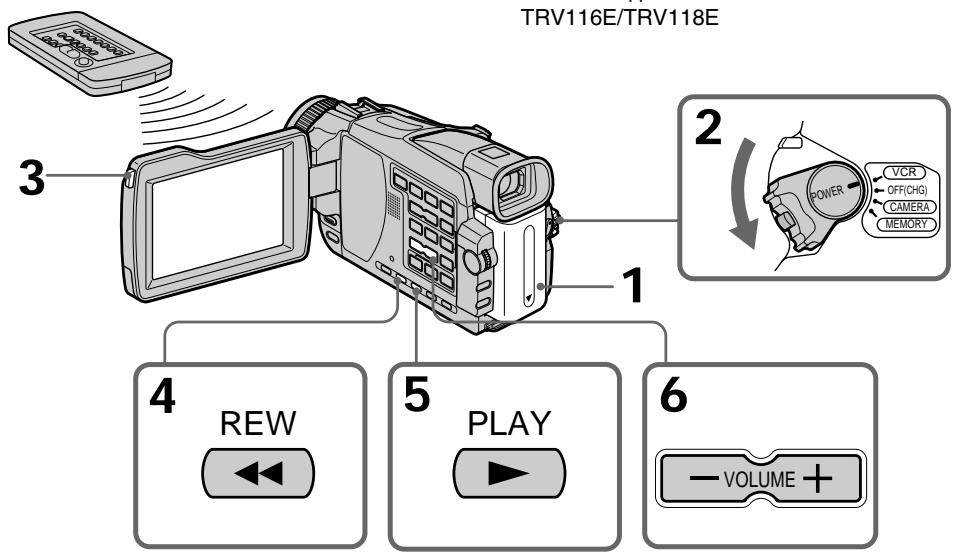
You can monitor the playback picture on the screen. If you close the LCD panel, you can monitor the playback picture in the viewfinder. You can control playback using the Remote Commander supplied with your camcorder.
(1) Prepare the power supply and insert the recorded tape.
(2) Set the POWER switch to PLAYER^1 / VCR^2 while pressing the small green button.
(3) Open the LCD panel while pressing OPEN.
(4) Press to rewind the tape.
(5) Press to start playback.
(6) To adjust the volume, press either of the two buttons on VOLUME. Sound is muted when the LCD panel is closed.
-
: To turn the volume down
-
: To turn the volume up
1) DCR-TRV16E/TRV18E/TRV24E only
^2) DCR-TRV25E/TRV27E/TRV116E/TRV118E only
Bocnpon3BeDeHne JeHTbI
BblMOxTe KOHTpOINPOBaT BOCpON3BOOMOE n3o6paXeHne Ha 3kpaHe. EcJN Bbl 3akpoete naHeIb KKII, Bbl MOxTe KOHTpOINPOBaT BOCpON3BOOMOE n3o6paXeHne B BVIONCaTeJIe. Bbl MOxTe KOHTpOINPOBaT BOCpON3BeDeHne C NOMOJIbIO NylTa DnCTaHUNOHOrO ynpabJeHn, npnnaeMOrO K BaWei BNDeOKaMepe.
(1)ПоД�ТОВБTe ИСTOЧИК ПИТАнЯ И ВСТаBBTe 3aПИСАНHyI ЛHTY.
(2)YdepxkBaHaxaToMaJeHbkyIO3eJeHyIO KhoIky,ycTaHOBnTe nepeKJIuOyateIb POWER B noJIoXeHne PLAYER ^1) VCR ^2 ).
(3)Ydepxmba HkaToK Honky OPEN, OTKpoTe naheJb KKJ.
(4)HaxMMTe KhoNkU dIy yCKopeHHoI nepeMOTKn IeHTbI Ha3a.d.
(5)HaxmTe KhoNky ▶ДЯВКЛЮЧЕНЯ BOCnpoN3BeDEHЯ.
(6)ДлpergулровгромкостинхимаTe OdHy n3 DByX KHOJOK VOLUME. EcIn naHelen XKД 6ydeT 3akpbIta, 3ByK 6ydeT npirIyueH.
:ДумУMeHbSeHnI rPOMKoCTN
+:ДиЯ yBeIyHHeHnI rPOMKoCTN
^*1) ToIbKO moJeI DCR-TRV16E/TRV18E/ TRV24E
^2) ToIbKO moJeN DCR-TRV25E/TRV27E/ TRV116E/TRV118E
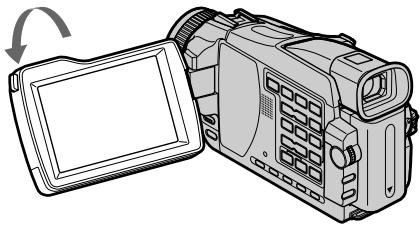
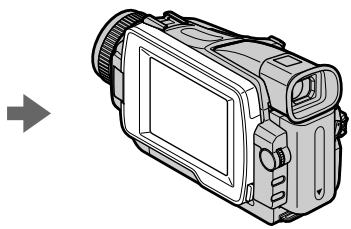
When monitoring on the LCD screen You can turn the LCD panel over and move it back to the camcorder body with the LCD screen facing out.
Bo Bpem KOnTpoJHa 3KpaHe KKDbMoKeTe nepeBepHyTb naHJIb KKД npuDnHyTb ee 6paTHO K KopnyCy BnDeokamepbl, TaK yTO 3KpaH XXd 6ydet 6bpaueH hapxv.
If you leave the power on for a long time Your camcorder gets warm. This is not a malfunction.
When you open or close the LCD panel Make sure that the LCD panel is set vertically.
Ecnn Bbl octabnte nHTaHne BKIOUeHHbIM Ha dIInTeJbHOe Bpemr
Baasa Bnideokamepa Harpeetc.3To He ABJIETc HENCnPABHOCtbo.
Korda Bby OTKpbIbAeTe nIIN 3aKpbIbAeTe naHeJI KKd
Y6eIntecb, cyTo6bl naHelen KKd 6blna yCTaHOBJIeHa B BepTnKaJIbHOM IIOJOxEHIN.
To display the screen indicators - Display function
Press DISPLAY on your camcorder or the Remote Commander. The indicators appear on the screen. To make the indicators disappear, press DISPLAY again.
About date/time and various settings
Use the Remote Commander for this operation. In addition to images, your camcorder automatically records the recording data, including date/time and various settings on the tape (data code).
① Set the POWER switch to PLAYER^1) / VCR^2) , then playback a tape.
② Press DATA CODE on the Remote Commander.
The display changes as follows:
date/time various settings (SteadyShot, white balance, gain, shutter speed, aperture value, exposure mode) no indicator
*1) DCR-TRV16E/TRV18E/TRV24E only
^2) DCR-TRV25E/TRV27E/TRV116E/TRV118E only
O daTe/BpeMeHn pa3JIuHbIX yCTaHOBkax
NcnoIb3yIte npIbT nIcTaHnOHnHO ynpaBHeHn dIe 3ToI onepaun.
BaSHA BnDEOKaMepa ABTOMaTUnCeKn 3aNcBbAeT Ha JeHTy He ToIbKO N3O6paXeHn, HO TaKKe I DaHHBe 3aNcN, BKJIouaY DaTy/ BpEMn pa3JIuHbIe yCTaHOBKn PnI 3aNcN (KoD daHHbIX).
① YctaHOBInTe IpeKJIIOuHaTeJIb POWER B noLOXeHne PLAYER*1)/VCR*2), a 3aTeM NaCHNte BOCnpon3BeJeHne JeHTbl.
② Haxmnte KhoNky DATA CODE Ha npJIbTe DnCTaHcUOnHOrO ynpaBHeHn.
INDnkaun6byet n3MeHArbCnEduoUIM 06pa30m:
daTa/BpEm pa3nUHbIe ycTaHOBKN (ycTouHBa CbEMKa, 6aHaNC 6eIoro, ycInHeNe, CKOpocTb 3aTBopa, BeJIuHNa dnaΦpaRmbl, peXIM 3KcNo3nUu) 6e3 INdNkauu
^1) Tôлько модени DCR-TRV16E/TRV18E/TRV24E
^2) ToIbkoMoJeNDCR-TRV25E/TRV27E/ TRV116E/TRV118E
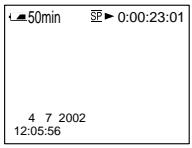
Date/time/ Data/Bpema
[a] Tape counter
[b]SteadyShot OFF
[c] Exposure mode
[d] White balance
[e] Gain
[f]Shutter speed
[g] Aperture value
To not display various settings
Set DATA CODE to DATE in the menu settings (p. 242).
The display changes as follows when you press DATA CODE on the Remote Commander: date/time no indicator
Various settings
Various settings are your camcorder's information when you have recorded. In the recording mode, the various settings will not be displayed.
When you use the data code function, bars ( ) appear if:
- A blank portion of the tape is being played back.
- The tape is unreadable due to tape damage or noise.
- The tape was recorded by a camcorder without the date and time set.
Data code
The data code is displayed on the TV screen if you connect your camcorder to the TV.
Remaining battery time indicator during playback
The indicator shows the approximate continuous playback time. The indicator may not be correct, depending on the conditions in which you are playing back. When you close the LCD panel and open it again, it takes about one minute for the correct remaining battery time to be displayed.
Various settings/ Pa3nUHbIe ycTaHOBKn
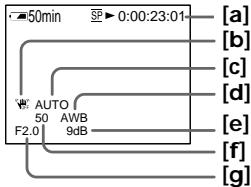
[a]CyeTUnKJeHTbl
[b]ИнДиКаTOp BBIJKJIIOUeHINy yCTOuHBOB CbeMKN
[c]Индikatop ржима Экноции
[d]Инданахаблого
[e]Инданкатор усilпеня
[f]ИнданkaTOp ckopoCTn 3aTbopa
[g]BelenuHa niaaparMbI
ДяТOrO,ЧTo6bI He OTo6paXaJIncb pa3JIuHbIe yCTaHOBKn
YcTaHOBInTe OOnuHo DATA CODE BNoJIoXeHne DATEBycTaHOBkaxMeHIO(cTp.251).
PnnaKn KhoNkDATA CODE Ha npIbTe
DnCTaHNoHHOrO ynpaBHeHnHnKaun6ydet
n3MeHnTcBc CneLyUoUM o6pa3OM:
DaTa/BpeM 6e3 nHnKaun
Pa3JIuHbIe yCTaHOBKn
Pa3nHbIe yCTaHOBKn ppeDcTaBIAOT c6oB nHΦopMauIO o BaWei BnDeOkaMepe npn BbIPOJIHeHm 3aIncn. B pexIme 3aIncn pa3nHbIe yCTaHOBKn OTo6paXaKATbcr He 6ydyT.
Ecnn BbI nCnoJIb3yeTe ΦyHKcNIO KoJa
DaHHbIX, TO NOBATCA NOLOCbl (--- ---), ecIn:
- Bocnpon3B0dntcH He3aHncaHHbYuactokHaJIeHTe.
-JIeHTa ABJrETcH HeuHTaEMoI n3-3a IOBpeKJeHnI JIN NOMex.
-3aIncb Ha JeHTy 6bJa BbIOnHeHa BnDeOkamepoi 6e3 yCTaHOBKn DaTbI IN BpemeHn.
KoDaHHbIX
EcII BbI NOCDoeDHHte BaUy BNDeOKaMepy K TeLEBn3opy, KOJ DaHHbIX NOBITcH Na 3KpaHe TeLEBn3opa.
Various playback modes
To operate video control buttons, set the POWER switch to PLAYER^1 / VCR^2 .
1) DCR-TRV16E/TRV18E/TRV24E only
^2) DCR-TRV25E/TRV27E/TRV116E/TRV118E only
To play back pause (view a still image)
Press I during playback. To resume normal playback, press or I
To advance the tape
Press in the stop mode. To resume normal playback, press .
To rewind the tape
Press in the stop mode. To resume normal playback, press .
To change the playback direction
Press < on the Remote Commander during playback to reverse the playback direction. To resume normal playback, press .
To locate a scene monitoring the picture (picture search)
Keep pressing or during playback. To resume normal playback, release the button.
To monitor high-speed pictures while advancing or rewinding the tape (skip scan)
Keep pressing while rewinding or while advancing the tape. To resume rewinding or advancing, release the button.
To view the picture at slow speed (slow playback)
Press on the Remote Commander during playback. For slow playback in the reverse direction, press < , then press on the Remote Commander. To resume normal playback, press .
Pa3nHbIepeXmblBocnpOn3BeDeHna
HaxMMTE BO BVPeMRA BOCPON3BedeHnRA KHONKY Ha NjIbTe DnCTAHNOHORO YnpaBNeHnR.
Jrna 3AmEJnHOro BOCPON3BedeHnRA B
O6paTHOM HnPaBHeHn HAxMMte KONKy <, a
3aTEM HaXMMTE KONKY Ha NjIbTe
DnCTAHNoHORO YnpaBNeHnR.
Jrna
BO306OBHBeHnO OBuHOrO BOCpON3BedeHnRAxMMTE KONKy ▲
To view pictures at double speed
Press × 2 on the Remote Commander during playback. For double speed playback in the reverse direction, press < , then press × 2 on the Remote Commander. To resume normal playback, press .
To view pictures frame-by-frame
Press on the Remote Commander in the playback pause mode. For frame-by-frame playback in the reverse direction, press .To resume normal playback, press
To search the last scene recorded (END SEARCH)
Press END SEARCH in the stop mode. The last five seconds of the recorded portion plays back and stops.
In the various playback modes
Sound is muted.
- The previous picture may remain as a mosaic image during playback.
When the playback pause mode lasts for five minutes
Your camcorder automatically enters the stop mode. To resume playback, press
Slow playback
The slow playback can be performed smoothly on your camcorder. However, this function does not work for an output signal through the DV OUT or DV IN/OUT jack.
When you play back a tape in reverse
Horizontal noise may appear at the centre, or the top and bottom of the screen. This is not a malfunction.
Bocnpoun3BeDeHne JeHTbI
ДлгпрсмOTpa n3O6paXeHn Ha ydBOEHHOckOpocTn
HaXMMTe KHOINKy × 2 Ha npIbTe DnCTaHcNHOHOro YnpaBLeHnBa BpeMBAocPOn3BeDeHn.ДЯ BOCpON3BeDEHnHa yDBoEHHO CKOpOCTn B O6paTHOM HnPaBLeHn HxKMTe KHOINKy < , a 3aTEM KHOINKy × 2 Ha npIbTe DnCTaHcNHOHOro YnpaBLeHn.ДЯ BO3O6HOBNeHnO6bUHORO BOCpON3BeDEHnHaXMMTe KHOINKY
Viewing the recording on TV
Connect your camcorder to your TV with the A/V connecting cable supplied with your camcorder to watch playback pictures on the TV screen. You can operate the video control buttons in the same way as when you monitor playback pictures on the screen. When monitoring playback pictures on the TV screen, we recommend that you power your camcorder from a wall socket using the AC power adaptor (p. 30). Refer to the operating instructions of your TV.
Open the jack cover. Connect your camcorder to the TV using the A/V connecting cable supplied with your camcorder. Then, set the TV/VCR selector on the TV to VCR.
If your TV is already connected to a VCR
Connect your camcorder to the LINE IN input on the VCR by using the A/V connecting cable supplied with your camcorder. Set the input selector on the VCR to LINE.
Ecni BaW TeJIeBn3Op yXe IoIcoEiHHeN K KBM
IopDcoeDHHnTe BaSy BnDeokamepy K BxOHNOMY
rHe3Ny LINE IN Ha KBM C nOmozbuO
coEHHnTeJbHoro Ka6eJa aydno/BnDeo,
KOTOpBn npInaraeTc K BaWe BnDeokamepe.
UcTaHOBnTe CeNeKTop BxOnHOro CnHana Ha KBM B noLoXKeHne LINE.
If your TV or VCR is a monaural type
Connect the yellow plug of the A/V connecting cable to the video input jack and the white or the red plug to the audio input jack on the VCR or the TV. If you connect the white plug, the sound is L (left) signal. If you connect the red plug, the sound is R (right) signal.
If your TV/VCR has a 21-pin connector
Use the 21-pin adaptor supplied with your camcorder. This adaptor is exclusive to an output.
EcnBaw TeIeBn3Op nJN KBM MOHOΦOHNueCKOro Tnna
IoioceHInTe JeNTbI wTekep coeHNHTeBHO Ka6eNa ayDnO/BnDeo K BXOHDOMy rHe3dy Ia BNDeOCnIHana, a 6JIbI nII KpaChbI wTekep-K BXODHOMy rHe3dy dna ayDnOCnIHana KBM nII TeNeBn3Opa. Ecn Bbl iooCoEHHTe 6JIbI wTekep, 6yDet cblWeH 3ByKOBOn CnRHaL L (JeBbI).EcN Bbl iooCoEHHTe KpaChbI wTekep, 6yDet cblWeH 3ByKOBOn CnRHaL R (npabB).
Ecni BaW TeLeBn3Op/KBM OchaueH 21-штbpbKOBblm pa3beMOM
IcnoIb3yIte 21-ItbIpbKOBb aanTep, KOTOpB npinaraetc Ka BaSeB BnDeokampe. 3TO T coeHNHTeJ npedHa3NaueH NCKNoHTeJbHO dR BaWero annapata.
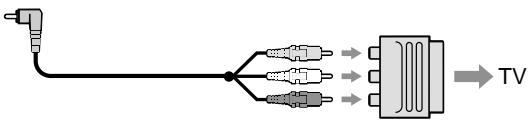
If your TV or VCR has an S video jack Pictures can be reproduced more faithfully by using an S video cable (optional). With this connection, you do not need to connect the yellow (video) plug of the A/V connecting cable. Connect the S video cable (optional) to the S video jacks on both your camcorder and the TV or the VCR.
This connection produces higher quality DV format pictures.
To display the screen indicators on TV Set DISPLAY to V-OUT/LCD in the menu settings (p. 242).
Then press DISPLAY on your camcorder. To turn off the screen indicators, press DISPLAY on your camcorder again.
EcIn Baw TeJebu3Op uIn KBM ochaueH rHe3dOM S BuDeo
N3o6paJekHn MOyT 6bIb BOCpOIN3BeJeHbl
60JIe BBICOKOKaueCTBHeHNO C NcONlb3OBaHNEM
Ka6eJI S BNDeo (npuO6peTaetc O TdJIbHO).
Ppi DaHHOM CoEiHNHeHn Bam He HuxHo
NoDCoeiINHT bKeITbI WTeKep (BIDeo)
CoEiHNHTeJIbHOrO Ka6eJI ayDIO/BNDeo.
PiDCoeJIbTe Ka6eJIb S BNDeo
(npnuO6peTaetc OTdJIbHO) K rHe3dAm S BNDeo
Ha BaUeB NtdeOkAmepe n BaUeM TeNeBu3ope.
3TO coeJInHHe N o6ecneYBaET 60JIe BtICOKOE
KaueCTBO N3o6paJekHn fOpMaTa DV.
- Advanced Recording Operations —
Recording still images on a "Memory Stick" during recording on a tape
- Except DCR-TRV16E/TRV116E
You can record still images on a "Memory Stick" in the tape recording or standby mode. You can also record still images on a tape (p. 62).
Before operation
- Insert a "Memory Stick" into your camcorder (p. 143).
- Set PHOTO REC in to MEMORY in the menu settings. (The default setting is MEMORY.)
(1) In the standby mode, keep pressing PHOTO lightly until a still image appears. The CAPTURE indicator appears. Recording does not start yet. To change the still image, release PHOTO, select a still image again, and then press and hold PHOTO lightly.
(2) Press PHOTO deeper. Recording is complete when the bar scroll indicator disappears.
The image when you pressed PHOTO deeper will be recorded on the "Memory Stick."
—YcoBepseHCTBOBaHHbIe Opeaun 3aINcN —
3aHnscb HnOoBvXhblx N3O6paXeHn Ha "Memory Stick" BO Bpemr 3aHncn Ha JIHTy
-Kpome mopeJe DCR-TRV16E/ TRV116E
BbMOxTe 3aINcBiBaTb HEnoDnKhIe
H3O6paXeHnHa "Memory Stick" B pexIme
3aIncN Ha IeHTy INI pexIme OxNJaHn. Bbl
MOxTe TaKxe 3aINcBiBaTb HEnoDnKhIe
H3O6paXeHn Ha IeHTy (CTp. 62).
Ipeed BbInOpHeHem Oepaun
- YctaHOBIne "Memory Stick" B Bauly Bndeokamepy (cTp. 143).
- yctaHOBnTe onuHo PHOTO REC b ycTaHOBkax MeHIO B pexmE B nIoJKeHne MEMORY. (MEMORY rBnIeTc yCTaHOBko I no yMOnHaHIO.)
(1)В ржиме ожидали有很大ерхитс сlerка(hajkaю кнонку PHOTO до,text по,poka-he noявпся有很大орвьхhoeи3o6ржichte.InoBNTcHINДИКATOP CAPTURE.3aInscb noka eше有很大аалас.ДлЯ有很大emeенни(henOdbnxHoroи3o6ржichteONyCTHTe kHonky PHOTO,BlIbepnte有很大OBvXHoei3o6ржichte chOba,a 3aTeM有很大miteин derpxknte сlerka hajkaю кнонку PHOTO.
(2)HaxmTe KhoNky PHOTO cnIbHee. 3aIncb 6ydt 3aBepseHa, KOrDa nCye3HeT INdIkatOp nOocbl npokpyTkN. I3o6paXeHne, KOrDa Bbl HaxMeTe KHOnKy PHOTO cnIbHee, 6ydt 3aIncaHo Ha "Memory Stick".
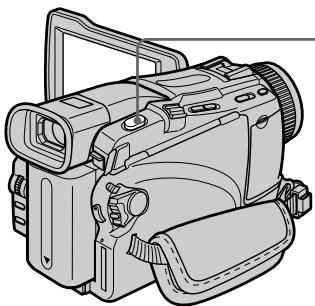

1
[a][b]
50min SFN
112
CAPTURE

2
(PHOTO)
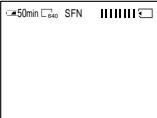
[a]: Number of recorded images/ KolunyeceTBO 3aIncaHbIX n3o6paXkeHn
[b]: Approximate number of images that can be recorded on the "Memory Stick"/ПриблзiTelenьhoe колиесТВО ИЗобразени, КOTOPье можно заимсать на "Memory Stick"
Recording still images on a "Memory Stick" during recording on a tape
"Memory Stick"
For more information, see page 140.
Notes
- Do not shake or strike your camcorder when you record still images. The image may fluctuate.
- You cannot record still images on a "Memory Stick" during following operations. The indicator flashes:
-Fader
- Picture effect
- Digital effect
Super NightShot
Colour Slow Shutter
- Wide mode
-MEMORYMIX
Image size of still images (DCR-TRV24E/ TRV25E/TRV27E only)
Image size is automatically set to 640 × 480 .
When you want to record still images in different size, use the Memory Photo recording function (p. 150).
When the POWER switch is set to CAMERA
You cannot change image quality mode.
The image quality mode you selected when
POWER switch was set to MEMORY is used.
To record still images using the Remote Commander
Press PHOTO on the Remote Commander. Your camcorder immediately records the image on the screen.
To record still images on a "Memory Stick" during tape recording
You cannot check an image on the screen by pressing PHOTO lightly. The image when you press PHOTO will be recorded on the "Memory Stick."
During and after recording still images on a "Memory Stick"
Your camcorder continues recording on tape.
To record images with higher quality
We recommend you use the Memory Photo recording function (p. 150).
Title
The title cannot be recorded.
3aHnscb HeNoDvNkHbIX n3o6paXeHn Ha "Memory Stick" BO BpeMg 3aHncn Ha JeHTy
"Memory Stick"
Iopob6hble cBeHn npBHeHbHa cTp.140.
PpIMeuaHn
He Tpncnte n He cTuynte no Bauei BnEoekampebe BOBmR 3aIcN HEnoDbXHbIX n06paexHNI. B npOTNBOM CnYae n06paexHne MOKeT 6bITb HEyCTOHNBBIM.
- Bbl He MoXeTe 3aINCbIbAToH HEnOdBNXbIe N3o6paXeHnHa "Memory Stick" BO BpeM BblONHeHn CneDyUOxNx Oepaun. COOTBeTCTByUOu nnHdNkAtop @ 6byet MInrTaB:
-Φeɪdεp
-3d06paKeHH
-LcnpoBoN 3cppeKT
-Houha cynepcbemka
-LBetHaCbeMka C MeJleHHbIM 3aTbOpOM
-широкоэкраньий ржим
- Pekum MEMORY MIX
Pa3Mep HnOIOBnXhblx N3O6paXeHn (ToIbKO MoEJI DCR-TRV24E/TRV25E/ TRV27E)
Pa3mepn3o6paXeHnA bTOMaTnueckn yCTaHaBnBaETcHa 640x480.
Ecni Bby xOTnTE 3aIncatb HneIOBnKHbIe
NIO6paxeHHeIpyrTO ra3Mepa, IcNoJIb3yIte
fYHKUHO fOToCbEMKn C COxpaHEHEm B
namrTt (ctp.150).
EcJn nepeKJIouaTeIb POWER ycTaHOBIeN B noJIOXeHne CAMERA
BbI He MoXeTe N3MeHrTb peXIM KaYeCTBa n3o6paKeHn.
Bydet NcNoJIb3ObaTbcr peKIM KaYeCTBa
N3o6pAKeJHnA, KOTpbI Bbl BblpaII, KOrJa
peKJIIOuChaTeJIb POWER 6bl yCTaHOBnB n
noLoXeHne MEMORY.
Self-timer recording
You can record still images on a "Memory Stick" with the self-timer. You can also use the Remote Commander for this operation.
Before operation
- Insert a "Memory Stick" into your camcorder (p. 143).
- Set PHOTO REC in to MEMORY in the menu settings. (The default setting is MEMORY.)
(1) In the standby mode, press MENU, then select SELFTIMER in with the SEL/PUSH EXEC dial (p. 235).
(2) Turn the SEL/PUSH EXEC dial to select ON, then press the dial.
(3) Press MENU to make the menu settings disappear. The (self-timer) indicator appears on the screen.
(4) Press PHOTO deeper. Self-timer starts counting down from 10 with a beep sound. In the last two seconds of the countdown, the beep gets faster, then recording starts automatically.
3aInc b no TaMepy camo3anycka
BbMOKeTe 3aINcBbA Tb HEnoDbNkHbIe
H3O6paXeHnHa "Memory Stick" c NOMOuBo
TaMepa camO3anycka.
Дяг STОЛ ONЕРAZIN Bbl MoKTe TaKKe IcNoIb3OBAt bnyIbT dNCTaHcUOHHOуnpaBJIeHn.
Ipeed BbinoJHHeHem Otepaunu
- YctaHOBITe "Memory Stick" B BaCyBnDEOKamepy (cTp. 143).
- YctaHOBHTe OIuHIO PHOTO REC BpeXnme B yCTaHOBkax MeHIO B NOJIOKeHne MEMORY. (MEMORY AByJIaTeCra YcTaHOBkoI no yMOJUaHnIO.)
(1)BpeXmme OxNdaHnHaXMMTe KHOKNy MENU,a 3aTeM BbI6epNTe KOMaHdY SELFTIMER B C NOMOuHo DnCKa SEL/ PUSH EXEC (ctp.244).
(2)ПовернITE ДИСК SEL/PUSH EXEC ДЯ Выбopa положен ON,а зatem нахмite ДИСК.
(3)HaxmTe KhONky MENUДлгTORO,уTo6bl yCTaHOBKN MeHIO NCHe3JI. IorBHTcra INdNKaTOp (TaIMepa camO3aIycka).
(4)Haxmnte KhoNky PHOTO cInbHee. TaMep cAmO3aIyCka HaHyET o6paTHbIOTcHTOT 10 C 3yMMepHBIM CnHAnOM.B IocNeIDHe DByX CeKHyDbl O6paTHoro OTCHeTa 3yMMepHbI CnHaN 6yDeT 3BvAtb 4aHe, a 3aTEM ABOTMaTHUeCKn HaHyTeTc 3aNNCb.
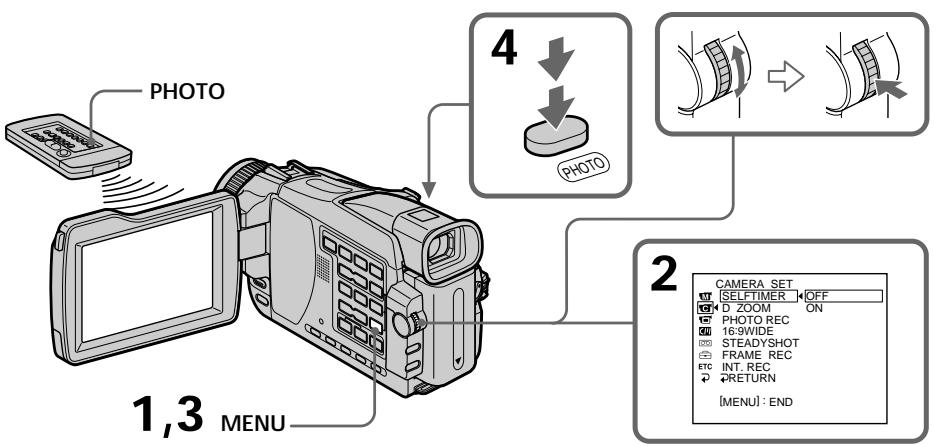
Recording still images on a "Memory Stick" during recording on a tape
To cancel self-timer
Set SELFTIMER to OFF in the menu settings in the standby mode.
You cannot cancel self-timer using the Remote
Commander.
Note
The self-timer is automatically cancelled when:
- self-timer recording is finished.
- the POWER switch is set to OFF (CHG) or PLAYER^1) / VCR^2) .
^1) DCR-TRV18E/TRV24E only
2) DCR-TRV25E/TRV27E/TRV118E only
Taking photos with the self-timer
The self-timer can only be operated when in the standby mode.
3aHnscb HeNoDvNkHbIX n3o6paXeHn Ha "Memory Stick" BO BpeMg 3aHncn Ha JeHTy
Длг OTMeHbI TaMepa camO3anycka
BpeXmmeOxuandaHyaCTaHOBNTeOnUIO SELFTIMERBycTaHOBkaxMeHIOBnoJoxKeHne OFF.
BbHe MoKxTe OTMeHnTb TaMep cAmO3aNycka C NOMOuIIO NyIbTa DInCTaHcNOHOrO ynpabJeHn.
PpmeaHne
Taimep camo3anycka 6ydet aBTOMaTnueckn OTMeHeH,ecNI:
-OKOHaHnI 3aHncI NO TaHmepy CaMo3anycka.
-yctahOBk npeeknOuataeIa POWER b noLoXeHne OFF (CHG) uIN PLAYER*1/ VCR*2).
^1) ToIbkoMoJoDnDCR-TRV18E/TRV24E
^2) ToIbKO moJeIN DCR-TRV25E/TRV27E/ TRV118E
BbIOpJIHHeHne CHIMKOB c NOMOcIbIO TaMepa camo3anycka
TaImep cAmO3aNycka MoKeT pa6oTaTb TOnbKO BpeKIme OxuDaHnA.
Recording still images on a tape - Tape Photo recording
You can record still images such as photographs on tapes.
You can record about 510 images in the SP mode and about 765 images in the LP mode on a 60-minute tape.
(1) In the standby mode, set PHOTO REC in to TAPE in the menu settings (p. 235). (except DCR-TRV16E/TRV116E)
(2) Keep pressing PHOTO lightly until a still image appears.
The picture becomes still image and the CAPTURE indicator appears. Recording does not start yet.
To change the still image, release PHOTO, and then press and hold PHOTO lightly.
(3) Press PHOTO deeper.
The still image on the screen is recorded for about seven seconds. The sound during those seven seconds is also recorded. The still image is displayed on the screen until recording is completed.
3a\Pncb HEnoDbNkHbIX n3O6paXeHn Ha JeHTy - FOToocbemKa Ha JeHTy
Bb moKeTe 3aIncbIbAtb HEnoDbNkHbIe n3o6paXeHn, HanpImep, fOToRpaФm HaJIeHTy.
Bb mojkeTe 3aIncatb okono 510 n3o6paKeHn BpeXmEPSPnOKONo765 n3o6paKeHn B peXmEPLHaJeHTe, paccuHTaHHo Ha 3aIncb B TeueHne 60 MNHyT.
(1)BpeXmme OxKuaHnY,ycTaHOBnTe OOnuHO PHOTOREC B C B noIooKeHne TAPE B ycTaHOBkax MeHIO (CTp.244).
(Kpome mojei DCR-TRV16E/TRV116E).
(2)Дерхи te cnerka haxaToH KhoNky PHOTOdo Tex nop, noka He noBnTcH HenoDbXHoeH3o6paKHeHne.
I3o6paXeHHe cTaHET HeNoDvXhBIM nnoBHTcHnDnKaTOp CAPTURE. 3aInCb noka eSe He HaHaJNaCb.
ДЯИЗМЕHENHЯнОДВИЖНOrO
n3o6paXeHnI OtnyCTnTe KhONkY PHOTO,a 3aTeM hAXmTe n depXnTe cnerka haxKaToi KhONkY PHOTO.
(3)HaxkMnte KhoNky PHOTO cnIbHee. HenoDbuxKHOe 13o6paKeHne Ha 3KpaHe 6yDet 3aINCbIBaTbCra OKOJIO cEMN cEkyHn.
3Byk B TeueHne 3Tnx CeMn CeKyHd TaKKe 6yJET 3aINCbIbTaBcra. HEnoDbNIXHoe n3O6paXeHne 6yJET OTo6paXaTbcra Ha 3KpaHe Do Tex nop, poka He 3aBepuNTcra 3aINCb.
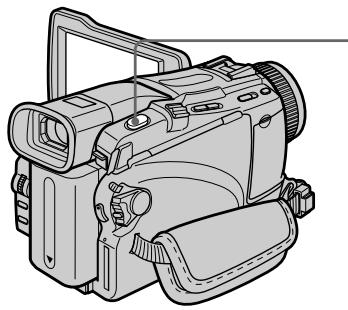
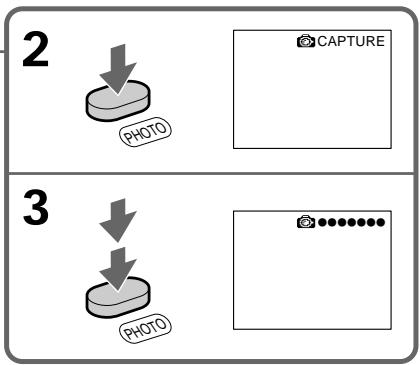
Recording images with self-timer (except DCR-TRV16E/TRV116E)
(1) Set PHOTO REC in to TAPE in the menu settings (p. 235).
(2) Follow steps 1 to 4 on page 60.
3aHnCb n3O6paXeHn c TaImePOM camo3anycka (Kpome moJeNe DCR-TRV16E/TRV116E)
(1)YCTaHOBnTe OINIO PHOTO REC BpeXnme B YcTaHOBkax MeHIO B NIOJKeHne TAPE (cTp.244).
(2) CnEduyTe npHkTam 1-4 Ha cTp.60.
Recording still images on a tape - Tape Photo recording
3aIncb HeNoDBrXhBIX N3o6paXeHn HaJeHTy -ΦOTocbEmKa HaJeHTy
Notes
- During tape photo recording, you cannot change the mode or setting.
- When recording a still image, do not shake your camcorder. The image may fluctuate.
- The tape photo recording does not work while using the following functions. The indicator flashes:
-Fader - Digital effect
If you record a moving subject with the tape photo recording
The picture may fluctuate when you play back the still images on other equipment. This is not a malfunction.
To use tape photo recording using the Remote Commander
Press PHOTO on the Remote Commander. Your camcorder records a picture on the screen immediately.
To use the tape photo recording during normal recording on a tape
You cannot check the image on the screen by pressing PHOTO lightly. Press PHOTO deeper. The still image is then recorded for about seven seconds and your camcorder returns to the standby mode.
To record still images with higher quality (except DCR-TRV16E/TRV116E)
We recommend that you record on "Memory Stick"s using the memory photo recording (p. 150).
Примеанья
- Bo BpemЯ ФпOTOCbEMKn Ha JIeHTy Bbl He MoXKeTe N3MeHrTb peXIM IJIN YcTaHOBky.
-ПиЗЗИСИНЕОДВИЖнOrO ИЗБрахжен He BCTPЯNXBaIte BaUy BuDeokamepy.B IpOTnBHom Clyuaye IN3obpaхжен MoKet 6bITb HeycToHmNBblM.
ΦOTOCbEmKa HaJeHTy He 6yIeT pa6oTaTb npi nCNoJIb3OBAHmN CNeIyUOxNΦyHKuN. COOTBeTCTByUOuN INDnKaTop 6yIeT MngTaTb:
-Φeɪndep
-LucpobOoIaΦeK
EcIn Bbl BbINOnHReTe 3aNNbc DbNkUeOroC o6BeKta c NOMoCbIO fYHKcN fTO3aNNc H a NeHTy
ПиВОСпpon3БeDEнHиЕNoDвИЖнБiX
I3O6paXeHnHaДpyRoI aNnapaType
I3O6paXeHne MoKTe 6bITb HeYcToHчИВbIM.ЗTO
HeЯBlaREtca HeNCpPabHOCtblO.
Adjusting the white balance manually
You can manually adjust and set the white balance. This adjustment makes white subjects look white and allows more natural colour balance. Normally white balance is automatically adjusted.
(1) Set the POWER switch to CAMERA or MEMORY (except DCR-TRV16E/TRV116E). Press MENU, then select WHT BAL in with the SEL/PUSH EXEC dial (p. 234).
(2) Turn the SEL/PUSH EXEC dial to select the desired white balance, then press the dial.
HOLD:
When recording a single-coloured subject or background
OUTDOOR:
- When recording a sunset/sunrise, just after sunset, just before sunrise, neon signs, or fireworks
- Under a colour-matching fluorescent lamp
(INDOOR):
- Where lighting condition changes quickly
- When recording in TV lighting in a studio
- Under sodium lamps or mercury lamps
PeruInpoBka 6aHaHca 6eIoro BpyHyU
Bb moKeTe OTpeylnpoBaT BpyHyIO uYcTaHOBtB 6aIaHc 6eIoro. B pe3yIbTaTe peylnpoBKn 6eIbIe npdeMtebl 6byT BBIJIaTeB 6eJIbIMn, a TaKKe 6yDet DOCTNHyT 6OJIee eCTeCTBeHHbI cBTobO b6aIaHc. O6bIuHO 6aIaHc 6eIoro peylnpyetc aBTOMATUneCKn.
(1)УстановпейсяклочатугЕВ раложене CAMERA ил MEMORY (Кроме моделей DCR-TRV16E/TRV116E).Нжмтей Кногу MENU, a за tem bьберпte орциwo WHT BAL в ржиме c помошью дисka SEL/PUSH EXEC (ctp.243).
(2)ПовернITE диСК SEL/PUSH EXEC дя Выбoga hyжно6аланca 6eNoRo, a 3aTeM haxmnte dИСК.
HOLD:
Pn3aIncn OndHOCTHOro PpeMeTa nn foHa
OUTDOOR:
To return to the automatic white balance mode
Set WHT BAL to AUTO in the menu settings.
Длг BO3BpTaВ aBTOMaTHueckn peKIM 6aJaHca 6eJoro
ByctahOBkax MeHIO yCTaHOBNTe OIcHIO WHT BAL B noJoxKeHne AUTO.
Adjusting the white balance manually
PerynipoBka 6aJHaHca 6eJoro BpyHyU
If the picture is being taken in a studio lit by TV lighting
We recommend that you record in the INDOOR mode.
When you record under fluorescent lighting Use the AUTO or HOLD mode.
Your camcorder may not adjust the white balance correctly in the INDOOR mode.
In the automatic white balance mode
Point your camcorder at a white subject for about 10 seconds after setting the POWER switch to CAMERA to get a better adjustment when:
- you detach the battery for replacement.
- you take your camcorder outdoors from inside a house holding the exposure, or vice versa.
In the HOLD white balance mode
Set the white balance to AUTO and reset to HOLD after a few seconds when:
- you change the PROGRAM AE mode.
- you take your camcorder outdoors from inside a house, or vice versa.
EcJIN n3o6paXeHne 3aIncbIbAeTcB CtUdnn npTeJIeBn3IOHHOMOCBeueHnn
PeKOMeHnyETcBbIIOJIHrTb 3aIINcB BpeXImE INDOOR.
PnBbINoHHeHH3aHNCsc c fnyopeceHTbIMOCBeueHHeM
IcnoIb3yItepexIMAUTOHOLD. Ba7a BnIeOkaMepaBpeximeINDOOR moKet HeOTpeRyIInpOBAt6aIaHc6eIoro HndJeXaUIMo6pa30M.
B aBTOMaTnueckom pexKIme 6aJahca 6eJoro
HanpaBbTe BaUy Bndeokamepu Ha 6eIbI npEIMeT npImepHo Ha 10 cekyHd nocJe yCTaHOBKn nepeKJIoucTaIeN PAOWER B noLoXKeHne CAMERA dIra DocTnxKeHn LyuSei peRyIINPOBKN B CNeDyUOxN CnyuaX:
-BbI oToeHnHReTe 6aTapeHbI 6nOK nIa3aMeHbI.
-BbI nepenocTe BaUy Bndeokamepy n3 nomeeHn Hapxky, coxpaHn npn 3TOM 3Kcno3uHn, nn Hao6opot.
B pexime 6aiahca 6enoro HOLD
YctaHOBtE 6aIaHc 6eIoro B noLOXeHne AUTO,a HeckoIbKO cekyHc cnycTЯ, nepeycTaHOBtE B noLOXeHne HOLD BCNEduOuNX CnuJax:
-Bbl MeHReTepeXIM PROGRAM AE.
-BbI npeHocnTe BaUy BnDeokamepu n3 nomeeHn Hapxky IIN HaobopOT.
Using the wide mode
You can record a 16:9 wide picture to watch on a 16:9 wide-screen TV (16:9WIDE).
Black bands appear on the screen during recording in 16:9WIDE mode [a]. The picture during playback on a normal TV [b] or on a wide-screen TV [c] is compressed in the longwise direction. If you set the screen mode of the wide-screen TV to the full mode, you can watch pictures of normal images [d].
ИспOLSьЗованецирOKO3КраHHOROpexКIMa
BbMOxKeTe 3aINcBbAte bIuPOKoΦopMaTHoe
n3O6paXeHHe16:9ДЯ npocMOTpa Ha
UIMPOK03KpAHOM TeIeBn3Op eΦopMaTa 16:9
(16:9WIDE).
Bo Bpem 3aIncn B pexmme 16:9WIDE Ha 3kpaHe NOBRA TcyeHbIe NIOOcbI [a].N3o6paXeHne BO Bpem BOCnPOM3BeEHNHa O6bluHOM TeLEBn3ope [b] NIN Ha 7npoKo0KpaHOM TeLEBn3ope [c] 6ydt CxAto No DInHe. EcnBbY cTaHOBtpeXeIM 3KpaHa 7npoKo0KpaHHoro TeLEBn3opa B nIoHO3KpaHbI pexim, Bbl CMOKeTe H6nOdaTb O6blHbIe N3o6paXeHn6e3 NCKaXeHn [d].
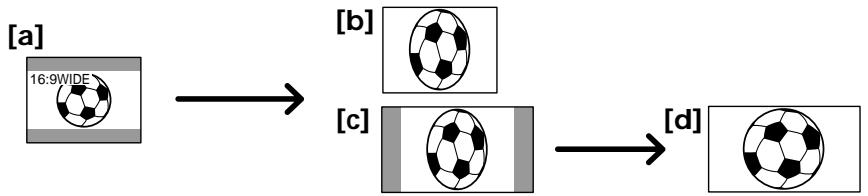
(1) In the standby mode, turn the SEL/PUSH EXEC dial to select 16:9WIDE in in the menu settings, then press the dial (p. 235).
(2) Turn the SEL/PUSH EXEC dial to select ON, then press the dial.
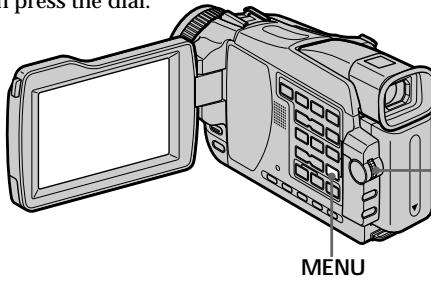
(1)BpeXmme OxuDahnI NOBepHnTe DnCK SEL/ PUSH EXEC nIa BbIbopa onIu 16:9WIDE BpeXmme B yCTaHOBkax MeHIO, a 3aTeM HaxMnTe DnCK. (Ctp.244).
(2)ПоверншtenДИСК SEL/PUSH EXEC ДЯ Вьбopa noloxhen ON, a 3aTeM нажмт endck.
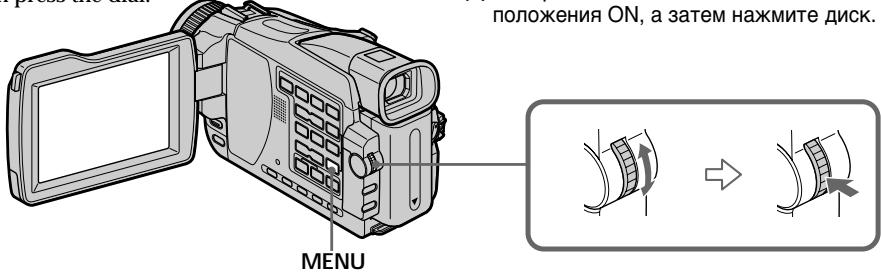
To cancel the wide mode
Set 16:9WIDE to OFF in the menu settings.
In the wide mode
You cannot select the following functions:
- OLD MOVIE
- BOUNCE
- Recording still images on a "Memory Stick" in the tape recording or standby mode (except DCR-TRV16E/TRV116E)
During recording
You cannot select or cancel the wide mode. When you cancel the wide mode, set your camcorder to the standby mode and then set 16:9WIDE to OFF in the menu settings.
BbI He MoXeTe BbI6paT bCneDyUOuNe fynKcNt:
-OLD MOVIE
- BOUNCE
-3aIncb HeNoDbVnxKhbix N3o6paXeHn Ha "Memory Stick" B pexIme 3aIncn Ha JIeHTy nIOn OxuDanHn (KpOme MoJeIeN DCR-TRV16E/TRV116E)
BoBpeMa 3aHmch
BbI He MoXKeTe BbI6paTb IIN OTMeHInTb UIMPOK03KpaHnHbI pexM.ДЯ OTMeHbI UIMPOK03KpaHHope xekma yctaHOBtBe BaUy BUNeOeKAMepy B pexM OxNJaHnA, a 3aTeM ycTaHOBtE OIUPHm MeHIO 16:9WIDE B noJIOKeHne OFF B yctaHOBkax MeHIO.
Using the fader function
IcnoJb3OBaHne cyHKunn feiDepa
You can fade in or out to give your recording a more professional appearance.
BbMOKeTe BbINOnHbT NJIaBHOe BBeDeHne NJI BbIEDeHne N3O6paXeHn, YTO6bI pNiDaTb BaWei cBemke npocceccnHaJIbHbI BvD.
FADER

[a]
STBY
REC
M. FADER
(mosaic)/(Mo3aNka)
BOUNC*
OVERLAP*
WIPE*
DOT*
[b]
STBY
REC
MONOTONE
When fading in, the picture gradually changes from black-and-white to colour.
When fading out, the picture gradually changes from colour to black-and-white.
- Fade in only
MONOTONE
При ВБЕДECHИ N3OБРAXКЕпE 6удET NOCTENEHNO N3MeHЯТьСАОЧЕНО-6eNOrOdoZBETHORO.
При Выбendeи ИЗобрахени 6удET NOCTepeHNO I3MeHЯТьСА OT CBETHOrO Do YepHo-6eNoRo.
*ToIbko BVeDHeHne n3O6paXeHnA
(1) When fading in [a]
In the standby mode, press FADER until the desired fader indicator flashes.
When fading out [b]
In the recording mode, press FADER until the desired fader indicator flashes.
The indicator changes as follows:
![SONY DCR-TRV24E - When fading in [a] - 1](/content/2020/04/48762/images/3496377ced01131942f8c75b5ddd2b00e91e0d837f09fae91d82a4a975d6ef54.jpg)
The last selected fader mode is indicated first of all.
(2) Press START/STOP. The fader indicator stops flashing, then light up.
After fade in/out ends, your camcorder automatically returns to the normal mode.
IcnoJb3OBAHne yHKnU n fpepa
(1)При ВБеDEDи n3обрахеня [a]
B pexime oKuandaHn, haxmMaTe KhoNkY FADER do Tex nop, noka He hauHet MInraTb HxKhblnHdkaTop feiepa.
PpN BBBeDeHn N3o6paXeHn [b]
BpeKIme 3aIncn, HaxKImaTe KhONkY
FADER IO Tex nop, noka He NaHcHET MnraTb HxKhBn INnDnKaTOP feiepa.
INdikatop6ydtI3MeHATbCnEduOuIM 06pa30M:
FADER M. FADER BOUNCE
MONOTONE OVERLAP WIPE
DOT→6e3 INHnKaTopa
IocneHn n3 BbIbpaHHbIX peXmOB
feiJepaOTobpaKaaETcN pEBblM.
(2)Haxmnte KhoNky START/STOP. INdkaTOp feiDepa nepeCTaHET MngaTb, a 3aTeM BbICBETITcR.
TTO, KaB BInONHeNo BVeJeHne/ BBeHeHne N3O6paXeHnA, BaHa
BnDeokamepa aBTOMaTnueckn BepHETcB OobuHbI peKIM.
![SONY DCR-TRV24E - (1)При ВБеDEDи n3обрахеня [a] - 1](/content/2020/04/48762/images/4b2067edb0106daaad0e51ba7252133984010a52ba673b072333e7e8a6199c57.jpg)
1
![SONY DCR-TRV24E - (1)При ВБеDEDи n3обрахеня [a] - 2](/content/2020/04/48762/images/5d7b964593a11eef5bcf40c0c2a73595a6201cb012cff3ebf954f97b0e6adb99.jpg)
FADER
![SONY DCR-TRV24E - (1)При ВБеDEDи n3обрахеня [a] - 3](/content/2020/04/48762/images/50abf7b50da6224dcffd940848c4b4d7a87897f9b31fa9c11e074fdab86237a9.jpg)
To cancel the fader function
Before pressing START/STOP, press FADER until the indicator disappears.
IIT OTMHebl FyHKUHneFeydepa
IpeπTe, KaK hαKaTb KhONky START/STOP, hαχmAJte KhONky FADER do tex nop, nOKa He uCye3HeT INdikKaTop.
Note
You cannot use the following functions while using the fader function. Also, you cannot use the fader function while using the following functions:
- Digital effect
Super NightShot
Colour Slow Shutter - Recording still images on a "Memory Stick" in the tape recording or standby mode (except DCR-TRV16E/TRV116E)
-Tape Photo recording
-Interval recording - Frame recording
When you set the POWER switch to MEMORY (except DCR-TRV16E/TRV116E)
You cannot use the fader function.
When the OVERLAP, WIPE or DOT indicator appear in the standby mode
Your camcorder automatically stores the image recorded on a tape. While the image is being stored, the indicators flash fast, and the playback picture disappears. At this stage, the picture may not be recorded clearly, depending on the tape condition.
While using the bounce function, you cannot use the following functions:
-Focus
-Zoom
- Picture effect
- Exposure
Note on the bounce function
The BOUNCE indicator does not appear in the following mode or functions:
- When D ZOOM is activated in the menu settings
- Wide mode
- Picture effect
- PROGRAM AE
PpimmeaHne
BbI He MoXeTe IcNoIb3OBA Tb CneDyUoUne
fYHKuIN BO BpeM NcNoIb3OBAHn FyHKuIN
feiepa. Bbl TakKe He MOxTe IcNoIb3OBA Tb
fYHKuIO fEiJepa BO BpeM NcNoIb3OBAHn
CneDyUoUnx FyHKuIN:
-LnDpOBoN 3ΦΦeKT
-Houha cynepcbemka
-LBETHaCbeMka CMeIeHHbIM 3aTBOPOM
-3aIncb HeNoDvIXKbIX N3O6paXeHn Ha "Memory Stick" B pexIme 3aIncn Ha JeHTy nIN OxuDanHn (Kpome MoJeNe DCR-TRV16E/TRV116E)
-ΦOTOCbEMKaHaJIeHTy
-3aIncB c nHTepBaIaMn
-Покадровая заимсь
EcIn Bby yctaHOBHTe nepeKJIouaTeIb POWER B noLoXeHne MEMORY (Kpome moJeN DCR-TRV16E/TRV116E)
BbHe cMOxTe IcNoIb3OBaTb cyHKUIO feiepa.
EcJn HndKatop OVERLAP, WIPE nJn DOT NOBJIaETcB peXmE OxJaHn
Baissa Bnndeokamepa aTOMatueckn coxpaHaret 3anicaHHoe n3o6paxKeHne Ha JIeHTe.Bo BPemra coxpaHene n3o6paxKeHne INDnKaTOpbl 6yDyT 6bICTro MIRaTb, a BOCPPOIN3BOIDmOE n3o6paxKeHne Icye3HeT. B 3aBNCIMOCTn OT COCTOHNJIeHTbl, Ha 3TOI cTAdIN n3o6paxKeHne MOKeT 6bITb 3aNCAHO HeeTKO.
Bo BpemnncnoB3OBaHHyHKcnn nepeckaknBaHHBbHe MoKeTe nCNOB3OBAt cJeDyUoNe cyHKcnn:
-ФokycnpOBka
-TpaHcΦokaun
-3ΦΦeKt n3o6paXeHn
-3Kcno3nua
PpmeaHne no yHKn n nepeckaBnHaHn
ИндикатOP BOUNCE He noBJIeTcI npInCNoJIb3OBAHn CNe dyUoIx PexKIMOB IINФунКЦ:
-Korda komaHaD ZOOM aKTHBn3npoBaHa ByCTaHOBkax MeHIO
-Ⅲnpoko3KaHHbIpeXIM
-3ΦΦeKt n306paXeHn
- PROGRAM AE
Using special effects - Picture effect
You can digitally process images to obtain special effects like those in films or on TV.
NEG. ART [a]: The colour and brightness of the picture are reversed.
SEPIA: The picture appears in sepia.
B&W: The picture appears in monochrome (black-and-white).
SOLARIZE [b]: The light intensity becomes clearer to make the picture look more like an illustration.
SLIM [c]: The picture expands vertically.
STRETCH [d]: The picture expands horizontally.
PASTEL [e]: The contrast of the picture is emphasised to make the picture look more like an animated cartoon.
MOSAIC [f]: The picture appears mosaic-patterned.
IcnoJb3OBaHne CpeunalbHbIX 3ΦΦeKTOB - ΘΦΦeKT n3o6paXKeHnA
BbMOKeTe BbIIOJIHrTb Oba6OtKy
N3O6paXeHNI UΦpOBbIM MeToOM DnIa
POnlyeHnA CneuaIbHbIX 3ΦΦeKTOB, KaK B
KInoHΦnIbMax Nnn B TeJepeJaayax.
(1) Set the POWER switch to CAMERA. Press MENU, then select P EFFECT in with the SEL/PUSH EXEC dial (p. 234).
(2) Select the desired picture effect mode with the SEL/PUSH EXEC dial.
To cancel the picture effect function Set P EFFECT to OFF in the menu settings.
While using the picture effect function, you cannot select the following functions:
- OLD MOVIE
- BOUNCE
- Recording still images on a "Memory Stick" in the tape recording or standby mode (except DCR-TRV16E/TRV116E)
When you set the POWER switch to other than CAMERA
Picture effect is automatically cancelled.
ДЯ OTMeHbI ΦyHKcH N3ΦΦeKtA n3o6paXeHn
YcTaHOBnTe OIuHIO P EFFECT B ycTaHOBkax MeHIO B pIoJKeHne OFF.
PnncnoB3OBaHm yHKuHn 3ΦeKta n3o6paXeHH BbI He MoXeTe Bbl6puPaTb cJeDyUOHe yHKUH:
-OLD MOVIE
- BOUNCE
-3aIncb HeNoDbVnKhbix N3o6paXeHn Ha "Memory Stick" B pexIme 3aIncn Ha JIeHTy IIN OxuJaHn (KpOme MoJeIeN DCR-TRV16E/TRV116E)
PnuyctaHOBKe nepeKJIouaTeIe POWER B NOJIOXeHne,OTJINuHoe OT CAMERA
Ффсгьи3обхени6удт abTomuheckn OTMeHehbl.
Using special effects - Digital effect
You can add special effects to recorded pictures using the various digital functions. Sound is recorded normally.
STILL:
You can record a still image so that it is superimposed on a moving picture.
FLASH (Flash motion):
You can record still images successively at constant intervals.
LUMI. (Luminance key):
You can swap a brighter area in a still image with a moving picture.
TRAIL:
You can record the picture so that an incidental image like a trail is left.
SLOW SHTR (Slow shutter):
You can slow down the shutter speed. The slow shutter mode is good for recording dark pictures more brightly.
OLD MOVIE:
You can add an old movie type atmosphere to pictures. Your camcorder automatically sets the wide mode to ON and picture effect to SEPIA, and sets the appropriate shutter speed.
IcnoJb3OBaHne CpeuJaBHBIX 3ΦΦeKTOB -CnΦpOBoN 3ΦΦeKT
BbMOKeTe Do6aJIbTb CneuaJIbHbIe 3ΦΦeKtbl K 3aINCbIbAeMOMy N3O6paXeHIO C NOMOuBo pa3NCHbIX UΦpOBbIX ΦYHKU.3aINcMbIbAeMbI 3Byk 6yDet O6bIHyIM.
STILL :
BbMOxTe 3aNNcBtBaT HeNoDbNxHoe n3o6paXeHne, KOTope 6yDet HanaRaTbCn Ha dBNxUeEeN 3o6paXeHne.
FLASH (CTrhoobockopnueckn pexum) :
BbMOKTe 3aINcSBaTB HeNoDVBHXHbIe
N3O6paXeHnB INoCNeIOBaTeJIbHOCTN Yepe3
NocTOAHHbIE INHTepBaJIbI.
LUMI. (Aphpoctha npnpoeekua):
BbMOKeTe N3MeHrTb npKHe MeCTa Ha HEnoDBNXHOM N3O6paXeHn Ha NDoBnxHbIe N3O6paXeHn.
TRAIL :
BbMOKeTe 3aINcBaTb N3O6paXeHne TaK, YTO 6yDet octaBaTbCn P06oHoe N3O6paXeHne B BInDe CNeJa.
SLOW SHTR (MeДЛЕМьи 3aTbOp) :
BblMOKeTe 3aMeIITb cKOpOCTb 3aTbopa.
PexMM MeIeHHO 3aTbOp aRbIeTcIPOxOJrIM dIg 3aIINC TeMHbIX N3o6paXeHnB 60lee npKOM CBeTe.
OLD MOVIE :
BbMOKeTe npNBHOCnTb aTMoccpepy
CTapHHNHO KnHO B n3o6paXeHn. Ba7a
BnDEOKaMepa 6ydt ABToMaTuYeCKn
YCTaHaBnBaTb WnPOKo3KpaHbI pEKIM B
IIOJoxe Hne ON, a 3pFekT n3o6paXeHn B
IIOJoxe Hne SEPIA, N BbICTaBnTb
COOTBeTCTByIOUyIO CKOpOCTb 3aTBopa.
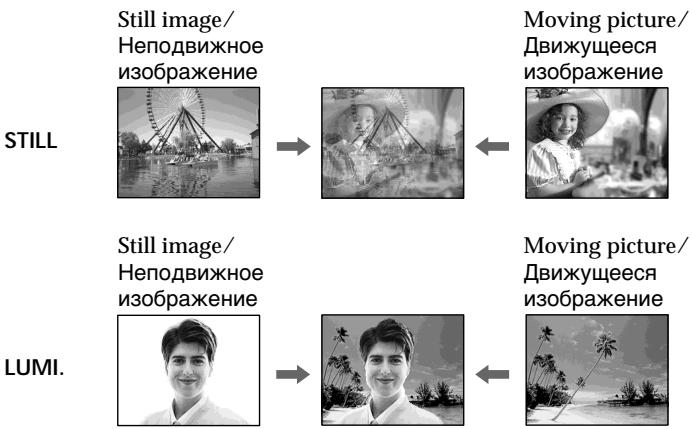
IcnoJb3OBAHHe cneuaJIbHbIX 3ΦΦeKTOB -LcHpOBoI 3ΦΦeKT
(1) Set the POWER switch to CAMERA. Press MENU, then select D EFFECT in with the SEL/PUSH EXEC dial (p. 234).
(2) Select the desired digital effect mode in the menu settings, then press the SEL/PUSH EXEC dial. In the STILL and LUMI modes, the still image when pressing the dial is recorded in the memory.
(3) Turn the SEL/PUSH EXEC dial to adjust the effect, then press the dial.
The bars appear in the following modes: STILL, FLASH, LUMI. and TRAIL. The more bars there are on the screen, the stronger the digital effect.
Items to be adjusted
| STILL | The rate of the still image you want to superimpose on the moving picture |
| FLASH | Frame by frame playback |
| LUMI. | The colour scheme of the area in the still image which is to be swapped with a moving picture |
| TRAIL | The time until the incidental image vanishes |
| SLOW SHTR | Shutter speed. The larger the shutter speed number, the slower the shutter speed becomes. |
| OLD MOVIE | No adjustment necessary |
(1)Установские положенеCAMERA.НахмITEКонь MENU,a 3aTeM ВьберпгоОПИDEFFECT в ржиме cnomоцью дисka SEL/PUSH EXEC (cTp.243).
(2)Выберпerte BycTaHOBkax MeHIO HUxHbI peKIM ZmФpoBOrO 3ФФeKta, a 3aTeM haxMnte DnCK SEL/PUSH EXEC. BpeKImax STILL n LUMI., HenoDbuXHoe n3o6paXeHne pri NaKaTIN dNcKa 6bydet 3a\PncAoH b nAmrTb.
(3)Повернente ДСК SEL/PUSH EXEC Дпя ретулировки за tem нажмerte ДСК.
m = 311 ;
LUMI.
3
MANUAL SET
PROGRAM AE
P EFFECT
D EFFECT LUMI
FLASH MODE 11111111
FLASH LVI
WHI BAL
ETC N.S.LIGHT
AUTO SHIR
RETURN
To cancel the digital effect function Set D EFFECT to OFF in the menu settings.
Notes
- The following functions do not work during digital effect:
-Fader
Super NightShot
Colour Slow Shutter - Recording still images on a "Memory Stick" in the tape recording or standby mode (except DCR-TRV16E/TRV116E)
-Tape Photo recording - The PROGRAM AE function does not work in the slow shutter mode.
The following functions do not work in the old movie mode: - Wide mode
- Picture effect
- PROGRAM AE
When you set the POWER switch to OFF (CHG) Digital effect will be automatically cancelled.
When recording in the slow shutter mode Auto focus may not be effective. Focus manually using a tripod.
Shutter speed
| Shutter speed number | Shutter speed |
| SLOW SHTR 1 | 1/25 |
| SLOW SHTR 2 | 1/12 |
| SLOW SHTR 3 | 1/6 |
| SLOW SHTR 4 | 1/3 |
IcnoJb3ObaHne cneuaJIbHbIX 3ΦΦeKToB - LInpOBoi 3ΦΦeK
Длг OTMeHbI Φункци nФрoboro 3Фф ekta
UcTaHOBInTe OOnuIO D EFFECT B ycTaHOBkax MeHIO B IIOJoxeHne OFF.
Приимейчения
CneDyUOuIeФyHKcIMnHe pa6oTaIOT npInCNOJb3OBAHmNcΦpOBbIx 3ΦΦeKToB:
-Φeɪdεp
-Houha cynepcbemka
-LBetheHa CbeMka C MeIeHHbIM 3aTBoPOM
-3aIncb HeNoDvNkHbIX N3O6paXeHn Ha "Memory Stick" B pexIme 3aIncn Ha JIeHTy IIN OxuIaNII (KpOme MoJeIeN DCR-TRV16E/TRV116E)
-ΦOTOCbEMKaHaJIeHTy
-ФункцЯ PROGRAM AE He pa6oTaetВ pekIMe MeIeHnHO 3aTbopa.
CneyuOnueyHKuH He pa6oTaIOBpeXnme CTapHHOrO KInHO:
You can select PROGRAM AE (Auto Exposure) mode to suit your specific shooting requirements.
SPOTLIGHT:
This mode prevents people's faces, for example, from appearing excessively white when shooting subjects lit by strong light in the theatre.
PORTRAIT (Soft portrait):
This mode brings out the subject while creating a soft background for subjects such as people or flowers.
SPORTS (Sports lesson):
This mode minimises camera-shake on fast-moving subjects such as in tennis or golf.
BEACH&SKI:
This mode prevents people's faces from appearing dark in strong light or reflected light, such as at a beach in midsummer or on a ski slope.
SUNSETMOON (Sunset & moon):
This mode allows you to maintain atmosphere when you are recording sunsets, general night views, fireworks displays and neon signs.
LANDSCAPE:
This mode is for when you are recording distant subjects such as mountains, and prevents your camcorder from focusing on glass or metal mesh in windows when you are recording a subject behind glass or a screen.
BbMOxTe Bb6paTb pexIM PROGRAM AE (aBTOMaTHuecka3KcN03uIN) B COOTBeTCTBm C BaAMM OOCbIMn Tpe6oBaHnAm N C bEmke.
SPOTLIGHT:
JaHHbI pexHM IpeDoTbpaaeeT, K npImepy, liua JIOJeO Tn36bIToOH BoJIIN3HbI npi CbeMeKc OBekTOB,OCBeUeHHbIX CNJbHbIM CBETOM B TeaTpe.
(1) Set the POWER switch to CAMERA or MEMORY (except DCR-TRV16E/TRV116E). Press MENU, then select PROGRAM AE in with the SEL/PUSH EXEC dial (p. 234).
(2) Select the desired mode with the SEL/PUSH EXEC dial.
(1)Установпейсян POWER в положене CAMERA ил MEMORY (крOMEДЕЛС DCR-TRV16E/TRV116E).Нжмп Te Kногу MENU, a 3aTeM bblберпte onциho PROGRAM AEs BpeKIMe c nOmoьho Дисka SEL/PUSH EXEC (cTp.243).
(2)Bb6epnte HxKbIpeXIMc nOmoIbIO dNCKa SEL/PUSH EXEC.
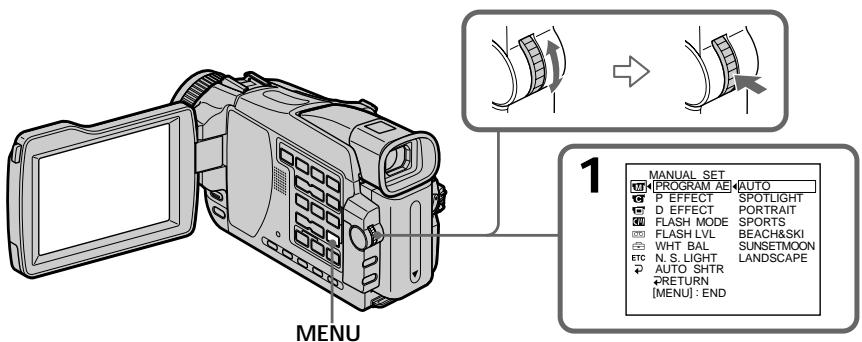
To cancel the PROGRAM AE function
Set PROGRAM AE to AUTO in the menu settings.
Длг OTMeHbI Функци PROGRAM AE
YcTaHOBInTe OOnMuIPO PROGRAM AE BVcTaHOBkax MeHIO B NIoJooKeHne AUTO.
Notes
-
Because your camcorder is set to focus only on subjects in the middle to far distance, you cannot take close-ups in the following mode:
-
SPOTLIGHT
- SPORTS
-
BEACH&SKI
-
Your camcorder is set to focus only on distant subjects in the following modes:
-
SUNSETMOON
-
LANDSCAPE
-
The following functions do not work in the PROGRAM AE function:
Colour Slow Shutter
- Slow shutter
- OLD MOVIE
- BOUNCE
- While setting the NIGHTSHOT to ON, the PROGRAM AE function does not work. The indicator flashes.
- When you set the POWER switch to MEMORY (except DCR-TRV16E/TRV116E), Sports lesson mode does not work. The indicator flashes.
While WHT BAL is set to AUTO in the menu settings
The white balance is adjusted even if the PROGRAM AE function is selected.
Even if the PROGRAM AE function is selected You can adjust the exposure.
If you are recording under a discharge tube such as a fluorescent lamp, sodium lamp or mercury lamp
Flickering or changes in colour may occur in the following modes. If this happens, cancel the PROGRAM AE function.
- PORTRAIT
- SPORTS
Примеанья
Поскову Baша Видаокамерн acstpoeha Для Фокс neuropвк Тольк Ho obbeektbI, haxodmaueceHa cpeHem n daJIbHem paCCToHHx, Bbl He MOXeTe BblONHArTb CbEMky KpynHbIM ПlaHOM B cIeDyIOux pexkMax:
Adjusting the exposure manually
You can manually adjust and set the exposure. Normally exposure is automatically adjusted. Adjust the exposure manually in the following cases:
- When the subject is backlit
- When the subject is too bright against the background
- When recording dark pictures (e.g. night scenes) faithfully
(1) Set the POWER switch to CAMERA or MEMORY (except DCR-TRV16E/TRV116E), press EXPOSURE. The exposure indicator appears.
(2) Turn the SEL/PUSH EXEC dial to adjust the brightness.
Perylnpobka 3Kcno3nCnBpyHyO
BbMOxKeTe OTpEryIuropoBaTb N yCTaHOBnTb 3KcNo3NlUO BpyHyIO.
ObIyHNO 3KcN03nIpyeRyIpyeTcABTOMaTnueckn.
OtpereynpuTe 3Kcno3nBpyHyOB CneDyUoNX cIyuaX:
-Obekt Ha foOHe 3aJHne IIOcBETKn
-BcIyue,ecIINO6BeKrYBnEeTcR CIIuKOM RPKIM B cpaBHeHmC cfoHOM
ДлгЗдпс.TeMHbIXи3OБрахени(HanpIMep, HOUHbIX cUeH)c60JIbWOndoCTOBePBOCTbIO
To return to the automatic exposure mode
Press EXPOSURE again.
When you adjust the exposure manually, the following functions do not work:
Colour Slow Shutter
- BACK LIGHT
Your camcorder automatically returns to the automatic exposure mode:
- If you change the PROGRAM AE mode.
- If you slide NIGHTSHOT to ON.
2
EXPOSURE

1
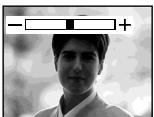
Дя BO3Bpata B peKIM aBTOMaTnuecko 3KcNo3nCm
HaxmTe KhoNky EXPOSURE eue pa3.
Pn BbINOJIHeHH peryIupOBKn 3KcNo3uNN BpyHyIO He pa6oTaIOT cJeDyUOune FyHKUIN:
-LBETHcBEmKa CMeIeHHbIM 3aTBOPOM
- BACK LIGHT
Bawa bVideokamape aBTOMaTnueckn BepHETcB pEXIM aBTOMaTnueckOy 3KcNo3nM:
Normally, focus is automatically adjusted. However, you can gain better results by manually adjusting the focus in the following cases:
- The autofocus mode is not effective when shooting
- Subjects through glass coated with water droplets
- Horizontal stripes
- Subjects with little contrast with backgrounds such as walls and sky
- When you want to change the focus from a subject in the foreground to a subject in the background
- Shooting a stationary subject when using a tripod
ObIyHOnΦokycperynypyeTcABTOMaTnueckn. Ondako Bbl moKeTe nOnyUHTb LyuWne pe3yIbTaTb nyTem pyHOn perynipobKn φokycB cIeDyUoXx ClyuaX:
- Pexm aBtOMaTnuecko fokycnpOBKn ABJIeTcR He3fkeKTnBbIM npN BblNOJIHeHm CbEMKNI
-ObbeKToB Uepe3 NOKpbIToE KApJIaMn CTeKJIO
-ROPN3OHTaIbHbIX NOLOC
-06bekTOB C MaJIOI KOHTpaCTHO TaKOM FOHe, KAK CTeHbI INIIN He6O - EcIn Bbl XOTnTe BbINOJIHnTb N3MeHeHne
ФOKcynOpBkn C obKeT ha nepeJHem ПlaHe
Ha obKeT Ha 3aJHem ПlaHe.
-Пи BыллнHeHm CbeMkn CTaNoHapbIx 06bekTob C nOJIb3ObaHnem TpeHOrn.
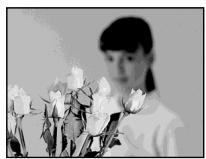

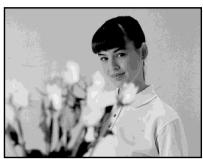
(1) Set the POWER switch to CAMERA or MEMORY (except DCR-TRV16E/TRV116E), press FOCUS/INFINITY lightly.
The (manual focus) indicator appears.
(2) Turn the focus ring to sharpen focus.
(1)Установпей полочаь POWER в положене CAMERA ил MEMORY (крOMEйден DCR-TRV16E/TRV116E),и с diferка нажмтЕ конку FOCUS/INFINITY.
Ha 3kpaHne IONBNTcN INIINKaTOp (pyHOnΦokycnPOBKn).
(2)Повернite Кольцо Фокс neuropВКДпл польецни чеков Фокс neuropВК.
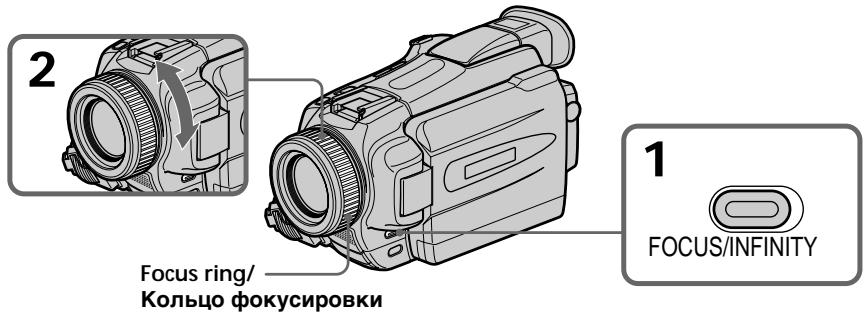
To return to the autofocus mode
Press FOCUS/INFINITY lightly to turn off the indicator.
To record distant subjects
When you press FOCUS/INFINITY down firmly, the lens focuses on the infinity and indicator appears. When you release FOCUS/INFINITY, your camcorder returns to the manual focus mode. Use this mode when your camcorder focuses on near objects even though you are trying to shoot a distant object.
To focus precisely
It is easier to focus on subjects if you adjust the zoom to shoot at the "W" (wide-angle) after focusing at the "T" (telephoto) position.
When you shoot close to the subject Focus at the end of the "W" (wide-angle) position.
changes as follows:
when recording a distant subject.
when the subject is too close to focus on.
Pуная рokусювka
ДяВОЗВРаш�ЕНВ ржIM aBTOФOKсИрOBК
Clerka haxmte KhoNky FOCUS/INFINITY nIy OTKIOUeHn INDkAToPA.
HnDnKaun 6yDen H3MeHrTbCnclyeuOUM 06pa30m:
πρι 3aπις yαληνενησο σθέκτα.
ecnObeKTHaXoNTCcNlWkOM6Nl3KO, YTo6bI BbInOpHnTb POKcNpOBky Ha Hero.
Interval recording
You can make a time-lapse recording by setting the camcorder to automatically record and standby sequentially. You can achieve an excellent recording for flowering, gradual appearances, etc., with this function.
3aHncb c nHTepBaJamn
BbMOxTe BbINOJIHrTb 3aIINcBYepe3 3aJaHHbIe npomexyTkN BpemEni, BblOJHNb YCTaHOBky BnDEOKaMepbI dIra aBTOMaTIuecko 3aIINcN i cJeDyUoIero 3a He npeKIma OxNiDaHn. C nOMoCbIO 3ToI fynKcIMn Bbl MoXTe NOnyHTb IpeBOxC0xHyIO 3aIINc bPocEcca paCnyCKaHn CBETOB, NOCTeNEHOrO NOBLeHnI T.D.
Example/Пу ninth
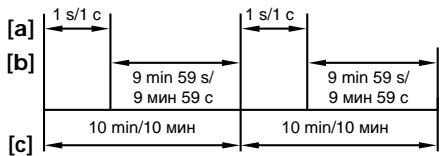
[a]REC TIME
[b]Waiting time/BpemrOxndaHn
[c]INTERVAL
(1) In the standby mode, press MENU. Select INT. REC in with the SEL/PUSH EXEC dial (p. 235).
(2) Turn the SEL/PUSH EXEC dial to select SET, then press the dial.
(3) Set INTERVAL and REC TIME.
① Turn the SEL/PUSH EXEC dial to select INTERVAL, then press the dial.
② Turn the SEL/PUSH EXEC dial to select the desired interval time, then press the dial.
$$ \begin{array}{l} \text {T h e t i m e : 3 0 S E C \leftrightarrow 1 M I N \leftrightarrow 5 M I N \leftrightarrow} \ 1 0 \text {M I N} \end{array} $$
③ Turn the SEL/PUSH EXEC dial to select REC TIME, then press the dial.
④ Turn the SEL/PUSH EXEC dial to select the desired recording time, then press the dial.
$$ \begin{array}{l} \text {T h e t i m e : 0 . 5 S E C \leftrightarrow 1 S E C \leftrightarrow 1 . 5 S E C \leftrightarrow} \ 2 \text {S E C} \end{array} $$
⑤ Turn the SEL/PUSH EXEC dial to select RETURN, then press the dial.
(4) Turn the SEL/PUSH EXEC dial to select ON, then press the dial.
(5) Press MENU to erase the menu display. The INTERVAL indicator flashes.
(6) Press START/STOP to start interval recording. The INTERVAL indicator lights up.
(1)BpeXmme OxndaHnHaXmTe KhONKy MENU.BbI6epnte onuIO INT.REC B peXmme C nOmoBIO ncka SEL/PUSH EXEC (ctp.244).
(2)Повернente ДСК SEL/PUSH EXEC ДЯ
Быбopa onци SET, a 3atem нахмerte ДСК.
(3) YctaHOBInTe 3NaueHnAn OOnm INTERTVAL nREC TIME.
① ПовернITE диck SEL/PUSH EXEC дьыбoga onци ININTERVAL, a 3aTeMHaxMITE dNCK.
② ПовернITE диСEL/PUSH EXEC дя Выбoga hyжно диTeьнocти INHTepBaIa, a 3aTeM haxmITE dИСК.
$$ \begin{array}{l} \text {Д n I N T e n b h o c t b : 3 0 S E C} \leftrightarrow 1 \text {M I N} \leftrightarrow \ 5 \text {M I N} \leftrightarrow 1 0 \text {M I N} \end{array} $$
③ ПовернITE ДИСК SEL/PUSH EXEC ДЛ Выбoga оцин REC TIME, a 3aTeM НжмITE ДИСК.
④ПовернITE ДИСК SEL/PUSH EXEC ДЯ
Быбopa НУЖно ДИNTeьнOCТи 3aПиСи, a
3aTeM наЖМITE ДИСК.
$$ \begin{array}{l} \text {Д n i n t e n b h o c t b : 0 . 5 S E C} \leftrightarrow 1 \text {S E C} \leftrightarrow \ 1. 5 \text {S E C} \leftrightarrow 2 \text {S E C} \end{array} $$
⑤ ПовернITE ДИСК SEL/PUSH EXEC Дпь Вьбора onци RETURN, a 3aTeMu HaxMITE DИСК.
(4)ПовернITE ДИСК SEL/PUSH EXEC ДЯ
Выбopa опци ON, a 3aTeM нажмITE ДИСК.
(5)Haxmnte KhoNky MENU ДЯ CTnpaHnOTo6paXeHnM MeHNo. HauHET MInrAtbHnDnKaTOp INTERVAL.
(6)HaKMnte KhoNky START/STOP nI Haayala 3aIncn C nHTepBaIamn. BbICBeTITcN HndkaTOp INTerval.
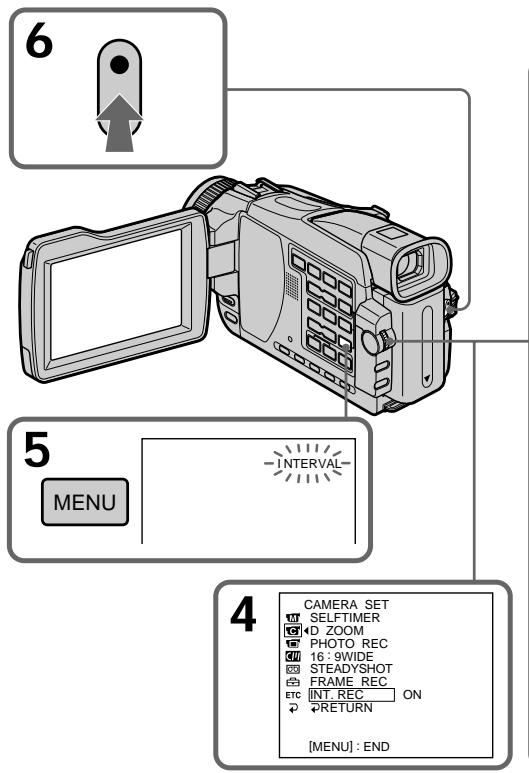
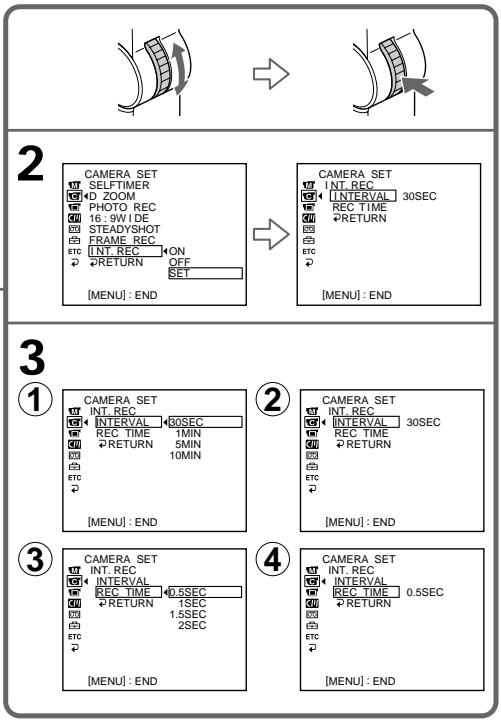
To cancel the interval recording
Perform either of the following:
- Set INT. REC to OFF in the menu settings.
- Set the POWER switch to other than CAMERA.
To suspend interval recording and perform normal recording
Press START/STOP during the interval time except during recording time. The INTERVAL indicator flashes and normal recording starts. To restart interval recording, stop recording and then press START/STOP again.
The INTERVAL indicator stops flashing and remains on, and recording time begins.
Длг OTMeHbI 3aIncn C mHTepBaJIaMn
BbIIOJIHnTe OndO n3 cIeDyUOuNX DeIcTBrN:
-YCTaHOBnTe OOnuIO INT. REC B yCTaHOBkax MeHIO B noJIoXKeHne OFF.
-YCTaHOBnTe nepeKJIouaTeJIb POWER B noJIoXKeHne, OTnIuHoe ot CAMERA.
When the POWER switch is set to MEMORY (except DCR-TRV16E/TRV116E)
You cannot do interval recording.
On recording time
There may be a discrepancy in the recording time of up to - / + six frames from the selected time.
When pressing START/STOP during recording time
Interval recording stops. To restart it, perform step 6.
EcIn Bby yctaHOBHTe nepeKJIIOUaTeIb POWER B noLoXeHne MEMORY (KpomeMoJeIeN DCR-TRV16E/TRV116E)
BbI He MoXeTe BbIIOJIHrTb 3aIINCb C INTHepBaJIamN.
OdntelbHocTn3aHncn
ДиTeJIbHOCTb 3aIIMCU MOKET OTKIOHArBcOT BbIbpaHHoДиTeJIbHOCTn, MaKcImMaJIbHO, Do -/+ WeCTn KaIpOB.
Frame by frame recording - Frame recording
You can make a recording with a stop-motion animated effect using frame recording. To create this effect, alternately move the subject a little and make a frame recording. We recommend that you use a tripod, and operate your camcorder using the Remote Commander after step 4.
(1) In the standby mode, press MENU. Select FRAME REC in with the SEL/PUSH EXEC dial (p. 235).
(2) Select ON with the SEL/PUSH EXEC dial.
(3) Press MENU to erase the menu display. The FRAME REC indicator lights up.
(4) Press START/STOP to start frame recording. Your camcorder makes a recording for about six frames, and returns to recording standby.
(5) Move the subject, and repeat step 4.
To cancel the frame recording
Perform either of the following:
- Set FRAME REC to OFF in the menu settings.
- Set the POWER switch to other than CAMERA.
Длг OTMeHbI 3aПиСМоТахнOrКаДра
BbInonHnTe Ondo n3 cIeDyUOux DeIcTbn:
- YCTaHOBnTe OnguIIO FRAME REC yCTaHOBkax MeHIO B NOJIoKeHne OFF.
- YctahOBHTe nepeKluOaTeIb POWER B nOIOXKeHne,OTnIuHoeOTCAMERA.
Frame by frame recording - Frame recording
Note The proper remaining tape is not indicated if you use the frame recording function continuously.
When the POWER switch is set to MEMORY (except DCR-TRV16E/TRV116E) You cannot use the frame recording.
When using the frame recording function The last recorded frame is longer than other frames.
PpimmeaHne OcTabsaHcIeHTa oTo6paKaetc HnnpaBnIbHo,ecn BbI nCnoJIb3yeTe 3Ty fYHKUIO 3aIncm MOtaxKHO KaJaPa HnpepbIBHO.
EcInnepeKlnouateIb POWER yctaHOBJIeN B noJIOxHeNc MEMORY (KpOme moJeIeD CDRTRV16E/TRV116E)
BbHe MoXKeTe NcNoJIb3OBA Tb 3aIINCb MOHTaXHOrO KaJaPa.
PnncnoIb3OBAHn FyHKcnn 3aIncn MOHTaxHOro KaDpa
IocneHn n3 3aNaCaHHbIX KaAp DInnHHee dpyrnx KaJdpbl.
Playing back tapes with picture effect
During playback, you can process a scene using the following picture effect functions: NEG. ART, SEPIA, B&W and SOLARIZE.
(1) In the playback or playback pause mode, press MENU. Select P EFFECT in with the SEL/PUSH EXEC dial (p. 234).
(2) Select the desired mode by turning the SEL/ PUSH EXEC dial. For details of each picture effect function, see page 70.
Bocnpon3BeDeHne JeHT c 3ΦΦeKToM n3O6paXeHnA
Bo BpemBocnpoun3BeDeHnBblMoKeTe BUNoIN3MeHnTbN3O6paJxHeNeC nOMoUbO CLeDyUOuXΦynKcun 3ΦeKta N3O6paJxHeN: NEG.ART,SEPIA,B&W u SOLARIZE.
(1)В ржиме Воспpon3BdeENHи Илп пay3bl BOCPON3BDEHnA,нжмITE KhONkY MENU. BB6eRte OngIPO EFFECTВ ржимe c nOmoцьdo dincka SEL/PUSH EXEC (cTp.243).
(2)Bb6epnte Hxhnhpekm, nobopaunBaJnCK SEL/PUSH EXEC. IopnpbHe CBeHEnI NO KaXdoN 3fynKcN 3ΦΦeKToB n3o6paKeHn npnbEeHb Ha cTp.70.
To cancel the picture effect
Set P EFFECT to OFF in the menu settings.
Notes
- You cannot process externally input scenes using the picture effect function.
- To record images that you have processed using the picture effect function, record images on a "Memory Stick" (except DCR-TRV16E/ TRV116E) (p. 156, 171), or on a VCR using your camcorder as a player.
Pictures processed by picture effect function Pictures processed by the picture effect function are not output through the DV OUT or DV IN/ OUT jack.
When you set the POWER switch to OFF (CHG) or stop playing back
The picture effect function is automatically cancelled.
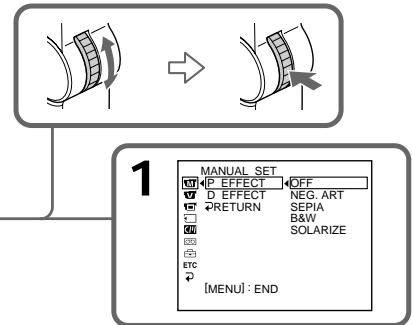
Длг OTMeHbI 3ффektOB n306paXeHnA
YcTaHOBInTe OOnuIO P EFFECT B yCtAHOBkax MeHIO B NOJoxeHne OFF.
PpimueaHn
BbI He MoKTe O6pa6OtaTb BBeDeHHeIe C npyro annapaTpybl 3n30dbI c NOMoUbO cyHKuIN 3cpeKTOB 3o6paXeHN.
ДлгздпсинзбржehикOTOBьБИВIDON3MeHINI C NOMOJIbIOФУHKUIMN 3ФФeKTAn36paxeHIN, BIVONJIHNeTe 3aINCbHa"Memory Stick"(KpOME moJelen DCR-TRV16E/TRV116E)(cTp.156,171)илн haKBМ,IICNoJIb3yBAsuВIdeOKamepy BaKaueCTBeПлелера.
N3o6paXeHn, 6pa6oTaHHbIe c nOmoUbO cyHKuMn 3o6eKt a N3o6paXeHn
CnHnI3o6paXeHn, o6pa6oTaHHbIX C nOMOuBIO cyHKUIN 3cfoKeKToB I3o6paXeHn, He nepeJaTeC Tpee3 rHe3do DV OUT nIn DV IN/OUT.
EcIn Bbl yctaHOBtne nepeKJIouaTeIb POWER B noJIOXeHne OFF (CHG) nIIN OCTaHOBtBe Bocnpoun3BeDeHne
Playing back tapes with digital effect
Bocnpon3BeDeHne JeHT c uΦpOBbIM əΦΦeKToM
During playback, you can process a scene using the following digital effect functions: STILL, FLASH, LUMI. and TRAIL.
(1) In the playback or playback pause mode, press MENU. Select D EFFECT in with the SEL/PUSH EXEC dial (p. 234).
(2) Select the desired digital effect mode in the menu settings, then press the SEL/PUSH EXEC dial. The digital effect indicator lights up and the bars appear. In the STILL or LUMI mode, the image where you press the SEL/PUSH EXEC dial is stored in memory as a still image.
(3) Turn the SEL/PUSH EXEC dial to adjust the effect, then press the dial. For details of each digital effect function, see page 72.
Bo BpemBocnpon3BeDeHn, Bbl moKeTe BUNON3MeHrTb n3O6paXeHne C NOMOuBcCJIeDyUoUxΦyHKuN uDpOBOrO 3ΦΦeKtA: STILL, FLASH, LUMI. n TRAIL.
To cancel the digital effect
Set D EFFECT to OFF in the menu settings.
ДЯ OTMeHbI UΦpOBOrO 3ΦΦeKTa
YcTaHOBnTe OIuHIO DEFFECT BY yCtAHOBkax MeHIO B NOJoxeHne OFF.
Playing back tapes with digital effect
Notes
- You cannot process externally input scenes using digital effect function.
- To record images that you have processed the image using the picture effect function, record images on a "Memory Stick" (except DCR-TRV16E/TRV116E) (p. 156, 171), or on a VCR using your camcorder as a player.
Pictures processed by digital effect function
- Pictures processed by digital effect function are not output through the DV OUT or DV IN/OUT jack.
- You cannot use the tape PB ZOOM function for pictures processed by digital effect function.
When you set the POWER switch to OFF (CHG) or stop playing back
The digital effect function is automatically cancelled.
Bocnpoun3BeDeneJeHT c cnΦpoBbIM 3ΦΦeKToM
Приимейсан<|im_start|>
- BbI He MoXeTe BUNOIN3MeHHTb N3O6paKHeHnOT BHEUHN IXTOUYHKOB C NOMOuHo FyHKuN UcnpoBOrO 3CpeKtA.
Длгзаинizибрахжн,кOTOBьБИВИДОЗМEHINI C NOMOUIBуHКUIM 3ФФeKTaИЗбрахжн,ВИПОЛНЯТеЗАПСьHa"Memory Stick"(KpOME moJelen DCR-TRV16E/TRV116E)(cTp.156,171)илн ha KBM,IICNoJIb3yBaSv BnDEOKamepy BaKaeCTBe IneJepa.
N3o6paXeHn, o6pa6oTaHHbIe c nOmoBIO fYHKmN uΦpOBOrO 3ΦΦeKta
CinrHan n3o6paXeHn, o6pa6oTaHHbIX C nOMOuBIO cyHKUIN uΦpOBOrO 3ΦΦeKTA, He nepeJaTeCrape3 rHe3do Dv OUT nIn DV IN/OUT.
- BbI He MoXeTe IcNoJIb3ObaTb cyHKUIO PB ZOOM nIaI 3o6paXeHn Ha IeHTe, o6pa6oTaHHbIX C NOMOuHO cyHKuIN UΦpOBOrO 3ΦΦeKtA.
EcIn Bbl yctaHOBtne nepeKJIIOUaTeIb POWER B noJIoXeHne OFF (CHG) nIn octaHOBtBe BocnpOn3BeDeHne
Enlarging images recorded on a tape - Tape PB ZOOM
You can enlarge playback images recorded on tapes. Besides the operation described here, your camcorder can enlarge still images recorded on "Memory Stick"s (except DCR-TRV16E/ TRV116E) (p. 191).
(1) In the playback or playback pause mode, press PB ZOOM on your camcorder. The centre of the image is enlarged to about twice its size, and appears on the screen.
(2)Turn the SEL/PUSH EXEC dial to move the enlarged image, then press the dial.
↑ : The image moves downwards.
↓ : The image moves upwards.
(3) Turn the SEL/PUSH EXEC dial to move the enlarged image, then press the dial.
: The image moves leftward (Turn the dial upwards.).
: The image moves rightward (Turn the dial downwards.).
(4) Adjust the zoom ratio by the power zoom lever.
You can enlarge the image from about 1.1 times up to five times its size.
W: Decreases the zoom ratio.
T : Increases the zoom ratio.
YBeJIuYeHne 3aIncaHHbIX HaJIeHTbl N3O6paJxHenn -ФункцЯ PB ZOOMJIeHTbl
BbMOxKeTe yBeINuINBaT BOCnPOn3BODMNble
H3O6paXeHnHa 3aIncaHNbI He Na IeHTax. Kpome
OpNCaHHo 3decb Oepaun, Ba7a
BnDeOKaMepa MoKeT yBeINuINBaTb
HeNoDbNkHbIe H3O6paXeHn, 3aIncaHNbIe Ha
"Memory Stick" (Kpome MoJeIeD DCR-TRV16E/ TRV116E) (cTp. 191).
(1)BpeKIMe BocnpOn3BeEHHaI npay3bI BOCnpOn3BeEHHaXmTe KhONKy PB ZOOM Ha BaSei BnDeoKaMepe.
LcHTpaIbHna YacTb N3O6paXeHnYBEnuNTc npMepHo BdBoe OTnepBOHaJaIbHO p3Mepa, a Ha 3KpaHeNOBNTc INDInKaun
(2)ПовернITE ДИСК SEL/PUSH EXEC ДЯпегемшени的伟大儿的HORO n3o6paЖеня,аЗТЕннгдИСК.
- You cannot process externally input scenes using the PB ZOOM function with your camcorder.
- You cannot record images on a tape on your camcorder when you have processed the image using the tape PB ZOOM function. However, you can record images on a VCR using your camcorder as a player.
- You cannot record moving pictures on a "Memory Stick" (except DCR-TRV16E/ TRV116E) on your camcorder when you have processed the picture using the tape PB ZOOM function.
Pictures in the PB ZOOM
Pictures in the PB ZOOM mode are not output through the DV OUT or DV IN/OUT jack and the (USB) jack.
The PB ZOOM function is automatically cancelled when you execute the following functions:
- Set the POWER switch to OFF (CHG)
- Stop playback
- Display the menu settings
- Insert a "Memory Stick" (except DCR-TRV16E/ TRV116E)
PpimueaHn
BbI He MoXeTe BUNOIN3MeHHTb N3O6paKeHnIOT BHeuHNx INTOUHKnOB C NOMOuBHO yHKuPB ZOOM BaueBnDEoKaMepbl.
BbHe MoKeTe Ha BaWei BnDeOkamepe 3aIncatbHaJeHTy N3o6paXeHnK, KOtOpBie Bb BNOn3MeHnIc NOMOsbH KyKnPb PB ZOOM JeHTb. OJnako, Bb MoKeTe 3aIncatb N3o6paXeHnHa KBM, nCnoJIb3yraBsy BnDeOkamepy B KaYeCTBe PneIepa.
- Bы He можete Ha Baшeи Видаеокаме
3апсать Движушиеся ИЗобрахенья Ha
"Memory Stick" (КрOME модени DCR-
TRV16E/TRV116E), eclin Bы образали
ИЗобрахенье с помоцью Функции PB ZOOM
ЛЕНть.
I3o6paXeHnBpeXmpe PB ZOOM
CnHnI n3o6paXeHn, o6pa6oTaHHbIX B pexKmpe PB ZOOM, He nepeJaetcY uepe3 rHe3do DV OUT nn DV IN/OUT n rHe3do (USB).
Функця PB ZOOM 6удет abTomatueckn OTmeheha, ecIn BblbInonHnte OndHy n3 cIeMyuixx Функци:
-YcTaHOBKa napeKJIouaTeIa POWER B noJIOKeHne OFF (CHG)
-OctaHOBKa BOCnpon3BeDeHnA
-Отобрахени установок мени.
-Установka "Memory Stick" (КрOME моделей DCR-TRV16E/TRV116E)
Quickly locating a scene - ZERO SET MEMORY
Your camcorder goes forward or backward to automatically stop at a desired scene having a tape counter value of "0:00:00". Use the Remote Commander for this operation.
(1) In the playback mode, press DISPLAY.
(2) Press ZERO SET MEMORY at the point you want to locate later. The tape counter shows "0:00:00" and then starts counting. The ZERO SET MEMORY indicator flashes.
(3) Press when you want to stop playback.
(4) Press to rewind the tape to the tape counter's zero point. The tape stops automatically when the tape counter reaches approximately zero. The ZERO SET MEMORY indicator disappears, and the time code appears.
(5) Press . Playback starts from the counter's zero point.
- When you press ZERO SET MEMORY before rewinding the tape, the zero set memory function will be cancelled.
- There may be a discrepancy of several seconds from the time code.
If a tape has a blank portion between recorded portions
The zero set memory function may not work correctly.
PpimueaHn
- EcIn Bbl HaxMeTe KhoNky ZERO SET MEMORY do hauana o6paTHo nepemOTkn IeHTbI,ФyHKUna namATn yCTaHOBKn HJNeBOI OTMETKb dyET OTMeHeHa.
- MoXeT I MEmTb MeCTo paCXoXJdeHne B HeCKOJIbKO CeKHy MExJy KOJOM BpeMeHn I DeIcTBITeJIbHbIM BpeMeHem.
EcHnHaJeHTe NMeETcH He3aNHCHHbIyUyactOK MExdy 3aNHCHHbIMyUyactkammФyHKuI NaMRTY UCTaHOBKn HJNeBOI OTMeTKMOKet pa60TaTb HEnpaBnblHO.
Searching the boundaries of recorded tape by title - TITLE SEARCH

If you use a cassette with cassette memory, you can search for the boundaries of recorded tape by title. Use the Remote Commander for this operation.
Before operation
Set CM SEARCH in to ON in the menu settings. (The default setting is ON.)
(1) Set the POWER switch to PLAYER^1) / VCR^2) .
(2) Press SEARCH MODE on the Remote Commander repeatedly until the TITLE SEARCH indicator appears. The indicator changes as follows:
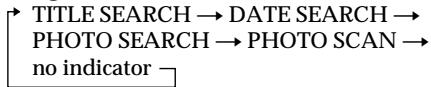
(3) Press or on the Remote Commander to select the title for playback.
Your camcorder automatically starts playback of the scene having the title that you selected.
1) DCR-TRV16E/TRV18E/TRV24E only
^2) DCR-TRV25E/TRV27E/TRV116E/TRV118E only
PnncnoB3ObaHn KaccetbIC
KaccetHO nAMrBo BbMOKeTe
OTbICKNBAtB rpaHcbl 3aIncaHHoro
yactka JeHTbIO TO TITpy. NcnoB3yIte
drr 3TOI onepauu npblT
DnCTaHNoOHOro ynpaBHeHn.
Ipeed BbinoJHHeHem Otepaunu
YcTaHOBInTe OOnHIO CM SEARCH BpeXmme C By yCTaHOBkax MeHIO B noLoXeHne ON. (ON ABnIeTcra YcTaHOBKO nO yMOnuHaHIO.)
(1)Установпейсякючateь POWER в положене PLAYER ^1) /VCR ^2 ).
(2)HaximaiTe NOBTOPO KhoNky SEARCH MODE Ha Nylte DnCTaHIOHOHOro ynpabHeHn DO Tex nOp, noka Ha 3KpaHe He noBHTc HnDnKaTOp TITLE SEARCH. INDnKaTOp 6yDeT n3MeHaTbCra CneDuOuIM o6pa30m:
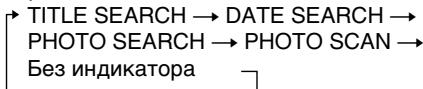
(3)HaKMITE KHOKNKY HnHnHnHa nynbTe DnCTaHnOHHOro UnpaBHeHnI dIy BblOpa TITpa IINBocPOn3BeDeHnI. Ba7a BVNeOKaMepa aBTOMaTNUeCKn HaHTe BOCpOn3BeDeHne 3n3Oa C Bbl6paHHbIM Bamn TITpOM.
^*1) ToIbKO moJeI N DCR-TRV16E/TRV18E/ TRV24E
^2) ToIbko moJeN DCR-TRV25E/TRV27E/ TRV116E/TRV118E
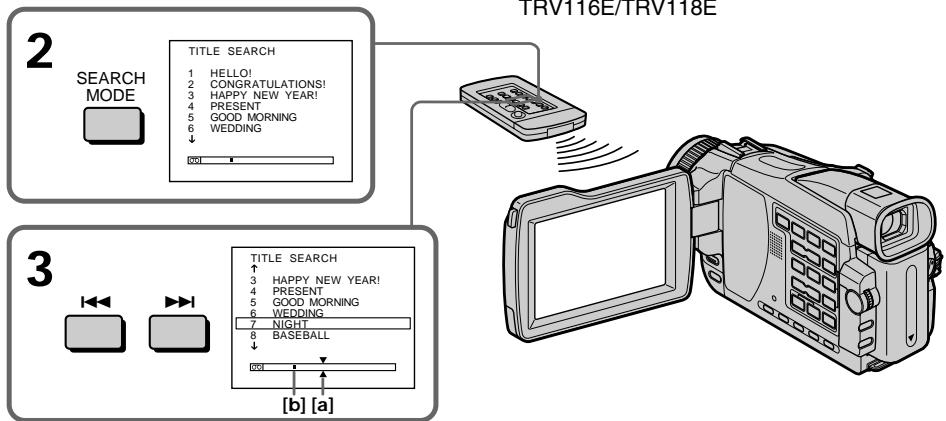
[a]: Actual point you are trying to search for
[b]: Present point on the tape
[a]:ДиЕСТВИТЕЛБHоМЕМсTO,KOTOPoe Bbl NbITaTeCb HauTn
[b]:Tekyuee MeTo HaJIeHTe
Searching the boundaries of recorded tape by title - TITLE SEARCH
To stop searching Press
If you use a cassette without cassette memory You cannot superimpose or search a title.
If a tape has a blank portion between recorded portions The title search function may not work correctly.
To superimpose a title See page 130.
ДЯ OCTaHOBKINONCKA Haxmite KhoNky
Pn nCnoB3OBAHn KaccTeb6e3 KaccetHo namrtn BHe CMOKeTe HApKHTb Nn HaHTn TnTp.
EcHnHaJeHTe NMeETcH He3aHncaHHbIy uactOK MExdy 3aHncaHHbIMN yactKaMn FyHKuIINoNcKa TITpa MoKet pa60TaTb HnPaBnJIbHO.
Searching a recording by date
- DATE SEARCH
You can automatically search for the point where the recording date changes and start playback from that point. Use a tape with cassette memory for convenience. Use the Remote Commander for this operation.
Use this function to check where recording dates change or to edit the tape at each recording date.
Searching for the date by using cassette memory
Before operation
- You can use this function only when playing back a cassette with cassette memory.
- Set CM SEARCH in to ON in the menu settings. (The default setting is ON.)
(1) Set the POWER switch to PLAYER^1) / VCR^2) .
(2) Press SEARCH MODE on the Remote Commander repeatedly until the DATE SEARCH indicator appears.
The indicator changes as follows:

(3) Press or on the Remote Commander to select the date for playback.
Your camcorder automatically starts playback at the beginning of the selected date.
^*1) DCR-TRV16E/TRV18E/TRV24E only
^2) DCR-TRV25E/TRV27E/TRV116E/TRV118E only
[a]: Actual point you are trying to search for
[b]: Present point on the tape
To stop searching
Press ■.
Note
If one day's recording is less than two minutes, your camcorder may not accurately find the point where the recording date changes.
If a tape has a blank portion between recorded portions
The date search function may not work correctly.
Cassette memory
The tape with cassette memory can hold six recording data. If you search among seven or more data, see "Searching for the date without using cassette memory".
[a]:ДиEcTBITeINbHoe MecTo, KOtOpoe Bbl NbITaTeCb HauTn
[b]:Tekyüee MeCTO HaJIeHTe
Для OCTaHOBKn NONcKa
HaxmTe KhoNky
PpmeaHne
Ecn 3aHnB TeueHne OJHOrO dHcOCTaJIReT MeHbIe DByx MNHyT, BaHa BnDeOKaMepa MOKeT HeTOUHO HaHTN TOCKy, Ie IpONCXoDNT CMeHa DaT 3aHNC.
EcIn Ha JeIte IMeETcH He3aIncaHHbIy yactOK MeJx dy 3aIncaHHbIMn yactKamN
Searching for the date without using cassette memory
(1) Set the POWER switch to PLAYER^1) / VCR^2) .
(2) Set CM SEARCH in to OFF in the menu settings (p. 239).
(3) Press SEARCH MODE on the Remote Commander repeatedly until the DATE SEARCH indicator appears. The indicator changes as follows:

(4) Press on the Remote Commander to search for the previous date or press on the Remote Commander to search for the next date. Your camcorder automatically starts playback at the point where the date changes. Each time you press or your camcorder searches for the previous or next date.
1)DCR-TRV16E/TRV18E/TRV24E only
^2) DCR-TRV25E/TRV27E/TRV116E/TRV118E only
To stop searching Press
You can search for a still image you have recorded on a tape (PHOTO SEARCH). It is convenient to use the cassette with the cassette memory.
You can also search for still images one after another and display each picture for five seconds automatically regardless of cassette memory (PHOTO SCAN). Use the Remote Commander for these operations.
Use this function to check or edit still images.
Searching for a photo by using cassette memory
Before operation
- You can use this function only when playing back a cassette with cassette memory.
- Set CM SEARCH in to ON in the menu settings. (The default setting is ON.)
(1) Set the POWER switch to PLAYER^1 / VCR^2 .
(2) Press SEARCH MODE on the Remote Commander repeatedly, until the PHOTO SEARCH indicator appears.
The indicator changes as follows:
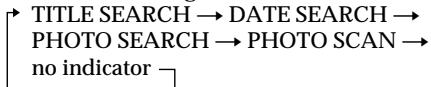
(3) Press or on the Remote Commander to select the date for playback. Your camcorder automatically starts playback of the photo having the date that you selected.
^1) DCR-TRV16E/TRV18E/TRV24E only
^2) DCR-TRV25E/TRV27E/TRV116E/TRV118E only
Понь сфотО - PHOTO SEARCH/ PHOTO SCAN
BbMOKeTe BbIIOJIHArTb NOnCK HEnODbNIXHO r3o6paJxHnI, 3aIncaHHOrO HaJeHTe (PHOTO SEARCH). YdO6Ho INcNoJIb3OBaTb KaccETy C KACCETHO nAMrTBH.
BbTaKKe MoKTe BbIOnHrTb NOnCK
HeNoDBeXhBx I3o6paXeHn ODHOrO 3a DpyrIM
N aBTOMaTtueckn OTo6paXaTb KaJDoE
I3o6paXeHne B TeUeHne PAn TcEkyHd BHe
3aBncMocTn OT HaJIuYn KACCtHOn pAmrTn
( PHOTO SCAN).IcNoIb3yIte dJa 3TuX
Operaui n PyIbT dIcTaHnIOHHOR yPpAbNeHn.
IcNoIb3yIte 3Ty fYHKmIo Hn dJa PocMOTpa IIn
MOHTaKa HeNoDBeXhBx I3o6paXeHn.
ПоньфОTOСИСПОЛБ3OBaHNeM KACCETHOIЯRTN
Ipeed BbINOJIHeHEm Onepaun
BbMOKeTe NcNoIb3OBAbT 3Ty cyHKcuHIO TOnbKO pN BOCpON3BeDEHn KACCtbl C KACCETHOAMrTbIO.
- YCTaHOBnTe ONZHIO CM SEARCH B pexnme B yCTaHOBkax MEHIO B NOLOXKeHne ON. (ON ABnJIeTcYCTaHOBKOI NO yMOnUaHIO.)
(1)Установпейсякючateь POWER в положене PLAYER ^1) /VCR ^2 ).
(2)HaximaiTe NOBTOPO KHOKNy SEARCH MODEHa npIbTe DnCTaHIOHNOYnpaBHeHIO TeNpO, noka Ha 3KpaHe He npBntc HdNkAToP PHOTO SEARCH. INDkaToP 6ydt N3MeHrTbcra CneDuOzIM 6pa30M:
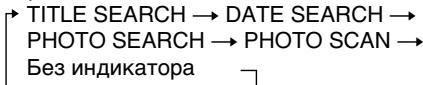
(3)HaXMMTe KHOJNky HnHn Hn YnJIbTe DnCTaHnOHHOro UnpaBHeHn InIy BbIbopa DaTbI dIy BocPon3BeDeHn. BaIa BnDEOKaMepa ABTomatUeCKn HaHnet BOCpON3BeDHeHne FOTo C BbIbpaHNo Bamn DaToI.
^*)1 Tontko moJeN DCR-TRV16E/TRV18E/ TRV24E
^2) ToIbkoMoIeJIu DCR-TRV25E/TRV27E/ TRV116E/TRV118E
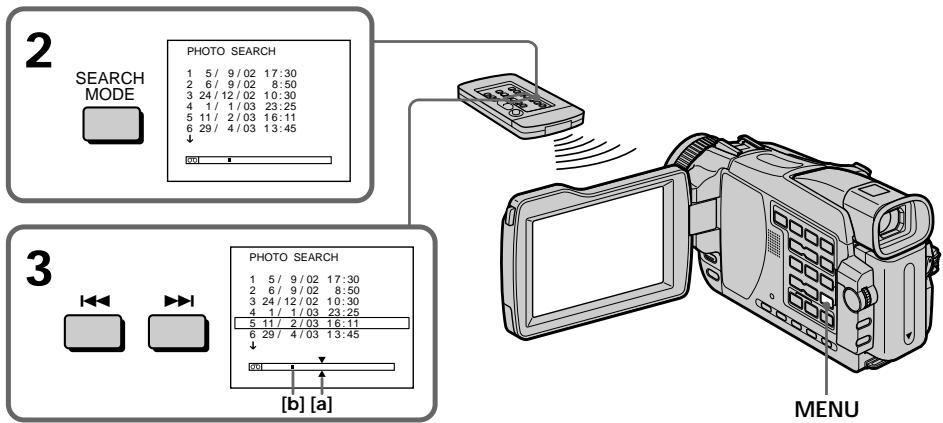
[a]: Actual point you are trying to search for
[b]: Present point on the tape
To stop searching
Press ■.
Searching for a photo without using cassette memory
(1) Set the POWER switch to PLAYER^1) / VCR^2) .
(2) Set CM SEARCH in to OFF in the menu settings (p. 239).
(3) Press SEARCH MODE on the Remote Commander repeatedly until the PHOTO SEARCH indicator appears.
The indicator changes as follows:

(4) Press 山山山 or on the Remote Commander to select the photo for playback. Each time you press 山山山 or your camcorder searches for the previous or next photo.
Your camcorder automatically starts playback of the photo.
^1) DCR-TRV16E/TRV18E/TRV24E only
^2) DCR-TRV25E/TRV27E/TRV116E/TRV118E only
To stop searching
Press ■.
[a]:ДиEcTBITeINbHoe MeCTO, KOTOpoe Bbl NbITaTeCb HauTn
[b]:Tekyuee MeTo HaJIeHTe
Длг octaHOBKn NOUcKa
HaxMMTe KhoNkY
Ponck foTo 6e3 nCnoJb3OBaHnKaCCETHOI pAMrTn
(1)Установпейсякючateь POWER в положене PLAYER ^1 /VCR ^2 ).
(2) YcTaHOBnTe OnguCM SEARCH BpeXmE B yCtAHOBkax MeHIO B nIoJxHeHne OFF (cTp. 248).
(3)Haximamte noBtOpHo KhoNky SEARCH MODE Ha npIbTe dinCTaHnOHHoro ynpaBHeHnDo ToTexnop, nokaHa 3KpaHe He noBHTc HnDnKaTOp PHOTO SEARCH.
INHdkatop 6ydt N3MeHrTbCnEduOuIM 06pa30m:

(4)HaxmTe KhoNkU HnI HnIyIte DnCTaHnOHHo UnpaBHeHn I nI BbIbOp foTo dIe BocnpOn3BeDeHn. KaKdb pa3 npn HaxKaTn KhoNkI HnI NnI Baa BnDeOkamepa 6yJeT nckTaB npdeblNyee nIin CneDyUouee fOTo.BaHa BnDeOkamepa aBTOMatInueckn HaHTBocnpOn3BeDeHne fOTo.
^*) Tolbko moJeN DCR-TRV16E/TRV18E/TRV24E
^2) ToIbko moJeN DCR-TRV25E/TRV27E/ TRV116E/TRV118E
Длг octahOBkn NOUCKa
HaxMMTe KhoNky
Scanning photo
(1) Set the POWER switch to PLAYER^1) / VCR^2) .
(2) Press SEARCH MODE on the Remote Commander repeatedly until the PHOTO SCAN indicator appears.
The indicator changes as follows:
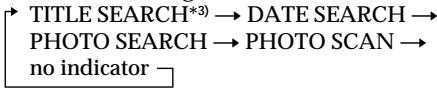
(3) Press or on the Remote
Commander.
Each photo is played back for about five seconds automatically.
1)DCR-TRV16E/TRV18E/TRV24E only
^2) DCR-TRV25E/TRV27E/TRV116E/TRV118E only
^*3) TITLE SEARCH is displayed when CM SEARCH is set to ON in the menu settings.
ФOTOCKaHIpOBaHne
(1)Установпейсякючateь POWER в положене PLAYER ^1) / VCR ^2 ).
(2)HaximaiTe NOBtOHO KhoNky SEARCH MODE Ha Nylte DnCTaHOnHoro ynpaBHeHnI DoTexnop, nokaHa 3KpaHe He noBtCn HnDkaTOp PHOTO SCAN. INDkaTOp 6yEdt N3MeHbTcBc CneJeUoImm 06pa3oM:
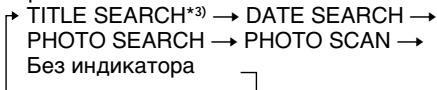
(3)HaxmTe KhoNkU Hau nIu HHa npIbTe DnCTaHcNoHHoro ynpabNeHna.
Kakdoe foTO 6yIeT aBTOMaTHueCKN BOCPON3BOIDITbCBA TeUHeHne OKOIO IANT CEkyHd.
^*)1 ToIbKO moJeN DCR-TRV16E/TRV18E/ TRV24E
^2) ToIbko moJeN DCR-TRV25E/TRV27E/ TRV116E/TRV118E
^3) ИндикатOP TITLE SEARCH OTOбрахаetся, Когда onцma CM SEARCH yctaHOBneha B noloxhene ON bYcTaHOBkax MeHIO.
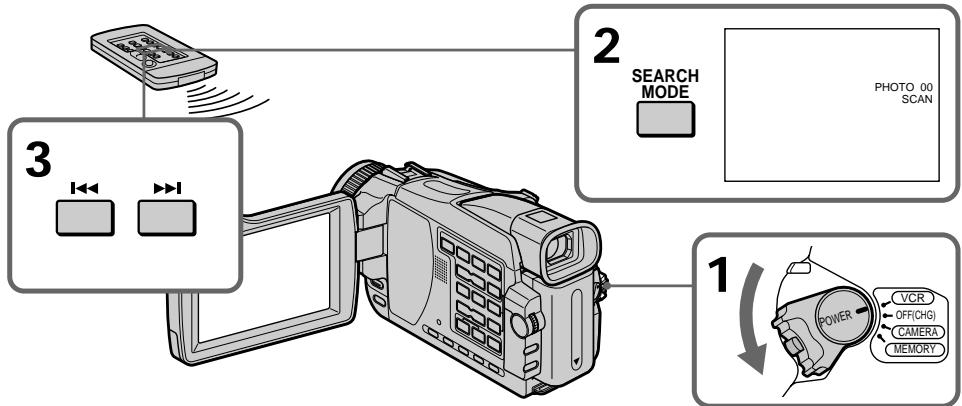
To stop scanning
Press ■.
If a tape has a blank portion between recorded portions
The photo search/photo scan function may not work correctly.
The available number of photos that can be searched using the cassette memory
The available number is up to 12 photos.
However, you can search 13 photos or more using the photo scan function.
ДлЯ OCTaHOBKи CkaHIpObaHnA
Haxmnte KhONky
EcIn Ha JeHTe NmEeTcH He3aNncaHHbI yuactOK MeJxdy 3aNncaHHbIMyUacTkamM ΦyHKzIaΦOTOnOncKa/ΦOTOCKaHIpOBaHIN MoKet Hepa6oTaTbHaNdExkaUIM 6pbazOM.
KoIynchecTBo FOToCHNIMKOB,KOTOpbIE MORYT 6bITb HauDeHbIC NcNoJIb3OBAHnEM KACCETHOI PAMrTI
Bo3MOxHoe KOJInueCTBO FOToCHIMKOB MOXET COCTaBnTb 12 wTyK.
Ondako, Bbl MoXeTe BbIIOJIHrTb IOnCK 13 n60Jee foTOCHIMKOB, INcIOJIb3yra fYHKUIO foTOCKaHnPOBaHnA.
Using the A/V connecting cable
You can dub or edit on the VCR connected to your camcorder using your camcorder as a player. Connect your camcorder to the VCR using the A/V connecting cable supplied with your camcorder.
Before operation
- Set DISPLAY in to LCD in the menu settings. (The default setting is LCD.)
- Press the following buttons to make the indicator disappear so that they will not be superimposed on the edited tape:
DISPLAY
-DATA CODE on the Remote Commander
- SEARCH MODE on the Remote Commander
(1) Insert a blank tape (or a tape you want to record over) into the VCR, and insert the recorded tape into your camcorder.
(2) Prepare the VCR for recording, then set the input selector to LINE.
Connect the A/V connecting cable to the AUDIO/VIDEO OUT or AUDIO/VIDEO jack.
Refer to the operating instructions of the VCR.
(3) Set the POWER switch to PLAYER^1) / VCR^2) on your camcorder.
(4) Play back the recorded tape on your camcorder.
(5) Start recording on the VCR. Refer to the operating instructions of your VCR.
1)DCR-TRV16E/TRV18E/TRV24E only
^2) DCR-TRV25E/TRV27E/TRV116E/TRV118E only
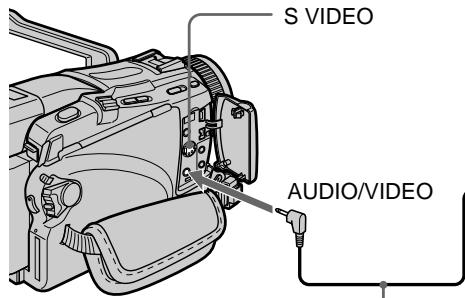
A/V connecting cable (supplied)/
CoéiHnTeIbHbI KaIb ayDIO/BnIeO (npIaeraTc)
Параапсь ЛeHTы
IcnoJb3OBaHne COeINHtTeNbHoro Ka6eJaaydno/BuDeo
BbMOKeTe BbIIOJIHnITb Ipee3aIINc bIIM MoHTax Ha KBM, nOcOeDInHeHHbIK BaSei BvIDeOKaMepe, nCNoIb3yA Bauy BvIDeOKaMepy B KaueCTBe npoiRpbBaTeJ. PoIcOeDInHte BaUy BvIDeOKaMepy K KBM, nCNoIb3yCoEoHNITbHbKabeBJ aydIO/BuDeO, npIlaRaembl K BaSei BvIDeOKaMepe.
Ipeed BbINOJIHeHEm Opeaun
YCTAHOBITE OIQUIO DISPLAY B pexime ETC BVcTahOBkATE MEOB INOLOXeHne LCD. (LCD) YBnIECTCAYCTAHOBKO NO YMOLJHAnHO.)
HaXMMTE CNeIyIOUne KHOJKN, YTO6bl IdoBnTbCRA NcE3HOBeHnR INDMKATOPOB BO n36exKaHHe IN HALOXKeHnR HA MOHTpyemyHO JENTY:
DISPLAY
-DATA CODE Ha npIbTe nIcTaHnOHHoro ynpaBHeHn
-SEARCH MODE Ha nylte DnctaHcHOnHOr ynpabLeHn
(1)YcTaHOBnTe He3aIncAHHyIO JeHTy (JINJeHTy,Ha KOTpyO BBy XOTnTe BbIOnHnTb3aNcB) B KBM, n YcTaHOBnTe 3aIncAHHyIO JeHTy B BaUy BUneOkaMepy.
(2)ПОДROTOВБTe KBM K 3aПИСи,а 3aTeM yCTaHOBnTE cEJIeKTOB BXOДOB B NOЛожЕнE LINE.
ПодсоЕннITE coeHnHTeNbHbI KAbelb aydno/BnDeo B rHe3do AUDIO/VIDEO OUT nIaAUDIO/VIDEO.
BoJee noDpo6HbIe CBeDeHnBb MoKeTe NaHTn B INCTpyKuIN NO 3KcNlVaTaun KBM.
(3)VctaHOBInTe NepeKlnOuChaTeINb POwER B nIoToXeHne PLAYER ^+1) VCR ^+2) Na BaSei BnDEOkAmpe.
(4)HaunHe BocpOn3BeJeHne 3aNcAHHoJIeHTbI Ha BaWei BnDeOkaMepe.
(5)HaunHte 3aInCb Ha BaWeM KBM. BOnnee noPdoBbIe CBeDeHHa BbMoKeT haNTn B HnCTpyKcnnoNo ekCnPyataaRn BaJero KBM.
^*1) ToIbKO MoIeNDCR-TRV16E/TRV18E/TRV24E
^2) ToIbkoMoJeNDCR-TRV25E/TRV27E/TRV116E/TRV118E
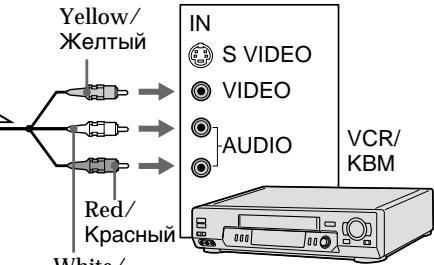
White/ Bejbli
When you have finished dubbing a tape
Press on both your camcorder and the VCR.
You can edit on VCRs that support the following systems:
8 8 mm, HiHi8, VHS VHS, S VHS S-VHS, VHSC, S VHS S-VHSC, Betamax, Mini DV, DV Digital8, MICROMV
If your VCR is a monaural type
Connect the yellow plug of the A/V connecting cable to the video input jack and the white or the red plug to the audio input jack on the VCR or the TV. When the white plug is connected, the left programme position audio is output, and when the red plug is connected, the right programme position audio is output.
If your VCR has an S video jack
Pictures can be reproduced more faithfully by using an S video cable (optional).
With this connection, you do not need to connect the yellow (video) plug of the A/V connecting cable.
Connect an S video cable (optional) to the S video jacks of both your camcorder and the VCR. This connection produces higher quality DV
format pictures.
Ipepe3anncb IeHTbl
EcnBb3aKOHnJI nepe3aIncb IeHTbl HaxmTe KhOpKy KaK Ha BnDeokamepe, TaK n ha KBM.
BbMOxKe BbINOnHrMbontaxHa KBM, KOtOpblie NpOdepKnBaIOT cIeDyUoune CNTcEmbl:
8 8 MM, Hi8 Hi8, VHS VHS, SVHS S-VHS, WHSE VHSC, SWSE S-VHSC, Betamax, Mini DV, DV Digital8, MICROMV
Ecnn Baaw KBM MOHOOFOHmHeckoro Tnna
IoioceHnHTe JxentbI WTeKep COeHNHTBHO rKa6eIyAyno/BuDeo K BXOHNOM BnDeoRHe3dy, a 6BeIy IINKpaChbI WTeKep K BXOHNOM ayDnOrHe3dy Ha KBM nI IN TeLeBn3Op. Ecnn POnCOeHNHe6BeIy WTeKep,TO BbIXoHDIM CnHAnOM 6yDeT 3Byk IeBOrO KaHaJa, a ecNn POnCOeHNHe KpaCHbI WTeKep,TO BbIXoHDIM CnHAnOM 6yDeT 3Byk npaboro KaHaJa.
EcnnBaWeKM Bmmeetc rHe3do S Bndeo
N3o6paKeHnMoYr 6bITb BOCpOn3BeDeHbI
6OJIe BBICOKOKaueCTBHeHNO pNI NcPONb3OBaHN
Ka6eJIa S BnDEo (npuO6peTaetcra OTdJIbHO).
PiT aTOM IODCoeDInHeHn Bam He HuxHo
NoDCOEINHTb XeJtBI (BnDEo) UTeKep
coEduHnTeIbHOrO Ka6eJIa ayDnIO/BnDEo.
PiDCoeDInHe Tc Ka6eJIb S BnDEo
(pnO6peTaETcra OTdJIbHO) K rHe3dAm S BnDEo
Ha BaWei BnDEokampe n KBM.
3TO coEduHHeNe o6ecneuHbAe t N3o6paKeHn
ΦopMaTa DV 60JIee BBICOKO kaueCTBa.
Using the i.LINK cable (DV connecting cable)
Simply connect the i.LINK cable (DV connecting cable) (optional) to DV OUT or DV IN/OUT jack on your camcorder and to DV IN on the DV products. With a digital-to-digital connection, video and audio signals are transmitted in digital form for high-quality editing. You cannot dub the titles, display indicators, the contents of cassette memory or letters on the "Memory Stick" index screen (except DCR-TRV16E/TRV116E).
Set the input selector on the VCR to the DV input position if the VCR is equipped with the input selector.
(1) Insert a blank tape (or a tape you want to record over) into the VCR, and insert the recorded tape into your camcorder.
(2) Prepare the VCR for recording. Set the input selector to LINE (DV input position). Refer to the operating instructions of the VCR.
(3) Set the POWER switch to PLAYER^1) / VCR^2) on your camcorder.
(4) Play back the recorded tape on your camcorder.
(5) Start recording on the VCR. Refer to the operating instructions of your VCR.
1)DCR-TRV16E/TRV18E/TRV24E only
^2) DCR-TRV25E/TRV27E/TRV116E/TRV118E only
IcnoJb30BaHne Ka6eIa.LINK (CoeINHTeNbIi Ka6eIb CuΦpOBOro BnDeocrHaJa DV)
ПрocTo noДcoeINHITe Ka6eIb i.LINK (coeINHTeNbHbI Ka6eIb UInΦpOBOrO BInDeOcINHaJa DV) (npNo6peTaetcT OTeINbHO) K rHe3dY, DV OUT nIu rHe3do DV IN/OUT Ha BaWei BInDeOKaMepe n IrHe3do DV IN uΦpOboBx BInDeOn3deIi. Prn uΦpO-uzΦpOBOm COeINHeHn BInDeo- n ayDInOCINHaJI b nepeDAHO Tc BInΦpOBOmФopMaTe dIЯ BByICOKaQueCTBeHHORO MOHTa. BJI He MOKeTne PeNE3aNNCbIbAT TtIPbI, NDCJIneHbI nHINKaTOPbl, CoDEPKIMoe KACCETHOJ nAMATn nIIu 6yKbI ha nHNeKCHbI eKpA H"Memory Stick" (KpOME moJeI DCR-TRV16E/TRV116E). YcTaONBte CeLEKTOP BxOIOB Ha KBM B noIOLKeHne BxOJa UInΦpOBOrO BInDeOcINHaJa DV, ecIn KBM ocHaIe h CeLEKTOP M BxOIOB.
(1)YcTaHOBnTe He3aIncAHHyIO JeHTy (NJInJeHTy,Ha KOTOPYIO XOTITe BbINOpHnTb 3aNcB) B KBM, u YcTaHOBnTe 3aIncAHHyIO JeHTy B BaWv BuDEoKAmepy.
(2)ПоДгOTOBытКBMкЗаис.
YCTaHOBHTe celenKTop BXODOB B NOLOJOKeHne LINE (noLoJOHeHne BXoJHOrO zuΦpOBOr BOndeOCHnHa DV).BoJe ne PoIpo6hIe CBdEHNbbl MoKTe haTn B mHcTpkyuNn no 3KcNpyatauNk KBM.
(3)VctaHOBIne NepeKlnOuTaTeNb POwER B. noLoKeHne PLAYER ^+1) VCR ^+2) Na BaSei BnDEOkAmpe.
(4)HaunHe BocpOn3BedeHne 3aNcaHHoJIeHTbI Ha BaWei BnDeokampe.
(5)HaunHTe 3aIMCb ha KBM. BoJee noIpo6bHbe CBeDEHn Bbl MoKeTe HaNTB u HcTpyKcNn no ekCnnyatau Nauero KBM.
^*1) ToIbKO moJeN DCR-TRV16E/TRV18E/ TRV24E
^2) ToIbKO moJeN DCR-TRV25E/TRV27E/ TRV116E/TRV118E
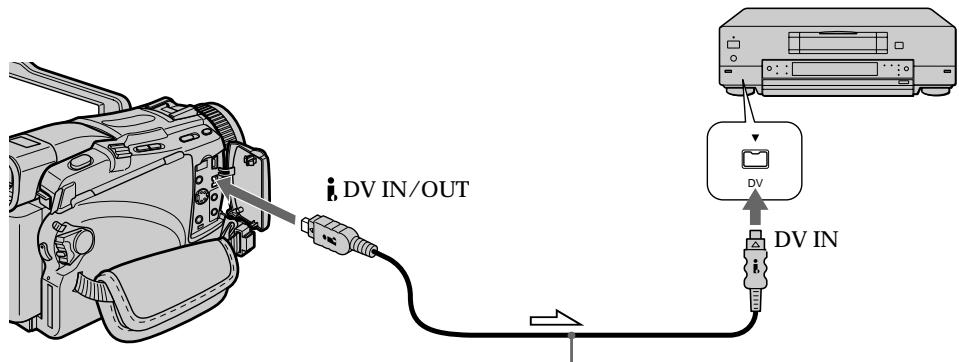
i.LINK cable (DV connecting cable) (optional)/ Ka6ebI i.LINK (coeHNHTeHbI K6ebI cHpOBOrO BnDeocnHaNA DV) (npno6peTaETcOtJeBHO)
When you have finished dubbing a tape
Press on both your camcorder and the VCR.
You can connect one VCR only using the i.LINK cable (DV connecting cable)
See page 278 for more information about i.LINK.
Pictures processed by the picture effect, the digital effect or PB ZOOM function
Pictures processed by the picture effect, the digital effect or PB ZOOM function are not output through the DV OUT or DV IN/OUT jack.
If you record a playback pause picture with the DV OUT or DV IN/OUT jack
The recorded picture becomes rough. Also, when you play back the picture using other video equipment, the picture may jitter.
Ipee3anncb IeHTbl
EcnBb3aKOHnJI nepe3aIncb IeHTbl HaXmTe KhOpKy KaK Na BIndeokamepe, TaK nHa KBM.
BbMOxKeIIOCoEINHTb OINH TOJIbKO KBM c NOMOsbIO Ka6eIa.LINK
(coeHNITbHOrKa6aNΦpOBrO BnDeocnHaJa DV)
Dubbing only desired scenes - Digital program editing (on tapes)
You can duplicate selected scenes (programmes) for editing onto a tape without operating the VCR.
Scenes can be selected by frame. You can set up to 20 programmes.
Your camcorder can dub on "Memory Stick"s (except DCR-TRV16E/TRV116E). See page 175 for more information.
Ipe3aHcB TOnbKO HxKbIX 3n3oOB - CnΦpOBoMONTax nporpaMMbl (Ha IeHTax)
Bb moKeTe nepe3aINcBtBn36paHbIe 3n3OdbI (nporpamMbI) nMa MOHTaxHa Na HeHTy 6e3 nCOnb3OBaHn KBM.
3n3oBbMOyT Bb6npaTbC8 B nokaIpoBOM pexKMe. Bbl MoKeTe yCTaHOBtB do 20 nporpaMM.
BaSha BnDeOkamepa MoKet npOn3BoDnTb nepe3anncb Ha "Memory Stick" (kpome moJeIe DCR-TRV16E/TRV116E).ДЯ nOlyeHn6OJIe eoPbO6hBx CBeDeHn ObaPaaJTeCb K cTp. 175.
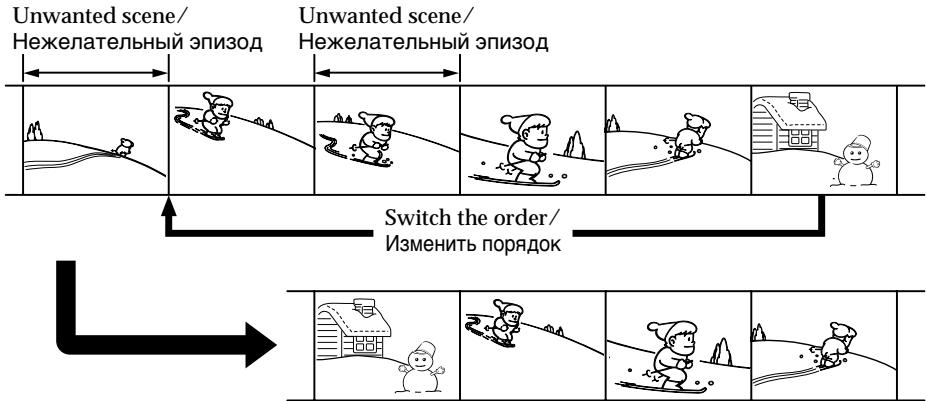
Before operating the Digital program editing on tapes recorded on other equipment
Step 1 Connecting the VCR (p. 105).
Step 2 Setting the VCR for operation.
-
Using the A/V connecting cable (p. 105)
-
Using the i.LINK cable (DV connecting cable) (p. 111)
Step 3 Adjusting the synchronisation of the VCR (p. 113).
When you dub using the same VCR again, you can skip steps 2 and 3.
Using the Digital program editing function on tapes recorded on other equipment
Operation 1 Making a programme (p. 115).
Operation 2 Performing the programme (Dubbing a tape) (p. 117).
Note
When editing digital video on tapes, the operation signals cannot be sent with LANC.
Ipeed npimHeHnem yHKcnnuΦpOBOro MOtTaKa pPOrpaMMbHaJeHTax,3aNcAHHbIX dpyrUmObopydOBaHnem
IyHKT IpoDCoeDInHeHne KBM (ctp. 105).
NyK2 HacTpoKa KBM dJa pa6oTbI.
PnMOHTaxe UnpoBOrO BnDeo Ha JeHTax CnHaJIbI Opeaun He MoryT 6bITb NoclaHbI uepe3 rHe3do LANC.
Dubbing only desired scenes - Digital program editing (on tapes)
Step 1: Connecting the VCR
You can connect both the A/V connecting cable and the i.LINK cable (DV connecting cable). When you use the A/V connecting cable, connect the devices as illustrated on page 100. When you use the i.LINK cable (DV connecting cable), connect the devices as illustrated on page 102.
If you connect using the i.LINK cable (DV connecting cable)
With a digital-to-digital connection, video and audio signals are transmitted in digital form for high-quality editing.
Step 2: Setting the VCR to operate with the A/V connecting cable
To edit using the VCR, send the control signal by infrared rays to the remote sensor on the VCR. When you connect using the A/V connecting cable, follow the procedure below, (1) to (4), to send the control signal correctly.
(1) Set the IR SETUP code
① Set the POWER switch to PLAYER ^1 /VCR ^2 on your camcorder.
② Turn the power of the connected VCR on, then set the input selector to LINE. When you connect a video camera recorder, set its power switch to VCR/VTR.
③ Press MENU. Select VIDEO EDIT in ETC with the SEL/PUSH EXEC dial (p. 242).
^1) DCR-TRV16E/TRV18E/TRV24E only
^2) DCR-TRV25E/TRV27E/TRV116E/TRV118E only
Ipee3aHncb TOnbKO HxKhbIX 3nN3oIOB -LcΦpOBoM oHTax nporpaMMbl (HaJeHTax)
Dubbing only desired scenes - Digital program editing (on tapes)
Ipee3aHcB ToJIbKO HUxHbIX 3nN3oJOB -LuoPBOOMoHTax nporpamMbI (HaJeHTax)
④ Turn the SEL/PUSH EXEC dial to select TAPE, then press the dial (except DCR-TRV16E/TRV116E).
⑤ Turn the SEL/PUSH EXEC dial to select EDIT SET, then press the dial.
⑥ Turn the SEL/PUSH EXEC dial to select CONTROL, then press the dial.
⑦ Turn the SEL/PUSH EXEC dial to select IR, then press the dial.
⑧ Turn the SEL/PUSH EXEC dial to select IR SETUP, then select IR SETUP code of your VCR, then press the dial. Check the code in "About IR SETUP code." (p. 107)
④ ПовернITE диck SEL/PUSH EXEC Дяьбора опци TAPE,а зatem нахмпет диck (КрOME модени DCR-TRV16E/TRV116E).
⑤ ПовернITE ДИСК SEL/PUSH EXEC ДЯ
Выбopa ONЦИ EDIT SET, a 3aTeM нажмITE
ДИСК.
⑥ ПовернITE диck SEL/PUSH EXEC Ддя Вьбopa onци CONTROL, a 3aTeM нажмite dИСК.
⑦ ПовернITE ДИСК SEL/PUSH EXEC ДИВьбopa onци IN, 3aTeM нажмпг ДИСК.
⑧ПовернITE ДИСК SEL/PUSH EXEC ДЯ
Выбopa опци IR SETUP, заlem ВьберпTe
КоД IR SETUP Baшero KBM,а заlem
ножмITE ДИСК. ПоверьTe КОД в раздени
"О кодax IR SETUP".(стр.107)
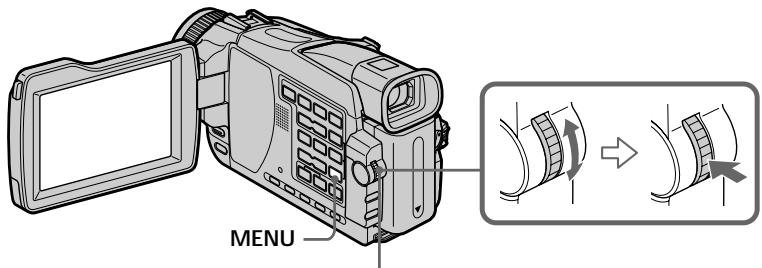
3
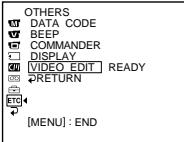

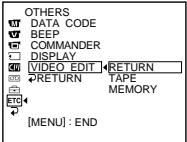
6
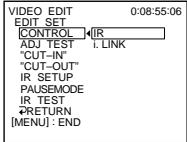
4
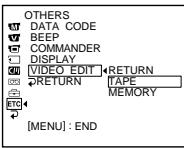

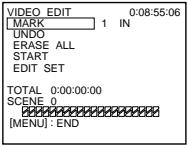
8
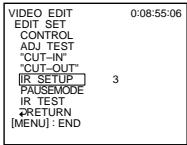
5
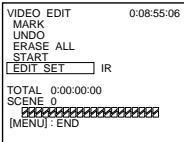

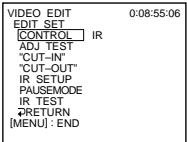
Dubbing only desired scenes - Digital program editing (on tapes)
Ipee3aHncb ToJbKO HxKhbIX 3nN3oIDOB -LcΦpOBoM oHTax nporpaMMbl (HaJeHTax)
About IR SETUP codes
The IR SETUP code is stored in the memory of your camcorder. Be sure to set the correct code to match your VCR. The default setting is code number 3.
| Brand/Mapka | IR SETUP code/KoД IR SETUP |
| Sony | 1, 2, 3, 4, 5, 6 |
| Aiwa | 47, 53, 54 |
| Akai | 50, 62, 74 |
| Alba | 73 |
| Amstrad | 73 |
| Baird | 30, 36 |
| Blaupunkt | 11, 83 |
| Bush | 74 |
| CGM | 36, 47, 83 |
| Clatronic | 73 |
| Daewoo | 26 |
| Ferguson | 76, 83 |
| Fisher | 73 |
| Funai | 80 |
| Goldstar | 47 |
| Goodmans | 26, 84 |
| Grundig | 9, 83 |
| Hitachi | 42, 56 |
| ITT/Nokia Instant | 36 |
| JVC | 11, 12, 15, 21 |
| Kendo | 47 |
| Loewe | 16, 47, 84 |
| Luxor | 89 |
| Mark | 26* |
| Matsui | 47, 58*, 60 |
| Mitsubishi | 28, 29 |
- TV/VCR component/ KompoheHT TeJIeBUN3opa/KBM
Note on IR SETUP codes
Digital program editing is not possible if the VCR does not support IR SETUP codes.
OKoDAx IR SETUP
KoI IR SETUP xpaHITcB namrTa Bauei BnDeokamepb.y6eInTeCb,yTo Bby yCTaHOBN npabINbHykO, corglacyUoNc s BaHIM KBM. IyoymOnuHaIOyCTaHOBNeHO 3NaHeHKeOA,pabHoe 3.
| Brand/Mapka | IR SETUP code/KoД IR SETUP |
| Nokia | 36, 89 |
| Nokia Oceanic | 89 |
| Nordmende | 76 |
| Okano | 60, 62, 63 |
| Orion | 58*, 70 |
| Panasonic | 16, 78 |
| Philips | 83, 84, 86 |
| Phonola | 83, 84 |
| Roadstar | 47 |
| SABA | 21, 76, 91 |
| Salora | 89 |
| Samsung | 22, 32, 52, 93, 94 |
| Sanyo | 36 |
| Schneider | 10, 83, 84 |
| SEG | 73 |
| Seleco | 47, 74 |
| Sharp | 89 |
| Siemens | 10, 36 |
| Tandberg | 26 |
| Telefunken | 91, 92 |
| Thomson | 76, 100 |
| Thorn | 36, 47 |
| Toshiba | 40, 93 |
| Universum | 47, 70, 84, 92 |
| W.W.House | 47 |
| Watoson | 58, 83 |
Примочанne o koading IR SETUP
LcnpoBoMOnTAX npOrpamMbI HeB03MoKeH, ecn KBM He noDdepxNBAe T KoOB IR SETUP.
Dubbing only desired scenes - Digital program editing (on tapes)
Ipee3aHcB ToJIbKO HUxHbIX 3nN3oJOB -LuoPBOOMoHTax nporpamMbI (HaJeHTax)
(2) Setting the modes to cancel the recording pause on the VCR
① Turn the SEL/PUSH EXEC dial to select PAUSEMODE, then press the dial.
② Turn the SEL/PUSH EXEC dial to select the mode to cancel recording pause on the VCR, then press the dial.
Refer to the operating instructions of your VCR.
(2) YctaHObKa peXIMOB dIg OTMeHbI nay3bl 3anCn Ha KBM
① ПовернITE ДИСК SEL/PUSH EXEC ДЯ
Выбoga опци PAUSEMODE, за tem
НарKMITE ДИСК.
② ПовернITE диСK SEL/PUSH EXEC,чTo6bI Bbl6paTb peXIM OTMeHbI nay3bl 3aIncN Ha KBM, 3aTeM haxmnte dnck.
Bolee noIpo6HbIe CBeDeHnBb CMOKeTe HauTn B uHCTpyKuIN No 3KcPnyatauNn BaWero KBM.
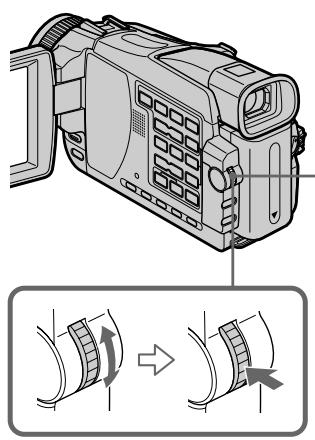
1
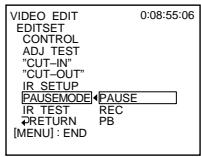
2
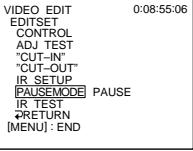
Buttons to cancel recording pause on the VCR The buttons vary depending on your VCR. To cancel recording pause:
- Select PAUSE if the button to cancel recording pause is I.
- Select REC if the button to cancel recording pause is .
- Select PB if the button to cancel recording pause is
KhONKn dIy OTMeHbI nay3bI 3aNNc H KaBM
KhONKn MOryT OTnUaTbCra, B 3aBnCmOCTn OT BaWero KBM. YTo6bl OTMeHnTb nay3y 3annc:
-BbI6epnte KhoNky PAUSE,ecnI nIy OTMeHbI naY3bl 3aIINCn CnyKNT KhoNka II.
- Bыберпе кногку REC, ecnl Дг OTMeHBi nay3bl 3aHnCi CnyKNT KOnIka ●.
- Bb6epnte KhoNky PB, ecn nTn OTMeHbI na3bl 3aIncn CnyKNT KhoNka
Dubbing only desired scenes - Digital program editing (on tapes)
Ipee3aHncb ToJbKO HxKhbIX 3nN3oIOB -LcΦpOBoM oHTax nporpaMMbl (HaJeHTax)
(3) Setting your camcorder and the VCR to face each other
Locate the infrared rays emitter of your camcorder and face it towards the remote sensor of the VCR.
Set the devices about 30~cm (12 in.) apart, and remove any obstacles between the devices.
(3) YctaHOBKa BaSei BnIeOKaMepb i KBM npr HapotuB npya
OnpeIeIte, Ige HaxoIITcN 3nIyateIb nHpapacnbix Nyei Ha Baewi BnDeokamepe, nHaipabBte ero Ha daTtIK DnCTaHIOHOHor oynpaBHeHra KBM.
YcTaHOBInTe yCTpOInCTBa Ha paCCToHnN OKoI0 30 cm npyr ot npya n yctpaHnTe BCE npenTCTBnMexdy HmN.
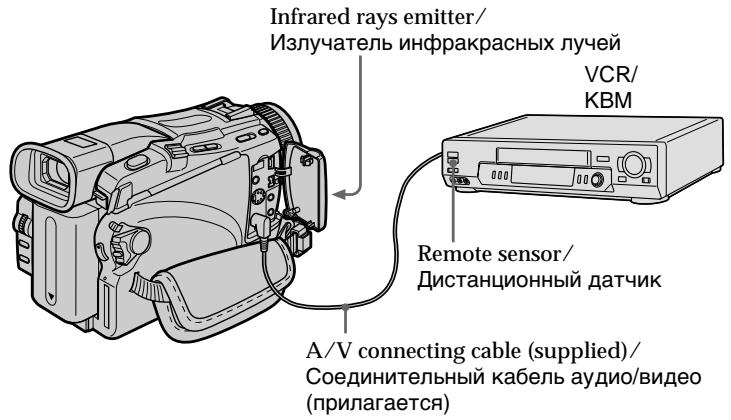
Dubbing only desired scenes - Digital program editing (on tapes)
Ipee3aHcB ToJIbKO HUxHbIX 3nN3oJOB -LuoPBOOMoHTax nporpamMbI (HaJeHTax)
(4) Confirming VCR operation
① Insert a recordable tape into the VCR, then set to recording pause.
② Turn the SEL/PUSH EXEC dial to select IR TEST, then press the dial.
③ Turn the SEL/PUSH EXEC dial to select EXECUTE, then press the dial. If the VCR starts recording, the setting is correct.
When recording is finished, the indicator changes to COMPLETE.
When the VCR does not operate correctly
- After checking the code in "About IR SETUP codes," set the IR SETUP or the PAUSEMODE again.
- Place your camcorder at least 30~cm (12 in.) away from the VCR.
Refer to the operating instructions of your VCR.
Ecn KBM He pa6oTaet HaIeXaumm 06pa30m
- Послся поверки Кд вунгт e "О кодax IR SETUP", установпе орцю IR SETUP пл PAUSEMODE[euple pa3.
Помecтinte Baшу Видаокамеру наpacctordи,在Краиней мeper,30сOT KBM. - 06paaTecb K pyKoBOdCTbY no 3KcNpyataunu Bawero KBM.
Dubbing only desired scenes - Digital program editing (on tapes)
Step 2: Setting the VCR to operate with the i.LINK cable (DV connecting cable)
When you connect using the i.LINK cable (DV connecting cable) (optional), follow the procedure below.
(1) Set the POWER switch to PLAYER^1 / VCR^2 on your camcorder.
(2) Turn the power of the connected VCR on, then set the input selector to DV input. When you connect a digital video camera recorder, set its power switch to VCR/VTR.
(3) Press MENU. Select VIDEO EDIT in ETC with the SEL/PUSH EXEC dial (p. 242).
(4) Turn the SEL/PUSH EXEC dial to select TAPE, then press the dial (except DCR-TRV16E/TRV116E).
(5) Turn the SEL/PUSH EXEC dial to select EDIT SET, then press the dial.
(6) Turn the SEL/PUSH EXEC dial to select CONTROL, then press the dial.
(7) Turn the SEL/PUSH EXEC dial to select i.LINK, then press the dial.
^*1) DCR-TRV16E/TRV18E/TRV24E only
^2) DCR-TRV25E/TRV27E/TRV116E/TRV118E only
Ipee3aHncb TOnbKO HxKhbIX 3nN3oIOB -LcΦpOBoM oHTax nporpaMMbl (HaJeHTax)
Пункт 2:НасториКа KBM Дя pa6obtIC ka6eIeM i.LINK (coeDNHITelhBIM Ka6eIeM zuΦpoBOrO BnDeocrHaJa DV)
Ecni BblBbIOnHaeTe noCoeDInHeHne c
ncnOJIb3OBAHNem Ka6eJI i.LINK
(coeDNHITeINbHO rKa6eJIuNpPBOrO
BnDEoCirHaNA DV) (npNo6peTaETcO TdEINbHO),
cJeDuYTe OINcaHHo HHXe pOueDype.
(1)Установпейсякноуать POWER на Ваший Видаокамеь в положене PLAYER ^1 /VCR ^2 ).
(2)BkIIOUHTe nITaHne noIDcoEINHeHHoro KBM, a 3aTeM yCTaHOBnTE CeNEKTOp BXoOB B noLOXKeHne BXOda cIpPOBOrO BVNeEOCrHana DV. EcNb Bi noDCoeDInHReTe cIpPOByu BnDeOkamepy,yCTaHOBnTE ee nepeKlIOuTaTeNb nITaHnB nIOLxKeHne VCR/VTR.
(3)HaxmTe KhoIky MENU. BbIbepeIte onuioVIDEO EDIT B peKIme ETC C nOmoIbuDncka SEL/PUSH EXEC (ctp. 251).
(4)Повернite ДИСК SEL/PUSH EXEC ДИВьбopa опци TIape,Затем НжмITE ДИСК (КрOME моделен DCR-TRV16E/ TRV116E).
(5)ПовернITE диСEL/PUSH EXEC ДлЯ Вьбopa onци EDIT SET, затем нажмптдИСК.
(6)ПовернITE ДИСК SEL/PUSH EXEC ДЯ Выбopa onци CONTROL,Затем нахмITE ДИСК.
(7)Повернente ДСК SEL/PUSH EXEC ДЯ
Быбopa onци i.LINK, 3atem нахмerte ДСК.
^*) Tolbko moJeN DCR-TRV16E/TRV18E/ TRV24E
^2) ToIbko moJeN DCR-TRV25E/TRV27E/ TRV116E/TRV118E
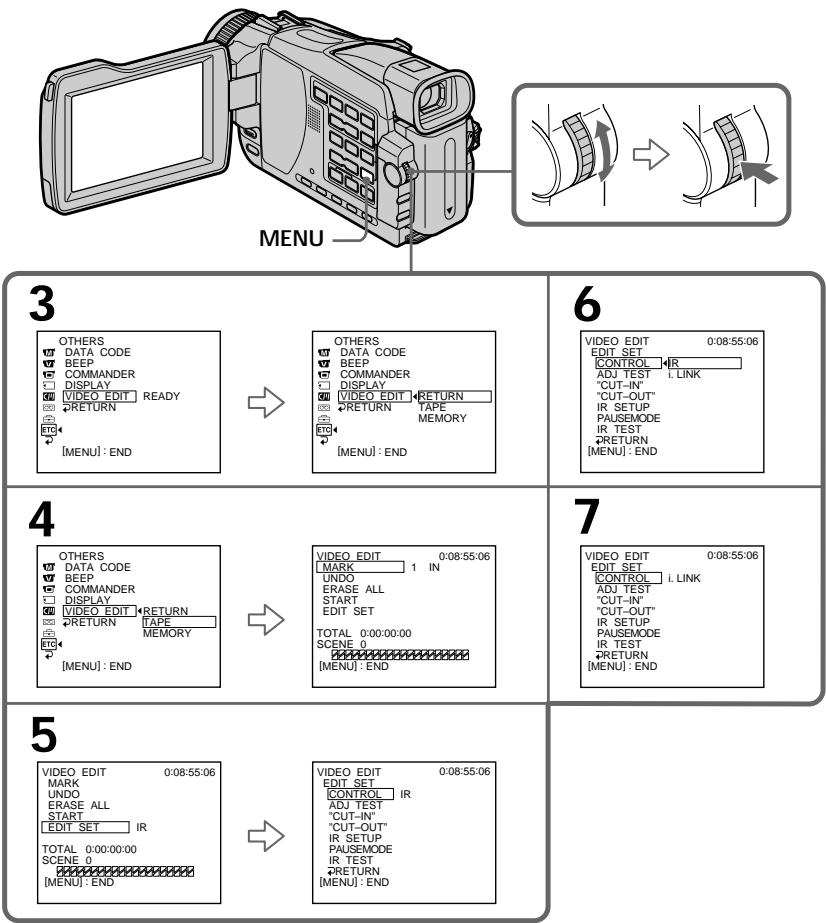
When you connect using the i.LINK cable (DV connecting cable)
- You cannot dub the titles, display indicators.
- You may not be able to operate the dubbing function correctly, depending on the VCR. Set CONTROL to IR in the menu settings of your camcorder.
EcIn Bbl BbIIOJIHHeTe IOdcoEINHeHne c nCnoJIb3OBAHNem Ka6eJia.LINK (coEINHnTEJIbHOro Ka6eJia uNΦpoBOro BVNeOcNRHaJa DV)
- BbI He MoXKeTe BbIInOJIHrTb nepe3aIIc b TITPOB n 3KpaHHbIX INdNkAToPOb.
- BblMOKTe He CymTe IpaBnIbHO BblONHITbФyHKcIIO nepe3aIncN, B 3aBNCIMOCtN OT KBM. YcTaHOBtE OIcIIO CONTROL BVcTaHOBkax MeHIO BaSei BnDeOkamepbI B nOLOXKeHne IR.
Dubbing only desired scenes - Digital program editing (on tapes)
Step 3: Adjusting the synchronization of the VCR
You can adjust the synchronization of your camcorder and the VCR. Have a pen and paper ready for notes. Before operation, eject a cassette from your camcorder.
(1) Insert a blank tape (or a tape you want to record over) into the VCR, then set to recording pause.
When you select i.LINK in CONTROL, you do not need to set to recording pause.
(2) Turn the SEL/PUSH EXEC dial to select ADJ TEST, then press the dial.
(3) Turn the SEL/PUSH EXEC dial to select EXECUTE, then press the dial.
IN and OUT are recorded on an image for five times each to calculate the number values for adjusting the synchronization.
The EXECUTING indicator flashes on the screen.
When finished, the indicator changes to COMPLETE.
(4) Rewind the tape in the VCR, then start slow playback.
Take a note of the first number value of each IN and the closing number value of each OUT.
(5) Calculate the average of all the first number values of each IN, and the average of all the last number values of each OUT.
(6) Turn the SEL/PUSH EXEC dial to select "CUT-IN", then press the dial.
(7) Turn the SEL/PUSH EXEC dial to select the average number value of IN, then press the dial.
The calculated start position for recording is set.
(8) Turn the SEL/PUSH EXEC dial to select "CUT-OUT", then press the dial.
Ipee3aHncb TOnbKO HxKhbIX 3nN3oIOB -LcΦpOBoM oHTax nporpaMMbl (HaJeHTax)
Пункт 3: Perylnpobka cnHxpoHn3aци KBM
BbMOxTe OTpeRyIINPOBaTb CnHXpOHN3aCIO BaaeBnDEOkamepbIK KBM. PnproToBbTe pyKuN6ymary dnn 3aIncei. Ppeed BbINOHNHeHem Oepaunn N3BLeKeNTe KaccTe N3 BaaeBnDEOkamepbl.
(1)YCTaHOBInTe YIcTHy IeHTy (IIJI NJIeHTy,Ha KOTOpYIO BbIXOTInTe BbINOJINHtB 3aINCb) B KBM,a 3aTeM yCTaHOBInTe erO Ha nay3y 3aINcN.
EcBnBnyHKTe MeHIO CONTROL Bbl BblbepeTe onuio i.LINK, Bam He hyxho yctanabmbatb KBM ha naay3y 3aicn.
(2)ПовернITE ДИСК SEL/PUSH EXEC ДЯ Вьбopa onци ADJ TEST,Затем нахмITE ДИСК.
(3)ПовернITE ДИСК SEL/PUSH EXEC ДЯ Вьбopa onци EXECUTE, 3aTeM нажмITE ДИСК.
Ha n3o6paXeHn 6bydYT 3aIncaHbI CnIHaJIbI IN n OUT no pA Tb pa3 kaxDbIyTO6bl BByNCInTb YNCIOBbIe 3NaYeHnJa PReYlnpOBKn CnHXPOHn3aUIN.
Dubbing only desired scenes - Digital program editing (on tapes)
(9) Turn the SEL/PUSH EXEC dial to select the average number value of OUT, then press the dial.
The calculated stop position for recording is set.
(10) Turn the SEL/PUSH EXEC dial to select
RETURN, then press the dial.
Ipee3aHcB ToJIbKO HUxHbIX 3nN3oJOB -LuoPBOOMoHTax nporpamMbI (HaJeHTax)
(9)ПовернITE ДИСК SEL/PUSH EXEC ДИВБЮра СРЕДHERО УССLEНΟЗ 3HAЧЕНИЗЕЛИNHы OUT,ЗАТМЕ наЖМITE ДИСК.УстановITСВ БИЧСLEH纳 NOЗИЦА OCTAHOBКI 3ANICN.
(10)Повернite ДИСК SEL/PUSH EXEC ДЯ
Быбoga опци RETURN,Затем
нжмITE ДИСК.
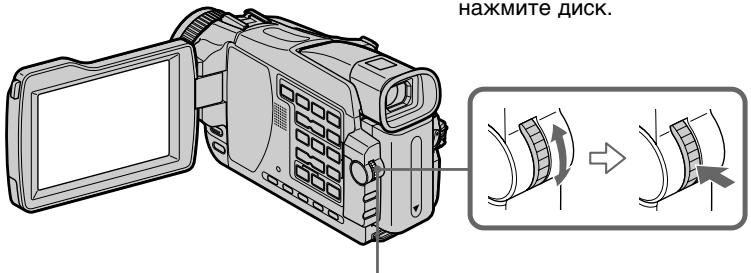
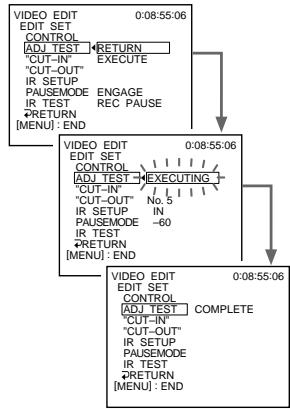
2,3
6
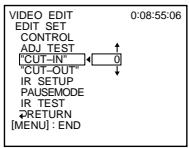
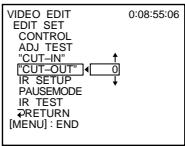
8
Notes
- When you complete step 3, the image used to adjust the synchronization is recorded for about 50 seconds.
- If you start recording from the very beginning of the tape, the first few seconds of the tape may not record properly. Be sure to allow about 10 seconds' lead before starting recording.
- When you connect with the i.LINK cable (DV connecting cable), you may not be able to operate the dubbing function correctly, depending on the VCR. Keep the i.LINK connection and set CONTROL to IR in the menu settings (p. 105). Video and audio are sent by digital signals.
Приимейсаня
Korda Bby BbInonHnTe DeiCtBne nyHKta 3, n3o6paXeHne dnypeRynpOBKn cNHXPOHn3aun 6yDet 3aINCbIbTaBcR OKONO 50 cekyHd.
- Ecni Bbl HaChTe 3aIncb c camoro Hauana IeHTbl, NepBbIe HeCKOJIbKO CeKHyD IeHTbl MOrTy 3aIncatbCn HeKaueCTBeHNO. He 3a6yDbTe o6ceNeuTb npN6JIa3nteNo 10CEKHyDhbl INHePbAInpePeHaJIoM 3aInci.
-Пиюлсоeннени Кабел i.LINK (coeДиNTeHOBoro Ka6eЯ zuФрoboro BndeocHana DV) Bbl He cMOxKeTe OneRupOBaTb yHKuNei nep3anCn HaNJIeXaUIM O6pa3OM, B 3aBcNIMOCtN OT KBM.ObecneYte coeДиHene i.LINK uYctahOBtte onuio CONTROL B noJoxHeIe IR B yCTaHOBkax MeHIO (cTp.105).Bndeo aydno CnHaJIb pepeDaIoTcB zuΦpOBom φopMaTe.
Dubbing only desired scenes - Digital program editing (on tapes)
Ipee3aHncb ToJbKO HxKhbIX 3nN3oIDOB -LcΦpOBoM oHTax nporpaMMbl (HaJeHTax)
Operation 1: Making the programme
(1) Insert the tape for playback into your camcorder, and insert a tape for recording into the VCR.
(2) Press MENU, then select VIDEO EDIT in ETC with the SEL/PUSH EXEC dial.
(3) Turn the SEL/PUSH EXEC dial to select TAPE, then press the dial (except DCR-TRV16E/TRV116E).
(4) Search for the beginning of the first scene you want to insert using the video operation buttons, then pause playback. You can fine-adjust one frame at a time with EDITSEARCH.
(5) Turn the SEL/PUSH EXEC dial to select MARK, then press the dial. The IN point of the first programme is set, and the top part of the programme mark changes to light blue.
(6) Search for the end of the first scene you want to insert using the video operation buttons, then pause playback.
(7) Turn the SEL/PUSH EXEC dial to select MARK, then press the dial. The OUT point of the first programme is set, then the bottom part of the programme mark changes to light blue.
(8) Repeat steps 4 to 7, then set the programme. When the programme is set, the programme mark changes to light blue. You can set up to 20 programmes in maximum.
Дениства 1:Соцдане nporpaMMbl
(1)YcTaHOBtTeJeHTyIaBBOCpOn3BeJeHnBaBauByDneOkAmepy,a 3aTeM yCTaHOBtTeJeHTyIaN3aPncB KBM.
(2)HaxmTe KhoNky MENU, a 3aTeM Bbl6epnTe onuio VIDEO EDIT b pexime ETC nOMoUb DnCKa SEL/PUSH EXEC.
(3)ПовернITE ДИСК SEL/PUSH EXEC ДИВьбopa onци TIape,Затем НжмITE ДИСК (КрOME моделен DCR-TRV16E/TRV116E).
(4)BbINOHNHTe NOnCK NaHcAJa NepBOrO 3nN3oJa, KOToPbI BbIXOTNe BCTaBtB, INCNoJIb3yJ KHOKN BInDeEOKOHrPoJ,NIOCTaBbTe BOCpON3BeDeHne Ha Na?y. Bbl MoXeTe BbIOINHTb ToHKyIO NOKaIPOBvIO perYIupOBKy IpN NOMOuIФyHKUIM EDITSEARCH.
(5)Повернite ДИСК SEL/PUSH EXEC ДИВьбopa onци MARK,а 3aTeM haxmnteДИСК.Toчka IN nepBoi nporpaMMbl6ydeT yCTaHOBJIeHa,N CBET BepXHeЧ actn MeTKI nporpaMMbl N3MeHNTcHа CBETNo-ROJyBoi.
(6) BbINOHNTE NOINCK KOHcA nepBoro 3nn3oJa, KOtOpBb BbXOTnTe BCTaBnTb, INCNoJIb3yK HONKn BInDeOKOHTpOJIa, I NocTaBbTe BOCnpOn3BeDeHHe Ha nay3y.
(7)Повернite ДИСК SEL/PUSH EXEC ДЯ
Выбopa onци Mark, a 3atem НжмITE
ДИСК.
Точа OUT повй порамь byдeт
установлеса, И сBetНихнeч actn MeTkn
прогамь ИЗМEHNTсА на CBetЛо-гolyбо.
(8)Повторе DeиctBnIpyHKTOB c 4 no 7, a 3aTeM yCTaHOBIne npOrpamMy. Korda nporpaMMa 6ydt yCTaHOBJIeHa, CBet MeTKn nporpaMMbI n3MeHITcHa CBETINO-ROJyboi. Bbl moKTe yCTaHOBtB, camoe 6oJbWee, 20 nporpaMM MaKcIMaJIbHO.
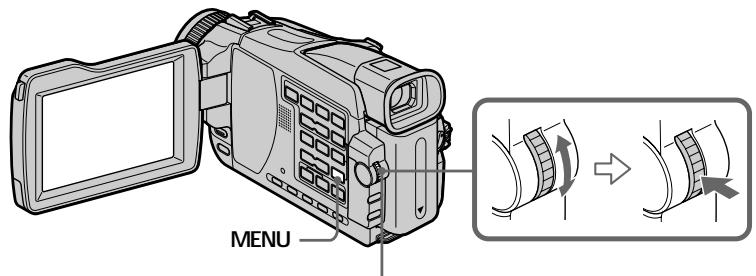
2
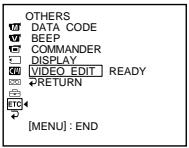

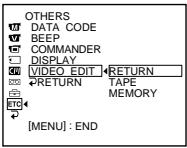
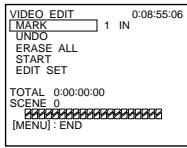
3
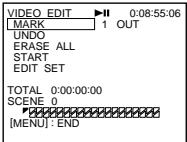
5
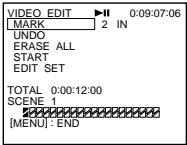
7
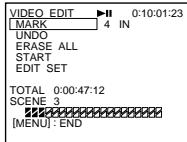
8
Erasing the programme you have set
Erase OUT first and then IN from the last set programme.
(1) Turn the SEL/PUSH EXEC dial to select UNDO, then press the dial.
(2) Turn the SEL/PUSH EXEC dial to select EXECUTE, then press the dial. The last set programme mark flashes, then the setting is cancelled.
To cancel erasing
Select RETURN in step 2.
CtnpaHne nporpaMMbl, KOTopyo Bby yCTaHOBUNI
Chaujala ydaJIte ToKy OUT, a 3aTeM ToKy IN nocJeHneI npOrpaMMbl.
(1)Повернite ДИСК SEL/PUSH EXEC ДИВьбopa onци UNDO, a 3aTeM нахмITE ДИСК.
(2)ПовернITE ДСК SEL/PUSH EXEC ДЯ
Быбoga onци EXECUTE, a 3aTeM нажмITE
ДИСК.
Метka постену устовленьо
пPORpAMMbI 6удET MngaTb, a 3aTeM
устанька 6удET OTMeHeHa.
ДЯ OTMeHbI CTnpaHn
Bb6epTe OpiuO RETURN npn BblonHeHH nDeiCTBn IyHKta 2.
Dubbing only desired scenes - Digital program editing (on tapes)
Erasing all programmes
(1) Select Video EDIT in the menu settings.
(2) Turn the SEL/PUSH EXEC dial to select TAPE, then press the dial (except DCR-TRV16E/TRV116E).
(3) Select ERASE ALL in the menu settings. Turn the SEL/PUSH EXEC dial to select EXECUTE, then press the dial.
All the programme marks flash, then the settings are cancelled.
To cancel erasing all programmes Select RETURN in step 3.
To cancel a programme you have set
Press MENU.
The programme is stored in memory until the tape is ejected.
Note
You cannot operate recording during Digital program editing.
On a blank portion of the tape
You cannot set IN or OUT on blank portions of the tape.
If there is a blank portion between IN and OUT on the tape
The total time code may not be displayed correctly.
Operation 2: Performing the programme (Dubbing a tape)
Make sure your camcorder and VCR are connected, and that the VCR is set to recording pause. (When you use the i.LINK cable (DV connecting cable) this procedure is not necessary.)
When you use a digital video camera recorder, set its power switch to VCR/VTR.
(1) Select VIDEO EDIT in the menu settings. Turn the SEL/PUSH EXEC dial to select TAPE, then press the dial (except DCR-TRV16E/ TRV116E).
Ipee3aHncb TOnbKO HxKhbIX 3nN3oDob -LcΦpOBoM oHTax nporpaMMbl (HaJeHTax)
CTnpaHne Bcex nporpamM
(1)ВыберпголциюVIDEOEDITвустановкхMeHIO.
(2)ПовернITE диСК SEL/PUSH EXEC ДЯ
Быбopa оциТАPE,а затем нахмпTe
dИСК. (Кроме моделЕДСР-TRV16E/
TRV116E)
(3)Выберпе onци ERASE ALL b yctahOBkax MeHIO.ПовернTeДИСК SEL/PUSH EXEC ДЯ Вьбopa onци EXECUTE,a 3aTeM haxmITEДИСК.
MeTKBCEx yCTaHOBJEnHbIX npOrpAMM 6yDyT MIRaTb, a 3aTeM yCTaHOBKn 6yDyT OTMeHEhbl.
ДЯ OTMeHbI CTUpaHnB BCex IporpamM
Bb6epTe Opiu RETURN npn BblnoHennn DeiCTBn nyHKta 3.
Длг OTMeHbI nporpaMMbl, KOTopyBbl yctaHOBNI
HaxmTe KhONkY MENU.
Iporpamma coxpanheTcB namrtn Do Tex np, noka He 6ydt N3BneHa kacceta C neHToi.
PpimeyaHne
BbI He MoKTe BbIINHrTb 3aINCb BO BpeMa UcfoPoBO MOHTaxa IporpAmMbI.
O He3aIncAHHom yUactKe JeHTbI
BbHe MoKTe yCTaHaBnBaTb TOnKn IN u OUT Ha He3aIncAHHbIX yUacTkax JeHtbl.
EcIn Ha JeHTe MeKdy ToUkAmn IN u OUT ImeTc Hes3aHcAHbI yAcTOK
ObuKoD BpeMeH MoKeT OTo6paKaTbCn HnpaBnIbHO.
(1) Bby6epnTe onuio VIDEO EDIT B yctaHOBkax MeHIO. NObepnTe nck SEL/PUSH EXEC nIy Bby6op a onuTI TAPE, 3aTeM haxmTe nck (Kpome moJeJ DCR-TRV16E/ TRV116E).
Dubbing only desired scenes - Digital program editing (ontapes)
(2) Turn the SEL/PUSH EXEC dial to select START, then select EXECUTE. Search for the beginning of the first programme, then start dubbing. The programme mark flashes. The SEARCH indicator appears during search, and the EDITING indicator appears during edit on the screen. The programme mark changes to light blue after dubbing ends. When dubbing ends, your camcorder and the VCR automatically stop.
To stop dubbing during editing
Press using the video operation buttons.
To end the Digital program editing function
Your camcorder stops when the dubbing ends. Then the display returns to VIDEO EDIT in the menu settings. Press MENU to end the Digital program editing function.
You cannot record on the VCR when:
- The tape has run out.
- The write-protect tab on the cassette is set to lock.
- The IR SETUP code is not correct (when IR is selected).
- The button to cancel recording pause is not correct (when IR is selected).
NOT READY appears on the LCD screen when:
- The programme to operate the Digital program editing has not been made.
-i.LINK is selected but the i.LINK cable (DV connecting cable) is not connected. - The power of the connected VCR is not turned on (when you set i.LINK).
Ipee3aHcB ToJIbKO HUxHbIX 3nN3oIDOB -LInΦpOBoM OHTax npOrpaMMbl (HaJeHTax)
Recording video or TV programmes
3a\Pncb BVdeo NJI TeJIeBn3NOHbIX npOprpamM
- DCR-TRV25E/TRV27E/TRV116E/ TRV118E only
Using the A/V connecting cable
You can record a tape from another VCR or a TV programme from a TV that has video音频 outputs. Use your camcorder as a recorder.
Before operation
Set DISPLAY in to LCD in the menu settings.
(The default setting is LCD.)
(1) Insert a blank tape (or a tape you want to record over) into your camcorder. If you are recording a tape from the VCR, insert a recorded tape into the VCR.
(2) Set the POWER switch to VCR on your camcorder.
(3) Press REC and the button on its right simultaneously on your camcorder, then immediately press on your camcorder.
(4) Press on the VCR to start playback if you record a tape from a VCR. Select a TV programme if you are recording from a TV. The picture from a TV or VCR appears on the screen.
(5) Press on your camcorder at the scene where you want to start recording from.
- ToJbKO MoJeJI N DCR-TRV25E/ TRV27E/TRV116E/TRV118E
IcnoJb3OBaHne COeINHHTeJIbHOrO Ka6eIayuDIO/BuDeo
Bbl Moxte 3a ncaTb IeHTy C pyrOro KBM uI N TeLeBn3oHnHy o npGpaMMy C TeLeBn3oPa, y KOtOPO eCTb BnDeo/ayDIO BbIXoDbI. UcNoJIb3yIte BaUy BInDeoKamepy KaK 3aNNCbBaIOoee yCTpOJCTBO.
Ipeed BbINOJIHeHEm Opeaun
YctaHOBInTe ONUIO DISPLAY B ETC B NOJoxKeHne LCD b yCTaHOBkax MeHIO. (LCD ABnRETCa YCTaHOBkoI NO yMOJuaHIO.)
(1)YcTaHOBInTe YnCtHy IeHTy (IINI JIeHTy, KOTOpYb Bby XOTITNepe3aIncAtb) BBaUy BInDeOkAmepy. Ecn Bi 3aIncBiaTe IeHTy C KBM,yCTaHOBInTe 3aIncaHHy IeHTy B KBM.
(2)YcTaHOBInTe nepeKlnHouaTeJIb POWER Ha BaWei BnDeokampe B noJIoXeHne VCR.
(3)Оновременho haxmnte Ha Baшени КIDeOKaMepe KHONky RECи KHONky cnpaBA OT Hee, a 3aTeM hemEДлeHHO hAXMMte KHONky IHa Baшени BIDeOKaMepe.
(4)HaxmTe KhoNkY ha KBM nHa hauana Bocnpo3BeDnA,ecnBb 3aIncsbIbaTe JeHTy c KBM. Bb6epnte TeNeBn3HOHny nporpaMMy,ecnBb 3aIncsbIbaTe c TeNeBn3Opa. H3o6paxHenc te NeBn3Opa nn KBM noBnTcRa Ha 3KpaHe.
(5)HaxMMTe KHOKNy HA BaSei BnDeokampeB 3aNtOe, C KOToPoRo Bb XOTNe HaVaTb3aNNcB.
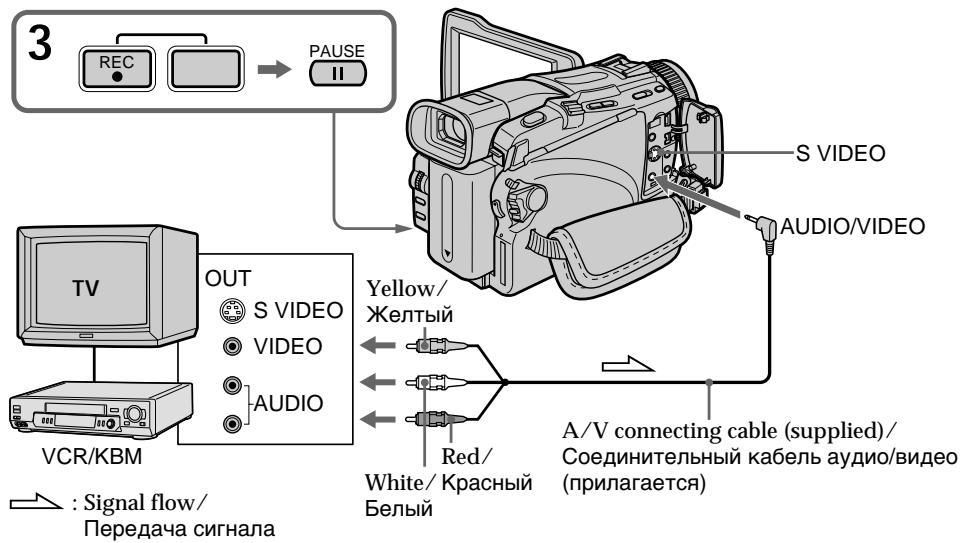
When you have finished dubbing a tape
Press on both your camcorder and the VCR.
Note
Your camcorder only records pictures for viewing on a PAL system based TV and VCR.
See "Using your camcorder abroad" on page 280 for the TV colour systems used in each country and area.
If your VCR or TV is a monaural type
Connect the yellow plug of the A/V connecting cable to the video output jack and the white or the red plug to the audio output jack on the VCR or the TV. When the white plug is connected, the left programme position audio is recorded, and when the red plug is connected, the right programme position audio is recorded.
If your TV or VCR has an S video jack
Pictures can be reproduced more faithfully by using an S video cable (optional).
With this connection, you do not need to connect the yellow (video) plug of the A/V connecting cable.
Connect an S video cable (optional) to the S video jacks of both your camcorder and the TV or VCR. This connection produces higher quality DV format pictures.
Korda Bby 3aKoHcNl nepe3aNc6 leHTbl
HaxmTe KhONKy nHa BaSei BnDeokamepe, nHa KBM.
PpmeaHne
BaSHA BnDEOKaMepa 3aINCbIbAeT N3O6paJxHnra TOnbKO DnI npocMToPa Ha TB n KBM Ha OCHOBe CnCTeMb PAL.Cm. pa3dEIN "VcNoJIb3ObaHne BaWe BnDEOKaMepbI 3a py6exOM"Ha cTp.280 DnI ONpeJeHnRA, KaKNe CnCTeMb IcBeTHoro TeJIeBnDEHnRA INoJIb3yIOTcB Pa3HbIX CTpaHax n pernohax.
EcJn BaW KBM uJN TeJeBn3Op MOHOFOHnueCKORO Tnna
IoiDCoeDHHTe JKeIbIy IwTeKep
coeDInHITeBHOrO Ka6EJIa ayDIOo/BuJeO K
BbIXODHomy BnDeOOrHe3dy, a 6BeJIu INI
KpaCHbI yTEKeP K BbIXODHomy ayDIOOrHe3dy Ha
KBM uIN TeJebN3ope. EcNI IOdCOeDHN
6eJIbI yTEKeP,TO BbIXODHbIM ayDIOOCIRHaON
6yDet 3Byk JeBOrO KAHaNA, a ecNI
IODcoeDInHcKpaCHbI yTEKeP,TO BbIXODHbIM
ayDIOOCIRHaJOM 6yDet 3Byk npaBOr KOHaNA.
EcIn B BaWeM TeJeBn3ope nI KBM IMeeTc rHe3do S Bvdeo
Using the i.LINK cable (DV connecting cable)
Simply connect the i.LINK cable (DV connecting cable) (optional) to DV IN/OUT jack on your camcorder and to DV OUT of the DV products. With a digital-to-digital connection, video and audio signals are transmitted in digital form for high-quality editing.
(1) Insert a blank tape (or a tape you want to record over) into your camcorder, and insert the recorded tape into the VCR.
(2) Set the POWER switch to VCR on your camcorder.
(3) Press REC and the button on its right simultaneously on your camcorder, then immediately press on your camcorder.
(4) Press on the VCR to start playback. The picture to be recorded appears on the screen.
(5) Press on your camcorder at the scene where you want to start recording from.
IcnoJb3ObaHne Ka6eJI i.LINK (coeHNHTeJIbHOro Ka6eJIaΦpOBOro BnDeocnHaJa DV)
IpocTo noDCoeHNHTe Ka6bI i.LINK (coeHNHTeHbHbIK Ka6bI uΦpOBOr BnDEOCnHaJa DV) (npno6peTaetc OTeNbHO) K rHe3dy Dv IN/OUT BaWe BnDEOkamepbl n rHe3dy DV OUT cPpOBbIX BnDeoN3dEIn. Ppi cPpO-cPpOBom CoeHNHeHN BnDeo- ayDnOCnHaJIpePaIOCTB CnCpPOBoI φOpMe DnBaICOKKaueCTBeHHORo MOHTaJa.
(1)YcTaHOBInTe YmCTyIOJeHTy (JINJeHTy, KOTOpYIO BbI XOTnTE nepe3aNtCaTb) B BaUy BnDEOkAmepy, IN yCTaHOBInTe 3aNtcaHHyIO JeHTy B KBM.
(2)Установские посяклоуат几乎所有 Вашиевскамец в положене VCR.
(3)Оновременho haKmTe Ha BaSei BnDeokampe KhoNky RECи KhoNky Cnpaba OTHHe, a 3aTeM HeMeIeHNo haxmTe KhoNky IHa BaSei BnDeokampe.
(4)HaxMMTe KhoNky ▷ Ha KBM Дян haayana BocnpOn3BVeDEHn.ИЗбрахжHe, KOTope 6yDet 3aIINcblBaTbCra, NOBbTcHа 3KpaHe.
(5) HaxmTe KhoNky Ha BaSei BIneokampeB 3n3OJe, c KOtOpRo Bbl XOTNe Haayatb3aINCb.
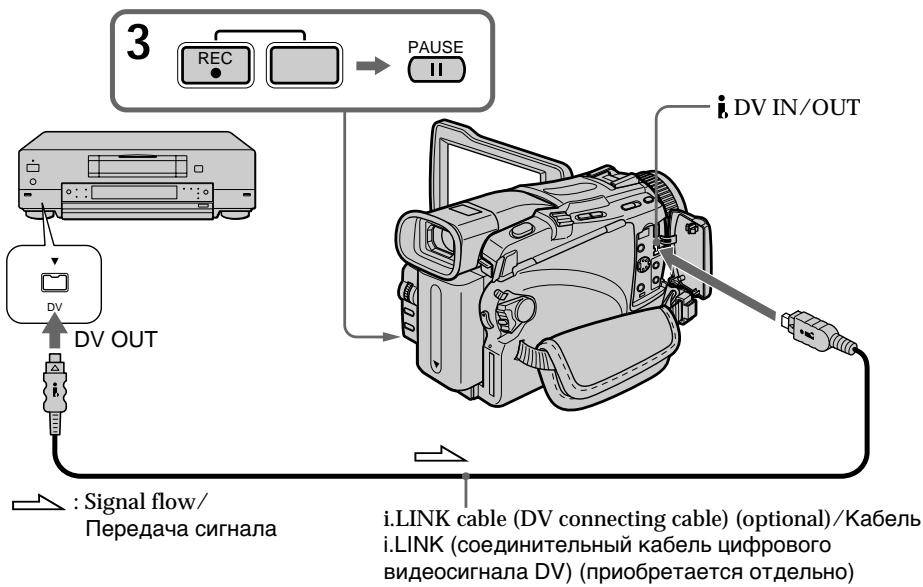
When you have finished dubbing a tape
Press on your camcorder, and then press the stop button on the VCR.
You can connect one VCR only using the i.LINK cable (DV connecting cable).
When you dub a picture in digital for
The colour of the display may be uneven.
However, this does not affect the dubbed picture.
If you record the playback paused picture with the DV IN/OUT jack
The recorded picture becomes rough. When you play back the picture using your camcorder, the picture may jitter.
Before recording
Make sure that the DV IN indicator appears on the screen. The DV IN indicator may appear on both equipment.
Korda Bbl 3aKoHnIIn nepe3anncb JeHTbl
HaxmTe KhoNkY Ha BaSei BnDeokAmpe, a 3aTeM HaxmTe KhoNkY ocTaHOBKn Ha KBM.
BbMOxKTe NOcOeINHtB TOJIbKO OINH KBM, nCNoJIb3yra Ka6eIb i.LINK (coeINHteJIbHbI Ka6eIb cIuΦpOBOrO BnDEocRHaHa DV).
Bo Bpem IpeepaIncn 306paXeHnB CnppoBoI pOpme
LbetaHa 3KpaHe MoryT 6bItb pa3MbITbIMN.
Tem He MeHee, 3TO He IOBJIaReT Ha nepe3aIncAHoe N3O6paXKeHne.
EcIn Bbl 3aannneTe n3o6paXeHne BO Bpemnay3bl Bocnpon3BeHnna Ype3 rHe3do i, DVIN/OUT
3aHncaHHoe n3o6paXeHne cTaHeT HeYeTKmM.
Korda Bbl 6yTe BoCnpOn3BODntb
n3o6paXeHHe, nCnoJIb3yBaWBy BnDeOkamepy, n3o6paXeHHe MoKeT nOpaRnBaTb.
Ipeed hauajom 3aHncs
Y6eIntecb, yTO INdkaTop DV IN NOBnIcH a 3kpaHe. INdkaTop DV IN MoKeT NOBnIbC H o6oix yCTpoIcTBax.
Inserting a scene from a VCR - Insert Editing
BcTaBka ən3Oda C KBM - MoNTaJb BcTaBKn
- DCR-TRV25E/TRV27E/TRV116E/ TRV118E only
You can insert a new scene with sound from a VCR onto your originally recorded tape by specifying the insert start and end points. Use the Remote Commander for this operation. Connections are the same as on page 119 or 121. Insert a cassette containing the desired scene to insert into the VCR.
-Только модаел DCR-TRV25E/TRV27E/TRV116E/TRV118E
Bb moKeTe BCTaBnTb HObI 3n3oD CO 3ByKOM c KBM Ha BaWy nepBoHauaJIbHo 3aIncAHHyIO JeHTy, yKa3aB NaHaJIbHyIO KoHeuHyTOUKn BCTaBKn. IcNoJIb3yIte dJa 3ToI onepaunn NylbT nCTaHUnOHHO ynpabJeHnR.
[A]: A tape that contains the scene to be superimposed
[B]: A tape before editing
[C]: A tape after editing
(1) Set the POWER switch to VCR on your camcorder.
(2) On the connected VCR, locate just before the insert start point [a], then press to set the VCR to the playback pause mode.
(3) On your camcorder, locate the insert end point [c] by pressing or . Then press to set your camcorder to the playback pause mode.
(4) Press ZERO SET MEMORY on the Remote Commander. The ZERO SET MEMORY indicator flashes and the end point of the insert is stored in memory. The tape counter shows "0:00:00."
[A]:Лentасэпзобом,KOTOPьбудET haKJaIbIbA TbCBa
[B]:Лента до монтжа
[C]:ЛeHTa nOcIe MOrTaJa
(1)YctaHOBInTe nepeKInHouaTeJIb POWER Ha BaWei BnDeOkaMepe B noJIOXeHne VCR.
(2)Ha noDcoeDInHeHHom KBM onpeDeIte MeCTOnOJIOXeHne kak pa3 nepeI hauaJIbHOI TOUKO BCTABKn [a], a 3aTeM haxmITE KHOKNI I I JnycTaHOBKn KBM bpeXIM nay3bl BOCnPON3BeDeHnI.
(3)Ha Baue BnDeokamepe onpeJeIte MeCTOnOLOXKeHne KOeHuOH TOcKu BCTaBKn [c], Haxab KHOIpKy 4 nII 3aTeM hAXMITE KHOIpKy I dny yCTaHOBKn Bauei BnDeokamepbb B pexm npay3bl BOCppon3BeDEHn.
(4)HaxmTe KhoNky ZERO SET MEMORY Ha
IyIbTe IncTaHcHOnHOro ynpaBLeHn.
IHydIkatop ZERO SET MEMORY 6ydet
MraTb,И KOHeuHa TOfKa BCTaBkIn
COxpaHntC8ВЯmTn.CyeTqNK JeHTbl
Noka3bIbAet "0:00:00."
(5) On your camcorder, locate the insert start point [b] by pressing , then press REC and the button on its right simultaneously.
(6) First press on the VCR, and after a few seconds press on your camcorder to start inserting the new scene with sound. Inserting automatically stops near the zero point on the tape counter. Your camcorder automatically stops recording and the ZERO SET MEMORY is cancelled.
(5)Ha Bauei Bndeokampe onpeJeNTe MeCTOnIOJXeHHe NaaJIbHO TOpKN BCTaBKn [b], Haxmam KhoNky a, a3aTeM Haxmnte KhoNky REC n OndOBpemHo KhoNky cnpaba ot Hee.
(6)СачалнанжмтЕ кногКИHa KBM,a uepe3 HeckoIbKO cekyHД haxmTe KhoNkIy IHa Baew Bndeokampe dЯн hauana BCTaBKn HOBO 3nI3Oda CO 3ByKOM. BCTaBka ABTomatUneCKn OCTaHOBITcO kOLO HnyeBoI OTMeTKn HA cHTuKe JHeTbI. Baawa Bndeokampe aBtOMaTUnceckn ocTaHOBITe 3anIcB, a KOMaHnda ZERO SET MEMORY 6byetOTmeHeHa.
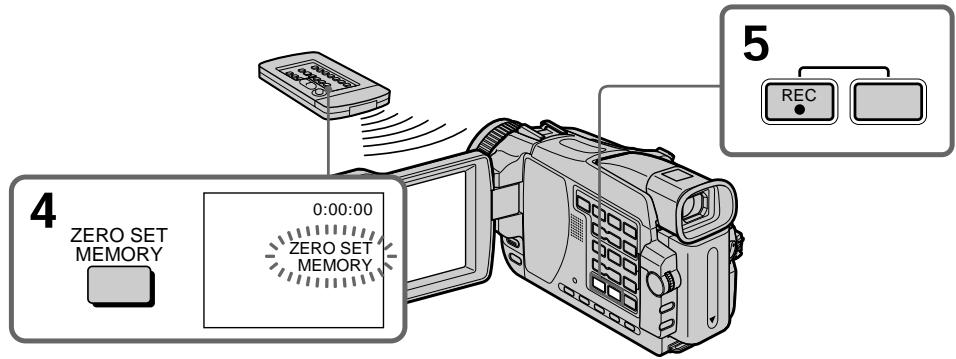
To change the insert end point
Press ZERO SET MEMORY again after step 5 to erase the ZERO SET MEMORY indicator and begin from step 3.
Note
Pictures and sound recorded on the portion between the insert start and end points will be erased when you insert the new scene.
If you insert scenes on the tape recorded on another camcorder
The pictures and sound may be distorted. We recommend that you insert scenes on a tape recorded on your camcorder.
When the inserted picture is played back
Pictures and sound may be distorted at the end of the inserted portion. This is not a malfunction. Pictures and sound at the start point and the end point may be distorted in the LP mode.
To insert a scene without setting the insert end point
Skip steps 3 and 4. Press on your camcorder when you want to stop inserting.
If you connect audio equipment, you can add sound to your recorded tape already recorded in the 12-bit mode by specifying the start and end points. The original sound will not be erased. Select one of the following connections to add audio.
Connecting the microphone with the MIC jack
HanoxeHne 3Byka
EcIn BbI noIDcoeHNHtE ayDIOaannapatypy, Bbl CMOXKeTe HAIoXKITb ayDIO3anncb Ha yKe 3aIIncAHHyO JeHTy B 12-6NIthom pexkme, yKa3ab HauaJIbHbIe I KOHeuHbIe TOckN. NcXoJHra ayDIO3anncb He 6yJeT cTepta. Bbl6epHTe OJHO n3 cIeDyUoixn POdCOeDINHeHn DnA HAIoXKeHn 3Byka.
You can check recorded picture and sound by connecting your camcorder to a TV with the A/V connecting cable.
Recorded sound is not output from the speaker.
Check the sound by using a TV or headphones.
BbMOKeTe KOHTpOJIPOBaTb 3aIncaHHOe
n3o6paXeHHe n 3ByK nyTem NOcOeDInHeHn
BaWei BnDeOkamepbI K TeLeBn3Opy C NOMOuBO
coEHNHTeJIbHOrKa6eJIra aydIO/BnDeo.
3aIncaHbHn 3ByK He nepeJaetc Ype3
akCyCTNueCKyU cNCTEmy.
KoHTpOJIpyIte 3ByK c NOMOuBo TeteBn3Opa
nIIN rONOBhIX TenefoHOB.
Connecting the microphone to the intelligent accessory shoe
IopcoeHHeHne MKNpOoHa K
dePkaTeJIIO dIy ycTaHOBKn
BCNOMORAteIbHbIX IpiHaIeXHoCTeI
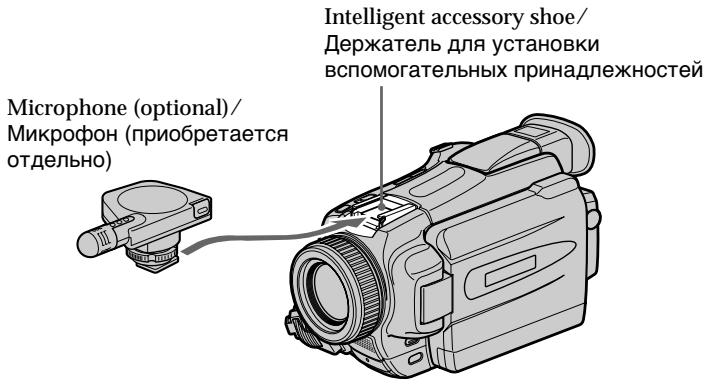
Dubbing with the AUDIO/VIDEO jack
- DCR-TRV25E/TRV27E/TRV116E/ TRV118E only
Dubbing with the built-in microphone
No connection is necessary.
Note
When dubbing with the AUDIO/VIDEO jack* or the built-in microphone, pictures are not output through the SVIDEO jack or the AUDIO/VIDEO jack. Check the recorded picture on the screen. You can check the recorded sound by using headphones.
If you make all the connections
The audio input to be recorded will take precedence over others in the following order:
- MIC (PLUG IN POWER) jack
- Intelligent accessory shoe
-
AUDIO/VIDEO jack*
Built-in microphone -
DCR-TRV25E/TRV27E/TRV116E/TRV118E only
Hanoxehne 3Byka c nOmozbu BcTpoEHoro MnkpofoHa
HnkaKnx nOcOeDInHeHn He Tpe6yeTcA.
PpmeaHne
Прин haLoXKeHn 3Byka c nCNoIb3OBoHnEm rHe3da AUDIO/VIDEO* nII IN BCTpoEHHoro MmKpOfoHa n3o6paXeHnЯYepe3 rHe3do S VIDEO nII rHe3do AUDIO/VIDEO He nepeDaIoTc. KoHTpOJIpyIte 3aIncaHnoe n3o6paXeHne Ha 3kpaIe. Bbl MoKeTe KOHTpOJIpyOBaTb 3ByKOBOI CnIHaJI C NOMOuBIO rOLOBhIx TelefoHOB.
Ecnn BbI BbINOJIHnTe BCE NOcOeINHeHnA
3aINcBbAeMbI BxOJHoi ayDnOcRHaJI 6yJeT DOMHNPOBaTb HaI OCTaJIbHbIMN B CNeJyUoSeI NOcNEoBOATeJIbHOCTN:
- ΦHe3До MIC (PLUG IN POWER)
-Держателдя установки BCNOMORAteьньх npинадпжноcteи - Геоз AUDIO/VIDEO*
-
BCTpoeHHbI MmKpOΦOH
-
Tôлько модал DCR-TRV25E/TRV27E/ TRV116E/TRV118E
Adding audio on a recorded tape
Choose a connection described on the previous pages, and connect audio equipment or microphone to your camcorder. Then follow the procedure below.
(1) Insert the recorded tape into your camcorder.
(2) Set the POWER switch to VCR on your camcorder.
(3)Locate the recording start point by pressing. Then press at the point where you want to start recording to set your camcorder to the playback pause mode.
(4) Press AUDIO DUB. The green indicator appears on screen.
(5) Press on your camcorder and start playing back the audio you want to record at the same time.
The new sound is recorded in stereo 2 (ST2) during playback. During recording new sound, the red appears on the screen.
(6) Press on your camcorder at the point where you want to stop recording.
HaIoxeHne 3Byka Ha yXe 3aIncAHyIO JeHTy
Bb6epnte noDCoeDnHeHne, onncanHoe Ha npEbyduuxxCtpaHuaX npoCcoEHNHTe aynoaapanapaTy nnMknpofoN K Bawe BnDeokamepe. 3aTeM BblonHnTe npnbdeEHHyo HnKx pOueDpy.
(1)Установпто заимсанно Ленив Ваши Видаокамеру.
(2)Установские посяклоуатль POWER на Ваший видаокамеь в положене VCR.
(3)OnpeDenTe ToKy hauana 3aIncn nytem HauKaTIN KHONKNI ▶.3aTEM HauKMITE KHOKNY B TOKe, B KOToPoi Bby XOTNe HauaTb 3aNcB, YTO6b yCTaHOBtB BaUy BInDeOKaMepy B peKIM nay3bl BOCppon3BeDEHNIA.
(4)HaxmTe KhoNky AUDIO DUB .Ha 3KpaHe NOBNTc3eJeHbI INdNKaTOp II.
(5)Haxmnte KhoNkU Ha BaWei BndeOkaMepe, n OndHOpeMeHHo HauHnTe BocPon3BeDeHne ayDnO3aIncn, KOtopyIO BblXOTnTe 3aIncatb.
Hobar ayDIO3aNc6b 6yTeT 3aIncHa B CTpeoOFOHnueckOM pexIme 2 (ST2) BO BpemB BOCPPOIN3BeDEHn.Bo BpemB 3aIncn HOBOI ayDIO3aNcHn Ha 3kpaHe nOBJIReTcKpaCHi INIDKATOP
(6)HaxmTe KhoNky Ha BaWei BnDeokampe B TOUKe, B KOtOpoi BbXOTNe OCTaHOBNTb 3aIINCb.
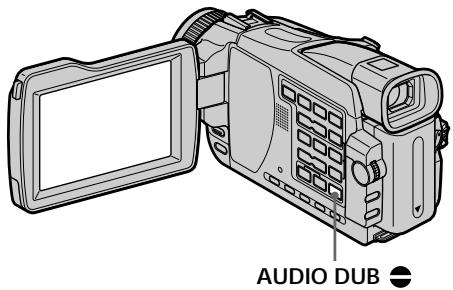
To add audio more precisely
Press ZERO SET MEMORY on the Remote Commander at the point where you want to stop recording later in the playback mode.
Carry out steps 3 to 5. Recording automatically stops at the point where ZERO SET MEMORY was pressed.
ДлбболгпToCHOrH NaIIOXeHnA 3Byka
HaxMnte KhoNkY ZERO SET MEMORY Ha
nyIbTe DnCTaHcUOnHOrO UnpaBLeHnB T OTOKe, B
KOTOpO Bbl N03dHee XOTnTe OCTaHOBnTb
3aINCb B pexmE BOCpON3BeDeHnI.
BbINOJIHnTe DeIcTBnI NyKtOB c 3 no 5. 3aINCb
aBTOMaTIuCeKn OCTaHOBnTCr B TOUKe, B
KOTOpO 6yJeT haxaTa KhoNkA ZERO SET
MEMORY.
Monitoring the new recorded sound
(1) Play back the tape on which you added audio.
(2) Press MENU, then select AUDIO MIX in ^1 / ^2 with the SEL/PUSH EXEC dial (p. 236).
KoHTpOJInpOBaHne BHOBb 3aIncAHHOrO 3Byka
(1)HaunHe BocpnOn3BeDeHne JeHTbI,Ha KOTopyo BbHaJNOxKInn O3ByuHBaHne.
(2)HaxmTe KhoNky MENU,a 3aTeM BbI6epnte onuio AUDIO MIXB 工 ^ 心 / ( 工 ^ 心 ) ^ 心 c nOMOsbIO dNcKa SEL/PUSH EXEC (ctp. 245).
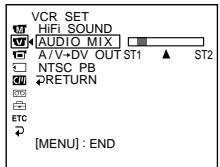
(3) Turn the SEL/PUSH EXEC dial to adjust the balance between the original sound (ST1) and the new sound (ST2), then press the dial.
Five minutes after you disconnect the power supply or remove the battery pack, the AUDIO MIX setting returns to original sound (ST1) only. The default setting is original sound only.
Notes
- New audio cannot be recorded on a tape already recorded in the 16-bit mode (32 kHz, 44.1 kHz or 48 kHz).
- New audio cannot be recorded on a tape already recorded in the LP mode.
- You cannot add audio with the AUDIO/VIDEO OUT jack.*1)
- You cannot add audio with the , DV OUT ^1) or DV IN/OUT ^2) jack.
- You cannot add audio on the blank portion of the tape.
If an i.LINK cable (DV connecting cable) (optional) is connected to your camcorder You cannot add audio to a recorded tape.
We recommend that you add audio on a tape recorded with your camcorder
If you add audio on a tape recorded with another camcorder, the sound quality may become worse.
If you set the write-protect tab of the cassette to lock
You cannot record on a tape. Slide the write-protect tab to release the write protection.
^*1) DCR-TRV16E/TRV18E/TRV24E only
^2) DCR-TRV25E/TRV27E/TRV116E/TRV118E only
BbI He MoXeTe HANOIXt b O3ByuBaHne Ha yXe 3aNcAHyIO JeHTy.
PekomeHnyetcHaKlaNbIbIbTbO3ByuBaHne HaJeHTy,3aNcAHHyoHaBawe BnDeOkamepe
EcIn BbHaLoXnTe O3ByuHbAHne HaJeHTy, 3aNcHHyO Ha DpyroB BuDeOkAmepe, KaYeCTBO 3ByKOBO CrHana MoKet yxuDunTbcra.
EcInn Bby yctaHOBtne JeneCTOK 3auNTbI OT 3anncn B noLOXeHne 6JOKuPOBKn JeHTbl
BbI He CMOXeTe BblINOHNbT 3aNcB HaJeHTy.
PipeDbHbTe IneNecToK 3aunbTbI OT 3anncn,
YTO6bI ChrTB 3aunTyOT 3anncn.
^*1) ToIbKO moIeNDCR-TRV16E/TRV18E/TRV24E
^2) ToIbKO moJeN DCR-TRV25E/TRV27E/ TRV116E/TRV118E
Superimposing a title
CM only
If you use a tape with cassette memory, you can superimpose the title. When you play back the tape, the title is displayed for five seconds from the point where you superimposed it.
HanoxeHne TnTpa
CM only
PnncnoB3OBAHNJeHbIC KACCETHO
namrBb Bb MoKeTe BblNOHrtb
hanoXeHne TITpa.Pn
BOcnpo3BeDeHnJeHTb TITp 6ydt
OTo6paKaTbCBy TeueHne PAnCeKHyD,
NaHnHa CTOckB KOTOp0B bI erO
hanoXuHn.

(1) In the recording, standby mode, playback or playback pause, press MENU, then select TITLE in with the SEL/PUSH EXEC dial.
(2) Turn the SEL/PUSH EXEC dial to select , then press the dial.
(3) Turn the SEL/PUSH EXEC dial to select the desired title, then press the dial. The title flashes.
(4) Change the colour, size, or position, if necessary.
① Turn the SEL/PUSH EXEC dial to select COLOUR, SIZE or POSITION, then press the dial. The selected item appears.
② Turn the SEL/PUSH EXEC dial to select the desired item, then press the dial.
③ Repeat steps ① and ② until the title is laid out as desired.
(5) Press the SEL/PUSH EXEC dial again to complete the setting.
In the recording, playback or playback pause mode:
The TITLE SAVE indicator appears on the screen for five seconds and the title is set. In the standby mode:
The TITLE indicator appears. When you press START/STOP to start recording, TITLE SAVE appears on the screen for five seconds, and the title is set.
(1)В рекиme заиси, окаданя, BOCPON3BVeDEHЯ Или пay3bl BOCPON3BVeDEHЯ,нжмITE кноку MENU, 3aTeM BbI6eRte onuTO TlE T B c nomoцьdo dinca SEL/PUSH EXEC.
(2)ПовернiteДСК SEL/PUSH EXEC ДЯ
Выбopa onци [ ] , a 3aTeM haЖмITEДСК.
(3)ПовернITE диСК SEL/PUSH EXEC ДЯ
Быбора hyжно ТИТра, a 3aTeM наЖмпЕ
ДИСК. ТИТр 6удET мИгать.
(4)Измени Teцет,размер Или полженье TИТра, eclin Нхно.
① ПовернITE диСК SEL/PUSH EXEC дяьбoga onци COLOUR, SIZE и position, a 3aTeMuHaXmITE dIck.Повится COOTBETCTByOuzaЯ onця.
② ПовернITE диСEL/PUSH EXEC ДЯ Вьбopa hyжно onци, a 3aTeM haЖмITE dИСК.
③ Повторгейtenунков们 ① n ②do TeXnop, noka TnTp He 6ydeT paCnoIOnKeH TaK, KaK HxKHO.
(5)HaxmTe DnCK SEL/PUSH EXEC eue pa3 dIy 3aBepeHnY yCTaHOBKn.
BpeKIme 3aIINcN, BocnpOn3BeDeHnR nnn nay3bl BocnpOn3BeDeHnR:
ИндикатOP TITLE SAVE noRbntcHa 3KpaHe Ha nTb cekyHd, n TnTp 6ydt yCTaHOBJIeN.
Bpexime oXnidaHnA:
If you set the write-protect tab of the cassette to lock
You cannot superimpose or erase the title. Slide the write-protect tab to release the write protection.
To use a custom title
If you want to use a custom title, select in step 2.
If the tape has a blank portion
You cannot superimpose a title on the portion.
If the tape has a blank portion between recorded portions
The title may not be displayed correctly.
Titles superimposed with your camcorder
- Titles are displayed by only the DV ^Mini DV format video equipment with an index titer function.
- The point you superimposed the title may be detected as an index signal when searching a recording with other video equipment.
If the tape has too many index signals
You may not be able to superimpose a title because the cassette memory becomes full. In this case, delete unwanted titles.
EcIn Bbl yctaHOBtJe IeneCTOK 3aunTbI 3aHcN Ha KaccTe B NIOLOXeHne 6JOKUPOBKn
BbHe CMOXeTe BbIPOHNbHaIOXeHne NnN CTupaHne THTpa.IpeDbINbTe IeneCTOK 3aunbToT 3aUNCS, YTOb6b CHrTb 3aunTy O 3aUNCS.
Set TITLE DSPL to OFF in the menu settings (p. 239).
Title setting
- The title colour changes as follows: WHITE YELLOW VIOLET RED CYAN GREEN BLUE
- The title size changes as follows:
SMALL LARGE
You cannot input 13 characters or more for a LARGE size. If you input more than 12 characters, the title size returns to SMALL even if you select LARGE. - If you select the title size SMALL, you have nine choices for the title position.
If you select the title size LARGE, you have eight choices for the title position.
One cassette can have up to about 20 titles, with each title comprising five characters. However, if the cassette memory is full with date, photo and cassette label data, one cassette can have only up to about 11 titles each comprising five characters.
Cassette memory capacity is as follows:
- Six date data (maximum)
- 12 photo data (maximum)
- One cassette label (maximum)
If the "FULL" mark appears
The cassette memory is full. Erase unwanted titles.
YtO6bI He OTo6paKaTb TnTpbl
YcTaHOBnTe OIuHIO TITLE DSPL B yCTaHOBkax MeHIO B IIOJoxKeHne OFF (ctp. 248).
Hactpoika TnTpa
- Lbet TnTpa n3MeHReTcra cNeDyUOuMM o6pa3oM: WHITE (6eIbI) YELLOW (xEeTbI) VIOLET (fnoJeToBbI) RED (KpaChbI) CYAN (rOly6oI) GREEN (3eJeHbI) BLUE (CnHnI)
- Pa3mep TnTpa n3MeHReTcR cJeDyUoUIM o6pazom: SMALL (MaIeHbKn) LARGE (6oJIbwoi) Bbl He moKeTe BBecTn 13 CmBBoJOB nJIn 6oJee dJa pa3mepa TnTpa LARGE. EcIn Bbl BBeJeTe 6oJee, Yem 12 CmBBoJOB, pa3mep TaTPa BepHeTcK SMALL, daXe ecNl Bbl BbIepeTe LARGE.
- EcIn Bbl bIbepeTe pa3mep Tntpa SMALL, Bbl cMOxKeTe BblbpaTb OndHO n3 DeBArTu noLoXeHn Tntpa. EcIn Bbl bIbepeTe pa3mep Tntpa LARGE, Bbl cMOxKeTe BblbpaTb OndHO n3 BOCbMn noLoXeHn Tntpa.
Ha oHoi KaCCTe MoKET CoDEpKaTbCnPIMePHo Do 20 THTPOB, No PANTb CmMBOLOB B KAKDOM THTpe
Ondako ecn Kaccetna NaMaTb 3aNoJIHeHa DaHHbIMn DaT, FOToCHMKB O KACCtHOI MeTKN, Ha OJHOi KaccTe MOKeT COePjXaTbcr npImepHo Do 11 TntPoB, No PAnTB CmMBONOB B KaKdOM.
Bmectmoctb kaccetHOJnAMrTn:
EcnnnoBnCTcMeTKa"FULL
KaccetHa namTb 3aONHeHa. COTpTe HeHyXHbIe TITpbI.
Erasing a title
(1) Set the POWER switch to CAMERA or PLAYER^1 / VCR^2 .
(2) Press MENU, then select TITLEERASE in with the SEL/PUSH EXEC dial (p. 239).
(3) Turn the SEL/PUSH EXEC dial to select the title you want to erase, then press the dial. ERASE OK? indicator appears.
(4) Make sure that the title is the one you want to erase, and turn the SEL/PUSH EXEC dial to select OK, then press the dial. OK changes to EXECUTE.
(5) Turn the SEL/PUSH EXEC dial to select EXECUTE, then press the dial. ERASING flashes on the screen. When the title is erased, COMPLETE is displayed.
^*1) DCR-TRV16E/TRV18E/TRV24E only
^2) DCR-TRV25E/TRV27E/TRV116E/TRV118E only
CTpapanHe TnTpa
(1)Установпейсякючateь POWER в положене CAMERA улл PLAYER ^1 /VCR ^2 ).
(2)HaxmTe KhoNky MENU, a 3aTeM BbI6epnTe onuTIO TITLEERASE B peXmE C nOmoUbIO dNcKa SEL/PUSH EXEC (ctp.248).
(3)ПовернITE ДСК SEL/PUSH EXEC ДЯ
Быбopa ТИТра, КOTOPь Bы XOTITE CTЕРТь,
a 3aTeM НЖМITE ДСК. ПОВВТСА
ИнДИКаTOP ERASE OK ?..
(4)Y6eIntecb, YTO BblbpaH IMMeHNO TOT TnTp, KOtOpBb Bbl XOTnTe CtepeTb, NOBepHnTe DnCK SEL/PUSH EXEC dIy Bblbopa OIuIN OK,a 3aTEM HaxMnTE nck. INHnKaun OK CmEHNTc HnDnKaun EXECUTE.
(5)ПовернITEДСКSEL/PUSH EXECДЯ
БыбogaОпцИExecUTE,a3aTeMнжмITE
ДССК.
HaЗкpane6удETМигатиИнДиKaцИЯ
ERASING.Ecni THTp6удETCTeRT,Ha
Дисрлee NOBHTCry ИнДиKaцИЯ COMPLETE.
^*) Tolbko moJeN DCR-TRV16E/TRV18E/ TRV24E
^2) ToIbkoMoJeN DCR-TRV25E/TRV27E/ TRV116E/TRV118E
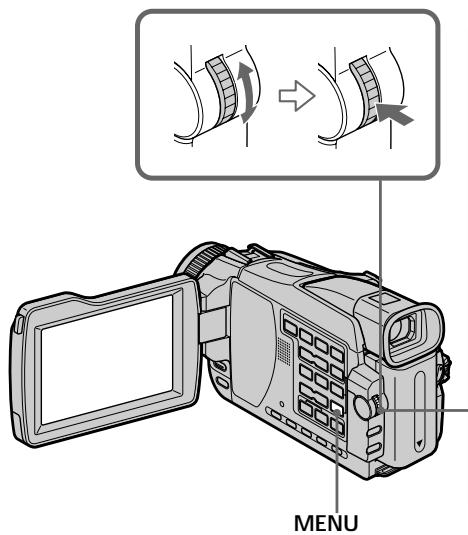
2
CM SET TITLE TITYERASE TITLE DSPL CM SEARCH 4TAPE TITLE ERASE ALL
RETURN
ETC
2
TITLE ERASE
1.HELLO!
2 CONGRATULATIONS!
3.HAPPY NEW YEAR
4. PRESENT
5. GOOD MORNING
6. WEDDING
3
TITLE ERASE
1 HELLO
2 CONGRATULATIONS!
3 HAPPY NEW YEAR!
4 PRESENT
Making your own titles
You can make up to two titles and store them in the memory of your camcorder. Each title can have up to 20 characters.
(1) Set the POWER switch to CAMERA or PLAYER^1 / VCR^2 . Press MENU, then select TITLE in with the SEL/PUSH EXEC dial (p. 239).
(2) Turn the SEL/PUSH EXEC dial to select , then press the dial.
(3) Turn the SEL/PUSH EXEC dial to select CUSTOM1 SET or CUSTOM2 SET, then press the dial.
(4) Turn the SEL/PUSH EXEC dial to select the column of the desired character, then press the dial.
(5) Turn the SEL/PUSH EXEC dial to select the desired character, then press the dial.
(6) Repeat steps 4 and 5 until you have selected all characters and completed the title.
(7) To finish making your own titles, turn the SEL/PUSH EXEC dial to select [SET], then press the dial.
(8) Press MENU to make the title menu disappear.
^*1) DCR-TRV16E/TRV18E/TRV24E only
^*2) DCR-TRV25E/TRV27E/TRV116E/TRV118E only
Co3dahne BaushxCo6CTBeHHbIX THTPOB
BbMOxTe CO3daTb Do DByx TnTPOB n CoXpaHnTB Nx BnamrTaBaSeBnDeokamepbI. KaKdbn TnTp MoKet CoepKaTb Do 20 CmBOJOB.
(1)Установпейреклioчateь POWER b
ноложене CAMERA уи PLAYER*1)/VCR*2).
HжмITE кногку MENU, a 3aTeM Быберпe
оцию TITLE в ржиме @с с пошью
дисka SEL/PUSH EXEC (ctp. 248).
(2)Повернite ДИСК SEL/PUSH EXEC ДЯ
Выбopa onци [D], a 3aTeM HaЖМЛТЕ ДИСК.
(3)Повернite ДИСК SEL/PUSH EXEC ДИВьбopa onци Custom1 SET ИNCustom2 SET, a 3aTeM нажмITE ДИСК.
(4)ПовернITE ДИСК SEL/PUSH EXEC ДЛЯ
Выбopa КОЛОНКИ C HYЖHBIM CИМBOЛOM, a
3aTeM НЖМITE ДИСК.
(5)ПовернITE ДИСК SEL/PUSH EXEC ДЯ
Быбopa НУЖНО СИМВОЛа, a 3aTeM наЖМТЕ
ДИСК.
(6)ПОВТОРУЕ ДЕИСТВИ NGHКТOB 4и 5doTExnop, noka Bbl He BblBepete BCE CIMBOJIbI INONHOCTbIO He COCTABUte TITp.
(7)ДЯЗавершени COCTaBJIENH CBOIX CO6CTBeHHbIX TITPOB NOBepHNTE INCK SEL/PUSH EXEC ДЯ Вьбopa KOMaHdbI [SET], a 3aTeM HauKMITE INCK.
(8)Haxmnte KhoNky MENU, YTO6bI MeHIO TnTpoB Ncye3No.
^*1) ToIbKO MoJeI N DCR-TRV16E/TRV18E/ TRV24E
^2) ToIbko moJeN DCR-TRV25E/TRV27E/ TRV116E/TRV118E
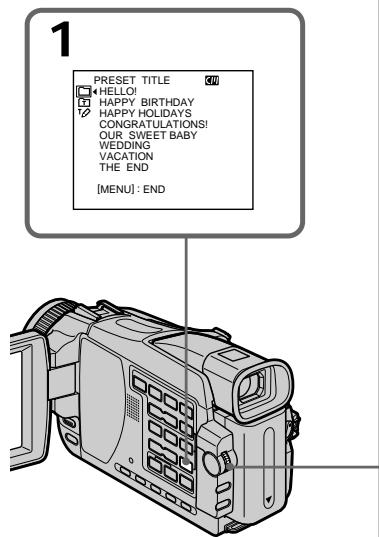
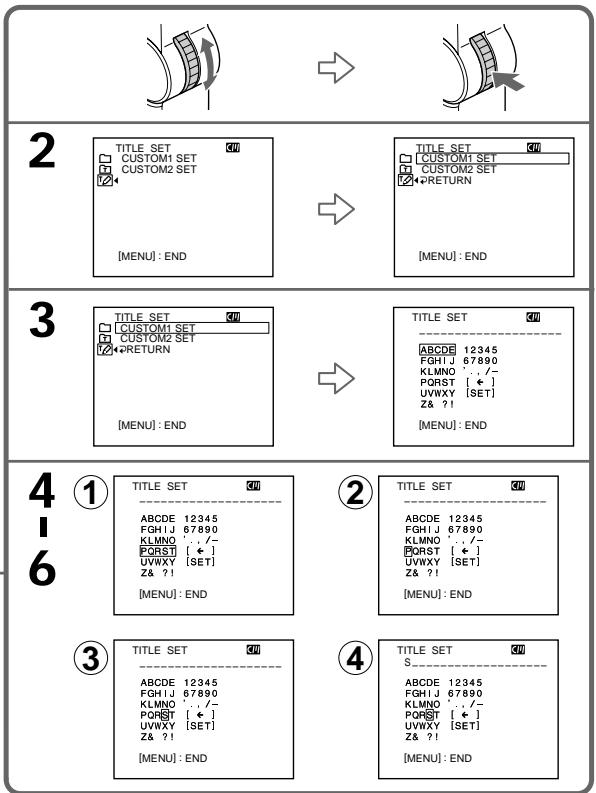
To change a title you have stored
In step 3, select CUSTOM1 SET or CUSTOM2 SET, depending on which title you want to change, then press the SEL/PUSH EXEC dial. Turn the SEL/PUSH EXEC dial to select [] , then press the dial to delete the title. The last character is erased. Enter the new title as desired.
ДлгиИЗмeнгь coхpaHeHHoro Bamn Tntpa
PnBbINOHHeHn DeiCTBn NyKtA 3 BbIepeNte yctaHOBky CUSTOM1 SET nIN CUSOM2 SET, B 3aBNCMIOCTn OT TnTpA, KOToBPb BbXoTne n3MeHNtB, a 3aTeM HaxMnte DnCK SEL/PUSH EXEC. NObepHnTe DnCK SEL/PUSH EXEC dJa BblOpa OIIu [<], a 3aTeM HaxMnte DnCK dJa ydaJIeHnra TnTpA. IocJeHnCmBOJ 6yDet cTept. BBeDnTe HObBI TnTp PO JeNaHIO.
If you take five minutes or longer to enter characters in the standby mode while a cassette in your camcorder
The power automatically goes off. The characters you have entered remain stored in memory. Set the POWER switch to OFF (CHG) once and then to CAMERA, then proceed from step 1.
We recommend setting the POWER switch to PLAYER^1) / VCR^2) or removing the cassette so that your camcorder does not automatically turn off while you are entering title characters.
1) DCR-TRV16E/TRV18E/TRV24E only
^2) DCR-TRV25E/TRV27E/TRV116E/TRV118E only
To delete the title
Select [ ] . The last character is erased.
To enter a space
Select [Z& ?!], then select the blank part.
Ecnn Bbl BBOINTE CUMBOJbI NITb MNHT NII 60JeeBpeKIme OXnDaHnB TO BpEmn, KOrda Ba7a kacceta haoDntcB BaWei BnDeokamepe
Питainede Выкншитса ABTomatueckn.
CIMBOJbl, KOtOpbIe Bbl BBEnI, COxpaHrTcB namrtn.YctaHObInTe nepeKJIIOuHaTeJIb POWER b noIOXeHne OFF (CHG), 3aTem B noIOXeHne CAMERA, a 3aTEM haChnTe BblNOJIHeHne DeiCTBn C nyHKTa 1.
PekomEnyetycYcTaHOBnTb NpeKJIIOUaTeNb POWER B noIooKeHne PLAYER*1/VCR*2)nn BbInyTB KaccTeY, TTo6bl BaHaBaNdeOkaMepa aBTOMaTnueckn He BbIKIOUaJaCb BO BpEm BABoa CNMBONOB TnTpA.
^*1) ToIbKO moJeI N DCR-TRV16E/TRV18E/ TRV24E
^2) ToIbKO moJeN DCR-TRV25E/TRV27E/ TRV116E/TRV118E
Дудаленгтра
Bb6epnte onuio [].PocneHn cunboN 6ydt CTePT.
Длвьда npobena
Bb6epTe OIcIO [Z& ?!], a 3aTeM Bb6epTe NyCTyIO YacTb.
CM only
If you use a cassette with cassette memory, you can label a cassette. Labels can consist of up to 10 characters and are stored in cassette memory. When you insert the labelled cassette and set the POWER switch to CAMERA or PLAYER^1 / VCR^2 , the label is displayed for about five seconds.
(1) Insert the cassette you want to label.
(2) Set the POWER switch to CAMERA or PLAYER^1 / VCR^2 .
(3) Press MENU, then select TAPE TITLE in with the SEL/PUSH EXEC dial (p. 239). The tape title display appears.
(4) Turn the SEL/PUSH EXEC dial to select the column of the desired character, then press the dial.
(5) Turn the SEL/PUSH EXEC dial to select the desired character, then press the dial.
(6) Repeat steps 4 and 5 until you complete the label.
(7) Turn the SEL/PUSH EXEC dial to select [SET], then press the dial. The label is stored in memory.
(8) Press MENU to erase the menu display.
^1) DCR-TRV16E/TRV18E/TRV24E only
^2) DCR-TRV25E/TRV27E/TRV116E/TRV118E only
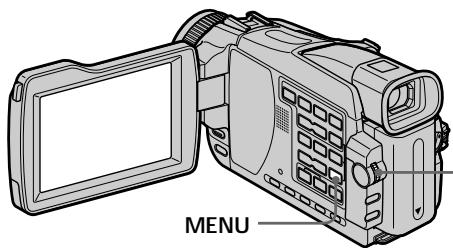
Mapknipobka kaccetbl
CM only
Пи ИСПОЛБЗOBAHИ N KACCETы C
KACCETHоI NaMЯтьIO Bb MoЖeTe
BbIПОЛНЯТь МарКИРовКу KACCETы.МeTKn
MOryT COdEрЖаТь ДО 10 CMMbONIOuN
COxPAnHЯТьСВ B KACCETHоI NaMЯтNs.Пи
BCTaBKe MAPKИРовАнHO KACCETы N
YcTaHOBKe NepeKJINoUaTeI POWER B
NNoJoxHeNe CAMERA nII N PLAYER*1/
VCR*2),MeTKa 6yДeT OTOбраЖаТьСВ
TeYeHne ПпIMeRHo nIЯТи SEKYHd.
(1)BcTaBbTe Kaccety,ДЯ KOTOpO Bby XOTnTe BblIOJIHITb MapKIpOBky.
(2)Установпейсяклочатуь POWER в поожене CAMERA уни PLAYER ^1 /VCR ^2 ).
(3)HaxmTe KhoNky MENU,a 3aTeM BbI6epnTe onuTO TAPE TITLE BpeXnme C nOoBIO nCkA SEL/PUSH EXEC (cTp.248). IOnBntCnHnKaunTnTpaJeHTbl.
(4)Повернite ДИСК SEL/PUSH EXEC ДЛВыбopa КОЛОНКИ C HYЖьIM CИМBOЛOM, a 3aTeM нажмITE ДИСК.
(5)Повернite ДИСК SEL/PUSH EXEC ДЯ
Быбopa НУЖНО СИМBOЛа, a 3aTeM наЖмITE
ДИСК.
(6)Повторгий Действа РНТВ 4и 5do tex nop,пoka Bbl He Bblберетe BCE CIMBOЛы IN NOHOCtBu He COCTaBHTe MEtKy.
(7)ПовернITE ДИСК SEL/PUSH EXEC ДЯ
Быбopa КOMанды [SET], a 3aTeM наЖмпт
ДИСК.
Метka 6удET COхраHeHa B namrTи.
(8)HaxmTe KhoIky MEnU, YTo6bl CtepeTb INDnKaUIO MeHO.
^*1) ToIbKO moIeN DCR-TRV16E/TRV18E/TRV24E
^2) ToIbko moJeN DCR-TRV25E/TRV27E/ TRV116E/TRV118E


3
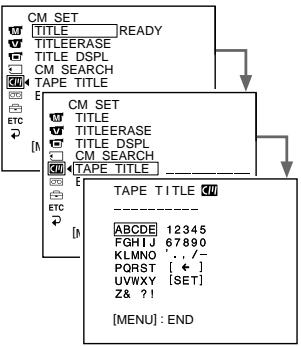
4-6
TAPE TITLE
ABCDE 12345
FGHIJ 67890
KLMNO
PQST[<]
UWXY [SET] 70-21
∠& ?!
TAPE TITLE
ABCDE 12345
FGHJ67890
KLMNO
PQRT[←]
UWXY 7821
2& ?
TAPE TITLE
ABCDE 12345
FGHIJ 67890
KLMNO ./
PQRST []
UVWXY 70-21
2& ?!
TAPE TITLE
M
ABCDE 12345
FGHIJ 67890
KLMNC
PQRST [ ]
UVWXY
Z& ?!
To erase the label you have made
In step 4 turn the SEL/PUSH EXEC dial to select [ ] , then press the dial. The last character is erased.
To change the label you have made
Insert the cassette to change the label, and operate in the same way to make a new label.
If you set the write-protect tab of the cassette to lock
You cannot label the tape. Slide the write-protect tab to release the write protection.
If the tape has too many index signals
You may not be able to label a cassette because the memory becomes full. In this case, delete data you do not need.
If you have superimposed titles in the cassette When the label is displayed, up to four titles also appear.
When the "-----" indicator has fewer than 10 spaces
The cassette memory is full.
"-----" indicates the number of characters you can select for the label.
To erase the character
Press [] . The last character is erased.
To enter a space
Select [Z&?] then select the blank part.
MapKupOBka KacceTbI
Длг STираннс co3dahnoi Bamn metkn
B nyHKTe 4 noBepHnTe DNCK SEL/PUSH EXEC ДЯ BByIbOpa OOnu [<], a3aTeM haxMnTe DNCK. Последни симвBoJ 6bydET cTePT.
BbI He CMOKTe BblIOJIHnITb MapKnIpOBky KacCEtbl, NockOJbKY nAMrTb CTaHET NOLHOCTbIO 3aONHeHHoB. B 3OM cIyue, ydaIInTe HeHyXhIe daHHIe.
EcIn Ha Kaccete NMeIOTcH HAnOKeHHbIe TnTpbl
EcInnHdNkATOp “----” coDeepKNT MeHee 10 npo6eIOB
KaccetHa nAMrTb 3aONHnlaacb.
Индikatop“----”уka3bBaet KOINueCTBO CnMBOJOB, KOTOpBle Bbl MoXeTe Bbl6paTb ДЯ MEtKN.
Длстураимснmbola
HaxmTe KhoNky [].PocneDnCnMBoN 6yJeT cTept.
ДЯ Ввда npo6ena
Bb6epTe OIcIO [Z& ?!], a 3aTeM Bb6epTe nyCTyIO YacTb.
Erasing all the data in cassette memory
You can erase all the data in cassette memory at once.
(1) Set the POWER switch to CAMERA or PLAYER^1 / VCR^2 .
(2) Press MENU, then select ERASE ALL in with the SEL/PUSH EXEC dial (p. 239).
(3) Turn the SEL/PUSH EXEC dial to select OK, then press the dial. OK changes to EXECUTE.
(4) Turn the SEL/PUSH EXEC dial to select EXECUTE, then press the dial. ERASING flashes on the screen. When all the data is erased, COMPLETE is displayed.
^*1) DCR-TRV16E/TRV18E/TRV24E only
^2) DCR-TRV25E/TRV27E/TRV116E/TRV118E only
To cancel deleting
Select RETURN with the SEL/PUSH EXEC in step 3 or 4.
CTnpaHne BCex DaHHbIX KaccTeHOI NaMAtN
BbMOKTe CTepeTb BCE DaHHbIe KAcCtHOni nAMrTn 3a Odn pa3.
You can easily record and playback images on the "Memory Stick" supplied with your camcorder. You can also do the following operations:
- Reading the image from the tape to the "Memory Stick" or from the "Memory Stick" to the tape
- Importing images recorded on your camcorder to your computer
- Deleting images, protecting images, placing a print mark onto images
On file format
Still image (JPEG)
Your camcorder compresses image data in JPEG format (extension.jpg).
Moving picture (MPEG)
Your camcorder compresses picture data in MPEG format (extension.mpg).
Typical image data file name
Still image
100-0001: This file name appears on the screen of your camcorder.
Dsc00001.jpg: This file name appears on the display of your personal computer.
Moving picture
MOV00001: This file name appears on the screen of your camcorder.
Mov00001.mpg: This file name appears on the display of your personal computer.
Исpenьзоване“Memory Stick”-ВveDEXe
-Kpome mopelej DCR-TRV16E/ TRV116E
BbMOKeTeJeKo BbINONHrTb 3aINCb IN BOCPOn3BeDeHne N3O6paXeHn Ha "Memory Stick", npJIraeMyIO K BaSei BIndeokamepe.
BbTaKxMe MoKeTe BbIOnHrTb CNeDyUOuNHe onepaun:
-CuHTbIbAHme n3O6paXeHnCJIeHTbIHa "Memory Stick" uIN C "Memory Stick" HaJeHTy.
-IMnpOpTnpoBaHne n3o6paXeHn, 3aIncaHbIX Ha BaWe BnDeokamepe, Ha BaW KOMNbHTep.
-YdaJIeHne n3o6paXeHn, 3aIHTa n3o6paXeHn,HaHeCehne 3HaKOB neYaTN Ha n3o6paXeHn
OΦopMaTeΦaJIOB
HenoDbuxkHoe n3o6paXeHne (JPEG)
BaaBa BnIeOkaMepa CxImMaTe DaHHbIe
H3o6paXeHNr BΦopMaT JPEG (c paacupeHneM .jpg).
Using a "Memory Stick"
IcnoJIb3OBAHne "Memory Stick"
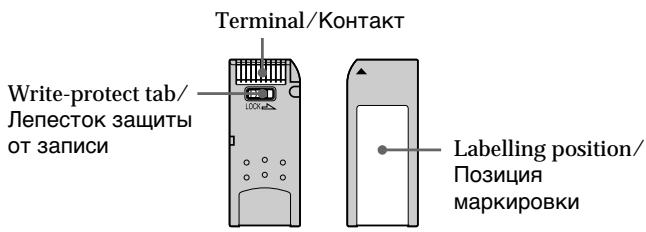
- You cannot record or erase images when the write-protect tab on the "Memory Stick" is set to LOCK.
- The position and shape of the write-protect tab may be different depending on the model.
- We recommend backing up important data on the hard disk of your computer.
-
Image data may be damaged in the following cases:
-
If you eject the "Memory Stick" or turn the power off during reading or writing.
-
If you use "Memory Stick"s near static electricity or magnetic fields.
-
Prevent metallic objects or your finger from coming into contact with the metal parts of the terminal.
- Do not attach any other material than the supplied label on the labelling position.
- Do not bend, drop or apply strong shock to "Memory Stick"s.
- Do not disassemble or modify "Memory Stick"s.
- Do not let "Memory Stick"s become wet.
-
Do not use or keep "Memory Stick"s in locations that are:
-
Extremely hot such as in a car parked in the sun or under the scorching sun
-Under direct sunlight - Very humid or subject to corrosive gases
-
When you carry or store a "Memory Stick," put it in its case.
-
Bы He можete 3аисьiBaTb Ил CTирaTb n3обрахеHЯ, ecn Лпe necTOK 3aитbl OT 3aисн Ha "Memory Stick" yctahOBJIeH b noLOxKeHne LOCK.
-Положени и сорма лесостka 3aшитBI OT 3aIMCN MOrY pa3JIuHaTbCBy 3aBNCIMOCTN OT MOdJI. - PekomeHnyeTcB BbIOnJIHTb pe3epBHOe KONIPOBaHHe BaXhBix DaHHbIX Ha JeecTkIn Dnck BaWero nepcoHaJIbHorO KOMNbIoTepa.
-ДанныеизобрахегимorутбытповрждныВследуошихсluчанx:
-EcIn Bbln3BLeyeTe "Memory Stick" nIn BbIKJIOUHTe PNTaHne BO Bpemr YTeHnI INI 3aPiNCi.
-EcIn Bbl 6byTe nCnoIb3ObaTb "Memory Stick" Bo3ne IcTOUHnKOB CTaTHeCKoTo 3JIeKtpuHeCTBa IJIN MaHnTHbIX NOJIe.
He donyckaTe npinkochobehnmeTaJInuYeCKmN ppeImeTamN nJn BaIIMn paJIbCuAM N MeTaJINuYeCKm N acTAm KOHTaTa.
- He npinkpennIte KaKoI-NI6O dpyroImaTePnI, KpOME npinlaeMoN 3TKeTKn,HaMeCTO MapKnipOBKn.
- He crɪbən'te, He poɪn'te n He noɪdɪbεpraɪte cnɪbɒhɪm yɪdɑpʌm "Memory Stick".
- He pa3bnpaIte n He moIqnIupyIte "Memory Stick".
- Hedonyckaite nonadaHna Bnarn Ha "Memory Stick".
- He nCnoJIb3yIe n He xpaHnTe "Memory Stick": -B Upe3MepHo JxapKnx MecTx, HApPIMep, B npuNapKOBaHHOM IOD cONHcEM aBTOMo6nJe IJIN IOD pAJaUcIM cONHcEM.
-ПОДпразмьСОЛнЧныМCBETOM.
-B ouheb BnaJhIx nIIN COepeXaunx arpeccnBhbie ra3bl MeCTax.
- Пи переньке инихаени поесптЕ "Memory Stick" ве сутлар.
"Memory Stick"s formatted on a computer
"Memory Stick"s formatted on Windows OS or Macintosh computers are not guaranteed compatible with your camcorder.
Notes on image data compatibility
- Image data files recorded on "Memory Stick"s by your camcorder conform with the Design Rules for Camera File Systems universal standard established by the JEITA (Japan Electronics and Information Technology Industries Association). You cannot play back on your camcorder still images recorded on other equipment (DCR-TRV890E/TRV900/TRV900E or DSC-D700/D770) that does not conform with this universal standard. (These models are not sold in some areas.)
-
If you cannot use the "Memory Stick" that is used with other equipment, format it with this camcorder (p. 238). However, formatting erases all information on the "Memory Stick."
-
"Memory Stick" and StickMemory Stick are trademarks of Sony Corporation.
- All other product names mentioned here may be the trademarks or registered trademarks of their respective companies. "TM" and "®" are not mentioned in each case in this manual.
"Memory Stick", OTΦopMaTnpoBaHnaHa nepcoHaJIbHOM KOMNbIbItepe
CobmecTmoctbcBaueBnDeokamepoem "Memory Stick",OTfOpMaTnpoBaHnoHa KOMbIbTePax C onepaunHOHcNCTeMoI Windows OS nM Macintosh, He rapaTnpyETca.
Приимechаши NO COBmecTmOCTn DaHHbIX n3o6paXeHn
ΦaIbI daHbIX n3o6paXeHnI, 3anncahhble Ha "Memory Stick" c nomoubBo Baewi BnDeOKaMepbl, OTBeuAOT npoeKTHbIM Tpe6obAHm dIy yHnBepcaJIbHO rO CTaHdapTa faiNoBbIX CNTeM BnDeOKaMepbl, pa3p6oTahHO JEITA (aONHcKoi acoocuaue NJIeKToPOnHoi npomblJeHHocTn INHΦopMaunHOHbIX texHoNOrn). Bbl He MoKeTe BOCpnON3BODHTb Ha Baewi BnDeOKaMepe HnODbHXbIe n3o6paXeHnI, 3anncahhble Ha dpyroI annapaType (DCR-TRV890E/TRV900/TRV900 E nn DSC-D700/ D770), KOTOpbIE HE COOTBeTCTBYIO T3OMy yHnBepcaJIbHOMy CTaHdApTy. (3TN moDenI He npodaHTC B HeKOtOpbIX perNoHax.)
- Ecni BbI He MoKeTe IcNoIb3ObaTb "Memory Stick", KOTOPaI NcNoIb3OBaJacb Ha dpyroI annapaType, OToΦopMaTnpYIe ee Ha BaWei BnDeOkamepe (CTp. 247). IMeIe TBNdy, YTO npI φOpMaTnpOBaHIn BcR INHΦopMaZrHa "Memory Stick" cTnpaETcI.
"Memory Stick" IN MEMORY STICK, YBBAHOTCA
ФИМЕнныМУЗAKAMU Sony Corporation.
Bce npyrhe Ha3BaHnI u3JeIin, yNOMaHyTbIe B daHHOM pyKOBOdCTBe, MoryT 6bITb fnpMeHHbIMN 3HaKaMn IIN 3apeHnCTpnpoBAHHbIMN TOPROBbIMN MapKaMn COOTBeTCTByIOUxKOMnaHIn. B daJIbHeuWeM, 3NaKn "TM" n " ⑧ " He 6byT yKa3bIBaTbc KaJkbIpa3B daHHOM pyKOBOdCTBe.
Inserting a "Memory Stick"
Insert a "Memory Stick" in the "Memory Stick" slot as far as it can go with the mark facing as illustrated.
YcTaHOBka "Memory Stick"
BctabbTe "Memory Stick" B OTCek IJNA "Memory Stick" Do ynopa, TaK, YTO6bI 3HaK 6bln o6paueH, KaK noka3aHO Ha pncyHke.
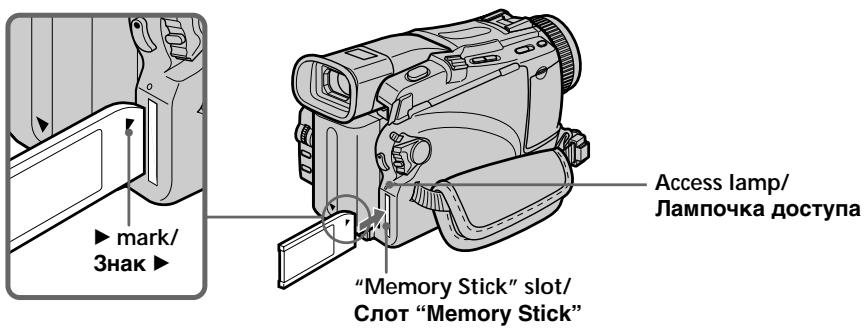
Ejecting a "Memory Stick"
Press the "Memory Stick" once lightly.
While the access lamp is lit or flashing Do not shake or knock your camcorder because your camcorder is reading the data from the "Memory Stick" or recording the data on the "Memory Stick." Do not turn the power off or eject the "Memory Stick". Otherwise, the image data may become damaged.
If "MEMORY STICK ERROR" is displayed Reinsert the "Memory Stick" a few times. The "Memory Stick" may be damaged if the indicator is still displayed. If this occurs, use another "Memory Stick."
Извileченье "Memory Stick"
Clerka naKmnte "Memory Stick" oIN pa3.
EcInI JAMNoCKa DoCTyNa RopNT UIN Mnraet He TpncTe Hn He CTyUnte No BaWei BnDeOkampe, nOTOM yTO BnDeOkamepa CnTbIBaET DaHbIe C "Memory Stick" UIN 3aNNcBIAe TdAnHbIe Ha "Memory Stick". He BbIKJIOuAte NITaHne Hne I3BNeKaJIte "Memory Stick". B IpOTnBHom Cnyuae DaHHbIe N3O6paXeHnmaOryT bItb NOBpeKJeHbI.
EcIn oTo6paXaTeTcHnDnKaTop "MEMORY STICK ERROR"
IpeyeCTaHOBInTe "Memory Stick" HeckoJIbKo pa3. Ecnn INdNkaTOp Bce eue OTo6paJaEtcra, BO3MoXHo, "Memory Stick" nobpeJxDeHa. Ecnn 3TO npOn3OuNo, nCnoNb3yInTe DpyrHy o "Memory Stick".
Selecting the still image quality mode
You can select the image quality mode in still image recording.
The default setting is FINE (DCR-TRV18E/ TRV118E only).
The default setting is SUPER FINE (DCRTRV24E/TRV25E/TRV27E only).
(1) Set the POWER switch to MEMORY or PLAYER^1) / VCR^2) . Make sure that the LOCK switch is set to the left (unlock) position.
(2) Press MENU, then select STILL SET in with the SEL/PUSH EXEC dial (p. 237).
(3) Turn the SEL/PUSH EXEC dial to select QUALITY, then press the dial.
(4) Turn the SEL/PUSH EXEC dial to select the desired image quality, then press the dial.
1) DCR-TRV18E/TRV24E only
2) DCR-TRV25E/TRV27E/TRV118E only
BbI6OppeKImaKaueCTBa HeNoDBrXHOrO n3o6paKeHnA
BbMOxTe Bb6paTb pexIM KaueCTBa n3o6paXeHn npn 3aIncn HenoDbXhoro n3o6paXeHn.
IyoMouJauHnO yctaHOBJIeH peXIMFINE. (ToIbKO moJeN DCR-TRV18E/TRV118E).
Image quality settings
| Setting | Meaning |
| SUPER FINE (SFN)* | This is the highest image quality in your camcorder. The number of still images you can record is less than in FINE mode. Super fine images are compressed to about 1/3. |
| FINE (FINE) | Use this mode when you want to record high quality images. Fine images are compressed to about 1/6. |
| STANDARD (STD) | This is the standard image quality in your camcorder. Standard images are compressed to about 1/10. |
Note
In some cases, changing the image quality mode may not affect the image quality, depending on the type of images you are shooting.
Differences in image quality mode
Recorded images are compressed in JPEG format before being stored in memory. The memory capacity allotted to each image varies depending on the selected image quality mode and image size. Details are shown in the table below.
1152 × 864 image size*
| Image quality | Memory capacity |
| SUPER FINE | About 600 KB |
| FINE | About 300 KB |
| STANDARD | About 200 KB |
640 × 480 image size
| Image quality | Memory capacity |
| SUPER FINE* | About 190 KB |
| FINE | About 100 KB |
| STANDARD | About 60 KB |
- DCR-TRV24E/TRV25E/TRV27E only
YcTaHOBKn KaueCTBa n3O6paXKeHnA
Image quality mode indicator
The image quality mode indicator is not displayed during playback.
When you select image quality
The number of images you can shoot in the currently selected image quality appears on the screen.
Selecting the image size
Still images:
DCR-TRV24E/TRV25E/TRV27E:
You can select either of two image sizes.
1152 × 864 or 640 × 480 (When the POWER switch is set to CAMERA or VCR, the image size is automatically set to 640 × 480 .)
The default setting is 1152 × 864 .
DCR-TRV18E/TRV118E:
640× 480 only
Moving pictures: You can select either of two picture sizes.
320 × 240 or 160 × 112
The default setting is 320 × 240 .
(1) Set the POWER switch to MEMORY. Make sure that the LOCK switch is set to the left (unlock) position.
(2) Press MENU, then select STILL SET (still image) or MOVIE SET (moving picture) in with the SEL/PUSH EXEC dial (p. 237).
(3) Turn the SEL/PUSH EXEC dial to select IMAGESIZE, then press the dial.
(4) Turn the SEL/PUSH EXEC dial to select the desired image size, then press the dial. The indicator changes as follows:
Still images*: 1152 640 Moving pictures: 320 160
- DCR-TRV24E/TRV25E/TRV27E only
Испобьзоване "Memory Stick" - Вedlyнe
HndkaToppeKImaKaueCTBaI3OpaKeHHA
BbMOxTe BbIbpaTb n3 CLeDyUOuX pa3MepOB n3o6paXeHn.
1152× 864 nnn 640× 480
Approximate number of still images you can record on a "Memory Stick"
The number of images you can record varies depending on which image quality and image size you select and the complexity of the subject.
Pn6I3ntbHoe KOJIueCTBO HeNoDBXhBIX N3O6paKeHn, KOTOpbie Bbl MoXeTe 3aHcTaB Ha "Memory Stick"
KoJIuYeCTBo I3O6paJxHnI, KOTOpBle Bbl MoXeTe 3aIncatb, I3MeHReTcB 3aBNCIMOCTu OT BbIbpaHHbIX BamKaueCTBa n pa3Mepa I3O6paJxHnI, a TaKKe CLOXHocTn OBekTa.
If you record a 1152 × 864 still image with your camcorder and attempt to play back the data file on another device that does not support this image size, the image might be displayed in a smaller size.
- DCR-TRV24E/TRV25E/TRV27E only
PpmeuHne\*
EcnBb3aPiuTe HeNoDbNnHoe
n3o6paXeHne pa3Mepom 1152x864Ha BaWei
BnDeOkAmepe, nNONbIaTeEcB OcIpOn3BeCTn
paJn DaHHbIX Ha npYrom yCtpoiCTBe, He
noDaeKINBaIOUeM 3OT pa3Mep n3o6paXeHn,
n3o6paXeHne moKeT OTo6pa3ntbCm MehblIM
pa3Mepom.
- Tôлько модали DCR-TRV24E/TRV25E/TRV27E
Approximate time of moving pictures you can record on a "Memory Stick"
The time of moving pictures you can record varies depending on which image size you select and the complexity of the subject.
The table shows approximate number of still images and times of moving pictures you can record on a "Memory Stick" formatted on your camcorder.
B Ta6nuax npBBeDeHo np6n3ntbHoe KOInueCTBO HeNoDBKbIX N3o6paXeHn I dInTeBbHOCTb DnKyuXcN3o6paXeHn, KOTOpble Bbl MoKeTe 3aIncatb Ha "Memory Stick", oTfOpMaTnpOBaHHyHa BaSei BnDeokampe.
Recording still images on a "Memory Stick" - Memory Photo recording
- Except DCR-TRV16E/TRV116E
You can record still images on "Memory Stick"s.
Before operation
Insert a "Memory Stick" into your camcorder.
(1) Set the POWER switch to MEMORY. Make sure that the LOCK switch is set to the left (unlock) position.
(2) Keep pressing PHOTO lightly. The green mark (AE/AF lock indicator) stops flashing, then lights up. The brightness of the image and focus are adjusted, being targeted for the middle of the image and are fixed. Recording does not start yet.
(3) Press PHOTO deeper. The still image displayed after shutter sounds. Recording is complete when the bar scroll indicator disappears. The image when you pressed PHOTO deeper will be recorded on the "Memory Stick."
3aIncb HEnoDbXhBIX N3O6paXeHnHa "Memory Stick" - FOToocb-Emka C COxpaHeHem B namrTn
- Kpome mopelej DCR-TRV16E/ TRV116E
BbMOxTe 3aIINcIbIaTb Ha "Memory Stick" HEnoDBNIXHbIe N3O6paXeHn.
Ipeed BbINOJIHeHEm Opeaun
BCTaBbTe "Memory Stick" B BaUy BnIeokamepy.
(1) YctaHOBInTe nepeKJIIOUaTeIb POWER B nIoJoxeHne MEMORY. Y6eJntEcB, yTO fNkcaTop LOCK yCTaHOBJIeH B IeBOM (He3aФнксIpOBaHHOM) nIoJoxeHn.
(2)ДерхиTe cIeRka HaxKaToH KhoNkY PHOTO. 3eJIeHЯ MeTka (INdIkaTop 6bOKnPoBKn AE/AF) IpeceTaHET MIRaTb, a 3aTeM BbICBeTntCra. JrkOcTb N3o6paXeHnru N φokycnpoBKa peyIpyIOTcra, INCXoJn IN 3aHaNeH n cepEiHne N3o6paXeHnru, a 3aTeM φnkCpUHTcra. 3aIncb Noka He NaUnHaeTcra.
(3)HaxmTe KhoNky PHOTO cInbHee. NocTe TORo, KaK 3aTbOp n3dAcT 3ByK, HEnoDbXkHoE n3o6paXeHne OTo6pa3ntcHa 3KpaHe. 3aIncb CnTaetc 3aBepSeHHoN, KOrDa IcYe3HeT INDnKaTOP nOocbl npOkpyTkN. I3o6paXeHne, KOrDa Bbl HaxMeTe KhoNky PHOTO cInbHee, 6ydet 3aIncaHO Ha "Memory Stick".
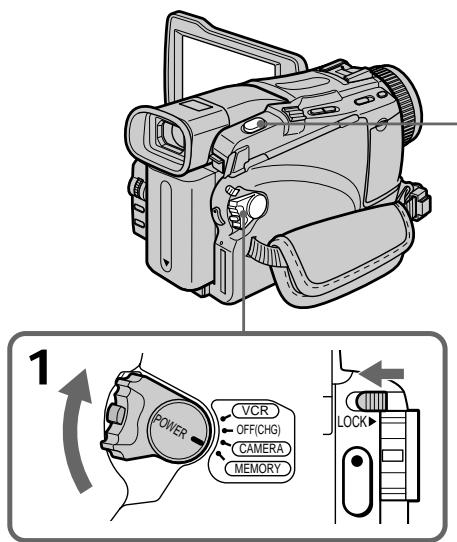
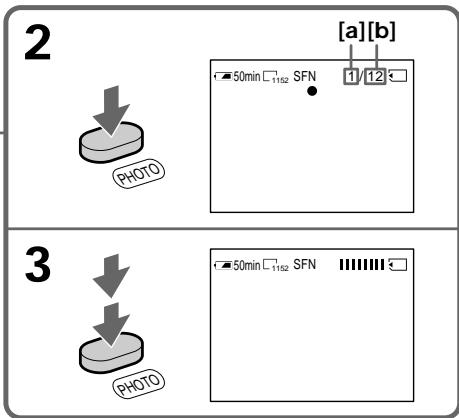
[a]: Number of recorded images/ KolunyeCTBO 3aIncahhbx n3o6paXeHn
[b]: Approximate number of images that can be recorded on the "Memory Stick"/Пиблnteльhoe KOЛчecТВО n3o6paЖeн, KOTopbIe MOxH0 3a\Pncatb Ha "Memory Stick"
You can record still images on "Memory Stick"s in the tape recording or recording standby For more information, see page 58.
When the POWER switch is set to MEMORY
The following functions do not work:
- Wide mode
- Digital zoom
- SteadyShot
- Super NightShot
- Colour Slow Shutter
- Fader
- Picture effect
- Digital effect
- Title
- Sports lesson of PROGRAM AE (The indicate flashes.)
While you are recording a still image You can neither turn off the power nor press PHOTO.
When you press PHOTO on the Remote Commander
Your camcorder immediately records the image that is on the screen when you press the button.
When you press PHOTO lightly in step 2 The image momentarily flickers. This is not a malfunction.
Recording data
The recording data (date/time or various settings when recorded) are not displayed while recording. However, they are recorded automatically onto the "Memory Stick." To display the recording data, press DATA CODE on the Remote Commander during playback.
When the POWER switch is set to MEMORY (DCR-TRV24E/TRV25E/TRV27E only)
The angle of view is slightly larger compared with the angle of view when the POWER switch is set to CAMERA.
BblMOxTe 3aIncsbIbTaH HeNoDbHXHbIe
n3o6paXeHnHa "Memory Stick" B
peXmE 3aIncn nnOxuDaHn 3aIncn
BoJe e noPob6Na HnΦopMaun npUBeDeHa na
ctp.58.
EcInnepeKlnouaTeIb POWER yctahOBJIeH B noJoxKeHne MEMORY
Cneyuoume cyHKnH He pa6oTaioT:
-山npoko3KpaHbIpeXIM
-LnФpoBOH Hae3d
- UCTOUIBcBemka
-Houha cynepcbemka
-LBetHaCbeMka CMeIJIeHHbIM 3aTBoPOM
-Φeɪdεp
-306paXeHH
-LincpoBoi 3cpeKT
-Tntpbl
-PeKIM CnOpTnBhIc COCTaHIN PROGRAM AE (INdkaTop Mmraet.)
EcIn Bbl 3aIINcbIbAeTe HEnoDbNIXHoe n306paXeHne
BbI He cMOXeTe HN BbIKJIOuNTb NITaHHe, HN HkaTb KhoNkY PHOTO.
EcIn Bbl HaxMeTe KhoNky PHOTO ha nyIbTe DnCTaHcNoHHOrO ynpabLeHn
Baa Bndeokamepa ToTcA xe 3aHnIeT n3o6paKeHne, KOtOpoe 6yJeT Ha 3KpaHe npn HaxaTIN KHOKN.
Korda Bbl cnerka haxmaeTe KhONKy PHOTO npn BbINOJIHeHIn DeIcTBn nyHKta 2
ИЗбрахени Ha мговени Мерцael.Эт He ABJIЯТСА HeICnраBHOCtBuH.
DaHHbIe 3aHNCn
Данные заимс (дata/Bрмяи паразнчые установки рп зимс) He OTo6paxaHOTcB BOВрмя 3amnc. Tem He Mehee,Ои abTomatueckn 3amscbIbaHTcHа "Memory Stick".ДЯ OTo6paxeHry ДaHbIX 3amnc haxmTe KhoNky DATA CODE Ha pyJIte ДИСТацноНOrO ynpabJIeHry BO Врмя BOCPON3BeDEHry.
EcInnepeKJIIOUaTeIb POWER yCTaHOBNeH B noJIOKeHne MEMORY (ToIbKO moJeIN DCRTRV24E/TRV25E/TRV27E)
YrOJ 3peHn6 ByeT CJIeKa npeBbIaTb yron 3peHn,ecn nepeKIOuateIb POWER ycTaHOBJeB nIoXKeHne CAMERA.
Recording images continuously
You can record still images continuously. Select one of the following modes in BURST in the menu settings before recording.
NORMAL\* [a]
Your camcorder shoots up to four still images in 1152 × 864 size or 13 still images in 640 × 480 size at about 0.5 sec intervals. (□)
EXP BRKTG (Exposure bracketing)*
Your camcorder automatically shoots three images at about 0.5 sec intervals at different exposures. ( BRK )
MULTI SCRN (Multi screen) [b]
Your camcorder shoots nine still images at about 0.4 sec intervals and displays the images on a single page divided into nine boxes. Still images are recorded in 640 × 480 size. (
[a]
![SONY DCR-TRV24E - MULTI SCRN (Multi screen) [b] - 1](/content/2020/04/48762/images/8c43dea76ac09b77287eef95921eb7f245f28482ff9fb1485b14b2a680542377.jpg)
* DCR-TRV24E/TRV25E/TRV27E only
HenpepbBna 3aInc b n3o6paXeHn
BbMOKeTe 3aINCbIBaTb HEnoDBNxHbIe
n3O6paXeHnI HnpepbIBHO. Bb6epnte nepeI
NaJOM 3aINcOn OINn I3 CneDyIOuNX pExmOB
BOnuINBURST BVcTaHOBkax MeHO.
PexnM NORMAL\* [a]
BaSHA BnDeOKaMepa CHMaeT Do YeTbIpex HEnoDBNxxHbIX N3o6paXeHn pa3Mepom 1152 X 864 IIN 13 HeNoDVBHXbIX N3o6paXeHn pa3Mepom 640 x 480 c nHTepBaJOM npImepHO B 0,5ceK.(
EXP BRKTG (orpaHnueHne 3KcNo3nun)
Baasa Bndeokamepa ABTomatueckn Chimaet TpN 306paXeHn C INTEpBaIOM pPmepHO B 0,5ceK c pa3nHoh 3Kcno3nnei. ( BRK )
MULTI SCRN (MynbTuKpaH) [b]
BaSHA BnDEOKaMepa CHIMaET DeBAtb
HEnoDBNIXhIX N3O6paXeHIn C INHTepBaIOM
npImepHO B0,4 cek n OTO6paXaET
N3O6paXeHIn Ha ONDH CTpaHInCe,
pa3DeJIeHHoH Na DeBAtb OKOH. 3aINCbIBaEMbIE
HEnoDBNIXhIE N3O6paXeHIn IMeOT pa3Mep
640×480. ( )
[b]
![SONY DCR-TRV24E - MULTI SCRN (MynbTuKpaH) [b] - 1](/content/2020/04/48762/images/0563d2f32fbb4f8e5a03daaad2a9f7caa50db0bf6da38c29a14c75549a3b6b0d.jpg)
* Tôлько модали DCR-TRV24E/TRV25E/TRV27E
(1) Set the POWER switch to MEMORY. Make sure that the LOCK switch is set to the left (unlock) position.
(2) Press MENU, then select STILL SET in with the SEL/PUSH EXEC dial (p. 237).
(3) Turn the SEL/PUSH EXEC dial to select BURST, then press the dial.
(4) Turn the SEL/PUSH EXEC dial to select the desired setting, then press the dial.
(5) Press MENU to make the menu setting disappear.
(6) Press PHOTO deeper.
(1)YcTaHOBInTe nepeKJIIOUaTeJIb POWER B nOJIOKeHne MEMORY. Y6eIInTEcb, yTO fIKcaTop LOCK ycTaHOBJIeH B IeBOM (He3aФИКсИрВaHHom) nOJOKeHm.
(2)HaxmTe KhoNky MENU, a 3aTe M bI6epnte onuSTILL SET BpeKmE c nOmoBIO dncKa SEL/PUSH EXEC (ctp. 246).
(3)ПовернITE ДИСК SEL/PUSH EXEC ДЯ
Выбopa ONЦИ BURST,а затем нажмITE
ДИСК.
(4)ПовернITE ДИСК SEL/PUSH EXEC ДИВБОРа НУЖноу cTаHOBКи, a 3aTeM HAZKMITE DИСК.
(5)HaxmTe KhoNky MENU, yTo6bl OTo6paXeHne yCTaHOBOK MeHIO Ncye3No.
(6) HaxmTe KhONky PHOTO cnJIbHee.
![SONY DCR-TRV24E - MULTI SCRN (MynbTuKpaH) [b] - 2](/content/2020/04/48762/images/a56dfa867e04339bb472622c4ffe214aa48107fd19ad26179ad08f9a001b6948.jpg)
If the capacity of the "Memory Stick" becomes full
FULL" appears on the screen, and you cannot record a still image on this "Memory Stick."
Ecnn emKocTb "Memory Stick" cTaHET NOJIHOCTbIO 3aONJHeHHoN
Ha 3KpaHne NORBNTcN INDnkaun "FULL", H BbI He CMOXeTe 3aINCbIbTaH HeNoDnBXKhIe I3O6paXeHn Ha 3Ty "Memory Stick".
The number of images in continuous shooting The number of images you can shoot continuously varies depending on the image size and the capacity of the "Memory Stick."
During recording images continuously The flash (optional) does not work.
When shooting with the self-timer function or the Remote Commander
Your camcorder automatically records up to the maximum recordable number of still images.
When selecting NORMAL*
Recording continues up to the maximum number of still images during pressing PHOTO deeper. Release PHOTO to stop recording.
The effect of exposure bracketing (EXP BRKTG)*
The effect may not appear clearly on the LCD screen. Checking images on a TV monitor or computer display for the expected effect is recommended.
If there is space remaining on the "Memory Stick" for less than three photos*
You cannot carry out the exposure bracketing (EXP BRKTG). "FULL" is displayed when you press PHOTO.
- DCR-TRV24E/TRV25E/TRV27E only
Self-timer memory photo recording
You can record still images on "Memory Stick"s with the self-timer. You can also use the Remote Commander for this operation.
(1) Set the POWER switch to MEMORY. Make sure that the LOCK is set to the left (unlock) position.
(2) Press MENU, then select SELFTIMER in with the SEL/PUSH EXEC dial (p. 235).
(3) Turn the SEL/PUSH EXEC dial to select ON, then press the dial.
(4) Press MENU to make the menu settings disappear. The (self-timer) indicator appears on the screen.
KoJIueCTBO n3O6paXeHnI npi HnpepbIBHOcBemKe
KoJIuYeCTBO n3O6paXeHn, KOToPbIe Bbl MoXeTe CHIMaTb HnepepbIBHO, n3MeHReTcB 3aBNCIMocTOn o paMepa n3O6paXeHn n eMKoCTn "Memory Stick".
Bo BpMa He nppebIbHO 3aIncn H3O6paXeHm BcNbiUka (npno6peTaetc rOtJeNbHo) He pa6oTaET.
Ppi Cbemke C nCIOJIb3OBAHEm FyHKcIM TaMepa cAmO3anycka Nn NpIbTa DnCTaHcUNOHORo ynpabJeHHN
Baisha BnideOKaMepa aBTOMaTNueckn BbINOJIHReT 3aNNcBdo DCtNXeHnMaKcIMaNBJHOrO KOINueCTBa 3aNcSbIBAeMbIX HEnoDBrXHbIX n306paXeHn.
(5) Press PHOTO deeper.
Self-timer starts counting down from 10 with a beep sound. In the last two seconds of the countdown, the beep gets faster, then recording starts automatically.
(5)HaxmTe KhoIky PHOTO cnJIbHee.
Taimep camo3anycka hauheta o6pahtbno tcheta 10c 3ymmepnbim cnharanom.B nocneHnne DBe cekynbl o6paTHoro OTCeta 3ympehbn CnHn5bDyTe 3ByuTa baae, a 3aTEM ABOMATUeCKn HauhETc 3aINCb.
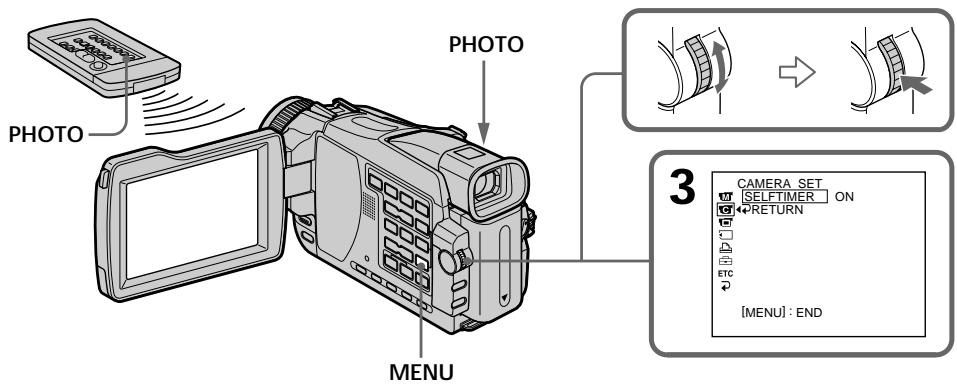
To cancel self-timer
Set SELFTIMER to OFF in the menu settings while your camcorder is in the standby mode. You cannot cancel self-timer with the Remote Commander.
Note
The self-timer recording is automatically cancelled when:
- Self-timer recording is finished.
- The POWER switch is set to OFF (CHG) or PLAYER^1) / VCR^2) .
^1) DCR-TRV18E/TRV24E only
2) DCR-TRV25E/TRV27E/TRV118E only
Длг OTMeHbI TaMepa cAmO3anycka
YcTaHOBnTe ONUIIO SELFTIMER B noLOXeHne OFF B yCtAHOBkax MeHIO B TO BpeM, KOrJa Ba7a BnDeOKamepa HaxOJNTcR B pexmE OxNdaHn. Bbl He MoKeTe OTMeHnTb TaMep caMo3aNyCKa, NcNoJIb3y IyJIbT dNCTaHUNHO YnpaBLeHn.
PpimeyaHne
3aIncb no taMepy cAmO3anycka 6yJeT aBTOMATnueckn OTMeHeHa B CnyaX:
Recording an image from a tape as a still image
3a\Pncb n3o6paXeHnCJIeHTbI KaK HeNoDvNxHOrO n3o6paXeHnA
- Except DCR-TRV16E/TRV116E
Your camcorder can read moving picture data recorded on a tape and record it as a still image on a "Memory Stick". Your camcorder can also capture moving picture data through the input connector and record it as a still image on a "Memory Stick" (except DCR-TRV18E/TRV24E).
Before operation
- Insert a recorded tape into your camcorder.
- Insert a "Memory Stick" into your camcorder.
(1) Set the POWER switch to PLAYER^1) / VCR^2) .
(2) Press . Moving picture recorded on the tape is played back.
(3) Keep pressing PHOTO lightly until the picture from the tape freezes. CAPTURE appears on the screen. Recording does not start yet. To change from the image selected to another image, release PHOTO once and press it lightly again.
(4) Press PHOTO deeper. The image displayed on the screen will be recorded on the "Memory Stick." Recording is complete when the bar scroll indicator disappears.
1) DCR-TRV18E/TRV24E only
2) DCR-TRV25E/TRV27E/TRV118E only
-Kpome moJeIe DCR-TRV16E/TRV116E
Baawa Bndeokamepa MoXeT YHtB DaHHbIe DBNIXUeOcR N3o6paXeHnra, 3aINscaHHoro HaJeHte, I 3aINscBIBaTB erO KaK HEnoDBHXHoe N3o6paXeHne Ha "Memory Stick". B Bauy Bndeokamepy MoXHo TaXKe BBOInTB daHHbIe DBNXUeR N3o6paXeHnry Upe3 BXoHDHO pa3bEm 3aINscBIBaTB erO KaK HEnoDBHXHoe N3o6paXeHne Ha "Memory Stick" (KpomeMoJeIeDRC-TRV18E/TRV24E).
Ipeed BbInOJIHHeHEm OIepaun
- YCTaHOBInTe 3aIINcaHHyIO KACCETy CJIeHToB B BaUy BuDeOkaMepy.
- YctaHOBnTe "Memory Stick" B Bauly BnDeokamepy.
(1)Установпейсякючateь POWER в положене PLAYER ^1) / VCR ^2 ).
(2)Haxmnte KhoNky ▲. BydET BOCnpoIN3BOOInbCЯ DBNXyIueecn I3O6paXKeHne, 3aIncAHoe HaJIeHTe.
(3)HaxMMTe u ydepKuBaIe cIerKa HaxKaToi KhoNkY PHOTO, noka n3o6paXeHne cJeHTbI He 3acTbIHeT. INdikatop CAPTURE NOBITcra Ha 3KpaHe. 3aNNc b Noka He NaHHaETcra.ДЯпepexOda OT OndHoro BbIbpaHrO n3o6paXeHnK JpyrOmy OTnyctNe KhoNkY PHOTO,a 3aTeM CHOba CJIeTKa HaxMMTe ee.
(4)Haxmnte KhoNky PHOTO cnIbHee. 306paXeHne, OTo6paXaEmoe Ha 3KpaHe, 6yTe 3aIncaHo Ha "Memory Stick". 3aIncb CHTaeTc3aBepSeHHo, KOrDa IcYe3HET INDnKaTOP NIOcbl PpOKpyTKN.
^*1) ToIbKO MoIeJI DCR-TRV18E/TRV24E
^2) ToIbKO moJeN DCR-TRV25E/TRV27E/ TRV118E
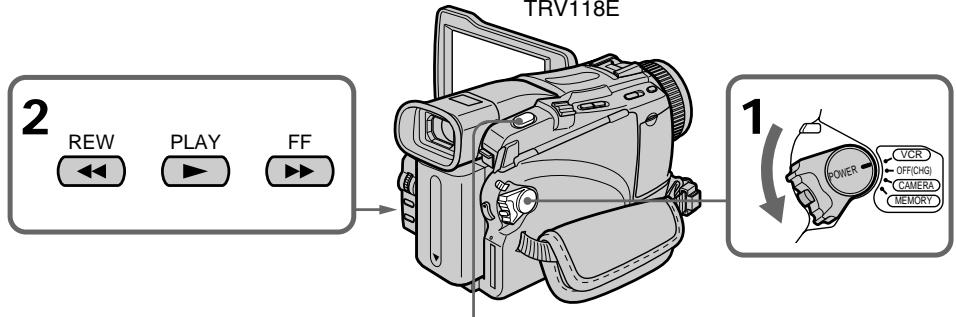
3

4

1
Recording an image from a tape as a still image
Image size of still images
Image size is automatically set to 640 × 480 .
When the access lamp is lit or flashing
Do not shake or strike the unit. Also, do not turn the power off, eject a "Memory Stick". Otherwise, image data may become damaged.
If "3" appears on the screen
The inserted "Memory Stick" is incompatible with your camcorder because its format does not conform with your camcorder. Check the format of the "Memory Stick."
If you press PHOTO lightly in the playback mode
The cassette stops momentarily.
Sound recorded on a tape
You cannot record audio from a tape.
Titles already recorded on cassettes
You cannot record titles on "Memory Stick"s.
Titles do not appear on the screen while you are recording a still image with PHOTO.
Recording date/time
The recording data (date/time) when it is recorded on a "Memory Stick" is recorded.
Various settings are not recorded. Data codes recorded on a tape cannot be recorded on a "Memory Stick."
When you press PHOTO on the Remote Commander
Your camcorder immediately records the image that is on the screen when you press the button.
3aIncB n306paXeHnC JIeHTbI KaK HeNoDbNXHOrO n306paXeHn
Pa3mep HenoDnKhbIX n3o6paXeHn
Pa3mepn3o6paXeHn aBTOMaTnuecknyCTaHaBnBaETcB 640×480.
Ecnn lamnoouka doctyna roput nnn muraet
He TpncTe n He cTuynte no annapaty. TaKke, He BbIKIouaHTe nITaHne H He N3BLeKaJTe "Memory Stick". B npOTnBHom cnyae daHHbIe N3O6paXeHnMOryT 6bITb NOBpeXJeHbl.
EcIn Ha 3KpaHe NOBITcHnDnKaTOp "
BCTABENHnA "Memory Stick" HecOBMeCTnMa C Bauei BnDeokamepo,notomyuTo eeΦopMaT He COOTBeTCTByET Bauei BnDeokamepe.
Поберп Te Формат "Memory Stick".
EcIn B pexnme Bocnpn3BedeHnCnerKa HaxaTb KhoNkY PHOTO
JIeHTa KAccTeBHa MrHOBeHHe OCTaHOBnTcA.
3Byk, 3aIncHbI Ha JeHTe
BbI He MoKxTe 3aINCbIBaTb 3ByK C JeHTbl.
TutpbI, yxe 3aHncaHHbIe Ha Kaccetax
BbI He MoKxTe 3aIncbIbTaT TnTpbl Ha "Memory Stick". TnTpbl He 6byT NOBnAeTbCHa 3kpaHe, noka BbI 6yTe 3aIncbIbTaH HeNoDbNkHbI e N3o6paxKeHnC nOmoUbIO KhoNk PHOTO.
3aTncb daTbl/BpeMeHH
Recording a still image from external equipment
- DCR-TRV25E/TRV27E/TRV118E only Before operation
Set DISPLAY in ETC to LCD in the menu settings.
(The default setting is LCD.)
(1) Set the POWER switch to VCR.
(2) Play back the recorded tape, or turn the TV on to see the desired programme.
The image of the external equipment is displayed on the screen.
(3) Follow steps 3 and 4 on page 156.
Using the A/V connecting cable
3aIncb n3o6paXeHnC JIeHTb KaK HEnoDbNxHOrO n3o6paXeHn
3aHnCb HenoDbNxHOro n3o6paXeHnC BHeuHne annapaTypbl
Connect the yellow plug of the A/V connecting cable to the video jack on the VCR or the TV.
If your TV or VCR has an S video jack
Pictures can be reproduced more faithfully by using an S video cable (optional).
With this connection, you do not need to connect the yellow (video) plug of the A/V connecting cable.
Connect an S video cable (optional) to the S video jacks of both your camcorder and the TV or VCR.
IoiocoeiHnTe JeTbI WTeKepe coeHNHTbHorO Ka6eY ayDIO/BuJeO K rHe3y BuDeoCnHaNk BKM nIIN TeBeBn3opa.
EcIn B BaWem TeJIeBn3ope nI IN KBM IMeetc rHe3do S BVDeo
I3o6paXeHnMOry 6bITb BOCpOn3BeDeHbI 60JIe BbICOKOKaYeCTBcEHNO pIn NcNoJIb3OBAHN Ka6eN S BnDeo (Ppno6peTaetc OtJeHo).
Ppi daHHOM coeDInHeHH Bam He HuxHo nOIOcoEINHbT bKeIbI WTeKep (BnDeo) COeDHNHTelbHoro Ka6eJra aydno/BnDeo.
ПодсоeинITE Ka6ьSВиdeo (прioбретаetcOTdьhoe)Кгнeздам SВиdeo Baшewидeokamepblnte leBn3opa un KBM.
Recording an image from a tape as a still image
3aIncb n306paXeHnC JIeHTbI KaK HeNoDbNXHOrO n306paXeHn
Using the i.LINK cable (DV connecting cable)
IcnoJIb3OBAHne Ka6eJIa.i.LINK (coeINHTeJIbHOro Ka6eJIa cNΦpOBOro BnIeOcnrHaJa DV)
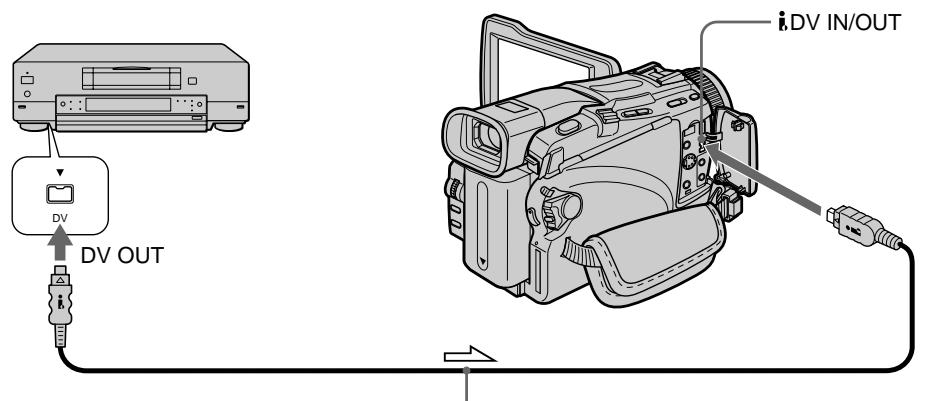
Signal flow/пегдача сигнана
i.LINK cable (DV connecting cable) (optional)/ Ka6eIb i.LINK (coeHNHeBHyk Ka6eIb cHpOBOrO BnDeocirHa nA DV) (npno6peTaetc oTdeIbHo)
Note
In the following instances, recording is interrupted or "REC ERROR" is displayed.
- When recording on a tape in a poor recording state, for example, on a tape that has been repeatedly used for dubbing
- When attempting to input images that are distorted due to poor radio wave reception when a TV tuner unit is in use
PpimeyaHne
B cneDyuOuXxCnyaX,3aNcSb6yTeT npepBaHa
HJx He Ha DnCpIe NOrBnTCra HNDnKaU
REC ERROR".
-ПиЗЗИСНЯЛЕNTу,нaxоДЯшУOCВ MaJIONpIROJOMДЯЗАПИСN COCTOЯнIM, HAnPIMeР,HaJIENTy,HEОДHOKpaTHO IcNoIb3OBaBswUOCДЯпepe3aIINCN.
-При повытke ВьиолнHTь ВВOD n306paжehи, nCKaЖeHHbIX n3-3a ПLOXOrO npiema paДИОВЛH рп ИСПОЛьЗOBaHIN TeLEВИЗЮНHOrO TJOHEpa.
Superimposing a still image in the "Memory Stick" on an image - MEMORY MIX
- Except DCR-TRV16E/TRV116E
You can superimpose a still image you have recorded on the "Memory Stick" on the moving picture you are recording. You can record the superimposed images on a tape or a "Memory Stick." (However, you can record only superimposed still images on the "Memory Stick.")
M. CHROM (Memory chroma key):
You can swap a blue area of a still image such as an illustration or a frame with a moving picture.
M. LUMI (Memory luminance key):
You can swap a brighter area of a still image such as a handwritten illustration or title with a moving picture. Record a title on the "Memory Stick" before a trip or event for convenience.
C. CHROM (Camera chroma key):
You can superimpose a moving picture on a still image that such as an image can be used as background. Shoot the subject against a blue background. The blue area of the moving picture will be swapped with a still image.
M. OVERLAP* (Memory overlap):
You can make a moving picture fade in on top of a still image recorded on the "Memory Stick" as the overlap function.
- The superimposed image using Memory overlap function can be recorded on tapes only.
HaIoxeHne HeNoBnXHoRo 1306paXeHn B "Memory Stick" Ha 1306paXeHne -ФункцЯ MEMORY MIX
- Kpome mopelej DCR-TRV16E/ TRV116E
BbMOxTe HaIOXnTb HeNoDbNxHoe
n3O6paXeHne, 3aIncaHnoe Ha "Memory Stick",
NOBepx 3aINcBbAemOro DbNcxuIeroCra
n3O6paXeHn. Bb MoXeTe 3aIncBbATb
HaIOXeHbIe n3O6paXeHn Ha JeHTy IIN Ha "Memory Stick".(ODHaKO,BbMOxTe
3aINcBbATb TOnbKO HaIOXeHbIe
HeNoDbNkHbIe n3O6paXeHn Ha "Memory Stick".)
Pexm M. CHROM (UBeToBa npnpoeKu namr):
BbMOKTe MeHrTb MecTaM CnHIOU qAcTb HEnoDBNXHOro N3O6paXeHn, HAnpIMep, INIIOCTpaUN INI KApPa, C DVBHXUYmMCN3O6paXeHnEM.
Pexm M. LUMI (Fpkoctb namrtn):
BbMOxTe MeHrTb MeCTaMn 60Jee RpKyU
CaCTb HEnoDbNxxHOrO n3o6paXeHn, HApPmEp,
BbIOJIHeHHoI OT pyKn nIIIOCTpaun nn TnTpA,
C DBrNkUcMc n3o6paXeHnEM. 3aINiHTe TnTp
Ha "Memory Stick" nepeI nyTeueCTbEm nn KaKIM-ⅡI6 co6bITnEM dIyDObCTBa.
PexnM C.CHROM (LBeToBa npnpoeKunBnDeokamepbI):
BbI MoXeTe HANOxNtB DnIXyUeecr
H3O6paXeHne NOBEx HEnoDVBnXHOrO
H3O6paXeHnra, HApNIMep, H3O6paXeHnra,
KOTOpOE MoXeT CnyXtB fOhom. BbINOnHnTe
CbeMky ObekTa Ha cInem FcHe. CnHra Yactb
DnIXyUeOrcs H3O6paXeHnY NOMEHNETc
MeCTAmC HEnoDVBnXHbIM H3O6paXeHnEM.
PexmM. OVERLAP* (Ipekepbitne namrtn): Bb mokeTe cdeNaTb nBnBn BBoD dNkUeOcR n36paXeHn NOBepx HenoDbNkHOrO n36paXeHn, 3aINsCaHOro Ha "Memory Stick", KaK fynKcHIO nepeKpbITn.
*HaIOxKeHHbIe C NcIOnIb3OBaHnEM FyHKUINpeKpbITnI pAMrTI N3O6paXeHmRMOyT 6bITb 3aNcAHi TOnbKO HaJeHTax.
Superimposing a still image in the "Memory Stick" on an image - MEMORY MIX
HaIooXeHne HenoDbNxHoro n3o6paXeHnB“Memory Stick” Ha n3o6paXeHne-ФункцЯ MEMORY MIX
M. CHROM
Still image/ HénoĐиЖнhoe ɪəbɒрʌɡeHne
- The superimposed image using Memory overlap function can be recorded on tapes only.
Recording superimposed images on a tape
Before operation
- Insert a tape for recording into your camcorder.
- Insert a "Memory Stick" with recorded still images into your camcorder.
(1) Set the POWER switch to CAMERA.
(2) Press MEMORY MIX.
The last recorded or last composed image appears on the lower part of the screen as a thumbnail image.
(3) Press MEMORY - / + to select the still image you want to superimpose.
MEMORY - : To display the previous image
MEMORY ^+ : To display the following image
*HaJIOXeHHbIe C NcNOb3OBaHHeM yHKnI nepeKpbITn IamrTn 13O6paKeHn MOryt 6bITb 3aNcAhn ToJIbKO HaJeHTax.
3aIncB HAnOKeHHbIX n3o6paXeHn Ha JeHTy
Ipeed BbInOpHeHem Opeaun
- YctaHOBHTe JENTy dIy 3aIncn B BaSy BnDEOKaMepy.
BCTaBbTe "Memory Stick" c 3aHcHbIMnI3o6paXeHЯMn B BaUy BUnDeOkamepy.
(1)YctaHOBInTe NepeKJIIOuChaTeIb POWER B noJoxKeHne CAMERA.
(2)HaxmTe KhoNky MEMORY MIX. PocJeDHee 3aIncAHoe ININ PocJeDHee CKOMHOBOHaHHOe N3O6paXeHne NORBtCBA HNXHeY qAcTn 3KpaHa B BVNe MHNAtOpHOro N3O6paXeHnE.
(3) HαχΜΙΝΤΕ ΜΚΟΥΚΑ ΜΕΜΟΥ-/+ ∪ДΑ Βυδιθρα ΚΗΟΥΙΝΚΑ ΜΟΥΟΥΟ Μελρακηνης, κΟΓΟΡοε ΒυθιΤΕ ΒΑΝΟΧΚΙΤΒ.
Superimposing a still image in the "Memory Stick" on an image - MEMORY MIX
(4)Select the desired mode with the SEL/PUSH EXEC dial. The mode changes as follows: M.CHROM M.LUMI C.CHROM M.OVERLAP
(5) Press the SEL/PUSH EXEC dial. The still image is superimposed on the moving picture.
(6) Turn the SEL/PUSH EXEC dial to adjust the effect.
M. CHROM - Blue chroma key (blue background) to extract a still image and superimpose it on a moving picture
M. LUMI - Brightness level used when extracting a still image and superimposing it on a moving picture
C. CHROM - Blue chroma key (blue background) to extract a moving picture and superimpose it on a still image
M. OVERLAP - No adjustment necessary
The fewer bars there are on the screen, the stronger the effect.
(7) Press START/STOP to start recording.
HaIooXeHne HenoDbNxHoro n3o6paXeHnB“Memory Stick” Ha n3o6paXeHne-ФункцЯ MEMORY MIX
(4)Bb6epnte HUKbIpeXIM c NOMOsbIO dNcKa SEL/PUSH EXEC. PeXIM 6yJeT n3MeHArbC CJIeDyHOzIM o6pa30m: M.CHROM M.LUMI C.CHROM M.OVERLAP
(5)HaXMMTe DnCK SEL/PUSH EXEC. HenoDbNkHoe n3o6paXeHne 6ydet HaIooKeHO Ha dBNxKyueecra n3o6paXeHne.
(6)ПовернITE диСК SEL/PUSH EXEC дяпуліровки зф\'екта.
M.CHROM -ZBeTobarramaCcINHM OHOM)IJIuN3BLeueHn HEnoDVBHXHO I3O6paXeHnIero NaIOJKeHnHa DvIXKyueecn 306paXeHne
M.LUMI -UpoBHeH JRPKocTn, nCNoJIb3yEmbI npn 13BJIeueHm HEnoDBeHXHO r03O6paXeHn I er0 NaIOJKeHn Ha DBNkUeEeCn 13O6paXeHne
C.CHROM -LBeTobarrama(c cnHm FOHOM)IIN3BLeueHn IBNKyueroOraN3o6paXeHn IeroHaIOKeHn Ha HeNoDBrNXHOe N3o6paXeHne
M. OVERLAP - He Tpe6byetcHnkaKnx peryInpoBOK
Yem MeHbIe nOIOc Ha 3KpaHe, Tem CInbHee 3ΦΦeKT.
(7)HaKmTe KhoNky START/STOP nIaHaJana 3aInci.
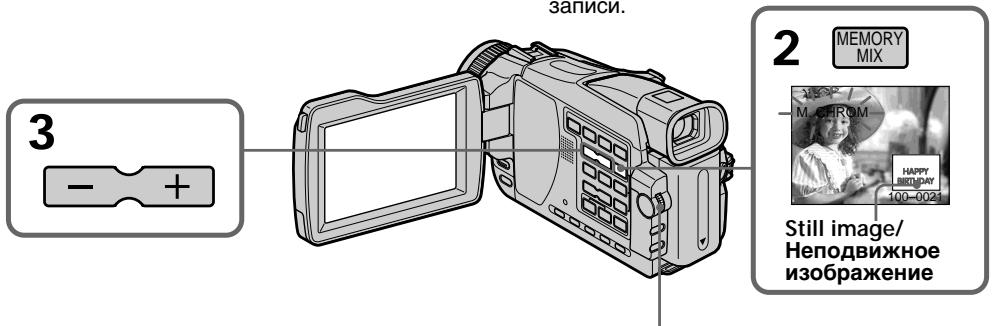
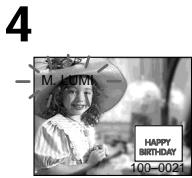
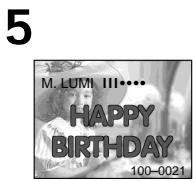
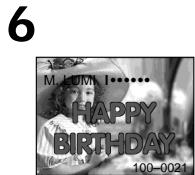
Superimposing a still image in the "Memory Stick" on an image - MEMORY MIX
HaIooXeHne HenoDbNxHoro n3o6paXeHnB“Memory Stick” Ha n3o6paXeHne-ФункцЯ MEMORY MIX
To change the still image to superimpose
Do either of the following:
- Press MEMORY - / + before step 6.
- Press the SEL/PUSH EXEC dial before step 6, and repeat the procedure from step 4 (except for M. OVERLAP).
To change the mode setting
Press the SEL/PUSH EXEC dial before step 6, and repeat the procedure from step 4 (except for M. OVERLAP).
To cancel MEMORY MIX
Press MEMORY MIX.
Notes
- You cannot use the MEMORY MIX function for moving pictures recorded on "Memory Stick"s.
- When the overlapping still image has a large amount of white, the thumbnail image of the picture may not be clear.
Image data modified on your computer or shot with other equipment
You may not be able to play back modified images with your camcorder.
When you select M. OVERLAP
You cannot change the still image or the mode setting.
During recording
You cannot change the mode setting.
To record the superimposed image as a still image
Press PHOTO deeper in step 7.
Before operation, select PHOTO REC in to TAPE in the menu settings (p. 235).
UTo6bI n3MeHnTb HEnoDnXHHe U3O6paXeHne dJa HaLoXeHn
BbInOpHnTe IIO6oe n3 cIeDyUoXn DeIcTbN:
-HaKmTe KhONkY MEMORY-/+ nepei BbIOnHHeHEm DeIcTbM IyHKTa 6.
-HaKmTe DnCK SEL/PUSH EXEC nepeD BbIOnJIHeHnEM DeIcTBrN IyHKTa 6 n NOBTOPIte npOceIpy,HaunHa C nyHKTa 4 (Kpome pexkma M. OVERLAP).
ДлЯизменистановп ржима
Haxmte nck SEL/PUSH EXEC neped BbIIOJIHeHEm DeIcTBn pyHKta 6 I NOBTOpe npOeDpyc nyHKta 4 (KpOme pexIma M. OVERLAP).
ДлгOTмныуctановКIMEMORYMIX
HakmTe KhoNkY MEMORY MIX.
Примейань
- Bы He можete И спользоваты Функцию MEMORY MIX ДЯ DBиЖушихся ИЗБрахени, заисаньхи на "Memory Stick".
- Ecni nepekepbIbAIOUee HeNoDBrNxHoe n3o6paXeHne coApKNT 60JIbOoe KOINueCTBO 6eIoro UBeTa, erO MNHaTOpHoe n3o6paXeHne MoKeT 6bITb HeYEtKIM.
DaHHbIe N3O6paXKeHn, BUNOn3MeHeHHbIX Ha BaWeM nepcoHaJIbHOM KOMNbIOtepe nII n CHaTbIX C NOMoUbIO dpyroI annapaTypbl
Bo3MOxHOb, BbI He cMOxKeTe BOCpON3BecTn BUNOIN3MeHeHHbIe N3o6paXeHnHa BaSeB BInDeOKaMepe.
EcnBbI BbIbIpaTepeXmM. OVERLAP
BbI He CMOXeTe N3MeHnTb HEnoDnKHoE n3O6paXeHne nn yCtAnOBky peXnMa.
BoBpeMa 3aIncn
BbI He MoXeTe 3MeHHTb yCTaHOBky peKIma.
Длзлпсн HaJIOXeHOrO n3O6paXeHnKaK HeNoDvIXHOrO n3O6paXeHnA
HaxmTe KhoNkpy PHOTO cnIbHee npn BbIOnHeHH DeiCTBn nyHKta 7.
IpeepBbIOpJIHeHnEM Oepaun, Bbl6epnte onuHO PHOTO REC B C B noIOxKeHne TAPE BycTaHOBkax MeHIO (cTp.244).
Recording superimposed images on a "Memory Stick" as a still image
Image size is automatically set to 640 × 480 .
Before operation
Insert a "Memory Stick" including still images into your camcorder.
(1) Set the POWER switch to MEMORY. Make sure that the LOCK switch is set to the left (unlock) position.
(2) Press MEMORY MIX.
The last recorded or composed image appears on the lower part of the screen as a thumbnail image.
(3) Press MEMORY - / + to select the image you want to superimpose.
MEMORY-:To display the previous image MEMORY ^+ :To display the following image
(4) Select the desired mode with the SEL/PUSH EXEC dial.
The mode changes as follows:
M.CHROM M.LUMI C.CHROM
(5) Press the SEL/PUSH EXEC dial.
The still image is superimposed on the moving picture.
(6) Turn the SEL/PUSH EXEC dial to adjust the effect.
M. CHROM
- Blue chroma key (blue background) to extract a still image and superimpose it on a moving picture
M. LUMI
- Brightness level used when extracting a still image and superimposing it on a moving picture
C. CHROM
- Blue chroma key (blue background) to extract a moving picture and superimpose it on a still image
The fewer bars there are on the screen, the stronger the effect.
3aIncb HaIOXeHHbIX H3O6paXeHn Ha "Memory Stick" KaK HeNoDBrXhBIX H3O6paXeHn
Pa3Mep n3o6paXeHn ABTomatNueckn yCTaHaBnBaETcB 640x480.
Ipeed BbINOJIHeHHeM OIepaunu
YcTaHOBnTe "Memory Stick", Ha KOTopoi 3aIncaHbI HeNoDBrNkHbIe I3O6paXeHnI, B BaUy BUnDeOKaMepy.
(1)Установпейсякючateь POWER в положене MEMORY.Убенись,чTo Фнкатор LOCK установлен B Левом (небафкincpoванHom) положени.
(2)HaXmnte KhoNky MEMORY MIX. NocJeDHee 3aIncaHHe IIN CKOMNoHOBaHHOe N3O6paXeHne NORBtC8 B HIXKHeY qAcTn 3kPaHa B BVdE MHNHaTOpHOrO N3O6paXeHn.
(3)HaxMMTe KhoNkY MEMORY-/+ДлЯ Bыбopa u3o6paJKeHnA, KOTOpoe Bbl xOTnTe HaJIoXnTb.
Superimposing a still image in the "Memory Stick" on an image - MEMORY MIX
HaIooXeHne HenoDbNxHoro n3o6paXeHnB“Memory Stick” Ha n3o6paXeHne-ФункцЯ MEMORY MIX
(7) Press PHOTO deeper to start recording. The image displayed on the screen will be recorded on a "Memory Stick." Recording is complete when the bar scroll indicator disappears.
(7)HaKmTe KHONky PHOTO cnJIbHee IaI na 3aInc. OTo6paXaemoe Ha 3kahe n3o6paXeHne 6yJeT 3aIncAHO Ha "Memory Stick". 3aIncb cunTaEcTc 3aBepSeHHoN, KOrda nCue3HET INDnKaTOp POnocbl npOKpyTkN.
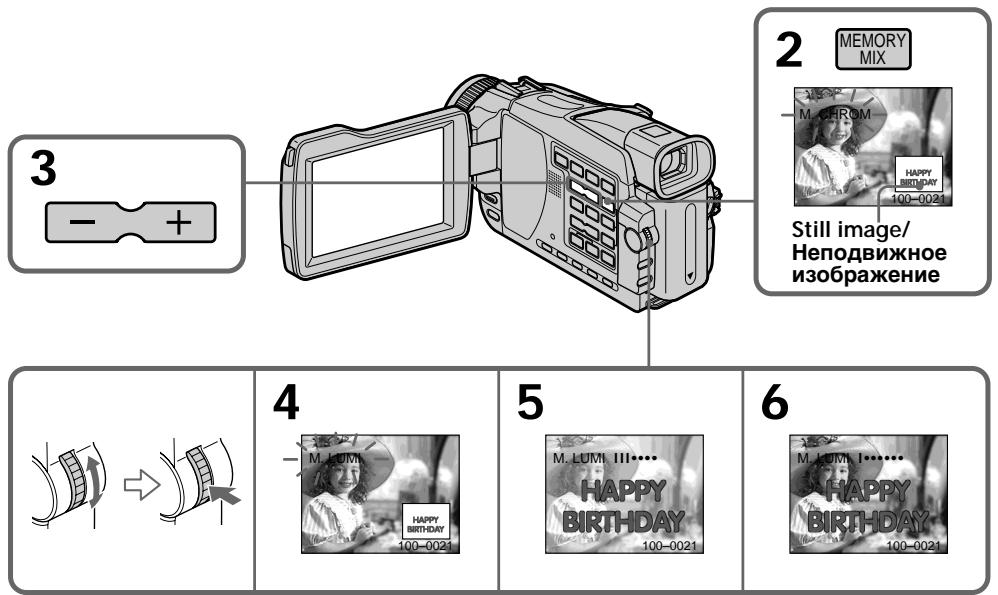
To change the still image to superimpose
Do either of the following:
- Press MEMORY -/+ before step 6.
- Press the SEL/PUSH EXEC dial before step 6, and repeat the procedure from step 4.
To change the mode setting
Press the SEL/PUSH EXEC dial before step 6, and repeat the procedure from step 4.
To cancel MEMORY MIX
Press MEMORY MIX.
UTo6bI n3MeHnTb HEnoDnXHHeu n3o6paXeHne dIa HaLoXeHnA
BbIOnHInTe IIO6oe IN3 CNeDyIOxN DeINCTBn:
-HaXMMTe KhoNkU MEMORY-/+ nepei BbIOnJIHeHMe NdeIcTBn IyHKTa 6.
-HaXMMTe DnCK SEL/PUSH EXEC npeEd BbIOnJIHeHnEM DeIcTbI NyHKTa 6 INOBTOPIte IpoUeDpyu, HauHHaC nyHKTa 4.
Superimposing a still image in the "Memory Stick" on an image - MEMORY MIX
Notes
- You cannot use the MEMORY MIX function for moving pictures recorded on "Memory Stick"s.
- When the overlapping still image has a large amount of white, the thumbnail image of the picture may not be clear.
Image data modified on your computer or shot with other equipment
You may not be able to play back modified images with your camcorder.
During recording
You cannot change the mode setting.
When recording images on a "Memory Stick" using the MEMORY MIX function
The PROGRAM AE function does not work. (The indicator flashes.)
The "Memory Stick" supplied with your camcorder is already stored with 20 images
-For M.CHROM:18 images (such as a frame) 100-0001 to 100-0018
- For C. CHROM: two images (such as a background) 100-0019 to 100-0020
Sample images
Sample images stored in the "Memory Stick" supplied with your camcorder are protected (p. 195).
HaIooXeHne HenoBnXhOro n3o6paXeHnB“Memory Stick” Ha n3o6paXeHne-ФункцЯ MEMORY MIX
Приимechanicals
- Bы He можete И спользова Тункцию MEMORY MIX Дд Викуших! n3обрахени, задиcaнных на "Memory Stick".
- Ecni nepekepbibaOooe HeNoDnBxHoe n3o6paXeHne coDePKNT 60JIbWoE KOINueCTBO 6eIoro UBeTa, ero MNHaTIOHpHoe n3o6paXeHne MoKet 6bITb HeYETKIM.
Danhble n3o6paXeHn, BINOJ3MeHeHHbIX Ha BaWem nepcoHaJIbHOM KOMIbIOTpe UIN CHaTbIX C NOMOsbIO dpyroI annapaTypbI
BbI He CMOXeTe BOCIpOn3BecTn
BUNoIN3MeHEnHbIe N3O6paJxHnA C NOMOuBo
Bauei BuDeOkamepbl.
BoBpem3aHmch
BbI He MoKeTe N3MeHnTb yCTaHOBky pexIma.
Пи заиси n3o6paхени Ha "Memory Stick" c nCNoJIb3OBAHnEm Функцm MEMORY MIX
ФункцЯ PROGRAM AЕ He pa6oTaeT.
(Инданковл мграет.)
"Memory Stick", npnilaraemam K Baweim Bndeokamepe, yxe Bmeuaet 20 n3o6paxheni
Recording moving pictures on a "Memory Stick" - MPEG movie recording
3a\Pncb DvNkUxxCn n3o6paXeHn Ha "Memory Stick" - 3a\Pncb φnIbMa MPEG
- Except DCR-TRV16E/TRV116E
You can record moving pictures with sound on "Memory Stick"s.
The picture and sound are recorded up to the capacity of "Memory Stick" (MPEG MOVIE EX).
Before operation
Insert a "Memory Stick" into your camcorder.
(1) Set the POWER switch to MEMORY. Make sure that the LOCK switch is set to the left (unlock) position.
(2) Press START/STOP.
Your camcorder starts recording. The camera recording lamp located on the front of your camcorder lights up. Picture and sound are recorded up to the remaining capacity of the "Memory Stick." For more information about recording time, see page 149.
-Kpome mopeJe DCR-TRV16E/ TRV116E
BbMOKTe 3aINcBbATb DnJxUneCn3O6paXeHn8 co 3BykOM Ha "Memory Stick".N3O6paXeHnE n 3ByK 3aINcBbAOTcHaemKoCTb "Memory Stick" (MPEG MOVIE EX).
Ipeed BbINOJIHeHem Opeaun
YcTaHOBuTe "Memory Stick" B BaUy BnDeOkamepy.
(1)YcTaHOBInTe nepeKJIIOUaTeIb POWER B nOIOXeHne MEMORY. Y6eINTEcB, yTO fIKcaTop LOCK ycTaHOBJIeH B IeBOM (He3aФИNKcIpOBaHHOM) NOLOXeHm.
(2)Haxmnte KhoNky START/STOP. Ba7a Bndeokamepa HauHeT 3anncb. 3arOpntcI lamnoQch 3anCn BnDeokamepbl, paonolooHenHa npeDnei naHelen BaWei BnDeokamepb.I3o6paKeHne i 3Byk 3anCbBaIOCTra "Memory Stick"doTex npop, noka Ha HeJ ocTaetc Cbo6Odnoe Meeto.Boone PoIpObHaN HΦopMaunr O dInTeBHoCTn 3anCn npuBeDeHa Ha cTp. 149.
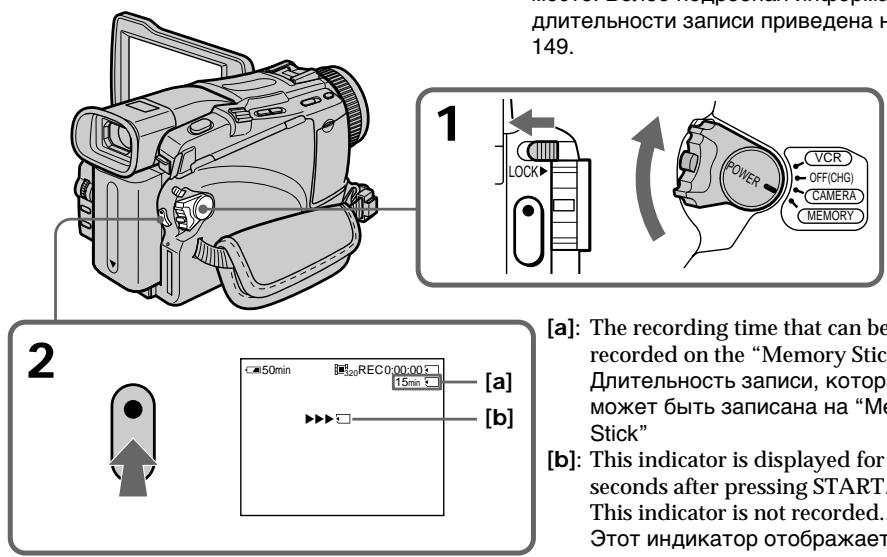
Recording moving pictures on a "Memory Stick"
- MPEG movie recording
3aInCb DvNcxuXcH 3o6paKeHn Ha "Memory Stick" -3aInCb fNbMa MPEG
Note
Sound is recorded in monaural.
When the POWER switch is set to MEMORY
The following functions do not work:
- Wide mode
- Digital zoom
- SteadyShot
Super NightShot
Colour Slow Shutter
-Fader - Picture effect
- Digital effect
-Title - Sports lesson of PROGRAM AE (The indicator flashes.)
Recording date/time
The date/time are not displayed while recording. However, they are automatically recorded onto the "Memory Stick."
To display the recording date/time, press DATA CODE on the Remote Commander during playback. Various settings cannot be recorded.
During recording on a "Memory Stick"
Do not eject the cassette tape from your camcorder. During ejecting the tape, sound is recorded on the "Memory Stick."
When the POWER switch is set to MEMORY (DCR-TRV24E/TRV25E/TRV27E only)
The angle of view is slightly larger compared with the angle of view when the POWER switch is set to CAMERA.
PpimueaHne
3Byk 3aIncbIbAEtCBA MOHOOHNueCKOM peXmE.
Ecni nepekJIouaTeIb POWER ycTaHOBIeN B noJIOXeHne MEMORY
CneyuunheyHKnHepa6oTaI:
-шрокоэКраHHь ржIM
-LuΦpOBoH Hae3d
- UCTOUIBcBemKa
-Houha cynepcbemka
-LBETHcBEmKa C MeDJIeHHbIM 3aTBoPOM
-Φeɪdεp
-3ΦΦeKt n3o6paXeHn
-LnФpoBooN 3ΦΦeKT
-Tntpbl
-PeKIM CnOpTbHbIX COCTaHNI PROGRAM AE (INdkaTop Mraet.)
3aTncb daTbl/BpeMeHH
ДаТа/BрЕм He OTOБраЖАТС BO ВрЕм 3aПИС.N.Tem He MeHHe,Он ABTomATNueCKN 3aПИСыВaIOTcHa "Memory Stick".
Дяг OTOбражени Даы/Bремен 3апсин hashмт e Khonky DATA CODE ha pyльte ДИСТационногу упразьени BO Время BOCПОИЗBEDEнIGN. PaZIMЧьIE yCTaHOBKN He MOrTy 6bIb 3aПИСанbl.
Bo Bpem 3aIncn Ha "Memory Stick"
He n3BlekaTe Kaccety CJeHToI n3 BaSei BnDeOkamepbl. Bo BPemr n3BLeueHnKaccetbl 3Byk 3aNcBiBaetca Ha "Memory Stick".
EcInnepeKJIIOUaTeIb POWER ycTaHOBnB B noJIOxKeHne MEMORY (ToJIbKO moJeIN DCR- TRV24E/TRV25E/TRV27E)
YrOJ 630pa 6yET HEMHOro 60NbIe B cpaBHeHn C yrglom 630pa, KOrJa nepeKJIIOUaTeIb POWER ycTaHOBIeH B noLoXeHne CAMERA.
Recording moving pictures on a "Memory Stick"
- MPEG movie recording
3a\PcB DbNcxuXxg N3OpaJKeHn Ha "Memory Stick"
- 3aɪnscb Φɪŋlma MPEG
Self-timer MPEG movie recording
You can record moving pictures on "Memory Stick"s with the self-timer. You can also use the Remote Commander for this operation.
(1) Set the POWER switch to MEMORY. Make sure that the LOCK is set to the left (unlock) position.
(2) Press MENU, then select SELFTIMER in with the SEL/PUSH EXEC dial.
(3) Turn the SEL/PUSH EXEC dial to select ON, then press the dial.
(4) Press MENU to make the menu settings disappear.
The (self-timer) indicator appears on the screen.
(5) Press START/STOP.
Self-timer starts counting down from 10 with beep. In the last two seconds of the countdown, the beep gets faster, then recording starts automatically.
3aHcB qHJIbMa MPEG no TaHmepy camo3anycka
Bb moxete 3aIncbIbAtb DnBxkyuinecA n3o6paXeHna "Memory Stick" no TaMepy camo3anycka. Bb moxete TaKxe NcNoIb3oBaTb dIy 3ToI onepaun nnblT dNCTaHIOHHO ynpabLeHn.
(1)YcTaHOBInTe nepeKJIIOUaTeIb POWER B nOLOXeHne MEMORY. Y6eJNTecb, yTO fNkcatop LOCK ycTaHOBJeH B IeBOM (He3aФNKcINPOBaHHom) NOLOXeHm.
(2)Haxmnte KhoNky MENU, a 3aTeM Bbl6epnTe onuio SELFTIMER bpeXime c nOmoIbIO dNcKa SEL/PUSH EXEC.
(3)Повернite ДИСК SEL/PUSH EXEC ДИВьбopa опци ON,а 3aTeM нажмITEДИСК.
(4)HaXMMTe KHOKNy MENU, YTO6bl OTo6paXeHHe yCTaHOBOK MEHO NcYe3No. Ha 3KpaHne IPOBHTCn INDnKaTOp (TaIMepa cMo3aNcycka).
(5)Haxmnte KhoNky START/STOP. TaMep cAmo3anycka hauhET o6paThbI oTcHT OT 10 c 3ymmepHBIM CnHaIOM.B nocLeDnHe DBe CeKHyDbI o6paTHoro OTCeTa 3ymmepbI CNrHaI 6byet 3ByuTa bAaie,a 3aTEM aBtOMaTHueckn HauhETcra 3aINCb.
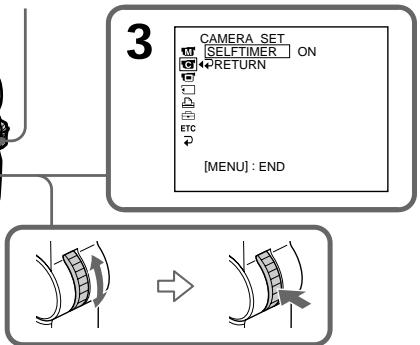
START/STOP
To stop the countdown
Press START/STOP.
To restart the countdown, press START/STOP again.
To cancel self-timer
Set SELFTIMER to OFF in the menu settings in the standby mode. You cannot cancel self-timer with the Remote Commander.
The self-timer is automatically cancelled when:
- Self-timer recording is finished.
- The POWER switch is set to OFF (CHG) or PLAYER^1 / VCR^2 .
^1) DCR-TRV18E/TRV24E only
2) DCR-TRV25E/TRV27E/TRV118E only
Приимechаиме
3aIncb no TaImepy cAmO3aNycka 6yJeT aBTOMaTIuCeCKN OTMeHEna B ClyaJx:
- OkonuaHn 3aIncn no TaImepy caMo3anycka.
- YctaHOBKn pepeKlnuOaTeJn POWER B noloxHeNE OFF (CHG) nIN PLAYER*1/ VCR*2).
^*1) ToIbkoMoJoENDCR-TRV18E/TRV24E
^2) Tolboko moJeN DCR-TRV25E/TRV27E/ TRV118E
Recording pictures from a tape as a moving picture
3aHnscb n3o6paXeHn cJeHTbI KaK DnXkyuNXcHn3o6paXeHn
- Except DCR-TRV16E/TRV116E
Your camcorder can read moving picture data recorded on a tape and record it as a moving picture on a "Memory Stick." Your camcorder can also capture moving picture data through the input connector and record it as a moving picture on a "Memory Stick" (except DCR-TRV18E/ TRV24E).
Before operation
- Insert a recorded tape into your camcorder.
- Insert a "Memory Stick" into your camcorder.
(1)Set the POWER switch to PLAYER^1) / VCR^2) .
(2) Press . The picture recorded on the tape is played back. And press at the scene where you want to start recording from.
(3) Press START/STOP on your camcorder. Picture and sound are recorded up to the remaining capacity of the "Memory Stick." For more information about recording time, see page 149.
^1) DCR-TRV18E/TRV24E only
2) DCR-TRV25E/TRV27E/TRV118E only
-Kpome moedeJ DCR-TRV16E/TRV116E
Bawa Bndeokamepa MoKet CUnTbIBaT DaHHbIe DnBxUyEROCr N3O6paXeHIN, 3aNcAHbIe Ha JeHTe, n 3aNcBbTaB IN KAc DnBxUyEecr N3o6paXeHne Ha "Memory Stick". Bawa BnDeokamepa MoKet TaKKe BBOdITb DaHHbIe DnBxUyERocr N3O6paXeHIn Yepez BXoDHoi pa3bEm n 3aNcBbTaB IN KAc DnBxUyEecr N3o6paXeHne Ha "Memory Stick" (kPome MoJenl DCR-TRV18E/TRV24E).
Ipeed BbINOJIHeHEm Onepaun
- YCTAHOBITE 3aIINCAHNyIO KACCETy C JENTO B BaUy BnDEOKaMEpy.
- YctaHOBnTe "Memory Stick" B Bauy BnDeOKaMepy.
(1)YcTaHOBnTe NepeKJIIOuChaTeIb POWER B NOJOKeHne PLAYER ^1) VCR ^2)
(2)HaxMMTe KhoNkY BocpOn3BoDnTcra 1306paXeHMe,3aINCAHHoe HaJeHTe. HaxMMTe TaKke KhoNKy IHa 3aN3Ode, c KOtOporo Bby XOTME HaayTaB 3aN3Cb.
(3)HaxmTe KhoNky START/STOP Ha BaWei BnDeokamepe. N3o6paXeHn I 3ByK 3aIncsblBaIOTcHa Ha "Memory Stick" Do Tex nop, noka Ha Hei octaeTc Cbo6OdHoe MeCTo. BoJe e noDro6Hn IHOpMaun O dInTeNbHOCTn 3aIncn PnpBeHeHa cTp.149.
^*1) ToIbKO moJeN DCR-TRV18E/TRV24E
^2) ToIbKO moJeN DCR-TRV25E/TRV27E/ TRV118E
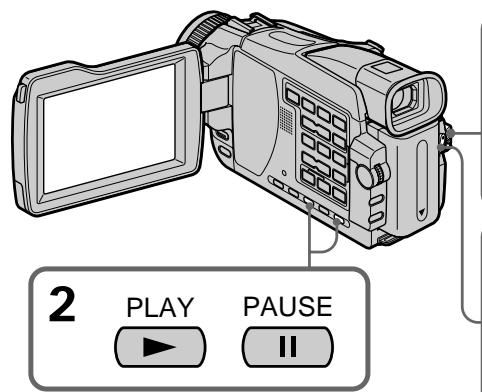
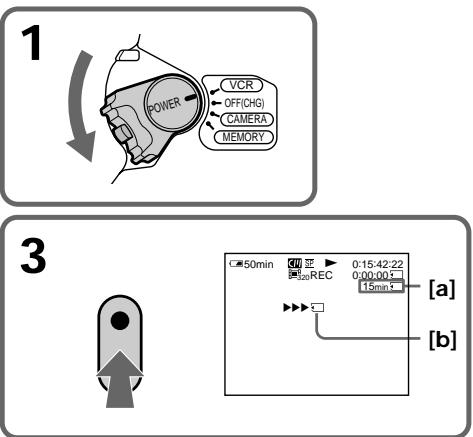
[a]: The recording time that can be recorded on the "Memory Stick"/Диптелбовсь заимси,КOTOPА может 6ыть заимсанha на "Memory Stick"
[b]: This indicator is displayed for five seconds after pressing START/STOP. This indicator is not recorded./ ΘTOT Инданкатор оторазражается Okono пати сенип полесу Нжakту Кондд START/STOP. ΘOT Инданкатор не заимсьвается.
Recording pictures from a tape as a moving picture
To stop recording
Press START/STOP.
Notes
- Sound recorded in 48kHz is converted to 32 kHz sound when recording images from a tape to "Memory Stick"s.
Sound recorded in stereo is converted to monaural sound when recording from a tape.
When the access lamp is lit or flashing
Do not shake or knock the unit. Also, do not turn the power off or eject a "Memory Stick".
Otherwise, image data may become damaged.
Titles already recorded on cassettes
You cannot record titles onto "Memory Stick"s.
Titles do not appear while you are recording moving pictures with START/STOP.
Recording date/time
The recording data (date/time) when it is recorded on a "Memory Stick" is recorded.
Various settings are not recorded. Data codes recorded on a tape cannot be recorded on a "Memory Stick."
If "AUDIO ERROR" is displayed
Sound that cannot be recorded by your camcorder has been recorded. Connect the A/V connecting cable to input images from external equipment used to play back the image (p. 173).
3aInCb n3o6paXeHn c JeHTbI KaK DBNkxUxxCn n3o6paXeHn
ДЯ OCTaHOBK 3aIncn
Haxmnte KhONky START/STOP.
PpimueaHn
- 3Byk, 3aHcAHbI c cactoToI OuOΦpOBKn 48 KtI, npeo6pa3yeTcB 3ByK C cactoToI OuaΦpOBKn 32 KtI npn 3aHcN u3o6paXeHn C JeHTbI Ha "Memory Stick".
- 3Byk, 3aɪncaHbɪB CTepeoΦoHnueckom pexKmE, pneo6pa3yeTcB MHOΦoHnueckn 3Byk npɪ 3aɪnci C JeHTbl.
Ecnn lamnocka doctyna ropnt nnn mnaet
He Tpncite n He cTyuTe n o annapaty. TaKke, He BbIKIouaTe nITaHne n He N3BNeKaJte "Memory Stick". B npOTnBHom cnyuae daHHbIe n3O6paXeHnMOryT 6bIT nbOBpeXJeHbl.
Tntpbl, 3aHncaHHbIe Ha Kaccetax
BbI He MoKeTe 3aIncbIbA Tb TnTpbl Ha "Memory Stick".TnTpbl He nOraBtca BO Bpemr 3aIncu DBNkUxxCn 3o6paXeHn C NOMOsbIO KHOPIKu START/STOP.
3aHncb daTbl/BpeMeHN
Recording a moving picture from external equipment
- DCR-TRV25E/TRV27E/TRV118E only
Before operation
Set DISPLAY in ETC to LCD in the menu settings. (The default setting is LCD.)
(1) Set the POWER switch to VCR.
(2) Play back the recorded tape on the VCR, or turn the TV on to see the desired programme. The image of the other equipment is displayed on the screen.
(3) Follow step 3 on page 171 at the point where you want to start recording from.
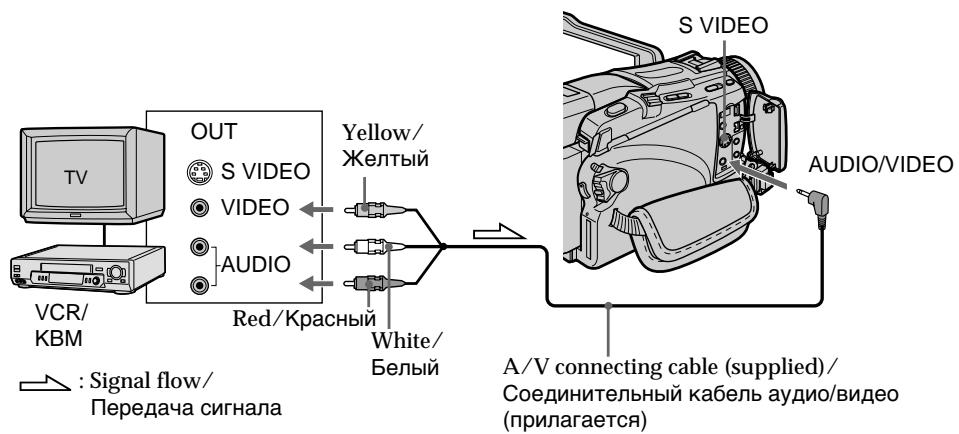
Using the A/V connecting cable
If your TV or VCR has an S video jack
Pictures can be reproduced more faithfully by using an S video cable (optional).
With this connection, you do not need to connect the yellow (video) plug of the A/V connecting cable.
Connect an S video cable (optional) to the S video jacks of both your camcorder and the TV or VCR.
EcIn B BaWem TeJIeBn3ope nI KBM Imeetca rHe3do S bVdeo
N3o6paKeHnMoYr 6bITb BOCpOu3BeDeHbl
60JIee BBICOKOKaUcTeBHeHO pIu NcPOnb3OBAHn
KaBeHn S BNDeo (npNo6peTaetc OTDenHo).
Pi n DaHHom CoeINHeHn Bam He HuxHo
IOdCoeINHt b JeTbI WTeKeP (BnDeo)
CoeINHtTeNbHoro KaBeHn ayDnO/BnDeo.
PiOnCoeINHtte KaBeHs BNDeo
(pnNo6peTaetc OTdeHbHO) K rHe3dAm S BNDeo
BaWei BNDeokamepbI n TeNeBn3Opa nJN KBM.
Recording pictures from a tape as a moving picture
Using the i.LINK cable (DV connecting cable)
3aInCb n3o6paXeHn c JeHTbI KaK DnBxJyUnxCra n3o6paXeHn
IcnoJIb3OBAHne Ka6eJIa.i.LINK (coeINHTeJIbHO rKa6eJIa cIΦpOBOro BnDeocuHaJa DV)
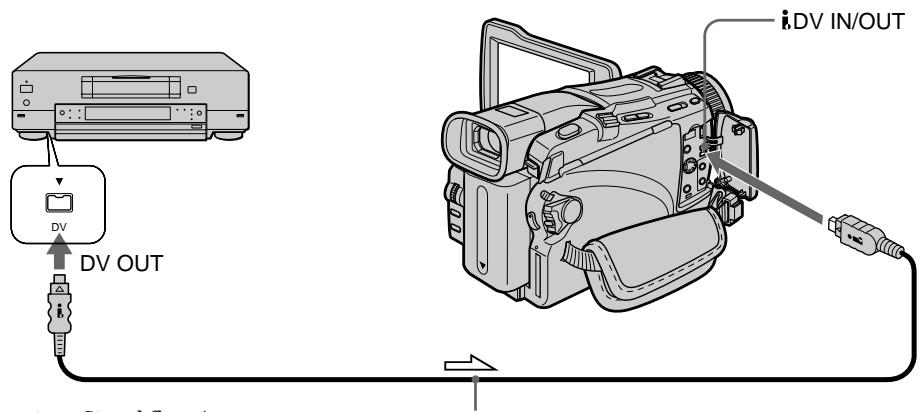

Signal flow/
Ipeepa cunhana
i.LINK cable (DV connecting cable) (optional)/ Ka6eIb i.LINK (coeHNHTeHbH K6eIb cHpOBOrB BnDeocnHaJv DV) (npNo6peTaETcOtJeHbHO)
Note
In the following instances, recording is interrupted or "REC ERROR" is displayed and you cannot record pictures:
- When recording on a tape in a poor recording state, for example, on a tape that has been repeatedly used for dubbing
- When attempting to input images that are distorted due to poor radio wave reception when a TV tuner unit is in use
- When the input signal is cut off.
PpmeuHne
B cIeIyUOuX cIyuaX 3aIINc bIeT npepBaHa IInI OTObpaXaETcI INdKaTOP
RECERROR",BbI He MoXeTe BblIOJIHrTb 3aIncb n3O6paXeHn:
-ПиЗЗИСНЯЛЕNTY,HAXODIJIYUOCBA MДАЛОПИROДHOMДЯЗИССCOCTOЯнIM, HANРIMeP,HAJIENTY,HEOДHOKpaTHO ICSIOJIb3OBAWJUOCDAJIPE3aIINC.
-При повытke Вьлолнпь ВВOD ИЗобрахени,ИСКАжEHьIX ИЗ-3а ПLOXОТ рпсемаразДИОВЛН пri ИСПОЛьЗOBAHINTeLEВ3IOHORO TJOHEpa.
-Припразкрашенивхдого сигнада.
Recording edited pictures from a tape as a moving picture - Digital program editing (on "Memory Stick"s)
3aINcB CMOHTnPOBaHHbIX N3o6paXeHm C IeHTbl KAK DnKxUeOcR N3o6paXeHn -LIpPOBoM MoTAX PpOrpAMMbI (Ha "Memory Stick")
- Except DCR-TRV16E/TRV116E
You can duplicate selected scenes (programmes) for editing onto "Memory Stick"s.
Making the programme
(1) Set the POWER switch to PLAYER^1)/ VCR ^2) on your camcorder.
(2) Insert the tape for playback, and a "Memory Stick" for recording into your camcorder.
(3) Press MENU, then select VIDEO EDIT in ETC with the SEL/PUSH EXEC dial (p. 242).
(4) Turn the SEL/PUSH EXEC dial to select MEMORY, then press the dial.
(5) Turn the SEL/PUSH EXEC dial to select IMAGESIZE and select the desired image size, then press the dial.
(6) Search for the beginning of the first scene you want to insert using the video operation buttons, then pause playback. You can fine-adjust one frame at a time with EDITSEARCH.
(7) Turn the SEL/PUSH EXEC dial to select MARK, then press the dial. The IN point of the first programme is set, and the top part of the programme mark changes to light blue.
(8) Search for the end of the first scene you want to insert using the video operation buttons, then pause playback.
(9) Press the SEL/PUSH EXEC dial. The OUT point of the first programme is set, then the bottom part of the programme mark changes to light blue.
(10) Repeat steps 6 to 9, then set the programme. When one programme is set, the programme mark changes to light blue. You can set 20 programmes in maximum.
^*1) DCR-TRV18E/TRV24E only
*2) DCR-TRV25E/TRV27E/TRV118E only
-Kpome moJeIe DCR-TRV16E/TRV116E
BbMOxKeTe KOnIpOBaTb BbIbpaHhIbe 3nN3oDbI (nporpaMMbI) MoNTaxa Ha "Memory Stick".
Co3dahne nporpammbl
(1) YctanobNTe pepeKIOUaTeJIb POWER Ha BaSei BnIeOKaMepe B nIoJxHne PLAYER ^1) VCR ^2 ).
(2) YcTaHOBInTe B BaUy BnDEoKamepy JeHTy DnIy BOCpOn3BedeHnA, a "Memory Stick" DnIy 3aPiNCi.
(3) HaxmTe KhoNky MENU, a 3aTeM Bbl6epnte onuio VIDEO EDIT bpexime EtC c nmoosb dncka SEL/PUSH EXEC (ctp.251).
(4) ПовернITE ДИСК SEL/PUSH EXEC ДИВыбoga опци MEMORY, a за tem НжмITE ДИСК.
(5) ПовернITE диck SEL/PUSH EXEC дяьыбoga onциIMAGESIZE и ВьберпTe hyжны размер n3obpaхенЯ,а зatem HaЖМЛТЕ дИСК.
(6) BbIOnHInTe nOcK hauJa nepBOrO 3n3oJa, KOTOpB bI XOTInTe BCTaBnTb, mONb3yKn HONKn BnDEoKoHTpOJr, n OocTaBtBe BOCpnO3BeJeHne Ha nay3y. Bbl MoKeTe BbIOnHInTb Tohkyo nOKaApOBvIO peruNipOBkpy npn NOMoUe fHyNKuN EDITSEARCH.
(7) ПовернITE ДСК SEL/PUSH EXEC ДЯ
Выбopa опци Mark, a 3aTeM haxmte
ДСК.
Точka IN nepBoi npOrpamMbI 6ydet
уCTaHOBJIeHa, И CBet BepxHeJЧASTN
МETКИnpOrpamMbI ИЗмEHITcHа CBETLO-
гolyboi.
(8) BbINOJIHnTe NOIck KOHua nepBOrO 3IN3OJa, KOTOpBbI BBy XOTNe BCTaBntb, INcNoJIb3yR KHONKIN BnDEOKOHToPJI, INoCTaBBTe BOCnPOn3BeDeHne Ha Naay3y.
(9) HaxmTe nck SEL/PUSH EXEC. ToKa OUT nepBoI npOrpaMMbI 6yDeT yCTaHOBnHeHa, uCBET HxKHe Yactn MeTKI npOrpaMMbI n3MeHHTc Ha CBeTIO-roYboi.
(10) NOBTOPTE DeiCTBnI NyHKTOB C 6 No 9, a 3aTEM yctaHOBnTe nporpaMMy. Korda nporpamMa 6yDeT yCTaHOBnHeA, CBET MeTKn nporpammbI n3MeHnTCa Ha CBETNo-ronyboi. Bbl MoKTe yCTaHOBnTB, camoe 6oNbJee, 20 nporpAMM.
^1) ToIbKO moJeN DCR-TRV18E/TRV24E
^2) ToIbKO moJeN DCR-TRV25E/TRV27E/ TRV118E
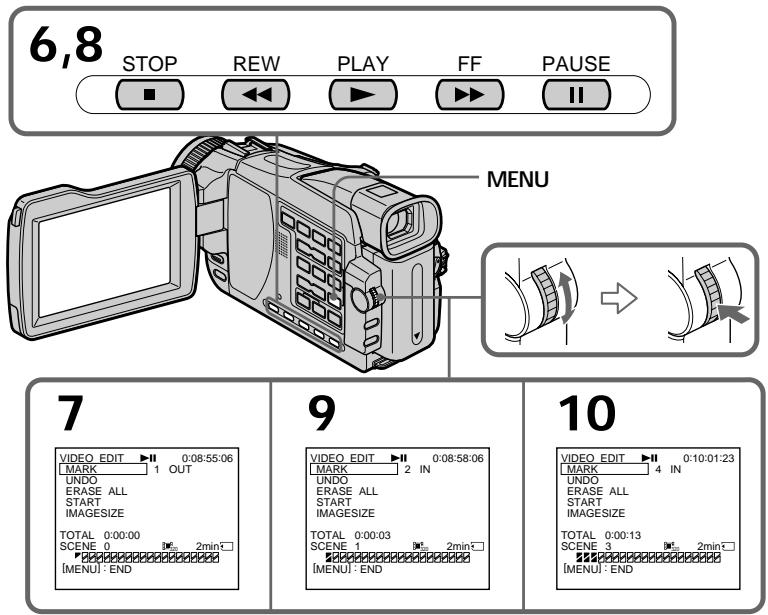
Erasing the programme you have set Erase OUT first and then IN from of the last programme.
(1)Turn the SEL/PUSH EXEC dial to select UNDO, then press the dial.
(2) Turn the SEL/PUSH EXEC dial to select EXECUTE, then press the dial. The last set programme mark flashes, then the setting is cancelled.
To cancel erasing
Turn the SEL/PUSH EXEC dial to select
RETURN, then press the dial in step 2.
CTnpaHne nporpaMMbl, KOTopyo Bby yCTaHOBUNI
Chauana ydaInTe ToKy OUT, a 3aTeM ToKy IN nocJeDHe npOrpaMMbl.
(1)ПовернITE ДИСК SEL/PUSH EXEC ДЛЯ Выбopa опци UNDO,а затем нахмITE ДИСК.
(2)ПовернITE днС K SEL/PUSH EXEC дя
Быбopa onци EXECUTE, a 3aTe m haxmnte
dнСК.
Метka полдену установенью
пPORpaMMbl byet MraTb, a 3aTe m
yCTaHOBkbydet OTmeHeHa.
ДЯ OTMeHbI CTnpaHnA
ПовернITE ДИСК SEL/PUSH EXEC ДИВБОп onци RETURN, a 3aTe mнжмITE ДИСК пи Bынлесни DeICTBиpyHKta 2.
Recording edited pictures from a tape as a moving picture - Digital program editing (on "Memory Stick"s)
3aHcB CMOHTnPOBaHHbIX N3o6paXeHn CJeHTbI KaK DBrXKyIeOcR N3o6paXeHn - LInΦpOBoM oHTax nporpaMMbl (Ha "Memory Stick")
Erasing all programmes
(1) Turn the SEL/PUSH EXEC dial to select VIDEO EDIT in the menu settings, then select MEMORY with the dial.
(2)Turn the SEL/PUSH EXEC dial to select ERASE ALL, then select EXECUTE with the dial.
All the programme marks flash, then the settings are cancelled.
To cancel erasing all programmes
Turn the SEL/PUSH EXEC dial to select RETURN with the dial in step 2.
To cancel a programme you have set Press MENU.
The programme is stored in memory until the tape is ejected.
Notes
- You cannot dub the titles, display indicators, or the contents of cassette memory.
- You cannot operate recording during the Digital program editing on "Memory Stick"s.
On a blank portion of the tape
You cannot set IN or OUT.
If there is a blank portion between IN and OUT on the tape
The total time code may not be displayed correctly.
During making a programme
If you eject the cassette, NOT READY appears on the screen. The programme will be erased.
CTupanHe BceX nporpamM
(1)ПовернITE ДИСК SEL/PUSH EXEC ДЯ
Выбopa onци NVIDEOSEDIT B yctahOBkax
MeHIO, a 3aTeM bIbepnTe C NOMOцью ДИСКа
onци NO MEMORY.
(2)ПовернITE ДИСК SEL/PUSH EXEC ДЛЯ Вьбора ONцИ ERASE ALL, a 3aTeM ВьберпЕ C ПОМоцьЮ ДИСКА ONцИ执行.
MeTKn BCex nporpamM 6yUyt MInrA Tb, a 3aTeM yCTaHOBKn 6yUyt OTMeHeHbl.
ДЯ OTMeHbI CTnpaHnB BcEx nporpamM
ПовернITE ДИСК SEL/PUSH EXEC ДЯ Вьбopa onци RETURN рп влолени Deяст用车ун ta 2.
Длг OTMeHbI nporpaMMbl, KOTopyBbI yctaHOBNI
HaxmTe KhoNkY MENU.
Iporpamma 6ydt COxpaHbCBA namrtn Do tex np, noka JeHTa He 6ydt N3Bneheha.
PpIMeuaHn
BbI He MoKeTe nepe3aINCbBaTb TnTpbl, INHdkaTObpbl INCJIeER JIn COdepXHMoe KaccETHOJAMrTN.
- Bы He можete Былолнгть 3апсь BO Врмя цфpo bor MOHTaKa погамьи Ha "Memory Stick".
Ha He3aIncAHHom yUactKe JeHTbl
BbI He MoXeTe yCTaHaBnBaTb TOnKn IN nIn OUT.
EcIn MExdy ToyKamn IN u OUT ImeTeHne3aNcAHbI yAcTOK JeHTbl
ObuKoB BpeMeH MoKet OTo6paKaTbC HnPaBnJIbHO.
Bo Bpemc03dHn nporpaMMbI
EcIn BbI n3BneYe KaCCeTy,Ha 3KpaHe BBiCBBeTITcHnDnKaun NOT READY.
Iporpamma6ydetCTepta.
Recording edited pictures from a tape as a moving picture - Digital program editing (on "Memory Stick"s)
Performing the programme (Dubbing a "Memory Stick")
(1) Select VIDEO EDIT in the menu settings. Turn the SEL/PUSH EXEC dial to select MEMORY, then press the dial.
(2) Select START in the menu settings. Turn the SEL/PUSH EXEC dial to select EXECUTE, then press the dial.
Search for the beginning of the first programme, then start dubbing.
The programme mark flashes.
The SEARCH indicator appears during
search, the EDITING indicator appears during writing of data on your camcorder, and REC appears during dubbing on the screen.
The programme mark changes to light blue after dubbing is complete.
When the dubbing ends, your camcorder automatically stops.
To stop dubbing during editing
Press using the video operation buttons.
The programme you made is recorded on a
"Memory Stick" up to the place where you pressed.
To end the Digital program editing function
Your camcorder stops when the dubbing ends.
Then the display returns to VIDEO EDIT in the menu settings.
Press MENU to end the Digital program editing function.
NOT READY appears on the LCD screen when:
- The programme to operate the Digital program editing has not been made.
- The "Memory Stick" is not inserted.
- The write-protect tab on the "Memory Stick" is set to LOCK.
When "Memory Stick" does not have enough space to record
LOW MEMORY appears on the screen. However, you can record pictures up to the time indicated.
3aHcB CMOHTnPOBaHHbIX N3o6paxeHmC JeHTbI KaK DBrXKyIeOcR N3o6paxeHn - LInΦpOBoM oHTax nporpaMMbl (Ha "Memory Stick")
Ha 3kpae NoBnTcHmDnkaun LOW MEMORY. Te Me MeHee, Bb MoKeTe npOn3BOJntb 3aIncb N3O6paKeHn Do OTo6paJaemO, DnTnBHeHt, ZAPnC
Copying still images
from a tape
- PHOTO SAVE
- Except DCR-TRV16E/TRV116E
Using the search function, you can automatically capture only still images from tapes and record them on a "Memory Stick" in sequence.
Before operation
- Insert a recorded tape into your camcorder and rewind the tape.
- Insert a "Memory Stick" into your camcorder.
(1) Set the POWER switch to PLAYER^1 / VCR^2 .
(2) Press MENU to display the menu. Select PHOTO SAVE in with SEL/PUSH EXEC dial (p. 238). PHOTO BUTTON appears on the screen.
(3) Press PHOTO deeper. The still images from the tape are recorded on the "Memory Stick." The number of still images copied is displayed. END is displayed when copying ends.
1) DCR-TRV18E/TRV24E only
2) DCR-TRV25E/TRV27E/TRV118E only
KoNiPoBaHne HeNoDBrXhBIX n3O6paXeHn C JeHTbl
-ФункцЯ PHOTO SAVE
-Kpome moenel DCR-TRV16E/TRV116E
IcnoIb3yI cyHKUIO NOCKa, BblMOKeTe aBTOMATUeCKN CHTbIBaT TOJIbKO HeNoDBNXHbIe N3O6paXeHnC JHeT, n noCneIDOBaTeNbHO 3aINCbIAbTx Ha "Memory Stick".
Ipeed BbInOpHeHnEm Onpaun
- YctahOBInTe Kaccety C JeHToB B BaSuBy BInDeOkAmepy N BbIIOJIHnTe YcKOpEHHyIO nepeMoTky JeHTbI Ha3a,d.
- YcTaHOBnTe "Memory Stick" B BaIy BnDeOKaMepy.
(1)Установпейрешичать POWER в положене PLAYER ^1) / VCR ^2 ).
(2)HaXmTe KHOJky MENUДЯ OTo6paXeHnY yCTaHOBOK MeHIO. BbIbepTe OIpuHo PHOTO SAVE BpeXmE C nOmoUbIO DnCKa SEL/ PUSH EXEC (cTp. 247). Ha ekpaHe NOBtca INDnKaun PHOTO BUTTON.
(3)HaXMMTe KhoNky PHOTO cInbHee. HEnoDbVnKhbIe N3O6paXeHnC JIeHT 6yUyt 3aIncahbI Ha "Memory Stick". Bydet OTo6paXeHO KOINueCTBO CkONIpOBaHHbIX HEnoDbVnKhbIe N3O6paXeHn. ITO 3aBepWeHn KOnIpOBaHn Ha DnCpJIee 6yDet OTo6paXeHa INDnKaunr END.
^*1) ToIbKO MoIeJI DCR-TRV18E/TRV24E
^2) ToIbKO moJeI N DCR-TRV25E/TRV27E/ TRV118E
3

(PHOTO)

2
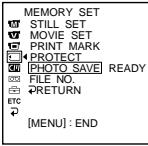

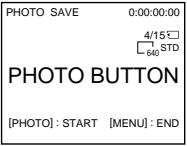
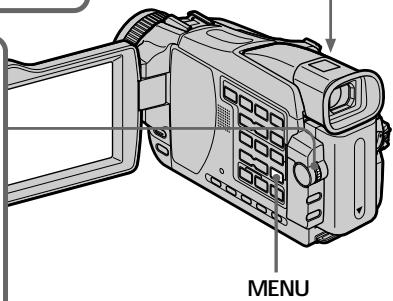
To stop copying
Press MENU or ■.
When the "Memory Stick" becomes full
MEMORY FULL appears on the screen, and copying stops. Insert another "Memory Stick" and repeat the procedure from step 2.
Image size of still images
Image size is automatically set to 640 × 480 .
When the access lamp is lit or flashing Do not shake or knock your camcorder. As well do not turn the power off or eject a "Memory Stick". Otherwise, image data may become damaged.
If the write-protect tab on the "Memory Stick" is set to LOCK
NOT READY appears when you select the item in the menu settings.
When you change "Memory Stick"s during copying
Your camcorder resumes copying from the last image recorded on the previous "Memory Stick."
ДЯ OCTAHOBKINONIPOBAHNA
Haxmnte KhoNky MENU nJn ■.
B cIyuae, ecIe IEMKocTb "Memory Stick" cTaHOBnTCr POJIHOCTbIO 3aONJHeHHo
Ha 3kpaHne nOBHTcHnDnkaun MEMORY FULL, n KOnIpOBaHne ocTaHOBNTcR. BCTaBbTe dpyrUo "Memory Stick" n NobTopnte npOeDpy, naHna c nyHKta 2.
Pa3Mep HEnoDbNkHbIX N3o6paXeHn
Pa3mepn3o6paXeHn aBtOMaTnueckn yCTaHaBnBaETcB 640×480.
Ecnn lamnoka doctyna ropnt nnn mnaet
He TpncTe n He cTcuHte no Bauei BnDeokampe. TaKke, He BbIKNouayTe PntaHne n He n3BNekaJte "Memory Stick". B npOTNBOM cnUyae daHHbIe n3O6paXeHnA MOryt 6bITb NOBpeKdEhbl.
EcInI IeneCTOK 3aunTbI 3annc Ha "Memory Stick" yctahOBnE H noJIOxHeNc LOCK
Погвпся ИндикадNot READY, ecn Bbl BbIbepeTe OINH n3 pyHKTOB bYcTaHOBkax MEHIO.
EcIn Bbl 3aMeHnte "Memory Stick" BO BpeMa KOINPOBaHH
BaSHA BnDeOkamepa Bo3o6HOBNT KOnIpOBaHne, NaHnaC nOcIeNHe r3o6paJxEnr, 3aHncanHoro Ha npdeIyUeien "Memory Stick".
Viewing still images - Memory Photo playback
ПрсмOTР HeIOBbIX N3O-6ражен - Bocpon3BeDeHne FOToCHIMKOB n3 pAmrTn
- Except DCR-TRV16E/TRV116E
You can play back still images recorded on a "Memory Stick." You can also play back six images including moving pictures in order at a time by selecting the index screen.
Before operation
Insert a "Memory Stick" into your camcorder.
(1)Set the POWER switch to MEMORY or PLAYER^1) / VCR^2)
Make sure that the LOCK switch is set to the left (unlock) position.
(2) Press MEMORY PLAY. The last recorded image is displayed.
(3) Press MEMORY - / + to select the desired still image.
MEMORY-:To display the previous image MEMORY ^+ :To display the following image
^1) DCR-TRV18E/TRV24E only
2) DCR-TRV25E/TRV27E/TRV118E only
-Kpome moJeIe DCR-TRV16E/TRV116E
BbMOxTe BOCPON3BOIDITb HEnOdBNXHbIe n3o6paXeHnIaNcAHhIe Ha "Memory Stick".
BbMOxKeTe TAKKHe BOCPOn3BODnTb Wectb
H3O6paXeHn, BVJIIOuHaJ DmIXyUInCeA
H3O6paXeHnO,ODHOBpeMeHNO NpTeM BbIbopa
HNDeKCHOrO 3KpaHa.
Ipeed BbInOJIHeHnEM Onpaun
BcTabbTe "Memory Stick" B Bauly BnIeokamepy.
(1)Установпейсякючaelь POWER в поожене MEMORY улл PLAYER*1/ VCR*2.
Y6eIntecb, YTOФИКcaTOp LOCK yCTaHOBJIEN B JEBOM (He3aФИKcIPOBaHHOM) NOJIOXEHIM.
(2)Haxmnte KhoNky MEMORY PLAY. Bydet oTo6paXeHo NocJeDHee 3aIncHhoe n3o6paXeHne.
(3)HaxMMTe KhoNky MEMORY-/+ДЯ BB6opa HxKHOrHeNoDvXKHOrO N3o6paXeHnI.
To stop memory photo playback Press MEMORY PLAY.
Note
You may not be able to play back images with your camcorder:
- when playing back image data modified on your computers.
- when playing back image data shot with other equipment.
ДлЯ OCTAHOBKN BOCPON3BedeHNA FOTOCHIMKOB N3 NaMRTN
HaxmTe KhoNky MEMORY PLAY.
Ppimcayane
Bo3MOxHOb, BbI He cMOxTe BbIOnHnTb Bocnpo3BeDeHne n3O6paXeHn C nOMoUbO BaWei BnJeOkamepbl:
- npn Bocnpo3BveEHH daHbIX n3O6paXeHn, BuOn3MeHeHHbx C nOmoUb BaUero nepcoHaJIbHOrO KOMIbIOTepa.
- npBOCpON3BeDEHn DaHbIX N3O6paXeHn, CHaTbIX C NOMOsbIO dpyro annapaTypbl.
Notes on the file name
- The directory number may not be displayed and only the file name may be displayed if the structure of the directory does not conform to the DCF standard.
- "Directory ERROR" may appear on the screen if the structure of the directory does not conform to the DCF standard. While this message appears, you can play back images but cannot record them on the "Memory Stick."
- The file name flashes on the screen if the file is corrupted or the file is unreadable.
To play back recorded images on a TV screen
- Connect your camcorder to the TV with the A/V connecting cable supplied with your camcorder before operation.
- When operating memory photo playback on a TV or on the LCD screen, the image quality may appear to have deteriorated. This is not a malfunction. The image data is as good as ever.
- Turn the audio volume of the TV down before operation, or noise (howling) may be output from the TV speakers.
When no image is recorded on the "Memory Stick"
The message "NO FILE" appears.
PpmeuHnO mEno aIa
- Homep katajora MOKET He OTobpaXaTbCn, n ToIbKO NIMI paJNA MOKET OTobpaXaTbCn, ecN cTykTypa kataJORA He COOTBcTCTByet Tpe6oBaHnM CTAndapTa DCF.
- INДИКАЦЯ “ DIRECTION ERROR" MOЖET NOВТСЕHA 3KpaHE, ecJI N CTpyKТура KaTaNOra He COOTBETCTBYET Tpe6OBaHIMc TAnDapTa DCF. ПОka 3TO COO6UeHne OTObPaxaTeC,TBI CMOXeTe BOCpOnI3BOdIbTn3O6PaxeHnHa HO He CMOxete Ix 3aIINCbIbAtb Ha "Memory Stick".
-IMMaФaIaMIRaETHa3KpaHcNnФaJI NOBpeXDeHnnHeYHTaETcR.
Дя Воспpon3BedeHЯ 3aIncaHHbIX n3O6paXeHn Ha 3KpaHe TeJIeBn3Opa
IpeBbINHHeM Oepaunn noCoeDHHTe BAsy BuDeOKaMepy K TeLEB3Opy C nOMoUbIO coeDHHTeJbHoro Ka6eJIy ayDIO/BuDeO, npInarAemoro K BaSei BuDeOKaMepe.
Пи ВOCPNOIN3BVEHIMФOTOCHMKOBИЗ
пamTnHa 3kpaHe TELJEBUNOPAИнHa 3kpaH
KKД, KaueCTBO N3O6paxeHIM MOKET
ВылдTeB yxUdSEHHbIM. 3TO He YBNAETC
HcNcPpABHOCTbI. DaHHbIe N3O6paxeHIN
HAXOJATCR B TOM Xe COCTOHN, YTO IN
npexJe.
-Пелеги началов ВоррпонзевеняумьштЕгомковсь Teileвзора,Иначуpee3akyctynchecknecnCnCTeMbITeilev3OpaMOKETNOCblIaTbcaшуM(3aBbIBaHne).
Ecni Ha "Memory Stick" HeT 3aIncahhbx n3o6paxeHn
ПОВИТСС COOБЕНИЕ “NOFILE”.
Screen indicators during still image playback
3KpaHHbIe HNdkaTopbI BO BpeMa BOCpON3BeDeHnH HeNoDnXHOrO n3o6paJxHeHn
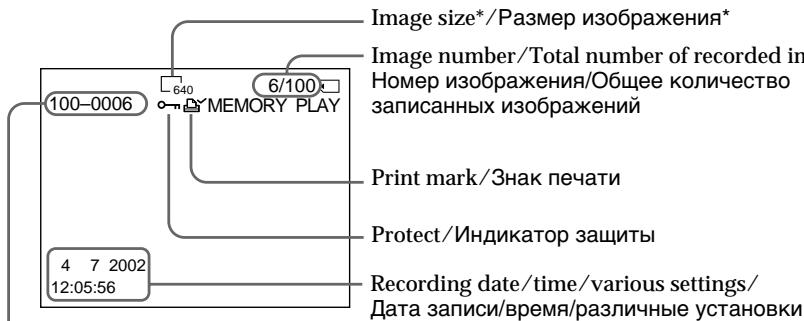
Data Directory Number, File Number/Homep KaTajora daHHbIX, Homep paIa
Recording data
You can view the recording data (date/time or various settings when recorded) by pressing DATA CODE on the Remote Commander.
Playing back six recorded images at a time (index screen)
You can play back six recorded images at a time. This function is especially useful when searching for a particular image.
Before operation
Insert a "Memory Stick" into your camcorder.
(1) Set the POWER switch to MEMORY or PLAYER^1 / VCR^2 . Make sure that the LOCK switch is set to the left (unlock) position.
(2) Press MEMORY INDEX to display the index screen.
^1) DCR-TRV18E/TRV24E only
2) DCR-TRV25E/TRV27E/TRV118E only
DaHHbIe 3aHnCn
BbI CMOKeTe BnDeTb DaHbIe 3aNcN (DaTy/BpEMnIpa3JIuHbIe ycTaHOBKn pRi 3aNcN), HaxaB KhoNkY DATA CODE Ha npJbTe DnCTaHUNOHOrO ynpaBLeHn.
Bocnpo3BeJeHne WecTn 3aIncaHHbIX N3O6paXeHn OndHObpemEHNO (HHeKeCHbI eKpaH)
BbMOKTe BOCPON3BecTNIeCTb 3aINCaHHbIX n3o6paXeHn OJHOBpeMeHNo. 3TaФyHKUma RbJIeTcR OOC6eHNO IOnE3HoI npN BblIOJIHeHn NOnCKa OTdJIbHOrO n3o6paXeHn.
Ipeed BbInOpHeHnEm Onpaun
YctaHOBnTe "Memory Stick" B Bauy BnDeoKamepy.
Viewing still images - Memory Photo playback
A red mark appears above the image that is displayed before changing to the index screen mode.
MEMORY-:To display the previous six images MEMORY +: To display the following six images
Прсмтн HeпоьнхьIX n3обрахен - Bocрpon3BeDEнeфOTOCHMKOB n3 пamrTN
KpaChHa MeTka NOBHTcHa HaN3o6paXeHnEM, KOtOpoe OTo6paXaEeTcHa nepEd nepexOdom B pexIM INHeKeCHOrO 3kpaHa.
MEMORY-:Длг отобрахеня прдыdушишости n3obpaхенii
To return to the normal playback screen (single screen)
Press MEMORY - / + to move the mark to the image you want to display on full screen, then press MEMORY PLAY.
Note
When displaying the index screen, the number appears above each image. This indicates the order in which images are recorded on the "Memory Stick." These numbers are different from the data file names (p. 140).
Image data modified on your computer or shot with other equipment
These files are sometimes not displayed on the index screen.
Дл RA BO3BpaTа K 3KpaHу O6bIuHOrO BOCPon3BeDEHnR (OdInHOuHbI 3KpaH)
HajmMaTe KhoNky MEMORY-/+ДЯ nepemeeHnM MeTkn K n3o6paXeHnHO, KToOpoe BbI XoTnTe OTo6pa3ntb Bo Bec b3kpaH, a 3aTeM HaxmTe KhoNky MEMORY PLAY.
Ppmeuahne
При OTOBрахени Инд ekchoro 3кран haД Кадим NTOBрахениem ПОВЛЯТСН Homep. OH OTOBрахаET NOРДOK, B KOТОРМ NTOBрахени Записны Ha "Memory Stick". 3Ти Homepa OTЛИЧАЮТСТ OT ИмЕн Файлов даньх (cтp. 140).
DaHHbIe N3o6paXeHn, BnDoN3MeHeHHbIX C nOMOuBIO BaWero nepcoHaJIbHoro KOMNbIoTepa Hn CHaTbIX C nOMOuBIO dpyroI annapaTypbl
3Tn paimblnHOrdaMoryt He OTo6paKaTbcaHa HnHeKCHOM 3KpaHe.
Viewing moving pictures - MPEG movie playback
- Except DCR-TRV16E/TRV116E
You can play back moving pictures recorded on a "Memory Stick." You can also play back six images including still images in order at a time by selecting the index screen.
Before operation
Insert a "Memory Stick" into your camcorder.
(1) Set the POWER switch to MEMORY or PLAYER^1 / VCR^2 . Make sure that the LOCK switch is set to the left (unlock) position.
(2) Press MEMORY PLAY. The last recorded image is displayed.
(3) Press MEMORY - / + to select the desired moving pictures. MEMORY- : To display the previous image MEMORY ^+ : To display the following image
(4) Press MPEG or SEL/PUSH EXEC dial to start playback.
(5) To adjust the volume, press either of the two buttons on VOLUME.
- : To turn the volume down
- :To turn the volume up
^*1) DCR-TRV18E/TRV24E only
^2) DCR-TRV25E/TRV27E/TRV118E only
YcTaHOBnTe "Memory Stick" B BaCy BnDeOkaMepy.
(1)Установпейсякунатуль POWER в положене MEMORY улн PLAYER ^1 / VCR ^2 ).Убенистсь, Уто сиксатор LOCK установлен в левом (небафксюваном) положени.
(2)HaxmTe KhoIky MEMORY PLAY. ByeToTO6paXeHO nocJeHHee 3aIncHHeo n3O6paXeHne.
(3)Haxmnte KhoNky MEMORY - / + nIy BbIbopa hyxhbix DnBxuyuxcra 13o6paXeHn. MEMORY-:Ipy oTo6paXeHn npdeIduyUeero I3o6paXeHn. MEMORY ^+ :Ipy oTo6paXeHn cIeNyUoUeero I3o6paXeHn
(4)HaxMMTe KhoNky MPEG▶II nIi nIck SEL/PUSH EXEC dIy Haayala BOCnpon3BeDeHna.
(5)Дя рergyларовая رрмкости нажмп Te OdHy n3 DByX KhoNOK VOLUME. -Дя ум�ьшени ррмкostи +Дя увелчени ррмкostи
^*1) Tólbko Módejni DCR-TRV18E/TRV24E
^2) ToIbKO moJeI N DCR-TRV25E/TRV27E/ TRV118E
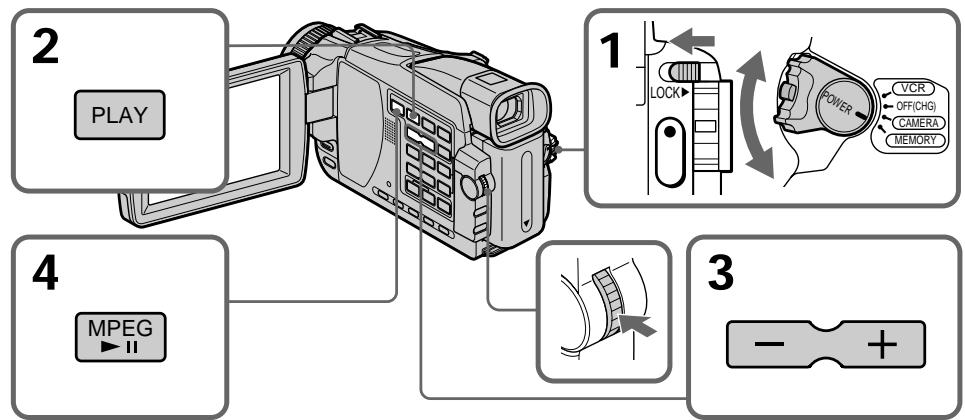
To stop MPEG movie playback
Press MPEG or SEL/PUSH EXEC dial.
Note
You may not be able to play back images properly in the following cases:
- When playing back on your camcorder image data modified on your computer
- When playing back image data on other equipment.
To play back recorded pictures on a TV screen
- Before operation, connect your camcorder to the TV with the A/V connecting cable supplied with your camcorder.
- Turn the audio volume of the TV down before operation, or noise (howling) may be output from the TV speakers.
When no image is recorded on the "Memory Stick"
The message "NO FILE" appears.
ДлЯ OCTaHOBKIN BOCnpon3BedeHnФильмMPEG
Haxmte KhoIky MPEG I nn nck SEL/ PUSH EXEC.
PpimcuaHne
Bo3MOxHObHe CMOxTe HaIeXaIIM
Obpa3OM BbIOnHnTb BocPOn3BeDeHne
N3o6paXeHnB CNeDuOuXn CnyaX:
-при ВOCПОИЗBEДЕНДаньхИЗБРАжЕН, BИДОИЗМЕнEHьхСпOMоцьВашero nepcoHaJIbHOrO KOMЛБЮТepa.
- npn BOCnpOn3BVeDEHm DaHbIX N3O6paXeHm, CHaTbIX C NOMOsbIO dpyro annapaTpybl.
Дя Воспpon3BedeHЯ 3aIncaHHbIX n3o6paXeHn Ha 3KpaH eTeJIeBn3Opa
IpeBbINHHeM Oepaunn noCoeHNHTe BaSy BIneOKaMepy K TeLeBn3Opy C nOMoCbIO CoeHNHTeJbHOrO Ka6eAayDIO/BnDeO, npinaraemoro K BaSei BIneOKaMepe.
-Пелеги началов ВсрпоиЗБеДеняумьштЕ ГМКОСТе ТЕЛБИЗОРа, ИначуЧереша akUCTNчECKNE CNTeMbI TELEBИЗОРa может полblшатбс УМ (3aBbIBaHne).
EcIn Ha "Memory Stick" HeT 3aIncHbIX n3o6paXeHn
Playing back a moving picture from the desired part
The moving picture recorded on a "Memory Stick" is divided into 23 parts.
You can select any point and playback the picture.
(1) Follow steps 1 to 3 on page 185.
(2) Turn the SEL/PUSH EXEC dial and select the point where you want to start playback, then press the dial.
: To see the next part
: To see the previous part
As you turn the dial to select the playback scene you want, the bar and counter change to indicate the playback point.
Bocnpon3BeJeHne DnBxJuIeOcR n3o6paXeHn,HaunHa c HuxHoJ yactn
(3) Press MPEG or SEL/PUSH EXEC dial to start playback.
(4) To adjust the volume, press either of the two buttons on VOLUME.
- :To turn the volume down
- : To turn the volume up
To stop MPEG movie playback
Press MPEG or SEL/PUSH EXEC dial.
When recording time is not long
The moving picture may not be divided into 23 parts.
Screen indicators during moving picture playback
3KpaHHbIe INHdNkAToPbI BO BpeMBOcnpOn3BeDeHnY DnXyUeROcN3o6paXeHnY
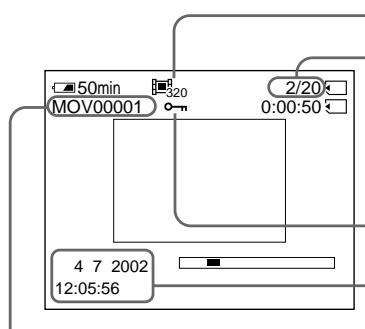
Data directory number/File number/Homep KaTajora daHHbIX/Homep paIa
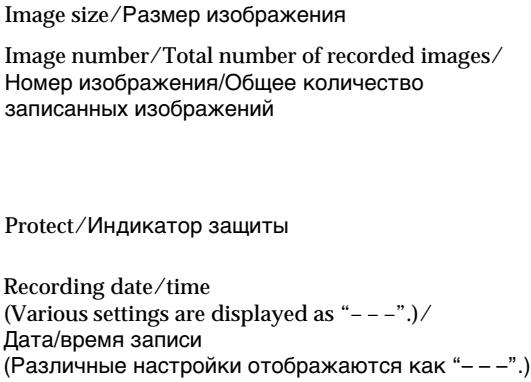
Recording date/time
Recording date/time are displayed when you press the DATA CODE button on the Remote Commander. Various settings are not recorded.
Data/BpeM3aHncn
ДаТВБЕМЯЗANUC6byTOTOBpaXeHbHa 3KpaHe,ecnBbHaxMeTe KhONkyDATA CODE HaNYIbTeДИCTAHUNHOHorOуnpaBNeHn. Pa3JIuHbIe yCTAHOBKn He 6byT3aNcBIBaTbcr.
Copying images recorded on "Memory Stick"s to a tape
KoNiPoBaHne n3O6paXeHn, 3a\PncaHbIX Ha "Memory Stick", Ha JeHtY
- DCR-TRV25E/TRV27E/TRV118E only
You can copy images recorded on "Memory Stick" and record them to a tape.
Before operation
- Insert a tape for recording into your camcorder.
- Insert a "Memory Stick" into your camcorder.
(1) Set the POWER switch to VCR.
(2) Using the video control buttons, search a point where you want to record the desired image. Set the tape to playback pause mode.
(3) Press REC and the button on its right simultaneously on your camcorder. The tape is set to the recording pause mode.
(4) Press MEMORY PLAY. The last recorded image is displayed.
(5) Press MEMORY - / + to select the desired image.
MEMORY-:To display the previous image MEMORY ^+ :To display the following image
(6) Press to start recording and press again to stop.
appears on the screen during recording.
(7) If you have more to copy, repeat steps 5 and 6.
-Только модал DCR-TRV25E/TRV27E/TRV118E
BbMOxTe KOIpOBaTb N3o6paXeHn, 3aIncAHbIe Ha "Memory Stick", n 3aIncbIbTa bnxHaJeHTy.
Ipeed BbInOpHeHnEm Onpaun
- YcTaHOBtE KAcCtY CJIeHToI dIaI 3aIINCB BaUy BnDeOkaMepy.
- YctaHOBnTe "Memory Stick" B Bauy BnDeOKaMepy.
(1)YcTaHOBInTe npeKJIIOuHaTeIb POWER B noJIOKeHne VCR.
(2)ИсплььзукнокиBNdeokOHtpОЯ,найдTeToUky,гдБыхOTиTe 3aIMCaTb HuxKHOeH3O6paxKeHnE.УctahOBInTe JIeHTyВ pexkumpay3byBOCpON3BcDEHnE.
(3) Haxmnte Ha Bawei Bndeokampe oHOBpeMeHHO KHOKy REC u KHOkYc cnpaba O Hee. Kaccetac JHeTOn yCTaHOBHeHa B pexim nay3b3annci.
(4)HaxMMTe KhoNky MEMORY PLAY. OTo6pa3ntcI n3o6paXeHne, 3aIncanHoe nocJIeDnM.
(5)HaxMMTe KhoNky MEMORY - / + IJIa BbIbopa HUxKHOu 3IO6paKeHH.
MEMORY-:ДЯоTO6paJceHnI npedIyUcero n3OpaJceHnEMORY+:ДЯоTO6paJceHnCneDyUcero n3OpaJceHn
(6)HaxMMTe KhoNkY IДЯ NaHaJa 3aInci, N haxMMTe KhoNkY IΕuple pa3ДЯ OCTaHOBKn. Bo BpEma 3aInci Ha eKpaHe NOBbTcŋ nHdNKaJIaŋ ●.
(7)EcJIN Bam HxKHO CKONIPoBaTb YTO-To eue, NOBTOPe DeIcTBnI NyHKTOB 5 n6.
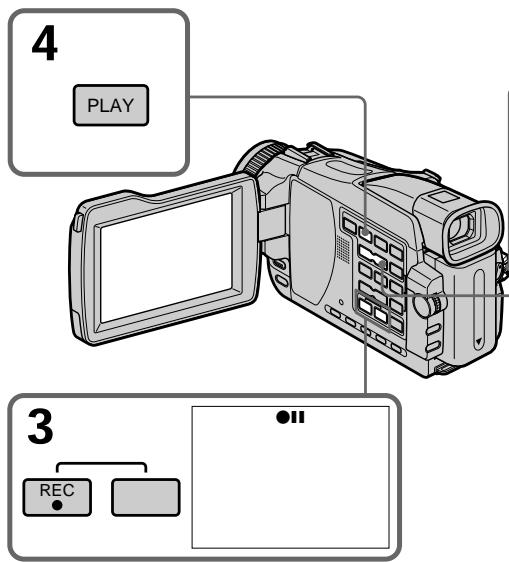
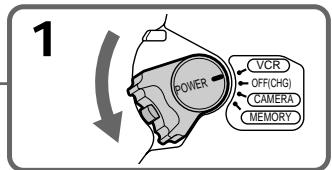
To stop copying in the middle Press
During copying
You cannot operate the following buttons:
-MEMORY PLAY
-MEMORY INDEX
-MEMORY DELETE
-MEMORY-/+
-MEMORYMIX
Note on the index screen
You cannot record the index screen.
If you press EDITSEARCH during pause mode, Memory playback stops.
Image data modified on computers or shot with other equipment
You may not be able to copy modified images with your camcorder.
If you press DISPLAY during recording or in the recording standby mode
You can see the memory playback and file name indicators in addition to the time code indicator and other tape-related indicators.
When copying movies
After step 6, press the MPEG button or SEL/PUSH EXEC dial and play back the image.
KoInpOBaHne n3O6paXeHn, 3aIncaHHbIX Ha "Memory Stick", Ha JeHTy
BbI He MoXeTe IcNoJIb3ObaTb CJIeNyIOUne KHOJKN:
-MEMORY PLAY
-MEMORY INDEX
-MEMORY DELETE
-MEMORY -/+
-MEMORY MIX
Bo3MOxHOb, BbI He cMOxKeTe cKoINpOBA Tb BuOn3MeHeHHbIe N3O6paXeHnHa BaUy BuDeOKaMepy.
EcInn Bbl HaxMeTe KhoNky DISPLAY BOBpeM3aHncn nIIN BpeXmte OxNdaHn3aHncn
BbMOKTe NOCMOTpeb INHINKaTOpbl BOCPOn3BeDEHNAmATN INMeH paJIIOB BDOAbOK K INHINKaTOpy KOda BpemeH IN DpyrIM INHINKaTopaM, IMeOuIM OTHOSeHne K JIeHTAM.
Pn KOnnpoBaHnn 1yIbMOB
Enlarging still images recorded on a "Memory Stick" - Memory PB ZOOM
YBeJIuHHe HEnoDnXhBIX N3O6paXeHn, 3aIncAHHbIX Ha "Memory Stick" -ФункцЯ PB ZOOMnamrTn
- Except DCR-TRV16E/TRV116E
You can enlarge still images recorded on a "Memory Stick." You can select and view a desired part from the enlarged still image. Also, you can copy the desired part of the enlarged still image to tapes or "Memory Stick"s.
Before operation
Insert a "Memory Stick" into your camcorder.
(1) Set the POWER switch to MEMORY or PLAYER^1 / VCR^2 . Make sure that the LOCK switch is set to the left (unlock) position.
(2) In the memory playback mode, press PB ZOOM on your camcorder. The centre of the image is enlarged to about twice its size, and appear on the screen.
(3) Turn the SEL/PUSH EXEC dial to move the enlarged image, then press the dial.
: The image moves downwards.
: The image moves upwards.
(4) Turn the SEL/PUSH EXEC dial to move the enlarged image, then press the dial.
: The image moves leftward. (Turn the dial upwards.)
: The image moves rightward. (Turn the dial downwards.)
(5) Adjust the zoom ratio by the power zoom lever.
You can enlarge the image from about 1.1 times up to five times its size.
W : Decreases the zoom ratio.
T : Increases the zoom ratio.
^1) DCR-TRV18E/TRV24E only
2) DCR-TRV25E/TRV27E/TRV118E only
-Kpome mopeJe DCR-TRV16E/ TRV116E
BbMOKTeYBEJIuINBaTHeNoDBNXHbIe
n3o6paXeHnI,3aIncAHNbIeHa"MemoryStick".
BbMOKETBbIbIpaTbInPocMaTpNBaTbHyxHyIO
cAcbTByBEJIuENHO HeNoDVBHXHOrO
n3o6paXeHnI.BbMOKTeTaKxkeKOnIpOBaTb
HyxHyIO cAcbTByBEJIuENHO HeNoDVBHXHOrO
n3o6paXeHnI HaJeHTbI IN "MemoryStick".
Ipeed BbINOJIHeHEm Onepaun
YcTaHOBnTe "Memory Stick" B BaUy BnDeOkaMepy.
The PB ZOOM mode is cancelled when the following buttons are pressed:
-MENU
-MEMORY PLAY
-MEMORY INDEX
-MEMORY-/+
Moving pictures recorded on "Memory Stick"s The PB ZOOM mode does not work.
To record the still image processed by Memory PB ZOOM on "Memory Stick"s
Press the PHOTO button to record the still image processed by PB ZOOM. (Images are recorded at 640 × 480 size.)
To copy the still image processed by Memory PB ZOOM to a tape
See page 189.
Pexim PB ZOOM He pa6oTaet.
Длздпсн HeNoDnKHoRo n3O6paKeHnA, o6pa6oTaHHoro c nOmoUbIyHKnPn PB ZOOM namrHuHa "Memory Stick"
HaXMMTe KHONKy PHOTO dIy 3aIncn HeIOBvIXHOrO I3o6paXKeHnI, O6pa6oTaHHoro c nOMOuIbO fYHKUIN PB ZOOM. (I3o6paXKeHnI, 3aIncaHhbIe c pa3MePOM 640 × 480.)
ДлКОПЮВАнHAЛЕТУ HENOДВИХНOrO n3OBpaxeHЯ,OBpa6OTAHHOrO c NOMOцьho Функци NB ZOOM namTn
Cm. cTp. 189.
Playing back images in a continuous loop - SLIDE SHOW
Bocnpon3BeDeHne n3o6paXeHn IO 3aMKHyTOMy cNKJy-ФункцЯ SLIDE SHOW
- Except DCR-TRV16E/TRV116E
You can automatically play back images in sequence. This function is useful especially when checking recorded images or during a presentation.
Before operation
Insert a "Memory Stick" into your camcorder.
(1) Set the POWER switch to MEMORY. Make sure that the LOCK switch is set to the left (unlock) position.
(2) Press MENU to display the menu. Select SLIDE SHOW in l with the SEL/PUSH EXEC dial (p. 238).
(3) Press MEMORY PLAY. Your camcorder plays back the images recorded on the "Memory Stick" in sequence.
-Kpome mopeJe DCR-TRV16E/ TRV116E
BbMOKeTe aBTOMaTnueckN BOCpOn3BOuNTb n3o6paXeHnB NocLeDObaTeJbHoCTn. 3Ta fYHKUЯ RbJIraTc Oo6eHNo IOpJe3HOI npi npOBepKe 3aIncaHhbIX n3o6paXeHn IIn BO BpeMnPe3eHTaun.
PpeB BbInOpJIHeHEm Opeaun
YctaHOBnTe "Memory Stick" B Bauy BnDeoKamepy.
(1)YcTaHOBInTe nepeKJIIOUChteIb POWER B noJIOXeHne MEMORY. Y6eDInTEcb, yTO fNkcaTop LOCK ycTaHOBJeH B IeBOM (He3aФИNKcINPOBaHHom) NOJIOXeHm.
(2)HaKmTe KHONky MENU ДЯ OTObpaXeHn yCTaHOBOK MeHIO. BbIbepNte ONUHIO SLIDE SHOWВржIMe C pOMOuBIOДИCKa SEL/PUSH EXEC (cTp.247).
(3)HaxmTe KhoNky MEMORY PLAY. BaaBnIeOKaMepa BocnpOn3BeJeT n3o6paXeHna,3aIncAHbIe Ha "Memory Stick",B NocJIeDoBaTeJIbHOCTN.
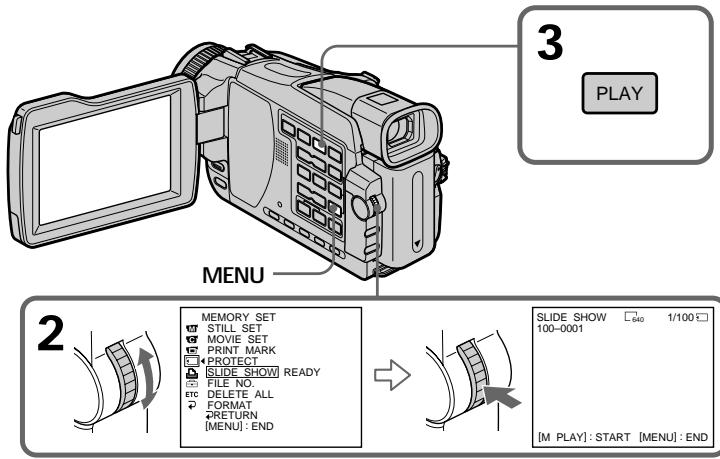
To stop the slide show
Press MENU.
To pause during a slide show
Press MEMORY PLAY.
To start the slide show from a particular image
Select the desired image using MEMORY - / + buttons before step 2.
Дя OCTaHOBKи POKa3а сnaIdoB
HaxmTe KhONkY MENU.
Дл na'ay3bl BO BpeM noka3a cJaIOB
Hakmnte KhoNky MEMORY PLAY.
Дя Naчana noka3a сайдов c onpedeleHHoro n3o6paXeHn
BbIePeTe HxHHe O3o6paXeHne C nOMOuBIO KHOJOK MEMORY - / + nepeD BbIOnHeHem DeiCTBn IyHKTa 2.
To view recorded images on TV Before operation, connect your camcorder to a TV with the A/V connecting cable supplied with your camcorder.
If you change the "Memory Stick" during operation
The slide show function does not operate. If you change the "Memory Stick," be sure to follow the steps again from the beginning.
You can protect selected images to prevent accidental erasure of important images.
Before operation
Insert a "Memory Stick" into your camcorder.
(1) Set the POWER switch to MEMORY or PLAYER^1 / VCR^2 . Make sure that the LOCK switch is set to the left (unlock) position.
(2) Play back the image you want to protect.
(3) Press MENU, then select PROTECT in with the SEL/PUSH EXEC dial (p. 238).
(4) Turn the SEL/PUSH EXEC dial to select ON, then press the dial.
(5) Press MENU to make the menu display disappear. The “o-n” mark is displayed.
^1) DCR-TRV18E/TRV24E only
2) DCR-TRV25E/TRV27E/TRV118E only

Пре dioTbpaueHne cIyuahHOro CTnpaHn - 3aunTa n3o6paXeHn
-Kpome moJeIeD DCR-TRV16E/TRV116E
Длпгдпгдрбшнгсучаного STИРаньВаЖын bIЗБРбжENBblMOКTe 3aUNITbBbIбрANHBE mIc6PaxeHn
Ipeed BbInOJIHeHnEM Onpaun
YcTaHOBnTe "Memory Stick" B Bauly BnDeOkamepy.
(1)Установпейсякolyатуль POWER в поожене MEMORY улИ PLAYER*1/ VCR*2).Убенись,чTo ФикcaTop LOCK установен в левом (He3aФиксюразвнHom) поожени.
(2) Bocnpoun3BveIte n3o6paXeHne, KOTOpoe BbIXOTITE 3aunITb.
(3)HaXMMTE KHOKNY MENU, a 3aTeM BbI6peHte onuHIO PROTECT B pexHMe C nOMOUsHo dNcKa SEL/PUSH EXEC (ctp. 247).
(4)Повернite ДИСК SEL/PUSH EXECДпяВыбopa опци ON,аЗатem нахмITE ДИСК.
(5)Hakmite KhoNky MENU dny toro, yTo6blncye3na HnDkaun MeH. Ha dinCnneeOTo6pa3ntc3HaK“0-n”
^*1) ToIbKO MoIeJI DCR-TRV18E/TRV24E
^2) ToIbKO moJeN DCR-TRV25E/TRV27E/ TRV118E
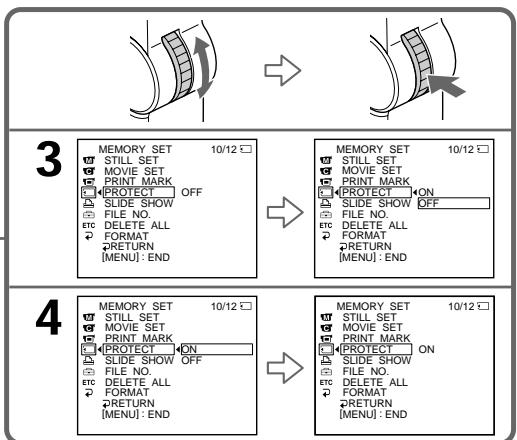
To cancel image protection
Select OFF in step 4, then press the SEL/PUSH EXEC dial. The "0" indicator disappears.
Note
Formatting erases all information on the "Memory Stick," including the protected image data. Before formatting a "Memory Stick", check its contents.
If the write-protect tab on the "Memory Stick" is set to LOCK
You cannot protect images.
ДЯ OTMeHbI 3aUHTbI N3O6paXeHn
BbI6epnte yctaHOBky OFF npn BbIIOJIHeHInn DeiCTBn IyHKta 4, a 3aTEM haxMMTe DnCK SEL/PUSH EXEC. INdIKaTOp "O-n" Ncye3Het.
PpmeHne
BbI He CMOXeTe BbIIOHnTb 3aunTy n3o6paXeHn.
- Except DCR-TRV16E/TRV116E
You can delete images stored in a "Memory Stick."
You can delete all images or only selected images.
Deleting selected images
Before operation
Insert a "Memory Stick" into your camcorder.
(1) Set the POWER switch to MEMORY or PLAYER^1 / VCR^2 . Make sure that the LOCK switch is set to the left (unlock) position.
(2) Play back the image you want to delete.
(3) Press MEMORY DELETE. "DELETE?" appears on the screen.
(4) Press MEMORY DELETE again. The selected image is deleted.
1) DCR-TRV18E/TRV24E only
2) DCR-TRV25E/TRV27E/TRV118E only
-Kpome moJeIeD DCR-TRV16E/TRV116E
Bb mokeTe ydaIITb n3o6paXeHnA, coxpaHeHHbIe Ha "Memory Stick".
BbMOxTe ydaIITb BCE n3o6paXeHnN TOnbKO Bb6paHHbe n3o6paXeHnN.
YdaJIeHne BbIbpaHHbIX n3o6paXKeHn
Ipeed BbinoJHHeHem Otnepaun
YctaHOBnTe "Memory Stick" B BaCy BnDeOKaMepy.
(1)Установские посяклоуатль POWER в положене MEMORY улп PLAYER ^1 / VCR ^2 .Убенитусь, что заимсан lock YстановLEM B Левом (небафКсюванHom) положени.
(2) Bocnpoun3BveiTe n3o6paXeHne, KOTOpoe BbIXOTnTe ydaJIITb.
(3)HaxmTe KhoNkY MEMORY DELETE. Ha 3KpaHe NOBtCn HnDnKaun "DELETE?"
(4)Haxmnte KhoNky MEMORY DELETE eue pa3. BbI6paHoe n3o6paXeHne 6ydet ydaJeHo.
^*1) ToIbKO moJeJN DCR-TRV18E/TRV24E
^2) ToIbKO moJeN DCR-TRV25E/TRV27E/ TRV118E
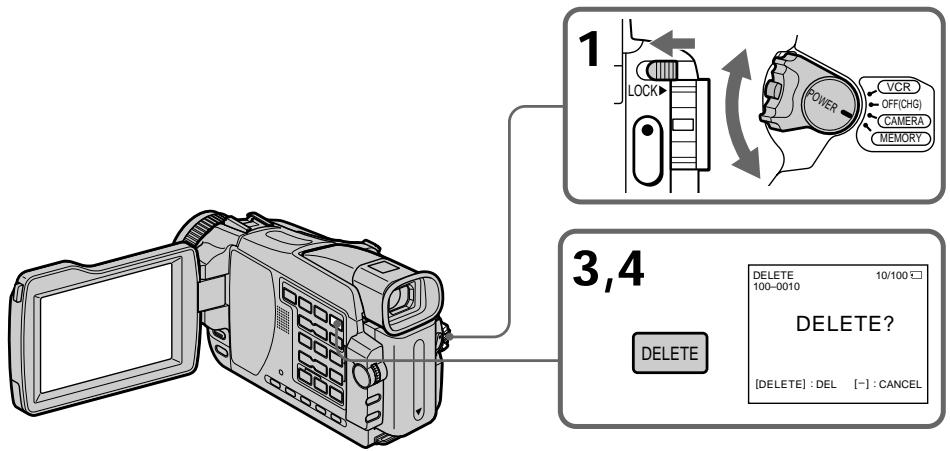
To cancel deleting an image
Press MEMORY - in step 4.
To delete an image displayed on the index screen
Press MEMORY - / + to move the indicator to the image and follow steps 3 and 4.
Длг OTMeHbI ydaJIeHnI n3O6paKeHnI
HaxmTe KhONky MEMORY - npn BbInOpHeHHn DeiCTBn IyHKta 4.
- To delete a protected image, first cancel image protection.
- Once you delete an image, you cannot restore it. Before deleting an image, carefully check the image.
If the write-protect tab on the "Memory Stick" is set to LOCK
You cannot delete images.
Приимechanicals
BbI He MoXeTe YdaJIntb N3O6paKeHnIa.
Deleting all images
You can delete all unprotected images in a "Memory Stick."
Before operation
Insert a "Memory Stick" into your camcorder.
(1) Set the POWER switch to MEMORY. Make sure that the LOCK switch is set to the left (unlock) position.
(2)Press MENU, then select DELETE ALL in with the SEL/PUSH EXEC dial (p. 238).
(3) Turn the SEL/PUSH EXEC dial to select OK, then press the dial. OK changes to EXECUTE.
(4) Turn the SEL/PUSH EXEC dial to select EXECUTE, then press the dial. DELETING flashes on the screen. When all unprotected images are deleted, COMPLETE is displayed.
YdaJIeHne Bcex n3o6paXKeHn
BbMOxTeYdaIITb BCE He3aunHHeHbIe 1306paXeHnHa "Memory Stick".
Ipeed BbINOJIHeHEm Onepaunn
UcTaHOBInTe "Memory Stick" B Bauy BnDeokamepy.
(1)YctaHOBNTe NepeKJIIOUaTeIb POWER B NOJIOXeHne MEMORY. Y6eJNTecb, yTO φHKcaTOP LOCK yCTaHOBJIeH B JEBOM (He3aΦHKcINPOBaHHOM) NOJIOXeHn.
(2)Hakmte KhoNky MENU, a 3aTeM bbl6epnte onuIO DELETE ALL b pexnme c nomoBIO dncKa SEL/PUSH EXEC (ctp. 247).
(3)ПовернITE ДИСК SEL/PUSH EXEC ДЯ
Выбoga опци OK, a 3aTeM нажмITE ДИСК.
Инданаци OK ИзMeHITсЯ на Инданаци NO
EXECUTE.
(4)ПовернITE ДСК SEL/PUSH EXEC ДЯ
Выбopa опции EXECUTE, aЗатем нахмтЕ
ДСК.На Зкpane 6удET мграьнДИКАЦИ
DELETING.Когда Се HeЗашицень;
иЗОБРAXЕНУ 6уДТ yДалЕНБЛ, на ИСПССЕ
OTOBРASTС ИДИКАЦИ COMPLET.E.
To cancel deleting all the images in the "Memory Stick"
Select RETURN in step 3 or 4, then press the SEL/PUSH EXEC dial.
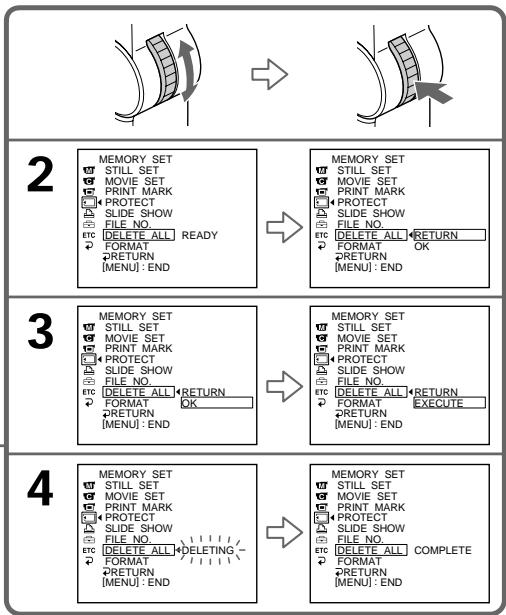
ДлЯ OTMeHbI ydaJIeHnB BCex n3O6paKHeHn Ha "Memory Stick"
Bb6epnte onuio RETURN npn BblonHeHHn DeiCTBn IyHKta 3 nnn 4, a 3aTeM haxmTe Dnck SEL/PUSH EXEC.
Writing a print mark - PRINT MARK
3aHnscb 3HaKa neuATn -ФункцЯ PRINT MARK
- Except DCR-TRV16E/TRV116E
You can specify a recorded still image to print out by putting marks. This function is useful for printing out still images later.
Your camcorder conforms to the DPOF (Digital Print Order Format) standard for specifying still images to print out.
Before operation
Insert a "Memory Stick" into your camcorder.
(1) Set the POWER switch to MEMORY or PLAYER^1 / VCR^2 . Make sure that the LOCK switch is set to the left (unlock) position.
(2) Play back the image you want to write a print mark.
(3) Press MENU, then select PRINT MARK in with the SEL/PUSH EXEC dial (p. 238).
(4) Turn the SEL/PUSH EXEC dial to select ON, then press the dial.
(5) Press MENU to make the menu display disappear. The 品 mark is displayed beside the image with a print mark.
^1) DCR-TRV18E/TRV24E only
2) DCR-TRV25E/TRV27E/TRV118E only
-Kpome mopeJe DCR-TRV16E/ TRV116E
Bb mokeTe yka3aTb 3aHncaHHbIe HEnoDBNkHbIe
1306paXeHn IIN paCneYATKn, NOMeYAnIX
3HaKAMn NeaTn. 3Ta cyHKUra RbIaETcR
10Je3HOJ DnPa paCneYATKn HEnoDBNkHbIX
1306paXeHn IOndHee.
Baawa Bnndeokamepa COOTBETCTBye T cTaNdapTy DPOF (uΦpOBoI φopMaT nopAka neaTu) dny yKa3aHnHENoDVBxKbIX n3o6paXeHn dny paCneuATKn.
Ipeed BbInOpHeHnEm Onpaun
UcTaHOBuTe "Memory Stick" B BaCy BnDeOkamepy.
(1)Установпейсякючateь POWER в положене MEMORY улл PLAYER ^1) / VCR ^2) .Убенитсь,чTO Фнкатор LOCK установмен в левом (небафксюваном) положени.
(2)ВocnpoIN3BVeINTeи3O6paXeHne,HaKOTOpOM BbyXOTInTe 3aINcTaB 3HaK NeaTn.
(3)HaxmTe KhoNky MENU, a 3aTeM BbI6epnTe onuio PRINT MARK BpeXmE c nOmoU bIO dNcKa SEL/PUSH EXEC (ctp.247).
(4)Повернite ДИСК SEL/PUSH EXEC ДЯ
Выбopa onци ON,а затем нахмITE ДИСК.
(5)HaXMMTe KHONky MENUДЯTORO,ЧТОБыИСЧЕЗЛА ИНДИКАЦЯ MEнЮ. РДOM CO 3HAKOM ПЕЧАТУБДET OTOБРAXКATбСТЗHAK
^*1) Toько моделDCR-TRV18E/TRV24E
^2) ToIbKO moJeI N DCR-TRV25E/TRV27E/ TRV118E
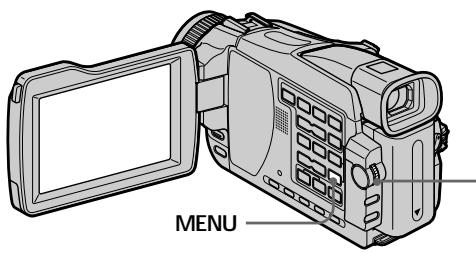
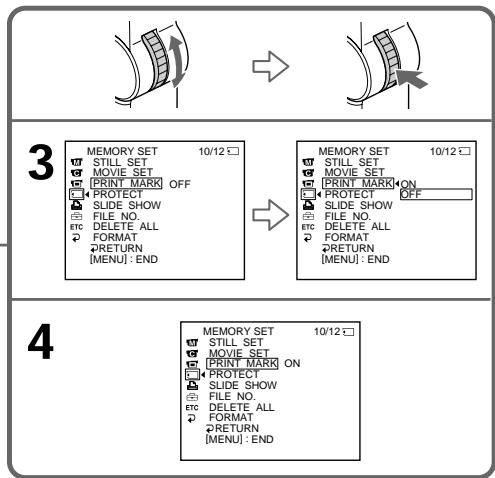
To cancel writing of print marks
Select OFF in step 4, then press the SEL/PUSH EXEC dial.
The mark disappears from the image.
If the write-protect tab on the "Memory Stick" is set to LOCK
You cannot write print marks on still images.
Moving pictures
You cannot write print marks on moving pictures.
While the file name is flashing
You cannot write the print mark on images.
Длг OTMeHbI 3aIIncn 3HaKOB NeaTu
BbIbePteOnCuIO OFF npN BbIOnHeHn DeiCTBn PnykTa 4, a 3aTeM HaxMITE DCCK SEL/PUSH EXEC.
3HaK ICHe3HcCn306paKeHna.
EcJn IeNecToK 3aunTbI 3anCn Ha "Memory Stick" yctahOBHeB nnoJoxKeHne LOCK
BbI He MoKTe 3aIINCaTb 3HaKn NeayTu Ha HEnoDbXkHbIe N3O6paXeHnA.
DvNkUyueecn3o6paXeHn
BbI He MoKTe 3aIncatb 3HaKn NeayTu Ha DnBxuIeecn 13o6paXeHn.
Ioka muraet mraa
BbI He MoXeTe 3aIncatb 3HaK neYaTuHa n3o6paKeHn.
Using the optional printer
You can use the optional printer on your camcorder to print images on print paper.
For details, refer to the operating instructions of the printer.
There are various ways of printing still images.
The following, however, describes the setup for print settings by selecting in the menu on your camcorder.
Before operation
- Insert a recorded "Memory Stick" into your camcorder.
- Attach the optional printer to your camcorder as illustrated.
-Kpome mopeJe DCR-TRV16E/ TRV116E
Bb moKeTe nCNoJIb3OBAt bDOnJIHnTeJIbHbI npInTeP c BaWei BnDeOkAmePoI dIe neaTn 136pbaxekHn Ha 6yMaRe dIra OTNeuAtKOB.
Bolnee noDpO6HbIe CBeEHHa npVBeDeHbIB INHCTpyKUIN NO 3KcNlyaTaunn PnHTepa.
CyueCTbIOT pa3nUHbIe cno6bI neaTIn HenoDvIXhBix n3O6paXeHn. CneyuOni
CnOCo6, TEM He MeHee, ONNCbIbAeT, KaK
BbIIOHNHTb NeaTb NyTem BbIbopa ONUIN 13 yCTaHOBOK MeHIO BaWei BnDeOkaMepbl.
Ipeed BbINOJIHeHEm Onepaun
- UctahOBuTe 3aIncaHnyo "Memory Stick" B BaHy BuJeOkamepy.
-ПоДcoeINHITe DOONHITeNBHbI npINTeP K BaSei BnDEOKaMepe, KaK noka3aHo Ha IIJIIOCTpaUN.
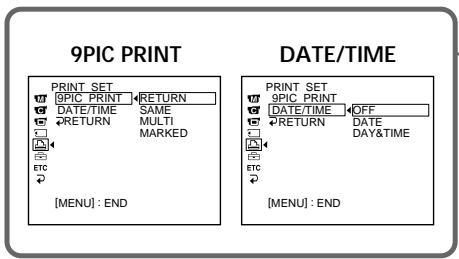
You can print nine still images on the 9-split print paper. Select the desired mode in the menu settings.
SAME PICS
- Nine still images with print marks are printed together.
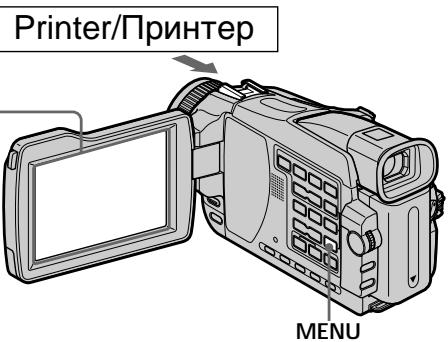
BbMOxKTe HaneYaTaTb DeBArTb HEnoDnBXhIX
H3O6paXeHn Ha pa3dEJIeHHOM Ha 9 YacteJ
JIcTe 6yMaHn dIg OTneuATkoB. BbI6epnte
HyXhN peXmB U yCTaHOBkax MeHIO.

MULTI PICS or MARKED PICS/
MULTI PICS UNMARKED PICS
* DeBbTb HnOoBnKbIx N3O6paXeHm CO 3HaKaMn NeaTu NeaTaOTc BMeCTe.
Using the optional printer
You can make prints with the recording date and/or recording time. Select the desired mode in the menu settings.
DATE
IcnoJb3ObaHne dOnoJIHntJIbHOrOpnHTepa
BbMOxKeTe DeNaTb OTNeuATKn C DaToI 3aNcN n/nn BpeMeHem 3aNcN. BbIbePte HuxKbI peKmB yCTaHOBkax MeHIO.
DAY & TIME
Images recorded in the multi screen mode You cannot print images recorded in the multi screen mode on sticker type print paper.
Moving pictures recorded on a "Memory Stick"
You cannot print the images.
When "Memory Stick" has no files
NO STILL IMAGE FILE" appears on the screen.
When there are no files with a PRINT MARK
NO PRINT MARK" appears on the screen.
Images processed by 9PIC PRINT
You cannot insert a DATE/TIME indicator.
M3o6paXeHn, 3aHncaHHbIe B MHOrO3KpaHHom pexHmE
BbHe CMOXeTe HaneuataTb N3o6paXeHnA, 3aNtcaHbIe B MHOrO3KpaHHom pexKmE, Ha 6yMaRe dIra OTneuATkoB Tnna HAcKeek.
BbI He cMOxKeTe HaneuataTb TaKne n3o6paXeHnA.
Korda "Memory Stick" He codepknt paioB
Ha 3KpaHe NOAIBaIeTcNHNdNkaCua
NO STILL IMAGE FILE.
Korda HeT φaɪnLOB, NOMEueHbIX 3HaKOM neaṭn PRINT MARK
Ha 3kpaHne nOBJIaETcHnDnKaUa
NO PRINT MARK".
M3o6paXeHn,06pa6oTaHHbIe c nCNoJIb3OBAHnEM 9PIC PRINT
BbI He CMOXeTe BCTaBnTb INdNkaTop DATE/ TIME.
Viewing Images Using Your Computer
Viewing images with your computer - Introduction
There are following ways of connecting the camcorder to a computer in order to view images saved on a "Memory Stick"* or recorded on tape on your computer.
- To view images on a computer which has a Memory Stick slot, first remove the "Memory Stick" from the camcorder and then insert it into the computer's Memory Stick slot.
When connecting to a computer via the USB jack, complete installation of the USB driver beforehand. If you connect the camcorder to the computer first, you will not be able to install the USB driver correctly.
For details about your computer's jacks and editing software, contact the computer manufacturer.
- Except DCR-TRV16E/TRV116E
При подсоeINHeHи K KomblIoTepy uepe3 rHe3do USB, nonHaI NHCTaJIaIaIЯДраИВepa USB BbIOnJIaHTcA 3apaHee. EcIn BbI cHaYala noDcoeINHITe BVdEOKaMepy K KOMlbIoTepy, BbI He cMOxKete INCTaJIIpOBaTb dpaIbep USB NaJIeKaaIIM o6pa30M.
3a noDpO6HOn INHOpMaUeNe O rHe3dax n npOrpaMMHom oBecneueHm dJa MOtaja, IMeIoXxCra Ha BaWeM KOMNbHOtepe, 06paaainTeCb K pOn3BOuNTeIIO KOMNbHOtepa.
- Kpome mojele DCR-TRV16E/TRV116E
Viewing images recorded on a tape
When connecting to a computer using the USB cable
For more information, see page 207.
ПпocмтгиЗбражени, 3ансаHHbIX Ha ЛeHTy
Pn noDCoeHHeHH K KOMnbIepy c nOMObIO coeHNHTeJIa Ka6JIa USB
Iopob6hble cBeDeHn npBBeHbHa cTp.207.
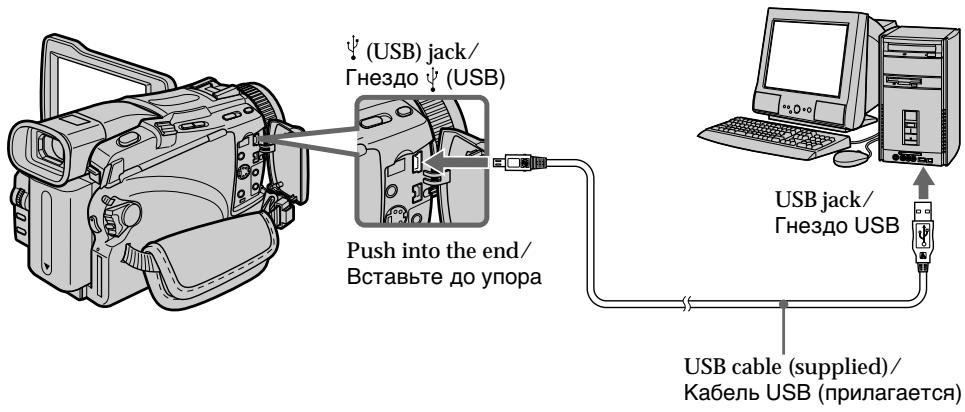
When connecting to a computer using the i.LINK cable (DV connecting cable)
Your computer must have a DV jack and editing software installed that can read video signals.
PnnooCoeHHeHn K KombItepy c nOmoBIO coeHHTeJIa Ka6JIa i.LINK (coeHHTeJIbHbI Ka6JIb uNΦpOBOr BOndeOCHHaJv)
Viewing images recorded on a "Memory Stick"
- Except DCR-TRV16E/TRV116E
When connecting to a computer using the USB cable
There are two methods of USB connection, NORMAL and PTP. The default setting is NORMAL. Here we explain how to use the camcorder with NORMAL USB connection. See page 207 when using Windows and page 225 when using Macintosh.
ПосмотиЗобрахени, 3апсаньх на “Memory Stick”
-Kpome mopeJe DCR-TRV16E/ TRV116E
PnnoDcoeHHeHH K KOMnbTopey c nOMObUo coeHNHTeJIa Ka6JIa USB
CyueCTByeT DbMeToJa PoIcOeDInHeHn USB, NORMAL n PTP. YcTaHOBKe No yMOJuaHNIO COoTBeTCTByeT NORMAL. 3Decb npINBOaNTc8 o6bAcHEHne O Tom, KaK IcNoJIb3OBaTb BIndeOkamepy pIu PoIcOeDInHeHn NORMAL USB.
Cm. ctp. 207 npn nCnoIb3ObaHnn Windows n ctp. 225 npn nCnoIb3ObaHnn Macintosh.
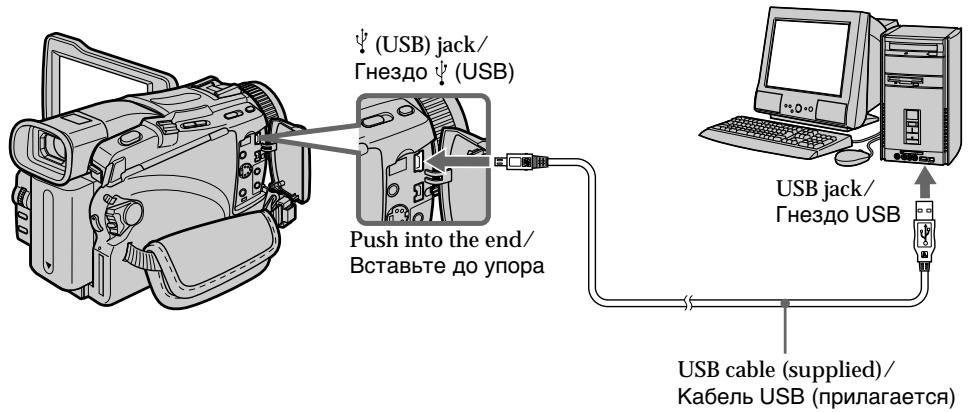
You can also use a Memory Stick Reader/Writer (optional).
When connecting to a computer without a USB jack
Use an optional floppy disk adaptor for Memory Stick or a PC card adaptor for Memory Stick. When purchasing an accessory, check its catalog beforehand for the recommended operating environment.
Bb moKeTe nCNoJIb3OBAt b TaKHe yCTpoIcTBo dIa YTeHnI/3aIncu Memory Stick (npno6peTaetcraOTdJIbHo).
Notes on using your computer
"Memory Stick"
- "Memory Stick" operations on your camcorder cannot be assured if a "Memory Stick" formatted on your computer is used on your camcorder, or if the "Memory Stick" in your camcorder was formatted from your computer when the USB cable was connected.
- Do not compress the data on the "Memory Stick." Compressed files cannot be played back on your camcorder.
Software
- Depending on your application software, the file size may increase when you open a still image file.
- When you load an image modified using retouching software from your computer to your camcorder or when you directly modify the image on your camcorder, the image format will differ so a file error indicator may appear and you may be unable to open the file.
Communications with your computer
Communications between your camcorder and your computer may not recover after recovering from Suspend, Resume, or Sleep.
PpimcuaHnno nCNoJIb3OBaHnIO BaWero KOMNbIOTepa
"Memory Stick"
- HaДлжаше Функциониpoване "Memory Stick"ВБашевидаокаме He rapaHTnpyeTcR,ecnBБашевидаокамercnObl3yeTcR“Memory Stick",otФopMaTIPoBaHнЯHa BaшemКOMpbIoTepe,Ииn ecn"Memory Stick"ВБашewидаокаме 6bla OTфopMaTIPoBaHаСБашeroKOMpbIoTepa,KorJa 6blinnoDCoeDInHek6bIbUSB.
- He CxImaMte daHbIe Ha "Memory Stick". CxKaTbIe paIbIe He MOrYT 6bITb BocPOn3BeDeHbI Ha BaIeBn DeOkaMepe.
PporpamMHOe o6ecneHHe
B 3aBnCmocTOn OT BaWero nporpamMHoro
0ececneHn, npOtKpbITn npaIna
HeNoDBNkHO rN3OBpaXeHn pa3MeP paINa
MOKeT yBeJIuHTbcR.
- Ecnn Bby 3arpy3nTe c Baawero kOMnbIoTepa B Bawy BnuDeokamepu n3o6paxeHne, MoDnΦnUropoBaHHoe C nCnOJIb3OBaHneM npOrpaMMHO oEcbneHnA dIra peTuuropoBaHHn, nIe ecnn Bbl MoDnΦnUcpye Tn3o6paxeHne HEnocpeIcTBeHHo Ha BaWeBnuDeokamepe, fOpMaT N3o6paxeHnN3MeHnTCR, B pe3yIbTaTe Yero MOXET NOBHTCBN INHnKaTop OUn6Kn paJna, N Bbl, BO3MOxHo, He CMOxKeTe OTKpbITb paJnl.
CBA3b BaAMnepcoHaJIbHbIM KOMNbIOTepom
C83b MExJy BaSei BnDeokamepo i BaHIM nepcoHaIbHbIM KOMNbOTepom MoKeT He BOCCTaHOBtCBa Iocne BblOda KOMNbOTepa n3 pexKMOB Pay3bl, Bo306HOBLeHnI nn CnPaTeRo peKIma.
Connecting your camcorder to your computer using the USB cable - For Windows users
Complete installation of the USB driver before connecting the camcorder to the computer. If you connect the camcorder to the computer first, you will not be able to install the USB driver correctly.
When connecting to a computer using the USB cable
You must install a USB driver onto your computer in order to connect the camcorder to the computer's USB jack. The USB driver can be found on the CD-ROM supplied, along with the application software required for viewing images.
If you connect your camcorder and your computer using the USB cable, you can view pictures live from your camcorder and pictures recorded on a tape on your computer (USB streaming function).
Furthermore, if you download pictures from your camcorder to your computer, you can process or edit them in image processing software and append them to e-mail. You can view images recorded on a "Memory Stick" on your computer (except DCR-TRV16E/TRV116E).
Recommended computer usage environment to view tape images on the computer
OS:
Microsoft Windows 98SE,Windows Me, Windows 2000 Professional,Windows XP Home Edition or Windows XP Professional Standard installation is required. However, operation is not assured if the above environment is an upgraded OS. You cannot hear sound if your computer is running Windows 98,but you can read still images.
CPU:
Minimum 500 MHz Intel Pentium III or faster (800 MHz or faster recommended)
Application:
DirectX 8.0a or later
Sound system:
16 bit stereo sound card and stereo speakers Memory:
64 MB or more
Hard disk:
Available memory required for installation: at least 200 MB
Available hard disk memory recommended: at least 1 GB (depending on the size of the image files edited)
Connecting your camcorder toyour computer using the USBcable - For Windows users
Display:
4 MB VRAM video card, Minimum 800 × 600 dot Hi colour (16 bit colour, 65 000 colours), Direct Draw display driver capability (At 800 × 600 dot or less, 256 colours and less, this product will not operate correctly.)
Others:
This product is compatible with DirectX technology, so it is necessary to install DirectX.
The USB jack must be provided as standard.
You cannot use this function in the Macintosh environment.
Recommended computer usage environment to view "Memory Stick" images on the computer
OS:
Microsoft Windows 98, Windows 98SE,
Windows Me, Windows 2000 Professional,
Windows XP Home Edition or Windows XP
Professional
Standard installation is required.
However, operation is not assured if the above environment is an upgraded OS.
CPU:
MMX Pentium 200 MHz or faster
The USB jack must be provided as standard.
Windows Media Player must be installed (to play back moving pictures).
Connecting your camcorder to your computer using the USB cable - For Windows users
- Operations are not guaranteed for the Windows environment if you connect two or more USB equipment to a single computer at the same time, or when using a hub.
- Some equipment may not operate depending on the type of USB equipment that is used simultaneously.
- Operations are not guaranteed for all the recommended computer environments mentioned above.
- Windows and Windows Media are trademarks or registered trademarks of Microsoft Corporation in the United States and/or other countries.
- Pentium is trademark or registered trademark of Intel Corporation.
- All other product names mentioned herein may be the trademarks or registered trademarks of their respective companies. Furthermore, "TM" and "®" are not mentioned in each case in this manual.
Приимechanicals
- BbIOnHeHne onepaunI nIe onepauonHnoI cpebl Windows He rapaHTnpyTeC,ecnBbI noDCoeDHHte Db IIN 6oOee ycTpoiCTB USB OHOBPemEHNO K OJHOMy nepcoHaJIbHOMy KOMNbIOTepy,IIN IpiN IcNoJIb3OBaHIn KOHcEHTpaTopa.
B3aBnCmOCTNOTTnAOBpyoBaHnI USB,NCNoJIb3yEmOOrO ONDOBpeMeHNO,HeKOToPbIe N3 yCTpOJCTB MOrY THe pa60TaTb. - BbINOJIHeHne OepaCn He rapaHTnpyETc dIra BCex peKOMeHDoBaHHbIX KOMNbIOTePbIX cpei, yNOMAHyTbIX BbiIe.
- Windows n Windows Media ablaioTcra TopRObIMn MapKaMn nn 3apeHnCTpnpoBaHHbIMn TopRObIMn MapKaMn Kopnpaun Microsoft B CoeHHeHHbx UToTaX n/nn dpyrnx cTpaHax.
- Pentium ABJIeTcT TopROBm MapKoI nIa 3aperncTprpOBaHNoT TopROBm MapKoI KopnpaCm Intel Corporation.
Bce Ha3BaHnI N3DeIIN, yNOMHaEmble 3deCb, MOrYT ABJIaTbC TOpROBbIMN MapKaMn IIN 3apeRNCtPnpOBaHHbIMN TopROBbIMN MapKaMn IX COOTBeTCTByOuNX KOMpaHNI. B DaJIbHeJWeM 3HaKn "TM" n "®" He yNOMHaIOTCB B KaXdOM CInyae B DaHHOM pyKOBOdCTBe.
Installing the USB driver
Start the following operation without connecting the USB cable to your computer.
Connect the USB cable according to "Making the computer recognise the camcorder".
If you are using Windows 2000 Professional or Windows XP Home Edition/Professional, log in with permission of Administrators.
(1) Turn on your computer and allow Windows to load.
(2) Insert the supplied CD-ROM in the CD-ROM drive of your computer. The application software starts up and the title screen appears.
(3) Move the cursor to "USB Driver" and click. This starts USB driver installation.
YcTaHOBka dpaBepa USB
HaHTHe BbIOnHHeNcIeMyOuInx DeIcTBn 6e3 NOpCOeINHeHnKa6eJIa USB K BaWemy KomnbIoTepy.
Пдсоевине кавел USB corlacho pa3delen "Kakdoibtbcra,чTo6bI KOMblOTep paCNo3Habal BndeOKamepy".
EcnBbncnB3yeTe Windows 2000 Professional nnWindows XP Home Edition/ Professional,BoiDnte B cnCTemy c pa3pehenia aDMNHInCTpaTOpOB.
(4)Follow the on-screen messages to install the USB driver.
(5) Remove the CD-ROM and then restart the computer, in accordance with the instructions on the screen.
Note
If you connect the USB cable before USB driver installation is complete, the USB driver will not be properly registered. Carry out installation again in accordance with the steps on page 214.
Windows XP Home Edition/Professional users If you go to USBCONNECT in the menu settings and select PTP, you can copy "Memory Stick" images from the camcorder onto your computer without installing the USB driver. This is ideal for simply copying images from a camcorder onto a computer. Refer to page 241 for details.
(4)CneDyIte 3KpaHbIM COO6eHnM dJI yCTaHOBKn dpaIbepa USB.
(5)ИЗБLEКITE CD-ROM,a 3aTeM nepe3aYCTIne KOMNbIOTeP, B COOTBETCTBn C INHCTpyKUIMn Ha 3KpaHe.
PpimueaHne
Драиьер USB 6удет 3арeredtpирован небраиьньHo, ecnbl Bы радсоeДинITE kaбель USBdo 3aberшени yctaHOBkn драиьера USB. Bылолинite yctaHOBky[euple pa3В coOTbetCTBm c npoцedupoi, nILOXKeHHoHa ctp.214.
Повозвател Windows XP Home Edition/ Professional
EcnBbBoJTe B USBCONNECT B yctaHOBkMeHn HbIb6pe TPT, Bbl cMOxKTe KOnpoBaTb n3obpaXeHn "Memory Stick" C bUdeokampeh Ba BaH KOMnbIOTepe 63 nHCTaJIpyd praiBepa USB. 3To oco6eHno yOboHNo pnpIOcTOM KOnpoBaHm n3obpaXeHn C bUdeokampeh Ha KOMnbIOTepe. PioDpObHbIe CbeDEHn npBVeDEHbIHa CTp.250.
Making the computer recognise the camcorder
Viewing images recorded on a tape
Refer to page 213 for details on viewing "Memory Stick" images on your computer (except DCR-TRV16E/TRV116E).
You need to install PILXELA ImageMixer to view images recorded on a tape. Install it from the CD-ROM supplied with your camcorder.
To install and use this software in Windows 2000 Professional, you must be authorised as Power Users or Administrators. For Windows XP Home Edition/Professional, you must be authorised as Administrators.
(1) Turn on your computer and allow Windows to load. If you are using your computer, close all running applications.
(2) Insert the supplied CD-ROM into the CD-ROM drive of your computer. The application software starts up and the title screen appears. If the application software title screen does not appear, double-click "My Computer" and then "ImageMixer" (CD-ROM Drive). The application software screen appears after a while.
(3) Move the cursor to "PIXELA ImageMixer" and click. The Install Wizard programme starts up and the "Select Settings Language" screen appears.
(4) Select the language for installation.
(5) Follow the on-screen messages. The installation screen disappears when installation is complete.
(6) Click DirectX. Follow the on-screen messages to install DirectX. When the installation of DirectX is complete, restart the computer.
(7) Connect the AC power adaptor to your camcorder.
Kakdo6ntb8a,HTo6bI KOMNbIOTepeacno3HaBaJ BnDeokamepy
Connecting your camcorder to your computer using the USB cable - For Windows users
(8) Set the POWER switch to PLAYER^1)/ VCR^2) .
(9) Select USB STREAM in to ON in the menu settings (p. 241).
(10)With the CD-ROM inserted, connect the (USB) jack of the camcorder and computer using the USB cable supplied with your camcorder. Your computer recognises the camcorder, and the Windows Add Hardware Wizard starts.
(11)Follow the on-screen messages so that the Add Hardware Wizard recognises that the USB drivers have been installed. The Add Hardware Wizard starts three times because three different USB drivers are installed. Be sure to allow the installation to complete without interrupting it.
For Windows 2000 Professional, Windows XP Home Edition/Professional users:
(12)After the "File Needed" screen appears. Open "Browse..." "My Computer" "ImageMixer" "Sonyhcb.sys", and click "OK".
^1) DCR-TRV16E/TRV18E/TRV24E only ^2 DCR-TRV25E/TRV27E/TRV116E/TRV118E only
(11)CneIyIte 3KpaHHbIM COo6ueHnIaM,B pe3yIbTaTe yeRo MaCTep yCTaHOBKn DonoJIHInTeNbHorO o6OpUdoBaHnI onpeJeIiT, YTO dpaIbEbpI USB 6blN yCTaHOBNeHb. Mactep yCTaHOBKn DonoJIHInTeNbHorO o6OpUdoBaHnI 6yDet 3aNyCKaTbCS TpIXkDbI, NotOMy YTO yCTaHOBHeO TpI pa3JIuHbIX dpaIbepa USB.O63aTeNbHO DOBeINTe yCTaHOBky Do KOHua, He IpepbIBaeye.
Д�� польозаразел Windows 2000 Professional, Windows XP Home Edition/ Professional
Viewing images recorded on a "Memory Stick" - Except DCR-TRV16E/TRV116E
Before operation
Set USBCONNECT in to NORMAL in the menu settings. (The default setting is NORMAL.)
(1) Insert a "Memory Stick" into your camcorder.
(2) Connect the AC power adaptor and set the POWER switch to MEMORY.
(3) Connect the (USB) jack on your camcorder with the USB jack on your computer using the supplied USB cable.
"USB MODE" appears on the LCD screen of your camcorder. Your computer recognises the camcorder, and the Add Hardware Wizard starts.
ПрсмOTиЗОБрахжел,ЗаИSCaHHbIX Нa "Memory Stick"
-Kpome mopeJe DCR-TRV16E/ TRV116E
Ipeed BbInOpJIHeHEm onepaun
YcTaHOBnTe OIuHo USBCONNECT B B noJIOKeHne NORMAL B ycTaHOBkax MeHIO. (ycTaHOBKe no yMOJIuaHnIO COOTBeTCTByET NORMAL).
(1)Установпт e "Memory Stick"В Башу BИдевамер.
(2)ПодсоeДинITE сеTeВОй aДaNTep nepeMeHHORToKa,И yCTaHOBiTE nepeKJIQUaTeIb POWERB ПОJOXeHne MEMORY.
(3)CoeHnTe rHe3do (USB) BaWei BIndeOKaMepbI c rHe3do USB BaWero KOMNbIOTepa C NOMObIO npnilaraemoro Ka6eJIa USB.
Ha 3KpaHe KKД BaWeB BnDeOkamepbl nOBnTcHnDnKaunr“USB MODE”.BaW KOMNbHOteP paCnO3HaET BnDeOkamepy, n 3aNyCTnTC MaCTep yCTaHOBKn DOnONHnTeJbHoro O6OpyDoBaHN.

USB jack/
Гнэрдо USB
(4) Follow the on-screen messages so that the Add Hardware Wizard recognises that the USB drivers have been installed. The Add Hardware Wizard starts two times because two different USB drivers are installed. Be sure to allow each installation to complete without interrupting them.
You cannot install the USB driver if a "Memory Stick" is not in your camcorder. Be sure to insert a "Memory Stick" into your camcorder before installing the USB driver.
USB cable (supplied)/
Kabelb USB (npunaraetca)
(4)CneNyIte coo6ueHnHa 3KpaHe, TaK yTO6bI MaCTep yCTaHOBKn HOBOrO obOpyIOBaHn paCNO3HaN, YTO yCTaHOBJIeHbI dpaiBepbl USB.MaCTep yCTaHOBKn DOJIoHNtBJHoO obOpyIOBaHn 6Byet 3aynCKaTbcraDbaxkDbl, NOTOMy yTO yCTaHOBJIeHO Dba pa3NIuHbIx dpaiBepa USB. O6ra3aTeJIbNo DoBeJeNTe KaXdyU oYCTaHOBkydo KOHca, He npepbIBaar ee.
BbI He cMOxTe yCTaHOBnTb dpaiBep USB, ecIn "Memory Stick" He bCTaBnHe B Bauy BnDeOKaMepy
O6aTeBbO BCTaBbTe "Memory Stick" B BaCy BIneokamepy nepe yctaHOBKo IpaNBepa USB.
If you cannot install the USB driver
The USB driver has been registered incorrectly as your computer was connected to your camcorder before installation of the USB driver was completed. Perform the following procedure to correctly install the USB driver.
Viewing images recorded on a tape
Step 1: Uninstall the incorrect USB driver
① Turn on your computer and allow Windows to load.
② Connect the AC power adaptor, and set the POWER switch to PLAYER^1 / VCR^2 .
③ Connect the USB jack on your computer to the (USB) jack on your camcorder using the USB cable supplied with your camcorder.
④ Open your computer's "Device Manager". Windows XP Home Edition/Professional: Select "Start" → "Control Panel" → "System" → "Hardware", and click the "Device Manager" button.
If there is no "System" inside "Pick a category" after clicking "Control Panel", click "Switch to classic view" instead.
Windows 2000 Professional:
Select "My Computer" "Control Panel" "System" "Hardware" tab, and click the "Device Manager" button.
Windows 98SE/Windows Me:
Select "My Computer" "Control Panel" "System", and click "Device Manager".
^1) DCR-TRV16E/TRV18E/TRV24E only
^2) DCR-TRV25E/TRV27E/TRV116E/TRV118E only
EcIbI He MoXeTe yCTaHOBnTb IpaBep USB
Connecting your camcorder to your computer using the USB cable - For Windows users
⑤ Select and delete the underlined devices.
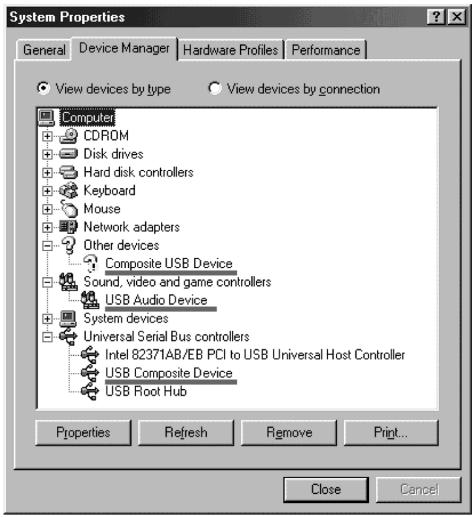
Windows 98SE
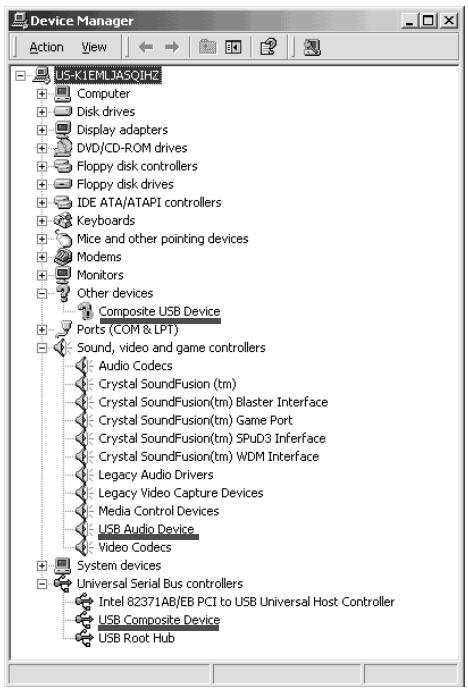
Windows 2000 Professional
IopdoeHHeHne Bbiue WbdeOkamepbI K Baewmy Kombltopey c nomoukko Ka6ela USB -ДЯ noJb3ObaTele Windows
⑤ BbIbePte u ydaIte nOdupeKHyTbie yCTpOJCTBa.
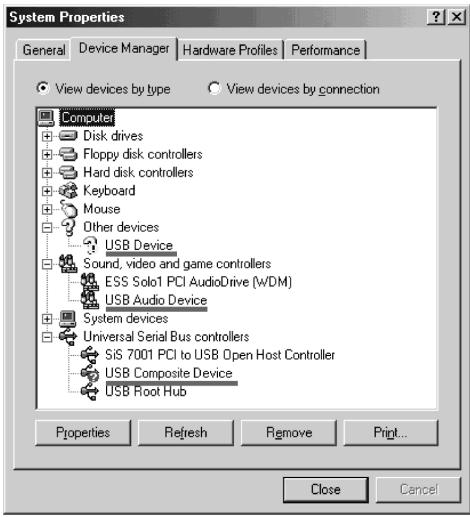
Windows Me
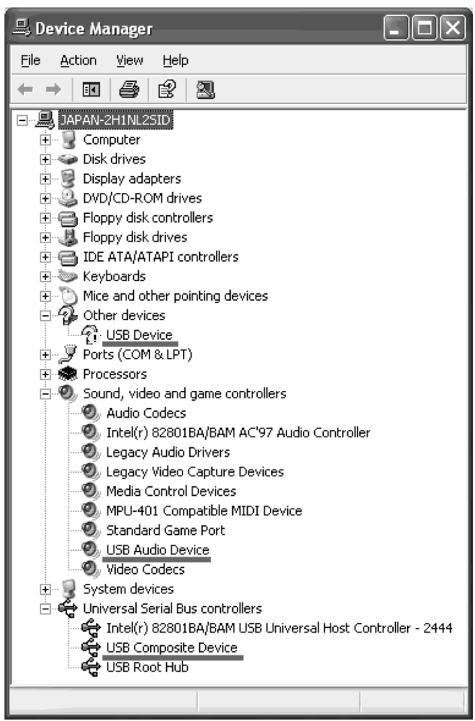
Windows XP Home Edition/Professional
Connecting your camcorder to your computer using the USB cable - For Windows users
⑥ Turn the POWER switch to OFF (CHG) on your camcorder, and then disconnect the USB cable.
⑦ Restart your computer.
Step 2: Install the USB driver on the supplied CD-ROM
Perform the entire procedure described in "Installing the USB driver" on page 210.
Viewing images recorded on a "Memory Stick"
- Except DCR-TRV16E/TRV116E
Step1: Uninstall the incorrect USB driver
① Turn on your computer and allow Windows to load.
② Insert a "Memory Stick" into your camcorder.
③ Connect the AC power adaptor, and set the POWER switch to MEMORY.
④ Connect the USB jack on your computer to the (USB) jack on your camcorder using the USB cable supplied with your camcorder.
⑤ Open your computer's "Device Manager". Windows 2000 Professional:
Select "My Computer" "Control Panel" "System" "Hardware", and click the "Device Manager" button.
Other OS:
Select "My Computer" "Control Panel" "System", and click "Device Manager".
⑥ Select "Other devices".
Select the device prefixed with the "?" mark and delete.
Ex: (?)Sony Handycam
⑦ Turn the POWER switch to OFF (CHG) on your camcorder, and then disconnect the USB cable.
⑧ Restart your computer.
Step2: Install the USB driver on the supplied CD-ROM
Perform the entire procedure described in "Installing the USB driver" on page 210.
Viewing images recorded on a tape with your computer - For Windows users
Capturing images with "PIXELA ImageMixer Ver.1.0 for Sony"
You need to install the USB driver and "PIXELA ImageMixer" to view images recorded on a tape on your computer (p. 210).
To install and use this software in Windows 2000 Professional, you must be authorized as Power Users or Administrators. For Windows XP Home Edition/Professional, you must be authorized as Administrators.
Viewing images recorded on a tape
(1) Turn on your computer and allow Windows to load.
(2) Connect the AC power adaptor, and insert a tape into your camcorder.
(3) Set the POWER switch to PLAYER^1) / VCR^2) . Select USB STREAM in to ON in the menu settings (p. 241).
(4) Select "Start" "Program" "PIXELA" "ImageMixer" "PIXELA ImageMixer Ver.1.0 for Sony".
^1) DCR-TRV16E/TRV18E/TRV24E only
^2) DCR-TRV25E/TRV27E/TRV116E/TRV118E only
(5) Click on the screen.
The "PIXELA ImageMixer Ver.1.0 for Sony" startup screen appears on your computer. The title screen is displayed.
Ha 3kpahe Baшero KOMьbóTepa NOBtca нayальный 3кpan "PIXELA ImageMixer Ver.1.0 for Sony". Ha дсплee NOBtca 3кpan тntpoB.
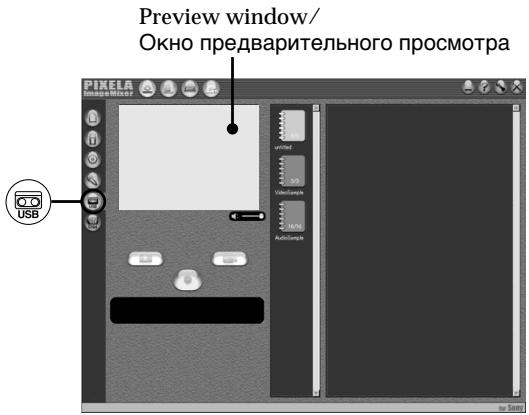
(6)Select USB
(6)BbIbepeTe onuHIO USB
(7) Connect the USB jack on your computer to the (USB) jack on your camcorder using the supplied USB cable.
(7)ПоДСоЕДИНITE rHe3do USB Ha Baшем KMПьЮТеРК rHe3dу (USB)Ha Baшей BИДeOKaМepe c nOMOиbI npnlaeraMOro ka6eЯ USB.
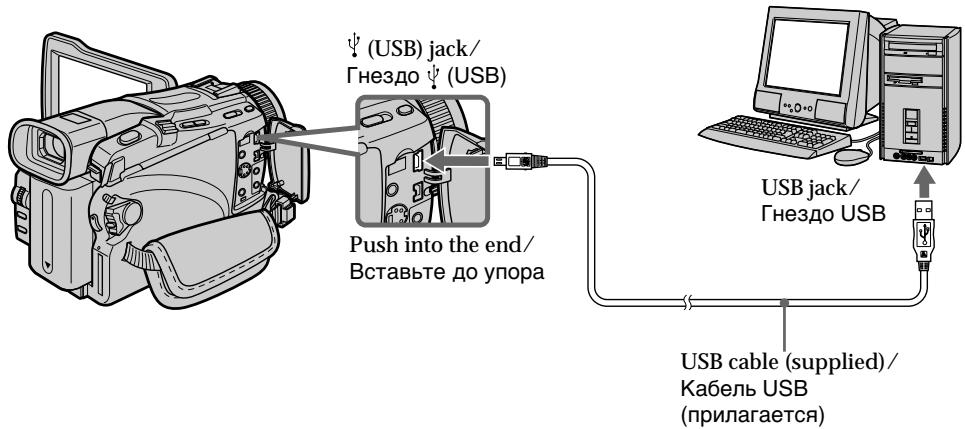
(8) Press to start playback. The picture from the tape appears on preview window on your computer.
(8)HaxMMTe KHOKNky ▶ДЯ HauJaBA BOCpOu3BVeDEHnI. Ⅲo6paXeHne CJIeHTbI NOBtCBy OKHe npEaBapITeHbHorO IpocMoTpa Ha BaWeKMnblHoTepe.
Viewing images recorded on a tape with your computer - For Windows users
Viewing pictures live from your camcorder
(1) Follow the steps 1, 2 on page 217.
(2) Set the POWER switch to CAMERA. Select USB STREAM in to ON in the menu settings (p. 241).
(3) Follow the steps 4 to 7 on pages 217 and 218. The picture from your camcorder appears on preview window on your computer.
PpocMToP KINBbIX N3O6paXeHn C Baue BnDeokamepbl
(1)CneNyTe DeiCTBnAM NyHKTOB 1,2 Ha cTp. 217.
(2) YctaHOBnTe nepeKJIouaTeIb POWER B noIOxHeNc CAMERA. YcTaHOBnTe ONIIO USB STREAM B B yCTaHOBkax MeHIO B noIOxHeNc ON (ctp. 250).
(3)CneyuTe DeiCTBnM NyHKTOB c 4 no 7 ha cTp.217 n 218. N3o6paKeHne c BaWe BnDeOkamepbl IOnBnTcB OKHe ppeDbapntIbHOro npocmOTpa Ha BaWe KOMNbHOtepe.
Capturing still images
3axBaT HeNoDvNkHbIX N3o6paKeHn
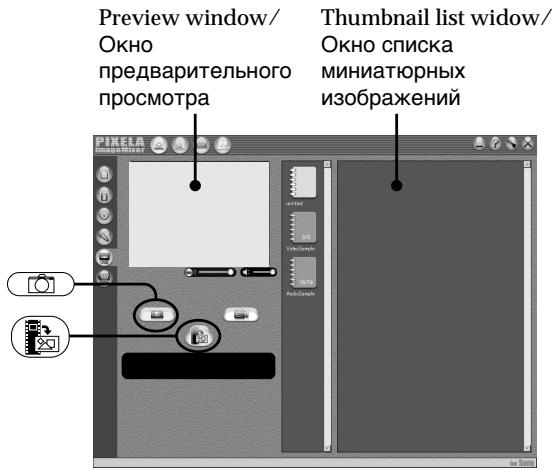
(1) Select
(2) Looking at the preview window, move the cursor to and press it at the point you want to capture.
The still image on the screen is captured. Captured images are displayed in the thumbnail list window.
(1)BbIbepeTe onuMo
(2)Ha6IIOJa3aOKHOMIpEaBapntbHOro npocMOTpa,nepMeCTNTeKypcOp Ha NIKTORpAMMy HnHaXMNTe ee B TOM MeCTe,KOTOpoe BbyXOTNTe 3axBaTNTb. HenoDbNxHHe n3O6paJKeHne Ha 3kpaHe 6yDet 3axBaYeHO.
3axBaHeHHbIe N3o6paXeHn OTo6paXaIOCTB BOKHE CnNcKa MInHaTIOpHbIX N3o6paXeHn.
Capturing moving pictures
3axBaT DnBxkyuxxCn3o6paXeHn
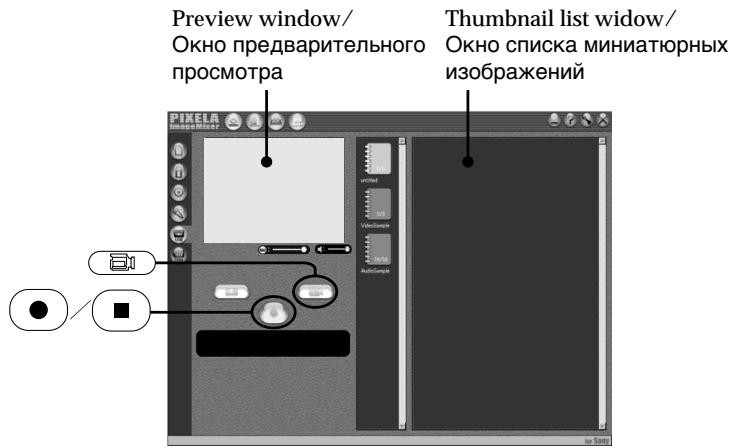
(1) Select
(2) Look at the preview window and click on at the first scene of the movie you want to capture. () changes to () .
(3) Look at the preview window and click on at the last scene you want to capture. The captured images appear in the thumbnail list window.
Notes
- The following may occur while using your camcorder, and are not due to any malfunction:
- The image shakes up and down.
- Some images are not displayed correctly due to noise, etc.
Images of different colour systems to that of the camcorder are not displayed correctly. - When your camcorder is in the standby mode with a cassette inserted, it turns off automatically after five minutes.
- We recommend setting DEMO MODE to OFF in the menu settings when your camcorder is in the standby mode, and no cassette is inserted.
- Indicators in the camcorder LCD screen do not appear on images that are captured into your computer.
(1)BbIbepeHTe onTIO
(2)ПосмOTРNTe Ha OKHпpeДВAPNTelbHORO
посмOTрИи ZeLEKNITe Ha ПИКТOrpAmMe
●
Ha PerBOM 3INI3Ode ФИЛьм, KOTOpbl
Вы XOTnTe 3axBaTnTB. ИнДИКaцИЯ
●
СМЕНТСЯ INДИКaцИeN (■).
(3)ПосмOTРNTe Ha OKHNo pEДВapNTeIbHOro npocmTpa n UeJIKNHTe Ha NIKTORpamMe
Ha nocJeHem 3nI3OJe QnIbMa, KOtOpBb Bbl XOTnte 3aXBaTntb. 3axBaueHHBe I3o6paXeHn I0AByTCB OKHe CnNcKa MmHaTHOpHbIX N3o6paXeHn.
Примейаня
- MoXeT npOn3OHTn CneIyUoOee BO BpEmNcNoJIb3OBAHnBaSei BnDeOkaMepbl, Ho 3TO He O3Haayet HncnPapBHOCTn:
-Изображени подразиВает ВьерхиВиЗИЗ.
-HeKoTOpbIe I3O6paXeHnI He OTo6paXaIoTcHnAaJIeXaIIM ObaPazOM I3-3a Nomex n dp.
-ИЗобрахеня разьix сnttemцВеTHOrToTeJIeBnIeHIN,HE COOTbETCTBYIOUneCnCTMe BnIeOKaMepbl,He 6yIeTOTOбражatbcraHaInxKaIIM O6pa3OM.
- Ecni Baasa Bndeokamepa HaxoDntcB peXKIMe OXnDaHn CO BCTaBHeHHo KACCToB BHyTpN, OHa aBTOMaTNUeCKN OTKJIIOHTc CNYCTr PANTb MNHT.
- PekomeHnyeTc yCTaHOBnTb onuio DEMO MODE B ycTaHOBkax MeHIO B noIoXeHne OFF, KOrda BaSha BnDeOkamepa HaxoOnTc B pexIme OxUdAnHry, IN B He N B CTabNeHa KaccTeA.
- INДИКаTOpbl Ha 3KpaHe XXD BnDeokaMepbl He nOraBJIaHOTcHa nI3O6paXeHNAX, 3axBaueHHbIX BaUIM KOMNbIoTePOM.
Viewing images recorded on a tape with your computer - For Windows users
If image data cannot be transferred by the USB connection
The USB driver has been registered incorrectly as your computer was connected to your camcorder before installation of the USB driver was completed. Reinstall the USB driver following the procedure on page 214.
If any trouble occurs
Close all running applications, then restart your computer.
Carry out the following operations after quitting the application:
- Disconnect the USB cable.
- Set the POWER switch to the other position or OFF (CHG) on your camcorder.
Seeing the on-line help (operating instructions) of "PIXELA ImageMixer Ver.1.0 for Sony"
A "PIXELA ImageMixer Ver.1.0 for Sony" on-line help site is available where you can find the detailed operating method of "PIXELA ImageMixer Ver.1.0 for Sony".
(1) Click ⑦ button located in the upper-right corner of the screen.
The ImageMixer's Manual screen appears.
(2) You can find the information you need from the list of contents.
To close on-line help
Click the button at the top right of the screen.
If you have any questions about "PIXELA ImageMixer Ver.1.0 for Sony"
"ImageMixer Ver.1.0 for Sony" is a trademark of PILXELA corporation. For more information, refer to the instruction manual of the CD-ROM supplied with your camcorder.
Notes on using your computer
Communications with your computer
Communications between your camcorder and your computer may not recover after recovering from Suspend, Resume, or Sleep.
EcIn DaHbIe N3O6paXeHnH He MOryT 6bITb nepeDaHbI Chee3 CoeDHeHne USB
Viewing images recorded on a "Memory Stick" with your computer – For Windows users
- Except DCR-TRV16E/TRV116E
Viewing images
Before operation
- You need to install the USB driver to view "Memory Stick" images with your computer (p. 210).
An application such as Windows Media Player must be installed to play back moving pictures in Windows environment. - Set USBCONNECT in to NORMAL in the menu settings. (The default setting is NORMAL.)
(1) Turn on your computer and allow Windows to load.
(2) Insert a "Memory Stick" into your camcorder, and connect the AC power adaptor to your camcorder.
(3) Set the POWER switch to MEMORY.
(4) Connect the USB jack on your computer to the (USB) jack on your camcorder using the supplied USB cable.
(5) Open "My Computer" on Windows and double-click the newly recognised drive (Example: "Removable Disk (E):"). The folders inside the "Memory Stick" are displayed.
(6) Select and double-click the desired image file from the folder. For the detailed folder and file name, see "Image file storage destinations and image files" (p. 223).
(5)ОткpoиTeВcpeIeWindowsnanKy"MoKOMMbIOTe"ИДвЖдblüeJIKNHITe NO BHOBpaCnO3HaHHOMy HAKONITeIIO(ПрIMep:CbemhNdiCK(E:)).OTo6pa3aTcra panKn,codepkaUmecaHa“MemoryStick".
(6)BbIbepnTe n DBaJxDbl ueKHNte no fainny HuxHoro n3o6paXeHn u3 panKn. IIny nOIOpObHO rONcaHn Ha3BaHn napanok n faiNoB o6paaJIteCb K pa3dEny "MecTa xpaHeNn faiNoB n3o6paXeHn n faiNbl n3o6paXeHn" (ctp. 223).
Viewing images recorded on a "Memory Stick" with your computer - For Windows users
ПрсмOTиЗбражEH,3aHncaHHbIXHa "Memory Stick",c nomоью BaWoero komblotepa-ДлЯпльзовateleн Windows
- Copying a file to the hard disk of your computer before viewing it is recommended. If you play back the file directly from the "Memory Stick," the image and sound may break off.
Image file storage destinations and image files
Image files recorded with your camcorder are grouped in folders by recording mode. The meanings of the file names are as follows. stands for any number within the range from 0001 to 9999.
For Windows Me users (The drive recognising your camcorder is [E:].)
- PekomeHnyeTcnapeI npocMOTpOMCKONINPOBaTb faaII ha JxecTkni Dnck BaWero nepcoHaJIbHOrO KOMMbHTepa. EcIn Bbl 6yJeTeBOcPOn3B0DnTb faaII npAmo C "Memory Stick", n3o6paXeHne I 3ByK MOrTy BHe3aHNOobpbIBaTcbr.
MecTa xpaHeHnaJIOB n3o6paxKeHn n paJIbI n3o6paxKeHn
Фаилbln36рхжн,ЗancaHьс c nOmoьBaшeВиDEOKamepbl,CrpyPnIPOBaHbВпankno pexmmy 3anci.3naeHnIMeHфaIIOB TaKOBbl.□□□□ob03haaet JIO6oe YncNo B Dnana3oHeot 0001do9999.
Длг польбател Windows Me (YcтpoiCTBO,прдставлюоee Bndeokamepy - [E:].)
![SONY DCR-TRV24E - Длг польбател Windows Me (YcтpoiCTBO,прдставлюоee Bndeokamepy - [E:].) - 1](/content/2020/04/48762/images/314a4a3f9075e0da68e30336aa560eb4ccb3365f4adeaa84e385881d76b572bb.jpg)
Disconnect the USB cable and remove the "Memory Stick" or set the POWER switch to OFF(CHG)
For Windows 2000 Professional/Me, Windows XP Home Edition/Professional users To unplug the USB cable, eject the "Memory Stick" or set the POWER switch to OFF (CHG) follow the procedure below.
(1) Move the cursor to the "Unplug or Eject Hardware" icon on the Task Tray and click to cancel the applicable drive.
(2) After the "Safe to remove" message appears, disconnect the USB cable and eject the "Memory Stick" or set the POWER switch to OFF(CHG).
OTcoeHnHTe Ka6eIb USB n ɪzBʌkɪte“Memory Stick”, nʌn yCTaHOBtE nepeKlɪoʊaTeJIb POWER B noLoXeHne OFF(CHG)
Для польczobatelej Windows 2000 Professional/Me, Windows XP Home Edition/ Professional
Connecting your camcorder to your computer using the USB cable – For Macintosh users
When connecting to a computer using the USB cable
You must install a USB driver onto your computer in order to connect the camcorder to the computer's USB jack. The USB driver can be found on the CD-ROM supplied, along with the application software required for viewing images.
Recommended Macintosh environment
OS:
Mac OS 8.5.1/8.6/9.0/9.1/9.2 or Mac OS X (v10.0/v10.1)
Standard installation is required.
However, note that the upgrade to Mac OS 9.0/ 9.1 should be used for the following models:
- iMac with the Mac OS 8.6 standard installation and a slot loading type CD-ROM drive
- iBook or Power Mac G4 with the Mac OS 8.6 standard installation
The USB jack must be provided as standard.
QuickTime 3.0 or newer must be installed to play back moving pictures.
Notes
- Operations are not guaranteed for the Macintosh environment if you connect two or more USB equipment to a single computer at the same time, or when using a hub.
- Some equipment may not operate depending on the type of USB equipment that is used simultaneously.
- Operations are not guaranteed for all the recommended computer environments mentioned above.
- Macintosh and Mac OS, QuickTime are trademarks of Apple Computer Inc.
- All other product names mentioned herein may be the trademarks or registered trademarks of their respective companies. Furthermore, "TM" and "®" are not mentioned in each case in this manual.
-Kpome moedel DCR-TRV16E/TRV116E
PnnoocoeHHeHH K KomnbTepy c nOmoBIO Ka6eIa USB
YTo6bI NOIDCOEHNHtB BnDeOKeAmepy K rHe3dUy USB KOMNbIOTep, Bbl DoJnxHbI yCTaHOBntb Ha BaW KOMNbIOTep dpaIeBep USB. DpaIeBep USB BmEcTe C pOrpamMhbl IOBecNeueHem, Tpe6yeMbIM dNpOcMOPTa N3o6paXeHm, coDEpxNTcHa nPpInarAeMOM CD-ROM.
PekomeHdoBaHHaOnepaCnOHHa CpeMa Macintosh
OC:
Tpe6yeTcMaC OS 8.5.1/8.6/9.0/9.1/9.2 mMac OS X (v10.0/v10.1)
Tpe6yeTcStaHdapTHa HNCTaJIHauIa. Ondako, o6paTInTe BHNMaHne Ha To, YTO cNeJyET IcNoIb3OBaTb 6bHOBJIeHne Do Mac OS 9.0/9.1 dIra CJeDyoUx MoDeIe:
-iMac co cTaHapTHO yCTaHOBJIeHHoM Mac OS 8.6 n hakonnteJem CD-ROM c uJebeoB 3aRpy3KoI
-iBook ININ Power Mac G4 co cTaHapTHO yCTaHOBJIeHHoM Mac OS 8.6
THe3do USBdoJXHO BXoIb BCTaHapTHyIO KOMnJIeKTAuIIO.
Installing the USB driver
Do not connect the USB cable to your computer before installation of the USB driver is completed.
For Mac OS 9.1/9.2/Mac OS X (v10.0/v10.1)
The USB driver does not have to be installed. Your camcorder is automatically recognised a drive just by connecting it to your Mac using USB cable.
For Mac OS 8.5.1/8.6/9.0 users
(1) Turn on your computer and allow the Mac OS to load.
(2) Insert the supplied CD-ROM in the CD-ROM drive of your computer.
The application software screen appears.
YcTaHOBKa IpaIbepa USB
He IIOcOeINHnIte Ka6eJIb USB K BaWemy KOMIbIOTepy Do 3aBepWeHnY yCTaHOBKn dpaIbepa USB.
ДлЯ Mac OS 9.1/9.2/Mac OS X (v10.0/v10.1)
(3) Click the "USB Driver" to open the folder containing the six files related to "Driver."
Connecting your camcorder to your computer using the USB cable - For Macintosh users
(4) Select the following two files, and drag and drop them into the System Folder.
- Sony Camcorder USB Driver
- Sony Camcorder USB Shim
(5) When the message appears, click "OK." The USB driver is installed on your computer.
(6) Remove the CD-ROM from the computer.
(7) Restart your computer.
IopdoeHHeHne BaWei BnDeoKamepbI K Baewemy Kombltopey c nomoobko Kaebna USB -ДЯ noJb3ObaTeJei Macintosh
(4)BbIbePnte CnEduOuNe Da paJna n nepTaunTe uOnyCTnTe INB CnCTemHyo npKky.
- Sony Camcorder USB Driver
- Sony Camcorder USB Shim
(5)Korda noBntc coocheHne, ueiKNHe nO KhONKe "OK".
ДраиВер USB 6удET установлен Ha BaшКOMпьОтер.
(6) YdaIaIte C kOmMbIoTepa CD-ROM.
(7)Пелесанусте Ваш nepсоньнй KOMпьOTep.
Viewing images recorded on a "Memory Stick" on your computer – For Macintosh users
- Except DCR-TRV16E/TRV116E
Viewing images
Before operation
You need to install the USB driver to view a "Memory Stick" images on your computer. (p. 226)
QuickTime 3.0 or newer must be installed to play back moving pictures.
(1) Turn on your computer and allow Mac OS to load.
(2)Insert a "Memory Stick" into your camcorder, and connect the AC power adaptor to your camcorder.
(3) Set the POWER switch to MEMORY.
(4) Connect the (USB) jack on your camcorder with the USB jack on your computer using the supplied USB cable.
"USB MODE" appears on the screen of your camcorder.
(5) Double-click the "Memory Stick" icon on the desktop.
The folders inside the "Memory Stick" are displayed.
(6)Select and double-click the desired image file from the folder.
Ipocmotp n3o6paXeHn, 3aHncaHHbIX Ha "Memory Stick", Ha BaWeM KOMnbIOTepe -ДЯ поьзOBaTeJei Macintosh
-Kpome mopelej DCR-TRV16E/ TRV116E
PpocmToP u3o6paXeHn
Ipeed BbINOJIHHeHem OIepaun
YTo6bI npocMaTpBaTb N3o6paXeHnra "Memory Stick"Ha 3kpaHe BaWero KOMNbIoTepa,Bam HynKHO yCTaHOBnTB dpaBep USB (cTp.226). IINr BOCnpOn3BeDeHnRA DnIXyUnxCn I3o6paXeHnI DOJXHa 6bITb yCTaHOBNeHa nporpaMa QuickTime 3.0 nIi ee 6Oone HoBaB cepnra.
(1)ВключITE BaшперсонькOMьнгетериdoхдntecb 3агрузkn Mac OS.
(2)Установпг "Memory Stick" в Башу вдевокамеру, И посоевинтесова дадлелр петемен Horo Toka K Baшей вдевокаме.
(3)Установские песеклоча teleportь POWER в положене MEMORY.
(4)ПодсоeДинTe rHe3do (USB) Ha Baшeи BИдeOKampe K rHe3dy USB Ha BaшeM KOMпьЮтepe, ИСпОЛьЗУprпИЯraeMbIй KaБeNB USB.Ha экране Baшeи BИдeOKamepbI NOЯВиТсЯИнДИКaцИЯ“USB MODE”.
(5)ДвждьиелкнITE no NIKTORpaMMe "Memory Stick"Ha pa6oYem cTone. OTo6pa3aTcH naKn BHyTpN "Memory Stick".
(6)BbIepeHte n DBaXdbl IeKHNTe no paIny HxKHO n3O6paXeHn I3 npKn.
- Copying a file to the hard disk of your computer before viewing it is recommended. If you play back the file directly from the "Memory Stick," the image and sound may break off.
- Pekomehyetcnapei npocmptom ckonnpoBaTb faaIHa JxecTkni Dnck Baawero nepcoHahBHOKOMNbHTepa. EcIn Bbl 6ynde BoCpOn3BOOHTb faaI npraMo c "Memory Stick", n3obpaXeHne n 3Byk MOryt BHe3aHNo 06pbBaTcb.
Viewing images recorded on a "Memory Stick" on your computer - For Macintosh users
Disconnect the USB cable and remove the "Memory Stick" or set the POWER switch to OFF(CHG)
Follow the procedure below.
(1) Close all running applications. Make sure that the access lamp of your camcorder is not lit.
(2) Drag the "Memory Stick" icon into the "Trash". Alternatively, select the "Memory Stick" icon by clicking on it, and then select "Eject disk" from the "Special" menu at the top left of the screen.
(3) Unplug the USB cable or eject the "Memory Stick." Set the POWER switch of your camcorder to OFF (CHG).
For Mac OS X (v10.0) users
Shut down your computer, then unplug the USB cable, eject the "Memory Stick" or set the POWER switch to OFF (CHG).
Capturing images from an analog video unit on your computer - Signal convert function
- DCR-TRV25E/TRV27E/TRV116E/ TRV118E only
You can capture images and sound from an analog video unit connected to your computer which has the i.LINK (DV) jack connected to your camcorder.
Before operation
Set DISPLAY in to LCD in the menu settings.
(The default setting is LCD.)
(1) Set the POWER switch to VCR.
(2) Set A / V DV OUT in to ON in the menu settings (p. 236).
(3) Start playback on the analog video unit.
(4) Start procedures for capturing images and sound on your computer. The operation procedures depend on your computer and the software you are using.
For details on how to capture images, refer to the instruction manuals of your computer and software you are using.
BBoN 306paXeHn C aHaIorOBoro BIndeo- annapaTb B BaW nepcoHaJIbHbI KOMlbIOTep -ФункцЯ пpeo6pa3OBAHnCmHaJa
-Только модал DCR-TRV25E/TRV27E/TRV116E/TRV118E
BbMOxKeTe BBOINb N3O6paXeHnN 3ByK c aHaIorOBOr BO BInDeoannapata,
NoCDoeHNHeHOr Ope3 BaUy BInDeokamepy B BaW nepcoHaNbHi KOMnbIoTe p C rhe3dOm i.LINK (uHpOBo rBO BInDeocnHana DV),
NoCDoeHNHeHbK BaWe BInDeokamepe.
PpeB BbINOJIHeHEm Opeaun
YcTaHOBInTe OOnHIO DISPLAY B ETC B YcTaHOBkax MeHIO B NIoJoxKeHne LCD. (IyoMOnuHaHIO Bb6paHO NIoJoxKeHne LCD.)
(1)Установские песеклоча给宝宝 POWER в поожене VCR.
(2)YcTaHOBnTe ONUH A/V DV OUT B v yCTaHOBkax MeHIO B nIoJxHeHne ON (cTp. 245).
(3)Haunite Bocnpoun3BeJeHne Ha aHaIorOBOM BndeoannapaTe.
(4)HaunHe npOueDpybI BBOda n3o6paXeHn I 3BykaB BawpecoHaJIbHbIKOMMbIoTeP. PpoedpybIBBDOa3aBicrTOTBaWero nepcoHaJIbHOroKOMMbIoTePa I nCpOJIb3yEmoro BamnporpaMMHO o6ecneUeHn. DnI pOnUyeHn 60JeepoIO6hblxCBeDeHn O 3aIncNIO6paXeHn o6paauTecb K rykoBoJCTBAMNo3KcPIIyaTauINBawero nepcoHaJIbHOroKOMMbIoTePa I nCpOJIb3yEmoro BamnporpaMMHO o6ecneUeHn.
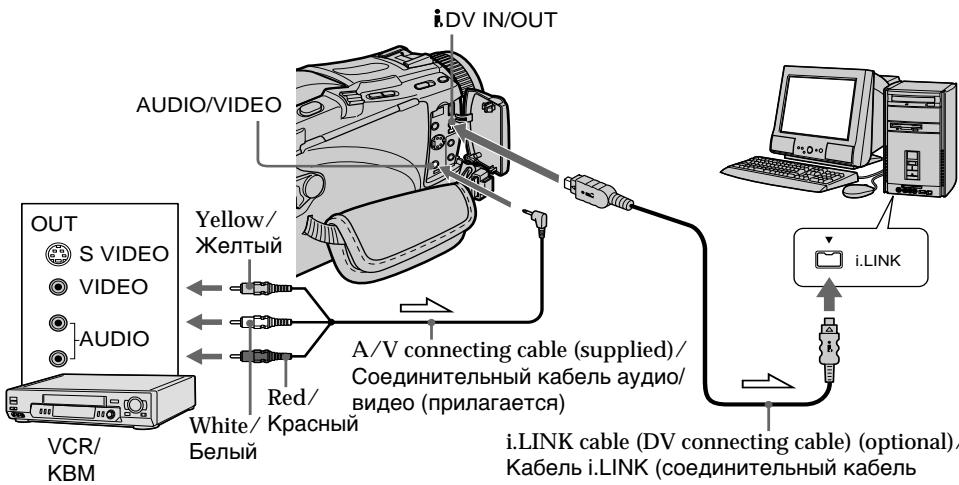
i.LINK cable (DV connecting cable) (optional)/ Ka6eIb i.LINK (coeDHHTeHbHn K6eIb cHpOBOrB BnDeocnHaVa DV) (npno6peTaetcA OTdEhHO)
Capturing images from an analog video unit on your computer - Signal convert function
After capturing images and sound Stop capturing procedures on your computer, and stop the playback on the analog video unit.
Notes
- You need to install software that supports the exchange video signals.
Depending on the state of the analog video signals, the computer may not be able to output the images correctly when you convert analog video signals into digital video signals via your camcorder. Depending on the analog video unit, the image may contain noise or incorrect colours. - You can capture images and sound with an S video cable (optional) instead of the A/V connecting cable (supplied).
If your computer has a USB jack
You can connect using a USB cable, but images may not be transferred smoothly.
BvOd n3o6paXeHn c anaIorOBO r BndeoannapaTa B BaW npEpcOHaNbHbK KomMbToTeP -Функципpeo6paZoBaHnCnHaJa
Pocne BbOda n3o6paXeHn n 3Byka
OctaHOBITe IpoueIpybI BBOda Ha BaWem nepcoHaJIbHOM KOMIbIOTepe,IOCTaHOBITe BOCPON3BeJeHne Ha aHaJIorOBOM BnDeoannapaTe.
PpimueaHn
Bam Heo6xOIMO yCTaHOBNTI pOporpaMMHoe 0e6ceueHne, KOtOpoe MOKeT OMeHNBaTbCBAIDEOcINrHaJAmN.
B 3aBnCmOCTN OTOCTOHN Hn aHAnoROBbIX BnDEOCnHaNOB, NepCOHaJIbHbI KOMNbIOTep MOKeT bIbHe B CcTOAHHN BocPOn3BOiNTb npAunbHO n3o6paXeHn Ha BbIXOe, KOrDa Bbl npeo6pa3OBbIaTe aHAnoROBbIe BnDEOCnHaJIb IuΦpOBe BnDEOCnHaJIb C nOMouCbIO BaSeW bINDeOKaMepbl. B 3aBnCmOCTN OT aHAnoROBORo BnDeoAnPaPaTa, n3o6paXeHne MoKET 6bIT 3aUymLeHHbIM INI C HnnpaBnJIbHbIMn CBetAMn.
BbMOKTe BBOOHTb 3IO6paKeHnI 3ByK c nOMoUbIO KaBeJIraS BnIeO (npNo6pTaetcR oTdEJIbHO) BmecTO COeINHITeJIbHOrO KaBeJIa ayDIO/BnIeO (npInlaRaETcR).
EcIn B BaWeM KOMNbTepe NMeetc rHe3do USB
BbMOKTe BbINoHnTb POIDCOeINHeHne, IcNoJIb3yI Ka6eIb USB, OdHaKO u3o6paKeHnMOrTy NpeJaBaTaBcR c NomExAmN.
Changing the menu settings
To change the mode settings in the menu settings, select the menu items with the SEL/PUSH EXEC dial. The default settings can partially be changed. First, select the icon, then the menu item and then the mode.
(1) Set the POWER switch to CAMERA, PLAYER^1 / VCR^2 or MEMORY (except DCR-TRV16E/TRV116E) press MENU.
(2) Turn the SEL/PUSH EXEC dial to select the desired icon, then press the dial to set.
(3) Turn the SEL/PUSH EXEC dial to select the desired item, then press the dial to set.
(4) Turn the SEL/PUSH EXEC dial to select the desired mode, then press the dial to set.
(5)If you want to change other items, select RETURN and press the dial, then repeat steps 2 to 4.
1)DCR-TRV16E/TRV18E/TRV24E only
^2) DCR-TRV25E/TRV27E/TRV116E/TRV118E only
For details, see "Selecting the mode setting of each item" (p. 234).
N3MeHeHne yCTaHOBOK MeHIO
ДлгИЗМЕнEHУ yCTaHOBOK peЖIMаВ yCTaHOBkax MeHIO BbIbepNte OПцIN MEHIO C nOMOuь IOnCKa SEL/PUSH EXEC. YcTaHOBKIN NO yMOJIuaHIO MOrYt 6bITb YactuHNO I3MeHeHbl. Счача BA bIbepNte NIKTORpAMMy, 3aTeM OПцIN MeHIO, a 3aTeM peXIM.
(1)УстановпейреклiouslyATEь POWER b
ножхениCAMERA,PLAYER*1/VCR*2)иIM
MEMORY (КрOME моделДСR-TRV16E/
TRV116E),инжмпг Кногку MENU.
(2)ПовернITE ДИСК SEL/PUSH EXEC ДЯ
Выбopa НУЖно ПИКТORрмьla, a 3aTeM
навKMITE ДИСК ДЯ BыЮЛHЕнЯ yCTaHOBKNI.
(3)ПовернITE ДИСК SEL/PUSH EXEC ДИВБОРа НУЖно ONДИ,а 3aTeM HЯЖМТЕ ДИСК ДИВЛОЛ themselves yCTaHOBKN.
(4)ПовернITE ДИСК SEL/PUSH EXEC ДЯ
Выбopa НУЖНО рекIMа,а 3aTeM нажмITE
ДИСК ДЯ BыINOLHЕЙ YCTaHOBK.
(5)EcIn BbI XOTnTe n3MeHnTb DpyrHe OOnuN, BbI6epnTe KOMaHdy RETURN n HaxmTe DCCK,a 3aTEM NOBTOpTe DeiCTBnI NYKTOB c2no4.
^*1) ToIbKO MoJeIN DCR-TRV16E/TRV18E/ TRV24E
^2) ToIbkoMoIeJIu DCR-TRV25E/TRV27E/ TRV116E/TRV118E
Подрбные CBeDEнЯ пиBEdeHb I Ba3dene "BbI6op yCTaHOBn peKIma n KaJdoN onuN" (cTp. 243).
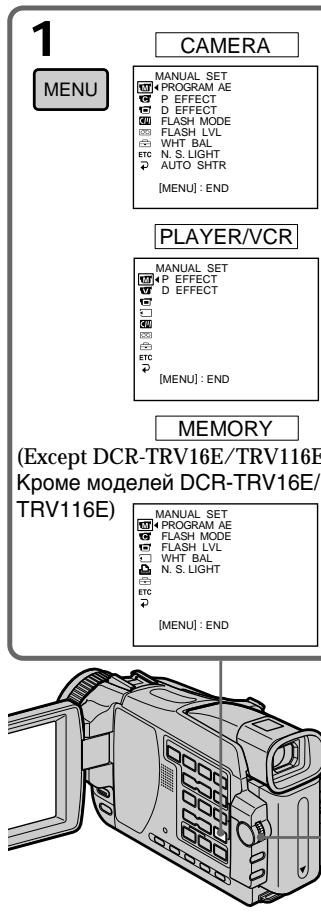
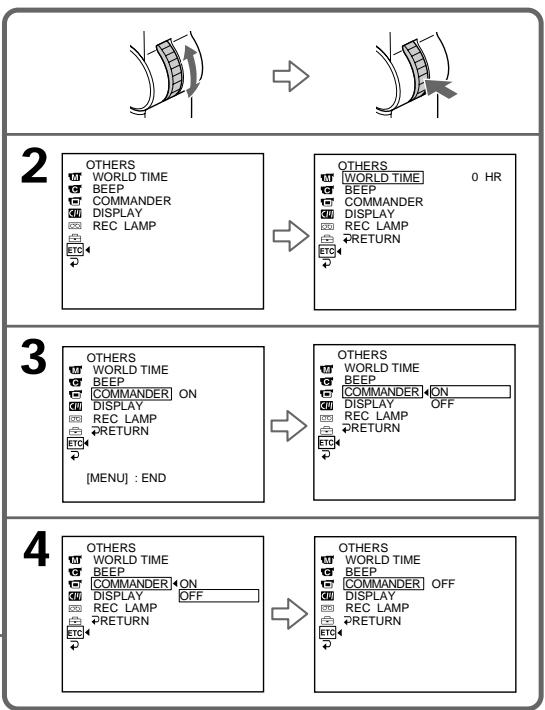
To make the menu display disappear
Press MENU.
Menu items are displayed as the following icons:
MANUAL SET
CAMERA SET
VCR SET (DCR-TRV25E/TRV27E/ TRV116E/TRV118E only)
PLAYER SET (DCR-TRV16E/TRV18E/ TRV24E only)
LCD/VF SET
MEMORY SET
(except DCR-TRV16E/TRV116E)
PRINT SET
(except DCR-TRV16E/TRV116E)
CM SET
TAPE SET
SETUP MENU
ETC OTHERS
English
U3MeHeHne yCTaHOBOK MeHIO
Selecting the mode setting of each item is the default setting.
Menu items differ depending on the position of the POWER switch. The screen shows only the items you can operate at the moment.
| Icon/item | Mode | Meaning | POWER switch |
| MANUAL SET | |||
| PROGRAM AE | — | To suit your specific shooting requirement (p. 75) | CAMERA MEMORY |
| P EFFECT | — | To add special effects like those in films or on the TV to images (p. 70, 86) | PLAYER/VCR CAMERA |
| D EFFECT | — | To add special effects using the various digital functions (p. 72, 87) | PLAYER/VCR CAMERA |
| FLASH MODE | ● ON | To fire the flash (optional) regardless of the brightness of the surroundings | CAMERA MEMORY |
| AUTO | To fire the flash automatically | ||
| AUTO ● | To fire the flash before recording to reduce the red-eye phenomenon | ||
| FLASH LVL | HIGH | To make the flash level higher than normal | CAMERA MEMORY |
| ● NORMAL | Normal setting | ||
| LOW | To make the flash level lower than normal | ||
| WHT BAL | — | To adjust the white balance (p. 64) | CAMERA MEMORY |
| N.S.LIGHT | ● ON | To use the NightShot Light function (p. 45) | CAMERA MEMORY |
| OFF | To cancel the NightShot Light function | ||
| AUTO SHTR | ● ON | To automatically activate the electronic shutter when shooting in bright conditions | CAMERA |
| OFF | To not automatically activate the electronic shutter even when shooting in bright conditions | ||
Note on FLASH MODE and FLASH LVL
You cannot adjust FLASH MODE and FLASH LVL if the external flash (optional) is not set.
| Icon/item | Mode | Meaning | POWER switch |
| CAMERA SET | |||
| SELFTIMER* | ● OFF | To not use the self-timer function | CAMERA MEMORY |
| ON | To use the self-timer function (p. 46, 60, 154, 169) | ||
| D ZOOM | ● OFF | To deactivate the digital zoom. Up to 10× zoom is performed. | CAMERA |
| 20× | To activate the digital zoom. More than 10× to 20× zoom is performed digitally. (p. 40) | ||
| 120× | To activate the digital zoom. More than 10× to 120× zoom is performed digitally. | ||
| PHOTO REC* | ● MEMORY | To record still images on a “Memory Stick” when you press PHOTO during recording of moving pictures on a tape or the standby mode (p. 58) | CAMERA |
| TAPE | To record still images on a tape when you press PHOTO during recording of moving pictures on a tape or the standby mode (p. 62) | ||
| 16:9WIDE | ● OFF | — | CAMERA |
| ON | To record a 16:9 wide picture (p. 66) | ||
| STEADYSHOT | ● ON | To compensate for camera-shake | CAMERA |
| OFF | To cancel the SteadyShot function. Natural pictures are produced when shooting a stationary object with a tripod | ||
| FRAME REC | ● OFF | To deactivate frame recording | CAMERA |
| ON | To activate frame recording (p. 84) | ||
| INT. REC | ON | To activate interval recording (p. 81) | CAMERA |
| ● OFF | To deactivate interval recording | ||
| SET | To set the waiting time and recording time for interval recording | ||
- Except DCR-TRV16E/TRV116E
Notes on the SteadyShot function
- The SteadyShot function will not correct excessive camera-shake.
- Attachment of a conversion lens (optional) may influence the SteadyShot function.
If you cancel the SteadyShot function
The SteadyShot off indicator "..." appears. Your camcorder prevents excessive compensation for camera-shake.
(continued on the following page)
| Icon/item | Mode | Meaning | POWER switch |
| VCR*1) SET PLAYER*2) SET | |||
| HiFi SOUND | STEREO | To play back a stereo tape or dual sound track tape with main and sub sound (p. 274) | PLAYER/VCR |
| 1 | To play back a stereo tape with the left sound or a dual sound tape with main sound | ||
| 2 | To play back a stereo tape with the right sound or a dual sound track tape with sub sound | ||
| AUDIO MIX | — | To adjust the balance between the stereo 1 and stereo 2 (p. 129) ST 1 ▲ ST 2 | PLAYER/VCR |
| A/V → DV OUT*1) | OFF | To output digital images and sound in analog format using your camcorder | VCR |
| ON | To output analog images and sound in digital format using your camcorder (p. 230) | ||
| NTSC PB | ON PAL TV | To play back a tape recorded in the NTSC colour system on a PAL system TV | PLAYER/VCR |
| NTSC 4.43 | To play back a tape recorded in the NTSC colour system on a TV with the NTSC 4.43 mode | ||
| LCD/VF SET | |||
| LCD BRIGHT | — | To adjust the brightness on the LCD screen with the SEL/PUSH EXEC dial To darken ▲ To lighten | PLAYER/VCR CAMERA MEMORY |
| LCD B.L. | BRT NORMAL | To set the brightness on the LCD screen to normal | PLAYER/VCR CAMERA MEMORY |
| BRIGHT | To brighten the LCD screen | ||
| LCD COLOUR | — | To adjust the colour on the LCD screen, turn and press the SEL/PUSH EXEC dial To get low-intensity ▲ To get high-intensity | PLAYER/VCR CAMERA MEMORY |
| VF B.L. | BRT NORMAL | To set the brightness on the viewfinder screen to normal | PLAYER/VCR CAMERA MEMORY |
| BRIGHT | To brighten the viewfinder screen | ||
1) DCR-TRV25E/TRV27E/TRV116E/TRV118E only
2) DCR-TRV16E/TRV18E/TRV24E only
Note on NTSC PB
When you play back a tape on a Multi System TV, select the best mode while viewing the picture on the TV.
Notes on LCD B.L. and VF B.L.
- When you select BRIGHT, battery life is reduced by about 10 percent during recording.
- When you use power supplies other than the battery pack, BRIGHT is automatically selected.
| Icon/item | Mode | Meaning | POWER switch |
| MEMORY SET (except DCR-TRV16E/TRV116E) | |||
| STILL SET | |||
| BURST | ● OFF | To not record continuously | MEMORY |
| NORMAL*1) | To record up to four (in 1152 × 864 size) or 13 (in 640 × 480 size) still images continuously (p. 152) | ||
| EXP BRKTG*1) | To record three images consecutively with different exposures | ||
| MULTI SCRN | To record nine images continuously, display the images on a single page divided into nine boxes | ||
| QUALITY | ● SUPER FINE*1) | To record still images in the finest image quality mode (p. 144) | PLAYER/VCR MEMORY |
| FINE*2) | To record still images in the fine image quality mode | ||
| STANDARD | To record still images in the standard image quality mode | ||
| IMAGESIZE*1) | ● 1152 × 864 | To record still images in 1152 × 864 size (p. 146) | MEMORY |
| 640 × 480 | To record still images in 640 × 480 size | ||
| MOVIE SET | |||
| IMAGESIZE | ● 320 × 240 | To record moving pictures in 320 × 240 size (p. 146) | PLAYER/VCR MEMORY |
| 160 × 112 | To record moving pictures in 160 × 112 size | ||
| ☐REMAIN | ● AUTO | To display the remaining capacity of the “Memory Stick” in the following cases: · For five seconds after setting the POWER switch to PLAYER*3)/VCR*4) or MEMORY · For five seconds after inserting a “Memory Stick” into your camcorder in MEMORY or PLAYER*3)/ VCR*4) · When the capacity of the “Memory Stick” is less than two minute in MEMORY · For five seconds after starting a moving picture recording · For five seconds after completing a moving picture recording | PLAYER/VCR MEMORY |
| ON | To always display the remaining capacity of the “Memory Stick” | ||
^1) DCR-TRV24E/TRV25E/TRV27E only
2) For DCR-TRV18E/TRV118E, the default setting is FINE.
^3) DCR-TRV16E/TRV18E/TRV24E only
^4) DCR-TRV25E/TRV27E/TRV116E/TRV118E only
(continued on the following page)
| Icon/item | Mode | Meaning | POWER switch |
| MEMORY SET (except DCR-TRV16E/TRV116E) | |||
| PRINT MARK | ON | To write a print mark on recorded still images you want to print out later (p. 199) | PLAYER/VCR MEMORY |
| ● OFF | To cancel print marks on still images | ||
| PROTECT | ON | To protect selected still images against accidental erasure (p. 195) | PLAYER/VCR MEMORY |
| ● OFF | To not protect still images | ||
| SLIDE SHOW | — | To play back images in a continuous loop (p. 193) | MEMORY |
| PHOTO SAVE | — | To copy mini DV still images on “Memory Stick” (p. 179) | PLAYER/VCR |
| FILE NO. | ● SERIES | To assign numbers to file in sequence even if the “Memory Stick” is changed | PLAYER/VCR MEMORY |
| RESET | To reset the file numbering each time the “Memory Stick” is changed | ||
| DELETE ALL | — | To delete all unprotected images (p. 198) | MEMORY |
| FORMAT | ● RETURN | To cancel formatting | MEMORY |
| OK | To format an inserted “Memory Stick” Formatting erases all information on the “Memory Stick”. Check the contents of the “Memory Stick” before formatting.1. Select FORMAT with the SEL/PUSH EXEC dial, then press the dial.2. Turn the SEL/PUSH EXEC dial to select OK, then press the dial.3. After “EXECUTE” appears, press the SEL/PUSH EXEC dial. “FORMATTING” flashes during formatting. “COMPLETE” appears when formatting is finished. | ||
Notes on formatting (except DCR-TRV16E/TRV116E)
- Supplied or optional "Memory Stick"s have been formatted at factory. Formatting "Memory Stick"s on your camcorder is not required.
-
Do not do any of the following while FORMATTING is displayed:
-
Switch the POWER switch
-
Operatetobuttons
-Eject the "Memory Stick" -
You cannot format the "Memory Stick" if the write-protect tab on the "Memory Stick" is set to LOCK.
- Format again if the message “ 串 FORMAT ERROR” appears.
- Formatting erases protected image data on the "Memory Stick."
| Icon/item | Mode | Meaning | POWER switch |
| PRINT SET (except DCR-TRV16E/TRV116E) | |||
| 9PIC PRINT | ●RETURN | To cancel prints of split screens | MEMORY |
| SAME | To make prints of the same split screen (p. 201) | ||
| MULTI | To make prints of different split screens | ||
| MARKED | To make prints of images with print marks in recording order | ||
| DATE/TIME | ●OFF | To make prints without the recording date and time | MEMORY |
| DATE | To make prints with the recording date (p. 202) | ||
| DAY&TIME | To make prints with the recording date and time | ||
| CM SET | |||
| TITLE | — | To superimpose a title or make your own title (p. 130, 134) | PLAYER/VCR CAMERA |
| TITLEERASE | — | To erase the title you have superimposed (p. 133) | PLAYER/VCR CAMERA |
| TITLE DSPL | ●ON | To display the title you have superimposed | PLAYER/VCR |
| OFF | To not display the title | ||
| CM SEARCH | ●ON | To search using cassette memory (p. 92) | PLAYER/VCR |
| OFF | To search without using cassette memory | ||
| TAPE TITLE | — | To label a cassette (p. 137) | PLAYER/VCR CAMERA |
| ERASE ALL | — | To erase all the data in cassette memory (p. 139) | PLAYER/VCR CAMERA |
Note on PRINT SET (except DCR-TRV16E/TRV116E)
9PIC PRINT and DATE/TIME are displayed only when an external printer (optional) is connected to the intelligent accessory shoe.
(continued on the following page)
| Icon/item | Mode | Meaning | POWER switch |
| TAPE SET | |||
| REC MODE | ●SP | To record in the SP (Standard Play) mode | PLAYER/VCR CAMERA |
| LP | To increase the recording time to 1.5 times the SP mode | ||
| AUDIO MODE | ●12BIT | To record in the 12-bit mode (two stereo sounds) | PLAYER/VCR CAMERA |
| 16BIT | To record in the 16-bit mode (the one stereo sound with high quality) | ||
| ○REMAIN | ●AUTO | To display the remaining tape bar: •For about eight seconds after your camcorder is turned on and calculates the remaining amount of tape •For about eight seconds after a cassette is inserted and your camcorder calculates the remaining amount of tape •For about eight seconds after ▲ is pressed in PLAYER*1/VCR*2 •For about eight seconds after DISPLAY is pressed to display the screen indicators •For the period of tape rewinding, forwarding or picture search in the PLAYER*1/VCR*2 | PLAYER/VCR CAMERA |
| ON | To always display the remaining tape indicator | ||
^1) DCR-TRV16E/TRV18E/TRV24E only
2) DCR-TRV25E/TRV27E/TRV116E/TRV118E only
Notes on the LP mode
- When you record a tape in the LP mode on your camcorder, we recommend playing the tape on your camcorder. When you play back the tape on other camcorders or VCRs, noise may occur in pictures or sound.
- When you record in the LP mode, we recommend using a Sony Excellence/Master cassette so that you can get the most out of your camcorder.
- You cannot dub audio on a tape recorded in the LP mode. Use the SP mode for the tape to be audio dubbed.
- When you record in the SP and LP modes on one tape or you record some scenes in the LP mode, the playback picture may be distorted or the time code may not be written properly between scenes.
Notes on AUDIO MODE
- You cannot dub audio on a tape recorded in the 16-bit mode.
- When playing back a tape recorded in the 16-bit mode, you cannot adjust the balance in AUDIO MIX.
| Icon/item | Mode | Meaning | POWER switch |
| SETUP MENU | |||
| CLOCK SET | — | To set the date or time (p. 31) | CAMERA MEMORY |
| USB STREAM | ● OFF | To deactivate the USB streaming function | PLAYER/VCR CAMERA |
| ON | To activate the USB streaming function | ||
| USBCONNECT* | ● NORMAL | To connect and recognise the “Memory Stick” drive | MEMORY |
| PTP | To connect and only copy a “Memory Stick” image from your camcorder to a computer (only with Windows XP or Mac OS X)1 Turn the SEL/PUSH EXEC dial to select USBCONNECT followed by PTP, and press to set.2 Insert the “Memory Stick” in the camcorder, and connect the camcorder to the computer using the USB cable. Copy Wizard will automatically start up. | ||
| LTR SIZE | ● NORMAL | To display selected menu items in normal size | PLAYER/VCR CAMERA MEMORY |
| 2× | To display selected menu items at twice the normal size | ||
| LANGUAGE | ● ENGLISH | To display the following information indicators in English: REC, STBY, min, sec, CAPTURE, END SEARCH and VOL, etc. | PLAYER/VCR CAMERA MEMORY |
| FRANÇAIS | To display the information indicators in French | ||
| ESPÁÑOL | To display the information indicators in Spanish | ||
| PORTUGUES | To display the information indicators in Portuguese | ||
| DEUTSCH | To display the information indicators in German | ||
| ITALIANO | To display the information indicators in Italian | ||
| ΕΑΗΝΙΚΑ | To display the information indicators in Greek | ||
| DEMO MODE | ● ON | To make the demonstration appear | CAMERA |
| OFF | To cancel the demonstration mode | ||
- Except DCR-TRV16E/TRV116E
Notes on DEMO MODE
- You cannot select DEMO MODE when a cassette or a "Memory Stick" is inserted in your camcorder.
- The DEMO MODE default setting is STBY (Standby) and the demonstration starts about 10 minutes after you have set the POWER switch to CAMERA without a cassette and a "Memory Stick" inserted. To cancel the demonstration, insert a cassette or a "Memory Stick", set the POWER switch to other than CAMERA, or set DEMO MODE to OFF. To set to STBY (Standby) again, leave the DEMO MODE at ON in the menu settings, turn the POWER switch to OFF (CHG), and return the POWER switch to CAMERA.
- When NIGHTSHOT is set to ON, the "NIGHTSHOT" indicator appears on the screen and you cannot select DEMO MODE in the menu settings.
(continued on the following page)
| Icon/item | Mode | Meaning | POWER switch |
| ETC OTHERS | |||
| DATA CODE | ●DATE/CAM | To press DATA CODE on the Remote Commander to display date, time and various settings during playback (p. 52) | PLAYER/VCR MEMORY |
| DATE | To press DATA CODE on the Remote Commander to display date and time during playback | ||
| WORLD TIME | — | To set the clock to the local time. Turn the SEL/PUSH EXEC dial to set a time difference. The clock changes by the time difference you set here. If you set the time difference to 0, the clock returns to the originally set time. | CAMERA MEMORY |
| BEEP | ●MELODY | To output the melody when you start/stop recording or when an unusual condition occurs on your camcorder | PLAYER/VCR CAMERA MEMORY |
| NORMAL | To output the beep instead of the melody | ||
| OFF | To cancel the melody and beep sound | ||
| COMMANDER | ●ON | To activate the Remote Commander supplied with your camcorder | PLAYER/VCR CAMERA MEMORY |
| OFF | To deactivate the Remote Commander to avoid erroneous remote control operation caused by other VCR's remote control | ||
| DISPLAY | ●LCD | To show the display on the LCD screen and in the viewfinder | PLAYER/VCR CAMERA MEMORY |
| V-OUT/LCD | To show the display on the TV screen, LCD screen and in the viewfinder | ||
| REC LAMP | ●ON | To light up the camera recording lamp at the front of your camcorder | CAMERA MEMORY |
| OFF | To turn the camera recording lamp off so that the person is not aware of the recording | ||
| VIDEO EDIT | ●RETURN* | To cancel video editing | PLAYER/VCR |
| TAPE* | To make programme and perform video editing (p. 104) | ||
| MEMORY* | To make programme and perform MPEG editing (p. 175) | ||
- Except DCR-TRV16E/TRV116E
Note
If you press DISPLAY with DISPLAY set to V-OUT/LCD in the menu settings, the picture from a TV or VCR will not appear on the LCD screen even when your camcorder is connected to outputs on the TV or VCR.
In more than five minutes after removing the power supply
The "PROGRAM AE", "AUDIO MIX", "COMMANDER", "HiFi SOUND", and "WHT BAL" settings are returned to their factory settings.
Other menu settings are held in memory even when the battery is removed.
When recording a close subject
When REC LAMP is set to ON, the red camera recording lamp on the front of the camcorder may
Ireflect on the subject if it is close. In this case, we recommend that you set REC LAMP to OFF.
Pysckn
Bb60p yctahOBok pexmna no kaxdoon oncnn ABNAETCAyCTaHOBKO no ymonhaHIO.
Onlm MeHIO OTnuaOTcB 3aBNCIMoCTN ONoLoXeHn NepeKIOuHaTeJI POwER. Ha 3kpaHe OTo6paxaIOTc ToIbKO Te OIzHn, KOtOpBMn Bbl MoXeTe OnePnpOBaT B DaHHbM MOMENT BPeMeHn.
EcInn BbHaxMeTe KhONky DISPLAY, KOrda onuia DISPLAY yyCTaHOBkax MeHIO yCTaHOBJeHa B noIooKeHne V-OUT/LCD, n3o6paXeHne c TeLeBn3Opa nn KBM He noNBTcRa Na 3KpaHe KKД, daXe ecInn Ba7a BnDeokamepa noDCoeDInHeHa K BbIXoDhBm pa3bEmam Ha TeleBn3Ope nn KBM.
IIO nCTeueHn 6oJee nT MInyT nocJe OTcoeHHeHn NcToHnKa nITaHn
Опци“PROGRAM AE”, “AUDIO MIX”, “COMMANDER”, “HiFi SOUND” и “WHT BAL” врнутск CBоIM 3аВоДСКИМ установке.
Types of trouble and how to correct trouble
If you run into any problem using your camcorder, use the following table to troubleshoot the problem. If the problem persists, disconnect the power supply and contact your Sony dealer or local authorised Sony service facility. If "C:□□:□□" appears on the screen, the self-diagnosis display function has worked. See page 259.
In the recording mode
| Symptom | Cause and/or Corrective Actions |
| START/STOP does not operate. | ·The POWER switch is not set to CAMERA. →Set it to CAMERA. (p. 35) ·The cassette has run out. →Rewind the tape or insert a new one. (p. 33, 54) ·The write-protect tab is set to expose the red mark. →Use a new tape or slide the tab. (p. 34) ·The tape is stuck to the drum (moisture condensation). →Remove the cassette and leave your camcorder for at least one hour to acclimatise. (p. 281) |
| The power goes off. | ·While being operated in CAMERA mode, your camcorder has been in the standby mode for more than five minutes. →Set the POWER switch to OFF (CHG) and then to CAMERA. ·The battery pack is dead or nearly dead. →Install a charged battery pack. (p. 24) |
| The image on the viewfinder screen is not clear. | ·The viewfinder lens is not adjusted. →Adjust the viewfinder lens. (p. 39) |
| The SteadyShot function does not work. | ·STEADYSHOT is set to OFF in the menu settings. →Set it to ON. (p. 235) |
| The autofocusing function does not work. | ·The setting is the manual focus. →Press FOCUS/INFINITY to set to the autofocus mode. (p. 79) ·Shooting conditions are not suitable for autofocus. →Adjust for manual focusing. (p. 79) |
| The picture does not appear in the viewfinder. | ·The LCD panel is open. →Close the LCD panel. (p. 37) |
| A vertical band appears when you shoot a subject such as lights or a candle flame against a dark background. | ·The contrast between the subject and background is too high. This is not a malfunction. |
| A vertical band appears when you shoot a very bright subject. | ·This is not a malfunction. |
| Some tiny white, red, blue or green spots appear on the screen. | ·Slow shutter, Super NightShot or Colour Slow Shutter is activated. This is not a malfunction. |
| An unknown picture is displayed on the screen. | ·If 10 minutes elapse after you set the POWER switch to CAMERA or DEMO MODE is set to ON in the menu settings without a cassette and a “Memory Stick” inserted, your camcorder automatically starts the demonstration. →Insert a cassette or a “Memory Stick” and the demonstration stops. You can also cancel DEMO MODE. (p. 241) |
| The picture is recorded in incorrect or unnatural colours. | ·NIGHTSHOT is set to ON. →Set it to OFF. (p. 44) |
| The picture appears too bright, and the subject does not appear on the screen. | ·NIGHTSHOT is set to ON in a bright place. →Set it to OFF. (p. 44) ·BACK LIGHT is activated. →Deactivate it. (p. 43) |
| You cannot record still images on a “Memory Stick” in the standby mode or while recording on tape.* | ·PHOTO REC is set to TAPE in the menu settings. →Set it to MEMORY. (p. 235) |
| You cannot record still images on a tape.* | ·PHOTO REC is set to MEMORY in the menu settings. →Set it to TAPE. (p. 235) |
| The click of the shutter does not sound. | ·BEEP is set to OFF in the menu settings. →Set it to MELODY or NORMAL. (p. 242) |
| Black bands appear when you record TV or computer screen. | →Set the STEADYSHOT to OFF in the menu settings. (p. 235) |
- Except DCR-TRV16E/TRV116E
(continued on the following page)
In the playback mode
| Symptom | Cause and/or Corrective Actions |
| The tape does not move when a video control button is pressed. | ·The POWER switch is not set to PLAYER*(1)/VCR*(2).→Set it to PLAYER*(1)/VCR*(2). (p. 50) |
| The playback button does not work. | ·The cassette has run out of tape.→Rewind the tape. (p. 54) |
| There are horizontal lines on the picture or the playback picture is not clear or does not appear. | ·The video heads may be dirty.→Clean the heads using the cleaning cassette (optional). (p. 282) |
| No sound or only a low sound is heard when playing back a tape. | ·The stereo tape is played back with HiFi SOUND set to 2 in the menu settings.→Set it to STEREO (p. 236).·The volume is turned to minimum.→Turn up the volume. (p. 50)·AUDIO MIX is set to ST2 in the menu settings.→Adjust AUDIO MIX. (p. 236) |
| During displaying the recorded date, date search function does not work. | ·The cassette has no cassette memory.→Use a cassette with cassette memory. (p. 94)·CM SEARCH is set to OFF in the menu settings.→Set it to ON. (p. 239)·The tape has a blank portion during recorded portions. (p. 95) |
| The title search function does not work. | ·The cassette has no cassette memory.→Use a cassette with cassette memory. (p. 92)·CM SEARCH is set to OFF in the menu settings.→Set it to ON. (p. 239)·There is no title in the tape.→Superimpose the titles. (p. 130)·The tape has a blank portion between recorded portions. (p. 93) |
| The new sound added to the recorded tape is not heard. | ·AUDIO MIX is set to the ST1 side in the menu settings.→Adjust AUDIO MIX. (p. 236) |
| The title is not displayed. | ·TITLE DSPL is set to OFF in the menu settings.→Set it to ON. (p. 239) |
^*1) DCR-TRV16E/TRV18E/TRV24E only
^2) DCR-TRV25E/TRV27E/TRV116E/TRV118E only
In the recording and playback modes
| Symptom | Cause and/or Corrective Actions |
| The power does not turn on. | ·The battery pack is not installed, or is dead or nearly dead. →Install a charged battery pack. (p. 24, 25) ·The AC power adaptor is not connected to a wall socket. →Connect the AC power adaptor to a wall socket. (p. 30) |
| The end search function does not work. | ·The tape was ejected after recording when using a cassette without cassette memory. (p. 49) ·You have not recorded on the new cassette yet. (p. 48) |
| The end search function does not work correctly. | ·The tape has a blank portion at the beginning or midway. (p. 49) |
| The battery pack is quickly discharged. | ·The operating temperature is too low. ·The battery pack is not fully charged. →Charge the battery pack fully again. (p. 25) ·The battery pack is completely dead, and cannot be recharged. →Replace with a new battery pack. (p. 24) |
| The battery remaining time indicator does not indicate the correct time. | ·You have used the battery pack in an extremely hot or cold environment for a long time. ·The battery pack is completely dead, and cannot be recharged. →Replace with a new battery pack. (p. 24) ·The battery is not fully charged. →Charge the battery pack fully again. (p. 25) ·A deviation has occurred in the remaining battery time. →Charge the battery pack fully again so that the indication on the battery remaining battery time indicator is correct. (p. 25) |
| The power goes off although the battery remaining time indicator indicates that the battery pack has enough power to operate. | ·A deviation has occurred in the remaining battery time. →Charge the battery pack fully again so that the indication on the battery remaining battery time indicator is correct. (p. 25) |
| The cassette cannot be removed from the holder. | ·The power supply is disconnected. →Connect it firmly. (p. 24, 30) ·The battery is dead. →Use a charged battery pack. (p. 24, 25) |
| The ▲ and ▲ indicators flash and no functions except for cassette ejection work. | ·Moisture condensation has occurred. →Remove the cassette and leave your camcorder for at least one hour to acclimatise. (p. 281) |
| □□□ indicator does not appear when using a cassette with cassette memory. | ·The gold-plated connector of the cassette is dirty or dusty. →Clean the gold-plated connector. (p. 275) |
| Remaining tape indicator is not displayed. | ·The □□ REMAIN is set to AUTO in the menu settings. →Set it to ON to always display the remaining tape indicator. (p. 240) |
(continued on the following page)
When operating using the "Memory Stick"
- Except DCR-TRV16E/TRV116E
| Symptom | Cause and/or Corrective Actions |
| The “Memory Stick” does not function. | · The POWER switch is not set to MEMORY. → Set it to MEMORY. (p. 150) · The “Memory Stick” is not inserted. → Insert a “Memory Stick”. (p. 143) |
| Recording does not function. | · The “Memory Stick” has already been recorded to its full capacity. → Delete unnecessary images and record again. (p. 196) · The “Memory Stick” formatted incorrectly is inserted. → Format the “Memory Stick” or use another “Memory Stick.” (p. 238) · The write-protect tab on the “Memory Stick” is set to LOCK. → Release the lock. (p. 141) |
| The image cannot be deleted. | · The image is protected. → Cancel the image protection. (p. 195) · The write-protect tab on the “Memory Stick” is set to LOCK. → Release the lock. (p. 141) |
| You cannot format the “Memory Stick”. | · The write-protect tab on the “Memory Stick” is set to LOCK. → Release the lock. (p. 141) |
| Deleting all the images cannot be carried out. | · The write-protect tab on the “Memory Stick” is set to LOCK. → Release the lock. (p. 141) |
| You cannot protect the image. | · The write-protect tab on the “Memory Stick” is set to LOCK. → Release the lock. (p. 141) · The image to protect is not played back. → Press MEMORY PLAY to play back the image. (p. 181) |
| You cannot write a print mark on the still image. | · The write-protect tab on the “Memory Stick” is set to LOCK. → Release the lock. (p. 141) · The image to write a print mark is not played back. → Press MEMORY PLAY to play back the image. (p. 181) · You are trying to write a print mark on a moving picture. → Print marks cannot be written on a moving picture. |
| The photo save function does not work. | · The write-protect tab on the “Memory Stick” is set to LOCK. → Release the lock. (p. 141) |
| You cannot play back images in actual size. | · You may not be able to play back images in actual size when you try to play back images recorded by other equipment. This is not a malfunction. |
| You cannot play back image data. | · Your camcorder cannot play back some images processed with a computer (The file name will blink). · If you record images with any other equipment, the images may not play back normally on your camcorder. |
Others
| Symptom | Cause and/or Corrective Actions |
| The title is not recorded. | · The cassette has no cassette memory. → Use a cassette with cassette memory. (p. 130) · The cassette memory is full. → Erase unwanted title. (p. 133) · The cassette is set to prevent accidental erasure. → Slide the write-protect tab so that red portion is not visible. (p. 34) · The tape has a blank portion between recorded portions. → Superimpose the title to a recorded portion. (p. 130) |
| The cassette label is not recorded. | · The cassette has no cassette memory. → Use a cassette with cassette memory. (p. 137) · The cassette memory is full. → Erase unwanted titles. (p. 133) · The cassette is set to prevent accidental erasure. → Slide the write-protect tab so that red mark is not visible. (p. 34) |
| Digital program editing to a tape does not function. | · The input selector on the VCR is not set correctly. → Check the connection and set the input selector on the VCR again (p. 104) · The camcorder is connected to DV equipment of other than Sony using the iLINK cable (DV connecting cable). → Set it to IR (p. 111). · Setting programme on a blank portion of the tape is attempted. → Set the programme again on a recorded portion (p. 115). · The camcorder and the VCR are not synchronised. → Adjust the synchronization (p. 113). · The IR SETUP code is incorrect. → Set the correct code (p. 107). |
| Digital program editing to a "Memory Stick" does not function.*1) | · Setting programme on a blank portion of the tape is attempted. → Set the programme again on a recorded portion (p. 175). |
| The Remote Commander supplied with your camcorder does not work. | · COMMANDER is set to OFF in the menu settings. → Set it to ON. (p. 242) · Something is blocking the infrared rays. → Remove the obstacle. · The batteries are inserted in the battery holder with the + - polarities incorrectly matching the + - marks. → Insert the batteries correctly. (p. 299) · The batteries are dead. → Insert new ones. (p. 299) |
| The picture from a TV or VCR does not appear even when your camcorder is connected to output on the TV or VCR.*2) | · DISPLAY is set to V-OUT/LCD in the menu settings. → Set it to LCD. (p. 242) |
*1) Except DCR-TRV16E/TRV116E
^2) DCR-TRV25E/TRV27E/TRV116E/TRV118E only
(continued on the following page)
| Symptom | Cause and/or Corrective Actions |
| The melody or beep sounds for five seconds. | ·Moisture condensation has occurred. →Remove the cassette and leave your camcorder for at least one hour to acclimatise. (p. 281) ·Some troubles have occurred in your camcorder. →Remove the cassette and insert it again, then operate your camcorder. |
| No function works though the power is on. | ·Disconnect the mains lead of the AC power adaptor or remove the battery, then reconnect it in about one minute. Turn the power on. If the functions still do not work, open the LCD panel and press the RESET button using a sharp-pointed object. (If you press the RESET button, all the settings including the date and time return to their defaults) (p. 295) |
| While charging the battery pack, no indicator appears or the indicator flashes in the display window. | ·The battery pack is not properly installed. →Install it properly. (p. 24) ·Something is wrong with the battery pack. →Contact your Sony dealer or local authorised Sony service facility. |
| You cannot charge the battery pack. | ·The POWER switch is not set to OFF (CHG). →Set it to OFF (CHG). (p. 25) |
| Image data cannot be transferred by the USB connection. | ·The USB cable was connected before installation of the USB driver was completed. →Uninstall the incorrect USB driver and re-install the USB driver (p. 214). ·USBCONNECT is set to PTP when the POWER switch is set to MEMORY*1). →Set it to NORMAL (p. 241). |
| When you set the POWER switch to VCR or OFF (CHG), if you move your camcorder, you may hear a clatter sound from inside your camcorder.*2) | ·This is because some functions use a linear mechanism. This is not a malfunction. |
| The cassette cannot be removed even if the cassette lid is open. | ·Moisture has started to condense in your camcorder (p. 281). |
^*1) Except DCR-TRV16E/TRV116E 2) DCR-TRV24E/TRV25E/TRV27E only
Self-diagnosis display
Your camcorder has a self-diagnosis display function. This function displays the current state of your camcorder as a 5-digit code (a combination of a letter and figures) in the viewfinder, on the LCD screen or in the display window. If a 5-digit code is displayed, check the following list of codes. The last two digits (indicated by ) differ depending on the state of your camcorder.
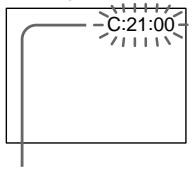
LCD screen, viewfinder or display window
Self-diagnosis display
C:□□:□□
You can service your camcorder yourself.
E:□□:□□
Contact your Sony dealer or local authorised Sony service facility.
| Five-digit display | Cause and/or Corrective Actions |
| C:04:□□ | • You are using a battery pack that is not an “InfoLITHIUM” battery pack. → Use an “InfoLITHIUM” battery pack. (p. 276) |
| C:21:□□ | • Moisture condensation has occurred. → Remove the cassette and leave your camcorder for at least one hour to acclimatise. (p. 281) |
| C:22:□□ | • The video heads are dirty. → Clean the heads using the cleaning cassette (optional). (p. 282) |
| C:31:□□ | • A malfunction other than the above that you can service has occurred. |
| C:32:□□ | • Remove the cassette and insert it again, then operate your camcorder. → Disconnect the mains lead of the AC power adaptor or remove the battery pack. After reconnecting the power supply, operate your camcorder. |
| E:20:□□ | • A malfunction that you cannot service has occurred. |
| E:61:□□ | • Contact your Sony dealer or local authorised Sony service facility and inform them of the 5-digit code. (example: E:61:10) |
| E:62:□□ |
If you are unable to rectify the problem even if you try corrective actions a few times, contact your Sony dealer or local authorised Sony service facility.
Warning indicators and messages
If indicators and messages appear on the LCD screen or in the viewfinder, check the following: See the page in parentheses "() for more information.
Warning indicators
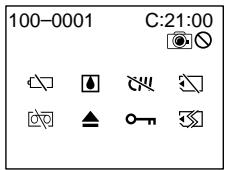
100-0001 Warning indicator as to file Slow flashing:
The file is corrupted.
- The file is unreadable.
- You are trying to use the MEMORY MIX function on a moving picture.*1)
C:21:00 Self-diagnosis display (p. 259)
The battery is dead or nearly dead Slow flashing:
- The battery is nearly dead. Depending on the operating conditions, environment and battery condition, the indicator may flash even if there are approximately five to 10 minutes remaining.
Moisture condensation has occurred*2) Fast flashing:
- Eject the cassette, turn off your camcorder, and leave it for about one hour with the cassette compartment open (p. 281).
Warning indicator as to cassette memory*2)
Slow flashing:
- No cassette with cassette memory is inserted (p. 272).
Warning indicator as to "Memory Stick" (^*1) Slow flashing:
- No "Memory Stick" is inserted.
Fast flashing*2):
- The "Memory Stick" is not readable on your camcorder (p. 142).
- The image cannot be recorded on a "Memory Stick".
Warning indicator as to "Memory Stick" formatting*1*2)
Fast flashing:
- "Memory Stick" is not formatted correctly (p. 238).
- The "Memory Stick" data is corrupted (p. 143).
Warning indicator as to tape
Slow flashing:
- The tape is near the end.
- No tape is inserted.*2)
- The write-protect tab on the cassette is exposed (red)*2) (p. 34).
Fast flashing:
- The cassette has run out of tape. ^2)
You need to eject the cassette*2)
Slow flashing:
- The write-protect tab on the cassette is exposed (red) (p. 34).
Fast flashing:
- Moisture condensation has occurred (p. 281).
- The cassette has run out of tape.
- The self-diagnosis display function is activated (p. 259).
The still image is protected*1) 2)
Slow flashing:
- The still image is protected (p. 195).
Warning indicator as to recording of still image
Slow flashing:
- The still image cannot be recorded on a tape or a "Memory Stick"*1) (p. 59, 63)
1) Except DCR-TRV16E/TRV116E
^2) You hear the melody or beep.
Warning messages
- CLOCK SET
FOR "InfoLITHIUM" BATTERY ONLY

CLEANING CASSETTE
FULL
16BIT
REC MODE
TAPE
Set the date and time (p. 31).
Use an "InfoLITHIUM" battery pack (p. 24).
The video heads are dirty. (p. 282)
The × indicator and “CLEANING CASSETTE” message appear one after another on the screen.
The cassette memory is full.*2)
AUDIO MODE is set to 16BIT (p. 240).*2) You cannot dub new audio.
REC MODE is set to LP (p. 240).*2) You cannot dub new audio.
There is no recorded portion on the tape. ^*2) You cannot dub new audio.
The i.LINK cable is connected (p. 129).*2) You cannot dub new audio.
A/V connecting cable is connected. You cannot dub new sound.
The "Memory Stick" is full (p. 154).*2)
The write-protect tab on the "Memory Stick" is set to LOCK (p. 141).*2)
No still image is recorded on the "Memory Stick" (p. 182).*2)
No "Memory Stick" is inserted.*2)
You are trying to record an image with sound that cannot be recorded by your camcorder on the "Memory Stick" (p. 172).*2)
No still image is recorded on the "Memory Stick"though you are trying to print in the 9PIC PRINT mode (p. 202).
The "Memory Stick" data is corrupted (p. 143).*2)
The "Memory Stick" is not recognised. Check the format (p. 238).*2)
There are more than two of the same directories (p. 182).*2)
The image cannot be played back. Reinsert the "Memory Stick", then play back the image again.
Check the input signals before retrying recording (p. 159, 174).
The tape contains copyright control signals for copyright protection of software (p. 273).*2)
You selected MARKED in 9PIC PRINT in the menu settings using a "Memory Stick" containing no image with a print mark. (p. 202)*2
The tape has reached its end.*2)
Insert a cassette tape.*2)
You have pressed PHOTO during deleting all images on "Memory Stick."
You have pressed PHOTO during formatting a "Memory Stick."
Charging an external flash (optional) does not work correctly.*2
1) Except DCR-TRV16E/TRV116E
2) You hear the melody or beep.
^3) DCR-TRV16E/TRV18E/TRV24E only
^4) DCR-TRV25E/TRV27E/TRV116E/TRV118E only
Pysckn
Pa3HOBnIHOCTn HEnCnpaBHOCTeN MeTOblx yCTpaHeHNA
Ecni y Bac Bo3Nkla KaKaJ-Ni6o np6bnema npu nCnOJb30BaHm BaWe BnDeOkampebl, BocNoIb3yTeCb cneDuOne TaBnuei JnA OTBcAHHa N UcTpaEHnna np6bnembl. Ecni np6bnema He YcTpAHTetCh, TO cNeUyET OTcoEHNHT NCToHnK NiTaN HnOBpaTbCS B CepBnch b CEHTP Sony nIN B MeCTHOe yOnJHOMOeHHe npEepnTne NO o6CbNyXbAHnO hEnJe SONY. EcNI Ha 3Kpae NoRbNTc INDkaun "C:□□:□□”,3TO 3NaHT, YTO cpa6tana fynKua INHdkaun camOdaarHoctKn. Cm. ctp. 269.
Bpekme 3aIncn
| Возмочая несниравноctь | Вероградая пооча на чули MeTOД устраенья |
| He paBOTaET кнОпka START/STOP. | · Пореклочаел b POWER He yctahOBlen b noLOJOKeHne CAMERA. → YCTAHOBITE erO b noLOJOKeHne CAMERA. (cTp. 35) · Зakончилась ЛЕТа. → Порекотаite ЛЕтУ NaЗад ИПИ BCTABbTe HObyU KACCETy. (cTp. 33, 54) · ЛесToK 3aUInTы ot 3aIaNcI yCTAHOBlen TAK,ЧTo ВьICTABЛeHa KpaСЯ МТКа. → Ироьычite HObyU KACCETU ИПи nepeДВиНБte ЛесToK. (cTp. 34) · ЛNTA prinlInPma K bapabachу (KoHdeHcaSry BlaRn). → ВьIHbTe KACCETU И OCTaBbTe BIVdeOKaMepu, Ро MeHbSei Мepe, Ha OdINH cac Дд р AkKlIMaTn3aUZm. (cTp. 281) |
| ВыклочаETСЯ пITAиhe. | · Пri praboTe B pexime CAMERA BaSHA BVIDeOKaMepa нaxOДИАСь B pexime OxNiДANHЯ 60JIeE PANTI MInHT. → YCTAHOBITE pepeKlIOUATel b POWER B noLOJOKeHne OFF (CHG), a 3aTeM B noLOJOKeHne CAMERA. · Батарейнб bLOK NOJIOHCTBtU INI NIOITN PONHOCTBtU paoPraJXeH. → YCTAHOBITE 3apJXeHbH b 6bok. (cTp. 24) |
| Изobражение на заразе ВИДОПSCATEЛЯ RAblaETCS HecETКIM. | · He OTpergynIOpOBan obSEbTKIB BVIDOnCKaTeY. → OTpergynIOpyte obSEbTKIB BVIDOnCKaTeY. (cTp. 39) |
| Фуннця усточивий сбемки He разотаet. | · Onця STEADYSHOT uCTAHOBLEHa B noLOJOeHne OFF B YCTAHOBKx MHeIO. → YCTAHOBITE ee B noLOJOeHne ON (cTp. 244) |
| He paBOTaET Фунця авToΦOKcypOBk. | · YCTAHOBEN pEXIM рунOH φokycIpOBK. → HaxmITE KHNKU FOCUS/INFINITY Дд ructaHOBK n pexIma abTOΦOKycIpOBK. (cTp. 79) · YCNoBIA CBEMK YBnIOTcR HeNOxODaIzIMI Dд abTOMaTNUeCKO φokycIpOBK. → BvINOJIHnTE pyChyU φokycIpOBK (cTp. 79) |
| Изobражение He пОВлЯETCS B ВИДОПSCATEЛe. | · OTKpbIa NaHel' JKKД. → 3akpoIte NaHel' JKKД. (cTp. 37) |
| При CBemke obSEbKTOB, takIX, кak ORHn иллamс CBeYu Na TEmHom ΦОHe, пОВлЯETCS BERTKAlbHа пОLOca. | · СлишКOM BbICOKA KOHTpACTHOCb MExJy obSEbKTom I ФОHOM. B vIDeOKaMepe Het HeNCnPaBHOCTn. |
| ПОВлЯETCS BERTKAlbHа пОLOca пri CBemke ChyHb YRPkoTоObSeKta. | · B vIDeOKaMepe Het HeNCnPaBHOCTn. |
| Ha зкрае пОВлЯETCS kPoSechtle бeльы, Красные, синnes ил зел themselves TOckI. | · При've徳EN B DeIcTBnE pEXIM МeДeHnHOrO 3aTBoPa, HocHOn CUpercbSeBekMII INI NcBEThO CBEMK C MeДeHnHbM 3aTBoPOM. ЭTO He YBnIETCS HeNCnPaBHOCTb. |
| Ha зкрае оТображетс нeнЗвeSThoe ИЗображетс нeнЗвeSThoe ИЗображетс. | · ECSI priOДET 10 MInHyt的老CteTOR, кak BBy UcSTAHOBILn пepeKlIOUaTeB POWER B noLOJOeHne CAMERA Ил uCTAHOBILn onOuDEMO MODE B yCTaHOBKx МeHIO B noLOJOeHne ON 6e3 yCTaHOBLeHnK cAccTeIи "Memory Stick", BаSHA vIDeOKaMepa abTOMaTNUeCKn NaHNeT demOnHCTpauMIO. → BCTaBte KaccETу Ил "Memory Stick", И demOnHCTpaZnI OCTAHOBITcR. Bby Tackke MoKeTe OTMeHnITb pexIM DEMO MODE. (cTp. 250) |
| Возможная несэрпавrostь | Вероградни р以习近平и/nлл метор устраенья |
| Изобравлене заимссыbaeted с нелравильные или нес集体经济和社会 | ·Опця NIGHTSHOT установлени в поожене ON. →УстановInterface ee в поожене OFF. (стp. 44) |
| Изобравлене поуаeted сизшkom ярим, a объekt не поалейся на экpane. | ·Опця NIGHTSHOT установлени в поожене ON в похом мосте. →УстановInterface ee в поожене OFF. (стp. 44) ·Вклочера Фунckция BACK LIGHT. →ВьклочInterface ee. (стp. 43) |
| Вы не можete заимсatable неловские ид зобравленя на "Memory Stick" в рекиime ожданный или BO в的服务а заимс на леньty.* | ·Опця PHOTO REC в установке мени установке в поожене TEPE. →УстановInterface ee в поожене MEMORY. (стp. 244) |
| Вы не можete заимсatable неловские ид зобравленя на леньty.* | ·Опця PHOTO REC в установке мени установке в поожене MEMORY. →УстановInterface ee в поожене TEPE. (стp. 244) |
| He снышиен звук сраватыдан Затomba. | ·Опця BEEP установке в поожене OFF в установке меню. →УстановInterface ee в поожене MELODY или NORMAL. (стp. 251) |
| При заимс замен телевизора или пироналыноу комъюта найваютая чeredные поочы. | ·УстановInterface onцию STEADYSHOT в поожене OFF в установке мени. (стp. 244) |
- Kpome mojeen DCR-TRV16E/TRV116E
(npoDolKeHneHaCleJeUOSeiCTpaHnue)
BpeKIme BocnpOn3BeJeHnA
| Возможная Немсправноctь | Верограда поочини и/orл метор устраенья |
| При нажати кноки вideоконтю leNTа не пераший с. | · Пекешичateль POWER He yctanoblen B noLOJOSEHNE PLAYER*1)/VCR*2).→ Yctanobite erо B noLOJOSEHNE PLAYER*1)/VCR*2). (стр. 50) |
| HeRobotaet KhoIGNa BOCPON3BVEHENIA. | · 3akOHunlacb leNTa.→ Перemotaiy leNTу ha3ad. (стр. 54) |
| Ha n3obpaxheni ImeOTcR ropi3oHTaIbIhne noLoCbl, li6o BOCPON3BODIMoe n3obpaJHne RAJIaTcR HeYeTKIM IIN BOvCE He NOrBlaTe cRaKpAe. | · Bo3MOxHNO, 3aRpy3NeHbI BnDeOroLOBKN.→ OvnCTITE rOLOBKn C nOmoUbIu ChSTaIeK kaccTebl (prnoobpeTaEcTcR oTdeJIbHO). (стр. 282) |
| Пri NOspOn3BVeDEHnI NeHTbI HeT 3Byka IIN JIke CbIaIIe TOnbKO TnIXN 3Byk. | · Ctepeo IeHTa BocPON3BODITc C onUeH eHiFi SOUND, yctanoblenHNo B noLOJOSEHNE 2 B yctanobKax MeHIO.→ Yctanobite ee B noLOJOSEHNE STEREO (стр. 245).· ГомКоCTb yctanobJIeHa H a MInHMaJIbHyo BeliuHHy.→ PrinbAbTe rpoMkoCTb. (стр. 50)·ОпIJЯ AUDIO MIX yctanobJIeHa B noLOJOSEHne ST2 B yctanobKax MeHIO.→ OtrperuInpuyte Функцию AUDIO MIX. (стр. 245) |
| Во Вразу OTobpaxhenia Даты 3aIcSi cФункцЯ ПОИСКАДТы He paBoTae.T. | · Kaccete Na He coDEpxHT KACCETHO nAmATn.→ Испoly3yIte KACCETy C KACCETHO nAmTbIy. (стр. 94)·Оп�Я CM SEARCH yctanobJIeHa B noLOJOSEHne OFF b yctanobKax MeHIO.→ YctanobITE ee B noLOJOSEHne ON. (стр. 248)·Ha leNTe ectb He3aIncsAnHbI yuctOK nOspedn 3aIncsAnHbIX yuctKOB. (стр. 95) |
| Функця ПОИСКА TITPa He paBoTae.T. | · Kaccete Na He coDEpxHT KACCETHO nAmATn.→ Испoly3yIte KACCETy C KACCETHO nAmTbIy. (стр. 92)·Оп�Я CM SEARCH yctanobJIeHa B noLOJOSEHne OFF b yctanobKax MeHIO.→ YctanobITE ee B noLOJOSEHne ON. (стр. 248)·Ha leNTe HeT TITPOB.→ BbIpONHnTE haoJOSEHne TITPOB. (стр. 130)·Ha leNTe ectb He3aIncsAnHbI yuctOK nOspedn 3aIncsAnHbIX yuctKOB. (стр. 93) |
| Новий 3Byk, haboJOseHnI Ha 3aIpcAnHnyIo ЛeHTy, He CbIaIIeH. | ·ОпсЯ AUDIO MIX yctanobJIeHa B noLOJOSEHne ST1 b yctanobKax MeHIO.→ YctanobITE ee B noLOJOSEHne AUDIO MIX. (стр. 245) |
| TITr He OTo6paxaETcH. | ·ОпсЯ TITLE DSPL yctanobJIeHa B noLOJOSEHne OFF b yctanobKax MeHIO.→ YctanobITE ee B noLOJOSEHne ON. (стр. 248) |
^1) Tólbko Módejni DCR-TRV16E/TRV18E/TRV24E
^2) ToIbKO moIeN DCR-TRV25E/TRV27E/TRV116E/TRV118E
BpeKImax 3aIncn BocnpOn3VeJeHna
| Возможная нестораьосты | Вероградая р�чнии и/лм meю устраенья |
| He вklуает ся пітане. | • He yctanoblenbбатарий b6lok, пібо щe on pa3raДипся піл почтп радрдпс. • Yctanobite 3apjaженибатарий b6lok. (ctp. 24, 25) • Ceteboi adanterp nepemehnoro toka he noДcoedinien К ceteboi po3etke. • ПОдсоEdinITE ceteboi adanterp nepemehnoro toka K ceteboi po3etke. (ctp. 30) |
| He pa6otaeТ Функция піоSCKa konцa. | • Kacceta c lentToB 6bla n3BleueHa nOcSe 3aIncs pi# nCplb3OBAHmKacceTb6e3 KaccetHOn pAmrTn. (ctp. 49) • 3aIncs b HOBtu KaccetUe ese He BvInOJHnAclb. (ctp. 48) |
| Функция піоSCKa konca pa6oTaET нeравильно. | • Ha lente ImeetcR He3aIncsahnhB yUacToK B hauane liN B cepeDIne. (ctp. 49) |
| Батарий b6lOK 6bICTpo pa3raJxaaetcT. | • Okpykaiozaia TempepaTya RaBIAeTc R CnIshKom Hn3kOДЯ pa60Tb. • BatapeHb6lOK 3apjaXeH He noIHOCTbU. • 3apJdnte 6batapeHb6lOK ese pa3. (ctp. 25) • BatapeHb6lOK 6lOK noIHOCTbU oP3raJXeH I He Mochet 6bITb pepe3apJXeH. • 3amEnite erO ha HOBb6batapeHb6lOK. (ctp. 24) |
| Индikatop octabweroocra 3aprda 6batapeHOrO 6lOk a Poka3bVBaet нeравильhoe Врет. | • Bby IncPb3OBoAaB6batapeHb6lOK B TceHne DnIteBHLORO BpeMeHn B kraihe JxapKnx iIiy XOLODbHx OKpykaOuzix ycIOBnX. • BatapeHb6lOK noIHOCTbU oP3raJXeH I He Mochet 6bITb pepe3apJXeH. • 3amEnite erO ha HOBb6batapeHb6lOK. (ctp. 24) • BatapeHb6lOK He noIHOCTbU oP3raJXeH. • ПОнOCbTbO 3apJdnte 6batapeHb6lOK ese pa3. (ctp. 25) • ПрОЗоЛо OTKLOHENHe BO BpeMeHn OCTabWeroocra 3aprda 6batapeHOrO 6lOk. • 3apJdnte 6batapeHb6lOK noIHOCTbU oSe pa3, YTO6bI OTb6paxeHne INDkaTOpa OCTabWeroocra BpeMeHn 3azda 6batapeHOrO 6lOk STALO npaBnHbIM. (ctp. 25). |
| Пітане b6kLIOuAeTcR, xOTa ндikatop octabweroocra 3aprda 6batapeHOrO 6lOk nOka3bVBaet, чTo y 6batapeHOrO 6lOk doCTaTOCH 3aprda Дд Pa60Tb. | • ПОИЗоЛо OTKLOHENHe BO BpeMeHn OCTabWeroocra 3aprda 6batapeHOrO 6lOk. • 3apJdnte 6batapeHb6lOK noIHOCTbU oSe pa3, YTO6bI OTb6paxeHne INDkaTOpa OCTabWeroocra BpeMeHh 3aprda 6batapeHOrO 6lOk STALO npaBnHbIM. (ctp. 25). |
| Kacceta He b6HmMaTeCn 13 depxkateJI. | • Источник пітаня OTOCoEduHEn. • HAdexKHo noIDOCoEduHNe IcSTOHNK PIItANHg. (ctp. 24, 30) • BatapeHb6lOK p3raJXeH. • Источь STYe Tze p3raJXeH 6batapeHb6lOK. (ctp. 24, 25) |
| MiraIoT INDikatopbI I N A, n NHKakme ΦyHKUn, KpOMe n3BLeeuHn KaccetbI, He pa60aIOT. | •Пробизлaja koHDcHcaZnBn. •ИЗвКeКeTbe KaccetUy nOCTabTe Ba7y BVDeOKaMepy, no MeHbSeMpe, Ha OdINH qacДЯ akKlImaTn3aZn. (ctp. 281) |
| INDikatop CIII He noIbVlnetc r pri nCpOJIbZOBAHm KaccetbI c KACCETHOr NiAMrIbU. | • ПОЗлочEHь nOp3bEm KaccetbI 3a6bIcR gr3bIy nIIM nIbIbU. •ОчSHTe nO3OLOUeHbN p3bEm. (ctp. 275) |
| INdikatop octabweiç leNTbI He otobpaxaetcI. | •Опця [ ] REMAIN yctahOBLeHa nIopoJXeHne AUTO B yctaHOBkax MeHIO. • YctahOBtBe ee B noIIOXeHne ON, YTO6bI nINDiKATop octabWeiç SJIeNTbI OTObPaxaIcR noCTOHNH. (ctp. 249) |
При заци сюлбовим "Memory Stick"
-Kpome mopeJeD CDR-TRV16E/TRV116E
Hdkaunca moaarHOCTKu
C:□□:□□
BbMOxTe BbINOJIHnTb
obcynkuaHne BaSei BnDEOKaMepbI
camoCTOReTjBoHo.
E:□□:□□
O6paTntecb K BaWemy DnIepy Sony.
NIN B MeCTHOE yNOJHOMOeHHoe
aERHTCTBO NO oCbnyKBaHIO
n3dJIy Nsory.
- He yctahOBHeHa Kacceta C KaccetHOn nAMrTbO (CTp. 272).
Ipeynpexkaounn HndkaTOp OTHocntelbHO "Memory Stick" \*\*1
MeJenneHoe MURaHne:
- He yctanobIeHa "Memory Stick".
Быст两款Mоганe*2):
"Memory Stick" He uHTaETcBaue BnDeokamepo (CTp. 142).
-Избрахене He может 6ыть 3апсано Ha "Memory Stick".
Ппдунрждаюи ИнданкаторOTHOCHTeJIbHO Фоматеровань“Memory Stick" (^*1) (^*2)
Быст Poe маганe:
"Memory Stick"OTΦopMaTIpOBaHa HEnpaBnJIbHo (CTp.247).
-Данные"Memory Stick"повөхдөны (ст. 143).
IpeDynpexKaIOuMn INHdkaTOp OTHOCNTbHO JeHTbl
MeDneHHoe MURaHne:
- JeHTa NOUtn DoCTnIgKa KOHua.
He BCTaBnHa KaccTa C JeHToi.*2)
JIeNecTOK 3aunTbI OT 3anCn Ha KaccTe OTKpbIT (KpaChbl*)2) (CTp. 34).
Быст Poe маганe:
- JeHTa B KAccTe 3aKOHUnIacb. ^*2)
Bam Huxho n3BJeYkaccTey\*2)
MeDneHHoe MURaHHe:
JIeNEcTOK 3aunTbI OT 3anCn Ha KaccTe OTKpbIT (KpaChbl) (CTp. 34).
БыICTpoe mUraHne:
Пюизошлakондениcaцьвлаги (ст. 281).
- JeHTa B KACCETe 3aKOHUnIacb.
Cpa6oTaIaФyHKUINHДNKaUNIcMoOuaNarHocTNKn(CTp.269).
HenoDbnKHO n3o6paXeHne 3aunueHo\*1)*2
MeDneHHoe MURaHne:
- HenoBnKHOe n3obpaXeHne 3aunuHeO (cTp.195).
PpeDynpexkaUoHnHnKaTOp OTHOCNTeJIbHO 3aIncn HEnOdBxHNOrO n3O6paXeHHa
MeDneHHoe MURaHne:
Ha "Memory Stick" He 3aɪncaHо Hɪ Ondoro HeNoDBHXHOrO n3obpaxKENHr (CTp. 182).*2)
NO MEMORY STICK*1)
He yctaHOBnEA "Memory Stick".*2)
AUDIO ERROR*1
BbI bItaTeTcB 3aIncatb N3o6paXeHne Co 3BykOM, KOtOpbI He MoKet 6bIb 3aIncan BaWei BnDeokamepo Ha "Memory Stick"(ctp.172).*2)
NO STILL IMAGE FILE*1)
Ha "Memory Stick" He 3aIncaHn Hn Ondoro HneOdbuxxHOro n3OpbaxeHn, a Bb IbTaTeCb BblOnlHntb NeaytB pexime 9PIC PRINT (cTp. 202).
- MEMORY STICK ERROR*1)
Данные "Memory Stick" noBpeKdHebl (cTp. 143).*2)
- FORMERROR*1
BbI haxaJI KhoNky PHOTO BO BpEMr foOpMaTIpOBAHnR "Memory Stick."
- NOW CHARGING
3aprka BHeuHbBcIbIaKn (npno6peTaetcOtJeIbHo) pa6oTaet He npabunbHO.*2)
^1) Kpome moJeIeD DCR-TRV16E/TRV116E
^2) Bby yCblIiTe MeIoDIO uIIN 3yMMepHbI CNHaJ.
^1) ToIbKO moJeN DCR-TRV16E/TRV18E/TRV24E
^1) ToJIbKO moJeN DCR-TRV25E/TRV27E/TRV116E/TRV118E
Selecting cassette types
You can use _min^Min mini DV cassettes only*. You cannot use any other 8 mm, HiHi8, Digital8, VHS VHS, VHSVHSC, SMHS S-VHS, SMHS S-VHSC, Betamax, DV or MICROMV microcassette.
- There are two types of mini DV cassettes: with cassette memory and without cassette memory. Cassettes with cassette memory have the CIII (Cassette Memory) mark.
We recommend you to use cassette with cassette memory.
IC memory is mounted on this type of cassette. Your camcorder can read and write data such as dates of recording or titles, etc. to this memory.
The functions using the cassette memory require successive signals recorded on the tape. If the tape has a blank portion at the beginning or between recorded portions, titles may not be displayed properly or the search functions may not work properly. Perform the following to prevent a blank portion from being made on the tape.
Press END SEARCH to go to the end of the recorded portion before you begin the next recording if you operate the following:
- You have changed the cassette while recording.
- You have played back the tape.
- You have used the edit search function.
If there is a blank portion or discontinuous signal on your tape, re-record from the beginning to the end of the tape as described above.
The same result may occur when you record using a digital video camera recorder without a cassette memory function on a tape recorded by one with the cassette memory function.
Bb6op TnOB Kaccet
BbMOKeTe NcNoJIb3OBAbTOJIbKO
MnHaTHOpHbIe KACCeTbI cUdpoBOrO
BUNEOcInHaJa MinD. Bbl He MoKeTe
NcNoJIb3OBAbT HNKaKHe dpyrHe KAcceTbI, a
mMeHHo, KacCeTbI 8 MM, HiHi8, Digital8, VHSVHS,VHSVHS,S-VHS,SVHS S-VHSC,Betamax,DVnnMICROMIVMICROMIV
^* CyuectByeT DBA TINa MNHnAToHbIX KAccet CnΦpOBOr BnDEoCnIHana: C KaccETHOI NaMTbIO N 6e3 KACCETHOI NaMTi. KaccETbIC KACCETHOI NaMTbIO IMeHT 3HaK CI (KaccETHOI NaMTi).
PekomEnyETcNcNoJIb3OBA Tb KaccTebl C KaccTeHOnI NaMrtbIO.
B 3TOT TIN KACCET BCTPoeHa nAMrTaIC. Ba7a BuDeOKaMepa MoKet 3aNcBiBaTb N CHTbIBaTb TaKHe DaHbIe, KaK DaTbI 3aNcH INJIN TNTpbI, I T.I., B 3Ty nAMrTaB.
CIII4K mark on the cassette
The memory capacity of cassettes marked with CIII4K is 4Kbit. Your camcorder can accommodate tapes having a memory capacity of up to 16Kbit. 16Kbit cassettes are marked with CIII16K.
Mini Dv Digital Dsc Cccto This is the Mini DV mark.
Cissette This is the Cassette Memory mark.
These are trademarks.
When you play back
Playing back an NTSC-recorded tape
You can play back tapes recorded in the NTSC video system on the LCD screen, if the tape is recorded in the SP mode.
Copyright signal
When you play back
Using any other video camera recorder, you cannot record on a tape that has recorded copyright control signals for copyright protection of software which is played back on your camcorder.
When you record
(DCR-TRV25E/TRV27E/TRV116E/ TRV118E only)
You cannot record software on your camcorder that contains copyright control signals for copyright protection of software. "COPY INHIBIT" appears on the screen or on the TV screen if you try to record such software. Your camcorder does not record copyright control signals on the tape when it records.
UcnoJb3yeMbte KacceTbI
C Cassette Memory 3TO MEtKa KaCCeT C KACCeTHoN NaMRTbO.
3TN METKN ABJIAOTC TOPROBbIMM MapKaMM.
PnBocnpOn3BeJeHn
Bocnpon3BeHneJeHTbI,3aHcHHO BcnCTeme NTSC
BbMOKeTe BOCpOn3BOOHTb Ha 3KpaHe KKJ,JIeHTb, 3aIncaHbIe BnuDeocnCTeme NTSC,ecnJIeHTa 3aIncaHa BpeXmE SP.
CnHaJ aBtOpckoro npaba
PnBocnpon3BeDeHn
NcnoB3yI IIO6yI DpyryI BnDEOKamepy, BbI He CMOKeTe BblIOJIHnTb 3aINCb Ha JeHTe, Ha KOTopyIb6blI 3aINCaHb CnHaNbI ynpabNeHnA aBTOPCKIM npabOM nIra 3aUHTbI aBTOPCKORO npaba nporpaMMHoro oBeCneHnA, KOtOpoe BOCpON3BOIDTCrHa BaWei BnDEOKamepe.
Pn3aanns
(Tолько модали DCR-TRV25E/TRV27E/ TRV116E/TRV118E)
Bbl He cmoxete 3ancaTb nporpaMMHoe
obecneueHne Ha Bawaen Bndeokamepe,
KOTOPOE coedeXHT CnHaJIbIy npaBLeHna
ABTOPCKM npabOM dJa 3aunltbAETOPCKORO
npaba nporpaMMHoro obecneueHna.
Ha 3kpaHe nnHa 3kpaHe TeneBVn3opa
nonBHTc HnDnKaun "COPY INHIBIT",ecnBb
nonbTaTeCb 3anCaTb TaKoe nporpaMMHoe
obecneueHne.
Baasa BnDEOKaMePe Ha 3anCbIbAeT CnHaJIbIy
ynpabLeHna ABTOPCKM npabOM HaJeHTy,
KOrda OHa BblONJIHReT 3anNCb.
Audio mode
12-bit mode: The original sound can be recorded in stereo 1, and the new sound in stereo 2 in 32kHz . The balance between stereo 1 and stereo 2 can be adjusted by selecting AUDIO MIX in the menu settings during playback. Both sounds can be played back.
16-bit mode: New audio cannot be recorded but the original sound can be recorded in high quality. Moreover, your camcorders can also play back sound recorded in 32kHz 44.1 kHz or 48kHz . When playing back a tape recorded in the 16-bit mode, the 16BIT indicator appears on the screen.
When you play back a dual sound track tape
When you play back a dual sound track tape recorded in a stereo system, set HiFi SOUND to the desired mode in the menu settings (p. 236).
Sound from speaker
| HiFi Sound Mode | Playing back a stereo tape | Playing back a dual sound track tape |
| STEREO | Stereo | Main sound and sub sound |
| 1 | Left sound | Main sound |
| 2 | Right sound | Sub sound |
You cannot record dual sound programmes on your camcorder.
Aydnopexim
12-6nTHbIpeKIM:IVxCoHaayuO3aHcB MOKeT 6bITb BvIOnHeHa BV CTepeo00HueCKOM peKIMe 1,a HOBaA ayDIO3aINCb-B CTepeo00HueCKOM peKIMe 2 c YactOTo3 32 Kf. BaIaHC MeJy CTepeo00HueCKMn peKIMam1 n 2 MoKeT 6bITb OTpeRyIpOBaH nyTeM Bbl6opa onm AUDIO MIX BV UCTaHOBkax MeHIO BO BpEmr BOCpON3BeDeHn. O6e ayDIO3aHncn MOrYt 6bITb BOCpON3BeDeHbl.
16-6HTbI pexm: HOBa ayDIO3aINcB He MOxET 6bIT BByI0JIHeHa, HO NCXoJHaNay ayDIO3aINcB MOxET 6bIT BByI0JIHeHa C BbICOKIM KaueCTBOM. BoJee TORO, BaUH BnDEOKaMEpbI MOryT TaKJKe BOCPOn3BeCTN ayDIO3aINcN, BByI0JIHeHHbIe c YactOTAMN 32 KfU, 44,1 KfU nII N 48 KfU. Pnp BOCPOn3BVeDeHm IeHTbl, 3aINsCaHNoB 16-6HTHom peXkMe, Na 3KpaHe NOABJIeTcR INdIKaTOP 16BIT.
PnBocnpOn3BeJeHm JeHTbIC DBOH0N 3ByKO0N DOPOXK0N
ПиВ ВОспpon3Бve徳н ИЕНТСДВОйHOI 3БУКOBОД dopoxKоN,ЗАпсанHоВ Ctepeофончecкос сnteMe,yCTaHOBnTe OngИH HiFi SOUND B yCTaHOBkax MeHIO B HxJHbI pexIM (cTp.245).
3ByK OT dHAmka
| 3BykOBоу pexm HiFi | Вос pnɔn3BveDEHne ctepeoΦOHHueCKо IeHTbI | Вос pnɔn3BveDEHne IeHTbI c DBOHо 3ByKOBоу dopOXXKо |
| STEREO | СтerteофОнчЕСКИ КанД | ОснOBои И BCNo- MогаTeЛьньМ 3BYK |
| 1 | Лeвьй 3BykOBоу КaнД | ОснOBои 3BYK |
| 2 | Правьй 3BykOBоу КaнД | ВспомогаTeлььнь 3BYK |
BbHe MoKeTe 3aHcBbA Tb IporpaMMbI c DBOHbIM 3ByaHnEm Ha BaWei BnDeokampe.
Notes on the cassette
When affixing a label on the cassette Be sure to affix a label only at the locations illustrated below [a] to prevent a malfunction of your camcorder.
After using the cassette
Rewind the tape to the beginning, put the cassette in its case, and store it upright.
When the cassette memory function does not work
Reinsert a cassette. The gold-plated connector of the cassette may be dirty or dusty.
Cleaning the gold-plated connector
If the gold-plated connector on the cassette is dirty or dusty, the remaining tape indicator is sometimes not displayed correctly, and you may not be able to operate functions using cassette memory.
Clean the gold-plated connector with a cottonwool swab, about every 10 times that the cassette is ejected. [b]
Примechашио касеTe
PpnpnKpenIeHm MeTKn Ha Kaccety
Bo n36ekaHne HencnpaBnOtei BaWei BnDeOkamepbI o6raTeJIbHO npKpeJIrTe MeTKy TOnIbKO B MeCTax, NOKa3aHHbIX Ha IIJIIOCTpauIN HnKe [a].
Pocne nCnoJb3OBAHnKaCCeTbI
IpeemotaiTe IeHTy Ha HauaJIO, NomeCTnte KaccetTy B ee cyTlAp, IN xpaHIne ee B BePTNKaJIbHOM NOLOXeHN.
Ecnn yHKun KaccetHOJ nAMrH He pa6oTaET
BCTaBbTe Kaccetyepe pa3. I03oJoueHHbI pa3bEm KaccetbIMOKeT 3a6ntbcra rpa3bIO nII NblbIO.
OuHCTKa n03oJIoueHHoro pa3beMa
Ecnn no3oJOneHHb pa3bem KaccSeTb 3a6nIcRrpa3bIO nnPiNbIbIO, INdNkATOp OCTaBWeIcJIeHTb INHOrJa OTobpaKaetc HekOppeKTHO n,BO3MOxHO,BHe NcMOKeTe pa6oTaTb CfYHKUIMM,NCoNb3yUOUMN KaccETHyONAMTb.
OuHuaTe No3ONoUeHHbI pa3bEm C nOMoUbIO BaTHoro TaMnOHa, npImepHo uepe3 KaJkDble 10 N3BLeueHn KAcCtbl. [a]
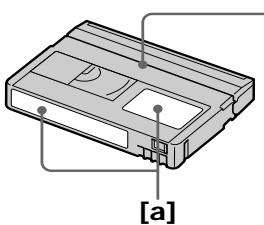
Do not affix a label along this border./ He npinkpenna Te MEtky BdoJIb 3ToTO KpaJ.
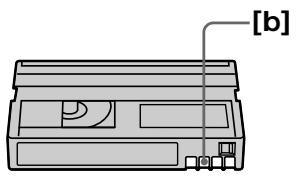
About the "InfoLITHIUM" battery pack
What is the "InfoLITHIUM" battery pack?
The "InfoLITHIUM" battery pack is a lithium-ion battery pack that has functions for communicating information related to operating conditions between the battery pack and an AC adaptor/charger (optional).
The "InfoLITHIUM" battery pack calculates the power consumption according to the operating conditions of your camcorder, and displays the remaining battery time in minutes.
With an AC adaptor/charger (optional), the remaining operating time and charging time are displayed.
Charging the battery pack
- Be sure to charge the battery pack before you start using your camcorder.
- We recommend charging the battery pack in an ambient temperature of between 10^ to 30^ ( 50^ to 86^ ) until FULL appears in the display window, indicating that the battery pack is fully charged. If you charge the battery pack outside of this temperature range, you may not be able to efficiently charge the battery pack.
- After charging is completed, either disconnect the cable from the DC IN jack on your camcorder or remove the battery pack.
Effective use of the battery pack
-
Battery pack performance decreases in low-temperature surroundings. So, the time that the battery pack can be used becomes shorter. We recommend the following to ensure longer battery pack use:
-
Put the battery pack in a pocket close to your body to warm it up, and insert it in your camcorder immediately before you start taking shots.
- Use the large capacity battery pack (NP-FM70/QM71/FM90/FM91/QM91, optional).
- Frequently using the LCD panel or frequently operating playback, fast forward or rewind wears out the battery pack faster. We recommend using the large capacity battery pack (NP-FM70/QM71/FM90/FM91/QM91, optional).
- Be sure to turn the POWER switch to OFF (CHG) when not taking shots or playing back on your camcorder. The battery pack is also consumed when your camcorder is in the standby mode or playback is paused.
- Have spare battery packs handy for two or three times the expected recording time, and make a trial recording before the actual recording.
- Do not expose the battery pack to water. The battery pack is not water-resistant.
Remaining battery time indicator
- If the power goes off although the remaining battery time indicator indicates that the battery pack has enough power to operate, charge the battery pack fully again so that the indication on the remaining battery time indicator is correct. Note, however, that the correct battery indication sometimes will not be restored if it is used in high temperatures for a long time or left in a fully charged state, or the battery pack is frequently used. Regard the remaining battery time indication as the approximate shooting time.
- The mark indicating that there is little remaining battery time sometimes flashes depending on the operating conditions or ambient temperature and environment even if the remaining battery time is about five to ten minutes.
How to store the battery pack
- If the battery pack is not used for a long time, do the following procedure once per year to maintain proper function.
- Fully charge the battery.
- Discharge on your electronic equipment.
- Remove the battery from the equipment and store it in a dry, cool place.
- To use the battery pack up on your camcorder, leave your camcorder in the recording standby mode until the power goes off without a cassette inserted.
Battery life
- The battery life is limited. Battery capacity drops little by little as you use it more and more, and as time passes. When the available battery time is shortened considerably, a probable cause is that the battery pack has reached the end of its life. Buy a new battery pack.
- The battery life varies according to how it is stored and operating conditions and environment for each battery pack.
O 6aTapeHOM 6JloKe "InfoLITHIUM"
- 063aTeIbHo yCTaHaBnBaIte nepeKJIoucTaIb POWER B nOIOxHeM OFC (CHG), B TO BpeM, KOrDa BbI He npOn3BODIne CbEMky I He BblONHReTe BOCpnON3BeDEHe H a Baew BnDeOkAmepe. 3apRd 6atapeHoro 6noka TaXke paXoDyETc, KOrDa BaWa BnDeOkAmepa HaxoDITcB pexime OxNdaHnI Nn Pny3bI BOCpnON3BeDEHH.
-ДерхиTe npd pykon 3anacbHie 6aTapeHbIe 6blOKn, B DBA UNI TPN pa3a 6BONbUHM, Yem OxNJaEMOE BVPmR CbEMKn, INPOBOJIn PpObHyCbEMKy nepeD TEM, KAK BByINONHITb peaBHyO CBEMKY.
He noDBepraIe 6aTapeHbI b6NOK Bo3dEJIcTBIO BOIb. BatapeHbI 6bOK He IABJrTeCA BOHOENPOHnUaaeMbIM.
Cpok cnjx6bl 6aTapeHoro 6Joka
Cpok cnjxkb6b6aTapeHoro 6noka orpaHueH. EMKoCTb 6aTapeHoro 6noka mano-nomany yEmhbaaTcra, no Mpe TOrO, kAc BblncnoIb3yeTe erO BCE 60bnbe n 60bnbe, a TAKCe C TeEHNEB BPEMHe. Korda doctynHOe BPEM 3apraJa 6aTapeHoro 6noka 3HaHTeBJBO COKpaTITcH, BO3MOXHOI npuHHOJ RbJIeTcTO, YTO cPck cnjxkb6b6aTapeHoro 6noka 3aKOHnCn, pNIObPeTne, NOXaIynta, HObBI 6aTapeHbIb 6nOk.
Cpok cnjxkbblbatapeHoro 6noka n3mehreTcB COOTBECTBUN C TEM, KAK OH xpaHITcH, a TAKXe 3aBNCIMOCTN OT yCIOBNI 3KCNyataun N OKpykaioo cpebl dny kajdo 6batapeHoro 6noka.
The DV jack on this unit is an i.LINK-compliant DV jack. This section describes the i.LINK standard and its features.
What is i.LINK?
i.LINK is a digital serial interface for handling digital video, digital audio and other data in two directions between equipment having the i.LINK jack, and for controlling other equipment.
i.LINK-compatible equipment can be connected by a single i.LINK cable. Possible applications are operations and data transactions with various digital AV equipment. When two or more i.LINK-compatible equipment are connected to this unit in a daisy chain, operations and data transactions are possible with not only the equipment that this unit is connected to but also with other devices via the directly connected equipment.
Note, however, that the method of operation sometimes varies according to the characteristics and specifications of the equipment to be connected, and that operations and data transactions are sometimes not possible on some connected equipment.
Note
Normally, only one piece of equipment can be connected to this unit by the i.LINK cable (DV connecting cable). When connecting this unit to i.LINK-compatible equipment having two or more i.LINK jacks (DV jacks), refer to the operating instructions of the equipment to be connected.
About the name "i.LINK"
i.LINK is a more familiar term for IEEE 1394 data transport bus proposed by SONY, and is a trademark approved by many corporations. IEEE 1394 is an international standard standardised by the Institute of Electrical and Electronic Engineers.
O ctaндарт e i.LINK
THe3do ZnDpOBO RnDeocnHana DV Ha daHHOM annapaTe ABnAeTcR THe3dOm ZnDpOBO RnDeocnHana DV, COBMeCTmMbIM CO cTaHApTOM i.LINK. 3ToT pa3deI onncbIbae t CAnDapT i.LINK uero xapaKtepcntkn.
4To takoe "i.LINK"?
i.LINK npedctabnreI 36a cnfoboo nocleobatoBbHbIn HHTeppeic dIra nepedaun cnofoBO rBdeOcHnala, uCFOBORO ayDnOCnHaJa I npyInx DaHHbx B DByx Hanpablenmex MExdy annapaTpyo, mMeoue iLINK, nI pyanpablenna dpyro annpaTpyo.
i.LINK-COBMeCTMmaa annapatypa moKet 6bItb noDoeDInHeHa eINHCTBENHbIMKa6BeIem i.LINK. Bo3MOXHbIe npIMeHNHeNBA KJIIOUcAOT o6pa6Otky npeepaY daHHbIX C NOMOsbHO pa3NNHOI cΦpOboa ayINO/BnDeo aannapatypb.I Ecln Dba nnIooie I.NLk-COBMeCTMbIX aannapata noDoeDInHeB K DaHHOMy aannapAT NOCEIOBATeJBHO CEIOCHKO, BO3MOXHbI o6pa6OTka npeepaDa aHHbIX He ToNbKO Ha annapaType, K KOToPOI NoDOCoEHNHe DaHHbI aannapAT, HO TaKKe I Na dpyNX yCTPoiCTBax uee3 HaprrMyIO noDoeDInEHHyo annapatypy. 3AmEtB, TeM He MeHee, YTO MeTOd p6oTbI INHGda OTNIuAeTcR cOrNaCHO OOC6EHocTm I TexHNueCKm XapaKTepnCTNKam aannapatypbl, KOTOpOHy HxKHO NoDOeDInHITb, N Yo 06pa6OtKa npeepaDa daHHbIX INOHJa HEBO3MOXHbI Ha HeKOTopBX NODOeDInEHHBIX annapatax.
PpmeaHne
O6bIyHToTobKO OINH aannapat MOKeT 6bITb NOcEOHNHeN K DaHHOMy aannapATy C NOMoUbHO Ka6eJIa.i.LINK (coeHNHTeBnHO Ka6eJIaunPpOBOro BVneocnHaJa DV).Pn NOcEOHNHeN nnHoro annapata K i.LINK-COBmecTmOu annapata K dByMa IIN BoJee rHe3dAmi i.LINK (rHe3dAmu unPpOBOro BnDEOCnHaJa DV), o6paauTceb K pyKOBODCTBy no 3KcPnPyaTaUnn aannapAtypbl, KOtOpU HxKHO NOcEOHNtB.
O Na3BaHn "i.LINK"
i.LINK ABnEeTc60Iee y3HaBaEmbIM
onpeJeHnEM dIy IINHb TpaHCnpTa DaHHbIX
IEEE 1394, npdeJnoXeHHbIM SONY, n ABnETc
fmpMeHHbIM 3NaKOM, yTbePjDeHHbIM MHOrIMN
kopnpaunm. IEEE 1394 ABnEeTc
MexdYnapoDhBM cTaHdapTOM,
CTaNdPtN3OBAHbIM IVHCTHTyTOM INHXeHepOB
No 3JekTpOTEXHKe n 3JekTpOnHke.
i.LINK baud rate
i.LINK's maximum baud rate varies according to the equipment. Three maximum baud rates are defined:
S100 (approx. 100Mbps*)
S200 (approx. 200Mbps)
S400 (approx. 400Mbps)
The baud rate is listed under "Specifications" in the operating instructions of each equipment. It is also indicated near the i.LINK jack on some equipment.
The maximum baud rate of equipment on which it is not indicated such as this unit is "S100".
When units are connected to equipment having a different maximum baud rate, the baud rate sometimes differs from the indicated baud rate.
*What is Mbps?
Mbps stands for megabits per second, or the amount of data that can be sent or received in one second. For example, a baud rate of 100Mbps means that 100 megabits of data can be sent in one second.
i.LINK functions on this unit
For details on how to dub when this unit is connected to other video equipment having DV jacks, see page 102 and 121.
This unit can also be connected to other i.LINK (DV) compatible equipment made by SONY (e.g. VAIO series personal computer) other than video equipment.
Before connecting this unit to a personal computer, make sure that application software supported by this unit is already installed on the personal computer.
For details on precautions when connecting this unit, also refer to the operating instructions of the equipment to be connected.
Required i.LINK cable
Use the Sony i.LINK 4-pin-to-4-pin cable (during DV dubbing).
i.LINK and are trademarks.
CkopoocTb napeaun daHHbIX i.LINK B 6oanax
MaKcMmaJIbHaI cKOpocTb nepeDaun daHHbIX i.LINK B 6oJax pa3nHuaetc cornacHO annpaType. OnpeJeIeBt TpN MaKcMmaJIbHbIe cKOpocTn nepeDaun daHHbIX b 6oJax:
S100 (πριδη. 100 M6πτ/c*)
S200 (πριδλ. 200 M6πT/c)
S400 (npn6n. 400 M6nT/c)
CkopoocTb nepeaun daHbIX B 6oJax yka3aHa B
pa3dene "Texnheckne xapaKteprntiKm
InhctpyKcnn O Kcnpyataun KaJdoTO
anapata. Oha TaKxe yka3bIbaETc B6Iin3n
rHe3da i.LINK Ha HeKOTopbIX annapatax.
MaKcImalbHoi ckopoCTbO nepeaun daHHbIX B
6oJax dIra anppatOB, H KAOTOpBIX OHa He
yka3aHa, taKnx, Ka JdAnHbN annapat, ABJIeTCR
"S100". Ecnn annapatbI noDcoEINHIOTC R
6obopyoBaHIO C pa3nUHO MAKcImalbHoi
CKopoCTbO nepeaun daHHbIX B 6oJax, CKopoCTb
pepeaun daHHbIX B 6oJax INHOr Da OTNIuAeTcR OT
yka3aHHo CKopoCTn nepeaun daHHbIX B 6oJax.
\*yTo takoe M6nt/c?
M6NT/c 0603Haayet Mera6NT B CekyHdy, nIIN KOLIYueCTBO DaHHbIX, KOtOpBle MOrYT 6bITb NocnAHI INI PnIHrTb 3a ONDy CekyHdy. HanpIMep, CkOPoCTb NepeDaHbIX B 6Odax 100 M6NT/C 0603Haayet, YTO 100 Mera6NT daHHbIX MOrYT 6bITb NocnAHI 3a ONDy CekyHdy.
Функции i.LINK Ha 3Tom annapate
Using your camcorder abroad
Using your camcorder abroad
You can use your camcorder in any country or area with the AC power adaptor supplied with your camcorder within 100V to 240V AC, 50/60 Hz.
Your camcorder is a PAL system based camcorder. If you want to view the playback picture on a TV, it must be a PAL system based TV with the AUDIO/VIDEO input jack. The following shows TV colour systems used overseas.
PAL system
Australia, Austria, Belgium, China, Czech Republic, Denmark, Finland, Germany, Holland, Hong Kong, Hungary, Italy, Kuwait, Malaysia, New Zealand, Norway, Poland, Portugal, Singapore, Slovak Republic, Spain, Sweden, Switzerland, Thailand, United Kingdom etc.
PAL-M system
Brazil
PAL-N system
Argentina, Paraguay, Uruguay
NTSC system
Bahama Islands, Bolivia, Canada, Central America, Chile, Colombia, Ecuador, Guyana, Jamaica, Japan, Korea, Mexico, Peru, Surinam, Taiwan, the Philippines, the U.S.A., Venezuela, etc.
SECAM system
Bulgaria, France, Guiana, Iran, Iraq, Monaco, Russia, Ukraine, etc.
Simple setting of clock by time difference
You can easily set the clock to the local time by setting a time difference. Select WORLD TIME in the menu settings. See page 242 for more information.
Maintenance information and precautions
Moisture condensation
If your camcorder is brought directly from a cold place to a warm place, moisture may condense inside your camcorder, on the surface of the tape, or on the lens. In this state, the tape may stick to the head drum and be damaged or your camcorder may not operate correctly. If there is moisture inside your camcorder, the beep sounds and the indicator flashes. When the indicator flashes at the same time, the cassette is inserted in your camcorder. If moisture condenses on the lens, the indicator will not appear.
If moisture condensation has occurred
None of the functions except OPEN/EJECT switch (cassette ejection) work while the alarm indicator is on. Eject the cassette, turn off your camcorder, and leave it for about one hour with the cassette compartment open. Your camcorder can be used again if the indicator does not appear when the power is turned on again. If moisture starts to condense, your camcorder sometimes cannot detect condensation. If this happens, the cassette is sometimes not ejected for 10 seconds after the cassette lid is opened. This is not a malfunction. Do not close the cassette lid until the cassette is ejected.
Note on moisture condensation
Moisture may condense when you bring your camcorder from a cold place into a warm place (or vice versa) or when you use your camcorder in a hot place as follows:
- You bring your camcorder from a ski slope into a place warmed up by a heating device.
- You bring your camcorder from an air-conditioned car or room into a hot place outside.
- You use your camcorder after a squall or a shower.
- You use your camcorder in a high temperature and humid place.
How to prevent moisture condensation
When you bring your camcorder from a cold place into a warm place, put your camcorder in a plastic bag and tightly seal it. Remove the bag when the air temperature inside the plastic bag has reached the surrounding temperature (after about one hour).
Maintenance information
Cleaning the video heads
To ensure normal recording and clear pictures, clean the video heads. The video heads may be dirty when:
- Mosaic-pattern noise appears on the playback picture.
- Playback pictures do not move.
- Playback pictures do not appear.
- The × indicator and “ CLEANING CASSETTE” message appear one after another or the × indicator flashes on the screen.
If the above problem [a], [b] or [c] occurs, clean the video heads for 10 seconds with the Sony DVM-12CLD cleaning cassette (optional). Check the picture and if the above problem persists, repeat cleaning.
HnΦopMaζη no yxOу 3a annapaTOM n Mepbl npdeocToPOxHOCTN
Kak ppeodTbpaTntb KOHdEhcauio BlaIg
EcIn BnIeOKaMepa npHecHa n3 xOJOnHOro MeCTa BTeJIooe MeCTO, IonoXkITe Bauy BnIeOKaMepy B noIN3TnLEHObBn NAKETn HAdexHo 3aKpOte erO. Y6epBn NaKT, KOrda TemNepaTypa BO3Dxa BHyTpN noIN3TnLEHOBOrO naKeTa DOCTIrHET TEMNepaTypbOkpyKaUoJero BO3Dxa (PnIbIIN3tJIbHo Ope3 Odn Hac).
HnΦopmaunno yxody 3a annapaTOM
OuNTka BnDeorolOBOK
ДяобсеньяHopMaJIbHOb 3aIINc IN YeTkoRo n3O6paXeHnCneDyET nepNoOnueckn OOnuTaB BInDeOrONOBKN.
BnDeorOIOBKn, BO3MOXHO, 3arpa3HeHbI, ecN:
Ha BOCnpOn3BOdImOM N3O6paXeHIN NOBbIaHTcNOMExu TnJa Mo3aKn.
BocnpoIm3BoDmblE n3O6paXeHnHe DnBraIOTcA.
BocnpOn3BOOIMbIe N3O6paXeHnHa HIOBBAJOTcA.
- INДикaTOp x u cooBüeHne "CLEANING CASSETTE" noBJIyIOTc Ha 3kpAne oJHo 3a dpyrIM, nIN INDnKaTOp x Mmraet.
B cnyaee Bo3HKnHOBeHn yKa3aHHbIX BblIe np6IeM [a], [b] nn [c], ouHCTnte BVNeOroJOBkN B TeueHne 10 cekyHc NOMOuBo uCTrae Kaccetb Sony DVM-12CLD (npno6peTaetc oTdeNoHo).PpOBepTe n3o6paXeHne H, eCIN OINCAHHbIe BblIe np6IeMbHe ycTpaHnInCb, NOBTOpNTe YUcTKy.
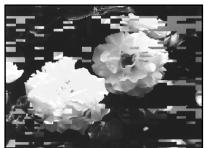
[a]
If the video heads get dirtier, the entire screen becomes blue [c].
Note on the video head
The video head suffers from wear after long use. If you cannot obtain a clear image even after using a cleaning cassette, it might be because the video head is worn. Please contact your Sony dealer or local authorised Sony service facility to have the video head replaced.
Cleaning the LCD screen
If fingerprints or dust make the LCD screen dirty, we recommend using the LCD Cleaning Kit (optional) to clean the LCD screen.
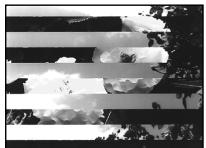
[b]

[c]
Ecni BnIeOrOIOBKn CtaHyTe ueI rpa3Hee, BeCb 3KpaH CtaHET CnHIM [c].
PpmeaHne no BundeorOJOBke
BndeorolOBka n3haunBaetcnaOncLe
dntbHOJ 3KcnnyatauH.
EcnBHe moKeTe nOnyUnTb yeTkoe
n3o6paXeHne daJe nocLe npImeHEnH
OuncTtNEbHOKacCtebl, pNnuHoN ToM
MOxET bIb n3HOC BnDeorOLOBKn. O6paTnTeCb,
noXaanyCTa,K BaWey My dInepy Sony iNn B
MeCThBi yONHOMOeHHbI cEPBnCHbI ceHTp
DnToro, YTO6bI 3aMeHNb BnDeorOLOBKy.
Ouictka 3KpaHa KKd
EcniOnTneaTk naiIbceB nII nIbIb 3arp3HnIO Tkpan JKKD, peKOMeHdyETcB OBCN0lb3OBAtbcr OuNCHTeJIbHbIM Na6Opom dJI JKKD (npno6peTaetcR OTdJIbHO) dJI ONUCTKn 3KpaHa JKKD.
Charging the built-in rechargeable battery in your camcorder
The built in rechargeable battery is installed in your camcorder to retain the date and time, etc., regardless of the setting of the POWER switch. The built-in rechargeable battery is always charged as long as you are using your camcorder. The battery, however, will become discharged gradually if you do not use your camcorder. It will be completely discharged in about four months if you do not use your camcorder at all. Even if the built-in rechargeable battery is not charged, it will not affect camcorder operation. To retain the date, time, and other information, charge the battery if the battery is discharged.
Charging the built-in rechargeable battery:
- Connect your camcorder to wall socket using the AC power adaptor supplied with your camcorder, and leave your camcorder with the POWER switch turned off for more than 24 hours.
- Or, install a fully charged battery pack in your camcorder, and leave your camcorder with the POWER switch turned off for more than 24 hours.
Precautions
Camcorder operation
- Operate your camcorder on 7.2V (battery pack) or 8.4V (AC power adaptor).
- For DC or AC operation, use the accessories recommended in these operating instructions.
- If any solid object or liquid gets inside the casing, unplug your camcorder and have it checked by a Sony dealer before operating it any further.
- Avoid rough handling or mechanical shock. Be particularly careful of the lens.
- Keep the POWER switch set to OFF (CHG) when you are not using your camcorder.
- Do not wrap your camcorder with a towel, for example, and operate it. Doing so might cause heat to build up inside.
3apKa BCTpoEHNoI nepe3apJaemO 6aTapeKn B BaWeBnDeokamepe
BcTpoEHnHaNo3apJxJaemabTaapeKa yctaHOBHeBAuWe BInDeOKaMepeI nnoDcEpxHnA DaTbN BVPeMeHn T.D.,BHe 3aBNCIMoCTOnOTyCTaHOBKnpeKlOuATeIN POWER.BcTpoEHnHaPe3aPjXaMaHb TaapeKa BcERda3apJxKaTeC,KOrDa BbI NcNoB3yTeBaUy BInDeOKaMepy.OdHako, 6bataKeHa NoCTeNEHNO pa3prnITcR,ecNtBbI He bdyTe IcNoJIb3OBaTB BaUy BInDeOKaMepy。 OHa bdyTe NnIOHcTbO pa3pXeHa npIMepHo uepe3 YcTbIpe MecaIa,ecNtBbI BoObSe He 6byTe NpJIb3OBaTbcBaUy BInDeOKaMepo. Daxe eCNI BcTpoEHnHa Pepe3aPjXaMaHb TaapeKa Hze 3rO He NOBImeHt Ha paBoTy BInDeOKaMepbl. UTo bI NOdEpxNbBat bDaty,BPEMnIpOHy INHfOpMaUH,3apJnte 6bataeKy,ecnI OHa p3prdnlaCb.
3apnka BCTpoEHNOIpeepaKaemOb 6aTapeKn:
- Поб_COетднITE Ваш Видаокамepy K ЗлЕКТРИСЕСКО сеТи, ИСПОЛБ3УР сеТБОД aадптер пелемного TOKA, пилагаевий К Вашей Видаокамеpe, И OCTавы Таш Видаокамepy C БИКЛЮЧЕНБIM пелеклочатуlem POWER 60onee, чм ha 24 чaca.
- YIN yCTaHOBtTe NOHOCbI O3apXKeHHb6BaTapeIHb 6NOK B BAsy BnDEOKaMEpy, nOCTaBtE BAsy BnDEOKaMEpy C bIKIOueHHbIM nepeKIIIOuATEIeM POWER 60nee, cHcMa 24 Yaca.
MepblnpedocTopoXhOCTn
3KcnIyataunBndeokamepbI
3Kcnpnyatupyte BauSy bUdeokamepy np7 7,2 B (bTaapeHbN 6bok) nnn 8,4 B (ceTeBov aadTep nepemEHoro Toka).
- UTo Kacaetc3KcNpIyatauIM BInDeOkamepbI OT NOCTOHHORIO INepeMeHHOROTOKa, IcNoJIb3yIte PnHaJdNExKHOCTN, peKoMeHdYemBIE B DaHHO IHCTpyKUINo 3KcNpIyatauIM.
Ecn KaKo-H6yB TBBepb npeMet nJIN KIKKOCTb NOnaJI BHyTb KOpNyca, BbIKIOUHTe BNdeOKaMepy HnpOBepBe ee BCepBnCHOM cHrTe SONY nepeed ae DaJIbHeIe 3KcPnyataune.
Избегаите рубого образецни видаокамеров Или мениевский удапов.Будьт ecobeshno octopoхнblсocbekTNBOM.
EcnB BuDeokamepa He IcNoIb3yETc, yctaHOBeTe nepeKIOUaTeJI POwER B noJIoXeHne OFF (CHG).
- He 3aBopauBaIte BaUy BnDeokamepy, HnPIMeR, BNoTOnHeU, N He 3KcNpyaTnpuYTe ee B TAKOM COCTOHN. B npOTnbHOM cIyae MOKeT IpON3OITN NOBbIeHne TempepaTypbl BHyTpN BnDeOKaMepbl.
Maintenance information and precautions
- Keep your camcorder away from strong magnetic fields or mechanical vibration.
- Do not touch the LCD screen with your fingers or a sharp-pointed object.
- If your camcorder is used in a cold place, a residual image may appear on the LCD screen. This is not a malfunction.
- While using your camcorder, the back of the LCD screen may heat up. This is not a malfunction.
On handling tapes
- Do not insert anything into the small holes on the rear of the cassette. These holes are used to sense the type and thickness of the tape and if the recording tab is in or out.
- Do not open the tape protect cover or touch the tape.
- Avoid touching or damaging the terminals. To remove dust, clean the terminals with a soft cloth.
Camcorder care
- Remove the tape, and periodically turn on the power, operate the CAMERA and PLAYER^1)/ VCR ^2) sections and play back a tape for about three minutes when your camcorder is not to be used for a long time.
- Clean the lens with a soft brush to remove dust. If there are fingerprints on the lens, remove them with a soft cloth.
- Clean the camcorder body with a dry soft cloth, or a soft cloth lightly moistened with a mild detergent solution. Do not use any type of solvent which may damage the finish.
- Do not let sand get into your camcorder. When you use your camcorder on a sandy beach or in a dusty place, protect it from the sand or dust. Sand or dust may cause your camcorder to malfunction, and sometimes this malfunction cannot be repaired.
1)DCR-TRV16E/TRV18E/TRV24E only
^2) DCR-TRV25E/TRV27E/TRV116E/TRV118E only
HΦopMaζη nO yXoIy 3a aπnapaTOM mEpeIoCTOpOxHocTn
- Unplug the unit from the wall socket when you are not using it for a long time. To disconnect the mains lead, pull it out by the plug. Never pull the mains lead itself.
- Do not operate the unit with a damaged cord or if the unit has been dropped or damaged.
- Do not bend the mains lead forcibly, or place a heavy object on it. This will damage the cord and may cause fire or electric shock.
- Prevent metallic objects from coming into contact with the metal parts of the connecting section. If this happens, a short may occur and the unit may be damaged.
- Always keep metal contacts clean.
- Do not disassemble the unit.
- Do not apply mechanical shock or drop the unit.
- While the unit is in use, particularly during charging, keep it away from AM receivers and video equipment. AM receivers and video equipment disturb AM reception and video operation.
- The unit becomes warm during use. This is not a malfunction.
-
Do not place the unit in locations that are:
-
Extremely hot or cold
- Dusty or dirty
- Very humid
Vibrating
About care and storage of the lens
- Wipe the surface of the lens clean with a soft cloth in the following instances:
- When there are fingerprints on the lens surface
-In hot or humid locations - When the lens is used in environments susceptible to salt such as the seaside
- Store the lens in a well-ventilated location subject to little dirt or dust.
To prevent mold from occurring, periodically perform the above.
We recommend turning on and operating the video camera recorder about once per month to keep the video camera recorder in an optimum state for a long time.
- Use only the specified charger or video equipment with the charging function.
- To prevent accident from a short circuit, do not allow metal objects to come into contact with the battery terminals.
- Keep the battery pack away from fire.
- Never expose the battery pack to temperatures above 60^ (140^) , such as in a car parked in the sun or under direct sunlight.
- Keep the battery pack dry.
- Do not expose the battery pack to any mechanical shock.
- Do not disassemble nor modify the battery pack.
- Attach the battery pack to the video equipment securely.
Notes on dry batteries
To avoid possible damage from battery leakage or corrosion, observe the following:
- Be sure to insert the batteries with the + and - correctly matching the + and - inside the battery compartment.
- Dry batteries are not rechargeable.
- Do not use a combination of new and old batteries.
- Do not use different types of batteries.
- Current flows from batteries when you are not using them for a long time.
- Do not use leaking batteries.
If batteries are leaking
- Wipe off the liquid in the battery compartment carefully before replacing the batteries.
- If you touch the liquid, wash it off with water.
- If the liquid gets into your eyes, wash your eyes with a lot of water and then consult a doctor.
If any problem occurs, unplug your camcorder and contact your nearest Sony dealer.
HnΦopMaζη no yxOу 3a annapaTOM n Mepbl npdeocToPOxHOCTN
BaTapeHbIb6Jok
- IcnoIb3yIte ToIbKO peKoMeHdyEmoe 3apJHOe yCTPOIcTBO INI BnDeoanpaTpy C 3apJHOHФyHKUeN.
Длгпрдтбрашенин HeсчacThORO cnUyAurn3-3a KOPOTKOrO 3aMikAnHr He ДОпуСкайTe KOHTaKtMa MeTaNJIuHcEckNx PpeMTeOB C KOHTaKtAMbatapeHOrO 6bNoKa.
XpaHnte 6aTapeHbI 6LoK BdaJI N OT OrHa. - HNKOrda He noDBepraIe 6aTapeHbI b6nok BO3dEiCTBnIO TEMpepaTy cBbIe 60^ Hapnpimep, B npnnapKObaHHOM NOI COJIHcEM aBTOMOblne IINI NOD pRmblcOJIHeYbIM CBETOM.
CneIte 3a TEM, YTo6bI 6aTapeHbI 6JOK 6blcYxIM. - He noDBeprAte 6aTapeHbI bLoK BO3DeIcTBnIO KaKnx-IM6o MExaHnuecknx yIapOB.
- He pa3bnpaTe n He BUNOn3MeHnTe 6aTapeHbI 6NoK.
ПлOTно ппкрpenпг Te 6atapeHbI 6LoK K BndeoannpaType.
Ppimechannocyux6aataeKax
Bo n36eKahne Bo3MOxHOro NOBpeXdEHH BnDEOKaMepbI BCNeDCTBVe UTeuKN BHyTpeHHeRo BeueCTBa 6aTaapeek uN Kopp03nn Co6JIuDaJTe CLeNyUoee:
-Пиу yctaHOBKe batapeek co6JIIOdaIte npaBnIbHyI IOJIpyHOCTb + N-B COOTBeTCTBm C MetKaMn + N-BHyTpN OTCeKa dIЯ batapeek.
-Cyxhe 6aTaapeKn HeIb3r nepe3apJXkaTb.
-He nCnoJb3yIte HOBIIe 6aTapeKn BmecTe CO CTapblM.
-He nCloNoIb3yIte 6aTapeiKn pa3Horo Tuna.
-EcIn 6aTapeKHe nCNoJIb3yOTcA DInTeJIbHOe BpEmO, OHnIOCTeNEHHO pa3PJAHO.
-He nCnoIb3yIte 6aTapeKn, B KOTOpbIX npOn3oUJNA yTeYKa BHyTpEnHero BeUeCTBa.
EcIn npOn3oUla yTeuKa BHyTpEnHero BeuecTb6aTaapeek
- Ipeed Tem, KaK 3aMeHnTb 6aTapeeKn, TuaTeJIbHO nPoTpIte OCTaTKN KUdkOcTN B OTCeKe DnA 6aTapeeK.
Bcnyae nonaandaHnJNkoCTn Ha Koxy, CMoITe KNIOKCTb BOIoN.
Bcnyae nonaadaHЯЖИdkocTn Bfla3a, npomTe cBOI fla3a 60JIbIIMK OJINUeCTBOM BObl, nOcIe Yero o6paITecb K BpaUy.
B clyae Bo3HKnHOBeHn KaKnx-Jn6o np6Jem, OTKIIOHTe BaUy BnDeOkaMepy OT nCTOHNKa IITaHnI N o6paTntEcB B 6nXkAunn cepBnCHbI ueHtp Sony.
Video camera recorder
System
Video recording system
2 rotary heads
Helical scanning system
Audio recording system
Rotary heads, PCM system
Quantization: 12 bits (Fs 32kHz
stereo 1, stereo 2), 16 bits
(Fs 48 kHz, stereo)
Video signal
PAL colour, CCIR standards
Usable cassette
Mini DV cassette with the Mini DV
mark printed
Tape speed
SP: Approx. 18.81 mm/s
LP: Approx. 12.56mm / s
Recording/playback time
(using cassette DVM60)
SP: 1 hour
LP: 1.5 hours
Fastforward/rewind time
(using cassette DVM60)
When using the battery pack:
Approx. 2 min. and 30 seconds
When using the AC power adaptor:
Approx. 2 min. and 30 seconds
Viewfinder
Electric viewfinder (colour)
Image device
DCR-TRV16E/TRV116E:
4.5 mm (1/4 type) CCD (Charge
Coupled Device)
Gross: Approx. 800 000 pixels
Effective:
Approx. 400 000 pixels
DCR-TRV18E/TRV118E:
4.5 mm (1/4 type) CCD (Charge
Coupled Device)
Gross: Approx. 800 000 pixels
Effective (still):
Approx. 400 000 pixels
Effective (moving):
Approx. 400 000 pixels
DCR-TRV24E/TRV25E/TRV27E:
3.8mm (1/4.7 type) CCD (Charge
Coupled Device)
Gross: Approx. 1070000
Effective (still):
Approx. 1000000 pixels
Effective (moving):
Approx. 690 000 pixels
Lens
Carl Zeiss
Combined power zoom lens
Filter diameter
30mm (1 3/16 in.)
10 × (Optical), 120 × (Digital)
Focal length
DCR-TRV16E/TRV18E/TRV116E/ TRV118E:
3.3 - 33 mm (5/32 - 1 5/16 in.)
When converted to a 35mm still camera
In CAMERA/MEMORY
(DCR-TRV18E/TRV118E only) :
42 - 420mm (1 11/16 - 16 5/8 in.)
DCR-TRV24E/TRV25E/TRV27E:
3.7 - 37mm (5 / 32 - 11 / 2 in.)
When converted to a 35mm still camera
In CAMERA:
50 - 500mm (2-193/4 in.)
In MEMORY:
42 - 420mm (1 11/16 - 16 5/8 in.)
Colour temperature
Auto, HOLD (Hold), Indoor
(3200K),Outdoor(5800K)
Minimum illumination
DCR-TRV16E/TRV18E/TRV116E/
TRV118E:
5 lx (lux) (F 1.7)
0 lx (lux) (in the NightShot mode)*
DCR-TRV24E/TRV25E/TRV27E:
7 lx (lux) (F 1.8)
0 lx (lux) (in the NightShot mode)*
- Objects unable to be seen due to the dark can be shot with infrared lighting.
Input/Output connectors
S video input/output
DCR-TRV25E/TRV27E/TRV116E/ TRV118E:
4-pin mini DIN
Luminance signal: 1Vp - p 75
(ohms), unbalanced
Chrominance signal: 0.3Vp - p
75 Ω (ohms), unbalanced
S video output
DCR-TRV16E/TRV18E/TRV24E:
4-pin mini DIN
Luminance signal: 1Vp - p 75
(ohms), unbalanced
Chrominance signal: 0.3Vp - p
75 Ω (ohms), unbalanced
Audio/Video input/output
DCR-TRV25E/TRV27E/TRV116E/
TRV118E:
AV MINI JACK, 1 Vp-p, 75 Ω
(ohms), unbalanced, sync negative
327 mV, (at output impedance more than 47k (kilohms))
Output impedance with less than
2.2 kΩ (kilohms)/Stereo miniback (ø 3.5mm)
Input impedance more than
47 kΩ (kilohms)
Audio/Video output
DCR-TRV16E/TRV18E/TRV24E:
AV MINI JACK, 1 Vp-p, 75 Ω
(ohms), unbalanced, sync negative
327mV (at output impedance
more than 47k (kilohms)
Output impedance with less than
2.2 kΩ (kilohms)/Stereo minijack
(0 3.5mm)
Input impedance more than
47 kΩ (kilohms)
DV input/output
DCR-TRV25E/TRV27E/TRV116E/
TRV118E:
4-pin connector
DV output
DCR-TRV16E/TRV18E/TRV24E:
4-pin connector
Headphone jack
Stereo minijack (0 3.5 mm)
USB Jack
mini-B
LANC jack
Stereo mini-minijack ( 0.25mm
MIC jack
Stereo minijack ( 3.5mm)
LCD screen
Picture
DCR-TRV16E/TRV18E/TRV24E/
TRV25E/TRV116E/TRV118E:
6.2 cm (2.5 type)
50.3 × 37.4 ~mm (2 × 1 ~l / 2 in)
DCR-TRV27E:
8.8 cm (3.5 type)
72.2× 50.4mm (27 / 8× 2 in.)
Total dot number
123 200 (560× 220)
General
Power requirements
7.2 V (battery pack)
8.4 V (AC power adaptor)
Average power consumption
(when using the battery pack)
During camera recording using LCD
DCR-TRV16E/TRV18E/TRV116E/
TRV118E:3.3W
DCR-TRV24E/TRV25E: 4.1 W
DCR-TRV27E:4.5 W
Viewfinder
DCR-TRV16E/TRV18E/TRV116E/
TRV118E:2.5W
DCR-TRV24E/TRV25E/TRV27E: 3.3 W
Operating temperature
0^ to 40^ (32^ to 104^)
Storage temperature
-20^ to +60^
(-4^ to +140^)
Dimensions (Approx.)
DCR-TRV16E/TRV18E/TRV116E/ TRV118E:
76× 93× 162mm
(3 × 33 / 4 × 61 / 2 in.)
(w/h/d)
DCR-TRV24E/TRV25E/TRV27E:
76× 93× 163mm
(3 × 33 / 4 × 61 / 2 in.)
(w/h/d)
Mass (approx.)
DCR-TRV16E/TRV116E:
610 g (1 lb 5 oz)
DCR-TRV18E/TRV118E:
620 g (1 lb 5 oz)
DCR-TRV24E/TRV25E:
640 g (1 lb 6 oz)
DCR-TRV27E: 660 g (1 lb 7 oz)
main unit only
DCR-TRV16E/TRV116E:
700g (1 lb 8 oz)
DCR-TRV18E/TRV118E:
710 g (1 lb 9 oz)
DCR-TRV24E/TRV25E:
740g (1 lb 10 oz)
DCR-TRV27E: 760g (1 lb 10 oz)
including the battery pack
cassette DVM60 and lens cap
Supplied accessories
See page 23.
AC power adaptor
Power requirements
100-240VAC,50/60Hz
Power consumption
23 W
Output voltage
DC OUT: 8.4 V, 1.5 A in the
operating mode
Operating temperature
0^ to 40^ (32^ to 104^)
Storage temperature
-20^ to +60^ (-4^ to +140^)
Dimensions (approx.)
125× 39× 62mm
(5× 19 / 16× 21 / 2 in.) (w / h / d)
excluding projecting parts
Mass (approx.)
280 g (9.8 oz)
excluding mains lead
Battery pack
DCR-TRV16E/TRV18E/
TRV116E/TRV118E:
NP-FM30
Maximum output voltage
DC 8.4 V
Output voltage
DC 7.2 V
Capacity
5.0 Wh (700 mAh)
Dimensions (approx.)
38.2× 20.5× 55.6mm
(19 / 16 × 13 / 16 × 21 / 4 in.)
(w/h/d)
Mass (approx.)
65 g (2.3 oz)
Type
Lithium ion
DCR-TRV24E/TRV25E/ TRV27E:
NP-FM50
Maximum output voltage
DC 8.4 V
Output voltage
DC 7.2 V
Capacity
8.5 Wh (1 180 mAh)
Dimensions (approx.)
38.2 × 20.5 × 55.6 ~mm
(19 / 16 × 13 / 16 × 21 / 4 in.)
(w/h/d)
Mass (approx.)
76g(2.7oz)
Type
Lithium ion
"Memory Stick" (except DCR-TRV16E/TRV116E)
Memory
Flash memory
8 MB: MSA-8A
Operating voltage
2.7-3.6V
Power consumption
Approx. 45mA in the operating mode
Approx. 130~ A in the standby mode
Dimensions (approx.)
50 × 2.8 × 21.5 ~mm
(2× 1 / 8× 7 / 8 in.) (w / h / d)
Mass (approx.)
4 g (0.14 oz)
Design and specifications are subject to change without notice.
TexHnueckne xapaKTepeNCTnKN
Bvdeokamepa
CnCTema
CnCTema BnDeo3aHncn
2BpaaioiuecraIIOBkn
CnCTema BnHTOBORO cKaHnpOBaHn
Cnctema aydnno3annc
Bpaaioe rnoBkn, cnCTema UKM
Диckретиаю: 12 bntOB (Cdbnur yactoToB 32 kT, ctepeo 1, ctepeo 2), 16 bntOB (Cdbnr yactoToB 48 kTt, ctepeo)
BudocnHa
LBeToBOb CnHn PAL, cTaHdpT MKKP
IcnoJb3yemaKaCCeTa
MnHATIOHPHAR KACCETA LMOPOBORIBNEOEORIHNA DVC METOKIN
CKopoctb JeHTbl
PexkIM SP: np6Jn3. 18,81 mm (MM)/c
Pekm LP: np6n3. 12,56 mm (MM)/c
Bvme 3aInc/HoCpOHaBeHnna (npu nCnoJIb3OBAHn Kaccetbl DVM60)
PexkIM SP:1 qac
PexkIM LP:1,5 yaca
Bpema yckopenhno nepemotkn bnepehna3dp (npn
NcnoIb3ObaHn KacceTbDVM60)
PnncnoIb3ObaHm6BaTapeHOro 6Noka:
Pn6n3.2MnH 30cekynd
Pnncnlo3b0aHHm cetBoro aanTpeNaepemHeHORo Toka
Pn6n3.2MnHn30cekynd
BudonckateJIb
3NeKTPNHeCKN BINOONCKaTeNb (UBeTHoN)
ΦopMnpoBaTeIb n3o6paXeHnA
Mодел DCR-TRV16E/TRV116E:
AbtoperyunpoBaHne,HOLD
(3aXBaT), BHTPN NOMEUENH
(3200K), BHe NOMEUHNA (5800K)
MnHmMaJIbHaO CBeueeHHoCTb
Mодел DCR-TRV16E/TRV18E/
TRV116E/TRV118E:
5 lx (JNK) (JIOKc) (F 1,7)
0IX(K)(IOKc)(BpEXKIMeHOHOH CbeMKN)
Mодел DCR-TRV24E/TRV25E/
TRV27E:
7 lx (JIK) (JIIOKCOB) (F1,8)
BxOJ/BbIXoD cnHana S BnDeo
Mодел DCR-TRV25E/TRV27E/
TRV116E/TRV118E:
4-ITbIPbKOBoe MHN-rHe3do DIN
Cunhan npKocTn:pa3max1B,75Ω
(OM), HecnMMETPnHbI
CnHraJI ZbETHOCTn:pa3Max0,3B
75Ω (OM), HecmmMeTpHbI
BbIXoD CnHnla S BnDeo
Mодел DCR-TRV16E/TRV18E/
TRV24E:
4-ITbIPbKOBoe MHN-rHe3do DIN
Cunhan npKocTn:pa3max1B,75Ω
(OM), HecnMMETPnHbI
CnHnJI ZBcETHOCTn:pa3Max0,3B
75Ω(OM),HEcIMMeTpHuBbI
Bxoi/DbXoiCnHana aydno/ BvDeo
Moenjei DCR-TRV25E/TRV27E/ TRV116E/TRV118E:
AV MINI JACK, pa3max 1 B, 75 Ω
(OM),HeCNMMETPNUHbI,cOTropaTaeIbHOIN CmHXPOHN3aUneH
327 MB (прии плнохь bixxoHOM copotIMbENHn 60ee 47 KΩ (KOM))
Плhoe Вьхюдhoe COPIOTиБЕнeMeHee 2,2 KΩ (KOM)/
CTepeoHHeCKeMmH-rHe3do (0,5mm(MM))
Полhoe BXOДhoe COртOBиЕн 6Ооe 47 KΩ (KOM)
BbXoD cnHana aydmo/BVdeo MoDee DCR-TRV16E/TRV18E/ TRV24E:
AV MINI JACK, pa3max 1 B, 75 Ω
(OM),HcNMMTePnHbN,COTpRAteTbeHoBcHxHPOHO3aueoe
327 MB (npn pONHOM bBxOdHOM cOpOTNBHeHm 60ee 47 KΩ (kOM))
Понhoe Вьхондс срочтвлесп Мөөн 2, кД (КOM)/
CTepeofoHnueckoe MNH-He3do (3,5mm (MM)
Iolnoe BXoDnoe cOnpoTnBJeHne
60Jee 47 KΩ (KOM)
BxOa/BbIXoA uΦpOBoro
BndeocnHaJa DV
MOdJI N DCR-TRV25E/TRV27E/
TRV116E/TRV118E:
4-ITbIpbKOBbPi pa3bEm
BbIXoD uΦpOBOrO
BndeocnHaJa DV
moJeI DCR-TRV16E/TRV18E/
TRV24E:
4-ITbIpbKOBbI pa3bEm
The3o roNoBbIX TeJeFOHOB
CTepeoDOnHueCKoe MNHn-ΓHe3do
(03,5mm (MM))
THe3Do USB
THe3Do MmHn-B
THe3do LANC
CTepeoONHueCKoe MNHn-THe3do
(0 2,5 mm (MM))
THe3oMIC
CTepeofoHnueeCKoe MHN-THe3do
(03,5mm(MM))
3KpaHKKd
1306paXeHne
Mодел DCR-TRV16E/TRV18E/
TRV24E/TRV25E/TRV116E/
TRV118E:
MOUHOCbT (PnI NcNoJIb3OBaHH 6BaTapeHoro 6Loka)
Bo Bpem 3aInc Bndeokamepo c
IcNoJIb3OBAHnEM
KKD
Mодь DCR-TRV16E/TRV18E/
TRV116E/TRV118E:3,3W(BT)
MOdJIb DCR-TRV24E/TRV25E:4,1 W(BT)
MOdJIb DCR-TRV27E:4,5W(BT)
Budonckatela
MOdJIb DCR-TRV16E/TRV18E/
TRV116E/TRV118E:2,5W(BT)
Mодь DCR-TRV24E/TRV25E/
TRV27E:3,3W(BT)
Paboya tempepatya
OTo 0^ do 40^
TemnepaTypa xpaHnA
OT-20°Cdo+60°C
Pa3mepbl (npn6bn3.)
MоделДСВТ-TRV16E/TRV18E/
TRV116E/TRV118E:
76× 93× 162mm (MM)
(ω/B/r)
Mодени DCR-TRV24E/TRV25E/
TRV27E:
76× 93× 163mm (MM)
(ω/B/r)
Bec (npn6Jn3.)
Moelb DCR-TRV16E/TRV116E: 610 g (r)
Moelb DCR-TRV18E/TRV118E: 620 g (r)
Mодень DCR-TRV24E/TRV25E: 640 g (r)
Mодeль DCR-TRV27E:660g(r)
ToIbKO OCHOBHO annapaT
Moelb DCR-TRV16E/TRV116E: 700 g (r)
Moelb DCR-TRV18E/TRV118E: 710 g (r)
Mодель DCR-TRV24E/TRV25E: 740 g (r)
MoIeB DCR-TRV27E: 760 g (r)
BKnIOyBaTapeHbI 6NOK, KaccTeY DVM60 n KpbIshuK OobKeTBA
Ppnilaraembe npnaIeJXHocTn
CM. ctp. 23.
CetéBoi aadantep nepemehhoro TOka
Tpe6oBaHnK nHTaHnIO
100-240V(B) nepemehhoro Toka, 50/60 T
Iotpe6JIeMaJ MoUHocTb 23W(BT)
BbixoHoe HapxkeHne
DC OUT: 8,4 V (B), 1,5 A B
pa60yem pexnme
Paboya tempepatya
OT 0^ do 40^
TemnepatypxaheHna
OT-20°C dσo +60°C
Pa3mepbl (np6n3.)
125× 39× 62mm (MM) ( / / )
He BKIIOUaY BbICTypaIOuNe YaCTN
Bec (npn6n3.)
280 g (r)
He BKJIIOUOa CeTeBOu SHyP
BaTapeiHbI 6JIOK
Mодели DCR-TRV16E/ TRV18E/TRV116E/
TRV118E:
NP-FM30
MaKcImaJIbHoe BblXoDHoe HapraKeHne
8,4 V (B) NOCTOHHORO TOKa
BbIXoHoe HapXeHne
7,2V(B)noctoHHoroToKa
EMKOCTb
5,0 Bt-(700 mA-)
Pa3Mepbl (np6n3.)
38,2× 20,5× 55,6mm (MM)
(ω/B/r)
Bec (npn6nn3.)
65 g (r)
Tun
JIITNUEBO-NOHHbI
Mojeili DCR-TRV24E/ TRV25E/TRV27E: NP-FM50
MaKcImaJIbHoe BblXoJHoe HaprJaKeHne
8,4 V (B) NOCTOARHHOR TOKA
BbIXoHoe HapXeHne
7,2 V (B) NOCTOARHHOR TOKA
EMKOCTb
8,5BT-(1180MA-)
Pa3Mepbl (np6n3.)
38,2× 20,5× 55,6mm (MM)
(ω/B/r)
Bec (npn6n3.)
76 g (r)
Tun
JIITNHEBO-NOHHbI
"Memory Stick" (КрOME моделей DCR-TRV16E/TRV116E)
NamrTa
ΦJ3U-NAATb
8 M6: MSA-8A
Pa60ee HappxKeHne
2,7-3,6V(B)
Notpe6JemaMaMoUHocTb
Pn6m3.45MABpa6oem pexime
Pn6JIIN3.130MKA BpeKIme OXnDaHHI
Pa3mepbl (npn6bn3.)
50× 2,8× 21,5mm (MM) ( / / )
Bec (npn6nn3.)
4g (r)
KOHCTKYUINuTexHMeCKNE xapaKTepnCTNIu MOYt 6bItb N3MHeBb63 yBdOMnEHHa.
Identifying parts and controls
Note on the Carl Zeiss lens
Your camcorder is equipped with a Carl Zeiss lens which can reproduce fine images. The lens for your camcorder was developed jointly by Carl Zeiss, in Germany, and Sony Corporation. It adopts the MTF* measurement system for video camera and offers a quality as the Carl Zeiss lens.
- MTF stands for Modulation Transfer Function.
The value number indicates the amount of light of a subject coming into the lens.
Примочаимеобъektive Kapл цecc
BaSHA BnDeOKaMepa OShaueHa oBbeKTHNBOm
KapJI LcEiCC, CnOcOBHbIM BOCpOn3BOJNTb
kaYeCTBeHHbIe N3o6paXeHnI.
ObekTINB DnBa WaeB BInDeokamepbI 6bl pa3pa60TaH COBmecTHO fnpMoN Kapl LcEicc, FepMaHnR, IN KOpnpauee N Sony Corporation. OH BKJIouaet B c6ra n3MepntelbHyO cnCTemy MTF* dIra BInDeokamepbI IN oBeCneuBaET KaueCTBO, npncyuee ObekTINBaM KapI LcEicc.
- MTF o3haaet Функцию nepedauNi MOdylЯци.
YncnoBoe 3naueHne yka3bIbAeT CTeneHb OCBeUeHHoCTn O6BeKtA, nonaIauOJeRBO 06BeKtNIB.
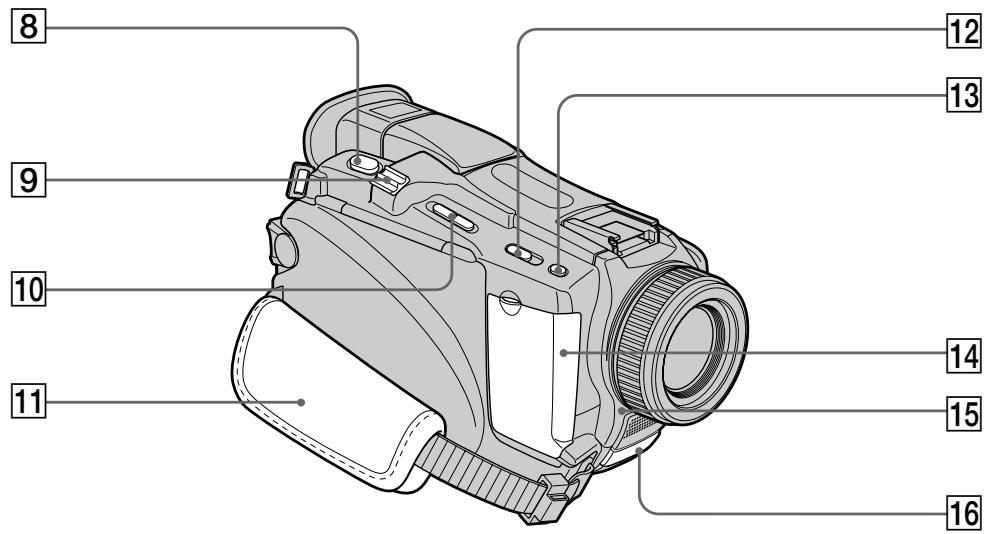
8 PHOTO button (p. 58)
9 Power zoom lever (p. 40)
10 EDITSEARCH button (p. 48)
Grip strap
12 NIGHTSHOT switch (p. 44)
13 SUPER NS/COLOUR SLOW S button (p. 44)
14 Jack cover
15 Camera recording lamp (p. 35, 242)
Remote sensor/Infrared rays emitter (p. 44, 109)
8 Khonka PHOTO (cTp. 58)
9 Pbyar npnbOndHoro Bapnoo6bekTnBa (cTp. 40)
10 Khonka EDITSEARCH (ctp. 48)
11 PemehbДЯЗaxBaTa
12 NepekJIIOuATEJIb NIGHTSHOT (cTp. 44)
13 KhoNka SUPER NS/COLOUR SLOW S (ctp. 44)
14 Kpbiika rHe3d
15 JIamna 3aHncn BnuDeokamepbi (cTp. 35, 251)
16 DaTnK DnCTaHcNHO HOrO ynpaBJeHnA/ N3nyatEnb HpPakpaChbIX Lyuei (ctp. 44, 109)
Fastening the grip strap Fasten the grip strap firmly.
ПпстerteиbaнгpeMHДЯЗхваТа ПпстerteHHTe peMeHьдЯЗхВаТаHaDEЖHO.
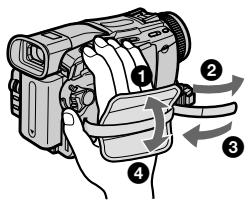
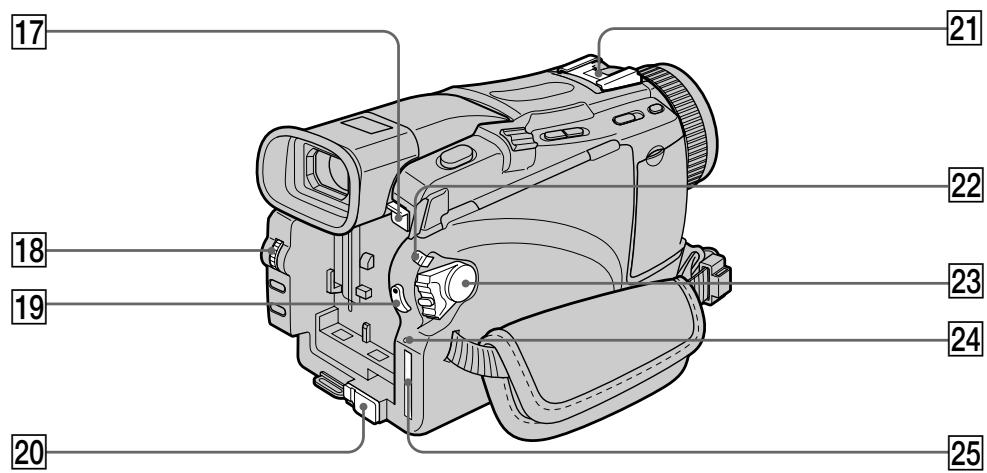
17 BATT release button (p. 24)
SEL/PUSH EXEC dial (p. 31)
19 START/STOP button (p. 35)
20 DC IN jack cover
21 Intelligent accessory shoe
22 LOCK switch
23 POWER switch (p. 25)
24 Access lamp (p. 143)
25 "Memory Stick" slot*
Intelligent Accessory Shoe
Notes on the intelligent accessory shoe
- The intelligent accessory shoe supplies power to optional accessories such as a video light, microphone or printer*.
- The intelligent accessory shoe is linked to the POWER switch, allowing you to turn the power supplied by the shoe on and off. Refer to the operating instructions of the accessory for further information.
- The intelligent accessory shoe has a safety device for fixing the installed accessory securely. To connect an accessory, press down and push it to the end, and then tighten the screw.
- To remove an accessory, loosen the screw, and then press down and pull out the accessory.
- Except DCR-TRV16E/TRV116E
17 KhoNka ocBooXdEHHa BATT (6aTapeu) (cTp. 24)
18ДиСK SEL/PUSH EXEC (cTp.31)
19 Khonka START/STOP (cTp. 35)
20 Kpbioka rHe3da DC IN
21ДерхателдяуctahOBKIN BCNOMORAteIbHbIX pInHaJIeJXHOCTe
22пеклочать LOCK*
23 PtepeKJIIOUaTeIb POWER (cTp. 25)
24 Jlamna doctyna* (ctp. 143)
25 Cnot "Memory Stick"*
Intelligent Accessory Shoe
PpIMeuaHnO O depXkATEJe dIy yCTaHOBKn BCNOMORAteNbHbIX PpINHaDJIeXHOCTei
26 (LANC) control jack (blue) LANC stands for Local Application Control Bus System. The control jack is used for controlling the tape transport of video equipment and other peripherals connected to the video equipment. This jack has the same function as the jack indicated as CONTROL L.
27 SVIDEO jack*2)/SVIDEO OUT jack*1) (p. 100)
28 DC IN jack (p. 25)
29 AUDIO/VIDEO jack*2)/ AUDIOVIDEO OUT jack (black)*1) (p. 100, 126)
30 (USB) jack
[31] DV IN/OUT jack*2)/DV OUT jack*1) (p. 102)
32 (headphones) jack (green) When you use headphones, the speaker on your camcorder is silent.
33 MIC jack (PLUG IN POWER) (red) Connect an external microphone (optional). This jack also accepts a "plug-in-power" microphone.
^1) DCR-TRV16E/TRV18E/TRV24E only ^2 DCR-TRV25E/TRV27E/TRV116E/TRV118E only
26 THe3do ynpablenHa LANC (cuhee) LANC 03haaet cncTeMy uHHbI MeCTHO ynpablenHa. THe3do ynpablenHa NCOpJb3yeTcra dJa KOnHTpOJIa 3a JeHTONPOTXHbIM MEXAHN3MOM BnDeoanpaTpybI n DpyHX nepupeepnHbIX YcTPOCTB, PNOCoEINHEHbIX K BnDeoanpaType. DaHHoe THe3do IMMeET TaKyo JKe cyHKUIO, KaK i THe3do, O6o3NaeHHeO kAc CONTROL L.
[27]Гнeздо SVIDEO*2)/rнeздо SVIDEO OUT*1) (ctp. 100)
28 THe3do DC IN (ctp. 25)
29「He3do AUDIO/VIDEO*2)/rHe3do AUDIO
VIDEO OUT (UepHoE)*1) (ctp. 100, 126)
30 THe3Do (USB)
31 Гездо , DV IN/OUT*2)/rHe3до , DV OUT*1) (ctp. 102)
32IHe3do(rOIOBhIeTeJeFOHbI)(3eJehoe)IpnncIOJIb3OBaHHn rOIOBhIX TeJeFOHOBdAmHKBaWei BInDeOKaMepbl6ydtOTKnIOUeyH.
33 THe3do MIC (PLUG IN POWER) (kpachoe)
IOnDCOEINHnTE BHeuHN MmKpOΦoH
(πριo6peTaetcσ OTdεJIbHo).
3To THe3Do TaKxE No3BONaRET NOkJIIOUHTb
"3aNtBIBaEmbI Prn NODcoEINHeHnM"
MmKpOΦoH.
^)1 TontbKO moJeDCR-TRV16E/TRV18E/TRV24E
^2) ToIbkoMoJeNDCR-TRV25E/TRV27E/TRV116E/TRV118E
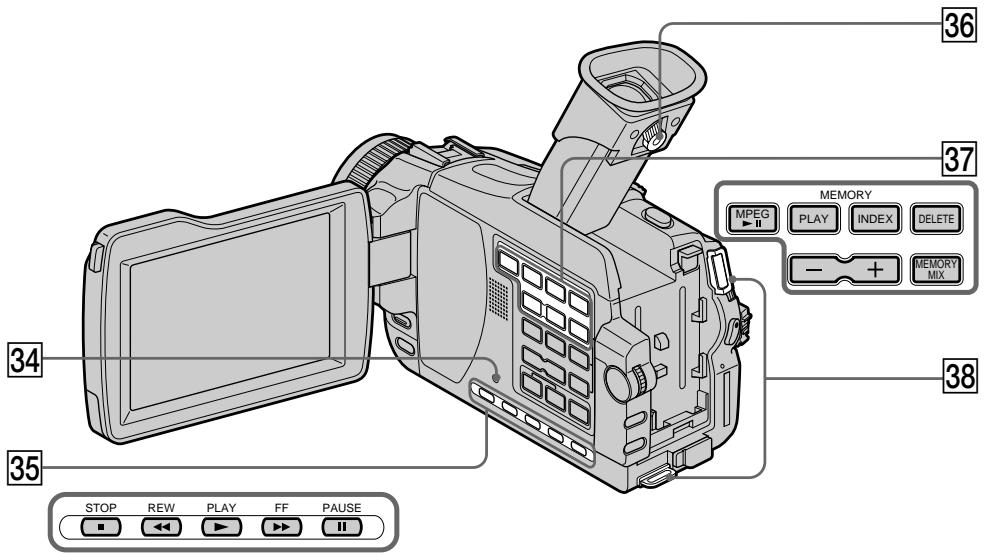
34 RESET button (p. 258)
35 Video control buttons (p. 54)
STOP (stop)
REW (rewind)
PLAY (playback)
FF (fastforward)
PAUSE (pause)
36 Viewfinder lens adjustment lever (p. 39)
37 MEMORY operation buttons* (p. 162)
MPEG▶按钮
MEMORY PLAY button
MEMORY INDEX button
MEMORY DELETE button
MEMORY - / + buttons
MEMORY MIX button
38 Hooks for sholder strap
- Except DCR-TRV16E//TRV116E
Attaching the shoulder strap
Attach the shoulder strap supplied with your camcorder to the hooks for the shoulder strap.
34 Khonka RESET (ctp. 268)
35 Khonkn BndeokohtpoJ (ctp. 54)
STOP (ocTaHOBka)
REW (yckopenhna nepemotka ha3a,d)
PLAY (Bocnpo3BeJeHne)
FF (yckopeHHa nepemOTka Bnpei)
PAUSE (nay3a)
36 Pbyar perynipobkn obektnBa
BIDONCKaTeJIa (CTp. 39)
37 KhoIkn ynpabLeHnEMORY* (cTp. 162)
Khonka MPEG II
Khonka MEMORY PLAY
KHONKA MEMORY INDEX
Khonka MEMORY DELETE
KhoonkN MEMORY -/+
KhoNka MEMORY MIX
38 Cko6blIyIJIpeYeBOPeMHRA
- Kpome moDenei DCR-TRV16E/TRV116E
PpncoeHHeHne PnueeBOro peMHa
PnpocoeDnHnTe npnilaraembK BaSeW BnDeokampe pneyeBOI peMeHb K cKObAm dIa PnIeYeBOrO peMHra.
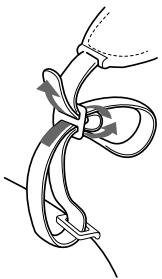
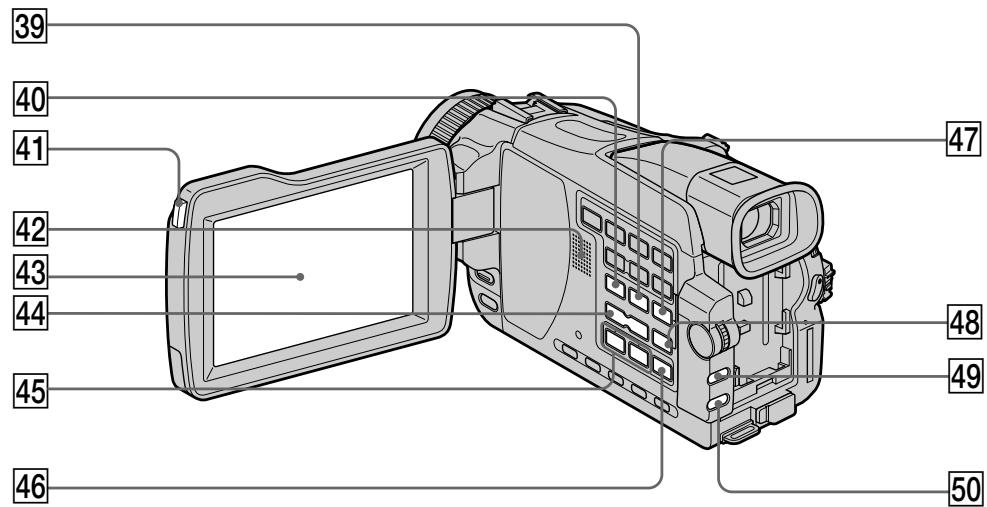
45 REC (record) button (p. 119, 121, 124, 189) (DCR-TRV25E/TRV27E/TRV116E/TRV118E only)
39 ENDSEARCH button (p. 48)
40 DISPLAY button (p. 52)
41 OPEN button (p. 35)
42 Speaker
43 LCD screen (p. 37)
44 VOLUME buttons (p. 50)
46 AUDIO DUB button (p. 128)
PB ZOOM button (p. 89, 191)
48 MENU button (p. 233)
49 EXPOSURE button (p. 78)
50 BACK LIGHT button (p. 43)
39 Khonka ENDSEARCH (cTp. 48)
40 Khonka DISPLAY (cTp. 52)
[41] Khonka OPEN (ctp. 35)
42Динамнк
43 3KpaH KKd (cTp. 37)
44 Khonkn VOLUME (cTp. 50)
45 KhoJka REC (3aIncn) (cTp. 119, 121, 124, 189) (ToIbko moJeI DCR-TRV25E/TRV27E/ TRV116E/TRV118E)
46 Khonka AUDIO DUB (cTp. 128)
47 Khonka PB ZOOM (cTp. 89, 191)
48 Khonka MENU (ctp. 233)
49 Khonka EXPOSURE (cTp. 78)
50 Khonka BACK LIGHT (ctp. 43)
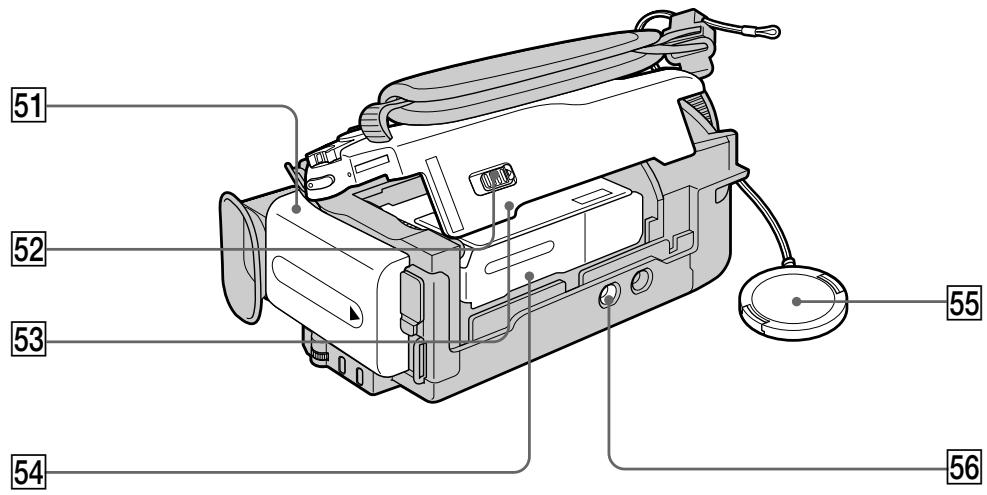
51 Battery pack (p. 24)
52 OPEN/EJECT lever (p. 33)
53 Cassette lid
54 Cassette compartment
55 Lens cap (p. 35)
56 Tripod receptacle
Make sure that the length of the tripod screw is less than 5.5mm (7/32 inch).
Otherwise, you cannot attach the tripod securely, and the screw may damage your camcorder.
51 BaataeHHb6Jok (cTp. 24)
52ПepeKJIIOuATeIb L OPEN/EJECT (cTp.33)
53 Kpbiika kaccethoro otceka
54 KaccetHbI OTeK
55 Kpbiika o6beKeTnBa (cTp. 35)
56 THe3do DnTpeHorn
Y6eIITecb, YTO IINHa BnHTa TpeHOrn MeHee 5,5 MM.
B npotnbHom cnyuae, Bbl He cmoxkete Haedexho npnikpenntb Tpehory, a BNHT moxket nopeintb Bauy Bndeokamepy.
Remote Commander
The buttons that have the same name on the Remote Commander as on your camcorder function identically to the buttons on your camcorder.
1 PHOTO button (p. 58)
2 DISPLAY button (p. 52)
3 SEARCH MODE button (p. 92)
41 1▶▶1 buttons (p. 92)
5 Tape transport buttons (p. 54)
6 Transmitter Point toward the remote sensor to control the camcorder after turning on the camcorder.
ZERO SET MEMORY button (p. 91)
8 START/STOP button (p. 35)
9 DATA CODE button (p. 52)
10 Power zoom button (p. 40)
1 Khonka PHOTO (cTp. 58)
2 Khonka DISPLAY (cTp. 52)
3 Khonka SEARCH MODE (cTp. 92)
4 KhonknI /> (ctp.92)
5 KhoNkn npToaXKn NeHtbl (cTp. 54)
6 NpepaTuk HnpaBbTe Ha daTunK dNCTaHcnoHORO ynpabLeHnI dJa ynpabLeHnBnDeOKamepo Iocne BkJIoueHnBnDeOKamepbl.
7 Khonka ZERO SET MEMORY (ctp. 91)
8 Khonka START/STOP (cTp. 35)
9 Khonka DATA CODE (cTp. 52)
10 Khonka npuBODHOro BapnoOBeKtNbA (cTp. 40)
To prepare the Remote Commander Insert two R6 (size AA) batteries by matching the + and - on the batteries to the + and - in the battery compartment.
ДлnoiodrotOBKn nyIbTa ДиctahUHOHHorO ynpaBNeHn
BcTaBbTe 2 6aTapeKn R6 (pa3Mepa AA), yTo6bl nOJIrpHocTb + n-Ha 6aTapeKax CoBnaja co 3HaKaAMn + n-BHyTpni OTCeKa dIra 6aTapeek.
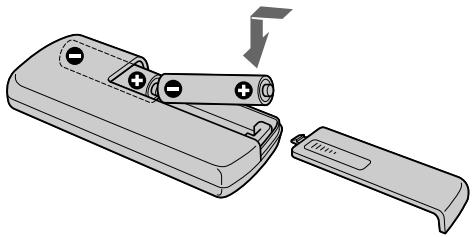
Notes on the Remote Commander
- Point the remote sensor away from strong light sources such as direct sunlight or overhead lighting. Otherwise, the Remote Commander may not function properly.
- Your camcorder works in the Commander mode VTR 2. Commander modes 1, 2 and 3 are used to distinguish your camcorder from other Sony VCRs to avoid erroneous remote control operation. If you use another Sony VCR in the Commander mode VTR 2, we recommend changing the Commander mode or covering the sensor of the VCR with black paper.
PpIMeuaHnO npJIbTe dNCTaHcUHHOynpabJeHn
- HanpaBnIte DaTUnk DnCTaHnOHHORO ynpaBHeHnB B CTOPOHy OT CnIbHbIX NCTOChNkoCBeTa, KaK HApPmEp, PpAble COINHeHbIe LyuN INI BepXHee OcBeSeHne. B npOTNBOM CnUyae NylbT DnCTaHnOHHORO ynpaBHeHnMoKeT He DeiCTBOBaTb HaJIeXkaUIM O6pa3OM.
BaaBa BnDeoKamepa pa60TaET B pexIme npIbTa nCTaHOnHOrO ynpabLeHnVTR2. PexKmbl npIbTa nCTaHOnHOrO ynpabLeHn1, 2 u 3 nCNoIb3yOTcI dIra OTnUHHaWe BauEi BnDeoKamepbI O npYrN KBM fIpMbI Sony BO n36ExaHHe nPpaBnIbHO pa60Tb I nCTaHOnHOrO ynpabLeHnE. Ecln Bbl nCnoIb3yeTe dpyroKBM fIpMbI Sony, pa60TaIOuN B pexKmpeNbTa nCTaHOnHOrO ynpabLeHnVTR2, peKOMeHNdyETcR n3MeHnITb pexIM npIbTa nCTaHOnHOrO ynpabLeHnI IN 3akpbITb daTtIK KBM cepHoI b6ymarOI.
Operation indicators
LCD screen and viewfinder/ 3KpaH JKKI n BnDOnsckateJIb
Pa60yne HndnkaTopbI
Display window/ Okosko dincpnjea
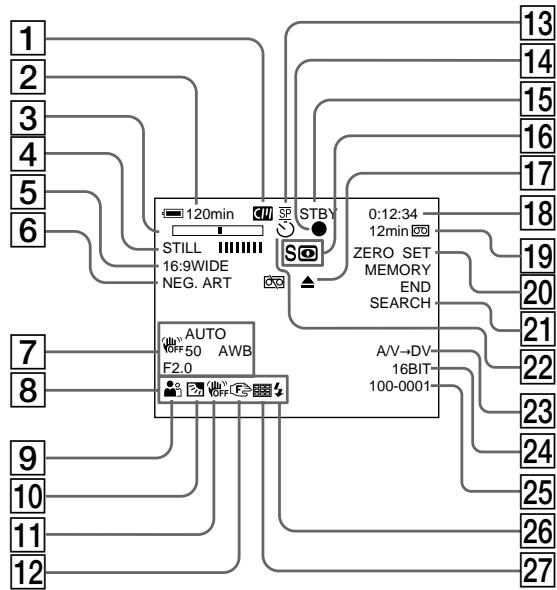
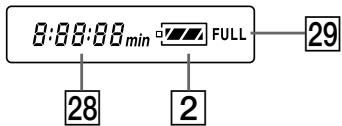
Cassette memory (p. 21, 272)
Remaining battery time (p. 42)
Zoom (p. 40)/Exposure (p. 78)/Data file name*2) (p. 140)
4 Digital effect (p. 72, 87)/MEMORY MIX*2) (p. 160)/FADER (p. 67)
16:9WIDE (p. 66)
6 Picture effect (p. 70, 86)
7 Data code (p. 52)
Volume (p. 50)/Date (p. 42)/Time (p. 42)
9 PROGRAM AE (p. 75)
10 Backlight (p. 43)
11 SteadyShot off (p. 235)
12 Manual focus/Infinity (p. 79)
13 Recording mode (p. 42)
1 INHdkaTop KaccetHOI nAMrTn (ctp. 21, 272)
2 INHДИКATOP OCTaBшeroCЯВpeMeHиЗapяДа 6baTapeHOrO 6JloKa (cTp.42)
3 INHДИКaTOP yBéJIuЧeHЯ (ctp. 40)/ INHДИKaTOP 3KcNo3nCm (ctp. 78)/ INHДИKaTOP mEHeN Φaɪla dαHbIX*2) (ctp. 140)
4 INHdkaTop cHpOBOrO 3eKTa (cTp.72, 87)/INHdkaTop MEMORY MIX*2) (cTp.160)/ INHdkaTop FADER (cTp.67)
5 INdkaTop 16:9WIDE (cTp. 66)
6Индикатopэффekta n3o6paЖеня (cTp.70,86)
7Индикатор Кда данhhbIX (ctp. 52)
8 INHДИКaTOP rPOMKoCTn (cTp. 50)/ INHДИKaTOP DaTbI (cTp. 42)/INHДИKaTOP BpeMeHn (cTp. 42)
9Инданкатор PROGRAM AE (cTp.75)
10 INHdkaTop 3aHnei noDCBETK (ctp. 43)
11 INHДИКaTOP BbIKIQUeHHoФункциУCTOчИВОВсБЕМКИ (cTp.244)
12 INHdkaTOp pyHoiΦokcnpOBKn/6eckoHeuHocTn (cTp. 79)
13ИндикатoppeхимаЗпсн(cтр.42)
14 AE/AF lock indicator (green)*2)
STBY/REC (p. 42)/Video control mode/Image size*2) (p. 146)/Image quality mode*2) (p. 144)
16 NIGHTSHOT (p. 44)/SUPER NIGHTSHOT (p. 44)/COLOUR SLOW SHUTTER (p. 44)
Warning (p. 259)
18 Tape counter (p. 42)/Time code (p. 42)/Self-diagnosis (p. 259)/Tape photo (p. 62)/Memory photo*2) (p. 150)/Image number*2) (p. 182, 188)
19 Remaining tape (p. 42)/Memory playback*2) (p. 181, 185)
ZERO SET MEMORY (p. 91)
2END SEARCH (p.48)
22 Self-timer*2) (p. 46, 60, 154, 169)
23 A/V DV*3) (p. 230)/DV IN*3) (p. 122)
24 Audio mode (p. 240)
25 Data file name*1*2) (p. 140)/Time (p. 42)
Video flash ready This indicator appears when you use the video flash light (optional).
27 Continuous mode*2) (p. 152)
Remaining battery time (p. 42)/Tape counter (p. 42)/Memory counter*2)/Time code (p. 42)/Self-diagnosis (p. 259)
29 FULL charge (p. 25)
^1) This indicator appears when the MEMORY MIX functions work.
2) Except DCR-TRV16E/TRV116E
^*3) DCR-TRV25E/TRV27E/TRV116E/TRV118E only
Camera chroma key 160
Cassette memory 21, 272
Charging battery 25
Charging built-in rechargeable battery. 283
Clock set 31
Colour slow shutter 44
Continuous 152
Data code 52
Date search 94
DEMO. 241
DIGITAL EFFECT 72,87
Digital program editing 104, 175
Digital zoom 40
DISPLAY 52
DOT 67
Dual sound track tape 274
E
EDITSEARCH 48
END SEARCH 48, 55
EXP BRKTG 152
Exposure 78
F, G, H
FADER 67
Fade in/out 67
Flash motion 72
FOCUS/INFINITY 79
Format 238
Frame recording. 84
Full charge 25
Grip strap 292
Headphone jack 294
Heads 282
HiFi SOUND 236
I, J, K, L
i.LINK 278
Image protection 195
Image quality mode 144
Image size 146
INDEX (Multiple) display .... 183
"InfoLITHIUM" battery 276
Infrared rays emitter 44, 109
Insert editing 123
Intelligent accessory shoe 126
Interval recording 81
JPEG 140
Labelling a cassette 137
LANC jack 294
Luminance key 72
M, N
Main sound 274
Manual focus 79
Memory chroma key 160
Memory luminance key 160
MEMORY MIX 160
Memory overlap 160
Memory PB ZOOM 191
Memory Photo Recording .... 150
"Memory Stick" 140
Menu settings 232
M.FADER 67
Mirror mode 41
Moisture condensation 281
MONOTONE 67
MPEG 140
MPEG movie recording 167
MULTI SCRN 152
NIGHTSHOT 44
NORMAL 152
Normal charge 25
O, P, Q
OLD MOVIE 72
Operation indicators 300
OVERLAP 67
PAL system 280
Photo save 179
Photo scan 97
Photo search 97
PICTURE EFFECT 70,86
Picture search 54
Playback pause 54
Playing time 28
Power zoom. 40
Printmark. 199
PROGRAM AE. 75
R
Rec review 49
Recording time 27
Remaining battery time indicator 42
Remaining tape indicator 42
Remote commander 298
Remote sensor 293
RESET 258
s
Self-diagnosis display 259
Self-timer recording 46,60,154,169
Shoulder strap 295
Signal convert function 230
Skip scan 54
Slide show. 193
Slow playback 54
SLOW SHUTTER 72
STEADYSHOT 235
Stereotape 274
STILL 72
Sub sound 274
SUPER NIGHTSHOT 44
T, U, V
Tape counter 42
Tape PB ZOOM 89
Tape Photo Recording 62
Telephoto 40
Time code 42
Title 130
Title search 92
TRAIL 72
Transition 36
TV colour systems 280
USB jack 294
USB Streaming 207
W,X,Y,Z
Warning indicators 260
White balance 64
Wide-angle 40
Wide mode 66
WIPE 67
WORLD TIME 242
Write-protect tab 34, 141
Zero set memory 91, 123
Zoom 40
Aлфавиньи yka3aTeJB
A, B, Γ
Aydnopejmm 249
BalaHc 6eIoro 64
BaTapeHbIb 6Jok .24
БаразецьблOK InfoLITHIUM" 276
Bapnoo6beKtNB 40
BVeDeHne/BBBeDeHne 67
BpMa BocnpOn3BeDeHnA 28
Bpema 3aHcN 27
BcnoMoraTeNbHbI 3ByK 274
THe3do roNoBbIX TeNepeNoB 294
TOnOBKn 282
THe3do LANC 294
Tne3do USB 204
D,E,X,3
ДатчК ДИСТАнцИОнHOrOуправлени... 109
Держателдьястановки BCNOMORAтельхыnpинадлесхостец... 126
3aMeIeHoe Bocnpm3BeDene 54
3aIncno TaMepy camo3anycka 60,154
3aHc b c HTeBaJamn 81
3a\PncbФnIbMa MPEG 167
3aepka 6aatapeHoro 6loka 25
3apka BCTpoEHHOI nepeaepjaem6 6aTapekn 283
3aunTa n3o6paXeHnY 195
3epkaIbHbI pexIM 41
3nak neuata.. 199
3yMMepHbI cInHaJ 251
M, K, JI, M
I3nyuataTeB INHpaKpaChbix nyuei 44,109
INHeKChbI (MylbTn) 3KpaH INDEX 183
VHdikatop octabueeroCBypemn 3apda6aTaapeHoro 6noka.....42
INdkaTop octabweeJcJeHtbl..42
HdNkaqura camOmaarHOCTnKn.269
KaccetHa namrTb 21,272
KoI BpeMeHn 42
KoI DaHbIX 52
KoHdEHaCaIyBlaIy 282
JIeHTa C DBOHoi 3BYKOBoI DopoXkOi .274
JIeIecTOK 3aunTbI 3aHnCn 34,141
Mapknipobka kaccetbl 137
MOHTax BCTaBOK 123
H, O
HenpepbBHybpexum 152
Hanoxehne 3Byka 125
HopmaIbHa 3apJaKa 25
OCHOBHO3BYK 274
P
Pamrtyb yctaHOBKn HyneBOOOTMeTkn 91,123
Pay3a Bocnpon3BedeHn 54
IpeekpbItne namrtn 160
PepexoI 36
Плесевою ремь … 295
Ponck n3o6paXeHnA 54
ПОИСК мETOДOM погORA......54
Ponck DaTbI 94
Ponck TnTpa 92
PokaIpoBa 3aIncb 84
Poka3 cnaIOB 193
Полна зарда … 25
IToKOBaФyHKUUSB...207
Ppeynpexkaioune HndikaTOpbl 270
PpINBOHOBaPNOO6BeKTNB..40
PpocmoTp 3aHcN 49
ПильТ ДИСТАнЦОНноупавлени.. 298
Pa3mep n3o6paXeHnra 146
PergunpoBka BnDOnsKaTeJIa 39
Pexim KaeeCTBa n3o6paKeHHa 144
PemeHdIa3axBaTa 292
PuyharaΦokycnpOBka 79
C, T
Cetebon aanTep nepemehnHoro Toka. 30
CucTeMa PAL 280
CnCTemblcBETHoro TeIeBnDeneHra 280
CoxpaHeHne pOToCHmKOB..179
CtepeofoHueckaJIeHTa..274
Ctpo6oKoIuueckn peXm..72
CuetnK JIeHTbl 42
Tepeoto 40
Tntp 130
y-
UcTaHObKa YacOB 31
YCTaHOBKN MeHIO 232
ΦopMaT 247
ΦOTONONCK 97
ФOTOCKaHIpOBaHnE 97
ΦOTOCbEMKa Ha JIeHTy 62
ΦOTOCbEMKa C COXPAHeHEnEM B nAMTNI 151
ФункциноаньнbleиндикaToрbl 25
Функця PB ZOOM Jentbl ... 89
Функлг PB ZOOMnamrTn 191
Функци пpeo6pa3OBaHnCnHana 230
LBeTHaCbEmKa CMeDJIeHHbIM 3aTBOPOM 45
LBeTobar npnpoeKzur BnDeokamepbl 160
LBeToBaa npnpnoeknna narnTn 160
LundpOBoW Bapnoo6bekTnB ... 40
LcnpoBoMOnTax nporpaMMbl 104,175
UnpokoyrolbHaCbeMka 40
Unpoko3kpaHbI pexm 66
3Kcno3nui 78
Rpkoctb namrtn 160
RpKocTha npnpoeekua 72
A,B,C,D
AUDIO MIX 245
AUTO SHUTTER 243
BACK LIGHT 43
BOUNCE 67
BURST 246
DEMO 250
DIGITAL EFFECT 72,87
DISPLAY 52
DOT 67
E,F,G,H
EDITSEARCH 48
END SEARCH 48,55
EXP BRKTG 152
FADER 67
FOCUS/INFINITY 79
HiFi SOUND 245
1-0
i.LINK 278
JPEG 140
MEMORY MIX 160
"Memory Stick" 140
M.FADER 67
MONOTONE 67
MPEG 140
MULTI SCRN 152
NIGHTSHOT 44
NORMAL 152
OLD MOVIE 72
OVERLAP 67
P-Z
PICTURE EFFECT 70,86
PROGRAM AE 75
RESET 268
SLOW SHUTTER 72
STEADYSHOT 244
STILL 72
SUPER NIGHTSHOT 44
TRAIL 72
WIPE 67
WORLD TIME 251
Printed on recycled paper.
Printed using VOC (Volatile Organic
Compound)-free vegetable oil based ink.
HaneetaHO ha 6yMaHe, n3rOToBJeHHoI nyTEM BTOpUHNo nepepa6OTKn.
HaneetaHO C nCnoIb3OBAHNem NeaTHoN Kpackn Ha OCHOBe pactntteJbHOro MaCna
6e3 npimecen IOC (JeTyuX opraHnecknx coeHNHeHn).
http://www.sony.net/
- Digital Video Camera Recorder Mini DV Digital Video Cassette
- Operating Instructions
- HnctpyKuaI NO 3KcnIyataaun
- WARNING
- NOTICE ON THE SUPPLIED AC POWER ADAPTOR FOR CUSTOMERS IN THE UNITED KINGDOM
- ATTENTION
- Notice
- Pycckn
- Добpo пожаловать!
- PNEyPPEXDEHNE
- BHIMAHNE
- PpeDynpKdEneHie
- For the customers in Germany
- Other uses
- PpOue npImeHene
- Функци ДлpeунровКи 3Kcno3nCиВ pexHme 3aHncN
- Getting Started
- Recording - Basics
- Playback - Basics
- Advanced Recording Operations
- AdvancedPlaybackOperations
- Editing
- "Memory Stick" Operations\*1)
- Viewing Images Using Your Computer
- Customising Your Camcorder
- Troubleshooting
- Additional Information
- Quick Reference
- OchOBhble yHKcH 6
- PykoBoDCTBO no 6bIcTpomy 3anycky
- DOnOpHnTeIbHa NΦopMaζη
- OnepatNBbI CNpaBOHnK
- Quick Start Guide - Recording on a tape
- Connecting the mains lead (p. 30)
- Inserting a cassette (p. 33)
- 3
- Recording a picture (p. 35)
- Remove the lens cap.
- Viewfinder
- 4
- Monitoring the playback picture on the LCD screen (p. 50)
- NOTE
- - Except DCR-TRV16E/TRV116E
- Inserting a "Memory Stick" (p. 143)
- Recording a still image on a "Memory Stick" (p. 150)
- Monitoring the playback still images on the LCD screen (p. 181)
- PykoBoCTBO IO 6bICTpOMy 3aIpyCKy - 3aIncb Ha IeHTy
- Ppimcayane
- -Kpome mopeJe DCR-TRV16E/TRV116E
- 1ПодсоeДинeHne npOBODa 3JIeKTpOpNTaHnA (cTp. 30)
- Getting Started Using this manual
- Note on Cassette Memory
- Note on TV colour systems
- Copyright precautions
- IcnoJb3OBAHne DaHHoro pyKOBOIDCTBa
- Precautions on camcorder care
- Lens and LCD screen/finder (on mounted models only)
- MepblnpedocTopoKHOCTn npnyxoJe 3a BndeokamepoJ
- ObekTbN 3KpaH KKD/BuDOnckaTeIb (ToIbKO dIg ONpeDeJIeHHbIX MoJeIe)
- Step 1 Preparing the power supply
- Installing the battery pack
- YcTaHOBka 6aTapeHoro 6Joka
- To remove the battery pack
- PpnuycTaHOBKe 6aTapeHoro 6Ioka 6OJIbwoj emKoCTn
- Charging the battery pack
- 3apka 6aTaapeHoro 6loka
- After charging the battery pack
- Remaining battery time indicator
- Until your camcorder calculates the actual remaining battery time
- When you use the AC power adaptor
- Пункт 1 ПОДROTOВКИ NGTOUHINKA NITAHIN
- Iocne 3apnKn 6aTapeHoro 6loka
- PpmeaHne
- Инданков Врemeи OCTaBшeroCяapядбатapeй HorO 6лoka
- I0 tex nop, noka Baasa Bndeokamepa He BbYNCINT DeiCTBNTbHoe BpemO octabwerooc3apHa 6aTapeHoro 6loka
- EcnBbI nCnObl3yeTe ceTeBOaanTep nepemehnHOToKa
- Recommended charging temperature
- What is "InfoLITHIUM"?
- PpimcuaHne
- Connecting to a wall socket
- Notes
- Using a car battery
- PPEIOCTEPEXEHNE
- PpimueaHn
- IcnoJb3ObaHne aBTOMo6nJbHOro aKkyMylrTopa
- Step 2 Setting the date and time
- Пункт 2 Установka за тын Врemeи
- If you do not set the date and time
- Note on the time indicator
- Ecnn BbI He yctaHOBnTe DaTy N BpeMa
- To eject a cassette
- IIN3BLeueHnKaccTebl
- When you use a cassette with cassette memory
- To prevent accidental erasure
- IyHKT 3 YcTaHOBKa KacceTbI
- Птумейане
- PnncnoB3ObaHmKaccetbC KaccetHOI nAMrTbIO
- Recording a picture
- 3a\Pncb n3o6paXeHn
- Note on recording mode
- Note on the LOCK switch (except DCR-TRV16E/ TRV116E)
- To enable smooth transition
- PpmeHne no pexmy 3annc
- PpmeaHne no nepeKlnuOaTeIIO LOCK (Kpome moJeIeD CDR-TRV16E/TRV116E)
- Длобесоченплав Horop nepexoda
- After recording
- Adjusting the LCD screen
- Adjusting the brightness of the LCD screen
- PpimueaHne
- PerynpoBka npKocTn 3KpaHa KKd
- Adjusting the viewfinder
- PerynipoBka BuidonckaTeJIa
- Viewfinder backlight
- 3aHnnoDcBtKa BnOOnckaTeJIa
- Using the zoom feature
- IcnoJb3ObaHne yHKcHn Hae3da BndeOkamepbl
- Note on digital zoom
- Shooting with the Mirror Mode
- 3aHcB n3o6paXeHnA
- PpmeaHne uΦpObOmy Baapnoo6bektuBy
- EcInnepeKJIuOaTeIb POWER ycTaHOBlenB noJIOxKeHne MEMORY (KpOme moJeIeD CDRTRV16E/TRV116E)
- CbeMaB 3epKaIbHOM peXmE
- Indicators displayed in the recording mode
- HДИКaTOPbl, OTo6paKaemble BpeKIme 3aIncN
- Remaining battery time indicator during recording
- HnDkaTOp BpeMeHIOCTaBWeOc3apJa 6aTaPeHoro 6Ioka BO BpeMa 3aIncn
- Time code
- Remaining tape indicator
- Recording data
- Shooting backlit subjects - BACK LIGHT
- KoB BpeMeHH
- HdkaTop octabwerooc yuactka JeHTbI
- DaHHbIe 3aHNCN
- Cbemka obbeKToB c 3aDHei noDCBeTkoI - BACK LIGHT
- Shooting in the dark - NightShot/Super NightShot/ Colour Slow Shutter
- CbemKa B TemHote - HocHa cBemKa/ HocHa cynepcbemKa/LBeTHa CbemKa C MeIeHHbIM 3aTBoPOM
- Using NightShot
- Using Super NightShot
- IcnoJb3OBAHnepeXIMaHOUHOI CbeMKN
- IcnoJb3OBAHne peXmHa HOHOn cynepcbeMkn
- Using NightShot Light
- Using Colour Slow Shutter
- While using NightShot, you cannot use the following functions:
- While using Super NightShot, you cannot use the following functions:
- While using Colour Slow Shutter, you cannot use the following functions:
- IcnoIb3ObaHne NOcBETKn HOUHOcEMKn
- While using Super NightShot or Colour Slow Shutter
- When the POWER switch is set to MEMORY (except DCR-TRV16E/TRV116E), you cannot use the following functions:
- NightShot Light
- In total darkness
- Self-timer recording
- PnncnoB3OBaHmФyHKuH NHOH cynepcbemKn mNΦyHKcH NBeTHoN cbemKc C MeDJIeHHbIM 3aTBOpOM
- PnnaHaxoxKeHHnepeKJIIOuATEJRAPOWERB nIOJOxHeHH MEMORY (KpOme MoJeE DCRTRV16E/TRV116E) BbI He moXeTe mCNOJIb3OBAtB cIeDyUOpHeФYHKcHn:
- IoDCBETKa HOuHOcBemKu
- B NOHON TEMHOTE
- 3aInc b no TaMepy camo3anycka
- -Kpome moJeIe DCR-TRV16E/TRV116E
- START/STOP
- 2
- To stop the countdown
- To cancel self-timer
- ДлЯ OCTaHOBKn ObpaTHOrO OTCheTa
- EDITSEARCH
- ФункцЯ END SEARCH
- ФункцЯ EDITSEARCH
- Checking recordings - END SEARCH/EDITSEARCH/Rec Review
- Rec Review
- End search function
- Bocnpon3BeDeHne JeHTbI
- To display the screen indicators - Display function
- About date/time and various settings
- O daTe/BpeMeHn pa3JIuHbIX yCTaHOBkax
- To not display various settings
- Various settings
- When you use the data code function, bars ( ) appear if:
- Data code
- Remaining battery time indicator during playback
- Various settings/ Pa3nUHbIe ycTaHOBKn
- ДяТOrO,ЧTo6bI He OTo6paXaJIncb pa3JIuHbIe yCTaHOBKn
- Pa3JIuHbIe yCTaHOBKn
- Ecnn BbI nCnoJIb3yeTe ΦyHKcNIO KoJa
- KoDaHHbIX
- Various playback modes
- To play back pause (view a still image)
- To advance the tape
- To rewind the tape
- To change the playback direction
- To locate a scene monitoring the picture (picture search)
- To monitor high-speed pictures while advancing or rewinding the tape (skip scan)
- To view the picture at slow speed (slow playback)
- Pa3nHbIepeXmblBocnpOn3BeDeHna
- To view pictures at double speed
- To view pictures frame-by-frame
- To search the last scene recorded (END SEARCH)
- When the playback pause mode lasts for five minutes
- Slow playback
- When you play back a tape in reverse
- Bocnpoun3BeDeHne JeHTbI
- ДлгпрсмOTpa n3O6paXeHn Ha ydBOEHHOckOpocTn
- Viewing the recording on TV
- If your TV is already connected to a VCR
- Ecni BaW TeJIeBn3Op yXe IoIcoEiHHeN K KBM
- If your TV or VCR is a monaural type
- If your TV/VCR has a 21-pin connector
- EcnBaw TeIeBn3Op nJN KBM MOHOΦOHNueCKOro Tnna
- Ecni BaW TeLeBn3Op/KBM OchaueH 21-штbpbKOBblm pa3beMOM
- EcIn Baw TeJebu3Op uIn KBM ochaueH rHe3dOM S BuDeo
- - Advanced Recording Operations —
- Recording still images on a "Memory Stick" during recording on a tape
- Before operation
- —YcoBepseHCTBOBaHHbIe Opeaun 3aINcN —
- 3aHnscb HnOoBvXhblx N3O6paXeHn Ha "Memory Stick" BO Bpemr 3aHncn Ha JIHTy
- -Kpome mopeJe DCR-TRV16E/ TRV116E
- Ipeed BbInOpHeHem Oepaun
- Image size of still images (DCR-TRV24E/ TRV25E/TRV27E only)
- When the POWER switch is set to CAMERA
- To record still images using the Remote Commander
- To record still images on a "Memory Stick" during tape recording
- During and after recording still images on a "Memory Stick"
- To record images with higher quality
- Title
- 3aHnscb HeNoDvNkHbIX n3o6paXeHn Ha "Memory Stick" BO BpeMg 3aHncn Ha JeHTy
- "Memory Stick"
- PpIMeuaHn
- Pa3Mep HnOIOBnXhblx N3O6paXeHn (ToIbKO MoEJI DCR-TRV24E/TRV25E/ TRV27E)
- EcJn nepeKJIouaTeIb POWER ycTaHOBIeN B noJIOXeHne CAMERA
- Ipeed BbinoJHHeHem Otepaunu
- Taking photos with the self-timer
- Длг OTMeHbI TaMepa camO3anycka
- BbIOpJIHHeHne CHIMKOB c NOMOcIbIO TaMepa camo3anycka
- Recording still images on a tape - Tape Photo recording
- 3a\Pncb HEnoDbNkHbIX n3O6paXeHn Ha JeHTy - FOToocbemKa Ha JeHTy
- Recording images with self-timer (except DCR-TRV16E/TRV116E)
- 3aHnCb n3O6paXeHn c TaImePOM camo3anycka (Kpome moJeNe DCR-TRV16E/TRV116E)
- 3aIncb HeNoDBrXhBIX N3o6paXeHn HaJeHTy -ΦOTocbEmKa HaJeHTy
- If you record a moving subject with the tape photo recording
- To use tape photo recording using the Remote Commander
- To use the tape photo recording during normal recording on a tape
- To record still images with higher quality (except DCR-TRV16E/TRV116E)
- Примеанья
- EcIn Bbl BbINOnHReTe 3aNNbc DbNkUeOroC o6BeKta c NOMoCbIO fYHKcN fTO3aNNc H a NeHTy
- Adjusting the white balance manually
- HOLD:
- OUTDOOR:
- (INDOOR):
- PeruInpoBka 6aHaHca 6eIoro BpyHyU
- To return to the automatic white balance mode
- Длг BO3BpTaВ aBTOMaTHueckn peKIM 6aJaHca 6eJoro
- PerynipoBka 6aJHaHca 6eJoro BpyHyU
- Using the wide mode
- ИспOLSьЗованецирOKO3КраHHOROpexКIMa
- To cancel the wide mode
- During recording
- BoBpeMa 3aHmch
- Using the fader function
- IcnoJb3OBaHne cyHKunn feiDepa
- MONOTONE
- When fading in [a]
- IcnoJb3OBAHne yHKnU n fpepa
- (1)При ВБеDEDи n3обрахеня [a]
- To cancel the fader function
- IIT OTMHebl FyHKUHneFeydepa
- When you set the POWER switch to MEMORY (except DCR-TRV16E/TRV116E)
- When the OVERLAP, WIPE or DOT indicator appear in the standby mode
- While using the bounce function, you cannot use the following functions:
- Note on the bounce function
- PpimmeaHne
- EcIn Bby yctaHOBHTe nepeKJIouaTeIb POWER B noLoXeHne MEMORY (Kpome moJeN DCR-TRV16E/TRV116E)
- EcJn HndKatop OVERLAP, WIPE nJn DOT NOBJIaETcB peXmE OxJaHn
- Bo BpemnncnoB3OBaHHyHKcnn nepeckaknBaHHBbHe MoKeTe nCNOB3OBAt cJeDyUoNe cyHKcnn:
- PpmeaHne no yHKn n nepeckaBnHaHn
- Using special effects - Picture effect
- IcnoJb3OBaHne CpeunalbHbIX 3ΦΦeKTOB - ΘΦΦeKT n3o6paXKeHnA
- To cancel the picture effect function Set P EFFECT to OFF in the menu settings.
- ДЯ OTMeHbI ΦyHKcH N3ΦΦeKtA n3o6paXeHn
- Using special effects - Digital effect
- STILL:
- FLASH (Flash motion):
- LUMI. (Luminance key):
- TRAIL:
- SLOW SHTR (Slow shutter):
- OLD MOVIE:
- IcnoJb3OBaHne CpeuJaBHBIX 3ΦΦeKTOB -CnΦpOBoN 3ΦΦeKT
- STILL :
- FLASH (CTrhoobockopnueckn pexum) :
- LUMI. (Aphpoctha npnpoeekua):
- TRAIL :
- SLOW SHTR (MeДЛЕМьи 3aTbOp) :
- OLD MOVIE :
- IcnoJb3OBAHHe cneuaJIbHbIX 3ΦΦeKTOB -LcHpOBoI 3ΦΦeKT
- To cancel the digital effect function Set D EFFECT to OFF in the menu settings.
- When you set the POWER switch to OFF (CHG) Digital effect will be automatically cancelled.
- IcnoJb3ObaHne cneuaJIbHbIX 3ΦΦeKToB - LInpOBoi 3ΦΦeK
- Длг OTMeHbI Φункци nФрoboro 3Фф ekta
- Приимейчения
- SPOTLIGHT:
- PORTRAIT (Soft portrait):
- SPORTS (Sports lesson):
- BEACH&SKI:
- SUNSETMOON (Sunset & moon):
- LANDSCAPE:
- To cancel the PROGRAM AE function
- Длг OTMeHbI Функци PROGRAM AE
- While WHT BAL is set to AUTO in the menu settings
- Adjusting the exposure manually
- Perylnpobka 3Kcno3nCnBpyHyO
- To return to the automatic exposure mode
- Дя BO3Bpata B peKIM aBTOMaTnuecko 3KcNo3nCm
- To return to the autofocus mode
- To record distant subjects
- To focus precisely
- Pуная рokусювka
- ДяВОЗВРаш�ЕНВ ржIM aBTOФOKсИрOBК
- HnDnKaun 6yDen H3MeHrTbCnclyeuOUM 06pa30m:
- Interval recording
- 3aHncb c nHTepBaJamn
- Example/Пу ninth
- To cancel the interval recording
- To suspend interval recording and perform normal recording
- Длг OTMeHbI 3aIncn C mHTepBaJIaMn
- Frame by frame recording - Frame recording
- To cancel the frame recording
- Длг OTMeHbI 3aПиСМоТахнOrКаДра
- Playing back tapes with picture effect
- Bocnpon3BeDeHne JeHT c 3ΦΦeKToM n3O6paXeHnA
- To cancel the picture effect
- Длг OTMeHbI 3ффektOB n306paXeHnA
- N3o6paXeHn, 6pa6oTaHHbIe c nOmoUbO cyHKuMn 3o6eKt a N3o6paXeHn
- Playing back tapes with digital effect
- Bocnpon3BeDeHne JeHT c uΦpOBbIM əΦΦeKToM
- To cancel the digital effect
- ДЯ OTMeHbI UΦpOBOrO 3ΦΦeKTa
- Pictures processed by digital effect function
- When you set the POWER switch to OFF (CHG) or stop playing back
- Bocnpoun3BeDeneJeHT c cnΦpoBbIM 3ΦΦeKToM
- Приимейсан<|im_start|>
- N3o6paXeHn, o6pa6oTaHHbIe c nOmoBIO fYHKmN uΦpOBOrO 3ΦΦeKta
- EcIn Bbl yctaHOBtne nepeKJIIOUaTeIb POWER B noJIoXeHne OFF (CHG) nIn octaHOBtBe BocnpOn3BeDeHne
- Enlarging images recorded on a tape - Tape PB ZOOM
- YBeJIuYeHne 3aIncaHHbIX HaJIeHTbl N3O6paJxHenn -ФункцЯ PB ZOOMJIeHTbl
- Pictures in the PB ZOOM
- The PB ZOOM function is automatically cancelled when you execute the following functions:
- I3o6paXeHnBpeXmpe PB ZOOM
- Функця PB ZOOM 6удет abTomatueckn OTmeheha, ecIn BblbInonHnte OndHy n3 cIeMyuixx Функци:
- Quickly locating a scene - ZERO SET MEMORY
- If a tape has a blank portion between recorded portions
- Searching the boundaries of recorded tape by title - TITLE SEARCH
- Searching a recording by date
- - DATE SEARCH
- Searching for the date by using cassette memory
- To stop searching
- Cassette memory
- Для OCTaHOBKn NONcKa
- EcIn Ha JeIte IMeETcH He3aIncaHHbIy yactOK MeJx dy 3aIncaHHbIMn yactKamN
- Searching for the date without using cassette memory
- Searching for a photo by using cassette memory
- Понь сфотО - PHOTO SEARCH/ PHOTO SCAN
- ПоньфОTOСИСПОЛБ3OBaHNeM KACCETHOIЯRTN
- Ipeed BbINOJIHeHEm Onepaun
- Searching for a photo without using cassette memory
- Длг octaHOBKn NOUcKa
- Ponck foTo 6e3 nCnoJb3OBaHnKaCCETHOI pAMrTn
- Scanning photo
- ФOTOCKaHIpOBaHne
- To stop scanning
- ДлЯ OCTaHOBKи CkaHIpObaHnA
- Using the A/V connecting cable
- Параапсь ЛeHTы
- IcnoJb3OBaHne COeINHtTeNbHoro Ka6eJaaydno/BuDeo
- Ipeed BbINOJIHeHEm Opeaun
- When you have finished dubbing a tape
- If your VCR is a monaural type
- If your VCR has an S video jack
- Ipepe3anncb IeHTbl
- BbMOxKe BbINOnHrMbontaxHa KBM, KOtOpblie NpOdepKnBaIOT cIeDyUoune CNTcEmbl:
- Ecnn Baaw KBM MOHOOFOHmHeckoro Tnna
- EcnnBaWeKM Bmmeetc rHe3do S Bndeo
- Using the i.LINK cable (DV connecting cable)
- IcnoJb30BaHne Ka6eIa.LINK (CoeINHTeNbIi Ka6eIb CuΦpOBOro BnDeocrHaJa DV)
- Ipee3anncb IeHTbl
- Dubbing only desired scenes - Digital program editing (on tapes)
- Ipe3aHcB TOnbKO HxKbIX 3n3oOB - CnΦpOBoMONTax nporpaMMbl (Ha IeHTax)
- Before operating the Digital program editing on tapes recorded on other equipment
- Using the Digital program editing function on tapes recorded on other equipment
- Ipeed npimHeHnem yHKcnnuΦpOBOro MOtTaKa pPOrpaMMbHaJeHTax,3aNcAHHbIX dpyrUmObopydOBaHnem
- Step 1: Connecting the VCR
- Step 2: Setting the VCR to operate with the A/V connecting cable
- Set the IR SETUP code
- Ipee3aHncb TOnbKO HxKhbIX 3nN3oIOB -LcΦpOBoM oHTax nporpaMMbl (HaJeHTax)
- Ipee3aHcB ToJIbKO HUxHbIX 3nN3oJOB -LuoPBOOMoHTax nporpamMbI (HaJeHTax)
- 6
- 8
- 5
- Ipee3aHncb ToJbKO HxKhbIX 3nN3oIDOB -LcΦpOBoM oHTax nporpaMMbl (HaJeHTax)
- About IR SETUP codes
- Note on IR SETUP codes
- OKoDAx IR SETUP
- Примочанne o koading IR SETUP
- Setting the modes to cancel the recording pause on the VCR
- YctaHObKa peXIMOB dIg OTMeHbI nay3bl 3anCn Ha KBM
- 1
- Ipee3aHncb ToJbKO HxKhbIX 3nN3oIOB -LcΦpOBoM oHTax nporpaMMbl (HaJeHTax)
- Setting your camcorder and the VCR to face each other
- YctaHOBKa BaSei BnIeOKaMepb i KBM npr HapotuB npya
- Confirming VCR operation
- When the VCR does not operate correctly
- Ecn KBM He pa6oTaet HaIeXaumm 06pa30m
- Step 2: Setting the VCR to operate with the i.LINK cable (DV connecting cable)
- Пункт 2:НасториКа KBM Дя pa6obtIC ka6eIeM i.LINK (coeDNHITelhBIM Ka6eIeM zuΦpoBOrO BnDeocrHaJa DV)
- Step 3: Adjusting the synchronization of the VCR
- Пункт 3: Perylnpobka cnHxpoHn3aци KBM
- Приимейсаня
- Operation 1: Making the programme
- Дениства 1:Соцдане nporpaMMbl
- Erasing the programme you have set
- CtnpaHne nporpaMMbl, KOTopyo Bby yCTaHOBUNI
- ДЯ OTMeHbI CTnpaHn
- Erasing all programmes
- Operation 2: Performing the programme (Dubbing a tape)
- Ipee3aHncb TOnbKO HxKhbIX 3nN3oDob -LcΦpOBoM oHTax nporpaMMbl (HaJeHTax)
- CTnpaHne Bcex nporpamM
- Dubbing only desired scenes - Digital program editing (ontapes)
- To stop dubbing during editing
- To end the Digital program editing function
- Ipee3aHcB ToJIbKO HUxHbIX 3nN3oIDOB -LInΦpOBoM OHTax npOrpaMMbl (HaJeHTax)
- Recording video or TV programmes
- 3a\Pncb BVdeo NJI TeJIeBn3NOHbIX npOprpamM
- IcnoJb3OBaHne COeINHHTeJIbHOrO Ka6eIayuDIO/BuDeo
- If your VCR or TV is a monaural type
- If your TV or VCR has an S video jack
- Korda Bby 3aKoHcNl nepe3aNc6 leHTbl
- EcJn BaW KBM uJN TeJeBn3Op MOHOFOHnueCKORO Tnna
- EcIn B BaWeM TeJeBn3ope nI KBM IMeeTc rHe3do S Bvdeo
- IcnoJb3ObaHne Ka6eJI i.LINK (coeHNHTeJIbHOro Ka6eJIaΦpOBOro BnDeocnHaJa DV)
- Korda Bbl 3aKoHnIIn nepe3anncb JeHTbl
- Inserting a scene from a VCR - Insert Editing
- BcTaBka ən3Oda C KBM - MoNTaJb BcTaBKn
- - DCR-TRV25E/TRV27E/TRV116E/ TRV118E only
- -Только модаел DCR-TRV25E/TRV27E/TRV116E/TRV118E
- To change the insert end point
- If you insert scenes on the tape recorded on another camcorder
- When the inserted picture is played back
- To insert a scene without setting the insert end point
- Connecting the microphone with the MIC jack
- HanoxeHne 3Byka
- Connecting the microphone to the intelligent accessory shoe
- Dubbing with the AUDIO/VIDEO jack
- Dubbing with the built-in microphone
- If you make all the connections
- Hanoxehne 3Byka c nOmozbu BcTpoEHoro MnkpofoHa
- Ecnn BbI BbINOJIHnTe BCE NOcOeINHeHnA
- Adding audio on a recorded tape
- HaIoxeHne 3Byka Ha yXe 3aIncAHyIO JeHTy
- Monitoring the new recorded sound
- KoHTpOJInpOBaHne BHOBb 3aIncAHHOrO 3Byka
- Superimposing a title
- CM only
- HanoxeHne TnTpa
- Title setting
- YtO6bI He OTo6paKaTb TnTpbl
- Hactpoika TnTpa
- Ha oHoi KaCCTe MoKET CoDEpKaTbCnPIMePHo Do 20 THTPOB, No PANTb CmMBOLOB B KAKDOM THTpe
- EcnnnoBnCTcMeTKa"FULL
- Erasing a title
- CTpapanHe TnTpa
- Making your own titles
- Co3dahne BaushxCo6CTBeHHbIX THTPOB
- To change a title you have stored
- ДлгиИЗмeнгь coхpaHeHHoro Bamn Tntpa
- Mapknipobka kaccetbl
- To erase the label you have made
- To change the label you have made
- MapKupOBka KacceTbI
- Длг STираннс co3dahnoi Bamn metkn
- EcIn Ha Kaccete NMeIOTcH HAnOKeHHbIe TnTpbl
- EcInnHdNkATOp “----” coDeepKNT MeHee 10 npo6eIOB
- Длстураимснmbola
- ДЯ Ввда npo6ena
- Erasing all the data in cassette memory
- To cancel deleting
- CTnpaHne BCex DaHHbIX KaccTeHOI NaMAtN
- On file format
- Typical image data file name
- Исpenьзоване“Memory Stick”-ВveDEXe
- -Kpome mopelej DCR-TRV16E/ TRV116E
- OΦopMaTeΦaJIOB
- Using a "Memory Stick"
- IcnoJIb3OBAHne "Memory Stick"
- "Memory Stick"s formatted on a computer
- Notes on image data compatibility
- "Memory Stick", OTΦopMaTnpoBaHnaHa nepcoHaJIbHOM KOMNbIbItepe
- Приимechаши NO COBmecTmOCTn DaHHbIX n3o6paXeHn
- Inserting a "Memory Stick"
- YcTaHOBka "Memory Stick"
- Ejecting a "Memory Stick"
- Извileченье "Memory Stick"
- EcIn oTo6paXaTeTcHnDnKaTop "MEMORY STICK ERROR"
- Selecting the still image quality mode
- BbI6OppeKImaKaueCTBa HeNoDBrXHOrO n3o6paKeHnA
- Differences in image quality mode
- Image quality mode indicator
- When you select image quality
- Selecting the image size
- Still images:
- Испобьзоване "Memory Stick" - Вedlyнe
- HndkaToppeKImaKaueCTBaI3OpaKeHHA
- Approximate number of still images you can record on a "Memory Stick"
- Pn6I3ntbHoe KOJIueCTBO HeNoDBXhBIX N3O6paKeHn, KOTOpbie Bbl MoXeTe 3aHcTaB Ha "Memory Stick"
- PpmeuHne\*
- Approximate time of moving pictures you can record on a "Memory Stick"
- Recording still images on a "Memory Stick" - Memory Photo recording
- 3aIncb HEnoDbXhBIX N3O6paXeHnHa "Memory Stick" - FOToocb-Emka C COxpaHeHem B namrTn
- - Kpome mopelej DCR-TRV16E/ TRV116E
- When you press PHOTO on the Remote Commander
- When the POWER switch is set to MEMORY (DCR-TRV24E/TRV25E/TRV27E only)
- EcInnepeKlnouaTeIb POWER yctahOBJIeH B noJoxKeHne MEMORY
- EcIn Bbl 3aIINcbIbAeTe HEnoDbNIXHoe n306paXeHne
- EcIn Bbl HaxMeTe KhoNky PHOTO ha nyIbTe DnCTaHcNoHHOrO ynpabLeHn
- Korda Bbl cnerka haxmaeTe KhONKy PHOTO npn BbINOJIHeHIn DeIcTBn nyHKta 2
- EcInnepeKJIIOUaTeIb POWER yCTaHOBNeH B noJIOKeHne MEMORY (ToIbKO moJeIN DCRTRV24E/TRV25E/TRV27E)
- Recording images continuously
- NORMAL\* [a]
- EXP BRKTG (Exposure bracketing)*
- MULTI SCRN (Multi screen) [b]
- HenpepbBna 3aInc b n3o6paXeHn
- PexnM NORMAL\* [a]
- EXP BRKTG (orpaHnueHne 3KcNo3nun)
- MULTI SCRN (MynbTuKpaH) [b]
- If the capacity of the "Memory Stick" becomes full
- Ecnn emKocTb "Memory Stick" cTaHET NOJIHOCTbIO 3aONJHeHHoN
- Self-timer memory photo recording
- PpimeyaHne
- Recording an image from a tape as a still image
- 3a\Pncb n3o6paXeHnCJIeHTbI KaK HeNoDvNxHOrO n3o6paXeHnA
- Ipeed BbInOJIHHeHEm OIepaun
- 3aIncB n306paXeHnC JIeHTbI KaK HeNoDbNXHOrO n306paXeHn
- Recording a still image from external equipment
- - DCR-TRV25E/TRV27E/TRV118E only Before operation
- 3aIncb n3o6paXeHnC JIeHTb KaK HEnoDbNxHOrO n3o6paXeHn
- 3aHnCb HenoDbNxHOro n3o6paXeHnC BHeuHne annapaTypbl
- EcIn B BaWem TeJIeBn3ope nI IN KBM IMeetc rHe3do S BVDeo
- Superimposing a still image in the "Memory Stick" on an image - MEMORY MIX
- CHROM (Memory chroma key):
- LUMI (Memory luminance key):
- CHROM (Camera chroma key):
- OVERLAP* (Memory overlap):
- HaIoxeHne HeNoBnXHoRo 1306paXeHn B "Memory Stick" Ha 1306paXeHne -ФункцЯ MEMORY MIX
- Pexm M. CHROM (UBeToBa npnpoeKu namr):
- Pexm M. LUMI (Fpkoctb namrtn):
- PexnM C.CHROM (LBeToBa npnpoeKunBnDeokamepbI):
- PexmM. OVERLAP* (Ipekepbitne namrtn): Bb mokeTe cdeNaTb nBnBn BBoD dNkUeOcR n36paXeHn NOBepx HenoDbNkHOrO n36paXeHn, 3aINsCaHOro Ha "Memory Stick", KaK fynKcHIO nepeKpbITn.
- HaIooXeHne HenoDbNxHoro n3o6paXeHnB“Memory Stick” Ha n3o6paXeHne-ФункцЯ MEMORY MIX
- Recording superimposed images on a tape
- 3aIncB HAnOKeHHbIX n3o6paXeHn Ha JeHTy
- Ipeed BbInOpHeHem Opeaun
- To change the still image to superimpose
- To change the mode setting
- To cancel MEMORY MIX
- Image data modified on your computer or shot with other equipment
- When you select M. OVERLAP
- To record the superimposed image as a still image
- UTo6bI n3MeHnTb HEnoDnXHHe U3O6paXeHne dJa HaLoXeHn
- ДлЯизменистановп ржима
- ДлгOTмныуctановКIMEMORYMIX
- Примейань
- DaHHbIe N3O6paXKeHn, BUNOn3MeHeHHbIX Ha BaWeM nepcoHaJIbHOM KOMNbIOtepe nII n CHaTbIX C NOMoUbIO dpyroI annapaTypbl
- EcnBbI BbIbIpaTepeXmM. OVERLAP
- BoBpeMa 3aIncn
- Длзлпсн HaJIOXeHOrO n3O6paXeHnKaK HeNoDvIXHOrO n3O6paXeHnA
- Recording superimposed images on a "Memory Stick" as a still image
- 3aIncb HaIOXeHHbIX H3O6paXeHn Ha "Memory Stick" KaK HeNoDBrXhBIX H3O6paXeHn
- Ipeed BbINOJIHeHHeM OIepaunu
- UTo6bI n3MeHnTb HEnoDnXHHeu n3o6paXeHne dIa HaLoXeHnA
- HaIooXeHne HenoBnXhOro n3o6paXeHnB“Memory Stick” Ha n3o6paXeHne-ФункцЯ MEMORY MIX
- Приимechanicals
- Recording moving pictures on a "Memory Stick" - MPEG movie recording
- 3a\Pncb DvNkUxxCn n3o6paXeHn Ha "Memory Stick" - 3a\Pncb φnIbMa MPEG
- Recording moving pictures on a "Memory Stick"
- - MPEG movie recording
- 3aInCb DvNcxuXcH 3o6paKeHn Ha "Memory Stick" -3aInCb fNbMa MPEG
- When the POWER switch is set to MEMORY
- Recording date/time
- During recording on a "Memory Stick"
- Ecni nepekJIouaTeIb POWER ycTaHOBIeN B noJIOXeHne MEMORY
- 3aTncb daTbl/BpeMeHH
- Bo Bpem 3aIncn Ha "Memory Stick"
- EcInnepeKJIIOUaTeIb POWER ycTaHOBnB B noJIOxKeHne MEMORY (ToJIbKO moJeIN DCR- TRV24E/TRV25E/TRV27E)
- 3a\PcB DbNcxuXxg N3OpaJKeHn Ha "Memory Stick"
- - 3aɪnscb Φɪŋlma MPEG
- Self-timer MPEG movie recording
- 3aHcB qHJIbMa MPEG no TaHmepy camo3anycka
- Приимechаиме
- Recording pictures from a tape as a moving picture
- 3aHnscb n3o6paXeHn cJeHTbI KaK DnXkyuNXcHn3o6paXeHn
- To stop recording
- When the access lamp is lit or flashing
- Titles already recorded on cassettes
- If "AUDIO ERROR" is displayed
- 3aInCb n3o6paXeHn c JeHTbI KaK DBNkxUxxCn n3o6paXeHn
- ДЯ OCTaHOBK 3aIncn
- Ecnn lamnocka doctyna ropnt nnn mnaet
- Tntpbl, 3aHncaHHbIe Ha Kaccetax
- 3aHncb daTbl/BpeMeHN
- Recording a moving picture from external equipment
- - DCR-TRV25E/TRV27E/TRV118E only
- EcIn B BaWem TeJIeBn3ope nI KBM Imeetca rHe3do S bVdeo
- 3aInCb n3o6paXeHn c JeHTbI KaK DnBxJyUnxCra n3o6paXeHn
- PpmeuHne
- Recording edited pictures from a tape as a moving picture - Digital program editing (on "Memory Stick"s)
- 3aINcB CMOHTnPOBaHHbIX N3o6paXeHm C IeHTbl KAK DnKxUeOcR N3o6paXeHn -LIpPOBoM MoTAX PpOrpAMMbI (Ha "Memory Stick")
- Making the programme
- Co3dahne nporpammbl
- ДЯ OTMeHbI CTnpaHnA
- 3aHcB CMOHTnPOBaHHbIX N3o6paXeHn CJeHTbI KaK DBrXKyIeOcR N3o6paXeHn - LInΦpOBoM oHTax nporpaMMbl (Ha "Memory Stick")
- CTupanHe BceX nporpamM
- ДЯ OTMeHbI CTnpaHnB BcEx nporpamM
- Длг OTMeHbI nporpaMMbl, KOTopyBbI yctaHOBNI
- Ha He3aIncAHHom yUactKe JeHTbl
- EcIn MExdy ToyKamn IN u OUT ImeTeHne3aNcAHbI yAcTOK JeHTbl
- Bo Bpemc03dHn nporpaMMbI
- Performing the programme (Dubbing a "Memory Stick")
- 3aHcB CMOHTnPOBaHHbIX N3o6paxeHmC JeHTbI KaK DBrXKyIeOcR N3o6paxeHn - LInΦpOBoM oHTax nporpaMMbl (Ha "Memory Stick")
- Copying still images
- from a tape
- - PHOTO SAVE
- KoNiPoBaHne HeNoDBrXhBIX n3O6paXeHn C JeHTbl
- -ФункцЯ PHOTO SAVE
- -Kpome moenel DCR-TRV16E/TRV116E
- Ipeed BbInOpHeHnEm Onpaun
- To stop copying
- When the "Memory Stick" becomes full
- ДЯ OCTAHOBKINONIPOBAHNA
- B cIyuae, ecIe IEMKocTb "Memory Stick" cTaHOBnTCr POJIHOCTbIO 3aONJHeHHo
- Viewing still images - Memory Photo playback
- ПрсмOTР HeIOBbIX N3O-6ражен - Bocpon3BeDeHne FOToCHIMKOB n3 pAmrTn
- Ipeed BbInOJIHeHnEM Onpaun
- To stop memory photo playback Press MEMORY PLAY.
- ДлЯ OCTAHOBKN BOCPON3BedeHNA FOTOCHIMKOB N3 NaMRTN
- Notes on the file name
- PpmeuHnO mEno aIa
- Дя Воспpon3BedeHЯ 3aIncaHHbIX n3O6paXeHn Ha 3KpaHe TeJIeBn3Opa
- Screen indicators during still image playback
- 3KpaHHbIe HNdkaTopbI BO BpeMa BOCpON3BeDeHnH HeNoDnXHOrO n3o6paJxHeHn
- Playing back six recorded images at a time (index screen)
- Bocnpo3BeJeHne WecTn 3aIncaHHbIX N3O6paXeHn OndHObpemEHNO (HHeKeCHbI eKpaH)
- Прсмтн HeпоьнхьIX n3обрахен - Bocрpon3BeDEнeфOTOCHMKOB n3 пamrTN
- To return to the normal playback screen (single screen)
- Дл RA BO3BpaTа K 3KpaHу O6bIuHOrO BOCPon3BeDEHnR (OdInHOuHbI 3KpaH)
- Ppmeuahne
- DaHHbIe N3o6paXeHn, BnDoN3MeHeHHbIX C nOMOuBIO BaWero nepcoHaJIbHoro KOMNbIoTepa Hn CHaTbIX C nOMOuBIO dpyroI annapaTypbl
- Viewing moving pictures - MPEG movie playback
- To stop MPEG movie playback
- ДлЯ OCTaHOBKIN BOCnpon3BedeHnФильмMPEG
- Дя Воспpon3BedeHЯ 3aIncaHHbIX n3o6paXeHn Ha 3KpaH eTeJIeBn3Opa
- Playing back a moving picture from the desired part
- Bocnpon3BeJeHne DnBxJuIeOcR n3o6paXeHn,HaunHa c HuxHoJ yactn
- Screen indicators during moving picture playback
- 3KpaHHbIe INHdNkAToPbI BO BpeMBOcnpOn3BeDeHnY DnXyUeROcN3o6paXeHnY
- Data/BpeM3aHncn
- Copying images recorded on "Memory Stick"s to a tape
- KoNiPoBaHne n3O6paXeHn, 3a\PncaHbIX Ha "Memory Stick", Ha JeHtY
- -Только модал DCR-TRV25E/TRV27E/TRV118E
- To stop copying in the middle Press
- During copying
- Note on the index screen
- Image data modified on computers or shot with other equipment
- If you press DISPLAY during recording or in the recording standby mode
- When copying movies
- KoInpOBaHne n3O6paXeHn, 3aIncaHHbIX Ha "Memory Stick", Ha JeHTy
- EcInn Bbl HaxMeTe KhoNky DISPLAY BOBpeM3aHncn nIIN BpeXmte OxNdaHn3aHncn
- Pn KOnnpoBaHnn 1yIbMOB
- Enlarging still images recorded on a "Memory Stick" - Memory PB ZOOM
- YBeJIuHHe HEnoDnXhBIX N3O6paXeHn, 3aIncAHHbIX Ha "Memory Stick" -ФункцЯ PB ZOOMnamrTn
- Playing back images in a continuous loop - SLIDE SHOW
- Bocnpon3BeDeHne n3o6paXeHn IO 3aMKHyTOMy cNKJy-ФункцЯ SLIDE SHOW
- PpeB BbInOpJIHeHEm Opeaun
- To stop the slide show
- To pause during a slide show
- To start the slide show from a particular image
- Дя OCTaHOBKи POKa3а сnaIdoB
- Дл na'ay3bl BO BpeM noka3a cJaIOB
- Дя Naчana noka3a сайдов c onpedeleHHoro n3o6paXeHn
- If you change the "Memory Stick" during operation
- Пре dioTbpaueHne cIyuahHOro CTnpaHn - 3aunTa n3o6paXeHn
- -Kpome moJeIeD DCR-TRV16E/TRV116E
- To cancel image protection
- ДЯ OTMeHbI 3aUHTbI N3O6paXeHn
- PpmeHne
- Deleting selected images
- YdaJIeHne BbIbpaHHbIX n3o6paXKeHn
- Ipeed BbinoJHHeHem Otnepaun
- To cancel deleting an image
- To delete an image displayed on the index screen
- Длг OTMeHbI ydaJIeHnI n3O6paKeHnI
- Deleting all images
- YdaJIeHne Bcex n3o6paXKeHn
- Ipeed BbINOJIHeHEm Onepaunn
- To cancel deleting all the images in the "Memory Stick"
- ДлЯ OTMeHbI ydaJIeHnB BCex n3O6paKHeHn Ha "Memory Stick"
- Writing a print mark - PRINT MARK
- 3aHnscb 3HaKa neuATn -ФункцЯ PRINT MARK
- To cancel writing of print marks
- Длг OTMeHbI 3aIIncn 3HaKOB NeaTu
- EcJn IeNecToK 3aunTbI 3anCn Ha "Memory Stick" yctahOBHeB nnoJoxKeHne LOCK
- Using the optional printer
- IcnoJb3ObaHne dOnoJIHntJIbHOrOpnHTepa
- Viewing images with your computer - Introduction
- Viewing images recorded on a tape
- When connecting to a computer using the USB cable
- ПпocмтгиЗбражени, 3ансаHHbIX Ha ЛeHTy
- Pn noDCoeHHeHH K KOMnbIepy c nOMObIO coeHNHTeJIa Ka6JIa USB
- When connecting to a computer using the i.LINK cable (DV connecting cable)
- PnnooCoeHHeHn K KombItepy c nOmoBIO coeHHTeJIa Ka6JIa i.LINK (coeHHTeJIbHbI Ka6JIb uNΦpOBOr BOndeOCHHaJv)
- Viewing images recorded on a "Memory Stick"
- ПосмотиЗобрахени, 3апсаньх на “Memory Stick”
- PnnoDcoeHHeHH K KOMnbTopey c nOMObUo coeHNHTeJIa Ka6JIa USB
- When connecting to a computer without a USB jack
- Notes on using your computer
- Software
- Communications with your computer
- PpimcuaHnno nCNoJIb3OBaHnIO BaWero KOMNbIOTepa
- PporpamMHOe o6ecneHHe
- CBA3b BaAMnepcoHaJIbHbIM KOMNbIOTepom
- Connecting your camcorder to your computer using the USB cable - For Windows users
- Recommended computer usage environment to view tape images on the computer
- Connecting your camcorder toyour computer using the USBcable - For Windows users
- Display:
- Others:
- Recommended computer usage environment to view "Memory Stick" images on the computer
- OS:
- Installing the USB driver
- YcTaHOBka dpaBepa USB
- Повозвател Windows XP Home Edition/ Professional
- Making the computer recognise the camcorder
- Kakdo6ntb8a,HTo6bI KOMNbIOTepeacno3HaBaJ BnDeokamepy
- Viewing images recorded on a "Memory Stick" - Except DCR-TRV16E/TRV116E
- ПрсмOTиЗОБрахжел,ЗаИSCaHHbIX Нa "Memory Stick"
- Ipeed BbInOpJIHeHEm onepaun
- If you cannot install the USB driver
- EcIbI He MoXeTe yCTaHOBnTb IpaBep USB
- IopdoeHHeHne Bbiue WbdeOkamepbI K Baewmy Kombltopey c nomoukko Ka6ela USB -ДЯ noJb3ObaTele Windows
- Viewing images recorded on a tape with your computer - For Windows users
- Capturing images with "PIXELA ImageMixer Ver.1.0 for Sony"
- Viewing pictures live from your camcorder
- PpocMToP KINBbIX N3O6paXeHn C Baue BnDeokamepbl
- Capturing still images
- 3axBaT HeNoDvNkHbIX N3o6paKeHn
- Capturing moving pictures
- 3axBaT DnBxkyuxxCn3o6paXeHn
- Примейаня
- If image data cannot be transferred by the USB connection
- If any trouble occurs
- Carry out the following operations after quitting the application:
- Seeing the on-line help (operating instructions) of "PIXELA ImageMixer Ver.1.0 for Sony"
- To close on-line help
- If you have any questions about "PIXELA ImageMixer Ver.1.0 for Sony"
- EcIn DaHbIe N3O6paXeHnH He MOryT 6bITb nepeDaHbI Chee3 CoeDHeHne USB
- Viewing images recorded on a "Memory Stick" with your computer – For Windows users
- Viewing images
- Viewing images recorded on a "Memory Stick" with your computer - For Windows users
- ПрсмOTиЗбражEH,3aHncaHHbIXHa "Memory Stick",c nomоью BaWoero komblotepa-ДлЯпльзовateleн Windows
- Image file storage destinations and image files
- For Windows Me users (The drive recognising your camcorder is [E:].)
- MecTa xpaHeHnaJIOB n3o6paxKeHn n paJIbI n3o6paxKeHn
- Длг польбател Windows Me (YcтpoiCTBO,прдставлюоee Bndeokamepy - [E:].)
- Disconnect the USB cable and remove the "Memory Stick" or set the POWER switch to OFF(CHG)
- OTcoeHnHTe Ka6eIb USB n ɪzBʌkɪte“Memory Stick”, nʌn yCTaHOBtE nepeKlɪoʊaTeJIb POWER B noLoXeHne OFF(CHG)
- Для польczobatelej Windows 2000 Professional/Me, Windows XP Home Edition/ Professional
- Connecting your camcorder to your computer using the USB cable – For Macintosh users
- Recommended Macintosh environment
- -Kpome moedel DCR-TRV16E/TRV116E
- PnnoocoeHHeHH K KomnbTepy c nOmoBIO Ka6eIa USB
- PekomeHdoBaHHaOnepaCnOHHa CpeMa Macintosh
- YcTaHOBKa IpaIbepa USB
- Connecting your camcorder to your computer using the USB cable - For Macintosh users
- IopdoeHHeHne BaWei BnDeoKamepbI K Baewemy Kombltopey c nomoobko Kaebna USB -ДЯ noJb3ObaTeJei Macintosh
- Viewing images recorded on a "Memory Stick" on your computer – For Macintosh users
- Ipocmotp n3o6paXeHn, 3aHncaHHbIX Ha "Memory Stick", Ha BaWeM KOMnbIOTepe -ДЯ поьзOBaTeJei Macintosh
- PpocmToP u3o6paXeHn
- Capturing images from an analog video unit on your computer - Signal convert function
- BBoN 306paXeHn C aHaIorOBoro BIndeo- annapaTb B BaW nepcoHaJIbHbI KOMlbIOTep -ФункцЯ пpeo6pa3OBAHnCmHaJa
- -Только модал DCR-TRV25E/TRV27E/TRV116E/TRV118E
- PpeB BbINOJIHeHEm Opeaun
- BvOd n3o6paXeHn c anaIorOBO r BndeoannapaTa B BaW npEpcOHaNbHbK KomMbToTeP -Функципpeo6paZoBaHnCnHaJa
- Pocne BbOda n3o6paXeHn n 3Byka
- EcIn B BaWeM KOMNbTepe NMeetc rHe3do USB
- Changing the menu settings
- N3MeHeHne yCTaHOBOK MeHIO
- To make the menu display disappear
- English
- U3MeHeHne yCTaHOBOK MeHIO
- Selecting the mode setting of each item is the default setting.
- Notes on the SteadyShot function
- If you cancel the SteadyShot function
- Note on NTSC PB
- Notes on LCD B.L. and VF B.L.
- Notes on formatting (except DCR-TRV16E/TRV116E)
- Notes on the LP mode
- Notes on AUDIO MODE
- Notes on DEMO MODE
- In more than five minutes after removing the power supply
- When recording a close subject
- Pysckn
- IIO nCTeueHn 6oJee nT MInyT nocJe OTcoeHHeHn NcToHnKa nITaHn
- Types of trouble and how to correct trouble
- In the recording and playback modes
- When operating using the "Memory Stick"
- Others
- Self-diagnosis display
- Warning indicators and messages
- Warning indicators
- Warning messages
- Pa3HOBnIHOCTn HEnCnpaBHOCTeN MeTOblx yCTpaHeHNA
- Bpekme 3aIncn
- BpeKIme BocnpOn3BeJeHnA
- BpeKImax 3aIncn BocnpOn3VeJeHna
- При заци сюлбовим "Memory Stick"
- -Kpome mopeJeD CDR-TRV16E/TRV116E
- Hdkaunca moaarHOCTKu
- P Ipeynpexkaounn HndkaTOp OTHocntelbHO "Memory Stick" \*\*1
- Ппдунрждаюи ИнданкаторOTHOCHTeJIbHO Фоматеровань“Memory Stick" (*1) (*2)
- IpeDynpexKaIOuMn INHdkaTOp OTHOCNTbHO JeHTbl
- Bam Huxho n3BJeYkaccTey\*2)
- HenoDbnKHO n3o6paXeHne 3aunueHo\*1)*2
- PpeDynpexkaUoHnHnKaTOp OTHOCNTeJIbHO 3aIncn HEnOdBxHNOrO n3O6paXeHHa
- Selecting cassette types
- Bb6op TnOB Kaccet
- When you play back
- Playing back an NTSC-recorded tape
- Copyright signal
- When you record
- (DCR-TRV25E/TRV27E/TRV116E/ TRV118E only)
- UcnoJb3yeMbte KacceTbI
- PnBocnpOn3BeJeHn
- Bocnpon3BeHneJeHTbI,3aHcHHO BcnCTeme NTSC
- CnHaJ aBtOpckoro npaba
- PnBocnpon3BeDeHn
- Pn3aanns
- (Tолько модали DCR-TRV25E/TRV27E/ TRV116E/TRV118E)
- Audio mode
- When you play back a dual sound track tape
- Aydnopexim
- PnBocnpOn3BeJeHm JeHTbIC DBOH0N 3ByKO0N DOPOXK0N
- Notes on the cassette
- After using the cassette
- When the cassette memory function does not work
- Cleaning the gold-plated connector
- Примechашио касеTe
- PpnpnKpenIeHm MeTKn Ha Kaccety
- Pocne nCnoJb3OBAHnKaCCeTbI
- Ecnn yHKun KaccetHOJ nAMrH He pa6oTaET
- OuHCTKa n03oJIoueHHoro pa3beMa
- About the "InfoLITHIUM" battery pack
- What is the "InfoLITHIUM" battery pack?
- Effective use of the battery pack
- How to store the battery pack
- Battery life
- O 6aTapeHOM 6JloKe "InfoLITHIUM"
- Cpok cnjx6bl 6aTapeHoro 6Joka
- What is i.LINK?
- About the name "i.LINK"
- O ctaндарт e i.LINK
- 4To takoe "i.LINK"?
- O Na3BaHn "i.LINK"
- i.LINK baud rate
- *What is Mbps?
- i.LINK functions on this unit
- Required i.LINK cable
- CkopoocTb napeaun daHHbIX i.LINK B 6oanax
- \*yTo takoe M6nt/c?
- Функции i.LINK Ha 3Tom annapate
- Using your camcorder abroad
- PAL system
- PAL-M system
- PAL-N system
- NTSC system
- SECAM system
- Simple setting of clock by time difference
- Maintenance information and precautions
- Moisture condensation
- If moisture condensation has occurred
- Note on moisture condensation
- How to prevent moisture condensation
- Maintenance information
- Cleaning the video heads
- HnΦopMaζη no yxOу 3a annapaTOM n Mepbl npdeocToPOxHOCTN
- Kak ppeodTbpaTntb KOHdEhcauio BlaIg
- HnΦopmaunno yxody 3a annapaTOM
- OuNTka BnDeorolOBOK
- Note on the video head
- Cleaning the LCD screen
- PpmeaHne no BundeorOJOBke
- Ouictka 3KpaHa KKd
- Charging the built-in rechargeable battery in your camcorder
- Precautions
- Camcorder operation
- 3apKa BCTpoEHNoI nepe3apJaemO 6aTapeKn B BaWeBnDeokamepe
- 3apnka BCTpoEHNOIpeepaKaemOb 6aTapeKn:
- MepblnpedocTopoXhOCTn
- 3KcnIyataunBndeokamepbI
- On handling tapes
- Camcorder care
- HΦopMaζη nO yXoIy 3a aπnapaTOM mEpeIoCTOpOxHocTn
- About care and storage of the lens
- Notes on dry batteries
- If batteries are leaking
- BaTapeHbIb6Jok
- Ppimechannocyux6aataeKax
- EcIn npOn3oUla yTeuKa BHyTpEnHero BeuecTb6aTaapeek
- Video camera recorder
- System
- Input/Output connectors
- LCD screen
- General
- AC power adaptor
- Battery pack
- "Memory Stick" (except DCR-TRV16E/TRV116E)
- TexHnueckne xapaKTepeNCTnKN
- Bvdeokamepa
- CnCTema
- CnCTema BnDeo3aHncn
- Cnctema aydnno3annc
- BudocnHa
- IcnoJb3yemaKaCCeTa
- CKopoctb JeHTbl
- Bvme 3aInc/HoCpOHaBeHnna (npu nCnoJIb3OBAHn Kaccetbl DVM60)
- Bpema yckopenhno nepemotkn bnepehna3dp (npn
- BudonckateJIb
- ΦopMnpoBaTeIb n3o6paXeHnA
- MnHmMaJIbHaO CBeueeHHoCTb
- BxOJ/BbIXoD cnHana S BnDeo
- BbIXoD CnHnla S BnDeo
- Bxoi/DbXoiCnHana aydno/ BvDeo
- BbXoD cnHana aydmo/BVdeo MoDee DCR-TRV16E/TRV18E/ TRV24E:
- BxOa/BbIXoA uΦpOBoro
- BndeocnHaJa DV
- BbIXoD uΦpOBOrO
- The3o roNoBbIX TeJeFOHOB
- THe3do LANC
- THe3oMIC
- 3KpaHKKd
- 1306paXeHne
- MOUHOCbT (PnI NcNoJIb3OBaHH 6BaTapeHoro 6Loka)
- Paboya tempepatya
- TemnepaTypa xpaHnA
- Pa3mepbl (npn6bn3.)
- Bec (npn6Jn3.)
- Ppnilaraembe npnaIeJXHocTn
- CetéBoi aadantep nepemehhoro TOka
- Tpe6oBaHnK nHTaHnIO
- Iotpe6JIeMaJ MoUHocTb 23W(BT)
- BbixoHoe HapxkeHne
- TemnepatypxaheHna
- Pa3mepbl (np6n3.)
- Bec (npn6n3.)
- BaTapeiHbI 6JIOK
- Mодели DCR-TRV16E/ TRV18E/TRV116E/
- TRV118E:
- NP-FM30
- MaKcImaJIbHoe BblXoDHoe HapraKeHne
- BbIXoHoe HapXeHne
- EMKOCTb
- Bec (npn6nn3.)
- Tun
- Mojeili DCR-TRV24E/ TRV25E/TRV27E: NP-FM50
- MaKcImaJIbHoe BblXoJHoe HaprJaKeHne
- "Memory Stick" (КрOME моделей DCR-TRV16E/TRV116E)
- NamrTa
- Pa60ee HappxKeHne
- Notpe6JemaMaMoUHocTb
- Identifying parts and controls
- Note on the Carl Zeiss lens
- Примочаимеобъektive Kapл цecc
- Notes on the intelligent accessory shoe
- PpIMeuaHnO O depXkATEJe dIy yCTaHOBKn BCNOMORAteNbHbIX PpINHaDJIeXHOCTei
- Attaching the shoulder strap
- PpncoeHHeHne PnueeBOro peMHa
- Remote Commander
- ДлnoiodrotOBKn nyIbTa ДиctahUHOHHorO ynpaBNeHn
- Notes on the Remote Commander
- PpIMeuaHnO npJIbTe dNCTaHcUHHOynpabJeHn
- Operation indicators
- LCD screen and viewfinder/ 3KpaH JKKI n BnDOnsckateJIb
- Pa60yne HndnkaTopbI
- E
- F, G, H
- I, J, K, L
- M, N
- O, P, Q
- R
- s
- T, U, V
- W,X,Y,Z
- Aлфавиньи yka3aTeJB
- A, B, Γ
- D,E,X,3
- M, K, JI, M
- H, O
- P
- C, T
- y-
- A,B,C,D
- E,F,G,H
- 1-0
- P-Z
Brand : SONY
Model : DCR-TRV24E
Category : Camcorder