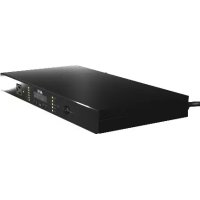
G5BLK - Power filter APC - Free user manual and instructions
Find the device manual for free G5BLK APC in PDF.



| Product Type | Power filter for audio-video peripherals |
| Brand and Model | APC G5BLK |
| Nominal Input Voltage | 120 V AC |
| Nominal Current | 15 A |
| Frequency | 50/60 Hz |
| Outlet Types | NEMA 5-15R |
| Number of Outlets | 9 (4 always-on outlets, 4 delayed outlets, 1 switched outlet) |
| Dimensions (H x D x L) | 4.34 cm x 24 cm x 43.5 cm |
| Net Weight | 3.9 kg |
| Power Cord Length | 2.4 m |
| EMI/RFI Filter | 50 dB (150 kHz - 1 MHz), 40 dB at 30 MHz |
| Surge Protection | Yes (compliant with UL1449, UL1363) |
| LCD Screen | Yes, with display of voltages, current, and notifications |
| User Interface | Power, Status, Setup, Up/Down buttons; LED indicators |
| Always On Outlets | 4 outlets powered even when in standby |
| Switched Outlet | 1 outlet powered only when the unit is on |
| Delayed Outlets | 4 outlets with configurable delay (sequential power-up) |
| Operating Voltage Range | 92 V - 140 V |
| Operating Temperature | 0 °C - 40 °C |
| Relative Humidity | 0 - 95 % non-condensing |
| Warranty | Lifetime for original purchaser |
| Maintenance | No user-serviceable parts; clean with a dry cloth |
| Safety | Indoor use only, do not overload, proper grounding required |
Frequently Asked Questions - G5BLK APC
User questions about G5BLK APC
0 question about this device. Answer the ones you know or ask your own.
Ask a new question about this device
Download the instructions for your Power filter in PDF format for free! Find your manual G5BLK - APC and take your electronic device back in hand. On this page are published all the documents necessary for the use of your device. G5BLK by APC.
USER MANUAL G5BLK APC
Installation and Operation
G-Type Rack Power Filter
G5BLK
120V
15A
Contents
General Information 1
Overview 1
Inventory 1
Safety 1
Components 2
Installation 3
Install the Unit 3
Connect A/C Power 3
Operation 5
Display Interface 5
Configuration 9
Troubleshooting 10
Common problems and solutions 10
Contact APC APV Technical Support 10
Specifications 11
Warranty 11
Espanol 13
Français (Canada) 25
General Information
Overview
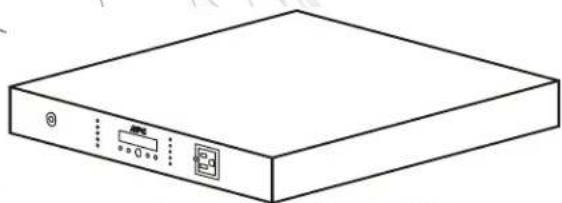
The APC^® AV G-Type Rack Power Filter protects high-performance audio and video system equipment from damage due to power surges, spikes, and lightning strikes.
Inventory
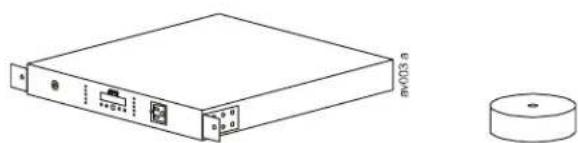
Power conditioner (1) Stabilizing feet (4)
Safety
- Electrical Hazard: For indoor use only.
- CAUTION - Do not install this device if there is not at least 10 meters (30 feet) or more of wire between the electrical outlet and the electrical service panel.
- Risk of electric shock. Do not plug into another relocatable power tap.
- Contains always on receptacles. To reduce the risk of electric shock, disconnect the unit from the power source before servicing the equipment.
- Overloading. Do not overload the wall outlet where this device is being connected. Do not overload this device. Ensure the total load to this device does not exceed that which is listed in the Specifications section of this manual.
- Power. Ensure this device is connected to a properly grounded AC power source. Further ensure the device is plugged into a source providing the required 120 Vac. Do not use a plug adapter which defeats the ground pin of the AC plug.
- Placement. Do not install this device on any unsteady surface. Do not install this device on any heat source.
Water and Moisture. Do not use this product near any source of water, or in an environment where the relative humidity may exceed 95% (non-condensing) - Polarization. This device has a polarized AC line plug having one grounding pin. This plug will only fit into the wall outlet in one orientation. This is a safety feature. Do not remove the round grounding pin.
- System Ground Terminal. The unit provides for the connection of grounding wires from all of your equipment to a central terminal lug. This ground connection eliminates ground loop problems; tie all component grounds to this screw to break any possible ground loops that can cause an audible noise.
- Servicing. There are no user-serviceable components within this device. Removal of the cover from this device may present a shock hazard, and/or void the warranty.
- Damage Requiring Service. If any type of damage occurs to this device, immediately disconnect it from the wall outlet. Notify APC Technical Support or Customer Service at once.
- Replacement Parts. There are no components within this device that can or should be removed/replaced unless it is by an APC-qualified technician.
Components
Front view
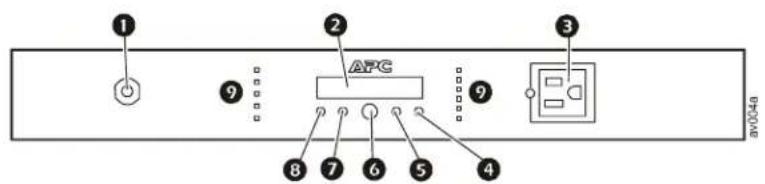
Circuit breaker
LCD Display
3 ALWAYS ON outlet
DOWN button
UP button
6 Power button
7 SETUP button
STATUS button
9 LED Indicators:
- POWER ON
LINEOK
PROTECTION
WORKING
W IRING OK - OVERLOAD
D ELAYS 1-4
SWITCHED
ALWAYS ON
Rear view

System Ground
ALWAYS ON outlets
SWITCHED outlet
DELAY 1 outlet
5 DELAY 2 outlets
6 DELAY 3 outlet
7 DELAY 4 outlet
Installation
Install the Unit
Install the unit on a flat surface
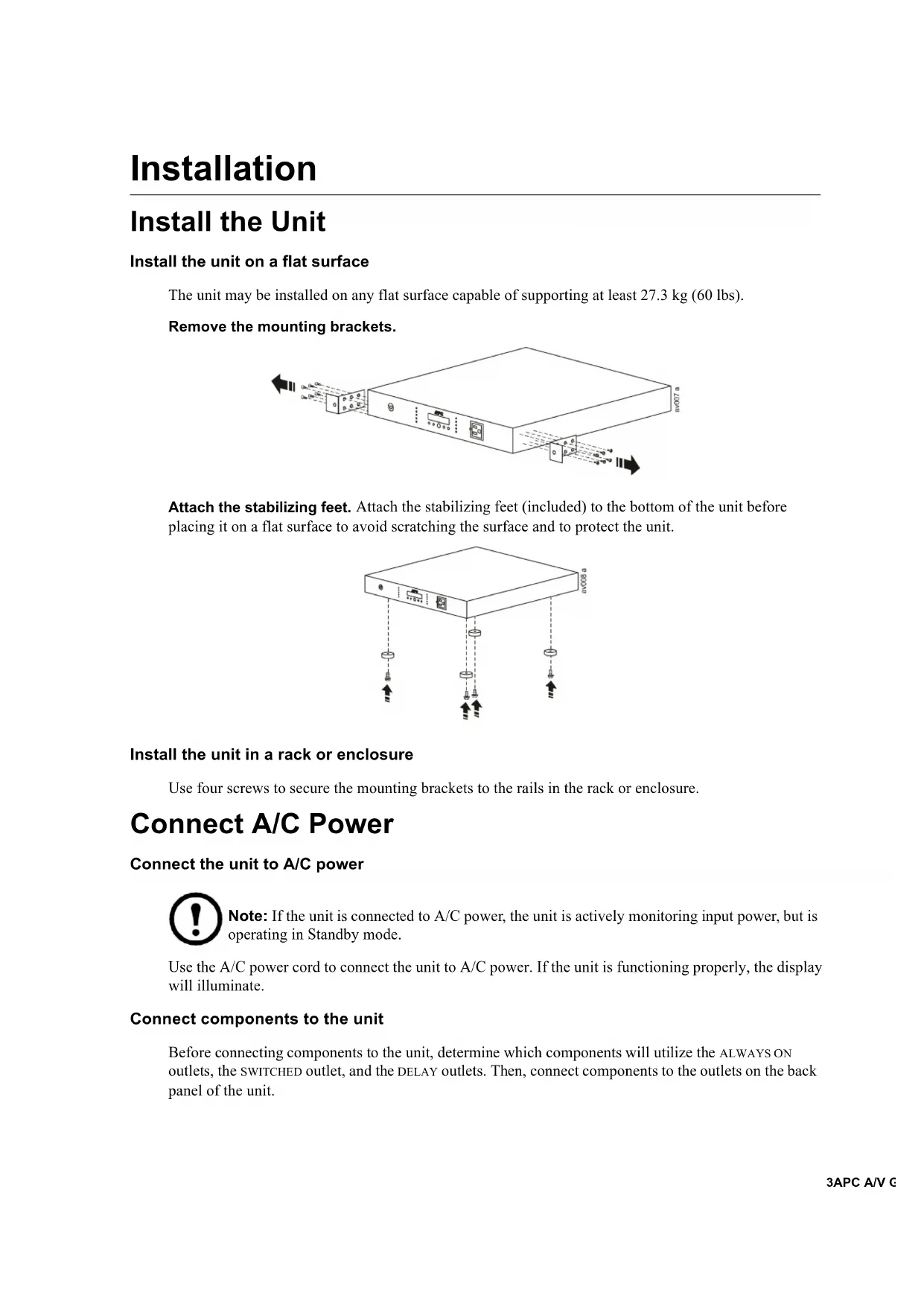
The unit may be installed on any flat surface capable of supporting at least 27.3kg (60 lbs).
Remove the mounting brackets.
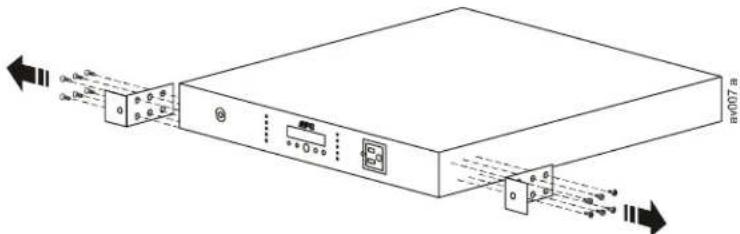
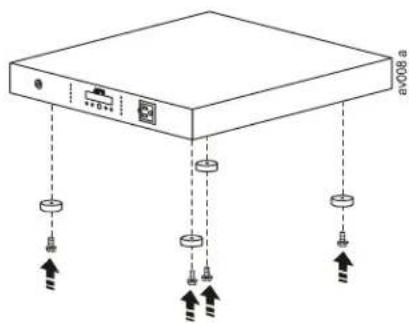
Attach the stabilizing feet. Attach the stabilizing feet (included) to the bottom of the unit before placing it on a flat surface to avoid scratching the surface and to protect the unit.
Install the unit in a rack or enclosure
Use four screws to secure the mounting brackets to the rails in the rack or enclosure.
Connect A/C Power
Connect the unit to A/C power

Note: If the unit is connected to A/C power, the unit is actively monitoring input power, but is operating in Standby mode.
Use the A/C power cord to connect the unit to A/C power. If the unit is functioning properly, the display will illuminate.
Connect components to the unit
Before connecting components to the unit, determine which components will utilize the ALWAYS ON outlets, the SWITCHED outlet, and the DELAY outlets. Then, connect components to the outlets on the back panel of the unit.
Always On outlets. The ALWAYS ON outlets supply power to the connected components, even if the unit is turned off. If A/C power is lost, and then re-applied to the unit, components connected to the ALWAYS ON outlets will turn on immediately, as power will be supplied to them immediately.
Switched outlet. The SWITCHED outlet supplies power to the connected equipment while the unit is on. If the unit shuts off, it will not supply power to equipment connected to the SWITCHED outlet. If A/C power is lost, and then re-applied to the unit, equipment connected to the SWITCHED outlet will turn on immediately.
Delay outlets. The unit has five delayed outlets. When the unit is turned on, power is immediately applied to the SWITCHED outlet (power was already being supplied to the ALWAYS ON outlets, even though the unit was off). Then, power is applied to each of the DELAYED outlets in sequence, DELAY 1 first, through DELAY 4.
When the unit is turned off, power is disconnected from the delayed outlets in reverse order.
Use the display interface to customize the delay times.
Operation
Display Interface
Using the display interface

Use the display interface on the front of the G5BLK to configure and operate the unit.
Power. Push to apply power to the unit or to shut off power to the unit.
Status. Push to display the current status of the unit, including the current input/output voltage.
Setup. Push to scroll through the setup menus.
Up/Down. Push to change values (Setup menu) and browse menu pages (Status menu).
Display interface LEDs
There are eleven LEDs on the display interface.
| LED Illuminated Not Illuminated | ||
| POWER ON | The unit is supplied with utility power. | There is no input utility power. |
| LINE OK | The utility power is within acceptable range, 92 V to 140 V. | The input voltage from utility power is outside the acceptable range and the unit has disconnected from utility power to protect the connected equipment. |
| PROTECTION WORKING | The unit is protecting all connected equipment. | The unit is not providing power protection. See Troubleshooting and contact APC Technical Support immediately. |
| WIRING OK | The unit is functioning properly. There is a problem with the building wiring. Contact a certified electrician. | |
| OVERLOAD | The unit is overloaded. Disconnect some connected components. Contact APC Technical Support. | The unit is functioning properly. |
| DELAY 1 | Power is being supplied to DELAY1. | Power is not being supplied to DELAY1. |
| DELAY 2 | Power is being supplied to DELAY2. | Power is not being supplied to DELAY2. |
| DELAY 3 | Power is being supplied to DELAY3. | Power is not being supplied to DELAY3. |
| DELAY 4 | Power is being supplied to DELAY4. | Power is not being supplied to DELAY4. |
| SWITCHED | Power is being supplied to the SWITCHED outlet. | Power is not being supplied to the SWITCHED outlet. |
| ALWAYS ON | Power is being supplied to the ALWAYS ON outlets. | Power is not being supplied to the ALWAYS ON outlets. See “Troubleshooting” on page 10 and contact APC Technical Support immediately. |
Status menu

Note: The menus shown in this manual are for reference only. Information displayed on the unit may be different than shown here.
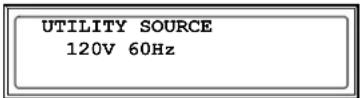
Utility Source, Voltage and Frequency.
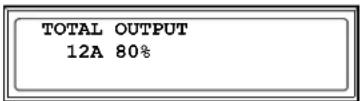
Current and Percentage.
Contact Information.
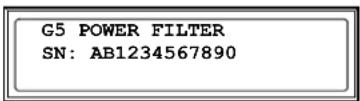
Model and Serial Number.
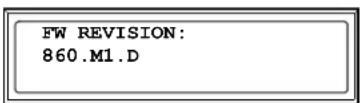
Firmware version.
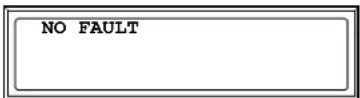
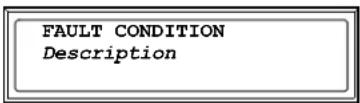
Recent Faults.

Setup menu

Note: The menus shown in this manual are for reference only. Information displayed on the unit may be different than shown here.
Use the Setup menus to configure the unit. There are nine setup menus. Push SETUP to scroll to the next menu.
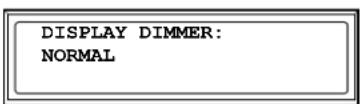
LCD dimmer. Set the brightness of the display.
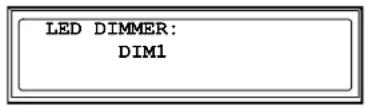
LED dimmer. Set the brightness of the LED.
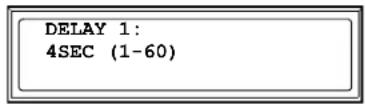
Delay1. Select the number of seconds for the delay.
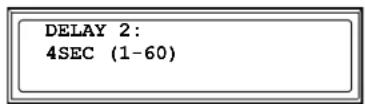
Delay2. Select the number of seconds for the delay.
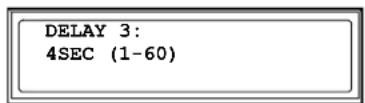
Delay3. Select the number of seconds for the delay.
Delay4. Select the number of seconds for the delay.
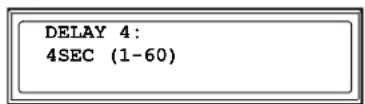
Cut-Off Voltage. Select the maximum and minimum voltage. The unit will protect connected equipment from high and low voltages that are not safe for operation.

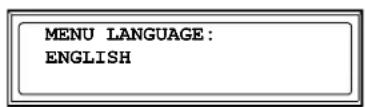
Language. Select the language for the display: English, French, or Spanish. Push SETUP to go to the next screen, RESET TO DEFAULT.
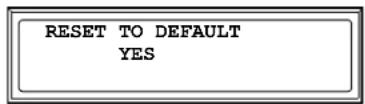
Restore default settings. Select YES or NO to restore the default settings.
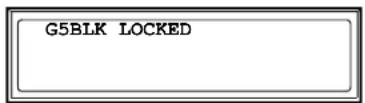
Lock the unit
The unit can be locked to prevent unwanted access. To lock or unlock the unit, push STATUS and DOWN for three seconds.
Save screen as default
To save a screen as the default, push STATUS for three seconds.

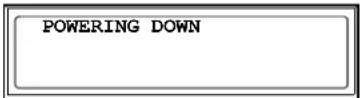
Shut down the unit
Push and hold the POWER button.
Configuration
Configure the unit
Select a language. Push the SETUP button until the Language menu is displayed. Select English, French, or Spanish.
Configure the brightness of the display. To alter the brightness of the LCD display screen, push SETUP one time and select a numerical value, one through seven.
Configure the sequence delay outlets
Configure the delay options so that the DELAY outlets apply power in sequence, instead of all at one time.
Push Setup until the delay menu screen appears. Use the UP and DOWN buttons to change the number of seconds of delay. When finished, push Setup again to move to the next delay screen.
View status of the unit
Push the STATUS button until the input source voltage and frequency screen appears.
Push the STATUS button to display the output current and percentage.
You can also view APC Technical Support contact information, the model and serial number of the unit, the firmware version, and the last three faults registered by the unit using theSTATUS menus.
Troubleshooting
Common problems and solutions
The unit will not turn on
| Probable Cause Solution | |
| There is no input power, or insufficient input power from the wall outlet. | Use a voltmeter to check the output of the wall outlet. Use a device that is known to work properly to check the outlet. |
| Note: The unit will not turn on if the input utility power is out of the acceptable range. | |
| A circuit breaker has been tripped. | Check the building circuit breakers and the unit's circuit breaker. If the circuit breaker on the unit has been tripped, the center post will protrude from the unit. To reset the breaker, push the center post into the unit. If it trips again, unplug one of the components plugged into the unit and reset the breaker. |
| The unit is rated for 15 Amps, however, the National Electric Code (NEC) dictates that any home circuit should not be loaded to more than 80% of its rating. | |
| Note: If the breaker is tripped again after trying this solution, contact APC Technical Support. |
The Overload indicator is illuminated
| Probable Cause Solution | |
| The unit is overloaded. The overload LED is flashing. | The Overload LED on the front of the unit will illuminate red if the unit is overloaded. Reduce the load by disconnecting one or more components from the back of the unit. When the load is below 95%, the LED will stop flashing. |
The Wiring OK indicator is not illuminated
| Probable Cause Solution | |
| The wall outlet polarity is reversed.The neutral wire is overloaded.The earth ground is not connected at the wall outlet. | Contact an electrician to inspect the building wiring.WARNING: Do not operate the unit if any of these conditions exist. The unit may not be providing surge protection. |
| The unit is on, but none of the LEDs are illuminated. | Push UP or DOWN several times. The LEDs should illuminate.If they do not illuminate, contact APC Technical Support. |
Contact APC APV Technical Support
For technical support, go to www.apcav.com or call 1-888-88APCAV (1-888-882-7228).
Specifications
| Input/Output | |
| Input/Output Voltage Nominal 120 V | |
| Input/Output Current 15 A | |
| Frequency 50/60 Hz | |
| Receptacle Types NEMA 5-15R | |
| Number of Outlet Receptacles 9 | |
| Dimensions (HxWxL) 4.34 cm x 24 | cm x 43.5 (1.71 in x 9.45 in 17.13 in) |
| Power Cord 2.4 m (8 ft.) right angle | NEMA 5-15P |
| AC Surge Performance | |
| EMI/RFI Filtering 50 db 150 kHz to | 1 MHz 40 dB to 30 MHz |
| Environmental Performance Specifications | |
| Operating temperature 0° - 40°C (32° - 104°F) | |
| Storage temperature -15° - 45°C (5° - 113°F) | |
| Net weight 3.9 kg (8.58 lbs) | |
| Relative Humidity 0-95% non-condensing | |
| Safety Agency Approval | |
| UL1449, UL1363, cCSAus Listed, FCC Part 15 Class B | |
| Contact Information | |
| www.apcav.com or 1-888-88APCAV | |
Warranty
APC warrants its products to be free from defects in materials and workmanship under normal use and service for the lifetime of the original purchaser. Its obligation under this warranty is limited to repairing or replacing, at its sole option, any such defective products. To obtain service under warranty you must obtain a Returned Material Authorization (RMA) number from APC or an APC Service Center with transportation charges prepaid and must be accompanied by a brief description of the problem and proof of date and place of purchase. This warranty applies only to the original purchaser.
Información general
Introduccion
APC Worldwide Customer Support
Customer support for this or any other APC product is available at no charge in any of the following ways:
-
Visit the APC Web site to access documents in the APC Knowledge Base and to submit customer support requests.
-
www.apc.com (Corporate Headquarters)
Connect to localized APC Web sites for specific countries, each of which provides customer support information.
- www.apcav.com
APC Audio/Visual Technical Support
- www.apc.com/support/
Global support searching APC Knowledge Base and using e-support.
-
Contact the APC Customer Support Center by telephone or e-mail.
-
Local, country-specific centers: go to www.apc.com/support/contact for contact information.
For information on how to obtain local customer support, contact the APC representative or other distributors from whom you purchased your APC product.
Entire contents copyright 2010 American Power Conversion Corporation. All rights reserved. Reproduction in whole or in part without permission is prohibited. APC, the APC logo, and the APC AV logo are trademarks of American Power Conversion Corporation. All other trademarks, product names, and corporate names are the property of their respective owners and are used for informational purposes only.
- Installation and Operation
- G-Type Rack Power Filter
- Contents
- General Information 1
- Installation 3
- Operation 5
- Configuration 9
- Troubleshooting 10
- Specifications 11
- Espanol 13
- Français (Canada) 25
- General Information
- Overview
- Inventory
- Safety
- Components
- Front view
- Rear view
- Installation
- Install the Unit
- Connect A/C Power
- Connect components to the unit
- Operation
- Display Interface
- Display interface LEDs
- Status menu
- Setup menu
- Lock the unit
- Save screen as default
- Shut down the unit
- Configuration
- Configure the unit
- Configure the sequence delay outlets
- View status of the unit
- Troubleshooting
- Common problems and solutions
- Contact APC APV Technical Support
- Specifications
- Warranty
- Información general
- Introduccion
- APC Worldwide Customer Support
Brand : APC
Model : G5BLK
Category : Power filter