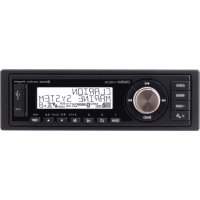
M508 - Radio CLARION - Free user manual and instructions
Find the device manual for free M508 CLARION in PDF.



| Product Type | Marine radio receiver / marine car stereo |
| Brand | Clarion |
| Model | M508 |
| Dimensions (W × H × D) | 196 mm × 88.8 mm × 235.6 mm |
| Weight | 0.88 kg (1.94 lb) |
| Power supply | 14.4 V DC (10.6-15.6 V allowable), negative ground |
| Fuse | 15 A |
| Maximum output power | 180 W (45 W × 4 channels) |
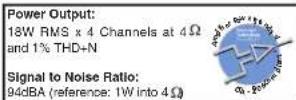
| RMS power | 18 W × 4 channels at 4 Ω (THD+N ≤ 1%) |
| Speaker impedance | 4 Ω |
| Preamp outputs | 8 RCA channels (4 V max) |
| Equalizer | BEAT-EQ with 3-band parametric equalizer |
| FM radio | Range 87.9-107.9 MHz (North America), sensitivity 8 dBµV |
| AM radio | Range 530-1710 kHz (North America) |
| Satellite radio | SiriusXM Ready (tuner sold separately) |
| Audio formats | MP3, WMA, playback via USB, iPod/iPhone/iPad, Bluetooth A2DP |
| Bluetooth | A2DP profile, pairing up to 3 devices |
| Auxiliary input | AUX 1 and AUX 2 (RCA jacks, adjustable sensitivity) |
| USB port | Front (compatible with USB flash drives, iPod/iPhone/iPad, Android MTP) |
| Remote control | IR remote (RCX001, optional) and wired remote (optional) |
| Display | LCD screen with screen saver and dimmer |
| Cleaning | Soft dry cloth, diluted neutral detergent (no benzene, thinner) |
| Operating temperature | Do not expose to excessive heat or water |
| Repairability | Do not open the case; contact a Clarion dealer |
| Package contents | Source unit, cables, mounting bracket, screws, manual, warranty card |
Frequently Asked Questions - M508 CLARION
User questions about M508 CLARION
0 question about this device. Answer the ones you know or ask your own.
Ask a new question about this device
Download the instructions for your Radio in PDF format for free! Find your manual M508 - CLARION and take your electronic device back in hand. On this page are published all the documents necessary for the use of your device. M508 by CLARION.
USER MANUAL M508 CLARION
For USA and Canada only
www.clarlon.com
Dear Customer,
Congratulations on your purchase of a Clarion mobile electronic product. We are confident that you'll enjoy your Clarion experience.
There are many benefits to registering your product. We invite you to visit our website at
www.clarion.com to register your Clarion product.
We have made the product registration process simple with our easy to use website.
The registration form is short and easy to complete. Once you're registered, we can keep you
posted on important product information.
Register at www.clarion.com - it's easy to keep your Clarion product up to date.
Please periodically check the Clarion website for software updates and improvements for your
Clarion product. These updates can be found under the "Get Support" tab, then "Software Update / Download".
Contents
Thank you for purchasing this Clarlon product.
- Please fully read this owner's manual before operating this equipment.
- Check the contents of the enclosed warranty card and store it in a safe place with this manual.
-
FEATURES 2
-
PRECAUTIONS 2
Front Panel / General Information 3
USB Port 3
- CONTROLS 4
Operational Panel 4
Remote Control (RCX001: Sold separately) 5
Notes for use of Optional Remote Control 5
Optional Wired Remote Control Unit Operations 6
Zone Control 6
- OPERATIONS....7
Basic Operations....7
System Setup 7
Audio Setup 8
Tuner Operations 9
SiriusXM Satellite Radio Operations 9
USB Operations 10
iPod, iPhone & iPad Operations....11
Bluetooth Operations 12
AUX Operations 13
-
TROUBLE SHOOTING....14
-
ERROR DISPLAYS....15
-
SPECIFICATIONS 15
-
INSTALLATION / WIRE CONNECTION GUIDE 16
1. FEATURES
■ Compatible with iPod ^® / iPhone ^® / iPad ^® with Pandora ^® internet radio App
SiriusXM-Ready™ (Tuner and Subscription required and sold separately)
■ 8ch RCA Output and BEAT-EQ with 3 Band Parametric Equalizer

Bluetooth

pandora®
Made for
iPod
iPhone
□iPad
((Siriusxm)) READY
Expanding System Options
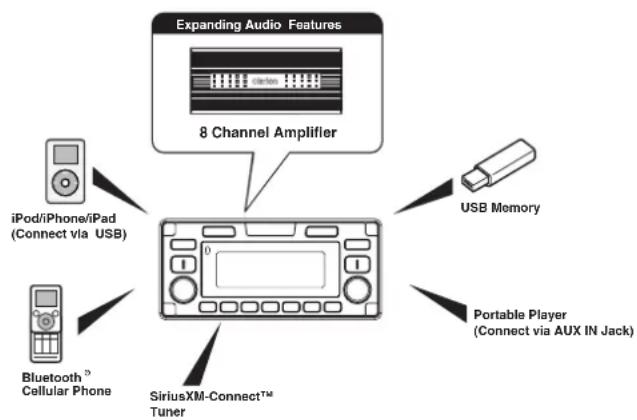
flowchart
graph TD
    A["Expanding Audio Features"] --> B["8 Channel Amplifier"]
    C["iPod/iPhone/iPad (Connect via USB)"] --> D["Central Display"]
    E["Bluetooth® Cellular Phone"] --> D
    F["USB Memory"] --> D
    G["Portable Player (Connect via AUX IN Jack)"] --> D
    H["SiriusXM-Connect™ Tuner"] --> D
Note:
- The items listed only show connectivity options and are not included with the unit.
2. PRECAUTIONS
WARNING
For your safety, the driver should not operate the unit while driving.
Also, while driving, keep the volume to a level at which external sounds, such as voices and sirens can be heard.
-
When the interior of the boat is extremely cold and the player is used soon after switching on the heater, moisture may form on the internal circuitry of the player and proper playback may not be possible. If moisture forms inside of the player, do not use the player for about one hour. The condensation will disappear naturally allowing normal operation.
-
This unit uses precision parts and components for its operation. In the event of any operating issues, never open the case, disassemble the unit, or lubricate the rotating parts. Contact your Clarion dealer or service center.
3.FCCSTATEMENT
- This device complies with Part 15 of the FCC Rules. Operation is subject to the following two conditions:
(1) This device may not cause harmful interference.
(2) This device must accept any interference received, including interference that may cause undesired operation.
- Changes or modifications not expressly approved by the party responsible for compliance could void the user's authority to operate the equipment.
NOTE:
This equipment has been tested and found to comply with the limits for a Class B digital device, pursuant to Part 15 of the FCC Rules. These limits are designed to provide reasonable protection against harmful interference in a residential installation.
This equipment uses and can radiate radio frequencies and, if not installed and used in accordance with the instructions, may cause harmful interference to radio communications. However, there is no
guarantee that interference will not occur in a particular installation. If this equipment does cause harmful interference to radio or television reception, which can be determined by turning the equipment off and on, the user is encouraged to try to correct the interference by one or more of the following measures:
- Reorient or relocate the receiving antenna.
- Increase the separation between the equipment and receiver.
- Connect the equipment into an outlet on a circuit different from that to which the receiver is connected.
- Consult the dealer or an experienced radio/TV technician for help.
FCC Radiation Exposure Statement
This equipment complies with FCC radiation exposure limits set forth for an uncontrolled environment. This equipment should be installed and operated with minimum distance 20cm between the unit & your body
- "Made for iPod", "Made for iPhone" and "Made for iPad" mean that an electronic accessory has been designed to connect specifically to iPod, iPhone or iPad, respectively, and has been certified by the developer to meet Apple performance standards.
Apple is not responsible for the operation of this device or its compliance with safety and regulatory standards.
Please note that the use of this accessory with iPod, iPhone or iPad may affect wireless performance.
iPod, iPhone, iPad and iTunes are trademarks of Apple Inc., registered in the U.S. and other countries.
Supported iPod/iPad/iPhone devices:
iPhone 6s plus
iPhone 6s
iPhone 6 plus
iPhone 6
iPhone 5S
iPhone 5C
iPhone 5
iPad Mini4
iPad Air2
iPod touch (6th generation)
iPod touch (5th generation)
- Pandora, the Pandora logo, and the Pandora trade dress are trademarks or registered trademarks of Pandora Media, Inc. used with permission. Pandora is only available in certain countries. Please visit pandora.com/legal for more information.
If you have any issues with the Pandora application on your mobile phone, please direct them to pandora-support@pandora.com.
-
The Bluetooth word mark and logos are registered trademarks owned by the Bluetooth SIG, Inc. and any use of such marks by Clarion Co., Ltd is under license. Other trademarks and trade names are those of their respective owners.
-
SiriusXM and all related marks and logos are trademarks of Sirius XM Radio Inc. All rights reserved.
-
IC warning
This device complies with Industry Canada's licence-exempt RSSs. Operation is subject to the following two conditions:
(1) This device may not cause interference
(2) This device must accept any interference, including interference that may cause undesired operation of the device.
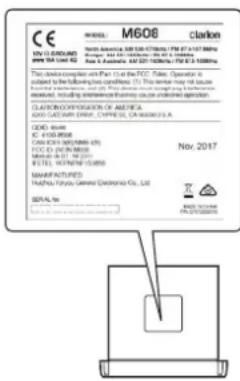
INFORMATION FOR USERS:
Changes or modifications to this product not approved by the manufacturer will void the warranty and will violate FCC approval.
Front Panel / General
Information
For a longer service life, be sure to read the following cautions.
- Do not allow any liquids or fluids to enter the unit. Doing so may damage the internal circuitry.
- Do not disassemble or modify the unit in any way. Doing so may result in damage.
- Do not let any materials burn the display. Doing so may damage or deform the body.
- If a problem should occur, have the unit inspected at your store of purchase.
- The remote control unit may not work if the remote control sensor is exposed to direct sunlight.
Cleaning the Body
- Use a soft, dry cloth and gently wipe off any dirt or dust.
- For tough dirt, apply some neutral detergent diluted in water to a soft cloth, wipe off the dirt gently, then wipe again with a dry cloth.
- Do not use benzene, thinner, boat cleaner, etc., as these substances may damage the body or cause the paint to peel. Also, leaving rubber or plastic products in contact with the body for long periods of time may cause stains.
USB Port
- The USB memory sticks must be recognized as "USB" to work properly. Some models may not operate correctly.
In the event data is lost or damaged under any condition, Clarion shall not be liable for any damage.
When using the USB memory stick, we recommend that you backup your data (music) to a personal computer before using. - Data (music) files may be damaged when using USB memory sticks in the following situations:
Removing the USB memory stick or turning the power off while reading data. Static electricity and/or an electrical surge can damage the contents on the USB memory device. Connect/disconnect the USB memory stick when it is not accessed. - Disconnect the USB memory device when not in use.
3. CONTROLS
Operational Panel
![[SCAN] [MENU] Remote Sensor [ ◊ SRC ] [ BND ] [ VOLUME ] [MUTE] [1 - 5] Buttons [SUB] [SCAN] clarion MENU ENT [ENT] [↓ ↓ ↓ ↓ ↓ ↓ ↓ ↓ ↓ ↓ ↓ ↓ ↓ ↓ ↓ ↓ ↓ ↓ ↓ ↓ ↓ ↓ ↓ ↓ ↓ ↓ ↓ ↓ ↓ ↓ ↓ ↓ ↓ ↓ ↓ ↓ ↓ ↓ ↓ ↓ ↓ ↓ ↓ ↓ ↓ ↓ ↓ ↓ ↓ ↓ ↓ ↓ ↓ ↓ ↓ ↓ ↓ ↓ ↓ ↓ ↓ ↓ ↓ ↓ ↓ ↓ ↓ ↓ ↓ ↓ ↓ ↓ ↓ ↓ ↓ ↓ ↓ ↓ ↓ ↓ ↓ ↓ ↓ ↓ ↓ ↓ ↓ ↓ ↓ ↓ ↓ ↓ ↓ ↓ ↓ ↓ ↓ ↓ ↓ ↓ ↓ ↑ [0 SRC] [0 SRC] [0 SRC] [0 SRC] [0 SRC] [0 SRC] [0 SRC] [0 SRC] [0 SRC] [0 SRC] [0 SRC] [0 SRC] [0 SRC] [0 SRC] [0 SRC] [0 SRC] [0 SRC] [0 SRC] [0 SRC] [0 SRC] [0 SRC] [0 SRC] [0 SRC] [0 SRC] [0 SRC] [0 SRC]](/content/2026/03/485420/images/d06dbf4ae76aa1d0e49da09cf8ef2a4494824cef991816d18a98b5e350eb071a.jpg)
Names of Buttons
[⊕/SRC] Button
• Toggles the audio sources
• Power on / Power off (Long Press)
[BND] Button
• RADIO mode – Select tuner band
[♪] Button
• Audio adjustments
• Zone link (Long Press)
[VOLUME] Knob
- Adjust volume level
[SCAN] Button
• RADIO mode – Preset scan / Auto store (Long Press)
[ MENU/ ] Button
- USB mode - Search function
- iPod mode – iPod menu
4 M608
- Pandora mode – Station select
- SiriusXM mode – Instant Replay (Short Press)
• In menu/file list - Back
- Tuner mode - No function
- AUX mode - No function
- Adjust mode (Long Press)
[ENT] button
- Confirm/enter when accessing menus - Change song information displayed in digital sources
• Turn off LCD display (Long Press)
[◀/▶]Buttons
• RADIO mode – Manual tuning / Auto search (Long Press)
•USB/iPod mode
- Previous / next track - Fast Forward / Fast Backward (Long Press)
• Pandora mode – Skip track (▶▶) • SiriusXM mode – Channel Up/Down
[UP/DOWN] Knob
- Radio mode - Toggle from the preset stations
- USB mode - Select folder/file - Pandora mode - Select search mode/station
- SiriusXM mode – Select category / (Operates on Category and Channel modes)
[MUTE] Button
- Mute the volume output
[1 - 5] Buttons
• [1] Button: Repeat play / Preset station 1 / Preset station memory 1 (Long Press)
• [2] Button: Random play / Preset station 2 / Preset station memory 2 (Long Press) / Pandora mode – Bookmark track
• [3] Button: Play/Pause / Preset station 3 / Preset station memory 3 (Long Press) / Pandora mode - Bookmark artist
• [4] Button: Previous folder / Preset station 4 / Preset station memory 4 (Long Press)
Pandora mode - Thumbs down
• [5] Button: Next folder / Preset station 5 / Preset station memory 5 (Long Press) / Pandora mode - Thumbs up
[SUB] Button
- Subwoofer menu (Short Press) - SiriusXM mode – Direct tune (Long Press)
Remote Control (RCX001: Sold separately)
[ SRC / ☑ Button
- Toggles the audio sources
• Power on / Power off (Long Press)
[◀/▶Buttons
- Radio mode - Manual Tune up or down / Seek Tune up or down (Long Press)
• Previous / next track - SiriusXM mode - Channel up or down / Rapid Channel Browsing (Long Press)
- Pandora mode - Skip
[SCN/PS/AS] Button
- Scan play / Preset scan
- Auto memory store (Long Press)
- Pandora mode – Thumbs down
- SiriusXM mode– Channel scan (in current category) / Preset scan (Long Press)
[BAND/TOP] Button
• USB mode – Top play
• RADIO mode – Select tuner band
- SiriusXM mode – Select tuner band / Category Browsing mode (Long Press)
[▲/▼] Buttons
• Volume up / down
[▶] Button
- Play / Pause
[ISR] Button
•No function
[MENU] Button
- Display switch
[RDM] Button
- Random play
- Pandora mode – Thumbs up
[RPT] Button
- Repeat play
- Pandora mode – Bookmark track / Book mark Artist (Long Press)
[MUTE] Button
- Mutes the volume
![[SRC / J] [BAND/TOP] [ *, *] [++, ==] [=] [MUTE] [MUTT] ISP DSP [ROM] [IRPT] [SCNV PBAS] SCR RPT ROM clarion](/content/2026/03/485420/images/b9e13272eaaedae4c25b3876dea8e7fbb7e820e6cc9affa89b31cee59a60ecf1.jpg)
Notes for use of Optional RCX001 Remote Control
- Aim the remote control at the remote sensor on the unit.
- Remove the battery from the remote control or insert a battery insulator if the remote is not going to be used for a month or longer.
- DO NOT store the remote control under direct sunlight or in high temperature environment, or it may not function properly.
- Use "button shaped" lithium battery "CR2025" (3V) only.
- DO NOT subject battery to recharge, disas semble, heat or dispose in fire or water.
- Insert the battery in proper direction according to the (+) and (-) polarities.
- Store the battery in a place where children cannot reach to avoid the risk of accident.
Inserting the Battery
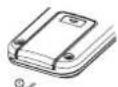
- Slide remote control unit's rear cover in the direction shown.
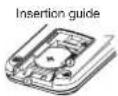
- Insert battery (CR2025) into insertion guides with printed side (+) up.
- Press battery into compartment as shown.
- Replace and slide cover until it clicks into place.
Optional Wired Remote Control Unit Operations
Optional Clarion wired remote control functions.
Note:
If the remote control is connected to the unit while powered on, please restart and/or reset the unit to introduce the wired remote control to the system.
![IR-Receiver [+] /SOURCE [+] ENTER clarion MATE PDC PDC PDC MENU BAND [+] [+] [M] [Menu/BAND]](/content/2026/03/485420/images/1637e1be5aca87f2b017f292db94e73db88302c3a8c21ea89742ff8ac9b1b4a3.jpg)
CAUTION
Lower the volume level before powering the source unit off. The source unit stores the last volume setting.
WARNING
EXPOSING THE UNIT TO WATER WITH THE FRONT PANEL OPEN WILL CAUSE DAMAGE OR UNIT MALFUNCTION!
[@/SOURCE] Button
- Press the [ /SOURCE] button to turn the power on and press and hold it (1 sec.) to turn the power off.
• Each time the [@/SOURCE] button is pressed, the mode switches.
• If the above equipment is not connected, corresponding mode cannot be selected.
Note.
[ENTER] Button
• RADIO mode – No function
• USB mode – No function
• iPod mode – Confirm (in Menu mode)
- AUX mode – No function
- Pandoramode – No function
SiriusXM mode – Confirm (in Menu mode)
[ ] / [ ] Buttons
- Press the [9] button to increase the volume.
- Press the [ ] button to decrease the volume.
[◀]/[▶ Buttons
- RADIO mode – Station up-down / Seek up - down (long press)
- USB mode - Previous - next track / Fast forward-reverse (long press)
- iPod mode – Previous - next track / Fast forward-reverse (long press)
- AUX mode – No function
- Pandora mode - skip track★
- SiriusXM mode - Channel up - down / Rapid tune up-down - (Long press) / Move cursor (direct mode) / Channel up - down in current category (Category mode)
Optional Wired Remote Control Unit Operations
[ ]/ [ ]Buttons
• RADIO mode – Preset station up / down
- USB mode – No function
- iPodmode – Navigate (in Menu mode)
- AUX mode – No function
- Pandora mode – No function
[MENU/BAND] Button
- Each time the button is pressed, the band switches in the following order:
Radio: FM1 -> FM2 -> FM3 -> AM -> WB.... SiriusXM: SXM1 -> SXM2 -> SXM3 -> SXM1..... - Press and hold the button to enter the iPod menu. (in iPod mode)
[ ] Button
• RADIO mode - Mute ON-OFF
USB mode - Play-Pause
- iPod mode - Play-Pause
• AUX mode – Mute ON-OFF
• Pandora mode – Play-Pause
SiriusXM mode -
Mute ON/OFF in Live mode
Play/Pause in Instant Replay mode
IR-Receiver
- Receiver for optional IR remote control unit. (Operating range: 30° in all directions)
Zone Control
When powering on the first time, you will need to select the audio configuration type. Rotate the [UP/DOWN] knob to select "STANDARD", "MULTI ZONE" or "TOWER", and press [ENT] button to confirm.
If "STANDARD" mode is selected, all the zones will be configured together. If "MULTI ZONE" is selected, the zones can be configured separately.
If "TOWER" is selected, the zones will be split into Zone 1 and Zone 2 (Tower).
To reset the audio configuration type, please access system setup mode.
Zone Link (Multi-Zone/Tower Mode)
- Press and hold the [ ] button.
- Press the [◀◀] or [▶▶] button to select the Zone number.
- Rotate the [UP/DOWN] knob to select "YES" or "NO".
- Pressthe[ENT] button to confirm.
5. OPERATIONS
Basic Operations
Note:
- Refer to the diagrams in "3. CONTROLS" when reading this chapter.
CAUTION
Listening to the unit at or near maximum volume level can be harmful to your hearing.
Power On / Off
Note:
- Start the engine before using this unit.
- Be careful about using this unit for a long time without running the engine. If you drain the battery too far, you may not be able to start the engine and this can reduce the service life of the battery.
- Start the engine. The power button / knob illumination on the unit will light up.

Engine ON position
-
Press the [d] / SRC] button on the front panel or remote control to turn on the power under standby mode. The unit goes back to the last status after power on.
-
Press and hold the [☐/SRC] button on the front panel or the remote control to turn off the power.
Mute
Press the [MUTE] button on the remote control to mute the volume from the unit.
Note:
Doing the operation above again or adjusting volume will release muting.
Volume Adjustment
STANDARD: Rotate the [VOLUME] knob on the front panel or press the [▲] or [▼] button on the remote control.
MULTI ZONE: In Volume adjustment mode, press the [◀◀] or [▶button to select ZONE number, then rotate the [VOLUME] knob to adjust.
TOWER: In linked mode, rotate [VOLUME] knob on the front panel or press the [▲ or [▼] button on the remote control. In non-linked while in volume adjustment press the [●] button to select Zone 1 or Tower, then rotate the [VOLUME] knob to adjust. The adjustable range of volume is 0 to 40.
CAUTION
While driving, keep the volume level at which external sounds can still be heard.
Changing Sources
Press the [@ / SRC] button to change the operation mode.
Changing the Display
Press and the [ENT] button on the front panel or press the [DISP] button on the remote control to switch the display information from clock, station information (radio mode), or track information (USB mode).
System Setup
Changing Adjustment Settings
-
Press and hold [MENU] button to switch to system setup mode.
-
Press the [◀] or [▶] button to select the "Item name".
-
Rotate the [UP/DOWN] knob to select the "desired setting value".
* For some options, you should press the [ENT] button to adjust the setting value.
- After completing the setting adjustment, press the [MENU] button to return to the previous mode.
CLOCK
-
Press the [ENT] button.
-
Press the [◀] or [ ] button to select the hour or the minute.
-
Rotate the [UP/DOWN] knob to set the correct time.
* The clock is displayed in 12-hour format by default.
- Press the [ENT] button to store the time into memory.
Note:
- The clock can only be set while the is on. If you drain or remove the boat's battery or take out this unit, the clock will reset. While setting the clock, if another button or operation is selected, the clock set mode is canceled.
AUDIO MODE
-
Rotate the [UP/DOWN] knob to select STANDARD, MULTI ZONE or TOWER.
-
Press the [ENT] button to confirm.
DX/LO (RADIO mode)
Rotate the [UP/DOWN] knob to choose radio local or distant at RADIO mode.
- LO: Only stations with strong signal can be received.
- DX: Stations with strong and weak signals can be received.
AUX SENS (AUX mode)
Rotate the [UP/DOWN] knob to choose AUX Input sensitivity LOW, MID or HIGH in AUX mode.
PARENTAL (SiriusXM mode)
Change parental password. Default code is "0000".
LOCK CH (SiriusXM mode)
Lock the current channel
UNLOCK ALL CH (SiriusXM mode)
Unlock all parental locked channels.
SELECT
The "SELECT" menu is intended to automatically pair with a stored mobile device.
This unit can store a maximum of three mobile devices. The mobile devices will be stored in the order they are paired to the unit. If you wish to add a different device than those already paired, you will need to delete the unwanted mobile device from the
"DELETE" menu.
DELETE
-
Press the [ENT] button.
-
Rotate the [UP/DOWN] knob to choose the paired mobile phone name from the pairing list.
-
Press the [ENT] button.to confirm.
DISCON (BT mode)
Disconnect currently connected mobile phone.
-
Press the [ENT] button, mobile phone displays are currently connected.
-
Press the [ENT] button to disconnect.
AUTO CON: ON/OFF
- Rotate the [UP/DOWN] knob to choose AUTO CONNECTION ON or OFF.
ON: When detect the phone paired before, the unit will reconnect to it automatically.
System Setup
PIN CODE
- Press the [ENT] button.
- Rotate the [UP/DOWN] knob and press [◀◀] or [▶] button to choose a 4-digit password.
- Press the [ENT] button.to confirm. The PIN CODE default setting is "0000".
- Rotate the [UP/DOWN] knob to choose screen saver ON or OFF. ON: The screen saver will appear on the LCD screen after 30 seconds of non-use.
SCROLL: ON/OFF
- Rotate the [UP/DOWN] knob to choose scroll ON or OFF. For track information that is longer than the display panel: When SCROLL is ON, the LCD will scroll the ID3 TAG information across the display, e.g.: TRACK -> FOLDER -> FILE -> ALBUM -> TITLE -> ARTIST -> TRACK ->... When SCROLL is OFF, the LCD will display one of the ID3 TAG information, the default is TRACK, but user can adjust it to other ID3 TAG information by pressing [ENT] button.
PANDORA: ON/OFF
- Rotate the [UP/DOWN] knob to choose Pandora ON or OFF. Select OFF if the Pandora application has not been installed on your iPod, iPhone, or iPad.
DIMMER: ON/OFF
- Rotate the [UP/DOWN] knob to choose dimmer ON or OFF. • ON: LCD dimmer is active when the marker lights on the boat are turned ON.
- OFF: LCD always maximum brightness regardless of the boat's marker lights.
BEEP: ON/OFF
- Rotate the [UP/DOWN] knob to choose button beep sound ON or OFF.
12/24H
- Rotate the [UP/DOWN] knob to choose time format: 12 HOURS or 24 HOURS.
REGION
- Rotate the [UP/DOWN] knob to choose a Radio Tuner Region from N.America/Europe/Asia/Australia.
FACTORY RESET
- Rotate the [UP/DOWN] knob to choose YES or NO.
- YES: Press the [ENT] button to show "CONFIRM".
- Rotate the [UP/DOWN] knob to choose YES or NO.
- YES: Pressing the [ENT] button will reset the unit.
Audio Setup
STANDARD
- Press the [↓] button to enter sound effect setting mode. First press shows current BEAT EQ setting. Rotate the [UP/DOWN] knob to change BEAT EQ in this order: EQ OFF -> POP -> CLASSIC -> JAZZ -> CUSTOM. On CUSTOM setting mode, press the [ENT] button. Then press [◀◀] or [▶◀] button to select BAS, MID, or TRE Gain, rotate the [UP/DOWN] knob to select a value: (-6) - (+6), press [ENT] button to confirm.
- After pressing the [↓] button, press [◀◀] or [▶◀] button to select USER preset including: SUBWOOFER VOL -> SUBWOOFER LPF -> SUBWOOFER PHASE -> LOUDNESS -> BALANCE -> FADER -> FRONT/REAR HPF, rotate the [UP/DOWN] knob to select a value.
MULTI ZONE
- Press the [↓] button to enter sound effect setting mode. First press shows current BEAT EQ settings. Rotate the [UP/DOWN] knob to change BEAT EQ in this order: EQ OFF -> POP -> CLASSIC -> JAZZ -> CUSTOM. On CUSTOM setting mode, press the [ENT] button. Then press [◀◀] or [▶◀button to select BAS, MID, or TRE Gain, rotate the [UP/DOWN] knob to select a value: (-6) - (+6), press [ENT] button to confirm.
- After pressing the ↓◀] button, press ◀◀ ] or [▶◀] button to select ZONE 1/2/3/4 EQ -> BALANCE -> HPF. Rotate the [UP/DOWN] knob to select a value.
TOWER
- Press the [J] button to enter sound effect setting mode. First press shows current BEAT EQ setting. Rotate the [UP/DOWN] knob to change BEAT EQ in this order: EQ OFF -> POP -> CLASSIC -> JAZZ -> CUSTOM. On CUSTOM setting mode, press the [ENT] button. Then press [◀◀] or [▶◀◀] button to select BAS, MID, or TRE Gain, rotate the [UP/DOWN] knob to select a value: (-6) - (+6), press [ENT] button to confirm.
- After pressing the [J] button, press [◀◀◀] or [▶◀◀] button to select USER preset including: SUBWOOFER VOL -> SUBWOOFER LPF -> SUBWOOFER PHASE -> LOUDNESS -> BALANCE -> FADER -> FRONT/REAR HPF, rotate the [UP/DOWN] knob to select a value.
SUBWOOFER
- Press the [SUB] button to enter subwoofer adjust mode.
- Rotate the [UP/DOWN] knob to adjust the volume level from -6 to +6.
Tuner Operations
Selecting Tuner Mode
Press [☐/ SRC] button once or more to enter TUNER mode.
Selecting a Radio Band
Press the [BND] button on the panel or [BAND] on the remote control to select one radio band among FM1, FM2, FM3, AM, WB.
Manual Tuning
During manual tuning, the frequency will be changed in steps.
Press the [◀◀] or [▶▶] button on the panel to tune in a lower / higher station.
Auto Tuning
Press and hold the [◀◀] or [▶▶] button to seek a lower / higher station.
To stop searching, repeat the operation above or press other buttons having radio functions. Note:
When a station is received, searching stops and the station is played.
Preset Scan
Preset Scan receives the stations stored in preset memory in order. This function is useful when searching for a desired station in memory.
-
Press the [SCAN] button on the panel or [SCN/PS/AS] remote control.
-
When a desired station is tuned in, press the button again to continue receiving that station.
Note:
Be careful not to press and hold the [SCAN] button for 1 second or longer, otherwise the auto store function will begin and the unit starts storing stations.
Auto Store
The unit stores the strongest stations found in the entire Band. Press and hold the [SCAN] button (1 sec.) to start automatic station search.
To stop auto store, press other buttons having radio functions.
Notes:
-
After auto store, the previous stored stations will be overwritten.
-
The unit has 5 bands, such as FM1, FM2, FM3, AM and WB. Each band can store 5 stations, M608 can store 25 stations in total.
Manual Store
When a desired radio station has been detected, press and hold number button 1 - 5 to store it in the memory.
Recalling a Stored Station
Press one numeric button among 1 - 5 on the panel to select the corresponding stored station.
Local Seeking
When LOCAL seeking is ON, only those radio stations with strong radio signal will be received.
To select LOCAL function, press and hold the [MENU] button on the front panel, then press [▶▶] button repeatedly until DX/LO displays on the screen, and rotate the [UP/DOWN] knob to select Local or Distant mode.
Note:
The number of radio stations that can be received will decrease when Local mode is ON.
SiriusXM Satellite Radio Operations
Only SiriusXM ^® brings you more of what you love to listen to, all in one place.
Get over 140 channels, including commercial-free music plus the best sports, news, talk, comedy and entertainment. Welcome to the world of satellite radio.
A SiriusXM Tuner and Subscription are required. For more information, visit www.siriusxm.com.
Displaying the Radio ID
Before you listen to satellite radio, you must subscribe to the service using the SiriusXM Radio ID number.
-
Press[ / SRC] button to activate SiriusXM mode.
-
Press [◀◀] or [▶▶] to select channel "0". The unit displays Radio ID.
Note: Unit does not display "0CH" when you tune to channel "0".
Activating your SiriusXM Subscription
After installing your SiriusXM-Connect Tuner and antenna, power on your headunit and select SiriusXM mode. You should be able to hear the SiriusXM preview channel on Channel 1. If you cannot hear the preview channel, please check the installation instructions to make sure your SiriusXM Connect tuner is properly installed.
Once you can hear the Preview channel, tune to Channel 0 to find the Radio ID of your tuner. In addition, the Radio ID is located on the bottom of the SiriusXM Connect Boat Tuner and its packaging. You will need this number to activate your subscription. Write the number down for reference.
Note: The SiriusXM Radio ID does not include the letters I, O, S or F. In the USA, you can activate online or by calling SiriusXM Listener Care:
- Visit www.siriusxm.com/activatenow
- Call SiriusXM Listener Care at 1-866-635-8634
For Canadian Subscriptions, please contact:
- Visit www.siriusxm.ca/activatexm
• Call SiriusXM Customer Care at 1-888-539-7474
As part of the activation process, the SiriusXM satellites will send an activation message to your tuner. When your radio detects that the tuner has received the activation message, your radio will display: "Subscription Updated". Once subscribed, you can tune to channels in your subscription plan. Note, the activation process usually takes 10 to 15 minutes, but may take up to an hour. Your radio will need to be powered on and receiving the SiriusXM signal to receive the activation message.
Storing Channel Presets
- Press [BND] button to select the desired band you want to store the preset in. There are 3 Satellite Radio Preset bands. Each press of [BND] button changes the band:
SXM1 -> SXM2 -> SXM3 -> SXM1
-
Tune to the desired channel and then press and hold one of the preset buttons (1 - 5), to store the channel.
-
Repeat the procedure to store up to 5 channels on the same band.
Note:
- A total of 15 channels can be stored in the preset memory, 5 channels for each band (SXM1, SXM2 and SXM3).
Tuning Channels using Presets
-
Press [BND] button to select the desired band of presets you wish to access.
-
Press the preset button (1 - 5) that has your desired Satellite Radio channel stored in memory.
Category Browsing
- Press and hold [BND] button to activate the Category Browsing mode.
SiriusXM Satellite Radio Operations
-
Rotatethe[UP/DOWN] knob to select desired category
-
Press [◀◀] or [▶▶] to select desired channel within the selected Category. You can see channel name, channel number, artist, title or content by pressing [♪].
-
Press[ENT] to tune to selected channel. Note:
If no operation is performed for 10 seconds, the Category Browsing mode is canceled.
Preset Scan
Preset scan receives the channels stored in preset memory in order. This function is useful when searching for a desired channel in memory.
-
Press and hold the [SCAN] button.
-
When a desired channel is tuned in, press the [SCAN] button again to select that channel.
Category Scan
This function is useful when scanning for a desired channel within a specific category. 1. Short Press [SCAN] button to begin channel scan.
- When the desired channel is playing, press the [SCAN] button again to select that channel.
Note:
- Be careful not to press and hold the [SCAN] button for 1 second or longer, otherwise the preset scan function will begin and the unit starts scanning presets.
Instant Replay
- In SiriusXM mode, press [MENU] button to enter INSTANT REPLAY mode.
- Press [◀◀] or [▶▶] button to skip back or forward.
- Press and hold [◀◀] or [▶▶] button to rewind (REW) or fast forward (FF).
-
Press the [3] button on the panel or [▶II] on the remote control for play/pause.
-
Press [MENU] or [BND] button to exit.
Changing the Display
Text information, such as the channel name, artist name/feature, song/program title and content is available with each SiriusXM channel. The unit can display this text information as explained below.
- In SiriusXM mode, press [ENT] button.
Each time you press this button, the display changes as shown below.
Band/Channel number/channel name -> Artist Name -> Song Title -> Content Info -> Category Name -> Clock -> Band/Channel number/channel name
* If there is no text information, nothing will be displayed.
Parental Lock / Unlock
The SiriusXM Parental Control feature allows you to control access to channels that you consider inappropriate for younger listeners.
When enabled, the Parental Control feature requires you to enter a password to tune into the locked channels. Information on setting up the password, setting up the channels to be locked, and the method to access the locked channels is described below.
To set up the password, press and hold [MENU] then release [MENU] and press [▶▶] to scroll to "PARENTAL PASSWORD". Press [ENT] button to change password. Enter old password, then enter new password. To enter password, rotate [UP/DOWN] knob to choose the numbers (0-9) and press [▶◀◀] or [▶◀◀] to enter the next number in the password. Once all 4 numbers are entered, press [ENT] button to confirm password. Note: Default password is "0000".
- To set up the channels to be locked, tune to the channel you wish to lock. Press and hold [MENU] then release [MENU] and press [▶▶] to scroll to "LOCK CH", press [ENT] button to confirm. Input password as
SiriusXM Satellite Radio Operations
explained in step 1 and then press [ENT] button to set the locked channel. You will be asked to input password. Enter password and "LOCK" will be displayed if it is successful.
- For unlocking the locked channel, tune to the channel you wish to unlock, press and hold [MENU] and press [▶▶] to select "UNLOCKCH". Enter the password to unlock the channel.
- To access the locked channels, select a
USB Operations
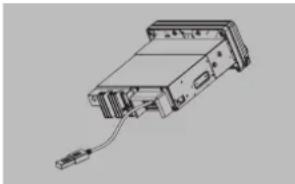
- Insert a USB device into the rear of the unit USB cable.
When connecting a USB device, the unit will read the files automatically. - To remove the USB device, you should first select another source or turn off the power, in order to avoid damaging the USB device. Then you can remove the USB device safely.
This Unit Supports MP3/WMA File Playback
Note:
• If you play a WMA file with active DRM (Digital Rights Management), there will be no audio.
To disable DRM
(Digital Rights Management)
When using Windows Media Player 9/10/11, click on Tool -> Options -> Copy Music tab, then under Copy settings, unclick the Check box for Copy protect music. Then, reconstruct files.
Personally constructed WMA files are used at your own responsibility.
natural_image
Line drawing of an electronic device with a cable and connector (no text or symbols)Precautions when creating MP3/WMA file
Usable sampling rates and bit rates
- MP3: Sampling rate 8 kHz-48 kHz, Bit rate 8 kbps-320 kbps / VBR
- WMA: Bit rate 8 kbps-320 kbps
File extensions
- Only files with the ".MP3" or ".WMA" extension will be played.
- The files can not be played if you attempt to play files without MP3/WMA data.
When VBR files are played, the displayed play time may differ from the actual play location.
* When MP3/WMA files are played, there will be a small gap of no sound between tracks.
USB Operations USB Operations
Logical format (File system)
- The folder name and file name can be displayed as the title during MP3/WMA play but the title must be within 32 single byte alphabetical letters and numerals (including an extension).
- Do not affix a name to a file inside a folder having the same name.
Number of files or folders
- Up to 999 files can be recognized per folder.
Up to 99 folders can be recognized.
Up to 3000 files can be played. - Some noise may occur depending on the type of encoder software used while recording.
Pausing Playback
- Press the [3] button to pause playback. "PAUSE" appears in the display.
- To resume playback, press the [3] button again.
Selecting a Track
Track-up
- Press the [▶] button to skip ahead to the beginning of the next track.
- Each time you press the [▶]button, the track advances ahead to the beginning of the next track.
Track-down
- Press the [◀◀] button to go back to the beginning of the current track.
- Press the [◀◀] button twice to go back to the beginning of the previous track.
Fast-forward/Fast-reverse
Fast-forward
Press and hold the [▶] button.
Fast-reverse
Press and hold the [ ] button.
USB devices containing a large amount of audio files can take several moments to begin the search and increase the delay between tracks. Additionally, some errors may occur during playback.
Folder Select
This function allows you to select a folder containing MP3/WMA files and start playing from the first track in the folder.
- Press the [4] or [5] button
Pressthe[5] button to move to the next folder. Press the [4] button to move to the previous folder. - To select a track, press the [◀◀] or [▶▶] button.
Search Function
-
Press the [MENU] button to enter FOLDER SEARCH mode.
-
Turn the [UP/DOWN] knob to select a folder.
- Pressthe[ENT] button to enter the file list search mode. The track list appears in the display.
- Turn the [UP/DOWN] knob to select a track.
- Press the [ENT] button to play. * When playing back MP3/WMA file, this function is performed in the current folder.
Top Function
The top function resets to the first track of the storage. Press and hold [3] button to play the first track (track No. 1).
* In case of MP3/WMA, the first track of the current folder will be played.
Other Playback Functions
Scan play
This function allows you to locate and play the first 10 seconds of all the tracks.
Press the [SCAN] button to perform scan play.
Repeat play
This function allows you to play the current track, tracks currently being played in the folder, or all the tracks repeatedly.
- Press the [1] button once or more until 📋 appears on the display to perform repeat play for the current song.
- Press [1] button repeatedly until "☐" appears on the display for folder repeat play.
- Press[1] button repeatedly until "☐" disappears from the display for all tracks repeat play.
iPod, iPhone & iPad Operations
Device Connection
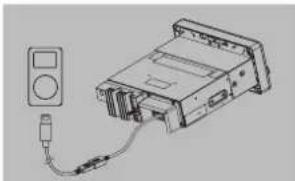
Connect an iPod, iPhone or iPad to the USB connector via accessory cable for iPod/ iPhone/iPad.
When connecting a device, the unit will read the files automatically. The track information displays on the screen once playback starts.
MENU
Press [MENU] button, rotate the [UP/DOWN] knob to select from PLAYLIST / ARTIST / ALBUM / GENRE / SONGS / COMPOSERS / AUDIO BOOK / PODCASTS, press the [ENT] button to confirm.
Play/Pause
Press the [3] button on the panel or [▶▶] on the remote control for play/pause.
Repeat Play
This function allows you to play the current track repeatedly or play all tracks in your iPod/iPhone/iPad repeatedly.
- Press the [1] button until "REPEAT ONE" appears on the LCD to perform repeat the current song playing.
- Press the [1] button until "REPEAT ALL" appears on the LCD to perform repeat play all songs.
Random play
This function allows you to play all tracks in a random order. Press the [2] button to perform random play, and "Segment lights on.
natural_image
Line drawing of an electronic device with a connected cable and a control panel (no text or symbols)- Press [1] button repeatedly until "REPEAT OFF" appears on the LCD to cancel repeat playback.
Random Play
This function allows you to play all tracks recorded on your iPod/iPhone/iPad in a random order.
- Press the [2] button once or more until "RANDOM ON" appears on the LCD to perform random play.
- Press [2] button repeatedly until "RANDOM ALUM" appears on the LCD for album random play.
- Press[2] button repeatedly until "RANDOM OFF" appears on the LCD to cancel random playback.
iPod, iPhone & iPad Operations
iPod Menu Alphabetical Search
This function searches the subfolders for desired alphabetical letters.
- Press the [MENU] button to select the iPod menu mode.
- Rotate the [UP/DOWN] knob to switch between categories. PLAYLIST, ARTIST, ALBUM, GENRE, SONGS, COMPOSERS, AUDIO BOOK, PODCASTS.
- Pressthe [ENT] button. (The contents of the category are displayed.)
- Rotatethe[UP/DOWN] knob to select the desired letter to search.
- Press the [ENT] button to confirm.
Listening to Pandora®
You can stream Pandora internet radio by connecting an iPod/iPhone/iPad that has the Pandora mobile application already installed. To start streaming, connect the iPod/iPhone/iPad with Pandora already launched.
In Pandora mode, when the unit displays "PLEASE LAUNCH PANDORA APPLICATION ON MOBILE DEVICE", please launch the Pandora Application by operating the iPod/iPhone/iPad connected.
- Press the Ⓗ/ SRC] button to enter the Pandora mode.
Selecting a station from list
Press the [MENU] button and select "BY DATE" or "BY NAME" by rotating the [UP/DOWN] knob and press the [ENT] button.
• BY DATE: Listed in date created.
• BY NAME: Listed in an alphabetical order
Go to next station or previous station (in alphabetical order)
Rotate the [UP/DOWN] knob on the panel counter-clockwise to go to previous station. Rotate the [UP/DOWN] knob on the panel clockwise or press the [BAND/TOP] button on the remote control to go to next station.
Thumbs up/down
Thumbs up:
Press the [5] button on the panel or the [RPT] button on the remote control for thumbs up. Giving a track the thumbs up will tell Pandora to play more tracks like that one.
Thumbs down:
Press the [4] button on the panel or the [SCN] button on the remote control for thumbs down. Giving a track the thumbs down will skip to the next track (subject to skip limit), and Pandora will remember not to play that track on the station again.
Notes:
- You can personalize your stations by "thumbs up" or "thumbs down".
- If you give a track the thumbs down after the skip limit has been exceeded, your feedback will be saved but the current track will continue to play.
BOOKMARK track
Short-press the [1] button to Bookmark current track.
BOOKMARK artist
Short-press the [2] button to Bookmark current artist.
Skip
Press the [▶▶] button on the panel or on the remote control for the next tracks in station.
Note:
- Pandora limits the number of skips allowed on their service. If you attempt to skip tracks beyond the limit, "SKIP LIMIT" is displayed.
Play/Pause
Press the [3] button on the panel or [▶■] on the remote control for play/pause.
Bluetooth Operations
The built-in Bluetooth in this unit allows you to wirelessly transmit music from most Bluetooth enabled devices.
Notes:
- Do no leave device in direct sunlight or exposed to high temperatures. Extreme heat can cause distortion and discoloration which may result in a malfunction.
- Some Bluetooth enabled devices may not function properly with this unit.
• Clarion cannot guarantee the compatibility of all mobile device together with unit.
BT Pairing
- Turn on Bluetooth function of your mobile device.
- Enter mobile device's Bluetooth setup menu.
- Search for new Bluetooth devices.
- Select M608 from the pairing list on the mobile device.
5.Enter"0000" as the password if necessary (The password default setting is "0000"). - After pairing successfully, "BT AUDIO" will appear on the LCD for 1 second.
- Press [☐ / SRC] button to select "BT AUDIO".
- The unit can connect up to three devices. Note:
- During pairing, depending on type of mobile device, a six digit PIN code will be shown on both the source unit's display and the mobile device. In this case, please make sure that you have the same PIN code on both devices, and then confirm on the mobile device.
Bluetooth Audio Streaming Operations
What is Bluetooth audio streaming (A2DP)?
Audio streaming is a technique for transferring audio data such that it can be processed as a steady and continuous stream. Users can stream music from their external audio player to their boat stereo wirelessly and listen to the tracks through the boat's speakers.
CAUTION
Please avoid operating your connected mobile phone while audio streaming, as this may cause noise interference on the song playback.
Depending on your mobile phone, audio streaming may or may not resume after a telephone interruption.
This unit will always return to Radio mode if audio streaming is disconnected.
Note:
Be sure to read the chapter "Pairing" before proceeding.
Play/Pause a Track
-
Press the [3] button or [ ] button on the remote control to pause audio playback.
-
To resume audio playback, push the [3] button or [▶] button on the remote control again.
Selecting a Track
Track-up
- Press the [▶] button to move to the beginning of the next track.
- Each time the [▶▶] button is pressed, playback proceeds to another track in the advancing direction.
Track-down
- Press the [◀] button to move to the beginning of the previous track.
- Each time the [◀◀] button is pressed, playback proceeds to previous track in the reverse direction.
Note:
Playing order will depend on Bluetooth audio player. When the [◀◀] button is pressed, some A2DP devices will restart the current track depending on the duration of playback. During music streaming playback, "A2DP" will be shown on the display. Information
about tracks (e.g. the elapsed playtime, song title, etc.) cannot be displayed on this unit. When an A2DP device is disconnected, "NO DEVICE" will be shown on the display and the unit will return to previously selected audio source. Some Bluetooth audio players may not have play/pause synchronized with this unit. Please make sure both device and main unit are in the same play/pause status in BT MUSIC mode.
ID3 Display
During music streaming playback, for music information that is longer than the display panel: When SCROLL is ON, the LCD will display ID3 TAG information, e.g: ALBUM -> TITLE -> ARTIST..
When SCROLL is OFF, the LCD will display one of the ID3 TAG information, the default is TRACK, but user can adjust it to other ID3 TAG information by pressing the [ENT] button.
AUX Operations
The rear RCA AUX terminals of this system is provided to allow playback of sounds and music from external devices connected to this unit.
Press [☐ / SRC] button on the panel to select "AUX 1" or "AUX 2".
AUX Input Sensitivity Setting
Select the following settings to set the sensitivity level of the sound from an external device connected to this system, that are difficult to hear, even after adjusting the volume.
* The factory default setting is "MID".
1. Long press the [MENU] button.
2. Press the [▶▶] button until "AUX SENSE" appears in the display.
3. Rotate the [UP/DOWN] knob to select "HIGH", "MID" or "LOW".
Note:
- When AUX mode is selected, AUX IN sensitivity can be set.
MTP OperationsBluetooth Operations
Media Transfer Protocol (MTP) allows the M608 to connect and play media from your Android device.
- Open the MTP function of your Android device. This is generally found in the USB settings section.
- Connect the Android device to the M608 via a USB cable.
- The unit will play the media on your Android device automatically.
6. TROUBLE SHOOTING
GENERAL
| Problem Cause Measure | ||
| Unit can not power on. | Unit fuse blown. | Replace with new fuse of correct rating. |
| Boat battery fuse blown. | Replace with new fuse of correct rating. | |
| No/low audio output. | Improper audio output connection. | Check wiring and correct. |
| Volume set too low. Increase volume level. | ||
| Speakers damaged. Replace speakers. | ||
| Heavily biased volume balance. Adjust the channel balance to center position. | ||
| Speaker wiring is in contact with metal part of boat. | Insulate all speaker wiring connections. | |
| Poor sound quality or distortion | Speaker power rating does not match unit. | Replace speakers. |
| Wrong connections. Check wiring and correct. | ||
| Speaker is shorted. Check wiring and correct. | ||
| Unit resets itself when engine is off. | Incorrect connection between ACC and Battery. | Check wiring and correct. |
USB
| Problem Cause Measure | ||
| USB device cannot be inserted. | The USB device has been inserted with wrong direction. | Reversing the connection direction of the USB device, try it again. |
| The USB connector is broken. Replace with a new USB device. | ||
| USB device is not recognized. | The USB device is damaged. Disconnect the USB device and reconnect. If the device is still not recognized, try replacing with a different USB device. | |
| Connectors are loose. | ||
| No sound heard with the display "No File" shown. | No MP3/WMA file is stored in the USB device. | Store these files properly in the USB device. |
| Sound skips or is noisy. | MP3/WMA files are not encoded properly. | Use MP3/WMA files encoded properly. |
SiriusXM Advisory Messages
| Message Description | |
| CHECK TUNER | Check the SiriusXM tuner connection on the back of the unit to ensure that it is correctly connected. |
| CHECK ANTENNA | Ensure the SiriusXM antenna cable is connected to the SiriusXM tuner correctly.Check the SiriusXM antenna wire for breaks or sharp bends. Replace the antenna if necessary. SiriusXM products are available at your local car audio retailer or online at www.shop.siriusxm.com. |
| NO SIGNAL | The antenna must have a clear view of the southern sky.The magnetic antenna must be mounted on the outside of the boat for the best reception.Note: The unit does not have a signal strength indicator on LCD. |
| CHAN UNSUB | This channel is not included in your SiriusXM subscription plan.In the U.S.A., visit www.siriusxm.com or call 1-866-635-8634 if you have questions about your subscription package or would like to subscribe to this channel. In Canada, visit www.siriusxm.ca or call 1-888-539-7474. |
| CH UNAVAIL | This channel is not a valid SiriusXM channel.The channel number has been entered incorrectly, or the channel was removed from the SiriusXM channel lineup. Visit www.siriusxm.com for more information about the SiriusXM channel lineup. |
| CH LOCKED | The selected channel has been locked by the parental controls, or a mature channel has been selected.A prompt to enter the unlock code will appear. Enter the unlock code as described on page 10. |
| SUBSCRIPTN UPDATED | An update to your SiriusXM subscription has been received by the SiriusXM tuner Press any button to continue. |
Bluetooth
| Problem Cause | Measure | |
| Cannot pair the Bluetooth enabled device with the boat audio system. | The device does not support the profiles required for the system. | Use another device to connect. |
| The Bluetooth function of the device is not enabled. | Refer to the user manual of the device for how to enable the function. | |
| The audio quality is poor after connection with a Bluetooth-enabled device. | The internal microphone gain is not set correctly. | Adjust the gain of the internal microphone in System Setup. |
7. ERROR DISPLAYS
If an error occurs, one of the following errors is displayed.
Take the measures described below to solve the problem.
| Display Cause Measure | ||
| ERROR 2 Does not | support iPod, iPhone & iPad. | Change another device.* The head unit will return to RADIO mode. |
If an error display other than the ones described above appears, access the system settings and reset the unit to defaults. If the problem persists, turn off the power and consult your store of purchase.
- When the unit is reset to defaults, preset radio stations, titles, etc. are stored in memory are cleared.
8. SPECIFICATIONS
FM Tuner
Frequency Range:
North America: 87.9 - 107.9MHz
Europe: 87.5 - 108MHz
Asia & Australia: 87.5 - 108MHz
Usable Sensitivity: 8 dBμV
Alternate Channel Selectivity: 60 dB
Stereo Separation (1 kHz): 30 dB
frequency Response (±3 dB)
30 Hz - 15 kHz
AM Tuner
Frequency Range:
North America: 530 kHz - 1710 kHz
Europe: 531 kHz - 1602 kHz
Asia & Australia: 531 kHz - 1629 kHz
Usable Sensitivity: 28 dBμV
WB Tuner
Frequency Range: 162.400 - 162.550 MHz
Step length: 25 kHz
MP3/WMA mode
MP3 sampling rate: 8 kHz - 45 kHz
MP3 bit rate: 8 kbps - 320 kbps / VBR
WMA bit rate: 8 kbps - 320 kbps
Logical forma: ISO9660 level 1,2
Joliet file system
USB
Specification: USB 1.1
USB Power Supply: DC 5V, 2.1 Amps
Playable audio format:
MP3 (.mp3): MPEG 1/2/Audio Layer-3
WMA (.wma): Ver 7/8/9.1/9.2
Bluetooth
Specification: Bluetooth Ver. 2.1+EDR
Profile:
A2DP (Advanced Audio Distribution Profile)
AVRCP (AV Remote Control Profile)
Send/Receive Sensitivity: Class 2
Operating Frequency: 2402 MHz to 2480 MHz
RF Output Power: ≤20dBm
Audio Amplifier
Maximum Power Output: 180 W (45 W × 4 ch)
Bass Control Action (100 Hz): +6 dB, -6 dB
Treble Control Action (10 kHz): +6 dB, -6 dB
Line Output Level (USB 1 kHz): 4 V
Input
Audio input sensitivity
High: 320mV (at 1V output)
Mid: 650mV (at 1V output)
Low: 1.3V (at 1V output)
(INPUT impedance TO k - \$20r greater)
Aux-in level: \$2V
General
Power supply voltage
14.4VDC (10.8 - 15.6V allowable).
negative ground
Pre-Amp output voltage:
4.0V (USB play mode: 1kHz, 0dB, 10k Ωload)
Fuse: 15A
Dimensions of the Main Unit:
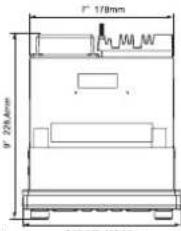
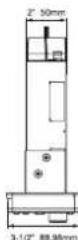
195.98mm Width × 86.98mm Height × 228.4mm
Depm
7-23/32 Width × 3-1/2 Height × 9 Depth
Weight of the Main Unit: 3.08 lb. (1.44 kg)
Dimensions of the Remote Control unit:
43mm Width × 11mm Height × 113mm Depth
1-2/3 Width x 2/5 Height x 4-2/5 Depth
Weight of the Remote Control Unit
1.16oz. (36g) (including battery)
Note:
• Specifications and design are subject to change without notice for further improvement.
9. INSTALLATION / WIRE CONNECTION GUIDE
CONTENTS
1) Before Starting 16
2) Package Contents....16
3) General Preautions 16
4) Cautions on Installation....16
5) Installing the Source Unit 16
6) Cautions on Wiring 17
7) Sample Systems 17
8) Wiring and Connections 18\~20
9) Connecting the accessories 18\~20
1) Before Starting
- This set is intended exclusively for use with a negative ground 12V power supply.
- Read these instructions carefully.
- Be sure to disconnect the battery "terminal" before starting. This is to prevent short circuits during installation. (Figure 1)
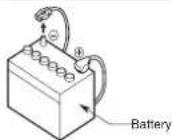
Figure 1
2) Package Contents
Source unit 1
Aux output cable....1
Aux input cable....SiriusXM / SWC cable 1
SindusXM SWO cable....1
Wired remote cable....1
Hole block seal (black) 1
Support strap....1
M4 Nut....1
M4 washer....2
Screws M4 x 30 mm....6
Power supply cable....1
Power supply cable .....
Owner's manual 1
Warranty card....1
3) General Precautions
-
Do not open the case. There are no user serviceable parts inside. If you drop anything into the unit during installation, consult your dealer or an authorized Clarion service center.
-
Use a soft, dry cloth to clean the case. Never use a rough cloth, thinner, benzine, or alcohol etc. For tough dirt, apply a damp soft cloth and wipe dirt off gently.
4) Cautions on Installation
-
Prepare all articles necessary for installing the source unit before starting.
-
Install the unit within 30° of the horizontal plane. (Figure 2)
-
If you have to do any work on the boat body, such as drilling holes, consult your boat dealer beforehand.
-
Use the enclosed screws for installation. Using other screws can cause damage.
(Figure 3)
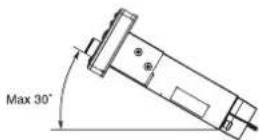
Figure 2
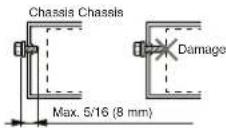
Figure 3
5) Installing the Source Unit
• Marine stereo mounting dimensions
Using the supply template to cut the hole and drill the holes. (Figure 4)
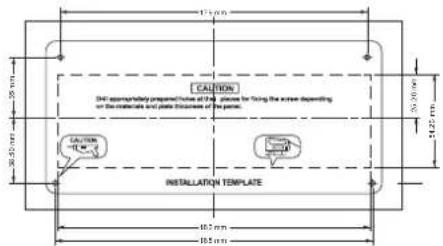
Figure 4
CAUTION
Drill appropriately prepared holes at the 4 places for fixing the screw depending on the materials and plate thickness of the panel.
- Insert the source unit into the cutout hole until to the end. (Figure 5)
- Using the supply screws (M4 × 30) to secure the source unit. (Figure 5)
- Using support strap to secure the source unit on the back side by supply M4 nut. (Figure 5)
Note:
Some boat models require special mounting kits for proper installation. Consult your Clarion dealer for details.
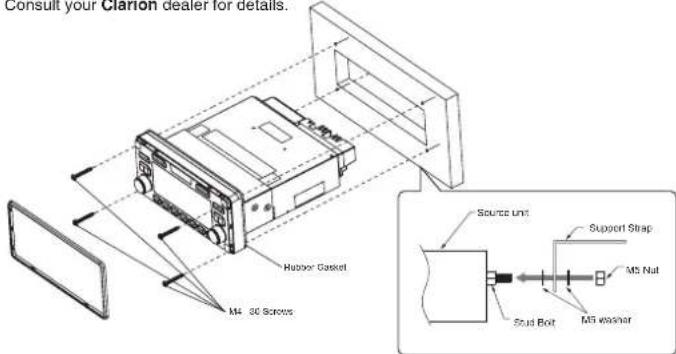
Figure 5
Note:
Confirm that the rubber gasket is fastened securely to the base panel.
6) Cautions on Wiring
- Be sure to turn the power off when wiring.
- Be particularly careful where you route the wires.
Keep them well away from the engine, exhaust pipe, etc. Heat may damage the wires. - If fuse is blown, check that the wiring is correct. If it is, replace the fuse with a new one with the same amperage rating as the original one.
- To replace the fuse, open the lock on the source unit side, remove the old fuse and insert the new one. (Figure 6)
* There are various types of fuse cases. Do not let the battery side terminal touch other metal parts.
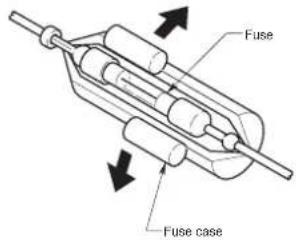
Figure 6
7) Sample Systems
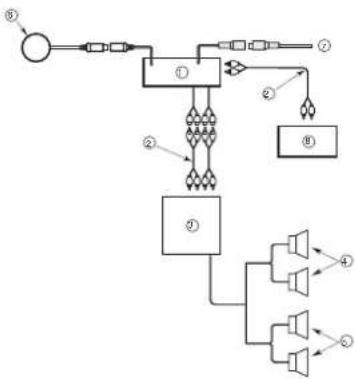
flowchart
graph TD
    A["⑧"] --> B["①"]
    B --> C["②"]
    C --> D["③"]
    D --> E["④"]
    E --> F["⑤"]
    F --> G["⑥"]
    style A fill:#f9f,stroke:#333
    style B fill:#ccf,stroke:#333
    style C fill:#cfc,stroke:#333
    style D fill:#fcc,stroke:#333
    style E fill:#cff,stroke:#333
    style F fill:#ffc,stroke:#333
    style G fill:#cfc,stroke:#333
| 1 Source unit |
| 2 RCA extension cable (solid separately) |
| 3 4-Channel power amplifier |
| 4 Front speakers |
| 5 Fear speakers |
| 6 Wire remote control unit |
| 7 SiriusXM-Connect Boat Tuner |
| 8 AUX |
8) Wiring and Connections
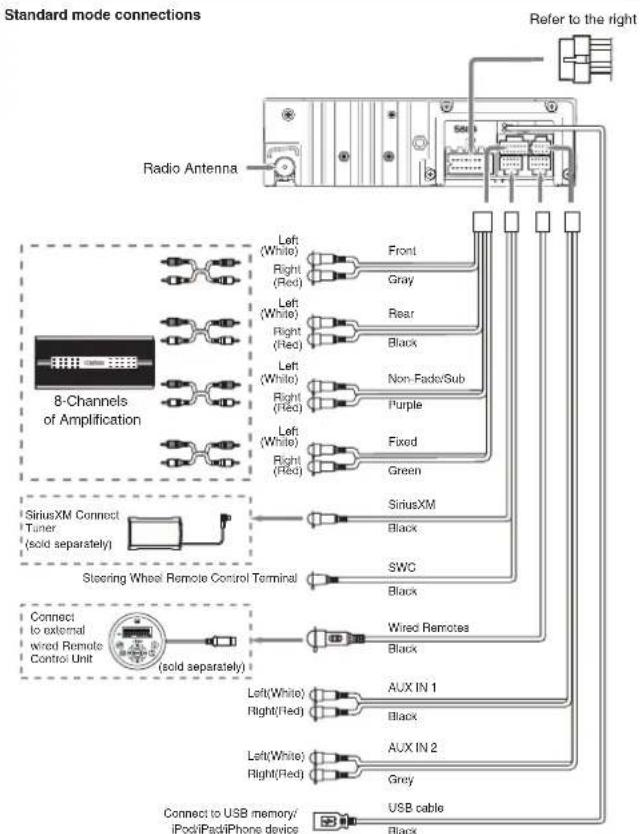
flowchart
graph TD
    A["Radio Antenna"] --> B["8-Channels of Amplification"]
    B --> C["SiriusXM Connect Tuner (sold separately)"]
    B --> D["Steering Wheel Remote Control Terminal (sold separately)"]
    C --> E["Left(White) Right(Red)"]
    C --> F["Left(White) Right(Hed)"]
    C --> G["Left(White) Right(Red)"]
    C --> H["Left(White) Right(Hed)"]
    C --> I["Left(White) Right(Red)"]
    C --> J["Left(White) Right(Hed)"]
    C --> K["Left(White) Right(Hed)"]
    C --> L["Left(White) Right(Hed)"]
    C --> M["Left(White) Right(Hed)"]
    C --> N["Left(White) Right(Hed)"]
    C --> O["Left(White) Right(Hed)"]
    C --> P["Left(White) Right(Hed)"]
    C --> Q["Left(White) Right(Hed)"]
    C --> R["Left(White) Right(Hed)"]
    C --> S["Left(White) Right(Hed)"]
    C --> T["Left(White) Right(Hed)"]
    C --> U["Left(White) Right(Hed)"]
    C --> V["Left(White) Right(Hed)"]
    C --> W["Left(White) Right(Hed)"]
    C --> X["Left(White) Right(Hed)"]
    C --> Y["Left(White) Right(Hed)"]
    C --> Z["Left(White) Right(Hed)"]
    C --> AA["Left(White) Right(Hed)"]
    C --> AB["Left(White) Right(Hed)"]
    C --> AC["Left(White) Right(Hed)"]
    C --> AD["Left(White) Right(Hed)"]
    C --> AE["Left(White) Right(Hed)"]
    C --> AF["Left(White) Right(Hed)"]
    C --> AG["Left(White) Right(Hed)"]
    C --> AH["Left(White) Right(Hed)"]
    C --> AI["Left(White) Right(Hed)"]
    C --> AJ["Left(White) Right(Hed)"]
    C --> AK["Left(White) Right(Hed)"]
    C --> AL["Left(White) Right(Hed)"]
    C --> AM["Left(White) Right(Hed)"]
    C --> AN["Left(White) Right(Hed)"]
    C --> AO["Left(White) Right(Hed)"]
    C --> AP["Left(White) Right(Hed)"]
    C --> AQ["Left(White) Right(Hed)"]
    C --> AR["Left(White) Right(Hed)"]
    C --> AS["Left(White) Right(Hed)"]
    C --> AT["Left(White) Right(Hed)"]
    C --> AU["Left(White) Right(Hed)"]
    C --> AV["Left(White) Right(Hed)"]
    C --> AW["Left(White) Right(Hed)"]
    C --> AX["Left(White) Right(Hed)"]
    C --> AY["Left(White) Right(Hed)"]
    C --> AZ["Left(White) Right(Hed)"]
    C --> BA["Left(White) Right(Hed)"]
    C --> BB["Left(White) Right(Hed)"]
    C --> BC["Left(White) Right(Hed)"]
    C --> BD["Left(White) Right(Hed)"]
    C --> BE["Left(White) Right(Hed)"]
    C --> BF["Left(White) Right(Hed)"]
    C --> BG["Left(White) Right(Hed)"]
    C --> BH["Left(White) Right(Hed)"]
    C --> BI["Left(White) Right(Hed)"]
    C --> BJ["Left(White) Right(Hed)"]
    C --> BK["Left(White) Right(Hed)"]
    C --> BL["Left(White) Right(Hed)"]
    C --> BM["Left(White) Right(Hed)"]
    C --> BN["Left(White) Right(Hed)"]
    C --> BO["Left(White) Right(Hed)"]
    C --> BP["Left(White) Right(Hed)"]
    C --> BQ["Left(White) Right(Hed)"]
    C --> BR["Left(White) Right(Hed)"]
    C --> BS["Left(White) Right(Hed)"]
    C --> BT["Left(White) Right(Hed)"]
    C --> BU["Left(White) Right(Hed)"]
    C --> BV["Left(White) Right(Hed)"]
    C --> BW["Left(White) Right(Hed)"]
    C --> BX["Left(White) Right(Hed)"]
    C --> BY["Left(White) Right(Hed)"]
    C --> BZ["Left(White) Right(Hed)"]
    C --> CA["Left(White) Right(Hed)"]
    C --> CB["Left(White) Right(Hed)"]
    C --> CC["Left(White) Right(Hed)"]
    C --> CD["Left(White) Right(Hed)"]
    C --> CE["Left(White) Right(Hed)"]
    C --> CF["Left(White) Right(Hed)"]
    C --> CG["Left(White) Right(Hed)"]
    C --> CH["Left(White) Right(Hed)"]
    C --> CI["Left(White) Right(Hed)"]
    C --> CJ["Left(White) Right(Hed)"]
    C --> CK["Left(White) Right(Hed)"]
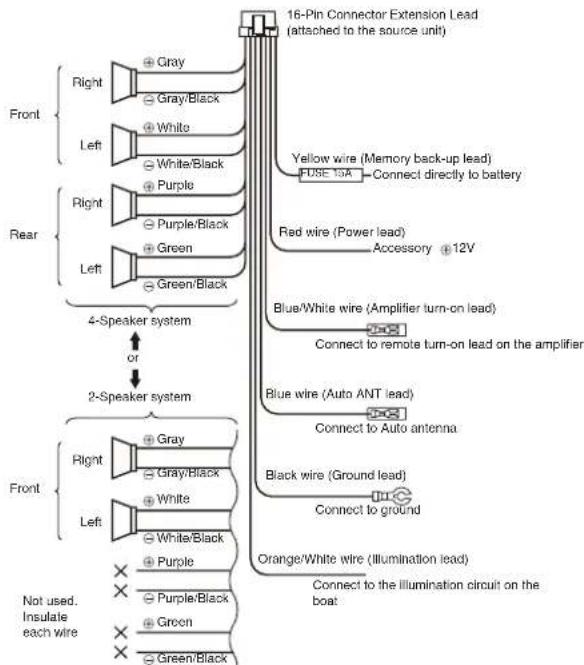
flowchart
graph TD
    A["16-Pin Connector Extension Lead (attached to the source unit)"] --> B["Yellow wire (Memory back-up lead)"]
    A --> C["Red wire (Power lead)"]
    A --> D["Blue/White wire (Amplifier turn-on lead)"]
    A --> E["Blue wire (Auto ANT lead)"]
    A --> F["Black wire (Ground lead)"]
    A --> G["Orange/White wire (Illumination lead)"]
    H["Front"] --> I["Right"]
    H --> J["Left"]
    H --> K["Right"]
    H --> L["Left"]
    H --> M["Right"]
    H --> N["Left"]
    O["Rear"] --> P["Right"]
    O --> Q["Left"]
    O --> R["Right"]
    O --> S["Left"]
    T["4-Speaker system"] --> U["or"]
    V["2-Speaker system"] --> W["Right"]
    V --> X["Left"]
    Y["Not used. Insulate each wire"] --> Z["Gray/Black"]
    Y --> AA["White/Black"]
    Y --> AB["Purple"]
    Y --> AC["Purple/Black"]
    Y --> AD["Green"]
    Y --> AE["Green/Black"]
    AF["Connect directly to battery"] --> AG["FUSE ISA"]
    AH["Accessory 12V"] --> AI["Connect to remote turn-on lead on the amplifier"]
    AJ["Connect to Auto antenna"] --> AK["Connect to ground"]
    AL["Connect to the illumination circuit on the boat"] --> AM["Connect to the illumination circuit on the boat"]
9) Connecting to External Amplifiers
• Connecting to External Amplifiers
External amplifiers can be connected to the 4 channel RCA output connections. Ensure that the connectors are not grounded or shorted to prevent damage to the unit.
- If M608 is connected as a MULTI-ZONE system with Zone 3 and Zone 4 RCAs connected to amplifiers, do not switch M608 to STANDARD mode. Doing so will cause the Zone 3 amplifier to reproduce only low frequencies and the Zone 4 amplifier to reproduce full range frequencies at maximum volume. This may result in potential speaker and/or hearing damage.
- If M608 is connected as a TOWER configuration with Fixed/Zone4 RCAs connected to an amplifier, do not switch M608 to STANDARD mode. Doing so will cause Fixed/Zone4 amplifier to reproduce a full range of frequencies at maximum volume. This may result in potential speaker and/or hearing damage.
8) Wiring and Connections
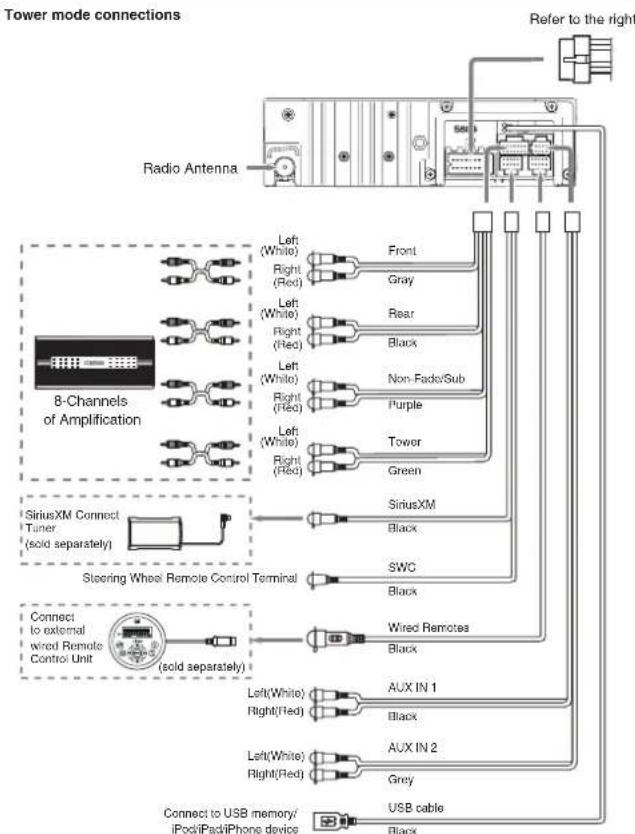
flowchart
graph TD
    A["Radio Antenna"] --> B["8-Channels of Amplification"]
    B --> C["SiriusXM Connect Tuner (solid separately)"]
    B --> D["Steering Wheel Remote Control Terminal (solid separately)"]
    C --> E["Left(White)"]
    C --> F["Right(Red)"]
    D --> G["Left(White)"]
    D --> H["Right(Red)"]
    D --> I["Left(White)"]
    D --> J["Right(Red)"]
    D --> K["Tower"]
    D --> L["Green"]
    D --> M["SiriusXM Black"]
    D --> N["SWC Black"]
    D --> O["Wired Remotes Black"]
    D --> P["Left(White)"]
    D --> Q["Right(Red)"]
    D --> R["AUX IN 1 Black"]
    D --> S["AUX IN 2 Grey"]
    D --> T["USB cable Black"]
    U["Refer to the right"] --> V["Output"]
    style A fill:#f9f,stroke:#333
    style B fill:#ccf,stroke:#333
    style C fill:#cfc,stroke:#333
    style D fill:#fcc,stroke:#333
    style E fill:#ffc,stroke:#333
    style F fill:#ffc,stroke:#333
    style G fill:#ffc,stroke:#333
    style H fill:#ffc,stroke:#333
    style I fill:#ffc,stroke:#333
    style J fill:#ffc,stroke:#333
    style K fill:#ffc,stroke:#333
    style L fill:#ffc,stroke:#333
    style M fill:#ffc,stroke:#333
    style N fill:#ffc,stroke:#333
    style O fill:#ffc,stroke:#333
    style P fill:#ffc,stroke:#333
    style Q fill:#ffc,stroke:#333
    style R fill:#ffc,stroke:#333
    style S fill:#ffc,stroke:#333
    style T fill:#ffc,stroke:#333
    style U fill:#fff,stroke:#000
    style V fill:#fff,stroke:#000
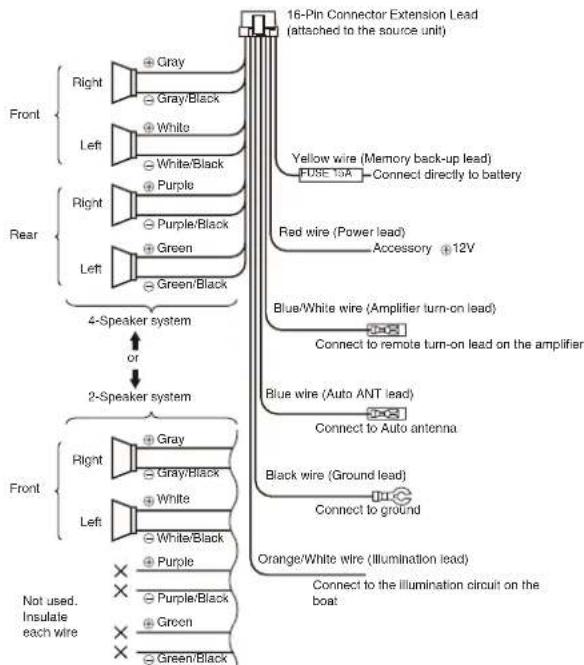
flowchart
graph TD
    A["16-Pin Connector Extension Lead (attached to the source unit)"] --> B["Yellow wire (Memory back-up lead)"]
    A --> C["Red wire (Power lead)"]
    A --> D["Accessory 12V"]
    A --> E["Blue/White wire (Amplifier turn-on lead)"]
    A --> F["Blue wire (Auto ANT lead)"]
    A --> G["Black wire (Ground lead)"]
    A --> H["Connect to ground"]
    A --> I["Orange/White wire (Illumination lead)"]
    A --> J["Connect to the illumination circuit on the boat"]

    K["Front"] --> L["Right"]
    K --> M["Left"]
    K --> N["Right"]
    K --> O["Left"]
    K --> P["Right"]
    K --> Q["Left"]

    R["Rear"] --> S["Right"]
    R --> T["Left"]
    R --> U["Right"]
    R --> V["Left"]

    W["4-Speaker system"] --> X["or"]
    Y["2-Speaker system"] --> Z["Front"]
    AA["Not used. Insulate each wire"] --> AB["Right"]
    AA --> AC["Left"]

    AD["Gray/Black"] --> AE["Gray/Black"]
    AF["White"] --> AG["White/Black"]

    AH["Purple"] --> AI["Purple/Black"]
    AJ["Green"] --> AK["Green/Black"]

    AL["Red wire"] --> AM["Power lead"]
    AN["Accessory"] --> AO["12V"]

    AP["Blue/White wire"] --> AQ["Amplifier turn-on lead"]
    AR["Connect to remote turn-on lead on the amplifier"] --> AS["Auto ANT lead"]
    AT["Connect to Auto antenna"] --> AU["Ground lead"]
    AV["Connect to ground"] --> AW["Illumination lead"]
9) Connecting to External Amplifiers
• Connecting to External Amplifiers
External amplifiers can be connected to the 4 channel RCA output connections.
Ensure that the connectors are not grounded or shorted to prevent damage to the unit.
- If M608 is connected as a TOWER configuration with Fixed/Zone4 RCAs connected to an amplifier, do not switch M608 to STANDARD mode. Doing so will cause Fixed/Zone4 amplifier to reproduce a full range of frequencies at maximum volume. This may result in potential speaker and/or hearing damage.
- If M608 is connected as a TOWER configuration with Fixed/Zone4 RCAs connected to an amplifier, do not switch M608 to STANDARD mode. Doing so will cause Fixed/Zone4 amplifier to reproduce a full range of frequencies at maximum volume. This may result in potential speaker and/or hearing damage.
M608
8) Wiring and Connections
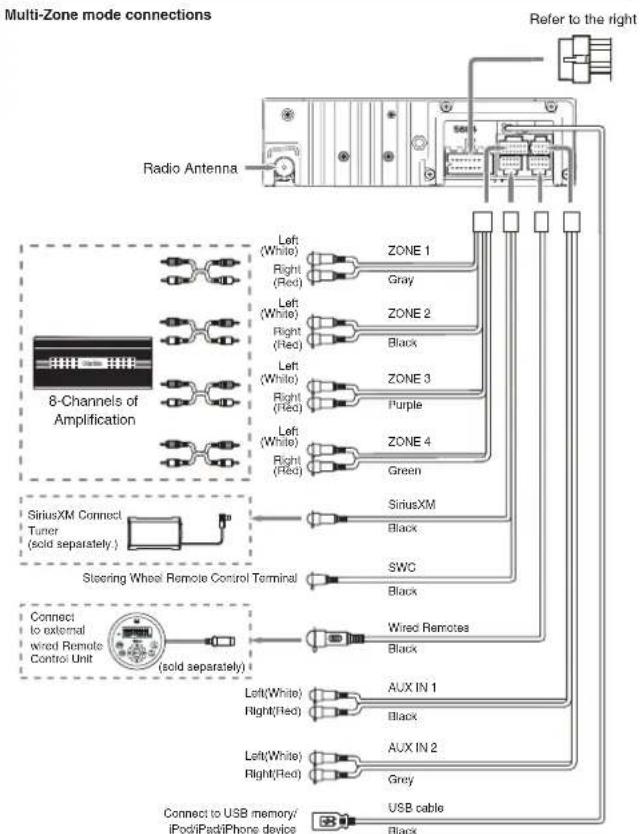
flowchart
graph TD
    A["Radio Antenna"] --> B["8-Channels of Amplification"]
    B --> C["Left (White)"]
    B --> D["Right (Red)"]
    B --> E["Left (White)"]
    B --> F["Right (Red)"]
    B --> G["Left (White)"]
    B --> H["Right (Red)"]
    B --> I["Left (White)"]
    B --> J["Right (Red)"]
    B --> K["Left (White)"]
    B --> L["Right (Red)"]
    B --> M["Left (White)"]
    B --> N["Right (Red)"]
    B --> O["Left (White)"]
    B --> P["Right (Red)"]
    B --> Q["Left (White)"]
    B --> R["Right (Red)"]
    B --> S["Left (White)"]
    B --> T["Right (Red)"]
    B --> U["Left (White)"]
    B --> V["Right (Red)"]
    B --> W["Left (White)"]
    B --> X["Right (Red)"]
    B --> Y["Left (White)"]
    B --> Z["Right (Red)"]
    B --> AA["Left (White)"]
    B --> AB["Right (Red)"]
    B --> AC["Left (White)"]
    B --> AD["Right (Red)"]
    B --> AE["Left (White)"]
    B --> AF["Right (Red)"]
    B --> AG["Left (White)"]
    B --> AH["Right (Red)"]
    B --> AI["Left (White)"]
    B --> AJ["Right (Red)"]
    B --> AK["Left (White)"]
    B --> AL["Right (Red)"]
    B --> AM["Left (White)"]
    B --> AN["Right (Red)"]
    B --> AO["Left (White)"]
    B --> AP["Right (Red)"]
    B --> AQ["Left (White)"]
    B --> AR["Right (Red)"]
    B --> AS["Left (White)"]
    B --> AT["Right (Red)"]
    B --> AU["Left (White)"]
    B --> AV["Right (Red)"]
    B --> AW["Left (White)"]
    B --> AX["Right (Red)"]
    B --> AY["Left (White)"]
    B --> AZ["Right (Red)"]
    B --> BA["Left (White)"]
    B --> BB["Right (Red)"]
    B --> BC["Left (White)"]
    B --> BD["Right (Red)"]
    B --> BE["Left (White)"]
    B --> BF["Right (Red)"]
    B --> BG["Left (White)"]
    B --> BH["Right (Red)"]
    B --> BI["Left (White)"]
    B --> BJ["Right (Red)"]
    B --> BK["Left (White)"]
    B --> BL["Right (Red)"]
    B --> BM["Left (White)"]
    B --> BN["Right (Red)"]
    B --> BO["Left (White)"]
    B --> BP["Right (Red)"]
    B --> BQ["Left (White)"]
    B --> BR["Right (Red)"]
    B --> BS["Left (White)"]
    B --> BT["Right (Red)"]
    B --> BU["Left (White)"]
    B --> BV["Right (Red)"]
    B --> BW["Left (White)"]
    B --> BX["Right (Red)"]
    B --> BY["Left (White)"]
    B --> BZ["Right (Red)"]
    B --> CA["Left (White)"]
    B --> CB["Right (Red)"]
    B --> CC["Left (White)"]
    B --> CD["Right (Red)"]
    B --> CE["Left (White)"]
    B --> CF["Right (Red)"]
    B --> CG["Left (White)"]
    B --> CH["Right (Red)"]
    B --> CI["Left (White)"]
    B --> CJ["Right (Red)"]
    B --> CK["Left (White)"]
    B --> CL["Right (Red)"]
    B --> CM["Left (White)"]
    B --> CN["Right (Red)"]
    B --> CO["Left (White)"]
    B --> CP["Right (Red)"]
    B --> CQ["Left (White)"]
    B --> CR["Right (Red)"]
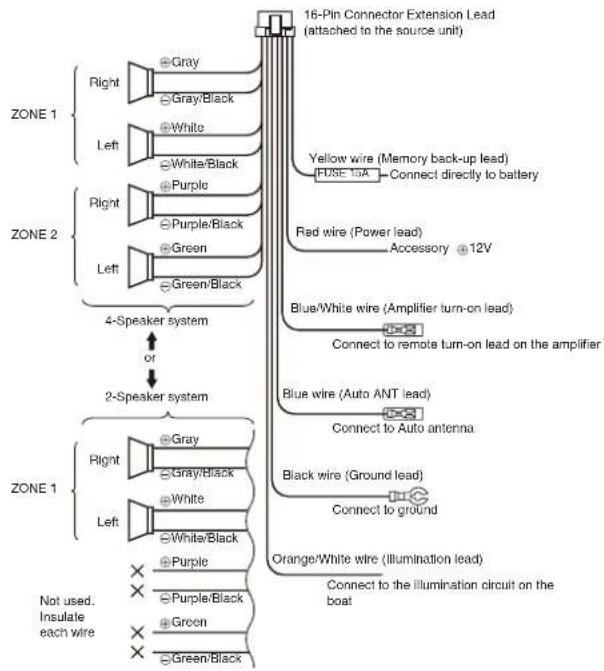
flowchart
graph TD
    A["16-Pin Connector Extension Lead (attached to the source unit)"] --> B["Yellow wire (Memory back-up lead)"]
    A --> C["Red wire (Power lead)"]
    A --> D["Blue/White wire (Amplifier turn-on lead)"]
    A --> E["Blue wire (Auto ANT lead)"]
    A --> F["Black wire (Ground lead)"]
    A --> G["Orange/White wire (Illumination lead)"]
    A --> H["Connect to the illumination circuit on the boat"]
    I["ZONE 1"] --> J["Right"]
    I --> K["Left"]
    I --> L["Right"]
    I --> M["Left"]
    I --> N["Right"]
    I --> O["Left"]
    I --> P["Right"]
    I --> Q["Left"]
    I --> R["Right"]
    I --> S["Left"]
    T["4-Speaker system"] --> U["or"]
    V["2-Speaker system"] --> W["or"]
    X["Not used. Insulate each wire"] --> Y["Gray/Black"]
    X --> Z["White/Black"]
    X --> AA["Purple/Black"]
    X --> AB["Green/Black"]
    X --> AC["Orange/White wire (Illumination lead)"]
    X --> AD["Connect to the illumination circuit on the boat"]
9) Connecting to External Amplifiers
- Connecting to External Amplifiers
External amplifiers can be connected to the 4 channel RCA output connections. Ensure that the connectors are not grounded or shorted to prevent damage to the unit.
- If M608 is connected as a MULTI-ZONE system with Zone 3 and Zone 4 RCAs connected to amplifiers, do not switch M608 to STANDARD mode. Doing so will cause the Zone 3 amplifier to reproduce only low frequencies and the Zone 4 amplifier to reproduce full range frequencies at maximum volume.
This may result in potential speaker and/or hearing damage.
- If M608 is connected as a TOWER configuration with Fixed/Zone4 RCAs connected to an amplifier, do not switch M608 to STANDARD mode. Doing so will cause Fixed/Zone4 amplifier to reproduct a full range of frequencies at maximum volume. This may result in potential speaker and/or hearing damage.
Notes:
INFORMATIONS DE L'ENREGISTREMENT DE PRODUITS CLARION
iPod touch (6th generation)
iPod touch (5th generation)
RENSEIGNEMENTS À L'INTENTION DES
UTILISATEURS
Bouton [SCAN] (Balayage)
•ModeRÁDIO – Bouton balayage /
• DISP off (Affichage desactive) (pression
long
Boutons [◀◀/▶]
• Mode RADIO – Syntonisation manuelle /
Bouton [MUTE] (Sourdine)
• Couper le volume
Boutons [1 à 5]
• [3] Bouton : Lecture/Pause / Station
Bouton [MUTE] (Sourdine)
- Coupe le volume
![[SRC/1] (RECHERCHEI) [100, 100] [100, 100] [MUTE] [SCN/ PS/AS] [RAM/TOP] [BAND/TOP] (Bandopremière plage) [4, 7] [=] [=] [ISR] [DISP] [ROM] [RPT] [ROM] [IRPT] clarion](/content/2026/03/485420/images/210b247dd479c4e30221015e7fc021105f345c7dcaf45599733e51c61803f9bc.jpg)
natural_image
Line drawing of a device with an attached cable and connector (no text or symbols)natural_image
Diagram of an electronic device connected to a power supply unit (no text or symbols visible)Asia of Australia : 531 kHz - 1629 kHz
Specification: USB 1.1
Alimentation USB: 5 V c.c., 2.1 amp
Format audio liable
MPS (.mp3) : MPEG 1/2/Audio Couche-3
WMA (wma): Ver 7/8/9.1/9.2
Bluetooth
Spécification: Bluetooth Ver. 2.1+EDR
Profil
AVRCP (AV Remote Control Profile)
Figure 4
ATTENTION
iPod touch (6th generation)
iPod touch (5th generation)
natural_image
Line drawing of an electronic device with a cable and connector (no text or symbols)natural_image
Illustration of an electronic device connected to a power supply unit (no text or symbols visible)Figura 4
Orificios (6)
PRECAUCIÓN
clarion® Declaration of Conformity
Déclaration de conformité / Declaración de conformidad / Konformitätserklärung / Dichiarazione di conformità

English:
Hereby, Clarion Corporation of America declares that this model M60B is in compliance with the essential requirements and other relevant provisions of Directive 2014/53/EU.
The full text of the EU declaration of conformity is available at the following internet address: http://www.clarion.com/xe/en/product-compliance/clarion/re-doc/17DC-CE02/index.html
Français:
Copyright © 2018 Clarion Co., Ltd.
Printed in China / Imprimé en Chine / Impreso en China

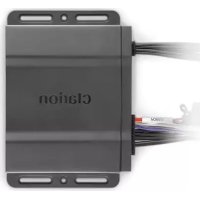
- Contents
- FEATURES
- PRECAUTIONS
- WARNING
- 3.FCCSTATEMENT
- NOTE:
- FCC Radiation Exposure Statement
- INFORMATION FOR USERS:
- Front Panel / General
- Information
- Cleaning the Body
- USB Port
- CONTROLS
- Operational Panel
- Names of Buttons
- Remote Control (RCX001: Sold separately)
- [ SRC / ☑ Button
- [◀/▶Buttons
- [SCN/PS/AS] Button
- [BAND/TOP] Button
- [▲/▼] Buttons
- [▶] Button
- [ISR] Button
- [MENU] Button
- [RDM] Button
- [RPT] Button
- [MUTE] Button
- Notes for use of Optional RCX001 Remote Control
- Inserting the Battery
- Optional Wired Remote Control Unit Operations
- CAUTION
- [@/SOURCE] Button
- Note.
- [ENTER] Button
- [ ] / [ ] Buttons
- [◀]/[▶ Buttons
- [ ]/ [ ]Buttons
- [MENU/BAND] Button
- [ ] Button
- IR-Receiver
- Zone Control
- Zone Link (Multi-Zone/Tower Mode)
- OPERATIONS
- Basic Operations
- Power On / Off
- Mute
- Volume Adjustment
- Changing Sources
- Changing the Display
- System Setup
- Changing Adjustment Settings
- CLOCK
- AUDIO MODE
- DX/LO (RADIO mode)
- AUX SENS (AUX mode)
- PARENTAL (SiriusXM mode)
- LOCK CH (SiriusXM mode)
- UNLOCK ALL CH (SiriusXM mode)
- SELECT
- DELETE
- DISCON (BT mode)
- AUTO CON: ON/OFF
- PIN CODE
- SCROLL: ON/OFF
- PANDORA: ON/OFF
- DIMMER: ON/OFF
- BEEP: ON/OFF
- 12/24H
- REGION
- FACTORY RESET
- Audio Setup
- STANDARD
- MULTI ZONE
- TOWER
- SUBWOOFER
- Tuner Operations
- Selecting Tuner Mode
- Selecting a Radio Band
- Manual Tuning
- Auto Tuning
- Preset Scan
- Auto Store
- Notes:
- Manual Store
- Recalling a Stored Station
- Local Seeking
- SiriusXM Satellite Radio Operations
- Displaying the Radio ID
- Activating your SiriusXM Subscription
- Storing Channel Presets
- Tuning Channels using Presets
- Category Browsing
- Category Scan
- Instant Replay
- Parental Lock / Unlock
- USB Operations
- This Unit Supports MP3/WMA File Playback
- To disable DRM
- (Digital Rights Management)
- Precautions when creating MP3/WMA file
- Usable sampling rates and bit rates
- File extensions
- USB Operations USB Operations
- Logical format (File system)
- Number of files or folders
- Pausing Playback
- Selecting a Track
- Track-up
- Track-down
- Fast-forward/Fast-reverse
- Fast-forward
- Fast-reverse
- Folder Select
- Search Function
- Top Function
- Other Playback Functions
- Scan play
- Repeat play
- iPod, iPhone & iPad Operations
- Device Connection
- MENU
- Play/Pause
- Random play
- iPod Menu Alphabetical Search
- Listening to Pandora®
- Selecting a station from list
- Thumbs up/down
- BOOKMARK track
- BOOKMARK artist
- Skip
- Bluetooth Operations
- BT Pairing
- Bluetooth Audio Streaming Operations
- What is Bluetooth audio streaming (A2DP)?
- Play/Pause a Track
- ID3 Display
- AUX Operations
- AUX Input Sensitivity Setting
- MTP OperationsBluetooth Operations
- TROUBLE SHOOTING
- ERROR DISPLAYS
- SPECIFICATIONS
- FM Tuner
- AM Tuner
- WB Tuner
- MP3/WMA mode
- USB
- Bluetooth
- Audio Amplifier
- Input
- General
- INSTALLATION / WIRE CONNECTION GUIDE
- 1) Before Starting
- 2) Package Contents
- 3) General Precautions
- 4) Cautions on Installation
- 5) Installing the Source Unit
- 6) Cautions on Wiring
- 7) Sample Systems
- 9) Connecting to External Amplifiers
- • Connecting to External Amplifiers
- - Connecting to External Amplifiers
- INFORMATIONS DE L'ENREGISTREMENT DE PRODUITS CLARION
- RENSEIGNEMENTS À L'INTENTION DES
- UTILISATEURS
- Bouton [MUTE] (Sourdine)
- ATTENTION
- PRECAUCIÓN
- clarion® Declaration of Conformity
- English:
- Français:
Brand : CLARION
Model : M508
Category : Radio