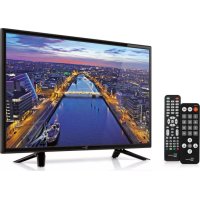
28000160 - Television TELE System - Free user manual and instructions
Find the device manual for free 28000160 TELE System in PDF.



| Product type | LED TV |
| Brand | TELE System |
| Model | 28000160 (TS24LS09) |
| Screen size | 24 inches (approx. 61 cm) |
| Resolution | HD (1366 x 768 pixels) estimated |
| TV reception | DVB-T2 (terrestrial), DVB-S2 (satellite), DVB-C (cable) |
| HEVC decoder | Yes (H.265) |
| Connectivity | 1 x HDMI, 1 x USB, 1 x VGA (PC), 1 x RF antenna input, 1 x coaxial audio output, 1 x headphone jack (3.5 mm), AV input (RCA via adapter) |
| Multimedia functions | USB player (video, audio, photo), timeshift |
| Electronic Program Guide (EPG) | Yes (7 days) |
| Teletext | Yes |
| Parental control | Yes (channel lock, password) |
| Operating temperature | 5 to 35 °C |
| Operating humidity | 30 to 80% RH |
| Power supply | 220 V AC, 50 Hz |
| Power consumption | Approx. 30 W (estimated for 24 inches) |
| Weight | Approx. 3.5 kg (estimated) |
| Dimensions (W x H x D) | Approx. 55 x 34 x 15 cm (without stand, estimated) |
| Maintenance and cleaning | Unplug before cleaning; use a soft, damp cloth; do not use solvents (acetone, alcohol, benzene) |
| Safety | Do not expose to water or heat; do not insert metal objects; ensure ventilation; do not open the casing |
| Spare parts and repairability | Contact a qualified technician; repair by authorized personnel |
| General information | Manual available in several languages; support via email |
Frequently Asked Questions - 28000160 TELE System
User questions about 28000160 TELE System
0 question about this device. Answer the ones you know or ask your own.
Ask a new question about this device
Download the instructions for your Television in PDF format for free! Find your manual 28000160 - TELE System and take your electronic device back in hand. On this page are published all the documents necessary for the use of your device. 28000160 by TELE System.
USER MANUAL 28000160 TELE System
in thanking you for purchasing our product, please read the following instructions before attempting to operate the unit. This is the only way to achieve the best results over time while maintaining the original reliability. We also suggest that you keep this manual for any future reference. We also suggest that you keep the original packaging of the TV and, in the event of any problem, remember to take note of the serial number of the TV which is shown on the back of the device.
The TELE System staff
ATTENTION!
The reception and therefore the viewing of channels in digital terrestrial and/or satellite depends on the level and quality of the available antenna signal. The signal varies depending on the area of residence, the correct orientation/functioning of the antenna system, and the quality of the signal transmitted by digital terrestrial repeaters and/or satellites.
TELE System Digital Srl announces that due to software and/or hardware changes that aim to improve the product, you may find inconsistencies between the contents of this manual and the product in your possession.
Index
1 Safety 3
2 Description of the TV 5
2.1 Front 5
2.2 Keyboard 5
2.3 Rear panel connections.. 5
3 Connections 6
3.1 Antenna connections/cable TV channel 6
3.2 Connection to an external device 6
4 Remote Control 7
4.1 Standard remote control 7
4.2 Simplified remote control 8
4.3 Inserting batteries 9
PC Mode 9
5.1 Menu for PC mode 9
6 Basic Function. 10
6.1 Power/Standby 10
6.2 Program selection 10
6.3 Volume regulation 10
6.4 Mute (temporary) 10
6.5 Program recall 10
6.6 Source selection 10
6.7 Main Menu description 11
7 First installation 11
7.1 Automatic channel search. 11
DVB Mode 12
8.1 Manual search 12
8.2 Electronic TV guide (EPG) 12
8.3 Organization of channel list. 12
8.4 Favorites list 13
9 Satellite mode 13
9.1 Simple installation 14
9.1.1 Antenna and satellite configuration 14
9.1.2 Channel search for satellite 14
9.2 SCR/Unicable System 14
9.3 System DiSEqC 1.0/1.1 15
9.3.1 Antenna e satellite configuration 15
9.3.2 Channel search for satellite 16
9.4 Motorized System 16
9.4.1 DiSEqC 1.2 16
9.4.2 DiSEqC 1.3 17
9.5 Automatic scanning 17
10 Security - System Block 17
11 Image Menu 18
12 Audio Menu 18
13 Time settings 19
14 Settings Menu 19
15 USB Media player 20
16 Troubleshooting 20
1 Safety
ATTENTION: TO REDUCE RISK OF ELECTRIC SHOCK, DO NOT REMOVE THE BACK COVER AND DO NOT USE METAL TOOLS.
Before connecting the power cord to the DC adapter outlet, make sure that the voltage corresponds to the one used in your area.
Make sure your TV is switched off before inserting the mains plug into the wall socket.
Be careful to ensure that the electrical cable and other connecting cables are firmly connected and secure.
Voltage overload and power extension cables can be dangerous, just as frayed wires or broken sockets/plugs; These conditions may cause electric shock or fire. Contact a trusted technician to replace the damaged parts.
Do not insert metal objects into the TV; there is a danger of electric shock. To avoid electric shocks, do not touch the internal parts of the LED TV; only qualified personnel can open the television.
The TV is equipped with slots for air circulation. To prevent overheating, these openings must not be covered or obstructed. If you place the TV in confined spaces (within libraries or other furniture), make sure that there is adequate ventilation.
Do not use the television with extreme temperatures, humidity, or in dusty environments.
The recommended use temperature: 5 - 35°C
Relative humidity: 30 - 80RH
Do not expose your TV to rain or splashing water; do not install it near kitchens, swimming pools etc ... If liquid accidentally gets inside the TV, unplug the power cord immediately and contact a technician.
You can clean the LED/LCD screen if necessary with a damp soft cloth, remember to unplug the TV before cleaning.
Do not use solvents such as benzene to clean the device, because you will damage the screen surface.
Place the TV on a firm surface and handle with care.
The screen is formed by a thin glass and protected by a plastic foil, liquid abrasives or streaks will permanently ruin the LED/LCD panel.
Do not clean the screen with substances such as acetone, ethyl alcohol, toluene, ethyl acid, methyl or hydrogen; these substances ruin the LED/LCD panel.
Position the TV so that it is easier to access the power outlet.
Do not put heat or flame such as candles near/on the TV.
No object filled with liquids such as vases or bottles should be placed on or near the TV.
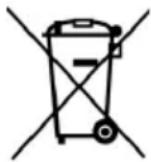
The checked bin symbol indicates that you should not dispose of this product in the environment or throw it in the mixed municipal waste. Whoever does not respect this rule is punishable according to current legislation.

A proper disposal of the appliance enables you to avoid potential damage to the environment and human health as well as to facilitate recycling of components and materials contained in it and save energy and resources.
The manufacturer provides a system for recovery of electric and electronic appliances (RAEE or REEE) such as this product which is collected separately and subject to treatment systems with equipment in accordance with current provisions.
Take the unusable product (and any accessories, including the battery) to a recycling center authorized to handle electrical and electronic equipment waste, as it cannot be combined with other waste. You can always return the used or dead device to the same distributor who sold it to you while buying a new equivalent product or free of charge if the equipment is for home use and is smaller than 25cm.
2 Description of the TV
2.1 Front
LED: Status Indicator, Red = Standby, Green = Power
IR sensor: remote control receiving sensor
Warning! The position of the LED and IR sensor may not correspond exactly to the one shown in the picture.
2.2 Keyboard
The TV keyboard controls is on the right side of TV itself. The available keys are (from left to right):
Vol+: increase volume
Vol:- decreases the volume
CH+: change to the next channel
CH-: change to the previous channel
Menu: access the main menu
Source: select source
Power: Standby mode (OFF/ON)
2.3 Rear panel connections
On the back side of the TV, there are connections and A/V inputs.
Common Interface slot (compatible with Cl + module)
- USB port (Media Player Function)
HDMI
Coaxial digital audio output (COAXIAL)
- SATELLITE RF Antenna Input (Type F)
- TERRESTRIAL Antenna RF input (IEC)
PC Audio input (PC Audio IN)
RCA Video + Audio input (AV, adapter required)
VGA port (PC)
- Headphone output (3.5 mm jack)
220V AC power supply
3 Connections
3.1 Antenna connections/cable TV channel
To view the television channels, you can connect the TV to one of the following devices:
A terrestrial antenna and/or a satellite antenna system.
In either case, connect the antenna cable (75 Ω) to the coaxial jacks located in the rear of the TV.
3.2 Connection to an external device
Via RCA: make sure that both the TV and the device are turned off. Press the Source button on the remote control and select AV as the source.
Via HDMI: make sure that both the TV and the device are turned off. Connect the cable from the source to the TV. Turn on the two devices. Press the Source button on the remote control and select HDMI.
4 Remote Control
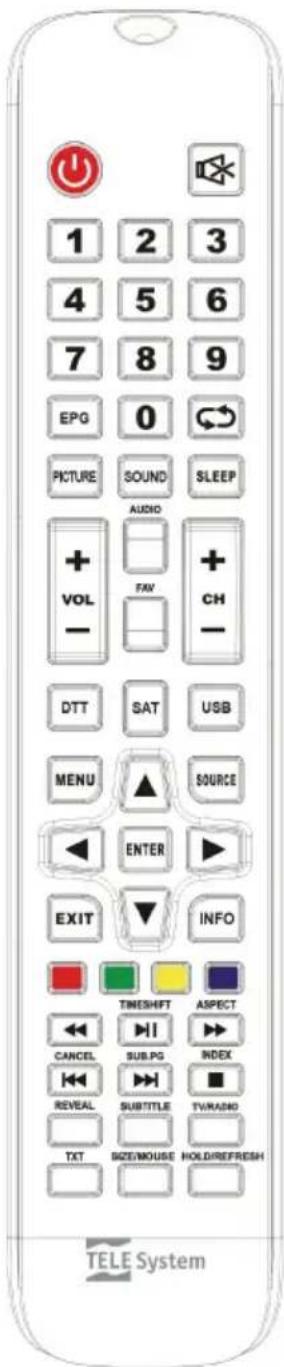
4.1 Standard remote control
POWER: On / Off Stand-by
Mute: temporary interruption of audio.
Numeric keys: direct channel selection.
EPG: electronic program guide (EPG)
BACK: back to the last selected program.
Picture: change the video mode.
Sound: change the audio mode
Sleep: sets the sleep timer.
V-/+: Decrease / increase volume.
AUDIO: audio choice.
FAV: Displays the favorite channel list.
CH-/+: change previous / next channel.
DTT: switches to DVBT mode
SAT: switches to DVBT mode
USB: switches to USB (Media) mode
MENU: display the main MENU.
Source: source selection
ARROW KEYS: are used to browse through the menu / regulate volume / change sequential channels
OK: Confirm or select a sub-menu/Access the channel list
EXIT: exit the menu.
INFO: displays information of current channel.
RED FASTEXT KEY
GREEN FASTEXT KEY
YELLOW FASTEXT KEY
BLUE FASTEXT KEY
RWD: rewind
PLAY/PAUSE: starts / pauses playback / Timeshift
FFW/ Aspect: fast forward / choice of image format.
BACKSKIP / Cancel: back forward one track
SKIP/ SUB.PG: forward one track /subpage teletext
STOP/ INDEX: stop playback/recording / Index in Televideomode.
REVEAL: Teletext function
TV/RADIO: change type TV service /Radio service
SUBTITLE: enable subtitle (if available)
TXT: access Teletext.
SIZE: Teletext function
HOLD: Teletext function
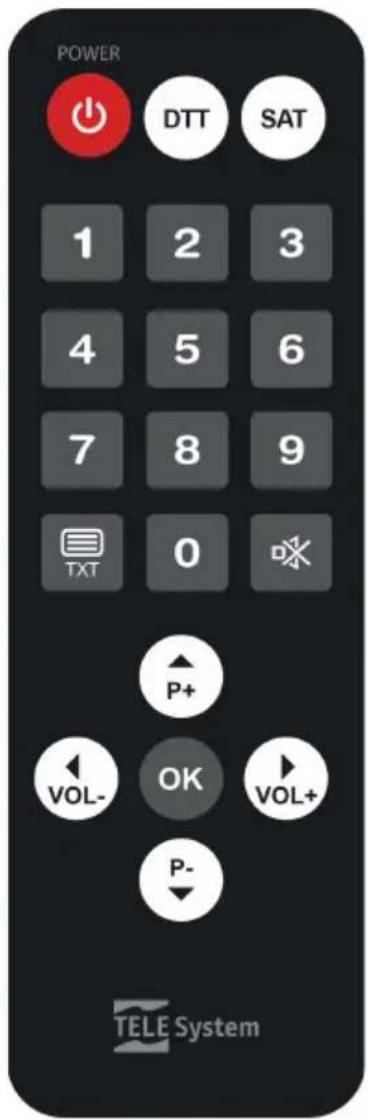
4.2 Simplified remote control
POWER: Stand-by On/Off
DTT: switches to DVBT mode
SAT: switches to DVBT mode
EXIT: exit the menu.
NUMERIC BUTTONS: direct selection of channels.
TXT: access Televideo
Mute: temporary interruption of audio.
ARROW KEYS: regulate volume / change sequential channels
OK: Confirm or select a sub-menu. Access the channel list
4.3 Inserting batteries
You have to replace or install the batteries when:
- You buy the product.
the remote control does not work properly.
Once you open the battery door located on the back of the remote, insert the 2 batteries (AAA) in the compartment, making sure to respect the correct polarity as indicated.
Remove the used batteries, which must be disposed of separately from household waste taking them to any store or collection point and then repeat the operations for insertion.
To avoid damaging the remote control with the leakage of corrosive liquid, you should remove the batteries if you plan not to use the device for a long period of time. Avoid using different types of batteries or dead and new batteries at the same time.
5 PC Mode
Since it is equipped with a VGA video card, the TV can be used as a PC screen following this procedure:
With the equipment turned off, connect the two devices via a D-SUB cable (15-pin) for the Video part and an audio cable for the audio portion. Reset the electrical connection of the TV and PC. Turn on the TV and from your remote control, press the AV button. Select the PC mode. Turn your computer on.
5.1 Menu for PC mode
After switching to PC mode, you can adjust various settings by pressing the MENU button on the front panel or the remote control: the usual menu will appear, which will have some functions active only in this mode: to navigate through the menu use the / keys. Change the values using the / buttons.
6 Basic Function
6.1 Power / Standby
While the TV is in operation, to turn it off, press the Power button on your remote control. The LED on the front panel of the TV will change from green to red.
To switch the TV on again, press the Power button (on the remote control or on the TV).
6.2 Program selection
To select a program, press the P + / P - buttons or use the numeric keys for direct channel selection.
6.3 Volume regulation
Press the V - / V+ buttons on the standard remote control to increase / decrease the volume.
6.4 Mute (temporary)
Pressing the MUTE button, the sound is stopped and the video shows the symbol of the function. To reactivate the sound, you can press the MUTE button again or one of the volume buttons V - / V+ .
6.5 Program recall
You can recall the previously selected program by pressing the BACK button and by pressed it again, it returns to the program you were watching.
6.6 Source selection
By pressing the Source button, you can select the TV mode:
DTV: To activate the Digital TV mode and allow the reception of digital TV programs;
AV: to enable the AV input (RCA)
HDMI: to activate the HDMI input.
PC: to activate the PC mode
USB: to access content loaded on a USB memory. (See Chapter 16)
6.7 Main Menu description
Press the MENU key to bring up the main menu and use the arrow keys / and / to navigate through the titles of menu. Press the MENU button to return to the previous menu or EXIT to exit. The menus are: Channels, Images, Sound, Time, Security, Settings.
7 First installation
When the TV is turned on for the first time or after a factory reset, a wizard will allow the simple and optimal installation of the TV:
Select the installation language (OSD Language) with the / arrow keys (default Italian). Go on to the next step by pressing the button.
Then select the installation country (Italy default) using the arrow keys / . Press OK to move on to the next step.
Select the tuner signal type (DVB-T2 or Satellite) to start searching for channels and press OK to start an auto scan.
At the end of the DVB-T2 scan, a list of LCN conflicts to be resolved manually will appear. The user can choose the channel to be assigned to each disputed LCN position manually or automatically all at once (recommended).
If you choose satellite, you can choose to load a default satellite channels list by pressing OK and confirming Yes (left arrow) to the confirmation request; or proceed with normal installations, once the satellite parameters are set, scan type, channel type and type of service, by pressing OK and choosing No (right arrow) on the next screen.
7.1 Automatic channel search.
Press the MENU button; in CHANNEL menu, select the entry Automatic search and confirm with the OK button.
Select the country of installation (default Italy).
Using the button position yourself on Start and press OK to start an automatic channel search.
At any time you can: Press EXIT or Menu to terminate the search
ATTENTION!
The automatic channel search cancels all the previously memorized channels.
8 DVB Mode
To activate the reception mode for digital channels, press the Source button, choose DTV.
You can scan the frequencies available in your area, searching all digital channels automatically (see section 6.9) or manually.
ATTENTION!
The reception and therefore the viewing of digital terrestrial channels depends on the level and the quality of the antenna signal available. The signal varies according to the area in which you live, to the correct orientation/functioning of the antenna system and to the quality of the signal transmitted by the digital terrestrial repeaters.
8.1 Manual search
Press the MENU button; in the CHANNEL menu select the item Manual Scan and confirm with the OK button
Enter the channel (frequency) to be searched for through the / buttons on the remote and confirm with the OK button.
Press the EXIT button to cancel manual search at any time.
8.2 Electronic TV guide (EPG)
The Electronic TV Guide, if supported by the broadcaster, offers information on the TV programs shown for the subsequent 7 days. To activate this feature (only in DTV mode) press Guide on the remote control.
Use the arrow keys to select the channel and/or program to view a brief description of the event.
Use the + and - if the event description provides more pages.
Position yourself on "Time" and use the arrows keys / to switch the display mode.
Press the blue "Reminder" button to create an event reminder, a warning message will appear on the screen informing you of the imminent start of the highlighted program.
8.3 Organization of channel list.
Press the MENU button; in CHANNEL menu, select the item Edit Program and confirm with the OK button.
You will see the channel list with the following options available:
Red button (Delete): to delete one or more channels select the channel with the UP/Down buttons and press the red button to confirm the cancellation.
Blue button (Skip): select the channel and press the Blue button; if activated, the channel can only be displayed when recalled by using the number buttons on the remote.
Yellow button (Move): to move a channel, select the channel you want to move, press the Yellow button, use the arrow keys to move the channel to the desired position or enter the desired position number, then press OK to confirm.
8.4 Favorites list
You can create a favorite channels list for DTV channels (terrestrial signal): Once the option Program Edit and the channel you want to add to the Favourites list has been selected, press the FAV button; Repeat for each channel you want to add.
After you create the list, to access it, simply press the FAV button and select the channel with the arrow keys UP/Down and OK to confirm.
You can later remove one or more channels by performing the same procedure, selecting the channel you want to delete, and pressing the FAV button.
9 Satellite mode
To activate the digital channel reception mode, press the Source button, select Satellite.
You can scan the frequencies available with your satellite antenna system, automatically searching for all the satellite channels from the first installation (see paragraph 6.8) or through an automatic scanning available in the Channels menu.
Antenna setting: the basic settings to allow the use of the TV with a single Universal LNB (Low Noise Block converter) system (commonly used for satellite systems in Italy); in the event your system is done with a different configuration, you must appropriately change the antenna settings.
ATTENTION!!!
The wrong antenna configuration can result in the failure to load some or all channels. If you do not know the characteristics of your antenna system and/or are unable to properly configure the receiver yourself, you may want to consult a professional installer for advice. The power and signal quality indicators refer to the first transponder of the chosen satellite list.
Changing the DiSEqC 1.0 / 1.1 parameters, DiSEqC 1.2 / DiSEqC 1.3, you will get three different configuration modes.
9.1 Simple installation
For the single inverter antenna (LNB)/satellite with direct connection between the TV and antenna, they DiSEqC commands or other special communication protocols are not used.
9.1.1 Antenna and satellite configuration
From the Antenna setup menu make the following choices:
- Satellite: Satellite choice of interest. Highlight the Satellite confirm by pressing OK and press .
- LNB type: Type of converter (Low Noise Block converter - LNB) associated to the chosen satellite. For common satellite systems used in Italy, The Universal (9750/10600) is used.
- LNB supply: LNB power supply for switching between horizontal and vertical polarization. Generally it must be maintained active (13 / 18V). Its inactivation is rather useful when you realize IF-IF distribution plants (for Expert users).
- 22KHz: 22KHz signal switching between high and low band
- Tone burst: none
- DiSEqC 1.0: none
- DiSEqC 1.1: none
- Motore: none
9.1.2 Channel search for satellite
After setting the configuration, to search channels on the chosen satellite press the BLUE button Scan and define the following parameters in the Channel Search dialogue window:
- Scan type: scanning mode following the transponder database (default option) or blind-scan frequency steps (Blind-Accurate option) or via network (network option) that scans the active transponders.
- Channel type: choose free to air channels to only search for free channels (recommended), Encrypted only for encrypted channels or All to scan both types.
- Service type: choose DTV to only search for TV channels, Radio to only search for radio All
- Press OK to start scanning.
9.2 SCR/Unicable System
For single-antenna converter (LNB) / satellite installations with SCR / Unicable technology for the distribution of satellite signals to multiple points of use (receivers) with a single cable, you must set the LNB type with the Unicable value and enter the appropriate configuration:
Canale IF: User number corresponding to the channel assigned to the TV/Receiver regarding the SCR system. Each receiver connected to the same system must use a different IF channel.
Central Freq.: main frequency of the band/SCR channel assigned to the user. Typical values for interfacing with other receivers/tuners are
| IF Channel | 1 | 2 | 3 | 4 |
| Freq. | 1210 | 1420 | 1680 | 2040 |
Press Exit to save settings and return to the previous screen and continue with the channel search as shown in paragraph 8.1.2.
CAUTION
If two receivers are connected in cascade to the antenna signal via the LNB OUT pass-through connector, they cannot operate simultaneously. When a receiver is switched on, the other must be placed in stand-by (not supplied with the tuner) and vice versa. To connect multiple receivers to a SCR system, do not use the connection through antenna receiver, but use a suitable divider external signal.
9.3 System DiSEqC 1.0/1.1
The DiSEqC 1.0 / 1.1 protocol has been developed for receiving multiple satellites via antenna systems with multiple converters, also known as multi-feed, and up to four different orbital positions for the DiSEqC 1.0 and up to sixteen for DiSEqC 1.1.
9.3.1 Antenna e satellite configuration
From the Antenna Set Up perform the following options:
- Satellite: chose the desired satellite. Highlight the satellite and press OK to confirm and press .
- LNB type: inferior/superior frequency of the local oscillator of the converter
- LNB supply: LNB supply for switching between horizontal and vertical polarization
- 22KHz: signal at 22KHz switching between high and low band
- Tone burst: none.
- DiSEqC 1.0 o DiSEqC 1.1: select the LNB number based on its aerial system (i.e. Dual-feed: Hot Bird 13°E on LNB1 and Astra 19.2°E on LNB2)
- Motor: none.
NOTE
Repeat the above procedure for each satellite for which you want to perform a channel search
9.3.2 Channel search for satellite
Se the procedure illustrated in paragraph 9.1.2
9.4 Motorized System
The configuration differs depending on the type of engine used to implement the system, the TV is able to control the movement/rotation of the antenna manually (DiSEqC 1.2) or semi-automatically (also known as DiSEqC 1.3 USALS).
9.4.1 DiSEqC 1.2
From the Antenna Setting menu, make the following choices:
- Satellite: chose the desired satellite. Highlight the satellite and press OK to confirm and press .
- LNB type: inferior/superior frequency of the local oscillator of the converter
- LNB supply: LNB supply for switching between horizontal and vertical polarization
- 22KHz: signal at 22KHz switching between high and low band
- Tone burst: none
- DiSEqC 1.0: none
- DiSEqC 1.1: none
- Motor: DiSEqC 1.2
Subsequently, you need to configure the Western and Eastern limits of the system rotation by pressing the RED button Set limit:
- Continuous movement: moves the motor West/East via the / arrows.
- Step motion: moves the motor with an indexing motion.
- Set West limit: defines the Western limit of the motor
- Set East limit: defined the Eastern limit of the motor
- Go to reference: recalls the default position of the motor (usually coinciding with "0" degrees)
- Disable limits: resets the West/East limits previously set
Press EXIT to save your settings and return to the previous screen. Once you have set the limits, you also need to define the exact position of the selected satellite; press YELLOW Position setting:
- Automatic movement: automatically moves the motor
- Continuous movement: moves the motor West/East via the / arrows.
- Step motion: moves the motor with an indexing motion.
- Memorize location: stores the motor position for the selected satellite
-
Go to the position: moves the motor to the memorized position for the selected satellite
-
Go to reference: recalls the default position of the motor (usually coinciding with "0" degrees)
Press Exit to save settings and return to the previous screen and continue searching channels like illustrated in paragraph 8.1.2.
9.4.2 DiSEqC 1.3
From the Antenna Setup menu make choices according to point 8.4.1 with the exception of item 8 in which you have to set the DiSEqC 1.3 value. So it is necessary to configure the motor defining the Western and Eastern limits, the position of the satellite, and the geographic position of the antenna.
The Eastern and Western limits are set exactly as above (by pressing the RED button Set limit).
The satellite position is also set as above (by pressing the YELLOW button Set Position).
The geographical location is configured by pressing the GREEN button Location:
Position: select one of the available options or Manual to enter the location manually
Longitude Direction: Choose East or West
Latitude Direction: Select North or South
Press Exit to save settings and return to the previous screen and continue searching channels like illustrated in paragraph 9.1.2.
9.5 Automatic scanning
In the event you want to scan satellite channels (for example to update the channel list) and the antenna system is a Simple type or a previously configured one, in the Channels menu you have the Automatic Scan option; through it (as described in section 6.8), once you set the country and the desired satellite, you can define search parameters as described in paragraph 9.1.2 and press OK to start loading the pre-configured channel list or channel scan.
10 Security - System Block
To access the menu you must enter the password set at the time of initial installation (default PIN: 0000).
System block
If set on ON, the access to some functions is password protected.
Blocked channel
If activated on one or more channels, vision of these channels is permitted only after entering a password. To activate the function, select the channel with the / buttons and press OK (the "lock" icon will appear next to the locked channel).
Parental control: allows the user to control the viewing of sensitive events.
If the selected channel transmits an event with vision protection information for a public older than a specific age, then the TV will block the channel. A password request to release the channel will appear on the screen.
Keyboard lock: Once enabled, the user can interact with the TV only via the supplied remote control.
New Password: Allows you to change the default password.
Clear Lock: removes all user-set blocks.
Hotel setting mode: Activates the Hotel function, which enables the user to customize the menu and some functions authorizing access by password.
ATTENTION!
Write down and preserve the new PIN code in a safe place. In the event that you forget the password, use the universal code "8899", which will grant you access to the Password menu, and allow you to set a new password.
11 Image Menu
From this menu you can adjust the Brightnees, Contrast and Sharpness levels.
Picture Mode: You can select one of the default settings, which are not adjustable (Dynamic Standard or Soft) or the "Custom" option which allow you to regulate the above mentioned levels.
Color Temperature: This function allows you to adjust the intensity of the color of the image
Aspect Ratio: Allows you to change the screen aspect ratio, the available options are: Auto, Full (16: 9), Zoom1, Zoom2 and 4: 3
Advanced settings: in the submenu, Noise Reduction (NR), MPEG NR and Dynamic Contrast settings are available; using these functions, you can reduce interference and noise formed in the picture.
12 Audio Menu
From this menu you can adjust the TREBLE, BASS, and Sound BALANCE audio levels.
Sound Mode: You can select one of the default settings, not adjustable (Standard, Music, Movie) or the User option; that allows the settings of Treble and Bass.
Balance: You can adjust the volume from the left/right speakers, giving precedence to one another.
Surround sound: turn on or off the Surround mode
Auto Volume (AVL): If set to ON, it memorizes the audio levels after powering down and plays them again when you turn the device on.
SPDIF: Defines the audio output mode from "Coaxial" connector. OFF = always off, PCM = stereo and AUTO = keeps the original format of the audio signal.
Description Audio: actives and adjusts the descriptive audio volume (if available on program) for visually impaired users.
Sound types: the available modes are: Stereo, Dual I, Dual II and Mix.
13 Time settings
From this submenu (in the Settings menu) you can set the time by selecting Time Zone (GMT) corresponding to the country of installation and in addition there are the following options:
Time Zone: Allows you to set / change the reference time zone.
Date and Time: allows you to set the date and time.
Off Timer: allows you to automatically switch to standby mode after a set time.
Auto power off: if activated, the TV automatically switches to standby after the set period from last command received (3, 4, 5 hours or off).
OSD Time: Sets the time-out exit from the OSD menu if no interaction with the same.
14 Settings Menu
From this menu you can set the OSD language, audio and subtitles, the duration of viewing of the information (the channel banner, menu ...) And more:
Channels update feature allows you to enable / disable the automatic scanning channels when the TV is in operating mode. During normal operation, if the function is active (ON), the TV dynamically performs an update of the DVB-T channel list (terrestrial) in the event that changes have been introduced within the tuned frequency.
Restore Factory Settings: This function allows you to restore factory settings. To do so, select Restore settings ... and on the new screen, select YES. The television will be restored to its factory settings.
ATTENTION!
Restoring the factory settings starts the installation wizard (see section "First Installation"), and also clears all previously memorized channels and settings set by the user.
15 USB Media player
From this menu, you can view your personal files contained within a memory device connected to the TV via the USB input.
The media player function is accessible from the Source (Source) key or by pressing the USB button.
Once you choose the file type you want to play, the device will only show video files of that type; use "▲ / ▲ / ▼ / ▲" to navigate through folders / files, and OK to confirm and start playback.
During playback, you can handle the content with the usual Play / Pause, Stop, Fast Rewind, Fast Forward, Previous and Next (for details read Section 4.1) or by pressing the OK button and/or INFO you can recall all the functions available for the media type. During video playback, press the Subtitle button to enable / choose the subtitles for the track (the file that contains external subtitles must be named exactly as the video file).
During playback of the files, press the INFO button to show/close the bar of instruments active according to the type of file played.
WARNING
Compatibility with all USB storage devices on the market is not guaranteed.
16 Troubleshooting
| Problems | Possible Causes | What to do |
| The On / Standby LED on the front panel of the TV is not lit. | The power cord is not connected to the electrical outlet. | Make sure the TV is properly powered, then press the POWER key on the TV or remote control to turn it on. |
| No Audio/Video signal | The antenna signal is absent or weak. | Check the antenna configuration and the presence of the menu signal. |
| The tuned channel is not broadcasting or is obsolete. | Change channel and / or perform a new channel search. | |
| The audio-video cable (e.g. HDMI, RCA, etc.) is not connected correctly or is faulty. | Check the audio-video connection and the operation of the corresponding cable. | |
| The video resolution of an external device connected via HDMI is not compatible with that of the TV screen. | Properly adjust the resolution of the video output of the external HDMI device. | |
| Low or mute audio volume. | Increase the audio volume level of the TV and/or external | |
| AV device connected to the TV. | ||
| TV is not switched to the correct audio-video input or mode. | Select the desired TV source correctly. | |
| The channels are not loading. | Antenna signal absent or weak. | Check the antenna setting and the presence of a signal. |
| The selected transponder/ frequency is obsolete. | Choose a valid transponder/ frequency. | |
| The desired channel transponder is not present in the database or is not updated. | Add or update the transponder manually. | |
| Settings made in the menus have not been memorized. | Failure to confirm after changing settings. | Confirm each change by pressing the final save button. |
Cher client,
Entree RF Antenne satellite (type F)
6.7 Description Menu principal


- ATTENTION
- INDEX
- 1 SAFETY
- 2 DESCRIPTION OF THE TV
- 2.1 FRONT
- 2.2 KEYBOARD
- 2.3 REAR PANEL CONNECTIONS
- 3 CONNECTIONS
- 3.1 ANTENNA CONNECTIONS/CABLE TV CHANNEL
- 3.2 CONNECTION TO AN EXTERNAL DEVICE
- 4 REMOTE CONTROL
- 4.1 STANDARD REMOTE CONTROL
- 4.2 SIMPLIFIED REMOTE CONTROL
- 4.3 INSERTING BATTERIES
- 5 PC MODE
- 5.1 MENU FOR PC MODE
- 6 BASIC FUNCTION
- 6.1 POWER / STANDBY
- 6.2 PROGRAM SELECTION
- 6.3 VOLUME REGULATION
- 6.4 MUTE (TEMPORARY)
- 6.5 PROGRAM RECALL
- 6.6 SOURCE SELECTION
- 6.7 MAIN MENU DESCRIPTION
- 7 FIRST INSTALLATION
- 7.1 AUTOMATIC CHANNEL SEARCH
- 8 DVB MODE
- 8.1 MANUAL SEARCH
- 8.2 ELECTRONIC TV GUIDE (EPG)
- 8.3 ORGANIZATION OF CHANNEL LIST
- 8.4 FAVORITES LIST
- 9 SATELLITE MODE
- 9.1 SIMPLE INSTALLATION
- 9.1.1 ANTENNA AND SATELLITE CONFIGURATION
- 9.1.2 CHANNEL SEARCH FOR SATELLITE
- 9.2 SCR/UNICABLE SYSTEM
- CAUTION
- 9.3 SYSTEM DISEQC 1.0/1.1
- 9.3.1 ANTENNA E SATELLITE CONFIGURATION
- NOTE
- 9.3.2 CHANNEL SEARCH FOR SATELLITE
- 9.4 MOTORIZED SYSTEM
- 9.4.1 DISEQC 1.2
- 9.4.2 DISEQC 1.3
- 9.5 AUTOMATIC SCANNING
- 10 SECURITY - SYSTEM BLOCK
- 11 IMAGE MENU
- 12 AUDIO MENU
- 13 TIME SETTINGS
- 14 SETTINGS MENU
- 15 USB MEDIA PLAYER
- WARNING
- 16 TROUBLESHOOTING
- 6.7 DESCRIPTION MENU PRINCIPAL
Brand : TELE System
Model : 28000160
Category : Television