Leap Active W1C - Smartwatch ACER - Free user manual and instructions
Find the device manual for free Leap Active W1C ACER in PDF.



| Product type | Smartwatch (activity tracker) |
| Brand | Acer |
| Model | Leap Active W1C |
| Dimensions (band) | 243.1 × 17.3 × 9.9 mm |
| Weight | 18 g |
| Display | OLED touchscreen 1 inch, resolution 128 × 32 pixels |
| Sensors | Accelerometer |
| Power | Rechargeable battery (non-user replaceable) |
| Battery life | 5 to 7 days depending on usage |
| Charging time | Approximately 90 minutes |
| Water resistance | IPX4 (splash resistant) |
| Connectivity | Bluetooth 4.0 |
| Compatible operating systems | Android 4.4 or later, iOS 7, Windows Phone 8 |
| Required app | Acer Leap Manager |
| Main functions | Step counter, distance, calories, sleep tracking, call and SMS notifications, music control |
| Care and cleaning | Clean and dry regularly, especially under the band; avoid harsh chemicals; discontinue use if irritation occurs |
| Safety | Do not immerse; only splash resistant (IPX4) |
| Spare parts | Charging dock, USB cable, interchangeable band |
| Repairability | Battery not user-replaceable; factory reset possible; contact an authorized Acer service center |
Frequently Asked Questions - Leap Active W1C ACER
User questions about Leap Active W1C ACER
0 question about this device. Answer the ones you know or ask your own.
Ask a new question about this device
Download the instructions for your Smartwatch in PDF format for free! Find your manual Leap Active W1C - ACER and take your electronic device back in hand. On this page are published all the documents necessary for the use of your device. Leap Active W1C by ACER.
USER MANUAL Leap Active W1C ACER
natural_image
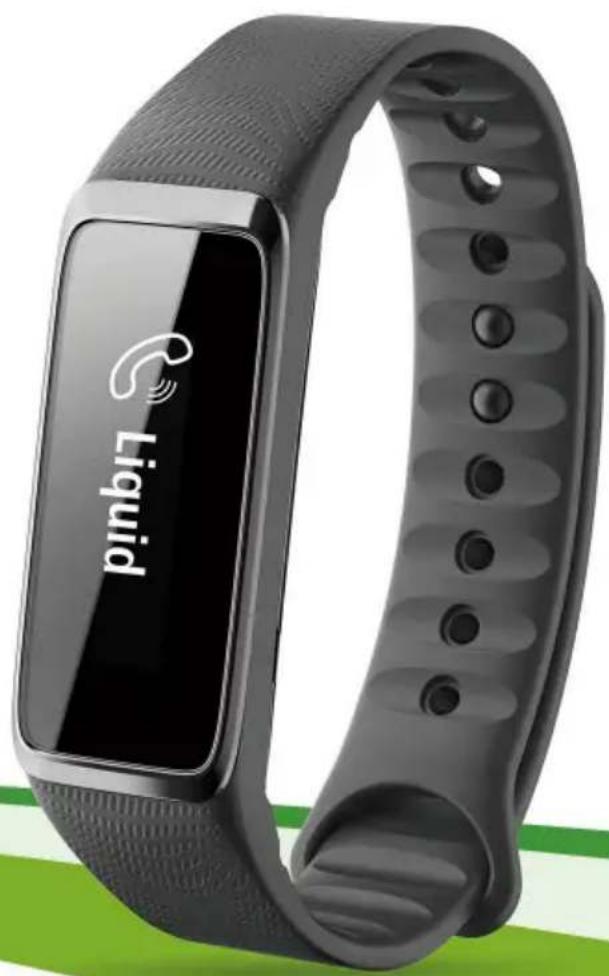
Black Liquid fitness tracker with visible sensor grille and logo (no text or symbols on the device itself)User's Manual
© 2015 All Rights Reserved
Acer Liquid Leap User's Manual
Model: W1C
This revision: August 2015






For more information, please visit: http://go.acer.com/liquidleap.

Important
This manual contains proprietary information that is protected by copyright laws. The information contained in this manual is subject to change without notice. Images provided herein are for reference only and may contain information or features that do not apply to your device. Acer Group shall not be liable for technical or editorial errors or omissions contained in this manual.
Acer Liquid Leap
Model number:
Serial number:
Date of purchase:
Place of purchase:
Google Play is a trademark of Google Inc.
Liquid Leap Active
natural_image
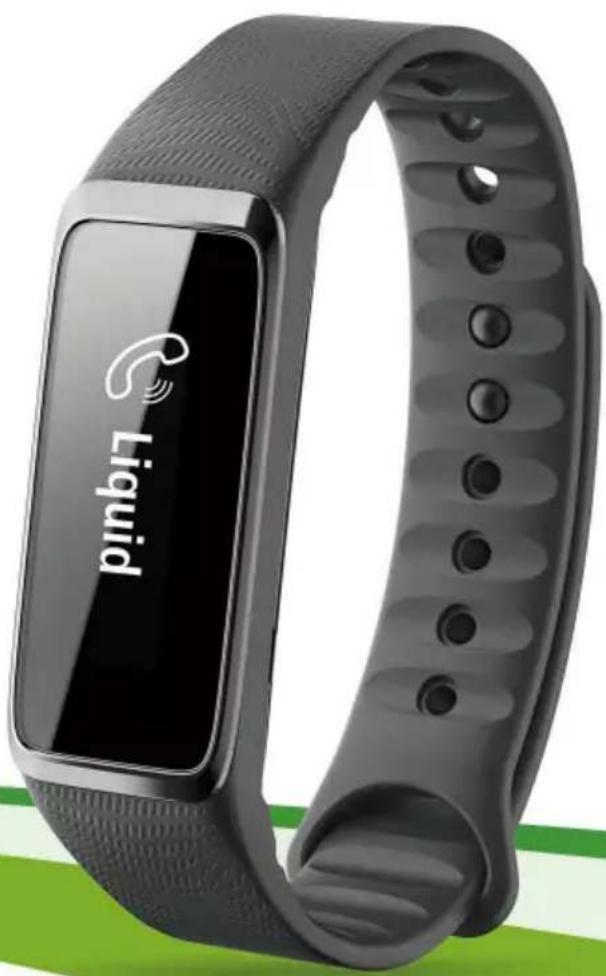
Black and gray fitness tracker with 'Liquid' logo displayed on screen (no additional text or symbols)User's Manual
© 2015 All Rights Reserved
Acer Liquid Leap User's Manual
Model: W1C
This revision: July 2015






For more information, please visit: http://go.acer.com/liquidleap.

Important
This manual contains proprietary information that is protected by copyright laws. The information contained in this manual is subject to change without notice. Images provided herein are for reference only and may contain information or features that do not apply to your device. Acer Group shall not be liable for technical or editorial errors or omissions contained in this manual.
Acer Liquid Leap
Model number:
Serial number:
Date of purchase:
Place of purchase:
Google Play is a trademark of Google Inc.
TABLE OF CONTENTS
Setting up 4
Unpack your Leap device 4
Charge the battery 4
Securing the wristband 5
Changing the strap.... 7
Care and wearing tips 7
Use with an Android phone 8
Install Acer Leap Manager.... 8
Download the app.... 8
Set up the app.... 8
Pair your Leap device and phone.... 9
Sync with the app.... 11
Change notification settings.... 12
Use with an iPhone 13
Install Acer Leap Manager.... 13
Download the app 13
Set up the app.... 13
Pairing your Leap device and phone ..... 14
Sync with the app.... 16
Changing settings 17
Use with a Windows phone 18
Install Acer Leap Manager.... 18
Download the app.... 18
Set up the app 18
Pair your Leap device and phone 19
Sync with the app 21
Notifications 22
Using the Leap device 23
Onscreen information 23
Troubleshooting 25
Specifications.... 27
Display 27
Waterproof certification.... 27
Sensor 27
Battery 27
System requirements.... 27
Dimensions 27
Weight.... 27
End User License Agreement 28
SETTING UP
Unpack your Leap device
Your new smartphone accessory comes packed in a protective box. Carefully unpack the box and remove the contents. If any of the following items is missing or damaged, contact your dealer immediately:
- Your new Acer Leap device
- Charging cradle
- Quick Guide
- Safety leaflet
- Warranty card
- USB cable
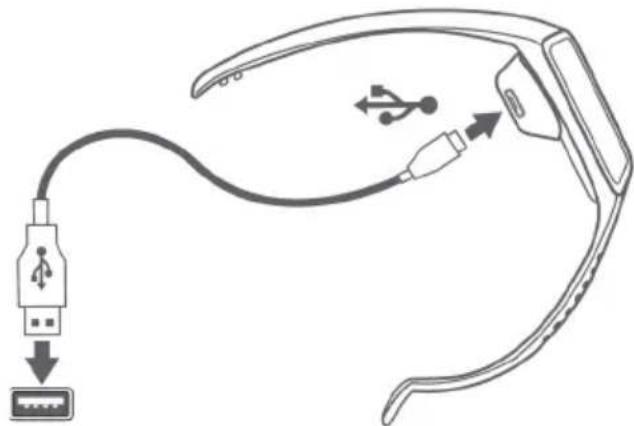
Charge the battery
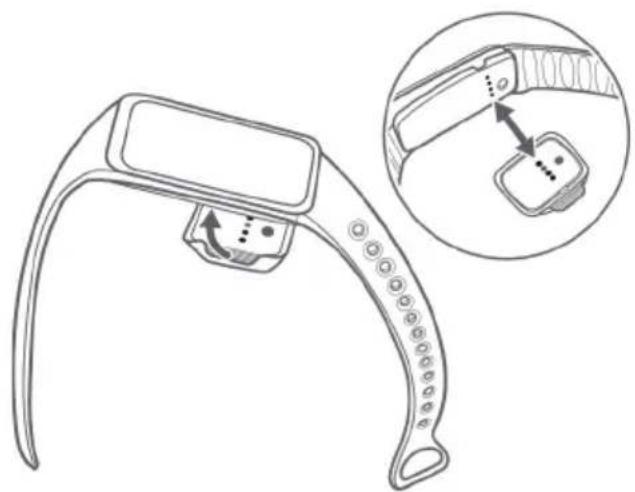
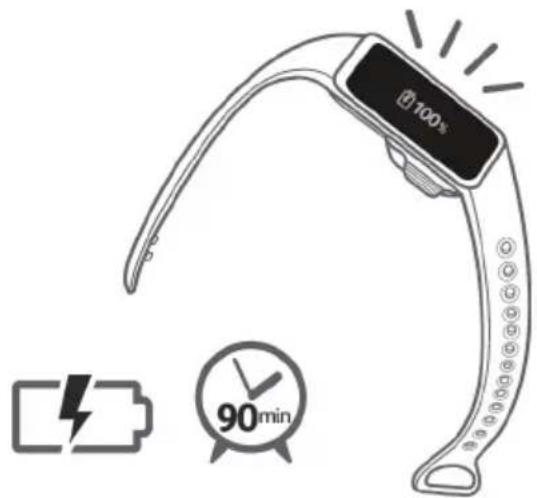
For initial use, you need to charge your Leap device fully. It takes approximately 90 minutes to fully charge the Leap device. Once it has charged for the first time, you can charge it as necessary.
- Place the Leap device into the cradle, lining up the charging connectors. Ensure the Leap device clicks into the cradle.
natural_image
Line drawing of a smartwatch handle with an inset showing the internal component (no text or symbols)- Connect the cradle to your computer using the supplied USB cable.
natural_image
Diagram of a smart glasses cable with USB connector and connector, showing wiring and connector (no text or symbols)- Charge your Leap device for about 90 minutes to charge fully. You can keep track of the charge progress on the screen.

Note
Double-tap the screen to see the charge level.
Securing the wristband
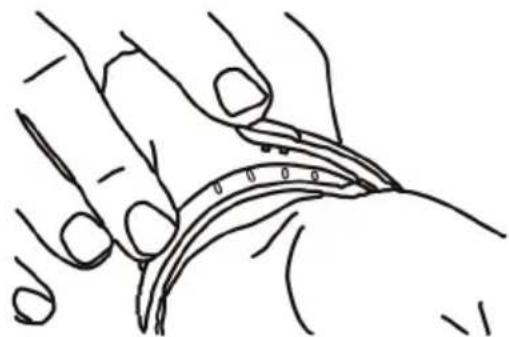
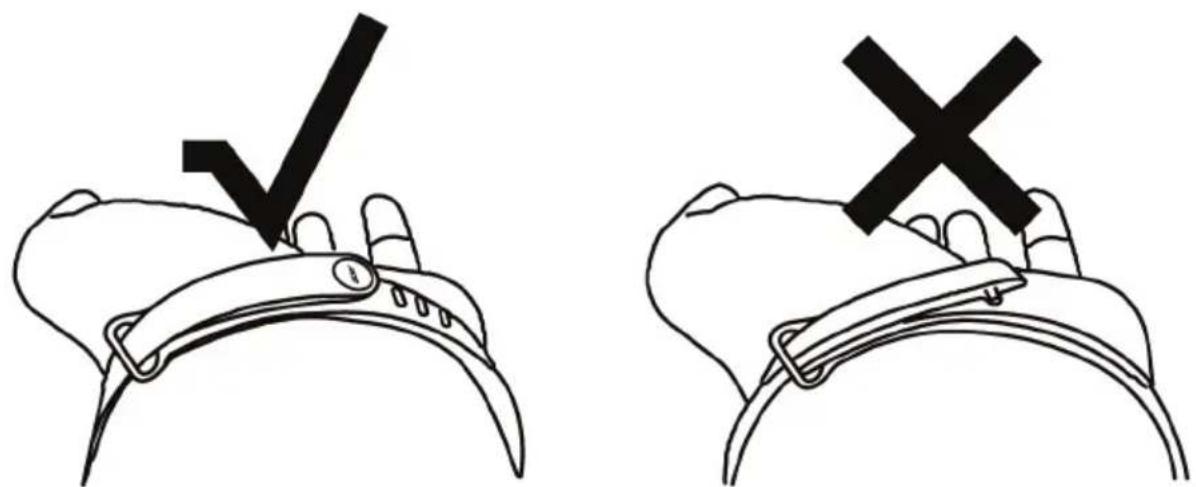
- Put on the wristband as illustrated.
- Feed one end of the strap through the loop at the other end of the strap. Align both ends of the wristband so they are directly
overlapping each other with the clasp over the two holes that best fit your wrist.
natural_image
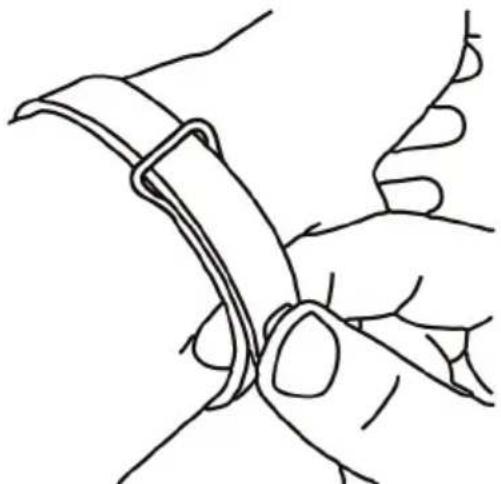
Line drawing of a hand holding a medical or surgical instrument (no text or symbols present)- Squeeze both the clasp and the wristband between your thumb and forefinger until the wristband is properly secured.
natural_image
Line drawing of a hand holding a wristband (no text or symbols)You'll know your Leap wristband is securely fastened if both tabs on the clasp are fully inserted into the wristband.
Changing the strap
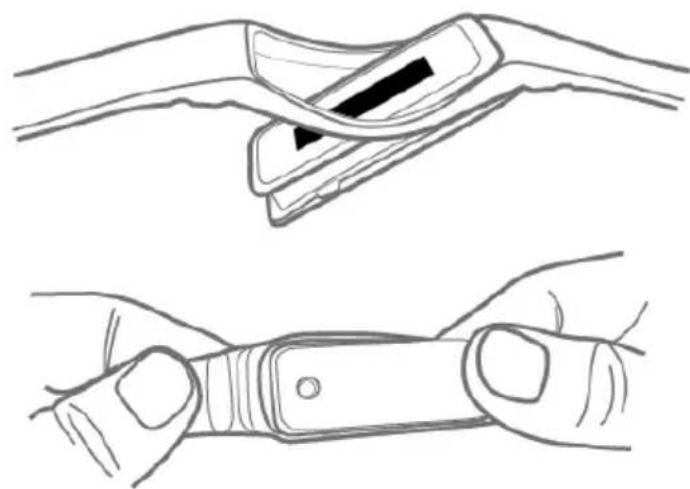
You can change the strap if desired. Carefully push the Liquid Leap Active body out of the strap and insert it into the new strap, making sure it is properly inserted.
natural_image
Illustration showing two hands performing a medical or robotic manipulation task, with no visible text or symbols.Care and wearing tips
Keep the following tips in mind when caring for your Leap device:
- Clean and dry the device regularly, particularly under the band.
- Wear it loosely enough to allow air circulation.
- Use skin care products sparingly on the areas of the wrist covered by the device.
- If you notice any signs of skin irritation or experience any discomfort, please discontinue use.
USE WITH AN ANDROID PHONE
Install Acer Leap Manager

Note
The Leap device requires a smartphone that supports Bluetooth 4.0 and Android 4.4. Check that your phone meets these requirements before downloading and installing the app.
Acer does not guarantee that the Leap device will work correctly with devices that have not been tested by Acer. A list of tested devices is available on the Acer website, which can be viewed by scanning the QR code on the Leap device box.
Download the app
Open Google Play and search for Acer Leap Manager. Download and install the app.

Note
Unlike most Bluetooth accessories, like headsets, your Leap device must be paired directly through the app, not through your device's Bluetooth Settings.
Set up the app
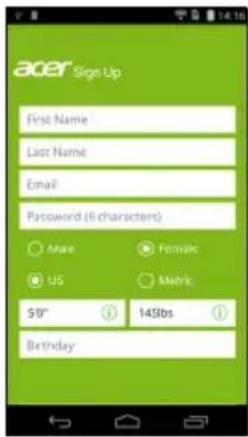
Once you have installed the app, you will need to create an account to complete setup. You can either log in using your Facebook username and password, or create a new account.
Sign in using Facebook credentials
- Tap Connect with Facebook.
2.Enter your Facebook login details.
Create a new account
- Tap Sign Up for New Users.
2.Enter a username and password and the other details requested.
Pair your Leap device and phone
Once you have set up the app, you will need to pair it with your Leap device.
-
Turn on your phone's Bluetooth from Settings > Bluetooth.
-
Connect your Leap device to its charger cradle.
3.Turn on Acer Leap Manager.
- Tap Device Settings from the menu (accessible by tapping the Menu icon in the upper left-hand corner).
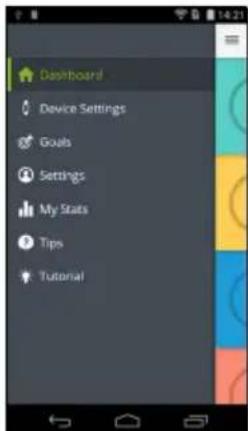
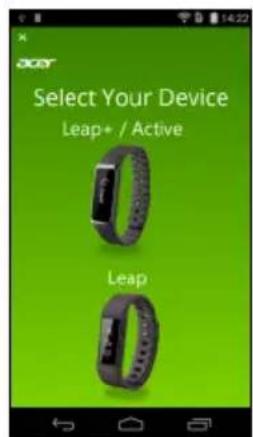
- Select the Leap model you wish to pair. Tap Next and the check mark as necessary.
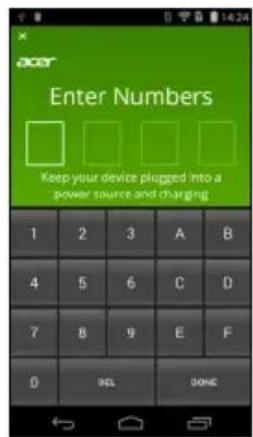
- Four characters will be displayed on the Leap device's screen, enter these characters into Acer Leap Manager when requested and confirm the code is correct. Tap the check mark.

Note
If necessary, your Leap device firmware will be updated. This may take some time. Be careful to keep your Leap device close to your smartphone until the update is complete.
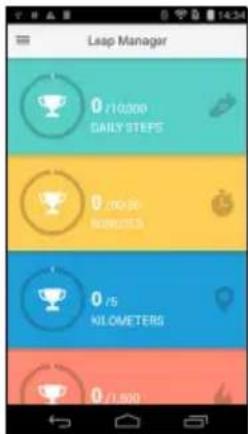
Once Acer Leap Manager has connected to your Leap device and any necessary updates completed, you will see the dashboard.
How do I set my goals?
To change your goals, open the menu from the Leap Manager home screen and tap Goals. Tap the goal you wish to set, enter the new value, and then tap Done.
Sync with the app
Your Leap device can sync directly via Bluetooth. Syncing will occur automatically when you open Acer Leap Manager, as long as Bluetooth is enabled on your phone.
Change notification settings
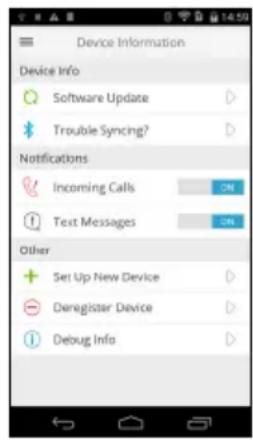
You may change what notifications you get via your Leap device by tapping the Menu icon > Device Settings and then moving the slider next to each notification to ON or OFF.
Screen item Information
Liquid
Incoming call: Displays the contact's name (if the contact is stored on your phone) or phone number.
Zachary R...
Missed call: Displays the contact's name (if the contact is stored on your phone) or phone number.

Text message: Displays the contact's name (if the contact is stored on your phone) or phone number and shows the message content.

Note
You will only receive notifications if your smartphone and Leap device are turned on and connected.
Your Leap device will display notifications for unread messages and missed calls for up to 12 hours.
Notifications are received in real time; meaning you will only get notifications for messages and calls received while the Leap device and smartphone are 1) within range of each other, 2) turned on, and 3) connected.
USE WITH AN IPHONE
Install Acer Leap Manager
Download the app
Open App Store and search for Acer Leap Manager. Download and install the app.

Note
Unlike most Bluetooth accessories, like headsets, your Leap device must be paired directly through the app, not through your device's Bluetooth Settings.
Set up the app
Once you have installed the app, you will need to create an account to complete setup. You can either log in using your Facebook username and password, or create a new account.
Sign in using Facebook credentials
- Tap Connect with Facebook.
- Enter your Facebook login details.
Create a new account
- Tap Sign Up for New Users.
- Enter a username and password and the other details requested.
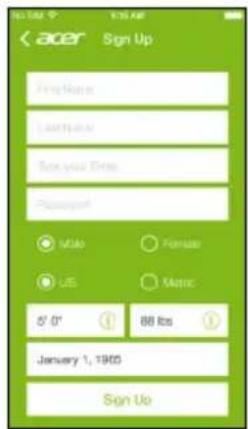
Pairing your Leap device and phone
Once you have set up the app, you will need to pair it with your Leap device.
-
Turn on your phone's Bluetooth from Settings > Bluetooth.
-
Connect your Leap device to its charger cradle.
-
Turn on Acer Leap Manager.
-
Tap Device Settings from the menu (accessible by tapping the Menu icon in the upper left-hand corner).
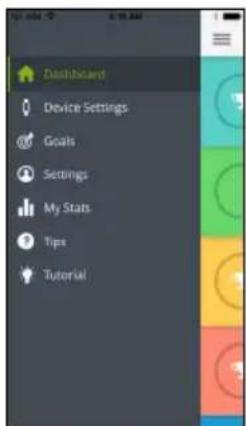
- Select your device type from the next page.
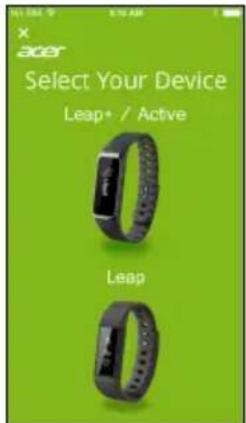
-
You will be reminded to make sure your Leap device is plugged into a power source and is displaying a 4-character code. Tap Yes and follow the onscreen instructions.
-
Enter the four characters into Acer Leap Manager when requested and tap Next. Confirm the code is correct and tap Yes.
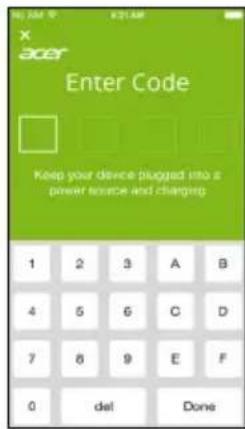

Note
If necessary, your Leap device's firmware will be updated. This may take some time. Be careful to keep your Leap device close to your smartphone until the update is complete.
- You will be asked to give permission for the Leap device to connect via Bluetooth.
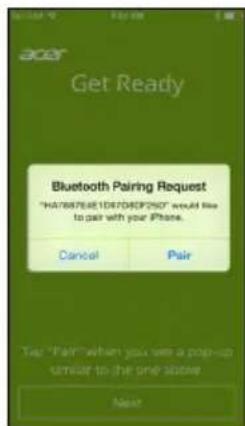
Once Acer Leap Manager has connected to your Leap device and any necessary updates completed, you will see the main screen.
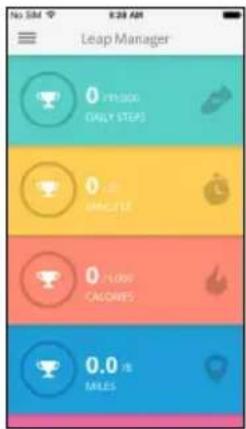
How do I set my goals?
To change your goals, open the menu from the Leap Manager home screen and tap Goals. Tap the goal you wish to set, enter the new value, and then tap Done.
Sync with the app
Your Leap device can sync directly via Bluetooth. Syncing will occur automatically when you open Acer Leap Manager, as long as Bluetooth is enabled on your phone.
Changing settings
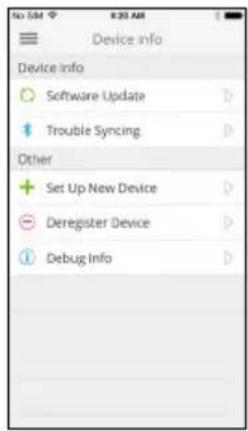
You can de-register a device or check for software updates by tapping the Menu icon > Device Settings.

Note
Only one Leap device can be paired with each smartphone at a time. If you add a new Leap device, your old one will automatically be de-registered.
Screen item Information
Liquid
Incoming call: Displays the contact's name (if the contact is stored on your phone) or phone number.
Zachary R...
Missed call: Displays the contact's name (if the contact is stored on your phone) or phone number.

Come to my pa...
Text message: Displays the contact's name (if the contact is stored on your phone) or phone number and shows the message content.

Note
You will only receive notifications if your smartphone and Leap device are turned on and connected.
Your Leap device will display notifications for unread messages and missed calls for up to 12 hours.
Notifications are received in real time; meaning you will only get notifications for messages and calls received while the Leap device and smartphone are 1) within range of each other, 2) turned on, and 3) connected.
USE WITH A WINDOWS PHONE
Install Acer Leap Manager

Note
The Leap device requires a smartphone that supports Bluetooth 4.0 and Windows 8 or higher. Check that your phone meets these requirements before downloading and installing the app.
Acer does not guarantee that the Leap device will work correctly with devices that have not been tested by Acer. A list of tested devices is available on the Acer website, which can be viewed by scanning the QR code on the Leap device box.
Download the app
Open Store and search for Acer Leap Manager. Download and install the app.

Note
Unlike most Bluetooth accessories, like headsets, your Leap device must be paired directly through the app, not through your device's Bluetooth Settings.
Set up the app
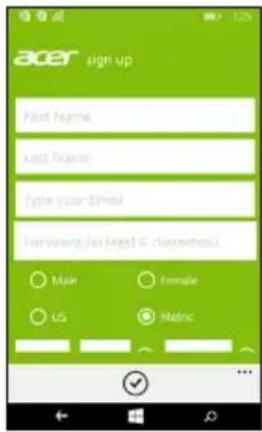
Once you have installed the app, you will need to create an account to complete setup. You can either log in with an existing username and password, or create a new account.
Create a new account
-
Tap Sign Up for New Users.
-
Enter a username and password and the other details requested.
Pair your Leap device and phone
Once you have set up the app, you will need to pair it with your Leap device.
-
Turn on your phone's Bluetooth by swiping down from the top of the screen and tapping Settings.
-
Connect your Leap device to its charger cradle.
-
Turn on Acer Leap Manager.
-
Swipe the screen to the left or right until you see the Menu page.
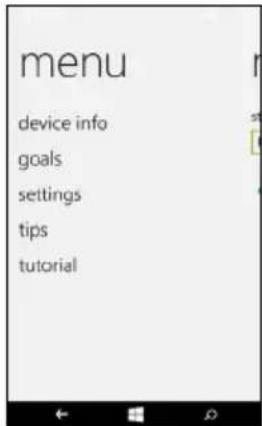
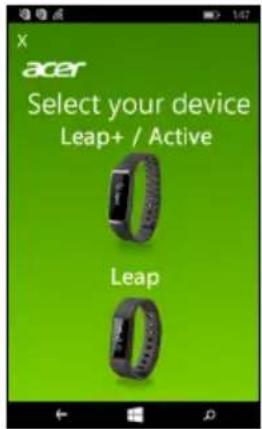
- Tap device info and select the Leap model you wish to pair. Tap Next or yes as required.
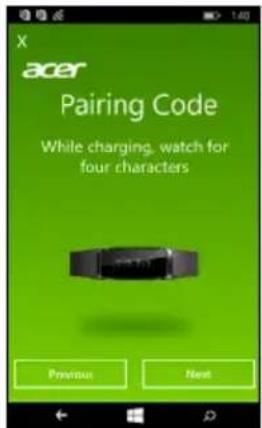
- Four characters will be displayed on the Leap device's screen, enter these characters into Acer Leap Manager when requested.

Note
If necessary, your Leap device's firmware will be updated. This may take some time. Be careful to keep your Leap device close to your smartphone until the update is complete.
- Acer Leap Manager will search for and connect to the Leap device.
Once Acer Leap Manager has connected to your Leap device and any necessary updates completed, you will see the main screen.
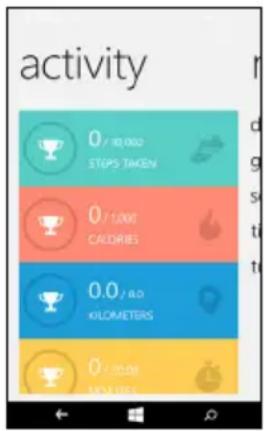
bar
| Activity | Value | | -------- | ----- | | Steps Taken | 80,000 | | Calories | 1200 | | Kilometers | 600 | | Calories Added | 500 |How do I set my goals?
To change your goals, swipe to the Menu page and tap goals. Tap the goal you wish to set, enter the new value, and then tap the check mark at the bottom of the screen.
Sync with the app
Your Leap device can sync directly via Bluetooth. Syncing will occur automatically when you open Acer Leap Manager, as long as Bluetooth is enabled on your phone.
Notifications
You will get notifications via your Leap device when you have an incoming or missed call, or a text message.
Screen item Information
Liquid
Incoming call: Displays the contact's name (if the contact is stored on your phone) or phone number.
Zachary R...
Missed call: Displays the contact's name (if the contact is stored on your phone) or phone number.
Joan Z. Hey! ...
Come to my pa ...
Text message: Displays the contact's name (if the contact is stored on your phone) or phone number and shows the message content.

Note
You will only receive notifications if your smartphone and Leap device are turned on and connected.
Your Leap device will display notifications for unread messages and missed calls for up to 12 hours.
Notifications are received in real time; meaning you will only get notifications for messages and calls received while the Leap device and smartphone are 1) within range of each other, 2) turned on, and 3) connected.
USING THE LEAP DEVICE
Your Leap device will automatically adjust its time and date to match your phone settings. To preserve battery, the screen will turn off after a few seconds.
- To turn the screen back on, double-tap the screen. You will see a clock.
- Scroll through the various apps on your Leap device by swiping across the screen.
- Tap any item to select the item.
To return to the main screen from any other menu screen, double-tap the screen.
Onscreen information
When you see the clock, swipe the screen to view the following items.
Screen item Information
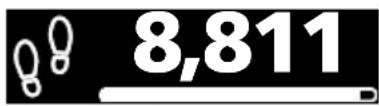
Steps: Indicates the number of steps recorded each day and indicates how far you are to achieving your goal.
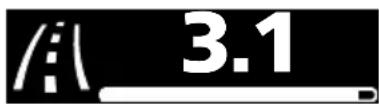
Distance: Estimates the distance you have walked and how far you are to achieving your goal.
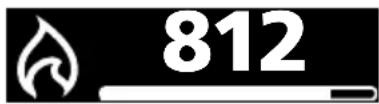
Calories: Estimates how many calories your exercise has burned and how far you are to achieving your goal.

Time: Indicates how many minutes of activity have been recorded and how far you are to achieving your goal.

APPS: Opens other apps on your Leap device.
Tap the APPS screen to launch other available apps on your Leap device.
| App Information | |
 | From the top:Steps: Indicates the number of steps recorded each day and indicates how far you are to achieving your goal.Sleep: Records the amount of time you sleep.Notifications: Displays any unread message and missed call notifications on your Leap device. |
 | From the top:Home: Return to the Home screen.Settings:View battery charge statusView device info.Flip the screen for left- or right-handed use.Restart the device (performs the same function as the reset button on the cradle).Perform a factory reset.Music: Control Apple Music or Google Play Music from your Leap device. |
TROUBLESHOOTING
Is there a video tutorial available?
Yes, you can view the video tutorial at
https://www.youtube.com/watch?v=kePL0CZ7MQE
I can't connect my Leap device to my phone
Try closing Acer Leap Manager and turning off your Bluetooth connection. Launch Acer Leap Manager and turn Bluetooth on again.
My Leap device has been disconnected from my phone
Tap the blue bar at the top of Acer Leap Manager and double-tap the Leap device's display to wake it.
If this fails to reconnect the Leap device to your phone, please unpair the device from Acer Leap Manager and pair the devices again.
I can't control music playback
Try launching Google Play Music or Apple Music and start playing a song. Now you should be able to control the music playback from the Leap device.
How do I wake my Leap device up?
If you are having trouble waking your Leap device up, try removing it from the cradle and then replacing it.
If it has been fully charged or still has power, double-tap the screen.
I can't see the code
If your Leap device is awake (screen is lit up) but you don't see a code, try swiping the screen. If you see icons and/or activity stats but not a code, you will need to perform a factory reset.
- To factory reset your Leap device swipe to the Apps screen.
- Tap to enter the app carousel.
- Tap on the settings icon (looks like a gear).
- Swipe until you see Factory reset, tap on that and again to confirm.
My Leap device won't light up
Try putting the Leap device into the charging cradle and plugging it in to charge. It should light up after a few minutes of charging.
If this doesn't help, press the cradle reset button with a paperclip while the Leap device is plugged into a power source.

Note
Don't use a sharp object as it might damage the cradle.
You can also try a different micro USB cable. If this doesn't help, please contact an authorized Acer service center.
My Leap device won't pair
Please make sure your smartphone's Bluetooth is enabled from your smartphone's Bluetooth settings. If you have just enabled Bluetooth, remove Acer Leap Manager from recent apps and launch it again.
If Acer Leap Manager says it cannot find your Leap device, please go to your smartphone's Bluetooth settings and look at the connected devices. You should see a 19-digit device name starting with the letter H. If it says connected, tap and hold the device name and select Forget this device. Return to Acer Leap Manager and connect again.
How do I remove the Leap device from my account?
Open Acer Leap Manager, open the menu and tap Device > Info for Android or Pair Device > Info for iPhone, you will see an Unpair Device button; tap to unpair your Leap device.
To pair a new device, see Pair your Leap device and phone on page 9 for Android, Pairing your Leap device and phone on page 14 for iPhone, or Pair your Leap device and phone on page 19.
How do I update my Leap device?
From time to time, there may be updates available for your Leap device. When you pair your Leap device with a phone, it will check for and apply updates.
After this first time, you will receive an update notification and your Leap device will automatically update when it syncs with the app.
Ensure your smartphone and Leap device are sufficiently charged.
Specifications
Display
• 1" OLED touchscreen
- 128 x 32 resolution
Waterproof certification
- Splash resistant (IPX4)
Sensor
- Accelerometer
Battery
- Rechargeable, non-user replaceable battery
- 5 to 7 days' battery life

Note
Battery life changes depending on use.
System requirements
- Android 4.4 or higher
• iOS 7 - Windows Phone 8
- Bluetooth 4.0
- Acer Leap Manager
Dimensions
243.1 x 17.3 x 9.9 mm
Weight
18 g
END USER LICENSE AGREEMENT
IMPORTANT-READ CAREFULLY: THIS END USER LICENSE AGREEMENT ("AGREEMENT") IS A LEGAL AGREEMENT BETWEEN YOU (EITHER AN INDIVIDUAL OR A SINGLE ENTITY), AND ACER INC. INCLUDING ITS SUBSIDIARIES ("ACER") FOR THE SOFTWARE (WHETHER PROVIDED BY ACER OR BY ACER'S LICENSORS OR SUPPLIERS) THAT ACCOMPANIES THIS AGREEMENT, INCLUDING ANY ASSOCIATED MEDIA, PRINTED MATERIALS AND RELATED USER ELECTRONIC DOCUMENTATION WHICH MAY BE BRANDED "ACER" ("SOFTWARE"). AGREEMENTS RELATING TO ANY OTHER PRODUCT OR TOPIC ARE NEITHER INTENDED NOR SHOULD THEY BE IMPLIED. BY INSTALLING THE ACCOMPANYING SOFTWARE OR ANY PORTION THEREOF, YOU AGREE TO BE BOUND BY THE TERMS AND CONDITIONS OF THIS AGREEMENT. IF YOU DO NOT AGREE TO ALL OF THE TERMS AND CONDITIONS OF THIS AGREEMENT, DO NOT CONTINUE THE INSTALLATION PROCESS AND IMMEDIATELY DELETE ALL INSTALLED FILES, IF ANY, OF THE ACCOMPANYING SOFTWARE FROM YOUR PHONE.
IF YOU DO NOT HAVE A VALIDLY-LICENSED COPY OF THE APPLICABLE SOFTWARE, YOU ARE NOT AUTHORIZED TO INSTALL, COPY OR OTHERWISE USE THE SOFTWARE, AND HAVE NO RIGHTS UNDER THIS AGREEMENT.
The Software is protected by U.S. and international copyright laws and conventions as well as other intellectual property laws and treaties. The Software is licensed, not sold.
GRANT OF LICENSE
Acer grants to you the following non-exclusive and non-transferable rights with respect to the Software. Under this Agreement, you may:
- Install and use the Software only on a single designated phone. A separate license is required for each phone on which the Software will be used;
- Make one copy of the Software solely for backup or archival purposes;
- Make one hardcopy of any electronic documents included in the Software, provided that you receive the documents electronically.
RESTRICTIONS
You may NOT:
- Use or copy the Software except as provided in this Agreement;
- Rent or lease the Software to any third party;
- Modify, adapt, or translate the Software in whole or in part;
- Reverse engineer, decompile, or disassemble the Software or create derivative works based upon the Software;
- Merge the Software with any other program or modify the Software, except for your personal use; and
- Sublicense or otherwise make the Software available to third parties, except that you may, after prior written notification to Acer, transfer the Software as a whole to a third party so long as you do not retain any copies of the Software and such third party accepts the terms of this Agreement.
- Transfer your rights under this Agreement to any third parties.
- Export the Software in contravention of applicable export laws and regulations, or (i) sell, export, re-export, transfer, divert, disclose technical data, or dispose of, any Software to any prohibited person, entity, or destination including, without limitation, Cuba, Iran, North Korea,
Sudan and Syria; or (ii) use any Software for any use prohibited by the laws or regulations of the United States.
SUPPORT SERVICES
Acer is not obligated to provide technical or other support for the Software.
ACER LIVE UPDATE
Certain of the software contains elements that enable the use of the Acer Live Update service, which allows for updates for such software to be automatically downloaded and installed on your phone. By installing the software, you hereby agree and consent that Acer (or its licensors) may automatically check the version of such software that you are using on your phone and may provide upgrades to such software that may be automatically downloaded on to your phone.
OWNERSHIP AND COPYRIGHT
Title, ownership rights and intellectual property rights in and to the Software and all copies thereof shall remain with Acer or Acer's licensors or suppliers (as applicable). You do not have or shall not gain any proprietary interest in the Software (including any modifications or copies made by or for you) or any related intellectual property rights. Title and related rights in the content accessed through the Software is the property of the applicable content owner and may be protected by applicable law. This license gives you no rights to such contents. You hereby agree
- Not to remove any copyright or other proprietary notices from the Software;
- To reproduce all such notices on any authorized copies you make; and
- To use best efforts to prevent any unauthorized copying of the Software.
TRADEMARKS
This Agreement does not grant to you any rights in connection with any trademarks or service marks of Acer or of Acer's licensors or suppliers.
DISCLAIMER OF WARRANTIES
TO THE MAXIMUM EXTENT PERMITTED BY APPLICABLE LAW, ACER, ITS SUPPLIERS, AND ITS LICENSORS, PROVIDE THE SOFTWARE "AS IS" AND WITH ALL FAULTS, AND HEREBY DISCLAIM ALL OTHER WARRANTIES AND CONDITIONS, EITHER EXPRESS, IMPLIED OR STATUTORY, INCLUDING, BUT NOT LIMITED TO, ANY IMPLIED WARRANTIES, DUTIES OR CONDITIONS OF MERCHANTABILITY, OF FITNESS FOR A PARTICULAR PURPOSE, OF ACCURACY OR COMPLETENESS OF RESPONSES, OF RESULTS, OF WORKMANLIKE EFFORT, OF LACK OF VIRUSES, AND OF LACK OF NEGLIGENCE, ALL WITH REGARD TO THE SOFTWARE AND THE PROVISION OF OR FAILURE TO PROVIDE SUPPORT SERVICES. ALSO, THERE IS NO WARRANTY OR CONDITION OF TITLE, QUIET ENJOYMENT, QUIET POSSESSION, CORRESPONDENCE TO DESCRIPTION OR NON-INFRINGEMENT WITH REGARD TO THE SOFTWARE.
EXCLUSION OF INCIDENTAL, CONSEQUENTIAL AND CERTAIN OTHER DAMAGES
TO THE MAXIMUM EXTENT PERMITTED BY APPLICABLE LAW, IN NO EVENT SHALL ACER, ACER'S SUPPLIERS, OR ACER'S LICENSORS, BE LIABLE FOR ANY SPECIAL, INCIDENTAL, INDIRECT, PUNITIVE, OR CONSEQUENTIAL DAMAGES WHATSOEVER (INCLUDING, BUT NOT LIMITED TO, DAMAGES FOR LOSS OF PROFITS OR CONFIDENTIAL OR OTHER INFORMATION, FOR BUSINESS INTERRUPTION, FOR PERSONAL INJURY, FOR LOSS OF PRIVACY, FOR FAILURE TO MEET ANY DUTY INCLUDING OF GOOD FAITH OR OF REASONABLE CARE, FOR NEGLIGENCE, AND FOR ANY OTHER PECUNIARY OR OTHER LOSS WHATSOEVER) ARISING OUT OF OR IN ANY WAY RELATED TO THE USE OF OR INABILITY TO USE THE SOFTWARE, THE PROVISION OF OR FAILURE TO PROVIDE SUPPORT SERVICES, OR OTHERWISE UNDER OR IN CONNECTION WITH ANY PROVISION OF THIS AGREEMENT, EVEN IN THE EVENT OF THE FAULT, TORT (INCLUDING
NEGLIGENCE), STRICT LIABILITY, BREACH OF CONTRACT OR BREACH OF WARRANTY OF ACER OR ITS SUPPLIERS OR LICENSORS, AND EVEN IF ACER AND ITS SUPPLIERS AND LICENSORS HAVE BEEN ADVISED OF THE POSSIBILITY OF SUCH DAMAGES.
LIMITATION OF LIABILITY AND REMEDIES
NOTWITHSTANDING ANY DAMAGES THAT YOU MIGHT INCUR FOR ANY REASON WHATSOEVER (INCLUDING, WITHOUT LIMITATION, ALL DAMAGES REFERENCED ABOVE AND ALL DIRECT OR GENERAL DAMAGES), THE ENTIRE LIABILITY OF ACER, ITS SUPPLIERS, AND ITS LICENSORS, UNDER ANY PROVISION OF THIS AGREEMENT, AND YOUR EXCLUSIVE REMEDY FOR ALL OF THE FOREGOING, SHALL BE LIMITED TO THE AGGREGATE AMOUNT PAID BY YOU FOR THE SOFTWARE. THE FOREGOING LIMITATIONS, EXCLUSIONS AND DISCLAIMERS (INCLUDING DISCLAIMER OF WARRANTIES AND EXCLUSION OF INCIDENTAL, CONSEQUENTIAL AND CERTAIN OTHER DAMAGES ABOVE) SHALL APPLY TO THE MAXIMUM EXTENT PERMITTED BY APPLICABLE LAW, EVEN IF ANY REMEDY FAILS ITS ESSENTIAL PURPOSE; PROVIDED, HOWEVER, THAT BECAUSE SOME JURISDICTIONS DO NOT ALLOW THE EXCLUSION OR LIMITATION OR LIABILITY FOR CONSEQUENTIAL OR INCIDENTAL DAMAGES, THE ABOVE LIMITATION MAY NOT APPLY TO YOU.
TERMINATION
Without prejudice to any other rights, Acer may immediately terminate this Agreement without notice if you fail to comply with any terms and conditions of this Agreement.
In such event, you must:
- Cease all use of the Software;
- Destroy or return to Acer the original and all copies of the Software; and
- Delete the Software from all phones on which it was resident.
All disclaimers of warranties and limitation of liability set forth in this Agreement shall survive termination of this Agreement.
GENERAL
This Agreement represents the complete agreement between you and Acer relating to this license for the Software and supersedes all prior agreements, communications, proposals and representations between the parties and prevails over any conflicting or additional terms of any quote, order, acknowledgement or similar communication. This Agreement may only be modified by a written document signed by both parties. If any provision of this Agreement is held by a court of competent jurisdiction to be contrary to law that provision will be enforced to the maximum extent permissible and the remaining provisions of this Agreement will remain in full force and effect.
ADDITIONAL PROVISIONS APPLICABLE TO THIRD PARTY SOFTWARE AND SERVICES
Software provided hereunder by Acer's licensors or suppliers ("Third Party Software") is made available to you for your personal, non-commercial use only. You may not use the Third Party Software in any manner that could damage, disable, overburden, or impair the services provided by Acer's licensors or suppliers hereunder ("Third Party Services"). Furthermore, you may not use the Third Party Software in any manner that could interfere with any other party's use and enjoyment of the Third Party Services, or the services and products of Acer's licensors' or suppliers' third party licensors. Your use of the Third Party Software and Third Party Services is also subject to additional terms and conditions and policies which can be accessed through our global website.
Privacy policy
During registration you will be asked to submit some information to Acer. Please refer to Acer's privacy policy at www.acer.com or your local Acer website.
Liquid Leap Active
natural_image
Black Liquid fitness tracker with visible sensor array and 'Liquid' logo on screen (no text beyond branding)




natural_image
Line drawing of a curved device with a zoomed-in inset showing internal components (no text or symbols)natural_image
Diagram of a USB cable connector with a USB port and connector, showing wiring and connection (no text or symbols)
Remarque
natural_image
Line drawing of a hand holding a curved object, possibly a medical or anatomical structure (no text or symbols)natural_image
Line drawing of a hand gripping a ribbon or cable (no text or symbols)Changer le bracelet
natural_image
Illustration of two hands demonstrating a medical or surgical procedure on a wrist (no text or symbols present)
Remarque

Remarque

Remarque

Remarque
natural_image
Black Liquid fitness tracker with visible sensor array and 'Liquid' logo on screen (no text beyond branding)




natural_image
Line drawing of a smartwatch handle with an inset showing the internal components (no text or symbols)natural_image
Diagram of a smart glasses cable with USB connector and connector, showing connection to an audio port (no text or symbols)
Opmerking
natural_image
Line drawing of a hand holding a medical or surgical instrument (no text or symbols present)natural_image
Line drawing of a hand gripping a ribbon or cable (no text or symbols)De band vervangen
natural_image
Illustration showing two hands performing a physical manipulation or repair operation (no text or symbols present)
Opmerking

Opmerking

Opmerking

Opmerking
bar
| Activity | Value | | -------- | ----- | | Steps Taken | 0.7 billion | | Calories | 0.7 million | | Kilometers | 0.0 kilometers | | Calories | 0.1 million |natural_image
Black Liquid fitness tracker with visible sensor array and 'Liquid' logo on screen (no text beyond branding)Benutzerhandbuch





natural_image
Line drawing of a smartwatch handle with an inset showing the internal component (no text or symbols)natural_image
Diagram of a smart glasses cable with USB connector and connector, showing wiring and connector (no text or symbols)
Hinweis
natural_image
Line drawing of a hand holding a medical or surgical instrument (no text or symbols present)natural_image
Line drawing of a hand gripping a curved object, possibly a tool or device (no text or symbols present)natural_image
Illustration of two hands demonstrating a physical manipulation or repair procedure (no text or symbols present)
Hinweis
Displayelement Information

Liquid

Hinweis

Hinweis

Hinweis
natural_image
Black Liquid fitness tracker with visible sensor array and 'Liquid' logo on screen (no text beyond branding)Manuale dell'utente





natural_image
Line drawing of a smartwatch handle with an inset showing the internal component (no text or symbols)natural_image
Diagram of a USB cable connector with a USB port and connector, showing wiring and connection (no text or symbols)
Nota
natural_image
Line drawing of a hand holding a medical or surgical instrument (no text or symbols present)natural_image
Line drawing of a hand gripping a ribbon or cable (no text or symbols)natural_image
Illustration of two hands demonstrating a physical manipulation or repair procedure (no text or symbols present)
Nota

Nota

Nota

Nota
natural_image
Black Liquid fitness tracker with visible sensor array and 'Liquid' logo on screen (no additional text or symbols)Manual de usuario





natural_image
Line drawing of a smartwatch handle with an inset showing the internal component (no text or symbols)natural_image
Diagram of a USB cable connector with a USB port and connector, showing wiring and connection (no text or symbols)
Nota
natural_image
Line drawing of a hand holding a medical or surgical instrument (no text or symbols present)natural_image
Line drawing of a hand gripping a wristband (no text or symbols)Cambio de la correa
natural_image
Illustration of two hands demonstrating a medical or surgical procedure on a wrist (no text or symbols present)
Nota

- Important
- Liquid Leap Active
- User's Manual
- TABLE OF CONTENTS
- Setting up 4
- Use with an Android phone 8
- Use with an iPhone 13
- Use with a Windows phone 18
- Using the Leap device 23
- Troubleshooting 25
- End User License Agreement 28
- SETTING UP
- Unpack your Leap device
- Charge the battery
- Note
- Securing the wristband
- Changing the strap
- Care and wearing tips
- USE WITH AN ANDROID PHONE
- Install Acer Leap Manager
- Download the app
- Set up the app
- Create a new account
- Pair your Leap device and phone
- Sync with the app
- Change notification settings
- Screen item Information
- USE WITH AN IPHONE
- Pairing your Leap device and phone
- Changing settings
- USE WITH A WINDOWS PHONE
- Notifications
- USING THE LEAP DEVICE
- Onscreen information
- TROUBLESHOOTING
- My Leap device won't light up
- My Leap device won't pair
- How do I remove the Leap device from my account?
- How do I update my Leap device?
- Specifications
- Display
- Waterproof certification
- Sensor
- Battery
- System requirements
- Dimensions
- Weight
- END USER LICENSE AGREEMENT
- GRANT OF LICENSE
- RESTRICTIONS
- SUPPORT SERVICES
- ACER LIVE UPDATE
- OWNERSHIP AND COPYRIGHT
- TRADEMARKS
- DISCLAIMER OF WARRANTIES
- TERMINATION
- GENERAL
- ADDITIONAL PROVISIONS APPLICABLE TO THIRD PARTY SOFTWARE AND SERVICES
- Privacy policy
- Remarque
- Changer le bracelet
- Opmerking
- De band vervangen
- Benutzerhandbuch
- Hinweis
- Displayelement Information
- Manuale dell'utente
- Nota
- Manual de usuario
- Cambio de la correa
Brand : ACER
Model : Leap Active W1C
Category : Smartwatch