MSACUS5 - Memory card reader SONY - Free user manual and instructions
Find the device manual for free MSACUS5 SONY in PDF.


| Product type | Memory Stick reader/recorder with optical mouse |
| Brand | Sony |
| Model | MSACUS5 |
| Dimensions (W x H x D) | Approx. 62 x 36 x 110 mm |
| Weight | Approx. 120 g (without Memory Stick) |
| Power supply | USB bus (4.75 V to 5.25 V) |
| Operating power consumption | Max. 100 mA |
| Standby power consumption | Max. 500 µA |
| Interface | USB |
| Transfer speed (reader) | Max. 12 Mb/s |
| Sensor type (mouse) | Optical |
| Resolution (mouse) | 400 dpi |
| Main functions | Memory Stick read/write, optical mouse with scroll wheel and zoom |
| Supported operating systems (Windows) | Windows 98/98SE, Windows 2000 Professional |
| Supported operating systems (Mac) | Mac OS 8.5.1, 8.6, 9.0 |
| Operating temperature | 0°C to 40°C |
| Operating humidity | 20 to 80% relative humidity, no condensation |
| Maintenance and cleaning | Wipe the sensor lens with a soft cloth; do not use solvents |
| Safety instructions | Do not look directly at the LED light; avoid shocks and reflective surfaces |
| Included accessories | USB driver CD-ROM, manual, warranty card |
| Spare parts and repairability | Not intended for user repair; contact Sony after-sales service |
Frequently Asked Questions - MSACUS5 SONY
User questions about MSACUS5 SONY
0 question about this device. Answer the ones you know or ask your own.
Ask a new question about this device
Download the instructions for your Memory card reader in PDF format for free! Find your manual MSACUS5 - SONY and take your electronic device back in hand. On this page are published all the documents necessary for the use of your device. MSACUS5 by SONY.
USER MANUAL MSACUS5 SONY
Memory Stick Reader/Writer
Operating Instructions GB
Mode d'emploi FR
MSAC-US5

MEMORY STICK TM
English
Before operating the unit, please read this instructions thoroughly, and retain it for future reference.
For the customers in U.S.A.
If you have any questions about this product, you may call:
Sony Customer Information Center 1-800-222-SONY(7669)
The number below is for the FCC related matters only
Declaration of Conformity
Trade Name : SONY
Model:MSAC-US5
Responsible Party : Sony Electronics Inc.
Address: 1 Sony Drive, Park Ridge, NJ, 07656 USA
Telephone number : 201-930-6972
This device complies with Part 15 of the FCC Rules. Operation is subject to the following two conditions.: (1) This device may not cause harmful interference, and (2) this device must accept any interference received, including interference that may cause undesired operation.
SONY®
MSAC-US5

Tested To Comply
With FCC Standards
FOR HOME OR OFFICE USE
CAUTION
You are cautioned that any changes or modifications not expressly approved in this manual could void your authority to operate this equipment.
Note:
This equipment has been tested and found to comply with the limits for a Class B digital device, pursuant to Part 15 of the FCC Rules. These limits are designed to provide reasonable protection against harmful interference in a residential installation. This equipment generates, uses, and can radiate radio frequency energy and, if not installed and used in accordance with the instructions, may cause harmful interference to radio communications. However, there is no guarantee that interference will not occur in a particular installation. If this equipment does cause harmful interference to radio or television reception, which can be determined by turning the equipment off and on, the user is encouraged to try to correct the interference by one or more of the following measures:
- Reorient or relocate the receiving antenna.
- Increase the separation between the equipment and receiver.
- Connect the equipment into an outlet on a circuit different from that to which the receiver is connected.
- Consult the dealer or an experienced radio/TV technician for help.
For the customers in Canada
This class B digital apparatus complies with Canadian ICES-003.
For the customers in Germany
Directive:EMC Directive 89/336/EEC.
92/31/EEC
This equipment complies with the EMC regulations when used under the following circumstances:
Residential area
Business district
Light-industry district
(This equipment complies with the EMC standard regulations EN55022 Class B.)
This unit is the Memory Stick Reader/Writer. This reader/writer has an optical mouse function.
You can connect this unit to a personal computer so that data in a "Memory Stick" can be transferred to the personal computer at high speed. You can also use a "Memory Stick" as a removable disk.
What Is The "Optical Mouse?"
The optical mouse does not use a track ball; it uses an optical sensor. It does not need a special mouse pad, and can be used even on your lap or clothes.
Maintenance is easy. Just wipe the lens. The screen scroll lever on the optical mouse allows you scroll or zoom screens with ease.*
This manual describes how to connect this unit, how to install the driver, how to use the reader/writer and how to use the mouse.
Notes
- When using a Macintosh, you cannot use the scroll function since the mouse for the Macintosh does not have left and right buttons.
- When accessing the "Memory Stick" on this unit, your personal computer cannot access other "Memory Stick" devices at the same time. Remove the "Memory Stick" from this unit or turn off other "Memory Stick" devices.
- Be sure to connect this unit to the USB port on the personal computer. Operation is not guaranteed if it is connected to the USB jack on the keyboard or hub.
- Operation is not guaranteed when two or more USB devices are connected to a single personal computer and a hub is used.
- Do not subject this unit to strong shock.
- This unit uses an optical sensor. So, avoid using it on transparent glass or glossy surfaces.
- Identification performance drops when the mouse is used on the following surfaces:
- Reflective or glossy surfaces such as mirrors or glass, or text/graphic/photographic/colour patterned surfaces that have extreme changes
- Surfaces that have continuous similar patterns, or highly uneven surfaces
- A bright LED is used in operation of the image identification sensor. So, do not look directly into the light on the rear.
- Do not use this product in the following locations. Doing so might cause malfunction.
- Locations subject to splashing water
- Locations subject to direct sunlight
- Near hot locations such as heating apparatus
- Near humid or dusty locations
- Prevent fluids or metal objects from falling inside the body. If the body becomes dirty, wipe with a soft cloth. Never use benzene, alcohol, paint thinner or other solvents.
- Sometimes condensation forms on the sensor lens due to sudden changes in temperature, causing operation trouble. If this happens, wipe the sensor lens and try using again.
- The contents of data cannot be compensated if recording or playing back is not made due to malfunctions such as "Memory Stick" error.
- Do not touch the terminals on the "Memory Stick" with your fingers or metal objects.
- To prevent recording or deletion of data on "Memory Stick"s set the "Memory Stick" write-protect switch to "Lock."
- The communications state is sometimes not restored even if your personal computer is restored from a standby state or sleep state.
- Do not optimize "Memory Stick"s.
- Do not compress the data on "Memory Stick"s.
"Memory Stick" and are trademarks of Sony Corporation.
Microsoft® and Windows® are either registered trademarks or trademarks of Microsoft Corporation in the United States and/or other countries. Macintosh, iMac and Mac OS are trademarks of Apple Computer, Inc. All other company names and product names mentioned here may be the trademarks or registered trademarks of their respective companies.
About Formatting "Memory Stick"s
When "Memory Stick"s are shipped from the factory, they are already formatted to a special standard format. When you format "Memory Stick"s, we recommend formatting them on the device you are using so that they are compatible when used on "Memory Stick"-compatible device.
Cautions When Formatting "Memory Stick"s on a Personal Computer
Pay attention to the following points when formatting "Memory Stick"s on the personal computer, for example, that you are using.
-
Operation of "Memory Stick"s formatted on Windows machines is not guaranteed on "Memory Stick"-compatible device. To use a "Memory Stick" that has been formatted on a Windows machine, the "Memory Stick" must be reformatted on "Memory Stick"-compatible device. Note, that, in this case all data stored on the "Memory Stick" will be lost.
-
"Memory Stick" formatted on a Macintosh sometimes cannot be used on "Memory Stick"-compatible device. Do not format "Memory Stick" on the Macintosh.
Table of Contents
Before You Begin
Checking the accessories 7
Parts identification 8
Installation
For Windows
Installing the USB driver software 9
Installing the mouse driver software 11
Installing the "Memory Stick" driver software 13
For Macintosh Installing the USB driver software 14
Operation
Using the Reader/Writer For Windows 15 For Macintosh 16
For users of SONY digital HandyCam and Cyber-shot 17
Using the mouse 18
Additional Information Troubleshooting 20
Specifications 22
Recommended connections 23
Checking the accessories
Make sure that you have all the accessories below. If some of the accessories are missing, contact the store or purchase of a Sony dealer or local authorized Sony service facility.
- Memory Stick Reader/Writer (1)

-
CD-ROM (SPVD-003 USB driver) (1) (for Windows/Macintosh)
-
Manual (1)
WARRANTY CARD (1)
Parts identification
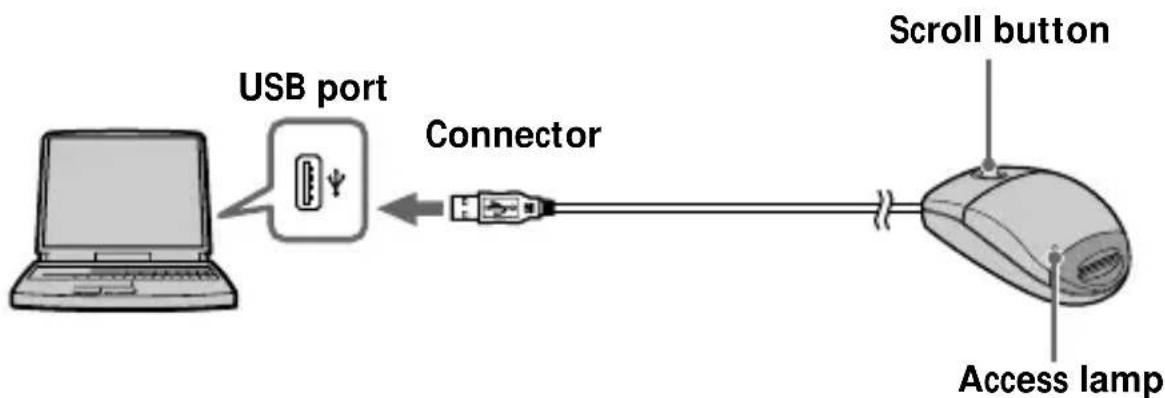
Insert the connector on this unit into the USB port on the personal computer (into any USB port on the personal computer if the personal computer has more than one USB port).
Notes
- The access lamp lights when you access data on "Memory Stick." When the access lamp is lit, never remove the "Memory Stick", turn off the power of your personal computer or disconnect the connector. Doing so might damage the data in "Memory Stick."
- When disconnecting this unit from the personal computer, do not hold it by its cable; hold it by its connector.
For Windows
Follow the procedure below to install the USB driver software.
Do not disconnect the mouse from the personal computer until the installation is completed. You need the mouse for the installation.
When you disconnect the mouse from the personal computer, the operation is carried out on the keyboard.
Refer to the operating instructions for the keyboard.
-For Windows 2000-
You must log in using administrator's privileges.
Installing the USB driver software
The screens shown in the following procedure are examples. Actual screens differ according to the OS.
Do not connect this unit to the personal computer at this time.
1 Turn on your machine to start up Windows, and insert the USB driver software CD-ROM (supplied) into the CD-ROM drive.
2 Open "My Computer."
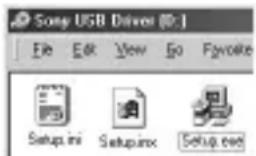
3 Open the CD-ROM drive (Sony USB Driver (ex: [D:])).
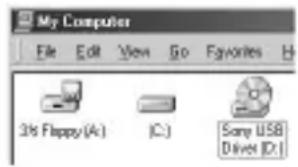
4 Start up Setup.exe.
For Windows (continued)
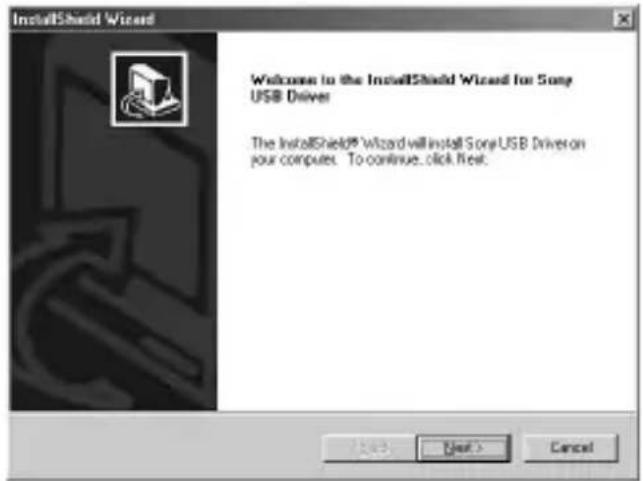
5 Click "Next."
This starts installation of the USB driver.
Follow the on-screen instructions until the end to install the USB driver software.
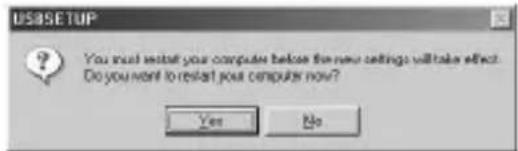
6 After the USB driver software has been installed, reboot your personal computer.
Follow the on-screen instructions to reboot your personal computer.
7 After your personal computer has rebooted, remove the CD-ROM.
8 Make sure that a "Memory Stick" is not in this unit.
If you connect the USB port on the personl computer to this unit with a "Memory Stick" inserted, the "Memory Stick" driver software installation on page 13 will be carried out after the mouse driver software installation has been completed.
9 Connect the USB port on the personal computer to this unit.
Connect the connector on this unit to the personal computer without inserting a "Memory Stick."
-For Windows 2000-
The mouse driver software installation starts automatically.
Go to "Installing the "Memory Stick" driver software" section on page 13.
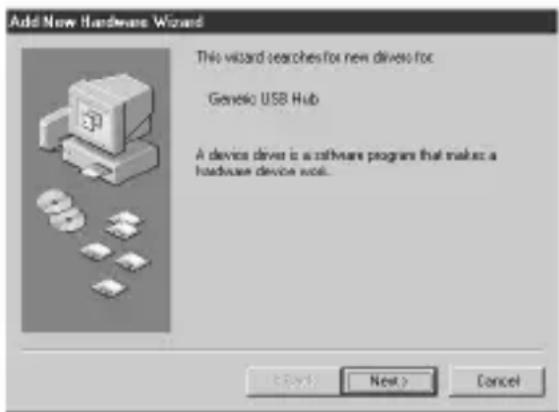
10 The Windows machine will recognize this unit, and "Add New Hardware Wizard" will start up.
Click "Next."
Follow the on-screen instructions to proceed with the installation.
The "Add New Hardware Wizard" starts twice because two drivers are installed. Do not cancel the installation midway, and complete the installation.
The Windows® 98/98SE CD-ROM may be needed for this installation.
For Windows (continued)
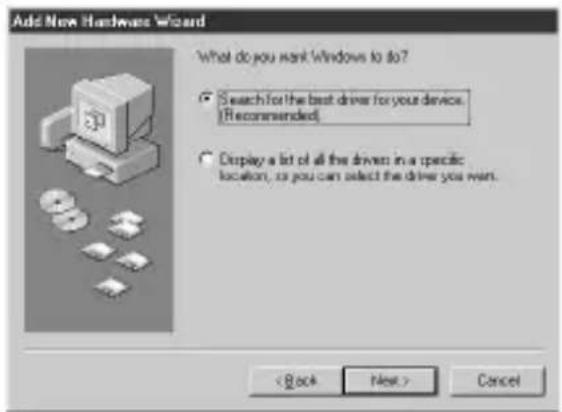
11 Select "Search for the best driver for your device (Recommended)" and click "Next."
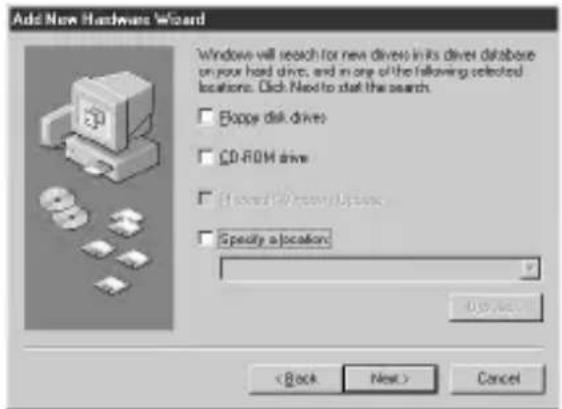
12 Click "Next" without changing the checkbox settings.
Follow the on-screen instructions until the end to install the mouse driver software.
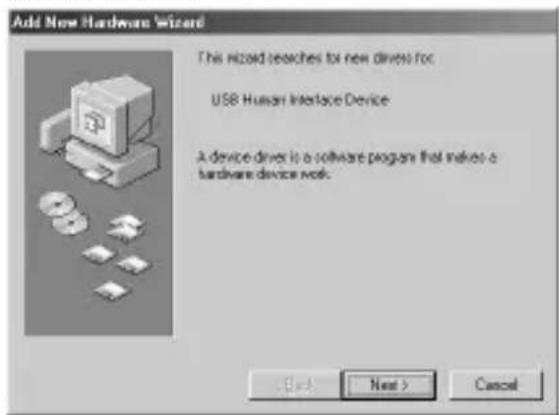
13 The "Add New Hardware Wizard" starts twice. Follow the on-screen instructions until the end to install the mouse driver software.
14 Make sure that mouse works.
12-GB
Installing the "Memory Stick" driver software
Make sure that other USB devices are not connected to the personal computer.
15 Insert a "Memory Stick"(optional) into this unit.
The "Memory Stick" driver software installation starts automatically.
16 The icon of the newly identified driver "Removable disk" (ex: [G:]) is displayed in the "My Computer" window, and installation of the "Memory Stick" driver ends.
- Note that addition of the removable disk takes a while.
![SONY MSACUS5 - The icon of the newly identified driver "Removable disk" (ex: [G:]) is displayed in the "My Computer" window, and installation of the "Memory Stick" driver ends. - 1](/content/2026/03/478511/images/c816ab5a23a28339c71ac1b9ae1fe9323f84e2790cf68c46754b3140e188311f.jpg)
Notes
- When you install the "Memory Stick" driver software, a massage which is not described in this manual may appear on the screen. If this happens, follow the on-screen instruction.
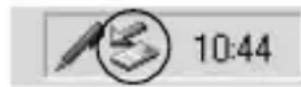
- Before disconnecting this unit with the "Memory Stick" inserted from the personal computer or removing the "Memory Stick" after installation on Windows® 2000 has completed, click the "Disconnect or remove hardware" icon on the personal computer's scroll bar, and click "Stop Sony Peripheral drive (ex: [G:])."
For Macintosh
When using the Macintosh, connect the connector on this unit after your Macintosh has started up.
Installing the USB driver software
1 Turn on your Macintosh to start up the Mac OS.
2 Insert the USB driver software CD-ROM (supplied) into the CD-ROM drive.
3 Connect the connector on this unit to the USB port on the personal computer.
4 Double-click the CD-ROM drive icon.
5 Double-click the hard disk icon containing the System Folder to open the hard disk window.
6 Drag the following two Mac driver files in the window opend in step 4 onto the System Folder in the window opened in step 5. (Drag and Drop):
- Sony Peripheral USB Driver
- Sony Peripheral USB Shim
7 The message "Place files in Extensions Folder?" is displayed. Select "OK."
8 Restart your Macintosh.
Using the Reader/Writer
For Windows
When you turn on your personal computer, make sure that the "Memory Stick" is not in this unit.
If the "Memory Stick" is in this unit, you may not be able to start up your personal computer.
In this case, reboot your personal computer after removing the "Memory Stick" from this unit.
Insert "Memory Stick" into the unit, and open "Explorer" or "My computer."
Removable disk is newly set up so that you can access data on "Memory Stick."
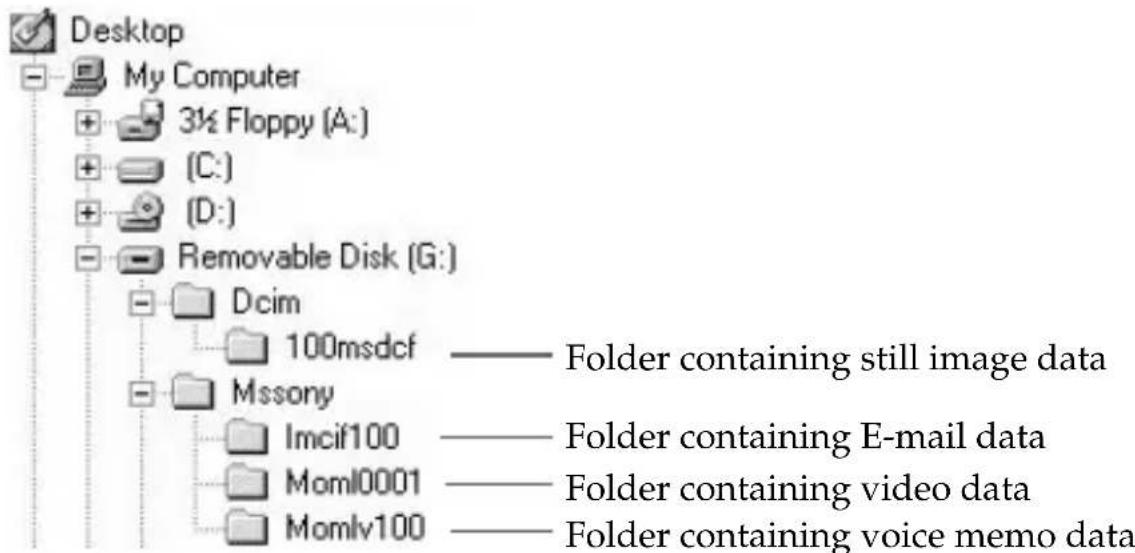
The screen shown above is an example. Actual screen may differ according to the OS.
This screen shows a window opened by Explorer.
1 Close softwares such as Explorer running for this unit.
2 Make sure that the access lamp is not lit, then remove the "Memory Stick."
Using the Reader/Writer (continued)
Notes
- When the access lamp is lit, never remove the "Memory Stick", turn off the power of your personal computer or disconnect the connector. Doing so might damage the data in "Memory Stick."
- When using a Window®2000, click the "Disconnect or remove hardware" icon on the personal computer's scroll bar, and click "Stop Sony Peripheral drive (ex: [G:])" before disconnecting the personal computer from this unit with the "Memory Stick" inserted.

1044
For Macintosh
1 When you insert "Memory Stick" into this unit, "Memory Stick" icon appears on the desktop.
2 Open the "Memory Stick" icon.
You can access the data.
Note that displaying the "Memory Stick" icon takes a while.
1 Close softwares running for this unit.
2 Make sure that the access lamp is not lit.
3 Move the "Memory Stick" icon from the hard disk to Trash or select "Eject" from "Special" menu.
4 Remove the "Memory Stick."
Note
You may not be able to copy the whole of folder on "Memory Stick" at once to the hard disk on the Macintosh. In this case, open the folder first and copy the contents in the folder.
For users of SONY digital HandyCam and Cyber-shot
You can view or capture data on "Memory Stick" on a personal computer by connecting this unit to a personal computer on which the USB driver software has been installed.
For details on how to use SONY digital HandyCam or Cyber-shot, refer to the manual for your digital HandyCam or Cyber-shot.
"Memory Stick" data made on a SONY digital HandyCam or Cyber-shot is stored to the following file names in the following folders.
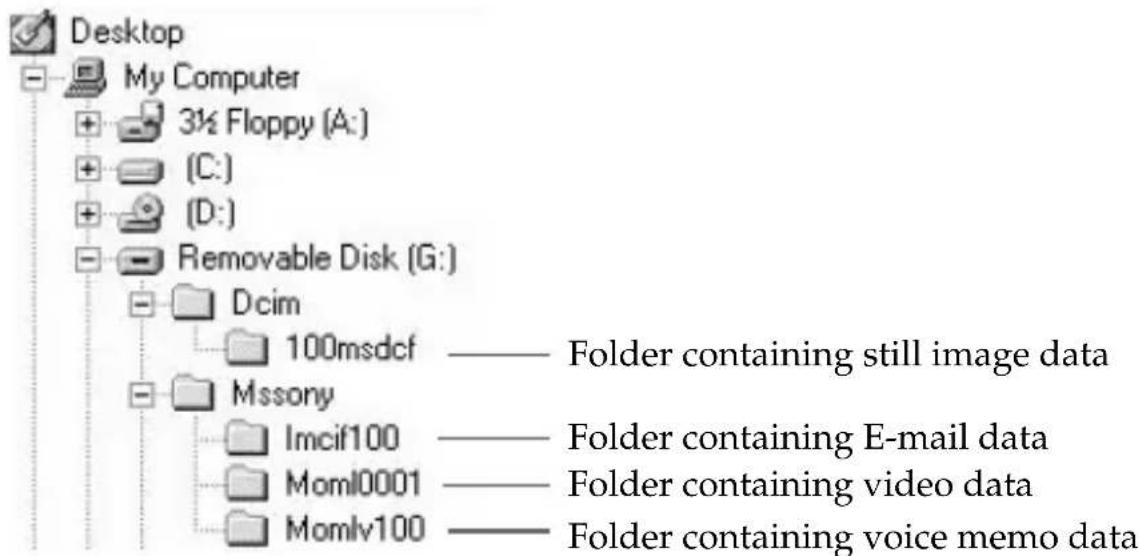
Actual screens differ according to the OS.
| Recording mode | Folder name | Folder name | File name (Example) |
| Still picture | Dcim | 100msDCF | Dsc00001.jpg |
| Moving picture | Mssony | Moml0001 | Mov00001.mpg |
| VOICE | Mssony | Momlv100 | Dsc00001.mpg |
| Mssony | Imcif100 | Dsc00001.jpg |
Note
The folder names and file names vary according to the equipment you are using. Refer to the user's manual for the equipment you are using.
Using the mouse
This unit has the following three scroll functions:
1.Scroll
Easy up/down scroll
Auto up/down scroll
- Auto panning
- Zooming
Notes
- The scroll and zoom functions are not supported on the Macintosh.
- You may not be able to use the scroll function according to the application software. Refer to the operating instructions for respective softwares.
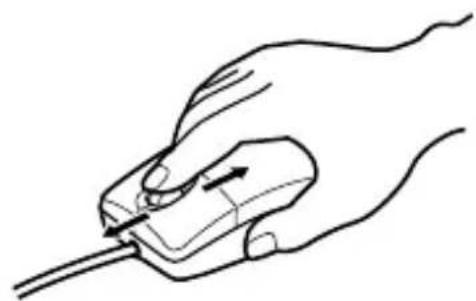
Scroll
Press the scroll button forwards or backwards when the up/down scroll bar is displayed on the application.
This scrolls the window up or down.
Press the scroll button forwards or backwards and hold the button in this state when the up/down scroll bar is displayed on the application.
This scrolls the window up or down continuously.
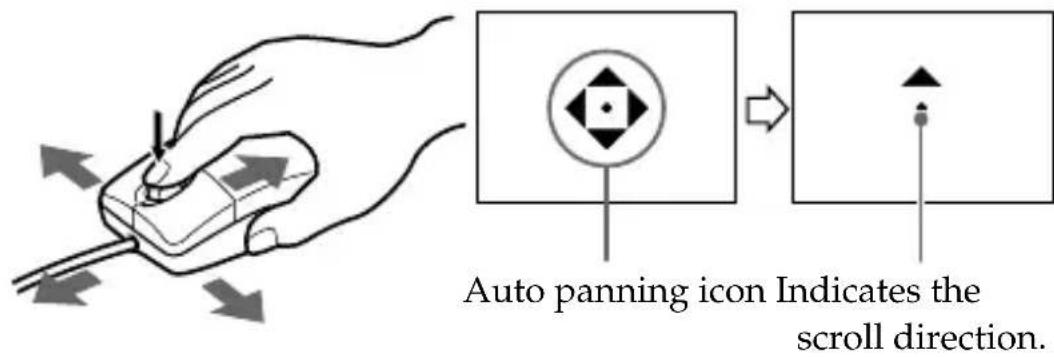
Auto panning
1 Press the scroll button down.
The auto panning icon appears on the scroll bar.
2 When the icon appears, move this unit in the direction you want to scroll.
This scrolls large amounts of data to the left, right, up or down.
To return the cursor to its original position, either press the scroll button again, or click the left or right button. You can also freely set the scroll speed in the X or Y directions by how much you move this unit.
Zooming
Press the scroll button forward or backwards while pressing the Ctrl key on the keyboard.
This enlarges or reduces the application screen.
Troubleshooting
If you run into any problem using this unit, use the following table to troubleshoot the problem. If the problem persists, contact your Sony dealer.
| Symptom | Cause/Solution |
| You cannot install the USB driver software. | ·The connection between the personal computer and this unit is not correct. →Connect correctly. (page 23) ·Device other than this unit is connected to the USB port on the personal computer. →Disconnect or turn off the USB devices except this unit. ·“SETUP.exe” on CD-ROM has not been carried out. →Carry out “SETUP.exe”on CD-ROM. |
| You cannot install the “Memory Stick” driver software. | ·“Memory Stick” is not in this unit. →Insert “Memory Stick” into this unit. |
| “Memory Stick” icon does not appear in Explorer or My computer. (Windows) | ·The connection between the personal computer and this unit is not correct. →Connect correctly. (page 23) ·“Memory Stick” is not in this unit. →Insert “Memory Stick” into this unit. |
| “Memory Stick” icon does not appear. (Macintosh) | ·The connection between the personal computer and this unit is not correct. →Connect correctly. (page 23) ·“Memory Stick” is not in this unit. →Insert “Memory Stick” into this unit. |
| You cannot scroll or zoom. | You are using the software that is not supported for scroll and zoom functions.Refer to the operating instructions for your software.Another software for the mouse is working.Uninstall another software.You are using a Macintosh. |
| You cannot access the "Memory Stick." | Device other than this unit is connected to the USB port on the personal computer.Disconnect or turn off the USB devices except this unit. |
| Your personal computer cannot recover from standby state or sleep state. | The "Memory Stick" is in this unit.Remove the "Memory Stick" from this unit once, and reinsert it.The setting on the Device Manager to recover from standby on sleep state has not done depending on the OS.Confirm the setting on the Device Manager. Refer to Help for the OS. |
Specifications
Mouse
Interface: USB interface
Sensor: Optical
Transfer rate: Max. 1.5Mb / s
Resolution: 400 cpi
Switch: Left/Right button, scroll button
Power consumption: Action Max. 100mA
Standby Max. 500 A
Reader/Writer
Interface: USB interface
Transfer rate: Max. 12 Mb/s
Power consumption: Action Max. 100mA
Standby Max. 500 A
Operating voltage: 4.75V to 5.25V (BusPower)
Dimensions: Approx. 62 · 36 · 110 ~mm (2.44 · 1.42 · 4.33 in.) (W · H · D)
Weight: Approx. 120g (4.23 oz)(not including "Memory Stick")
Environmental specification:
Temperature 0^ to 40^ (32 F to 104 F)
Humidity 20 80% RH Non-Condensing
Personal Computer (Windows)
Supported OS: Microsoft® Windows® 98/98SE/Windows® 2000 Professional (standard installation)
CPU: MMX^TM Pentium® 200 MHz or faster
Others device: The USB connectors must be provided as standard. CD-ROM drive
Personal computer (Macintosh)
Supported OS: Mac OS 8.5.1/8.6/9.0 (standard installation)
Others device: The USB connectors must be provided as standard. CD-ROM drive
Supplied accessories
CD-ROM (SPVD-003: USB driver)
Instruction manual
Warranty
Recommended connections
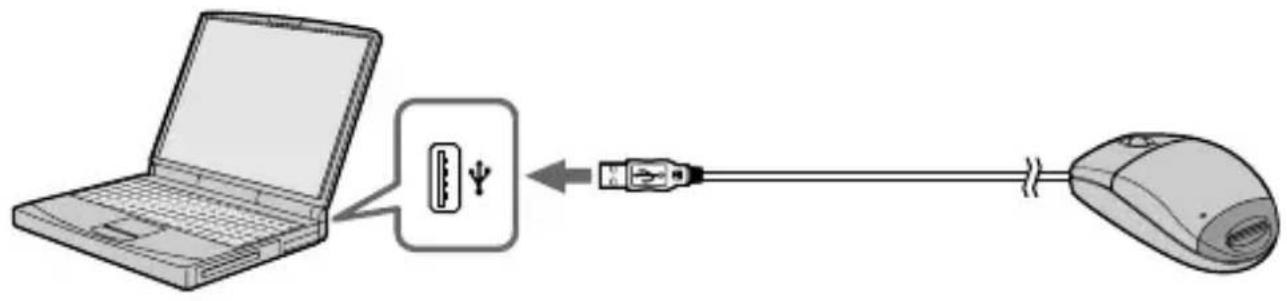
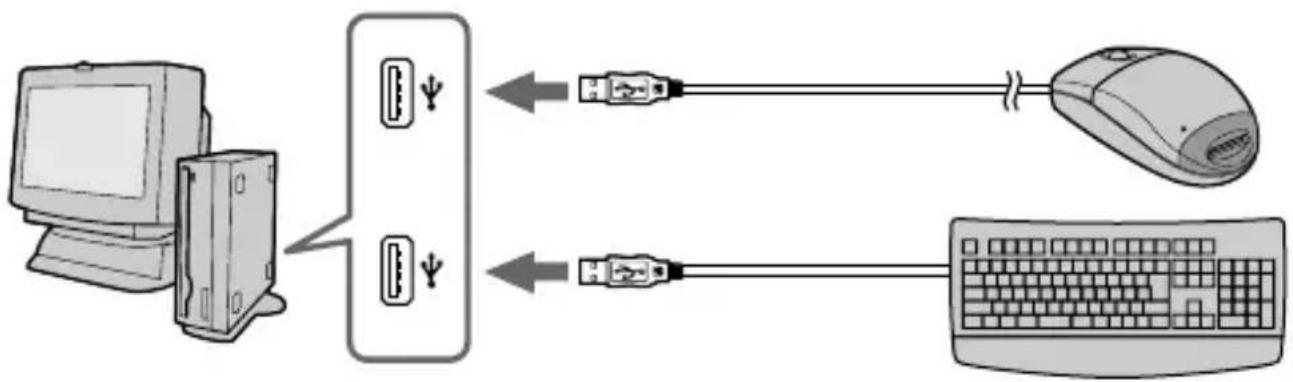
Operation when connected as follows has been confirmed.
1 When this unit is connected to the USB port on the personal computer, and nothing is connected to the other USB port:
2 When a USB keyboard is connected to the USB port on the personal computer, and this unit is connected to the other port:
Notes
- Operation is not guaranteed when two or more USB devices are connected to a single personal computer and a hub is used.
- Be sure to connect this unit to the USB port on the personal computer. Operation is not guaranteed if it is connected to the USB jack on the keyboard or hub.
- Operation is sometimes not normal depending on the USB devices that are used simultaneously.
- Operation on all personal computers in the recommended environment is not guaranteed.
We recommend backing up valuable data.
François
- Sony Peripheral USB Driver
- Sony Peripheral USB Shim
If you have any questions/comments related to this product, please visit our Customer Support website at
http://www.sony.com/service
(If you do not have internet access, please call 1-800-22 SONY.)
- Memory Stick Reader/Writer
- English
- Declaration of Conformity
- SONY®
- MSAC-US5
- FOR HOME OR OFFICE USE
- CAUTION
- Note:
- For the customers in Germany
- What Is The "Optical Mouse?"
- Notes
- About Formatting "Memory Stick"s
- Cautions When Formatting "Memory Stick"s on a Personal Computer
- Table of Contents
- Before You Begin
- Installation
- Operation
- Checking the accessories
- Parts identification
- For Windows
- -For Windows 2000-
- Installing the USB driver software
- For Windows (continued)
- Click "Next."
- After the USB driver software has been installed, reboot your personal computer.
- After your personal computer has rebooted, remove the CD-ROM.
- Make sure that a "Memory Stick" is not in this unit.
- Connect the USB port on the personal computer to this unit.
- The Windows machine will recognize this unit, and "Add New Hardware Wizard" will start up.
- Select "Search for the best driver for your device (Recommended)" and click "Next."
- Click "Next" without changing the checkbox settings.
- The "Add New Hardware Wizard" starts twice. Follow the on-screen instructions until the end to install the mouse driver software.
- Make sure that mouse works.
- 12-GB
- Installing the "Memory Stick" driver software
- Insert a "Memory Stick"(optional) into this unit.
- The icon of the newly identified driver "Removable disk" (ex: [G:]) is displayed in the "My Computer" window, and installation of the "Memory Stick" driver ends.
- For Macintosh
- Using the Reader/Writer
- Using the Reader/Writer (continued)
- Note
- For users of SONY digital HandyCam and Cyber-shot
- Using the mouse
- Scroll
- Auto panning
- Press the scroll button down.
- When the icon appears, move this unit in the direction you want to scroll.
- Zooming
- Press the scroll button forward or backwards while pressing the Ctrl key on the keyboard.
- Troubleshooting
- Specifications
- Mouse
- Reader/Writer
- Environmental specification:
- Personal Computer (Windows)
- Personal computer (Macintosh)
- Supplied accessories
- Recommended connections
- François
Brand : SONY
Model : MSACUS5
Category : Memory card reader