
DR 463 - Radio MOULINEX - Free user manual and instructions
Find the device manual for free DR 463 MOULINEX in PDF.
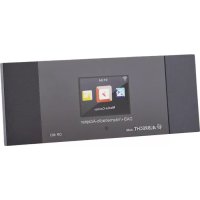


| Product type | Internet/DAB+/FM radio adapter with Bluetooth |
| Brand | Moulinex |
| Model | DR 463 |
| Dimensions (W x D x H) | 190 x 75 x 40 mm |
| Weight | 260 g |
| Power supply | 5 V / 850 mA (AC adapter supplied) |
| Standby consumption | < 1 W |
| Display | 2.4 inch TFT color (320 x 240 pixels) |
| Network connection | Wi-Fi 802.11 b/g/n |
| Wi-Fi security | WEP, WPA, WPA2 (PSK), WPS |
| Frequency bands | 2412-2472 MHz (Wi-Fi), 2402-2480 MHz (Bluetooth) |
| Supported audio formats | MP3, AAC, AAC+, WMA, FLAC |
| Streaming | UPnP, DLNA |
| Main functions | Internet radio, DAB+, FM, Bluetooth, Spotify Connect, Media Center (UPnP/DLNA), alarm, timer, equalizer |
| Connections | Audio Line Out (RCA), antenna input (3.5 mm jack) |
| Included accessories | Remote control, AC adapter, Cinch audio cable, antenna, antenna adapter |
| Operating temperature | 0 °C to 35 °C |
| Maintenance | Clean with a soft, dry cloth. Do not use liquid or abrasive products. |
| Safety | Do not expose to moisture, do not open the casing. Use only the supplied adapter. |
| Repairability | Contact technical service in case of malfunction. Do not attempt to repair yourself. |
| Warranty | 2 years from the date of purchase |
Frequently Asked Questions - DR 463 MOULINEX
User questions about DR 463 MOULINEX
0 question about this device. Answer the ones you know or ask your own.
Ask a new question about this device
Download the instructions for your Radio in PDF format for free! Find your manual DR 463 - MOULINEX and take your electronic device back in hand. On this page are published all the documents necessary for the use of your device. DR 463 by MOULINEX.
USER MANUAL DR 463 MOULINEX
4. Main menu
12.3.3. Manual configuration
Internet Radio/DAB+/FM Adapter with Bluetooth
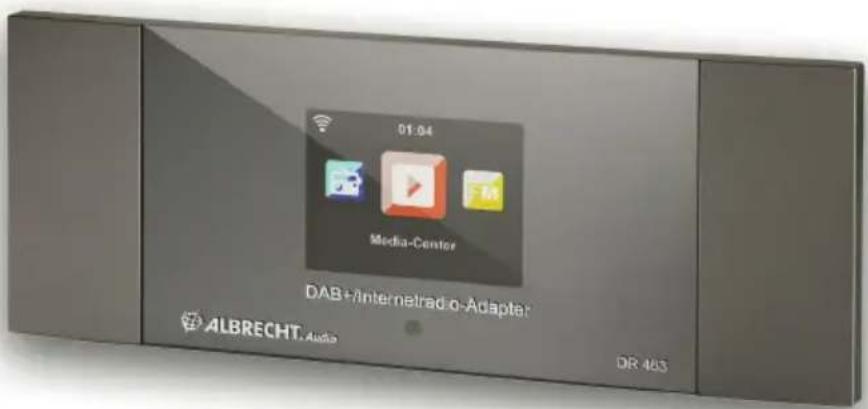
Instruction Manual English
Table of Contents
- Product contents....31
- Controls and connections....31
2.1. Front side 31 2.2. Back side....32 2.3. Remote control 32
- First steps....33
3.1. Network requirements ...... 33 3.2. Preparing the network 33 3.3. Navigation through menus .... 33 3.4. Connecting to an audio system....34 3.5. Getting started....34 3.6. AirMusic Control App 35
- Main menu....36
- Internet radio 36
5.1. My Favorite....36 5.2. Station/music....37 5.3. Lokal Station....37 5.4. Sleep radio 37 5.5. History ....37 5.6. Service 37
- My mediaU 38
- DAB/DAB+ radio....39
7.1. Scanning for stations....39 7.2. Searching for and selecting stations 39 7.3. Station information and slideshow....39 7.4. Save favourites....39 7.5. Viewing favourites ....39
- Media centre....40
8.1. UPnP 40 8.2. DLNA 41
- Bluetooth 41
- FM radio 42
10.1. Setting the station....42 10.2. Favourites....42
- Spotify Connect 42
11.1. How to use Spotify Connect ....42
- Information centre....43
12.1. Weather Information....43 12.2. Financial Information 43 12.3. System Information 43
- Settings....44
13.1.Time Display 44 13.2.Manage my mediaU 44 13.3. Network 45 13.4. Date & Time....46 13.5. Alarm 47 13.6. Timer 48 13.7. Scheduled Playing....48 13.8. Language 48 13.9. Dimmer....49 13.10. Display....49 13.11. Power Management....49 13.12. Sleep timer 50 13.13. Buffer memory....50 13.14. Weather 50 13.15. DAB/FM Setup 50 13.16. Local Radio Setup 51 13.17. Playback Setup 51 13.18. DLNA-Setup 51 13.19. Equalizer 51 13.20. Resume When Power On....52 13.21. Software-Update ....52 13.22. Factory Reset....52
- Troubleshooting....53
- Specifications 54
- Important Safety Notes....55
- Warranty and Recycling Information ....56
1. Product contents
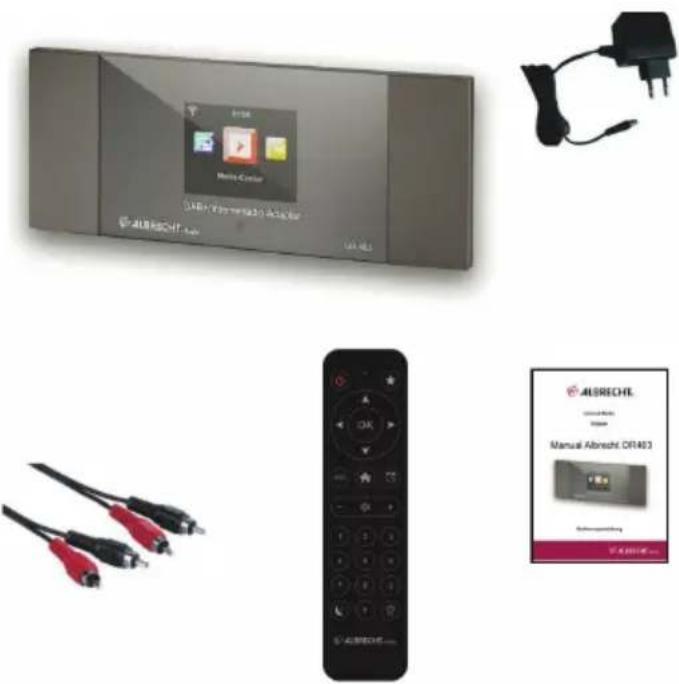
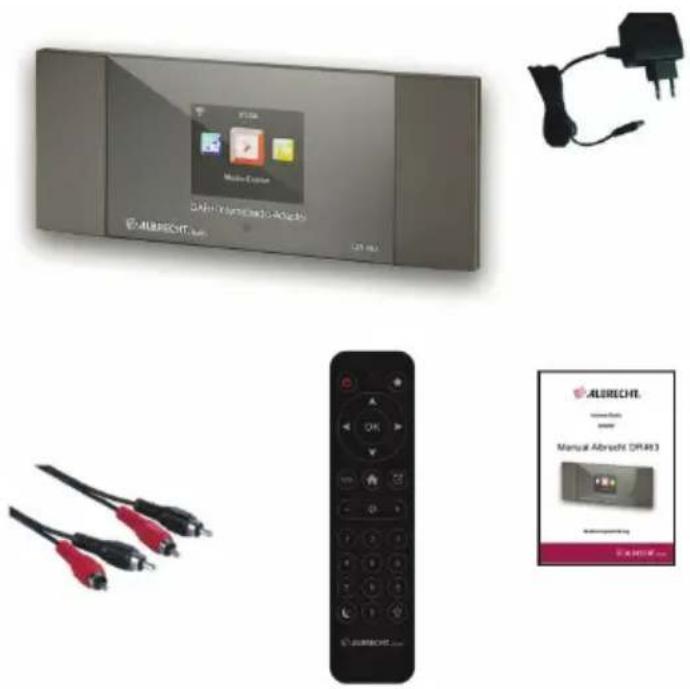
Please make sure that the following contents are included in the package:
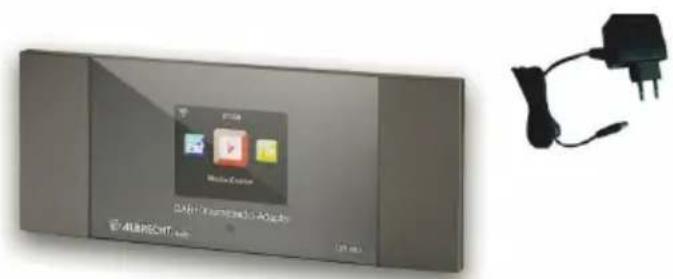
- DR 463 radio adapter
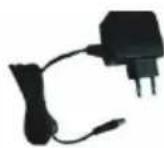
- Mains adapter
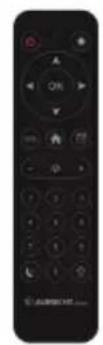
- Remote control
- Instruction Manual
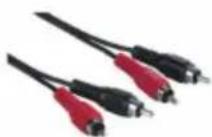
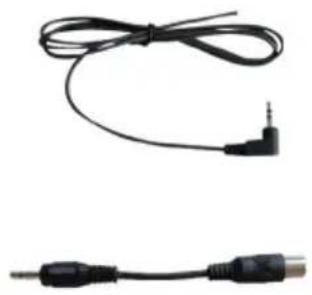
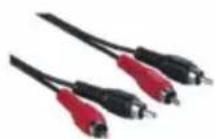
- RCA audio cable
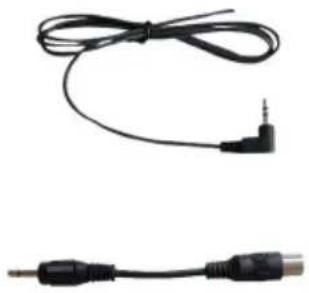
- Antenna cable
- IEC antenna adapter
2. Controls and connections
Please take some time to familiarise yourself with the functions of the DR 463 after you have taken it out of the box.
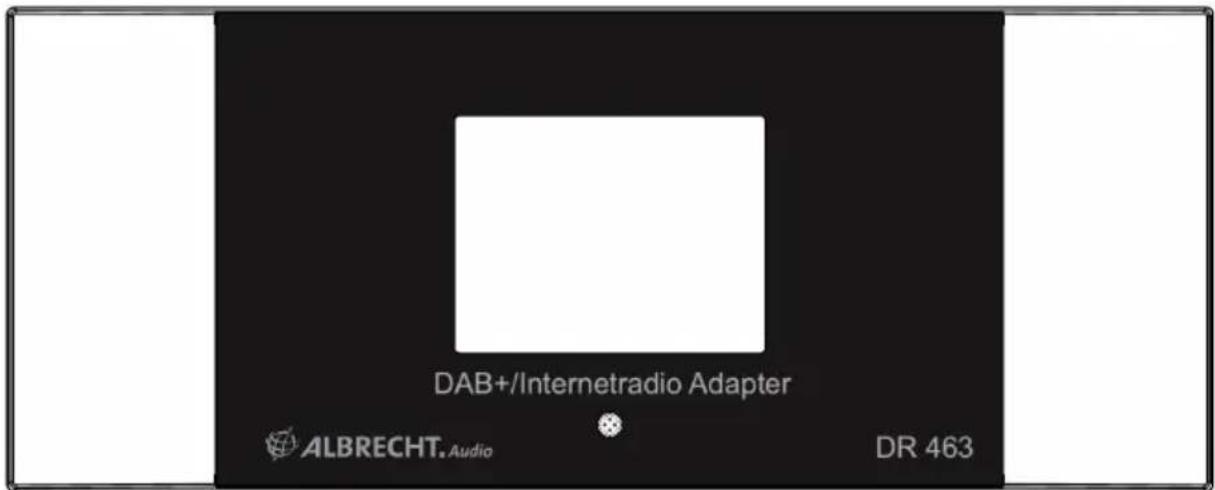
2.1. Front side
Your DR 463 has no buttons on the device itself. Thanks to the simple and user-friendly menu navigation, all functions of the radio can be controlled via the supplied remote control.
2.2. Back side
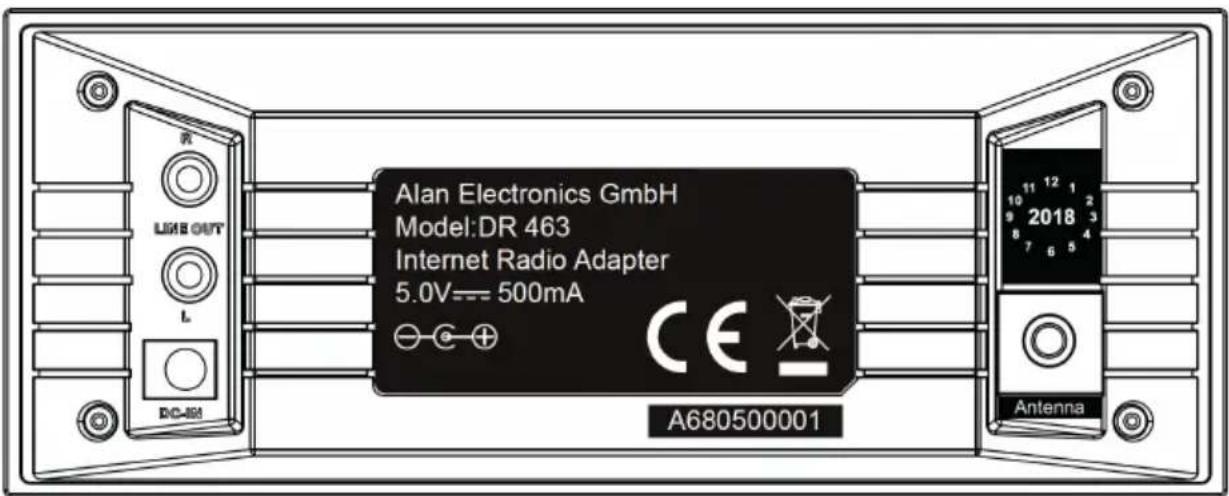
The connections of this model are:
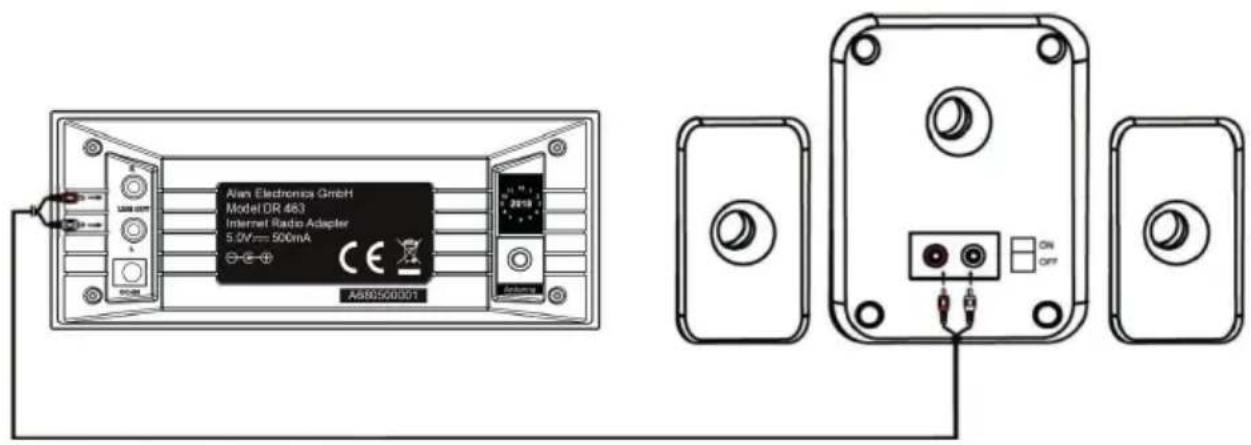
• Line-Out: 2 x RCA (stereo) • DC input: for mains adapter • Antenna connection: 3.5 mm jack plug
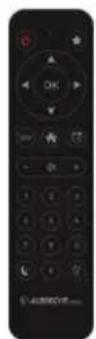
2.3. Remote control
| On/Off Switch device | on and off (standby) | |
| Favourites | Show favourites listLong press: Save favourites | |
| Navigation up | Scroll up through menuEnter text | |
| Navigation left Return to the previous menu | ||
| OK | Enter Confi rm selection of a menu option | |
| Navigation right | Confi rm selection of option and view submenu | |
| Navigation down | Scroll down through menuEnter text | |
| MODE | MODE | Switch between the modes.Function changeable in the “Button” menu |
| HOME View the main menu | ||
| Alarm View the alarm menu | ||
| - | Volume + Decrease the volume | |
| Mute Mute the sound | ||
| + | Volume + Increase the volume | |
| 0-9 | Station memory 0-9 | Recall saved stations |
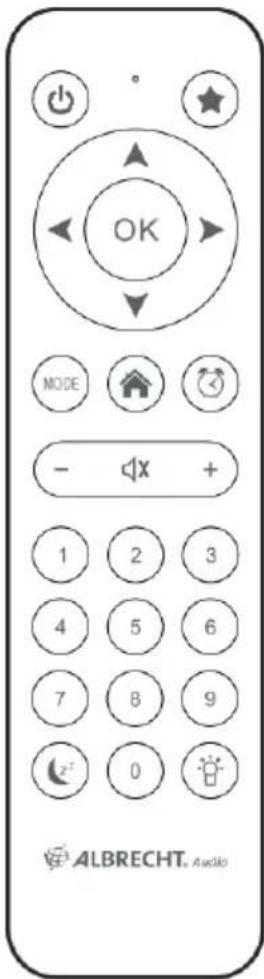
 | Sleep timer | Select automatic switch-off timeLong press: Sleep radio menu |
 | Dimmer Dim the backlight | |
To open the battery compartment of the remote control, push the battery compartment open with your thumb. Insert AAA batteries, the polarity is indicated in the battery compartment.
Please dispose of used batteries in an environmentally friendly way.
3. First steps
3.1. Network requirements
Before using the DR 463, the following requirements must be met:
- Broadband connection with a wireless access point, router or similar network device.
- The network device must support WLAN (802.11b/g/n) wireless connection.
- If you want to remotely control the DR 463 via DLNA, you will need a PC or smartphone connected to the same network as the DR 463.
3.2. Preparing the network
- Establish a WLAN connection as follows:
- Make sure that the WLAN indicator on the wireless access point or router is lit. Please refer to the corresponding user manual for further information.

Please note: WLAN allows data transmission over short distances up to 20 m without cables. Walls or ceilings reduce the range of the WLAN connection. Therefore, place the DR 463 and/or the access point within this distance as much as possible and avoid obstacles between the devices.
3.3. Navigation through menus
With the 🔊 button, you can access the main menu of the DR 463 at any time.
Use the arrow buttons ◀▶ ▲▼ to move through the individual menus. Always confirm a selection with the OK button. Use the ▶ button to go to the next menu and use the ◀ button to return to the previous menu. The possible buttons are shown at the bottom right and left of the display.
3.3.1. Text entry
When you add the address of an online radio station or your wireless network key, you need to enter text. It is the same procedure to set the time, date or the alarm.
To enter upper/lower case letters, symbols, or numbers:
- Press the up/down navigation button to select a character from the following:
- Press the right navigation button ▶ to proceed to the next. Press the enter button when done.
NOTE: When entering numbers, the numeric keys on the remote control can also be used.
3.4. Connecting to an audio system
Connect the DR 463 to your existing audio system (e.g., stereo, external speaker, etc.) with the supplied RCA audio cable.
3.5. Getting started
Connect the mains adapter to the back of the DR 463 and connect the mains plug to an electrical outlet. Connect the supplied antenna to the antenna input on the back. Alternatively, connect your antenna system/indoor antenna with the supplied antenna adapter.
When using the device for the first time, please select a language and a wireless network.
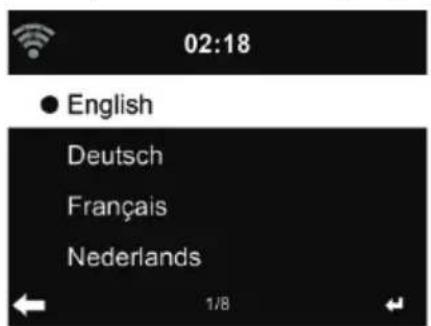
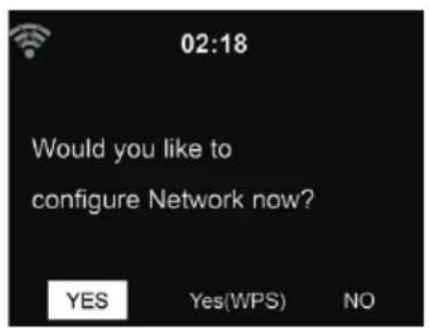
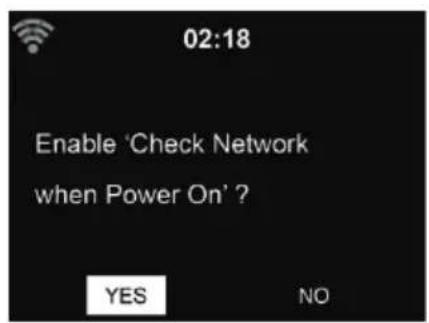
See Section 13.3 Network for detailed network configurations.
You can set the network connection at the first start or later.
Alternatively, you can set the network configurations also through the "AirMusic Control" app.
- Press ⏻ (On/Off) to enter standby mode. The time, date, and active alarms are shown on the display.
![27/08/2013 Tue 12 9 3 6 [06:30] [08:00]](/content/2026/03/478100/images/9e4efb505996b7985bc4cc0a85e2096e1606e4ffc228a69652b22c4d49489ce2.jpg)

- If you have set up the network connection and use the DR 463 again within the network, the connection will be established automatically. If you would like to change the network, call up Settings to change the corresponding connection.
- Enter the network password using the keypad on the remote control or via ▲ and ▼. If the desired character is displayed, press ▶ to navigate to the next entry. At the end of the input, press OK to confirm. Alternatively, press ◀ to navigate to the previous entry.
3.6. AirMusicControlApp
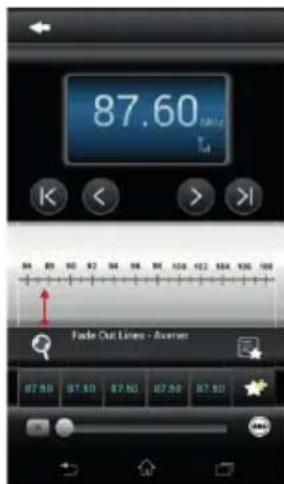
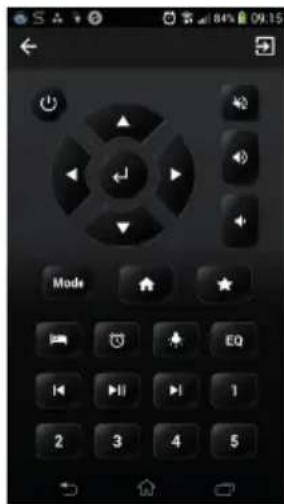
The DR 463 can be controlled with your smartphone via WiFi. It is recommended to use the AirMusic Control App. In addition to controlling the radio, the app can play the smartphone's music files on the DR 463. Due to frequent updates of the app, the manual is only available online. Please visit www.alan-electronics.de and enter the article number 27463 into the search. You will find the DR 463 product page. On the Downloads tab, you will find the AirMusic Control Manual. The app itself is available for Android and iOS. It can be downloaded from here:
Apple iOS
Android
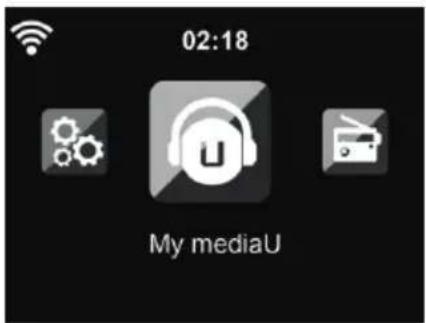
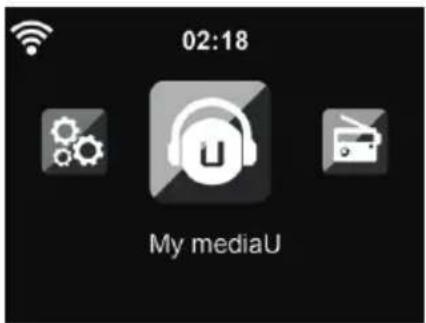
4. Main menu
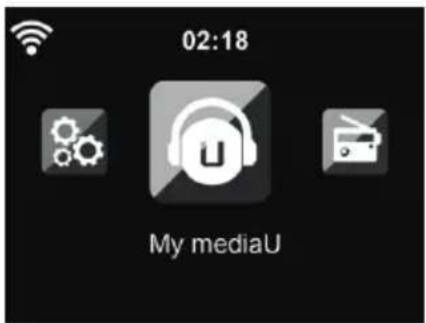
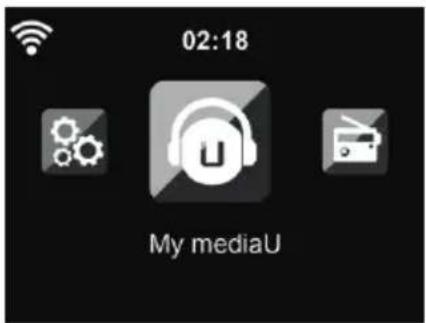
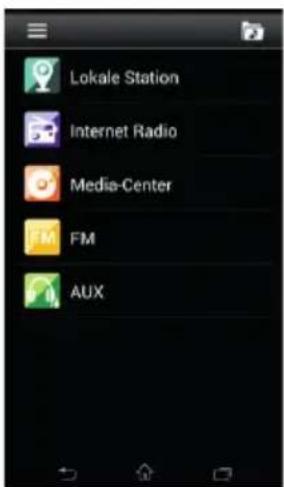
In the main menu, you can select the following modes: Internet Radio, Media Center, Spotify Connect, FM, DAB+, Information Center, Configuration, and My mediaU (if activated, see chapter 6 My mediaU).
5. Internet radio
The DAB radio mode receives DAB/DAB+ digital radio and displays information about the station.
To switch to Internet radio mode, press 🔒, select Internet Radio, and confirm with OK. After connecting to any station, the bit rate and the format of the station are displayed on the playing screen.
5.1. MyFavorite
Create a list of your favorite preset stations. It supports 250 favorite entries including stations and folders.
To store a station, press and hold ★ and select the required memory with ▲/▼ and confirm with OK. You may replace a previously saved station with a new one.
You can also save the station to your favorites while scrolling through the station list. When the station is highlighted, you can press ▶ to enter this menu where you can add the station to your favorites.
If the selected station has been saved, you cannot save it again.
In the preset station list, move to your station, press OK to listen. You may also press ▶ to enter its submenu to Delete, Shift Up/Down (move station to a different memory slot), Rename, or Play.
5.2. Station/music
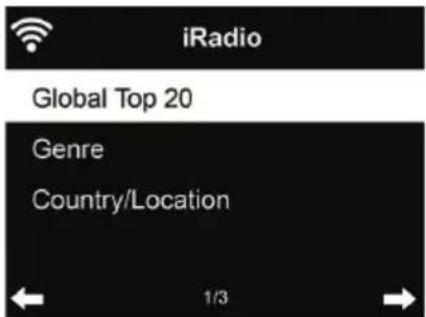
Stations are categorized into Global Top 20, Genre, and Country/Location. Enter to continue through the subcategories and choose a station to listen.
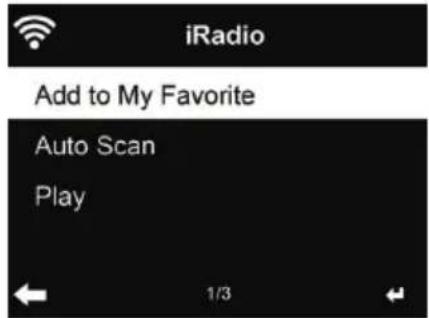
For each station, press OK to play directly. You may press ▶ to enter its submenu – you can Add to Favorite, Auto Scan, or Play.
When you choose Auto Scan, the radio introduces every station in the list by playing it for 30 seconds. This is stopped when every station is played or you press the OK button.
5.3. Local Station
In this menu, all stations of your local area will be displayed. You can set the local radio setup as described in chapter 12.15. In the default setting, the radio recognizes your location automatically.
5.4. Sleep Radio
Select this option if you want to hear relaxing background sounds to fall asleep. You have a choice between:
- Birds
- Piano
- Spa (relaxation)
- Universe
- Wave (sea noise)
By pressing and holding the sleep timer button (only possible in Internet radio mode!), you can go directly to the menu. If the device switches off automatically, the sleep timer must also be activated, see Chapter 13.12 Sleep timer.
5.5. History
Shows you a list of last listened stations. It can save up to 10 history stations.
5.6. Service
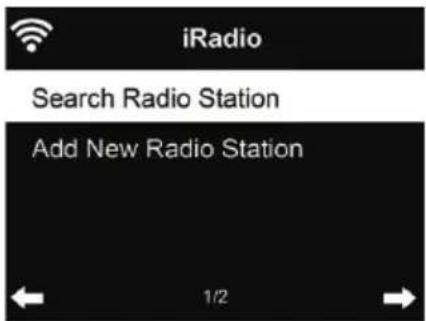
Search radio station - Enter your keyword to search for a radio station from the list. Add new radio station - The added stations will be stored in My Favorite.
Tips: Loading the data from the server can take several seconds, especially if the WLAN connection is poor, as long as blank appears on the display.
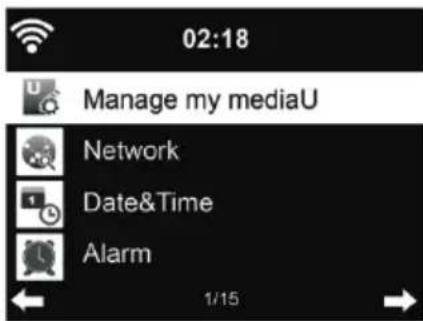
6. MymediaU
Display and playback your own mediaU station list on the mediaU server. Set your account first.
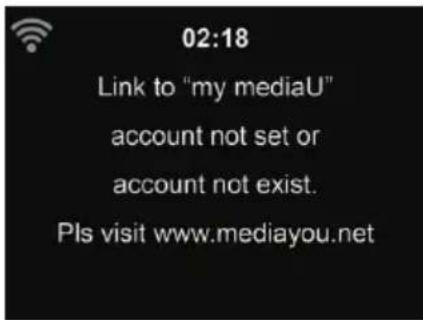
To activate your own station list, follow the steps below:
- Access http://www.mediayou.net/
- Join my mediaU membership
- Login to the website
- Enter the wireless MAC addresses of DR 463 to the mediaU website. This information can be obtained in Information Center > System Information > Wireless Info
- After successfully configuring, you are able to save and view your own mediaU station playlist(s). Username and password are not required to enter to DR 463.
- If there are different accounts stored in DR 463, you can choose the one you currently use under Configuration menu.
After registration please turn off the radio and log in again.
Each time you have made any updates on the playlist from the website, go to Configuration
If enabled, My mediaU is displayed in the main menu.
If there are several mediaU accounts for the DR 463, select the default account with which you want to log in. See Chapter 13.2 Manage my mediaU for more information about mediaU account setup.
7. DAB/DAB+ radio
The DAB radio mode receives DAB/DAB+ digital radio and displays information about the stations.
To switch to DAB mode, press 🔒, select DAB radio and confirm with OK.
For the best playback quality, the antenna must be aligned in such a way that the highest signal strength and thus the best sound quality are achieved on the display. The icon at the top left of the display shows the strength of the received transmission signal.
7.1. Scanning for stations
The first time you select DAB radio mode the DR 463 automatically performs a full scan to see what stations are available.
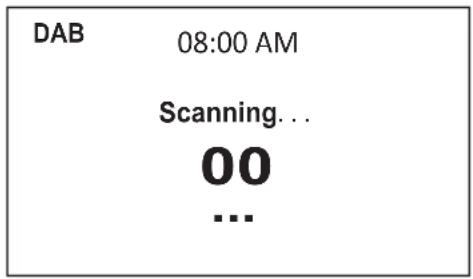
Once the scan is complete, the radio shows a list of available stations. If you want to perform another DAB station search later, press the ◀ button twice. If you want to overwrite the old station list, select Yes. Select No to add new stations to the old station list or ESC to not perform a search.
7.2. Searching for and selecting stations
To switch to the next/previous station, press ▲/▼ on the remote control during music playback. Alternatively, you can go to the complete station list with ◀. Here you can see an overview of all available stations and select a desired station.
7.3. Station information and slideshow
Use the ▶ button to switch between the station information and the slideshow.
- Station name
- Radio text (DLS)
- Genre • Sampling rate and bit rate
- Signal strength
- Channel/frequency
- Multiplex name
7.4. Save favourites
To store a station, press and hold ★ and select the required memory with ▲/▼ and confirm with OK.
7.5. Viewing favourites
To view a favourite, press ★, select the desired station with ▲/▼ and confirm with OK. Or just use the numeric keypad.
In the favourites list, press the ▶ button to go to a menu to delete or move the saved station. Saved stations cannot be saved again.
8. Media centre
With the DR 463, you can play music tracks using UPnP or DLNA. The difference between the two technologies lies in the direction of access.
The UPnP server can be accessed from the DR 463 and its music will be played back. Control and navigation are done by the DR 463.
With DLNA, playback can be started on a PC, for example, and the DR 463 is only selected as a playback device.
8.1. UPnP
To enjoy music streaming from your PC, the following steps are to be done on the PC:
- Connect the PC to the network.
- Ensure the DR 463 is powered on and connected to the same network.
- Open the UPnP platform Windows Media Player (11 or later). Alternatively, other platforms or servers such as Windows Media Connection may be used.
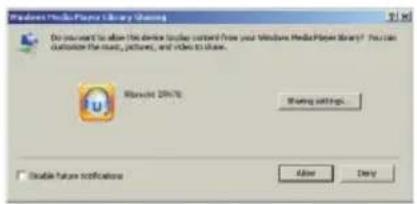
- Allow sharing your media to the ALBRECHT DR 463.
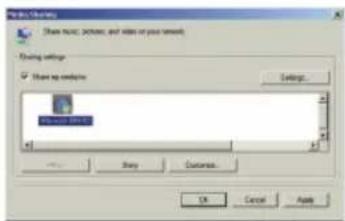
Add the audio files and folders you want to share with the DR 463 to the media library.
You may also enjoy streaming music from other music servers, such as a smartphone (Android platform):
- Connect the mobile device to the network.
- Search and install media sharing apps from Google Play.
- Add the audio files from your mobile device that you want to share.
After setting up the shared server, choose the music and control playback on the DR 463.
If you have set up shared media, you should see the shared media from UPnP. If you have more than one computer sharing media, the alternatives are listed. Select the shared media you want to play.
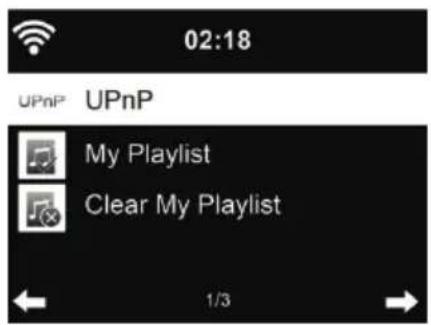
In the main menu, select Media Center and choose UPnP. It may take a few seconds for the radio to complete the scan for available UPnP servers, especially when the WiFi connection is bad. If no UPnP servers are found, it will show Empty. After a successful scan is done, select your UPnP server.
The radio will show the media categories available from the UPnP server, e.g. 'Music', 'Playlists' etc. Choose the media files that you wish to play.
Press ▲/▼/◄/► on the remote control and OK to play or stop. Press ► to view the display information of the playing track.
Tips: The radio can only read the track of file names with less than 40 characters. And the characters should be in European language. If you encounter failure of reading the track under UPnP mode, you may try to rename the file.
However, if the track is still unable to play, you can try converting the file to a different format.
8.1.1. My Playlist
You can create a playlist of favorite music from UPnP. When you play the music, press and hold OK to save it into My Playlist.
8.1.2. Clear My Playlist
You can delete all tracks from the playlist.
8.2. DLNA
The default device name for DLNA is "ALBRECHT DR 463". Alternatively, you can customise the name individually (see Section 13.18 DLNA-Setup).
See Chapter 8.1 UPnP for information on how to set up media streaming from your PC or other media servers. Also take a look at the instructions of your software or app.
The music files must be in MP3/AAC/AAC+/WMA/FLAC 32kbps->320kbps format for streaming via the DR 463.
9. Bluetooth
To switch to Bluetooth mode, press and select Bluetooth.
Then enable Bluetooth on your mobile device (e.g. smartphone, tablet, etc.), search for active devices and connect the DR 463.
If the radio is successfully connected, music can now be streamed to the DR 463.
Press and hold the OK button for 3 seconds to open a list with all paired Bluetooth devices. You can easily switch between the devices by selecting one with OK.
10. FM radio
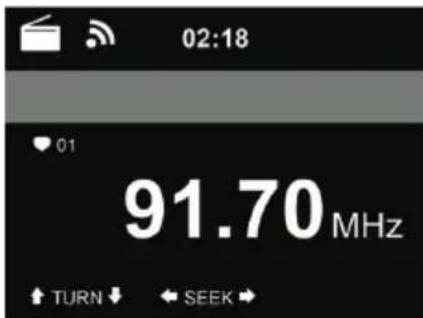
The FM radio mode receives analogue radio in the FM band and displays information from the station if it is sent via RDS. For the best playback quality, the antenna must be aligned in such a way that the highest signal strength and thus the best sound quality are achieved on the display. The icon at the top left of the display shows the strength of the transmission signal received from the device.
10.1. Setting the station
To switch to FM mode, press ⏻ and select FM.
Press ◀ / ▶ to search for FM stations. The search is interrupted as soon as a station is received.
Press ▲/▼ to set a station manually. Each search step is 0.05 MHz.
The radio can also perform a complete station search and save all found stations in the favourites.
Simply press OK in FM mode to start the complete station search.
10.2. Favourites
Press and hold ★ to save the station until you enter the memory mode. Use ▲/▼ to navigate to the memory location where you want to save the station and confirm with OK. Alternatively, you can also press and hold a number on the numeric keypad of the remote control to save the station directly.
Up to 20 stations can be saved. To view a favourite, press ★, select the desired station from the list with ▲/▼ and confirm with OK. Alternatively a saved station can be recalled directly via the numeric keypad.
11. Spotify Connect
Use your phone, tablet or computer as a remote control for Spotify. Go to spotify.com/connect to learn how.
The Spotify Software is subject to third party licenses found here: https://www.spotify.com/connect/third-partylicenses
With Spotify, you have millions of songs at your disposal: your favourite artists, pre-made playlists for every mood, the latest hits, and music recommendations tailored to you.
The Spotify Connect feature lets you play and control music wirelessly on your radio. Select the music you like on your smartphone, tablet or PC and play it over the radio.
11.1. How to use Spotify Connect
In the Albrecht DR 463 adapter, the Spotify Connect function is already integrated. This allows you to control the music you play on the radio via the Spotify app on your smartphone, tablet, or PC.
While connected, you can answer phone calls in parallel, watch videos, or simply turn off your smartphone without interrupting the music. This makes listening to music even more fun.
12. Information centre
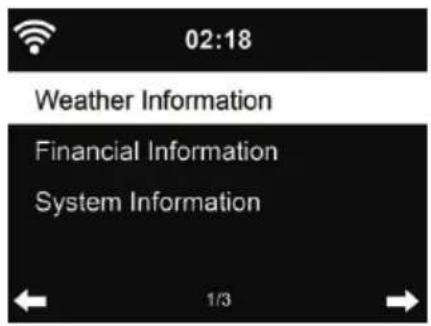
12.1. Weather Information
There are weather information and forecasts for over 5000 cities. Select the country and then the city for the weather details.
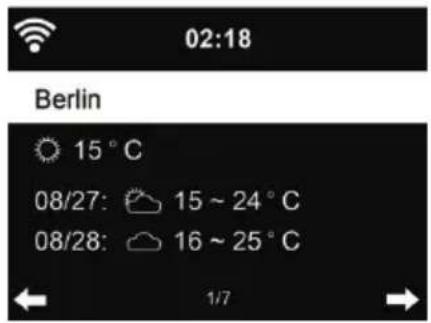
Press ◀/▶ to see the weather forecasts.
It is able to display the weather information on the standby mode. On the weather information page, press OK to set the city to display on the standby mode. Then turn on the weather display as mentioned in 12.13.
12.2. Financial Information
![02:18 [AEX General]373.5-1.2 [CAC 40] 4067.13 -2.34 [DAX] 8435.15 +18.16 [DOW JONES] 14946.46 -64.05 1/12](/content/2026/03/478100/images/fe7f766f1a4b8e31d702fc839214a63d1de9e13018bec7af9ee5c47656f4785d.jpg)
View the stock index from around the world.
12.3. System Information
Check out the version of the system, and the details of the connected network. The information includes the MAC address, which you are required to fill in when registering for my mediaU membership.
12.3.1. SW version
The software version of the device is displayed here.
12.3.2. Radio network info
It displays the following information:
- Status (WLAN)
- MAC address
- SSID (router)
- IP address
- Subnet
- Gateway
- DNS1
- DNS2
13. Settings
13.1. Time Display
Choose the style of clock during standby mode: Analog or Digital.

13.2. Manage my mediaU
When it is enabled, My mediaU will be shown in the main menu.
If various mediaU accounts exist in the DR 463, select the default login account here. Refer to chapter 11 for more information on mediaU account setup.
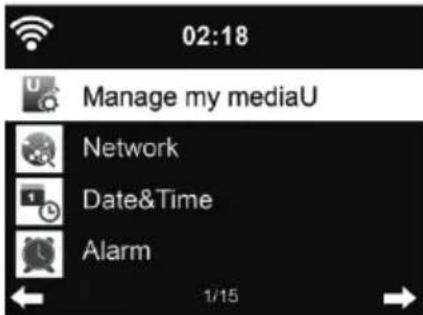
13.3. Network
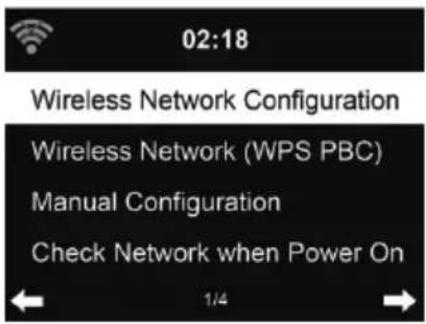
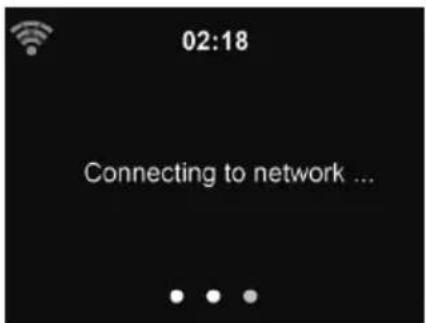
13.3.1. Wireless Network Configuration
Enable/disable WiFi network. When you enable the WiFi network, the system will automatically connect to the network.
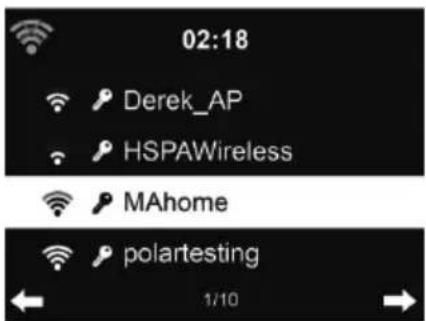
Select your required AP.
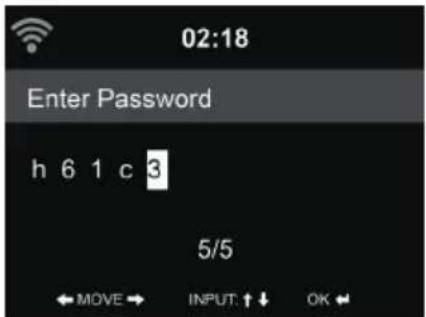
Enter WEP or WPA code to connect to the WiFi.
If you would like to change/correct an entry, press ◀ to correct.
13.3.2. Wireless Network (WPS)
If you are using a router with a WPS/QSS button, you may set up the network connection simply via the WPS function. Enter it and go to press the WPS/QSS button on your router within 120 seconds. The connection between the router and the DR 463 will then be configured automatically.
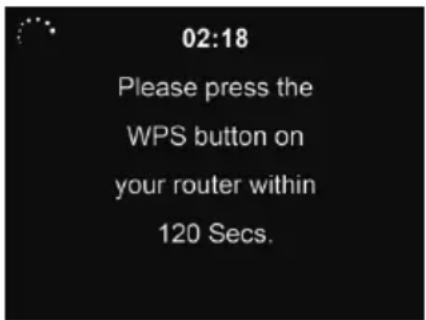
13.3.3. Manual Configuration
You can choose DHCP (which assigns IP automatically) or manually input IP address for wireless network connection.
When you select manual setting for wired connection, the following have to be entered:
- SSID (the name of Access Point);
- IP Address;
- Subnet Mask;
- Default Gateway;
- Preferred DNS Server;
- Alternate DNS Server.
You may choose (Manage) specific network if you have setup more than one network connection within an area.
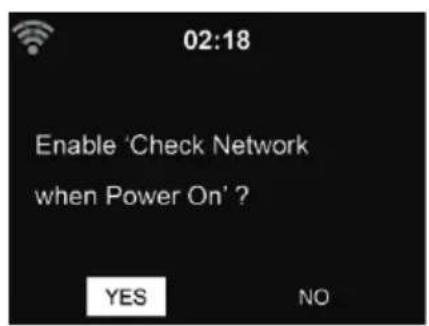
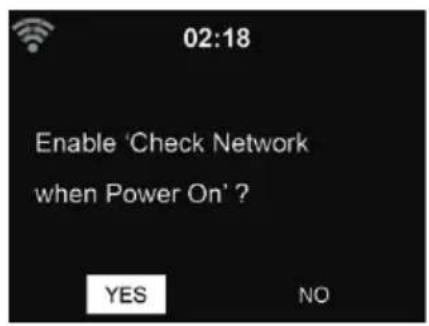
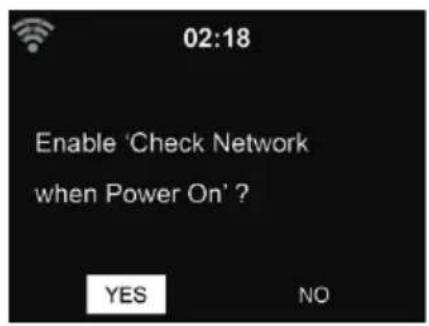
13.3.4. Check Network when Power On
"Enable / disable WiFi network":
When you enable the WiFi network, the system will automatically search the available AP. Select your required AP.
Enter WEP or WPA code to connect the WiFi.
If the wireless network connection is not existed or failed, the icon at the top left corner will have a cross on it.
13.4. Date & Time
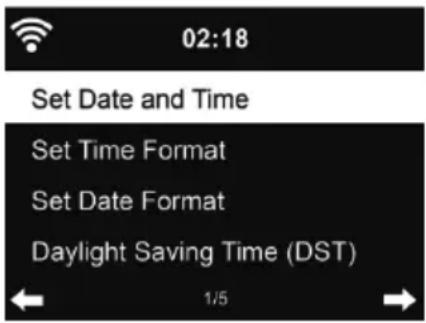
- Press Set Date and Time between Manual Setup and Auto Detect. When Auto Detect is chosen, the time is determined automatically, therefore deleted point 4 (DST)
- Setup the date and time
- Set time format display as 12 Hour or 24 Hour (default). Only for manual setup required.
- Set date format in the positions of YY (year), MM (month) and DD (day) – YY/MM/DD, (default) or MM/DD/YY.
- Turn on/off (default) the Daylight Saving Time (DST). Available only on manual setup.
With a wireless network connected, GMT (+00:00) time is a time reference for time setting. Add or deduct the hour according to your time zone when you set the time.
13.5. Alarm
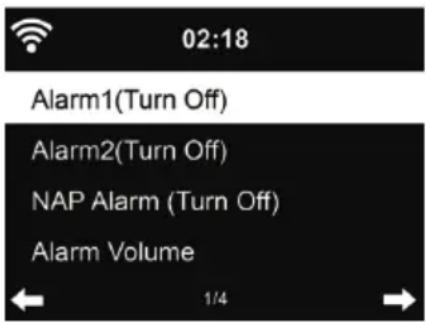
You can choose between 2 regular alarms (Alarm 1 and Alarm 2) or the NAP Alarm in this menu.
Press 🔒 on the remote control to enter the menu directly.
To set Alarm 1 or Alarm 2, press 🎨 and turn it on. Now choose the frequency (daily, once, or on specific days of the week, e.g., Monday to Friday). Next, choose the desired alarm source: Beep tone, Melody, Internet Radio, FM Radio, or DAB/DAB+ Radio. Afterwards, you can leave the settings by pressing 🎨 or ◀.
At the time of the alarm, the radio connects to the Internet if the set network is available. Therefore, there may be some delay before the radio starts playing your station. If no network connection is established within one minute, the alarm will change automatically to Melody.
If the NAP alarm is activated, it alarms once after 5/10/20/30/60/90/120 minutes depending on which one you have set.
You may choose Alarm Volume to configure the volume of the alarms. During the alarm, the volume will increase automatically up to the set value (Crescendo function).
When the alarm(s) is/are set, there will be a clock icon at the top of the display. The clock icon with alarm time will also be displayed on the standby screen.
During alarm, press any key to enter snooze mode. It will alarm again in 5 minutes. Press the key to stop the alarm.
13.6. Timer
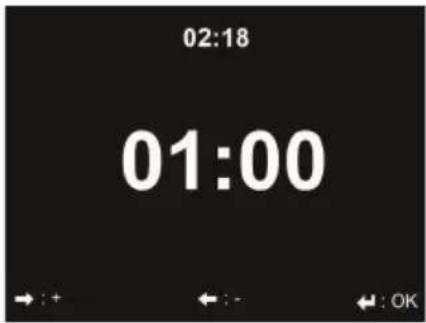
Press ◀/▶ to set the timer, press OK to start. The timer will count down and beep when it reaches 00:00. To cancel the timer, enter the timer screen and press OK again. When the timer is running, you can change the mode; the remaining time is then displayed in the top right of the display.
13.7. Scheduled Playing
This function allows to automatically play the radio at a scheduled time.
Turn on the function and select how often you want to repeat it (daily, once or only on specific week days). Then select the scheduled start and stop time and decide which mode (Internet, DAB or FM radio) should be played.
13.8. Language
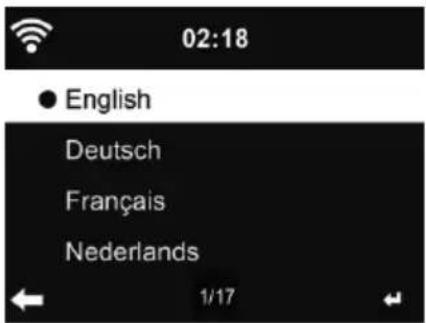
Select the OSD language: English / Deutsch / Español / Français / Português / Nederlands / Italiano / Русский / Svenska / Norsk / Dansk / Magyar / Český / Slovenský / Polski / Türkçe / Suomi
13.9. Dimmer
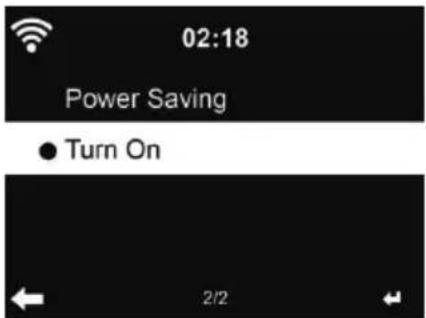
Configure the brightness of backlight on the display.
If you select Power Saving you can select the level to which the display is dimmed down when the radio enters the Standby mode or when the radio gets no key input for 15 seconds.
The Turn On options keeps the display illumination always on. If you select it you can choose how bright the display shall be.
See below table how the Dimmer settings will affect the screen illumination:
| Choice Brightness level On Playing On | Standby | ||
| Power Saving As you set | After 15s, the screen brightness switches to Power saving brightness level you set | After 15s, the screen brightness switches to Power saving brightness level you set | |
| Turn On As you set | The screen stays always on the set brightness level | After 15s, the screen brightness switches to Power saving brightness level you set | |
13.10. Display
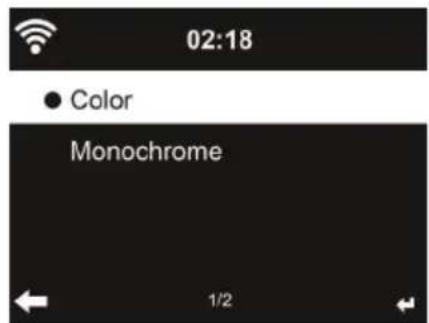
Choose the style of display: Color or Monochrome
13.11. PowerManagement
Choose the power management timer (5/15/30mins) to set the duration of the radio to switch to the standby mode automatically when no network connection is available.
Choose "Turn off" to ignore the power management function.
13.12. Sleeptimer
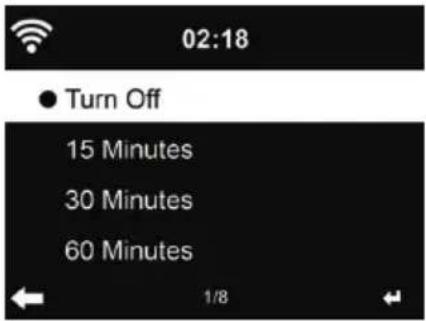
Turn off or set the sleep time to 15/30/60/90/120/150/180 minutes. Once the time is set, there will be a bed icon with remaining minutes at the top right corner. The DR 463 will shut down once the time runs out. Press Sleep on the remote control for the shortcut of this function. Pressing and holding the button calls up the sleep radio, see Chapter 5.4 Sleep radio
13.13. Buffer memory
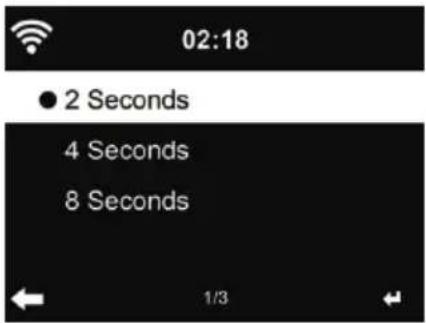
Configure the buffer time of the music playback, 2/4/8 seconds.
13.14. Weather
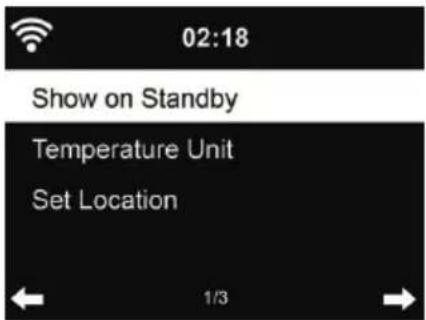
DR 463 is able to display current weather information under standby mode. Turn on Show on Standby and set Temperature Unit (°C or °F) to get the weather displayed at the standby mode. When it is turned on, the display will switch between time and weather while being in standby mode.
13.15. DAB/FM Setup
Choose Mono/Stereo and enable/disable threshold.
13.16. Local Radio Setup
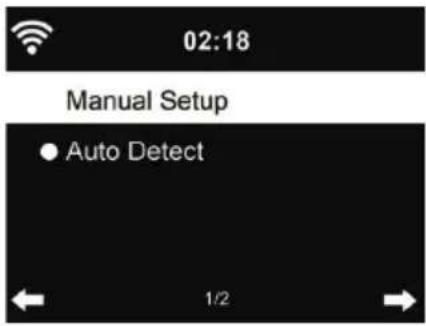

There is a shortcut Local Radio under Internet Radio (see section 8.2 DLNA) so that you can easily go to the station list of your location.
You may Manual Setup your location, or let the system Auto Detect your current location. The system detects the location according to the IP address of your connected network.
13.17. Playback Setup
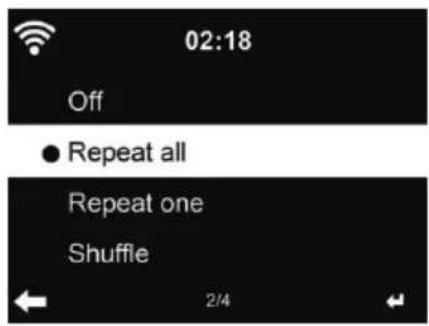
Select the playback mode of media center – Off (no repeat or shuffle), Repeat all, Repeat one, or Shuffle.
13.18. DLNA-Setup
The default device name for DLNA is ALBRECHT DR 463. You may rename it for DLNA setup on the PC or mobile.
13.19. Equalizer
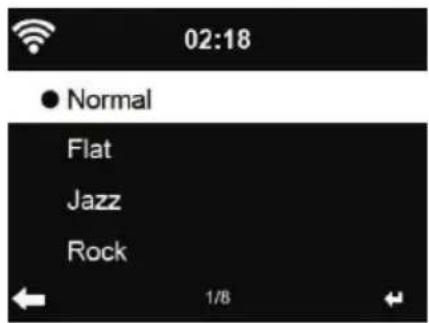
Default equalizer is Rock, you may change to Normal, Jazz, Flat, Soundtracks, Classical, Pop, or News.
13.20. Resume When Power On
The system is default set to resume internet radio playback if you were listening to internet radio or media center before switch off the unit. If you turn this setting off, the system will start in the main menu when switching on the unit.
13.21. Software-Update
Update software. If there is an updated software version on the server, the system will notify you when you return to the main menu.
13.22. Factory Reset
Restore the default settings.
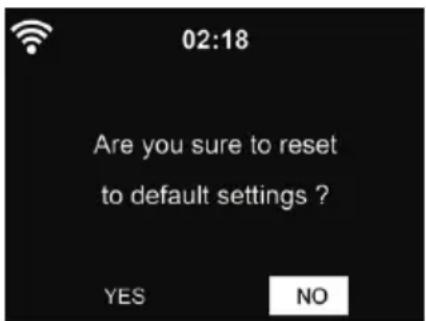
After DR 463 is reset, the system will move to Language setting menu. And it will automatically turn to Network setting menu once the OSD language is selected
14. Troubleshooting
| Error Remedy | |
| The device does not switch on. 1. | Check if the power adaptor is connected properly.2. The device may malfunction when used in areas with strong radio interference. The device will work properly again once there is no more interference. |
| No sound 1. Turn on the sound as it may be muted2. Increase the volume. | |
| No network connection can be established. | 1. Check the WIFI function.2. Try to set an IP address at the device.3. Activate the DHCP function on the router and make the connection again at the device.4. A firewall is activated on the network - set the respective program in such a way that access is possible.5. Reboot the unit to try. |
| WIFI connection cannot be established. | 1. Check the availability of WIFInetwork on the access point.2. Place the device closer to the router.3. Make sure the WEP/WPA password is correct. |
| No station is found. 1. Check the | network as well as the access point and firewall.2. The station may not be available currently, try it again later or select another station.3. The link of the station is changed or the station no longer transmits - ask the provider for information.4. The link of manual added station is not correct, make sure it is correct and re-enter. |
| Hiss in DAB/FM mode. 1. Check | move the DAB/FM antenna.2. Move the radio to a different location.3. Please check if the radio is close to other electrical sources and therefore under influence of interferences |
| Alarm does not work. 1. Switch on | the alarm.2. Due to the volume setting, refer to the solutions of “No sound”.3. The source of alarm was set to be station but there is no network connection. Change the source of alarm or reconfigure the connection. |
| Unable to do DLNA streaming. 1. | Check the connection of the network. DR 463 and your device need to be in the same network; and test if the network in good condition.2. Make sure the settings on your device are correct. |
| System freezes suddenly. 1. The | radio is overloaded, reboot the unit.2. The normal function of the product may be disturbed by strong Electro-Magnetic Interference. If so, simply reset the product to resume normal operation by following the instruction manual. In case the function could not resume, please use the product in other location. |
15. Specifications
| Model number DR 463 | |
| Description Radioadapter with Internetradio/DAB+/Bluetooth | |
| Display 2,4"/320 x 240 TFT-color display | |
| Network supported IEEE802.11b/g/n (WIFI) | |
| WIFI key WEP, WPA, WPA2 (PSK) and WPS | |
| Frequenzy band / Transmission power 24 | 12 - 2472 MHz, 100 mW |
| 2402 - 2480 MHz, 10 mW | |
| Streaming UPnP, DLNA | |
| Supported playback formats MP3/AAC/AA | AC+/WMA/FLAC |
| 32kbps => 320kbps | |
| Power Adapter | 5V/500mA |
| Standby mode power consumption | < 1 W |
| Operating temperature | 0 °C - 35 °C |
| Connectors | DC IN power supply socketLINE OUT (RCA)Antenna socket (3.5 mm) |
| Dimensions | 190 mm (W) x 75 mm (H) x 40 mm (L) |
| Weight | 260 g |
16. Important Safety Notes
TO PREVENT FIRE OR SHOCK HAZARD, DO NOT USE THIS PLUG WITH AN EXTENSION CORD, RECEPTACLE OR OTHER OUTLET UNLESS THE BLADES CAN BE FULLY INSERTED TO PREVENT BLADE EXPOSURE. TO PREVENT FIRE OR SHOCK HAZARD, DO NOT EXPOSE THIS APPLIANCE TO RAIN OR MOISTURE.
The lightning flash with arrowhead symbol, within an equilateral triangle is intended to alert the user to the presence of insulated 'dangerous voltage' within the product's enclosure that may be of sufficient magnitude to constitute a risk of electric shock to persons.
WARNING: TO REDUCE THE RISK OF ELECTRIC SHOCK DO NOT REMOVE COVER (OR BACK), NO USER SERVICEABLE PARTS INSIDE REFER SERVICING TO QUALIFIED SERVICE PERSONNEL.
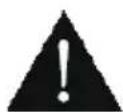
The exclamation point within an equilateral triangle is intended to alert the user to the presence of important operating and maintenance (servicing) instructions in the literature accompanying the appliance.
- Read and keep these instructions.
- Heed all warnings.
- Follow all instructions.
- Do not use this apparatus near water.
- Clean only with dry cloth.
- Do not block any ventilation openings. Install in accordance with the manufacturer's instructions.
- Do not install near any heat sources such as radiators, heat registers, stoves, or other apparatus (including amplifiers) that produce heat.
- Protect the power cord from being walked on or pinched particularly at plugs, convenience receptacles, and the point where they exit from the apparatus.
- Only use attachments / accessories specified by the manufacturer.
- Unplug this apparatus during lightning storms or when unused for long periods of time.
- Refer all servicing to qualified service personnel. Servicing is required when the apparatus has been damaged in any way, such as power-supply cord or plug is damaged, liquid has been spilled or objects have fallen into the apparatus, the apparatus has been exposed to rain or moisture, does not operate normally, or has been dropped.
- This appliance shall not be exposed to dripping or splashing water and no object filled with liquids such as vases shall be placed on the apparatus.
- Do not overload wall outlet. Use only power source as indicated.
- Use replacement parts as specified by the manufacturer.
- The product may be mounted to a wall only if recommended by the manufacturer.
- Upon completion of any service or repairs to this product, ask the service technician to perform safety checks.
17. Warranty and Recycling Information
We are legally obliged to include disposal and warranty information as well as EU declaration of conformity with the use instructions in different countries for every unit. Please find this information on the following pages.
2-Year Warranty from Date of Purchase
The manufacturer/retailer guarantees this product for two years from date of purchase. This warranty includes all malfunctions caused by defective components or incorrect functions within the warranty period excluding wear and tear, such as exhausted batteries, scratches on the display, defective casing, broken antenna and defects due to external effects such as corrosion, over voltage through improper external power supply or the use of unsuitable accessories. Defects due to unintended use are also excluded from the warranty.
Please contact your local dealer for warranty claims. The dealer will repair or exchange the product or forward it to an authorized service center. You can also contact our service partner directly. Please include your proof of purchase with the product and describe the malfunction as clearly as possible.
WEEE and Recycling
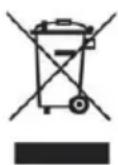
The European laws do not allow any more the disposal of old or defective electric or electronic devices with the household waste. Return your product to a municipal collection point for recycling to dispose of it. This system is financed by the industry and ensures environmentally responsible disposal and the recycling of valuable raw materials.
Service Address And Technical Hotline (for units sold in Germany)
Contact our service hotline by phone +49 (0) 6103 9481 66 (regular costs for German fixed network) or e-mail at Service@albrecht-midland.de
Declaration of Conformity
Hereby, Alan Electronics GmbH declares that the radio equipment type DR 463 is in compliance with Directive 2014/53/EU. The full text of the EU declaration of conformity is available at the following internet address: www.alan-electronics.de

Printing errors reserved.
Information in this user manual are subject to change without prior notice.

ALBRECHT®
ALBRECHT DR 463
- Spotify Connect ....70
11.1. How to use Spotify Connect 70

4. Main menu
64 English
74 English
4. Main menu
13.3.2. Wireless network (WPS)
- MAIN MENU
- MANUAL CONFIGURATION
- TABLE OF CONTENTS
- PRODUCT CONTENTS
- CONTROLS AND CONNECTIONS
- FRONT SIDE
- BACK SIDE
- FIRST STEPS
- NETWORK REQUIREMENTS
- PREPARING THE NETWORK
- NAVIGATION THROUGH MENUS
- TEXT ENTRY
- CONNECTING TO AN AUDIO SYSTEM
- GETTING STARTED
- AIRMUSICCONTROLAPP
- INTERNET RADIO
- MYFAVORITE
- STATION/MUSIC
- LOCAL STATION
- SLEEP RADIO
- HISTORY
- SERVICE
- MYMEDIAU
- DAB/DAB+ RADIO
- SCANNING FOR STATIONS
- SEARCHING FOR AND SELECTING STATIONS
- STATION INFORMATION AND SLIDESHOW
- SAVE FAVOURITES
- VIEWING FAVOURITES
- MEDIA CENTRE
- UPNP
- MY PLAYLIST
- CLEAR MY PLAYLIST
- DLNA
- BLUETOOTH
- FM RADIO
- SETTING THE STATION
- FAVOURITES
- SPOTIFY CONNECT
- HOW TO USE SPOTIFY CONNECT
- INFORMATION CENTRE
- WEATHER INFORMATION
- FINANCIAL INFORMATION
- SYSTEM INFORMATION
- SW VERSION
- RADIO NETWORK INFO
- SETTINGS
- TIME DISPLAY
- MANAGE MY MEDIAU
- NETWORK
- WIRELESS NETWORK CONFIGURATION
- WIRELESS NETWORK (WPS)
- CHECK NETWORK WHEN POWER ON
- DATE & TIME
- ALARM
- TIMER
- SCHEDULED PLAYING
- LANGUAGE
- DIMMER
- DISPLAY
- POWERMANAGEMENT
- SLEEPTIMER
- BUFFER MEMORY
- WEATHER
- DAB/FM SETUP
- LOCAL RADIO SETUP
- PLAYBACK SETUP
- DLNA-SETUP
- EQUALIZER
- RESUME WHEN POWER ON
- SOFTWARE-UPDATE
- FACTORY RESET
- TROUBLESHOOTING
- SPECIFICATIONS
- IMPORTANT SAFETY NOTES
- WARRANTY AND RECYCLING INFORMATION
- YEAR WARRANTY FROM DATE OF PURCHASE
- WEEE AND RECYCLING
- SERVICE ADDRESS AND TECHNICAL HOTLINE (FOR UNITS SOLD IN GERMANY)
- DECLARATION OF CONFORMITY
- ALBRECHT®
- ALBRECHT DR
- ENGLISH
Brand : MOULINEX
Model : DR 463
Category : Radio