
ICD-SX700 - Dictaphone SONY - Free user manual and instructions
Find the device manual for free ICD-SX700 SONY in PDF.


| Product type | Digital voice recorder |
| Brand | SONY |
| Model | ICD-SX700 |
| Power supply | 2 NH-AAA rechargeable batteries or 2 LR03 (AAA) alkaline batteries |
| Voltage | 2.4 V or 3.0 V DC |
| Weight | Approx. 70 g (without batteries) |
| Dimensions | Approx. 30 × 100 × 15 mm (W × H × D) |
| Recording | Built-in microphones, stereo recording (with supplied external microphone) |
| Playback | Message playback, volume control, fast forward/rewind |
| Display | LCD screen with backlight |
| Connectivity | USB 2.0, docking station (depending on model) |
| Software | Digital Voice Editor for Windows (Vista, XP, 2000) |
| Supplied accessories | IC recorder, docking station*, stand, case, microphone, battery case, instruction manual (*depending on region) |
| Maintenance | Clean with a soft, slightly damp cloth; do not use alcohol, gasoline or thinner |
| Safety | Do not use while driving; avoid heat, dust, shocks; remove batteries if liquid penetrates |
| Repairability | Have it checked by a qualified technician in case of internal problems |
Frequently Asked Questions - ICD-SX700 SONY
User questions about ICD-SX700 SONY
0 question about this device. Answer the ones you know or ask your own.
Ask a new question about this device
Download the instructions for your Dictaphone in PDF format for free! Find your manual ICD-SX700 - SONY and take your electronic device back in hand. On this page are published all the documents necessary for the use of your device. ICD-SX700 by SONY.
USER MANUAL ICD-SX700 SONY
This Quick Start Guide describes only basic operations, such as how to record, play back, or erase messages. The operating instructions explaining all the features and functions are supplied with the IC recorder as PDF files in 20 languages stored on the supplied CD-ROM. You can copy the PDF files of the operating instructions to your computer. Insert the supplied CD-ROM into the CD-ROM drive of your computer, and just follow the instructions shown on the screen. If the instructions are not shown on the screen, right-click the CD-ROM on Windows Explorer to open, and double-click [SetupLauncher.exe]. The English edition of the operating instructions is supplied as a booklet as well.
For customers in Europe
Disposal of Old Electrical & Electronic Equipment (Applicable in the European Union and other European countries with separate collection systems)

This symbol on the product or on its packaging indicates that this product shall not be treated as household waste. Instead it shall be handed over to the applicable collection point for the recycling of electrical and electronic equipment. By ensuring this product is disposed of correctly, you
will help prevent potential negative consequences for the environment and human health, which could otherwise be caused by inappropriate waste handling of this product. The recycling of materials will help to conserve natural resources. For more detailed information about recycling of this product, please
contact your local Civic Office, your household waste disposal service or the shop where you purchased the product.
Applicable accessories: USB connecting cable, cradle
Disposal of waste batteries (applicable in the European Union and other European countries with separate collection systems)

This symbol on the battery or on the packaging indicates that the battery provided with this product shall not be treated as household waste. By ensuring these batteries are disposed of correctly, you will
help prevent potentially negative consequences for the environment and human health which could otherwise be caused by inappropriate waste handling of the battery. The recycling of the materials will help to conserve natural resources.
In case of products that for safety, performance or data integrity reasons require a permanent connection with an incorporated battery, this battery should be replaced by qualified service staff only. To ensure that the battery will be treated properly, hand over the product at end-of-life to the applicable collection point for the recycling of electrical and electronic equipment.
For all other batteries, please view the section on how to remove the battery from the product safely. Hand the battery over to the applicable collection point for the recycling of waste batteries.
For more detailed information about recycling of this product or battery, please contact your local Civic Office, your household waste disposal service or the shop where you purchased the product.
Notice for the customers: the following information is only applicable to equipment sold in the countries applying EU directives
The manufacturer of this product is Sony Corporation, 1-7-1 Konan, Minato-ku, Tokyo, Japan. The Authorized Representative for EMC and product safety is Sony Deutschland GmbH, Hedelfinger Strasse 61, 70327 Stuttgart, Germany. For any service or guarantee matters please refer to the addresses given in separate service or guarantee documents.
- The recorded music is limited to private use only. Use of the music beyond this limit requires permission of the copyright holders.
- Sony is not responsible for incomplete recording/downloading or damaged data due to problems of the IC recorder or computer.
-
Depending on the types of the text and characters, the text shown on the IC recorder may not be displayed properly on device. This is due to:
-
The capacity of the connected IC recorder.
- The IC recorder is not functioning normally.
Content information is written in the language or the character that is not supported by the IC recorder.
You are cautioned that any changes or modifications not expressly approved in this manual could void your authority to operate this equipment.
Notice for users
Program © 1999, 2000, 2001, 2002, 2003, 2004, 2005, 2006, 2007, 2008, 2009 Sony Corporation Documentation ©2009 Sony Corporation
All rights reserved. This manual or the software described herein, in whole or in part, may not be reproduced, translated or reduced to any machine readable form without prior written approval from Sony Corporation.
IN NO EVENT SHALL SONY CORPORATION BE LIABLE FOR ANY INCIDENTAL, CONSEQUENTIAL OR SPECIAL DAMAGES, WHETHER BASED ON TORT, CONTRACT, OR OTHERWISE,ARISING OUT OF OR IN CONNECTION WITH THIS MANUAL,THE SOFTWARE OR OTHER INFORMATION CONTAINED HEREIN OR THE USE THEREOF.
Sony Corporation reserves the right to make any modification to this manual or the information contained herein at any time without notice. The software described herein may also be governed by the terms of a separate user license agreement.
This software is for Windows and cannot be used for Macintosh.
- The supplied connecting cable is for the IC recorder ICD-SX700/SX800. You cannot connect other IC recorders.
Table of Contents
Checking the Contents of the Package 4
Getting Started
Step 1: Preparing a Power Source............5
Step 2: Setting the Clock. 6
Step 3: Setting the Language to Be Used in the Display Window .7
Turning the IC Recorder On or Off......8
Recording
Recording Messages. 9
Playback
Playing Back Messages. 10
Utilizing Your Computer
Using the Supplied Digital Voice Editor Software
Additional Information
Precautions. 14
Checking the Contents of the Package
IC Recorder (1)
NH-AAA (size AAA) rechargeable batteries (2)
Stereo headphones* (1)
USB connecting cable (1)
Wind Screen (1)
Application Software, Digital Voice Editor (CD-ROM)
Cradle* (1)
Stand (1)
Carrying pouch (1)
Microphone* (1)
Battery case (1)
Operating Instructions
- The stereo headphones, the cradle and the microphone are supplied with some models in some regions only.
Getting Started
Step 1: Preparing a Power Source
Remove the film on the display window before you use the IC recorder.
Inserting the batteries
1 Slide and lift the battery compartment lid.
2 Insert two NH-AAA rechargeable batteries with correct polarity, and close the lid.
3 Charge the batteries by connecting the (USB) connector of the IC recorder to your computer.
Disconnecting the IC recorder from your computer
Follow the procedures below; otherwise, data may be damaged.
1 Make sure that the operation indicator is not flashing.
2 Disconnect the USB connecting cable connected to the IC recorder from the USB connector of the computer.
On the Windows screen, left-click "Safely Remove Hardware" on the taskbar, and click "Safely remove USB Mass Storage Device."
On the Macintosh screen, drag the "IC REORDER" on the desktop to "Trash" and drop it there.
For details on disconnecting the IC recorder, refer to the operating instructions supplied with your computer.
Step 2: Setting the Clock
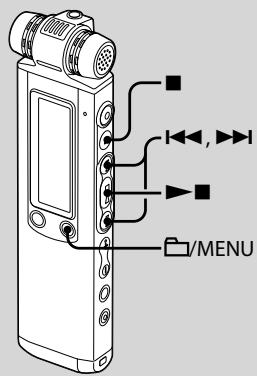
You need to set the clock to use the alarm function or record the date and time.
Clock setting display appears when you insert batteries for the first time, or when you insert batteries after the IC recorder has been without batteries for a certain period of time, "SET DATE & TIME" appears, and then the year section flashes in the display window.
Continued directly from "Step 1: Preparing a Power Source"
1 Press I or to set the year, month, day, hour, and minute in sequence, then press.
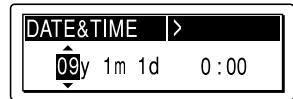
"EXECUTING..." appears and the clock is set.
2 Press (stop) to return to the display of the stop mode.
Step 3: Setting the Language to Be Used in the Display Window
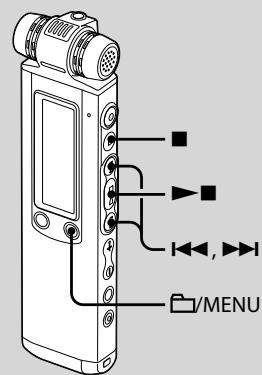
You can select the language to be used for messages, menus, folder names, file names, etc. from 2 languages (European model)/7 languages (other models).
1 Press and hold /MENU to enter the menu mode.
The menu mode window will be displayed.
2 Press or to select "DETAIL MENU," then press .
3 Press I or to select "MENU LANGUAGE," then press.
BACKLIGHT 10 SEC
MENU LANGUAGE ENGLISH
USB CHARGE ON
4 Press or to select the language that you want to use, then press .
You can select the following languages.
European model :
ENGLISH, Pycckn (Russian)
Other models :
ENGLISH, Pycckn (Russian),
简体中文 (Chinese), 繁體中文 (Chinese),
Wu (Thai)
5 Press (stop) to exit the menu mode.
Turning the IC Recorder On or Off
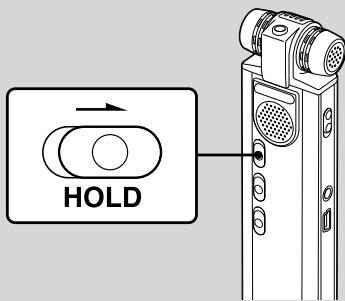
When you are not using the IC recorder, you can prevent the batteries from getting weak quickly by turning the power off.
Turning the power off
Slide the HOLD switch in the direction of the arrow in the stop mode. "HOLD" with the key mark and the current time is displayed, then "POWER OFF" is displayed. The IC recorder turns off within a few seconds.
Turning the power on
Slide the HOLD switch in the opposite direction from that of the arrow. The IC recorder turns on, and an accessing animation is displayed.

Tips
- When you are not going to use the IC recorder for a long time, we recommend to turn off the IC recorder.
- When about 10 minutes have passed after you have turned on the IC recorder and left it without doing anything, the display goes off automatically. (Press any button to show the display.)
Recording
Recording Messages
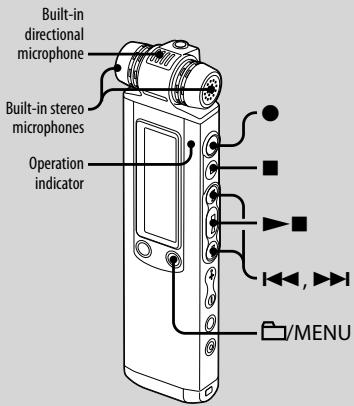
1 Select a folder.
① Press /MENU to display the folder selection window.
② Press or to select the folder in which you want to record messages, then press .
2 Start recording.
① Press (record/pause) in the stop mode.
The operation indicator lights in red.
(When "LED" is set to "OFF" in the menu, the operation indicator does not light.)
You do not need to press and hold
- (record/pause) while recording.
The new message will be automatically recorded after the last recorded message.
② Speak into the built-in microphones.
3 Press (stop) to stop recording.
The IC recorder stops at the beginning of the current recording.
Playback
Playing Back Messages
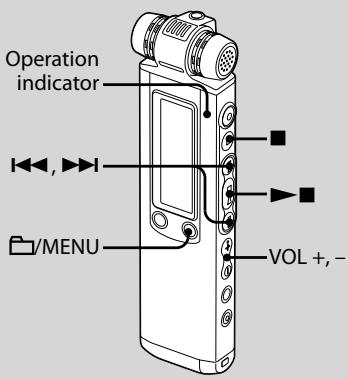
1 Select a folder.
① Press MENU.
② Press or to select the folder, then press .
2 Press I or to select the message you want to play.
3 Press to start playback.
The operation indicator lights in green. (When "LED" is set to "OFF" in the menu, the operation indicator does not light.)
4 Press VOL + or - to adjust the volume.
5 Press (stop) to stop playback.
Utilizing Your Computer
Using the Supplied Digital Voice Editor Software
System requirements
To use the supplied software, your computer must meet the operating system requirements and hardware environment described below.
Operating Systems:
Windows Vista® Ultimate
Windows Vista® Business
Windows Vista® Home Premium
Windows Vista® Home Basic
Windows XP Media Center Edition 2005
Service Pack 2 or higher
Windows XP Media Center Edition 2004
Service Pack 2 or higher
Windows XP Media Center Edition
Service Pack 2 or higher
Windows XP Professional Service Pack 2 or higher
Windows XP Home Edition Service Pack 2 or higher
Windows 2000 Professional Service Pack 4 or higher
Pre-Installed
Hardware Environment:
Computer: IBM PC/AT or compatible
CPU:266 MHz Pentium II processor or higher (For Windows Vista,800MHz Pentium III processor or higher)
- RAM: 128MB or more (For Windows Vista®, 512MB or more)
Hard disk space: 150MB or more
- CD-ROM drive (When creating an audio CD or data CD, a CD-R/RW drive is needed)
- Port: USB port
Sound board: Sound cards compatible with any of the supported Microsoft Windows operating systems
Display: High color (16bit) or more and 800 × 480 dots or more
- Internet access for Voice Mail function and CD database service
Note
The following systems are not supported:
- Any 64bit operating system
- Any operating systems other than the ones indicated above
- Personally assembled PCs or operating systems
- Upgraded operating systems
Multi-boot environment - Multi-monitor environment
Installing the software
Install the Digital Voice Editor software on your computer's hard disk.
1 Make sure that the IC recorder is not connected, then turn on your computer and start up Windows.
2 Insert the supplied CD-ROM into the CD-ROM drive.
The [IC Recorder Software Setup] menu starts up automatically and the [Welcome to IC Recorder Software Setup] window appears. If the [Welcome to IC Recorder Software Setup] menu does not start up, open the [DVE] folder in the [Setup] folder on the CD-ROM, then double click [setup.exe].
3 Make sure that you accept the terms of the license agreement, select [I accept the terms of the license agreement], then click [Next].
The [Software Install] window appears.
4 Select [Digital Voice Editor], then click [Install].
Follow the instructions on the screen to make the settings required for installation.
If you have already installed a previous version of the Digital Voice Editor or any version of the "Memory Stick Voice Editor"
The dialog box used to uninstall a previous version of the Digital Voice Editor or any version of the "Memory Stick Voice Editor" will be displayed. Follow the instructions on the screen to uninstall the software. The message files are not removed.
Note
If any illegal data modification is attempted, or a file is used for other than private purposes, the file may become unplayable or the Digital Voice Editor may become inoperable.
When the dialog box used to select how to save files is displayed
When you save files recorded using the IC recorder onto the computer named above, you can select whether you wish to convert them into the MP3 format. Select the desired setting.
When the dialog box used to select an ICD-P30/P50 is displayed
Select [Yes] to edit messages recorded using ICD-P30/P50.
When the dialog box used to select the language to be used for the help is displayed
Click the language you want to use for the help.
5 When the [Ready to Install the Program] window appears, click [Install].
The installation starts.
6 When the [InstallShield Wizard Complete] window appears, select [Yes, I want to restart my computer now], then click [Finish].
The computer will be restarted.
When the computer has been restarted, installation is completed.
Referring to the help files
For details on each operation, refer to the help files.
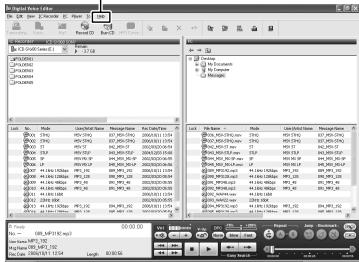
Help
Additional Information
Precautions
On power
- Operate the unit only on 2.4V or 3.0V DC. Use two NH-AAA rechargeable batteries or two LR03 (size AAA) alkaline batteries.
On safety
- Do not operate the unit while driving, cycling or operating any motorized vehicle.
On handling
- Do not leave the unit in a location near heat sources, or in a place subject to direct sunlight, excessive dust or mechanical shock.
- Should any solid object or liquid fall into the unit, remove the batteries and have the unit checked by qualified personnel before operating it any further.
On noise
- Noise may be heard when the unit is placed near an AC power source, a fluorescent lamp or a mobile phone during recording or playback.
- Noise may be recorded when an object, such as your finger, etc., rubs or scratches the unit during recording.
On maintenance
- To clean the exterior, use a soft cloth slightly moistened in water. Do not use alcohol, benzine or thinner.
If you have any questions or problems concerning your unit, please consult your nearest Sony dealer.
Backup recommendations
To avoid potential risk of data loss caused by accidental operation or malfunction of the IC recorder, we recommend that you save a backup copy of your recorded messages on a tape recorder or to a computer, etc.
Français
Piles rechargeables NH-AAA (AAA) (2)
Casque stéreo* (1)
Cable de raccordement USB (1)
Écran anti-vent (1)
Logiciel d'application, Digital Voice Editor (CD-ROM)
- For customers in Europe
- Disposal of Old Electrical & Electronic Equipment (Applicable in the European Union and other European countries with separate collection systems)
- Disposal of waste batteries (applicable in the European Union and other European countries with separate collection systems)
- Notice for the customers: the following information is only applicable to equipment sold in the countries applying EU directives
- Notice for users
- Table of Contents
- Getting Started
- Recording
- Playback
- Utilizing Your Computer
- Additional Information
- Checking the Contents of the Package
- Step 1: Preparing a Power Source
- Inserting the batteries
- Disconnecting the IC recorder from your computer
- Step 2: Setting the Clock
- Continued directly from "Step 1: Preparing a Power Source"
- Step 3: Setting the Language to Be Used in the Display Window
- Turning the IC Recorder On or Off
- Turning the power off
- Turning the power on
- Tips
- Recording Messages
- Select a folder.
- Start recording.
- Press (stop) to stop recording.
- Playing Back Messages
- Using the Supplied Digital Voice Editor Software
- System requirements
- Operating Systems:
- Hardware Environment:
- Note
- Installing the software
- Referring to the help files
- Precautions
- On power
- On safety
- On handling
- On noise
- On maintenance
- Backup recommendations
- Français
Brand : SONY
Model : ICD-SX700
Category : Dictaphone