T24IW901SP - Wine cellar THERMADOR - Free user manual and instructions
Find the device manual for free T24IW901SP THERMADOR in PDF.


Frequently Asked Questions - T24IW901SP THERMADOR
User questions about T24IW901SP THERMADOR
0 question about this device. Answer the ones you know or ask your own.
Ask a new question about this device
Download the instructions for your Wine cellar in PDF format for free! Find your manual T24IW901SP - THERMADOR and take your electronic device back in hand. On this page are published all the documents necessary for the use of your device. T24IW901SP by THERMADOR.
USER MANUAL T24IW901SP THERMADOR
Important safety instructions .... 3
Definitions 3
About these instructions .... 3
Introduction 3
Risk of explosion....3
Risk of electric shock 3
Risk of fire 4
Avoiding placing children and vulnerable people at risk 4
Damage 4
Weight 4
State of California Proposition 65 Warnings ..... 4

Intended use 5

Environmental protection .... 5
Packaging 5
Old appliances 5

Installation and connection ....5
Contents of package....5
Technical data. 5
Installing the appliance 5
Check built-in cut-out. 5
Side-by-side installation 5
Saving energy 6
Before using for the first time 6
Electrical connection 6

Getting to know your appliance ..... 7
Appliance 7
Operating controls....7
Interior fittings 8

Operating the appliance 9
Switching the appliance on 9
Switching off and disconnecting the appliance . . . . 9
Setting the temperature....9
Humidity 9
Display light. 9
Clean lock 9
Self-test 10
Setting the brightness of the control panel .....10
Switching standby display on and off .....10
Switching key press sound on or off . . . . . . . . . . 10
Setting the key volume .....10
Setting the signal tone volume 10
Automatic clean lock....10
Automatic door opening 11
Theater mode 11
Setting the temperature unit 11
Setting the language....11
Home network 11
Resetting to the factory settings ..... 12
Switching demo mode on or off 12
Sabbath mode 12

Home Connect.... 13
Setting up Home Connect 13
Connecting the refrigerator to the Home Connect app 14
Installing updates for the Home Connect software 14
Customer Service access.... 14
Deleting network settings 14
Switch on or off the connection to the home
WLAN network (Wi-Fi)....14
Information on data protection 15

Alarm.... 15
Door alarm 15

Wine storage cabinet 15
Loading bottles....15
Tips for storing wine 17
Drinking temperatures 17

Cleaning 18
Cleaning the display 18
Cleaning the appliance interior....18
Cleaning the fittings 18
Care instructions for stainless steel surfaces .... 18

Noises 18
Normal noises 18
Preventing noises 18

Lighting.... 18

Faults – what to do? 19
Appliance 19

Customer service.... 20
Appliance self-test 20
Repair order and advice on faults 20

Important safety instructions
READ INSTRUCTIONS - DO NOT DISCARD!
Definitions

WARNING
Non-observance of this warning could result in death or serious injuries.

CAUTION
Non-observance of this warning could result in slight or moderately serious injuries.
NOTICE: Non-observance of this information could damage the appliance.
Note: This indicates important information and/or tips.
About these instructions
- Read and follow the operating and installation instructions. They contain important information on how to install, use and maintain the appliance.
■ The manufacturer is not liable if you disregard the instructions and warnings in the operating and installation instructions.
■ Retain all documents for subsequent use or for the next owner.
Introduction
■ This appliance complies with the relevant safety regulations for electrical appliances.
■ The refrigeration circuit has been checked for leaks.
Risk of explosion
■ Never use electric devices inside the appliance (e.g. heaters or electric ice makers).
- Do not store products which contain flammable propellants (e.g. spray cans) or explosive substances in the appliance.
- Do not use other means to accelerate the defrosting process other than those recommended by the manufacturer.
Risk of electric shock
Improper installations or repairs may put the user at considerable risk.
- When installing the appliance, make sure that the power cord does not get jammed or is not damaged.
■ If the power cord is damaged, immediately disconnect appliance from the power supply. - Do not use multiple outlets, extension leads or adapters.
■ Before servicing or modifying the appliance, pull out the power plug or switch off the fuse. Before cleaning, switch off the appliance with the main On/Off switch. Fittings can be safely adjusted while the appliance is switched on.
■ Never cut through or remove the power cord's third conductor (grounding conductor).
■ Never clean the appliance with a steam cleaner. The steam may penetrate electrical parts and cause a short circuit.
■ The appliance, cable and accessories should only be repaired or replaced by the manufacturer, customer services, or a similarly qualified person. - Only use original parts supplied by the manufacturer. These parts come with a guarantee from the manufacturer that they satisfy the safety requirements.

Important safety instructions
READ INSTRUCTIONS - DO NOT DISCARD!

Risk of fire
Portable multi-outlet power strips and portable power supplies may overheat, causing a fire.
Never leave portable multi-outlet power strips or portable power supplies behind the appliance.
Avoiding placing children and vulnerable people at risk
At risk are:
Children,
■ People who have limited physical, mental or sensory abilities,
■ People who have inadequate knowledge concerning safe operation of the appliance.
Measures:
■ Never allow children to play with the appliance.
■ Ensure that children and vulnerable people have understood the hazards.
■ Supervise children who are cleaning and maintaining the appliance.
Risk of suffocation
If the appliance features a door lock: keep the key out of the reach of children.
- Keep children away from the packaging and its parts.
Damage
To avoid damage:
- Do not stand or support yourself on the base, runners or doors.
- Keep plastic parts and door seals free of oil and grease.
- Pull the power plug – not the power cord.
Weight
The appliance is very heavy. The appliance should always be transported and set up by at least 2 people.
→ "Installing the appliance" on page 5
State of California Proposition 65 Warnings
This product may contain a chemical known to the State of California, which can cause cancer or reproductive harm. Therefore, the packaging of your product may bear the following label as required by California:
STATE OF CALIFORNIA PROPOSITION 65 WARNING: / AVERTISSEMENT ISSUE DE LA PROPOSITION 65 DE L'ÉTAT DE LA CALIFORNIE:

WARNING / AVERTISSEMENT
Cancer and Reproductive Harm / Cancer et dommages à la reproduction - www.P65Warnings.ca.gov.

Intended use
Use this appliance
■ only for storing wine.
■ only in the home and in the home environment.
■ only according to these operating instructions.
This appliance is intended for use at an elevation of no more than 2000 meters above sea level.

Environmental protection
Packaging
All materials are environmentally safe and recyclable:
■ Dispose of packaging in an environmentally responsible manner.
- Please ask your dealer or inquire at your local authority about current means of disposal.
Old appliances
Valuable raw materials can be reclaimed by recycling old appliances.

WARNING
CHILDREN MAY BECOME LOCKED IN THE APPLIANCE AND SUFFOCATE!
Before disposing of your old appliance:
■ Remove the door.
■ Leave shelves and containers in the appliance to prevent children from climbing in.
- Keep children away from the redundant appliance.

CAUTION
REFRIGERANT AND HARMFUL GASES MAY ESCAPE.
Do not damage the tubes of the refrigeration circuit or insulation.
- Pull out the power plug.
- Cut through the power cord.
- Have the appliance disposed of properly.

Installation and connection
Contents of package
After unpacking all parts, check for any damage during transport.
If you have any complaints, please contact the dealer from whom you purchased the appliance or our customer service.
→ "Customer service" on page 20
The delivery consists of the following parts:
■ Built-in appliance
■ Interior fittings (depending on model)
■ Installation material
■ Instruction manual
■ Installation instructions
■ Customer service booklet
■ Warranty enclosure
■ Information on the energy consumption and noises
Technical data
Refrigerant, cubic capacity and further technical specifications can be found on the rating plate. → "Getting to know your appliance" on page 7
Installing the appliance
Installation location
The weight of the appliance may be up to 460 kg depending on the model. The base must be sufficiently stable and should not give. If necessary, reinforce the floor.
Check built-in cut-out
The cut-out must fulfill these criteria:
■ Anti-tilt bracket must be fitted
- Cut-out depth min. 24" (610 mm), for flush installation 25" (635 mm)
- rectangular
■ stable – the side panels and the top must be min. 5/8" (16 mm) thick and securely attached to the floor or wall
■ Depth of shortest side panels min. 4" (100 mm)
Side-by-side installation
Observe the specifications in the installation instructions for a side-by-side installation.
If a partition wall is required between the appliances it must be at least 5/8" (16 mm) wide.
Saving energy
If you follow the instructions below, your appliance will use less power.
Note: The arrangement of the fittings does not affect the energy consumption of the appliance.
| Installing the appliance | |
| Keep the appliance out of direct sunlight. The appliance needs to cool less frequently at low ambient temperatures and therefore consumes less power. | |
| Install the appliance as far away as possible from heating elements, cooker and other heat sources:At least 1 14 " (3 cm) from electric or gas cookers.At least 11 34 " (30 cm) from oil or solid-fuel cookers. | |
| Select an installation location at a room temperature of approx. 68 °F (20 °C). | |
| Do not cover or block the ventilation openings. The appliance needs to cool less frequently if the warm air can | |
| Ventilate the room daily. | escape and therefore consumes less power. |
| Using the appliance | |
| Open the appliance door only briefly. | The air in the appliance does not warm up so intensely. The appliance needs to cool less frequently and therefore consumes less power. |
| Transport cooled wine in a cool bag and place in the appliance quickly. | |
| Always leave a space between the bottles and the back panel. | The air can circulate, and the temperature will remain constant. The appliance needs to cool less frequently and therefore consumes less power. |
| Do not cover or block the ventilation openings. | The appliance consumes less power if the warm air can escape freely. |
| Vacuum the ventilation openings once a year. | |
Before using for the first time
- Remove information material, adhesive tape and protective foil.
- Clean the appliance. → "Cleaning" on page 18
Electrical connection

CAUTION
Do not connect the appliance to electronic energy saver plugs.
Note: You can connect the appliance to mains-controlled and sine-controlled inverters.
Mains-controlled inverters are used for photovoltaic systems which are connected directly to the national grid. Sine-controlled inverters must be used for isolated applications. Isolated applications, e.g. on ships or in mountain lodges, are not directly connected to the national grid.
- After installing the appliance, wait at least 1 hour before connecting it to prevent damaging the compressor.
- Check that the outlet was installed according to the regulations and complies with the requirements.
Requirements for outlets
Outlet with 110 V ... 120 V
Protective conductor 60 Hz
Fuse 10 A ... 16 A
Maximum simultaneous load
Appliance 6 A
- Connect the appliance to an outlet near the appliance. The outlet must also be freely accessible following installation of the appliance.

WARNING
RISK OF ELECTRIC SHOCK! Never use multiple outlets, extension leads or adapters. The appliance must be grounded correctly. Never cut through or remove the power cord's third conductor (grounding conductor).

WARNING
RISK OF ELECTRIC SHOCK! If the power cord is too short, never use multiple outlets or extension leads. Instead, please contact Customer Service.

Getting to know your appliance
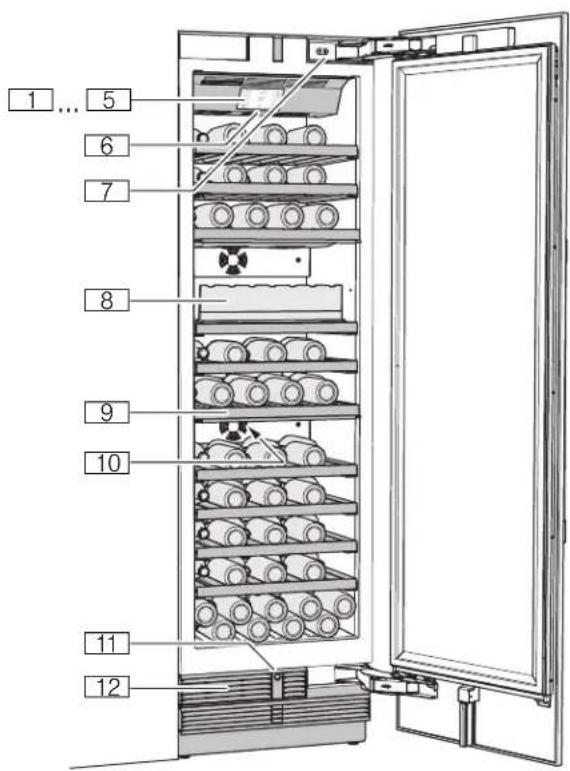
text_image
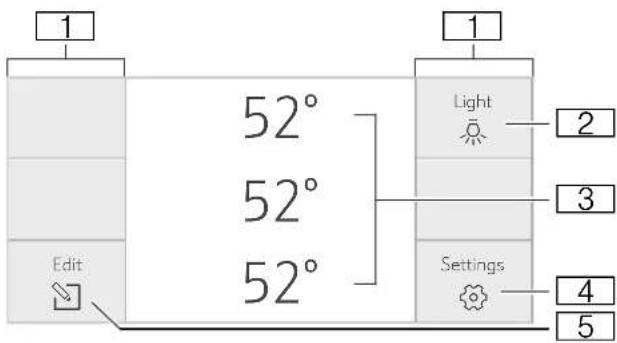
1 ... 5 6 7 8 9 10 11 12Operating controls
text_image
1 52° 52° 52° Edit 1 Light 2 3 Settings 4 51 Touch fields
There are sensors under the touch fields. Touching the symbol calls up the respective function.
2 button
Opens the menu for switching between the different light scenarios.
3 Wine storage cabinet temperature display
Indicates the set temperature in °F/°C. Depending on the appliance model in question, 2 or 3 cabinets are displayed.
4 button
Opens the Settings menu. → "Settings menu" on page 8
5 button
Opens the menu for changing the temperature.
Appliance
* Not all models.
1 ... 5 Operating controls
6 Main On/Off switch
7 Door damper
8 Partition
9 Shelf
10 Rating plate
11 Automatic door opening
12 Ventilation opening
en-us Getting to know your appliance
Settings menu
Press ↩ button to open the menu.
In the Settings menu you will find:
■ Appliance settings
- Cleaning mode
Self-test
■ Sabbath mode (if activated)
→ "Operating the appliance" on page 9
Appliance settings menu
This is how to navigate to the Appliance settings menu:
- Press ↩ button.
- Use < button to move to the Appliance settings menu.
- Open the menu using ☑ button.
In the Appliance settings menu you will find the following sub-menus and setting options:
Brightness
Standby screen
■ Key press sound
■ Key volume
■ Signal tone volume
■ Automatic clean lock
■ Automatic door opening
■ Theater mode
Temperature unit
Language
Home network
■ Factory settings
■ Demo mode
Sabbath mode
→ "Operating the appliance" on page 9
Interior fittings
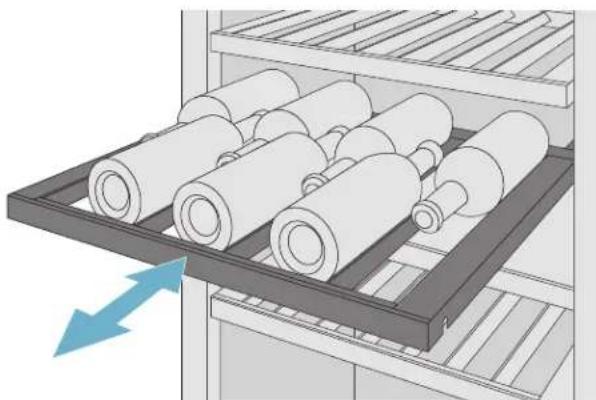
Shelf
You can pull out the shelves to reach the wine bottles more easily.
Note: The shelves separating the climate zones are not movable.
natural_image
Illustration of a rack with rolled cylindrical objects inside, showing an upward arrow (no text or symbols)Additional shelf
You can install additional shelves to store more wine bottles or to provide better support to the bottles on the fixed shelves.

Operating the appliance
Switching the appliance on
- Press the main On/Off switch.
The appliance starts cooling and the light is switched on when the door is open. - Set the required temperature.
→ "Setting the temperature" on page 9
Operating tips
- When the appliance has been switched on, it may take several hours until the set temperatures have been reached.
■ The front sides of the housing are partly heated slightly. This prevents condensation in the area of the door seal.
Switching off and disconnecting the appliance
Switching off the appliance
■ Press the main On/Off switch.
The appliance is no longer cooling.
Disconnecting the appliance
If you do not use the appliance for a prolonged period:
- Pull out mains plug or switch off fuse. The appliance is no longer cooling.
- Clean the appliance.
- Leave appliance open.
Setting the temperature
Recommended temperature
Wine storage 11 °C/52 °F cabinet:
Wine storage cabinet
- To open the menu for setting the temperature, press the ➕ button.
- Use the ☐/☐ button to select the desired compartment.
- Keep pressing the +/- button until the display indicates the required temperature.
- Confirm the selection by pressing the ☑ button. If the button is not pressed, the appliance stores the setting and automatically returns to the main screen after a few seconds.
Humidity
If bottles with natural corks are stored for longer than 4 weeks, the natural corks may shrink if the humidity is too low.
To prevent this from happening, store old wine bottles in such a way that the cork is kept wet and increase the humidity.
Switching humidity on and off:
- Press 📋 button to open the menu for setting the climate zones.
- Use ☐/☐ button to select the desired compartment.
- To switch on the higher humidity level, press △ button.
The symbol appears in the display. To switch off, press button. The symbol appears in the display - Confirm the selection by pressing ☑ button. If the button is not pressed, the appliance saves the setting and automatically returns to the main screen after a few seconds.
Display light
You can use the preprogrammed light modes to illuminate your wine bottles when the door is closed. The individual climatic zones have different illumination levels.
Using the display light
- Press the ⚙ button to open the Display light menu.
- Select a light mode or press the ☑ button to switch the display light off.
- Press ☑ button. The setting is saved.
Clean lock
You can use this function to switch off the touch function of the controls for 10 seconds. During this time you can clean the display.
→ "Cleaning the display" on page 18
- Press 📋 button to open the Settings menu.
- Press ▷ button.
The cleaning display appears, and the countdown starts.
| 10s | □ |
Automatic clean lock
You can use this function to select whether the automatic clean lock is switched on automatically when the door is opened.
- Press ↩ button to open the Settings menu.
- Use < button to move to the menu item Appliance settings.
- Press ☑ button.
- Press > button to move to the menu item Automatic clean lock.
- To change the setting, press ↩ button.
Self-test
This function can be used to start fault analysis on your appliance.
→ "Appliance self-test" on page 20
Setting the brightness of the control panel
- Press ↩ button to open the Settings menu.
- Use < button to move to the menu item Appliance settings.
- Press √ button.
- Press ↗ button to open the menu item Brightness.
- Press 〈〉 buttons to set the required brightness.
- Press ☑ button.
The setting is saved. - Press ↻ button to exit the menu.
Switching standby display on and off
If you switch on the standby screen, you can select what is displayed on the control panel when the door is closed.
- Press the ↗ button to open the main menu.
- Press < button to move to the menu item Basic settings.
- Press ☑ button.
- Use the > button to scroll to the Standby screen menu item.
- Press ↩ button.
- Use buttons to select whether the Standby screen is switched on or off.
- Press ☑ button.
- When the Standby screen has been switched on, you can use the buttons to select whether the logo or the temperature is displayed with the functions switched on.
- Press ☑ button.
The setting is saved. - Press ↻ button to exit the menu.
Switching key press sound on or off
You can switch the sounds generated when pressing keys off and back on again.
- Press ↩ button to open the Settings menu.
- Use < button to move to the menu item Appliance settings.
- Press ☑ button to open the menu item.
- Press > button to move to the menu item Key press sound.
- Press ↗ button to open the menu item.
- Use buttons to select the required setting.
- Press ☑ button.
The setting is saved. - Press ↻ button to exit the menu.
Setting the key volume
You can adjust the volume level of the sounds generated when pressing keys.
- Press ↩ button to open the Settings menu.
- Use < button to move to the menu item Appliance settings.
- Press ☑ button to open the menu item.
- Use > button to move to the menu item Key volume.
- Press ↩ button to open the menu item.
- Use buttons to select the required setting.
- Press ☑ button.
The setting is saved. - Press ↻ button to exit the menu.
Setting the signal tone volume
You can adjust the volume level of the signal tones generated e.g. with alarms.
- Press ↩ button to open the Settings menu.
- Use < button to move to the menu item Appliance settings.
- Press ☑ button to open the menu item.
- Use > button to move to the menu item Signal tone volume.
- Press ↩ button to open the menu item.
- Use <> buttons to select the required setting.
- Press ☑ button.
The setting is saved. - Press ↻ button to exit the menu.
Automatic clean lock
You can use this function to select whether the automatic clean lock is switched on automatically when the door is opened.
- Press ↩ button to open the Settings menu.
- Use < button to move to the menu item Appliance settings.
- Press ☑ button.
- Press > button to move to the menu item Automatic clean lock.
- To change the setting, press ↩ button.
Automatic door opening
The automatic door opening function supports you in opening the door.
As soon as you activate this function, automatic door opening moves out and supports you in opening the door.

CAUTION
Repeatedly closing the door too early will cause automatic door opening to fail or wear out. Do not close the door as long as automatic door opening is still moved out. If you have nevertheless closed the door, leave it closed for 5 minutes. Automatic door opening will re-adjust itself.
Switching on Push-to-open system
In an installation situation without handles you can select the Push-to-open system. Your appliance will then open a crack if you press lightly on the door.
Note: Please note that automatic door opening is disabled if Sabbath mode is activated.
- Open menu item Auto door opening.
- Select menu item Push-to-open system.
- Press ☑ button to open the menu item.
- Select Opening force. Here you can select the level of force required to activate automatic door opening.
- Select Opening duration. Here you can select how long the door should remain open a crack before it closes again automatically.
Note: If the door only remains open a crack, the appliance checks once a second whether the door is still ajar. After the selected opening duration elapses, the appliance will close the door automatically.
Switching on Pull-to-open system
In an installation situation with handles you can select the Pull-to-open system. Your appliance will support you in opening the door as soon as you pull on the handle.
- Open menu item Auto door opening.
- Select menu item Pull-to-open system.
- Press ☑ button to open the menu item.
- Select Opening force. Here you can select the level of force required to activate automatic door opening.
Switching off automatic door opening
-
Open menu item Auto door opening.
-
Select menu item Off.
Theater mode
If Theater mode is switched on, the light will slowly become brighter when the appliance is opened, and then slowly darker when it is closed.
Switching Theater mode on or off
- Press ↩ button to open the Settings menu.
- Use < button to move to the menu item Appliance settings.
- Press ☑ button to open the menu item.
- Use > button to move to the menu item Theater mode.
- Press ↩ button to open the menu item.
- Use > button to move to the menu item On or Off.
- Press ☑ button.
The setting is saved. - Press ↻ button to exit the menu.
Setting the temperature unit
You can choose between the unit °C and °F.
1 ° means 1 °F
1 °C means 1 °C
- Press ↩ button to open the Settings menu.
- Use < button to move to the menu item Appliance settings.
- Press ☑ button.
- Use < button to move to the menu item Temperature unit.
- Press ↩ button.
- Use buttons to move to the required unit.
- Press ☑ button.
The unit will be changed. - Press ↻ button to exit the menu.
Setting the language
- Press ↩ button to open the Settings menu.
- Use < button to move to the menu item Appliance settings.
- Press ☑ button.
- Press < button to move to the menu item
- Press 📋 button.
- Use buttons to move to the required language.
- Press ☑ button.
The display restarts, and the start screen is displayed.
Language.
Home network
You can use this function to establish a connection between the refrigerator and your mobile device.
→ "Home Connect" on page 13
Resetting to the factory settings
- Press ↩ button to open the Settings menu.
- Use < button to move to the menu item Appliance settings.
- Press ☑ button.
- Use < button to move to the menu item Factory settings.
- Press 📋 button.
A signal tone sounds, and a prompt to confirm reset appears. - Press ☑ button.
All settings are reset to the factory settings. - Press ↻ button to exit the menu.
Switching demo mode on or off
The cooling function of the appliance is switched off. All other functions can be used.
Note: Do not store any food items in demo mode as the appliance remains at room temperature.
- Press ↩ button to open the Settings menu.
- Use < button to move to the menu item Appliance settings.
- Press ☑ button.
- Use < button to move to the menu item Demo mode.
- Press ↩ button.
- Use 〈〉 buttons to select the setting On or Off
- Press ☑ button.
The setting is saved. - Press ↩ button to exit the menu.
Sabbath mode
All non-essential functions are switched off so you can also use the appliance on the Sabbath.
The appliance switches off the following:
■ Automatic door opening
Note: With handle-free installation, please note that you will not be supported when opening the door during this time.
To open the door in this case, reach from below under the bottom panel of the unit.
Audible signals
Interior light
■ Messages on the control panel
■ Background illumination of control panel is reduced
Switching Sabbath mode on or off
Displaying Sabbath mode in the Settings menu
To use Sabbath mode, you first have to display the function in the Settings menu:
- Press ↩ button to open the Settings menu.
- Use < button to move to the Appliance settings menu.
- Press ☑ button.
- Use < button to move to the menu item Sabbath mode. Press ➕ button.
- Use < button to move to the menu item Available. Confirm by pressing ☑ button.
- Press ☐ button to exit the menu. The function is added to the Settings menu.
Switching on Sabbath mode
- Press 📋 button to open the Settings menu.
- Press 📋 button to open the view Duration Sabbath mode.
- Select one of the presettings, or change the duration with +/- buttons.
- Press ▷ button to start. The appliance switches all listed functions off.
Switching Sabbath mode off
■ After the selected time elapses, the appliance switches over to normal operation.
■ To end Sabbath mode before the selected time elapses, press □ button.

Home Connect
This appliance is Wi-Fi-capable and can be controlled remotely using a mobile device.
Note: Wi-Fi is a registered trade mark of the Wi-Fi Alliance.
In the following cases, the appliance functions like a refrigerator without a network connection and can still be operated manually via the controls:
■ The appliance is not connected to a home network.
The availability of the Home Connect function depends on the availability of Home Connect services in your country. Home Connect services are not available in every country. You can find more information on www.home-connect.com.
Note: Please observe the safety information in this instruction manual. Ensure that this is also observed if you operate the appliance via the Home Connect app and are not at home when doing so. → "Important safety instructions" on page 3
Follow the instructions in the Home Connect app as well.
Setting up Home Connect
Notes
■ Wait at least 2 minutes after switching on the appliance before setting up Home Connect. Only then is internal appliance initialization complete.
Take note of the Home Connect supplementary sheet, which is supplied with the appliance or is available for download at www.thermador.com together with the instructions. Enter the E-number of your appliance in the search field.
You can connect your appliance to the home WLAN network (Wi-Fi) in 3 basic steps.
- Install the app.
- Connect your refrigerator to the home WLAN network (Wi-Fi).
- Connect the refrigerator to the Home Connect app.
The first time you open the menu, you will be automatically guided through initial setup. Follow the instructions on the control panel. For further information, please also see the following chapters.
The following sub-menus can be found in the Home network menu:
Connection
■ Connect to app
■ Software update
■ Delete network settings
Open WiFi menu
- To open the Settings menu, press the ↗ button.
- Use < button to move to the menu item Appliance settings.
- Press ☑ button.
- Press < button to move to the menu item WiFi.
- Press ↩ button.
Note: The first time you open the menu, you will be automatically guided through initial setup. Follow the instructions on the control panel.
Setting up the connection to the home network
The first time you open the menu, you will be automatically guided through initial setup. Follow the instructions on the control panel.
- Install the Home Connect app on your mobile device.
- Open the Home network menu on your refrigerator.
- Open the app on your mobile device.
- Log in or register with the app if access is not yet available.
- Check the router of your home network to see if a WPS function is available for automatic connection.
- If this function is available, start automatic network connection with ☑ button. Follow the instructions on the control panel.
- Start manual network connection if this function is not available, if you're not sure whether the function is available, or if automatic network connection failed. The refrigerator temporarily generates its own network for connecting the mobile device.
- Start manual network connection in the app of your mobile device.
As soon as the refrigerator is connected to the mobile device, a connection between the refrigerator and your home network is established.
Note: If the connection cannot be established, check whether there is sufficient reception.
→ "Verifying signal strength" on page 13
Verifying signal strength
The signal strength is displayed in the start window of the Home network menu. The signal strength should be at least 50 %. If the signal strength is too weak, the connection may be interrupted.
Improving signal strength
- Place the router closer to the refrigerator.
- Check that screening walls do not interfere with the connection.
■ Install a repeater to make the signal stronger.
Connecting the refrigerator to the Home Connect app
Use this menu to connect your refrigerator to mobile devices.
- Install the Home Connect app on your mobile device and log in or register.
- Open the Home network menu on your refrigerator.
- Press > button to move to the menu item Connect to app.
- Press ☐ button to open the menu item.
- Confirm the message to display the refrigerator in the app.
- Open the app and wait until the refrigerator is displayed.
Press Add to confirm the connection between the app and the refrigerator.
If the refrigerator is not automatically displayed, click on Add appliance in the app and follow the instructions. As soon as your refrigerator is displayed, add it with +.
- Follow the instructions in the app until the process is complete.
Installing updates for the Home Connect software
The refrigerator checks at regular intervals whether updates are available for the Home Connect software.
The Info ⚠ button is visible when an update is available.
Installing the update:
- Press Ⓐ button. A note window with the necessary steps for installing the new software appears.
- Press ☑ button to close the note.
- Open the Home network menu on your refrigerator.
- Press > button to move to the menu item Software update.
- Press ↩ button to open the menu item.
Note: The ☑ button is only visible if an update is available.
The software is installed.
- A note appears when installation is complete.
- Press ☑ button to close the note.
Customer Service access
If you contact Customer Service, they can access your appliance and view its status after you have given your consent. You need to have your appliance connected to your home network for this.
Further information about Customer Service access and its availability in your country is available under www.home-connect.com in the Help & Support area.
- Contact Customer Service.
→ "Customer service" on page 20
- Confirm the start of Customer Service access in the app.
During Customer Service access the symbol 📋 appears on the control panel.
- As soon as Customer Service has obtained the necessary data, they end access.
Note: You can interrupt remote diagnosis early by switching off Customer Service access in the Home Connect app.
Deleting network settings
If there is a problem when trying to establish a connection, or if you would like to register the appliance in a different home network (WLAN), the Home Connect settings can be reset.
-
Open the Home network menu on your refrigerator.
-
Press > button to move to the menu item Delete network settings.
-
Press ↗ button to open the menu item.
-
Confirm the message to delete the network settings.
To then reconnect the appliance to the home network, perform initial setup again.
→ Page 13
Switch on or off the connection to the home WLAN network (Wi-Fi)
- Open the WiFi menu on your refrigerator. → "Open WiFi menu" on page 13
Note: The first time you open the menu, you will be automatically guided through initial setup. Follow the instructions on the control panel.
- To open the menu item, press Connection ↩ button.
- Use 〈〉 buttons to select the required setting.
- To select the setting, press ☑ button.
Note: If you switch off the Home Connect connection, you will no longer be able to operate the appliance with your mobile device.
Information on data protection
The first time your Home Connect appliance is registered on a WLAN home network connected to the Internet (Wi-Fi), your appliance will transmit the following types of data to the Home Connect server (initial registration):
■ Unique appliance identification (consisting of appliance codes as well as the MAC address of the installed Wi-Fi communication module).
■ Security certificate of the Wi-Fi communication module (to ensure a secure data connection).
■ The current software and hardware version of your domestic appliance.
■ Status of any previous resetting to factory settings.
This initial registration prepares the Home Connect functions for use and is only required when you want to use these Home Connect functions for the first time.
Note: Please note that the Home Connect functions can be utilized only in conjunction with the Home Connect app. Information on data protection can be called up in the Home Connect app.
Alarm
Door alarm
If the appliance door is open for a long time, the door alarm (continuous audible signal) switches on.
- Close door.
The audible warning signal is switched off.
Wine storage cabinet
Loading bottles
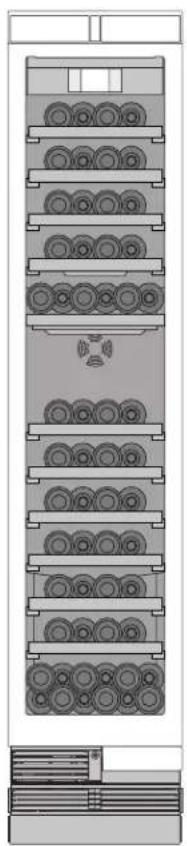
To store the maximum number of wine bottles:
■ store the bottles as indicated
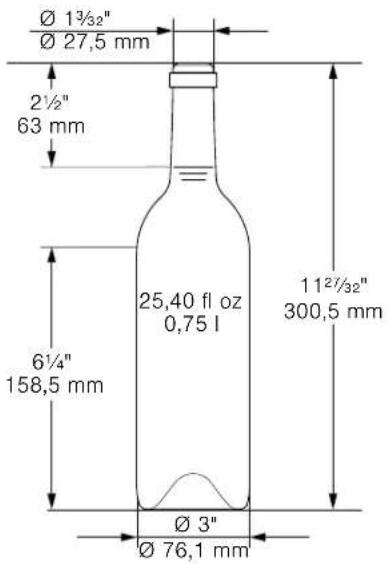
- check that the bottles do not exceed the specified dimensions
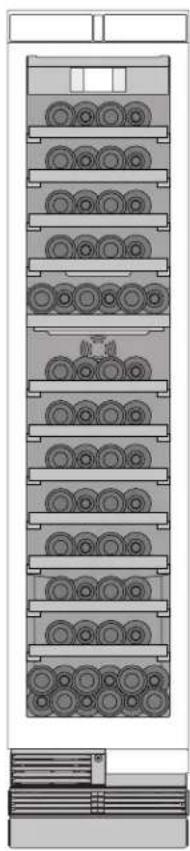
Standard bottle size
You can ideally utilize the volume of your appliance with Bordeaux bottles of this size.
text_image
Ø 13/32" Ø 27,5 mm 2½" 63 mm 25,40 fl oz 0,75 l 6¼" 158,5 mm Ø 3" Ø 76,1 mm 1127/32" 300,5 mmStorage example with standard bottles
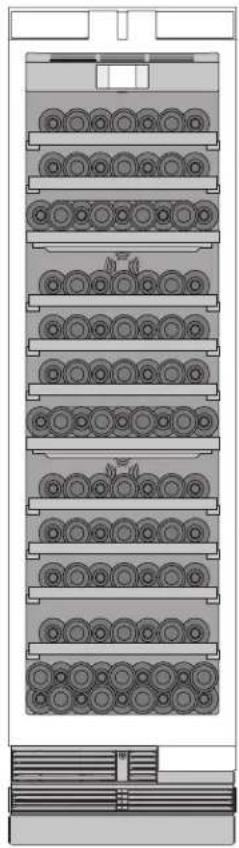
18" appliance: 58 standard bottles
24" appliance: 92 standard bottles
natural_image
Diagram of a multi-tiered storage or rack system with circular components, no visible text or symbols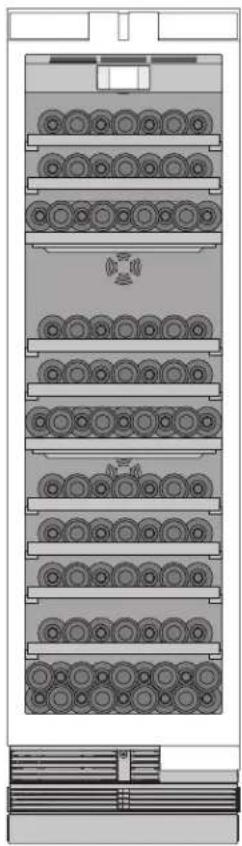
natural_image
Technical diagram of a multi-tiered mechanical or electrical component with circular components and a central fan (no text or symbols)Loading with additional shelves
You can change the storage options of your appliance by installing additional shelves.
18" appliance: 62 standard bottles
24" appliance: 99 standard bottles
natural_image
Diagram of a multi-tiered storage unit with circular components, no text or symbols present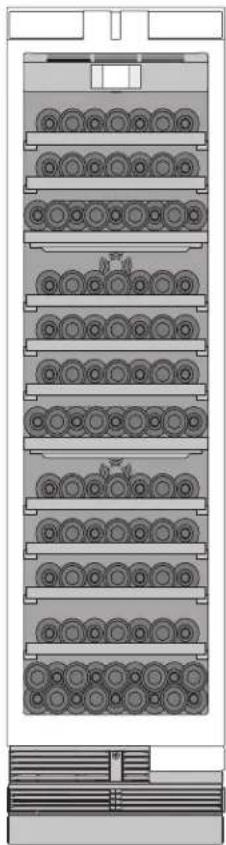
natural_image
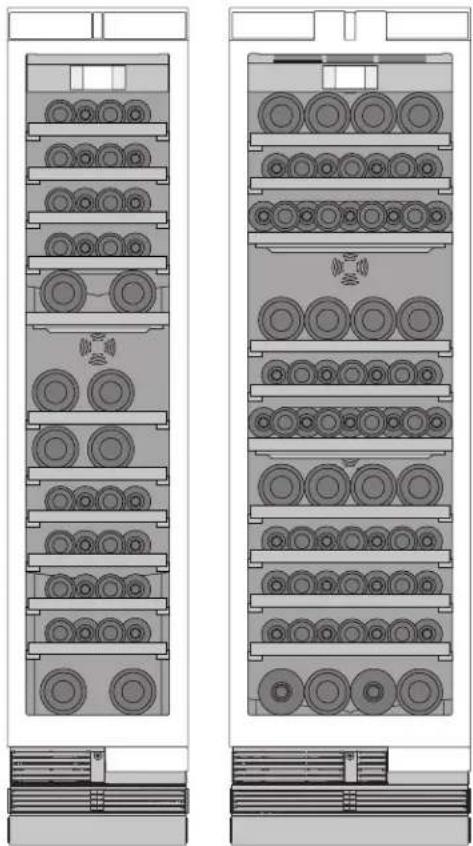
Technical diagram of a multi-layered mechanical or electrical component with circular components and mounting brackets (no text or symbols)Storage example for different bottle sizes
natural_image
Technical diagram of a dual-chamber electronic device with circular components and mounting brackets (no text or symbols)Tips for storing wine
- Unpack wine bottles – do not store in crates or cartons in the wine storage compartment.
If bottles with natural corks are stored for longer than 4 weeks, the natural corks may shrink if the humidity is too low.
To prevent this from happening, store old wine bottles in such a way that the cork is kept wet and increase the humidity.
→ "Humidity" on page 9
■ The open bottle shelves allow continuous air circulation. As a result, excess humidity is quickly removed.
Before the wine is enjoyed, it should be slowly warmed up (chambré): take e.g. rosé wine out of the appliance approx. 2–5 hours before drinking, and red wine 4–5 hours before drinking. This will ensure that the wine is at the correct drinking temperature. White wine, on the other hand, should be placed on the table just before drinking. Sparkling wine and champagne should be chilled in the refrigerator for a short while before drinking.
Remember that wine should always be cooled slightly lower than the ideal serving temperature, as its temperature increases as soon as it is poured into a glass.
Drinking temperatures
The correct serving temperature is crucial for the taste and therefore your enjoyment of the wine.
We recommend the following drinking temperatures for serving the wine:
| Type of wine Drinking temperature |
| Full-bodied red Bordeaux 65 °F (18 °C) |
| Côtes du Rhône red, Barolo 64 °F (17 °C) |
| Full-bodied red Burgundy, red Bordeaux 61 °F (16 °C) |
| Port 59 °F (15 °C) |
| Young red Burgundy 57 °F (14 °C) |
| Young red wines 54 °F (12 °C) |
| Young Beaujolais, all white wines with little residual sugar 52 °F (11 °C) |
| Old white wines, full-bodied Chardonnay 50 °F (10 °C) |
| Sherry 49 °F (9 °C) |
| Young white wines, from late vintage onward 46 °F (8 °C) |
| White wines, Loire, Entre-deux-Mers 45 °F (7 °C) |

Cleaning

CAUTION
AVOID DAMAGING THE APPLIANCE AND THE FITTINGS.
- Do not use abrasive, chloride-based or acidic cleaning agents or solvents.
- Do not use scouring or abrasive sponges. The metallic surfaces may corrode.
■ Never clean the shelves or containers in the dishwasher.
The parts may become deformed.
Cleaning the display
The change in temperature and humidity can cause the controls to steam up.
Switch the clean lock on before cleaning.
→ "Clean lock" on page 9
Use a clean micro-fiber cloth for cleaning.
Cleaning the appliance interior
Proceed as follows:
- Press main On/Off switch.
- Take out bottles and store in a cool location if possible.
- Clean the appliance with a soft cloth, lukewarm water and a little pH-neutral washing-up liquid.

CAUTION
The rinsing water must not run into the light or through the drainage hole into the evaporation area.
- Wipe door seal with clear water and dry thoroughly with a cloth.
- Switch appliance back on and put in bottles.
Cleaning the fittings
To clean, take the variable parts out of the appliance.
→ "Interior fittings" on page 8
Care instructions for stainless steel surfaces
When taking care of and cleaning stainless steel surfaces, use only cleaning agents suitable for stainless steel and a stainless steel cleaning cloth.
You can purchase a suitable stainless steel cleaning cloth from customer service.
To prevent visible scratches, clean the stainless steel surface in the direction of the structure.

Noises
Normal noises
Droning: A motor is running, e.g. refrigerating unit, ventilator.
Bubbling, buzzing or gurgling: Refrigerant is flowing through the tubes.
Clicking: Motor, switches or solenoid valves are switching on or off.
Preventing noises
Appliance is not level: Align appliance using a water level. Adjust the height of the feet. If the feet have already been moved right out, but the appliance is still not level, place e.g. a thin wooden plate underneath.
Containers, shelves or storage compartments wobble or stick: Check the removable fittings and re-insert if required.
Bottles or receptacles are touching each other: Move bottles or receptacles away from each other.

Lighting
Your appliance features a maintenance-free LED light.
Only customer service or authorized technicians may repair the light.

Faults – what to do?
Before you call customer service, use this table to check whether you can rectify the fault yourself.
Appliance
| Temperature differs greatly from the set value. | |
| Switch off appliance for 5 minutes.→ "Switching off and disconnecting the appliance" on page 9If the temperature is too warm, check temperature again after a couple of hours.If the temperature is too cold, check temperature again on the following day. | |
| Displays do not illuminate. | |
| The power plug has not been inserted properly. Connect the power plug. | |
| The fuse has tripped. Check the fuses. | |
| The power has failed. Check whether the power is on. | |
| The refrigeration unit is switching on more frequently and for longer. | |
| The appliance was opened frequently. Do not open the appliance unnecessarily. | |
| The ventilation openings are covered up. Remove obstacles. | |
| Large quantities of fresh food have been put in. Switch on super cooling promptly in advance. | |
| Appliance is not cooling, display and lighting are lit. | |
| Demo mode is switched on. Switch demo mode off. → "Switching demo mode on or off" on page 12 | |
| The door does not open when pressed. | |
| A special mode has switched off automatic door opening. | To open the door, reach from below underneath the bottom panel of the unit or switch off special mode.→ "Switching Sabbath mode on or off" on page 12 |
| Pull-to-open is switched on. | Switch the appliance to Push-to-open.→ "Automatic door opening" on page 11 |
| The opening force is set too high. | Select a lower setting for the opening force.→ "Automatic door opening" on page 11 |
| The fuse has tripped. Check the fuses. | |
| The power has failed. Check whether the power is on. | |

Customer service
If you are unable to rectify the fault, please contact our customer service. We will always find an appropriate solution in order to avoid unnecessary visits by engineers.
The contact information for your nearest customer service can be found here or on the enclosed customer service list.
When calling, please state the product number (E-Nr.) and the production number (FD), which can be found on the rating plate.
→ "Getting to know your appliance" on page 7
Trust the expertise of the manufacturer. You can therefore be sure that the repair is carried out by trained service engineers who carry original spare parts for your home appliances.
Appliance self-test
Your appliance features a self-test program which displays the fault your customer service can rectify.
- Press ↩ button to open the Settings menu.
- Use > button to move to the menu item Self-test.
- Press ☑ button to start the self-test. The self-test starts.
- If faults are present, they will be displayed. In this case follow the instructions.
- The appliance restarts.
- A message that the self-test has finished is displayed for 10 seconds.
When the self-test has ended, the appliance switches to normal operation.
Repair order and advice on faults
Contact information for all countries can be found on the enclosed customer service list.
USA 1-800-735-4328 Toll-free in the USA
CA 1-800-735-4328
natural_image
Illustration of rolled cylindrical objects on a rack inside a storage cabinet (no text or symbols)Configurer Home Connect
Remarques
natural_image
Technical diagram of a multi-tiered storage or rack system with circular components and a central emblem (no text or labels)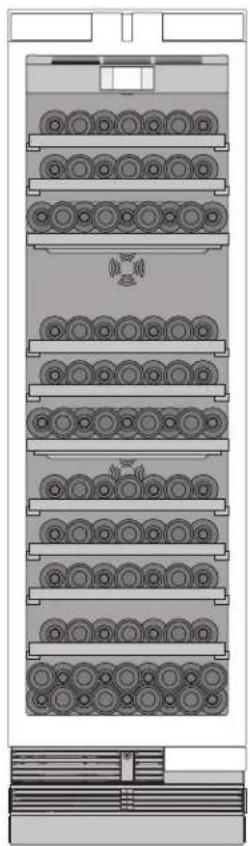
natural_image
Technical diagram of a multi-tiered mechanical or electrical component with circular components and mounting brackets (no text or symbols)Ajout de clayettes
natural_image
Diagram of a multi-tiered storage unit with circular components, no text or symbols present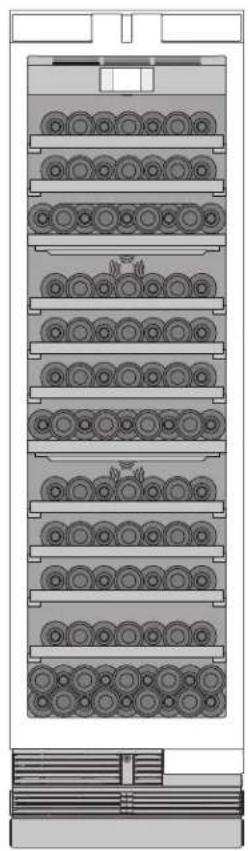
natural_image
Technical diagram of a multi-tiered mechanical or electrical component with circular components and mounting brackets (no text or symbols)natural_image
Technical diagram of a dual-chamber electrical enclosure with circular components and mounting brackets (no text or labels)natural_image
Illustration of cylindrical rollers inside a rack, with an arrow indicating direction (no text or symbols)natural_image
Diagram of a vertical rack-mounted server or rack unit with multiple circular components, no visible text or labels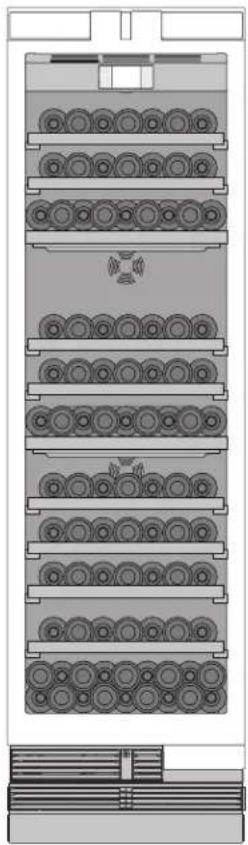
natural_image
Technical diagram of a multi-layered mechanical or electrical component with circular components and mounting brackets (no text or symbols)natural_image
Diagram of a multi-tiered rack or storage unit with circular components, no visible text or symbols