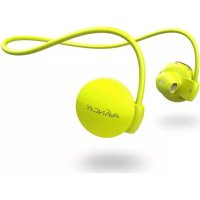
S1 Sports - Earplug Avanca - Free user manual and instructions
Find the device manual for free S1 Sports Avanca in PDF.



| Product type | Bluetooth headset with speaker |
| Brand | Avanca |
| Model | S1 Sports |
| Bluetooth version | 4.0 |
| Supported profiles | HSP, HFP, A2DP, AVRCP |
| Battery | Rechargeable lithium-ion 120 mAh |
| Playback time | 5 hours |
| Talk time | 7 hours |
| Standby time | Up to 150 hours |
| Charging time | 2.5 hours |
| Charging port | Micro USB |
| Bluetooth range | 10 meters |
| Functions | Music playback, call answering, built-in microphone |
| Cleaning | Damp cloth, no chemicals |
| Safety | Keep away from sharp objects and heat sources, do not use with liquids |
Frequently Asked Questions - S1 Sports Avanca
User questions about S1 Sports Avanca
0 question about this device. Answer the ones you know or ask your own.
Ask a new question about this device
Download the instructions for your Earplug in PDF format for free! Find your manual S1 Sports - Avanca and take your electronic device back in hand. On this page are published all the documents necessary for the use of your device. S1 Sports by Avanca.
USER MANUAL S1 Sports Avanca
USERMANUAL
NEDERLANDS | ENGLISH
FRANÇAIS | DEUTSCH
ESPAÑOL | ITALIANO
HANDLEIDING (NL)
1. INHOUD VERPAKKING
- Bluetooth Headset
- Handleiding
- Opbergtasje
- USB-kabel
2. SPECIFICATIES
- Bluetooth version: 4.0
- Profile Support: HSP/HFP/A2DP/AVRCP
- Micro USB port for charging cable
- 120mAh rechargeable battery
- Loading time: 2.5 h
- Audio time: 5 h
- Talking time: 7 h
- Standby time: up to 150 h
3. INSTRUCTIONS FOR USE
3.1 Activating/deactivating the speaker headset
The right side earplug contains a button for activating or deactivating your headset. Press the button shortly to activate or deactivate your headset.
3.2 Loading the speaker headset
The right side earplug contains a micro USB cable port. Connect the headset by means of the micro USB cable to a USB adapter (not supplied) and connect the adapter to mains (power outlet). Alternatively, you can connect the micro USB cable directly to a suitable energy source such as your computer's USB port. After about 2.5 hours the headset will be completely charged.
3.3 Pairing the speaker headset to your Bluetooth device
-
Press and hold the ON/OFF button for a minimum of 5 seconds when the headset is set to off. Red and/or blue lights will turn on and you will then hear "Power on" over the speakers. Hold down the "ON/OFF" button until you hear the word "pairing."
-
Following the instructions below, pair the headphones with the Bluetooth device of your choice.
USER MANUAL (EN)
Attention: pairing the Bluetooth device may, depending on the mobile device to be paired, vary lightly from the steps below. In that case please follow the instructions in the manual of your mobile device.
For iOS devices
- Enter the 'Settings' menu. If necessary, activate the Bluetooth functionality.
- Now the speaker headset will appear in the list of Bluetooth devices. Click the device and wait until the pairing has been carried out.
For Android devices
- Go to 'Apps' and find the 'Settings' menu. Open the menu. If necessary, activate the Bluetooth functionality.
- The device will automatically detect all Bluetooth devices in its vicinity. If it does not, please click on 'Scan' until your headset appears in the list.
- Click on your headset and wait until the pairing has been carried out. Click on 'OK' when you are asked to confirm the device.
Now you can enjoy your headset, listening to the music played on your Bluetooth device. You will also be able to answer incoming calls on your phone. The headset's range is about 10 metres.
3.4 Answering incoming calls
- In case you're called on the paired device you can accept the incoming call by (briefly) pressing the ON/OFF button. The headset has an incorporated microphone, enabling you to handle your calls without taking off your headset. Briefly pressing the ON/OFF once, will end your call.
4. SAFETY INSTRUCTIONS
- Keep the product away from sharp objects.
- Don't place heavy objects on top of the product.
- Don't use any (chemical or organic) liquids with the product.
- Keep the product away from heating sources.
USER MANUAL (EN)
5. CLEANING
Clean the product with a moist cloth. Don't use any chemical liquids or oil!
6. PROBLEMS AND SOLUTIONS
My mobile device does not find the headset in the list of Bluetooth devices
- Check whether the headset is within a 10-meter range of the Bluetooth device.
- Check whether the red and/or blue lights on the headset are lit, indicating that Bluetooth has been activated.
- Click on 'scan' or 'search' to start another search for devices in the vicinity.
- Keep the ON/OFF button pressed for 5 seconds in order to have a new Bluetooth synchronisation carried out.
I am not able to activate the headset
- The battery may be empty. Charge the battery minimally for 1 to 2 hours by means of a micro USB cable and try to activate the headset again.
The headset does not charge
- Check whether the headset has been correctly connected to the micro USB cable.
- Check whether the micro USB cable has been correctly connected to either a USB adapter and mains, or directly to a power source such as your laptop.
HANDLEITUNG (DE)


- Usermanual
- Handleiding (nl)
- Inhoud verpakking
- Specificaties
- Instructions for use
- 3.1 Activating/deactivating the speaker headset
- 3.2 Loading the speaker headset
- 3.3 Pairing the speaker headset to your bluetooth device
- User manual (en)
- For ios devices
- For android devices
- 3.4 Answering incoming calls
- Safety instructions
- Cleaning
- Problems and solutions
- I am not able to activate the headset
- The headset does not charge
- Handleitung (de)
Brand : Avanca
Model : S1 Sports
Category : Earplug