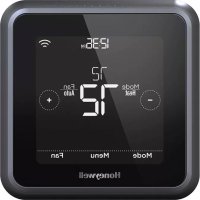
Home Lyric T5 WiFi - Thermostat HONEYWELL - Free user manual and instructions
Find the device manual for free Home Lyric T5 WiFi HONEYWELL in PDF.



| Product Type | Wi-Fi Connected Thermostat |
| Brand | Honeywell |
| Model | Lyric T5 WiFi (RCHT8610WF2006) |
| Power Supply | 24 VAC (neutral wire required) |
| Wi-Fi Connectivity | 2.4 GHz, 802.11 b/g/n |
| System Compatibility | Conventional heating and cooling and heat pumps (single and multi-stage) |
| Smart Home Compatibility | Apple HomeKit, Amazon Echo |
| Temperature Range (Heating) | 4.5 °C to 32 °C |
| Temperature Range (Cooling) | 10 °C to 37 °C |
| Temperature Sensor Accuracy | ±0.85 °C at 21 °C |
| System Modes | Heat, Cool, Off, Auto, Emergency Heat |
| Fan Modes | Auto, On, Circulate |
| Scheduling | Geofencing, smart scheduling, time-based scheduling (4 periods/day) |
| Intelligent Response | Yes (cycle learning) |
| Display | Touchscreen with adjustable backlight (5 levels) |
| Screen Lock | Partial or full (PIN code) |
| Alerts and Reminders | Air filter, extreme temperature, etc. |
| Mobile App | Lyric (iOS and Android) |
| Warranty | 2 years |
| Cleaning | Soft cloth, do not spray directly |
Frequently Asked Questions - Home Lyric T5 WiFi HONEYWELL
User questions about Home Lyric T5 WiFi HONEYWELL
0 question about this device. Answer the ones you know or ask your own.
Ask a new question about this device
Download the instructions for your Thermostat in PDF format for free! Find your manual Home Lyric T5 WiFi - HONEYWELL and take your electronic device back in hand. On this page are published all the documents necessary for the use of your device. Home Lyric T5 WiFi by HONEYWELL.
USER MANUAL Home Lyric T5 WiFi HONEYWELL
text_image
Available on the App Store Get it on Google play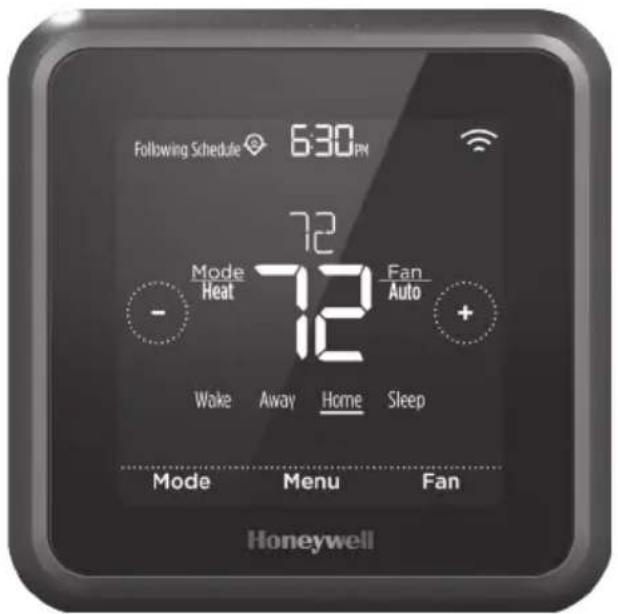
text_image
Following Schedule 630 PM 72 Mode Heat Fan Auto + 72 Wake Away Home Sleep Mode Menu Fan Honeywell*RCHT8610WF2006 shown. Other models may vary.
Welcome
This user guide is designed to help you get acquainted with your new Lyric T5 Wi-Fi thermostat. Check out the table of contents on page 2 to browse by topic.
Need help? Get in touch.
Web: lyric.honeywell.com
Email: MyLyric@honeywell.com
Phone: 1-800-633-3991
Social: Twitter: @HoneywellHome, Facebook: Honeywell Home
Table of contents
Thermostat features....3
Thermostat overview 4
Lyric app overview 5
Basic thermostat operation
Adjusting the temperature....5
Schedule overrides....6
Adjusting the temperature in Auto mode....7
Selecting system mode....8
Built-in compressor protection....9
Setting the fan....9
Wi-Fi® connectivity
Connecting to a Wi-Fi network....10
Disconnecting and reconnecting to a Wi-Fi network....11
Main menu settings
Overview....12
Scheduling options....13
Location-based temperature control (geofence technology)....13
Smart scheduling ....13
Time-based scheduling....15
No schedule....18
Screen lock settings....19
Wi-Fi settings....20
WAC settings....20
Turning thermostat Wi-Fi on and off....20
Adjusting backlight brightness....21
Enabling/disabling Smart Response....21
Setting the time and date....22
Cleaning the thermostat screen....23
Choosing Fahrenheit or Celsius....23
Enabling/disabling auto changeover....24
Reset options....24
Viewing equipment status....25
Viewing thermostat information....25
Alerts and maintenance reminders 26
Appendices
General system information....28
Troubleshooting....29
Frequently asked questions (FAQs)....30
Regulatory information 32
Warranty information....33
Thermostat Features
Flexible scheduling: You can choose to use location-based temperature control (geofence technology), smart scheduling or set a time-based schedule to make sure your home is always comfortable.

- Location-based temperature control: Using geofence technology, the Lyric T5 Wi-Fi thermostat will automatically use your smartphone's location, which can save energy when you leave and make your home comfortable by the time you return. See page 13 for more.
- Smart scheduling: Adds a Sleep period to location-based temperature control. See page 13 for more.
- Time-based scheduling: You can program a schedule where every day is different, a schedule where weekdays and weekends are different or a schedule where every day is the same. There are four adjustable periods per day: Wake, Away, Home and Sleep. See page 15 for more.
- No schedule: You can also choose not to set a schedule and adjust the thermostat manually. See page 18 for more.
Tip: The Lyric app can be used to manage multiple thermostats and multiple users in a household.

Smart Alerts: The Lyric T5 Wi-Fi thermostat will send alerts for things like extreme indoor temperatures and reminders for things like filter changes.

Auto change from heat to cool: When Auto mode is selected, the Lyric T5 Wi-Fi thermostat can automatically determine whether your home needs heating or cooling to reach the desired temperature.

Smart Response: The Lyric T5 Wi-Fi thermostat learns your heating and cooling cycle times to make sure the system delivers the temperature you want, when you want it.
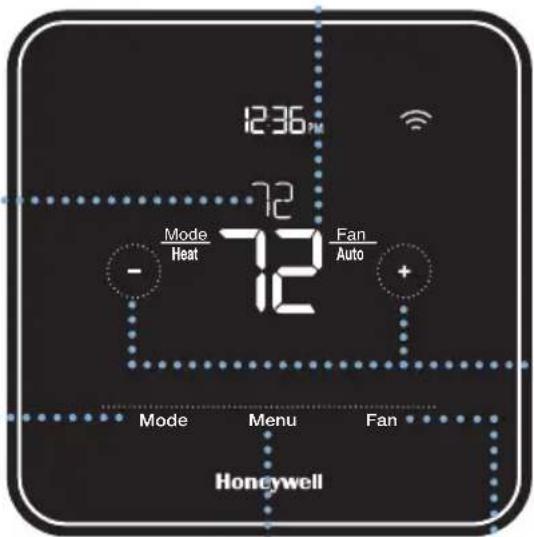
Thermostat overview
Desired temperature
Shows desired indoor temperature.
Indoor Temperature
Shows current indoor temperature.
Adjust temperature
Touch + or - to set your desired temperature.
text_image
12:36 PM 72 Mode Heat Fan Auto - + - Mode Menu Fan HoneywellMode
Touch to select system mode:
- Auto (if enabled)
- Heat
- Cool
- Off
- Em Heat (Emergency Heat)
Menu
Touch to program a schedule and see other customizable options.
Fan
Touch to select fan mode:
- Auto
• On - Circulate
Idle mode
The thermostat will enter idle mode 45 seconds after the last button touch. The screen may dim to save power depending on the brightness setting. See page 21 to learn how to adjust the screen's brightness.
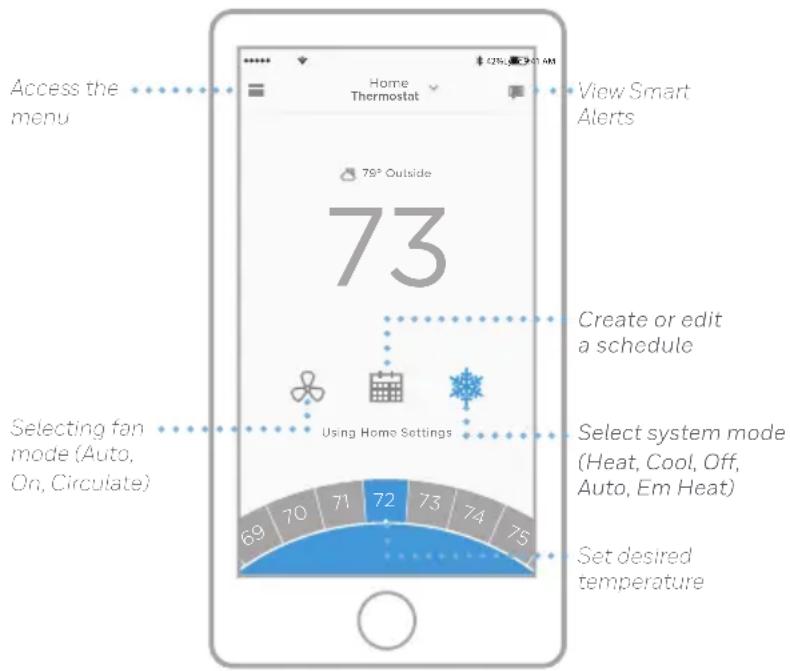
Lyric app overview
text_image
Access the menu Home Thermostat View Smart Alerts 76° Outside 73 Create or edit a schedule Selecting fan mode (Auto, On, Circulate) Using Home Settings Select system mode (Heat, Cool, Off, Auto, Em Heat) Set desired temperature 69 70 71 72 73 74 75To see all the products connected by the Honeywell Lyric app, visit yourhome.honeywell.com.
The Lyric app is regularly enhanced and may change.
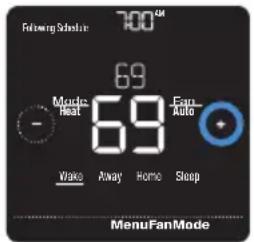
Adjusting the temperature
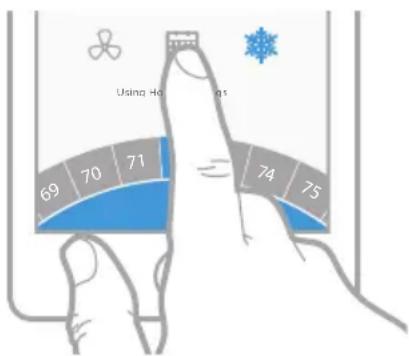
To adjust the desired temperature up or down, touch + or - on the thermostat home screen.
If you're using location-based temperature control or a time-based schedule, adjusting the temperature will override the current set point until the next schedule period or geofence event, unless you want to use one of the schedule overrides below.
text_image
Following Schedule 700°C 69 Static Heat 69 Fano AUTO Wake Away Homo Sleep MenuFanModeSchedule overrides
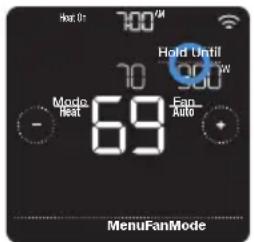
Hold Until (temporary hold): Overrides the current temperature set point for a maximum of 12 hours. You might use this feature to hold a temperature until a specific time.
Permanent hold: Overrides the current temperature set point permanently until you manually change it or reactivate a schedule.
Vacation hold: Overrides the current temperature set point for a longer period of time. You might use this feature when you know you'll be gone for awhile. (Note: Vacation hold can only be activated using the Lyric app.)
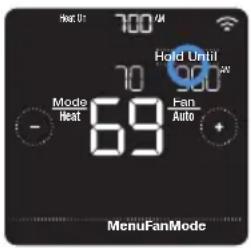
Setting temporary hold (for use with time-based schedules only)
1 Touch on the thermostat home screen to set your desired temperature. Hold Until will appear together with the time the hold will end.
2 To change when the hold will end, touch the time and wait until the time starts blinking. Then, touch + or to set when you want the hold to end. Touch Hold Until once more to confirm changes and return to the home screen.
After the hold period ends, the thermostat will automatically return to the program schedule. If you want to cancel the hold, touch Hold Until and then touch Run Schedule.
text_image
Heat: 01 700 V 70 Hold Until 70 900 W Mode Heat Fan Auto - 69 MenuFanMode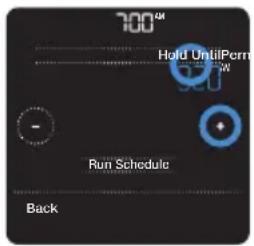
text_image
700M Hold UntilPerm 9.21W - Run Schedule BackSetting permanent hold
1 Touch or on the thermostat home screen to reach your desired temperature. Hold Until will appear together with the time you want the hold to end.
2 Touch Hold Until. Permanent Hold will appear on screen. Touch Permanent Hold to hold this temperature until you manually change it.
To end permanent hold and return to the program schedule, touch Permanent Hold and then touch Run Schedule.
text_image
Heat: 0 700µV Hold Until 70 900µV Mode Heat 69 Fan- AUTO MenuFanMode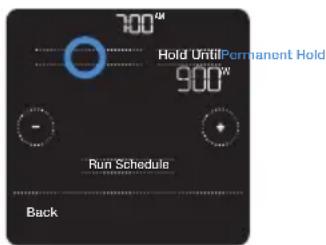
text_image
700M Hold UntilPermanent Hold 900W - Run Schedule BackSetting vacation hold (must be set using the Lyric app)
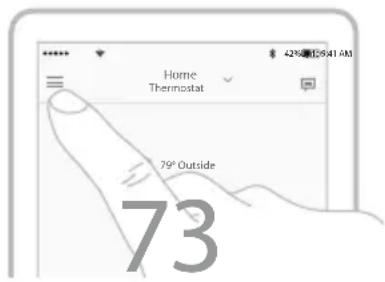
1 Open the Lyric app. Tap the Menu icon in the upper-left corner of the screen, then tap Vacation.
2 Turn Vacation Settings on, then choose a start date/time and an end date/time.
3 Tap the Lyric device you wish to include in your vacation settings, then adjust your preferred temperatures. When you're done, tap the back arrow to save your changes.
You can manually adjust the temperature set point during vacation hold using the Lyric app or by touching + or - on the thermostat. This new set point will remain in effect until the end of vacation hold. To cancel vacation hold, touch Run Schedule on the thermostat screen to return to the program schedule, or tap Vacation Until in the app and then tap End Vacation.
text_image
Home Thermostat 79° Outside 73Adjusting the temperature in Auto mode
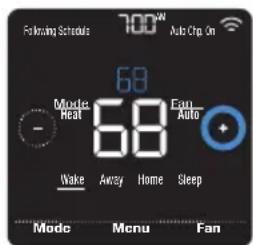
Auto mode (when the thermostat automatically chooses heating or cooling to achieve your desired temperature) is disabled by default. To enable it, touch Menu, touch the or ↗ arrows until you see CHANGEOVER and then select AUTO. Touch Done and touch Back to return to the thermostat home screen.
To choose your preferred temperatures for both heating and cooling in Auto mode, follow the steps below.
1 Touch Mode on the thermostat home screen until Auto appears. You'll also see Auto Chg On appear in the upper-right corner. Then touch or to choose your preferred temperature for the mode that's currently active (heating or cooling).
2 Next, touch the text area where the active mode is displayed to switch to the inactive mode.
3 Touch or to choose your preferred temperature in the other mode. After 5 seconds of inactivity, your setting will take effect, and the thermostat screen will show the set point of the active mode.
text_image
Following Schedule 700° Auto Chip On 68 Mode Heat 68 Fan Auto + Wake Away Home Sleep Mode Menu Fan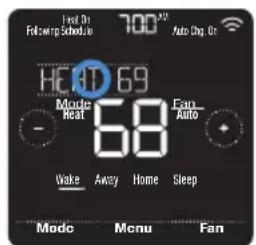
text_image
First On Followr p Schedule 700 AU Auto Chg. On HOT 69 Mode Heat 68 Fan Auto Wake Away Home Sleep Mode Menu Fan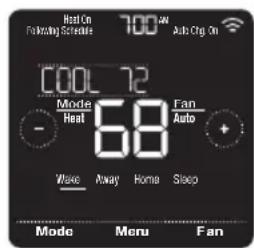
text_image
Heat On Forkering Recycle 700 AW Auto Chg. On Cool 72 Mode Heat 68 Fan Auto - Wave Away Home Sleep Mode Menu Fan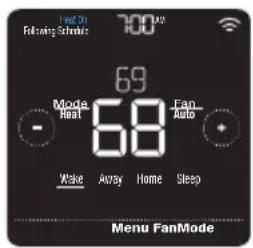
text_image
Heat On Following Schedule 700 Max 69 Mode Heat Fan Auto - 68 Make Away Home Sleep Menu FanModeSelecting system mode
Current system mode (Heat, Cool, Off, Em Heat) is displayed to the left of current indoor temperature on the thermostat home screen.
The mode that's currently running (Heat On, Cool On, Em Heat On) is displayed in the upper-left corner of the thermostat home screen.
To cycle through the available modes, touch Mode on the thermostat home screen and select the appropriate mode for your desired temperature.
- Heat: Controls the heating system.
• Cool: Controls the cooling system. - Off: Turns the heating and cooling systems off.
- Auto: When enabled, the thermostat will automatically use heating or cooling to reach the desired temperature.
- Em Heat: Controls auxiliary or emergency heat; only available on systems with a heat pump.
text_image
Following Schematic 700 K 69 Mode Heat 69 Fan Auto On Circ + Wake Away Home Sleep Menu FanMode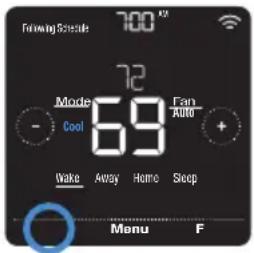
text_image
Following Schedule 700 x Mode Cool 69 Fan Auto + Wake Away Home Sleep Menu F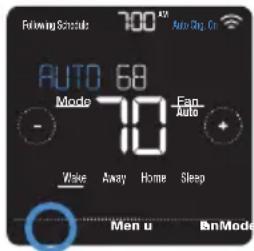
text_image
Following Schedule 700 A2 Auto Bag Cl AUTO 68 Mode 70 Fan - AUTO + Wave Away Home Sleep Men u EnModeNotes:
- Em Heat and Auto modes may not appear on the thermostat screen or in the app depending on your equipment and how your thermostat was installed.
- Em Heat is only available for heat pump systems. The thermostat must also be configured to control a heat pump and an auxiliary/emergency heat stage.
- Auto mode is disabled by default. To enable it, see the instructions on page 24
Built-in compressor protection
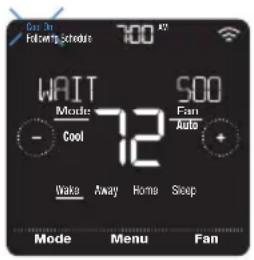
If the compressor is restarted too soon after a shutdown, system damage can occur. The built-in compressor protection feature forces the compressor to wait a few minutes before restarting, helping to prevent damage to the heating or cooling system.
During the brief wait period, the thermostat will flash Cool On (or Heat On if you have a heat pump) until the wait period is over, at which point the compressor will turn back on.
Note: The flashing Cool On or Heat On message is also used for startup delay protection if AC power loss occurs.
Setting the fan
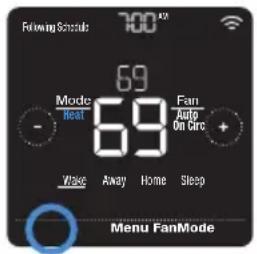
Touch Fan on the thermostat home screen to cycle through available fan modes until the desired mode is displayed. Your changes will save automatically.
Available fan modes:
- On: The fan will run continuously.
- Auto: The fan will run only when the heating or cooling system is on.
- Circ: The fan will run at random intervals at least 35% of the time to keep air circulating throughout your home.
text_image
Wait Mode: Cool 72 500 Fan Auto Wake Away Home Sleep Mode Menu Fan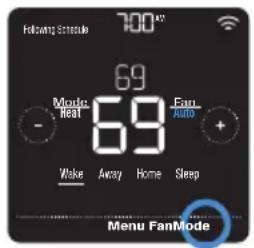
text_image
Following Schedule 700 69 Mode Heat 69 Fan Auto + - Wise Away Home Sleep Menu FanMode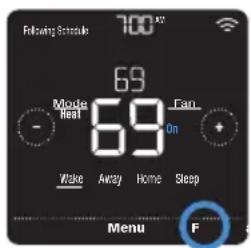
text_image
Following Schedule 700 x2 69 Mode Heat 69 Fan On Wake Away Home Sleep Menu F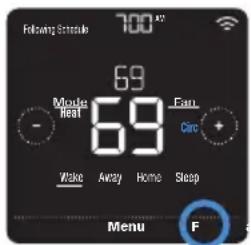
text_image
Following Schedule 700 A 69 Mode Heat 69 Fan Circ + - Wake Away Home Sleep Menu FConnecting to a Wi-Fi network
To configure and control your Lyric T5 Wi-Fi thermostat remotely, the thermostat needs to be connected to the Lyric app through your home's Wi-Fi network. Follow the simple steps below to get connected.
1 Make sure your smartphone or tablet is connected to a 2.4 GHz Wi-Fi signal. (Many Wi-Fi routers broadcast both a 2.4 GHz signal and a 5.0 GHz signal. If given the option, choose the 2.4 GHz signal.)
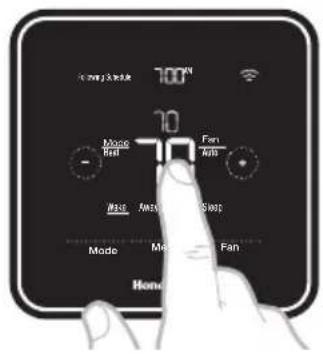
2 At the thermostat, press and hold the indoor temperature in the center of the screen for 5 seconds until the screen changes.
3 Download the Lyric app from the App Store or Google Play if you haven't already.
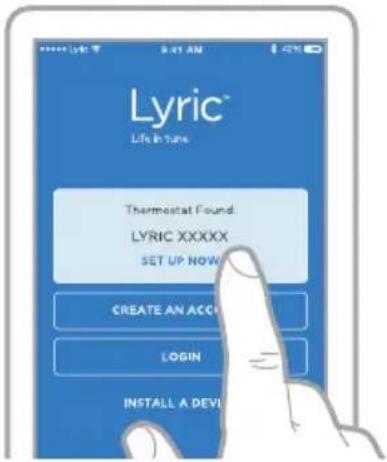
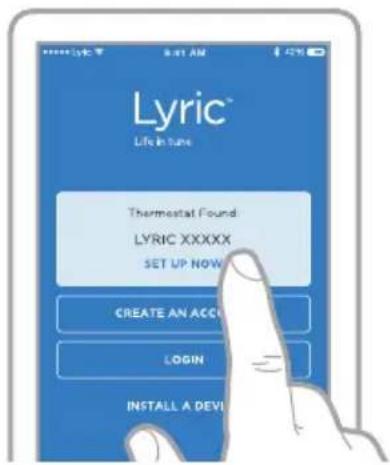
4 Open the Lyric app. Your thermostat should appear under Thermostat Found. Tap SET UP NOW to continue. If your thermostat doesn't appear, tap INSTALL A DEVICE and follow the prompts.
Wi-Fi connection status
The thermostat's Wi-Fi connection status is located in the upper-right corner of the screen. To troubleshoot Wi-Fi connectivity issues, see the FAQs on page 30.
- Wi-Fi is connected
- Wi-Fi is disconnected or Wi-Fi isn't set up
- Wi-Fi is turned off


text_image
100°C + 100% Stable Made First Fan Auto Made Awards Stop Made Mode Fan Home
Lyric
text_image
Lyric™ Life in Tube Thermostat Found LYRIC XXXXXX SET UP NOW CREATE AN ACC LOGIN INSTALL A DEV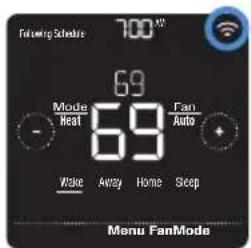
text_image
Following Schedule 700 W 69 Mode Heat 69 Fan Auto Wake Away Home Seep Menu FanModeWifi is connected
Disconnecting and reconnecting to a Wi-Fi network
If you need to disconnect the thermostat from one Wi-Fi network and reconnect it to another (because you're replacing your Wi-Fi router, for example), follow the steps below.
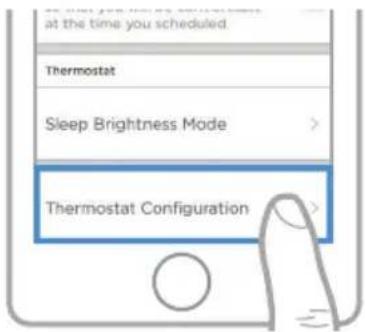
1 Open the Lyric app, tap the menu icon ≡ in the upper-left corner and select the thermostat you want to reconnect. Touch Thermostat Configuration, and from the options offered, touch DELETE.
2 At the thermostat, press and hold the temperature in the center of the screen for 5 seconds until the screen changes.
3 Open the Lyric app once more. Your thermostat should appear under Thermostat Found. Tap SET UP NOW to continue. If your thermostat doesn't appear, tap INSTALL A DEVICE and follow the prompts. (Your equipment configuration and preferences will still be in place.)
text_image
at the time you scheduled Thermostat Sleep Brightness Mode Thermostat Configuration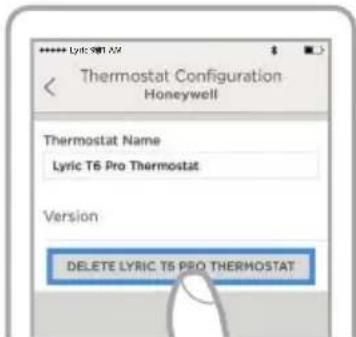
text_image
Lyric T6 PRO THERMOSTAT DELETE LYRIC T6 PRO THERMOSTAT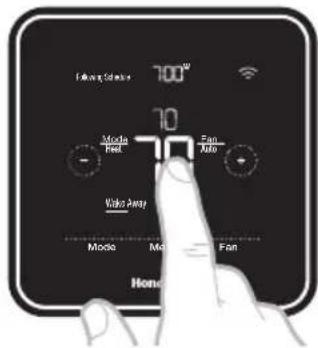
text_image
700" 10 Video Away Mai Fan Honor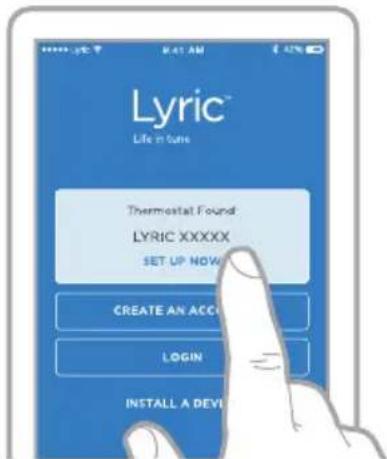
text_image
Lyric™ Life in tune Thermostat Found LYRIC XXXXX SET UP NOW CREATE AN ACC LOGIN INSTALL A DEVMain menu overview
Touch Menu on the thermostat home screen and then use the ⏻ or ⏱ arrows to page through the following options.
SCHEDULE
Create and edit a schedule for your thermostat to follow.
SCREEN LOCK
Lock the screen to limit access to thermostat settings.
UIFI
Configure or change the thermostat's Wi-Fi settings.
BRIGHTNESS
Set the brightness of the thermostat display.
RECOVERY
Enable or disable the Smart Response feature.
CLOCK / DATE
Manually set the clock, clock format and daylight saving time in the CLOCK sub-menu, and date in the DATE sub-menu. (The thermostat will automatically display this information and the CLOCK and DATE sub-menus won't be available when connected to Wi-Fi.)
CLEAN SCREEN
Disable the touchscreen for 30 seconds so you can clean it.
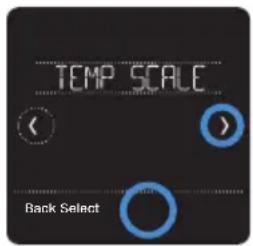
TEMP SCALE
Choose Fahrenheit or Celsius.
RESET
Schedule: Resets to the default Monday-Friday, Saturday-Sunday schedule.
HomeKit: Clears your Apple ^® HomeKit ^™ credentials (provided HomeKit was previously configured).
Wi-Fi: Clears your Wi-Fi router credentials (provided a Wi-Fi router was previously configured).
EQMP STATUS
View current status of your heating or cooling equipment.
DEVICE INFO
View your thermostat's device information, such as MAC ID, model number and firmware version.
ALERTS
View, snooze or dismiss active alerts and reminders (available only when you see the active alert symbol △ on the thermostat home screen).
Navigating the menus
Menu: Touch to access all options and sub-menus.
or Touch to page through options and sub-menus.
+ or ÷ Touch to adjust things such as temperature, time and date.
Back or Cancel: Touch to discard changes or go back to the previous menu.
Select: Touch to access a sub-menu.
Done: Touch to confirm selection.
Tip: You can touch Select to access a sub-menu, or you can touch the text in the message area (the word SCHEDULE, for example).
Scheduling options
The Lyric T5 Wi-Fi thermostat offers flexible scheduling options that include:
- Location-based temperature control
- Smart scheduling
• Time-based schedule - No scheduling
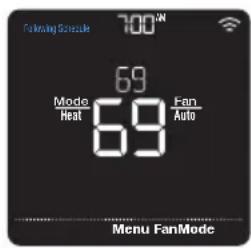
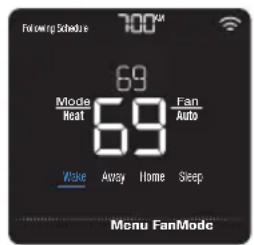
On the thermostat home screen, you'll be able to see what kind of schedule is currently running, as well as which schedule period you're currently in.
Schedule status
Indicates if the thermostat is using location-based temperature control 🔒 or following a time-based schedule.
text_image
Following Schedule 700° 69 Mode Fan Heat Auto 69 Menu FanMode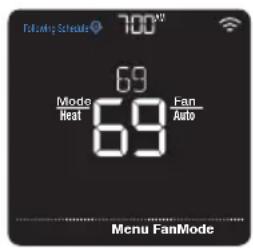
text_image
Follying Schedule 700° 69 Mode Heat Fan Auto 69 Menu FanModeSchedule period
Shows current schedule period (Wake, Away, Home or Sleep).
text_image
Following Schedule 700° 69 Mode Heat 69 Fan Auto Make Away Home Sleep Menu FanModeLocation-based temperature control and smart scheduling
Location-based temperature control uses geofence technology and your smartphone's GPS location to automatically adjust your thermostat as you come and go. When you leave the geofence boundary, the thermostat will change to your preferred Away temperature, and when you enter the geofence boundary, the thermostat will change to your preferred Home temperature.
Setting location-based temperature control and smart scheduling in the Lyric app
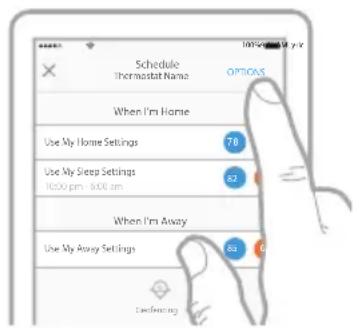
These two options can only be activated using the Lyric app. To enable location-based temperature control and/or set a smart schedule, follow the steps below.
text_image
Schedule Thermostat Name OPTIONS When I'm Home Use My Home Settings 78 Use My Sleep Settings 10:00 pm - 6:00 am 62 When I'm Away Use My Away Settings 63 Conferring1 Open the Lyric app and tap the scheduling
(calendar) icon
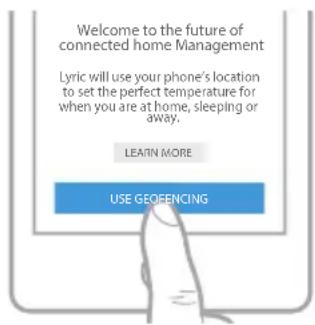
2 Tap OPTIONS in the upper-right corner and tap Create New Schedule. Then, make sure the Location tab is selected and tap USE GEOFENCING.

text_image
Welcome to the future of connected home Management Lyric will use your phone's location to set the perfect temperature for when you are at home, sleeping or away. LEARN MORE USE GEOFENCING3 Choose the temperatures you prefer when you're home (one for cooling and one for heating). Use the up and down arrows to select your preferred temperatures, then tap NEXT.
4 Choose the temperatures you prefer when you're away, then tap NEXT.
5 You'll then be asked if you want to set a time and temperature for sleep. (Adding a Sleep period to location-based temperature control is what we call a smart schedule.) If you tap YES, choose Sleep Start and Sleep End times along with your preferred temperatures for sleeping, then tap NEXT.
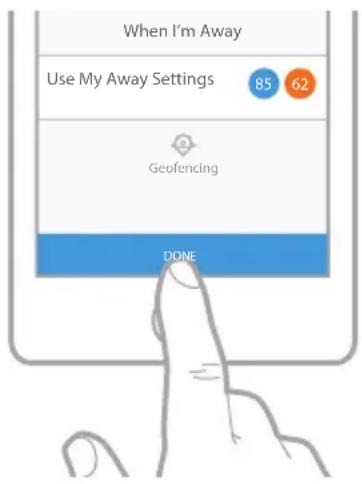
6 Review your preferences. If you need to make edits, tap the period you want to edit, then tap Done when finished.
When location-based temperature control is active, you'll see a symbol in the upper-left corner of the thermostat screen, along with Home or Away status and your preferred temperature. If you set an additional Sleep period in the Lyric app, you'll also see Following Schedule in the upper-left corner of the thermostat screen.
If you manually change the temperature when location-based temperature control is active, the new temperature will remain in effect until you cross the geofence.
To adjust the geofence boundary, follow the steps below.
1 Open the Lyric app, tap the menu icon in the upper-left corner and then tap Geofence.
2 Tap Geofence Radius, and when the map and current geofence appear, touch, hold and drag the black dot to adjust the geofence boundary.
3 Tap SAVE to finish.
text_image
When I'm Away Use My Away Settings 85 62 Geofencing DONE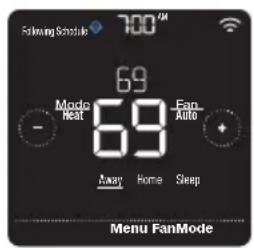
text_image
Following Schedule 700 PM 69 Mode Heat 69 Fan Auto - + - Away Home Sleep Menu FanMode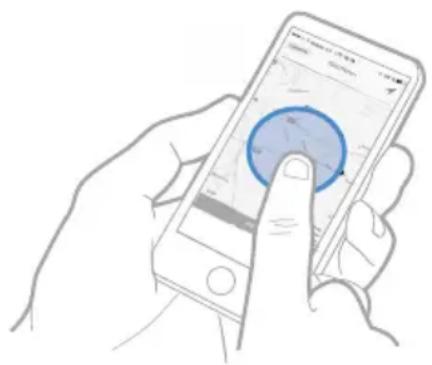
natural_image
Line drawing of a hand holding a smartphone displaying a map interface (no text or symbols on the device screen)Editing location-based temperature control and smart scheduling on the thermostat
To edit your preferred Home, Away and Sleep temperatures or your Wake and Sleep times while location-based temperature control is active, follow the steps below. You can also make edits in the Lyric app.
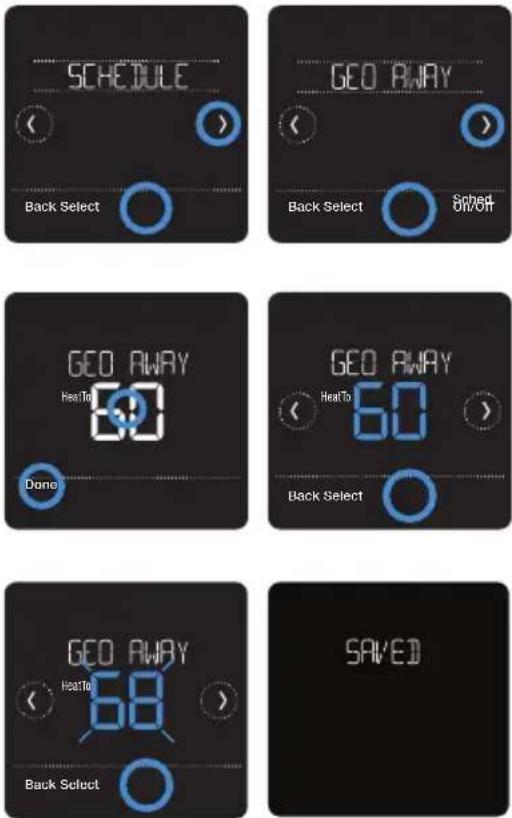
1 Touch Menu on the thermostat home screen.
2 Touch the or arrows until you see SCHEDULE, then touch Select.
3 Touch the or arrows until you see the period you want to view or edit, then touch Select. Touch the time or temperature you want to edit and use the + or - buttons to adjust up or down. Touch Select to confirm.
4 Touch the or arrows to edit additional periods, then touch Back twice to return to the thermostat home screen.
To learn more about location-based temperature control, check out these FAQs.
Time-based scheduling
With time-based scheduling, you can program your thermostat to follow a predictable schedule based on time of day or day of the week. Here are the programming options:
• Everyday: Every day (Mon-Sun) has the same schedule
- Weekday & Weekend: Weekdays (Mon-Fri) have the same schedule and weekends (Sat-Sun) have the same schedule
- Individual Days: Each day has a different schedule.
There are also four adjustable periods per day: Wake, Away, Home and Sleep.
Your Lyric T5 Pro Wi-Fi thermostat comes with the following default Weekday & Weekend schedule that can help reduce your heating and cooling expenses. To change schedule types (from Weekday & Weekend to a different option) you must use the Lyric app. See page 13 for instructions.
| Period Start Time | Heat (Mon-Fri) | Cool (Mon-Fri) | Heat (Sat-Sun) | Cool (Sat-Sun) | |
| Wake | 6:00 AM | 70° | 78° | 70° | 78° |
| Away | 8:00 AM | 62° | 85° | 62° | 85° |
| Return | 6:00 PM | 70° | 78° | 70° | 78° |
| Sleep | 10:00 PM | 62° | 82° | 62° | 82° |
Setting a time-based schedule in the Lyric app
To select a schedule type and set a time-based schedule in the Lyric app, follow the steps below.
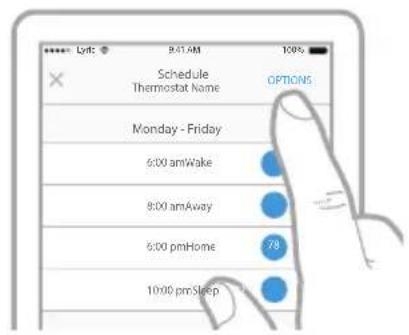
1 Tap the scheduling (calendar) icon, tap OPTIONS in the upper-right corner and then tap Create New Schedule.
2 Make sure the Time tab is selected, then choose the schedule type that best matches your weekly routine.
3 A default schedule will appear. Tap the period you want to edit (Wake, for example), then choose the time you want the period to start and your preferred temperatures for cooling and heating. Tap SAVE to finish and move on to other periods.
4 After you're done editing your schedule, tap DONE.
text_image
Schedule Thermostat Name Monday - Friday 6:00 amWake 8:00 amAway 6:00 pmHome 10:00 pmSleep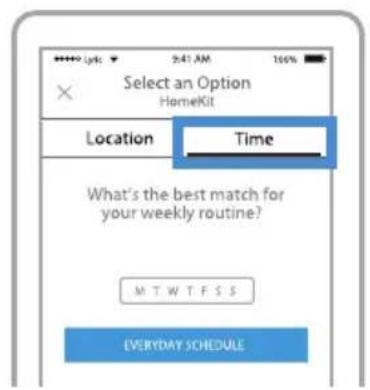
text_image
Select an Option HomeKit Location Time What's the best match for your weekly routine? MTWTFSS EVERYDAY SCHEDULESetting a time-based schedule on the thermostat
To edit a time-based schedule on the thermostat, follow the steps below.
1 Touch Menu on the thermostat home screen.
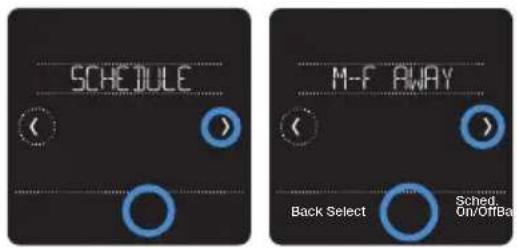
2 Touch the or arrows until you see SCHEDULE, then touch Select.
3 Touch the or arrows to select a period in a day or set of days, then touch Select on the period you want to edit. (You can only edit a period of days according to the schedule type selected. To change schedule type, use the Lyric app.)
4 Touch the time area, then touch or to - adjust when the period starts. Touch Select to confirm.
text_image
SCHEDULE M-F AWAY Back Select Sched On/OffBar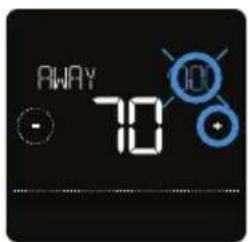
text_image
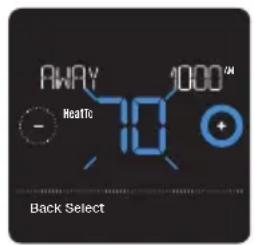
AWAY 705 Touch the temperature area, then touch + or to adjust your preferred temperature for the mode that's currently active (either heating or cooling). Touch Select to confirm. Then touch + or to adjust your preferred temperature for the inactive mode. Touch Select to confirm.
6 Edit the next period or use the until you see DONE, then press Select to save changes and go to the home screen.
Note: To temporarily cancel a schedule period (such as Saturday-Sunday Away, for example, because you'll be home), go to the SCHEDULE option and touch the or arrows to select a period. Touch Select on the period you want to cancel, then touch Cancel Period. To reactive the period you cancelled, touch Cancel Period again to select period start time and preferred temperature.
text_image
AWAY - Neatic 70 1000™ Back Select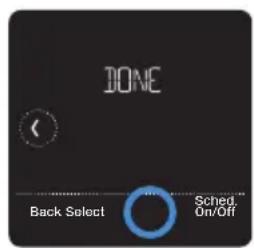
text_image
JONE Back Select Sched. On/Off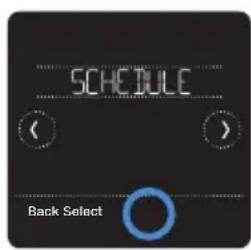
text_image
SCHEDULE Back Select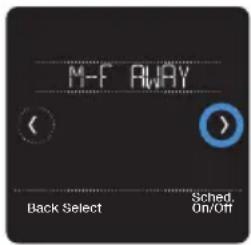
text_image
M-F AWAY Back Select Sched. On/Off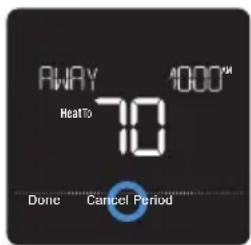
text_image
AWAY 4000™ HeaTo 70 Done Cancel PeriodChanging schedule type on the Lyric app
To change from a Weekday & Weekend schedule to an Everyday or Individual Days schedule (for example), follow the steps below. You must use the Lyric app to change schedule types.
1 Open the Lyric app and tap the scheduling (calendar) icon 📋
2 Tap OPTIONS in the upper-right corner. To select an Everyday or Weekday & Weekend schedule, tap Create New Schedule, make sure the Time tab is selected and then choose your preferred schedule type. To select an Individual Days schedule, tap OPTIONS and then View by Individual Days.
3 Set your temperature preferences for the new schedule type and touch DONE to finish.
text_image
Using Hot Gas 69 70 71 74 75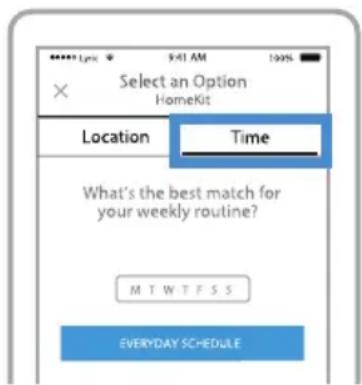
text_image
Select an Option HomeKit Location Time What's the best match for your weekly routine? M T W T F S S EVERYDAY SCHEDULEResetting the thermostat to the default schedule
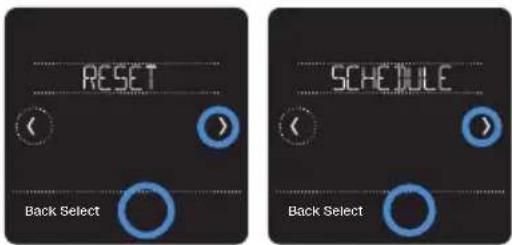
To reset your thermostat to the default Monday-Friday, Saturday-Sunday schedule, follow the steps below.
1 Touch Menu on the thermostat screen.
2 Touch the or arrows until you see RESET, then touch Select.
3 Touch the or arrows until you see SCHEDULE, then touch Select.
4 Touch Yes to confirm.
text_image
RESET Back Select SCHEDULE Back Select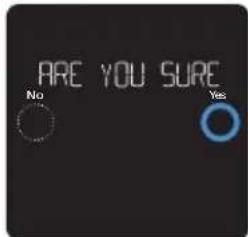
text_image
ARE YOU SURE No YesTurning off scheduling
To turn off scheduling and control the temperature manually, follow the steps below.
1 Touch Menu on the thermostat screen.
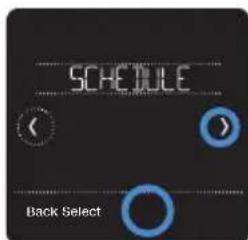
2 Touch the or arrows until you see SCHEDULE, then touch Select.
3 Touch Sched. On/Off to toggle between Schedule On and Schedule Off. (It may take a few seconds for your selection to become active.)
4 Then, touch Back twice to return to the thermostat home screen.
text_image
SCHEDULE Back Select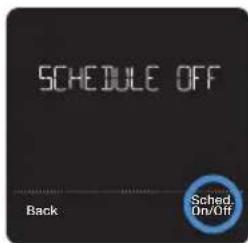
text_image
SCHEDULE OFF Back Sched. On/OffScreen lock settings
To prevent unauthorized access to the thermostat, or to limit changes to the system settings, there are two screen lock settings you can apply.
- Partial lock: Only the temperature can be changed.
- Full lock: No access is allowed without a PIN number.
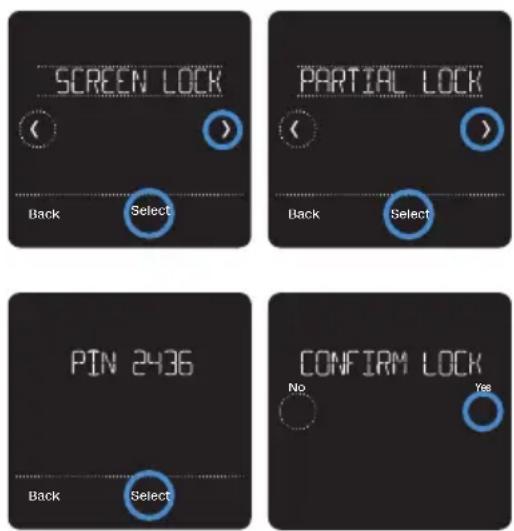
Applying a screen lock setting
1 Touch Menu on the thermostat home screen.
2 Touch the or arrows until you see SCREEN LOCK, then touch Select.
3 Touch the or arrows to select your desired screen lock setting, then touch Select.
4 A PIN number will appear on screen. Write it down and keep it in a safe place.
5 Touch Select, and confirm your screen lock setting by touching Yes.
A partially or fully locked screen will be indicated by a lock symbol at the bottom of the thermostat screen.
Unlocking the screen
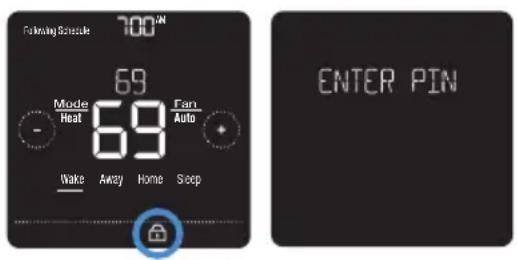
1 Touch the lock symbol on the thermostat home screen.
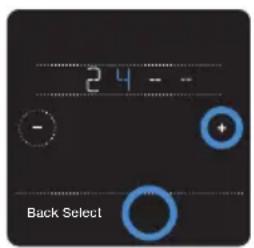
2 When prompted to enter a PIN number, touch + or -to select the first number of the PIN code. Touch Select to confirm, and repeat for the remaining numbers.
When you enter the correct PIN, you'll return to the thermostat home screen. To re-lock the screen after you're done making changes, follow the steps above to apply a lock setting.
text_image
24 -- - + Back SelectWi-Fi settings
To access the Wi-Fi settings option, follow the steps below.
1 Touch Menu on the thermostat home screen.
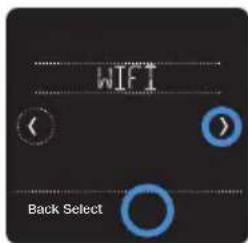
2 Touch the or arrows until you see WIFI, then touch Select.
3 Touch the or arrows to cycle through the following options SETUP WIFI, WAC SETTING and WIFI ON/OFF, and touch Select on the option you want to edit.
text_image
WIFT Back Select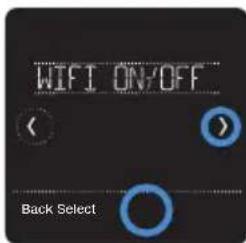
text_image
WIFI ON/OFF Back SelectChoose the SETUP WIFI option to get your thermostat connected to your home's Wi-Fi network (see instructions on page 10 for more). For WAC SETTING and WIFI ON/OFF information, see below.
WAC setting
The Wireless Accessory Configuration (WAC) setting is an iOS-specific setting that enables Wi-Fi credentials to be securely transferred from an iOS device to the thermostat. The WAC setting is enabled by default to simplify the Wi-Fi connection process. If you choose to disable it (not recommended), you'll have to use a different process to get your thermostat connected to Wi-Fi.
Turning thermostat Wi-Fi on and off
If you want to disconnect your thermostat from Wi-Fi, follow the steps below.
1 Touch Menu on the thermostat home screen.
2 Touch the or arrows until you see WIFI, then touch Select.
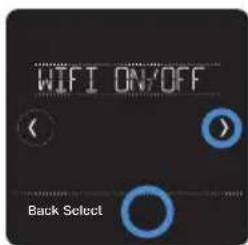
3 Touch the or arrows until you see WIFI ON/OFF, then touch Select.
4 Touch the or arrows to choose WIFI ON or WIFI OFF. Then touch Done to confirm.
text_image
WIFI ON/OFF Back Select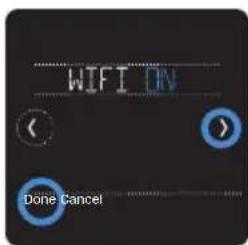
text_image
WIFI ON Done CancelAdjusting backlight brightness
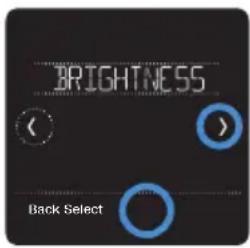
When the thermostat is in idle mode, you can adjust how bright you'd like the screen. You can choose a brightness level from 01 (display backlight is dimmest, which is the default) up to 05 (maximum brightness). To adjust backlight brightness, follow the steps below.
1 Touch Menu on the thermostat home screen.
2 Touch the or arrows until you see BRIGHTNESS, then touch Select.
3 Touch or to adjust the brightness level, which will change immediately.
4 Touch Done to confirm.
text_image
BRIGHTNESS Back Select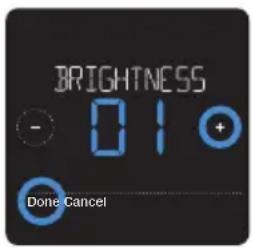
text_image
BRIGHTNESS - 01 + Done CancelEnabling/disabling Smart Response
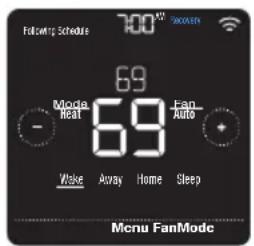
Over time, your Lyric T5 Wi-Fi thermostat will learn how long it takes your system to reach the desired temperature. It can then turn on your heating or cooling equipment at the right time to make sure your home is comfortable by the time you expect. This feature is enabled by default. To disable it, follow the steps below.
text_image
Following Schedule 700 69 Mode Heat 69 Fan AUTO Make Away Home Sleep Menu FanMode1 Touch Menu on the thermostat home screen.
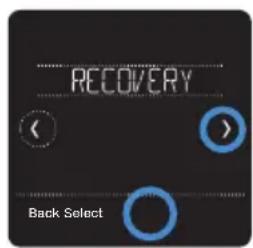
2 Touch the or arrows until you see RECOVERY, then touch Select.
3 Touch the of arrows to select RECOVERY ON or RECOVERY OFF, then touch Done to confirm.
text_image
RECOVERY Back Select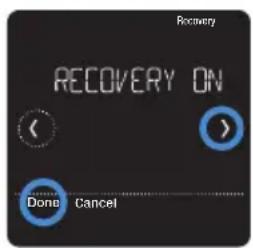
text_image
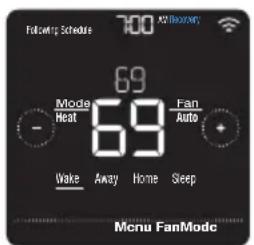
Recovery RECOVERY ON Done CancelWhen Smart Response is active, you'll see the recovery symbol in the upper-right corner of the thermostat screen.
text_image
Followup Schedule 700 AM Download 69 Mode Fan Heat Auto - 69 Wake Away Home Sleep Menu FanModeSetting the time and date
When the thermostat is connected to Wi-Fi and registered to your Lyric app account, it will set the time and date and adjust for daylight saving time automatically. (The CLOCK and DATE sub-menus won't be available.)
If your thermostat is not connected, you'll need to set the time and date manually using the steps below.
Setting the time
1 Touch Menu on the thermostat home screen.
2 Touch the or arrows until you see CLOCK, then touch Select.
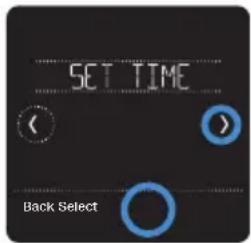
3 Touch the or arrows until you see SET TIME, then touch Select.
4 Press or to set the time (or press and hold the buttons to move more quickly). Touch Done when finished.
5 Set clock format (12 hours or 24 hours) and daylight saving time in the same CLOCK sub-menu.
text_image
SET TIME Back Select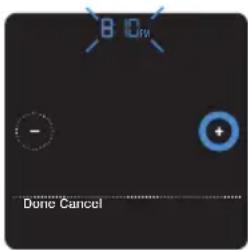
text_image
B ID - + Done CancelSetting the date
1 Touch Menu on the thermostat home screen.
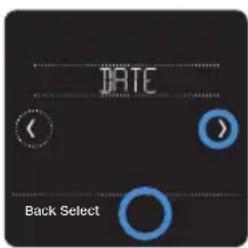
2 Touch the or arrows until you see DATE, then touch Select.
3 Touch or to set the month, then touch Select to confirm.
4 Continue to set day and year in the same way. Touch Select to save your changes.
text_image
DATE Back Select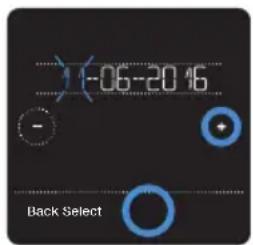
text_image
(-06-2016 - Back SelectCleaning the thermostat screen
With the clean screen option, you can lock the thermostat screen so you don't accidentally change your settings when you clean. Follow the steps below to activate clean screen mode.
1 Touch Menu on the thermostat home screen.
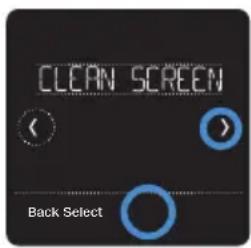
2 Touch the or arrows until you see CLEAN SCREEN, then touch Select.
The screen will deactivate for 30 seconds. A countdown timer will display the amount of time until screen reactivation.
Tip: To clean the thermostat screen, spray water or household cleaner onto a cloth, then use the cloth to clean the screen. Avoid abrasive cleaners and do NOT spray liquid directly on the thermostat.
text_image
CLEAN SCREEN Back Select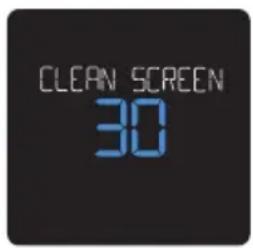
text_image
CLEAN SCREEN 30Choosing Fahrenheit or Celsius
To select a temperature scale, follow the steps below.
1 Touch Menu on the thermostat home screen.
2 Touch the or arrows until you see TEMP SCALE, then touch Select.
3 Touch the or arrows to select FAHRENHEIT or CELSIUS then touch Done to save your changes.
4 Touch Back to return to the thermostat home screen.
text_image
TEMP SCALE Back Select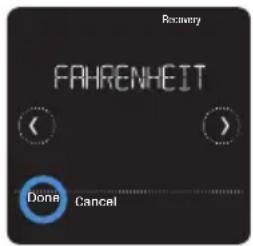
text_image
Recovery FAHRENHEIT Done CancelEnabling/disabling auto changeover
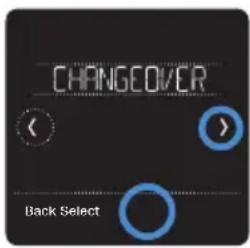
To enable auto changeover (when the thermostat automatically chooses heating or cooling to achieve your desired temperature), follow the steps below.
1 Touch Menu on the thermostat home screen.
2 Touch the or arrows until you see CHANGEOVER, then touch Select.
3 Touch the or arrows until you see AUTO. Touch Done and touch Back to return to the thermostat home screen.
To turn Auto mode on, touch Mode on the thermostat home screen until you see the word Auto appear. You'll then see Auto Chg. On in the upper-right corner, and the active mode (Heat or Cool) will display under Mode. To set your temperature preferences in Auto mode, see page 7.
text_image
CHANGEOVER Back Select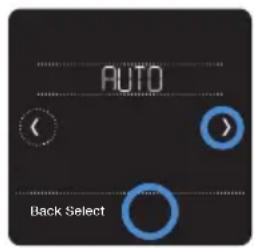
text_image
AUTO Back SelectReset options
To clear your settings or device credentials or to reset thermostat to original factory default setting, use one of the reset options below.
- Factory reset: Resets the thermostat back to original factory settings.
- Schedule reset: Resets your schedule back to the default Monday-Friday, Saturday-Sunday schedule.
- HomeKit: Clears your Apple® HomeKit™ device credentials (provided HomeKit was previously configured).
- Wi-Fi reset: Clears your Wi-Fi router credentials (provided a Wi-Fi router was previously configured).
Selecting a reset option
1 Touch Menu on the thermostat home screen.
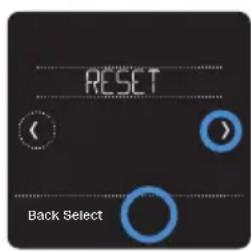
2 Touch the or arrows until you see RESET, then touch Select.
3 Touch the or arrows to choose a reset option, then touch Select.
4 Touch Yes to complete the reset or No to return to the reset sub-menu.
text_image
RESET Back Select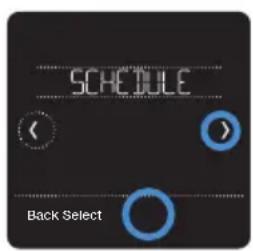
text_image
SCHEDULE Back Select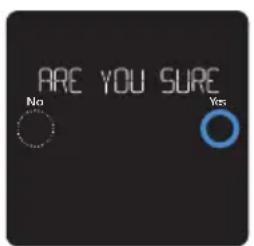
text_image
ARE YOU SURE No YesViewing equipment status
You can check the status of your heating or cooling equipment and fan by following the steps below. Please note that system data may vary depending on thermostat model and how the thermostat was installed.
1 Touch Menu on the thermostat home screen.
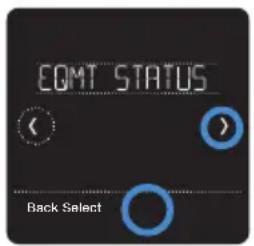
2 Touch the or arrows until you see EQMT STATUS, then touch Select.
3 Touch the or arrows to select which system you want status information on.
After 3 seconds, system status information will scroll on the screen.
text_image
COMT STATUS Back Select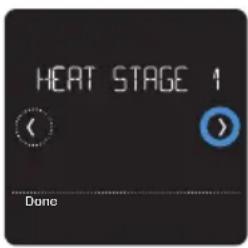
text_image
HEAT STAGE 1 Done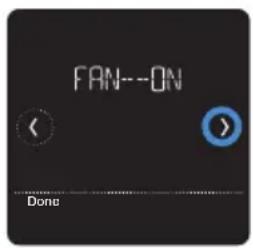
text_image
FAN--ON DoneViewing thermostat information
To see your thermostat's technical information, follow the steps below.
1 Touch Menu on the thermostat home screen.
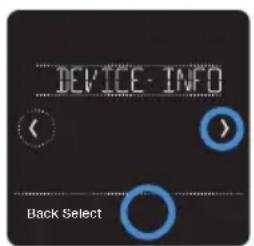
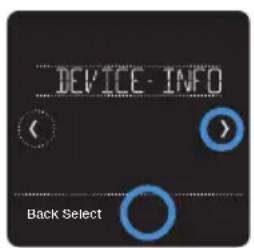
2 Touch the or arrows until you see DEVICE INFO, then touch Select.
3 Touch the or arrows to view information such as:
- MAC ID
- IP address
- Date code
- Model number
- Build
- Stat app
- Stat app boost
- Firmware
- Wi-Fi radio app
- Wi-Fi radio boot
text_image
DEVICE - INFO Back Select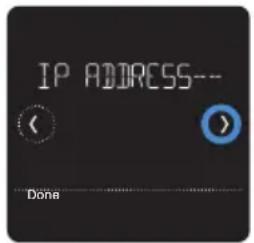
text_image
IP ADDRESS-- < > > > DoneAlerts and maintenance reminders
The Lyric T5 Wi-Fi thermostat comes with a set of Smart Alerts that help keep your heating and cooling system running correctly and efficiently. You'll get reminders when it's time to change the filter, for example, and notifications in the event of extreme indoor temperatures.
Non-critical alerts and maintenance reminders can be snoozed for up to 7 days and/or dismissed. Some critical alerts cannot be snoozed or dismissed as your heating or cooling system may require service.
To turn off/on alerts and notifications in the Lyric app, log into the app and tap the menu icon ≡ in the upper-left corner. Then tap Alerts and Notifications to set your preferences.
When there's an active alert or maintenance reminder, you'll see the alert symbol ▲ on the thermostat home screen. To see alert information, follow the steps below.
1 Touch Menu on the thermostat home screen, then you'll see the ALERTS sub-menu. (The ALERTS sub-menu will only be available when there's an active alert.)
2 Touch Select to view the alert. A 3-digit alert code will appear by the thermostat's clock and a description of the alert will scroll on the screen.
3 If the alert is non-critical, you'll have the option to Snooze or Dismiss it. If you have multiple alerts, touch the ① or arrows to page through the list of active alerts and follow steps 1 and 2 above.
To see what each 3-digit alert code means and the action you should take, refer to the chart below.
| Number | Alert/Reminder Recommended action | |
| 164 | Heat Pump Needs Service | Contact your heating or cooling professional to diagnose and service the heat pump. |
| 168 | Wi-Fi Radio Error The wireless module isn't operating, and wireless features aren't available. Contact Lyric Technical Support at 1-800-633-3991. | |
| 170 | Internal Memory Error | The thermostat's memory has encountered an error. Contact Lyric Technical Support at 1-800-633-3991. |
| 171 | Set the Date and Time Please set | the time and date on the thermostat to ensure features like scheduling can operate. See page 22 for instructions. |
| 173 | Thermostat Temperature Sensor Error | The temperature sensor on the thermostat has encountered an error. Contact Lyric Technical Support at 1-800-633-3991. |
| 175 | AC Power Resumed | AC power to the thermostat has been restored after power loss. You don't need to take any action. |
| 181 | Replace Air Filter (1) | Replace the air filter or contact your heating or cooling professional. Reset the air filter timer by touchingDismisson the thermostat screen after replacement. |
| 182 | Replace Air Filter (2) | Replace the air filter or contact your heating or cooling professional. Reset the timer by touchingDismisson the thermostat screen after replacement. |
| 184 | Replace Humidifier Pad | Replace the humidifier pad or contact your heating or cooling professional. Reset the timer by touchingDismiss on the thermostat screen after replacement. |
| 185 | Replace Dehumidifier Filter | Replace the dehumidifier filter or contact your heating or cooling professional. Reset the timer by touchingDismiss on the thermostat screen after replacement. |
| 187 | Clean or Replace Ventilator Filter | Clean or replace the ventilator filter or contact your heating or cooling professional. Reset the timer by touchingDismiss on the thermostat screen after you're done. |
| 188 | Replace UV Bulb (1) | Replace the UV bulb or contact your heating or cooling professional. Reset the timer by touchingDismiss on the thermostat screen after you're done. |
| 189 | Replace UV Bulb (2) | Replace the UV bulb or contact your heating or cooling professional. Reset the timer by touchingDismiss on the thermostat screen after you're done. |
| 210 | Register Online For Outdoor Temperature | You need to register online to receive outdoor temperature information from the Internet. Based on the installation settings, this information is required for correct operation of your system. Please download the Lyric app and register your thermostat. |
| 388 | Register Online for Remote Access and Outdoor Temperature | You need to register online for remote thermostat access and outdoor temperature information. Please download the Lyric app and register your thermostat. |
| 399 | No Internet | The internet connection has been lost. Please check your network settings. |
| 400 | No Wi-Fi Signal The Wi-Fi signal | has been lost. Please wait for the thermostat to reconnect or select a new Wi-Fi network. See page 10 for Wi-Fi reconnection instructions. |
| 508 | Wi-Fi Not Configured Please down | load the Lyric app and follow the steps to connect your thermostat to Wi-Fi. See page 10 for Wi-Fi connection instructions. |
General system information

REQUIRED: 24 VAC POWER ("C" WIRE)

CAUTION: ELECTRICAL HAZARD
Can cause electrical shock or equipment damage. Disconnect power before beginning installation.

CAUTION: EQUIPMENT DAMAGE HAZARD
Compressor protection is bypassed during testing. To prevent equipment damage, avoid cycling the compressor quickly.

CAUTION: MERCURY NOTICE
If the Lyric T5 Wi-Fi thermostat is replacing a thermostat that contains mercury in a sealed tube, do not place the old thermostat in the trash. Please contact your local waste management authority for proper recycling or disposal instructions.
Compatibility
- The Lyric T5 Wi-Fi thermostat is compatible with most single-stage and multi-stage conventional and heat pump heating and cooling systems
- 24 VAC power (via a "C" or common wire) is required
- Does not work with electric baseboard heat (120-240V)
- Does not work with millivolt systems
- Provides remote thermostat control through iOS or Android smartphones and tablets
- Compatible with Apple ^ HomeKit ^TM and Amazon Echo ^
Wi-Fi Communication
2.4GHz range, 802.11 b/g/n home wireless router
Temperature Ranges
Adjustable Heat Temperature Range Setting: 40-90 °F (4.5-32.0 °C)
Adjustable Cool Temperature Range Setting: 50-99 °F (10.0-37.0 °C)
Temperature Sensor Accuracy
± 1.5 °F at 70 °F (0.85 °C at 21.0 °C)
Electrical Ratings
| Terminal Voltage (50/60Hz) Running Current | |
| W Heating 20-30 Vac 0.02-1.0 A | |
| (Powerpile) 750 mV DC 100 mA DC | |
| W2 (Aux) Heating 20-30 Vac 0.02-1.0 A | |
| E Emergency Heat 20-30 Vac 0.02-0.5 A | |
| Y Compressor Stage 1 20-30 Vac 0.02-1.0 A | |
| Y2 Compressor Stage 2 20-30 Vac 0.02-1.0 A | |
| G Fan 20-30 Vac 0.02-0.5 A | |
| O/B Changeover 20-30 Vac 0.02-0.5 A | |
| L/A Input 20-30 Vac 0.02-0.5 A | |
| U Universal | 20-30 Vac 0.02-0.5 A |
Power Consumption
Typical (Backlight On, Wi-Fi On): 1.0VA
Maximum (Backlight On, Wi-Fi installation): 1.5VA
Troubleshooting
If the thermostat screen is blank:
- Check the circuit breaker or fuse that's connected to your heating or cooling system and turn it on if it's switched off.
- Make sure the power switch at the heating or cooling system is on.
- Make sure the furnace door is closed securely.
If the screen is difficult to read:
- Increase screen brightness (see page 21 for instructions).
If the heating or cooling system isn't responding:
- Touch Mode on the thermostat home screen and set the system to Heat. Make sure the temperature set point (the smaller of the two numbers) is higher than the indoor temperature (the large number in the center of the screen).
- Touch Mode on the thermostat home screen and set the system to Cool. Make sure the temperature set point (the smaller of the two numbers) is lower than the indoor temperature (the large number in the center of the screen).
- Check the circuit breaker or fuse that's connected to your heating or cooling system and turn it on if it's switched off.
- Make sure the power switch at the heating or cooling system is on.
- Make sure the furnace door is closed securely.
• After making these changes, wait 5 minutes for the system to respond.
If the temperature setting doesn't change:
- Make sure the heating and cooling set points are within the operating range.
-Heat: 40 °F to 90 °F (4.5 °C to 32.0 °C)
-Cool: 50 °F to 99 °F (10.0 °C to 37.0 °C)
If Cool On or Heat On is flashing:
- The compressor protection feature is engaged. Wait a few minutes for the system to safely restart to avoid damaging the compressor. See page 9 for more information.
Frequently asked questions (FAQs)
Wi-Fi connection questions
:Q Will the thermostat still work if the Wi-Fi connection is lost?
A: Yes, you can still manually adjust the temperature at the thermostat. However, some features such as location-based temperature control (geofence technology) can only be managed through the Lyric app and will not function without a Wi-Fi connection. The thermostat will automatically reconnect to Wi-Fi once the network is restored.
:Q Why is the thermostat not finding my Wi-Fi network?
A: The Lyric T5 Wi-Fi thermostat operates in the 2.4GHz range. Smartphones operate in both the 2.4 and 5.0 GHz ranges, so your smartphone may “see” your Wi-Fi network when your thermostat does not. Most Wi-Fi routers will broadcast two networks: 2.4 GHz and 5.0 GHz. If you have an option, make sure your smartphone is connected to the 2.4 GHz network.
:Q Is there a way to extend the strength of my Wi-Fi signal?
A: The range (distance) of your Wi-Fi signal is determined by your router. Try moving your router closer to the location of the thermostat, or use a router with a stronger signal range.
:Q There's an alert that says "Wi-Fi Signal Lost" – what should I do?
A: Wait 5 minutes for the thermostat to reconnect or select an alternate network (if you have one) in the Lyric app configuration menu. If the thermostat isn't able to reconnect, you'll need to troubleshoot the router to determine the cause.
:Q Why is there an offline symbol (Wi-Fi icon with a strikethrough) in the upper-right corner of the thermostat screen?
A: The thermostat has lost its connection to the Wi-Fi network. First, make sure your Wi-Fi router is plugged in and broadcasting a signal. If it is, try resetting the router (consult the router's manual for instructions). When the Wi-Fi network has been restored, the thermostat will automatically reconnect.
Lyric account and app questions
:Q Why haven't I received an account activation email?
A: If you haven't received an activation email after 5 minutes, check your Spam folder and look for an email from Connected-Home@alarmnet.com. If you don't see it, tap Resend to have the activation email resent. If you still don't receive it, please contact the Lyric Technical Support team at 1-800-633-3991.
:Q Can I set up my thermostat with multiple users?
A: Yes. To add users, log into the Lyric app and tap the menu icon in the upper-left corner. Select Manage Users, tap Add User and type in the email addresses of the people you'd like to invite. If they already have a Lyric account set up, the thermostat and its location will automatically be added to their account. If they don't have an account, they'll receive an email prompting them to download the Lyric app and create a new account.
:Q Can I set up location-based temperature control with multiple users?
A: Yes. Location-based temperature control (geofence technology) will activate based on the last person who leaves and the first person to return. Each user will need to create their own Lyric account with a login ID and password. Two users should not share the same account. Each user will then need to enable location-based temperature control. See page 13 for instructions.
:Q Why doesn't a change I made in the app show up on the thermostat?
A: There may be a short delay when you make temperature and settings changes in the Lyric app. Wait a few minutes, and if you still don't see your changes on the thermostat, make sure the thermostat is still connected to Wi-Fi and restart your Lyric app.
Alerts and maintenance notification questions
:Q What should I do when the alert symbol appears on the thermostat home screen?
A: When you see the alert symbol on the thermostat screen, touch Menu and the ALERTS sub-menu will appear. Touch Select to view alert information. Or, you can view alert information in the Lyric app. See page 26 for a list of all alert codes, what they mean and the action you should take.
Software and security questions
:Q How can I be sure my thermostat is running the most up-to-date firmware?
A: When your thermostat is connected to Wi-Fi, it will automatically receive over-the-air firmware updates from Honeywell. These firmware updates contain things such as new features as well as security upgrades. Keep your thermostat connected to Wi-Fi to ensure it receives these updates.
:Q How can I prevent a cybercriminal from making unauthorized changes to my thermostat?
A: If a cybercriminal gains access to your Wi-Fi router, they can tamper with a wide range of online activities, including the settings on your connected devices. Make sure you change the default password on your Wi-Fi router, and when you select a new password, make sure it uses multiple upper- and lower-case letters and special characters.
Thermostat removal questions
:Q How can I safely remove my thermostat?
A: Thermostat removal should ideally be handled by a trained professional as improper removal can cause electrical shock and equipment damage. If you wish to remove the thermostat yourself, be sure to turn off the circuit breaker that controls your heating or cooling equipment before you disconnect any wires. If you don't know which breaker controls your equipment, you can shut off the main breaker.
:Q How can I uninstall my Lyric T5 Wi-Fi thermostat?
A: If you want to replace your Lyric T5 Wi-Fi thermostat, or if you're moving out of your home and leaving the thermostat behind, you'll first want to clear out the personal settings that are stored on the thermostat. (Even when disconnected from power, the thermostat will keep your settings and home router information in memory.) We recommend resetting the thermostat's schedule, Wi-Fi and HomeKit settings (if previously connected). See page 24 for more information on reset options.
Regulatory information
FCC REGULATIONS
§ 15.19 (a)(3)
This device complies with part 15 of the FCC Rules. Operation is subject to the following two conditions:
• This device may not cause harmful interference, and
- This device must accept any interference received, including interference that may cause undesired operation.
IC REGULATIONS
RSS-GEN
This device complies with Industry Canada's license-exempt RSSs.
Operation is subject to the following two conditions:
- This device may not cause interference; and
- This device must accept any interference, including interference that may cause undesired operation of the device.
FCC Warning (Part 15.21) (USA only)
Changes or modifications not expressly approved by the party responsible for compliance could void the user's authority to operate the equipment.
Warranty information
Honeywell warrants this product, to be free from defects in the workmanship or materials, under normal use and service, for a period of two (2) years from the date of purchase by the consumer. If at any time during the warranty period the product is determined to be defective or malfunctions, Honeywell shall repair or replace it (at Honeywell's option).
If the product is defective,
(i) return it, with a bill of sale or other dated proof of purchase, to the place from which you purchased it; or
(ii) call Honeywell Customer Care at 1-800-468-1502. Customer Care will make the determination whether the product should be returned to the following address: Honeywell Return Goods, Dock 4 MN10-3860, 1985 Douglas Dr. N., Golden Valley, MN 55422, or whether a replacement product can be sent to you.
This warranty does not cover removal or reinstallation costs. This warranty shall not apply if it is shown by Honeywell that the defect or malfunction was caused by damage which occurred while the product was in the possession of a consumer.
Honeywell's sole responsibility shall be to repair or replace the product within the terms stated above. HONEYWELL SHALL NOT BE LIABLE FOR ANY LOSS OR DAMAGE OF ANY KIND, INCLUDING ANY INCIDENTAL OR CONSEQUENTIAL DAMAGES RESULTING, DIRECTLY OR INDIRECTLY, FROM ANY BREACH OF ANY WARRANTY, EXPRESS OR IMPLIED, OR ANY OTHER FAILURE OF THIS PRODUCT. Some states do not allow the exclusion or limitation of incidental or consequential damages, so this limitation may not apply to you.
THIS WARRANTY IS THE ONLY EXPRESS WARRANTY HONEYWELL MAKES ON THIS PRODUCT. THE DURATION OF ANY IMPLIED WARRANTIES, INCLUDING THE WARRANTIES OF MERCHANTABILITY AND FITNESS FOR A PARTICULAR PURPOSE, IS HEREBY LIMITED TO THE TWO-YEAR DURATION OF THIS WARRANTY.
Some states do not allow limitations on how long an implied warranty lasts, so the above limitation may not apply to you. This warranty gives you specific legal rights, and you may have other rights which vary from state to state.
If you have any questions concerning this warranty, please write Honeywell Customer Relations, 1985 Douglas Dr. N., Golden Valley, MN 55422 or call 1-800-468-1502.
Home and Building Technologies
In the U.S.:
Honeywell
1985 Douglas Drive North
Golden Valley, MN 55422
http://customer.honeywell.com
^® U.S. Registered Trademark.
© 2016 Honeywell International Inc.
33-00231EFS-01 M.S. 12-16
Printed in U.S.A.
Honeywell

text_image
Black and white barcode image with vertical lines and patterns33-00231EFS-01
Thermostat Wi-Fi Lyric™ T5
Thermostat programmable
text_image
Available on the App Store Get it on Google play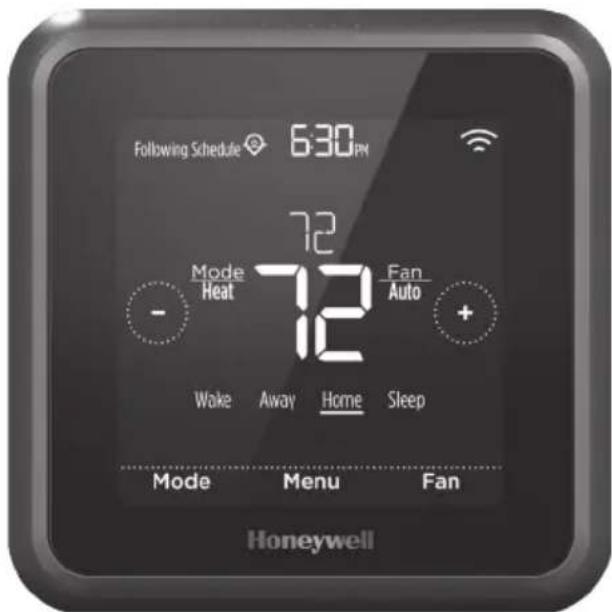
text_image
Following Schedule 6:30 PM 72 Mode Heat Fan Auto + 72 Wake Away Home Sleep Mode Menu Fan Honeywelltext_image
Following Schedule 700Ω 69 Mode Heat 69 Fan Auto - Wake Away Home Sleep MenuFanModetext_image
Home Thermostat 75° Outside 73Adjusting the temperature in Auto mode
text_image
Following Schematic 700 K 69 Mode Heat 69 Fan Auto On Circ + Wake Away Home Sleep Menu FanMode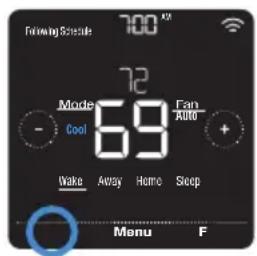
text_image
Following Schedule 72 Mode Cool 69 Fan Auto + Wake Away Home Sleep Menu F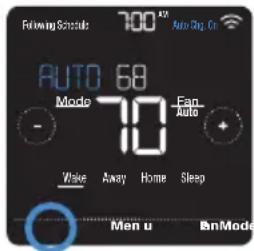
text_image
Following Schedule 700 A2 Auto Bag Cl AUTO 68 Mode 70 Fan - AUTO + Wave Away Home Sleep Men u EnModeRemarques :
text_image
Following Schedule 700 V 69 Mode Heat 69 Fan - + Make Away Home Sleep Menu Ftext_image
at the time you scheduled Thermostat Sleep Brightness Mode Thermostat Configuration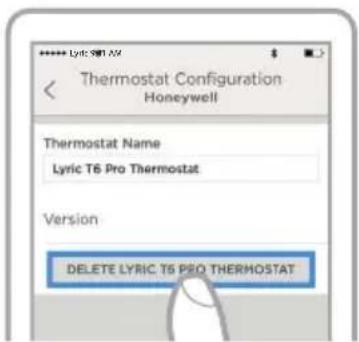
text_image
Lyric SIM AV Thermostat Configuration Honeywell Thermostat Name Lyric T6 Pro Thermostat Version DELETE LYRIC T6 PRO THERMOSTAT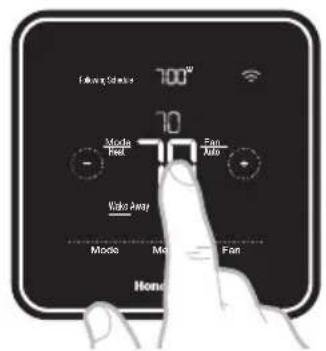
text_image
100°C 70 Mode Heat Fan Auto Video Away Mode Me Fan Home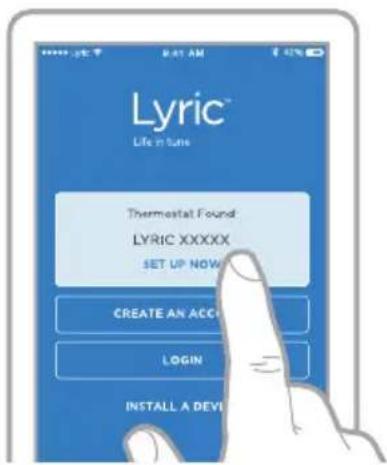
text_image
Lyric™ Life mini Thermostat Found LYRIC XXXXX SET UP NOW CREATE AN ACC LOGIN INSTALL A DEVtext_image
Follying Schedule 700° 69 Mode Heat 69 Fan Auto Menu FanModetext_image
Following Schedule 700CM 69 Mode Heat 69 Fan Auto Wake Away Home Sleep Menu FanModetext_image
Welcome to the future of connected home Management Lyric will use your phone's location to set the perfect temperature for when you are at home, sleeping or away. LEARN MORE USE GEOLINCEtext_image
When I'm Away Use My Away Settings 85 62 Geofencing DONE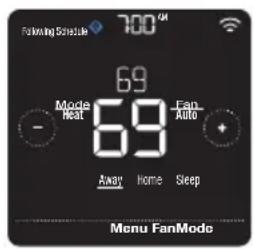
text_image
Following Schedule 700 69 Mode Heat Fan Auto - 69 Away Home Sleep Menu FanMode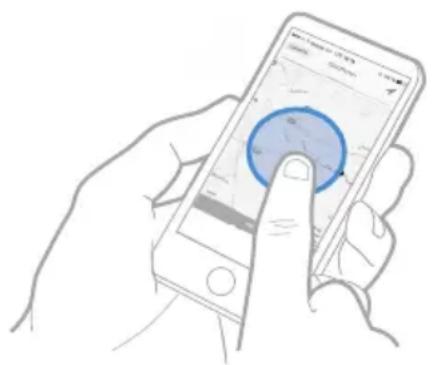
natural_image
Line drawing of a hand holding a smartphone displaying a circular app interface (no text or symbols visible)text_image
Select an Option HomeKit Location Time What's the best match for your weekly routine? M T W T F S S EVERYDAY SCHEDULEtext_image
M-F AWAY Back Select Sched. On/OffBa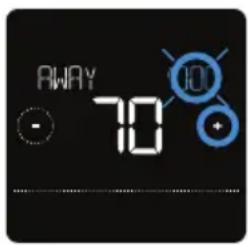
text_image
AWAY 70text_image
AWAY HeATc 1000m - 10 Back Select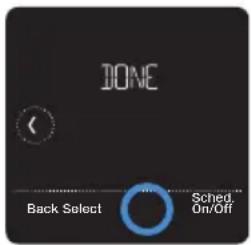
text_image
DONE Back Select Sched. On/Off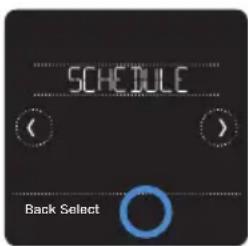
text_image
SCHEDULE Back Select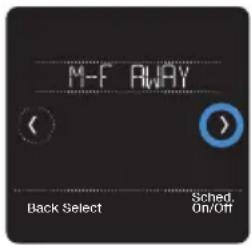
text_image
M-F AWAY Back Select Sched. On/Off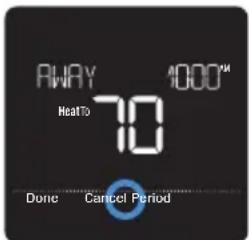
text_image
AWAY 4000™ HealTo 70 10 Done Cancel Periodtext_image
Select an Option HomeKit Location Time What's the best match for your weekly routine? M T W T F S S EVERYDAY SCHEDULEtext_image
Following Schedule 700°C 69 Minhole Heat 69 Furs Auto Wake Away Home Soop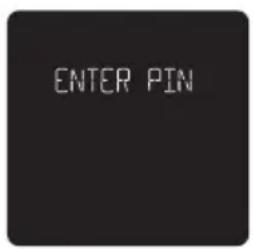
text_image
ENTER PIN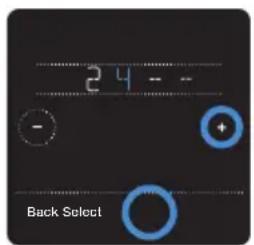
text_image
24 -- - + Back SelectParamètres Wi-Fi
text_image
WIFT Back Select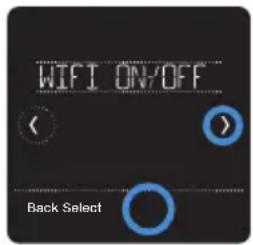
text_image
WIFI ON/OFF Back Selecttext_image
WIFI ON Done Canceltext_image
Following Schedule 700° 69 Mode Heat 69 Fan AUTO - Make Away Home Sleep Menu FanModetext_image
Recovery RECOVERY ON Done Cancel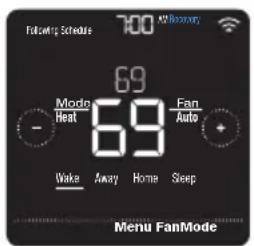
text_image
700 MHz Folccrsp Schedere 69 Mode Heat 69 Fan Auto + - Wake Away Home Sleep Menu FanModetext_image
SET TIME Back Select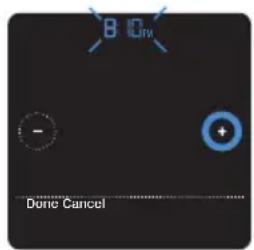
text_image
B D - + Done CancelRéglage de la date
text_image
(-06-20 16 - Back Selecttext_image
CLEAN SCREEN Back Select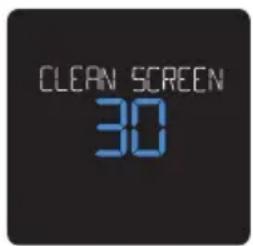
text_image
CLEAN SCREEN 30text_image
TEMP SCALE Back Select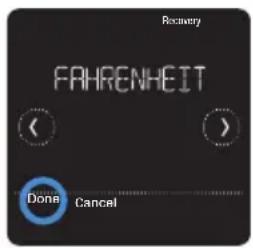
text_image
Recovery FAHRENHEIT Done Canceltext_image
FAN--ON Done- Firmware (Le firmware) - Wi-Fi radio app (L'application radio Wi-Fi)
- Wi-Fi radio boot (La stimulation de la radio Wi-Fi)
text_image
DEVICE - INFO Back Select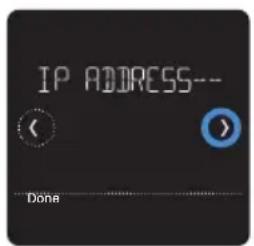
text_image
IP ADDRESS-- DoneHome and Building Technologies
Aux États-Unis:
Honeywell
1985 Douglas Drive North
Golden Valley, MN 55422
http://customer.honeywell.com
© 2016 Honeywell International Inc.
33-00231EFS-01 M.S. 12-16
text_image
Black and white barcode image with vertical lines and patterns33-00231EFS-01
text_image
Available on the App Store Get it on Google play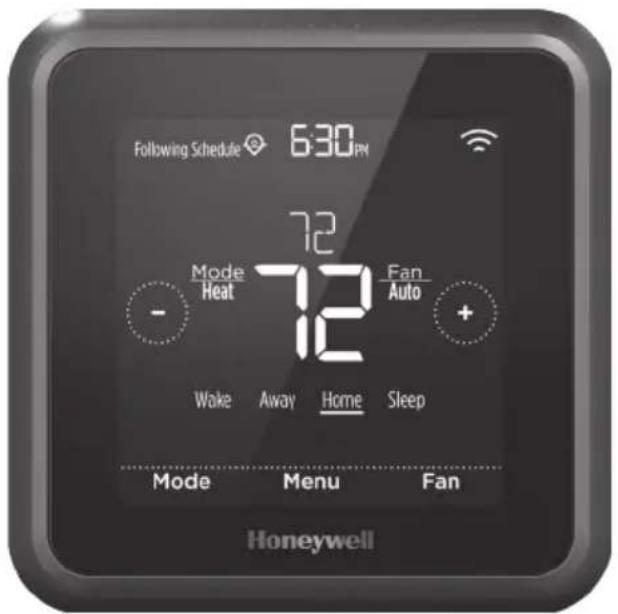
text_image
Following Schedule 630 PM 72 Mode Heat Fan Auto + 72 Wake Away Home Sleep Mode Menu Fan Honeywelltext_image
Following Schedule 700% 69 Mode Heat 69 Fan Auto - Wake Away Homo Sleep MenuFanModetext_image
Heat On 700 PM 70 Hold Until 70 900 AU Mode Heat Fan Auto - 69 MenuFanMode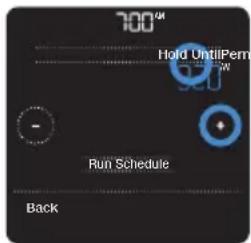
text_image
700 Hold UntilPenn 928 - Run Schedule Backtext_image
Heat U1 700 Q4 70 Hold Until 70 900 Mode Heat 69 Fan Auto MenuFanMode
text_image
700° Hold Until Permanent Hold 900° Run Schedule Backtext_image
Home Thermostat 79° Outside 73text_image
Following Schedule 700° Auto Clay On 68 Mode Heat 68 Fan Auto - Wake Away Home Sleep Mode Menu Fan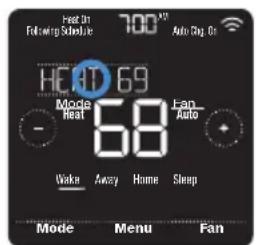
text_image
Heat On Following Schedule 700 A31 Auto Dig On H: 69 Mode Heat 68 Fan Auto Wake Away Home Sleep Mode Menu Fan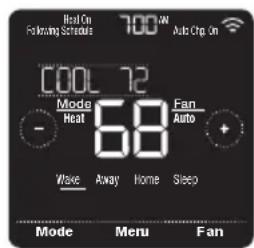
text_image
Heal On Following Software 700W Auto Chip On COOL 72 Mode Heat 68 Fan Auto Wave Away Home Sleep Mode Menu Fan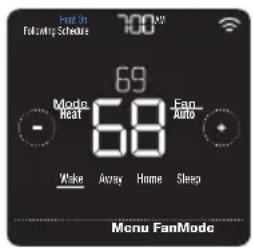
text_image
Flood Following Schedule 700°C 69 Mode Heat Fan AUTO - 68 Make Avray Home Sleep Menu FanModetext_image
Following Schematic 700 K 69 Mode Heat 69 Fan Auto On Circ + Wake Away Home Sleep Menu FanMode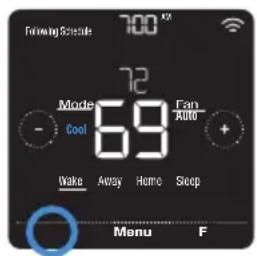
text_image
Following Schedule 72 Mode Cool 69 Fan Auto + Wake Away Home Sleep Menu F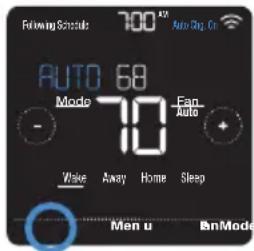
text_image
Following Schedule 700 A2 Auto Bag Cl AUTO 68 Mode 70 Fan - AUTO + Wave Away Home Sleep Men u EnModeNotas:
text_image
Following Schedule 700 69 Mode 69 Wake Away Home Sleep Menu FanMode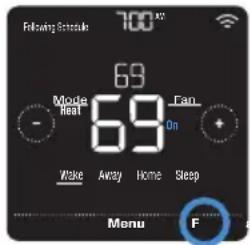
text_image
Following Schedule 700 x2 69 Mode Heat 69 Fan On Wake Away Home Sleep Menu F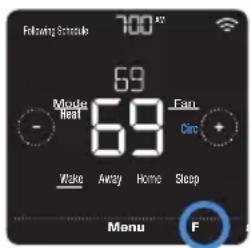
text_image
Following Schedule 700 x2 69 Mode Heat 69 Fan - + Carc Wake Away Home Sleep Menu Ftext_image
70° Home Stop Run +/-
Lyric
text_image
Lyric® Life In tune Thermostat Found LYRIC XXXXXX SET UP NOW CREATE AN ACC LOGIN INSTALL A DEV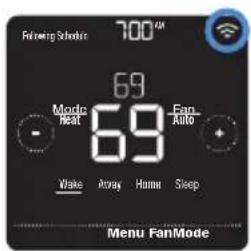
text_image
Following Schedule 700µM 69 Mode Heat 69 Fan- Auto Wake Away Home Sleep Menu FanModeWith is connected
text_image
at the time you scheduled Thermostat Sleep Brightness Mode Thermostat Configuration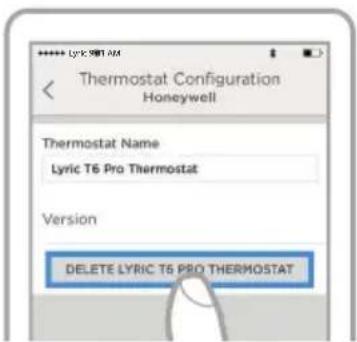
text_image
Lyric 981 AM Thermostat Configuration Honeywell Thermostat Name Lyric T6 Pro Thermostat Version DELETE LYRIC T6 PRO THERMOSTAT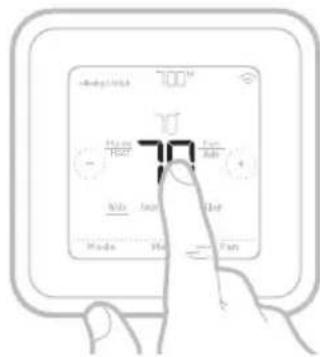
text_image
700™ Home Turn Main Main Main Main Main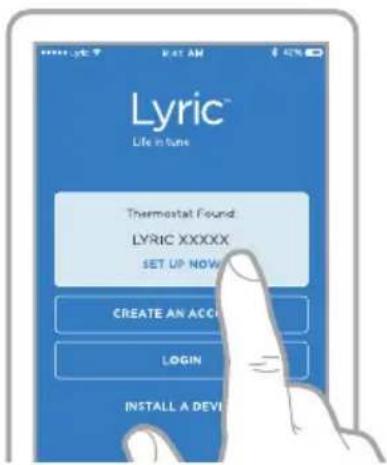
text_image
Lyric™ Life in tune Thermostat Found: LYRIC XXXXXX SET UP NOW CREATE AN ACCI LOGIN INSTALL A DEVtext_image
Following Schedule 700# 69 Mode Heat 69 Fan Auto Menu FanMode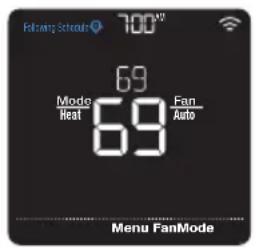
text_image
Farming Stream 700° 69 Mode Heat 69 Fan Auto Menu FanModetext_image
Following Schedule 700M 69 Mode Heat Fan Auto 69 Wake Away Home Sleep Menu FanModetext_image
Schedule Thermode Name OPTION When I'm Home Use My Home Settings 7.0 Use My Sleep Settings 12:30 pm - 4:00 am When I'm Away Use My Away Settings 3.5 Canceling Welcome to the future of connected home Management Lyric will use your phone's location to set the perfect temperature for when you are at home, sleeping or away. LL-MIN MORE USE DISCHENCINGtext_image
When I'm Away Use My Away Settings 85 62 Geofencing DONE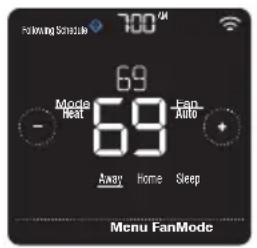
text_image
Following Schedule 700 69 Mode Heat Fan Auto - 69 Away Home Sleep Menu FanMode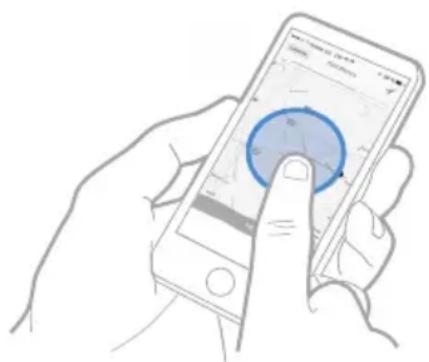
natural_image
Illustration of a hand holding a smartphone displaying a map or dial (no text or symbols visible on the dial or background)text_image
Select an Option HomeKit Location Time What's the best match for your weekly routine? M T W T F S S EVERYDAY SCHEDULEtext_image
M-F AWAY Back Select Sched. On/OffBat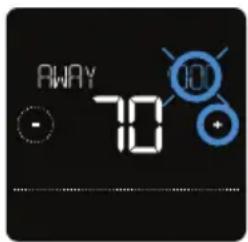
text_image
AWAY 70text_image
JONE Back Select Sched. On/Off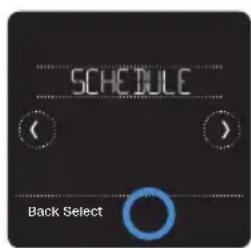
text_image
SCHEDULE Back Select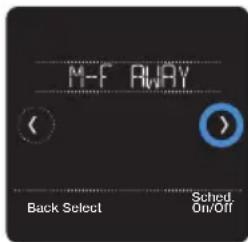
text_image
M-F AWAY Back Select Sched. On/Off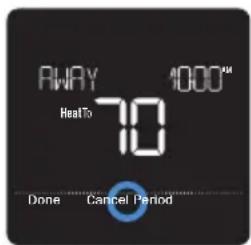
text_image
AWAY HeaTo 70 1000µ Done Cancel Period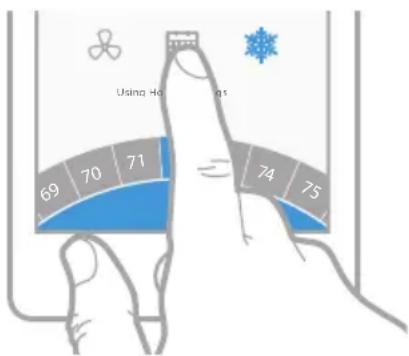
text_image
Using Ho 69 70 71 74 75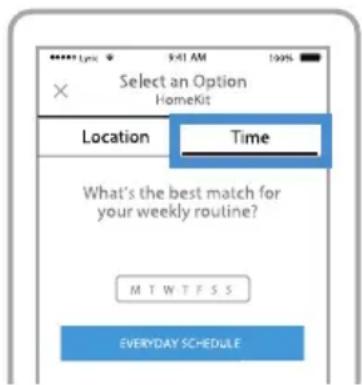
text_image
Select an Option HomeKit Location Time What's the best match for your weekly routine? M T W T F S S EVERYDAY SCHEDULEtext_image
Following Schedule 700°N 69 Minute Heat 69 Earn Auto Wake Away Home Soop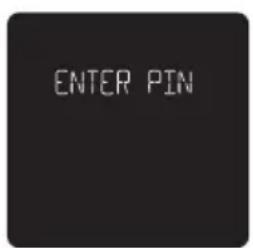
text_image
ENTER PIN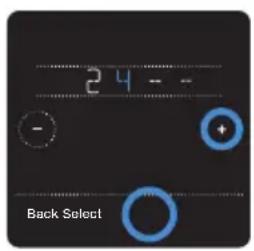
text_image
24-- - + Back Selecttext_image
WIFT Back Select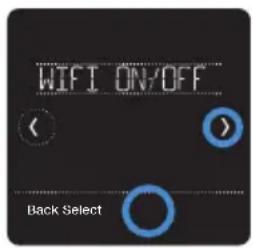
text_image
WIFI ON/OFF Back Selecttext_image
WIFI ON Done Canceltext_image
Recovery RECOVERY ON Done Canceltext_image
Following Schedule 700 AM/Day 69 Mode Heat 69 Fan Auto Wake Away Home Sleep Menu FanModetext_image
SET TIME Back Select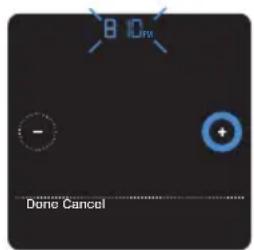
text_image
B ID - + Done CancelConfigurar la fecha
text_image
CLEAN SCREEN Back Select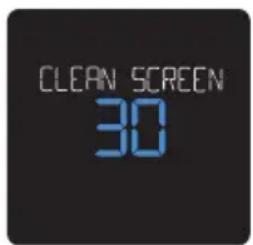
text_image
CLEAN SCREEN 30text_image
TEMP SCALE Back Select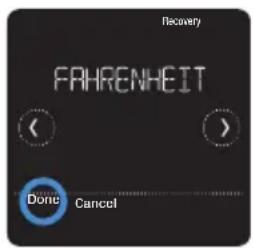
text_image
Recovery FRAHRENHEIT Done Canceltext_image
FAN--ON Donetext_image
IP ADDRESS-- < > DoneHome and Building Technologies
En los EE. UU.:
Honeywell
1985 Douglas Drive North
Golden Valley, MN 55422
http://customer.honeywell.com
© 2016 Honeywell International Inc.
33-00231EFS-01 M.S. 12-16
Impreso en EE. UU.
Honeywell

text_image
Black and white barcode image with vertical lines and patterns33-00231EFS-01