PLT8967 - Tablet Proscan - Free user manual and instructions
Find the device manual for free PLT8967 Proscan in PDF.


| Product Type | Touchscreen Tablet |
| Brand | Proscan |
| Model | PLT8967 |
| Operating System | Windows 8.1 |
| Processor | Intel BayTrail Z3735G |
| RAM Memory | 1 GB DDR3 |
| Internal Storage | 32 GB NAND Flash |
| Screen | 9-inch LCD, resolution 1024x600 |
| Touchscreen | Multi-touch capacitive |
| Wi-Fi Connectivity | 802.11 b/g/n |
| Bluetooth | Yes, for keyboard, mouse, headphones |
| Front Camera | 0.3 megapixels |
| Rear Camera | 2 megapixels |
| Sensor | 3D Gravity |
| Battery | Lithium-polymer 4400 mAh / 3.7 V |
| Power Supply | AC adapter: input 100-240 V, output 5 V / 2 A |
| Supported Audio Formats | MP3, WMA, FLAC, AAC, OGG, WAV, APE |
| Supported Video Formats | AVI, WMV, MP4, MKV, RM, RMVB, FLV, MOV, 3GP |
| Supported Image Formats | JPEG, JPG, BMP, GIF, PNG |
| Memory Expansion | MicroSD card up to 32 GB |
| Approximate Dimensions | 24 x 17 x 1 cm |
| Approximate Weight | 500 g |
| Care and Cleaning | Soft dry cloth, no chemical detergents |
| Safety | Do not disassemble, use original charger, avoid drops and liquids |
| Spare Parts / Repairability | Not provided; contact after-sales service |
| General Information | Versatile tablet for browsing, multimedia, and light office work |
Frequently Asked Questions - PLT8967 Proscan
User questions about PLT8967 Proscan
0 question about this device. Answer the ones you know or ask your own.
Ask a new question about this device
Download the instructions for your Tablet in PDF format for free! Find your manual PLT8967 - Proscan and take your electronic device back in hand. On this page are published all the documents necessary for the use of your device. PLT8967 by Proscan.
USER MANUAL PLT8967 Proscan
Precautions before Use:
- Prevent the Tablet PC from falling to the ground or being strongly impacted otherwise.
- Do not use it in the long term in any environment where the air is too cold, too hot (< 35°C) , too humid or with too much dust. Do not expose the Tablet PC to sunlight.
- Avoid using it in the strong magnetic and strong static environment as much as possible.
- Once any water or other liquid splashes onto the Tablet PC, close it immediately and do not use it until it dries out.
- Do not clean the Tablet PC with any detergent containing chemical element or other liquid to avoid causing damage due to corrosion and becoming damp. If cleaning is really necessary, clean it with dry soft cloth tissue paper.
- Our company shall not bear any and all responsibilities for loss or deletion of material inside the machine caused due to abnormal software and hardware operation, maintenance or any other accident.
- Please back up your important material at any time to avoid loss.
- Please do not disassemble the Tablet PC by yourself; otherwise you will lose the right to warranty.
- Replacement with incorrect type batteries may cause explosion. Make sure to use original batteries.
User Manual
Packing List:
Please check box for the following items
- Device
- User Manual
- Product Warranty
- Power Adaptor
- USB Cable
- Black case & keyboard
Power Adaptor Specification:
INPUT: AC 100-240V 50/60Hz 0.45A
OUTPUT: 5.0V = = 2A
Device description
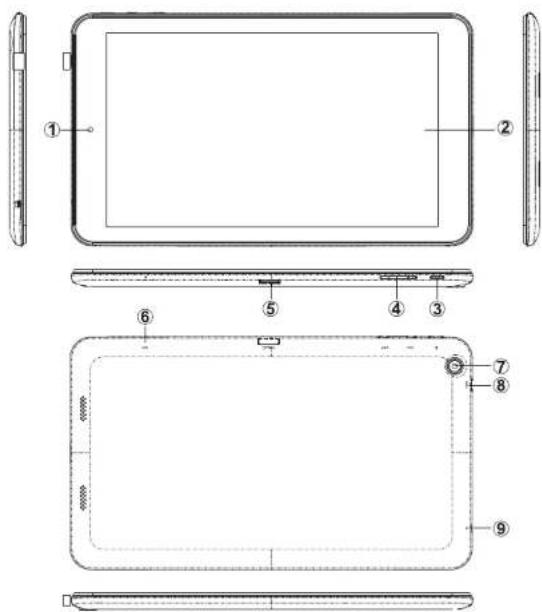
① Camera: You can take photos and videos etc..
② Touch screen: You can click and drag in the touch screen.
③ POWER:
Keep pressing button over 2 seconds for power on/off, press button once to turn on screen from sleep mode.
4 Volume: + Turn up the volume.
- Turn down the volume.
MicroSD microSD card: microSD card slot.
MIC: Microphone
Back camera: You can take photos and videos etc..
Micro USB: Micro-5pin connector
9 Earphone jack: 3.5mm standard earphone jack.
【TIPS】: 1. When the battery is low, it will power off automatically.
2. Shutdown illegally, when you restart, device would scan and repair the disk. The screen will stay at the progress bar for a long time.
Setting up for the first time
Charging your device:
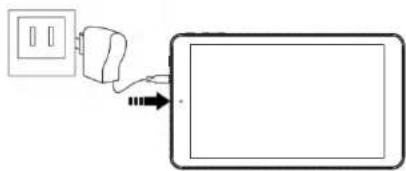
For first-time use, you need to charge the device for ten hours.
After that you can recharge the device as needed.
Connect the USB jack to your device and plug the adapter into any AC outlet.
【TIPS】:
- This device adopts built-in polymer battery. Only the specified charger should be used.
- It is normal for the device's surface to become warm during charging or long periods of use. All devices are factory tested before release.
- If you do not use this set for a long time, please charge/release it once one month to avoid deep discharge. The damage caused by battery over-consuming is not included in the warranty.
Battery Saving
To save battery running life, please see below key points. With below suggestions, battery can run longer time after fully charged each time.
- When device is not in use, press power button once to go to sleep mode.
- Shut down the applications when not in use.
- Turn off WLAN when not in use
- Shut off application sync selection
- Set a shorter time for display backlight
- Reduce brightness of display
Introduction to Desktop:
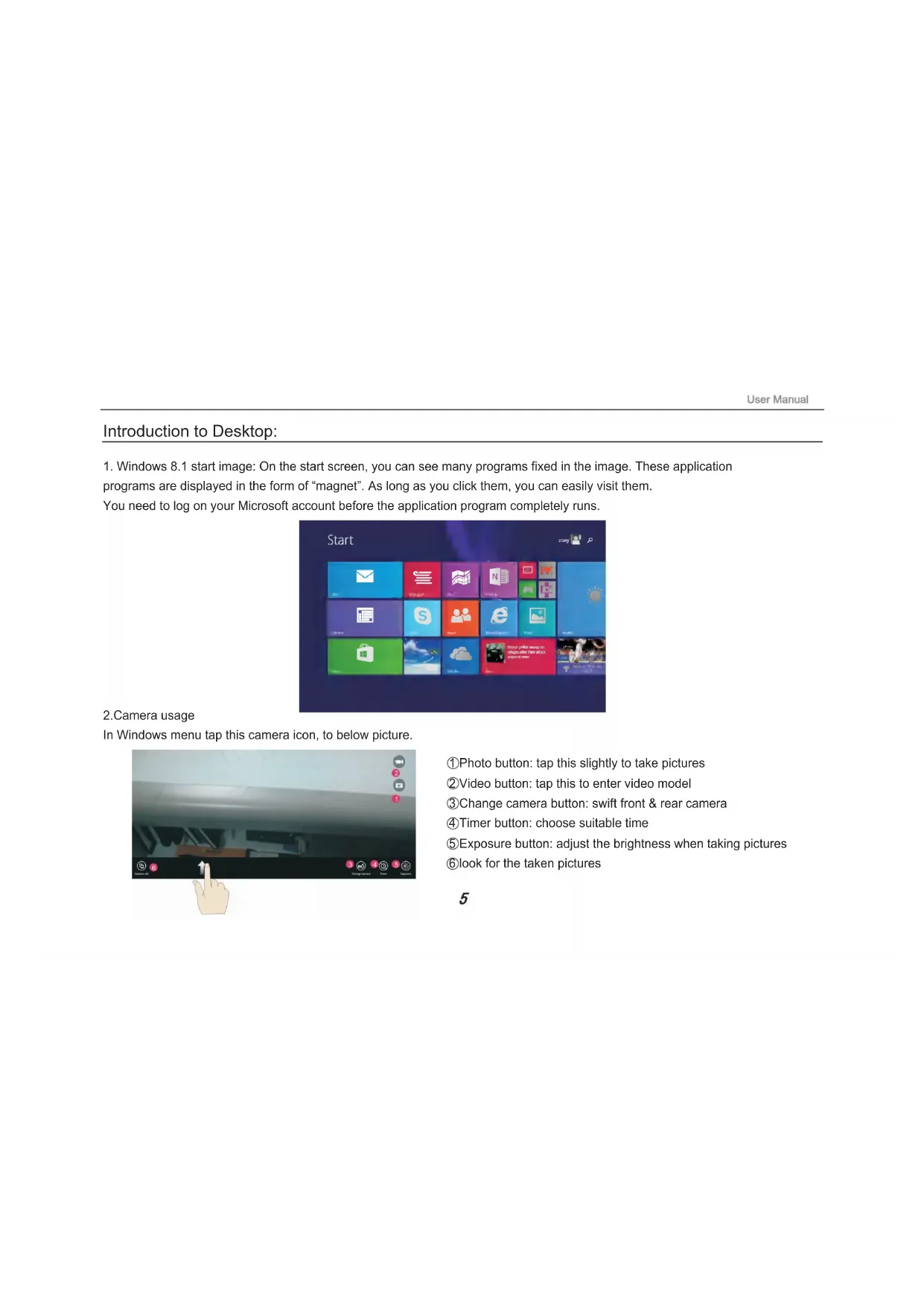
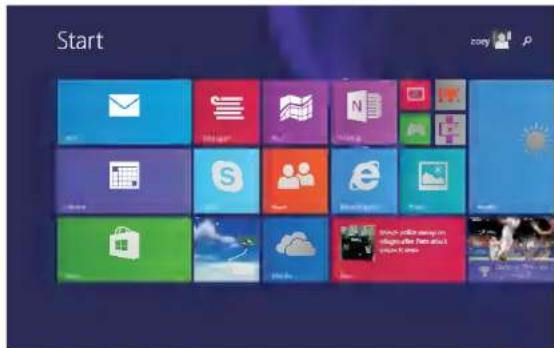
- Windows 8.1 start image: On the start screen, you can see many programs fixed in the image. These application programs are displayed in the form of "magnet". As long as you click them, you can easily visit them.
You need to log on your Microsoft account before the application program completely runs.
2.Camera usage
In Windows menu tap this camera icon, to below picture.
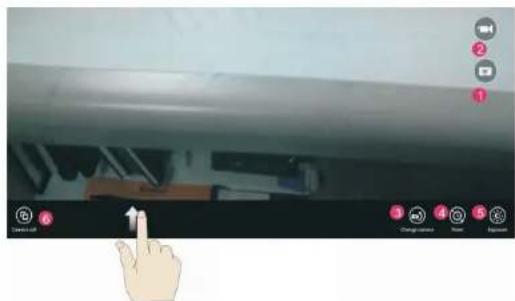
① Photo button: tap this slightly to take pictures
② Video button: tap this to enter video model
③Change camera button: swift front & rear camera
④Timer button: choose suitable time
⑤ Exposure button: adjust the brightness when taking pictures
⑥look for the taken pictures
3. Image slide applications
Slide to right: Slide to the right from the left side of the screen to start the application program in running.
Slide to left: Slide to the left from the right side of the screen to start Charm menu column.
Reduce:On the touch screen, narrow two fingers to reduce the image.
Enlarge: On the touch screen, widen two fingers to enlarge the image.

Slide downward :In start screen, slide from the top of the screen to view all application programs.
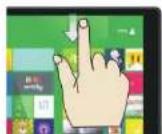
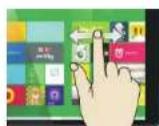
Slide with finger :In start screen, slide finger right and left to move the image.
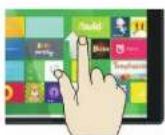
Slide upward: In the start screen, slide upward from the bottom of the screen to visit all application program (APPS) interfaces.
4.Introduction to app Interface
Besides the application programs already fixed on the start screen, you can also start other application programs in all application programs, such as other software application programs attached to the Tablet PC.
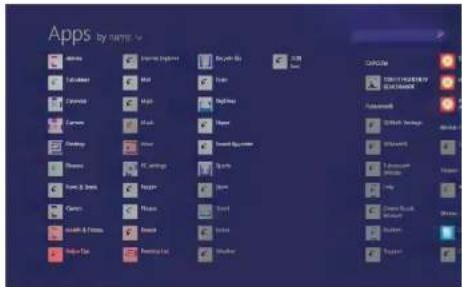
If you want to fix more application programs on the start interface, see the operation in the figure below, (1) lightly touch, press and hold the application program magnet for about one second and then let go, and select (2) to fix to the start screen.
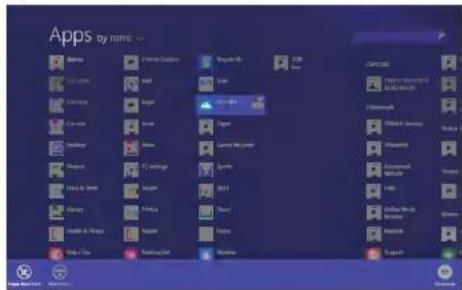
Conversely, if you want to cancel or delete a certain application in the start screen, (1) lightly touch, press and hold the application program magnet for about one second and then let it go and run, and select (2) attribute column to cancel the programs such as fixation and deletion and then it can be completed.
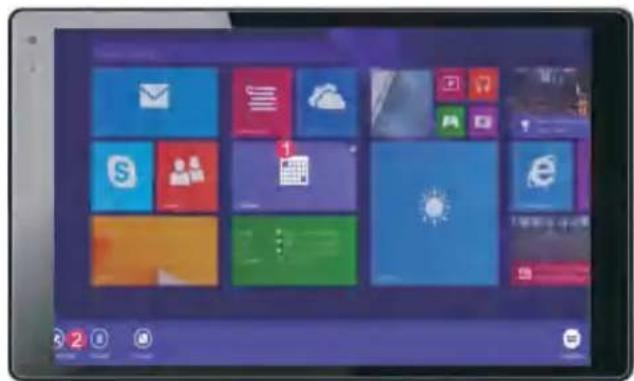
5. Charm menu column
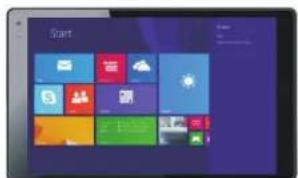
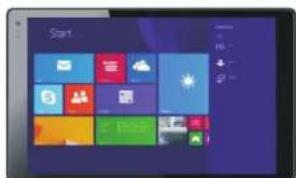
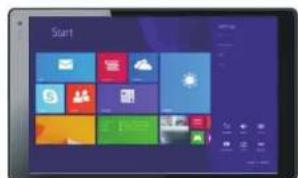
Slide it to the left from the right side of the screen to start Charm menu column, including: Start, Device, Setup, Share, and Search Program.
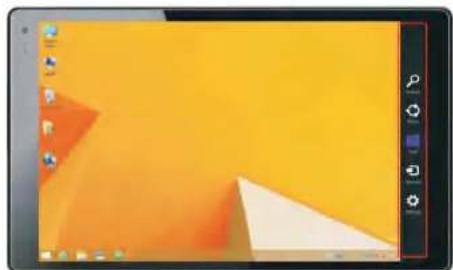
Can let you search the files and application programs in the Tablet PC.
Can let you share the program through social exchange website or e-mail.
Can return to the start screen. From the start screen, you can also use this function to return the application program that is opened in the latest.
Can let you read, write and share files, connect external screen or printer with the device connected to the Tablet PC.
Can let you set up the Table PC.
Slide it to the left from the right side of the screen to start Charm menu column, including: Start, Device, Setup, Share, and Search Program.
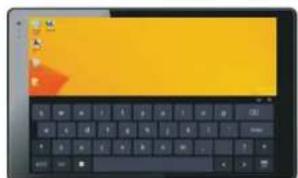
Search menu Share menu Device Menu Set up Menu
6.Dual-Screen Application
On my computer in (Figure 1), slide it inward from the left side of the screen, drag it and hold. Let go when seeing double interfaces appear.
In (Figure 2), press the partition button on the middle partition line and drag right and left to partition the display proportion of the double screens.
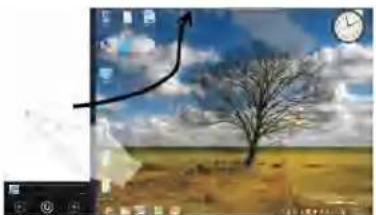
(Figure 1)
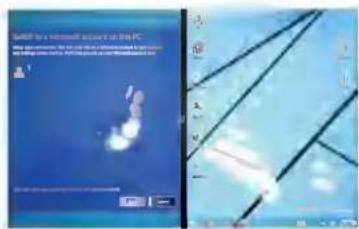
(Figure 2)
7.Exit the apps
In apps or settings screen , Slide downward to exit the app, to below picture.
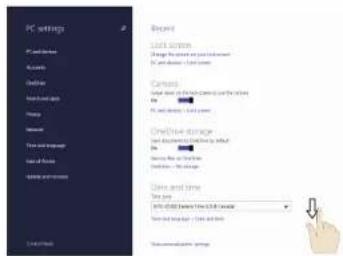
Basic Operations:
- Dormancy, restart and power off
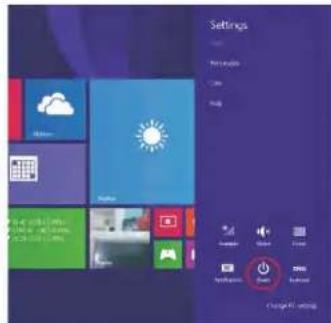
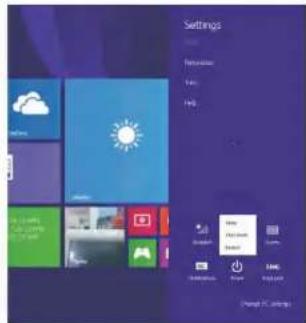
- Security Management
User and password setup
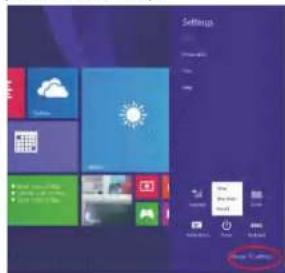
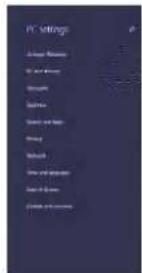
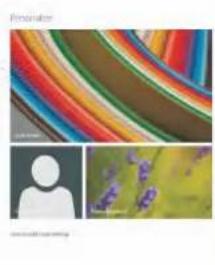
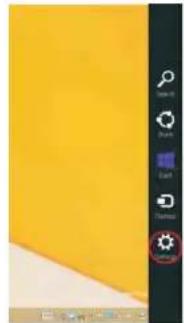
Method for quick setup: Click the "Setup" button in "Charm" setup, and select "Change computer setup". Select "User" on the left and click "Create local account" in "Your account" on the right side. After inputting the password of Complete Windows Live Id Account, input username, password, confirm password and password prompt.
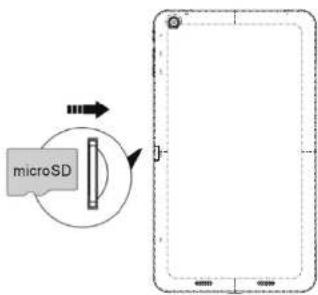
Inserting the Micro SD card:
You may install a Micro SD card to expand your device's storage space.
- This device supports Micro SD card up to 32GB capacity.
- Insert the Micro SD card as shown.
【Note】: Ensure that the Micro SD card is inserted all the way into the card slot.
【Caution】: Before removing this card, make sure your device is not accessing data on the card.
Connecting to the Network:
Wi-Fi wireless setup:
Enter the setting interface, and turn on the Wi-Fi item.
The device will automatically search any accessible nearby wireless networks.
Bluetooth function:
Bluetooth devices are supported, such as a keyboard, mouse and earphone.
operation is as follows:Bluetooth keyboard
- Open Bluetooth devices and Tablet bluetooth function.
- Press "Bluetooth search".
- Press "Pair".
- On the keyboard press the password to appear on the tablet.
You can use keyboard to enter text, number,symbols directly.
Project function:
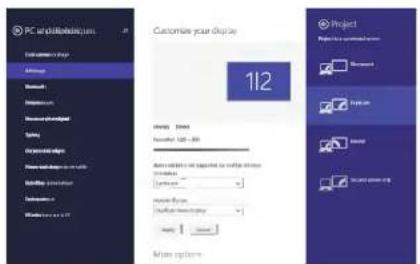
- Open Wifi display and open the WIFI display receive function
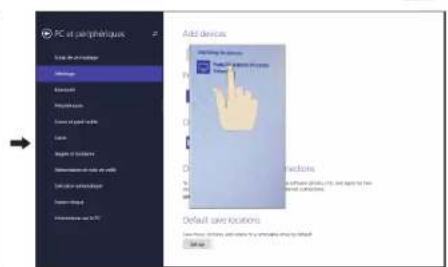
- From Setting—Change PC settings---PC and Device---Device---Add a Device—Found the Wifi display which device sourced---Connect
- After connect success, shows the WiFi display model name.
- Touch "Display" again.
5.From the Project, Touch the WIFI display model name, all tablet's image shows on display
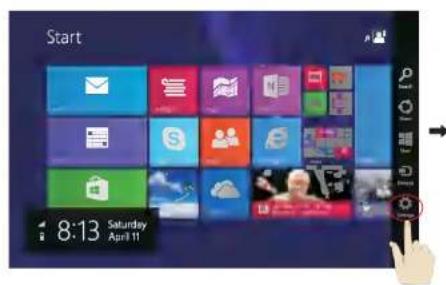
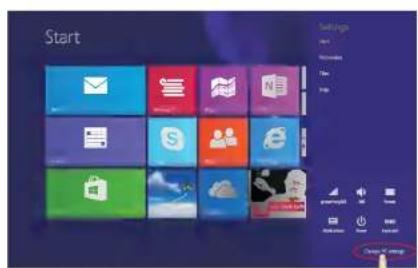
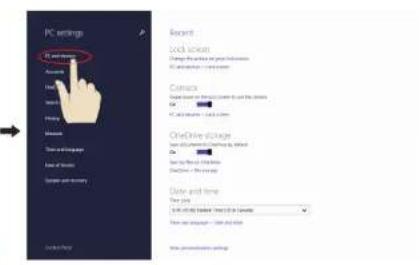
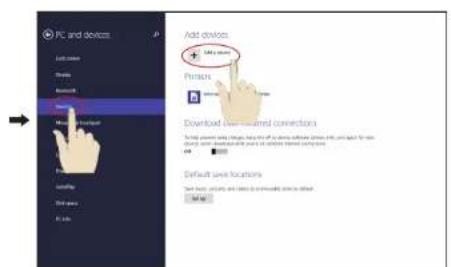
Touch Settings
Device---Add a Device Sourced WIFI Display
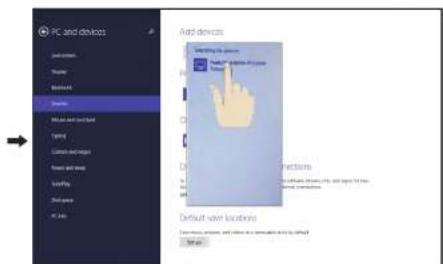
Change pc settings
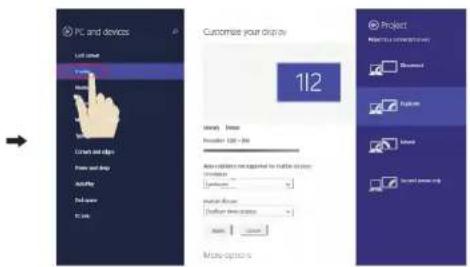
PC and devices
Touch "DISPLAY"
Product Specification
| OS | Windows 8.1 |
| CPU | CPU Type: Intel BayTrail T-CR Z3735G |
| System RAM | 1GB DDRIII |
| Memory | 32GB NAND Flash |
| LCD | 9" 1024x600 |
| Touch Panel | 5 Point Capacitive touch screen |
| Wi-Fi | 802.11 b/g/n |
| Camera(front) | 0.3-megapixel, 2-megapixel |
| Gravity | 3D gravity sensor |
| Music format | MP3,WMA,FLAC,AAC,OGG,WAV,APE |
| Video format | AVI, WMV, MP4, MKV, RM, RMVB, FLV, MOV, 3GP...etc |
| Picture format | JPEG, JPG, BMP, GIF,PNG |
| Battery | 4400mAh / 3.7V |
Specifications are for reference, to prevail in kind
Note: 1. The 32GB nand flash was divided into two parts, one part is used for system memory which will not show on the tablet. The other part you can see from the tablet is available memory.
2. The manufacturer is not responsible for any interference, for example RADIO or TV interference, caused by unauthorized modifications to this equipment. Such modifications could void the user's authority to operate the equipment.
Warning: Changes or modifications to this unit not expressly approved by the party responsible for compliance could void the user's authority to operate the equipment.
NOTE: This equipment has been tested and found to comply with the limits for a Class B digital device, pursuant to Part 15 of the FCC Rules. These limits are designed to provide reasonable protection against harmful interference in a residential installation. This equipment generates, uses and can radiate radio frequency energy and, if not installed and used in accordance with the instructions, may cause harmful interference to radio communications.
However, there is no guarantee that interference will not occur in a particular installation. If this equipment does cause harmful interference to radio or television reception, which can be determined by turning the equipment off and on, the user is encouraged to try to correct the interference by one or more of the following measures:
Reorient or relocate the receiving antenna.
Increase the separation between the equipment and receiver.
Connect the equipment into an outlet on a circuit different from that to which thereceiver is connected.
Consult the dealer or an experienced radio/TV technician for help.
This device complies with Part 15 of the FCC Rules. Operation is subject to the following two conditions: (1) this device may not cause harmful interference, and
(2) this device must accept any interference received, including interference that may cause undesired operation.
Shielded cables must be used with this unit to ensure compliance with the Class B FCC limits.
PROSCAN
6.Application double-ecran
Sourced WIFI Display
→
De Affichage

- Precautions before Use:
- Packing List:
- Device description
- Setting up for the first time
- Charging your device:
- 【TIPS】:
- Battery Saving
- Introduction to Desktop:
- 2.Camera usage
- Image slide applications
- 4.Introduction to app Interface
- Charm menu column
- 6.Dual-Screen Application
- 7.Exit the apps
- Basic Operations:
- Inserting the Micro SD card:
- Connecting to the Network:
- Bluetooth function:
- Project function:
- PROSCAN
- 6.Application double-ecran
Brand : Proscan
Model : PLT8967
Category : Tablet