PLT7064 - Tablet Proscan - Free user manual and instructions
Find the device manual for free PLT7064 Proscan in PDF.


| Product type | Touchscreen tablet |
| Brand | Proscan |
| Model | PLT7064 |
| Processor | Intel Baytrail-T Z3735G quad-core 1.8 GHz |
| Operating system | Windows 8.1 pre-installed |
| Internal memory (storage) | 16 GB (eMMC) |
| RAM memory | 1 GB DDR3 |
| Display | 7-inch capacitive multi-touch |
| Screen resolution | 1024 × 600 pixels |
| Storage expansion | MicroSD up to 64 GB |
| Wi-Fi connectivity | IEEE 802.11 b/g/n |
| Bluetooth | V4.0 EDR |
| Ports | Micro USB 2.0, 3.5 mm jack |
| Front camera | 0.3 megapixels |
| Rear camera | 2.0 megapixels |
| Battery | Lithium-polymer 2800 mAh / 3.7 V |
| Music playback battery life | Up to 8 hours |
| Video playback battery life | Up to 4 hours |
| Web browsing battery life | Up to 5 hours |
| Supported audio formats | WAV, MP3, MP2, AAC, AMR, MIDI, Vorbis, APE |
| Supported video formats | 1080p, MPEG-1/2/4, H.263/H.264, RMVB, WMV, MVC, AVS, MJPEG |
| Supported photo formats | JPEG, BMP, GIF, PNG (up to 2592×1944) |
| Power supply | AC 100-240 V adapter, DC 5 V / 2 A output |
| Sensor | 360° gravity (G-Sensor) |
| Care and cleaning | Clean with a soft dry cloth; avoid liquids and chemicals |
| Safety | Do not open; use original battery; avoid shocks and extreme temperatures |
Frequently Asked Questions - PLT7064 Proscan
User questions about PLT7064 Proscan
0 question about this device. Answer the ones you know or ask your own.
Ask a new question about this device
Download the instructions for your Tablet in PDF format for free! Find your manual PLT7064 - Proscan and take your electronic device back in hand. On this page are published all the documents necessary for the use of your device. PLT7064 by Proscan.
USER MANUAL PLT7064 Proscan
Thank you for your choosing the Intel QuadCore 7" Window Tablet PC.
This guide serves to enable users to get to know and familiar with our product as soon as possible. Here we have made a brief introduction to the key layout and definitions in figures and words.
Contents
I. Precautions before Use 02
II. Key Layout and Definitions ....03
III. Introduction to Desktop....04
Windows8.1 Start Screen 04
Image Slide Application 04
Introduction to apps Introduction....05
Charm Menu Column 06
Double Screen Application 08
IV. Basic Operations ....09
Dormancy, Restart, and Power off 09
Security Management 09
V. Media Function ....10
Camera 10
Browser....10
Xbox Music ....11
VI. Specification ....12
I. Precautions before Use
This production is suitable for use in non-tropic areas below 2,000 meters, and the mark in the nameplate indicates the product is suitable for use in non-tropic areas.
-
Prevent the Tablet PC from falling to the ground or being strongly impacted otherwise.
-
Do not use it in the long term in any environment where the air is too cold, too hot (<35 °C), too humid or with too much dust. Do not expose the Tablet PC to sunlight.
-
Avoid using it in the strong magnetic and strong static environment as much as possible.
-
Once any water or other liquid splashes onto the Tablet PC, close it immediately and do not use it until it dries out.
-
Do not clean the Tablet PC with any detergent containing chemical element or other liquid to avoid causing damage due to corrosion and becoming damp. If cleaning is really necessary, clean it with dry soft cloth tissue paper.
-
Our company shall not bear any and all responsibilities for loss or deletion of material inside the machine caused due to abnormal software and hardware operation, maintenance or any other accident.
-
Please back up your important material at any time to avoid loss.
-
Please do not disassemble the Tablet PC by yourself; otherwise you will lose the right to warranty.
-
Quick Use Guide and the relevant software shall be updated at any time. For updated software version, visit http://www.proscanvideo.com for downloading by yourself, and no notice shall be given otherwise. If any anything is found to be inconsistent with the Quick Use Guide, the material object shall prevail.
-
Replacement with incorrect type batteries may cause explosion. Make sure to use original batteries.
II.Key Layout and Definitions
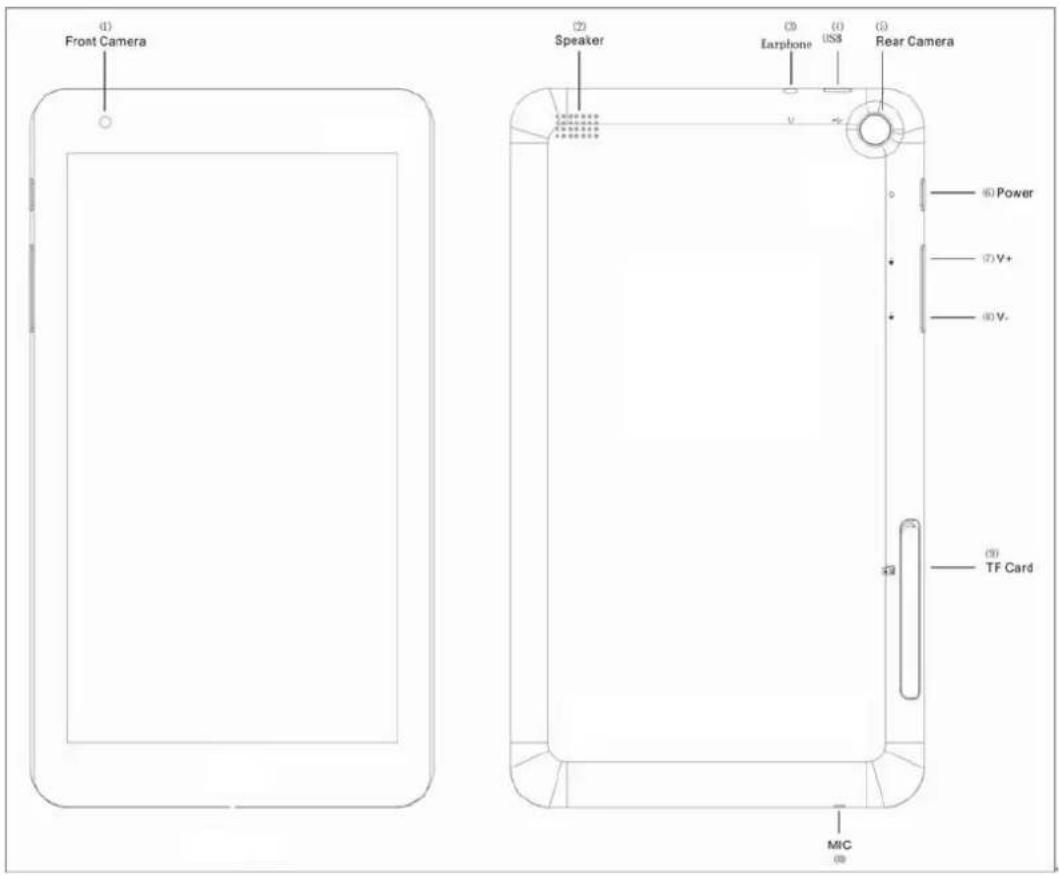
① Front Camera: take photos, and record pictures
② Loudspeaker: The built-in loudspeaker enables you to hear the sound without having to linking additional device.
③Socket for earphone: This socket can transmit the audio signals of Tablet PC to earphone.
④ Micro USB Interface: You can read the data through USB or Recharge the device.
⑤ Rear Camera: take photos, and record pictures
⑥Power Key: Press it down to start or close the touch screen panel. You can also let the computer to enter dormancy through this button or wake from the dormancy mode.
⑦、⑧ Volume + /- : adjustment volume
⑨MicroSD& MicroSDHC Format Micro SD card slot: The built-in storage card reader slot supports MicroSD and MicroSDHC format.
⑩ Microphone connector outlet
III. Introduction to Desktop
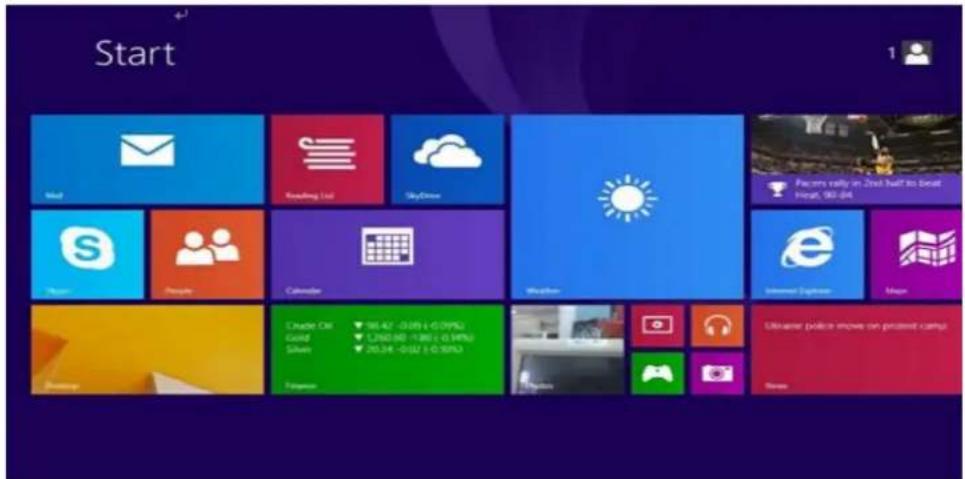
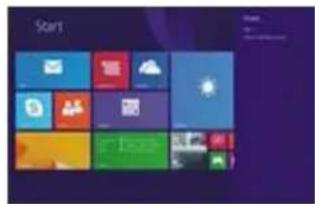
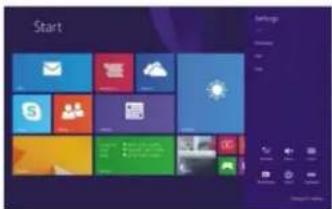
- Windows 8.1 start image: On the start screen, you can see many programs fixed in the image.
These application programs are displayed in the form of “magnet”. As long as you click them, you can easily visit them.
You need to log on your Microsoft account before the application program completely runs.
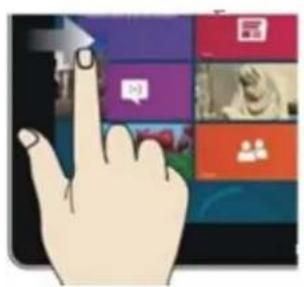
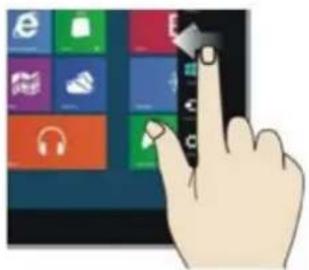
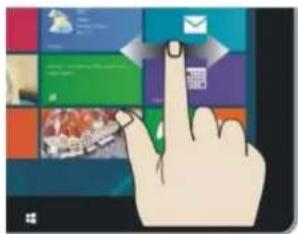
- Image slide applications
Slide to right Slide to left
natural_image
Hand interacting with a touchscreen display showing app icons (no text or symbols visible)Slide to the right from the left side Slide to the left from the right side of the of the screen to start the application screen to start Charm menu column program in running.
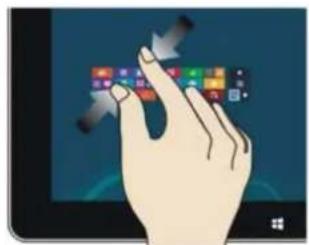
Reduce Enlarge
natural_image
Illustration of a hand interacting with a tablet displaying colorful app icons (no text or symbols visible)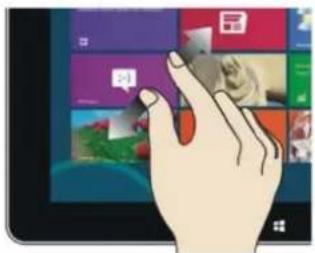
natural_image
Illustration of a hand interacting with a tablet displaying a grid of app icons (no text or symbols visible)On the touch screen, narrow two fingers On the touch screen, widen two fingers to reduce the image. to enlarge the image.
Slide with finger Slide upward
natural_image
Illustration of a hand interacting with a touchscreen display showing colorful app icons (no text or symbols visible)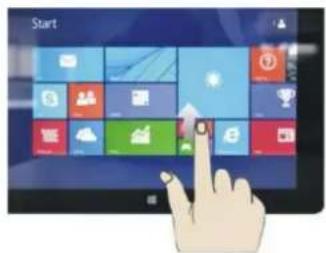
In start screen, slide finger right and In the start screen, slide upward from the left to move the image. bottom of the screen to visit all application
program(APPS) interfaces.
- Introduction to app Interface
Besides the application programs already fixed on the start screen, you can also start other application programs in all application programs, such as other software application programs attached to the Tablet PC.
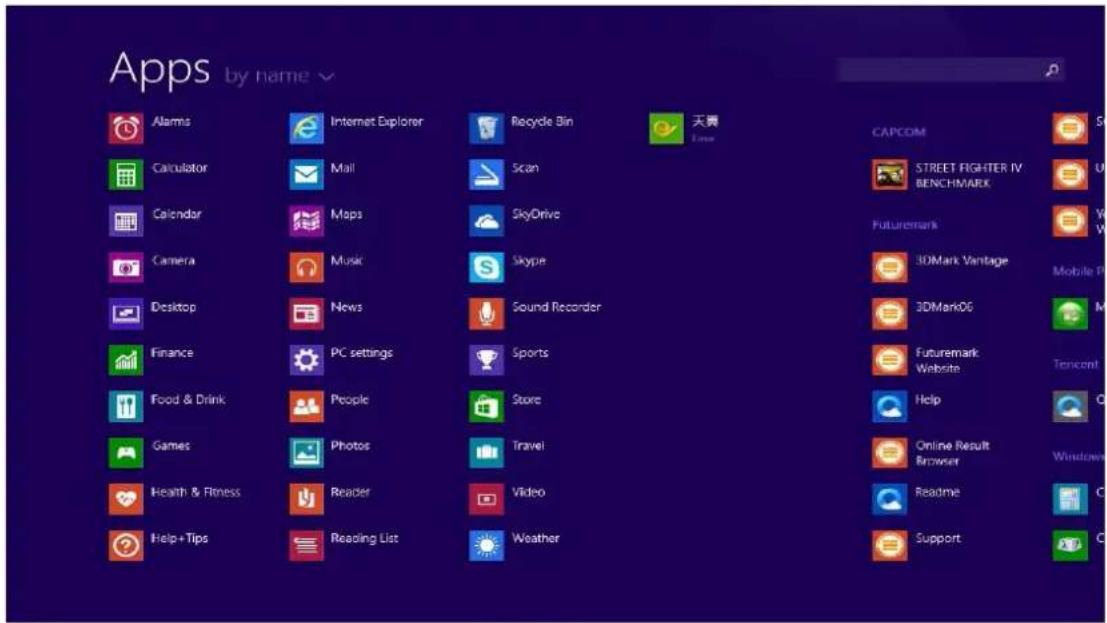
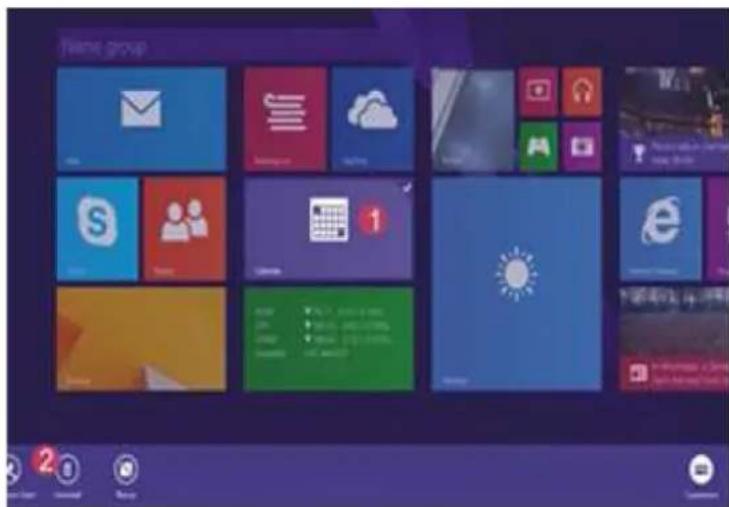
If you want to fix more application programs on the start interface, see the operation in the figure below, (1) lightly touch, press and hold the application program magnet for about one second and then let go, and select (2) to fix to the start screen.
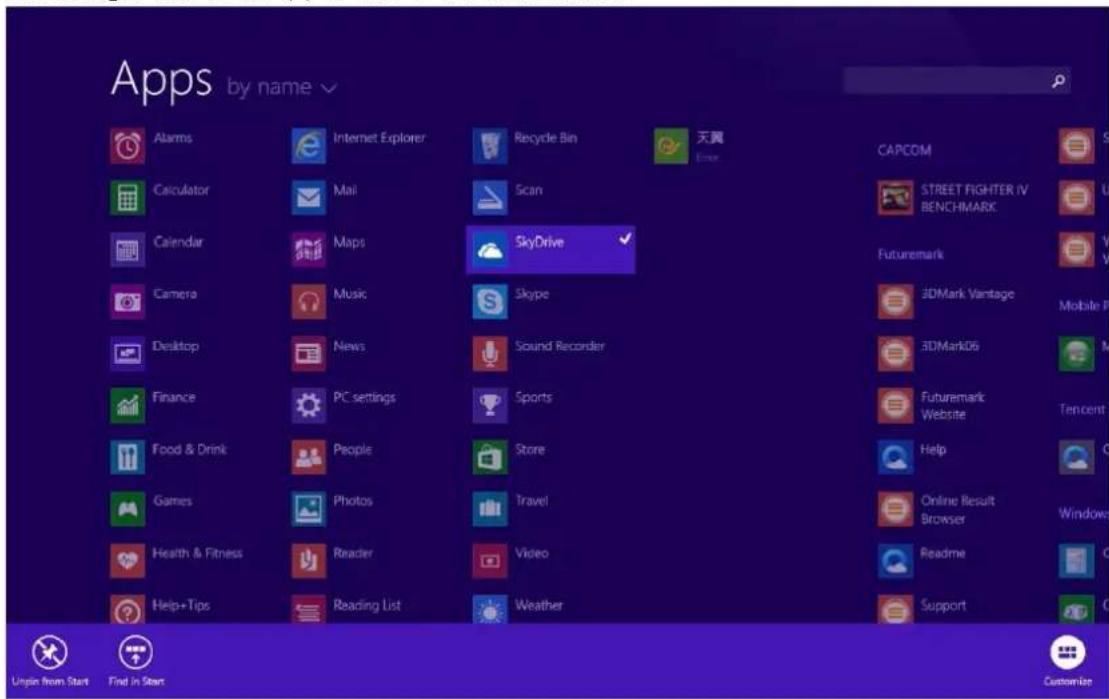
Conversely, if you want to cancel or delete a certain application in the start screen, (1) lightly touch, press and hold the application program magnet for about one second and then let it go and run, and select (2) attribute column to cancel the programs such as fixation and deletion and then it can be completed.
4. Charm menu column
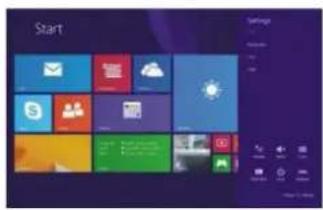
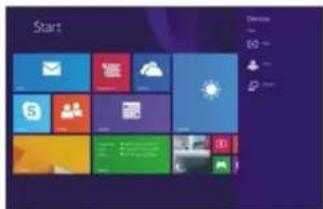
Slide it to the left from the right side of the screen to start Charm menu column, including: Start,
Device, Setup, Share, and Search Program.
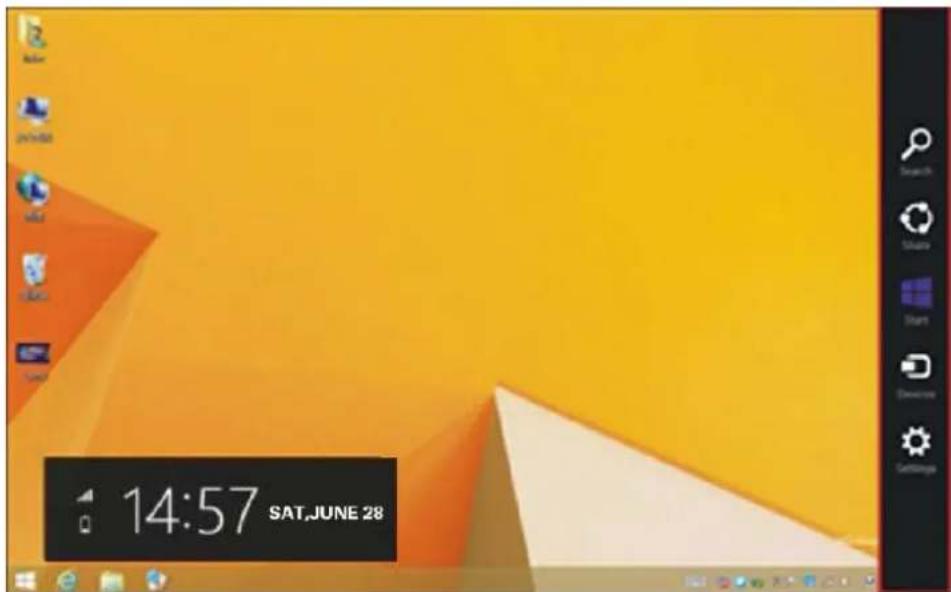
Slide it to the left from the right side of the screen to start Charm menu column, including: Start, Device, Setup, Share, and Search Program.

Can let you search the files and application programs in the Tablet PC.

Can let you share the program through social exchange website or e-mail.

Can return to the start screen. From the start screen, you can also use this function to return the application program that is opened in the latest.

Can let you read, write and share files, connect external screen or printer with the device connected to the Tablet PC.

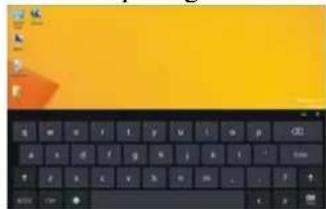
Can let you set up the Table PC.
Search menu Share menu
Device Menu Set up Menu
natural_image
Computer keyboard and mouse on a yellow background (no text or symbols visible)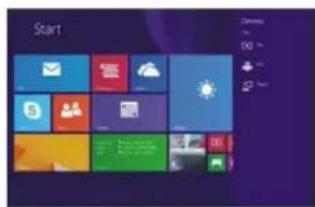
5. Dual-Screen Application
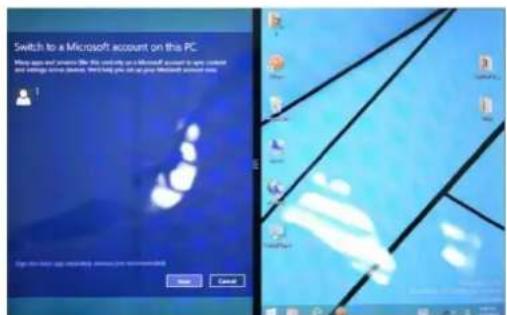
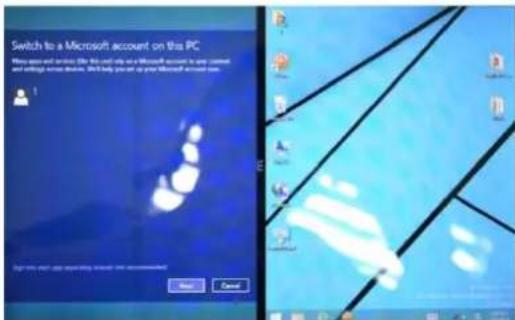
On my computer in (Figure 1), slide it inward from the left side of the screen, drag it and hold. Let go when seeing double interfaces appear.
In (Figure 2), press the partition button on the middle partition line and drag right and left to partition the display proportion of the double screens.

natural_image
Desktop computer interface with landscape photo and timeline overlay (no readable text or symbols)(Figure 1)
(Figure 2)
IV. Basic Operations
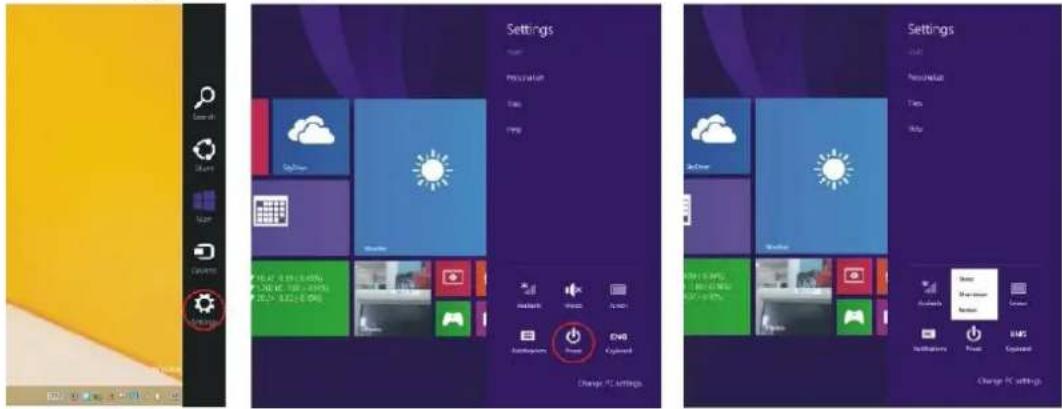
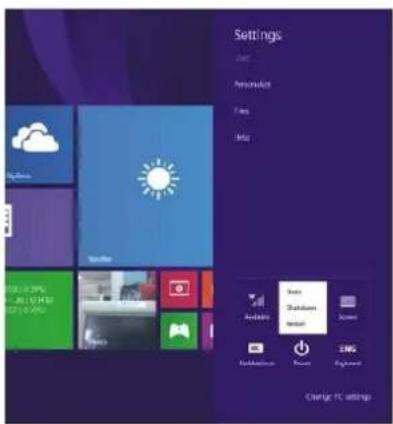
1. Dormancy, restart and power off
2. Security Management
User and password setup
natural_image
Abstract collage of colorful, textured, and nature scenes with no visible text or symbolsMethod for quick setup:
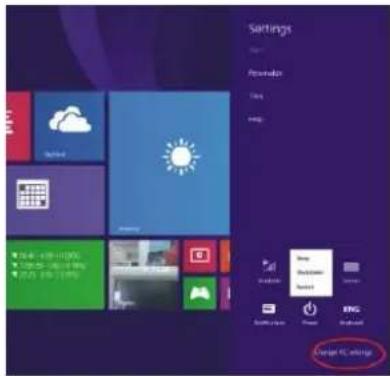
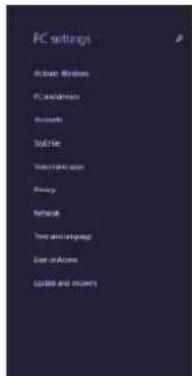
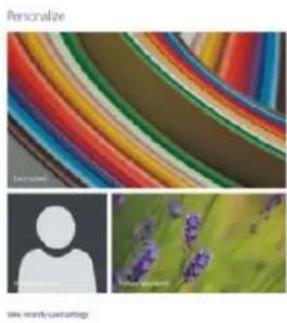
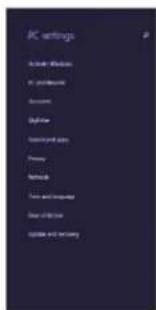
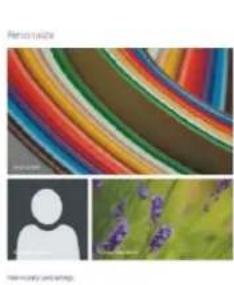
Click the “Setup” button in “Charm” setup, and select “Change computer setup”. Select “User” on the left and click “Create local account” in “Your account” on the right side. After inputting the password of Complete Windows Live Id Account, input username, password, confirm password and password prompt.
V. Media Function

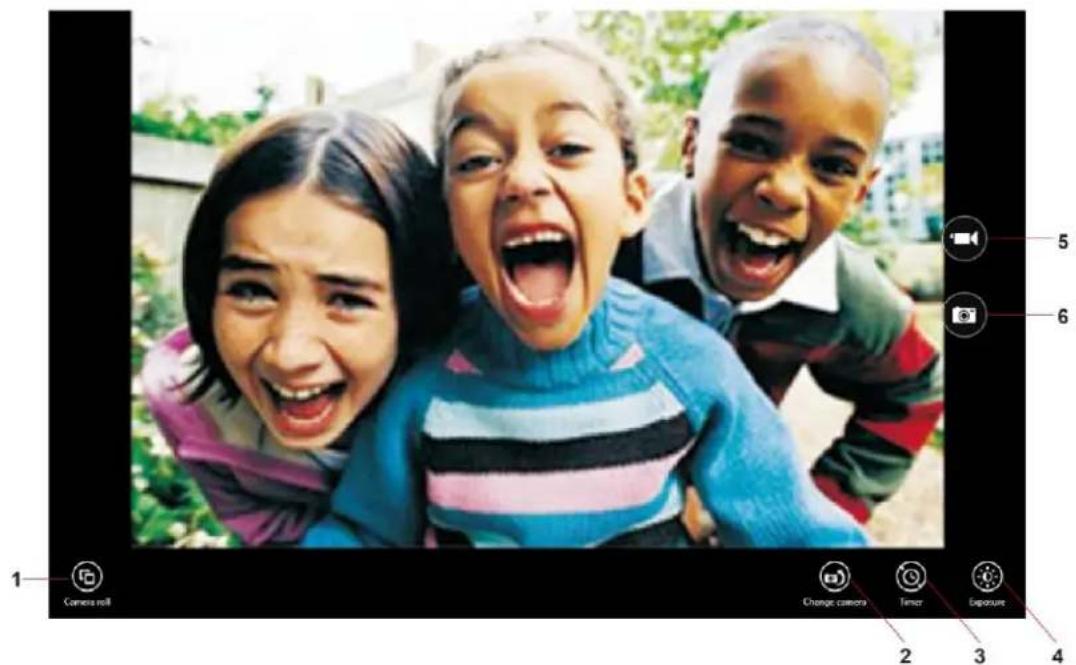
- In the star screen, click camera application procedure-, enter into camera Operation of camera
Operation of camera
①. Camera Roll: to check the photo or video you are shoot
②. Change camera: change front and back camera
③. Timer: you can choose 3 second, 10 second, or off. Its support to take photo by time-lapse
④. Exposure: adjustment exposure
⑤. Video shooting
⑥. Click it to take photo
2. Browser
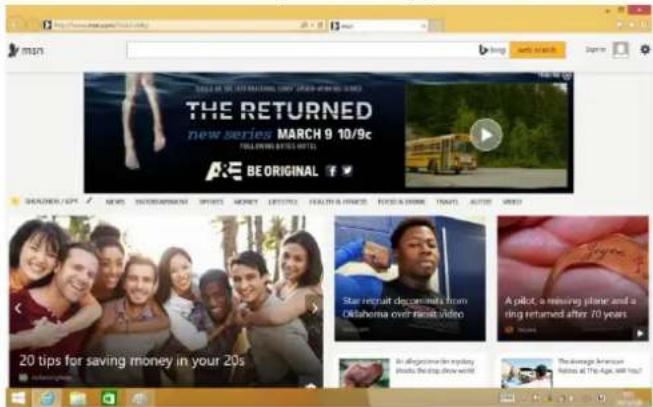
In case of Wi-Fi internet is connected well click IE browser
Type the website you want to visit then you can enjoy the internet browser
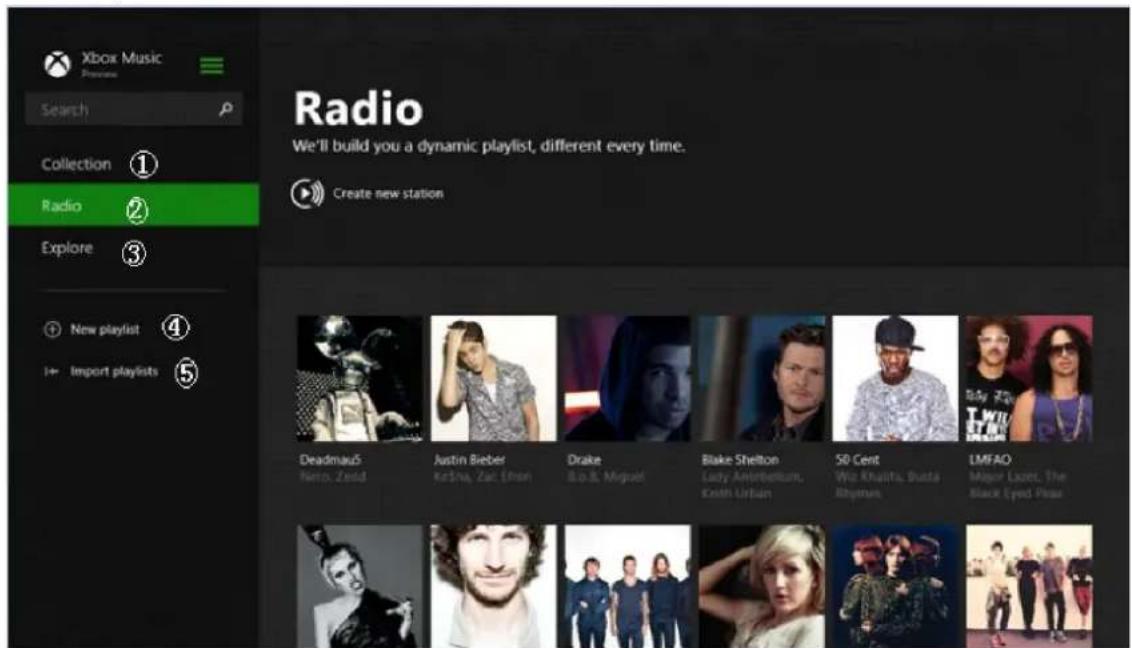
3, Xbox Music
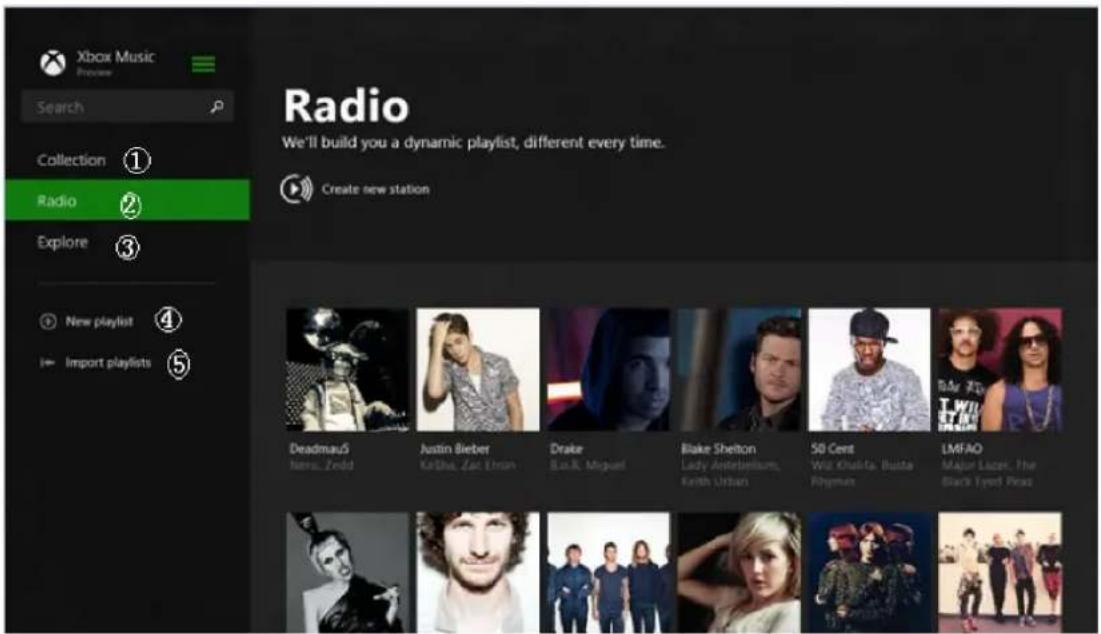
①Collection: Add songs to any folder on the PC
②Radio: Connect to the Internet, listen to Radio
③Explore: Connect to the Internet, download and listen to music
④New playlist: Add new playlist
⑤Import playlists: The system of importing music files
VI. Specification
| Specifications: | |
| Product | 7" Intel Quad Core Table With Windows 8.1 |
| Processor | Intel Baytrail-T 1.8Ghz(Quad Core)(Z3735G) |
| Operating System | Windows 8.1 Preloaded |
| Memory | 16 GB Built-In Memory |
| Expansion | microSD Card Slot Built-in(Support Max Upto 64GB) |
| Display Size | 7" 1024×600 Screen |
| Resolution | Display 1024×600 dpi(High Resolution) |
| RAM Memory | 1GB DDR3 Built-in(eMMC Fast Memory)For Faster Apps Run |
| Screen | 7" Capacitive Multi-Touch Super Sensitive Screen |
| WiFi | IEEE 802.11 b/g/n |
| USB | Micro USB 2.0 Port For USB Drives&Charging |
| Bluetooth | Built-in Latest Bluetooth V4.0 EDR |
| Office | MS Office 365 Personal(Word,Excel,PowerPoint,OneNote&Outlook for 1 Year |
| Audio Output Jack | 3.5mm Headphone Jack |
| Dual Camera | Back 2.0M Pixels&Front 0.3M Pixels |
| Speaker/Mic | Built-in Stereo Speaker&Micophone |
| G-Sensor | 360°Gravity Induction For All side Easy View |
| Flash Player/Language | Support Flash Player 10.2&Above/Support Multiple Language |
| Power Adapter | Power Adapter AC100-240V(DC 5V,2A),USB Charge Capable |
| Battery | Rechargeable Li-ion Polymer Big Capacity Battery 2800 mAh/3.7V mah |
| Playback/Standby | Music:Up to 8 Hrs(Depends On Vol Select) |
| Video:Up to 4 Hrs(Depends On Brightness Select) | |
| Web Browsing:Up To 5Hrs(Depends On Wi-Fi Signals) | |
| Audio Files | WAV,MP3,MP2,AAC,AMR-NB,AMR-WB,MIDI,Vorbis,APE) |
| Video Files | Support 1080P,MEPG 1/2/4 H.263/H.264,RMVB,WMV/VC-1,MVC,AVS,MJPEG |
| Photo Files | JPEG,BMP,GIF,PNG(Support Upto 2592×1944 dpi pics size |
FCC STATEMENT
Any changes or modifications not expressly approved by the party responsible for compliance could void the user's authority to operate this equipment.
NOTE: This equipment has been tested and found to comply with the limits for a Class Bdigital device, pursuant to Part 15 of the FCC Rules. These limits are designed to provide reasonable protection against harmful interference in a residential installation. This equipment generates uses and can radiate radio frequency energy and, if not installed and used in accordance with the instructions, may cause harmful interference to radio communications. However, there is no guarantee that interference will not occur in a particular installation. If this equipment does cause harmful interference to radio or television reception, which can be determined by turning the equipment off and on, the user is encouraged to try to correct the interference by one or more of the following measures:
Reorient or relocate the receiving antenna.
Increase the separation between the equipment and receiver.
Connect the equipment into an outlet on a circuit different from that to which the receiver is connected.
Consult the dealer or an experienced radio/TV technician for help.
PROSCAN
PLT7064
natural_image
Illustration of a hand interacting with a touchscreen display showing icons (no text or symbols)natural_image
Hand interacting with a touchscreen device displaying app icons (no readable text or symbols)natural_image
Illustration of a hand interacting with a tablet displaying colorful app icons (no text or symbols visible)natural_image
Hand interacting with a tablet displaying a grid of colorful UI elements (no readable text or symbols)natural_image
Hand interacting with a touchscreen display showing colorful app icons (no readable text or symbols)Menu de partager
natural_image
Yellow computer keyboard with black keys and a red mouse pointer (no text or symbols visible)Menu périphérique
Menu d'installer
natural_image
Desktop computer interface with open icons, a tree in a grassy field, and a clock showing 12:00 (no readable text or symbols)(Dessin 1)
(Dessin 2)
natural_image
Yellow background with a white triangular shape and a black vertical toolbar on the right (no text or symbols visible)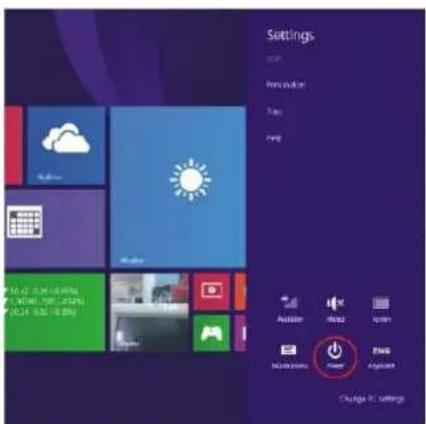
natural_image
Abstract colorful pattern with a human silhouette and green background (no text or symbols)3. Musique de XBox

Brand : Proscan
Model : PLT7064
Category : Tablet