PVV4662 - VCR PANASONIC - Free user manual and instructions
Find the device manual for free PVV4662 PANASONIC in PDF.


User questions about PVV4662 PANASONIC
0 question about this device. Answer the ones you know or ask your own.
Ask a new question about this device
Download the instructions for your VCR in PDF format for free! Find your manual PVV4662 - PANASONIC and take your electronic device back in hand. On this page are published all the documents necessary for the use of your device. PVV4662 by PANASONIC.
USER MANUAL PVV4662 PANASONIC
Video Cassette Recorder Operating Instructions
Model No. PV-V4622-K/PV-V4662-K
Connections and Initial Setup Procedures are on pages 8 to 11.

VCR Plus+, A_LLSET and PlusCode are trademarks of Gemstar Development Corporation. The VCR Plus+ system is manufactured under license from Gemstar Development Corporation.

As an ENERGY STAR Partner, Panasonic has determined that this product or product model meets the ENERGY STAR guidelines for energy efficiency.
Please read these instructions carefully before attempting to connect, operate or adjust this product. Please save this manual.
LSQT0540A
Important Safeguards and Precautions
FOR YOUR SAFETY, READ AND RETAIN ALL SAFETY AND OPERATING INSTRUCTIONS. HEED ALL WARNINGS IN THE MANUAL AND ON THE UNIT
INSTALLATION
1 POWER SOURCE CAUTION
Operate only from the power source indicated on the unit or in this manual. If necessary, have your Electric Utility Service Company or Video Products Dealer verify the power source in your home.
2 POLARIZED OR GROUNDING PLUG
As a safety feature, this Video product comes with either a polarized power cord plug (one blade is wider than the other), or a three-wire grounding type plug.
POLARIZED PLUG CAUTION:
This plug will only fit into an outlet one way. If you cannot fully insert the plug, try reversing it. If it still will not fit, have an electrician install the proper wall outlet. Do not defeat the safety feature by tampering with the plug.
GROUNDING PLUG CAUTION:
This plug will only fit into a three-hole grounding outlet. If necessary, have an electrician install the proper outlet. Do not defeat the safety feature by tampering with the plug.
3 POWER CORD
Make sure power cords are routed so that they are not likely to have anything rest on them, roll over them, or be in the way of walking traffic. If an extension cord is used, make sure it also has either a polarized or grounded plug and that the cords can be securely connected. Frayed cords, damaged plugs, and damaged or cracked wire insulation are hazardous and should be replaced by a qualified service technician. Overloaded outlets and extension cords are fire hazards and should be avoided.
4 DO NOT BLOCK VENTILATION HOLES Ventilation openings in the cabinet release heat generated during operation. If they are blocked, heat build-up inside the unit can cause failures that may result in a fire hazard or heat damage to cassettes. For protection, follow these rules: a. Never cover ventilation slots or the unit
while in use, or operate the unit when placed on a bed, sofa, rug, or other soft surface.
b. Avoid built-in installation, such as a book case or rack, unless proper ventilation is provided.
5 AVOID EXTREMELY HOT LOCATIONS OR SUDDEN TEMPERATURE CHANGES
Do not place the unit over or near any kind of heater or radiator, in direct sunlight, inside a closed vehicle, etc.. Do not move the unit suddenly between areas of extreme temperature variation. If the unit is suddenly moved from a cold place to a warm place, moisture may condense in the unit and on the tape.
6 TO AVOID PERSONAL INJURY
-
Do not place unsecured equipment on a sloping surface.
-
Do not place this unit on any support that is not firm, level, and adequately strong. The unit could fall causing serious injury to a child or adult and damage to the unit.
- An appliance and cart combination should be moved with care. Quick stops, excessive force, and uneven surfaces may cause the appliance and cart combination to
- Carefully follow all operating instructions and use the manufacturer's recommended accessories when operating this unit or connecting it to any other equipment.

OUTDOOR ANTENNA INSTALLATION
SAFE ANTENNA AND CABLE CONNECTION
If an outside antenna or cable system is connected to the equipment, be sure the antenna or cable system is grounded so as to provide some protection against.
to provide some protection against built-up static charges and voltage
Built up static charges and violent surges, Part 1 of the Canadian
Surges. Part 1 of the Canadian Electrical Code, in USA Section
810 of the National Electrical
Code:ANSI/NERA 70 provides
Code, ANSINR 1 A70, provides information with respect to property
Information with respect to grounding of the mast and
supporting structure, grounding of the
lead-in wire to an antenna discharge unit, size of grounding conductors, location of antenna discharge unit, connection to grounding electrodes and requirements for the grounding electrode.
2 KEEP ANTENNA CLEAR OF HIGH VOLTAGE POWER LINES OR CIRCUITS
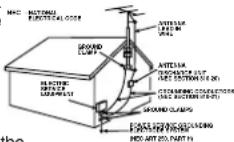
An outside antenna system should be located well away from power lines, electric light or power circuits and where it will never come into contact with these power sources if it should happen to fall. When installing an outside antenna, extreme care should be taken to avoid touching power lines, circuits or other power sources as this could be fatal. Because of the hazards involved, antenna installation should be left to a professional.
USING THE VIDEO UNIT
If the unit has been in storage or moved to a new location,
refer first to the INSTALLATION section of these safeguards.
1 KEEP THIS VIDEO UNIT AWAY FROM WATER OR MOISTURE OF ANY KIND.
2 IF EQUIPMENT IS EXPOSED TO RAIN, MOISTURE, OR STRONG IMPACT, unplug the unit and have it inspected by a qualified service technician before use.
3 DURING AN ELECTRICAL STORM
During a lightning storm, whether indoors or outdoors, or before leaving the unit unused for extended periods of time, disconnect all equipment from the power source as well as the antenna and cable system.
4 WHEN THE UNIT IS PLUGGED IN
- Never expose the unit to rain or water. DO NOT OPERATE if liquid has been spilled into the unit. Immediately unplug the unit, and have it inspected by a service technician. Fire and shock hazards can result from electrical shorts caused by liquid contact inside.
- Never drop or push any object through openings in the unit. Some internal parts carry hazardous voltages and contact can cause electric shock or fire hazard.
- Avoid placing the unit directly above or below your TV set as this may cause electrical interference. Keep all magnets away from electronic equipment.
5 USING ACCESSORIES
Use only accessories recommended by the manufacturer to avoid risk of fire, shock, or other hazards.
6 CLEANING THE UNIT
Unplug the unit. Then, use a clean, dry, chemically untreated cloth to gently remove dust or debris. DO NOT USE cleaning fluids, aerosols, or forced air that could over-spray, or seep into the unit and cause electrical shock. Any substance such as wax, adhesive tape, etc. may mar the cabinet surface. Exposure to greasy, humid, or dusty areas may adversely affect internal parts.
SERVICE
1 DO NOT SERVICE THIS PRODUCT YOURSELF
If, after carefully following the detailed operating instructions, this Video product does not operate properly, do not attempt to open or remove covers, or make any adjustments not described in the manual. Unplug the unit and contact a qualified service technician.
2 IF REPLACEMENT PARTS ARE REQUIRED
Make sure the service technician uses only parts specified by the manufacturer, or those having the same safety characteristics as the original parts. The use of unauthorized substitutes may result in fire, electric shock, or other hazards.
3 HAVE THE SERVICE TECHNICIAN PERFORM A SAFETY CHECK After any service or repairs to the unit, request the service technician to conduct a thorough safety check as described in the manufacturer's service literature to ensure that the video unit is in safe operating condition.
Safety Precautions
WARNING: To prevent fire or shock hazard, do not expose this equipment to rain or moisture.
CAUTION: To prevent electric shock, match wide blade of plug to wide slot, fully insert.

CAUTION
RISK OF ELECTRIC SHOCK DO NOT OPEN

CAUTION: TO REDUCE THE RISK OF ELECTRIC SHOCK, DO NOT REMOVE COVER (OR BACK)
NO USER-SERVICEABLE PARTS INSIDE REFER SERVICING TO QUALIFIED SERVICE PERSONNEL

This symbol warns the user that uninsulated voltage within the unit may have sufficient magnitude to cause electric shock. Therefore, it is dangerous to make any kind of contact with any inside part of this unit.

This symbol alerts the user that important literature concerning the operation and maintenance of this unit has been included. Therefore, it should be read carefully in order to avoid any problems.
Note to CABLE system installer: This reminder is provided to call the CABLE system installer's attention to Article 820-40 of the NEC in USA (and to the Canadian Electrical Code in Canada) that provides guidelines for proper grounding and, in particular, specifies that the cable ground shall be connected to the grounding system of the building, as close to the point of cable entry as practical.
FCC Warning: Any unauthorized changes or modifications to this equipment would void the user's authority to operate.
Before Using
Congratulations
on your purchase of one of the most sophisticated and reliable products on the market today. Used properly, it will bring you years of enjoyment. Please fill in the information below. The serial number is on the tag located on the back of your VCR.
- Date of Purchase
Dealer Purchased From
Dealer Address
Dealer Phone No. - Model No.
- Serial No.
Accessories
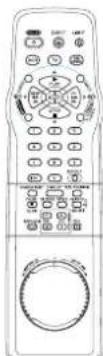
Remote Control LSSQ0314
□ Batteries 2 "AA"

RF Coaxial Cable VJAS0196

Loading the Batteries
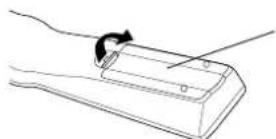
1) Open cover.
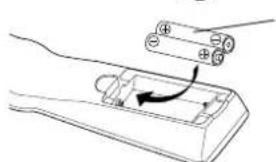
2) Insert batteries as marked.
3) Close cover.
□ Battery replacement caution
- Do not mix old and new batteries.
- Do not mix alkaline with manganese batteries.
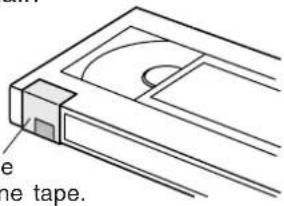
Prevent Accidental Tape Erasure
Break off the tab to prevent recording.
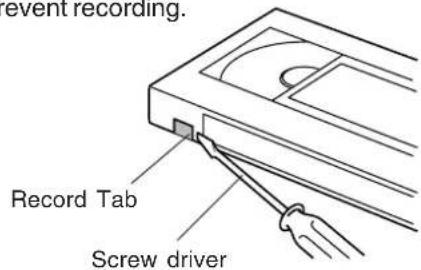
To record again
Record/Playback Time
Only use tapes with the WIs k in this unit.
| Tape Speed Setting | Type of Video Cassette | ||
| T160T12 | |||
| SP (Standard Play) | 1 Hour 2 Hours | 2 Hours 40 Minutes | |
| LP (Long Play) | 2 Hours | 4 Hours | 5 Hours 20 Minutes |
| SLP (SuperLongPlay) | 3 Hours | 6 Hours | 8 Hours |
Important Safeguards and Precautions 2,3
Accessories 4
Loading the Batteries 4
Prevent Accidental Tape Erasure 4
Record/Playback Time 4
Location of Controls 6, 7
Initial Setup for ANT./ Cable VCR TV Connection 8,9
Initial Setup for DSS/Cable Box VCR TV Connection.... 10, 11
Reset Language, Channels, Clock, VCR's Output Channel ... 12, 13
Playback a Tape 14
Record on a Tape 15
Timer Recording 16, 17
Timer Recording Using VCR Plus+ System 18~21
Multi-Brand Control Feature 22, 23
Advanced Connections (Cable/DSS) 24
MTS Broadcast/VHS Hi-Fi Stereo System 25
Tape Operation ( and 26~31
Special VCR Features 32~35
Copying Your Tapes (Dubbing) 36
VCR & Cassette Information 37
On-Screen Displays (OSD) 38
Before Requesting Service 39
Limited Warranty 40
Servicentre List 41
Index Back Cover
Location of Controls
Remote control Buttons
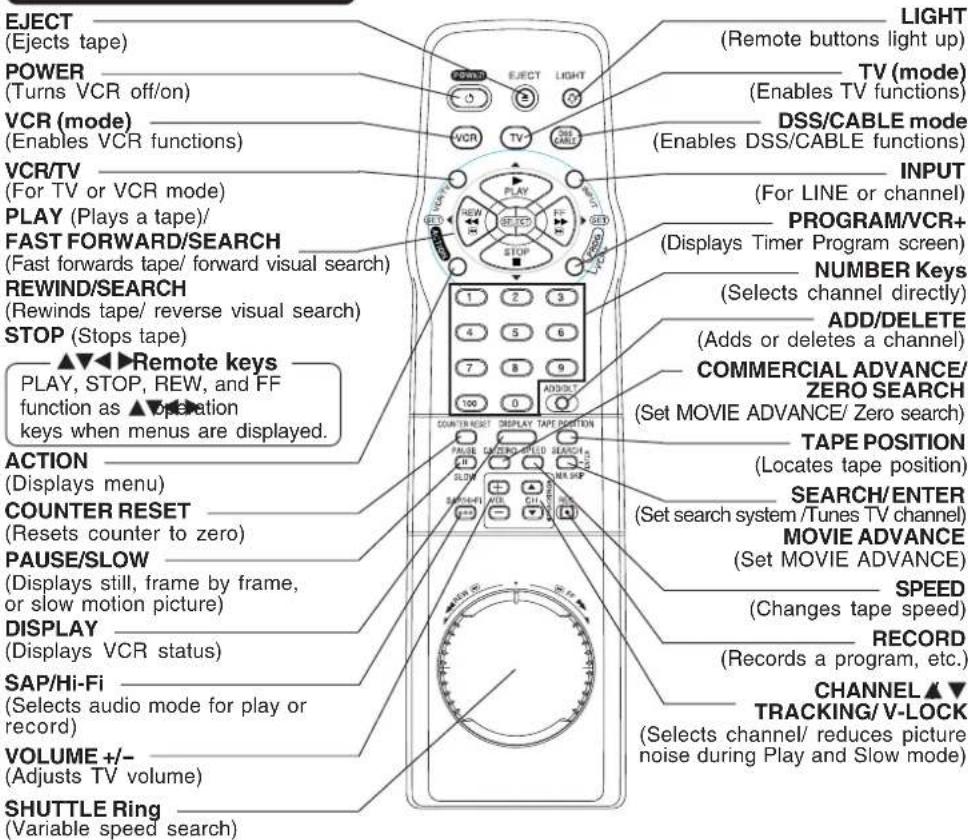
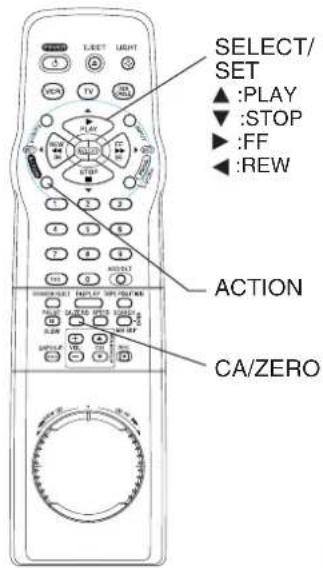
Light Tower Universal shuttle Remote Control
LIGHT button: When pressed, available buttons light and selected mode button (TV, VCR, or DSS CABLE) flashes 5 seconds. If no button is pressed, light goes out in 5 seconds. Also, hold down a button to confirm the selected mode (mode button flashes) in the dark. EJECT button: Press to eject tape. EJECT is not available during recording.
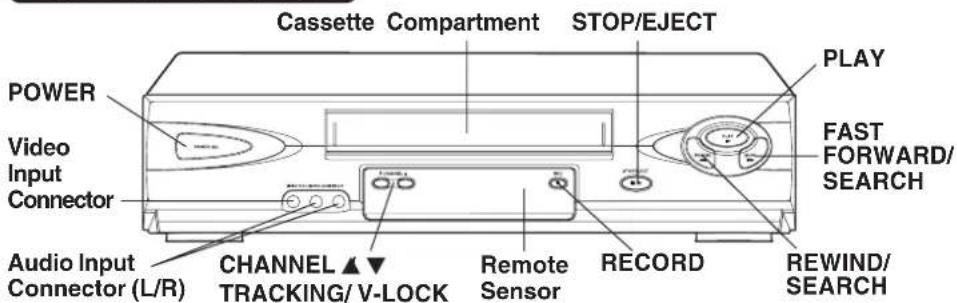
Front View of the VCR

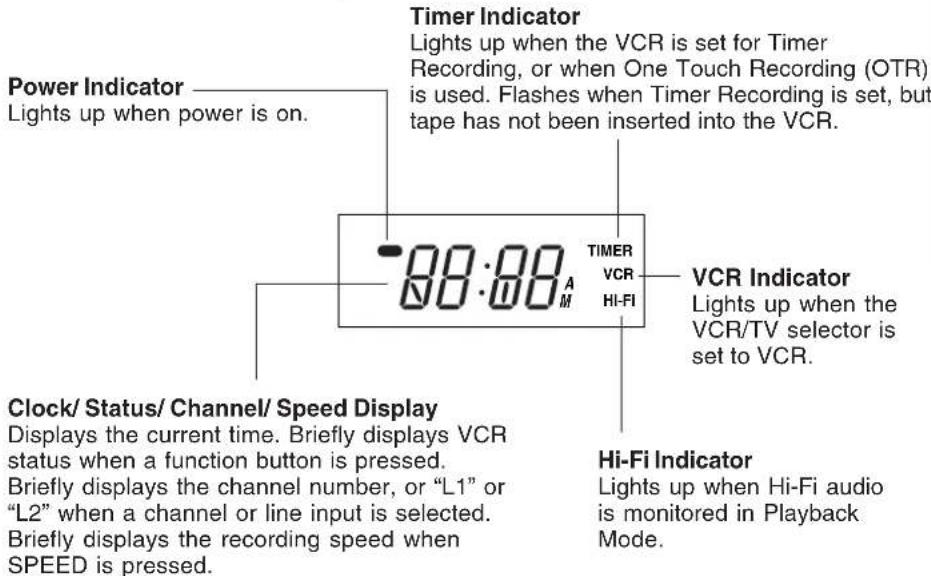
Multi Function Display
(ounon)
dms
Rear View of the VCR
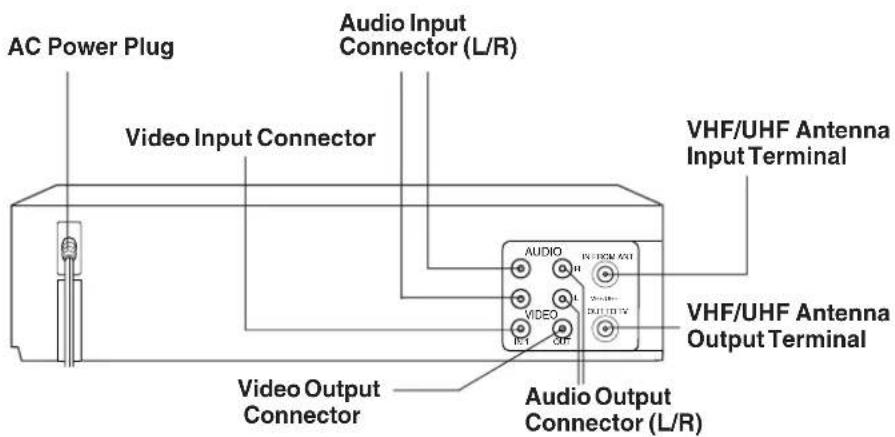
Note
- While plugged into an AC outlet, the VCR consumes 3.0W of electrical power in off mode.
Initial Setup for ANT/Cable VCR TVConnection
Please make all cable or antenna connections before plugging into the AC outlet. Plugging the VCR Power Cord into an AC wall outlet starts auto channel and clock set.
How to Connect
1 Connect cable from Antenna/Cable to VCR's IN FROM ANT. jack.
Connect VCR's OUT TO TV jack to TV's ANT. IN jack with (included) RF Cable accessory.
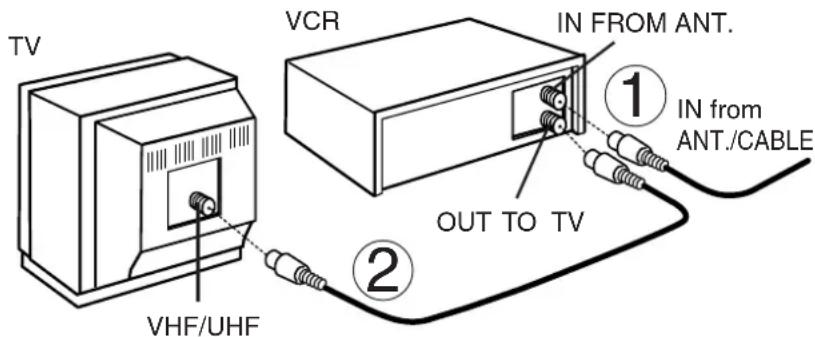
Doing Initial Setup (Ready to Play)
1 Turn TV on and tune to channel 3.
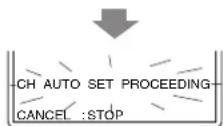
2 Plug VCR Power Cord into AC wall outlet. VCR comes on and auto channel and clock set starts.
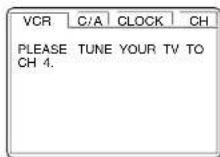
- If screen at right does not appear, check VCR - TV connection and, if TV is tuned to channel 3, try switching it to channel 4.
To change VCR's output channel, please refer to "VCR's Output Channel" on page 13.
WARNING When using "Nut type" RF coaxial cables, tighten with fingers only. Overtightening may damage terminals.
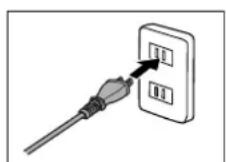
Plugging the AC Power Plug into an AC outlet
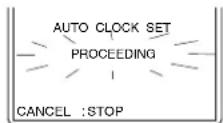
*Important: If a remote control button does not work when pressed, press the VCR button on the remote and try the button again.
3 Settings are made automatically. When setup is done, this screen appears.
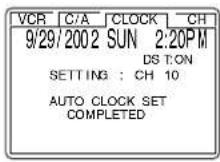
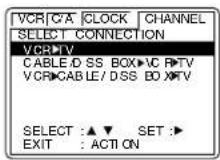
4 SELECT CONNECTION screen is displayed. Press ^ to select connection "VCR TV" or "VCR CABLE/DSS BOX TV", and press to set.
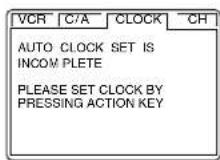
If "AUTO CLOCK SET IS INCOMPLETE" appears, manually set clock. See below right.
(ounon)
d
Manual Clock Set
If Auto Clock Set was incomplete.
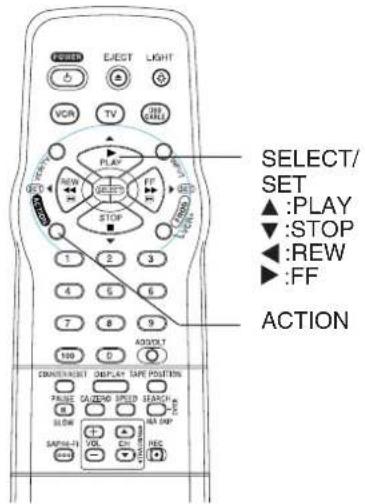
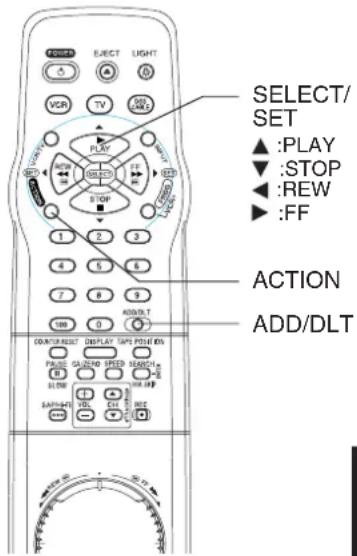
a Press ACTION on remote to display CLOCK screen.
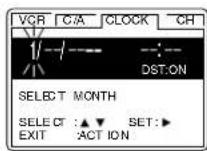
Press to select the month and to set. In the same manner, select and set the date, year, time, and DST (Daylight Saving Time).
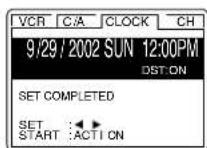
Press ACTION to start clock, and go to step 4 above left.
Initial Setup for DSS/Cable Box VCR TV Connection
Please make all cable or antenna connections before plugging into the AC outlet.
Plugging the VCR Power Cord into an AC wall outlet starts auto channel and clock set.
How to Connect
1 Connect the OUT Jack on your cable box to the IN FROM ANT. terminal on the VCR with the RF Cable.
Connect the OUT TO TV terminal on the rear of VCR to the ANT. IN terminal on TV using the RF Cable (included accessory).
-WARNING

When using "Nut type" RF coaxial cables, tighten with fingers only. Overtightening may damage terminals.
Doing Initial Setup (Ready to Play)
1 Turn TV on and tune to channel 3.
- Turn on your cable box and set it to your Public Broadcasting Station (PBS) channel in your time zone. If you use a DSS receiver, it must be turned off.
2 Plug VCR Power Cord into AC wall outlet. VCR comes on and auto channel and clock set starts.
- If screen right does not appear, check VCR - TV connection and, if TV is tuned to channel 3, try switching it to channel 4.
To change VCR's output channel, please refer to "VCR's Output Channel" on page 13.
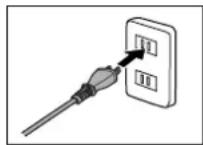
Plugging the AC Power Plug into an AC outlet
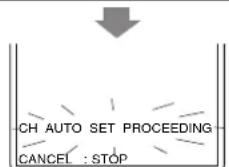
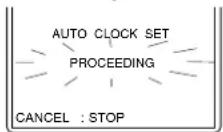
*Important: If a remote control button does not work when pressed, press the VCR button on the remote and try the button again.
3 Settings are made automatically. When setup is done, this screen appears.
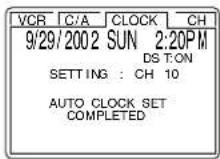
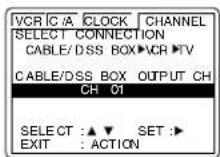
4 SELECT CONNECTION screen is displayed. Press ^ to select connection "CABLE/DSS BOX VCR TV" and press to set.
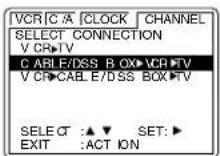
Confirm the output channel of your cable box or DSS receiver. Press to select the same channel as the cable box or DSS receiver output channel. Press to enter.
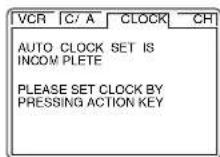
If "AUTO CLOCK SET IS INCOMPLETE" appears, manually set clock. See right.
(ounon)
dme
Manual Clock Set
If Auto Clock Set was incomplete.
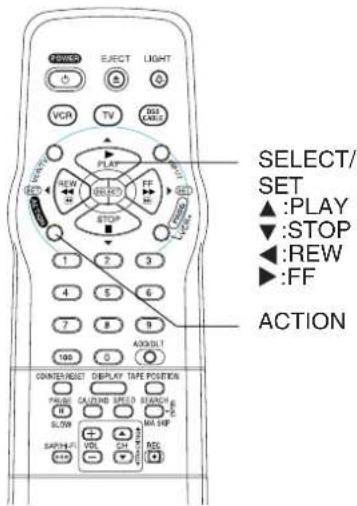
a Press ACTION on remote to display CLOCK screen.
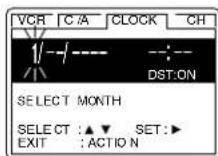
Press to select the month and to set. In the same manner, select and set the date, year, time, and DST (Daylight Saving Time).
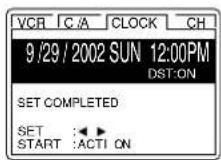
Press ACTION to start clock, and go to step 4 above left.
Reset Language, Channels, Clock,
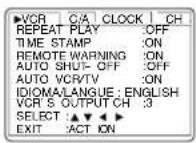
1
VCR C/A CLOCK CH
REPEAT PLAY :OFF
TIME STAMP :ON
REMOTE WARNING :ON
AUTO SHUT-OFF :OFF
AUTO VCR/TV :ON
IDIOMALANGUAGE: ENGLISH
VCR'S OUTPUT CH :3
SELECT T:▲▼▶
EXIT :ACTION
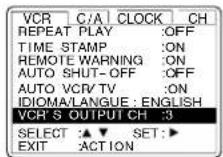
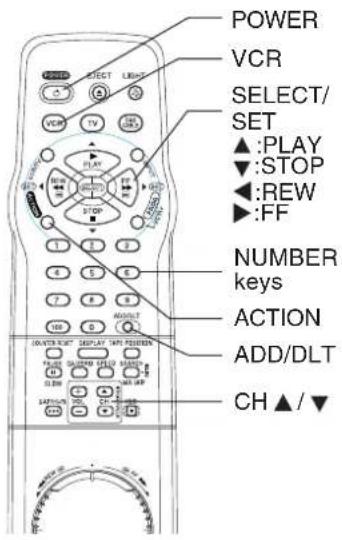
Press ACTION* to display menu.
2
Language
1) Press to select language item.
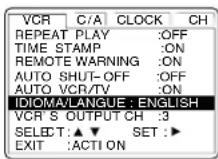
2) Press repeatedly.
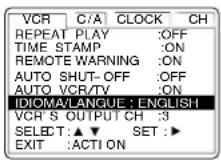
For English
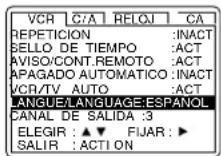
For Spanish
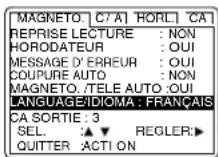
For French
3) Press ACTION to exit.
Channels
1) Press select CHANNEL.
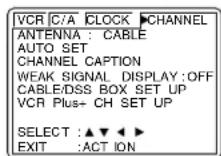
2) Press to select "ANTENNA," then press to set your antenna system ("TV" or "CABLE").
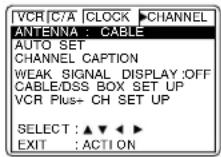
3) Press select "AUTO SET," then press
- If you use a Cable Box, set it to the PBS channel in your time zone.
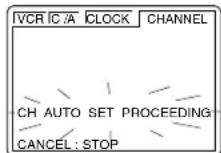
After Channel Auto Set is finished, Auto Clock Set will be performed.
Clock
1) Press select CLOCK.
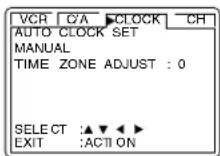
2) Press select "MANUAL," and press For Auto Clock Set, select "AUTO CLOCK SET."
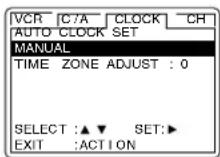
(TIME ZONE ADJUST" appears only when auto clock is set.)
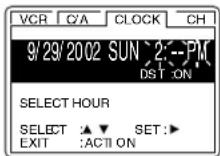
3) Press and to select and set the date, time, and DST (Daylight Saving Time).
4) Press ACTION to start the clock and exit this mode.
VCR's Output Channel
*Important: If a remote control button does not work when pressed, press the VCR button on the remote and try the button again.
Time Zone Adjust
(Only when Auto Clock is set.)
1) Press select CLOCK.
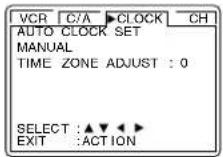
VCR's Output Channel
1) Press to select VCR'S OUTPUT CH.
Onen
01SBg
2) Press select "TIME ZONE ADJUST."
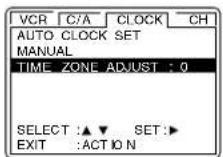
2) Press
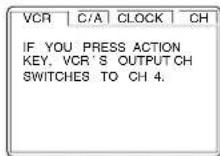
3) Press ACTION.
After 3 seconds
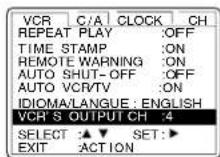
To Make Corrections, repeat steps 1) 3).
Add or Delete a Channel
To add channel: Select channel with NUMBER keys and press ADD/DLT.
CHANNEL 08 ADDED
To delete channel: Select channel with CH NUMBER keys and press ADD/DLT.
CHANNEL 08 DELETED
DST (Daylight Saving Time)
VCR auto adjusts clock for DST. (p. 9.)
Spring (First Sunday in April) DST:ON Sets clock ahead one hour.
Autumn (Last Sunday in October) DST:ON Tums clock back one hour.
- If your area does not observe Daylight Saving Time, select DST:OFF.
- Keep these time changes in mind when programming VCR for timer recordings.
Playback a Tape

Ready Checklist
All connections are made (p. 8, 10, 24).
TV and VCR are plugged in.
TV is on and tuned to CH 3, 4, or VIDEO.
Remote is in VCR mode. (Press VCR)
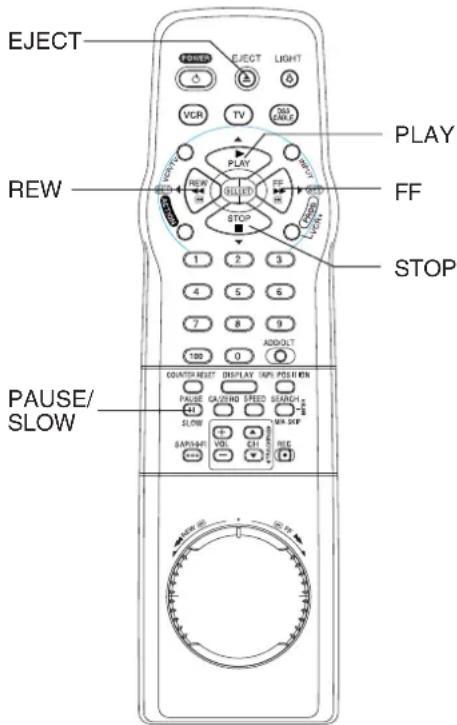
Playback using VCR controls
1 Insert a tape.
2 Press PLAY.
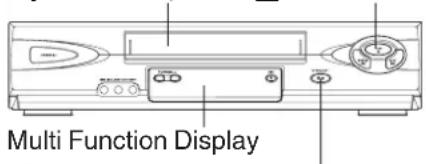
Press STOP/EJECT to stop and/or eject tape.
Note
Remove loose or peeling labels from tapes to prevent tape jam.
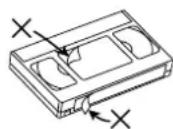
Insert a tape,
VCR power comes on. "VCR" lights on Multi
Function Display. If Auto VCR/TV (p. 35) is
set to "OFF," press VCR/TV until "VCR"
lights on the Multi Function Display.
Press PLAY to play tape.
- If tape has no rec. tab (p. 4), auto play begins.
Special Features During Play
Forward/ Reverse scene search
Press FF or REW.
Press PLAY to release.
After search has begun, each additional press
of FF or REW changes speed as shown below.
[SLP]: Approx. 21X Approx. 43X
[LP] : Approx. 9X Approx. 15X
[SP] : Approx. 7X Approx. 13X
If picture is interrupted at 43X, 15X, or 13X
speed, speed changes to 21X, 9X, or 7X.
It may take a moment for 43X, 15X, or 13X search
to start while tape condition is being determined.
- 43X, 15X, or 13X search may not be possible with some tapes.
Notes
- Picture interruption may occur with some TVs.
- FF and REW search speed may vary depending
on current tape position.
Still (Freeze) picture
Press PAUSE/SLOW.
Press PLAY to release.
Frame by Frame picture
Press PAUSE/SLOW in Still mode.
Press PLAY to release.
Slow Motion picture
Hold down PAUSE/SLOW in Still mode.
Press PLAY to release.
Notes
These features work best in SP or SLP mode.
The sound will be muted.
To reduce picture noise, see "Manual Tracking Control" on page 37.
After the VCR is in Still or Slow mode for 3 minutes,
it will switch to Stop mode automatically to protect the tape and the video head.

Press STOP to stop tape.
Rapid Rewind/ Fast Forward
(E.g., T-120 tape rewinds in approx. 1 minute.)
Press REW or FF in Stop mode.
Notes
- Rewind or FF starts after VCR detects tape length. This may take a moment.
- Rew/FF speed slows down at start and end portions of the tape.
Press EJECT on remote,
or STOP/EJECT on VCR to eject tape.
Record on a Tape
Important: If a remote control button does not work when pressed, press the VCR button on the remote and try the button again.

Ready Checklist
All connections are made (p. 8, 10, 24).
TV and VCR are plugged in.
TV is on and tuned to CH3, 4, or VIDEO
Remote is in VCR mode. (Press VCR)
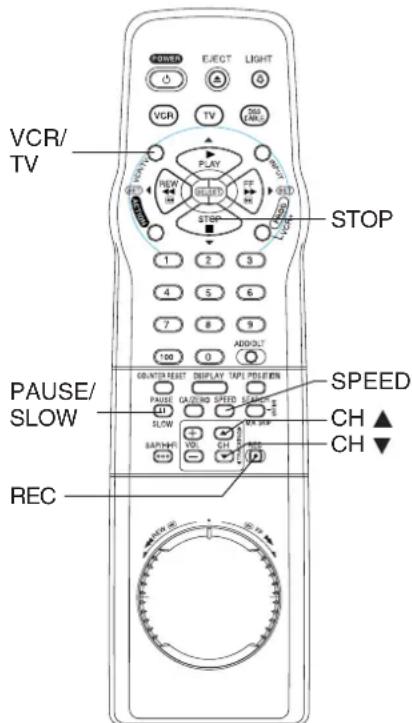
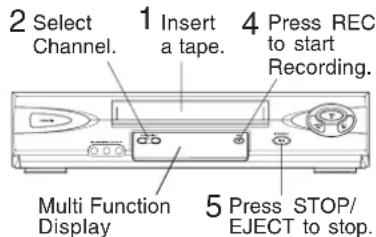
Record using VCR controls
This video recorder, equipped with HQ (High Quality) system, is compatible with existing VHS equipment. Only use tapes with the W34k. Only tapes tested and inspected for use in 2, 4, 6, and 8 hour machines are recommended.
Insert a tape with a record tab (p. 4).
VCR power comes on. "VCR" lights on Multi Function Display. If Auto VCR/TV (p. 35) is set to "OFF," press VCR/TV until "VCR" lights on the Multi Function Display.
2 Press CH NUMBER keys to select the channel.
For "LINE" input, see p. 36.
For channel over 100, first press 100 key then the other 2 digits.
3 Press SPEED to select the record speed (p. 4). SP = Standard Play LP = SLP = Super Long Play
- Speed appears on-screen and on Multi Function Display.
4 Press REC to start rec
To edit, press PAUSE/SLOW to pause, and again to resume recording.
5 Press STOP to stop recording.
One Touch Recording (recording in progress),
VCR shuts off after the preset record length.
each press of REC adds 30min to the recording length up to 4 hours.
Record one station, watch another,
press VCR/TV ("VCR" goes out on Multi Function Display),
select channels on TV (recording continues).
Note
- Watching one channel and recording another is NOT possible when using a Cable Box or a Satellite Receiver.
Select channels on VCR,
- Other channels cannot be viewed during recording.
press VCR/TV ("VCR" lights up on Multi Function Display),
select channels on VCR.
Note
After 5 min. in Pause mode, VCR stops to protect the tape and the video head.
Opener
01s2q
Timer Recording
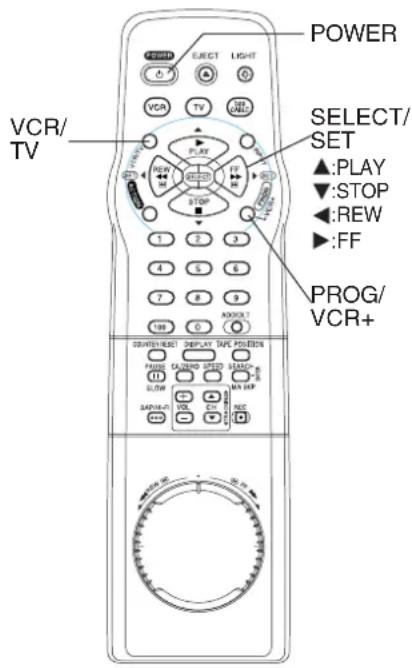

Ready Checklist
All connections are made (p. 8, 10, 24).
TV and VCR plugged in and turned on.
VCR/TV selector set to "VCR."
Clock set correctly.
Tape has rec.tab (p.4).
Remote is in VCR mode. (Press VCR)
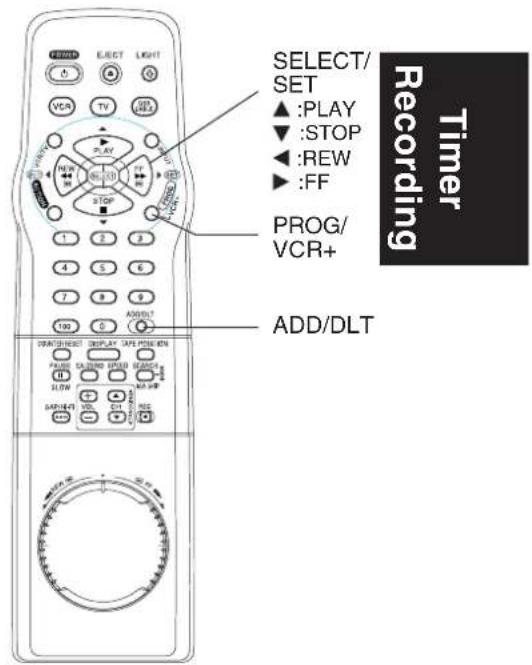
1 Press PROG/VCR+* button to display PROGRAM.
VCR Plus+ PROG. LIST
DATE START STOP CH
13 SAT --- -- --
TODAY CATEGORY:N/A SLP
SELECT :▲▶
EXIT :PROG
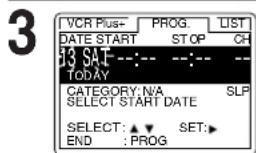
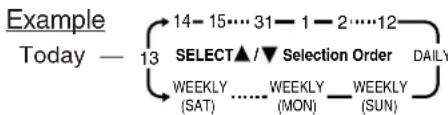
1) Set record DATE, press select: 1~31= one time, or DAILY= MON~ FRI, or WEEKLY= same time each week and press to set.
See selection order below left.
2) To set remaining items, press to select and press to set START/STOP times, CH (channel) or LINE input (p. 36), Category* and tape speed (SP, LP, SLP).
Press PROG/VCR+ button to end the program.
**Category Items
N/A (not applicable),
SPORTS, MOVIE, COMEDY, MUSIC, DRAMA
Notes
- If you are using a Cable Box, VCR Timer Programming Channel (Step 3) must be set to the Cable Box output channel and your Cable Box must be manually set to the desired channel. The Cable Box must be left on.
- If a power interruption occurs while programming the timer, the timer program(s) may be cancelled. If "TIMER PROGRAMS WERE LOST DUE TO POWER INTERRUPTION" appears on-screen, please re-enter the timer programs.
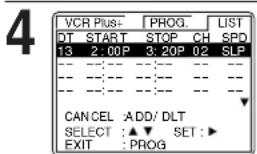
To Enter More Programs, press to select and press to set an unused program number and repeat step 3.
Press PROG/VCR+ button again to exit.
5 Press POWER off to set the Timer Re
("TIMER" lights up on Multi Function Display.)
Review, Replace or Clear Program Contents:
(Recording is not in progress)
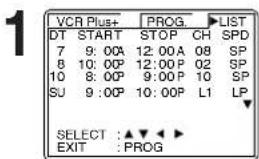
1) Press PROG/VCR+ button.
2) Press to select LIST.
To cancel a Timer Recording in progress...
Press POWER and then press press STOP within 10 seconds to cancel the Timer Recording. (The TIMER indicator goes out on Multi Function Display.)
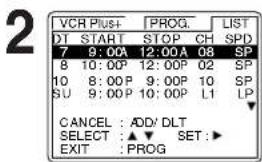
Press to select number.
3 To Replace program...
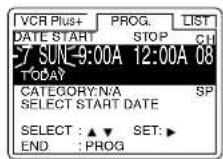
1) Press to display.
2) Repeat Step 3 (p.16) to set new programs.
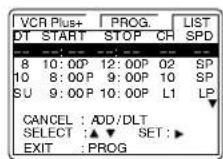
or Clear program...
Press ADD/DLT.
4 Press PROG/VCR+ button to end the programming.
- If there are set programs, press POWER off to set timer.
Important notes when using a DSS receiver
- When recording programs via a DSS receiver, the DSS receiver must be left on.
- When recording programs via antenna or cable, the DSS receiver must be turned off.
Timer Recording Using VCR Plus+® System
Auto VCR Plus+ System Channel Setup (Part 1)
For [VCR TV] or [VCR cable box TV] connection only.
In order for VCR to read PlusCode numbers, some set-up is required. Guide channel numbers are assigned to each local broadcast and cable station. Because this number sometimes differs from the channel your TV receives the station on, it is necessary to program the VCR with local channel information. To receive VCR Plus+ channels automatically, perform the steps below. Or, see "Manual VCR Plus+ System Channel Setup" section on page 20.
1
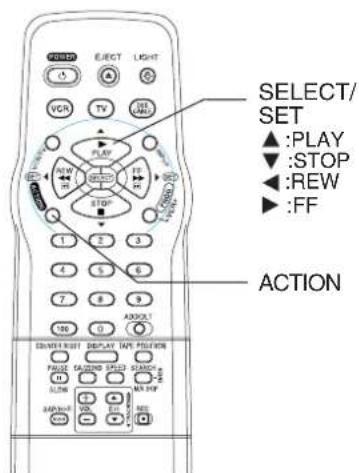
Press ACTION*
to display menu.
VCR Plus+ System is ... a feature that allows you to set most items for timer recording by simply entering a special code number (PlusCode programming number) found in TV GUIDE and selected newspaper TV listings.
Important Note
- "Initial Setup" on pages 8 ~ 11 must be completed before "Auto VCR Plus+ System Channel Setup" can be done. If any part of setup is incomplete, a warning screen appears.
2
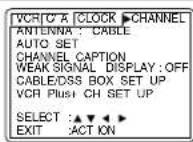
Press
to select CHANNEL.
3
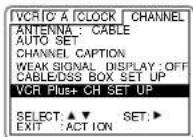
Press ▲
to select VCR Plus+ CH SET UP and
press to display.
4
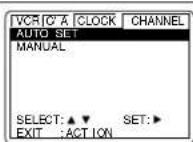
Press ▲
to select AUTO SET and
press to set.
5
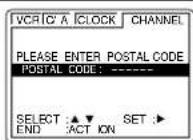
Press
to enter POSTAL Code and enter each number. Press or ACTION to set.
6
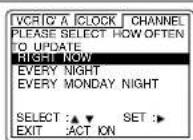
Press ▲
to select When to Update and press set.
7
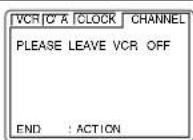
Press ACTION to
return to normal screen.
Make sure to leave VCR off (overnight).
Notes
- When Auto Set is performed, channels set in initial setup (pp. 8 ~ 11) will be replaced by automatically downloaded data.
Make each entry within 1 minute or VCR will leave this mode.
Once local channels have been programmed, they will stay in memory, even in the case of a power failure. - If the start time for a timer recording comes up during Auto VCR Plus+ System Setup, the timer recording will have priority.
Auto VCR Plus+ System Channel Setup (Part 2)
Before you perform the following steps, you should have:
completed "Auto VCR Plus+ System Channel Setup (Part 1)" on page 18.
- left VCR off overnight, and turned it back on after 9:00 AM the next day.
If channel updating was successful...
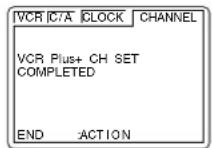
Press ACTION to exit this mode.
If VCR could not distinguish channel map...
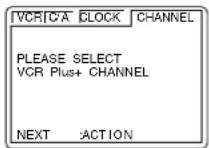
Press ACTION to display SELECT VCR Plus+ CH screen. Continue with step 2.
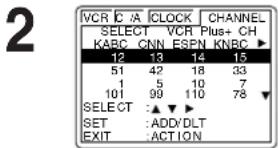
Press select channel map for your area and press ADD/DLT to set.
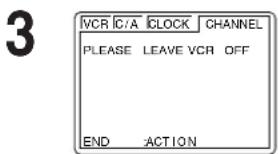
Press ACTION to return to normal screen.
Make sure to leave VCR off (overnight).
Channel map will be updated (overnight). If it was successful, "VCR Plus+ CH SET COMPLETED" appears on screen. Press ACTION to exit.
Repeat these steps as necessary.
If Auto Setup fails, do "Manual VCR Plus+ System Channel Setup" on page 20.
To Change or Update Auto VCR Plus+ System Channel Setup (E.g. you selected wrong channel map or POSTAL code.)
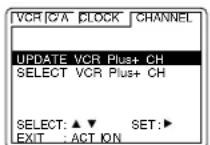
a Do "Auto VCR Plus+ System Channel Setup (Part 1)" steps 1~4 on page 18.
Press select UPDATE VCR Plus+ CH or SELECT VCR Plus+ CH, then press
c If you selected UPDATE VCR Plus+ CH, perform steps 5~7 in the "Auto VCR Plus+ System Channel Setup (Part 1)" section on page 18.
If you selected SELECT VCR Plus+ CH, perform steps 2~3 in the "Auto VCR Plus+ System Channel Setup (Part 2)" section on this page.
Timer Recording Using VCR Plus+® System (continued)
Initial Setup.
In order to use Timer Recording Using VCR Plus+ System, the Initial Setup on page 8 to 11 must be completed for setting Clock and Channel.
Channel Setup.....
Since numbers assigned to channels found in TV Guide and selected newspapers may differ from channels in your viewing area, you'll need to enter your local TV channel number for each corresponding Guide Channel. If you perform the VCR Plus+ Channel set up procedures shown below, you will be able to perform timer recordings using the PlusCode programming number listed in your local TV listing.
Manual VCR Plus+ Channel Setup
For [VCR*TV] or [VCR*cable box*TV] connection only.
To complete step 5 of setup, do the following:
- Prepare a TV/Cable station line-up and channels they are received on. Also, the Guide channel numbers assigned to your stations (found in TV Guide and selected newspapers.)
Make a 3-column chart (see sample). Left column all stations you receive. Middle column each station's assigned Guide channel number from TV Guide, etc. Right column channel number on which your TV receive the station.
SAMPLE ONLY
| Broadcast or Cable station name | Assigned Guide channel No. | Channel No. on which my TV receives the station. |
| HBO | 33 | 15 |
| Nickelodeon | 38 | 20 |
| CBS | 04 | 04 |
| FOX | 11 |

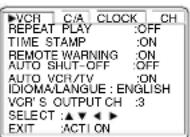
Press ACTION* to display menu.

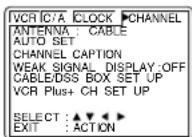
Press to select CHANNEL.

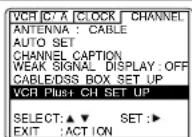
Press ▲▼ to select VCR Plus+ CH SET UP, and press▶ to set.

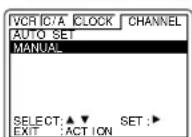
Press to select MANUAL, and press to set.

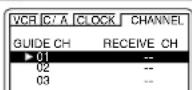
To enter VCR Plus+ channels, press to move cursor to right, press to enter number, press to set, and press scroll up/ down.

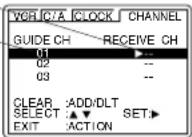
- Repeat step 5 until list is complete.
To Make Corrections,
press and to move to error, then to change, or ADD/DLT to erase number.

Press ACTION twice
to return to normal screen.
VCR Plus+ System Programming

Ready Checklist

Clock is set

VCR Plus+ Setup is complete (see pp. 18 - 20).

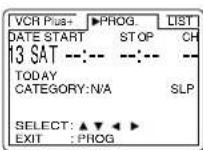
Press PROG/VCR+ button to display PROGRAM.

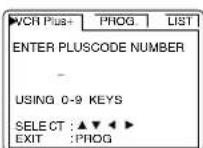
Press
to select display VCR Plus+ screen.

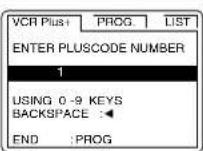
Press NUMBER keys to enter PlusCode number and press PROG/VCR+ button to set.
To Make Corrections, press repeatedly to delete number, then repeat step 3.
- If the PlusCode number entered begins with "0," skip to step 5. Display in step 4 will not appear.

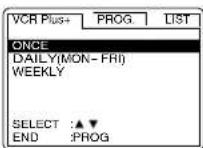
Press ▲
to select ONCE, DAILY(MON~FRI), or WEEKLY recording frequency and press PROG/VCR+ button to set.

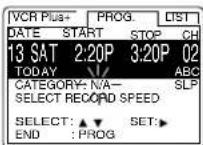
Press
to select category and recording speed. Press to set.
Press PROG/VCR+ button to end program.

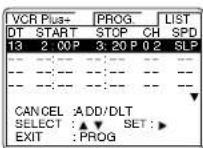
Press PROG/VCR+ button again to exit.
- Press ADD/DLT to delete the program.

Press POWER off to set the timer. ("TIMER" lights up on Multi Function Display.)
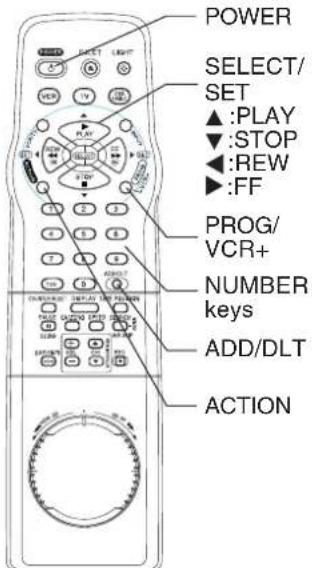
Do normal Timer Record if...
- PlusCode number is not listed for program.
the program (e.g. sports event) may run over set stop time.
See page 17 to:
- cancel a timer recording in progress.
- review, replace, or clear program contents.
Important for DSS/Cable Box Users
- When recording via DSS, the receiver must be left on. When recording via cable or antenna, DSS receiver must be off.
- When recording via a cable box, leave box on and tuned to channel to be recorded.
Notes
- Do not overlap program times.
- PlusCode numbers cannot be used to program VCR to record DSS and cable box channels.
Make each entry within 1 minute or the VCR will exit setup mode. - Once VCR Plus+ channel setup is done, channels stay in memory. If a power interruption occurs, VCR Plus+ channel setup may be lost. Please do VCR Plus+ channel setup again.

Timer
Multi-Brand Control Feature
Multi-Brand Control Setup
The Remote Control can be set to control some TV and Cable box/DSS functions.
1 Find your TV and Cable Box/DSS Receiver Brand Code Number on the following page.

Setup for TV control,
hold down TV button.
enter code with NUMBER keys.
Setup for Cable or DSS control,
hold down DSS/CABLE button.
enter code with NUMBER keys.
If code number is 100 or greater.
press 100 key, then other digits.
e.g., press 100 - 0 - 2 for 102.

Confirm code entry,
press POWER to turn selected unit on or off.
See table below for controllable functions in each mode.
Notes
- Repeat setup after remote battery replacement.
- Remote will not control every TV, cable box, or DSS made by the manufacturer listed. If you get no response, your particular unit cannot be controlled. There are NO additional codes for the products listed. If your product is not listed, then the remote is not compatible with that product.
Using Multi-Brand Control
After remote is set up, you can select VCR, TV, or DSS/CABLE for the desired function.
Press VCR, or TV, or DSS/CABLE on the remote. (Table below shows available unit buttons for each mode.)
| Unit Mode | VCR TV | CABLE/ DSS | |
| VCR | All | VOL UP/DOWN | —— |
| TV | VCR/TV, PLAY, STOP EJECT, SAP/ Hi-Fi, DISPLAY, FF, REW, PAUSE/SLOW, REC, SPEED, CA/ZERO, COUNTER RESET, TAPE POSITION | POWER, INPUT, number keys, ENTER, CH UP/ DOWN, VOL UP/DOWN | —— |
| CABLE/DSS | VOL UP/ DOWN | POWER, ENTER, number keys (except 100key), CH UP/ DOWN |
Notes
- Not all functions listed may be controllable.
- In TV or DSS/CABLE mode, it may be necessary to press ENTER after pressing NUMBER keys for channel selection.
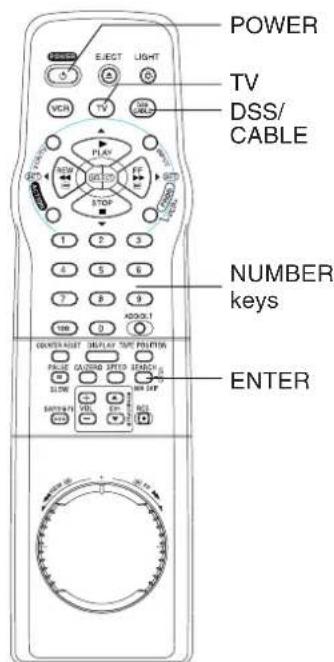
TV Brand Code Numbers
Panasonic 01,02 Sylvania .05 JVC. 11
Quasar 01, 02 Sharp 06, 07 Hitachi 12
RCA 03 Sony 08 Mitsubishi 07,13
GE 03 Toshiba 09 Samsung 14
Zenith 04 Sanyo 10 Gold Star 15, 16, 17
Magnavox 05 Fisher 10
Cable Box Brand Code Numbers
Archer 44,06,01,120,05,63,126 Oak Sigma 46,11,129,101
Cableview 29,09,01,63,120,44,42,30 Panasonic 17,16,08,87,109
52,04,124,126 Philips 23,24,20,13,07,50,128,129
Citizen 44,52,30,63,42,04,124,126 Pioneer 06,05,12
Curtis 08, 09, 25, 61, 53, 87 Pulsar .04, 42, 63, 44, 30, 52, 124, 126
Century 44.51.75.59.126 Quest 06,05,12
Cabletenna 29,09,01,63,120,44,126 Radio Shack 44,51,75,59,126
Cable Cinema 29,09,01,63,120,44,126 RCA 17,16,08,87,109
Diamond 29,09,01,63,120,44,126 Realistic 44,51,75,59,126
Eagle 62,40,22,13,58,20,26,107 Recoton 44,51,75,59,126
Eastern 28, 29, 130 Regal 41, 14, 15, 28, 102, 104, 103, 130
Explorer 08, 09, 25, 61, 53, 87 Regency 28, 29, 130
Gemini 30, 04, 124 Rembrandt 44, 42, 63, 29, 01, 32, 39, 120, 126
General Electric 01,57,120 Samsung 42,06,32,05,40
General Instruments. 01, 84, 83, 34, 03, 02, 04, 55 Scientific Atlanta .08, 09, 25, 61, 53, 87
65, 66, 67, 68, 120, 106, 121, 122, 115, 117, 118, 124 Sheritech 27
Gerrard 44,51,75,59 Signal 26,112
GC Electronics 44, 42, 63, 29, 30, 52, 04 SL Marx 42, 06, 32, 40, 43, 44, 52, 63, 126
124, 126 Sprucer 17, 16, 08, 87, 109
Hamlin 41, 14, 15, 28, 102, 104, 103, 130 Standard Components 32, 39, 42, 44, 126
Hitachi 31 Stargate .04,42,32,40,63,44,30,52,06
Jerrold 01,84,83,34,03,02,04,55,65,66 124,126
67, 68, 120, 106, 121, 122, 115, 117, 118, 124 Sylvania 19, 18
Jasco 30,04,124 Teknika 74,35
Macom 31 Telecaption 77, 127
Magnavox 26, 112 Teleview 40, 19, 38, 32, 42, 06
Matsushita 17, 16, 08, 87, 109 Texscan 19, 18
Movetime 32, 39, 42, 44, 126, 38, 40 Tocom 34, 33, 01, 42, 66, 120
Maestro 74,35 Toshiba 36
NEC 40,19,38,32 Unika 44,42,63,29,01,126,120
NSC 40,19,38,32 Universal 52,43,44,63,42,126
Novavision 08, 09, 25, 61, 53, 87 Viewstar 62, 40, 22, 13, 58, 20, 26, 107
Next Level 01,84,83,34,03,02,04,55,65 Videoway .07,23,50,129
66, 67, 68, 120, 106, 121, 122 Vidtek 64
Oak 46,11,129,101 Zenith .07,23,50,129
DSS Brand Code Numbers
Toshiba 90 Optimus 94, 95
Hitachi/ Hughes 91,99 Panasonic 96
97
Drake 93 RCA 97
Magnavox 94, 95 98, 105
Uniden 94, 95
Important Notes
- Due to changes in infra-red commands used by manufacturers, some brands have several codes. If your unit does not respond to the first code, please try the next one.
- Some TV, Cable Box and DSS Box brands require you to turn on the power manually.
Onenrnnnne
paeanea
Advanced Connections
Audio/Video Connection
If your TV has AUDIO IN and VIDEO IN terminals, you can connect your VCR to them to receive higher quality picture and sound.
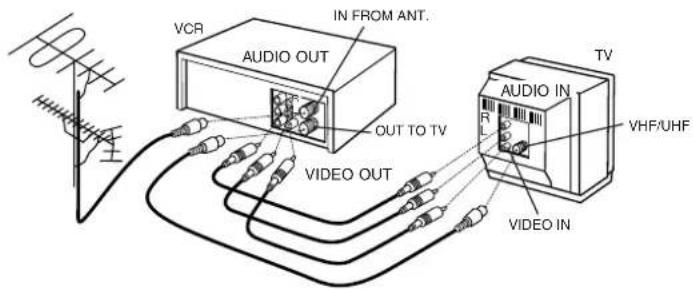
1 Connect the VIDEO OUT terminal on the VCR to the VIDEO IN terminal of your TV.
Connect the "L" and "R" AUDIO OUT terminals on the VCR to the "L" and "R" AUDIO IN terminals of your TV.
③ Set the VIDEO/TV selector of your TV (Monitor/Receiver) to "VIDEO."
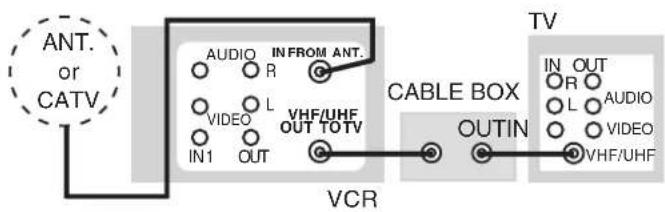
With a Cable Box (VCR→ Cable Box)
view any (including scrambled) channel.
- use VCR Remote Control to select channels without using Multi-brand control feature.
You Can
You Cannot
- record scrambled channels.
You Cannot
view channel other than the one selected for any type of recording.
do a Timer recording of a channel unless you select it at the cable box.
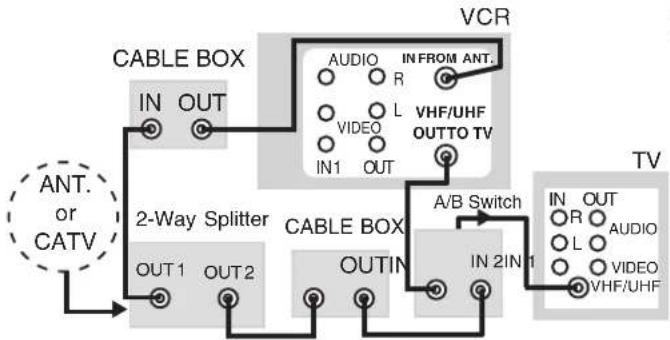
Connect With Two Cable Boxes
MTS Broadcast/VHS Hi-Fi Stereo System
Connection
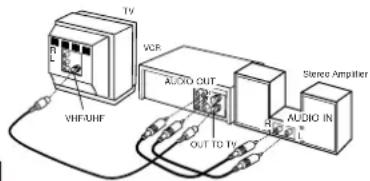
Make the Audio/Video Connection as shown on the previous page.
- You can use a TV connected to a Stereo amp and speakers instead of a Stereo TV.
Receivable Broadcast Types
The following are possible audio broadcast types and on-screen displays. The signal being received is indicated with an "k" mark while the selected audio mode is indicated with an arrow.
To display the broadcast signal being received, press DISPLAY.
MTS Stereo and SAP broadcast
Multi-channel Television Sound Stereo (main language) and Secondary Audio Program (sub language) broadcasts are being received simultaneously. Select STEREO or SAP audio mode.
MTS Stereo broadcast
Multi-channel Television Sound Stereo broadcast. Select STEREO audio mode
- If stereo broadcast is weak and display flickers, select MONO audio mode for possible better results.
SAP broadcast
Secondary Audio Program (sub language) broadcast. Select SAP audio mode for the sub language.
MONO broadcast
Normal monaural sound broadcast.
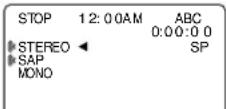
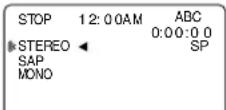
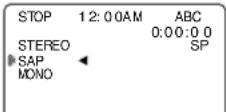
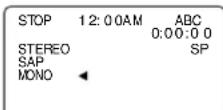
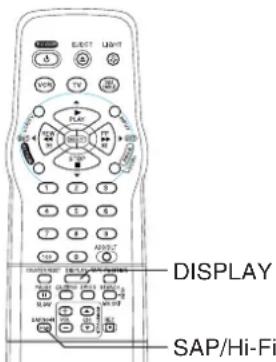
Equipped with dbx^® -TV Noise Reduction for true MTS reproduction. dbx^® -TV Noise Reduction is required for good stereo separation and audio fidelity. dbx^® is a registered trademark, and is licensed by dbx^® Technology Licensing.
Audio Mode for Recording
1 Press SAP/ Hi-Fi to display audio mode. (Display disappears after 5 seconds.)
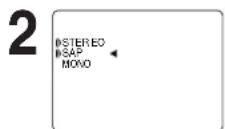
- Arrow indicates selection.
Press SAP/ Hi-Fi repeatedly to select desired mode.
Refer to "Receivable Broadcast Types" above.
Audio Mode forPlayback
1 Start playbac See page 14.
2 Press SAP/ Hi-Fi to display audio mode. (Display disappears after 5 seconds.)
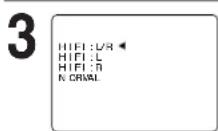
- Arrow indicates selection.
Press SAP/ Hi-Fi repeatedly to select desired mode.
- Select "HIFI(L/R)" or "HIFI(L)" or "HIFI(R)" to listen to stereo recordings in stereo sound. Select "NORMAL" for monaural sound.
ouenrreep
paeanea
Notes
- Only tapes recorded in Hi-Fi stereo will playback with true stereo sound. Standard stereo tapes will playback in monaural sound.
- To listen to Hi-Fi stereo playback, the VCR AUDIO (L/R) jacks must be connected to a stereo TV or an external stereo amp and speakers. (See top of this page.)
- If tracking is adjusted during playback, Hi-Fi audio may revert to normal audio.
Hi-Fi and normal audio playback volume level may differ.
Tape Operation
COMMERCIAL ADVANCE
COMMERCIAL ADVANCE detects and marks the beginning and end points of commercials on your tape for recordings over 15 minutes in length. When COMMERCIAL ADVANCE marked tape is played back, the VCR a automatically advances through the commercial segments at high speed. You can also set this feature to Manual so as to have more control over the advance process. The effectiveness of this system can vary due to differences in the way television stations broadcast. See page 28 for answers to the most commonly asked questions about this feature.
COMMERCIAL ADVANCE\* Marking
When C/A RECORD: ON, VCR automatically rewrites the tape after a recording has been made and marks the beginning and end of any detected commercial blocks. After marking is done, the tape is returned to the end of the recording. Commercials are not erased from the tape.
1
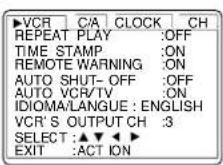
Press ACTION*
to display menu.
2
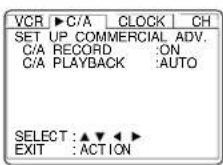
Press to select C/A and SET UP COMME ADV.
Press to select C/A RECORD and press to set.
3
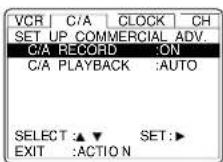
CR Plus+ System, and One Touch recordings are marked automatically.
ON Timer Recording, VCR Plus+ System, and One Touch recordings are marked automatica
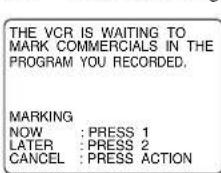
When STOP is pressed during normal recording, Select One of a) or b) or c).
a) Press 1 key to mark the recording now. "NOW MARKING COMMERCIALS" appears. b) Press 2 key to mark the recording later (after the power has been turned off).
- If the tape is rewound and another recording started before the power is turned off, commercials may not be marked correctly.
c) Press ACTION to cancel the marking of this recording.
OFF The VCR will not mark commercials.
When you are editing or dubbing a tape, or when you do not wish to use this feature, OFF should be selected.
4 Press ACTION again to return to normal scr

Ready Checklist
All connections are made.
One time Setup completed.
VCR is plugged in.
TV is turned on and set to CH3, 4 or Video on TV.
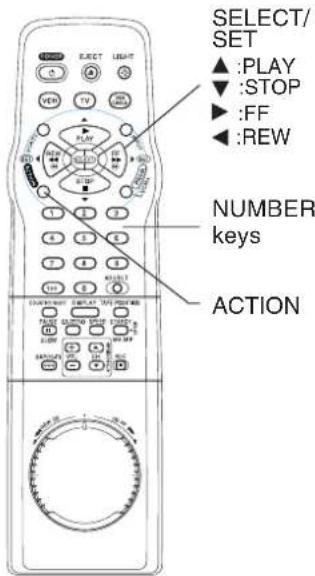
*Important: If a remote control button does not work when pressed, press the VCR button on the remote and try the button again.
COMMERCIAL ADVANCE®Playback
When playing back a recording which has been marked using the COMMERCIAL ADVANCE feature, you can either set VCR to automatically advance through marked commercial blocks, or set it so that commercials are only skipped on your command.
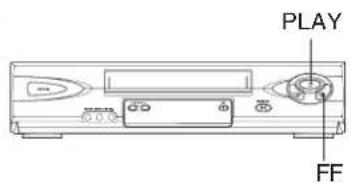
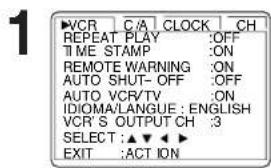
Press ACTION
to display menu.
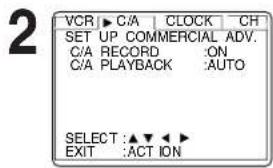
Press
to select C/A and display SET UP COMMERCIAL ADV.
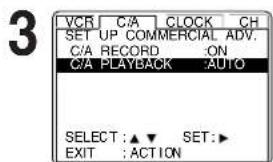
Press
to select C/A PLAYBACK and press to set "AUTO" or "MANUAL".
AUTO: VCR will automatically advance through marked commercial blocks recorded on the tape and then resume playback.
MANUAL: VCR will advance through commercials only when CA/ZERO is pressed. Playback will resume when the end mark of a commercial block is found, or a new recording or blank portion is detected, or after 8 minutes.
4 Press ACTION again to return to normal scr
COMMERCIAL 一 ^ 一 ADVANCE and
MOVIE 一 ^ 一 ADVANCE are
registered trademarks of SRT, Inc.
A Jerry Iggulden invention licensed
in association with Arthur
D.Little Enterprises, Inc. U.S.Pat.No.5,333,091; 5,692,093;5,696,866 other patents pending
ouenrreoe
paeanea
Notes
- The selection mode in step 3 remains set unless there is a power outage in which case the original factory setting will be restored.
- If playback is started in the middle of a commercial, only a single commercial is shown, or an individual commercial is longer than 1 minute, the commercial may not be skipped. Press FF to quickly advance through the commercial.
- Part of a recorded program may be skipped over if the program portion between commercials is less than 1 minute or there are frequent dark and quiet scenes during the program. To view the portion of tape being incorrectly skipped, press PLAY while the VCR is skipping, reverse the tape to a point just prior to where the skipping began and press PLAY again. This time the group will not be automatically skipped. Automatic skipping will be re-enabled when the end of the marked group is detected.
Tape Operation (continued)
The most commonly asked questions about CAMEERISWADVANCEI.
| Question | Answer |
| How fast does the VCR advance through commercials? | The VCR advances through a 3-minute commercial block in about 8 to 12 seconds if the tape speed is SLP. In SP, it takes about 25 to 35 seconds. |
| Are commercials advanced through only when I playback a recording? | Yes. The commercials are not marked until after the recording is finished. |
| Are commercials still recorded on the tape in case I choose to view them sometime? | Yes. By setting the C/A PLAYBACK to MANUAL (see page 27), you can view or advance through commercials as desired. |
| Does COMMERCIAL→ADVANCE* all recording speeds? | Yes.COMMERCEAL→ADVANCE*SLP. |
| Does the VCR advance through commercials each time I playback tapes which were recorded using COMMERCIAL→ADVANCE*? | Yes. As long as C/A PLAYBACK is set to AUTO (see page 27), the VCR should advance through commercials each time the tape is played back. |
| After marking commercials, does the VCR stop at the end of the tape, or rewind to the beginning? | The tape stops at the end of the recording so that any additional timer recordings can be performed. |
| Can I play my COMMERCIAL→ADVANCE* recordings in non- COMMERCIAL→ADVANCE* VCRs? | Yes.COMMERCEAL→ADVANCE*play in non-COMERCIAL→ADVANCE* commercials will not be advanced through. |
| Does the marking process interfere with other programmed recordings? | No. If the interval between 2 or more timer programs is not sufficient to mark the recording, marking will be done after all recordings are complete and the power goes off. |
| What happens if I cancel the marking in progress so I can use the VCR? | Marking will be resumed when the VCR's power is turned off as long as the tape has not been ejected. |
| What if part of my program is advanced through along with the commercials? | Please see the 3rd note on page 27. |
| Additional Notes:· Because of the various ways in which commercials are broadcast, the VCR may not be able to recognize all commercials.· If a timer recording is scheduled for the middle of the night, please be aware that the VCR will make some noise as it rewrites and fast forwards the tape while marking commercials. | |
COMMERCIAL ADVANCE and regisADVANCE remarks of SRT, Inc.
A Jerry Iggulden invention licensed in association with Arthur D. Little Enterprises, Inc.
U.S.Pat.No.5,333,091
5,692,093; 5,696,866
other patents pending
*Important: If a remote control button does not work when pressed, press the VCR button on the remote and try the button again.
MOVIE ADVANCE
MOVIE ADVANCE helps you locate certain parts of prerecorded movies (rented or purchased). The feature works in two ways.
- You can go to the beginning of the movie.
- You can skip from one preview to the next
MOVIEADVANCE works only on tapes recorded in SP speed with the record tab removed.
1 Insert a tape without record tab.
2
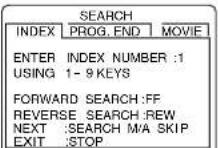
Press SEARCH/ M/A SKIP* to display SEARCH.
- If you inserted a cassette with the record tab or if you selected "INDEX SEARCH" go to page 30.
3
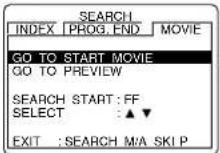
Press SEARCH/ M/ A SKIP twice to select MOVIE and press to select GO TO START MOVIE or GO TO PREVIEW.
Select "GO TO START MOVIE," if you want to advance directly to beginning of the movie.
continue with step 4.
Select "GO TO PREVIEW," if you want to view the first (next) preview.
see "To Search for Preview" at right.
4
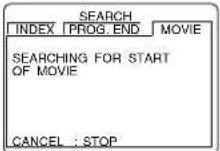
Press FF to start searching.
To cancel, press STOP.
When the movie is found...
5
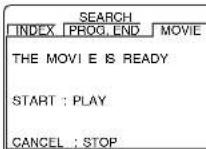
Press PLAY to start playback.
To cancel, press STOP.

Ready Checklist
All connections are made. One time Setup completed
VCR is plugged in
TV is turned on and set to CH3, 4 or Video on TV.
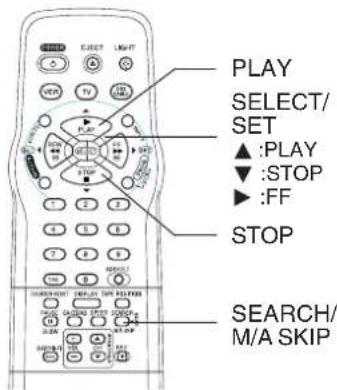
To Search for Preview.
You can override the operation of
MOVIE*ADVANCESEARCH FOR
PREVIEWS mode by pressing SEARCH/M/ASKIP during tape searching.
MOVIE 一 ^ 一 ADVANCE works by searching the tape past each preview and then reversing back to the start of the detected preview. While the tape is reversing back, if SEARCH/ M/A SKIP is pressed, MOVIE 一 ^ 一 ADVANCE will begin searching for the next preview.
While searching for the next preview, if you see the start of a preview which you wish to watch, press SEARCH/ M/A SKIP and
MOVIE ADVANCE will immediately reverse back to the start of that preview, instead of searching further past the preview start point. Once the VCR is playing a preview, press SEARCH/ M/A SKIP to advance to the next preview, long commercial or the start of the movie (whichever is next).
1 Start preview searching.
1) In step 3 at left, select GO TO PREVIEW.
2) Press FF.
If you want to playback, press PLAY.
When a preview is detected, VCR will start playback.
2 Start next preview searching. Press SEARCH/ M/A SKIP.
To cancel, press STOP.
opera
Advanced
Tape Operation (continued)
Search System
For each recording, an invisible index mark is placed on the tape. A program index and information are also included for timer recordings. These marks are used to access or scan recordings.
Index Search
1
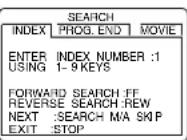
Press SEARCH/ M/A SKIP* to display SEARCH in Stop or Play mode, and then press NUMBER keys to select recording number.
To calculate number, see below. Press FF or REW on the remote to start search.
2
INDEX SEARCH
FORWARD SEARCH:FF REVERSE SEARCH:REW
Play begins at end of search. To search forward or back 1 index, press FF or REW on the remote or VCR while screen left is displayed (10 sec.).
To cancel, press PLAY or STOP.
To Calculate Index Number
Example 1:
To go to rec. 2 from rec. 4, enter 3 and press REW.

Example 2:
To go to rec. 6 from rec. 2, enter 4 and press FF.

NOTE: indicates start points of each recording.
Note
- If Index Search is started very close to an index mark, that index mark may not be counted in the search.
Program End Search
Locates end point of recording for continuity.
1 Press SEARCH/ M/A SKIP twice to display SEARCH in Stop or Play mode.
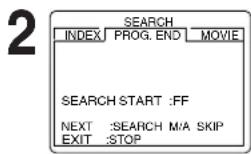
Press FF on the remote to start PROGRAM END SEARCH.
To cancel, press PLAY or STOP.
Examples of Program End Search.
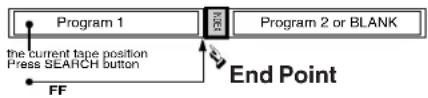
Fig.1

Fig.2
Fig.3
the current tape position Press SEARCH button
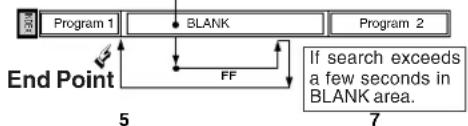
Upon locating end point,
search continues 7 sec. past end point,
tape rewrites to 10 sec. before end point, tape plays to end point and stops.
53 4
23
4
Note
If Program End Search is started very close to an index mark, that mark may be skipped over.
6 2
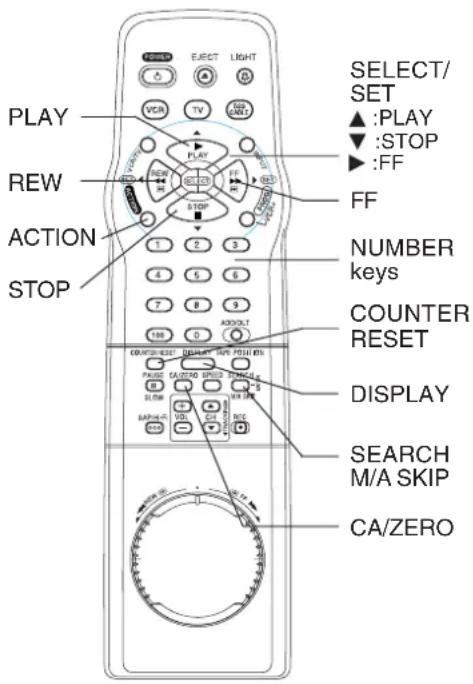
Zero Search
To quickly return to a specified tape location.
1 Press DISPLAY during play to display Counter.
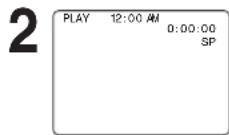
Press COUNTER RESET at desired position to reset to "0:00:00".
3 Continue to record, playback etc.
4 Press STOP.
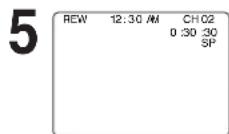
Press CA/ZERO in Stop mode to start ZERO SEARCH.
Unit will go into FF or REW mode and stop at the last point the Counter was set to 0:00:00.
Repeat Play
Set to playback a recording over and over.
1 Press ACTION to display menu.
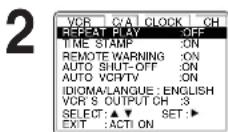
Press to select REPEAT PLAY and press to set ON or OFF. ON:Play repeats at tape end or if unrecorded portion over 30 sec.is detected.
3 Press ACTION to return to normal screen.
Auto Operation Functions
Auto Play Insert a tape Power comes on, Play starts if there is no record tab (see p. 4).
Auto Rewind Play Fast Forward Tape end, Rewind Play Auto Eject (Repeat Play must be off) Play, Tape end, Rewind, Tape ejects if there is no record tab
ouenrreoe
paeanea
Special VCR Features
Channel Caption
When set, station name, e.g. ABC, CBS, and channel number appear on-screen. Set up to 24 preset captions, and/or 10 manually created captions.
You need a list of stations and the channel numbers you receive them on.
Preset Caption
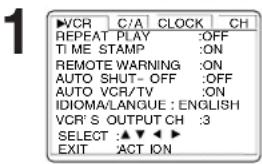
Press ACTION* to display menu.
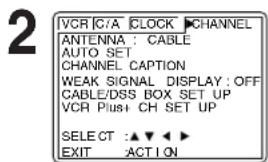
Press to select CHANNEL.
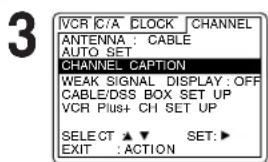
Press ▲▼
to select
CHANNEL
CAPTION and
press ▷ to set.
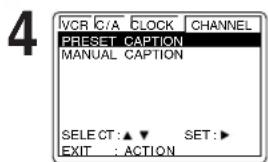
Press to select PRESET CAPTION and press to set.
To create your own captions, go to "Manual Caption" on right.
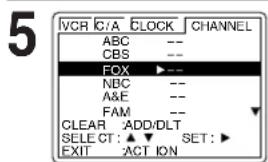
- Repeat step 5 until the list is complete.
Assign preset captions.
1) Press to highlight caption.
2) Press to move cursor to the right
3) Press to select CH number.
4) Press to set.
To make corrections, Press and to select the channel number, then press to change, or ADD/DLT to delete the number.
6 Press ACTION twice to return to normal screen.
Manual Caption
1 Do "Preset Caption" steps 1~3 on left.
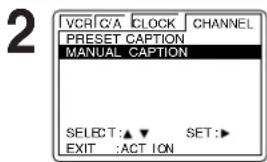
Press to select MANUAL CAPTION and press to set.
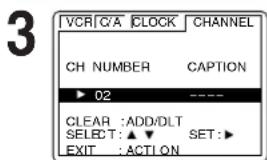
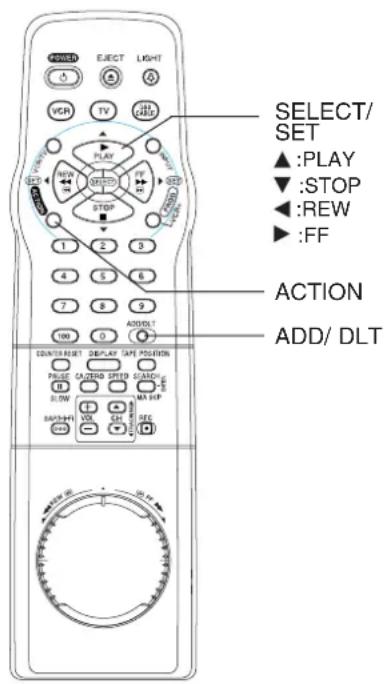
Press select CH NUMBER and press to move cursor to the right.
- Channels already set and channels deleted from Channel Memory are not displayed.
- You can set a total of ten channel captions.
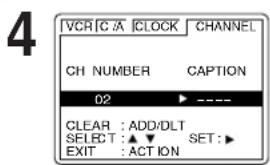
Press to enter CAPTION and press to set.
- Characters change in following order.

- Repeat steps 3 and 4 as desired.
To make corrections, Press move to the incorrect entry, then press make correction. Or, press ADD/DLT to clear the caption
Press ACTION twice
to return to normal screen.
*Important: If a remote control button does not work when pressed, press the VCR button on the remote and try the button again.
Remote Warning ON/OFF Feature
If Multi-brand feature is used (p. 22), and this feature is set to on, a warning appears whenever an invalid key is pressed in TV, DSS, or Cable mode.
1 Press ACTION to display menu.
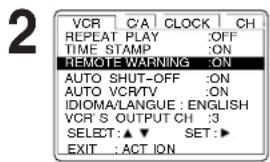
Press to select REMOTE WARNING and press to set ON or OFF.
- If "OFF," remote warning will not appear if invalid key is pressed.
3 Press ACTION to return to normal screen.
VCR Lock Feature
When set to ON, all operations except for timer record and tape eject are prohibited. Useful for households with small children.
VCR LOCK ACT MATED
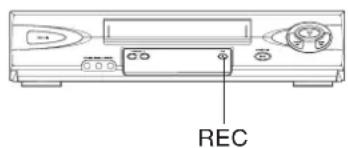
To turn on, hold down REC on the VCR in Stop mode with no tape inserted for 7 sec. (Please ignore the NO CASSETTE warning.)
VCRLOCKOFF
To turn off, repeat above.
opera
Advanced
- VCR Lock cancels in 24 hours if clock is set.
Special VCR Features (continued)
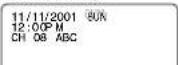
Time Stamp Feature
The VCR writes program data (see example below) about the first 10 seconds of every recording. The information is then displayed the first 10 seconds of playback.
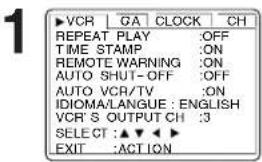
Press ACTION* to display menu.
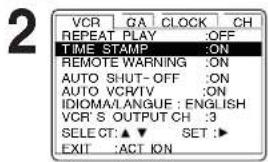
Press to select TIME STAMP and press to set.
- When "OFF" is selected, the program data is written on the tape, but will not be displayed.
3 Press ACTION again to return to normal screen.
One Touch Recording
Timer Recording
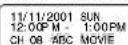
When Clock is not set...
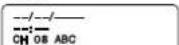
Ready Checklist Clock is set to correct time. Record tab in place. (See p. 4.)
Tape Position and Tape Status Feature
To find out the present tape position and amount of tape remaining. Tape position is displayed for VHS-C type Cassettes, tapes under 30 minute long, and some other tapes, but the position is not correct.
1 Press TAPE POSITION to detect current tape position.
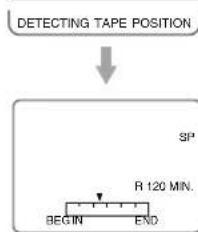
- "DETECTING TAPE POSITION" is displayed only when a cassette is first inserted, and it takes several seconds for correct tape position to appear.
The present tape position indication and amount of tape remaining (according to tape speed) is displayed. - Tape remaining time display may not be precise.
2 Press TAPE POSITION to return to normal screen.
34
Note
This function cannot display exact amount of tape remaining for tapes 30 minutes or less, or for tapes over 120 minutes in length.
*Important: If a remote control button does not work when pressed, press the VCR button on the remote and try the button again.
Auto Shut-Off Feature
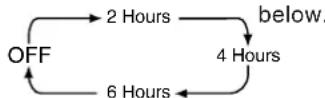
The power shuts off at a preset time.
1 Press ACTION to display menu.
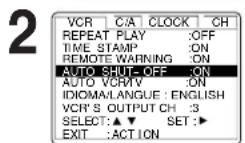
Press to select AUTO SHUT-OFF. Press repeatedly to change shut-off time as shown below.
3 Press ACTION to return to normal screen.
Note
The shut-off countdown will not function during Play or Record.
VCR/TV Selector Feature
The VCR VCR/TV selection can be set to auto or manual.
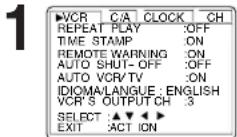
Press ACTION to display menu.
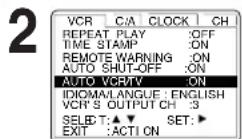
Press to select AUTO VCR/TV. Press to set ON or OFF.
- OFF(Manual): You select "VCR" or "TV" mode using the VCR/TV button on the unit or remote.
- ON(Auto): "VCR" mode is automatically set when VCR is turned on, or in Play mode.
3 Press ACTION to return to normal screen.
Note
For more on VCR/TV selection, see "Record one station, watch another" and "Select channels on VCR" sections (p.15).
Weak Signal Display ON/OFF Feature
When set to "ON," picture is displayed regardless of signal strength.
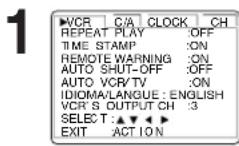
Press ACTION to display menu.
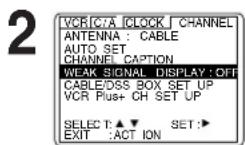
Press to select and display CHANNEL. Press to select WEAK SIGNAL DISPLAY, and press to set ON or OFF.
- ON: Picture is displayed despite signal condition and may be of poor quality. OFF: Screen turns solid blue when signal is weak or non-existent.
- Selecting ON has no effect on connected equipment with blue back feature.
3 Press ACTION to return to normal screen.
Shuttle Variable Speed Search
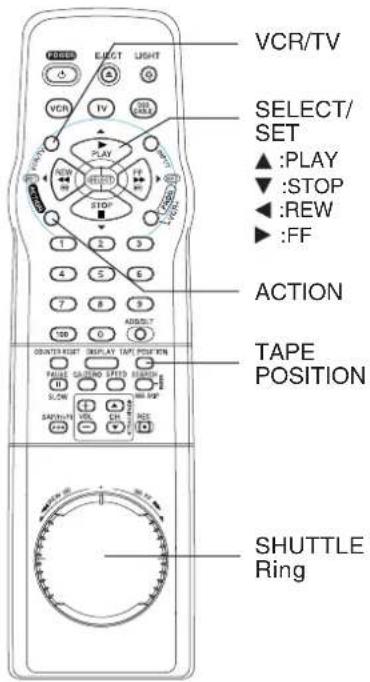
The SHUTTLE Ring allows you to smoothly control the tape speed during special effects playback in both forward or reverse.
Begin the forward or reverse search. Turn SHUTTLE Ring while in Play or Still mode.
- The more you turn the Ring, the faster the search speed will be.
Release the Shuttle mode.
Press a function button such as : PLAY, STOP, etc.
The VCR performs the function of the button pressed.
Notes
- When the SHUTTLE Ring is turned more than half in Stop mode, normal Fast Forward or Rewind will begin.
- Some noise bars are normal during Shuttle operation.
After 3 minutes in Still or Slow, the VCR will go into Stop mode. - When the SHUTTLE Ring is released, the VCR goes into Still mode.
ouenrreep
paeanea
Copying Your Tapes (Dubbing)
Connection
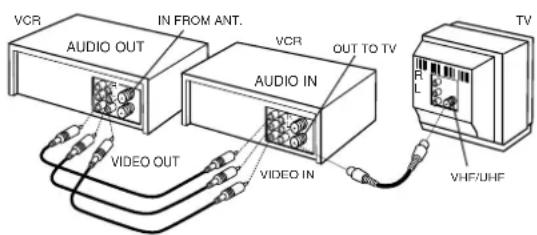
(Rear Connection shown.)
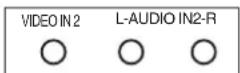
Front of VCR
(Audio/Video In Terminals on the front of VCR are available)
① Connect VIDEO OUT terminal on Playing VCR to VIDEO IN terminal on Recording VCR. To monitor the dubbing, also connect a TV as shown.
② Connect “L” and “R” AUDIO OUT terminals on Playing VCR to “L” and “R” AUDIO IN terminals on Recording VCR.
In place of a Playing VCR, you can use other equipment, such as a Camcorder. Simply connect the unit's Audio/Video outputs to the Recording VCR.
Playing (Source) VCR Re
Funding (Editing) VCR
1
Insert pre-recorded tape.
Insert blank tape with record tab.
2
Press INPUT to set VCR Input mode to LINE1 for Video Input (Rear) or to LINE2 for Video Input (Front). (See "Selecting the Input Mode" below.)
3
Press PLAY, then PAUSE/SLOW immediately to enter PLAY/PAUSE mode.
Press REC, then PAUSE/SLOW immediately to enter REC/PAUSE mode.
4
The operation of steps 4 and 5 must be done on the playing and recording VCRs at the same time.
Press PAUSE/SLOW to start dubbing. Recording VCR starts recording.
5
Press STOP to stop dubbing.
Press STOP to stop dubbing.
To Monitor Dubbing on Your TV
1 Turn your TV on and tune to the Recording VCR channel (CH3 or CH4).
2 Set the VCR/ TV Selector on the Recording VCR to "VCR."
Note
Dubbing tapes protected with Copy Guard will result in poor quality recording.
Selecting the Input Mode
Method 1: Press INPUT repeatedly. Channel Number LINE1 LINE2 Method 2: Press CH / Display will change as below.
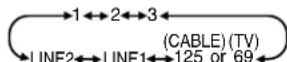
- "L1" or "L2" lights on Multi-Function Display (about 4 sec.) when LINE1 or LINE2 is selected.
- LINE1: For rear audio/video connection.
- LINE2: For front audio/video connection.
Caution: Unauthorized exchanging and/or copying of copyrighted recordings may be copyright infringement.
VCR & Cassette Information
Head Cleaning
Playing older or damaged tapes may eventually cause video heads to become clogged.
Video Head Clog Sensor
During playback, this screen appears if clogging is detected. To remove screen, press PLAY on the remote or VCR.
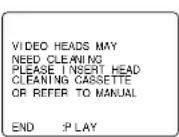
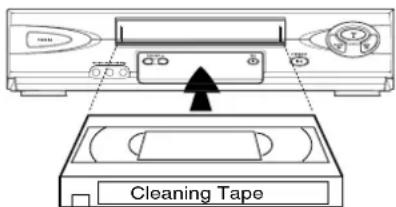
- Use "dry" type head cleaning cassette only. (Part No. NV-TCL30PT is recommended.)
- Follow cleaning tape instructions carefully. Excessive use of tape can shorten head life.
- If head clog symptoms persist, contact your nearest Factory Servicentre or authorized Servicentre. (See page 41.)
Cleaning the VCR
Use a soft cloth or dusting attachment of a vacuum cleaner to remove dust from the ventilation holes on the back sides and bottom of the cabinet.
Plastic surfaces are easily scratched and can be marred by alcohol and various solvents. Avoid excessive use of oil-based furniture polishes since the materials used in the cabinet will accumulate more dust. We recommend using a non-abrasive, antistatic cleaner and polisher.
Specifications
Power Source: 120V AC, 60 Hz
Power Consumption: Power On
Approx. 23 watts
Power Off
Approx. 3.0 watts
Video Signal: EIA Standard NTSC colour
Video Recording System:4 rotary heads helical
scanning system
Audio Track: 1 track (Normal)
2 channel (Hi-Fi Audio
Sound)
Tuner:
Broadcast Channels: VHF 2 ~ 13, UHF 14 ~ 69
CABLE Channels: Midband A through I (14~22)
Superband J through W (23~36)
Hyperband AA EEE (37\~64)
Lowband A-5 A-1 (95\~99)
Special CABLE channel 5A (01)
Ultraband 65~94,100~125
Operating Temperature: 5^ 40^ ( 41^ 104^ )
Operating Humidity: 10% 75%
Weight: 2.7 kg (6.0 lbs).
Dimensions: 430 (W) x 98 (H) x 242 (D) mm
16-15/16" (W) x 3-7/8" (H)
x 9-9/16" (D) inch
Note: Designs and specifications are subject to
change without notice.
Features for a Quality Picture
Digital Auto Picture
Automatically controls the video output signal for less noise depending on the tape condition.
Digital Auto Tracking
Continuously analyzes the signal and adjusts for optimum picture quality.
Manual Tracking Control (to reduce picture noise)
Use during Playback and Slow Motion mode to reduce picture noise.
Press CH (TRACKING) on the remote
control or VCR until the picture clears up.
To return to Auto Tracking, press POWER off, then on again a few seconds later.


V-Lock Control (to reduce picture jitter)
In Still mode, CH (TRACKING) ▲▼ operate as a V-Lock control.
CNR(Color Noise Reduction)
(PV-V4662-K Only)
Colour Noise Reduction reduces the colour noise.
Jno
On-Screen Displays (OSD)
Function & Channel Displays Blank Tape/ No Video Signal
Indications
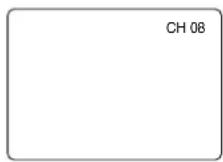
When a function button is pressed, e.g. PLAY, or you change channels, a 5-second display appears. (Some Station names may also appear if Channel Caption is set. See page 32.)
Whenever a blank section of a tape comes up in Play mode, or when the selected channel has no broadcast signal with the Weak Signal Display Feature (p. 35) set to OFF, the TV screen will turn solid blue.
VCR Status & Clock Displays
To display or remove overlay at right,
press DISPLAY.
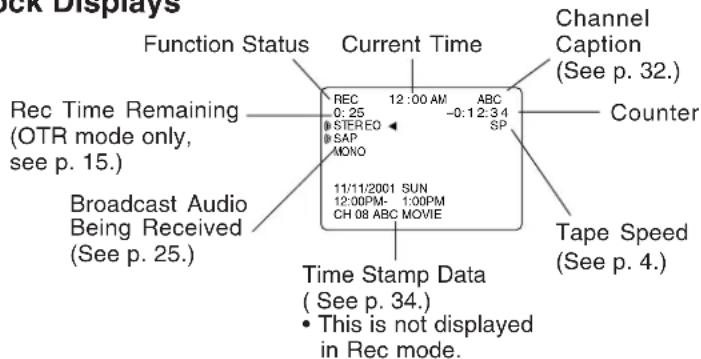
These displays will alert you to a missed operation or provide further instructions.
Warning and Instruction Displays
| OSD | Caution Page Caution | OSD | Page | |
| PLEASE SET CLOCK BY PRESSING ACTION KEY | If you attempt to set or review a Timer Recording and the Clock is not set... | 16 | VIDEO HEADS MAY NEED CLEANINGPLEASE INSERT HEAD CLEANING CASSETTERTOR REFER TO MANUALEND :PLAY | If head cleaning becomes necessary while playing back a tape... |
| TURN VCR OFFFOR TIMER RECORDING | After a Timer Program has been set... | 16 | VCR LOCK ACTIVATED | If you press a function buttons other than STOP/EJECT OR POWER while the VCR is in VCR Lock mode... |
| CHECK CASSETTERECORD TAB | If you press REC on the remote control or VCR, and a cassette is inserted with no record tab... | 4 | REMOTE CONTROL IS SETTO CABLE/DSS MODEUSE VCR : VCR KEY | If you press an invalid key on the remote while in CABLE/DSS mode... |
| NO CASSETTE | If you press PLAY, FF,REW, or REC on the remote control or VCR without a cassette inserted... | 1415 | REMOTE CONTROL IS SETTO TV MODEUSE VCR : VCR KEY | If you press an invalid key on the remote while in TV mode... |
| TO CANCEL TIMER RECPRESS POWER THENSTOP KEY | If you press POWER or STOP during a Timer Recording...(visible in VCR mode only) | 16 | ||
Before Requesting Service
Check the following points once again if you are having trouble with your VCR.
| Power | Correction |
| No power... | • Completely insert Power Plug into an AC outlet.• Set POWER button to on.• Make sure power source is active. |
| Recording & Playback | Correction |
| TV program cannot be recorded... | • Check connections between VCR, external antenna, and TV.• Check channel selections.• Make sure your antenna system (CABLE or TV) is correctly set. (Channels [P. 12])• Make sure cassette record tab is intact. (P. 4) |
| Timer recording cannot be performed... | • Confirm that clock is set to current time and date.• Make sure Cable/DSS box (if used) is left on and tuned to channel to be recorded.• Set recording start/stop times correctly. (P. 16)• Make sure VCR POWER button is pressed off. (P. 16)• Timer recording may not be performed or continued if a power interruption occurs before or during a Timer Recording, even after power is restored. |
| There is no playback picture, or the playback picture is noisy or contains streaks... | • Select channel 3 or 4 on TV to match VCR output channel (3 or 4) (P. 8) or select LINE.• Set VCR/TV selector to "VCR."• Adjust TRACKING control in either direction. (P. 37)• Try Head Cleaning. (P. 37) |
| During special effects playback, picture may contain some vertical jitter when using a TV with an Automatic Vertical Hold Control... | • Set TV's Vertical Hold Control to MANUAL, then adjust. |
| VCR cannot be controlled... | • Make sure VCR power is on.• Check Remote batteries.• Make sure VCR LOCK is set to off. (P. 33)• Make sure Remote is in proper mode. (P. 22)• Make sure Timer Recording is not in progress. |
| Remote Control | Correction |
| VCR cannot be remote controlled... | • Make sure VCR power is on.• Make sure Remote is in VCR mode.• Aim Remote Control directly at remote sensor on VCR. (P. 6)• Avoid any object blocking signal path.• Check Remote batteries. (P. 4)• Make sure VCR LOCK is set to off. (P. 33)• Exposing VCR remote sensor to direct fluorescent or outdoor light may cause signal interference. |
| ACTION and PROG/VCR+ buttons do not respond... | • Check connections between VCR, external antenna, and TV.• Press VCR button for VCR mode. (P. 22)• Check Remote batteries. (P. 4) |
| Miscellaneous | Correction |
| Programs cannot be viewed on TV... | • Make sure TV power is on.• Make sure TV is set to output of VCR.• Check connections between VCR, external antenna, and TV.• Set VCR/TV selector to "TV." (P. 15)• Make sure proper signal source is selected. |
| Video cassette cannot be inserted... | • Insert the cassette with window side up; record tab facing you.• Check if a tape is already in the unit. |
| Video cassette cannot be removed... | • Completely insert Power Plug into an AC outlet. |
| Video cassette ejects when a recording is started or the power is turned off for timer recording... | • Make sure cassette record tab is intact. (P. 4) |
| In Stop mode, the motor (CYLINDER) continues to rotate... | • To enable Quick play mechanism, the cylinder will rotate for about 3 minutes. This reduces response time from Stop to Play mode and from Play to Rewind Search mode. |
uou
Jno人 J0
Limited Warranty
Panasonic Canada Inc.
5770 Ambler Drive, Mississauga, Ontario L4W 2T3
PANASONIC PRODUCT - LIMITED WARRANTY
Panasonic Canada Inc. warrants this product to be free from defects in material and workmanship and agrees to remedy any such defect for a period as stated below from the date of original purchase.
VHS Video Cassette Recorder - One (1) year, parts and labour
LIMITATIONS AND EXCLUSIONS
This warranty does not apply to products purchased outside Canada or to any product which has been improperly installed, subjected to usage for which the product was not designed, misused or abused, damaged during shipping, or which has been altered or repaired in any way that affects the reliability or detracts from the performance, nor does it cover any product which is used commercially. Dry cell batteries are also excluded from coverage under this warranty.
This warranty is extended to the original end user purchaser only.
A purchase receipt or other proof of date of original purchase is required before warranty service is performed.
THIS EXPRESS, LIMITED WARRANTY IS IN LIEU OF ALL OTHER WARRANTYES, EXPRESS OR IMPLIED, EXCLUDING ANY IMPLIED WARRANTYES OF MERCHANTABILITY OR FITNESS FOR A PARTICULAR PURPOSE.
IN NO EVENT WILL PANASONIC CANADA INC. BE LIABLE FOR ANY SPECIAL, INDIRECT OR CONSEQUENTIAL DAMAGES.
In certain instances, some jurisdictions do not allow the exclusion or limitation of incidental or consequential damages, or the exclusion of implied warranties, so the above limitations and exclusions may not be applicable.
Servicentre List
WARRANTY SERVICE
For product operation and information assistance, please contact your
Dealer or our Customer Care Centre at:
Telephone #: (905) 624-5505
Fax #: (905) 238-2360
Web: www.panasonic.ca
For product repairs, please contact one of the following:
- Your Dealer who will inform you of an authorized Servicentre nearest you.
- Our Customer Care Centre at (905) 624-5505 or www.panasonic.ca
A Panasonic Factory Servicentre listed below:
Richmond, British Columbia
Panasonic Canada Inc. 12111 Riverside Way Richmond, BC V6W 1K8
Tel: (604) 278-4211 Fax: (604) 278-5627
Calgary, Alberta
Panasonic Canada Inc. 6835-8thSt.N.E. Calgary,AB T2E 7H7 Tel: (403)295-3955 Fax: (403)274-5493
Mississauga, Ontario
Panasonic Canada Inc.
5770 Ambler Dr.
Mississauga, ON L4W 2T3
Tel: (905) 624-8447
Fax: (905) 238-2418
Lachine, Quebec
Panasonic Canada Inc. 3075, rue Louis A. Amos Lachine, QC H8T 1C4 Tel: (514)633-8684 Fax: (514)633-8020
CUSTOMER'S RECORD:
Customer Name:
Model Number: Serial Number:
Date of Purchase:
Dealer's Name:
Address: Phone Number:
IF YOU SHIP THE PRODUCT TO A SERVICENTRE
Carefully pack and send prepaid, adequately insured and preferably in the original carton. Include details of the defect claimed, and proof of date of original purchase.
Jno人 Jor
Index
A
Accessories 4
AC Power Plug 7
Add or Delete a Channel 13
Audio Input Connector (L/R) 7
Audio Output Connector (L/R) 7
Audio/Video Connection 24
Auto Operation Functions 31
Auto Shut-Off 35
Auto VCR Plus+ System
Channel Setup 18, 19
B
Batteries 4
Before Requesting Service 39
Blank Tape/ No Video Signal Indications 38
C
Cable Box Setup 10
Cassette Compartment 6
Channel Caption 32
Channel Up/Down Tracking/V-Lock Button 6
Cleaning the VCR 37
Clock/Status/Channel/Speed Display 7
CNR (Color Noise Reduction) 37
Commercial Advance 26-28
Connections 8, 10, 24
Copying Your Tapes 36
D
DST (Daylight Saving Time) 13
F
Fast Forward/Search Button 6
Features for a Quality Picture 37
Function & Channel Displays 38
H
Head Cleaning 37
Hi-Fi Indicator 7
1
Important Safeguards and Precautions 2
Index Search 30
Initial Setup 8~11
1
Limited Warranty 40
M
Manual VCR Plus+ System Channel Setup 20
Movie Advance 29
MTS Broadcast 25
Multi-Brand Control 22, 23
0
On-Screen Display 38
P
Playback 14
Play Button 6
Power Button 6
Power Indicator 7
Program End Search 30
B
Record 15
Record Button 6
Remote Control Buttons 6
Remote Sensor 6
Remote Warning ON/OFF 33
Repeat Play 31
Reset Language, Channels, Clock, VCR's Output Channel 12, 13
Review, Replace or Clear Program Contents 17
Rewind/Search Button 6
S
Select Audio Mode 25
Servicentre List 41
Shuttle Variable Speed Search 35
Specifications 37
Stereo/SAP/Mono Broadcast 25
Stop/Eject Button 6
T
Table of Contents 5
Tape Position and Tape Status 34
Time Stamp 34
Timer Indicator 7
Timer Recording 16, 17
Timer Recording Using VCR Plus+ System 18~21
V
VCR Indicator. 7
VCR Lock 33
VCR Plus+ System Programming 21
VCR Status & Clock Displays 38
VCR/TV Selector 6,35
VHF/UHF Antenna Input Terminal 7
VHF/UHF Antenna Output Terminal 7
Video Input Connector (L/R) 7
Video Output Connector (L/R) 7
W
Warning and Instruction Displays 38
Weak Signal Display ON/OFF 35
Z
Zero Search 31
Panasonic
Panasonic Canada Inc.
5770 Ambler Drive,
Mississauga, Ontario L4W 2T3
(905)624-5010
www.panasonic.ca
Montreal: 3075 Louis A. Amos, Lachine, Quebec H8T 1C4 (514) 633-8684
Toronto: 5770 Ambler Drive, Mississauga, Ontario L4W 2T3 (905) 238-2181
Calgary: 6835 8th Street N.E., Calgary, Alberta T2E 7H7 (403) 295-3922
Vancouver: 12111 Riverside Way, Richmond, BC V6W 1K8 (604) 278-4211
Printed in Indonesia
LSQT0540
S0102-0

Omnivision VHS
Panasonic
Cable RF coaxial VJAS0196

(reboinage/reperage arriere)
IMAGNETICIAHORLCCA 9/29/2002 DIM 2:20PM HRETE:OUI REGLAGE:CA10
REGLAGE AUTOMATIQUE DE L'HOLORETE TERMINE
Programmation VCR Plus+

| Archer | 44, 06, 01, 120, 05, 63, 126 | Oak Sigma | 46, 11, 129, 101 |
| Cableview | 29, 09, 01, 63, 120, 44, 42, 30 | Panasonic | 17, 16, 08, 87, 109 |
| 52, 04, 124, 126 | Philips | 23, 24, 20, 13, 07, 50, 128, 129 | |
| Citizen | 44, 52, 30, 63, 42, 04, 124, 126 | Pioneer | 06, 05, 12 |
| Curtis | 08, 09, 25, 61, 53, 87 | Pulsar | 04, 42, 63, 44, 30, 52, 124, 126 |
| Century | 44, 51, 75, 59, 126 | Quest | 06, 05, 12 |
| Cabletenna | 29, 09, 01, 63, 120, 44, 126 | Radio Shack | 44, 51, 75, 59, 126 |
| Cable Cinema | 29, 09, 01, 63, 120, 44, 126 | RCA | 17, 16, 08, 87, 109 |
| Diamond | 29, 09, 01, 63, 120, 44, 126 | Realistic | 44, 51, 75, 59, 126 |
| Eagle | 62, 40, 22, 13, 58, 20, 26, 107 | Recotron | 44, 51, 75, 59, 126 |
| Eastern | 28, 29, 130 | Regal | 41, 14, 15, 28, 102, 104, 103, 130 |
| Explorer | 08, 09, 25, 61, 53, 87 | Regency | 28, 29, 130 |
| Gemini | 30, 04, 124 | Rembrandt | 44, 42, 63, 29, 01, 32, 39, 120, 126 |
| General Electric | 01, 57, 120 | Samsung | 42, 06, 32, 05, 40 |
| General Instruments | 01, 84, 83, 34, 03, 02, 04, 55 | Scientific Atlanta | 08, 09, 25, 61, 53, 87 |
| 65, 66, 67, 68, 120, 106, 121, 122, 115, 117, 118, 124 | Sheritech | Sheritech | 27 |
| Gerrard | 44, 51, 75, 59 | Signal | 26, 112 |
| GC Electronics | 44, 42, 63, 29, 30, 52, 04 | SL Marx | 42, 06, 32, 40, 43, 44, 52, 63, 126 |
| 124, 126 | Spricer | 17, 16, 08, 87, 109 |
| Hamlin | 41, 14, 15, 28, 102, 104, 103, 130 | Standard Components | 32, 39, 42, 44, 126 |
| Hitachi | 31 | Stargate | 04, 42, 32, 40, 63, 44, 30, 52, 06 |
| Jerrold | 01, 84, 83, 34, 03, 02, 04, 55, 65, 66 | 124, 126 |
| 67, 68, 120, 106, 121, 122, 115, 117, 118, 124 | Sylvania | 19, 18 |
| Jasco | 30, 04, 124 | Teknika |
| 74, 35 |
| Macom | 31 | Telecaption | 77, 127 |
| Magnavox | 26, 112 | Teleview | 40, 19, 38, 32, 42, 06 |
| Matsushita | 17, 16, 08, 87, 109 | Texscan | 19, 18 |
| Movetime | 32, 39, 42, 44, 126, 38, 40 | Tocom | 34, 33, 01, 42, 66, 120 |
| Maestro | 74, 35 | Toshiba | 36 |
| NEC | 40, 19, 38, 32 | Unika | 44, 42, 63, 29, 01, 126, 120 |
| NSC | 40, 19, 38, 32 | Universal | 52, 43, 44, 63, 42, 126 |
| Novavision | 08, 09, 25, 61, 53, 87 | Viewstar | 62, 40, 22, 13, 58, 20, 26, 107 |
| Next Level | 01, 84, 83, 34, 03, 02, 04, 55, 65 | Videoway | 07, 23, 50, 129 |
| 66, 67, 68, 120, 106, 121, 122 | Vidtek | 64 | |
| Oak | 46, 11, 129, 101 | Zenith | 07, 23, 50, 129 |
Alimentation: 120 V c.a., 60 Hz
Consommation: Environ 23 W (En contact)
Environ 3,0 W (Hors contact)
Ultrabande:65a94,100a125
Temperature de
fonctionnement:
Poids(approx.):2,7 kg (6,0 lb)
Dimensions (L x H x P): 430 mm x 98 mm x 242 mm
16 15/16 po x 3 7/8 po x 9 9/16 po
Panasonic Canada Inc.
5770 Ambler Drive, Mississauga, Ontario L4W 2T3
Certificat de garantie limitee Panasonic
Panasonic Canada Inc.
Panasonic Canada Inc.
Panasonic Canada Inc.
12111 Riverside Way
6835-8thSt.N.E.
5770 Ambler Dr.
Richmond, BC V6W 1K8
Calgary, AB T2E 7H7
Mississauga, ON L4W 2T3
Tél.: (604) 278-4211
Panasonic Canada Inc.
Programmation VCR Plus+ 2
R
Raccordement audio/video 24
Raccordements 8,10,24
Rebobinage/reperage 6
Panasonic Canada Inc.
5770 Ambler Drive,
Mississauga, Ontario L4W 2T3
(905)624-5010
www.panasonic.ca
Montreal: 3075 Louis A. Amos, Lachine, Quebec H8T 1C4 (514) 633-8684
Toronto: 5770 Ambler Drive, Mississauga, Ontario L4W 2T3 (905) 238-2181
Calgary: 6835 8th Street N.E., Calgary, Alberta T2E 7H7 (403) 295-3922
Vancouver: 12111 Riverside Way, Richmond, BC V6W 1K8 (604) 278-4211